PUBLIC


Installation Guide


SAP ERP 6.0 SR3 ABAP
on Windows: Oracle
ERP Central Component

Target Audience

n System Administrators
n Technical Consultants

Document version: 1.0 ‒ 03/28/2008
Document History


      Caution
Before you start the implementation, make sure you have the latest version of this document. You
can find the latest version at the following location:http://service.sap.com/erp-inst.

The following table provides an overview of the most important document changes.
Version     Date        Description

1.0         3/28/2008   Initial Version


2/164                                       PUBLIC                                     03/28/2008
Table of Contents


Chapter 1    Introduction . . . . .           .   .   .   .   .   .   .   .   .   .   .   .   .   .   .   .   .   .       7
1.1          New Features . . . . . .         .   .   .   .   .   .   .   .   .   .   .   .   .   .   .   .   .   .       8
1.2          SAP Notes for the Installation   .   .   .   .   .   .   .   .   .   .   .   .   .   .   .   .   .   .      11
1.3          Online Information from SAP      .   .   .   .   .   .   .   .   .   .   .   .   .   .   .   .   .   .      12
1.4          Naming Conventions . . .         .   .   .   .   .   .   .   .   .   .   .   .   .   .   .   .   .   .      15

Chapter 2    Planning . . . . . . . . . . . . . . .                           .   .   .   .   .   .   .   .   .   .      17
2.1          Basic System Variants . . . . . . . . . . .                      .   .   .   .   .   .   .   .   .   .      17
2.2          Domain or Local Installation . . . . . . . .                     .   .   .   .   .   .   .   .   .   .      18
2.3          How to Distribute Instances to Hosts . . . . .                   .   .   .   .   .   .   .   .   .   .      19
2.4          Distribution of SAP System Components to Disks                   .   .   .   .   .   .   .   .   .   .      20
2.5          SAP Directories . . . . . . . . . . . . .                        .   .   .   .   .   .   .   .   .   .      22
2.6          SAP System Transport Host . . . . . . . . .                      .   .   .   .   .   .   .   .   .   .      26
2.7          Basic SAP System Parameters . . . . . . . .                      .   .   .   .   .   .   .   .   .   .      27
2.8          Multiple Oracle Homes . . . . . . . . . .                        .   .   .   .   .   .   .   .   .   .      32

Chapter 3    Preparation . . . . . . . . . . . . . . . . . . . . . . .                                            .      35
3.1          Hardware and Software Requirements . . . . . . . . . . . . . .                                       .      35
3.1.1        Running the Prerequisite Checker in Standalone Mode (Optional) . . .                                 .      37
3.1.2        Requirements for a Central System . . . . . . . . . . . . . . .                                      .      38
3.1.3        Requirements for a Distributed System . . . . . . . . . . . . .                                      .      39
3.1.4        Requirements for a High-Availability System . . . . . . . . . . .                                    .      42
3.1.5        Requirements for the Dialog Instance . . . . . . . . . . . . . .                                     .      46
3.2          Checking the Windows File System . . . . . . . . . . . . . . .                                       .      46
3.3          Checking the Windows Domain Structure . . . . . . . . . . . .                                        .      47
3.4          Reducing the Size of the File Cache . . . . . . . . . . . . . . .                                    .      48
3.5          Required User Authorization for the Installation . . . . . . . . . .                                 .      48
3.6          Performing a Domain Installation Without Being a Domain Administrator                                .      50
3.7          Preparing the SAP System Transport Host . . . . . . . . . . . .                                      .      52
3.8          Installing the Front-End Software . . . . . . . . . . . . . . .                                      .      54
3.9          Generating the SAP Solution Manager Key . . . . . . . . . . . .                                      .      54
3.10         Installing the Java Runtime Environment . . . . . . . . . . . .                                      .      54
3.11         Preparing the Installation DVDs . . . . . . . . . . . . . . . .                                      .      55
3.12         Downloading Installation DVDs from SAP Service Marketplace (Optional)                                .      57


03/28/2008                                PUBLIC                                                                      3/164
Chapter 4   Installation . . . . . . . . . . . . . . . . .              .   .   .   .   .   .   .   59
4.1         Installing the Oracle Database Software . . . . . . .       .   .   .   .   .   .   .   59
4.2         Setting Up Multiple Homes (Optional) . . . . . . .          .   .   .   .   .   .   .   61
4.3         Installing an SAP System Using SAPinst . . . . . . .        .   .   .   .   .   .   .   62
4.3.1       Running SAPinst on Windows . . . . . . . . . . .            .   .   .   .   .   .   .   62
4.3.2       Using SAPinst GUI . . . . . . . . . . . . . . .             .   .   .   .   .   .   .   69
4.3.3       Interrupted Installation with SAPinst . . . . . . . .       .   .   .   .   .   .   .   70
4.3.4       Performing a Remote Installation with SAPinst (Optional)    .   .   .   .   .   .   .   72
4.3.5       Starting SAPinst GUI Separately (Optional) . . . . . .      .   .   .   .   .   .   .   72
4.3.6       Entries in the Services File Created by SAPinst . . . . .   .   .   .   .   .   .   .   74
4.3.7       How to Avoid Automatic Logoff by SAPinst . . . . . .        .   .   .   .   .   .   .   75

Chapter 5   Post-Installation . . . . . . . . . . . . . . . . . . . .                       .   .   77
5.1         Configuring the Windows Server 2008 Firewall . . . . . . . . . .                .   .   78
5.2         Logging On to the Application Server . . . . . . . . . . . . .                  .   .   79
5.3         Installing the SAP License . . . . . . . . . . . . . . . . .                    .   .   80
5.4         Creating Symbolic Links on Windows Server 2008 for Application Servers          .   .   80
5.5         Installing the SAP Online Documentation . . . . . . . . . . .                   .   .   81
5.6         Configuring Remote Connection to SAP Support . . . . . . . .                    .   .   81
5.7         Applying the Latest Kernel and Support Packages . . . . . . . . .               .   .   82
5.8         Performing Initial ABAP Configuration . . . . . . . . . . . .                   .   .   83
5.9         Performing Oracle-Specific Post-Installation Steps . . . . . . . .              .   .   85
5.10        Performing the Client Copy . . . . . . . . . . . . . . . .                      .   .   86
5.11        Performing a Full System Backup . . . . . . . . . . . . . .                     .   .   87
5.12        Implementing ERP ABAP Add-On Components . . . . . . . . .                       .   .   87
5.13        Ensuring User Security . . . . . . . . . . . . . . . . . .                      .   .   88
5.14        Accessing Configuration Documentation in SAP Solution Manager . .               .   .   89

Chapter 6   Additional Information . . . . . . . . . . . . . . . . . . .                             91
6.1         Installation of Multiple Components in One Database (Optional) . . . . .                 91
6.2         Integration of LDAP Directory Services (Optional) . . . . . . . . . .                    93
6.3         Starting and Stopping the SAP System . . . . . . . . . . . . . . .                       97
6.4         Single Sign-On with Microsoft Kerberos SSP . . . . . . . . . . . .                       98
6.4.1       Preparing the Central Instance . . . . . . . . . . . . . . . . .                         99
6.4.2       Configuring the SAP Front End . . . . . . . . . . . . . . . . .                         100
6.4.3       Activating Single Sign-On for the SAP Logon . . . . . . . . . . . .                     101
6.4.4       Mapping SAP Users to Windows Users . . . . . . . . . . . . . . .                        102
6.5         Configuring the Connection to a Central System Landscape Directory (SLD)                103
6.6         SAP System Security on Windows . . . . . . . . . . . . . . . .                          103
6.7         Automatic Creation of Accounts and Groups . . . . . . . . . . . .                       105
6.8         Troubleshooting . . . . . . . . . . . . . . . . . . . . . . .                           107


4/164                                   PUBLIC                                              03/28/2008
6.8.1        Troubleshooting with SAPinst . . . . .     .   .   .   .   .   .   .   .   .   .   .   .   .     107
6.9          Deleting an SAP System . . . . . . .       .   .   .   .   .   .   .   .   .   .   .   .   .     107
6.9.1        Running SAPinst to Delete an SAP System    .   .   .   .   .   .   .   .   .   .   .   .   .     108
6.9.2        Deleting the Oracle Database Software .    .   .   .   .   .   .   .   .   .   .   .   .   .     110

Chapter 7    High Availability with Microsoft Cluster Service . . . . . . .                         .   .     113
7.1          Planning . . . . . . . . . . . . . . . . . . . . . . .                                 .   .     114
7.1.1        System Configuration in MSCS . . . . . . . . . . . . . . .                             .   .     115
7.1.1.1      SAP System Components in an MSCS Configuration . . . . . . .                           .   .     115
7.1.1.2      Enqueue Replication Server in an MSCS Configuration . . . . . .                        .   .     119
7.1.2        Distribution of Components to Disks for MSCS . . . . . . . . .                         .   .     120
7.1.3        Directories in an MSCS Configuration . . . . . . . . . . . . .                         .   .     124
7.1.4        IP Addresses in an MSCS Configuration . . . . . . . . . . . .                          .   .     125
7.1.5        Obtaining and Determining IP Addresses for MSCS . . . . . . . .                        .   .     128
7.2          Preparation . . . . . . . . . . . . . . . . . . . . . .                                .   .     130
7.2.1        Assigning Drive Letters for MSCS . . . . . . . . . . . . . .                           .   .     131
7.2.2        Mapping Host Names to IP Addresses for MSCS . . . . . . . . .                          .   .     131
7.2.3        Checking the Mapping of Host Names for MSCS . . . . . . . . .                          .   .     132
7.3          Installation . . . . . . . . . . . . . . . . . . . . . . .                             .   .     133
7.3.1        Moving MSCS Groups or Services and Applications . . . . . . . .                        .   .     135
7.3.2        Rebooting During the Installation or Conversion for MSCS . . . . .                     .   .     136
7.3.3        Installing the Oracle Fail Safe Software in a 64-Bit System . . . . . .                .   .     137
7.3.4        Installing the Central Services Instance for ABAP (ASCS) . . . . . .                   .   .     139
7.3.5        Configuring the First MSCS Node . . . . . . . . . . . . . .                            .   .     140
7.3.6        Installing the Database Instance . . . . . . . . . . . . . . .                         .   .     141
7.3.7        Configuring the Additional MSCS Node . . . . . . . . . . . .                           .   .     142
7.3.8        Additional Steps for the Oracle Fail Safe Configuration . . . . . . .                  .   .     144
7.3.9        Installing an Enqueue Replication Server . . . . . . . . . . . .                       .   .     145
7.3.10       Installing the Central Instance . . . . . . . . . . . . . . .                          .   .     146
7.3.11       Creating the Oracle Fail Safe Group . . . . . . . . . . . . . .                        .   .     147
7.3.12       Setting Up a Shared Database Directory in Oracle Home . . . . . .                      .   .     148
7.3.13       Adding the Oracle Database Resource to the Fail Safe Group . . . . .                   .   .     150
7.3.14       Installing the Dialog Instance . . . . . . . . . . . . . . . .                         .   .     150
7.4          Post-Installation . . . . . . . . . . . . . . . . . . . . .                            .   .     152
7.4.1        Starting and Stopping the SAP System in an MSCS Configuration . . .                    .   .     152
7.4.2        Post-Installation Checks for Enqueue Replication Server . . . . . .                    .   .     153
7.4.2.1      Checking the Status of the Enqueue Replication Server with ENSMON .                    .   .     154
7.4.2.2      Monitoring the Lock Table During Failover with ENQT . . . . . .                        .   .     154


03/28/2008                               PUBLIC                                                             5/164
6/164   PUBLIC   03/28/2008
1    Introduction


1 Introduction


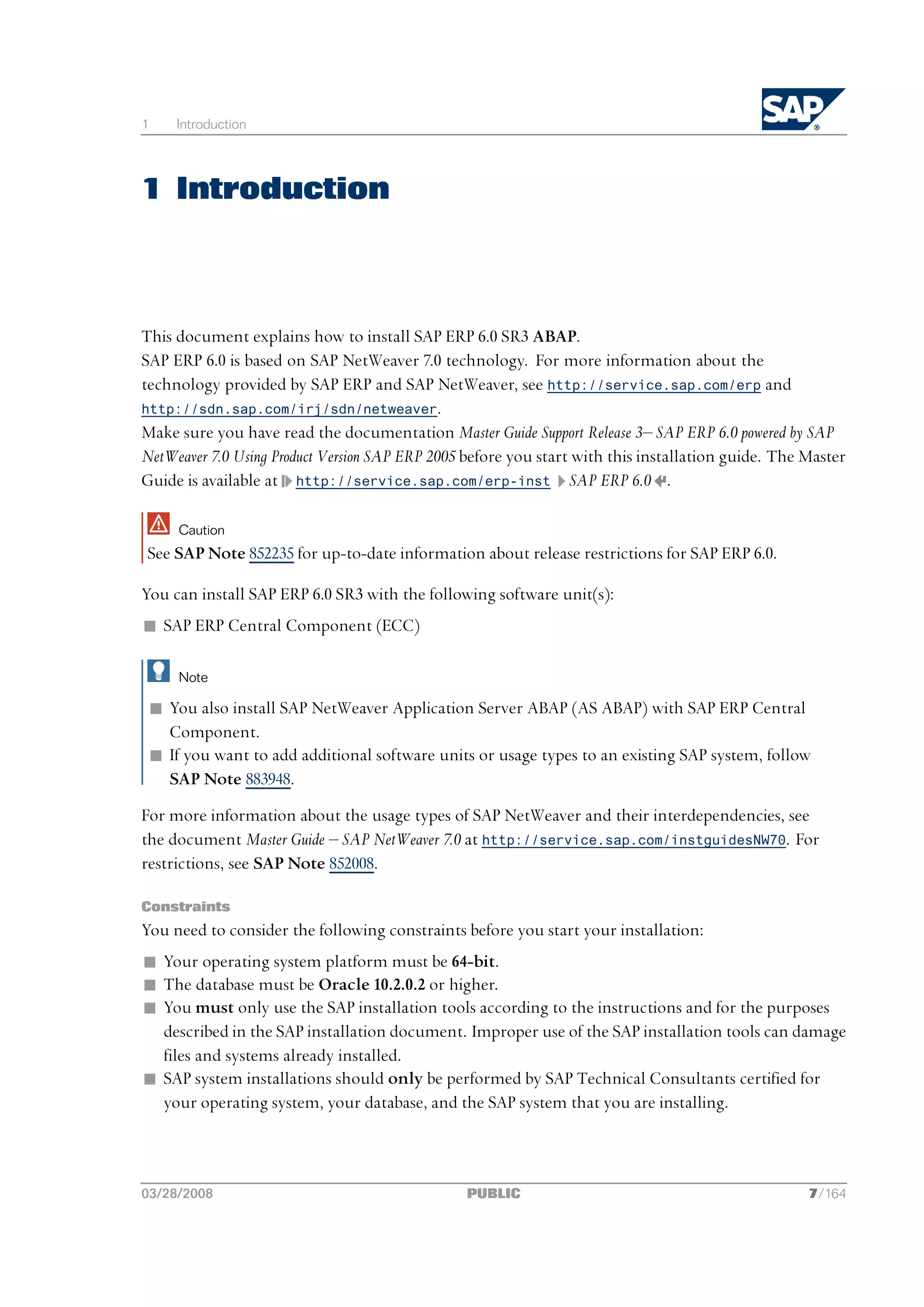
This document explains how to install SAP ERP 6.0 SR3 ABAP.
SAP ERP 6.0 is based on SAP NetWeaver 7.0 technology. For more information about the
technology provided by SAP ERP and SAP NetWeaver, see http://service.sap.com/erp and
http://sdn.sap.com/irj/sdn/netweaver.
Make sure you have read the documentation Master Guide Support Release 3‒ SAP ERP 6.0 powered by SAP
NetWeaver 7.0 Using Product Version SAP ERP 2005 before you start with this installation guide. The Master
Guide is available at http://service.sap.com/erp-inst SAP ERP 6.0 .

     Caution
See SAP Note 852235 for up-to-date information about release restrictions for SAP ERP 6.0.

You can install SAP ERP 6.0 SR3 with the following software unit(s):
n SAP ERP Central Component (ECC)

     Note

 n You also install SAP NetWeaver Application Server ABAP (AS ABAP) with SAP ERP Central
   Component.
 n If you want to add additional software units or usage types to an existing SAP system, follow
   SAP Note 883948.
For more information about the usage types of SAP NetWeaver and their interdependencies, see
the document Master Guide ‒ SAP NetWeaver 7.0 at http://service.sap.com/instguidesNW70. For
restrictions, see SAP Note 852008.

Constraints
You need to consider the following constraints before you start your installation:
n Your operating system platform must be 64-bit.
n The database must be Oracle 10.2.0.2 or higher.
n You must only use the SAP installation tools according to the instructions and for the purposes
  described in the SAP installation document. Improper use of the SAP installation tools can damage
  files and systems already installed.
n SAP system installations should only be performed by SAP Technical Consultants certified for
  your operating system, your database, and the SAP system that you are installing.


03/28/2008                                       PUBLIC                                             7/164
1     Introduction
1.1   New Features


n For downward-compatible releases of DB/OS platforms for SAP products, SAP plans to regularly
  release the newest database (DB) and operating-system (OS) versions of SAP products. These
  releases are downward-compatible with earlier SAP system releases.
  Note that for already shipped SAP components, we only support the installation for database
  versions proposed by the installation tool. Therefore, you must install an SAP component or
  perform a system copy using a downward-compatible database as follows:
  l Install the component with the old proposed database version.
  l Upgrade the old database version to the downward-compatible new version.


1.1 New Features

The following tables provide an overview of the new features related to the installation of this release:

      Caution
 Make sure that you read the release notes for your SAP system. You can find these at
 http://service.sap.com/releasenotes.


SAP System Installation

 Area                     Description
 SAPinst                  As of SAP NetWeaver 7.0, SAPinst has the following new features:
                          n You can check the prerequisites for your SAP system installation with the
                             Prerequisite Checker [page 37].
                          n You can install a central system in one of two modes:
                              l Typical Mode
                                 If you choose Typical, your SAP system is installed with default settings. As
                                 a result, you only have to respond to a small selection of prompts. If you
                                 want to change any of the default settings, you can do so on the parameter
                                 summary screen at the end of the installation.
                              l Custom Mode
                                 If you choose Custom, you must manually enter all installation parameters.
                                 You can change your values on the parameter summary screen at the end of
                                 the installation.
                          n You can uninstall an SAP system or an SAP component with the SAPinst service
                             Uninstall ‒ System / Standalone Engines / Optional Standalone Unit.
                          n You can install the Java Add-In for an existing ABAP system. This means that you
                             run SAPinst to execute the following:
                              l Install the central services instance (SCS)
                              l Add the Java database schema to the existing ABAP database instance
                              l Add the Java central instance with usage types to the existing ABAP central
                                 instance
                             The installation of the Java Add-In for an existing ABAP system is described in the
                             documentation Installation Guide ‒ <your product> ABAP+Java on <OS>: <Database>
                             available at http://service.sap.com/instguides.


8/164                                              PUBLIC                                            03/28/2008
1     Introduction
1.1   New Features


 Area                    Description


                                   Note
                             You cannot install the Java Add-In for existing ABAP dialog instance(s). Instead,
                             you have to install new ABAP+Java dialog instance(s).

                         n You assign one master password to all users created by SAPinst. This password is
                           used for all user accounts and for the secure store key phrase.
                         n SAPinst fills in most of the input parameter fields with default values.
                           If required, you can change the default values on the Parameter Summary screen
                           before you start the actual installation.
 Installation DVDs       You start the installation from a single Installation Master DVD.
 Usage type EP Core      As of SAP NetWeaver 7.0 SR2, usage type Enterprise Portal (EP) has been separated
 (EPC)                   into two closely related usage types: EP Core (EPC) and Enterprise Portal (EP). Usage
                         type EPC provides the core portal capabilities available in the former usage type EP.
                         Usage type EP now includes all portal add-on capabilities it provided before, but
                         without the core portal functionality.
                         n EP Core (EPC)
                             This usage type contains the core portal capabilities that were available in the
                             former usage type EP. This new usage type provides more flexibility when
                             implementing a portal where the full enterprise portal capabilities, such as
                             knowledge management and collaboration, are not needed. It contains the
                             portal, Guided Procedures (GP), and Universal Worklist (UWL).
                         n Enterprise Portal (EP)
                             This usage type includes Knowledge management, Collaboration, Composite
                             Application Framework Core (CAF-Core), Visual Composer, Web Dynpro
                             extension, and .NET PDK.
                         For more information about EPC and about how to use it in IT scenarios, see the
                         Master Guide and SAP Note 982502.
 SAP SRM 5.0 as Add-On In SAP ERP 6.0, you can deploy SAP SRM Server as one of the following:
 Component to SAP      n An add-on to SAP ECC Server (product instance SAP ERP 6.0 ‒ SAP ECC) to
 ERP 6.0                   run SRM in one client of the ERP system. This deployment option is new in
                           SAP ERP 6.0.
                       n A separate installation from SAP ECC Server. This deployment option is the
                           same as in mySAP ERP 2004.
                       For more information, see the documentation Master Guide ‒ SAP ERP 6.0 powered by
                       SAP NetWeaver 7.0 at http://service.sap.com/erp-inst.
 SAP Solution Manager    You require a key to install your SAP system. You generate this key with your SAP Solution
 Key                     Manager [page 54].


03/28/2008                                          PUBLIC                                                     9/164
1     Introduction
1.1   New Features


 Area                      Description
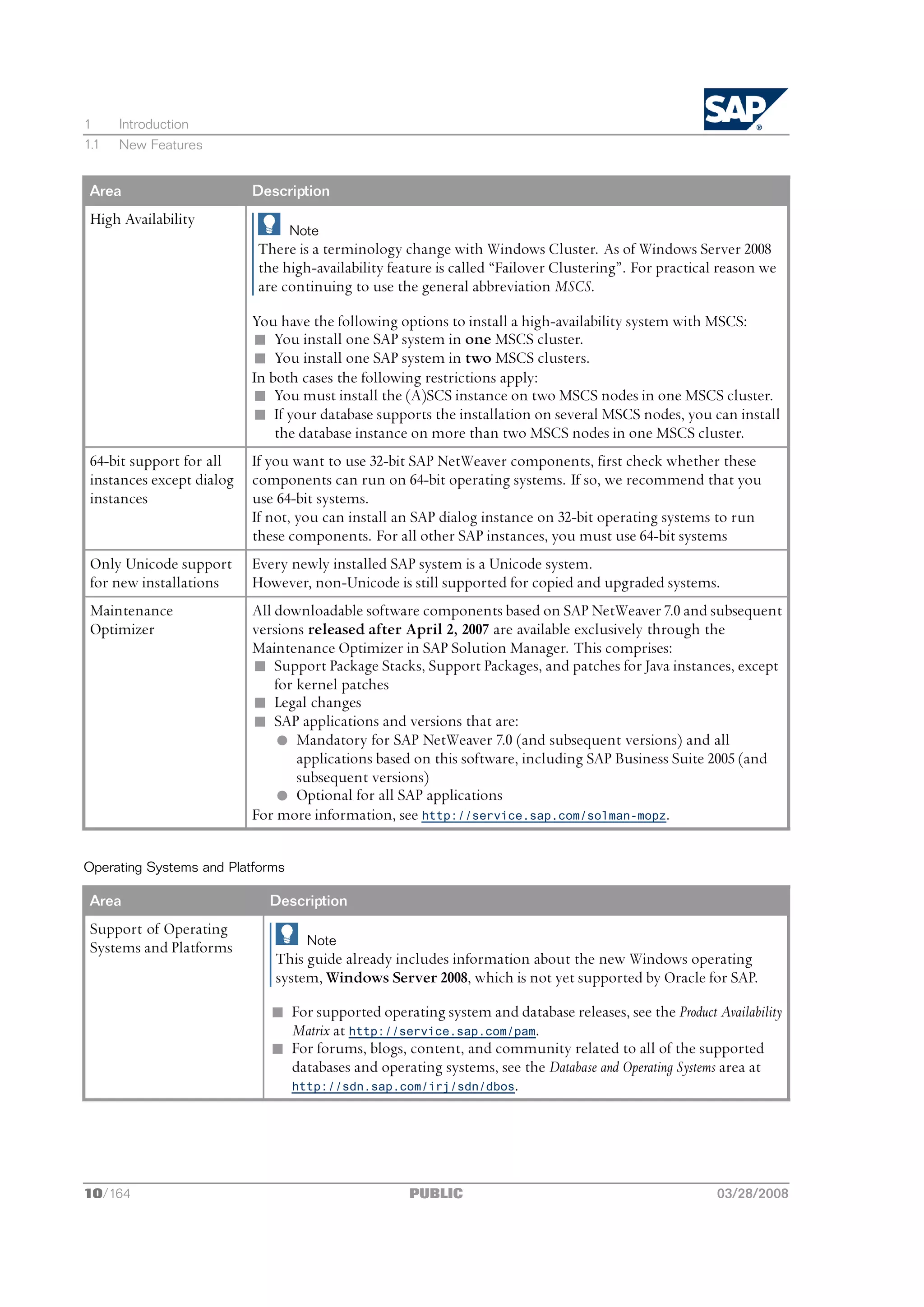
 High Availability
                                  Note
                           There is a terminology change with Windows Cluster. As of Windows Server 2008
                           the high-availability feature is called “Failover Clustering”. For practical reason we
                           are continuing to use the general abbreviation MSCS.

                           You have the following options to install a high-availability system with MSCS:
                           n You install one SAP system in one MSCS cluster.
                           n You install one SAP system in two MSCS clusters.
                           In both cases the following restrictions apply:
                           n You must install the (A)SCS instance on two MSCS nodes in one MSCS cluster.
                           n If your database supports the installation on several MSCS nodes, you can install
                               the database instance on more than two MSCS nodes in one MSCS cluster.
 64-bit support for all    If you want to use 32-bit SAP NetWeaver components, first check whether these
 instances except dialog   components can run on 64-bit operating systems. If so, we recommend that you
 instances                 use 64-bit systems.
                           If not, you can install an SAP dialog instance on 32-bit operating systems to run
                           these components. For all other SAP instances, you must use 64-bit systems
 Only Unicode support      Every newly installed SAP system is a Unicode system.
 for new installations     However, non-Unicode is still supported for copied and upgraded systems.
 Maintenance               All downloadable software components based on SAP NetWeaver 7.0 and subsequent
 Optimizer                 versions released after April 2, 2007 are available exclusively through the
                           Maintenance Optimizer in SAP Solution Manager. This comprises:
                           n Support Package Stacks, Support Packages, and patches for Java instances, except
                               for kernel patches
                           n Legal changes
                           n SAP applications and versions that are:
                               l Mandatory for SAP NetWeaver 7.0 (and subsequent versions) and all
                                   applications based on this software, including SAP Business Suite 2005 (and
                                   subsequent versions)
                               l Optional for all SAP applications
                           For more information, see http://service.sap.com/solman-mopz.


Operating Systems and Platforms

 Area                        Description
 Support of Operating
                                    Note
 Systems and Platforms
                              This guide already includes information about the new Windows operating
                              system, Windows Server 2008, which is not yet supported by Oracle for SAP.

                              n For supported operating system and database releases, see the Product Availability
                                Matrix at http://service.sap.com/pam.
                              n For forums, blogs, content, and community related to all of the supported
                                databases and operating systems, see the Database and Operating Systems area at
                                http://sdn.sap.com/irj/sdn/dbos.


10/164                                              PUBLIC                                             03/28/2008
1     Introduction
1.2   SAP Notes for the Installation


Oracle Database

 Area                                      Description
 New features in Oracle 10g                For the complete list of new features, see further documentation from
                                           Oracle, which you can find at:
                                           www.oracle.com/technology/products/database/oracle10g
                                           See also:
                                           n www.oracle.com/technology/documentation/
                                              database10g.html View Library
                                           n The documentation provided by Oracle on the RDBMS DVD
                                              under <DVD_Drive>:NT<platform>databasedocindex.htm


Documentation

 Area                                Description
 Links in PDF files                  You can use the new links in the PDF files of the guides as follows:
                                     n Click the section headings such as New Features to jump back to the table of
                                        contents at the beginning of the guide.
                                     n Click an internet link such as http://service.sap.com to jump to the
                                        corresponding internet page.


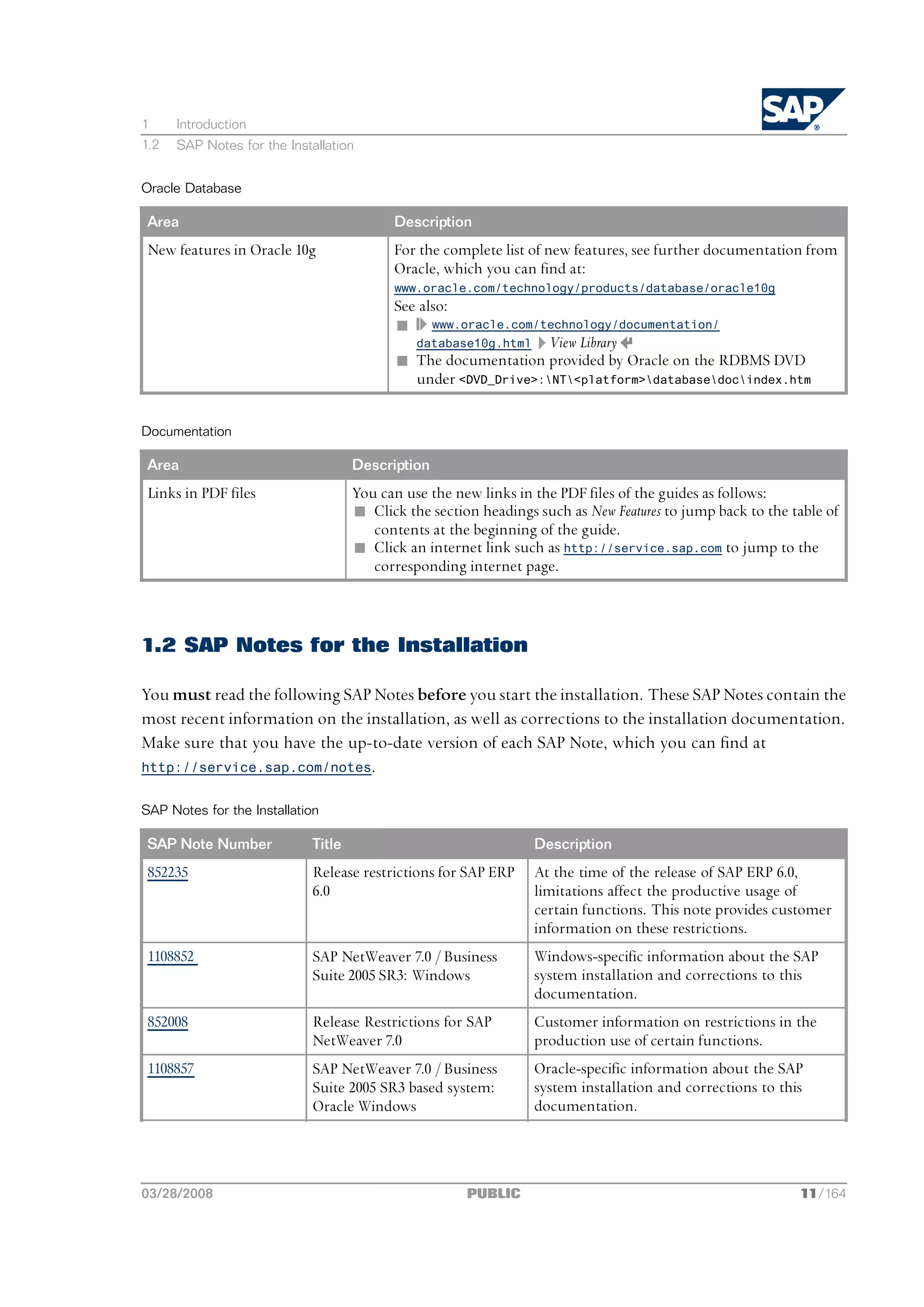
1.2 SAP Notes for the Installation

You must read the following SAP Notes before you start the installation. These SAP Notes contain the
most recent information on the installation, as well as corrections to the installation documentation.
Make sure that you have the up-to-date version of each SAP Note, which you can find at
http://service.sap.com/notes.


SAP Notes for the Installation

 SAP Note Number             Title                                Description
 852235                      Release restrictions for SAP ERP     At the time of the release of SAP ERP 6.0,
                             6.0                                  limitations affect the productive usage of
                                                                  certain functions. This note provides customer
                                                                  information on these restrictions.
 1108852                     SAP NetWeaver 7.0 / Business         Windows-specific information about the SAP
                             Suite 2005 SR3: Windows              system installation and corrections to this
                                                                  documentation.
 852008                      Release Restrictions for SAP         Customer information on restrictions in the
                             NetWeaver 7.0                        production use of certain functions.
 1108857                     SAP NetWeaver 7.0 / Business         Oracle-specific information about the SAP
                             Suite 2005 SR3 based system:         system installation and corrections to this
                             Oracle Windows                       documentation.


03/28/2008                                             PUBLIC                                               11/164
1     Introduction
1.3   Online Information from SAP


 SAP Note Number           Title                                 Description
 828268                    Oracle 10g: New functions             Information about new Oracle features released
                                                                 for the SAP system.
 855498                    Installation Prerequisite Checker SAP Software on UNIX, Windows and System i:
                                                             Checking OS Dependencies
 73606                     Supported Languages and Code          Information on possible languages and language
                           Pages                                 combinations in SAP systems
 1067221                   Central Note for Heterogeneous        Heterogeneous ABAP system landscapes on
                           Installation                          different operating systems have been released
                                                                 for some time. Heterogeneous Java system
                                                                 landscapes on different operating systems have
                                                                 now also been released. However, not every
                                                                 combination of operating system and database
                                                                 system is released. This SAP Note and its related
                                                                 SAP Notes describe the released operating system
                                                                 and database combinations.
 1152408                   Installing SAP Systems into an        Information on features and limitations for
                           Independent ASP (iASP)                installations into independent ASP.


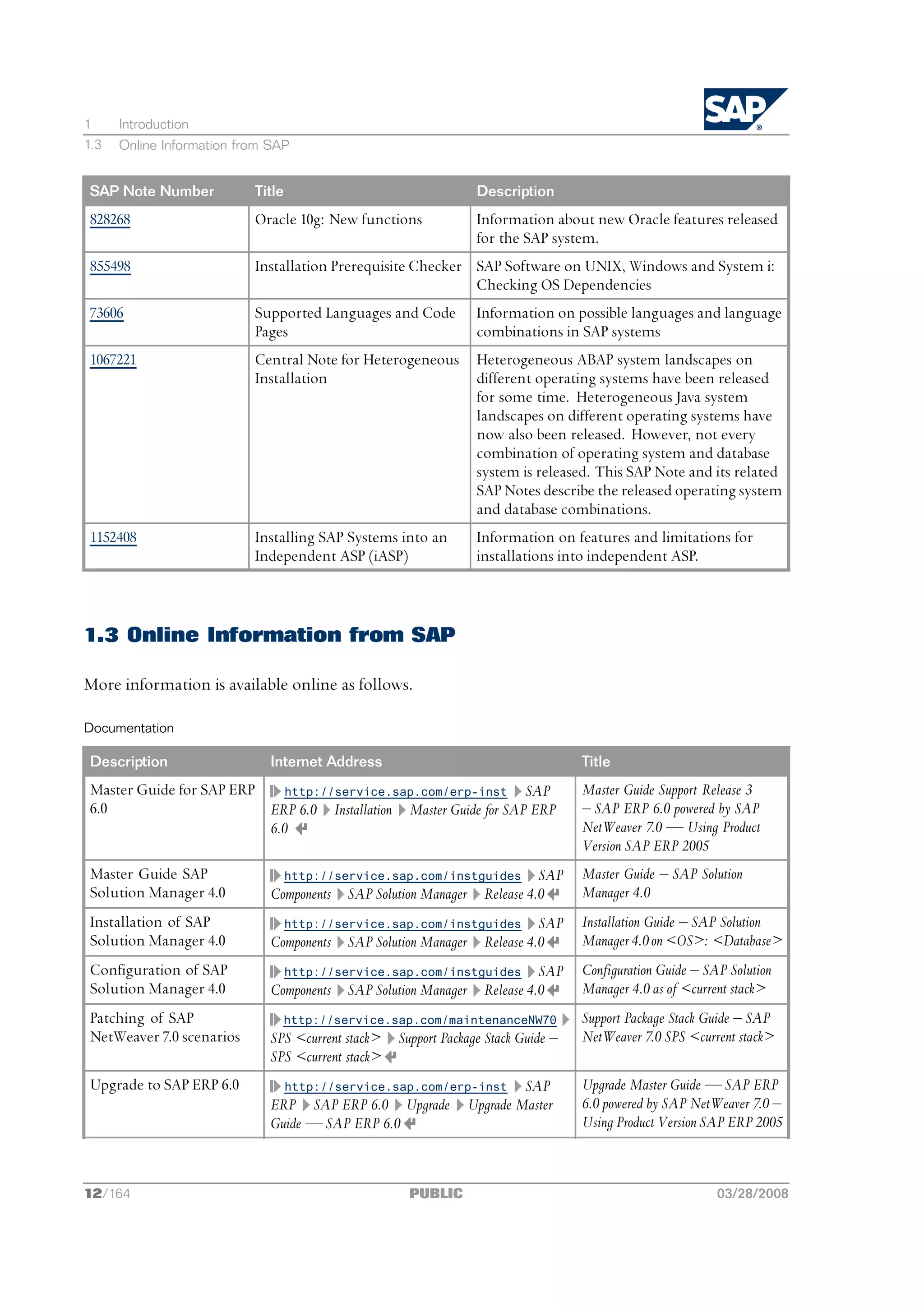
1.3 Online Information from SAP

More information is available online as follows.

Documentation

 Description                 Internet Address                                      Title
 Master Guide for SAP ERP    http://service.sap.com/erp-inst SAP                   Master Guide Support Release 3
 6.0                      ERP 6.0 Installation Master Guide for SAP ERP            ‒ SAP ERP 6.0 powered by SAP
                          6.0                                                      NetWeaver 7.0 — Using Product
                                                                                   Version SAP ERP 2005
 Master Guide SAP              http://service.sap.com/instguides SAP               Master Guide ‒ SAP Solution
 Solution Manager 4.0        Components SAP Solution Manager Release 4.0           Manager 4.0
 Installation of SAP           http://service.sap.com/instguides SAP               Installation Guide ‒ SAP Solution
 Solution Manager 4.0        Components SAP Solution Manager Release 4.0           Manager 4.0 on <OS>: <Database>
 Configuration of SAP              http://service.sap.com/instguides   SAP         Configuration Guide ‒ SAP Solution
 Solution Manager 4.0        Components SAP Solution Manager Release 4.0           Manager 4.0 as of <current stack>
 Patching of SAP                http://service.sap.com/maintenanceNW70             Support Package Stack Guide ‒ SAP
 NetWeaver 7.0 scenarios     SPS <current stack>   Support Package Stack Guide ‒   NetWeaver 7.0 SPS <current stack>
                             SPS <current stack>
 Upgrade to SAP ERP 6.0            http://service.sap.com/erp-inst      SAP        Upgrade Master Guide — SAP ERP
                             ERP SAP ERP 6.0 Upgrade           Upgrade Master      6.0 powered by SAP NetWeaver 7.0 ‒
                             Guide — SAP ERP 6.0                                   Using Product Version SAP ERP 2005


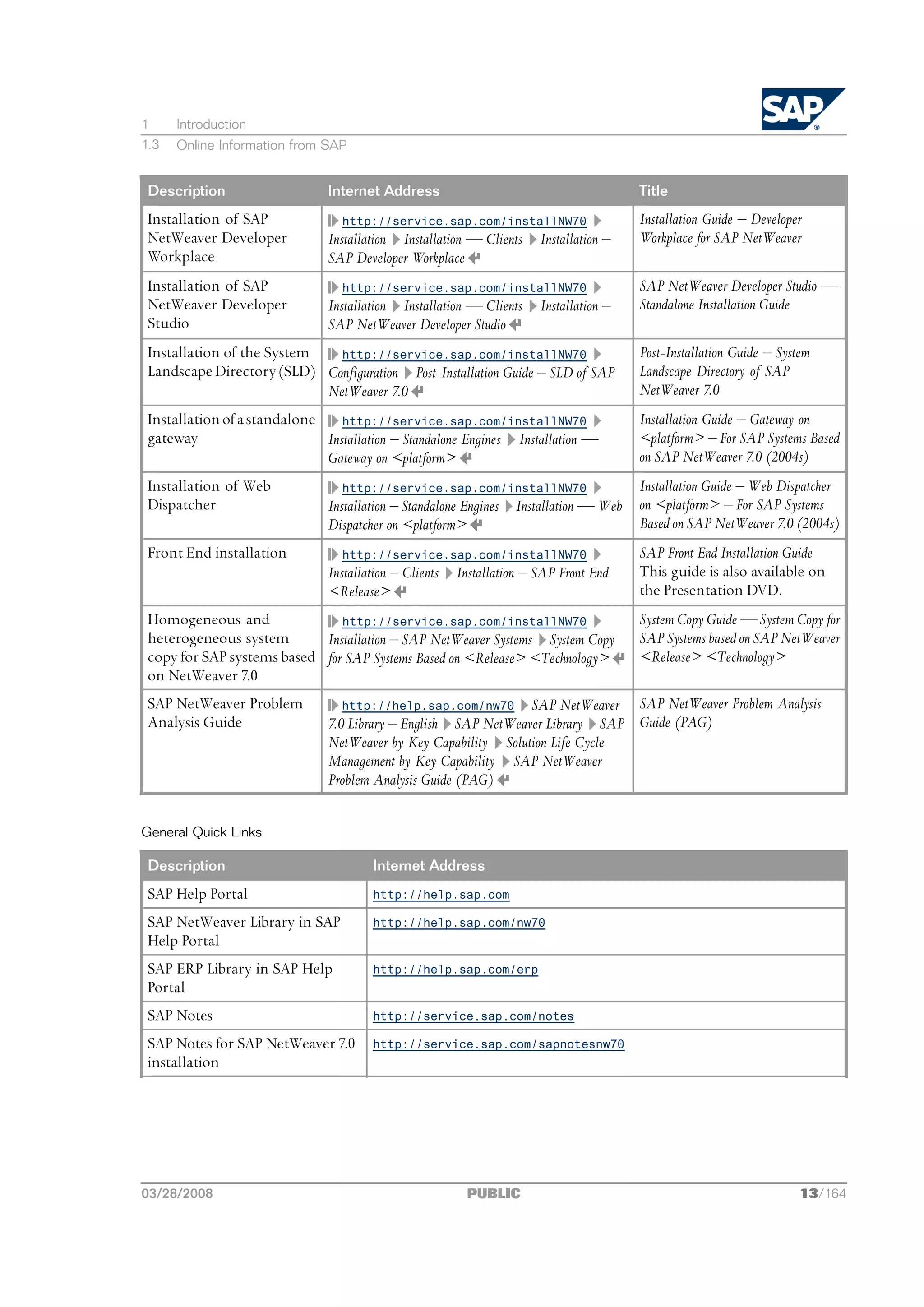
12/164                                               PUBLIC                                                03/28/2008
1     Introduction
1.3   Online Information from SAP


 Description                   Internet Address                                         Title
 Installation of SAP              http://service.sap.com/installNW70                    Installation Guide ‒ Developer
 NetWeaver Developer           Installation Installation — Clients     Installation ‒   Workplace for SAP NetWeaver
 Workplace                     SAP Developer Workplace
 Installation of SAP              http://service.sap.com/installNW70                    SAP NetWeaver Developer Studio —
 NetWeaver Developer           Installation Installation — Clients     Installation ‒   Standalone Installation Guide
 Studio                        SAP NetWeaver Developer Studio
 Installation of the System   http://service.sap.com/installNW70                        Post-Installation Guide ‒ System
 Landscape Directory (SLD) Configuration Post-Installation Guide ‒ SLD of SAP           Landscape Directory of SAP
                            NetWeaver 7.0                                               NetWeaver 7.0
 Installation of a standalone    http://service.sap.com/installNW70                     Installation Guide ‒ Gateway on
 gateway                      Installation ‒ Standalone Engines Installation —          <platform> ‒ For SAP Systems Based
                              Gateway on <platform>                                     on SAP NetWeaver 7.0 (2004s)
 Installation of Web              http://service.sap.com/installNW70                    Installation Guide ‒ Web Dispatcher
 Dispatcher                    Installation ‒ Standalone Engines Installation — Web     on <platform> ‒ For SAP Systems
                               Dispatcher on <platform>                                 Based on SAP NetWeaver 7.0 (2004s)
 Front End installation           http://service.sap.com/installNW70                    SAP Front End Installation Guide
                               Installation ‒ Clients   Installation ‒ SAP Front End    This guide is also available on
                               <Release>                                                the Presentation DVD.
 Homogeneous and               http://service.sap.com/installNW70                       System Copy Guide — System Copy for
 heterogeneous system       Installation ‒ SAP NetWeaver Systems System Copy            SAP Systems based on SAP NetWeaver
 copy for SAP systems based for SAP Systems Based on <Release> <Technology>             <Release> <Technology>
 on NetWeaver 7.0
 SAP NetWeaver Problem            http://help.sap.com/nw70 SAP NetWeaver       SAP NetWeaver Problem Analysis
 Analysis Guide                7.0 Library ‒ English SAP NetWeaver Library SAP Guide (PAG)
                               NetWeaver by Key Capability Solution Life Cycle
                               Management by Key Capability SAP NetWeaver
                               Problem Analysis Guide (PAG)


General Quick Links

 Description                           Internet Address
 SAP Help Portal                       http://help.sap.com

 SAP NetWeaver Library in SAP          http://help.sap.com/nw70
 Help Portal
 SAP ERP Library in SAP Help           http://help.sap.com/erp
 Portal
 SAP Notes                             http://service.sap.com/notes

 SAP Notes for SAP NetWeaver 7.0       http://service.sap.com/sapnotesnw70
 installation


03/28/2008                                               PUBLIC                                                       13/164
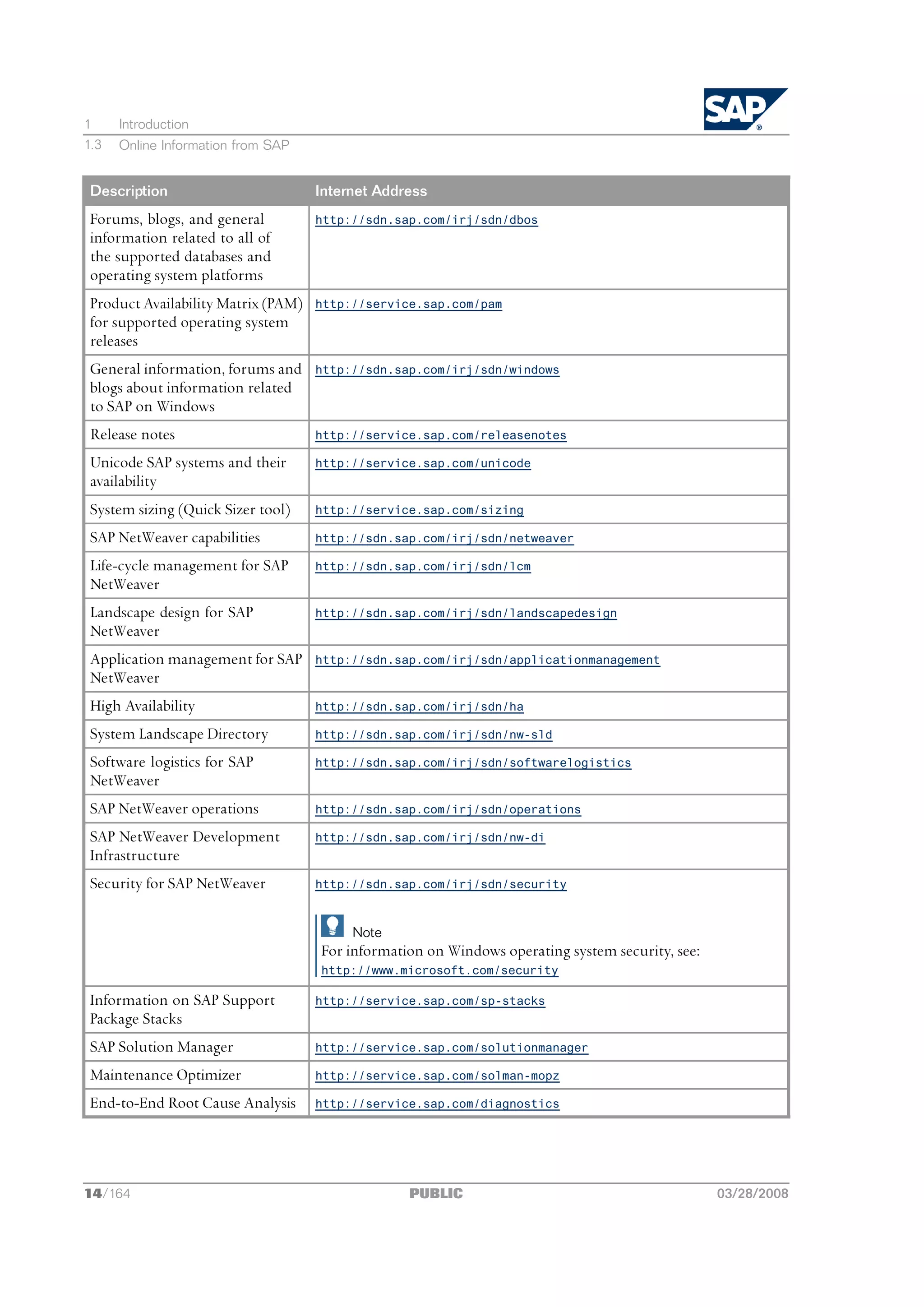
1     Introduction
1.3   Online Information from SAP


 Description                         Internet Address
 Forums, blogs, and general          http://sdn.sap.com/irj/sdn/dbos
 information related to all of
 the supported databases and
 operating system platforms
 Product Availability Matrix (PAM)   http://service.sap.com/pam
 for supported operating system
 releases
 General information, forums and     http://sdn.sap.com/irj/sdn/windows
 blogs about information related
 to SAP on Windows
 Release notes                       http://service.sap.com/releasenotes

 Unicode SAP systems and their       http://service.sap.com/unicode
 availability
 System sizing (Quick Sizer tool)    http://service.sap.com/sizing

 SAP NetWeaver capabilities          http://sdn.sap.com/irj/sdn/netweaver

 Life-cycle management for SAP       http://sdn.sap.com/irj/sdn/lcm
 NetWeaver
 Landscape design for SAP            http://sdn.sap.com/irj/sdn/landscapedesign
 NetWeaver
 Application management for SAP      http://sdn.sap.com/irj/sdn/applicationmanagement
 NetWeaver
 High Availability                   http://sdn.sap.com/irj/sdn/ha

 System Landscape Directory          http://sdn.sap.com/irj/sdn/nw-sld

 Software logistics for SAP          http://sdn.sap.com/irj/sdn/softwarelogistics
 NetWeaver
 SAP NetWeaver operations            http://sdn.sap.com/irj/sdn/operations

 SAP NetWeaver Development           http://sdn.sap.com/irj/sdn/nw-di
 Infrastructure
 Security for SAP NetWeaver          http://sdn.sap.com/irj/sdn/security


                                          Note
                                     For information on Windows operating system security, see:
                                     http://www.microsoft.com/security

 Information on SAP Support          http://service.sap.com/sp-stacks
 Package Stacks
 SAP Solution Manager                http://service.sap.com/solutionmanager

 Maintenance Optimizer               http://service.sap.com/solman-mopz

 End-to-End Root Cause Analysis      http://service.sap.com/diagnostics


14/164                                            PUBLIC                                          03/28/2008
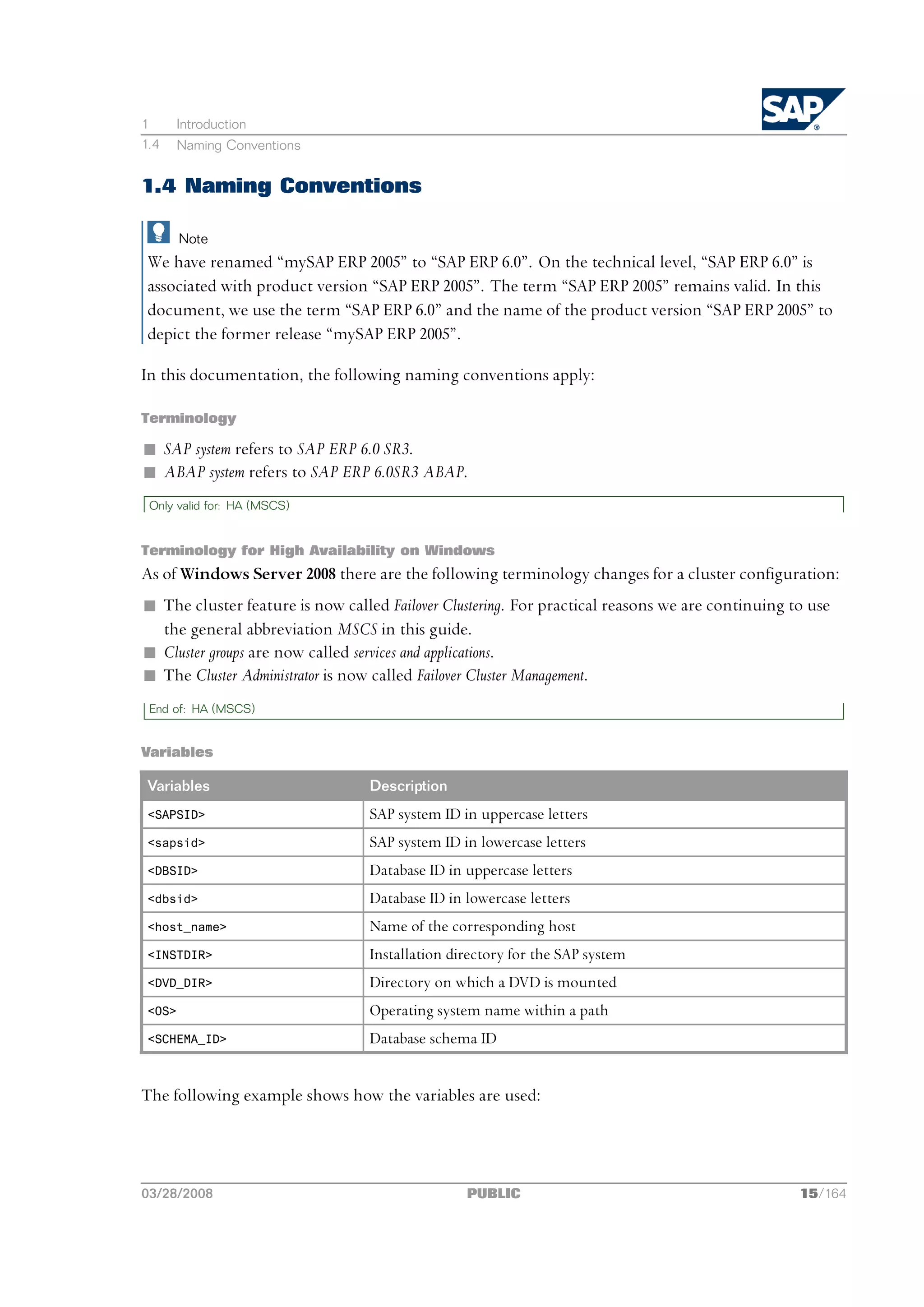
1       Introduction
1.4     Naming Conventions


1.4 Naming Conventions

        Note
 We have renamed “mySAP ERP 2005” to “SAP ERP 6.0”. On the technical level, “SAP ERP 6.0” is
 associated with product version “SAP ERP 2005”. The term “SAP ERP 2005” remains valid. In this
 document, we use the term “SAP ERP 6.0” and the name of the product version “SAP ERP 2005” to
 depict the former release “mySAP ERP 2005”.

In this documentation, the following naming conventions apply:

Terminology

n SAP system refers to SAP ERP 6.0 SR3.
n ABAP system refers to SAP ERP 6.0SR3 ABAP.
 Only valid for: HA (MSCS)


Terminology for High Availability on Windows
As of Windows Server 2008 there are the following terminology changes for a cluster configuration:
n The cluster feature is now called Failover Clustering. For practical reasons we are continuing to use
  the general abbreviation MSCS in this guide.
n Cluster groups are now called services and applications.
n The Cluster Administrator is now called Failover Cluster Management.
 End of: HA (MSCS)


Variables

 Variables                       Description
 <SAPSID>                        SAP system ID in uppercase letters
 <sapsid>                        SAP system ID in lowercase letters
 <DBSID>                         Database ID in uppercase letters
 <dbsid>                         Database ID in lowercase letters
 <host_name>                     Name of the corresponding host
 <INSTDIR>                       Installation directory for the SAP system
 <DVD_DIR>                       Directory on which a DVD is mounted
 <OS>                            Operating system name within a path
 <SCHEMA_ID>                     Database schema ID


The following example shows how the variables are used:


03/28/2008                                      PUBLIC                                            15/164
1     Introduction
1.4   Naming Conventions


      Example
 Log on as user <sapsid>adm and change to the directory usrsap<SAPSID>.
 If your SAP system ID is C11, log on as user c11adm and change to the directory
 usrsapC11.


16/164                                         PUBLIC                              03/28/2008
2       Planning


2 Planning


This section tells you how to plan the installation of your SAP system.
    Only valid for: HA (MSCS)

If you want to perform a high-availability installation with Microsoft Cluster Service (MSCS), see
also the MSCS-specific planning activities [page 114].
    End of: HA (MSCS)

You have to complete the following planning activities:
1. You plan your SAP system landscape according to the Master Guide.
   In addition, we recommend that you read theTechnical Infrastructure Guide ‒ SAP NetWeaver 7.0, which
   is available at: http://service.sap.com/installNW70.
2. You choose your basic system variant [page 17].
3. You decide whether you want to perform a domain or local installation [page 18].
4. You plan how to distribute the instances to hosts [page 19].
5. For the database installation, you decide on how to distribute your database components to disk [page 20].
6. You read about the SAP directories [page 22].
7. You decide on the transport host to use [page 26].
8. You identify basic SAP system parameters [page 27].
9. You decide if you want to use Multiple Oracle Homes [page 32].
The following planning activity is optional:
n Installation of Multiple Components in One Database (MCOD) [page 91]


2.1 Basic System Variants

This section describes the basic system variants and shows how you can distribute SAP instances
within these variants.
Mandatory instances of an ABAP system are the central instance and the database instance.

         Note
Optionally, you can install one or more dialog instances on a separate dialog instance host.


03/28/2008                                        PUBLIC                                              17/164
2     Planning
2.2   Domain or Local Installation


The following graphics show examples for the distribution of the SAP instances in a central system,
where the mandatory instances are installed on one host, and a distributed system, where the
mandatory instances are installed on separate hosts.

Figure 1:    ABAP System


More Information
 Only valid for: HA (MSCS)

For more information about how to distribute SAP instances in a high-availability SAP system, see
System Configuration in MSCS [page 115].
 End of: HA (MSCS)


2.2 Domain or Local Installation

Before you install the SAP system, you have to decide whether you want to perform a domain or
local installation, since this affects how the user account information is stored and accessed.
For more information about the differences between a local and domain installation, see the
Microsoft article Deciding Between Workgroups and Domains at:
http://technet2.microsoft.com/windowsserver/en/library/


Domain Installation
In a domain installation, the user account information is stored centrally in one database on the
domain controller and is accessible to all hosts in the system.


18/164                                         PUBLIC                                      03/28/2008
2     Planning
2.3   How to Distribute Instances to Hosts


You have to perform a domain installation if one of the following applies:
n You install a distributed system (strongly recommended to avoid authorization problems).
      Only valid for: HA (MSCS)

n You install a high-availability system with MSCS.
      End of: HA (MSCS)

n You want to use Single Sign-On.
n You use a common transport host for several SAP systems running on different computers.

Local Installation
In a local installation, all Windows account information is stored locally on one host and is not
visible to any other hosts in the system.
If the SAP system is to run on a single machine (central system), you can perform a local installation.

       Note
If your SAP system was installed as a local installation and you want to later change to a domain
installation, you must perform a homogeneous system copy. For more information, see the
documentation System Copy for SAP Systems based on SAP NetWeaver <release> <technology> at:
   http://service.sap.com/instguides <your product>


More Information
n Required User Authorization for the Installation [page 48]
n Single Sign-On with Microsoft Kerberos SSP [page 98]


2.3 How to Distribute Instances to Hosts

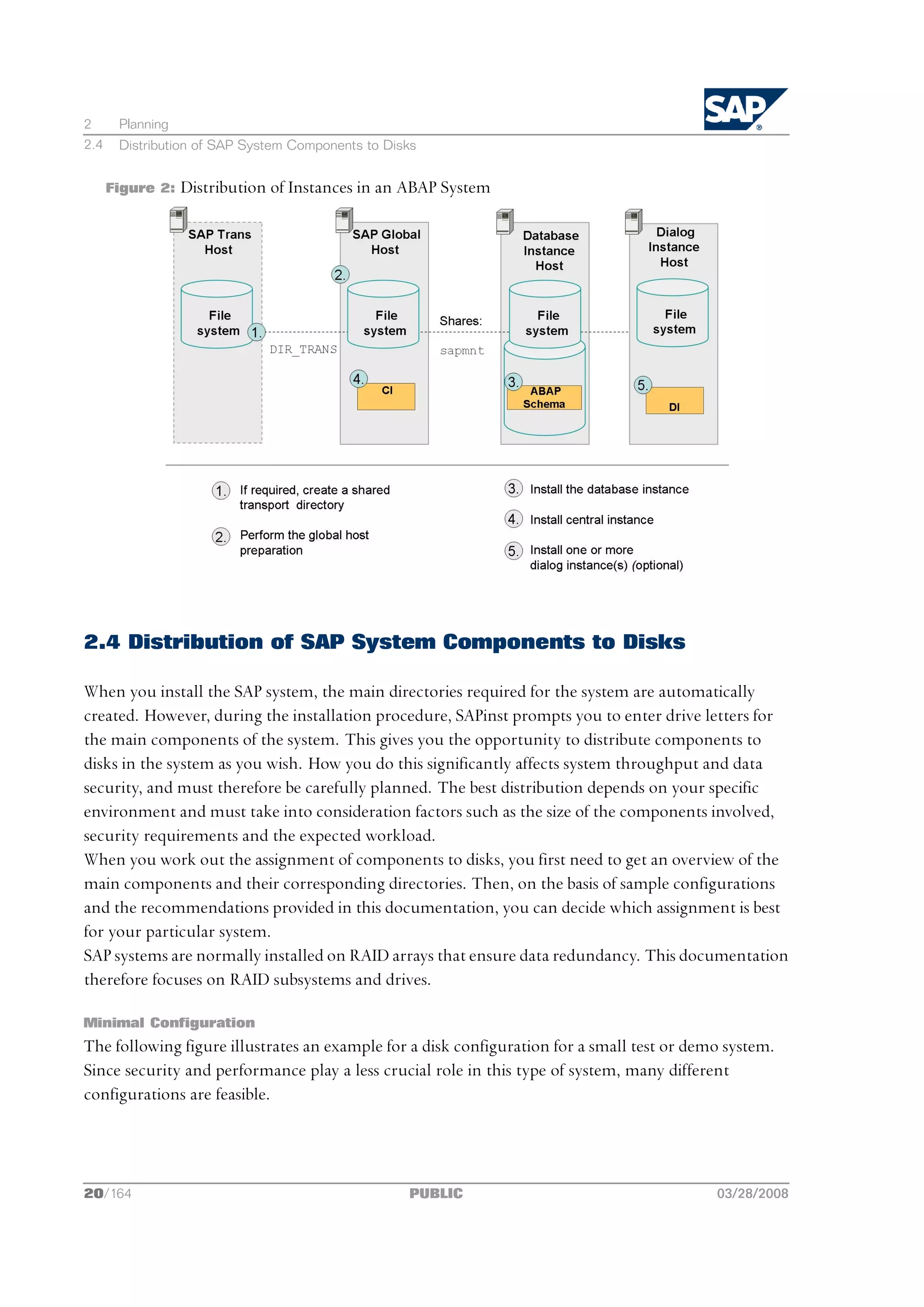
The following provides information on how you can distribute the SAP instances for the different SAP
system variants. You use SAPinst to install the SAP instances as a:
n Central system on a single host
  You run SAPinst and install all instances on one host.
n Distributed system on several hosts
  You perform the following steps:
  1. You specify or create a shared transport directory.
  2. You run SAPinst and prepare the global host.
  3. You run SAPinst and install the:
     l Database instance on the database host
     l Central instance on the global host
     l Dialog instance(s), if required, on the dialog instance host(s)
  The following figure shows how to distribute your instances to several hosts:


03/28/2008                                            PUBLIC                                    19/164
2      Planning
2.4    Distribution of SAP System Components to Disks


      Figure 2:   Distribution of Instances in an ABAP System


2.4 Distribution of SAP System Components to Disks

When you install the SAP system, the main directories required for the system are automatically
created. However, during the installation procedure, SAPinst prompts you to enter drive letters for
the main components of the system. This gives you the opportunity to distribute components to
disks in the system as you wish. How you do this significantly affects system throughput and data
security, and must therefore be carefully planned. The best distribution depends on your specific
environment and must take into consideration factors such as the size of the components involved,
security requirements and the expected workload.
When you work out the assignment of components to disks, you first need to get an overview of the
main components and their corresponding directories. Then, on the basis of sample configurations
and the recommendations provided in this documentation, you can decide which assignment is best
for your particular system.
SAP systems are normally installed on RAID arrays that ensure data redundancy. This documentation
therefore focuses on RAID subsystems and drives.

Minimal Configuration
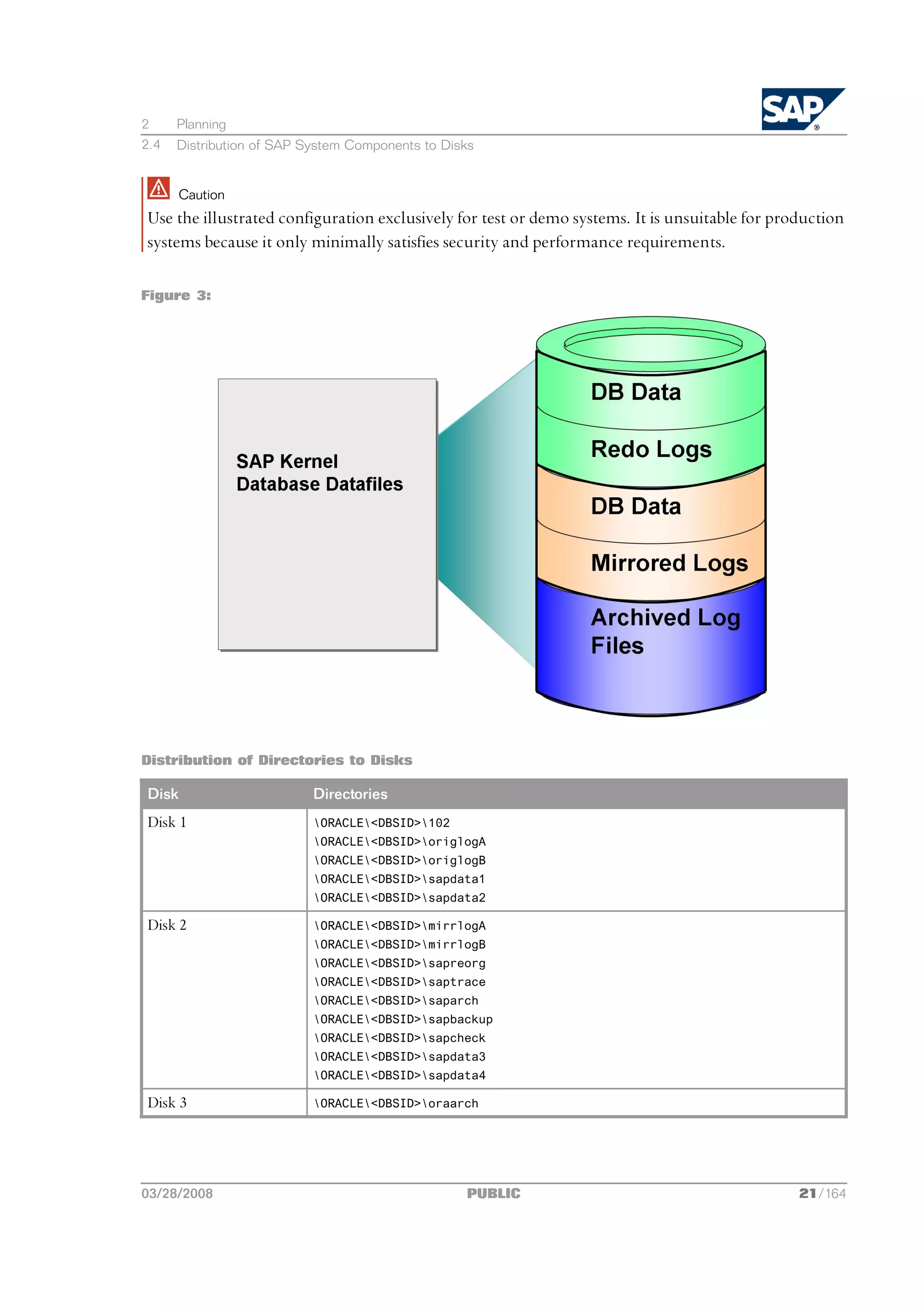
The following figure illustrates an example for a disk configuration for a small test or demo system.
Since security and performance play a less crucial role in this type of system, many different
configurations are feasible.


20/164                                             PUBLIC                                   03/28/2008
2     Planning
2.4   Distribution of SAP System Components to Disks


       Caution
Use the illustrated configuration exclusively for test or demo systems. It is unsuitable for production
systems because it only minimally satisfies security and performance requirements.

Figure 3:


Distribution of Directories to Disks

Disk                       Directories
Disk 1                     ORACLE<DBSID>102
                           ORACLE<DBSID>origlogA
                           ORACLE<DBSID>origlogB
                           ORACLE<DBSID>sapdata1
                           ORACLE<DBSID>sapdata2

Disk 2                     ORACLE<DBSID>mirrlogA
                           ORACLE<DBSID>mirrlogB
                           ORACLE<DBSID>sapreorg
                           ORACLE<DBSID>saptrace
                           ORACLE<DBSID>saparch
                           ORACLE<DBSID>sapbackup
                           ORACLE<DBSID>sapcheck
                           ORACLE<DBSID>sapdata3
                           ORACLE<DBSID>sapdata4

Disk 3                     ORACLE<DBSID>oraarch


03/28/2008                                        PUBLIC                                        21/164
2      Planning
2.5    SAP Directories


Comments

n The configuration ensures that no data can be lost, but the process for recovering a damaged
  database is complicated and time-consuming.
n The redo logs and database files are located on the same disks. This means that a single disk failure
  can result in the loss of both the redo logs and database data.
n The I/O-intensive redo logs are on the same disk volumes as the data files. This can impede
  performance.
n An equally good alternative would be to simply place all components on a single RAID 5 array.


2.5 SAP Directories

This section describes the directories that are available in an SAP system.
 Only valid for: HA (MSCS)

If you want to install an MSCS system, see also Directories in an MSCS Configuration [page 124].
 End of: HA (MSCS)

SAPinst automatically creates the following directories during the installation:
n     usrsap
      This directory is created on the:
      l Global host and shared with the network share sapmnt
          Only valid for: non-HA

         The global host is the host where the central instance is installed.
          End of: non-HA

          Only valid for: HA (MSCS)

         The global host is the host where the ASCS instance is installed.
          End of: HA (MSCS)

        On global hosts, the usrsap directory contains general SAP software, global and local
        (instance-specific) data. For this, SAPinst creates the global directory usrsap<SAPSID>SYS,
        which physically exists only once for each SAP system. It consists of the following subdirectories:
        u global ‒ contains globally shared data
        u profile ‒ contains the profiles for all instances
        u exe ‒ contains executable replication directory for all instances and platforms
      l Local host and shared with the name saploc.
        On local hosts, the usrsap<SAPSID><instance_name> directory contains copies of the SAP
        software and local (instance-specific) data.


22/164                                             PUBLIC                                          03/28/2008
2      Planning
2.5    SAP Directories


                Note
          Since SAP traces for the instance are created in usrsap, make sure there is sufficient space
          available in this directory. Changes in SAP profiles can also affect the disk space.

                Note
          The executables on the local host are replicated from those on the global host every time
          the local instance is started. The SAP copy program sapcpe compares the binaries in the
          <platform> directory on the global host and the binaries in the exe directory on the
          application server. If the binaries in the exe directory are elder than those in the <platform>
          directory, sapcpe replaces them with the newer version of the global host.

      Other application servers access the global data using the Universal Naming Convention (UNC)
      path <SAPGLOBALHOST>sapmnt. The SAP programs access their instance-specific data with the
      UNC path <SAPLOCALHOST>saploc. If the UNC path points to a local directory, the local path
      (and not the UNC path) is used to access the directory.
      The parameters SAPGLOBALHOST and SAPLOCALHOST have the same values on the global host.
       Only valid for: HA (MSCS)


            Note
      Windows Server 2008 only:
      In a high-availability system, file shares pointing to directories on shared disks are only visible or
      accessible with the virtual host name of the cluster group the shared disks belong to.
      This lets you have several shares with the same name pointing to different disks (multi-SID).

       End of: HA (MSCS)

n     usrsaptrans
      The transport directory contains SAP software for the transport of objects between SAP systems.
      SAPinst by default creates it on the SAPGLOBALHOST.
      If you want to have it created on another host or if you want to use an existing transport host from
      your SAP system landscape, you can specify another host during the installation. In this case, you
      have to prepare that host for the new SAP system to use it. For more information, see Preparing
      the SAP System Transport Host [page 52].

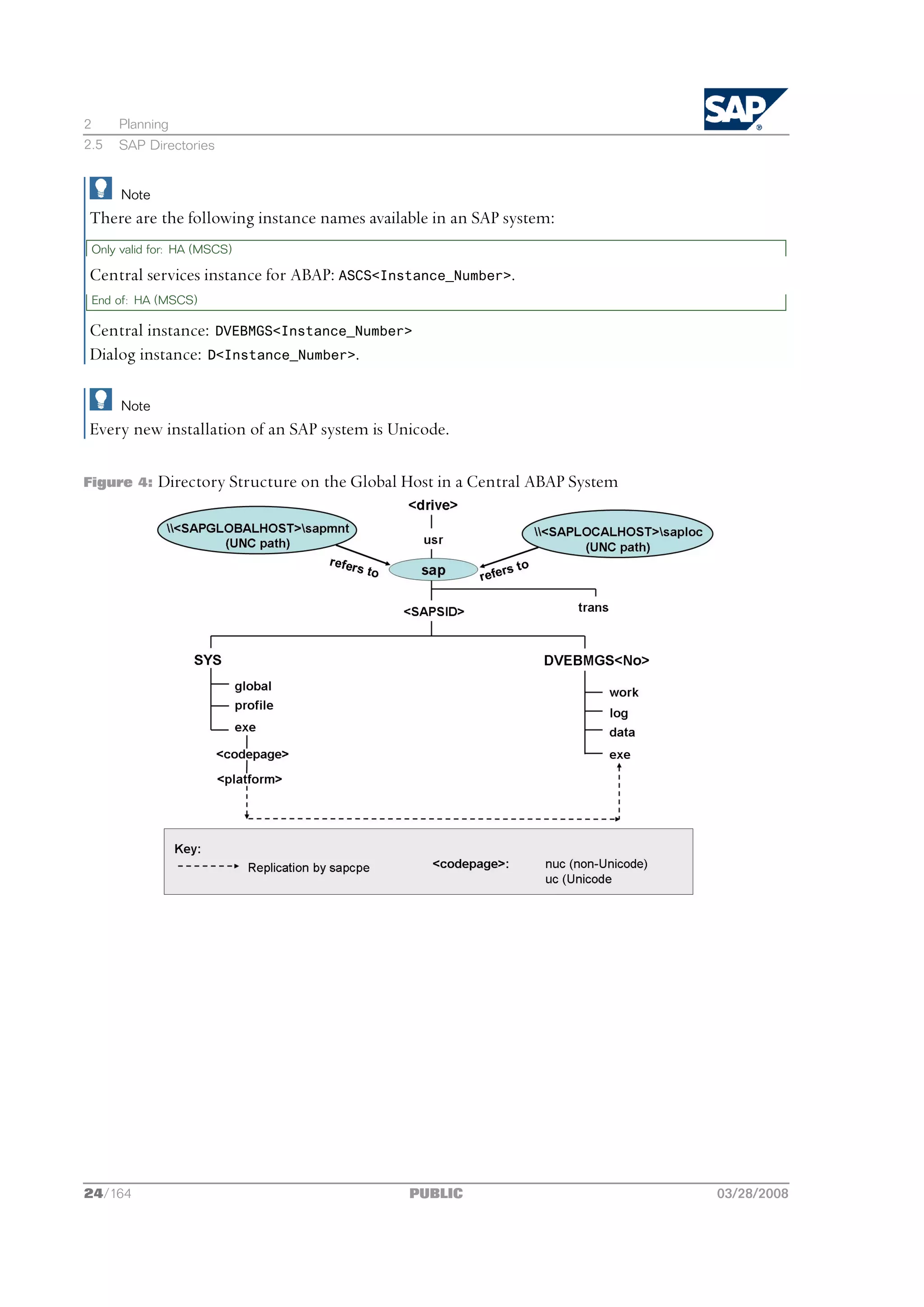
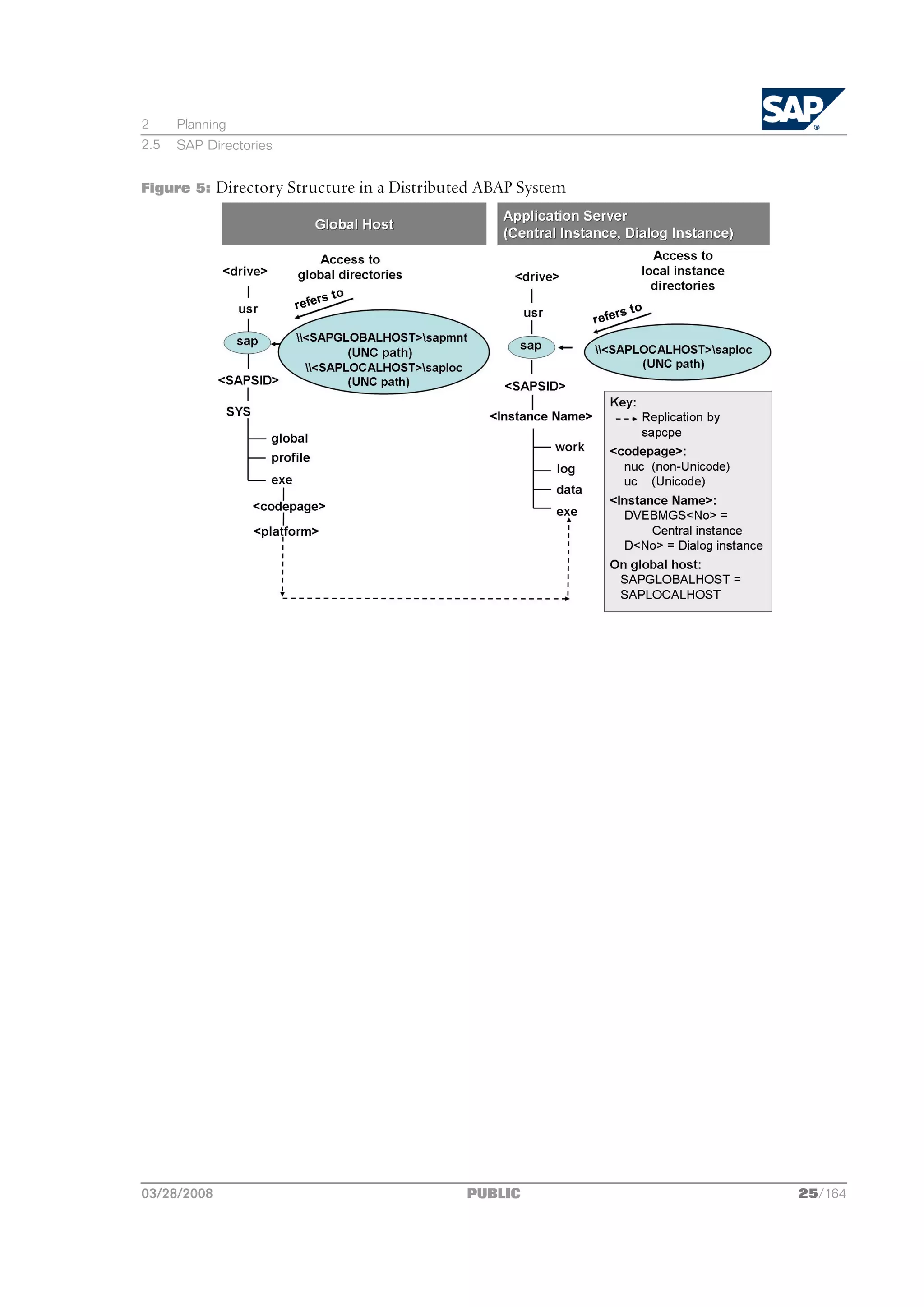
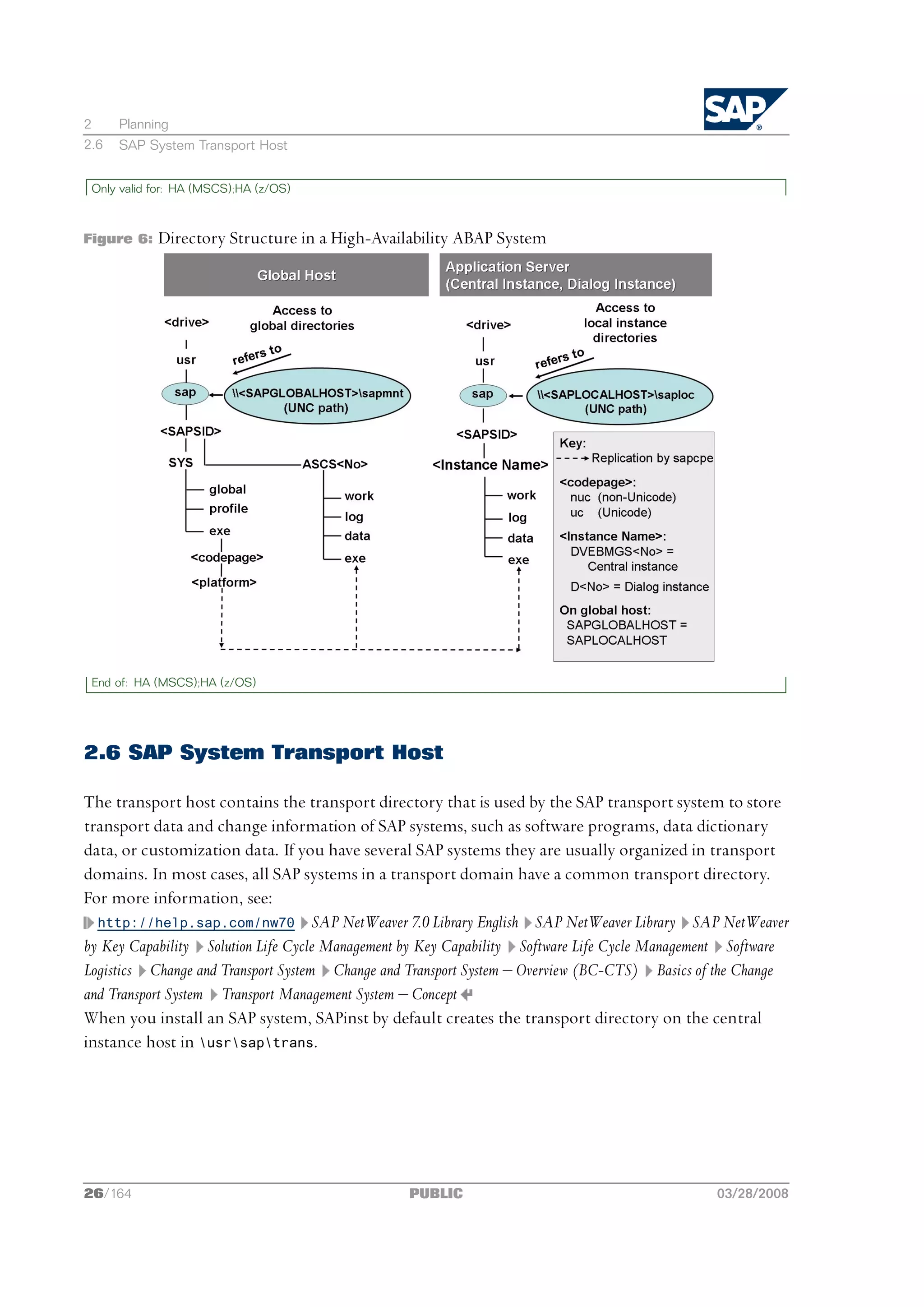
Directory Structure
The following figures show how the physical directory usrsap is shared on the global host in a
central and in a distributed system. In both cases, the UNC paths are used as follows:
n     <SAPGLOBALHOST>sapmnt to access global directories
n     <SAPLOCALHOST>saploc to access local instance-specific data


03/28/2008                                         PUBLIC                                             23/164
2     Planning
2.5   SAP Directories


      Note
There are the following instance names available in an SAP system:
 Only valid for: HA (MSCS)

Central services instance for ABAP: ASCS<Instance_Number>.
 End of: HA (MSCS)

Central instance: DVEBMGS<Instance_Number>
Dialog instance: D<Instance_Number>.

      Note
Every new installation of an SAP system is Unicode.

Figure 4:    Directory Structure on the Global Host in a Central ABAP System


24/164                                         PUBLIC                          03/28/2008
2     Planning
2.5   SAP Directories


Figure 5:    Directory Structure in a Distributed ABAP System


03/28/2008                                     PUBLIC           25/164
2     Planning
2.6   SAP System Transport Host


 Only valid for: HA (MSCS);HA (z/OS)


Figure 6:   Directory Structure in a High-Availability ABAP System


 End of: HA (MSCS);HA (z/OS)


2.6 SAP System Transport Host

The transport host contains the transport directory that is used by the SAP transport system to store
transport data and change information of SAP systems, such as software programs, data dictionary
data, or customization data. If you have several SAP systems they are usually organized in transport
domains. In most cases, all SAP systems in a transport domain have a common transport directory.
For more information, see:
  http://help.sap.com/nw70 SAP NetWeaver 7.0 Library English SAP NetWeaver Library SAP NetWeaver
by Key Capability Solution Life Cycle Management by Key Capability Software Life Cycle Management Software
Logistics Change and Transport System Change and Transport System ‒ Overview (BC-CTS) Basics of the Change
and Transport System Transport Management System ‒ Concept
When you install an SAP system, SAPinst by default creates the transport directory on the central
instance host in usrsaptrans.


26/164                                          PUBLIC                                         03/28/2008
2     Planning
2.7   Basic SAP System Parameters


 Only valid for: HA (MSCS)


      Note
In an MSCS configuration, SAPinst by default creates the transport directory on the (ABAP) central
services instance host in usrsaptrans.

 End of: HA (MSCS)

You have to prepare this host for use by the new SAP system if one of the following applies to you:
n You want to locate the transport directory on another host.
n You want to use an existing transport host and directory in your SAP system landscape.
For more information, see Preparing the SAP System Transport Host [page 52].

More Information
SAP Directories [page 22]


2.7 Basic SAP System Parameters

The tables below list the basic system parameters that you need to determine before installing your
SAP system. For all other SAP system parameters, use the F1 help in the SAPinst dialogs.

      Note
In the column “Enter Your Values”, you write down the values that you plan to use, for example,
the Message Port Number.

SAP System ID and Database ID

Parameters                   Description                                                   Enter Your Values
SAP System ID                The SAP System ID <SAPSID> identifies the whole SAP           ...
<SAPSID>                     system.

                                  Caution
                             Choose your SAP system ID carefully. You cannot change
                             the SAP system ID after the installation.

                             Make sure that your SAP system ID:
                             n Is unique throughout your organization
                             n Consists of exactly three alphanumeric characters
                             n Contains only uppercase letters
                             n Has a letter for the first character
                             n Does not include any of the following, which are reserved
                               IDs:


03/28/2008                                            PUBLIC                                             27/164
2     Planning
2.7   Basic SAP System Parameters


Parameters                Description                                                    Enter Your Values
                              ADD ALL AND ANY ASC AUX COM CON DBA END EPS FOR
                              GID IBM INT KEY LOG LPT MON NIX NOT NUL OFF OMS
                              PRN RAW ROW SAP SET SGA SHG SID SQL SYS TMP UID
                              USR VAR

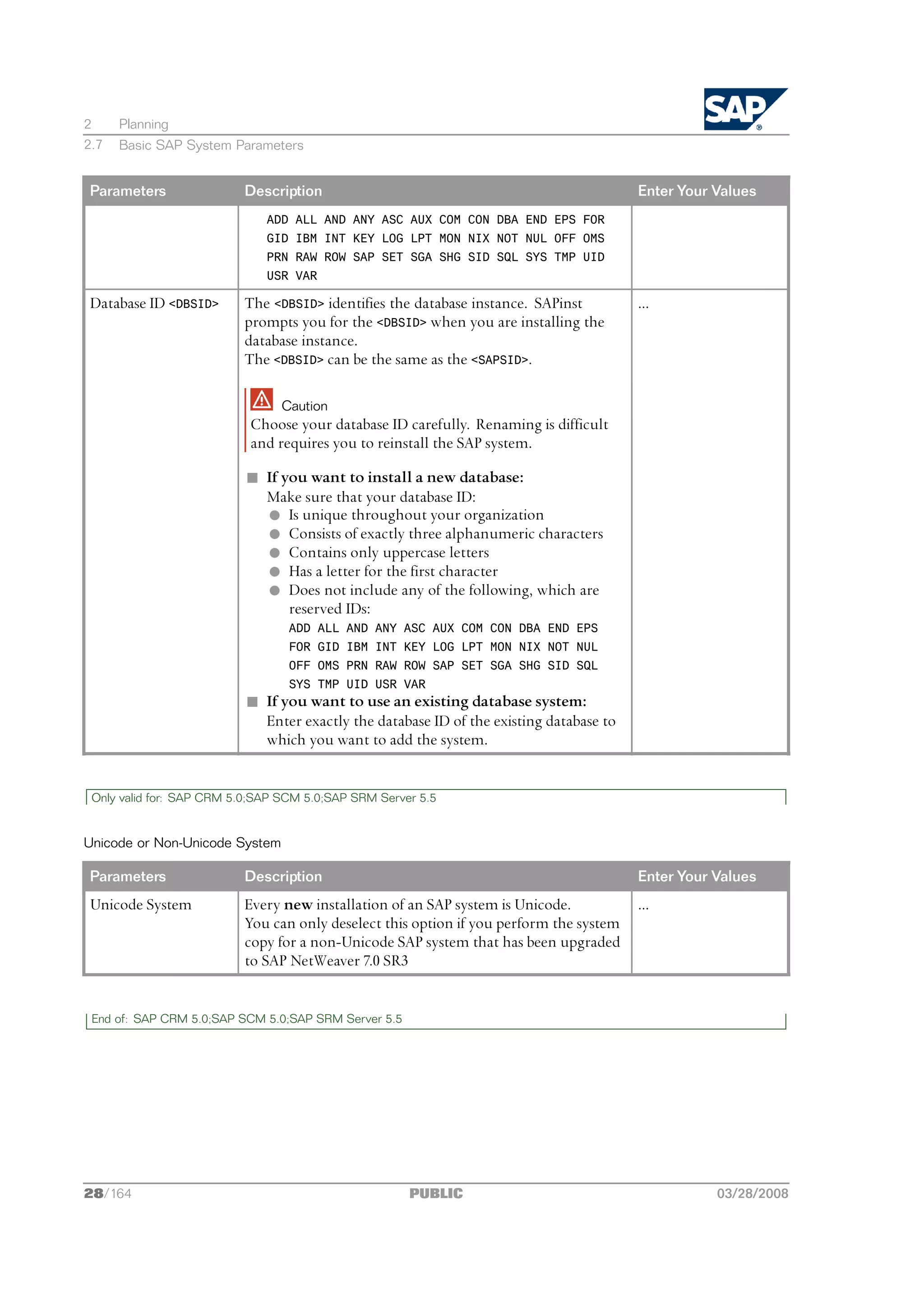
Database ID <DBSID>       The <DBSID> identifies the database instance. SAPinst          ...
                          prompts you for the <DBSID> when you are installing the
                          database instance.
                          The <DBSID> can be the same as the <SAPSID>.

                                Caution
                           Choose your database ID carefully. Renaming is difficult
                           and requires you to reinstall the SAP system.

                           n If you want to install a new database:
                             Make sure that your database ID:
                             l Is unique throughout your organization
                             l Consists of exactly three alphanumeric characters
                             l Contains only uppercase letters
                             l Has a letter for the first character
                             l Does not include any of the following, which are
                                 reserved IDs:
                                  ADD ALL AND ANY ASC AUX COM CON DBA END EPS
                                  FOR GID IBM INT KEY LOG LPT MON NIX NOT NUL
                                  OFF OMS PRN RAW ROW SAP SET SGA SHG SID SQL
                                  SYS TMP UID USR VAR
                           n If you want to use an existing database system:
                             Enter exactly the database ID of the existing database to
                             which you want to add the system.


 Only valid for: SAP CRM 5.0;SAP SCM 5.0;SAP SRM Server 5.5


Unicode or Non-Unicode System

Parameters                Description                                                    Enter Your Values
Unicode System            Every new installation of an SAP system is Unicode.            ...
                          You can only deselect this option if you perform the system
                          copy for a non-Unicode SAP system that has been upgraded
                          to SAP NetWeaver 7.0 SR3


 End of: SAP CRM 5.0;SAP SCM 5.0;SAP SRM Server 5.5


28/164                                                PUBLIC                                        03/28/2008
2     Planning
2.7   Basic SAP System Parameters


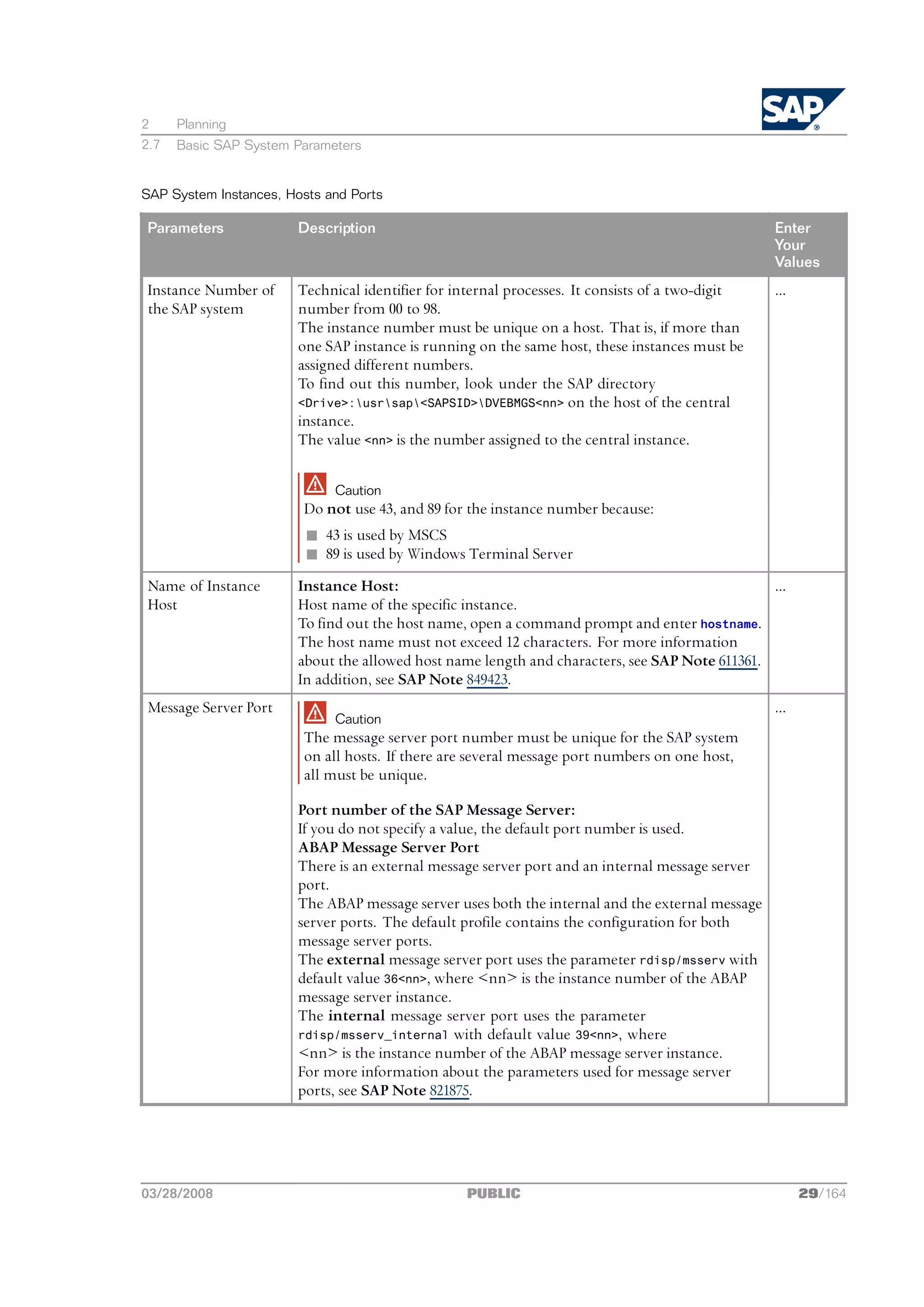
SAP System Instances, Hosts and Ports

Parameters              Description                                                               Enter
                                                                                                  Your
                                                                                                  Values
Instance Number of      Technical identifier for internal processes. It consists of a two-digit   ...
the SAP system          number from 00 to 98.
                        The instance number must be unique on a host. That is, if more than
                        one SAP instance is running on the same host, these instances must be
                        assigned different numbers.
                        To find out this number, look under the SAP directory
                        <Drive>:usrsap<SAPSID>DVEBMGS<nn> on the host of the central
                        instance.
                        The value <nn> is the number assigned to the central instance.

                             Caution
                        Do not use 43, and 89 for the instance number because:
                         n 43 is used by MSCS
                         n 89 is used by Windows Terminal Server
Name of Instance        Instance Host:                                                          ...
Host                    Host name of the specific instance.
                        To find out the host name, open a command prompt and enter hostname.
                        The host name must not exceed 12 characters. For more information
                        about the allowed host name length and characters, see SAP Note 611361.
                        In addition, see SAP Note 849423.
Message Server Port                                                                               ...
                             Caution
                        The message server port number must be unique for the SAP system
                        on all hosts. If there are several message port numbers on one host,
                        all must be unique.

                        Port number of the SAP Message Server:
                        If you do not specify a value, the default port number is used.
                        ABAP Message Server Port
                        There is an external message server port and an internal message server
                        port.
                        The ABAP message server uses both the internal and the external message
                        server ports. The default profile contains the configuration for both
                        message server ports.
                        The external message server port uses the parameter rdisp/msserv with
                        default value 36<nn>, where <nn> is the instance number of the ABAP
                        message server instance.
                        The internal message server port uses the parameter
                        rdisp/msserv_internal with default value 39<nn>, where
                        <nn> is the instance number of the ABAP message server instance.
                        For more information about the parameters used for message server
                        ports, see SAP Note 821875.


03/28/2008                                        PUBLIC                                                29/164
2     Planning
2.7   Basic SAP System Parameters


Master Password

Parameters               Description                                                             Enter Your Values
Master Password          This password is used for all user accounts SAPinst creates and         ...
                         for the secure store key phrase. The length has to be 8 to 14
                         characters.
                         Depending on your installation scenario there might be more
                         restrictions.

                              Caution
                         If you do not create the operating system users manually,
                         SAPinst creates them with the common master password (see
                         “Operating System Users”). In this case, make sure that the
                         master password meets the requirements of your operating
                         system and of your database.


Operating System Users

Parameters               Description                                                             Enter Your Values
Password of Operating SAPinst processes the passwords of operating system users as       ...
System Users          follows:
                      n If the operating system users do not exist, SAPinst creates the
                          following users:
                          l <sapsid>adm
                              This user is the SAP system administrator user and is a
                              member of the local Administrators group.
                          l SAPService<SAPSID>
                              This user is the Windows account to run the SAP system.
                              It is not a member of the local Administrators group.
                          SAPinst sets the master password for these users by default.
                          You can overwrite and change the passwords either by using
                          the parameter mode Custom or by changing them on the
                          parameter summary screen.
                      n If the operating system users already exist, SAPinst prompts
                          you for the existing password, except if the password of these
                          users is the same as the master password.

                              Caution
                         Make sure that you have the required user authorization [page 48] for
                         these accounts before you start the installation.


30/164                                               PUBLIC                                             03/28/2008
2     Planning
2.7   Basic SAP System Parameters


Internet Communication Manager (ICM) User Management

Parameter               Description                                                      Enter Your Values
Password of webadm      The administration user webadm is created to use the web      ...
                        administration interface for Internet Communication Manager
                        (ICM) and Web Dispatcher.
                        SAPinst sets the master password by default. If required, you
                        can choose another password. The length of the password must
                        be between 5 and 128 characters.


Solution Manager Key

Parameters              Description                                                       Enter Your Values
SAP Solution Manager To install your SAP system, you need to generate an SAP Solution    ...
key                  Manager key [page 54], which the installation requires to continue.
                     For more information, see SAP Note 805390.


Parameters for SAPDATA Drives

Parameters                            Description                          Enter Your Values
Installation drive                    Base directory for the SAP           ...
                                      system. Do not add <SAPSID> as
                                      subdirectory because the system
                                      adds this directory automatically.

                                           Example
                                      If you enter D:, the system adds
                                      the directory D:usrsapSAPSID.

                                           Note
                                      If you install a subsequent SAP
                                      system, the saploc share already
                                      exists and you cannot select the
                                      installation drive. SAPinst uses
                                      the installation drive where the
                                      saploc share points to.


03/28/2008                                          PUBLIC                                           31/164
2     Planning
2.8   Multiple Oracle Homes


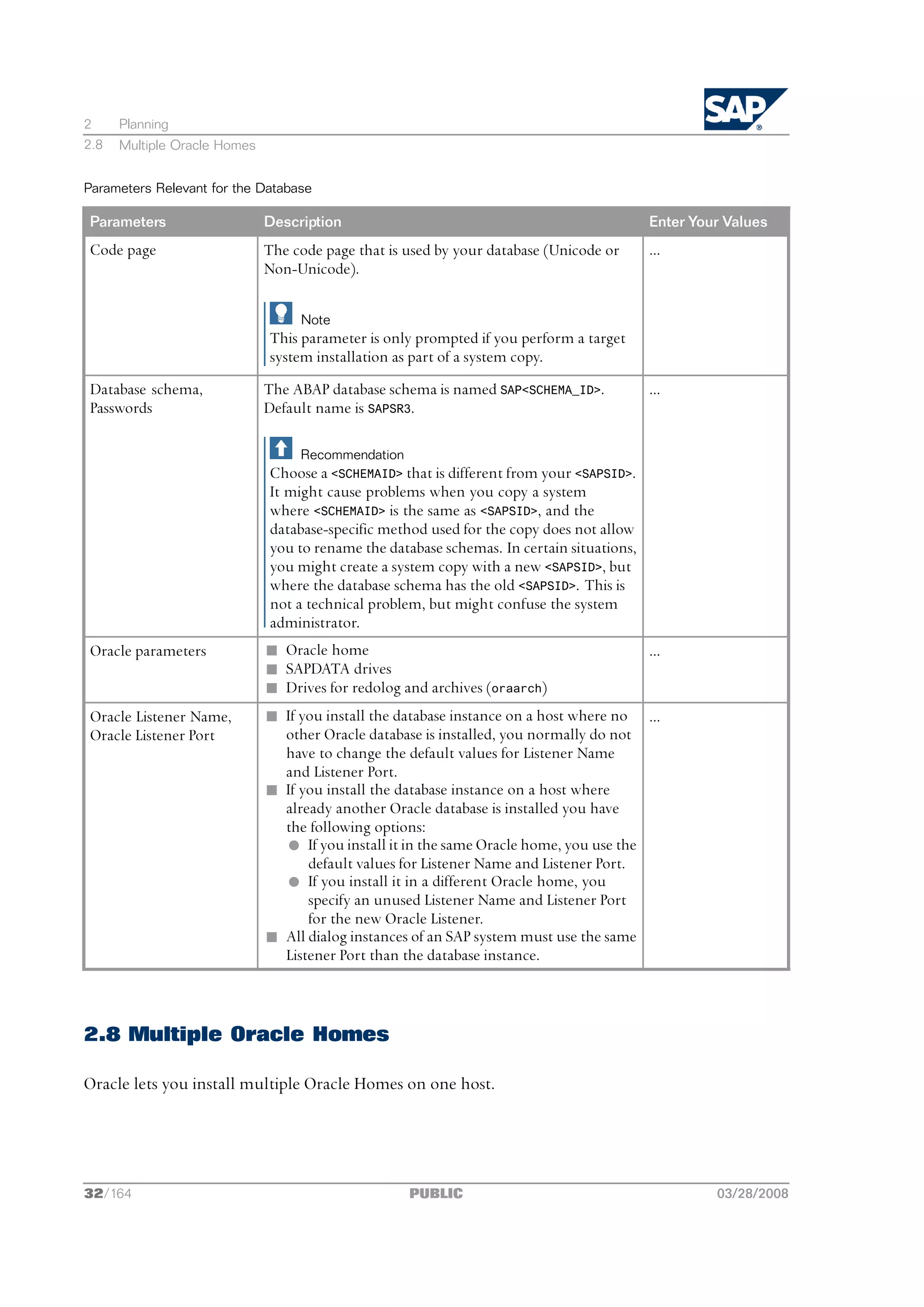
Parameters Relevant for the Database

Parameters                    Description                                                  Enter Your Values
Code page                     The code page that is used by your database (Unicode or      ...
                              Non-Unicode).

                                   Note
                              This parameter is only prompted if you perform a target
                              system installation as part of a system copy.
Database schema,              The ABAP database schema is named SAP<SCHEMA_ID>.            ...
Passwords                     Default name is SAPSR3.

                                   Recommendation
                              Choose a <SCHEMAID> that is different from your <SAPSID>.
                              It might cause problems when you copy a system
                              where <SCHEMAID> is the same as <SAPSID>, and the
                              database-specific method used for the copy does not allow
                              you to rename the database schemas. In certain situations,
                              you might create a system copy with a new <SAPSID>, but
                              where the database schema has the old <SAPSID>. This is
                              not a technical problem, but might confuse the system
                              administrator.
Oracle parameters             n Oracle home                                                ...
                              n SAPDATA drives
                              n Drives for redolog and archives (oraarch)
Oracle Listener Name,         n If you install the database instance on a host where no ...
Oracle Listener Port            other Oracle database is installed, you normally do not
                                have to change the default values for Listener Name
                                and Listener Port.
                              n If you install the database instance on a host where
                                already another Oracle database is installed you have
                                the following options:
                                l If you install it in the same Oracle home, you use the
                                    default values for Listener Name and Listener Port.
                                l If you install it in a different Oracle home, you
                                    specify an unused Listener Name and Listener Port
                                    for the new Oracle Listener.
                              n All dialog instances of an SAP system must use the same
                                Listener Port than the database instance.


2.8 Multiple Oracle Homes

Oracle lets you install multiple Oracle Homes on one host.


32/164                                              PUBLIC                                          03/28/2008
2     Planning
2.8   Multiple Oracle Homes


 Only valid for: HA (MSCS)


      Note
MSCS only:
Multiple Oracle Homes for different database instances are not supported in an MSCS configuration.

 End of: HA (MSCS)

Note the following about multiple Oracle Homes:
n Multiple Oracle Homes are necessary, if you install different Oracle versions for two or more
  databases on the same host.
n If you use multiple Oracle Homes, you must use different port numbers for each listener.
n If you install the same Oracle database version on one host for different database instances, you
  can use:
  l Multiple Oracle Homes
      With multiple Oracle Homes, you can administer your databases independently. For example,
      if you want to install a patch set, you do not have to install them on both databases.
  l One Oracle Home for two databases
      You have to install the database software only once.

              Note
        In case you later want to use two multiple homes instead of one, you either have to perform a
        new database instance installation or upgrade your database.

Before you install your Oracle database software, you need to decide whether you want to set up
multiple Oracle Homes as this influences the installation procedure. For more information, see
Setting Up Multiple Oracle Homes [page 61].


03/28/2008                                     PUBLIC                                         33/164
This page is intentionally left blank.
3      Preparation


3 Preparation


       Note
 In a central system, all mandatory instances are installed on one host. Therefore, if you are installing
 a central system, you can ignore references to other hosts.

You have to complete the following preparations:
1.   You check the hardware and software requirements [page 35] on each host.
2.   You check the Windows file system [page 46] on each host.
3.   You check that your installation host belongs do the correct Windows domain [page 47].
4.   You reduce the size of the file cache [page 48] on each host.

           Note
      This step is not required if you use Windows Server 2008.

5. You check that you have the required user authorization for the installation [page 48].
6. If required, you perform a domain installation without being a domain administrator [page 50].
7. If required, you prepare the SAP system transport host [page 52] for your SAP system.
8. You install the SAP front-end software [page 54] on the desktop of the end user.
9. You generate the SAP Solution Manager Key [page 54] for your SAP system.
10. You install the Java Runtime Environment [page 54].
11. You make the installation DVDs available [page 55] on each host.
12. If required, you download the installation DVDs from SAP Service Marketplace [page 57].
      Only valid for: HA (MSCS)

13. For the installation of a high-availability system with Microsoft Cluster Service (MSCS), in
    addition, you have to perform MSCS-specific preparation tasks [page 130].
      End of: HA (MSCS)


3.1 Hardware and Software Requirements
You check that your hosts meet the hardware and software requirements for your operating system
and the SAP instances.


03/28/2008                                               PUBLIC                                     35/164
3      Preparation
3.1    Hardware and Software Requirements


       Caution
 If your hosts do not fully meet the requirements, you might experience problems when working
 with the SAP system.

Prerequisites

n Contact your OS vendor for the latest OS patches.
n Make sure that the host name meets the requirements listed in SAP Notes 611361 and 849423.

Process Flow

1. Check the Product Availability Matrix at http://service.sap.com/pam for supported operating
   system releases.
2. Check the hardware and software requirements using:
   n The Prerequisite Checker:
       l Standalone (optional) before the installation process
         For more information, see Running the Prerequisite Checker Standalone [page 37].
       l Integrated in SAPinst (mandatory) as part of the installation process
         For more information, see Running SAPinst on Windows [page 62]

              Note
         For the most recent updates to the Prerequisite Checker, always check SAP Note 855498.

      n The hardware and software requirements checklists for:
        l Central system [page 38]
        l Distributed system [page 39]
             Only valid for: HA (MSCS)

         l High availability system with MSCS [page 42]
             End of: HA (MSCS)

         l If you want to install dialog instance(s), check the requirements for a
           dialog instance [page 46].

                     Note
             If you want to use 32-bit SAP NetWeaver components, first check whether these
             components can run on 64-bit operating systems. If so, we recommend you to use 64-bit
             systems. If not, you can install an SAP dialog instance on 32-bit operating systems to run
             these components. For all other SAP instances, you must use 64-bit systems.

3. If you are installing a production system, the values provided by the Prerequisite Checker and the
   hardware and software requirements checklists are not sufficient. In addition, do the following:
   n You use the SAP Quick Sizer tool available at http://service.sap.com/sizing.


36/164                                              PUBLIC                                    03/28/2008
3      Preparation
3.1    Hardware and Software Requirements


        For more information about the SAP Quick Sizer and available sizing guides, see the Master Guide ‒
        SAP NetWeaver 7.0 at http://service.sap.com/installnw70 Planning .
      n You contact your hardware vendor, who can analyze the load and calculate suitable hardware
        sizing depending on:
        l The set of applications to be deployed
        l How intensively the applications are to be used
        l The number of users


3.1.1 Running the Prerequisite Checker in Standalone Mode
(Optional)

Before installing your SAP system, you can run the Prerequisite Checker in standalone mode to check the
hardware and software requirements for your operating system (OS) and the SAP instances.

        Note
 When installing your SAP system, SAPinst automatically starts the Prerequisite Checker and checks the
 hardware and software requirements in the background.

Prerequisites
n You have installed the correct Java Runtime Environment (JRE) [page 54].
n You have prepared the installation master DVD on the required installation host [page 55].

Procedure
1. You start SAPinst [page 62].
2. On the Welcome screen, choose <SAP System> Software Life-Cycle Options Additional Preparation
   Options Prerequisites Check .
3. Follow the instructions in the SAPinst dialogs and enter the required parameters.

           Note
      For more information about each parameter, position the cursor on the parameter field and
      choose F1 in SAPinst.
   When you have finished, the Parameter Summary screen appears summarizing all parameters you have
   entered. If you want to make a change, select the relevant parameters and choose Revise.
4. To start the Prerequisite Checker, choose Start.

Result
The Prerequisite Check Results screen displays the results found. If required, you may also check the
results in file prerequisite_checker_results.html, which you find in the installation directory.


03/28/2008                                            PUBLIC                                       37/164
3     Preparation
3.1   Hardware and Software Requirements


3.1.2 Requirements for a Central System

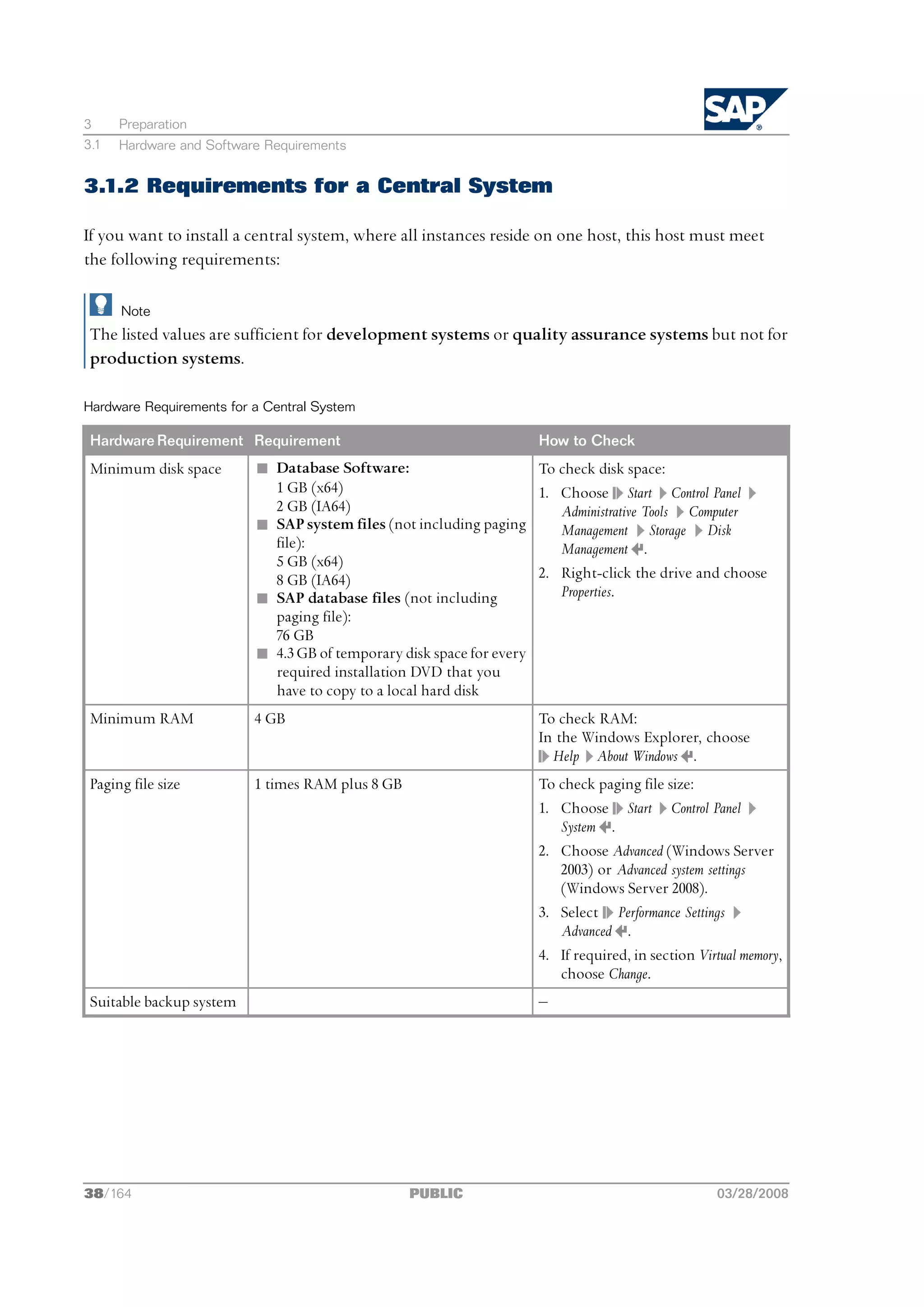
If you want to install a central system, where all instances reside on one host, this host must meet
the following requirements:

      Note
 The listed values are sufficient for development systems or quality assurance systems but not for
 production systems.

Hardware Requirements for a Central System

 Hardware Requirement Requirement                                    How to Check
 Minimum disk space       n Database Software:                       To check disk space:
                            1 GB (x64)                               1. Choose Start Control Panel
                            2 GB (IA64)                                 Administrative Tools Computer
                          n SAP system files (not including paging      Management Storage Disk
                            file):                                      Management .
                            5 GB (x64)
                            8 GB (IA64)                              2. Right-click the drive and choose
                          n SAP database files (not including           Properties.
                            paging file):
                            76 GB
                          n 4.3 GB of temporary disk space for every
                            required installation DVD that you
                            have to copy to a local hard disk
 Minimum RAM              4 GB                                       To check RAM:
                                                                     In the Windows Explorer, choose
                                                                       Help About Windows .
 Paging file size         1 times RAM plus 8 GB                      To check paging file size:
                                                                     1. Choose Start Control Panel
                                                                        System .
                                                                     2. Choose Advanced (Windows Server
                                                                        2003) or Advanced system settings
                                                                        (Windows Server 2008).
                                                                     3. Select Performance Settings
                                                                        Advanced .
                                                                     4. If required, in section Virtual memory,
                                                                        choose Change.
 Suitable backup system                                              ‒


38/164                                            PUBLIC                                           03/28/2008
3     Preparation
3.1   Hardware and Software Requirements


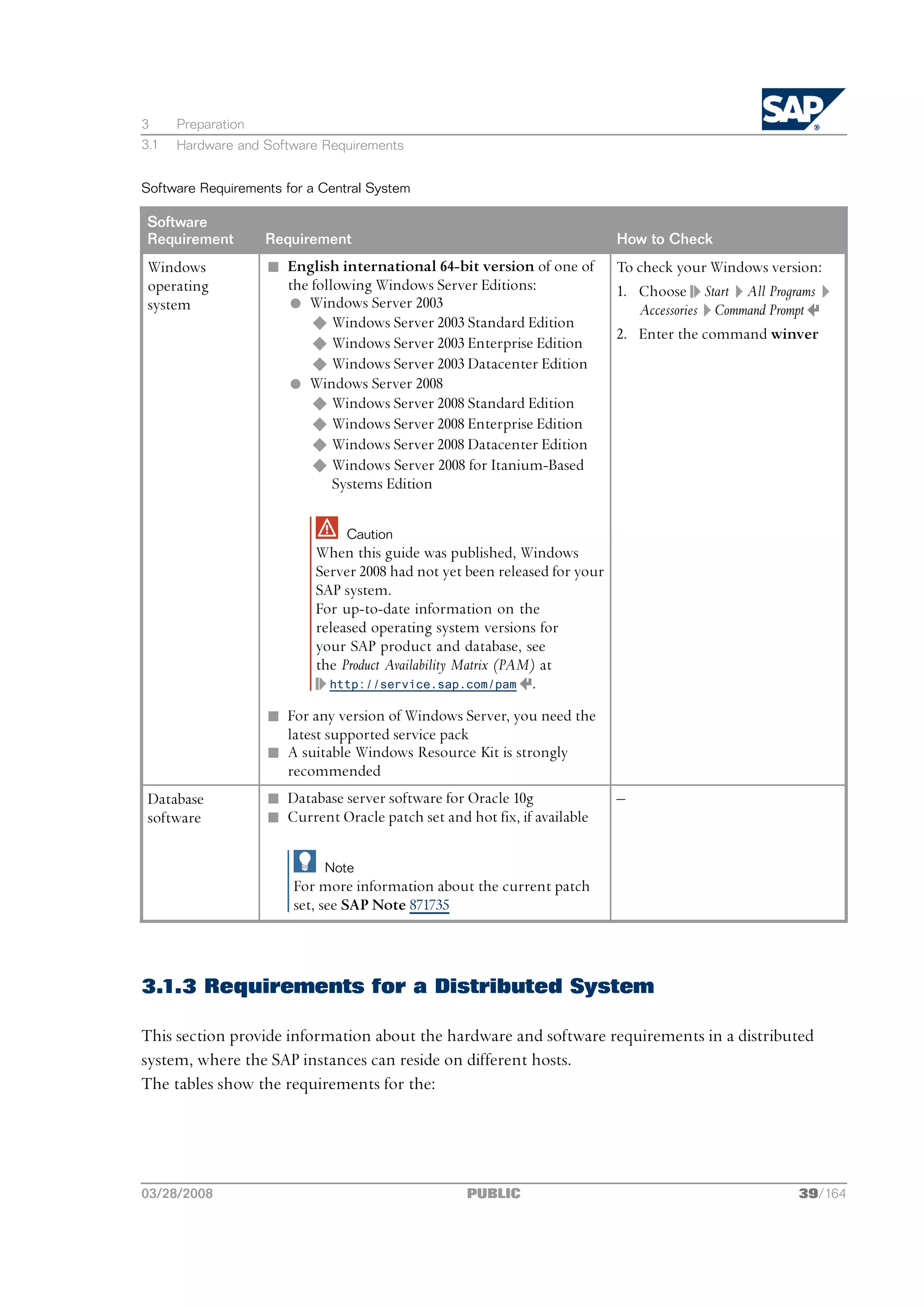
Software Requirements for a Central System

 Software
 Requirement        Requirement                                             How to Check
 Windows            n English international 64-bit version of one of        To check your Windows version:
 operating            the following Windows Server Editions:                1. Choose Start All Programs
 system               l Windows Server 2003                                    Accessories Command Prompt
                          u Windows Server 2003 Standard Edition
                                                                            2. Enter the command winver
                          u Windows Server 2003 Enterprise Edition
                          u Windows Server 2003 Datacenter Edition
                      l Windows Server 2008
                          u Windows Server 2008 Standard Edition
                          u Windows Server 2008 Enterprise Edition
                          u Windows Server 2008 Datacenter Edition
                          u Windows Server 2008 for Itanium-Based
                              Systems Edition

                                Caution
                           When this guide was published, Windows
                           Server 2008 had not yet been released for your
                           SAP system.
                           For up-to-date information on the
                           released operating system versions for
                           your SAP product and database, see
                           the Product Availability Matrix (PAM) at
                             http://service.sap.com/pam .

                    n For any version of Windows Server, you need the
                      latest supported service pack
                    n A suitable Windows Resource Kit is strongly
                      recommended
 Database           n Database server software for Oracle 10g               ‒
 software           n Current Oracle patch set and hot fix, if available

                             Note
                        For more information about the current patch
                        set, see SAP Note 871735


3.1.3 Requirements for a Distributed System

This section provide information about the hardware and software requirements in a distributed
system, where the SAP instances can reside on different hosts.
The tables show the requirements for the:


03/28/2008                                          PUBLIC                                            39/164
3     Preparation
3.1   Hardware and Software Requirements


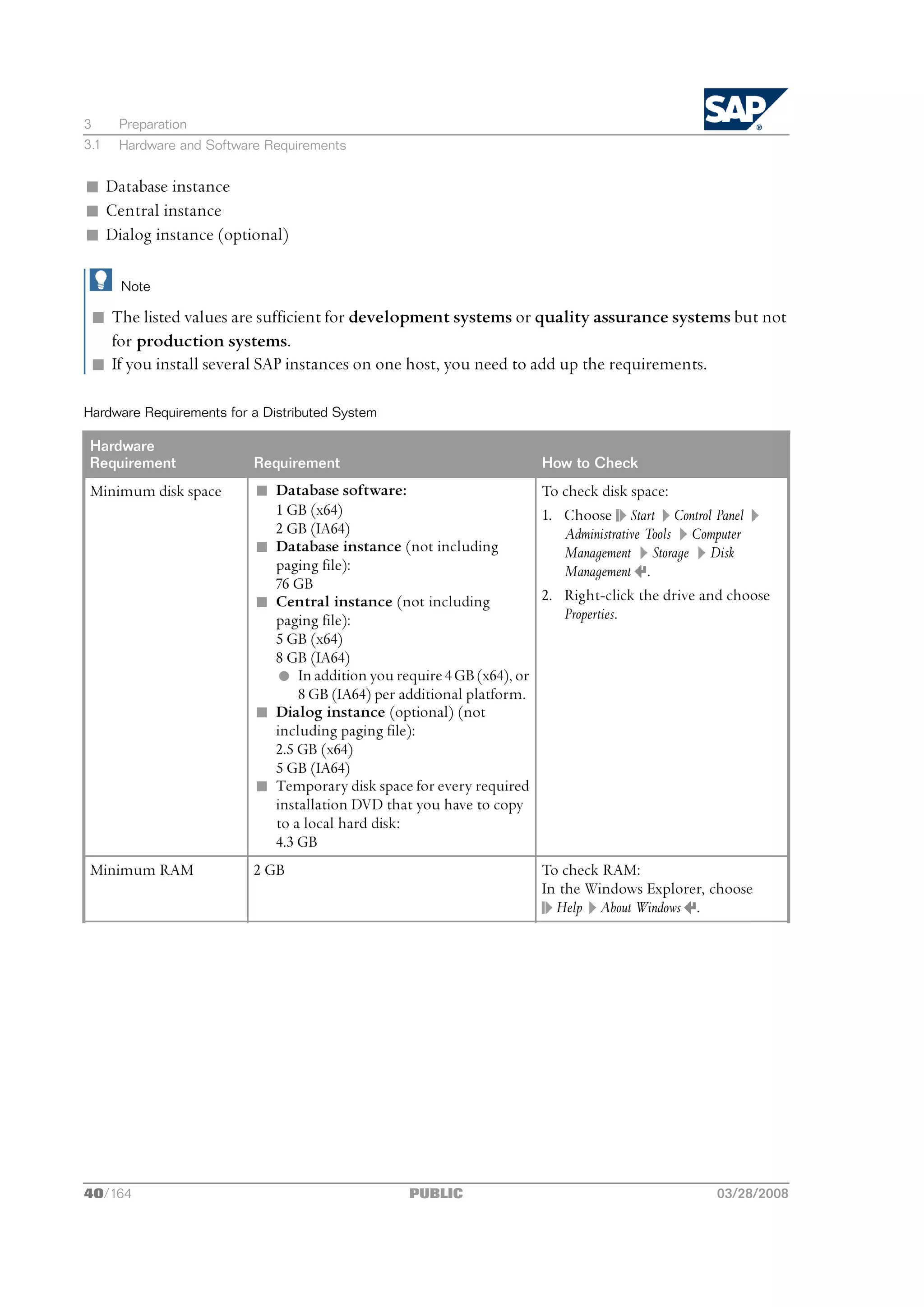
n Database instance
n Central instance
n Dialog instance (optional)

      Note

 n The listed values are sufficient for development systems or quality assurance systems but not
   for production systems.
 n If you install several SAP instances on one host, you need to add up the requirements.

Hardware Requirements for a Distributed System

 Hardware
 Requirement              Requirement                                How to Check
 Minimum disk space       n Database software:                       To check disk space:
                            1 GB (x64)                               1. Choose Start Control Panel
                            2 GB (IA64)                                 Administrative Tools Computer
                          n Database instance (not including            Management Storage Disk
                            paging file):                               Management .
                            76 GB
                          n Central instance (not including          2. Right-click the drive and choose
                            paging file):                               Properties.
                            5 GB (x64)
                            8 GB (IA64)
                            l In addition you require 4 GB (x64), or
                                8 GB (IA64) per additional platform.
                          n Dialog instance (optional) (not
                            including paging file):
                            2.5 GB (x64)
                            5 GB (IA64)
                          n Temporary disk space for every required
                            installation DVD that you have to copy
                            to a local hard disk:
                            4.3 GB
 Minimum RAM              2 GB                                       To check RAM:
                                                                     In the Windows Explorer, choose
                                                                       Help About Windows .


40/164                                           PUBLIC                                        03/28/2008
3     Preparation
3.1   Hardware and Software Requirements


 Hardware
 Requirement               Requirement                                 How to Check
 Paging file size          n Database instance:                        To check paging file size:
                             1.5 times RAM                             1. Choose Start Control Panel
                           n Central instance:                            System .
                             1 times RAM plus 8 GB
                                                                       2. Choose Advanced (Windows Server
                           n Dialog instance (optional):
                             1 times RAM plus 8 GB                        2003) or Advanced system settings
                                                                          (Windows Server 2008).
                                                                       3. Select Performance Settings
                                                                          Advanced .
                                                                       4. If required, in section Virtual memory,
                                                                          choose Change.
 Suitable backup system                                                ‒


Software Requirements for a Distributed System

 Software
 Requirement        Requirement                                            How to Check
 Windows            n English international 64-bit version of one of       To check your Windows version:
 operating            the following Windows Server Editions:               1. Choose Start All Programs
 system               l Windows Server 2003                                   Accessories Command Prompt


03/28/2008                                        PUBLIC                                                 41/164
3     Preparation
3.1   Hardware and Software Requirements


 Software
 Requirement        Requirement                                               How to Check
                           u Windows Server 2003 Standard Edition             2. Enter the command winver
                           u Windows Server 2003 Enterprise Edition
                           u Windows Server 2003 Datacenter Edition
                         l Windows Server 2008
                           u Windows Server 2008 Standard Edition
                           u Windows Server 2008 Enterprise Edition
                           u Windows Server 2008 Datacenter Edition
                           u Windows Server 2008 for Itanium-Based
                              Systems Edition

                                 Caution
                             When this guide was published, Windows
                             Server 2008 had not yet been released for your
                             SAP system.
                             For up-to-date information on the
                             released operating system versions for
                             your SAP product and database, see the
                             Product Availability Matrix (PAM) at
                             http://service.sap.com/pam.

                     n For any version of Windows Server, you need the
                       latest supported service pack
                     n A suitable Windows Resource Kit is strongly
                       recommended
 Database            n Database instance:                             ‒
 software              l Database server software for Oracle 10g
                       l Current Oracle patch set and hot fix, if
                         available.
                         For more information about the current patch
                         set, see SAP Note 871735


 Only valid for: HA (MSCS)


3.1.4 Requirements for a High-Availability System

This section provides information about the hardware and software requirements in a high-availability
system.


42/164                                               PUBLIC                                        03/28/2008
3     Preparation
3.1   Hardware and Software Requirements


      Note

 1. Windows Server 2003 only:
    You must check that your cluster hardware is certified.
    AddOn Technology Center for SAP (Add On TCS) certifies hardware platforms for SAP on
    Microsoft Windows. The cluster must be included in the Microsoft list of certified clusters and its
    components. You can access the lists as follows:
    n www.microsoft.com/whdc/hcl/default.mspx
    n www.saponwin.com
 2. Windows Server 2008 only:
    a) Check that your cluster hardware is certified for Windows Server 2008 and has the Windows
        Server 2008 logo.
    b) You must validate your failover cluster configuration by running the Validate a Configuration
        Wizard, which is included in the Failover Cluster Management snap-in. The Failover Cluster Validation
        Report must not show any warnings and errors.
 3. The MSCS nodes of the cluster must be connected by a private and public network:
    n The public network enables communication from the MSCS nodes of the cluster to other
        resources in the local area network (LAN).
    n The private network enables internal communication between the MSCS nodes. In particular,
        it enables the Cluster Service running on all MSCS nodes to regularly exchange messages on
        the state of the MSCS nodes so that the failure of resources is quickly detected.
 4. Each of the MSCS nodes in the cluster must have its own local disks and have access to shared
    disks that can be reached by the MSCS nodes via a shared bus.
    All software ‒ except the Windows operating system, the Oracle home directory, and the MSCS
    software ‒ is stored on the shared disks.
    One of the shared disks must be used exclusively by the quorum (if a single quorum device cluster
    is used) that stores the cluster registry and records information about the state of the cluster.
    You require at least four shared disks.
    For more information about the distribution of components to local and shared disk, see
    Distribution of Components to Disks for MSCS [page 120].

      Caution

 n All disk controllers must be able to support hardware-based RAID.
 n You cannot use a host with a domain controller as an MSCS cluster node.
The following tables show the hardware and software requirements for the:
n ABAP central services instance (ASCS)
n Database instance
n Enqueue Replication Server instance (ERS)


03/28/2008                                        PUBLIC                                             43/164
3     Preparation
3.1   Hardware and Software Requirements


n Central instance
n Dialog instance

      Note

 n The listed values are sufficient for development systems or quality assurance systems but not
   for production systems.
 n If you install several SAP instances on one host, you need to add up the requirements.

Hardware Requirements for a High-Availability System

 Hardware
 Require-
 ment           Requirement                                                 How to Check
 Minimum            n Database Software:                                   To check disk space:
 disk space           1 GB (x64)                                           1. Choose Start Control Panel
                      2 GB (IA64)                                             Administrative Tools Computer
                    n ABAP central services instance (ASCS)                   Management Storage Disk
                      (not including paging file):                            Management .
                      5 GB (x64)
                      8 GB (IA64)                                          2. Right-click the drive and choose
                                                                              Properties.
                      l In addition you require 4 GB (x64), or 8 GB (IA64)
                          per additional platform.
                    n Database instance (not including paging file):
                      76 GB
                    n Enqueue replication server instance (ERS) (not
                      including paging file):
                      5 GB (x64)
                      8 GB (IA64)
                    n Central instance (not including paging file):
                      2.5 GB (x64)
                      5 GB (IA64)
                      l In addition you require 4 GB (x64), or 8 GB (IA64)
                          per additional platform.
                    n Dialog instance (not including paging file):
                      2.5 GB (x64)
                      5 GB (IA64)
                    n Temporary disk space for every required installation
                      DVD that you have to copy to a local hard disk:
                      4.3 GB
 Minimum        2 GB                                                        To check RAM:
 RAM                                                                        In the Windows Explorer, choose
                                                                              Help About Windows .


44/164                                                 PUBLIC                                       03/28/2008
3     Preparation
3.1   Hardware and Software Requirements


 Hardware
 Require-
 ment           Requirement                                                   How to Check
 Paging file        n ABAP central services instance (ASCS):                  To check paging file size:
 size                 1 times RAM plus 1 GB                                   1. Choose Start Control Panel
                    n Database instance:                                         System .
                      1.5 times RAM
                                                                              2. Choose Advanced (Windows
                    n Enqueue replication server instance (ERS):
                      1 times RAM plus 1 GB                                      Server 2003) or Advanced system
                                                                                 settings (Windows Server 2008).
                    n Central instance:
                      1 times RAM plus 8 GB                                   3. Select Performance Settings
                    n Dialog instance:                                           Advanced .
                      1 times RAM plus 8 GB                                   4. If required, in section Virtual
                                                                                 memory, choose Change.

                                                                                    Note
                                                                               You must adjust the size of the
                                                                               paging file on all MSCS nodes.
 Suitable                                                                     ‒
 backup
 system


Software Requirements for a High Availability System

 Software
 Requirement          Requirement                                        How to Check
 Windows              n English international 64-bit version of one To check your Windows version:
 operating              of the following Windows Server Editions:      1. Choose Start All Programs
 system                 l Windows Server 2003                             Accessories Command Prompt
                            u Windows Server 2003 Enterprise
                                Edition                                2. Enter the command winver
                            u Windows Server 2003 Datacenter
                                Edition                                      Note
                        l Windows Server 2008
                                                                        n Windows Server 2003 only:
                            u Windows Server 2008 Enterprise               You must set up the MSCS Cluster
                                Edition
                                                                           Service as described in the Microsoft
                            u Windows Server 2008 Datacenter               documentation. During this
                                Edition
                                                                           setup you are asked for a Windows
                            u Windows Server 2008 for                      Domain Account to run the Cluster
                                Itanium-Based Systems Edition
                                                                           Service. We strongly recommend
                                                                           creating an account different from
                                   Caution                                 the <sapsid>adm user, for example
                             When this guide was published, Windows        ClusterServiceuser=sapprdcladm,
                             Server 2008 had not yet been released for     where Clustername=sapprdcl.
                             your SAP system.                           n Windows Server 2008 only:
                             For up-to-date information on the             You must add the operating system
                             released operating system versions for        feature Failover Clustering on all MSCS


03/28/2008                                             PUBLIC                                              45/164
3     Preparation
3.2   Checking the Windows File System


Software
Requirement          Requirement                                       How to Check
                              your SAP product and database, see the       nodes.
                              Product Availability Matrix (PAM) at
                              http://service.sap.com/pam.


                      n For any version of Windows Server, you need
                        the latest supported service pack
                      n A suitable Windows Resource Kit is strongly
                        recommended


Database              n Database instance:                             ‒
software                l Oracle 10g database server software
                        l Current Oracle patch set and hot fix, if
                          available.
                          For more information about the current
                          patch set, see SAP Note 871735
                        l Oracle Fail Safe software version 3.3.4


 End of: HA (MSCS)


3.1.5 Requirements for the Dialog Instance

For more information about the hardware and software requirements for the dialog instance(s), see
one of the following sections:
n Requirements for a Distributed System [page 39]
      Only valid for: HA (MSCS)

n Requirements for a High-Availability System [page 42]
      End of: HA (MSCS)


3.2 Checking the Windows File System

You need to check that you are using the Windows file system NTFS on hosts where you want to
install the SAP system and database. NTFS supports full Windows security and long file names.


46/164                                               PUBLIC                             03/28/2008
3      Preparation
3.3    Checking the Windows Domain Structure


       Note
You must use NTFS for an SAP system installation. Do not install the SAP directories on a FAT
partition.

Procedure
1. Open the Windows Explorer.
2. Select the relevant disk
3. Choose Properties General .
   The system displays the type of file system in use.
4. Check that the file system is NTFS.


3.3 Checking the Windows Domain Structure

       Note
You do not need this step for a local installation.

In Windows, you can implement either of the following domain models for the SAP system:
n Extra domain
  In this model, the SAP system is embedded in its own domain, which is specially defined for SAP. A
  second domain exists for the user accounts.
  In Windows, the SAP domain and user domain must be incorporated in a domain tree. In this tree,
  the user accounts must form the root domain and the SAP domain must be a child domain of this.
n Single domain
  In this model, the SAP system and the user accounts are included in a single domain.

Prerequisites
n You are performing a domain installation.
n You are familiar with checking Windows domain structures. For more information, see the
  Windows documentation.

          Caution
      You cannot create local users and groups on the host that is used as domain controller. Therefore,
      we do not support running an SAP instance (including the database instance) on the host where
      the domain controller is installed.

Procedure
For a domain installation, we recommend that you check that all SAP system and database hosts are
members of a single Windows domain. We recommend this for all SAP system setups.


03/28/2008                                       PUBLIC                                          47/164
3       Preparation
3.4     Reducing the Size of the File Cache


3.4 Reducing the Size of the File Cache

        Note
 This step is not required if you use Windows Server 2008.

The Windows file cache directly competes with SAP programs for memory. Therefore, you should
adjust the file cache as described below.
 Only valid for: HA (MSCS)


        Note
 In an MSCS configuration, you must adjust the size of the file cache on all MSCS nodes.

 End of: HA (MSCS)


Procedure
1.    Choose Start Control Panel Network Connections Local Area Connections.
2.    In the Local Area Connection Status dialog box, choose Properties.
3.    In the Local Area Connection Properties dialog box, double-click File and Printer Sharing for Microsoft Networks.
4.    Select Maximize data throughput for network applications.

            Caution
      If you cannot select File and Printer Sharing for Microsoft Networks, this option has not yet been installed.
      To install it, you need the Windows Server CDs.

5. To confirm your entries, choose OK.


3.5 Required User Authorization for the Installation

Although SAPinst automatically grants the rights required for the installation to the user account
used for the installation, you have to check whether this account has the required authorization to
perform the installation. The authorization required depends on whether you intend to perform
a domain or local installation. If necessary, you have to ask the system administrator to grant the
account the necessary authorization before you start the installation. If you attempt the installation
with an account that has not the required authorization, the installation aborts.
This section informs you about the authorization required for a domain and a local installation.

        Caution
 Do not use the user <sapsid>adm for the installation of the SAP system.


48/164                                                  PUBLIC                                             03/28/2008
3     Preparation
3.5   Required User Authorization for the Installation


Domain Installation
For a domain installation the account used for the installation needs to be a member of the local
Administrators and the domain Admins group of the domain involved. All machines in the system
must belong to the same domain. In a domain installation, the user information is stored centrally on
the domain controller and is accessible to all hosts in the system.
If the SAP system is to be distributed across more than one machine, SAP strongly recommends you
to perform a domain installation to avoid authorization problems.

      Caution

 n If you install a distributed system as a local installation, this can lead to authorization problems for
   the operating system users <sapsid>adm and SAPService<SAPSID>. It can also lead to problems
   with the transport directory, which is usually shared by several SAP systems. Therefore, SAP
   does not support a local installation for a distributed system and recommends you to install a
   distributed system as a domain installation.
   If you still want to perform a local installation for a distributed system, make sure that:
   l You use the same password for the <sapsid>adm or the SAPService<SAPSID> user on all hosts.
       The password for the <sapsid>adm and SAPService<SAPSID> user can differ.
   l You use the same master password on all hosts.
   l All hosts belong to the same Windows work group.
      Only valid for: HA (MSCS)

 n In an MSCS configuration, you always have to perform a domain installation.
      End of: HA (MSCS)

 n For performance and security reasons, SAP does not support an SAP system installation on
   a domain controller.
 n If for any reason, the account used for the installation is not a member of the domain Admins
   group, you can perform the installation with a domain user who is a member of the local
   Administrators group. However, the domain administrator has to prepare the system
   appropriately for you.
   For more information, see Performing a Domain Installation without being a Domain Administrator [page 50].

For a domain installation, you need to:
1. Check that the account used for the installation is a member of the domain Admins group.
2. If required, obtain these rights by asking the system administrator to enter the account as a
   member of the domain Admins group.

Local Installation
For a local installation the account used for the installation needs to be a member of the local
Administrators group of the machine involved. In a local installation, all Windows account
information is stored locally on one host and is not visible to any other hosts in the system.


03/28/2008                                               PUBLIC                                         49/164
3      Preparation
3.6    Performing a Domain Installation Without Being a Domain Administrator


If the SAP system is to run on a single machine, you can perform a local installation.
For a local installation, you need to:
1. Check that the account used for the installation is a member of the local Administrators group.
2. If required, obtain these rights by asking the system administrator to enter the account as a
   member of the local Administrators group.


3.6 Performing a Domain Installation Without Being a Domain
Administrator

You normally perform a domain installation of the SAP system with a user who is a member of the
domain Admins group, as described in Required User Authorization for the Installation [page 48]. If for any
reason, the account used for the installation is not a member of the domain Admins group, you can
perform the installation with a domain user who is a member of the local Administrators group. In
this case, the domain administrator has to prepare the system appropriately for you. The domain
administrator can perform the following steps either using SAPinst or manually:
1. Create the new global group SAP_<SAPSID>_GlobalAdmin.
2. Create the two new SAP system users <sapsid>adm and SAPService<SAPSID>.
3. Add the users <sapsid>adm and SAPService<SAPSID> to the newly created group
      SAP_<SAPSID>_GlobalAdmin.


Prerequisites
n You must be domain administrator to perform the required steps.
n Windows Server 2008 only:
  You must have installed the feature Remote Server Administration Tools as follows:
  1. Choose Start Administrative Tools Server Manager .
  2. In the Server Manager windows, select Features.
  3. Select the feature Remote Server Administration Tools Role Administration Tools   Active Directory
     Domain Services Tools .

Creating the Required Uses and Groups Using SAPinst
On the host where the SAP system is to be installed, the domain administrator runs SAPinst [page 62]
and chooses Software Life-Cycle Options Additional Preparation Options Operating System and Users to
have the group and users created automatically.

Creating the Required Uses and Groups Manually

Creating the New Global Group SAP_<SAPSID>_GlobalAdmin

1. Log on as domain administrator.


50/164                                                PUBLIC                                     03/28/2008
3      Preparation
3.6    Performing a Domain Installation Without Being a Domain Administrator


2. To start the Active Directory Users and Computers Console, choose:
     Start Control Panel Administrative Tools Active Directory Users and Computers

          Note
      Windows Server 2003 only: If you cannot find Active Directory Users and Computers, start it as follows:
      a) Choose Start Run and enter mmc.
      b) Choose Console Add/Remove Snap-in... Add .
      c) Select Active Directory Users and Computers.
      d) Choose Add .
      e) Choose Close OK

3. Right-click Users in Tree, and choose New           Group .
4. Enter the following:
   Group name: SAP_<SAPSID>_GlobalAdmin

          Note
      Enter the SAP_<SAPSID>_GlobalAdmin group exactly as specified in the correct uppercase and
      lowercase.
5. Select the following:
   a) Group scope: Global
   b) Group type: Security
6. Choose OK.

Creating the New SAP System Users <sapsid>adm and SAPService<SAPSID>

1. In Active Directory Users and Computers Console, right-click Users in Tree and choose:
     New User
2. Enter the following:

          Note
      Enter the <sapsid>adm and SAPService<SAPSID> user exactly as specified in the correct
      uppercase and lowercase.
      Field                                Input for <sapsid>adm               Input for SAPService<SAPSID>
      First name:                          None                                None
      Initials:                            None                                None
      Last name:                           None                                None


03/28/2008                                            PUBLIC                                         51/164
3      Preparation
3.7    Preparing the SAP System Transport Host


      Field                              Input for <sapsid>adm             Input for SAPService<SAPSID>
      Full name:                         <sapsid>adm                       SAPService<SAPSID>
      User logon name:                   <sapsid>adm                       SAPService<SAPSID>


3. Choose Next and enter the following:
   Password: <password>
   Confirm password: <password>
4. Select Password never expires

          Note
      Make sure that no other options are selected.

5. Choose        Next   Finish .

Adding the <sapsid>adm User to the SAP_<SAPSID>_GlobalAdmin Group

1. In the Users folder, double-click the newly created user account <sapsid>adm in the list on the right.
2. Choose Member Add .
3. Select the new SAP_<SAPSID>_GlobalAdmin group and choose Add to add it to the list.

          Note
      By default, the user is also a member of the Domain   Users group.

4. Choose OK twice.

Adding the SAPService<SAPSID> User to the SAP_<SAPSID>_GlobalAdmin Group

1. In the Users folder, double-click the newly created user account SAPService<SAPSID> in the list on
   the right.
2. Choose Member Add .
3. Select the new SAP_<SAPSID>_GlobalAdmin group.
4. Choose Add to add it to the list, and then OK.
5. Choose OK to close SAPService<SAPSID> Properties.
6. Close the Active Directory Users and Computers Management Console.


3.7 Preparing the SAP System Transport Host

The transport host has a directory structure that is used by the SAP transport system to store
transport data and metadata.


52/164                                            PUBLIC                                        03/28/2008
3      Preparation
3.7    Preparing the SAP System Transport Host


When you install an SAP system, SAPinst by default creates the transport directory on the central
instance host in usrsaptrans.
 Only valid for: HA (MSCS)


       Note
In an MSCS configuration, SAPinst by default creates the transport directory on the (ABAP) central
services instance host in usrsaptrans.

 End of: HA (MSCS)

If you do not intend to use the directory structure of the system you are going to install, but want
to use another new transport directory or an already existing transport directory, you need to
prepare that transport host:
n If the directory structure already exists, you must set up its security to allow the new system to
  write to it.
n If it does not yet exist, you must create the core directory structure and a share to export it for
  other computers as well as set the security on it.
The global transport directory usrsaptrans is used by the Change and Transport System (CTS).
The CTS helps you to organize development projects in the ABAP Workbench and in Customizing,
and then transport the changes between the SAP systems in your system landscape. For more
information, see:
  http://help.sap.com/nw70 SAP NetWeaver 7.0 Library English SAP NetWeaver Library SAP NetWeaver
by Key Capability Solution Life Cycle Management by Key Capability Software Life Cycle Management Software
Logistics Change and Transport System

Procedure
1. If the transport directory does not yet exist, do the following:
   a) Create the directory usrsaptrans on the host to be used as the transport host.
   b) Share the usrsap directory on the transport host as SAPMNT and put the security settings for
       Everyone to Full Control for this share.
       This enables SAPinst to address the transport directory in the standard way as
       SAPTRANSHOSTSAPMNTtrans.
2. Grant Everyone the permission Full Control for the transport directory.

          Caution
      Remove the Full Control to Everyone permission after you have finished the installation with SAPinst
      and only grant Full Control on this directory to the SAP_<SAPSID>_GlobalAdmin groups of all the
      systems that are part of your transport infrastructure. SAPinst assigns the appropriate rights with
      the help of an additional SAP_LocalAdmin group. For more information, see Automatic Creation of
      Accounts and Groups [page 105].


03/28/2008                                        PUBLIC                                           53/164
3     Preparation
3.8   Installing the Front-End Software


3.8 Installing the Front-End Software

For the installation, make sure that the front-end software is installed on at least one computer in
your system environment.
With the SAP Front-End installation software NW SAPSetup you can optimize the deployment of SAP
GUI to thousands of clients. You can easily tailor installation packages to match your requirements,
distribute patches, and set up automatic update processes for your clients.
We recommend that you install SAP Front-End release 7.10.
For more information about installing the front-end software, see the documentation SAP Front End
Installation Guide - Release 7.10 at:
  http://service.sap.com/installNW70 Installation Installation - Clients


3.9 Generating the SAP Solution Manager Key

You need to generate the Solution Manager key because the installation tool prompts for it during
the installation. Without this key, the installation process cannot continue.
For more information, see SAP Note 805390.

Procedure
1. If SAP Solution Manager is not yet available in your system landscape, proceed as follows:
   a) Order SAP Solution Manager as described in SAP Note 628901.
   b) Install SAP Solution Manager as described in the documentation Installation Guide ‒ SAP Solution
       Manager <Current Release> on <OS>: <Database> which is available at:
         http://service.sap.com/instguides SAP Components SAP Solution Manager <Current
       Release>
2. Generate the SAP Solution Manager key as described in SAP Note 811923.

Result
The SAP Solution Manager system displays the key for which you are prompted during the
installation of your SAP system.


3.10 Installing the Java Runtime Environment

You need to prepare your system for SAPinst. This includes the installation of a Java Runtime
Environment (JRE), which is required both for SAPinst and the SAPinst GUI.


54/164                                          PUBLIC                                       03/28/2008
3    Preparation
3.11 Preparing the Installation DVDs


      Note
If required, you can perform a remote installation using a standalone SAPinst GUI on a separate
Windows or UNIX host. This lets you perform the installation on a remote host, controlling it
with the SAPinst GUI from a local host. If you want to perform a remote installation, see Performing
a Remote Installation with SAPinst [page 72]. In this case, you need at least a JRE on the local host to
start the SAPinst GUI there.

Procedure
1. Check the JRE versions that are released for SAP systems in the Product Availability Matrix (PAM):
   a) Go to http://service.sap.com/pam.
   b) On the right-hand panel, choose SAP Application Components <your product> .
   c) Choose tabstrip JSE Platforms.

         Note
    For more information about the recommended JRE version for your operating system and about
    how to download it, see SAP Note 723909.

2. Make sure a valid JRE version is installed, as follows:
   n If the JRE is not already installed, you need to download and install it.
   n If the JRE is not already installed
     Since the JRE is not part of the SAP shipment, you need to download and install it. The JRE
     is part of the JDK (Java Development Kit).
   n If the JRE is already installed
     Check the installed version of the JRE by entering:
       java -version


      Note
SAPinst checks environment variable SAPINST_JRE_HOME for a valid Java runtime environment.
If SAPINST_JRE_HOME is not found, SAPinst also checks JAVA_HOME.


3.11 Preparing the Installation DVDs

This section describes how to prepare the installation DVDs, which are available as follows:
n You obtain the installation DVDs as part of the installation package.
n You can also download the installation DVDs from SAP Service Marketplace [page 57].

Procedure
1. Identify the required DVDs for your installation as listed below.


03/28/2008                                         PUBLIC                                          55/164
3    Preparation
3.11 Preparing the Installation DVDs


   Keep them separate from the remaining DVDs as this helps you to avoid mixing up DVDs during
   the installation.

         Caution
    The media names listed below are abbreviated.
    You can find the full names in section Media Information in the document Master Guide ‒ SAP
    ERP 6.0 powered by SAP NetWeaver 7.0 at:
      http://service.sap.com/erp-inst SAP ERP 6.0 Master Guide for SAP ERP 6.0

   The following table shows the required DVDs for the installation of an SAP system based on
   the usage type AS ABAP:

         Note
    For a central system, where all mandatory instances reside on one host, you need the installation
    DVDs that are required for the central instance and database instance.

    SAP Instance Installation               Required DVDs
    Global host preparation                  n Installation Master DVD
                                             n Kernel DVD
    Central instance, dialog instance        n Installation Master DVD
                                             n Kernel DVD
                                             n RDBMS Client DVD
    Database instance                        n Installation Master DVD
                                             n Kernel DVD
                                             n RDBMS DVD
                                               (Oracle database software installation only)
                                             n RDBMS Patch DVD (if available)
                                               (Oracle database software installation only)

                                                      Note
                                                 For an MCOD system you require the RDBMS Client
                                                 DVD instead of the RDBMS DVD and the RDBMS Patch
                                                 DVD (if available).

                                             n SAP ERP Central Component Export 1 DVD
                                             n SAP ERP Central Component Export 2 DVD


2. Make the required installation media available on each installation host.


56/164                                         PUBLIC                                         03/28/2008
3    Preparation
3.12 Downloading Installation DVDs from SAP Service Marketplace (Optional)


         Note
    Depending on your installation type, one or more instances can reside on the same host. You
    need to keep this in mind when you make the required installation media available on each
    installation host.
    For a central system, you need to make all required installation media available on the single
    installation host.
   Use one of the following methods to make DVDs available:
   n Before the installation, copy DVDs manually to local hard disks.
   n During the installation, use the SAPinst Media Browser dialog and copy the entire DVDs to the
      path you entered in the Copy Package To column.

         Caution
    n If you copy the DVDs to disk, make sure that the paths to the destination location of the copied
      DVDs do not contain any blanks.
    n If you perform a domain installation and do not want to copy the DVDs but use network
      drives for mapping the installation DVDs, make sure that the <sapsid>adm user has access to
      the UNC paths of the network drives.


3.12 Downloading Installation DVDs from SAP Service
Marketplace (Optional)

You normally obtain the installation DVDs as part of the installation package from SAP.
However, you can also download installation DVDs from SAP Service Marketplace at:
   http://service.sap.com/swdc Download Installations and Upgrades Entry by Application Group <SAP
solution> <SAP product> <SAP release> Installation and Upgrade <operating system> <database> .
If you download installation DVDs, note that DVDs might be split into several files. In this case, you
have to reassemble the required files after the download.

Prerequisites
To extract the downloaded SAR files make sure that you use the latest SAPCAR version, which you
can find on SAP Service Marketplace at http://service.sap.com/swdc. You need at least SAPCAR
700 or SAPCAR 640 with patch level 4 or higher because older versions of SAPCAR can no longer
unpack current SAR files. For more information, see SAP Note 212876.

Procedure
1. Create a download directory on the host on which you want to run SAPinst.
2. Identify all download objects that belong to one installation DVD according to one or both of the
   following:


03/28/2008                                         PUBLIC                                      57/164
3    Preparation
3.12 Downloading Installation DVDs from SAP Service Marketplace (Optional)


   n Material number
     All download objects that are part of an installation DVD have the same material number and
     an individual sequence number:
       <material_number>_<sequence_number>


             Example
         51031387_1
         51031387_2
         ...
   n Title
      All objects that are part of an installation DVD have the same title, such as
      <solution><DVD_name><OS> or <database>RDBMS<OS> for RDBMS DVDs.
3. Download the objects to the download directory.
4. Extract the individual download objects using SAPCAR, starting with the lowest sequence number
   ‒ for example 51031387_1, then 51031387_2, and so on.
   During the download SAPCAR sets up the structure of the installation DVD.

          Note
    SAPCAR asks if you want to replace existing files, for example LABELIDX.ASC. Always accept
    with Yes.


58/164                                             PUBLIC                                03/28/2008
4       Installation


4 Installation


This section provides information about how to perform a standard installation of your SAP system.
    Only valid for: HA (MSCS)


         Note
 If you want to perform a Microsoft Cluster Service (MSCS) installation, see High Availability with
 Microsoft Cluster Service [page 113].

    End of: HA (MSCS)

You have to perform the following steps:
1. You install the Oracle database software [page 59].

             Note
       This step is not required if you install a system into an existing database (MCOD) [page 91].

2. If required, you set up multiple Oracle Homes [page 61].

             Note
       This step is not required if you install a system into an existing database (MCOD) [page 91].

3. You install the SAP system using SAPinst [page 62].


4.1 Installing the Oracle Database Software

This section describes how to install the database server software for Oracle 10g on the database host.


03/28/2008                                               PUBLIC                                        59/164
4      Installation
4.1    Installing the Oracle Database Software


       Note

 n As of Oracle 10g there is no need to manually install the Oracle client software on the application
   server, as SAPinst automatically installs the client software in the DIR_CT_RUN directory.
 n For supplementary information about Oracle 10g, see the documentation provided by Oracle on
   the RDBMS DVD under <DVD_Drive>:NT<platform>databasedocindex.htm
 n If you have already installed an Oracle database instance or the Oracle software, and you want
   to install an additional database instance, you have to decide whether you want to use single or
   multiple Oracle Homes [page 32].

 Only valid for: HA (MSCS)


       Caution
 You have to install the Oracle server software on both nodes.
 End of: HA (MSCS)


Procedure
1. On the database server, start the Oracle Universal Installer as follows:
   Place the Oracle in the DVD drive and change to the directory: <DVD_DRIVE>:NT<platform>
2. Double-click the file sapserver.cmd.
3. In the dos-box, specify the drive letter of the local disk where you want to install the Oracle
   software, and the <DBSID>.

            Note
      The dos-box only appears if you perform a new installation (or under a different user), or if
      <Oracle_Home> and <DBSID> are not set.

4. In the Oracle Universal Installer, enter the information as shown in the following table:
      Window                                            Entry
      Specify File Locations                            If this screen appears, do the following:
                                                        n Under Source:
                                                             For Path:
                                                             Shows the path to the Oracle source software.
                                                             Do not change the path.
                                                        n Under Destination:
                                                             l For Name:
                                                                 Enter the name of the new <Oracle_Home>
                                                                 directory. We recommend that you use
                                                                 the name <SAPSID><ORACLE_VERSION>, for
                                                                 example, C12102


60/164                                           PUBLIC                                           03/28/2008
4      Installation
4.2    Setting Up Multiple Homes (Optional)


      Window                                             Entry
                                                             l For Path:
                                                               Enter the path of a new
                                                               <Oracle_Home> directory. We
                                                               recommend that you use the path:
                                                                 <DRIVE>:ORACLE<DBSID><ORACLE_VERSION>,
                                                                 for example, C:ORACLEC12102

                                                                 Note
                                                          Do not specify an already existing <Oracle_Home>
                                                          directory. You must specify a new directory.

                                                         Choose Next.
      Summary                                            Choose Install.
      Oracle Net Configuration Assistant: Welcome        If this dialog appears, select Perform typical configuration.
      Configuration Assistants
                                                                 Note
                                                          If you get an error message, choose OK. Ignore the
                                                          following Warning screen and choose OK.

                                                         Choose Next.
      End of Installation                                Choose Exit to close the Oracle Universal Installer.


5. Install the latest patch set and hot fix (if available) as described in SAP Note 871735.

            Note
      Check SAP Note 839182, if you require an interim patch and the respective Perl version for the
      Oracle database installation.
      Only valid for: HA (MSCS)


            Note
      You have to install the current Oracle patch set and hot fix (if available) on both nodes.

      End of: HA (MSCS)


4.2 Setting Up Multiple Homes (Optional)

This section only applies, if you want to use multiple Oracle Homes [page 32].

Procedure
1. Remove all parts referring to <Oracle_Home>bin from the system environment variable PATH:


03/28/2008                                          PUBLIC                                                     61/164
4       Installation
4.3     Installing an SAP System Using SAPinst


   a) Start the Oracle Universal Installer with Start All Programs Oracle - <Home_Name> Oracle
      Installation Products Universal Installer .
   b) In the Welcome screen, choose Installed Products.
   c) In the Inventory screen, choose the Environment tab.
   d) Deselect all components and choose Apply.
2. Update or create, if not available, the user environment variable PATH of the user who performs the
   installation with SAPinst:
   a) Windows Server 2003 only:
      Choose Start Control Panel System Advanced Environment Variables .
   b) Windows Server 2008 only:
      Choose Start Control Panel System Advanced system settings Environment Variables .
   c) Under User variable for <user> modify or create, if not available, the value PATH to include the
      <Oracle_Home>bin, which you want to use for the installation.


                Note
          You also have to modify the user environment variable PATH for all other users using the
          Oracle software.


4.3 Installing an SAP System Using SAPinst
The following sections tell you how to install the various instances of an SAP system, or a standalone
engine:
n     Running SAPinst on Windows [page 62]
n     Using SAPinst GUI [page 69]
n     Interrupted Installation with SAPinst [page 70]
n     Performing a Remote Installation with SAPinst (Optional) [page 72]
n     Starting SAPinst GUI Separately (Optional) [page 72].
n     Entries in the Services File Created by SAPinst [page 74]
n     How to Avoid Automatic Logoff by SAPinst [page 75]


4.3.1 Running SAPinst on Windows

This procedure tells you how to install an SAP system with SAPinst. SAPinst includes an SAPinst GUI
and a GUI server, which both use Java.
This section describes an installation where SAPinst, SAPinst GUI, and the GUI server are running
on the same host. If required, you can instead perform a remote installation with SAPinst [page 72], where
SAPinst GUI is running on a separate host from SAPinst and the GUI server.
Note the following information about SAPinst:


62/164                                                  PUBLIC                                 03/28/2008
4      Installation
4.3    Installing an SAP System Using SAPinst


n When you start SAPinst, SAPinst GUI and the GUI server also start. SAPinst GUI connects to the
  GUI server with a secure SSL connection, and the GUI server connects to SAPinst.
n SAPinst creates the installation directory sapinst_instdir, where it keeps its log files, and which
  is located directly in the Program Files directory. If SAPinst is not able to create sapinst_instdir
  there, it tries to create sapinst_instdir in the directory defined by the environment variable TEMP.

           Recommendation
      We recommend that you keep all installation directories until the system is completely and
      correctly installed.

n SAPinst creates a subdirectory for each installation option called
  <sapinst_instdir><installation_option>, which is located in
  %ProgramFiles%sapinst_instdir.
n The SAPinst Self-Extractor extracts the executables to a temporary directory (TEMP, TMP, TMPDIR, or
  SystemRoot). These executables are deleted after SAPinst has stopped running.
  Directories called sapinst_exe.xxxxxx.xxxx sometimes remain in the temporary directory.
  You can safely delete them.
  The temporary directory also contains the SAPinst Self-Extractor log file dev_selfex.out, which
  might be useful if an error occurs.

           Caution
      If SAPinst cannot find a temporary directory, the installation terminates with the error FCO-00058.

n If you want to terminate SAPinst and the SAPinst Self-Extractor, choose one of the following
  options:
  l Right-click the icon for the SAPinst output window located in the Windows tray and choose Exit.
  l Click the icon for the SAPinst output window located in the Windows tray and choose File
      Exit .

Prerequisites
n You use an account with the required user authorization to install the SAP system with the SAPinst tool [page 48].
n You need at least 200 MB of free space in the installation directory for each installation option. In
  addition, you need 60-200 MB free space for the SAPinst executables.
n If you are installing a second or subsequent SAP system into an existing database, make sure that
  the database is up and running before starting the installation. For more information, see
  Installation of Multiple Components in One Database [page 91].
n Dialog instance only: If your SAP System has been upgraded from an earlier release, and you
  want to install a dialog instance, perform the following steps:
  1. Make sure that the parameter DIR_CT_RUN has identical values in the instance profile and
      the start profile of the central instance:
      l If it is set in the instance profile, it must also be set in the start profile.


03/28/2008                                           PUBLIC                                                 63/164
4       Installation
4.3     Installing an SAP System Using SAPinst


         l If it is not set in the instance profile, it must neither be set in the start profile.
      2. Edit the default profile DEFAULT.PFL:
         Set rdisp/msserv_internal to a free port number.

                Example
          DEFAULT.PFL
          Before:
          ...
          rdisp/msserv = sapmsSID
          ...
          After:
          ...
          rdisp/msserv = sapmsSID
          rdisp/msserv_internal = <free port number>
          ...
      3. Restart all SAP services and instances of your SAP system.

Procedure
1. Insert the SAP Installation Master DVD into your DVD drive or mount it locally.
2. Start SAPinst from the SAP Installation Master DVD by double-clicking sapinst.exe from the
   following path:
      <DVD drive>:IM_WINDOWS_<platform>
      SAPinst GUI starts automatically by displaying the Welcome screen.
      However, if there is only one component to install, SAPinst directly displays the first input dialog
      without presenting the Welcome screen.

            Note
       n During the installation, the default ports 21200 and 21212 are used for communication between
         SAPinst, GUI server, and SAPinst GUI. SAPinst uses port 21200 to communicate with the GUI
         server. The GUI server uses port 21212 to communicate with SAPinst GUI. You get an error
         message if one of these ports is already in use by another service.
         In this case, open a command prompt and change to the required directory as follows:
         <DVD drive>:IM_WINDOWS_<platform>.
         Enter the following command in a single line:
          sapinst.exe SAPINST_DIALOG_PORT=<free_port_number_sapinst_gui_to_gui_server>
          GUISERVER_DIALOG_PORT=<free_port_number_gui_server_to_sapinst_gui>
       n To get a list of all available SAPinst properties, go to the directory
         (%TEMP%sapinst_exe.xxxxxx.xxxx), after you have started SAPinst, and enter
         the following command:


64/164                                               PUBLIC                                         03/28/2008
4     Installation
4.3   Installing an SAP System Using SAPinst


        sapinst.exe -p.
3. In the Welcome screen, choose one of the following installation options:
   n SAP Systems
   n Software Life-Cycle Options
   The following tables provide more information about these installation options:
   n SAP Systems
       You use this option to install an SAP system with usage types or software units by choosing:
       l Central system:
            <SAP system> SAP Systems <Database> Central System
       l All other system variants:
            <SAP system> SAP Systems <Database> <System Variant> Based on <technical stack> .
       You can install the following system variants:
       l Central System
       l Distributed System
             Only valid for: HA (MSCS)

        l High-Availability System
             End of: HA (MSCS)

       The following tables provide an overview of the installation options available for these system
       variants:

              Note
         l Choose the corresponding installation options from the tree structure exactly in the
           order they appear for each system variant.
         l If required, to install a dialog instance for a central or distributed system, choose:
              Software Life-Cycle Options Application Server Dialog Instance
           See table Software Life-Cycle Options below.

       Installation Services for a Central System

        Installation Service             Remarks
        Central System                   Installs a complete SAP system including the following instances on one
                                         host:
                                         l Database instance
                                         l Central instance
                                         You can install a central system in the following parameter modes:
                                         l Typical Mode
                                             If you choose Typical, the installation automatically uses default
                                             settings. You only have to respond to a small selection of prompts.
                                             However, you can change any of the default settings on the parameter
                                             summary screen.


03/28/2008                                              PUBLIC                                             65/164
4     Installation
4.3   Installing an SAP System Using SAPinst


         Installation Service          Remarks
                                       l Custom Mode
                                         If you choose Custom, the installation prompts you for all parameters.
                                         At the end, you can change any parameter on the parameter summary
                                         screen.


       Installation Services for a Distributed System

         Installation Services                           Remarks
         Global Host Preparation                         Mandatory step in installing a distributed SAP system with
                                                         usage types or software units based on AS ABAP.
                                                         Prepares the SAP global host for your SAP system by:
                                                         l Preparing the file system
                                                         l Creating the profiles
                                                         l Installing the executables
         Database Instance                               Mandatory step in installing a distributed SAP system.
                                                         Installs a database instance.
                                                         You must have already completed the Global Host Preparation.
         Central Instance                                Mandatory step in installing a distributed SAP system on
                                                         several hosts.
                                                         Installs a central instance.

                                                               Note
                                                          You require at least usage type AS Java or AS ABAP. You
                                                          can choose the usage types or software units on the
                                                          screen SAP System > Software Units.

                                                         You must have finished the database instance installation.


       Installation Services for a High Availability System

         Installation Services        Remarks
         Central Services Instance Installs a central services instance for ABAP (ASCS) and prepares the SAP
         for ABAP (ASCS)           global host
         First MSCS Node              Performs the following steps on the first Microsoft Cluster Service (MSCS)
                                      node:
                                      l Creates the SAP cluster group
                                      l Adds the ASCS instance to the SAP cluster group
         Database Instance            Installs a database instance
         Additional MSCS Node         Configures an additional Microsoft Cluster Service (MSCS) node to run
                                      the SAP cluster group
                                      You must have completed the configuration of the first MSCS node and
                                      the database instance installation.


66/164                                                  PUBLIC                                            03/28/2008
4      Installation
4.3    Installing an SAP System Using SAPinst


         Installation Services      Remarks
         Enqueue Replication        Installs an enqueue replication server, which contains a replica of the lock
         Server                     table (replication server)
         Central Instance           Installs a central instance
         Dialog Instance            Installs a dialog instance

                                          Note
                                     l You require at least one dialog instance in a high-availability system
                                       configured with MSCS.
                                     l If you want to use 32-bit SAP NetWeaver components, first check
                                       whether these components can run on 64-bit operating systems. If so,
                                       we recommend you to use 64-bit systems. If not, you can install an SAP
                                       dialog instance on 32-bit operating systems to run these components.
                                       For all other SAP instances, you must use 64-bit systems.
                                     l If you want to use LDAP, you must choose the options under LDAP
                                       Registration (see below) after you have installed an application server.


      n Software Life-Cycle Options
        You use this option to perform the following tasks or to install the following components:
         Installation Service            Remarks
         Additional Preparation          These preparation tasks comprise:
         Options                         l Operating System Users and Groups
                                            Creates all operating system users for your SAP system if they do
                                            not yet exist.

                                                     Caution
                                                u Perform this SAPinst option before you start the installation
                                                  of your SAP system.
                                                u Make sure that you have the required user authorization [page 48] for
                                                  these accounts before you start the installation.

                                          l Prerequisites Check
                                            Checks your hardware and software requirements before you
                                            start the installation.
                                            Otherwise, SAPinst automatically checks the hardware and
                                            software requirements during the installation with the Prerequisite
                                            Checker. If any changes are necessary to the SAP system or operating
                                            system settings, SAPinst automatically prompts you. For more
                                            information, see Running the Prerequisites Checker in Standalone Mode [page
                                            37].


03/28/2008                                            PUBLIC                                                   67/164
4     Installation
4.3   Installing an SAP System Using SAPinst


         Installation Service           Remarks
         Application Server             Choose Application Server <Database> Dialog Instance to install
                                        one or more dialog instance(s) in an already installed SAP system,
                                        if required.

                                                Note
                                          l If you want to use 32-bit SAP NetWeaver components, first check
                                            whether these components can run on 64-bit operating systems.
                                            If so, we recommend you to use 64-bit systems. If not, you can
                                            install an SAP dialog instance on 32-bit operating systems to run
                                            these components. For all other SAP instances, you must use
                                            64-bit systems.
                                          l If you want to use LDAP, you must choose the options under LDAP
                                            Registration (see below) after you have installed an application
                                            server.
         LDAP Registration               l Active Directory Configuration
                                           Configures the Active Directory so that it can store SAP data.

                                                   Note
                                               u We recommend you to choose this option before you install
                                                 the SAP system or an application server.
                                               u You have to configure the active directory server only once.
                                                 Afterwards all SAP systems that should register in this
                                                 directory server can use this setup.

                                        l LDAP Support
                                            Sets up LDAP support for an application server instance.
                                            Choose this option once per SAP system and after you have:
                                            a) Performed the option Active Directory Configuration
                                            b) Installed an application server instance.
                                        For more information about LDAP and Active Directory, see Integration
                                        of LDAP Directory Services [page 93].
         System Copy                    Choose this service to perform a system copy.
                                        For more information, see the system copy guide, which is available at:
                                          http://service.sap.com/instguidesnw70 Installation Installation
                                        ‒ SAP NetWeaver Systems
         Uninstall                      Choose this service to uninstall your SAP system, standalone engines,
                                        or optional standalone units.
                                        For more information, see Deleting an SAP System [page 107].


4. If SAPinst prompts you to log off from your system, log off and log on again.
   SAPinst restarts automatically.
5. Follow the instructions in the SAPinst dialogs and enter the required parameters.


68/164                                                 PUBLIC                                       03/28/2008
4      Installation
4.3    Installing an SAP System Using SAPinst


           Note
      For more information about the input parameters, position the cursor in the field of the
      respective parameter and press F1 .

   Multiple Oracle Homes only:
   SAPinst uses default values for the Oracle Home and Listener configuration. Therefore, if you
   use multiple Oracle Homes, you must specify the new Oracle home, as well as the listener port
   number. You can change these values on the SAPinstParameter Summary screen during the database
   instance installation. On the Parameter Summary screen, check both Oracle > Database System and Oracle
   > Listener Configuration and use the Revise button. On the upcoming screen, change the Oracle Home
   and the Listener port number. Make sure to use a free port number, and do not use the numbers
   1521 or 1527 as these may be already in use by default.
   After you have entered all required input information, SAPinst starts the installation and displays
   the progress of the installation. If the installation was successful, the screen Finished installation
   successfully is displayed.
6. If you want to install an SAP system with ERP software units Self Services (XSS) and Business
   Packages (Portal Content) (BP ERP) running directly on NetWeaver usage type EP Core (EPC) ‒
   that is, without installing usage type EP ‒ proceed as follows:
   a) On the screen SAP System > Software Units, select from the table Additional NetWeaver Software Units
       only NetWeaver usage types AS Java and EP Core (EPC).

               Caution
         Do not select usage type EP.

   b) Continue with the installation.
      When the installation has successfully completed, SAPinst displays the screen Finished successfully.
7. We recommend you to delete all files in the directory %userprofile%.sdtgui.

More Information
Troubleshooting with SAPinst [page 107].


4.3.2 Using SAPinst GUI

The following table shows the most important functions that are available in SAPinst GUI:


03/28/2008                                       PUBLIC                                            69/164
4     Installation
4.3   Installing an SAP System Using SAPinst


SAPinst GUI Functions

Input Type           Label                Description
Function key         F1                   Displays detailed information about each input parameter.
Menu option             File Log off      Stops the SAPinst GUI, but SAPinst and the GUI server continue
                                          running.

                                                Note
                                           If for some reason you need to log off during the installation
                                           from the host where you control the installation with SAPinst
                                           GUI, the installation continues while you are logged off. You can
                                           later reconnect to the same SAPinst installation from the same or
                                           another host. For more information, see Starting SAPinst GUI Separately
                                           [page 72].
Menu option             File View Log     Displays the installation log (sapinst_dev.log)
Menu option             File    Exit      Cancels the installation with the following options:
                                          n Stop
                                             For more information, see the description of the message button
                                             below.
                                          n Continue
                                             For more information, see the description of the message button
                                             below.
Message button       Retry                Performs the installation step again (if an error has occurred).
Message button       View Log             Displays the installation log (sapinst_dev.log)
Message button       Stop                 Stops the installation (SAPinst GUI, SAPinst and the GUI server)
                                          without further changing the installation files. You can continue the
                                          installation later from this point.
Message button       Continue             Continues with the option you have chosen before.


4.3.3 Interrupted Installation with SAPinst

The SAP system installation might be interrupted for one of the following reasons:
n An error occurred during the dialog or processing phase:
  SAPinst does not abort the installation in error situations. If an error occurs, the installation pauses
  and a dialog box appears. The dialog box contains a short description about the choices listed in
  the table below as well as a path to a log file that contains detailed information about the error.
n You interrupted the installation by choosing Exit in the SAPinst menu.
The following table describes the options in the dialog box:


70/164                                              PUBLIC                                             03/28/2008
4       Installation
4.3     Installing an SAP System Using SAPinst


Option                               Definition
Retry                                SAPinst retries the installation from the point of failure without repeating
                                     any of the previous steps.
                                     This is possible because SAPinst records the installation progress in the
                                     keydb.xml file.
                                     We recommend that you view the entries in the log files, try to solve the
                                     problem and then choose Retry.
                                     If the same or a different error occurs again, SAPinst displays the same
                                     dialog box again.
Stop                                 SAPinst stops the installation, closing the dialog box, the SAPinst GUI, and
                                     the GUI server.
                                     SAPinst records the installation progress in the keydb.xml file. Therefore,
                                     you can continue the installation from the point of failure without
                                     repeating any of the previous steps. See the procedure below.
Continue                             SAPinst continues the installation from the current point.


Procedure
This procedure describes the steps to restart an installation, which you stopped by choosing Stop, or
to continue an interrupted installation after an error situation.
1. Log on as a user who is a member of the local administrators group.
2. Insert the Installation Master DVD in your DVD drive.
3. Change to the required directory
      <DVD drive>:IM_WINDOWS_<platform>
   Double-click sapinst.exe
4. From the tree structure in the Welcome screen, select the installation service that you want to
   continue and choose Next.

            Note
       If there is only one component to install, the Welcome screen does not appear.

   The What do you want to do? screen appears.
5. In the What do you want to do? screen, decide between the following alternatives and confirm with OK.
Alternative                            Behavior
Run a new Installation                 SAPinst does not continue the interrupted installation. Instead, it moves
                                       the content of the old installation directory and all installation-specific
                                       files to the backup directory. Afterwards, you can no longer continue
                                       the old installation.
                                       For the backup directory, the following naming convention is used:
                                       <log_day_month_year_hours_minutes_seconds> (for example,
                                       log_01_Oct_2003_13_47_56).

Continue old installation              SAPinst continues the interrupted installation from the point of failure.


03/28/2008                                            PUBLIC                                                71/164
4      Installation
4.3    Installing an SAP System Using SAPinst


4.3.4 Performing a Remote Installation with SAPinst
(Optional)

You use this procedure to install your SAP system on a remote host. In this case, SAPinst and the
GUI server run on the remote host, and SAPinst GUI runs on the local host. The local host is the
host from which you control the installation with SAPinst GUI.

Prerequisites
n The remote host meets the prerequisites before starting SAPinst as described in Running SAPinst
  on Windows [page 62].
n Both computers are in the same network and can “ping” each other.
  To test this:
  l Log on to your remote host and enter the command ping <local host>.
  l Log on to the local host and enter the command ping <remote host>.

Procedure
1. Log on to your remote host as a user who is a member of the local administrators group.
2. Insert the Installation Master DVD in the DVD drive on your remote host.
3. Open a command prompt and change to the required directory of the installation Master DVD.
   Enter the following commands:
      <DVD drive:>cd <DVD drive>:IM_WINDOWS_<platform>
      sapinst.exe -nogui
      For more information, see Running SAPinst on Windows [page 62].
      SAPinst now starts and waits for the connection to the SAPinst GUI. You see the following at
      the command prompt:
      guiengine:      no GUI connected; waiting for a connection on host <host_name>, port
      <port_number> to continue with the installation
4. Start SAPinst GUI on your local host as described in Starting SAPinst GUI Separately [page 72].


4.3.5 Starting SAPinst GUI Separately (Optional)

You use this procedure to start SAPinst GUI separately. You might need to start SAPinst GUI
separately in the following cases:
n You have logged off from SAPinst.
  If you logged off during the installation and you later want to reconnect to the installation while it
  is still running, you can start SAPinst GUI separately.
n You want to perform a remote installation [page 72].


72/164                                           PUBLIC                                         03/28/2008
4      Installation
4.3    Installing an SAP System Using SAPinst


      If you want to run SAPinst GUI on a different host from SAPinst and the GUI server, you have to
      start SAPinst GUI separately.

Prerequisites
You have installed the Java Runtime Environment [page 54] on the host on which you want to start SAPinst
without SAPinst GUI.

Starting SAPinst GUI on a Windows Platform
1. Log on as a member of the local administrators group.
2. Insert the SAP Installation Master DVD into your DVD drive.
3. Open a command prompt and change to the relevant directory:
      <DVD drive>:IM_WINDOWS_<platform>
4. Start SAPinst GUI in one of the following ways:
   n If SAPinst GUI runs on the same host as SAPinst and the GUI server, enter the following
      command:
         startinstgui.bat
        SAPinst GUI uses the local host as default.
      n If SAPinst and the GUI server runs on a different host from SAPinst GUI (remote installation),
        enter the following command:
         startinstgui.bat -host <host_name>
         <host_name> is the host name of the installation host.


               Note
          l If you enter the command without additional parameters, SAPinst GUI uses the local host
            as default. SAPinst GUI starts and tries to connect to the GUI server and SAPinst. Since
            SAPinst and the GUI server are running on another host, SAPinst GUI cannot connect and
            the SAP Installation GUI Connection dialog appears.
            In this case, enter the name of the host on which SAPinst is running and choose Log on.
            The first dialog of the installation appears and you can perform the remote installation
            from your local host.
          l For a list of options to start SAPinst GUI, change to the same directory as your SAPinst
            executable and enter the command startinstgui.bat -h.

Starting SAPinst GUI on a UNIX Platform
1. Log on as user root.

           Caution
      Make sure that the root user has not set any environment variables for a different SAP system or
      database.


03/28/2008                                       PUBLIC                                            73/164
4      Installation
4.3    Installing an SAP System Using SAPinst


2. Mount your installation DVD.

           Note
      Mount the DVD locally. We do not recommend that you use Network File System (NFS).

3. To change to the mount directory enter the following command:
      cd <Installation_Master_DVD>/IM_<OS>
4. Start the SAPinst GUI in one of the following ways:
   n If SAPinst GUI runs on the same host as SAPinst and the GUI server, enter the following
      command without additional parameters:
        ./startInstGui.sh
        SAPinst GUI uses as default the local host.
      n If SAPinst and the GUI server run on a different host from SAPinst GUI (remote installation),
        enter the following command with additional parameters:
        ./startInstGui.sh -host <host_name>
        <host_name> is the host name of the installation host.


               Note
          l If you enter the command without additional parameters, SAPinst GUI uses the local host
            as default. SAPinst GUI starts and tries to connect to the GUI server and SAPinst. Since
            SAPinst and GUI server are running on another host, SAPinst GUI cannot connect and the
            SAP Installation GUI Connection dialog appears.
            In this case, enter the name of host on which SAPinst is running and choose Log on.
            The first dialog of the installation appears and you can perform the remote installation
            from your local host.
          l For a list of options to start SAPinst GUI, change to the same directory as your SAPinst
            executable and enter the command ./startInstGui.sh -h.


4.3.6 Entries in the Services File Created by SAPinst

After the installation has finished successfully, SAPinst has created the following entries for port
names in <drive:>WINDOWSsystem32driversetcservices:
sapdpXX = 32XX/tcp
sapdbXXs = 47XX/tcp
sapgwXX = 33XX/tcp
sapgwXXs = 48XX/tcp
where XX is set from 00 to 99.


74/164                                          PUBLIC                                        03/28/2008
4     Installation
4.3   Installing an SAP System Using SAPinst


      Note
 If there is more than one entry for the same port number, this is not an error.


4.3.7 How to Avoid Automatic Logoff by SAPinst

When you install the SAP system with SAPinst, the SAPinst installation tool checks whether the user
account used for the installation has the required privileges and authorization.
For a domain installation, the account needs to be both a member of the local Administrators and
the domain Admins group. For a local installation, the account needs to be a member of the local
Administrators group.
In both cases, the user account must be authorized to:
n Act as part of the operating system
n Adjust memory quotas for a process
n Replace a process level token
If the user account does not have these rights assigned, SAPinst assigns them and automatically
logs the account off to activate them. To avoid SAPinst logging the account off, you can set these
rights manually before you start the installation.

Procedure
You perform the following steps to assign these rights to the user account used for the installation.

      Caution
 Be aware that domain policies override locally defined policies. This means that if you want to grant
 domain administrator rights for a user who belongs to the local Administrators group, make sure
 that you have also defined domain administrator rights for this user on domain level.

1. Choose Start Settings Control Panel Administrative Tools Local Security Policy .
2. In the Local Security Settings window, choose Local Policies User Rights Assignment. .
3. Double-click the required right under Policy and choose Add User or Group..
4. In the Select Users and Groups window, choose the required user and choose Add.
   The selected user appears in the box below.
5. Confirm your entry and then repeat the steps for each remaining policy that the user requires
   for the installation.
6. Log off and log on again to apply the changes.

More Information
Required User Authorization for the Installation [page 48]


03/28/2008                                              PUBLIC                                   75/164
This page is intentionally left blank.
5      Post-Installation


5 Post-Installation


       Note
 In a central system, all mandatory instances are installed on one host. Therefore, if you are installing
 a central system, you can ignore references to other hosts.

You perform the following post-installation steps:
1. You configure the Windows Server 2008 Firewall [page 78].
2. You check whether you can log on to the application server [page 79].

           Note
     In a distributed or high-availability system you check whether your can log on to every instance
     of the SAP system that you installed.

3.   You install the SAP license [page 80].
4.   Windows Server 2008 only: If required, you set up symbolic links for application servers [page 80].
5.   You install the SAP Online Documentation [page 81].
6.   You configure the remote connection to SAP support [page 81].
7.   On the central instance host, you apply the latest kernel and Support Packages [page 82].
8.   You perform initial ABAP configuration [page 83].
9.   On the database instance host, you perform the Oracle-specific post-installation steps [page 85].

           Caution
     This step does not apply to the installation of a Java Add-In for an existing ABAP system.

10. You perform the client copy [page 86]
11. You perform a full installation backup [page 87].
12. You implement ERP ABAP Add-On Components [page 87].
13. You ensure user security [page 88].
14. You can now start with the manual configuration of your IT scenarios for which you can find the
    appropriate documentation in the SAP Solution Manager [page 89].


03/28/2008                                           PUBLIC                                                77/164
5      Post-Installation
5.1    Configuring the Windows Server 2008 Firewall


5.1 Configuring the Windows Server 2008 Firewall

As of Windows Server 2008, the Windows Firewall is turned on by default. It is configured to allow
only a small set of Windows-specific inbound IP connections. Outbound connections by default are
not limited to rules and are therefore not restricted by the firewall.

       Note

 n The default firewall settings are valid for the out-of-the-box installation of Windows Server
   2008 and apply to local policies. For domain policies that override local policies, other rules
   might apply.
 n To disable the Windows firewall temporarily, proceed as follows:
   1. Choose Start Administrative Tools Windows Firewall with Advanced Security .
   2. Right-click Windows Firewall with Advanced Security and choose Properties.
   3. To turn off the firewall, choose the relevant profile (in most cases Domain Profile) and set the
      Firewall state to Off.
   4. To turn on the firewall again, set the Firewall state to On.

For the SAP system to operate, you might have to configure the Windows firewall and define a set of
Inbound Rules for the TCP/IP port numbers that are used by your system.
For more information about the port numbers used, see the documentation TCP/IP Ports Used by
SAP Applications at:
  http://service.sap.com/security Security in Detail Infrastructure Security
Ports listed with the default value Not active in this document are not configured.

Procedure
This procedure describes how to set Inbound Rules for the ports of an installed ABAP server that was
installed with instance number 00.
1. Choose Start Administrative Tools Windows Firewall with Advanced Security .
2. Right-click Inbound Rules and choose New Rule.
   The New Inbound Rule Wizard starts.
3. For Rule Type, select Port and choose Next.
4. For Protocol and Ports, select port type TCP or UDP depending on the port type used.
   Select Specific local ports, and enter the port numbers for which you want to apply the new rule, for
   example:
      3200,3300,4800,8000,3600,50013,1527
   Choose Next.
5. For Action, select Allow the connection, and choose Next.
6. For Profile, keep Domain, Private and Public selected, and choose Next.
   For more information, see the link Learn more about profiles on this screen.
7. Enter the Name, for example SAP ABAP Server 00, and Description for the new rule.


78/164                                                PUBLIC                                  03/28/2008
5     Post-Installation
5.2   Logging On to the Application Server


8. Choose Next.
9. Choose Finish to save the rule.
   The new inbound rule appears in the Inbound Rules list. To modify the settings, right-click on
   the rule and choose Properties.

      Note
If you want to use, for example, a different IP scope for port 50013, which is used by the connection
SAP Start Service ‒ SAP Management Console, you can restrict the IP access to a small number of
SAP Administrators. Then delete this port from the SAP ABAP Server 00 rule and create a new
rule for port 50013 with a more restrictive scope.


5.2 Logging On to the Application Server

You need to check that you can log on to the SAP system using the following standard users.

ABAP Users

User                                  User Name                    Client
SAP system user                       SAP*                         000, 001, 066
                                      DDIC                         000, 001


Prerequisites
n The SAP system is up and running.
n You have already installed a front end.

Logging On to the ABAP Application Server
1. Start SAP Logon on the host where you have installed the front end as follows:
   n SAP GUI for Windows:
      Choose Start All Programs SAP Front End SAP Logon .
   n SAP GUI for Java:
      Choose Start All Programs SAP Clients SAP GUI for Java<Release> .

              Note
        You can also enter the command guilogon in the SAP GUI installation directory to start
        SAP GUI for Java.

      The SAP Logon appears.
2. Create a logon entry for the newly installed system in the SAP Logon.
   For more information about creating new logon entries, press F1 .


03/28/2008                                        PUBLIC                                        79/164
5     Post-Installation
5.3   Installing the SAP License


3. When you have created the entry, log on as user SAP* or DDIC.


5.3 Installing the SAP License

You must install a permanent SAP license. When you install your SAP system, a temporary license
is automatically installed. This temporary license allows you to use the system for only four weeks
from the date of installation.

      Caution
Before the temporary license expires, you must apply for a permanent license key from SAP.
We recommend that you apply for a permanent license key as soon as possible after installing your
system.

Procedure
For more information about the installation procedure for the SAP license, see:
  http://help.sap.com/nw70 SAP NetWeaver 7.0 Library English SAP NetWeaver Library Technology
Consultant’s Guide Cross-NetWeaver Configurations SAP License Key

More Information
For more information about SAP license keys, see http://service.sap.com/licensekey.


5.4 Creating Symbolic Links on Windows Server 2008 for
Application Servers

With Windows Server 2008 you can create symbolic links for dialog instances to simplify their
administration.
 Only valid for: HA (MSCS)

In a high-availability system, you can additionally create symbolic links for the central instance.
 End of: HA (MSCS)

Symbolic links for application servers let you access from your local host the SYS directory that is
located on the global host, without having to specify its UNC path. Instead you can browse, for
example in the Windows explorer on your local host to the SYS directory and its subdirectories on
the global host.

Procedure
To create symbolic links, perform the following steps:
1. In the Start menu, right-click on Command Prompt and choose Run as administrator.


80/164                                           PUBLIC                                       03/28/2008
5      Post-Installation
5.5    Installing the SAP Online Documentation


2. Enter the following command in a single line:
      mklink /d <localdisk>:usrsap<SAPSID>SYS <sapglobalhost>sapmnt<SAPSID>SYS


           Note
      Enter a blank before <sapglobalhost>....

3. If you use a central transport directory, you can also create the following link:
      mklink /d <localdisk>:usrsaptrans <trans_dir_host>sapmnttrans


           Note
      The transport directory host <trans_dir_host> and the <sapglobalhost> can be identical.

       Caution
The command mklink creates the link without checking whether the link target exists or is
accessible. If the link does not work after you created it, make sure that it exists and check the
accessibility of the UNC path.


5.5 Installing the SAP Online Documentation

SAP currently provides an HTML-based solution for the online documentation, including the
Application Help, Glossary, Implementation Guide (IMG), and Release Notes. You can display the
documentation with a Java-compatible Web browser on all front-end platforms supported by SAP.
You can always find the up-to-date SAP online documentation at http://help.sap.com.

Process
Install the SAP online documentation in your SAP system as described in the README.TXT file
contained in the root directory of the online documentation DVD, delivered as part of the installation
package.


5.6 Configuring Remote Connection to SAP Support

SAP offers its customers access to support and a number of remote services such as the EarlyWatch
Service or the GoingLive Service. Therefore, you have to set up a remote network connection to SAP.
For more information, see SAP Service Marketplace at http://service.sap.com/remoteconnection.


03/28/2008                                       PUBLIC                                          81/164
5     Post-Installation
5.7   Applying the Latest Kernel and Support Packages


5.7 Applying the Latest Kernel and Support Packages

You use this procedure to apply the latest kernel and Support Packages for your SAP system from SAP
Service Marketplace.

      Note
The following are available exclusively through the Maintenance Optimizer in SAP Solution
Manager:
 n All corrective software packages, including Support Packages (Stacks) for SAP NetWeaver 7.0 and
   subsequent versions
 n All applications based on this software (including SAP Business Suite 2005), released after April
   2, 2007
For more information about the Maintenance Optimizer, see
  http://service.sap.com/solutionmanager          SAP Solution Manager in Detail
Change Request Management Maintenance Optimizer .

      Caution
Before you apply support packages, make sure that you read the release notes for your SAP system.
You can find these on SAP Service Marketplace at http://service.sap.com/releasenotes. The
release notes might include information about steps you have to perform after you have applied
the support packages.

      Caution
You must have applied all ABAP Support Packages, before you run the configuration wizard.

You use the Support Package Manager to apply the latest ABAP support packages.
For more information about the Support Package Manager and how to use this tool, see
  http://help.sap.com/nw70 SAP NetWeaver 7.0 Library English SAP NetWeaver Library SAP NetWeaver
by Key Capability Solution Life Cycle Management by Key Capability Software Life Cycle Management Software
Maintenance Support Package Manager

Prerequisites
To extract the downloaded SAR files make sure that you use the latest SAPCAR version, which you
can find on SAP Service Marketplace at http://service.sap.com/swdc. You need at least SAPCAR
700 or SAPCAR 640 with patch level 4 or higher because older versions of SAPCAR can no longer
unpack current SAR files. For more information, see SAP Note 212876.

Procedure
1. Apply the latest kernel.


82/164                                              PUBLIC                                     03/28/2008
5      Post-Installation
5.8    Performing Initial ABAP Configuration


   You must always replace the installed kernel with the latest kernel from SAP Service Marketplace.
   In particular, you must replace the installed kernel if:
   n You installed the kernel executables locally on every host.
   n Your central instance host runs on a different operating system than your dialog instance host.
   For more information about how to download a kernel, see SAP Note 19466.
2. Apply Support Packages.
   a) For up-to-date information about recommended combinations of Support Packages and
      patches, see SAP Service Marketplace at:
         http://service.sap.com/sp-stacks
         For up-to-date release information on Support Package Stacks, see SAP Note 849887.
      b) Alternatively, you can download Support Packages from SAP Service Marketplace at:
         http://service.sap.com/patches
      c) Apply the ABAP Support Packages to your SAP system with the help of the Support Package
          Manager (formerly called SAP Patch Manager, transaction SPAM).
      For more information about the availability of Support Packages, see the SAP Service Marketplace
      at:
      http://service.sap.com/ocs-schedules


           Note
      The SAP Note Assistant lets you load, implement, and organize individual SAP Notes efficiently. It
      also recognizes dependencies between SAP Notes, Support Packages, and modifications.
      For more information, see the SAP Service Marketplace at:
      http://service.sap.com/noteassistant


5.8 Performing Initial ABAP Configuration

Here you can find information about how to perform initial ABAP system configuration.

Procedure
1. Go to the following:
        http://help.sap.com/nw70           SAP NetWeaver 7.0 Library English   SAP NetWeaver Library   SAP
   NetWeaver by Key Capability
2. Check the documentation on the following configuration steps:
   n Performing a consistency check
      When logging on to the system for the first time, you need to trigger a consistency check
      manually. The function is then called automatically whenever you start the system or an
      application server.
      For more information, see:


03/28/2008                                            PUBLIC                                            83/164
5      Post-Installation
5.8    Performing Initial ABAP Configuration


          Solution Life Cycle Management by Key Capability System Management Tools for Monitoring the System
        Utilities Consistency Check
      n Configuring the transport management system
        For more information, see:
          Solution Life Cycle Management by Key Capability Software Life Cycle Management Software Logistics
        Change and Transport System
      n Performing basic operations
        For more information, see the relevant section in Solution Life Cycle Management by Key Capability
        System Management :
          Operation                       Section in SAP Documentation
          Set up operation modes ‒             Configuration   Operation Modes
          transaction RZ04
          Set up logon groups ‒                Configuration   Logon Load Balancing    SAP Logon
          transaction SMLG
          Set up administrators                Background Processing   Authorizations for Background Processing
          Schedule background jobs             Background Processing
          Install a printer                    SAP Printing Guide
          Configure the system log             Tools for Monitoring the System System log   Configuring the System Log


      n Configuring system parameters
        For more information about system profiles, which is where work processes and profile
        parameters are defined, and how to configure them, see:
          Solution Life Cycle Management by Key Capability System Management Configuration Profiles
        l Configuring work processes
           SAPinst installs SAP systems with a minimum number of work processes. This is only an
           initial configuration to get you started after the installation. It is not detailed enough for a
           production system because the optimal number of each type of work process depends on
           the system resources and on the number of users working in each SAP system application.
           For more information about how many work processes to configure and how to set the
           number, see SAP Notes 39412 and 9942.
        l Configuring Kernel parameters
           For more information about kernel parameter recommendations, see SAP Notes 146289
           and 835474.
      n Installing languages and performing language transport
        l Installing languages using transaction I18N:
           u If you want to use English only, you must activate the default language settings once.
           u If you want to use languages other than English, you must install them and activate the
                language settings.


84/164                                                    PUBLIC                                                  03/28/2008
5      Post-Installation
5.9    Performing Oracle-Specific Post-Installation Steps


            For more information about configuring the language settings, see the online
            documentation in transaction I18N at I18N Menue I18N Customizing .
        l Performing language transport using transaction SMLT:
            For more information about performing the language transport using transaction SMLT,
            see:
              Solution Life Cycle Management by Key Capability Software Life Cycle Management Software Logistics
            Change and Transport System Language Transport
      n Using and Configuring the SAP ITS Integrated in ICM
        Since SAP NetWeaver 2004 (’04), the SAP Internet Transaction Server (SAP ITS) is integrated
        in the SAP NetWeaver Application Server ABAP (AS ABAP) as an Internet Communication
        Framework (ICF) service. You can access this, like other services, with the Internet
        Communication Manager (ICM). With the SAP ITS integrated in AS ABAP, the Web browser
        now communicates directly with the SAP system. Furthermore, all SAP ITS-related sources,
        such as service files, HTML templates, or MIME files, are now stored in the database of the
        system.
        The SAP ITS supports the following functions:
        l SAP GUI for HTML
        l Internet Application Component (IAC) runtime or Web Transaction technology
        For more information about how to configure the integrated SAP ITS, see:
          Application Platform by Key Capability ABAP Technology UI Technology Web UI Technology SAP
        Internet Transaction Server SAP ITS in the SAP Web Application Server Configuration
        For more information about the ITS memory requirements, see SAP Note 742048.
      n Maintaining address data
        For more information about maintaining the company address in your SAP system using
        transaction SU01, see:
          Application Platform by Key Capability Business Services Business Address Services (BC-SRV-ADR)
        Addresses in User Administration Maintenance of Address Data

               Note
          You must maintain your company address to create ABAP system users.

      n Configuring business applications
        For more information about how to prepare the SAP system for using business applications,
        which includes customizing the ABAP system and the business components, see Solution Life
        Cycle Management by Key Capability Customizing .


5.9 Performing Oracle-Specific Post-Installation Steps

You have to perform the following Oracle-specific post-installation steps:


03/28/2008                                              PUBLIC                                          85/164
5    Post-Installation
5.10 Performing the Client Copy


Security Setup for the Oracle Listener
If the Oracle security setup defined by the standard installation is not restrictive enough for your
purposes, see SAP Note 186119 to configure the Oracle listener to accept only connections from
specific hosts.

Checking the Recommended Oracle Database Parameters
When installing the Oracle database, a standard database parameter set is used. To take into account
the size and configuration of your SAP system, and to enable new Oracle features, check and apply the
parameter settings as described in SAP Note 830576.

Configuring and Operating the Oracle Database
You have to configure your Oracle database before you start operating it with the SAP system.
For information on Oracle database configuration and administration, see the documentation in
the SAP Library at http://help.sap.com/nw70 SAP NetWeaver 7.0 Library English SAP NetWeaver
Library SAP NetWeaver by Key Capability Application Platform by Key Capability Platform-Wide Services
Database Support Oracle .


5.10 Performing the Client Copy

SAPinst creates three ABAP clients during the installation, client 000, client 001, and client 066.
Client 000 is the SAP reference client for ABAP.
Use client 000 as source client for the client copy.

Procedure
1. Maintain the new client with transaction SCC4.
2. Activate kernel user SAP*:
   a) Set the profile parameter login/no_automatic_user_sapstar to 0.
   b) Restart the application server.
3. Log on to the new client with kernel user SAP* and password PASS.
4. Copy the client with transaction SCCL and profile SAP_CUST.
5. Check the log files with transaction SCC3.
6. Create the required users. These users must have at least the authorizations required for user
   administration and system administration. Create a user SAP* with all required authorizations
   for this user. If you want to have other users for system administration, you can also create user
   SAP* without authorizations.
7. Deactivate kernel user SAP*:
   a) Reset login/no_automatic_user_sapstar to 1.
   b) Restart the application server.
For more information, see:


86/164                                           PUBLIC                                        03/28/2008
5    Post-Installation
5.11 Performing a Full System Backup


  http://help.sap.com/nw70          SAP NetWeaver 7.0 Library English SAP NetWeaver Library SAP NetWeaver
by Key Capability Solution Life Cycle Management by Key Capability Software Lifecycle Management Software
Logistics Change and Transport System BC ‒ Client Copy and Transport


5.11 Performing a Full System Backup

You must perform a full system back up at the end of the installation and configuration of your
SAP system.

Prerequisites
n You are logged on as user <sapsid>adm.
n You have shut down the SAP system and database.

Procedure
Back up your system including the operating system disk, system state, and all other disks.

     Note

 n You must configure your third-party backup tool, if used, for the database backup.
 n If you use BR*TOOLS for the database backup, refer to the following Oracle documentation in
   the SAP Library at: http://help.sap.com/nw70 SAP NetWeaver 7.0 Library English SAP NetWeaver
   Library SAP NetWeaver by Key Capability Application Platform by Key Capability Platform-Wide Services
   Database Support Oracle :
   l SAP Database Guide: Oracle (BC-DB-ORA-DBA)
   l CCMS: Oracle


5.12 Implementing ERP ABAP Add-On Components

You can install several Add-On Components to your ERP ABAP system.

Procedure
You can find a detailed description on how to implement each available ERP Add-On Component in
the related SAP Notes on SAP Service Marketplace at https://service.sap.com/erp-inst SAP
ERP 6.0 SAP Notes .


03/28/2008                                      PUBLIC                                           87/164
5    Post-Installation
5.13 Ensuring User Security


5.13 Ensuring User Security

You need to ensure the security of the users that SAPinst creates during the installation. For security
reasons, you also need to copy the installation directory to a separate, secure location ‒ such as a
DVD ‒ and then delete the installation directory.

     Recommendation
In all cases, the user ID and password are only encoded when transported across the network.
Therefore, we recommend using encryption at the network layer, either by using the Secure Sockets
Layer (SSL) protocol for HTTP connections, or Secure Network Communications (SNC) for the SAP
protocols dialog and RFC.
For more information, see:
  http://help.sap.com/nw70 SAP NetWeaver 7.0 Library English SAP NetWeaver Library SAP
NetWeaver by Key Capability Security Network and Transport Layer Security

     Caution
Make sure that you perform this procedure before the newly installed SAP system goes into
production.

Prerequisites
If you change user passwords, be aware that SAP system users might exist in multiple SAP system
clients (for example, if a user was copied as part of the client copy). Therefore, you need to change the
passwords in all the relevant SAP system clients.

Procedure
For the users listed below, take the precautions described in the relevant SAP security guide, which
you can find on SAP Service Marketplace at http://service.sap.com/securityguide:

Operating System and Database Users

User                                  User Name                       Comment
Operating system user                 <sapsid>adm                     SAP system administrator
                                      SAPService<SAPSID>              User to run the SAP system
Oracle database user                  SAP<SCHEMA_ID>                  Oracle database owner (that is, the
                                                                      owner of the database tables)
                                      SYSTEM                          ‒
                                      SYS                             ‒
                                      OUTLN                           ‒
                                      DBSNMP                          ‒


88/164                                              PUBLIC                                     03/28/2008
5    Post-Installation
5.14 Accessing Configuration Documentation in SAP Solution Manager


ABAP Users

User                                 User Name                       Comment
SAP system user                      SAP*                            User exists at least in SAP system
                                                                     clients 000, 001, and 066.

                                                                           Caution
                                                                     This user has extensive
                                                                     authorizations. Make sure
                                                                     that you assign a secure password.
                                     DDIC                            User exists at least in SAP system
                                                                     clients 000 and 001.

                                                                           Caution
                                                                     This user has extensive
                                                                     authorizations. Make sure
                                                                     that you assign a secure password.
                                     EARLYWATCH                      User exists at least in SAP system
                                                                     client 066.
                                     SAPCPIC                         User exists at least in SAP system
                                                                     clients 000 and 001.


5.14 Accessing Configuration Documentation in SAP Solution
Manager

To access configuration documentation in SAP Solution Manager, you have to connect your
newly-installed SAP system to SAP Solution Manager.

     Note
For SAP NetWeaver 7.0 usage types you can also find configuration documentation in the Technology
Consultant’s Guide at:
  http://help.sap.com/nw70 SAP NetWeaver 7.0 Library English SAP NetWeaver Library    Technology
Consultant’s Guide

Prerequisites
n You have installed an SAP Solution Manager system as described in the documentation Installation
  Guide ‒ SAP Solution Manager 4.0 <current support release> on <OS>: <Database>.
n You have connected your SAP system to SAP Solution Manager as described in the documentation
  Configuration Guide ‒ SAP Solution Manager <Current Release> as of <Current SP Level>.
You can find this documentation at:


03/28/2008                                        PUBLIC                                          89/164
5    Post-Installation
5.14 Accessing Configuration Documentation in SAP Solution Manager


  http://service.sap.com/instguides           SAP Components SAP Solution Manager Release 4.0

Procedure
1. Log on to your SAP Solution Manager system.
2. To be able to access configuration documentation, create a project as follows:
   a) Create your project with transaction SOLAR_PROJECT_ADMIN for project administration.
   b) Connect your SAP system to SAP Solution Manager with transaction SMSY for the SAP Solution
      Manager system landscape.
   c) Create a project structure and add the required scenarios for your SAP system to your project
      structure with the Business Blueprint transaction SOLAR01,
   d) Add your SAP system configuration structures to your project structure with the configuration
      transaction SOLAR02.
   For more information about creating projects, assigning scenarios to projects, and creating
   configuration structures, see:
     http://help.sap.com/nw70 SAP NetWeaver 7.0 Library English SAP NetWeaver Library SAP
   NetWeaver by Key Capability Solution Life Cycle Management by Key Capability SAP Solution Manager
   Using the SAP Solution Manager in Projects
3. Go to the project structure folder <project name> using transaction SOLAR02.
4. Access configuration documentation for SAP NetWeaver usage types at Configuration Structure
   SAP NetWeaver 7.0 .
5. Access configuration documentation for all areas of SAP ERP at Configuration Structure SAP ERP
   <release> .
   Here you can also find documentation about how to use the Extended Configuration Management
   (XCM) Administration Tool.

Result
You can now configure your SAP system according to the configuration documentation in SAP
Solution Manager.


90/164                                            PUBLIC                                    03/28/2008
6     Additional Information


6 Additional Information


The following sections provide additional information about optional preparation, installation
and post-installation tasks.
There is also a section describing how to delete an SAP system.

Preparation

n Installation of Multiple Components in One Database [page 91]
n Integration of LDAP Directory Services [page 93]

Post-Installation

n   Starting and stopping the SAP system [page 97].
n   You configure Single Sign-On with Microsoft Kerberos SSP [page 98].
n   Configuration of the Connection to a central System Landscape Directory (SLD) [page 103]
n   SAP System Security on Windows [page 103]
n   Automatic Creation of Accounts and Groups [page 105]
n   Troubleshooting [page 107]

Deleting an SAP System

n Deleting an SAP System [page 107]


6.1 Installation of Multiple Components in One Database
(Optional)

You can install multiple SAP systems in a single database. This is called Multiple Components
in One Database (MCOD).

      Example
You install an SAP ERP central system and an SAP CRM central system in a single database.

MCOD is available with all SAP components. We are releasing this technology on all the major
databases for the SAP system, in line with our commitment to deliver platform-independent
solutions.


03/28/2008                                             PUBLIC                                  91/164
6     Additional Information
6.1   Installation of Multiple Components in One Database (Optional)


Using this technology is as easy as installing a separate component. No extra effort is required because
the MCOD installation is fully integrated into the standard installation procedure. MCOD is not an
additional installation service. Instead, it is an option of the database instance installation.
With MCOD we distinguish two scenarios:
n The installation of an SAP system in a new database
n The installation of an additional SAP system in an existing database

Prerequisites
n For more information about MCOD and its availability on different platforms, see
  http://service.sap.com/mcod.
n We have released MCOD for Unicode installations. A prerequisite is that the MCOD system
  contains Unicode instances only. SAP does not support mixed solutions.
n Improved sizing required
  In general, you calculate the CPU usage for an MCOD database by adding up the CPU usage for
  each individual SAP system. You can do the same for memory resources and disk space.
  You can size multiple components in one database by sizing each individual component using the
  SAP Quick Sizer and then adding the requirements together. For more information about the SAP
  Quick Sizer, see http://service.sap.com/sizing.

Features
n Reduced administration effort
n Consistent system landscape for backup, system copy, administration, and recovery
n Increased security and reduced database failure for multiple SAP systems due to monitoring and
  administration of only one database
n Independent upgrade
  In an MCOD landscape, you can upgrade a single component independently from the other
  components running in the same database, assuming that the upgraded component runs on
  the same database version. However, if you need to restore a backup, be aware that all other
  components are also affected.

      Note
 Special MCOD considerations and differences from the standard procedure are listed where relevant
 in the installation documentation.


92/164                                               PUBLIC                                  03/28/2008
6     Additional Information
6.2   Integration of LDAP Directory Services (Optional)


Constraints

       Recommendation
We strongly recommend that you test MCOD in a test or development system.
We recommend that you run MCOD systems in the same context. We do not recommend that you
mix test, development, and production systems in the same MCOD.

n In the event of database failure, all SAP systems running on the single database are affected.
n Automated support in an MCOD landscape for the following administrative tasks depends on
  your operating system and database:
  l Copying a single component from an MCOD landscape to another database at database level.
  l De-installing a single component from an MCOD landscape requires some additional steps.
      You can use a remote connection to SAP support to request help with these tasks. For more
      information, see http://service.sap.com/remoteconnection.
n You cannot install a Unicode SAP system with a non-Unicode SAP system in one database.
      Only valid for: HA (MSCS)

n MSCS only: You cannot install multiple components in one database with Microsoft Cluster
  Service (MSCS). For more information about MSCS, see High Availability with Microsoft Cluster Service
  [page 113].
      End of: HA (MSCS)

n For the second SAP system, you must use the same DBSID as for the first SAP system.
n If you install a system into an existing database (MCOD), the SYSTEM tablespace must contain
  at least 400 MB of free space. If there is not enough space left, increase the size of this tablespace
  with BRSPACE or BRTOOLS.
n If you decide to turn off archive log mode during the database load phase of the installation, you
  need to plan downtime for all MCOD systems sharing the database.


6.2 Integration of LDAP Directory Services (Optional)

This section explains the benefits of using the SAP system with the Lightweight Directory Access
Protocol (LDAP) directory and gives an overview of the configuration steps required to use an SAP
system with the directory.
LDAP defines a standard protocol for accessing directory services, which is supported by various
directory products such as Microsoft Active Directory, and OpenLDAP slapd. Using directory services
enables important information in a corporate network to be stored centrally on a server. The
advantage of storing information centrally for the entire network is that you only have to maintain
data once, which avoids redundancy and inconsistency.


03/28/2008                                            PUBLIC                                      93/164
6     Additional Information
6.2   Integration of LDAP Directory Services (Optional)


If an LDAP directory is available in your corporate network, you can configure the SAP system to use
this feature. For example, a correctly configured SAP system can read information from the directory
and also store information there.

      Note
The SAP system can interact with the Active Directory using the LDAP protocol, which defines:
 n The communication protocol between the SAP system and the directory
 n How data in the directory is structured, accessed, or modified
If a directory other than the Active Directory also supports the LDAP protocol, the SAP system can
take advantage of the information stored there. For example, if there is an LDAP directory on a UNIX
or Windows server, you can configure the SAP system to use the information available there. In the
following text, directories other than the Active Directory that implement the LDAP protocol are
called generic LDAP directories.

      Caution
This section does not provide information about the use of LDAP directories with the LDAP
Connector. For more information about using and configuring the LDAP Connector for an ABAP
system, see the SAP Library at:
  http://help.sap.com/nw70 SAP NetWeaver 7.0 Library English SAP NetWeaver Library SAP
NetWeaver by Key Capability Security Identity Management Identity Management of the Application Server
ABAP Configuration of Identity Management Directory Services LDAP Connector

Prerequisites
You can only configure the SAP system for Active Directory services or other LDAP directories if
these are already available on the network. As of Windows 2000 or higher, the Active Directory
is automatically available on all domain controllers. A generic LDAP directory is an additional
component that you must install separately on a UNIX or Windows server.

Features
In the SAP environment, you can exploit the information stored in an Active Directory or generic
LDAP directory by using:
n SAP Logon
n The SAP Microsoft Management Console (SAP MMC)
For more information about the automatic registration of SAP components in LDAP directories and
the benefits of using it in SAP Logon and SAP MMC, see the documentation SAP System Information in
Directory Services on SAP Service Marketplace at:
  http://service.sap.com/msplatforms Microsoft Windows Server


94/164                                                PUBLIC                                 03/28/2008
6     Additional Information
6.2   Integration of LDAP Directory Services (Optional)


SAP Logon
Instead of using a fixed list of systems and message servers, you can configure the SAP Logon in the
sapmsg.ini configuration file to find SAP systems and their message servers from the directory. If
you configure SAP logon to use the LDAP directory, it queries the directory each time Server or Group
selection is chosen to fetch up-to-date information on available SAP systems.
To use LDAP operation mode, make sure that the sapmsg.ini file contains the following:
[Address]
Mode=LDAPdirectory
LDAPserver=
LDAPnode=
LDAPoptions=
Distinguish the following cases:
n If you use an Active Directory, you must set LDAPoptions=“DirType=NT5ADS”. For more
  information, see the SAP system profile parameter ldap/options.
n You must specify the directory servers (for example, LDAPserver=pcintel6 p24709) if either of
  the following is true:
  l The client is not located in the same domain forest as the Active Directory
  l The operating system does not have a directory service client (Windows NT and Windows 9X
      without installed dsclient).
  For more information, see the SAP system profile parameter ldap/servers.
n For other directory services, you can use LDAPnode to specify the distinguished name of the SAP
  root node. For more information, see the SAP system profile parameter ldap/saproot.

SAP MMC
The SAP MMC is a graphical user interface (GUI) for administering and monitoring SAP systems from
a central location. It is automatically set up when you install an SAP system on Windows. If the SAP
system has been prepared correctly, the SAP MMC presents and analyzes system information that
it gathers from various sources, including the Active Directory.
Integrating the Active Directory as a source of information has advantages for the SAP MMC. It can
read system information straight from the directory that automatically registers changes to the
system landscape. As a result, up-to-date information about all SAP application servers, their status,
and parameter settings is always available in the SAP MMC.
If you need to administer distributed systems, we especially recommend that you use the SAP MMC
together with Active Directory services. You can keep track of significant events in all of the systems
from a single SAP MMC interface. You do not need to manually register changes in the system
configuration. Instead, such changes are automatically updated in the directory and subsequently
reflected in the SAP MMC.
If your SAP system is part of a heterogeneous SAP system landscape that comprises systems or
instances both on UNIX and Windows platforms, you can also use the SAP MMC for operating and
monitoring the instances running on UNIX.


03/28/2008                                            PUBLIC                                    95/164
6     Additional Information
6.2   Integration of LDAP Directory Services (Optional)


      Note
You can also use the SAP Management Console (SAP MC) for administering and monitoring SAP
systems from a central location. For more information about the SAP MC and about how to
configure it to access LDAP directories, see the documentation SAP Management Console at:
  http://help.sap.com SAP NetWeaver 7.0 Library English SAP NetWeaver Library SAP NetWeaver
by Key Capability Application Platform by Key Capability Java Technology Administration Manual J2EE
Engine J2EE Engine Administration Tools SAP Management Console

Configuration Tasks for LDAP Directories
This section describes the configuration tasks you have to perform for the Active Directory or other
(generic) LDAP directories.

Configuration Tasks for Active Directory
To enable an SAP system to use the features offered by the Active Directory, you must configure the
Active Directory so that it can store SAP system data.
To prepare the directory, you use SAPinst to automatically:
n Extend the Active Directory schema to include the SAP-specific data types
n Create the domain accounts required to enable the SAP system to access and modify the Active
  Directory. These are the group SAP_LDAP and the user sapldap.
n Create the root container where information related to SAP is stored
n Control access to the container for SAP data by giving members of the SAP_LDAP group permission
  to read and write to the directory
You do this by running SAPinst and choosing:              <SAP System>   Software Life-Cycle Options   LDAP
Registration Active Directory Configuration .

      Note
You have to perform the directory server configuration only once. Then all SAP systems that need
to register in this directory server can use this setup.

Configuration Tasks for Generic LDAP Directories
To configure other LDAP directories, refer to the documentation of your directory vendor. The
SAPinst Installation Master DVD contains schema extensions for directory servers Netscape/iPlanet
(ldregns4.txt) and OpenLDAP slapd (ldregslapd.schema). Both files are located in the directory
DATA_UNITSIM_<platform>COMMONADS. After you have applied the schema extension, you need to
create a root container to store the SAP-related information and create a directory user that the SAP
application server can use to write information to the directory.
For more information about how to set up a Netscape/iPlanet directory server, see the documentation
SAP System Information in Directory Services on SAP Service Marketplace at:
  http://service.sap.com/msplatforms Microsoft Windows Server


96/164                                                PUBLIC                                           03/28/2008
6      Additional Information
6.3    Starting and Stopping the SAP System


Enabling the SAP System LDAP Registration
Once you have correctly configured your directory server, you can enable the LDAP registration of
the SAP system by setting some profile parameters in the default profile.
To do this, run SAPinst once for your system and choose:
   <SAP System> Software Life-Cycle Options LDAP Registration LDAP Support
If you use a directory server other than Microsoft Active Directory and/or non-Windows application
servers, you have to store the directory user and password information by using ldappasswd
pf=<any_instance_profile>. The information is encrypted for storage in DIR_GLOBAL and is
therefore valid for all application servers. After restarting all application servers and start services,
the system is registered in your directory server. The registration protocols of the components are
dev_ldap*. The registration is updated every time a component starts.


6.3 Starting and Stopping the SAP System

You use this procedure to check that you can start and stop the SAP system after the installation with
the SAP Microsoft Management Console (SAP MMC).
With a newly installed MMC you can start or stop installed SAP instances locally on the host that
you are logged on to. You can also start and stop the Diagnostics Agent with the SAP MMC. If the
MMC is configured for central system administration, you can start or stop the entire system from a
single host.

        Note
For more information, see:
      http://help.sap.com/nw70     SAP NetWeaver 7.0 Library English SAP NetWeaver Library SAP
NetWeaver by Key Capability Solution Life Cycle Management by Key Capability Solution Monitoring Monitoring
in the CCMS SAP Microsoft Management Console: Windows

Prerequisites
n You have logged on to the SAP system host as user <sapsid>adm.

Procedure
1. Start the SAP MMC on the SAP system host by choosing Start All Programs SAP Management
   Console .
2. Right-click the SAP system node and choose Start or Stop.
   All instances listed under the system node start or stop in the correct order.
3. If the SAP system is installed on multiple hosts (distributed system), you have the following
   options to start or stop your system:
   n You start or stop the SAP instances using the MMC on each host.


03/28/2008                                       PUBLIC                                             97/164
6      Additional Information
6.4    Single Sign-On with Microsoft Kerberos SSP


        The correct start order of an SAP system is as follows:
        a) Database instance
        b) Primary application server where the enqueue server and/or message server are running.
        c) Additional application server, if available.
        To stop your SAP system, use the reverse order.
      n You add the remote instances to the MMC configuration to start or stop all instances from
        a single MMC.
        To do so, do one of the following:
        l You configure the MMC manually. For more information, see Changing the Configuration of
            the MMC in the SAP MMC documentation.
        l You use the automatic LDAP registration. For more information, see Configuring MMC for
            Active Directory Services in the SAP MMC documentation.

              Caution
         Although you have configured your MMC to manage your SAP system centrally, you first
         have to stop the additional application server, before you can stop the other SAP instances.

              Note
         You can also start and stop a UNIX system with the MMC.


6.4 Single Sign-On with Microsoft Kerberos SSP
Kerberos Single Sign-On (SSO) is a secure method of logging on to the SAP system that simplifies the
logon procedure. You can use it if you have Windows 2000 or higher in your system landscape.
When your system is configured for SSO, an authorized user who has logged on to Windows can
access the SAP system simply by selecting it in the SAP logon window or clicking the shortcut. There
is no need to enter the SAP system user name and password when you log on to your SAP system with
SAP GUI. SSO makes it significantly easier for you to manage SAP system users.
The Microsoft Kerberos Security Service Provider (SSP) provides secure authentication plus
encryption of the network communication. In contrast, SSO with Microsoft NTLM SSP does not
provide encryption of the network communication.

       Note
For more information, on Single Sign-On with Kerberos and the required DLLs, see SAP Notes
595341 and 352295.
When using the <Kerberos5_name>.dll, the Microsoft Kerberos SSP might be interoperable with
Kerberos implementations from other vendors and suppliers.


98/164                                              PUBLIC                                    03/28/2008
6       Additional Information
6.4     Single Sign-On with Microsoft Kerberos SSP


However, SAP does not and cannot provide support for third-party libraries loaded at the BC-SNC
interface. Documentation and support must be provided by the vendor or supplier of the third-party
software. Therefore, we recommend that customers use BC-SNC certified Single Sign-On solutions,
for which a single vendor has committed to provide implementation, documentation and support.
For more information, see http://www.sap.com/partners/directories/SearchSolution.epx
Under Certification Category, search for Secure network communication and choose Search.

Prerequisites
SSO based on Kerberos can only be set up for users that are members of a Windows 2000 and higher
domain.

Process Flow
To implement SSO with the Microsoft Kerberos SSP, you have to:
1.    Prepare the central instance [page 99].
2.    Configure the SAP front ends [page 100].
3.    Configure the SAP logon [page 101].
4.    Map SAP users to Windows users [page 102].


6.4.1 Preparing the Central Instance

To set up Single Sign-On (SSO) for Kerberos, you need to adapt the central instance profile and make
sure that the necessary Dynamic Link Library (DLL) is located in the Windows directory.

Procedure
1. Copy the Kerberos DLL for your platform to the following directory on the central instance:
   <Drive>:%windir%system32.


            Note
      The following Kerberos DLLs are available:
      gx64krb5.dll for Windows x64
      gi64krb5.dll for Windows IA64

   For more information about how to get the Kerberos 5 file, see SAP Note 595341.
2. In the instance profile of the central instance, set the SAP parameters:
      snc/enable = 1
      snc/gssapi_lib =<DRIVE>:%windir%system32<kerberos_file>.dll
      snc/identity/as =p:SAPService<SAPSID>@<UPPERCASE_DNS_DOMAIN_NAME>


03/28/2008                                           PUBLIC                                  99/164
6      Additional Information
6.4    Single Sign-On with Microsoft Kerberos SSP


      <DNS_DOMAIN_NAME> is the Windows domain that the SAPService<SAPSID> user belongs to
      and <UPPERCASE_DNS_DOMAIN_NAME> is the corresponding Kerberos Realm name, for example,
      NT5.SAP-AG.DE.


           Caution
      <UPPERCASE_DNS_DOMAIN_NAME> and the SAPService<SAPSID> user are case-sensitive.      Make sure
      that you enter uppercase and lowercase correctly, for example:
      p:SAPServiceC11@NT5.SAP-AG.DE.

      Additional SNC Parameters
      The following profile parameters let you continue with password-based access to the SAP system
      when SNC has been enabled. To log on to the SAP system as an administrator to maintain the
      mapping of Windows user accounts to SAP system user IDs (user and client), you have to use
      these additional parameters at least once after enabling SNC. Once the mapping (at least for the
      administrator) has been entered, you can disable further password-based logons by removing the
      corresponding profile parameters.
      snc/accept_insecure_cpic =1
      snc/accept_insecure_gui =1
      snc/accept_insecure_rfc =1
      snc/permit_insecure_start =1
      snc/permit_insecure_comm =1
3. Stop and restart the SAP system so that the profile parameters take effect.


6.4.2 Configuring the SAP Front End

To configure the SAP front end for SSO, you choose between the following approaches:
n Configure each SAP front end individually
  You configure each machine where the SAP front end is running.
n Configure all SAP front ends automatically
  You define a Group Policy for a Windows domain. This policy causes the wizard for configuring SSO
  to be started automatically in the background the next time any member of the domain logs on
  to an SAP front end.
These approaches are described below.

Prerequisites
You have completed Preparing the Central Instance [page 99].

Configuring SAP Front Ends Individually
1. Log on to the host where the SAP front end is running.


100/164                                             PUBLIC                                   03/28/2008
6     Additional Information
6.4   Single Sign-On with Microsoft Kerberos SSP


2. Copy the SAPSSO.MSI program to a local directory or to a shared directory on the network.
   To download the SAPSSO.MSI file, see SAP Note 352295.
3. Double-click the SAPSSO.MSI file.
The wizard SAP Kerberos SSO Support automatically starts and configures the SAP front end for SSO.

Configuring SAP Front Ends Automatically
1. Log on to a front-end machine as domain administrator of the Windows domain.
2. Copy the program SAPSSO.MSI to a shared directory.
    For more information about how to get the SAPSSO.MSI file, see SAP Note 595341.
3. Windows Server 2003 only:
    Choose Start Control Panel Administrative Tools Active Directory Users and Computers .
    The dialog box Active Directory Users and Computers appears.
4. Windows Server 2008 only:
    Choose Start Administrative Tools Active Directory Users and Computers .
    The dialog box Active Directory Users and Computers appears.
5. Right-click the domain for which you want to set up SSO and choose Properties.
    The dialog box <Domain_Name> Properties appears.
6. Choose Group Policy New to start creating a new policy object .
    The dialog box for creating a new policy object appears.
7. In group Policy Object Links, enter a name for the new policy object, such as SAPSSO.
8. Choose Edit to define the contents of the policy.
9. In the Group Policy Editor, choose User Configuration Software Settings Software Installation. .
    The Deploy Software dialog box appears.
10. Right-click Deploy Software and choose New Package .
    The Open dialog box appears.
11. Select the file SAPMSSO.MSI from the shared location.
12. Specify the path with the UNC name (<hostname><share>).
13. Select Assign and confirm with OK.
You have now created a new Group Policy.
The next time any user logs on to the domain with the SAP front end, the wizard SAP Kerberos SSO
Support automatically starts and configures the front end for SSO.


6.4.3 Activating Single Sign-On for the SAP Logon

The SAP Logon window includes a list of systems or machines that you can log on to. For each of the
systems or machines in the list for which you want to implement SSO, follow the procedure below.


03/28/2008                                         PUBLIC                                             101/164
6      Additional Information
6.4    Single Sign-On with Microsoft Kerberos SSP


Prerequisites
You have completed the following:
n Preparing the Central Instance [page 99]
n Configuring the SAP Front End [page 100]

Procedure
1. Right-click an entry in the SAP Logon window and choose Properties.
2. In the Network tab, select Activate Secure Network Communication..
3. In SNC name, enter:
      p:SAPService<SAPSID>@<UPPERCASE_DOMAIN_NAME>
      where <UPPERCASE_DOMAIN_NAME> is, for example, NT5.SAP-AG.DE.

           Note
      n Enter the same string that you entered in the central instance profile for
         snc/identity/as
         If the system C11 is running on account SAPServiceC11 of the domain NT5.SAP-AG.DE, you
         enter:
         P:SAPServiceC11@NT5.SAP-AG.DE
      n If the entry you selected in the logon dialog box is a group entry, for example, C11 (PUBLIC),
        the SNC name field is already filled.

4. Choose OK to confirm your entries.
The SAP Logon window now displays an icon with a key beside the system entry. This indicates that
Single Sign-On is active for the system.


6.4.4 Mapping SAP Users to Windows Users

Prerequisites
You have completed the following:
n Preparing the Central Instance [page 99]
n Configuring the SAP Front End [page 100]
n Activating Single Sign-On for the SAP Logon [page 101]

Procedure
1. Log on to the SAP system as administrator.
2. Choose Tools Administration Maintain Users Users or call transaction SU01.
   The User Maintenance window appears.
3. Enter the name of the SAP user and choose User names Change .


102/164                                             PUBLIC                                   03/28/2008
6      Additional Information
6.5    Configuring the Connection to a Central System Landscape Directory (SLD)


4. Choose SNC.
5. In SNC name, enter the case-sensitive name for the Windows user that is to be assigned to the
   SAP user:
      p:<WINNT_USERNAME>@<UPPERCASE_DNS_DOMAIN_NAME>
      where <WINNT_USERNAME> is the logon ID of the Windows user as spelled in the Active Directory
      and <UPPERCASE_DNS_DOMAIN_NAME> is the uppercase DNS domain name of the Windows domain
      that the user is logged on to.

           Example
      For the user smith, belonging to the domain NT5.SAP-AG.DE, enter:
      p:kissnerj@NT5.SAP-AG.DE

6. Select Insecure communication permitted.
   This lets the user work in a different domain because it permits the user to access the system
   without SSO.
7. Save your entries.


6.5 Configuring the Connection to a Central System
Landscape Directory (SLD)

For each system in your landscape that reports data to a central SLD, you have to configure a
corresponding SLD data supplier. For more information about the configuration of the SLD data
suppliers and the SLD ABAP API, see the SAP Library at:
  http://help.sap.com/nw70 SAP NetWeaver 7.0 Library English SAP NetWeaver Library SAP NetWeaver
by Key Capability Solution Life Cycle Management by Key Capability Software Life Cycle Management System
Landscape Directory Configuring Systems to Connect to SLD Connection Between Web AS ABAP Systems and SLD
This documentation is also available in PDF form in the User Manual ‒ SLD of SAP NetWeaver 7.0 at:
http://www.sdn.sap.com/irj/sdn/nw-sld


6.6 SAP System Security on Windows

In a standard SAP system installation, SAPinst automatically performs all steps relevant for security.
Although SAPinst makes sure that the system is protected against unauthorized access, you must
still check that no security breaches can occur.
For central and straightforward administration of the SAP system, you have to install distributed SAP
systems with multiple application servers in a Windows domain. This section describes the user
accounts and groups that SAPinst creates during a domain installation and shows how these are
related to the SAP directories.


03/28/2008                                           PUBLIC                                    103/164
6      Additional Information
6.6    SAP System Security on Windows


User Accounts
SAPinst creates the following accounts for SAP system administration:
n     <sapsid>adm
      This is the SAP system administrator account that enables interactive administration of the system.
n     SAPService<SID>
      This is the user account that is required to start the SAP system. It has the local user right to log
      on as a service.
The advantage of the additional SAPService<SAPSID> account is that it does not allow an interactive
logon, which prevents abuse of the account. Therefore, you do not need to set an expiration date for
the password and you do not have to set the option user must change password at next logon.

Groups
SAPinst creates the following groups during a domain installation:
n     SAP_<SAPSID>_GlobalAdmin
      This global group is a domain-level SAP administration group for organizing SAP system
      administrators. The only function of a global group is to group users at the domain level so that
      they can be placed in the appropriate local groups.
n     SAP_<SAPSID>_LocalAdmin
      Only local groups are created and maintained on an application server. A local group can only be
      given permissions and rights to the system where it is located. The system is part of a particular
      domain, and the local group can contain users and global groups from this domain.
n     SAP_LocalAdmin
      This group is created on all hosts, but is particularly important for the transport host. Members of
      the group have full control over the transport directory (usrsaptrans) that allows transports to
      take place between systems.
      The SAP_<SAPSID>_GlobalAdmin groups of all the SAP systems that are part of the transport
      infrastructure are added to the SAP_LocalAdmin group. As a consequence, the users <sapsid>adm
      and SAPService<SAPSID> of all systems in the transport infrastructure are members of the
      SAP_LocalAdmin group and have the required authorizations necessary to initiate and execute
      transports.

SAP Directories
SAPinst protects the SAP directories under usrsap<SAPSID> by only granting the group
SAP_<SAPSID>_LocalAdmin full control over these directories.
The following graphic illustrates the user accounts and groups created by SAPinst in a system
infrastructure consisting of two SAP systems.


104/164                                            PUBLIC                                         03/28/2008
6     Additional Information
6.7   Automatic Creation of Accounts and Groups


Figure 7:    User Groups and Accounts


      Note
An access control list (ACL) controls access to SAP system objects. For maximum security in the SAP
system, only the following are members of all SAP system object ACLs:
 n Local group SAP_<SAPSID>_LocalAdmin
 n Group Administrators
 n Account SYSTEM


6.7 Automatic Creation of Accounts and Groups

SAPinst automatically creates the accounts and groups required for the secure operation of the SAP system
with Windows [page 103] during the installation.

Features
The following figures show the steps that SAPinst performs to create the users and groups and assign
the required rights to SAP directories.


03/28/2008                                        PUBLIC                                          105/164
6     Additional Information
6.7   Automatic Creation of Accounts and Groups


Figure 8:   Creating Users and Groups


Figure 9:   Assigning Rights to SAP Directories


106/164                                           PUBLIC   03/28/2008
6     Additional Information
6.8   Troubleshooting


6.8 Troubleshooting
The following section(s) describe the steps that you need to perform manually if SAPinst fails:
n Troubleshooting with SAPinst [page 107]


6.8.1 Troubleshooting with SAPinst

This section tells you how to proceed when errors occur during the installation with SAPinst.
If an error occurs, SAPinst:
n Stops the installation
n Displays a dialog informing you about the error

Procedure
1. To view the log file, choose View Logs.
2. If an error occurs during the dialog or processing phase, do either of the following:
   n Try to solve the problem
   n Abort the installation with Exit
       For more information, see Interrupted Installation with SAPinst [page 70].
   n Continue the installation by choosing Retry.
3. Check the log and trace files of the GUI server and SAPinst GUI in the directory
   %userprofile%.sdtgui for errors.
4. If SAPinst GUI does not start, check the file sdtstart.err in the current %userprofile% directory.
5. If SAPinst GUI aborts during the installation without an error message, restart SAPinst GUI as
   described in Starting SAPinst GUI Separately.


6.9 Deleting an SAP System
The following sections describe how to delete a single instance, a standalone engine or a complete
SAP system with SAPinst.
To delete your system, you use the SAPinst service <SAP System> Software Life-Cycle Options
Uninstall Uninstall System / Standalone Engine / Optional Standalone Unit .

      Note
This description assumes that you have installed your SAP system with standard SAP tools according
to the installation documentation.


03/28/2008                                     PUBLIC                                         107/164
6       Additional Information
6.9     Deleting an SAP System


        Caution

 n    Make sure that all remaining instances are stopped before you delete the database instance.
 n    You cannot delete an SAP system remotely.
 n    SAPinst deletes the database instance but you have to delete the database software manually.
 n    If you delete network-wide users, groups or service entries in an environment with Network
      Information System (NIS), other SAP installations might also be affected. Make sure that the
      users, groups, and service entries to be deleted are no longer required.

Process Flow

n If you want to delete a central system, where all SAP instances reside on the same host, you can
  do this in one SAPinst run [page 108].

            Note
      SAPinst deletes the database instance but you have to delete the Oracle database software [page 110]
      manually.

n If you want to delete a distributed system, where the SAP instances reside on different hosts,
  you have to run SAPinst [page 108] to delete the required instances locally on each host in the
  following sequence:
  1. You delete the dialog instance(s), if there are any.
  2. You delete the database instance.
  3. You delete the central instance.
          Only valid for: HA (MSCS)

      4. You delete the ABAP central services instance.
          End of: HA (MSCS)

      5. You delete the Oracle database software [page 110].


6.9.1 Running SAPinst to Delete an SAP System

This procedure tells you how to run the Uninstall option of SAPinst.

Prerequisites
You are logged on with a user account that has the required authorization to run the SAPinst tool
and the SAP system. For more information, see Required User Authorization for the Installation [page 48].

Procedure
1. Start SAPinst and on the Welcome screen, choose:
     Software Life-Cycle Options Uninstall Uninstall System / Standalone Engine / Optional Standalone Unit


108/164                                                 PUBLIC                                         03/28/2008
6      Additional Information
6.9    Deleting an SAP System


           Note
      With this SAPinst option you do not delete the database software.

2. Follow the instructions in the SAPinst input dialogs.

           Note
      For more information about the input parameters, place the cursor on the relevant field and
      press F1 in SAPinst.

      SAPinst first asks you which SAP instances you want to delete.
      Make sure that you delete the SAP instances in the correct order, as described in Deleting an SAP
      System [page 107].

           Caution
       n SAPinst only stops local instances automatically.
         Before you delete the database instance of a distributed system make sure that you stop all
         remaining instances. You must stop the instance with the message server only after having
         entered all SAPinst parameters for the deletion of the database instance.
       n If SAPinst stops responding while trying to delete the central instance, close SAPinst with
         Cancel and Exit. Log off and log on again. To complete the uninstall process of the central
         instance, restart SAPinst.

3. Use the following options to delete the database instance and schema.
      Options                          Remarks
      Drop database                    Select this option if you want to delete the database instance, including
                                       all database schemas, all tablespaces and their corresponding data files.
                                       The database software is not deleted.
      Select schemas and tablespaces   Select this option only if you use MCOD and you want to delete the
      to drop only                     selected database schema and the selected tablespaces.
                                       The database instance and the database software is not deleted.

                                             Caution
                                       Before deleting any database schema, make sure that:
                                       n You have performed a recent offline database backup.
                                       n You have stopped or deleted all SAP instances belonging to this
                                          database schema.
                                       n If you have installed a Java system, you have stopped the J2EE Engine
                                          with transaction SMICM.
                                       n You only delete the tablespaces that belong to the selected schema.


03/28/2008                                          PUBLIC                                               109/164
6      Additional Information
6.9    Deleting an SAP System


      Options                         Remarks

                                      The Java schema SAP<SAPSID>DB default belongs to the database
                                      tablespace PSAP<SAPSID<DB. All other SAP tablespaces belong to the
                                      ABAP schema SAP <SAPSID> or SAPR3.
      Keep database and its content   Select this option if you only want to delete the previously selected SAP
                                      instance(s). With this option, you do not delete the database instance,
                                      database content or the database software.


4. Delete the local user group SAP_<SAPSID>_LocalAdmin manually as follows:
   a) Choose Start Programs Administrative Tools Computer Management
   b) Choose Local Users and Groups Groups.
   c) Right-click the local group SAP_<SAPSID>_LocalAdmin and choose Delete.
5. Delete the Oracle database software [page 110].
6. If required, you can delete the directory usrsaptrans and its contents manually.
   SAPinst does not delete usrsaptrans because it might be shared.


6.9.2 Deleting the Oracle Database Software

You use the Oracle Universal Installer to delete the Oracle database software.

Prerequisites
Before you delete the database software, make sure that you delete the groups ORA_<DBSID>_DBA and
ORA_<DBSID>_OPER as follows:

1. Choose Start Control Panel Administrative Tools Computer Management
2. Choose Local Users and Groups Groups. .
3. Select and delete the local groups ORA_<DBSID>_DBA and ORA_<DBSID>_OPER with Action Delete .

Procedure

       Note
The Oracle software is installed on all hosts where an SAP instance is running, for example, on a
central instance host, database host, or dialog instance host. Do not delete the Oracle database
software, if another SAP instance is running on the same host.


110/164                                            PUBLIC                                            03/28/2008
6     Additional Information
6.9   Deleting an SAP System


 Only valid for: HA (MSCS)


      Caution

 n Deinstall the Oracle Fail Safe (OFS) software with Oracle Universal Installer before deleting the
   Oracle database software.
 n Delete the Oracle database software on both nodes.
 End of: HA (MSCS)

1. Stop all Oracle services and the Microsoft Distributed Transaction Coordinator (MSDTC) service.
   To access the services choose: Start Control Panel Administrative Tools Services .
   Select a service and then choose Action All Tasks Stop .
2. Delete the Oracle database software with the Oracle Universal Installer as follows:
   a) Start the Oracle Universal Installer under Start All Programs Oracle-<Oracle_Home_name>
      Oracle Installation Products Universal Installer .
   b) Choose Installed Products or Deinstall Products.
   c) Select the database product (<Oracle_Home_name>) you want to uninstall.
   d) Choose Remove.
   e) Confirm with Yes and choose EXIT.
3. Delete the Oracle home directory and all its subdirectories under <DRIVE>:ORACLE_HOME.
4. Edit the Oracle Registry entries as follows:
   a) Choose Start Run and enter REGEDIT.
   b) Delete the key for the corresponding Oracle_Home at HKEY_LOCAL_MACHINE
      SOFTWARE ORACLE KEY_<Oracle_Home> .
   c) Delete all Oracle references for the respective Oracle Home at HKEY_LOCAL_MACHINE
      SYSTEM CURRENTCONTROLSET SERVICES .
5. Delete all corresponding Oracle references from the Windows user and system environment:
   a) Choose Start Control Panel System .
   b) Choose Advanced (Windows Server 2003) or Advanced system settings (Windows Server 2008) and
      select Environment Variables.
   c) For example, delete the variables:
      TNS_ADMIN, NLS_LANG, ORACLE_HOME, ORACLE_<DBSID>.
   d) Delete Oracle from the PATH variable.
6. Delete the Oracle entries from the Start menu:
   a) Choose Start Settings Taskbar & Start Menu .
   b) On the Advanced tab, click Advanced.
   c) On the Start Menu screen, look at
      All UsersStart MenuPrograms.
      Select and delete the folders for Oracle with File Delete .
   d) Delete the Oracle shortcut from the desktop.


03/28/2008                                     PUBLIC                                         111/164
This page is intentionally left blank.
7       High Availability with Microsoft Cluster Service


    Only valid for: HA (MSCS)


7 High Availability with Microsoft Cluster
Service


         Note
As of Windows Server 2008 there are the following terminology changes for a cluster configuration:
 n The cluster feature is now called Failover Clustering. For practical reasons we also use the previous
   terminology Microsoft Cluster Service and abbreviation MSCS in this guide.
 n Cluster groups are now called services and applications.
   In some sections that are also valid for Windows Server 2008 on MSCS we are continuing to use
   only the old term. In this case, “cluster group” also means “service and application”.
 n The Cluster Administrator is now called Failover Cluster Management.

You can install a high-availability SAP system with MSCS. For this type of installation, you have to
set up the system and configure it so that it can take advantage of the MSCS software. The MSCS
software improves the availability of the system and safeguards it against failure and unplanned
downtime, enabling 24-hour operation, 365 days a year.
With high availability you enable critical system components, known as “Single Points of Failure
(SPOFs)”, to be automatically switched from one machine to the other, if hardware or software
problems arise on one machine. With the help of this switchover ‒ or failover ‒ the system can
continue functioning so that unplanned system downtime is avoided.
Apart from enabling failover when hardware problems occur, you can also use MSCS to avoid
downtime when you perform essential system maintenance. If you need to maintain one host
(MSCS node), you can deliberately switch the cluster resources to the other host (MSCS node) and
temporarily operate it there while maintenance is in progress. When maintenance work is finished
you can easily move the resources back to their original node and continue operating them there.
You have the following options to install a high-availability system with MSCS:
n You install one SAP system in one MSCS cluster.
n You install one SAP system in two MSCS clusters.
In both cases the following restrictions apply:
n You must install the (A)SCS instance on two MSCS nodes in one MSCS cluster.
n If your database supports the installation on several MSCS nodes, you can install the database
  instance on more than two MSCS nodes in one MSCS cluster.


03/28/2008                                                 PUBLIC                                113/164
7     High Availability with Microsoft Cluster Service
7.1   Planning


      Note

 n Make sure that you read SAP Note 1108852 , which contains the most recent information as well
   as corrections for a high-availability installation. For more information, see the SAP installation
   notes [page 11] before you begin the installation.
 n In this documentation the hosts in an MSCS cluster are referred to as first MSCS node and
   additional MSCS node(s).
 n When you are setting up the SAP system with MSCS, you combine standard installation steps,
   described earlier in this documentation, with cluster-specific steps, described here.

To install a new SAP system with MSCS, you have to perform a number of extra steps specially required
for the cluster and configure the SAP system so that it can take advantage of the cluster functionality:
n Since the cluster hardware has at least two nodes that have access to all local and shared storage
  devices, you have to install some components on all nodes and observe special rules for distributing
  components to local or shared disks.
n Since the correct configuration of network addresses is absolutely essential to enable the cluster
  to function properly, you have to perform a number of additional steps that are necessary to
  set up and check addressing.

      Note
 If you have an existing SAP system and plan to migrate to a cluster with new hardware, you install
 the SAP system using a system copy. Therefore, you have to prepare for the installation by creating
 a homogeneous or a heterogeneous copy of the database. After you have created a copy of the
 database, you can install your system with MSCS. However, instead of loading the database from the
 Export DVDs in the installation package, you load it using your exported database.
 For more information about a homogeneous or heterogeneous system copy, see the
 documentation Homogeneous and Heterogeneous System Copy for SAP Systems based on SAP NetWeaver at
 http://service.sap.com/instguidesnw70 Installation . In addition, for more information about a
 heterogeneous system copy, see http://service.sap.com/osdbmigration.
 The documentation for a homogeneous or heterogeneous system copy does not include the
 cluster-specific information, which is described here.


7.1 Planning
You have to complete the following planning activities for you SAP system using Microsoft Cluster
Service (MSCS):
1. You check that you have completed the general planning activities [page 17].
2. You decide how to set up your SAP system components in an MSCS configuration [page 115].
3. You decide how to distribute components to disks for MSCS [page 120].


114/164                                                  PUBLIC                               03/28/2008
7      High Availability with Microsoft Cluster Service
7.1    Planning


4. You read Directories in an MSCS Configuration [page 124]
5. You read IP Addresses in an MSCS Configuration [page 125]
6. You obtain and check IP addresses for MSCS [page 128].

           Note
      Windows Server 2008 only:
      This step is not required if you use DHCP-based IP addresses.


7.1.1 System Configuration in MSCS
The following chapters provide information about the configuration of your SAP system
configuration in MSCS. It describes the components you have to install for an SAP system running in
a cluster, and how to distribute them on the specific host. For more information, see:
n SAP System Components in an MSCS Configuration [page 115]
n Enqueue Replication Server in MSCS [page 119]


7.1.1.1 SAP System Components in an MSCS Configuration

In an MSCS configuration you have the following components for your SAP system:

SAP System Components in an MSCS Configuration

                                          Number of Components per SAP
 Component                                System                         Single Point of Failure (SPOF)
 ASCS instance (message services          1                              yes
 and enqueue services)
 Database instance                        1                              yes
 Application server (central              1-<n>                          no
 instance, dialog instance)


n To protect the SPOFs ((A)SCS instance, database instance) you have to use MSCS.
  If a hardware or software problem occurs on the first MSCS node, the clustered (A)SCS instance
  and the clustered database automatically fail over to the other node.
  If you need to maintain the MSCS node where the (A)SCS instance and database are running you
  can switch these instances to the other node. When maintenance work is finished you move the
  (A)SCS and database instance back to the original node.
n To protect system components that are non-SPOFs, for example application servers, you have
  to install them as multiple components. In this case you must install at least two application


03/28/2008                                                PUBLIC                                   115/164
7      High Availability with Microsoft Cluster Service
7.1    Planning


      servers (one central instance and at least one dialog instance) on two different hosts. You have
      the following options:
      l You install the central instance and the dialog instance on the MSCS nodes of an MSCS cluster.
         You install them on a local disk. Any additional dialog instances are installed on hosts outside
         of the MSCS cluster.
         If you have to maintain an MSCS node, you have to stop the central or dialog instance on that
         node. When you have finished maintenance, you restart the instance(s).

               Note
          If you install the central instance and the dialog instance on the MSCS cluster nodes, you must
          perform the hardware sizing for the MSCS host, as in this case the application server is always
          running on this host. This increases system load and might impact performance. Note that, as
          usual in an MSCS setup, the (A)SCS and database instances also switch to run on the MSCS
          host in the event of failover, which temporarily also increases system load.

      l You install the central instance and all dialog instances on hosts, which are not part of an
        MS cluster.
The following figures show examples for the installation of SPOFs and non-SPOFs of an SAP system
in an MSCS cluster with two nodes.
The first figure shows an MSCS configuration where the non-SPOFs components (central instance,
dialog instance) are installed locally on the MSCS nodes. Any additional dialog instance(s) are
installed outside the MSCS cluster on separate hosts.


116/164                                                   PUBLIC                              03/28/2008
7     High Availability with Microsoft Cluster Service
7.1   Planning


Figure 10:       ABAP System with SPOFs, where non-SPOFs are installed locally on the MSCS Cluster
Nodes


The following figure shows an MSCS configuration, where the non-SPOFs components (central
instance, dialog instance) are installed on separate hosts that are not part of the MS cluster.


03/28/2008                                               PUBLIC                             117/164
7     High Availability with Microsoft Cluster Service
7.1   Planning


Figure 11:    ABAP System where the non-SPOFs are installed on hosts outside of the MS Cluster


Installing the SAP System on Two MSCS Clusters
Besides installing your SAP system within one MSCS cluster, you can also set up two MSCS clusters
and distribute the SPOF system components on these clusters to protect them against system failure.
The following figure shows an example where the database instance for the SAP system is installed in
one MSCS cluster, and the (A)SCS instance is installed on the second MSCS cluster. The application
servers (central and dialog instance) can either be installed on a local disk on the MSCS nodes or on
separate hosts that are not part of the MS cluster.


118/164                                                  PUBLIC                            03/28/2008
7     High Availability with Microsoft Cluster Service
7.1   Planning


Figure 12:    ABAP System


7.1.1.2 Enqueue Replication Server in an MSCS Configuration

The enqueue replication server contains a replica of the lock table (replication table) and is an
essential component in a high-availability setup. You have to install the enqueue replication server on
the two MSCS nodes where the (A)SCS instance is installed and configured to run.
In normal operation the replication enqueue server is always active on the host where the (A)SCS
instance is not running.
If an enqueue server in an MSCS cluster with two nodes fails on the first MSCS node, the enqueue
server on the additional MSCS node is started. It retrieves the data from the replication table on
that node and writes it in its lock table. The enqueue replication server on the second MSCS node
then becomes inactive. If the first MSCS node is available again, the enqueue replication server on
the second MSCS node becomes active again.
The following figure shows the enqueue replication server mechanism in an MSCS configuration
with two nodes:


03/28/2008                                               PUBLIC                               119/164
7      High Availability with Microsoft Cluster Service
7.1    Planning


Figure 13:     Enqueue Replication Server Mechanism on One MSCS Cluster with Two Nodes


7.1.2 Distribution of Components to Disks for MSCS

One of the main points to keep in mind when planning the MSCS installation is that the cluster
hardware has two different sets of disks:
n Local disks that are connected directly to the MSCS node(s)
n Shared disks that can be accessed by all MSCS nodes via a shared interconnect

           Note
      Shared disk is a synonym for the MSCS resource of Resource type Physical   disk.

You need to install the SAP system components in both the following ways:
n Separately on all MSCS nodes to use the local storage on each node
  You install the Oracle database server software and the Oracle Fail Safe software on local disks.
n On the shared storage that is used in common by all MSCS nodes
  You install the following on different shared disks:
  l Database instance
  l (A)SCS instance
  l Single quorum device, if used
On Windows there are several quorum configurations available. The configuration to use depends,
for example, on the number of data centers or type of storage replication used, the performance of the
storage, and the number of cluster nodes. For more information, see the Windows documentation.


120/164                                                   PUBLIC                            03/28/2008
7     High Availability with Microsoft Cluster Service
7.1   Planning


The default quorum configurations used on Windows are:
n Single Quorum Device Cluster (default quorum configuration on Windows Server 2003)

          Note
      On Windows Server 2008, this quorum configuration is called “No Majority: Disk Only”.
      However, we do not recommend you to use this.

  In this cluster model, the quorum resource maintains the cluster configuration data on a single
  cluster storage device.
  The quorum resource is unique to a cluster installation and is always owned by one of the nodes.
  It has the following main functions in the cluster:
  l It logs changes to the cluster configuration that are entered in the Registry.
  l It arbitrates between competing nodes when the communication between nodes breaks down.
      This means that cluster resources are forced to fail over to the node that owns the quorum
      resource.
n Node and Disk Majority (default quorum configuration on Windows Server 2008)
  With this quorum configuration, each node and the witness disk maintain its own copy of the
  cluster configuration data. This ensures that the cluster configuration is kept running even
  if the witness disk fails or is offline.
  Note that the disk layout of the “Node and Disk Majority” and the “Single Quorum Device
  Cluster” is identical.

       Caution
 If you do not use the default quorum configuration for your operating system, contact your
 hardware partner, who can help you to analyze your needs and set up your cluster model. SAP
 supports these configurations if they are part of a cluster solution offered by your Original
 Equipment Manufacturer (OEM), or Independent Hardware Vendor (IHV).

The following figures show a cluster configuration, where the (A)SCS and DB instance are installed in
the same cluster. They illustrate how to distribute the database data files, the SAP system executables,
and the quorum resource (if used) to different disks. Only with this distribution of files to distinct
disks is it possible to move the SAP system and database as separate entities in a failover situation.


03/28/2008                                               PUBLIC                                121/164
7     High Availability with Microsoft Cluster Service
7.1   Planning


Figure 14:    Distribution of SAP System Components in MSCS


      Note
 The Oracle server software in the ORACLE          HOME directory must have the same drive letter and path
 on all MSCS nodes.

Distribution of Database Files in a RAID Configuration


      Caution
 Microsoft does not support RAID configuration (Dynamic Disks) based on the Windows operating
 system.

The following figures show a secure method to distribute the database files to different RAID volumes.
You must always locate the database data and redo logs on separate RAID volumes.


122/164                                                  PUBLIC                                   03/28/2008
7     High Availability with Microsoft Cluster Service
7.1   Planning


Figure 15:    Distribution of Database Files to Different RAID Volumes for Test or Development
Systems


Figure 16:    Distribution of Database Files to Different RAID Volumes for Production Systems


For high-performance production systems, we recommend that you locate the database files on
at least four RAID volumes.
Note that the BR*Tools directories sapreorg, saptrace, sapbackup, and sapcheck are not shown
in the figures above. You can locate these directories on any of the database volumes as they do
not require special security measures.


03/28/2008                                               PUBLIC                                 123/164
7     High Availability with Microsoft Cluster Service
7.1   Planning


More Information
Directories in an MSCS Configuration [page 124]


7.1.3 Directories in an MSCS Configuration

The following tables show the directories where the main software components for the SAP cluster
installation are stored:

Directories on Local Disks on MSCS Nodes

 Component                                                     Default Directory
 A supported operating system [page 42]                        %windir%

 MSCS software                                                 %windir%Cluster

 SAP cluster files                                             %windir%SAPCluster

 Oracle server software                                        <drive>:oracle<SAPSID>102

 Oracle Fail Safe software                                     <drive>:oracleOFS


Directories on Shared Disks

 Component                                               Default Directory
 Cluster quorum resource                                 <drive>:MSCS (Windows    Server 2003)
                                                         <drive>:Cluster (Windows Server 2008)

 SAP global and instance directories                     <drive>:usrsap ...

 SAP data files                                          <drive>:ORACLE<SAPSID><SAPSID>DATA1
                                                         ...
                                                         <SAPSID>DATA<n>

 Online redo logs, set A                                 <drive>:ORACLE<SAPSID>origlogA

 Online redo logs, set B                                 <drive>:ORACLE<SAPSID>origlogB

 Mirrored online redo logs, set A                        <drive>:ORACLE<SAPSID>mirrlogA

 Mirrored online redo logs, set B                        ORACLE<SAPSID>mirrlogB

 Backup of online redo logs                              <drive>:ORACLE<SAPSID>oraarch

 BR*Tools directories                                    ...sapreorg, saptrace,
                                                         ...sapbackup, sapcheck,
                                                         ...saparch


      Note
 In a live system with intense I/O activity, you must reserve at least three times the minimum amount
 of space specified above for the redo logs and mirrored redo logs.


124/164                                                  PUBLIC                                   03/28/2008
7     High Availability with Microsoft Cluster Service
7.1   Planning


SapCluster Directory
In an SAP cluster installation, an additional directory ‒ %WINDIR%SapCluster ‒ is created under
the system directory.
This contains all the SAP files required by all MSCS cluster nodes, independently of the MSCS node
the SAP instance is running on. The files are database tools and program files (executables) used
by the operating system monitor (SAPOsCol).
The directory is added to the path variable of the user <sapsid>adm.


7.1.4 IP Addresses in an MSCS Configuration

A part of the installation process that is unique to MSCS is the configuration of host names and IP
addresses in the network. This is a particularly important task because the addressing plays a key
role in the switchover procedure. Addressing must be set up correctly so that the system can take
advantage of the cluster functionality and switch between nodes when hardware problems arise.
This section explains the different types of IP addresses and their function in the switchover
mechanism of an MSCS cluster with two nodes.

      Note
 Windows Server 2008 only:
 As of Windows Server 2008, besides static IP addresses, you can also have DHCP-based (dynamic) IP
 addresses. The DHCP-based IP addresses are currently only supported when all MSCS nodes are
 located in the same subnet.
 If the network adapters are assigned to DHCP-based IP addresses, the virtual IP addresses are also
 configured automatically as DHCP-based IP addresses.

Types of IP Addresses
In a correctly configured cluster with two nodes, there are seven IP addresses and corresponding host
names for your SAP system. You have two IP addresses for each MSCS node, one IP address for the
cluster, one for the SAP cluster group, and one for the database cluster group.
Some of the addresses are assigned to the network adapters (cards), others are virtual IP addresses
that are assigned to the cluster groups.

Physical IP Addresses Assigned to Network Adapters
An MSCS configuration has two networks:
n A public network that is used for the communication between the central instance, application
  servers and the LAN.
n A private network that is used internally for communication between the nodes of the cluster.


03/28/2008                                               PUBLIC                               125/164
7     High Availability with Microsoft Cluster Service
7.1   Planning


      Note
 For more information, see the Microsoft Knowledge Base Article 259267.

The following figure shows an MSCS cluster with two nodes and illustrates the adapters required for
the public and private networks, and their corresponding physical IP addresses. A physical IP address,
as opposed to a virtual one, is stationary and permanently mapped to the same adapter.

Figure 17:Adapters and IP Addresses Required for Public and Private Networks in an MSCS Cluster
with Two Nodes


Host Names Assigned to Network Adapters
Each of the physical IP addresses of the network adapters must have a corresponding host name. For
example, on the left-hand node in the figure above, you might assign the IP addresses of the public
and private network adapters as follows:

IP Addresses and Host Names

 Network Adapter                        IP Address                Host Name
 Adapter 1 (private network)            10.1.1.1                  clusA_priv

 Adapter 3 ( public network)            129.20.5.1                clusA


126/164                                                  PUBLIC                             03/28/2008
7      High Availability with Microsoft Cluster Service
7.1    Planning


       Caution
 Make sure that you are aware of the following:
 n The IP address and host name of the public network adapter is also the IP address and name of
   the machine. In our example, this means that the machine that is the MSCS node on the left
   in the figure has the name clus1.
 n Do not confuse the host name with the computer name. Each node also has a computer
   name, which is often the same as the host name.
   The computer name is displayed in the node column of the Cluster Administrator (Windows Server
   2003) or Failover Cluster Management (Windows Server 2008). However, it is not required for the TCP/IP
   communication in the cluster. When you configure IP addresses and corresponding names, keep
   in mind that it is the host names that are important for the cluster, not the computer names.

Virtual IP Addresses Assigned to Cluster Groups
When you have installed the SAP system and fully configured the cluster, the critical system resources
are bound together in three different groups. Each of these groups requires a virtual IP address and
host name that is permanently mapped to the group and not to a particular node. This has the
advantage that, whenever a group is moved between nodes, its IP address and host name move
together with it.
A cluster configuration has the following groups:
n SAP cluster group
n Database cluster group
n Cluster group

           Note
      Windows Server 2008 only:
      Although it exists, the cluster group is not visible.

Each group consists of a set of related resources that work together to offer a service to the system.
For example, the database cluster group comprises all the resources that enable the database server to
fulfill the requests of a client. When the group is moved from one node to the other, due to node
failure, the virtual IP address and host name move with it. Therefore, there is a failover not only of
resources, but also of the virtual IP address and host name. As a result, all clients can still reach the
database server with the same IP address as before.
The following figure illustrates how the virtual IP addresses of the database group and SAP group can
move from one node to the other when failover occurs.


03/28/2008                                                PUBLIC                                 127/164
7     High Availability with Microsoft Cluster Service
7.1   Planning


Figure 18:      Failover of Virtual IP Addresses


7.1.5 Obtaining and Determining IP Addresses for MSCS

      Note
 Windows Server 2008 only:
 As of Windows Server 2008, besides static IP addresses you can use DHCP-based IP addresses. The
 following information is only relevant if you use static IP addresses.

This chapter describes how to obtain and to find out the IP addresses for the network adapters (cards)
that are required to install and run your cluster configuration.
You need to correctly configure IP addresses for a cluster system. During the installation procedure
you have to assign at least seven IP addresses and host names. You normally obtain these names
and addresses from the system administrator.

Obtaining IP Addresses
Ask the system administrator to give you the addresses and host names listed in the tables below,
which shows an example for a configuration with one MSCS cluster with two nodes. You need to
enter the addresses and host names later during the installation process.
The column Defined During indicates at which stage of the installation of the operating system and the
SAP system the addresses are defined in the system.

      Caution
 Use the names exactly as specified by the system administrator, carefully observing uppercase and
 lowercase letters.


128/164                                                  PUBLIC                             03/28/2008
7     High Availability with Microsoft Cluster Service
7.1   Planning


      Note
 In the following tables we are only using the terminology cluster group, and not the Windows Server
 2008 terminology service and application.

Physical IP Addresses

                         Example for             Example for
                         Physical IP             Physical Host
 Component               Address                 Name             Purpose                Defined During
 First MSCS Node:        10.1.1.1                clusA_priv       Address for         Windows
 adapter for private                                              internode           installation
 network                                                          communication on
                                                                  the private network
 First MSCS Node:        129.20.5.1              clusA            Address of the first   Windows
 adapter for public                                               MSCS node for          installation
 network                                                          communication
                                                                  with application
                                                                  servers and LAN
                                                                  (this is the same as
                                                                  the address of the
                                                                  first MSCS node)
 Additional MSCS         10.1.1.2                clusB_priv       Address for         Windows
 Node:                                                            internode           installation
 adapter for private                                              communication on
 network                                                          the private network
 Additional MSCS         129.20.5.2              clusB            Address of             Windows
 Node:                                                            the additional         installation
 adapter for public                                               MSCS node for
 network                                                          communication
                                                                  with application
                                                                  servers and LAN
                                                                  (this is the same as
                                                                  the address of the
                                                                  additional MSCS
                                                                  node)


Virtual IP Addresses

                         Example for Virtual Example for Host
 Component               IP Address          Name                 Purpose                Defined During
 Cluster group           129.20.5.3              clusgrp          Virtual address        MSCS software
                                                                  and name of the        installation
                                                                  cluster group.
                                                                  It identifies the
                                                                  cluster and is used


03/28/2008                                               PUBLIC                                         129/164
7      High Availability with Microsoft Cluster Service
7.2    Preparation


                          Example for Virtual Example for Host
 Component                IP Address          Name                 Purpose                 Defined During
                                                                   for administration
                                                                   purposes.
 SAP cluster group        129.20.5.4              sapgrp           Virtual address and     Configuration of
                                                                   name for accessing      SAP system for
                                                                   the group of SAP        MSCS with SAPinst
                                                                   resources, regardless   on the first node
                                                                   of the node it is
                                                                   running on
 Database cluster         129.20.5.5              dbgrp            Virtual address and     Execution of
 group                                                             name for accessing      MSCS wizard or
                                                                   the group of            database-specific
                                                                   database resources,     cluster scripts
                                                                   regardless of the
                                                                   node it is running
                                                                   on


Determining Existing IP Addresses
To find out the existing IP addresses and corresponding host names and addresses, proceed as follows:
1. For Windows Server 2003 choose Start Control Panel Network Connections .
   For Windows Server 2008 choose Start Control Panel Network and Sharing Center Manage network
   connections .
2. Right-click one of the network cards (default name is Local Area Connection) that are displayed
   and choose Properties.
3. Choose Internet Protocol (TCP/IP) Properties .
   The Internet Protocol (TCP/IP) Properties dialog box appears and shows the IP address of the initially
   selected network card.
4. To find out the host name that is mapped to the IP address, use the ping command:
      ping -a <IP_Address>
   The system returns the host name assigned to the IP address.
   Do not forget to ping your local machine as well.
5. Repeat these steps for the other network cards.
For more information about IP addresses in the cluster environment, see IP Addresses in an MSCS
Configuration [page 125].


7.2 Preparation
For the installation of a high-availability system with Microsoft Cluster Service (MSCS), you have
to perform the same preparation tasks as for a non-HA system [page 35], including the hardware and software
requirements [page 42]. In addition, you have to perform the following MSCS-specific preparation tasks:


130/164                                                   PUBLIC                                     03/28/2008
7      High Availability with Microsoft Cluster Service
7.2    Preparation


1. On all MSCS nodes, you manually assign drive letters to the shared disks [page 131]. All MSCS nodes must
   access the shared disks with the same drive letters.
2. You map the IP addresses to host names [page 131] on the Domain Name System (DNS) Server or in the
   hosts file.


           Note
      Windows Server 2008 only:
      This step is not required if you use DHCP-based IP addresses.

3. You check the mapping of host names for MSCS [page 132].

           Note
      Windows Server 2008 only:
      This step is not required if you use DHCP-based IP addresses.

       Note
 To make sure that all preparation steps have been correctly performed, check that you can move
 the disk resources from one node to another so that they are only accessible from a single node at
 any time.


7.2.1 Assigning Drive Letters for MSCS

We recommend that you assign drive letters to the shared disks.
In an MSCS cluster, the shared disks that can be accessed by all nodes via a common bus must be
addressed by all nodes with the same drive letters.

Procedure
1. Choose Start Control Panel Administrative Tools Computer Management Storage           Disk Management.
2. Select a disk and choose Action All tasks Change Drive Letter and Paths...
3. Enter a new drive letter.


7.2.2 Mapping Host Names to IP Addresses for MSCS

       Note
 Windows Server 2008 only:
 This step is not required if you use DHCP-based IP addresses.


03/28/2008                                                PUBLIC                                    131/164
7      High Availability with Microsoft Cluster Service
7.2    Preparation


To enable correct operation of the failover mechanism, you have to map all IP addresses in the MSCS
cluster to host names.
The mapping enables the system to translate host names into IP addresses. Host names are normally
used for administrative tasks because they are easier to use than the long, numeric IP addresses.
However, the system can only respond to host names if they are translated into IP addresses.

Prerequisites
n You have installed the Windows operating system.
n You have the list of IP addresses [page 128].
n You have correctly entered all seven IP addresses required for the MSCS configuration.

           Caution
      Missing or incorrect entries for the IP addresses can cause problems later during the installation.

Procedure
To map the host names to the IP addresses, do one of the following:
n Map the host names to IP addresses on a Domain Name System (DNS) server.
n Map the IP addresses in the Windows hosts file.
  The file is located in the default Windows directory:
      %SystemRoot%Drivesystem32driversetc


       Recommendation
 We recommend that you perform the mapping on the DNS server because this only requires a
 single entry.
 If you perform the mapping in the hosts file, you have to maintain the hosts file on all MSCS nodes
 of the cluster, and on all application servers and front ends. This is necessary because each host
 in the system has its own hosts file.


7.2.3 Checking the Mapping of Host Names for MSCS

       Note
 Windows Server 2008 only:
 This step is not required if you use DHCP-based IP addresses.

You need to check the mapping of host names to IP addresses as otherwise you might have serious
problems later.

Prerequisites
You have mapped the host names to the IP addresses [page 131] on the DNS Server or in the hosts file.


132/164                                                   PUBLIC                                   03/28/2008
7     High Availability with Microsoft Cluster Service
7.3   Installation


Procedure
1. For each IP address enter the following commands:
   a) ping -a <IP_Address>
      The system returns the host name that is assigned to the IP address.
   b) ping hostname
      The system returns the IP address that is assigned to the host name.

              Note
         n When you enter the ping command, you only get a reply if the host already exists.
         n If the address you are checking already exists in the system, you also receive a reply from the
           host. For example, after the installation of Windows and the configuration of the network,
           you get a reply when entering the IP addresses of the network adapters.

2. Compare the output with your own record of addresses and host names, and check for the
   following possible errors:
   n Incorrect output of uppercase and lowercase
       Make sure that you correct the error before you proceed with the installation.
   n Error in the network bindings
       If you enter the name of the public network adapter, which is usually also the name of the
       local host, and the system returns the IP address of the private network, there is an error
       in the network bindings.
       To correct the network bindings, do the following on all MSCS nodes:
       a) Choose Start Settings Network and Dial-up Connections
           The Network and Dial-up Connections window appears.
       b) Choose Advanced Advanced Settings Adapters and Bindings
           The network cards of the private and public networks are displayed for the current MSCS
           node.

                     Note
             The card of the public network must be displayed before that of the private network. If
             necessary, change the order in which the cards are listed by using the Move Up and Move
             Down arrows


7.3 Installation
The following sections provide information about how to install the SAP system for MSCS.


03/28/2008                                               PUBLIC                                  133/164
7       High Availability with Microsoft Cluster Service
7.3     Installation


        Note

 n Make sure that you have not installed the Cluster Service and the Oracle Fail Safe service with the
   <sapsid>adm user but with an SAP system independent user.
 n Make sure that you are logged on as domain administrator, unless otherwise specified.
   If for any reason, you are not granted domain administrators rights, you can perform the
   installation as a domain user who is a member of the local administrators group. However, the
   domain administrator has to prepare the system appropriately for you. Do not use the user
   <sapsid>adm unless specified.
 n On the first MSCS node, in the Cluster Administrator (Windows Server 2003) or Failover Cluster
   Management (Windows Server 2008) make sure that all existing cluster groups are online.
 n If you are prompted during the installation process, log off and log on again.
 n When you reboot during the installation process [page 136], resources fail over to the other node(s).
   Therefore, pause the other node(s) before the reboot.

You have to perform the following steps:
1. In the Cluster Administrator (Windows Server 2003) or Failover Cluster Management (Windows Server 2008)
   you move all disk groups and the cluster group to the first MSCS node [page 135].
2. On all MSCS nodes of the host where the database instance is to run, you install the Oracle database
   server software and the current patch set and hot fix (if available) [page 59].
3. If required, you set up multiple Oracle Homes [page 61].

            Note
      This step is not required if you install a system into an existing database (MCOD) [page 91].

4. On all MSCS nodes of the host where the database instance is to run, you install the Oracle Fail
   Safe Software [page 137].

            Caution
      Do not install the Fail Safe Software in parallel on all MSCS nodes. You must install it on
      one MSCS node at a time.
      After the installation you reboot [page 136].
5.    You perform additional steps for the Oracle Fail Safe configuration [page 144] on the host where the database
      instance is to run.
6.    You install the central services instance for ABAP (ASCS) on the first MSCS node [page 139] of the host where
      the ASCS instance is to run.
7.    You cluster the first MSCS node [page 140].
8.    You install the database instance on the first MSCS node [page 141] of the host where the database instance
      is to run.
9.    You cluster the additional MSCS node [page 142].


134/164                                                    PUBLIC                                        03/28/2008
7     High Availability with Microsoft Cluster Service
7.3   Installation


10. You install an enqueue replication server [page 145] on the host where the (A)SCS instance runs.
11. You install the central instance [page 146] on the central instance host or on a local disk on the MSCS
    node.
12. You create the Oracle Fail Safe group [page 147] on the database instance host.
13. You set up a shared database directory in your Oracle Home [page 148] on the database instance host.
14. You add the Oracle database resource to the Fail Safe group [page 150] on the database instance host.
15. You install at least one dialog instance [page 150] on the dialog instance host or on a local disk on the
    MSCS node.


7.3.1 Moving MSCS Groups or Services and Applications

      Note
 As of Windows Server 2008 there are the following terminology changes:
 n Cluster groups are now called services and applications.
   We do not always use both names in this section.
 n The Cluster Administrator is now called Failover Cluster Management.

During the cluster installation you have to move the database, SAP, or disk cluster groups from one
MSCS node to the other before you can continue. You use the Cluster Administrator (Windows Server
2003) or Failover Cluster Management (Windows Server 2008) for this.
With Oracle, you can also use the Fail Safe Manager.

Prerequisites
For more information if you need to reboot during the installation, see Rebooting During the Installation or
Conversion for MSCS [page 136].

Windows Server 2003: Moving Groups with the Cluster Administrator
You use the Cluster Administrator for groups that do not belong to the Oracle database groups.
1. Start the Cluster Administrator with Start All Programs Administrative Tools Cluster Administrator .
2. In the Cluster Administrator, select the group you want to move and drag it to the required MSCS
   node on the left-hand pane.
3. Repeat the previous step for each group that you want to move.

Windows Server 2008: Moving Services and Applications with the
Failover Cluster Management
You use the Failover Cluster Management for groups that do not belong to the database groups.

      Note
 Only move disks that are assigned to services or applications.


03/28/2008                                               PUBLIC                                        135/164
7      High Availability with Microsoft Cluster Service
7.3    Installation


1.    Start the Failover Cluster Management with Start Administrative Tools Failover Cluster Management .
2.    In the Failover Cluster Management, right click the service and application you want to move.
3.    Choose Move this service or application to another node Move to <relevant node> .
4.    Repeat the previous step for each service and application that you want to move.

Moving Groups with the Fail Safe Manager
You use the Fail Safe Manager to move the Oracle resources, for example, the Oracle database group
1. Start the Fail Safe Manager with Start All Programs Oracle <Home_Name_fail safe> Oracle Fail
   Safe Manager.
2. On the left-hand pane, right-click the group you want to move, and choose Move to a Different
   Node on the context menu.
   The group is now moved to another MSCS node.


7.3.2 Rebooting During the Installation or Conversion for
MSCS

You only need to perform this procedure if you have to reboot during the installation or conversion
for MSCS. A reboot means that resources fail over to the other MSCS node. Therefore, after each
reboot, you have to return the system to the state it had before the reboot, as described below.

Procedure
1. In the Cluster Administrator (Windows Server 2003) or Failover Cluster Management (Windows Server 2008),
   move all resources back to the original node.
2. If you have not yet clustered the database, restart the database service.
3. If you have already clustered the database, bring the database group online.
4. Recreate the SAPMNT share for the directory usrsap.

           Caution
      You have to reset the permissions for the SAPMNT share from Read to Full Control, as follows:
      a) Right-click on the directory usrsap and choose Sharing and Security.
      b) Select Sharing and in the Share Name field, enter SAPMNT.
      c) Under Permissions, make sure that the permission for User Everyone for SAPMNT is set to Full
         Control.


136/164                                                   PUBLIC                                   03/28/2008
7     High Availability with Microsoft Cluster Service
7.3   Installation


7.3.3 Installing the Oracle Fail Safe Software in a 64-Bit
System

If you use a 64-bit system you first have to install the 64-bit Fail Safe server software, and then the
32-bit Fail Safe client software.

      Note
 You have to install the Oracle Fail Safe (OFS) Software on all MSCS nodes.

Prerequisites
n In the Cluster Administrator (Windows Server 2003) or Failover Cluster Management (Windows Server
  2008) make sure that the:
  l Other MSCS node is not set to Pause.
  l SAP group is offline on the node where you are installing.
n Make sure that the Cluster Server service is running on all MSCS nodes.

Procedure
1. Start the Oracle Universal Installer from the Oracle RDBMS DVD to install the Fail Safe server software:
   a) Double-click the file setup.exe in the corresponding directory for your 64-bit platform:
      <DVD_DRIVE>:OFS334IA64>install or <DVD_DRIVE>:OFS334AMD64>install.
   b) Enter the required information as shown in the following table:
        Screen                    Entry
        Welcome                   Choose Next.
        File Locations            Source...
                                  For Path
                                  The path to the Oracle software on the DVD is displayed. Do not change the
                                  path.
                                  Destination...
                                  For Name
                                  Enter the name of the Oracle_Home for the Fail Safe software. The Fail Safe
                                  software must be installed in a separate Oracle_Home directory, such as OFSSRV.
                                  Use the same Oracle_Home for both nodes.
                                  For Path
                                  Enter the path of the Oracle_Home directory for the Fail Safe software. It must be
                                  on a local disk, for example:
                                  F:OracleOFSSRV
                                  Choose Next.
        Installation Types        Choose Typical.
        Reboot Needed After Choose Next.
        Installation
        Summary                   View the information and choose Install.


03/28/2008                                               PUBLIC                                            137/164
7     High Availability with Microsoft Cluster Service
7.3   Installation


        Screen                    Entry
        Install                   Wait while the software is installed.
        Configuration Tools       On the dialog box Oracle Fail Safe Account/Password, enter the account and password
                                  under which the Fail Safe software is to run. This must be the same account as the
                                  one under which the Cluster Server service is running.
                                  To find out which account must be entered, choose Start Control Panel
                                  Administrative Tools Services .
                                  Select the Cluster Service and choose Startup...
                                  The log on account for the service is displayed. Enter this account for Oracle Fail
                                  Safe Account/Password.…
        End of Installation       Choose Exit to close the Oracle Universal Installer.


2. Start the Oracle Universal Installer from the Oracle RDBMS DVD to install the 32-bit Fail Safe client
   software:
   a) Double-click the file setup.exe in the directory <DVD_DRIVE>:OFS334I386install
   b) Enter the required information as shown in the following table:
        Screen                  Entry
        Welcome                 Choose Next.
        File Locations          Source...
                                For Path:
                                The path to the Oracle software on the DVD is displayed. Do not change the
                                path.
                                Destination...
                                For Name:
                                Enter the name of the Oracle_Home for the Fail Safe software. The Fail Safe
                                software must be installed in a separate Oracle_Home directory, for example
                                OFSCLI.
                                Use the same Oracle_Home for all MSCS nodes.
                                For Path
                                Enter the path of the Oracle_Home directory for the Fail Safe software. It must be
                                on a local disk, for example:
                                F:OracleOFSCLI

        Available Products      Select Oracle Fail Safe 3.3.4.0.0 and choose Next.
        Installation Types      Choose Client Only.
        Summary                 View the information and choose Install.
        Install                 Wait while the software is installed.
        End of Installation     Choose Exit to close the Oracle Universal Installer.


3. Reboot and log on again.


138/164                                                  PUBLIC                                           03/28/2008
7      High Availability with Microsoft Cluster Service
7.3    Installation


           Caution
      Do not reboot an MSCS node, if the installation of OFS 3.3.4 is in progress on another MSCS node.


7.3.4 Installing the Central Services Instance for ABAP (ASCS)

1. Windows Server 2008 only:
   Before you install the central services instance for ABAP (ASCS), you must create the SAP Services
   and Applications as follows:
   a) Open the Failover Cluster Management Console.
   b) Expand the navigation tree of the cluster.
   c) Right-click Services and Applications.
   d) Choose More Actions... Create Empty Service or Application .
   e) Rename the newly created service and application to SAP <SAPSID>.
   f) Right-click the service and application SAP <SAPSID> and choose Add Storage.
   g) Select the disk where the SAP instance is to be installed and choose OK.
   h) Right-click the service and application SAP <SAPSID>.
   i) Select Add a resource Client Access Point .
   j) In the Client Access Point wizard, under Name enter the virtual host name for the SCS instance and
       choose Next and then Finish.

               Note
          Depending on whether you use DHCP, you might need to enter the IP Address details on the
          second tab. Confirm your entries with Next and then Finish.

      k) Right-click the service and application SAP <SAPSID>.
      l) Choose Add a resource Add File Server .
      m)Double-click New File Server.
      n) In the New File Server Properties window, change the Resource Name from New File Server into SAP
         <SAPSID> FileServer.

               Caution
          If you do not change the name, the clustering steps with SAPinst fail.

   o) Go to the Dependencies tab and add the cluster disk resource to the dependencies list.
      Add the Name:Virtual Networkname to the dependencies list.
   p) Right-click the SAP <SAPSID> FileServer resource and choose Bring this resource online.
2. Start SAPinst [page 62].


03/28/2008                                                PUBLIC                                    139/164
7      High Availability with Microsoft Cluster Service
7.3    Installation


           Caution
      Windows Server 2008 only:
      Do not start the SAPinst executable sapinst.exe by double-clicking it in the Windows Explorer.
      Instead, open a Command Prompt and change to the direc-
      tory:<InstallationMasterDVD>:IM_WINDOWS_<platform>.
      Enter sapinst.exe SAPINST_USE_HOSTNAME=<virtual hostname of (A)SCS instance>

3. Choose <Your SAP System> SAP Systems <Database> High-Availability System Based on <technical
   stack> Central Services Instance for ABAP (ASCS) .
4. If you are installing the SCS instance with SAPinst for the first time and SAPinst prompts you to
   log off, choose OK and log on again.
5. Follow the instructions in the SAPinst dialogs and enter the required parameters.

           Note
      For more information about the input parameters, position the cursor on a parameter and
      press F1 in SAPinst.

           Caution
      The ASCS installation drive must be a shared disk that belongs to the SAP cluster group.

6. Check that the ASCS instance is running.


7.3.5 Configuring the First MSCS Node

To configure the first MSCS node so that it functions properly in MSCS, you have to run the cluster
configuration option offered by the SAPinst tool. When you run this option it:
n     Creates the SAP cluster group
n     Copies tools to the SAPCluster directory
n     Sets the SAPService to manual
n     Makes sure that the SAPOsCol service starts from the SAPCluster directory

        Caution
 When you reboot during the conversion to MSCS [page 136], resources fail over to the other MSCS node.
 Therefore, after each reboot you have to return the system to the state it was in before the reboot.


140/164                                                   PUBLIC                              03/28/2008
7      High Availability with Microsoft Cluster Service
7.3    Installation


Prerequisites
n You are logged on to the first MSCS node as domain administrator or as a local user with domain
  administration rights. For more information, see Performing a Domain Installation without being a Domain
  Administrator [page 50].
n The ASCS installation drive must be online on the first MSCS node.

Procedure
1. Run SAPinst and choose:
      <Your SAP System> SAP Systems <Database> High-Availability System Based on <technical stack>
   First MSCS Node

           Note
      If SAPinst prompts you to log off from your system, log off and log on again.

2. Enter the required parameter values.

           Note
      n Make sure that you choose instance type ABAP SCS Instance (ABAP only).
      n On the SAPinst screen SAP System > MSCS Cluster do not select this checkbox:
        Support of multiple SAP systems in one MSCS cluster?

           Note
      For more information about the input parameters, position the cursor on the parameter and
      press F1 in SAPinst.

3. When the installation is finished, make sure that the following value is set in the default profile:
      enque/serverhost=<Virtual_ASCS_HostName>


Result
SAPinst converts the SAP instances on the first MSCS node for operation in MSCS.


7.3.6 Installing the Database Instance

Prerequisites
n The SAP cluster group is Online on the first MSCS node.
n The Oracle shared disk is Online on the first MSCS node.

Procedure
Perform the following steps on the first MSCS node.


03/28/2008                                                PUBLIC                                  141/164
7      High Availability with Microsoft Cluster Service
7.3    Installation


1. On the first MSCS node, run SAPinst [page 62] and choose:
     <Your SAP System> SAP Systems <Database> High-Availability System Based on <technical stack>
   Database Instance
2. Follow the instructions in the SAPinst dialogs and enter the required parameter values.
   a) For the profile UNC path you have to use the virtual (A)SCS host name, for example:
      <SAPGLOBALHOST>sapmnt<SAPSID>SYSprofile.
   b) Make sure that in the database host field, the local database host is displayed.

        Caution
 By default, SAPinst locates the saparch, sapreorg, sapcheck and saptrace directories on the last
 available drive. If this is a local drive, you must specify that these directories reside on a shared disk
 by using Advanced Database Options, which you can find on the screen Oracle > Database Instance. Continue
 with Next until you can select Windows Drive Mapping. Check the box and choose Next. Then relocate
 all folders to a shared disk.

        Note
 For more information about the input parameters, position the cursor on a parameter and press the
 F1 key in SAPinst.


7.3.7 Configuring the Additional MSCS Node

To configure the additional MSCS node in the cluster, you have to run the MSCS configuration
option for each additional MSCS node offered by the SAPinst tool. When you run this option it:
n     Creates users and groups
n     Sets the system and user environment
n     Enters required port numbers in the Windows services file
n     Creates the SAPService and SAPOsCol Services

        Caution
 When you reboot during the conversion to MSCS [page 136], resources fail over to the other MSCS node.
 Therefore, after each reboot you have to return the system to the state it was in before the reboot.

Prerequisites
n You are logged on to the additional MSCS node as domain administrator or as a local user with
  domain administration rights. For more information, see Performing ad Domain Installation without
  being a Domain Administrator [page 50].
n You have already configured the first MSCS node [page 140].


142/164                                                   PUBLIC                                03/28/2008
7      High Availability with Microsoft Cluster Service
7.3    Installation


Procedure
1. Run SAPinst [page 62] and choose Additional MSCS Node.

           Note
      If SAPinst prompts you to log off from your system, log off and log on again.

2. Run SAPinst and choose:
    <SAP System> SAP Systems <Database> High-Availability System Based on <technical stack>
   Additional MSCS Node

           Note
      If SAPinst prompts you to log off from your system, log off and log on again.

3. Enter the required parameter values.

           Note
      n Make sure that you choose instance type ABAP SCS Instance (ABAP only).
      n On the SAPinst screen SAP System > MSCS Cluster do not select the following checkbox: Support of
        multiple SAP systems in one MSCS cluster?

           Note
      For more information about the input parameters, position the cursor on the parameter and
      press F1 in SAPinst.

   When you have made all required entries, SAPinst begins processing and converts the SAP
   instances on the other MSCS node for operation in MSCS.
4. When SAPinst has finished, start the SAP <SAPSID> cluster group (Windows Server 2003) or service
   and application (Windows Server 2008) as follows:
   Windows Server 2003 only:
   a) Open the Cluster Administrator with:
        Start Control Panel Administrative Tools Cluster Administrator
   b) Select the SAP cluster group and bring it online.
   Windows Server 2008 only:
   a) Open the Failover Cluster Management with:
        Start Control Panel Administrative Tools Failover Cluster Management
   b) Right-click the service and application SAP <SAPSID> and bring it online.


03/28/2008                                                PUBLIC                               143/164
7      High Availability with Microsoft Cluster Service
7.3    Installation


7.3.8 Additional Steps for the Oracle Fail Safe Configuration

To complete the Oracle Fail Safe configuration, you must perform the following steps:
n Adjusting security settings
  Oracle only allows the use of computer local groups to identify database operators and
  administrators. Therefore, the local groups that were created on the first MSCS node are not
  known on the MSCS nodes. This means that you have to create these groups manually and
  grant them access to the database directories.
n Copying BR*Tools to the sapcluster directory

Procedure
1. Create the local groups ORA_<dbsid>_DBA and ORA_<dbsid>_OPER.
2. Add <sapsid>adm and SAPService<sapsid> to these local groups.

           Example
      net localgroup ORA_<DBSID>_DBA /add
      net localgroup ORA_<DBSID>_OPER /add
      net localgroup ORA_<DBSID>_DBA <sapsid>adm /add
      net localgroup ORA_<DBSID>_OPER <sapsid>adm /add
      net localgroup ORA_<DBSID>_DBA SapService<sapsid> /add
      net localgroup ORA_<DBSID>_OPER SAPService<sapsid>/add

3. On all oracle<DBSID> directories on all disk drives, adjust the security settings as follows:
   a) Right-click oracle<dbsid> and select Sharing and Security....
   b) Select the Security tab, add both local groups to the Group or Users list and grant these domain
      groups Full Control.
   c) Choose Advanced and check Replace Permission entries on all child objects with entries shown here that apply to
      child objects.

               Caution
         Do not remove entries like S-1-5-21-3434515990-3720764010-1539101042-1005 from the list.
         These entries represent local groups from other cluster nodes, which cannot be translated
         to users on the current host. Removing them leads to missing entries if these resources are
         running on other cluster nodes

4. On all MSCS nodes, copy the BR*Tools to the local windowssapcluster directory with the
   following command:
      sapcpe.exe source:<path_to_platform_directory>
      target:<path_to_%windir%sapcluster_directory> list:dbatoolsora.lst


144/164                                                   PUBLIC                                          03/28/2008
7      High Availability with Microsoft Cluster Service
7.3    Installation


7.3.9 Installing an Enqueue Replication Server

We recommend that you install an enqueue replication server with SAPinst on all MSCS nodes
where an ASCS instance is running.

        Note
 You have to perform the installation at least two times.

Prerequisites
n Your ASCS instance is already clustered with MSCS.
n You have to install the enqueue replication server on a local disk.

Procedure
1. On the first MSCS node, log on as domain user who is a member of the local administrators group.
2. Run SAPinst [page 62] and choose:
     <SAP System> SAP Systems <Database> High-Availability System Based on <technical stack>
   Enqueue Replication Server
3. Follow the instructions in the SAPinst dialogs and enter the required parameters.
   Note the following, when entering the parameters
   n On the SAPinst screen: SAP System > SAP Instance, enter the:
      l SAP system ID <SAPSID> of your SAP system
      l Instance number of the ASCS instance
      l Virtual instance host name of the ASCS instance
   n  On the SAPinst screen SAP System > Enqueue Replication Server Instance, enter a unique instance
      number that is not in use by another instance on this host.
   n Decide if you want to restart the ASCS instance and service cluster resources with SAPinst
      now, or later with the Cluster Administrator (Windows Server 2003) or Failover Cluster Management
      (Windows Server 2008).

               Note
          You only need to do this once for all enqueue replication servers that you install on the
          MSCS nodes.
      After you have entered all required input information, SAPinst starts the installation and displays
      the progress of the installation. During the process phase, the enqueue server instance is started.
      SAPinst installs the enqueue replication server instance on a local disk in the following directory:
      .usrsap<SAPSID>ERS<instance_number>


03/28/2008                                                PUBLIC                                  145/164
7      High Availability with Microsoft Cluster Service
7.3    Installation


           Note
      The profile is replicated from the global host to the local instance profile folder. The enqueue
      replication server instance uses the profile from the local instance profile folder:
      .usrsap<SAPSID>ERS<instance_number>profile

4. On the additional MSCS node, start SAPinst to install the enqueue replication server for the
   ASCS instance as described in step 2 above.

           Note
      There is no need to move the ASCS cluster group to another MSCS node.

5. Enter the required parameter values in the SAPinst dialogs as described above.


7.3.10 Installing the Central Instance

The following describes how to install the central instance for MSCS.
You have the following options to install the central instance:
n You install the central instance on an MSCS node.
  In this case, bring the SAP cluster group online on this node, and make sure that the central
  instance number is different from the (A)SCS instance number.
n You install the central instance on a host outside of MSCS.

Procedure
1. Run SAPinst [page 62] and choose:
      <Your SAP System> SAP Systems <Database> High-Availability System Based on <technical stack>
   Central Instance
2. If SAPinst prompts you to log off, choose OK and log on again.
3. Follow the instructions in the SAPinst dialogs and enter the required parameter values.

           Note
      For more information about the input parameters, position the cursor on a parameter and
      press F1 in SAPinst.


146/164                                                   PUBLIC                               03/28/2008
7      High Availability with Microsoft Cluster Service
7.3    Installation


           Caution
      n If you install the central instance on an MSCS node, make sure that on the screen SAP System
        > General Parameters for the:
        l Profile Directory, you use the UNC path of the virtual (A)SCS host name, for example:
            <SAPGLOBALHOST>sapmnt<SAPSID>SYSprofile.
        l Installation Drive, you choose the local disk where you want to install the central instance. Do
            not enter the shared disk for the (A)SCS instance.

                      Note
                 If the installation drive is not shown and you cannot select it, the saploc share already
                 exists. SAPinst then automatically takes the installation drive to be the drive where the
                 saploc share points to. Check that the saploc share points to a local drive before you
                 continue the installation. Since you already installed the ERS instance on the local drive
                 and the saploc share then points to that local drive, SAPinst automatically takes that
                 drive to be the installation drive.
4. Check that the central instance is running.


7.3.11 Creating the Oracle Fail Safe Group

You perform the following steps in the Fail Safe Manager on the first MSCS node.

Procedure
1. Stop the central instance.
2. Choose Start Programs Oracle - <OFSClient_Home> Oracle Fail Safe Manager .
   The window Add Cluster To Tree appears.
3. Insert your virtual cluster name.
4. Right-click the cluster and choose Connect to cluster.
5. Enter the following and then confirm your entries with OK:
      User name                          <user> (user with the account under which the service ClusterServer is
                                         running)
      Password                           <password>

      Cluster Alias                      <virtual_cluster_name> (name of the cluster you are installing)

      Domain                             <domain_name>


6. In the Welcome dialog box, choose Verify Cluster.


03/28/2008                                                PUBLIC                                           147/164
7      High Availability with Microsoft Cluster Service
7.3    Installation


           Note
      All MSCS cluster nodes must be up and running for this step.

    The window Clusterwide Operation: Verifying Fail Safe Cluster shows the steps that are executed to
    verify the cluster. When you are informed that the operation has completed successfully, close
    the window.
7. In the Oracle Fail Safe Manager, create the Fail Safe group ORACLE<DBSID>.
    Choose Groups Create .
    The window Create Group:.. appears.
8. Enter the Group Name ORACLE<DBSID>.
    In answer to the question Do you want to allow the group to failback to preferred node?, select Prevent failback.
    The window Finish Creating the Group appears and displays information about the group. Choose OK.
9. In the window Add Virtual Address, select Yes to indicate that you want to add a virtual address to
    the group.
    The Add Resource to Group: - Virtual Address appears.
10. Select Show networks accessible by clients and enter the following information:
    Under Network leave the entry public
    Under Virtual Address for Host Name enter the <virtual_hostname>.
    The IP Address is automatically recognized.
    Choose Finish.
    The window Add the Virtual Address to the Fail Group appears. Choose OK.

           Note
      If the Fail Safe Manager cannot create the Fail Safe group, look at the Windows Event Logs on all MSCS
      nodes to find out the reason for the failure.


7.3.12 Setting Up a Shared Database Directory in Oracle Home

As of Oracle 10g your database can use an spfile. With an spfile you can set up a central (shared)
directory <Oracle_Home>database for MSCS with a link or junction.
A central directory <Oracle_Home>database has the following advantages:
n You can also use sqlplus remotely to make changes to your profile parameters
n You only have to make the changes in the parameter files once in the shared directory
  <Oracle_Home>database.


           Note
      In the past, you had to apply all changes in the parameter file init<DBSID>.ora in the
      <Oracle_Home>database directories on all MSCS nodes.


148/164                                                   PUBLIC                                         03/28/2008
7      High Availability with Microsoft Cluster Service
7.3    Installation


Prerequisites
You have one of the following executables available:
n     linkd.exe
      This executable is part of the Microsoft Windows 2003 Server Resource Kit. You can download the
      kit from http://www.microsoft.com. Search for Microsoft Windows 2003 Server Resource Kit.

           Note
      After you have installed the resource kit, you can copy linkd.exe to a local directory.

n     junction.exe
      You can download this executable from http://www.sysinternals.com (Search for junction).

Procedure
1. Stop the Oracle database and the Oracle Service.
2. In the sapdata1 directory, create the directory database.
   The sapdata1 directory is located on a shared disk in the cluster.
3. On the first MSCS node, change to the <Oracle_Home>database directory, and enter the
   following command:
      move * <path_to_sapdata1>database
4. Delete the directory <Oracle_Home>database with the command:
      rd /q /s database


           Note
      You can also use the Windows Explorer to delete the directory.

5. Create the junction or link with the following command:
   n If you use junction, enter:
         <path_to_junction.exe> %Oracle_Home%database
         <complete_path_to_sapdata1>database
      n If you use linkd, enter:
         <path_to_linkd.exe> %Oracle_Home%database <complete_path_to_sapdata1>database


           Note
      You can also use the 32-bit junction.exe or linkd.exe in a 64-bit Windows operating system.

6. Move the disk, where the …sapdata1database directory is located, to the additional MSCS node.
7. Repeat steps 4 and 5 on the additional MSCS node.
8. Create the init<DBSID>_OFS.ora file in the database directory, and enter the following line:
      spfile = <path_to_Oracle_Home>databaseSPFILE<DBSID>.ora


03/28/2008                                                PUBLIC                                149/164
7      High Availability with Microsoft Cluster Service
7.3    Installation


7.3.13 Adding the Oracle Database Resource to the Fail Safe
Group

1. Copy the sqlnet.ora file from the directory <ORACLE_HOME>networkadmin on the first MSCS
   node to the same directory on the additional MSCS node(s).
2. Start the Oracle Fail Safe Manager with Start Programs Oracle - <Fail_Safe_Home_Name> Oracle Fail
   Safe Manager .
3. In the tree on the left, expand <First MSCS Node> Standalone Resources and then select the
   database <DBSID>.world.
4. Choose Resources Add to Group .
5. On the dialog box Add Resource to Group ‒ Resources:
   For Resource Type, select Oracle Database.
   For Group name, select Oracle<DBSID>.
6. On the dialog box Add Resource to Group ‒ Database Identity, enter the following:
      Service Name                        <DBSID>.world

      Instance Name                       <DBSID>

      Database Name                       <DBSID>

      Parameter File                      <DRIVE>:<ORACLE_HOME>databaseinit<DBSID>_OFS.ora


7. When you have made all entries, choose Next.
8. On the dialog box Confirm Add Database to Group choose Yes.
9. For each MSCS node a dialog box appears: The Oracle Net Listener uses a host name in the host address
    parameter. It must be converted to use an IP address.
    Choose Yes to convert to an IP address.
10. In the DEFAULT profile, replace the physical host name with the virtual database host name in the
    following variables:
      SAPDBHOST
      j2eedbhost.
      The default prole is located at:
      <virtual_SAP_hostname>sapmnt<SID>sysprofileDEFAULT.PFL.
11. Copy     tnsnames.ora     from   %ORACLE_HOME%networkadmin      to
      <sapglobalhost>sapmnt<SAPSID>SYSprofileoracle.


7.3.14 Installing the Dialog Instance

You have to install at least one dialog instance for MSCS. You have the following options to install the
dialog instance:


150/164                                                   PUBLIC                                03/28/2008
7      High Availability with Microsoft Cluster Service
7.3    Installation


n You install the dialog instance on an MSCS node.
  In this case, bring the SAP cluster group online on this node, and make sure that the dialog
  instance number is different from the (A)SCS instance number.
n You install the dialog instance on a host outside of MSCS.

Procedure
1. Run SAPinst [page 62] and choose:
      <Your SAP System> SAP Systems <Database> High-Availability System Based on <technical stack>
   Dialog Instance
2. If SAPinst prompts you to log off, choose OK and log on again.
3. Follow the instructions in the SAPinst dialogs and enter the required parameter values.

           Note
      For more information about the input parameters, position the cursor on a parameter and
      press F1 in SAPinst.

           Caution
      n If you install the dialog instance on an MSCS node, make sure that on the screen SAP System
        > General Parameters for the:
        l Profile Directory, you use the UNC path of the virtual (A)SCS host name, for example:
              <SAPGLOBALHOST>sapmnt<SAPSID>SYSprofile
          l Installation Drive, you choose the local disk where you want to install the dialog instance. Do
            not enter the shared disk for the (A)SCS instance.

                      Note
               If the installation drive is not shown and you cannot select it, the saploc share already
               exists. SAPinst then automatically takes the installation drive to be the drive where the
               saploc share points to. Check that the saploc share points to a local drive before you
               continue the installation. Since you already installed the ERS instance on the local drive
               and the saploc share then points to that local drive, SAPinst automatically takes that
               drive to be the installation drive.
4. If required, install additional dialog instances outside of MSCS.

           Caution
      Make sure that on the screen SAP System > General Parameters for the Profile Directory, you use the UNC
      path of the virtual (A)SCS host name, for example:
      <SAPGLOBALHOST>sapmnt<SAPSID>SYSprofile


03/28/2008                                                PUBLIC                                    151/164
7      High Availability with Microsoft Cluster Service
7.4    Post-Installation


7.4 Post-Installation
This section describes how to complete and check the installation of the SAP system for an MSCS
configuration:
1. You start and stop the SAP system in an MSCS configuration [page 152].
2. You perform the post-installation checks for the enqueue replication server [page 153].
3. If required, you perform the general post-installation steps [page 77] listed in this guide.


7.4.1 Starting and Stopping the SAP System in an MSCS
Configuration

The following describes how to start or stop the SAP system in an MSCS configuration with:
n SAP MMC
  With the SAP MMC you can start or stop the complete SAP system or single instances if they
  are clustered or not.
n Cluster Administrator (Windows Server 2003) or Failover Cluster Management (Windows Server
  2008)
  With the Cluster Administrator or Failover Cluster Management you can only start or stop clustered
  instances such as the (A)SCS instance. For all other nonclustered instances, such as dialog
  instances or the central instance, you must use the SAP MMC.

           Note
      You also use the Cluster Administrator or Failover Cluster Management for all other administrative tasks
      like moving clustered instances from one MSCS node to the other MSCS node.

n Oracle Fail Safe Manager
  To start or stop the database instance you use the Oracle Fail Safe Manager.

Procedure
n To start or stop your SAP system with the SAP MMC, see Starting and Stopping the SAP System [page 97].
n Windows Server 2003 only:
  To start or stop the clustered (A)SCS instance with the Cluster Administrator, or the database
  instance with the Oracle Fail Safe Manager do the following:
  1. Start the Cluster Administrator by choosing Start Control Panel Administrative Tools Cluster
     Administrator .
  2. To start or stop the (A)SCS instance of the SAP cluster group, right-click the relevant cluster
     resource SAP <SAPSID> <instance_no> Instance and choose Bring online or Take offline.
  3. To start or stop the database instance in the Oracle Fail Safe Manager, right-click the database
     <DBSID>.world in the Fail Safe group ORACLE<DBSID> and choose Place online or Take offline.


152/164                                                   PUBLIC                                     03/28/2008
7     High Availability with Microsoft Cluster Service
7.4   Post-Installation


              Note
        If a dialog box appears, asking you how to take the database offline, choose Immediate.

n Windows Server 2008 only:
  To start or stop the clustered (A)SCS instance with the Failover Cluster Management do the
  following:
  1. Start the Failover Cluster Management by choosing Start Administrative Tools Failover Cluster
      Management .
  2. To start or stop the (A)SCS instance, select the relevant service and application SAP <SAPSID>.
      In the right-hand pane, under Other Resources, right-click the resource SAP <SAPSID>
      <instance_no> Instance and choose Bring this resource online or Take this resource offline.


7.4.2 Post-Installation Checks for Enqueue Replication
Server
The following sections describe the tests you must perform to check whether the installed enqueue
replication server works properly. For these tests you use the ENQT and ENSMON command line
tools, which allow remote access to the enqueue server statistics. Before you can use these tools
you must copy them to the remote host where the Enqueue Replication Server is running and
from where you want to start the tests.

      Note
 Make sure that you have restarted the (A)SCS instance and service cluster resources SAP <SAPSID>
 <(A)SCS_instance_number> Instance and SAP <SAPSID> <(A)SCS_instance_number> Service. You can do
 this either with SAPinst while performing the installation, or with the Cluster Administrator (Windows
 Server 2003) or Failover Cluster Management (Windows Server 2008).

You perform the following steps:
1. You copy ENQT.exe and ENSMON.exe from your cluster’s binary directory on the sapmnt share
   <host>sapmnt<SAPSID>SYSexe<codepage><platform> to a directory on the remote
   host from where you run the tests.
2. You check the status of the enqueue replication server with the ENSMON tool [page 154].
3. You check the fill status and ID of the lock table during failover with the ENQT tool [page 154].


03/28/2008                                               PUBLIC                                   153/164
7      High Availability with Microsoft Cluster Service
7.4    Post-Installation


7.4.2.1 Checking the Status of the Enqueue Replication
Server with ENSMON

You use the ENSMON tool to check if the enqueue replication server and the enqueue server are
properly connected.

Prerequisites
n You have started the (A)SCS instance of your SAP system.
n You run the ENSMON tool from the host where you installed the Enqueue Replication Server.

Procedure
To check the status of the enqueue replication server enter the following command:
ensmon pf=<ERS_instance_profile> 2
where <ERS_instance_profile> is the profile created during the installation of the Enqueue
Replication Server.
n If the enqueue replication server and the enqueue server are properly connected, the output is
  similar to this:
      Try to connect to host <Virtual (A)SCS host> service sapdp01 get replinfo request
      executed successfully
      Replication is enabled in server, repl.                server is connected
      Replication is active
      ...
n If the enqueue replication server and the enqueue server are not properly connected, the output
  is similar to this:
      Try to connect to host <Virtual (A)SCS host> service sapdp01 get replinfo request
      executed successfully
      Replication is enabled in server, but no repl.               server is connected
      ...


7.4.2.2 Monitoring the Lock Table During Failover with ENQT

With the following tests you monitor and check the fill status and the ID of the lock table using
the ENQT tool.

Prerequisites
n You have started the (A)SCS instance of your SAP system.
n You run the ENQT tool from the host where you installed the Enqueue Replication Server.


154/164                                                   PUBLIC                          03/28/2008
7      High Availability with Microsoft Cluster Service
7.4    Post-Installation


            Caution
      Only use the ENQT commands stated in this procedure otherwise you might damage the
      enqueue server’s lock table.

Monitoring the Lock Table Fill Status During Failover with ENQT
1. Use the following command to fill the lock table of the enqueue server with 20 locks:
      enqt pf=<ERS_instance_profile> 11 20
   where <ERS_instance_profile> is the profile created during the installation of the Enqueue
   Replication Server.
2. Monitor the fill status of the lock table with the following command:
      enqt pf=<ERS_instance_profile> 20 1 1 9999
   This command continuously reads the content of the enqueue server’s lock table and returns
   the number of the table entries to the console.
3. Move the (A)SCS cluster group to another MSCS node to simulate an enqueue server failover
   while running the ENQT command.
   The output is similar to this:
      Number of selected entries:            20
      Number of selected entries:            20
      Number of selected entries:            20
      Number of selected entries:            20
      Number of selected entries:            20
      Number of selected entries:            0 ( enqueue server fails over)
      Number of selected entries:            20 ( enqueue server is running again)
      Number of selected entries:            20
      Number of selected entries:            20
      Number of selected entries:            20
      Number of selected entries:            20
      ...
4. Make sure that the lock count is the same before and after the failover.

Monitoring the Lock Table ID During Failover with ENQT
1. Monitor the lock table ID during the failover with the following command:
      for /l %i in (1,1,100000) do enqt pf=<ERS_instance_profile> 97
   where <ERS_instance_profile> is the profile created during the installation of the Enqueue
   Replication Server.
2. Move the (A)SCS cluster group to another MSCS node to simulate an enqueue server failover
   while running the ENQT command.
   The output is similar to this:
      ...


03/28/2008                                                PUBLIC                           155/164
7      High Availability with Microsoft Cluster Service
7.4    Post-Installation


      (Output before failover)
      C:WORKHAENQU-Tests>enqt pf=BUG_ERS01_PCJ2EEV6 97
      ---REQ----------------------------------------------------------
      EnqId:    EnqTabCreaTime/RandomNumber = 25.10.2005 11:15:59 1130231759
      / 9288
      ...
      (Output after failover)
      C:WORKHAENQU-Tests>enqt pf=BUG_ERS01_PCJ2EEV6 97
      ---REQ----------------------------------------------------------
      EnqId:    EnqTabCreaTime/RandomNumber = 25.10.2005 11:15:59 1130231759
      / 9288
      ...
3. Make sure that the lock table ID (ENQID) is the same before and after the failover.
 End of: HA (MSCS)


156/164                                                   PUBLIC                         03/28/2008
Typographic Conventions


Example      Description

< >          Angle brackets indicate that you replace these words or characters with appropriate
             entries to make entries in the system, for example, “Enter your <User Name>”.
             Arrows separating the parts of a navigation path, for example, menu options
Example      Emphasized words or expressions
Example      Words or characters that you enter in the system exactly as they appear in the
             documentation
Example      Textual cross-references to an internet address, for example, http://www.sap.com
/example     Quicklinks added to the internet address of a homepage to enable quick access to
             specific content on the Web
123456       Hyperlink to an SAP Note, for example, SAP Note 123456
Example      n Words or characters quoted from the screen. These include field labels, screen titles,
               pushbutton labels, menu names, and menu options.
             n Cross-references to other documentation or published works
Example      n Output on the screen following a user action, for example, messages
             n Source code or syntax quoted directly from a program
             n File and directory names and their paths, names of variables and parameters, and
               names of installation, upgrade, and database tools
EXAMPLE      Technical names of system objects. These include report names, program names,
             transaction codes, database table names, and key concepts of a programming language
             when they are surrounded by body text, for example, SELECT and INCLUDE
EXAMPLE      Keys on the keyboard


03/28/2008                               PUBLIC                                               157/164
SAP AG
                                                                                                   Dietmar-Hopp-Allee 16
                                                                                                          69190 Walldorf
                                                                                                               Germany
                                                                                                   T +49/18 05/34 34 34
                                                                                                   F +49/18 05/34 34 20
                                                                                                       www.sap.com


© Copyright 2008 SAP AG. All rights reserved.
No part of this publication may be reproduced or transmitted in any form or for any purpose without the express permission
of SAP AG. The information contained herein may be changed without prior notice.
Some software products marketed by SAP AG and its distributors contain proprietary software components of other
software vendors.
No part of this publication may be reproduced or transmitted in any form or for any purpose without the express permission
of SAP AG. The information contained herein may be changed without prior notice.
Some software products marketed by SAP AG and its distributors contain proprietary software components of other
software vendors.
Microsoft, Windows, Excel, Outlook, and PowerPoint are registered trademarks of Microsoft Corporation.
IBM, DB2, DB2 Universal Database, OS/2, Parallel Sysplex, MVS/ESA, AIX, S/390, AS/400, OS/390, OS/400, iSeries, pSeries,
xSeries, zSeries, System i, System i5, System p, System p5, System x, System z, System z9, z/OS, AFP, Intelligent Miner,
WebSphere, Netfinity, Tivoli, Informix, i5/OS, POWER, POWER5, POWER5+, OpenPower and PowerPC are trademarks or
registered trademarks of IBM Corporation.
Adobe, the Adobe logo, Acrobat, PostScript, and Reader are either trademarks or registered trademarks of Adobe Systems
Incorporated in the United States and/or other countries.
Oracle is a registered trademark of Oracle Corporation.
UNIX, X/Open, OSF/1, and Motif are registered trademarks of the Open Group.
Citrix, ICA, Program Neighborhood, MetaFrame, WinFrame, VideoFrame, and MultiWin are trademarks or registered
trademarks of Citrix Systems, Inc.
HTML, XML, XHTML and W3C are trademarks or registered trademarks of W3C®, World Wide Web Consortium,
Massachusetts Institute of Technology.
Java is a registered trademark of Sun Microsystems, Inc.
JavaScript is a registered trademark of Sun Microsystems, Inc., used under license for technology invented and implemented
by Netscape.
SAP, R/3, xApps, xApp, SAP NetWeaver, Duet, PartnerEdge, ByDesign, SAP Business ByDesign, and other SAP products
and services mentioned herein as well as their respective logos are trademarks or registered trademarks of SAP AG in
Germany and in several other countries all over the world. All other product and service names mentioned are the
trademarks of their respective companies. Data contained in this document serves informational purposes only. National
product specifications may vary.
These materials are subject to change without notice. These materials are provided by SAP AG and its affiliated companies
("SAP Group") for informational purposes only, without representation or warranty of any kind, and SAP Group shall not
be liable for errors or omissions with respect to the materials. The only warranties for SAP Group products and services are
those that are set forth in the express warranty statements accompanying such products and services, if any. Nothing herein
should be construed as constituting an additional warranty.
This document was created using stylesheet 2006-12-31 (V5.1beta [= 6.0 for E3]) and XSLT processor SAXON 6.5.2 from
Michael Kay (http://saxon.sf.net/), XSLT version 1.


158/164                                                  PUBLIC                                                03/28/2008
Disclaimer
Some components of this product are based on Java™. Any code change in these components may cause unpredictable and
severe malfunctions and is therefore expressly prohibited, as is any decompilation of these components.
Any Java™ Source Code delivered with this product is only to be used by SAP’s Support Services and may not be modified or
altered in any way.

Legal Software Terms
.

Terms for Included Open Source Software
This SAP software contains also the third party open source software products listed below. Note that for these third party
products the following special terms and conditions shall apply.

1. This software was developed using ANTLR.
2. SAP License Agreement for STLport
   SAP License Agreement for STLPort between
   SAP Aktiengesellschaft
   Systems, Applications, Products in Data Processing
   Dietmar-Hopp-Allee 16
   69190 Walldorf, Germany
   (hereinafter: SAP)
   and
   you
   (hereinafter: Customer)
    a) Subject Matter of the Agreement
       A) SAP grants Customer a non-exclusive, non-transferable, royalty-free license to use the STLport.org C++ library
          (STLport) and its documentation without fee.
       B) By downloading, using, or copying STLport or any portion thereof Customer agrees to abide by the intellectual
          property laws, and to all of the terms and conditions of this Agreement.
       C) The Customer may distribute binaries compiled with STLport (whether original or modified) without any
          royalties or restrictions.
       D) Customer shall maintain the following copyright and permissions notices on STLport sources and its
          documentation unchanged: Copyright 2001 SAP AG
       E) The Customer may distribute original or modified STLport sources, provided that:
          n The conditions indicated in the above permissions notice are met;
          n The following copyright notices are retained when present, and conditions provided in accompanying
             permission notices are met:
             Copyright 1994 Hewlett-Packard Company
             Copyright 1996,97 Silicon Graphics Computer Systems Inc.
             Copyright 1997 Moscow Center for SPARC Technology.
             Copyright 1999,2000 Boris Fomitchev
             Copyright 2001 SAP AG
          Permission to use, copy, modify, distribute and sell this software and its documentation for any purposes is
          hereby granted without fee, provided that the above copyright notice appear in all copies and that both that
          copyright notice and this permission notice appear in supporting documentation. Hewlett-Packard Company
          makes no representations about the suitability of this software for any purpose. It is provided “as is” without
          express or implied warranty.
          Permission to use, copy, modify, distribute and sell this software and its documentation for any purpose is
          hereby granted without fee, provided that the above copyright notice appear in all copies and that both that


03/28/2008                                               PUBLIC                                                    159/164
copyright notice and this permission notice appear in supporting documentation. Silicon Graphics makes no
           representations about the suitability of this software for any purpose. It is provided “as is” without express or
           implied warranty.
           Permission to use, copy, modify, distribute and sell this software and its documentation for any purposes is
           hereby granted without fee, provided that the above copyright notice appear in all copies and that both that
           copyright notice and this permission notice appear in supporting documentation. Moscow Center for SPARC
           makes no representations about the suitability of this software for any purpose. It is provided “as is” without
           express or implied warranty.
           Boris Fomitchev makes no representations about the suitability of this software for any purpose. This material is
           provided "as is", with absolutely no warranty expressed or implied. Any use is at your own risk. Permission to use
           or copy this software for any purpose is hereby granted without fee, provided the above notices are retained on all
           copies. Permission to modify the code and to distribute modified code is granted, provided the above notices are
           retained, and a notice that the code was modified is included with the above copyright notice.
           Permission to use, copy, modify, distribute and sell this software and its documentation for any purposes is
           hereby granted without fee, provided that the above copyright notice appear in all copies and that both that
           copyright notice and this permission notice appear in supporting documentation. SAP makes no representations
           about the suitability of this software for any purpose. It is provided with a limited warranty and liability as set
           forth in the License Agreement distributed with this copy. SAP offers this liability and warranty obligations only
           towards its customers and only referring to its modifications.
   b) Support and Maintenance
      SAP does not provide software maintenance for the STLport. Software maintenance of the STLport therefore
      shall be not included.
      All other services shall be charged according to the rates for services quoted in the SAP List of Prices and Conditions
      and shall be subject to a separate contract.
   c) Exclusion of warranty
      As the STLport is transferred to the Customer on a loan basis and free of charge, SAP cannot guarantee that the
      STLport is error-free, without material defects or suitable for a specific application under third-party rights.
      Technical data, sales brochures, advertising text and quality descriptions produced by SAP do not indicate any
      assurance of particular attributes.
   d) Limited Liability
       A) Irrespective of the legal reasons, SAP shall only be liable for damage, including unauthorized operation, if this (i)
          can be compensated under the Product Liability Act or (ii) if caused due to gross negligence or intent by SAP or
          (iii) if based on the failure of a guaranteed attribute.
       B) If SAP is liable for gross negligence or intent caused by employees who are neither agents or managerial
          employees of SAP, the total liability for such damage and a maximum limit on the scope of any such damage shall
          depend on the extent to which its occurrence ought to have anticipated by SAP when concluding the contract,
          due to the circumstances known to it at that point in time representing a typical transfer of the software.
       C) In the case of Art. 4.2 above, SAP shall not be liable for indirect damage, consequential damage caused by a
          defect or lost profit.
       D) SAP and the Customer agree that the typical foreseeable extent of damage shall under no circumstances exceed
          EUR 5,000.
       E) The Customer shall take adequate measures for the protection of data and programs, in particular by making
          backup copies at the minimum intervals recommended by SAP. SAP shall not be liable for the loss of data and
          its recovery, notwithstanding the other limitations of the present Art. 4 if this loss could have been avoided by
          observing this obligation.
       F) The exclusion or the limitation of claims in accordance with the present Art. 4 includes claims against employees
          or agents of SAP.
3. Adobe Document Services


160/164                                                   PUBLIC                                                  03/28/2008
Adobe, the Adobe logo, Acrobat, PostScript, and Reader are either registered trademarks or trademarks of Adobe Systems
   Incorporated in the United States and / or other countries. For information on Third Party software delivered with
   Adobe document services and Adobe LiveCycle Designer, see SAP Note 854621.
4. Apache License, Version 2.0
   a) Definitions:
      n "License" shall mean the terms and conditions for use, reproduction, and distribution as defined by Sections
          1 through 9 of this document.
      n "Licensor" shall mean the copyright owner or entity authorized by the copyright owner that is granting the
          License.
      n "Legal Entity" shall mean the union of the acting entity and all other entities that control, are controlled by, or
          are under common control with that entity. For the purposes of this definition, "control" means (i) the power,
          direct or indirect, to cause the direction or management of such entity, whether by contract or otherwise, or (ii)
          ownership of fifty percent (50%) or more of the outstanding shares, or (iii) beneficial ownership of such entity.
      n "You" (or "Your") shall mean an individual or Legal Entity exercising permissions granted by this License.
      n "Source" form shall mean the preferred form for making modifications, including but not limited to software
          source code, documentation source, and configuration files.
      n "Object" form shall mean any form resulting from mechanical transformation or translation of a Source form,
          including but not limited to compiled object code, generated documentation, and conversions to other media
          types.
      n "Work" shall mean the work of authorship, whether in Source or Object form, made available under the
          License, as indicated by a copyright notice that is included in or attached to the work (an example is provided
          in the Appendix below).
      n "Derivative Works" shall mean any work, whether in Source or Object form, that is based on (or derived from)
          the Work and for which the editorial revisions, annotations, elaborations, or other modifications represent, as
          a whole, an original work of authorship. For the purposes of this License, Derivative Works shall not include
          works that remain separable from, or merely link (or bind by name) to the interfaces of, the Work and Derivative
          Works thereof.
      n "Contribution" shall mean any work of authorship, including the original version of the Work and any
          modifications or additions to that Work or Derivative Works thereof, that is intentionally submitted to Licensor
          for inclusion in the Work by the copyright owner or by an individual or Legal Entity authorized to submit on
          behalf of the copyright owner. For the purposes of this definition, "submitted" means any form of electronic,
          verbal, or written communication sent to the Licensor or its representatives, including but not limited to
          communication on electronic mailing lists, source code control systems, and issue tracking systems that are
          managed by, or on behalf of, the Licensor for the purpose of discussing and improving the Work, but excluding
          communication that is conspicuously marked or otherwise designated in writing by the copyright owner as
          "Not a Contribution."
      n "Contributor" shall mean Licensor and any individual or Legal Entity on behalf of whom a Contribution has
          been received by Licensor and subsequently incorporated within the Work.
   b) Grant of Copyright License
      Subject to the terms and conditions of this License, each Contributor hereby grants to You a perpetual, worldwide,
      non-exclusive, no-charge, royalty-free, irrevocable copyright license to reproduce, prepare Derivative Works of,
      publicly display, publicly perform, sublicense, and distribute the Work and such Derivative Works in Source or
      Object form.
   c) Grant of Patent License
      Subject to the terms and conditions of this License, each Contributor hereby grants to You a perpetual, worldwide,
      non-exclusive, no-charge, royalty-free, irrevocable (except as stated in this section) patent license to make, have
      made, use, offer to sell, sell, import, and otherwise transfer the Work, where such license applies only to those
      patent claims licensable by such Contributor that are necessarily infringed by their Contribution(s) alone or by
      combination of their Contribution(s) with the Work to which such Contribution(s) was submitted. If You institute
      patent litigation against any entity (including a cross-claim or counterclaim in a lawsuit) alleging that the Work or a


03/28/2008                                               PUBLIC                                                    161/164
Contribution incorporated within the Work constitutes direct or contributory patent infringement, then any patent
      licenses granted to You under this License for that Work shall terminate as of the date such litigation is filed.
  d) Redistribution
     You may reproduce and distribute copies of the Work or Derivative Works thereof in any medium, with or without
     modifications, and in Source or Object form, provided that You meet the following conditions:
      A) You must give any other recipients of the Work or Derivative Works a copy of this License; and
      B) You must cause any modified files to carry prominent notices stating that You changed the files; and
      C) You must retain, in the Source form of any Derivative Works that You distribute, all copyright, patent,
         trademark, and attribution notices from the Source form of the Work, excluding those notices that do not
         pertain to any part of the Derivative Works; and
      D) If the Work includes a "NOTICE" text file as part of its distribution, then any Derivative Works that You distribute
         must include a readable copy of the attribution notices contained within such NOTICE file, excluding those
         notices that do not pertain to any part of the Derivative Works, in at least one of the following places: within
         a NOTICE text file distributed as part of the Derivative Works; within the Source form or documentation, if
         provided along with the Derivative Works; or, within a display generated by the Derivative Works, if and wherever
         such third-party notices normally appear. The contents of the NOTICE file are for informational purposes only
         and do not modify the License. You may add Your own attribution notices within Derivative Works that You
         distribute, alongside or as an addendum to the NOTICE text from the Work, provided that such additional
         attribution notices cannot be construed as modifying the License.
      You may add Your own copyright statement to Your modifications and may provide additional or different license
      terms and conditions for use, reproduction, or distribution of Your modifications, or for any such Derivative
      Works as a whole, provided Your use, reproduction, and distribution of the Work otherwise complies with the
      conditions stated in this License.
  e) Submission of Contributions
     Unless You explicitly state otherwise, any Contribution intentionally submitted for inclusion in the Work by You to
     the Licensor shall be under the terms and conditions of this License, without any additional terms or conditions.
     Notwithstanding the above, nothing herein shall supersede or modify the terms of any separate license agreement
     you may have executed with Licensor regarding such Contributions.
  f) Trademarks
     This License does not grant permission to use the trade names, trademarks, service marks, or product names of the
     Licensor, except as required for reasonable and customary use in describing the origin of the Work and reproducing
     the content of the NOTICE file.
  g) Disclaimer of Warranty
     Unless required by applicable law or agreed to in writing, Licensor provides the Work (and each Contributor provides
     its Contributions) on an "AS IS" BASIS, WITHOUT WARRANTIES OR CONDITIONS OF ANY KIND, either
     express or implied, including, without limitation, any warranties or conditions of TITLE, NON-INFRINGEMENT,
     MERCHANTABILITY, or FITNESS FOR A PARTICULAR PURPOSE. You are solely responsible for determining
     the appropriateness of using or redistributing the Work and assume any risks associated with Your exercise of
     permissions under this License.
  h) Limitation of Liability
     In no event and under no legal theory, whether in tort (including negligence), contract, or otherwise, unless
     required by applicable law (such as deliberate and grossly negligent acts) or agreed to in writing, shall any
     Contributor be liable to You for damages, including any direct, indirect, special, incidental, or consequential
     damages of any character arising as a result of this License or out of the use or inability to use the Work (including
     but not limited to damages for loss of goodwill, work stoppage, computer failure or malfunction, or any and all
     other commercial damages or losses), even if such Contributor has been advised of the possibility of such damages.
  i) Accepting Warranty or Additional Liability


162/164                                                 PUBLIC                                                  03/28/2008
While redistributing the Work or Derivative Works thereof, You may choose to offer, and charge a fee for, acceptance
       of support, warranty, indemnity, or other liability obligations and/or rights consistent with this License. However, in
       accepting such obligations, You may act only on Your own behalf and on Your sole responsibility, not on behalf of
       any other Contributor, and only if You agree to indemnify, defend, and hold each Contributor harmless for any
       liability incurred by, or claims asserted against, such Contributor by reason of your accepting any such warranty or
       additional liability.

Documentation in the SAP Service Marketplace
You can find this document at the following address: https://service.sap.com/instguides


03/28/2008                                               PUBLIC                                                     163/164
SAP AG
                                                                                                                                         Dietmar-Hopp-Allee 16
                                                                                                                                         69190 Walldorf
                                                                                                                                         Germany
                                                                                                                                         T +49/18 05/34 34 34
                                                                                                                                         F +49/18 05/34 34 20
                                                                                                                                         www.sap.com


© Copyright 2008 SAP AG. All rights reserved.
No part of this publication may be reproduced or transmitted in any form or for any purpose without the express permission of SAP AG. The information contained herein may be
changed without prior notice.

Ecc6 sr3 ora_win_instguide

  • 1.
    PUBLIC Installation Guide SAP ERP6.0 SR3 ABAP on Windows: Oracle ERP Central Component Target Audience n System Administrators n Technical Consultants Document version: 1.0 ‒ 03/28/2008
  • 2.
    Document History Caution Before you start the implementation, make sure you have the latest version of this document. You can find the latest version at the following location:http://service.sap.com/erp-inst. The following table provides an overview of the most important document changes. Version Date Description 1.0 3/28/2008 Initial Version 2/164 PUBLIC 03/28/2008
  • 3.
    Table of Contents Chapter1 Introduction . . . . . . . . . . . . . . . . . . . . . . . 7 1.1 New Features . . . . . . . . . . . . . . . . . . . . . . . . 8 1.2 SAP Notes for the Installation . . . . . . . . . . . . . . . . . . 11 1.3 Online Information from SAP . . . . . . . . . . . . . . . . . . 12 1.4 Naming Conventions . . . . . . . . . . . . . . . . . . . . . 15 Chapter 2 Planning . . . . . . . . . . . . . . . . . . . . . . . . . 17 2.1 Basic System Variants . . . . . . . . . . . . . . . . . . . . . 17 2.2 Domain or Local Installation . . . . . . . . . . . . . . . . . . 18 2.3 How to Distribute Instances to Hosts . . . . . . . . . . . . . . . 19 2.4 Distribution of SAP System Components to Disks . . . . . . . . . . 20 2.5 SAP Directories . . . . . . . . . . . . . . . . . . . . . . . 22 2.6 SAP System Transport Host . . . . . . . . . . . . . . . . . . . 26 2.7 Basic SAP System Parameters . . . . . . . . . . . . . . . . . . 27 2.8 Multiple Oracle Homes . . . . . . . . . . . . . . . . . . . . 32 Chapter 3 Preparation . . . . . . . . . . . . . . . . . . . . . . . . 35 3.1 Hardware and Software Requirements . . . . . . . . . . . . . . . 35 3.1.1 Running the Prerequisite Checker in Standalone Mode (Optional) . . . . 37 3.1.2 Requirements for a Central System . . . . . . . . . . . . . . . . 38 3.1.3 Requirements for a Distributed System . . . . . . . . . . . . . . 39 3.1.4 Requirements for a High-Availability System . . . . . . . . . . . . 42 3.1.5 Requirements for the Dialog Instance . . . . . . . . . . . . . . . 46 3.2 Checking the Windows File System . . . . . . . . . . . . . . . . 46 3.3 Checking the Windows Domain Structure . . . . . . . . . . . . . 47 3.4 Reducing the Size of the File Cache . . . . . . . . . . . . . . . . 48 3.5 Required User Authorization for the Installation . . . . . . . . . . . 48 3.6 Performing a Domain Installation Without Being a Domain Administrator . 50 3.7 Preparing the SAP System Transport Host . . . . . . . . . . . . . 52 3.8 Installing the Front-End Software . . . . . . . . . . . . . . . . 54 3.9 Generating the SAP Solution Manager Key . . . . . . . . . . . . . 54 3.10 Installing the Java Runtime Environment . . . . . . . . . . . . . 54 3.11 Preparing the Installation DVDs . . . . . . . . . . . . . . . . . 55 3.12 Downloading Installation DVDs from SAP Service Marketplace (Optional) . 57 03/28/2008 PUBLIC 3/164
  • 4.
    Chapter 4 Installation . . . . . . . . . . . . . . . . . . . . . . . . 59 4.1 Installing the Oracle Database Software . . . . . . . . . . . . . . 59 4.2 Setting Up Multiple Homes (Optional) . . . . . . . . . . . . . . 61 4.3 Installing an SAP System Using SAPinst . . . . . . . . . . . . . . 62 4.3.1 Running SAPinst on Windows . . . . . . . . . . . . . . . . . . 62 4.3.2 Using SAPinst GUI . . . . . . . . . . . . . . . . . . . . . . 69 4.3.3 Interrupted Installation with SAPinst . . . . . . . . . . . . . . . 70 4.3.4 Performing a Remote Installation with SAPinst (Optional) . . . . . . . 72 4.3.5 Starting SAPinst GUI Separately (Optional) . . . . . . . . . . . . . 72 4.3.6 Entries in the Services File Created by SAPinst . . . . . . . . . . . . 74 4.3.7 How to Avoid Automatic Logoff by SAPinst . . . . . . . . . . . . . 75 Chapter 5 Post-Installation . . . . . . . . . . . . . . . . . . . . . . 77 5.1 Configuring the Windows Server 2008 Firewall . . . . . . . . . . . . 78 5.2 Logging On to the Application Server . . . . . . . . . . . . . . . 79 5.3 Installing the SAP License . . . . . . . . . . . . . . . . . . . 80 5.4 Creating Symbolic Links on Windows Server 2008 for Application Servers . . 80 5.5 Installing the SAP Online Documentation . . . . . . . . . . . . . 81 5.6 Configuring Remote Connection to SAP Support . . . . . . . . . . 81 5.7 Applying the Latest Kernel and Support Packages . . . . . . . . . . . 82 5.8 Performing Initial ABAP Configuration . . . . . . . . . . . . . . 83 5.9 Performing Oracle-Specific Post-Installation Steps . . . . . . . . . . 85 5.10 Performing the Client Copy . . . . . . . . . . . . . . . . . . 86 5.11 Performing a Full System Backup . . . . . . . . . . . . . . . . 87 5.12 Implementing ERP ABAP Add-On Components . . . . . . . . . . . 87 5.13 Ensuring User Security . . . . . . . . . . . . . . . . . . . . 88 5.14 Accessing Configuration Documentation in SAP Solution Manager . . . . 89 Chapter 6 Additional Information . . . . . . . . . . . . . . . . . . . 91 6.1 Installation of Multiple Components in One Database (Optional) . . . . . 91 6.2 Integration of LDAP Directory Services (Optional) . . . . . . . . . . 93 6.3 Starting and Stopping the SAP System . . . . . . . . . . . . . . . 97 6.4 Single Sign-On with Microsoft Kerberos SSP . . . . . . . . . . . . 98 6.4.1 Preparing the Central Instance . . . . . . . . . . . . . . . . . 99 6.4.2 Configuring the SAP Front End . . . . . . . . . . . . . . . . . 100 6.4.3 Activating Single Sign-On for the SAP Logon . . . . . . . . . . . . 101 6.4.4 Mapping SAP Users to Windows Users . . . . . . . . . . . . . . . 102 6.5 Configuring the Connection to a Central System Landscape Directory (SLD) 103 6.6 SAP System Security on Windows . . . . . . . . . . . . . . . . 103 6.7 Automatic Creation of Accounts and Groups . . . . . . . . . . . . 105 6.8 Troubleshooting . . . . . . . . . . . . . . . . . . . . . . . 107 4/164 PUBLIC 03/28/2008
  • 5.
    6.8.1 Troubleshooting with SAPinst . . . . . . . . . . . . . . . . . . 107 6.9 Deleting an SAP System . . . . . . . . . . . . . . . . . . . . 107 6.9.1 Running SAPinst to Delete an SAP System . . . . . . . . . . . . . 108 6.9.2 Deleting the Oracle Database Software . . . . . . . . . . . . . . 110 Chapter 7 High Availability with Microsoft Cluster Service . . . . . . . . . 113 7.1 Planning . . . . . . . . . . . . . . . . . . . . . . . . . 114 7.1.1 System Configuration in MSCS . . . . . . . . . . . . . . . . . 115 7.1.1.1 SAP System Components in an MSCS Configuration . . . . . . . . . 115 7.1.1.2 Enqueue Replication Server in an MSCS Configuration . . . . . . . . 119 7.1.2 Distribution of Components to Disks for MSCS . . . . . . . . . . . 120 7.1.3 Directories in an MSCS Configuration . . . . . . . . . . . . . . . 124 7.1.4 IP Addresses in an MSCS Configuration . . . . . . . . . . . . . . 125 7.1.5 Obtaining and Determining IP Addresses for MSCS . . . . . . . . . . 128 7.2 Preparation . . . . . . . . . . . . . . . . . . . . . . . . 130 7.2.1 Assigning Drive Letters for MSCS . . . . . . . . . . . . . . . . 131 7.2.2 Mapping Host Names to IP Addresses for MSCS . . . . . . . . . . . 131 7.2.3 Checking the Mapping of Host Names for MSCS . . . . . . . . . . . 132 7.3 Installation . . . . . . . . . . . . . . . . . . . . . . . . . 133 7.3.1 Moving MSCS Groups or Services and Applications . . . . . . . . . . 135 7.3.2 Rebooting During the Installation or Conversion for MSCS . . . . . . . 136 7.3.3 Installing the Oracle Fail Safe Software in a 64-Bit System . . . . . . . . 137 7.3.4 Installing the Central Services Instance for ABAP (ASCS) . . . . . . . . 139 7.3.5 Configuring the First MSCS Node . . . . . . . . . . . . . . . . 140 7.3.6 Installing the Database Instance . . . . . . . . . . . . . . . . . 141 7.3.7 Configuring the Additional MSCS Node . . . . . . . . . . . . . . 142 7.3.8 Additional Steps for the Oracle Fail Safe Configuration . . . . . . . . . 144 7.3.9 Installing an Enqueue Replication Server . . . . . . . . . . . . . . 145 7.3.10 Installing the Central Instance . . . . . . . . . . . . . . . . . 146 7.3.11 Creating the Oracle Fail Safe Group . . . . . . . . . . . . . . . . 147 7.3.12 Setting Up a Shared Database Directory in Oracle Home . . . . . . . . 148 7.3.13 Adding the Oracle Database Resource to the Fail Safe Group . . . . . . . 150 7.3.14 Installing the Dialog Instance . . . . . . . . . . . . . . . . . . 150 7.4 Post-Installation . . . . . . . . . . . . . . . . . . . . . . . 152 7.4.1 Starting and Stopping the SAP System in an MSCS Configuration . . . . . 152 7.4.2 Post-Installation Checks for Enqueue Replication Server . . . . . . . . 153 7.4.2.1 Checking the Status of the Enqueue Replication Server with ENSMON . . . 154 7.4.2.2 Monitoring the Lock Table During Failover with ENQT . . . . . . . . 154 03/28/2008 PUBLIC 5/164
  • 6.
    6/164 PUBLIC 03/28/2008
  • 7.
    1 Introduction 1 Introduction This document explains how to install SAP ERP 6.0 SR3 ABAP. SAP ERP 6.0 is based on SAP NetWeaver 7.0 technology. For more information about the technology provided by SAP ERP and SAP NetWeaver, see http://service.sap.com/erp and http://sdn.sap.com/irj/sdn/netweaver. Make sure you have read the documentation Master Guide Support Release 3‒ SAP ERP 6.0 powered by SAP NetWeaver 7.0 Using Product Version SAP ERP 2005 before you start with this installation guide. The Master Guide is available at http://service.sap.com/erp-inst SAP ERP 6.0 . Caution See SAP Note 852235 for up-to-date information about release restrictions for SAP ERP 6.0. You can install SAP ERP 6.0 SR3 with the following software unit(s): n SAP ERP Central Component (ECC) Note n You also install SAP NetWeaver Application Server ABAP (AS ABAP) with SAP ERP Central Component. n If you want to add additional software units or usage types to an existing SAP system, follow SAP Note 883948. For more information about the usage types of SAP NetWeaver and their interdependencies, see the document Master Guide ‒ SAP NetWeaver 7.0 at http://service.sap.com/instguidesNW70. For restrictions, see SAP Note 852008. Constraints You need to consider the following constraints before you start your installation: n Your operating system platform must be 64-bit. n The database must be Oracle 10.2.0.2 or higher. n You must only use the SAP installation tools according to the instructions and for the purposes described in the SAP installation document. Improper use of the SAP installation tools can damage files and systems already installed. n SAP system installations should only be performed by SAP Technical Consultants certified for your operating system, your database, and the SAP system that you are installing. 03/28/2008 PUBLIC 7/164
  • 8.
    1 Introduction 1.1 New Features n For downward-compatible releases of DB/OS platforms for SAP products, SAP plans to regularly release the newest database (DB) and operating-system (OS) versions of SAP products. These releases are downward-compatible with earlier SAP system releases. Note that for already shipped SAP components, we only support the installation for database versions proposed by the installation tool. Therefore, you must install an SAP component or perform a system copy using a downward-compatible database as follows: l Install the component with the old proposed database version. l Upgrade the old database version to the downward-compatible new version. 1.1 New Features The following tables provide an overview of the new features related to the installation of this release: Caution Make sure that you read the release notes for your SAP system. You can find these at http://service.sap.com/releasenotes. SAP System Installation Area Description SAPinst As of SAP NetWeaver 7.0, SAPinst has the following new features: n You can check the prerequisites for your SAP system installation with the Prerequisite Checker [page 37]. n You can install a central system in one of two modes: l Typical Mode If you choose Typical, your SAP system is installed with default settings. As a result, you only have to respond to a small selection of prompts. If you want to change any of the default settings, you can do so on the parameter summary screen at the end of the installation. l Custom Mode If you choose Custom, you must manually enter all installation parameters. You can change your values on the parameter summary screen at the end of the installation. n You can uninstall an SAP system or an SAP component with the SAPinst service Uninstall ‒ System / Standalone Engines / Optional Standalone Unit. n You can install the Java Add-In for an existing ABAP system. This means that you run SAPinst to execute the following: l Install the central services instance (SCS) l Add the Java database schema to the existing ABAP database instance l Add the Java central instance with usage types to the existing ABAP central instance The installation of the Java Add-In for an existing ABAP system is described in the documentation Installation Guide ‒ <your product> ABAP+Java on <OS>: <Database> available at http://service.sap.com/instguides. 8/164 PUBLIC 03/28/2008
  • 9.
    1 Introduction 1.1 New Features Area Description Note You cannot install the Java Add-In for existing ABAP dialog instance(s). Instead, you have to install new ABAP+Java dialog instance(s). n You assign one master password to all users created by SAPinst. This password is used for all user accounts and for the secure store key phrase. n SAPinst fills in most of the input parameter fields with default values. If required, you can change the default values on the Parameter Summary screen before you start the actual installation. Installation DVDs You start the installation from a single Installation Master DVD. Usage type EP Core As of SAP NetWeaver 7.0 SR2, usage type Enterprise Portal (EP) has been separated (EPC) into two closely related usage types: EP Core (EPC) and Enterprise Portal (EP). Usage type EPC provides the core portal capabilities available in the former usage type EP. Usage type EP now includes all portal add-on capabilities it provided before, but without the core portal functionality. n EP Core (EPC) This usage type contains the core portal capabilities that were available in the former usage type EP. This new usage type provides more flexibility when implementing a portal where the full enterprise portal capabilities, such as knowledge management and collaboration, are not needed. It contains the portal, Guided Procedures (GP), and Universal Worklist (UWL). n Enterprise Portal (EP) This usage type includes Knowledge management, Collaboration, Composite Application Framework Core (CAF-Core), Visual Composer, Web Dynpro extension, and .NET PDK. For more information about EPC and about how to use it in IT scenarios, see the Master Guide and SAP Note 982502. SAP SRM 5.0 as Add-On In SAP ERP 6.0, you can deploy SAP SRM Server as one of the following: Component to SAP n An add-on to SAP ECC Server (product instance SAP ERP 6.0 ‒ SAP ECC) to ERP 6.0 run SRM in one client of the ERP system. This deployment option is new in SAP ERP 6.0. n A separate installation from SAP ECC Server. This deployment option is the same as in mySAP ERP 2004. For more information, see the documentation Master Guide ‒ SAP ERP 6.0 powered by SAP NetWeaver 7.0 at http://service.sap.com/erp-inst. SAP Solution Manager You require a key to install your SAP system. You generate this key with your SAP Solution Key Manager [page 54]. 03/28/2008 PUBLIC 9/164
  • 10.
    1 Introduction 1.1 New Features Area Description High Availability Note There is a terminology change with Windows Cluster. As of Windows Server 2008 the high-availability feature is called “Failover Clustering”. For practical reason we are continuing to use the general abbreviation MSCS. You have the following options to install a high-availability system with MSCS: n You install one SAP system in one MSCS cluster. n You install one SAP system in two MSCS clusters. In both cases the following restrictions apply: n You must install the (A)SCS instance on two MSCS nodes in one MSCS cluster. n If your database supports the installation on several MSCS nodes, you can install the database instance on more than two MSCS nodes in one MSCS cluster. 64-bit support for all If you want to use 32-bit SAP NetWeaver components, first check whether these instances except dialog components can run on 64-bit operating systems. If so, we recommend that you instances use 64-bit systems. If not, you can install an SAP dialog instance on 32-bit operating systems to run these components. For all other SAP instances, you must use 64-bit systems Only Unicode support Every newly installed SAP system is a Unicode system. for new installations However, non-Unicode is still supported for copied and upgraded systems. Maintenance All downloadable software components based on SAP NetWeaver 7.0 and subsequent Optimizer versions released after April 2, 2007 are available exclusively through the Maintenance Optimizer in SAP Solution Manager. This comprises: n Support Package Stacks, Support Packages, and patches for Java instances, except for kernel patches n Legal changes n SAP applications and versions that are: l Mandatory for SAP NetWeaver 7.0 (and subsequent versions) and all applications based on this software, including SAP Business Suite 2005 (and subsequent versions) l Optional for all SAP applications For more information, see http://service.sap.com/solman-mopz. Operating Systems and Platforms Area Description Support of Operating Note Systems and Platforms This guide already includes information about the new Windows operating system, Windows Server 2008, which is not yet supported by Oracle for SAP. n For supported operating system and database releases, see the Product Availability Matrix at http://service.sap.com/pam. n For forums, blogs, content, and community related to all of the supported databases and operating systems, see the Database and Operating Systems area at http://sdn.sap.com/irj/sdn/dbos. 10/164 PUBLIC 03/28/2008
  • 11.
    1 Introduction 1.2 SAP Notes for the Installation Oracle Database Area Description New features in Oracle 10g For the complete list of new features, see further documentation from Oracle, which you can find at: www.oracle.com/technology/products/database/oracle10g See also: n www.oracle.com/technology/documentation/ database10g.html View Library n The documentation provided by Oracle on the RDBMS DVD under <DVD_Drive>:NT<platform>databasedocindex.htm Documentation Area Description Links in PDF files You can use the new links in the PDF files of the guides as follows: n Click the section headings such as New Features to jump back to the table of contents at the beginning of the guide. n Click an internet link such as http://service.sap.com to jump to the corresponding internet page. 1.2 SAP Notes for the Installation You must read the following SAP Notes before you start the installation. These SAP Notes contain the most recent information on the installation, as well as corrections to the installation documentation. Make sure that you have the up-to-date version of each SAP Note, which you can find at http://service.sap.com/notes. SAP Notes for the Installation SAP Note Number Title Description 852235 Release restrictions for SAP ERP At the time of the release of SAP ERP 6.0, 6.0 limitations affect the productive usage of certain functions. This note provides customer information on these restrictions. 1108852 SAP NetWeaver 7.0 / Business Windows-specific information about the SAP Suite 2005 SR3: Windows system installation and corrections to this documentation. 852008 Release Restrictions for SAP Customer information on restrictions in the NetWeaver 7.0 production use of certain functions. 1108857 SAP NetWeaver 7.0 / Business Oracle-specific information about the SAP Suite 2005 SR3 based system: system installation and corrections to this Oracle Windows documentation. 03/28/2008 PUBLIC 11/164
  • 12.
    1 Introduction 1.3 Online Information from SAP SAP Note Number Title Description 828268 Oracle 10g: New functions Information about new Oracle features released for the SAP system. 855498 Installation Prerequisite Checker SAP Software on UNIX, Windows and System i: Checking OS Dependencies 73606 Supported Languages and Code Information on possible languages and language Pages combinations in SAP systems 1067221 Central Note for Heterogeneous Heterogeneous ABAP system landscapes on Installation different operating systems have been released for some time. Heterogeneous Java system landscapes on different operating systems have now also been released. However, not every combination of operating system and database system is released. This SAP Note and its related SAP Notes describe the released operating system and database combinations. 1152408 Installing SAP Systems into an Information on features and limitations for Independent ASP (iASP) installations into independent ASP. 1.3 Online Information from SAP More information is available online as follows. Documentation Description Internet Address Title Master Guide for SAP ERP http://service.sap.com/erp-inst SAP Master Guide Support Release 3 6.0 ERP 6.0 Installation Master Guide for SAP ERP ‒ SAP ERP 6.0 powered by SAP 6.0 NetWeaver 7.0 — Using Product Version SAP ERP 2005 Master Guide SAP http://service.sap.com/instguides SAP Master Guide ‒ SAP Solution Solution Manager 4.0 Components SAP Solution Manager Release 4.0 Manager 4.0 Installation of SAP http://service.sap.com/instguides SAP Installation Guide ‒ SAP Solution Solution Manager 4.0 Components SAP Solution Manager Release 4.0 Manager 4.0 on <OS>: <Database> Configuration of SAP http://service.sap.com/instguides SAP Configuration Guide ‒ SAP Solution Solution Manager 4.0 Components SAP Solution Manager Release 4.0 Manager 4.0 as of <current stack> Patching of SAP http://service.sap.com/maintenanceNW70 Support Package Stack Guide ‒ SAP NetWeaver 7.0 scenarios SPS <current stack> Support Package Stack Guide ‒ NetWeaver 7.0 SPS <current stack> SPS <current stack> Upgrade to SAP ERP 6.0 http://service.sap.com/erp-inst SAP Upgrade Master Guide — SAP ERP ERP SAP ERP 6.0 Upgrade Upgrade Master 6.0 powered by SAP NetWeaver 7.0 ‒ Guide — SAP ERP 6.0 Using Product Version SAP ERP 2005 12/164 PUBLIC 03/28/2008
  • 13.
    1 Introduction 1.3 Online Information from SAP Description Internet Address Title Installation of SAP http://service.sap.com/installNW70 Installation Guide ‒ Developer NetWeaver Developer Installation Installation — Clients Installation ‒ Workplace for SAP NetWeaver Workplace SAP Developer Workplace Installation of SAP http://service.sap.com/installNW70 SAP NetWeaver Developer Studio — NetWeaver Developer Installation Installation — Clients Installation ‒ Standalone Installation Guide Studio SAP NetWeaver Developer Studio Installation of the System http://service.sap.com/installNW70 Post-Installation Guide ‒ System Landscape Directory (SLD) Configuration Post-Installation Guide ‒ SLD of SAP Landscape Directory of SAP NetWeaver 7.0 NetWeaver 7.0 Installation of a standalone http://service.sap.com/installNW70 Installation Guide ‒ Gateway on gateway Installation ‒ Standalone Engines Installation — <platform> ‒ For SAP Systems Based Gateway on <platform> on SAP NetWeaver 7.0 (2004s) Installation of Web http://service.sap.com/installNW70 Installation Guide ‒ Web Dispatcher Dispatcher Installation ‒ Standalone Engines Installation — Web on <platform> ‒ For SAP Systems Dispatcher on <platform> Based on SAP NetWeaver 7.0 (2004s) Front End installation http://service.sap.com/installNW70 SAP Front End Installation Guide Installation ‒ Clients Installation ‒ SAP Front End This guide is also available on <Release> the Presentation DVD. Homogeneous and http://service.sap.com/installNW70 System Copy Guide — System Copy for heterogeneous system Installation ‒ SAP NetWeaver Systems System Copy SAP Systems based on SAP NetWeaver copy for SAP systems based for SAP Systems Based on <Release> <Technology> <Release> <Technology> on NetWeaver 7.0 SAP NetWeaver Problem http://help.sap.com/nw70 SAP NetWeaver SAP NetWeaver Problem Analysis Analysis Guide 7.0 Library ‒ English SAP NetWeaver Library SAP Guide (PAG) NetWeaver by Key Capability Solution Life Cycle Management by Key Capability SAP NetWeaver Problem Analysis Guide (PAG) General Quick Links Description Internet Address SAP Help Portal http://help.sap.com SAP NetWeaver Library in SAP http://help.sap.com/nw70 Help Portal SAP ERP Library in SAP Help http://help.sap.com/erp Portal SAP Notes http://service.sap.com/notes SAP Notes for SAP NetWeaver 7.0 http://service.sap.com/sapnotesnw70 installation 03/28/2008 PUBLIC 13/164
  • 14.
    1 Introduction 1.3 Online Information from SAP Description Internet Address Forums, blogs, and general http://sdn.sap.com/irj/sdn/dbos information related to all of the supported databases and operating system platforms Product Availability Matrix (PAM) http://service.sap.com/pam for supported operating system releases General information, forums and http://sdn.sap.com/irj/sdn/windows blogs about information related to SAP on Windows Release notes http://service.sap.com/releasenotes Unicode SAP systems and their http://service.sap.com/unicode availability System sizing (Quick Sizer tool) http://service.sap.com/sizing SAP NetWeaver capabilities http://sdn.sap.com/irj/sdn/netweaver Life-cycle management for SAP http://sdn.sap.com/irj/sdn/lcm NetWeaver Landscape design for SAP http://sdn.sap.com/irj/sdn/landscapedesign NetWeaver Application management for SAP http://sdn.sap.com/irj/sdn/applicationmanagement NetWeaver High Availability http://sdn.sap.com/irj/sdn/ha System Landscape Directory http://sdn.sap.com/irj/sdn/nw-sld Software logistics for SAP http://sdn.sap.com/irj/sdn/softwarelogistics NetWeaver SAP NetWeaver operations http://sdn.sap.com/irj/sdn/operations SAP NetWeaver Development http://sdn.sap.com/irj/sdn/nw-di Infrastructure Security for SAP NetWeaver http://sdn.sap.com/irj/sdn/security Note For information on Windows operating system security, see: http://www.microsoft.com/security Information on SAP Support http://service.sap.com/sp-stacks Package Stacks SAP Solution Manager http://service.sap.com/solutionmanager Maintenance Optimizer http://service.sap.com/solman-mopz End-to-End Root Cause Analysis http://service.sap.com/diagnostics 14/164 PUBLIC 03/28/2008
  • 15.
    1 Introduction 1.4 Naming Conventions 1.4 Naming Conventions Note We have renamed “mySAP ERP 2005” to “SAP ERP 6.0”. On the technical level, “SAP ERP 6.0” is associated with product version “SAP ERP 2005”. The term “SAP ERP 2005” remains valid. In this document, we use the term “SAP ERP 6.0” and the name of the product version “SAP ERP 2005” to depict the former release “mySAP ERP 2005”. In this documentation, the following naming conventions apply: Terminology n SAP system refers to SAP ERP 6.0 SR3. n ABAP system refers to SAP ERP 6.0SR3 ABAP. Only valid for: HA (MSCS) Terminology for High Availability on Windows As of Windows Server 2008 there are the following terminology changes for a cluster configuration: n The cluster feature is now called Failover Clustering. For practical reasons we are continuing to use the general abbreviation MSCS in this guide. n Cluster groups are now called services and applications. n The Cluster Administrator is now called Failover Cluster Management. End of: HA (MSCS) Variables Variables Description <SAPSID> SAP system ID in uppercase letters <sapsid> SAP system ID in lowercase letters <DBSID> Database ID in uppercase letters <dbsid> Database ID in lowercase letters <host_name> Name of the corresponding host <INSTDIR> Installation directory for the SAP system <DVD_DIR> Directory on which a DVD is mounted <OS> Operating system name within a path <SCHEMA_ID> Database schema ID The following example shows how the variables are used: 03/28/2008 PUBLIC 15/164
  • 16.
    1 Introduction 1.4 Naming Conventions Example Log on as user <sapsid>adm and change to the directory usrsap<SAPSID>. If your SAP system ID is C11, log on as user c11adm and change to the directory usrsapC11. 16/164 PUBLIC 03/28/2008
  • 17.
    2 Planning 2 Planning This section tells you how to plan the installation of your SAP system. Only valid for: HA (MSCS) If you want to perform a high-availability installation with Microsoft Cluster Service (MSCS), see also the MSCS-specific planning activities [page 114]. End of: HA (MSCS) You have to complete the following planning activities: 1. You plan your SAP system landscape according to the Master Guide. In addition, we recommend that you read theTechnical Infrastructure Guide ‒ SAP NetWeaver 7.0, which is available at: http://service.sap.com/installNW70. 2. You choose your basic system variant [page 17]. 3. You decide whether you want to perform a domain or local installation [page 18]. 4. You plan how to distribute the instances to hosts [page 19]. 5. For the database installation, you decide on how to distribute your database components to disk [page 20]. 6. You read about the SAP directories [page 22]. 7. You decide on the transport host to use [page 26]. 8. You identify basic SAP system parameters [page 27]. 9. You decide if you want to use Multiple Oracle Homes [page 32]. The following planning activity is optional: n Installation of Multiple Components in One Database (MCOD) [page 91] 2.1 Basic System Variants This section describes the basic system variants and shows how you can distribute SAP instances within these variants. Mandatory instances of an ABAP system are the central instance and the database instance. Note Optionally, you can install one or more dialog instances on a separate dialog instance host. 03/28/2008 PUBLIC 17/164
  • 18.
    2 Planning 2.2 Domain or Local Installation The following graphics show examples for the distribution of the SAP instances in a central system, where the mandatory instances are installed on one host, and a distributed system, where the mandatory instances are installed on separate hosts. Figure 1: ABAP System More Information Only valid for: HA (MSCS) For more information about how to distribute SAP instances in a high-availability SAP system, see System Configuration in MSCS [page 115]. End of: HA (MSCS) 2.2 Domain or Local Installation Before you install the SAP system, you have to decide whether you want to perform a domain or local installation, since this affects how the user account information is stored and accessed. For more information about the differences between a local and domain installation, see the Microsoft article Deciding Between Workgroups and Domains at: http://technet2.microsoft.com/windowsserver/en/library/ Domain Installation In a domain installation, the user account information is stored centrally in one database on the domain controller and is accessible to all hosts in the system. 18/164 PUBLIC 03/28/2008
  • 19.
    2 Planning 2.3 How to Distribute Instances to Hosts You have to perform a domain installation if one of the following applies: n You install a distributed system (strongly recommended to avoid authorization problems). Only valid for: HA (MSCS) n You install a high-availability system with MSCS. End of: HA (MSCS) n You want to use Single Sign-On. n You use a common transport host for several SAP systems running on different computers. Local Installation In a local installation, all Windows account information is stored locally on one host and is not visible to any other hosts in the system. If the SAP system is to run on a single machine (central system), you can perform a local installation. Note If your SAP system was installed as a local installation and you want to later change to a domain installation, you must perform a homogeneous system copy. For more information, see the documentation System Copy for SAP Systems based on SAP NetWeaver <release> <technology> at: http://service.sap.com/instguides <your product> More Information n Required User Authorization for the Installation [page 48] n Single Sign-On with Microsoft Kerberos SSP [page 98] 2.3 How to Distribute Instances to Hosts The following provides information on how you can distribute the SAP instances for the different SAP system variants. You use SAPinst to install the SAP instances as a: n Central system on a single host You run SAPinst and install all instances on one host. n Distributed system on several hosts You perform the following steps: 1. You specify or create a shared transport directory. 2. You run SAPinst and prepare the global host. 3. You run SAPinst and install the: l Database instance on the database host l Central instance on the global host l Dialog instance(s), if required, on the dialog instance host(s) The following figure shows how to distribute your instances to several hosts: 03/28/2008 PUBLIC 19/164
  • 20.
    2 Planning 2.4 Distribution of SAP System Components to Disks Figure 2: Distribution of Instances in an ABAP System 2.4 Distribution of SAP System Components to Disks When you install the SAP system, the main directories required for the system are automatically created. However, during the installation procedure, SAPinst prompts you to enter drive letters for the main components of the system. This gives you the opportunity to distribute components to disks in the system as you wish. How you do this significantly affects system throughput and data security, and must therefore be carefully planned. The best distribution depends on your specific environment and must take into consideration factors such as the size of the components involved, security requirements and the expected workload. When you work out the assignment of components to disks, you first need to get an overview of the main components and their corresponding directories. Then, on the basis of sample configurations and the recommendations provided in this documentation, you can decide which assignment is best for your particular system. SAP systems are normally installed on RAID arrays that ensure data redundancy. This documentation therefore focuses on RAID subsystems and drives. Minimal Configuration The following figure illustrates an example for a disk configuration for a small test or demo system. Since security and performance play a less crucial role in this type of system, many different configurations are feasible. 20/164 PUBLIC 03/28/2008
  • 21.
    2 Planning 2.4 Distribution of SAP System Components to Disks Caution Use the illustrated configuration exclusively for test or demo systems. It is unsuitable for production systems because it only minimally satisfies security and performance requirements. Figure 3: Distribution of Directories to Disks Disk Directories Disk 1 ORACLE<DBSID>102 ORACLE<DBSID>origlogA ORACLE<DBSID>origlogB ORACLE<DBSID>sapdata1 ORACLE<DBSID>sapdata2 Disk 2 ORACLE<DBSID>mirrlogA ORACLE<DBSID>mirrlogB ORACLE<DBSID>sapreorg ORACLE<DBSID>saptrace ORACLE<DBSID>saparch ORACLE<DBSID>sapbackup ORACLE<DBSID>sapcheck ORACLE<DBSID>sapdata3 ORACLE<DBSID>sapdata4 Disk 3 ORACLE<DBSID>oraarch 03/28/2008 PUBLIC 21/164
  • 22.
    2 Planning 2.5 SAP Directories Comments n The configuration ensures that no data can be lost, but the process for recovering a damaged database is complicated and time-consuming. n The redo logs and database files are located on the same disks. This means that a single disk failure can result in the loss of both the redo logs and database data. n The I/O-intensive redo logs are on the same disk volumes as the data files. This can impede performance. n An equally good alternative would be to simply place all components on a single RAID 5 array. 2.5 SAP Directories This section describes the directories that are available in an SAP system. Only valid for: HA (MSCS) If you want to install an MSCS system, see also Directories in an MSCS Configuration [page 124]. End of: HA (MSCS) SAPinst automatically creates the following directories during the installation: n usrsap This directory is created on the: l Global host and shared with the network share sapmnt Only valid for: non-HA The global host is the host where the central instance is installed. End of: non-HA Only valid for: HA (MSCS) The global host is the host where the ASCS instance is installed. End of: HA (MSCS) On global hosts, the usrsap directory contains general SAP software, global and local (instance-specific) data. For this, SAPinst creates the global directory usrsap<SAPSID>SYS, which physically exists only once for each SAP system. It consists of the following subdirectories: u global ‒ contains globally shared data u profile ‒ contains the profiles for all instances u exe ‒ contains executable replication directory for all instances and platforms l Local host and shared with the name saploc. On local hosts, the usrsap<SAPSID><instance_name> directory contains copies of the SAP software and local (instance-specific) data. 22/164 PUBLIC 03/28/2008
  • 23.
    2 Planning 2.5 SAP Directories Note Since SAP traces for the instance are created in usrsap, make sure there is sufficient space available in this directory. Changes in SAP profiles can also affect the disk space. Note The executables on the local host are replicated from those on the global host every time the local instance is started. The SAP copy program sapcpe compares the binaries in the <platform> directory on the global host and the binaries in the exe directory on the application server. If the binaries in the exe directory are elder than those in the <platform> directory, sapcpe replaces them with the newer version of the global host. Other application servers access the global data using the Universal Naming Convention (UNC) path <SAPGLOBALHOST>sapmnt. The SAP programs access their instance-specific data with the UNC path <SAPLOCALHOST>saploc. If the UNC path points to a local directory, the local path (and not the UNC path) is used to access the directory. The parameters SAPGLOBALHOST and SAPLOCALHOST have the same values on the global host. Only valid for: HA (MSCS) Note Windows Server 2008 only: In a high-availability system, file shares pointing to directories on shared disks are only visible or accessible with the virtual host name of the cluster group the shared disks belong to. This lets you have several shares with the same name pointing to different disks (multi-SID). End of: HA (MSCS) n usrsaptrans The transport directory contains SAP software for the transport of objects between SAP systems. SAPinst by default creates it on the SAPGLOBALHOST. If you want to have it created on another host or if you want to use an existing transport host from your SAP system landscape, you can specify another host during the installation. In this case, you have to prepare that host for the new SAP system to use it. For more information, see Preparing the SAP System Transport Host [page 52]. Directory Structure The following figures show how the physical directory usrsap is shared on the global host in a central and in a distributed system. In both cases, the UNC paths are used as follows: n <SAPGLOBALHOST>sapmnt to access global directories n <SAPLOCALHOST>saploc to access local instance-specific data 03/28/2008 PUBLIC 23/164
  • 24.
    2 Planning 2.5 SAP Directories Note There are the following instance names available in an SAP system: Only valid for: HA (MSCS) Central services instance for ABAP: ASCS<Instance_Number>. End of: HA (MSCS) Central instance: DVEBMGS<Instance_Number> Dialog instance: D<Instance_Number>. Note Every new installation of an SAP system is Unicode. Figure 4: Directory Structure on the Global Host in a Central ABAP System 24/164 PUBLIC 03/28/2008
  • 25.
    2 Planning 2.5 SAP Directories Figure 5: Directory Structure in a Distributed ABAP System 03/28/2008 PUBLIC 25/164
  • 26.
    2 Planning 2.6 SAP System Transport Host Only valid for: HA (MSCS);HA (z/OS) Figure 6: Directory Structure in a High-Availability ABAP System End of: HA (MSCS);HA (z/OS) 2.6 SAP System Transport Host The transport host contains the transport directory that is used by the SAP transport system to store transport data and change information of SAP systems, such as software programs, data dictionary data, or customization data. If you have several SAP systems they are usually organized in transport domains. In most cases, all SAP systems in a transport domain have a common transport directory. For more information, see: http://help.sap.com/nw70 SAP NetWeaver 7.0 Library English SAP NetWeaver Library SAP NetWeaver by Key Capability Solution Life Cycle Management by Key Capability Software Life Cycle Management Software Logistics Change and Transport System Change and Transport System ‒ Overview (BC-CTS) Basics of the Change and Transport System Transport Management System ‒ Concept When you install an SAP system, SAPinst by default creates the transport directory on the central instance host in usrsaptrans. 26/164 PUBLIC 03/28/2008
  • 27.
    2 Planning 2.7 Basic SAP System Parameters Only valid for: HA (MSCS) Note In an MSCS configuration, SAPinst by default creates the transport directory on the (ABAP) central services instance host in usrsaptrans. End of: HA (MSCS) You have to prepare this host for use by the new SAP system if one of the following applies to you: n You want to locate the transport directory on another host. n You want to use an existing transport host and directory in your SAP system landscape. For more information, see Preparing the SAP System Transport Host [page 52]. More Information SAP Directories [page 22] 2.7 Basic SAP System Parameters The tables below list the basic system parameters that you need to determine before installing your SAP system. For all other SAP system parameters, use the F1 help in the SAPinst dialogs. Note In the column “Enter Your Values”, you write down the values that you plan to use, for example, the Message Port Number. SAP System ID and Database ID Parameters Description Enter Your Values SAP System ID The SAP System ID <SAPSID> identifies the whole SAP ... <SAPSID> system. Caution Choose your SAP system ID carefully. You cannot change the SAP system ID after the installation. Make sure that your SAP system ID: n Is unique throughout your organization n Consists of exactly three alphanumeric characters n Contains only uppercase letters n Has a letter for the first character n Does not include any of the following, which are reserved IDs: 03/28/2008 PUBLIC 27/164
  • 28.
    2 Planning 2.7 Basic SAP System Parameters Parameters Description Enter Your Values ADD ALL AND ANY ASC AUX COM CON DBA END EPS FOR GID IBM INT KEY LOG LPT MON NIX NOT NUL OFF OMS PRN RAW ROW SAP SET SGA SHG SID SQL SYS TMP UID USR VAR Database ID <DBSID> The <DBSID> identifies the database instance. SAPinst ... prompts you for the <DBSID> when you are installing the database instance. The <DBSID> can be the same as the <SAPSID>. Caution Choose your database ID carefully. Renaming is difficult and requires you to reinstall the SAP system. n If you want to install a new database: Make sure that your database ID: l Is unique throughout your organization l Consists of exactly three alphanumeric characters l Contains only uppercase letters l Has a letter for the first character l Does not include any of the following, which are reserved IDs: ADD ALL AND ANY ASC AUX COM CON DBA END EPS FOR GID IBM INT KEY LOG LPT MON NIX NOT NUL OFF OMS PRN RAW ROW SAP SET SGA SHG SID SQL SYS TMP UID USR VAR n If you want to use an existing database system: Enter exactly the database ID of the existing database to which you want to add the system. Only valid for: SAP CRM 5.0;SAP SCM 5.0;SAP SRM Server 5.5 Unicode or Non-Unicode System Parameters Description Enter Your Values Unicode System Every new installation of an SAP system is Unicode. ... You can only deselect this option if you perform the system copy for a non-Unicode SAP system that has been upgraded to SAP NetWeaver 7.0 SR3 End of: SAP CRM 5.0;SAP SCM 5.0;SAP SRM Server 5.5 28/164 PUBLIC 03/28/2008
  • 29.
    2 Planning 2.7 Basic SAP System Parameters SAP System Instances, Hosts and Ports Parameters Description Enter Your Values Instance Number of Technical identifier for internal processes. It consists of a two-digit ... the SAP system number from 00 to 98. The instance number must be unique on a host. That is, if more than one SAP instance is running on the same host, these instances must be assigned different numbers. To find out this number, look under the SAP directory <Drive>:usrsap<SAPSID>DVEBMGS<nn> on the host of the central instance. The value <nn> is the number assigned to the central instance. Caution Do not use 43, and 89 for the instance number because: n 43 is used by MSCS n 89 is used by Windows Terminal Server Name of Instance Instance Host: ... Host Host name of the specific instance. To find out the host name, open a command prompt and enter hostname. The host name must not exceed 12 characters. For more information about the allowed host name length and characters, see SAP Note 611361. In addition, see SAP Note 849423. Message Server Port ... Caution The message server port number must be unique for the SAP system on all hosts. If there are several message port numbers on one host, all must be unique. Port number of the SAP Message Server: If you do not specify a value, the default port number is used. ABAP Message Server Port There is an external message server port and an internal message server port. The ABAP message server uses both the internal and the external message server ports. The default profile contains the configuration for both message server ports. The external message server port uses the parameter rdisp/msserv with default value 36<nn>, where <nn> is the instance number of the ABAP message server instance. The internal message server port uses the parameter rdisp/msserv_internal with default value 39<nn>, where <nn> is the instance number of the ABAP message server instance. For more information about the parameters used for message server ports, see SAP Note 821875. 03/28/2008 PUBLIC 29/164
  • 30.
    2 Planning 2.7 Basic SAP System Parameters Master Password Parameters Description Enter Your Values Master Password This password is used for all user accounts SAPinst creates and ... for the secure store key phrase. The length has to be 8 to 14 characters. Depending on your installation scenario there might be more restrictions. Caution If you do not create the operating system users manually, SAPinst creates them with the common master password (see “Operating System Users”). In this case, make sure that the master password meets the requirements of your operating system and of your database. Operating System Users Parameters Description Enter Your Values Password of Operating SAPinst processes the passwords of operating system users as ... System Users follows: n If the operating system users do not exist, SAPinst creates the following users: l <sapsid>adm This user is the SAP system administrator user and is a member of the local Administrators group. l SAPService<SAPSID> This user is the Windows account to run the SAP system. It is not a member of the local Administrators group. SAPinst sets the master password for these users by default. You can overwrite and change the passwords either by using the parameter mode Custom or by changing them on the parameter summary screen. n If the operating system users already exist, SAPinst prompts you for the existing password, except if the password of these users is the same as the master password. Caution Make sure that you have the required user authorization [page 48] for these accounts before you start the installation. 30/164 PUBLIC 03/28/2008
  • 31.
    2 Planning 2.7 Basic SAP System Parameters Internet Communication Manager (ICM) User Management Parameter Description Enter Your Values Password of webadm The administration user webadm is created to use the web ... administration interface for Internet Communication Manager (ICM) and Web Dispatcher. SAPinst sets the master password by default. If required, you can choose another password. The length of the password must be between 5 and 128 characters. Solution Manager Key Parameters Description Enter Your Values SAP Solution Manager To install your SAP system, you need to generate an SAP Solution ... key Manager key [page 54], which the installation requires to continue. For more information, see SAP Note 805390. Parameters for SAPDATA Drives Parameters Description Enter Your Values Installation drive Base directory for the SAP ... system. Do not add <SAPSID> as subdirectory because the system adds this directory automatically. Example If you enter D:, the system adds the directory D:usrsapSAPSID. Note If you install a subsequent SAP system, the saploc share already exists and you cannot select the installation drive. SAPinst uses the installation drive where the saploc share points to. 03/28/2008 PUBLIC 31/164
  • 32.
    2 Planning 2.8 Multiple Oracle Homes Parameters Relevant for the Database Parameters Description Enter Your Values Code page The code page that is used by your database (Unicode or ... Non-Unicode). Note This parameter is only prompted if you perform a target system installation as part of a system copy. Database schema, The ABAP database schema is named SAP<SCHEMA_ID>. ... Passwords Default name is SAPSR3. Recommendation Choose a <SCHEMAID> that is different from your <SAPSID>. It might cause problems when you copy a system where <SCHEMAID> is the same as <SAPSID>, and the database-specific method used for the copy does not allow you to rename the database schemas. In certain situations, you might create a system copy with a new <SAPSID>, but where the database schema has the old <SAPSID>. This is not a technical problem, but might confuse the system administrator. Oracle parameters n Oracle home ... n SAPDATA drives n Drives for redolog and archives (oraarch) Oracle Listener Name, n If you install the database instance on a host where no ... Oracle Listener Port other Oracle database is installed, you normally do not have to change the default values for Listener Name and Listener Port. n If you install the database instance on a host where already another Oracle database is installed you have the following options: l If you install it in the same Oracle home, you use the default values for Listener Name and Listener Port. l If you install it in a different Oracle home, you specify an unused Listener Name and Listener Port for the new Oracle Listener. n All dialog instances of an SAP system must use the same Listener Port than the database instance. 2.8 Multiple Oracle Homes Oracle lets you install multiple Oracle Homes on one host. 32/164 PUBLIC 03/28/2008
  • 33.
    2 Planning 2.8 Multiple Oracle Homes Only valid for: HA (MSCS) Note MSCS only: Multiple Oracle Homes for different database instances are not supported in an MSCS configuration. End of: HA (MSCS) Note the following about multiple Oracle Homes: n Multiple Oracle Homes are necessary, if you install different Oracle versions for two or more databases on the same host. n If you use multiple Oracle Homes, you must use different port numbers for each listener. n If you install the same Oracle database version on one host for different database instances, you can use: l Multiple Oracle Homes With multiple Oracle Homes, you can administer your databases independently. For example, if you want to install a patch set, you do not have to install them on both databases. l One Oracle Home for two databases You have to install the database software only once. Note In case you later want to use two multiple homes instead of one, you either have to perform a new database instance installation or upgrade your database. Before you install your Oracle database software, you need to decide whether you want to set up multiple Oracle Homes as this influences the installation procedure. For more information, see Setting Up Multiple Oracle Homes [page 61]. 03/28/2008 PUBLIC 33/164
  • 34.
    This page isintentionally left blank.
  • 35.
    3 Preparation 3 Preparation Note In a central system, all mandatory instances are installed on one host. Therefore, if you are installing a central system, you can ignore references to other hosts. You have to complete the following preparations: 1. You check the hardware and software requirements [page 35] on each host. 2. You check the Windows file system [page 46] on each host. 3. You check that your installation host belongs do the correct Windows domain [page 47]. 4. You reduce the size of the file cache [page 48] on each host. Note This step is not required if you use Windows Server 2008. 5. You check that you have the required user authorization for the installation [page 48]. 6. If required, you perform a domain installation without being a domain administrator [page 50]. 7. If required, you prepare the SAP system transport host [page 52] for your SAP system. 8. You install the SAP front-end software [page 54] on the desktop of the end user. 9. You generate the SAP Solution Manager Key [page 54] for your SAP system. 10. You install the Java Runtime Environment [page 54]. 11. You make the installation DVDs available [page 55] on each host. 12. If required, you download the installation DVDs from SAP Service Marketplace [page 57]. Only valid for: HA (MSCS) 13. For the installation of a high-availability system with Microsoft Cluster Service (MSCS), in addition, you have to perform MSCS-specific preparation tasks [page 130]. End of: HA (MSCS) 3.1 Hardware and Software Requirements You check that your hosts meet the hardware and software requirements for your operating system and the SAP instances. 03/28/2008 PUBLIC 35/164
  • 36.
    3 Preparation 3.1 Hardware and Software Requirements Caution If your hosts do not fully meet the requirements, you might experience problems when working with the SAP system. Prerequisites n Contact your OS vendor for the latest OS patches. n Make sure that the host name meets the requirements listed in SAP Notes 611361 and 849423. Process Flow 1. Check the Product Availability Matrix at http://service.sap.com/pam for supported operating system releases. 2. Check the hardware and software requirements using: n The Prerequisite Checker: l Standalone (optional) before the installation process For more information, see Running the Prerequisite Checker Standalone [page 37]. l Integrated in SAPinst (mandatory) as part of the installation process For more information, see Running SAPinst on Windows [page 62] Note For the most recent updates to the Prerequisite Checker, always check SAP Note 855498. n The hardware and software requirements checklists for: l Central system [page 38] l Distributed system [page 39] Only valid for: HA (MSCS) l High availability system with MSCS [page 42] End of: HA (MSCS) l If you want to install dialog instance(s), check the requirements for a dialog instance [page 46]. Note If you want to use 32-bit SAP NetWeaver components, first check whether these components can run on 64-bit operating systems. If so, we recommend you to use 64-bit systems. If not, you can install an SAP dialog instance on 32-bit operating systems to run these components. For all other SAP instances, you must use 64-bit systems. 3. If you are installing a production system, the values provided by the Prerequisite Checker and the hardware and software requirements checklists are not sufficient. In addition, do the following: n You use the SAP Quick Sizer tool available at http://service.sap.com/sizing. 36/164 PUBLIC 03/28/2008
  • 37.
    3 Preparation 3.1 Hardware and Software Requirements For more information about the SAP Quick Sizer and available sizing guides, see the Master Guide ‒ SAP NetWeaver 7.0 at http://service.sap.com/installnw70 Planning . n You contact your hardware vendor, who can analyze the load and calculate suitable hardware sizing depending on: l The set of applications to be deployed l How intensively the applications are to be used l The number of users 3.1.1 Running the Prerequisite Checker in Standalone Mode (Optional) Before installing your SAP system, you can run the Prerequisite Checker in standalone mode to check the hardware and software requirements for your operating system (OS) and the SAP instances. Note When installing your SAP system, SAPinst automatically starts the Prerequisite Checker and checks the hardware and software requirements in the background. Prerequisites n You have installed the correct Java Runtime Environment (JRE) [page 54]. n You have prepared the installation master DVD on the required installation host [page 55]. Procedure 1. You start SAPinst [page 62]. 2. On the Welcome screen, choose <SAP System> Software Life-Cycle Options Additional Preparation Options Prerequisites Check . 3. Follow the instructions in the SAPinst dialogs and enter the required parameters. Note For more information about each parameter, position the cursor on the parameter field and choose F1 in SAPinst. When you have finished, the Parameter Summary screen appears summarizing all parameters you have entered. If you want to make a change, select the relevant parameters and choose Revise. 4. To start the Prerequisite Checker, choose Start. Result The Prerequisite Check Results screen displays the results found. If required, you may also check the results in file prerequisite_checker_results.html, which you find in the installation directory. 03/28/2008 PUBLIC 37/164
  • 38.
    3 Preparation 3.1 Hardware and Software Requirements 3.1.2 Requirements for a Central System If you want to install a central system, where all instances reside on one host, this host must meet the following requirements: Note The listed values are sufficient for development systems or quality assurance systems but not for production systems. Hardware Requirements for a Central System Hardware Requirement Requirement How to Check Minimum disk space n Database Software: To check disk space: 1 GB (x64) 1. Choose Start Control Panel 2 GB (IA64) Administrative Tools Computer n SAP system files (not including paging Management Storage Disk file): Management . 5 GB (x64) 8 GB (IA64) 2. Right-click the drive and choose n SAP database files (not including Properties. paging file): 76 GB n 4.3 GB of temporary disk space for every required installation DVD that you have to copy to a local hard disk Minimum RAM 4 GB To check RAM: In the Windows Explorer, choose Help About Windows . Paging file size 1 times RAM plus 8 GB To check paging file size: 1. Choose Start Control Panel System . 2. Choose Advanced (Windows Server 2003) or Advanced system settings (Windows Server 2008). 3. Select Performance Settings Advanced . 4. If required, in section Virtual memory, choose Change. Suitable backup system ‒ 38/164 PUBLIC 03/28/2008
  • 39.
    3 Preparation 3.1 Hardware and Software Requirements Software Requirements for a Central System Software Requirement Requirement How to Check Windows n English international 64-bit version of one of To check your Windows version: operating the following Windows Server Editions: 1. Choose Start All Programs system l Windows Server 2003 Accessories Command Prompt u Windows Server 2003 Standard Edition 2. Enter the command winver u Windows Server 2003 Enterprise Edition u Windows Server 2003 Datacenter Edition l Windows Server 2008 u Windows Server 2008 Standard Edition u Windows Server 2008 Enterprise Edition u Windows Server 2008 Datacenter Edition u Windows Server 2008 for Itanium-Based Systems Edition Caution When this guide was published, Windows Server 2008 had not yet been released for your SAP system. For up-to-date information on the released operating system versions for your SAP product and database, see the Product Availability Matrix (PAM) at http://service.sap.com/pam . n For any version of Windows Server, you need the latest supported service pack n A suitable Windows Resource Kit is strongly recommended Database n Database server software for Oracle 10g ‒ software n Current Oracle patch set and hot fix, if available Note For more information about the current patch set, see SAP Note 871735 3.1.3 Requirements for a Distributed System This section provide information about the hardware and software requirements in a distributed system, where the SAP instances can reside on different hosts. The tables show the requirements for the: 03/28/2008 PUBLIC 39/164
  • 40.
    3 Preparation 3.1 Hardware and Software Requirements n Database instance n Central instance n Dialog instance (optional) Note n The listed values are sufficient for development systems or quality assurance systems but not for production systems. n If you install several SAP instances on one host, you need to add up the requirements. Hardware Requirements for a Distributed System Hardware Requirement Requirement How to Check Minimum disk space n Database software: To check disk space: 1 GB (x64) 1. Choose Start Control Panel 2 GB (IA64) Administrative Tools Computer n Database instance (not including Management Storage Disk paging file): Management . 76 GB n Central instance (not including 2. Right-click the drive and choose paging file): Properties. 5 GB (x64) 8 GB (IA64) l In addition you require 4 GB (x64), or 8 GB (IA64) per additional platform. n Dialog instance (optional) (not including paging file): 2.5 GB (x64) 5 GB (IA64) n Temporary disk space for every required installation DVD that you have to copy to a local hard disk: 4.3 GB Minimum RAM 2 GB To check RAM: In the Windows Explorer, choose Help About Windows . 40/164 PUBLIC 03/28/2008
  • 41.
    3 Preparation 3.1 Hardware and Software Requirements Hardware Requirement Requirement How to Check Paging file size n Database instance: To check paging file size: 1.5 times RAM 1. Choose Start Control Panel n Central instance: System . 1 times RAM plus 8 GB 2. Choose Advanced (Windows Server n Dialog instance (optional): 1 times RAM plus 8 GB 2003) or Advanced system settings (Windows Server 2008). 3. Select Performance Settings Advanced . 4. If required, in section Virtual memory, choose Change. Suitable backup system ‒ Software Requirements for a Distributed System Software Requirement Requirement How to Check Windows n English international 64-bit version of one of To check your Windows version: operating the following Windows Server Editions: 1. Choose Start All Programs system l Windows Server 2003 Accessories Command Prompt 03/28/2008 PUBLIC 41/164
  • 42.
    3 Preparation 3.1 Hardware and Software Requirements Software Requirement Requirement How to Check u Windows Server 2003 Standard Edition 2. Enter the command winver u Windows Server 2003 Enterprise Edition u Windows Server 2003 Datacenter Edition l Windows Server 2008 u Windows Server 2008 Standard Edition u Windows Server 2008 Enterprise Edition u Windows Server 2008 Datacenter Edition u Windows Server 2008 for Itanium-Based Systems Edition Caution When this guide was published, Windows Server 2008 had not yet been released for your SAP system. For up-to-date information on the released operating system versions for your SAP product and database, see the Product Availability Matrix (PAM) at http://service.sap.com/pam. n For any version of Windows Server, you need the latest supported service pack n A suitable Windows Resource Kit is strongly recommended Database n Database instance: ‒ software l Database server software for Oracle 10g l Current Oracle patch set and hot fix, if available. For more information about the current patch set, see SAP Note 871735 Only valid for: HA (MSCS) 3.1.4 Requirements for a High-Availability System This section provides information about the hardware and software requirements in a high-availability system. 42/164 PUBLIC 03/28/2008
  • 43.
    3 Preparation 3.1 Hardware and Software Requirements Note 1. Windows Server 2003 only: You must check that your cluster hardware is certified. AddOn Technology Center for SAP (Add On TCS) certifies hardware platforms for SAP on Microsoft Windows. The cluster must be included in the Microsoft list of certified clusters and its components. You can access the lists as follows: n www.microsoft.com/whdc/hcl/default.mspx n www.saponwin.com 2. Windows Server 2008 only: a) Check that your cluster hardware is certified for Windows Server 2008 and has the Windows Server 2008 logo. b) You must validate your failover cluster configuration by running the Validate a Configuration Wizard, which is included in the Failover Cluster Management snap-in. The Failover Cluster Validation Report must not show any warnings and errors. 3. The MSCS nodes of the cluster must be connected by a private and public network: n The public network enables communication from the MSCS nodes of the cluster to other resources in the local area network (LAN). n The private network enables internal communication between the MSCS nodes. In particular, it enables the Cluster Service running on all MSCS nodes to regularly exchange messages on the state of the MSCS nodes so that the failure of resources is quickly detected. 4. Each of the MSCS nodes in the cluster must have its own local disks and have access to shared disks that can be reached by the MSCS nodes via a shared bus. All software ‒ except the Windows operating system, the Oracle home directory, and the MSCS software ‒ is stored on the shared disks. One of the shared disks must be used exclusively by the quorum (if a single quorum device cluster is used) that stores the cluster registry and records information about the state of the cluster. You require at least four shared disks. For more information about the distribution of components to local and shared disk, see Distribution of Components to Disks for MSCS [page 120]. Caution n All disk controllers must be able to support hardware-based RAID. n You cannot use a host with a domain controller as an MSCS cluster node. The following tables show the hardware and software requirements for the: n ABAP central services instance (ASCS) n Database instance n Enqueue Replication Server instance (ERS) 03/28/2008 PUBLIC 43/164
  • 44.
    3 Preparation 3.1 Hardware and Software Requirements n Central instance n Dialog instance Note n The listed values are sufficient for development systems or quality assurance systems but not for production systems. n If you install several SAP instances on one host, you need to add up the requirements. Hardware Requirements for a High-Availability System Hardware Require- ment Requirement How to Check Minimum n Database Software: To check disk space: disk space 1 GB (x64) 1. Choose Start Control Panel 2 GB (IA64) Administrative Tools Computer n ABAP central services instance (ASCS) Management Storage Disk (not including paging file): Management . 5 GB (x64) 8 GB (IA64) 2. Right-click the drive and choose Properties. l In addition you require 4 GB (x64), or 8 GB (IA64) per additional platform. n Database instance (not including paging file): 76 GB n Enqueue replication server instance (ERS) (not including paging file): 5 GB (x64) 8 GB (IA64) n Central instance (not including paging file): 2.5 GB (x64) 5 GB (IA64) l In addition you require 4 GB (x64), or 8 GB (IA64) per additional platform. n Dialog instance (not including paging file): 2.5 GB (x64) 5 GB (IA64) n Temporary disk space for every required installation DVD that you have to copy to a local hard disk: 4.3 GB Minimum 2 GB To check RAM: RAM In the Windows Explorer, choose Help About Windows . 44/164 PUBLIC 03/28/2008
  • 45.
    3 Preparation 3.1 Hardware and Software Requirements Hardware Require- ment Requirement How to Check Paging file n ABAP central services instance (ASCS): To check paging file size: size 1 times RAM plus 1 GB 1. Choose Start Control Panel n Database instance: System . 1.5 times RAM 2. Choose Advanced (Windows n Enqueue replication server instance (ERS): 1 times RAM plus 1 GB Server 2003) or Advanced system settings (Windows Server 2008). n Central instance: 1 times RAM plus 8 GB 3. Select Performance Settings n Dialog instance: Advanced . 1 times RAM plus 8 GB 4. If required, in section Virtual memory, choose Change. Note You must adjust the size of the paging file on all MSCS nodes. Suitable ‒ backup system Software Requirements for a High Availability System Software Requirement Requirement How to Check Windows n English international 64-bit version of one To check your Windows version: operating of the following Windows Server Editions: 1. Choose Start All Programs system l Windows Server 2003 Accessories Command Prompt u Windows Server 2003 Enterprise Edition 2. Enter the command winver u Windows Server 2003 Datacenter Edition Note l Windows Server 2008 n Windows Server 2003 only: u Windows Server 2008 Enterprise You must set up the MSCS Cluster Edition Service as described in the Microsoft u Windows Server 2008 Datacenter documentation. During this Edition setup you are asked for a Windows u Windows Server 2008 for Domain Account to run the Cluster Itanium-Based Systems Edition Service. We strongly recommend creating an account different from Caution the <sapsid>adm user, for example When this guide was published, Windows ClusterServiceuser=sapprdcladm, Server 2008 had not yet been released for where Clustername=sapprdcl. your SAP system. n Windows Server 2008 only: For up-to-date information on the You must add the operating system released operating system versions for feature Failover Clustering on all MSCS 03/28/2008 PUBLIC 45/164
  • 46.
    3 Preparation 3.2 Checking the Windows File System Software Requirement Requirement How to Check your SAP product and database, see the nodes. Product Availability Matrix (PAM) at http://service.sap.com/pam. n For any version of Windows Server, you need the latest supported service pack n A suitable Windows Resource Kit is strongly recommended Database n Database instance: ‒ software l Oracle 10g database server software l Current Oracle patch set and hot fix, if available. For more information about the current patch set, see SAP Note 871735 l Oracle Fail Safe software version 3.3.4 End of: HA (MSCS) 3.1.5 Requirements for the Dialog Instance For more information about the hardware and software requirements for the dialog instance(s), see one of the following sections: n Requirements for a Distributed System [page 39] Only valid for: HA (MSCS) n Requirements for a High-Availability System [page 42] End of: HA (MSCS) 3.2 Checking the Windows File System You need to check that you are using the Windows file system NTFS on hosts where you want to install the SAP system and database. NTFS supports full Windows security and long file names. 46/164 PUBLIC 03/28/2008
  • 47.
    3 Preparation 3.3 Checking the Windows Domain Structure Note You must use NTFS for an SAP system installation. Do not install the SAP directories on a FAT partition. Procedure 1. Open the Windows Explorer. 2. Select the relevant disk 3. Choose Properties General . The system displays the type of file system in use. 4. Check that the file system is NTFS. 3.3 Checking the Windows Domain Structure Note You do not need this step for a local installation. In Windows, you can implement either of the following domain models for the SAP system: n Extra domain In this model, the SAP system is embedded in its own domain, which is specially defined for SAP. A second domain exists for the user accounts. In Windows, the SAP domain and user domain must be incorporated in a domain tree. In this tree, the user accounts must form the root domain and the SAP domain must be a child domain of this. n Single domain In this model, the SAP system and the user accounts are included in a single domain. Prerequisites n You are performing a domain installation. n You are familiar with checking Windows domain structures. For more information, see the Windows documentation. Caution You cannot create local users and groups on the host that is used as domain controller. Therefore, we do not support running an SAP instance (including the database instance) on the host where the domain controller is installed. Procedure For a domain installation, we recommend that you check that all SAP system and database hosts are members of a single Windows domain. We recommend this for all SAP system setups. 03/28/2008 PUBLIC 47/164
  • 48.
    3 Preparation 3.4 Reducing the Size of the File Cache 3.4 Reducing the Size of the File Cache Note This step is not required if you use Windows Server 2008. The Windows file cache directly competes with SAP programs for memory. Therefore, you should adjust the file cache as described below. Only valid for: HA (MSCS) Note In an MSCS configuration, you must adjust the size of the file cache on all MSCS nodes. End of: HA (MSCS) Procedure 1. Choose Start Control Panel Network Connections Local Area Connections. 2. In the Local Area Connection Status dialog box, choose Properties. 3. In the Local Area Connection Properties dialog box, double-click File and Printer Sharing for Microsoft Networks. 4. Select Maximize data throughput for network applications. Caution If you cannot select File and Printer Sharing for Microsoft Networks, this option has not yet been installed. To install it, you need the Windows Server CDs. 5. To confirm your entries, choose OK. 3.5 Required User Authorization for the Installation Although SAPinst automatically grants the rights required for the installation to the user account used for the installation, you have to check whether this account has the required authorization to perform the installation. The authorization required depends on whether you intend to perform a domain or local installation. If necessary, you have to ask the system administrator to grant the account the necessary authorization before you start the installation. If you attempt the installation with an account that has not the required authorization, the installation aborts. This section informs you about the authorization required for a domain and a local installation. Caution Do not use the user <sapsid>adm for the installation of the SAP system. 48/164 PUBLIC 03/28/2008
  • 49.
    3 Preparation 3.5 Required User Authorization for the Installation Domain Installation For a domain installation the account used for the installation needs to be a member of the local Administrators and the domain Admins group of the domain involved. All machines in the system must belong to the same domain. In a domain installation, the user information is stored centrally on the domain controller and is accessible to all hosts in the system. If the SAP system is to be distributed across more than one machine, SAP strongly recommends you to perform a domain installation to avoid authorization problems. Caution n If you install a distributed system as a local installation, this can lead to authorization problems for the operating system users <sapsid>adm and SAPService<SAPSID>. It can also lead to problems with the transport directory, which is usually shared by several SAP systems. Therefore, SAP does not support a local installation for a distributed system and recommends you to install a distributed system as a domain installation. If you still want to perform a local installation for a distributed system, make sure that: l You use the same password for the <sapsid>adm or the SAPService<SAPSID> user on all hosts. The password for the <sapsid>adm and SAPService<SAPSID> user can differ. l You use the same master password on all hosts. l All hosts belong to the same Windows work group. Only valid for: HA (MSCS) n In an MSCS configuration, you always have to perform a domain installation. End of: HA (MSCS) n For performance and security reasons, SAP does not support an SAP system installation on a domain controller. n If for any reason, the account used for the installation is not a member of the domain Admins group, you can perform the installation with a domain user who is a member of the local Administrators group. However, the domain administrator has to prepare the system appropriately for you. For more information, see Performing a Domain Installation without being a Domain Administrator [page 50]. For a domain installation, you need to: 1. Check that the account used for the installation is a member of the domain Admins group. 2. If required, obtain these rights by asking the system administrator to enter the account as a member of the domain Admins group. Local Installation For a local installation the account used for the installation needs to be a member of the local Administrators group of the machine involved. In a local installation, all Windows account information is stored locally on one host and is not visible to any other hosts in the system. 03/28/2008 PUBLIC 49/164
  • 50.
    3 Preparation 3.6 Performing a Domain Installation Without Being a Domain Administrator If the SAP system is to run on a single machine, you can perform a local installation. For a local installation, you need to: 1. Check that the account used for the installation is a member of the local Administrators group. 2. If required, obtain these rights by asking the system administrator to enter the account as a member of the local Administrators group. 3.6 Performing a Domain Installation Without Being a Domain Administrator You normally perform a domain installation of the SAP system with a user who is a member of the domain Admins group, as described in Required User Authorization for the Installation [page 48]. If for any reason, the account used for the installation is not a member of the domain Admins group, you can perform the installation with a domain user who is a member of the local Administrators group. In this case, the domain administrator has to prepare the system appropriately for you. The domain administrator can perform the following steps either using SAPinst or manually: 1. Create the new global group SAP_<SAPSID>_GlobalAdmin. 2. Create the two new SAP system users <sapsid>adm and SAPService<SAPSID>. 3. Add the users <sapsid>adm and SAPService<SAPSID> to the newly created group SAP_<SAPSID>_GlobalAdmin. Prerequisites n You must be domain administrator to perform the required steps. n Windows Server 2008 only: You must have installed the feature Remote Server Administration Tools as follows: 1. Choose Start Administrative Tools Server Manager . 2. In the Server Manager windows, select Features. 3. Select the feature Remote Server Administration Tools Role Administration Tools Active Directory Domain Services Tools . Creating the Required Uses and Groups Using SAPinst On the host where the SAP system is to be installed, the domain administrator runs SAPinst [page 62] and chooses Software Life-Cycle Options Additional Preparation Options Operating System and Users to have the group and users created automatically. Creating the Required Uses and Groups Manually Creating the New Global Group SAP_<SAPSID>_GlobalAdmin 1. Log on as domain administrator. 50/164 PUBLIC 03/28/2008
  • 51.
    3 Preparation 3.6 Performing a Domain Installation Without Being a Domain Administrator 2. To start the Active Directory Users and Computers Console, choose: Start Control Panel Administrative Tools Active Directory Users and Computers Note Windows Server 2003 only: If you cannot find Active Directory Users and Computers, start it as follows: a) Choose Start Run and enter mmc. b) Choose Console Add/Remove Snap-in... Add . c) Select Active Directory Users and Computers. d) Choose Add . e) Choose Close OK 3. Right-click Users in Tree, and choose New Group . 4. Enter the following: Group name: SAP_<SAPSID>_GlobalAdmin Note Enter the SAP_<SAPSID>_GlobalAdmin group exactly as specified in the correct uppercase and lowercase. 5. Select the following: a) Group scope: Global b) Group type: Security 6. Choose OK. Creating the New SAP System Users <sapsid>adm and SAPService<SAPSID> 1. In Active Directory Users and Computers Console, right-click Users in Tree and choose: New User 2. Enter the following: Note Enter the <sapsid>adm and SAPService<SAPSID> user exactly as specified in the correct uppercase and lowercase. Field Input for <sapsid>adm Input for SAPService<SAPSID> First name: None None Initials: None None Last name: None None 03/28/2008 PUBLIC 51/164
  • 52.
    3 Preparation 3.7 Preparing the SAP System Transport Host Field Input for <sapsid>adm Input for SAPService<SAPSID> Full name: <sapsid>adm SAPService<SAPSID> User logon name: <sapsid>adm SAPService<SAPSID> 3. Choose Next and enter the following: Password: <password> Confirm password: <password> 4. Select Password never expires Note Make sure that no other options are selected. 5. Choose Next Finish . Adding the <sapsid>adm User to the SAP_<SAPSID>_GlobalAdmin Group 1. In the Users folder, double-click the newly created user account <sapsid>adm in the list on the right. 2. Choose Member Add . 3. Select the new SAP_<SAPSID>_GlobalAdmin group and choose Add to add it to the list. Note By default, the user is also a member of the Domain Users group. 4. Choose OK twice. Adding the SAPService<SAPSID> User to the SAP_<SAPSID>_GlobalAdmin Group 1. In the Users folder, double-click the newly created user account SAPService<SAPSID> in the list on the right. 2. Choose Member Add . 3. Select the new SAP_<SAPSID>_GlobalAdmin group. 4. Choose Add to add it to the list, and then OK. 5. Choose OK to close SAPService<SAPSID> Properties. 6. Close the Active Directory Users and Computers Management Console. 3.7 Preparing the SAP System Transport Host The transport host has a directory structure that is used by the SAP transport system to store transport data and metadata. 52/164 PUBLIC 03/28/2008
  • 53.
    3 Preparation 3.7 Preparing the SAP System Transport Host When you install an SAP system, SAPinst by default creates the transport directory on the central instance host in usrsaptrans. Only valid for: HA (MSCS) Note In an MSCS configuration, SAPinst by default creates the transport directory on the (ABAP) central services instance host in usrsaptrans. End of: HA (MSCS) If you do not intend to use the directory structure of the system you are going to install, but want to use another new transport directory or an already existing transport directory, you need to prepare that transport host: n If the directory structure already exists, you must set up its security to allow the new system to write to it. n If it does not yet exist, you must create the core directory structure and a share to export it for other computers as well as set the security on it. The global transport directory usrsaptrans is used by the Change and Transport System (CTS). The CTS helps you to organize development projects in the ABAP Workbench and in Customizing, and then transport the changes between the SAP systems in your system landscape. For more information, see: http://help.sap.com/nw70 SAP NetWeaver 7.0 Library English SAP NetWeaver Library SAP NetWeaver by Key Capability Solution Life Cycle Management by Key Capability Software Life Cycle Management Software Logistics Change and Transport System Procedure 1. If the transport directory does not yet exist, do the following: a) Create the directory usrsaptrans on the host to be used as the transport host. b) Share the usrsap directory on the transport host as SAPMNT and put the security settings for Everyone to Full Control for this share. This enables SAPinst to address the transport directory in the standard way as SAPTRANSHOSTSAPMNTtrans. 2. Grant Everyone the permission Full Control for the transport directory. Caution Remove the Full Control to Everyone permission after you have finished the installation with SAPinst and only grant Full Control on this directory to the SAP_<SAPSID>_GlobalAdmin groups of all the systems that are part of your transport infrastructure. SAPinst assigns the appropriate rights with the help of an additional SAP_LocalAdmin group. For more information, see Automatic Creation of Accounts and Groups [page 105]. 03/28/2008 PUBLIC 53/164
  • 54.
    3 Preparation 3.8 Installing the Front-End Software 3.8 Installing the Front-End Software For the installation, make sure that the front-end software is installed on at least one computer in your system environment. With the SAP Front-End installation software NW SAPSetup you can optimize the deployment of SAP GUI to thousands of clients. You can easily tailor installation packages to match your requirements, distribute patches, and set up automatic update processes for your clients. We recommend that you install SAP Front-End release 7.10. For more information about installing the front-end software, see the documentation SAP Front End Installation Guide - Release 7.10 at: http://service.sap.com/installNW70 Installation Installation - Clients 3.9 Generating the SAP Solution Manager Key You need to generate the Solution Manager key because the installation tool prompts for it during the installation. Without this key, the installation process cannot continue. For more information, see SAP Note 805390. Procedure 1. If SAP Solution Manager is not yet available in your system landscape, proceed as follows: a) Order SAP Solution Manager as described in SAP Note 628901. b) Install SAP Solution Manager as described in the documentation Installation Guide ‒ SAP Solution Manager <Current Release> on <OS>: <Database> which is available at: http://service.sap.com/instguides SAP Components SAP Solution Manager <Current Release> 2. Generate the SAP Solution Manager key as described in SAP Note 811923. Result The SAP Solution Manager system displays the key for which you are prompted during the installation of your SAP system. 3.10 Installing the Java Runtime Environment You need to prepare your system for SAPinst. This includes the installation of a Java Runtime Environment (JRE), which is required both for SAPinst and the SAPinst GUI. 54/164 PUBLIC 03/28/2008
  • 55.
    3 Preparation 3.11 Preparing the Installation DVDs Note If required, you can perform a remote installation using a standalone SAPinst GUI on a separate Windows or UNIX host. This lets you perform the installation on a remote host, controlling it with the SAPinst GUI from a local host. If you want to perform a remote installation, see Performing a Remote Installation with SAPinst [page 72]. In this case, you need at least a JRE on the local host to start the SAPinst GUI there. Procedure 1. Check the JRE versions that are released for SAP systems in the Product Availability Matrix (PAM): a) Go to http://service.sap.com/pam. b) On the right-hand panel, choose SAP Application Components <your product> . c) Choose tabstrip JSE Platforms. Note For more information about the recommended JRE version for your operating system and about how to download it, see SAP Note 723909. 2. Make sure a valid JRE version is installed, as follows: n If the JRE is not already installed, you need to download and install it. n If the JRE is not already installed Since the JRE is not part of the SAP shipment, you need to download and install it. The JRE is part of the JDK (Java Development Kit). n If the JRE is already installed Check the installed version of the JRE by entering: java -version Note SAPinst checks environment variable SAPINST_JRE_HOME for a valid Java runtime environment. If SAPINST_JRE_HOME is not found, SAPinst also checks JAVA_HOME. 3.11 Preparing the Installation DVDs This section describes how to prepare the installation DVDs, which are available as follows: n You obtain the installation DVDs as part of the installation package. n You can also download the installation DVDs from SAP Service Marketplace [page 57]. Procedure 1. Identify the required DVDs for your installation as listed below. 03/28/2008 PUBLIC 55/164
  • 56.
    3 Preparation 3.11 Preparing the Installation DVDs Keep them separate from the remaining DVDs as this helps you to avoid mixing up DVDs during the installation. Caution The media names listed below are abbreviated. You can find the full names in section Media Information in the document Master Guide ‒ SAP ERP 6.0 powered by SAP NetWeaver 7.0 at: http://service.sap.com/erp-inst SAP ERP 6.0 Master Guide for SAP ERP 6.0 The following table shows the required DVDs for the installation of an SAP system based on the usage type AS ABAP: Note For a central system, where all mandatory instances reside on one host, you need the installation DVDs that are required for the central instance and database instance. SAP Instance Installation Required DVDs Global host preparation n Installation Master DVD n Kernel DVD Central instance, dialog instance n Installation Master DVD n Kernel DVD n RDBMS Client DVD Database instance n Installation Master DVD n Kernel DVD n RDBMS DVD (Oracle database software installation only) n RDBMS Patch DVD (if available) (Oracle database software installation only) Note For an MCOD system you require the RDBMS Client DVD instead of the RDBMS DVD and the RDBMS Patch DVD (if available). n SAP ERP Central Component Export 1 DVD n SAP ERP Central Component Export 2 DVD 2. Make the required installation media available on each installation host. 56/164 PUBLIC 03/28/2008
  • 57.
    3 Preparation 3.12 Downloading Installation DVDs from SAP Service Marketplace (Optional) Note Depending on your installation type, one or more instances can reside on the same host. You need to keep this in mind when you make the required installation media available on each installation host. For a central system, you need to make all required installation media available on the single installation host. Use one of the following methods to make DVDs available: n Before the installation, copy DVDs manually to local hard disks. n During the installation, use the SAPinst Media Browser dialog and copy the entire DVDs to the path you entered in the Copy Package To column. Caution n If you copy the DVDs to disk, make sure that the paths to the destination location of the copied DVDs do not contain any blanks. n If you perform a domain installation and do not want to copy the DVDs but use network drives for mapping the installation DVDs, make sure that the <sapsid>adm user has access to the UNC paths of the network drives. 3.12 Downloading Installation DVDs from SAP Service Marketplace (Optional) You normally obtain the installation DVDs as part of the installation package from SAP. However, you can also download installation DVDs from SAP Service Marketplace at: http://service.sap.com/swdc Download Installations and Upgrades Entry by Application Group <SAP solution> <SAP product> <SAP release> Installation and Upgrade <operating system> <database> . If you download installation DVDs, note that DVDs might be split into several files. In this case, you have to reassemble the required files after the download. Prerequisites To extract the downloaded SAR files make sure that you use the latest SAPCAR version, which you can find on SAP Service Marketplace at http://service.sap.com/swdc. You need at least SAPCAR 700 or SAPCAR 640 with patch level 4 or higher because older versions of SAPCAR can no longer unpack current SAR files. For more information, see SAP Note 212876. Procedure 1. Create a download directory on the host on which you want to run SAPinst. 2. Identify all download objects that belong to one installation DVD according to one or both of the following: 03/28/2008 PUBLIC 57/164
  • 58.
    3 Preparation 3.12 Downloading Installation DVDs from SAP Service Marketplace (Optional) n Material number All download objects that are part of an installation DVD have the same material number and an individual sequence number: <material_number>_<sequence_number> Example 51031387_1 51031387_2 ... n Title All objects that are part of an installation DVD have the same title, such as <solution><DVD_name><OS> or <database>RDBMS<OS> for RDBMS DVDs. 3. Download the objects to the download directory. 4. Extract the individual download objects using SAPCAR, starting with the lowest sequence number ‒ for example 51031387_1, then 51031387_2, and so on. During the download SAPCAR sets up the structure of the installation DVD. Note SAPCAR asks if you want to replace existing files, for example LABELIDX.ASC. Always accept with Yes. 58/164 PUBLIC 03/28/2008
  • 59.
    4 Installation 4 Installation This section provides information about how to perform a standard installation of your SAP system. Only valid for: HA (MSCS) Note If you want to perform a Microsoft Cluster Service (MSCS) installation, see High Availability with Microsoft Cluster Service [page 113]. End of: HA (MSCS) You have to perform the following steps: 1. You install the Oracle database software [page 59]. Note This step is not required if you install a system into an existing database (MCOD) [page 91]. 2. If required, you set up multiple Oracle Homes [page 61]. Note This step is not required if you install a system into an existing database (MCOD) [page 91]. 3. You install the SAP system using SAPinst [page 62]. 4.1 Installing the Oracle Database Software This section describes how to install the database server software for Oracle 10g on the database host. 03/28/2008 PUBLIC 59/164
  • 60.
    4 Installation 4.1 Installing the Oracle Database Software Note n As of Oracle 10g there is no need to manually install the Oracle client software on the application server, as SAPinst automatically installs the client software in the DIR_CT_RUN directory. n For supplementary information about Oracle 10g, see the documentation provided by Oracle on the RDBMS DVD under <DVD_Drive>:NT<platform>databasedocindex.htm n If you have already installed an Oracle database instance or the Oracle software, and you want to install an additional database instance, you have to decide whether you want to use single or multiple Oracle Homes [page 32]. Only valid for: HA (MSCS) Caution You have to install the Oracle server software on both nodes. End of: HA (MSCS) Procedure 1. On the database server, start the Oracle Universal Installer as follows: Place the Oracle in the DVD drive and change to the directory: <DVD_DRIVE>:NT<platform> 2. Double-click the file sapserver.cmd. 3. In the dos-box, specify the drive letter of the local disk where you want to install the Oracle software, and the <DBSID>. Note The dos-box only appears if you perform a new installation (or under a different user), or if <Oracle_Home> and <DBSID> are not set. 4. In the Oracle Universal Installer, enter the information as shown in the following table: Window Entry Specify File Locations If this screen appears, do the following: n Under Source: For Path: Shows the path to the Oracle source software. Do not change the path. n Under Destination: l For Name: Enter the name of the new <Oracle_Home> directory. We recommend that you use the name <SAPSID><ORACLE_VERSION>, for example, C12102 60/164 PUBLIC 03/28/2008
  • 61.
    4 Installation 4.2 Setting Up Multiple Homes (Optional) Window Entry l For Path: Enter the path of a new <Oracle_Home> directory. We recommend that you use the path: <DRIVE>:ORACLE<DBSID><ORACLE_VERSION>, for example, C:ORACLEC12102 Note Do not specify an already existing <Oracle_Home> directory. You must specify a new directory. Choose Next. Summary Choose Install. Oracle Net Configuration Assistant: Welcome If this dialog appears, select Perform typical configuration. Configuration Assistants Note If you get an error message, choose OK. Ignore the following Warning screen and choose OK. Choose Next. End of Installation Choose Exit to close the Oracle Universal Installer. 5. Install the latest patch set and hot fix (if available) as described in SAP Note 871735. Note Check SAP Note 839182, if you require an interim patch and the respective Perl version for the Oracle database installation. Only valid for: HA (MSCS) Note You have to install the current Oracle patch set and hot fix (if available) on both nodes. End of: HA (MSCS) 4.2 Setting Up Multiple Homes (Optional) This section only applies, if you want to use multiple Oracle Homes [page 32]. Procedure 1. Remove all parts referring to <Oracle_Home>bin from the system environment variable PATH: 03/28/2008 PUBLIC 61/164
  • 62.
    4 Installation 4.3 Installing an SAP System Using SAPinst a) Start the Oracle Universal Installer with Start All Programs Oracle - <Home_Name> Oracle Installation Products Universal Installer . b) In the Welcome screen, choose Installed Products. c) In the Inventory screen, choose the Environment tab. d) Deselect all components and choose Apply. 2. Update or create, if not available, the user environment variable PATH of the user who performs the installation with SAPinst: a) Windows Server 2003 only: Choose Start Control Panel System Advanced Environment Variables . b) Windows Server 2008 only: Choose Start Control Panel System Advanced system settings Environment Variables . c) Under User variable for <user> modify or create, if not available, the value PATH to include the <Oracle_Home>bin, which you want to use for the installation. Note You also have to modify the user environment variable PATH for all other users using the Oracle software. 4.3 Installing an SAP System Using SAPinst The following sections tell you how to install the various instances of an SAP system, or a standalone engine: n Running SAPinst on Windows [page 62] n Using SAPinst GUI [page 69] n Interrupted Installation with SAPinst [page 70] n Performing a Remote Installation with SAPinst (Optional) [page 72] n Starting SAPinst GUI Separately (Optional) [page 72]. n Entries in the Services File Created by SAPinst [page 74] n How to Avoid Automatic Logoff by SAPinst [page 75] 4.3.1 Running SAPinst on Windows This procedure tells you how to install an SAP system with SAPinst. SAPinst includes an SAPinst GUI and a GUI server, which both use Java. This section describes an installation where SAPinst, SAPinst GUI, and the GUI server are running on the same host. If required, you can instead perform a remote installation with SAPinst [page 72], where SAPinst GUI is running on a separate host from SAPinst and the GUI server. Note the following information about SAPinst: 62/164 PUBLIC 03/28/2008
  • 63.
    4 Installation 4.3 Installing an SAP System Using SAPinst n When you start SAPinst, SAPinst GUI and the GUI server also start. SAPinst GUI connects to the GUI server with a secure SSL connection, and the GUI server connects to SAPinst. n SAPinst creates the installation directory sapinst_instdir, where it keeps its log files, and which is located directly in the Program Files directory. If SAPinst is not able to create sapinst_instdir there, it tries to create sapinst_instdir in the directory defined by the environment variable TEMP. Recommendation We recommend that you keep all installation directories until the system is completely and correctly installed. n SAPinst creates a subdirectory for each installation option called <sapinst_instdir><installation_option>, which is located in %ProgramFiles%sapinst_instdir. n The SAPinst Self-Extractor extracts the executables to a temporary directory (TEMP, TMP, TMPDIR, or SystemRoot). These executables are deleted after SAPinst has stopped running. Directories called sapinst_exe.xxxxxx.xxxx sometimes remain in the temporary directory. You can safely delete them. The temporary directory also contains the SAPinst Self-Extractor log file dev_selfex.out, which might be useful if an error occurs. Caution If SAPinst cannot find a temporary directory, the installation terminates with the error FCO-00058. n If you want to terminate SAPinst and the SAPinst Self-Extractor, choose one of the following options: l Right-click the icon for the SAPinst output window located in the Windows tray and choose Exit. l Click the icon for the SAPinst output window located in the Windows tray and choose File Exit . Prerequisites n You use an account with the required user authorization to install the SAP system with the SAPinst tool [page 48]. n You need at least 200 MB of free space in the installation directory for each installation option. In addition, you need 60-200 MB free space for the SAPinst executables. n If you are installing a second or subsequent SAP system into an existing database, make sure that the database is up and running before starting the installation. For more information, see Installation of Multiple Components in One Database [page 91]. n Dialog instance only: If your SAP System has been upgraded from an earlier release, and you want to install a dialog instance, perform the following steps: 1. Make sure that the parameter DIR_CT_RUN has identical values in the instance profile and the start profile of the central instance: l If it is set in the instance profile, it must also be set in the start profile. 03/28/2008 PUBLIC 63/164
  • 64.
    4 Installation 4.3 Installing an SAP System Using SAPinst l If it is not set in the instance profile, it must neither be set in the start profile. 2. Edit the default profile DEFAULT.PFL: Set rdisp/msserv_internal to a free port number. Example DEFAULT.PFL Before: ... rdisp/msserv = sapmsSID ... After: ... rdisp/msserv = sapmsSID rdisp/msserv_internal = <free port number> ... 3. Restart all SAP services and instances of your SAP system. Procedure 1. Insert the SAP Installation Master DVD into your DVD drive or mount it locally. 2. Start SAPinst from the SAP Installation Master DVD by double-clicking sapinst.exe from the following path: <DVD drive>:IM_WINDOWS_<platform> SAPinst GUI starts automatically by displaying the Welcome screen. However, if there is only one component to install, SAPinst directly displays the first input dialog without presenting the Welcome screen. Note n During the installation, the default ports 21200 and 21212 are used for communication between SAPinst, GUI server, and SAPinst GUI. SAPinst uses port 21200 to communicate with the GUI server. The GUI server uses port 21212 to communicate with SAPinst GUI. You get an error message if one of these ports is already in use by another service. In this case, open a command prompt and change to the required directory as follows: <DVD drive>:IM_WINDOWS_<platform>. Enter the following command in a single line: sapinst.exe SAPINST_DIALOG_PORT=<free_port_number_sapinst_gui_to_gui_server> GUISERVER_DIALOG_PORT=<free_port_number_gui_server_to_sapinst_gui> n To get a list of all available SAPinst properties, go to the directory (%TEMP%sapinst_exe.xxxxxx.xxxx), after you have started SAPinst, and enter the following command: 64/164 PUBLIC 03/28/2008
  • 65.
    4 Installation 4.3 Installing an SAP System Using SAPinst sapinst.exe -p. 3. In the Welcome screen, choose one of the following installation options: n SAP Systems n Software Life-Cycle Options The following tables provide more information about these installation options: n SAP Systems You use this option to install an SAP system with usage types or software units by choosing: l Central system: <SAP system> SAP Systems <Database> Central System l All other system variants: <SAP system> SAP Systems <Database> <System Variant> Based on <technical stack> . You can install the following system variants: l Central System l Distributed System Only valid for: HA (MSCS) l High-Availability System End of: HA (MSCS) The following tables provide an overview of the installation options available for these system variants: Note l Choose the corresponding installation options from the tree structure exactly in the order they appear for each system variant. l If required, to install a dialog instance for a central or distributed system, choose: Software Life-Cycle Options Application Server Dialog Instance See table Software Life-Cycle Options below. Installation Services for a Central System Installation Service Remarks Central System Installs a complete SAP system including the following instances on one host: l Database instance l Central instance You can install a central system in the following parameter modes: l Typical Mode If you choose Typical, the installation automatically uses default settings. You only have to respond to a small selection of prompts. However, you can change any of the default settings on the parameter summary screen. 03/28/2008 PUBLIC 65/164
  • 66.
    4 Installation 4.3 Installing an SAP System Using SAPinst Installation Service Remarks l Custom Mode If you choose Custom, the installation prompts you for all parameters. At the end, you can change any parameter on the parameter summary screen. Installation Services for a Distributed System Installation Services Remarks Global Host Preparation Mandatory step in installing a distributed SAP system with usage types or software units based on AS ABAP. Prepares the SAP global host for your SAP system by: l Preparing the file system l Creating the profiles l Installing the executables Database Instance Mandatory step in installing a distributed SAP system. Installs a database instance. You must have already completed the Global Host Preparation. Central Instance Mandatory step in installing a distributed SAP system on several hosts. Installs a central instance. Note You require at least usage type AS Java or AS ABAP. You can choose the usage types or software units on the screen SAP System > Software Units. You must have finished the database instance installation. Installation Services for a High Availability System Installation Services Remarks Central Services Instance Installs a central services instance for ABAP (ASCS) and prepares the SAP for ABAP (ASCS) global host First MSCS Node Performs the following steps on the first Microsoft Cluster Service (MSCS) node: l Creates the SAP cluster group l Adds the ASCS instance to the SAP cluster group Database Instance Installs a database instance Additional MSCS Node Configures an additional Microsoft Cluster Service (MSCS) node to run the SAP cluster group You must have completed the configuration of the first MSCS node and the database instance installation. 66/164 PUBLIC 03/28/2008
  • 67.
    4 Installation 4.3 Installing an SAP System Using SAPinst Installation Services Remarks Enqueue Replication Installs an enqueue replication server, which contains a replica of the lock Server table (replication server) Central Instance Installs a central instance Dialog Instance Installs a dialog instance Note l You require at least one dialog instance in a high-availability system configured with MSCS. l If you want to use 32-bit SAP NetWeaver components, first check whether these components can run on 64-bit operating systems. If so, we recommend you to use 64-bit systems. If not, you can install an SAP dialog instance on 32-bit operating systems to run these components. For all other SAP instances, you must use 64-bit systems. l If you want to use LDAP, you must choose the options under LDAP Registration (see below) after you have installed an application server. n Software Life-Cycle Options You use this option to perform the following tasks or to install the following components: Installation Service Remarks Additional Preparation These preparation tasks comprise: Options l Operating System Users and Groups Creates all operating system users for your SAP system if they do not yet exist. Caution u Perform this SAPinst option before you start the installation of your SAP system. u Make sure that you have the required user authorization [page 48] for these accounts before you start the installation. l Prerequisites Check Checks your hardware and software requirements before you start the installation. Otherwise, SAPinst automatically checks the hardware and software requirements during the installation with the Prerequisite Checker. If any changes are necessary to the SAP system or operating system settings, SAPinst automatically prompts you. For more information, see Running the Prerequisites Checker in Standalone Mode [page 37]. 03/28/2008 PUBLIC 67/164
  • 68.
    4 Installation 4.3 Installing an SAP System Using SAPinst Installation Service Remarks Application Server Choose Application Server <Database> Dialog Instance to install one or more dialog instance(s) in an already installed SAP system, if required. Note l If you want to use 32-bit SAP NetWeaver components, first check whether these components can run on 64-bit operating systems. If so, we recommend you to use 64-bit systems. If not, you can install an SAP dialog instance on 32-bit operating systems to run these components. For all other SAP instances, you must use 64-bit systems. l If you want to use LDAP, you must choose the options under LDAP Registration (see below) after you have installed an application server. LDAP Registration l Active Directory Configuration Configures the Active Directory so that it can store SAP data. Note u We recommend you to choose this option before you install the SAP system or an application server. u You have to configure the active directory server only once. Afterwards all SAP systems that should register in this directory server can use this setup. l LDAP Support Sets up LDAP support for an application server instance. Choose this option once per SAP system and after you have: a) Performed the option Active Directory Configuration b) Installed an application server instance. For more information about LDAP and Active Directory, see Integration of LDAP Directory Services [page 93]. System Copy Choose this service to perform a system copy. For more information, see the system copy guide, which is available at: http://service.sap.com/instguidesnw70 Installation Installation ‒ SAP NetWeaver Systems Uninstall Choose this service to uninstall your SAP system, standalone engines, or optional standalone units. For more information, see Deleting an SAP System [page 107]. 4. If SAPinst prompts you to log off from your system, log off and log on again. SAPinst restarts automatically. 5. Follow the instructions in the SAPinst dialogs and enter the required parameters. 68/164 PUBLIC 03/28/2008
  • 69.
    4 Installation 4.3 Installing an SAP System Using SAPinst Note For more information about the input parameters, position the cursor in the field of the respective parameter and press F1 . Multiple Oracle Homes only: SAPinst uses default values for the Oracle Home and Listener configuration. Therefore, if you use multiple Oracle Homes, you must specify the new Oracle home, as well as the listener port number. You can change these values on the SAPinstParameter Summary screen during the database instance installation. On the Parameter Summary screen, check both Oracle > Database System and Oracle > Listener Configuration and use the Revise button. On the upcoming screen, change the Oracle Home and the Listener port number. Make sure to use a free port number, and do not use the numbers 1521 or 1527 as these may be already in use by default. After you have entered all required input information, SAPinst starts the installation and displays the progress of the installation. If the installation was successful, the screen Finished installation successfully is displayed. 6. If you want to install an SAP system with ERP software units Self Services (XSS) and Business Packages (Portal Content) (BP ERP) running directly on NetWeaver usage type EP Core (EPC) ‒ that is, without installing usage type EP ‒ proceed as follows: a) On the screen SAP System > Software Units, select from the table Additional NetWeaver Software Units only NetWeaver usage types AS Java and EP Core (EPC). Caution Do not select usage type EP. b) Continue with the installation. When the installation has successfully completed, SAPinst displays the screen Finished successfully. 7. We recommend you to delete all files in the directory %userprofile%.sdtgui. More Information Troubleshooting with SAPinst [page 107]. 4.3.2 Using SAPinst GUI The following table shows the most important functions that are available in SAPinst GUI: 03/28/2008 PUBLIC 69/164
  • 70.
    4 Installation 4.3 Installing an SAP System Using SAPinst SAPinst GUI Functions Input Type Label Description Function key F1 Displays detailed information about each input parameter. Menu option File Log off Stops the SAPinst GUI, but SAPinst and the GUI server continue running. Note If for some reason you need to log off during the installation from the host where you control the installation with SAPinst GUI, the installation continues while you are logged off. You can later reconnect to the same SAPinst installation from the same or another host. For more information, see Starting SAPinst GUI Separately [page 72]. Menu option File View Log Displays the installation log (sapinst_dev.log) Menu option File Exit Cancels the installation with the following options: n Stop For more information, see the description of the message button below. n Continue For more information, see the description of the message button below. Message button Retry Performs the installation step again (if an error has occurred). Message button View Log Displays the installation log (sapinst_dev.log) Message button Stop Stops the installation (SAPinst GUI, SAPinst and the GUI server) without further changing the installation files. You can continue the installation later from this point. Message button Continue Continues with the option you have chosen before. 4.3.3 Interrupted Installation with SAPinst The SAP system installation might be interrupted for one of the following reasons: n An error occurred during the dialog or processing phase: SAPinst does not abort the installation in error situations. If an error occurs, the installation pauses and a dialog box appears. The dialog box contains a short description about the choices listed in the table below as well as a path to a log file that contains detailed information about the error. n You interrupted the installation by choosing Exit in the SAPinst menu. The following table describes the options in the dialog box: 70/164 PUBLIC 03/28/2008
  • 71.
    4 Installation 4.3 Installing an SAP System Using SAPinst Option Definition Retry SAPinst retries the installation from the point of failure without repeating any of the previous steps. This is possible because SAPinst records the installation progress in the keydb.xml file. We recommend that you view the entries in the log files, try to solve the problem and then choose Retry. If the same or a different error occurs again, SAPinst displays the same dialog box again. Stop SAPinst stops the installation, closing the dialog box, the SAPinst GUI, and the GUI server. SAPinst records the installation progress in the keydb.xml file. Therefore, you can continue the installation from the point of failure without repeating any of the previous steps. See the procedure below. Continue SAPinst continues the installation from the current point. Procedure This procedure describes the steps to restart an installation, which you stopped by choosing Stop, or to continue an interrupted installation after an error situation. 1. Log on as a user who is a member of the local administrators group. 2. Insert the Installation Master DVD in your DVD drive. 3. Change to the required directory <DVD drive>:IM_WINDOWS_<platform> Double-click sapinst.exe 4. From the tree structure in the Welcome screen, select the installation service that you want to continue and choose Next. Note If there is only one component to install, the Welcome screen does not appear. The What do you want to do? screen appears. 5. In the What do you want to do? screen, decide between the following alternatives and confirm with OK. Alternative Behavior Run a new Installation SAPinst does not continue the interrupted installation. Instead, it moves the content of the old installation directory and all installation-specific files to the backup directory. Afterwards, you can no longer continue the old installation. For the backup directory, the following naming convention is used: <log_day_month_year_hours_minutes_seconds> (for example, log_01_Oct_2003_13_47_56). Continue old installation SAPinst continues the interrupted installation from the point of failure. 03/28/2008 PUBLIC 71/164
  • 72.
    4 Installation 4.3 Installing an SAP System Using SAPinst 4.3.4 Performing a Remote Installation with SAPinst (Optional) You use this procedure to install your SAP system on a remote host. In this case, SAPinst and the GUI server run on the remote host, and SAPinst GUI runs on the local host. The local host is the host from which you control the installation with SAPinst GUI. Prerequisites n The remote host meets the prerequisites before starting SAPinst as described in Running SAPinst on Windows [page 62]. n Both computers are in the same network and can “ping” each other. To test this: l Log on to your remote host and enter the command ping <local host>. l Log on to the local host and enter the command ping <remote host>. Procedure 1. Log on to your remote host as a user who is a member of the local administrators group. 2. Insert the Installation Master DVD in the DVD drive on your remote host. 3. Open a command prompt and change to the required directory of the installation Master DVD. Enter the following commands: <DVD drive:>cd <DVD drive>:IM_WINDOWS_<platform> sapinst.exe -nogui For more information, see Running SAPinst on Windows [page 62]. SAPinst now starts and waits for the connection to the SAPinst GUI. You see the following at the command prompt: guiengine: no GUI connected; waiting for a connection on host <host_name>, port <port_number> to continue with the installation 4. Start SAPinst GUI on your local host as described in Starting SAPinst GUI Separately [page 72]. 4.3.5 Starting SAPinst GUI Separately (Optional) You use this procedure to start SAPinst GUI separately. You might need to start SAPinst GUI separately in the following cases: n You have logged off from SAPinst. If you logged off during the installation and you later want to reconnect to the installation while it is still running, you can start SAPinst GUI separately. n You want to perform a remote installation [page 72]. 72/164 PUBLIC 03/28/2008
  • 73.
    4 Installation 4.3 Installing an SAP System Using SAPinst If you want to run SAPinst GUI on a different host from SAPinst and the GUI server, you have to start SAPinst GUI separately. Prerequisites You have installed the Java Runtime Environment [page 54] on the host on which you want to start SAPinst without SAPinst GUI. Starting SAPinst GUI on a Windows Platform 1. Log on as a member of the local administrators group. 2. Insert the SAP Installation Master DVD into your DVD drive. 3. Open a command prompt and change to the relevant directory: <DVD drive>:IM_WINDOWS_<platform> 4. Start SAPinst GUI in one of the following ways: n If SAPinst GUI runs on the same host as SAPinst and the GUI server, enter the following command: startinstgui.bat SAPinst GUI uses the local host as default. n If SAPinst and the GUI server runs on a different host from SAPinst GUI (remote installation), enter the following command: startinstgui.bat -host <host_name> <host_name> is the host name of the installation host. Note l If you enter the command without additional parameters, SAPinst GUI uses the local host as default. SAPinst GUI starts and tries to connect to the GUI server and SAPinst. Since SAPinst and the GUI server are running on another host, SAPinst GUI cannot connect and the SAP Installation GUI Connection dialog appears. In this case, enter the name of the host on which SAPinst is running and choose Log on. The first dialog of the installation appears and you can perform the remote installation from your local host. l For a list of options to start SAPinst GUI, change to the same directory as your SAPinst executable and enter the command startinstgui.bat -h. Starting SAPinst GUI on a UNIX Platform 1. Log on as user root. Caution Make sure that the root user has not set any environment variables for a different SAP system or database. 03/28/2008 PUBLIC 73/164
  • 74.
    4 Installation 4.3 Installing an SAP System Using SAPinst 2. Mount your installation DVD. Note Mount the DVD locally. We do not recommend that you use Network File System (NFS). 3. To change to the mount directory enter the following command: cd <Installation_Master_DVD>/IM_<OS> 4. Start the SAPinst GUI in one of the following ways: n If SAPinst GUI runs on the same host as SAPinst and the GUI server, enter the following command without additional parameters: ./startInstGui.sh SAPinst GUI uses as default the local host. n If SAPinst and the GUI server run on a different host from SAPinst GUI (remote installation), enter the following command with additional parameters: ./startInstGui.sh -host <host_name> <host_name> is the host name of the installation host. Note l If you enter the command without additional parameters, SAPinst GUI uses the local host as default. SAPinst GUI starts and tries to connect to the GUI server and SAPinst. Since SAPinst and GUI server are running on another host, SAPinst GUI cannot connect and the SAP Installation GUI Connection dialog appears. In this case, enter the name of host on which SAPinst is running and choose Log on. The first dialog of the installation appears and you can perform the remote installation from your local host. l For a list of options to start SAPinst GUI, change to the same directory as your SAPinst executable and enter the command ./startInstGui.sh -h. 4.3.6 Entries in the Services File Created by SAPinst After the installation has finished successfully, SAPinst has created the following entries for port names in <drive:>WINDOWSsystem32driversetcservices: sapdpXX = 32XX/tcp sapdbXXs = 47XX/tcp sapgwXX = 33XX/tcp sapgwXXs = 48XX/tcp where XX is set from 00 to 99. 74/164 PUBLIC 03/28/2008
  • 75.
    4 Installation 4.3 Installing an SAP System Using SAPinst Note If there is more than one entry for the same port number, this is not an error. 4.3.7 How to Avoid Automatic Logoff by SAPinst When you install the SAP system with SAPinst, the SAPinst installation tool checks whether the user account used for the installation has the required privileges and authorization. For a domain installation, the account needs to be both a member of the local Administrators and the domain Admins group. For a local installation, the account needs to be a member of the local Administrators group. In both cases, the user account must be authorized to: n Act as part of the operating system n Adjust memory quotas for a process n Replace a process level token If the user account does not have these rights assigned, SAPinst assigns them and automatically logs the account off to activate them. To avoid SAPinst logging the account off, you can set these rights manually before you start the installation. Procedure You perform the following steps to assign these rights to the user account used for the installation. Caution Be aware that domain policies override locally defined policies. This means that if you want to grant domain administrator rights for a user who belongs to the local Administrators group, make sure that you have also defined domain administrator rights for this user on domain level. 1. Choose Start Settings Control Panel Administrative Tools Local Security Policy . 2. In the Local Security Settings window, choose Local Policies User Rights Assignment. . 3. Double-click the required right under Policy and choose Add User or Group.. 4. In the Select Users and Groups window, choose the required user and choose Add. The selected user appears in the box below. 5. Confirm your entry and then repeat the steps for each remaining policy that the user requires for the installation. 6. Log off and log on again to apply the changes. More Information Required User Authorization for the Installation [page 48] 03/28/2008 PUBLIC 75/164
  • 76.
    This page isintentionally left blank.
  • 77.
    5 Post-Installation 5 Post-Installation Note In a central system, all mandatory instances are installed on one host. Therefore, if you are installing a central system, you can ignore references to other hosts. You perform the following post-installation steps: 1. You configure the Windows Server 2008 Firewall [page 78]. 2. You check whether you can log on to the application server [page 79]. Note In a distributed or high-availability system you check whether your can log on to every instance of the SAP system that you installed. 3. You install the SAP license [page 80]. 4. Windows Server 2008 only: If required, you set up symbolic links for application servers [page 80]. 5. You install the SAP Online Documentation [page 81]. 6. You configure the remote connection to SAP support [page 81]. 7. On the central instance host, you apply the latest kernel and Support Packages [page 82]. 8. You perform initial ABAP configuration [page 83]. 9. On the database instance host, you perform the Oracle-specific post-installation steps [page 85]. Caution This step does not apply to the installation of a Java Add-In for an existing ABAP system. 10. You perform the client copy [page 86] 11. You perform a full installation backup [page 87]. 12. You implement ERP ABAP Add-On Components [page 87]. 13. You ensure user security [page 88]. 14. You can now start with the manual configuration of your IT scenarios for which you can find the appropriate documentation in the SAP Solution Manager [page 89]. 03/28/2008 PUBLIC 77/164
  • 78.
    5 Post-Installation 5.1 Configuring the Windows Server 2008 Firewall 5.1 Configuring the Windows Server 2008 Firewall As of Windows Server 2008, the Windows Firewall is turned on by default. It is configured to allow only a small set of Windows-specific inbound IP connections. Outbound connections by default are not limited to rules and are therefore not restricted by the firewall. Note n The default firewall settings are valid for the out-of-the-box installation of Windows Server 2008 and apply to local policies. For domain policies that override local policies, other rules might apply. n To disable the Windows firewall temporarily, proceed as follows: 1. Choose Start Administrative Tools Windows Firewall with Advanced Security . 2. Right-click Windows Firewall with Advanced Security and choose Properties. 3. To turn off the firewall, choose the relevant profile (in most cases Domain Profile) and set the Firewall state to Off. 4. To turn on the firewall again, set the Firewall state to On. For the SAP system to operate, you might have to configure the Windows firewall and define a set of Inbound Rules for the TCP/IP port numbers that are used by your system. For more information about the port numbers used, see the documentation TCP/IP Ports Used by SAP Applications at: http://service.sap.com/security Security in Detail Infrastructure Security Ports listed with the default value Not active in this document are not configured. Procedure This procedure describes how to set Inbound Rules for the ports of an installed ABAP server that was installed with instance number 00. 1. Choose Start Administrative Tools Windows Firewall with Advanced Security . 2. Right-click Inbound Rules and choose New Rule. The New Inbound Rule Wizard starts. 3. For Rule Type, select Port and choose Next. 4. For Protocol and Ports, select port type TCP or UDP depending on the port type used. Select Specific local ports, and enter the port numbers for which you want to apply the new rule, for example: 3200,3300,4800,8000,3600,50013,1527 Choose Next. 5. For Action, select Allow the connection, and choose Next. 6. For Profile, keep Domain, Private and Public selected, and choose Next. For more information, see the link Learn more about profiles on this screen. 7. Enter the Name, for example SAP ABAP Server 00, and Description for the new rule. 78/164 PUBLIC 03/28/2008
  • 79.
    5 Post-Installation 5.2 Logging On to the Application Server 8. Choose Next. 9. Choose Finish to save the rule. The new inbound rule appears in the Inbound Rules list. To modify the settings, right-click on the rule and choose Properties. Note If you want to use, for example, a different IP scope for port 50013, which is used by the connection SAP Start Service ‒ SAP Management Console, you can restrict the IP access to a small number of SAP Administrators. Then delete this port from the SAP ABAP Server 00 rule and create a new rule for port 50013 with a more restrictive scope. 5.2 Logging On to the Application Server You need to check that you can log on to the SAP system using the following standard users. ABAP Users User User Name Client SAP system user SAP* 000, 001, 066 DDIC 000, 001 Prerequisites n The SAP system is up and running. n You have already installed a front end. Logging On to the ABAP Application Server 1. Start SAP Logon on the host where you have installed the front end as follows: n SAP GUI for Windows: Choose Start All Programs SAP Front End SAP Logon . n SAP GUI for Java: Choose Start All Programs SAP Clients SAP GUI for Java<Release> . Note You can also enter the command guilogon in the SAP GUI installation directory to start SAP GUI for Java. The SAP Logon appears. 2. Create a logon entry for the newly installed system in the SAP Logon. For more information about creating new logon entries, press F1 . 03/28/2008 PUBLIC 79/164
  • 80.
    5 Post-Installation 5.3 Installing the SAP License 3. When you have created the entry, log on as user SAP* or DDIC. 5.3 Installing the SAP License You must install a permanent SAP license. When you install your SAP system, a temporary license is automatically installed. This temporary license allows you to use the system for only four weeks from the date of installation. Caution Before the temporary license expires, you must apply for a permanent license key from SAP. We recommend that you apply for a permanent license key as soon as possible after installing your system. Procedure For more information about the installation procedure for the SAP license, see: http://help.sap.com/nw70 SAP NetWeaver 7.0 Library English SAP NetWeaver Library Technology Consultant’s Guide Cross-NetWeaver Configurations SAP License Key More Information For more information about SAP license keys, see http://service.sap.com/licensekey. 5.4 Creating Symbolic Links on Windows Server 2008 for Application Servers With Windows Server 2008 you can create symbolic links for dialog instances to simplify their administration. Only valid for: HA (MSCS) In a high-availability system, you can additionally create symbolic links for the central instance. End of: HA (MSCS) Symbolic links for application servers let you access from your local host the SYS directory that is located on the global host, without having to specify its UNC path. Instead you can browse, for example in the Windows explorer on your local host to the SYS directory and its subdirectories on the global host. Procedure To create symbolic links, perform the following steps: 1. In the Start menu, right-click on Command Prompt and choose Run as administrator. 80/164 PUBLIC 03/28/2008
  • 81.
    5 Post-Installation 5.5 Installing the SAP Online Documentation 2. Enter the following command in a single line: mklink /d <localdisk>:usrsap<SAPSID>SYS <sapglobalhost>sapmnt<SAPSID>SYS Note Enter a blank before <sapglobalhost>.... 3. If you use a central transport directory, you can also create the following link: mklink /d <localdisk>:usrsaptrans <trans_dir_host>sapmnttrans Note The transport directory host <trans_dir_host> and the <sapglobalhost> can be identical. Caution The command mklink creates the link without checking whether the link target exists or is accessible. If the link does not work after you created it, make sure that it exists and check the accessibility of the UNC path. 5.5 Installing the SAP Online Documentation SAP currently provides an HTML-based solution for the online documentation, including the Application Help, Glossary, Implementation Guide (IMG), and Release Notes. You can display the documentation with a Java-compatible Web browser on all front-end platforms supported by SAP. You can always find the up-to-date SAP online documentation at http://help.sap.com. Process Install the SAP online documentation in your SAP system as described in the README.TXT file contained in the root directory of the online documentation DVD, delivered as part of the installation package. 5.6 Configuring Remote Connection to SAP Support SAP offers its customers access to support and a number of remote services such as the EarlyWatch Service or the GoingLive Service. Therefore, you have to set up a remote network connection to SAP. For more information, see SAP Service Marketplace at http://service.sap.com/remoteconnection. 03/28/2008 PUBLIC 81/164
  • 82.
    5 Post-Installation 5.7 Applying the Latest Kernel and Support Packages 5.7 Applying the Latest Kernel and Support Packages You use this procedure to apply the latest kernel and Support Packages for your SAP system from SAP Service Marketplace. Note The following are available exclusively through the Maintenance Optimizer in SAP Solution Manager: n All corrective software packages, including Support Packages (Stacks) for SAP NetWeaver 7.0 and subsequent versions n All applications based on this software (including SAP Business Suite 2005), released after April 2, 2007 For more information about the Maintenance Optimizer, see http://service.sap.com/solutionmanager SAP Solution Manager in Detail Change Request Management Maintenance Optimizer . Caution Before you apply support packages, make sure that you read the release notes for your SAP system. You can find these on SAP Service Marketplace at http://service.sap.com/releasenotes. The release notes might include information about steps you have to perform after you have applied the support packages. Caution You must have applied all ABAP Support Packages, before you run the configuration wizard. You use the Support Package Manager to apply the latest ABAP support packages. For more information about the Support Package Manager and how to use this tool, see http://help.sap.com/nw70 SAP NetWeaver 7.0 Library English SAP NetWeaver Library SAP NetWeaver by Key Capability Solution Life Cycle Management by Key Capability Software Life Cycle Management Software Maintenance Support Package Manager Prerequisites To extract the downloaded SAR files make sure that you use the latest SAPCAR version, which you can find on SAP Service Marketplace at http://service.sap.com/swdc. You need at least SAPCAR 700 or SAPCAR 640 with patch level 4 or higher because older versions of SAPCAR can no longer unpack current SAR files. For more information, see SAP Note 212876. Procedure 1. Apply the latest kernel. 82/164 PUBLIC 03/28/2008
  • 83.
    5 Post-Installation 5.8 Performing Initial ABAP Configuration You must always replace the installed kernel with the latest kernel from SAP Service Marketplace. In particular, you must replace the installed kernel if: n You installed the kernel executables locally on every host. n Your central instance host runs on a different operating system than your dialog instance host. For more information about how to download a kernel, see SAP Note 19466. 2. Apply Support Packages. a) For up-to-date information about recommended combinations of Support Packages and patches, see SAP Service Marketplace at: http://service.sap.com/sp-stacks For up-to-date release information on Support Package Stacks, see SAP Note 849887. b) Alternatively, you can download Support Packages from SAP Service Marketplace at: http://service.sap.com/patches c) Apply the ABAP Support Packages to your SAP system with the help of the Support Package Manager (formerly called SAP Patch Manager, transaction SPAM). For more information about the availability of Support Packages, see the SAP Service Marketplace at: http://service.sap.com/ocs-schedules Note The SAP Note Assistant lets you load, implement, and organize individual SAP Notes efficiently. It also recognizes dependencies between SAP Notes, Support Packages, and modifications. For more information, see the SAP Service Marketplace at: http://service.sap.com/noteassistant 5.8 Performing Initial ABAP Configuration Here you can find information about how to perform initial ABAP system configuration. Procedure 1. Go to the following: http://help.sap.com/nw70 SAP NetWeaver 7.0 Library English SAP NetWeaver Library SAP NetWeaver by Key Capability 2. Check the documentation on the following configuration steps: n Performing a consistency check When logging on to the system for the first time, you need to trigger a consistency check manually. The function is then called automatically whenever you start the system or an application server. For more information, see: 03/28/2008 PUBLIC 83/164
  • 84.
    5 Post-Installation 5.8 Performing Initial ABAP Configuration Solution Life Cycle Management by Key Capability System Management Tools for Monitoring the System Utilities Consistency Check n Configuring the transport management system For more information, see: Solution Life Cycle Management by Key Capability Software Life Cycle Management Software Logistics Change and Transport System n Performing basic operations For more information, see the relevant section in Solution Life Cycle Management by Key Capability System Management : Operation Section in SAP Documentation Set up operation modes ‒ Configuration Operation Modes transaction RZ04 Set up logon groups ‒ Configuration Logon Load Balancing SAP Logon transaction SMLG Set up administrators Background Processing Authorizations for Background Processing Schedule background jobs Background Processing Install a printer SAP Printing Guide Configure the system log Tools for Monitoring the System System log Configuring the System Log n Configuring system parameters For more information about system profiles, which is where work processes and profile parameters are defined, and how to configure them, see: Solution Life Cycle Management by Key Capability System Management Configuration Profiles l Configuring work processes SAPinst installs SAP systems with a minimum number of work processes. This is only an initial configuration to get you started after the installation. It is not detailed enough for a production system because the optimal number of each type of work process depends on the system resources and on the number of users working in each SAP system application. For more information about how many work processes to configure and how to set the number, see SAP Notes 39412 and 9942. l Configuring Kernel parameters For more information about kernel parameter recommendations, see SAP Notes 146289 and 835474. n Installing languages and performing language transport l Installing languages using transaction I18N: u If you want to use English only, you must activate the default language settings once. u If you want to use languages other than English, you must install them and activate the language settings. 84/164 PUBLIC 03/28/2008
  • 85.
    5 Post-Installation 5.9 Performing Oracle-Specific Post-Installation Steps For more information about configuring the language settings, see the online documentation in transaction I18N at I18N Menue I18N Customizing . l Performing language transport using transaction SMLT: For more information about performing the language transport using transaction SMLT, see: Solution Life Cycle Management by Key Capability Software Life Cycle Management Software Logistics Change and Transport System Language Transport n Using and Configuring the SAP ITS Integrated in ICM Since SAP NetWeaver 2004 (’04), the SAP Internet Transaction Server (SAP ITS) is integrated in the SAP NetWeaver Application Server ABAP (AS ABAP) as an Internet Communication Framework (ICF) service. You can access this, like other services, with the Internet Communication Manager (ICM). With the SAP ITS integrated in AS ABAP, the Web browser now communicates directly with the SAP system. Furthermore, all SAP ITS-related sources, such as service files, HTML templates, or MIME files, are now stored in the database of the system. The SAP ITS supports the following functions: l SAP GUI for HTML l Internet Application Component (IAC) runtime or Web Transaction technology For more information about how to configure the integrated SAP ITS, see: Application Platform by Key Capability ABAP Technology UI Technology Web UI Technology SAP Internet Transaction Server SAP ITS in the SAP Web Application Server Configuration For more information about the ITS memory requirements, see SAP Note 742048. n Maintaining address data For more information about maintaining the company address in your SAP system using transaction SU01, see: Application Platform by Key Capability Business Services Business Address Services (BC-SRV-ADR) Addresses in User Administration Maintenance of Address Data Note You must maintain your company address to create ABAP system users. n Configuring business applications For more information about how to prepare the SAP system for using business applications, which includes customizing the ABAP system and the business components, see Solution Life Cycle Management by Key Capability Customizing . 5.9 Performing Oracle-Specific Post-Installation Steps You have to perform the following Oracle-specific post-installation steps: 03/28/2008 PUBLIC 85/164
  • 86.
    5 Post-Installation 5.10 Performing the Client Copy Security Setup for the Oracle Listener If the Oracle security setup defined by the standard installation is not restrictive enough for your purposes, see SAP Note 186119 to configure the Oracle listener to accept only connections from specific hosts. Checking the Recommended Oracle Database Parameters When installing the Oracle database, a standard database parameter set is used. To take into account the size and configuration of your SAP system, and to enable new Oracle features, check and apply the parameter settings as described in SAP Note 830576. Configuring and Operating the Oracle Database You have to configure your Oracle database before you start operating it with the SAP system. For information on Oracle database configuration and administration, see the documentation in the SAP Library at http://help.sap.com/nw70 SAP NetWeaver 7.0 Library English SAP NetWeaver Library SAP NetWeaver by Key Capability Application Platform by Key Capability Platform-Wide Services Database Support Oracle . 5.10 Performing the Client Copy SAPinst creates three ABAP clients during the installation, client 000, client 001, and client 066. Client 000 is the SAP reference client for ABAP. Use client 000 as source client for the client copy. Procedure 1. Maintain the new client with transaction SCC4. 2. Activate kernel user SAP*: a) Set the profile parameter login/no_automatic_user_sapstar to 0. b) Restart the application server. 3. Log on to the new client with kernel user SAP* and password PASS. 4. Copy the client with transaction SCCL and profile SAP_CUST. 5. Check the log files with transaction SCC3. 6. Create the required users. These users must have at least the authorizations required for user administration and system administration. Create a user SAP* with all required authorizations for this user. If you want to have other users for system administration, you can also create user SAP* without authorizations. 7. Deactivate kernel user SAP*: a) Reset login/no_automatic_user_sapstar to 1. b) Restart the application server. For more information, see: 86/164 PUBLIC 03/28/2008
  • 87.
    5 Post-Installation 5.11 Performing a Full System Backup http://help.sap.com/nw70 SAP NetWeaver 7.0 Library English SAP NetWeaver Library SAP NetWeaver by Key Capability Solution Life Cycle Management by Key Capability Software Lifecycle Management Software Logistics Change and Transport System BC ‒ Client Copy and Transport 5.11 Performing a Full System Backup You must perform a full system back up at the end of the installation and configuration of your SAP system. Prerequisites n You are logged on as user <sapsid>adm. n You have shut down the SAP system and database. Procedure Back up your system including the operating system disk, system state, and all other disks. Note n You must configure your third-party backup tool, if used, for the database backup. n If you use BR*TOOLS for the database backup, refer to the following Oracle documentation in the SAP Library at: http://help.sap.com/nw70 SAP NetWeaver 7.0 Library English SAP NetWeaver Library SAP NetWeaver by Key Capability Application Platform by Key Capability Platform-Wide Services Database Support Oracle : l SAP Database Guide: Oracle (BC-DB-ORA-DBA) l CCMS: Oracle 5.12 Implementing ERP ABAP Add-On Components You can install several Add-On Components to your ERP ABAP system. Procedure You can find a detailed description on how to implement each available ERP Add-On Component in the related SAP Notes on SAP Service Marketplace at https://service.sap.com/erp-inst SAP ERP 6.0 SAP Notes . 03/28/2008 PUBLIC 87/164
  • 88.
    5 Post-Installation 5.13 Ensuring User Security 5.13 Ensuring User Security You need to ensure the security of the users that SAPinst creates during the installation. For security reasons, you also need to copy the installation directory to a separate, secure location ‒ such as a DVD ‒ and then delete the installation directory. Recommendation In all cases, the user ID and password are only encoded when transported across the network. Therefore, we recommend using encryption at the network layer, either by using the Secure Sockets Layer (SSL) protocol for HTTP connections, or Secure Network Communications (SNC) for the SAP protocols dialog and RFC. For more information, see: http://help.sap.com/nw70 SAP NetWeaver 7.0 Library English SAP NetWeaver Library SAP NetWeaver by Key Capability Security Network and Transport Layer Security Caution Make sure that you perform this procedure before the newly installed SAP system goes into production. Prerequisites If you change user passwords, be aware that SAP system users might exist in multiple SAP system clients (for example, if a user was copied as part of the client copy). Therefore, you need to change the passwords in all the relevant SAP system clients. Procedure For the users listed below, take the precautions described in the relevant SAP security guide, which you can find on SAP Service Marketplace at http://service.sap.com/securityguide: Operating System and Database Users User User Name Comment Operating system user <sapsid>adm SAP system administrator SAPService<SAPSID> User to run the SAP system Oracle database user SAP<SCHEMA_ID> Oracle database owner (that is, the owner of the database tables) SYSTEM ‒ SYS ‒ OUTLN ‒ DBSNMP ‒ 88/164 PUBLIC 03/28/2008
  • 89.
    5 Post-Installation 5.14 Accessing Configuration Documentation in SAP Solution Manager ABAP Users User User Name Comment SAP system user SAP* User exists at least in SAP system clients 000, 001, and 066. Caution This user has extensive authorizations. Make sure that you assign a secure password. DDIC User exists at least in SAP system clients 000 and 001. Caution This user has extensive authorizations. Make sure that you assign a secure password. EARLYWATCH User exists at least in SAP system client 066. SAPCPIC User exists at least in SAP system clients 000 and 001. 5.14 Accessing Configuration Documentation in SAP Solution Manager To access configuration documentation in SAP Solution Manager, you have to connect your newly-installed SAP system to SAP Solution Manager. Note For SAP NetWeaver 7.0 usage types you can also find configuration documentation in the Technology Consultant’s Guide at: http://help.sap.com/nw70 SAP NetWeaver 7.0 Library English SAP NetWeaver Library Technology Consultant’s Guide Prerequisites n You have installed an SAP Solution Manager system as described in the documentation Installation Guide ‒ SAP Solution Manager 4.0 <current support release> on <OS>: <Database>. n You have connected your SAP system to SAP Solution Manager as described in the documentation Configuration Guide ‒ SAP Solution Manager <Current Release> as of <Current SP Level>. You can find this documentation at: 03/28/2008 PUBLIC 89/164
  • 90.
    5 Post-Installation 5.14 Accessing Configuration Documentation in SAP Solution Manager http://service.sap.com/instguides SAP Components SAP Solution Manager Release 4.0 Procedure 1. Log on to your SAP Solution Manager system. 2. To be able to access configuration documentation, create a project as follows: a) Create your project with transaction SOLAR_PROJECT_ADMIN for project administration. b) Connect your SAP system to SAP Solution Manager with transaction SMSY for the SAP Solution Manager system landscape. c) Create a project structure and add the required scenarios for your SAP system to your project structure with the Business Blueprint transaction SOLAR01, d) Add your SAP system configuration structures to your project structure with the configuration transaction SOLAR02. For more information about creating projects, assigning scenarios to projects, and creating configuration structures, see: http://help.sap.com/nw70 SAP NetWeaver 7.0 Library English SAP NetWeaver Library SAP NetWeaver by Key Capability Solution Life Cycle Management by Key Capability SAP Solution Manager Using the SAP Solution Manager in Projects 3. Go to the project structure folder <project name> using transaction SOLAR02. 4. Access configuration documentation for SAP NetWeaver usage types at Configuration Structure SAP NetWeaver 7.0 . 5. Access configuration documentation for all areas of SAP ERP at Configuration Structure SAP ERP <release> . Here you can also find documentation about how to use the Extended Configuration Management (XCM) Administration Tool. Result You can now configure your SAP system according to the configuration documentation in SAP Solution Manager. 90/164 PUBLIC 03/28/2008
  • 91.
    6 Additional Information 6 Additional Information The following sections provide additional information about optional preparation, installation and post-installation tasks. There is also a section describing how to delete an SAP system. Preparation n Installation of Multiple Components in One Database [page 91] n Integration of LDAP Directory Services [page 93] Post-Installation n Starting and stopping the SAP system [page 97]. n You configure Single Sign-On with Microsoft Kerberos SSP [page 98]. n Configuration of the Connection to a central System Landscape Directory (SLD) [page 103] n SAP System Security on Windows [page 103] n Automatic Creation of Accounts and Groups [page 105] n Troubleshooting [page 107] Deleting an SAP System n Deleting an SAP System [page 107] 6.1 Installation of Multiple Components in One Database (Optional) You can install multiple SAP systems in a single database. This is called Multiple Components in One Database (MCOD). Example You install an SAP ERP central system and an SAP CRM central system in a single database. MCOD is available with all SAP components. We are releasing this technology on all the major databases for the SAP system, in line with our commitment to deliver platform-independent solutions. 03/28/2008 PUBLIC 91/164
  • 92.
    6 Additional Information 6.1 Installation of Multiple Components in One Database (Optional) Using this technology is as easy as installing a separate component. No extra effort is required because the MCOD installation is fully integrated into the standard installation procedure. MCOD is not an additional installation service. Instead, it is an option of the database instance installation. With MCOD we distinguish two scenarios: n The installation of an SAP system in a new database n The installation of an additional SAP system in an existing database Prerequisites n For more information about MCOD and its availability on different platforms, see http://service.sap.com/mcod. n We have released MCOD for Unicode installations. A prerequisite is that the MCOD system contains Unicode instances only. SAP does not support mixed solutions. n Improved sizing required In general, you calculate the CPU usage for an MCOD database by adding up the CPU usage for each individual SAP system. You can do the same for memory resources and disk space. You can size multiple components in one database by sizing each individual component using the SAP Quick Sizer and then adding the requirements together. For more information about the SAP Quick Sizer, see http://service.sap.com/sizing. Features n Reduced administration effort n Consistent system landscape for backup, system copy, administration, and recovery n Increased security and reduced database failure for multiple SAP systems due to monitoring and administration of only one database n Independent upgrade In an MCOD landscape, you can upgrade a single component independently from the other components running in the same database, assuming that the upgraded component runs on the same database version. However, if you need to restore a backup, be aware that all other components are also affected. Note Special MCOD considerations and differences from the standard procedure are listed where relevant in the installation documentation. 92/164 PUBLIC 03/28/2008
  • 93.
    6 Additional Information 6.2 Integration of LDAP Directory Services (Optional) Constraints Recommendation We strongly recommend that you test MCOD in a test or development system. We recommend that you run MCOD systems in the same context. We do not recommend that you mix test, development, and production systems in the same MCOD. n In the event of database failure, all SAP systems running on the single database are affected. n Automated support in an MCOD landscape for the following administrative tasks depends on your operating system and database: l Copying a single component from an MCOD landscape to another database at database level. l De-installing a single component from an MCOD landscape requires some additional steps. You can use a remote connection to SAP support to request help with these tasks. For more information, see http://service.sap.com/remoteconnection. n You cannot install a Unicode SAP system with a non-Unicode SAP system in one database. Only valid for: HA (MSCS) n MSCS only: You cannot install multiple components in one database with Microsoft Cluster Service (MSCS). For more information about MSCS, see High Availability with Microsoft Cluster Service [page 113]. End of: HA (MSCS) n For the second SAP system, you must use the same DBSID as for the first SAP system. n If you install a system into an existing database (MCOD), the SYSTEM tablespace must contain at least 400 MB of free space. If there is not enough space left, increase the size of this tablespace with BRSPACE or BRTOOLS. n If you decide to turn off archive log mode during the database load phase of the installation, you need to plan downtime for all MCOD systems sharing the database. 6.2 Integration of LDAP Directory Services (Optional) This section explains the benefits of using the SAP system with the Lightweight Directory Access Protocol (LDAP) directory and gives an overview of the configuration steps required to use an SAP system with the directory. LDAP defines a standard protocol for accessing directory services, which is supported by various directory products such as Microsoft Active Directory, and OpenLDAP slapd. Using directory services enables important information in a corporate network to be stored centrally on a server. The advantage of storing information centrally for the entire network is that you only have to maintain data once, which avoids redundancy and inconsistency. 03/28/2008 PUBLIC 93/164
  • 94.
    6 Additional Information 6.2 Integration of LDAP Directory Services (Optional) If an LDAP directory is available in your corporate network, you can configure the SAP system to use this feature. For example, a correctly configured SAP system can read information from the directory and also store information there. Note The SAP system can interact with the Active Directory using the LDAP protocol, which defines: n The communication protocol between the SAP system and the directory n How data in the directory is structured, accessed, or modified If a directory other than the Active Directory also supports the LDAP protocol, the SAP system can take advantage of the information stored there. For example, if there is an LDAP directory on a UNIX or Windows server, you can configure the SAP system to use the information available there. In the following text, directories other than the Active Directory that implement the LDAP protocol are called generic LDAP directories. Caution This section does not provide information about the use of LDAP directories with the LDAP Connector. For more information about using and configuring the LDAP Connector for an ABAP system, see the SAP Library at: http://help.sap.com/nw70 SAP NetWeaver 7.0 Library English SAP NetWeaver Library SAP NetWeaver by Key Capability Security Identity Management Identity Management of the Application Server ABAP Configuration of Identity Management Directory Services LDAP Connector Prerequisites You can only configure the SAP system for Active Directory services or other LDAP directories if these are already available on the network. As of Windows 2000 or higher, the Active Directory is automatically available on all domain controllers. A generic LDAP directory is an additional component that you must install separately on a UNIX or Windows server. Features In the SAP environment, you can exploit the information stored in an Active Directory or generic LDAP directory by using: n SAP Logon n The SAP Microsoft Management Console (SAP MMC) For more information about the automatic registration of SAP components in LDAP directories and the benefits of using it in SAP Logon and SAP MMC, see the documentation SAP System Information in Directory Services on SAP Service Marketplace at: http://service.sap.com/msplatforms Microsoft Windows Server 94/164 PUBLIC 03/28/2008
  • 95.
    6 Additional Information 6.2 Integration of LDAP Directory Services (Optional) SAP Logon Instead of using a fixed list of systems and message servers, you can configure the SAP Logon in the sapmsg.ini configuration file to find SAP systems and their message servers from the directory. If you configure SAP logon to use the LDAP directory, it queries the directory each time Server or Group selection is chosen to fetch up-to-date information on available SAP systems. To use LDAP operation mode, make sure that the sapmsg.ini file contains the following: [Address] Mode=LDAPdirectory LDAPserver= LDAPnode= LDAPoptions= Distinguish the following cases: n If you use an Active Directory, you must set LDAPoptions=“DirType=NT5ADS”. For more information, see the SAP system profile parameter ldap/options. n You must specify the directory servers (for example, LDAPserver=pcintel6 p24709) if either of the following is true: l The client is not located in the same domain forest as the Active Directory l The operating system does not have a directory service client (Windows NT and Windows 9X without installed dsclient). For more information, see the SAP system profile parameter ldap/servers. n For other directory services, you can use LDAPnode to specify the distinguished name of the SAP root node. For more information, see the SAP system profile parameter ldap/saproot. SAP MMC The SAP MMC is a graphical user interface (GUI) for administering and monitoring SAP systems from a central location. It is automatically set up when you install an SAP system on Windows. If the SAP system has been prepared correctly, the SAP MMC presents and analyzes system information that it gathers from various sources, including the Active Directory. Integrating the Active Directory as a source of information has advantages for the SAP MMC. It can read system information straight from the directory that automatically registers changes to the system landscape. As a result, up-to-date information about all SAP application servers, their status, and parameter settings is always available in the SAP MMC. If you need to administer distributed systems, we especially recommend that you use the SAP MMC together with Active Directory services. You can keep track of significant events in all of the systems from a single SAP MMC interface. You do not need to manually register changes in the system configuration. Instead, such changes are automatically updated in the directory and subsequently reflected in the SAP MMC. If your SAP system is part of a heterogeneous SAP system landscape that comprises systems or instances both on UNIX and Windows platforms, you can also use the SAP MMC for operating and monitoring the instances running on UNIX. 03/28/2008 PUBLIC 95/164
  • 96.
    6 Additional Information 6.2 Integration of LDAP Directory Services (Optional) Note You can also use the SAP Management Console (SAP MC) for administering and monitoring SAP systems from a central location. For more information about the SAP MC and about how to configure it to access LDAP directories, see the documentation SAP Management Console at: http://help.sap.com SAP NetWeaver 7.0 Library English SAP NetWeaver Library SAP NetWeaver by Key Capability Application Platform by Key Capability Java Technology Administration Manual J2EE Engine J2EE Engine Administration Tools SAP Management Console Configuration Tasks for LDAP Directories This section describes the configuration tasks you have to perform for the Active Directory or other (generic) LDAP directories. Configuration Tasks for Active Directory To enable an SAP system to use the features offered by the Active Directory, you must configure the Active Directory so that it can store SAP system data. To prepare the directory, you use SAPinst to automatically: n Extend the Active Directory schema to include the SAP-specific data types n Create the domain accounts required to enable the SAP system to access and modify the Active Directory. These are the group SAP_LDAP and the user sapldap. n Create the root container where information related to SAP is stored n Control access to the container for SAP data by giving members of the SAP_LDAP group permission to read and write to the directory You do this by running SAPinst and choosing: <SAP System> Software Life-Cycle Options LDAP Registration Active Directory Configuration . Note You have to perform the directory server configuration only once. Then all SAP systems that need to register in this directory server can use this setup. Configuration Tasks for Generic LDAP Directories To configure other LDAP directories, refer to the documentation of your directory vendor. The SAPinst Installation Master DVD contains schema extensions for directory servers Netscape/iPlanet (ldregns4.txt) and OpenLDAP slapd (ldregslapd.schema). Both files are located in the directory DATA_UNITSIM_<platform>COMMONADS. After you have applied the schema extension, you need to create a root container to store the SAP-related information and create a directory user that the SAP application server can use to write information to the directory. For more information about how to set up a Netscape/iPlanet directory server, see the documentation SAP System Information in Directory Services on SAP Service Marketplace at: http://service.sap.com/msplatforms Microsoft Windows Server 96/164 PUBLIC 03/28/2008
  • 97.
    6 Additional Information 6.3 Starting and Stopping the SAP System Enabling the SAP System LDAP Registration Once you have correctly configured your directory server, you can enable the LDAP registration of the SAP system by setting some profile parameters in the default profile. To do this, run SAPinst once for your system and choose: <SAP System> Software Life-Cycle Options LDAP Registration LDAP Support If you use a directory server other than Microsoft Active Directory and/or non-Windows application servers, you have to store the directory user and password information by using ldappasswd pf=<any_instance_profile>. The information is encrypted for storage in DIR_GLOBAL and is therefore valid for all application servers. After restarting all application servers and start services, the system is registered in your directory server. The registration protocols of the components are dev_ldap*. The registration is updated every time a component starts. 6.3 Starting and Stopping the SAP System You use this procedure to check that you can start and stop the SAP system after the installation with the SAP Microsoft Management Console (SAP MMC). With a newly installed MMC you can start or stop installed SAP instances locally on the host that you are logged on to. You can also start and stop the Diagnostics Agent with the SAP MMC. If the MMC is configured for central system administration, you can start or stop the entire system from a single host. Note For more information, see: http://help.sap.com/nw70 SAP NetWeaver 7.0 Library English SAP NetWeaver Library SAP NetWeaver by Key Capability Solution Life Cycle Management by Key Capability Solution Monitoring Monitoring in the CCMS SAP Microsoft Management Console: Windows Prerequisites n You have logged on to the SAP system host as user <sapsid>adm. Procedure 1. Start the SAP MMC on the SAP system host by choosing Start All Programs SAP Management Console . 2. Right-click the SAP system node and choose Start or Stop. All instances listed under the system node start or stop in the correct order. 3. If the SAP system is installed on multiple hosts (distributed system), you have the following options to start or stop your system: n You start or stop the SAP instances using the MMC on each host. 03/28/2008 PUBLIC 97/164
  • 98.
    6 Additional Information 6.4 Single Sign-On with Microsoft Kerberos SSP The correct start order of an SAP system is as follows: a) Database instance b) Primary application server where the enqueue server and/or message server are running. c) Additional application server, if available. To stop your SAP system, use the reverse order. n You add the remote instances to the MMC configuration to start or stop all instances from a single MMC. To do so, do one of the following: l You configure the MMC manually. For more information, see Changing the Configuration of the MMC in the SAP MMC documentation. l You use the automatic LDAP registration. For more information, see Configuring MMC for Active Directory Services in the SAP MMC documentation. Caution Although you have configured your MMC to manage your SAP system centrally, you first have to stop the additional application server, before you can stop the other SAP instances. Note You can also start and stop a UNIX system with the MMC. 6.4 Single Sign-On with Microsoft Kerberos SSP Kerberos Single Sign-On (SSO) is a secure method of logging on to the SAP system that simplifies the logon procedure. You can use it if you have Windows 2000 or higher in your system landscape. When your system is configured for SSO, an authorized user who has logged on to Windows can access the SAP system simply by selecting it in the SAP logon window or clicking the shortcut. There is no need to enter the SAP system user name and password when you log on to your SAP system with SAP GUI. SSO makes it significantly easier for you to manage SAP system users. The Microsoft Kerberos Security Service Provider (SSP) provides secure authentication plus encryption of the network communication. In contrast, SSO with Microsoft NTLM SSP does not provide encryption of the network communication. Note For more information, on Single Sign-On with Kerberos and the required DLLs, see SAP Notes 595341 and 352295. When using the <Kerberos5_name>.dll, the Microsoft Kerberos SSP might be interoperable with Kerberos implementations from other vendors and suppliers. 98/164 PUBLIC 03/28/2008
  • 99.
    6 Additional Information 6.4 Single Sign-On with Microsoft Kerberos SSP However, SAP does not and cannot provide support for third-party libraries loaded at the BC-SNC interface. Documentation and support must be provided by the vendor or supplier of the third-party software. Therefore, we recommend that customers use BC-SNC certified Single Sign-On solutions, for which a single vendor has committed to provide implementation, documentation and support. For more information, see http://www.sap.com/partners/directories/SearchSolution.epx Under Certification Category, search for Secure network communication and choose Search. Prerequisites SSO based on Kerberos can only be set up for users that are members of a Windows 2000 and higher domain. Process Flow To implement SSO with the Microsoft Kerberos SSP, you have to: 1. Prepare the central instance [page 99]. 2. Configure the SAP front ends [page 100]. 3. Configure the SAP logon [page 101]. 4. Map SAP users to Windows users [page 102]. 6.4.1 Preparing the Central Instance To set up Single Sign-On (SSO) for Kerberos, you need to adapt the central instance profile and make sure that the necessary Dynamic Link Library (DLL) is located in the Windows directory. Procedure 1. Copy the Kerberos DLL for your platform to the following directory on the central instance: <Drive>:%windir%system32. Note The following Kerberos DLLs are available: gx64krb5.dll for Windows x64 gi64krb5.dll for Windows IA64 For more information about how to get the Kerberos 5 file, see SAP Note 595341. 2. In the instance profile of the central instance, set the SAP parameters: snc/enable = 1 snc/gssapi_lib =<DRIVE>:%windir%system32<kerberos_file>.dll snc/identity/as =p:SAPService<SAPSID>@<UPPERCASE_DNS_DOMAIN_NAME> 03/28/2008 PUBLIC 99/164
  • 100.
    6 Additional Information 6.4 Single Sign-On with Microsoft Kerberos SSP <DNS_DOMAIN_NAME> is the Windows domain that the SAPService<SAPSID> user belongs to and <UPPERCASE_DNS_DOMAIN_NAME> is the corresponding Kerberos Realm name, for example, NT5.SAP-AG.DE. Caution <UPPERCASE_DNS_DOMAIN_NAME> and the SAPService<SAPSID> user are case-sensitive. Make sure that you enter uppercase and lowercase correctly, for example: p:SAPServiceC11@NT5.SAP-AG.DE. Additional SNC Parameters The following profile parameters let you continue with password-based access to the SAP system when SNC has been enabled. To log on to the SAP system as an administrator to maintain the mapping of Windows user accounts to SAP system user IDs (user and client), you have to use these additional parameters at least once after enabling SNC. Once the mapping (at least for the administrator) has been entered, you can disable further password-based logons by removing the corresponding profile parameters. snc/accept_insecure_cpic =1 snc/accept_insecure_gui =1 snc/accept_insecure_rfc =1 snc/permit_insecure_start =1 snc/permit_insecure_comm =1 3. Stop and restart the SAP system so that the profile parameters take effect. 6.4.2 Configuring the SAP Front End To configure the SAP front end for SSO, you choose between the following approaches: n Configure each SAP front end individually You configure each machine where the SAP front end is running. n Configure all SAP front ends automatically You define a Group Policy for a Windows domain. This policy causes the wizard for configuring SSO to be started automatically in the background the next time any member of the domain logs on to an SAP front end. These approaches are described below. Prerequisites You have completed Preparing the Central Instance [page 99]. Configuring SAP Front Ends Individually 1. Log on to the host where the SAP front end is running. 100/164 PUBLIC 03/28/2008
  • 101.
    6 Additional Information 6.4 Single Sign-On with Microsoft Kerberos SSP 2. Copy the SAPSSO.MSI program to a local directory or to a shared directory on the network. To download the SAPSSO.MSI file, see SAP Note 352295. 3. Double-click the SAPSSO.MSI file. The wizard SAP Kerberos SSO Support automatically starts and configures the SAP front end for SSO. Configuring SAP Front Ends Automatically 1. Log on to a front-end machine as domain administrator of the Windows domain. 2. Copy the program SAPSSO.MSI to a shared directory. For more information about how to get the SAPSSO.MSI file, see SAP Note 595341. 3. Windows Server 2003 only: Choose Start Control Panel Administrative Tools Active Directory Users and Computers . The dialog box Active Directory Users and Computers appears. 4. Windows Server 2008 only: Choose Start Administrative Tools Active Directory Users and Computers . The dialog box Active Directory Users and Computers appears. 5. Right-click the domain for which you want to set up SSO and choose Properties. The dialog box <Domain_Name> Properties appears. 6. Choose Group Policy New to start creating a new policy object . The dialog box for creating a new policy object appears. 7. In group Policy Object Links, enter a name for the new policy object, such as SAPSSO. 8. Choose Edit to define the contents of the policy. 9. In the Group Policy Editor, choose User Configuration Software Settings Software Installation. . The Deploy Software dialog box appears. 10. Right-click Deploy Software and choose New Package . The Open dialog box appears. 11. Select the file SAPMSSO.MSI from the shared location. 12. Specify the path with the UNC name (<hostname><share>). 13. Select Assign and confirm with OK. You have now created a new Group Policy. The next time any user logs on to the domain with the SAP front end, the wizard SAP Kerberos SSO Support automatically starts and configures the front end for SSO. 6.4.3 Activating Single Sign-On for the SAP Logon The SAP Logon window includes a list of systems or machines that you can log on to. For each of the systems or machines in the list for which you want to implement SSO, follow the procedure below. 03/28/2008 PUBLIC 101/164
  • 102.
    6 Additional Information 6.4 Single Sign-On with Microsoft Kerberos SSP Prerequisites You have completed the following: n Preparing the Central Instance [page 99] n Configuring the SAP Front End [page 100] Procedure 1. Right-click an entry in the SAP Logon window and choose Properties. 2. In the Network tab, select Activate Secure Network Communication.. 3. In SNC name, enter: p:SAPService<SAPSID>@<UPPERCASE_DOMAIN_NAME> where <UPPERCASE_DOMAIN_NAME> is, for example, NT5.SAP-AG.DE. Note n Enter the same string that you entered in the central instance profile for snc/identity/as If the system C11 is running on account SAPServiceC11 of the domain NT5.SAP-AG.DE, you enter: P:SAPServiceC11@NT5.SAP-AG.DE n If the entry you selected in the logon dialog box is a group entry, for example, C11 (PUBLIC), the SNC name field is already filled. 4. Choose OK to confirm your entries. The SAP Logon window now displays an icon with a key beside the system entry. This indicates that Single Sign-On is active for the system. 6.4.4 Mapping SAP Users to Windows Users Prerequisites You have completed the following: n Preparing the Central Instance [page 99] n Configuring the SAP Front End [page 100] n Activating Single Sign-On for the SAP Logon [page 101] Procedure 1. Log on to the SAP system as administrator. 2. Choose Tools Administration Maintain Users Users or call transaction SU01. The User Maintenance window appears. 3. Enter the name of the SAP user and choose User names Change . 102/164 PUBLIC 03/28/2008
  • 103.
    6 Additional Information 6.5 Configuring the Connection to a Central System Landscape Directory (SLD) 4. Choose SNC. 5. In SNC name, enter the case-sensitive name for the Windows user that is to be assigned to the SAP user: p:<WINNT_USERNAME>@<UPPERCASE_DNS_DOMAIN_NAME> where <WINNT_USERNAME> is the logon ID of the Windows user as spelled in the Active Directory and <UPPERCASE_DNS_DOMAIN_NAME> is the uppercase DNS domain name of the Windows domain that the user is logged on to. Example For the user smith, belonging to the domain NT5.SAP-AG.DE, enter: p:kissnerj@NT5.SAP-AG.DE 6. Select Insecure communication permitted. This lets the user work in a different domain because it permits the user to access the system without SSO. 7. Save your entries. 6.5 Configuring the Connection to a Central System Landscape Directory (SLD) For each system in your landscape that reports data to a central SLD, you have to configure a corresponding SLD data supplier. For more information about the configuration of the SLD data suppliers and the SLD ABAP API, see the SAP Library at: http://help.sap.com/nw70 SAP NetWeaver 7.0 Library English SAP NetWeaver Library SAP NetWeaver by Key Capability Solution Life Cycle Management by Key Capability Software Life Cycle Management System Landscape Directory Configuring Systems to Connect to SLD Connection Between Web AS ABAP Systems and SLD This documentation is also available in PDF form in the User Manual ‒ SLD of SAP NetWeaver 7.0 at: http://www.sdn.sap.com/irj/sdn/nw-sld 6.6 SAP System Security on Windows In a standard SAP system installation, SAPinst automatically performs all steps relevant for security. Although SAPinst makes sure that the system is protected against unauthorized access, you must still check that no security breaches can occur. For central and straightforward administration of the SAP system, you have to install distributed SAP systems with multiple application servers in a Windows domain. This section describes the user accounts and groups that SAPinst creates during a domain installation and shows how these are related to the SAP directories. 03/28/2008 PUBLIC 103/164
  • 104.
    6 Additional Information 6.6 SAP System Security on Windows User Accounts SAPinst creates the following accounts for SAP system administration: n <sapsid>adm This is the SAP system administrator account that enables interactive administration of the system. n SAPService<SID> This is the user account that is required to start the SAP system. It has the local user right to log on as a service. The advantage of the additional SAPService<SAPSID> account is that it does not allow an interactive logon, which prevents abuse of the account. Therefore, you do not need to set an expiration date for the password and you do not have to set the option user must change password at next logon. Groups SAPinst creates the following groups during a domain installation: n SAP_<SAPSID>_GlobalAdmin This global group is a domain-level SAP administration group for organizing SAP system administrators. The only function of a global group is to group users at the domain level so that they can be placed in the appropriate local groups. n SAP_<SAPSID>_LocalAdmin Only local groups are created and maintained on an application server. A local group can only be given permissions and rights to the system where it is located. The system is part of a particular domain, and the local group can contain users and global groups from this domain. n SAP_LocalAdmin This group is created on all hosts, but is particularly important for the transport host. Members of the group have full control over the transport directory (usrsaptrans) that allows transports to take place between systems. The SAP_<SAPSID>_GlobalAdmin groups of all the SAP systems that are part of the transport infrastructure are added to the SAP_LocalAdmin group. As a consequence, the users <sapsid>adm and SAPService<SAPSID> of all systems in the transport infrastructure are members of the SAP_LocalAdmin group and have the required authorizations necessary to initiate and execute transports. SAP Directories SAPinst protects the SAP directories under usrsap<SAPSID> by only granting the group SAP_<SAPSID>_LocalAdmin full control over these directories. The following graphic illustrates the user accounts and groups created by SAPinst in a system infrastructure consisting of two SAP systems. 104/164 PUBLIC 03/28/2008
  • 105.
    6 Additional Information 6.7 Automatic Creation of Accounts and Groups Figure 7: User Groups and Accounts Note An access control list (ACL) controls access to SAP system objects. For maximum security in the SAP system, only the following are members of all SAP system object ACLs: n Local group SAP_<SAPSID>_LocalAdmin n Group Administrators n Account SYSTEM 6.7 Automatic Creation of Accounts and Groups SAPinst automatically creates the accounts and groups required for the secure operation of the SAP system with Windows [page 103] during the installation. Features The following figures show the steps that SAPinst performs to create the users and groups and assign the required rights to SAP directories. 03/28/2008 PUBLIC 105/164
  • 106.
    6 Additional Information 6.7 Automatic Creation of Accounts and Groups Figure 8: Creating Users and Groups Figure 9: Assigning Rights to SAP Directories 106/164 PUBLIC 03/28/2008
  • 107.
    6 Additional Information 6.8 Troubleshooting 6.8 Troubleshooting The following section(s) describe the steps that you need to perform manually if SAPinst fails: n Troubleshooting with SAPinst [page 107] 6.8.1 Troubleshooting with SAPinst This section tells you how to proceed when errors occur during the installation with SAPinst. If an error occurs, SAPinst: n Stops the installation n Displays a dialog informing you about the error Procedure 1. To view the log file, choose View Logs. 2. If an error occurs during the dialog or processing phase, do either of the following: n Try to solve the problem n Abort the installation with Exit For more information, see Interrupted Installation with SAPinst [page 70]. n Continue the installation by choosing Retry. 3. Check the log and trace files of the GUI server and SAPinst GUI in the directory %userprofile%.sdtgui for errors. 4. If SAPinst GUI does not start, check the file sdtstart.err in the current %userprofile% directory. 5. If SAPinst GUI aborts during the installation without an error message, restart SAPinst GUI as described in Starting SAPinst GUI Separately. 6.9 Deleting an SAP System The following sections describe how to delete a single instance, a standalone engine or a complete SAP system with SAPinst. To delete your system, you use the SAPinst service <SAP System> Software Life-Cycle Options Uninstall Uninstall System / Standalone Engine / Optional Standalone Unit . Note This description assumes that you have installed your SAP system with standard SAP tools according to the installation documentation. 03/28/2008 PUBLIC 107/164
  • 108.
    6 Additional Information 6.9 Deleting an SAP System Caution n Make sure that all remaining instances are stopped before you delete the database instance. n You cannot delete an SAP system remotely. n SAPinst deletes the database instance but you have to delete the database software manually. n If you delete network-wide users, groups or service entries in an environment with Network Information System (NIS), other SAP installations might also be affected. Make sure that the users, groups, and service entries to be deleted are no longer required. Process Flow n If you want to delete a central system, where all SAP instances reside on the same host, you can do this in one SAPinst run [page 108]. Note SAPinst deletes the database instance but you have to delete the Oracle database software [page 110] manually. n If you want to delete a distributed system, where the SAP instances reside on different hosts, you have to run SAPinst [page 108] to delete the required instances locally on each host in the following sequence: 1. You delete the dialog instance(s), if there are any. 2. You delete the database instance. 3. You delete the central instance. Only valid for: HA (MSCS) 4. You delete the ABAP central services instance. End of: HA (MSCS) 5. You delete the Oracle database software [page 110]. 6.9.1 Running SAPinst to Delete an SAP System This procedure tells you how to run the Uninstall option of SAPinst. Prerequisites You are logged on with a user account that has the required authorization to run the SAPinst tool and the SAP system. For more information, see Required User Authorization for the Installation [page 48]. Procedure 1. Start SAPinst and on the Welcome screen, choose: Software Life-Cycle Options Uninstall Uninstall System / Standalone Engine / Optional Standalone Unit 108/164 PUBLIC 03/28/2008
  • 109.
    6 Additional Information 6.9 Deleting an SAP System Note With this SAPinst option you do not delete the database software. 2. Follow the instructions in the SAPinst input dialogs. Note For more information about the input parameters, place the cursor on the relevant field and press F1 in SAPinst. SAPinst first asks you which SAP instances you want to delete. Make sure that you delete the SAP instances in the correct order, as described in Deleting an SAP System [page 107]. Caution n SAPinst only stops local instances automatically. Before you delete the database instance of a distributed system make sure that you stop all remaining instances. You must stop the instance with the message server only after having entered all SAPinst parameters for the deletion of the database instance. n If SAPinst stops responding while trying to delete the central instance, close SAPinst with Cancel and Exit. Log off and log on again. To complete the uninstall process of the central instance, restart SAPinst. 3. Use the following options to delete the database instance and schema. Options Remarks Drop database Select this option if you want to delete the database instance, including all database schemas, all tablespaces and their corresponding data files. The database software is not deleted. Select schemas and tablespaces Select this option only if you use MCOD and you want to delete the to drop only selected database schema and the selected tablespaces. The database instance and the database software is not deleted. Caution Before deleting any database schema, make sure that: n You have performed a recent offline database backup. n You have stopped or deleted all SAP instances belonging to this database schema. n If you have installed a Java system, you have stopped the J2EE Engine with transaction SMICM. n You only delete the tablespaces that belong to the selected schema. 03/28/2008 PUBLIC 109/164
  • 110.
    6 Additional Information 6.9 Deleting an SAP System Options Remarks The Java schema SAP<SAPSID>DB default belongs to the database tablespace PSAP<SAPSID<DB. All other SAP tablespaces belong to the ABAP schema SAP <SAPSID> or SAPR3. Keep database and its content Select this option if you only want to delete the previously selected SAP instance(s). With this option, you do not delete the database instance, database content or the database software. 4. Delete the local user group SAP_<SAPSID>_LocalAdmin manually as follows: a) Choose Start Programs Administrative Tools Computer Management b) Choose Local Users and Groups Groups. c) Right-click the local group SAP_<SAPSID>_LocalAdmin and choose Delete. 5. Delete the Oracle database software [page 110]. 6. If required, you can delete the directory usrsaptrans and its contents manually. SAPinst does not delete usrsaptrans because it might be shared. 6.9.2 Deleting the Oracle Database Software You use the Oracle Universal Installer to delete the Oracle database software. Prerequisites Before you delete the database software, make sure that you delete the groups ORA_<DBSID>_DBA and ORA_<DBSID>_OPER as follows: 1. Choose Start Control Panel Administrative Tools Computer Management 2. Choose Local Users and Groups Groups. . 3. Select and delete the local groups ORA_<DBSID>_DBA and ORA_<DBSID>_OPER with Action Delete . Procedure Note The Oracle software is installed on all hosts where an SAP instance is running, for example, on a central instance host, database host, or dialog instance host. Do not delete the Oracle database software, if another SAP instance is running on the same host. 110/164 PUBLIC 03/28/2008
  • 111.
    6 Additional Information 6.9 Deleting an SAP System Only valid for: HA (MSCS) Caution n Deinstall the Oracle Fail Safe (OFS) software with Oracle Universal Installer before deleting the Oracle database software. n Delete the Oracle database software on both nodes. End of: HA (MSCS) 1. Stop all Oracle services and the Microsoft Distributed Transaction Coordinator (MSDTC) service. To access the services choose: Start Control Panel Administrative Tools Services . Select a service and then choose Action All Tasks Stop . 2. Delete the Oracle database software with the Oracle Universal Installer as follows: a) Start the Oracle Universal Installer under Start All Programs Oracle-<Oracle_Home_name> Oracle Installation Products Universal Installer . b) Choose Installed Products or Deinstall Products. c) Select the database product (<Oracle_Home_name>) you want to uninstall. d) Choose Remove. e) Confirm with Yes and choose EXIT. 3. Delete the Oracle home directory and all its subdirectories under <DRIVE>:ORACLE_HOME. 4. Edit the Oracle Registry entries as follows: a) Choose Start Run and enter REGEDIT. b) Delete the key for the corresponding Oracle_Home at HKEY_LOCAL_MACHINE SOFTWARE ORACLE KEY_<Oracle_Home> . c) Delete all Oracle references for the respective Oracle Home at HKEY_LOCAL_MACHINE SYSTEM CURRENTCONTROLSET SERVICES . 5. Delete all corresponding Oracle references from the Windows user and system environment: a) Choose Start Control Panel System . b) Choose Advanced (Windows Server 2003) or Advanced system settings (Windows Server 2008) and select Environment Variables. c) For example, delete the variables: TNS_ADMIN, NLS_LANG, ORACLE_HOME, ORACLE_<DBSID>. d) Delete Oracle from the PATH variable. 6. Delete the Oracle entries from the Start menu: a) Choose Start Settings Taskbar & Start Menu . b) On the Advanced tab, click Advanced. c) On the Start Menu screen, look at All UsersStart MenuPrograms. Select and delete the folders for Oracle with File Delete . d) Delete the Oracle shortcut from the desktop. 03/28/2008 PUBLIC 111/164
  • 112.
    This page isintentionally left blank.
  • 113.
    7 High Availability with Microsoft Cluster Service Only valid for: HA (MSCS) 7 High Availability with Microsoft Cluster Service Note As of Windows Server 2008 there are the following terminology changes for a cluster configuration: n The cluster feature is now called Failover Clustering. For practical reasons we also use the previous terminology Microsoft Cluster Service and abbreviation MSCS in this guide. n Cluster groups are now called services and applications. In some sections that are also valid for Windows Server 2008 on MSCS we are continuing to use only the old term. In this case, “cluster group” also means “service and application”. n The Cluster Administrator is now called Failover Cluster Management. You can install a high-availability SAP system with MSCS. For this type of installation, you have to set up the system and configure it so that it can take advantage of the MSCS software. The MSCS software improves the availability of the system and safeguards it against failure and unplanned downtime, enabling 24-hour operation, 365 days a year. With high availability you enable critical system components, known as “Single Points of Failure (SPOFs)”, to be automatically switched from one machine to the other, if hardware or software problems arise on one machine. With the help of this switchover ‒ or failover ‒ the system can continue functioning so that unplanned system downtime is avoided. Apart from enabling failover when hardware problems occur, you can also use MSCS to avoid downtime when you perform essential system maintenance. If you need to maintain one host (MSCS node), you can deliberately switch the cluster resources to the other host (MSCS node) and temporarily operate it there while maintenance is in progress. When maintenance work is finished you can easily move the resources back to their original node and continue operating them there. You have the following options to install a high-availability system with MSCS: n You install one SAP system in one MSCS cluster. n You install one SAP system in two MSCS clusters. In both cases the following restrictions apply: n You must install the (A)SCS instance on two MSCS nodes in one MSCS cluster. n If your database supports the installation on several MSCS nodes, you can install the database instance on more than two MSCS nodes in one MSCS cluster. 03/28/2008 PUBLIC 113/164
  • 114.
    7 High Availability with Microsoft Cluster Service 7.1 Planning Note n Make sure that you read SAP Note 1108852 , which contains the most recent information as well as corrections for a high-availability installation. For more information, see the SAP installation notes [page 11] before you begin the installation. n In this documentation the hosts in an MSCS cluster are referred to as first MSCS node and additional MSCS node(s). n When you are setting up the SAP system with MSCS, you combine standard installation steps, described earlier in this documentation, with cluster-specific steps, described here. To install a new SAP system with MSCS, you have to perform a number of extra steps specially required for the cluster and configure the SAP system so that it can take advantage of the cluster functionality: n Since the cluster hardware has at least two nodes that have access to all local and shared storage devices, you have to install some components on all nodes and observe special rules for distributing components to local or shared disks. n Since the correct configuration of network addresses is absolutely essential to enable the cluster to function properly, you have to perform a number of additional steps that are necessary to set up and check addressing. Note If you have an existing SAP system and plan to migrate to a cluster with new hardware, you install the SAP system using a system copy. Therefore, you have to prepare for the installation by creating a homogeneous or a heterogeneous copy of the database. After you have created a copy of the database, you can install your system with MSCS. However, instead of loading the database from the Export DVDs in the installation package, you load it using your exported database. For more information about a homogeneous or heterogeneous system copy, see the documentation Homogeneous and Heterogeneous System Copy for SAP Systems based on SAP NetWeaver at http://service.sap.com/instguidesnw70 Installation . In addition, for more information about a heterogeneous system copy, see http://service.sap.com/osdbmigration. The documentation for a homogeneous or heterogeneous system copy does not include the cluster-specific information, which is described here. 7.1 Planning You have to complete the following planning activities for you SAP system using Microsoft Cluster Service (MSCS): 1. You check that you have completed the general planning activities [page 17]. 2. You decide how to set up your SAP system components in an MSCS configuration [page 115]. 3. You decide how to distribute components to disks for MSCS [page 120]. 114/164 PUBLIC 03/28/2008
  • 115.
    7 High Availability with Microsoft Cluster Service 7.1 Planning 4. You read Directories in an MSCS Configuration [page 124] 5. You read IP Addresses in an MSCS Configuration [page 125] 6. You obtain and check IP addresses for MSCS [page 128]. Note Windows Server 2008 only: This step is not required if you use DHCP-based IP addresses. 7.1.1 System Configuration in MSCS The following chapters provide information about the configuration of your SAP system configuration in MSCS. It describes the components you have to install for an SAP system running in a cluster, and how to distribute them on the specific host. For more information, see: n SAP System Components in an MSCS Configuration [page 115] n Enqueue Replication Server in MSCS [page 119] 7.1.1.1 SAP System Components in an MSCS Configuration In an MSCS configuration you have the following components for your SAP system: SAP System Components in an MSCS Configuration Number of Components per SAP Component System Single Point of Failure (SPOF) ASCS instance (message services 1 yes and enqueue services) Database instance 1 yes Application server (central 1-<n> no instance, dialog instance) n To protect the SPOFs ((A)SCS instance, database instance) you have to use MSCS. If a hardware or software problem occurs on the first MSCS node, the clustered (A)SCS instance and the clustered database automatically fail over to the other node. If you need to maintain the MSCS node where the (A)SCS instance and database are running you can switch these instances to the other node. When maintenance work is finished you move the (A)SCS and database instance back to the original node. n To protect system components that are non-SPOFs, for example application servers, you have to install them as multiple components. In this case you must install at least two application 03/28/2008 PUBLIC 115/164
  • 116.
    7 High Availability with Microsoft Cluster Service 7.1 Planning servers (one central instance and at least one dialog instance) on two different hosts. You have the following options: l You install the central instance and the dialog instance on the MSCS nodes of an MSCS cluster. You install them on a local disk. Any additional dialog instances are installed on hosts outside of the MSCS cluster. If you have to maintain an MSCS node, you have to stop the central or dialog instance on that node. When you have finished maintenance, you restart the instance(s). Note If you install the central instance and the dialog instance on the MSCS cluster nodes, you must perform the hardware sizing for the MSCS host, as in this case the application server is always running on this host. This increases system load and might impact performance. Note that, as usual in an MSCS setup, the (A)SCS and database instances also switch to run on the MSCS host in the event of failover, which temporarily also increases system load. l You install the central instance and all dialog instances on hosts, which are not part of an MS cluster. The following figures show examples for the installation of SPOFs and non-SPOFs of an SAP system in an MSCS cluster with two nodes. The first figure shows an MSCS configuration where the non-SPOFs components (central instance, dialog instance) are installed locally on the MSCS nodes. Any additional dialog instance(s) are installed outside the MSCS cluster on separate hosts. 116/164 PUBLIC 03/28/2008
  • 117.
    7 High Availability with Microsoft Cluster Service 7.1 Planning Figure 10: ABAP System with SPOFs, where non-SPOFs are installed locally on the MSCS Cluster Nodes The following figure shows an MSCS configuration, where the non-SPOFs components (central instance, dialog instance) are installed on separate hosts that are not part of the MS cluster. 03/28/2008 PUBLIC 117/164
  • 118.
    7 High Availability with Microsoft Cluster Service 7.1 Planning Figure 11: ABAP System where the non-SPOFs are installed on hosts outside of the MS Cluster Installing the SAP System on Two MSCS Clusters Besides installing your SAP system within one MSCS cluster, you can also set up two MSCS clusters and distribute the SPOF system components on these clusters to protect them against system failure. The following figure shows an example where the database instance for the SAP system is installed in one MSCS cluster, and the (A)SCS instance is installed on the second MSCS cluster. The application servers (central and dialog instance) can either be installed on a local disk on the MSCS nodes or on separate hosts that are not part of the MS cluster. 118/164 PUBLIC 03/28/2008
  • 119.
    7 High Availability with Microsoft Cluster Service 7.1 Planning Figure 12: ABAP System 7.1.1.2 Enqueue Replication Server in an MSCS Configuration The enqueue replication server contains a replica of the lock table (replication table) and is an essential component in a high-availability setup. You have to install the enqueue replication server on the two MSCS nodes where the (A)SCS instance is installed and configured to run. In normal operation the replication enqueue server is always active on the host where the (A)SCS instance is not running. If an enqueue server in an MSCS cluster with two nodes fails on the first MSCS node, the enqueue server on the additional MSCS node is started. It retrieves the data from the replication table on that node and writes it in its lock table. The enqueue replication server on the second MSCS node then becomes inactive. If the first MSCS node is available again, the enqueue replication server on the second MSCS node becomes active again. The following figure shows the enqueue replication server mechanism in an MSCS configuration with two nodes: 03/28/2008 PUBLIC 119/164
  • 120.
    7 High Availability with Microsoft Cluster Service 7.1 Planning Figure 13: Enqueue Replication Server Mechanism on One MSCS Cluster with Two Nodes 7.1.2 Distribution of Components to Disks for MSCS One of the main points to keep in mind when planning the MSCS installation is that the cluster hardware has two different sets of disks: n Local disks that are connected directly to the MSCS node(s) n Shared disks that can be accessed by all MSCS nodes via a shared interconnect Note Shared disk is a synonym for the MSCS resource of Resource type Physical disk. You need to install the SAP system components in both the following ways: n Separately on all MSCS nodes to use the local storage on each node You install the Oracle database server software and the Oracle Fail Safe software on local disks. n On the shared storage that is used in common by all MSCS nodes You install the following on different shared disks: l Database instance l (A)SCS instance l Single quorum device, if used On Windows there are several quorum configurations available. The configuration to use depends, for example, on the number of data centers or type of storage replication used, the performance of the storage, and the number of cluster nodes. For more information, see the Windows documentation. 120/164 PUBLIC 03/28/2008
  • 121.
    7 High Availability with Microsoft Cluster Service 7.1 Planning The default quorum configurations used on Windows are: n Single Quorum Device Cluster (default quorum configuration on Windows Server 2003) Note On Windows Server 2008, this quorum configuration is called “No Majority: Disk Only”. However, we do not recommend you to use this. In this cluster model, the quorum resource maintains the cluster configuration data on a single cluster storage device. The quorum resource is unique to a cluster installation and is always owned by one of the nodes. It has the following main functions in the cluster: l It logs changes to the cluster configuration that are entered in the Registry. l It arbitrates between competing nodes when the communication between nodes breaks down. This means that cluster resources are forced to fail over to the node that owns the quorum resource. n Node and Disk Majority (default quorum configuration on Windows Server 2008) With this quorum configuration, each node and the witness disk maintain its own copy of the cluster configuration data. This ensures that the cluster configuration is kept running even if the witness disk fails or is offline. Note that the disk layout of the “Node and Disk Majority” and the “Single Quorum Device Cluster” is identical. Caution If you do not use the default quorum configuration for your operating system, contact your hardware partner, who can help you to analyze your needs and set up your cluster model. SAP supports these configurations if they are part of a cluster solution offered by your Original Equipment Manufacturer (OEM), or Independent Hardware Vendor (IHV). The following figures show a cluster configuration, where the (A)SCS and DB instance are installed in the same cluster. They illustrate how to distribute the database data files, the SAP system executables, and the quorum resource (if used) to different disks. Only with this distribution of files to distinct disks is it possible to move the SAP system and database as separate entities in a failover situation. 03/28/2008 PUBLIC 121/164
  • 122.
    7 High Availability with Microsoft Cluster Service 7.1 Planning Figure 14: Distribution of SAP System Components in MSCS Note The Oracle server software in the ORACLE HOME directory must have the same drive letter and path on all MSCS nodes. Distribution of Database Files in a RAID Configuration Caution Microsoft does not support RAID configuration (Dynamic Disks) based on the Windows operating system. The following figures show a secure method to distribute the database files to different RAID volumes. You must always locate the database data and redo logs on separate RAID volumes. 122/164 PUBLIC 03/28/2008
  • 123.
    7 High Availability with Microsoft Cluster Service 7.1 Planning Figure 15: Distribution of Database Files to Different RAID Volumes for Test or Development Systems Figure 16: Distribution of Database Files to Different RAID Volumes for Production Systems For high-performance production systems, we recommend that you locate the database files on at least four RAID volumes. Note that the BR*Tools directories sapreorg, saptrace, sapbackup, and sapcheck are not shown in the figures above. You can locate these directories on any of the database volumes as they do not require special security measures. 03/28/2008 PUBLIC 123/164
  • 124.
    7 High Availability with Microsoft Cluster Service 7.1 Planning More Information Directories in an MSCS Configuration [page 124] 7.1.3 Directories in an MSCS Configuration The following tables show the directories where the main software components for the SAP cluster installation are stored: Directories on Local Disks on MSCS Nodes Component Default Directory A supported operating system [page 42] %windir% MSCS software %windir%Cluster SAP cluster files %windir%SAPCluster Oracle server software <drive>:oracle<SAPSID>102 Oracle Fail Safe software <drive>:oracleOFS Directories on Shared Disks Component Default Directory Cluster quorum resource <drive>:MSCS (Windows Server 2003) <drive>:Cluster (Windows Server 2008) SAP global and instance directories <drive>:usrsap ... SAP data files <drive>:ORACLE<SAPSID><SAPSID>DATA1 ... <SAPSID>DATA<n> Online redo logs, set A <drive>:ORACLE<SAPSID>origlogA Online redo logs, set B <drive>:ORACLE<SAPSID>origlogB Mirrored online redo logs, set A <drive>:ORACLE<SAPSID>mirrlogA Mirrored online redo logs, set B ORACLE<SAPSID>mirrlogB Backup of online redo logs <drive>:ORACLE<SAPSID>oraarch BR*Tools directories ...sapreorg, saptrace, ...sapbackup, sapcheck, ...saparch Note In a live system with intense I/O activity, you must reserve at least three times the minimum amount of space specified above for the redo logs and mirrored redo logs. 124/164 PUBLIC 03/28/2008
  • 125.
    7 High Availability with Microsoft Cluster Service 7.1 Planning SapCluster Directory In an SAP cluster installation, an additional directory ‒ %WINDIR%SapCluster ‒ is created under the system directory. This contains all the SAP files required by all MSCS cluster nodes, independently of the MSCS node the SAP instance is running on. The files are database tools and program files (executables) used by the operating system monitor (SAPOsCol). The directory is added to the path variable of the user <sapsid>adm. 7.1.4 IP Addresses in an MSCS Configuration A part of the installation process that is unique to MSCS is the configuration of host names and IP addresses in the network. This is a particularly important task because the addressing plays a key role in the switchover procedure. Addressing must be set up correctly so that the system can take advantage of the cluster functionality and switch between nodes when hardware problems arise. This section explains the different types of IP addresses and their function in the switchover mechanism of an MSCS cluster with two nodes. Note Windows Server 2008 only: As of Windows Server 2008, besides static IP addresses, you can also have DHCP-based (dynamic) IP addresses. The DHCP-based IP addresses are currently only supported when all MSCS nodes are located in the same subnet. If the network adapters are assigned to DHCP-based IP addresses, the virtual IP addresses are also configured automatically as DHCP-based IP addresses. Types of IP Addresses In a correctly configured cluster with two nodes, there are seven IP addresses and corresponding host names for your SAP system. You have two IP addresses for each MSCS node, one IP address for the cluster, one for the SAP cluster group, and one for the database cluster group. Some of the addresses are assigned to the network adapters (cards), others are virtual IP addresses that are assigned to the cluster groups. Physical IP Addresses Assigned to Network Adapters An MSCS configuration has two networks: n A public network that is used for the communication between the central instance, application servers and the LAN. n A private network that is used internally for communication between the nodes of the cluster. 03/28/2008 PUBLIC 125/164
  • 126.
    7 High Availability with Microsoft Cluster Service 7.1 Planning Note For more information, see the Microsoft Knowledge Base Article 259267. The following figure shows an MSCS cluster with two nodes and illustrates the adapters required for the public and private networks, and their corresponding physical IP addresses. A physical IP address, as opposed to a virtual one, is stationary and permanently mapped to the same adapter. Figure 17:Adapters and IP Addresses Required for Public and Private Networks in an MSCS Cluster with Two Nodes Host Names Assigned to Network Adapters Each of the physical IP addresses of the network adapters must have a corresponding host name. For example, on the left-hand node in the figure above, you might assign the IP addresses of the public and private network adapters as follows: IP Addresses and Host Names Network Adapter IP Address Host Name Adapter 1 (private network) 10.1.1.1 clusA_priv Adapter 3 ( public network) 129.20.5.1 clusA 126/164 PUBLIC 03/28/2008
  • 127.
    7 High Availability with Microsoft Cluster Service 7.1 Planning Caution Make sure that you are aware of the following: n The IP address and host name of the public network adapter is also the IP address and name of the machine. In our example, this means that the machine that is the MSCS node on the left in the figure has the name clus1. n Do not confuse the host name with the computer name. Each node also has a computer name, which is often the same as the host name. The computer name is displayed in the node column of the Cluster Administrator (Windows Server 2003) or Failover Cluster Management (Windows Server 2008). However, it is not required for the TCP/IP communication in the cluster. When you configure IP addresses and corresponding names, keep in mind that it is the host names that are important for the cluster, not the computer names. Virtual IP Addresses Assigned to Cluster Groups When you have installed the SAP system and fully configured the cluster, the critical system resources are bound together in three different groups. Each of these groups requires a virtual IP address and host name that is permanently mapped to the group and not to a particular node. This has the advantage that, whenever a group is moved between nodes, its IP address and host name move together with it. A cluster configuration has the following groups: n SAP cluster group n Database cluster group n Cluster group Note Windows Server 2008 only: Although it exists, the cluster group is not visible. Each group consists of a set of related resources that work together to offer a service to the system. For example, the database cluster group comprises all the resources that enable the database server to fulfill the requests of a client. When the group is moved from one node to the other, due to node failure, the virtual IP address and host name move with it. Therefore, there is a failover not only of resources, but also of the virtual IP address and host name. As a result, all clients can still reach the database server with the same IP address as before. The following figure illustrates how the virtual IP addresses of the database group and SAP group can move from one node to the other when failover occurs. 03/28/2008 PUBLIC 127/164
  • 128.
    7 High Availability with Microsoft Cluster Service 7.1 Planning Figure 18: Failover of Virtual IP Addresses 7.1.5 Obtaining and Determining IP Addresses for MSCS Note Windows Server 2008 only: As of Windows Server 2008, besides static IP addresses you can use DHCP-based IP addresses. The following information is only relevant if you use static IP addresses. This chapter describes how to obtain and to find out the IP addresses for the network adapters (cards) that are required to install and run your cluster configuration. You need to correctly configure IP addresses for a cluster system. During the installation procedure you have to assign at least seven IP addresses and host names. You normally obtain these names and addresses from the system administrator. Obtaining IP Addresses Ask the system administrator to give you the addresses and host names listed in the tables below, which shows an example for a configuration with one MSCS cluster with two nodes. You need to enter the addresses and host names later during the installation process. The column Defined During indicates at which stage of the installation of the operating system and the SAP system the addresses are defined in the system. Caution Use the names exactly as specified by the system administrator, carefully observing uppercase and lowercase letters. 128/164 PUBLIC 03/28/2008
  • 129.
    7 High Availability with Microsoft Cluster Service 7.1 Planning Note In the following tables we are only using the terminology cluster group, and not the Windows Server 2008 terminology service and application. Physical IP Addresses Example for Example for Physical IP Physical Host Component Address Name Purpose Defined During First MSCS Node: 10.1.1.1 clusA_priv Address for Windows adapter for private internode installation network communication on the private network First MSCS Node: 129.20.5.1 clusA Address of the first Windows adapter for public MSCS node for installation network communication with application servers and LAN (this is the same as the address of the first MSCS node) Additional MSCS 10.1.1.2 clusB_priv Address for Windows Node: internode installation adapter for private communication on network the private network Additional MSCS 129.20.5.2 clusB Address of Windows Node: the additional installation adapter for public MSCS node for network communication with application servers and LAN (this is the same as the address of the additional MSCS node) Virtual IP Addresses Example for Virtual Example for Host Component IP Address Name Purpose Defined During Cluster group 129.20.5.3 clusgrp Virtual address MSCS software and name of the installation cluster group. It identifies the cluster and is used 03/28/2008 PUBLIC 129/164
  • 130.
    7 High Availability with Microsoft Cluster Service 7.2 Preparation Example for Virtual Example for Host Component IP Address Name Purpose Defined During for administration purposes. SAP cluster group 129.20.5.4 sapgrp Virtual address and Configuration of name for accessing SAP system for the group of SAP MSCS with SAPinst resources, regardless on the first node of the node it is running on Database cluster 129.20.5.5 dbgrp Virtual address and Execution of group name for accessing MSCS wizard or the group of database-specific database resources, cluster scripts regardless of the node it is running on Determining Existing IP Addresses To find out the existing IP addresses and corresponding host names and addresses, proceed as follows: 1. For Windows Server 2003 choose Start Control Panel Network Connections . For Windows Server 2008 choose Start Control Panel Network and Sharing Center Manage network connections . 2. Right-click one of the network cards (default name is Local Area Connection) that are displayed and choose Properties. 3. Choose Internet Protocol (TCP/IP) Properties . The Internet Protocol (TCP/IP) Properties dialog box appears and shows the IP address of the initially selected network card. 4. To find out the host name that is mapped to the IP address, use the ping command: ping -a <IP_Address> The system returns the host name assigned to the IP address. Do not forget to ping your local machine as well. 5. Repeat these steps for the other network cards. For more information about IP addresses in the cluster environment, see IP Addresses in an MSCS Configuration [page 125]. 7.2 Preparation For the installation of a high-availability system with Microsoft Cluster Service (MSCS), you have to perform the same preparation tasks as for a non-HA system [page 35], including the hardware and software requirements [page 42]. In addition, you have to perform the following MSCS-specific preparation tasks: 130/164 PUBLIC 03/28/2008
  • 131.
    7 High Availability with Microsoft Cluster Service 7.2 Preparation 1. On all MSCS nodes, you manually assign drive letters to the shared disks [page 131]. All MSCS nodes must access the shared disks with the same drive letters. 2. You map the IP addresses to host names [page 131] on the Domain Name System (DNS) Server or in the hosts file. Note Windows Server 2008 only: This step is not required if you use DHCP-based IP addresses. 3. You check the mapping of host names for MSCS [page 132]. Note Windows Server 2008 only: This step is not required if you use DHCP-based IP addresses. Note To make sure that all preparation steps have been correctly performed, check that you can move the disk resources from one node to another so that they are only accessible from a single node at any time. 7.2.1 Assigning Drive Letters for MSCS We recommend that you assign drive letters to the shared disks. In an MSCS cluster, the shared disks that can be accessed by all nodes via a common bus must be addressed by all nodes with the same drive letters. Procedure 1. Choose Start Control Panel Administrative Tools Computer Management Storage Disk Management. 2. Select a disk and choose Action All tasks Change Drive Letter and Paths... 3. Enter a new drive letter. 7.2.2 Mapping Host Names to IP Addresses for MSCS Note Windows Server 2008 only: This step is not required if you use DHCP-based IP addresses. 03/28/2008 PUBLIC 131/164
  • 132.
    7 High Availability with Microsoft Cluster Service 7.2 Preparation To enable correct operation of the failover mechanism, you have to map all IP addresses in the MSCS cluster to host names. The mapping enables the system to translate host names into IP addresses. Host names are normally used for administrative tasks because they are easier to use than the long, numeric IP addresses. However, the system can only respond to host names if they are translated into IP addresses. Prerequisites n You have installed the Windows operating system. n You have the list of IP addresses [page 128]. n You have correctly entered all seven IP addresses required for the MSCS configuration. Caution Missing or incorrect entries for the IP addresses can cause problems later during the installation. Procedure To map the host names to the IP addresses, do one of the following: n Map the host names to IP addresses on a Domain Name System (DNS) server. n Map the IP addresses in the Windows hosts file. The file is located in the default Windows directory: %SystemRoot%Drivesystem32driversetc Recommendation We recommend that you perform the mapping on the DNS server because this only requires a single entry. If you perform the mapping in the hosts file, you have to maintain the hosts file on all MSCS nodes of the cluster, and on all application servers and front ends. This is necessary because each host in the system has its own hosts file. 7.2.3 Checking the Mapping of Host Names for MSCS Note Windows Server 2008 only: This step is not required if you use DHCP-based IP addresses. You need to check the mapping of host names to IP addresses as otherwise you might have serious problems later. Prerequisites You have mapped the host names to the IP addresses [page 131] on the DNS Server or in the hosts file. 132/164 PUBLIC 03/28/2008
  • 133.
    7 High Availability with Microsoft Cluster Service 7.3 Installation Procedure 1. For each IP address enter the following commands: a) ping -a <IP_Address> The system returns the host name that is assigned to the IP address. b) ping hostname The system returns the IP address that is assigned to the host name. Note n When you enter the ping command, you only get a reply if the host already exists. n If the address you are checking already exists in the system, you also receive a reply from the host. For example, after the installation of Windows and the configuration of the network, you get a reply when entering the IP addresses of the network adapters. 2. Compare the output with your own record of addresses and host names, and check for the following possible errors: n Incorrect output of uppercase and lowercase Make sure that you correct the error before you proceed with the installation. n Error in the network bindings If you enter the name of the public network adapter, which is usually also the name of the local host, and the system returns the IP address of the private network, there is an error in the network bindings. To correct the network bindings, do the following on all MSCS nodes: a) Choose Start Settings Network and Dial-up Connections The Network and Dial-up Connections window appears. b) Choose Advanced Advanced Settings Adapters and Bindings The network cards of the private and public networks are displayed for the current MSCS node. Note The card of the public network must be displayed before that of the private network. If necessary, change the order in which the cards are listed by using the Move Up and Move Down arrows 7.3 Installation The following sections provide information about how to install the SAP system for MSCS. 03/28/2008 PUBLIC 133/164
  • 134.
    7 High Availability with Microsoft Cluster Service 7.3 Installation Note n Make sure that you have not installed the Cluster Service and the Oracle Fail Safe service with the <sapsid>adm user but with an SAP system independent user. n Make sure that you are logged on as domain administrator, unless otherwise specified. If for any reason, you are not granted domain administrators rights, you can perform the installation as a domain user who is a member of the local administrators group. However, the domain administrator has to prepare the system appropriately for you. Do not use the user <sapsid>adm unless specified. n On the first MSCS node, in the Cluster Administrator (Windows Server 2003) or Failover Cluster Management (Windows Server 2008) make sure that all existing cluster groups are online. n If you are prompted during the installation process, log off and log on again. n When you reboot during the installation process [page 136], resources fail over to the other node(s). Therefore, pause the other node(s) before the reboot. You have to perform the following steps: 1. In the Cluster Administrator (Windows Server 2003) or Failover Cluster Management (Windows Server 2008) you move all disk groups and the cluster group to the first MSCS node [page 135]. 2. On all MSCS nodes of the host where the database instance is to run, you install the Oracle database server software and the current patch set and hot fix (if available) [page 59]. 3. If required, you set up multiple Oracle Homes [page 61]. Note This step is not required if you install a system into an existing database (MCOD) [page 91]. 4. On all MSCS nodes of the host where the database instance is to run, you install the Oracle Fail Safe Software [page 137]. Caution Do not install the Fail Safe Software in parallel on all MSCS nodes. You must install it on one MSCS node at a time. After the installation you reboot [page 136]. 5. You perform additional steps for the Oracle Fail Safe configuration [page 144] on the host where the database instance is to run. 6. You install the central services instance for ABAP (ASCS) on the first MSCS node [page 139] of the host where the ASCS instance is to run. 7. You cluster the first MSCS node [page 140]. 8. You install the database instance on the first MSCS node [page 141] of the host where the database instance is to run. 9. You cluster the additional MSCS node [page 142]. 134/164 PUBLIC 03/28/2008
  • 135.
    7 High Availability with Microsoft Cluster Service 7.3 Installation 10. You install an enqueue replication server [page 145] on the host where the (A)SCS instance runs. 11. You install the central instance [page 146] on the central instance host or on a local disk on the MSCS node. 12. You create the Oracle Fail Safe group [page 147] on the database instance host. 13. You set up a shared database directory in your Oracle Home [page 148] on the database instance host. 14. You add the Oracle database resource to the Fail Safe group [page 150] on the database instance host. 15. You install at least one dialog instance [page 150] on the dialog instance host or on a local disk on the MSCS node. 7.3.1 Moving MSCS Groups or Services and Applications Note As of Windows Server 2008 there are the following terminology changes: n Cluster groups are now called services and applications. We do not always use both names in this section. n The Cluster Administrator is now called Failover Cluster Management. During the cluster installation you have to move the database, SAP, or disk cluster groups from one MSCS node to the other before you can continue. You use the Cluster Administrator (Windows Server 2003) or Failover Cluster Management (Windows Server 2008) for this. With Oracle, you can also use the Fail Safe Manager. Prerequisites For more information if you need to reboot during the installation, see Rebooting During the Installation or Conversion for MSCS [page 136]. Windows Server 2003: Moving Groups with the Cluster Administrator You use the Cluster Administrator for groups that do not belong to the Oracle database groups. 1. Start the Cluster Administrator with Start All Programs Administrative Tools Cluster Administrator . 2. In the Cluster Administrator, select the group you want to move and drag it to the required MSCS node on the left-hand pane. 3. Repeat the previous step for each group that you want to move. Windows Server 2008: Moving Services and Applications with the Failover Cluster Management You use the Failover Cluster Management for groups that do not belong to the database groups. Note Only move disks that are assigned to services or applications. 03/28/2008 PUBLIC 135/164
  • 136.
    7 High Availability with Microsoft Cluster Service 7.3 Installation 1. Start the Failover Cluster Management with Start Administrative Tools Failover Cluster Management . 2. In the Failover Cluster Management, right click the service and application you want to move. 3. Choose Move this service or application to another node Move to <relevant node> . 4. Repeat the previous step for each service and application that you want to move. Moving Groups with the Fail Safe Manager You use the Fail Safe Manager to move the Oracle resources, for example, the Oracle database group 1. Start the Fail Safe Manager with Start All Programs Oracle <Home_Name_fail safe> Oracle Fail Safe Manager. 2. On the left-hand pane, right-click the group you want to move, and choose Move to a Different Node on the context menu. The group is now moved to another MSCS node. 7.3.2 Rebooting During the Installation or Conversion for MSCS You only need to perform this procedure if you have to reboot during the installation or conversion for MSCS. A reboot means that resources fail over to the other MSCS node. Therefore, after each reboot, you have to return the system to the state it had before the reboot, as described below. Procedure 1. In the Cluster Administrator (Windows Server 2003) or Failover Cluster Management (Windows Server 2008), move all resources back to the original node. 2. If you have not yet clustered the database, restart the database service. 3. If you have already clustered the database, bring the database group online. 4. Recreate the SAPMNT share for the directory usrsap. Caution You have to reset the permissions for the SAPMNT share from Read to Full Control, as follows: a) Right-click on the directory usrsap and choose Sharing and Security. b) Select Sharing and in the Share Name field, enter SAPMNT. c) Under Permissions, make sure that the permission for User Everyone for SAPMNT is set to Full Control. 136/164 PUBLIC 03/28/2008
  • 137.
    7 High Availability with Microsoft Cluster Service 7.3 Installation 7.3.3 Installing the Oracle Fail Safe Software in a 64-Bit System If you use a 64-bit system you first have to install the 64-bit Fail Safe server software, and then the 32-bit Fail Safe client software. Note You have to install the Oracle Fail Safe (OFS) Software on all MSCS nodes. Prerequisites n In the Cluster Administrator (Windows Server 2003) or Failover Cluster Management (Windows Server 2008) make sure that the: l Other MSCS node is not set to Pause. l SAP group is offline on the node where you are installing. n Make sure that the Cluster Server service is running on all MSCS nodes. Procedure 1. Start the Oracle Universal Installer from the Oracle RDBMS DVD to install the Fail Safe server software: a) Double-click the file setup.exe in the corresponding directory for your 64-bit platform: <DVD_DRIVE>:OFS334IA64>install or <DVD_DRIVE>:OFS334AMD64>install. b) Enter the required information as shown in the following table: Screen Entry Welcome Choose Next. File Locations Source... For Path The path to the Oracle software on the DVD is displayed. Do not change the path. Destination... For Name Enter the name of the Oracle_Home for the Fail Safe software. The Fail Safe software must be installed in a separate Oracle_Home directory, such as OFSSRV. Use the same Oracle_Home for both nodes. For Path Enter the path of the Oracle_Home directory for the Fail Safe software. It must be on a local disk, for example: F:OracleOFSSRV Choose Next. Installation Types Choose Typical. Reboot Needed After Choose Next. Installation Summary View the information and choose Install. 03/28/2008 PUBLIC 137/164
  • 138.
    7 High Availability with Microsoft Cluster Service 7.3 Installation Screen Entry Install Wait while the software is installed. Configuration Tools On the dialog box Oracle Fail Safe Account/Password, enter the account and password under which the Fail Safe software is to run. This must be the same account as the one under which the Cluster Server service is running. To find out which account must be entered, choose Start Control Panel Administrative Tools Services . Select the Cluster Service and choose Startup... The log on account for the service is displayed. Enter this account for Oracle Fail Safe Account/Password.… End of Installation Choose Exit to close the Oracle Universal Installer. 2. Start the Oracle Universal Installer from the Oracle RDBMS DVD to install the 32-bit Fail Safe client software: a) Double-click the file setup.exe in the directory <DVD_DRIVE>:OFS334I386install b) Enter the required information as shown in the following table: Screen Entry Welcome Choose Next. File Locations Source... For Path: The path to the Oracle software on the DVD is displayed. Do not change the path. Destination... For Name: Enter the name of the Oracle_Home for the Fail Safe software. The Fail Safe software must be installed in a separate Oracle_Home directory, for example OFSCLI. Use the same Oracle_Home for all MSCS nodes. For Path Enter the path of the Oracle_Home directory for the Fail Safe software. It must be on a local disk, for example: F:OracleOFSCLI Available Products Select Oracle Fail Safe 3.3.4.0.0 and choose Next. Installation Types Choose Client Only. Summary View the information and choose Install. Install Wait while the software is installed. End of Installation Choose Exit to close the Oracle Universal Installer. 3. Reboot and log on again. 138/164 PUBLIC 03/28/2008
  • 139.
    7 High Availability with Microsoft Cluster Service 7.3 Installation Caution Do not reboot an MSCS node, if the installation of OFS 3.3.4 is in progress on another MSCS node. 7.3.4 Installing the Central Services Instance for ABAP (ASCS) 1. Windows Server 2008 only: Before you install the central services instance for ABAP (ASCS), you must create the SAP Services and Applications as follows: a) Open the Failover Cluster Management Console. b) Expand the navigation tree of the cluster. c) Right-click Services and Applications. d) Choose More Actions... Create Empty Service or Application . e) Rename the newly created service and application to SAP <SAPSID>. f) Right-click the service and application SAP <SAPSID> and choose Add Storage. g) Select the disk where the SAP instance is to be installed and choose OK. h) Right-click the service and application SAP <SAPSID>. i) Select Add a resource Client Access Point . j) In the Client Access Point wizard, under Name enter the virtual host name for the SCS instance and choose Next and then Finish. Note Depending on whether you use DHCP, you might need to enter the IP Address details on the second tab. Confirm your entries with Next and then Finish. k) Right-click the service and application SAP <SAPSID>. l) Choose Add a resource Add File Server . m)Double-click New File Server. n) In the New File Server Properties window, change the Resource Name from New File Server into SAP <SAPSID> FileServer. Caution If you do not change the name, the clustering steps with SAPinst fail. o) Go to the Dependencies tab and add the cluster disk resource to the dependencies list. Add the Name:Virtual Networkname to the dependencies list. p) Right-click the SAP <SAPSID> FileServer resource and choose Bring this resource online. 2. Start SAPinst [page 62]. 03/28/2008 PUBLIC 139/164
  • 140.
    7 High Availability with Microsoft Cluster Service 7.3 Installation Caution Windows Server 2008 only: Do not start the SAPinst executable sapinst.exe by double-clicking it in the Windows Explorer. Instead, open a Command Prompt and change to the direc- tory:<InstallationMasterDVD>:IM_WINDOWS_<platform>. Enter sapinst.exe SAPINST_USE_HOSTNAME=<virtual hostname of (A)SCS instance> 3. Choose <Your SAP System> SAP Systems <Database> High-Availability System Based on <technical stack> Central Services Instance for ABAP (ASCS) . 4. If you are installing the SCS instance with SAPinst for the first time and SAPinst prompts you to log off, choose OK and log on again. 5. Follow the instructions in the SAPinst dialogs and enter the required parameters. Note For more information about the input parameters, position the cursor on a parameter and press F1 in SAPinst. Caution The ASCS installation drive must be a shared disk that belongs to the SAP cluster group. 6. Check that the ASCS instance is running. 7.3.5 Configuring the First MSCS Node To configure the first MSCS node so that it functions properly in MSCS, you have to run the cluster configuration option offered by the SAPinst tool. When you run this option it: n Creates the SAP cluster group n Copies tools to the SAPCluster directory n Sets the SAPService to manual n Makes sure that the SAPOsCol service starts from the SAPCluster directory Caution When you reboot during the conversion to MSCS [page 136], resources fail over to the other MSCS node. Therefore, after each reboot you have to return the system to the state it was in before the reboot. 140/164 PUBLIC 03/28/2008
  • 141.
    7 High Availability with Microsoft Cluster Service 7.3 Installation Prerequisites n You are logged on to the first MSCS node as domain administrator or as a local user with domain administration rights. For more information, see Performing a Domain Installation without being a Domain Administrator [page 50]. n The ASCS installation drive must be online on the first MSCS node. Procedure 1. Run SAPinst and choose: <Your SAP System> SAP Systems <Database> High-Availability System Based on <technical stack> First MSCS Node Note If SAPinst prompts you to log off from your system, log off and log on again. 2. Enter the required parameter values. Note n Make sure that you choose instance type ABAP SCS Instance (ABAP only). n On the SAPinst screen SAP System > MSCS Cluster do not select this checkbox: Support of multiple SAP systems in one MSCS cluster? Note For more information about the input parameters, position the cursor on the parameter and press F1 in SAPinst. 3. When the installation is finished, make sure that the following value is set in the default profile: enque/serverhost=<Virtual_ASCS_HostName> Result SAPinst converts the SAP instances on the first MSCS node for operation in MSCS. 7.3.6 Installing the Database Instance Prerequisites n The SAP cluster group is Online on the first MSCS node. n The Oracle shared disk is Online on the first MSCS node. Procedure Perform the following steps on the first MSCS node. 03/28/2008 PUBLIC 141/164
  • 142.
    7 High Availability with Microsoft Cluster Service 7.3 Installation 1. On the first MSCS node, run SAPinst [page 62] and choose: <Your SAP System> SAP Systems <Database> High-Availability System Based on <technical stack> Database Instance 2. Follow the instructions in the SAPinst dialogs and enter the required parameter values. a) For the profile UNC path you have to use the virtual (A)SCS host name, for example: <SAPGLOBALHOST>sapmnt<SAPSID>SYSprofile. b) Make sure that in the database host field, the local database host is displayed. Caution By default, SAPinst locates the saparch, sapreorg, sapcheck and saptrace directories on the last available drive. If this is a local drive, you must specify that these directories reside on a shared disk by using Advanced Database Options, which you can find on the screen Oracle > Database Instance. Continue with Next until you can select Windows Drive Mapping. Check the box and choose Next. Then relocate all folders to a shared disk. Note For more information about the input parameters, position the cursor on a parameter and press the F1 key in SAPinst. 7.3.7 Configuring the Additional MSCS Node To configure the additional MSCS node in the cluster, you have to run the MSCS configuration option for each additional MSCS node offered by the SAPinst tool. When you run this option it: n Creates users and groups n Sets the system and user environment n Enters required port numbers in the Windows services file n Creates the SAPService and SAPOsCol Services Caution When you reboot during the conversion to MSCS [page 136], resources fail over to the other MSCS node. Therefore, after each reboot you have to return the system to the state it was in before the reboot. Prerequisites n You are logged on to the additional MSCS node as domain administrator or as a local user with domain administration rights. For more information, see Performing ad Domain Installation without being a Domain Administrator [page 50]. n You have already configured the first MSCS node [page 140]. 142/164 PUBLIC 03/28/2008
  • 143.
    7 High Availability with Microsoft Cluster Service 7.3 Installation Procedure 1. Run SAPinst [page 62] and choose Additional MSCS Node. Note If SAPinst prompts you to log off from your system, log off and log on again. 2. Run SAPinst and choose: <SAP System> SAP Systems <Database> High-Availability System Based on <technical stack> Additional MSCS Node Note If SAPinst prompts you to log off from your system, log off and log on again. 3. Enter the required parameter values. Note n Make sure that you choose instance type ABAP SCS Instance (ABAP only). n On the SAPinst screen SAP System > MSCS Cluster do not select the following checkbox: Support of multiple SAP systems in one MSCS cluster? Note For more information about the input parameters, position the cursor on the parameter and press F1 in SAPinst. When you have made all required entries, SAPinst begins processing and converts the SAP instances on the other MSCS node for operation in MSCS. 4. When SAPinst has finished, start the SAP <SAPSID> cluster group (Windows Server 2003) or service and application (Windows Server 2008) as follows: Windows Server 2003 only: a) Open the Cluster Administrator with: Start Control Panel Administrative Tools Cluster Administrator b) Select the SAP cluster group and bring it online. Windows Server 2008 only: a) Open the Failover Cluster Management with: Start Control Panel Administrative Tools Failover Cluster Management b) Right-click the service and application SAP <SAPSID> and bring it online. 03/28/2008 PUBLIC 143/164
  • 144.
    7 High Availability with Microsoft Cluster Service 7.3 Installation 7.3.8 Additional Steps for the Oracle Fail Safe Configuration To complete the Oracle Fail Safe configuration, you must perform the following steps: n Adjusting security settings Oracle only allows the use of computer local groups to identify database operators and administrators. Therefore, the local groups that were created on the first MSCS node are not known on the MSCS nodes. This means that you have to create these groups manually and grant them access to the database directories. n Copying BR*Tools to the sapcluster directory Procedure 1. Create the local groups ORA_<dbsid>_DBA and ORA_<dbsid>_OPER. 2. Add <sapsid>adm and SAPService<sapsid> to these local groups. Example net localgroup ORA_<DBSID>_DBA /add net localgroup ORA_<DBSID>_OPER /add net localgroup ORA_<DBSID>_DBA <sapsid>adm /add net localgroup ORA_<DBSID>_OPER <sapsid>adm /add net localgroup ORA_<DBSID>_DBA SapService<sapsid> /add net localgroup ORA_<DBSID>_OPER SAPService<sapsid>/add 3. On all oracle<DBSID> directories on all disk drives, adjust the security settings as follows: a) Right-click oracle<dbsid> and select Sharing and Security.... b) Select the Security tab, add both local groups to the Group or Users list and grant these domain groups Full Control. c) Choose Advanced and check Replace Permission entries on all child objects with entries shown here that apply to child objects. Caution Do not remove entries like S-1-5-21-3434515990-3720764010-1539101042-1005 from the list. These entries represent local groups from other cluster nodes, which cannot be translated to users on the current host. Removing them leads to missing entries if these resources are running on other cluster nodes 4. On all MSCS nodes, copy the BR*Tools to the local windowssapcluster directory with the following command: sapcpe.exe source:<path_to_platform_directory> target:<path_to_%windir%sapcluster_directory> list:dbatoolsora.lst 144/164 PUBLIC 03/28/2008
  • 145.
    7 High Availability with Microsoft Cluster Service 7.3 Installation 7.3.9 Installing an Enqueue Replication Server We recommend that you install an enqueue replication server with SAPinst on all MSCS nodes where an ASCS instance is running. Note You have to perform the installation at least two times. Prerequisites n Your ASCS instance is already clustered with MSCS. n You have to install the enqueue replication server on a local disk. Procedure 1. On the first MSCS node, log on as domain user who is a member of the local administrators group. 2. Run SAPinst [page 62] and choose: <SAP System> SAP Systems <Database> High-Availability System Based on <technical stack> Enqueue Replication Server 3. Follow the instructions in the SAPinst dialogs and enter the required parameters. Note the following, when entering the parameters n On the SAPinst screen: SAP System > SAP Instance, enter the: l SAP system ID <SAPSID> of your SAP system l Instance number of the ASCS instance l Virtual instance host name of the ASCS instance n On the SAPinst screen SAP System > Enqueue Replication Server Instance, enter a unique instance number that is not in use by another instance on this host. n Decide if you want to restart the ASCS instance and service cluster resources with SAPinst now, or later with the Cluster Administrator (Windows Server 2003) or Failover Cluster Management (Windows Server 2008). Note You only need to do this once for all enqueue replication servers that you install on the MSCS nodes. After you have entered all required input information, SAPinst starts the installation and displays the progress of the installation. During the process phase, the enqueue server instance is started. SAPinst installs the enqueue replication server instance on a local disk in the following directory: .usrsap<SAPSID>ERS<instance_number> 03/28/2008 PUBLIC 145/164
  • 146.
    7 High Availability with Microsoft Cluster Service 7.3 Installation Note The profile is replicated from the global host to the local instance profile folder. The enqueue replication server instance uses the profile from the local instance profile folder: .usrsap<SAPSID>ERS<instance_number>profile 4. On the additional MSCS node, start SAPinst to install the enqueue replication server for the ASCS instance as described in step 2 above. Note There is no need to move the ASCS cluster group to another MSCS node. 5. Enter the required parameter values in the SAPinst dialogs as described above. 7.3.10 Installing the Central Instance The following describes how to install the central instance for MSCS. You have the following options to install the central instance: n You install the central instance on an MSCS node. In this case, bring the SAP cluster group online on this node, and make sure that the central instance number is different from the (A)SCS instance number. n You install the central instance on a host outside of MSCS. Procedure 1. Run SAPinst [page 62] and choose: <Your SAP System> SAP Systems <Database> High-Availability System Based on <technical stack> Central Instance 2. If SAPinst prompts you to log off, choose OK and log on again. 3. Follow the instructions in the SAPinst dialogs and enter the required parameter values. Note For more information about the input parameters, position the cursor on a parameter and press F1 in SAPinst. 146/164 PUBLIC 03/28/2008
  • 147.
    7 High Availability with Microsoft Cluster Service 7.3 Installation Caution n If you install the central instance on an MSCS node, make sure that on the screen SAP System > General Parameters for the: l Profile Directory, you use the UNC path of the virtual (A)SCS host name, for example: <SAPGLOBALHOST>sapmnt<SAPSID>SYSprofile. l Installation Drive, you choose the local disk where you want to install the central instance. Do not enter the shared disk for the (A)SCS instance. Note If the installation drive is not shown and you cannot select it, the saploc share already exists. SAPinst then automatically takes the installation drive to be the drive where the saploc share points to. Check that the saploc share points to a local drive before you continue the installation. Since you already installed the ERS instance on the local drive and the saploc share then points to that local drive, SAPinst automatically takes that drive to be the installation drive. 4. Check that the central instance is running. 7.3.11 Creating the Oracle Fail Safe Group You perform the following steps in the Fail Safe Manager on the first MSCS node. Procedure 1. Stop the central instance. 2. Choose Start Programs Oracle - <OFSClient_Home> Oracle Fail Safe Manager . The window Add Cluster To Tree appears. 3. Insert your virtual cluster name. 4. Right-click the cluster and choose Connect to cluster. 5. Enter the following and then confirm your entries with OK: User name <user> (user with the account under which the service ClusterServer is running) Password <password> Cluster Alias <virtual_cluster_name> (name of the cluster you are installing) Domain <domain_name> 6. In the Welcome dialog box, choose Verify Cluster. 03/28/2008 PUBLIC 147/164
  • 148.
    7 High Availability with Microsoft Cluster Service 7.3 Installation Note All MSCS cluster nodes must be up and running for this step. The window Clusterwide Operation: Verifying Fail Safe Cluster shows the steps that are executed to verify the cluster. When you are informed that the operation has completed successfully, close the window. 7. In the Oracle Fail Safe Manager, create the Fail Safe group ORACLE<DBSID>. Choose Groups Create . The window Create Group:.. appears. 8. Enter the Group Name ORACLE<DBSID>. In answer to the question Do you want to allow the group to failback to preferred node?, select Prevent failback. The window Finish Creating the Group appears and displays information about the group. Choose OK. 9. In the window Add Virtual Address, select Yes to indicate that you want to add a virtual address to the group. The Add Resource to Group: - Virtual Address appears. 10. Select Show networks accessible by clients and enter the following information: Under Network leave the entry public Under Virtual Address for Host Name enter the <virtual_hostname>. The IP Address is automatically recognized. Choose Finish. The window Add the Virtual Address to the Fail Group appears. Choose OK. Note If the Fail Safe Manager cannot create the Fail Safe group, look at the Windows Event Logs on all MSCS nodes to find out the reason for the failure. 7.3.12 Setting Up a Shared Database Directory in Oracle Home As of Oracle 10g your database can use an spfile. With an spfile you can set up a central (shared) directory <Oracle_Home>database for MSCS with a link or junction. A central directory <Oracle_Home>database has the following advantages: n You can also use sqlplus remotely to make changes to your profile parameters n You only have to make the changes in the parameter files once in the shared directory <Oracle_Home>database. Note In the past, you had to apply all changes in the parameter file init<DBSID>.ora in the <Oracle_Home>database directories on all MSCS nodes. 148/164 PUBLIC 03/28/2008
  • 149.
    7 High Availability with Microsoft Cluster Service 7.3 Installation Prerequisites You have one of the following executables available: n linkd.exe This executable is part of the Microsoft Windows 2003 Server Resource Kit. You can download the kit from http://www.microsoft.com. Search for Microsoft Windows 2003 Server Resource Kit. Note After you have installed the resource kit, you can copy linkd.exe to a local directory. n junction.exe You can download this executable from http://www.sysinternals.com (Search for junction). Procedure 1. Stop the Oracle database and the Oracle Service. 2. In the sapdata1 directory, create the directory database. The sapdata1 directory is located on a shared disk in the cluster. 3. On the first MSCS node, change to the <Oracle_Home>database directory, and enter the following command: move * <path_to_sapdata1>database 4. Delete the directory <Oracle_Home>database with the command: rd /q /s database Note You can also use the Windows Explorer to delete the directory. 5. Create the junction or link with the following command: n If you use junction, enter: <path_to_junction.exe> %Oracle_Home%database <complete_path_to_sapdata1>database n If you use linkd, enter: <path_to_linkd.exe> %Oracle_Home%database <complete_path_to_sapdata1>database Note You can also use the 32-bit junction.exe or linkd.exe in a 64-bit Windows operating system. 6. Move the disk, where the …sapdata1database directory is located, to the additional MSCS node. 7. Repeat steps 4 and 5 on the additional MSCS node. 8. Create the init<DBSID>_OFS.ora file in the database directory, and enter the following line: spfile = <path_to_Oracle_Home>databaseSPFILE<DBSID>.ora 03/28/2008 PUBLIC 149/164
  • 150.
    7 High Availability with Microsoft Cluster Service 7.3 Installation 7.3.13 Adding the Oracle Database Resource to the Fail Safe Group 1. Copy the sqlnet.ora file from the directory <ORACLE_HOME>networkadmin on the first MSCS node to the same directory on the additional MSCS node(s). 2. Start the Oracle Fail Safe Manager with Start Programs Oracle - <Fail_Safe_Home_Name> Oracle Fail Safe Manager . 3. In the tree on the left, expand <First MSCS Node> Standalone Resources and then select the database <DBSID>.world. 4. Choose Resources Add to Group . 5. On the dialog box Add Resource to Group ‒ Resources: For Resource Type, select Oracle Database. For Group name, select Oracle<DBSID>. 6. On the dialog box Add Resource to Group ‒ Database Identity, enter the following: Service Name <DBSID>.world Instance Name <DBSID> Database Name <DBSID> Parameter File <DRIVE>:<ORACLE_HOME>databaseinit<DBSID>_OFS.ora 7. When you have made all entries, choose Next. 8. On the dialog box Confirm Add Database to Group choose Yes. 9. For each MSCS node a dialog box appears: The Oracle Net Listener uses a host name in the host address parameter. It must be converted to use an IP address. Choose Yes to convert to an IP address. 10. In the DEFAULT profile, replace the physical host name with the virtual database host name in the following variables: SAPDBHOST j2eedbhost. The default prole is located at: <virtual_SAP_hostname>sapmnt<SID>sysprofileDEFAULT.PFL. 11. Copy tnsnames.ora from %ORACLE_HOME%networkadmin to <sapglobalhost>sapmnt<SAPSID>SYSprofileoracle. 7.3.14 Installing the Dialog Instance You have to install at least one dialog instance for MSCS. You have the following options to install the dialog instance: 150/164 PUBLIC 03/28/2008
  • 151.
    7 High Availability with Microsoft Cluster Service 7.3 Installation n You install the dialog instance on an MSCS node. In this case, bring the SAP cluster group online on this node, and make sure that the dialog instance number is different from the (A)SCS instance number. n You install the dialog instance on a host outside of MSCS. Procedure 1. Run SAPinst [page 62] and choose: <Your SAP System> SAP Systems <Database> High-Availability System Based on <technical stack> Dialog Instance 2. If SAPinst prompts you to log off, choose OK and log on again. 3. Follow the instructions in the SAPinst dialogs and enter the required parameter values. Note For more information about the input parameters, position the cursor on a parameter and press F1 in SAPinst. Caution n If you install the dialog instance on an MSCS node, make sure that on the screen SAP System > General Parameters for the: l Profile Directory, you use the UNC path of the virtual (A)SCS host name, for example: <SAPGLOBALHOST>sapmnt<SAPSID>SYSprofile l Installation Drive, you choose the local disk where you want to install the dialog instance. Do not enter the shared disk for the (A)SCS instance. Note If the installation drive is not shown and you cannot select it, the saploc share already exists. SAPinst then automatically takes the installation drive to be the drive where the saploc share points to. Check that the saploc share points to a local drive before you continue the installation. Since you already installed the ERS instance on the local drive and the saploc share then points to that local drive, SAPinst automatically takes that drive to be the installation drive. 4. If required, install additional dialog instances outside of MSCS. Caution Make sure that on the screen SAP System > General Parameters for the Profile Directory, you use the UNC path of the virtual (A)SCS host name, for example: <SAPGLOBALHOST>sapmnt<SAPSID>SYSprofile 03/28/2008 PUBLIC 151/164
  • 152.
    7 High Availability with Microsoft Cluster Service 7.4 Post-Installation 7.4 Post-Installation This section describes how to complete and check the installation of the SAP system for an MSCS configuration: 1. You start and stop the SAP system in an MSCS configuration [page 152]. 2. You perform the post-installation checks for the enqueue replication server [page 153]. 3. If required, you perform the general post-installation steps [page 77] listed in this guide. 7.4.1 Starting and Stopping the SAP System in an MSCS Configuration The following describes how to start or stop the SAP system in an MSCS configuration with: n SAP MMC With the SAP MMC you can start or stop the complete SAP system or single instances if they are clustered or not. n Cluster Administrator (Windows Server 2003) or Failover Cluster Management (Windows Server 2008) With the Cluster Administrator or Failover Cluster Management you can only start or stop clustered instances such as the (A)SCS instance. For all other nonclustered instances, such as dialog instances or the central instance, you must use the SAP MMC. Note You also use the Cluster Administrator or Failover Cluster Management for all other administrative tasks like moving clustered instances from one MSCS node to the other MSCS node. n Oracle Fail Safe Manager To start or stop the database instance you use the Oracle Fail Safe Manager. Procedure n To start or stop your SAP system with the SAP MMC, see Starting and Stopping the SAP System [page 97]. n Windows Server 2003 only: To start or stop the clustered (A)SCS instance with the Cluster Administrator, or the database instance with the Oracle Fail Safe Manager do the following: 1. Start the Cluster Administrator by choosing Start Control Panel Administrative Tools Cluster Administrator . 2. To start or stop the (A)SCS instance of the SAP cluster group, right-click the relevant cluster resource SAP <SAPSID> <instance_no> Instance and choose Bring online or Take offline. 3. To start or stop the database instance in the Oracle Fail Safe Manager, right-click the database <DBSID>.world in the Fail Safe group ORACLE<DBSID> and choose Place online or Take offline. 152/164 PUBLIC 03/28/2008
  • 153.
    7 High Availability with Microsoft Cluster Service 7.4 Post-Installation Note If a dialog box appears, asking you how to take the database offline, choose Immediate. n Windows Server 2008 only: To start or stop the clustered (A)SCS instance with the Failover Cluster Management do the following: 1. Start the Failover Cluster Management by choosing Start Administrative Tools Failover Cluster Management . 2. To start or stop the (A)SCS instance, select the relevant service and application SAP <SAPSID>. In the right-hand pane, under Other Resources, right-click the resource SAP <SAPSID> <instance_no> Instance and choose Bring this resource online or Take this resource offline. 7.4.2 Post-Installation Checks for Enqueue Replication Server The following sections describe the tests you must perform to check whether the installed enqueue replication server works properly. For these tests you use the ENQT and ENSMON command line tools, which allow remote access to the enqueue server statistics. Before you can use these tools you must copy them to the remote host where the Enqueue Replication Server is running and from where you want to start the tests. Note Make sure that you have restarted the (A)SCS instance and service cluster resources SAP <SAPSID> <(A)SCS_instance_number> Instance and SAP <SAPSID> <(A)SCS_instance_number> Service. You can do this either with SAPinst while performing the installation, or with the Cluster Administrator (Windows Server 2003) or Failover Cluster Management (Windows Server 2008). You perform the following steps: 1. You copy ENQT.exe and ENSMON.exe from your cluster’s binary directory on the sapmnt share <host>sapmnt<SAPSID>SYSexe<codepage><platform> to a directory on the remote host from where you run the tests. 2. You check the status of the enqueue replication server with the ENSMON tool [page 154]. 3. You check the fill status and ID of the lock table during failover with the ENQT tool [page 154]. 03/28/2008 PUBLIC 153/164
  • 154.
    7 High Availability with Microsoft Cluster Service 7.4 Post-Installation 7.4.2.1 Checking the Status of the Enqueue Replication Server with ENSMON You use the ENSMON tool to check if the enqueue replication server and the enqueue server are properly connected. Prerequisites n You have started the (A)SCS instance of your SAP system. n You run the ENSMON tool from the host where you installed the Enqueue Replication Server. Procedure To check the status of the enqueue replication server enter the following command: ensmon pf=<ERS_instance_profile> 2 where <ERS_instance_profile> is the profile created during the installation of the Enqueue Replication Server. n If the enqueue replication server and the enqueue server are properly connected, the output is similar to this: Try to connect to host <Virtual (A)SCS host> service sapdp01 get replinfo request executed successfully Replication is enabled in server, repl. server is connected Replication is active ... n If the enqueue replication server and the enqueue server are not properly connected, the output is similar to this: Try to connect to host <Virtual (A)SCS host> service sapdp01 get replinfo request executed successfully Replication is enabled in server, but no repl. server is connected ... 7.4.2.2 Monitoring the Lock Table During Failover with ENQT With the following tests you monitor and check the fill status and the ID of the lock table using the ENQT tool. Prerequisites n You have started the (A)SCS instance of your SAP system. n You run the ENQT tool from the host where you installed the Enqueue Replication Server. 154/164 PUBLIC 03/28/2008
  • 155.
    7 High Availability with Microsoft Cluster Service 7.4 Post-Installation Caution Only use the ENQT commands stated in this procedure otherwise you might damage the enqueue server’s lock table. Monitoring the Lock Table Fill Status During Failover with ENQT 1. Use the following command to fill the lock table of the enqueue server with 20 locks: enqt pf=<ERS_instance_profile> 11 20 where <ERS_instance_profile> is the profile created during the installation of the Enqueue Replication Server. 2. Monitor the fill status of the lock table with the following command: enqt pf=<ERS_instance_profile> 20 1 1 9999 This command continuously reads the content of the enqueue server’s lock table and returns the number of the table entries to the console. 3. Move the (A)SCS cluster group to another MSCS node to simulate an enqueue server failover while running the ENQT command. The output is similar to this: Number of selected entries: 20 Number of selected entries: 20 Number of selected entries: 20 Number of selected entries: 20 Number of selected entries: 20 Number of selected entries: 0 ( enqueue server fails over) Number of selected entries: 20 ( enqueue server is running again) Number of selected entries: 20 Number of selected entries: 20 Number of selected entries: 20 Number of selected entries: 20 ... 4. Make sure that the lock count is the same before and after the failover. Monitoring the Lock Table ID During Failover with ENQT 1. Monitor the lock table ID during the failover with the following command: for /l %i in (1,1,100000) do enqt pf=<ERS_instance_profile> 97 where <ERS_instance_profile> is the profile created during the installation of the Enqueue Replication Server. 2. Move the (A)SCS cluster group to another MSCS node to simulate an enqueue server failover while running the ENQT command. The output is similar to this: ... 03/28/2008 PUBLIC 155/164
  • 156.
    7 High Availability with Microsoft Cluster Service 7.4 Post-Installation (Output before failover) C:WORKHAENQU-Tests>enqt pf=BUG_ERS01_PCJ2EEV6 97 ---REQ---------------------------------------------------------- EnqId: EnqTabCreaTime/RandomNumber = 25.10.2005 11:15:59 1130231759 / 9288 ... (Output after failover) C:WORKHAENQU-Tests>enqt pf=BUG_ERS01_PCJ2EEV6 97 ---REQ---------------------------------------------------------- EnqId: EnqTabCreaTime/RandomNumber = 25.10.2005 11:15:59 1130231759 / 9288 ... 3. Make sure that the lock table ID (ENQID) is the same before and after the failover. End of: HA (MSCS) 156/164 PUBLIC 03/28/2008
  • 157.
    Typographic Conventions Example Description < > Angle brackets indicate that you replace these words or characters with appropriate entries to make entries in the system, for example, “Enter your <User Name>”. Arrows separating the parts of a navigation path, for example, menu options Example Emphasized words or expressions Example Words or characters that you enter in the system exactly as they appear in the documentation Example Textual cross-references to an internet address, for example, http://www.sap.com /example Quicklinks added to the internet address of a homepage to enable quick access to specific content on the Web 123456 Hyperlink to an SAP Note, for example, SAP Note 123456 Example n Words or characters quoted from the screen. These include field labels, screen titles, pushbutton labels, menu names, and menu options. n Cross-references to other documentation or published works Example n Output on the screen following a user action, for example, messages n Source code or syntax quoted directly from a program n File and directory names and their paths, names of variables and parameters, and names of installation, upgrade, and database tools EXAMPLE Technical names of system objects. These include report names, program names, transaction codes, database table names, and key concepts of a programming language when they are surrounded by body text, for example, SELECT and INCLUDE EXAMPLE Keys on the keyboard 03/28/2008 PUBLIC 157/164
  • 158.
    SAP AG Dietmar-Hopp-Allee 16 69190 Walldorf Germany T +49/18 05/34 34 34 F +49/18 05/34 34 20 www.sap.com © Copyright 2008 SAP AG. All rights reserved. No part of this publication may be reproduced or transmitted in any form or for any purpose without the express permission of SAP AG. The information contained herein may be changed without prior notice. Some software products marketed by SAP AG and its distributors contain proprietary software components of other software vendors. No part of this publication may be reproduced or transmitted in any form or for any purpose without the express permission of SAP AG. The information contained herein may be changed without prior notice. Some software products marketed by SAP AG and its distributors contain proprietary software components of other software vendors. Microsoft, Windows, Excel, Outlook, and PowerPoint are registered trademarks of Microsoft Corporation. IBM, DB2, DB2 Universal Database, OS/2, Parallel Sysplex, MVS/ESA, AIX, S/390, AS/400, OS/390, OS/400, iSeries, pSeries, xSeries, zSeries, System i, System i5, System p, System p5, System x, System z, System z9, z/OS, AFP, Intelligent Miner, WebSphere, Netfinity, Tivoli, Informix, i5/OS, POWER, POWER5, POWER5+, OpenPower and PowerPC are trademarks or registered trademarks of IBM Corporation. Adobe, the Adobe logo, Acrobat, PostScript, and Reader are either trademarks or registered trademarks of Adobe Systems Incorporated in the United States and/or other countries. Oracle is a registered trademark of Oracle Corporation. UNIX, X/Open, OSF/1, and Motif are registered trademarks of the Open Group. Citrix, ICA, Program Neighborhood, MetaFrame, WinFrame, VideoFrame, and MultiWin are trademarks or registered trademarks of Citrix Systems, Inc. HTML, XML, XHTML and W3C are trademarks or registered trademarks of W3C®, World Wide Web Consortium, Massachusetts Institute of Technology. Java is a registered trademark of Sun Microsystems, Inc. JavaScript is a registered trademark of Sun Microsystems, Inc., used under license for technology invented and implemented by Netscape. SAP, R/3, xApps, xApp, SAP NetWeaver, Duet, PartnerEdge, ByDesign, SAP Business ByDesign, and other SAP products and services mentioned herein as well as their respective logos are trademarks or registered trademarks of SAP AG in Germany and in several other countries all over the world. All other product and service names mentioned are the trademarks of their respective companies. Data contained in this document serves informational purposes only. National product specifications may vary. These materials are subject to change without notice. These materials are provided by SAP AG and its affiliated companies ("SAP Group") for informational purposes only, without representation or warranty of any kind, and SAP Group shall not be liable for errors or omissions with respect to the materials. The only warranties for SAP Group products and services are those that are set forth in the express warranty statements accompanying such products and services, if any. Nothing herein should be construed as constituting an additional warranty. This document was created using stylesheet 2006-12-31 (V5.1beta [= 6.0 for E3]) and XSLT processor SAXON 6.5.2 from Michael Kay (http://saxon.sf.net/), XSLT version 1. 158/164 PUBLIC 03/28/2008
  • 159.
    Disclaimer Some components ofthis product are based on Java™. Any code change in these components may cause unpredictable and severe malfunctions and is therefore expressly prohibited, as is any decompilation of these components. Any Java™ Source Code delivered with this product is only to be used by SAP’s Support Services and may not be modified or altered in any way. Legal Software Terms . Terms for Included Open Source Software This SAP software contains also the third party open source software products listed below. Note that for these third party products the following special terms and conditions shall apply. 1. This software was developed using ANTLR. 2. SAP License Agreement for STLport SAP License Agreement for STLPort between SAP Aktiengesellschaft Systems, Applications, Products in Data Processing Dietmar-Hopp-Allee 16 69190 Walldorf, Germany (hereinafter: SAP) and you (hereinafter: Customer) a) Subject Matter of the Agreement A) SAP grants Customer a non-exclusive, non-transferable, royalty-free license to use the STLport.org C++ library (STLport) and its documentation without fee. B) By downloading, using, or copying STLport or any portion thereof Customer agrees to abide by the intellectual property laws, and to all of the terms and conditions of this Agreement. C) The Customer may distribute binaries compiled with STLport (whether original or modified) without any royalties or restrictions. D) Customer shall maintain the following copyright and permissions notices on STLport sources and its documentation unchanged: Copyright 2001 SAP AG E) The Customer may distribute original or modified STLport sources, provided that: n The conditions indicated in the above permissions notice are met; n The following copyright notices are retained when present, and conditions provided in accompanying permission notices are met: Copyright 1994 Hewlett-Packard Company Copyright 1996,97 Silicon Graphics Computer Systems Inc. Copyright 1997 Moscow Center for SPARC Technology. Copyright 1999,2000 Boris Fomitchev Copyright 2001 SAP AG Permission to use, copy, modify, distribute and sell this software and its documentation for any purposes is hereby granted without fee, provided that the above copyright notice appear in all copies and that both that copyright notice and this permission notice appear in supporting documentation. Hewlett-Packard Company makes no representations about the suitability of this software for any purpose. It is provided “as is” without express or implied warranty. Permission to use, copy, modify, distribute and sell this software and its documentation for any purpose is hereby granted without fee, provided that the above copyright notice appear in all copies and that both that 03/28/2008 PUBLIC 159/164
  • 160.
    copyright notice andthis permission notice appear in supporting documentation. Silicon Graphics makes no representations about the suitability of this software for any purpose. It is provided “as is” without express or implied warranty. Permission to use, copy, modify, distribute and sell this software and its documentation for any purposes is hereby granted without fee, provided that the above copyright notice appear in all copies and that both that copyright notice and this permission notice appear in supporting documentation. Moscow Center for SPARC makes no representations about the suitability of this software for any purpose. It is provided “as is” without express or implied warranty. Boris Fomitchev makes no representations about the suitability of this software for any purpose. This material is provided "as is", with absolutely no warranty expressed or implied. Any use is at your own risk. Permission to use or copy this software for any purpose is hereby granted without fee, provided the above notices are retained on all copies. Permission to modify the code and to distribute modified code is granted, provided the above notices are retained, and a notice that the code was modified is included with the above copyright notice. Permission to use, copy, modify, distribute and sell this software and its documentation for any purposes is hereby granted without fee, provided that the above copyright notice appear in all copies and that both that copyright notice and this permission notice appear in supporting documentation. SAP makes no representations about the suitability of this software for any purpose. It is provided with a limited warranty and liability as set forth in the License Agreement distributed with this copy. SAP offers this liability and warranty obligations only towards its customers and only referring to its modifications. b) Support and Maintenance SAP does not provide software maintenance for the STLport. Software maintenance of the STLport therefore shall be not included. All other services shall be charged according to the rates for services quoted in the SAP List of Prices and Conditions and shall be subject to a separate contract. c) Exclusion of warranty As the STLport is transferred to the Customer on a loan basis and free of charge, SAP cannot guarantee that the STLport is error-free, without material defects or suitable for a specific application under third-party rights. Technical data, sales brochures, advertising text and quality descriptions produced by SAP do not indicate any assurance of particular attributes. d) Limited Liability A) Irrespective of the legal reasons, SAP shall only be liable for damage, including unauthorized operation, if this (i) can be compensated under the Product Liability Act or (ii) if caused due to gross negligence or intent by SAP or (iii) if based on the failure of a guaranteed attribute. B) If SAP is liable for gross negligence or intent caused by employees who are neither agents or managerial employees of SAP, the total liability for such damage and a maximum limit on the scope of any such damage shall depend on the extent to which its occurrence ought to have anticipated by SAP when concluding the contract, due to the circumstances known to it at that point in time representing a typical transfer of the software. C) In the case of Art. 4.2 above, SAP shall not be liable for indirect damage, consequential damage caused by a defect or lost profit. D) SAP and the Customer agree that the typical foreseeable extent of damage shall under no circumstances exceed EUR 5,000. E) The Customer shall take adequate measures for the protection of data and programs, in particular by making backup copies at the minimum intervals recommended by SAP. SAP shall not be liable for the loss of data and its recovery, notwithstanding the other limitations of the present Art. 4 if this loss could have been avoided by observing this obligation. F) The exclusion or the limitation of claims in accordance with the present Art. 4 includes claims against employees or agents of SAP. 3. Adobe Document Services 160/164 PUBLIC 03/28/2008
  • 161.
    Adobe, the Adobelogo, Acrobat, PostScript, and Reader are either registered trademarks or trademarks of Adobe Systems Incorporated in the United States and / or other countries. For information on Third Party software delivered with Adobe document services and Adobe LiveCycle Designer, see SAP Note 854621. 4. Apache License, Version 2.0 a) Definitions: n "License" shall mean the terms and conditions for use, reproduction, and distribution as defined by Sections 1 through 9 of this document. n "Licensor" shall mean the copyright owner or entity authorized by the copyright owner that is granting the License. n "Legal Entity" shall mean the union of the acting entity and all other entities that control, are controlled by, or are under common control with that entity. For the purposes of this definition, "control" means (i) the power, direct or indirect, to cause the direction or management of such entity, whether by contract or otherwise, or (ii) ownership of fifty percent (50%) or more of the outstanding shares, or (iii) beneficial ownership of such entity. n "You" (or "Your") shall mean an individual or Legal Entity exercising permissions granted by this License. n "Source" form shall mean the preferred form for making modifications, including but not limited to software source code, documentation source, and configuration files. n "Object" form shall mean any form resulting from mechanical transformation or translation of a Source form, including but not limited to compiled object code, generated documentation, and conversions to other media types. n "Work" shall mean the work of authorship, whether in Source or Object form, made available under the License, as indicated by a copyright notice that is included in or attached to the work (an example is provided in the Appendix below). n "Derivative Works" shall mean any work, whether in Source or Object form, that is based on (or derived from) the Work and for which the editorial revisions, annotations, elaborations, or other modifications represent, as a whole, an original work of authorship. For the purposes of this License, Derivative Works shall not include works that remain separable from, or merely link (or bind by name) to the interfaces of, the Work and Derivative Works thereof. n "Contribution" shall mean any work of authorship, including the original version of the Work and any modifications or additions to that Work or Derivative Works thereof, that is intentionally submitted to Licensor for inclusion in the Work by the copyright owner or by an individual or Legal Entity authorized to submit on behalf of the copyright owner. For the purposes of this definition, "submitted" means any form of electronic, verbal, or written communication sent to the Licensor or its representatives, including but not limited to communication on electronic mailing lists, source code control systems, and issue tracking systems that are managed by, or on behalf of, the Licensor for the purpose of discussing and improving the Work, but excluding communication that is conspicuously marked or otherwise designated in writing by the copyright owner as "Not a Contribution." n "Contributor" shall mean Licensor and any individual or Legal Entity on behalf of whom a Contribution has been received by Licensor and subsequently incorporated within the Work. b) Grant of Copyright License Subject to the terms and conditions of this License, each Contributor hereby grants to You a perpetual, worldwide, non-exclusive, no-charge, royalty-free, irrevocable copyright license to reproduce, prepare Derivative Works of, publicly display, publicly perform, sublicense, and distribute the Work and such Derivative Works in Source or Object form. c) Grant of Patent License Subject to the terms and conditions of this License, each Contributor hereby grants to You a perpetual, worldwide, non-exclusive, no-charge, royalty-free, irrevocable (except as stated in this section) patent license to make, have made, use, offer to sell, sell, import, and otherwise transfer the Work, where such license applies only to those patent claims licensable by such Contributor that are necessarily infringed by their Contribution(s) alone or by combination of their Contribution(s) with the Work to which such Contribution(s) was submitted. If You institute patent litigation against any entity (including a cross-claim or counterclaim in a lawsuit) alleging that the Work or a 03/28/2008 PUBLIC 161/164
  • 162.
    Contribution incorporated withinthe Work constitutes direct or contributory patent infringement, then any patent licenses granted to You under this License for that Work shall terminate as of the date such litigation is filed. d) Redistribution You may reproduce and distribute copies of the Work or Derivative Works thereof in any medium, with or without modifications, and in Source or Object form, provided that You meet the following conditions: A) You must give any other recipients of the Work or Derivative Works a copy of this License; and B) You must cause any modified files to carry prominent notices stating that You changed the files; and C) You must retain, in the Source form of any Derivative Works that You distribute, all copyright, patent, trademark, and attribution notices from the Source form of the Work, excluding those notices that do not pertain to any part of the Derivative Works; and D) If the Work includes a "NOTICE" text file as part of its distribution, then any Derivative Works that You distribute must include a readable copy of the attribution notices contained within such NOTICE file, excluding those notices that do not pertain to any part of the Derivative Works, in at least one of the following places: within a NOTICE text file distributed as part of the Derivative Works; within the Source form or documentation, if provided along with the Derivative Works; or, within a display generated by the Derivative Works, if and wherever such third-party notices normally appear. The contents of the NOTICE file are for informational purposes only and do not modify the License. You may add Your own attribution notices within Derivative Works that You distribute, alongside or as an addendum to the NOTICE text from the Work, provided that such additional attribution notices cannot be construed as modifying the License. You may add Your own copyright statement to Your modifications and may provide additional or different license terms and conditions for use, reproduction, or distribution of Your modifications, or for any such Derivative Works as a whole, provided Your use, reproduction, and distribution of the Work otherwise complies with the conditions stated in this License. e) Submission of Contributions Unless You explicitly state otherwise, any Contribution intentionally submitted for inclusion in the Work by You to the Licensor shall be under the terms and conditions of this License, without any additional terms or conditions. Notwithstanding the above, nothing herein shall supersede or modify the terms of any separate license agreement you may have executed with Licensor regarding such Contributions. f) Trademarks This License does not grant permission to use the trade names, trademarks, service marks, or product names of the Licensor, except as required for reasonable and customary use in describing the origin of the Work and reproducing the content of the NOTICE file. g) Disclaimer of Warranty Unless required by applicable law or agreed to in writing, Licensor provides the Work (and each Contributor provides its Contributions) on an "AS IS" BASIS, WITHOUT WARRANTIES OR CONDITIONS OF ANY KIND, either express or implied, including, without limitation, any warranties or conditions of TITLE, NON-INFRINGEMENT, MERCHANTABILITY, or FITNESS FOR A PARTICULAR PURPOSE. You are solely responsible for determining the appropriateness of using or redistributing the Work and assume any risks associated with Your exercise of permissions under this License. h) Limitation of Liability In no event and under no legal theory, whether in tort (including negligence), contract, or otherwise, unless required by applicable law (such as deliberate and grossly negligent acts) or agreed to in writing, shall any Contributor be liable to You for damages, including any direct, indirect, special, incidental, or consequential damages of any character arising as a result of this License or out of the use or inability to use the Work (including but not limited to damages for loss of goodwill, work stoppage, computer failure or malfunction, or any and all other commercial damages or losses), even if such Contributor has been advised of the possibility of such damages. i) Accepting Warranty or Additional Liability 162/164 PUBLIC 03/28/2008
  • 163.
    While redistributing theWork or Derivative Works thereof, You may choose to offer, and charge a fee for, acceptance of support, warranty, indemnity, or other liability obligations and/or rights consistent with this License. However, in accepting such obligations, You may act only on Your own behalf and on Your sole responsibility, not on behalf of any other Contributor, and only if You agree to indemnify, defend, and hold each Contributor harmless for any liability incurred by, or claims asserted against, such Contributor by reason of your accepting any such warranty or additional liability. Documentation in the SAP Service Marketplace You can find this document at the following address: https://service.sap.com/instguides 03/28/2008 PUBLIC 163/164
  • 164.
    SAP AG Dietmar-Hopp-Allee 16 69190 Walldorf Germany T +49/18 05/34 34 34 F +49/18 05/34 34 20 www.sap.com © Copyright 2008 SAP AG. All rights reserved. No part of this publication may be reproduced or transmitted in any form or for any purpose without the express permission of SAP AG. The information contained herein may be changed without prior notice.