Integration with game middleware
The procedural sound effects generator
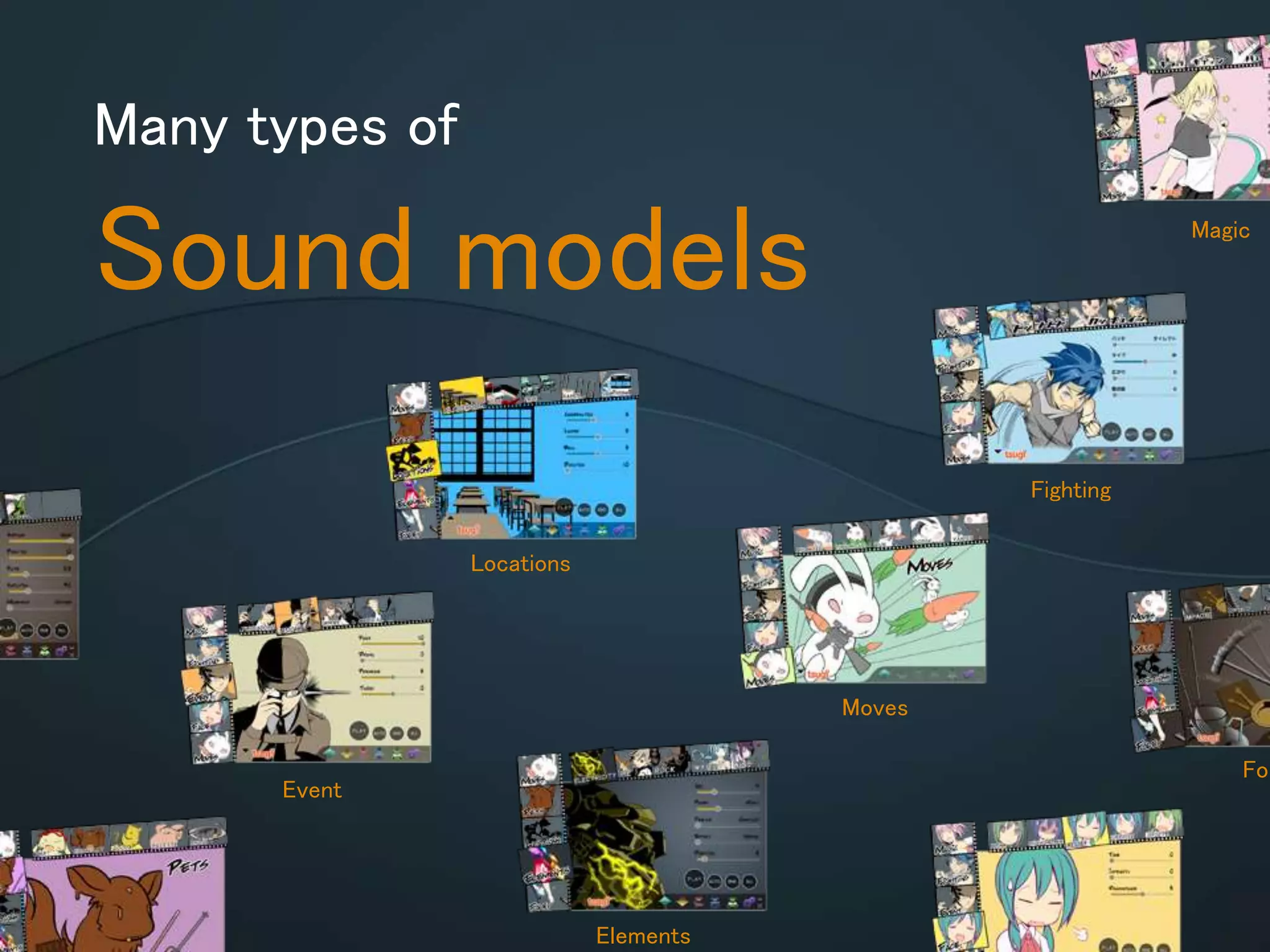
Many types of
Sound models Magic
Fighting
Moves
Elements
Fol
Locations
Event
For many types of
Games
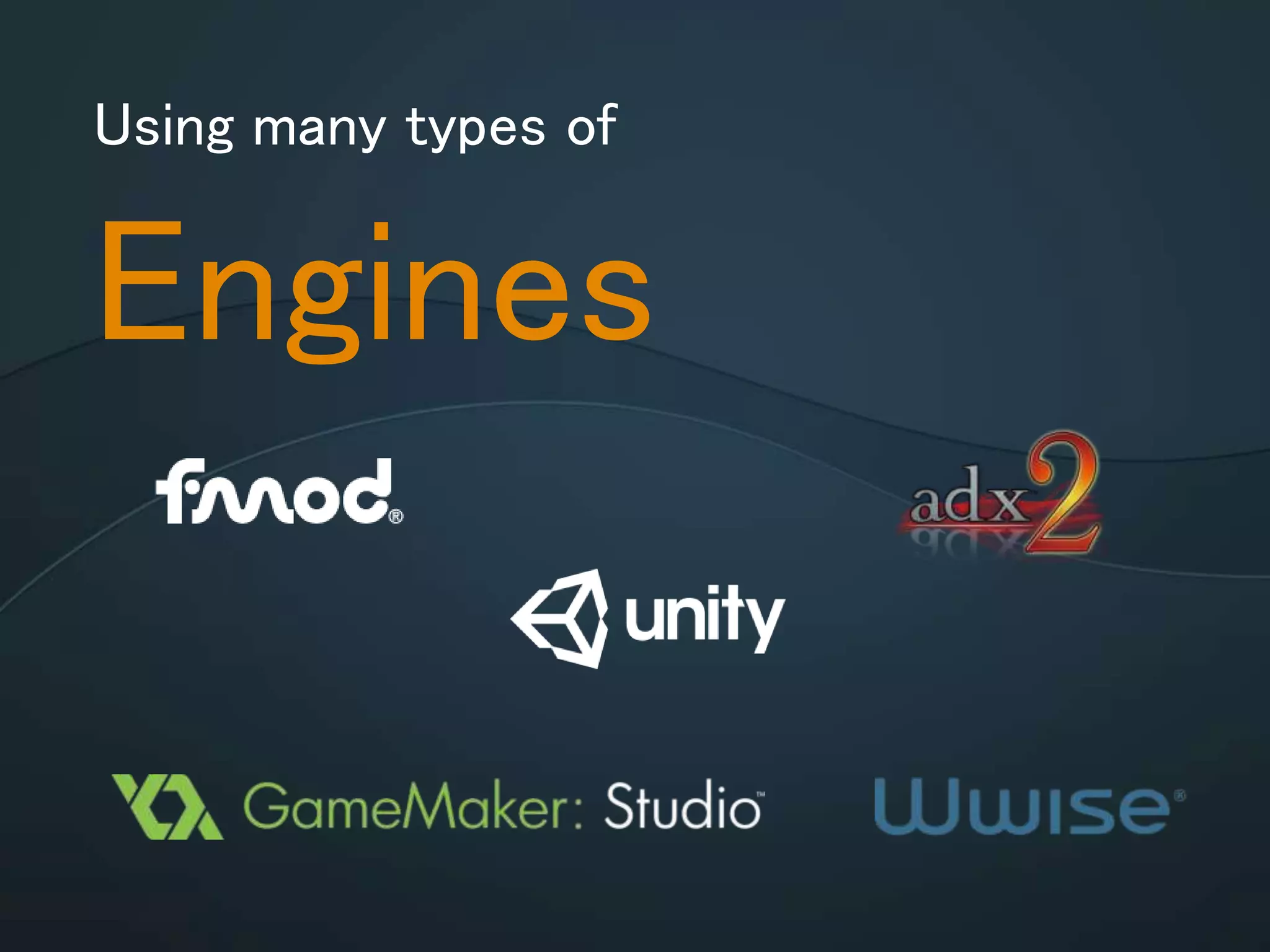
Using many types of
Engines
Integration with
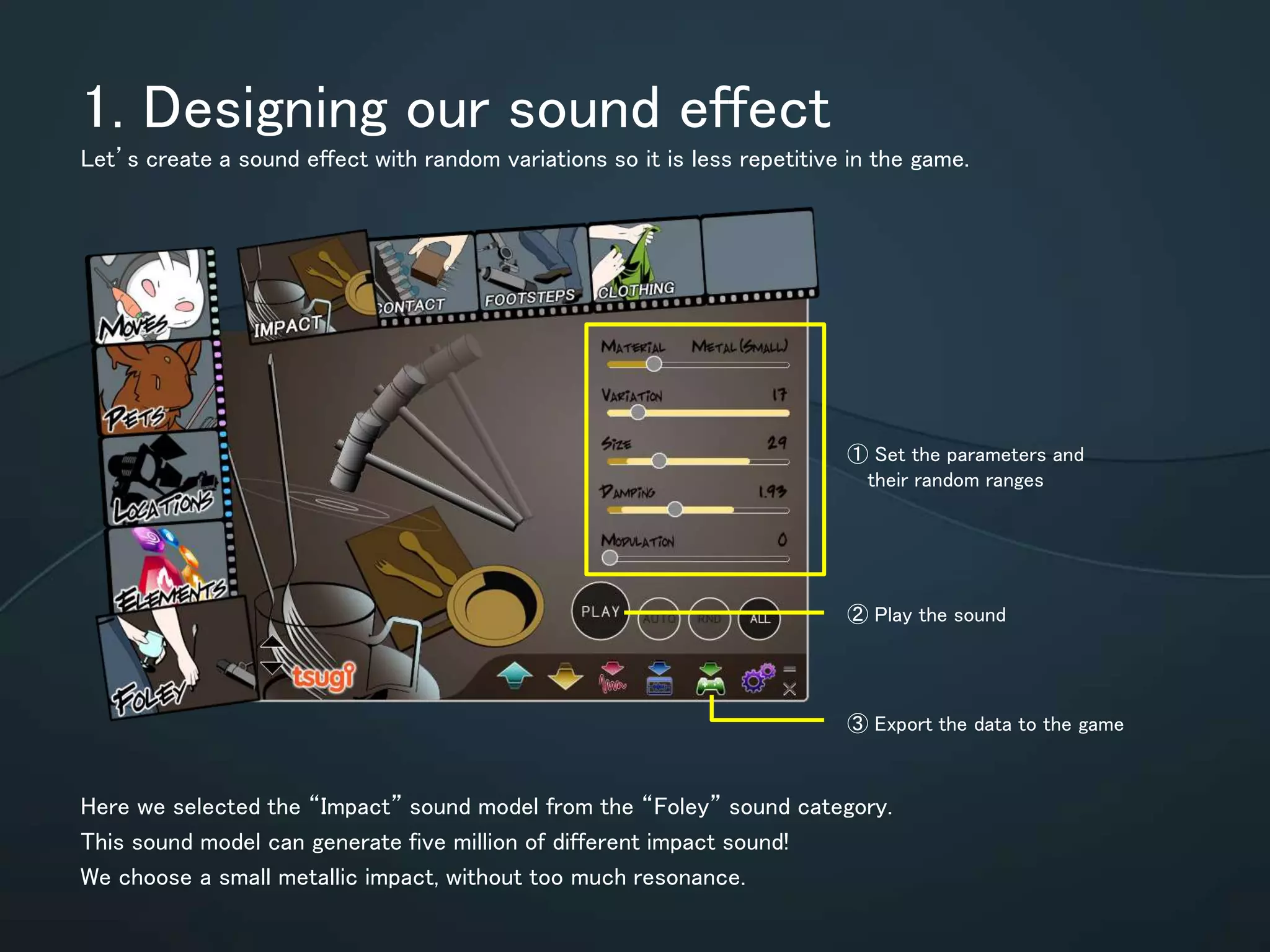
1.Designing our sound effect
Let’s create a sound effect with random variations so it is less repetitive in the game.
Here we selected the “Impact” sound model from the “Foley” sound category.
This sound model can generate five million of different impact sound!
We choose a small metallic impact, without too much resonance.
① Set the parameters and
their random ranges
② Play the sound
③ Export the data to the game
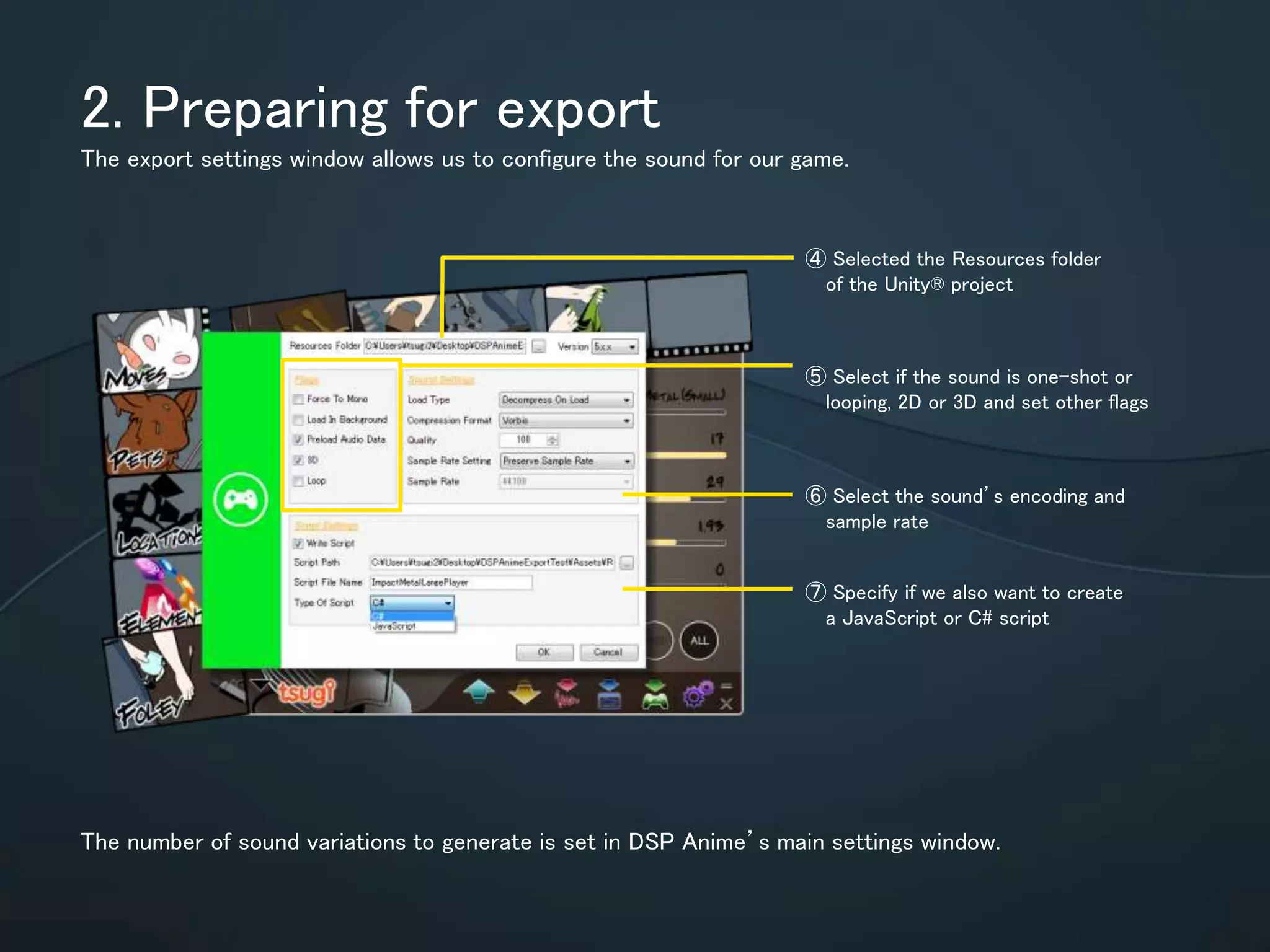
2. Preparing for export
The export settings window allows us to configure the sound for our game.
The number of sound variations to generate is set in DSP Anime’s main settings
window.
⑥ Select the sound’s encoding
and sample rate
⑦ Specify if we also want to
create a JavaScript or C# script
⑤ Select if the sound is one-shot or
looping, 2D or 3D and set other
flags
④ Selected the Resources folder
of the Unity® project
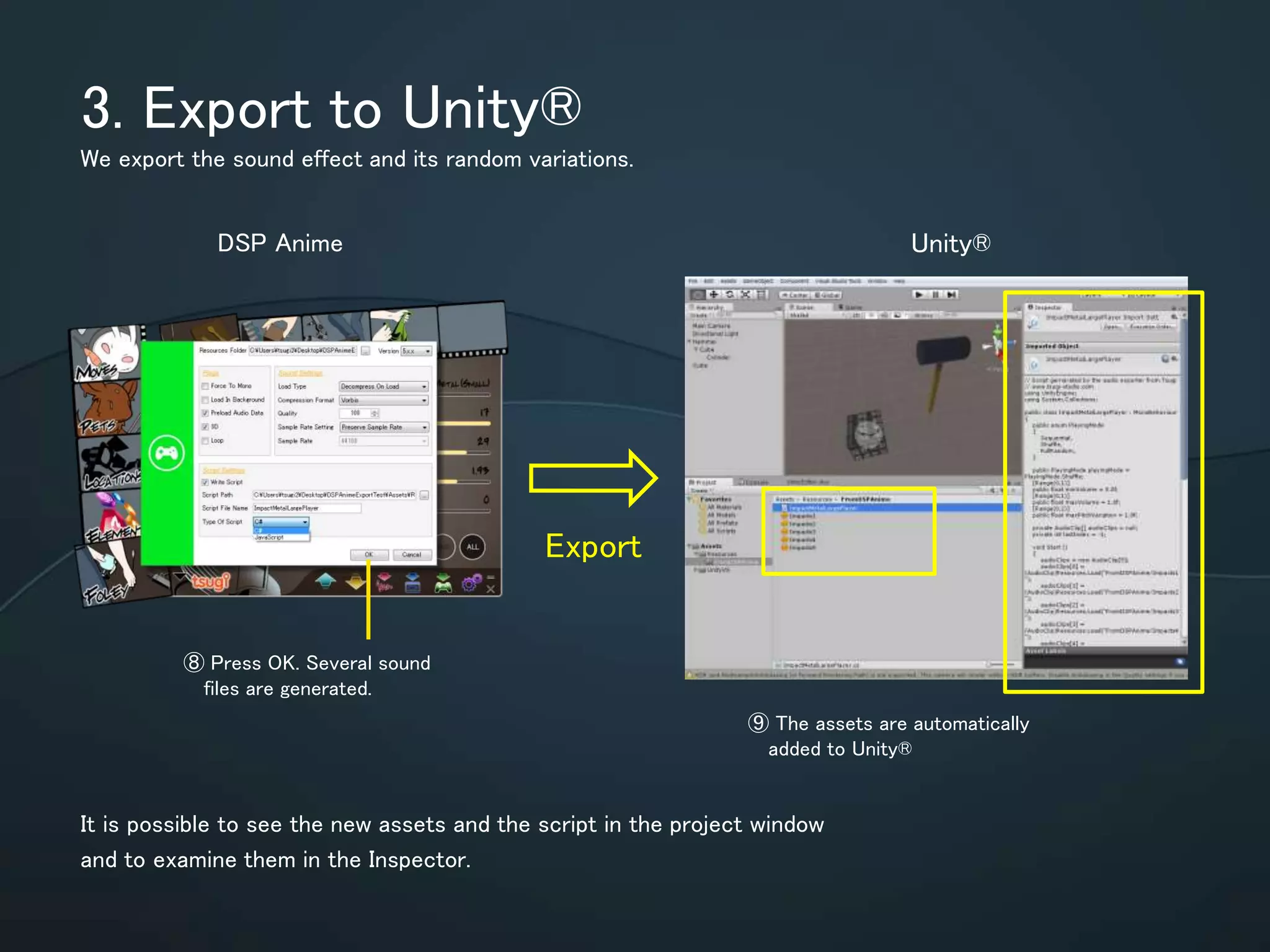
3. Export to Unity®
We export the sound effect and its random variations.
It is possible to see the new assets and the script in the project window and to
examine them in the Inspector.
⑧ Press OK. Several sound
files are generated.
Export
DSP Anime Unity®
⑨ The assets are utomatically
added to Unity®
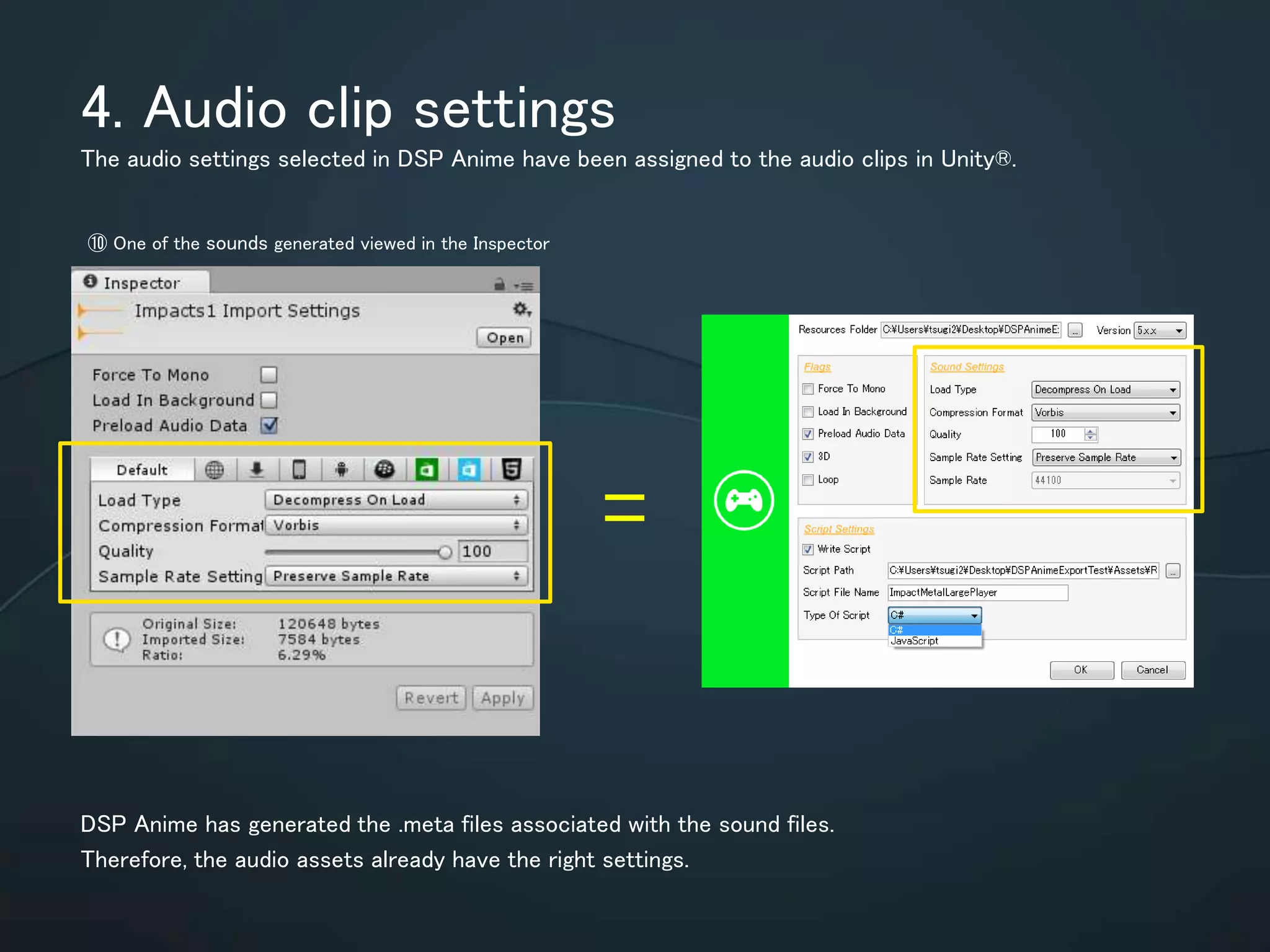
4. Audio clip settings
The audio settings selected in DSP Anime have been assigned to the audio clips in Unity®.
DSP Anime has generated the .meta files associated with the sound files.
Therefore, the audio assets already have the right settings.
=
⑩ One of the sounds generated viewed in the Inspector
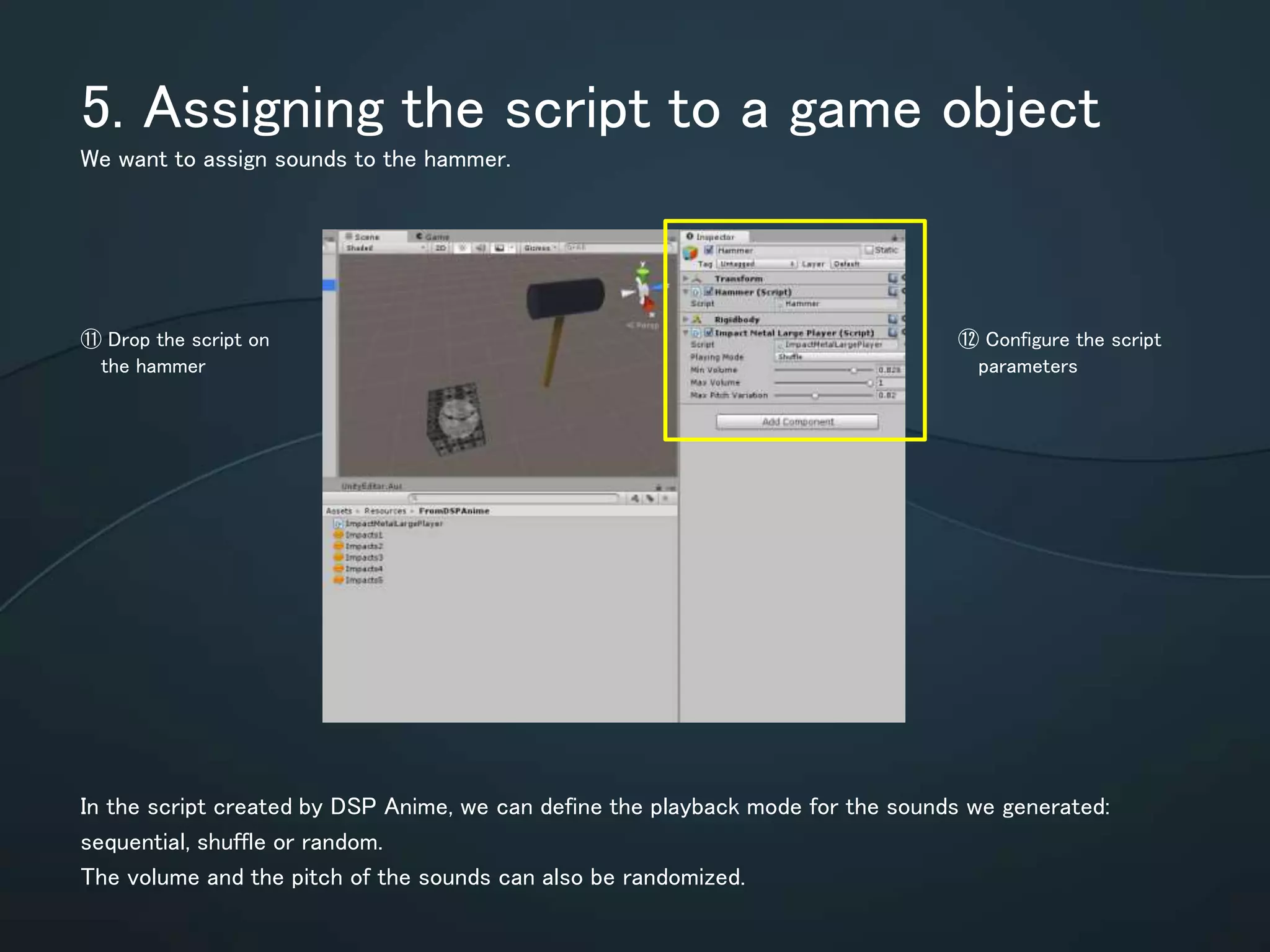
5. Assigning the script to a game object
We want to assign sounds to the hammer.
In the script created by DSP Anime, we can define the playback mode for the
sounds we generated: sequential, shuffle or random.
The volume and the pitch of the sounds can also be randomized.
⑪ Drop the script on
the hammer
⑫ Configure the
script parameters
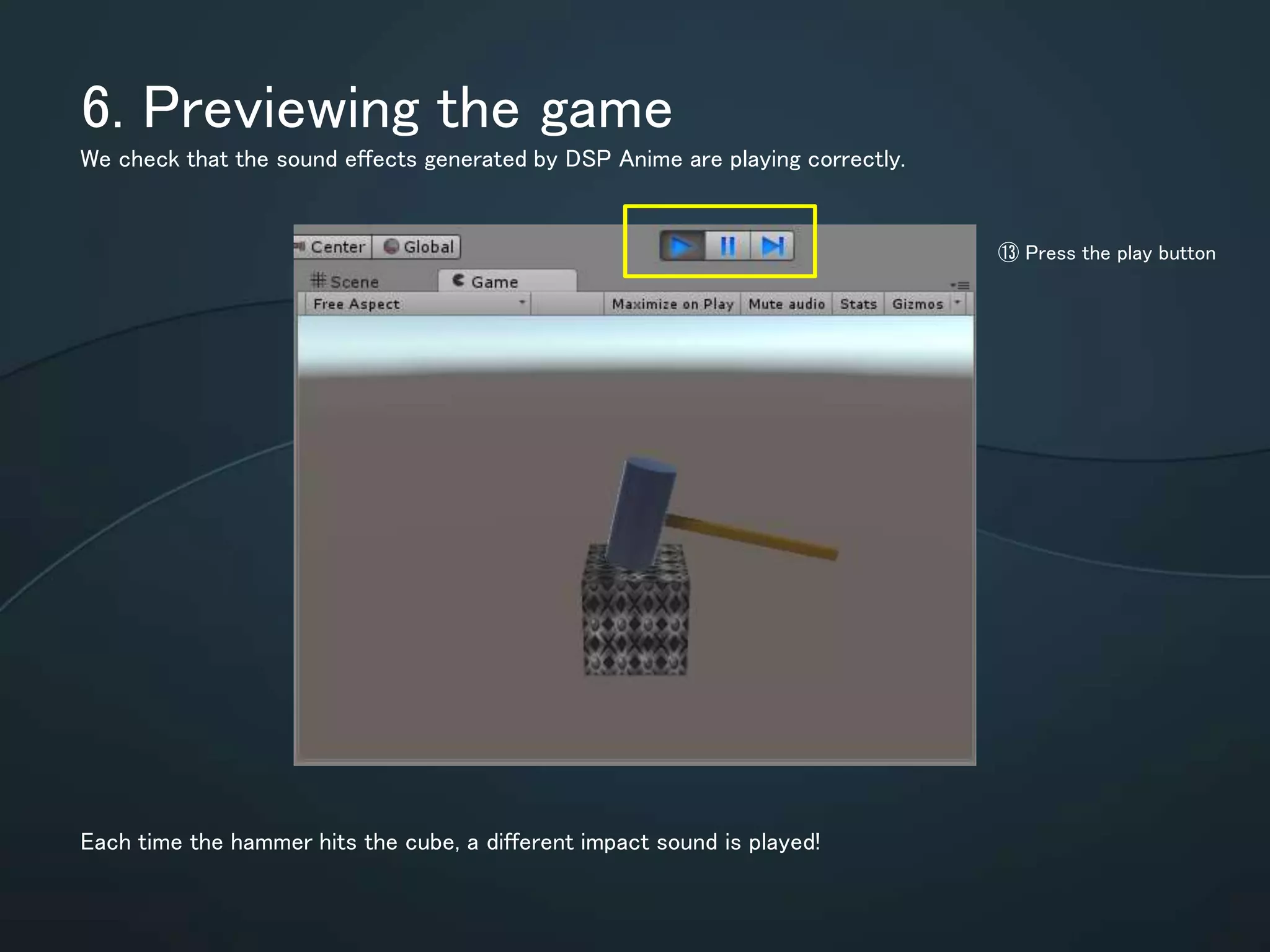
6. Previewing the game
We check that the sound effects generated by DSP Anime are playing correctly.
Each time the hammer hits the cube, a different impact sound is played!
⑬ Press the play button
Other integrations
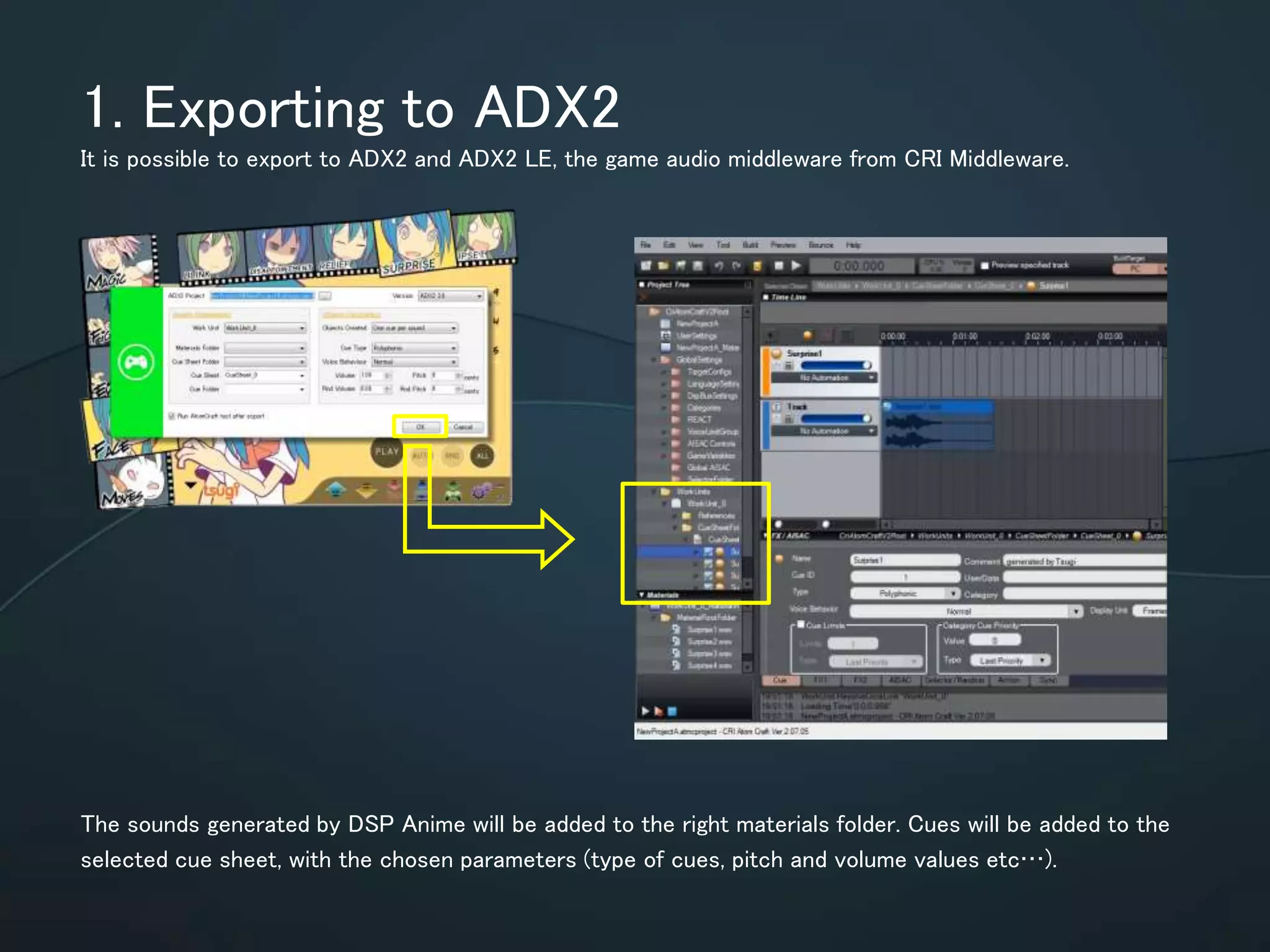
1. Exporting to ADX2
It is possible to export to ADX2 and ADX2 LE, the game audio middleware from CRI Middleware.
The sounds generated by DSP Anime will be added to the right materials folder.
Cues will be added to the selected cue sheet, with the chosen parameters (type of
cues, pitch and volume values etc…).
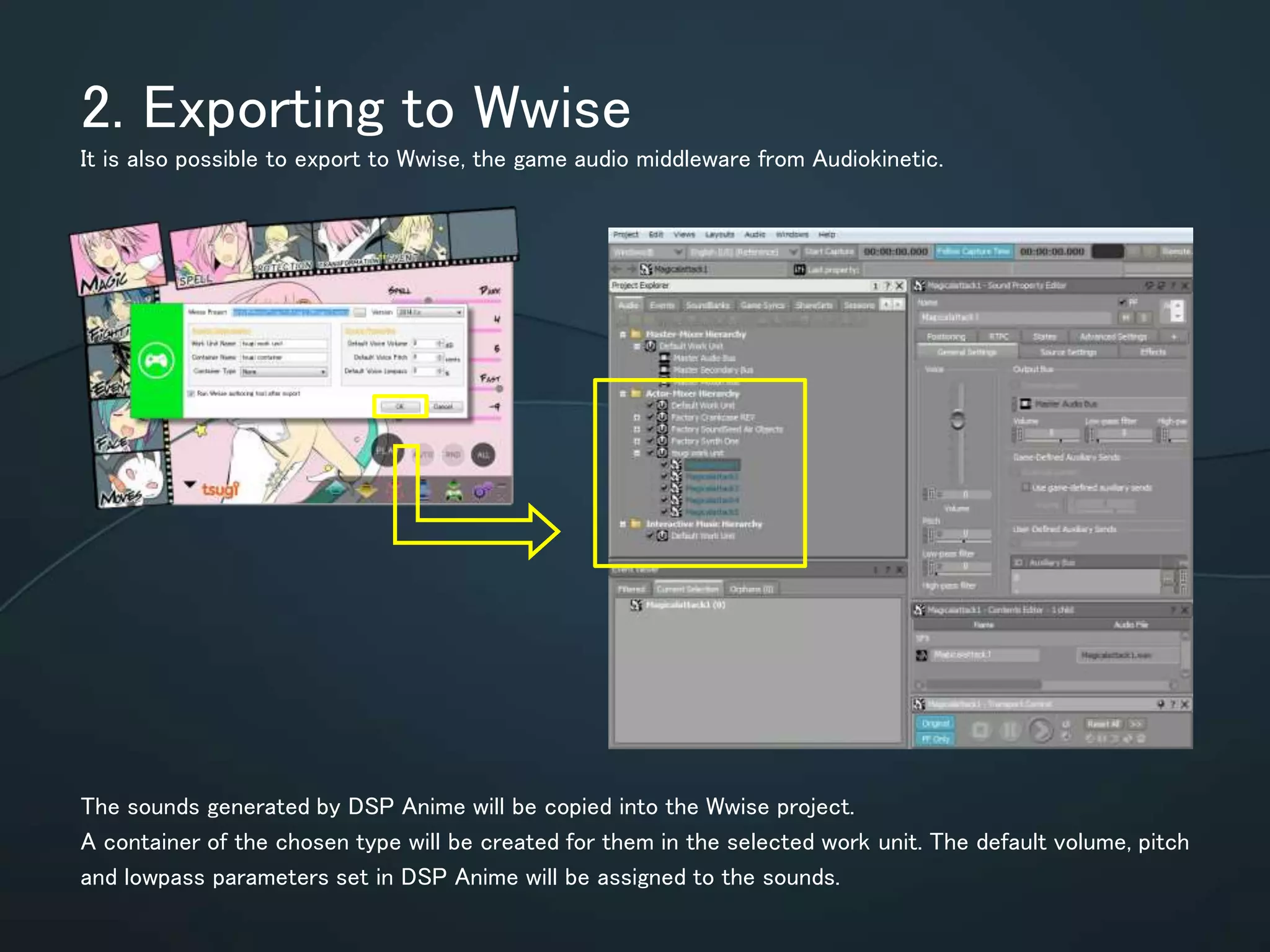
2. Exporting to Wwise
It is also possible to export to Wwise, the game audio middleware from Audiokinetic.
The sounds generated by DSP Anime will be copied into the Wwise project.
A container of the chosen type will be created for them in the selected work unit.
The default volume, pitch and lowpass parameters set in DSP Anime will be
assigned to the sounds.
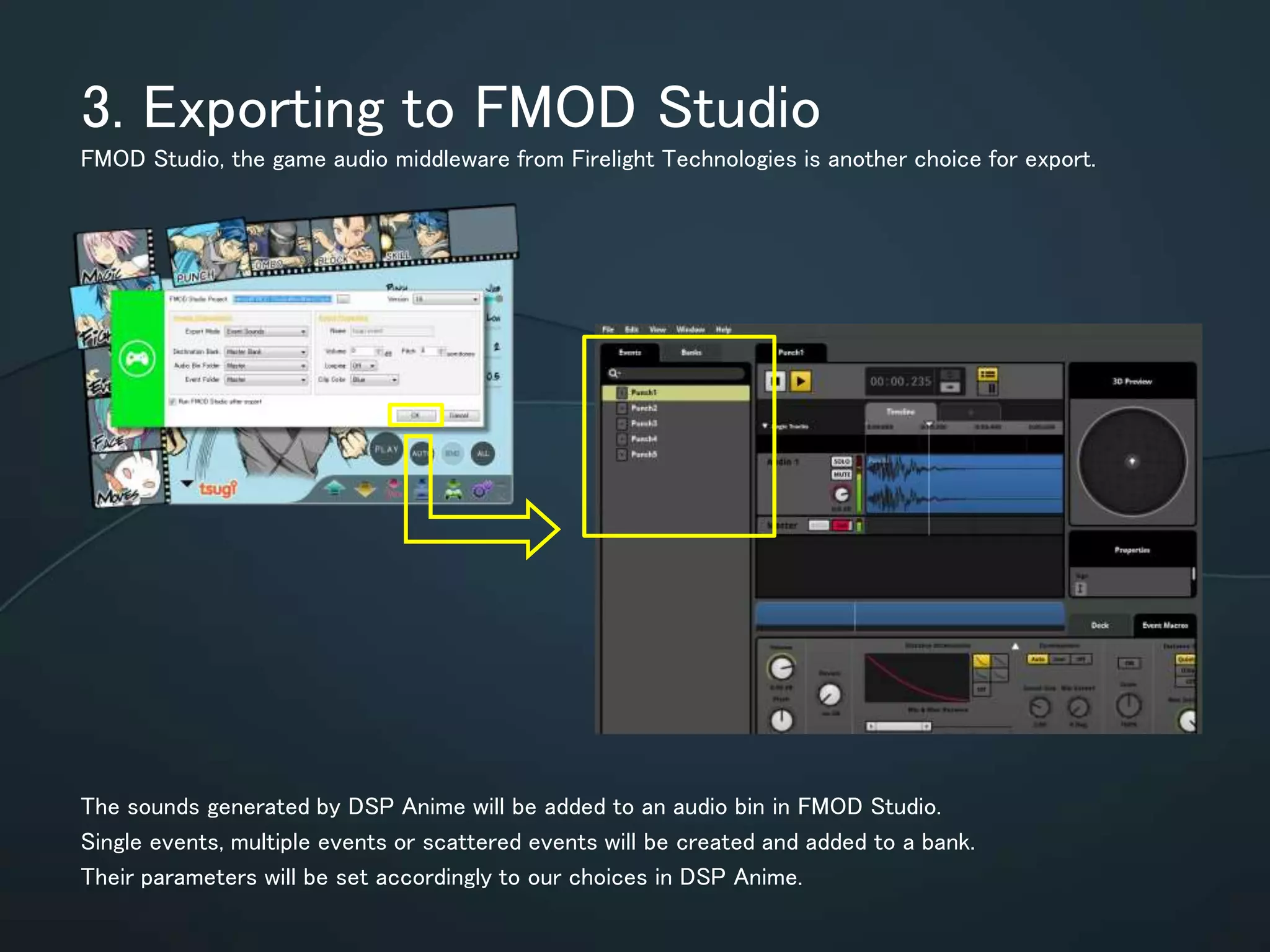
3. Exporting to FMOD Studio
FMOD Studio, the game audio middleware from Firelight Technologies is another choice for export.
The sounds generated by DSP Anime will be added to an audio bin in FMOD Studio.
Single events, multiple events or scattered events will be created and added to a
bank. Their parameters will be set accordingly to our choices in DSP Anime.
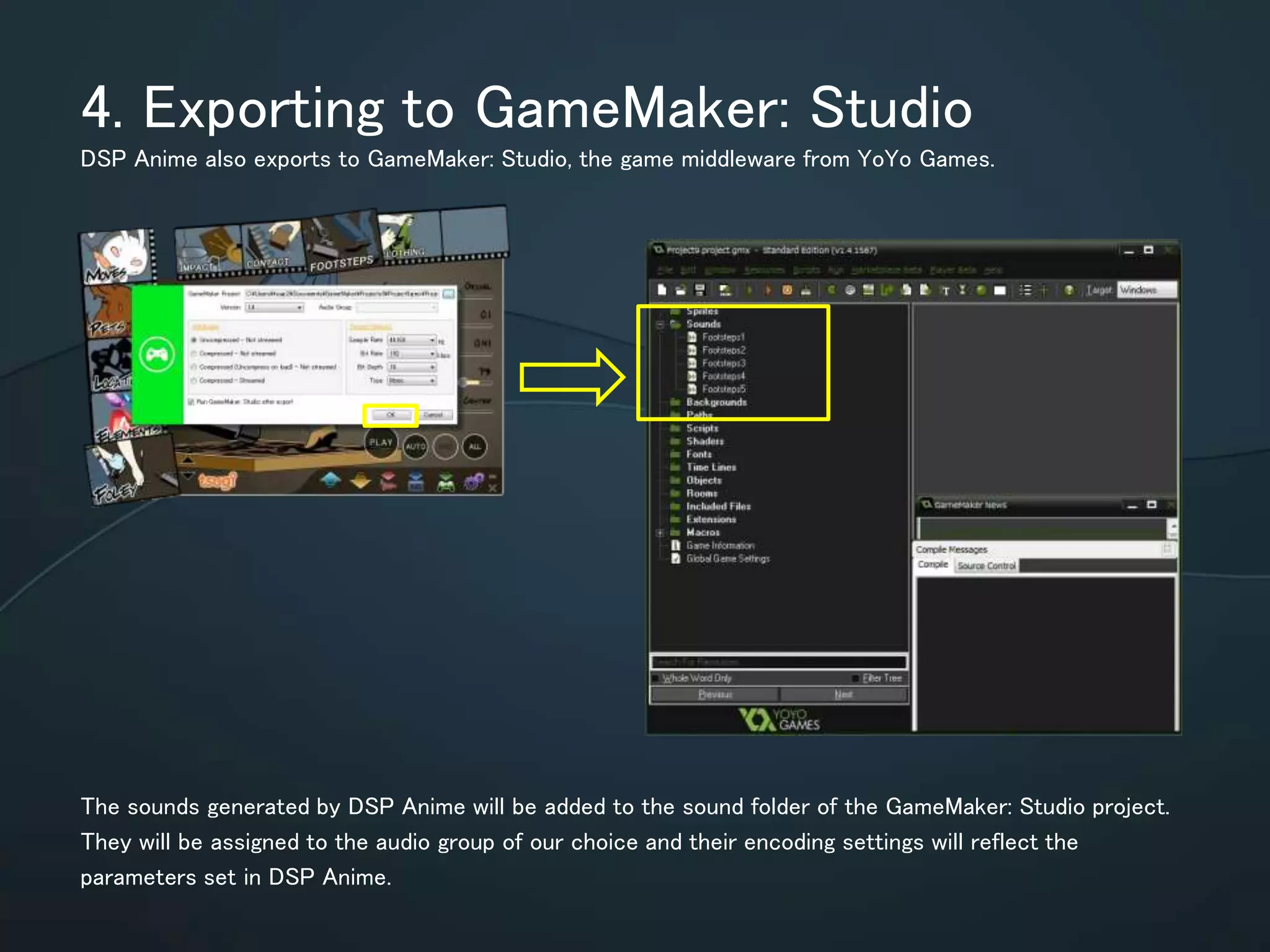
4. Exporting to GameMaker: Studio
DSP Anime also exports to GameMaker: Studio, the game middleware from YoYo Games.
The sounds generated by DSP Anime will be added to the sound folder of the
GameMaker: Studio project. They will be assigned to the audio group of our choice
and their encoding settings will reflect the parameters set in DSP Anime.
www.tsugi-studio.com
@tsugistudio
info@tsugi-studio.com

DSP Anime export to Unity and other middleware

  • 1.
    Integration with gamemiddleware The procedural sound effects generator
  • 2.
    Many types of Soundmodels Magic Fighting Moves Elements Fol Locations Event
  • 3.
  • 4.
    Using many typesof Engines
  • 5.
  • 6.
    1.Designing our soundeffect Let’s create a sound effect with random variations so it is less repetitive in the game. Here we selected the “Impact” sound model from the “Foley” sound category. This sound model can generate five million of different impact sound! We choose a small metallic impact, without too much resonance. ① Set the parameters and their random ranges ② Play the sound ③ Export the data to the game
  • 7.
    2. Preparing forexport The export settings window allows us to configure the sound for our game. The number of sound variations to generate is set in DSP Anime’s main settings window. ⑥ Select the sound’s encoding and sample rate ⑦ Specify if we also want to create a JavaScript or C# script ⑤ Select if the sound is one-shot or looping, 2D or 3D and set other flags ④ Selected the Resources folder of the Unity® project
  • 8.
    3. Export toUnity® We export the sound effect and its random variations. It is possible to see the new assets and the script in the project window and to examine them in the Inspector. ⑧ Press OK. Several sound files are generated. Export DSP Anime Unity® ⑨ The assets are utomatically added to Unity®
  • 9.
    4. Audio clipsettings The audio settings selected in DSP Anime have been assigned to the audio clips in Unity®. DSP Anime has generated the .meta files associated with the sound files. Therefore, the audio assets already have the right settings. = ⑩ One of the sounds generated viewed in the Inspector
  • 10.
    5. Assigning thescript to a game object We want to assign sounds to the hammer. In the script created by DSP Anime, we can define the playback mode for the sounds we generated: sequential, shuffle or random. The volume and the pitch of the sounds can also be randomized. ⑪ Drop the script on the hammer ⑫ Configure the script parameters
  • 11.
    6. Previewing thegame We check that the sound effects generated by DSP Anime are playing correctly. Each time the hammer hits the cube, a different impact sound is played! ⑬ Press the play button
  • 12.
  • 13.
    1. Exporting toADX2 It is possible to export to ADX2 and ADX2 LE, the game audio middleware from CRI Middleware. The sounds generated by DSP Anime will be added to the right materials folder. Cues will be added to the selected cue sheet, with the chosen parameters (type of cues, pitch and volume values etc…).
  • 14.
    2. Exporting toWwise It is also possible to export to Wwise, the game audio middleware from Audiokinetic. The sounds generated by DSP Anime will be copied into the Wwise project. A container of the chosen type will be created for them in the selected work unit. The default volume, pitch and lowpass parameters set in DSP Anime will be assigned to the sounds.
  • 15.
    3. Exporting toFMOD Studio FMOD Studio, the game audio middleware from Firelight Technologies is another choice for export. The sounds generated by DSP Anime will be added to an audio bin in FMOD Studio. Single events, multiple events or scattered events will be created and added to a bank. Their parameters will be set accordingly to our choices in DSP Anime.
  • 16.
    4. Exporting toGameMaker: Studio DSP Anime also exports to GameMaker: Studio, the game middleware from YoYo Games. The sounds generated by DSP Anime will be added to the sound folder of the GameMaker: Studio project. They will be assigned to the audio group of our choice and their encoding settings will reflect the parameters set in DSP Anime.
  • 17.

Editor's Notes