Dustin Bryan M. Chao
CompTIA A+ certification validates foundation-level knowledge
and skills necessary for a career in PC support. It is the starting
point for a career. The international, vendor-neutral certification
proves competence in areas such as installation, preventative
maintenance, networking, security and troubleshooting.
CompTIA A+ Essentials measures the necessary competencies of
an entry-level IT professional with a recommended 500 hours of
hands-on experience in the lab or field. It tests
for technical understanding of computer technology, networking and
security, as well as the communication skills and professionalism
now required of all entry-level IT professionals.
CompTIA A+ Practical Application is an extension of the knowledge
and skills identified in CompTIA A+ Essentials, with more of a
"hands-on" orientation focused on scenarios in which
troubleshooting and tools must be applied to resolve problems.
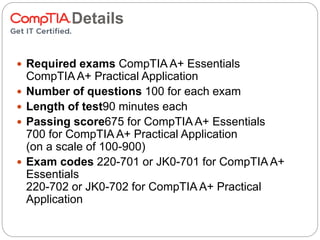
Test Details
 Required exams CompTIA A+ Essentials
CompTIA A+ Practical Application
 Number of questions 100 for each exam
 Length of test90 minutes each
 Passing score675 for CompTIA A+ Essentials
700 for CompTIA A+ Practical Application
(on a scale of 100-900)
 Exam codes 220-701 or JK0-701 for CompTIA A+
Essentials
220-702 or JK0-702 for CompTIA A+ Practical
Application
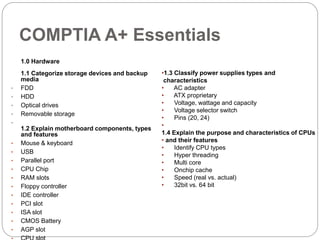
COMPTIA A+ Essentials
1.0 Hardware
1.1 Categorize storage devices and backup
media
• FDD
• HDD
• Optical drives
• Removable storage
•
1.2 Explain motherboard components, types
and features
• Mouse & keyboard
• USB
• Parallel port
• CPU Chip
• RAM slots
• Floppy controller
• IDE controller
• PCI slot
• ISA slot
• CMOS Battery
• AGP slot
•1.3 Classify power supplies types and
characteristics
• AC adapter
• ATX proprietary
• Voltage, wattage and capacity
• Voltage selector switch
• Pins (20, 24)
•
1.4 Explain the purpose and characteristics of CPUs
• and their features
• Identify CPU types
• Hyper threading
• Multi core
• Onchip cache
• Speed (real vs. actual)
• 32bit vs. 64 bit
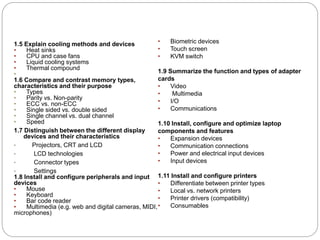
1.5 Explain cooling methods and devices
• Heat sinks
• CPU and case fans
• Liquid cooling systems
• Thermal compound
•
1.6 Compare and contrast memory types,
characteristics and their purpose
• Types
• Parity vs. Non-parity
• ECC vs. non-ECC
• Single sided vs. double sided
• Single channel vs. dual channel
• Speed
1.7 Distinguish between the different display
devices and their characteristics
• Projectors, CRT and LCD
• LCD technologies
• Connector types
• Settings
1.8 Install and configure peripherals and input
devices
• Mouse
• Keyboard
• Bar code reader
• Multimedia (e.g. web and digital cameras, MIDI,
microphones)
• Biometric devices
• Touch screen
• KVM switch
1.9 Summarize the function and types of adapter
cards
• Video
• Multimedia
• I/O
• Communications
1.10 Install, configure and optimize laptop
components and features
• Expansion devices
• Communication connections
• Power and electrical input devices
• Input devices
1.11 Install and configure printers
• Differentiate between printer types
• Local vs. network printers
• Printer drivers (compatibility)
• Consumables
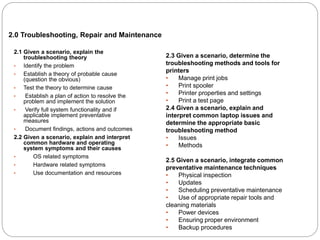
2.0 Troubleshooting, Repair and Maintenance
2.1 Given a scenario, explain the
troubleshooting theory
• Identify the problem
• Establish a theory of probable cause
(question the obvious)
• Test the theory to determine cause
• Establish a plan of action to resolve the
problem and implement the solution
• Verify full system functionality and if
applicable implement preventative
measures
• Document findings, actions and outcomes
2.2 Given a scenario, explain and interpret
common hardware and operating
system symptoms and their causes
• OS related symptoms
• Hardware related symptoms
• Use documentation and resources
2.3 Given a scenario, determine the
troubleshooting methods and tools for
printers
• Manage print jobs
• Print spooler
• Printer properties and settings
• Print a test page
2.4 Given a scenario, explain and
interpret common laptop issues and
determine the appropriate basic
troubleshooting method
• Issues
• Methods
2.5 Given a scenario, integrate common
preventative maintenance techniques
• Physical inspection
• Updates
• Scheduling preventative maintenance
• Use of appropriate repair tools and
cleaning materials
• Power devices
• Ensuring proper environment
• Backup procedures
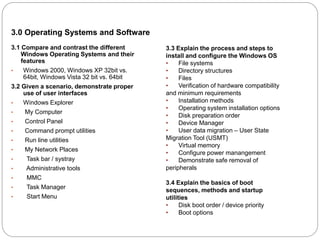
3.0 Operating Systems and Software
3.1 Compare and contrast the different
Windows Operating Systems and their
features
• Windows 2000, Windows XP 32bit vs.
64bit, Windows Vista 32 bit vs. 64bit
3.2 Given a scenario, demonstrate proper
use of user interfaces
• Windows Explorer
• My Computer
• Control Panel
• Command prompt utilities
• Run line utilities
• My Network Places
• Task bar / systray
• Administrative tools
• MMC
• Task Manager
• Start Menu
3.3 Explain the process and steps to
install and configure the Windows OS
• File systems
• Directory structures
• Files
• Verification of hardware compatibility
and minimum requirements
• Installation methods
• Operating system installation options
• Disk preparation order
• Device Manager
• User data migration – User State
Migration Tool (USMT)
• Virtual memory
• Configure power manangement
• Demonstrate safe removal of
peripherals
3.4 Explain the basics of boot
sequences, methods and startup
utilities
• Disk boot order / device priority
• Boot options
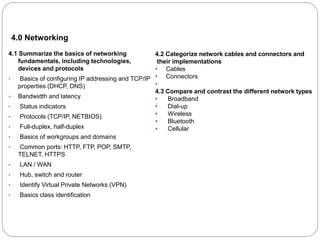
4.0 Networking
4.1 Summarize the basics of networking
fundamentals, including technologies,
devices and protocols
• Basics of configuring IP addressing and TCP/IP
properties (DHCP, DNS)
• Bandwidth and latency
• Status indicators
• Protocols (TCP/IP, NETBIOS)
• Full-duplex, half-duplex
• Basics of workgroups and domains
• Common ports: HTTP, FTP, POP, SMTP,
TELNET, HTTPS
• LAN / WAN
• Hub, switch and router
• Identify Virtual Private Networks (VPN)
• Basics class identification
4.2 Categorize network cables and connectors and
their implementations
• Cables
• Connectors
•
4.3 Compare and contrast the different network types
• Broadband
• Dial-up
• Wireless
• Bluetooth
• Cellular
5.0 Security 6.0 Operational Procedure
5.1 Explain the basic principles of security
concepts and technologies
• Encryption technologies
• Data wiping / hard drive destruction / hard
drive recycling
• Software firewall
• Authentication technologies
• Basics of data sensitivity and data security
5.2 Summarize the following security
features
• Wireless encryption
• Malicious software protection
• BIOS Security
• Password management / password
complexity
• Locking workstation
• Biometrics
6.1 Outline the purpose of appropriate safety and
environmental procedures and given a scenario apply them
• ESD
• EMI
• RFI
• Electrical safety
• Material Safety Data Sheets (MSDS)
• Cable management
• Physical safety
• Environmental – consider proper disposal procedures
6.2 Given a scenario, demonstrate the appropriate use
of communication skills and professionalism in the
workplace
• Use proper language – avoid jargon, acronyms, slang
• Maintain a positive attitude
• Listen and do not interrupt a customer
• Be culturally sensitive
• Be on time
• Avoid distractions
• Dealing with a difficult customer or situation
• Set and meet expectations / timeline and communicate status
• with the customer
• Deal appropriately with customers confidential materials
Storage and Back Up Media
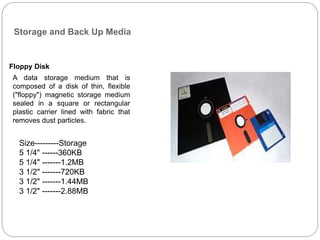
Floppy Disk
A data storage medium that is
composed of a disk of thin, flexible
("floppy") magnetic storage medium
sealed in a square or rectangular
plastic carrier lined with fabric that
removes dust particles.
Size---------Storage
5 1/4" ------360KB
5 1/4" -------1.2MB
3 1/2" -------720KB
3 1/2" -------1.44MB
3 1/2" -------2.88MB
Storage and Back Up Media
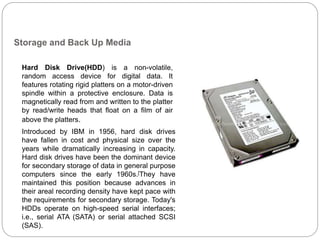
Hard Disk Drive(HDD) is a non-volatile,
random access device for digital data. It
features rotating rigid platters on a motor-driven
spindle within a protective enclosure. Data is
magnetically read from and written to the platter
by read/write heads that float on a film of air
above the platters.
Introduced by IBM in 1956, hard disk drives
have fallen in cost and physical size over the
years while dramatically increasing in capacity.
Hard disk drives have been the dominant device
for secondary storage of data in general purpose
computers since the early 1960s.[They have
maintained this position because advances in
their areal recording density have kept pace with
the requirements for secondary storage. Today's
HDDs operate on high-speed serial interfaces;
i.e., serial ATA (SATA) or serial attached SCSI
(SAS).
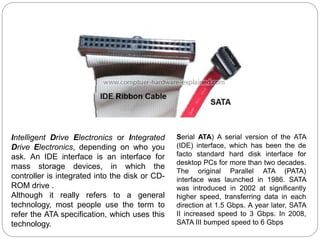
Serial ATA) A serial version of the ATA
(IDE) interface, which has been the de
facto standard hard disk interface for
desktop PCs for more than two decades.
The original Parallel ATA (PATA)
interface was launched in 1986. SATA
was introduced in 2002 at significantly
higher speed, transferring data in each
direction at 1.5 Gbps. A year later, SATA
II increased speed to 3 Gbps. In 2008,
SATA III bumped speed to 6 Gbps
Intelligent Drive Electronics or Integrated
Drive Electronics, depending on who you
ask. An IDE interface is an interface for
mass storage devices, in which the
controller is integrated into the disk or CD-
ROM drive .
Although it really refers to a general
technology, most people use the term to
refer the ATA specification, which uses this
technology.
Storage and Back Up Media
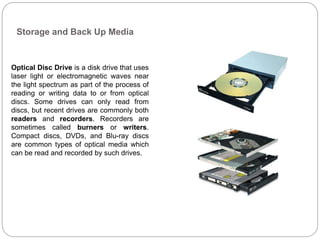
Optical Disc Drive is a disk drive that uses
laser light or electromagnetic waves near
the light spectrum as part of the process of
reading or writing data to or from optical
discs. Some drives can only read from
discs, but recent drives are commonly both
readers and recorders. Recorders are
sometimes called burners or writers.
Compact discs, DVDs, and Blu-ray discs
are common types of optical media which
can be read and recorded by such drives.
Storage and Back Up Media
Removable Storage Device is a device that
allows for the transportation of information.
There have been many types of Removable
Storage Devices, ranging from hard disks, to
rewritable Compact Disks, to portable USB
drives. The amount of storage space on
Removable Storage Devices has drastically
increased over the years, and it is an ever-
growing process as new technology is
developed
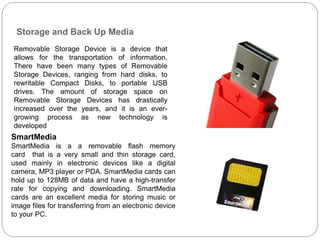
SmartMedia
SmartMedia is a a removable flash memory
card that is a very small and thin storage card,
used mainly in electronic devices like a digital
camera, MP3 player or PDA. SmartMedia cards can
hold up to 128MB of data and have a high-transfer
rate for copying and downloading. SmartMedia
cards are an excellent media for storing music or
image files for transferring from an electronic device
to your PC.
Motherboard Components, Types and Features
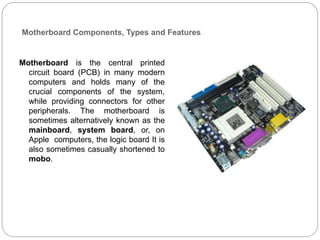
Motherboard is the central printed
circuit board (PCB) in many modern
computers and holds many of the
crucial components of the system,
while providing connectors for other
peripherals. The motherboard is
sometimes alternatively known as the
mainboard, system board, or, on
Apple computers, the logic board It is
also sometimes casually shortened to
mobo.
Motherboard Components, Types and Features
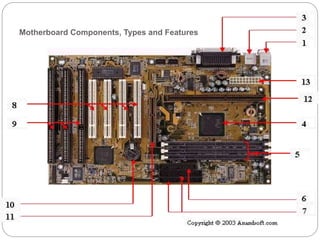
 Mouse & keyboard
 USB
 Parallel port
 CPU Chip
 RAM slots
 Floppy controller
 IDE controller
 PCI slot
 ISA slot
 CMOS Battery
 AGP slot
 CPU slot
 Power supply plug in
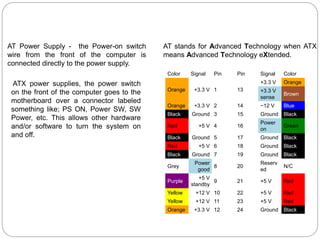
AT Power Supply - the Power-on switch
wire from the front of the computer is
connected directly to the power supply.
ATX power supplies, the power switch
on the front of the computer goes to the
motherboard over a connector labeled
something like; PS ON, Power SW, SW
Power, etc. This allows other hardware
and/or software to turn the system on
and off.
AT stands for Advanced Technology when ATX
means Advanced Technology eXtended.
Color Signal Pin Pin Signal Color
Orange +3.3 V 1 13
+3.3 V Orange
+3.3 V
sense
Brown
Orange +3.3 V 2 14 −12 V Blue
Black Ground 3 15 Ground Black
Red +5 V 4 16
Power
on
Green
Black Ground 5 17 Ground Black
Red +5 V 6 18 Ground Black
Black Ground 7 19 Ground Black
Grey
Power
good
8 20
Reserv
ed
N/C
Purple
+5 V
standby
9 21 +5 V Red
Yellow +12 V 10 22 +5 V Red
Yellow +12 V 11 23 +5 V Red
Orange +3.3 V 12 24 Ground Black
Power Supply
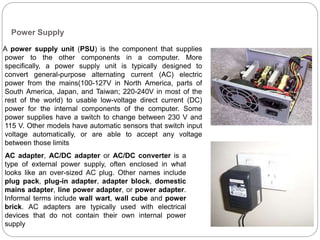
A power supply unit (PSU) is the component that supplies
power to the other components in a computer. More
specifically, a power supply unit is typically designed to
convert general-purpose alternating current (AC) electric
power from the mains(100-127V in North America, parts of
South America, Japan, and Taiwan; 220-240V in most of the
rest of the world) to usable low-voltage direct current (DC)
power for the internal components of the computer. Some
power supplies have a switch to change between 230 V and
115 V. Other models have automatic sensors that switch input
voltage automatically, or are able to accept any voltage
between those limits
AC adapter, AC/DC adapter or AC/DC converter is a
type of external power supply, often enclosed in what
looks like an over-sized AC plug. Other names include
plug pack, plug-in adapter, adapter block, domestic
mains adapter, line power adapter, or power adapter.
Informal terms include wall wart, wall cube and power
brick. AC adapters are typically used with electrical
devices that do not contain their own internal power
supply
CPU
The central processing unit (CPU) is the portion of a computer system
that carries out the instructions of a computer program, and is the
primary element carrying out the computer's functions. The central
processing unit carries out each instruction of the program in
sequence, to perform the basic arithmetical, logical, and input/output
operations of the system. This term has been in use in the computer
industry at least since the early 1960s.The form, design and
implementation of CPUs have changed dramatically since the earliest
examples, but their fundamental operation remains much the same.
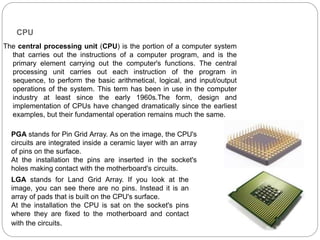
PGA stands for Pin Grid Array. As on the image, the CPU's
circuits are integrated inside a ceramic layer with an array
of pins on the surface.
At the installation the pins are inserted in the socket's
holes making contact with the motherboard's circuits.
LGA stands for Land Grid Array. If you look at the
image, you can see there are no pins. Instead it is an
array of pads that is built on the CPU's surface.
At the installation the CPU is sat on the socket's pins
where they are fixed to the motherboard and contact
with the circuits.
Hyperthreading
Intel® Hyper-Threading Technology
(Intel® HT Technology)¹ uses processor
resources more efficiently, enabling
multiple threads to run on each core.
Intel® HT Technology increases
processor throughput, improving overall
performance on threaded software.
Intel HT Technology is available on
Previous Generation Intel® Core™
processors, 2nd generation Intel®
Core™ processor family, and Intel®
Xeon® processor family.
A multi-core processor is a single component
with two or more independent actual processors
(called "cores")Manufacturers typically integrate
the cores onto a single integrated circuit die
(known as a chip multiprocessor or CMP), or
onto multiple dies in a single chip package
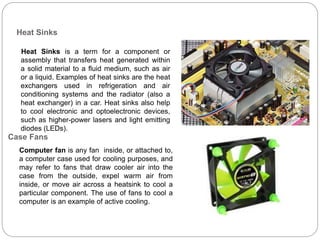
Heat Sinks
Heat Sinks is a term for a component or
assembly that transfers heat generated within
a solid material to a fluid medium, such as air
or a liquid. Examples of heat sinks are the heat
exchangers used in refrigeration and air
conditioning systems and the radiator (also a
heat exchanger) in a car. Heat sinks also help
to cool electronic and optoelectronic devices,
such as higher-power lasers and light emitting
diodes (LEDs).
Computer fan is any fan inside, or attached to,
a computer case used for cooling purposes, and
may refer to fans that draw cooler air into the
case from the outside, expel warm air from
inside, or move air across a heatsink to cool a
particular component. The use of fans to cool a
computer is an example of active cooling.
Case Fans
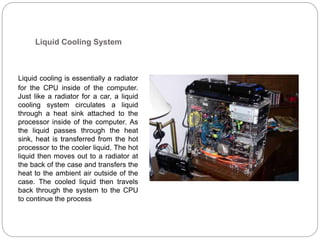
Liquid Cooling System
Liquid cooling is essentially a radiator
for the CPU inside of the computer.
Just like a radiator for a car, a liquid
cooling system circulates a liquid
through a heat sink attached to the
processor inside of the computer. As
the liquid passes through the heat
sink, heat is transferred from the hot
processor to the cooler liquid. The hot
liquid then moves out to a radiator at
the back of the case and transfers the
heat to the ambient air outside of the
case. The cooled liquid then travels
back through the system to the CPU
to continue the process
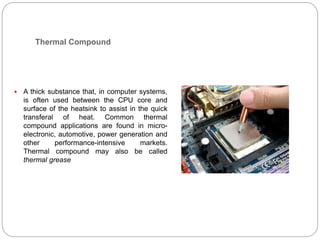
Thermal Compound
 A thick substance that, in computer systems,
is often used between the CPU core and
surface of the heatsink to assist in the quick
transferal of heat. Common thermal
compound applications are found in micro-
electronic, automotive, power generation and
other performance-intensive markets.
Thermal compound may also be called
thermal grease
Types of Memory
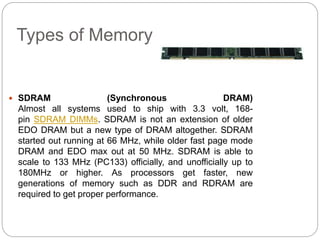
 SDRAM (Synchronous DRAM)
Almost all systems used to ship with 3.3 volt, 168-
pin SDRAM DIMMs. SDRAM is not an extension of older
EDO DRAM but a new type of DRAM altogether. SDRAM
started out running at 66 MHz, while older fast page mode
DRAM and EDO max out at 50 MHz. SDRAM is able to
scale to 133 MHz (PC133) officially, and unofficially up to
180MHz or higher. As processors get faster, new
generations of memory such as DDR and RDRAM are
required to get proper performance.
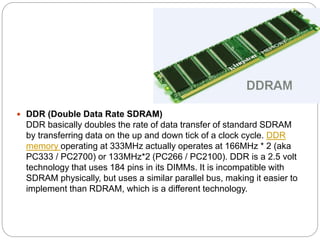
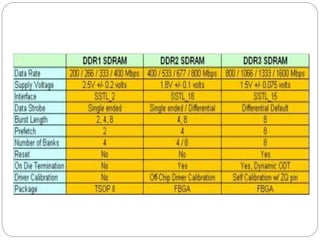
 DDR (Double Data Rate SDRAM)
DDR basically doubles the rate of data transfer of standard SDRAM
by transferring data on the up and down tick of a clock cycle. DDR
memory operating at 333MHz actually operates at 166MHz * 2 (aka
PC333 / PC2700) or 133MHz*2 (PC266 / PC2100). DDR is a 2.5 volt
technology that uses 184 pins in its DIMMs. It is incompatible with
SDRAM physically, but uses a similar parallel bus, making it easier to
implement than RDRAM, which is a different technology.
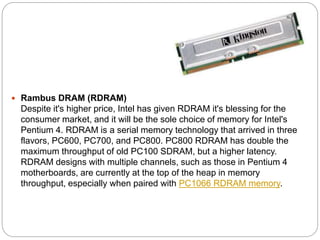
 Rambus DRAM (RDRAM)
Despite it's higher price, Intel has given RDRAM it's blessing for the
consumer market, and it will be the sole choice of memory for Intel's
Pentium 4. RDRAM is a serial memory technology that arrived in three
flavors, PC600, PC700, and PC800. PC800 RDRAM has double the
maximum throughput of old PC100 SDRAM, but a higher latency.
RDRAM designs with multiple channels, such as those in Pentium 4
motherboards, are currently at the top of the heap in memory
throughput, especially when paired with PC1066 RDRAM memory.
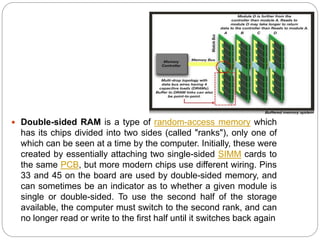
 Double-sided RAM is a type of random-access memory which
has its chips divided into two sides (called "ranks"), only one of
which can be seen at a time by the computer. Initially, these were
created by essentially attaching two single-sided SIMM cards to
the same PCB, but more modern chips use different wiring. Pins
33 and 45 on the board are used by double-sided memory, and
can sometimes be an indicator as to whether a given module is
single or double-sided. To use the second half of the storage
available, the computer must switch to the second rank, and can
no longer read or write to the first half until it switches back again
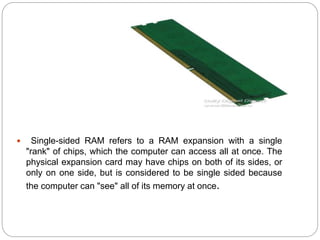
 Single-sided RAM refers to a RAM expansion with a single
"rank" of chips, which the computer can access all at once. The
physical expansion card may have chips on both of its sides, or
only on one side, but is considered to be single sided because
the computer can "see" all of its memory at once.
ECC
ECC Error-Correcting Code memory, a type of memory that includes special
circuitry for testing the accuracy of data as it passes in and out of memory. A
memory system that tests for and corrects errors automatically, very often
without the operating system being aware of it, let alone the user. As data are
written into memory, ECC circuitry generates checksums from the binary
sequences in the bytes and stores them in an additional seven bits of memory
for 32-bit data paths or eight bits for 64-bit paths. When data are retrieved
from memory, the checksum is recomputed to determine if any of the data bits
have been corrupted. Such systems can typically detect and automatically
correct errors of one bit per word and can detect, but not correct, errors
greater than one bit
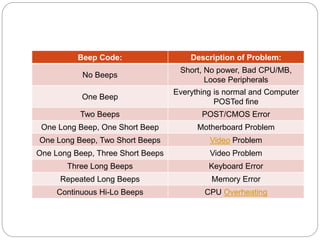
Beep Code: Description of Problem:
No Beeps
Short, No power, Bad CPU/MB,
Loose Peripherals
One Beep
Everything is normal and Computer
POSTed fine
Two Beeps POST/CMOS Error
One Long Beep, One Short Beep Motherboard Problem
One Long Beep, Two Short Beeps Video Problem
One Long Beep, Three Short Beeps Video Problem
Three Long Beeps Keyboard Error
Repeated Long Beeps Memory Error
Continuous Hi-Lo Beeps CPU Overheating
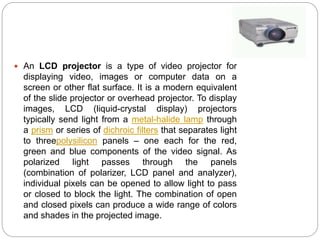
 An LCD projector is a type of video projector for
displaying video, images or computer data on a
screen or other flat surface. It is a modern equivalent
of the slide projector or overhead projector. To display
images, LCD (liquid-crystal display) projectors
typically send light from a metal-halide lamp through
a prism or series of dichroic filters that separates light
to threepolysilicon panels – one each for the red,
green and blue components of the video signal. As
polarized light passes through the panels
(combination of polarizer, LCD panel and analyzer),
individual pixels can be opened to allow light to pass
or closed to block the light. The combination of open
and closed pixels can produce a wide range of colors
and shades in the projected image.
 Biometrics (or biometric authentication)] consists of methods
for uniquely recognizing humans based upon one or
more intrinsic physical or behavioral traits. In computer science ,
in particular, biometrics is used as a form of identity access
management and access control . It is also used to identify
individuals in groups that are under surveillance.
 A touchscreen is an electronic visual display that can detect the
presence and location of a touch within the display area. The
term generally refers to touching the display of the device with
a finger or hand. Touchscreens can also sense other passive
objects, such as a stylus. Touchscreens are common in devices
such as game consoles, all-in-one computers, tablet computers,
and smartphones.
 A liquid crystal display (LCD) is a flat panel display, electronic visual
display video display that uses the light modulating properties of liquid
crystals (LCs). LCs do not emit light directly.
 They are used in a wide range of applications, including computer monitors
television, instrument panels, aircraft cockpit displays signage etc. They are
common in consumer devices such as video players, gaming devices, clocks,
watches, calculators, and telephones LCDs have replaced cathode ray
tube (CRT) displays in most applications. They are available in a wider range of
screen sizes than CRT and plasma displays, and since they do not use
phosphors, they cannot suffer image burn-in. LCDs are, however, susceptible
to image persistence
 LCDs are more energy efficient and offer safer disposal than CRTs. Its low
electrical power consumption enables it to be used in battery powered electronic
equipment. It is an electronically modulated optical device made up of any
number of segments filled with liquid crystals and arrayed in front of a light
source (backlight) or reflector to produce images in color or monochrome. The
most flexible ones use an array of small pixels. The earliest discovery leading to
the development of LCD technology, the discovery of liquid crystals, dates from
1888.[2] By 2008, worldwide sales of televisions with LCD screens had surpassed
the sale of CRT units.
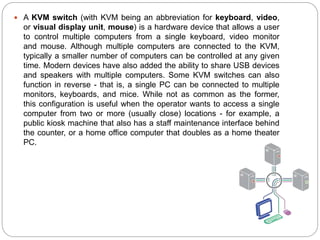
 A KVM switch (with KVM being an abbreviation for keyboard, video,
or visual display unit, mouse) is a hardware device that allows a user
to control multiple computers from a single keyboard, video monitor
and mouse. Although multiple computers are connected to the KVM,
typically a smaller number of computers can be controlled at any given
time. Modern devices have also added the ability to share USB devices
and speakers with multiple computers. Some KVM switches can also
function in reverse - that is, a single PC can be connected to multiple
monitors, keyboards, and mice. While not as common as the former,
this configuration is useful when the operator wants to access a single
computer from two or more (usually close) locations - for example, a
public kiosk machine that also has a staff maintenance interface behind
the counter, or a home office computer that doubles as a home theater
PC.

dokumen.tips_comptia-a.ppt

  • 1.
  • 2.
    CompTIA A+ certificationvalidates foundation-level knowledge and skills necessary for a career in PC support. It is the starting point for a career. The international, vendor-neutral certification proves competence in areas such as installation, preventative maintenance, networking, security and troubleshooting. CompTIA A+ Essentials measures the necessary competencies of an entry-level IT professional with a recommended 500 hours of hands-on experience in the lab or field. It tests for technical understanding of computer technology, networking and security, as well as the communication skills and professionalism now required of all entry-level IT professionals. CompTIA A+ Practical Application is an extension of the knowledge and skills identified in CompTIA A+ Essentials, with more of a "hands-on" orientation focused on scenarios in which troubleshooting and tools must be applied to resolve problems.
  • 3.
    Test Details  Requiredexams CompTIA A+ Essentials CompTIA A+ Practical Application  Number of questions 100 for each exam  Length of test90 minutes each  Passing score675 for CompTIA A+ Essentials 700 for CompTIA A+ Practical Application (on a scale of 100-900)  Exam codes 220-701 or JK0-701 for CompTIA A+ Essentials 220-702 or JK0-702 for CompTIA A+ Practical Application
  • 4.
    COMPTIA A+ Essentials 1.0Hardware 1.1 Categorize storage devices and backup media • FDD • HDD • Optical drives • Removable storage • 1.2 Explain motherboard components, types and features • Mouse & keyboard • USB • Parallel port • CPU Chip • RAM slots • Floppy controller • IDE controller • PCI slot • ISA slot • CMOS Battery • AGP slot •1.3 Classify power supplies types and characteristics • AC adapter • ATX proprietary • Voltage, wattage and capacity • Voltage selector switch • Pins (20, 24) • 1.4 Explain the purpose and characteristics of CPUs • and their features • Identify CPU types • Hyper threading • Multi core • Onchip cache • Speed (real vs. actual) • 32bit vs. 64 bit
  • 5.
    1.5 Explain coolingmethods and devices • Heat sinks • CPU and case fans • Liquid cooling systems • Thermal compound • 1.6 Compare and contrast memory types, characteristics and their purpose • Types • Parity vs. Non-parity • ECC vs. non-ECC • Single sided vs. double sided • Single channel vs. dual channel • Speed 1.7 Distinguish between the different display devices and their characteristics • Projectors, CRT and LCD • LCD technologies • Connector types • Settings 1.8 Install and configure peripherals and input devices • Mouse • Keyboard • Bar code reader • Multimedia (e.g. web and digital cameras, MIDI, microphones) • Biometric devices • Touch screen • KVM switch 1.9 Summarize the function and types of adapter cards • Video • Multimedia • I/O • Communications 1.10 Install, configure and optimize laptop components and features • Expansion devices • Communication connections • Power and electrical input devices • Input devices 1.11 Install and configure printers • Differentiate between printer types • Local vs. network printers • Printer drivers (compatibility) • Consumables
  • 6.
    2.0 Troubleshooting, Repairand Maintenance 2.1 Given a scenario, explain the troubleshooting theory • Identify the problem • Establish a theory of probable cause (question the obvious) • Test the theory to determine cause • Establish a plan of action to resolve the problem and implement the solution • Verify full system functionality and if applicable implement preventative measures • Document findings, actions and outcomes 2.2 Given a scenario, explain and interpret common hardware and operating system symptoms and their causes • OS related symptoms • Hardware related symptoms • Use documentation and resources 2.3 Given a scenario, determine the troubleshooting methods and tools for printers • Manage print jobs • Print spooler • Printer properties and settings • Print a test page 2.4 Given a scenario, explain and interpret common laptop issues and determine the appropriate basic troubleshooting method • Issues • Methods 2.5 Given a scenario, integrate common preventative maintenance techniques • Physical inspection • Updates • Scheduling preventative maintenance • Use of appropriate repair tools and cleaning materials • Power devices • Ensuring proper environment • Backup procedures
  • 7.
    3.0 Operating Systemsand Software 3.1 Compare and contrast the different Windows Operating Systems and their features • Windows 2000, Windows XP 32bit vs. 64bit, Windows Vista 32 bit vs. 64bit 3.2 Given a scenario, demonstrate proper use of user interfaces • Windows Explorer • My Computer • Control Panel • Command prompt utilities • Run line utilities • My Network Places • Task bar / systray • Administrative tools • MMC • Task Manager • Start Menu 3.3 Explain the process and steps to install and configure the Windows OS • File systems • Directory structures • Files • Verification of hardware compatibility and minimum requirements • Installation methods • Operating system installation options • Disk preparation order • Device Manager • User data migration – User State Migration Tool (USMT) • Virtual memory • Configure power manangement • Demonstrate safe removal of peripherals 3.4 Explain the basics of boot sequences, methods and startup utilities • Disk boot order / device priority • Boot options
  • 8.
    4.0 Networking 4.1 Summarizethe basics of networking fundamentals, including technologies, devices and protocols • Basics of configuring IP addressing and TCP/IP properties (DHCP, DNS) • Bandwidth and latency • Status indicators • Protocols (TCP/IP, NETBIOS) • Full-duplex, half-duplex • Basics of workgroups and domains • Common ports: HTTP, FTP, POP, SMTP, TELNET, HTTPS • LAN / WAN • Hub, switch and router • Identify Virtual Private Networks (VPN) • Basics class identification 4.2 Categorize network cables and connectors and their implementations • Cables • Connectors • 4.3 Compare and contrast the different network types • Broadband • Dial-up • Wireless • Bluetooth • Cellular
  • 9.
    5.0 Security 6.0Operational Procedure 5.1 Explain the basic principles of security concepts and technologies • Encryption technologies • Data wiping / hard drive destruction / hard drive recycling • Software firewall • Authentication technologies • Basics of data sensitivity and data security 5.2 Summarize the following security features • Wireless encryption • Malicious software protection • BIOS Security • Password management / password complexity • Locking workstation • Biometrics 6.1 Outline the purpose of appropriate safety and environmental procedures and given a scenario apply them • ESD • EMI • RFI • Electrical safety • Material Safety Data Sheets (MSDS) • Cable management • Physical safety • Environmental – consider proper disposal procedures 6.2 Given a scenario, demonstrate the appropriate use of communication skills and professionalism in the workplace • Use proper language – avoid jargon, acronyms, slang • Maintain a positive attitude • Listen and do not interrupt a customer • Be culturally sensitive • Be on time • Avoid distractions • Dealing with a difficult customer or situation • Set and meet expectations / timeline and communicate status • with the customer • Deal appropriately with customers confidential materials
  • 10.
    Storage and BackUp Media Floppy Disk A data storage medium that is composed of a disk of thin, flexible ("floppy") magnetic storage medium sealed in a square or rectangular plastic carrier lined with fabric that removes dust particles. Size---------Storage 5 1/4" ------360KB 5 1/4" -------1.2MB 3 1/2" -------720KB 3 1/2" -------1.44MB 3 1/2" -------2.88MB
  • 11.
    Storage and BackUp Media Hard Disk Drive(HDD) is a non-volatile, random access device for digital data. It features rotating rigid platters on a motor-driven spindle within a protective enclosure. Data is magnetically read from and written to the platter by read/write heads that float on a film of air above the platters. Introduced by IBM in 1956, hard disk drives have fallen in cost and physical size over the years while dramatically increasing in capacity. Hard disk drives have been the dominant device for secondary storage of data in general purpose computers since the early 1960s.[They have maintained this position because advances in their areal recording density have kept pace with the requirements for secondary storage. Today's HDDs operate on high-speed serial interfaces; i.e., serial ATA (SATA) or serial attached SCSI (SAS).
  • 12.
    Serial ATA) Aserial version of the ATA (IDE) interface, which has been the de facto standard hard disk interface for desktop PCs for more than two decades. The original Parallel ATA (PATA) interface was launched in 1986. SATA was introduced in 2002 at significantly higher speed, transferring data in each direction at 1.5 Gbps. A year later, SATA II increased speed to 3 Gbps. In 2008, SATA III bumped speed to 6 Gbps Intelligent Drive Electronics or Integrated Drive Electronics, depending on who you ask. An IDE interface is an interface for mass storage devices, in which the controller is integrated into the disk or CD- ROM drive . Although it really refers to a general technology, most people use the term to refer the ATA specification, which uses this technology.
  • 13.
    Storage and BackUp Media Optical Disc Drive is a disk drive that uses laser light or electromagnetic waves near the light spectrum as part of the process of reading or writing data to or from optical discs. Some drives can only read from discs, but recent drives are commonly both readers and recorders. Recorders are sometimes called burners or writers. Compact discs, DVDs, and Blu-ray discs are common types of optical media which can be read and recorded by such drives.
  • 14.
    Storage and BackUp Media Removable Storage Device is a device that allows for the transportation of information. There have been many types of Removable Storage Devices, ranging from hard disks, to rewritable Compact Disks, to portable USB drives. The amount of storage space on Removable Storage Devices has drastically increased over the years, and it is an ever- growing process as new technology is developed SmartMedia SmartMedia is a a removable flash memory card that is a very small and thin storage card, used mainly in electronic devices like a digital camera, MP3 player or PDA. SmartMedia cards can hold up to 128MB of data and have a high-transfer rate for copying and downloading. SmartMedia cards are an excellent media for storing music or image files for transferring from an electronic device to your PC.
  • 15.
    Motherboard Components, Typesand Features Motherboard is the central printed circuit board (PCB) in many modern computers and holds many of the crucial components of the system, while providing connectors for other peripherals. The motherboard is sometimes alternatively known as the mainboard, system board, or, on Apple computers, the logic board It is also sometimes casually shortened to mobo.
  • 16.
  • 17.
    Motherboard Components, Typesand Features  Mouse & keyboard  USB  Parallel port  CPU Chip  RAM slots  Floppy controller  IDE controller  PCI slot  ISA slot  CMOS Battery  AGP slot  CPU slot  Power supply plug in
  • 18.
    AT Power Supply- the Power-on switch wire from the front of the computer is connected directly to the power supply. ATX power supplies, the power switch on the front of the computer goes to the motherboard over a connector labeled something like; PS ON, Power SW, SW Power, etc. This allows other hardware and/or software to turn the system on and off. AT stands for Advanced Technology when ATX means Advanced Technology eXtended. Color Signal Pin Pin Signal Color Orange +3.3 V 1 13 +3.3 V Orange +3.3 V sense Brown Orange +3.3 V 2 14 −12 V Blue Black Ground 3 15 Ground Black Red +5 V 4 16 Power on Green Black Ground 5 17 Ground Black Red +5 V 6 18 Ground Black Black Ground 7 19 Ground Black Grey Power good 8 20 Reserv ed N/C Purple +5 V standby 9 21 +5 V Red Yellow +12 V 10 22 +5 V Red Yellow +12 V 11 23 +5 V Red Orange +3.3 V 12 24 Ground Black
  • 19.
    Power Supply A powersupply unit (PSU) is the component that supplies power to the other components in a computer. More specifically, a power supply unit is typically designed to convert general-purpose alternating current (AC) electric power from the mains(100-127V in North America, parts of South America, Japan, and Taiwan; 220-240V in most of the rest of the world) to usable low-voltage direct current (DC) power for the internal components of the computer. Some power supplies have a switch to change between 230 V and 115 V. Other models have automatic sensors that switch input voltage automatically, or are able to accept any voltage between those limits AC adapter, AC/DC adapter or AC/DC converter is a type of external power supply, often enclosed in what looks like an over-sized AC plug. Other names include plug pack, plug-in adapter, adapter block, domestic mains adapter, line power adapter, or power adapter. Informal terms include wall wart, wall cube and power brick. AC adapters are typically used with electrical devices that do not contain their own internal power supply
  • 20.
    CPU The central processingunit (CPU) is the portion of a computer system that carries out the instructions of a computer program, and is the primary element carrying out the computer's functions. The central processing unit carries out each instruction of the program in sequence, to perform the basic arithmetical, logical, and input/output operations of the system. This term has been in use in the computer industry at least since the early 1960s.The form, design and implementation of CPUs have changed dramatically since the earliest examples, but their fundamental operation remains much the same. PGA stands for Pin Grid Array. As on the image, the CPU's circuits are integrated inside a ceramic layer with an array of pins on the surface. At the installation the pins are inserted in the socket's holes making contact with the motherboard's circuits. LGA stands for Land Grid Array. If you look at the image, you can see there are no pins. Instead it is an array of pads that is built on the CPU's surface. At the installation the CPU is sat on the socket's pins where they are fixed to the motherboard and contact with the circuits.
  • 21.
    Hyperthreading Intel® Hyper-Threading Technology (Intel®HT Technology)¹ uses processor resources more efficiently, enabling multiple threads to run on each core. Intel® HT Technology increases processor throughput, improving overall performance on threaded software. Intel HT Technology is available on Previous Generation Intel® Core™ processors, 2nd generation Intel® Core™ processor family, and Intel® Xeon® processor family. A multi-core processor is a single component with two or more independent actual processors (called "cores")Manufacturers typically integrate the cores onto a single integrated circuit die (known as a chip multiprocessor or CMP), or onto multiple dies in a single chip package
  • 22.
    Heat Sinks Heat Sinksis a term for a component or assembly that transfers heat generated within a solid material to a fluid medium, such as air or a liquid. Examples of heat sinks are the heat exchangers used in refrigeration and air conditioning systems and the radiator (also a heat exchanger) in a car. Heat sinks also help to cool electronic and optoelectronic devices, such as higher-power lasers and light emitting diodes (LEDs). Computer fan is any fan inside, or attached to, a computer case used for cooling purposes, and may refer to fans that draw cooler air into the case from the outside, expel warm air from inside, or move air across a heatsink to cool a particular component. The use of fans to cool a computer is an example of active cooling. Case Fans
  • 23.
    Liquid Cooling System Liquidcooling is essentially a radiator for the CPU inside of the computer. Just like a radiator for a car, a liquid cooling system circulates a liquid through a heat sink attached to the processor inside of the computer. As the liquid passes through the heat sink, heat is transferred from the hot processor to the cooler liquid. The hot liquid then moves out to a radiator at the back of the case and transfers the heat to the ambient air outside of the case. The cooled liquid then travels back through the system to the CPU to continue the process
  • 24.
    Thermal Compound  Athick substance that, in computer systems, is often used between the CPU core and surface of the heatsink to assist in the quick transferal of heat. Common thermal compound applications are found in micro- electronic, automotive, power generation and other performance-intensive markets. Thermal compound may also be called thermal grease
  • 25.
    Types of Memory SDRAM (Synchronous DRAM) Almost all systems used to ship with 3.3 volt, 168- pin SDRAM DIMMs. SDRAM is not an extension of older EDO DRAM but a new type of DRAM altogether. SDRAM started out running at 66 MHz, while older fast page mode DRAM and EDO max out at 50 MHz. SDRAM is able to scale to 133 MHz (PC133) officially, and unofficially up to 180MHz or higher. As processors get faster, new generations of memory such as DDR and RDRAM are required to get proper performance.
  • 26.
     DDR (DoubleData Rate SDRAM) DDR basically doubles the rate of data transfer of standard SDRAM by transferring data on the up and down tick of a clock cycle. DDR memory operating at 333MHz actually operates at 166MHz * 2 (aka PC333 / PC2700) or 133MHz*2 (PC266 / PC2100). DDR is a 2.5 volt technology that uses 184 pins in its DIMMs. It is incompatible with SDRAM physically, but uses a similar parallel bus, making it easier to implement than RDRAM, which is a different technology.
  • 28.
     Rambus DRAM(RDRAM) Despite it's higher price, Intel has given RDRAM it's blessing for the consumer market, and it will be the sole choice of memory for Intel's Pentium 4. RDRAM is a serial memory technology that arrived in three flavors, PC600, PC700, and PC800. PC800 RDRAM has double the maximum throughput of old PC100 SDRAM, but a higher latency. RDRAM designs with multiple channels, such as those in Pentium 4 motherboards, are currently at the top of the heap in memory throughput, especially when paired with PC1066 RDRAM memory.
  • 29.
     Double-sided RAMis a type of random-access memory which has its chips divided into two sides (called "ranks"), only one of which can be seen at a time by the computer. Initially, these were created by essentially attaching two single-sided SIMM cards to the same PCB, but more modern chips use different wiring. Pins 33 and 45 on the board are used by double-sided memory, and can sometimes be an indicator as to whether a given module is single or double-sided. To use the second half of the storage available, the computer must switch to the second rank, and can no longer read or write to the first half until it switches back again
  • 30.
     Single-sided RAMrefers to a RAM expansion with a single "rank" of chips, which the computer can access all at once. The physical expansion card may have chips on both of its sides, or only on one side, but is considered to be single sided because the computer can "see" all of its memory at once.
  • 31.
    ECC ECC Error-Correcting Codememory, a type of memory that includes special circuitry for testing the accuracy of data as it passes in and out of memory. A memory system that tests for and corrects errors automatically, very often without the operating system being aware of it, let alone the user. As data are written into memory, ECC circuitry generates checksums from the binary sequences in the bytes and stores them in an additional seven bits of memory for 32-bit data paths or eight bits for 64-bit paths. When data are retrieved from memory, the checksum is recomputed to determine if any of the data bits have been corrupted. Such systems can typically detect and automatically correct errors of one bit per word and can detect, but not correct, errors greater than one bit
  • 32.
    Beep Code: Descriptionof Problem: No Beeps Short, No power, Bad CPU/MB, Loose Peripherals One Beep Everything is normal and Computer POSTed fine Two Beeps POST/CMOS Error One Long Beep, One Short Beep Motherboard Problem One Long Beep, Two Short Beeps Video Problem One Long Beep, Three Short Beeps Video Problem Three Long Beeps Keyboard Error Repeated Long Beeps Memory Error Continuous Hi-Lo Beeps CPU Overheating
  • 33.
     An LCDprojector is a type of video projector for displaying video, images or computer data on a screen or other flat surface. It is a modern equivalent of the slide projector or overhead projector. To display images, LCD (liquid-crystal display) projectors typically send light from a metal-halide lamp through a prism or series of dichroic filters that separates light to threepolysilicon panels – one each for the red, green and blue components of the video signal. As polarized light passes through the panels (combination of polarizer, LCD panel and analyzer), individual pixels can be opened to allow light to pass or closed to block the light. The combination of open and closed pixels can produce a wide range of colors and shades in the projected image.
  • 34.
     Biometrics (orbiometric authentication)] consists of methods for uniquely recognizing humans based upon one or more intrinsic physical or behavioral traits. In computer science , in particular, biometrics is used as a form of identity access management and access control . It is also used to identify individuals in groups that are under surveillance.  A touchscreen is an electronic visual display that can detect the presence and location of a touch within the display area. The term generally refers to touching the display of the device with a finger or hand. Touchscreens can also sense other passive objects, such as a stylus. Touchscreens are common in devices such as game consoles, all-in-one computers, tablet computers, and smartphones.
  • 35.
     A liquidcrystal display (LCD) is a flat panel display, electronic visual display video display that uses the light modulating properties of liquid crystals (LCs). LCs do not emit light directly.  They are used in a wide range of applications, including computer monitors television, instrument panels, aircraft cockpit displays signage etc. They are common in consumer devices such as video players, gaming devices, clocks, watches, calculators, and telephones LCDs have replaced cathode ray tube (CRT) displays in most applications. They are available in a wider range of screen sizes than CRT and plasma displays, and since they do not use phosphors, they cannot suffer image burn-in. LCDs are, however, susceptible to image persistence  LCDs are more energy efficient and offer safer disposal than CRTs. Its low electrical power consumption enables it to be used in battery powered electronic equipment. It is an electronically modulated optical device made up of any number of segments filled with liquid crystals and arrayed in front of a light source (backlight) or reflector to produce images in color or monochrome. The most flexible ones use an array of small pixels. The earliest discovery leading to the development of LCD technology, the discovery of liquid crystals, dates from 1888.[2] By 2008, worldwide sales of televisions with LCD screens had surpassed the sale of CRT units.
  • 36.
     A KVMswitch (with KVM being an abbreviation for keyboard, video, or visual display unit, mouse) is a hardware device that allows a user to control multiple computers from a single keyboard, video monitor and mouse. Although multiple computers are connected to the KVM, typically a smaller number of computers can be controlled at any given time. Modern devices have also added the ability to share USB devices and speakers with multiple computers. Some KVM switches can also function in reverse - that is, a single PC can be connected to multiple monitors, keyboards, and mice. While not as common as the former, this configuration is useful when the operator wants to access a single computer from two or more (usually close) locations - for example, a public kiosk machine that also has a staff maintenance interface behind the counter, or a home office computer that doubles as a home theater PC.