Developing
BrandingSolutions
for 2013
Presented byThomas Daly
About Me
 SharePoint Consultant
 Developer
 Branding
 Focused on the UI side of things
 Community Involvement
 Speaker
 NJ SharePoint User Group
 SharePoint Saturday NYC Organizer
 SharePoint Saturday NJ Organizer
 My SharePoint Blog
 MSDN forums
Topics for
Discussion
 Branding Assets
 Creating Branding Based Projects inVisual Studio
2013
 Deploying Assets for On-Prem / O365
 Themes
 CSS, Images & JavaScript
 Master Pages
 Composed Looks
 Additional Page Head
 Feature Receivers
 CSSRegistration, ScriptLink, Cache Busting
 Tools for improved development
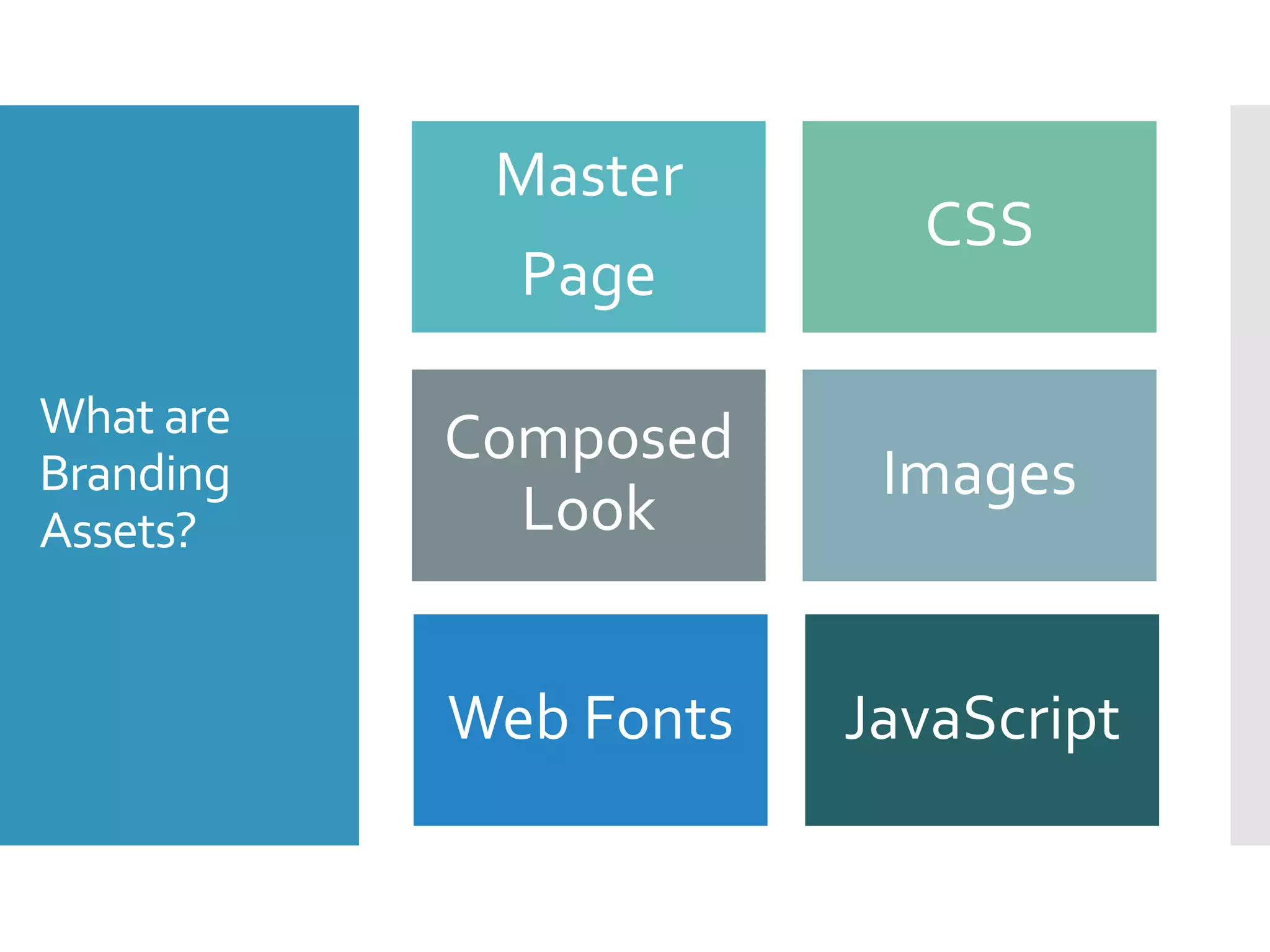
What are
Branding
Assets?
Master
Page
CSS
Composed
Look
Images
Web Fonts JavaScript
Special
Considerations
 Are you On-Prem / O365?
 Will it be a Sandbox or Farm level solution?
 Will it be Site orWeb based scoping?
 Aka (SPSite, SPWeb)
 Aka (Site Collection, Site)
 Will you be auto applying master pages, themes or
composed looks?
 Will you be pushing branding down to sub sites?
 Do you have Single Site Collection or Multiple?
 Will you need any additional scripts to
programmatically apply / un-apply?
Example 1
Deploying Master Pages, Images, CSS &
JavaScript
Example 1
Deploying
Master Page,
Images,CSS,
&Javascript
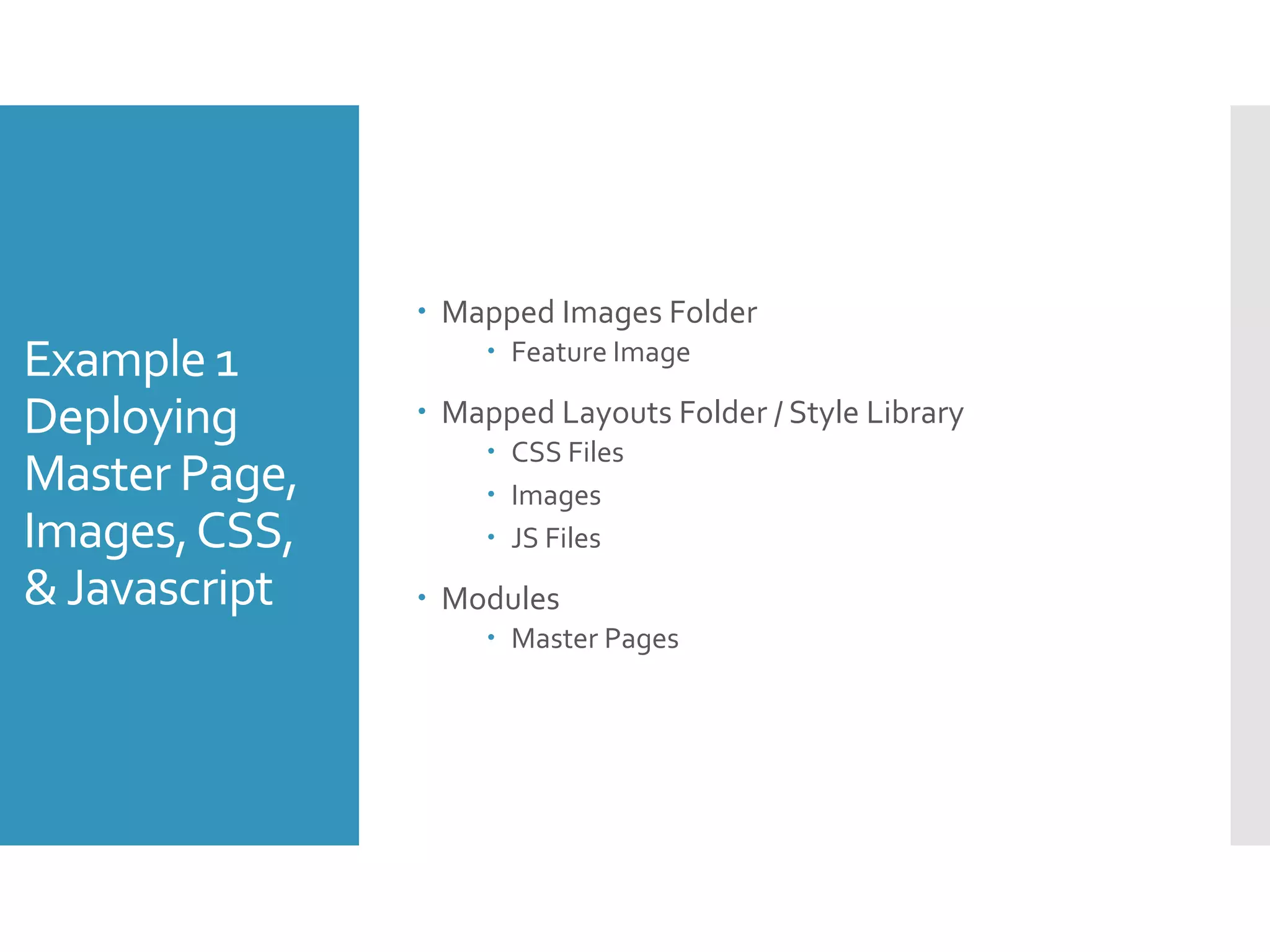
 Mapped Images Folder
 Feature Image
 Mapped Layouts Folder / Style Library
 CSS Files
 Images
 JS Files
 Modules
 Master Pages
Example 1
Review
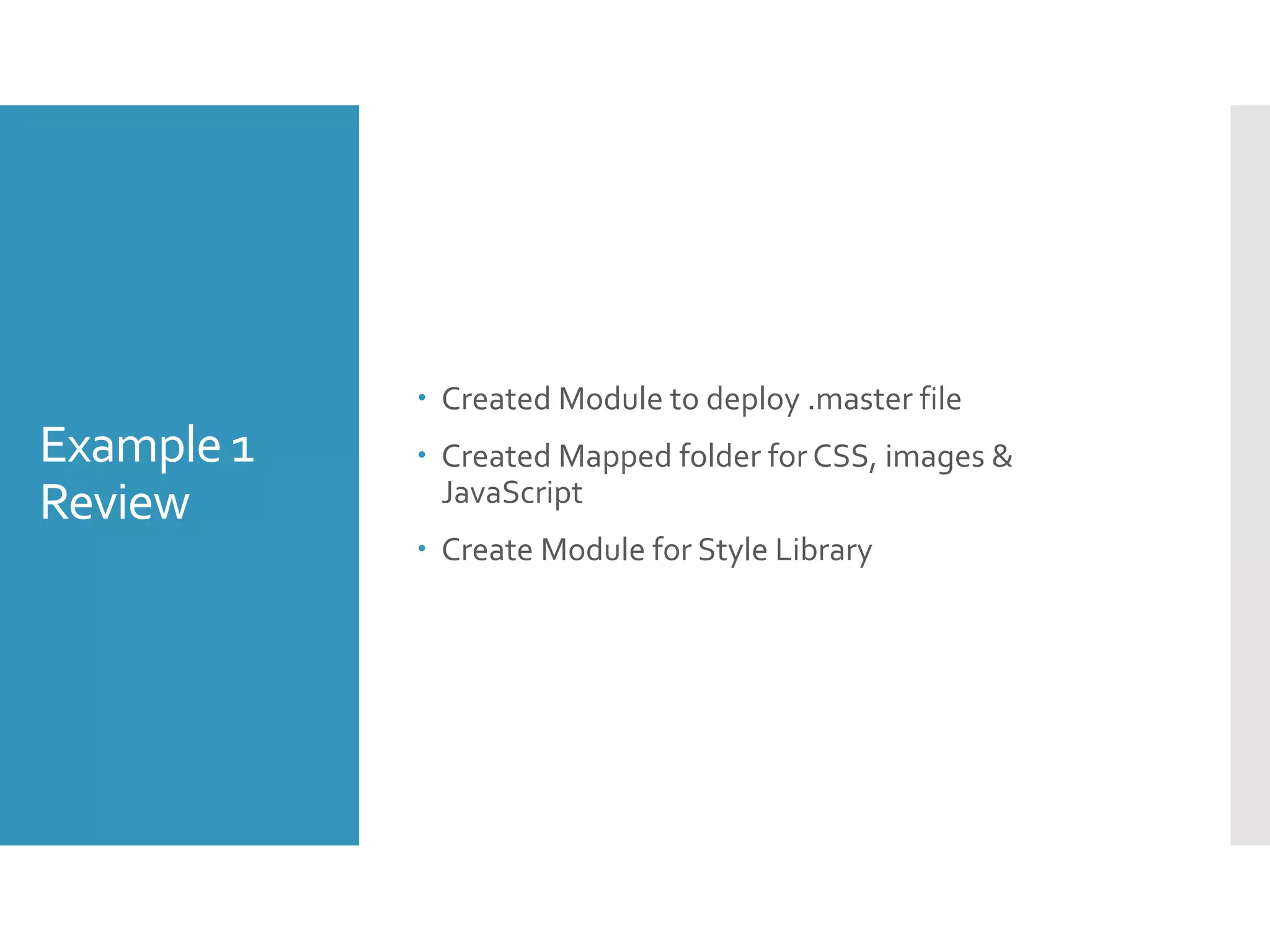
 Created Module to deploy .master file
 Created Mapped folder for CSS, images &
JavaScript
 Create Module for Style Library
Example 1
KeyConcepts
Modules &
Elements
 There may be times when you may want to deploy
files to the SharePoint server regardless of their file
type, such as new master pages.
 To do this, you can use Modules (not to be confused
withVisual Basic code modules).
 Modules are containers for files in a SharePoint
solution.When the solution is deployed, the files in
the module are copied to the specified folders on
the SharePoint server.
 An Element is an atomic unit within a Feature.
 There are several types of elements that can be
included in a Feature.
 More info on Module Items and Elements
 More info on ElementTypes
Example 1
KeyConcepts
Module –
Master Page
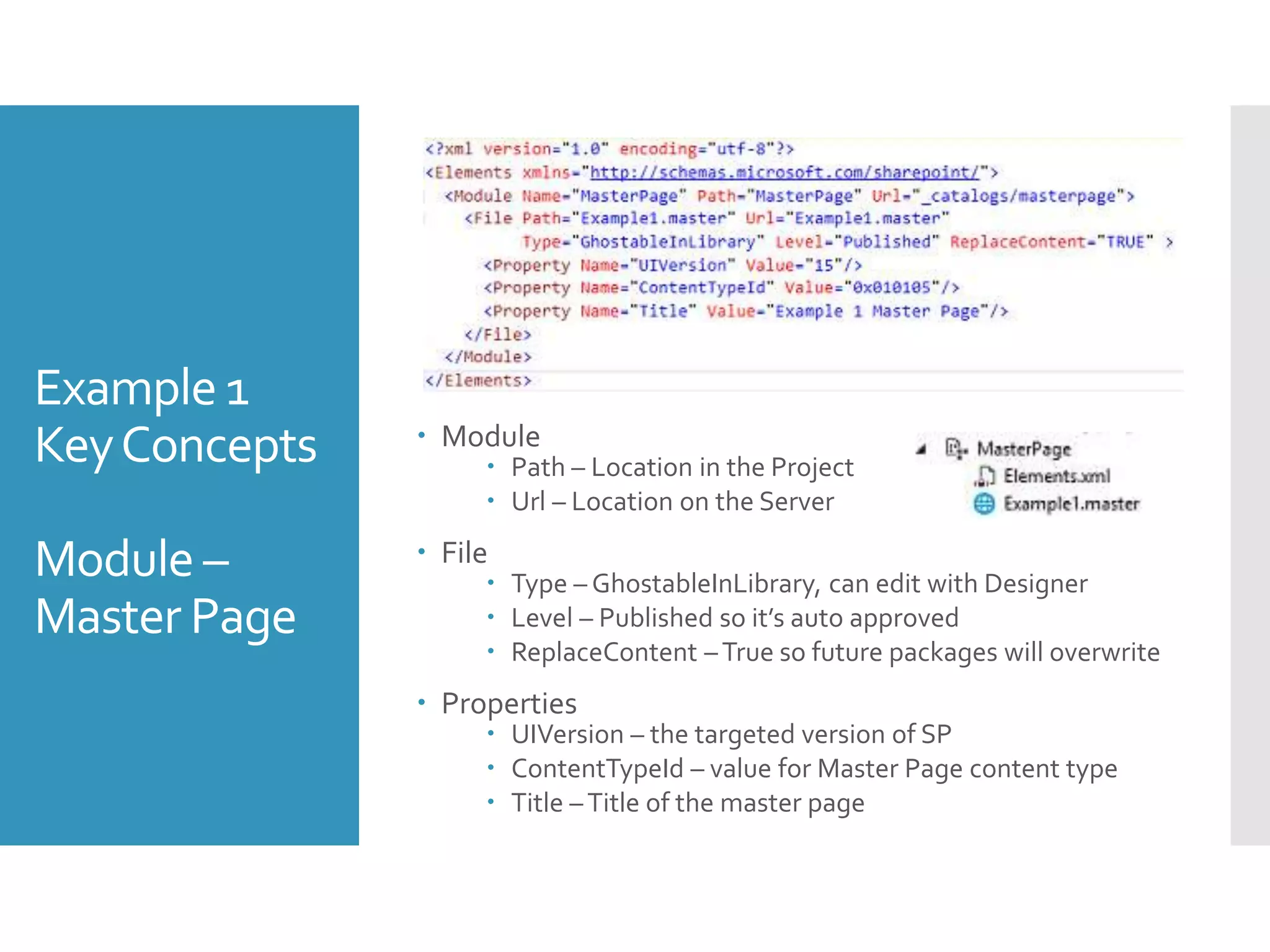
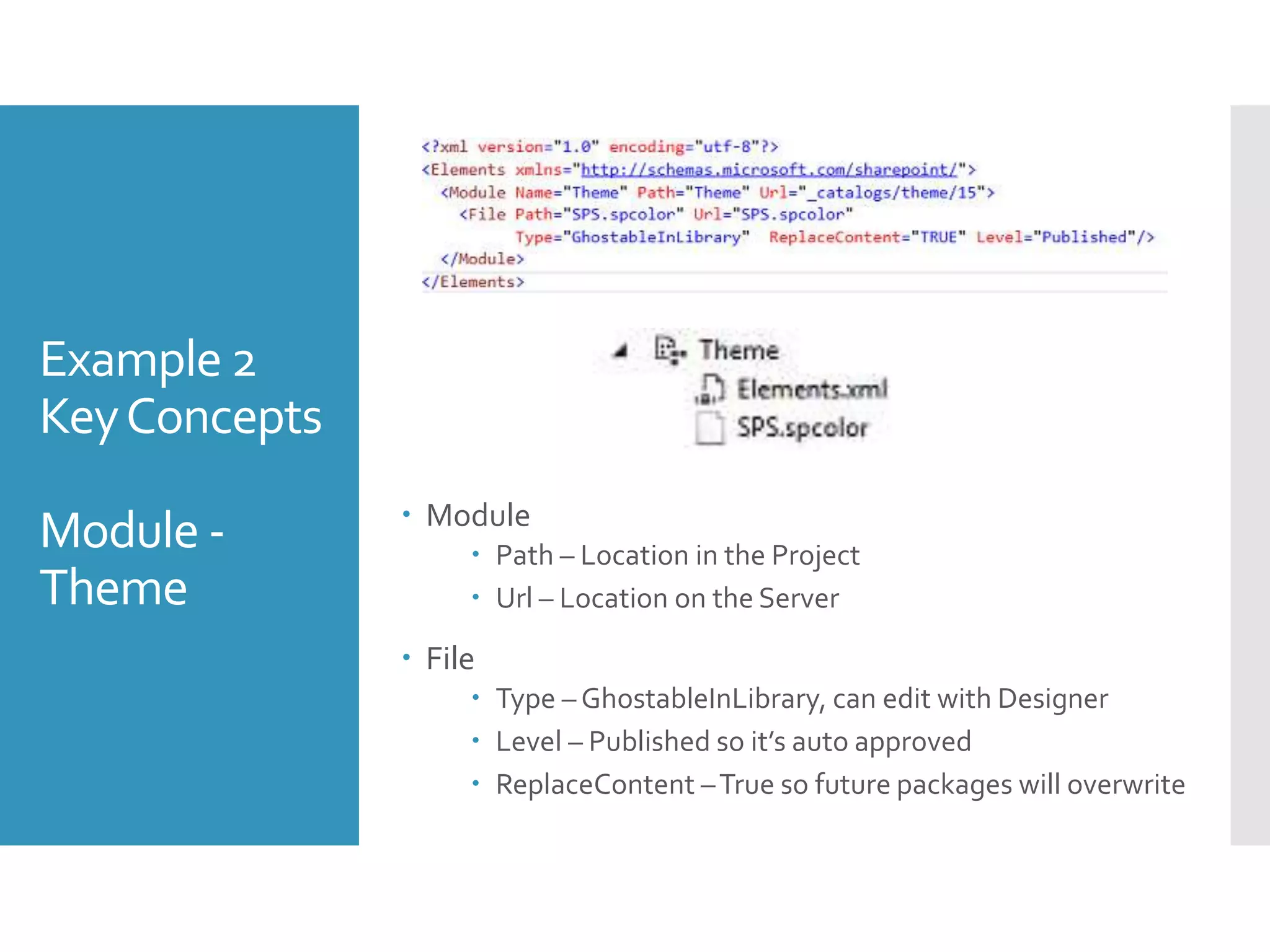
 Module
 Path – Location in the Project
 Url – Location on the Server
 File
 Type – GhostableInLibrary, can edit with Designer
 Level – Published so it’s auto approved
 ReplaceContent –True so future packages will overwrite
 Properties
 UIVersion – the targeted version of SP
 ContentTypeId – value for Master Page content type
 Title –Title of the master page
Example 1
KeyConcepts
Module –
Style Library
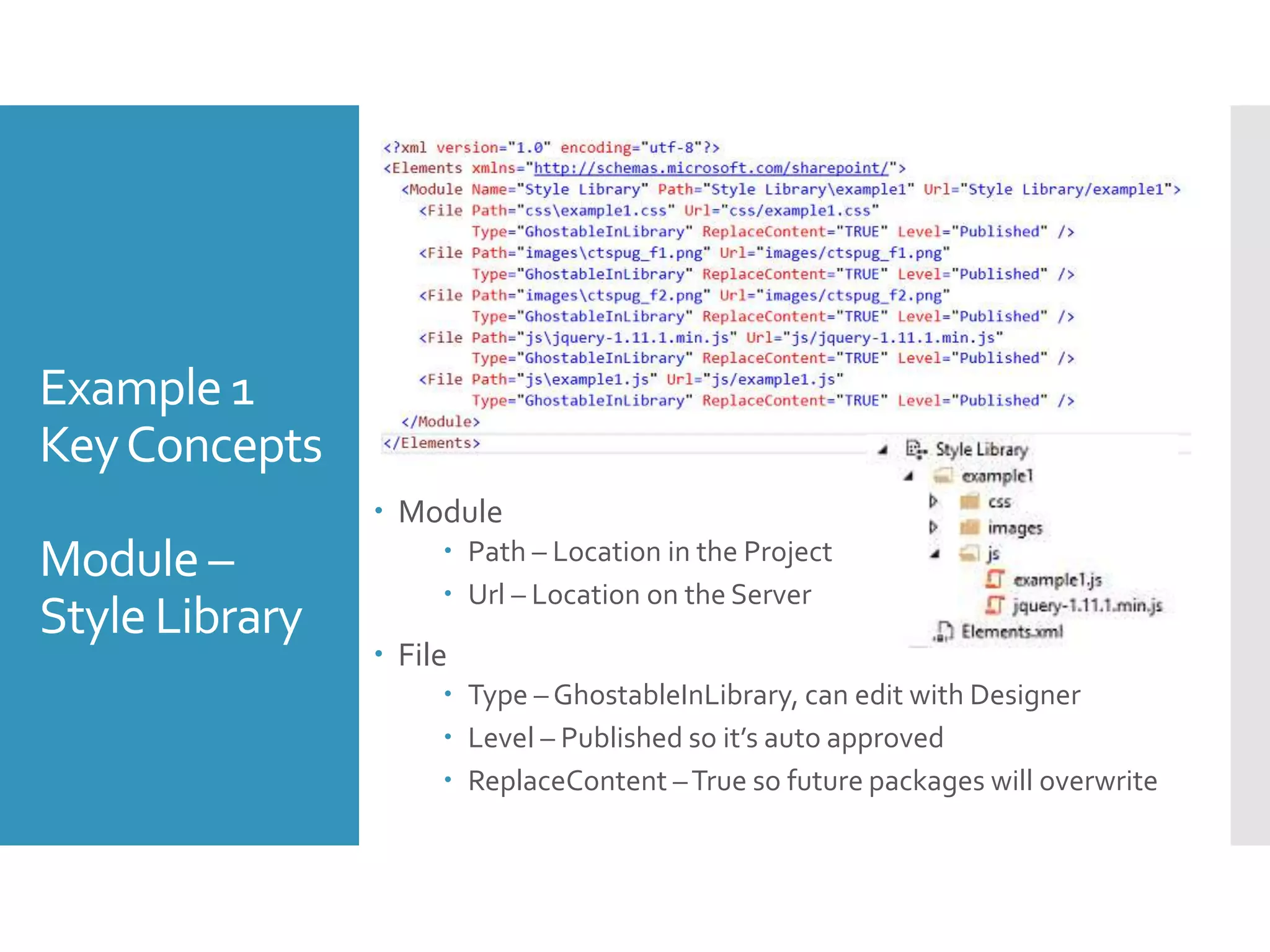
 Module
 Path – Location in the Project
 Url – Location on the Server
 File
 Type – GhostableInLibrary, can edit with Designer
 Level – Published so it’s auto approved
 ReplaceContent –True so future packages will overwrite
Example 2
Deploying a Composed Look
Composed
Looks
(Theming)
 Theming provides a quick and easy way to apply
lightweight branding to a SharePoint 2013 site
 A composed look, or design, is the color palette,
font scheme, background image, and master page
that determine the look and feel of a site.
Example 2
Deploying a
Composed
Look
 Components
 Master Page
 Theme Palette
 Background Image [optional]
 Font Scheme [optional]
 Options
 Declarative [Code – On-Prem]
 Imperative [XML - Sandbox / O365]
Deploying a custom Composed Look in SP2013
• Part 1
• Part 2
Example 2
Review
 Create Module for .spcolor file (theme)
 Create Element for Composed Look definition
 Create Module for custom Master Page
 Add and supporting images / fonts
Example 2
KeyConcepts
Module -
Theme
 Module
 Path – Location in the Project
 Url – Location on the Server
 File
 Type – GhostableInLibrary, can edit with Designer
 Level – Published so it’s auto approved
 ReplaceContent –True so future packages will overwrite
Example 2
KeyConcepts
Elements –
Composed
Look
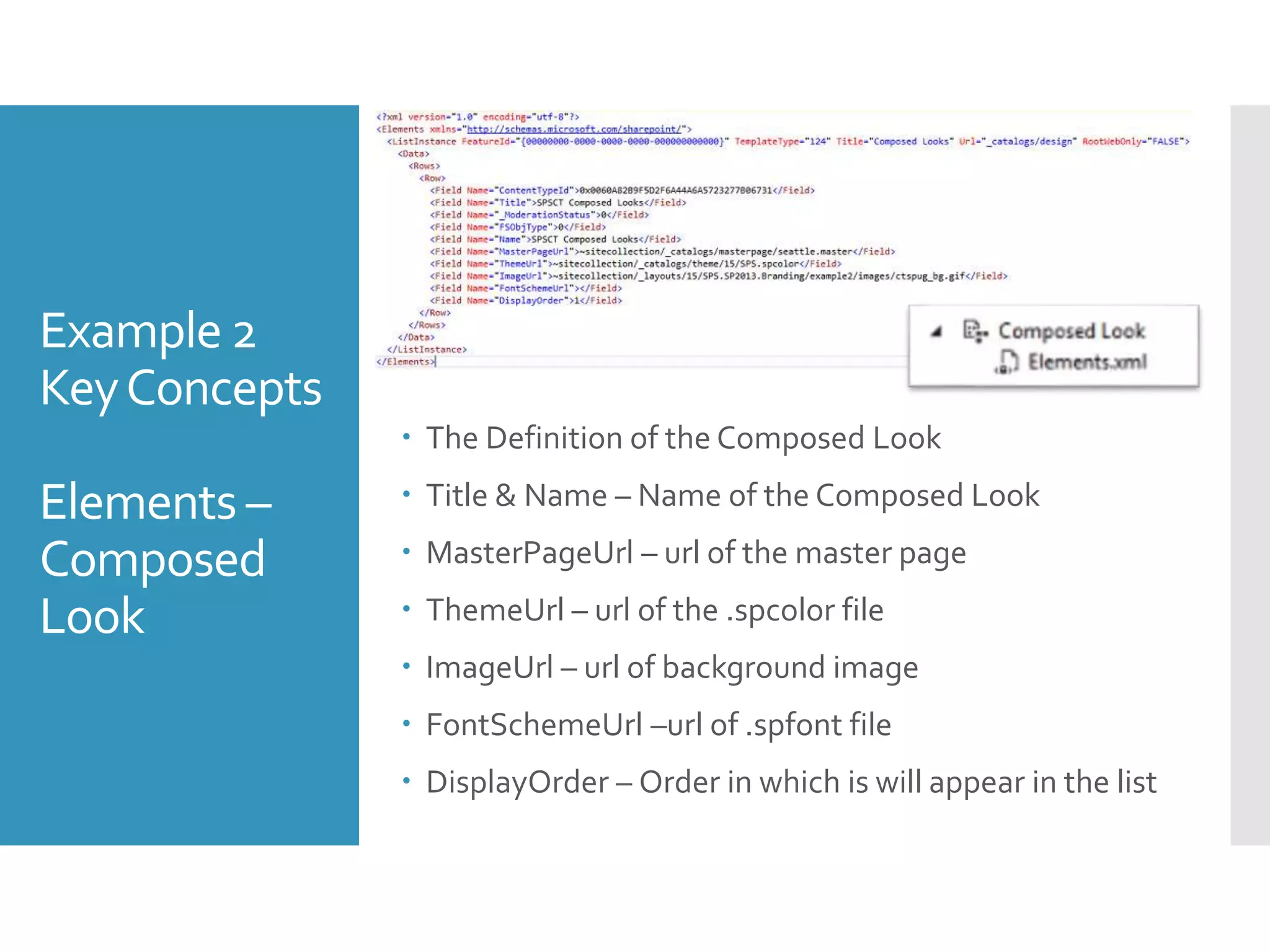
 The Definition of the Composed Look
 Title & Name – Name of the Composed Look
 MasterPageUrl – url of the master page
 ThemeUrl – url of the .spcolor file
 ImageUrl – url of background image
 FontSchemeUrl –url of .spfont file
 DisplayOrder – Order in which is will appear in the list
Example 3
Additional Page Head
Example 3
Additional
Page Head
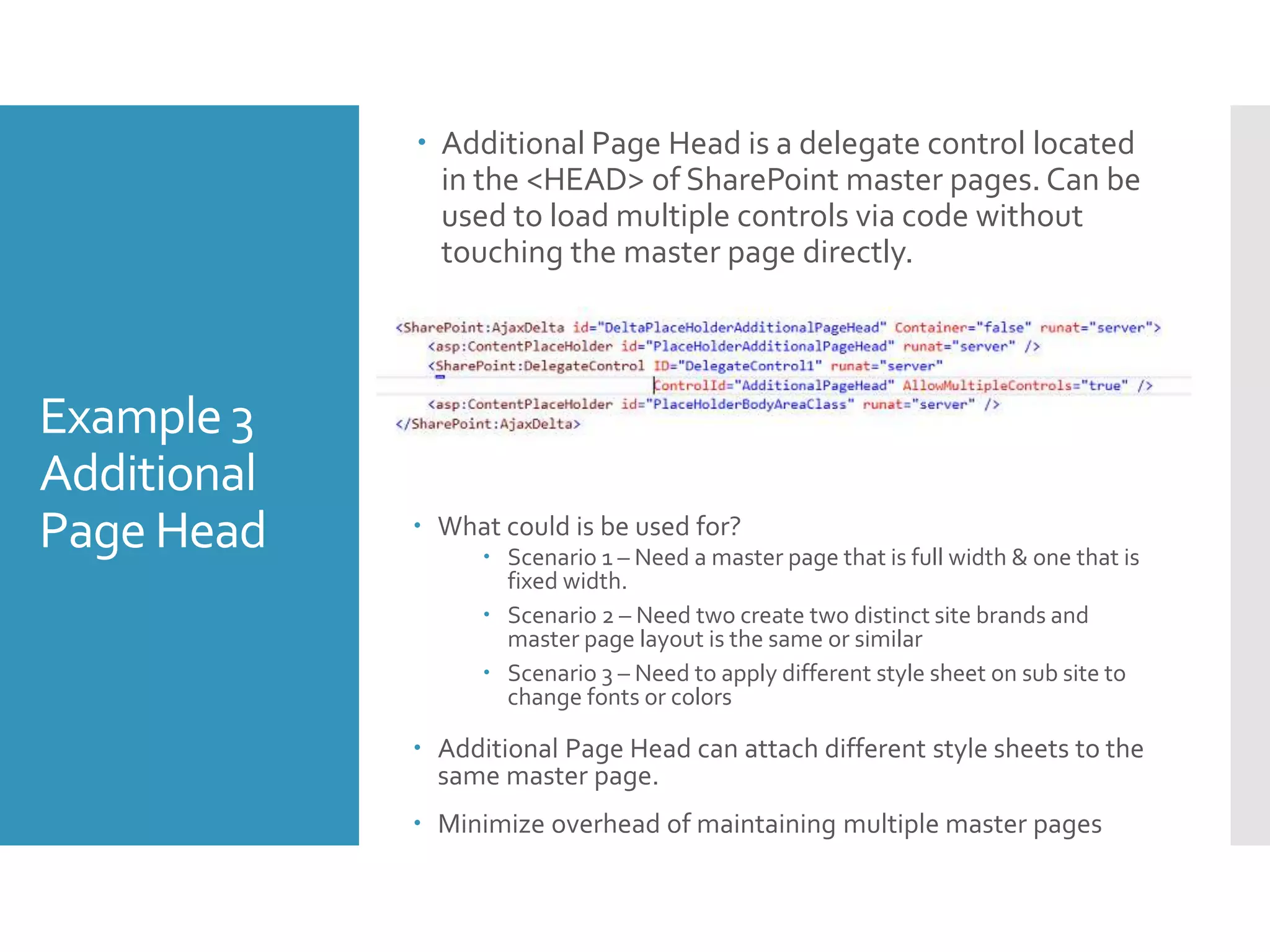
 Additional Page Head is a delegate control located
in the <HEAD> of SharePoint master pages. Can be
used to load multiple controls via code without
touching the master page directly.
 What could is be used for?
 Scenario 1 – Need a master page that is full width & one that is
fixed width.
 Scenario 2 – Need two create two distinct site brands and
master page layout is the same or similar
 Scenario 3 – Need to apply different style sheet on sub site to
change fonts or colors
 Additional Page Head can attach different style sheets to the
same master page.
 Minimize overhead of maintaining multiple master pages
Example 3
Review
 Add Style Sheet / JavaScript
 Create User Control
 Link User Control to CSS / JS
 Create Elements linked to User Control
Example 3
KeyConcepts
UserControl
[On-Prem]  Links to our additional style sheet or JavaScript
 User Controls supported in On-Prem only
Example 3
KeyConcepts
Elements
 Contains the point to the User Control
 Id – where the control will be loaded
 ControlSrc – path to the User Control
 Sequence – Order in which is appears [if multiple]
 For Sandbox / o365
 Link directly to the CSS in the elements
 Use JavaScript to write the link to theCSS [Hacky]
<CustomAction Id="SiteCSS" Location="ScriptLink"
ScriptBlock="document.write('&lt;link
rel=&quot;stylesheet&quot; type=&quot;text/css&quot;
href=&quot;/_layouts/15/SPS.SP2013.Branding/example3/css/examp
le3.cssquot;&gt;&lt;/' + 'link&gt;');"
Sequence="203" />
Example 4
Feature Receivers
Example 4
Feature
Receivers
 Feature event receivers are methods that execute when
one of the following feature-related events occurs in
SharePoint:
 A feature is installed.
 A feature is activated.
 A feature is deactivated.
 A feature is removed.
 Feature Receivers in branding can be used for:
 Apply Composed Look
 Apply Master Page
 Apply Site Logo
 Apply branding to all sub sites
 Auto Apply Parent Branding on New Site Creation
 Feature Receivers are code so best for on-prem only.
 At the moment Sandbox can run code but it’s depreciated
in the next release.
 Sandbox has a hard limit to how long a sandboxed
solution can take to be completed.
 By default, this is 30 seconds
Example 4
Review
Feature
Receiver –
Activated &
Deactivating
 Add Master Page, CSS, Images & JavaScript like
previous examples
 Add Feature Receiver
 Add code to enable specific branding features
 Introduced public class to hold constants
 Introduced helper class w/ common branding
functions
 Branding & Provisioning for SharePoint Online &
Office 365
Example 4
Review
Web
Provisioned
Event Receiver
 By default, (Non-Publishing) SharePoint does not
trickle down applied themes, master page & css
 By creating Site Provisioned Event Handler we can
make the new children sites have the same
branding as their parent.
 Common things to set are:
 Apply Master Page (Site & System)
 Apply Site Logo
 Apply Alternative CSS
 Apply Parent Navigation
 Apply Composed Look
 Added the Synchronous property to theWeb
Provisioned Event Receiver will ensure Composed
Look is applied before the site is display after it’s
initial creation.
Example 5
CSSRegistration, ScriptLink,Cache Busting
Example 5
CSS
Registration
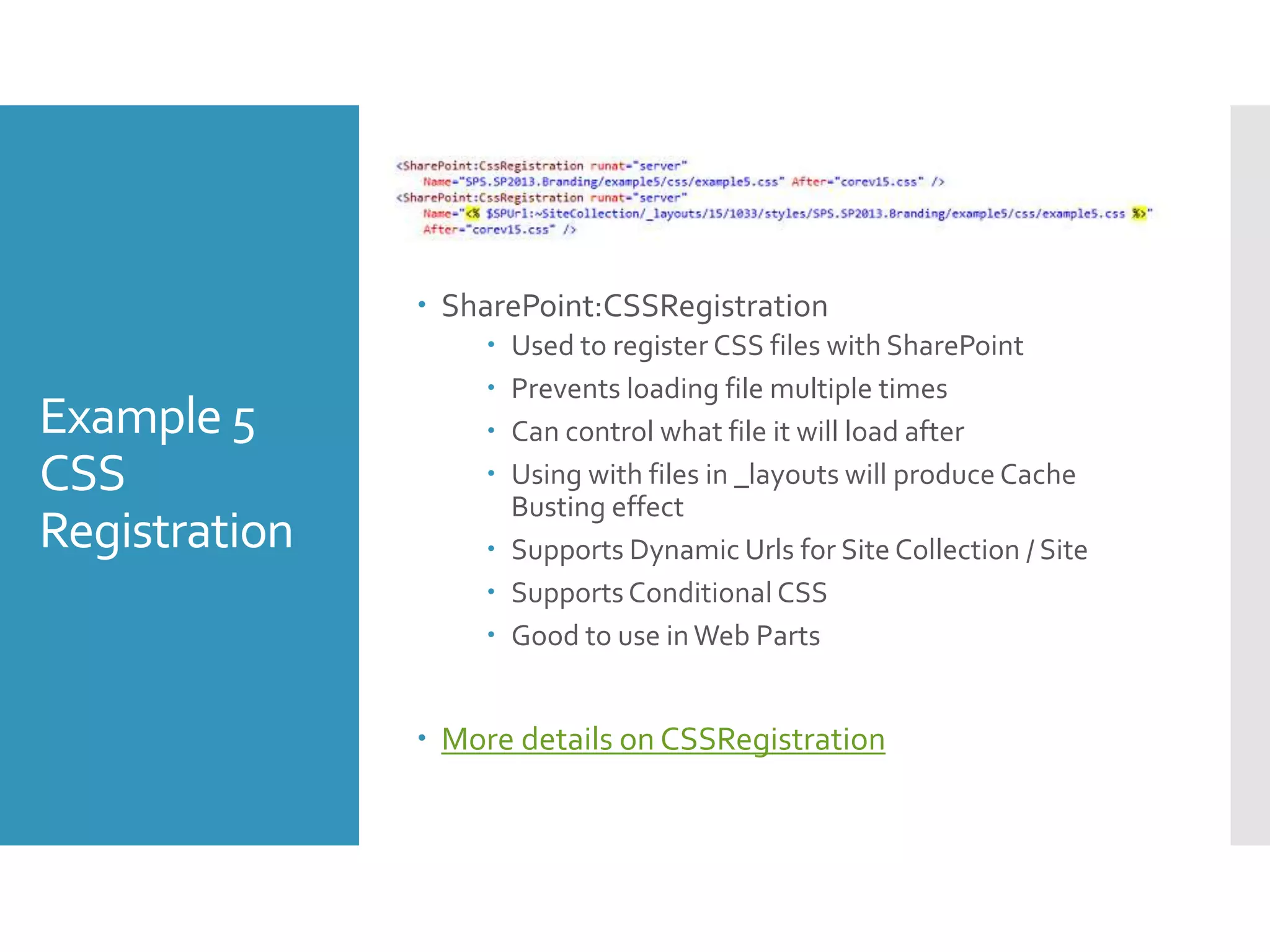
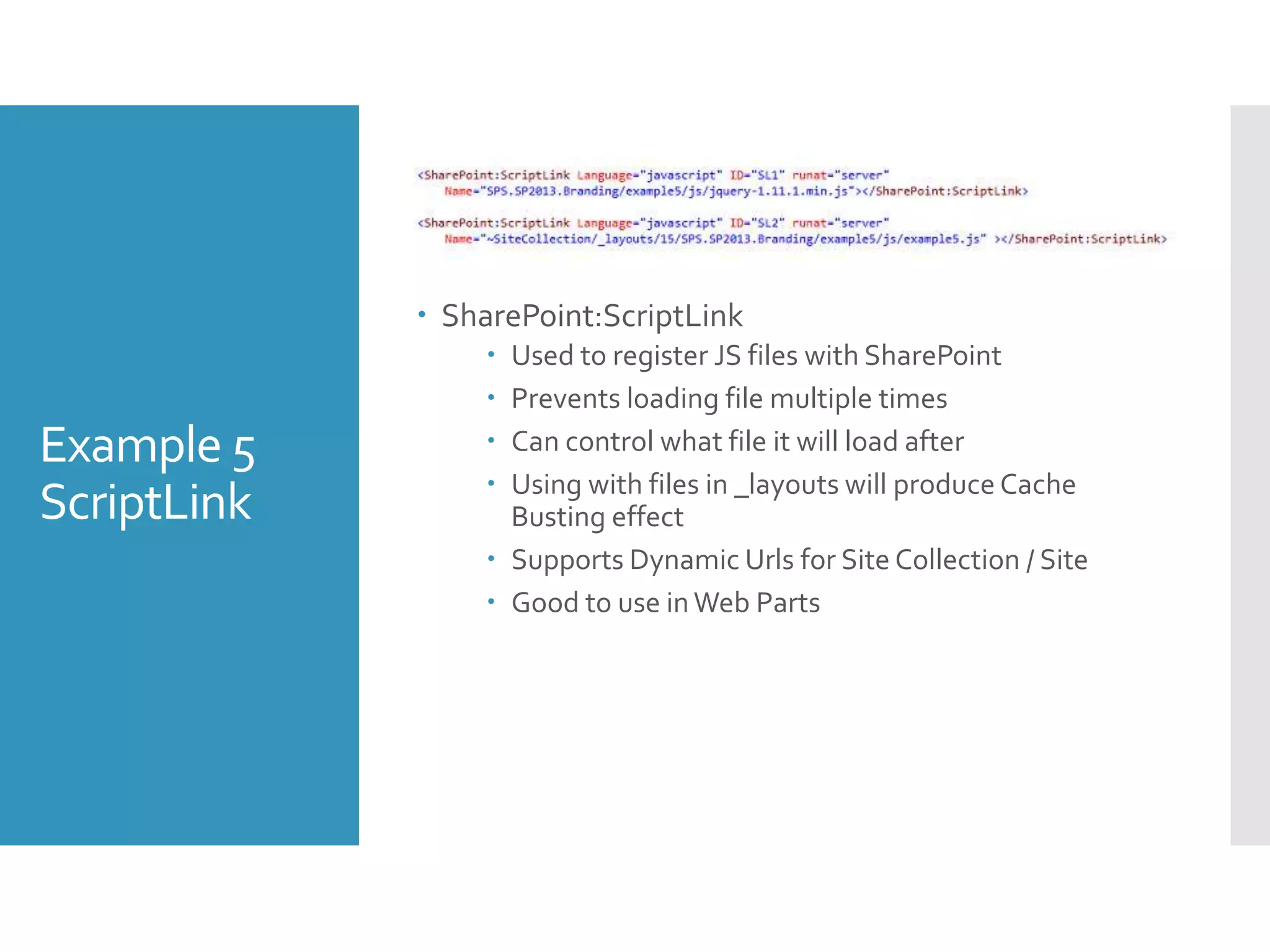
 SharePoint:CSSRegistration
 Used to register CSS files with SharePoint
 Prevents loading file multiple times
 Can control what file it will load after
 Using with files in _layouts will produce Cache
Busting effect
 Supports Dynamic Urls for Site Collection / Site
 Supports Conditional CSS
 Good to use inWeb Parts
 More details on CSSRegistration
Example 5
ScriptLink
 SharePoint:ScriptLink
 Used to register JS files with SharePoint
 Prevents loading file multiple times
 Can control what file it will load after
 Using with files in _layouts will produce Cache
Busting effect
 Supports Dynamic Urls for Site Collection / Site
 Good to use inWeb Parts
Example 5
Cache
Busting
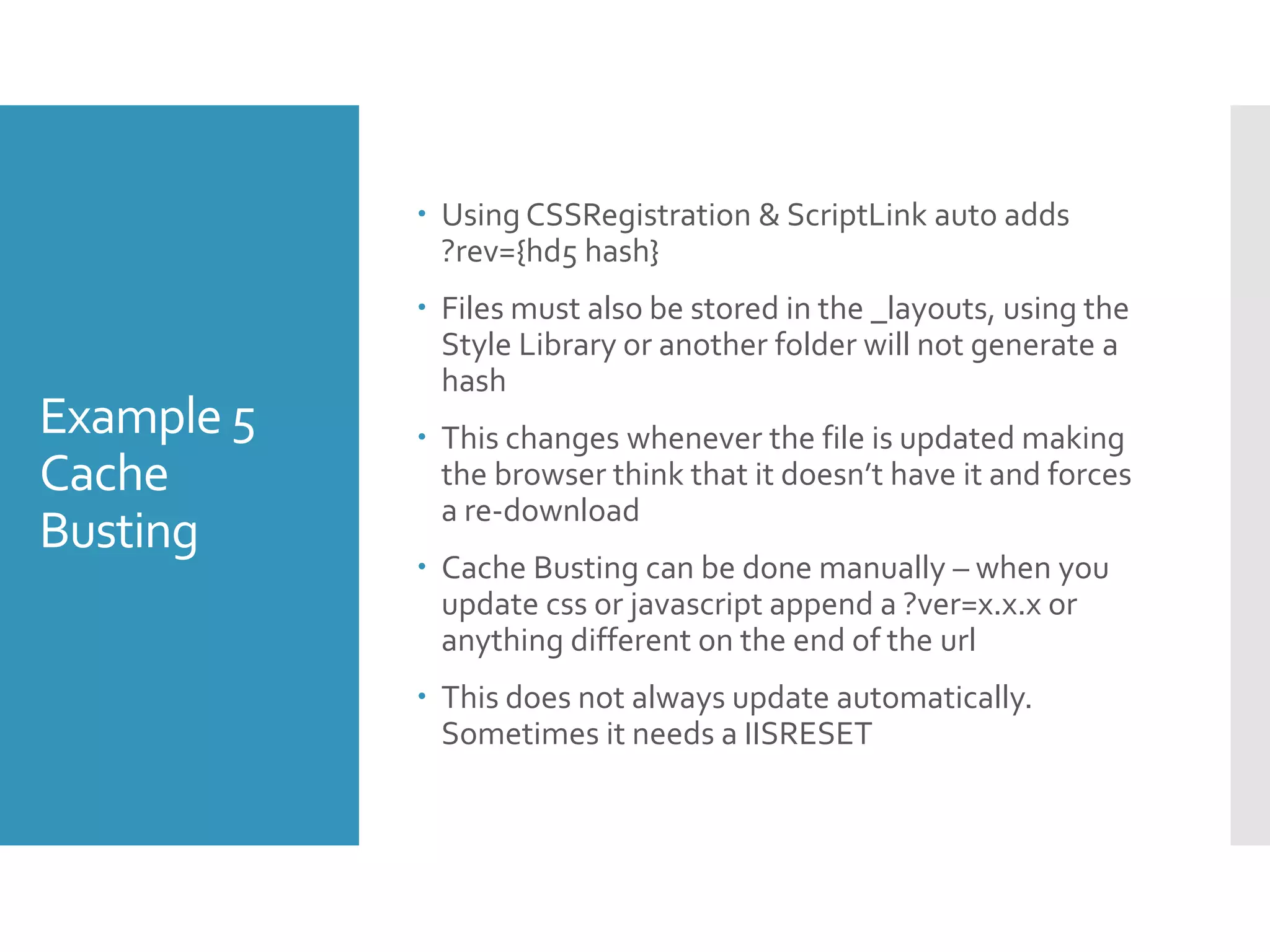
 Using CSSRegistration & ScriptLink auto adds
?rev={hd5 hash}
 Files must also be stored in the _layouts, using the
Style Library or another folder will not generate a
hash
 This changes whenever the file is updated making
the browser think that it doesn’t have it and forces
a re-download
 Cache Busting can be done manually – when you
update css or javascript append a ?ver=x.x.x or
anything different on the end of the url
 This does not always update automatically.
Sometimes it needs a IISRESET
Tools for improved
development
Tools
 CKS: DeveloperTools - http://cksdev.codeplex.com/
 Must have for Quick Deploy alone
 MindscapeWeb Work Bench -
https://visualstudiogallery.msdn.microsoft.com/2b
96d16a-c986-4501-8f97-8008f9db141a
 Sass / Less Support
 Bundle
 Minify
Questions?
 Contact Info
 Thomas M Daly
 Website – http://thomasdaly.net
 Twitter - _tomdaly_
 Email
 TDaly@BandRSolutions.com [work]
 Tom.M.Daly@gmail.com [personal]
 LinkedIn

Developing Branding Solutions for 2013

  • 1.
  • 2.
    About Me  SharePointConsultant  Developer  Branding  Focused on the UI side of things  Community Involvement  Speaker  NJ SharePoint User Group  SharePoint Saturday NYC Organizer  SharePoint Saturday NJ Organizer  My SharePoint Blog  MSDN forums
  • 3.
    Topics for Discussion  BrandingAssets  Creating Branding Based Projects inVisual Studio 2013  Deploying Assets for On-Prem / O365  Themes  CSS, Images & JavaScript  Master Pages  Composed Looks  Additional Page Head  Feature Receivers  CSSRegistration, ScriptLink, Cache Busting  Tools for improved development
  • 4.
  • 5.
    Special Considerations  Are youOn-Prem / O365?  Will it be a Sandbox or Farm level solution?  Will it be Site orWeb based scoping?  Aka (SPSite, SPWeb)  Aka (Site Collection, Site)  Will you be auto applying master pages, themes or composed looks?  Will you be pushing branding down to sub sites?  Do you have Single Site Collection or Multiple?  Will you need any additional scripts to programmatically apply / un-apply?
  • 6.
    Example 1 Deploying MasterPages, Images, CSS & JavaScript
  • 7.
    Example 1 Deploying Master Page, Images,CSS, &Javascript Mapped Images Folder  Feature Image  Mapped Layouts Folder / Style Library  CSS Files  Images  JS Files  Modules  Master Pages
  • 8.
    Example 1 Review  CreatedModule to deploy .master file  Created Mapped folder for CSS, images & JavaScript  Create Module for Style Library
  • 9.
    Example 1 KeyConcepts Modules & Elements There may be times when you may want to deploy files to the SharePoint server regardless of their file type, such as new master pages.  To do this, you can use Modules (not to be confused withVisual Basic code modules).  Modules are containers for files in a SharePoint solution.When the solution is deployed, the files in the module are copied to the specified folders on the SharePoint server.  An Element is an atomic unit within a Feature.  There are several types of elements that can be included in a Feature.  More info on Module Items and Elements  More info on ElementTypes
  • 10.
    Example 1 KeyConcepts Module – MasterPage  Module  Path – Location in the Project  Url – Location on the Server  File  Type – GhostableInLibrary, can edit with Designer  Level – Published so it’s auto approved  ReplaceContent –True so future packages will overwrite  Properties  UIVersion – the targeted version of SP  ContentTypeId – value for Master Page content type  Title –Title of the master page
  • 11.
    Example 1 KeyConcepts Module – StyleLibrary  Module  Path – Location in the Project  Url – Location on the Server  File  Type – GhostableInLibrary, can edit with Designer  Level – Published so it’s auto approved  ReplaceContent –True so future packages will overwrite
  • 12.
    Example 2 Deploying aComposed Look
  • 13.
    Composed Looks (Theming)  Theming providesa quick and easy way to apply lightweight branding to a SharePoint 2013 site  A composed look, or design, is the color palette, font scheme, background image, and master page that determine the look and feel of a site.
  • 14.
    Example 2 Deploying a Composed Look Components  Master Page  Theme Palette  Background Image [optional]  Font Scheme [optional]  Options  Declarative [Code – On-Prem]  Imperative [XML - Sandbox / O365] Deploying a custom Composed Look in SP2013 • Part 1 • Part 2
  • 15.
    Example 2 Review  CreateModule for .spcolor file (theme)  Create Element for Composed Look definition  Create Module for custom Master Page  Add and supporting images / fonts
  • 16.
    Example 2 KeyConcepts Module - Theme Module  Path – Location in the Project  Url – Location on the Server  File  Type – GhostableInLibrary, can edit with Designer  Level – Published so it’s auto approved  ReplaceContent –True so future packages will overwrite
  • 17.
    Example 2 KeyConcepts Elements – Composed Look The Definition of the Composed Look  Title & Name – Name of the Composed Look  MasterPageUrl – url of the master page  ThemeUrl – url of the .spcolor file  ImageUrl – url of background image  FontSchemeUrl –url of .spfont file  DisplayOrder – Order in which is will appear in the list
  • 18.
  • 19.
    Example 3 Additional Page Head Additional Page Head is a delegate control located in the <HEAD> of SharePoint master pages. Can be used to load multiple controls via code without touching the master page directly.  What could is be used for?  Scenario 1 – Need a master page that is full width & one that is fixed width.  Scenario 2 – Need two create two distinct site brands and master page layout is the same or similar  Scenario 3 – Need to apply different style sheet on sub site to change fonts or colors  Additional Page Head can attach different style sheets to the same master page.  Minimize overhead of maintaining multiple master pages
  • 20.
    Example 3 Review  AddStyle Sheet / JavaScript  Create User Control  Link User Control to CSS / JS  Create Elements linked to User Control
  • 21.
    Example 3 KeyConcepts UserControl [On-Prem] Links to our additional style sheet or JavaScript  User Controls supported in On-Prem only
  • 22.
    Example 3 KeyConcepts Elements  Containsthe point to the User Control  Id – where the control will be loaded  ControlSrc – path to the User Control  Sequence – Order in which is appears [if multiple]  For Sandbox / o365  Link directly to the CSS in the elements  Use JavaScript to write the link to theCSS [Hacky] <CustomAction Id="SiteCSS" Location="ScriptLink" ScriptBlock="document.write('&lt;link rel=&quot;stylesheet&quot; type=&quot;text/css&quot; href=&quot;/_layouts/15/SPS.SP2013.Branding/example3/css/examp le3.cssquot;&gt;&lt;/' + 'link&gt;');" Sequence="203" />
  • 23.
  • 24.
    Example 4 Feature Receivers  Featureevent receivers are methods that execute when one of the following feature-related events occurs in SharePoint:  A feature is installed.  A feature is activated.  A feature is deactivated.  A feature is removed.  Feature Receivers in branding can be used for:  Apply Composed Look  Apply Master Page  Apply Site Logo  Apply branding to all sub sites  Auto Apply Parent Branding on New Site Creation  Feature Receivers are code so best for on-prem only.  At the moment Sandbox can run code but it’s depreciated in the next release.  Sandbox has a hard limit to how long a sandboxed solution can take to be completed.  By default, this is 30 seconds
  • 25.
    Example 4 Review Feature Receiver – Activated& Deactivating  Add Master Page, CSS, Images & JavaScript like previous examples  Add Feature Receiver  Add code to enable specific branding features  Introduced public class to hold constants  Introduced helper class w/ common branding functions  Branding & Provisioning for SharePoint Online & Office 365
  • 26.
    Example 4 Review Web Provisioned Event Receiver By default, (Non-Publishing) SharePoint does not trickle down applied themes, master page & css  By creating Site Provisioned Event Handler we can make the new children sites have the same branding as their parent.  Common things to set are:  Apply Master Page (Site & System)  Apply Site Logo  Apply Alternative CSS  Apply Parent Navigation  Apply Composed Look  Added the Synchronous property to theWeb Provisioned Event Receiver will ensure Composed Look is applied before the site is display after it’s initial creation.
  • 27.
  • 28.
    Example 5 CSS Registration  SharePoint:CSSRegistration Used to register CSS files with SharePoint  Prevents loading file multiple times  Can control what file it will load after  Using with files in _layouts will produce Cache Busting effect  Supports Dynamic Urls for Site Collection / Site  Supports Conditional CSS  Good to use inWeb Parts  More details on CSSRegistration
  • 29.
    Example 5 ScriptLink  SharePoint:ScriptLink Used to register JS files with SharePoint  Prevents loading file multiple times  Can control what file it will load after  Using with files in _layouts will produce Cache Busting effect  Supports Dynamic Urls for Site Collection / Site  Good to use inWeb Parts
  • 30.
    Example 5 Cache Busting  UsingCSSRegistration & ScriptLink auto adds ?rev={hd5 hash}  Files must also be stored in the _layouts, using the Style Library or another folder will not generate a hash  This changes whenever the file is updated making the browser think that it doesn’t have it and forces a re-download  Cache Busting can be done manually – when you update css or javascript append a ?ver=x.x.x or anything different on the end of the url  This does not always update automatically. Sometimes it needs a IISRESET
  • 31.
  • 32.
    Tools  CKS: DeveloperTools- http://cksdev.codeplex.com/  Must have for Quick Deploy alone  MindscapeWeb Work Bench - https://visualstudiogallery.msdn.microsoft.com/2b 96d16a-c986-4501-8f97-8008f9db141a  Sass / Less Support  Bundle  Minify
  • 33.
    Questions?  Contact Info Thomas M Daly  Website – http://thomasdaly.net  Twitter - _tomdaly_  Email  TDaly@BandRSolutions.com [work]  Tom.M.Daly@gmail.com [personal]  LinkedIn