Destiny Catalog, MyeClass,
and Follett Shelf e-books
Tutorial
How to Access
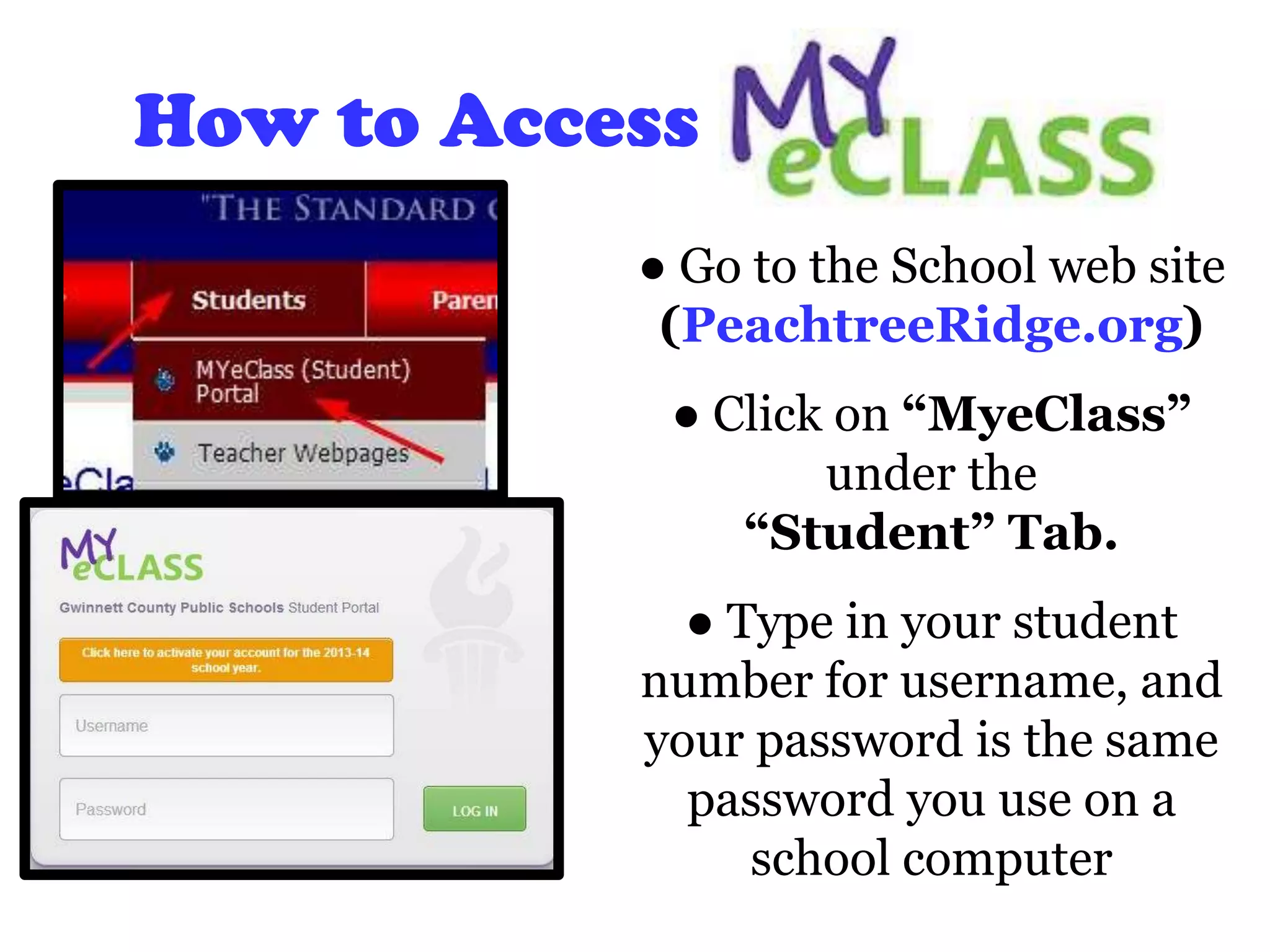
● Go to the School web site
(PeachtreeRidge.org)
● Click on “MyeClass”
under the
“Student” Tab.
● Type in your student
number for username, and
your password is the same
password you use on a
school computer
Activating Your Account
Two Options:
● Once a student has successfully logged in
to his/her network account at school and has
changed his/her password, this student’s
account to the Student Portal will be
activated
● The second way to activate the student
portal(MYeClass) is to go to MyeClass and
click on the activate button. This is ONLY if
you have NOT signed on to a computer at
PRHS.
Logging In
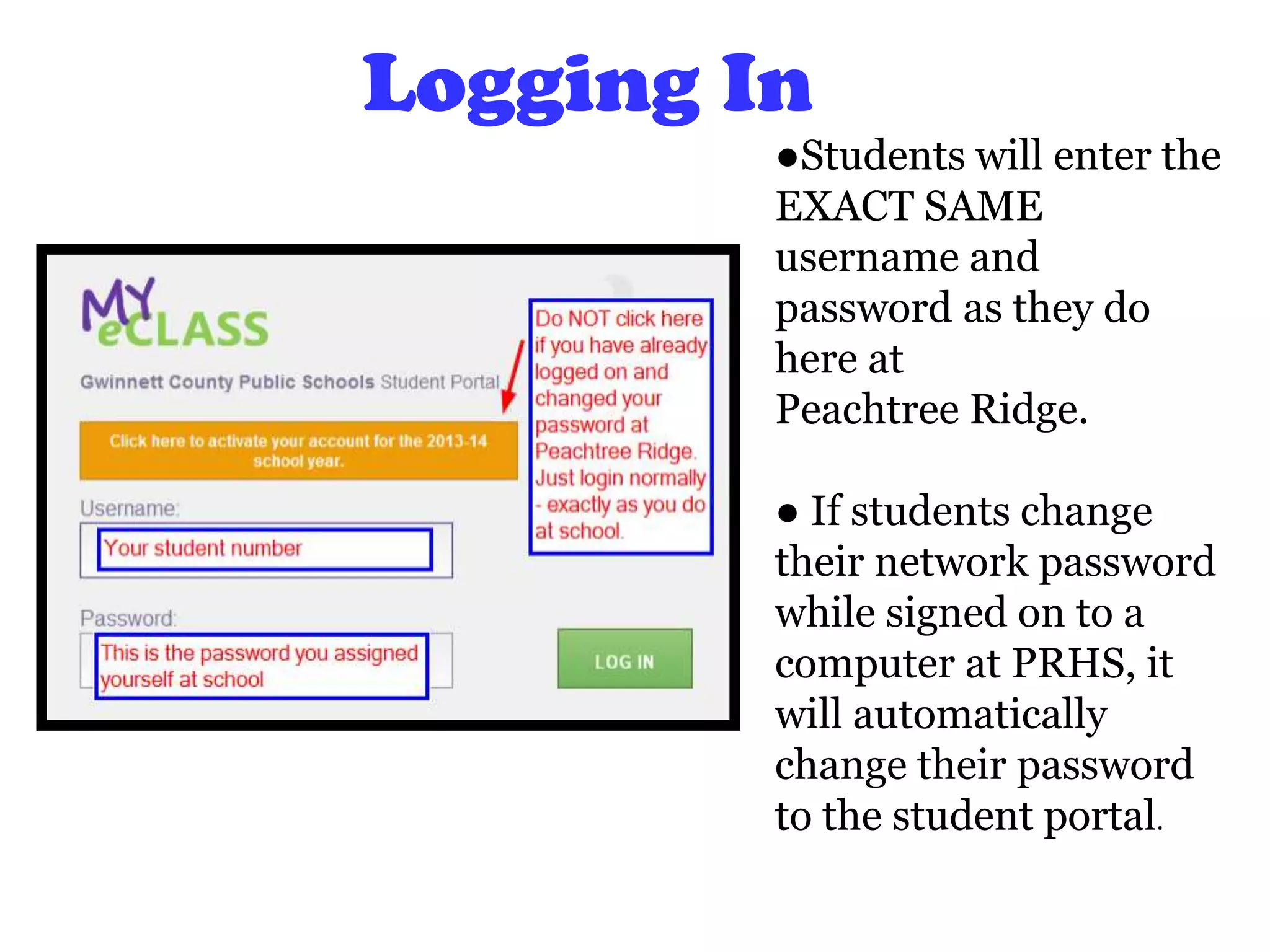
●Students will enter the
EXACT SAME
username and
password as they do
here at
Peachtree Ridge.
● If students change
their network password
while signed on to a
computer at PRHS, it
will automatically
change their password
to the student portal.
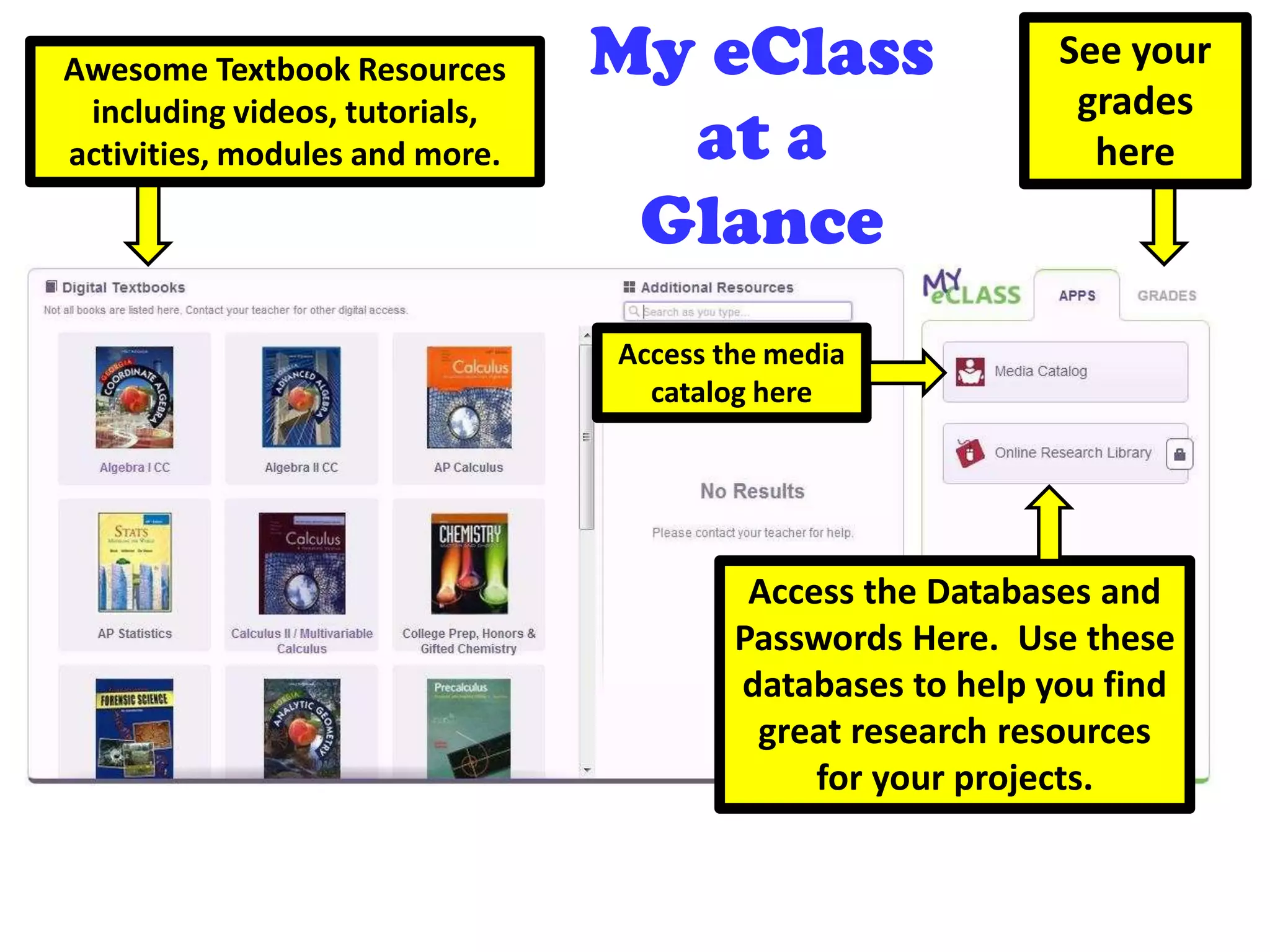
Awesome Textbook Resources
including videos, tutorials,
activities, modules and more.
See your
grades
here
Access the media
catalog here
Access the Databases and
Passwords Here. Use these
databases to help you find
great research resources
for your projects.
My eClass
at a
Glance
Did you know you
can now access
the media catalog
from your student
portal????
(aKa “My eClass”)
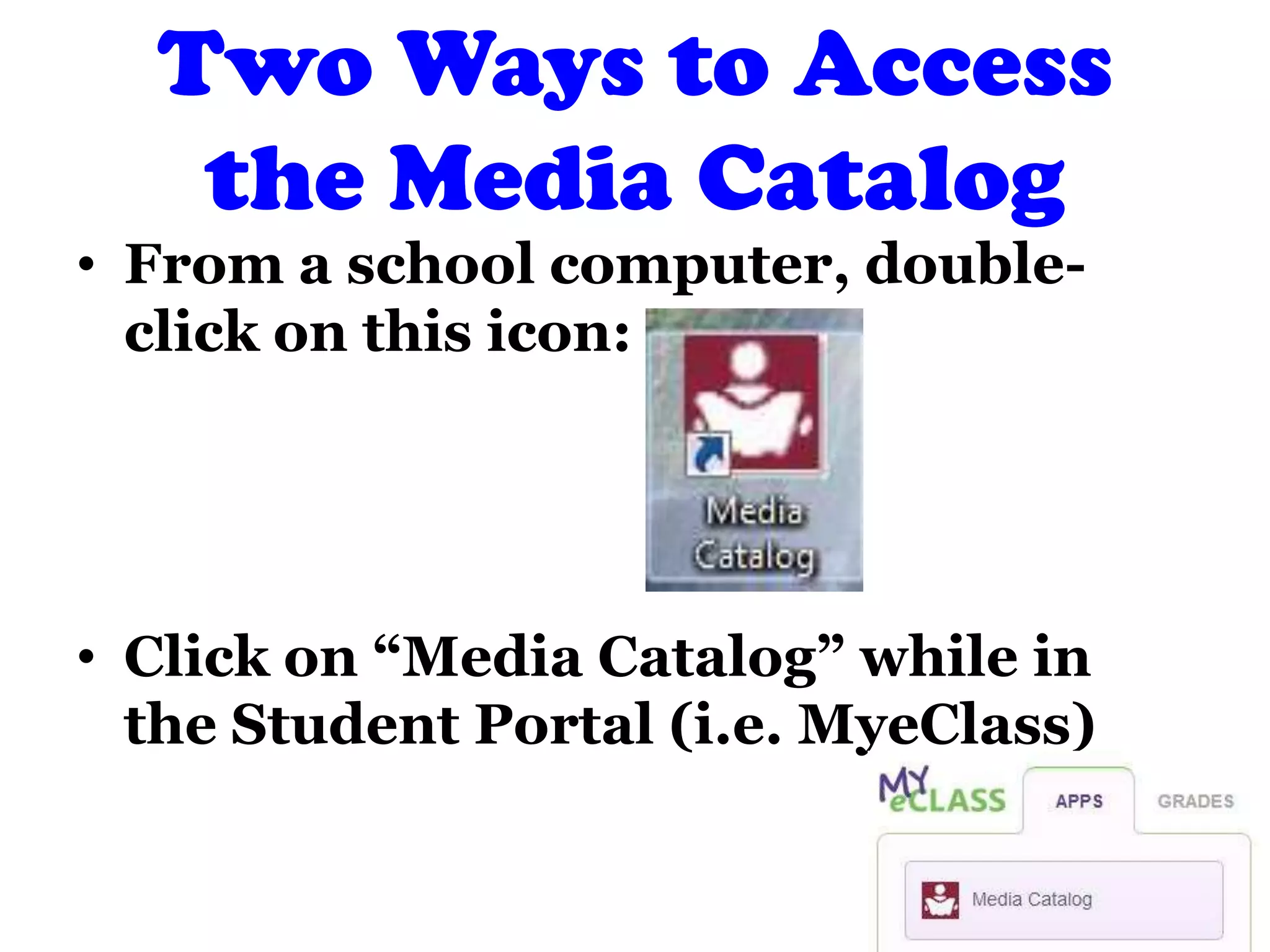
Two Ways to Access
the Media Catalog
• From a school computer, double-
click on this icon:
• Click on “Media Catalog” while in
the Student Portal (i.e. MyeClass)
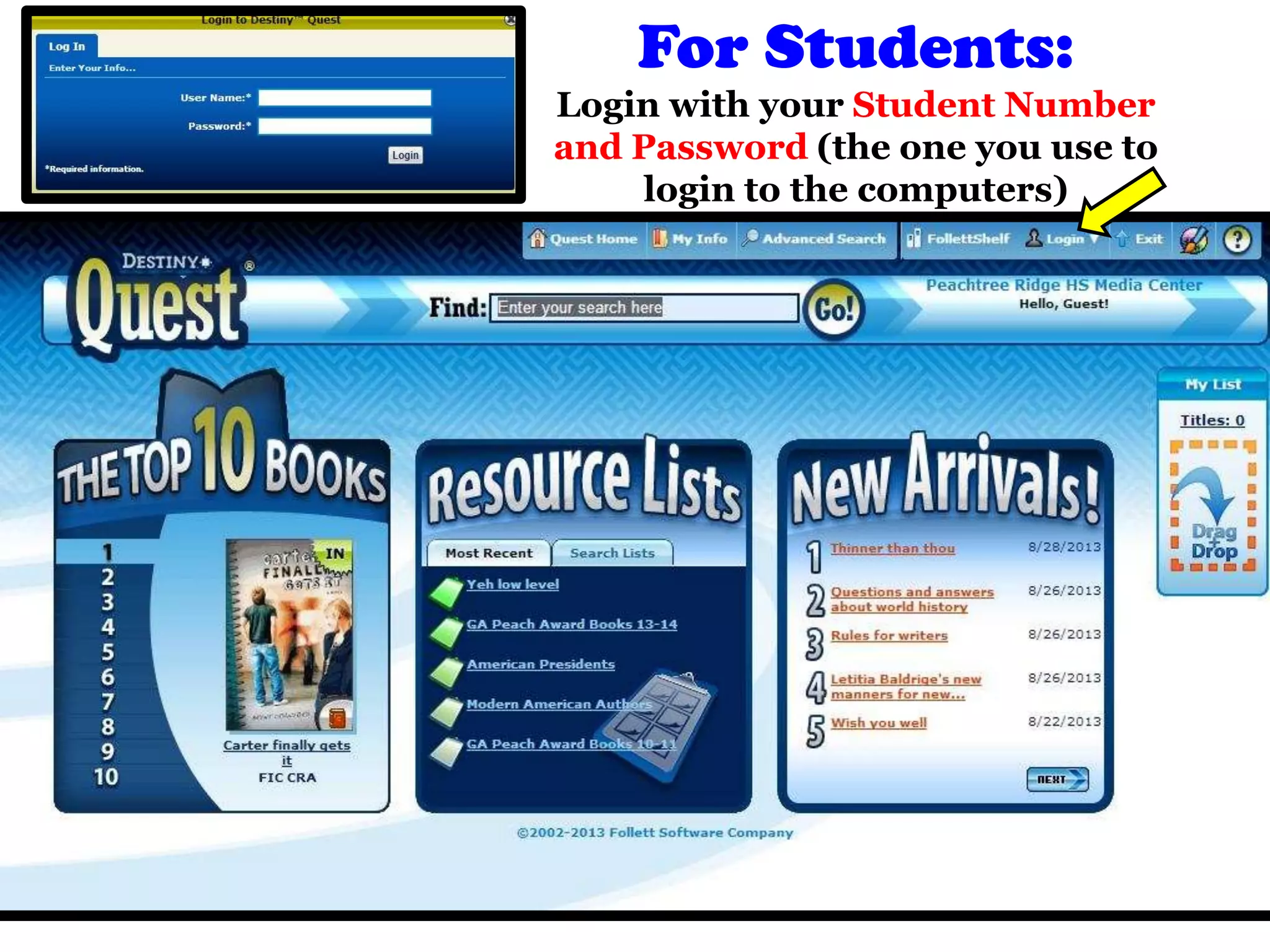
For Students:
Login with your Student Number
and Password (the one you use to
login to the computers)
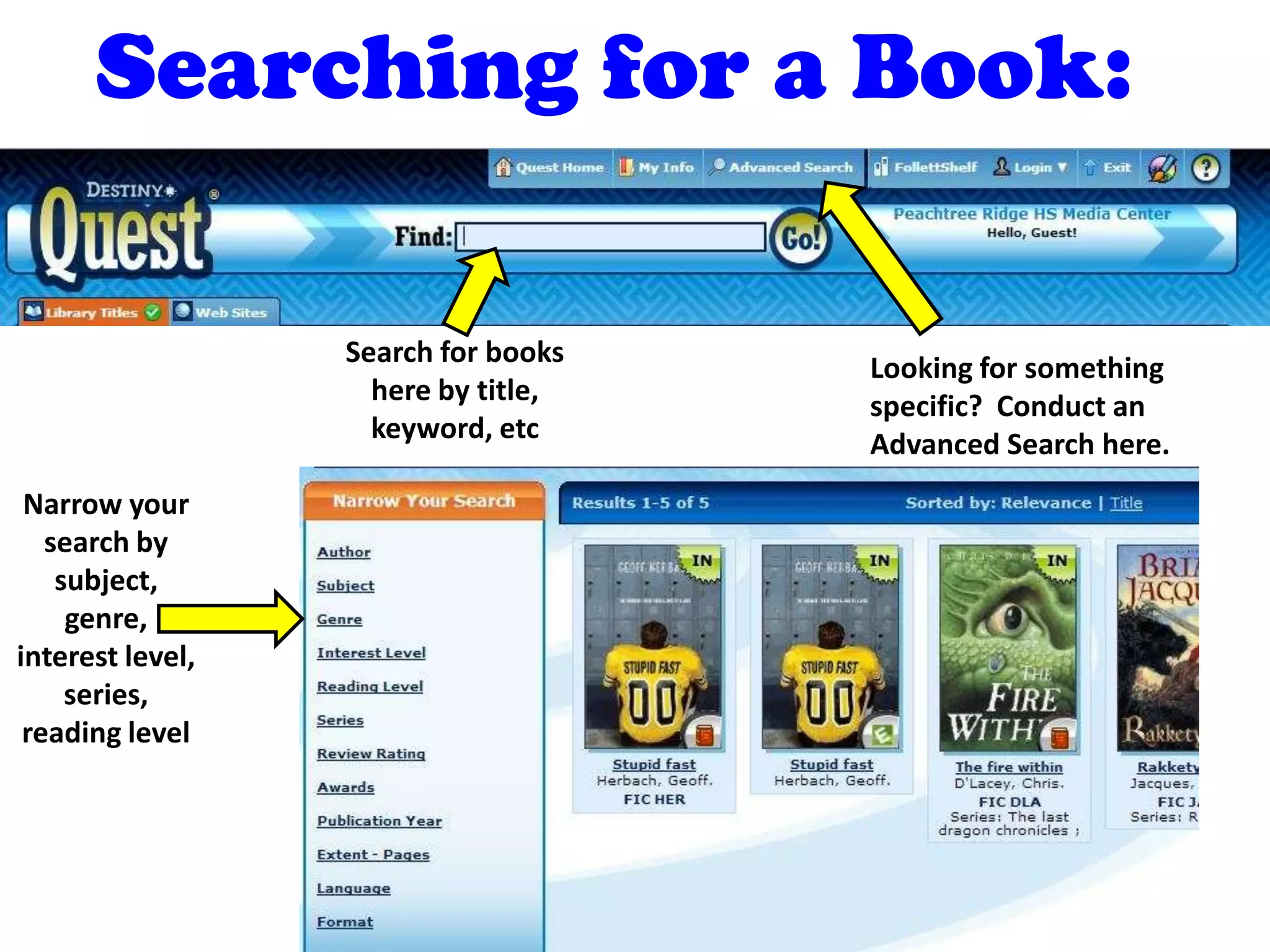
Searching for a Book:
Search for books
here by title,
keyword, etc
Looking for something
specific? Conduct an
Advanced Search here.
Narrow your
search by
subject,
genre,
interest level,
series,
reading level
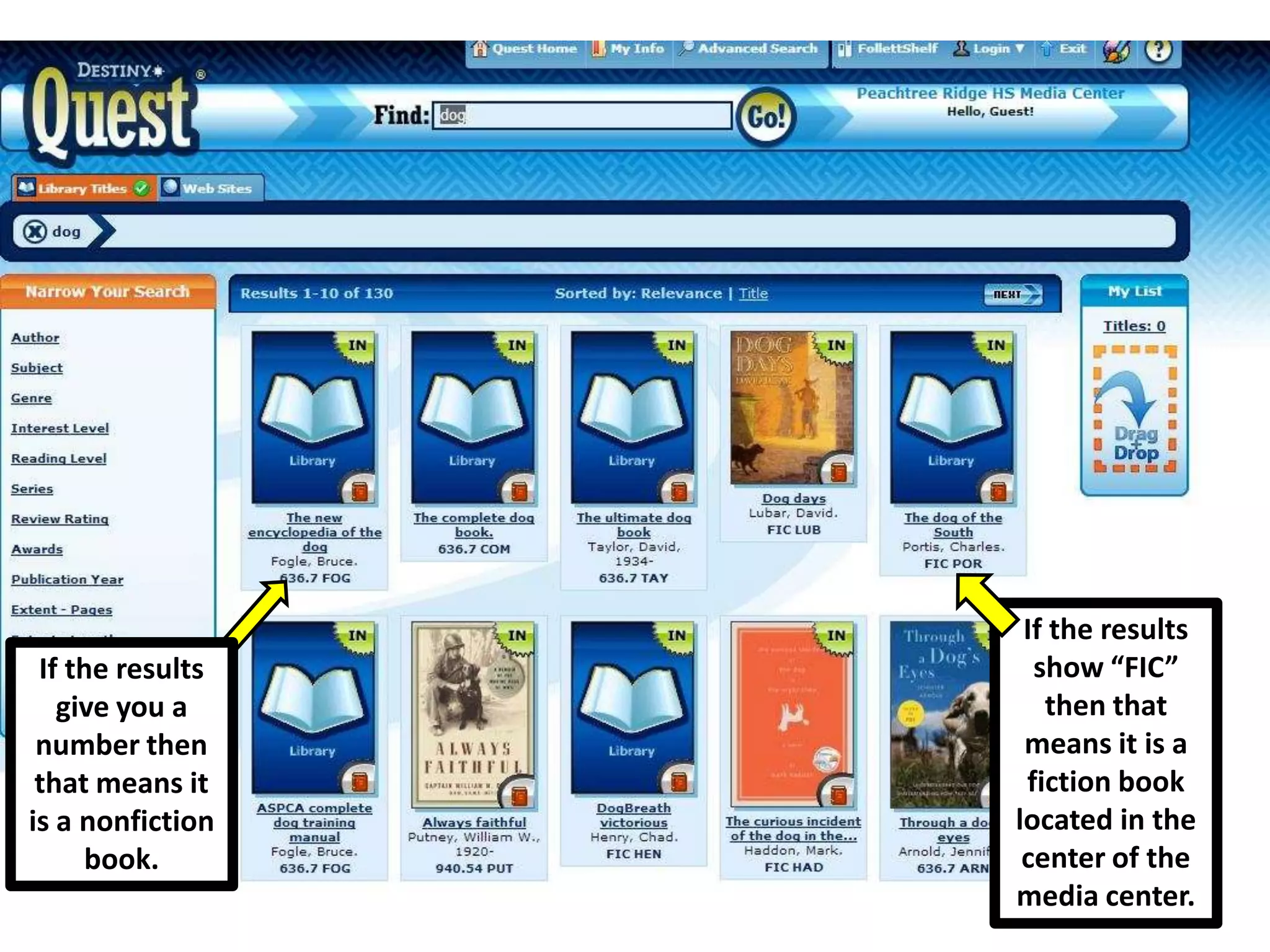
If the results
give you a
number then
that means it
is a nonfiction
book.
If the results
show “FIC”
then that
means it is a
fiction book
located in the
center of the
media center.
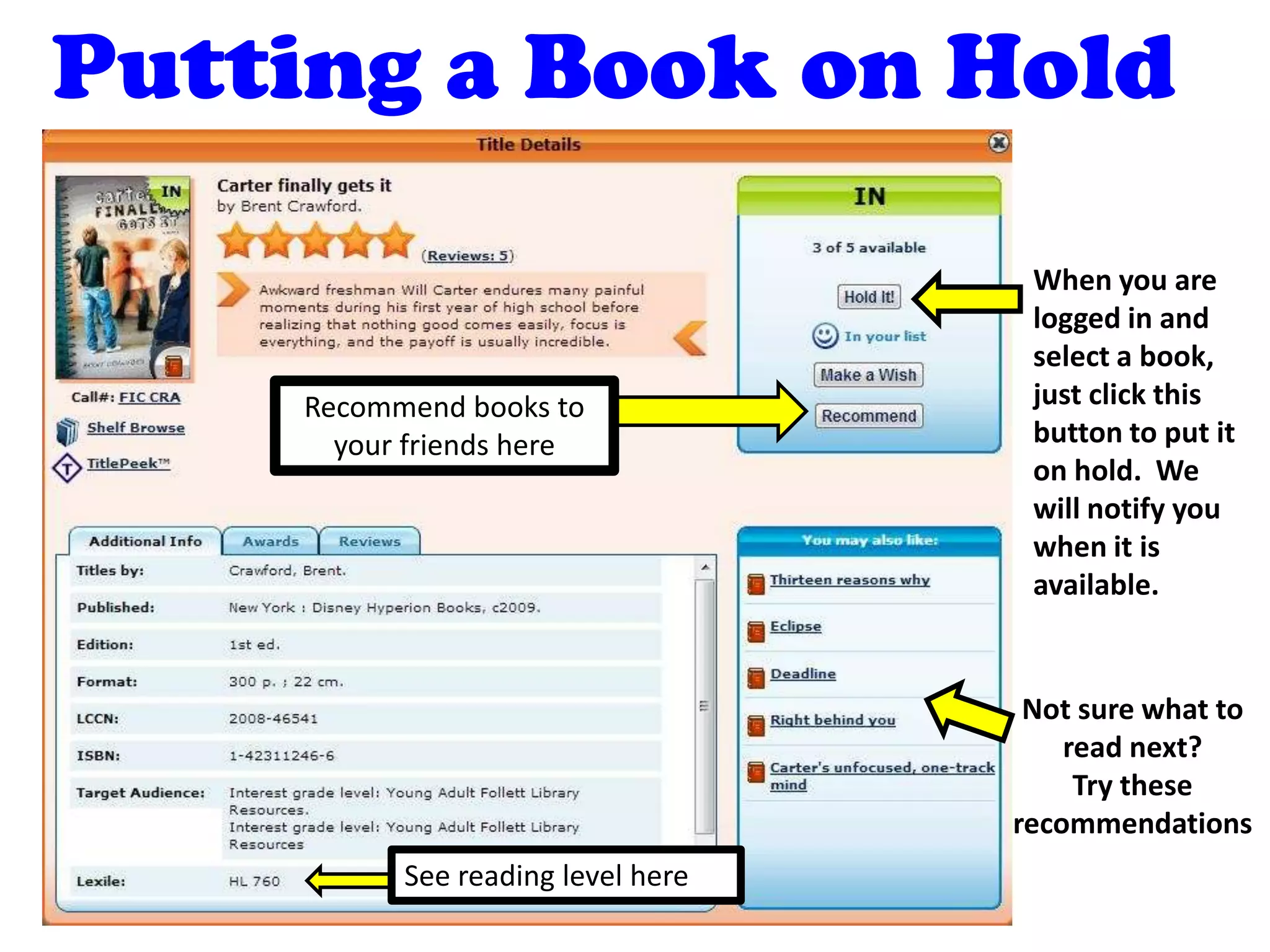
Putting a Book on Hold
When you are
logged in and
select a book,
just click this
button to put it
on hold. We
will notify you
when it is
available.
Recommend books to
your friends here
Not sure what to
read next?
Try these
recommendations
See reading level here
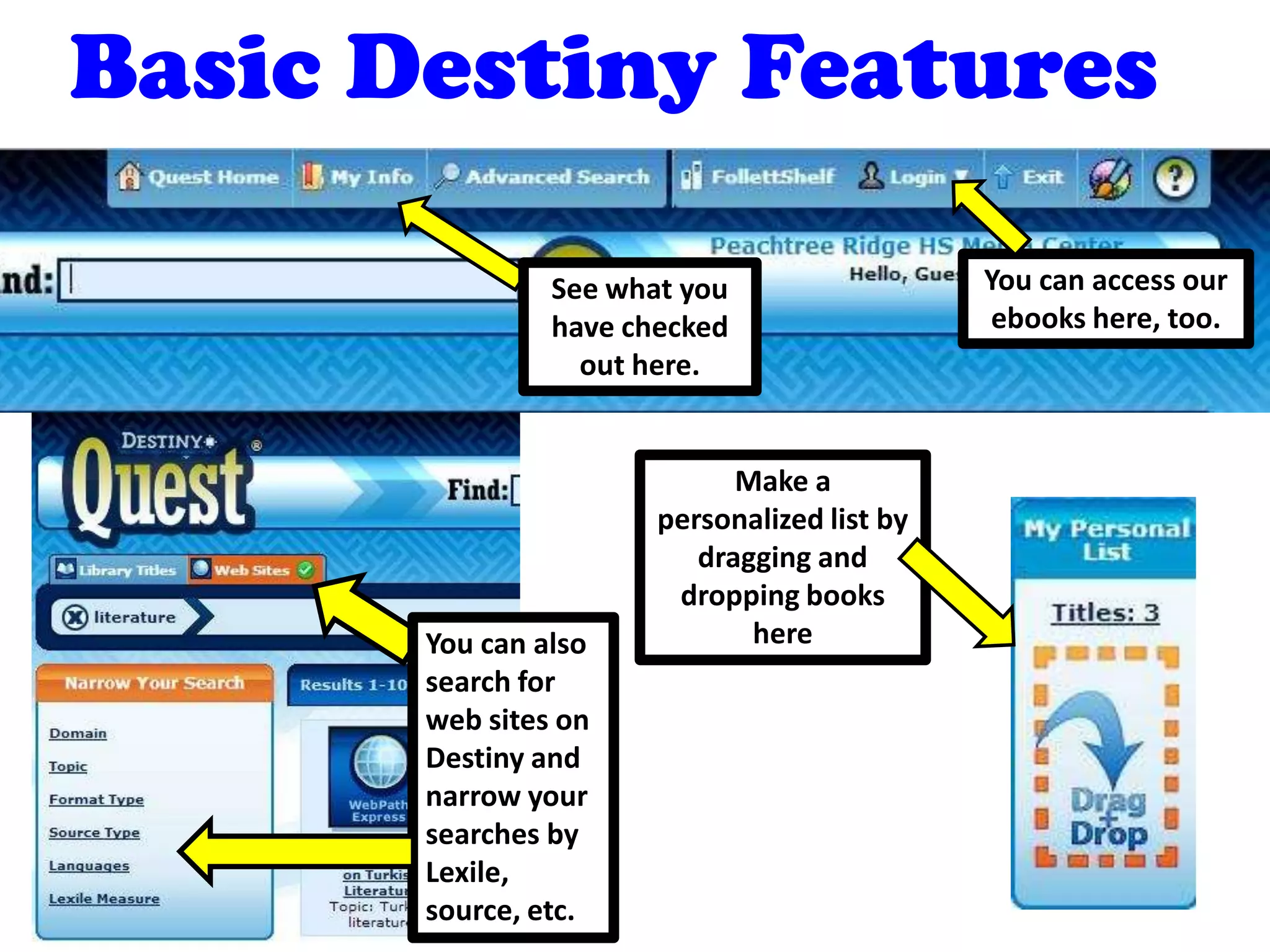
Basic Destiny Features
You can access our
ebooks here, too.
See what you
have checked
out here.
Make a
personalized list by
dragging and
dropping books
hereYou can also
search for
web sites on
Destiny and
narrow your
searches by
Lexile,
source, etc.
You can now pay your
fines online on
MyPayments Plus!
Late Fees:
-10 cents a day for each day
overdue on regular books
-25 cents a day for each day
overdue on Reference books.
-Lost Books= $20.00
Exciting
News: The
Library Now
Has E-books!
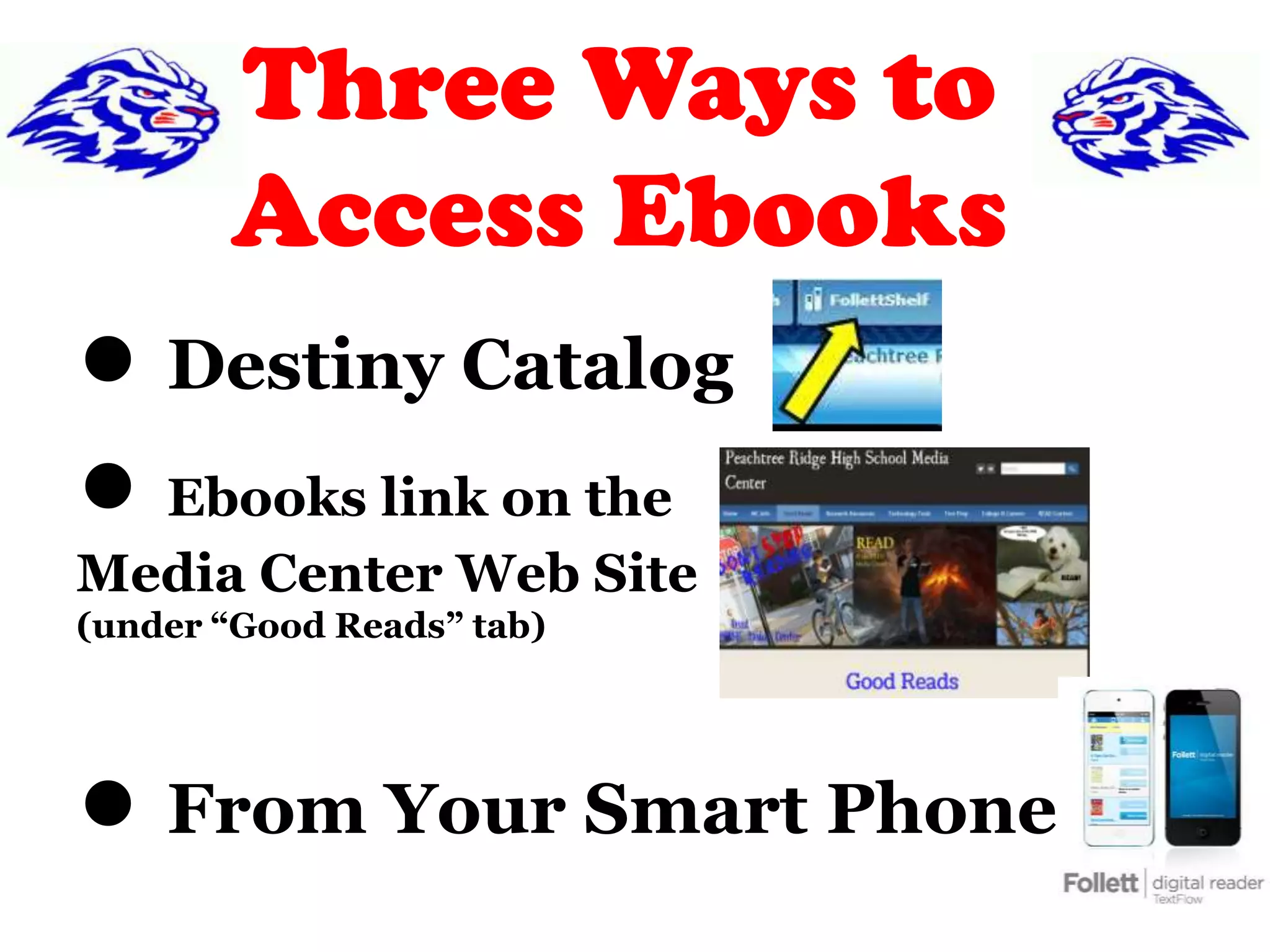
Three Ways to
Access Ebooks
● Destiny Catalog
● Ebooks link on the
Media Center Web Site
(under “Good Reads” tab)
● From Your Smart Phone
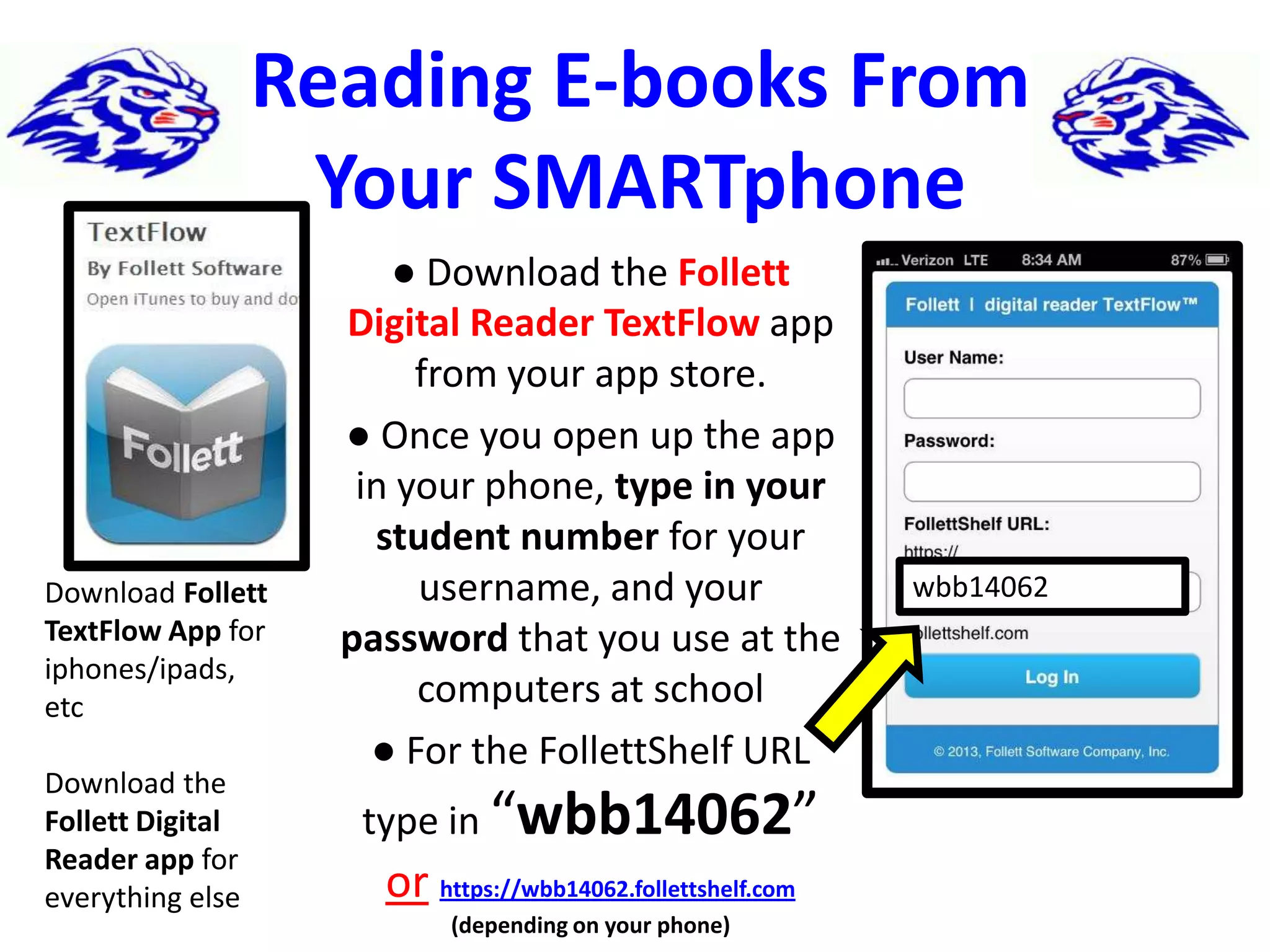
Reading E-books From
Your SMARTphone
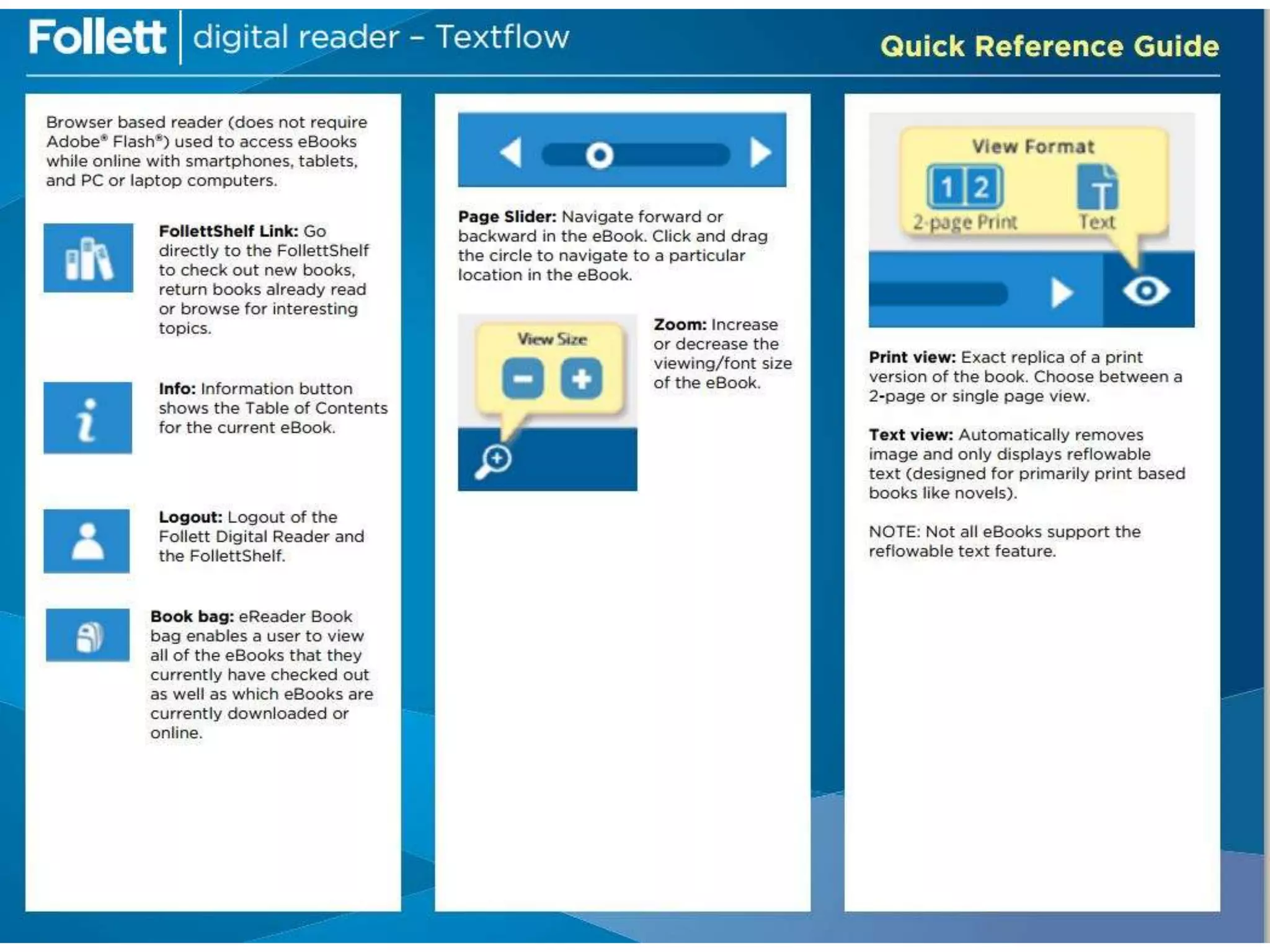
● Download the Follett
Digital Reader TextFlow app
from your app store.
● Once you open up the app
in your phone, type in your
student number for your
username, and your
password that you use at the
computers at school
● For the FollettShelf URL
type in “wbb14062”
or https://wbb14062.follettshelf.com
(depending on your phone)
wbb14062Download Follett
TextFlow App for
iphones/ipads,
etc
Download the
Follett Digital
Reader app for
everything else
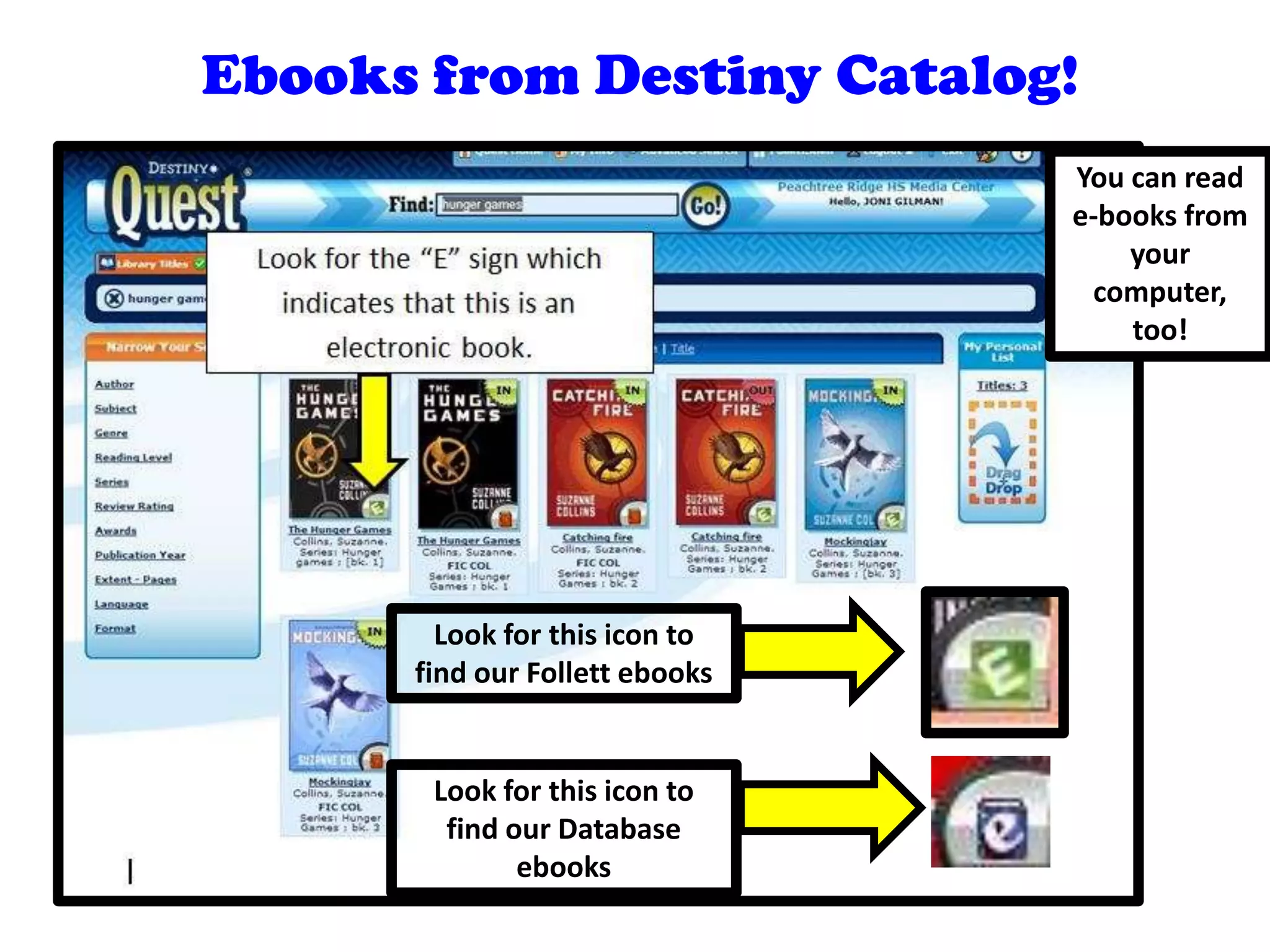
Ebooks from Destiny Catalog!
Look for this icon to
find our Follett ebooks
Look for this icon to
find our Database
ebooks
You can read
e-books from
your
computer,
too!
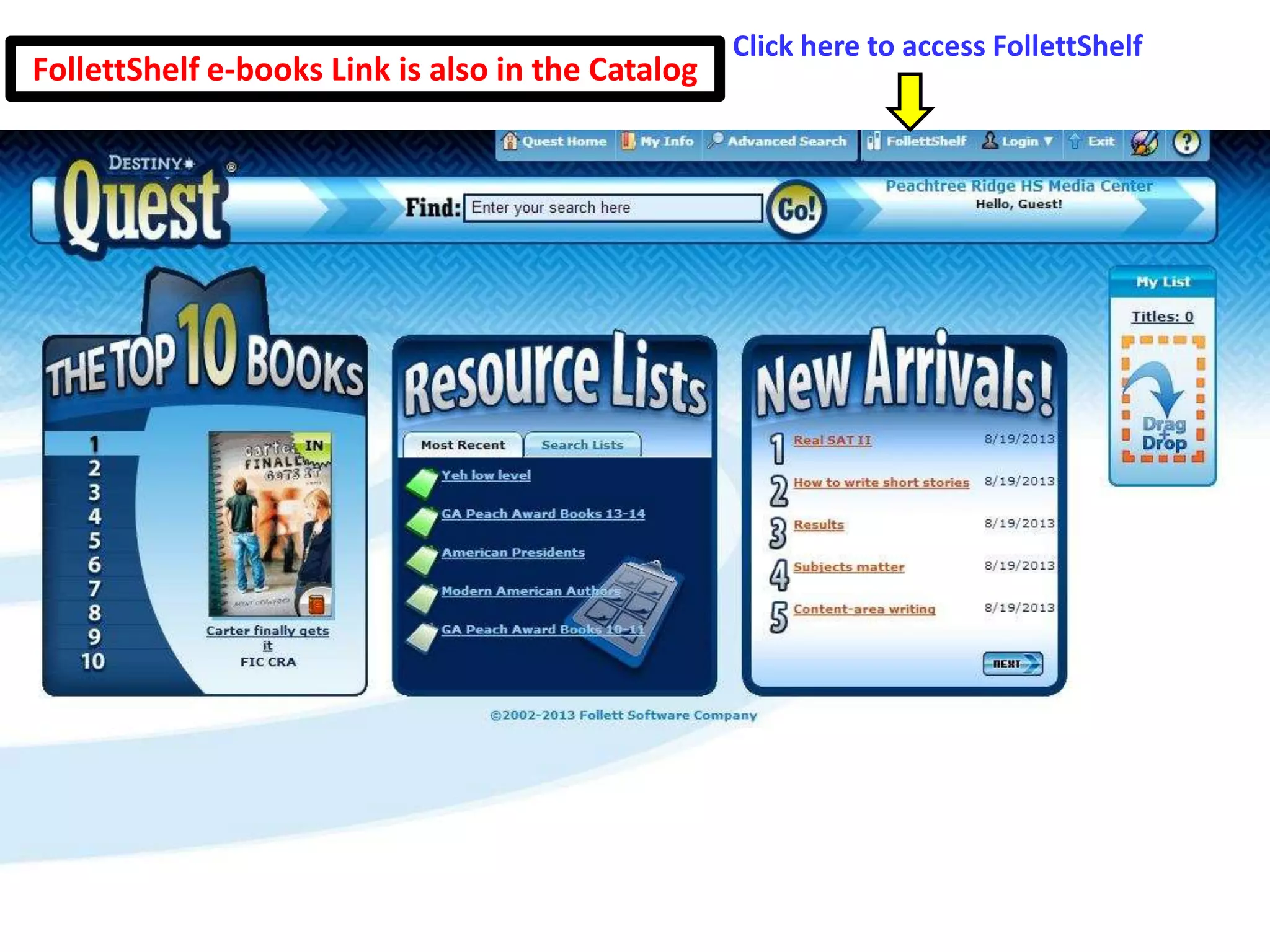
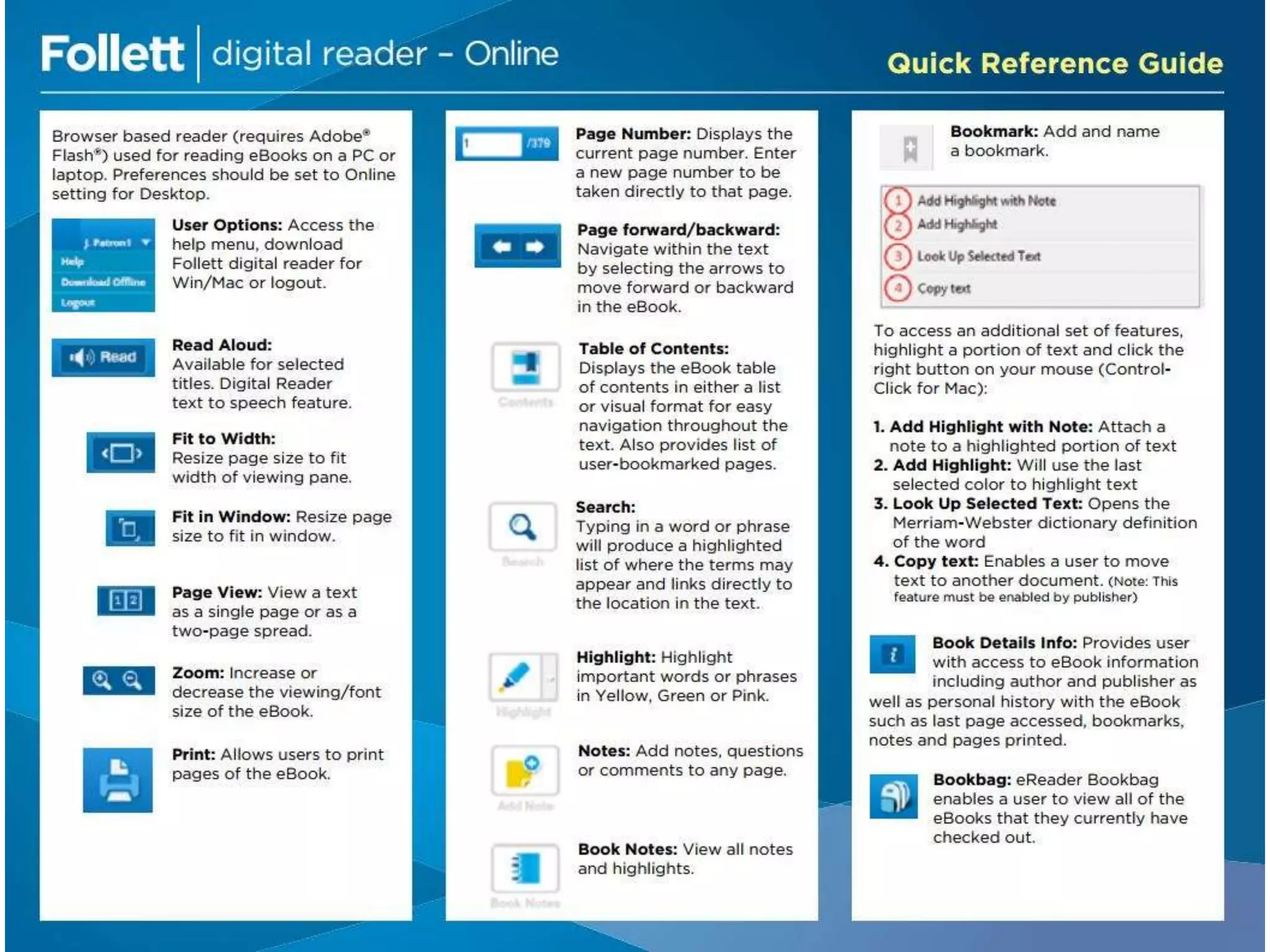
Click here to access FollettShelf
FollettShelf e-books Link is also in the Catalog
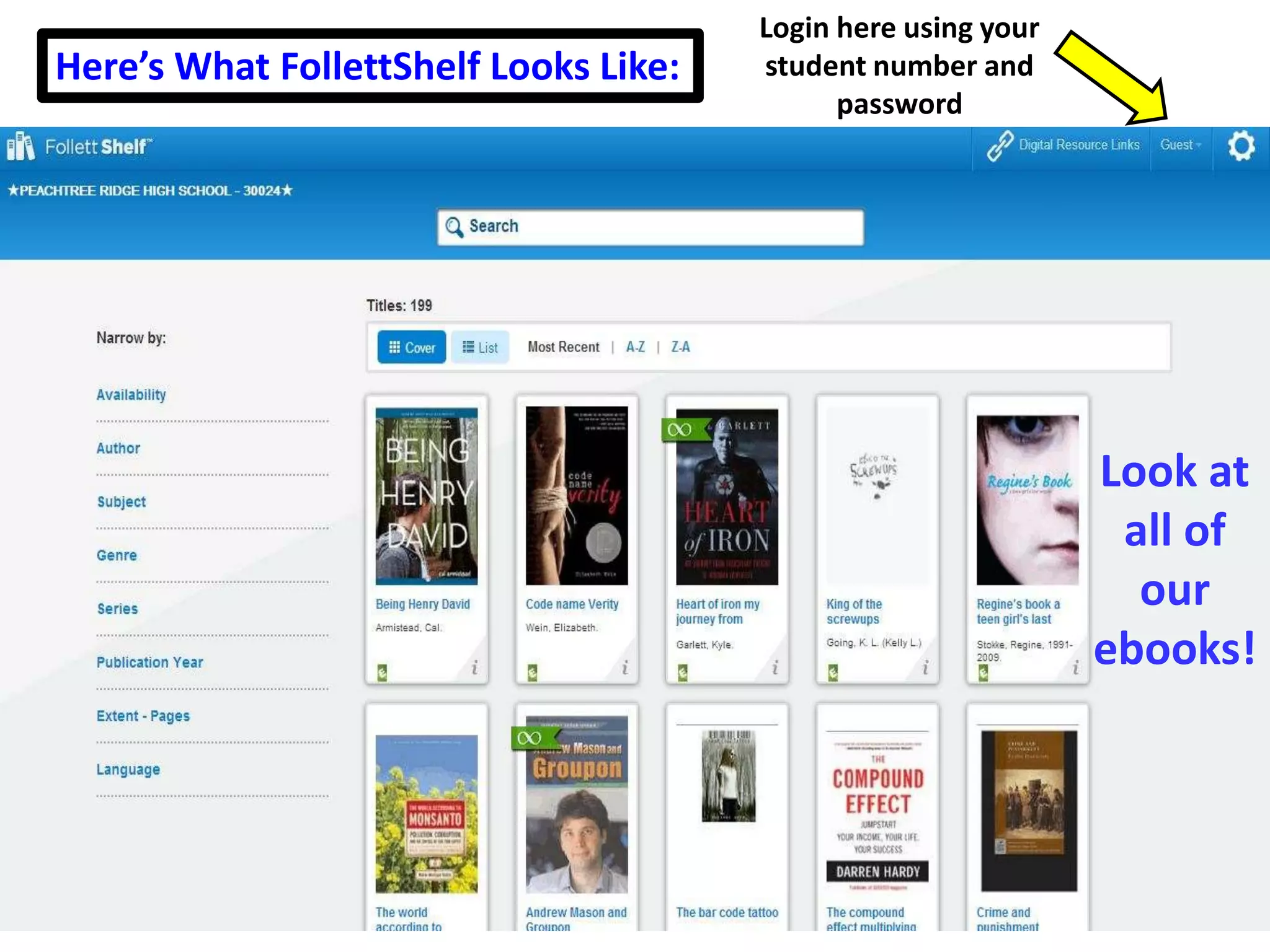
Login here using your
student number and
password
Here’s What FollettShelf Looks Like:
Look at
all of
our
ebooks!
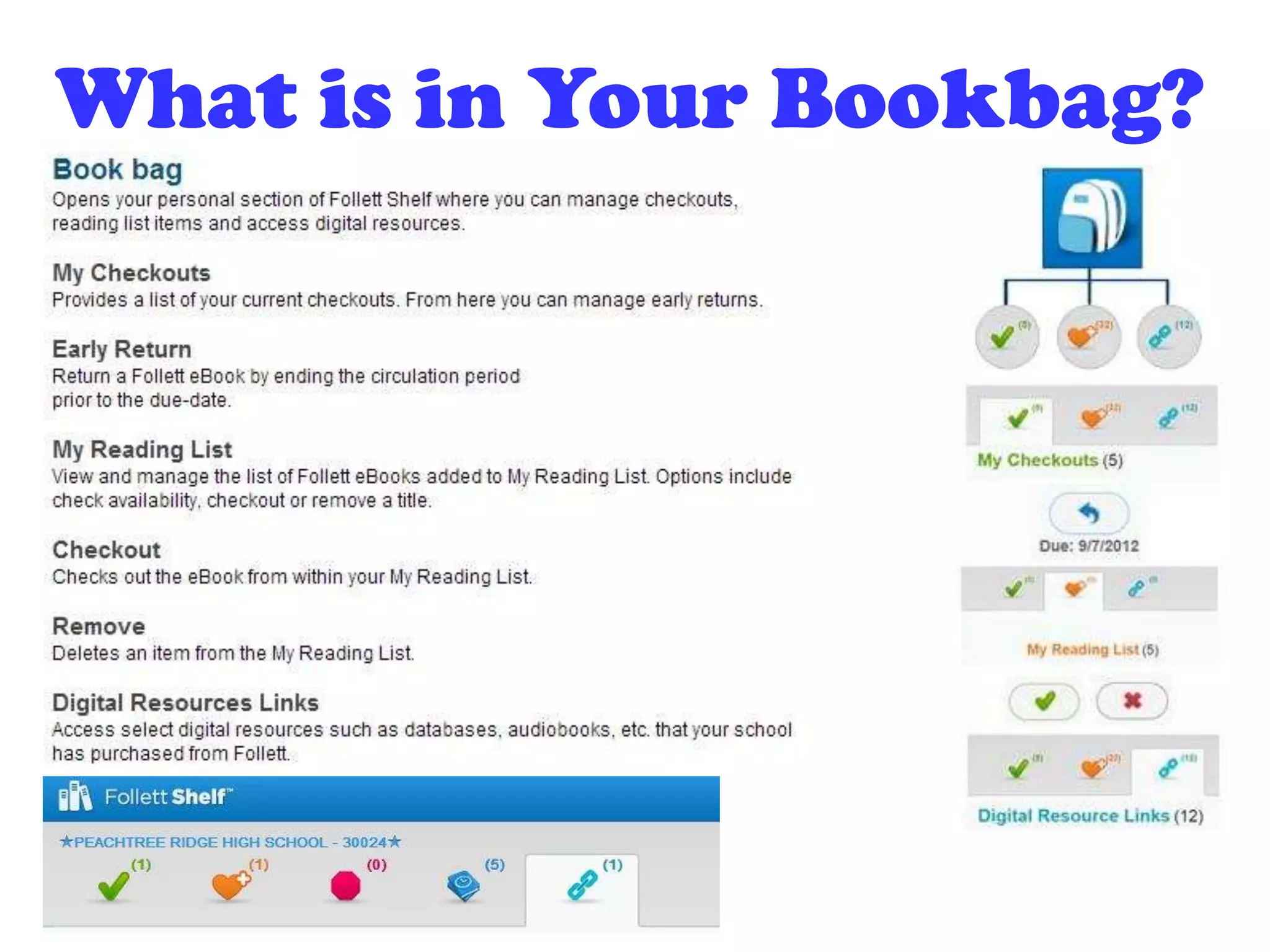
What is in Your Bookbag?
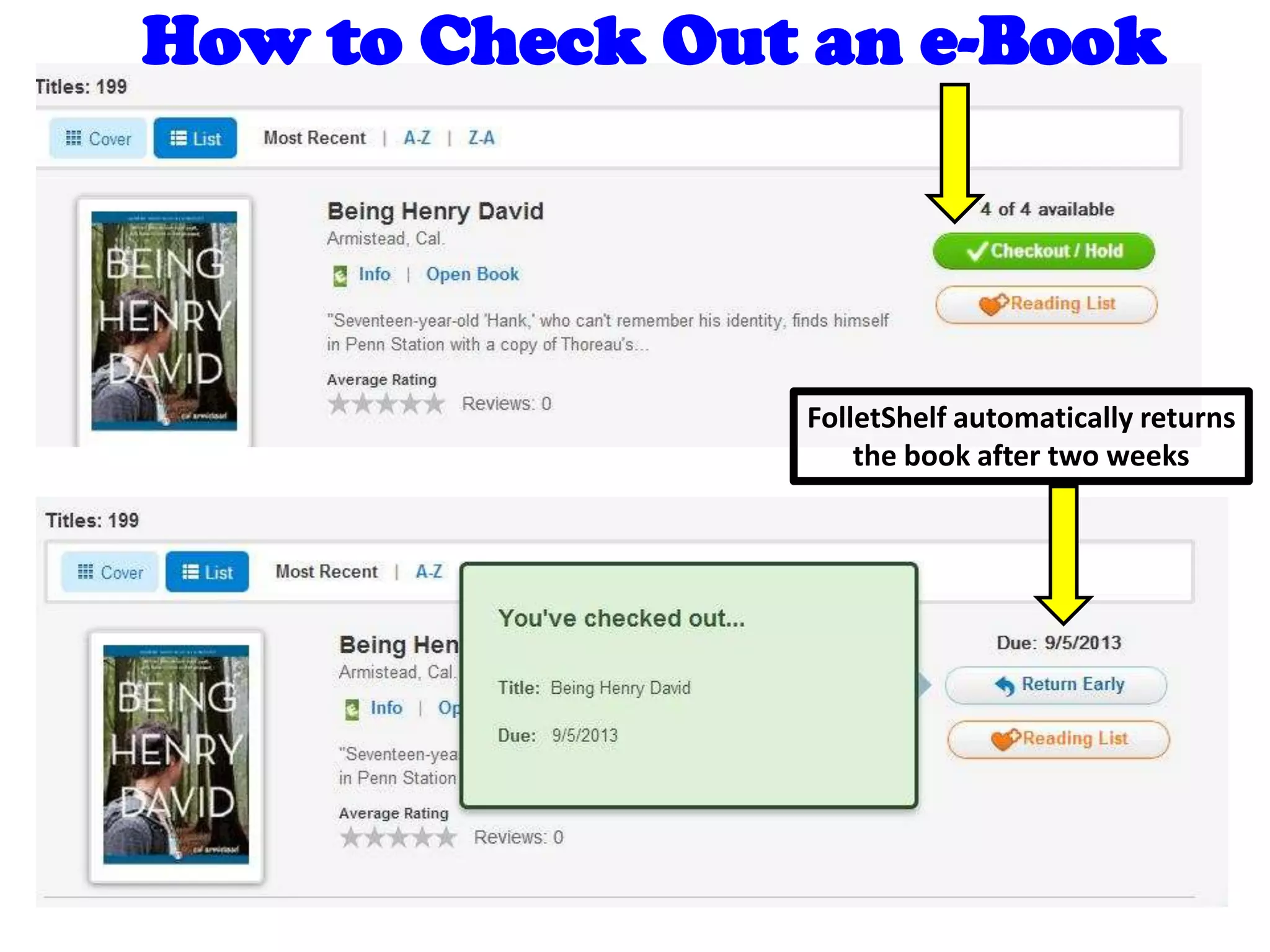
FolletShelf automatically returns
the book after two weeks
How to Check Out an e-Book
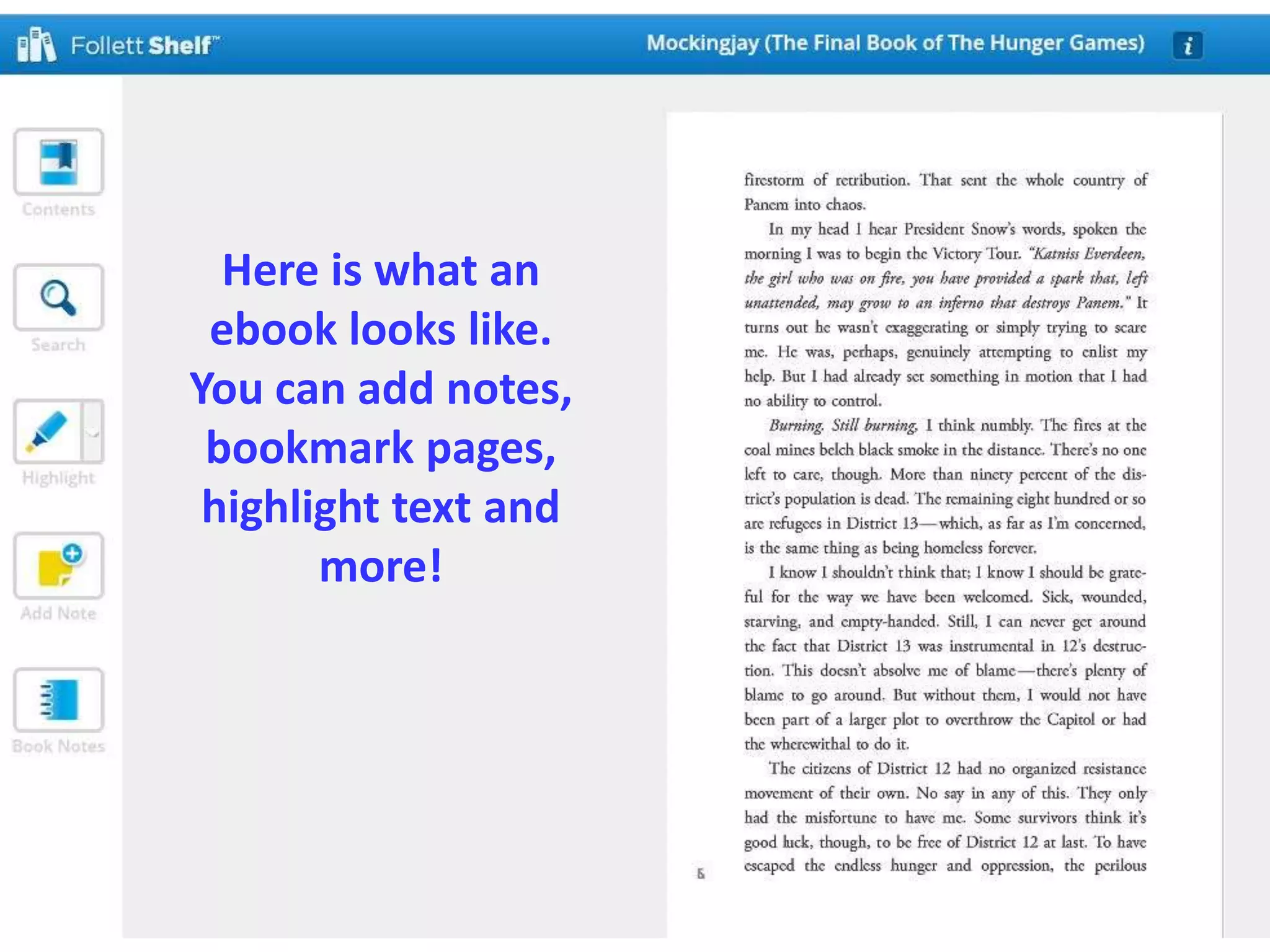
Here is what an
ebook looks like.
You can add notes,
bookmark pages,
highlight text and
more!
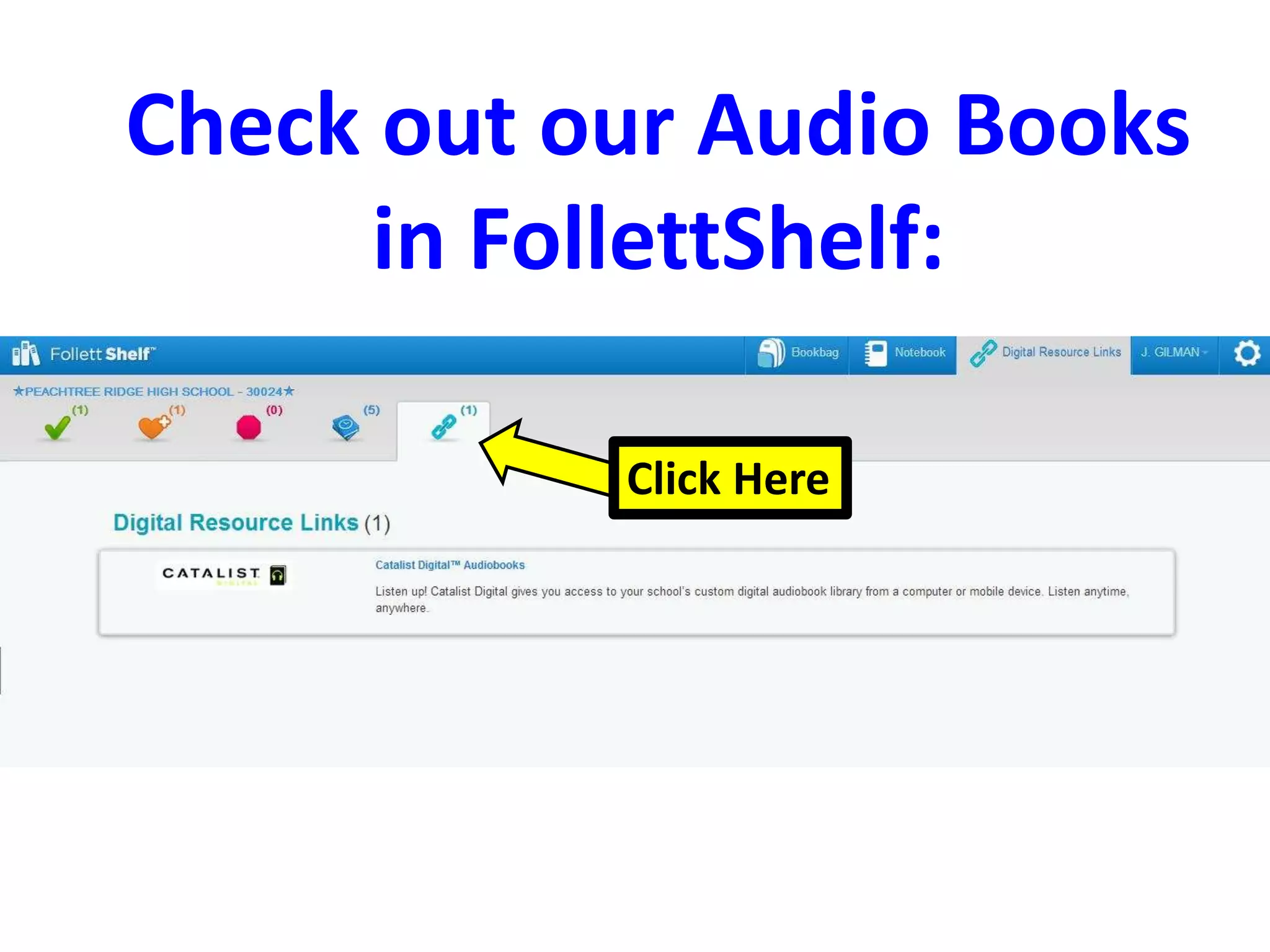
Check out our Audio Books
in FollettShelf:
Click Here
Additional
Directions
for Teachers
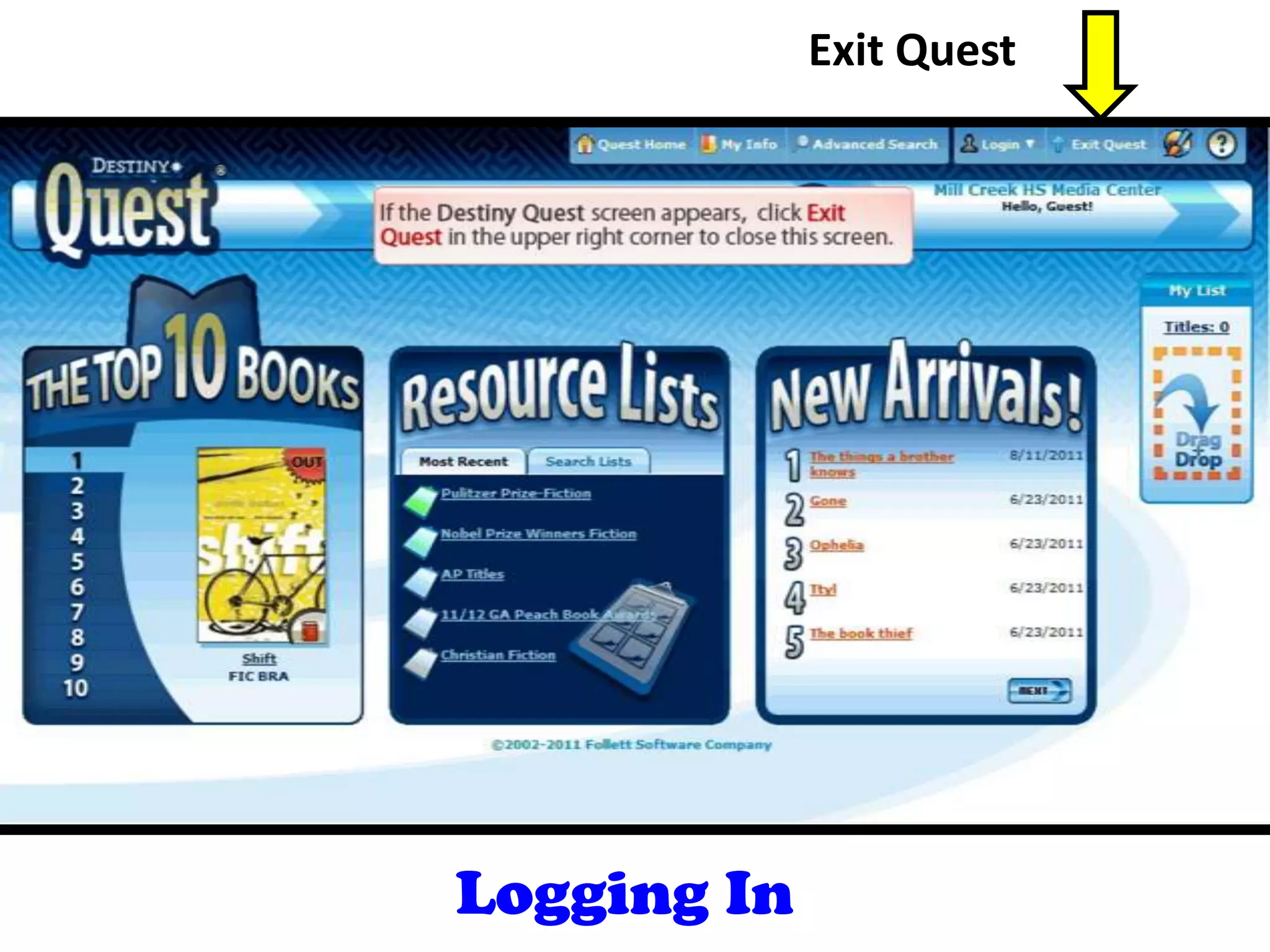
Exit Quest
Logging In
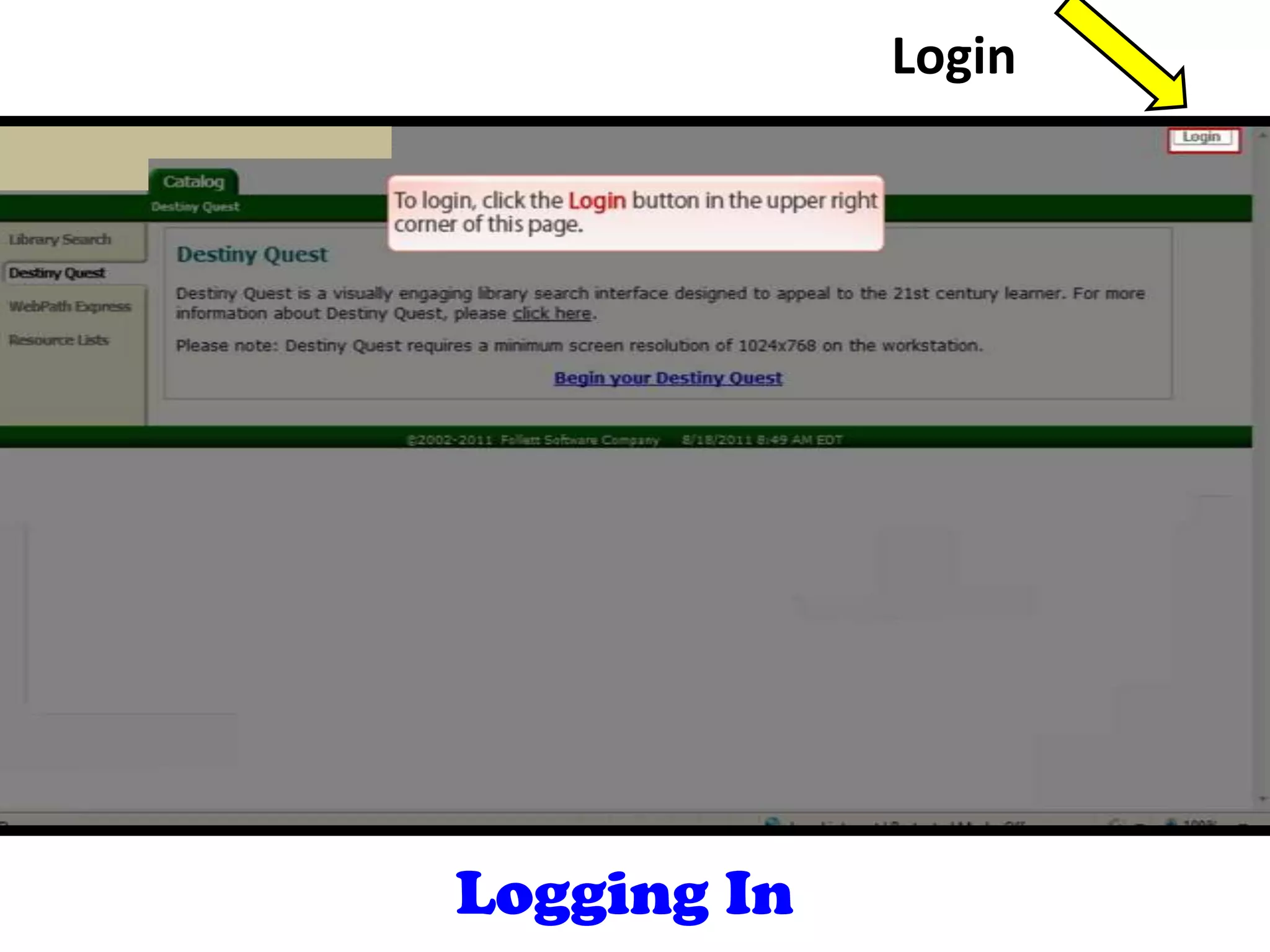
Login
Logging In
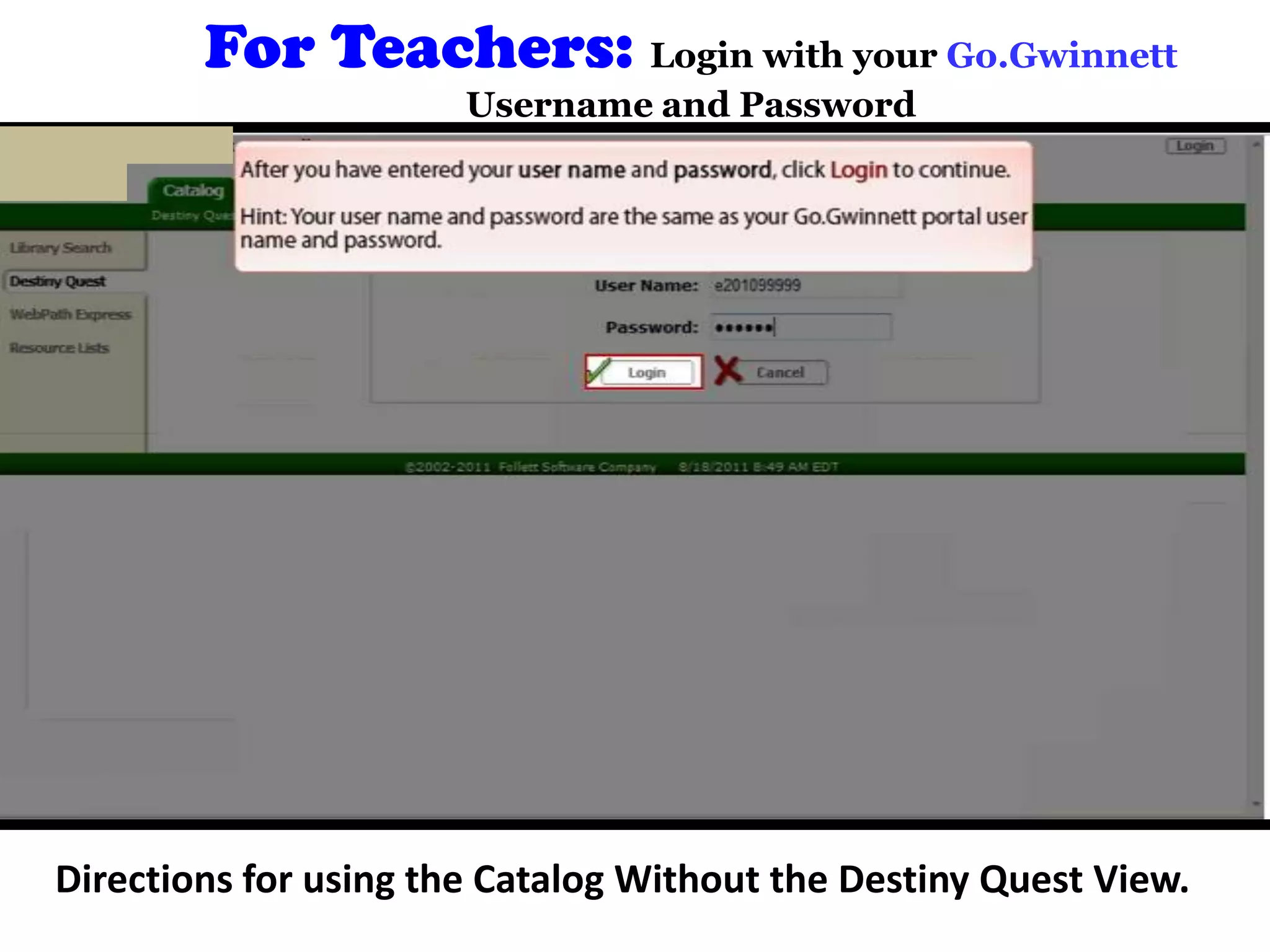
For Teachers: Login with your Go.Gwinnett
Username and Password
Directions for using the Catalog Without the Destiny Quest View.
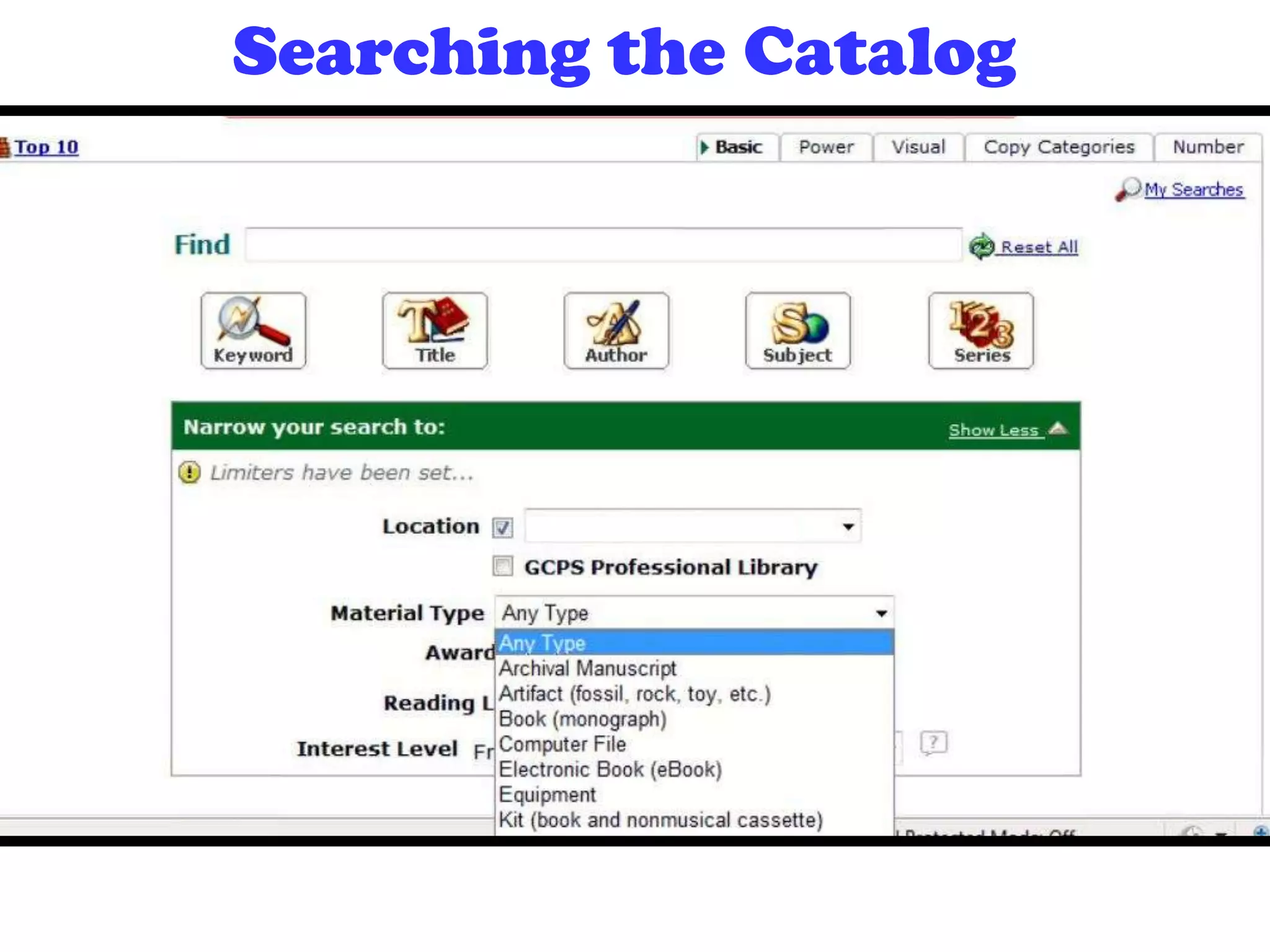
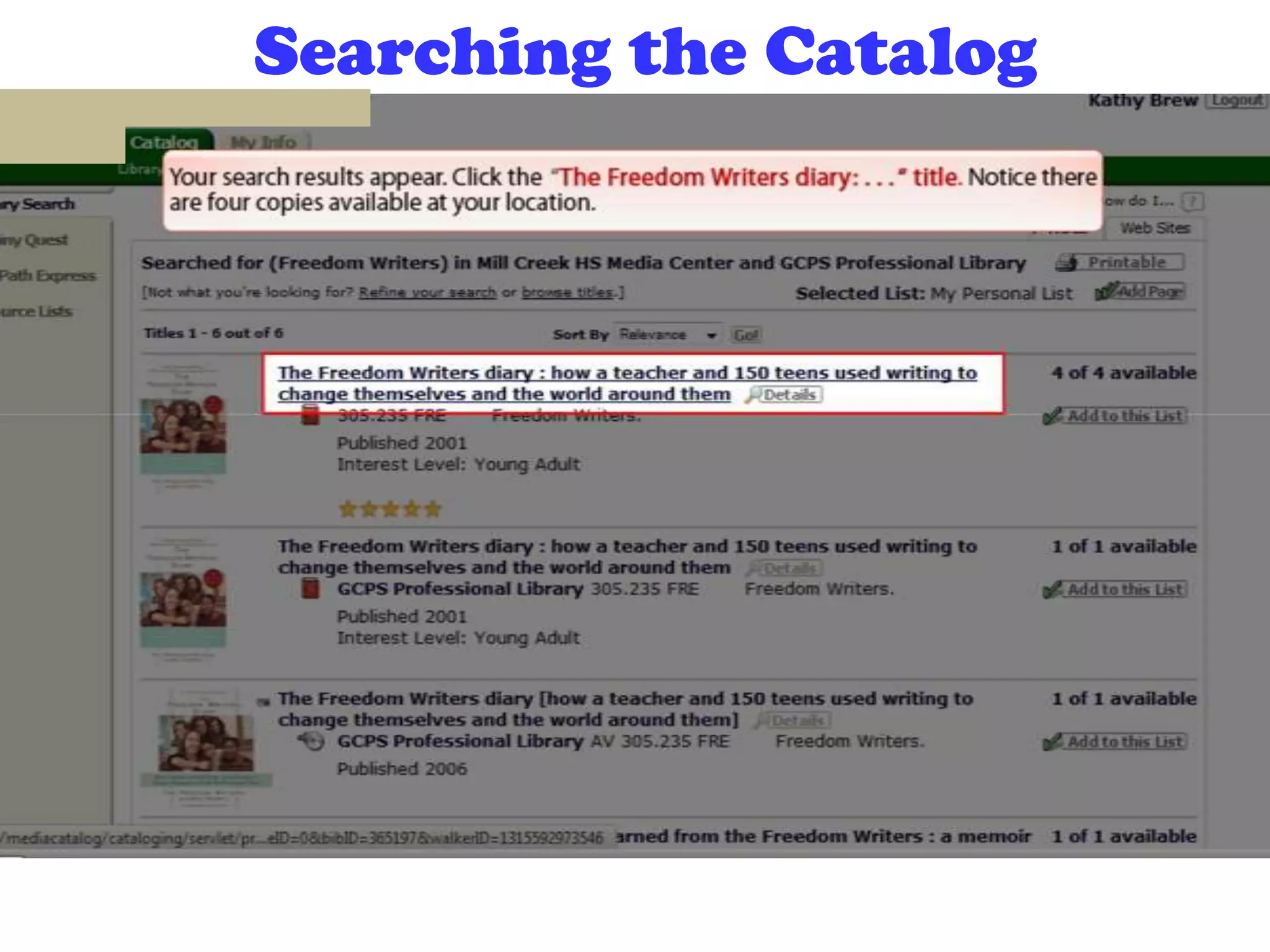
Searching the Catalog
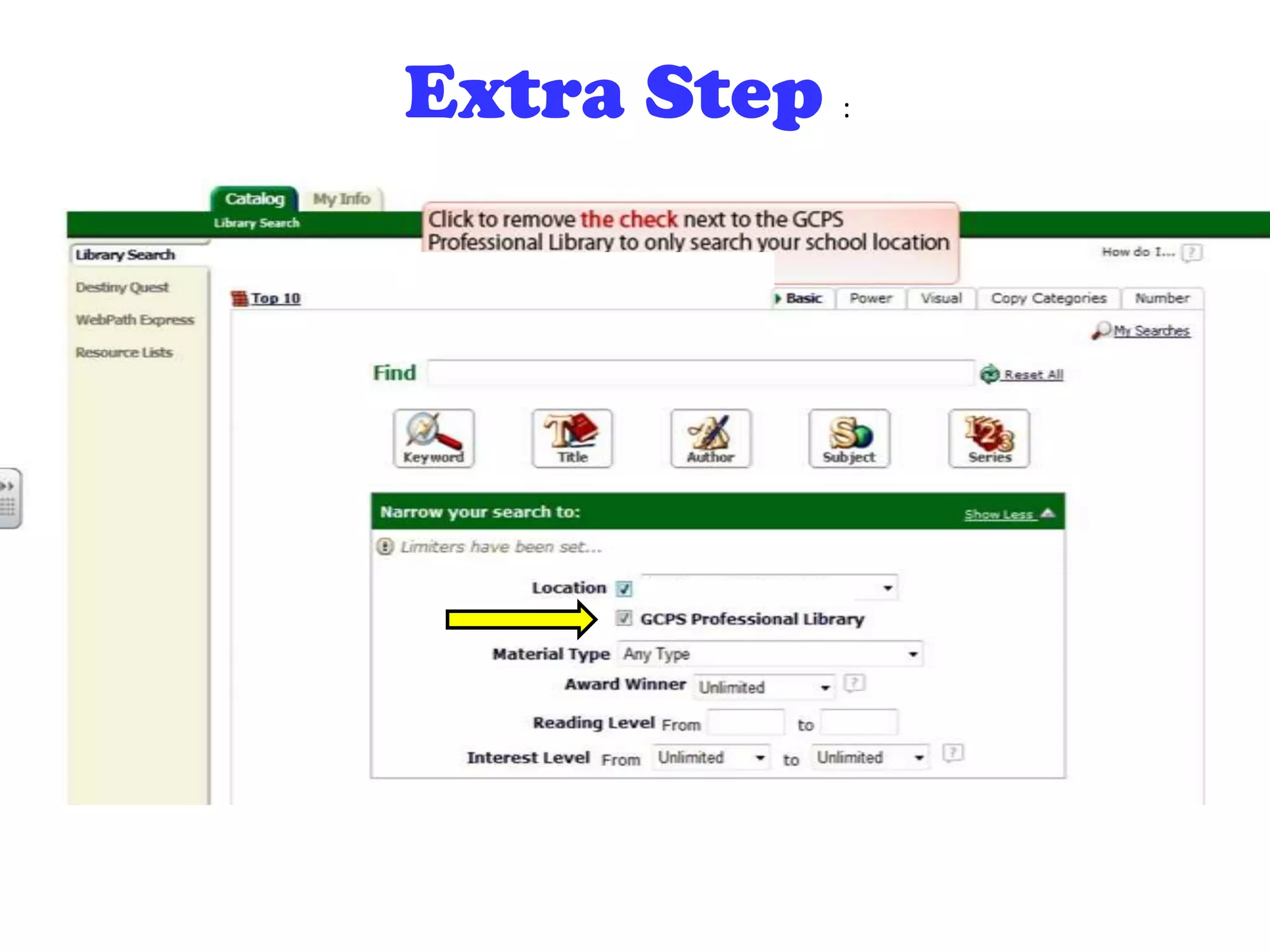
Extra Step :
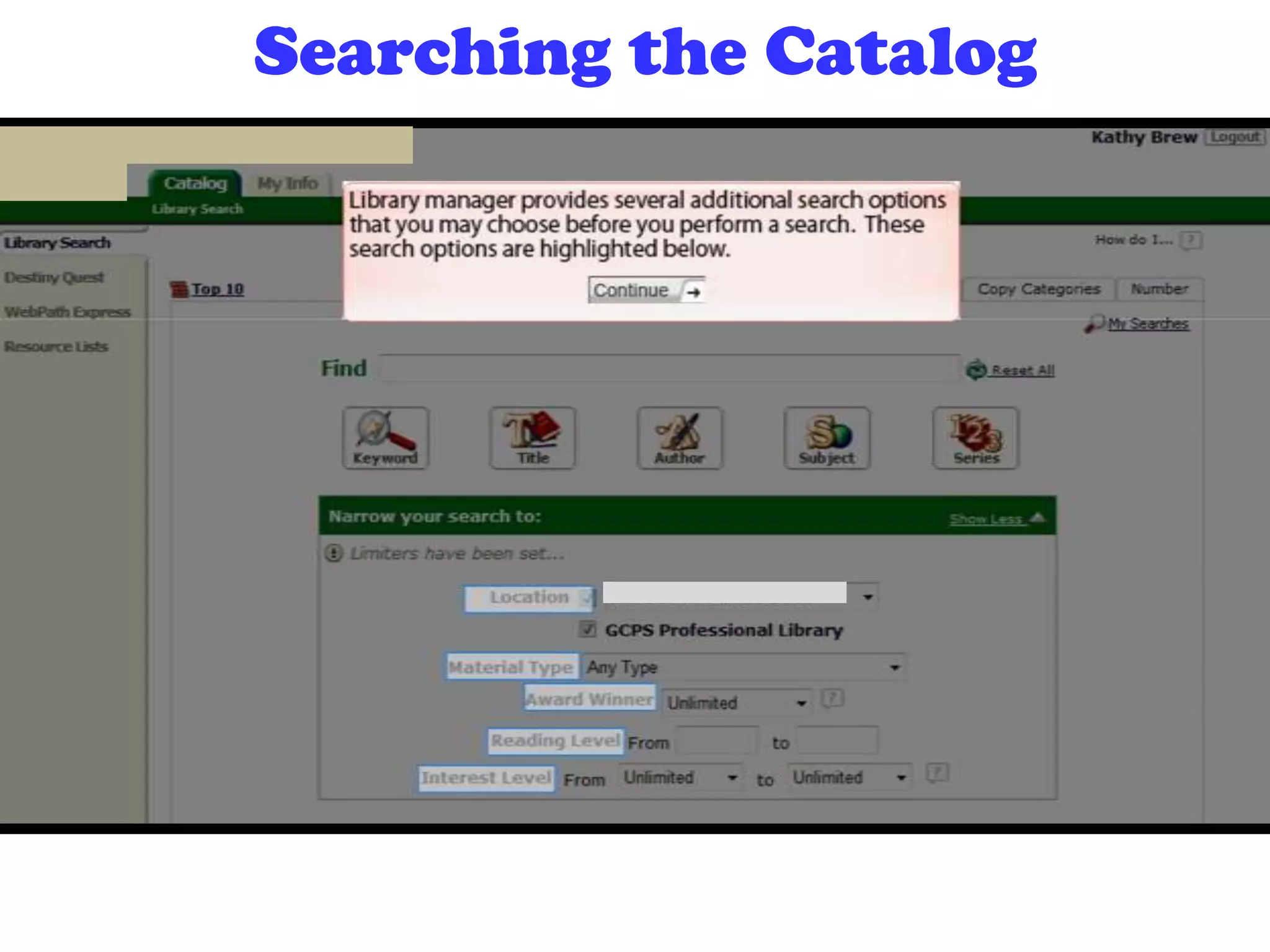
Searching the Catalog
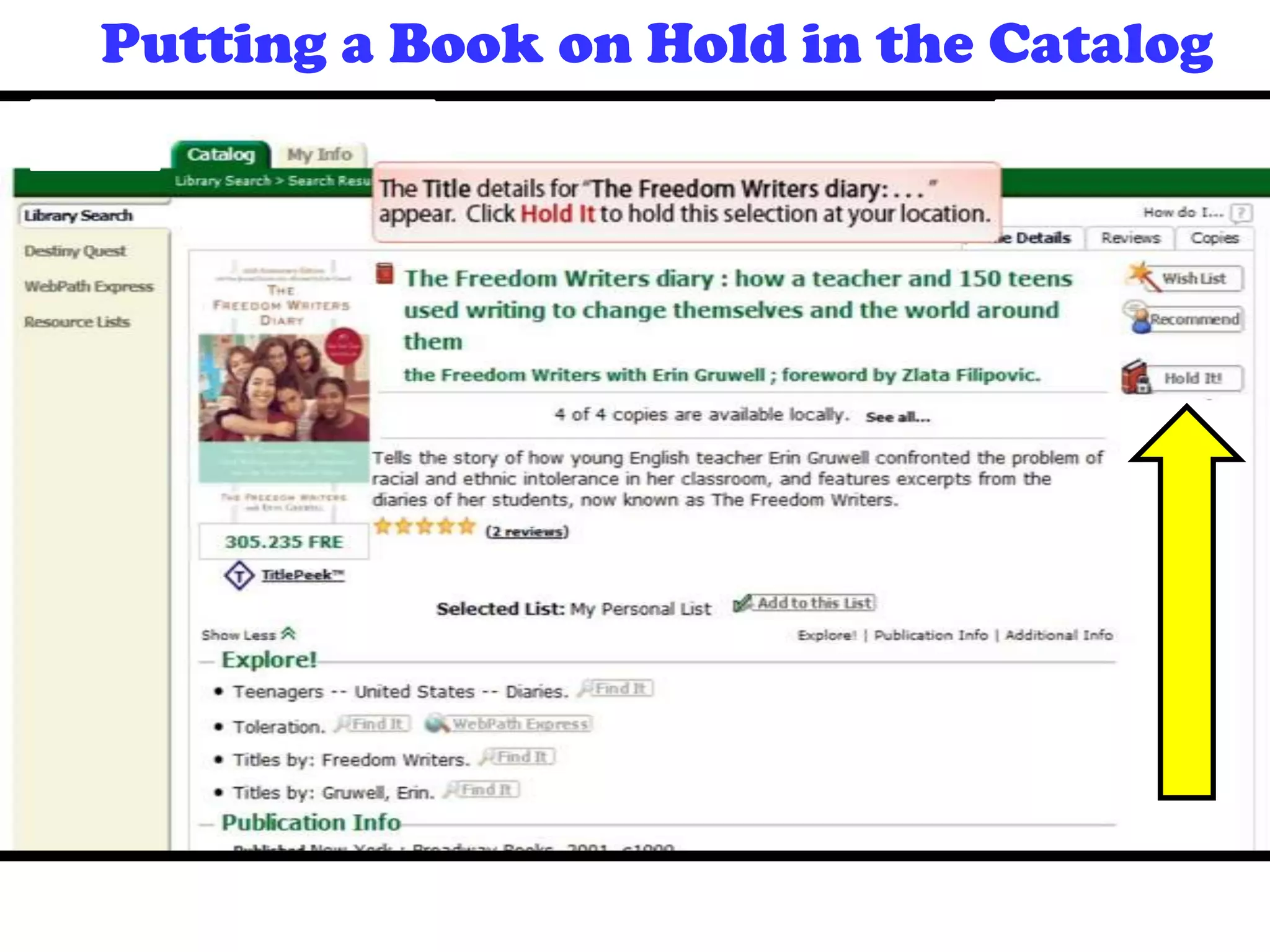
Putting a Book on Hold in the Catalog
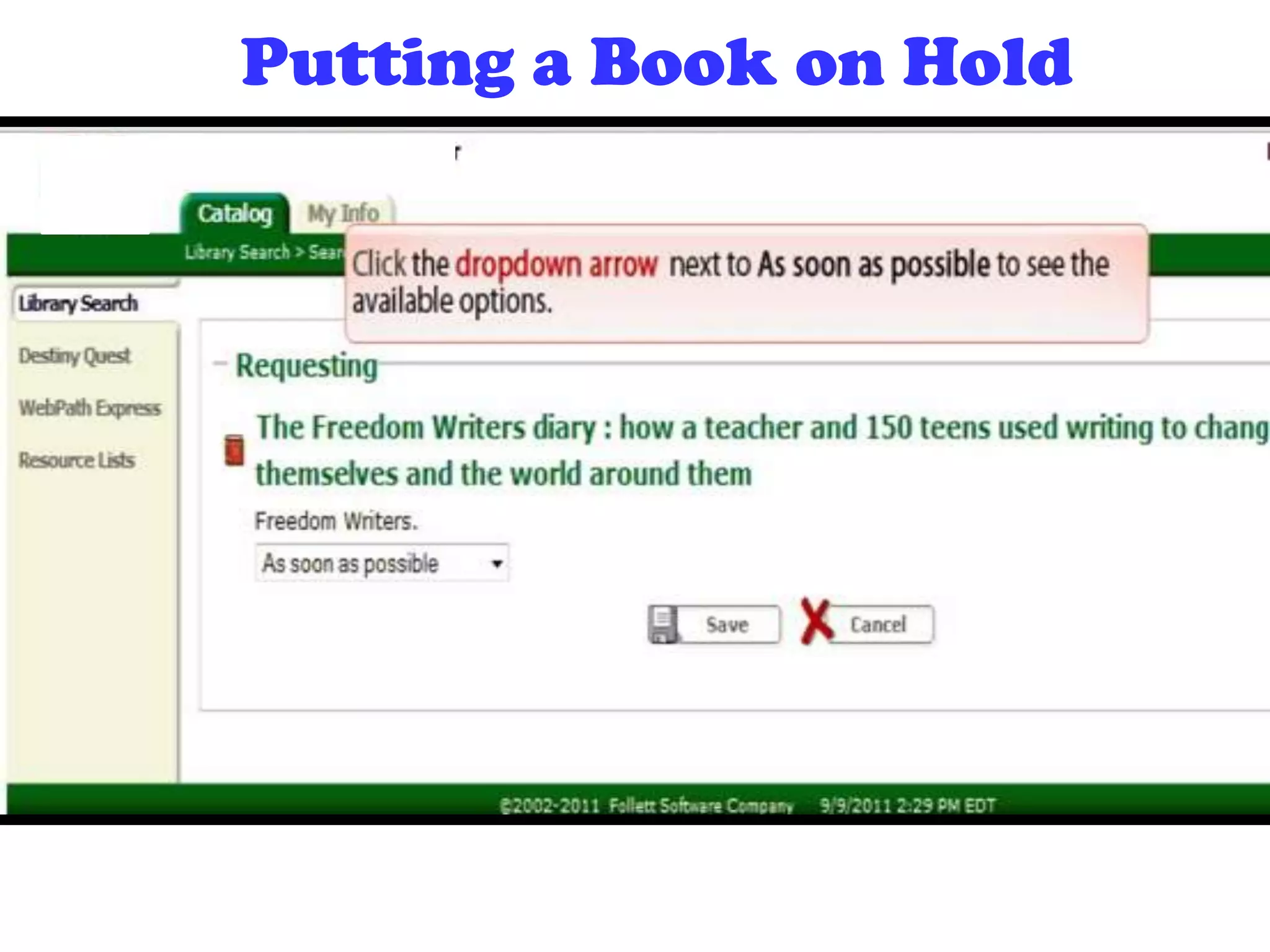
Putting a Book on Hold

MyeClass, Ebooks, and navigating the Destiny Catalog

  • 1.
    Destiny Catalog, MyeClass, andFollett Shelf e-books Tutorial
  • 2.
    How to Access ●Go to the School web site (PeachtreeRidge.org) ● Click on “MyeClass” under the “Student” Tab. ● Type in your student number for username, and your password is the same password you use on a school computer
  • 3.
    Activating Your Account TwoOptions: ● Once a student has successfully logged in to his/her network account at school and has changed his/her password, this student’s account to the Student Portal will be activated ● The second way to activate the student portal(MYeClass) is to go to MyeClass and click on the activate button. This is ONLY if you have NOT signed on to a computer at PRHS.
  • 4.
    Logging In ●Students willenter the EXACT SAME username and password as they do here at Peachtree Ridge. ● If students change their network password while signed on to a computer at PRHS, it will automatically change their password to the student portal.
  • 5.
    Awesome Textbook Resources includingvideos, tutorials, activities, modules and more. See your grades here Access the media catalog here Access the Databases and Passwords Here. Use these databases to help you find great research resources for your projects. My eClass at a Glance
  • 6.
    Did you knowyou can now access the media catalog from your student portal???? (aKa “My eClass”)
  • 7.
    Two Ways toAccess the Media Catalog • From a school computer, double- click on this icon: • Click on “Media Catalog” while in the Student Portal (i.e. MyeClass)
  • 8.
    For Students: Login withyour Student Number and Password (the one you use to login to the computers)
  • 9.
    Searching for aBook: Search for books here by title, keyword, etc Looking for something specific? Conduct an Advanced Search here. Narrow your search by subject, genre, interest level, series, reading level
  • 10.
    If the results giveyou a number then that means it is a nonfiction book. If the results show “FIC” then that means it is a fiction book located in the center of the media center.
  • 11.
    Putting a Bookon Hold When you are logged in and select a book, just click this button to put it on hold. We will notify you when it is available. Recommend books to your friends here Not sure what to read next? Try these recommendations See reading level here
  • 12.
    Basic Destiny Features Youcan access our ebooks here, too. See what you have checked out here. Make a personalized list by dragging and dropping books hereYou can also search for web sites on Destiny and narrow your searches by Lexile, source, etc.
  • 13.
    You can nowpay your fines online on MyPayments Plus! Late Fees: -10 cents a day for each day overdue on regular books -25 cents a day for each day overdue on Reference books. -Lost Books= $20.00
  • 14.
  • 15.
    Three Ways to AccessEbooks ● Destiny Catalog ● Ebooks link on the Media Center Web Site (under “Good Reads” tab) ● From Your Smart Phone
  • 16.
    Reading E-books From YourSMARTphone ● Download the Follett Digital Reader TextFlow app from your app store. ● Once you open up the app in your phone, type in your student number for your username, and your password that you use at the computers at school ● For the FollettShelf URL type in “wbb14062” or https://wbb14062.follettshelf.com (depending on your phone) wbb14062Download Follett TextFlow App for iphones/ipads, etc Download the Follett Digital Reader app for everything else
  • 18.
    Ebooks from DestinyCatalog! Look for this icon to find our Follett ebooks Look for this icon to find our Database ebooks You can read e-books from your computer, too!
  • 19.
    Click here toaccess FollettShelf FollettShelf e-books Link is also in the Catalog
  • 20.
    Login here usingyour student number and password Here’s What FollettShelf Looks Like: Look at all of our ebooks!
  • 21.
    What is inYour Bookbag?
  • 23.
    FolletShelf automatically returns thebook after two weeks How to Check Out an e-Book
  • 24.
    Here is whatan ebook looks like. You can add notes, bookmark pages, highlight text and more!
  • 26.
    Check out ourAudio Books in FollettShelf: Click Here
  • 27.
  • 28.
  • 29.
  • 30.
    For Teachers: Loginwith your Go.Gwinnett Username and Password Directions for using the Catalog Without the Destiny Quest View.
  • 31.
  • 32.
  • 33.
  • 34.
  • 35.
    Putting a Bookon Hold in the Catalog
  • 36.