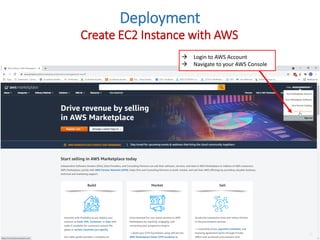
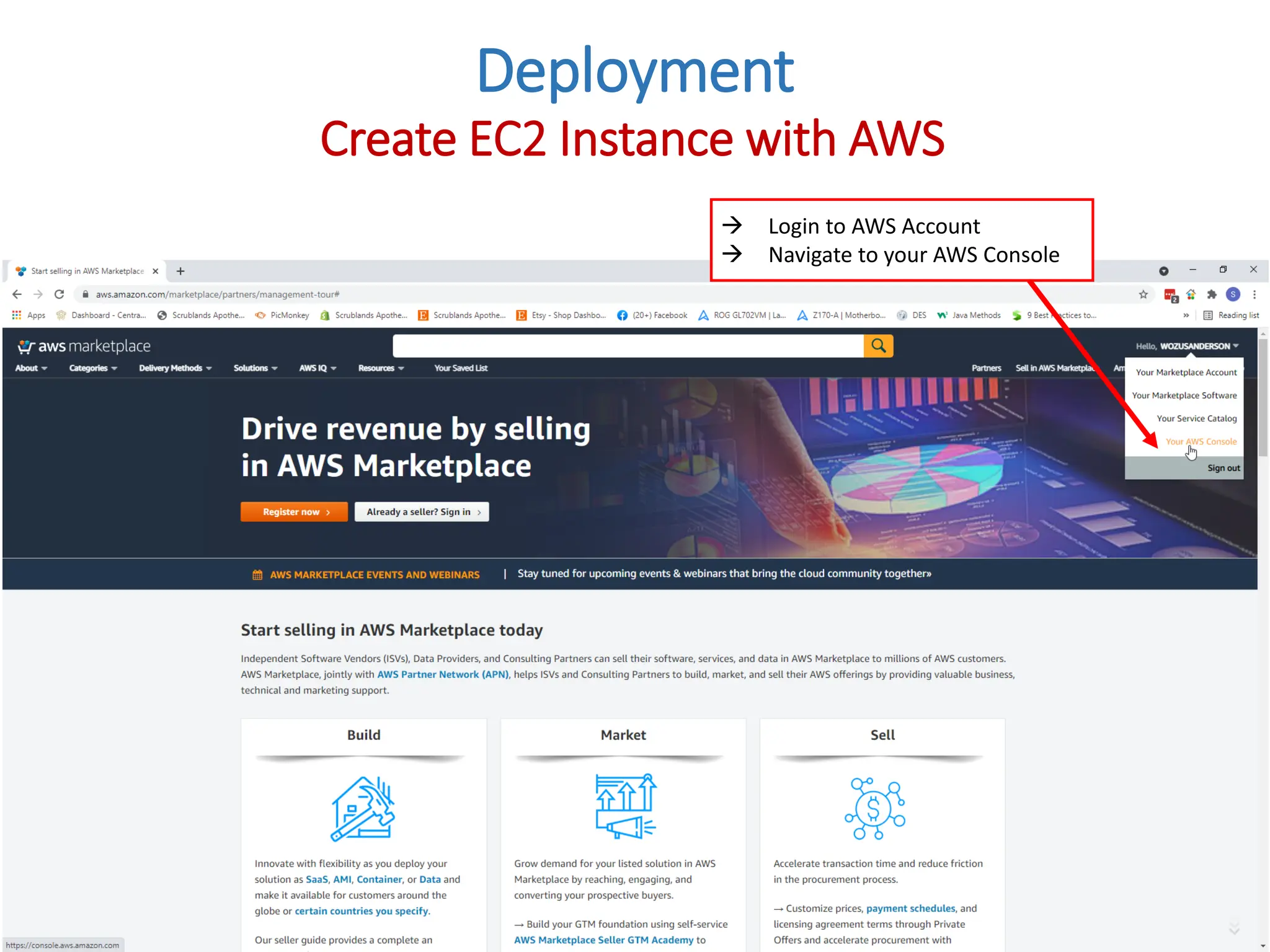
 Login to AWS Account
 Navigate to your AWS Console
Deployment
Create EC2 Instance with AWS
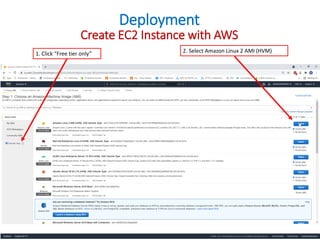
1. Click “Free tier only” 2. Select Amazon Linux 2 AMI (HVM)
Deployment
Create EC2 Instance with AWS
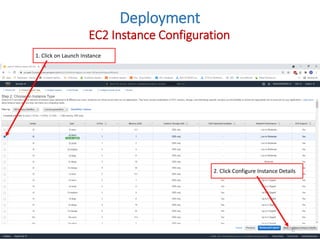
1. Click on Launch Instance
2. Click Configure Instance Details
Deployment
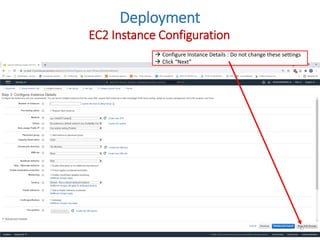
EC2 Instance Configuration
 Configure Instance Details : Do not change these settings
 Click “Next”
Deployment
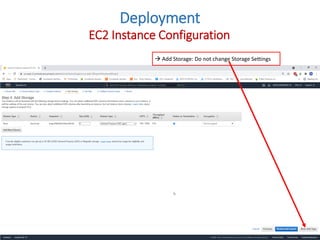
EC2 Instance Configuration
 Add Storage: Do not change Storage Settings
Deployment
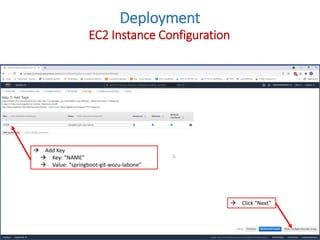
EC2 Instance Configuration
 Add Key
 Key: “NAME”
 Value: “springboot-git-wozu-labone”
 Click “Next”
Deployment
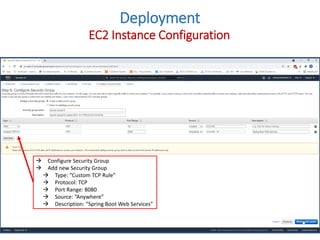
EC2 Instance Configuration
 Configure Security Group
 Add new Security Group
 Type: “Custom TCP Rule”
 Protocol: TCP
 Port Range: 8080
 Source: “Anywhere”
 Description: “Spring Boot Web Services”
Deployment
EC2 Instance Configuration
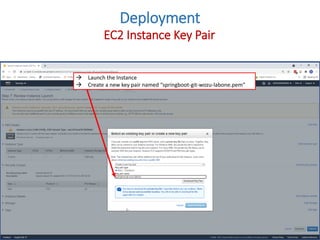
 Launch the Instance
 Create a new key pair named “springboot-git-wozu-labone.pem”
Deployment
EC2 Instance Key Pair
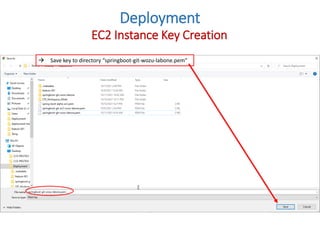
 Save key to directory “springboot-git-wozu-labone.pem”
Deployment
EC2 Instance Key Creation
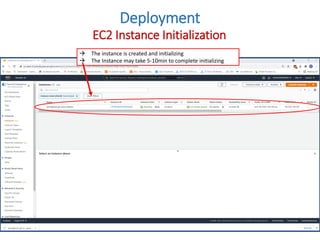
 The instance is created and initializing
 The Instance may take 5-10min to complete initializing
Deployment
EC2 Instance Initialization
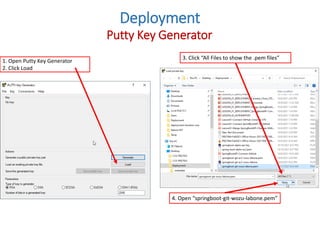
1. Open Putty Key Generator
2. Click Load
4. Open “springboot-git-wozu-labone.pem”
3. Click “All Files to show the .pem files”
Deployment
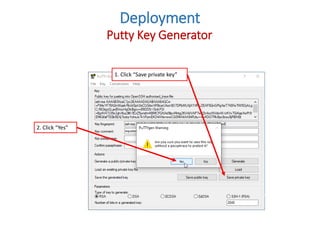
Putty Key Generator
1. Click “Save private key”
2. Click “Yes”
Deployment
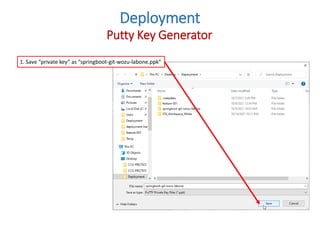
Putty Key Generator
1. Save “private key” as “springboot-git-wozu-labone.ppk”
Deployment
Putty Key Generator
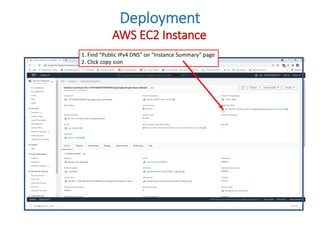
1. Find “Public IPv4 DNS” on “Instance Summary” page
2. Click copy icon
Deployment
AWS EC2 Instance
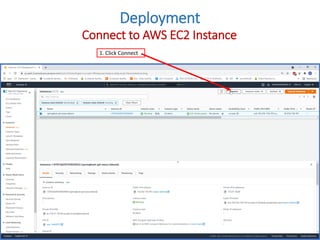
1. Click Connect
Deployment
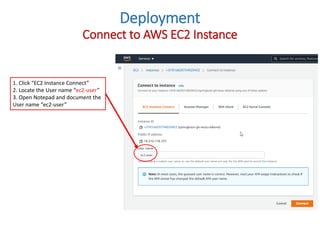
Connect to AWS EC2 Instance
1. Click “EC2 Instance Connect”
2. Locate the User name “ec2-user”
3. Open Notepad and document the
User name “ec2-user”
Deployment
Connect to AWS EC2 Instance
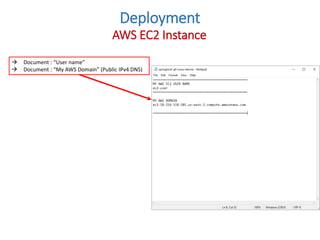
 Document : “User name”
 Document : “My AWS Domain” (Public IPv4 DNS)
Deployment
AWS EC2 Instance
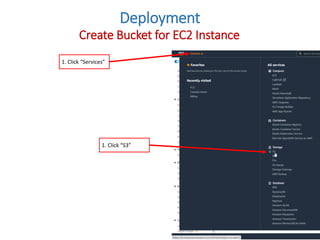
1. Click “Services”
1. Click “S3”
Create Bucket for EC2 Instance
Deployment
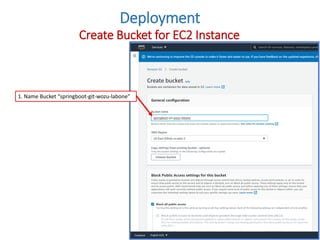
1. Name Bucket “springboot-git-wozu-labone”
Deployment
Create Bucket for EC2 Instance
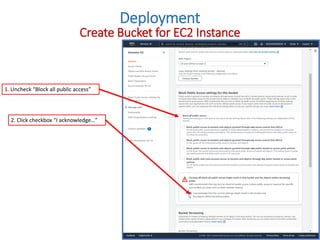
1. Uncheck “Block all public access”
2. Click checkbox “I acknowledge…”
Deployment
Create Bucket for EC2 Instance
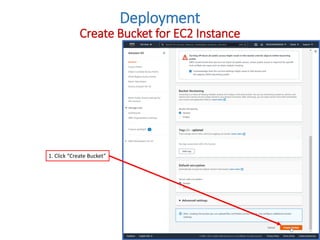
1. Click “Create Bucket”
Deployment
Create Bucket for EC2 Instance
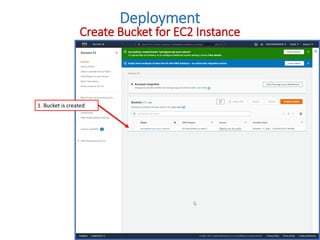
1. Bucket is created
Deployment
Create Bucket for EC2 Instance
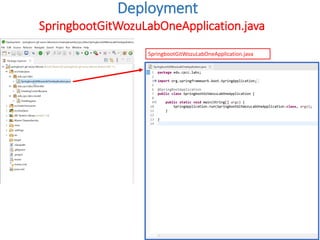
SpringbootGitWozuLabOneApplication.java
Deployment
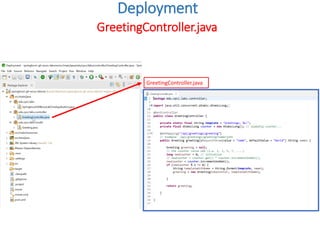
GreetingController.java
Deployment
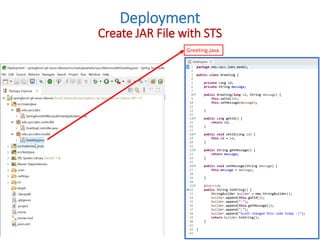
Create JAR File with STS
Deployment
Greeting.java
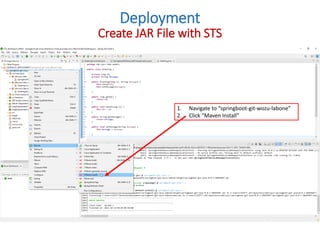
1. Navigate to “springboot-git-wozu-labone”
2. Click “Maven Install”
Create JAR File with STS
Deployment
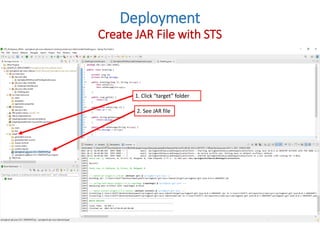
1. Click “target” folder
2. See JAR file
Create JAR File with STS
Deployment
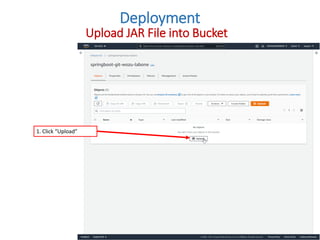
Upload JAR File into Bucket
1. Click “Upload”
Deployment
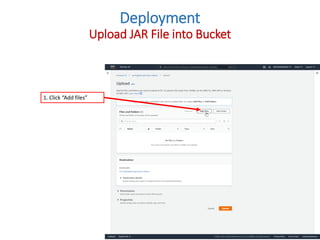
1. Click “Add files”
Upload JAR File into Bucket
Deployment
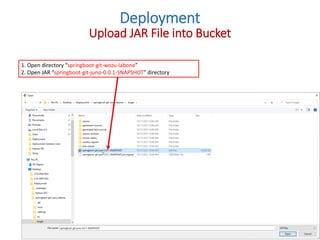
1. Open directory “springboot-git-wozu-labone”
2. Open JAR “springboot-git-juno-0.0.1-SNAPSHOT” directory
Upload JAR File into Bucket
Deployment
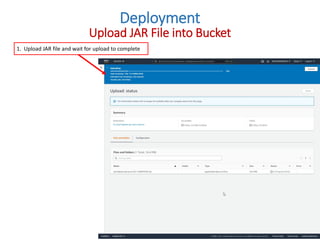
1. Upload JAR file and wait for upload to complete
Upload JAR File into Bucket
Deployment
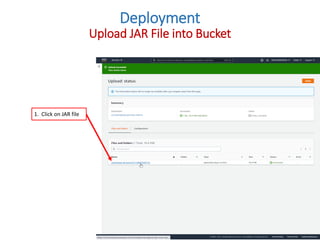
1. Click on JAR file
Upload JAR File into Bucket
Deployment
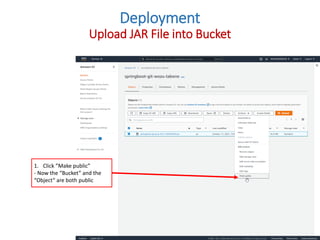
1. Click ”Make public”
- Now the “Bucket” and the
“Object“ are both public
Upload JAR File into Bucket
Deployment
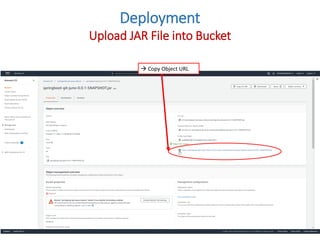
 Copy Object URL
Upload JAR File into Bucket
Deployment
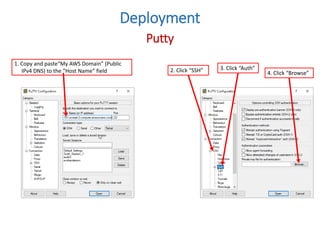
1. Copy and paste“My AWS Domain” (Public
IPv4 DNS) to the “Host Name” field 2. Click “SSH” 3. Click “Auth”
4. Click “Browse”
Putty
Deployment
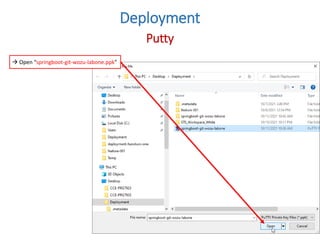
 Open “springboot-git-wozu-labone.ppk”
Deployment
Putty
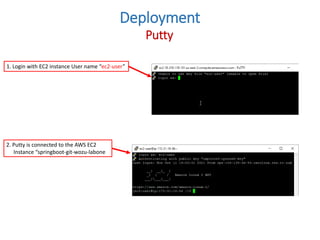
1. Login with EC2 instance User name “ec2-user”
2. Putty is connected to the AWS EC2
Instance “springboot-git-wozu-labone
Deployment
Putty
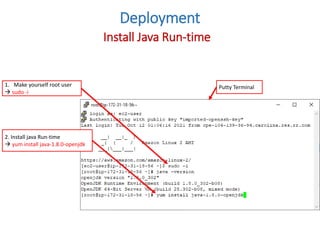
1. Make yourself root user
 sudo -i
Install Java Run-time
Putty Terminal
2. Install java Run-time
 yum install java-1.8.0-openjdk
Deployment
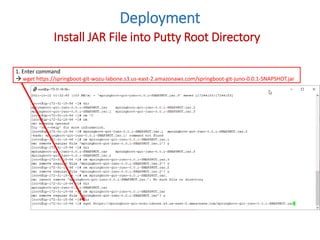
1. Enter command
 wget https://springboot-git-wozu-labone.s3.us-east-2.amazonaws.com/springboot-git-juno-0.0.1-SNAPSHOT.jar
Deployment
Install JAR File into Putty Root Directory
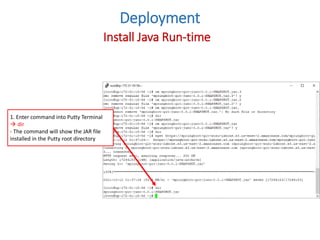
1. Enter command into Putty Terminal
 dir
- The command will show the JAR file
installed in the Putty root directory
Deployment
Install Java Run-time
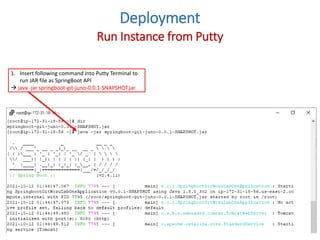
1. Insert following command into Putty Terminal to
run JAR file as SpringBoot API
 java -jar springboot-git-juno-0.0.1-SNAPSHOT.jar
Run Instance from Putty
Deployment
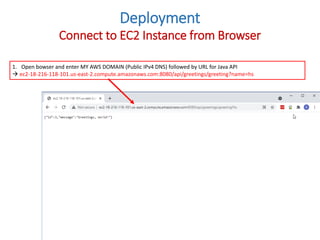
1. Open bowser and enter MY AWS DOMAIN (Public IPv4 DNS) followed by URL for Java API
 ec2-18-216-118-101.us-east-2.compute.amazonaws.com:8080/api/greetings/greeting?name=hs
Connect to EC2 Instance from Browser
Deployment

Deployment of EC2 Instance to Amazon Web Services

  • 1.
     Login toAWS Account  Navigate to your AWS Console Deployment Create EC2 Instance with AWS
  • 2.
    1. Click “Freetier only” 2. Select Amazon Linux 2 AMI (HVM) Deployment Create EC2 Instance with AWS
  • 3.
    1. Click onLaunch Instance 2. Click Configure Instance Details Deployment EC2 Instance Configuration
  • 4.
     Configure InstanceDetails : Do not change these settings  Click “Next” Deployment EC2 Instance Configuration
  • 5.
     Add Storage:Do not change Storage Settings Deployment EC2 Instance Configuration
  • 6.
     Add Key Key: “NAME”  Value: “springboot-git-wozu-labone”  Click “Next” Deployment EC2 Instance Configuration
  • 7.
     Configure SecurityGroup  Add new Security Group  Type: “Custom TCP Rule”  Protocol: TCP  Port Range: 8080  Source: “Anywhere”  Description: “Spring Boot Web Services” Deployment EC2 Instance Configuration
  • 8.
     Launch theInstance  Create a new key pair named “springboot-git-wozu-labone.pem” Deployment EC2 Instance Key Pair
  • 9.
     Save keyto directory “springboot-git-wozu-labone.pem” Deployment EC2 Instance Key Creation
  • 10.
     The instanceis created and initializing  The Instance may take 5-10min to complete initializing Deployment EC2 Instance Initialization
  • 11.
    1. Open PuttyKey Generator 2. Click Load 4. Open “springboot-git-wozu-labone.pem” 3. Click “All Files to show the .pem files” Deployment Putty Key Generator
  • 12.
    1. Click “Saveprivate key” 2. Click “Yes” Deployment Putty Key Generator
  • 13.
    1. Save “privatekey” as “springboot-git-wozu-labone.ppk” Deployment Putty Key Generator
  • 14.
    1. Find “PublicIPv4 DNS” on “Instance Summary” page 2. Click copy icon Deployment AWS EC2 Instance
  • 15.
  • 16.
    1. Click “EC2Instance Connect” 2. Locate the User name “ec2-user” 3. Open Notepad and document the User name “ec2-user” Deployment Connect to AWS EC2 Instance
  • 17.
     Document :“User name”  Document : “My AWS Domain” (Public IPv4 DNS) Deployment AWS EC2 Instance
  • 18.
    1. Click “Services” 1.Click “S3” Create Bucket for EC2 Instance Deployment
  • 19.
    1. Name Bucket“springboot-git-wozu-labone” Deployment Create Bucket for EC2 Instance
  • 20.
    1. Uncheck “Blockall public access” 2. Click checkbox “I acknowledge…” Deployment Create Bucket for EC2 Instance
  • 21.
    1. Click “CreateBucket” Deployment Create Bucket for EC2 Instance
  • 22.
    1. Bucket iscreated Deployment Create Bucket for EC2 Instance
  • 23.
  • 24.
  • 25.
    Create JAR Filewith STS Deployment Greeting.java
  • 26.
    1. Navigate to“springboot-git-wozu-labone” 2. Click “Maven Install” Create JAR File with STS Deployment
  • 27.
    1. Click “target”folder 2. See JAR file Create JAR File with STS Deployment
  • 28.
    Upload JAR Fileinto Bucket 1. Click “Upload” Deployment
  • 29.
    1. Click “Addfiles” Upload JAR File into Bucket Deployment
  • 30.
    1. Open directory“springboot-git-wozu-labone” 2. Open JAR “springboot-git-juno-0.0.1-SNAPSHOT” directory Upload JAR File into Bucket Deployment
  • 31.
    1. Upload JARfile and wait for upload to complete Upload JAR File into Bucket Deployment
  • 32.
    1. Click onJAR file Upload JAR File into Bucket Deployment
  • 33.
    1. Click ”Makepublic” - Now the “Bucket” and the “Object“ are both public Upload JAR File into Bucket Deployment
  • 34.
     Copy ObjectURL Upload JAR File into Bucket Deployment
  • 35.
    1. Copy andpaste“My AWS Domain” (Public IPv4 DNS) to the “Host Name” field 2. Click “SSH” 3. Click “Auth” 4. Click “Browse” Putty Deployment
  • 36.
  • 37.
    1. Login withEC2 instance User name “ec2-user” 2. Putty is connected to the AWS EC2 Instance “springboot-git-wozu-labone Deployment Putty
  • 38.
    1. Make yourselfroot user  sudo -i Install Java Run-time Putty Terminal 2. Install java Run-time  yum install java-1.8.0-openjdk Deployment
  • 39.
    1. Enter command wget https://springboot-git-wozu-labone.s3.us-east-2.amazonaws.com/springboot-git-juno-0.0.1-SNAPSHOT.jar Deployment Install JAR File into Putty Root Directory
  • 40.
    1. Enter commandinto Putty Terminal  dir - The command will show the JAR file installed in the Putty root directory Deployment Install Java Run-time
  • 41.
    1. Insert followingcommand into Putty Terminal to run JAR file as SpringBoot API  java -jar springboot-git-juno-0.0.1-SNAPSHOT.jar Run Instance from Putty Deployment
  • 42.
    1. Open bowserand enter MY AWS DOMAIN (Public IPv4 DNS) followed by URL for Java API  ec2-18-216-118-101.us-east-2.compute.amazonaws.com:8080/api/greetings/greeting?name=hs Connect to EC2 Instance from Browser Deployment