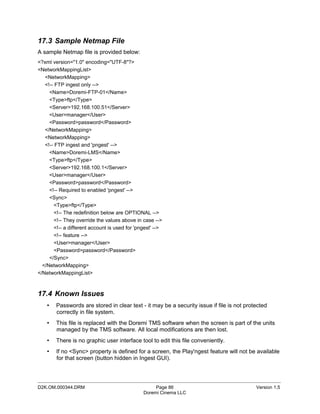
DCP-2000
                               DIGITAL CINEMA SERVER


             Field Installer
                              Manual


                                       Version 1.5


_____________________________________________________________________________________________
D2K.OM.000344.DRM                          Page 1                                  Version 1.5
                                      Doremi Cinema LLC
Table of Contents
1 INTRODUCTION....................................................................................................................................12
   1.1 PURPOSE.............................................................................................................................................12
   1.2 PRESENTATION......................................................................................................................................12
   1.3 APPLICABILITY.......................................................................................................................................12
2 CAUTION ..............................................................................................................................................13
   2.1 DRIVES INSERTION.................................................................................................................................13
     2.1.1 General Rules...........................................................................................................................13
     2.1.2 HDDs Shipment.........................................................................................................................13
   2.2 PROPER POWER OFF.............................................................................................................................14
3 DCP-2000 PRESENTATION..................................................................................................................15
   3.1 DCP-2000 FRONT PANEL.....................................................................................................................15
   3.2 DCP-2000 REAR PANEL.......................................................................................................................17
4 REAR PANEL CONNECTORS..............................................................................................................18
   4.1 VGA CABLE CONNECTION FOR SERVER LCD SCREEN USAGE.......................................................................18
   4.2 REAR PANEL CARD SLOT CONNECTORS ....................................................................................................19
     4.2.1 Card Slot Connectors Overview................................................................................................19
     4.2.2 HD-SDI Serial Digital Interface / Dolphin DCI Decoder Card.....................................................20
     4.2.3 Digital Audio (AES/EBU)...........................................................................................................22
     4.2.4 Analog Audio ............................................................................................................................23
   4.3 DCP-2000 MOTHERBOARD CONNECTIONS.................................................................................................23
     4.3.1 Motherboard Connectors...........................................................................................................23
     4.3.2 Keyboard & Mouse PS-2 Connectors........................................................................................24
     4.3.3 Serial Port..................................................................................................................................24
     4.3.4 VGA...........................................................................................................................................24
     4.3.5 USB Ports..................................................................................................................................24
     4.3.6 Ethernet.....................................................................................................................................24
5 DCP-2000 IP ADDRESS........................................................................................................................25
6 DEVICE MANAGER SETUP..................................................................................................................27
   6.1 PROJECTOR(S) MANAGEMENT...................................................................................................................27
     6.1.1 Adding a Projector.....................................................................................................................27
     6.1.2 Removing a Projector................................................................................................................29
     6.1.3 Dual Projector for 3D Usage......................................................................................................29
   6.2 AUTOMATION LIBRARIES MANAGEMENT........................................................................................................30
     6.2.1 eCNA Device.............................................................................................................................30
     6.2.2 JNior Device..............................................................................................................................31
   6.3 RAW DEVICE........................................................................................................................................32
     6.3.1 Raw Device Addition.................................................................................................................32
     6.3.2 Raw Device Removal................................................................................................................32
   6.4 ISE1 DEVICE.......................................................................................................................................33
   6.5 CSS DEVICE.......................................................................................................................................33
   6.6 3D SETUP...........................................................................................................................................33
     6.6.1 Projector Configuration for 3D or 48fps.....................................................................................33
     6.6.2 Dolby 3D Support......................................................................................................................33
     6.6.3 RealD 3D Support.....................................................................................................................33
     6.6.4 Sensio 3D Support....................................................................................................................33
   6.7 CLOSED CAPTION SUPPORT.....................................................................................................................33
7 AUTOMATION SETUP: MACRO EDITOR USAGE...............................................................................34

_____________________________________________________________________________________________
D2K.OM.000344.DRM                                                   Page 2                                                                  Version 1.5
                                                               Doremi Cinema LLC
7.1 MACRO EDITOR INTERFACE OVERVIEW.......................................................................................................34
   7.2 AUTOMATION CUE TAB...........................................................................................................................35
     7.2.1 Macro Creation..........................................................................................................................35
     7.2.2 Action Insertion..........................................................................................................................36
     7.2.3 Action List Management............................................................................................................39
     7.2.4 Macro Saving............................................................................................................................39
   7.3 TRIGGER CUE TAB.................................................................................................................................40
     7.3.1 Trigger Cue Tab Overview........................................................................................................40
     7.3.2 Trigger Cue Creation.................................................................................................................40
     7.3.3 Connection to an Event.............................................................................................................41
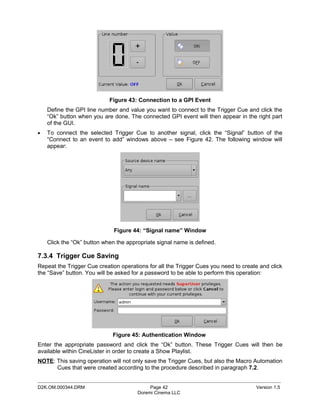
     7.3.4 Trigger Cue Saving....................................................................................................................42
   7.4 PRE-DEFINED MACRO USAGE...................................................................................................................43
   7.5 DEFAULT CUES.....................................................................................................................................43
   7.6 STARTUP SCRIPTS.................................................................................................................................43
8 TIME ZONE SETUP...............................................................................................................................44
   8.1 CHECKING THE TIME ZONE......................................................................................................................44
   8.2 CHANGING THE TIME ZONE......................................................................................................................44
9 CONTROL PANEL.................................................................................................................................45
   9.1 ACCOUNT MANAGER GUI.......................................................................................................................46
   9.2 LANGUAGE SETUP..................................................................................................................................49
   9.3 LICENSE MANAGER................................................................................................................................50
   9.4 LIVE MANAGER ....................................................................................................................................52
10 VENDOR SPECIFIC PROJECTOR SETUP INSTRUCTIONS.............................................................55
   10.1 ADDING A CHRISTIE PROJECTOR.............................................................................................................55
   10.2 ADDING A NEC PROJECTOR..................................................................................................................56
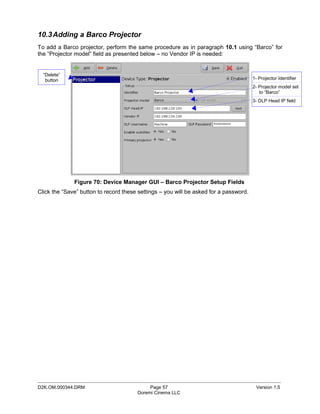
   10.3 ADDING A BARCO PROJECTOR................................................................................................................57
11 DCP-2000 SOFTWARE/FIRMWARE USB UPGRADE INSTRUCTIONS............................................58
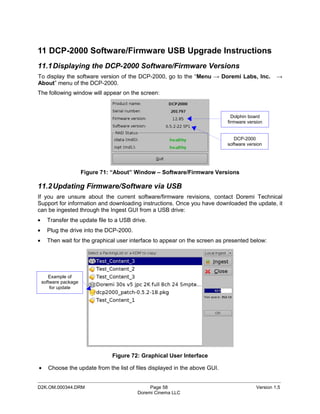
   11.1 DISPLAYING THE DCP-2000 SOFTWARE/FIRMWARE VERSIONS.....................................................................58
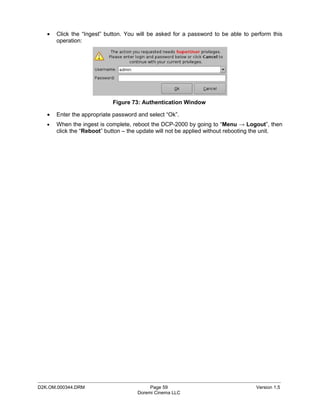
   11.2 UPDATING FIRMWARE/SOFTWARE VIA USB...............................................................................................58
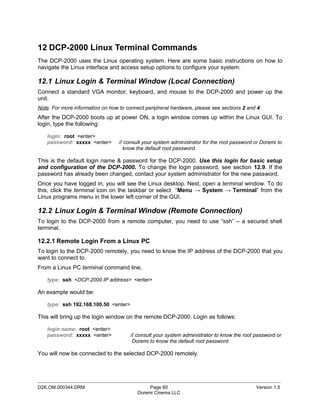
12 DCP-2000 LINUX TERMINAL COMMANDS.......................................................................................60
   12.1 LINUX LOGIN & TERMINAL WINDOW (LOCAL CONNECTION)...........................................................................60
   12.2 LINUX LOGIN & TERMINAL WINDOW (REMOTE CONNECTION)........................................................................60
     12.2.1 Remote Login From a Linux PC..............................................................................................60
     12.2.2 Remote Login From a Windows PC........................................................................................61
   12.3 DISPLAYING THE DOLPHIN FIRMWARE/SOFTWARE VERSION...........................................................................61
   12.4 GENERATING STATUS REPORTS.............................................................................................................61
   12.5 SOFTWARE/FIRMWARE UPGRADE............................................................................................................62
     12.5.1 Sending the Software File to the DCP-2000............................................................................62
     12.5.2 Performing the Software Upgrade...........................................................................................62
     12.5.3 Sending the Firmware File to the DCP-2000...........................................................................62
     12.5.4 Performing the Firmware Upgrade..........................................................................................63
   12.6 NETWORK RESTARTING........................................................................................................................63
   12.7 RAID..............................................................................................................................................63
     12.7.1 RAID Failure Identification.......................................................................................................63
     12.7.2 RAID Reinit..............................................................................................................................64
   12.8 INGEST FROM ETHERNET (FTP SERVER).................................................................................................64
     12.8.1 Uploading Files to a Remote DCP-2000 via FTP....................................................................64
   12.9 CHANGING THE LINUX LOGIN PASSWORD.................................................................................................65
   12.10 CHANGING THE LINUX DISPLAY RESOLUTION...........................................................................................65
13 TROUBLESHOOTING.........................................................................................................................66
   13.1 DCP-2000 BIOS SETTINGS..............................................................................................................66
_____________________________________________________________________________________________
D2K.OM.000344.DRM                                                   Page 3                                                                 Version 1.5
                                                               Doremi Cinema LLC
13.1.1 BIOS Setting for Intel SE7221 Motherboard............................................................................66
     13.1.2 BIOS Setting for SuperMicro X7SBE Motherboard..................................................................67
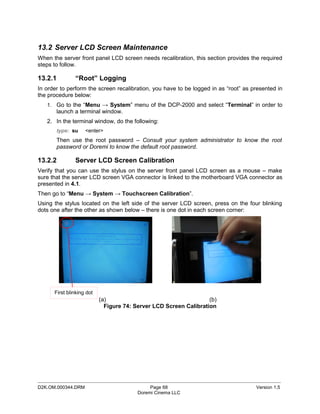
   13.2 SERVER LCD SCREEN MAINTENANCE.....................................................................................................68
     13.2.1 “Root” Logging.........................................................................................................................68
     13.2.2 Server LCD Screen Calibration...............................................................................................68
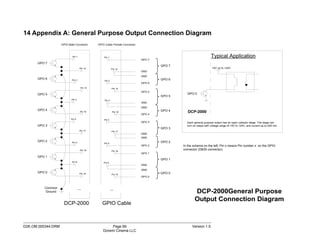
14 APPENDIX A: GENERAL PURPOSE OUTPUT CONNECTION DIAGRAM.......................................69
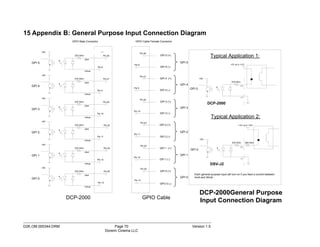
15 APPENDIX B: GENERAL PURPOSE INPUT CONNECTION DIAGRAM...........................................70
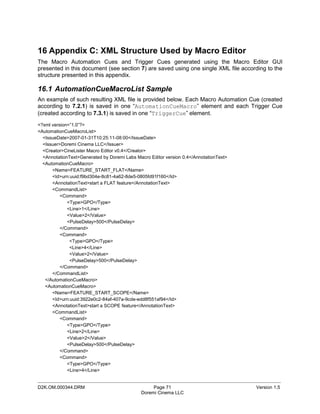
16 APPENDIX C: XML STRUCTURE USED BY MACRO EDITOR.........................................................71
   16.1 AUTOMATIONCUEMACROLIST SAMPLE.....................................................................................................71
   16.2 AUTOMATIONCUEMACROLIST STRUCTURE................................................................................................72
     16.2.1 IssueDate Node.......................................................................................................................73
     16.2.2 Issuer Node.............................................................................................................................73
     16.2.3 Creator Node...........................................................................................................................73
     16.2.4 AnnotationText Node...............................................................................................................73
     16.2.5 AutomationCueMacro Nodes..................................................................................................73
     16.2.6 Command Node [optional].......................................................................................................74
     16.2.7 TriggerCue Node [optional].....................................................................................................77
   16.3 SCHEMA...........................................................................................................................................79
   16.4 XML DIAGRAM LEGEND.......................................................................................................................81
     16.4.1 Element symbols.....................................................................................................................81
     16.4.2 Model symbols ("compositors")...............................................................................................82
   16.5 TYPES..............................................................................................................................................82
   16.6 MODEL GROUPS AND REFERENCES..........................................................................................................83
17 ANNEX D: NETMAP CONFIGURATION FILE.....................................................................................84
   17.1    OVERVIEW ........................................................................................................................................84
   17.2    NETMAP FILE STRUCTURE....................................................................................................................84
   17.3    SAMPLE NETMAP FILE.........................................................................................................................86
   17.4    KNOWN ISSUES..................................................................................................................................86
18 ANNEX E: DEVICE MANAGER CONFIGURATION FOR LICENSED FEATURES............................87
   18.1 DOLBY 3D CONFIGURATION..................................................................................................................87
   18.2 REALD 3D CONFIGURATION.................................................................................................................87
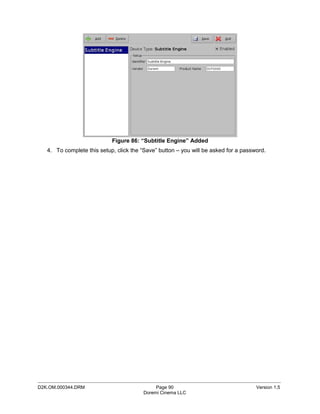
   18.3 SUBTITLE ENGINE CONFIGURATION..........................................................................................................88
19 ACRONYMS........................................................................................................................................91
20 DOCUMENT REVISION HISTORY......................................................................................................92


_____________________________________________________________________________________________
D2K.OM.000344.DRM                                                   Page 4                                                                   Version 1.5
                                                               Doremi Cinema LLC
WARRANTY
Doremi's warranty obligations are limited to the terms set forth below:

• Doremi Labs, Inc. ("Doremi") warrants this hardware product against defects in materials and workmanship for a period of ONE
  (1) YEAR from the date of original retail purchase.

• If you discover a defect, Doremi will, at its option, repair or replace this product at no charge to you, provided you return it during
  the warranty period, with transportation charges prepaid, to your nearest Doremi Labs repair facility. To each product returned for
  warranty service, please attach your name, address, telephone number, and a copy of the bill of sale bearing the appropriate
  Doremi serial numbers as proof of date of the original retail purchase. You will also need to contact Doremi Labs technical
  support to receive a return authorization number (RMA).

• This warranty applies only to hardware products manufactured by or for Doremi that can be identified by the "Doremi Labs"
  trademark, trade name, or logo affixed on them. Doremi software is warranted pursuant to a separate written statement packed
  with the software. Doremi does not warrant any products that are not Doremi products. This warranty does not apply if the
  product has been damaged by accident, abuse, misuse, or misapplication; if the product has been modified without the written
  permission of Doremi; or if any Doremi serial number has been removed or defaced.

• THE WARRANTY AND REMEDIES SET FORTH ABOVE ARE EXCLUSIVE AND IN LIEU OF ALL OTHERS, WHETHER ORAL
  OR WRITTEN, EXPRESSED OR IMPLIED. DOREMI SPECIFICALLY DISCLAIMS ANY AND ALL IMPLIED WARRANTIES,
  INCLUDING, WITHOUT LIMITATION, WARRANTIES OF MERCHANTABILITY AND FITNESS FOR A PARTICULAR
  PURPOSE. No Doremi distributor, agent, or employee is authorized to make any modification, extension, or addition to this
  warranty.

• DOREMI IS NOT RESPONSIBLE FOR SPECIAL, INCIDENTAL, OR CONSEQUENTIAL DAMAGES RESULTING FROM ANY
  BREACH OF WARRANTY, OR UNDER ANY OTHER LEGAL THEORY, INCLUDING BUT NOT LIMITED TO LOST PROFITS,
  DOWNTIME, GOODWILL, DAMAGE TO OR REPLACEMENT OF EQUIPMENT AND PROPERTY, AND ANY COSTS OF
  RECOVERING, REPROGRAMMING, OR REPRODUCING ANY PROGRAM OR DATA STORED IN OR USED WITH DOREMI
  PRODUCTS.

• Any repairs made after the initial one (1) year warranty period will be billed to the client (all shipping, parts and labor).

• The out of warranty repairs themselves are warranted for 90 days (from the date the repaired unit is shipped back to the client).
  Any other defects found during the 90 days will be billed to the client (all shipping, parts and labor).


_____________________________________________________________________________________________
D2K.OM.000344.DRM                                             Page 5                                                         Version 1.5
                                                         Doremi Cinema LLC
Software License Agreement
THIS SOFTWARE LICENSE AGREEMENT (this “Agreement”) is provided by Doremi Labs, Inc. (“Licensor”) to you, the customer
(the “Customer”). PLEASE READ IT’S TERMS CAREFULLY, AS THE CUSTOMER’S USE OF THE SOFTWARE WILL
CONSTITUTE THE CUSTOMER’S ACCEPTANCE OF THE TERMS OF THIS AGREEMENT.

1. License. Licensor hereby grants to the Customer a non-transferable (except as otherwise provided herein) and non-exclusive
license to use the software and associated documentation being provided with the Doremi Labs equipment being acquired by the
Customer (respectively, the “Software” and the “Documentation”) on a single piece of Doremi Labs equipment at one site. The
Software and the piece of Doremi Labs equipment must remain at the same location for the term of this license. The number of
users of the Software is not limited and the users are not required to be personally identified to Licensor.
2. Restrictions. Customer acknowledges that the Software and its structure, organization and source code constitute valuable trade
secrets of Licensor and its suppliers. Accordingly, Customer agrees not to and shall not allow others to (a) modify, adapt, alter,
translate, or create derivative works from the Software; (b) merge the Software with other software; (c) sublicense, lease, rent, loan
or otherwise transfer the Software to any third party; (d) make the Software available to any third party as part of any time-sharing,
ASP, or service bureau arrangement or otherwise operate the Software for the benefit of any third party; (e) reverse engineer,
decompile, disassemble or otherwise attempt to derive the source code for the Software (except to the extent the provisions of this
clause (e) are expressly prohibited by applicable law); or (f) otherwise use or copy the Software except as expressly allowed in
Section 1. Title in, ownership of, and all right associated with the Software shall remain vested in the Licensor. Licensor reserves all
rights not expressly granted to the Customer.
3. Confidentiality of the Software. The Customer acknowledges and agrees that the Software and the Documentation constitute
valuable proprietary products and trade secrets of the Licensor embodying substantial creative efforts and confidential information,
ideas and expressions. The Customer agrees to maintain in all respects the confidentiality of the Software including, without
limitation, agreeing not to disclose or otherwise make available to any other person or entity, in any manner, the Software in any
form whatsoever, except that such disclosure or availability shall be permitted to an employee of the Customer whose duties and
responsibilities require access to the Software in the course of his or her employment or to agents or independent contractors of the
Customer performing maintenance or support services requiring access to the Software. The Customer further agrees not to alter or
remove any copyright or other proprietary rights notice or identification which indicates the Licensor’s ownership from any part of the
Software.
4. License Non-Transferable. Neither the license granted by this Agreement nor any copies of the software, the documentation, or
any other materials delivered by the Licensor to the Customer pursuant to this Agreement may, in whole or in part, be assigned,
sublicensed, loaned out, distributed, or otherwise transferred by the Customer to any other person or entity without the prior written
consent of the Licensor, except as provided below. Any attempt to assign, sublicense, loan, distribute or otherwise transfer such
materials in violation of the terms of this Agreement shall be deemed null and void. If the Customer desires to transfer the license
granted by this Agreement in connection with a sale of the Doremi Labs equipment being purchased by another customer of
Doremi, the Licensor hereby consents to the assignment of the license provided (a) such sale otherwise complies with the terms of
this agreement and applicable law; (b) the transferee reads and agrees to accept the terms and conditions of the agreement; and (c)
the transferee must be another customer of Doremi.
5. Export by Law Assurances. The Customer agrees and certifies that neither the Software and documentation nor any direct
product thereof is being or will be downloaded, shipped, transferred, exported, or re-exported, directly or indirectly, into any country
to which export is prohibited by the laws and regulations of the United States.
6. Government End Users. If acquiring the Software on behalf of any unit or agent of the United States government, the Customer
agrees that: (a) the Software is “Commercial Computer Software” as the term is defined in paragraph 27.401 of the DoD
Supplement to the Federal Acquisition Regulations (the “Supplement”) or is within the equivalent classification of any other federal
agencies’ regulations; (b) the Software was developed at private expense, and no part of it was developed with government funds:
(c) the government’s use of the Software is subject to “Restricted Rights” as that term is defined in clause 52.227-7013 (b) (3) (ii) of
the supplement or in the equivalent clause of any other federal agencies’ regulations; (d) the Software is a “trade secret’ of the
licensor for all purposes of the Freedom of Information Act; and (e) each copy of the Software will contain the Following Restricted
Rights Legend:
                                                     “Restricted Rights Legend”
Use, duplication, or disclosure is subject to restriction as set forth in the subdivision (b) (3) (ii) of the Rights in the Technical Data
and Computer Software clause at FAR 52.227-7013. Manufacturer: Doremi Labs, Inc., 1020 Chestnut Street, Burbank, CA 91506.
The Customer agrees to indemnify Licensor for any liability, loss, costs and expense (including court cost and reasonable attorney’s
fees) arising out of any breach of the provisions of this Agreement relating to use by the government.
7. Term. The license is effective until terminated. Customers may terminate it at any time by destroying the Software together with
all copies permitted by this Agreement. Licensor may terminate this license upon thirty (30) days prior written notice to Customer if
Customer materially breaches any provision of this Agreement and fails to cure such breach, if curable, during such thirty (30) day
period; provided that if Customer breaches the provisions of Sections 2 or 3, Licensor shall have the right to terminate this
Agreement immediately upon written notice to Customer. The license will also terminate upon conditions set forth elsewhere in this
Agreement. The Customer agrees upon such termination to destroy all copies of the Software.


_____________________________________________________________________________________________
D2K.OM.000344.DRM                                            Page 6                                                        Version 1.5
                                                        Doremi Cinema LLC
8. Disclaimer of Warranty.
THE SOFTWARE IS PROVIDED “AS IS” WITHOUT WARRANTY OF ANY KIND, EITHER EXPRESS OR IMPLIED, WITH
RESPECT TO ITS MERCHANDABILITY OR ITS FITNESS FOR ANY PARTICULAR PURPOSE. THE ENTIRE RISK AS TO THE
QUALITY AND PERFORMANCE OF THE SOFTWARE IS WITH THE CUSTOMER. SHOULD THE SOFTWARE PROVE
DEFECTIVE, THE CUSTOMER (AND NOT LICENSOR OR A LICENSOR AUTHORIZED DISTRIBUTOR) ASSUMES THE ENTIRE
COST OF ALL NECESSARY SERVICING, REPAIRING, OR CORRECTION.
LICENSOR DOES NOT WARRANT THAT THE FUNCTIONS CONTAINED IN THE SOFTWARE WILL MEET THE CUSTOMER’S
REQUIREMENTS OR THAT THE OPERATION OF THE SOFTWARE WILL BE UNINTERRUPTED OR ERROR FREE OR THAT
DEFECTS IN THE SOFTWARE WILL BE CORRECTED. IF ANY MODEL OR SAMPLE WAS SHOWN TO THE CUSTOMER,
SUCH A MODEL OR SAMPLE WAS USED MERELY TO ILLUSTRATE THE GENERAL TYPE AND QUALITY OF THE
SOFTWARE AND NOT TO REPRESENT THAT THE SOFTWARE WOULD NECESSARILY CONFORM TO SUCH A MODEL OR
SAMPLE.
Some states do not allow the exclusion of implied warranties, so the above exclusion may not apply to the Customer.
9. Limitation of Remedies. The Licensor shall not, under any circumstances, be liable to the Customer for any indirect,
consequential or incidental damages arising out of the use, or results of use of, the software and documentation or otherwise
relating to the functioning thereof or arising out of this agreement or any breach of this agreement by the Licensor, even if the
Licensor has been advised of the possibility of such damages. Licensor’s liability to the Customer for actual damages for any cause
whatsoever, and regardless of the form of the action, will be limited to the greater of $300 or the money paid for the Software that
caused the damages or that is the subject matter of, or is directly related to, the cause of action. Some states do not allow the
limitation or exclusion of liability for incidental or consequential damages so the above limitation or exclusion may not apply to
customer.
10. General.
(a) The terms of this Agreement are intended as a final expression of the parties’ agreement with respect to such terms as are
included in this Agreement and may not be contradicted by evidence of any prior or contemporaneous agreement. This Agreement
constitutes the complete and exclusive statement of its terms and no extrinsic evidence whatsoever may be introduced in any
judicial proceeding, if any, involving this Agreement.
(b) This Agreement shall be construed and enforced in accordance with the laws of the State of California applicable to contracts
made and to be performed entirely in the State of California without regard to such state’s conflict of laws provisions.
(c) If any portion of any provision of this Agreement is ruled invalid or unenforceable under any applicable law, that provision will be
enforced to the maximum extent permissible, and the remainder of this Agreement shall continue in full force and effect.
(d) All waivers must be in writing. Any waiver or failure to enforce any provision of this Agreement on one occasion will not be
deemed a waiver of any other provision or of such provision on any other occasion.


_____________________________________________________________________________________________
D2K.OM.000344.DRM                                           Page 7                                                       Version 1.5
                                                       Doremi Cinema LLC
WARNING!!

                              THIS DEVICE MUST BE GROUNDED.


                                        IMPORTANT
Power requirements for electrical equipment vary from area to area. Please ensure that your
DCP-2000 meets the power requirements in your area. If in doubt, consult a qualified electrician
or your Doremi Labs dealer.

                                             AVIS
Le voltage peut différer d’un pays a l’autre. Il faut que le DCP-2000 soit ajusté au voltage du
pays.
LA SOURCE DE PUISSANCE DOIT AVOIR UN CONDUCTEUR CONNECTE A LA TERRE.
Toutes réparations doivent être effectuées par une personne qualifiée. AFIN D’EVITER UN
CHOC ELECTRIQUE, VEUILLEZ NE PAS ENLEVER LE CAPOT.

                               DCP-2000 Power Ratings
   •   AC Input: 100-240V~, 6-3A, 60-50Hz
   •   Maximum Power Consumption: 300W


WARNING: MULTIPLE        SOURCES      OF   SUPPLY;    DISCONNECT      ALL    SOURCES     BEFORE
SERVICING.

               DCP-2000 Rack Mount and Thermal Information
   •   Maximum operating ambient temperature is 35°C.
   •   Never restrict the air flow through the devices’ fan or vents.
   •   When installing equipment into a rack, distribute the units evenly. Otherwise hazardous
       conditions may be created by an uneven weight distribution.
   •   Connect the unit only to a properly rated supply circuit. Reliable earthing (grounding) of
       rack-mounted equipment should be maintained


                PROTECTING YOURSELF AND THE DCP-2000
Never touch the AC plug with wet hands.
Always disconnect the DCP-2000 from the power supply by pulling on the plug, not the cord.
Allow only a Doremi Labs, Inc. dealer or qualified professional engineer to repair or reassemble
the DCP-2000. Apart from voiding the warranty, unauthorized engineers might touch live
internal parts and receive a serious electric shock.
Do not put, or allow anyone to put, any object, especially metal objects into the DCP-2000.
Use only an AC power supply. Never use a DC power supply.
_____________________________________________________________________________________________
D2K.OM.000344.DRM                           Page 8                                      Version 1.5
                                       Doremi Cinema LLC
If water or any other liquid is spilled into or onto the DCP-2000, disconnect the power and call
your Doremi dealer.
Make sure the unit is well ventilated and away from direct sunlight. To avoid damage to internal
circuitry, as well as the external finish, keep the DCP-2000 away from sources of direct heat
(heater vents, stoves, radiators, etc.)
Avoid using flammable aerosols, etc. near the DCP-2000. They may damage the surface and
may ignite. Do not use denatured alcohol, paint thinner, or similar chemicals to clean the DCP-
2000. They will damage the finish.
Modification of this equipment is dangerous and can result in the functions of the DCP-2000
being impaired. Never attempt to modify the equipment in any way.

In order to ensure optimum performance of your DCP-2000, select the setup location carefully
and make sure the equipment is used properly. Avoid setting up the DCP-2000 in the following
locations:

   1.   In a humid or dusty environment.
   2.   In a room with poor ventilation.
   3.   On a surface which is not level.
   4.   Inside a moving vehicle where it will be subject to vibration.
   5.   In an extremely hot or cold environment.

                               Removable Drives Warning

Removal of the hot swappable hard drives allows access to pins and traces supplying power to
the hard drive backplane. These are considered as energy hazards.
REMOVAL OF HARD DRIVES MAY ONLY BE PERFORMED BY TRAINED SERVICE
PERSONNEL.
With regards to the energy hazard warning and removable drives, the equipment may only be
used in a restricted access location (not accessible to the general public).

                                            CAUTION

                                Battery is located on the motherboard.

                         Danger of explosion if battery is incorrectly replaced.

                            Replace only with the same or equivalent type
                                recommended by the manufacturer.
                                Dispose of used batteries according
                                 to the manufacturer’s instructions


_____________________________________________________________________________________________
D2K.OM.000344.DRM                              Page 9                                Version 1.5
                                          Doremi Cinema LLC
W A R N IN G !!
        T o p re v e n t fire o r s h o c k h a z a rd , d o n o t e x p o s e th is a p p lia n c e to ra in o r m o is tu re


                  C A U T IO N :
                                                  C A U T IO N

                                                  R IS K O F E L E C T R IC S H O C K
                                                           D O N OT O PEN


                                    T O R E D U C E T H E R IS K O F E L E C T R IC S H O C K ,
                                                                                                                 !
                                    D O N O T R E M O V E C O V E R (O R B A C K ).
                  N O U S E R -S E R V IC E A B L E P A R T S IN S ID E .
                  R E F E R S E R V IC IN G T O Q U A L IF IE D S E R V IC E P E R S O N N E L .


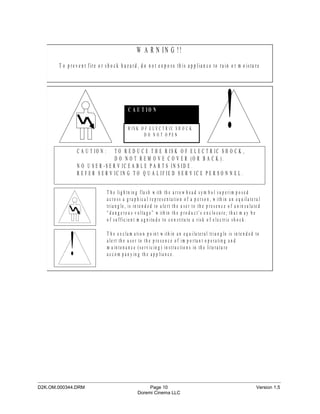
                                    T h e lig h tn in g fla s h w ith th e a rro w h e a d s y m b o l s u p e rim p o s e d
                                    a c ro s s a g ra p h ic a l re p re s e n ta tio n o f a p e rs o n , w ith in a n e q u ila te ra l
                                    tria n g le , is in te n d e d to a le rt th e u s e r to th e p re s e n c e o f u n in s u la te d
                                    “ d a n g e ro u s v o lta g e ” w ith in th e p ro d u c t’s e n c lo s u re ; th a t m a y b e
                                    o f s u ffic ie n t m a g n itu d e to c o n s titu te a ris k o f e le c tric s h o c k .


             !
                                    T h e e x c la m a tio n p o in t w ith in a n e q u ila te ra l tria n g le is in te n d e d to
                                    a le rt th e u s e r to th e p re s e n c e o f im p o rta n t o p e ra tin g a n d
                                    m a in te n a n c e (s e rv ic in g ) in s tru c tio n s in th e lite ra tu re
                                    a c c o m p a n y in g th e a p p lia n c e .


_____________________________________________________________________________________________
D2K.OM.000344.DRM                                            Page 10                                                                  Version 1.5
                                                        Doremi Cinema LLC
CE NOTICE

  Marking by the symbol       indicates compliance of the device to the EMC (Electromagnetic
 Compatibility) directive and to the Low Voltage directive of the European Community. Such a
   marking is indicative that this device meets or exceeds the following technical standard:


   •   EN 55022 "Limits and Methods of Measurement of Radio Interface Characteristics of
                             Information Technology Equipment."


   A "Declaration of Conformity" in accordance with the above standard has been made and is
   on file at Doremi.


_____________________________________________________________________________________________
D2K.OM.000344.DRM                          Page 11                                 Version 1.5
                                      Doremi Cinema LLC
1 Introduction
1.1 Purpose
This manual is designed to guide you through the setup and installation of the DCP-2000. It
provides information about the following steps:
   • Drive insertion
   • Physical connections
   • DCP-2000 IP address setup
   • Projector(s) setup
   • Automation setup
   • Time zone setup
These steps correspond to sections 2 through 8. Additional information is provided for reference
within the other sections of this document as presented in paragraph 1.2 below.

1.2 Presentation
This document is structured according to the following sections:
 •   Section 1: Introduction – Overall presentation of the document
 •   Section 2: CAUTION – Information about proper power off and drive installation
 •   Section 3: DCP-2000 Presentation – Overview of the DCP-2000 server
 •   Section 4: Rear Panel Connectors – Description of the rear panel connectors
 •   Section 5: DCP-2000 IP Address – Procedure to change the DCP-2000 IP addresses
 •   Section 6: Device Manager Setup – Usage of Device Manager to setup connections
     between the DCP-2000, projector(s) and/or devices for automation management
 •   Section 7: Automation Setup – Usage of Macro Editor for automation cues and trigger
     cues setup.
 •   Section 8: Time Zone Setup
 •   Section 9: Vendor Specific Projector Setup Instructions – Information about vendor
     specific setups
 •   Section 10: DCP-2000 Software/Firmware USB Upgrade Instructions – Description on
     how to upgrade the DCP-2000 software/firmware
 •   Section 11: DCP-2000 Linux Terminal Commands – Basic Linux terminal commands
 •   Section 12: Troubleshooting
 •   Section 13: Appendix A: General Purpose Output Connection Diagram
 •   Section 14: Appendix B: General Purpose Input Connection Diagram
 •   Section 15: Appendix C: XML Structure used by Macro Editor
 •   Section 16: Acronyms
 •   Section 17: Document Revision History

1.3 Applicability
This document complies with software version 0.5.4-2.


_____________________________________________________________________________________________
D2K.OM.000344.DRM                           Page 12                                  Version 1.5
                                       Doremi Cinema LLC
2 CAUTION
2.1 Drives Insertion
2.1.1 General Rules
    •   In all cases, do NOT insert or remove drives back if the unit is powered ON.
    •   Drives are preferred to be of the same make and model, and have the same capacity.
    •   Warning: Doremi prohibits mixing SATA I drives with SATA II drives within the same
        RAID.

2.1.2 HDDs Shipment
Drives (HDDs) might be shipped out of the chassis. In this case, insert them BEFORE the
power cables according to the procedure presented below:
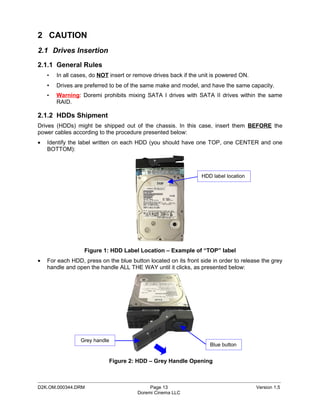
•   Identify the label written on each HDD (you should have one TOP, one CENTER and one
    BOTTOM):


                                                                 HDD label location


                   Figure 1: HDD Label Location – Example of “TOP” label
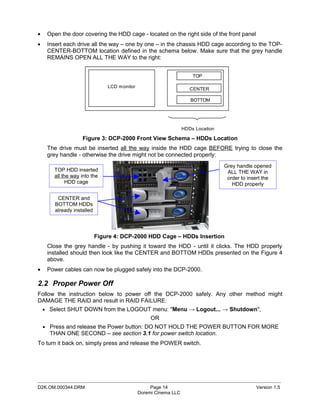
•   For each HDD, press on the blue button located on its front side in order to release the grey
    handle and open the handle ALL THE WAY until it clicks, as presented below:


                 Grey handle
                                                                    Blue button


                            Figure 2: HDD – Grey Handle Opening


_____________________________________________________________________________________________
D2K.OM.000344.DRM                            Page 13                                   Version 1.5
                                        Doremi Cinema LLC
•    Open the door covering the HDD cage - located on the right side of the front panel
•    Insert each drive all the way – one by one – in the chassis HDD cage according to the TOP-
     CENTER-BOTTOM location defined in the schema below. Make sure that the grey handle
     REMAINS OPEN ALL THE WAY to the right:


                                                                      TOP

                                LCD monitor
                                                                     CENTER

                                                                     BOTTOM


                                                                  HDDs Location

                    Figure 3: DCP-2000 Front View Schema – HDDs Location
     The drive must be inserted all the way inside the HDD cage BEFORE trying to close the
     grey handle - otherwise the drive might not be connected properly:
                                                                                  Grey handle opened
       TOP HDD inserted                                                            ALL THE WAY in
       all the way into the                                                        order to insert the
            HDD cage                                                                 HDD properly

         CENTER and
        BOTTOM HDDs
        already installed


                            Figure 4: DCP-2000 HDD Cage – HDDs Insertion
     Close the grey handle - by pushing it toward the HDD - until it clicks. The HDD properly
     installed should then look like the CENTER and BOTTOM HDDs presented on the Figure 4
     above.
•    Power cables can now be plugged safely into the DCP-2000.

2.2 Proper Power Off
Follow the instruction below to power off the DCP-2000 safely. Any other method might
DAMAGE THE RAID and result in RAID FAILURE:
    • Select SHUT DOWN from the LOGOUT menu: "Menu → Logout... → Shutdown",
                                                   OR
    • Press and release the Power button: DO NOT HOLD THE POWER BUTTON FOR MORE
      THAN ONE SECOND – see section 3.1 for power switch location.
To turn it back on, simply press and release the POWER switch.


_____________________________________________________________________________________________
D2K.OM.000344.DRM                                  Page 14                                     Version 1.5
                                              Doremi Cinema LLC
3 DCP-2000 Presentation
Thank you for your choosing the Doremi DCP-2000. The DCP-2000 is a high quality DCI JPEG-
2000 server capable of playing movie or trailer packages in MXF format at up to 250Mbits/sec.

The unit features a dual-link encrypted HD-SDI output capable of 12-bit 4:4:4 2048x1080p24 or
10-bit 4:2:2 for 48fps and 3D applications. Data storage is done on an internal RAID5 disk array.

The DCP-2000 is also capable of playing MPEG2 Interop movies, pre-show and alternative
content playback.

3.1 DCP-2000 Front Panel
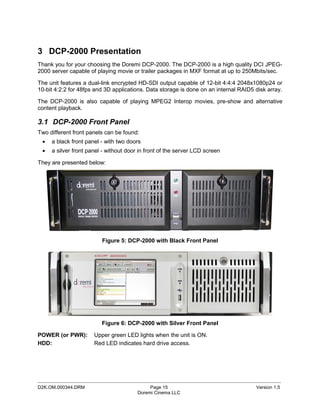
Two different front panels can be found:
 •   a black front panel - with two doors
 •   a silver front panel - without door in front of the server LCD screen

They are presented below:


                         Figure 5: DCP-2000 with Black Front Panel


                         Figure 6: DCP-2000 with Silver Front Panel

POWER (or PWR):       Upper green LED lights when the unit is ON.
HDD:                  Red LED indicates hard drive access.


_____________________________________________________________________________________________
D2K.OM.000344.DRM                            Page 15                                  Version 1.5
                                        Doremi Cinema LLC
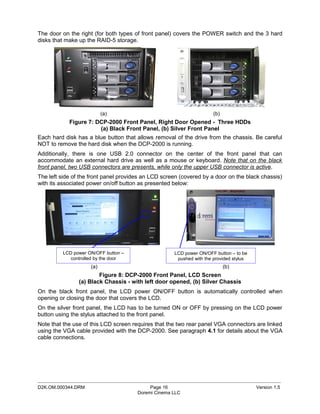
The door on the right (for both types of front panel) covers the POWER switch and the 3 hard
disks that make up the RAID-5 storage.


                          (a)                                         (b)
            Figure 7: DCP-2000 Front Panel, Right Door Opened - Three HDDs
                       (a) Black Front Panel, (b) Silver Front Panel
Each hard disk has a blue button that allows removal of the drive from the chassis. Be careful
NOT to remove the hard disk when the DCP-2000 is running.
Additionally, there is one USB 2.0 connector on the center of the front panel that can
accommodate an external hard drive as well as a mouse or keyboard. Note that on the black
front panel, two USB connectors are presents, while only the upper USB connector is active.
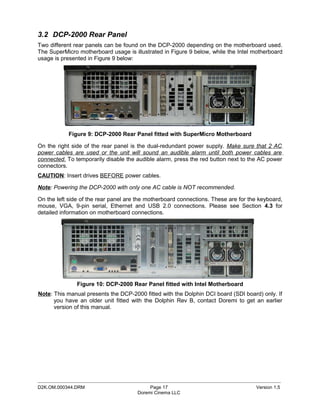
The left side of the front panel provides an LCD screen (covered by a door on the black chassis)
with its associated power on/off button as presented below:


         LCD power ON/OFF button –                   LCD power ON/OFF button – to be
            controlled by the door                    pushed with the provided stylus
                    (a)                                                     (b)
                        Figure 8: DCP-2000 Front Panel, LCD Screen
                (a) Black Chassis - with left door opened, (b) Silver Chassis
On the black front panel, the LCD power ON/OFF button is automatically controlled when
opening or closing the door that covers the LCD.
On the silver front panel, the LCD has to be turned ON or OFF by pressing on the LCD power
button using the stylus attached to the front panel.
Note that the use of this LCD screen requires that the two rear panel VGA connectors are linked
using the VGA cable provided with the DCP-2000. See paragraph 4.1 for details about the VGA
cable connections.


_____________________________________________________________________________________________
D2K.OM.000344.DRM                           Page 16                                     Version 1.5
                                       Doremi Cinema LLC
3.2 DCP-2000 Rear Panel
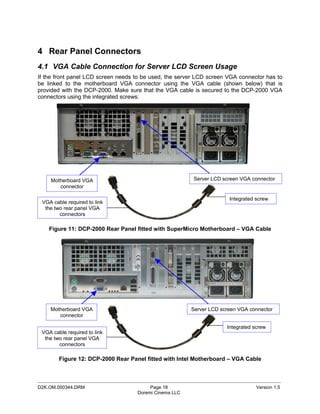
Two different rear panels can be found on the DCP-2000 depending on the motherboard used.
The SuperMicro motherboard usage is illustrated in Figure 9 below, while the Intel motherboard
usage is presented in Figure 9 below:


            Figure 9: DCP-2000 Rear Panel fitted with SuperMicro Motherboard

On the right side of the rear panel is the dual-redundant power supply. Make sure that 2 AC
power cables are used or the unit will sound an audible alarm until both power cables are
connected. To temporarily disable the audible alarm, press the red button next to the AC power
connectors.
CAUTION: Insert drives BEFORE power cables.

Note: Powering the DCP-2000 with only one AC cable is NOT recommended.

On the left side of the rear panel are the motherboard connections. These are for the keyboard,
mouse, VGA, 9-pin serial, Ethernet and USB 2.0 connections. Please see Section 4.3 for
detailed information on motherboard connections.


               Figure 10: DCP-2000 Rear Panel fitted with Intel Motherboard
Note: This manual presents the DCP-2000 fitted with the Dolphin DCI board (SDI board) only. If
      you have an older unit fitted with the Dolphin Rev B, contact Doremi to get an earlier
      version of this manual.


_____________________________________________________________________________________________
D2K.OM.000344.DRM                          Page 17                                  Version 1.5
                                      Doremi Cinema LLC
4 Rear Panel Connectors
4.1 VGA Cable Connection for Server LCD Screen Usage
If the front panel LCD screen needs to be used, the server LCD screen VGA connector has to
be linked to the motherboard VGA connector using the VGA cable (shown below) that is
provided with the DCP-2000. Make sure that the VGA cable is secured to the DCP-2000 VGA
connectors using the integrated screws:


     Motherboard VGA                                       Server LCD screen VGA connector
        connector

                                                                         Integrated screw
 VGA cable required to link
  the two rear panel VGA
        connectors

    Figure 11: DCP-2000 Rear Panel fitted with SuperMicro Motherboard – VGA Cable


    Motherboard VGA                                       Server LCD screen VGA connector
       connector

                                                                        Integrated screw
 VGA cable required to link
  the two rear panel VGA
        connectors

        Figure 12: DCP-2000 Rear Panel fitted with Intel Motherboard – VGA Cable


_____________________________________________________________________________________________
D2K.OM.000344.DRM                          Page 18                                  Version 1.5
                                      Doremi Cinema LLC
4.2 Rear Panel Card Slot Connectors
4.2.1 Card Slot Connectors Overview
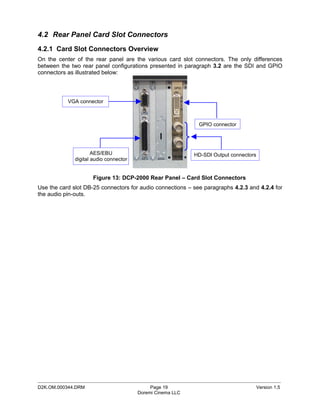
On the center of the rear panel are the various card slot connectors. The only differences
between the two rear panel configurations presented in paragraph 3.2 are the SDI and GPIO
connectors as illustrated below:


           VGA connector


                                                             GPIO connector


                      AES/EBU                               HD-SDI Output connectors
              digital audio connector


                      Figure 13: DCP-2000 Rear Panel – Card Slot Connectors
Use the card slot DB-25 connectors for audio connections – see paragraphs 4.2.3 and 4.2.4 for
the audio pin-outs.


_____________________________________________________________________________________________
D2K.OM.000344.DRM                            Page 19                                   Version 1.5
                                        Doremi Cinema LLC
4.2.2 HD-SDI Serial Digital Interface / Dolphin DCI Decoder Card
Located in the rear panel card slots next to the Analog Audio card (or beside the AES/EBU
audio card if the optional analog audio card is not present) is the standard-definition/high-
definition serial digital interface. This is the Doremi Dolphin DCI decoder card that contains the
JPEG-2000 decoder hardware and BNC serial digital interface connectors.
The DCP-2000 utilizes a dual-link encrypted serial digital interface for output of DCI-compliant
resolutions up to 2048x1080p24 (2K-resolution). It can also operate single-link for lower
resolution material (i.e. trailers, advertisements, etc.).
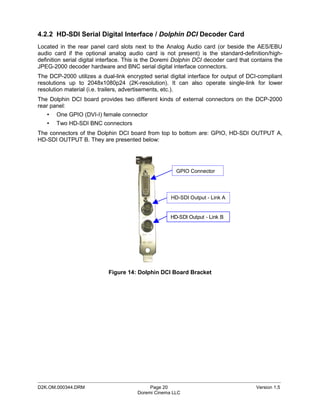
The Dolphin DCI board provides two different kinds of external connectors on the DCP-2000
rear panel:
   •   One GPIO (DVI-I) female connector
   •   Two HD-SDI BNC connectors
The connectors of the Dolphin DCI board from top to bottom are: GPIO, HD-SDI OUTPUT A,
HD-SDI OUTPUT B. They are presented below:


                                                       GPIO Connector


                                                     HD-SDI Output - Link A


                                                     HD-SDI Output - Link B


                            Figure 14: Dolphin DCI Board Bracket


_____________________________________________________________________________________________
D2K.OM.000344.DRM                           Page 20                                    Version 1.5
                                       Doremi Cinema LLC
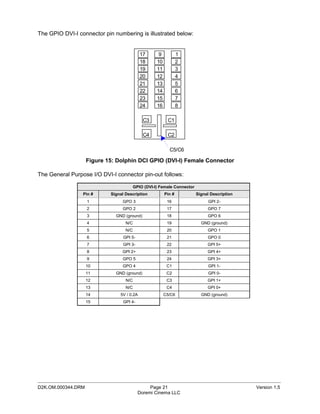
The GPIO DVI-I connector pin numbering is illustrated below:


                                            17       9           1
                                            18      10           2
                                            19      11           3
                                            20      12           4
                                            21      13           5
                                            22      14           6
                                            23      15           7
                                            24      16           8

                                             C3           C1

                                             C4           C2

                                                           C5/C6

                    Figure 15: Dolphin DCI GPIO (DVI-I) Female Connector

The General Purpose I/O DVI-I connector pin-out follows:

                                         GPIO (DVI-I) Female Connector
                 Pin #      Signal Description           Pin #           Signal Description
                    1            GPO 3                    16                   GPI 2-
                    2            GPO 2                    17                  GPO 7
                    3         GND (ground)                18                  GPO 6
                    4              N/C                    19               GND (ground)
                    5              N/C                    20                  GPO 1
                    6             GPI 5-                  21                  GPO 0
                    7             GPI 3-                  22                  GPI 5+
                    8            GPI 2+                   23                  GPI 4+
                    9            GPO 5                    24                  GPI 3+
                    10           GPO 4                    C1                   GPI 1-
                    11        GND (ground)                C2                   GPI 0-
                    12             N/C                    C3                  GPI 1+
                    13             N/C                    C4                  GPI 0+
                    14          5V / 0.2A                C5/C6             GND (ground)
                    15            GPI 4-


_____________________________________________________________________________________________
D2K.OM.000344.DRM                               Page 21                                       Version 1.5
                                           Doremi Cinema LLC
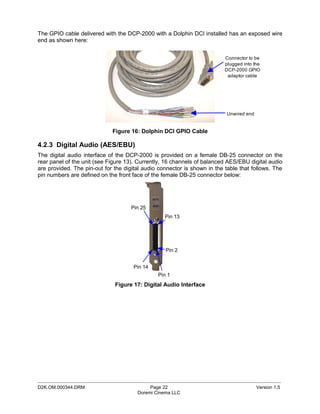
The GPIO cable delivered with the DCP-2000 with a Dolphin DCI installed has an exposed wire
end as shown here:


                                                                          Connector to be
                                                                          plugged into the
                                                                          DCP-2000 GPIO
                                                                           adaptor cable


                                                                          Unwired end


                             Figure 16: Dolphin DCI GPIO Cable

4.2.3 Digital Audio (AES/EBU)
The digital audio interface of the DCP-2000 is provided on a female DB-25 connector on the
rear panel of the unit (see Figure 13). Currently, 16 channels of balanced AES/EBU digital audio
are provided. The pin-out for the digital audio connector is shown in the table that follows. The
pin numbers are defined on the front face of the female DB-25 connector below:


                                     Pin 25
                                                  Pin 13


                                                  Pin 2


                                      Pin 14
                                               Pin 1
                              Figure 17: Digital Audio Interface


_____________________________________________________________________________________________
D2K.OM.000344.DRM                           Page 22                                     Version 1.5
                                       Doremi Cinema LLC
The AES/EBU digital audio DB-25 connector pin-out follows:
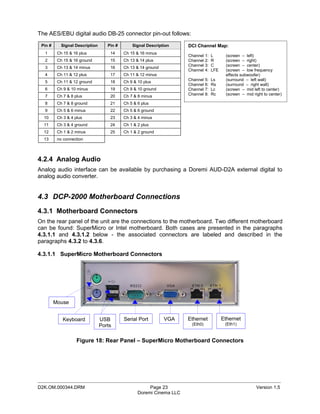
 Pin #      Signal Description      Pin #       Signal Description     DCI Channel Map:
  1       Ch 15 & 16 plus            14     Ch 15 & 16 minus
                                                                       Channel   1:   L      (screen – left)
  2       Ch 15 & 16 ground          15     Ch 13 & 14 plus            Channel   2:   R      (screen – right)
                                                                       Channel   3:   C      (screen – center)
  3       Ch 13 & 14 minus           16     Ch 13 & 14 ground
                                                                       Channel   4:   LFE    (screen – low frequency
  4       Ch 11 & 12 plus            17     Ch 11 & 12 minus                                 effects subwoofer)
                                                                       Channel   5:   Ls     (surround – left wall)
  5       Ch 11 & 12 ground          18     Ch 9 & 10 plus
                                                                       Channel   6:   Rs     (surround – right wall)
  6       Ch 9 & 10 minus            19     Ch 9 & 10 ground           Channel   7:   Lc     (screen – mid left to center)
  7       Ch 7 & 8 plus              20     Ch 7 & 8 minus             Channel   8:   Rc     (screen – mid right to center)

  8       Ch 7 & 8 ground            21     Ch 5 & 6 plus
  9       Ch 5 & 6 minus             22     Ch 5 & 6 ground
  10      Ch 3 & 4 plus              23     Ch 3 & 4 minus
  11      Ch 3 & 4 ground            24     Ch 1 & 2 plus
  12      Ch 1 & 2 minus             25     Ch 1 & 2 ground
  13      no connection


4.2.4 Analog Audio
Analog audio interface can be available by purchasing a Doremi AUD-D2A external digital to
analog audio converter.


4.3 DCP-2000 Motherboard Connections
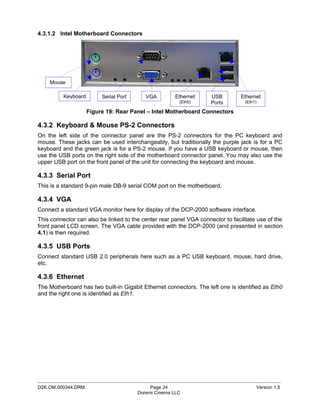
4.3.1 Motherboard Connectors
On the rear panel of the unit are the connections to the motherboard. Two different motherboard
can be found: SuperMicro or Intel motherboard. Both cases are presented in the paragraphs
4.3.1.1 and 4.3.1.2 below - the associated connectors are labeled and described in the
paragraphs 4.3.2 to 4.3.6.

4.3.1.1 SuperMicro Motherboard Connectors


         Mouse


            Keyboard             USB        Serial Port         VGA    Ethernet             Ethernet
                                 Ports                                  (Eth0)               (Eth1)


                    Figure 18: Rear Panel – SuperMicro Motherboard Connectors


_____________________________________________________________________________________________
D2K.OM.000344.DRM                                       Page 23                                              Version 1.5
                                                   Doremi Cinema LLC
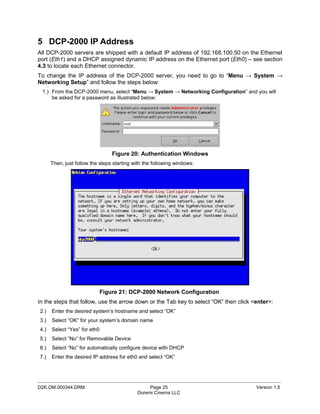
4.3.1.2 Intel Motherboard Connectors


    Mouse

          Keyboard        Serial Port      VGA        Ethernet      USB         Ethernet
                                                        (Eth0)      Ports         (Eth1)

                     Figure 19: Rear Panel – Intel Motherboard Connectors

4.3.2 Keyboard & Mouse PS-2 Connectors
On the left side of the connector panel are the PS-2 connectors for the PC keyboard and
mouse. These jacks can be used interchangeably, but traditionally the purple jack is for a PC
keyboard and the green jack is for a PS-2 mouse. If you have a USB keyboard or mouse, then
use the USB ports on the right side of the motherboard connector panel. You may also use the
upper USB port on the front panel of the unit for connecting the keyboard and mouse.

4.3.3 Serial Port
This is a standard 9-pin male DB-9 serial COM port on the motherboard.

4.3.4 VGA
Connect a standard VGA monitor here for display of the DCP-2000 software interface.
This connector can also be linked to the center rear panel VGA connector to facilitate use of the
front panel LCD screen. The VGA cable provided with the DCP-2000 (and presented in section
4.1) is then required.

4.3.5 USB Ports
Connect standard USB 2.0 peripherals here such as a PC USB keyboard, mouse, hard drive,
etc.

4.3.6 Ethernet
The Motherboard has two built-in Gigabit Ethernet connectors. The left one is identified as Eth0
and the right one is identified as Eth1.


_____________________________________________________________________________________________
D2K.OM.000344.DRM                            Page 24                                   Version 1.5
                                        Doremi Cinema LLC
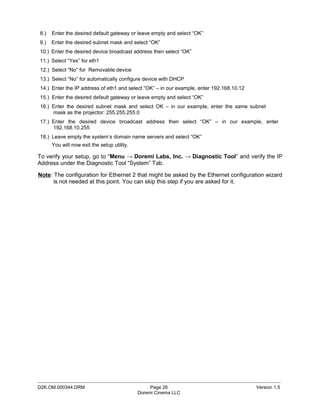
5 DCP-2000 IP Address
All DCP-2000 servers are shipped with a default IP address of 192.168.100.50 on the Ethernet
port (Eth1) and a DHCP assigned dynamic IP address on the Ethernet port (Eth0) – see section
4.3 to locate each Ethernet connector.
To change the IP address of the DCP-2000 server, you need to go to “Menu → System →
Networking Setup” and follow the steps below:
 1.) From the DCP-2000 menu, select “Menu → System → Networking Configuration” and you will
     be asked for a password as illustrated below:


                                  Figure 20: Authentication Windows
      Then, just follow the steps starting with the following windows:


                              Figure 21: DCP-2000 Network Configuration
In the steps that follow, use the arrow down or the Tab key to select “OK” then click <enter>:
2.)   Enter the desired system’s hostname and select “OK”
3.)   Select “OK” for your system’s domain name
4.)   Select “Yes” for eth0
5.)   Select “No” for Removable Device
6.)   Select “No” for automatically configure device with DHCP
7.)   Enter the desired IP address for eth0 and select “OK”


_____________________________________________________________________________________________
D2K.OM.000344.DRM                                Page 25                               Version 1.5
                                            Doremi Cinema LLC
8.)   Enter the desired default gateway or leave empty and select “OK”
9.)   Enter the desired subnet mask and select “OK”
10.) Enter the desired device broadcast address then select “OK”
11.) Select “Yes” for eth1
12.) Select “No” for Removable device
13.) Select “No” for automatically configure device with DHCP
14.) Enter the IP address of eth1 and select “OK” – in our example, enter 192.168.10.12
15.) Enter the desired default gateway or leave empty and select “OK”
16.) Enter the desired subnet mask and select OK – in our example, enter the same subnet
     mask as the projector: 255.255.255.0
17.) Enter the desired device broadcast address then select “OK” – in our example, enter
     192.168.10.255
18.) Leave empty the system’s domain name servers and select “OK”
      You will now exit the setup utility.

To verify your setup, go to “Menu → Doremi Labs, Inc. → Diagnostic Tool” and verify the IP
Address under the Diagnostic Tool “System” Tab.

Note: The configuration for Ethernet 2 that might be asked by the Ethernet configuration wizard
      is not needed at this point. You can skip this step if you are asked for it.


_____________________________________________________________________________________________
D2K.OM.000344.DRM                                 Page 26                                 Version 1.5
                                             Doremi Cinema LLC
6 Device Manager Setup
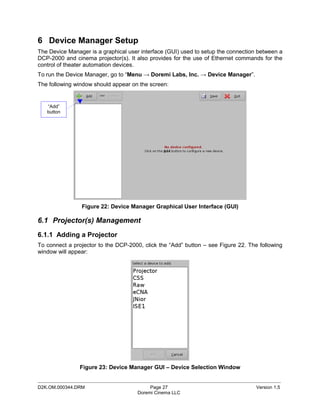
The Device Manager is a graphical user interface (GUI) used to setup the connection between a
DCP-2000 and cinema projector(s). It also provides for the use of Ethernet commands for the
control of theater automation devices.
To run the Device Manager, go to “Menu → Doremi Labs, Inc. → Device Manager”.
The following window should appear on the screen:


   “Add”
   button


                Figure 22: Device Manager Graphical User Interface (GUI)

6.1 Projector(s) Management
6.1.1 Adding a Projector
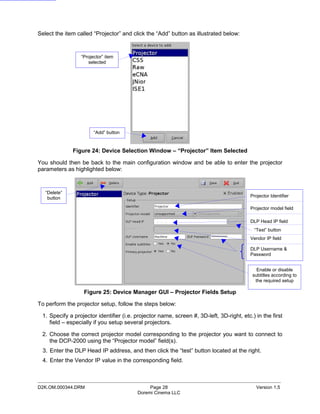
To connect a projector to the DCP-2000, click the “Add” button – see Figure 22. The following
window will appear:


                Figure 23: Device Manager GUI – Device Selection Window

_____________________________________________________________________________________________
D2K.OM.000344.DRM                          Page 27                                 Version 1.5
                                      Doremi Cinema LLC
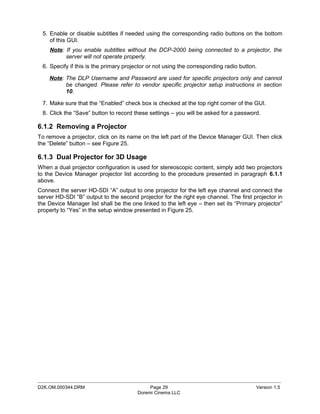
Select the item called “Projector” and click the “Add” button as illustrated below:


                 “Projector” item
                    selected


                       “Add” button


              Figure 24: Device Selection Window – “Projector” Item Selected

You should then be back to the main configuration window and be able to enter the projector
parameters as highlighted below:


   “Delete”
    button                                                                                Projector Identifier

                                                                                          Projector model field

                                                                                          DLP Head IP field
                                                                                            “Test” button
                                                                                          Vendor IP field

                                                                                          DLP Username &
                                                                                          Password


                                                                                             Enable or disable
                                                                                           subtitles according to
                                                                                            the required setup

                   Figure 25: Device Manager GUI – Projector Fields Setup

To perform the projector setup, follow the steps below:

 1. Specify a projector identifier (i.e. projector name, screen #, 3D-left, 3D-right, etc.) in the first
    field – especially if you setup several projectors.

 2. Choose the correct projector model corresponding to the projector you want to connect to
    the DCP-2000 using the “Projector model” field(s).
  3. Enter the DLP Head IP address, and then click the “test” button located at the right.
  4. Enter the Vendor IP value in the corresponding field.


_____________________________________________________________________________________________
D2K.OM.000344.DRM                             Page 28                                        Version 1.5
                                         Doremi Cinema LLC
5. Enable or disable subtitles if needed using the corresponding radio buttons on the bottom
    of this GUI.
    Note: If you enable subtitles without the DCP-2000 being connected to a projector, the
          server will not operate properly.
 6. Specify if this is the primary projector or not using the corresponding radio button.

    Note: The DLP Username and Password are used for specific projectors only and cannot
          be changed. Please refer to vendor specific projector setup instructions in section
          10.

 7. Make sure that the “Enabled” check box is checked at the top right corner of the GUI.
 8. Click the “Save” button to record these settings – you will be asked for a password.

6.1.2 Removing a Projector
To remove a projector, click on its name on the left part of the Device Manager GUI. Then click
the “Delete” button – see Figure 25.

6.1.3 Dual Projector for 3D Usage
When a dual projector configuration is used for stereoscopic content, simply add two projectors
to the Device Manager projector list according to the procedure presented in paragraph 6.1.1
above.
Connect the server HD-SDI “A” output to one projector for the left eye channel and connect the
server HD-SDI “B” output to the second projector for the right eye channel. The first projector in
the Device Manager list shall be the one linked to the left eye – then set its “Primary projector”
property to “Yes” in the setup window presented in Figure 25.


_____________________________________________________________________________________________
D2K.OM.000344.DRM                            Page 29                                    Version 1.5
                                        Doremi Cinema LLC
6.2 Automation Libraries Management
Support for theater automation control is also provided. The list of currently supported devices is
the following:
   •       eCNA
   •       JNior

A pre-built library of supported automation commands is available for each of these two devices.
These automation commands can then be added to Macro Cues as presented in section 7.2.

6.2.1 eCNA Device

6.2.1.1 eCNA Device Addition
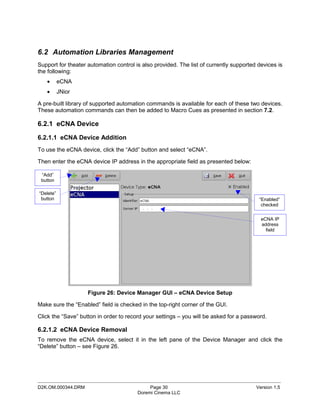
To use the eCNA device, click the “Add” button and select “eCNA”.

Then enter the eCNA device IP address in the appropriate field as presented below:

 “Add”
 button

“Delete”
 button                                                                                  “Enabled”
                                                                                          checked


                                                                                          eCNA IP
                                                                                          address
                                                                                            field


                    Figure 26: Device Manager GUI – eCNA Device Setup

Make sure the “Enabled” field is checked in the top-right corner of the GUI.

Click the “Save” button in order to record your settings – you will be asked for a password.

6.2.1.2 eCNA Device Removal
To remove the eCNA device, select it in the left pane of the Device Manager and click the
“Delete” button – see Figure 26.


_____________________________________________________________________________________________
D2K.OM.000344.DRM                            Page 30                                    Version 1.5
                                        Doremi Cinema LLC
6.2.2 JNior Device

6.2.2.1 JNior Device Addition
To use the JNior device, click the “Add” button and select “JNior”. The JNior device setting
window should be displayed within the Device Manager as presented below:

 “Add”
 button

                                                                                        JNior IP
“Delete”                                                                              address field
 button


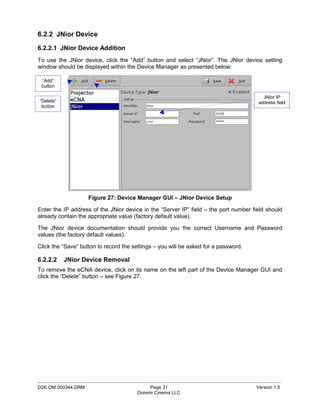
                    Figure 27: Device Manager GUI – JNior Device Setup

Enter the IP address of the JNior device in the “Server IP” field – the port number field should
already contain the appropriate value (factory default value).

The JNior device documentation should provide you the correct Username and Password
values (the factory default values).

Click the “Save” button to record the settings – you will be asked for a password.

6.2.2.2    JNior Device Removal
To remove the eCNA device, click on its name on the left part of the Device Manager GUI and
click the “Delete” button – see Figure 27.


_____________________________________________________________________________________________
D2K.OM.000344.DRM                            Page 31                                 Version 1.5
                                        Doremi Cinema LLC
6.3 Raw Device
6.3.1 Raw Device Addition
A “Raw” device allows for communication with an external device across an Ethernet connection
using Raw data formatted as text or binary strings.
To use a Raw device, click the “Add” button and select “Raw”. The Raw device setting window
should be displayed within the Device Manager as presented below:


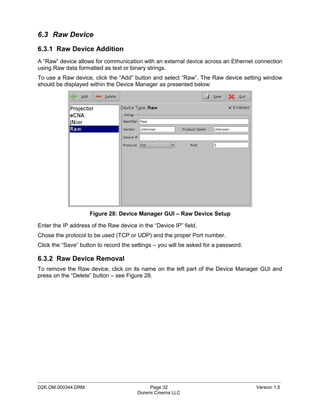
                    Figure 28: Device Manager GUI – Raw Device Setup

Enter the IP address of the Raw device in the “Device IP” field.
Chose the protocol to be used (TCP or UDP) and the proper Port number.
Click the “Save” button to record the settings – you will be asked for a password.

6.3.2 Raw Device Removal
To remove the Raw device, click on its name on the left part of the Device Manager GUI and
press on the “Delete” button – see Figure 28.


_____________________________________________________________________________________________
D2K.OM.000344.DRM                            Page 32                                 Version 1.5
                                        Doremi Cinema LLC
6.4 ISE1 Device
The ISE1 Device provides for communication with the IMAX Secure Enclosure. If more
information is needed, please contact Doremi's Technical Support.

6.5 CSS Device
The CSS Device provides for communication with the Sony Cavity Security System. If more
information is needed, please contact Doremi's Technical Support.

6.6 3D Setup
6.6.1 Projector Configuration for 3D or 48fps
In 3D or 48fps mode, the DCP-2000 video output is in the YCxCz color space. The projector
itself needs to be properly configured to the YCxCz color space in 3D or 48fps mode for proper
display. Contact your projector vendor to know how to configure the projector properly.

6.6.2 Dolby 3D Support
To enable the Dolby 3D support, please contact Doremi to purchase the appropriate license.
Then, go to section 9.3 to install the license in the DCP-2000 and to section 18.1 to know how to
configure the Dolby DFC100 device through Device Manager.

6.6.3 RealD 3D Support
To enable the RealD 3D support, please contact Doremi to get the appropriate license. Then, go
to section 9.3 to install the license in the DCP-2000 and to section 18.2 to know how to
configure the “RealD 3D EQ” device through Device Manager.

6.6.4 Sensio 3D Support
To enable the Sensio 3D support, please contact Doremi to get the appropriate license. Then,
go to section 9.3 to install the license in the DCP-2000 and contact Doremi's Technical Support
Services to know how to configure a playback using Sensio 3D.

6.7 Closed Caption Support
To enable the Rear Window devices Closed Caption support, install the appropriate license as
explained in section 9.3 and refer to the document “DCP-2000 Setup for Rear Window Display
Closed Caption” (document number D2K.DP.000469.DRM) for information about the setup –
contact Doremi to get this document if needed.


_____________________________________________________________________________________________
D2K.OM.000344.DRM                           Page 33                                   Version 1.5
                                       Doremi Cinema LLC
7 Automation Setup: Macro Editor Usage
Automation events can be created using the Macro Editor for use within the CineLister interface.
The paragraphs below detail how to generate and manage automation events as part of Macro
Automation Cues and/or Trigger Cues.

7.1 Macro Editor Interface Overview
In order to run the Macro Editor, go to the “Start Menu” of the server, then to “Doremi Labs, Inc.”
and choose the item “Macro Editor”.
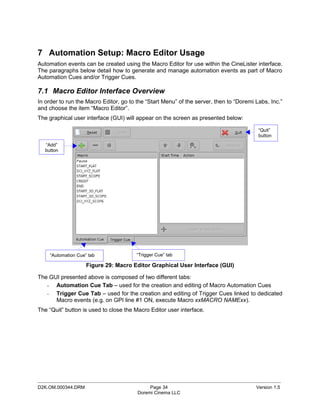
The graphical user interface (GUI) will appear on the screen as presented below:

                                                                                         “Quit”
                                                                                         button
   “Add”
   button


     “Automation Cue” tab               “Trigger Cue” tab

                     Figure 29: Macro Editor Graphical User Interface (GUI)

The GUI presented above is composed of two different tabs:
   - Automation Cue Tab – used for the creation and editing of Macro Automation Cues
   - Trigger Cue Tab – used for the creation and editing of Trigger Cues linked to dedicated
      Macro events (e.g. on GPI line #1 ON, execute Macro xxMACRO NAMExx).
The “Quit” button is used to close the Macro Editor user interface.


_____________________________________________________________________________________________
D2K.OM.000344.DRM                            Page 34                                    Version 1.5
                                        Doremi Cinema LLC
7.2 Automation Cue Tab
7.2.1 Macro Creation
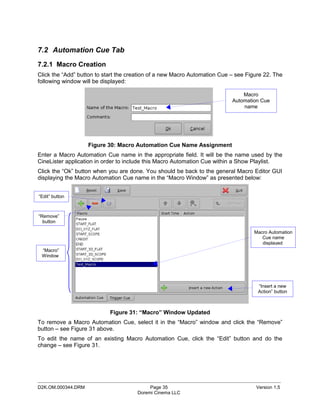
Click the “Add” button to start the creation of a new Macro Automation Cue – see Figure 22. The
following window will be displayed:

                                                                               Macro
                                                                           Automation Cue
                                                                               name


                    Figure 30: Macro Automation Cue Name Assignment
Enter a Macro Automation Cue name in the appropriate field. It will be the name used by the
CineLister application in order to include this Macro Automation Cue within a Show Playlist.
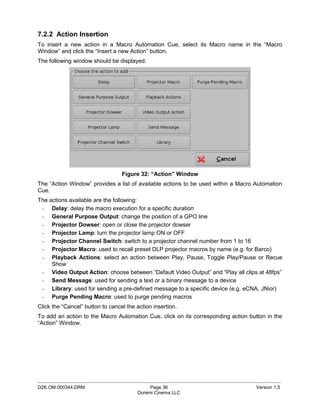
Click the “Ok” button when you are done. You should be back to the general Macro Editor GUI
displaying the Macro Automation Cue name in the “Macro Window” as presented below:


“Edit” button


“Remove”
  button

                                                                                    Macro Automation
                                                                                       Cue name
                                                                                       displayed
 “Macro”
 Window


                                                                                     “Insert a new
                                                                                     Action” button


                            Figure 31: “Macro” Window Updated
To remove a Macro Automation Cue, select it in the “Macro” window and click the “Remove”
button – see Figure 31 above.
To edit the name of an existing Macro Automation Cue, click the “Edit” button and do the
change – see Figure 31.


_____________________________________________________________________________________________
D2K.OM.000344.DRM                          Page 35                                  Version 1.5
                                      Doremi Cinema LLC
7.2.2 Action Insertion
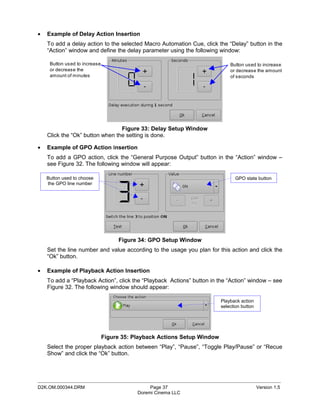
To insert a new action in a Macro Automation Cue, select its Macro name in the “Macro
Window” and click the “Insert a new Action” button.
The following window should be displayed:


                                  Figure 32: “Action” Window
The “Action Window” provides a list of available actions to be used within a Macro Automation
Cue.
The actions available are the following:
 - Delay: delay the macro execution for a specific duration
 - General Purpose Output: change the position of a GPO line
 - Projector Dowser: open or close the projector dowser
 - Projector Lamp: turn the projector lamp ON or OFF
 - Projector Channel Switch: switch to a projector channel number from 1 to 16
 - Projector Macro: used to recall preset DLP projector macros by name (e.g. for Barco)
 - Playback Actions: select an action between Play, Pause, Toggle Play/Pause or Recue
     Show
 - Video Output Action: choose between “Default Video Output” and “Play all clips at 48fps”
 - Send Message: used for sending a text or a binary message to a device
 - Library: used for sending a pre-defined message to a specific device (e.g. eCNA, JNior)
 - Purge Pending Macro: used to purge pending macros
Click the “Cancel” button to cancel the action insertion.
To add an action to the Macro Automation Cue, click on its corresponding action button in the
“Action” Window.


_____________________________________________________________________________________________
D2K.OM.000344.DRM                            Page 36                               Version 1.5
                                        Doremi Cinema LLC
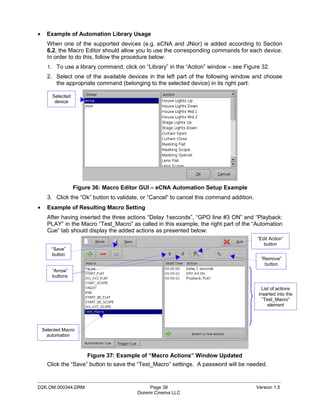
•   Example of Delay Action Insertion
    To add a delay action to the selected Macro Automation Cue, click the “Delay” button in the
    “Action” window and define the delay parameter using the following window:

     Button used to increase                                                  Button used to increase
     or decrease the                                                          or decrease the amount
     amount of minutes                                                        of seconds


                                 Figure 33: Delay Setup Window
    Click the “Ok” button when the setting is done.

•   Example of GPO Action insertion
    To add a GPO action, click the “General Purpose Output” button in the “Action” window –
    see Figure 32. The following window will appear:

    Button used to choose                                                       GPO state button
    the GPO line number


                                    Figure 34: GPO Setup Window
    Set the line number and value according to the usage you plan for this action and click the
    “Ok” button.

•   Example of Playback Action Insertion
    To add a “Playback Action”, click the “Playback Actions” button in the “Action” window – see
    Figure 32. The following window should appear:

                                                                          Playback action
                                                                          selection button


                               Figure 35: Playback Actions Setup Window
    Select the proper playback action between “Play”, “Pause”, “Toggle Play/Pause” or “Recue
    Show” and click the “Ok” button.


_____________________________________________________________________________________________
D2K.OM.000344.DRM                               Page 37                                      Version 1.5
                                           Doremi Cinema LLC
•     Example of Automation Library Usage
      When one of the supported devices (e.g. eCNA and JNior) is added according to Section
      6.2, the Macro Editor should allow you to use the corresponding commands for each device.
      In order to do this, follow the procedure below:
      1. To use a library command, click on “Library” in the “Action” window – see Figure 32.
      2. Select one of the available devices in the left part of the following window and choose
         the appropriate command (belonging to the selected device) in its right part:

        Selected
         device


                   Figure 36: Macro Editor GUI – eCNA Automation Setup Example
      3. Click the “Ok” button to validate, or “Cancel” to cancel this command addition.
•     Example of Resulting Macro Setting
      After having inserted the three actions “Delay 1seconds”, “GPO line #3 ON” and “Playback:
      PLAY” in the Macro “Test_Macro” as called in this example, the right part of the “Automation
      Cue” tab should display the added actions as presented below:
                                                                                           “Edit Action”
                                                                                              button
        “Save”
        button
                                                                                             “Remove”
                                                                                               button
        “Arrow”
        buttons

                                                                                              List of actions
                                                                                            inserted into the
                                                                                              “Test_Macro“
                                                                                                 element


    Selected Macro
      automation


                       Figure 37: Example of “Macro Actions” Window Updated
      Click the “Save” button to save the “Test_Macro” settings. A password will be needed.

_____________________________________________________________________________________________
D2K.OM.000344.DRM                             Page 38                                      Version 1.5
                                         Doremi Cinema LLC
7.2.3 Action List Management
•   Action Reordering
    Two arrows allow the user to change the order of the actions in the Macro Automation Cue –
    see Figure 37. Using those arrows, each action can be moved to the top or to the bottom of
    the “Macro Actions” window:
    - In order to move an action to the top, select it and click on the arrow pointing to the top
    - If an action needs to be moved to the bottom of the “Macro Actions” window, select it
       and click on the arrow pointing to the bottom.
    Repeat these operations until the required actions order is obtained.
•   Action Edition
    You can edit an action of a given Macro Automation Cue by selecting it in the right part of
    the interface – it will be reverse highlighted – and by clicking on the “Edit Action” button
    presented in Figure 37.
    You will be able to edit the properties you were asked to set when the action was added to
    the Macro Automation Cue.
•   Action Removal
    To remove an action from the list of actions associated to a Macro Automation Cue, select
    the action in the “Macro Actions” window and click the “Remove” button – see Figure 37.

7.2.4 Macro Saving
Repeat the Macro creation operations for all the Macro Automation Cues you need to create
and click the “Save” button. You will be asked for a password to be able to perform this
operation:


                              Figure 38: Authentication Window
Enter the appropriate password and click the “Ok” button. These Macro Automation Cues will be
available in CineLister in order to create a Show Playlist.
Note: This saving operation will not only save the Macro Automation Cues, but also the Trigger
      Cues that were created according to the procedure described in the following paragraph.


_____________________________________________________________________________________________
D2K.OM.000344.DRM                            Page 39                                  Version 1.5
                                        Doremi Cinema LLC
7.3 Trigger Cue Tab
7.3.1 Trigger Cue Tab Overview
The Trigger Cue Tab is shown below:


 “Add” button
to be used to
  add a new
 Trigger Cue


  “Trigger”
  Window


                                  Figure 39: Trigger Cue Tab

7.3.2 Trigger Cue Creation
To create a new Trigger Cue, click the “Add” button presented in the previous figure. The same
type of window as for the Automation Cue tab allowing you to enter the Trigger Cue name will
appear – see below:


                           Figure 40: Trigger Cue Setting Window
Enter the appropriate name – it will be the name used by the CineLister application to insert this
Trigger Cue in a Show Playlist.


_____________________________________________________________________________________________
D2K.OM.000344.DRM                            Page 40                                   Version 1.5
                                        Doremi Cinema LLC
The new created Trigger Cue will appear in the “Trigger” window, ready to be connected to a
 GPI event:
“Edit Trigger”
   button

 “Delete”
  button

New Trigger
Cue created


                                                                                       “Connect to an
                                                                                        event” button
                                                                                           button


                                 Figure 41: Trigger Cue Defined

 To edit an existing Trigger Cue, select it in the “Trigger” window and click on the “Edit Trigger”
 button shown in the figure above. You will be able to edit the name of the Trigger Cue using the
 same kind of window as presented in Figure 40.

 To remove a Trigger Cue, select it in the “Trigger” window and click the “Delete” button – see
 figure above.

 7.3.3 Connection to an Event
 To connect a Trigger Cue to an event, select it in the “Trigger” window and click the “Connect to
 an event” button – see Figure 41. The following window will appear:


                        Figure 42: “Choose the event to add” Window
 •    To connect the selected Trigger Cue to a GPI event, click the “General Purpose Input”
      button of the “Choose the event to add” window – see figure above. The following windows
      will appear:


 _____________________________________________________________________________________________
 D2K.OM.000344.DRM                            Page 41                                   Version 1.5
                                         Doremi Cinema LLC
Figure 43: Connection to a GPI Event
    Define the GPI line number and value you want to connect to the Trigger Cue and click the
    “Ok” button when you are done. The connected GPI event will then appear in the right part
    of the GUI.
•   To connect the selected Trigger Cue to another signal, click the “Signal” button of the
    “Connect to an event to add” windows above – see Figure 42. The following window will
    appear:


                              Figure 44: “Signal name” Window

    Click the “Ok” button when the appropriate signal name is defined.

7.3.4 Trigger Cue Saving
Repeat the Trigger Cue creation operations for all the Trigger Cues you need to create and click
the “Save” button. You will be asked for a password to be able to perform this operation:


                             Figure 45: Authentication Window
Enter the appropriate password and click the “Ok” button. These Trigger Cues will then be
available within CineLister in order to create a Show Playlist.
NOTE: This saving operation will not only save the Trigger Cues, but also the Macro Automation
      Cues that were created according to the procedure described in paragraph 7.2.

_____________________________________________________________________________________________
D2K.OM.000344.DRM                           Page 42                                  Version 1.5
                                       Doremi Cinema LLC
7.4 Pre-defined Macro Usage
If you have a pre-defined macros.xml file containing automation and trigger cue definitions, just
copy it into the /doremi/etc/ folder and the corresponding macros will be visible in the Macro
Editor GUI. You will then be able to update these cues if needed from the Macro Editor GUI as
presented in the previous paragraphs.

7.5 Default Cues
The default_cues.xml file can be used to load an automation and trigger cues playlist prior to
any playback (for example to avoid having to add a “Fire Alarm” trigger cue to each show). If
you are provided a default_cues.xml file, just copy it into the /doremi/etc/ folder.
7.6 Startup Scripts
Copy any script you want to be executed automatically at boot time in the following folder:
/doremi/etc/rc.d/


_____________________________________________________________________________________________
D2K.OM.000344.DRM                           Page 43                                    Version 1.5
                                       Doremi Cinema LLC
8 Time Zone Setup
DCP-2000 units may or may not be localized with your time zone. This section provides you
information on how to check and/or change the time zone.

8.1 Checking the Time Zone
To confirm that the time zone of your DCP-2000 is set correctly, open a terminal window by
going to the “Menu → System → Terminal” menu of the DCP-2000. Then do the following:
type: date <enter>
      The current time and time zone will be displayed

8.2 Changing the Time Zone
To change the time zone, follow the steps below in the terminal window:
type: su <enter>
       Then type the root password in order to login as root – consult your system administrator to know
       your root password or Doremi to know the default root password.
On software versions 0.5.2-22SP1 and earlier, do:
        type: /sbin/rwdo tzsetup <enter>
               And follow the graphical wizard
On software versions 0.5.2-26 and later, do:
        type: /sbin/rwdo tzconfig <enter>
               And answer properly the questions
Then, for any software version, reboot as follows:
type: reboot    <enter>


_____________________________________________________________________________________________
D2K.OM.000344.DRM                                Page 44                                      Version 1.5
                                            Doremi Cinema LLC
9 Control Panel
To access the Control Panel window, go to “Menu → Control Panel”. The following should
appear:


                               Figure 46: Control Panel Window

The Control Panel window provides you access to various software as listed below:

   –   Account Manager GUI: it allows to add/remove/edit user accounts – see paragraph 9.1
   –   Device Manager GUI: it launches the Device Manager GUI as presented in section 6
   –   Diagnostic Tool: it provides access to the Diagnostic Tool GUI – see document
       “Diagnostic Tool User Guide” (document number DTL.OM.000169.DRM)
   –   Language Setup window: it allows to change the language used on the DCP-2000
   –   License Manager GUI
   –   Live Manager GUI: it allows to create a CPL to handle live events
   –   Network Configuration: it opens the Network Configuration set-up windows, as
       presented in section 5
   –   Touch Screen Calibration: it initiates the touch screen calibration process as illustrated in
       section 13.2.2.


_____________________________________________________________________________________________
D2K.OM.000344.DRM                            Page 45                                     Version 1.5
                                        Doremi Cinema LLC
9.1 Account Manager GUI
To access the Account Manager GUI, double-click on the “Account Manager” icon within the
Control Panel window, or select it and click the “Start” button located on the right-bottom side of
the Control Panel window – you will be asked for a password. The following GUI will appear:


                               Figure 47: Account Manager GUI

The Account Manager GUI allows to Edit/Add/Delete user accounts.

To add a new user account, click the “Add” button. The following window will appear:


         Username field
                                                                           “Set Password”
                                                                                button
         Full Name field


                    Figure 48: Account Manager GUI – New User Addition

Enter the username (to be used for login) in the upper empty field – see picture above – and the
associated “Full Name” used to better describe the user. Both names will be displayed in the
Control Panel window after new user addition completion.


_____________________________________________________________________________________________
D2K.OM.000344.DRM                            Page 46                                    Version 1.5
                                        Doremi Cinema LLC
Define its associated password by clicking the “Set Password” button – the following window will
appear:


                            Figure 49: Password Definition Window

Note that you will be provided an information telling you the strength of the chosen password.
Click the “Set” button when the appropriate password is defined – and confirmed in the
“Confirm” field presented above.

The user privileges need to be define. Using the list box, select the proper privileges – they are
listed below from the lowest level to the highest level of privileges:
   –   Projectionist: this is a standard User allowed to use the Doremi applications present on
       the DCP-2000 without changing their configuration.
   –   Show Manager: in addition to a Projectionist's rights, a ShowManager user is allowed to
       ingest and delete content
   –   Superuser: In addition to ShowManager's right, a Superuser has the right to configure
       the unit (e.g. perform Software/Firmware update).
   –   Administrator: an Administrator user will be a user in the group of “root”.


                                                                         Privileges list-box


                                                                            Login type
                                                                             selection


                   Figure 50: Account Manager GUI – Privileges Definition

Also, two different login types are available for a user:
   –   “application” user: virtual user account that only works with Doremi applications
   –   “system” user: regular Unix user account that can be used anywhere on the system (e.g.
       Linux terminal windows)

Select the proper user account type and click the “Save” button. The new user account will be
visible on the main Account Manager GUI as presented below:
_____________________________________________________________________________________________
D2K.OM.000344.DRM                             Page 47                                      Version 1.5
                                         Doremi Cinema LLC
New user
                                                                               New user added
    username


  New user Full
     Name
                     Figure 51: Account Manager GUI – New User Added

To edit an existing user account, select it within the Account Manager GUI and click the “Edit”
button. The following dialog box allowing you to edit the user properties – but NOT the
username nor the login type – will appear:


                  Figure 52: Account Manager GUI – User Properties Editing

To delete an existing user account, select it within the main Account Manager GUI and click the
“Delete” button. You will be asked for a confirmation – clicking “Yes” will delete the user
account:


_____________________________________________________________________________________________
D2K.OM.000344.DRM                          Page 48                                  Version 1.5
                                      Doremi Cinema LLC
Figure 53: User Account Deletion Confirmation


9.2 Language Setup
To change the language used on the DCP-2000, double-click the “Language Setup” icon within
the Control Panel window – you will be asked for a password. The following “Language Setup”
window will appear:


                                                                          Language
                                                                      selection list box


                         Figure 54: Language Setup Window - English
Use the list box to choose another language – for example “Espanol” in the figure below:


                         Figure 55: Language Setup Window - Spanish

The available languages are the following:
     • Arabic / Syrian
     • Spanish
     • French
     • Japanese
     • Norwegian
     • Polska
     • Portuguese
     • Russian
     • Chinese
     • Taiwanese

Click the “OK” button when you are done. The DCP-2000 language used should be updated
accordingly, as illustrated in the CineLister GUI shown below:
_____________________________________________________________________________________________
D2K.OM.000344.DRM                           Page 49                                    Version 1.5
                                       Doremi Cinema LLC
Figure 56: CineLister GUI – Spanish Language Used

9.3 License Manager
To access the License Manager GUI, double-click the “License Manager” icon available in the
Control Panel. The following window will appear:


                              Figure 57: License Manager GUI

To add a license, have the license file on a USB thumbdrive and plug it into a USB port of the
DCP-2000. The Ingest GUI should appear as presented below:


_____________________________________________________________________________________________
D2K.OM.000344.DRM                          Page 50                                  Version 1.5
                                      Doremi Cinema LLC
Figure 58: License Ingest GUI

Select the license file(s) you want to install and click the “Ingest” button – you will be asked for a
password. When the ingest is completed, reboot the unit by going to “Menu → Logout →
Reboot”.

Then, going back to the “License Manager” GUI from the “Menu → Control Panel”, the
ingested license(s) should be visible as illustrated below:


                   Figure 59: License Manager GUI – Five Licenses Added

To view the details of an available license, select it and click the “View” button. A windows like
follows should appear, providing the validity window of the license:


_____________________________________________________________________________________________
D2K.OM.000344.DRM                             Page 51                                      Version 1.5
                                         Doremi Cinema LLC
Figure 60: License Information Window
To delete a license from the DCP-2000, select it within the License Manager GUI and click the
“Delete” button.
After having ingested a license, the associated device (e.g. “Subtitle Engine”, “Dolby DFC 100”)
will be visible through the Device Manager GUI in order to be configured. See Annex 18 for
details about these configurations.

9.4 Live Manager
The Live Manager GUI allows to generate a “CPL” that will allow to display a live event when
inserted in the Show Playlist using the CineLister application.

To access the Live Manager GUI, double-click the “Live Manager” icon within the Control Panel
GUI – you will be asked for a password. The following window will appear:


                                Figure 61: Live Manager GUI

_____________________________________________________________________________________________
D2K.OM.000344.DRM                           Page 52                                  Version 1.5
                                       Doremi Cinema LLC
To create a CPL allowing live event, click the “Add” button. The following wizard window will
appear:


                Figure 62: Live Manager – Live CPL Creation Wizard, Step 1

Click the “Next” button. The next wizard window will appear. Enter the IP address of the external
Live Event box in the “Device IP” field. Enter the CPL Content Title in the “Content Title” field too
as presented below:


     CPL Content
      Title field

    Live event box
      IP address


                Figure 63: Live Manager – Live CPL Creation Wizard, Step 2
Then click the “Next” button. You will be invited to click the “Finish” button to complete the live
CPL creation:


                Figure 64: Live Manager – Live CPL Creation Wizard, Step 3

_____________________________________________________________________________________________
D2K.OM.000344.DRM                             Page 53                                     Version 1.5
                                         Doremi Cinema LLC
Clicking the “Finish” button will make the CPL visible in the Live Manager main window as
presented below:


                          Figure 65: Live Manager – CPL Created
Note: The MPEG Streamer format is dynamically handled, meaning that the 4:2:2 vs 4:2:0
      parameter is automatically detected from the MPEG stream itself – no need to provide
      this information to the playback engine.
Repeat the above steps as many times as you need to generate another CPL for live event.
To delete an existing “live CPL”, select it in the Live Manager window and click the “Delete”
button.
To use the CPL allowing live event, open CineLister (go to “Menu → Doremi Labs, Inc. →
CineLister”). The previously created CPL should be visible under “live” on the left part of the
Editor tab, allowing you to insert it in a Show Playlist like any standard CPL:


  “Live” CPL
   available                                                                       “Live” CPL
                                                                                  inserted in a
                                                                                       SPL


               Figure 66: CineLister – “Live” CPL Inserted in a Show Playlist

After this point in the manual, the installation should be completed and you should be able to
use the DCP-2000 within your system. The information provided in the following sections is
provided for reference.
_____________________________________________________________________________________________
D2K.OM.000344.DRM                          Page 54                                  Version 1.5
                                      Doremi Cinema LLC
10 Vendor Specific Projector Setup Instructions
10.1 Adding a Christie Projector
To add a Christie CP2000 projector, run the Device Manager as presented in section 6 by going
to the “Menu → Doremi Labs, Inc. → Device Manager” menu of the DCP-2000.
The GUI illustrated in Figure 22 will appear on the screen. Click the “Add” button. The window
presented below, allowing you to add a projector, will be displayed.


                 “Projector” item
                    selected


                       “Add” button


             Figure 67: Device Selection Windows – “Projector” Item Selected

Select the item called “Projector” and click the “Add” button as highlighted above. You will then
be back to the main GUI window to enter the projector parameters as presented below:


  “Delete”
                                                                                     1- Projector Identifier
   button
                                                                                     2- Projector model set
                                                                                        to “Christie”
                                                                                     3- DLP Head IP field


                                                                                     4- Vendor IP field


             Figure 68: Device Manager GUI – Christie Projector Setup Fields


_____________________________________________________________________________________________
D2K.OM.000344.DRM                           Page 55                                   Version 1.5
                                       Doremi Cinema LLC
To perform the projector setup, follow the steps below:

1. Specify a projector identifier in the first field – especially if you setup several projectors.

2. Choose the correct projector model – “Christie”.
3. Enter the DLP Head IP address, and then click on the “test” button located at the right, that
   should have been activated. This is an IP 'ping' test to the DLP head to verify Ethernet
   connectivity.
4. Enter the Vendor IP value in the corresponding field – it should be set to the TPC address.
5. Enable or disable subtitles if needed using the corresponding radio buttons on the bottom of
   this GUI.
6. Specify if this is the primary projector or not using the corresponding radio button (useful
   mainly when there are several projectors configured)

    Note: The DLP Username and Password are used for specific projectors only and cannot
          be changed.

7. Make sure that the “Enabled” check box is selected at the top right corner of the GUI.

8. Click the “Save” button to record these settings – you will be asked for a password to record
   these settings.

10.2 Adding a NEC Projector
To add a NEC projector, perform the same procedure as in the previous paragraph using “NEC”
for the “Projector model” field and choose the appropriate NEC projector model as presented
below:


   “Delete”                                                                                1- Projector Identifier
    button
                                                                                           2- Projector model set
                                                                                              to “NEC” and NEC
                                                                                              model number
                                                                                           3- DLP Head IP field


                                                                                           4- Vendor IP field


                Figure 69: Device Manager GUI – NEC Projector Setup Fields
Click the “Save” button to record these settings – you will be asked for a password.


_____________________________________________________________________________________________
D2K.OM.000344.DRM                              Page 56                                      Version 1.5
                                          Doremi Cinema LLC
10.3 Adding a Barco Projector
To add a Barco projector, perform the same procedure as in paragraph 10.1 using “Barco” for
the “Projector model” field as presented below – no Vendor IP is needed:


  “Delete”
   button                                                                              1- Projector Identifier
                                                                                       2- Projector model set
                                                                                          to “Barco”
                                                                                       3- DLP Head IP field


              Figure 70: Device Manager GUI – Barco Projector Setup Fields
Click the “Save” button to record these settings – you will be asked for a password.


_____________________________________________________________________________________________
D2K.OM.000344.DRM                           Page 57                                     Version 1.5
                                       Doremi Cinema LLC
11 DCP-2000 Software/Firmware USB Upgrade Instructions
11.1 Displaying the DCP-2000 Software/Firmware Versions
To display the software version of the DCP-2000, go to the “Menu → Doremi Labs, Inc.               →
About” menu of the DCP-2000.
The following window will appear on the screen:


                                                                               Dolphin board
                                                                             firmware version


                                                                                DCP-2000
                                                                             software version


                       Figure 71: “About” Window – Software/Firmware Versions

11.2 Updating Firmware/Software via USB
If you are unsure about the current software/firmware revisions, contact Doremi Technical
Support for information and downloading instructions. Once you have downloaded the update, it
can be ingested through the Ingest GUI from a USB drive:
•     Transfer the update file to a USB drive.
•     Plug the drive into the DCP-2000.
•     Then wait for the graphical user interface to appear on the screen as presented below:


       Example of
    software package
        for update


                                 Figure 72: Graphical User Interface

•     Choose the update from the list of files displayed in the above GUI.

_____________________________________________________________________________________________
D2K.OM.000344.DRM                              Page 58                                    Version 1.5
                                          Doremi Cinema LLC
•   Click the “Ingest” button. You will be asked for a password to be able to perform this
       operation:


                            Figure 73: Authentication Window

   •   Enter the appropriate password and select “Ok”.
   •   When the ingest is complete, reboot the DCP-2000 by going to “Menu → Logout”, then
       click the “Reboot” button – the update will not be applied without rebooting the unit.


_____________________________________________________________________________________________
D2K.OM.000344.DRM                          Page 59                                 Version 1.5
                                      Doremi Cinema LLC
12 DCP-2000 Linux Terminal Commands
The DCP-2000 uses the Linux operating system. Here are some basic instructions on how to
navigate the Linux interface and access setup options to configure your system.

12.1 Linux Login & Terminal Window (Local Connection)
Connect a standard VGA monitor, keyboard, and mouse to the DCP-2000 and power up the
unit.
Note: For more information on how to connect peripheral hardware, please see sections 2 and 4.
After the DCP-2000 boots up at power ON, a login window comes up within the Linux GUI. To
login, type the following:

   login: root <enter>
   password: xxxxx <enter>        // consult your system administrator for the root password or Doremi to
                                    know the default root password.

This is the default login name & password for the DCP-2000. Use this login for basic setup
and configuration of the DCP-2000. To change the login password, see section 12.9. If the
password has already been changed, contact your system administrator for the new password.
Once you have logged in, you will see the Linux desktop. Next, open a terminal window. To do
this, click the terminal icon on the taskbar or select “Menu → System → Terminal” from the
Linux programs menu in the lower left corner of the GUI.

12.2 Linux Login & Terminal Window (Remote Connection)
To login to the DCP-2000 from a remote computer, you need to use “ssh” – a secured shell
terminal.

12.2.1 Remote Login From a Linux PC
To login to the DCP-2000 remotely, you need to know the IP address of the DCP-2000 that you
want to connect to.
From a Linux PC terminal command line,

   type: ssh <DCP-2000 IP address> <enter>

An example would be:

   type: ssh 192.168.100.50 <enter>

This will bring up the login window on the remote DCP-2000. Login as follows:

   login name: root <enter>
   password: xxxxx <enter>             // consult your system administrator to know the root password or
                                        Doremi to know the default root password

You will now be connected to the selected DCP-2000 remotely.


_____________________________________________________________________________________________
D2K.OM.000344.DRM                              Page 60                                       Version 1.5
                                          Doremi Cinema LLC
12.2.2 Remote Login From a Windows PC
From a Windows PC, you need to install an ssh client in order to login remotely. An example
ssh client is “PuTTY”, a free ssh client that can be found on the Internet. The connection and
login process is similar to that described in section 12.2.1 for a Linux PC.

12.3 Displaying the Dolphin Firmware/Software Version
To display the DCP-2000 software and the Dolphin board firmware version of the DCP-2000,
type the following command from a terminal command prompt:
      type: /doremi/bin/drminfo.out <enter>
This command will print out the following info (specific to your machine):
      + --------------------------------+
      | Doremi Labs, Inc.                  |
      + -----------------------------------+
      Name                   : DCP2000
      Serial number          : 200027
      Firmware version : 21.1v
      Software version : 0.5.2-26

12.4 Generating Status Reports
When a problem appears on the DCP-2000 (i.e. freezes, loses video or audio output, etc.), a
report can be generated that gives detailed technical information on the nature of the problem.
This file can be sent via email (or FTP) to the engineers at Doremi Labs to determine the reason
for the problem and to address any fixes/updates that may be needed to resolve the issue.
To generate a status report, execute the following command from the terminal prompt after the
problem occurs and before rebooting the server:
   type: sh /doremi/sbin/report.sh <enter>

This command will generate a report file in the /doremi/tmp folder. You can then connect via
FTP and bring this file in to send it (via email or FTP) to Doremi engineering for analysis.

To write the report file to a USB drive, do the following:
1) Plug in the USB drive, it will be automatically scanned and mounted in Read-Only mode. Follow the
   instructions below to remount it and write to it.
2) type: mount -o rw,remount /media/usb0/ <enter>              // this will mount the drive in read/write mode
3) type: cp /doremi/tmp/drmreport_xxxx.tgz /media/usb0/ <enter> // this command will copy the
   report onto the USB drive.
4) type: sync <enter>                                   // this command will commit the copy to the drive
5) type: umount /media/usb0/ <enter>                    // this command will un-mount the drive. The file is
   now on the USB drive.


_____________________________________________________________________________________________
D2K.OM.000344.DRM                                   Page 61                                       Version 1.5
                                               Doremi Cinema LLC
12.5 Software/Firmware Upgrade
12.5.1        Sending the Software File to the DCP-2000
To send a new software update file to the DCP-2000, use an FTP client and login as follows:

   •   type: ftp 192.168.100.50 <enter>        (enter the IP address of your DCP-2000)
   •   When prompted for a user name, type: admin <enter>
   •   When prompted for a password, type: use the admin password here <enter>
   •   type: bin <enter>
   •   type: cd ./etc/rc.once <enter>
   •   type: put dcp2000_patch-0.5.2-26.pkg <enter> (dcp2000_patch-0.5.2-26.pkg is the upgrade
                                                        file that you received from Doremi)
   •   When the transfer is completed, type: bye <enter>

Note: These steps may vary depending on your FTP client and whether you are on a Linux or
      Windows PC. The login information, file names, and destination folder are the same in
      either case.

12.5.2        Performing the Software Upgrade
To perform the upgrade of the DCP-2000 software, simply reboot the DCP-2000.
To do this, login as 'root' and from the terminal command prompt, type: reboot <enter>.
Once the DCP-2000 has rebooted, login again, open the terminal command prompt and type:
halt <enter>.

This will initiate the shutdown of the DCP-2000. After approximately 20 seconds or so, the unit
will shut off automatically. After the DCP-2000 has shutdown, power it ON again and login as
you normally would. This will complete the software update.

12.5.3        Sending the Firmware File to the DCP-2000
To send a new firmware file to the DCP JPEG-2000 decoder, use an FTP client and login as
follows:
   •   type: ftp 192.168.100.50 <enter> (enter the IP address of your DCP-2000)
   •   When prompted for a user name, type: admin <enter>
   •   When prompted for a password, type: use the admin password here <enter>
   •   type: bin <enter>
   •   type: cd ./etc/rc.once <enter>
   •   type: put fw-1.53.pkg <enter>    (fw-1.53.pkg is the upgrade file that you received from Doremi)
   •   When the transfer is completed, type: bye <enter>

Note: These steps may vary depending on your FTP client and whether you are on a Linux or
      Windows PC. The login information, file names, and destination folder are the same in
      either case.


_____________________________________________________________________________________________
D2K.OM.000344.DRM                              Page 62                                      Version 1.5
                                          Doremi Cinema LLC
12.5.4         Performing the Firmware Upgrade
To perform the upgrade of the Dolphin firmware, simply reboot the DCP-2000.
To do this, login as 'root' and from a terminal command prompt, type: reboot <enter>.
After rebooting, you can check your firmware version from a terminal command prompt to verify
the new software/firmware versions by repeating Section 12.3.

12.6 Network Restarting
To restart networking from the terminal command line, do the following:
   type: /etc/init.d/networking restart <enter>

12.7 RAID
Two RAIDs are presents in the DCP-2000: “/dev/md0” which is mounted on “/data” and
‘/dev/md1” which is mounted on “/opt”. The following paragraphs explain how to check the
health of the RAID – see 12.7.1 – and how to reinit the RAID – see 12.7.2.

12.7.1         RAID Failure Identification
To check the health of the RAID, just open a terminal, switch to “root” if you are not, and then
execute the following command:

   type: more /proc/mdstat <enter>

On a healthy RAID, this command will print for example:

     Personalities : [raid5]
     md1 : active raid5 sda1[0] sdb1[1] sdc1[2]
         21125248 blocks level 5, 64k chunk, algorithm 2 [3/3] [UUU]

     md0 : active raid5 sda2[0] sdb2[1] sdc2[2]
        760291968 blocks level 5, 64k chunk, algorithm 2 [3/3] [UUU]

On a failed RAID, this command will print:

     Personalities : [raid5]
     md1 : active raid5 sdb1[1] sdc1[2]
         21125248 blocks level 5, 64k chunk, algorithm 2 [3/2] [_UU]

     md0 : active raid5 sdb2[1] sdc2[2]
        760291968 blocks level 5, 64k chunk, algorithm 2 [3/2] [_UU]

In the failed example above, the hard disk drive “/dev/sda” is failed. This failure could be the
result of a hardware failure or it could simply be that the user inadvertently pulled the drive out.


_____________________________________________________________________________________________
D2K.OM.000344.DRM                            Page 63                                     Version 1.5
                                        Doremi Cinema LLC
12.7.2         RAID Reinit
To reinit the RAID, type the following command:
   type: sh /doremi/sbin/reinit_raid.sh <enter>

      CAUTION: This process is a DESTRUCTIVE process and ALL DATA (FEATURES,
               TRAILERS, ETC…) ON THE HARD DRIVES WILL BE LOST.


12.8 Ingest from Ethernet (FTP Server)
12.8.1         Uploading Files to a Remote DCP-2000 via FTP
This section describes how to send package files from a local Linux machine to a networked
DCP-2000 for ingest.
Open a terminal command prompt window and follow these steps:
   type: cd <foldername>/ <enter>
The descriptor <foldername> is the name of the folder that contains the package files that you
want to send to the networked DCP-2000 for ingest.

An example would be:

   type: cd dcp_package/ <enter>

Here, the folder called dcp_package contains our source material to be sent to the DCP-2000
for ingest.

Note: For this example, it will be assumed that the movie package is in a folder called dcp_package. In
      practice, the folder name can be whatever you choose.

   type: ftp <ipaddress> <enter>

The descriptor <ipaddress> is the IP address of the DCP-2000 to send the package files to.

An example would be:

   type: ftp 192.168.100.50 <enter>

You will then be prompted for a login name and password for the networked DCP-2000. Type
the following at the command prompt:

   name: ingest <enter>
   password: ingest <enter>

This login will automatically put you into the /data/incoming/ folder on the destination DCP-
2000. This will bring you to the FTP command prompt: ftp >

From here, type:
ftp > prompt off     // this command turns off prompting for each individual file to be copied.
ftp > mput *   // this command 'puts' al‘ fil’s from the source directory specified above (dcp_package/)
                 into the /data/incoming/ directory of the destination DCP-2000.
_____________________________________________________________________________________________
D2K.OM.000344.DRM                              Page 64                                            Version 1.5
                                          Doremi Cinema LLC
When completed, type: bye <enter> at the command prompt to quit the FTP session.
The DCP-2000 will then automatically scan the /data/incoming/ directory and ingest the files
contained in it.

12.9 Changing the Linux Login Password
To change the DCP-2000 login password, open a terminal window and do the following:
type: mount -o rw,remount / <enter>
type: passwd root           <enter>             (this changes the password for the login named 'root')
t‘pe: ’your new password    <enter>             (type the new password that you want)
retype: your new password   <enter>             (retype the new password)
type: sync <enter>
type: mount -o ro,remount / <enter>

      Caution: If you change the root password, please make sure to record the password in a
               secure place. If the password is lost, you will no longer be able to perform “root”
               privileges (i.e. Ethernet configurations, LCD calibration, etc).


12.10 Changing the Linux Display Resolution
To set up the DCP-2000 display resolution for an external VGA or front panel server LCD
screen, do the following:
•   External VGA:
    type: mount -o rw,remount / <enter>                         ## allows writing to FLASH card
    type: cd /etc/X11/ <enter>
    type: cp XF86Config-4.org XF86Config-4 <enter>

    You will be prompted to overwrite the previous configuration.
    Type: y <enter>

    Then do the following:
    type: sync <enter>
    type: mount -o ro,remount / <enter>

Close X windows (GUI) and login again. You should now be at the new resolution.

•   DCP-2000 Front Panel LCD Screen:

    type: mount -o rw,remount / <enter>                         ## allows writing to FLASH card
    type: cd /etc/X11/ <enter>
    type: cp XF86Config-4.640 XF86Config-4 <enter>

    You will be prompted to overwrite the previous configuration.
    type: y <enter>

    Then do the following:
    type: sync <enter>
    type: mount –o ro,remount / <enter>

    Close X (GUI) and login again. You should now be at the new resolution.
_____________________________________________________________________________________________
D2K.OM.000344.DRM                              Page 65                                        Version 1.5
                                          Doremi Cinema LLC
13 Troubleshooting
13.1 DCP-2000 BIOS Settings
In case the system does not complete the boot sequence upon powering up, the BIOS settings
may have to be checked. Follow the procedure below to confirm the BIOS settings.

13.1.1          BIOS Setting for Intel SE7221 Motherboard
CAUTION: The BIOS settings detailed here are for unit fitted with the SE7221 motherboard
         only – check the motherboard I/Os on the rear panel according to section 4.3.1.2 to
         know which motherboard is used on the unit.

To access the BIOS settings of the DCP-2000, press F2 just after powering ON the unit.

This will bring up the System Setup screen in the Main menu. From here, set the system date
and time if necessary.

   o   Select the Advanced menu, enable AHCI mode, scroll down to IDE Configuration and
       press <enter>. Verify that the drives are present on Primary IDE Master, Primary IDE
       Slave, Secondary IDE Master, Third IDE Master.

   o   Go to Third IDE Master and press <enter>.

       Verify that the Third IDE Master says:

       Vendor     PQI IDE DiskOnModule       (This is the boot device for the DSV-J2. It is a
                                             flash drive)

   o   Press ESC and select the Boot menu. Press <enter> and select the Hard Disk Drive.

       The following info should appear – this is the boot drive order:

                      1st Drive [3M-PQI IDE Dis]
                      2nd Drive [PM-Hitachi HDT]
                      3rd Drive [PS-Hitachi HDT]
                      4th Drive [SM-Hitachi HDT]

   o   Press ESC and go to the Boot Device Priority. Set the flash drive to be the first boot
       device.

   o   Select the Exit menu. Press <enter> for Exit Saving Changes. At the prompt, press
       'OK' <enter>.

The DCP-2000 will now continue the boot process with the new BIOS settings.


_____________________________________________________________________________________________
D2K.OM.000344.DRM                            Page 66                                    Version 1.5
                                        Doremi Cinema LLC
13.1.2        BIOS Setting for SuperMicro X7SBE Motherboard
CAUTION: The BIOS settings detailed here are for unit fitted with the SuperMicro X7BE
         motherboard only - check the motherboard I/Os on the rear panel according to
         section 4.3.1.1 to know which motherboard is used on the unit.

To access the BIOS settings of the DCP-2000 fitted with the SuperMicro X7SBE motherboard,
press the “Delete” key just after powering ON the keyboard when the SuperMicro load (splash)
screen appears, in order to enter into the BIOS configuration.
   1. In “Main” tab, the Time and Date should be set to “GMT” (Greenwich Mean Time) time
      and date.
   2. Check that the following is active:
             Native Mode Operation                         [Serial ATA]
                  SATA RAID Enable                         [Disabled]
                  SATA AHCI Enable                         [Enabled]
                      SATA AHCI Legacy Enable              [Disabled]
   3. Go in “Advanced” menu, choose “Boot Features” and make sure that the following is set:
              Only USB Port #6 cab boot                    [Enabled]
              Power Loss Control                           [Last State]
   4. Still within the “Advanced” menu, go to “Hardware Monitor” and make sure that the
      following is set:
              Fan Speed Control Mode                       [3-pin Server]
   5. In the “Boot” menu:
          Press the key “3” to load Doremi boot order. You should read:
              Boot Priority Order:
                     1. USB HDD: xxxxName_of_the_Boot_Compact_Flashxxxxx
   6. After Boot Priority is correctly set, press F10 and confirm by pressing <enter>.


The DCP-2000 will now continue the boot process with the new BIOS settings.


_____________________________________________________________________________________________
D2K.OM.000344.DRM                           Page 67                                      Version 1.5
                                       Doremi Cinema LLC
13.2 Server LCD Screen Maintenance
When the server front panel LCD screen needs recalibration, this section provides the required
steps to follow.

13.2.1         “Root” Logging
In order to perform the screen recalibration, you have to be logged in as “root” as presented in
the procedure below:
   1. Go to the “Menu → System” menu of the DCP-2000 and select “Terminal” in order to
       launch a terminal window.
   2. In the terminal window, do the following:
       type: su     <enter>
       Then use the root password – Consult your system administrator to know the root
       password or Doremi to know the default root password.

13.2.2         Server LCD Screen Calibration
Verify that you can use the stylus on the server front panel LCD screen as a mouse – make
sure that the server LCD screen VGA connector is linked to the motherboard VGA connector as
presented in 4.1.
Then go to “Menu → System → Touchscreen Calibration”.
Using the stylus located on the left side of the server LCD screen, press on the four blinking
dots one after the other as shown below – there is one dot in each screen corner:


      First blinking dot
                           (a)                                     (b)
                             Figure 74: Server LCD Screen Calibration


_____________________________________________________________________________________________
D2K.OM.000344.DRM                             Page 68                                Version 1.5
                                         Doremi Cinema LLC
14 Appendix A: General Purpose Output Connection Diagram
                    GPIO Male Connector       GPIO Cable Female Connector


                            Pin 1                 Pin 1                                                          Typical Application
                                                                            GPO 7
       GPO 7
                                                                                    GPO 7
                                    Pin 14                Pin 14                                                  +5V up to +24V
                                                                            GND
                                                                            GND
       GPO 6               Pin 2                                                    GPO 6
                                                  Pin 2
                                                                            GPO 6
                                     Pin 15                Pin 15
                                                                            GPO 5
       GPO 5                                                                                  GPO 0
                                                                                    GPO 5
                           Pin 3                  Pin 3
                                                                            GND
                                                                            GND
       GPO 4                                                                        GPO 4
                                     Pin 16                Pin 16                              DCP-2000
                                                                            GPO 4
                          Pin 4                   Pin 4
                                                                            GPO 3             Each general purpose output has an open collector stage. The stage can
       GPO 3                                                                                  turn on relays with voltage range of +5V to +24V, and current up to 200 mA.
                                                                                    GPO 3
                                    Pin 17                 Pin 17
                                                                            GND
                                                                            GND
       GPO 2               Pin 5                                                    GPO 2
                                                  Pin 5
                                                                            GPO 2           In the schema on the left, Pin x means Pin number x on the GPIO
                                     Pin 18                Pin 18
                                                                                            connector (DB25 connector)
                                                                            GPO 1
       GPO 1
                                                                                    GPO 1
                           Pin 6                  Pin 6
                                                                            GND
                                                                            GND
       GPO 0                        Pin 19                                          GPO 0
                                                           Pin 19
                                                                            GPO 0


          Common                   ...                    ...
          Ground                                                                                    DCP-2000General Purpose
                                                                                                    Output Connection Diagram
                     DCP-2000                    GPIO Cable


_____________________________________________________________________________________________
D2K.OM.000344.DRM                                     Page 69                                     Version 1.5
                                                 Doremi Cinema LLC
15 Appendix B: General Purpose Input Connection Diagram
                        GPIO Male Connector                          GPIO Cable Female Connector


            +5V                               ...                    ...
                                                                            Pin 20
                         270 Ohm                   Pin 20                              GPI 5 (+)                          Typical Application 1:
                                   plus
    GPI 5                                                                                          GPI 5
                                                                    Pin 8                                                                   +5V up to +12V
                                           Pin 8                                       GPI 5 (-)
                                   minus

            +5V
                                                                            Pin 21
                         270 Ohm                   Pin 21                              GPI 4 (+)                   +5V
                                   plus                                                                                                     270 Ohm

    GPI 4                                                                                          GPI 4                                              (+)
                                                                   Pin 9                                   GPI 0
                                           Pin 9                                       GPI 4 (-)
                                   minus
                                                                                                                                                      (-)
            +5V
                                                                            Pin 22
                         270 Ohm                   Pin 22                              GPI 3 (+)
                                                                                                                         DCP-2000
                                   plus
    GPI 3                                                                                          GPI 3
                                                                   Pin 10
                                           Pin 10                                      GPI 3 (-)
                                   minus                                                                                   Typical Application 2:
            +5V
                                                                            Pin 23
                         270 Ohm                    Pin 23                            GPI 2 (+)                                                    +12V up to +24V
                                   plus
    GPI 2                                                                                          GPI 2
                                                                   Pin 11
                                           Pin 11                                      GPI 2 (-)
                                                                                                                   +5V
                                   minus
                                                                                                                                             270 Ohm         330 Ohm
            +5V                                                             Pin 24                                                                    (+)
                         270 Ohm                    Pin 24                            GPI 1 (+)
                                                                                                           GPI 0
                                   plus
    GPI 1                                                                                          GPI 1
                                                                   Pin 12
                                                                                                                                                      (-)
                                           Pin 12                                     GPI 1 (-)
                                   minus                                                                                  DSV-J2
            +5V                                                             Pin 25
                         270 Ohm                    Pin 25                             GPI 0 (+)
                                   plus                                                                      Each general purpose input will turn on if you feed a current between
    GPI 0                                                                                          GPI 0     4mA and 30mA.
                                                                    Pin 13
                                           Pin 13
                                                                                      GPO 0 (-)
                                   minus


                                                                                                                   DCP-2000General Purpose
                     DCP-2000                                                 GPIO Cable
                                                                                                                   Input Connection Diagram


_____________________________________________________________________________________________
D2K.OM.000344.DRM                                         Page 70                                           Version 1.5
                                                     Doremi Cinema LLC
16 Appendix C: XML Structure Used by Macro Editor
The Macro Automation Cues and Trigger Cues generated using the Macro Editor GUI
presented in this document (see section 7) are saved using one single XML file according to the
structure presented in this appendix.

16.1 AutomationCueMacroList Sample
An example of such resulting XML file is provided below. Each Macro Automation Cue (created
according to 7.2.1) is saved in one “AutomationCueMacro” element and each Trigger Cue
(created according to 7.3.1) is saved in one “TriggerCue” element.
<?xml version=”1.0”?>
<AutomationCueMacroList>
  <IssueDate>2007-01-31T10:25:11-08:00</IssueDate>
  <Issuer>Doremi Cinema LLC</Issuer>
  <Creator>CineLister Macro Editor v0.4</Creator>
  <AnnotationText>Generated by Doremi Labs Macro Editor version 0.4</AnnotationText>
  <AutomationCueMacro>
      <Name>FEATURE_START_FLAT</Name>
      <Id>urn:uuid:f9bd304e-8c81-4a62-8de5-0805fd91f160</Id>
      <AnnotationText>start a FLAT feature</AnnotationText>
      <CommandList>
          <Command>
             <Type>GPO</Type>
             <Line>1</Line>
             <Value>2</Value>
             <PulseDelay>500</PulseDelay>
          </Command>
          <Command>
              <Type>GPO</Type>
              <Line>4</Line>
              <Value>2</Value>
              <PulseDelay>500</PulseDelay>
          </Command>
      </CommandList>
   </AutomationCueMacro>
   <AutomationCueMacro>
      <Name>FEATURE_START_SCOPE</Name>
      <Id>urn:uuid:3922e0c2-84af-407a-9cde-edd8f551af94</Id>
      <AnnotationText>start a SCOPE feature</AnnotationText>
      <CommandList>
          <Command>
             <Type>GPO</Type>
             <Line>2</Line>
             <Value>2</Value>
             <PulseDelay>500</PulseDelay>
          </Command>
          <Command>
             <Type>GPO</Type>
             <Line>4</Line>

_____________________________________________________________________________________________
D2K.OM.000344.DRM                                 Page 71                              Version 1.5
                                             Doremi Cinema LLC
<Value>2</Value>
             <PulseDelay>500</PulseDelay>
          </Command>
      </CommandList>
   </AutomationCueMacro>
   <TriggerCue>
      <Name>Trigger_1</Name>
      <Id>urn:uuid:ada0f7e7-172a-4490-a48f-365349946b22</Id>
      <CueType>GPI</CueType>
      <CueTypeParameters>
          <Line>2</Line>
          <Value>1</Value>
      </CueTypeParameters>
   </TriggerCue>
   <TriggerCue>
      <Name>Trigger_2</Name>
      <Id>urn:uuid:807f29ee-40bc-4f54-810a-3c6f73209a95</Id>
      <CueType>GPI</CueType>
      <CueTypeParameters>
          <Line>7</Line>
          <Value>0</Value>
      </CueTypeParameters>
   </TriggerCue>
</AutomationCueMacroList>


16.2 AutomationCueMacroList Structure
The AutomationCueMacroList element is illustrated in Figure 75 and the individual
elements that comprise the AutomationCueMacroList element are defined in the remaining
subsections.


                          Figure 75: AutomationCueMacroList Structure.
       Dotted lines denote optional elements that can be omitted during the creation based on Macro Editor.


_____________________________________________________________________________________________
D2K.OM.000344.DRM                                     Page 72                                         Version 1.5
                                                 Doremi Cinema LLC
16.2.1         IssueDate Node
The IssueDate node is used to define the time and date at                                           which    the
AutomationCueMacroList XML file was issued. It is meant for display to the user.

16.2.2         Issuer Node
The Issuer node contains a free-form human-readable annotation that identifies the entity that
created the AutomationCueMacroList XML file. It is meant for display to the user. The default
value generated by the Macro Editor GUI is “Doremi Cinema LLC”.

16.2.3         Creator Node
The Creator node contains a free-form human-readable annotation that identifies the
application used to create the AutomationCueMacroList XML file. It is meant for display to the
user.
The default value generated by the Macro Editor GUI is “CineLister Macro Editor vx.y”, where
x.y corresponds to the Macro Editor application version number used to create the file.

16.2.4         AnnotationText Node
The AnnotationText element is a free-form human-readable annotation describing the
AutomationCueMacroList XML file. It is meant as a display hint to the user.
The default value generated by the Macro Editor GUI is “Generated by Doremi Labs Macro
Editor version x.y”, where x.y corresponds to the Macro Editor application version number used
to create the file.

16.2.5         AutomationCueMacro Nodes
Each AutomationCueMacro element contains all the parameters associated to one Macro
Cue defined using the Macro Editor GUI presented in the previous sections.
An AutomationCueMacro element contains the subnodes presented in the paragraphs below.


                           Figure 76: AutomationCueMacro Structure.
      Dotted lines denote optional elements that can be omitted during the creation based on Macro Editor.

16.2.5.1 Name Node
The Name element is a human-readable annotation corresponding to the name given to this
Macro Cue when it was created. It is the name chosen by the user in 7.2.1 for the field “Name of
the Macro”.


_____________________________________________________________________________________________
D2K.OM.000344.DRM                                    Page 73                                         Version 1.5
                                                Doremi Cinema LLC
16.2.5.2 Id Node
The Id element uniquely identifies the AutomationCueMacro for asset management purposes.
It is encoded as a urn:uuid per [RFC 4122].

16.2.5.3 AnnotationText Node [optional]
This AnnotationText element is a human-readable annotation corresponding to the comment
assigned to this Macro Cue when it was created. It is the name chosen by the user in 7.2.1 for
the field “Comments”.

16.2.5.4 CommandList Node
The CommandList element contains a list of zero, one or more Command elements. Each
Command element corresponds to the set of parameters describing one automation individual
command composing the Macro Automation Cue.
An empty CommandList can be used to generate an Automation Cue Macro executing no
command. It will just be used to maintain portability between theaters.

16.2.6         Command Node [optional]
A Command node contains the parameters associated to a specific command to be used as part
of the overall AutomationCueMacro element. These parameters depend on the type of
command defined by the Type node below.


                                   Figure 77: Command Structure.
      Dotted lines denote optional elements that can be omitted during the creation based on Macro Editor.


_____________________________________________________________________________________________
D2K.OM.000344.DRM                                    Page 74                                         Version 1.5
                                                Doremi Cinema LLC
16.2.6.1 Type Sub-Node
The available types of commands are listed below:
                              Table 1: Command Types Available

                 Type                                        Description

       Black                   Black video and silent audio signals will be generated by the server

       GPO                     A GPO will be sent by the server

       Dowser                  The command concerns the projector dowser

       Lamp                    The command concerns the projector lamp

       Channel                 The command concerns the projector channel

       Play                    The command will put the server in play mode

       Pause                   The command will put the server in pause mode

       TogglePlayPause         The command will put the server in TogglePlayPause mode

       VideoOutputMode         The command will set the video output mode

       ProjectorMacro          The command will specify a DLP projector macro

       DeviceRawSendMessage    The command will send a message to a device

       PurgePendingMacro       The command will purge pending macros


Note: In case the command type is Play, Pause, TogglePlayPause or PurgePendingMacro, no
      additional parameters are required within the Command element.

16.2.6.2 Duration Sub-Node [optional]
The Duration element has only to be used for the “Black” command type. It specifies the
duration – as a number of seconds - of the associated black video and silent audio output.

16.2.6.3 Line Sub-Node [optional]
The Line element has only to be used for the “GPO” command type. It specifies the GPO line
number to be used for the associated command. It contains an integer to be chosen between 0
and 7.

16.2.6.4 Value Sub-Node [optional]
The Value element has only to be used for “GPO”, “Dowser”, “Lamp”, “Channel”,
“VideoOutputMode” and “ProjectorMacro” command types.
When used for the “GPO” command, it has to be the Value element grouped with the Line and
optional PulseDelay elements sequence. When used for the “Dowser”, “Lamp”, Channel”,
“VideoOutputMode” or “ProjectorMacro” commands, it has to be the standalone Value element
defined at the same level as the Duration element in the schema – see Figure 77.
The format of this Value element also depends on the kind of command type. The table below
presents the usage of such elements for each command type:


_____________________________________________________________________________________________
D2K.OM.000344.DRM                                Page 75                                              Version 1.5
                                            Doremi Cinema LLC
Table 2: Value Formats

                 Type                       Associated Value Format Description

       GPO                   Possible values:
                             - 0: means GPO OFF
                             - 1: means GPO ON
                             - 2: means GPO Pulse mode

       Dowser                Possible values:
                             - 0: means Dowser OFF
                             - 1: means Dowser ON

       Lamp                  Possible values:
                             - 0: means Lamp OFF
                             - 1: means Lamp ON

       Channel               The Value element is an integer chosen between 0 and 16. This integer
                             indicates to which projector channel to switch.

       VideoOutputMode       Possible values:
                             - DolphinlorConversionDefault: default video output mode
                             - DolphinColorConversion444to422: video output mode allowing
                               playback of the corresponding 24fps Package at 48fps.

       ProjectorMacro       The value indicates the concerned projector macro name


16.2.6.5 PulseDelay Sub-Node [optional]
The PulseDelay element has only to be present for the “GPO” command when the associated
value is set to 2 (Pulse Mode) – see Table 2 above. Its value is the duration, in milliseconds,
during which the associated GPO will remain ON level before going to OFF.

16.2.6.6 DeviceName Sub-Node [optional]
The DeviceName element has only to be present for the “DeviceRawSendMessage” command.
It will contain the name of the device to which the message has to be sent.

16.2.6.7 MessageType Sub-Node [optional]
The MessageType element has only to be present for the “DeviceRawSendMessage”
command. It will define the type of the message (e.g. text, binary).

16.2.6.8 Message Sub-Node [optional]
The Message element has only to be present for the “DeviceRawSendMessage” command. It
contains the actual message to be sent to the device.


_____________________________________________________________________________________________
D2K.OM.000344.DRM                               Page 76                                        Version 1.5
                                           Doremi Cinema LLC
16.2.7         TriggerCue Node [optional]
Each TriggerCue element corresponds to all the parameters defining a TriggerCue. These
parameters are recorded in the sub-nodes presented in the following paragraphs.


                                  Figure 78: TriggerCue Structure.
      Dotted lines denote optional elements that can be omitted during the creation based on Macro Editor.

Several TriggerCue elements can be generated. They just have to be put back to back at this
XML level (see Figure 75).
A TriggerCue node without CueType and CueParameter element can be used to generate a
Trigger Cue executing no command. It will just be used to maintain portability between theaters.
In such a case, the only required sub-elements are the Name and the Id element below.

16.2.7.1 Name Node
The Name element is a human-readable annotation corresponding to the name given to this
TriggerCue when it was created. It is the name chosen by the user in Figure 40 for the field
“Name of the Trigger”.

16.2.7.2 Id Node
The Id element uniquely identifies the TriggerCue for asset management purposes. It is
encoded as a urn:uuid per [RFC 4122].

16.2.7.3 AnnotationText Node [optional]
This AnnotationText element is a human-readable annotation corresponding to the comment
assigned to this TriggerCue when it was created. It is the name chosen by the user in Figure
40 for the field “Comments”.


_____________________________________________________________________________________________
D2K.OM.000344.DRM                                    Page 77                                         Version 1.5
                                                Doremi Cinema LLC
16.2.7.4 CueType Node [optional]
The CueType element corresponds to the type of Cue used by the TriggerCue. The available
Cue Types are listed in the table below:
                                      Table 3: Cue Types Available

                Type                                          Description

                GPI             Allows assignment of a GPI line and value to the Trigger

               Signal           Allows assignment of another signal to the Trigger


16.2.7.5 CueTypeParameters [optional]
The CueTypeParameters element contains the parameters associated to the Cue type
defined in the CueType element.


                                   Figure 79: TriggerCue Structure.
     Dotted lines denote optional elements that can be omitted during the creation based on the Macro Editor.

• For GPI Cue Type, the two following parameters have to be used: Line and Value.
  The Line element specifies the GPI line number to be used for the associated command. It
  contains an integer to be chosen between 0 and 7.
  The Value element indicates the state of the GPI: ON (Value = 1) or OFF (Value = 2).
• For Signal Cue Type, the following parameter has to be used: Name.
  The Name element specifies the signal name.


_____________________________________________________________________________________________
D2K.OM.000344.DRM                                     Page 78                                         Version 1.5
                                                 Doremi Cinema LLC
16.3 Schema
The XML Schema document presented in this paragraph defines the structure of a Macro
Automation Cue List using a machine-readable language. While this schema is intended to
faithfully represent the structure presented in the prose portions (see paragraph 16.2) of this
document, conflicts in definition may occur. In the event of such a conflict, the prose shall be the
authoritative expression of the structure.

<?xml version="1.0"?>
<xs:schema targetNamespace="http://www.doremilabs.com/schemas/xxx/AML"
               xmlns:aml="http://www.doremilabs.com/schemas/xxx/AML"
               xmlns:ds="http://www.w3.org/2000/09/xmldsig#"
               xmlns:xs="http://www.w3.org/2001/XMLSchema"
               elementFormDefault="qualified" attributeFormDefault="unqualified">
   <xs:import namespace="http://www.w3.org/XML/1998/namespace"
                               schemaLocation="http://www.w3.org/2001/03/xml.xsd"/>


 <!-- AutomationCueMacroList -->
   <xs:element name="AutomationCueMacroList" type="aml:AutomationCueMacroListType"/>
   <xs:complexType name="AutomationCueMacroListType">
      <xs:sequence>
         <xs:element name="IssueDate" type="xs:dateTime"/>
         <xs:element name="Issuer" type="aml:UserText"/>
         <xs:element name="Creator" type="aml:UserText"/>
         <xs:element name="AnnotationText" type="aml:UserText"/>
         <xs:element name="AutomationCueMacro" type="aml:AutomationCueMacroType” minOccurs="0"
                               maxOccurs="unbounded"/>
         <xs:element name="TriggerCue" type="aml:TriggerCueType” minOccurs="0"
                               maxOccurs="unbounded"/>
      </xs:sequence>
   </xs:complexType>


  <!-- AutomationCueMacro -->
  <xs:complexType name="AutomationCueMacroType">
     <xs:sequence>
        <xs:element name="Name" type="aml:UserText"/>
        <xs:element name="Id" type="aml:UUID"/>
        <xs:element name="AnnotationText" type="aml:UserText" minOccurs="0"/>
        <xs:element name="CommandList">
           <xs:complexType>
              <xs:sequence>
                <xs:element name="Command" type="aml:CommandType" minOccurs="0"
                               maxOccurs="unbounded"/>
              </xs:sequence>
           </xs:complexType>
        </xs:element>
     </xs:sequence>
  </xs:complexType>


  <!-- TriggerCue -->
  <xs:complexType name="TriggerCueType">
     <xs:sequence>
        <xs:element name="Name" type="aml:UserText"/>
        <xs:element name="Id" type="aml:UUID"/>
        <xs:element name="AnnotationText" type="aml:UserText" minOccurs="0"/>
        <xs:element name="CueType" type="aml:UserText" minOccurs="0"/>
        <xs:element name="CueTypeParameters" type="aml:CueTypeParametersType" minOccurs="0"/>
     </xs:sequence>
  </xs:complexType>


_____________________________________________________________________________________________
D2K.OM.000344.DRM                               Page 79                                  Version 1.5
                                           Doremi Cinema LLC
<!-- CueTypeParameters -->
  <xs:complexType name="CueTypeParametersType">
     <xs:choice>
        <xs:sequence>
           <xs:element name="Line" type="xs:long"/>
           <xs:element name="Value" type="aml:UserText”/>
        </xs:sequence>
        <xs:element name="Name" type="aml:UserText"/>
     </xs:choice>
  </xs:complexType>

  <!-- Command -->
  <xs:complexType name="CommandType">
     <xs:sequence>
        <xs:element name="Type" type="aml:UserText"/>
        <xs:choice minOccurs="0">
           <xs:sequence>
              <xs:element name="Line" type="xs:long"/>
              <xs:element name="Value" type="aml:UserText"/>
              <xs:element name="PulseDelay" type="aml:UserText" minOccurs="0"/>
           </xs:sequence>
           <xs:element name="Value" type="aml:UserText"/>
           <xs:element name="Duration" type="xs:long"/>
           <xs:sequence>
              <xs:element name="DeviceName" type="aml:UserText"/>
              <xs:element name="MessageType" type="aml:UserText"/>
              <xs:element name="Message" type="aml:UserText"/>
           </xs:sequence>
        </xs:choice>
     </xs:sequence>
  </xs:complexType>


  <!-- UUID -->
  <xs:simpleType name="UUID">
     <xs:restriction base="xs:anyURI">
        <xs:pattern value="urn:uuid:[0-9a-fA-F]{8}-[0-9a-fA-F]{4}-[0-9a-fA-F]{4}-[0-9a-fA-F]{4}-
                              [0-9a-fA-F]{12}"/>
     </xs:restriction>
  </xs:simpleType>


   <!-- UserText -->
   <xs:complexType name="UserText">
      <xs:simpleContent>
         <xs:extension base="xs:string">
            <xs:attribute name="language" type="xs:language" use="optional" default="en"/>
         </xs:extension>
      </xs:simpleContent>
   </xs:complexType>
</xs:schema>


_____________________________________________________________________________________________
D2K.OM.000344.DRM                               Page 80                                  Version 1.5
                                           Doremi Cinema LLC
16.4 XML Diagram Legend
The following provides a legend for notation used in diagrams depicting XML structures.

16.4.1         Element symbols
In the schema design diagrams presented above in this document, only the elements are
drawn. Attributes are not visible. The cardinality of the element (0..1, 1 exactly, 0..n, 1..n) is
indicated by the border of the elements. Optional elements are drawn with a dashed line,
required elements with a solid line. A double border indicates a maximum occurrence greater
than one.


            Optional element  Required single element Required repeated element
         Min. occurrence = 0, Min. occurrence = 1,       Min. occurrence = 1,
          Max. occurrence = 1   Max. occurrence = 1  Max. occurrence = unbounded

The content model of elements is symbolized on the left and right side of the element boxes.
The left side indicates whether the element contains a simple type (text, numbers, dates, etc.) or
a complex type (further elements). The right side of the element symbol indicates whether it
contains child elements or not:

      simple content complex content       complex content      no element content
                                         with child elements (simple type, attributes
                                                              only, or empty element)

16.4.1.1 Examples


Optional single element without child elements. Minimum Occurrence = 0, Maximum
Occurrence = 1, content = complex.


As above, but with child elements. The "plus" at the right side indicates the presence of one or
more undisplayed child elements.


Mandatory single element. Minimum Occurrence = 1, Maximum Occurrence = 1, content =
complex, no child elements (i.e. this denotes an empty element). The gray or green text below
the element displays the xml-schema annotation associated with the element.


Mandatory multiple element containing child elements (content = complex). This element must
occur at least once (Minimum Occurrence = 1) and may occur as often as desired (Maximum
Occurrence = unbounded).

_____________________________________________________________________________________________
D2K.OM.000344.DRM                              Page 81                                 Version 1.5
                                          Doremi Cinema LLC
Mandatory single element with containing simple content (e.g. text) or mixed complex content
(e.g. text with xhtml markup). Minimum Occurrence = 1, Maximum Occurrence = 1, type =
xsd:string (for example), content = simple. The three lines in the upper left corner are used for
both text and numeric content.

16.4.2        Model symbols ("compositors")
A sequence of elements. The elements must appear exactly in the sequence in which they
appear in the schema diagram.


A choice of elements. Only a single element from those in the choice may appear at this
position.


The "all" model, in which the sequence of elements is not fixed.


16.5 Types
If an element refers to a complex global type, the type is shown with a border and yellow
background. You can click on the gray type name shown at the top to jump to the type definition
itself.


Depending on the settings in xml spy when generating the schema diagrams, the type name
may be shown in the line below the element name:


In that case, the type names of simple types are shown as well:


_____________________________________________________________________________________________
D2K.OM.000344.DRM                              Page 82                                Version 1.5
                                          Doremi Cinema LLC
16.6 Model groups and references


An element group is a named container with one or several elements. The group of elements
can be reused at multiple places in the schema. Model groups are invisible in the instance
document (in contrast to types, which require). Model groups have been used sparingly since
they do not map to a feature in object-oriented programming languages (unless they support
multiple inheritance).
Import note on reading the diagrams for model groups: If the model group symbol is drawn with
simple lines (i.e. not dashed), this does not imply that the elements in the model group are
required. The optionality of the group depends on the optionality of elements contained in the
model group. (Model groups can be made optional, e.g. to make a model group with required
elements optional in some cases, but this has not been used.)


The "any" group is a special kind of model group. It is a placeholder for elements not defined in
the schema. The "any" element defines points where the schema can be extended. After the
"Any" keyword, the namespace from which the elements may come is defined. For example,
"##other" specifies that the extension elements may come from any namespace, except from
the current schema namespace.


Element references are indicated through a link arrow in the lower left corner. They are similar
to references to model groups within a schema, but instead of refining the model group, they
directly refer to a single global element. The global element can then be reused in multiple
places.


_____________________________________________________________________________________________
D2K.OM.000344.DRM                             Page 83                                 Version 1.5
                                         Doremi Cinema LLC
17 Annex D: Netmap Configuration File
17.1 Overview
This document presents the structure of the Netmap file.
The netmap feature is to allow an operator to store remote ingest server parameters to be re-
used easily and conveniently from the ingest GUI without having to enter the ingest server
identification and credential information. All those informations are stored in a basic, simple XML
file. Every netmap entry contains all necessary information to ingest from an ingest server.

17.2 Netmap File Structure
The file is a regular, valid UTF8 XML file. It is located in /doremi/etc folder.
The top level XML element is <NetworkMappingList>. Every network entry properties are
listed in a <NetworkMapping> sub-element, as presented in the paragraphs below.
•   Name Element
    The Name element's value is the human readable name that will be displayed to the operator
    to identify this ingest server.
•   Type Element
    The Type element's value is the underlying communication protocol used to communicate
    with the server. The only working, official supported technology is FTP. Another type, under
    evaluation, is "Local" to indicate a folder in the existing file system. It will be used to
    reference regular Linux mounted file systems (like NFS, samba).
• Server Element
    The Server element's value is the identifier to connect the ingest server - its syntax
    depends on the Type. For FTP, it is the ftp server's IP address (v4). For local type, it is the
    absolute pathname to a folder in the system.
•   Share Element
    The Share element's value is an ignored property. It is present for future need for
    technology that requires an extra identifier for the exported data (Samba, NFS, …).
•   FtpRemote Element
    The FtpRemote element's value is an obsolete tag that indicates the IP address of the ftp
    server. It is basically an alias for <Server>, forcing <Type> to "ftp".
•   User Element
    The User element's value and the Password element's value are the credential used to
    establish communication with the ingest server.
•   Auditorium Element
    The Auditorium element's value is an index number used to identify the screen in a
    complex. It is ignored by DCP-2000 engine but is used in TMS software to tag a number in
    front of a given server.

_____________________________________________________________________________________________
D2K.OM.000344.DRM                                Page 84                                   Version 1.5
                                            Doremi Cinema LLC
•   ManagementServer Element
    ManagementServer element's value is the optional IP address of the management ingest
    server. It is ignored in DCP-2000 software but is used in TMS software: the purpose is to
    separate the management stream from the data stream: file browsing and management
    communication used the Management server, but all actual data are transferred using the
    Server IP address.
•   SerialNumber Element
    The SerialNumber element's value is the serial number of the ingest server in case the
    server is a regular DCP-2000 system acting as an ingest server. This property is ignored by
    DCP-2000 software and is used in TMS software.
•   Sync Element
    The Sync element's value this flag indicates the system that the ingest server can be used
    for dynamic data access (play'ngest). Above properties can be re-defined under this node:
    this new set of property will be used when dynamic data access is required. If no property
    are re-defined, the previous set is used.
    Note: Only the communication data are subject to be re-defined (Server, Type, Share,
          User, Password..). The identification properties will just get ignored (SerialNumber,
          Auditorium...).
•   Filters Element
    The Filters element's value lists the file to scan on the ingest server. The available filters
    are PKG (Package), PKL (PackingList), KDM, DLM (License File), SPL (ShowPlaylist). If no
    filters are specified, it will only scan for PKL file (the legacy behavior).
    Example: <Filters>PKL, KDM, DLM</Filters> will scan ingest server and returns the list of
             available PKL, KDM and DLM.


_____________________________________________________________________________________________
D2K.OM.000344.DRM                              Page 85                                 Version 1.5
                                          Doremi Cinema LLC
17.3 Sample Netmap File
A sample Netmap file is provided below:
<?xml version="1.0" encoding="UTF-8"?>
<NetworkMappingList>
   <NetworkMapping>
   <!-- FTP ingest only -->
     <Name>Doremi-FTP-01</Name>
     <Type>ftp</Type>
     <Server>192.168.100.51</Server>
     <User>manager</User>
     <Password>password</Password>
   </NetworkMapping>
   <NetworkMapping>
   <!-- FTP ingest and 'pngest' -->
     <Name>Doremi-LMS</Name>
     <Type>ftp</Type>
     <Server>192.168.100.1</Server>
     <User>manager</User>
     <Password>password</Password>
     <!-- Required to enabled 'pngest' -->
     <Sync>
       <Type>ftp</Type>
       <!-- The redefinition below are OPTIONAL -->
       <!-- They override the values above in case -->
       <!-- a different account is used for 'pngest' -->
       <!-- feature -->
       <User>manager</User>
       <Password>password</Password>
     </Sync>
  </NetworkMapping>
</NetworkMappingList>


17.4 Known Issues
    •   Passwords are stored in clear text - it may be a security issue if file is not protected
        correctly in file system.
    •   This file is replaced with the Doremi TMS software when the screen is part of the units
        managed by the TMS software. All local modifications are then lost.
    •   There is no graphic user interface tool to edit this file conveniently.
    •   If no <Sync> property is defined for a screen, the Play'ngest feature will not be available
        for that screen (button hidden in Ingest GUI).


_____________________________________________________________________________________________
D2K.OM.000344.DRM                                   Page 86                                Version 1.5
                                               Doremi Cinema LLC
18 Annex E: Device Manager Configuration for Licensed
   Features
Note: This annex assumes that the appropriate license(s) has(ve) been ingested in the DCP-
      2000. For example, the “Dolby 3D Configuration” is only possible if a “Dolby 3D License”
      has been installed on the DCP-2000, as explained in section 9.3.

18.1 Dolby 3D Configuration
To configure the Dolby 3D feature on the DCP-2000, please refer to the procedure provided in
the document “DCP-2000 – Dolby 3D Calibration” (document number D2K.DP.000462.DRM) –
contact Doremi to get this document if needed.

18.2 RealD 3D Configuration
This paragraph provides guidance on how to setup Device Manager for RealD 3D support.
Follow the steps below:
   1. Open the Device Manager GUI by going to “Menu → Doremi Labs, Inc. → Device
       Manager”. The following window should appear:


                               Figure 80: Device Manager GUI
   2. Click the “Add” button. The list of available devices will appear as presented below:


                                                                 CAUTION: To see these three
                                                                 devices, you need to have the
                                                                 associated licenses installed
                                                                 on the DCP-2000.


                            Figure 81: List of Available Devices
_____________________________________________________________________________________________
D2K.OM.000344.DRM                             Page 87                                  Version 1.5
                                         Doremi Cinema LLC
3. Select the “RealD 3D EQ” device and click the “Add” button. This device should be
      visible on the main Device Manager GUI as presented below:


                          Figure 82: “RealD 3D EQ” Device Added
   4. To complete the setup, click the “Save” button – you will be asked for a password.

18.3 Subtitle Engine Configuration
This paragraph provides guidance on how to setup Device Manager for Subtitle Engine support
– allowing to burn subtitles into the picture before being exported to the projector. Follow the
steps below:
   1. Open the Device Manager GUI by going to “Menu → Doremi Labs, Inc. → Device
       Manager”. The following window should appear:


                               Figure 83: Device Manager GUI


_____________________________________________________________________________________________
D2K.OM.000344.DRM                             Page 88                                Version 1.5
                                         Doremi Cinema LLC
2. Click the “Add” button. The list of available devices will appear as presented below:


                                                                   CAUTION: To see these three
                                                                   devices, you need to have the
                                                                   associated licenses installed
                                                                   on the DCP-2000.


                             Figure 84: List of Available Devices
       CAUTION: In case you already have a projector configured through Device Manager to
       display subtitles – meaning that its field “Enable subtitle” was set to “Yes” – when adding
       the “Subtitle Engine” device, a warning window will appear asking you if you want to
       disable all projector subtitle display (as the Subtitle Engine will burn the subtitle inside
       the picture before exporting the resulting pictures to the projector). If you plan to use the
       Subtitle Engine, click the “Yes” button in this warning window in order to disable ALL
       projector subtitle – see below:


                             Figure 85: Subtitle Engine Warning Window
   3. Select the “Subtitle Engine” device and click the “Add” button. This device should be
      visible on the main Device Manager GUI as presented below:


_____________________________________________________________________________________________
D2K.OM.000344.DRM                              Page 89                                   Version 1.5
                                          Doremi Cinema LLC
Figure 86: “Subtitle Engine” Added
   4. To complete this setup, click the “Save” button – you will be asked for a password.


_____________________________________________________________________________________________
D2K.OM.000344.DRM                            Page 90                                 Version 1.5
                                        Doremi Cinema LLC
19 Acronyms

                Term                                 Definition

                 FPS      Frames Per Second

                 GPI      General Purpose Input

                 GPO      General Purpose Output

                 HDD      Hard Disk Drive

                 KDM      Key Delivery Message

                 LCD      Liquid Crystal Display

                 LED      Light Emitting Diode

                RAID      Redundant Array of independent Disks

                 SDI      Serial Digital Interface

                 SPL      Show Play List

                 VGA      Video Graphics Array


_____________________________________________________________________________________________
D2K.OM.000344.DRM                                 Page 91                          Version 1.5
                                             Doremi Cinema LLC
20 Document Revision History
      Date       Version   Description
    03/07/2008      1.0    First version.
    03/21/2008      1.1    Editorial changes.
    07/21/2008      1.2    Power off and Analog audio information revised

    08/07/2008      1.3    Detailed drive installation information and Silver front panel added

    04/20/2009      1.4    - Updated to comply with software versions 0.5.2-22SP1 and 0.5.2-26
                           - SuperMicro motherboard documented
    07/27/2009      1.5    Updated to comply with software version 0.5.4-2


_____________________________________________________________________________________________
D2K.OM.000344.DRM                                Page 92                                    Version 1.5
                                            Doremi Cinema LLC

Dcp 2000 field-instmanual_000344_v1_5

  • 1.
    DCP-2000 DIGITAL CINEMA SERVER Field Installer Manual Version 1.5 _____________________________________________________________________________________________ D2K.OM.000344.DRM Page 1 Version 1.5 Doremi Cinema LLC
  • 2.
    Table of Contents 1INTRODUCTION....................................................................................................................................12 1.1 PURPOSE.............................................................................................................................................12 1.2 PRESENTATION......................................................................................................................................12 1.3 APPLICABILITY.......................................................................................................................................12 2 CAUTION ..............................................................................................................................................13 2.1 DRIVES INSERTION.................................................................................................................................13 2.1.1 General Rules...........................................................................................................................13 2.1.2 HDDs Shipment.........................................................................................................................13 2.2 PROPER POWER OFF.............................................................................................................................14 3 DCP-2000 PRESENTATION..................................................................................................................15 3.1 DCP-2000 FRONT PANEL.....................................................................................................................15 3.2 DCP-2000 REAR PANEL.......................................................................................................................17 4 REAR PANEL CONNECTORS..............................................................................................................18 4.1 VGA CABLE CONNECTION FOR SERVER LCD SCREEN USAGE.......................................................................18 4.2 REAR PANEL CARD SLOT CONNECTORS ....................................................................................................19 4.2.1 Card Slot Connectors Overview................................................................................................19 4.2.2 HD-SDI Serial Digital Interface / Dolphin DCI Decoder Card.....................................................20 4.2.3 Digital Audio (AES/EBU)...........................................................................................................22 4.2.4 Analog Audio ............................................................................................................................23 4.3 DCP-2000 MOTHERBOARD CONNECTIONS.................................................................................................23 4.3.1 Motherboard Connectors...........................................................................................................23 4.3.2 Keyboard & Mouse PS-2 Connectors........................................................................................24 4.3.3 Serial Port..................................................................................................................................24 4.3.4 VGA...........................................................................................................................................24 4.3.5 USB Ports..................................................................................................................................24 4.3.6 Ethernet.....................................................................................................................................24 5 DCP-2000 IP ADDRESS........................................................................................................................25 6 DEVICE MANAGER SETUP..................................................................................................................27 6.1 PROJECTOR(S) MANAGEMENT...................................................................................................................27 6.1.1 Adding a Projector.....................................................................................................................27 6.1.2 Removing a Projector................................................................................................................29 6.1.3 Dual Projector for 3D Usage......................................................................................................29 6.2 AUTOMATION LIBRARIES MANAGEMENT........................................................................................................30 6.2.1 eCNA Device.............................................................................................................................30 6.2.2 JNior Device..............................................................................................................................31 6.3 RAW DEVICE........................................................................................................................................32 6.3.1 Raw Device Addition.................................................................................................................32 6.3.2 Raw Device Removal................................................................................................................32 6.4 ISE1 DEVICE.......................................................................................................................................33 6.5 CSS DEVICE.......................................................................................................................................33 6.6 3D SETUP...........................................................................................................................................33 6.6.1 Projector Configuration for 3D or 48fps.....................................................................................33 6.6.2 Dolby 3D Support......................................................................................................................33 6.6.3 RealD 3D Support.....................................................................................................................33 6.6.4 Sensio 3D Support....................................................................................................................33 6.7 CLOSED CAPTION SUPPORT.....................................................................................................................33 7 AUTOMATION SETUP: MACRO EDITOR USAGE...............................................................................34 _____________________________________________________________________________________________ D2K.OM.000344.DRM Page 2 Version 1.5 Doremi Cinema LLC
  • 3.
    7.1 MACRO EDITORINTERFACE OVERVIEW.......................................................................................................34 7.2 AUTOMATION CUE TAB...........................................................................................................................35 7.2.1 Macro Creation..........................................................................................................................35 7.2.2 Action Insertion..........................................................................................................................36 7.2.3 Action List Management............................................................................................................39 7.2.4 Macro Saving............................................................................................................................39 7.3 TRIGGER CUE TAB.................................................................................................................................40 7.3.1 Trigger Cue Tab Overview........................................................................................................40 7.3.2 Trigger Cue Creation.................................................................................................................40 7.3.3 Connection to an Event.............................................................................................................41 7.3.4 Trigger Cue Saving....................................................................................................................42 7.4 PRE-DEFINED MACRO USAGE...................................................................................................................43 7.5 DEFAULT CUES.....................................................................................................................................43 7.6 STARTUP SCRIPTS.................................................................................................................................43 8 TIME ZONE SETUP...............................................................................................................................44 8.1 CHECKING THE TIME ZONE......................................................................................................................44 8.2 CHANGING THE TIME ZONE......................................................................................................................44 9 CONTROL PANEL.................................................................................................................................45 9.1 ACCOUNT MANAGER GUI.......................................................................................................................46 9.2 LANGUAGE SETUP..................................................................................................................................49 9.3 LICENSE MANAGER................................................................................................................................50 9.4 LIVE MANAGER ....................................................................................................................................52 10 VENDOR SPECIFIC PROJECTOR SETUP INSTRUCTIONS.............................................................55 10.1 ADDING A CHRISTIE PROJECTOR.............................................................................................................55 10.2 ADDING A NEC PROJECTOR..................................................................................................................56 10.3 ADDING A BARCO PROJECTOR................................................................................................................57 11 DCP-2000 SOFTWARE/FIRMWARE USB UPGRADE INSTRUCTIONS............................................58 11.1 DISPLAYING THE DCP-2000 SOFTWARE/FIRMWARE VERSIONS.....................................................................58 11.2 UPDATING FIRMWARE/SOFTWARE VIA USB...............................................................................................58 12 DCP-2000 LINUX TERMINAL COMMANDS.......................................................................................60 12.1 LINUX LOGIN & TERMINAL WINDOW (LOCAL CONNECTION)...........................................................................60 12.2 LINUX LOGIN & TERMINAL WINDOW (REMOTE CONNECTION)........................................................................60 12.2.1 Remote Login From a Linux PC..............................................................................................60 12.2.2 Remote Login From a Windows PC........................................................................................61 12.3 DISPLAYING THE DOLPHIN FIRMWARE/SOFTWARE VERSION...........................................................................61 12.4 GENERATING STATUS REPORTS.............................................................................................................61 12.5 SOFTWARE/FIRMWARE UPGRADE............................................................................................................62 12.5.1 Sending the Software File to the DCP-2000............................................................................62 12.5.2 Performing the Software Upgrade...........................................................................................62 12.5.3 Sending the Firmware File to the DCP-2000...........................................................................62 12.5.4 Performing the Firmware Upgrade..........................................................................................63 12.6 NETWORK RESTARTING........................................................................................................................63 12.7 RAID..............................................................................................................................................63 12.7.1 RAID Failure Identification.......................................................................................................63 12.7.2 RAID Reinit..............................................................................................................................64 12.8 INGEST FROM ETHERNET (FTP SERVER).................................................................................................64 12.8.1 Uploading Files to a Remote DCP-2000 via FTP....................................................................64 12.9 CHANGING THE LINUX LOGIN PASSWORD.................................................................................................65 12.10 CHANGING THE LINUX DISPLAY RESOLUTION...........................................................................................65 13 TROUBLESHOOTING.........................................................................................................................66 13.1 DCP-2000 BIOS SETTINGS..............................................................................................................66 _____________________________________________________________________________________________ D2K.OM.000344.DRM Page 3 Version 1.5 Doremi Cinema LLC
  • 4.
    13.1.1 BIOS Settingfor Intel SE7221 Motherboard............................................................................66 13.1.2 BIOS Setting for SuperMicro X7SBE Motherboard..................................................................67 13.2 SERVER LCD SCREEN MAINTENANCE.....................................................................................................68 13.2.1 “Root” Logging.........................................................................................................................68 13.2.2 Server LCD Screen Calibration...............................................................................................68 14 APPENDIX A: GENERAL PURPOSE OUTPUT CONNECTION DIAGRAM.......................................69 15 APPENDIX B: GENERAL PURPOSE INPUT CONNECTION DIAGRAM...........................................70 16 APPENDIX C: XML STRUCTURE USED BY MACRO EDITOR.........................................................71 16.1 AUTOMATIONCUEMACROLIST SAMPLE.....................................................................................................71 16.2 AUTOMATIONCUEMACROLIST STRUCTURE................................................................................................72 16.2.1 IssueDate Node.......................................................................................................................73 16.2.2 Issuer Node.............................................................................................................................73 16.2.3 Creator Node...........................................................................................................................73 16.2.4 AnnotationText Node...............................................................................................................73 16.2.5 AutomationCueMacro Nodes..................................................................................................73 16.2.6 Command Node [optional].......................................................................................................74 16.2.7 TriggerCue Node [optional].....................................................................................................77 16.3 SCHEMA...........................................................................................................................................79 16.4 XML DIAGRAM LEGEND.......................................................................................................................81 16.4.1 Element symbols.....................................................................................................................81 16.4.2 Model symbols ("compositors")...............................................................................................82 16.5 TYPES..............................................................................................................................................82 16.6 MODEL GROUPS AND REFERENCES..........................................................................................................83 17 ANNEX D: NETMAP CONFIGURATION FILE.....................................................................................84 17.1 OVERVIEW ........................................................................................................................................84 17.2 NETMAP FILE STRUCTURE....................................................................................................................84 17.3 SAMPLE NETMAP FILE.........................................................................................................................86 17.4 KNOWN ISSUES..................................................................................................................................86 18 ANNEX E: DEVICE MANAGER CONFIGURATION FOR LICENSED FEATURES............................87 18.1 DOLBY 3D CONFIGURATION..................................................................................................................87 18.2 REALD 3D CONFIGURATION.................................................................................................................87 18.3 SUBTITLE ENGINE CONFIGURATION..........................................................................................................88 19 ACRONYMS........................................................................................................................................91 20 DOCUMENT REVISION HISTORY......................................................................................................92 _____________________________________________________________________________________________ D2K.OM.000344.DRM Page 4 Version 1.5 Doremi Cinema LLC
  • 5.
    WARRANTY Doremi's warranty obligationsare limited to the terms set forth below: • Doremi Labs, Inc. ("Doremi") warrants this hardware product against defects in materials and workmanship for a period of ONE (1) YEAR from the date of original retail purchase. • If you discover a defect, Doremi will, at its option, repair or replace this product at no charge to you, provided you return it during the warranty period, with transportation charges prepaid, to your nearest Doremi Labs repair facility. To each product returned for warranty service, please attach your name, address, telephone number, and a copy of the bill of sale bearing the appropriate Doremi serial numbers as proof of date of the original retail purchase. You will also need to contact Doremi Labs technical support to receive a return authorization number (RMA). • This warranty applies only to hardware products manufactured by or for Doremi that can be identified by the "Doremi Labs" trademark, trade name, or logo affixed on them. Doremi software is warranted pursuant to a separate written statement packed with the software. Doremi does not warrant any products that are not Doremi products. This warranty does not apply if the product has been damaged by accident, abuse, misuse, or misapplication; if the product has been modified without the written permission of Doremi; or if any Doremi serial number has been removed or defaced. • THE WARRANTY AND REMEDIES SET FORTH ABOVE ARE EXCLUSIVE AND IN LIEU OF ALL OTHERS, WHETHER ORAL OR WRITTEN, EXPRESSED OR IMPLIED. DOREMI SPECIFICALLY DISCLAIMS ANY AND ALL IMPLIED WARRANTIES, INCLUDING, WITHOUT LIMITATION, WARRANTIES OF MERCHANTABILITY AND FITNESS FOR A PARTICULAR PURPOSE. No Doremi distributor, agent, or employee is authorized to make any modification, extension, or addition to this warranty. • DOREMI IS NOT RESPONSIBLE FOR SPECIAL, INCIDENTAL, OR CONSEQUENTIAL DAMAGES RESULTING FROM ANY BREACH OF WARRANTY, OR UNDER ANY OTHER LEGAL THEORY, INCLUDING BUT NOT LIMITED TO LOST PROFITS, DOWNTIME, GOODWILL, DAMAGE TO OR REPLACEMENT OF EQUIPMENT AND PROPERTY, AND ANY COSTS OF RECOVERING, REPROGRAMMING, OR REPRODUCING ANY PROGRAM OR DATA STORED IN OR USED WITH DOREMI PRODUCTS. • Any repairs made after the initial one (1) year warranty period will be billed to the client (all shipping, parts and labor). • The out of warranty repairs themselves are warranted for 90 days (from the date the repaired unit is shipped back to the client). Any other defects found during the 90 days will be billed to the client (all shipping, parts and labor). _____________________________________________________________________________________________ D2K.OM.000344.DRM Page 5 Version 1.5 Doremi Cinema LLC
  • 6.
    Software License Agreement THISSOFTWARE LICENSE AGREEMENT (this “Agreement”) is provided by Doremi Labs, Inc. (“Licensor”) to you, the customer (the “Customer”). PLEASE READ IT’S TERMS CAREFULLY, AS THE CUSTOMER’S USE OF THE SOFTWARE WILL CONSTITUTE THE CUSTOMER’S ACCEPTANCE OF THE TERMS OF THIS AGREEMENT. 1. License. Licensor hereby grants to the Customer a non-transferable (except as otherwise provided herein) and non-exclusive license to use the software and associated documentation being provided with the Doremi Labs equipment being acquired by the Customer (respectively, the “Software” and the “Documentation”) on a single piece of Doremi Labs equipment at one site. The Software and the piece of Doremi Labs equipment must remain at the same location for the term of this license. The number of users of the Software is not limited and the users are not required to be personally identified to Licensor. 2. Restrictions. Customer acknowledges that the Software and its structure, organization and source code constitute valuable trade secrets of Licensor and its suppliers. Accordingly, Customer agrees not to and shall not allow others to (a) modify, adapt, alter, translate, or create derivative works from the Software; (b) merge the Software with other software; (c) sublicense, lease, rent, loan or otherwise transfer the Software to any third party; (d) make the Software available to any third party as part of any time-sharing, ASP, or service bureau arrangement or otherwise operate the Software for the benefit of any third party; (e) reverse engineer, decompile, disassemble or otherwise attempt to derive the source code for the Software (except to the extent the provisions of this clause (e) are expressly prohibited by applicable law); or (f) otherwise use or copy the Software except as expressly allowed in Section 1. Title in, ownership of, and all right associated with the Software shall remain vested in the Licensor. Licensor reserves all rights not expressly granted to the Customer. 3. Confidentiality of the Software. The Customer acknowledges and agrees that the Software and the Documentation constitute valuable proprietary products and trade secrets of the Licensor embodying substantial creative efforts and confidential information, ideas and expressions. The Customer agrees to maintain in all respects the confidentiality of the Software including, without limitation, agreeing not to disclose or otherwise make available to any other person or entity, in any manner, the Software in any form whatsoever, except that such disclosure or availability shall be permitted to an employee of the Customer whose duties and responsibilities require access to the Software in the course of his or her employment or to agents or independent contractors of the Customer performing maintenance or support services requiring access to the Software. The Customer further agrees not to alter or remove any copyright or other proprietary rights notice or identification which indicates the Licensor’s ownership from any part of the Software. 4. License Non-Transferable. Neither the license granted by this Agreement nor any copies of the software, the documentation, or any other materials delivered by the Licensor to the Customer pursuant to this Agreement may, in whole or in part, be assigned, sublicensed, loaned out, distributed, or otherwise transferred by the Customer to any other person or entity without the prior written consent of the Licensor, except as provided below. Any attempt to assign, sublicense, loan, distribute or otherwise transfer such materials in violation of the terms of this Agreement shall be deemed null and void. If the Customer desires to transfer the license granted by this Agreement in connection with a sale of the Doremi Labs equipment being purchased by another customer of Doremi, the Licensor hereby consents to the assignment of the license provided (a) such sale otherwise complies with the terms of this agreement and applicable law; (b) the transferee reads and agrees to accept the terms and conditions of the agreement; and (c) the transferee must be another customer of Doremi. 5. Export by Law Assurances. The Customer agrees and certifies that neither the Software and documentation nor any direct product thereof is being or will be downloaded, shipped, transferred, exported, or re-exported, directly or indirectly, into any country to which export is prohibited by the laws and regulations of the United States. 6. Government End Users. If acquiring the Software on behalf of any unit or agent of the United States government, the Customer agrees that: (a) the Software is “Commercial Computer Software” as the term is defined in paragraph 27.401 of the DoD Supplement to the Federal Acquisition Regulations (the “Supplement”) or is within the equivalent classification of any other federal agencies’ regulations; (b) the Software was developed at private expense, and no part of it was developed with government funds: (c) the government’s use of the Software is subject to “Restricted Rights” as that term is defined in clause 52.227-7013 (b) (3) (ii) of the supplement or in the equivalent clause of any other federal agencies’ regulations; (d) the Software is a “trade secret’ of the licensor for all purposes of the Freedom of Information Act; and (e) each copy of the Software will contain the Following Restricted Rights Legend: “Restricted Rights Legend” Use, duplication, or disclosure is subject to restriction as set forth in the subdivision (b) (3) (ii) of the Rights in the Technical Data and Computer Software clause at FAR 52.227-7013. Manufacturer: Doremi Labs, Inc., 1020 Chestnut Street, Burbank, CA 91506. The Customer agrees to indemnify Licensor for any liability, loss, costs and expense (including court cost and reasonable attorney’s fees) arising out of any breach of the provisions of this Agreement relating to use by the government. 7. Term. The license is effective until terminated. Customers may terminate it at any time by destroying the Software together with all copies permitted by this Agreement. Licensor may terminate this license upon thirty (30) days prior written notice to Customer if Customer materially breaches any provision of this Agreement and fails to cure such breach, if curable, during such thirty (30) day period; provided that if Customer breaches the provisions of Sections 2 or 3, Licensor shall have the right to terminate this Agreement immediately upon written notice to Customer. The license will also terminate upon conditions set forth elsewhere in this Agreement. The Customer agrees upon such termination to destroy all copies of the Software. _____________________________________________________________________________________________ D2K.OM.000344.DRM Page 6 Version 1.5 Doremi Cinema LLC
  • 7.
    8. Disclaimer ofWarranty. THE SOFTWARE IS PROVIDED “AS IS” WITHOUT WARRANTY OF ANY KIND, EITHER EXPRESS OR IMPLIED, WITH RESPECT TO ITS MERCHANDABILITY OR ITS FITNESS FOR ANY PARTICULAR PURPOSE. THE ENTIRE RISK AS TO THE QUALITY AND PERFORMANCE OF THE SOFTWARE IS WITH THE CUSTOMER. SHOULD THE SOFTWARE PROVE DEFECTIVE, THE CUSTOMER (AND NOT LICENSOR OR A LICENSOR AUTHORIZED DISTRIBUTOR) ASSUMES THE ENTIRE COST OF ALL NECESSARY SERVICING, REPAIRING, OR CORRECTION. LICENSOR DOES NOT WARRANT THAT THE FUNCTIONS CONTAINED IN THE SOFTWARE WILL MEET THE CUSTOMER’S REQUIREMENTS OR THAT THE OPERATION OF THE SOFTWARE WILL BE UNINTERRUPTED OR ERROR FREE OR THAT DEFECTS IN THE SOFTWARE WILL BE CORRECTED. IF ANY MODEL OR SAMPLE WAS SHOWN TO THE CUSTOMER, SUCH A MODEL OR SAMPLE WAS USED MERELY TO ILLUSTRATE THE GENERAL TYPE AND QUALITY OF THE SOFTWARE AND NOT TO REPRESENT THAT THE SOFTWARE WOULD NECESSARILY CONFORM TO SUCH A MODEL OR SAMPLE. Some states do not allow the exclusion of implied warranties, so the above exclusion may not apply to the Customer. 9. Limitation of Remedies. The Licensor shall not, under any circumstances, be liable to the Customer for any indirect, consequential or incidental damages arising out of the use, or results of use of, the software and documentation or otherwise relating to the functioning thereof or arising out of this agreement or any breach of this agreement by the Licensor, even if the Licensor has been advised of the possibility of such damages. Licensor’s liability to the Customer for actual damages for any cause whatsoever, and regardless of the form of the action, will be limited to the greater of $300 or the money paid for the Software that caused the damages or that is the subject matter of, or is directly related to, the cause of action. Some states do not allow the limitation or exclusion of liability for incidental or consequential damages so the above limitation or exclusion may not apply to customer. 10. General. (a) The terms of this Agreement are intended as a final expression of the parties’ agreement with respect to such terms as are included in this Agreement and may not be contradicted by evidence of any prior or contemporaneous agreement. This Agreement constitutes the complete and exclusive statement of its terms and no extrinsic evidence whatsoever may be introduced in any judicial proceeding, if any, involving this Agreement. (b) This Agreement shall be construed and enforced in accordance with the laws of the State of California applicable to contracts made and to be performed entirely in the State of California without regard to such state’s conflict of laws provisions. (c) If any portion of any provision of this Agreement is ruled invalid or unenforceable under any applicable law, that provision will be enforced to the maximum extent permissible, and the remainder of this Agreement shall continue in full force and effect. (d) All waivers must be in writing. Any waiver or failure to enforce any provision of this Agreement on one occasion will not be deemed a waiver of any other provision or of such provision on any other occasion. _____________________________________________________________________________________________ D2K.OM.000344.DRM Page 7 Version 1.5 Doremi Cinema LLC
  • 8.
    WARNING!! THIS DEVICE MUST BE GROUNDED. IMPORTANT Power requirements for electrical equipment vary from area to area. Please ensure that your DCP-2000 meets the power requirements in your area. If in doubt, consult a qualified electrician or your Doremi Labs dealer. AVIS Le voltage peut différer d’un pays a l’autre. Il faut que le DCP-2000 soit ajusté au voltage du pays. LA SOURCE DE PUISSANCE DOIT AVOIR UN CONDUCTEUR CONNECTE A LA TERRE. Toutes réparations doivent être effectuées par une personne qualifiée. AFIN D’EVITER UN CHOC ELECTRIQUE, VEUILLEZ NE PAS ENLEVER LE CAPOT. DCP-2000 Power Ratings • AC Input: 100-240V~, 6-3A, 60-50Hz • Maximum Power Consumption: 300W WARNING: MULTIPLE SOURCES OF SUPPLY; DISCONNECT ALL SOURCES BEFORE SERVICING. DCP-2000 Rack Mount and Thermal Information • Maximum operating ambient temperature is 35°C. • Never restrict the air flow through the devices’ fan or vents. • When installing equipment into a rack, distribute the units evenly. Otherwise hazardous conditions may be created by an uneven weight distribution. • Connect the unit only to a properly rated supply circuit. Reliable earthing (grounding) of rack-mounted equipment should be maintained PROTECTING YOURSELF AND THE DCP-2000 Never touch the AC plug with wet hands. Always disconnect the DCP-2000 from the power supply by pulling on the plug, not the cord. Allow only a Doremi Labs, Inc. dealer or qualified professional engineer to repair or reassemble the DCP-2000. Apart from voiding the warranty, unauthorized engineers might touch live internal parts and receive a serious electric shock. Do not put, or allow anyone to put, any object, especially metal objects into the DCP-2000. Use only an AC power supply. Never use a DC power supply. _____________________________________________________________________________________________ D2K.OM.000344.DRM Page 8 Version 1.5 Doremi Cinema LLC
  • 9.
    If water orany other liquid is spilled into or onto the DCP-2000, disconnect the power and call your Doremi dealer. Make sure the unit is well ventilated and away from direct sunlight. To avoid damage to internal circuitry, as well as the external finish, keep the DCP-2000 away from sources of direct heat (heater vents, stoves, radiators, etc.) Avoid using flammable aerosols, etc. near the DCP-2000. They may damage the surface and may ignite. Do not use denatured alcohol, paint thinner, or similar chemicals to clean the DCP- 2000. They will damage the finish. Modification of this equipment is dangerous and can result in the functions of the DCP-2000 being impaired. Never attempt to modify the equipment in any way. In order to ensure optimum performance of your DCP-2000, select the setup location carefully and make sure the equipment is used properly. Avoid setting up the DCP-2000 in the following locations: 1. In a humid or dusty environment. 2. In a room with poor ventilation. 3. On a surface which is not level. 4. Inside a moving vehicle where it will be subject to vibration. 5. In an extremely hot or cold environment. Removable Drives Warning Removal of the hot swappable hard drives allows access to pins and traces supplying power to the hard drive backplane. These are considered as energy hazards. REMOVAL OF HARD DRIVES MAY ONLY BE PERFORMED BY TRAINED SERVICE PERSONNEL. With regards to the energy hazard warning and removable drives, the equipment may only be used in a restricted access location (not accessible to the general public). CAUTION Battery is located on the motherboard. Danger of explosion if battery is incorrectly replaced. Replace only with the same or equivalent type recommended by the manufacturer. Dispose of used batteries according to the manufacturer’s instructions _____________________________________________________________________________________________ D2K.OM.000344.DRM Page 9 Version 1.5 Doremi Cinema LLC
  • 10.
    W A RN IN G !! T o p re v e n t fire o r s h o c k h a z a rd , d o n o t e x p o s e th is a p p lia n c e to ra in o r m o is tu re C A U T IO N : C A U T IO N R IS K O F E L E C T R IC S H O C K D O N OT O PEN T O R E D U C E T H E R IS K O F E L E C T R IC S H O C K , ! D O N O T R E M O V E C O V E R (O R B A C K ). N O U S E R -S E R V IC E A B L E P A R T S IN S ID E . R E F E R S E R V IC IN G T O Q U A L IF IE D S E R V IC E P E R S O N N E L . T h e lig h tn in g fla s h w ith th e a rro w h e a d s y m b o l s u p e rim p o s e d a c ro s s a g ra p h ic a l re p re s e n ta tio n o f a p e rs o n , w ith in a n e q u ila te ra l tria n g le , is in te n d e d to a le rt th e u s e r to th e p re s e n c e o f u n in s u la te d “ d a n g e ro u s v o lta g e ” w ith in th e p ro d u c t’s e n c lo s u re ; th a t m a y b e o f s u ffic ie n t m a g n itu d e to c o n s titu te a ris k o f e le c tric s h o c k . ! T h e e x c la m a tio n p o in t w ith in a n e q u ila te ra l tria n g le is in te n d e d to a le rt th e u s e r to th e p re s e n c e o f im p o rta n t o p e ra tin g a n d m a in te n a n c e (s e rv ic in g ) in s tru c tio n s in th e lite ra tu re a c c o m p a n y in g th e a p p lia n c e . _____________________________________________________________________________________________ D2K.OM.000344.DRM Page 10 Version 1.5 Doremi Cinema LLC
  • 11.
    CE NOTICE Marking by the symbol indicates compliance of the device to the EMC (Electromagnetic Compatibility) directive and to the Low Voltage directive of the European Community. Such a marking is indicative that this device meets or exceeds the following technical standard: • EN 55022 "Limits and Methods of Measurement of Radio Interface Characteristics of Information Technology Equipment." A "Declaration of Conformity" in accordance with the above standard has been made and is on file at Doremi. _____________________________________________________________________________________________ D2K.OM.000344.DRM Page 11 Version 1.5 Doremi Cinema LLC
  • 12.
    1 Introduction 1.1 Purpose Thismanual is designed to guide you through the setup and installation of the DCP-2000. It provides information about the following steps: • Drive insertion • Physical connections • DCP-2000 IP address setup • Projector(s) setup • Automation setup • Time zone setup These steps correspond to sections 2 through 8. Additional information is provided for reference within the other sections of this document as presented in paragraph 1.2 below. 1.2 Presentation This document is structured according to the following sections: • Section 1: Introduction – Overall presentation of the document • Section 2: CAUTION – Information about proper power off and drive installation • Section 3: DCP-2000 Presentation – Overview of the DCP-2000 server • Section 4: Rear Panel Connectors – Description of the rear panel connectors • Section 5: DCP-2000 IP Address – Procedure to change the DCP-2000 IP addresses • Section 6: Device Manager Setup – Usage of Device Manager to setup connections between the DCP-2000, projector(s) and/or devices for automation management • Section 7: Automation Setup – Usage of Macro Editor for automation cues and trigger cues setup. • Section 8: Time Zone Setup • Section 9: Vendor Specific Projector Setup Instructions – Information about vendor specific setups • Section 10: DCP-2000 Software/Firmware USB Upgrade Instructions – Description on how to upgrade the DCP-2000 software/firmware • Section 11: DCP-2000 Linux Terminal Commands – Basic Linux terminal commands • Section 12: Troubleshooting • Section 13: Appendix A: General Purpose Output Connection Diagram • Section 14: Appendix B: General Purpose Input Connection Diagram • Section 15: Appendix C: XML Structure used by Macro Editor • Section 16: Acronyms • Section 17: Document Revision History 1.3 Applicability This document complies with software version 0.5.4-2. _____________________________________________________________________________________________ D2K.OM.000344.DRM Page 12 Version 1.5 Doremi Cinema LLC
  • 13.
    2 CAUTION 2.1 DrivesInsertion 2.1.1 General Rules • In all cases, do NOT insert or remove drives back if the unit is powered ON. • Drives are preferred to be of the same make and model, and have the same capacity. • Warning: Doremi prohibits mixing SATA I drives with SATA II drives within the same RAID. 2.1.2 HDDs Shipment Drives (HDDs) might be shipped out of the chassis. In this case, insert them BEFORE the power cables according to the procedure presented below: • Identify the label written on each HDD (you should have one TOP, one CENTER and one BOTTOM): HDD label location Figure 1: HDD Label Location – Example of “TOP” label • For each HDD, press on the blue button located on its front side in order to release the grey handle and open the handle ALL THE WAY until it clicks, as presented below: Grey handle Blue button Figure 2: HDD – Grey Handle Opening _____________________________________________________________________________________________ D2K.OM.000344.DRM Page 13 Version 1.5 Doremi Cinema LLC
  • 14.
    Open the door covering the HDD cage - located on the right side of the front panel • Insert each drive all the way – one by one – in the chassis HDD cage according to the TOP- CENTER-BOTTOM location defined in the schema below. Make sure that the grey handle REMAINS OPEN ALL THE WAY to the right: TOP LCD monitor CENTER BOTTOM HDDs Location Figure 3: DCP-2000 Front View Schema – HDDs Location The drive must be inserted all the way inside the HDD cage BEFORE trying to close the grey handle - otherwise the drive might not be connected properly: Grey handle opened TOP HDD inserted ALL THE WAY in all the way into the order to insert the HDD cage HDD properly CENTER and BOTTOM HDDs already installed Figure 4: DCP-2000 HDD Cage – HDDs Insertion Close the grey handle - by pushing it toward the HDD - until it clicks. The HDD properly installed should then look like the CENTER and BOTTOM HDDs presented on the Figure 4 above. • Power cables can now be plugged safely into the DCP-2000. 2.2 Proper Power Off Follow the instruction below to power off the DCP-2000 safely. Any other method might DAMAGE THE RAID and result in RAID FAILURE: • Select SHUT DOWN from the LOGOUT menu: "Menu → Logout... → Shutdown", OR • Press and release the Power button: DO NOT HOLD THE POWER BUTTON FOR MORE THAN ONE SECOND – see section 3.1 for power switch location. To turn it back on, simply press and release the POWER switch. _____________________________________________________________________________________________ D2K.OM.000344.DRM Page 14 Version 1.5 Doremi Cinema LLC
  • 15.
    3 DCP-2000 Presentation Thankyou for your choosing the Doremi DCP-2000. The DCP-2000 is a high quality DCI JPEG- 2000 server capable of playing movie or trailer packages in MXF format at up to 250Mbits/sec. The unit features a dual-link encrypted HD-SDI output capable of 12-bit 4:4:4 2048x1080p24 or 10-bit 4:2:2 for 48fps and 3D applications. Data storage is done on an internal RAID5 disk array. The DCP-2000 is also capable of playing MPEG2 Interop movies, pre-show and alternative content playback. 3.1 DCP-2000 Front Panel Two different front panels can be found: • a black front panel - with two doors • a silver front panel - without door in front of the server LCD screen They are presented below: Figure 5: DCP-2000 with Black Front Panel Figure 6: DCP-2000 with Silver Front Panel POWER (or PWR): Upper green LED lights when the unit is ON. HDD: Red LED indicates hard drive access. _____________________________________________________________________________________________ D2K.OM.000344.DRM Page 15 Version 1.5 Doremi Cinema LLC
  • 16.
    The door onthe right (for both types of front panel) covers the POWER switch and the 3 hard disks that make up the RAID-5 storage. (a) (b) Figure 7: DCP-2000 Front Panel, Right Door Opened - Three HDDs (a) Black Front Panel, (b) Silver Front Panel Each hard disk has a blue button that allows removal of the drive from the chassis. Be careful NOT to remove the hard disk when the DCP-2000 is running. Additionally, there is one USB 2.0 connector on the center of the front panel that can accommodate an external hard drive as well as a mouse or keyboard. Note that on the black front panel, two USB connectors are presents, while only the upper USB connector is active. The left side of the front panel provides an LCD screen (covered by a door on the black chassis) with its associated power on/off button as presented below: LCD power ON/OFF button – LCD power ON/OFF button – to be controlled by the door pushed with the provided stylus (a) (b) Figure 8: DCP-2000 Front Panel, LCD Screen (a) Black Chassis - with left door opened, (b) Silver Chassis On the black front panel, the LCD power ON/OFF button is automatically controlled when opening or closing the door that covers the LCD. On the silver front panel, the LCD has to be turned ON or OFF by pressing on the LCD power button using the stylus attached to the front panel. Note that the use of this LCD screen requires that the two rear panel VGA connectors are linked using the VGA cable provided with the DCP-2000. See paragraph 4.1 for details about the VGA cable connections. _____________________________________________________________________________________________ D2K.OM.000344.DRM Page 16 Version 1.5 Doremi Cinema LLC
  • 17.
    3.2 DCP-2000 RearPanel Two different rear panels can be found on the DCP-2000 depending on the motherboard used. The SuperMicro motherboard usage is illustrated in Figure 9 below, while the Intel motherboard usage is presented in Figure 9 below: Figure 9: DCP-2000 Rear Panel fitted with SuperMicro Motherboard On the right side of the rear panel is the dual-redundant power supply. Make sure that 2 AC power cables are used or the unit will sound an audible alarm until both power cables are connected. To temporarily disable the audible alarm, press the red button next to the AC power connectors. CAUTION: Insert drives BEFORE power cables. Note: Powering the DCP-2000 with only one AC cable is NOT recommended. On the left side of the rear panel are the motherboard connections. These are for the keyboard, mouse, VGA, 9-pin serial, Ethernet and USB 2.0 connections. Please see Section 4.3 for detailed information on motherboard connections. Figure 10: DCP-2000 Rear Panel fitted with Intel Motherboard Note: This manual presents the DCP-2000 fitted with the Dolphin DCI board (SDI board) only. If you have an older unit fitted with the Dolphin Rev B, contact Doremi to get an earlier version of this manual. _____________________________________________________________________________________________ D2K.OM.000344.DRM Page 17 Version 1.5 Doremi Cinema LLC
  • 18.
    4 Rear PanelConnectors 4.1 VGA Cable Connection for Server LCD Screen Usage If the front panel LCD screen needs to be used, the server LCD screen VGA connector has to be linked to the motherboard VGA connector using the VGA cable (shown below) that is provided with the DCP-2000. Make sure that the VGA cable is secured to the DCP-2000 VGA connectors using the integrated screws: Motherboard VGA Server LCD screen VGA connector connector Integrated screw VGA cable required to link the two rear panel VGA connectors Figure 11: DCP-2000 Rear Panel fitted with SuperMicro Motherboard – VGA Cable Motherboard VGA Server LCD screen VGA connector connector Integrated screw VGA cable required to link the two rear panel VGA connectors Figure 12: DCP-2000 Rear Panel fitted with Intel Motherboard – VGA Cable _____________________________________________________________________________________________ D2K.OM.000344.DRM Page 18 Version 1.5 Doremi Cinema LLC
  • 19.
    4.2 Rear PanelCard Slot Connectors 4.2.1 Card Slot Connectors Overview On the center of the rear panel are the various card slot connectors. The only differences between the two rear panel configurations presented in paragraph 3.2 are the SDI and GPIO connectors as illustrated below: VGA connector GPIO connector AES/EBU HD-SDI Output connectors digital audio connector Figure 13: DCP-2000 Rear Panel – Card Slot Connectors Use the card slot DB-25 connectors for audio connections – see paragraphs 4.2.3 and 4.2.4 for the audio pin-outs. _____________________________________________________________________________________________ D2K.OM.000344.DRM Page 19 Version 1.5 Doremi Cinema LLC
  • 20.
    4.2.2 HD-SDI SerialDigital Interface / Dolphin DCI Decoder Card Located in the rear panel card slots next to the Analog Audio card (or beside the AES/EBU audio card if the optional analog audio card is not present) is the standard-definition/high- definition serial digital interface. This is the Doremi Dolphin DCI decoder card that contains the JPEG-2000 decoder hardware and BNC serial digital interface connectors. The DCP-2000 utilizes a dual-link encrypted serial digital interface for output of DCI-compliant resolutions up to 2048x1080p24 (2K-resolution). It can also operate single-link for lower resolution material (i.e. trailers, advertisements, etc.). The Dolphin DCI board provides two different kinds of external connectors on the DCP-2000 rear panel: • One GPIO (DVI-I) female connector • Two HD-SDI BNC connectors The connectors of the Dolphin DCI board from top to bottom are: GPIO, HD-SDI OUTPUT A, HD-SDI OUTPUT B. They are presented below: GPIO Connector HD-SDI Output - Link A HD-SDI Output - Link B Figure 14: Dolphin DCI Board Bracket _____________________________________________________________________________________________ D2K.OM.000344.DRM Page 20 Version 1.5 Doremi Cinema LLC
  • 21.
    The GPIO DVI-Iconnector pin numbering is illustrated below: 17 9 1 18 10 2 19 11 3 20 12 4 21 13 5 22 14 6 23 15 7 24 16 8 C3 C1 C4 C2 C5/C6 Figure 15: Dolphin DCI GPIO (DVI-I) Female Connector The General Purpose I/O DVI-I connector pin-out follows: GPIO (DVI-I) Female Connector Pin # Signal Description Pin # Signal Description 1 GPO 3 16 GPI 2- 2 GPO 2 17 GPO 7 3 GND (ground) 18 GPO 6 4 N/C 19 GND (ground) 5 N/C 20 GPO 1 6 GPI 5- 21 GPO 0 7 GPI 3- 22 GPI 5+ 8 GPI 2+ 23 GPI 4+ 9 GPO 5 24 GPI 3+ 10 GPO 4 C1 GPI 1- 11 GND (ground) C2 GPI 0- 12 N/C C3 GPI 1+ 13 N/C C4 GPI 0+ 14 5V / 0.2A C5/C6 GND (ground) 15 GPI 4- _____________________________________________________________________________________________ D2K.OM.000344.DRM Page 21 Version 1.5 Doremi Cinema LLC
  • 22.
    The GPIO cabledelivered with the DCP-2000 with a Dolphin DCI installed has an exposed wire end as shown here: Connector to be plugged into the DCP-2000 GPIO adaptor cable Unwired end Figure 16: Dolphin DCI GPIO Cable 4.2.3 Digital Audio (AES/EBU) The digital audio interface of the DCP-2000 is provided on a female DB-25 connector on the rear panel of the unit (see Figure 13). Currently, 16 channels of balanced AES/EBU digital audio are provided. The pin-out for the digital audio connector is shown in the table that follows. The pin numbers are defined on the front face of the female DB-25 connector below: Pin 25 Pin 13 Pin 2 Pin 14 Pin 1 Figure 17: Digital Audio Interface _____________________________________________________________________________________________ D2K.OM.000344.DRM Page 22 Version 1.5 Doremi Cinema LLC
  • 23.
    The AES/EBU digitalaudio DB-25 connector pin-out follows: Pin # Signal Description Pin # Signal Description DCI Channel Map: 1 Ch 15 & 16 plus 14 Ch 15 & 16 minus Channel 1: L (screen – left) 2 Ch 15 & 16 ground 15 Ch 13 & 14 plus Channel 2: R (screen – right) Channel 3: C (screen – center) 3 Ch 13 & 14 minus 16 Ch 13 & 14 ground Channel 4: LFE (screen – low frequency 4 Ch 11 & 12 plus 17 Ch 11 & 12 minus effects subwoofer) Channel 5: Ls (surround – left wall) 5 Ch 11 & 12 ground 18 Ch 9 & 10 plus Channel 6: Rs (surround – right wall) 6 Ch 9 & 10 minus 19 Ch 9 & 10 ground Channel 7: Lc (screen – mid left to center) 7 Ch 7 & 8 plus 20 Ch 7 & 8 minus Channel 8: Rc (screen – mid right to center) 8 Ch 7 & 8 ground 21 Ch 5 & 6 plus 9 Ch 5 & 6 minus 22 Ch 5 & 6 ground 10 Ch 3 & 4 plus 23 Ch 3 & 4 minus 11 Ch 3 & 4 ground 24 Ch 1 & 2 plus 12 Ch 1 & 2 minus 25 Ch 1 & 2 ground 13 no connection 4.2.4 Analog Audio Analog audio interface can be available by purchasing a Doremi AUD-D2A external digital to analog audio converter. 4.3 DCP-2000 Motherboard Connections 4.3.1 Motherboard Connectors On the rear panel of the unit are the connections to the motherboard. Two different motherboard can be found: SuperMicro or Intel motherboard. Both cases are presented in the paragraphs 4.3.1.1 and 4.3.1.2 below - the associated connectors are labeled and described in the paragraphs 4.3.2 to 4.3.6. 4.3.1.1 SuperMicro Motherboard Connectors Mouse Keyboard USB Serial Port VGA Ethernet Ethernet Ports (Eth0) (Eth1) Figure 18: Rear Panel – SuperMicro Motherboard Connectors _____________________________________________________________________________________________ D2K.OM.000344.DRM Page 23 Version 1.5 Doremi Cinema LLC
  • 24.
    4.3.1.2 Intel MotherboardConnectors Mouse Keyboard Serial Port VGA Ethernet USB Ethernet (Eth0) Ports (Eth1) Figure 19: Rear Panel – Intel Motherboard Connectors 4.3.2 Keyboard & Mouse PS-2 Connectors On the left side of the connector panel are the PS-2 connectors for the PC keyboard and mouse. These jacks can be used interchangeably, but traditionally the purple jack is for a PC keyboard and the green jack is for a PS-2 mouse. If you have a USB keyboard or mouse, then use the USB ports on the right side of the motherboard connector panel. You may also use the upper USB port on the front panel of the unit for connecting the keyboard and mouse. 4.3.3 Serial Port This is a standard 9-pin male DB-9 serial COM port on the motherboard. 4.3.4 VGA Connect a standard VGA monitor here for display of the DCP-2000 software interface. This connector can also be linked to the center rear panel VGA connector to facilitate use of the front panel LCD screen. The VGA cable provided with the DCP-2000 (and presented in section 4.1) is then required. 4.3.5 USB Ports Connect standard USB 2.0 peripherals here such as a PC USB keyboard, mouse, hard drive, etc. 4.3.6 Ethernet The Motherboard has two built-in Gigabit Ethernet connectors. The left one is identified as Eth0 and the right one is identified as Eth1. _____________________________________________________________________________________________ D2K.OM.000344.DRM Page 24 Version 1.5 Doremi Cinema LLC
  • 25.
    5 DCP-2000 IPAddress All DCP-2000 servers are shipped with a default IP address of 192.168.100.50 on the Ethernet port (Eth1) and a DHCP assigned dynamic IP address on the Ethernet port (Eth0) – see section 4.3 to locate each Ethernet connector. To change the IP address of the DCP-2000 server, you need to go to “Menu → System → Networking Setup” and follow the steps below: 1.) From the DCP-2000 menu, select “Menu → System → Networking Configuration” and you will be asked for a password as illustrated below: Figure 20: Authentication Windows Then, just follow the steps starting with the following windows: Figure 21: DCP-2000 Network Configuration In the steps that follow, use the arrow down or the Tab key to select “OK” then click <enter>: 2.) Enter the desired system’s hostname and select “OK” 3.) Select “OK” for your system’s domain name 4.) Select “Yes” for eth0 5.) Select “No” for Removable Device 6.) Select “No” for automatically configure device with DHCP 7.) Enter the desired IP address for eth0 and select “OK” _____________________________________________________________________________________________ D2K.OM.000344.DRM Page 25 Version 1.5 Doremi Cinema LLC
  • 26.
    8.) Enter the desired default gateway or leave empty and select “OK” 9.) Enter the desired subnet mask and select “OK” 10.) Enter the desired device broadcast address then select “OK” 11.) Select “Yes” for eth1 12.) Select “No” for Removable device 13.) Select “No” for automatically configure device with DHCP 14.) Enter the IP address of eth1 and select “OK” – in our example, enter 192.168.10.12 15.) Enter the desired default gateway or leave empty and select “OK” 16.) Enter the desired subnet mask and select OK – in our example, enter the same subnet mask as the projector: 255.255.255.0 17.) Enter the desired device broadcast address then select “OK” – in our example, enter 192.168.10.255 18.) Leave empty the system’s domain name servers and select “OK” You will now exit the setup utility. To verify your setup, go to “Menu → Doremi Labs, Inc. → Diagnostic Tool” and verify the IP Address under the Diagnostic Tool “System” Tab. Note: The configuration for Ethernet 2 that might be asked by the Ethernet configuration wizard is not needed at this point. You can skip this step if you are asked for it. _____________________________________________________________________________________________ D2K.OM.000344.DRM Page 26 Version 1.5 Doremi Cinema LLC
  • 27.
    6 Device ManagerSetup The Device Manager is a graphical user interface (GUI) used to setup the connection between a DCP-2000 and cinema projector(s). It also provides for the use of Ethernet commands for the control of theater automation devices. To run the Device Manager, go to “Menu → Doremi Labs, Inc. → Device Manager”. The following window should appear on the screen: “Add” button Figure 22: Device Manager Graphical User Interface (GUI) 6.1 Projector(s) Management 6.1.1 Adding a Projector To connect a projector to the DCP-2000, click the “Add” button – see Figure 22. The following window will appear: Figure 23: Device Manager GUI – Device Selection Window _____________________________________________________________________________________________ D2K.OM.000344.DRM Page 27 Version 1.5 Doremi Cinema LLC
  • 28.
    Select the itemcalled “Projector” and click the “Add” button as illustrated below: “Projector” item selected “Add” button Figure 24: Device Selection Window – “Projector” Item Selected You should then be back to the main configuration window and be able to enter the projector parameters as highlighted below: “Delete” button Projector Identifier Projector model field DLP Head IP field “Test” button Vendor IP field DLP Username & Password Enable or disable subtitles according to the required setup Figure 25: Device Manager GUI – Projector Fields Setup To perform the projector setup, follow the steps below: 1. Specify a projector identifier (i.e. projector name, screen #, 3D-left, 3D-right, etc.) in the first field – especially if you setup several projectors. 2. Choose the correct projector model corresponding to the projector you want to connect to the DCP-2000 using the “Projector model” field(s). 3. Enter the DLP Head IP address, and then click the “test” button located at the right. 4. Enter the Vendor IP value in the corresponding field. _____________________________________________________________________________________________ D2K.OM.000344.DRM Page 28 Version 1.5 Doremi Cinema LLC
  • 29.
    5. Enable ordisable subtitles if needed using the corresponding radio buttons on the bottom of this GUI. Note: If you enable subtitles without the DCP-2000 being connected to a projector, the server will not operate properly. 6. Specify if this is the primary projector or not using the corresponding radio button. Note: The DLP Username and Password are used for specific projectors only and cannot be changed. Please refer to vendor specific projector setup instructions in section 10. 7. Make sure that the “Enabled” check box is checked at the top right corner of the GUI. 8. Click the “Save” button to record these settings – you will be asked for a password. 6.1.2 Removing a Projector To remove a projector, click on its name on the left part of the Device Manager GUI. Then click the “Delete” button – see Figure 25. 6.1.3 Dual Projector for 3D Usage When a dual projector configuration is used for stereoscopic content, simply add two projectors to the Device Manager projector list according to the procedure presented in paragraph 6.1.1 above. Connect the server HD-SDI “A” output to one projector for the left eye channel and connect the server HD-SDI “B” output to the second projector for the right eye channel. The first projector in the Device Manager list shall be the one linked to the left eye – then set its “Primary projector” property to “Yes” in the setup window presented in Figure 25. _____________________________________________________________________________________________ D2K.OM.000344.DRM Page 29 Version 1.5 Doremi Cinema LLC
  • 30.
    6.2 Automation LibrariesManagement Support for theater automation control is also provided. The list of currently supported devices is the following: • eCNA • JNior A pre-built library of supported automation commands is available for each of these two devices. These automation commands can then be added to Macro Cues as presented in section 7.2. 6.2.1 eCNA Device 6.2.1.1 eCNA Device Addition To use the eCNA device, click the “Add” button and select “eCNA”. Then enter the eCNA device IP address in the appropriate field as presented below: “Add” button “Delete” button “Enabled” checked eCNA IP address field Figure 26: Device Manager GUI – eCNA Device Setup Make sure the “Enabled” field is checked in the top-right corner of the GUI. Click the “Save” button in order to record your settings – you will be asked for a password. 6.2.1.2 eCNA Device Removal To remove the eCNA device, select it in the left pane of the Device Manager and click the “Delete” button – see Figure 26. _____________________________________________________________________________________________ D2K.OM.000344.DRM Page 30 Version 1.5 Doremi Cinema LLC
  • 31.
    6.2.2 JNior Device 6.2.2.1JNior Device Addition To use the JNior device, click the “Add” button and select “JNior”. The JNior device setting window should be displayed within the Device Manager as presented below: “Add” button JNior IP “Delete” address field button Figure 27: Device Manager GUI – JNior Device Setup Enter the IP address of the JNior device in the “Server IP” field – the port number field should already contain the appropriate value (factory default value). The JNior device documentation should provide you the correct Username and Password values (the factory default values). Click the “Save” button to record the settings – you will be asked for a password. 6.2.2.2 JNior Device Removal To remove the eCNA device, click on its name on the left part of the Device Manager GUI and click the “Delete” button – see Figure 27. _____________________________________________________________________________________________ D2K.OM.000344.DRM Page 31 Version 1.5 Doremi Cinema LLC
  • 32.
    6.3 Raw Device 6.3.1Raw Device Addition A “Raw” device allows for communication with an external device across an Ethernet connection using Raw data formatted as text or binary strings. To use a Raw device, click the “Add” button and select “Raw”. The Raw device setting window should be displayed within the Device Manager as presented below: Figure 28: Device Manager GUI – Raw Device Setup Enter the IP address of the Raw device in the “Device IP” field. Chose the protocol to be used (TCP or UDP) and the proper Port number. Click the “Save” button to record the settings – you will be asked for a password. 6.3.2 Raw Device Removal To remove the Raw device, click on its name on the left part of the Device Manager GUI and press on the “Delete” button – see Figure 28. _____________________________________________________________________________________________ D2K.OM.000344.DRM Page 32 Version 1.5 Doremi Cinema LLC
  • 33.
    6.4 ISE1 Device TheISE1 Device provides for communication with the IMAX Secure Enclosure. If more information is needed, please contact Doremi's Technical Support. 6.5 CSS Device The CSS Device provides for communication with the Sony Cavity Security System. If more information is needed, please contact Doremi's Technical Support. 6.6 3D Setup 6.6.1 Projector Configuration for 3D or 48fps In 3D or 48fps mode, the DCP-2000 video output is in the YCxCz color space. The projector itself needs to be properly configured to the YCxCz color space in 3D or 48fps mode for proper display. Contact your projector vendor to know how to configure the projector properly. 6.6.2 Dolby 3D Support To enable the Dolby 3D support, please contact Doremi to purchase the appropriate license. Then, go to section 9.3 to install the license in the DCP-2000 and to section 18.1 to know how to configure the Dolby DFC100 device through Device Manager. 6.6.3 RealD 3D Support To enable the RealD 3D support, please contact Doremi to get the appropriate license. Then, go to section 9.3 to install the license in the DCP-2000 and to section 18.2 to know how to configure the “RealD 3D EQ” device through Device Manager. 6.6.4 Sensio 3D Support To enable the Sensio 3D support, please contact Doremi to get the appropriate license. Then, go to section 9.3 to install the license in the DCP-2000 and contact Doremi's Technical Support Services to know how to configure a playback using Sensio 3D. 6.7 Closed Caption Support To enable the Rear Window devices Closed Caption support, install the appropriate license as explained in section 9.3 and refer to the document “DCP-2000 Setup for Rear Window Display Closed Caption” (document number D2K.DP.000469.DRM) for information about the setup – contact Doremi to get this document if needed. _____________________________________________________________________________________________ D2K.OM.000344.DRM Page 33 Version 1.5 Doremi Cinema LLC
  • 34.
    7 Automation Setup:Macro Editor Usage Automation events can be created using the Macro Editor for use within the CineLister interface. The paragraphs below detail how to generate and manage automation events as part of Macro Automation Cues and/or Trigger Cues. 7.1 Macro Editor Interface Overview In order to run the Macro Editor, go to the “Start Menu” of the server, then to “Doremi Labs, Inc.” and choose the item “Macro Editor”. The graphical user interface (GUI) will appear on the screen as presented below: “Quit” button “Add” button “Automation Cue” tab “Trigger Cue” tab Figure 29: Macro Editor Graphical User Interface (GUI) The GUI presented above is composed of two different tabs: - Automation Cue Tab – used for the creation and editing of Macro Automation Cues - Trigger Cue Tab – used for the creation and editing of Trigger Cues linked to dedicated Macro events (e.g. on GPI line #1 ON, execute Macro xxMACRO NAMExx). The “Quit” button is used to close the Macro Editor user interface. _____________________________________________________________________________________________ D2K.OM.000344.DRM Page 34 Version 1.5 Doremi Cinema LLC
  • 35.
    7.2 Automation CueTab 7.2.1 Macro Creation Click the “Add” button to start the creation of a new Macro Automation Cue – see Figure 22. The following window will be displayed: Macro Automation Cue name Figure 30: Macro Automation Cue Name Assignment Enter a Macro Automation Cue name in the appropriate field. It will be the name used by the CineLister application in order to include this Macro Automation Cue within a Show Playlist. Click the “Ok” button when you are done. You should be back to the general Macro Editor GUI displaying the Macro Automation Cue name in the “Macro Window” as presented below: “Edit” button “Remove” button Macro Automation Cue name displayed “Macro” Window “Insert a new Action” button Figure 31: “Macro” Window Updated To remove a Macro Automation Cue, select it in the “Macro” window and click the “Remove” button – see Figure 31 above. To edit the name of an existing Macro Automation Cue, click the “Edit” button and do the change – see Figure 31. _____________________________________________________________________________________________ D2K.OM.000344.DRM Page 35 Version 1.5 Doremi Cinema LLC
  • 36.
    7.2.2 Action Insertion Toinsert a new action in a Macro Automation Cue, select its Macro name in the “Macro Window” and click the “Insert a new Action” button. The following window should be displayed: Figure 32: “Action” Window The “Action Window” provides a list of available actions to be used within a Macro Automation Cue. The actions available are the following: - Delay: delay the macro execution for a specific duration - General Purpose Output: change the position of a GPO line - Projector Dowser: open or close the projector dowser - Projector Lamp: turn the projector lamp ON or OFF - Projector Channel Switch: switch to a projector channel number from 1 to 16 - Projector Macro: used to recall preset DLP projector macros by name (e.g. for Barco) - Playback Actions: select an action between Play, Pause, Toggle Play/Pause or Recue Show - Video Output Action: choose between “Default Video Output” and “Play all clips at 48fps” - Send Message: used for sending a text or a binary message to a device - Library: used for sending a pre-defined message to a specific device (e.g. eCNA, JNior) - Purge Pending Macro: used to purge pending macros Click the “Cancel” button to cancel the action insertion. To add an action to the Macro Automation Cue, click on its corresponding action button in the “Action” Window. _____________________________________________________________________________________________ D2K.OM.000344.DRM Page 36 Version 1.5 Doremi Cinema LLC
  • 37.
    Example of Delay Action Insertion To add a delay action to the selected Macro Automation Cue, click the “Delay” button in the “Action” window and define the delay parameter using the following window: Button used to increase Button used to increase or decrease the or decrease the amount amount of minutes of seconds Figure 33: Delay Setup Window Click the “Ok” button when the setting is done. • Example of GPO Action insertion To add a GPO action, click the “General Purpose Output” button in the “Action” window – see Figure 32. The following window will appear: Button used to choose GPO state button the GPO line number Figure 34: GPO Setup Window Set the line number and value according to the usage you plan for this action and click the “Ok” button. • Example of Playback Action Insertion To add a “Playback Action”, click the “Playback Actions” button in the “Action” window – see Figure 32. The following window should appear: Playback action selection button Figure 35: Playback Actions Setup Window Select the proper playback action between “Play”, “Pause”, “Toggle Play/Pause” or “Recue Show” and click the “Ok” button. _____________________________________________________________________________________________ D2K.OM.000344.DRM Page 37 Version 1.5 Doremi Cinema LLC
  • 38.
    Example of Automation Library Usage When one of the supported devices (e.g. eCNA and JNior) is added according to Section 6.2, the Macro Editor should allow you to use the corresponding commands for each device. In order to do this, follow the procedure below: 1. To use a library command, click on “Library” in the “Action” window – see Figure 32. 2. Select one of the available devices in the left part of the following window and choose the appropriate command (belonging to the selected device) in its right part: Selected device Figure 36: Macro Editor GUI – eCNA Automation Setup Example 3. Click the “Ok” button to validate, or “Cancel” to cancel this command addition. • Example of Resulting Macro Setting After having inserted the three actions “Delay 1seconds”, “GPO line #3 ON” and “Playback: PLAY” in the Macro “Test_Macro” as called in this example, the right part of the “Automation Cue” tab should display the added actions as presented below: “Edit Action” button “Save” button “Remove” button “Arrow” buttons List of actions inserted into the “Test_Macro“ element Selected Macro automation Figure 37: Example of “Macro Actions” Window Updated Click the “Save” button to save the “Test_Macro” settings. A password will be needed. _____________________________________________________________________________________________ D2K.OM.000344.DRM Page 38 Version 1.5 Doremi Cinema LLC
  • 39.
    7.2.3 Action ListManagement • Action Reordering Two arrows allow the user to change the order of the actions in the Macro Automation Cue – see Figure 37. Using those arrows, each action can be moved to the top or to the bottom of the “Macro Actions” window: - In order to move an action to the top, select it and click on the arrow pointing to the top - If an action needs to be moved to the bottom of the “Macro Actions” window, select it and click on the arrow pointing to the bottom. Repeat these operations until the required actions order is obtained. • Action Edition You can edit an action of a given Macro Automation Cue by selecting it in the right part of the interface – it will be reverse highlighted – and by clicking on the “Edit Action” button presented in Figure 37. You will be able to edit the properties you were asked to set when the action was added to the Macro Automation Cue. • Action Removal To remove an action from the list of actions associated to a Macro Automation Cue, select the action in the “Macro Actions” window and click the “Remove” button – see Figure 37. 7.2.4 Macro Saving Repeat the Macro creation operations for all the Macro Automation Cues you need to create and click the “Save” button. You will be asked for a password to be able to perform this operation: Figure 38: Authentication Window Enter the appropriate password and click the “Ok” button. These Macro Automation Cues will be available in CineLister in order to create a Show Playlist. Note: This saving operation will not only save the Macro Automation Cues, but also the Trigger Cues that were created according to the procedure described in the following paragraph. _____________________________________________________________________________________________ D2K.OM.000344.DRM Page 39 Version 1.5 Doremi Cinema LLC
  • 40.
    7.3 Trigger CueTab 7.3.1 Trigger Cue Tab Overview The Trigger Cue Tab is shown below: “Add” button to be used to add a new Trigger Cue “Trigger” Window Figure 39: Trigger Cue Tab 7.3.2 Trigger Cue Creation To create a new Trigger Cue, click the “Add” button presented in the previous figure. The same type of window as for the Automation Cue tab allowing you to enter the Trigger Cue name will appear – see below: Figure 40: Trigger Cue Setting Window Enter the appropriate name – it will be the name used by the CineLister application to insert this Trigger Cue in a Show Playlist. _____________________________________________________________________________________________ D2K.OM.000344.DRM Page 40 Version 1.5 Doremi Cinema LLC
  • 41.
    The new createdTrigger Cue will appear in the “Trigger” window, ready to be connected to a GPI event: “Edit Trigger” button “Delete” button New Trigger Cue created “Connect to an event” button button Figure 41: Trigger Cue Defined To edit an existing Trigger Cue, select it in the “Trigger” window and click on the “Edit Trigger” button shown in the figure above. You will be able to edit the name of the Trigger Cue using the same kind of window as presented in Figure 40. To remove a Trigger Cue, select it in the “Trigger” window and click the “Delete” button – see figure above. 7.3.3 Connection to an Event To connect a Trigger Cue to an event, select it in the “Trigger” window and click the “Connect to an event” button – see Figure 41. The following window will appear: Figure 42: “Choose the event to add” Window • To connect the selected Trigger Cue to a GPI event, click the “General Purpose Input” button of the “Choose the event to add” window – see figure above. The following windows will appear: _____________________________________________________________________________________________ D2K.OM.000344.DRM Page 41 Version 1.5 Doremi Cinema LLC
  • 42.
    Figure 43: Connectionto a GPI Event Define the GPI line number and value you want to connect to the Trigger Cue and click the “Ok” button when you are done. The connected GPI event will then appear in the right part of the GUI. • To connect the selected Trigger Cue to another signal, click the “Signal” button of the “Connect to an event to add” windows above – see Figure 42. The following window will appear: Figure 44: “Signal name” Window Click the “Ok” button when the appropriate signal name is defined. 7.3.4 Trigger Cue Saving Repeat the Trigger Cue creation operations for all the Trigger Cues you need to create and click the “Save” button. You will be asked for a password to be able to perform this operation: Figure 45: Authentication Window Enter the appropriate password and click the “Ok” button. These Trigger Cues will then be available within CineLister in order to create a Show Playlist. NOTE: This saving operation will not only save the Trigger Cues, but also the Macro Automation Cues that were created according to the procedure described in paragraph 7.2. _____________________________________________________________________________________________ D2K.OM.000344.DRM Page 42 Version 1.5 Doremi Cinema LLC
  • 43.
    7.4 Pre-defined MacroUsage If you have a pre-defined macros.xml file containing automation and trigger cue definitions, just copy it into the /doremi/etc/ folder and the corresponding macros will be visible in the Macro Editor GUI. You will then be able to update these cues if needed from the Macro Editor GUI as presented in the previous paragraphs. 7.5 Default Cues The default_cues.xml file can be used to load an automation and trigger cues playlist prior to any playback (for example to avoid having to add a “Fire Alarm” trigger cue to each show). If you are provided a default_cues.xml file, just copy it into the /doremi/etc/ folder. 7.6 Startup Scripts Copy any script you want to be executed automatically at boot time in the following folder: /doremi/etc/rc.d/ _____________________________________________________________________________________________ D2K.OM.000344.DRM Page 43 Version 1.5 Doremi Cinema LLC
  • 44.
    8 Time ZoneSetup DCP-2000 units may or may not be localized with your time zone. This section provides you information on how to check and/or change the time zone. 8.1 Checking the Time Zone To confirm that the time zone of your DCP-2000 is set correctly, open a terminal window by going to the “Menu → System → Terminal” menu of the DCP-2000. Then do the following: type: date <enter> The current time and time zone will be displayed 8.2 Changing the Time Zone To change the time zone, follow the steps below in the terminal window: type: su <enter> Then type the root password in order to login as root – consult your system administrator to know your root password or Doremi to know the default root password. On software versions 0.5.2-22SP1 and earlier, do: type: /sbin/rwdo tzsetup <enter> And follow the graphical wizard On software versions 0.5.2-26 and later, do: type: /sbin/rwdo tzconfig <enter> And answer properly the questions Then, for any software version, reboot as follows: type: reboot <enter> _____________________________________________________________________________________________ D2K.OM.000344.DRM Page 44 Version 1.5 Doremi Cinema LLC
  • 45.
    9 Control Panel Toaccess the Control Panel window, go to “Menu → Control Panel”. The following should appear: Figure 46: Control Panel Window The Control Panel window provides you access to various software as listed below: – Account Manager GUI: it allows to add/remove/edit user accounts – see paragraph 9.1 – Device Manager GUI: it launches the Device Manager GUI as presented in section 6 – Diagnostic Tool: it provides access to the Diagnostic Tool GUI – see document “Diagnostic Tool User Guide” (document number DTL.OM.000169.DRM) – Language Setup window: it allows to change the language used on the DCP-2000 – License Manager GUI – Live Manager GUI: it allows to create a CPL to handle live events – Network Configuration: it opens the Network Configuration set-up windows, as presented in section 5 – Touch Screen Calibration: it initiates the touch screen calibration process as illustrated in section 13.2.2. _____________________________________________________________________________________________ D2K.OM.000344.DRM Page 45 Version 1.5 Doremi Cinema LLC
  • 46.
    9.1 Account ManagerGUI To access the Account Manager GUI, double-click on the “Account Manager” icon within the Control Panel window, or select it and click the “Start” button located on the right-bottom side of the Control Panel window – you will be asked for a password. The following GUI will appear: Figure 47: Account Manager GUI The Account Manager GUI allows to Edit/Add/Delete user accounts. To add a new user account, click the “Add” button. The following window will appear: Username field “Set Password” button Full Name field Figure 48: Account Manager GUI – New User Addition Enter the username (to be used for login) in the upper empty field – see picture above – and the associated “Full Name” used to better describe the user. Both names will be displayed in the Control Panel window after new user addition completion. _____________________________________________________________________________________________ D2K.OM.000344.DRM Page 46 Version 1.5 Doremi Cinema LLC
  • 47.
    Define its associatedpassword by clicking the “Set Password” button – the following window will appear: Figure 49: Password Definition Window Note that you will be provided an information telling you the strength of the chosen password. Click the “Set” button when the appropriate password is defined – and confirmed in the “Confirm” field presented above. The user privileges need to be define. Using the list box, select the proper privileges – they are listed below from the lowest level to the highest level of privileges: – Projectionist: this is a standard User allowed to use the Doremi applications present on the DCP-2000 without changing their configuration. – Show Manager: in addition to a Projectionist's rights, a ShowManager user is allowed to ingest and delete content – Superuser: In addition to ShowManager's right, a Superuser has the right to configure the unit (e.g. perform Software/Firmware update). – Administrator: an Administrator user will be a user in the group of “root”. Privileges list-box Login type selection Figure 50: Account Manager GUI – Privileges Definition Also, two different login types are available for a user: – “application” user: virtual user account that only works with Doremi applications – “system” user: regular Unix user account that can be used anywhere on the system (e.g. Linux terminal windows) Select the proper user account type and click the “Save” button. The new user account will be visible on the main Account Manager GUI as presented below: _____________________________________________________________________________________________ D2K.OM.000344.DRM Page 47 Version 1.5 Doremi Cinema LLC
  • 48.
    New user New user added username New user Full Name Figure 51: Account Manager GUI – New User Added To edit an existing user account, select it within the Account Manager GUI and click the “Edit” button. The following dialog box allowing you to edit the user properties – but NOT the username nor the login type – will appear: Figure 52: Account Manager GUI – User Properties Editing To delete an existing user account, select it within the main Account Manager GUI and click the “Delete” button. You will be asked for a confirmation – clicking “Yes” will delete the user account: _____________________________________________________________________________________________ D2K.OM.000344.DRM Page 48 Version 1.5 Doremi Cinema LLC
  • 49.
    Figure 53: UserAccount Deletion Confirmation 9.2 Language Setup To change the language used on the DCP-2000, double-click the “Language Setup” icon within the Control Panel window – you will be asked for a password. The following “Language Setup” window will appear: Language selection list box Figure 54: Language Setup Window - English Use the list box to choose another language – for example “Espanol” in the figure below: Figure 55: Language Setup Window - Spanish The available languages are the following: • Arabic / Syrian • Spanish • French • Japanese • Norwegian • Polska • Portuguese • Russian • Chinese • Taiwanese Click the “OK” button when you are done. The DCP-2000 language used should be updated accordingly, as illustrated in the CineLister GUI shown below: _____________________________________________________________________________________________ D2K.OM.000344.DRM Page 49 Version 1.5 Doremi Cinema LLC
  • 50.
    Figure 56: CineListerGUI – Spanish Language Used 9.3 License Manager To access the License Manager GUI, double-click the “License Manager” icon available in the Control Panel. The following window will appear: Figure 57: License Manager GUI To add a license, have the license file on a USB thumbdrive and plug it into a USB port of the DCP-2000. The Ingest GUI should appear as presented below: _____________________________________________________________________________________________ D2K.OM.000344.DRM Page 50 Version 1.5 Doremi Cinema LLC
  • 51.
    Figure 58: LicenseIngest GUI Select the license file(s) you want to install and click the “Ingest” button – you will be asked for a password. When the ingest is completed, reboot the unit by going to “Menu → Logout → Reboot”. Then, going back to the “License Manager” GUI from the “Menu → Control Panel”, the ingested license(s) should be visible as illustrated below: Figure 59: License Manager GUI – Five Licenses Added To view the details of an available license, select it and click the “View” button. A windows like follows should appear, providing the validity window of the license: _____________________________________________________________________________________________ D2K.OM.000344.DRM Page 51 Version 1.5 Doremi Cinema LLC
  • 52.
    Figure 60: LicenseInformation Window To delete a license from the DCP-2000, select it within the License Manager GUI and click the “Delete” button. After having ingested a license, the associated device (e.g. “Subtitle Engine”, “Dolby DFC 100”) will be visible through the Device Manager GUI in order to be configured. See Annex 18 for details about these configurations. 9.4 Live Manager The Live Manager GUI allows to generate a “CPL” that will allow to display a live event when inserted in the Show Playlist using the CineLister application. To access the Live Manager GUI, double-click the “Live Manager” icon within the Control Panel GUI – you will be asked for a password. The following window will appear: Figure 61: Live Manager GUI _____________________________________________________________________________________________ D2K.OM.000344.DRM Page 52 Version 1.5 Doremi Cinema LLC
  • 53.
    To create aCPL allowing live event, click the “Add” button. The following wizard window will appear: Figure 62: Live Manager – Live CPL Creation Wizard, Step 1 Click the “Next” button. The next wizard window will appear. Enter the IP address of the external Live Event box in the “Device IP” field. Enter the CPL Content Title in the “Content Title” field too as presented below: CPL Content Title field Live event box IP address Figure 63: Live Manager – Live CPL Creation Wizard, Step 2 Then click the “Next” button. You will be invited to click the “Finish” button to complete the live CPL creation: Figure 64: Live Manager – Live CPL Creation Wizard, Step 3 _____________________________________________________________________________________________ D2K.OM.000344.DRM Page 53 Version 1.5 Doremi Cinema LLC
  • 54.
    Clicking the “Finish”button will make the CPL visible in the Live Manager main window as presented below: Figure 65: Live Manager – CPL Created Note: The MPEG Streamer format is dynamically handled, meaning that the 4:2:2 vs 4:2:0 parameter is automatically detected from the MPEG stream itself – no need to provide this information to the playback engine. Repeat the above steps as many times as you need to generate another CPL for live event. To delete an existing “live CPL”, select it in the Live Manager window and click the “Delete” button. To use the CPL allowing live event, open CineLister (go to “Menu → Doremi Labs, Inc. → CineLister”). The previously created CPL should be visible under “live” on the left part of the Editor tab, allowing you to insert it in a Show Playlist like any standard CPL: “Live” CPL available “Live” CPL inserted in a SPL Figure 66: CineLister – “Live” CPL Inserted in a Show Playlist After this point in the manual, the installation should be completed and you should be able to use the DCP-2000 within your system. The information provided in the following sections is provided for reference. _____________________________________________________________________________________________ D2K.OM.000344.DRM Page 54 Version 1.5 Doremi Cinema LLC
  • 55.
    10 Vendor SpecificProjector Setup Instructions 10.1 Adding a Christie Projector To add a Christie CP2000 projector, run the Device Manager as presented in section 6 by going to the “Menu → Doremi Labs, Inc. → Device Manager” menu of the DCP-2000. The GUI illustrated in Figure 22 will appear on the screen. Click the “Add” button. The window presented below, allowing you to add a projector, will be displayed. “Projector” item selected “Add” button Figure 67: Device Selection Windows – “Projector” Item Selected Select the item called “Projector” and click the “Add” button as highlighted above. You will then be back to the main GUI window to enter the projector parameters as presented below: “Delete” 1- Projector Identifier button 2- Projector model set to “Christie” 3- DLP Head IP field 4- Vendor IP field Figure 68: Device Manager GUI – Christie Projector Setup Fields _____________________________________________________________________________________________ D2K.OM.000344.DRM Page 55 Version 1.5 Doremi Cinema LLC
  • 56.
    To perform theprojector setup, follow the steps below: 1. Specify a projector identifier in the first field – especially if you setup several projectors. 2. Choose the correct projector model – “Christie”. 3. Enter the DLP Head IP address, and then click on the “test” button located at the right, that should have been activated. This is an IP 'ping' test to the DLP head to verify Ethernet connectivity. 4. Enter the Vendor IP value in the corresponding field – it should be set to the TPC address. 5. Enable or disable subtitles if needed using the corresponding radio buttons on the bottom of this GUI. 6. Specify if this is the primary projector or not using the corresponding radio button (useful mainly when there are several projectors configured) Note: The DLP Username and Password are used for specific projectors only and cannot be changed. 7. Make sure that the “Enabled” check box is selected at the top right corner of the GUI. 8. Click the “Save” button to record these settings – you will be asked for a password to record these settings. 10.2 Adding a NEC Projector To add a NEC projector, perform the same procedure as in the previous paragraph using “NEC” for the “Projector model” field and choose the appropriate NEC projector model as presented below: “Delete” 1- Projector Identifier button 2- Projector model set to “NEC” and NEC model number 3- DLP Head IP field 4- Vendor IP field Figure 69: Device Manager GUI – NEC Projector Setup Fields Click the “Save” button to record these settings – you will be asked for a password. _____________________________________________________________________________________________ D2K.OM.000344.DRM Page 56 Version 1.5 Doremi Cinema LLC
  • 57.
    10.3 Adding aBarco Projector To add a Barco projector, perform the same procedure as in paragraph 10.1 using “Barco” for the “Projector model” field as presented below – no Vendor IP is needed: “Delete” button 1- Projector Identifier 2- Projector model set to “Barco” 3- DLP Head IP field Figure 70: Device Manager GUI – Barco Projector Setup Fields Click the “Save” button to record these settings – you will be asked for a password. _____________________________________________________________________________________________ D2K.OM.000344.DRM Page 57 Version 1.5 Doremi Cinema LLC
  • 58.
    11 DCP-2000 Software/FirmwareUSB Upgrade Instructions 11.1 Displaying the DCP-2000 Software/Firmware Versions To display the software version of the DCP-2000, go to the “Menu → Doremi Labs, Inc. → About” menu of the DCP-2000. The following window will appear on the screen: Dolphin board firmware version DCP-2000 software version Figure 71: “About” Window – Software/Firmware Versions 11.2 Updating Firmware/Software via USB If you are unsure about the current software/firmware revisions, contact Doremi Technical Support for information and downloading instructions. Once you have downloaded the update, it can be ingested through the Ingest GUI from a USB drive: • Transfer the update file to a USB drive. • Plug the drive into the DCP-2000. • Then wait for the graphical user interface to appear on the screen as presented below: Example of software package for update Figure 72: Graphical User Interface • Choose the update from the list of files displayed in the above GUI. _____________________________________________________________________________________________ D2K.OM.000344.DRM Page 58 Version 1.5 Doremi Cinema LLC
  • 59.
    Click the “Ingest” button. You will be asked for a password to be able to perform this operation: Figure 73: Authentication Window • Enter the appropriate password and select “Ok”. • When the ingest is complete, reboot the DCP-2000 by going to “Menu → Logout”, then click the “Reboot” button – the update will not be applied without rebooting the unit. _____________________________________________________________________________________________ D2K.OM.000344.DRM Page 59 Version 1.5 Doremi Cinema LLC
  • 60.
    12 DCP-2000 LinuxTerminal Commands The DCP-2000 uses the Linux operating system. Here are some basic instructions on how to navigate the Linux interface and access setup options to configure your system. 12.1 Linux Login & Terminal Window (Local Connection) Connect a standard VGA monitor, keyboard, and mouse to the DCP-2000 and power up the unit. Note: For more information on how to connect peripheral hardware, please see sections 2 and 4. After the DCP-2000 boots up at power ON, a login window comes up within the Linux GUI. To login, type the following: login: root <enter> password: xxxxx <enter> // consult your system administrator for the root password or Doremi to know the default root password. This is the default login name & password for the DCP-2000. Use this login for basic setup and configuration of the DCP-2000. To change the login password, see section 12.9. If the password has already been changed, contact your system administrator for the new password. Once you have logged in, you will see the Linux desktop. Next, open a terminal window. To do this, click the terminal icon on the taskbar or select “Menu → System → Terminal” from the Linux programs menu in the lower left corner of the GUI. 12.2 Linux Login & Terminal Window (Remote Connection) To login to the DCP-2000 from a remote computer, you need to use “ssh” – a secured shell terminal. 12.2.1 Remote Login From a Linux PC To login to the DCP-2000 remotely, you need to know the IP address of the DCP-2000 that you want to connect to. From a Linux PC terminal command line, type: ssh <DCP-2000 IP address> <enter> An example would be: type: ssh 192.168.100.50 <enter> This will bring up the login window on the remote DCP-2000. Login as follows: login name: root <enter> password: xxxxx <enter> // consult your system administrator to know the root password or Doremi to know the default root password You will now be connected to the selected DCP-2000 remotely. _____________________________________________________________________________________________ D2K.OM.000344.DRM Page 60 Version 1.5 Doremi Cinema LLC
  • 61.
    12.2.2 Remote LoginFrom a Windows PC From a Windows PC, you need to install an ssh client in order to login remotely. An example ssh client is “PuTTY”, a free ssh client that can be found on the Internet. The connection and login process is similar to that described in section 12.2.1 for a Linux PC. 12.3 Displaying the Dolphin Firmware/Software Version To display the DCP-2000 software and the Dolphin board firmware version of the DCP-2000, type the following command from a terminal command prompt: type: /doremi/bin/drminfo.out <enter> This command will print out the following info (specific to your machine): + --------------------------------+ | Doremi Labs, Inc. | + -----------------------------------+ Name : DCP2000 Serial number : 200027 Firmware version : 21.1v Software version : 0.5.2-26 12.4 Generating Status Reports When a problem appears on the DCP-2000 (i.e. freezes, loses video or audio output, etc.), a report can be generated that gives detailed technical information on the nature of the problem. This file can be sent via email (or FTP) to the engineers at Doremi Labs to determine the reason for the problem and to address any fixes/updates that may be needed to resolve the issue. To generate a status report, execute the following command from the terminal prompt after the problem occurs and before rebooting the server: type: sh /doremi/sbin/report.sh <enter> This command will generate a report file in the /doremi/tmp folder. You can then connect via FTP and bring this file in to send it (via email or FTP) to Doremi engineering for analysis. To write the report file to a USB drive, do the following: 1) Plug in the USB drive, it will be automatically scanned and mounted in Read-Only mode. Follow the instructions below to remount it and write to it. 2) type: mount -o rw,remount /media/usb0/ <enter> // this will mount the drive in read/write mode 3) type: cp /doremi/tmp/drmreport_xxxx.tgz /media/usb0/ <enter> // this command will copy the report onto the USB drive. 4) type: sync <enter> // this command will commit the copy to the drive 5) type: umount /media/usb0/ <enter> // this command will un-mount the drive. The file is now on the USB drive. _____________________________________________________________________________________________ D2K.OM.000344.DRM Page 61 Version 1.5 Doremi Cinema LLC
  • 62.
    12.5 Software/Firmware Upgrade 12.5.1 Sending the Software File to the DCP-2000 To send a new software update file to the DCP-2000, use an FTP client and login as follows: • type: ftp 192.168.100.50 <enter> (enter the IP address of your DCP-2000) • When prompted for a user name, type: admin <enter> • When prompted for a password, type: use the admin password here <enter> • type: bin <enter> • type: cd ./etc/rc.once <enter> • type: put dcp2000_patch-0.5.2-26.pkg <enter> (dcp2000_patch-0.5.2-26.pkg is the upgrade file that you received from Doremi) • When the transfer is completed, type: bye <enter> Note: These steps may vary depending on your FTP client and whether you are on a Linux or Windows PC. The login information, file names, and destination folder are the same in either case. 12.5.2 Performing the Software Upgrade To perform the upgrade of the DCP-2000 software, simply reboot the DCP-2000. To do this, login as 'root' and from the terminal command prompt, type: reboot <enter>. Once the DCP-2000 has rebooted, login again, open the terminal command prompt and type: halt <enter>. This will initiate the shutdown of the DCP-2000. After approximately 20 seconds or so, the unit will shut off automatically. After the DCP-2000 has shutdown, power it ON again and login as you normally would. This will complete the software update. 12.5.3 Sending the Firmware File to the DCP-2000 To send a new firmware file to the DCP JPEG-2000 decoder, use an FTP client and login as follows: • type: ftp 192.168.100.50 <enter> (enter the IP address of your DCP-2000) • When prompted for a user name, type: admin <enter> • When prompted for a password, type: use the admin password here <enter> • type: bin <enter> • type: cd ./etc/rc.once <enter> • type: put fw-1.53.pkg <enter> (fw-1.53.pkg is the upgrade file that you received from Doremi) • When the transfer is completed, type: bye <enter> Note: These steps may vary depending on your FTP client and whether you are on a Linux or Windows PC. The login information, file names, and destination folder are the same in either case. _____________________________________________________________________________________________ D2K.OM.000344.DRM Page 62 Version 1.5 Doremi Cinema LLC
  • 63.
    12.5.4 Performing the Firmware Upgrade To perform the upgrade of the Dolphin firmware, simply reboot the DCP-2000. To do this, login as 'root' and from a terminal command prompt, type: reboot <enter>. After rebooting, you can check your firmware version from a terminal command prompt to verify the new software/firmware versions by repeating Section 12.3. 12.6 Network Restarting To restart networking from the terminal command line, do the following: type: /etc/init.d/networking restart <enter> 12.7 RAID Two RAIDs are presents in the DCP-2000: “/dev/md0” which is mounted on “/data” and ‘/dev/md1” which is mounted on “/opt”. The following paragraphs explain how to check the health of the RAID – see 12.7.1 – and how to reinit the RAID – see 12.7.2. 12.7.1 RAID Failure Identification To check the health of the RAID, just open a terminal, switch to “root” if you are not, and then execute the following command: type: more /proc/mdstat <enter> On a healthy RAID, this command will print for example: Personalities : [raid5] md1 : active raid5 sda1[0] sdb1[1] sdc1[2] 21125248 blocks level 5, 64k chunk, algorithm 2 [3/3] [UUU] md0 : active raid5 sda2[0] sdb2[1] sdc2[2] 760291968 blocks level 5, 64k chunk, algorithm 2 [3/3] [UUU] On a failed RAID, this command will print: Personalities : [raid5] md1 : active raid5 sdb1[1] sdc1[2] 21125248 blocks level 5, 64k chunk, algorithm 2 [3/2] [_UU] md0 : active raid5 sdb2[1] sdc2[2] 760291968 blocks level 5, 64k chunk, algorithm 2 [3/2] [_UU] In the failed example above, the hard disk drive “/dev/sda” is failed. This failure could be the result of a hardware failure or it could simply be that the user inadvertently pulled the drive out. _____________________________________________________________________________________________ D2K.OM.000344.DRM Page 63 Version 1.5 Doremi Cinema LLC
  • 64.
    12.7.2 RAID Reinit To reinit the RAID, type the following command: type: sh /doremi/sbin/reinit_raid.sh <enter> CAUTION: This process is a DESTRUCTIVE process and ALL DATA (FEATURES, TRAILERS, ETC…) ON THE HARD DRIVES WILL BE LOST. 12.8 Ingest from Ethernet (FTP Server) 12.8.1 Uploading Files to a Remote DCP-2000 via FTP This section describes how to send package files from a local Linux machine to a networked DCP-2000 for ingest. Open a terminal command prompt window and follow these steps: type: cd <foldername>/ <enter> The descriptor <foldername> is the name of the folder that contains the package files that you want to send to the networked DCP-2000 for ingest. An example would be: type: cd dcp_package/ <enter> Here, the folder called dcp_package contains our source material to be sent to the DCP-2000 for ingest. Note: For this example, it will be assumed that the movie package is in a folder called dcp_package. In practice, the folder name can be whatever you choose. type: ftp <ipaddress> <enter> The descriptor <ipaddress> is the IP address of the DCP-2000 to send the package files to. An example would be: type: ftp 192.168.100.50 <enter> You will then be prompted for a login name and password for the networked DCP-2000. Type the following at the command prompt: name: ingest <enter> password: ingest <enter> This login will automatically put you into the /data/incoming/ folder on the destination DCP- 2000. This will bring you to the FTP command prompt: ftp > From here, type: ftp > prompt off // this command turns off prompting for each individual file to be copied. ftp > mput * // this command 'puts' al‘ fil’s from the source directory specified above (dcp_package/) into the /data/incoming/ directory of the destination DCP-2000. _____________________________________________________________________________________________ D2K.OM.000344.DRM Page 64 Version 1.5 Doremi Cinema LLC
  • 65.
    When completed, type:bye <enter> at the command prompt to quit the FTP session. The DCP-2000 will then automatically scan the /data/incoming/ directory and ingest the files contained in it. 12.9 Changing the Linux Login Password To change the DCP-2000 login password, open a terminal window and do the following: type: mount -o rw,remount / <enter> type: passwd root <enter> (this changes the password for the login named 'root') t‘pe: ’your new password <enter> (type the new password that you want) retype: your new password <enter> (retype the new password) type: sync <enter> type: mount -o ro,remount / <enter> Caution: If you change the root password, please make sure to record the password in a secure place. If the password is lost, you will no longer be able to perform “root” privileges (i.e. Ethernet configurations, LCD calibration, etc). 12.10 Changing the Linux Display Resolution To set up the DCP-2000 display resolution for an external VGA or front panel server LCD screen, do the following: • External VGA: type: mount -o rw,remount / <enter> ## allows writing to FLASH card type: cd /etc/X11/ <enter> type: cp XF86Config-4.org XF86Config-4 <enter> You will be prompted to overwrite the previous configuration. Type: y <enter> Then do the following: type: sync <enter> type: mount -o ro,remount / <enter> Close X windows (GUI) and login again. You should now be at the new resolution. • DCP-2000 Front Panel LCD Screen: type: mount -o rw,remount / <enter> ## allows writing to FLASH card type: cd /etc/X11/ <enter> type: cp XF86Config-4.640 XF86Config-4 <enter> You will be prompted to overwrite the previous configuration. type: y <enter> Then do the following: type: sync <enter> type: mount –o ro,remount / <enter> Close X (GUI) and login again. You should now be at the new resolution. _____________________________________________________________________________________________ D2K.OM.000344.DRM Page 65 Version 1.5 Doremi Cinema LLC
  • 66.
    13 Troubleshooting 13.1 DCP-2000BIOS Settings In case the system does not complete the boot sequence upon powering up, the BIOS settings may have to be checked. Follow the procedure below to confirm the BIOS settings. 13.1.1 BIOS Setting for Intel SE7221 Motherboard CAUTION: The BIOS settings detailed here are for unit fitted with the SE7221 motherboard only – check the motherboard I/Os on the rear panel according to section 4.3.1.2 to know which motherboard is used on the unit. To access the BIOS settings of the DCP-2000, press F2 just after powering ON the unit. This will bring up the System Setup screen in the Main menu. From here, set the system date and time if necessary. o Select the Advanced menu, enable AHCI mode, scroll down to IDE Configuration and press <enter>. Verify that the drives are present on Primary IDE Master, Primary IDE Slave, Secondary IDE Master, Third IDE Master. o Go to Third IDE Master and press <enter>. Verify that the Third IDE Master says: Vendor PQI IDE DiskOnModule (This is the boot device for the DSV-J2. It is a flash drive) o Press ESC and select the Boot menu. Press <enter> and select the Hard Disk Drive. The following info should appear – this is the boot drive order: 1st Drive [3M-PQI IDE Dis] 2nd Drive [PM-Hitachi HDT] 3rd Drive [PS-Hitachi HDT] 4th Drive [SM-Hitachi HDT] o Press ESC and go to the Boot Device Priority. Set the flash drive to be the first boot device. o Select the Exit menu. Press <enter> for Exit Saving Changes. At the prompt, press 'OK' <enter>. The DCP-2000 will now continue the boot process with the new BIOS settings. _____________________________________________________________________________________________ D2K.OM.000344.DRM Page 66 Version 1.5 Doremi Cinema LLC
  • 67.
    13.1.2 BIOS Setting for SuperMicro X7SBE Motherboard CAUTION: The BIOS settings detailed here are for unit fitted with the SuperMicro X7BE motherboard only - check the motherboard I/Os on the rear panel according to section 4.3.1.1 to know which motherboard is used on the unit. To access the BIOS settings of the DCP-2000 fitted with the SuperMicro X7SBE motherboard, press the “Delete” key just after powering ON the keyboard when the SuperMicro load (splash) screen appears, in order to enter into the BIOS configuration. 1. In “Main” tab, the Time and Date should be set to “GMT” (Greenwich Mean Time) time and date. 2. Check that the following is active: Native Mode Operation [Serial ATA] SATA RAID Enable [Disabled] SATA AHCI Enable [Enabled] SATA AHCI Legacy Enable [Disabled] 3. Go in “Advanced” menu, choose “Boot Features” and make sure that the following is set: Only USB Port #6 cab boot [Enabled] Power Loss Control [Last State] 4. Still within the “Advanced” menu, go to “Hardware Monitor” and make sure that the following is set: Fan Speed Control Mode [3-pin Server] 5. In the “Boot” menu: Press the key “3” to load Doremi boot order. You should read: Boot Priority Order: 1. USB HDD: xxxxName_of_the_Boot_Compact_Flashxxxxx 6. After Boot Priority is correctly set, press F10 and confirm by pressing <enter>. The DCP-2000 will now continue the boot process with the new BIOS settings. _____________________________________________________________________________________________ D2K.OM.000344.DRM Page 67 Version 1.5 Doremi Cinema LLC
  • 68.
    13.2 Server LCDScreen Maintenance When the server front panel LCD screen needs recalibration, this section provides the required steps to follow. 13.2.1 “Root” Logging In order to perform the screen recalibration, you have to be logged in as “root” as presented in the procedure below: 1. Go to the “Menu → System” menu of the DCP-2000 and select “Terminal” in order to launch a terminal window. 2. In the terminal window, do the following: type: su <enter> Then use the root password – Consult your system administrator to know the root password or Doremi to know the default root password. 13.2.2 Server LCD Screen Calibration Verify that you can use the stylus on the server front panel LCD screen as a mouse – make sure that the server LCD screen VGA connector is linked to the motherboard VGA connector as presented in 4.1. Then go to “Menu → System → Touchscreen Calibration”. Using the stylus located on the left side of the server LCD screen, press on the four blinking dots one after the other as shown below – there is one dot in each screen corner: First blinking dot (a) (b) Figure 74: Server LCD Screen Calibration _____________________________________________________________________________________________ D2K.OM.000344.DRM Page 68 Version 1.5 Doremi Cinema LLC
  • 69.
    14 Appendix A:General Purpose Output Connection Diagram GPIO Male Connector GPIO Cable Female Connector Pin 1 Pin 1 Typical Application GPO 7 GPO 7 GPO 7 Pin 14 Pin 14 +5V up to +24V GND GND GPO 6 Pin 2 GPO 6 Pin 2 GPO 6 Pin 15 Pin 15 GPO 5 GPO 5 GPO 0 GPO 5 Pin 3 Pin 3 GND GND GPO 4 GPO 4 Pin 16 Pin 16 DCP-2000 GPO 4 Pin 4 Pin 4 GPO 3 Each general purpose output has an open collector stage. The stage can GPO 3 turn on relays with voltage range of +5V to +24V, and current up to 200 mA. GPO 3 Pin 17 Pin 17 GND GND GPO 2 Pin 5 GPO 2 Pin 5 GPO 2 In the schema on the left, Pin x means Pin number x on the GPIO Pin 18 Pin 18 connector (DB25 connector) GPO 1 GPO 1 GPO 1 Pin 6 Pin 6 GND GND GPO 0 Pin 19 GPO 0 Pin 19 GPO 0 Common ... ... Ground DCP-2000General Purpose Output Connection Diagram DCP-2000 GPIO Cable _____________________________________________________________________________________________ D2K.OM.000344.DRM Page 69 Version 1.5 Doremi Cinema LLC
  • 70.
    15 Appendix B:General Purpose Input Connection Diagram GPIO Male Connector GPIO Cable Female Connector +5V ... ... Pin 20 270 Ohm Pin 20 GPI 5 (+) Typical Application 1: plus GPI 5 GPI 5 Pin 8 +5V up to +12V Pin 8 GPI 5 (-) minus +5V Pin 21 270 Ohm Pin 21 GPI 4 (+) +5V plus 270 Ohm GPI 4 GPI 4 (+) Pin 9 GPI 0 Pin 9 GPI 4 (-) minus (-) +5V Pin 22 270 Ohm Pin 22 GPI 3 (+) DCP-2000 plus GPI 3 GPI 3 Pin 10 Pin 10 GPI 3 (-) minus Typical Application 2: +5V Pin 23 270 Ohm Pin 23 GPI 2 (+) +12V up to +24V plus GPI 2 GPI 2 Pin 11 Pin 11 GPI 2 (-) +5V minus 270 Ohm 330 Ohm +5V Pin 24 (+) 270 Ohm Pin 24 GPI 1 (+) GPI 0 plus GPI 1 GPI 1 Pin 12 (-) Pin 12 GPI 1 (-) minus DSV-J2 +5V Pin 25 270 Ohm Pin 25 GPI 0 (+) plus Each general purpose input will turn on if you feed a current between GPI 0 GPI 0 4mA and 30mA. Pin 13 Pin 13 GPO 0 (-) minus DCP-2000General Purpose DCP-2000 GPIO Cable Input Connection Diagram _____________________________________________________________________________________________ D2K.OM.000344.DRM Page 70 Version 1.5 Doremi Cinema LLC
  • 71.
    16 Appendix C:XML Structure Used by Macro Editor The Macro Automation Cues and Trigger Cues generated using the Macro Editor GUI presented in this document (see section 7) are saved using one single XML file according to the structure presented in this appendix. 16.1 AutomationCueMacroList Sample An example of such resulting XML file is provided below. Each Macro Automation Cue (created according to 7.2.1) is saved in one “AutomationCueMacro” element and each Trigger Cue (created according to 7.3.1) is saved in one “TriggerCue” element. <?xml version=”1.0”?> <AutomationCueMacroList> <IssueDate>2007-01-31T10:25:11-08:00</IssueDate> <Issuer>Doremi Cinema LLC</Issuer> <Creator>CineLister Macro Editor v0.4</Creator> <AnnotationText>Generated by Doremi Labs Macro Editor version 0.4</AnnotationText> <AutomationCueMacro> <Name>FEATURE_START_FLAT</Name> <Id>urn:uuid:f9bd304e-8c81-4a62-8de5-0805fd91f160</Id> <AnnotationText>start a FLAT feature</AnnotationText> <CommandList> <Command> <Type>GPO</Type> <Line>1</Line> <Value>2</Value> <PulseDelay>500</PulseDelay> </Command> <Command> <Type>GPO</Type> <Line>4</Line> <Value>2</Value> <PulseDelay>500</PulseDelay> </Command> </CommandList> </AutomationCueMacro> <AutomationCueMacro> <Name>FEATURE_START_SCOPE</Name> <Id>urn:uuid:3922e0c2-84af-407a-9cde-edd8f551af94</Id> <AnnotationText>start a SCOPE feature</AnnotationText> <CommandList> <Command> <Type>GPO</Type> <Line>2</Line> <Value>2</Value> <PulseDelay>500</PulseDelay> </Command> <Command> <Type>GPO</Type> <Line>4</Line> _____________________________________________________________________________________________ D2K.OM.000344.DRM Page 71 Version 1.5 Doremi Cinema LLC
  • 72.
    <Value>2</Value> <PulseDelay>500</PulseDelay> </Command> </CommandList> </AutomationCueMacro> <TriggerCue> <Name>Trigger_1</Name> <Id>urn:uuid:ada0f7e7-172a-4490-a48f-365349946b22</Id> <CueType>GPI</CueType> <CueTypeParameters> <Line>2</Line> <Value>1</Value> </CueTypeParameters> </TriggerCue> <TriggerCue> <Name>Trigger_2</Name> <Id>urn:uuid:807f29ee-40bc-4f54-810a-3c6f73209a95</Id> <CueType>GPI</CueType> <CueTypeParameters> <Line>7</Line> <Value>0</Value> </CueTypeParameters> </TriggerCue> </AutomationCueMacroList> 16.2 AutomationCueMacroList Structure The AutomationCueMacroList element is illustrated in Figure 75 and the individual elements that comprise the AutomationCueMacroList element are defined in the remaining subsections. Figure 75: AutomationCueMacroList Structure. Dotted lines denote optional elements that can be omitted during the creation based on Macro Editor. _____________________________________________________________________________________________ D2K.OM.000344.DRM Page 72 Version 1.5 Doremi Cinema LLC
  • 73.
    16.2.1 IssueDate Node The IssueDate node is used to define the time and date at which the AutomationCueMacroList XML file was issued. It is meant for display to the user. 16.2.2 Issuer Node The Issuer node contains a free-form human-readable annotation that identifies the entity that created the AutomationCueMacroList XML file. It is meant for display to the user. The default value generated by the Macro Editor GUI is “Doremi Cinema LLC”. 16.2.3 Creator Node The Creator node contains a free-form human-readable annotation that identifies the application used to create the AutomationCueMacroList XML file. It is meant for display to the user. The default value generated by the Macro Editor GUI is “CineLister Macro Editor vx.y”, where x.y corresponds to the Macro Editor application version number used to create the file. 16.2.4 AnnotationText Node The AnnotationText element is a free-form human-readable annotation describing the AutomationCueMacroList XML file. It is meant as a display hint to the user. The default value generated by the Macro Editor GUI is “Generated by Doremi Labs Macro Editor version x.y”, where x.y corresponds to the Macro Editor application version number used to create the file. 16.2.5 AutomationCueMacro Nodes Each AutomationCueMacro element contains all the parameters associated to one Macro Cue defined using the Macro Editor GUI presented in the previous sections. An AutomationCueMacro element contains the subnodes presented in the paragraphs below. Figure 76: AutomationCueMacro Structure. Dotted lines denote optional elements that can be omitted during the creation based on Macro Editor. 16.2.5.1 Name Node The Name element is a human-readable annotation corresponding to the name given to this Macro Cue when it was created. It is the name chosen by the user in 7.2.1 for the field “Name of the Macro”. _____________________________________________________________________________________________ D2K.OM.000344.DRM Page 73 Version 1.5 Doremi Cinema LLC
  • 74.
    16.2.5.2 Id Node TheId element uniquely identifies the AutomationCueMacro for asset management purposes. It is encoded as a urn:uuid per [RFC 4122]. 16.2.5.3 AnnotationText Node [optional] This AnnotationText element is a human-readable annotation corresponding to the comment assigned to this Macro Cue when it was created. It is the name chosen by the user in 7.2.1 for the field “Comments”. 16.2.5.4 CommandList Node The CommandList element contains a list of zero, one or more Command elements. Each Command element corresponds to the set of parameters describing one automation individual command composing the Macro Automation Cue. An empty CommandList can be used to generate an Automation Cue Macro executing no command. It will just be used to maintain portability between theaters. 16.2.6 Command Node [optional] A Command node contains the parameters associated to a specific command to be used as part of the overall AutomationCueMacro element. These parameters depend on the type of command defined by the Type node below. Figure 77: Command Structure. Dotted lines denote optional elements that can be omitted during the creation based on Macro Editor. _____________________________________________________________________________________________ D2K.OM.000344.DRM Page 74 Version 1.5 Doremi Cinema LLC
  • 75.
    16.2.6.1 Type Sub-Node Theavailable types of commands are listed below: Table 1: Command Types Available Type Description Black Black video and silent audio signals will be generated by the server GPO A GPO will be sent by the server Dowser The command concerns the projector dowser Lamp The command concerns the projector lamp Channel The command concerns the projector channel Play The command will put the server in play mode Pause The command will put the server in pause mode TogglePlayPause The command will put the server in TogglePlayPause mode VideoOutputMode The command will set the video output mode ProjectorMacro The command will specify a DLP projector macro DeviceRawSendMessage The command will send a message to a device PurgePendingMacro The command will purge pending macros Note: In case the command type is Play, Pause, TogglePlayPause or PurgePendingMacro, no additional parameters are required within the Command element. 16.2.6.2 Duration Sub-Node [optional] The Duration element has only to be used for the “Black” command type. It specifies the duration – as a number of seconds - of the associated black video and silent audio output. 16.2.6.3 Line Sub-Node [optional] The Line element has only to be used for the “GPO” command type. It specifies the GPO line number to be used for the associated command. It contains an integer to be chosen between 0 and 7. 16.2.6.4 Value Sub-Node [optional] The Value element has only to be used for “GPO”, “Dowser”, “Lamp”, “Channel”, “VideoOutputMode” and “ProjectorMacro” command types. When used for the “GPO” command, it has to be the Value element grouped with the Line and optional PulseDelay elements sequence. When used for the “Dowser”, “Lamp”, Channel”, “VideoOutputMode” or “ProjectorMacro” commands, it has to be the standalone Value element defined at the same level as the Duration element in the schema – see Figure 77. The format of this Value element also depends on the kind of command type. The table below presents the usage of such elements for each command type: _____________________________________________________________________________________________ D2K.OM.000344.DRM Page 75 Version 1.5 Doremi Cinema LLC
  • 76.
    Table 2: ValueFormats Type Associated Value Format Description GPO Possible values: - 0: means GPO OFF - 1: means GPO ON - 2: means GPO Pulse mode Dowser Possible values: - 0: means Dowser OFF - 1: means Dowser ON Lamp Possible values: - 0: means Lamp OFF - 1: means Lamp ON Channel The Value element is an integer chosen between 0 and 16. This integer indicates to which projector channel to switch. VideoOutputMode Possible values: - DolphinlorConversionDefault: default video output mode - DolphinColorConversion444to422: video output mode allowing playback of the corresponding 24fps Package at 48fps. ProjectorMacro The value indicates the concerned projector macro name 16.2.6.5 PulseDelay Sub-Node [optional] The PulseDelay element has only to be present for the “GPO” command when the associated value is set to 2 (Pulse Mode) – see Table 2 above. Its value is the duration, in milliseconds, during which the associated GPO will remain ON level before going to OFF. 16.2.6.6 DeviceName Sub-Node [optional] The DeviceName element has only to be present for the “DeviceRawSendMessage” command. It will contain the name of the device to which the message has to be sent. 16.2.6.7 MessageType Sub-Node [optional] The MessageType element has only to be present for the “DeviceRawSendMessage” command. It will define the type of the message (e.g. text, binary). 16.2.6.8 Message Sub-Node [optional] The Message element has only to be present for the “DeviceRawSendMessage” command. It contains the actual message to be sent to the device. _____________________________________________________________________________________________ D2K.OM.000344.DRM Page 76 Version 1.5 Doremi Cinema LLC
  • 77.
    16.2.7 TriggerCue Node [optional] Each TriggerCue element corresponds to all the parameters defining a TriggerCue. These parameters are recorded in the sub-nodes presented in the following paragraphs. Figure 78: TriggerCue Structure. Dotted lines denote optional elements that can be omitted during the creation based on Macro Editor. Several TriggerCue elements can be generated. They just have to be put back to back at this XML level (see Figure 75). A TriggerCue node without CueType and CueParameter element can be used to generate a Trigger Cue executing no command. It will just be used to maintain portability between theaters. In such a case, the only required sub-elements are the Name and the Id element below. 16.2.7.1 Name Node The Name element is a human-readable annotation corresponding to the name given to this TriggerCue when it was created. It is the name chosen by the user in Figure 40 for the field “Name of the Trigger”. 16.2.7.2 Id Node The Id element uniquely identifies the TriggerCue for asset management purposes. It is encoded as a urn:uuid per [RFC 4122]. 16.2.7.3 AnnotationText Node [optional] This AnnotationText element is a human-readable annotation corresponding to the comment assigned to this TriggerCue when it was created. It is the name chosen by the user in Figure 40 for the field “Comments”. _____________________________________________________________________________________________ D2K.OM.000344.DRM Page 77 Version 1.5 Doremi Cinema LLC
  • 78.
    16.2.7.4 CueType Node[optional] The CueType element corresponds to the type of Cue used by the TriggerCue. The available Cue Types are listed in the table below: Table 3: Cue Types Available Type Description GPI Allows assignment of a GPI line and value to the Trigger Signal Allows assignment of another signal to the Trigger 16.2.7.5 CueTypeParameters [optional] The CueTypeParameters element contains the parameters associated to the Cue type defined in the CueType element. Figure 79: TriggerCue Structure. Dotted lines denote optional elements that can be omitted during the creation based on the Macro Editor. • For GPI Cue Type, the two following parameters have to be used: Line and Value. The Line element specifies the GPI line number to be used for the associated command. It contains an integer to be chosen between 0 and 7. The Value element indicates the state of the GPI: ON (Value = 1) or OFF (Value = 2). • For Signal Cue Type, the following parameter has to be used: Name. The Name element specifies the signal name. _____________________________________________________________________________________________ D2K.OM.000344.DRM Page 78 Version 1.5 Doremi Cinema LLC
  • 79.
    16.3 Schema The XMLSchema document presented in this paragraph defines the structure of a Macro Automation Cue List using a machine-readable language. While this schema is intended to faithfully represent the structure presented in the prose portions (see paragraph 16.2) of this document, conflicts in definition may occur. In the event of such a conflict, the prose shall be the authoritative expression of the structure. <?xml version="1.0"?> <xs:schema targetNamespace="http://www.doremilabs.com/schemas/xxx/AML" xmlns:aml="http://www.doremilabs.com/schemas/xxx/AML" xmlns:ds="http://www.w3.org/2000/09/xmldsig#" xmlns:xs="http://www.w3.org/2001/XMLSchema" elementFormDefault="qualified" attributeFormDefault="unqualified"> <xs:import namespace="http://www.w3.org/XML/1998/namespace" schemaLocation="http://www.w3.org/2001/03/xml.xsd"/> <!-- AutomationCueMacroList --> <xs:element name="AutomationCueMacroList" type="aml:AutomationCueMacroListType"/> <xs:complexType name="AutomationCueMacroListType"> <xs:sequence> <xs:element name="IssueDate" type="xs:dateTime"/> <xs:element name="Issuer" type="aml:UserText"/> <xs:element name="Creator" type="aml:UserText"/> <xs:element name="AnnotationText" type="aml:UserText"/> <xs:element name="AutomationCueMacro" type="aml:AutomationCueMacroType” minOccurs="0" maxOccurs="unbounded"/> <xs:element name="TriggerCue" type="aml:TriggerCueType” minOccurs="0" maxOccurs="unbounded"/> </xs:sequence> </xs:complexType> <!-- AutomationCueMacro --> <xs:complexType name="AutomationCueMacroType"> <xs:sequence> <xs:element name="Name" type="aml:UserText"/> <xs:element name="Id" type="aml:UUID"/> <xs:element name="AnnotationText" type="aml:UserText" minOccurs="0"/> <xs:element name="CommandList"> <xs:complexType> <xs:sequence> <xs:element name="Command" type="aml:CommandType" minOccurs="0" maxOccurs="unbounded"/> </xs:sequence> </xs:complexType> </xs:element> </xs:sequence> </xs:complexType> <!-- TriggerCue --> <xs:complexType name="TriggerCueType"> <xs:sequence> <xs:element name="Name" type="aml:UserText"/> <xs:element name="Id" type="aml:UUID"/> <xs:element name="AnnotationText" type="aml:UserText" minOccurs="0"/> <xs:element name="CueType" type="aml:UserText" minOccurs="0"/> <xs:element name="CueTypeParameters" type="aml:CueTypeParametersType" minOccurs="0"/> </xs:sequence> </xs:complexType> _____________________________________________________________________________________________ D2K.OM.000344.DRM Page 79 Version 1.5 Doremi Cinema LLC
  • 80.
    <!-- CueTypeParameters --> <xs:complexType name="CueTypeParametersType"> <xs:choice> <xs:sequence> <xs:element name="Line" type="xs:long"/> <xs:element name="Value" type="aml:UserText”/> </xs:sequence> <xs:element name="Name" type="aml:UserText"/> </xs:choice> </xs:complexType> <!-- Command --> <xs:complexType name="CommandType"> <xs:sequence> <xs:element name="Type" type="aml:UserText"/> <xs:choice minOccurs="0"> <xs:sequence> <xs:element name="Line" type="xs:long"/> <xs:element name="Value" type="aml:UserText"/> <xs:element name="PulseDelay" type="aml:UserText" minOccurs="0"/> </xs:sequence> <xs:element name="Value" type="aml:UserText"/> <xs:element name="Duration" type="xs:long"/> <xs:sequence> <xs:element name="DeviceName" type="aml:UserText"/> <xs:element name="MessageType" type="aml:UserText"/> <xs:element name="Message" type="aml:UserText"/> </xs:sequence> </xs:choice> </xs:sequence> </xs:complexType> <!-- UUID --> <xs:simpleType name="UUID"> <xs:restriction base="xs:anyURI"> <xs:pattern value="urn:uuid:[0-9a-fA-F]{8}-[0-9a-fA-F]{4}-[0-9a-fA-F]{4}-[0-9a-fA-F]{4}- [0-9a-fA-F]{12}"/> </xs:restriction> </xs:simpleType> <!-- UserText --> <xs:complexType name="UserText"> <xs:simpleContent> <xs:extension base="xs:string"> <xs:attribute name="language" type="xs:language" use="optional" default="en"/> </xs:extension> </xs:simpleContent> </xs:complexType> </xs:schema> _____________________________________________________________________________________________ D2K.OM.000344.DRM Page 80 Version 1.5 Doremi Cinema LLC
  • 81.
    16.4 XML DiagramLegend The following provides a legend for notation used in diagrams depicting XML structures. 16.4.1 Element symbols In the schema design diagrams presented above in this document, only the elements are drawn. Attributes are not visible. The cardinality of the element (0..1, 1 exactly, 0..n, 1..n) is indicated by the border of the elements. Optional elements are drawn with a dashed line, required elements with a solid line. A double border indicates a maximum occurrence greater than one. Optional element Required single element Required repeated element Min. occurrence = 0, Min. occurrence = 1, Min. occurrence = 1, Max. occurrence = 1 Max. occurrence = 1 Max. occurrence = unbounded The content model of elements is symbolized on the left and right side of the element boxes. The left side indicates whether the element contains a simple type (text, numbers, dates, etc.) or a complex type (further elements). The right side of the element symbol indicates whether it contains child elements or not: simple content complex content complex content no element content with child elements (simple type, attributes only, or empty element) 16.4.1.1 Examples Optional single element without child elements. Minimum Occurrence = 0, Maximum Occurrence = 1, content = complex. As above, but with child elements. The "plus" at the right side indicates the presence of one or more undisplayed child elements. Mandatory single element. Minimum Occurrence = 1, Maximum Occurrence = 1, content = complex, no child elements (i.e. this denotes an empty element). The gray or green text below the element displays the xml-schema annotation associated with the element. Mandatory multiple element containing child elements (content = complex). This element must occur at least once (Minimum Occurrence = 1) and may occur as often as desired (Maximum Occurrence = unbounded). _____________________________________________________________________________________________ D2K.OM.000344.DRM Page 81 Version 1.5 Doremi Cinema LLC
  • 82.
    Mandatory single elementwith containing simple content (e.g. text) or mixed complex content (e.g. text with xhtml markup). Minimum Occurrence = 1, Maximum Occurrence = 1, type = xsd:string (for example), content = simple. The three lines in the upper left corner are used for both text and numeric content. 16.4.2 Model symbols ("compositors") A sequence of elements. The elements must appear exactly in the sequence in which they appear in the schema diagram. A choice of elements. Only a single element from those in the choice may appear at this position. The "all" model, in which the sequence of elements is not fixed. 16.5 Types If an element refers to a complex global type, the type is shown with a border and yellow background. You can click on the gray type name shown at the top to jump to the type definition itself. Depending on the settings in xml spy when generating the schema diagrams, the type name may be shown in the line below the element name: In that case, the type names of simple types are shown as well: _____________________________________________________________________________________________ D2K.OM.000344.DRM Page 82 Version 1.5 Doremi Cinema LLC
  • 83.
    16.6 Model groupsand references An element group is a named container with one or several elements. The group of elements can be reused at multiple places in the schema. Model groups are invisible in the instance document (in contrast to types, which require). Model groups have been used sparingly since they do not map to a feature in object-oriented programming languages (unless they support multiple inheritance). Import note on reading the diagrams for model groups: If the model group symbol is drawn with simple lines (i.e. not dashed), this does not imply that the elements in the model group are required. The optionality of the group depends on the optionality of elements contained in the model group. (Model groups can be made optional, e.g. to make a model group with required elements optional in some cases, but this has not been used.) The "any" group is a special kind of model group. It is a placeholder for elements not defined in the schema. The "any" element defines points where the schema can be extended. After the "Any" keyword, the namespace from which the elements may come is defined. For example, "##other" specifies that the extension elements may come from any namespace, except from the current schema namespace. Element references are indicated through a link arrow in the lower left corner. They are similar to references to model groups within a schema, but instead of refining the model group, they directly refer to a single global element. The global element can then be reused in multiple places. _____________________________________________________________________________________________ D2K.OM.000344.DRM Page 83 Version 1.5 Doremi Cinema LLC
  • 84.
    17 Annex D:Netmap Configuration File 17.1 Overview This document presents the structure of the Netmap file. The netmap feature is to allow an operator to store remote ingest server parameters to be re- used easily and conveniently from the ingest GUI without having to enter the ingest server identification and credential information. All those informations are stored in a basic, simple XML file. Every netmap entry contains all necessary information to ingest from an ingest server. 17.2 Netmap File Structure The file is a regular, valid UTF8 XML file. It is located in /doremi/etc folder. The top level XML element is <NetworkMappingList>. Every network entry properties are listed in a <NetworkMapping> sub-element, as presented in the paragraphs below. • Name Element The Name element's value is the human readable name that will be displayed to the operator to identify this ingest server. • Type Element The Type element's value is the underlying communication protocol used to communicate with the server. The only working, official supported technology is FTP. Another type, under evaluation, is "Local" to indicate a folder in the existing file system. It will be used to reference regular Linux mounted file systems (like NFS, samba). • Server Element The Server element's value is the identifier to connect the ingest server - its syntax depends on the Type. For FTP, it is the ftp server's IP address (v4). For local type, it is the absolute pathname to a folder in the system. • Share Element The Share element's value is an ignored property. It is present for future need for technology that requires an extra identifier for the exported data (Samba, NFS, …). • FtpRemote Element The FtpRemote element's value is an obsolete tag that indicates the IP address of the ftp server. It is basically an alias for <Server>, forcing <Type> to "ftp". • User Element The User element's value and the Password element's value are the credential used to establish communication with the ingest server. • Auditorium Element The Auditorium element's value is an index number used to identify the screen in a complex. It is ignored by DCP-2000 engine but is used in TMS software to tag a number in front of a given server. _____________________________________________________________________________________________ D2K.OM.000344.DRM Page 84 Version 1.5 Doremi Cinema LLC
  • 85.
    ManagementServer Element ManagementServer element's value is the optional IP address of the management ingest server. It is ignored in DCP-2000 software but is used in TMS software: the purpose is to separate the management stream from the data stream: file browsing and management communication used the Management server, but all actual data are transferred using the Server IP address. • SerialNumber Element The SerialNumber element's value is the serial number of the ingest server in case the server is a regular DCP-2000 system acting as an ingest server. This property is ignored by DCP-2000 software and is used in TMS software. • Sync Element The Sync element's value this flag indicates the system that the ingest server can be used for dynamic data access (play'ngest). Above properties can be re-defined under this node: this new set of property will be used when dynamic data access is required. If no property are re-defined, the previous set is used. Note: Only the communication data are subject to be re-defined (Server, Type, Share, User, Password..). The identification properties will just get ignored (SerialNumber, Auditorium...). • Filters Element The Filters element's value lists the file to scan on the ingest server. The available filters are PKG (Package), PKL (PackingList), KDM, DLM (License File), SPL (ShowPlaylist). If no filters are specified, it will only scan for PKL file (the legacy behavior). Example: <Filters>PKL, KDM, DLM</Filters> will scan ingest server and returns the list of available PKL, KDM and DLM. _____________________________________________________________________________________________ D2K.OM.000344.DRM Page 85 Version 1.5 Doremi Cinema LLC
  • 86.
    17.3 Sample NetmapFile A sample Netmap file is provided below: <?xml version="1.0" encoding="UTF-8"?> <NetworkMappingList> <NetworkMapping> <!-- FTP ingest only --> <Name>Doremi-FTP-01</Name> <Type>ftp</Type> <Server>192.168.100.51</Server> <User>manager</User> <Password>password</Password> </NetworkMapping> <NetworkMapping> <!-- FTP ingest and 'pngest' --> <Name>Doremi-LMS</Name> <Type>ftp</Type> <Server>192.168.100.1</Server> <User>manager</User> <Password>password</Password> <!-- Required to enabled 'pngest' --> <Sync> <Type>ftp</Type> <!-- The redefinition below are OPTIONAL --> <!-- They override the values above in case --> <!-- a different account is used for 'pngest' --> <!-- feature --> <User>manager</User> <Password>password</Password> </Sync> </NetworkMapping> </NetworkMappingList> 17.4 Known Issues • Passwords are stored in clear text - it may be a security issue if file is not protected correctly in file system. • This file is replaced with the Doremi TMS software when the screen is part of the units managed by the TMS software. All local modifications are then lost. • There is no graphic user interface tool to edit this file conveniently. • If no <Sync> property is defined for a screen, the Play'ngest feature will not be available for that screen (button hidden in Ingest GUI). _____________________________________________________________________________________________ D2K.OM.000344.DRM Page 86 Version 1.5 Doremi Cinema LLC
  • 87.
    18 Annex E:Device Manager Configuration for Licensed Features Note: This annex assumes that the appropriate license(s) has(ve) been ingested in the DCP- 2000. For example, the “Dolby 3D Configuration” is only possible if a “Dolby 3D License” has been installed on the DCP-2000, as explained in section 9.3. 18.1 Dolby 3D Configuration To configure the Dolby 3D feature on the DCP-2000, please refer to the procedure provided in the document “DCP-2000 – Dolby 3D Calibration” (document number D2K.DP.000462.DRM) – contact Doremi to get this document if needed. 18.2 RealD 3D Configuration This paragraph provides guidance on how to setup Device Manager for RealD 3D support. Follow the steps below: 1. Open the Device Manager GUI by going to “Menu → Doremi Labs, Inc. → Device Manager”. The following window should appear: Figure 80: Device Manager GUI 2. Click the “Add” button. The list of available devices will appear as presented below: CAUTION: To see these three devices, you need to have the associated licenses installed on the DCP-2000. Figure 81: List of Available Devices _____________________________________________________________________________________________ D2K.OM.000344.DRM Page 87 Version 1.5 Doremi Cinema LLC
  • 88.
    3. Select the“RealD 3D EQ” device and click the “Add” button. This device should be visible on the main Device Manager GUI as presented below: Figure 82: “RealD 3D EQ” Device Added 4. To complete the setup, click the “Save” button – you will be asked for a password. 18.3 Subtitle Engine Configuration This paragraph provides guidance on how to setup Device Manager for Subtitle Engine support – allowing to burn subtitles into the picture before being exported to the projector. Follow the steps below: 1. Open the Device Manager GUI by going to “Menu → Doremi Labs, Inc. → Device Manager”. The following window should appear: Figure 83: Device Manager GUI _____________________________________________________________________________________________ D2K.OM.000344.DRM Page 88 Version 1.5 Doremi Cinema LLC
  • 89.
    2. Click the“Add” button. The list of available devices will appear as presented below: CAUTION: To see these three devices, you need to have the associated licenses installed on the DCP-2000. Figure 84: List of Available Devices CAUTION: In case you already have a projector configured through Device Manager to display subtitles – meaning that its field “Enable subtitle” was set to “Yes” – when adding the “Subtitle Engine” device, a warning window will appear asking you if you want to disable all projector subtitle display (as the Subtitle Engine will burn the subtitle inside the picture before exporting the resulting pictures to the projector). If you plan to use the Subtitle Engine, click the “Yes” button in this warning window in order to disable ALL projector subtitle – see below: Figure 85: Subtitle Engine Warning Window 3. Select the “Subtitle Engine” device and click the “Add” button. This device should be visible on the main Device Manager GUI as presented below: _____________________________________________________________________________________________ D2K.OM.000344.DRM Page 89 Version 1.5 Doremi Cinema LLC
  • 90.
    Figure 86: “SubtitleEngine” Added 4. To complete this setup, click the “Save” button – you will be asked for a password. _____________________________________________________________________________________________ D2K.OM.000344.DRM Page 90 Version 1.5 Doremi Cinema LLC
  • 91.
    19 Acronyms Term Definition FPS Frames Per Second GPI General Purpose Input GPO General Purpose Output HDD Hard Disk Drive KDM Key Delivery Message LCD Liquid Crystal Display LED Light Emitting Diode RAID Redundant Array of independent Disks SDI Serial Digital Interface SPL Show Play List VGA Video Graphics Array _____________________________________________________________________________________________ D2K.OM.000344.DRM Page 91 Version 1.5 Doremi Cinema LLC
  • 92.
    20 Document RevisionHistory Date Version Description 03/07/2008 1.0 First version. 03/21/2008 1.1 Editorial changes. 07/21/2008 1.2 Power off and Analog audio information revised 08/07/2008 1.3 Detailed drive installation information and Silver front panel added 04/20/2009 1.4 - Updated to comply with software versions 0.5.2-22SP1 and 0.5.2-26 - SuperMicro motherboard documented 07/27/2009 1.5 Updated to comply with software version 0.5.4-2 _____________________________________________________________________________________________ D2K.OM.000344.DRM Page 92 Version 1.5 Doremi Cinema LLC