Visuals: Cyber 12logo appears with futuristic cyber-
themed background and digital glitch effects.
Key Actions: Logo pulses, glows, and transitions into the
introduction.
LOGO & SLOGAN
(0:10 – 0:20)
“Cyber 12…We lock it down.”
3.
Visual: A hackersits in a dark room typing on a laptop → opposite
of him, an unknown user.
Key Actions: User typing on keyboard, a phishing email pops up.
Hovering over a suspicious link, hesitates before clicking, The
email looks urgent (“Your account is compromised! Click here to
reset.”). OSINT demo of scanning the URL.
“Cybersecurity is a real and growing threat.”
INTRODUCTION
(0:20 – 1:00)
4.
PHISHING & SOCIALENGINEERING
(1:00 – 1:15)
Visual: User receives an urgent-looking email: “Your
account has been compromised! Click here to reset
your password.”
Key Actions: User panics.
“Phishing preys on urgency and fear.”
5.
(1:15 – 1:30)
Visual:User hovers over the link → URL preview
shows a suspicious website (e.g., "bank-secure-
login.xyz" instead of "bank.com"). After a brief
hesitation, user copies the link into a security tool.
“Hover before you click!”
6.
(1:30 – 1:45)
KeyActions: OSINT tool VirusTotal scans the
phishing link → It detects multiple security warnings.
User deletes the email.
“Use OSINT to check suspicious links.”
7.
(1:45 – 2:00)
Visual:Employee gets a phishing call (voice
phishing / vishing) from someone claiming to be IT
support.
“Vishing & smishing are also phishing attacks.”
8.
(2:00 – 2:15)
Visual:Employee reports phishing email to
IT/security team → Phishing alert sent to
organization.
“Report phishing attempts to protect others.”
9.
(2:15 – 3:00)
Quickrecap: List of phishing red flags appears →
“Think before you click!” message displayed
“Think before you click!”
10.
PASSWORD SECURITY &MFA
(3:00 – 3:15)
Employee creates a weak password
("password123"). Hacker runs a brute
force attack → Password cracked in
seconds.
"Let’s say you create a password like
‘password123.’ It might seem easy to
remember—but it’s also one of the first
passwords hackers try. Using a brute force
attack, hackers can crack simple passwords
in seconds."
“Weak passwords are easy to crack.”
11.
(3:15 – 3:30)
Screenshows a list of most commonly
used passwords. The list turns red with
an "X" as they are typed.
"In fact, here’s a list of the most commonly
used passwords. If yours is on this list,
change it immediately! Hackers use
massive databases of stolen credentials to
break into accounts."
“Avoid common passwords.”
12.
(3:30 – 3:45)
Employeeupdates their password using a strong
combination (uppercase, lowercase, numbers,
symbols, 12+ characters).
Employee opens a password manager (e.g.,
Bitwarden, 1Password, or LastPass). The
password manager suggests a strong, randomly
generated password (e.g.,
Tg$8eL9x7@p#3!).Employee saves the password
in the password manager and uses autofill to log
in securely.
"So what makes a strong password? A good
password is at least 12 characters long,
using a mix of uppercase letters, lowercase
letters, numbers, and symbols. The longer
and more complex, the harder it is to crack.“
"It’s difficult to remember dozens of unique
passwords. A password manager can
generate and store complex passwords for
you, making it easier to keep your accounts
secure."
“Always use long, unique passwords.”
13.
(3:45 – 4:00)
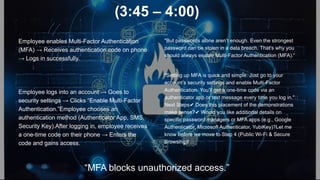
Employeeenables Multi-Factor Authentication
(MFA) → Receives authentication code on phone
→ Logs in successfully.
Employee logs into an account → Goes to
security settings → Clicks “Enable Multi-Factor
Authentication.”Employee chooses an
authentication method (Authenticator App, SMS,
Security Key).After logging in, employee receives
a one-time code on their phone → Enters the
code and gains access.
"But passwords alone aren’t enough. Even the strongest
password can be stolen in a data breach. That’s why you
should always enable Multi-Factor Authentication (MFA).“
"Setting up MFA is quick and simple. Just go to your
account’s security settings and enable Multi-Factor
Authentication. You’ll get a one-time code via an
authenticator app or text message every time you log in."📌
Next Steps Does this placement of the demonstrations
✔
make sense? Would you like additional details on
✔
specific password managers or MFA apps (e.g., Google
Authenticator, Microsoft Authenticator, YubiKey)?Let me
know before we move to Step 4 (Public Wi-Fi & Secure
Browsing)! 🚀
“MFA blocks unauthorized access.”
14.
(4:00 – 4:15)
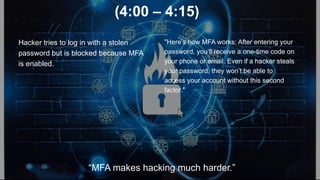
Hackertries to log in with a stolen
password but is blocked because MFA
is enabled.
"Here’s how MFA works: After entering your
password, you’ll receive a one-time code on
your phone or email. Even if a hacker steals
your password, they won’t be able to
access your account without this second
factor."
“MFA makes hacking much harder.”
15.
(4:15 – 4:30)
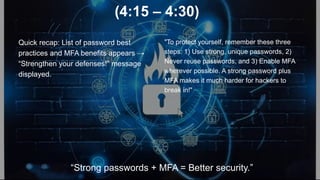
Quickrecap: List of password best
practices and MFA benefits appears →
“Strengthen your defenses!” message
displayed.
"To protect yourself, remember these three
steps: 1) Use strong, unique passwords, 2)
Never reuse passwords, and 3) Enable MFA
wherever possible. A strong password plus
MFA makes it much harder for hackers to
break in!"
“Strong passwords + MFA = Better security.”
16.
PUBLIC WI-FI &SECURE BROWSING
(4:30 – 4:45)
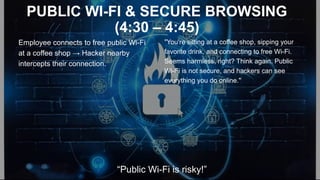
Employee connects to free public Wi-Fi
at a coffee shop → Hacker nearby
intercepts their connection.
"You're sitting at a coffee shop, sipping your
favorite drink, and connecting to free Wi-Fi.
Seems harmless, right? Think again. Public
Wi-Fi is not secure, and hackers can see
everything you do online."
“Public Wi-Fi is risky!”
17.
(4:45 – 5:00)
Man-in-the-MiddleAttack: Hacker sniffs
unencrypted traffic, capturing login
credentials.
Hacker uses packet-sniffing software
(Wireshark) to capture an unsuspecting
user’s login credentials.Unencrypted
traffic appears in plaintext, revealing
usernames and passwords.
"Hackers use a technique called Man-in-the-
Middle (MITM) attacks to eavesdrop on
unsecured connections. They can intercept
login credentials, payment details, and
private messages—without you even
knowing.“
"With packet-sniffing tools, hackers can see
what you're doing in real time—intercepting
emails, passwords, and even credit card
numbers."
“Hackers can steal your data over public Wi-Fi.”
18.
(5:00 – 5:15)
Employeeunknowingly logs into a fake
hotspot set up by a hacker.
"Another common attack is the fake Wi-Fi
hotspot. A hacker sets up a network called
‘Free_Coffee_WiFi’ and waits for
unsuspecting users to connect. Once you
do, they have access to your device."
“Beware of fake Wi-Fi networks.”
19.
(5:15 – 5:30)
Employeeenables a VPN before
browsing → Data is now encrypted.
Employee opens a VPN app (e.g.,
NordVPN, ExpressVPN, or
ProtonVPN).They connect to a secure
VPN server → Internet traffic becomes
encrypted.
"So how do you stay safe? Use a VPN—a
Virtual Private Network. A VPN encrypts
your internet traffic, making it unreadable to
hackers, even on public Wi-Fi.“
"By enabling a VPN, all your internet traffic
is encrypted, protecting your data—even on
unsecured networks."
“Always use a VPN on public Wi-Fi.”
20.
(5:30 – 5:45)
Employeevisits a secure website
(HTTPS lock icon visible) vs. a non-
secure site (no lock icon, warning
message).
"Also, before entering any sensitive
information online, check for the HTTPS
lock icon. If a site doesn’t use encryption,
your data is at risk."
“Only enter sensitive data on HTTPS websites.”
21.
(5:45 – 6:00)
Quickrecap: List of safe browsing best
practices appears → “Stay secure
online!” message displayed.
"To browse safely: 1) Avoid public Wi-Fi for
financial transactions, 2) Use a VPN to
encrypt your connection, and 3) Check for
HTTPS before entering login details. Stay
smart and stay secure!"
“Secure your connection before browsing!”
22.
DATA PROTECTION &SAFE SHARING
(6:00 – 6:15)
Employee accidentally sends a
confidential file via personal email →
File is intercepted by a hacker.
"Imagine you’re sending an important
document to a coworker, but instead of
using a secure company email, you send it
through your personal Gmail account. The
problem? Personal email isn’t encrypted
end-to-end, and hackers can intercept it."
“Unprotected data is vulnerable.”
23.
(6:15 – 6:30)
Visual:Hacker finds sensitive company
documents uploaded to a public cloud
storage folder.
Key Actions: Hacker uses Google
Dorking (advanced search operators) to
find publicly available sensitive files.
Search results display company
documents exposed on cloud storage.
“Cloud storage must be secured.”
24.
(6:30 – 6:45)
Visual:User encrypts a file and enables
access controls before sending it using
a password-protected ZIP file. Hacker
tries accessing exposed data. User
shares the file via a secure file-sharing
platform instead of email.
Key Actions: Data being encrypted and
secured. Unauthorized access attempt is
blocked.
“Secure sensitive files before sharing.”
25.
(6:45 – 7:00)
Quickrecap: List of safe data handling
practices appears → “Protect what
matters!” message displayed.
“Protect what matters before it’s too late.”
26.
CLOSING & CALLTO ACTION
(7:00 – 7:10)
Cyber 12 team on screen → Security tips appear
as quick motion graphics.
✅ Visuals:
Quick clips of employees making smart security
choices:
• Hovering over a phishing email link before
clicking.
• Using a password manager to generate a strong
password.
• Enabling MFA on an account.
• Connecting to a VPN before using public Wi-Fi.
• "Cybersecurity isn’t just an IT issue—it’s
everyone’s responsibility. By following
these best practices, you can protect your
data, your accounts, and your
organization.“
• "Small security habits make a big
difference. Taking an extra second to
verify a link, enabling MFA, and securing
your data can stop cybercriminals in their
tracks."
“Stay informed, stay secure.”
27.
(7:10 – 7:20)
Checklistappears with:
✅ Think before you click (Phishing
Awareness)
✅ Use strong passwords & MFA
✅ Avoid public Wi-Fi unless secured
✅ Encrypt & secure data before sharing
"Let’s quickly recap: 1) Think before you
click to avoid phishing scams. 2) Use strong
passwords and MFA to prevent
unauthorized access. 3) Avoid public Wi-Fi
unless secured with a VPN. 4) Encrypt and
secure data before sharing it."
“!”
28.
(7:20 – 7:30)
Cyber12 logo animation → “Stay Safe. Stay
Secure. Stay Cyber 12.” appears on screen.
✅ Visuals: Cyber 12 team members appear
on screen delivering the final message:
• One person says: “Cybersecurity is a
shared responsibility.”
• Another adds: “Let’s work together to
build a safer digital world.”
• The final presenter says: “Stay Safe. Stay
Secure. Stay Cyber 12!”
"Cyber threats never stop, but you can stay
ahead. Follow these steps, stay alert, and
help others stay safe. Stay Safe. Stay
Secure. Stay Cyber 12!“
"Cyber 12 is committed to cybersecurity
awareness. If you found this video helpful,
share it with your colleagues and take
action today!"
“!”
29.
Take the Cyber12 Security Challenge!
www.cyber12consulting.org
"Think you're ready to stay cyber-
safe? Test your knowledge with the
Cyber 12 Security Challenge! Answer
these quick questions to see how well
you can spot and stop cyber threats!"
30.
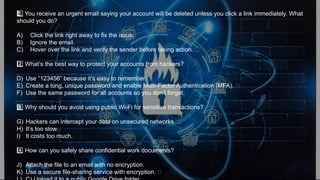
You receive anurgent email saying your account will be deleted unless you click a link immediately. What
1 ️
1️⃣
should you do?
A) Click the link right away to fix the issue.
B) Ignore the email.
C) Hover over the link and verify the sender before taking action. ✅
What’s the best way to protect your accounts from hackers?
2️⃣
D) Use “123456” because it’s easy to remember.
E) Create a long, unique password and enable Multi-Factor Authentication (MFA). ✅
F) Use the same password for all accounts so you don’t forget.
Why should you avoid using public Wi-Fi for sensitive transactions?
3 ️
3️⃣
G) Hackers can intercept your data on unsecured networks. ✅
H) It’s too slow.
I) It costs too much.
How can you safely share confidential work documents?
4️⃣
J) Attach the file to an email with no encryption.
K) Use a secure file-sharing service with encryption. ✅
31.
Cyber 12 SecurityChallenge
What Would You Do?
www.cyber12consulting.org
32.
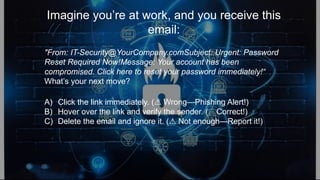
Imagine you’re atwork, and you receive this
email:
"From: IT-Security@YourCompany.comSubject: Urgent: Password
Reset Required Now!Message: Your account has been
compromised. Click here to reset your password immediately!“
What’s your next move?
A) Click the link immediately. ( Wrong—Phishing Alert!)
⚠
B) Hover over the link and verify the sender. (✅ Correct!)
C) Delete the email and ignore it. ( Not enough—Report it!)
⚠
Editor's Notes
#2 Narration: “Welcome to Cyber 12’s Security Awareness — your guide to staying cyber-safe in an increasingly digital world.”
#3 Narration: "Cyber threats are constantly evolving. Every day, millions of people fall victim to phishing scams, weak passwords, and data breaches. Hackers are always looking for vulnerabilities, making the internet full of risks—but with the right knowledge, you don’t have to be a victim. By following a few simple cybersecurity best practices, you can keep your data, devices, and identity secure. Today, we’ll show you how.
#4 Narration: "You just received an email saying your account has been compromised. The message looks urgent and asks you to reset your password immediately. But wait—this could be a phishing attack."
#5 Narration: "Phishing emails are designed to look real. They use urgency to make you panic. But before you click anything, check the sender’s address and hover over links. Does the website look legitimate? If a link says ‘secure-login.bank.com’ but actually leads to ‘bank-secure-login.xyz,’ it’s fake."
#6 Narration: "Not sure if a link is safe? Use OSINT tools like [VirusTotal] to scan for malicious websites before clicking. These tools can detect if a site is hosting malware or phishing attempts."
#7 Narration: "Phishing isn’t just about emails. Hackers also use phone calls (vishing) and text messages (smishing) to trick people. If you ever get a call from someone claiming to be IT support and asking for your password, hang up and verify their identity directly with your company."
#8 Narration: "If you receive a phishing email, don’t just delete it—report it! Let your IT or security team know so they can warn others. The faster phishing attacks are reported, the fewer people will fall for them."
#9 Narration: "To stay safe from phishing attacks, always remember these three steps: 1) Don’t click suspicious links, 2) Verify senders and URLs, and 3) Report phishing attempts to your security team. Cybercriminals count on people acting fast—so think before you click!"
#23 Narration: "Cloud storage is convenient, but if it’s not properly secured, your files may be publicly accessible. Remember, hackers don’t always break in – they actively scan for exposed documents, looking for sensitive company data. Using Google Dorking, attackers can find unsecured company documents stored in open cloud folders."
#24 Narration: "So how can you share data securely? Before sending a file, encrypt it. Use password-protected ZIP files or secure document-sharing services like OneDrive, Google Drive with permissions, or encrypted messaging platforms. This prevents unauthorized access even if the file is intercepted."
#25 Narration: "To keep your data safe, follow these three rules: 1) Never send work files through personal email, 2) Secure your cloud storage with proper access controls, and 3) Encrypt files before sharing them. Protect what matters before it’s too late!"