IMC: Ch-9 | Creative Strategy:
Implementation and Evaluation


Group O
Ajay R                 2011PGP055
Mudit Agarwal          2011PGP081
Padma N                2011PGP087
Rahul Barwe            2011PGP091
Shirish Prakash Jain   2011PGP097
Umang Kulshrestha      2011PGP105
Overview

• Once the message is determined, next step is to decide how
  the message will be executed using following steps
• Firstly analyze various types of appeal that can be used in an
  advertising message
• Various creative execution styles for different advertising
  situations
• Understand creative tactics of print advertising and TV
  commercials
• From a clients point of view, how to evaluate an agencies
  creative work
Emotions


                  Personality


            Product benefits
Advertising appeal refers to the approach used to
attract the attention of consumers and/or to influence
their feelings towards the product, service or cause
Different Ad Appeals

   Rational/Informational Appeal focus on
   consumer’s practical, utilitarian needs for the
   product


   Emotional Appeal relates to customer’s social and
 psychological needs for purchasing the product


 Mixed appeal use a bit of both rational as well as
 emotional appeal


   Additional type of Appeals those which are not
 covered by the appeals mentioned above like teasers
Rational/Informational Appeal
                                              A lot of Rational motives can be used as
                                              the basis for advertising appeals, a few of
                                              them are:

                                              •   Comfort
                                              •   Convenience
                                              •   Economy
                                              •   Health
                                              •   Touch, taste, smell
                                              •   Quality
                                              •   Dependability
Dove uses Rational Appeal                     •   Performance
Telling about features of soap highlighting   •   Competitive Advantage
competitive advantage                         •   Favorable Price
                                              •   Feature appeal
                                              •   News
                                              •   Product popularity
Emotional Appeal
                                             A lot of Emotional appeals can be used as
                                             the basis for advertising appeals, a few of
                                             them are:

                                             •   Safety
                                             •   Fear
                                             •   Love
                                             •   Happiness
                                             •   Excitement
                                             •   Pride
                                             •   Self-Esteem
Airtel uses happiness, excitement, love to   •   Ambition
emotionally appeal to customers as the       •   Status
products of competitors are not clearly      •   Respect
differentiated using rational appeals        •   Embarrassment
                                             •   Acceptance
Additional Appeals


                                           Rational and Emotional Appeals can be
                                           combined to appeal to customers on
                                           both the points or else a few other
                                           appeals are there which are not covered
                                           by the two appeals mentioned before:

                                           • Reminder Advertising
                                           • Teaser Advertising


Apple uses teaser to introduce new 13.3’
aluminum Macbook
Advertising
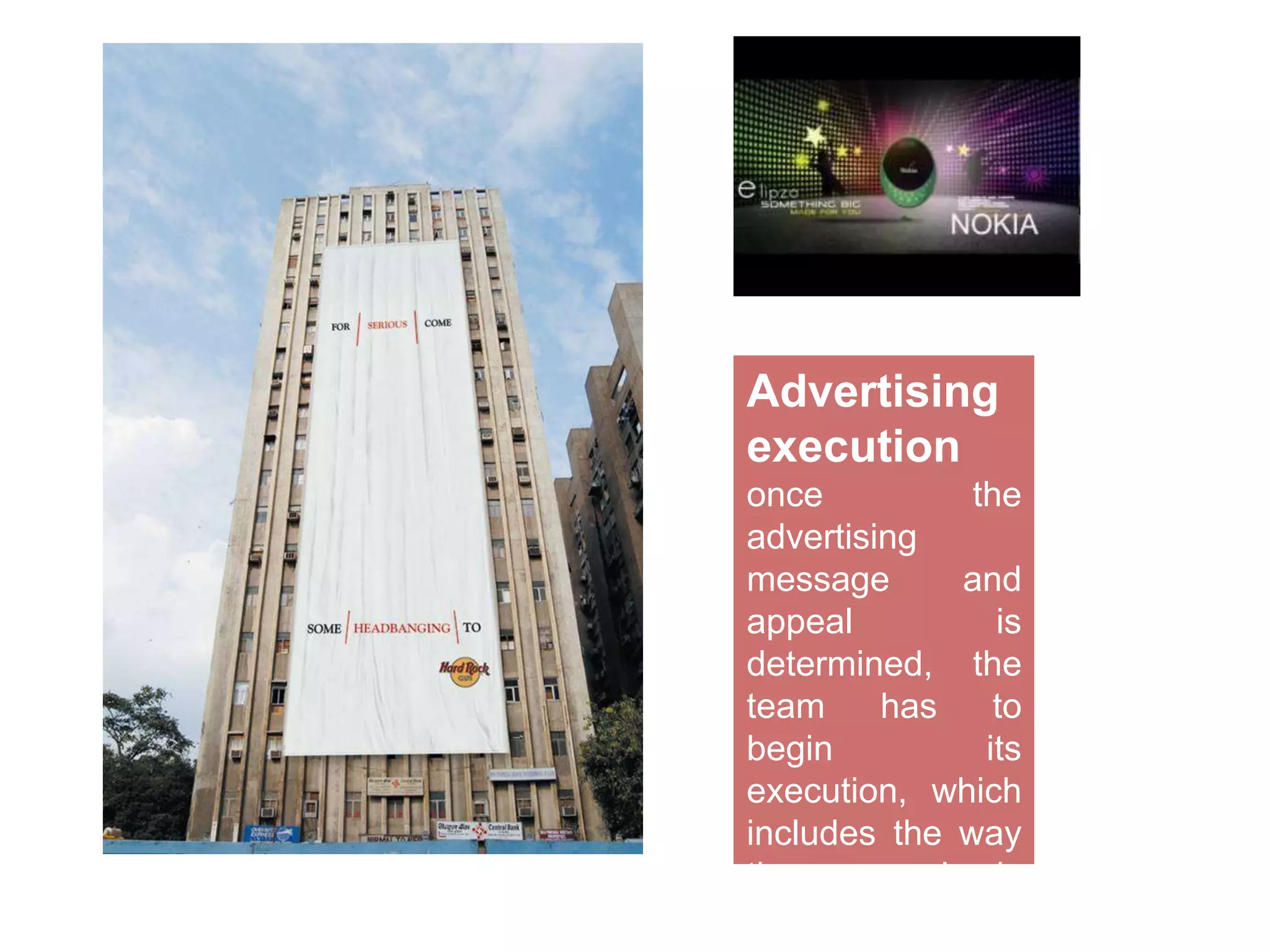
execution
once          the
advertising
message      and
appeal          is
determined, the
team     has    to
begin          its
execution, which
includes the way
the appeal is
presented
Various Advertisement Execution styles

           Straight Sell straightforward presentation of
           information concerning the product


                   Technical Evidence citing technical
                   information, results of scientific or lab
                   studies


                        Testimonial by ordinary
                        satisfied customers with whom
                        target audience can identify

                           Slice of Life showing a part of life of
                           consumers where some problem is
                           resolved by use of the product
Various Advertisement Execution styles

           Animation characters, puppets, other fictional
           characters are used to connect with audience


                   Fantasy mostly suitable for a TVC where a 30
                   second escape from real life is created to
                   grab attention


                        Dramatization a story is build
                        around the product with a
                        climax in the end

                          Humour can be used in execution to
                          connect instantly with audience, but it
                          has to be done very carefully
Creative Tactics for Print Ad


 Headline         Subhead           Body           Visual            Layout
 Words in the     Smaller than      Copy          Element           The physical
    leading        the heading                                     arrangement
                                  Heart of the    Important to
position on the      but larger                                    of the various
                                  ad message,        attract
 ad important       than body                                       parts of the
                                   follows on    attention, also
    to grad       copy, used to                                     ad, gives an
                                  the basis of      helpful in
   attention      highlight key                                      idea as to
                                   the appeal    communicatio
                   sales point,                                      what all is
   Direct or                           and       n an idea and
                    reinforcing                                       required
    Indirect                        execution    making the ad
                  the headline
  headlines                        style used    more effective
Creative Tactics for TV Ad
      Video                    Audio              Pre-Production
                            Includes voices,        Selecting director,
The element which                                  casting, production
                           music and sound
  is seen on the TV                                 company, location
                             effects; various
 screen, it is critical
                            forms are voice-
    to manage the
                          overs, needle drops,
talent used, lighing,
                              jingles, music         Production
graphics, color, etc.
                                tracks, etc
                                                 Shoots, Night/Weekend
                                                      shoot, talent
                               Script                arrangement
Planning and
 Production                 All elements are
                          brought together in
  As the money             a script, a written    Post-Production
involved in TVC is           version of the
high, planning and                                 Editing, Processing,
                           commercial; helps       Audio/video mixing,
  production are            in synchronizing
      critical                                      approvals, release
                            video and audio
Client Evaluation and Approval

 Consistency      Clear      Truthful
 with brands
  Marketing
                Convincing     and
  Objectives     message     tasteful


Consistency      Right of    Correct
with creative     Target     for the
  strategy      audience     media
Thank You

Creative Strategy: Implementation and Evaluation

  • 1.
    IMC: Ch-9 |Creative Strategy: Implementation and Evaluation Group O Ajay R 2011PGP055 Mudit Agarwal 2011PGP081 Padma N 2011PGP087 Rahul Barwe 2011PGP091 Shirish Prakash Jain 2011PGP097 Umang Kulshrestha 2011PGP105
  • 2.
    Overview • Once themessage is determined, next step is to decide how the message will be executed using following steps • Firstly analyze various types of appeal that can be used in an advertising message • Various creative execution styles for different advertising situations • Understand creative tactics of print advertising and TV commercials • From a clients point of view, how to evaluate an agencies creative work
  • 3.
    Emotions Personality Product benefits Advertising appeal refers to the approach used to attract the attention of consumers and/or to influence their feelings towards the product, service or cause
  • 4.
    Different Ad Appeals Rational/Informational Appeal focus on consumer’s practical, utilitarian needs for the product Emotional Appeal relates to customer’s social and psychological needs for purchasing the product Mixed appeal use a bit of both rational as well as emotional appeal Additional type of Appeals those which are not covered by the appeals mentioned above like teasers
  • 5.
    Rational/Informational Appeal A lot of Rational motives can be used as the basis for advertising appeals, a few of them are: • Comfort • Convenience • Economy • Health • Touch, taste, smell • Quality • Dependability Dove uses Rational Appeal • Performance Telling about features of soap highlighting • Competitive Advantage competitive advantage • Favorable Price • Feature appeal • News • Product popularity
  • 6.
    Emotional Appeal A lot of Emotional appeals can be used as the basis for advertising appeals, a few of them are: • Safety • Fear • Love • Happiness • Excitement • Pride • Self-Esteem Airtel uses happiness, excitement, love to • Ambition emotionally appeal to customers as the • Status products of competitors are not clearly • Respect differentiated using rational appeals • Embarrassment • Acceptance
  • 7.
    Additional Appeals Rational and Emotional Appeals can be combined to appeal to customers on both the points or else a few other appeals are there which are not covered by the two appeals mentioned before: • Reminder Advertising • Teaser Advertising Apple uses teaser to introduce new 13.3’ aluminum Macbook
  • 8.
    Advertising execution once the advertising message and appeal is determined, the team has to begin its execution, which includes the way the appeal is presented
  • 9.
    Various Advertisement Executionstyles Straight Sell straightforward presentation of information concerning the product Technical Evidence citing technical information, results of scientific or lab studies Testimonial by ordinary satisfied customers with whom target audience can identify Slice of Life showing a part of life of consumers where some problem is resolved by use of the product
  • 10.
    Various Advertisement Executionstyles Animation characters, puppets, other fictional characters are used to connect with audience Fantasy mostly suitable for a TVC where a 30 second escape from real life is created to grab attention Dramatization a story is build around the product with a climax in the end Humour can be used in execution to connect instantly with audience, but it has to be done very carefully
  • 11.
    Creative Tactics forPrint Ad Headline Subhead Body Visual Layout Words in the Smaller than Copy Element The physical leading the heading arrangement Heart of the Important to position on the but larger of the various ad message, attract ad important than body parts of the follows on attention, also to grad copy, used to ad, gives an the basis of helpful in attention highlight key idea as to the appeal communicatio sales point, what all is Direct or and n an idea and reinforcing required Indirect execution making the ad the headline headlines style used more effective
  • 12.
    Creative Tactics forTV Ad Video Audio Pre-Production Includes voices, Selecting director, The element which casting, production music and sound is seen on the TV company, location effects; various screen, it is critical forms are voice- to manage the overs, needle drops, talent used, lighing, jingles, music Production graphics, color, etc. tracks, etc Shoots, Night/Weekend shoot, talent Script arrangement Planning and Production All elements are brought together in As the money a script, a written Post-Production involved in TVC is version of the high, planning and Editing, Processing, commercial; helps Audio/video mixing, production are in synchronizing critical approvals, release video and audio
  • 13.
    Client Evaluation andApproval Consistency Clear Truthful with brands Marketing Convincing and Objectives message tasteful Consistency Right of Correct with creative Target for the strategy audience media
  • 14.

Editor's Notes

  • #2 Animated picture buttons grow and turn on path(Advanced)To reproduce the curved shape on this slide, do the following:On the Home tab, in the Slides group, click Layout, and then click Blank.On the Home tab, in the Drawing group, click Shapes, and then under Basic Shapes click Right Triangle (first row, fourth option from the left).On the slide, draw a triangle. Under Drawing Tools, on the Format tab, in the Size group, enter 7.5” into the Height box and enter 4.75” into the Width box.On the Home tab, in the Drawing group, click Arrange, point to Align, and then do the following:Click Align Middle. Click Align Left.On the slide, select the triangle. Under Drawing Tools, on the Format tab, in the Insert Shapes group, click Edit Shape, and then click Edit Points. Right-click the diagonal side of the triangle, and then click Curved Segment. Click the bottom right corner of the triangle and then move the curve adjustment handle to create a consistent curve.Also on the Format tab, in the Shape Styles group, click Shape Fill, and then under Theme Colors click White, Background 1 (first row, first option from the left).Also on the Format tab, in the Shape Styles group, click Shape Outline, and then click No Outline.To reproduce the background effects on this slide, do the following:On the Design tab, in the Background group, click Background Styles, and then click Format Background. In the Format Background dialog box, click Fill in the left pane, select Gradient fill in the Fill pane, and then do the following:In the Type list, select Linear.In the Angle box, enter 225.Under Gradient stops, click Add gradient stops or Remove gradient stops until two stops appear in the slider.Also under Gradient stops, customize the gradient stops as follows:Select the first stop in the slider, and then do the following: In the Position box, enter 0%.Click the button next to Color, and then under Theme Colors click White, Background 1 (first row, first option from the left).In the Transparency box, enter 0%. Select the first stop in the slider, and then do the following: In the Position box, enter 100%.Click the button next to Color, click More Colors, and then in the Colors dialog box, on the Custom tab, enter values for Red: 230, Green: 230, Blue: 230.To reproduce the picture and text effects on this slide, do the following:On the Insert tab, in the Images group, click Picture. In the Insert Picture dialog box, select a picture, and then click Insert.On the slide, select the picture. Under Picture Tools, on the Format tab, in the Size group, click the arrow under Crop, click Crop to Shape, and then under Basic Shapes click Oval (first option from the left).With the picture still selected, under PictureTools, on the Format tab, in the Size group, click the Size and Position dialog box launcher. In the Format Picture dialog box, resize or crop the image so that the height is set to 1.2” and the widthis set to 1.2”. To crop the picture, click Crop in the left pane, and in the right pane, under Crop position, enter values into the Height, Width, Left, and Top boxes. To resize the picture, click Size in the left pane, and in the right pane, under Size and rotate, enter values into the Height and Width boxes.Also in the Format Picture dialog box, click 3-D Format in the left pane, and then, in the 3-D Format pane, do the following:Under Bevel, click the button next to Top and click Circle (first row, first option from the left).Under Surface, click the button next to Material, and then under Standard click Metal (fourth option from the left). Click the button next to Lighting, and then under Neutral click Contrasting (second row, second option from the left). In the Angle box, enter 25°.Also in the Format Picture dialog box, click Shadow in the left pane. In the Shadow pane, click the button next to Presets, under Outer click Offset Diagonal Bottom Left (first row, third option from the left), and then do the following:In the Transparency box, enter 77%.In the Size box, enter 100%.In the Blur box, enter 10 pt.In the Angle box, enter 141°.In the Distance box, enter 10 pt.On the slide, drag the picture onto the curve, near the top. On the Insert tab, in the Text group, click Text Box. On the slide, drag to draw the text box.Enter text in the text box and select it. On the Home tab, in the Font group, do the following:In the Font list, select Corbel.In the Font Size box, enter 22.Click the arrow next to Font Color,and then under Theme Colors click White, Background 1, Darker 50% (sixth row, first option from the left).On the Home tab, in the Paragraph group, click Align Text Left to align the text left in the text box.On the slide, drag the text box to the right of the picture. To reproduce the animation effects on this slide, do the following:It will help to zoom out in order to view the area off the slide. On the View tab, in the Zoom group, click Zoom. In the Zoom dialog box, select 65%.On the Animations tab, in the AdvancedAnimation group, click AddAnimation, and then click More Entrance Effects. In the Add Entrance Effect dialog box, under Moderate, click Grow & Turn, and then click OK.On the Animations tab, in the Timing group, in the Start list, select WithPrevious.On the Animations tab, in the Timing group, in the Duration box, enter 1. On the Animations tab, in the AdvancedAnimation group, click AddAnimation, and then under Motion Paths click Arcs.On the Animations tab, in the Timing group, in the Start list, select WithPrevious.On the Animations tab, in the Timing group, in the Duration box, enter 1. On the Animations tab, in the Animation group, click EffectOptions, and then click Right.On the Animations tab, in the Animation group, click EffectOptions, and then click Reverse Path Direction.On the slide, select the arc effect path, and then drag the bottom sizing handle below the bottom of the slide. Drag the right side sizing handle to the left until the path curve approximately matches the curve of the modified triangle. Drag the green rotation handle to the left to rotate the arc path to match the curve of the modified triangle. Drag the arc path so that the red arrow is in the center of the picture. You may need to make further adjustments to the length, width, and angle of the arc path to match the curve of the modified triangle.On the slide, select the text box. On the Animations tab, in the AdvancedAnimation group, click AddAnimation, and then under Entrance click Fade.On the Animations tab, in the Timing group, in the Start list, select After Previous.On the Animations tab, in the Timing group, in the Duration box, enter 1. To reproduce the other animated pictures and text boxes on this slide, do the following:On the Animations tab, in the Advanced Animation group, click Animation Pane. On the slide, press and hold CTRL and then select the picture and the text box. On the Home tab, in the Clipboard group, click the arrow next to Copy, and then click Duplicate.On the slide, drag the duplicate picture and text onto the curve below the first group. On the slide, select the duplicate picture. Under Picture Tools, on the Format tab, in the Adjust group, click ChangePicture. In the Insert Picture dialog box, select a picture, and then click Insert. Under PictureTools, on the Format tab, in the Size group, click the Size and Position dialog box launcher. In the Format Picture dialog box, resize or crop the image so that the height is set to 1.2” and the widthis set to 1.2”. To crop the picture, click Crop in the left pane, and in the right pane, under Crop position, enter values into the Height, Width, Left, and Top boxes. To resize the picture, click Size in the left pane, and in the right pane, under Size and rotate, enter values into the Height and Width boxes.In the AnimationPane, click the Arc animation effect for the new picture. Drag the green rotation handle to the right to rotate the arc path to match the curve of the modified triangle. Drag the arc path so that the red arrow is in the center of the picture.Click in the duplicate text box and edit the text.Repeat steps 2-7 two more times to reproduce the third and fourth pictures and text boxes with animation effects.
  • #3 Animated picture buttons grow and turn on path(Advanced)To reproduce the curved shape on this slide, do the following:On the Home tab, in the Slides group, click Layout, and then click Blank.On the Home tab, in the Drawing group, click Shapes, and then under Basic Shapes click Right Triangle (first row, fourth option from the left).On the slide, draw a triangle. Under Drawing Tools, on the Format tab, in the Size group, enter 7.5” into the Height box and enter 4.75” into the Width box.On the Home tab, in the Drawing group, click Arrange, point to Align, and then do the following:Click Align Middle. Click Align Left.On the slide, select the triangle. Under Drawing Tools, on the Format tab, in the Insert Shapes group, click Edit Shape, and then click Edit Points. Right-click the diagonal side of the triangle, and then click Curved Segment. Click the bottom right corner of the triangle and then move the curve adjustment handle to create a consistent curve.Also on the Format tab, in the Shape Styles group, click Shape Fill, and then under Theme Colors click White, Background 1 (first row, first option from the left).Also on the Format tab, in the Shape Styles group, click Shape Outline, and then click No Outline.To reproduce the background effects on this slide, do the following:On the Design tab, in the Background group, click Background Styles, and then click Format Background. In the Format Background dialog box, click Fill in the left pane, select Gradient fill in the Fill pane, and then do the following:In the Type list, select Linear.In the Angle box, enter 225.Under Gradient stops, click Add gradient stops or Remove gradient stops until two stops appear in the slider.Also under Gradient stops, customize the gradient stops as follows:Select the first stop in the slider, and then do the following: In the Position box, enter 0%.Click the button next to Color, and then under Theme Colors click White, Background 1 (first row, first option from the left).In the Transparency box, enter 0%. Select the first stop in the slider, and then do the following: In the Position box, enter 100%.Click the button next to Color, click More Colors, and then in the Colors dialog box, on the Custom tab, enter values for Red: 230, Green: 230, Blue: 230.To reproduce the picture and text effects on this slide, do the following:On the Insert tab, in the Images group, click Picture. In the Insert Picture dialog box, select a picture, and then click Insert.On the slide, select the picture. Under Picture Tools, on the Format tab, in the Size group, click the arrow under Crop, click Crop to Shape, and then under Basic Shapes click Oval (first option from the left).With the picture still selected, under PictureTools, on the Format tab, in the Size group, click the Size and Position dialog box launcher. In the Format Picture dialog box, resize or crop the image so that the height is set to 1.2” and the widthis set to 1.2”. To crop the picture, click Crop in the left pane, and in the right pane, under Crop position, enter values into the Height, Width, Left, and Top boxes. To resize the picture, click Size in the left pane, and in the right pane, under Size and rotate, enter values into the Height and Width boxes.Also in the Format Picture dialog box, click 3-D Format in the left pane, and then, in the 3-D Format pane, do the following:Under Bevel, click the button next to Top and click Circle (first row, first option from the left).Under Surface, click the button next to Material, and then under Standard click Metal (fourth option from the left). Click the button next to Lighting, and then under Neutral click Contrasting (second row, second option from the left). In the Angle box, enter 25°.Also in the Format Picture dialog box, click Shadow in the left pane. In the Shadow pane, click the button next to Presets, under Outer click Offset Diagonal Bottom Left (first row, third option from the left), and then do the following:In the Transparency box, enter 77%.In the Size box, enter 100%.In the Blur box, enter 10 pt.In the Angle box, enter 141°.In the Distance box, enter 10 pt.On the slide, drag the picture onto the curve, near the top. On the Insert tab, in the Text group, click Text Box. On the slide, drag to draw the text box.Enter text in the text box and select it. On the Home tab, in the Font group, do the following:In the Font list, select Corbel.In the Font Size box, enter 22.Click the arrow next to Font Color,and then under Theme Colors click White, Background 1, Darker 50% (sixth row, first option from the left).On the Home tab, in the Paragraph group, click Align Text Left to align the text left in the text box.On the slide, drag the text box to the right of the picture. To reproduce the animation effects on this slide, do the following:It will help to zoom out in order to view the area off the slide. On the View tab, in the Zoom group, click Zoom. In the Zoom dialog box, select 65%.On the Animations tab, in the AdvancedAnimation group, click AddAnimation, and then click More Entrance Effects. In the Add Entrance Effect dialog box, under Moderate, click Grow & Turn, and then click OK.On the Animations tab, in the Timing group, in the Start list, select WithPrevious.On the Animations tab, in the Timing group, in the Duration box, enter 1. On the Animations tab, in the AdvancedAnimation group, click AddAnimation, and then under Motion Paths click Arcs.On the Animations tab, in the Timing group, in the Start list, select WithPrevious.On the Animations tab, in the Timing group, in the Duration box, enter 1. On the Animations tab, in the Animation group, click EffectOptions, and then click Right.On the Animations tab, in the Animation group, click EffectOptions, and then click Reverse Path Direction.On the slide, select the arc effect path, and then drag the bottom sizing handle below the bottom of the slide. Drag the right side sizing handle to the left until the path curve approximately matches the curve of the modified triangle. Drag the green rotation handle to the left to rotate the arc path to match the curve of the modified triangle. Drag the arc path so that the red arrow is in the center of the picture. You may need to make further adjustments to the length, width, and angle of the arc path to match the curve of the modified triangle.On the slide, select the text box. On the Animations tab, in the AdvancedAnimation group, click AddAnimation, and then under Entrance click Fade.On the Animations tab, in the Timing group, in the Start list, select After Previous.On the Animations tab, in the Timing group, in the Duration box, enter 1. To reproduce the other animated pictures and text boxes on this slide, do the following:On the Animations tab, in the Advanced Animation group, click Animation Pane. On the slide, press and hold CTRL and then select the picture and the text box. On the Home tab, in the Clipboard group, click the arrow next to Copy, and then click Duplicate.On the slide, drag the duplicate picture and text onto the curve below the first group. On the slide, select the duplicate picture. Under Picture Tools, on the Format tab, in the Adjust group, click ChangePicture. In the Insert Picture dialog box, select a picture, and then click Insert. Under PictureTools, on the Format tab, in the Size group, click the Size and Position dialog box launcher. In the Format Picture dialog box, resize or crop the image so that the height is set to 1.2” and the widthis set to 1.2”. To crop the picture, click Crop in the left pane, and in the right pane, under Crop position, enter values into the Height, Width, Left, and Top boxes. To resize the picture, click Size in the left pane, and in the right pane, under Size and rotate, enter values into the Height and Width boxes.In the AnimationPane, click the Arc animation effect for the new picture. Drag the green rotation handle to the right to rotate the arc path to match the curve of the modified triangle. Drag the arc path so that the red arrow is in the center of the picture.Click in the duplicate text box and edit the text.Repeat steps 2-7 two more times to reproduce the third and fourth pictures and text boxes with animation effects.