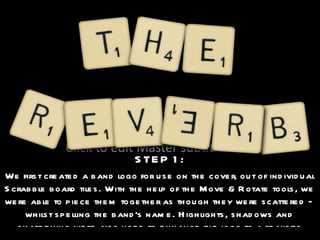
STEP 1: We first created a band logo for use on the cover, out of individual Scrabble board tiles. With the help of the Move & Rotate tools, we were able to piece them together as though they were scattered – whilst spelling the band’s name. Highlights, shadows and sharpening were also used to enhance the logo to a realistic standard.
STEP 2: Secondly, we pasted the logo on to a wooden background. This had previously been re-coloured with the levels under the Hue-Saturation option. A light flash in the top-right hand corner was also added for extra effect – although perhaps not entirely noticeable at first glance!
STEP 3: Next, we needed to include the album title. Our idea was to have the title literally scratched into the wooden surface, although this appeared difficult to construct.  Rather than using a font colour, we decided to cut around the text and use the wooden texture instead. Shadows with the use of the Gaussian Blur tool were also included so it did not blend in with the background.
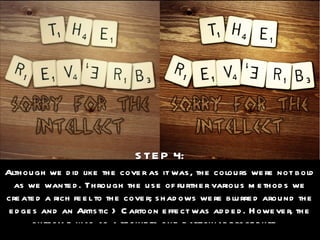
STEP 4: Although we did like the cover as it was, the colours were not bold as we wanted. Through the use of further various methods we created a rich feel to the cover; shadows were blurred around the edges and an Artistic > Cartoon effect was added. However, the outcome was as a result to one particular procedure…
Flatten the entire image and then duplicate the layer. 2. Add Gaussian Blur to the top layer; at about 25.0 horizontally and vertically. 3. Next, set this layer to overlay and a visible difference in colour should be seen. The opacity level can be decreased if it is too much, or duplicated once again if it is too little. 4. Although optional, we finally lowered the Hue-Saturation levels for a more natural colour whilst still providing a glowing effect.
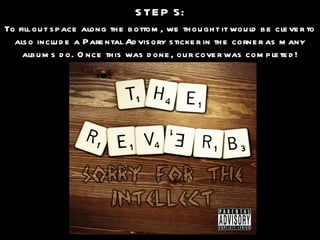
STEP 5: To fill out space along the bottom, we thought it would be clever to also include a Parental Advisory sticker in the corner as many albums do. Once this was done, our cover was completed!

Creating The Digipak Cover

  • 1.
    STEP 1: Wefirst created a band logo for use on the cover, out of individual Scrabble board tiles. With the help of the Move & Rotate tools, we were able to piece them together as though they were scattered – whilst spelling the band’s name. Highlights, shadows and sharpening were also used to enhance the logo to a realistic standard.
  • 2.
    STEP 2: Secondly,we pasted the logo on to a wooden background. This had previously been re-coloured with the levels under the Hue-Saturation option. A light flash in the top-right hand corner was also added for extra effect – although perhaps not entirely noticeable at first glance!
  • 3.
    STEP 3: Next,we needed to include the album title. Our idea was to have the title literally scratched into the wooden surface, although this appeared difficult to construct. Rather than using a font colour, we decided to cut around the text and use the wooden texture instead. Shadows with the use of the Gaussian Blur tool were also included so it did not blend in with the background.
  • 4.
    STEP 4: Althoughwe did like the cover as it was, the colours were not bold as we wanted. Through the use of further various methods we created a rich feel to the cover; shadows were blurred around the edges and an Artistic > Cartoon effect was added. However, the outcome was as a result to one particular procedure…
  • 5.
    Flatten the entireimage and then duplicate the layer. 2. Add Gaussian Blur to the top layer; at about 25.0 horizontally and vertically. 3. Next, set this layer to overlay and a visible difference in colour should be seen. The opacity level can be decreased if it is too much, or duplicated once again if it is too little. 4. Although optional, we finally lowered the Hue-Saturation levels for a more natural colour whilst still providing a glowing effect.
  • 6.
    STEP 5: Tofill out space along the bottom, we thought it would be clever to also include a Parental Advisory sticker in the corner as many albums do. Once this was done, our cover was completed!