Creating
Infographics
What is
Canva lets you create
beautiful content...
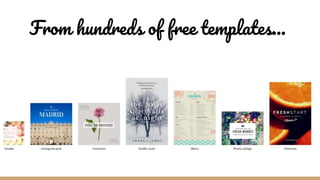
From hundreds of free templates...
Using millions of images...
Or your own...
Thousands of icons and shapes...
Hundreds of font styles...
Getting
started
You will need
to create an
account to
begin
https://www.canva.com
You will need
to create an
account to
begin
Select a profile which best fits your description
Choosing a
template
Search for a themed
template in the
search box in the
“templates” tab
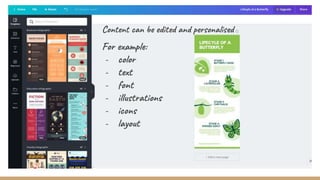
Editing on
For example:
- color
- text
- font
- illustrations
- icons
- layout
Content can be edited and personalised
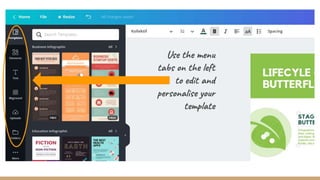
Use the menu
tabs on the left
to edit and
personalise your
template
To edit the font in your template, use the top left menu options.
Drag and drop
the font template
you want to use
To copy an element in your
infographic, such as an
image or graphic, select the
element and click “copy” in
the top right hand corner
menu.
This will create a duplicate
in your infographic.
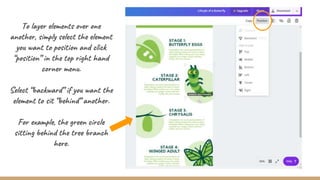
To layer elements over one
another, simply select the element
you want to position and click
“position” in the top right hand
corner menu.
Select “backward” if you want the
element to sit “behind” another.
For example, the green circle
sitting behind the tree branch
here.
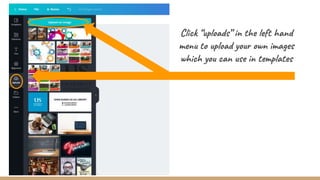
Click “uploads” in the left hand
menu to upload your own images
which you can use in templates
Charts in
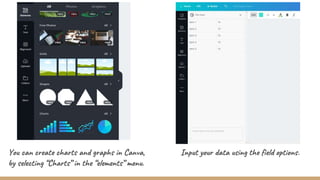
You can create charts and graphs in Canva,
by selecting “Charts” in the “elements” menu.
Input your data using the field options.
Canva
automatically
saves your
work
Time to
Create!

Creating Infographics with Canva