Kombolcha poly technic college
Sector of ICT
WDDBA level I
Module Title: - Connecting hardware peripherals
Module code: EIS WDDB1 M02 0322
Nominal duration: 52Hour
October 2024
Prepared by Haile sitotaw
Confirm Requirements of client
1
2
3
4
5
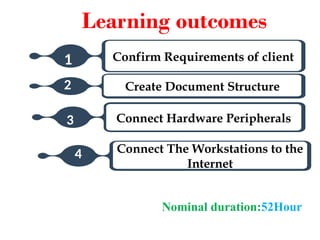
Learning outcomes
Create Document Structure
2
Connect Hardware Peripherals
3
Nominal duration:52Hour
Connect The Workstations to the
Internet
4
Confirm Requirements of Client
1
This unit will also assist you to attain the learning outcomes stated in
the cover page.
Specifically, upon completion of this learning guide, you will be able
to:
 Understand characteristics, generation and types of
computers
 Prepare documentation and reporting of client requirements
 Identify and confirm client’s peripherals
 Verify client requirements
 Ensure client support expectations
1.1 Basic introduction to computer
1.1.1 Understanding history, generation and types of computers.
What is computer?
 Is an electronic device that manipulates information, or "data." It has the ability
to store, retrieve, and process data.
What is the usage of Computer
To type documents, send email, and browse the internet.
To handle spreadsheets, accounting, database management,
presentations, games, and more for beginning computer users.
What is Data And Information
Data is a collection of unorganized facts & figures and does not
provide any further information regarding patterns, context, etc. Hence
data means "unstructured facts and figures".
Information is a structured data i.e. organized meaningful and
processed data. To process the data and convert into information, a
computer is used.
Parts of Computer
Hardware is any part of your computer that has a physical
structure, such as the computer monitor or keyboard.
Software is any set of instructions that tells the hardware what to do.
It is what guides the hardware and tells it how to accomplish each task.
Some examples of software are web browsers, games, and word processors
such as Microsoft Word.
Hardware
Input devices
Output devices
Input devices
Are devices used to insert data into a computer
Example
 Keyboard
 Mouse
 Scanner
 Joystick
 Trackball
 Touchpad
 Light pen
 Barcode reader
 Microphone
Output devices
Are devices used to Display data to humans in easily
understandable format
Example
 Printer
 Monitor
 Projector
 Speaker
Software
System software
Application software
Characteristics of computer
5 the most popular characteristics of a computer.
Speed: computer can work very fast.
It takes only few seconds for calculations that we take hours to complete.
You will be surprised to know that computer can perform millions
(1,000,000) of instructions and even more per second.
Therefore, we determine the speed of computer in terms of microsecond (106
part of a second) or nanosecond (109
part of a second).
Accuracy:
 Computer gives us accurate result or calculation.
 Error occurs in result for any calculation in a computer is only due to
wrong program or instruction, inaccuracy in input data etc
Consistency:
 Computer is a consistent machine;
 it means that computer never gets tired of working more.
 You can use computer to perform your task without any error for any
number of hours, any number of hours means you can use your computer
system continuously for 24 hours a day and 365 days a year.
Storage:
 The Computer has an in-built memory where it can store a large amount of
data.
 You can also store data in secondary storage devices such as floppies,
which can be kept outside your computer and can be carried to other
computers
Flexibility:
Means that a computer can work in many areas like you can use
your computer system to:
 Listen sounds or music’s
 Watch movies or videos
 Play games
 See pictures
 Write textual documents and save
 Open and read anything
Generation of computer
Generation of computer is characterized by a major technological development
that fundamentally changed the way computers operate, resulting in
increasingly smaller, cheaper more powerful and more efficient and reliable
devices.
First Generation (1946 to 1954):
 In 1946 there was no ‘best’ way of storing instructions and data in a computer
memory.
 The digital computes using electronic valves (Vacuum tubes) are known as
first generation computers. The first ‘computer’ to use electronic valves (i.e.
vacuum tubes).
 The high cost of vacuum tubes prevented their use for main memory.
 They stored information in the form of propagating sound waves.
Limitations of First-Generation Computer
 They used valves or vacuum tubes as their main electronic component.
 They were large in size, slow in processing and had less storage capacity.
 They consumed lots of electricity and produced lots of heat.
 Their computing capabilities were limited.
 They were not so accurate and reliable.
 They used machine level language for programming.
 They were very expensive
Second-generation computer (1955 to 1964): -
 used transistors for CPU components.
 They used high-level languages such as FORTRAN; ALGOL &
COBOL.I/O processor was included to control I/O operations.
 Transistors are smaller than Vacuum tubes and have higher operating
speed.
Advantages of second-generation computers
 Smaller in size as compared to the first-generation computers
 The second-generation computers were more reliable
 Used less energy and were not heated
 Better portability as compared to the first-generation computers
 Beta speed and could calculate data in microseconds
 Used faster peripherals like tape drives, magnetic disks, printer etc.
Disadvantages of second-generation computers
 Cooling system was required
 Constant maintenance was required
 Only used for specific purposes
Third Generation computer (1964 to 1975)
Integrated circuits that is ICs came into existence and therefore the
third-generation computer was also came into existence.
The third-generation computers used the integrated circuits (ICs).
Advantages of third generation computers
 Smaller in size as compared to previous generation
 More reliable
 Used less energy
 Better speed and could calculate data in nanoseconds
 Used fan for heat discharge to prevent damage
Disadvantages of third generation computers
 Air conditioning was required
 Highly sophisticated Technology was required for
the manufacturing of IC chips
Fourth Generation Computer (1975 to present)
 Fourth generation computer starts from the year, 1971.
 At that time there was an invention of microprocessor chip that has
created a revolution in the computer world.
 The fourth-generation computers started with the invention of
microprocessor. The microprocessor contains thousands of ICs.
 The size of modern microprocessors is usually 1 square inch. It can
contain millions of electronic circuits.
Advantages of fourth generation of computers
 Much faster
 Less expensive
 More powerful and reliable than previous generations
 Small in size
 Uses advanced techniques
 Have greater data processing capacity than equivalent size previous
generation computer that is third generation computers
 Fast processing power with less power consumption
 Fan for heat discharging and thus to keep cold
 No air conditioning required
Fifth Generation Computer (Present to beyond)
 It is based on the technique of artificial intelligence (AI).
 All computer machines that will made on the basis of 5th
generation computer will use parallel processing techniques
and artificial intelligence
Types of computers
 Computers can be categorized on the basis of: size and data handling
capabilities. Further, on the basis of data handling capabilities, computers
can be divided into three types:
Analogue computer:
 They are designed so that they can process the analogue data.
 The data that can change continuously and do not have discrete values
such as temperature, current, speed and pressure is known as Analogue
data.
Analogue computers don’t wait for the data to get converted into codes and numbers
and rather accept the data from the measuring device directly.
Mercury meter and speedometer are the examples of analogue
computer
Mercury thermometers are used to measure the temperature of liquids and
vapors in households, laboratory experiments at educational and medical
institutions, and industrial applications.
The speedometer is an instrument used to measure the distance traveled by a
vehicle whereas odometer is used to measure the speed of a vehicle
Digital Computers:
 They are designed to perform logical operations and calculations at a high
speed. A digital computer accepts raw data as numbers or digits and then, to
produce output, it processes it with the programs stored in its memory.
 The modern computers like desktops and laptops fall under the category of
digital computers
Hybrid Computer:
 It contains the features of both Digital and Analogue computers.
 It has accuracy and memory like digital computers and is fast like Analogue
computers.
 It can process both discrete and continuous data and hence it is widely used
in specialized applications where both digital and analogue data is processed,
example being a petrol pump where a processor is used to convert the
measurement of fuel flow into price and quantity.
On the basis of size, computers can be classified into four types
Microcomputer:
 It is also known as Personal Computer.
 This general-purpose computer is mainly designed for individual use.
 It consists of a microprocessor, which works as the Central Processing Unit,
storage area, memory, and input and output unit.
Examples of microcomputers are desktop computers, laptop computers and palmtop.
Min computer:
It is a multiprocessing computer of midsize.
It has the capacity of entertaining 4 to 200 users at one given time and consists of
2 or more processors.
Mini computers are mostly used in departments and institutes for the tasks like
inventory management, billing and accounting.
Mainframe computer:
 They have the capacity of supporting hundreds or thousands of users
simultaneously and they can also support multiple programs at the same
time.
 This means that different processes can be executed simultaneously by a
Mainframe Computer.
Hence, organizations that need to process and manage high volume of data
find mainframe computers ideal for them.
Telecom and banking sectors are examples of such organizations
Mainframe computers are useful for tasks related to:
Industry and consumer statistics
 Enterprise resource planning
 Transaction processing
 e-business and e-commerce
Super/Macro computers:
They are the fastest in speed and the biggest in size and specialize in processing a
huge amount of data.
A supercomputer contains thousands of interconnected processors that help it
process trillions of instructions in just a second.
Supercomputers are used for complex tasks, such as:
 Weather forecasting
 Climate research
 Scientific simulation
 Oil and gas exploration
 Quantum mechanics
1.1.2 Basic concept internal and external
hardware components
External hardware components
External
 A hardware device that's installed outside of the computer.
 For example, a printer is an external device because it
connects to the back of the computer and is outside the case.
However, a video card is an internal device since it is found
inside of the computer case.
Keyboard:
 It is one of the most important tools used to enter the information and
numbers and different characters to the computer to address and get the
results.
Mouse:
 It is a tool used to mark or identify certain information that appears on the
computer screen, and it needs a person or an assistant to manage it correctly.
Microphone:
 A device that specializes in receiving sounds and inserting them into the computer in
order to modify or retain them.
 It also contributes greatly to the various voice conversations on the computer.
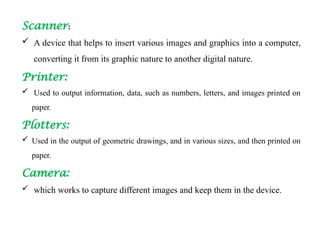
Scanner:
 A device that helps to insert various images and graphics into a computer,
converting it from its graphic nature to another digital nature.
Printer:
 Used to output information, data, such as numbers, letters, and images printed on
paper.
Plotters:
 Used in the output of geometric drawings, and in various sizes, and then printed on
paper.
Camera:
 which works to capture different images and keep them in the device.
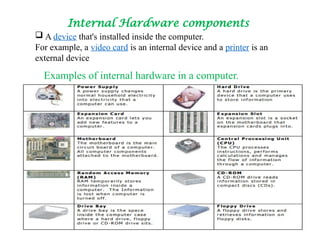
Internal Hardware components
 A device that's installed inside the computer.
For example, a video card is an internal device and a printer is an
external device
Examples of internal hardware in a computer.
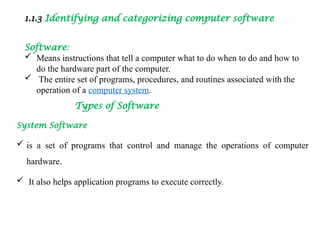
1.1.3 Identifying and categorizing computer software
Software:
 Means instructions that tell a computer what to do when to do and how to
do the hardware part of the computer.
 The entire set of programs, procedures, and routines associated with the
operation of a computer system.
Types of Software
System Software
 is a set of programs that control and manage the operations of computer
hardware.
 It also helps application programs to execute correctly.
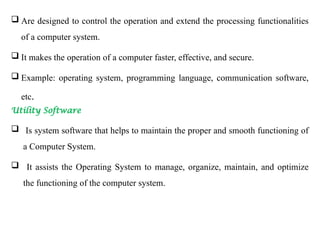
 Are designed to control the operation and extend the processing functionalities
of a computer system.
 It makes the operation of a computer faster, effective, and secure.
 Example: operating system, programming language, communication software,
etc.
Utility Software
 Is system software that helps to maintain the proper and smooth functioning of
a Computer System.
 It assists the Operating System to manage, organize, maintain, and optimize
the functioning of the computer system.
 It performs certain tasks like virus detection, installation, and uninstallation, data
backup, deletion of unwanted files, etc.
Some examples are antivirus software, file management tools, compression
tools, disk management tools, etc.
Application Software
 Is a type of computer program that performs specific functions.
 These functions, performed by application software, can be personal, business
as well as educational.
 Is also known as end-user software or productivity software.
 Includes: Microsoft products such as office, PowerPoint, word, excel, outlook,
etc.
Application Software
 Is a type of computer program that performs specific functions. These functions,
performed by application software, can be personal, business as well as educational.
Thus, application software is also known as end-user software or productivity
software. This application software includes: microsoft products such as office,
powerpoint, word, excel, outlook, etc.
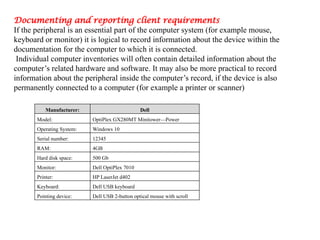
Documenting and reporting client requirements
If the peripheral is an essential part of the computer system (for example mouse,
keyboard or monitor) it is logical to record information about the device within the
documentation for the computer to which it is connected.
Individual computer inventories will often contain detailed information about the
computer’s related hardware and software. It may also be more practical to record
information about the peripheral inside the computer’s record, if the device is also
permanently connected to a computer (for example a printer or scanner)
Manufacturer: Dell
Model: OptiPlex GX280MT Minitower—Power
Operating System: Windows 10
Serial number: 12345
RAM: 4GB
Hard disk space: 500 Gb
Monitor: Dell OptiPlex 7010
Printer: HP LaserJet d402
Keyboard: Dell USB keyboard
Pointing device: Dell USB 2-button optical mouse with scroll
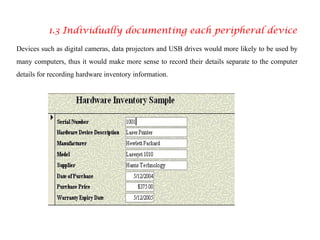
1.3 Individually documenting each peripheral device
Devices such as digital cameras, data projectors and USB drives would more likely to be used by
many computers, thus it would make more sense to record their details separate to the computer
details for recording hardware inventory information.
1.3 Verifying client requirements
Client hardware requirements may vary depending upon the installed base of computers
at your facility. However, based on experience with multiple customer sites, we
recommend the following configuration:
 Pentium 4-based computer with 2 GB of RAM (minimum)
 80-GB hard drive space (minimum)
 DVD drive
 Network interface software for network communications supporting TCP/IP
 Monitor for the lab and floor operations, 100 percent IBM compatible, supporting a
24-bit graphics card for 1024 x 768 or higher resolution and at least 65535 colors
 Two-button mouse with scroll wheel or compatible pointing device such as a touch
screen
1.4 Taking action to ensure client support expectations
1.4.1 Vendor Warranty
 A warranty is an agreed upon term which covers a computer or computer component.
Generally, most computers have a 1- or 3-year warranty.
 This warranty may or may not cover the service, repair and replacement of computer
parts.
 An extended warranty is an available option provided by manufacturers or third-party
companies that provides additional support and/or repair of a computer or other
hardware devices beyond its standard warranty.
1.4.2 Support Services
It is important to know what kind of support services are offered by the
prospective supplier. There are many questions to consider such as:
 If a device requires repairs, does it have to be sent back to the supplier
(called ‘Return to base’)
 What is the average response time if service is required?
 What kinds of maintenance and repair costs could be incurred during the
duration of use of the device?
 Will the device require regular servicing? If so, how many services will be
necessary over a one-year period?
LO2: CREATE DOCUMENT STRUCTURE
2.1 Obtaining peripherals
 The first step in obtaining a peripheral device is to locate suppliers of that
device.
 Then, there are factors you need to consider about the supplier and the
devices on offer, such as support provided and purchase price.
 This will help you to compare and choose the most
appropriate supplier and the exact model of the device
according to client requirements.
2.1 Obtaining peripherals
There are many ways to find a supplier of peripheral equipment. Some ways
include:
•Searching the Internet
•PC magazines
•Newspapers
2.1.2 Choosing a supplier
With so many choices of suppliers available, how do you find the right one? There are
a few factors to consider:
 How long has the supplier been operating?
 Does the supplier offer suitable support and training?
 Does the supplier offer competitive pricing?
 Is the supplier a preferred supplier for your organisation?
2.1.3 Selecting a peripheral
Once you have selected suitable suppliers you need to contact each
supplier. Information you should find out from the supplier includes:
• price of each model
• Availability of each model.
2.1.4 Placing order
 Depending on the type of organization you work for, placing an order for a
hardware peripheral device could be done in a variety of ways.
 In a small organization you may be responsible for ordering the device yourself.
However, in a larger organization there may be employees who are responsible for
purchasing new equipment.
 You may need to fill out an order form that can be given to the purchasing
department.
2.2 Entering peripherals into equipment inventory
2.2.1 Hardware inventories
 The purpose of a hardware inventory (or registry) is to keep
detailed information about all the hardware equipment within an
organization. Every piece of hardware, including each computer
and peripheral device, should be recorded on the inventory.
There are a number of tools available to create hardware inventories.
Databases and spread sheets are often used to store the information.
There are also software programs that you can purchase, designed specifically for
recording hardware and software details.
Although these programs are good for keeping a ‘soft copy’ of the information, it
is also essential that you keep a current ‘hard copy’ (printed version) of the
inventory.
Details that should be included within a hardware inventory includes:-
 Description of hardware device
 Manufacturer
 Supplier
 Model number
 Serial number
 Components
 Location
 Purchase price
2.3 Storing Peripherals according to vendor manual guidelines
Peripheral devices need to be located in a suitable environment; otherwise, there may be
potential problems. It is a good idea to refer to the manufacturer’s manual to determine
what guidelines should be followed
When storing peripherals, it is important to:
 Make sure equipment is kept in ideal working conditions
 Adhere to current Occupational Health and Safety guidelines
 Ensure the electrical safety of the device
 Consider security of the device.
2.3.1 Keeping equipment in ideal work condition
In order to guarantee that a peripheral will function correctly throughout its life it is
important to follow guidelines that have been recommended by the manufacturer. Some
common recommendations may include:
 Keep equipment in the correct position
 Keep equipment away from weather, dust and other harmful
 Do not expose equipment to extreme temperatures and high humidity
 Avoid storing the device in direct sunlight
Do not expose equipment to water or moisture
2.3.2 Ensuring electrical safety
Some tips to ensure electrical safety are:
 Never use damaged plugs or leads.
 If possible, ask an electrician to check the safety of your system.
 Position electrical leads where they will not cause tripping hazards to people.
2.3.3 Physical security
 In many situations it is important to consider the physical security of the
peripheral devices.
 Some devices, such as digital cameras, data projectors and USB drives, may not
be permanently connected to a computer so it will be necessary to find a secure
location to store the device.
 Make sure that these kinds of devices are secured in a lockable storage cupboard,
cabinet or safe when not required.
 Some organizations install security devices onto desks to guarantee that
computers are secure and will not be able to be taken from their position unless
unlocked.
Connect Hardware Peripherals
3
3.1 Considering environmental and OHS
standard
 One of the most important considerations when installing a
new hardware peripheral is to try and install the device
with the least amount of timeframe for installation,
environmental consideration and OH&S standards
It is important to schedule installation time and OHS standards that are:
-
 Also suitable to the client’s or computer user’s
 Sufficient length to install and thoroughly test the hardware device and
 Create attractive working place for the clients
To achieve this, make sure that you are aware of: -
 Common organizational procedures/guideline/ that regularly need to be
performed on the computer (for example, end of month processing or weekly
backups) and plan installations outside these periods and the way to create save
work place.
 Current working condition, deadlines and schedules of the client/user. Therefore,
the installations and the OHS standards should be scheduled for the times such as:
 Quiet periods (for example, during holiday periods)
 Before or after normal office hours
 While the client/user is out of the office
 When the client will not need their computer.
3.1.1 Environmental Consideration
 It can be difficult to work out how long it will take to install a peripheral
device. It will vary according to the type of device, current environmental
consideration, problems requiring troubleshooting and the experience of the
installer/technicians/.
 If you will be regularly performing installations, keeping a log of installations,
nothing that create disruption to the users are required and problems
experienced, could help to estimate the time spent on future installations and
create safely work place at any organization.
3.2 Removing and/or replacing old peripherals
All computer users important to understand safely
connect hardware peripherals devices according to
vendor instructions with a minimum of down time to
the system and ensure that you adhere to the OH&S
regulations relating to working with electrical
equipment’s as well as environmental consideration
like dust, temperature, humidity, electric system,
working tables and so o
Connecting Peripherals
✓ Connect the hardware
✓ Install the software drivers
✓ Test the peripheral
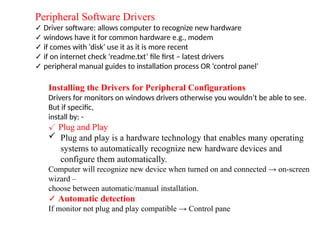
Peripheral Software Drivers
✓ Driver software: allows computer to recognize new hardware
✓ windows have it for common hardware e.g., modem
✓ if comes with ‘disk’ use it as it is more recent
✓ if on internet check ‘readme.txt’ file first – latest drivers
✓ peripheral manual guides to installation process OR ‘control panel’
Installing the Drivers for Peripheral Configurations
Drivers for monitors on windows drivers otherwise you wouldn’t be able to see.
But if specific,
install by: -
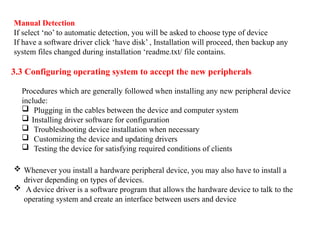
✓ Plug and Play
 Plug and play is a hardware technology that enables many operating
systems to automatically recognize new hardware devices and
configure them automatically.
Computer will recognize new device when turned on and connected → on-screen
wizard –
choose between automatic/manual installation.
✓ Automatic detection
If monitor not plug and play compatible → Control pane
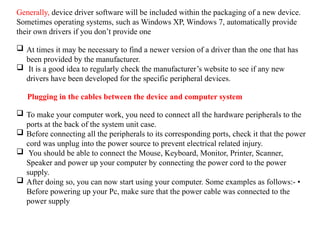
Manual Detection
If select ‘no’ to automatic detection, you will be asked to choose type of device
If have a software driver click ‘have disk’ , Installation will proceed, then backup any
system files changed during installation ‘readme.txt/ file contains.
3.3 Configuring operating system to accept the new peripherals
Procedures which are generally followed when installing any new peripheral device
include:
 Plugging in the cables between the device and computer system
 Installing driver software for configuration
 Troubleshooting device installation when necessary
 Customizing the device and updating drivers
 Testing the device for satisfying required conditions of clients
 Whenever you install a hardware peripheral device, you may also have to install a
driver depending on types of devices.
 A device driver is a software program that allows the hardware device to talk to the
operating system and create an interface between users and device
Generally, device driver software will be included within the packaging of a new device.
Sometimes operating systems, such as Windows XP, Windows 7, automatically provide
their own drivers if you don’t provide one
 At times it may be necessary to find a newer version of a driver than the one that has
been provided by the manufacturer.
 It is a good idea to regularly check the manufacturer’s website to see if any new
drivers have been developed for the specific peripheral devices.
Plugging in the cables between the device and computer system
 To make your computer work, you need to connect all the hardware peripherals to the
ports at the back of the system unit case.
 Before connecting all the peripherals to its corresponding ports, check it that the power
cord was unplug into the power source to prevent electrical related injury.
 You should be able to connect the Mouse, Keyboard, Monitor, Printer, Scanner,
Speaker and power up your computer by connecting the power cord to the power
supply.
 After doing so, you can now start using your computer. Some examples as follows:- •
Before powering up your Pc, make sure that the power cable was connected to the
power supply
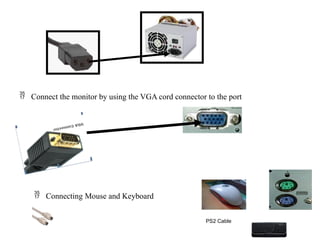
 Connect the monitor by using the VGA cord connector to the port
 Connecting Mouse and Keyboard
PS2 Cable
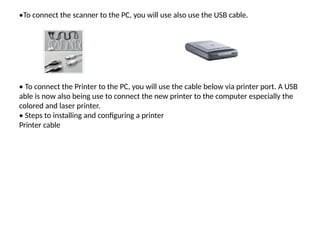
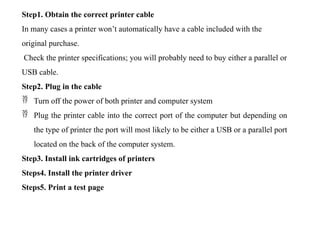
•To connect the scanner to the PC, you will use also use the USB cable.
• To connect the Printer to the PC, you will use the cable below via printer port. A USB
able is now also being use to connect the new printer to the computer especially the
colored and laser printer.
• Steps to installing and configuring a printer
Printer cable
Step1. Obtain the correct printer cable
In many cases a printer won’t automatically have a cable included with the
original purchase.
Check the printer specifications; you will probably need to buy either a parallel or
USB cable.
Step2. Plug in the cable
 Turn off the power of both printer and computer system
 Plug the printer cable into the correct port of the computer but depending on
the type of printer the port will most likely to be either a USB or a parallel port
located on the back of the computer system.
Step3. Install ink cartridges of printers
Steps4. Install the printer driver
Steps5. Print a test page
3.4 Testing and confirming hardware peripherals
 When new peripheral equipment is not tested for critical functions before
being used, it can lead to malfunction, causing large disruptions to clients
and potentially damage other parts of a computer system.
 Ensure that all new installations are thoroughly tested after initial setup
and prior to use by the client. Printers need to be routinely tested, as
components such as the ink cartridges and toner can cause deterioration of
print quality and may require maintenance and/or cleaning.
All tests should be completed according to a documented test plan.
Some suggestions of functions that may be tested for a printer, scanner and digital
camera devices are included as follows: -
Printer: - Printer functions that may be tested are: -
 Can the printer handle different paper types?
 Will the printer work successfully on different computers?
 Will the printer work successfully with different software packages (for example,
word processing, spread sheets and desktop publishing)?
 Is black and white print quality acceptable to clients?
 Is colour print quality acceptable to clients?
3.4.1 Test plan
A test plan is used to work out a structured process to ensure that a new device
will work under all expected circumstances. It logically describes: -
 Functions that need to be tested
 An example test case scenario
 Expected results for each scenario
Connect The Workstations to the
Internet
4
4.1 Communication with ISP and telecom
service organizations
 An ISP (internet service provider) is a company that provides individuals
and organizations access to the internet and other related services.
 An ISP has the equipment and the telecommunication line access
required to have a point of presence on the internet for the geographic
area served.
 The most important factors to consider when selecting an internet
service provider are availability, speed, price, and internet connection
type.
 Internet service providers connect your personal or business computer,
laptop, mobile device etc. to the internet.
ISPs may be commercial, non-profit, privately owned or community
owned companies.
Most providers offer the same types of internet services to customers,
including:
 internet access
 email access
 domain name registration
 web hosting
 co-location (or data center services)
When selecting an ISP, you should carefully determine your ISP
requirements. You should consider:
 the type of services you need
 the costs and quality of services
 the number of users needing an internet connection
 the location of the users
 the bandwidth capacity
 contention ratios and other terms and conditions of the service
4.2 Selecting type of internet service
provider the right
You should also determine if, either now or in the future, you
might need:
 Virtual Private Network (VPN) access
 email access
 website hosting services
 domain registration
 e-commerce facilities
 access to cloud technologies
4.3 Connecting workstations to the internet
 To connecting computers to the internet connection for accessing information
over a network either by using connection based or connectionless internet
infrastructure the user must be connected to the internet access through internet
service providers (ISP).
There are three types of connection such as: -
1. Dialup connection
2. Leased connection
3. Cable Connection
4.3.1 Dialup connection
 Dial-up internet access is a form of Internet access that uses the facilities of
the public switched telephone network (PSTN) to establish a dialed connection
to an Internet service provider (ISP) via telephone lines.
 Allows you to connect to the internet via a local server using a standard 56k
modem
Advantages of dial up internet connection
 Very economic and widely available
 Hardware cost are minimal since it uses a standard modem
 Easy configuration
 Convenient for one computer or small network
Disadvantages of dial up internet connection
 The slowest connection
 Since it uses a 56k modem, it transfers 56 kilobits a second (7 KB) of data
 The average webpage size is about 50Kbyte
 So, it takes 7 seconds to load a webpage
 Your telephone line will be busy when connected
4.3.2 Leased connection
 A leased line is a dedicated data connection with a fixed bandwidth.
 It enables small, medium, and large businesses to connect to the internet in a
secure, reliable, and highly efficient manner, with maximum download
capacity, resilience, and uptime.
 Leased internet connection can be found in many forms the popular two are: -
1. ADSL (Asymmetric Digital Subscriber Line or DSL for short)
 Is a high-speed internet access service that utilizes existing copper telephones lines to send
and receive data at speeds that far exceed conventional dial-up modems.
 The fastest dial-up modems are rated at 57 kilobits per second (kbps), and usually operate
at about 53 kbps under good conditions.
 ADSL uses standard telephone lines to transmit upstream and downstream data on a digital
frequency, which sets these data streams apart from the analog signals telephones and fax
machines use.
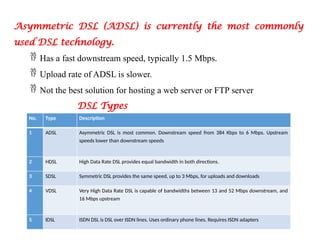
Asymmetric DSL (ADSL) is currently the most commonly
used DSL technology.
 Has a fast downstream speed, typically 1.5 Mbps.
 Upload rate of ADSL is slower.
 Not the best solution for hosting a web server or FTP server
DSL Types
No. Type Description
1 ADSL Asymmetric DSL is most common. Downstream speed from 384 Kbps to 6 Mbps. Upstream
speeds lower than downstream speeds
2 HDSL High Data Rate DSL provides equal bandwidth in both directions.
3 SDSL Symmetric DSL provides the same speed, up to 3 Mbps, for uploads and downloads
4 VDSL Very High Data Rate DSL is capable of bandwidths between 13 and 52 Mbps downstream, and
16 Mbps upstream
5 IDSL ISDN DSL is DSL over ISDN lines. Uses ordinary phone lines. Requires ISDN adapters
Digital subscriber line (DSL)
 Is a is a communication medium, which is
used to transfer the internet through copper
wire telecommunication lines.
 Along with cable internet, DSL is one of
the most popular ways ISPs provide
broadband internet access.
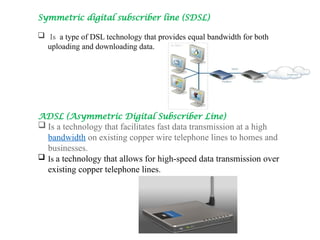
Symmetric digital subscriber line (SDSL)
 Is a type of DSL technology that provides equal bandwidth for both
uploading and downloading data.
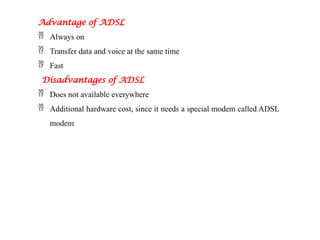
ADSL (Asymmetric Digital Subscriber Line)
 Is a technology that facilitates fast data transmission at a high
bandwidth on existing copper wire telephone lines to homes and
businesses.
 Is a technology that allows for high-speed data transmission over
existing copper telephone lines.
Advantage of ADSL
 Always on
 Transfer data and voice at the same time
 Fast
Disadvantages of ADSL
 Does not available everywhere
 Additional hardware cost, since it needs a special modem called ADSL
modem
4.3.3 Cable Connection
 Is a form of broadband internet access that uses the cable television
infrastructure. Like digital subscriber line, cable internet access provides
network edge connectivity (last mile access) from the
internet service provider to an end user.
 It is integrated into the cable television infrastructure analogously to dsl
which uses the existing telephone network.
Cable connection has the following
characteristics
 It uses a separate cable than phone line to transfer data
 Very fast and reliable
 Fixed monthly fee
Advantage of cable connection
 Very fast
 Always on
 Doesn’t affect to make/receive a phone call, since it uses a separate cable
Disadvantages of cable connection
 Doesn’t available everywhere
 It needs a special modem called cable modem
4.3.4 Wireless connection (Wi-Fi network Connection)
 Wireless is a term used to define telecommunication and data transmission
without wires.
 In a broad sense, wireless refers to any telecommunications or data transfer in
which electromagnetic waves -- rather than some form of wire or cable -- carry
signals over all or part of the data communication path.
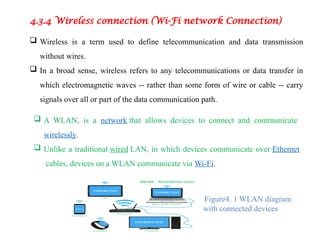
 A WLAN, is a network that allows devices to connect and communicate
wirelessly.
 Unlike a traditional wired LAN, in which devices communicate over Ethernet
cables, devices on a WLAN communicate via Wi-Fi.
Figure4. 1 WLAN diagram
with connected devices
4.4 Launching internet browser software
 Now a time there are so many different types of internet browsers that used to
access different information on the internet.
 From time to time all users to access information from the internet, any client
installs and updating the internet browsers that to be uses.
Choose your web browser
 Google Chrome
 Mozilla Firefox
 Microsoft Edge
 Internet Explorer Safari
THE END!!
Thank YOU!!

connect COMPUTER CNOMPONENTShardware prepherals (2).pptx

  • 1.
    Kombolcha poly techniccollege Sector of ICT WDDBA level I Module Title: - Connecting hardware peripherals Module code: EIS WDDB1 M02 0322 Nominal duration: 52Hour October 2024 Prepared by Haile sitotaw
  • 2.
    Confirm Requirements ofclient 1 2 3 4 5 Learning outcomes Create Document Structure 2 Connect Hardware Peripherals 3 Nominal duration:52Hour Connect The Workstations to the Internet 4
  • 3.
    Confirm Requirements ofClient 1 This unit will also assist you to attain the learning outcomes stated in the cover page. Specifically, upon completion of this learning guide, you will be able to:  Understand characteristics, generation and types of computers  Prepare documentation and reporting of client requirements  Identify and confirm client’s peripherals  Verify client requirements  Ensure client support expectations
  • 4.
    1.1 Basic introductionto computer 1.1.1 Understanding history, generation and types of computers. What is computer?  Is an electronic device that manipulates information, or "data." It has the ability to store, retrieve, and process data. What is the usage of Computer To type documents, send email, and browse the internet. To handle spreadsheets, accounting, database management, presentations, games, and more for beginning computer users.
  • 5.
    What is DataAnd Information Data is a collection of unorganized facts & figures and does not provide any further information regarding patterns, context, etc. Hence data means "unstructured facts and figures". Information is a structured data i.e. organized meaningful and processed data. To process the data and convert into information, a computer is used. Parts of Computer Hardware is any part of your computer that has a physical structure, such as the computer monitor or keyboard. Software is any set of instructions that tells the hardware what to do. It is what guides the hardware and tells it how to accomplish each task. Some examples of software are web browsers, games, and word processors such as Microsoft Word.
  • 6.
    Hardware Input devices Output devices Inputdevices Are devices used to insert data into a computer Example  Keyboard  Mouse  Scanner  Joystick  Trackball  Touchpad  Light pen  Barcode reader  Microphone
  • 7.
    Output devices Are devicesused to Display data to humans in easily understandable format Example  Printer  Monitor  Projector  Speaker Software System software Application software
  • 8.
    Characteristics of computer 5the most popular characteristics of a computer. Speed: computer can work very fast. It takes only few seconds for calculations that we take hours to complete. You will be surprised to know that computer can perform millions (1,000,000) of instructions and even more per second. Therefore, we determine the speed of computer in terms of microsecond (106 part of a second) or nanosecond (109 part of a second). Accuracy:  Computer gives us accurate result or calculation.  Error occurs in result for any calculation in a computer is only due to wrong program or instruction, inaccuracy in input data etc
  • 9.
    Consistency:  Computer isa consistent machine;  it means that computer never gets tired of working more.  You can use computer to perform your task without any error for any number of hours, any number of hours means you can use your computer system continuously for 24 hours a day and 365 days a year. Storage:  The Computer has an in-built memory where it can store a large amount of data.  You can also store data in secondary storage devices such as floppies, which can be kept outside your computer and can be carried to other computers
  • 10.
    Flexibility: Means that acomputer can work in many areas like you can use your computer system to:  Listen sounds or music’s  Watch movies or videos  Play games  See pictures  Write textual documents and save  Open and read anything
  • 11.
    Generation of computer Generationof computer is characterized by a major technological development that fundamentally changed the way computers operate, resulting in increasingly smaller, cheaper more powerful and more efficient and reliable devices. First Generation (1946 to 1954):  In 1946 there was no ‘best’ way of storing instructions and data in a computer memory.  The digital computes using electronic valves (Vacuum tubes) are known as first generation computers. The first ‘computer’ to use electronic valves (i.e. vacuum tubes).  The high cost of vacuum tubes prevented their use for main memory.  They stored information in the form of propagating sound waves.
  • 12.
    Limitations of First-GenerationComputer  They used valves or vacuum tubes as their main electronic component.  They were large in size, slow in processing and had less storage capacity.  They consumed lots of electricity and produced lots of heat.  Their computing capabilities were limited.  They were not so accurate and reliable.  They used machine level language for programming.  They were very expensive Second-generation computer (1955 to 1964): -  used transistors for CPU components.  They used high-level languages such as FORTRAN; ALGOL & COBOL.I/O processor was included to control I/O operations.  Transistors are smaller than Vacuum tubes and have higher operating speed.
  • 13.
    Advantages of second-generationcomputers  Smaller in size as compared to the first-generation computers  The second-generation computers were more reliable  Used less energy and were not heated  Better portability as compared to the first-generation computers  Beta speed and could calculate data in microseconds  Used faster peripherals like tape drives, magnetic disks, printer etc. Disadvantages of second-generation computers  Cooling system was required  Constant maintenance was required  Only used for specific purposes
  • 14.
    Third Generation computer(1964 to 1975) Integrated circuits that is ICs came into existence and therefore the third-generation computer was also came into existence. The third-generation computers used the integrated circuits (ICs). Advantages of third generation computers  Smaller in size as compared to previous generation  More reliable  Used less energy  Better speed and could calculate data in nanoseconds  Used fan for heat discharge to prevent damage
  • 15.
    Disadvantages of thirdgeneration computers  Air conditioning was required  Highly sophisticated Technology was required for the manufacturing of IC chips Fourth Generation Computer (1975 to present)  Fourth generation computer starts from the year, 1971.  At that time there was an invention of microprocessor chip that has created a revolution in the computer world.  The fourth-generation computers started with the invention of microprocessor. The microprocessor contains thousands of ICs.  The size of modern microprocessors is usually 1 square inch. It can contain millions of electronic circuits.
  • 16.
    Advantages of fourthgeneration of computers  Much faster  Less expensive  More powerful and reliable than previous generations  Small in size  Uses advanced techniques  Have greater data processing capacity than equivalent size previous generation computer that is third generation computers  Fast processing power with less power consumption  Fan for heat discharging and thus to keep cold  No air conditioning required
  • 17.
    Fifth Generation Computer(Present to beyond)  It is based on the technique of artificial intelligence (AI).  All computer machines that will made on the basis of 5th generation computer will use parallel processing techniques and artificial intelligence Types of computers  Computers can be categorized on the basis of: size and data handling capabilities. Further, on the basis of data handling capabilities, computers can be divided into three types: Analogue computer:  They are designed so that they can process the analogue data.  The data that can change continuously and do not have discrete values such as temperature, current, speed and pressure is known as Analogue data.
  • 18.
    Analogue computers don’twait for the data to get converted into codes and numbers and rather accept the data from the measuring device directly. Mercury meter and speedometer are the examples of analogue computer Mercury thermometers are used to measure the temperature of liquids and vapors in households, laboratory experiments at educational and medical institutions, and industrial applications. The speedometer is an instrument used to measure the distance traveled by a vehicle whereas odometer is used to measure the speed of a vehicle Digital Computers:  They are designed to perform logical operations and calculations at a high speed. A digital computer accepts raw data as numbers or digits and then, to produce output, it processes it with the programs stored in its memory.  The modern computers like desktops and laptops fall under the category of digital computers
  • 19.
    Hybrid Computer:  Itcontains the features of both Digital and Analogue computers.  It has accuracy and memory like digital computers and is fast like Analogue computers.  It can process both discrete and continuous data and hence it is widely used in specialized applications where both digital and analogue data is processed, example being a petrol pump where a processor is used to convert the measurement of fuel flow into price and quantity.
  • 20.
    On the basisof size, computers can be classified into four types Microcomputer:  It is also known as Personal Computer.  This general-purpose computer is mainly designed for individual use.  It consists of a microprocessor, which works as the Central Processing Unit, storage area, memory, and input and output unit. Examples of microcomputers are desktop computers, laptop computers and palmtop. Min computer: It is a multiprocessing computer of midsize. It has the capacity of entertaining 4 to 200 users at one given time and consists of 2 or more processors. Mini computers are mostly used in departments and institutes for the tasks like inventory management, billing and accounting.
  • 21.
    Mainframe computer:  Theyhave the capacity of supporting hundreds or thousands of users simultaneously and they can also support multiple programs at the same time.  This means that different processes can be executed simultaneously by a Mainframe Computer. Hence, organizations that need to process and manage high volume of data find mainframe computers ideal for them. Telecom and banking sectors are examples of such organizations Mainframe computers are useful for tasks related to: Industry and consumer statistics  Enterprise resource planning  Transaction processing  e-business and e-commerce
  • 22.
    Super/Macro computers: They arethe fastest in speed and the biggest in size and specialize in processing a huge amount of data. A supercomputer contains thousands of interconnected processors that help it process trillions of instructions in just a second. Supercomputers are used for complex tasks, such as:  Weather forecasting  Climate research  Scientific simulation  Oil and gas exploration  Quantum mechanics
  • 23.
    1.1.2 Basic conceptinternal and external hardware components External hardware components External  A hardware device that's installed outside of the computer.  For example, a printer is an external device because it connects to the back of the computer and is outside the case. However, a video card is an internal device since it is found inside of the computer case.
  • 24.
    Keyboard:  It isone of the most important tools used to enter the information and numbers and different characters to the computer to address and get the results. Mouse:  It is a tool used to mark or identify certain information that appears on the computer screen, and it needs a person or an assistant to manage it correctly. Microphone:  A device that specializes in receiving sounds and inserting them into the computer in order to modify or retain them.  It also contributes greatly to the various voice conversations on the computer.
  • 25.
    Scanner:  A devicethat helps to insert various images and graphics into a computer, converting it from its graphic nature to another digital nature. Printer:  Used to output information, data, such as numbers, letters, and images printed on paper. Plotters:  Used in the output of geometric drawings, and in various sizes, and then printed on paper. Camera:  which works to capture different images and keep them in the device.
  • 26.
    Internal Hardware components A device that's installed inside the computer. For example, a video card is an internal device and a printer is an external device Examples of internal hardware in a computer.
  • 27.
    1.1.3 Identifying andcategorizing computer software Software:  Means instructions that tell a computer what to do when to do and how to do the hardware part of the computer.  The entire set of programs, procedures, and routines associated with the operation of a computer system. Types of Software System Software  is a set of programs that control and manage the operations of computer hardware.  It also helps application programs to execute correctly.
  • 28.
     Are designedto control the operation and extend the processing functionalities of a computer system.  It makes the operation of a computer faster, effective, and secure.  Example: operating system, programming language, communication software, etc. Utility Software  Is system software that helps to maintain the proper and smooth functioning of a Computer System.  It assists the Operating System to manage, organize, maintain, and optimize the functioning of the computer system.
  • 29.
     It performscertain tasks like virus detection, installation, and uninstallation, data backup, deletion of unwanted files, etc. Some examples are antivirus software, file management tools, compression tools, disk management tools, etc. Application Software  Is a type of computer program that performs specific functions.  These functions, performed by application software, can be personal, business as well as educational.  Is also known as end-user software or productivity software.  Includes: Microsoft products such as office, PowerPoint, word, excel, outlook, etc.
  • 30.
    Application Software  Isa type of computer program that performs specific functions. These functions, performed by application software, can be personal, business as well as educational. Thus, application software is also known as end-user software or productivity software. This application software includes: microsoft products such as office, powerpoint, word, excel, outlook, etc.
  • 31.
    Documenting and reportingclient requirements If the peripheral is an essential part of the computer system (for example mouse, keyboard or monitor) it is logical to record information about the device within the documentation for the computer to which it is connected. Individual computer inventories will often contain detailed information about the computer’s related hardware and software. It may also be more practical to record information about the peripheral inside the computer’s record, if the device is also permanently connected to a computer (for example a printer or scanner) Manufacturer: Dell Model: OptiPlex GX280MT Minitower—Power Operating System: Windows 10 Serial number: 12345 RAM: 4GB Hard disk space: 500 Gb Monitor: Dell OptiPlex 7010 Printer: HP LaserJet d402 Keyboard: Dell USB keyboard Pointing device: Dell USB 2-button optical mouse with scroll
  • 32.
    1.3 Individually documentingeach peripheral device Devices such as digital cameras, data projectors and USB drives would more likely to be used by many computers, thus it would make more sense to record their details separate to the computer details for recording hardware inventory information.
  • 33.
    1.3 Verifying clientrequirements Client hardware requirements may vary depending upon the installed base of computers at your facility. However, based on experience with multiple customer sites, we recommend the following configuration:  Pentium 4-based computer with 2 GB of RAM (minimum)  80-GB hard drive space (minimum)  DVD drive  Network interface software for network communications supporting TCP/IP  Monitor for the lab and floor operations, 100 percent IBM compatible, supporting a 24-bit graphics card for 1024 x 768 or higher resolution and at least 65535 colors  Two-button mouse with scroll wheel or compatible pointing device such as a touch screen
  • 34.
    1.4 Taking actionto ensure client support expectations 1.4.1 Vendor Warranty  A warranty is an agreed upon term which covers a computer or computer component. Generally, most computers have a 1- or 3-year warranty.  This warranty may or may not cover the service, repair and replacement of computer parts.  An extended warranty is an available option provided by manufacturers or third-party companies that provides additional support and/or repair of a computer or other hardware devices beyond its standard warranty.
  • 35.
    1.4.2 Support Services Itis important to know what kind of support services are offered by the prospective supplier. There are many questions to consider such as:  If a device requires repairs, does it have to be sent back to the supplier (called ‘Return to base’)  What is the average response time if service is required?  What kinds of maintenance and repair costs could be incurred during the duration of use of the device?  Will the device require regular servicing? If so, how many services will be necessary over a one-year period?
  • 36.
    LO2: CREATE DOCUMENTSTRUCTURE 2.1 Obtaining peripherals  The first step in obtaining a peripheral device is to locate suppliers of that device.  Then, there are factors you need to consider about the supplier and the devices on offer, such as support provided and purchase price.  This will help you to compare and choose the most appropriate supplier and the exact model of the device according to client requirements. 2.1 Obtaining peripherals There are many ways to find a supplier of peripheral equipment. Some ways include: •Searching the Internet •PC magazines •Newspapers
  • 37.
    2.1.2 Choosing asupplier With so many choices of suppliers available, how do you find the right one? There are a few factors to consider:  How long has the supplier been operating?  Does the supplier offer suitable support and training?  Does the supplier offer competitive pricing?  Is the supplier a preferred supplier for your organisation? 2.1.3 Selecting a peripheral Once you have selected suitable suppliers you need to contact each supplier. Information you should find out from the supplier includes: • price of each model • Availability of each model.
  • 38.
    2.1.4 Placing order Depending on the type of organization you work for, placing an order for a hardware peripheral device could be done in a variety of ways.  In a small organization you may be responsible for ordering the device yourself. However, in a larger organization there may be employees who are responsible for purchasing new equipment.  You may need to fill out an order form that can be given to the purchasing department. 2.2 Entering peripherals into equipment inventory 2.2.1 Hardware inventories  The purpose of a hardware inventory (or registry) is to keep detailed information about all the hardware equipment within an organization. Every piece of hardware, including each computer and peripheral device, should be recorded on the inventory.
  • 39.
    There are anumber of tools available to create hardware inventories. Databases and spread sheets are often used to store the information. There are also software programs that you can purchase, designed specifically for recording hardware and software details. Although these programs are good for keeping a ‘soft copy’ of the information, it is also essential that you keep a current ‘hard copy’ (printed version) of the inventory. Details that should be included within a hardware inventory includes:-  Description of hardware device  Manufacturer  Supplier  Model number  Serial number  Components  Location  Purchase price
  • 40.
    2.3 Storing Peripheralsaccording to vendor manual guidelines Peripheral devices need to be located in a suitable environment; otherwise, there may be potential problems. It is a good idea to refer to the manufacturer’s manual to determine what guidelines should be followed When storing peripherals, it is important to:  Make sure equipment is kept in ideal working conditions  Adhere to current Occupational Health and Safety guidelines  Ensure the electrical safety of the device  Consider security of the device.
  • 41.
    2.3.1 Keeping equipmentin ideal work condition In order to guarantee that a peripheral will function correctly throughout its life it is important to follow guidelines that have been recommended by the manufacturer. Some common recommendations may include:  Keep equipment in the correct position  Keep equipment away from weather, dust and other harmful  Do not expose equipment to extreme temperatures and high humidity  Avoid storing the device in direct sunlight Do not expose equipment to water or moisture 2.3.2 Ensuring electrical safety Some tips to ensure electrical safety are:  Never use damaged plugs or leads.  If possible, ask an electrician to check the safety of your system.  Position electrical leads where they will not cause tripping hazards to people.
  • 42.
    2.3.3 Physical security In many situations it is important to consider the physical security of the peripheral devices.  Some devices, such as digital cameras, data projectors and USB drives, may not be permanently connected to a computer so it will be necessary to find a secure location to store the device.  Make sure that these kinds of devices are secured in a lockable storage cupboard, cabinet or safe when not required.  Some organizations install security devices onto desks to guarantee that computers are secure and will not be able to be taken from their position unless unlocked.
  • 43.
    Connect Hardware Peripherals 3 3.1Considering environmental and OHS standard  One of the most important considerations when installing a new hardware peripheral is to try and install the device with the least amount of timeframe for installation, environmental consideration and OH&S standards It is important to schedule installation time and OHS standards that are: -  Also suitable to the client’s or computer user’s  Sufficient length to install and thoroughly test the hardware device and  Create attractive working place for the clients
  • 44.
    To achieve this,make sure that you are aware of: -  Common organizational procedures/guideline/ that regularly need to be performed on the computer (for example, end of month processing or weekly backups) and plan installations outside these periods and the way to create save work place.  Current working condition, deadlines and schedules of the client/user. Therefore, the installations and the OHS standards should be scheduled for the times such as:  Quiet periods (for example, during holiday periods)  Before or after normal office hours  While the client/user is out of the office  When the client will not need their computer.
  • 45.
    3.1.1 Environmental Consideration It can be difficult to work out how long it will take to install a peripheral device. It will vary according to the type of device, current environmental consideration, problems requiring troubleshooting and the experience of the installer/technicians/.  If you will be regularly performing installations, keeping a log of installations, nothing that create disruption to the users are required and problems experienced, could help to estimate the time spent on future installations and create safely work place at any organization.
  • 46.
    3.2 Removing and/orreplacing old peripherals All computer users important to understand safely connect hardware peripherals devices according to vendor instructions with a minimum of down time to the system and ensure that you adhere to the OH&S regulations relating to working with electrical equipment’s as well as environmental consideration like dust, temperature, humidity, electric system, working tables and so o Connecting Peripherals ✓ Connect the hardware ✓ Install the software drivers ✓ Test the peripheral
  • 47.
    Peripheral Software Drivers ✓Driver software: allows computer to recognize new hardware ✓ windows have it for common hardware e.g., modem ✓ if comes with ‘disk’ use it as it is more recent ✓ if on internet check ‘readme.txt’ file first – latest drivers ✓ peripheral manual guides to installation process OR ‘control panel’ Installing the Drivers for Peripheral Configurations Drivers for monitors on windows drivers otherwise you wouldn’t be able to see. But if specific, install by: - ✓ Plug and Play  Plug and play is a hardware technology that enables many operating systems to automatically recognize new hardware devices and configure them automatically. Computer will recognize new device when turned on and connected → on-screen wizard – choose between automatic/manual installation. ✓ Automatic detection If monitor not plug and play compatible → Control pane
  • 48.
    Manual Detection If select‘no’ to automatic detection, you will be asked to choose type of device If have a software driver click ‘have disk’ , Installation will proceed, then backup any system files changed during installation ‘readme.txt/ file contains. 3.3 Configuring operating system to accept the new peripherals Procedures which are generally followed when installing any new peripheral device include:  Plugging in the cables between the device and computer system  Installing driver software for configuration  Troubleshooting device installation when necessary  Customizing the device and updating drivers  Testing the device for satisfying required conditions of clients  Whenever you install a hardware peripheral device, you may also have to install a driver depending on types of devices.  A device driver is a software program that allows the hardware device to talk to the operating system and create an interface between users and device
  • 49.
    Generally, device driversoftware will be included within the packaging of a new device. Sometimes operating systems, such as Windows XP, Windows 7, automatically provide their own drivers if you don’t provide one  At times it may be necessary to find a newer version of a driver than the one that has been provided by the manufacturer.  It is a good idea to regularly check the manufacturer’s website to see if any new drivers have been developed for the specific peripheral devices. Plugging in the cables between the device and computer system  To make your computer work, you need to connect all the hardware peripherals to the ports at the back of the system unit case.  Before connecting all the peripherals to its corresponding ports, check it that the power cord was unplug into the power source to prevent electrical related injury.  You should be able to connect the Mouse, Keyboard, Monitor, Printer, Scanner, Speaker and power up your computer by connecting the power cord to the power supply.  After doing so, you can now start using your computer. Some examples as follows:- • Before powering up your Pc, make sure that the power cable was connected to the power supply
  • 50.
     Connect themonitor by using the VGA cord connector to the port  Connecting Mouse and Keyboard PS2 Cable
  • 51.
    •To connect thescanner to the PC, you will use also use the USB cable. • To connect the Printer to the PC, you will use the cable below via printer port. A USB able is now also being use to connect the new printer to the computer especially the colored and laser printer. • Steps to installing and configuring a printer Printer cable
  • 52.
    Step1. Obtain thecorrect printer cable In many cases a printer won’t automatically have a cable included with the original purchase. Check the printer specifications; you will probably need to buy either a parallel or USB cable. Step2. Plug in the cable  Turn off the power of both printer and computer system  Plug the printer cable into the correct port of the computer but depending on the type of printer the port will most likely to be either a USB or a parallel port located on the back of the computer system. Step3. Install ink cartridges of printers Steps4. Install the printer driver Steps5. Print a test page
  • 53.
    3.4 Testing andconfirming hardware peripherals  When new peripheral equipment is not tested for critical functions before being used, it can lead to malfunction, causing large disruptions to clients and potentially damage other parts of a computer system.  Ensure that all new installations are thoroughly tested after initial setup and prior to use by the client. Printers need to be routinely tested, as components such as the ink cartridges and toner can cause deterioration of print quality and may require maintenance and/or cleaning. All tests should be completed according to a documented test plan.
  • 54.
    Some suggestions offunctions that may be tested for a printer, scanner and digital camera devices are included as follows: - Printer: - Printer functions that may be tested are: -  Can the printer handle different paper types?  Will the printer work successfully on different computers?  Will the printer work successfully with different software packages (for example, word processing, spread sheets and desktop publishing)?  Is black and white print quality acceptable to clients?  Is colour print quality acceptable to clients?
  • 55.
    3.4.1 Test plan Atest plan is used to work out a structured process to ensure that a new device will work under all expected circumstances. It logically describes: -  Functions that need to be tested  An example test case scenario  Expected results for each scenario
  • 56.
    Connect The Workstationsto the Internet 4 4.1 Communication with ISP and telecom service organizations  An ISP (internet service provider) is a company that provides individuals and organizations access to the internet and other related services.  An ISP has the equipment and the telecommunication line access required to have a point of presence on the internet for the geographic area served.  The most important factors to consider when selecting an internet service provider are availability, speed, price, and internet connection type.  Internet service providers connect your personal or business computer, laptop, mobile device etc. to the internet.
  • 57.
    ISPs may becommercial, non-profit, privately owned or community owned companies. Most providers offer the same types of internet services to customers, including:  internet access  email access  domain name registration  web hosting  co-location (or data center services)
  • 58.
    When selecting anISP, you should carefully determine your ISP requirements. You should consider:  the type of services you need  the costs and quality of services  the number of users needing an internet connection  the location of the users  the bandwidth capacity  contention ratios and other terms and conditions of the service 4.2 Selecting type of internet service provider the right
  • 59.
    You should alsodetermine if, either now or in the future, you might need:  Virtual Private Network (VPN) access  email access  website hosting services  domain registration  e-commerce facilities  access to cloud technologies
  • 60.
    4.3 Connecting workstationsto the internet  To connecting computers to the internet connection for accessing information over a network either by using connection based or connectionless internet infrastructure the user must be connected to the internet access through internet service providers (ISP). There are three types of connection such as: - 1. Dialup connection 2. Leased connection 3. Cable Connection
  • 61.
    4.3.1 Dialup connection Dial-up internet access is a form of Internet access that uses the facilities of the public switched telephone network (PSTN) to establish a dialed connection to an Internet service provider (ISP) via telephone lines.  Allows you to connect to the internet via a local server using a standard 56k modem
  • 62.
    Advantages of dialup internet connection  Very economic and widely available  Hardware cost are minimal since it uses a standard modem  Easy configuration  Convenient for one computer or small network Disadvantages of dial up internet connection  The slowest connection  Since it uses a 56k modem, it transfers 56 kilobits a second (7 KB) of data  The average webpage size is about 50Kbyte  So, it takes 7 seconds to load a webpage  Your telephone line will be busy when connected
  • 63.
    4.3.2 Leased connection A leased line is a dedicated data connection with a fixed bandwidth.  It enables small, medium, and large businesses to connect to the internet in a secure, reliable, and highly efficient manner, with maximum download capacity, resilience, and uptime.  Leased internet connection can be found in many forms the popular two are: -
  • 64.
    1. ADSL (AsymmetricDigital Subscriber Line or DSL for short)  Is a high-speed internet access service that utilizes existing copper telephones lines to send and receive data at speeds that far exceed conventional dial-up modems.  The fastest dial-up modems are rated at 57 kilobits per second (kbps), and usually operate at about 53 kbps under good conditions.  ADSL uses standard telephone lines to transmit upstream and downstream data on a digital frequency, which sets these data streams apart from the analog signals telephones and fax machines use.
  • 65.
    Asymmetric DSL (ADSL)is currently the most commonly used DSL technology.  Has a fast downstream speed, typically 1.5 Mbps.  Upload rate of ADSL is slower.  Not the best solution for hosting a web server or FTP server DSL Types No. Type Description 1 ADSL Asymmetric DSL is most common. Downstream speed from 384 Kbps to 6 Mbps. Upstream speeds lower than downstream speeds 2 HDSL High Data Rate DSL provides equal bandwidth in both directions. 3 SDSL Symmetric DSL provides the same speed, up to 3 Mbps, for uploads and downloads 4 VDSL Very High Data Rate DSL is capable of bandwidths between 13 and 52 Mbps downstream, and 16 Mbps upstream 5 IDSL ISDN DSL is DSL over ISDN lines. Uses ordinary phone lines. Requires ISDN adapters
  • 66.
    Digital subscriber line(DSL)  Is a is a communication medium, which is used to transfer the internet through copper wire telecommunication lines.  Along with cable internet, DSL is one of the most popular ways ISPs provide broadband internet access.
  • 67.
    Symmetric digital subscriberline (SDSL)  Is a type of DSL technology that provides equal bandwidth for both uploading and downloading data. ADSL (Asymmetric Digital Subscriber Line)  Is a technology that facilitates fast data transmission at a high bandwidth on existing copper wire telephone lines to homes and businesses.  Is a technology that allows for high-speed data transmission over existing copper telephone lines.
  • 68.
    Advantage of ADSL Always on  Transfer data and voice at the same time  Fast Disadvantages of ADSL  Does not available everywhere  Additional hardware cost, since it needs a special modem called ADSL modem
  • 69.
    4.3.3 Cable Connection Is a form of broadband internet access that uses the cable television infrastructure. Like digital subscriber line, cable internet access provides network edge connectivity (last mile access) from the internet service provider to an end user.  It is integrated into the cable television infrastructure analogously to dsl which uses the existing telephone network.
  • 70.
    Cable connection hasthe following characteristics  It uses a separate cable than phone line to transfer data  Very fast and reliable  Fixed monthly fee Advantage of cable connection  Very fast  Always on  Doesn’t affect to make/receive a phone call, since it uses a separate cable Disadvantages of cable connection  Doesn’t available everywhere  It needs a special modem called cable modem
  • 71.
    4.3.4 Wireless connection(Wi-Fi network Connection)  Wireless is a term used to define telecommunication and data transmission without wires.  In a broad sense, wireless refers to any telecommunications or data transfer in which electromagnetic waves -- rather than some form of wire or cable -- carry signals over all or part of the data communication path.  A WLAN, is a network that allows devices to connect and communicate wirelessly.  Unlike a traditional wired LAN, in which devices communicate over Ethernet cables, devices on a WLAN communicate via Wi-Fi. Figure4. 1 WLAN diagram with connected devices
  • 72.
    4.4 Launching internetbrowser software  Now a time there are so many different types of internet browsers that used to access different information on the internet.  From time to time all users to access information from the internet, any client installs and updating the internet browsers that to be uses. Choose your web browser  Google Chrome  Mozilla Firefox  Microsoft Edge  Internet Explorer Safari
  • 73.

Editor's Notes

  • #4 Ye websites ndf Yzetun ena tegbarawintun yemimru wana wana gboch ena almawoch mallet new Dirgitawi raeywochn lmasakat Ytalm ekd atqalay alama woym Ytaseb yguzo akatacha malt new