Library Resource Centre
Logging in to computers Logging in to: Email Student Portal ANGEL Library Resources Saving  Printing Rules Wireless Access Getting a Locker
Visit or call: Ask Me (near Tim Hortons) desk Monday – Thursday 8:00 am – 8:00 pm Friday 8:00 am – 4:00 pm IT Services Office 1E19 Monday – Friday 8:00 am – 4:00 pm 519-748-5220, Extension 3444 Email:  [email_address] Library Staff and Computing Assistants whenever the library is open
Email Student Portal ANGEL Library Resource Centre
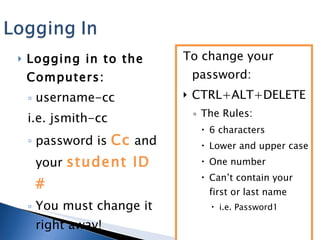
Logging in to the Computers: username-cc  i.e. jsmith-cc password is  Cc  and your  student ID # You must change it right away! To change your password: CTRL+ALT+DELETE The Rules:  6 characters Lower and upper case One number  Can’t contain your first or last name i.e. Password1
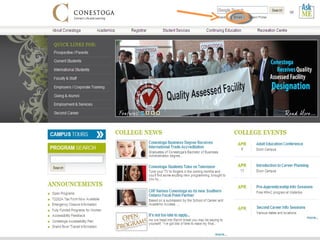
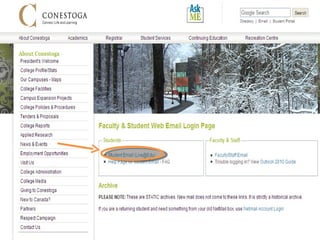
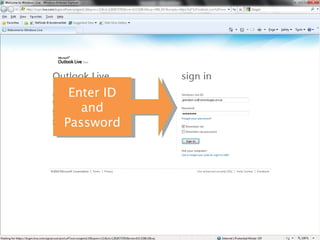
Email-click on email from the website Students web email login Email Address:  [email_address] Log in using your full email address Password:  the same as computer login Your computer login and email login will be the same (once you have changed it from the default) It is  important  to check your Conestoga email often/daily TIP!  If you can’t check your Conestoga email often, forward it to your Yahoo, Hotmail, Gmail or other primary account.  Click here for directions.


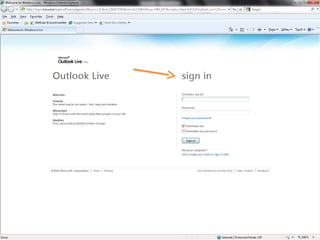
Enter ID and Password
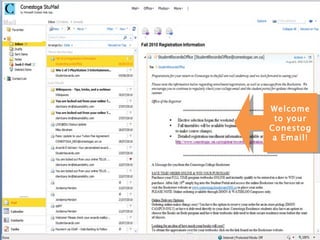
Welcome to your Conestoga Email!
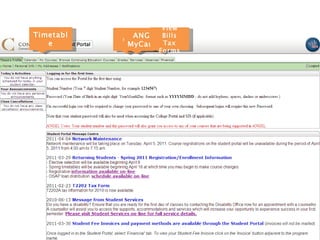
Timetables Grades ANGEL, MyCareer View Bills / Tax Forms
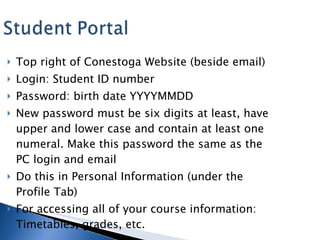
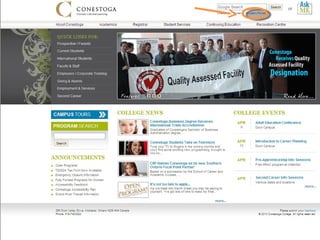
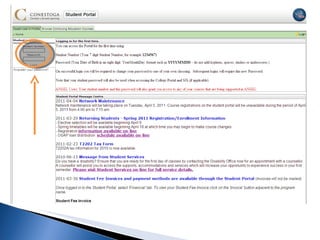
Top right of Conestoga Website (beside email) Login: Student ID number Password: birth date YYYYMMDD New password must be six digits at least, have upper and lower case and contain at least one numeral. Make this password the same as the PC login and email Do this in Personal Information (under the Profile Tab) For accessing all of your course information: Timetables, grades, etc.
 
 
Timetable Grades ANGEL MyCareer View Bills Tax Forms
Online Course Content
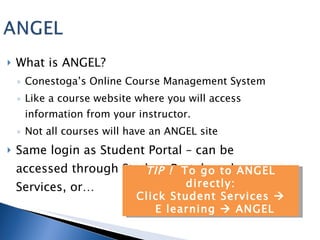
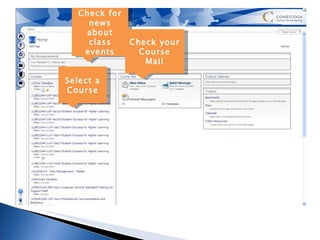
What is ANGEL? Conestoga’s Online Course Management System Like a course website where you will access information from your instructor.  Not all courses will have an ANGEL site Same login as Student Portal – can be accessed through Student Portal, under Services, or… TIP !  To go to ANGEL directly: Click Student Services   E learning    ANGEL
Select a Course Check for news about class events Check your Course Mail
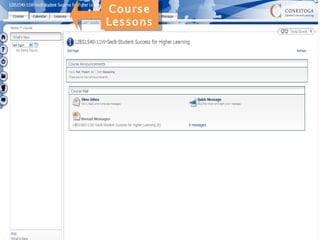
Course Lessons
Use library resources from off-campus Access your library account  Renew library books Place a hold on a book that is signed out
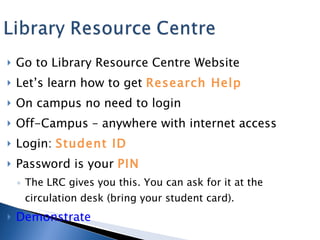
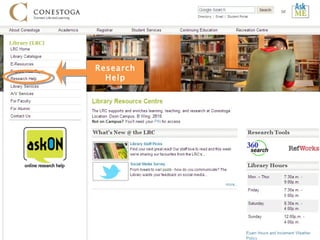
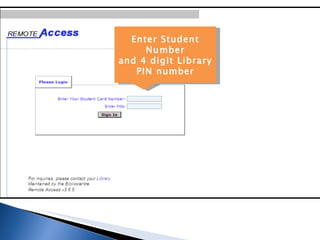
Go to Library Resource Centre Website Let’s learn how to get  Research Help On campus no need to login Off-Campus – anywhere with internet access Login:  Student ID Password is your  PIN The LRC gives you this. You can ask for it at the circulation desk (bring your student card). Demonstrate
Research Help
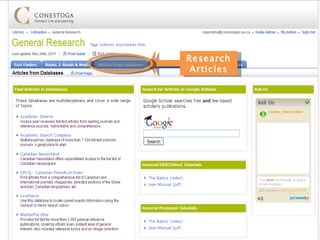
Research Articles
Enter Student Number and 4 digit Library PIN number
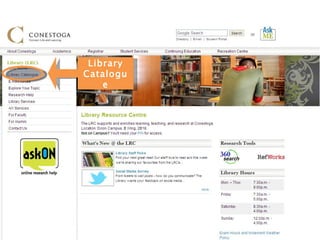
Library Catalogue
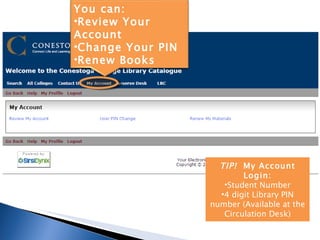
TIP!  My Account Login: Student Number 4 digit Library PIN number (Available at the Circulation Desk) You can: Review Your Account Change Your PIN Renew Books
Finding your G Drive Creating a Folder Saving a File
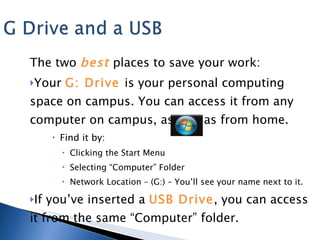
The two  best   places to save your work: Your  G: Drive  is your personal computing space on campus. You can access it from any computer on campus, as well as from home.  Find it by: Clicking the Start Menu Selecting “Computer” Folder Network Location – (G:) – You’ll see your name next to it. If you’ve inserted a  USB Drive , you can access it from the same “Computer” folder.
From your G: Drive click on the New Folder button For practice, Name it  [email_address]
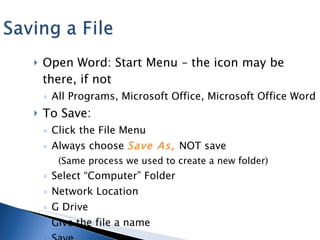
Open Word: Start Menu – the icon may be there, if not All Programs, Microsoft Office, Microsoft Office Word  To Save: Click the File Menu  Always choose  Save As,  NOT save (Same process we used to create a new folder) Select “Computer” Folder Network Location G Drive Give the file a name Save
Printing at Conestoga College
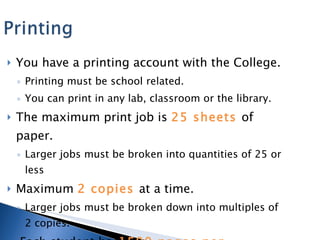
You have a printing account with the College. Printing must be school related. You can print in any lab, classroom or the library. The maximum print job is  25 sheets  of paper. Larger jobs must be broken into quantities of 25 or less Maximum  2 copies  at a time. Larger jobs must be broken down into multiples of 2 copies. Each student has 1500 pages per semester .
Using Wireless at Conestoga College
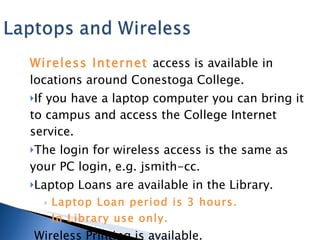
Wireless Internet  access is available in locations around Conestoga College. If you have a laptop computer you can bring it to campus and access the College Internet service. The login for wireless access is the same as your PC login, e.g. jsmith-cc. Laptop Loans are available in the Library.  Laptop Loan period is 3 hours. In Library use only. Wireless Printing is available.
Get your own locker on campus
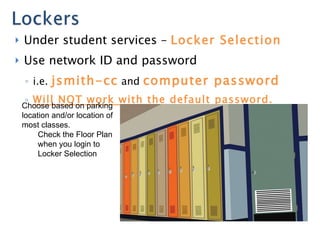
Under student services –  Locker Selection Use network ID and password  i.e.  jsmith-cc   and  computer password Will NOT work with the default password. Choose based on parking location and/or location of most classes.  Check the Floor Plan when you login to Locker Selection
We’re here to help! There are many services available to help students at Conestoga College. The friendly staff at the library are available to help you!

Computingat conestoga 2011_generic

  • 1.
  • 2.
    Logging in tocomputers Logging in to: Email Student Portal ANGEL Library Resources Saving Printing Rules Wireless Access Getting a Locker
  • 3.
    Visit or call:Ask Me (near Tim Hortons) desk Monday – Thursday 8:00 am – 8:00 pm Friday 8:00 am – 4:00 pm IT Services Office 1E19 Monday – Friday 8:00 am – 4:00 pm 519-748-5220, Extension 3444 Email: [email_address] Library Staff and Computing Assistants whenever the library is open
  • 4.
    Email Student PortalANGEL Library Resource Centre
  • 5.
    Logging in tothe Computers: username-cc i.e. jsmith-cc password is Cc and your student ID # You must change it right away! To change your password: CTRL+ALT+DELETE The Rules: 6 characters Lower and upper case One number Can’t contain your first or last name i.e. Password1
  • 6.
    Email-click on emailfrom the website Students web email login Email Address: [email_address] Log in using your full email address Password: the same as computer login Your computer login and email login will be the same (once you have changed it from the default) It is important to check your Conestoga email often/daily TIP! If you can’t check your Conestoga email often, forward it to your Yahoo, Hotmail, Gmail or other primary account. Click here for directions.
  • 7.
  • 8.
  • 9.
  • 10.
    Enter ID andPassword
  • 11.
    Welcome to yourConestoga Email!
  • 12.
    Timetables Grades ANGEL,MyCareer View Bills / Tax Forms
  • 13.
    Top right ofConestoga Website (beside email) Login: Student ID number Password: birth date YYYYMMDD New password must be six digits at least, have upper and lower case and contain at least one numeral. Make this password the same as the PC login and email Do this in Personal Information (under the Profile Tab) For accessing all of your course information: Timetables, grades, etc.
  • 14.
  • 15.
  • 16.
    Timetable Grades ANGELMyCareer View Bills Tax Forms
  • 17.
  • 18.
    What is ANGEL?Conestoga’s Online Course Management System Like a course website where you will access information from your instructor. Not all courses will have an ANGEL site Same login as Student Portal – can be accessed through Student Portal, under Services, or… TIP ! To go to ANGEL directly: Click Student Services  E learning  ANGEL
  • 19.
    Select a CourseCheck for news about class events Check your Course Mail
  • 20.
  • 21.
    Use library resourcesfrom off-campus Access your library account Renew library books Place a hold on a book that is signed out
  • 22.
    Go to LibraryResource Centre Website Let’s learn how to get Research Help On campus no need to login Off-Campus – anywhere with internet access Login: Student ID Password is your PIN The LRC gives you this. You can ask for it at the circulation desk (bring your student card). Demonstrate
  • 23.
  • 24.
  • 25.
    Enter Student Numberand 4 digit Library PIN number
  • 26.
  • 27.
    TIP! MyAccount Login: Student Number 4 digit Library PIN number (Available at the Circulation Desk) You can: Review Your Account Change Your PIN Renew Books
  • 28.
    Finding your GDrive Creating a Folder Saving a File
  • 29.
    The two best places to save your work: Your G: Drive is your personal computing space on campus. You can access it from any computer on campus, as well as from home. Find it by: Clicking the Start Menu Selecting “Computer” Folder Network Location – (G:) – You’ll see your name next to it. If you’ve inserted a USB Drive , you can access it from the same “Computer” folder.
  • 30.
    From your G:Drive click on the New Folder button For practice, Name it [email_address]
  • 31.
    Open Word: StartMenu – the icon may be there, if not All Programs, Microsoft Office, Microsoft Office Word To Save: Click the File Menu Always choose Save As, NOT save (Same process we used to create a new folder) Select “Computer” Folder Network Location G Drive Give the file a name Save
  • 32.
  • 33.
    You have aprinting account with the College. Printing must be school related. You can print in any lab, classroom or the library. The maximum print job is 25 sheets of paper. Larger jobs must be broken into quantities of 25 or less Maximum 2 copies at a time. Larger jobs must be broken down into multiples of 2 copies. Each student has 1500 pages per semester .
  • 34.
    Using Wireless atConestoga College
  • 35.
    Wireless Internet access is available in locations around Conestoga College. If you have a laptop computer you can bring it to campus and access the College Internet service. The login for wireless access is the same as your PC login, e.g. jsmith-cc. Laptop Loans are available in the Library. Laptop Loan period is 3 hours. In Library use only. Wireless Printing is available.
  • 36.
    Get your ownlocker on campus
  • 37.
    Under student services– Locker Selection Use network ID and password i.e. jsmith-cc and computer password Will NOT work with the default password. Choose based on parking location and/or location of most classes. Check the Floor Plan when you login to Locker Selection
  • 38.
    We’re here tohelp! There are many services available to help students at Conestoga College. The friendly staff at the library are available to help you!