UNIT-I
Computer Fundamentals
and
Data Representation
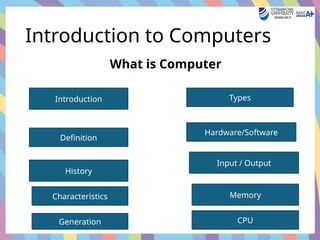
Introduction to Computers
What is Computer
Introduction
Definition
History
Generation
Types
Hardware/Software
Input / Output
CPU
Characteristics Memory
Introduction
• A computer is an electronic device,
operating under the control of instructions
stored in its own memory that can accept
data (input), process the data according to
specified rules, produce information
(output), and store the information for
future use.
• It is Believed that Analytical Engine was the
first computer which invented by Charles
Babbage in 1837
Definition
• A computer is an electronic device that can accept
some inputs in the form of data, processing this
data, and providing the Output in the desired
format.
• Computers are used everywhere in our daily lives
such as sending emails, online shopping, ATMs,
playing games, preparing documents, posting
comments on social media, watching videos on
YouTube, etc.
• Apart from desktops and laptops, you can find
computers on TVs, remote controllers, ACs,
refrigerators, cars, smartphones, and tablets.
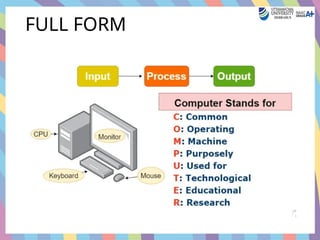
FULL FORM
Generation
• The modern computer took its shape with
the arrival of your time. It was around the
16th century when the evolution of the
computer started. The initial computer faced
many changes, obviously for the better. It
continuously improved itself in terms of
speed, accuracy, size, and price to urge the
form of the fashionable day computer.
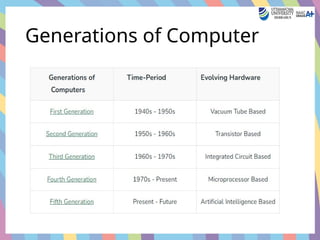
Generations of Computer
Characterstics
• Speed
• Storage Capacity
• Reliable
• Flexible
• Accuracy
Limitation
• No IQ
• No feelings/ EQ
• Lack of Decision Making
• Lack of Common Sense
• Cannot implement
• Human dependency
• Security Vulnerabilities
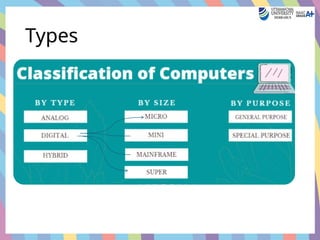
Types
Analogue Computer
• Analog Computer – An analog computer
one that uses the continuously changeable
aspects of physical phenomena to model the
problem being solved. These phenomena
may be such as electrical, mechanical, or
hydraulic quantities and they are extremely
complex to be used. Such computers are
mostly used for scientific and industrial
applications. Examples of Analog computers
include Thermometer, Operational
Amplifiers, Electric Integrators, etc.
Digital Computer
• Such computers are capable of solving
problems in discrete format. It only operates
on data entered in binary language and can
perform the dynamic function of managing
large amounts of data and regulating the
operations of the machine, Examples of
Digital computers are Desktop, Laptop,
Mobile Phones, etc.
Hybrid Computer
• Computers that exhibit features of both
Analog and Digital computers are called
Hybrid Computers. The logical operations
are solved by the digital aspects and the
differential equations are solved using the
analog features. Few important examples of
Hybrid Computers include mobile phn ,
smart wat
Supercomputers
• Supercomputers are the most powerful
type of computers in terms of performance
and speed. They are used for complex tasks
like weather forecasting, scientific research,
and space exploration.
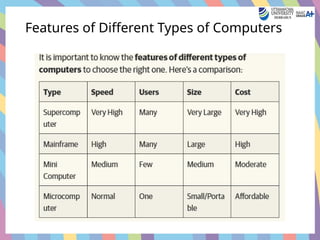
• Features of Supercomputers:
• High processing speed
• Can handle large data
• Expensive and large in size
Mainframe Computers
• Mainframe computers are large and
powerful machines mainly used by large
organizations like banks, government
agencies, and airlines.
• Features of Mainframe Computers:
• Can process large amounts of data
• Multi-user environment
• Very reliable
Mini Computers
• Mini computers are smaller than
mainframes but still more powerful than
personal computers. They are used in
medium-sized organizations.
• Features of Mini Computers:
• Multi-user support
• Cost-effective
• Compact in size compared to mainframes
Microcomputers (Personal Computers)
• Microcomputers are the most commonly
used computers. They are also known as
personal computers or PCs.
• Features of Microcomputers:
• Single-user
• Affordable
• Easy to use and maintain
• Examples: Desktop, Laptop, Tablet
Features of Different Types of Computers
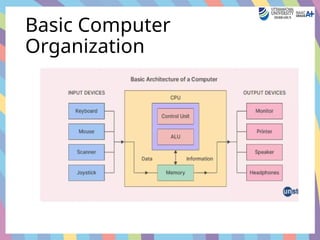
Basic Computer
Organization
Computer Organization
• Computer Organization refers to how
various components of a computer system
are arranged and interact.
• It explains the working of input, output,
CPU, and memory units together.
• Focuses on internal hardware structure and
data flow.
Input Unit
• • Devices: Keyboard, Mouse, Scanner, etc.
• • Accepts data and converts it into machine-
readable form.
• • Sends data to memory or CPU for
processing.
Output Unit
• Devices: Monitor, Printer, Speakers, etc.
• Converts processed data into human-
readable form.
• Displays the result of operations done by
the CPU.
CPU
• Known as the 'Brain of the Computer'
• Performs all calculations and decision-
making
• Divided into:
• - Arithmetic Logic Unit (ALU)
• - Control Unit (CU)
• - Registers (temporary high-speed storage)
ALU
• Consists of two units Arithmetic unit and
Logic unit
• The arithmetic unit performs arithmetic
operations like addition,
subtraction ,multiplication and division.
• The logic unit performs logic operations like
grater than ,less than or equal to condition.
• ALU performs arithmetic and logic
operations and uses registers to hold the
data.
Control Unit
• Controls the flow of data between CPU,
memory, and input/output devices.
• Decodes instructions fetched from
memory.
• Sends control signals to other units (ALU,
memory, I/O devices).
• Coordinates how the computer's hardware
responds to instructions.
• Tells the ALU what operation to perform
(add, subtract, compare, etc.).
Registers
• A Register is a tiny memory location inside the
CPU that temporarily stores data, instructions,
addresses, or intermediate results during
processing.
• Functions of Registers:
• Store data currently being processed.
• Hold instructions fetched from memory.
• Store addresses that point to memory locations.
• Provide fast access to data required by CPU
operations.
Types of Registers
• Register Name
• Accumulator (ACC) Stores intermediate
arithmetic/logical results
• Instruction Register (IR)Holds the current instruction
• Program Counter (PC)Points to the next address of next
instruction
• Memory Address Register (MAR)Holds the address of
data in memory
• Memory Buffer Register (MBR)Holds data fetched from
memory
• General Purpose Registers
• Hold temporary data during operations
Memory/Storage Unit
• Temporary Memory: RAM
• • Permanent Memory: ROM, Hard Disk, SSD
• • Cache Memory: High-speed memory for
CPU access
• • Stores data and instructions before and
after processing
Computer Architecture vs
Organisation
• Architecture: Logical design, Instruction
sets, Programming
• Organization: Physical structure, hardware
components
• Architecture is about 'what it does',
Organization is about 'how it does'
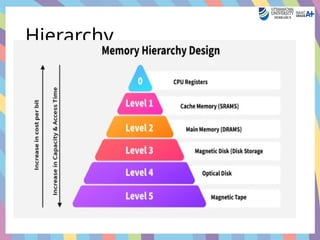
Memory Hierarchy
• Memory hierarchy is the organization of
computer storage systems into layers based
on speed and cost — faster, smaller, and
costlier memories are closer to the CPU,
while slower, larger, and cheaper ones are
farther away.
Hierarchy
User Interface with the
Operating System
An interface connects the user and the operating
system; hence, the interface connects the user and the
operating system.
Types of User interface
• Menu-based interfaces
• Command-Line Interfaces
• Form-based interfaces
• Graphical User Interfaces
• Natural language interfaces
Types of user
• A menu-based interface is a screen that displays multiple menus to help
users perform tasks. In devices like smart phones, it guides us to check the
weather, make calls, read emails, and more, making operations easier and
user-friendly.
• Command-Line Interface (CLI): An interface where you type commands
using the keyboard, and the computer shows text responses. It’s faster for
advanced users and good for automation, but less beginner-friendly
compared to GUI.
• Form-Based Interface: Looks like a digital form where you fill in boxes, tick
options, or choose from lists—similar to filling a paper form. Used where lots
of structured data needs to be entered.
• Graphical User Interface (GUI): An interface that uses pictures, icons,
buttons, and menus you can click or touch. It’s user-friendly and common in
devices like Windows, macOS, and smartphones.
• Natural Language Interface (NLI): Lets you interact with a computer by
typing or speaking in everyday language. It tries to understand your words
and convert them into computer commands.eg chatGPT
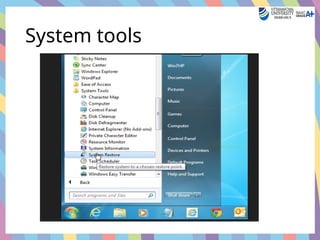
System Tools
• For a smooth performance of a system ,periodic maintenance is necessary windows
provides some basic tools to make the maintenance process it may invoked by
choosing
• System tools are utility programs that help you manage, monitor, and optimize
your computer’s hardware, software, and operating system.
They are usually built into the OS or installed separately to make the computer run
smoothly.
• Think of them as the “maintenance kit” for your computer.
• Start All programs  Accessories system Tools
• Main functions
• System maintenance
• File management
• Performance monitoring
• Security , backup and Recovery
System tools
Common System Tools and Their Functions
• Character Map
• Shows all characters available in different fonts installed on the computer.
• Used to insert special symbols, accented letters, and emojis into documents.
• Disk Cleanup
• Removes unnecessary files (temporary files, cache, Recycle Bin data) to free up disk
space.
• Helps improve system performance.
• Task Manager
• Monitors running programs and background processes.
• Displays CPU, memory, disk, and network usage.
• Allows closing unresponsive applications.
• System Restore
• Restores the computer to a previous working state.
• Useful when updates or installations cause problems.
• Control Panel / Settings
• Central location to configure system settings (hardware, software, network, user
accounts).
System tools
• Device Manager
• Shows all connected hardware devices.
• Used to install, update, disable, or roll back drivers.
• Command Prompt (CMD)
• Text-based interface to run commands for file operations, network
checks, and system tasks.
• PowerShell
• Advanced command-line tool for automation and system management.
• Defragment and Optimize Drives
• Rearranges fragmented data on the hard drive to improve read/write
speed.
• Event Viewer
• Shows logs of system events, errors, and warnings for troubleshooting.
System Tools
• Snipping Tool / Snip & Sketch
• Captures screenshots of the entire screen or selected areas.
• Registry Editor (Regedit)
• Allows editing Windows Registry settings (for advanced users).
• Windows Security (Defender)
• Built-in antivirus and firewall protection tool.
• Backup and Restore
• Creates backup copies of files and allows restoring them if lost
or damaged.
• Resource Monitor
• Provides detailed information on CPU, memory, disk, and
network usage in real-time.
• Magnifier
• Enlarges parts of the screen to help visually impaired users.
• On-Screen Keyboard
• Displays a virtual keyboard on the screen for typing without a
physical keyboard.
• Paint
• Simple image editing tool for creating or modifying pictures.
• Notepad
• Basic text editor for creating and editing plain text files.
• Calculator
• Performs basic, scientific, and programmer calculations.
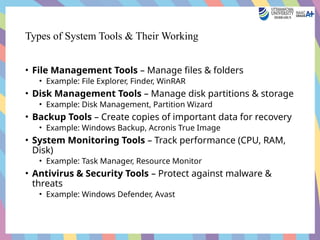
Types of System Tools & Their Working
• File Management Tools – Manage files & folders
• Example: File Explorer, Finder, WinRAR
• Disk Management Tools – Manage disk partitions & storage
• Example: Disk Management, Partition Wizard
• Backup Tools – Create copies of important data for recovery
• Example: Windows Backup, Acronis True Image
• System Monitoring Tools – Track performance (CPU, RAM,
Disk)
• Example: Task Manager, Resource Monitor
• Antivirus & Security Tools – Protect against malware &
threats
• Example: Windows Defender, Avast
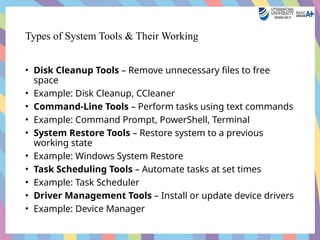
Types of System Tools & Their Working
• Disk Cleanup Tools – Remove unnecessary files to free
space
• Example: Disk Cleanup, CCleaner
• Command-Line Tools – Perform tasks using text commands
• Example: Command Prompt, PowerShell, Terminal
• System Restore Tools – Restore system to a previous
working state
• Example: Windows System Restore
• Task Scheduling Tools – Automate tasks at set times
• Example: Task Scheduler
• Driver Management Tools – Install or update device drivers
• Example: Device Manager
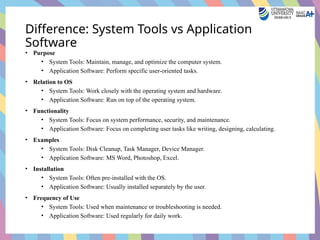
Difference: System Tools vs Application
Software
• Purpose
• System Tools: Maintain, manage, and optimize the computer system.
• Application Software: Perform specific user-oriented tasks.
• Relation to OS
• System Tools: Work closely with the operating system and hardware.
• Application Software: Run on top of the operating system.
• Functionality
• System Tools: Focus on system performance, security, and maintenance.
• Application Software: Focus on completing user tasks like writing, designing, calculating.
• Examples
• System Tools: Disk Cleanup, Task Manager, Device Manager.
• Application Software: MS Word, Photoshop, Excel.
• Installation
• System Tools: Often pre-installed with the OS.
• Application Software: Usually installed separately by the user.
• Frequency of Use
• System Tools: Used when maintenance or troubleshooting is needed.
• Application Software: Used regularly for daily work.
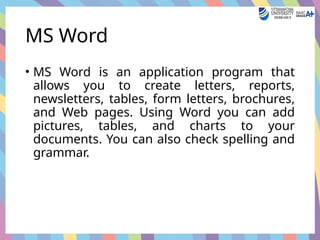
MS Word
• MS Word is an application program that
allows you to create letters, reports,
newsletters, tables, form letters, brochures,
and Web pages. Using Word you can add
pictures, tables, and charts to your
documents. You can also check spelling and
grammar.
MAIN FEATURES OF MS
WORD
• You can create documents fast, using built-in and custom templates.
• You can easily manage large documents using various features, like
the ability to create table of contents, index, and cross references.
• With the help of mail merge, you can quickly create merge
documents like mass mailings or mailing labels.
• You can easily create and format tables using the features like
AutoFormat.
• AutoCorrect and AutoFormat features rectify typographical errors
automatically and allow you to use predefined shortcuts and typing
patterns to quickly format your documents.
Features
• The print zoom facility scales a document on different paper sizes, and
allows you to print out multiple pages on a single sheet of paper. –
• The nested tables feature supports putting one table inside another
table.
• The picture bullets make it easy to insert tiny pictures before each item in
a list.
• Collect and paste lets you copy more than one item to the clipboard at a
time. You can collect information from many sources and paste it into
one place.
• By putting your word documents on the Web server, you can share your
information with other people.
• The multilingual features of Word allows to type different languages in
the same document
• You can save your documents in HTML format. You can also create Web
Pages using Web Page Wizard.
Computer Fundamentals and data Representation

Computer Fundamentals and data Representation

  • 1.
  • 2.
    Introduction to Computers Whatis Computer Introduction Definition History Generation Types Hardware/Software Input / Output CPU Characteristics Memory
  • 3.
    Introduction • A computeris an electronic device, operating under the control of instructions stored in its own memory that can accept data (input), process the data according to specified rules, produce information (output), and store the information for future use. • It is Believed that Analytical Engine was the first computer which invented by Charles Babbage in 1837
  • 4.
    Definition • A computeris an electronic device that can accept some inputs in the form of data, processing this data, and providing the Output in the desired format. • Computers are used everywhere in our daily lives such as sending emails, online shopping, ATMs, playing games, preparing documents, posting comments on social media, watching videos on YouTube, etc. • Apart from desktops and laptops, you can find computers on TVs, remote controllers, ACs, refrigerators, cars, smartphones, and tablets.
  • 5.
  • 6.
    Generation • The moderncomputer took its shape with the arrival of your time. It was around the 16th century when the evolution of the computer started. The initial computer faced many changes, obviously for the better. It continuously improved itself in terms of speed, accuracy, size, and price to urge the form of the fashionable day computer.
  • 7.
  • 8.
    Characterstics • Speed • StorageCapacity • Reliable • Flexible • Accuracy
  • 9.
    Limitation • No IQ •No feelings/ EQ • Lack of Decision Making • Lack of Common Sense • Cannot implement • Human dependency • Security Vulnerabilities
  • 10.
  • 11.
    Analogue Computer • AnalogComputer – An analog computer one that uses the continuously changeable aspects of physical phenomena to model the problem being solved. These phenomena may be such as electrical, mechanical, or hydraulic quantities and they are extremely complex to be used. Such computers are mostly used for scientific and industrial applications. Examples of Analog computers include Thermometer, Operational Amplifiers, Electric Integrators, etc.
  • 12.
    Digital Computer • Suchcomputers are capable of solving problems in discrete format. It only operates on data entered in binary language and can perform the dynamic function of managing large amounts of data and regulating the operations of the machine, Examples of Digital computers are Desktop, Laptop, Mobile Phones, etc.
  • 13.
    Hybrid Computer • Computersthat exhibit features of both Analog and Digital computers are called Hybrid Computers. The logical operations are solved by the digital aspects and the differential equations are solved using the analog features. Few important examples of Hybrid Computers include mobile phn , smart wat
  • 14.
    Supercomputers • Supercomputers arethe most powerful type of computers in terms of performance and speed. They are used for complex tasks like weather forecasting, scientific research, and space exploration. • Features of Supercomputers: • High processing speed • Can handle large data • Expensive and large in size
  • 15.
    Mainframe Computers • Mainframecomputers are large and powerful machines mainly used by large organizations like banks, government agencies, and airlines. • Features of Mainframe Computers: • Can process large amounts of data • Multi-user environment • Very reliable
  • 16.
    Mini Computers • Minicomputers are smaller than mainframes but still more powerful than personal computers. They are used in medium-sized organizations. • Features of Mini Computers: • Multi-user support • Cost-effective • Compact in size compared to mainframes
  • 17.
    Microcomputers (Personal Computers) •Microcomputers are the most commonly used computers. They are also known as personal computers or PCs. • Features of Microcomputers: • Single-user • Affordable • Easy to use and maintain • Examples: Desktop, Laptop, Tablet
  • 18.
    Features of DifferentTypes of Computers
  • 19.
  • 20.
    Computer Organization • ComputerOrganization refers to how various components of a computer system are arranged and interact. • It explains the working of input, output, CPU, and memory units together. • Focuses on internal hardware structure and data flow.
  • 21.
    Input Unit • •Devices: Keyboard, Mouse, Scanner, etc. • • Accepts data and converts it into machine- readable form. • • Sends data to memory or CPU for processing.
  • 22.
    Output Unit • Devices:Monitor, Printer, Speakers, etc. • Converts processed data into human- readable form. • Displays the result of operations done by the CPU.
  • 23.
    CPU • Known asthe 'Brain of the Computer' • Performs all calculations and decision- making • Divided into: • - Arithmetic Logic Unit (ALU) • - Control Unit (CU) • - Registers (temporary high-speed storage)
  • 24.
    ALU • Consists oftwo units Arithmetic unit and Logic unit • The arithmetic unit performs arithmetic operations like addition, subtraction ,multiplication and division. • The logic unit performs logic operations like grater than ,less than or equal to condition. • ALU performs arithmetic and logic operations and uses registers to hold the data.
  • 25.
    Control Unit • Controlsthe flow of data between CPU, memory, and input/output devices. • Decodes instructions fetched from memory. • Sends control signals to other units (ALU, memory, I/O devices). • Coordinates how the computer's hardware responds to instructions. • Tells the ALU what operation to perform (add, subtract, compare, etc.).
  • 26.
    Registers • A Registeris a tiny memory location inside the CPU that temporarily stores data, instructions, addresses, or intermediate results during processing. • Functions of Registers: • Store data currently being processed. • Hold instructions fetched from memory. • Store addresses that point to memory locations. • Provide fast access to data required by CPU operations.
  • 27.
    Types of Registers •Register Name • Accumulator (ACC) Stores intermediate arithmetic/logical results • Instruction Register (IR)Holds the current instruction • Program Counter (PC)Points to the next address of next instruction • Memory Address Register (MAR)Holds the address of data in memory • Memory Buffer Register (MBR)Holds data fetched from memory • General Purpose Registers • Hold temporary data during operations
  • 28.
    Memory/Storage Unit • TemporaryMemory: RAM • • Permanent Memory: ROM, Hard Disk, SSD • • Cache Memory: High-speed memory for CPU access • • Stores data and instructions before and after processing
  • 29.
    Computer Architecture vs Organisation •Architecture: Logical design, Instruction sets, Programming • Organization: Physical structure, hardware components • Architecture is about 'what it does', Organization is about 'how it does'
  • 30.
    Memory Hierarchy • Memoryhierarchy is the organization of computer storage systems into layers based on speed and cost — faster, smaller, and costlier memories are closer to the CPU, while slower, larger, and cheaper ones are farther away.
  • 31.
  • 32.
    User Interface withthe Operating System An interface connects the user and the operating system; hence, the interface connects the user and the operating system. Types of User interface • Menu-based interfaces • Command-Line Interfaces • Form-based interfaces • Graphical User Interfaces • Natural language interfaces
  • 33.
    Types of user •A menu-based interface is a screen that displays multiple menus to help users perform tasks. In devices like smart phones, it guides us to check the weather, make calls, read emails, and more, making operations easier and user-friendly. • Command-Line Interface (CLI): An interface where you type commands using the keyboard, and the computer shows text responses. It’s faster for advanced users and good for automation, but less beginner-friendly compared to GUI. • Form-Based Interface: Looks like a digital form where you fill in boxes, tick options, or choose from lists—similar to filling a paper form. Used where lots of structured data needs to be entered. • Graphical User Interface (GUI): An interface that uses pictures, icons, buttons, and menus you can click or touch. It’s user-friendly and common in devices like Windows, macOS, and smartphones. • Natural Language Interface (NLI): Lets you interact with a computer by typing or speaking in everyday language. It tries to understand your words and convert them into computer commands.eg chatGPT
  • 34.
    System Tools • Fora smooth performance of a system ,periodic maintenance is necessary windows provides some basic tools to make the maintenance process it may invoked by choosing • System tools are utility programs that help you manage, monitor, and optimize your computer’s hardware, software, and operating system. They are usually built into the OS or installed separately to make the computer run smoothly. • Think of them as the “maintenance kit” for your computer. • Start All programs  Accessories system Tools • Main functions • System maintenance • File management • Performance monitoring • Security , backup and Recovery
  • 35.
  • 36.
    Common System Toolsand Their Functions • Character Map • Shows all characters available in different fonts installed on the computer. • Used to insert special symbols, accented letters, and emojis into documents. • Disk Cleanup • Removes unnecessary files (temporary files, cache, Recycle Bin data) to free up disk space. • Helps improve system performance. • Task Manager • Monitors running programs and background processes. • Displays CPU, memory, disk, and network usage. • Allows closing unresponsive applications. • System Restore • Restores the computer to a previous working state. • Useful when updates or installations cause problems. • Control Panel / Settings • Central location to configure system settings (hardware, software, network, user accounts).
  • 37.
    System tools • DeviceManager • Shows all connected hardware devices. • Used to install, update, disable, or roll back drivers. • Command Prompt (CMD) • Text-based interface to run commands for file operations, network checks, and system tasks. • PowerShell • Advanced command-line tool for automation and system management. • Defragment and Optimize Drives • Rearranges fragmented data on the hard drive to improve read/write speed. • Event Viewer • Shows logs of system events, errors, and warnings for troubleshooting.
  • 38.
    System Tools • SnippingTool / Snip & Sketch • Captures screenshots of the entire screen or selected areas. • Registry Editor (Regedit) • Allows editing Windows Registry settings (for advanced users). • Windows Security (Defender) • Built-in antivirus and firewall protection tool. • Backup and Restore • Creates backup copies of files and allows restoring them if lost or damaged. • Resource Monitor • Provides detailed information on CPU, memory, disk, and network usage in real-time.
  • 39.
    • Magnifier • Enlargesparts of the screen to help visually impaired users. • On-Screen Keyboard • Displays a virtual keyboard on the screen for typing without a physical keyboard. • Paint • Simple image editing tool for creating or modifying pictures. • Notepad • Basic text editor for creating and editing plain text files. • Calculator • Performs basic, scientific, and programmer calculations.
  • 40.
    Types of SystemTools & Their Working • File Management Tools – Manage files & folders • Example: File Explorer, Finder, WinRAR • Disk Management Tools – Manage disk partitions & storage • Example: Disk Management, Partition Wizard • Backup Tools – Create copies of important data for recovery • Example: Windows Backup, Acronis True Image • System Monitoring Tools – Track performance (CPU, RAM, Disk) • Example: Task Manager, Resource Monitor • Antivirus & Security Tools – Protect against malware & threats • Example: Windows Defender, Avast
  • 41.
    Types of SystemTools & Their Working • Disk Cleanup Tools – Remove unnecessary files to free space • Example: Disk Cleanup, CCleaner • Command-Line Tools – Perform tasks using text commands • Example: Command Prompt, PowerShell, Terminal • System Restore Tools – Restore system to a previous working state • Example: Windows System Restore • Task Scheduling Tools – Automate tasks at set times • Example: Task Scheduler • Driver Management Tools – Install or update device drivers • Example: Device Manager
  • 42.
    Difference: System Toolsvs Application Software • Purpose • System Tools: Maintain, manage, and optimize the computer system. • Application Software: Perform specific user-oriented tasks. • Relation to OS • System Tools: Work closely with the operating system and hardware. • Application Software: Run on top of the operating system. • Functionality • System Tools: Focus on system performance, security, and maintenance. • Application Software: Focus on completing user tasks like writing, designing, calculating. • Examples • System Tools: Disk Cleanup, Task Manager, Device Manager. • Application Software: MS Word, Photoshop, Excel. • Installation • System Tools: Often pre-installed with the OS. • Application Software: Usually installed separately by the user. • Frequency of Use • System Tools: Used when maintenance or troubleshooting is needed. • Application Software: Used regularly for daily work.
  • 43.
    MS Word • MSWord is an application program that allows you to create letters, reports, newsletters, tables, form letters, brochures, and Web pages. Using Word you can add pictures, tables, and charts to your documents. You can also check spelling and grammar.
  • 44.
    MAIN FEATURES OFMS WORD • You can create documents fast, using built-in and custom templates. • You can easily manage large documents using various features, like the ability to create table of contents, index, and cross references. • With the help of mail merge, you can quickly create merge documents like mass mailings or mailing labels. • You can easily create and format tables using the features like AutoFormat. • AutoCorrect and AutoFormat features rectify typographical errors automatically and allow you to use predefined shortcuts and typing patterns to quickly format your documents.
  • 45.
    Features • The printzoom facility scales a document on different paper sizes, and allows you to print out multiple pages on a single sheet of paper. – • The nested tables feature supports putting one table inside another table. • The picture bullets make it easy to insert tiny pictures before each item in a list. • Collect and paste lets you copy more than one item to the clipboard at a time. You can collect information from many sources and paste it into one place. • By putting your word documents on the Web server, you can share your information with other people. • The multilingual features of Word allows to type different languages in the same document • You can save your documents in HTML format. You can also create Web Pages using Web Page Wizard.