Digital Ladders:
Collaboration Tools for the Arts
Phillip Djwa
Mar 12, 2019
Grateful to be a visitor and
live and work on unceded territory of the
sḵwx̱wú7mesh (Squamish), sel̓íl̓witulh (Tsleil-
Waututh), and xʷməθkʷəy̓əm (Musqueam)
nations.
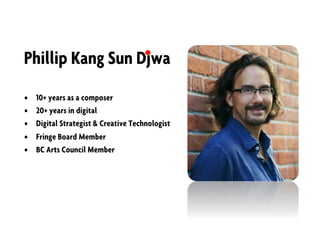
Phillip Kang Sun Djwa
• 10+ years as a composer
• 20+ years in digital
• Digital Strategist & Creative Technologist
• Fringe Board Member
• BC Arts Council Member
Our clients
Jargon Giraffe
thx to:
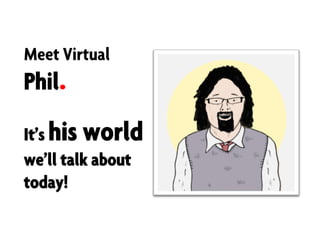
Meet Virtual
Phil
It’s his world
we’ll talk about
today!
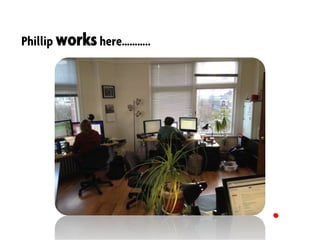
Phillip workshere………..
andhere………..
9
andhere.
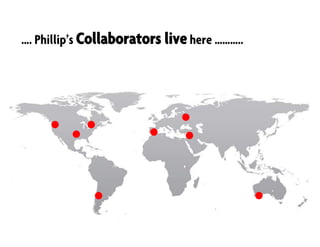
…. Phillip’s Collaborators live here ………..
Phillip has to find tools to collaborate with a
global team, in different time zones and, often,
with people he has never met……..
Yikes!
Oh man… what a
pain!
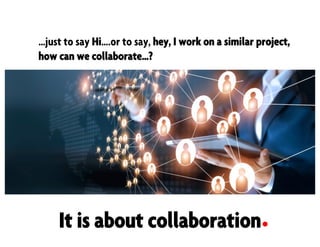
…just to say Hi….or to say, hey, I work on a similar project,
how can we collaborate…?
It is about collaboration
But hey…
üWhat is online collaboration?
üWhy does Phil need tools?
üWhat are some of the tools he uses?
üHow can he pick them?
What is online collaboration?
1. Straight Online Communication can be thought of as
unstructured interchange of information.
– A phone call or an IM Chat discussion are examples of this.
2. Simple Collaboration refers to simple transactions
toward a shared goal.
– Sharing documents or voting are examples of this.
3. Collaboration Management refers to complex
interdependent work toward a shared goal.
– Co-writing, facilitating or actively altering a shared object
Why does Phil need tools?
• How can he manage workflows and projects?
• How does he communicate easily with a team?
• What’s a good documentation system to manage
knowledge?
• How about file sharing?
• Any other reason?
Caveat
• I’m skipping over Constituent
Relationship Managers or CRMs as I
covered that in a previous Salon!
• Also not covering accessibility tools
which is another important area
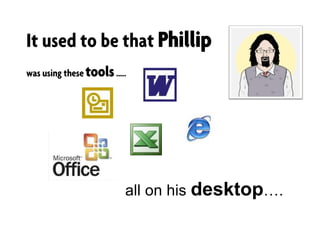
It used to be that Phillip
was using these tools…..
all on his desktop….
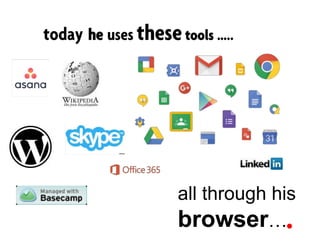
today he uses thesetools …..
all through his
browser….
..ask him today what his
favourite piece of
software is………..?
So if you were to…….
..he’d give it some
thought………
..and say it was a trick
question………
..and answer
with………
Chrome
Browser
So most of the
examples today are just
accessed through your
browser….
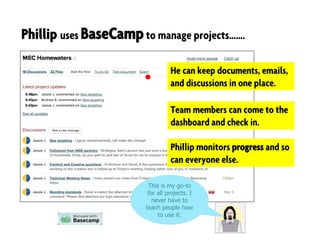
Phillip uses BaseCampto manage projects…….
He can keep documents, emails,
and discussions in one place.
Team members can come to the
dashboard and check in.
Phillip monitors progress and so
can everyone else.
This is my go-to
for all projects. I
never have to
teach people how
to use it.
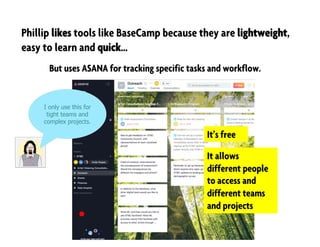
Phillip likes tools like BaseCamp because they are lightweight,
easy to learn and quick…
But uses ASANA for tracking specific tasks and workflow.
It’s free
It allows
different people
to access and
different teams
and projects
I only use this for
tight teams and
complex projects.
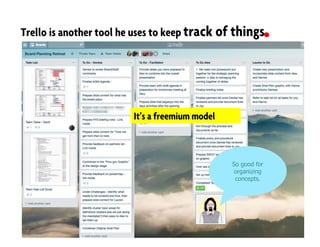
Trello is another tool he uses to keep track of things.
It’s a freemium model
So good for
organizing
concepts.
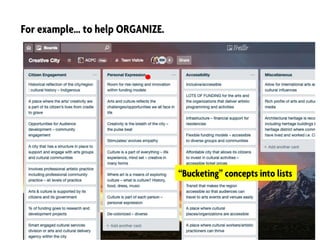
For example… to help ORGANIZE.
“Bucketing” concepts into lists
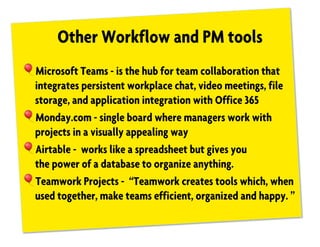
Other Workflow and PM tools
!Microsoft Teams - is the hub for team collaboration that
integrates persistent workplace chat, video meetings, file
storage, and application integration with Office 365
!Monday.com - single board where managers work with
projects in a visually appealing way
!Airtable - works like a spreadsheet but gives you
the power of a database to organize anything.
!Teamwork Projects - “Teamwork creates tools which, when
used together, make teams efficient, organized and happy. ”
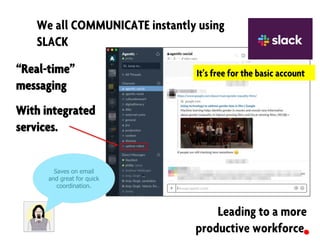
We all COMMUNICATE instantly using
SLACK
Leading to a more
productive workforce.
“Real-time”
messaging
With integrated
services.
It’s free for the basic account
Saves on email
and great for quick
coordination.
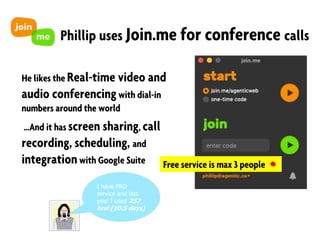
Phillip uses Join.me for conference calls
He likes the Real-time video and
audio conferencingwith dial-in
numbers around the world
…And it has screen sharing, call
recording, scheduling, and
integrationwith Google Suite Free service is max 3 people
I have PRO
service and last
year I used 257
hrs! (10.5 days)
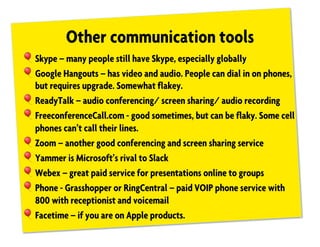
Other communication tools
!Skype – many people still have Skype, especially globally
!Google Hangouts – has video and audio. People can dial in on phones,
but requires upgrade. Somewhat flakey.
!ReadyTalk – audio conferencing/ screen sharing/ audio recording
!FreeconferenceCall.com - good sometimes, but can be flaky. Some cell
phones can’t call their lines.
!Zoom – another good conferencing and screen sharing service
!Yammer is Microsoft’s rival to Slack
!Webex – great paid service for presentations online to groups
!Phone - Grasshopper or RingCentral – paid VOIP phone service with
800 with receptionist and voicemail
!Facetime – if you are on Apple products.
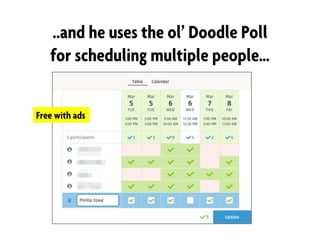
..and he uses the ol’ Doodle Poll
for scheduling multiple people…
Free with ads
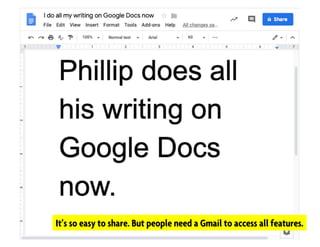
Phillip does his writing on
Google Docs
It’s so easy to share. But people need a Gmail to access all features.
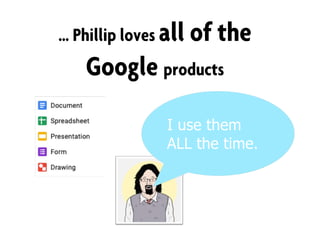
… Phillip loves all of the
Google products
I use them
ALL the time.
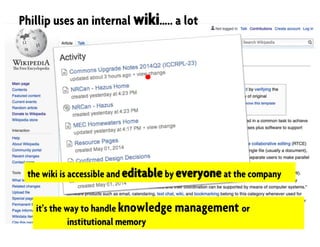
Phillip uses an internal wiki….. a lot
the wiki is accessible and editable by everyone at the company
it’s the way to handle knowledge management or
institutional memory
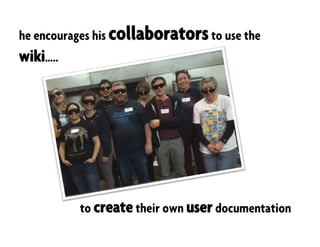
to create their own user documentation
he encourages his collaboratorsto use the
wiki…..
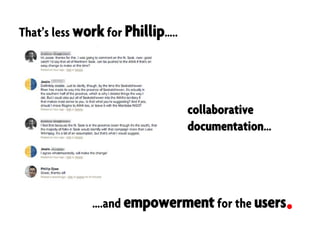
That’s less work for Phillip…..
….and empowerment for the users
collaborative
documentation…
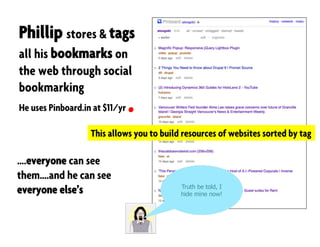
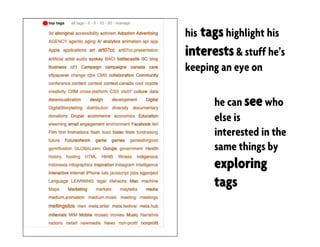
Phillip stores & tags
all his bookmarks on
the web through social
bookmarking
He uses Pinboard.in at $11/yr
….everyone can see
them….and he can see
everyone else’s
This allows you to build resources of websites sorted by tag
Truth be told, I
hide mine now!
his tags highlight his
interests & stuff he’s
keeping an eye on
he can see who
else is
interested in the
same things by
exploring
tags
Other documentation tools
!Office 365 – super integrated with the Office suite. Obvious
standard.
!Zoho – has a wide range of tools, including invoicing, CRM, plus
document sharing
!Box – quite popular as a document sharing and project mgmt service.
!Dropbox Paper – a new entry from Dropbox to allow collaboration.
Integrates nicely with Dropbox.
!Evernote – business version allows “folder” sharing. Great for
research
!Any others?
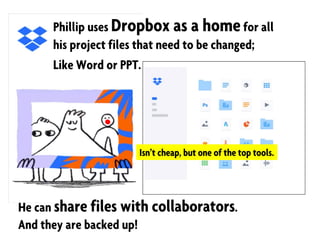
Phillip uses Dropbox as a homefor all
his project files that need to be changed;
Like Word or PPT.
He can share files with collaborators.
And they are backed up!
Isn’t cheap, but one of the top tools.
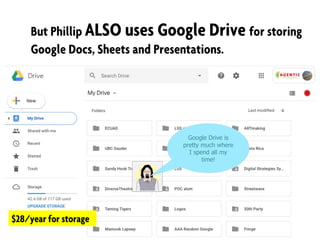
But Phillip ALSO uses Google Drive for storing
Google Docs, Sheets and Presentations.
$28/year for storage
Google Drive is
pretty much where
I spend all my
time!
Other filesharing tools
!Sharepoint – for all types of Office suite documents
!Box – another Dropbox type application
!Apple iCloud – integrates well with Apple products
!Hightail – allows transfer of really large files
!WeTransfer – similar to Hightail for large file transfer
!Sync.com – Canadian hosting of files, but like Dropbox
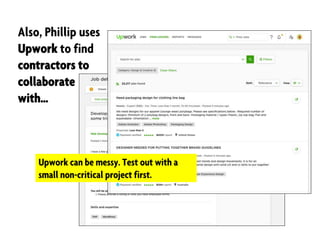
Also, Phillip uses
Upwork to find
contractors to
collaborate
with…
Upwork can be messy. Test out with a
small non-critical project first.
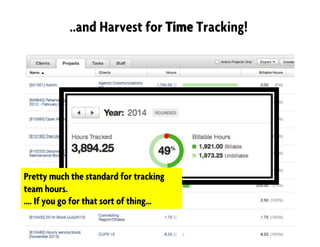
..and Harvest for Time Tracking!
Pretty much the standard for tracking
team hours.
…. If you go for that sort of thing…
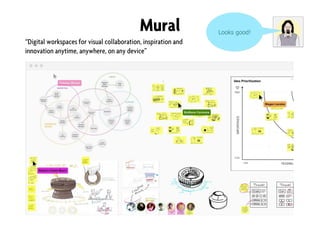
Mural Looks good!
“Digital workspaces for visual collaboration, inspiration and
innovation anytime, anywhere, on any device”
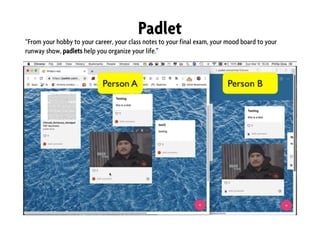
Padlet
“From your hobby to your career, your class notes to your final exam, your mood board to your
runway show, padlets help you organize your life.”
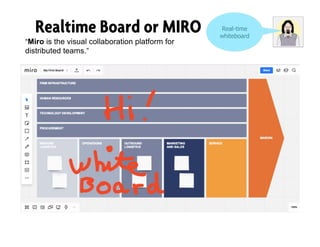
Realtime Board or MIRO Real-time
whiteboard
“Miro is the visual collaboration platform for
distributed teams.”
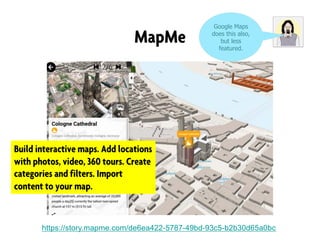
MapMe
https://story.mapme.com/de6ea422-5787-49bd-93c5-b2b30d65a0bc
Google Maps
does this also,
but less
featured.
Build interactive maps. Add locations
with photos, video, 360 tours. Create
categories and filters. Import
content to your map.
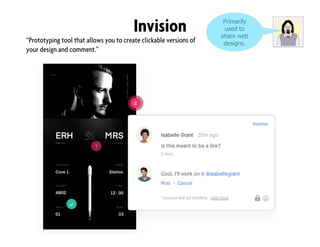
Invision Primarily
used to
share web
designs.“Prototyping tool that allows you to create clickable versions of
your design and comment.”
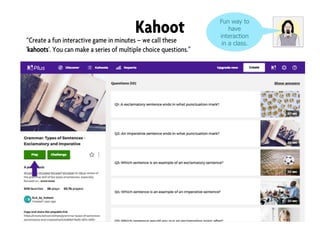
Kahoot Fun way to
have
interaction
in a class.“Create a fun interactive game in minutes – we call these
'kahoots'. You can make a series of multiple choice questions.”
You normally have lots to say………
But are you feeling
overwhelmed?
YAH!
How do I decide
what tools with which I
want to collaborate?
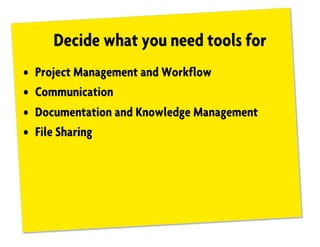
Decide what you need tools for
• Project Management and Workflow
• Communication
• Documentation and Knowledge Management
• File Sharing
Experiment!
• The best way is to have some fun and try out a tool
to see whether it can provide value.
• Most have free trials you can see whether it will
work for your team.
Four factors to consider
• Technology – what does it do? Does it fit what you
need? Look for 80% fit.
• Culture – what is the culture of your team? Would
they use it? How much training would you need?
• Economics – how much does it cost? Non-profit
rate?
• Politics (management’s behavior) - what is
leadership’s buy-in? Will this be a factor?
Resources
• https://www.capterra.com/collaboration-software
• https://blogs.msdn.microsoft.com/jmeier/2009/11/22/patterns-
and-practices-for-distributed-teams/
• https://en.wikipedia.org/wiki/Collaborative_software
• https://www.techsoupcanada.ca/en/community/blog/web-
conferencing-101
• https://www.techsoupcanada.ca/en/community/blog/how-to-
work-effectively-with-google-apps
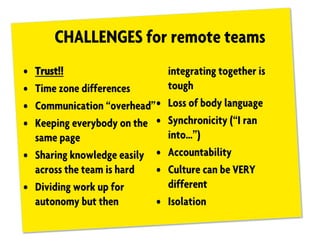
CHALLENGES for remote teams
• Trust!!
• Time zone differences
• Communication “overhead”
• Keeping everybody on the
same page
• Sharing knowledge easily
across the team is hard
• Dividing work up for
autonomy but then
integrating together is
tough
• Loss of body language
• Synchronicity (“I ran
into…”)
• Accountability
• Culture can be VERY
different
• Isolation
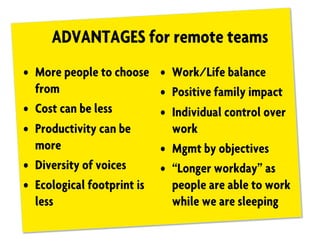
ADVANTAGES for remote teams
• More people to choose
from
• Cost can be less
• Productivity can be
more
• Diversity of voices
• Ecological footprint is
less
• Work/Life balance
• Positive family impact
• Individual control over
work
• Mgmt by objectives
• “Longer workday” as
people are able to work
while we are sleeping
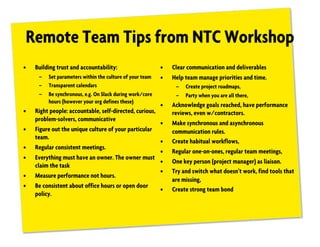
Remote Team Tips from NTC Workshop
• Building trust and accountability:
– Set parameters within the culture of your team
– Transparent calendars
– Be synchronous, e.g. On Slack during work/core
hours (however your org defines these)
• Right people: accountable, self-directed, curious,
problem-solvers, communicative
• Figure out the unique culture of your particular
team.
• Regular consistent meetings.
• Everything must have an owner. The owner must
claim the task
• Measure performance not hours.
• Be consistent about office hours or open door
policy.
• Clear communication and deliverables
• Help team manage priorities and time.
– Create project roadmaps,
– Party when you are all there,
• Acknowledge goals reached, have performance
reviews, even w/contractors.
• Make synchronous and asynchronous
communication rules.
• Create habitual workflows,
• Regular one-on-ones, regular team meetings,
• One key person (project manager) as liaison.
• Try and switch what doesn’t work, find tools that
are missing,
• Create strong team bond
Thank you!
Questions, please
contact
Phillip Djwa
phillip@agentic.ca
@phillipdjwa
Phone 604-255-2131
Inspired by www.scottgavin.info

Collaboration Tools for the Arts

  • 1.
    Digital Ladders: Collaboration Toolsfor the Arts Phillip Djwa Mar 12, 2019
  • 2.
    Grateful to bea visitor and live and work on unceded territory of the sḵwx̱wú7mesh (Squamish), sel̓íl̓witulh (Tsleil- Waututh), and xʷməθkʷəy̓əm (Musqueam) nations.
  • 3.
    Phillip Kang SunDjwa • 10+ years as a composer • 20+ years in digital • Digital Strategist & Creative Technologist • Fringe Board Member • BC Arts Council Member
  • 4.
  • 5.
  • 6.
    Meet Virtual Phil It’s hisworld we’ll talk about today!
  • 7.
  • 8.
  • 9.
  • 10.
    …. Phillip’s Collaboratorslive here ………..
  • 11.
    Phillip has tofind tools to collaborate with a global team, in different time zones and, often, with people he has never met…….. Yikes! Oh man… what a pain!
  • 12.
    …just to sayHi….or to say, hey, I work on a similar project, how can we collaborate…? It is about collaboration
  • 13.
    But hey… üWhat isonline collaboration? üWhy does Phil need tools? üWhat are some of the tools he uses? üHow can he pick them?
  • 14.
    What is onlinecollaboration? 1. Straight Online Communication can be thought of as unstructured interchange of information. – A phone call or an IM Chat discussion are examples of this. 2. Simple Collaboration refers to simple transactions toward a shared goal. – Sharing documents or voting are examples of this. 3. Collaboration Management refers to complex interdependent work toward a shared goal. – Co-writing, facilitating or actively altering a shared object
  • 15.
    Why does Philneed tools? • How can he manage workflows and projects? • How does he communicate easily with a team? • What’s a good documentation system to manage knowledge? • How about file sharing? • Any other reason?
  • 16.
    Caveat • I’m skippingover Constituent Relationship Managers or CRMs as I covered that in a previous Salon! • Also not covering accessibility tools which is another important area
  • 17.
    It used tobe that Phillip was using these tools….. all on his desktop….
  • 18.
    today he usesthesetools ….. all through his browser….
  • 19.
    ..ask him todaywhat his favourite piece of software is………..? So if you were to…….
  • 20.
    ..he’d give itsome thought……… ..and say it was a trick question………
  • 21.
  • 22.
    So most ofthe examples today are just accessed through your browser….
  • 24.
    Phillip uses BaseCamptomanage projects……. He can keep documents, emails, and discussions in one place. Team members can come to the dashboard and check in. Phillip monitors progress and so can everyone else. This is my go-to for all projects. I never have to teach people how to use it.
  • 25.
    Phillip likes toolslike BaseCamp because they are lightweight, easy to learn and quick… But uses ASANA for tracking specific tasks and workflow. It’s free It allows different people to access and different teams and projects I only use this for tight teams and complex projects.
  • 26.
    Trello is anothertool he uses to keep track of things. It’s a freemium model So good for organizing concepts.
  • 27.
    For example… tohelp ORGANIZE. “Bucketing” concepts into lists
  • 28.
    Other Workflow andPM tools !Microsoft Teams - is the hub for team collaboration that integrates persistent workplace chat, video meetings, file storage, and application integration with Office 365 !Monday.com - single board where managers work with projects in a visually appealing way !Airtable - works like a spreadsheet but gives you the power of a database to organize anything. !Teamwork Projects - “Teamwork creates tools which, when used together, make teams efficient, organized and happy. ”
  • 30.
    We all COMMUNICATEinstantly using SLACK Leading to a more productive workforce. “Real-time” messaging With integrated services. It’s free for the basic account Saves on email and great for quick coordination.
  • 31.
    Phillip uses Join.mefor conference calls He likes the Real-time video and audio conferencingwith dial-in numbers around the world …And it has screen sharing, call recording, scheduling, and integrationwith Google Suite Free service is max 3 people I have PRO service and last year I used 257 hrs! (10.5 days)
  • 32.
    Other communication tools !Skype– many people still have Skype, especially globally !Google Hangouts – has video and audio. People can dial in on phones, but requires upgrade. Somewhat flakey. !ReadyTalk – audio conferencing/ screen sharing/ audio recording !FreeconferenceCall.com - good sometimes, but can be flaky. Some cell phones can’t call their lines. !Zoom – another good conferencing and screen sharing service !Yammer is Microsoft’s rival to Slack !Webex – great paid service for presentations online to groups !Phone - Grasshopper or RingCentral – paid VOIP phone service with 800 with receptionist and voicemail !Facetime – if you are on Apple products.
  • 33.
    ..and he usesthe ol’ Doodle Poll for scheduling multiple people… Free with ads
  • 35.
    Phillip does hiswriting on Google Docs It’s so easy to share. But people need a Gmail to access all features.
  • 37.
    … Phillip lovesall of the Google products I use them ALL the time.
  • 38.
    Phillip uses aninternal wiki….. a lot the wiki is accessible and editable by everyone at the company it’s the way to handle knowledge management or institutional memory
  • 39.
    to create theirown user documentation he encourages his collaboratorsto use the wiki…..
  • 40.
    That’s less workfor Phillip….. ….and empowerment for the users collaborative documentation…
  • 41.
    Phillip stores &tags all his bookmarks on the web through social bookmarking He uses Pinboard.in at $11/yr ….everyone can see them….and he can see everyone else’s This allows you to build resources of websites sorted by tag Truth be told, I hide mine now!
  • 42.
    his tags highlighthis interests & stuff he’s keeping an eye on he can see who else is interested in the same things by exploring tags
  • 43.
    Other documentation tools !Office365 – super integrated with the Office suite. Obvious standard. !Zoho – has a wide range of tools, including invoicing, CRM, plus document sharing !Box – quite popular as a document sharing and project mgmt service. !Dropbox Paper – a new entry from Dropbox to allow collaboration. Integrates nicely with Dropbox. !Evernote – business version allows “folder” sharing. Great for research !Any others?
  • 45.
    Phillip uses Dropboxas a homefor all his project files that need to be changed; Like Word or PPT. He can share files with collaborators. And they are backed up! Isn’t cheap, but one of the top tools.
  • 46.
    But Phillip ALSOuses Google Drive for storing Google Docs, Sheets and Presentations. $28/year for storage Google Drive is pretty much where I spend all my time!
  • 47.
    Other filesharing tools !Sharepoint– for all types of Office suite documents !Box – another Dropbox type application !Apple iCloud – integrates well with Apple products !Hightail – allows transfer of really large files !WeTransfer – similar to Hightail for large file transfer !Sync.com – Canadian hosting of files, but like Dropbox
  • 49.
    Also, Phillip uses Upworkto find contractors to collaborate with… Upwork can be messy. Test out with a small non-critical project first.
  • 50.
    ..and Harvest forTime Tracking! Pretty much the standard for tracking team hours. …. If you go for that sort of thing…
  • 51.
    Mural Looks good! “Digitalworkspaces for visual collaboration, inspiration and innovation anytime, anywhere, on any device”
  • 52.
    Padlet “From your hobbyto your career, your class notes to your final exam, your mood board to your runway show, padlets help you organize your life.”
  • 53.
    Realtime Board orMIRO Real-time whiteboard “Miro is the visual collaboration platform for distributed teams.”
  • 54.
    MapMe https://story.mapme.com/de6ea422-5787-49bd-93c5-b2b30d65a0bc Google Maps does thisalso, but less featured. Build interactive maps. Add locations with photos, video, 360 tours. Create categories and filters. Import content to your map.
  • 55.
    Invision Primarily used to shareweb designs.“Prototyping tool that allows you to create clickable versions of your design and comment.”
  • 56.
    Kahoot Fun wayto have interaction in a class.“Create a fun interactive game in minutes – we call these 'kahoots'. You can make a series of multiple choice questions.”
  • 57.
    You normally havelots to say……… But are you feeling overwhelmed? YAH! How do I decide what tools with which I want to collaborate?
  • 58.
    Decide what youneed tools for • Project Management and Workflow • Communication • Documentation and Knowledge Management • File Sharing
  • 59.
    Experiment! • The bestway is to have some fun and try out a tool to see whether it can provide value. • Most have free trials you can see whether it will work for your team.
  • 60.
    Four factors toconsider • Technology – what does it do? Does it fit what you need? Look for 80% fit. • Culture – what is the culture of your team? Would they use it? How much training would you need? • Economics – how much does it cost? Non-profit rate? • Politics (management’s behavior) - what is leadership’s buy-in? Will this be a factor?
  • 62.
    Resources • https://www.capterra.com/collaboration-software • https://blogs.msdn.microsoft.com/jmeier/2009/11/22/patterns- and-practices-for-distributed-teams/ •https://en.wikipedia.org/wiki/Collaborative_software • https://www.techsoupcanada.ca/en/community/blog/web- conferencing-101 • https://www.techsoupcanada.ca/en/community/blog/how-to- work-effectively-with-google-apps
  • 63.
    CHALLENGES for remoteteams • Trust!! • Time zone differences • Communication “overhead” • Keeping everybody on the same page • Sharing knowledge easily across the team is hard • Dividing work up for autonomy but then integrating together is tough • Loss of body language • Synchronicity (“I ran into…”) • Accountability • Culture can be VERY different • Isolation
  • 64.
    ADVANTAGES for remoteteams • More people to choose from • Cost can be less • Productivity can be more • Diversity of voices • Ecological footprint is less • Work/Life balance • Positive family impact • Individual control over work • Mgmt by objectives • “Longer workday” as people are able to work while we are sleeping
  • 65.
    Remote Team Tipsfrom NTC Workshop • Building trust and accountability: – Set parameters within the culture of your team – Transparent calendars – Be synchronous, e.g. On Slack during work/core hours (however your org defines these) • Right people: accountable, self-directed, curious, problem-solvers, communicative • Figure out the unique culture of your particular team. • Regular consistent meetings. • Everything must have an owner. The owner must claim the task • Measure performance not hours. • Be consistent about office hours or open door policy. • Clear communication and deliverables • Help team manage priorities and time. – Create project roadmaps, – Party when you are all there, • Acknowledge goals reached, have performance reviews, even w/contractors. • Make synchronous and asynchronous communication rules. • Create habitual workflows, • Regular one-on-ones, regular team meetings, • One key person (project manager) as liaison. • Try and switch what doesn’t work, find tools that are missing, • Create strong team bond
  • 66.
    Thank you! Questions, please contact PhillipDjwa phillip@agentic.ca @phillipdjwa Phone 604-255-2131 Inspired by www.scottgavin.info