Click to edit Master title style
Cleaning Module
The cleaning module is based on NS-INSTA
800 standard
Cleaning done on room level
Standards can be set
• Globally
• For each site
• For each room
Cleaning Process
Cleaning Process
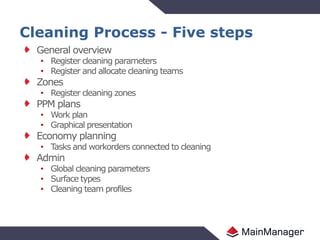
General overview
• Register cleaning parameters
• Register and allocate cleaning teams
Zones
• Register cleaning zones
PPM plans
• Work plan
• Graphical presentation
Economy planning
• Tasks and workorders connected to cleaning
Admin
• Global cleaning parameters
• Surface types
• Cleaning team profiles
Cleaning Process - Five steps
Admin – Space usage
Cleaning parameters are set on space usage groups
• Ex. Bedrooms, common areas, waste area
Each space usage receives a grade (A -> F)
• For each grade a cleaning (and inspection) standard is set (m2/hour)
indicating time spent cleaning on this type of space usage group
Admin – Surface types
Registration of surface types
Each surface type has a cleaning factor indicating
deviation from standard cleaning parameters
• Ex. Cleaning factor 1.1 gives 10% longer cleaning times
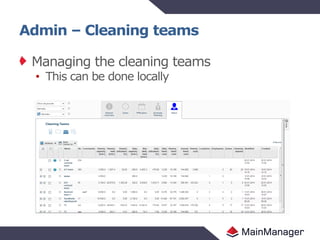
Admin – Cleaning teams
Managing the cleaning teams
• This can be done locally
Admin – Base data
Registering parameters for calculating costs of cleaning
• Teams are attached to a cleaning profile
General overview – Room data
List of rooms at site chosen in filter
Registering rooms in space usage groups and deciding cleaning grade
Registration of cleaning parameters
• Dirt level
• Furnishing
General overview – Room data
Three different list views
Possible to change room parameters in the list
view.
Change cleaning parameter
straight from list
Three different list views for cleaning
General overview – Room data
Also possible to open registration box for
room and register all parameters there
General overview – Cleaning parameters
Local cleaning parameters
• Same table as in the admin step but here it is
possible to change the values locally
A flag indicates deviation from
globally set parameters
General overview – Cleaning parameters
Local cleaning parameters
• Same table as in the admin step but here it is
possible to change the values locally
To retrieve global values choose
the action “Restore default values”
General overview – Cleaning Teams
List of all cleaning teams located at site
Teams that have not been located
are shown with a globe
General overview – Cleaning Teams
List of all cleaning teams located at site
Connect cleaning team to location
and assign employees
General overview – Team / resources
List of employees registered in teams
It is possible to change the team
in the list
Zones
Collection of rooms
• A room can only belong to one cleaning zone
Drag and drop to connect zone to room
Zones
If ground has interactive AutoCADdrawings they can
be used to connect zones to rooms
Drag and drop zone to drawing to connect
PPM Plans – Cleaning zones
A list of cleaning zones
Valuable statistics
Registration of cleaning method on zone
Cleaning methods
PPM Plans – Cleaning zones
Register description of how
zone should be cleaned
and connect to zone.
PPM Plans – Cleaning work plan
A list of rooms
• Decided which days each room should be cleaned
Interesting statistics in list
Decided which days a room should
be celaned or inspected
PPM Plans – Team utilization
Statistics showing team capacity and
utilization
PPM Plans – Graphical presentation
Showing graphically on interactive autocad
drawing information chosen in drop down menu
Economy planning – Task management list
List of cleaning tasks that are connected to
cleaning zones
Economy planning – Task management list
Cleaning report can be found under actions
Creates report for given location and/or team
Cleaning report
Economy planning – Workorder list
List of workorders that are connected to
cleaning zones

MainManager Cleaning module

  • 1.
    Click to editMaster title style Cleaning Module
  • 2.
    The cleaning moduleis based on NS-INSTA 800 standard Cleaning done on room level Standards can be set • Globally • For each site • For each room Cleaning Process
  • 3.
  • 4.
    General overview • Registercleaning parameters • Register and allocate cleaning teams Zones • Register cleaning zones PPM plans • Work plan • Graphical presentation Economy planning • Tasks and workorders connected to cleaning Admin • Global cleaning parameters • Surface types • Cleaning team profiles Cleaning Process - Five steps
  • 5.
    Admin – Spaceusage Cleaning parameters are set on space usage groups • Ex. Bedrooms, common areas, waste area Each space usage receives a grade (A -> F) • For each grade a cleaning (and inspection) standard is set (m2/hour) indicating time spent cleaning on this type of space usage group
  • 6.
    Admin – Surfacetypes Registration of surface types Each surface type has a cleaning factor indicating deviation from standard cleaning parameters • Ex. Cleaning factor 1.1 gives 10% longer cleaning times
  • 7.
    Admin – Cleaningteams Managing the cleaning teams • This can be done locally
  • 8.
    Admin – Basedata Registering parameters for calculating costs of cleaning • Teams are attached to a cleaning profile
  • 9.
    General overview –Room data List of rooms at site chosen in filter Registering rooms in space usage groups and deciding cleaning grade Registration of cleaning parameters • Dirt level • Furnishing
  • 10.
    General overview –Room data Three different list views Possible to change room parameters in the list view. Change cleaning parameter straight from list Three different list views for cleaning
  • 11.
    General overview –Room data Also possible to open registration box for room and register all parameters there
  • 12.
    General overview –Cleaning parameters Local cleaning parameters • Same table as in the admin step but here it is possible to change the values locally A flag indicates deviation from globally set parameters
  • 13.
    General overview –Cleaning parameters Local cleaning parameters • Same table as in the admin step but here it is possible to change the values locally To retrieve global values choose the action “Restore default values”
  • 14.
    General overview –Cleaning Teams List of all cleaning teams located at site Teams that have not been located are shown with a globe
  • 15.
    General overview –Cleaning Teams List of all cleaning teams located at site Connect cleaning team to location and assign employees
  • 16.
    General overview –Team / resources List of employees registered in teams It is possible to change the team in the list
  • 17.
    Zones Collection of rooms •A room can only belong to one cleaning zone Drag and drop to connect zone to room
  • 18.
    Zones If ground hasinteractive AutoCADdrawings they can be used to connect zones to rooms Drag and drop zone to drawing to connect
  • 19.
    PPM Plans –Cleaning zones A list of cleaning zones Valuable statistics Registration of cleaning method on zone Cleaning methods
  • 20.
    PPM Plans –Cleaning zones Register description of how zone should be cleaned and connect to zone.
  • 21.
    PPM Plans –Cleaning work plan A list of rooms • Decided which days each room should be cleaned Interesting statistics in list Decided which days a room should be celaned or inspected
  • 22.
    PPM Plans –Team utilization Statistics showing team capacity and utilization
  • 23.
    PPM Plans –Graphical presentation Showing graphically on interactive autocad drawing information chosen in drop down menu
  • 24.
    Economy planning –Task management list List of cleaning tasks that are connected to cleaning zones
  • 25.
    Economy planning –Task management list Cleaning report can be found under actions Creates report for given location and/or team Cleaning report
  • 26.
    Economy planning –Workorder list List of workorders that are connected to cleaning zones