Configuration Logging
XenDesktop 7.6
Marcel Venema
v1.0, December 2015
Configuration Logging
‒ Captures site configuration changes and administrative
activities. Writes logged content to database.
‒ Enabled by default.
With configuration logging you can:
‒ Diagnose and troubleshoot problems after configuration changes
are made; the log provides a breadcrumb trail.
‒ Assist change management and track configurations.
‒ Report administration activity.
Configuration Logging
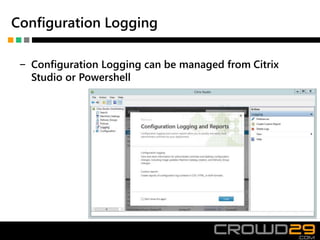
‒ Configuration Logging can be managed from Citrix
Studio or Powershell
Configuration Logging Architecture
Uses Citrix Configuration
Logging Service
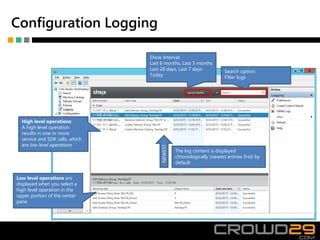
Configuration Logging
NEWEST
Show Interval:
Last 6 months, Last 3 months
Last 28 days, Last 7 days
Today
Search option:
Filter logs
High level operations:
A high level operation
results in one or more
service and SDK calls, which
are low level operations
Low level operations are
displayed when you select a
high level operation in the
upper portion of the center
pane
The log content is displayed
chronologically (newest entries first) by
default
What is logged
‒ Configuration changes and administrative activities initiated from
Studio, Director, and PowerShell scripts.
What is not logged
‒ Autonomic operations such as pool management power-on of
virtual machines.
‒ Policy actions implemented through the Group Policy
Management Console (GPMC); use Microsoft tools to view logs of
those actions.
‒ Changes made through the registry, direct access of the Database,
or from sources other than Studio, Director, or PowerShell.
‒ When the deployment is initialized, Configuration Logging
becomes available when the first Configuration Logging Service
instance registers with the Configuration Service. Therefore, the
very early stages of configuration are not logged (for example,
when the Database schema is obtained and applied, when a
hypervisor is initialized).
Reporting
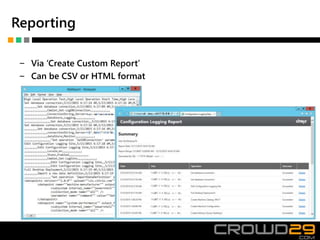
‒ Via ‘Create Custom Report’
‒ Can be CSV or HTML format
Reporting
‒ Select date range
‒ Select format and location
‒ Generating configuration log reports can be used as back up before deleting log entries.
Delegation of control
Set Permissions on role:
‒ No Access
‒ Read Only
‒ Manage
Delete Configuration Logs
Edit Logging Preferences
To delete Configurations Logs also SQL
Database permissions are needed
Server role Database role
sysadmin (public)
serveradmin (public)
setupadmin (public)
(public) ConfigurationLoggingSchema_ROLE
(public) db_owner
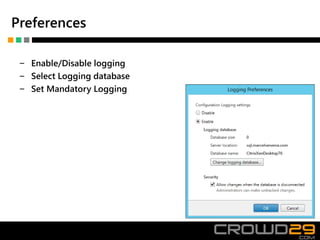
Preferences
‒ Enable/Disable logging
‒ Select Logging database
‒ Set Mandatory Logging
Change database location
‒ Site database includes configuration logging database and
monitoring database
‒ Highly recommended to change location of configuration logging
and monitoring database
‒ Supported databases:
– SQL Server 2014, Express, Standard, and Enterprise Editions.
– SQL Server 2012 SP1, Express, Standard, and Enterprise Editions. By default, SQL Server
2012 SP1 Express is installed when installing the Controller, if an existing supported SQL
Server installation is not detected.
– SQL Server 2008 R2 SP2, Express, Standard, Enterprise, and Datacenter Editions.
Change database location
When you change the location of the Configuration Logging or
Monitoring database:
– The data in the previous database is not imported to the new database.
– Logs cannot be aggregated from both databases when retrieving logs.
– The first log entry in the new database indicates that a database change
occurred, but it does not identify the previous database.
You cannot change the database location when mandatory logging is
enabled.
Change database location
Use Logging Preferences – Change logging database
- Specify server location and database name
Use DNS alias for database server
- If you want Studio to create database, click OK
- Otherwise use ‘Generate Database Script’
Powershell commands
LogConfigurationLoggingSnapin:
Available commands:
add-PSsnapin Citrix.ConfigurationLoggin.Admin.v1
Get-Command –Module *configurationlogging*
‒ Set-LogSite
Allows settings to be set
Example: Set-LogSite -State Enabled -Locale Dutch –AdminAddress “<controller>”
‒ Get-LogHighLevelOperation
Retrieves existing High Level Operations based on filter criteria
‒ Get-LogLowLevelOperation
Retrieves existing Low Level Operations based on filter criteria
‒ Start-LogHighLevelOperation
Logs the start of a new High Level Operation in the Logging Database
‒ Stop-LogHighLevelOperation
Logs the completion of a new High Level Operation in the Logging Database
Powershell commands
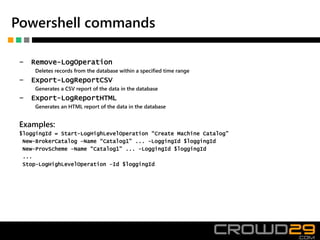
‒ Remove-LogOperation
Deletes records from the database within a specified time range
‒ Export-LogReportCSV
Generates a CSV report of the data in the database
‒ Export-LogReportHTML
Generates an HTML report of the data in the database
Examples:
$loggingId = Start-LogHighLevelOperation “Create Machine Catalog”
New-BrokerCatalog –Name “Catalog1” ... -LoggingId $loggingId
New-ProvScheme –Name “Catalog1” ... -LoggingId $loggingId
...
Stop-LogHighLevelOperation –Id $loggingId
Maintenance Tasks
Monthly tasks:
‒ No automatic log deletion is performed and log entries need to be
manually deleted.

Citrix XenDesktop Configuration Logging

  • 1.
  • 2.
    Configuration Logging ‒ Capturessite configuration changes and administrative activities. Writes logged content to database. ‒ Enabled by default. With configuration logging you can: ‒ Diagnose and troubleshoot problems after configuration changes are made; the log provides a breadcrumb trail. ‒ Assist change management and track configurations. ‒ Report administration activity.
  • 3.
    Configuration Logging ‒ ConfigurationLogging can be managed from Citrix Studio or Powershell
  • 4.
    Configuration Logging Architecture UsesCitrix Configuration Logging Service
  • 5.
    Configuration Logging NEWEST Show Interval: Last6 months, Last 3 months Last 28 days, Last 7 days Today Search option: Filter logs High level operations: A high level operation results in one or more service and SDK calls, which are low level operations Low level operations are displayed when you select a high level operation in the upper portion of the center pane The log content is displayed chronologically (newest entries first) by default
  • 6.
    What is logged ‒Configuration changes and administrative activities initiated from Studio, Director, and PowerShell scripts.
  • 7.
    What is notlogged ‒ Autonomic operations such as pool management power-on of virtual machines. ‒ Policy actions implemented through the Group Policy Management Console (GPMC); use Microsoft tools to view logs of those actions. ‒ Changes made through the registry, direct access of the Database, or from sources other than Studio, Director, or PowerShell. ‒ When the deployment is initialized, Configuration Logging becomes available when the first Configuration Logging Service instance registers with the Configuration Service. Therefore, the very early stages of configuration are not logged (for example, when the Database schema is obtained and applied, when a hypervisor is initialized).
  • 8.
    Reporting ‒ Via ‘CreateCustom Report’ ‒ Can be CSV or HTML format
  • 9.
    Reporting ‒ Select daterange ‒ Select format and location ‒ Generating configuration log reports can be used as back up before deleting log entries.
  • 10.
    Delegation of control SetPermissions on role: ‒ No Access ‒ Read Only ‒ Manage Delete Configuration Logs Edit Logging Preferences To delete Configurations Logs also SQL Database permissions are needed Server role Database role sysadmin (public) serveradmin (public) setupadmin (public) (public) ConfigurationLoggingSchema_ROLE (public) db_owner
  • 11.
    Preferences ‒ Enable/Disable logging ‒Select Logging database ‒ Set Mandatory Logging
  • 12.
    Change database location ‒Site database includes configuration logging database and monitoring database ‒ Highly recommended to change location of configuration logging and monitoring database ‒ Supported databases: – SQL Server 2014, Express, Standard, and Enterprise Editions. – SQL Server 2012 SP1, Express, Standard, and Enterprise Editions. By default, SQL Server 2012 SP1 Express is installed when installing the Controller, if an existing supported SQL Server installation is not detected. – SQL Server 2008 R2 SP2, Express, Standard, Enterprise, and Datacenter Editions.
  • 13.
    Change database location Whenyou change the location of the Configuration Logging or Monitoring database: – The data in the previous database is not imported to the new database. – Logs cannot be aggregated from both databases when retrieving logs. – The first log entry in the new database indicates that a database change occurred, but it does not identify the previous database. You cannot change the database location when mandatory logging is enabled.
  • 14.
    Change database location UseLogging Preferences – Change logging database - Specify server location and database name Use DNS alias for database server - If you want Studio to create database, click OK - Otherwise use ‘Generate Database Script’
  • 15.
    Powershell commands LogConfigurationLoggingSnapin: Available commands: add-PSsnapinCitrix.ConfigurationLoggin.Admin.v1 Get-Command –Module *configurationlogging* ‒ Set-LogSite Allows settings to be set Example: Set-LogSite -State Enabled -Locale Dutch –AdminAddress “<controller>” ‒ Get-LogHighLevelOperation Retrieves existing High Level Operations based on filter criteria ‒ Get-LogLowLevelOperation Retrieves existing Low Level Operations based on filter criteria ‒ Start-LogHighLevelOperation Logs the start of a new High Level Operation in the Logging Database ‒ Stop-LogHighLevelOperation Logs the completion of a new High Level Operation in the Logging Database
  • 16.
    Powershell commands ‒ Remove-LogOperation Deletesrecords from the database within a specified time range ‒ Export-LogReportCSV Generates a CSV report of the data in the database ‒ Export-LogReportHTML Generates an HTML report of the data in the database Examples: $loggingId = Start-LogHighLevelOperation “Create Machine Catalog” New-BrokerCatalog –Name “Catalog1” ... -LoggingId $loggingId New-ProvScheme –Name “Catalog1” ... -LoggingId $loggingId ... Stop-LogHighLevelOperation –Id $loggingId
  • 17.
    Maintenance Tasks Monthly tasks: ‒No automatic log deletion is performed and log entries need to be manually deleted.