Backup Checks… the easy way

A look at automating and extending Spiceworks
                       by
               William Nel-Barker
The Problem

 Backup checks take too long to do!
   – Many customers
      • If 5 minutes/customer x 60 customers = 3 hrs/day!
   – Need to maintain quality of Service
      •   Techie time can be far better spent than on checks
      •   Yet backups are essential
      •   And so backup checks are essential
      •   Need to automate it
The Limitations
    – Spiceworks was designed for single site
       • Remote Collector adds support for multiple sites
    – No native support for multiple customers
       • But customers may be added as devices
    – No easy way to get data into/out of Spiceworks
       • E-mailing data to Spiceworks is safe
       • Reading directly from the database is safe
       • Custom scripts needed
The Challenge
   – Insert data into Spiceworks safely
      • E-mail helpdesk
      • NEVER write to the database!
   – Get data out of Spiceworks safely
      • Read the database directly
   – Notifications arrive by e-mail
      • Need to automate Outlook
      • Mail rules within Outlook
   – Auto-create Backup Check tickets
      • Scheduled script that e-mails the helpdesk
The Process
   – Bullet-proof the checks
      • 3 categories: Success, Failure & No Notification
      • No Notification is treated as failure!
   – Successful backups
      • Auto-close the ticket
   – Failed backups
      • Ticket remains open & techie investigates failure
      • Ticket is updated with status
      • Account manager is auto-cc’d
The Plan
   – Automate creation of tickets
      •   Scheduled VBScript
      •   Customer (as device) has custom field checkbackup
      •   VBScript reads from Spiceworks database
      •   If checkbackup = Yes then create ticket
      •   We control which customers has a backup check ticket
          created from within Spiceworks
   – Automate Outlook
      •   Mail rule to run a script is conditions are met
      •   Script (VBA) exports message as MSG.TXT file
      •   VBA Script calls external VBScript
      •   VBScript reads MSG.TXT
The VBScript
      •   Reads MSG.TXT and looks for certain fields within it
      •   Mail From tells us who the customer is
      •   Date tells us when the message was sent
      •   IF-THEN loops within VBScript for each customer
      •   SQL query unique for each customer
      •   Connects to Spiceworks DB and gets ticket NR
      •   Sends e-mail to update the ticket, e.g. backup
          succeeded, so #close the ticket
IF-THEN loops
      • Not all customers use the same backup software
      • Backup notifications are different
      • Small Business Server is in Daily Summary Report
      • Backup Exec, Altaro, Yosimite, etc send dedicated e-
        mail
      • We need to support all these methods
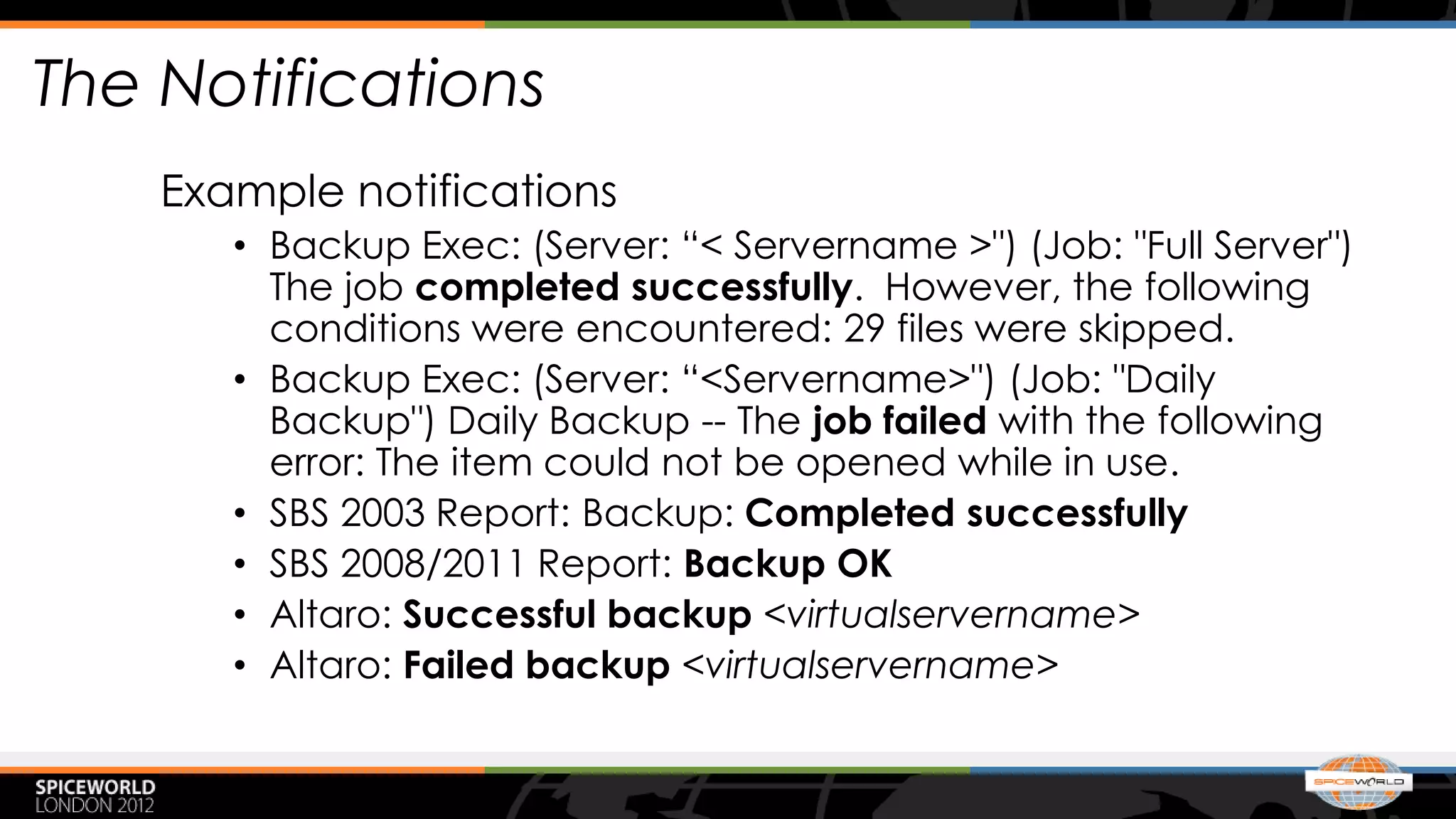
The Notifications
    Example notifications
       • Backup Exec: (Server: “< Servername >") (Job: "Full Server")
         The job completed successfully. However, the following
         conditions were encountered: 29 files were skipped.
       • Backup Exec: (Server: “<Servername>") (Job: "Daily
         Backup") Daily Backup -- The job failed with the following
         error: The item could not be opened while in use.
       • SBS 2003 Report: Backup: Completed successfully
       • SBS 2008/2011 Report: Backup OK
       • Altaro: Successful backup <virtualservername>
       • Altaro: Failed backup <virtualservername>
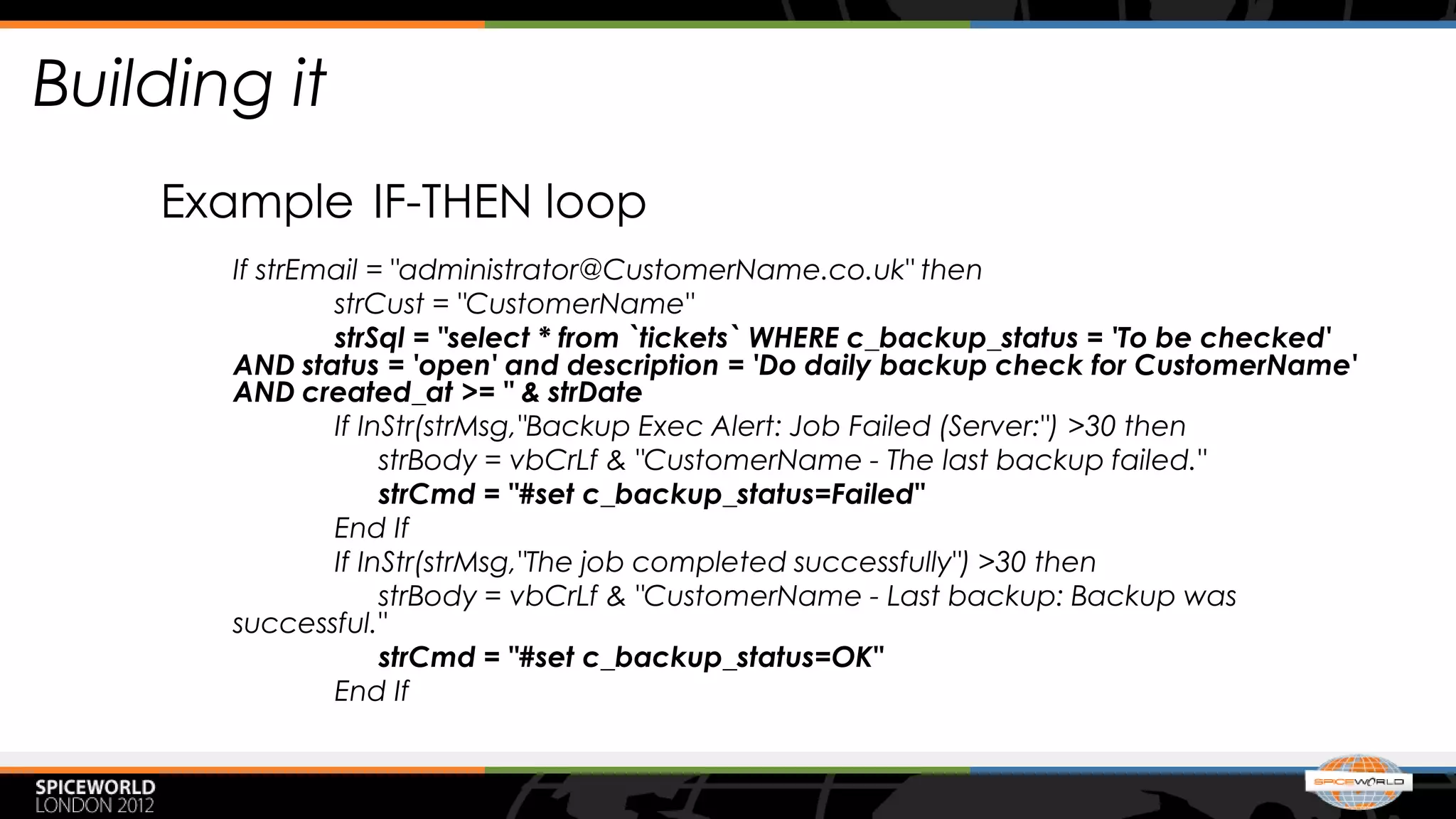
Building it
    Example IF-THEN loop
       If strEmail = "administrator@CustomerName.co.uk" then
               strCust = "CustomerName"
               strSql = "select * from `tickets` WHERE c_backup_status = 'To be checked'
       AND status = 'open' and description = 'Do daily backup check for CustomerName'
       AND created_at >= " & strDate
               If InStr(strMsg,"Backup Exec Alert: Job Failed (Server:") >30 then
                    strBody = vbCrLf & "CustomerName - The last backup failed."
                    strCmd = "#set c_backup_status=Failed"
               End If
               If InStr(strMsg,"The job completed successfully") >30 then
                    strBody = vbCrLf & "CustomerName - Last backup: Backup was
       successful."
                    strCmd = "#set c_backup_status=OK"
               End If
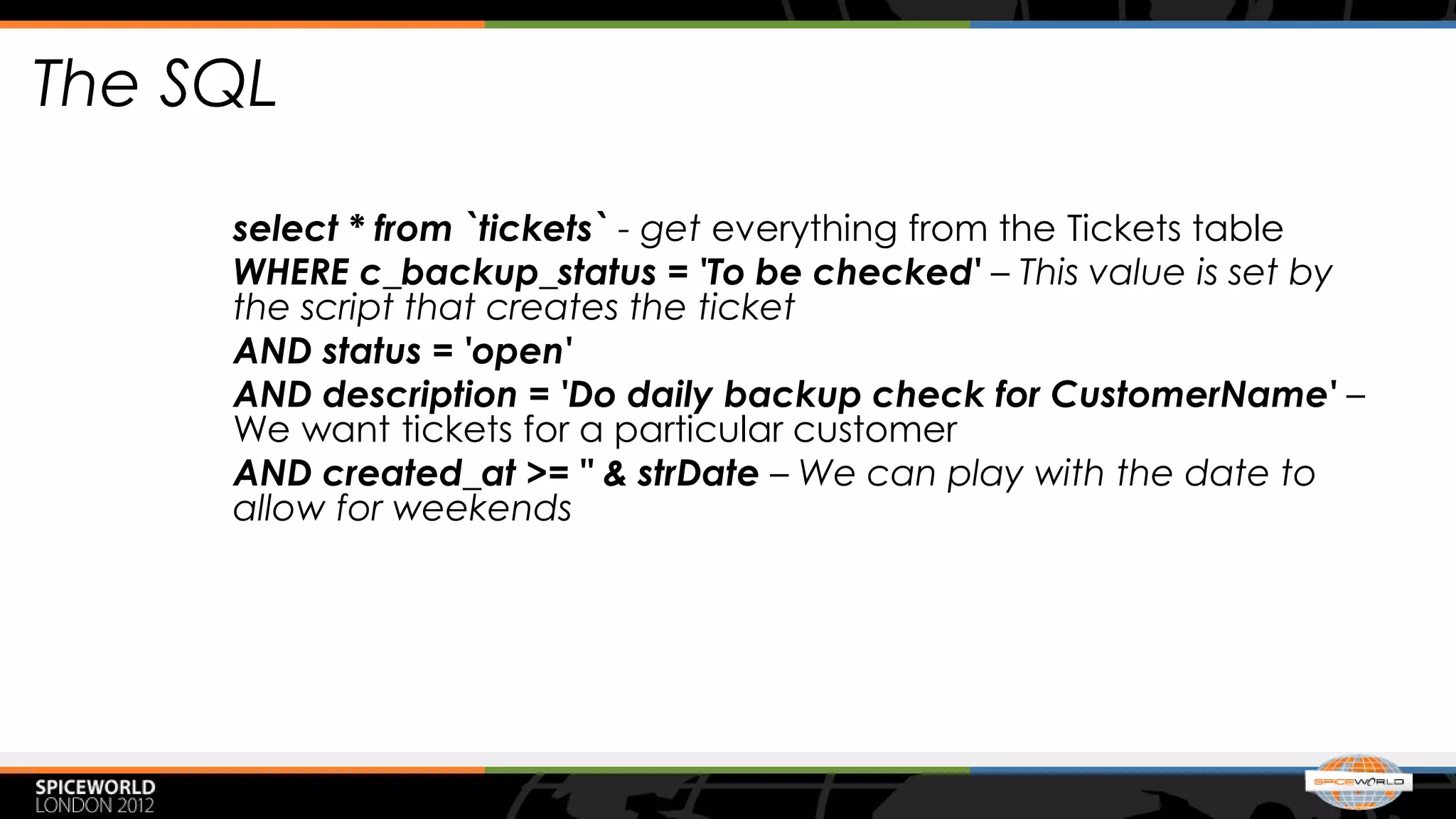
The SQL

     select * from `tickets` - get everything from the Tickets table
     WHERE c_backup_status = 'To be checked' – This value is set by
     the script that creates the ticket
     AND status = 'open'
     AND description = 'Do daily backup check for CustomerName' –
     We want tickets for a particular customer
     AND created_at >= " & strDate – We can play with the date to
     allow for weekends
The E-mail
 From:    Zantra JAD Backup Checks
 Sent:    16 May 2012 11:29
 To:      Spiceworks
 Subject: [Ticket #4303] Customername - do daily Windows backup checks on
 16/05/2012

 -Summary-             -This allows us to cherry-pick what goes into our monthly reports

 Customername - Last backup: Windows backup was successful

 #assign Backup    - Dedicated account to assign backup tickets to
 #set c_backup_status=OK     - Custom value that makes it easy to run a report
 #close            - Successful backup, let’s close the ticket!

 Recognise this? We’re using Tickets Anywhere!
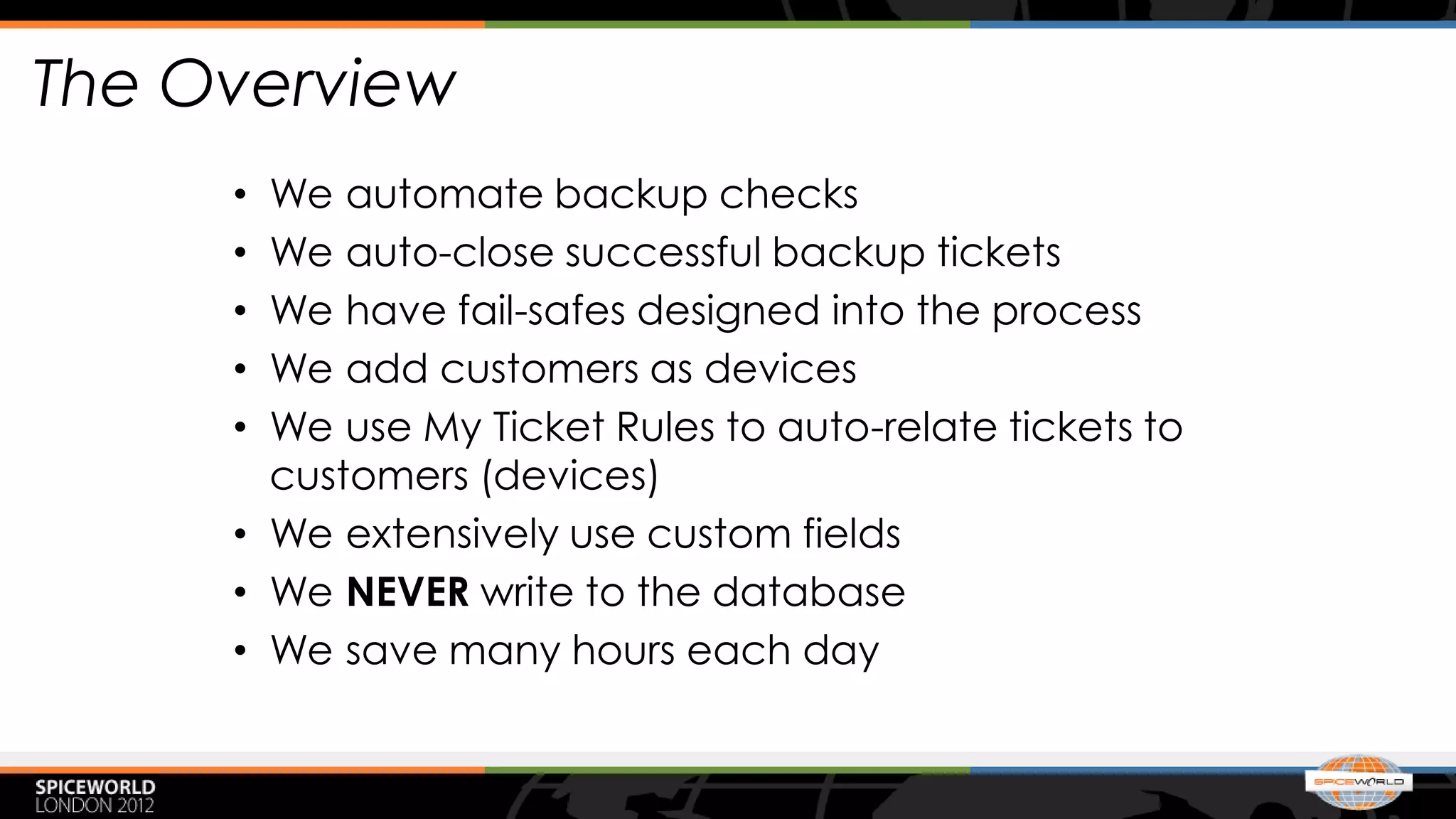
The Overview
     • We automate backup checks
     • We auto-close successful backup tickets
     • We have fail-safes designed into the process
     • We add customers as devices
     • We use My Ticket Rules to auto-relate tickets to
       customers (devices)
     • We extensively use custom fields
     • We NEVER write to the database
     • We save many hours each day
The Future

   –   Flexible system
   –   Allows support for ANY alerting system
   –   As long as alerts are by e-mail
   –   Spiceworks How-to will be published
The End

Checking your back ups without batting an eye

  • 1.
    Backup Checks… theeasy way A look at automating and extending Spiceworks by William Nel-Barker
  • 2.
    The Problem Backupchecks take too long to do! – Many customers • If 5 minutes/customer x 60 customers = 3 hrs/day! – Need to maintain quality of Service • Techie time can be far better spent than on checks • Yet backups are essential • And so backup checks are essential • Need to automate it
  • 3.
    The Limitations – Spiceworks was designed for single site • Remote Collector adds support for multiple sites – No native support for multiple customers • But customers may be added as devices – No easy way to get data into/out of Spiceworks • E-mailing data to Spiceworks is safe • Reading directly from the database is safe • Custom scripts needed
  • 4.
    The Challenge – Insert data into Spiceworks safely • E-mail helpdesk • NEVER write to the database! – Get data out of Spiceworks safely • Read the database directly – Notifications arrive by e-mail • Need to automate Outlook • Mail rules within Outlook – Auto-create Backup Check tickets • Scheduled script that e-mails the helpdesk
  • 5.
    The Process – Bullet-proof the checks • 3 categories: Success, Failure & No Notification • No Notification is treated as failure! – Successful backups • Auto-close the ticket – Failed backups • Ticket remains open & techie investigates failure • Ticket is updated with status • Account manager is auto-cc’d
  • 6.
    The Plan – Automate creation of tickets • Scheduled VBScript • Customer (as device) has custom field checkbackup • VBScript reads from Spiceworks database • If checkbackup = Yes then create ticket • We control which customers has a backup check ticket created from within Spiceworks – Automate Outlook • Mail rule to run a script is conditions are met • Script (VBA) exports message as MSG.TXT file • VBA Script calls external VBScript • VBScript reads MSG.TXT
  • 7.
    The VBScript • Reads MSG.TXT and looks for certain fields within it • Mail From tells us who the customer is • Date tells us when the message was sent • IF-THEN loops within VBScript for each customer • SQL query unique for each customer • Connects to Spiceworks DB and gets ticket NR • Sends e-mail to update the ticket, e.g. backup succeeded, so #close the ticket
  • 8.
    IF-THEN loops • Not all customers use the same backup software • Backup notifications are different • Small Business Server is in Daily Summary Report • Backup Exec, Altaro, Yosimite, etc send dedicated e- mail • We need to support all these methods
  • 9.
    The Notifications Example notifications • Backup Exec: (Server: “< Servername >") (Job: "Full Server") The job completed successfully. However, the following conditions were encountered: 29 files were skipped. • Backup Exec: (Server: “<Servername>") (Job: "Daily Backup") Daily Backup -- The job failed with the following error: The item could not be opened while in use. • SBS 2003 Report: Backup: Completed successfully • SBS 2008/2011 Report: Backup OK • Altaro: Successful backup <virtualservername> • Altaro: Failed backup <virtualservername>
  • 10.
    Building it Example IF-THEN loop If strEmail = "administrator@CustomerName.co.uk" then strCust = "CustomerName" strSql = "select * from `tickets` WHERE c_backup_status = 'To be checked' AND status = 'open' and description = 'Do daily backup check for CustomerName' AND created_at >= " & strDate If InStr(strMsg,"Backup Exec Alert: Job Failed (Server:") >30 then strBody = vbCrLf & "CustomerName - The last backup failed." strCmd = "#set c_backup_status=Failed" End If If InStr(strMsg,"The job completed successfully") >30 then strBody = vbCrLf & "CustomerName - Last backup: Backup was successful." strCmd = "#set c_backup_status=OK" End If
  • 11.
    The SQL select * from `tickets` - get everything from the Tickets table WHERE c_backup_status = 'To be checked' – This value is set by the script that creates the ticket AND status = 'open' AND description = 'Do daily backup check for CustomerName' – We want tickets for a particular customer AND created_at >= " & strDate – We can play with the date to allow for weekends
  • 12.
    The E-mail From: Zantra JAD Backup Checks Sent: 16 May 2012 11:29 To: Spiceworks Subject: [Ticket #4303] Customername - do daily Windows backup checks on 16/05/2012 -Summary- -This allows us to cherry-pick what goes into our monthly reports Customername - Last backup: Windows backup was successful #assign Backup - Dedicated account to assign backup tickets to #set c_backup_status=OK - Custom value that makes it easy to run a report #close - Successful backup, let’s close the ticket! Recognise this? We’re using Tickets Anywhere!
  • 13.
    The Overview • We automate backup checks • We auto-close successful backup tickets • We have fail-safes designed into the process • We add customers as devices • We use My Ticket Rules to auto-relate tickets to customers (devices) • We extensively use custom fields • We NEVER write to the database • We save many hours each day
  • 14.
    The Future – Flexible system – Allows support for ANY alerting system – As long as alerts are by e-mail – Spiceworks How-to will be published
  • 15.