User Interface Components
Apply positioning scheme in WebApps
• jQuery Mobile has a great set of UI components to use on
our webapp.
• Remember that we can always use plain HTML and CSS for
adding our own content and ideas. However, for cross
compatibility purposes, we are going to give usage priority
to framework’s components.
• We can divide jQuery Mobile’s components into the
following groups:
– Toolbar components
– Formatting components
– Button components
– List components
– Form components
Toolbars
• Toolbars are optional areas in our webapp
defining headers and/or footers
• They are both optional, although headers are
usually on every mobile webapp
Positioning
• Every toolbar (header or footer) can be
positioned in four ways:
• Inline mode
• Standard fixed mode
• Full-screen fixed mode
• True fixed mode
Inline Mode
• by-default value for every toolbar
• header and footer will flow inline with the
page
• if the page’s content is longer than the
available height, the footer will be hidden by
default and it will appear after scrolling down
• the header will be visible only while the
scroll’s position is at the top
Fullscreen toolbar (Full-screen fixed
mode)
• A full-screen toolbar is just a hidden fixed
toolbar that appears when the user taps on
the screen
• It disappears again when the user taps on the
screen for a second time. The content will take
the whole screen, and if the user needs
something from the toolbar, he will tap on the
content.
True Fixed Toolbar
• Fixed position and scrolling zones let us define
fixed areas on screen that will be at the same
place even if the user scrolls the document
• to provide a true fixed toolbars experience, we
can enable the touch overflow ability in jQuery
Mobile
• Using overflow: auto, it will create, with
CSS, a smaller scrolling area using than the whole
screen so our toolbars will be shown in the same
place always
Adding Content to the Header
• A standard jQuery Mobile header includes a
title, any hX child element, and optionally, one
or two buttons located at the right and/or at
the left of the header
• There is also a way to customize the
appearance and content as we want.
Adding Button
• Usually (but not always), mobile usability for
touch devices uses positive actions to the right
and negative actions to the left.
• Examples of positive actions are Done, Save,
Yes,OK, and Send.
• Negative actions are Cancel, Back, No, Exit,
and Log Out.
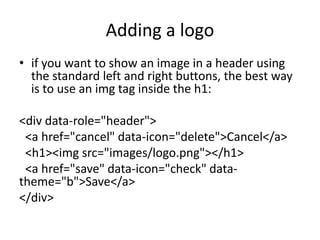
Adding a logo
• if you want to show an image in a header using
the standard left and right buttons, the best way
is to use an img tag inside the h1:
<div data-role="header">
<a href="cancel" data-icon="delete">Cancel</a>
<h1><img src="images/logo.png"></h1>
<a href="save" data-icon="check" data-
theme="b">Save</a>
</div>
Customize the header
• If you don’t want the typical jQuery Mobile
header rendering, you can deactivate the
automatic header behavior (such as hX and a
handling) attaching all your content inside a
block container (usually a div element).
Chapter4 mo
Chapter4 mo
Chapter4 mo

Chapter4 mo

  • 1.
  • 2.
    Apply positioning schemein WebApps • jQuery Mobile has a great set of UI components to use on our webapp. • Remember that we can always use plain HTML and CSS for adding our own content and ideas. However, for cross compatibility purposes, we are going to give usage priority to framework’s components. • We can divide jQuery Mobile’s components into the following groups: – Toolbar components – Formatting components – Button components – List components – Form components
  • 3.
    Toolbars • Toolbars areoptional areas in our webapp defining headers and/or footers • They are both optional, although headers are usually on every mobile webapp
  • 4.
    Positioning • Every toolbar(header or footer) can be positioned in four ways: • Inline mode • Standard fixed mode • Full-screen fixed mode • True fixed mode
  • 5.
    Inline Mode • by-defaultvalue for every toolbar • header and footer will flow inline with the page • if the page’s content is longer than the available height, the footer will be hidden by default and it will appear after scrolling down • the header will be visible only while the scroll’s position is at the top
  • 6.
    Fullscreen toolbar (Full-screenfixed mode) • A full-screen toolbar is just a hidden fixed toolbar that appears when the user taps on the screen • It disappears again when the user taps on the screen for a second time. The content will take the whole screen, and if the user needs something from the toolbar, he will tap on the content.
  • 7.
    True Fixed Toolbar •Fixed position and scrolling zones let us define fixed areas on screen that will be at the same place even if the user scrolls the document • to provide a true fixed toolbars experience, we can enable the touch overflow ability in jQuery Mobile • Using overflow: auto, it will create, with CSS, a smaller scrolling area using than the whole screen so our toolbars will be shown in the same place always
  • 8.
    Adding Content tothe Header • A standard jQuery Mobile header includes a title, any hX child element, and optionally, one or two buttons located at the right and/or at the left of the header • There is also a way to customize the appearance and content as we want.
  • 9.
    Adding Button • Usually(but not always), mobile usability for touch devices uses positive actions to the right and negative actions to the left. • Examples of positive actions are Done, Save, Yes,OK, and Send. • Negative actions are Cancel, Back, No, Exit, and Log Out.
  • 10.
    Adding a logo •if you want to show an image in a header using the standard left and right buttons, the best way is to use an img tag inside the h1: <div data-role="header"> <a href="cancel" data-icon="delete">Cancel</a> <h1><img src="images/logo.png"></h1> <a href="save" data-icon="check" data- theme="b">Save</a> </div>
  • 11.
    Customize the header •If you don’t want the typical jQuery Mobile header rendering, you can deactivate the automatic header behavior (such as hX and a handling) attaching all your content inside a block container (usually a div element).