Chapter 5
Chapter 5
Menus, Common Dialog
Boxes, Sub Procedures
and
and
Function Procedures
Function Procedures
Programming In
Programming In
Visual Basic .NET
Visual Basic .NET
© 2005 by The McGraw-Hill Companies, Inc. All rights reserved.
5- 2
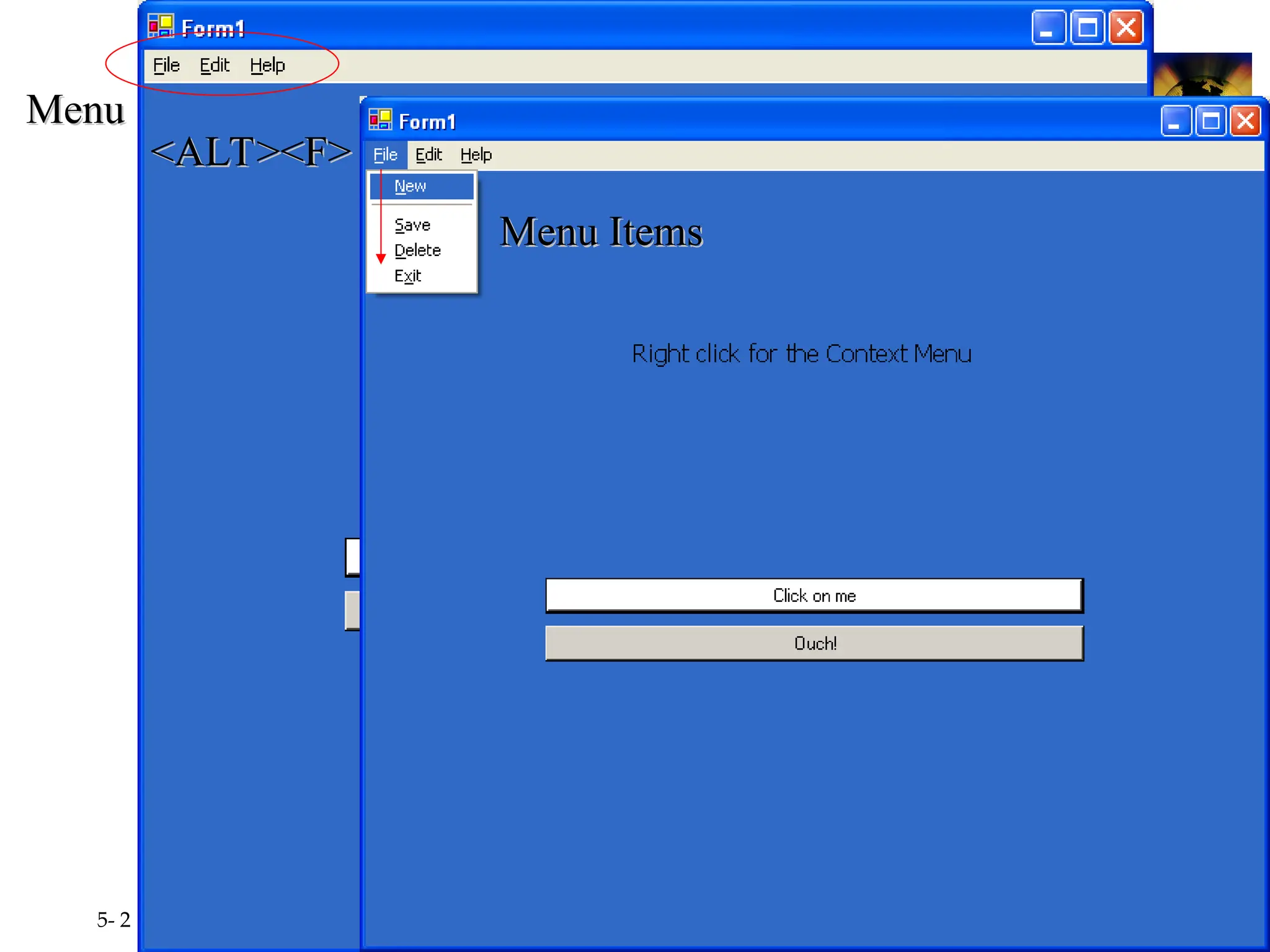
<ALT><F>
<ALT><F>
Menu
Menu
Menu Items
Menu Items
© 2005 by The McGraw-Hill Companies, Inc. All rights reserved.
5- 3
Menus
Menus
• Menu Bar
Menu Bar
– Contains menus which drop down to display list of
Contains menus which drop down to display list of
menu items
menu items
• Each item has a name and text property
Each item has a name and text property
• Each item has a click event
Each item has a click event
• Add MainMenu control to form
Add MainMenu control to form
– Appears in the Component Tray, below form, where
Appears in the Component Tray, below form, where
nondisplay controls are shown
– Words "
Words "Type Here
Type Here" appear at the top of the form
" appear at the top of the form
© 2005 by The McGraw-Hill Companies, Inc. All rights reserved.
5- 4
Menus (continued)
Menus (continued)
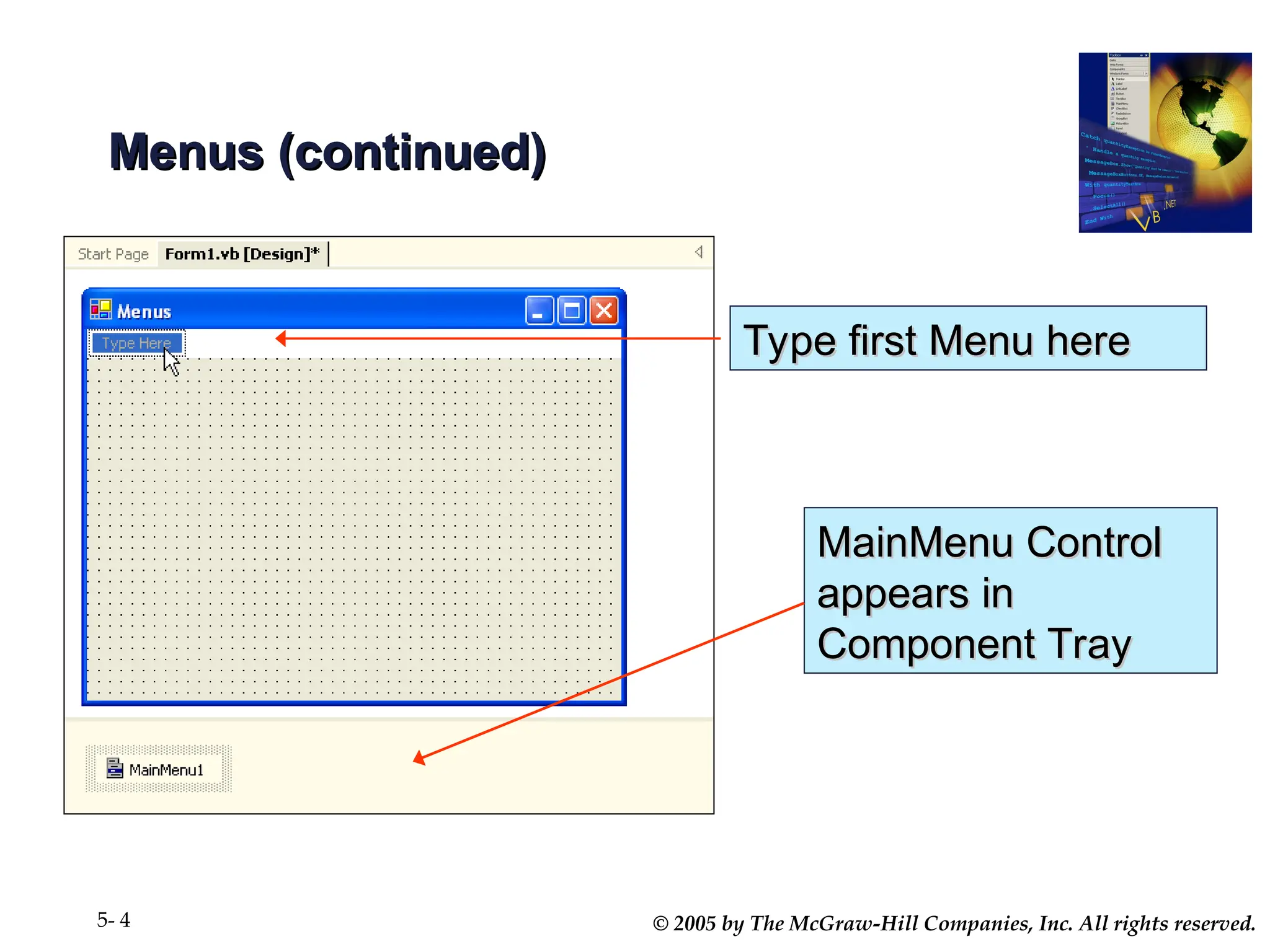
Type first Menu here
MainMenu Control
MainMenu Control
appears in
appears in
Component Tray
Component Tray
© 2005 by The McGraw-Hill Companies, Inc. All rights reserved.
5- 5
Defining Menus
Defining Menus
• To create the menus simply type where the words "
To create the menus simply type where the words "Type
Type
Here
Here" appear at the top of the form
" appear at the top of the form
• Include & symbol as you type to indicate keyboard access
Include & symbol as you type to indicate keyboard access
keys
keys
• You are actually entering the Text property for a
You are actually entering the Text property for a
MenuItem object
MenuItem object
• Change MenuItem object names in the Properties window
Change MenuItem object names in the Properties window
and follow consistent naming conventions
© 2005 by The McGraw-Hill Companies, Inc. All rights reserved.
5- 6
Submenus
Submenus
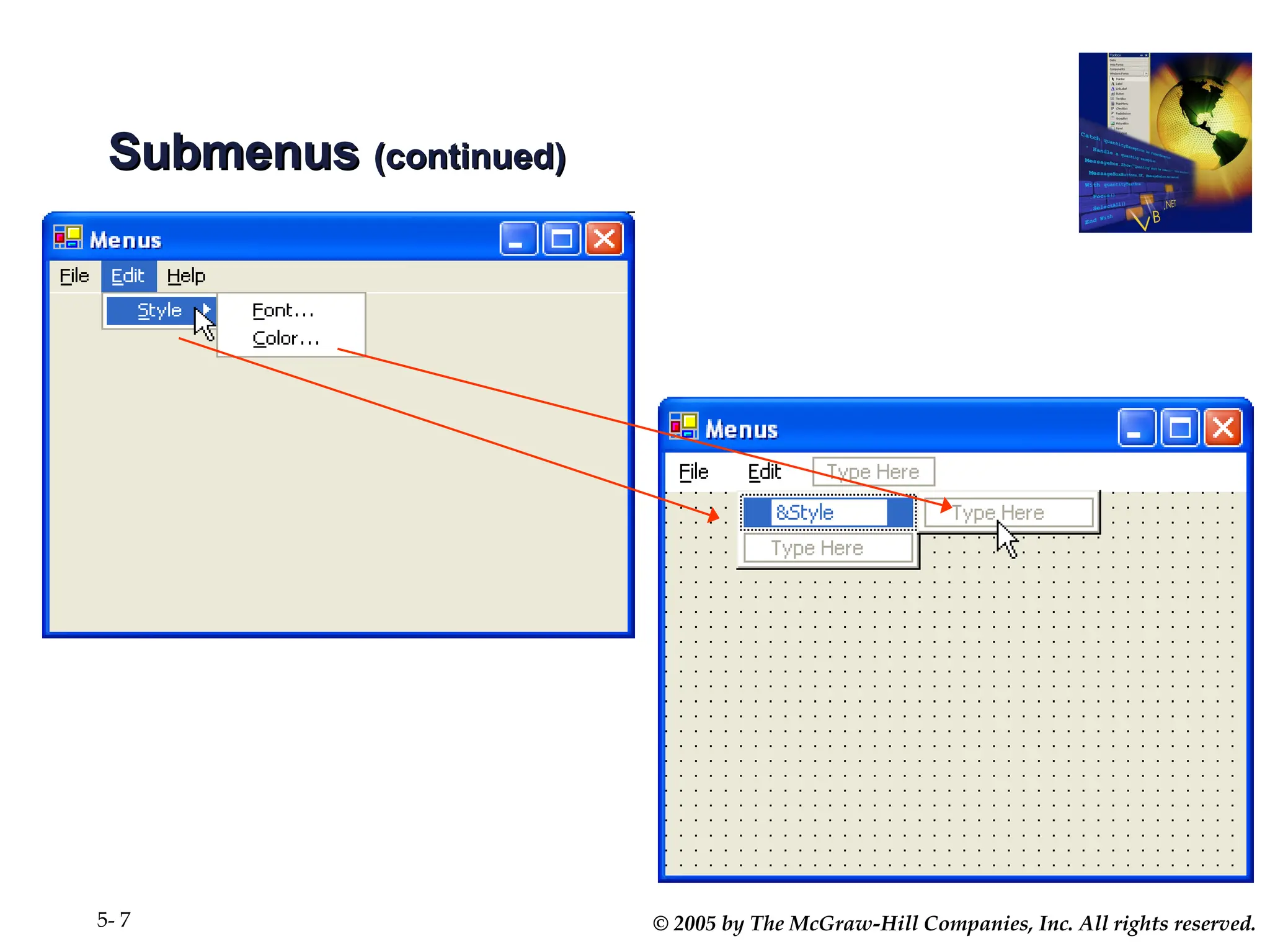
• Pop up to the right of a menu item
Pop up to the right of a menu item
• Filled triangle to the right of the menu item indicates to the
Filled triangle to the right of the menu item indicates to the
user the existence of a submenu
• Create submenus by moving to the right of a menu item
Create submenus by moving to the right of a menu item
and typing the next item's text
© 2005 by The McGraw-Hill Companies, Inc. All rights reserved.
5- 7
Submenus
Submenus (continued)
(continued)
© 2005 by The McGraw-Hill Companies, Inc. All rights reserved.
5- 8
Separator Bars
Separator Bars
• Used for grouping menu items according to their purpose
Used for grouping menu items according to their purpose
• Visually represented as a bar across the menu
Visually represented as a bar across the menu
• Create using one of two methods
Create using one of two methods
– Typing a single hyphen for the text
Typing a single hyphen for the text
– Right-click on Menu Designer where you want a
Right-click on Menu Designer where you want a
separator bar and choose Insert Separator
© 2005 by The McGraw-Hill Companies, Inc. All rights reserved.
5- 9
Coding for Menu Items
• Double-click any menu item to open the item’s click event
Double-click any menu item to open the item’s click event
procedure
procedure
• Write code for the click event procedure
Write code for the click event procedure
© 2005 by The McGraw-Hill Companies, Inc. All rights reserved.
5- 10
Modifying Menu Items
• Right-click the Menu Bar to:
Right-click the Menu Bar to:
– Delete
Delete
– Insert New
Insert New
– Insert Separator
Insert Separator
– Edit Names
Edit Names
• Displays menu item Name property rather than Text
Displays menu item Name property rather than Text
property on form
property on form
• Drag and Drop menu items to new locations
Drag and Drop menu items to new locations
© 2005 by The McGraw-Hill Companies, Inc. All rights reserved.
5- 11
Menu Properties
Menu Properties
• Enabled property, True/False
Enabled property, True/False
• Checked property, True/False
Checked property, True/False
– Used to indicate current state of menu item that can be
Used to indicate current state of menu item that can be
turned on and off
turned on and off
• Create keyboard shortcuts
Create keyboard shortcuts
– In Properties window for menu item, select the Shortcut
In Properties window for menu item, select the Shortcut
property
property
– Make choice from drop-down list
Make choice from drop-down list
© 2005 by The McGraw-Hill Companies, Inc. All rights reserved.
5- 12
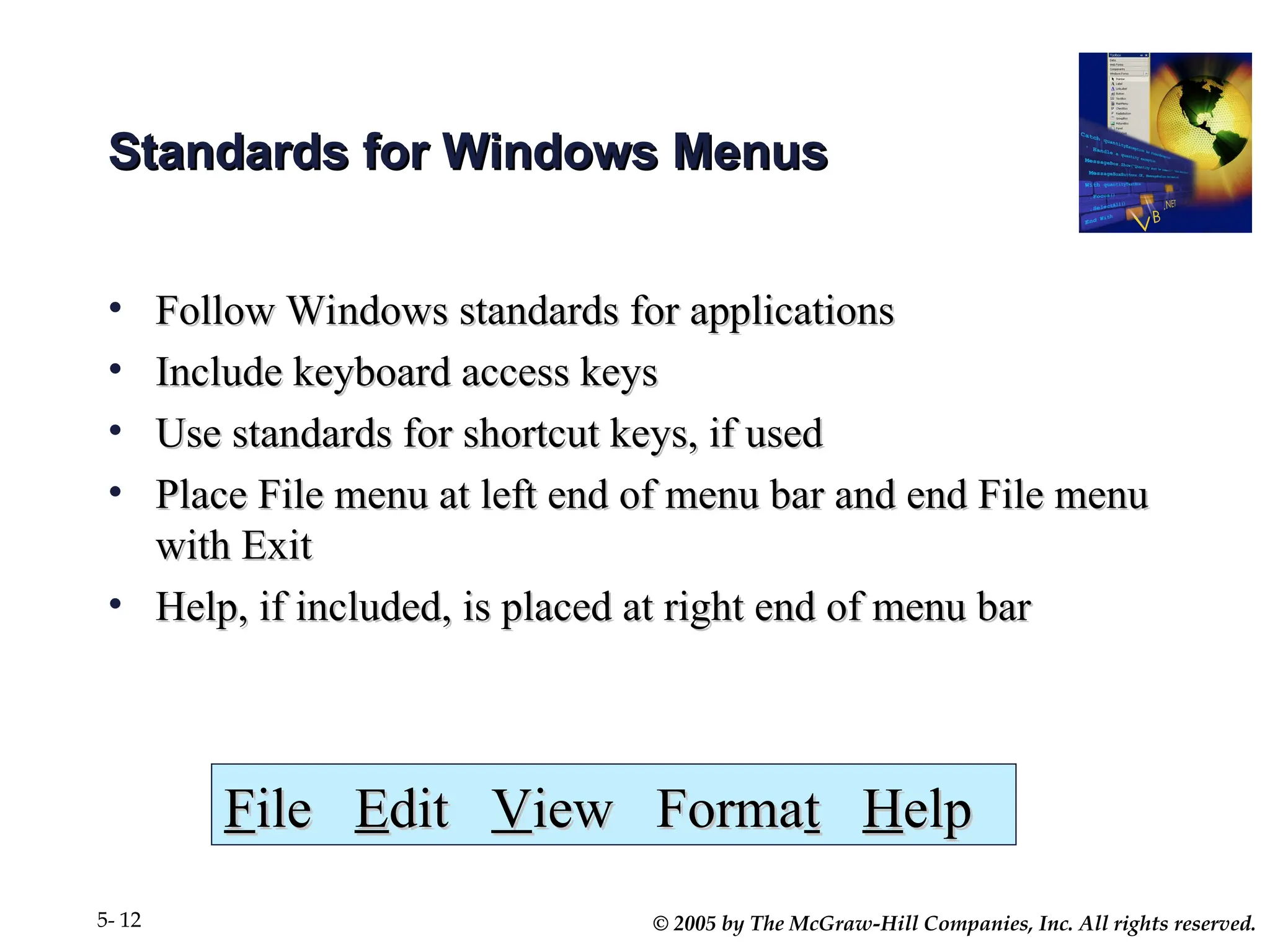
Standards for Windows Menus
• Follow Windows standards for applications
Follow Windows standards for applications
• Include keyboard access keys
Include keyboard access keys
• Use standards for shortcut keys, if used
Use standards for shortcut keys, if used
• Place File menu at left end of menu bar and end File menu
Place File menu at left end of menu bar and end File menu
with Exit
with Exit
• Help, if included, is placed at right end of menu bar
Help, if included, is placed at right end of menu bar
F
File
ile E
Edit
dit V
View Forma
iew Format
t H
Help
elp
© 2005 by The McGraw-Hill Companies, Inc. All rights reserved.
5- 13
Common Dialog Boxes
Common Dialog Boxes
• Predefined standard dialog boxes for:
Predefined standard dialog boxes for:
– File Opening and Saving
File Opening and Saving
– Font and Color selection
Font and Color selection
– Printing and Previewing
Printing and Previewing
• Add appropriate Common Dialog control to form
Add appropriate Common Dialog control to form
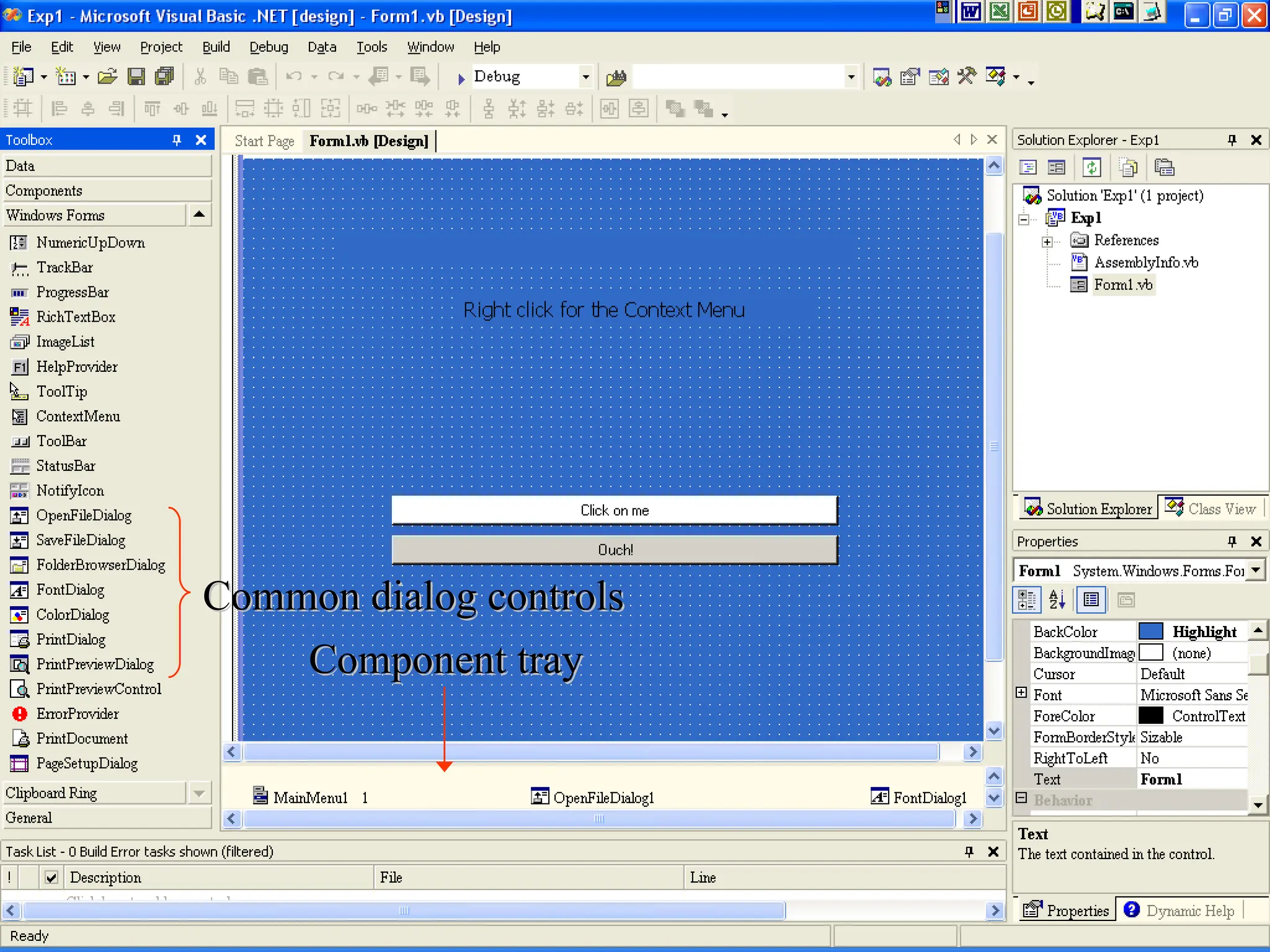
– Appears in the Component Tray
Appears in the Component Tray
© 2005 by The McGraw-Hill Companies, Inc. All rights reserved.
5- 14
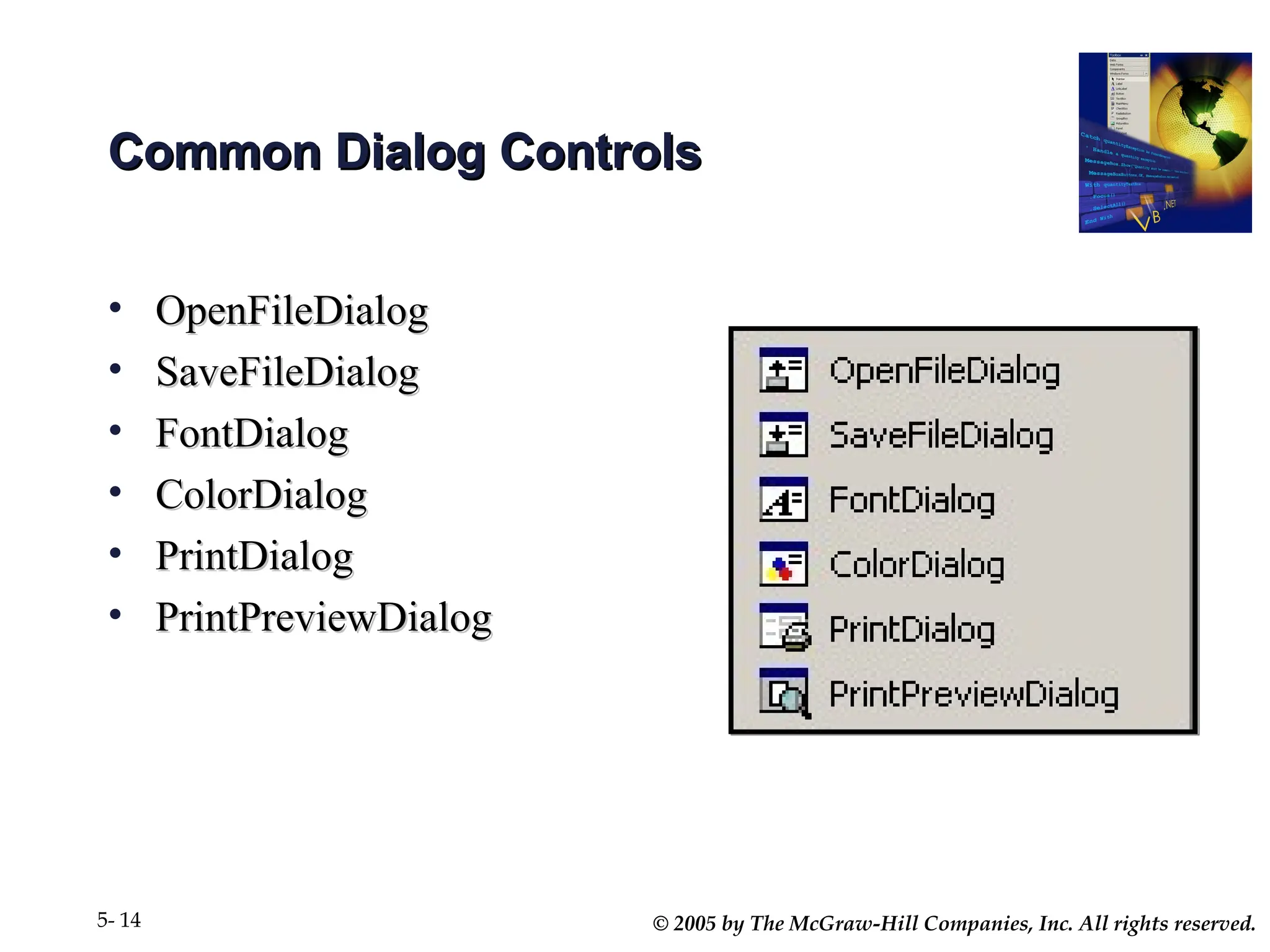
Common Dialog Controls
• OpenFileDialog
OpenFileDialog
• SaveFileDialog
SaveFileDialog
• FontDialog
FontDialog
• ColorDialog
ColorDialog
• PrintDialog
PrintDialog
• PrintPreviewDialog
PrintPreviewDialog
© 2005 by The McGraw-Hill Companies, Inc. All rights reserved.
5- 15
Component tray
Component tray
Common dialog controls
© 2005 by The McGraw-Hill Companies, Inc. All rights reserved.
5- 16
Displaying a Windows Common Dialog
Box
Box
• Use ShowDialog method to display the common dialog
Use ShowDialog method to display the common dialog
box at run time
box at run time
• ShowDialog only displays the dialog, it does not do
ShowDialog only displays the dialog, it does not do
anything else
anything else
ColorDialog1.ShowDialog( )
FontDialog1.ShowDialog( )
© 2005 by The McGraw-Hill Companies, Inc. All rights reserved.
5- 17
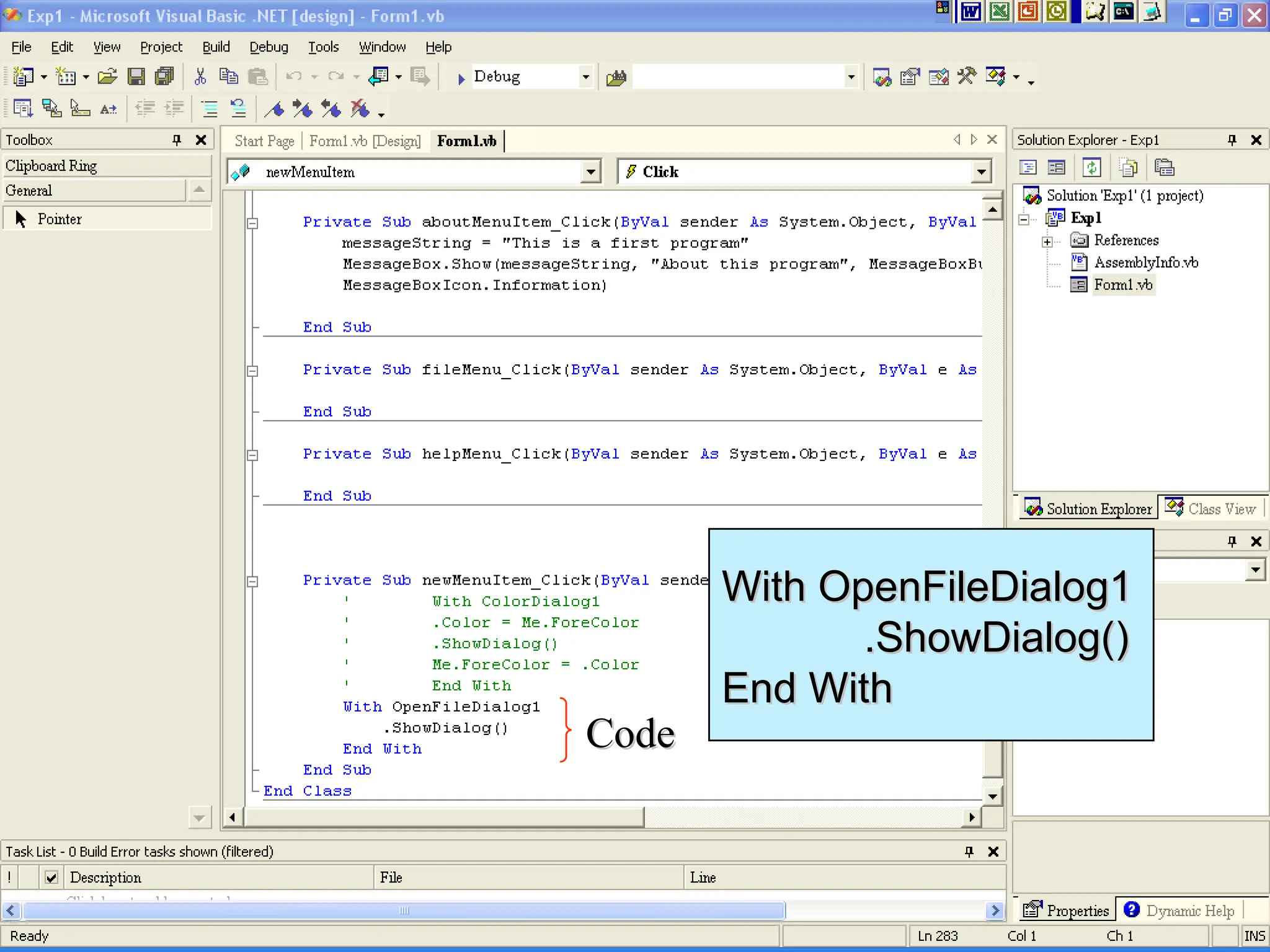
Code
Code
With OpenFileDialog1
.ShowDialog()
.ShowDialog()
End With
End With
© 2005 by The McGraw-Hill Companies, Inc. All rights reserved.
5- 18
Using the Information from the Dialog
Box
Box
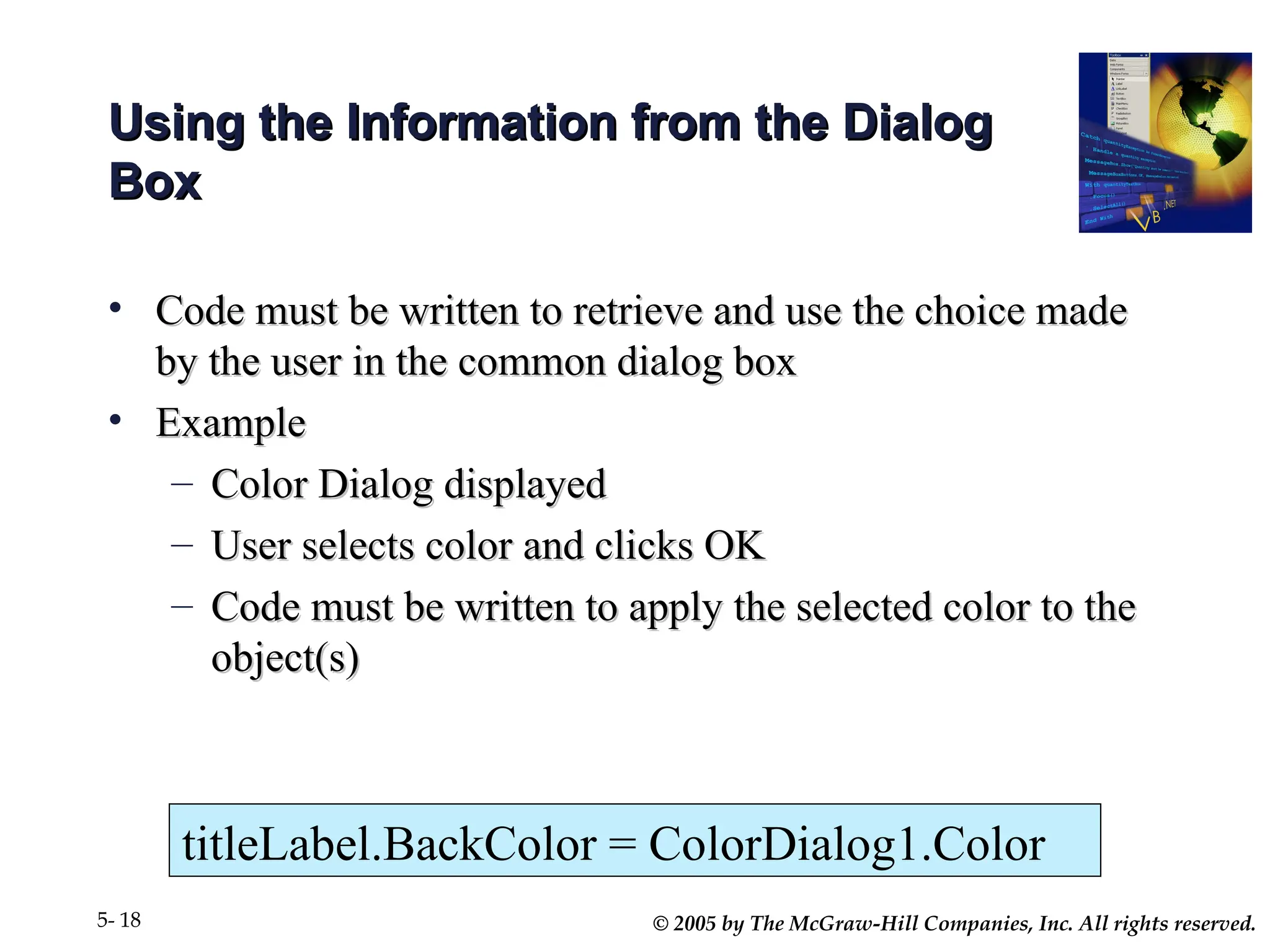
• Code must be written to retrieve and use the choice made
Code must be written to retrieve and use the choice made
by the user in the common dialog box
• Example
Example
– Color Dialog displayed
Color Dialog displayed
– User selects color and clicks OK
User selects color and clicks OK
– Code must be written to apply the selected color to the
Code must be written to apply the selected color to the
object(s)
object(s)
titleLabel.BackColor = ColorDialog1.Color
© 2005 by The McGraw-Hill Companies, Inc. All rights reserved.
5- 19
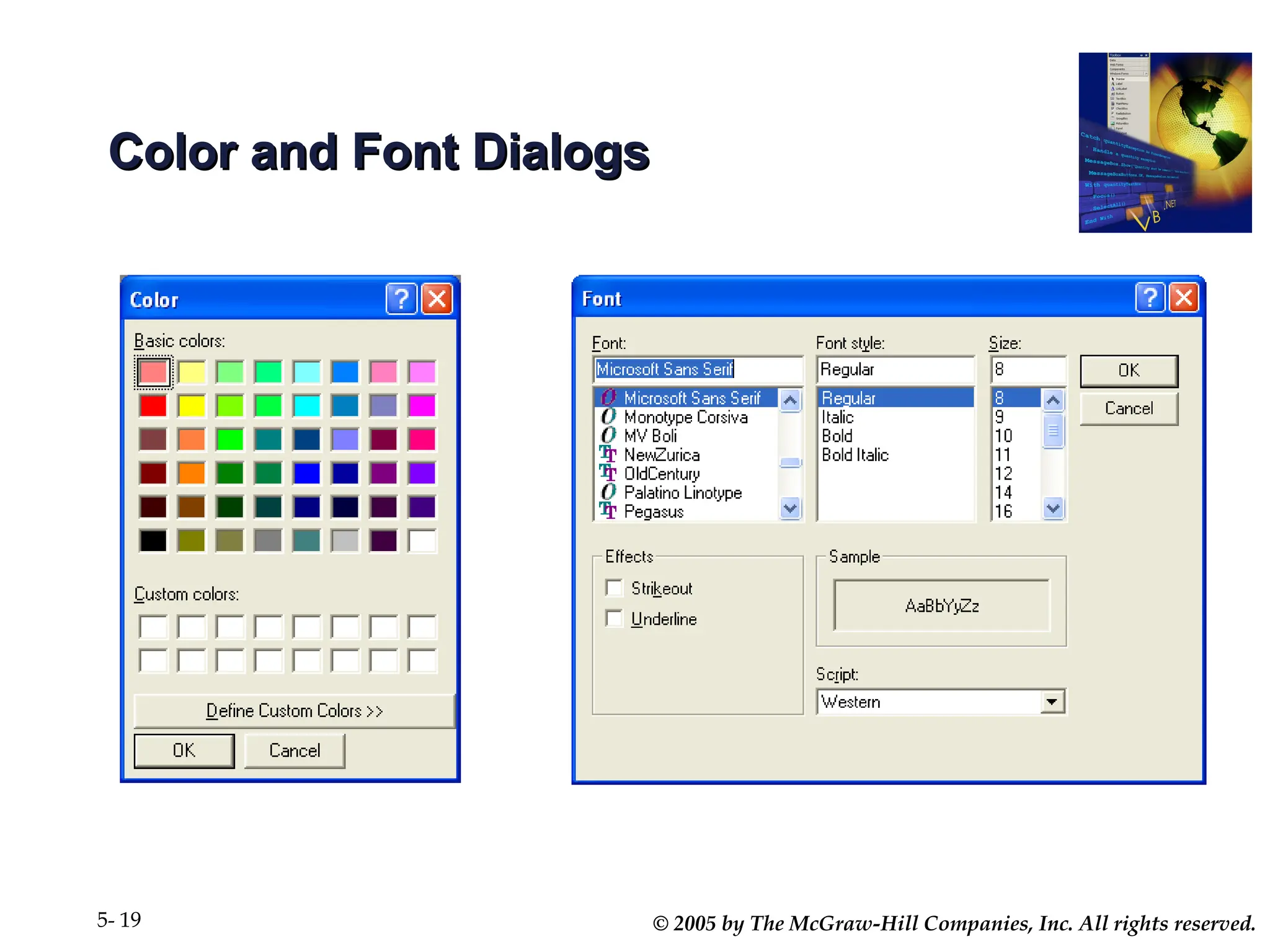
Color and Font Dialogs
© 2005 by The McGraw-Hill Companies, Inc. All rights reserved.
5- 20
Setting Initial Values
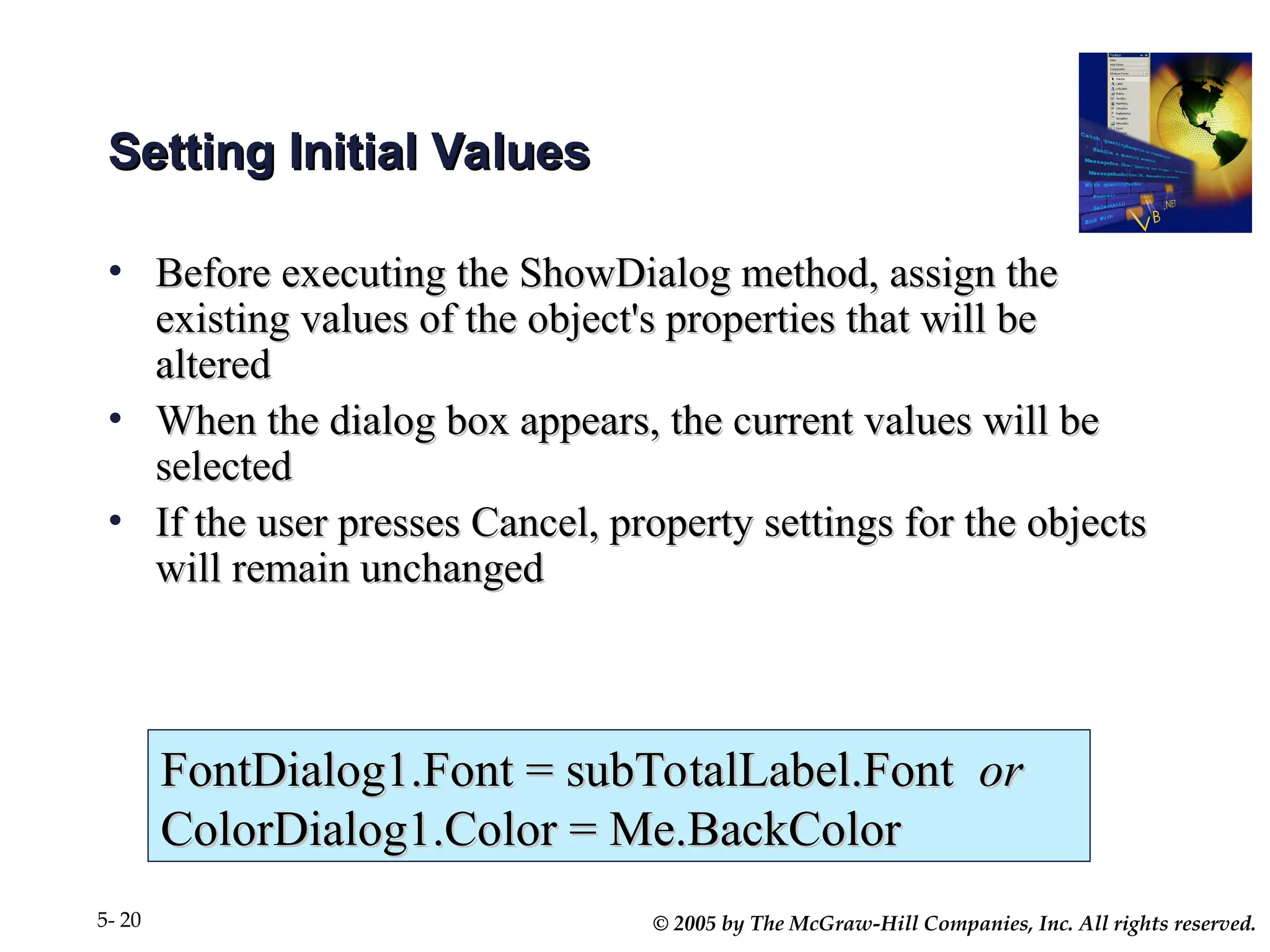
• Before executing the ShowDialog method, assign the
Before executing the ShowDialog method, assign the
existing values of the object's properties that will be
altered
altered
• When the dialog box appears, the current values will be
When the dialog box appears, the current values will be
selected
selected
• If the user presses Cancel, property settings for the objects
If the user presses Cancel, property settings for the objects
will remain unchanged
FontDialog1.Font = subTotalLabel.Font
FontDialog1.Font = subTotalLabel.Font or
or
ColorDialog1.Color = Me.BackColor
© 2005 by The McGraw-Hill Companies, Inc. All rights reserved.
5- 21
Creating Context Menus
• Shortcut menus that pop up when you right-click
Shortcut menus that pop up when you right-click
• Are specific to the component to which user is pointing,
Are specific to the component to which user is pointing,
reflecting options available for that component or situation
• A context menu does not have a top level menu
A context menu does not have a top level menu
• Application can have multiple context menus
Application can have multiple context menus
© 2005 by The McGraw-Hill Companies, Inc. All rights reserved.
5- 22
Creating Context Menus (continued)
• Add ContextMenu component to the form
Add ContextMenu component to the form
– Appears in the Component Tray
Appears in the Component Tray
• Click on the words "
Click on the words "Context Menu
Context Menu", at the top of the form,
", at the top of the form,
the words "
the words "Type Here
Type Here" appear
" appear
• Click on the words "
Click on the words "Type Here
Type Here" and proceed as you did for
" and proceed as you did for
the main menu
the main menu
© 2005 by The McGraw-Hill Companies, Inc. All rights reserved.
5- 23
Connecting the Context Menu to a Form
or Object
or Object
• Set the form or object’s ContextMenu property to the
Set the form or object’s ContextMenu property to the
name of the ContextMenu
• If there is more than one context menu defined,
If there is more than one context menu defined,
choose from the list
• Add to the Handles clause of a MainMenu item to use
Add to the Handles clause of a MainMenu item to use
the same procedure for a related ContextMenu item
© 2005 by The McGraw-Hill Companies, Inc. All rights reserved.
5- 24
Writing General Procedures
• A general procedure is reusable code which can be called
A general procedure is reusable code which can be called
from multiple procedures
• Useful for breaking down large sections of code into
Useful for breaking down large sections of code into
smaller units
smaller units
• Two types
Two types
– Sub Procedure performs actions
Sub Procedure performs actions
– Function performs actions AND returns a value (the
Function performs actions AND returns a value (the
return value
return value)
)
© 2005 by The McGraw-Hill Companies, Inc. All rights reserved.
5- 25
Creating a New Sub Procedure
• In the Editor window enclose the lines of code with a set of
In the Editor window enclose the lines of code with a set of
Private Sub and End Sub statements
• To use the Sub Procedure, call it from another procedure
To use the Sub Procedure, call it from another procedure
• Code in a Sub Procedure cannot be executed unless called
Code in a Sub Procedure cannot be executed unless called
from another procedure
Private Sub ProcedureName( )
' Statements in the procedure.
End Sub
© 2005 by The McGraw-Hill Companies, Inc. All rights reserved.
5- 26
Passing Arguments to Procedures
(page 205)
(page 205)
• Declare variable as local and pass to any called procedures
Declare variable as local and pass to any called procedures
• If a sub procedure names an argument, any call to the procedure
If a sub procedure names an argument, any call to the procedure
must supply the argument
• Name of local variable does not need to match name in sub
Name of local variable does not need to match name in sub
procedure argument list
• Number of arguments, sequence and data type must match
Number of arguments, sequence and data type must match
© 2005 by The McGraw-Hill Companies, Inc. All rights reserved.
5- 27
Passing Arguments ByVal or ByRef
• ByVal (default)
ByVal (default)
– Sends a copy, original cannot be altered
Sends a copy, original cannot be altered
• ByRef
ByRef
– Sends a reference to the memory location where the
Sends a reference to the memory location where the
original is stored and therefore the original can be
altered
altered
• Examples page 206
Examples page 206
© 2005 by The McGraw-Hill Companies, Inc. All rights reserved.
5- 28
Sub Procedure Example
Private Sub SelectColor(incomingColor As Color)
With ColorDialog1
.Color = incomingColor
.ShowDialog( )
End With
End Sub
Private Sub changeTitleButtonColor_Click( )
Dim originalColor As Color
originalColor = titleLabel.ForeColor
SelectColor(originalColor)
titleLabel.ForeColor = ColorDialog1.Color
End Sub
Sub Procedure
Calling
Procedure
© 2005 by The McGraw-Hill Companies, Inc. All rights reserved.
5- 29
Writing Function Procedures
• In the Editor window enclose the lines
In the Editor window enclose the lines
of code with Private Function( ) and End Function
statements
statements
• To use the Function, Call it by using it in an expression
To use the Function, Call it by using it in an expression
• Pass arguments ByVal or ByRef
Pass arguments ByVal or ByRef
Private Function FunctionName( ) As Datatype
' Statements to execute.
End Function
© 2005 by The McGraw-Hill Companies, Inc. All rights reserved.
5- 30
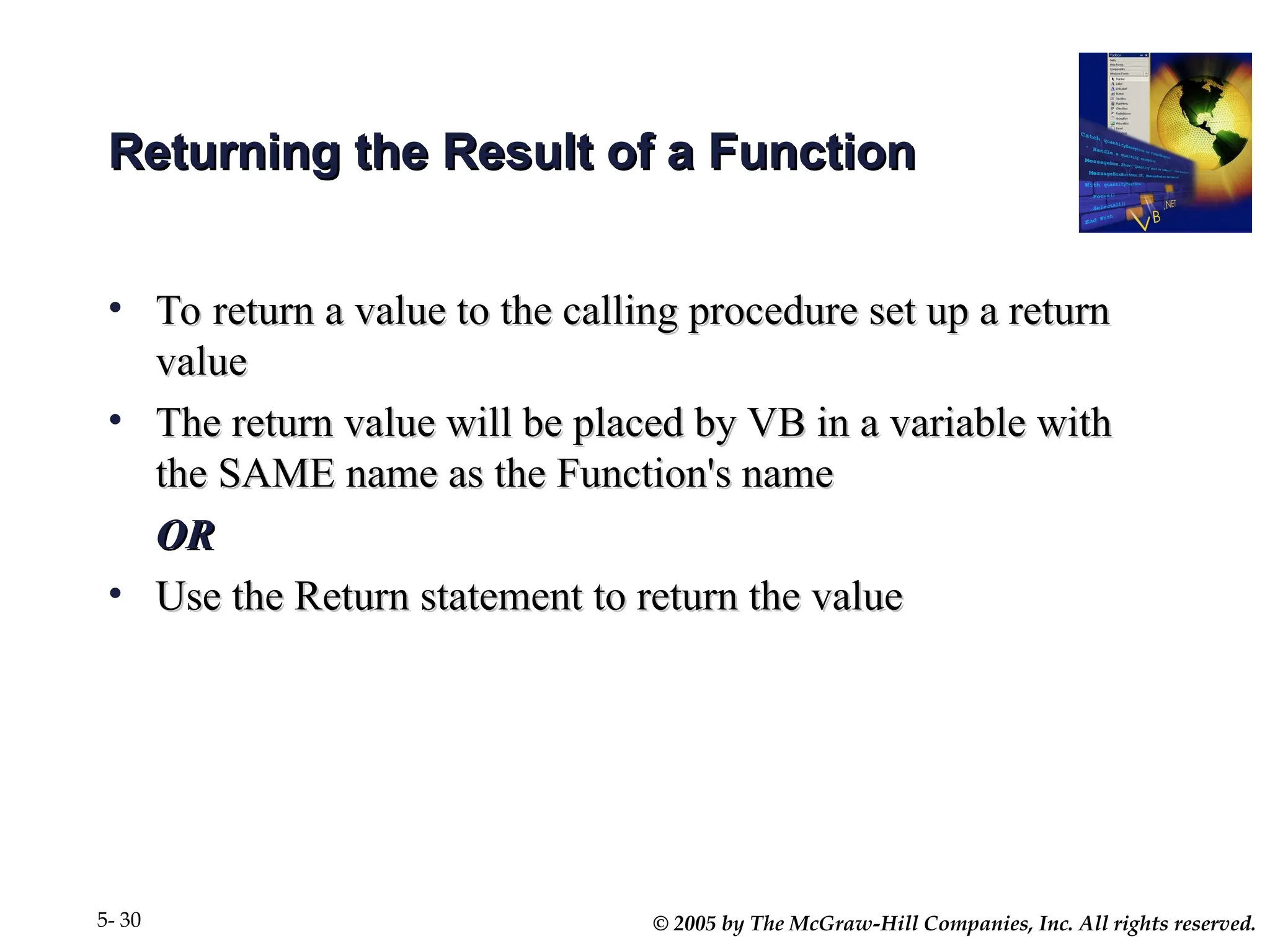
Returning the Result of a Function
• To return a value to the calling procedure set up a return
To return a value to the calling procedure set up a return
value
value
• The return value will be placed by VB in a variable with
The return value will be placed by VB in a variable with
the SAME name as the Function's name
OR
OR
• Use the Return statement to return the value
Use the Return statement to return the value
© 2005 by The McGraw-Hill Companies, Inc. All rights reserved.
5- 31
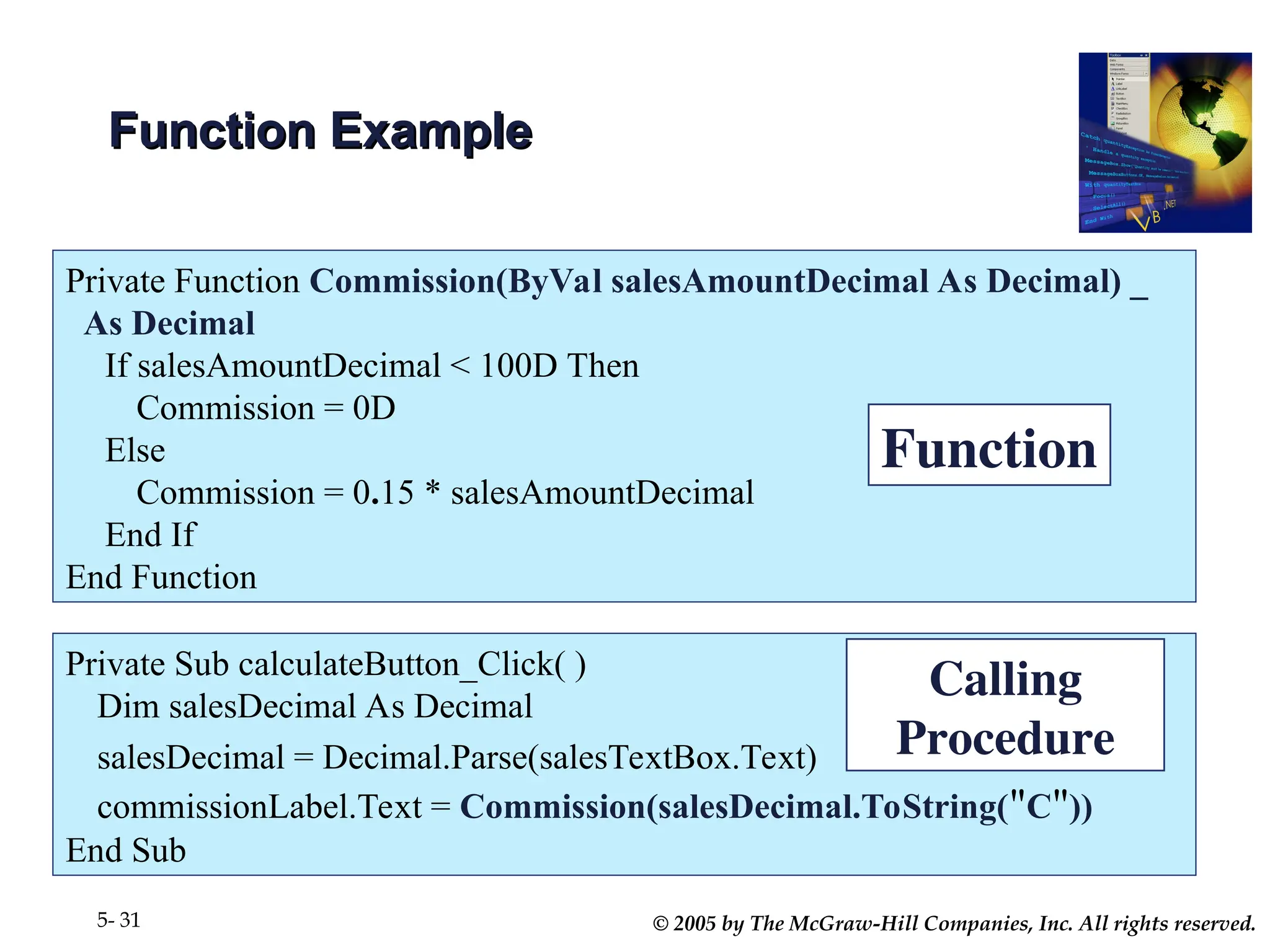
Function Example
Function Example
Private Sub calculateButton_Click( )
Dim salesDecimal As Decimal
salesDecimal = Decimal.Parse(salesTextBox.Text)
commissionLabel.Text = Commission(salesDecimal.ToString("C"))
End Sub
Calling
Procedure
Private Function Commission(ByVal salesAmountDecimal As Decimal) _
As Decimal
If salesAmountDecimal < 100D Then
Commission = 0D
Else
Commission = 0.15 * salesAmountDecimal
End If
End Function
Function
© 2005 by The McGraw-Hill Companies, Inc. All rights reserved.
5- 32
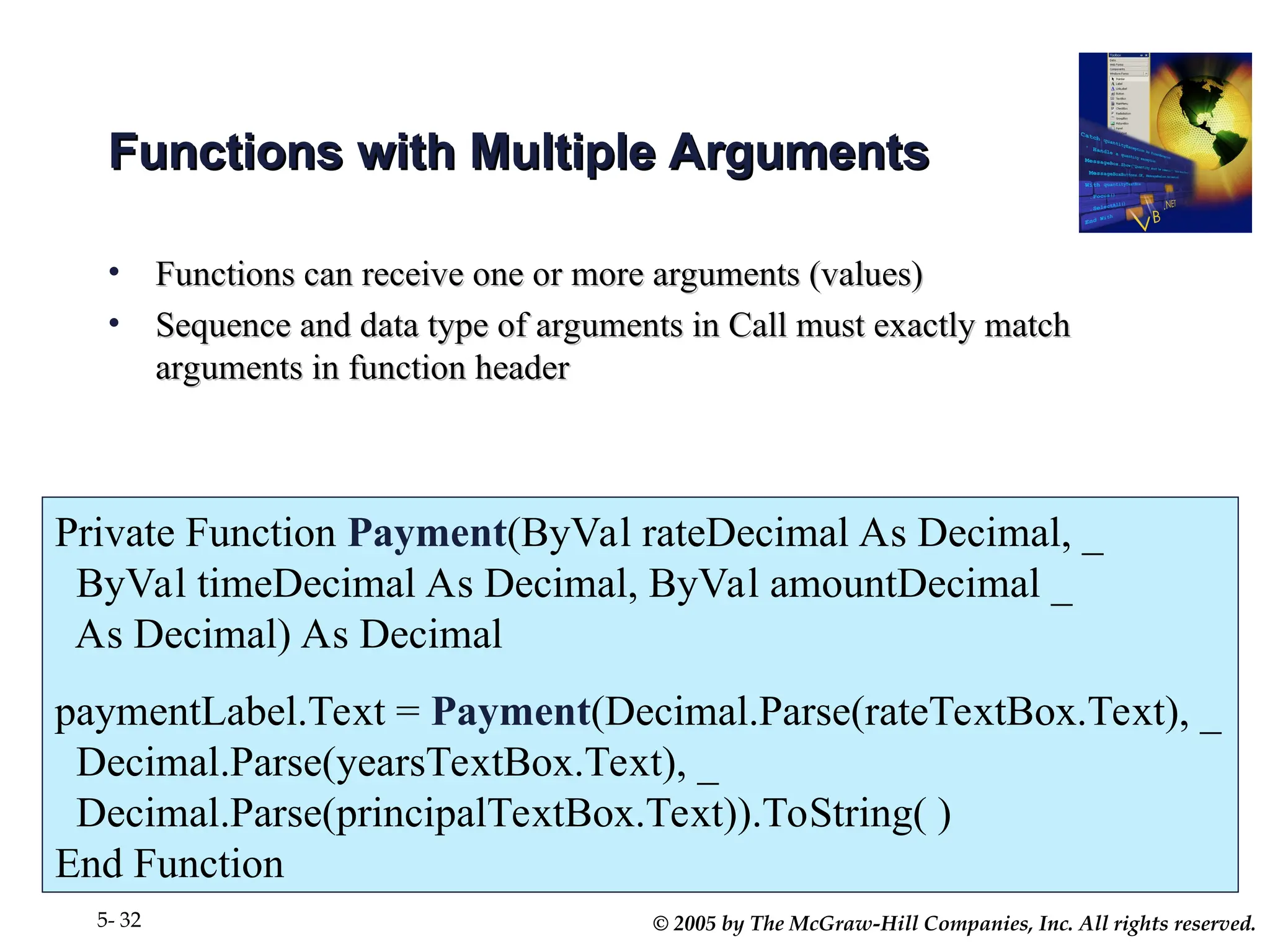
Functions with Multiple Arguments
• Functions can receive one or more arguments (values)
Functions can receive one or more arguments (values)
• Sequence and data type of arguments in Call must exactly match
Sequence and data type of arguments in Call must exactly match
arguments in function header
Private Function Payment(ByVal rateDecimal As Decimal, _
ByVal timeDecimal As Decimal, ByVal amountDecimal _
As Decimal) As Decimal
paymentLabel.Text = Payment(Decimal.Parse(rateTextBox.Text), _
Decimal.Parse(yearsTextBox.Text), _
Decimal.Parse(principalTextBox.Text)).ToString( )
End Function
© 2005 by The McGraw-Hill Companies, Inc. All rights reserved.
5- 33
Breaking Calculations into Smaller
Units
Units
• Projects with many calculations are easier to understand
Projects with many calculations are easier to understand
and write if calculations are broken into small units
• Each unit should perform one program function or logic
Each unit should perform one program function or logic
block
block
© 2005 by The McGraw-Hill Companies, Inc. All rights reserved.
5- 34

chap005 (1) dialogue box menus presentattion

  • 1.
    Chapter 5 Chapter 5 Menus,Common Dialog Menus, Common Dialog Boxes, Sub Procedures Boxes, Sub Procedures and and Function Procedures Function Procedures Programming In Programming In Visual Basic .NET Visual Basic .NET
  • 2.
    © 2005 byThe McGraw-Hill Companies, Inc. All rights reserved. 5- 2 <ALT><F> <ALT><F> Menu Menu Menu Items Menu Items
  • 3.
    © 2005 byThe McGraw-Hill Companies, Inc. All rights reserved. 5- 3 Menus Menus • Menu Bar Menu Bar – Contains menus which drop down to display list of Contains menus which drop down to display list of menu items menu items • Each item has a name and text property Each item has a name and text property • Each item has a click event Each item has a click event • Add MainMenu control to form Add MainMenu control to form – Appears in the Component Tray, below form, where Appears in the Component Tray, below form, where nondisplay controls are shown nondisplay controls are shown – Words " Words "Type Here Type Here" appear at the top of the form " appear at the top of the form
  • 4.
    © 2005 byThe McGraw-Hill Companies, Inc. All rights reserved. 5- 4 Menus (continued) Menus (continued) Type first Menu here Type first Menu here MainMenu Control MainMenu Control appears in appears in Component Tray Component Tray
  • 5.
    © 2005 byThe McGraw-Hill Companies, Inc. All rights reserved. 5- 5 Defining Menus Defining Menus • To create the menus simply type where the words " To create the menus simply type where the words "Type Type Here Here" appear at the top of the form " appear at the top of the form • Include & symbol as you type to indicate keyboard access Include & symbol as you type to indicate keyboard access keys keys • You are actually entering the Text property for a You are actually entering the Text property for a MenuItem object MenuItem object • Change MenuItem object names in the Properties window Change MenuItem object names in the Properties window and follow consistent naming conventions and follow consistent naming conventions
  • 6.
    © 2005 byThe McGraw-Hill Companies, Inc. All rights reserved. 5- 6 Submenus Submenus • Pop up to the right of a menu item Pop up to the right of a menu item • Filled triangle to the right of the menu item indicates to the Filled triangle to the right of the menu item indicates to the user the existence of a submenu user the existence of a submenu • Create submenus by moving to the right of a menu item Create submenus by moving to the right of a menu item and typing the next item's text and typing the next item's text
  • 7.
    © 2005 byThe McGraw-Hill Companies, Inc. All rights reserved. 5- 7 Submenus Submenus (continued) (continued)
  • 8.
    © 2005 byThe McGraw-Hill Companies, Inc. All rights reserved. 5- 8 Separator Bars Separator Bars • Used for grouping menu items according to their purpose Used for grouping menu items according to their purpose • Visually represented as a bar across the menu Visually represented as a bar across the menu • Create using one of two methods Create using one of two methods – Typing a single hyphen for the text Typing a single hyphen for the text – Right-click on Menu Designer where you want a Right-click on Menu Designer where you want a separator bar and choose Insert Separator separator bar and choose Insert Separator
  • 9.
    © 2005 byThe McGraw-Hill Companies, Inc. All rights reserved. 5- 9 Coding for Menu Items Coding for Menu Items • Double-click any menu item to open the item’s click event Double-click any menu item to open the item’s click event procedure procedure • Write code for the click event procedure Write code for the click event procedure
  • 10.
    © 2005 byThe McGraw-Hill Companies, Inc. All rights reserved. 5- 10 Modifying Menu Items Modifying Menu Items • Right-click the Menu Bar to: Right-click the Menu Bar to: – Delete Delete – Insert New Insert New – Insert Separator Insert Separator – Edit Names Edit Names • Displays menu item Name property rather than Text Displays menu item Name property rather than Text property on form property on form • Drag and Drop menu items to new locations Drag and Drop menu items to new locations
  • 11.
    © 2005 byThe McGraw-Hill Companies, Inc. All rights reserved. 5- 11 Menu Properties Menu Properties • Enabled property, True/False Enabled property, True/False • Checked property, True/False Checked property, True/False – Used to indicate current state of menu item that can be Used to indicate current state of menu item that can be turned on and off turned on and off • Create keyboard shortcuts Create keyboard shortcuts – In Properties window for menu item, select the Shortcut In Properties window for menu item, select the Shortcut property property – Make choice from drop-down list Make choice from drop-down list
  • 12.
    © 2005 byThe McGraw-Hill Companies, Inc. All rights reserved. 5- 12 Standards for Windows Menus Standards for Windows Menus • Follow Windows standards for applications Follow Windows standards for applications • Include keyboard access keys Include keyboard access keys • Use standards for shortcut keys, if used Use standards for shortcut keys, if used • Place File menu at left end of menu bar and end File menu Place File menu at left end of menu bar and end File menu with Exit with Exit • Help, if included, is placed at right end of menu bar Help, if included, is placed at right end of menu bar F File ile E Edit dit V View Forma iew Format t H Help elp
  • 13.
    © 2005 byThe McGraw-Hill Companies, Inc. All rights reserved. 5- 13 Common Dialog Boxes Common Dialog Boxes • Predefined standard dialog boxes for: Predefined standard dialog boxes for: – File Opening and Saving File Opening and Saving – Font and Color selection Font and Color selection – Printing and Previewing Printing and Previewing • Add appropriate Common Dialog control to form Add appropriate Common Dialog control to form – Appears in the Component Tray Appears in the Component Tray
  • 14.
    © 2005 byThe McGraw-Hill Companies, Inc. All rights reserved. 5- 14 Common Dialog Controls Common Dialog Controls • OpenFileDialog OpenFileDialog • SaveFileDialog SaveFileDialog • FontDialog FontDialog • ColorDialog ColorDialog • PrintDialog PrintDialog • PrintPreviewDialog PrintPreviewDialog
  • 15.
    © 2005 byThe McGraw-Hill Companies, Inc. All rights reserved. 5- 15 Component tray Component tray Common dialog controls Common dialog controls
  • 16.
    © 2005 byThe McGraw-Hill Companies, Inc. All rights reserved. 5- 16 Displaying a Windows Common Dialog Displaying a Windows Common Dialog Box Box • Use ShowDialog method to display the common dialog Use ShowDialog method to display the common dialog box at run time box at run time • ShowDialog only displays the dialog, it does not do ShowDialog only displays the dialog, it does not do anything else anything else ColorDialog1.ShowDialog( ) ColorDialog1.ShowDialog( ) FontDialog1.ShowDialog( ) FontDialog1.ShowDialog( )
  • 17.
    © 2005 byThe McGraw-Hill Companies, Inc. All rights reserved. 5- 17 Code Code With OpenFileDialog1 With OpenFileDialog1 .ShowDialog() .ShowDialog() End With End With
  • 18.
    © 2005 byThe McGraw-Hill Companies, Inc. All rights reserved. 5- 18 Using the Information from the Dialog Using the Information from the Dialog Box Box • Code must be written to retrieve and use the choice made Code must be written to retrieve and use the choice made by the user in the common dialog box by the user in the common dialog box • Example Example – Color Dialog displayed Color Dialog displayed – User selects color and clicks OK User selects color and clicks OK – Code must be written to apply the selected color to the Code must be written to apply the selected color to the object(s) object(s) titleLabel.BackColor = ColorDialog1.Color
  • 19.
    © 2005 byThe McGraw-Hill Companies, Inc. All rights reserved. 5- 19 Color and Font Dialogs Color and Font Dialogs
  • 20.
    © 2005 byThe McGraw-Hill Companies, Inc. All rights reserved. 5- 20 Setting Initial Values Setting Initial Values • Before executing the ShowDialog method, assign the Before executing the ShowDialog method, assign the existing values of the object's properties that will be existing values of the object's properties that will be altered altered • When the dialog box appears, the current values will be When the dialog box appears, the current values will be selected selected • If the user presses Cancel, property settings for the objects If the user presses Cancel, property settings for the objects will remain unchanged will remain unchanged FontDialog1.Font = subTotalLabel.Font FontDialog1.Font = subTotalLabel.Font or or ColorDialog1.Color = Me.BackColor ColorDialog1.Color = Me.BackColor
  • 21.
    © 2005 byThe McGraw-Hill Companies, Inc. All rights reserved. 5- 21 Creating Context Menus Creating Context Menus • Shortcut menus that pop up when you right-click Shortcut menus that pop up when you right-click • Are specific to the component to which user is pointing, Are specific to the component to which user is pointing, reflecting options available for that component or situation reflecting options available for that component or situation • A context menu does not have a top level menu A context menu does not have a top level menu • Application can have multiple context menus Application can have multiple context menus
  • 22.
    © 2005 byThe McGraw-Hill Companies, Inc. All rights reserved. 5- 22 Creating Context Menus (continued) Creating Context Menus (continued) • Add ContextMenu component to the form Add ContextMenu component to the form – Appears in the Component Tray Appears in the Component Tray • Click on the words " Click on the words "Context Menu Context Menu", at the top of the form, ", at the top of the form, the words " the words "Type Here Type Here" appear " appear • Click on the words " Click on the words "Type Here Type Here" and proceed as you did for " and proceed as you did for the main menu the main menu
  • 23.
    © 2005 byThe McGraw-Hill Companies, Inc. All rights reserved. 5- 23 Connecting the Context Menu to a Form Connecting the Context Menu to a Form or Object or Object • Set the form or object’s ContextMenu property to the Set the form or object’s ContextMenu property to the name of the ContextMenu name of the ContextMenu • If there is more than one context menu defined, If there is more than one context menu defined, choose from the list choose from the list • Add to the Handles clause of a MainMenu item to use Add to the Handles clause of a MainMenu item to use the same procedure for a related ContextMenu item the same procedure for a related ContextMenu item
  • 24.
    © 2005 byThe McGraw-Hill Companies, Inc. All rights reserved. 5- 24 Writing General Procedures Writing General Procedures • A general procedure is reusable code which can be called A general procedure is reusable code which can be called from multiple procedures from multiple procedures • Useful for breaking down large sections of code into Useful for breaking down large sections of code into smaller units smaller units • Two types Two types – Sub Procedure performs actions Sub Procedure performs actions – Function performs actions AND returns a value (the Function performs actions AND returns a value (the return value return value) )
  • 25.
    © 2005 byThe McGraw-Hill Companies, Inc. All rights reserved. 5- 25 Creating a New Sub Procedure Creating a New Sub Procedure • In the Editor window enclose the lines of code with a set of In the Editor window enclose the lines of code with a set of Private Sub and End Sub statements Private Sub and End Sub statements • To use the Sub Procedure, call it from another procedure To use the Sub Procedure, call it from another procedure • Code in a Sub Procedure cannot be executed unless called Code in a Sub Procedure cannot be executed unless called from another procedure from another procedure Private Sub ProcedureName( ) ' Statements in the procedure. End Sub
  • 26.
    © 2005 byThe McGraw-Hill Companies, Inc. All rights reserved. 5- 26 Passing Arguments to Procedures Passing Arguments to Procedures (page 205) (page 205) • Declare variable as local and pass to any called procedures Declare variable as local and pass to any called procedures • If a sub procedure names an argument, any call to the procedure If a sub procedure names an argument, any call to the procedure must supply the argument must supply the argument • Name of local variable does not need to match name in sub Name of local variable does not need to match name in sub procedure argument list procedure argument list • Number of arguments, sequence and data type must match Number of arguments, sequence and data type must match
  • 27.
    © 2005 byThe McGraw-Hill Companies, Inc. All rights reserved. 5- 27 Passing Arguments ByVal or ByRef Passing Arguments ByVal or ByRef • ByVal (default) ByVal (default) – Sends a copy, original cannot be altered Sends a copy, original cannot be altered • ByRef ByRef – Sends a reference to the memory location where the Sends a reference to the memory location where the original is stored and therefore the original can be original is stored and therefore the original can be altered altered • Examples page 206 Examples page 206
  • 28.
    © 2005 byThe McGraw-Hill Companies, Inc. All rights reserved. 5- 28 Sub Procedure Example Sub Procedure Example Private Sub SelectColor(incomingColor As Color) With ColorDialog1 .Color = incomingColor .ShowDialog( ) End With End Sub Private Sub changeTitleButtonColor_Click( ) Dim originalColor As Color originalColor = titleLabel.ForeColor SelectColor(originalColor) titleLabel.ForeColor = ColorDialog1.Color End Sub Sub Procedure Calling Procedure
  • 29.
    © 2005 byThe McGraw-Hill Companies, Inc. All rights reserved. 5- 29 Writing Function Procedures Writing Function Procedures • In the Editor window enclose the lines In the Editor window enclose the lines of code with Private Function( ) and End Function of code with Private Function( ) and End Function statements statements • To use the Function, Call it by using it in an expression To use the Function, Call it by using it in an expression • Pass arguments ByVal or ByRef Pass arguments ByVal or ByRef Private Function FunctionName( ) As Datatype ' Statements to execute. End Function
  • 30.
    © 2005 byThe McGraw-Hill Companies, Inc. All rights reserved. 5- 30 Returning the Result of a Function Returning the Result of a Function • To return a value to the calling procedure set up a return To return a value to the calling procedure set up a return value value • The return value will be placed by VB in a variable with The return value will be placed by VB in a variable with the SAME name as the Function's name the SAME name as the Function's name OR OR • Use the Return statement to return the value Use the Return statement to return the value
  • 31.
    © 2005 byThe McGraw-Hill Companies, Inc. All rights reserved. 5- 31 Function Example Function Example Private Sub calculateButton_Click( ) Dim salesDecimal As Decimal salesDecimal = Decimal.Parse(salesTextBox.Text) commissionLabel.Text = Commission(salesDecimal.ToString("C")) End Sub Calling Procedure Private Function Commission(ByVal salesAmountDecimal As Decimal) _ As Decimal If salesAmountDecimal < 100D Then Commission = 0D Else Commission = 0.15 * salesAmountDecimal End If End Function Function
  • 32.
    © 2005 byThe McGraw-Hill Companies, Inc. All rights reserved. 5- 32 Functions with Multiple Arguments Functions with Multiple Arguments • Functions can receive one or more arguments (values) Functions can receive one or more arguments (values) • Sequence and data type of arguments in Call must exactly match Sequence and data type of arguments in Call must exactly match arguments in function header arguments in function header Private Function Payment(ByVal rateDecimal As Decimal, _ ByVal timeDecimal As Decimal, ByVal amountDecimal _ As Decimal) As Decimal paymentLabel.Text = Payment(Decimal.Parse(rateTextBox.Text), _ Decimal.Parse(yearsTextBox.Text), _ Decimal.Parse(principalTextBox.Text)).ToString( ) End Function
  • 33.
    © 2005 byThe McGraw-Hill Companies, Inc. All rights reserved. 5- 33 Breaking Calculations into Smaller Breaking Calculations into Smaller Units Units • Projects with many calculations are easier to understand Projects with many calculations are easier to understand and write if calculations are broken into small units and write if calculations are broken into small units • Each unit should perform one program function or logic Each unit should perform one program function or logic block block
  • 34.
    © 2005 byThe McGraw-Hill Companies, Inc. All rights reserved. 5- 34