Digital Presentation
CB/IX/2122 of 24
Subject: IT(402)
Grade: IX
Unit 5: Digital Presentation
1
Digital Presentation
CB/IX/2122 of 24
2
Presenting Information or Learning through Presentation
Digital Presentation
CB/IX/2122 of 24
3
Characteristics of a Good Quality Presentation
 Number of lines: Include max 5 to 8 lines.
 Font-size: The font size should be such that the audience
can easily read the contents.
 Correct use of grammar and language: Content must be
error free in terms of grammar and spellings.
 Inserting images, drawings, tables or graphs: Avoid
inserting more than two graphics on a slide.
Digital Presentation
CB/IX/2122 of 24
4
Characteristics of a Good Quality Presentation
 Use of colours: Use dark colours, bold letters with
different fonts to highlight certain points.
 Animation and videos: Do not include more than one
animation or video in one slide.
 Pay attention to the target group: Focus on the content,
sequence of the topics such that it attracts the attention of
the audience.
Digital Presentation
CB/IX/2122 of 24
5
Steps to start LibreOffice Impress
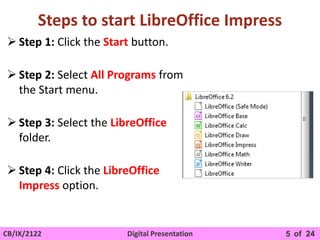
 Step 1: Click the Start button.
 Step 2: Select All Programs from
the Start menu.
 Step 3: Select the LibreOffice
folder.
 Step 4: Click the LibreOffice
Impress option.
Digital Presentation
CB/IX/2122 of 24
6
LibreOffice Impress Interface
Task pane
Workspace
Drawing
toolbar
Standard
Toolbar
Zoom control
Navigator
Digital Presentation
CB/IX/2122 of 24
7
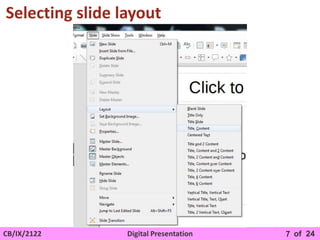
Selecting slide layout
Digital Presentation
CB/IX/2122 of 24
8
Saving a Presentation
Digital Presentation
CB/IX/2122 of 24
9
Saving a Presentation in different formats
HTML format
PDF format
Digital Presentation
CB/IX/2122 of 24
10
Closing a presentation
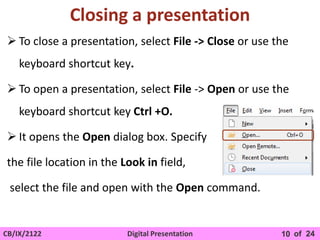
 To close a presentation, select File -> Close or use the
keyboard shortcut key.
 To open a presentation, select File -> Open or use the
keyboard shortcut key Ctrl +O.
 It opens the Open dialog box. Specify
the file location in the Look in field,
select the file and open with the Open command.
Digital Presentation
CB/IX/2122 of 24
11
Using Help
 The Help function is located in the Help menu.
 You can use the F1 function key to open the Help function
Digital Presentation
CB/IX/2122 of 24
12
Working with slides
 Inserting duplicate slide
 Inserting new slide
 Slide layout
Table
Image
Chart
Video
Digital Presentation
CB/IX/2122 of 24
13
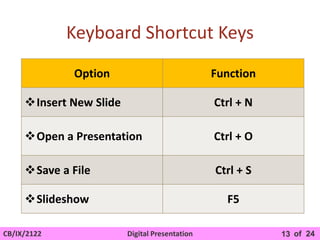
Keyboard Shortcut Keys
Option Function
Insert New Slide Ctrl + N
Open a Presentation Ctrl + O
Save a File Ctrl + S
Slideshow F5
Digital Presentation
CB/IX/2122 of 24
14
Copying, moving and deleting slides
Keyboard shortcuts
1. Cut : Ctrl + X
2. Copy : Ctrl + C
3. Paste : Ctrl + V
4. You can also delete a slide using
the Delete button from the keyboard
1
2
3
4
Digital Presentation
CB/IX/2122 of 24
There are different ways to view your
presentation in Impress
Normal
Digital Presentation
CB/IX/2122 of 24
Outline
Notes
Digital Presentation
CB/IX/2122 of 24
Slide Sorter
Digital Presentation
CB/IX/2122 of 24
18
Text Formatting toolbar
Font Name Font Size
Increase
Font
Decrease
Font
Bold
Italic
Underline
Strike
Shadow
Outline
Font
colour
Highlight
colour
Digital Presentation
CB/IX/2122 of 24
19
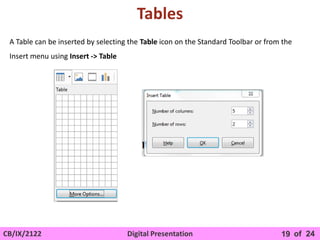
Tables
A Table can be inserted by selecting the Table icon on the Standard Toolbar or from the
Insert menu using Insert -> Table
Digital Presentation
CB/IX/2122 of 24
20
Adding and Formatting Images
 Inserting image from a file
 Inserting image from Gallery
Digital Presentation
CB/IX/2122 of 24
21
To view the Drawing toolbar
select View -> Toolbars-> Drawing toolbar
To view the Image toolbar
select View -> Toolbars-> Image
When an image is selected, the Image toolbar is
available in the properties window
Digital Presentation
CB/IX/2122 of 24
22
Slide Master
Digital Presentation
CB/IX/2122 of 24
23
Slide Transition
Digital Presentation
CB/IX/2122 of 24
24
THANK
YOU!

CB_IX_IT_402_DigitalPresentation.pptx