How to Use Canva
to Create
Infographic & Logo
Designs
Cryptand: RAYNON s2k----------www.raynons2k.com
Canva...What is it?
Cryptand: RAYNON s2k----------www.raynons2k.com
It is a web-based
Graphic Design tool
Cryptand: RAYNON s2k----------www.raynons2k.com
Launched last 2013 as an
Australian Start-up
Cryptand: RAYNON s2k----------www.raynons2k.com
Canva Envisioned a
massive shift to
VISUAL SOCIAL
MEDIA
Cryptand: RAYNON s2k----------www.raynons2k.com
In this tutorial, your
learning with Canva
will be enhanced
Cryptand: RAYNON s2k----------www.raynons2k.com
where you will be
able to make Stunning
Infographic and Logo
Cryptand: RAYNON s2k----------www.raynons2k.com
Let’s start with the tutorial:
Cryptand: RAYNON s2k----------www.raynons2k.com
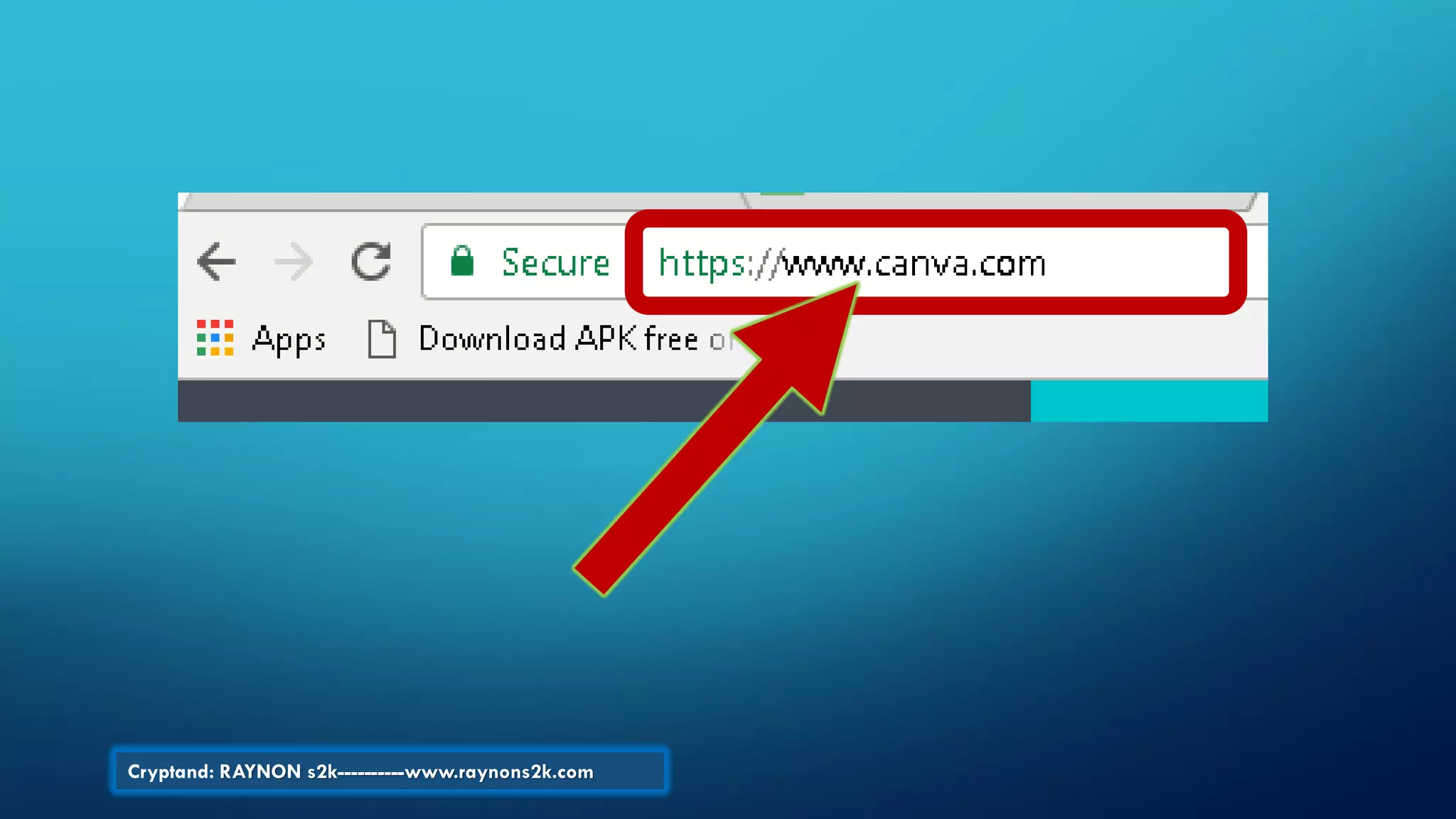
Go to Canva website…
Cryptand: RAYNON s2k----------www.raynons2k.com
Hit enter to see the
Canva webpage…
Cryptand: RAYNON s2k----------www.raynons2k.com
There are three ways
to sign-up
Cryptand: RAYNON s2k----------www.raynons2k.com
Through your Facebook
Cryptand: RAYNON s2k----------www.raynons2k.com
your Google Plus…
Cryptand: RAYNON s2k----------www.raynons2k.com
Or your Email address…
Cryptand: RAYNON s2k----------www.raynons2k.com
Let’s sign up with our
Email…
Cryptand: RAYNON s2k----------www.raynons2k.com
When you see
this…
Cryptand: RAYNON s2k----------www.raynons2k.com
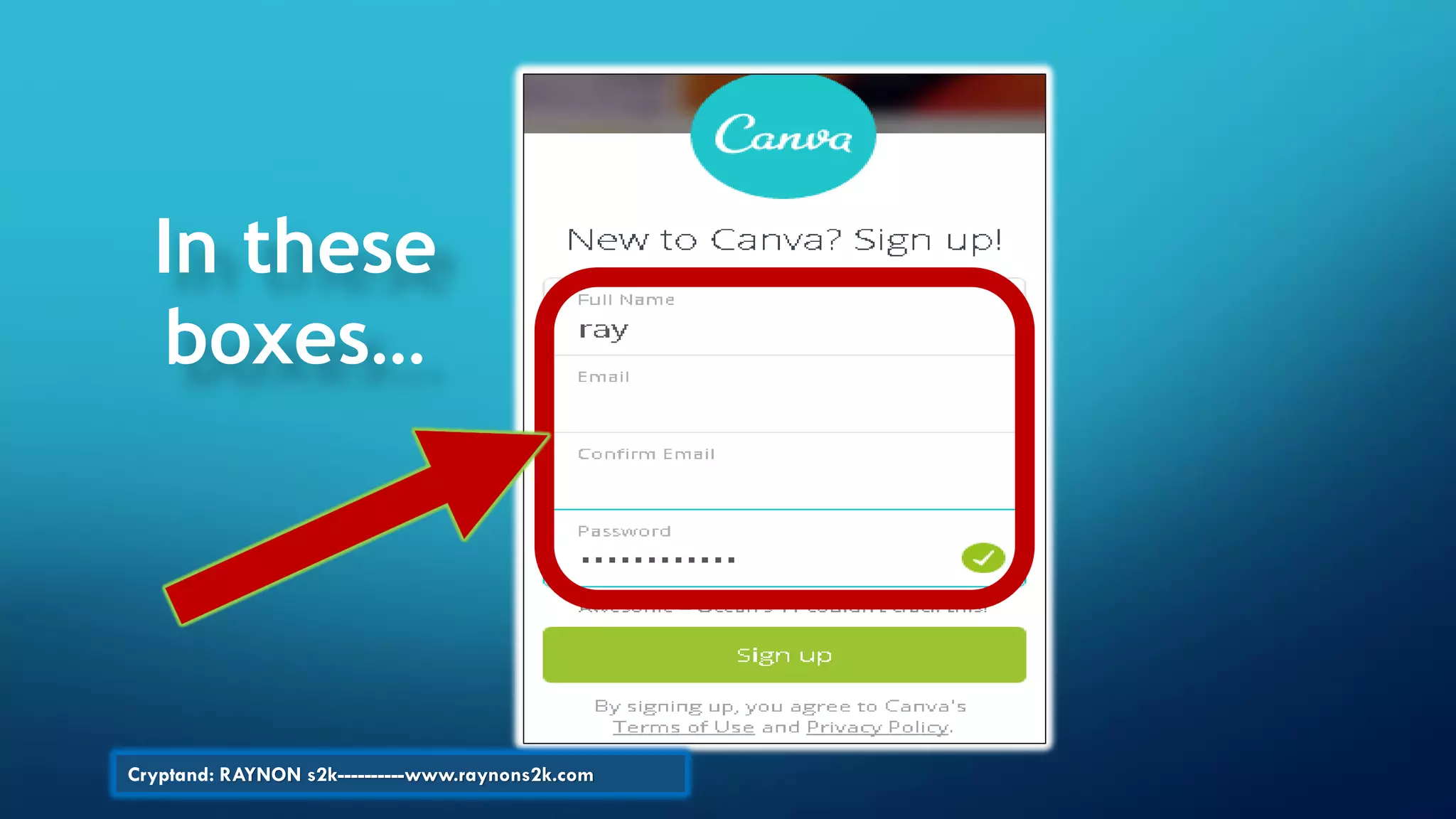
Then type your details…
Cryptand: RAYNON s2k----------www.raynons2k.com
In these
boxes…
Cryptand: RAYNON s2k----------www.raynons2k.com
Then click Sign up…
Cryptand: RAYNON s2k----------www.raynons2k.com
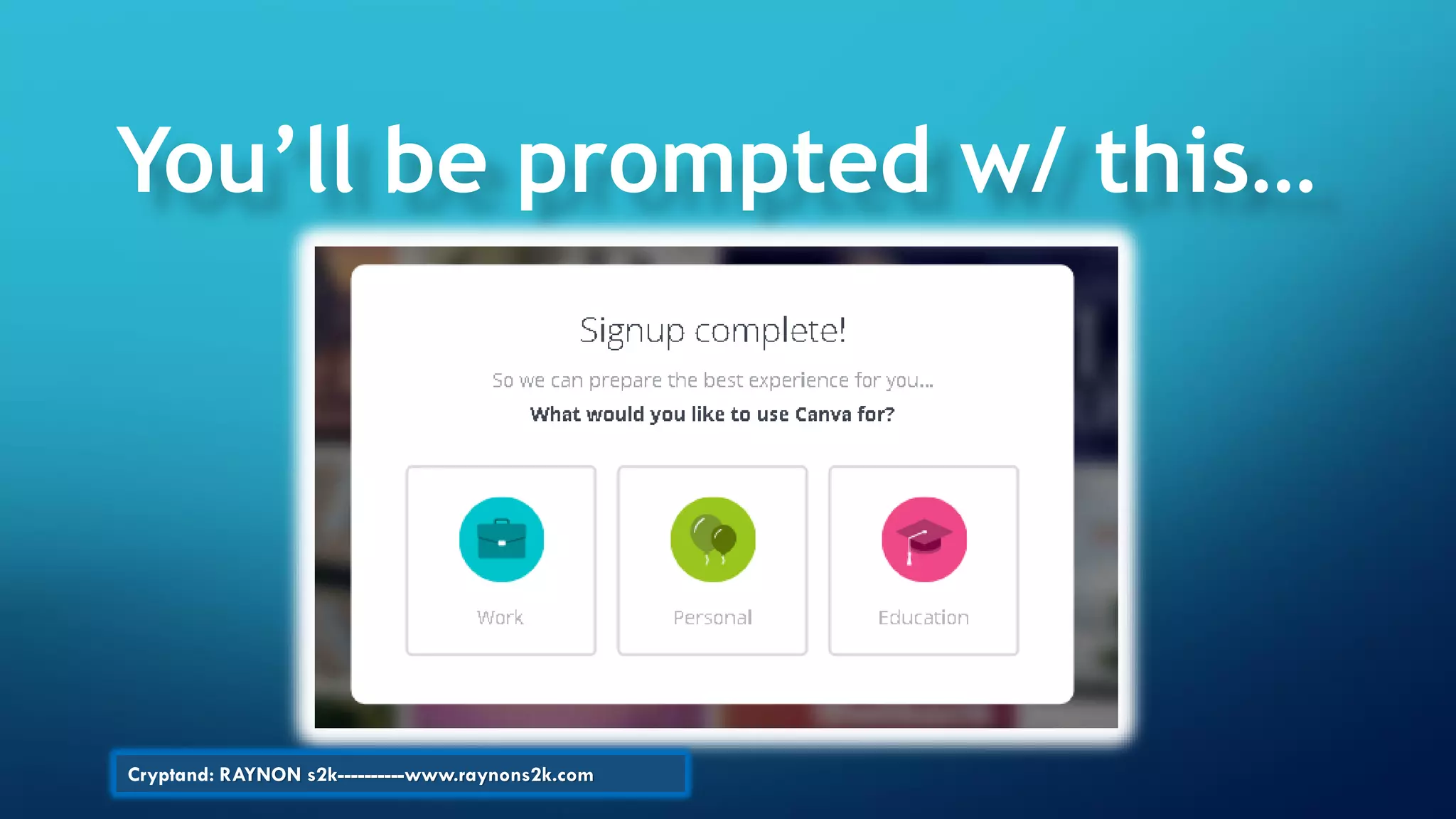
You’ll be prompted w/ this…
Cryptand: RAYNON s2k----------www.raynons2k.com
Let’s choose this one… click
Cryptand: RAYNON s2k----------www.raynons2k.com
…You may also check and
Confirm your Email
Cryptand: RAYNON s2k----------www.raynons2k.com
Then click…
Cryptand: RAYNON s2k----------www.raynons2k.com
This is your Canva webpage
Dashboard…
Cryptand: RAYNON s2k----------www.raynons2k.com
Your Dashboard is well
organized & looks elegant
Cryptand: RAYNON s2k----------www.raynons2k.com
With beautiful design templates
Cryptand: RAYNON s2k----------www.raynons2k.com
Friends and collaborators
may also share their designs
Cryptand: RAYNON s2k----------www.raynons2k.com
When you click this button
Cryptand: RAYNON s2k----------www.raynons2k.com
Furthermore, there is a NEW
Feature…
Cryptand: RAYNON s2k----------www.raynons2k.com
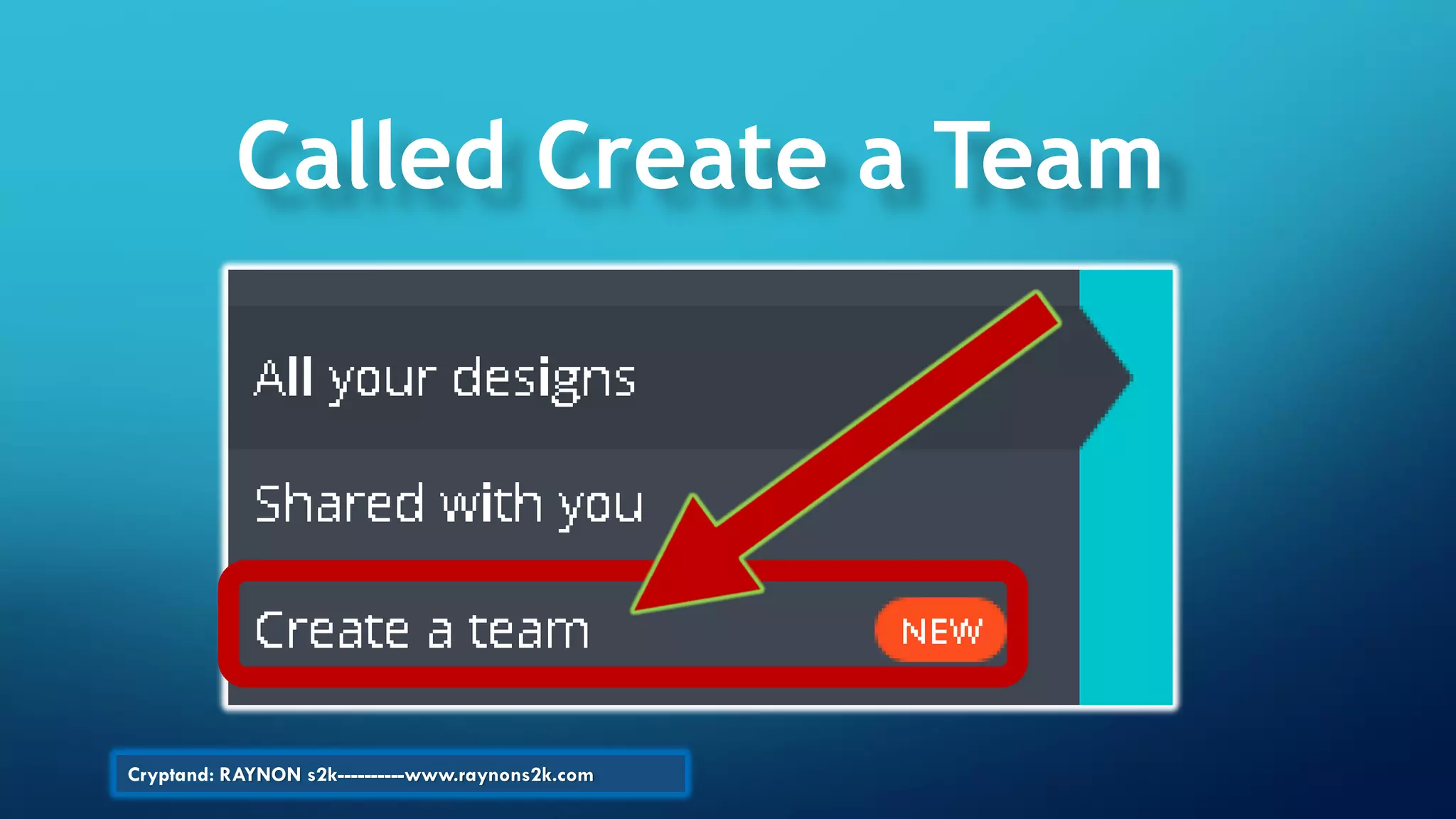
Called Create a Team
Cryptand: RAYNON s2k----------www.raynons2k.com
Now, Let’s create
INFOGRAPHIC…
Cryptand: RAYNON s2k----------www.raynons2k.com
In your Dashboard, click
Cryptand: RAYNON s2k----------www.raynons2k.com
Then scroll down and look for
the “Blogging & eBooks”
section until you see
Infographic icon…then
Cryptand: RAYNON s2k----------www.raynons2k.com
Click…
Cryptand: RAYNON s2k----------www.raynons2k.com
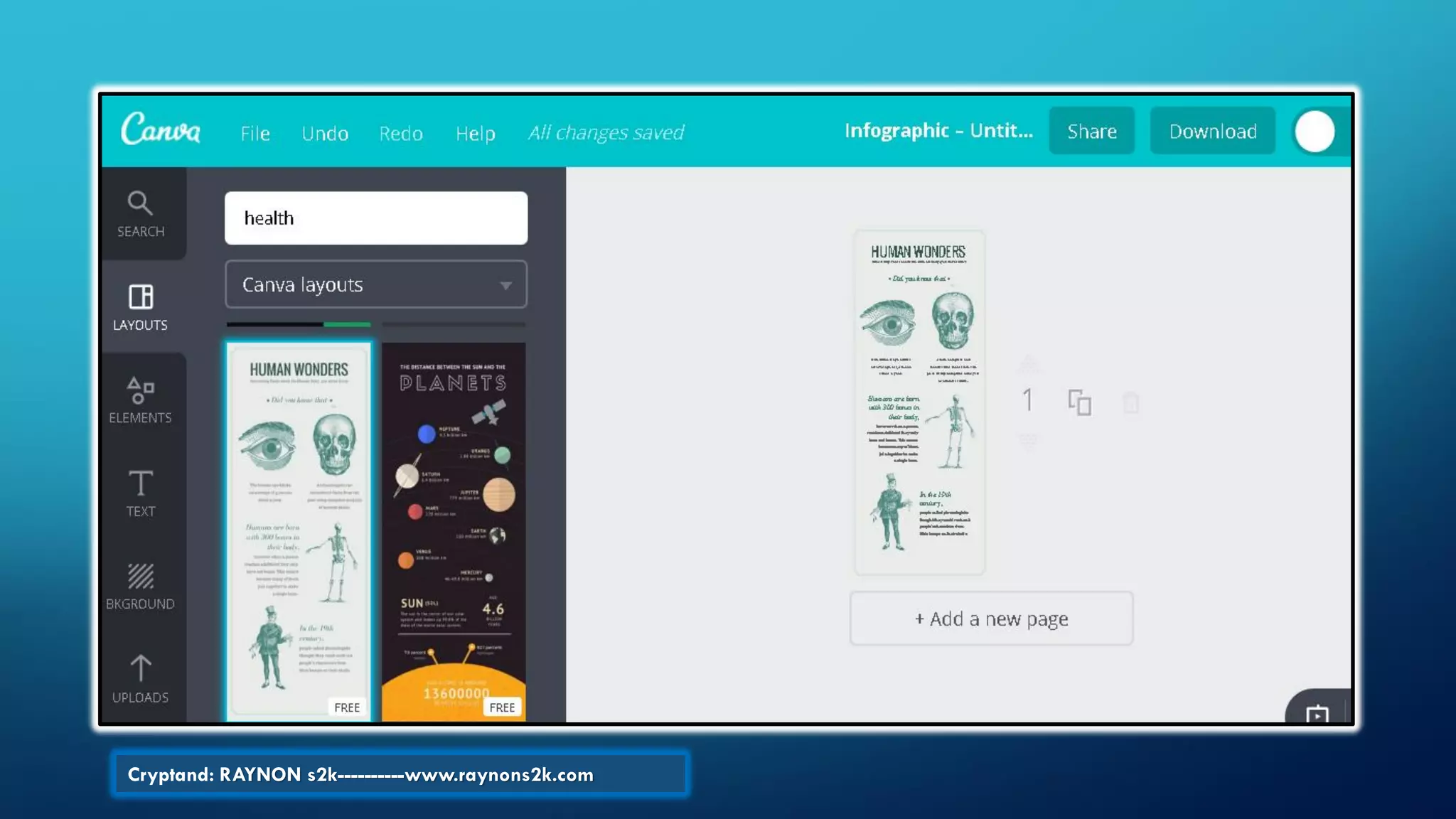
In a new windows tab,
you will see this…
Cryptand: RAYNON s2k----------www.raynons2k.com
Choose your Canva Layout…
Cryptand: RAYNON s2k----------www.raynons2k.com
Let’s choose HUMAN WONDERS Layout
Cryptand: RAYNON s2k----------www.raynons2k.com
This is how your Canva
Dashboard looks like now…
Cryptand: RAYNON s2k----------www.raynons2k.com
Let’s improve this design…
Cryptand: RAYNON s2k----------www.raynons2k.com
At the lower right part,
Click Zoom-In button …
Cryptand: RAYNON s2k----------www.raynons2k.com
Click this…
Cryptand: RAYNON s2k----------www.raynons2k.com
Change the Title
& Font size
Cryptand: RAYNON s2k----------www.raynons2k.com
Like this one…
Cryptand: RAYNON s2k----------www.raynons2k.com
To change the Eye, click & delete
Cryptand: RAYNON s2k----------www.raynons2k.com
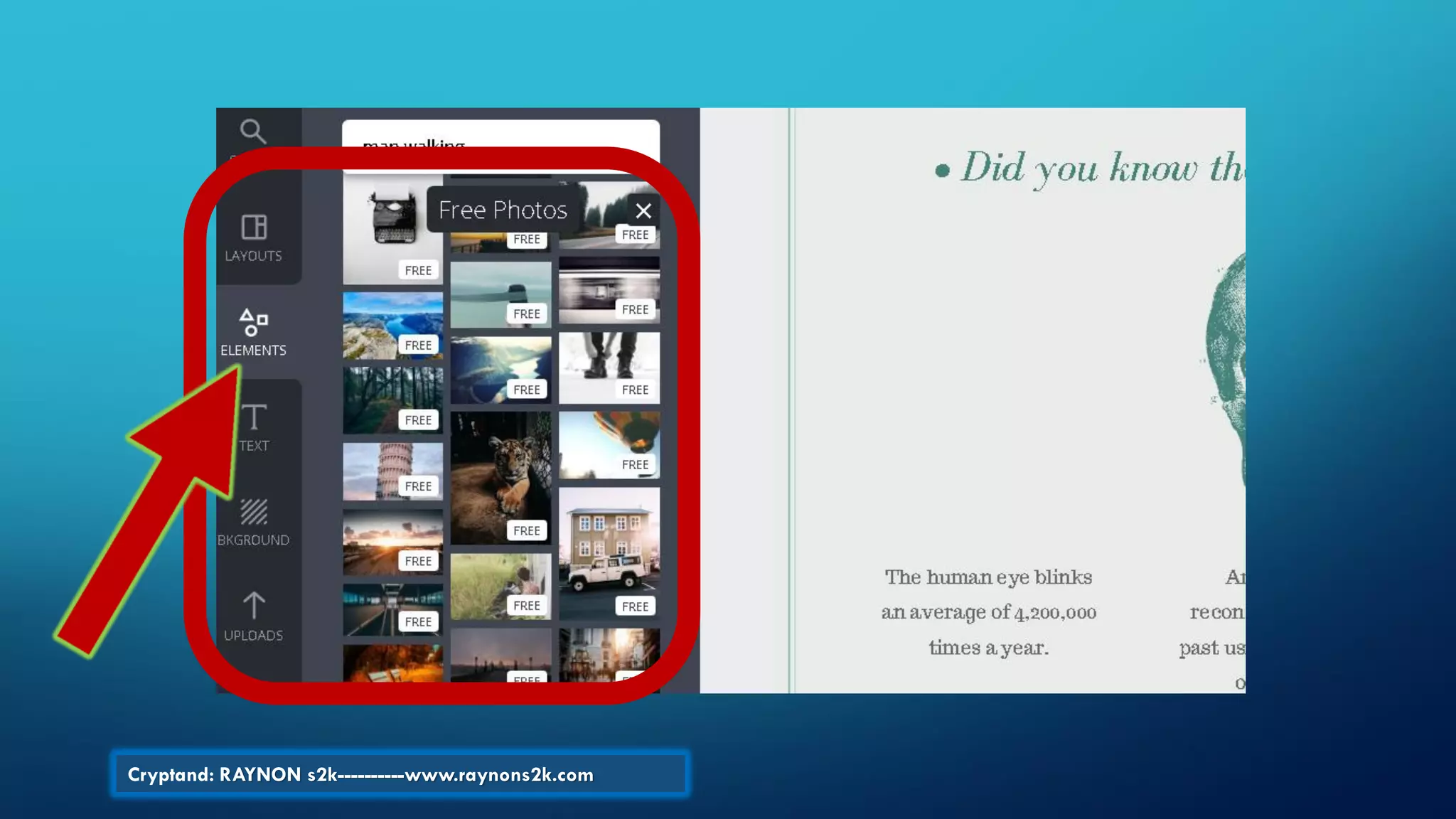
Choose from the ELEMENTS
Templates…
Cryptand: RAYNON s2k----------www.raynons2k.com
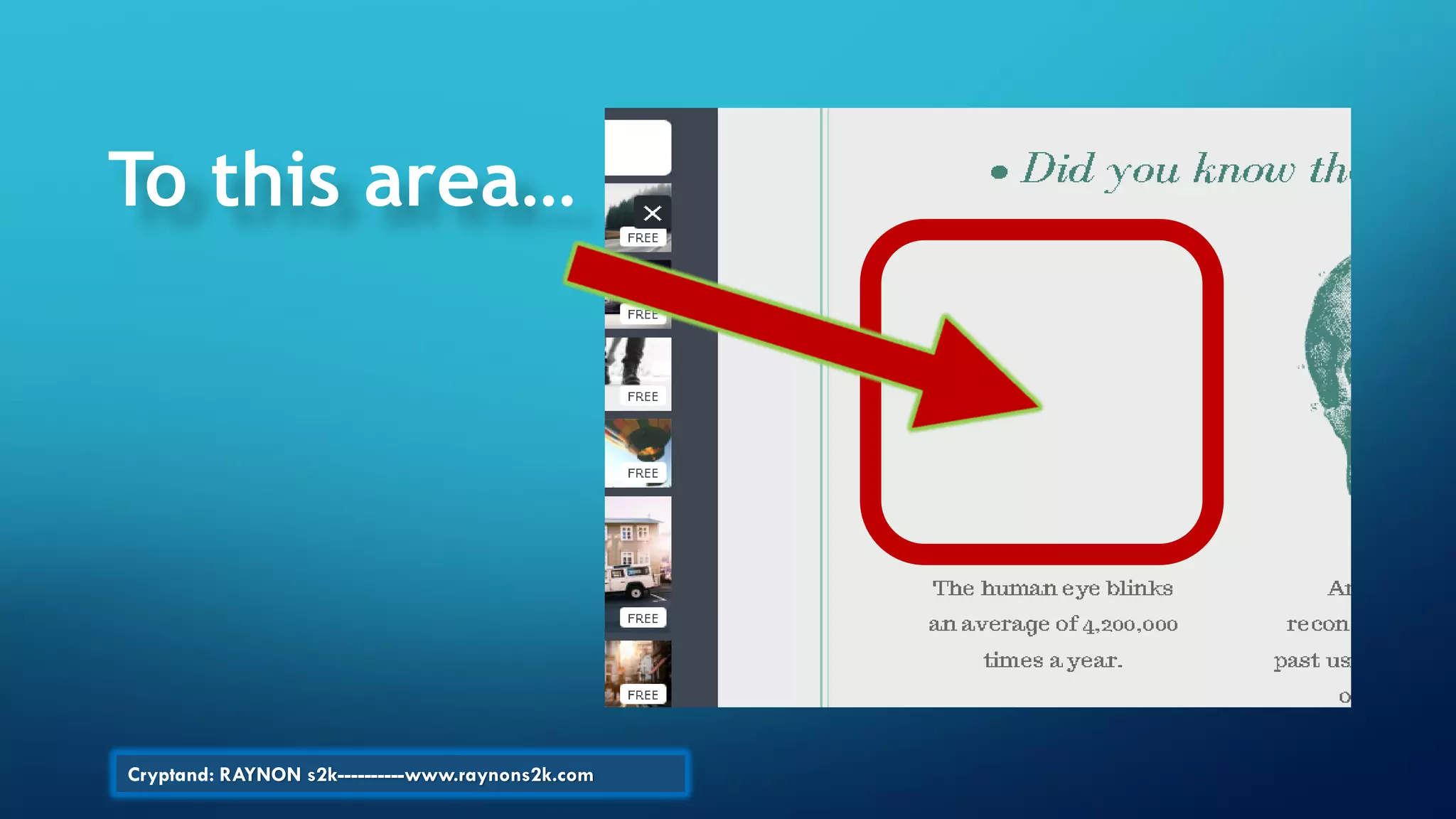
Then drag & drop any picture
from Left to the Right empty
box.
Cryptand: RAYNON s2k----------www.raynons2k.com
To this area…
Cryptand: RAYNON s2k----------www.raynons2k.com
As shown here…
Cryptand: RAYNON s2k----------www.raynons2k.com
The picture is quite large,
so, let’s “crop” it…
Cryptand: RAYNON s2k----------www.raynons2k.com
Click…
Cryptand: RAYNON s2k----------www.raynons2k.com
Adjust the exact crop area,
then click the “check” icon…
Cryptand: RAYNON s2k----------www.raynons2k.com
Click…
Cryptand: RAYNON s2k----------www.raynons2k.com
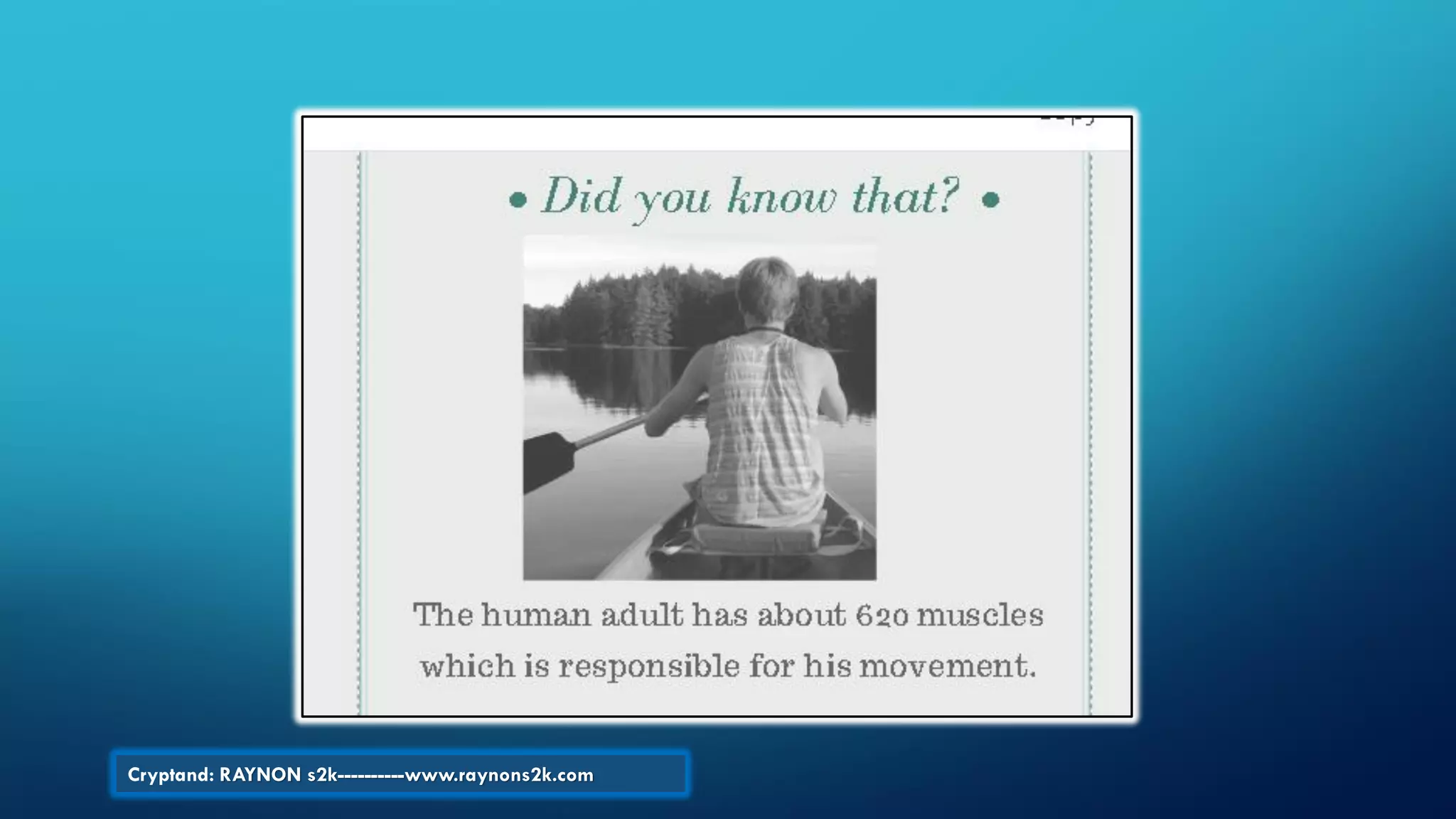
The result would look like this…
Cryptand: RAYNON s2k----------www.raynons2k.com
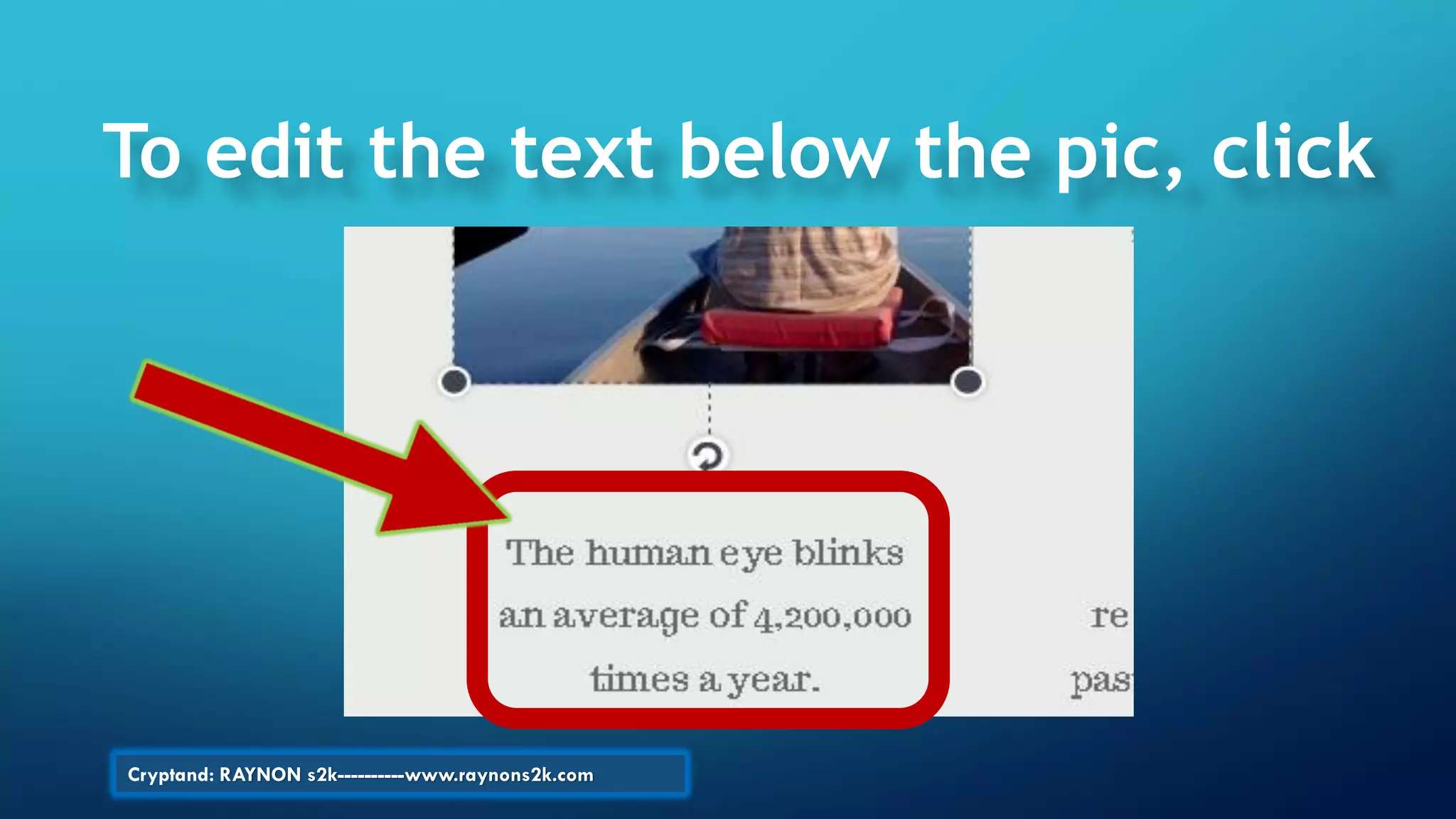
To edit the text below the pic, click
Cryptand: RAYNON s2k----------www.raynons2k.com
Then click
Cryptand: RAYNON s2k----------www.raynons2k.com
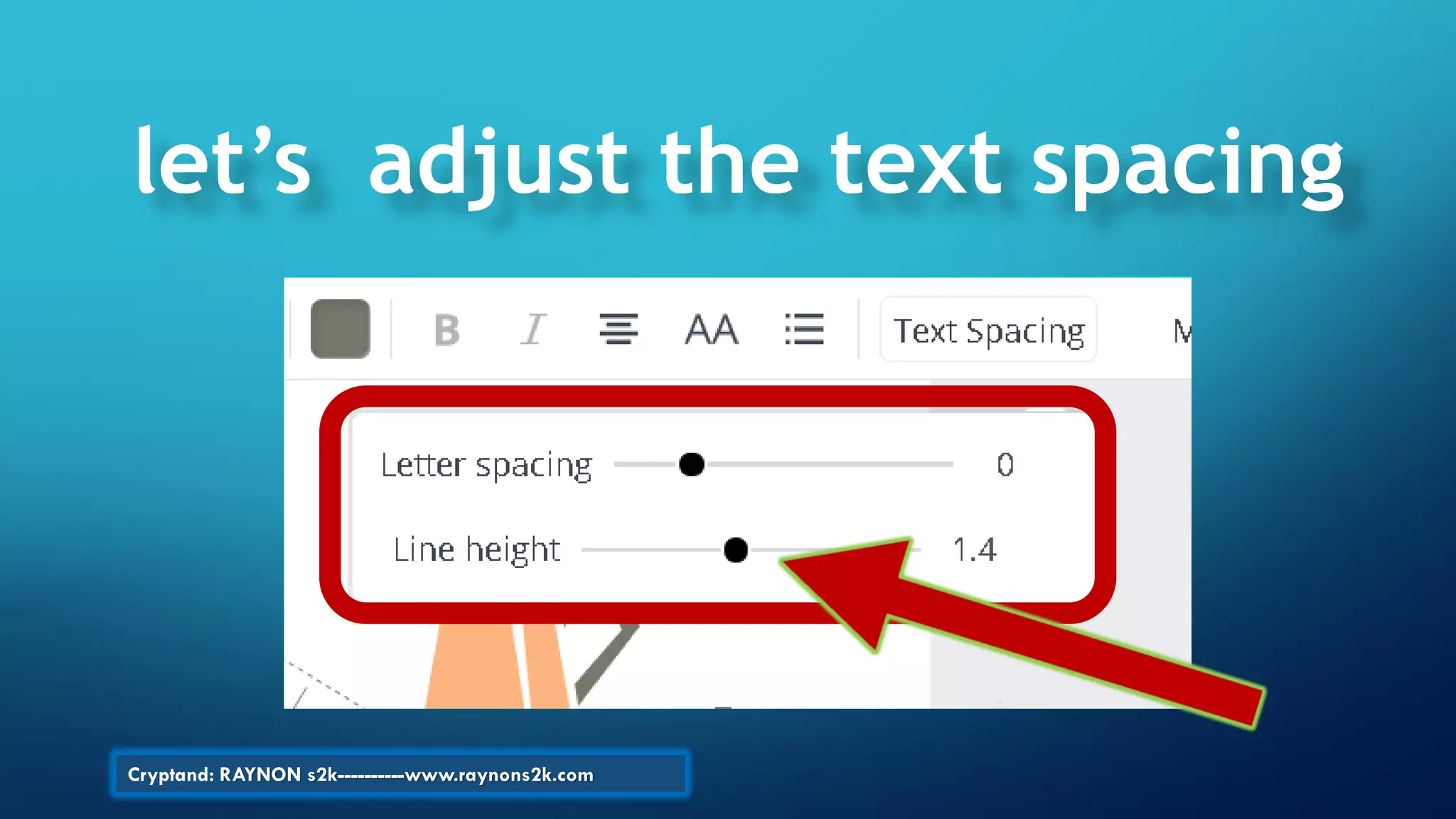
To adjust Letter Spacing
& Line Height ….
Cryptand: RAYNON s2k----------www.raynons2k.com
Adjust settings here…
Cryptand: RAYNON s2k----------www.raynons2k.com
This is the final picture
after editing…
Cryptand: RAYNON s2k----------www.raynons2k.com
Then, to add a text beside this image
Cryptand: RAYNON s2k----------www.raynons2k.com
Click to add Text to the Heading
Cryptand: RAYNON s2k----------www.raynons2k.com
Edit font size & font style
Cryptand: RAYNON s2k----------www.raynons2k.com
So that with a good font style
and size, the text will fit
perfectly…
Cryptand: RAYNON s2k----------www.raynons2k.com
Like this one…
Cryptand: RAYNON s2k----------www.raynons2k.com
For text below the
Heading, choose any of
these…
Cryptand: RAYNON s2k----------www.raynons2k.com
Then click & Drag…to the right side
Cryptand: RAYNON s2k----------www.raynons2k.com
As shown here….
Cryptand: RAYNON s2k----------www.raynons2k.com
You may adjust the text size….
Cryptand: RAYNON s2k----------www.raynons2k.com
Zoom-out to check your
work….click
Cryptand: RAYNON s2k----------www.raynons2k.com
This is 90%
done!...
Cryptand: RAYNON s2k----------www.raynons2k.com
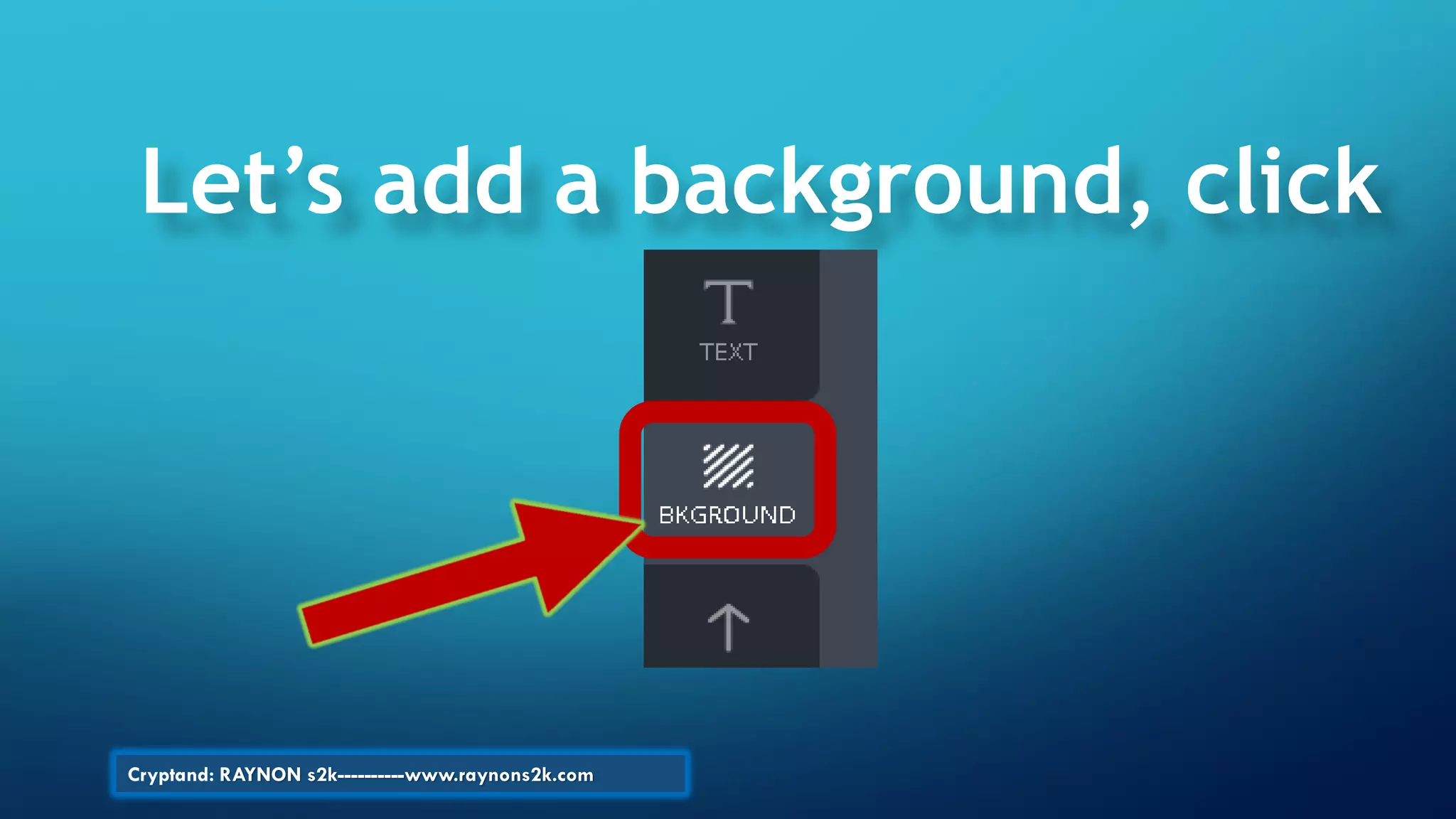
Let’s add a background, click
Cryptand: RAYNON s2k----------www.raynons2k.com
Click to choose your background
Cryptand: RAYNON s2k----------www.raynons2k.com
Let’s choose this one…
Cryptand: RAYNON s2k----------www.raynons2k.com
The next slide is the final
Infographic design :
HUMAN MARVELS
Cryptand: RAYNON s2k----------www.raynons2k.com
Looks great?…
Cryptand: RAYNON s2k----------www.raynons2k.com
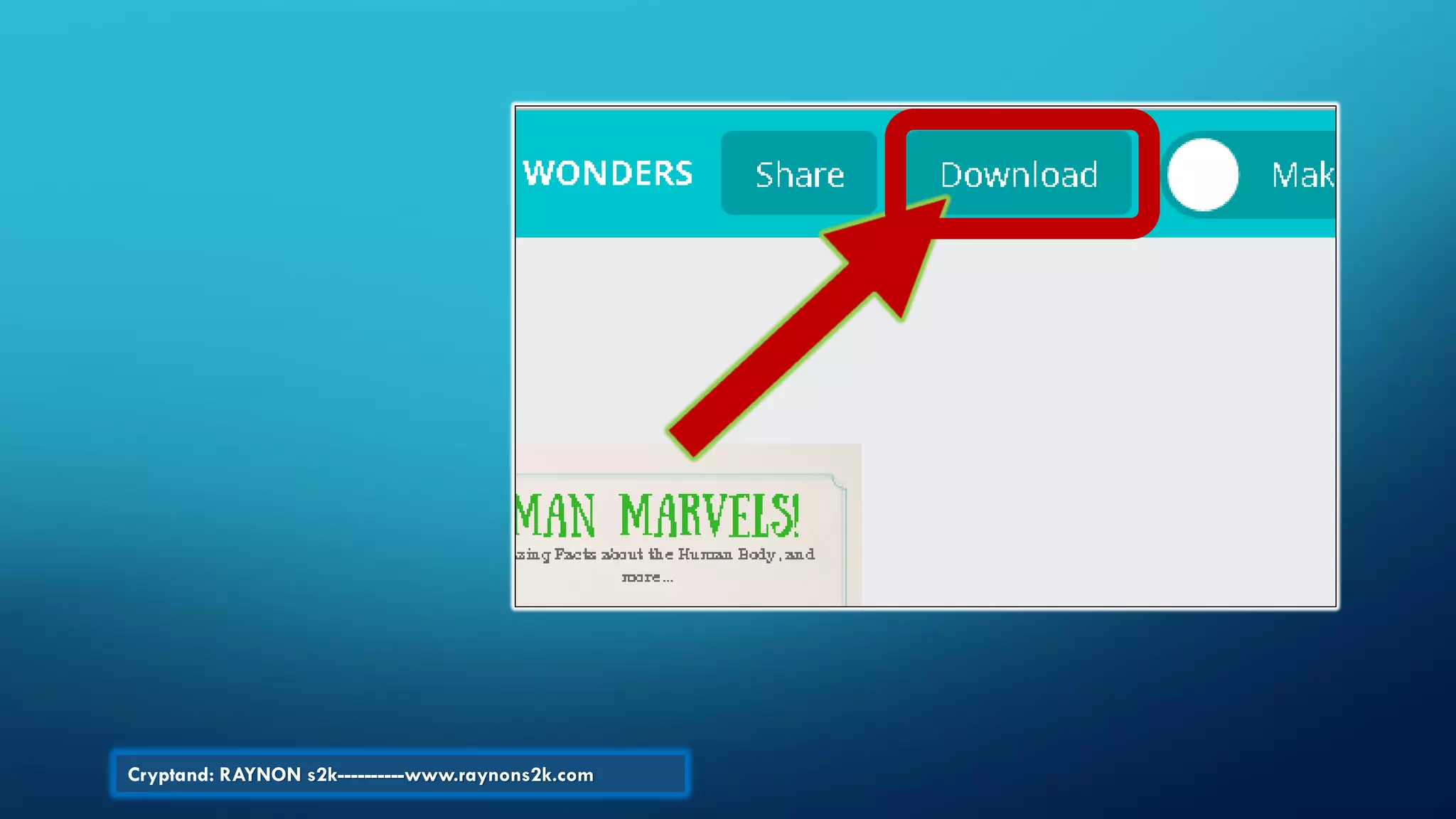
Let’s DOWNLOAD your
design…
Cryptand: RAYNON s2k----------www.raynons2k.com
Then, click…
Cryptand: RAYNON s2k----------www.raynons2k.com
Wait while your infographic is
downloading…
Cryptand: RAYNON s2k----------www.raynons2k.com
To share or see your design, click…
Cryptand: RAYNON s2k----------www.raynons2k.com
Now let’s
make a Logo
Cryptand: RAYNON s2k----------www.raynons2k.com
Click over here…
Cryptand: RAYNON s2k----------www.raynons2k.com
Select this one…
Cryptand: RAYNON s2k----------www.raynons2k.com
In the new window, this is
the dashboard for your
Logo project
Cryptand: RAYNON s2k----------www.raynons2k.com
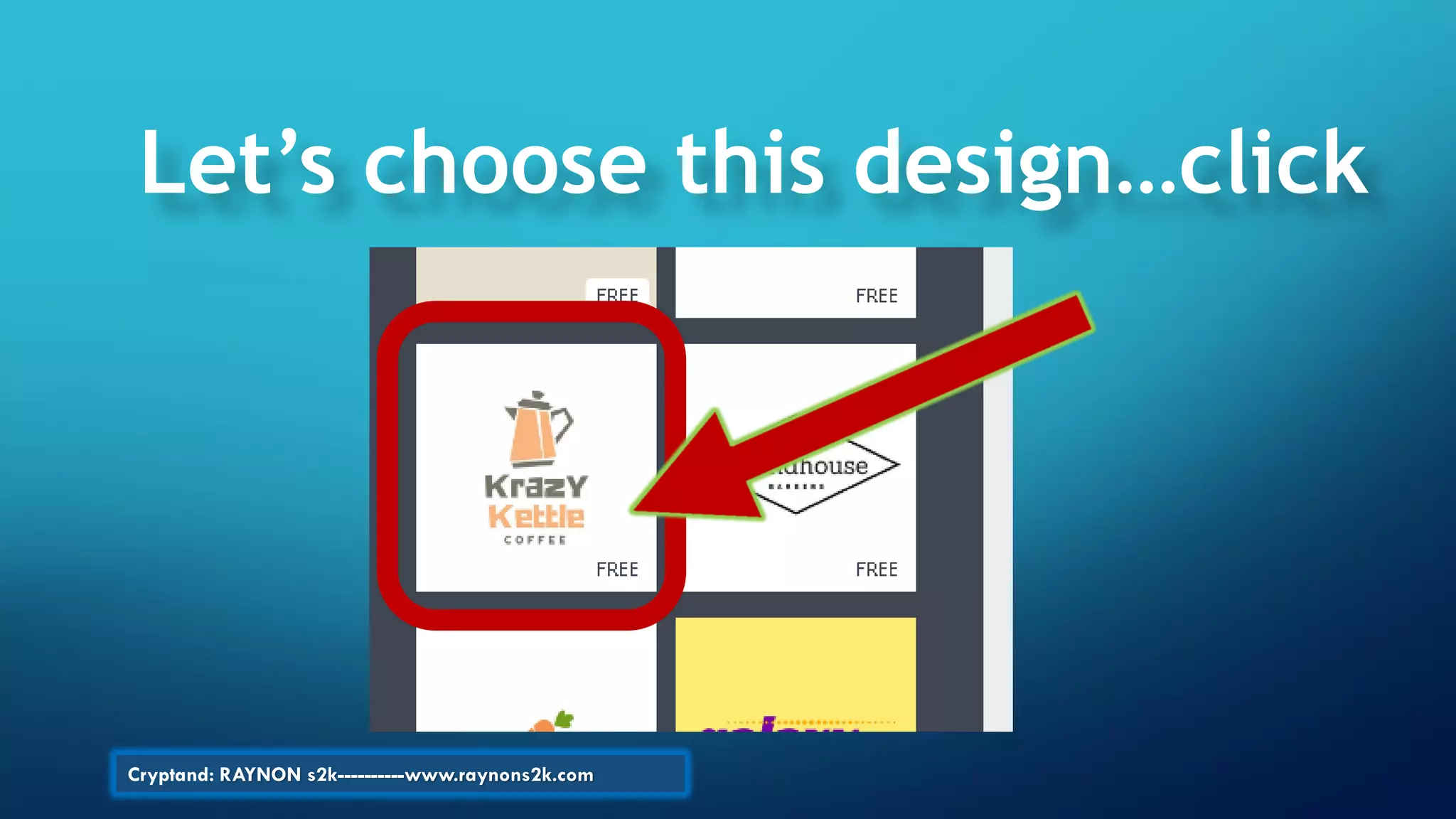
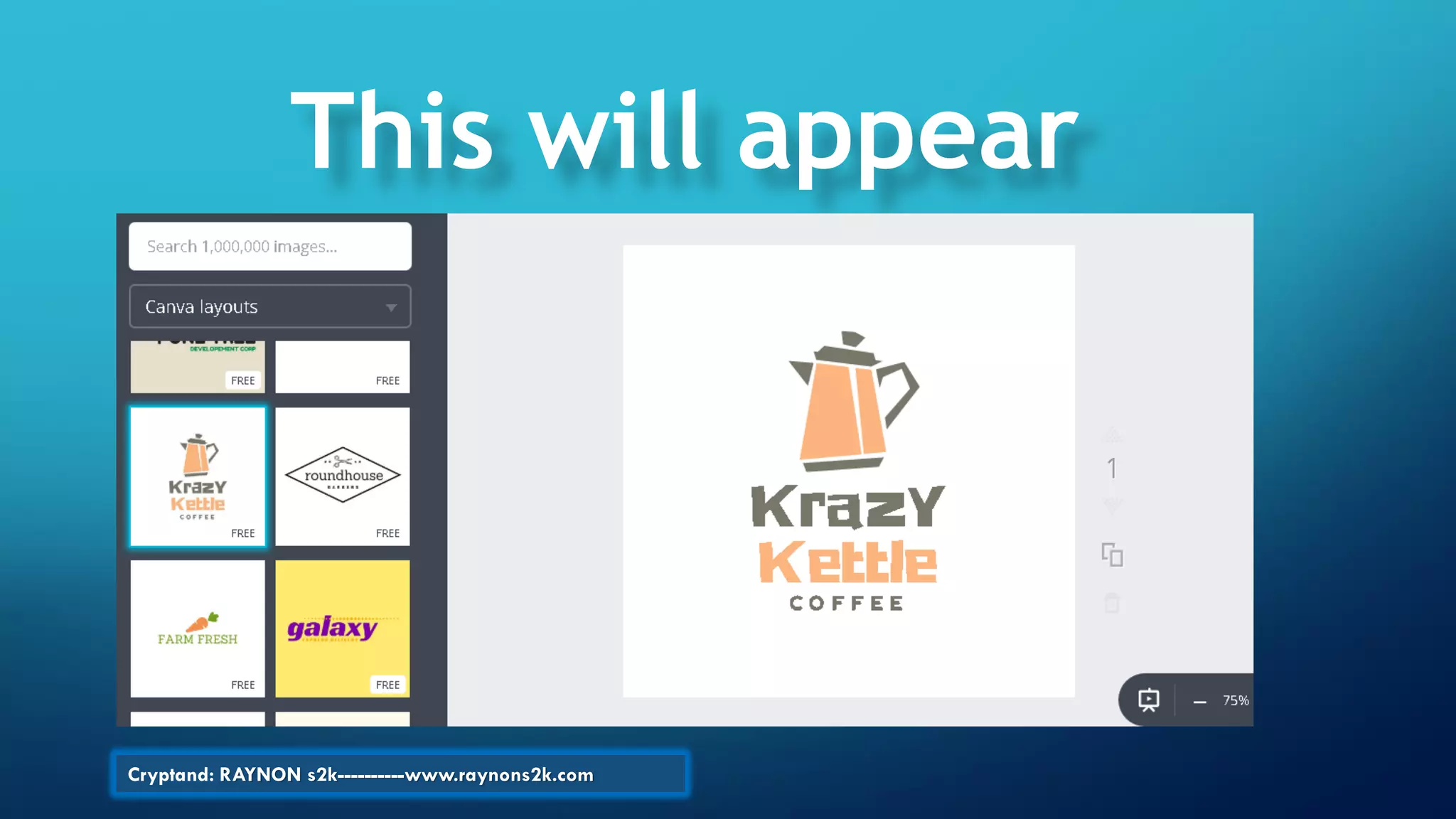
Choose on these designs
Cryptand: RAYNON s2k----------www.raynons2k.com
Let’s choose this design…click
Cryptand: RAYNON s2k----------www.raynons2k.com
This will appear
Cryptand: RAYNON s2k----------www.raynons2k.com
Let’s edit this text…
Cryptand: RAYNON s2k----------www.raynons2k.com
Adjust/edit font size & text
Cryptand: RAYNON s2k----------www.raynons2k.com
And make it like this…
Cryptand: RAYNON s2k----------www.raynons2k.com
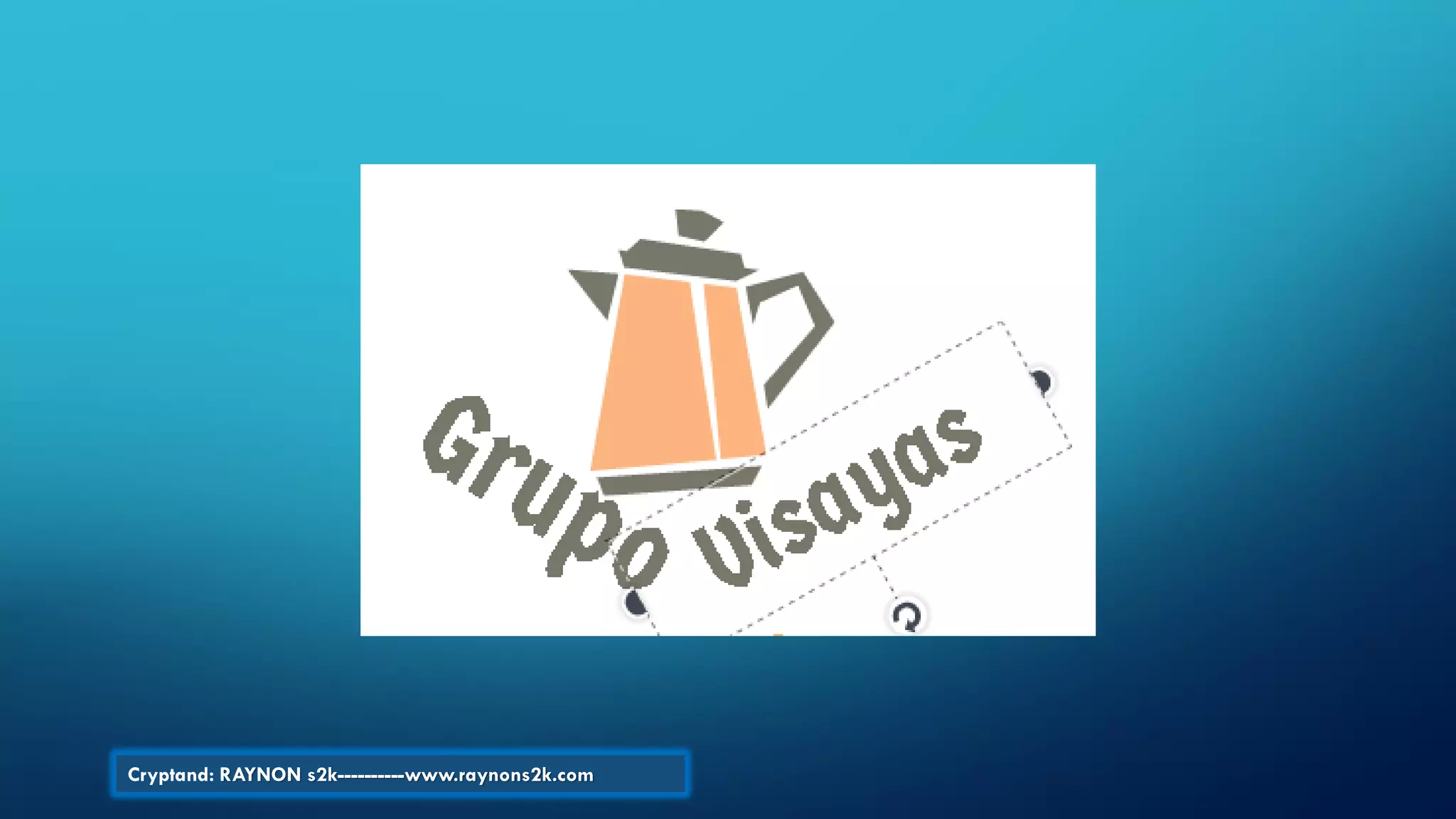
Then,let’s twist the text
orientation, like this…
Cryptand: RAYNON s2k----------www.raynons2k.com
let’s adjust the text spacing
Cryptand: RAYNON s2k----------www.raynons2k.com
Texts now looks Great!
Cryptand: RAYNON s2k----------www.raynons2k.com
Now let’s edit the two
subtexts below it…
Cryptand: RAYNON s2k----------www.raynons2k.com
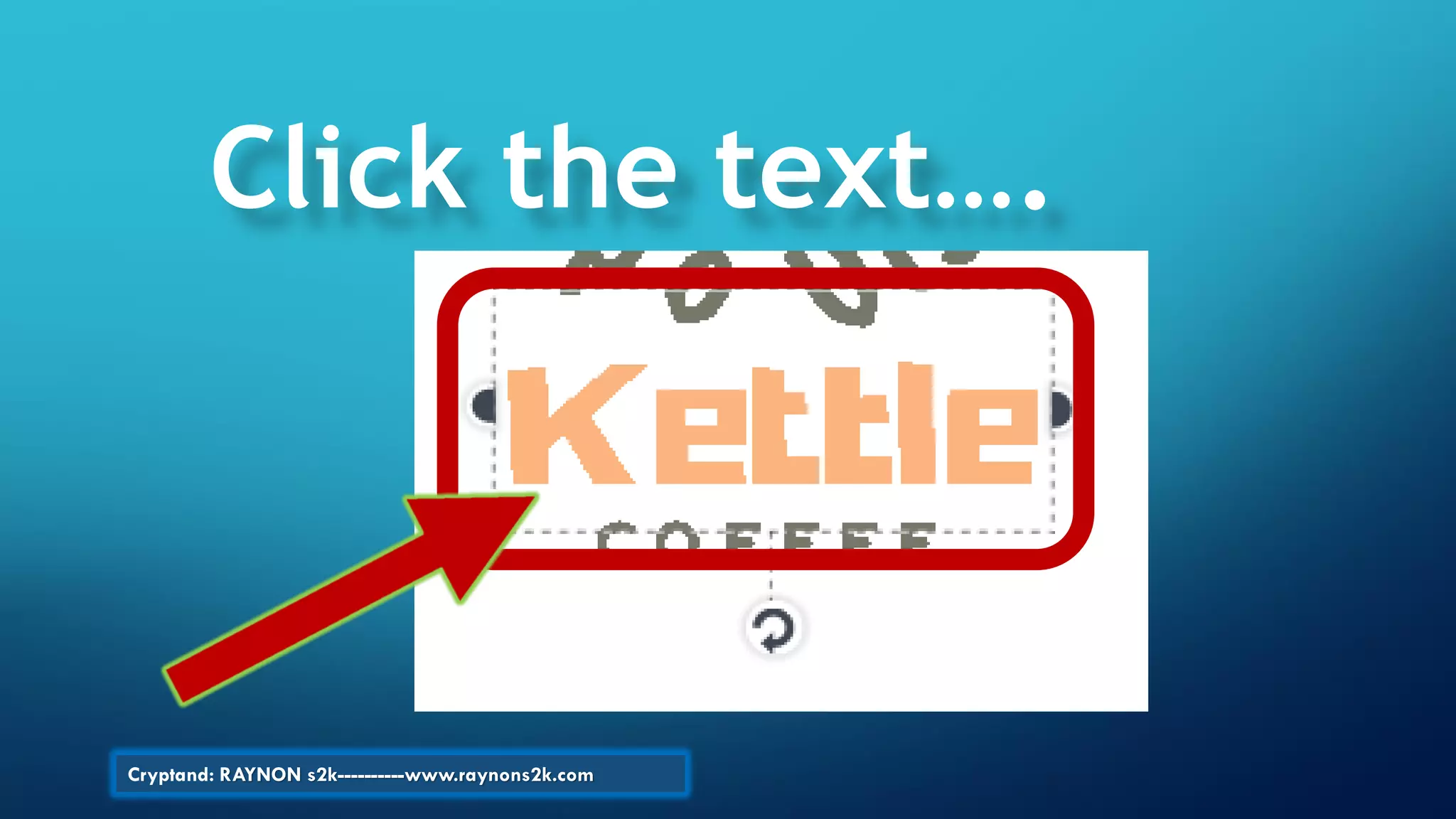
Click the text….
Cryptand: RAYNON s2k----------www.raynons2k.com
Change font color
& spacing
Cryptand: RAYNON s2k----------www.raynons2k.com
Notice the changes….
Cryptand: RAYNON s2k----------www.raynons2k.com
We are almost
done…see the changes
Cryptand: RAYNON s2k----------www.raynons2k.com
Texts now looks Great!
Cryptand: RAYNON s2k----------www.raynons2k.com
Let’s add 1 more
Header text, click on
the Text icon & “Add
subheading” of the
Dashboard…
Cryptand: RAYNON s2k----------www.raynons2k.com
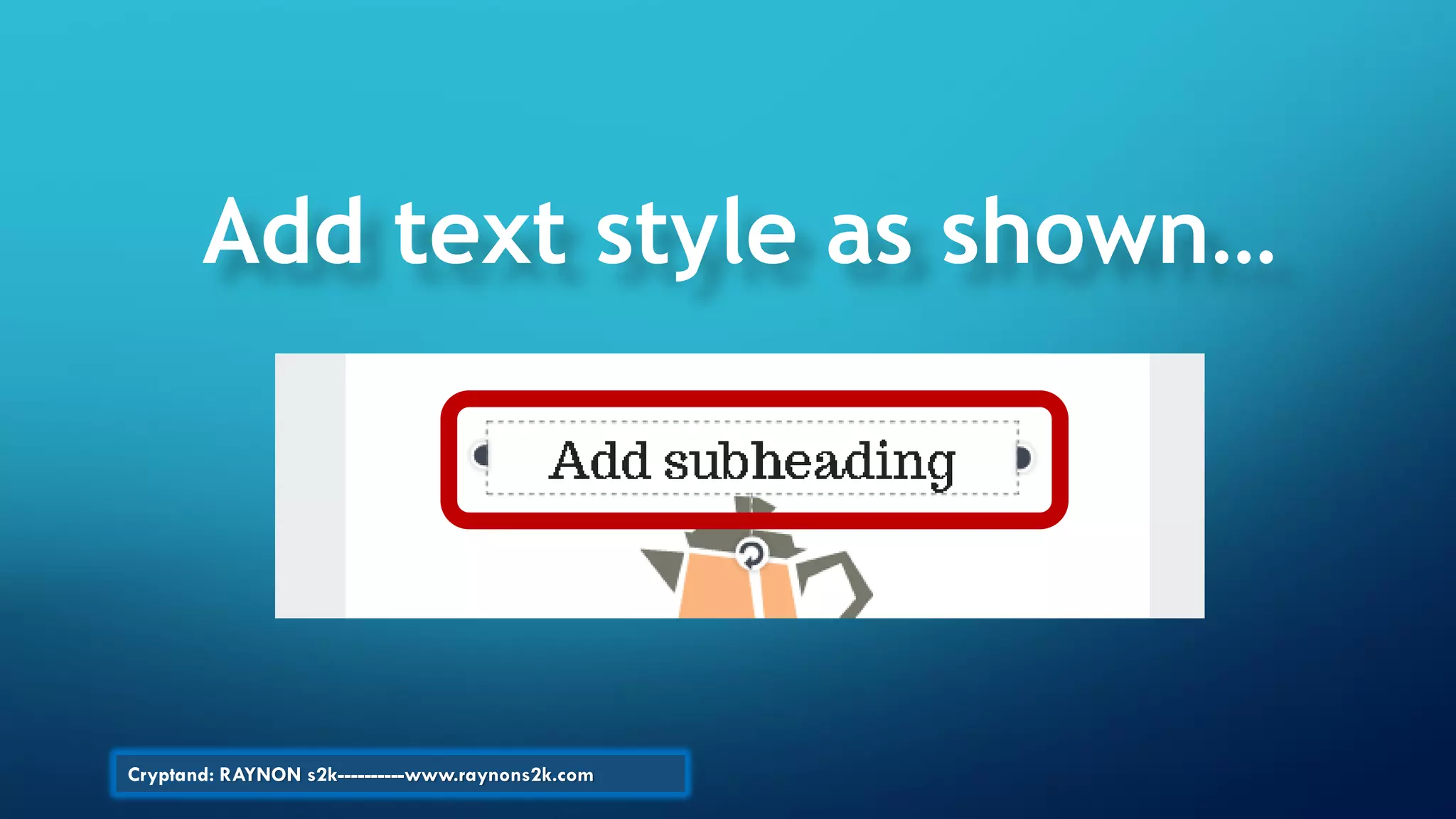
Add text style as shown…
Cryptand: RAYNON s2k----------www.raynons2k.com
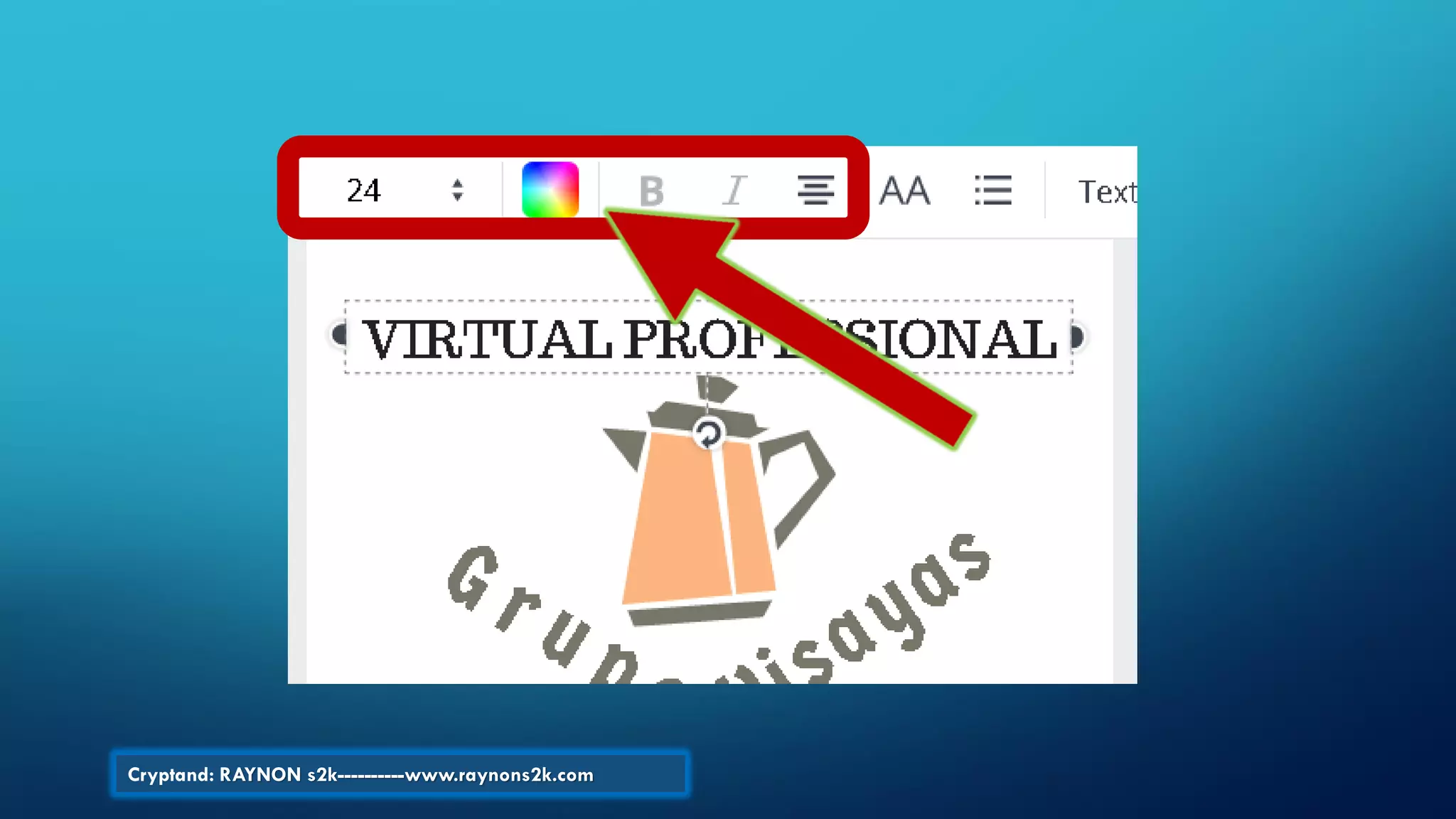
Adjust font style, size
and color…
Cryptand: RAYNON s2k----------www.raynons2k.com
Choose background, click any design
Cryptand: RAYNON s2k----------www.raynons2k.com
This is the result…needs improvement
Cryptand: RAYNON s2k----------www.raynons2k.com
Adjust font colors,
alignment, etc…and add
globe & computer
images
Cryptand: RAYNON s2k----------www.raynons2k.com
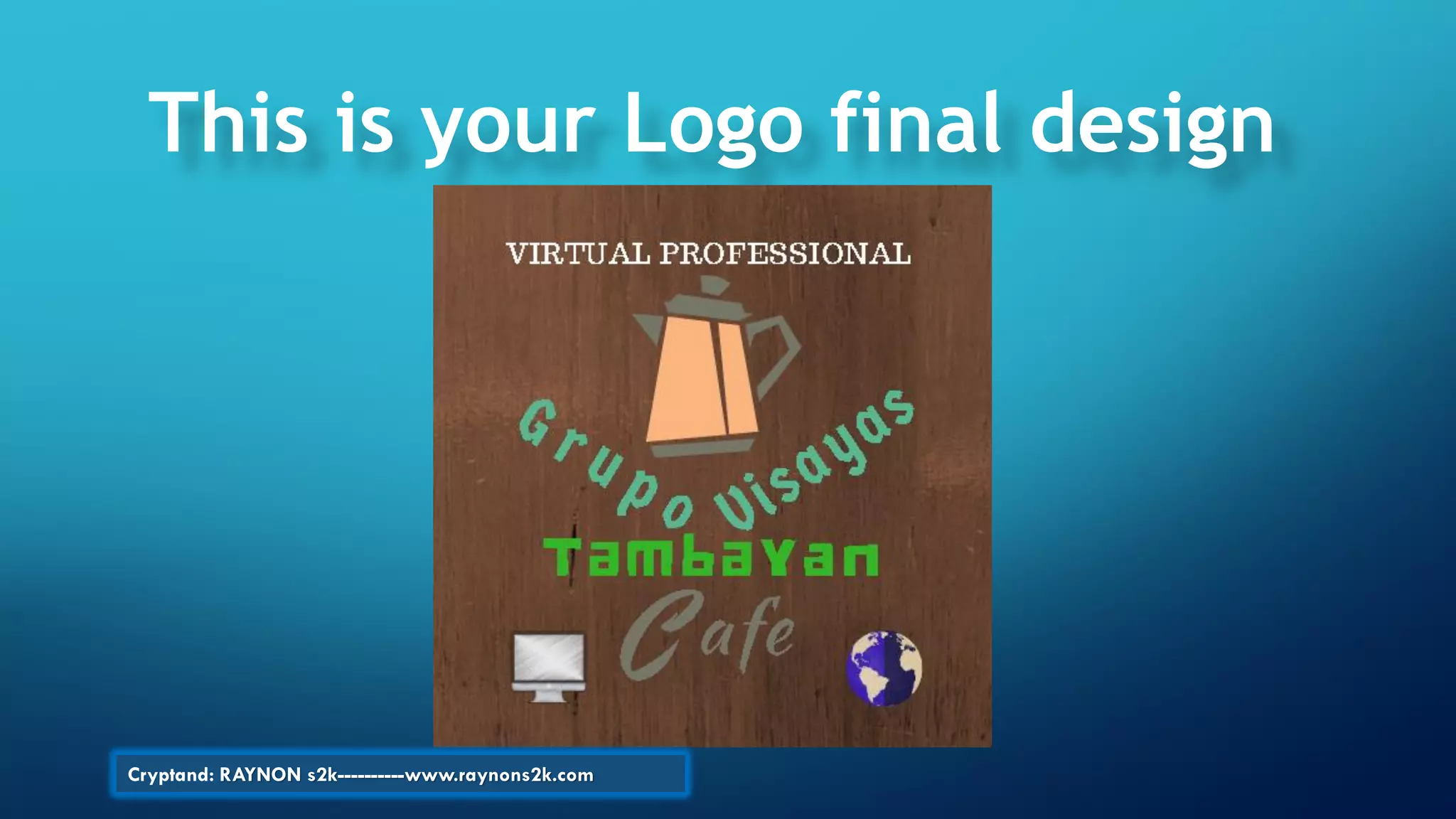
This is your Logo final design
Cryptand: RAYNON s2k----------www.raynons2k.com
Meet the Founders of Canva
Cryptand: RAYNON s2k----------www.raynons2k.com
www.raynons2k.com
Twitter: @ray_corres2k
Email:raynons2k77@gmail.com
Patience…conquers all
THANK YOU!!...
Cryptand: RAYNON s2k----------www.raynons2k.com

Canva