






QCTest™ CDMA Air
Interface Tester (CAIT™)
3.1 User’s Guide
QUALCOMM Proprietary
Export of this technology or software is regulated by the U.S. Government. Diversion contrary to U.S.
law prohibited.
All data and information contained in or disclosed by this document are confidential and proprietary
information of QUALCOMM Incorporated, and all rights therein are expressly reserved. By accepting
this material, the recipient agrees that this material and the information contained therein are held in
confidence and in trust and will not be used, copied, reproduced in whole or in part, nor its contents
revealed in any manner to others without the express written permission of QUALCOMM
Incorporated.
QUALCOMM Incorporated, 5775 Morehouse Drive, San Diego, California 92121-1714 U.S.A.
http://www.qualcomm.com
80-67702-13, Rev. B
Software changes may have occurred after this printing. QUALCOMM reserves the right to make changes in technical
and product specifications without prior notice. The Products/Equipment described in the attached documentation are
manufactured under one or more of the following U.S. Patents:
4,901,307 5,056,109 5,099,204 5,101,501 5,103,459 5,107,225 5,109,390 5,193,094 5,228,054
5,257,283 5,265,119 5,267,261 5,267,262 5,280,472 5,283,536 5,289,527 5,307,405 5,309,474
5,337,338 5,339,046 5,341,456 5,383,219 5,392,287 5,396,516 D356,560 5,408,697 5,414,728
5,414,796 5,416,797 5,426,392 5,437,055 D361,065 5,442,322 5,442,627 5,452,473 5,461,639
5,469,115 5,469,471 5,471,497 5,475,870 5,479,475 5,483,696 5,485,486 5,487,175 5,490,165
5,497,395 5,499,280 5,504,773 5,506,865 5,509,015 5,509,035 5,511,067 5,511,073 5,513,176
5,515,177 5,517,323 5,519,761 5,528,593 5,530,928 5,533,011 5,535,239 5,539,531 5,544,196
5,544,223 5,546,459 5,548,812 5,559,881 5,559,865 5,561,618 5,564,083 5,566,000 5,566,206
5,566,357 5,568,483 5,574,773 5,574,987 D375,740 5,576,662 5,577,022 5,577,265 D375,937
5,588,043 D376,804 5,589,756 5,590,069 5,590,406 5,590,408 5,592,548 5,594,718 5,596,570
5,600,754 5,602,834 5,602,833 5,603,096 5,604,459 5,604,730 5,608,722 5,614,806 5,617,060
5,621,752 5,621,784 5,621,853 5,625,876 5,627,857 5,629,955 5,629,975 5,638,412 5,640,414
5,642,398 5,644,591 5,644,596 5,646,991 5,652,814 5,654,979 5,655,220 5,657,420 5,659,569
5,663,807 5,666,122 5,673,259 5,675,581 5,675,644 5,680,395 5,687,229 D386,186 5,689,557
5,691,974 5,692,006 5,696,468 5,697,055 5,703,902 5,704,001 5,708,448 5,710,521 5,710,758
5,710,768 5,710,784 5,715,236 5,715,526 5,722,044 5,722,053 5,722,061 5,722,063 5,724,385
5,727,123 5,729,540 5,732,134 5,732,341 5,734,716 5,737,687 5,737,708 5,742,734 D393,856
5,748,104 5,751,725 5,751,761 5,751,901 5,754,533 5,754,542 5,754,733 5,757,767 5,757,858
5,758,266 5,761,204 5,764,687 5,774,496 5,777,990 5,778,024 5,778,338 5,781,543 5,781,856
5,781,867 5,784,406 5,784,532 5,790,589 5,790,632 5,793,338 D397,110 5,799,005 5,799,254
5,802,105 5,805,648 5,805,843 5,812,036 5,812,094 5,812,097 5,812,538 5,812,607 5,812,651
5,812,938 5,818,871 5,822,318 5,825,253 5,828,348 5,828,661 5,835,065 5,835,847 5,839,052
5,841,806 5,842,124 5,844,784 5,844,885 5,844,899 5,844,985 5,848,063 5,848,099 5,850,612
5,852,421 5,854,565 5,854,786 5,857,147 5,859,612 5,859,838 5,859,840 5,861,844 5,862,471
5,862,474 5,864,760 5,864,763 5,867,527 5,867,763 5,870,427 5,870,431 5,870,674 5,872,481
5,872,774 5,872,775 5,872,823 5,877,942 5,878,036 5,870,631 5,881,053 5,881,368 5,884,157
5,884,193 5,884,196 5,892,178 5,892,758 5,892,774 5,892,816 5,892,916 5,893,035 D407,701
5,898,920 5,903,554 5,903,862 D409,561 5,907,167 5,909,434 5,910,752 5,911,128 5,912,882
D410,893 5,914,950 5,915,235 5,917,708 5,917,811 5,917,812 5,917,837 5,920,284 5,920,834
D411,823 5,923,650 5,923,705 5,926,143 5,926,470 5,926,500 5,926,786 5,926,786 5,930,230
5,930,692 Other patents pending.
Information in this document is subject to change without notice and does not represent a commitment on the part of
QUALCOMM Incorporated. No part of this manual may be reproduced or transmitted in any form or by any means,
electronic or mechanical, including photocopying, recording, or information storage and retrieval systems for any
purpose other than the purchaser’s personal use, without the express written permission of QUALCOMM Incorporated.
QUALCOMM Incorporated assumes no responsibility for any errors which may appear in this document nor does it
make expressed or implied warranty of any kind with regard to this material, including, but not limited to, the implied
warranties of merchantability and fitness for the particular purpose.
QUALCOMM Incorporated shall not be liable for incidental or consequential damages in connection with, or arising out
of the furnishing, performance, or use of this document and the program material which it describes.
QUALCOMMis a registered trademark and registered service mark, PCubed, CAIT, QCP, QCT, QCTest, Friendly
Viewer, and Retriever are trademarks, and CD-7000, QCP-800, QCP-1900, QCT-1000, and QSec are registered
trademarks of QUALCOMM Incorporated. Microsoft and Excel are registered trademarks and Windows is a trademark
of Microsoft Corporation. HP is a trademark of Hewlett-Packard Company. PostScript is a registered trademark of
Adobe Systems Incorporated. All other product and brand names may be trademarks or registered trademarks of their
respective owners.
Copyright © 2000–2004 QUALCOMM Incorporated.
All rights reserved. Printed in the United States of America.
QCTest CAIT 3.1 User’s Guide QUALCOMM Proprietary Contents iii
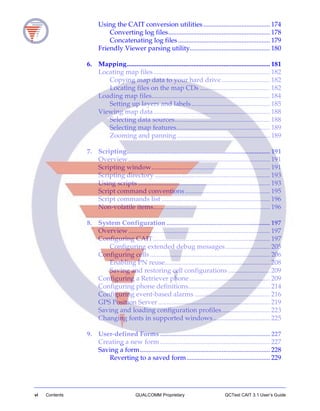
Contents
About This Guide .................................................................... xiii
Who should use this guide ........................................................xiii
Document revisions....................................................................xiii
Symbols used in this manual.....................................................xiv
Technical support........................................................................xiv
1. Getting Started .............................................................................. 1
What is CAIT?................................................................................. 1
System requirements ..................................................................... 2
Requirements for throughput performance testing........... 3
Setting up CAIT.............................................................................. 3
Connecting phones ................................................................. 4
Connecting the security key .................................................. 5
Installing CAIT software........................................................ 6
Starting CAIT for the first time ............................................. 7
CAIT main window....................................................................... 8
CAIT menus............................................................................. 9
CAIT status bar...................................................................... 10
CAIT session transcript ........................................................ 10
Capturing CAIT displays..................................................... 11
Pausing CAIT displays......................................................... 12
CMML in CAIT ............................................................................ 12
Upgrading CAIT .......................................................................... 12
CAIT Help..................................................................................... 13
CAIT License and Feature summary ........................................ 13
Uninstalling CAIT........................................................................ 13
2. Signal Analysis............................................................................ 15
Overview....................................................................................... 15
Temporal Analyzer window ...................................................... 15
Temporal Analyzer menu........................................................... 16
Viewing displays.......................................................................... 18
Toggle display under noise floor........................................ 20
Increase or decrease scaling................................................. 21
Increase or decrease power limit ........................................ 22
Toggle Grid ............................................................................ 24
Display Finger PN and Ec/Io.............................................. 24
Configuring the Temporal Analyzer......................................... 25
WCDMA Temporal Analyzer window .................................... 27
iv Contents QUALCOMM Proprietary QCTest CAIT 3.1 User’s Guide
Signal Graphs window................................................................ 28
Signal Information window ....................................................... 32
Finger Placement window.......................................................... 34
PN Scanner windows .................................................................. 36
PN Grid window................................................................... 36
PN Graph window................................................................ 38
WCDMA Pilot Scanner window................................................ 42
Replaying log files........................................................................ 44
3. Statistics ........................................................................................ 47
Overview....................................................................................... 47
Communications statistics.......................................................... 48
Markov statistics .......................................................................... 49
MUX1 and layer 2 statistics ........................................................ 51
MUX2 statistics............................................................................. 54
IS2000 MUX statistics .................................................................. 56
Paging and access statistics ........................................................ 57
Common channel statistics......................................................... 59
Data testing ................................................................................... 62
Graph configuration ............................................................. 66
MDR status.................................................................................... 71
RLP statistics................................................................................. 72
Simple TDSO statistics ................................................................ 73
1xEV AT status ............................................................................. 75
1xEV finger information ............................................................. 77
1xEV pilot sets .............................................................................. 78
1xEV forward link statistics........................................................ 80
1xEV reverse link statistics ......................................................... 82
1xEV RLP statistics ...................................................................... 83
1xEV protocol summary ............................................................. 85
WCDMA block error rate ........................................................... 90
WCDMA layer 1 state.................................................................. 91
WCDMA downlink TFCS........................................................... 93
WCDMA physical channels ....................................................... 94
WCDMA transport channels...................................................... 95
WCDMA RLC uplink UM channel parameters ...................... 96
WCDMA RLC downlink ciphering and UM........................... 97
WCDMA RLC uplink TM channel parameters....................... 98
WCDMA RLC downlink TM channel parameters.................. 98
WCDMA RLC uplink AM channel parameters ...................... 99
WCDMA RLC downlink AM channel parameters............... 101
WCDMA RLC logical channel setup ...................................... 102
WCDMA RRC status ................................................................. 104
WCDMA MAC channel mapping........................................... 106
QCTest CAIT 3.1 User’s Guide QUALCOMM Proprietary Contents v
WCDMA MAC parameters...................................................... 107
WCDMA NAS errors................................................................. 109
WCDMA NAS mobility management .................................... 109
WCDMA NAS CS connection management.......................... 112
WCDMA NAS PS connection management .......................... 117
4. Status and Control .................................................................... 123
Overview..................................................................................... 123
System status .............................................................................. 123
WCDMA system status...................................................... 126
GPS information......................................................................... 127
Mobile version information...................................................... 129
Pilot sets....................................................................................... 130
DIP switch configuration .......................................................... 132
Active set configuration ............................................................ 134
Active set information............................................................... 135
Service configuration................................................................. 136
Memory peek/poke................................................................... 136
QPCH information..................................................................... 138
Factory test mode....................................................................... 138
gpsOne information................................................................... 142
Call monitor................................................................................ 143
WCDMA call monitor ........................................................ 147
Using call monitor timers................................................... 149
Mobile screen display................................................................ 150
5. Logging and Messages............................................................. 153
Overview..................................................................................... 153
CAIT logging conventions........................................................ 153
Logging Status window ............................................................ 154
Log file naming options ............................................................ 156
Logging Status menu................................................................. 157
Annotating log files ................................................................... 158
Viewing log files......................................................................... 159
Logging Mask dialog box ......................................................... 160
Effective Logging Mask window............................................. 163
Diagnostic Logging window.................................................... 163
Mobile Messages window ........................................................ 165
Mobile Messages menu............................................................. 166
Mobile Messages Configuration dialog box .......................... 168
Log message displays................................................................ 170
Logging power-up messages ................................................... 174
vi Contents QUALCOMM Proprietary QCTest CAIT 3.1 User’s Guide
Using the CAIT conversion utilities........................................ 174
Converting log files............................................................. 178
Concatenating log files ....................................................... 179
Friendly Viewer parsing utility................................................ 180
6. Mapping...................................................................................... 181
Locating map files...................................................................... 182
Copying map data to your hard drive............................. 182
Locating files on the map CDs .......................................... 182
Loading map files....................................................................... 184
Setting up layers and labels............................................... 185
Viewing map data...................................................................... 188
Selecting data sources......................................................... 188
Selecting map features........................................................ 189
Zooming and panning........................................................ 189
7. Scripting...................................................................................... 191
Overview..................................................................................... 191
Scripting window....................................................................... 191
Scripting directory ..................................................................... 193
Using scripts ............................................................................... 193
Script command conventions................................................... 195
Script commands list ................................................................. 196
Non-volatile items...................................................................... 196
8. System Configuration .............................................................. 197
Overview..................................................................................... 197
Configuring CAIT...................................................................... 197
Configuring extended debug messages........................... 205
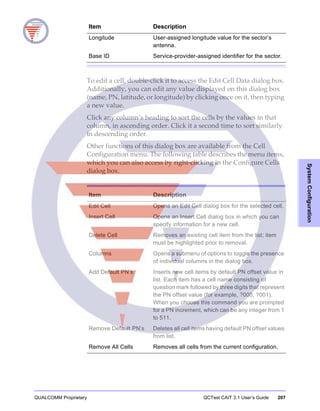
Configuring cells........................................................................ 206
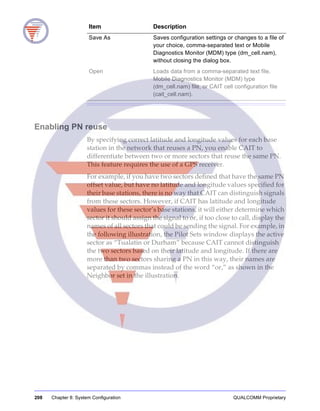
Enabling PN reuse............................................................... 208
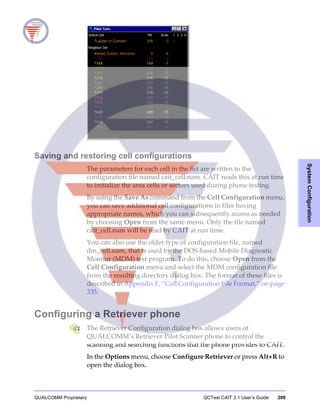
Saving and restoring cell configurations ......................... 209
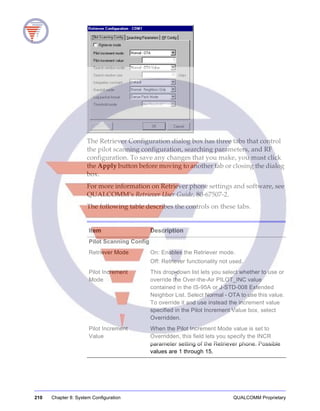
Configuring a Retriever phone ................................................ 209
Configuring phone definitions................................................. 214
Configuring event-based alarms ............................................. 216
GPS Position Server ................................................................... 219
Saving and loading configuration profiles............................. 223
Changing fonts in supported windows.................................. 225
9. User-defined Forms .................................................................. 227
Creating a new form.................................................................. 227
Saving a form.............................................................................. 228
Reverting to a saved form.................................................. 229
QCTest CAIT 3.1 User’s Guide QUALCOMM Proprietary Contents vii
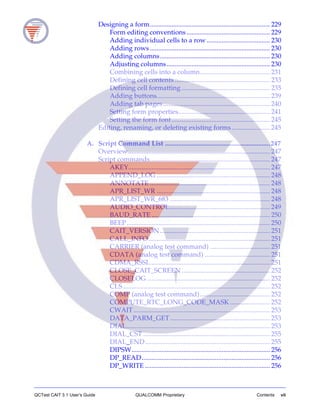
Designing a form........................................................................ 229
Form editing conventions .................................................. 229
Adding individual cells to a row ...................................... 230
Adding rows ........................................................................ 230
Adding columns.................................................................. 230
Adjusting columns.............................................................. 230
Combining cells into a column.......................................... 231
Defining cell contents ......................................................... 233
Defining cell formatting ..................................................... 235
Adding buttons.................................................................... 239
Adding tab pages ................................................................ 240
Setting form properties....................................................... 241
Setting the form font........................................................... 245
Editing, renaming, or deleting existing forms....................... 245
A. Script Command List ...............................................................247
Overview..................................................................................... 247
Script commands........................................................................ 247
AKEY..................................................................................... 247
APPEND_LOG .................................................................... 248
ANNOTATE ........................................................................ 248
APR_LIST_WR .................................................................... 248
APR_LIST_WR_683 ............................................................ 248
AUDIO_CONTROL............................................................ 249
BAUD_RATE ....................................................................... 250
BEEP...................................................................................... 250
CAIT_VERSION.................................................................. 251
CALL_INFO......................................................................... 251
CARRIER (analog test command) .................................... 251
CDATA (analog test command) ....................................... 251
CDMA_RSSI......................................................................... 251
CLOSE_CAIT_SCREEN ..................................................... 252
CLOSELOG.......................................................................... 252
CLS ........................................................................................ 252
COMP (analog test command).......................................... 252
COMPUTE_RTC_LONG_CODE_MASK ........................ 252
CWAIT.................................................................................. 253
DATA_PARM_GET............................................................ 253
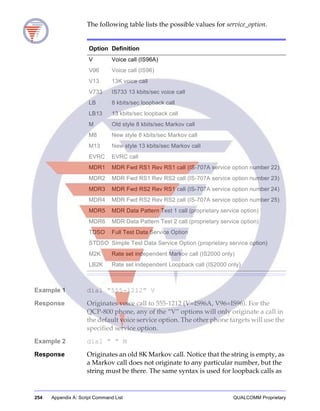
DIAL...................................................................................... 253
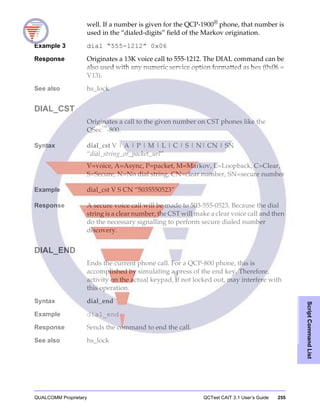
DIAL_CST ............................................................................ 255
DIAL_END........................................................................... 255
DIPSW................................................................................... 256
DP_READ............................................................................. 256
DP_WRITE ........................................................................... 256
viii Contents QUALCOMM Proprietary QCTest CAIT 3.1 User’s Guide
DTMF (analog test command)........................................... 256
END_WCDMA_CALL ....................................................... 257
ERR_CLR.............................................................................. 257
ERR_GET.............................................................................. 257
EXIT_CAIT........................................................................... 257
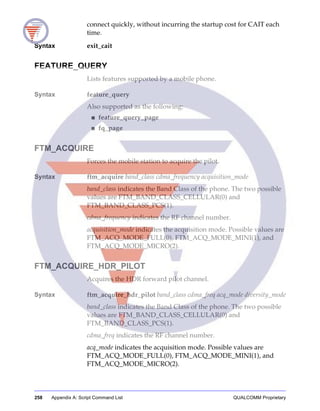
FEATURE_QUERY ............................................................. 258
FTM_ACQUIRE................................................................... 258
FTM_ACQUIRE_HDR_PILOT.......................................... 258
FTM_ACQUIRE_HDR_SYSTEM_TIME.......................... 259
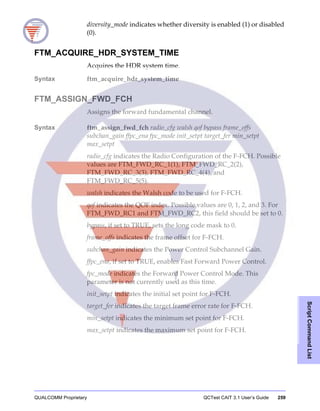
FTM_ASSIGN_FWD_FCH ................................................ 259
FTM_ASSIGN_FWD_SCH................................................. 260
FTM_ASSIGN_REV_FCH.................................................. 260
FTM_ASSIGN_REV_SCH.................................................. 261
FTM_DEASSIGN_HDR_CHANNELS............................. 262
FTM_DEASSIGN_TRAFFIC.............................................. 262
FTM_DEMOD_HDR_CC_MAC_FTC.............................. 262
FTM_LOOPBACK_FCH .................................................... 262
FTM_LOOPBACK_SCH .................................................... 263
FTM_MODULATE_REV_ACCESS_CH.......................... 263
FTM_MODULATE_REV_TRAFFIC_CH......................... 264
FTM_SET_MODE................................................................ 265
FTM_SYNC .......................................................................... 265
GET_BAUD_RATES ........................................................... 265
GET_CAIT_OPTION .......................................................... 265
GET_EXT_STATE................................................................ 267
GET_PORT........................................................................... 267
GET_SCREEN...................................................................... 267
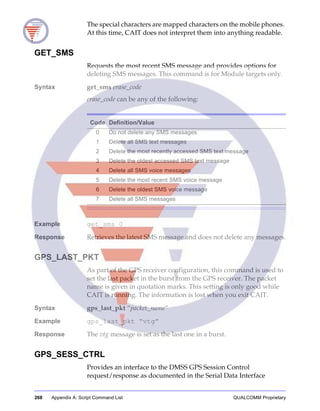
GET_SMS.............................................................................. 268
GPS_LAST_PKT .................................................................. 268
GPS_SESS_CTRL................................................................. 268
HELP..................................................................................... 269
HDR_DIPSW_CLEAR_ALL .............................................. 269
HDR_DIPSW_RD_MASK.................................................. 269
HDR_DIPSW_RESET ......................................................... 270
HDR_DIPSW_SET............................................................... 270
HDR_DIPSW_SET_MASK................................................. 270
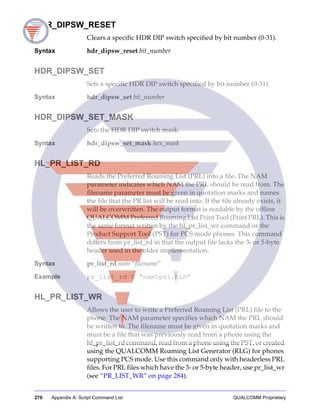
HL_PR_LIST_RD................................................................. 270
HL_PR_LIST_WR................................................................ 270
HS_LOCK............................................................................. 271
INP......................................................................................... 271
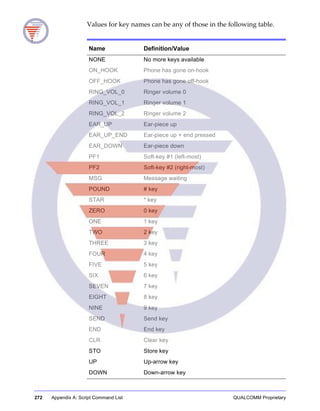
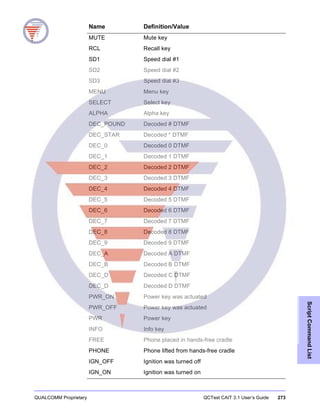
KEY........................................................................................ 271
KEY_HOLD.......................................................................... 275
LIST_CAIT_SCREENS........................................................ 275
LIST_PROFILES................................................................... 275
QCTest CAIT 3.1 User’s Guide QUALCOMM Proprietary Contents ix
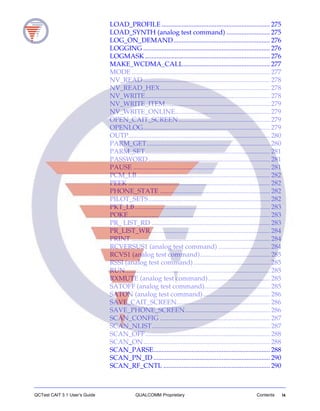
LOAD_PROFILE ................................................................. 275
LOAD_SYNTH (analog test command) .......................... 275
LOG_ON_DEMAND.......................................................... 276
LOGGING ............................................................................ 276
LOGMASK ........................................................................... 276
MAKE_WCDMA_CALL.................................................... 277
MODE ................................................................................... 277
NV_READ ............................................................................ 278
NV_READ_HEX.................................................................. 278
NV_WRITE........................................................................... 278
NV_WRITE_ITEM............................................................... 279
NV_WRITE_ONLINE......................................................... 279
OPEN_CAIT_SCREEN....................................................... 279
OPENLOG............................................................................ 279
OUTP..................................................................................... 280
PARM_GET.......................................................................... 280
PARM_SET........................................................................... 281
PASSWORD......................................................................... 281
PAUSE .................................................................................. 281
PCM_LB................................................................................ 282
PEEK ..................................................................................... 282
PHONE_STATE .................................................................. 282
PILOT_SETS......................................................................... 282
PKT_LB................................................................................. 283
POKE..................................................................................... 283
PR_ LIST_RD ....................................................................... 283
PR_LIST_WR........................................................................ 284
PRINT ................................................................................... 284
RCVERSUS1 (analog test command) ............................... 284
RCVS1 (analog test command).......................................... 285
RSSI (analog test command).............................................. 285
RUN....................................................................................... 285
RXMUTE (analog test command)..................................... 285
SATOFF (analog test command)....................................... 285
SATON (analog test command)........................................ 286
SAVE_CAIT_SCREEN........................................................ 286
SAVE_PHONE_SCREEN................................................... 286
SCAN_CONFIG .................................................................. 287
SCAN_NLIST....................................................................... 287
SCAN_OFF........................................................................... 288
SCAN_ON............................................................................ 288
SCAN_PARSE...................................................................... 288
SCAN_PN_ID ...................................................................... 290
SCAN_RF_CNTL ................................................................ 290
x Contents QUALCOMM Proprietary QCTest CAIT 3.1 User’s Guide
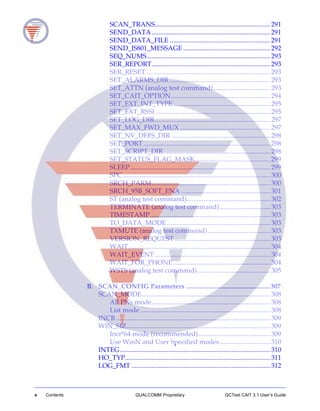
SCAN_TRANS..................................................................... 291
SEND_DATA....................................................................... 291
SEND_DATA_FILE ............................................................ 291
SEND_IS801_MESSAGE .................................................... 292
SEQ_NUMS.......................................................................... 293
SER_REPORT....................................................................... 293
SER_RESET .......................................................................... 293
SET_ALARMS_DIR ............................................................ 293
SET_ATTN (analog test command).................................. 293
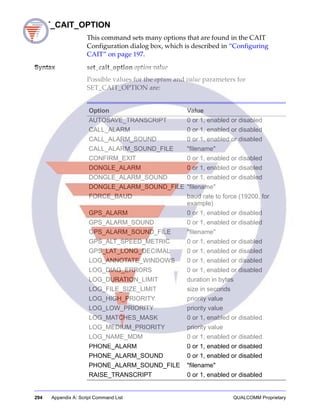
SET_CAIT_OPTION ........................................................... 294
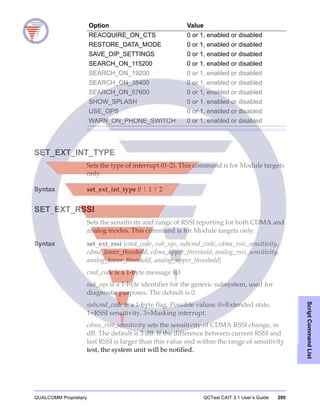
SET_EXT_INT_TYPE.......................................................... 295
SET_EXT_RSSI..................................................................... 295
SET_LOG_DIR..................................................................... 297
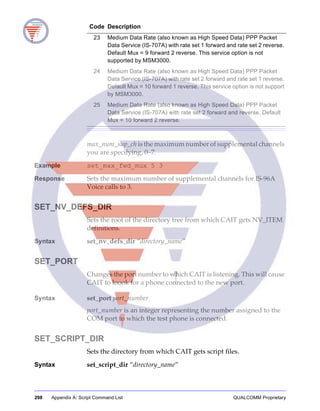
SET_MAX_FWD_MUX ...................................................... 297
SET_NV_DEFS_DIR ........................................................... 298
SET_PORT............................................................................ 298
SET_SCRIPT_DIR................................................................ 298
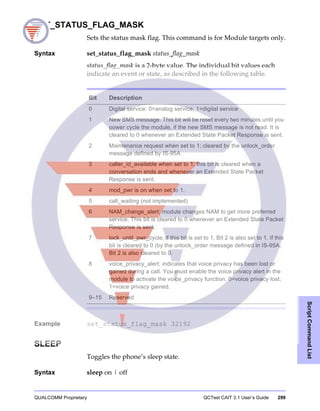
SET_STATUS_FLAG_MASK............................................. 299
SLEEP.................................................................................... 299
SPC ........................................................................................ 300
SRCH_PARM....................................................................... 300
SRCH_95B_SOFT_ENA ..................................................... 301
ST (analog test command).................................................. 302
TERMINATE (analog test command).............................. 303
TIMESTAMP........................................................................ 303
TO_DATA_MODE.............................................................. 303
TXMUTE (analog test command) ..................................... 303
VERSION_REQUEST ......................................................... 303
WAIT..................................................................................... 304
WAIT_EVENT ..................................................................... 304
WAIT_FOR_PHONE.......................................................... 304
WSTS (analog test command) ........................................... 305
B. SCAN_CONFIG Parameters ..................................................307
SCAN_MODE............................................................................. 308
All PNs mode....................................................................... 308
List mode.............................................................................. 308
INCR ............................................................................................ 309
WIN_SIZ...................................................................................... 309
Incr*64 mode (recommended)........................................... 309
Use WinN and User Specified modes.............................. 310
INTEG.......................................................................................... 310
HO_TYP....................................................................................... 311
LOG_FMT ................................................................................... 312
QCTest CAIT 3.1 User’s Guide QUALCOMM Proprietary Contents xi
LOG_THR ................................................................................... 312
LOG_MSK ................................................................................... 313
C. Sample Script Files ..................................................................315
Overview..................................................................................... 315
Service programming script file............................................... 315
Call origination test scripts....................................................... 320
D. Predefined Tone and Sound Codes ......................................325
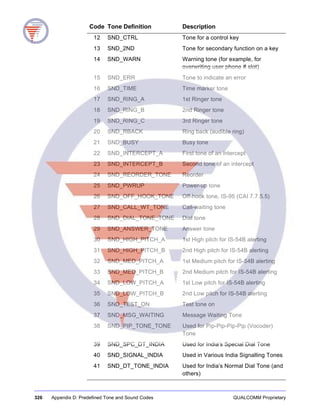
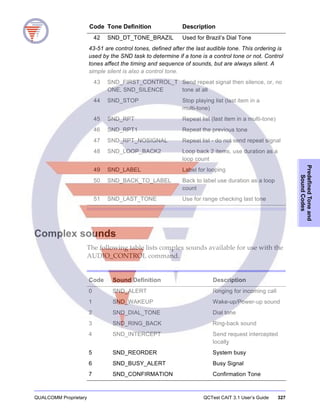
Predefined tones......................................................................... 325
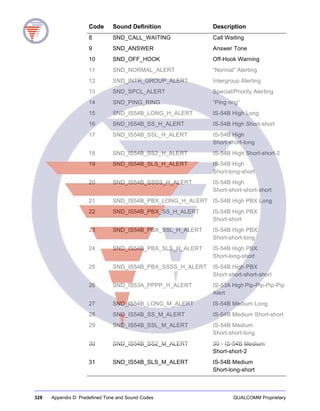
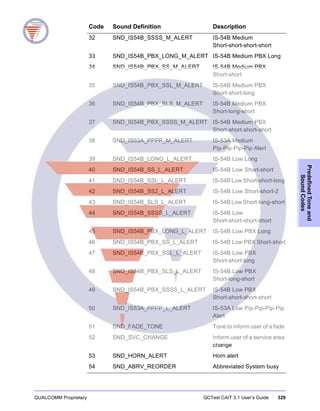
Complex sounds......................................................................... 327
E. CAIT Automation Interface ...................................................331
ICAITController ......................................................................... 332
ICAITEventSink ......................................................................... 334
F. Cell Configuration File Format .............................................335
Index ........................................................................................... 337
QUALCOMM Proprietary QCTest CAIT 3.1 User’s Guide xiii
About This Guide
This document is a user’s guide to the QCTestTM CDMA Air
Interface Tester (CAITTM
) application.
Who should use this guide
This user’s guide is written for technicians, administrators, and
other personnel who operate CAIT software. It assumes that you are
familiar with:
■ Basic CDMA technology
■ Windows NT 4.0, Windows 2000, or Windows XP
■ Software programming fundamentals (for those using the
scripting command interface)
If you are installing CAIT on Windows NT 4.0, Windows 2000, or
Windows XP, you must have Administrator access to the Windows
workstation on which CAIT is to be installed. This is required for
using the CAIT configuration features.
Document revisions
This guide is revised periodically to maintain consistency with the
current system hardware and software releases, to describe or
update operational enhancements, and to incorporate customer
suggestions.
The quantity and scope of changes dictate whether individual
change pages are issued or if a new manual is released.
xiv QUALCOMM Proprietary
Symbols used in this manual
Throughout this guide the following warning and caution symbols
precede the procedures to which they apply:
Caution A caution indicates that if procedures or instructions are not followed, there is a
risk of damage to the equipment.
Note The note adds commentary, such as information requiring special attention
during a procedure.
Tip Tips point out helpful features or procedures that may not be obvious.
Technical support
For technical problems and questions, contact QUALCOMM’s
QCTest Technical Support:
Telephone: 858-651-7958
Fax: 858-658-3069
We encourage you to contact us by email:
■ For technical questions, email qctest-support@qualcomm.com
■ For copy protection key upgrade questions, and permission file
requests and support, email qctest-upgrades@qualcomm.com
■ For extranet account requests, email
qctest-support-extranet@qualcomm.com
■ For renewal and pricing questions, and to request a quote, email
qctest-info@qualcomm.com
Tip To help resolve any problems, have information available about your computer,
phone, and GPS receiver hardware, as well as your operating system type. Also,
consult the About CAIT dialog box (described in “CAIT License and Feature
summary” on page 13) and collect the information provided there about the
version of CAIT you are using, your CAIT license, and the features supported by
your license.
QUALCOMM Proprietary QCTest CAIT 3.1 User’s Guide 1
GettingStarted
1 Getting Started
What is CAIT?
The QCTestTM
CDMA Air Interface Tester (CAITTM
) is a testing and
analysis tool that logs and displays call information going over the
air to and from a mobile phone in a cellular network. It allows you
to view, collect, and manage phone status, operating parameters,
and messages. The application runs on an IBM-compatible personal
computer (PC) connected by a serial link to a mobile phone. You can
use CAIT to do the following:
■ View and evaluate network conditions using the Temporal
Analyzer, Signal Graphs, and PN Scanner displays
■ Collect call performance statistics
■ Report diagnostic messages (when the message feature is
enabled in the phone)
■ Log over-the-air (OTA) messages
■ Log position data from a Global Positioning System (GPS)
receiver (when installed)
■ Replay log files for further analysis
■ Control and automate phone testing from CAIT using a large set
of scripting commands or the Call Monitor display
■ Collect data to help you evaluate the performance of over-the-air
data calls
■ Define your own data display windows that combine log
message values you want to track with formulas and functions
that format the data to meet your specific needs
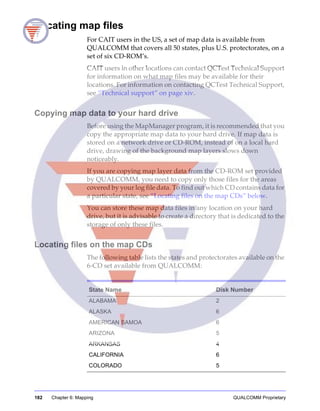
■ View real-time map displays of logging data containing GPS
coordinates
CAIT uses a serial communication protocol that connects the PC to
several different types of mobile phones, asynchronously, via serial
2 Chapter 1: Getting Started QUALCOMM Proprietary
interface, at either 19.2, 38.4, 57.6, or 115.2 kbps. CAIT can test a
variety of phones based on the QUALCOMM chipset and on
QUALCOMM diagnostic software.
CAIT supports the following GPS protocols:
■ NMEA (National Marine Electronics Association 0183 protocol)
■ TAIP (Trimble ASCII Interface Protocol)
■ ETAK (The old poll and response ETAK, not the newer ETAK)
System requirements
The following table describes the hardware items and operating
system required to operate the CAIT system. If your current setup
meets or exceeds these requirements, then no upgrade is necessary
to use CAIT.
Item Description
Computer Desktop or laptop computer; 500 MHz Pentium III
minimum, 800 MHz Pentium III recommended.
Note: This configuration is adequate for use with a
single test phone connected. For running multiple
instances of CAIT for use with multiple test phones (see
“Installing for multiple phones” on page 6), a faster
processor speed and more RAM is recommended.
RAM 128 MB minimum, 256 MB or greater recommended.
Hard drive Application requires 40 MB or greater. An additional
36 MB per hour is used when generating log files at full
rate.
Operating system Windows 2000, Windows XP
or
Windows NT 4.0 Service Pack 5 or higher.
Serial
communications
A free serial I/O port (two if using GPS) or USB
connection.
Additional port A parallel port, USB port, or PCMCIA slot is required for
attaching the copy protection key hardware.
QUALCOMM Proprietary QCTest CAIT 3.1 User’s Guide 3
GettingStarted
Requirements for throughput performance testing
The minimum system requirements mentioned in the previous table
may not be sufficient for throughput performance testing. When you
use QCTest CAIT with a data phone or terminal during a data call,
it is recommended that a high-performance system be used. Such a
system is necessary to achieve the highest throughput possible while
maintaining a diagnostic link with the phone or terminal.
For example, when testing the 1xEV Forward Link throughput
performance at the maximum allowable rate of 2.4 Mbps, the
following configuration is recommended:
■ Pentium 3 1066 MHz CPU or better
■ 512 MB of RAM or better (for a single instance of QCTest CAIT)
Setting up CAIT
CAIT installation occurs in the following stages:
1. Connecting the mobile phone to the computer
2. Connecting the security key
3. Installing the CAIT software and permission file
4. Initial startup
This section contains the information needed for initially setting up
and configuring the CAIT system. For information about your
computer or mobile phone, refer to the user’s guide provided for
that product.
Note To install CAIT on Windows NT, Windows 2000, or Windows XP you must have
Administrator privileges for the system. Once CAIT is installed, you can run it
from any user account. Contact your computer support organization if you need
Administrator privileges granted.
PC-to-phone
connecting cable
PC-to-phone serial interface cable. Users of
non-QUALCOMM made handsets must acquire serial
interface cables from their phones’ manufacturer. See
“Connecting phones” on page 4 for more information.
Copy protection WIBU®
security key, QUALCOMM model DAMST0050,
DAMST0052, or DAMST0053
Item Description
4 Chapter 1: Getting Started QUALCOMM Proprietary
If you need more information or assistance during system setup,
please contact QUALCOMM Technical Support as described in
“Technical support” on page xiv.
Connecting phones
Before installing CAIT, you should connect a mobile phone to the
computer using a serial or USB connector cable that is appropriate
for that phone. There are some considerations that you should keep
in mind when selecting such a connector, which concern the fact that
the test phone can communicate with the PC via two separate
protocols:
■ DIAG, the diagnostic protocol, which CAIT uses to
communicate with the test phone during any type of call
■ DATA, the modem protocol, which other programs can use to
originate calls by sending AT commands to the phone
Most phones on the commercial market today that are based on a
QUALCOMM chipset support the DIAG protocol over the primary
UART (UART1) via a RS-232 DB-9 serial connection.
With the MSM5500 and subsequent chipsets, the DIAG protocol can
be mapped to a USB connection, allowing simultaneous access to
DATA and DIAG protocols. If you are using a test phone based on
MSM5500 or greater that was not manufactured by QUALCOMM,
please contact that phone’s manufacturer to find out if they have
implemented support for DIAG over USB, and if so, how to obtain
the USB drivers they approve for use with their device.
QUALCOMM does not distribute USB drivers for other handset
manufacturers, even though they use a QUALCOMM chipset.
Commercial phones based on earlier MSM chipsets (MSM3100
through MSM5105) may include a USB data cable, but those phones
may support only the DATA mode over USB, while DIAG mode
remains on UART1. With these types of phones, it is possible to
switch the USB connection between DATA and DIAG modes, but
doing so does not provide simultaneous access to DATA and DIAG.
QUALCOMM has teamed up with handset manufacturer Kyocera
Wireless Corporation to develop a Dual Port Adaptor for their
handsets, which allows DATA and DIAG to be mapped to UART1
and UART2, respectively. This special piece of hardware goes
between the host PC running CAIT and the test phone, and allows
for simultaneous DATA and DIAG mode access. For more
QUALCOMM Proprietary QCTest CAIT 3.1 User’s Guide 5
GettingStarted
information on this product, visit QUALCOMM’s web site at
http://www.qualcomm.com/qctest/products/dpak.html.
Connecting the security key
CAIT is copy-protected through the use of security key hardware
and corresponding driver software. The security key is a WIBU®
type or equivalent. There are three types of key available:
■ Parallel port, model number DAMST0050
■ USB Port, model number DAMST0052
■ PCMCIA card, model number, DAMST0053
To connect the security key to the CAIT computer, attach it to the
appropriate port on your computer. If you use the parallel or serial
port model, you can then attach any other cable or hardware that
was previously attached to the port to the pass-through connector
on the key.
For the security key to run properly, you must install the WIBU-KEY
driver software along with the CAIT application software. To do
this, select the Install Security Key option from the CAIT CD’s
autorun menu.
Licensed CAIT users who have issues with broken or lost
copy-protection devices should contact QUALCOMM Technical
Support as specified in “Technical support” on page xiv.
A “Network Server” feature is also supported by the WIBU-KEY
driver software. This feature allows multi-license “network” keys to
broadcast available CAIT licenses across a LAN. Single license keys
will not function across a network in this way. If you wish to
upgrade your single license key to a network key supporting one or
more licenses, please contact your QCTest Account Manager, or
send email to qctest-info@qualcomm.com. You will need to have a
new key issued to you, as the part number of the key is different for
logistical and tracking purposes.
6 Chapter 1: Getting Started QUALCOMM Proprietary
Installing CAIT software
Before installing CAIT as described in “Installing CAIT” on page 6,
read the following section on the multi-phone installation option in
CAIT.
Installing for multiple phones
The installer has the ability to set up multiple instances of CAIT,
which lets you operate multiple test phones connected to your
computer.
To take advantage of this feature, select the Custom installation type
(as opposed to Typical or Compact). Selecting this option presents
you with an expandable list of selectable component options. In this
list, select the check box for each serial port to which a test phone
might be connected.
When installation is completed, the Start menu folder for CAIT
contains a separate shortcut to CAIT for each port that was selected.
Installing CAIT
To install the CAIT software, do the following:
1. Insert the CAIT CD into your CD-ROM drive. From the autoplay
menu that appears, select Install CAIT. If the autoplay feature
isn’t enabled on your computer, double-click the Autoplay.exe
program in the CD’s root directory.
2. To continue the installation, follow the instructions provided by
the installer.
When the Setup Complete dialog box appears, the application
has been installed successfully.
3. To complete installation, click Finish or press Enter.
Installing the CAIT permission file
Your CAIT software distribution includes a 3.5-inch diskette
containing your customized QUALCOMM permission file (ending
in a .QPF extension). To enable all CAIT features that your license
supports, copy the permission file to the directory where you
installed CAIT.
The permission file diskette includes directions for placing the
permission file, as well as a small batch file that you can run to place
the file in the default CAIT installation directory.
QUALCOMM Proprietary QCTest CAIT 3.1 User’s Guide 7
GettingStarted
Starting CAIT for the first time
Before starting CAIT, connect the test phone and, optionally, GPS
receiver to your computer’s serial ports. Also be sure that the copy
protection key is attached and the permission file is in place.
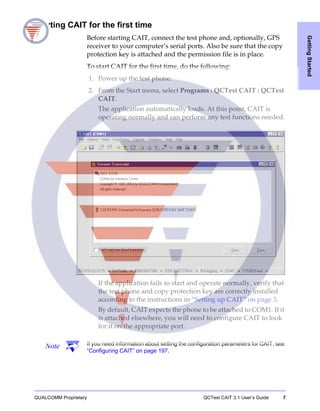
To start CAIT for the first time, do the following:
1. Power up the test phone.
2. From the Start menu, select Programs : QCTest CAIT : QCTest
CAIT.
The application automatically loads. At this point, CAIT is
operating normally and can perform any test functions needed.
If the application fails to start and operate normally, verify that
the test phone and copy protection key are correctly installed
according to the instructions in “Setting up CAIT” on page 3.
By default, CAIT expects the phone to be attached to COM1. If it
is attached elsewhere, you will need to configure CAIT to look
for it on the appropriate port.
Note If you need information about setting the configuration parameters for CAIT, see
“Configuring CAIT” on page 197.
8 Chapter 1: Getting Started QUALCOMM Proprietary
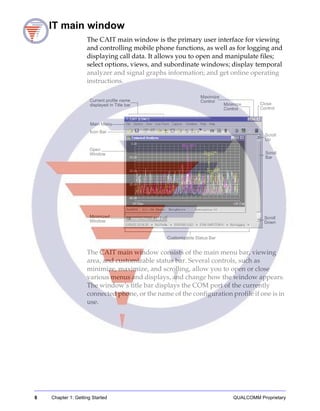
CAIT main window
The CAIT main window is the primary user interface for viewing
and controlling mobile phone functions, as well as for logging and
displaying call data. It allows you to open and manipulate files;
select options, views, and subordinate windows; display temporal
analyzer and signal graphs information; and get online operating
instructions.
The CAIT main window consists of the main menu bar, viewing
area, and customizable status bar. Several controls, such as
minimize, maximize, and scrolling, allow you to open or close
various menus and displays, and change how the window appears.
The window’s title bar displays the COM port of the currently
connected phone, or the name of the configuration profile if one is in
use.
Maximize
Control
Minimize
Control
Close
Control
Scroll
Up
Scroll
Bar
Scroll
Down
Main Menu
Open
Window
Minimized
Window
Customizable Status Bar
Icon Bar
Current profile name
displayed in Title bar
QUALCOMM Proprietary QCTest CAIT 3.1 User’s Guide 9
GettingStarted
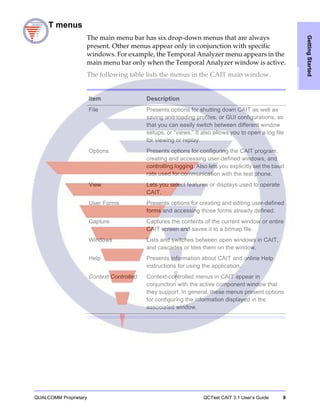
CAIT menus
The main menu bar has six drop-down menus that are always
present. Other menus appear only in conjunction with specific
windows. For example, the Temporal Analyzer menu appears in the
main menu bar only when the Temporal Analyzer window is active.
The following table lists the menus in the CAIT main window.
Item Description
File Presents options for shutting down CAIT as well as
saving and loading profiles, or GUI configurations, so
that you can easily switch between different window
setups, or “views.” It also allows you to open a log file
for viewing or replay.
Options Presents options for configuring the CAIT program,
creating and accessing user-defined windows, and
controlling logging. Also lets you explicitly set the baud
rate used for communication with the test phone.
View Lets you select features or displays used to operate
CAIT.
User Forms Presents options for creating and editing user-defined
forms and accessing those forms already defined.
Capture Captures the contents of the current window or entire
CAIT screen and saves it to a bitmap file.
Windows Lists and switches between open windows in CAIT,
and cascades or tiles them on the window.
Help Presents information about CAIT and online Help
instructions for using the application.
Context Controlled Context-controlled menus in CAIT appear in
conjunction with the active component window that
they support. In general, these menus present options
for configuring the information displayed in the
associated window.
10 Chapter 1: Getting Started QUALCOMM Proprietary
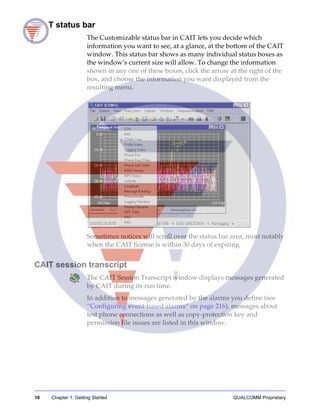
CAIT status bar
The Customizable status bar in CAIT lets you decide which
information you want to see, at a glance, at the bottom of the CAIT
window. This status bar shows as many individual status boxes as
the window’s current size will allow. To change the information
shown in any one of these boxes, click the arrow at the right of the
box, and choose the information you want displayed from the
resulting menu.
Sometimes notices will scroll over the status bar area, most notably
when the CAIT license is within 30 days of expiring.
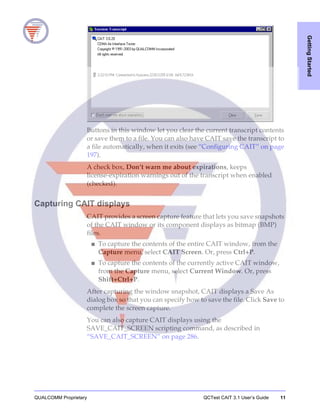
CAIT session transcript
The CAIT Session Transcript window displays messages generated
by CAIT during its run time.
In addition to messages generated by the alarms you define (see
“Configuring event-based alarms” on page 216), messages about
test phone connections as well as copy-protection key and
permission file issues are listed in this window.
QUALCOMM Proprietary QCTest CAIT 3.1 User’s Guide 11
GettingStarted
Buttons in this window let you clear the current transcript contents
or save them to a file. You can also have CAIT save the transcript to
a file automatically, when it exits (see “Configuring CAIT” on page
197).
A check box, Don’t warn me about expirations, keeps
license-expiration warnings out of the transcript when enabled
(checked).
Capturing CAIT displays
CAIT provides a screen capture feature that lets you save snapshots
of the CAIT window or its component displays as bitmap (BMP)
files.
■ To capture the contents of the entire CAIT window, from the
Capture menu, select CAIT Screen. Or, press Ctrl+P.
■ To capture the contents of the currently active CAIT window,
from the Capture menu, select Current Window. Or, press
Shift+Ctrl+P.
After capturing the window snapshot, CAIT displays a Save As
dialog box so that you can specify how to save the file. Click Save to
complete the screen capture.
You can also capture CAIT displays using the
SAVE_CAIT_SCREEN scripting command, as described in
“SAVE_CAIT_SCREEN” on page 286.
12 Chapter 1: Getting Started QUALCOMM Proprietary
Pausing CAIT displays
CAIT lets you pause its real-time event displays whenever you need
to review or capture a specific reading. A traffic-light icon on the
Icon Bar lets you click to pause the action in all active displays. When
clicked, the icon turns from red to green, to indicate that re-clicking
it will resume the display of event processing.
This Pause/Resume functionality is also available on the Options
menu, and via two hot-key combinations: Ctrl+S to pause and
Ctrl+Q to resume.
CMML in CAIT
The logging messages that CAIT processes are defined using
QUALCOMM’s CDMA Messages Markup Language, or CMML.
CMML is a metadata representation of the signaling messages
defined by CDMA, WCDMA, and GSM standards, as well as the
logging and diagnostic messages reported by test phones that
support those standards.
Metadata has been traditionally understood to be “data about data.”
In this case, it is XML data that describes CDMA signaling, logging,
and diagnostic messages.
XML, or eXtensible Markup Language, is a meta-language for
creating specialized markup languages. That is, XML is a language
for defining markup language elements, or tags, and the structural
relationships between them. In this way, CMML is defined by XML.
For more information on XML, you may want to look at the
specification maintained by the World Wide Web Consortium
(W3C) at http://www.w3.org/TR/REC-xml.
Upgrading CAIT
Occasionally, CAIT is upgraded to include corrections,
enhancements, and new features. Licensed users of CAIT who have
registered the application are notified of any new upgrade. Current
information about CAIT is available at any time from
QUALCOMM’s QCTest Technical Support. See “Technical support”
on page xiv for contact information, or visit the QUALCOMM Web
site at http://www.qualcomm.com
QUALCOMM Proprietary QCTest CAIT 3.1 User’s Guide 13
GettingStarted
CAIT Help
The Help menu in CAIT gives you access to online hypertext
information about using CAIT and the scripting language.
To open CAIT Help, select Contents from the Help menu, or press
the F1 key.
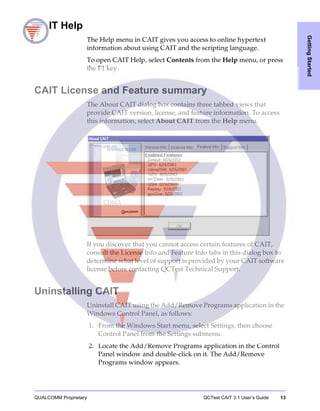
CAIT License and Feature summary
The About CAIT dialog box contains three tabbed views that
provide CAIT version, license, and feature information. To access
this information, select About CAIT from the Help menu.
If you discover that you cannot access certain features of CAIT,
consult the License Info and Feature Info tabs in this dialog box to
determine what level of support is provided by your CAIT software
license before contacting QCTest Technical Support.
Uninstalling CAIT
Uninstall CAIT using the Add/Remove Programs application in the
Windows Control Panel, as follows:
1. From the Windows Start menu, select Settings, then choose
Control Panel from the Settings submenu.
2. Locate the Add/Remove Programs application in the Control
Panel window and double-click on it. The Add/Remove
Programs window appears.
14 Chapter 1: Getting Started QUALCOMM Proprietary
3. In the Add/Remove Programs window, make sure the Change
or Remove Programs tab (Windows 95, 98, ME, or NT) or option
(Windows 2000 or XP) is selected, then find CAIT in the list of
programs and click to select it.
4. Click the Change/Remove button, then follow the remaining
instructions in the Uninstall Wizard to complete the removal.
QUALCOMM Proprietary QCTest CAIT 3.1 User’s Guide 15
SignalAnalysis
2 Signal Analysis
Overview
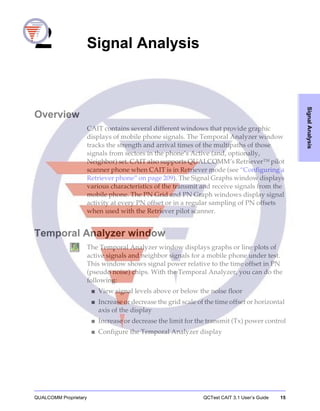
CAIT contains several different windows that provide graphic
displays of mobile phone signals. The Temporal Analyzer window
tracks the strength and arrival times of the multipaths of those
signals from sectors in the phone’s Active (and, optionally,
Neighbor) set. CAIT also supports QUALCOMM’s Retriever™ pilot
scanner phone when CAIT is in Retriever mode (see “Configuring a
Retriever phone” on page 209). The Signal Graphs window displays
various characteristics of the transmit and receive signals from the
mobile phone. The PN Grid and PN Graph windows display signal
activity at every PN offset or in a regular sampling of PN offsets
when used with the Retriever pilot scanner.
Temporal Analyzer window
The Temporal Analyzer window displays graphs or line plots of
active signals and neighbor signals for a mobile phone under test.
This window shows signal power relative to the time offset in PN
(pseudo noise) chips. With the Temporal Analyzer, you can do the
following:
■ View signal levels above or below the noise floor
■ Increase or decrease the grid scale of the time offset or horizontal
axis of the display
■ Increase or decrease the limit for the transmit (Tx) power control
■ Configure the Temporal Analyzer display
16 Chapter 2: Signal Analysis QUALCOMM Proprietary
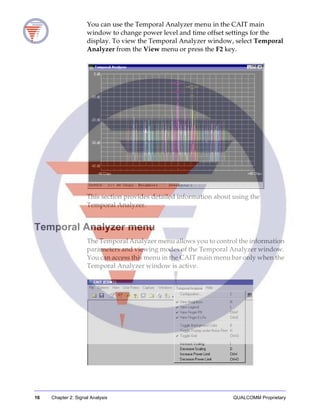
You can use the Temporal Analyzer menu in the CAIT main
window to change power level and time offset settings for the
display. To view the Temporal Analyzer window, select Temporal
Analyzer from the View menu or press the F2 key.
This section provides detailed information about using the
Temporal Analyzer.
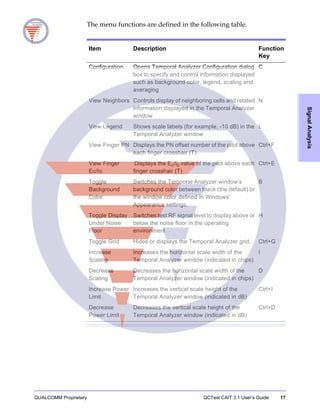
Temporal Analyzer menu
The Temporal Analyzer menu allows you to control the information
parameters and viewing modes of the Temporal Analyzer window.
You can access this menu in the CAIT main menu bar only when the
Temporal Analyzer window is active.
QUALCOMM Proprietary QCTest CAIT 3.1 User’s Guide 17
SignalAnalysis
The menu functions are defined in the following table.
Item Description Function
Key
Configuration Opens Temporal Analyzer Configuration dialog
box to specify and control information displayed
such as background color, legend, scaling and
averaging
C
View Neighbors Controls display of neighboring cells and related
information displayed in the Temporal Analyzer
window
N
View Legend Shows scale labels (for example, -10 dB) in the
Temporal Analyzer window
L
View Finger PN Displays the PN offset number of the pilot above
each finger crosshair (T)
Ctrl+F
View Finger
Ec/Io
Displays the Ec/I0 value of the pilot above each
finger crosshair (T)
Ctrl+E
Toggle
Background
Color
Switches the Temporal Analyzer window’s
background color between black (the default) or
the window color defined in Windows'
Appearance settings.
B
Toggle Display
Under Noise
Floor
Switches test RF signal level to display above or
below the noise floor in the operating
environment
H
Toggle Grid Hides or displays the Temporal Analyzer grid. Ctrl+G
Increase
Scaling
Increases the horizontal scale width of the
Temporal Analyzer window (indicated in chips)
I
Decrease
Scaling
Decreases the horizontal scale width of the
Temporal Analyzer window (indicated in chips)
D
Increase Power
Limit
Increases the vertical scale height of the
Temporal Analyzer window (indicated in dB)
Ctrl+I
Decrease
Power Limit
Decreases the vertical scale height of the
Temporal Analyzer window (indicated in dB)
Ctrl+D
18 Chapter 2: Signal Analysis QUALCOMM Proprietary
Viewing displays
The Temporal Analyzer window shows multiple traces in different
colors (when the colors are set up on the Configure Cells dialog
box—see “Configuring cells” on page 206). Each trace represents the
sweep signal of a mobile phone searcher. The window displays a
grid with horizontal and vertical axes that are divided into two
different scales.
When the signal traces on the window stabilize and average, you can
determine the timing and power of the signals by using the X- and
Y-axis scales of the display.
The horizontal or X-axis represents the time offset with a scale in
pseudo noise (PN) chips. The vertical or Y-axis represents the signal
power level or strength with a scale in decibels (dB) for the energy
per chip over the interference noise (Ec/I0). The horizontal scale
ranges from ±12 to ±96 chips, and the vertical scale ranges from 0 to
−40 dB.
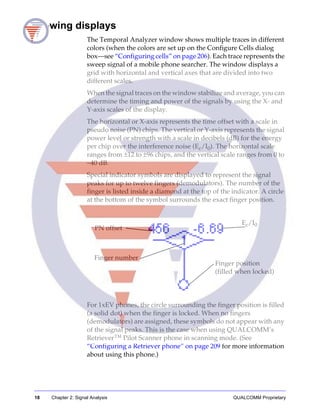
Special indicator symbols are displayed to represent the signal
peaks for up to twelve fingers (demodulators). The number of the
finger is listed inside a diamond at the top of the indicator. A circle
at the bottom of the symbol surrounds the exact finger position.
For 1xEV phones, the circle surrounding the finger position is filled
(a solid dot) when the finger is locked. When no fingers
(demodulators) are assigned, these symbols do not appear with any
of the signal peaks. This is the case when using QUALCOMM’s
Retriever™ Pilot Scanner phone in scanning mode. (See
“Configuring a Retriever phone” on page 209 for more information
about using this phone.)
Finger number
Ec/I0
PN offset
Finger position
(filled when locked)
QUALCOMM Proprietary QCTest CAIT 3.1 User’s Guide 19
SignalAnalysis
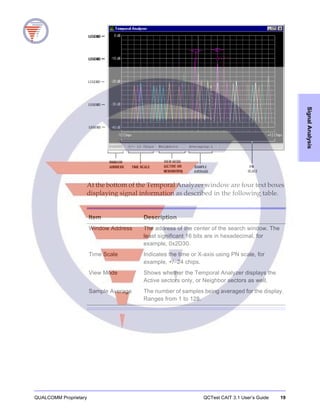
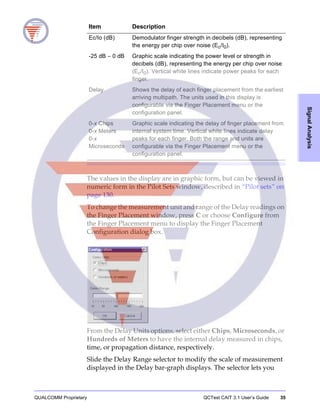
At the bottom of the Temporal Analyzer window are four text boxes
displaying signal information as described in the following table.
Item Description
Window Address The address of the center of the search window. The
least significant 16 bits are in hexadecimal, for
example, 0x2D30.
Time Scale Indicates the time or X-axis using PN scale, for
example, +/−24 chips.
View Mode Shows whether the Temporal Analyzer displays the
Active sectors only, or Neighbor sectors as well.
Sample Average The number of samples being averaged for the display.
Ranges from 1 to 128.
20 Chapter 2: Signal Analysis QUALCOMM Proprietary
Toggle display under noise floor
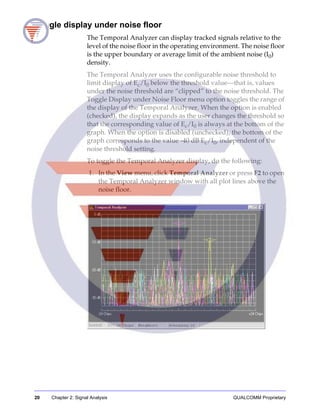
The Temporal Analyzer can display tracked signals relative to the
level of the noise floor in the operating environment. The noise floor
is the upper boundary or average limit of the ambient noise (I0)
density.
The Temporal Analyzer uses the configurable noise threshold to
limit display of Ec/I0 below the threshold value—that is, values
under the noise threshold are “clipped” to the noise threshold. The
Toggle Display under Noise Floor menu option toggles the range of
the display of the Temporal Analyzer. When the option is enabled
(checked), the display expands as the user changes the threshold so
that the corresponding value of Ec/I0 is always at the bottom of the
graph. When the option is disabled (unchecked), the bottom of the
graph corresponds to the value -40 dB Ec/I0, independent of the
noise threshold setting.
To toggle the Temporal Analyzer display, do the following:
1. In the View menu, click Temporal Analyzer or press F2 to open
the Temporal Analyzer window with all plot lines above the
noise floor.
QUALCOMM Proprietary QCTest CAIT 3.1 User’s Guide 21
SignalAnalysis
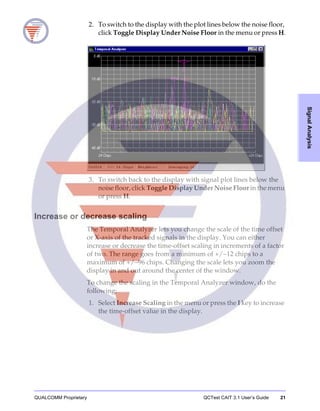
2. To switch to the display with the plot lines below the noise floor,
click Toggle Display Under Noise Floor in the menu or press H.
3. To switch back to the display with signal plot lines below the
noise floor, click Toggle Display Under Noise Floor in the menu
or press H.
Increase or decrease scaling
The Temporal Analyzer lets you change the scale of the time offset
or X-axis of the tracked signals in the display. You can either
increase or decrease the time-offset scaling in increments of a factor
of two. The range goes from a minimum of +/−12 chips to a
maximum of +/−96 chips. Changing the scale lets you zoom the
display in and out around the center of the window.
To change the scaling in the Temporal Analyzer window, do the
following:
1. Select Increase Scaling in the menu or press the I key to increase
the time-offset value in the display.
22 Chapter 2: Signal Analysis QUALCOMM Proprietary
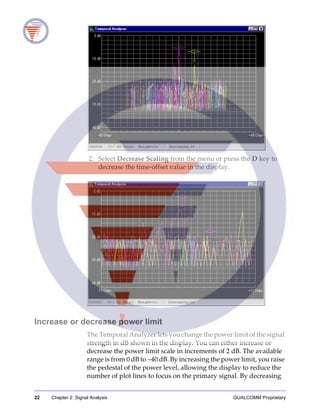
2. Select Decrease Scaling from the menu or press the D key to
decrease the time-offset value in the display.
Increase or decrease power limit
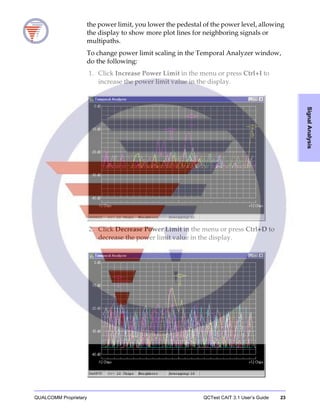
The Temporal Analyzer lets you change the power limit of the signal
strength in dB shown in the display. You can either increase or
decrease the power limit scale in increments of 2 dB. The available
range is from 0 dB to −40 dB. By increasing the power limit, you raise
the pedestal of the power level, allowing the display to reduce the
number of plot lines to focus on the primary signal. By decreasing
QUALCOMM Proprietary QCTest CAIT 3.1 User’s Guide 23
SignalAnalysis
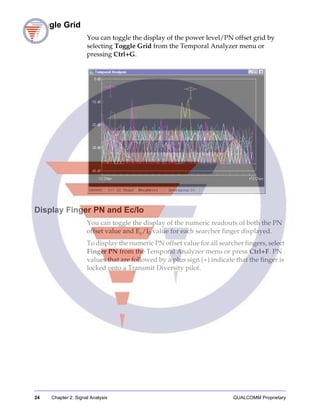
the power limit, you lower the pedestal of the power level, allowing
the display to show more plot lines for neighboring signals or
multipaths.
To change power limit scaling in the Temporal Analyzer window,
do the following:
1. Click Increase Power Limit in the menu or press Ctrl+I to
increase the power limit value in the display.
2. Click Decrease Power Limit in the menu or press Ctrl+D to
decrease the power limit value in the display.
24 Chapter 2: Signal Analysis QUALCOMM Proprietary
Toggle Grid
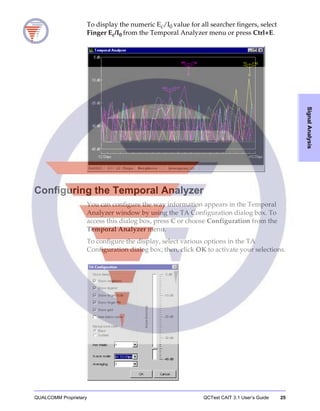
You can toggle the display of the power level/PN offset grid by
selecting Toggle Grid from the Temporal Analyzer menu or
pressing Ctrl+G.
Display Finger PN and Ec/Io
You can toggle the display of the numeric readouts of both the PN
offset value and Ec/I0 value for each searcher finger displayed.
To display the numeric PN offset value for all searcher fingers, select
Finger PN from the Temporal Analyzer menu or press Ctrl+F. PN
values that are followed by a plus sign (+) indicate that the finger is
locked onto a Transmit Diversity pilot.
QUALCOMM Proprietary QCTest CAIT 3.1 User’s Guide 25
SignalAnalysis
To display the numeric Ec/I0 value for all searcher fingers, select
Finger Ec/I0 from the Temporal Analyzer menu or press Ctrl+E.
Configuring the Temporal Analyzer
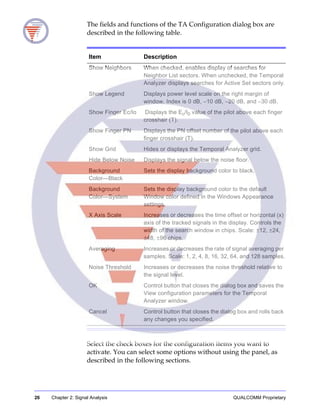
You can configure the way information appears in the Temporal
Analyzer window by using the TA Configuration dialog box. To
access this dialog box, press C or choose Configuration from the
Temporal Analyzer menu.
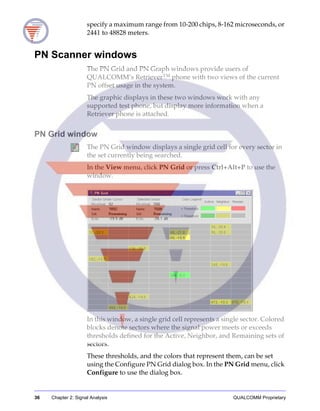
To configure the display, select various options in the TA
Configuration dialog box; then, click OK to activate your selections.
26 Chapter 2: Signal Analysis QUALCOMM Proprietary
The fields and functions of the TA Configuration dialog box are
described in the following table.
Select the check boxes for the configuration items you want to
activate. You can select some options without using the panel, as
described in the following sections.
Item Description
Show Neighbors When checked, enables display of searches for
Neighbor List sectors. When unchecked, the Temporal
Analyzer displays searches for Active Set sectors only.
Show Legend Displays power level scale on the right margin of
window. Index is 0 dB, −10 dB, −20 dB, and −30 dB.
Show Finger Ec/Io Displays the Ec/I0 value of the pilot above each finger
crosshair (T).
Show Finger PN Displays the PN offset number of the pilot above each
finger crosshair (T).
Show Grid Hides or displays the Temporal Analyzer grid.
Hide Below Noise Displays the signal below the noise floor.
Background
Color—Black
Sets the display background color to black.
Background
Color—System
Sets the display background color to the default
Window color defined in the Windows Appearance
settings.
X Axis Scale Increases or decreases the time offset or horizontal (x)
axis of the tracked signals in the display. Controls the
width of the search window in chips. Scale: ±12, ±24,
±48, ±96 chips.
Averaging Increases or decreases the rate of signal averaging per
samples. Scale: 1, 2, 4, 8, 16, 32, 64, and 128 samples.
Noise Threshold Increases or decreases the noise threshold relative to
the signal level.
OK Control button that closes the dialog box and saves the
View configuration parameters for the Temporal
Analyzer window.
Cancel Control button that closes the dialog box and rolls back
any changes you specified.
QUALCOMM Proprietary QCTest CAIT 3.1 User’s Guide 27
SignalAnalysis
WCDMA Temporal Analyzer window
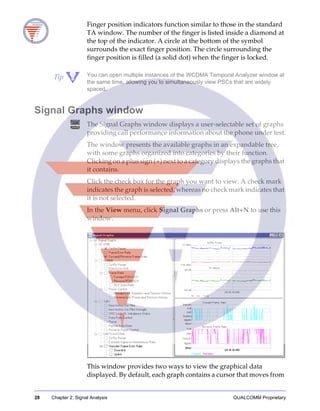
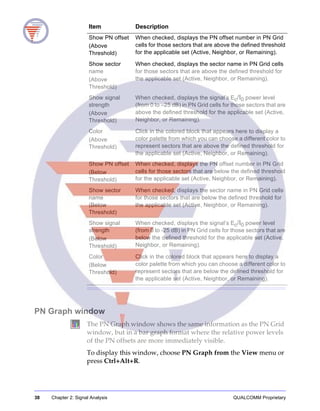
The WCDMA Temporal Analyzer window displays graphs or line
plots of active signals and neighbor signals for WCDMA calls.
In the View menu, click UMTS, then Temporal Analyzer to open
the window.
This window lets you toggle the viewing of finger PSC and Ec/I0
values, as well as the display grid, from the context-sensitive
WCDMA Temporal Analyzer menu. A column at the right of the
window lists the sector name (as defined in the Cell Configuration
dialog box, see “Configuring cells” on page 206) and PSC value for
each finger displayed.
Two sliding controls at the bottom of this window allow you to
adjust the time offset range displayed to maximize your view of the
finger data. Green arrow indicators appear at the bottom of the grid
display to point out the direction of any signal plots that have been
scrolled off the display.
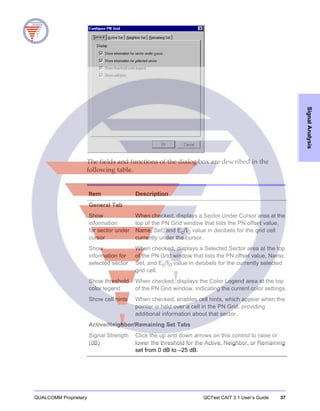
Finger number
Ec/I0
PSC
Finger position
(filled when locked)
28 Chapter 2: Signal Analysis QUALCOMM Proprietary
Finger position indicators function similar to those in the standard
TA window. The number of the finger is listed inside a diamond at
the top of the indicator. A circle at the bottom of the symbol
surrounds the exact finger position. The circle surrounding the
finger position is filled (a solid dot) when the finger is locked.
Tip You can open multiple instances of the WCDMA Temporal Analyzer window at
the same time, allowing you to simultaneously view PSCs that are widely
spaced.
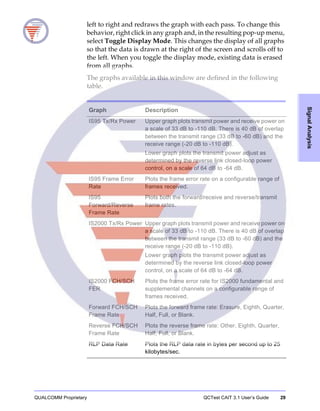
Signal Graphs window
The Signal Graphs window displays a user-selectable set of graphs
providing call performance information about the phone under test.
The window presents the available graphs in an expandable tree,
with some graphs organized into categories by their function.
Clicking on a plus sign (+) next to a category displays the graphs that
it contains.
Click the check box for the graph you want to view. A check mark
indicates the graph is selected, whereas no check mark indicates that
it is not selected.
In the View menu, click Signal Graphs or press Alt+N to use this
window.
This window provides two ways to view the graphical data
displayed. By default, each graph contains a cursor that moves from
QUALCOMM Proprietary QCTest CAIT 3.1 User’s Guide 29
SignalAnalysis
left to right and redraws the graph with each pass. To change this
behavior, right click in any graph and, in the resulting pop-up menu,
select Toggle Display Mode. This changes the display of all graphs
so that the data is drawn at the right of the screen and scrolls off to
the left. When you toggle the display mode, existing data is erased
from all graphs.
The graphs available in this window are defined in the following
table.
Graph Description
IS95 Tx/Rx Power Upper graph plots transmit power and receive power on
a scale of 33 dB to -110 dB. There is 40 dB of overlap
between the transmit range (33 dB to -60 dB) and the
receive range (-20 dB to -110 dB).
Lower graph plots the transmit power adjust as
determined by the reverse link closed-loop power
control, on a scale of 64 dB to -64 dB.
IS95 Frame Error
Rate
Plots the frame error rate on a configurable range of
frames received.
IS95
Forward/Reverse
Frame Rate
Plots both the forward/receive and reverse/transmit
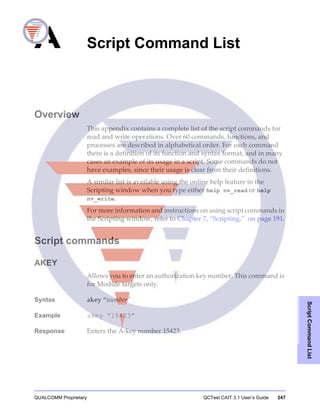
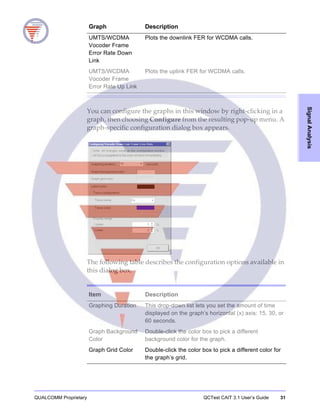
frame rates.
IS2000 Tx/Rx Power Upper graph plots transmit power and receive power on
a scale of 33 dB to -110 dB. There is 40 dB of overlap
between the transmit range (33 dB to -60 dB) and the
receive range (-20 dB to -110 dB).
Lower graph plots the transmit power adjust as
determined by the reverse link closed-loop power
control, on a scale of 64 dB to -64 dB.
IS2000 FCH/SCH
FER
Plots the frame error rate for IS2000 fundamental and
supplemental channels on a configurable range of
frames received.
Forward FCH/SCH
Frame Rate
Plots the forward frame rate: Erasure, Eighth, Quarter,
Half, Full, or Blank.
Reverse FCH/SCH
Frame Rate
Plots the reverse frame rate: Other, Eighth, Quarter,
Half, Full, or Blank.
RLP Data Rate Plots the RLP data rate in bytes per second up to 25
kilobytes/sec.
30 Chapter 2: Signal Analysis QUALCOMM Proprietary
Forward Link
Setpoints and
Decision History
Shows forward power control information for the
fundamental, supplemental, and dedicated control
channels. Upper graph displays power control set point
values for FCH, SCH0, SCH1, and DCCH; two lower
graphs display the delta of each frame’s 16 individual
power control decision bits.
Reverse Link Power
and Decision History
Shows reverse power control information for the
fundamental, supplemental, and dedicated control
channels. Upper graph displays transmit power values
for FCH, SCH0, SCH1, and DCCH; lower graph
displays the delta of each frame’s 16 individual power
control decision bits.
Best Active Set Pilot Signal-to-noise ratio for the best Active Set Pilot in the
previous frame’s last 16 odd half-slots.
Best Active Set Pilot
Strength
Strength, in dB, of the best Active Set Pilot in the
previous frame’s last 16 odd half-slots.
DRC Lock/FL
Imbalance Status
Upper graph plots the DRC lock bits sent by the access
network for each Active Set Pilot.
Lower graph plots the FL imbalance on a scale of 15 to
–15 dB.
Data Rate Control Data rate control indices predicted by the predictor for
the 16 slots of the previous frames.
Power The total transmit power, as determined by the entire
TX AGC mechanism, in units of 1/256 dB.
Packet Error Rate Plots the Instantaneous Packet Error Rate. This value
is calculated once for every 16 packets received, by
dividing the number of bad packets by 16.
Reverse Power
Control
The total receive power, as seen by Antenna 0, in units
of 1/256 dB.
UMTS/WCDMA
Tx/Rx Power
Upper graph plots transmit power and receive power on
a scale of 40 dB to -120 dB. There is 36 dB of overlap
between the transmit range (28.25 dB to -57 dB) and
the receive range (-20.75 dB to -106 dB).
Lower graph plots the transmit power adjust as
determined by the reverse link closed-loop power
control, on a scale of 64 dB to -64 dB.
UMTS/WCDMA
Estimate Signal to
Interference Ratio
Plots the estimated SIR for WCDMA calls.
Graph Description
QUALCOMM Proprietary QCTest CAIT 3.1 User’s Guide 31
SignalAnalysis
You can configure the graphs in this window by right-clicking in a
graph, then choosing Configure from the resulting pop-up menu. A
graph-specific configuration dialog box appears.
The following table describes the configuration options available in
this dialog box.
UMTS/WCDMA
Vocoder Frame
Error Rate Down
Link
Plots the downlink FER for WCDMA calls.
UMTS/WCDMA
Vocoder Frame
Error Rate Up Link
Plots the uplink FER for WCDMA calls.
Graph Description
Item Description
Graphing Duration This drop-down list lets you set the amount of time
displayed on the graph’s horizontal (x) axis: 15, 30, or
60 seconds.
Graph Background
Color
Double-click the color box to pick a different
background color for the graph.
Graph Grid Color Double-click the color box to pick a different color for
the graph’s grid.
32 Chapter 2: Signal Analysis QUALCOMM Proprietary
Signal Information window
Performance characteristics for the test phone appear in the Signal
Information window. This window has colored bar indicators to
show instantaneous call performance measurements.
In the View menu, click Signal Information or press Ctrl+Alt+I to
use the window.
The signal data fields in the display are defined in the following
table.
Label Color Double-click the color box to pick a different color for
the label
Trace Name From this drop-down list, select the trace for which you
want to change trace and label colors.
Trace Color Double-click the color box to pick a different color for
the line representing the selected trace.
Display Range Type or click the arrow buttons in the Upper and Lower
boxes to change the upper and lower limits of the range
of received frames on which to calculate the frame error
rate (FER) for IS95 or IS2000 channels.
Data Averaging
Scale
For the forward power control graph, this drop-down list
lets you change the data average scale used. You can
select a scale of 1 to 5.
Item Description
QUALCOMM Proprietary QCTest CAIT 3.1 User’s Guide 33
SignalAnalysis
Note In the Signal Information window, the receive power level is derived from the test
phone’s automatic gain control (AGC), and depends on the calibration curves
built into the diagnostic monitor software. Do not take receive values as precise
measurements. Some values may be inaccurate if you are using an unknown
type of mobile phone.
The signal level values appearing in this window are in read-only
format; you cannot control them directly.
Item Description
Tx power Level indicator showing transmit (TX) signal power quality
in dBm. Corresponding graphic display, in blue, ranges
from −60 to 33 dBm.
Rx power Level indicator showing receive (RX) signal power quality
in dBm. Corresponding graphic display, in red, ranges from
−110 to −20 dBm.
Tx adjust: Level indicator displaying adjust the value of the Transmit
Power Adjust as determined by the reverse link
closed-loop power control, in dB. Corresponding graphic
display, in green, ranges from −64 to +64 dB.
IS-95 FER Status indicator displaying frame error rate in percentage
(%). Corresponding graphic display, in yellow, scaled in
percentage (%).
Tx frame rate Indicates the transmit rate: Other (blank), Eighth, Quarter,
Half, or Full. A corresponding graphic display of the
transmit rate is provided, in magenta.
Rx frame rate Indicates the receive rate: Other (blank), Eighth, Quarter,
Half, Full, or Erasure. A corresponding graphic display of
receive rate is provided, in cyan.
DRC requested The Data Request Channel rate requested by the AT. A
corresponding graphic display is provided, in blue.
Mean served
throughput
The average throughput of sent packets. A corresponding
graphic display is provided, in green.
34 Chapter 2: Signal Analysis QUALCOMM Proprietary
Finger Placement window
Energy and delay information for up to six mobile phone receiver
fingers appear in graphic scales in the Finger Placement window.
This window graphs the time offset PN, sector name, energy
signal-to-noise ratio (Ec/I0), and internal time delay from system
time for each RF receive signal or finger you select.
The number of fingers displayed is determined by the number of
fingers employed by the test phone.
The lower portion of the window displays a graphical
representation of the power levels of the various fingers. A dotted
line represents a single finger. A thick, colored line represents
combined power levels of multiple fingers that are locked onto the
same PN.
In the View menu, click Finger Placement or press Alt+P to open
the window.
The following table describes the fields and functions in the Finger
Placement window.
Item Description
PN Shows PN offset of the sector on which the finger is placed.
Sector Symbolic name of the sector which can be set using the Cell
Configuration dialog box described in “Configuring cells” on
page 206.
QUALCOMM Proprietary QCTest CAIT 3.1 User’s Guide 35
SignalAnalysis
The values in the display are in graphic form, but can be viewed in
numeric form in the Pilot Sets window, described in “Pilot sets” on
page 130.
To change the measurement unit and range of the Delay readings on
the Finger Placement window, press C or choose Configure from
the Finger Placement menu to display the Finger Placement
Configuration dialog box.
From the Delay Units options, select either Chips, Microseconds, or
Hundreds of Meters to have the internal delay measured in chips,
time, or propagation distance, respectively.
Slide the Delay Range selector to modify the scale of measurement
displayed in the Delay bar-graph displays. The selector lets you
Ec/Io (dB) Demodulator finger strength in decibels (dB), representing
the energy per chip over noise (Ec/I0).
-25 dB − 0 dB Graphic scale indicating the power level or strength in
decibels (dB), representing the energy per chip over noise
(Ec/I0). Vertical white lines indicate power peaks for each
finger.
Delay Shows the delay of each finger placement from the earliest
arriving multipath. The units used in this display is
configurable via the Finger Placement menu or the
configuration panel.
0-x Chips
0-x Meters
0-x
Microseconds
Graphic scale indicating the delay of finger placement from
internal system time. Vertical white lines indicate delay
peaks for each finger. Both the range and units are
configurable via the Finger Placement menu or the
configuration panel.
Item Description
36 Chapter 2: Signal Analysis QUALCOMM Proprietary
specify a maximum range from 10-200 chips, 8-162 microseconds, or
2441 to 48828 meters.
PN Scanner windows
The PN Grid and PN Graph windows provide users of
QUALCOMM’s Retriever™ phone with two views of the current
PN offset usage in the system.
The graphic displays in these two windows work with any
supported test phone, but display more information when a
Retriever phone is attached.
PN Grid window
The PN Grid window displays a single grid cell for every sector in
the set currently being searched.
In the View menu, click PN Grid or press Ctrl+Alt+P to use the
window.
In this window, a single grid cell represents a single sector. Colored
blocks denote sectors where the signal power meets or exceeds
thresholds defined for the Active, Neighbor, and Remaining sets of
sectors.
These thresholds, and the colors that represent them, can be set
using the Configure PN Grid dialog box. In the PN Grid menu, click
Configure to use the dialog box.
QUALCOMM Proprietary QCTest CAIT 3.1 User’s Guide 37
SignalAnalysis
The fields and functions of the dialog box are described in the
following table.
Item Description
General Tab
Show
information
for sector under
cursor
When checked, displays a Sector Under Cursor area at the
top of the PN Grid window that lists the PN offset value,
Name, Set, and Ec/I0 value in decibels for the grid cell
currently under the cursor.
Show
information for
selected sector
When checked, displays a Selected Sector area at the top
of the PN Grid window that lists the PN offset value, Name,
Set, and Ec/I0 value in decibels for the currently selected
grid cell.
Show threshold
color legend
When checked, displays the Color Legend area at the top
of the PN Grid window, indicating the current color settings.
Show cell hints When checked, enables cell hints, which appear when the
pointer is held over a cell in the PN Grid, providing
additional information about that sector.
Active/Neighbor/Remaining Set Tabs
Signal Strength
(dB)
Click the up and down arrows on this control to raise or
lower the threshold for the Active, Neighbor, or Remaining
set from 0 dB to –25 dB.
38 Chapter 2: Signal Analysis QUALCOMM Proprietary
PN Graph window
The PN Graph window shows the same information as the PN Grid
window, but in a bar graph format where the relative power levels
of the PN offsets are more immediately visible.
To display this window, choose PN Graph from the View menu or
press Ctrl+Alt+R.
Show PN offset
(Above
Threshold)
When checked, displays the PN offset number in PN Grid
cells for those sectors that are above the defined threshold
for the applicable set (Active, Neighbor, or Remaining).
Show sector
name
(Above
Threshold)
When checked, displays the sector name in PN Grid cells
for those sectors that are above the defined threshold for
the applicable set (Active, Neighbor, or Remaining).
Show signal
strength
(Above
Threshold)
When checked, displays the signal’s Ec/I0 power level
(from 0 to –25 dB) in PN Grid cells for those sectors that are
above the defined threshold for the applicable set (Active,
Neighbor, or Remaining).
Color
(Above
Threshold)
Click in the colored block that appears here to display a
color palette from which you can choose a different color to
represent sectors that are above the defined threshold for
the applicable set (Active, Neighbor, or Remaining).
Show PN offset
(Below
Threshold)
When checked, displays the PN offset number in PN Grid
cells for those sectors that are below the defined threshold
for the applicable set (Active, Neighbor, or Remaining).
Show sector
name
(Below
Threshold)
When checked, displays the sector name in PN Grid cells
for those sectors that are below the defined threshold for
the applicable set (Active, Neighbor, or Remaining).
Show signal
strength
(Below
Threshold)
When checked, displays the signal’s Ec/I0 power level
(from 0 to -25 dB) in PN Grid cells for those sectors that are
below the defined threshold for the applicable set (Active,
Neighbor, or Remaining).
Color
(Below
Threshold)
Click in the colored block that appears here to display a
color palette from which you can choose a different color to
represent sectors that are below the defined threshold for
the applicable set (Active, Neighbor, or Remaining).
Item Description
QUALCOMM Proprietary QCTest CAIT 3.1 User’s Guide 39
SignalAnalysis
In the PN Graph window, the horizontal or X-axis represents the
complete set of 512 sectors. The vertical or Y-axis represents the
signal power level or strength with a scale of 0 to −25 decibels (dB)
for the energy per chip over the interference noise (Ec/I0). Colored
markers indicate sectors where the signal power meets or exceeds
thresholds defined for the Active, Neighbor, and Remaining sets.
Colored, horizontal lines indicate the current positions of the three
settable thresholds.
These thresholds, the colors that represent them, and the number of
sectors to display can be set using the Configure PN Graph dialog
box. In the PN Graph menu, click Configure to use the dialog box.
40 Chapter 2: Signal Analysis QUALCOMM Proprietary
The fields and functions of the dialog box are described in the
following table.
Item Description
General Tab
Show
information for
sector under
cursor
When checked, displays a Sector Under Cursor area at the
top of the PN Graph window that lists the PN offset value,
Name, Set, and Ec/I0 value in decibels for the graph bar
currently under the cursor.
Show
information for
selected sector
When checked, displays a Selected Sector area at the top
of the PN Graph screen that lists the PN offset value, Name,
Set, and Ec/I0 value in decibels for the currently selected
graph bar.
Show threshold
color legend
When checked, displays the Color Legend area at the top
of the PN Graph window, indicating the current color
settings.
Sector Tab
Order These three options determine the way the PN Graph is
sorted, left to right. Choose Sort by PN offset to sort the
sectors in ascending order by their PN offset number.
Choose Sort by sector name to sort the sectors by their
user-assigned names. Choose Sort by signal strength to
sort the sectors in descending order by power level.
Color These options let you choose how the sector colors are
assigned. Choose Use threshold colors to use the
threshold colors assigned in the
Active/Neighbor/Remaining Set tabs of this dialog box.
Choose Use sector colors to use the colors assigned to
each sector in the Cell Configuration dialog box, which is
described in “Configuring cells” on page 206.
Maximum
number of
sectors
This setting allows you to limit the number of sectors shown
in the graph, when sorting by signal strength, to make it
more readable. Click the up and down arrows on this control
to raise or lower the number of sectors displayed.
This option is available only when the Sort by signal
strength option is selected under Order.
Active/Neighbor/Remaining Set Tabs
Signal Strength
(dB)
Click the up and down arrows on this control to raise or
lower the threshold for the Active, Neighbor, or Remaining
set from 0 dB to –25 dB.
QUALCOMM Proprietary QCTest CAIT 3.1 User’s Guide 41
SignalAnalysis
Show PN offset
(Above
Threshold)
When checked, displays the PN offset number in PN Graph
markers for those sectors that are above the defined
threshold for the applicable set (Active, Neighbor, or
Remaining).
Show sector
name
(Above
Threshold)
When checked, displays the sector name in PN Graph
markers for those sectors that are above the defined
threshold for the applicable set (Active, Neighbor, or
Remaining).
Show signal
strength
(Above
Threshold)
When checked, displays the signal’s Ec/I0 power level
(from 0 to –25 dB) in PN Graph markers for those sectors
that are above the defined threshold for the applicable set
(Active, Neighbor, or Remaining).
Color
(Above
Threshold)
Click in the colored block that appears here to display a
color palette from which you can choose a different color to
represent sectors that are above the defined threshold for
the applicable set (Active, Neighbor, or Remaining).
Show PN offset
(Below
Threshold)
When checked, displays the PN offset number in PN Graph
markers for those sectors that are below the defined
threshold for the applicable set (Active, Neighbor, or
Remaining).
Show sector
name
(Below
Threshold)
When checked, displays the sector name in PN Graph
markers for those sectors that are below the defined
threshold for the applicable set (Active, Neighbor, or
Remaining).
Show signal
strength
(Below
Threshold)
When checked, displays the signal’s Ec/I0 power level
(from 0 to –25 dB) in PN Graph markers for those sectors
that are below the defined threshold for the applicable set
(Active, Neighbor, or Remaining).
Color
(Below
Threshold)
Click in the colored block that appears here to display a
color palette from which you can choose a different color to
represent sectors that are below the defined threshold for
the applicable set (Active, Neighbor, or Remaining).
Item Description
42 Chapter 2: Signal Analysis QUALCOMM Proprietary
WCDMA Pilot Scanner window
The WCDMA Pilot Scanner window displays a bar graph of active
PSC power levels.
In the View menu, click UMTS, then Pilot Scanner to open the
window.
This window displays a vertical bar for each active PSC. The bar
representing the active set is filled with a solid color; others use a
cross-hatch fill. Numbers beneath each bar identify the PSC and
RSCP (received signal code power) displayed, and the number of
fingers represented. The power scale, in decibels, is listed at the left.
Communication status is indicated in the lower right corner.
Horizontal lines mark the upper and lower power thresholds; you
can drag to move these lines. A three-color bar on the Y-axis
indicates the colors that correspond to three power-level ranges:
■ Over the upper threshold
■ Between the thresholds
■ Under the lower threshold
You can click each segment of this bar to assign it a new color from
a Color dialog box.
QUALCOMM Proprietary QCTest CAIT 3.1 User’s Guide 43
SignalAnalysis
By default, the PSC power bars are assigned the color of the
power-level range they currently fall into, so that they change color
as their power level changes from one range to another. To have the
power-level bars remain the same color, regardless of their power
level, you can have CAIT color the bars according to their cell
assignment, as described below.
A context-sensitive menu is available when this window is active. By
selecting Configure from this menu, you can set options for this
display as described in the following table. Many of these options
are also available directly on the WCDMA Pilot Scanner menu.
Item Description
View Energy Toggles display of the energy values at the top of each
bar.
View PSC Toggles display of the PSC numbers under each bar.
View RSCP Toggles display of the RSCP (received signal code
power) numbers under each bar.
View Finger Count Toggles display of the finger count under each bar.
View Monitored Set Toggles display of PSCs from the Monitored Set.
View Unlisted Set Toggles display of PSCs from the Unlisted Set.
Use Cell Color Substitutes the graph bars’ default colors with those
defined in the current cell configuration, overriding the
color-coding by threshold level. (See “Configuring cells”
on page 206 for information on setting cell colors.)
Sort Items These options specify how the graph bars are sorted,
left to right: by PSC, Energy, or Pilot Set.
44 Chapter 2: Signal Analysis QUALCOMM Proprietary
Replaying log files
CAIT provides a playback feature that lets you replay log files.
When using the playback feature, you can view log file data in the
CAIT real-time display windows. Input from any attached test
phones or GPS unit is ignored when CAIT is in playback mode.
To access this feature, choose Replay Log File from the File menu.
The Log File Replay window appears.
At the top, left of this window is a directory pane for locating and
selecting a folder containing log files. Log files in the selected folder
are listed in the pane on the right, with columns of information
about each log file. You can click the headings of each column to sort
by the column’s values, in ascending or descending order.
Tip If you right-click in the log files pane (top right), the resulting pop-up menu lets
you toggle a Show All Files option. By default, CAIT displays in this pane only
those files that it determines are log files. Enabling this option overrides this
filtering behavior and displays all files in the selected folder, while reducing the
time required to display the files. You may want to use this option when
searching through folders that contain many files.
Note that after enabling the Show All Files option, if the first file listed is not a
CAIT-readable log file, CAIT will display a message dialog box stating that it is
not, and asking if you want to try and open it. After clicking Yes or No, you can
then select a valid log file from the list.
Background Color These options specify the background color: Black or
White.
Signal Threshold This box lets you specify a specific, upper threshold
value.
Noise Threshold This box lets you specify a specific, lower threshold
value.
Retain data for x
seconds
This value determines how much logging data will be
included in the display at any given time. Increasing the
number of seconds that data is retained will decrease
the likelihood of missing any PSC data.
Display Packet These options determine which log packet is used to
provide values for this graph: Finger Info for TA
(0x4003) or List Searcher (0x414F).
Item Description
QUALCOMM Proprietary QCTest CAIT 3.1 User’s Guide 45
SignalAnalysis
Below the log file list is a drop-down list box that shows the
currently selected file. Clicking the arrow button at the right of this
box displays a list of previously selected log files; you can reopen a
file by choosing it from this list.
A pane on the lower left lists all messages and annotations in the
selected log file. Markers to the left of this pane indicate messages
that are set as the current start and stop points for replaying within
the file, as well as any annotations and bookmarks that have been
defined. Right-click in this pane to display a pop-up menu of options
that apply to the current log file, as described in the following table:
Playback controls:
Play, Pause, Stop,
and Next (Single
Step)
Sliding controls let you
change Start, Current,
and Stop positions
Speed control;
move to the left for
slower playback,
right for faster
Indicators for individual messages indicate, top to bottom: Replay Start,
Bookmark, Annotation, Replay End
Item Description
Save As Select this to save the current log file, with any changes
you’ve made, using a Save As dialog box.
Save As Text Select this to save a text version of the current log file
with any changes you’ve made, using a Save As dialog
box.
Toggle Detail
Format (Hex/Text)
Select this to toggle the message detail in the lower
right pane between text values and hexadecimal.
46 Chapter 2: Signal Analysis QUALCOMM Proprietary
To the right of the message list pane is a message detail pane that
displays the contents of the currently selected message as text or
hexadecimal values.
Below the message list and detail panes is a toolbar that contains
playback controls (Play, Pause, Stop, and Next), a slider control for
viewing and changing the current position in the file being played
as well as start and stop points, and another slider control that
changes the speed of the playback (move it to the left for slower
playback, to the right for faster playback). Note that using the
sliding start and stop position controls will undo any start and stop
settings made with specific messages in the message list pane. The
middle slider on the toolbar indicates the current message position
and its timestamp; you can slide this control to advance or back up
to a different message position.
The Next button lets you step through a log file one message at a
time. It is unavailable while a log file is being replayed; click Pause
to make it available for the current file.
Toggle Replay Start Select this, or type Ctrl+S, to designate the currently
selected message as the replay start point.
Toggle Replay End Select this, or type Ctrl+E, to designate the currently
selected message as the replay end point.
Bookmarks From the submenu that appears, you can choose the
following: Toggle Bookmark (Ctrl+T) to add or remove
a bookmark from the currently selected message;
Previous Bookmark (Ctrl+P) to jump to the previous
bookmark; Next Bookmark (Ctrl+N) to jump to the next
bookmark; Clear (Ctrl+L) to remove all bookmarks.
Annotation From the submenu that appears, you can choose the
following: Insert (Ctrl+A) to insert an annotation after
the currently selected message; Edit/Goto (Ctrl+I) to
display an Annotations dialog box that lets you edit
annotations or jump to a specific one; Delete (Ctrl+D)
to delete the currently selected annotation.
Item Description
QUALCOMM Proprietary QCTest CAIT 3.1 User’s Guide 47
Statistics
3 Statistics
Overview
CAIT collects a variety of status and performance statistics that
provide real-time status information, as well as specific and overall
indicators for analyzing mobile phone and system performance.
You can access statistics for the following:
■ Communication links
■ Markov calls
■ MUX1 and Layer 2 information
■ Traffic Channel MUX2 information
■ Paging and access channel usage
■ Common channel usage
■ Data calls
■ Medium Data Rate calls
■ IS2000 MUX information
■ Radio Link Protocol (RLP) usage
■ Test data service option (TDSO) calls
■ AT status, finger information, forward and reverse link
statistics, pilot sets, protocol information, and RLP statistics for
1xEV calls
■ WCDMA calls
Status and performance statistics appear in windows that you can
open through the View menu in the CAIT main window. This
section provides detailed information about using these statistics.
48 Chapter 3: Statistics QUALCOMM Proprietary
Communications statistics
Statistics for the performance of the serial communication link
between the phone and computer appear in the Communications
Statistics window. This window displays packet and data byte
transmission statistics, as well as the percentage of bandwidth used
by the communications link. It also shows, in milliseconds, the
internal delay while CAIT processes messages from the test phones.
Two different display modes show statistics in accumulated or delta
(difference) form. This window also shows the amount of time, in
seconds, that CAIT has been operating since the last time these
statistics were reset.
In the View menu, click Statistics, then Communications Statistics
or press Ctrl+Alt+C to open the window.
This window reports communication data on two tabs. The Link
State tab contains three fields that report the communication status,
current baud rate, and communication mode (polling or streaming)
of the test phone. Viewing this tab lets you monitor the process of
CAIT acquiring a link to the test phone. The Statistics tab reports
various information about an active connection to the test phone.
The fields and functions in the Statistics tab are described in the
following table.
Item Description
Packets
Sent by CAIT Number of packets sent by CAIT to the test phone
Received by CAIT Number of packets received by CAIT from the test
phone
CRC Errors Number of packets received with CRC (cyclic
redundancy check or code) error
QUALCOMM Proprietary QCTest CAIT 3.1 User’s Guide 49
Statistics
The statistics shown in the Communications Statistics window
cannot be directly edited, but you can use the Stats menu to have
some control over how parameters are displayed. This menu is
active along with the Communications Statistics window.
Markov statistics
The transmission quality at each frame rate appears in the Markov
Statistics window. The window also gives various combinations of
dim and burst rate signaling statistics for Markov-originated calls in
cell or subscriber station traffic channels. Markov statistics are used
to determine the frame error rate (FER) of the system. The FER is
used to approximate the voice quality of calls.
Timeouts Number of packets that did not receive a response
(timeout)
Time (secs) The number of seconds that the counters have been
collecting and displaying statistics since the
statistics were last reset.
Display Mode
Accumulated Selects display of statistics accumulated
continuously since the time the clear button was last
clicked or the window was opened
Delta Selects delta display showing statistics for the last
1-second period
Bytes
Sent by CAIT Number of bytes sent by CAIT to the test
phone
Received by CAIT Number of bytes received by CAIT from the test
phone
Performance
Link Utilization Amount of bandwidth used for transmitting and
receiving operations versus the available bandwidth
in a link, shown as a percentage
Internal Delay (ms) Amount of internal delay in transmitting and
receiving operations, shown in milliseconds
Clear Control button that clears or resets all parameters in
the window
Item Description
50 Chapter 3: Statistics QUALCOMM Proprietary
The Markov Statistics window consists of two sections. The upper
section shows transmission status parameters; the lower section
shows actual received packet count statistics for the expected packet
type shown in the left column. The data received should correlate to
the expected data. These values are color-coded and appear at
column and row intersections.
In the View menu, click Statistics, then Markov Statistics or press
F7 to open the window.
The fields and functions in this window are defined in the following
table.
Item Description
Mode Current operating mode of the subscriber station.
State State of the test phone. State types: CDMA Acquisition,
Sync, Traffic Initialization, Traffic, Exit, Unknown Phone
State.
Markov Rate Current Markov rate; variable mimics typical speech
pattern. Rate types: Full or Variable.
Total Frames Number of frames recorded during transmission.
Bad Frames Number of bad frames recorded during transmission.
Includes erasures and full rate with bit errors.
Error Rate Percentage of errors consisting of bad frames/total frames.
Clear Control button that clears or resets all parameters in the
window.
Received Markov Columns
Expected Predicted or expected rate of Markov transmission.
Full Maximum rate of primary traffic transmission. Rate types:
9.6 kbps or 14.4 kbps.
D1/2 Dim and burst rate 1/2 signalling.
QUALCOMM Proprietary QCTest CAIT 3.1 User’s Guide 51
Statistics
The statistics in this window cannot be modified, but you have some
control over how parameters are displayed when you use the Clear
button.
This window has scalable text that gets larger as the window’s size
increases. You can alter the font used in this window from the
Markov Statistics menu that is available when the window is active,
as described in “Changing fonts in supported windows” on page
225.
MUX1 and layer 2 statistics
Statistical data for the forward and reverse MUX1 traffic channels
and layer 2 protocol appear in the MUX1 and Layer 2 Statistics
window. These statistics indicate the quality of the traffic channels
and characterize the types of traffic channel frames being used.
In the View menu, click Statistics, then MUX1 and L2 Statistics or
press Ctrl+Alt+F4 to open the window.
D1/4 Dim and burst rate 1/4 signalling.
D1/8 Dim and burst rate 1/8 signalling.
BSig Blank and burst secondary signalling.
Half Half-rate (1/2) primary traffic transmission. Rate types:
4.8 kbps or 7.2 kbps.
Quarter Quarter-rate (1/4) primary traffic transmission. Rate types:
2.4 kbps or 3.6 kbps.
Eighth Eighth-rate (1/8) primary traffic transmission. Rate types:
1.2 kbps or 1.8 kbps.
FErrs Detected frame error. The packet received does not meet
quality metrics.
Erasures Frames qualified as erasures.
BitErrs Total bit errors for all categories.
Percent Percentage of bad frames (rate and bit errors excluding
signaling frames) per total frames for each expected rate.
It becomes progressively more serious when packets are
lost approaching full rate.
Item Description
52 Chapter 3: Statistics QUALCOMM Proprietary
The following table lists the fields and functions for this window.
Item Description
MUX1 Parameters
Forward Number of frames received on the forward traffic
channel (measured from the base station to test phone)
Reverse Number of frames sent on the reverse traffic channel
(measured from the test phone to the base station)
9600, primary or null
traffic only
Number of frames sent/received at 9.6 kbps for primary
or null traffic only
9600, d&b rate 1/2
primary + signaling
Number of frames sent/received at 9.6 kbps for 1/2 rate
primary and signaling traffic
9600, d&b rate 1/4
primary + signaling
Number of frames sent/received at 9.6 kbps for 1/4 rate
primary and signaling traffic
9600, d&b rate 1/8
primary + signaling
Number of frames sent/received at 9.6 kbps for 1/8 rate
primary and signaling traffic
9600, b&b signaling
only
The number of frames sent at 9.6 kbps for signaling
traffic.
4800, primary or null
traffic only
Number of frames sent/received at 4.8 kbps for primary
and null traffic only
2400, primary or null
traffic only
Number of frames sent/received at 2.4 kbps for primary
and null traffic only
QUALCOMM Proprietary QCTest CAIT 3.1 User’s Guide 53
Statistics
The statistics shown in this window cannot be modified, but you
have some control over how parameters are displayed when you use
the Clear button.
1200, primary or null
traffic only
Number of frames sent/received at 1.2 kbps for primary
and null traffic only
9600 with bit errors Number of frames sent/received at 9.6 kbps with bit
errors for all categories
Erasures Number of internal primary traffic erasures
sent/received for all categories
9600, d&b rate 1/2
primary and
secondary
Number of frames sent/received at 9.6 kbps for 1/2 rate
primary and secondary traffic
9600, d&b rate 1/4
primary and
secondary
Number of frames sent/received at 9.6 kbps for 1/4 rate
primary and secondary traffic
9600, d&b rate 1/8
primary and
secondary
Number of frames sent/received at 9.6 kbps for 1/8 rate
primary and secondary traffic
9600, b&b
secondary only
Number of frames sent/received at 9.6 kbps for
secondary traffic only
Layer 2 Statistics
# of ACK >= 1 Number of Layer 2 messages that needed one or more
retransmissions
# of ACK >= 2 Number of Layer 2 messages that needed two or more
retransmissions
# of ACK >= 3 Number of Layer 2 messages that needed three or
more retransmissions
Call Failures due to
N1m Timeout
Number of failed calls in traffic channels caused by
exceeding the N1m timeout limit
# of Messages sent
without ACK
Number of messages sent without exchanging any
acknowledgment messages
Clear Control button that clears or resets all parameters in the
window
Item Description
54 Chapter 3: Statistics QUALCOMM Proprietary
This window has scalable text that gets larger as the window’s size
increases. You can alter the font used in this window from the MUX1
and Layer 2 Statistics menu that is available when the window is
active, as described in “Changing fonts in supported windows” on
page 225.
MUX2 statistics
Statistical data for the forward and reverse MUX2 traffic channels
appear in the MUX2 Statistics window, indicating the transmission
quality of the traffic channels and the types of traffic channel frames
being used.
In the View menu, click Statistics, then MUX2 Statistics or press
Alt+F6 or Alt+F7 to open the window.
The following table describes the fields and functions in this
window.
Item Description
Traffic Channel MUX2 Statistics
Forward Number of frames received on the forward traffic
channel (measured from the base station to the test
phone)
Reverse Number of frames sent on the reverse traffic channel
(measured from the test phone to the base station)
14.4k, primary or
null traffic only
Number of frames sent/received at 14.4 kbps for
primary or null traffic only
QUALCOMM Proprietary QCTest CAIT 3.1 User’s Guide 55
Statistics
14.4k, d&b rate 1/2
primary + signaling
Number of frames sent/received at 14.4 kbps for 1/2
rate primary and signaling traffic
14.4k, d&b rate 1/4
primary + signaling
Number of frames sent/received at 14.4 kbps for 1/4
rate primary and signaling traffic
14.4k, d&b rate 1/8
primary + signaling
Number of frames sent/received at 14.4 kbps for 1/8
rate primary and signaling traffic
14.4k, b&b signaling
only
Number of frames sent/received at 14.4 kbps for blank
and burst signaling traffic only
7.2k, primary or null
traffic only
Number of frames sent/received at 7.2 kbps for primary
and null traffic only
7.2k, d&b rate 1/4
primary + signaling
Number of frames sent/received at 7.2 kbps for 1/4 rate
primary and signaling traffic
7.2k, d&b rate 1/8
primary + signaling
Number of frames sent/received at 7.2 kbps for 1/8 rate
primary and signaling traffic
7.2k, b&b signaling
only
Number of frames sent/received at 7.2 kbps for blank
and burst signaling traffic only
3.6k, primary or null
traffic only
Number of frames sent/received at 3.6 kbps for primary
and null traffic only
3.6k, d&b rate 1/8
primary + signaling
Number of frames sent/received at 3.6 kbps for 1/8 rate
primary and signaling traffic
3.6k, b&b signaling
only
Number of frames sent/received at 3.6 kbps for blank
and burst signaling traffic only
1.8k, primary or null
traffic only
Number of frames sent/received at 1.8 kbps for primary
and null traffic only
Insufficient Frame
Quality
The number of frames sent/received that were too poor
in quality to be applied to any of the preceding groups.
Traffic Channel with Secondary
14.4k, d&b rate 1/2
primary + secondary
Number of frames sent/received at 14.4 kbps for rate
1/2 primary and secondary traffic
14.4k, d&b rate 1/4
primary + secondary
Number of frames sent/received at 14.4 kbps for rate
1/4 primary and secondary traffic
14.4k, d&b rate 1/8
primary + secondary
Number of frames sent/received at 14.4 kbps for rate
1/8 primary and secondary traffic
14.4k, b&b
secondary only
Number of frames sent/received at 14.4 kbps for blank
and burst secondary traffic only
14.4k, d&b rate 1/8
prim, sec + signaling
Number of frames sent/received at 14.4 kbps for rate
1/8 primary, secondary, and signaling traffic
Item Description
56 Chapter 3: Statistics QUALCOMM Proprietary
The statistics appearing in this window cannot be modified, but you
have some control over how parameters are displayed when you use
the Clear button.
This window has scalable text that gets larger as the window’s size
increases. You can alter the font used in this window from the MUX2
Statistics menu that is available when the window is active, as
described in “Changing fonts in supported windows” on page 225.
IS2000 MUX statistics
The IS2000 MUX Statistics window displays statistical MUX data for
the forward and reverse fundamental channel (FCH), dedicated
control channel (DCCH), and supplemental traffic channel (SCH0)
of IS2000 calls. These statistics indicate the quality of the traffic
channels and characterize the types of traffic channel frames being
used.
Refer to TIA/EIA-IS2000.3-A-1, section 2.2.2.2.1 and higher for
detailed descriptions of these counters.
In the View menu, click Statistics, then IS2000 MUX Statistics or
press Alt+F9 to open the window.
7.2k, d&b rate 1/4
primary + secondary
Number of frames sent/received at 7.2 kbps for 1/4 rate
primary and secondary traffic
7.2k, d&b rate 1/8
primary + secondary
Number of frames sent/received at 7.2 kbps for 1/8 rate
primary and secondary traffic
7.2k, b&b secondary
only
Number of frames sent/received at 7.2 kbps for blank
and burst secondary traffic only
7.2k, d&b rate 1/8
pri, sec + signaling
Number of frames sent/received at 7.2 kbps for 1/8 rate
primary, secondary, and signaling traffic
3.6k, d&b rate 1/8
primary + secondary
Number of frames sent/received at 3.6 kbps for 1/8 rate
primary and secondary traffic
3.6k, b&b secondary
only
Number of frames sent/received at 3.6 kbps for blank
and burst secondary traffic only
1.8k, b&b secondary
only
Number of frames sent/received at 1.8 kbps for blank
and burst secondary traffic only
Clear Control button that clears or resets all parameters in the
window
Item Description
QUALCOMM Proprietary QCTest CAIT 3.1 User’s Guide 57
Statistics
This window has scalable text that gets larger as the window’s size
increases. You can alter the font used in this window from the IS2000
MUX Statistics menu that is available when the window is active, as
described in “Changing fonts in supported windows” on page 225.
Paging and access statistics
Statistical data on both paging and access channels appears in the
Paging And Access Statistics window. These statistics indicate the
quality of channels between the subscriber station and the base
station.
In the View menu, click Statistics, then Paging and Access Statistics
or press Alt+F5 to open the window.
58 Chapter 3: Statistics QUALCOMM Proprietary
The following table describes the fields and functions in this
window.
Item Description
Paging Channel
# Attempted Messages Number of paging channel messages the test phone
attempted to receive
# CRC Errors Number of messages received with cyclic
redundancy code (CRC) errors
# Messages to Test
Phone
Number of messages sent from the base station to
the test phone
# 1/2 Frames Received Number of 1/2 frames received by the test phone
# 1/2 Frames w. Good
Messages
Number of frames that were received with at least
one good paging channel message
# Losses of Paging
Channel
Number of paging channel losses (the phone lost
the paging channel and had to reacquire the CDMA
signal)
# of Idle Handoffs Number of idle handoffs by the test phone
Access Channel
# Requested Messages Number of message requests by the phone on the
access channel
# Response Messages Number of access channel response messages
generated by the test phone
Probes sent 2 or more
times
Number of access probes sent two or more times
QUALCOMM Proprietary QCTest CAIT 3.1 User’s Guide 59
Statistics
The statistics shown in this window cannot be modified, but you
have some control over how parameters are displayed when you use
the Clear button.
This window has scalable text that gets larger as the window’s size
increases. You can alter the font used in this window from the
Paging and Access Statistics menu that is available when the
window is active, as described in “Changing fonts in supported
windows” on page 225.
Common channel statistics
The Common Channel Statistics window displays various access
and paging statistics for CDMA 2000 Release A.
In the View menu, click Statistics, then Common Channel Statistics
or press Alt+F9 to open the window.
Probes sent 3 or more
times
Number of access probes sent three or more times
Probes sent 4 or more
times
Number of access probes sent four or more times
Probes sent 5 or more
times
Number of access probes sent five or more times
Probes sent 6 or more
times
Number of access probes sent six or more times
# Access Attempt
Failures
Number of access probe attempts that failed (no
response message)
Clear Control button that clears or resets all parameters
Item Description
60 Chapter 3: Statistics QUALCOMM Proprietary
The following table describes the fields and functions in this
window.
Item Description
BCCH
Total BCCH
encapsulated PDUs
The number of Broadcast Control Channel
encapsulated PDUs the mobile station attempted to
receive
Encapsulated PDUs
with bad CRCs
The number of Broadcast Control Channel
encapsulated PDUs received by the mobile with a
CRC that does not match
Partial frames The number of Broadcast Control Channel
partial-frames received by the mobile station
Partial frames with bad
CRCs
The number of Broadcast Control Channel
partial-frames received by the mobile station with a
CRC that matches
Times MS declared loss
of BCCH
The number of times that the mobile station
declared a loss of the Broadcast Control Channel
19200 bps, 40 ms
frames
The number of Broadcast Control Channel frames at
19200 bps, 40 milliseconds
9600 bps, 80 ms frames The number of Broadcast Control Channel frames at
9600 bps, 80 milliseconds
4800 bps, 160 ms
frames
The number of Broadcast Control Channel frames at
4800 bps, 160 milliseconds
Insufficient physical
layer frame quality
The number of Broadcast Control Channel frames
with insufficient physical layer quality
QUALCOMM Proprietary QCTest CAIT 3.1 User’s Guide 61
Statistics
FCCCH
Total FCCCH
encapsulated PDUs
The number of Forward Common Control Channel
encapsulated PDUs the mobile station attempted to
receive
Encapsulated PDUs
with bad CRCs
The number of Forward Common Control Channel
encapsulated PDUs received by mobile with a CRC
that does not match
Messages addressed to
MS
The number of Forward Common Control Channel
messages or records received by mobile that were
addressed to it
Times MS declared loss
of FCCCH
The number of times that the mobile station
declared a loss of the Forward Common Control
Channel
38400 bps, 5 ms frames The number of Forward Common Control Channel
frames at 38400 bps, 5 milliseconds
19200 bps,10 ms
frames
The number of Forward Common Control Channel
frames at 19200 bps,10 ms
38400 bps, 10 ms
frames
The number of Forward Common Control Channel
frames at 38400 bps, 10 milliseconds
9600 bps, 20 ms frames The number of Forward Common Control Channel
frames at 9600 bps, 20 milliseconds
19200 bps, 20 ms
frames
The number of Forward Common Control Channel
frames at 19200 bps, 20 milliseconds
38400 bps, 20 ms
frames
The number of Forward Common Control Channel
frames at 38400 bps, 20 milliseconds
Insufficient physical
layer frame quality
The number of Forward Common Control Channel
frames with insufficient physical layer quality
EACH - Basic Access Mode
Request-type SDSUs
transmitted
The number of “request” type SDSUs transmitted on
the Enhanced Access Channel in Basic Access
Mode
Response-type SDSUs
transmitted
The number of “response” type SDSUs transmitted
on the Enhanced Access Channel in Basic Access
Mode
Access probes TX’d at
least twice
The number of times an access probe was
transmitted at least two times on Enhanced Access
Channel in Basic Access mode
Item Description
62 Chapter 3: Statistics QUALCOMM Proprietary
Data testing
The Data Testing window displays a user-selectable set of graphs
providing data performance information about four different data
protocols: TCP, IP, RAS, and RLP. It provides a central location for
you to set up internet activities to test the throughput of the four
protocols, and also provides performance statistics on that
throughput, plus results from running the Ping program. The
performance graphs are configurable, as described in “Graph
configuration” on page 66.
In the View menu, click Data Testing to open the window.
Note The Data Testing window does not function on computers running Windows 95,
Windows 98, or Windows ME operating systems. These operating systems do
not support the network services required by the Data Testing window. If your
operating system does not support the required network services, then the Data
Testing option is not available on the View menu. If you run CAIT on Windows
NT or Windows 2000 machines with the required network services installed
(which are installed by default), then this option will be available.
Access probes TX’d at
least 3 times
The number of times an access probe was
transmitted at least three times on Enhanced
Access Channel in Basic Access mode
Access probes TX’d at
least 4 times
The number of times an access probe was
transmitted at least four times on Enhanced Access
Channel in Basic Access mode
Access probes TX’d at
least 5 times
The number of times an access probe was
transmitted at least five times on Enhanced Access
Channel in Basic Access mode
Access probes TX’d at
least 6 times
The number of times an access probe was
transmitted at least six times on Enhanced Access
Channel in Basic Access mode
Unsuccessful access
attempts
The number of unsuccessful access attempts on the
Enhanced Access Channel in Basic Access mode
Clear Control button that clears or resets all parameters
Item Description
QUALCOMM Proprietary QCTest CAIT 3.1 User’s Guide 63
Statistics
The window presents the available graphs in a list on the left of the
pane where the graphs are displayed. Click the check box for each
graph you want to view. A check mark indicates the graph is
selected, whereas no check mark indicates that it is not selected.
The RLP bytes per second graph reports statistics that are measured
at and reported by the test phone; all other statistics are measured on
the PC and reported by Windows. This means that the non-RLP
statistics could include throughput generated by a network adapter
other than the test phone (the PC’s LAN card or modem). When
performing measurements with this tool, be sure that the only
network connection to your PC is through the test phone.
A set of tabs across the top of this window provides access to
configuration options and additional data displays, which are
described in the following table. For information on configuring the
value ranges and colors used in the data graphs, see “Graph
configuration” on page 66.
64 Chapter 3: Statistics QUALCOMM Proprietary
Item Description
Start/Stop tab This tab lets you start and stop the transfer operations that
are set up on the other tabs, and provides some status
information.
Start Click this button to initiate the data transfer test.
Stop Click this button to end the data transfer test.
Cycle Reports the number of transfer iterations that have
completed, and, if specified using the Cycles option on the
Plan tab, the total number of iterations to be performed.
Minute Reports the number of minutes of operation, and, if
specified using the Minutes option on the Plan tab, the total
number of the minutes allotted for the test.
Operation Reports the current operation, such as Login, Downloading,
Uploading, Ping, Paused, Logout, etc.
Plan tab This tab lets you choose the tests to perform, their repetition
or duration, and pings or pauses to perform between tests.
The controls on this tab are unavailable while a test is in
progress.
FTP download Select this check box to perform an FTP download test
using the settings specified on the Host Info tab and file
location specified on the Protocol Config tab.
FTP Upload Select this check box to perform an FTP upload test using
the settings on the Host Info tab and file location specified
on the Protocol Config tab.
HTTP download Select this check box to perform an FTP upload test using
the settings on the Host Info tab and file location specified
on the Protocol Config tab.
Unlimited Choose this option to have the test repeat until you stop it
manually.
Cycle Choose this option to have the test repeat the number of
times you specify in the corresponding text box.
Minutes Choose this option to have the test repeat the number of
minutes you specify in the corresponding text box.
Ping Select this check box to run the ping program between
download/upload cycles. To repeat the ping between
cycles, specify the number of time to ping in the
corresponding text box.
QUALCOMM Proprietary QCTest CAIT 3.1 User’s Guide 65
Statistics
Pause Select this check box to pause between download/upload
cycles. Specify the number of seconds to pause in the
corresponding text box.
Host Info tab This tab lets you specify the login parameters for a FTP
session and test the FTP connection. The controls on this
tab are unavailable while a test is in progress.
Host name The name or IP address of the FTP host server.
User name A valid user name for the specified host, or “anonymous” for
download-only connections.
Account The account name, if required by the specified FTP host.
Password The password for the specified host, or a valid email
address for anonymous, download-only connections.
Login Timeout This field lets you specify how long to wait for an FTP login
to succeed before timing out. The value is in seconds; a
value of zero indicates that CAIT should wait indefinitely.
Trace Route Click this button to run a route trace that lists the
intermediate servers between you and the FTP host; the
results appear on the Transcript tab.
Test Login Click this button to run a test login to the FTP host; the
results appear on the Transcript tab.
Protocol
Config tab
This tab lets you specify the files to be transferred during the
test, and some transfer and connection options. The
controls on this tab are unavailable while a test is in
progress.
Remote path The path from the FTP account’s default directory to that of
the remote file. Click the button at the right of this box to
browse for files on a remote site.
Remote file The file to download.
Local path The fully-qualified path to the local file. Click the button at
the right of this box to browse for local files.
Local file The file to upload.
Passive mode Select this check box to have your PC establish the data
connection with the FTP host instead of the host
establishing the data connection with your PC. This option
is useful for users behind firewalls and gateways, and when
experiencing data channel errors. Note that not all FTP sites
support passive mode.
Use binary
transfers
Select this check box to up- and download files as binary
data instead of text.
Item Description
66 Chapter 3: Statistics QUALCOMM Proprietary
Graph configuration
To configure the graphs available in the Data Testing window, make
sure the Data Testing window is active, then select Graph Properties
from the Data Testing menu. The Data Testing Graph Properties
dialog box appears.
Source URL The Universal Resource Locator, or address, of the World
Wide Web page to download.
Statistics tab This tab provides a table of numeric data to complement the
data in the display graphs.
TCP Segments/
Sec
This row summarizes the Sent, Resent, Received, and Total
values from the TCP Segments/Second display graph.
IP Datagrams/
Sec
This row summarizes the Sent, Resent, Received, and Total
values from the IP Datagrams/Second display graph.
RAS Bytes/Sec This row summarizes the Sent, Resent, Received, and Total
values from the RAS Bytes/Second display graph.
RLP Bytes/Sec This row summarizes the Sent, Resent, Received, and Total
values from the RLP Bytes/Second display graph.
Round Trip
Times: RLP
This row summarizes the Last and Average round trip times
for the radio link protocol from the Round Trip Time display
graph.
Round Trip
Times: Ping
This row summarizes the Last and Average round trip times
for a ping from the Round Trip Time display graph.
Transcript tab This tab displays messages generated by various test
operations. Right-click in this tab to clear its contents or
save them to a file.
Transcript Line
Limit
The maximum number of lines to keep in the transcript. If
set to zero, there is no maximum limit.
Item Description
QUALCOMM Proprietary QCTest CAIT 3.1 User’s Guide 67
Statistics
This dialog contains multiple tabs that let you modify the graph
ranges and colors. Available colors include those defined in your
Windows display properties. These options are described in the
following table.
Item Description
General tab The settings on this tab apply to all graphs.
Graph duration
(X-axis)
Type in this box, or click the arrows in the right side of it, to
change the number of one-second increments displayed
along the graph’s X (horizontal) axis. The initial setting for
this value is 60.
Background
color
Click this setting to select from a drop-down list of available
background colors. The initial setting for this value is white.
Label color Click this setting to select from a drop-down list of available
colors for the Y-axis (vertical) value labels. The initial setting
for this value is navy.
Grid color Click this setting to select from a drop-down list of available
colors for the value graduations. The initial setting for this
value is silver.
TCP tab The settings on this tab apply to the TCP Segments/sec
graph.
Top value Type in this box, or click the arrows in the right side of it, to
change the top (highest) value, in kilobytes, of the Y-axis
value scale. The initial setting for this value is 1000.
Bottom value Type in this box, or click the arrows in the right side of it, to
change the bottom (lowest) value, in kilobytes, of the Y-axis
value scale. The initial setting for this value is 0.
Grid start Type in this box, or click the arrows in the right side of it, to
change the value at which the grid begins. This setting
places the grid above the value you select. The initial setting
for this value is 0.
Grid step Type in this box, or click the arrows in the right side of it, to
change the grid line increment. The initial setting for this
value is 100.
Packets sent
trace
Select (check) the check box to the left of this option to
include sent packets in the graph. Click the box at the right
to select from a drop-down list of available colors for the
sent packets trace.
68 Chapter 3: Statistics QUALCOMM Proprietary
Packets resent
trace
Select (check) the check box to the left of this option to
include resent packets in the graph. Click the box at the
right to select from a drop-down list of available colors for
the resent packets trace.
Packets
received trace
Select (check) the check box to the left of this option to
include received packets in the graph. Click the box at the
right to select from a drop-down list of available colors for
the received packets trace.
Packets total
trace
Select (check) the check box to the left of this option to
include a trace of total packets in the graph. Click the box at
the right to select from a drop-down list of available colors
for the packet total trace.
IP tab The settings on this tab apply to the IP Datagrams/sec
graph.
Top value Type in this box, or click the arrows in the right side of it, to
change the top (highest) value, in kilobytes, of the Y-axis
value scale. The initial setting for this value is 1000.
Bottom value Type in this box, or click the arrows in the right side of it, to
change the bottom (lowest) value, in kilobytes, of the Y-axis
value scale. The initial setting for this value is 0.
Grid start Type in this box, or click the arrows in the right side of it, to
change the value at which the grid begins. This setting
places the grid above the value you select. The initial setting
for this value is 0.
Grid step Type in this box, or click the arrows in the right side of it, to
change the grid line increment. The initial setting for this
value is 100.
Packets sent
trace
Select (check) the check box to the left of this option to
include sent packets in the graph. Click the box at the right
to select from a drop-down list of available colors for the
sent packets trace.
Packets
received trace
Select (check) the check box to the left of this option to
include received packets in the graph. Click the box at the
right to select from a drop-down list of available colors for
the received packets trace.
Packets total
trace
Select (check) the check box to the left of this option to
include a trace of total packets in the graph. Click the box at
the right to select from a drop-down list of available colors
for the packet total trace.
Item Description
QUALCOMM Proprietary QCTest CAIT 3.1 User’s Guide 69
Statistics
RAS tab The settings on this tab apply to the RAS Bytes/sec graph.
Top value Type in this box, or click the arrows in the right side of it, to
change the top (highest) value, in bytes, of the Y-axis value
scale. The initial setting for this value is 25600.
Bottom value Type in this box, or click the arrows in the right side of it, to
change the bottom (lowest) value, in bytes, of the Y-axis
value scale.
Grid start Type in this box, or click the arrows in the right side of it, to
change the value at which the grid begins. This setting
places the grid above the value you select. The initial setting
for this value is 0.
Grid step Type in this box, or click the arrows in the right side of it, to
change the grid line increment. The initial setting for this
value is 5120.
Packets sent
trace
Select (check) the check box to the left of this option to
include sent packets in the graph. Click the box at the right
to select from a drop-down list of available colors for the
sent packets trace.
Packets
received trace
Select (check) the check box to the left of this option to
include received packets in the graph. Click the box at the
right to select from a drop-down list of available colors for
the received packets trace.
Packets total
trace
Select (check) the check box to the left of this option to
include a trace of total packets in the graph. Click the box at
the right to select from a drop-down list of available colors
for the packet total trace.
Errors trace Select (check) the check box to the left of this option to
include a trace of errors in the graph. Click the box at the
right to select from a drop-down list of available colors for
the error trace.
Round Trip
Time tab
The settings on this tab apply to the Round Trip Time graph.
Top value Type in this box, or click the arrows in the right side of it, to
change the top (highest) value, in milliseconds, of the Y-axis
value scale. The initial setting for this value is 250.
Bottom value Type in this box, or click the arrows in the right side of it, to
change the bottom (lowest) value, in milliseconds, of the
Y-axis value scale.
Item Description
70 Chapter 3: Statistics QUALCOMM Proprietary
Grid start Type in this box, or click the arrows in the right side of it, to
change the value at which the grid begins. This setting
places the grid above the value you select. The initial setting
for this value is 0.
Grid step Type in this box, or click the arrows in the right side of it, to
change the grid line increment. The initial setting for this
value is 25.
RLP RTT trace Select (check) the check box to the left of this option to
include a trace of RLP round-trip time in the graph. Click the
box at the right to select from a drop-down list of available
colors for the RLP RTT trace.
Ping trace Select (check) the check box to the left of this option to
include a trace of ping result times in the graph. Click the
box at the right to select from a drop-down list of available
colors for the ping trace.
RLP tab The settings on this tab apply to the RLP Bytes/sec graph.
Top value Type in this box, or click the arrows in the right side of it, to
change the top (highest) value, in bytes, of the Y-axis value
scale. The initial setting for this value is 25600.
Bottom value Type in this box, or click the arrows in the right side of it, to
change the bottom (lowest) value, in bytes, of the Y-axis
value scale.
Grid start Type in this box, or click the arrows in the right side of it, to
change the value at which the grid begins. This setting
places the grid above the value you select. The initial setting
for this value is 0.
Grid step Type in this box, or click the arrows in the right side of it, to
change the grid line increment. The initial setting for this
value is 5120.
Packets sent
trace
Select (check) the check box to the left of this option to
include sent packets in the graph. Click the box at the right
to select from a drop-down list of available colors for the
sent packets trace.
Item Description
QUALCOMM Proprietary QCTest CAIT 3.1 User’s Guide 71
Statistics
MDR status
Statistical data related to Medium Data Rate calls is displayed in the
MDR Status window. MDR data is shown only for phones capable
of that type of call. For other phones, it shows no data.
In the View menu, click Statistics, then MDR Status or press Alt+F8
to open the window.
This window contains a table of values with each row representing
a different data channel, the Fundamental channel and
Supplemental channels 1–7.
Each of the table’s first six columns represents a base station pilot.
The headings of these columns indicate the PN offset for each pilot.
The values in each column indicate the Walsh code for the code
channel used by each of the eight data channels for that pilot. Pilot
data received from the test phone is displayed in green; data in red
is filled in by CAIT.
The remaining three columns, on the right of the window, show
frame error data. The Erasures column shows a count of the
erroneous or dropped frames for each data channel. Next is the Total
Frames column, and after that the FER column, which shows the
Packets
received trace
Select (check) the check box to the left of this option to
include received packets in the graph. Click the box at the
right to select from a drop-down list of available colors for
the received packets trace.
Packets total
trace
Select (check) the check box to the left of this option to
include a trace of total packets in the graph. Click the box at
the right to select from a drop-down list of available colors
for the packet total trace.
Item Description
72 Chapter 3: Statistics QUALCOMM Proprietary
values in the Erasures column as a percentage of the total frames.
This value is displayed for the Fundamental channel only.
The statistics shown in this window cannot be modified, but you can
reset the values displayed by clicking the Clear button.
This window has scalable text that gets larger as the window’s size
increases. You can alter the font used in this window from the MDR
Status menu that is available when the window is active, as
described in “Changing fonts in supported windows” on page 225.
RLP statistics
Statistical data related to RLP calls is displayed in the RLP Statistics
window. RLP data is shown only for IS-2000 mobiles (or better)
that support the RLP Statistics log item. For other phones, it shows
no data.
In the View menu, click Statistics, then RLP Statistics or press
Alt+F10 to open the window. To clear the values in this window,
select Clear from the RLP Statistics menu, or press C.
This window has scalable text that gets larger as the window's size
increases. You can alter the font used in this window from the RLP
Statistics menu that is available when the window is active, as
described in “Changing fonts in supported windows” on page 225.
QUALCOMM Proprietary QCTest CAIT 3.1 User’s Guide 73
Statistics
Simple TDSO statistics
Test data service option statistics are displayed in the Simple TDSO
Statistics window. This window reports the transmission quality at
each frame rate for IS-2000 data calls. The window also gives various
combinations of dim and burst rate signaling statistics for IS-2000
calls in forward and supplemental traffic channels. These statistics
are used to determine the frame error rate (FER) of the system. The
FER is used to approximate the voice and data quality of calls.
The Simple TDSO Statistics window has tabs to display statistics for
the fundamental channel (FCH), supplemental channel 0 (SCH0),
and dedicated control channel (DCCH). Each tab consists of two
sections. The upper section shows a dynamic table of transmission
status parameters; the lower section shows a similar view of actual
received packet count statistics for the expected packet type shown
in the left column. The data received should correlate to the expected
data. These values are color-coded and appear at column and row
intersections.
In the View menu, click Statistics, then TDSO Statistics or press
Shift+Ctrl+T to open the window.
To clear the values in this window, select Clear from the STDSO
Statistics menu, or press C.
The fields in this window are defined in the following table.
74 Chapter 3: Statistics QUALCOMM Proprietary
Item Description
FCH frame counters tab
Transmitted frame counts
Signalling type The type of signalling assigned to each transmitted frame
(except for those in the Blank and Other categories).
Frames of each rate type will fall into one of three
categories: No signalling, Dim and burst, or Blank and
burst.
Rate The current rate of transmission, as listed for each row in
the table: Full, Half, Quarter, Eighth, Blank, or Other.
Received frame counts
Expected frame
type
The expected transmission rate of each frame (except for
those in the Null, Blank, and Other categories). Frames will
return at one of four rates: Full, Half, Quarter, or Eighth.
Actual type
received
The actual type of frame received, regardless of the type
expected, as listed for each row in the table: Erasures,
Frames w/ bit errors, D&B frames, B&B frames, Full rate
w/ no D&B, Half rate w/ no D&B, Quarter rate w/ no D&B,
Eighth rate w/ no D&B, Insuff. phys. layer quality, Null,
Blank, and Other.
SCH0 frame counters tab
Transmitted frame counts
Actual frame
types
transmitted
The type of signalling assigned to each transmitted frame,
as listed for each column in the table. Frames of each rate
type will fall into one of two categories: As expected or
Blank transmitted.
Rate The current rate of transmission, as listed for each row in
the table: 1x, 2x, 4x, 8x, 16x, 32x, or Blank.
Received frame counts
Actual frame
types received
The actual type of frame received, regardless of the type
expected (except for those in the Blank and Other
categories), as listed for each column in the table. Frames
of each rate type will fall into one of four categories: Good
frames, Blanks, Bit errors, or Erasures.
Rate The rate of each frame received, as listed for each row in
the table: 1x, 2x, 4x, 8x, 16x, 32x,Blank or Other.
QUALCOMM Proprietary QCTest CAIT 3.1 User’s Guide 75
Statistics
This window has scalable text that gets larger as the window’s size
increases. You can alter the font used in this window from the
Simple TDSO Statistics menu that is available when the window is
active, as described in “Changing fonts in supported windows” on
page 225.
1xEV AT status
This window displays information that represents the status of the
1xEV access terminal.
In the View menu, click 1xEV, then AT Status to open the window.
DCCH frame counters tab
Transmitted frame counts
Signalling type The type of signalling assigned to each transmitted frame
(except for those in the Blank and Other categories).
Frames of each rate type will fall into one of three
categories: No signalling, Dim and burst, or Blank and
burst.
Rate The current rate of transmission, as listed for each row in
the table: Full, Half, Quarter, Eighth, Blank, or Other.
Received frame counts
Expected frame
type
The expected transmission rate of each frame (except for
those in the Null, Blank, and Other categories). Frames will
return at one of four rates: Full, Half, Quarter, or Eighth.
Actual type
received
The actual type of frame received, regardless of the type
expected, as listed for each row in the table: Erasures,
Frames w/ bit errors, D&B frames, B&B frames, Full rate
w/ no D&B, Half rate w/ no D&B, Quarter rate w/ no D&B,
Eighth rate w/ no D&B, Insuff. phys. layer quality, Null,
Blank, and Other.
Item Description
76 Chapter 3: Statistics QUALCOMM Proprietary
The fields in this window are defined in the following table.
Item Description
HDR software version The high data rate software release version
Compile date The compile date for the HDR software
Release date The release date for the HDR software
MSM version The MSM major version and minor version
ESN The electronic serial number of the access terminal
AT model The identifier corresponding to the make and model
of the access terminal
HDR firmware version The major version and minor version of the high
data rate firmware
HDR protocol revision The version number of the high data rate air
interface
AT state This is a summary of access terminal states. It can
be one of the following states: Inactive (AT switched
to 1x or is in deep sleep), Acquisition, Sync, Idle,
Access, Connected
Session state This is a summary of session layer states. It can be
one of the following states: Closed, AMP Setup, AT
Initiated Negotiation, AN Initiated Negotiation, Open
Sector ID The sector address of the serving sector
UATI The 104-bit Unicast Access Terminal Identifier that
the AT receives from the AN
MAC index The medium access control index associated with
the serving pilot
QUALCOMM Proprietary QCTest CAIT 3.1 User’s Guide 77
Statistics
1xEV finger information
This window provides real time finger information. Fingers that are
not assigned are grayed out and show PN offset value 0xffff.
In the View menu, click 1xEV, then Finger Information to open the
window.
The fields in this window are defined in the following table.
Frequency The active set channel number used by the serving
pilot
Band class The band class used by the serving pilot
Subnet mask The sector subnet identifier
Color code The color code corresponding to the sector
Mean served throughput The average throughput of sent packets
Mean rev data rate The average reverse channel frame count
Serving sector PN Data request channel cover of the serving pilot
Active count The number of pilots in the active set
Neighbor count The number of pilots in the neighbor set
Receive diversity Indicates whether diversity is enabled for the AT
Total good CRC count The sum of the Control and Traffic Channel packet
counts with good CRC
Total bad CRC count The sum of the Control and Traffic Channel packet
counts with bad CRC
PN Pseudorandom number assigned to this pilot
Ec/Io Ec/I0 value of this pilot
Set Active, candidate, or neighbor
Item Description
78 Chapter 3: Statistics QUALCOMM Proprietary
1xEV pilot sets
This window provides real time pilot set information. When a pilot
is moved from one set to another its position in the previous set is
grayed out.
In the View menu, click 1xEV, then Pilot Sets to open the window.
Item Description
MSTR (x8) Mobile station time reference offset relative to the
RTC timebase in units of 1/8 chip
MSTR error MSTR offset relative to the earliest arriving in-lock
and enabled active set pilot in units of 1/8 chip
Finger The number assigned to this finger
PN PN offset relative to the zero offset PN sequence,
in units of 64 PN chips. The value 0xffff appears
for fingers that are not assigned.
RTC offset Offset in the RTC buffer for this pilot, in units of 1/8
chip
C/I (dB) Cumulative energy of all the search results
Locked Lock state for this finger: 1=Locked, 0=Unlocked
Antenna Antenna selection: 0=Antenna0, 1=Antenna1
RPC cell RPC Cell Index. Pilots that have the same RPC bit
for the AT share the same value. Valid values are
1 to 6
ASP index The active set Map. Valid values are 1 to 6
Diversity Indicates whether the diversity is enabled for the
AT: 0=Diversity Disabled, 1= Diversity Enabled
QUALCOMM Proprietary QCTest CAIT 3.1 User’s Guide 79
Statistics
The fields in this window are defined in the following table.
Item Description
Active Set
PN The PN offset for the pilot
Energy Pilot energy
Channel The channel number for the pilot
Window The search window used for the pilot
Fingers The number of fingers locked onto the pilot
Neighbor Set
PN The PN offset for the pilot
Energy Pilot energy
Channel The channel number for the pilot
Window The search window used for the pilot
Offset The offset within the search window
Candidate Set
PN The PN offset for the pilot
Energy Pilot energy
Channel The channel number for the pilot
Window The search window used for the pilot
PN Increment Pilot PN increment used by the AT
Remaining Set Search
Window
Search window to be used for the remaining set.
80 Chapter 3: Statistics QUALCOMM Proprietary
1xEV forward link statistics
This window provides 1xEV forward link and packet information. It
displays good and bad CRC counts for control and traffic channel
packets. It also shows the breakup of various traffic channel rates
received on the forward link.
In the View menu, click 1xEV, then Forward Link Statistics to open
the window.
When this window is active, pressing C resets the packet counters
maintained by the access terminal.
The fields in this window are defined in the following table.
Item Description
Forward traffic
channel statistics
For each of the following frame types, good and bad
CRC counts are listed along with the total count.
Frames at 38.4 kbps Counters for 38.4 kbps traffic channel packets
Frames at 76.8 kbps Counters for 76.8 kbps traffic channel packets
Frames at 153.6 kbps Counters for 153.6 kbps traffic channel packets
QUALCOMM Proprietary QCTest CAIT 3.1 User’s Guide 81
Statistics
Short frames at 307.2
kbps
Counters for 307.2 kbps (short) traffic channel
packets
Long frames at 307.2
kbps
Counters for 307.2 kbps (long) traffic channel
packets
Short frames at 614.4
kbps
Counters for 614.4 kbps (short) traffic channel
packets
Long frames at 614.4
kbps
Counters for 614.4 kbps (long) traffic channel
packets
Frames at 921.6 kbps Counters for 921.6 kbps traffic channel packets
Short frames at 1.228
mbps
Counters for 1.228 mbps (short) traffic channel
packets
Long frames at 1.228
mbps
Counters for 1.228 mbps (long) traffic channel
packets
Frames at 1.843 mbps Counters for 1.843 mbps traffic channel packets
Frames at 2.457 mbps Counters for 2.457 mbps traffic channel packets
Total frames Total traffic channel frames of all types
Control channel
statistics
For each of the following frame types, good and bad
CRC counts are listed along with the total count.
Frames at 38.4 kbps Counters for 38.4 kbps control channel packets
Frames at 76.8 kbps Counters for 76.8 kbps control channel packets
Total frames Total control channel frames of all types
Forward channel
information
AT state This is a summary of access terminal states. It can
be one of the following states: Inactive (AT switched
to 1x or is in deep sleep), Acquisition, Sync, Idle,
Access, Connected
Reference pilot PN Pilot PN of the finger that the mobile station time
reference is tracking—typically the earliest arriving
finger
Best ASP PN The PN of the strongest Active Set pilot
Best ASP SINR The Ec/I0 of the strongest Active Set pilot
Page count Counter for total number of page attempts this
session
DRC requested The Data Request Channel Rate requested by the
AT
Item Description
82 Chapter 3: Statistics QUALCOMM Proprietary
1xEV reverse link statistics
This window provides Reverse Rate Indicator channel information
and reverse link packet statistics. It displays good and bad CRC
counts for the reverse traffic channel packets as well as the counts for
successful or failed access attempts.
In the View menu, click 1xEV, then Reverse Link Statistics to open
the window.
When this window is active, pressing C resets the packet counters
maintained by the access terminal.
The fields in this window are defined in the following table.
Mean served throughput The average throughput of sent packets
Packet Error Rate
(PER)
An error rate calculated by dividing the number of
bad traffic frames by the number of traffic frames
received
Item Description
Item Description
Reverse traffic channel statistics
Frames at 9.6 kbps Counter for the number of packets transmitted at
9.6 kbps in this session
Frames at 19.2 kbps 19.2 kbps packet counter
Frames at 38.4 kbps 38.4 kbps packet counter
QUALCOMM Proprietary QCTest CAIT 3.1 User’s Guide 83
Statistics
1xEV RLP statistics
This window displays Radio Link Protocol frame statistics in real
time.
In the View menu, click 1xEV, then RLP Statistics to open the
window.
Frames at 76.8 kbps 76.8 kbps packet counter
Frames at 153.6 kbps 153.6 kbps packet counter
Total frames Combined total of all packet counts in this session
Access channel statistics
Access probe successes Counter for total number of successful access
probe attempts in this session
Access probe failures Counter for total number of failed access probe
attempts in this session
Total attempts Combined total of all access probe attempts in this
session
Reverse rate indicator
Last RRI RRI at which the ReverseLinkPacket was
transmitted. This should be < Max RRI.
Note: If RRI < Max RRI, then the Reverse Rate is
demoted, as there is not enough data to be sent.
Max RRI (AN limit) Provides the reverse rate as calculated using the
algorithm specified in Section 8.5.5.6.2 of the
CDMA2000 High Rate Packet Data Air Interface
Specification-IS-856 – 3GPP2 C.S0024.
Max RRI (PA limit) Represents the Max PA headroom at which the
AT is restricted to transmit. This field uses the
reverse rate enum values.
AT state This is a summary of access terminal states. It can
be one of the following states: Inactive (AT
switched to 1x or is in deep sleep), Acquisition,
Sync, Idle, Access, Connected
Item Description
84 Chapter 3: Statistics QUALCOMM Proprietary
The fields in this window are defined in the following table.
Item Description
Service ID Identifies the RLP Service
Last RLP statistics reset
time
Timestamp for last statistics reset
NAKs requested from AN Number of Naks requested in a single message
Retransmissions not
found
Number of retransmissions not found
Bytes requested by AN
NAKS
Number of bytes requested by the AN for
retransmission
Duplicate bytes rx’d by AT Number of received duplicate frames
Retransmitted bytes rx’d
by AT
Number of retransmitted bytes received
New bytes rx’d by AT Number of new data frames received
Total bytes rx’d by AT
(new+dup+retrans)
Total number of bytes received
NAK requests tx’d by AT Number of NAK messages sent
Bytes requested by AT
NAKs
Number of NAK bytes requested by the AT for
retransmission
Bytes retransmitted by AT Number of retransmitted bytes
New data bytes tx’d by AT Number of new data bytes transmitted
Total bytes tx’d
(new+retrans)
Total number of bytes transmitted
QUALCOMM Proprietary QCTest CAIT 3.1 User’s Guide 85
Statistics
1xEV protocol summary
This window provides current protocol status and statistics for
connection attempts, connection releases, and session attempts.
In the View menu, click 1xEV, then Protocol Summary to open the
window.
The fields in this window are defined in the following table.
NAK aborts by AT NAK timeouts or aborts
Total RLP resets by AT or
AN
Total resets that have occurred, initiated either by
the AN or the AT
RLP resets by AT The number of resets requested by the AT
Reset ACKs rx’d from AN The number of ACKs received from the AN
RLP resets by AN The number of times a reset was requested by the
AN
Item Description
86 Chapter 3: Statistics QUALCOMM Proprietary
Item Description
Session state Session layer state summary; valid values are: 0=Closed,
1=AMP setup, 2=AT initiated negotiation, 3=AN initiated
negotiation, 4=Open
AT state Access Terminal state summary; valid values are:
0=Inactive (AT switched to 1x or in Deep Sleep),
1=Acquisition, 2= Sync, 3=Idle, 4=Access, 5=Connected
ALMP state ALMP state information; valid values are:
0=Inactive,1=Init, 2=Idle, 3=Connected
Initialization state Initialization protocol state information; valid values are:
0=Inactive, 1=NetDet, 2=PilotAcq, 3=Sync
Idle state Idle state protocol state information; valid values are:
0=Inactive, 1=Monitor, 2=Sleep, 3=ConSetup
Connected state Connected state information; valid values are: 0=Inactive,
1=Open
Route update
state
Route update protocol state information; valid values are:
0=Inactive, 1=Idle, 2=ConSetup, 3= Connected
Overhead state Overhead message protocol state information; valid values
are: 0=Inactive, 1=PAM, 2=Sleep, 3=AHIP, 4=FCIP,
5=WFL
Connection Attempts
Connection Attempt Statistics
Average duration Average time (in slots) taken to complete the attempt;
Average = ((AttemptCnt –1) x Average + duration) /
AttemptCnt
Attempts Counter for total number of connection attempts since
power up
Successes Counter for total number of successful connections
Failures Counter for total number of connection failures
Connection Failure Statistics
General Number of connection attempts that ended with result type
0: ConnectionDenyReceived with DenyReason=General
Network busy Number of connection attempts that ended with result type
1: ConnectionDenyReceived with DenyReason=Network
Busy
QUALCOMM Proprietary QCTest CAIT 3.1 User’s Guide 87
Statistics
Authentication or
billing failure
Number of connection attempts that ended with result type
2: ConnectionDenyReceived with
DenyReason=Authentication or billing failure
Maximumaccess
probes
Number of connection attempts that ended with result type
3: Max. access probe
System Lost Number of connection attempts that ended with result type
4: System lost (supervision failures)
Not preferred Number of connection attempts that ended with result type
5: Not preferred (SD told OVHD to switch systems, QC
redirect, Access network ID)
Redirect
received
Number of connection attempts that ended with result type
6: Redirect (ALMP received a redirect message)
Connection
setup timeout
Number of connection attempts that ended with result type
7: Connection setup timeout
Power down
received
Number of connection attempts that ended with result type
8: PowerDownReceived
Offline received Number of connection attempts that ended with result type
9: OfflineReceived
NAM change
received
Number of connection attempts that ended with result type
A: NAMChangeReceived
Last Attempt
Result Indicates the possible connection attempt outcomes:
0: ConnectionDenyReceived with DenyReason=General.
1: ConnectionDenyReceived with DenyReason=Network
Busy.
2: ConnectionDenyReceived with
DenyReason=Authentication or billing failure.
3: Max. access probes.
4: System lost (supervision failures)
5: Not preferred (SD told OVHD to switch systems -QC
redirect,Access network ID).
6: Redirect (ALMP received a redirect message)
7: Connection setup timeout.
8: PowerDownReceived
9: OfflineReceived.
A: NAMChangeReceived
B–E: Reserved.
F: Success.
Item Description
88 Chapter 3: Statistics QUALCOMM Proprietary
TCA/RTCACK indicates the reception status of the TCA and RTCACK
messages:
0: Not received either TCA or RTCACK message.
1: Received TCA message but not received RTCACK
message.
2: Received both TCA and RTCACK messages
Duration Time (in slots) taken to complete the attempt
Active set
handoffs
Number of times the active set pilot changed during the
connection attempt.
Sector ID Interpret this field as follows:
■ If Result field indicates ConnectionDeny message was
received, then it represents the SectorID of the sector that
sent the ConnectionDeny message.
■ If Result field indicates TCA message was received, then
it represents the SectorID of the sector that sent the TCA
message.
■ For all other cases, it represents the SectorID of the
active sector at the time that the connection setup failed.
Color code Interpret this field as follows:
■ If Result field indicates ConnectionDeny message was
received then it represents the ColorCode of the sector
that sent the ConnectionDeny message.
■ If Result field indicates TCA message was received then
it represents the ColorCode of the sector that sent the
TCA message.
■ For all other cases, it represents the ColorCode of the
active sector at the time that the connection setup failed.
PN Interpret this field as follows:
■ If Result field indicates ConnectionDeny message was
received then it represents the PN of the sector that sent
the ConnectionDeny message.
■ If Result field indicates TCA message was received then
it represents the PN of the sector that sent the TCA
message.
■ For all other cases, it represents the PN of the active
sector at the time that the connection setup failed.
Connection Releases
Connection Release Statistics
AN connection
closed
Number of connection releases that ended with result type
0: AN Connection Close
AT connection
closed
Number of connection releases that ended with result type
1: AT Connection Close
Item Description
QUALCOMM Proprietary QCTest CAIT 3.1 User’s Guide 89
Statistics
System lost Number of connection releases that ended with result type
2: System lost (supervision failures, TCA message
rejected)
Not preferred Number of connection releases that ended with result type
3: Not preferred (SD told OVHD to switch systems -QC
redirect, Access network ID)
Redirect
received
Number of connection releases that ended with result type
4: Redirect (ALMP received a redirect message)
Power down
received
Number of connection releases that ended with result type
5: Power Down Received
Offline received Number of connection releases that ended with result type
6: Offline Received
NAM change
received
Number of connection releases that ended with result type
7: NAM Change Received
Page received Number of connection releases that ended with result type
8: Page Message Received
Unspecified
reason
Number of connection releases that ended with result type
9: Unspecified (ALMP rude close)
Last connection
release reason
Reason for call termination, as follows:
0: AN Connection Close
1: AT Connection Close
2: System lost (supervision failures, TCA message
rejected)
3: Not preferred (SD told OVHD to switch systems -QC
redirect, Access network ID)
4: Redirect (ALMP received a redirect message)
5: Power Down Received
6: Offline Received
7: NAM Change Received
8: Page Message Received
9: Unspecified (ALMP rude close)
Other values are reserved.
Session Attempts
Session Attempt Statistics
Average duration The average time (in slots) taken to complete an attempt.
Attempts Counter for total number of attempts to open a session
since power-up
Item Description
90 Chapter 3: Statistics QUALCOMM Proprietary
WCDMA block error rate
This window reports the block error rate for each active transport
channel.
In the View menu, click UMTS, then Block Error Rate to open the
window.
The fields in this window are defined in the following table.
Successes Counter for total number of successful attempts to open a
session
Failures Counter for total number of failed attempts to open a
session
Last Attempt
Result This field is interpreted as follows:
0: Received UATIAssignment message
1: Did not receive UATIAssignment message
RATI Random access terminal identifier used for opening a
session
Duration Time (in slots) taken to complete the attempt
UATI024 The UATI024 as part of the UATIAssignment message. If
the result code is 1, then this field is reserved.
Color code The UATI ColorCode as part of the UATIAssignment
message. If the result code is 1, then this field is reserved.
PN PN of the sector that sent the UATIAssignment message.
If the result field is 0x1, then this field is reserved.
Item Description
QUALCOMM Proprietary QCTest CAIT 3.1 User’s Guide 91
Statistics
WCDMA layer 1 state
This window displays active set parameters as defined in
Multiplexing and Channel Coding (FDD) (3G TS 25.212), Spreading and
Modulation (FDD),(3G TS 25.213), and Physical Layer Procedures
(FDD) (3G TS 25.214). It displays neighbor set parameters generated
when the mobile receives a neighbor set update message from the
UTRAN as defined in RRC Protocol Specification (3G TS 25.331).
In the View menu, click UMTS, then Layer 1 State to open the
window.
The fields in this window are defined in the following table.
Item Description
Transport channel ID Transport channel ID; integer from 1 to 32
CRCs received Number of received CRCs for this transport
channel
CRC errors Number of CRCs received in error
Cumulative average The cumulative mean of received CRCs for the
call duration
92 Chapter 3: Statistics QUALCOMM Proprietary
Item Description
Active Set
Reference Indicates whether this cell is a reference cell: Yes
or No
PSC Primary scrambling code index, 0 to 511
SSC Secondary scrambling code index, 0 to 15
CRP The active cell position, or cell reference position
Cell TPC Cell TPC; integer from 0 to 5
Diversity CPICH diversity per cell: None, STTD, TSTD, or
SSTD
Energy Sum of the energy values for all fingers locked on
this PSC
Neighbor Set
PSC Primary scrambling code index, 0 to 511
CRP The active cell position, or cell reference position
Diversity Diversity indicator: Yes or No
DL frequency Downlink frequency, 0 to 16383
Energy Sum of the energy values for all fingers locked on
this PSC
Active Channels
Downlink channel Transport channel type: PCCPCH_S, CCPCH_N,
SCCPCH0, SCCPCH1, PICH, AICH, DPCH, or
PDSCH
Channelization code Channelization code, 0 to 255
Uplink DPCH
Max transmit Power The maximum transmit power, from -50 to 33 dBm
Uplink DPCCH
Power offset The power offset, from -164 to -6 in steps of 2 dB
PCP length The power control preamble length in slots, from 0
to 15
PCA The power control algorithm in use: PCA1 or PCA2
TPC step size The TPC step size (in dB), valid only if PCA = 1:
1, 2, or Not present
TFCI present TFCI present: True or False
QUALCOMM Proprietary QCTest CAIT 3.1 User’s Guide 93
Statistics
WCDMA downlink TFCS
This window reports the available downlink transport format
combinations that are generated upon new channel setup, which
determine the current received channel rate.
In the View menu, click UMTS, then Downlink TFCS to open the
window.
This window shows columns for channel identification and eight
transport format combination indexes. For each channel listed,
corresponding transport format combinations are reported in the
format block_count*block_size. For example, a value of 4*3200
indicates that four blocks of 3200 bits each were received. The
maximum number of blocks per channel is 32; the maximum
number of bits per block is 6400.
FBI length Feedback information bits in DPCCH: 0, 1, or 2
UL puncturing limit The uplink puncturing limit
(0.4 to 1, in steps of 0.04) *100
Initial power The initial power, in dBm
Slot format The slot format for DPCCH, 0 to 5
SC type The type of scrambling code in use: Short or Long
SC index The scrambling code index, 0 to 777215
SF minimum Lowest allowed spreading factor: 4, 8, 16, 32, 64,
128, or 256
Finger Ec / Io These fields (F0–F7) show the Ec/I0 of up to eight
fingers, in dB
Item Description
94 Chapter 3: Statistics QUALCOMM Proprietary
WCDMA physical channels
This window reports details about the current active uplink and
downlink transport channels.
In the View menu, click UMTS, then Physical Channels to open the
window.
The fields in this window are defined in the following table.
Item Description
Physical channels
(downlink)
These fields report information for downlink
transport channels—PCCPCH-S, PCCPCH-N,
SCCPCH 0, SCCPCH 1, PICH, AICH, DPCH,
PDSCH, and up to six DPCH channels. Separate
tables are provided for common and dedicated
channels.
Scrambling code The scrambling code index, a number from 0 to
8192
Channelization code The channelization code index, a number from 0
to 255
Slot format Simultaneous slot formats of the DPDCH and
DPCCH; slot format 0–16
Diversity mode Diversity mode: enabled or disabled
TOffset The start time offset, in chips
QUALCOMM Proprietary QCTest CAIT 3.1 User’s Guide 95
Statistics
WCDMA transport channels
This window reports the current active transport channel
parameters for both the uplink and downlink.
In the View menu, click UMTS, then Transport Channels to open
the window.
The fields in this window are defined in the following table.
Physical channels
(uplink)
These fields report information for uplink transport
channels—DPCCH and PRACH.
Scrambling code type The scrambling code type for DPCCH: long or
short
Scrambling code index The scrambling code index, a number from 0 to
777215
Slot format The slot format type for DPCCH, a number from 0
to 5
Minimum spreading factor The lowest allowed spreading factor: 4, 8, 16, 32,
64, 128, or 256
Item Description
Item Description
Downlink
Channel ID The transport channel ID; a real ID number 0 to 32
96 Chapter 3: Statistics QUALCOMM Proprietary
WCDMA RLC uplink UM channel parameters
This window reports the contents of the RLC uplink UM record that
is generated at logical channel setup or reconfiguration, along with
uplink ciphering information.
In the View menu, click UMTS, then RLC Uplink UM to open the
window.
The fields in this window are defined in the following table.
Channel type Channel type: SBCH, NBCH, DCH, DSCH, PCH, or FACH
Coding rate Coding rate and type: 1/2 and convolutional, 1/3 and
convolutional, 1/3 and turbo, or No coding
CRC bits Number of CRC bits: 0, 8, 12, 16, or 24
TTI TTI format: 10, 20, 40, or 80
Rate matching Rate-matching attribute of the channel; a number from 1 to
256
Uplink
Channel ID The channel ID; an integer 0 to 7
Channel type Channel type: DCH or RACH
Coding rate Coding rate and type: No coding, 1/2 and convolutional, 2 –
1/3 and convolutional, or 1/3 and turbo
CRC bits Number of CRC bits: 0, 8, 12, 16, or 24
TTI TTI format: 10, 20, 40, or 80
Rate matching Rate-matching attribute of the channel; a number from 1 to
256
Item Description
QUALCOMM Proprietary QCTest CAIT 3.1 User’s Guide 97
Statistics
WCDMA RLC downlink ciphering and UM
This window provides details about downlink ciphering and UM.
In the View menu, click UMTS, then RLC Downlink Ciphering to
open the window.
The fields in this window are defined in the following table.
Item Description
ID The logical channel uplink RLC ID, an integer from 0 to 18
Type The type of UM uplink logical channel, DCCH or DTCH
Time discard The elapsed time, in msecs, before an SDU is discarded at
the transmitter
LI length The size of the length indicator field in the UMD PDU; 7 bits
or 15 bits
Hyperframe The hyperframe number
Bearer ID The audio bearer ID, an integer from 0 to 31
Cipher mode Indicates whether ciphering is enabled or disabled
Cipher key The ciphering key ID: 0, 1, 2 or 3
Cipher HFN Reports the cipher hyperframe number
Item Description
Channel ID The logical channel downlink RLC ID, an integer from 0 to
18
Type The type of UM downlink logical channel, DCCH or DTCH
LI length The size of the length indicator field in the UMD PDU; 7
bits or 15 bits
RB ID Radio bearer ID; integer from 0 to 31
Hyperframe The hyperframe number
Cipher mode Indicates whether ciphering is enabled or disabled
98 Chapter 3: Statistics QUALCOMM Proprietary
WCDMA RLC uplink TM channel parameters
This window provides details about the uplink TM logical channel.
In the View menu, click UMTS, then RLC Uplink TM to open the
window.
The fields in this window are defined in the following table.
WCDMA RLC downlink TM channel parameters
This window provides details about the downlink TM logical
channel.
In the View menu, click UMTS, then RLC Downlink TM to open
the window.
Cipher key The ciphering key ID: 0, 1, 2 or 3
Cipher HFN Reports the cipher hyperframe number
Item Description
Item Description
Type The type of TM uplink logical channel: CCCH, DCCH, or
DTCH
ID The logical channel uplink RLC ID; an integer from 0 to 18
Time discarded The elapsed time, in msecs, before an SDU is discarded at
the transmitter; an integer from 0 to 10
Segmented Segmentation: Yes or No
QUALCOMM Proprietary QCTest CAIT 3.1 User’s Guide 99
Statistics
The fields in this window are defined in the following table.
WCDMA RLC uplink AM channel parameters
This window provides details about the uplink AM logical channel.
In the View menu, click UMTS, then RLC Uplink AM to open the
window.
The fields in this window are defined in the following table.
Item Description
Type The type of TM downlink logical channel: BCCH, PCCH,
DCCH, or DTCH
ID The logical channel downlink RLC ID; an integer from 0 to 18
Segmented Segmentation: Yes or No
100 Chapter 3: Statistics QUALCOMM Proprietary
Item Description
Data channel The logical data channel uplink RLC ID, an integer
from 0 to 18
Control channel The logical control channel uplink RLC ID, an
integer from 0 to 18
Bearer ID The radio bearer ID, an integer from 0 to 31
Channel type The type of AM uplink logical channel: DCCH or
DTCH
Length The size of the length indicator field in the AMD
PDU, 7 bits or 15 bits
TX window size The maximum number of RLC PUs permitted to
send without receiving an ACK: 1, 8, 16, 32, 64,
128, 256, 512, 768, 1024, 1536, 2047, 2560,
3072, 3584, or 4095
Reset retrans. timer The timer for detecting loss of RESET ACK PDU:
50, 100, 150, 200, 250, 300, 350, 400, 450, 500,
550, 600, 700, 800, 900, or 1000
Hyperframe The hyperframe number
Max reset retrans. The maximum number of retransmissions of
RESET PDU: 1, 4, 6, 8, 12, 16, 24, or 32
Discard mode The mode of discharge of the RLC buffer: TBE,
MAXDAT, or No discard
SDU discard timer Elapsed time in ms before an SDU is discarded: 0,
100, 250, 500, 750, 1000, 1250, 1500, 1750,
2000, 2500, 3000, 3500, 4000, 4500, 5000, or
7500
MRW retrans. timer The value used to trigger the retransmission of a
STATUS PDU containing an MRW SUFI field: 50,
60, 70, 80, 90, 100, 120, 140, 160, 180, 200, 300,
400, 500, 700, or 900
Max PU retrans. The number of retransmissions of a PU before the
SDU to which it belongs is discarded: 1, 2, 3, 4, 5,
6, 7, 8, 9, 10, 15, 20, 25, 30, 35, or 40
Max MRW retrans. The maximum number of retransmissions of the
MRW command; integer values are: 1, 4, 6, 8, 12,
16, 24, or 32
Min polling interval The minimum time between polls in msecs (0
disabled): from 0–550 by step 10 and from
600–1000 by step 50
QUALCOMM Proprietary QCTest CAIT 3.1 User’s Guide 101
Statistics
WCDMA RLC downlink AM channel parameters
This window provides details about the downlink AM logical
channel.
In the View menu, click UMTS, then RLC Downlink AM to open
the window.
The fields in this window are defined in the following table.
Polling retrans. timeout The poll retransmission timeout in msecs: from
0–550 by step 10 and from 600–1000 by step 50
Polling interval in PUs The interval between polls in units of PUs (0 =
disabled); values are 0, 1, 2, 4, 8, 16, 32, 64, or
128
Polling interval in SDUs The interval between polls in units of SDUs (0 =
disabled): 0, 1, 4, 16, or 64
Poll after last TX Indicates if a poll should be sent when the last PU
in the transmission buffer is transmitted: Off or On
Poll after last retrans. Indicates if a poll should be sent when the last PU
in the retransmission buffer is transmitted: Off or
On
Polling retrans. % When this percentage of the transmission window
is reached, a poll should be transmitted: 0, 50, 60,
70, 80, 85, 90, 95, or 99
Periodic polling interval The interval between polls in msecs for periodic
polling: 0, 100, 200, 300, 400, 500, 750, 1000, or
2000
Item Description
102 Chapter 3: Statistics QUALCOMM Proprietary
WCDMA RLC logical channel setup
This window provides RLC information about the downlink and
uplink logical channels.
In the View menu, click UMTS, then RLC Logical Channel Setup
to open the window.
Item Description
Data channel The logical data channel uplink RLC ID; an integer
from 0 to 20
Control channel The logical control channel uplink RLC ID; an
integer from 0 to 20
Bearer ID The radio bearer ID; an integer from 0 to 31
Channel type The type of AM downlink logical channel: DCCH or
DTCH
Length The size of the length indicator field in the AMD
PDU, 7 bits or 15 bits
Window size The maximum number of RLC PUs allowed to be
received: 1, 8, 16, 32, 64, 128, 256, 512, 768,
1024, 1536, 2047, 2560, 3072, 3584, or 4095
Timer The time to wait, in msecs, before estimated
control starts to decrement: 0, 50, 60, 70, 80, 90,
100, 120, 140, 160, 180, 200, 300, 400, 500, 700,
or 900
Hyperframe The hyperframe number
Status timer The time between status reports, in msecs, for
periodic status reporting: 100, 200, 300, 400, 500,
750, 1000, or 2000
Preserve order Indicates if RLC should preserve the order of
higher layer PDUs, True or False
Minimum status timer The minimum time between status reports in
msecs: 10–550 by steps of 10, and 550–1000 by
steps of 50
Report missing PUs Indicates whether the phone should send (True) a
status report for each missing PU that is detected:
True or False
QUALCOMM Proprietary QCTest CAIT 3.1 User’s Guide 103
Statistics
The fields in this window are defined in the following table.
Item Description
RLC Logical Channel Setup Uplink
Channel ID The logical uplink channel RLC ID, an integer 0–20
Channel type The logical uplink channel type: CCCH, DCCH, DTCH
Bearer ID Radio bearer uplink ID; an integer 0–31
RLC mode The RLC mode: TM, UM, AM, AM Data Plane, or AM Control
Plane
Channel state The state of the RLC state machine: Null State, TM Data
Transfer Ready, UM Data Transfer Ready, UM Waiting to
Suspend, UM Suspended, AM Data Transfer Ready, AM
Waiting to Suspend, AM Suspended, AM Reset Pending, or
AM Config Pending
RLC Logical Channel Setup Downlink
Channel ID The logical channel downlink ID; an integer 0–18
Channel type The downlink logical channel type: BCCH, PCCH, CCCH,
DCCH, CTCH, or DTCH
Bearer ID The radio downlink bearer ID; an integer 0–31
RLC mode The RLC mode: TM, UM, AM, AM Data Plane, or AM Control
Plane
Channel state The state of the RLC state machine: Null State, TM Data
Transfer Ready, UM Data Transfer Ready, AM Data
Transfer Ready, or AM Reset Pending
104 Chapter 3: Statistics QUALCOMM Proprietary
WCDMA RRC status
This window displays RRC status data.
In the View menu, click UMTS, then RRC Status to open the
window.
The fields in this window are defined in the following table.
Item Description
Current status Displays the state of the RRC: Disconnected,
Connecting, CELL_FACH, CELL_DCH,
CELL_PCH, or URA_PCH
Network
Uplink UARFCN The UTRA uplink Absolute RF channel number
Downlink UARFCN The UTRA downlink Absolute RF channel number
Cell ID The cell identity
Cell Restrictions These fields report True or False as to the
presence of particular cell restrictions
Barred Cell barred: True or False
Reserved Cell reserved: True or False
SoLSA Cell reserved for SoLSA: True or False
Camped UE camped on cell: True or False
Emergency only Emergency calls only: True or False
QUALCOMM Proprietary QCTest CAIT 3.1 User’s Guide 105
Statistics
SIBS in system Each system information block type encountered
is added to this list.
Last procedure error
Procedure name The RRC procedure that experienced an error;
one of the following:
■ Cell selection/reselection procedure
■ SIB processing procedure
■ Paging type 2 procedure
■ Measurement control/report procedure
■ RRC connection establishment procedure
■ RRC connection release procedure
■ UE capability information
■ UE capability enquiry
■ Initial direct transfer
■ Uplink direct transfer
■ Downlink direct transfer
■ Signaling connection release
■ Signaling connection release request
■ Counter check
■ Radio bearer establishment
■ Radio bearer reconfiguration
■ Radio bearer release
■ Transport channel reconfiguration
■ Physical channel reconfiguration
■ Transport format combination control
■ Cell update procedure
■ URA update procedure
■ UTRAN mobility information
■ Active set update in soft handover
■ Intersystem handover from UTRAN
■ Intersystem handover to UTRAN
■ Intersystem cell reselection from UTRAN
■ Intersystem cell reselection to UTRAN
■ Paging type 1 procedure
■ Security mode control procedure
RRC state Displays the state of the RRC during the last
procedure error: Disconnected, Connecting,
Cell_FACH, Cell_DCH, Cell_PCH, or URA_PCH
Item Description
106 Chapter 3: Statistics QUALCOMM Proprietary
WCDMA MAC channel mapping
This window displays MAC logical channel parameters for uplink
and downlink channels.
In the View menu, click UMTS, then MAC Channel Mapping to
open the window.
The fields in this window are defined in the following table.
RRC failure The RRC failure cause; one of the following:
■ Configuration unsupported
■ Physical channel failure
■ Incompatible simultaneous reconfiguration
■ Protocol error
■ Compressed mode run-time error
■ Cell reselection
■ Invalid configuration
■ Configuration incomplete
■ Unsupported measurement
Protocol error The protocol error cause; one of the following:
■ ASN 1 violation or encoding error
■ Msg type nonexistent or not implemented
■ Msg not compatible with receiver state
■ IE value not comprehended
■ Conditional IE error
■ Msg extension not comprehended
Item Description
QUALCOMM Proprietary QCTest CAIT 3.1 User’s Guide 107
Statistics
WCDMA MAC parameters
This window provides information about the MAC channel, MAC
ciphering, and RACH control.
In the View menu, click UMTS, then MAC Parameters to open the
window.
The fields in this window are defined in the following table.
Item Description
Transport ID Transport channel ID; integer from 1 to 32
Note: BCH and PCH downlink channels do not
have Transport IDs, the CCTRCH ID assigned by
the RRC (integer from 0 to 5) is displayed for these
two channels
Transport channel Channel type; for downlink channels, values are
Invalid, BCH, PCH, FACH, or DCH
For uplink channels, values are RACH, DCH, or
Invalid
Logical channel ID The logical channel type; for downlink channels,
valid values are BCCH, PCCH, CCCH, DCCH,
CTCH, or DTCH
For uplink channels, values are CCCH, DCCH, or
DTCH
108 Chapter 3: Statistics QUALCOMM Proprietary
Item Description
Logical Channel Parameters
Transport ch. ID The transport channel ID; integer from 1 to 32
RLC ch. ID The logical channel ID; for downlinks, integer from
0 to 18; for uplinks, integer 0 to 20
Channel type The logical channel type; for downlinks, Invalid,
BCH, PCH, FACH, or DCH; for uplinks: CCCH,
DCCH, or DTCH
MAC ch. ID The logical channel MAC ID (uplink only); integer
from 1 to 15
Bearer ID The radio bearer ID (uplink only); integer from 0 to
31
MAC ch. priority The MAC logical channel priority (uplink only);
integer from 1 to 8
RLC mode The RLC mode for uplink or downlink: TM, UM,
AM, AM Data plane, or AM Control plane
MAC Ciphering Parameters
Ciphering enabled Indicates whether ciphering is enabled: True or
False
Ciphering key ID The ciphering key ID: 0, 1, 2, or 3
Hyperframe number The hyperframe number
RACH Control Parameters
Access service class ID The access service class identifier; integer from 0
to 7
Persistence Persistence, a real number from 0 to 1.0, where 0
indicates 0.0 and 10 indicates 1.0
Maximum preamble
cycles
Maximum number of preamble cycles; integer
from 1 to 32
Maximum backoff time Maximum backoff time; integer from 0 to 50
Minimum backoff time Minimum backoff time; integer from 0 to 50
QUALCOMM Proprietary QCTest CAIT 3.1 User’s Guide 109
Statistics
WCDMA NAS errors
This window reports NAS error codes and the NAS layer in which
they occurred.
In the View menu, click UMTS, then NAS Errors to open the
window.
NAS layer values are SM, MM, GMM, REG, CC, SMS, SS, RABM, or
MN.
WCDMA NAS mobility management
This window displays NAS mobility management details.
In the View menu, click UMTS, then NAS Mobility Management
to open the window.
110 Chapter 3: Statistics QUALCOMM Proprietary
The fields in this window are defined in the following table.
Item Description
Mobility Management State
State The mobility management state; possible values
are:
■ NULL
■ LOCATION_UPDATE_INITIATED
■ WAIT_FOR_OUTGOING_MM_CONNECTION
■ CONNECTION_ACTIVE
■ IMSI_DETACH_INITIATED
■ WAIT_FOR_NETWORK_COMMAND
■ LOCATION_UPDATE_REJECTED
■ WAIT_FOR_RR_CONNECTION_UL
■ WAIT_FOR_RR_CONNECTION_MM
■ WAIT_FOR_RR_CONNECTION_IMSI_DETACH
■ REESTABLISHMENT_INITIATED
■ WAIT_FOR_RR_ACTIVE
■ IDLE
■ WAIT_FOR_ADDITIONAL_OUTGOING_MM_
CONNECTION
■ WAIT_FOR_RR_CONNECTION_
REESTABLISH
■ WAIT_FOR_REESTABLISH_DECISION
Values not corresponding to these are INVALID
Sub state The mobility management substate; possible
values are:
■ NULL_SUBSTATE
■ NO_IMSI
■ PLMN_SEARCH
■ LIMITED_SERVICE
■ ATTEMPTING_TO_UPDATE
■ LOCATION_UPDATE_NEEDED
■ NO_CELL_AVAILABLE
■ PLMN_SEARCH_NORMAL_SERVICE
■ NORMAL_SERVICE
Update The mobility management update status; possible
values are:
■ UPDATED
■ NOT_UPDATED
■ ROAMING_NOT_ALLOWED
QUALCOMM Proprietary QCTest CAIT 3.1 User’s Guide 111
Statistics
Mobility Registration State
State The mobility registration state; possible values
are:
■ NULL
■ REG_UNKNOWN_MODE
■ REG_IDLE_MANU
■ REG_IDLE_AUTO
■ REG_NO_NETS_MANU
■ REG_NO_NETS_AUTO
■ TRYING_NET_MANU
■ TRYING_NETS_AUTO
■ USER_BROWSING_NET_LIST
■ REG_IDLE_MANU
■ REG_IDLE_AUTO
■ WAIT_LIST_AUTO
■ WAIT_LIST_MANU
■ DEREGISTERING_MANU
■ DEREGISTERING_AUTO
■ REG_BLACKLISTED_MANU
■ REG_BLACKLISTED_AUTO
■ RETRYING_HOME_AUTO
■ TRYING_INITIAL_NET_AUTO
■ TRYING_INITIAL_NET_MANU
Selection mode The mobility management selection mode:
Unknown, Manual, or Automatic
Operation mode The mobility management operation mode:
Class A, Class B, or Class C
Dynamic ID
TMSI type TMSI or PTMSI
Packet size The packet TMSI size
Static ID
IMSI length Length of IMSI
IMSI The International Mobile Subscriber Identity size
IMEI The International Mobile Station Equipment
Identity; at most 15 digits from 0 to 9
International MS Equipment ID / Software Version Number Size
International Mobile Station Equipment Identity; at
most 15 digits from 0 to 9
Item Description
112 Chapter 3: Statistics QUALCOMM Proprietary
WCDMA NAS CS connection management
This window displays NAS circuit-switched connection
management details.
In the View menu, click UMTS, then NAS Circuit Switched
Connection Management to open the window.
Mobility Management Characteristics
Operation mode The network operation mode: Class 1, Class 2,
Class 3
Service type The service type; possible values are:
■ NO_SERVICE
■ LIMITED_SERVICE
■ CS_ONLY
■ PS_ONLY
■ CS_PS_SERVICE
Selected PLMN Selected PLMN ID
MCC MCC integer: 0 to 9
MNC MNC integer: 0 to 9
Location area Location area specification
Routing area Routing area identification
PLMN ID PLMN ID for each available PLMN
MCC MCC integer for each available PLMN: 0 to 9
MNC MNC integer for each available PLMN: 0 to 9
Item Description
QUALCOMM Proprietary QCTest CAIT 3.1 User’s Guide 113
Statistics
The fields in this window are defined in the following table.
Item Description
Connection Management
Circuit call ID Circuit call ID; integer from 0–6, 8–14
Stream ID The stream ID: 0 (no bearer) to 255
CC State The CC state: U0, U1, U0_1, U3, U4, U6, U7, U8,
U9, U10, U10_DTMF, U11, U12, U19, U26, or
U27,
Multiparty state State of multiparty calls:
■ MPTY_IDLE
■ MPTY_REQUEST
■ MPTY_CALL_IN_MPTY
■ MPTY_SPLIT_REQUEST
Hold state Hold state of the call:
■ HOLD_IDLE
■ HOLD_REQUEST
■ HOLD_CALL_HELD
■ HOLD_RETRIEVE_REQUEST
Call type Call type: Mobile-terminated or Mobile-originated
Call orig Call origination: Voice call or Data call
Calling BCD Calling BCD availability: Not available or Available
Calling party Calling party BCD (nonexistent for
mobile-originated calls)
Called BCD Called BCD availability: 0 – Not available,
1 – Available
Called party Called party BCD, nonexistent for
mobile-terminated
NAS Connection Bearer Capability
Connection ID Connection ID; integer from 0–6, 8–14
114 Chapter 3: Statistics QUALCOMM Proprietary
Radio channel Radio channel requirements:
■ 0100 – Full rate support only MS
■ 0101 – Dual rate support MS/half rate preferred
■ 0110 – Dual rate support MS/full rate preferred
■ 0111 – Full rate support only MS/full rate speech
version 1 supported.
■ 1000 – Dual rate support MS/half rate speech
version 1 preferred, full rate speech 1 also
supported
■ 1001 – MS supports at least full rate speech
version 1, but does not support half rate speech
version 1
■ 1010 – MS supports at least full rate speech
version 1, and half rate speech version 1; MS
has greater preference for half rate speech
version 1
■ 1011 – MS supports at least full rate speech
version 1, and half rate speech version 1; MS
has greater preference for full rate speech
version 1
Transfer capability Information transfer capability:
■ Speech
■ Unrestricted digital information
■ 3.1 kHz audio, ex PLMN
■ Facsimile group 3
■ Other ITS
Structure Structure: Service data unit integrity or
Unstructured
Duplex mode Duplex mode: Half or Full
Rate adaptation Rate adaptation:
■ 00 – No rate adaptation
■ 01 – V.110, 1.460/X.30
■ 10 – ITU-T X.31
■ 11 – Other
Sign access protection Sign access protection: 1.440/450, X.21, X.28,
X.32
Synchronous Synchronous or Asynchronous
Date bits Number of data bits: 7 or 8
Stop bits Number of stop bits: 1 or 2
User rate (GSM) User rate (for GSM only) in kbits/sec:
0.3, 1.2, 2.4, 4.8, 9.6, or 12.0
Item Description
QUALCOMM Proprietary QCTest CAIT 3.1 User’s Guide 115
Statistics
Parity Parity: Odd, Even, None, Forced to 0, or
Forced to 1
Modem type Modem type: None, V.21 (GSM only), V.22 (GSM
only), V.22 bis (GSM only), V.26 ter (GSM only),
V.32, Modem for undefined interface, or
Autobanding type 1
Connection element Connection element: Transparent;
Nontransparent (RLP); Both, transparent
preferred; or Both, nontransparent preferred
User information L2
protocol
User information L2 protocol:
■ Recommendation X.25
■ ISO 6429 codeset 0
■ Videotext profile 1
■ COPnoFICT
■ X.75
Coding standard Coding standard: GSM standardized coding
Transfer mode Transfer mode: Circuit mode or Packet mode
Configuration Configuration: Point to point
NIRR (GSM) NIRR (negotiation of intermediate rate
requested— applicable only in GSM): Data up to
and including 4.8 kbits/sec, full rate,
nontransparent, 6 kbits/s radio
Establishment Establishment: Demand
User info L1 User info L1: Default L1 protocol
Negotiation In band/Out of band negotiation:
■ In-band using logical link zero
■ Using USER INFORMATION messages
Intermediate rate Intermediate rate: 8 bits/sec or 16 kbits/sec
NIC on Tx NIC on transmit:
■ 0 – Does not require to send data
■ 1 – Requires to send data with NIC
NIC on Rx Network independent clock (NIC) on receive:
■ 0 – Cannot accept data with NIC
■ 1 – Can accept data with NIC
Other modem type Other modem type:
■ 00 – No other modem specified
■ 10 – V.34
Item Description
116 Chapter 3: Statistics QUALCOMM Proprietary
Fixed net user rate Fixed network user rate:
■ 00000 – Not applicable to network
■ 00001 – 9.6 kbit/s
■ 00010 – 14.4 kbit/s
■ 00011 – 19.2 kbit/s
■ 00100 – 28.8 kbit/s
■ 00101 – 38.4 kbit/s
■ 00110 – 48.0 kbit/s (for GSM only)
■ 00111 – 56.0 kbit/s
■ 01000 – 64.0 kbit/s
■ 01001 – 33.6 kbit/s (for UMTS only)
■ 01010 – 32.0 kbit/s (for UMTS only)
■ 01011 – 31.2 kbit/s (for UMTS only)
Acceptable channel
coding
Acceptable channel coding:
■ TCH/F4.8 not acceptable
■ TCH/F4.8 acceptable
■ TCH/F9.6 not acceptable
■ TCH/F9.6 acceptable
■ TCH/F14.4 not acceptable
■ TCH/F14.4 acceptable
Max traffic channels Maximum number of traffic channels, 1–8
User initiated
modifications
User initiated modification:
■ 000 – User-initiated modification not allowed
■ 001 – User-initiated modification up to 1 TCH/F
allowed/may be requested
■ 010 – Modification up to 3 TCH/F allowed/may
be requested
■ 100 – Modification up to 4 TCH/F allowed/may
be requested
Item Description
QUALCOMM Proprietary QCTest CAIT 3.1 User’s Guide 117
Statistics
WCDMA NAS PS connection management
This window displays NAS packet-switched connection
management details.
In the View menu, click UMTS, then NAS Packet Switched
Connection Management to open the window.
The fields in this window are defined in the following table.
Wanted air interface rate Wanted air interface rate:
■ 0000 – Air interface user rate not applicable
■ 0001 – 9.6 kbit/s
■ 0010 – 14.4 kbit/s
■ 0011 – 19.2 kbit/s
■ 0101 – 28.8 kbit/s
■ 0110 – 38.4 kbit/s
■ 0111 – 43.2 kbit/s
■ 1000 – 57.6 kbit/s
■ 1001 – 38.4 kbit/s in this version of the protocol
■ 1010 – 38.4 kbit/s in this version of the protocol
■ 1011 – 38.4 kbit/s in this version of the protocol
■ 1100 – 38.4 kbit/s in this version of the protocol
Fullback rate Fullback rate: 0 is default; other values are TBD
Item Description
Item Description
Call ID Packet switch call ID for each connection ID,
integer 0–6
NSAPI value NSAPI value for each connection ID, integer 8–15
Connection ID Connection ID, integer 0–7
118 Chapter 3: Statistics QUALCOMM Proprietary
Delay class Delay class:
■ Subscribed delay class
■ Delay class 1
■ Delay class 2
■ Delay class 3
■ Delay class 4 (best effort)
Reliability class ■ Reliability class:
■ 000 – Subscribed reliability class
■ 001 – Acknowledged GTP, LLC and RLC;
protected data
■ 010 – UnACk GTP; ACK LLC and RLC;
protected data
■ 011 – UnACK GTP and LLC, ACK RLC;
protected data
■ 100 – UnACK GTP, LLC and RLC; protected
data
■ 101 – UnACK GTP, LLC and RLC; unprotected
data
Peak throughput Peak throughput:
■ 0000 – Subscribed peak throughput
■ 0001 – Up to 1000 octet/s
■ 0010 – Up to 2000 octet/s
■ 0011 – Up to 4000 octet/s
■ 0100 – Up to 8000 octet/s
■ 0101 – Up to 16000 octet/s
■ 0110 – Up to 32000 octet/s
■ 0111 – Up to 64000 octet/s
■ 1000 – Up to 128000 octet/s
■ 1001 – Up to 256000 octet/s
Precedence class Precedence class:
■ Subscribed precedence
■ High priority
■ Normal priority
■ Low priority
Item Description
QUALCOMM Proprietary QCTest CAIT 3.1 User’s Guide 119
Statistics
Mean throughput Mean throughput:
■ 00000 – Subscribed mean throughput
■ 00001 – 100 octet/h
■ 00010 – 200 octet/h
■ 00011 – 500 octet/h
■ 00100 – 1000 octet/h
■ 00101 – 2000 octet/h
■ 00110 – 5000 octet/h
■ 00111 – 10000 octet/h
■ 01000 – 20000 octet/h
■ 01001 – 50000 octet/h
■ 01010 – 100000 octet/h
■ 01011 – 200000 octet/h
■ 01100 – 500000 octet/h
■ 01101 – 1 000 000 octet/h
■ 01111 – 5 000 000 octet/h
■ 10000 – 10 000 000 octet/h
■ 10001 – 20 000 000 octet/h
■ 10010 – 50 000 000 octet/h
■ 11111 – Best effort
Traffic class Traffic class:
■ 000 – Subscribed traffic class
■ 001 – Conversation class
■ 010 – Streaming class
■ 011 – Interactive class
■ 100 – Background class
Delivery order Delivery order:
■ 00 – Subscribed delivery order
■ 01 – With delivery order (yes)
■ 10 – Without delivery order (no)
SDU type Delivery or erroneous SDU type:
■ 000 – Subscribed delivery of erroneous SDUs
■ 001 – No detect
■ 010 – Erroneous SDU delivered (yes)
■ 011 – Erroneous SDU not delivered (no)
Item Description
120 Chapter 3: Statistics QUALCOMM Proprietary
Max SDU size Maximum SDU size:
■ 00000000 – Subscribed maximum SDU size
■ For values in the range 00000001 to 10010110,
the MAX_SDU value is binary coded in 8 bits
using a granularity of 10 octets, giving a range of
values from 10 octets to 1500 octets.
■ 10010111 – 1502 octets
■ 10011000 – 1510 octets
■ 10011001 – 1520 octets
Max bit rate up Maximum bit rate for UL:
■ 00000000 – Subscribed max. bit rate UL
■ From 00000001 to 00111111, the
MAX_BIT_RATE_UL is binary coded in 8 bits
using a granularity of 1 kbps, giving a range of
values from 1 kbps to 63 kbps in 1 kbps
increments.
■ From 01000000 to 01111111, range of values
from 64 kbps to 568 kbps in 8 kbps increments.
■ From 1000000000 to 11111110, range of values
from 576 kbps to 8640 kbps in 64 kbps
increments.
■ 11111111 – 0 kbps
Max bit rate down Maximum bit rate for DL:
■ 00000000 – Subscribed max. bit rate DL
■ From 00000001 to 00111111, the
MAX_BIT_RATE_DL is binary coded in 8 bits
using a granularity of 1 kbps, giving a range of
■ values from 1 kbps to 63 kbps in 1 kbps
increments. From 01000000 to 01111111, range
of values from 64 kbps to 568 kbps in 8 kbps
increments.
■ From 1000000000 to 11111110, range of values
from 576 kbps to 8640 kbps in 64 kbps
increments.
■ 11111111 – 0 kbps
Item Description
QUALCOMM Proprietary QCTest CAIT 3.1 User’s Guide 121
Statistics
Residual BER Residual BER:
■ 0000 – Subscribed residual Bit error rate (BER)
■ 0001 – 5*10^-2
■ 0010 – 1*10^-2
■ 0011 – 5*10^-3
■ 0100 – 4*10^-3
■ 0101 – 1*10^-3
■ 0110 – 1*10^-4
■ 0111 – 1*10^-5
■ 1000 – 1*10^-6
■ 1001 – 6*10^-8
SDU error SDU error ratio:
■ 0000 – Subscribed SDU error ratio
■ 0001 – 1*10^-2
■ 0010 – 7*10^-3
■ 0011 – 1*10^-3
■ 0100 – 1*10^-4
■ 0101 – 1*10^-5
■ 0110 – 1*10^-6
■ 0111 – 1*10^-1
Transfer delay Transfer delay:
■ 000000 – Subscribed transfer delay
■ From 000001 to 001111, range of values from
10 ms to 150 ms in 10ms increments
■ From 010000 to 011111, range of values from
200 ms to 950 ms in 50 ms increments
Traffic priority Traffic handling priority:
■ 00 – Subscribed traffic handling priority
■ 01 – Priority level 1
■ 10 – Priority level 2
■ 11 – Priority level 3
Item Description
122 Chapter 3: Statistics QUALCOMM Proprietary
Gran bit rate up Maximum bit rate for uplink:
■ 00000000 – Subscribed max. bit rate UL
■ From 00000001 to 00111111, the
MAX_BIT_RATE_UL is binary coded in 8 bits
using a granularity of 1 kbps, giving a range of
values from 1 kbps to 63 kbps in 1 kbps
increments.
■ From 01000000 to 01111111, range of values
from 64 kbps to 568 kbps in 8 kbps increments.
■ From 1000000000 to 11111110, range of values
from 576 kbps to 8640 kbps in 64 kbps
increments.
■ 11111111 – 0 kbps
Gran bit rate down Maximum bit rate for downlink:
■ 00000000 – Subscribed max. bit rate DL
■ From 00000001 to 00111111, the
MAX_BIT_RATE_DL is binary coded in 8 bits
using a granularity of 1 kbps, giving a range of
values from 1 kbps to 63 kbps in 1 kbps
increments.
■ From 01000000 to 01111111, range of values
from 64 kbps to 568 kbps in 8 kbps increments.
■ From 1000000000 to 11111110, range of values
from 576 kbps to 8640 kbps in 64 kbps
increments.
■ 11111111 – 0 kbps
Item Description
QUALCOMM Proprietary QCTest CAIT 3.1 User’s Guide 123
StatusandControl
4 Status and Control
Overview
A number of features provide you with status and control functions
to test various aspects of a mobile phone. This section describes the
following displays and controls:
■ System status
■ GPS information
■ Mobile version information
■ Pilot set activity
■ Service configuration
■ DIP switch configuration
■ Memory peek and poke
■ gpsOne™
■ Call monitor
■ Mobile screen
You can access these features using the View menu in the CAIT main
window.
System status
Essential information about the status of the test phone appears in
the Status window. A different version of this window appears
when CAIT is connected to a WCDMA phone; this version is
described in “WCDMA system status” on page 126.
You can remove or add status listings in this window by toggling
their corresponding items in the Status menu, or in the pop-up menu
that appears when you right-click in the Status window.
In the View menu, click Status or press F9 to open the window.
124 Chapter 4: Status and Control QUALCOMM Proprietary
The following table describes the fields in the status window.
Item Description
ESN Electronic serial number (ESN) of phone under test.
Digital MIN Digital phone mobile identification number (MIN).
Analog MIN Analog phone mobile identification number (MIN).
Phone State CDMA state of phone under test, such as CDMA Idle,
CDMA Conversation, etc.
RF Mode Operating mode of phone under test. Mode types:
CDMA, Analog, or PCN.
CDMA Channel Number of the CDMA channel, ranges from 1−1023.
Code Channel Number of the CDMA code channel, range from 1−63.
Active Sector PN PN offsets in use in the Active Set sector, with the signal
strength of each in parentheses.
SID The currently acquired system identification number;
not to be confused with the home SID programmed into
the phone.
NID The currently acquired network identification number;
not to be confused with the home NID programmed into
the phone.
Locaid Analog location area identification number.
QUALCOMM Proprietary QCTest CAIT 3.1 User’s Guide 125
StatusandControl
The status values shown in this window cannot be edited. You can,
however, change the font used in this window from the Status menu
that is available when the window is active, as described in
“Changing fonts in supported windows” on page 225.
Protocol Revision The highest protocol revision of which the base station
is capable. This value appears at the end of a call, and
is one of the following:
■ J_STD008
■ IS-95 in Cellular Band
■ IS-95A + TSB74
■ IS-95B Partial
■ IS-95B Full
■ IS-2000 Release 0
■ IS-2000 Release A
Mobile P_REV The highest protocol revision of which the DMSS
software is capable, which is one of the following:
■ J_STD008
■ IS-95 in Cellular Band
■ IS-95A + TSB74
■ IS-95B Partial
■ IS-95B Full
■ IS-2000 Release 0
■ IS-2000 Release A
P_REV In Use The protocol currently in use between the base and
mobile stations, which is one of the following:
■ J_STD008
■ IS-95 in Cellular Band
■ IS-95A + TSB74
■ IS-95B Partial
■ IS-95B Full
■ IS-2000 Release 0
■ IS-2000 Release A
Forward Channel
RCs
Forward channel radio configurations for IS-2000.
Reverse Channel
RCs
Reverse channel radio configurations for IS-2000.
SO In Use The service option currently in use between the base
and mobile stations.
Item Description
126 Chapter 4: Status and Control QUALCOMM Proprietary
WCDMA system status
When a WCDMA phone is attached to CAIT, a WCDMA version of
the Status window is used.
The separate values displayed for the WCDMA version of the Status
window are described in the following table.
Item Description
Class mark The model number of the WCDMA phone
Vocoder DSP version The vocoder DSP version number
Modem DSP version The DSP version number for the phone’s ROM and
RAM
3GPP revision The month and year of the WCDMA revision
supported by the phone
3GPP release The WCDMA release number, from 3 up
Class mark 2 The last 4 bytes of Mobile Station Classmark 2
Class mark 3 The last 13 bytes of Mobile Station Classmark 3
DRX parameter Indicates whether the phone uses the DRX mode for
cell updating, and may contain the DRX cycle length
coefficient
IMSI International mobile subscriber identifier; up to 15
digits
IMEI International mobile station equipment identifier; up
to 15 digits
Call state Overall call manager state of the phone (all
sessions): None, Idle, Originating call, Waiting,
Incoming call, Concurrent Incoming/originating call,
or Conversation
QUALCOMM Proprietary QCTest CAIT 3.1 User’s Guide 127
StatusandControl
GPS information
GPS information and geographic location appear in the GPS Info
window. This window provides data only when CAIT is operating
with the GPS option selected. Values that are “stale”—that are no
longer valid—appear in red. Changing the size of this window
changes the size of its contents as well.
Opening this window activates the GPS Position Server program
(described in “GPS Position Server” on page 219), if it is not already
running.
In the View menu, click GPS Info or press Alt+G to open the
window.
The following table describes the fields and functions of the
window.
System mode Call manager system mode: None, No Service,
AMPS, CDMA, GSM, HDR, WCDMA, or GPS
Operational mode Call manager operational mode: None, Power off,
Factory test mode, Offline, Offline (AMPS), Offline
(CDMA), Online, Low power mode, Reset, or
Network test
Item Description
Item Description
Latitude North/South geographic position derived from the GPS
receiver.
Longitude East/West geographic position derived from the GPS receiver.
128 Chapter 4: Status and Control QUALCOMM Proprietary
The values appearing in the window cannot be edited. To enable
GPS data gathering in CAIT, use the CAIT Configuration panel
described in “Configuring CAIT” on page 197.
When the GPS Info window is displayed, a corresponding GPS Info
menu is available. This menu lets you include only those fields in the
GPS Info window that you want to see. You can change the font used
in this window from this menu as described in “Changing fonts in
supported windows” on page 225.
GPS Time Current time derived from the GPS receiver, UST (universal
standard time) in hours, minute, seconds.
Heading Direction of travel or azimuth of a GPS receiver traveling in a
vehicle.
Speed Rate of change in position of a GPS receiver traveling in a
vehicle.
Altitude The current altitude above sea level, in meters.
Satellites The number of satellites currently being used by the GPS
receiver.
Signal
Quality
A textual evaluation of the current signal being received by the
GPS receiver. Possible values are: Unknown (GPS receiver
does not report quality, mostly for ETAK receiver support),
Insufficient (bad reception, so no GPS position can be derived),
Standard, Good (a usable signal from a standard GPS receiver,
accurate within 50 meters), and DGPS (good signal from a
differential GPS receiver, so the reported position is especially
accurate within 5 meters).
Data
Validity
An indicator of the freshness of the GPS data: either Valid or
Stale.
Source Reports the source of the GPS information according to type.
Possible values are 2D GPS, 3D GPS, 2D DGPS, 3D DGPS,
Dead Reckoning (DR), Degraded DR, and Unknown.
Item Description
QUALCOMM Proprietary QCTest CAIT 3.1 User’s Guide 129
StatusandControl
Mobile version information
Status information for the test phone appears in the Mobile Version
window. This window reports information describing the model,
firmware, and hardware configuration of the phone or station being
tested.
Changing the size of this window changes the size of the text it
displays.
You can remove or add status listings in this window by toggling
their corresponding items in the Mobile Version menu, or in the
pop-up menu that appears when you right-click in the Mobile
Version window.
In the View menu, click Mobile Version or press Ctrl+Alt+V to
open the window.
The following table describes the information fields in this window.
Item Description
Compile Date Date the test phone firmware was compiled, displayed
in month, day, and year format
Compile Time Time of day the test phone firmware was compiled,
indicated in hours, minutes, and seconds
Release Date Date the test phone firmware was approved for release,
indicated in the month, day, and year format
Release Time Time of day the test phone firmware was approved for
release, displayed in hours, minutes, and seconds
Software Revision Release number of the test phone software version
SCM Station class mark (SCM) specifies the test phone
hardware transmit (Tx) and receive (Rx) capabilities
130 Chapter 4: Status and Control QUALCOMM Proprietary
The status values appearing in this window cannot be controlled
directly from within the window. You can, however, alter the font
used in this window from the Mobile Version menu that is available
when the window is active, as described in “Changing fonts in
supported windows” on page 225.
Pilot sets
The searcher information for the test phone appears in the Pilot Sets
window. The window shows the pilots belonging to the Active,
Candidate, and Neighbor sets, as well the PN offset values and
power levels for each pilot.
Note This window is valid for use with CDMA targets only. For 1xEV targets, use the
1xEV Pilot Sets window described in “1xEV pilot sets” on page 78. For UMTS
targets, use the WCDMA Layer 1 State window described in “WCDMA layer 1
state” on page 91.
You can use the Pilot Sets window in concert with the Temporal
Analyzer window to quickly compare the pilot sets with any tracked
signals displayed on the screen.
In the View menu, click System Information, then Pilot Sets to
open the window, or press the F10 key.
Mobile Model Model number of the test phone. For example,
QCP-800®, QCP-1900®, or Q-800™
Slot Cycle Index Frequency that the test phone checks the paging
channel for data
Protocol Revision Release number of CDMA air interface application
software
MSM Revision The Mobile Station Modem version number
Item Description
QUALCOMM Proprietary QCTest CAIT 3.1 User’s Guide 131
StatusandControl
The window’s information fields are defined in the following table.
You can alter the font used in this window from the Pilot Sets menu
that is available when the window is active, as described in
“Changing fonts in supported windows” on page 225.
Item Description
Active/
Candidate/
Neighbor
Set
Symbolic name assigned to the sector in Configure Cells
window. By default, this is a 4-character name consisting of the
sector’s assigned PN offset number preceded by a question
mark (?). You can assign your own names in the Cell
Configuration dialog box described in “Configuring cells” on
page 206.
PN PN offset of the sector. Range: 0 to 511.
Ec/Io Demodulator finger strength in decibels (dB), representing the
energy per chip over the noise (Ec/I0).
1 2 3 4 5 6 Numbers, 1–6, appear in these columns to indicate the sector
where the corresponding finger is placed. Columns 4, 5, and 6
indicate fingers only when you are using a test phone that
supports a these additional fingers, and are logging Gen TA
data (see “Logging Mask dialog box” on page 160).
132 Chapter 4: Status and Control QUALCOMM Proprietary
DIP switch configuration
You can set up special test modes for the test phone by using the DIP
Switches dialog box. This dialog box contains two tabs that separate
General and 1xEV switch items. To select individual settings or
groups of settings, click the appropriate item boxes. The
combination of checked item boxes sets up a hexadecimal mask code
for testing. The mask code corresponds to the individual DIP
switches in order from least significant bit to most significant bit. A
readout box at the top of the dialog box displays the mask code
defined using the item boxes. Once you enter the mask code, it is
sent to the phone for testing.
The DIP switch configuration is generally used for special testing
during phone development. After setup or testing is complete, you
should reset the switch to its original configuration. When test
phone power is cycled, all switches set by the mask are reset to off
(zero). Leave the DIP switch settings unchanged for normal
operation.
The DIP switch configuration feature is limited in its usefulness. The
single exception is the Sleep Mode function, which prevents a phone
from going offline or “sleeping.” A phone that is not sleeping will
have a shorter standby time (limited by battery power).
Caution Altering the DIP switch settings of the test phone without sufficient knowledge of
the effect of each DIP switch can degrade performance of the test phone and of
other phones served by the CDMA network as well. Be sure that you understand
the effect of these DIP switches before you set them.
In the View menu, click DIP Switches or press Alt+F3 to open the
dialog box.
QUALCOMM Proprietary QCTest CAIT 3.1 User’s Guide 133
StatusandControl
The DIP configuration settings are defined in the following table.
Item Description
General tab
DIP switch mask value Displays the hexadecimal value of the DIP switch
mask code
Bit 00: Force voice TX to
full rate
On: Sets voice transmit (TX) to maximum rate of
9.6 or 14.4. kbps; overrides the existing rate, but
does not affect acquisition (ACG) or
synchronization (SYNC) mode operations
Off: Sets voice transmit to variable rate, range from
full to 1/8
Bit 01: Sounder mode On: Subscriber station forced to stay in pilot
acquisition state
Off: Normal operation
Bit 02: Force TX pwr on
in ACQ and sync mode
On: Sets transmit (TX) power on to allow signal
acquisition and synchronization to occur in these
modes; overrides existing control settings
Off: Normal operation, transmit power varies
Bit 03: Disable reverse
link power control
On: Reverse link power control bits are ignored by
test phone
Off: Power control bits are processed by test phone
Bit 04: Disable forward
link puncturing
On: Turns off puncturing (dropping) of receive
symbol data in forward link
Off: Receive symbol data is punctured (dropped) in
forward link
Bit 05: Disable forward
link scrambling
On: Turns off spread spectrum decoding of receive
data in the forward link
Off: Spread spectrum decoding of receive data in
forward link
Bit 06: Reload long code
on 80 ms boundaries
On: Test phone reloads the same PN long code at
every 80 ms frame
Off: Normal PN long code used at 80 ms frame
Bit 07: IF loopback On: Turns on intermediate frequency (IF) to
operate in loopback
Off: Normal operation (IF loopback off)
Bit 08: Disable sleep
mode
On: Turns off sleep mode between slots; prevents
phone from sleeping
Off: Normal sleep operation
134 Chapter 4: Status and Control QUALCOMM Proprietary
Click the selection box for each configuration item desired. A check
mark indicates the item is selected; no check mark indicates the item
is not selected.
Active set configuration
The Active Set Configuration window provides information about
the configuration of the active pilot set.
Bit 09: Suppress VOX On: Inhibits voice transmission and audio filter
operation
Off: Normal filter operation
Bit 10: Searcher turbo/8x
mode
On: Activates Searcher turbo/8x mode.
Off: Normal searcher operation.
Bits 11 - 15: Reserved Unused mask values
1xEV tab
DIP switch mask value Displays the hexadecimal value of the DIP switch
mask code
Bit 00: Reserved Unused mask value
Bit 01: 40s sleep On: Disables 40s sleep
Off: 40s sleep enabled
Bit 02: Sleep On: Disables sleep
Off: Sleep enabled
Bit 03: Reverse power
control
On: Disables reverse power control
Off: Reverse power control enabled
Bit 04: Throttling On: Disables throttling
Off: Throttling enabled
Bit 05: Early termination On: Disables early termination
Off: Early termination enabled
Bits 06 - 15: Reserved Unused mask values
Apply Control button that sends mask code to the test
phone
OK Sends the DIP switch values to the test phone and
closes the dialog box
Cancel Cancels all changes made to the DIP switch
settings and closes the dialog box
Item Description
QUALCOMM Proprietary QCTest CAIT 3.1 User’s Guide 135
StatusandControl
Note This window works only with early IS-2000 phones; for all newer phones, use
the Active Set Information window described in the next section.
In the View menu, click Active Set Configuration or press
Shift+Ctrl+A to open the window.
Active set information
The Active Set Information window provides additional
information about the active pilot set.
In the View menu, click System Information, then Active Set
Information to open the window, or press Shift+Ctrl+B.
136 Chapter 4: Status and Control QUALCOMM Proprietary
Service configuration
The Service Configuration window provides information about the
configuration of the wireless network under test.
In the View menu, click System Information, then Service
Configuration to open the window, or press Shift+Ctrl+E.
Memory peek/poke
The Memory Peek/Poke feature lets you read from and write
directly to the test phone’s memory. When accessing any of the
memory realms (including main RAM, Vocoder RAM, NV RAM,
and I/O ports), you can choose to view and edit 16, 32, 48, or 64 bytes
of data at one time, and can view that data as either ASCII text, 8-bit
bytes, 16-bit words, or 32-bit double-words. You can read and write
a single I/O port at a time, as an ASCII character, a byte, or a word.
Displayed data must be updated periodically from the phone; you
can specify the update interval used.
Based on the test phone that is attached, the Memory Peek/Poke
window automatically sets the RAM address edit for either the
20-bit segment:offset addressing used by 186-based targets or the
32-bit flat linear addressing used by ARM-based targets.
You can open multiple instances of this window to view and edit
separate memory blocks concurrently.
In the View menu, click Memory Peek/Poke or press F4 to open the
Memory Peek/Poke window.
QUALCOMM Proprietary QCTest CAIT 3.1 User’s Guide 137
StatusandControl
The following table describes the fields and functions in the Memory
Peek/Poke window.
Item Description
Stop/Start Click Stop to pause the memory display rather than
continually refreshing it at the specified Update Interval.
Click Start to resume refreshing of the display.
Edit This button lets you edit the displayed memory
contents.
Cancel Click this button to cancel and discard any changes you
have made in the memory display.
Format The format that you want the memory contents
displayed in: ASCII, Byte, Word, Dword.
Source The realm of the memory contents to peek/poke: RAM,
NVRAM, Vocoder, Port.
Update Interval The frequency at which the requested memory block is
read and displayed.
Length The number of bytes to be read at one time based on
the update interval.
138 Chapter 4: Status and Control QUALCOMM Proprietary
QPCH information
The QPCH Information window displays information about the
quick paging channel. The Quick Paging Channel is an uncoded and
On-Off-Keying (OOK) modulated spread spectrum signal that is
used by mobile stations operating within the coverage area of the
base station. The base station uses the Quick Paging Channel to
inform mobile stations, operating in the slotted mode while in the
idle state, whether or not they should receive the Forward Common
Control Channel or the Paging Channel starting in the next Forward
Common Control Channel or Paging Channel slot.
In the View menu, click QPCH Info or press Shift+Ctrl+Q to open
the QPCH Information window.
This window has scalable text that gets larger as the window’s size
increases. You can alter the font used in this window from the QCPH
Information menu that is available when the window is active, as
described in “Changing fonts in supported windows” on page 225.
Factory test mode
For engineers who are currently using or are planning to use
cdma2000™ 1X-based MSM™ chipsets (MSM5000™, MSM5105™,
MSM5100™, or MSM5500™), and the corresponding DMSS
software, CAIT provides a window that makes available the Factory
Test Mode (FTM) Diag command interfaces to test the basic
functionality of the MSM chip and software.
For further information on FTM and these Diag commands, see
QUALCOMM Application Note CL93-V1974-1, Factory Test Mode.
In the View menu, click Factory Test Mode or press Shift+Ctrl+C to
open the Factory Test Mode window.
QUALCOMM Proprietary QCTest CAIT 3.1 User’s Guide 139
StatusandControl
The following table describes the displays, fields, and functions in
the Factory Test Mode window.
Item Description
Total Frames
Received
For both the fundamental and supplemental channels,
reports the count of all frames received.
Frame Error
Rate
For both the fundamental and supplemental channels,
reports the count of all frame errors encountered.
SCH DTX Count The number of discontinuous transmission frames on the
supplemental channel.
ESN Electronic serial number (ESN) of phone under test.
Set Factory Test
Mode/Set DMSS
Mode
Click this button to toggle the test phone between Factory
Test and standard DMSS modes.
Pilot and Synch Channel tab
Band Class Specifies the band class of the test phone: Cellular or PCS.
CDMA
Frequency
Specifies the RF channel number to be used.
Acquisition Mode Specifies the acquisition mode to be used: Full, Mini, or
Micro.
140 Chapter 4: Status and Control QUALCOMM Proprietary
Acquire Pilot Press this button to acquire a pilot using the band class,
frequency, and acquisition mode specified.
Acquire Sync
Channel
Press this button to acquire a sync channel using the band
class, frequency, and acquisition mode specified.
Assign Fwd FCH tab
Radio
Configuration
Specifies the radio configuration of the forward fundamental
channel. Valid values are 1-5.
Walsh Code Specifies the Walsh code to be used by the forward
fundamental channel.
QOF Mask ID Specifies the quasi-orthogonal function index. Possible
values are 0, 1, 2, and 3. If the Radio Configuration value
on this tab is set to 1 or 2, then this value should be set to 0.
FCH Frame
Offset
Specifies the frame offset of the forward fundamental
channel.
Subchannel
Gain
Specifies the Power Control Subchannel Gain.
FPC Mode Indicates the Forward Power Control mode. Not currently
used.
Bypass Long
Code Mask
When selected (checked), sets the long code mask to 0.
Enable FFPC When selected (checked), the Fast Forward Power Control
is enabled.
Target FER Specifies the target frame error rate for the forward
fundamental channel.
Initial Setpoint Specifies the initial setpoint for the forward fundamental
channel.
Min Setpoint Specifies the minimum setpoint for the forward fundamental
channel.
Max Setpoint Specifies the maximum setpoint for the forward
fundamental channel.
Assign Forward
FCH
Click this button to assign the forward fundamental channel
using the parameters specified on this tab.
Assign Fwd SCH tab
Radio
Configuration
Specifies the radio configuration of the forward
supplemental channel. Valid values are 3-5.
Walsh Code Specifies the Walsh code to be used by the forward
supplemental channel.
Item Description
QUALCOMM Proprietary QCTest CAIT 3.1 User’s Guide 141
StatusandControl
QOF Mask ID Specifies the quasi-orthogonal function index. Possible
values are 0, 1, 2, and 3.
SCH Rate Specifies the data rate for the forward supplemental
channel. Valid values are 1x (9.6 kbps), 2x (19.2 kbps), 4x
(38.4 kbps), 8x (76.8 kbps), and 16x (153.6 kbps).
Coding Type Specifies the coding type for the forward supplemental
channel: Convolutional or Turbo.
FPC Mode Indicates the Forward Power Control mode. Not currently
used.
Enable FFPC When selected (checked), the Fast Forward Power Control
is enabled.
Target FER Specifies the target frame error rate for the forward
supplemental channel.
Initial Setpoint Specifies the initial setpoint for the forward supplemental
channel.
Min Setpoint Specifies the minimum setpoint for the forward
supplemental channel.
Max Setpoint Specifies the maximum setpoint for the forward
supplemental channel.
Assign Forward
SCH
Click this button to assign the forward supplemental
channel using the parameters specified on this tab.
Assign Rev FCH tab
Radio
Configuration
Specifies the radio configuration of the reverse fundamental
channel. Valid values are 1-4.
FCH Frame
Offset
Specifies the frame offset of the reverse fundamental
channel.
FCH Rate Specifies the data rate for the reverse fundamental
channel. Valid values are Full, Half, Quarter, and Eighth.
Number of
Preambles
Specifies the number of preambles that will be sent on the
reverse fundamental channel. One preamble = 20 ms.
Tx Pattern Specifies the transmit pattern to be used on the reverse
fundamental channel. This pattern will be repeated every 4
bytes.
Enable RPC When selected (checked), the Reverse Power Control is
enabled.
Assign Reverse
FCH
Click this button to assign the reverse fundamental channel
using the parameters specified on this tab.
Assign Reverse SCH tab
Item Description
142 Chapter 4: Status and Control QUALCOMM Proprietary
gpsOne information
CAIT supports testing of QUALCOMM’s gpsOne™ wireless
position location technology, on phones that support it, with the
gpsOne window.
To access the gpsOne window, select gpsOne from the View menu.
For information on the use of this window for testing gpsOne
functionality, see the TIA/EIA/IS-801 specification.
Radio
Configuration
Specifies the radio configuration of the reverse
supplemental channel. Valid values are 1-3.
SCH Rate Specifies the data rate for the reverse supplemental
channel. Valid values are 1.5 kbps, 2.7 kbps, 4.8 kbps, 9.6
kbps, 19.2 kbps, 38.4 kbps, 76.8 kbps, and 153.6 kbps.
Coding Type Specifies the coding type for the reverse supplemental
channel: Convolutional or Turbo.
Tx Pattern Specifies the transmit pattern to be used on the reverse
supplemental channel.
Assign Reverse
SCH
Click this button to assign the reverse supplemental
channel using the parameters specified on this tab.
Loopback and De-assign tab
Loopback FCH Click this button to enable loopback mode, in which all data
received on the forward link is copied to the reverse link.
The forward and reverse fundamental channels must
already be set up before loopback mode is requested. The
rate of the reverse link matches the forward link. In the case
where an erasure is received on the forward link, a full rate
frame of all zeros is sent on the reverse link.
A forward and reverse FCH must be assigned before
enabling loopback mode.
Loopback SCH Click this button to enable SCH loopback mode. The
forward and reverse supplemental channels should already
be set to the same rate.
A forward and reverse SCH must be assigned before
enabling SCH loopback mode.
De-assign all
Traffic Channels
Click this button to release all traffic channels and leave the
phone ready to acquire a pilot.
Item Description
QUALCOMM Proprietary QCTest CAIT 3.1 User’s Guide 143
StatusandControl
Call monitor
The CAIT Call Monitor window lets you set up a call by number,
type, frequency, and duration as well as monitor the status and
progress of the calls it automates for you. A different version of this
window appears when CAIT is connected to a WCDMA phone; this
version is described in “WCDMA call monitor” on page 147.
To access the Call Monitor window, select Call Monitor from the
View menu or press Ctrl+Alt+M.
144 Chapter 4: Status and Control QUALCOMM Proprietary
To change the settings for the call, change the values for the call
parameters specified in this window. To start the call, click Begin
Calls. At any point during the call sequence, you can click the Clear
Stats button to reset the counter fields in the window.
You can alter the font used in this window from the Call Monitor
menu that is available when the window is active, as described in
“Changing fonts in supported windows” on page 225.
The following table describes the fields and functions of the Call
Monitor window. For more information on using the Call Monitor
window, see “Using call monitor timers” on page 149.
Item Description
Phone number The number to dial. To change this value, click the
arrow at the right of it and select a previously entered
number from the list that appears. Or, click on the
Phone Number field and type a new one.
Service option The type of call selected: IS96A Voice, 8K Loopback,
Markov, IS96 Voice, 13K Markov, 8K Markov, 13K
Loopback, 13K Voice, Old 13K Voice, EVRC, IS-733
13K Voice, MDR Fwd RS1 Rev RS1, MDR Fwd RS1
Rev RS2, MDR Fwd RS2 Rev RS1, MDR Fwd RS2
Rev RS2, MDR Data Pattern Test 1, MDR Data
Pattern Test 2, Full TDSO, Simple TDSO, Rate Set
Independent Markov, and Rate Set Independent
Loopback. To change this value, click the arrow at
the right of it and select a new one from the list that
appears.
Require service option This check box lets you force the service option
specified. When this box is checked, CAIT will not
switch to an alternate call type if the service option
specification is unavailable, but instead stops the call
and displays an error message.
Phone state The phone’s current state of operation: CDMA Idle,
CDMA Initialization, CDMA Conversation, etc. This is
a read-only value; you can’t alter it from the Call
Monitor.
Processing state The state of the call: Waiting to start, Waiting for
conversation, Waiting to terminate, etc. This is a
read-only value; you can’t alter it from the Call
Monitor.
QUALCOMM Proprietary QCTest CAIT 3.1 User’s Guide 145
StatusandControl
Required CDMA
channel
Specifies a CDMA channel on which the call must be
made. If the call is assigned to a different channel,
the Call Monitor ends the call, displays an error
message, and sounds an audible alarm, if alarms are
enabled. 0 is not a wildcard for this setting, since 0 is
a valid CDMA channel. To set the Call Monitor to
allow calls on any CDMA channel, leave this field
blank.
Call setup timer Displays the number of seconds to wait for the phone
to enter a CDMA conversation. If this timer expires,
CAIT will resend the Dial command to the phone. Use
the arrows to the right of this value to increase or
decrease it. If you set this value to zero, the timer is
deactivated and this value displays the time it takes
to set up the call. “Using call monitor timers” on page
149 provides an example of how this timer functions.
Conversation timer Displays the number of seconds remaining in a timed
call, or the number of seconds elapsed during an
untimed (unlimited) call. Use the arrows to the right of
this value to increase or decrease it. If you set this
value to zero, the timer is deactivated and this value
displays the time that passes before the call ends.
“Using call monitor timers” on page 149 provides an
example of how this timer functions.
Call teardown timer Displays the number of seconds to wait for the phone
to tear down the current call. When this timer expires,
CAIT will resend the command to the phone telling it
to hang up. Use the arrows to the right of this value
to increase or decrease it. If you set this value to
zero, the timer is deactivated and this value displays
the time that passes before the call ends. “Using call
monitor timers” on page 149 provides an example of
how this timer functions.
Pause timer Displays the number of seconds remaining until the
call is redialed. Use the arrows to the right of this
value to increase or decrease it. “Using call monitor
timers” on page 149 provides an example of how this
timer functions.
Redial on failure Select (check) this check box to redial calls when
dropped.
Item Description
146 Chapter 4: Status and Control QUALCOMM Proprietary
Call count Counter displaying the number of calls dialed
compared to the total number to be dialed. Use the
arrows to the right of this value to increase or
decrease the number of calls to be dialed. If you set
Call Count to a number greater than zero, CAIT will
make that number of calls before stopping.
Otherwise, CAIT will continue to make calls
indefinitely.
You can change this value by clicking the up or down
arrows, or by clicking in the field and typing. You can
reset the number of calls dialed by clicking the Clear
Stats button.
Dropped calls Counter displaying the number of calls dropped. Can
be reset by clicking the Clear Stats button.
Call failures Counter displaying the number of calls that failed.
Can be reset by clicking the Clear Stats button.
Phone link failures Counter displaying the number of times the
connection to the test phone has been lost. Can be
reset by clicking the Clear Stats button.
Channel failures Counter displaying the number and percentage of
times the wrong channel was assigned to the call.
Can be reset by clicking the Clear Stats button.
Autolog during calls This check box lets you log call data automatically.
When this box is checked, CAIT will log all calls, but
does not log during pauses and other non-call states.
Use key emulation When this check box is selected, CAIT dials calls by
simulating key presses on the phone instead of by
using the DIAG command. This can be useful
because, when the user uses the key pad, the
phone’s default service option is in use; when dialing
using the DIAG command, the service option is
specified explicitly by CAIT.
Clear Stats Click to reset the counter values. Clicking this button
also resets values in the MUX1 and Layer 2
Statistics, MUX2 Statistics, and Paging and Access
Statistics windows.
Begin Calls/Stop Calls Click to start calling or end a call sequence. Clicking
this button also resets values in the MUX1 and Layer
2 Statistics, MUX2 Statistics, and Paging and Access
Statistics windows.
Item Description
QUALCOMM Proprietary QCTest CAIT 3.1 User’s Guide 147
StatusandControl
WCDMA call monitor
When a WCDMA phone is attached to CAIT, the WCDMA version
of the Call Monitor window is displayed.
The following table describes the fields and functions of the
WCDMA version the Call Monitor window. For more information
on using the Call Monitor window, see “Using call monitor timers”
on page 149.
Item Description
Phone number The number to dial. To change this value, click the
arrow at the right of it and select a previously entered
number from the list that appears. Or, click on the
Phone Number field and type a new one.
AMR rate Displays the rate of the vocoder.
Call state The phone’s current state of operation: Unknown,
Idle, Originating call, Waiting, Incoming call,
Concurrent incoming/outgoing call, Conversation, No
service , etc. This is a read-only value; you can’t alter
it from the Call Monitor.
Processing state The state of the call: Waiting to start, Waiting for
conversation, Waiting to terminate, etc. This is a
read-only value; you can’t alter it from the Call
Monitor.
Redial on failure Select (check) this check box to redial calls when
dropped.
148 Chapter 4: Status and Control QUALCOMM Proprietary
Autolog during calls This check box lets you log call data automatically.
When this box is checked, CAIT will log all calls, but
does not log during pauses and other non-call states.
Use key emulation When this check box is selected, CAIT dials calls by
simulating key presses on the phone instead of by
using the DIAG command. This can be useful
because, when the user uses the key pad, the
phone’s default service option is in use; when dialing
using the DIAG command, the service option is
specified explicitly by CAIT.
Call setup timer Displays the number of seconds to wait for the phone
to enter a CDMA conversation. If this timer expires,
CAIT will resend the Dial command to the phone. Use
the arrows to the right of this value to increase or
decrease it. If you set this value to zero, the timer is
deactivated and this value displays the time it takes
to set up the call. “Using call monitor timers” on page
149 provides an example of how this timer functions.
Conversation timer Displays the number of seconds remaining in a timed
call, or the number of seconds elapsed during an
untimed (unlimited) call. Use the arrows to the right of
this value to increase or decrease it. If you set this
value to zero, the timer is deactivated and this value
displays the time that passes before the call ends.
“Using call monitor timers” on page 149 provides an
example of how this timer functions.
Call teardown timer Displays the number of seconds to wait for the phone
to tear down the current call. When this timer expires,
CAIT will resend the command to the phone telling it
to hang up. Use the arrows to the right of this value
to increase or decrease it. If you set this value to
zero, the timer is deactivated and this value displays
the time that passes before the call ends. “Using call
monitor timers” on page 149 provides an example of
how this timer functions.
Pause timer Displays the number of seconds remaining until the
call is redialed. Use the arrows to the right of this
value to increase or decrease it. “Using call monitor
timers” on page 149 provides an example of how this
timer functions.
Item Description
QUALCOMM Proprietary QCTest CAIT 3.1 User’s Guide 149
StatusandControl
Using call monitor timers
As an example of how the Call Monitor uses the timer values you
specify when it places calls, suppose that the timer values are
specified as follows:
■ Call Setup Timer = 30 seconds
■ Conversation Timer = 10 seconds
■ Call Teardown Timer = 20 seconds
■ Pause Timer = 15 seconds
Call count Counter displaying the number of calls dialed
compared to the total number to be dialed. Use the
arrows to the right of this value to increase or
decrease the number of calls to be dialed. If you set
Call Count to a number greater than zero, CAIT will
make that number of calls before stopping.
Otherwise, CAIT will continue to make calls
indefinitely.
You can change this value by clicking the up or down
arrows, or by clicking in the field and typing. You can
reset the number of calls dialed by clicking the Clear
Stats button.
Dropped calls Counter displaying the number of calls dropped. Can
be reset by clicking the Clear Stats button.
Call failures Counter displaying the number of calls that failed.
Can be reset by clicking the Clear Stats button.
Phone link failures Counter displaying the number of times the
connection to the test phone has been lost. Can be
reset by clicking the Clear Stats button.
Clear Stats Click to reset the counter values. Clicking this button
also resets values in the MUX1 and Layer 2
Statistics, MUX2 Statistics, and Paging and Access
Statistics windows.
Begin Calls/Stop Calls Click to start calling or end a call sequence. Clicking
this button also resets values in the MUX1 and Layer
2 Statistics, MUX2 Statistics, and Paging and Access
Statistics windows.
Item Description
150 Chapter 4: Status and Control QUALCOMM Proprietary
When you click the Begin Calls button, the phone will immediately
dial the number in the Phone Number field and request the service
option specified in the Service Option field. As it does this, the Call
Setup Timer begins counting down. (As each timer in the Call
Monitor becomes active, its count is displayed in bold text.) If the
call is not set up when this countdown reaches zero, the Call Failure
alarm is triggered. If the call is set up and the phone state changes to
Conversation before the countdown reaches zero, the Call Setup
Timer is reset to 30 seconds for the next call.
While a call is up, the Conversation Timer begins to count down to
zero. When it reaches zero, CAIT tells the phone to release the
established call. At this point, the Call Teardown Timer begins
counting. This timer specifies the amount of time to wait for the call
to be completely torn down between the phone and the base station.
However, the call may not immediately release. The Call Teardown
Timer allows time to be specified for the phone to properly tear
down the call before CAIT again instructs the phone to release the
call. In our example, plenty of time is allowed (20 seconds) to tear the
call down. Typical teardown times last no more than 1 or 2 seconds.
After the phone has properly torn down the previous call, the Pause
Timer begins. This timer specifies the amount of time CAIT will wait
before beginning the next call. In this example, after the call has been
torn down, there will be 15 seconds of inactivity before the next call
is made.
Mobile screen display
CAIT provides a Mobile window that displays the screen contents of
the phone under test, and provides a keypad interface for sending
keypresses from CAIT.
To access this window, select Mobile Screen from the View menu
or press Ctrl+Alt+S.
QUALCOMM Proprietary QCTest CAIT 3.1 User’s Guide 151
StatusandControl
When this screen is active, you can also type on your computer
keyboard to send keypresses to the phone. Supported keys are 1–0
(the keys above the QWERTY row only), Enter (Talk), Esc (End), and
Backspace (Clear). Using these keys, you can initiate calls from this
window.
You can toggle the presence of the keypad interface in this window
by choosing Show Keypad from the Mobile menu that is available
when the window is active. When the keypad is hidden, the window
becomes resizable, and can be enlarged so as to be viewable from a
considerable distance.
The keypad interface represents those keys most often found on
mobile phones, and includes three undefined keys that you can
define to meet your specific needs. All keys in this window,
however, can be redefined.
To change the definition for a specific key, right-click the key, and
from the resulting pop-up menu, select Define Key. The Define Key
dialog box appears.
In this dialog box, you can specify new attributes for the selected
key. Text you specify in the Name field will appear on the key (so
make sure it fits there). Double-click the Color box to display a Color
152 Chapter 4: Status and Control QUALCOMM Proprietary
dialog box that lets you change the color of the text on the key. In the
Key Code box, specify a new code value for the key, in either
decimal or hexadecimal format. Hexadecimal values must begin
with “0x” (as in “0x2D”). When you finish redefining the key, click
OK.
To determine the function of various key code values on the
attached phone, click the SP button at the lower, right corner of the
Mobile window. A Super Pad dialog box appears, which contains a
button for each possible key code value.
QUALCOMM Proprietary QCTest CAIT 3.1 User’s Guide 153
LoggingandMessages
5 Logging and Messages
Overview
CAIT provides features that let you log various types of data and
messages. You can configure and access logging operations, data
selections, and file formats. This section covers the following
features:
■ CAIT logging conventions
■ Logging status
■ Annotating log files
■ Viewing log files
■ Logging mask configuration
■ Effective logging mask
■ Diagnostic logging packet requests
■ Mobile message display and configuration
■ Log message display and configuration
■ Conversion utilities (separate from CAIT) for parsing
dense-packet log files created by QUALCOMM’s Retriever™
Pilot Scanner phone
■ The Friendly Viewer™ utility provided for parsing and viewing
log files.
CAIT logging conventions
Log files recorded by CAIT share the following characteristics:
■ First record is status record
■ Second record is version record
■ Third record is the Log File Summary record, which reports the
number of records in the log file, the number of GPS records, the
154 Chapter 5: Logging and Messages QUALCOMM Proprietary
duration of the log file, and the UTF time that logging began, as
reported by the machine that did the logging.
■ Fourth record reports log mask in use.
■ Fifth record is license annotation record reporting the serial
number of the CAIT dongle or ESN of the Retriever phone in use
when the file was logged.
Logging Status window
The Logging Status window displays a summary of logging
activities, including a summary of the current log file and those log
files already closed. This information is useful for managing the
format and size of the file, and types of data collected.
To open this dialog box press Ctrl+L, or, in the View menu, select
Logging Configuration, then Logging Status.
The following table describes this window’s fields and functions.
Item Description
Current Log File
File Name Name of the log file being written
File Size Total number of data bytes stored in the file
Duration Total time spent logging data into the file, indicated in
seconds
QUALCOMM Proprietary QCTest CAIT 3.1 User’s Guide 155
LoggingandMessages
Log Files Summary
Directory The directory where log files are currently being written. To
change this directory, click the button at the right of this field
and select a new directory from the resulting Select Directory
dialog box.
Log file filter This field lets you invoke one of the CAIT conversion utilities
to be applied to each log file as it is closed. To add or change
a command, click the button at the right of this field and, in the
resulting Custom Trigger dialog box, type a new command, or
select a previous one from the drop down list, then click OK.
A Delete button is also provided in the Custom Trigger dialog
box so you can delete commands from the list. For
information on conversion commands and their syntax, see
“Using the CAIT conversion utilities” on page 174.
To remove a command from this field, drag to select the text
and press the Delete key. This way, your command will still
be available in the drop down list on the Custom Trigger
dialog box.
# of Files Total number of files logged during current operating session
Overall Size Total number of bytes for all files logged during the current
operating session
(Table Headings)
File # Identification number assigned to the file by CAIT
File Name Name of the log file written and closed. Right-clicking on this
filename presents a pop-up menu with the options of opening
the file for viewing or replaying it. Selecting the filename, then
clicking it again, highlights it to indicate that you can overtype
a new filename or edit the existing name.
Start Time Time the file was created and data logging started
End Time Time data logging stopped and the file was closed
Duration(sec) Total number of seconds spent logging data to the file
Size Total number of data bytes stored in the file
Description In this column, you can type a description of any log file listed
in the table. This description is stored in the header of the log
file, and can be up to 79 characters in length.
Close Log Control button that closes the current log file and begins
writing a new file
Item Description
156 Chapter 5: Logging and Messages QUALCOMM Proprietary
The status values appearing in the Logging Status window cannot
be controlled from within the window.
Log file naming options
Log files can be named using the CAIT default naming format, that
of the Mobile Diagnostic Monitor program, or the more descriptive
Diag format. You can select the type of file name format used in the
CAIT Configuration dialog box as described in “Configuring CAIT”
on page 197.
The CAIT default filename format consists of 11 alphanumeric
characters arranged mddhhmms.sii, which signifies the following:
For example, m0214212.156 is a log file created on day 2 of the
month at 2 PM, 21 minutes, 21 seconds (GMT) for a test phone with
a MIN ending in 56.
The MDM format is similar to the CAIT default format, except that
instead of two seconds characters and the last two digits of the test
phone’s MIN, it substitutes the last four digits of the MIN
(mddhhmmi.iii instead of mddhhmms.sii).
Save Report Control button that lets you save the current table of log file
data to a comma-separated text file
Clear Report Click this button to clear the list of files. Doing so does not
delete the files from the logging directory.
Item Description
m Letter ‘m’ indicates this is a log file.
dd Day of the month, range 01 to 31.
hh Hour of the day, range 00 to 23.
mm Minutes in the hour, range 00 to 59.
ss Seconds in the hour, range 00 to 59.
ii Last two digits in the test phone’s mobile identification
number (MIN).
QUALCOMM Proprietary QCTest CAIT 3.1 User’s Guide 157
LoggingandMessages
The more descriptive Diag file name format ends in a file type of
DLF, and includes the current month and year and the last 4 digits
of the test phone’s MIN, in the format myyyymmdd_hhmmss_iiii.dlf.
This file name breaks down as follows:
Note File names are assigned using the GMT timestamp; no adjustment is made to
local time.
After a log file is created and closed, it is listed in the Logging Status
window. Each log file is saved in binary format, and can be viewed
using the CAIT Log File Viewer window (see “Viewing log files” on
page 159) or the Friendly Viewer program (see “Friendly Viewer
parsing utility” on page 180), or can be replayed using the Log File
Replay window (see “Replaying log files” on page 44).
Logging Status menu
When the Logging Status window is displayed, the Logging Status
menu provides you with options for handling the log files and the
log file table in the Logging Status window.
In the CAIT main window, click Logging Status to open the menu.
The following table describes the functions of the Logging Status
menu.
m Letter ‘m’ indicates this is a log file.
yyyy 4-digit year.
mm Month, range 01 to 12.
dd Day of the month, range 01 to 31.
hh Hour of the day, range 00 to 23.
mm Minutes in the hour, range 00 to 59.
ss Seconds in the hour, range 00 to 59.
iiii Last four digits in the test phone’s mobile identification
number (MIN).
158 Chapter 5: Logging and Messages QUALCOMM Proprietary
Annotating log files
CAIT provides an annotation feature that lets you insert simple text
markers in the current log file. By selecting Annotate Log File from
the Options menu, you can access a menu of preset annotations to
insert at the current point in the log file.
Item Description
Close Current Log File Closes the current log file and begins logging to a
new file.
Save Log File Report Displays a directory dialog box that lets you save
the current table of log file data to a
comma-separated text file.
Clear Log File Report Empties the contents of the log file table in the
Logging Status window.
Clear Report After Save Toggles a feature that automatically empties the
contents of the log file table in the Logging Status
window after you save the data in a text file.
Bring to Front When
Logging
Toggles a feature that brings the Logging Status
window to the front whenever CAIT begins logging.
QUALCOMM Proprietary QCTest CAIT 3.1 User’s Guide 159
LoggingandMessages
Selecting one of these annotations from the menu inserts it at the
current line in the log file. Or, if you want to use an annotation that
is not in the list, choose Custom Annotations. The Custom
Annotation dialog box appears, in which you can specify a new
annotation.
All annotations that you add in this dialog box are available in the
drop-down list that appears when you click the arrow at the right of
the text box. Then, click OK to choose the selected annotation, or
click Delete to remove a custom annotation from the list.
You can edit the designated marker annotation by choosing Edit
Marker Annotation from the annotations menu. A Custom Marker
dialog box appears, in which you can specify a new marker. Click
OK when your changes are complete.
The marker annotation you specify will be added to the log file being
recorded whenever you press F6.
Viewing log files
To view log files you have recorded with CAIT, from the File menu,
choose Open Log File. A directory dialog box appears in which you
can locate the log file to open. When you select a file and click OK, a
log file viewing window appears.
This window consists of two panes. The upper pane contains a
scrollable list of messages that are in the log file. When you select a
message, its details appear in the lower pane. You can drag to select
these details and copy them for pasting to another program.
160 Chapter 5: Logging and Messages QUALCOMM Proprietary
The Log File Viewer menu, which is available when the Log File
Viewer is active, provides the following options:
These options are also available when you right-click a file listed in
the Log File Viewer.
Logging Mask dialog box
You can use the Logging Mask dialog box to specify which messages
from the test phone are to be logged. These log mask settings allow
more efficient use of the limited serial interface bandwidth used for
logging. The log mask bits specify what data will accumulate in the
logging queue of the test phone. The queued data is sent over the
serial interface link to the computer, where it accumulates in a file in
Item Description
Toggle Detail Format
(Hex/Text)
Toggles display of record detail information,
displayed in the lower pane, between text and
hexadecimal.
Show Raw Data When this option is enabled, the record details
include the raw data values in addition to their
translated meanings.
Save As Text Displays a Save As dialog box for saving this log
file’s contents to a text file.
QUALCOMM Proprietary QCTest CAIT 3.1 User’s Guide 161
LoggingandMessages
memory. Logging messages are written from memory to the hard
disk every five seconds.
By altering the log mask, you can limit the amount of data logged
and the time required to log it. At times, high volumes of data can
cause the logging queue of the test phone to overflow. This overflow
can result in lost data packets, and missing information in the log
file. The dialog box is typically used to configure the logging mask
at the start of logging operations.
To open this dialog box press F5, or, in the View menu, select
Logging Configuration, then Logging Mask.
The dialog box presents the available settings in an expandable tree,
organized into categories by their function. Clicking on a plus sign
(+) next to a category displays the subcategories or settings it
contains. Logging options that are not permitted by the security key
and permission file in use will not be visible in the tree. To display
the log codes that correspond to each setting, select (check) the Show
Log Codes check box.
Click the check box for each configuration item you want to select. A
check mark indicates the item is selected, whereas no check mark
indicates the item is not selected.
Because this dialog box supports multiple logging masks for various
types of CDMA equipment, a drop-down Equipment id list at the
top lets you select a specific logging mask to be displayed in the
Logging Mask box. Note that the logging option selections you
162 Chapter 5: Logging and Messages QUALCOMM Proprietary
make with the check boxes on this dialog box may not affect the log
mask displayed in the Logging Mask box.
For some older CDMA test phones that utilize streaming
input/output (as opposed to polling), the Logging Mask dialog box
lets you set priorities for each message to be logged. To the right of
each message type in the list there is a symbol specifying its priority:
a green arrow for high priority, a yellow tilde (~) for medium
priority, and a red arrow for low priority. These options appear only
when the attached test phone supports streaming I/O.
The phone software employs a complex algorithm to apply logging
priorities. The test phone has a 2048 byte output buffer, into which
all log records are placed prior to being transmitted to the mobile
station (MS). Normally, when a task is ready to queue a log record
for output to the MS, it issues an allocation request that reserves
exactly enough space for the type of log record to be transmitted. It
then fills in the space that has been allocated, and eventually the log
record is transmitted. If there was not enough space in the output
buffer to satisfy the allocation request, the log record is “dropped”
and never gets transmitted to the MS.
The priority mechanism modifies this process by assigning each log
code with a priority value, ranging from 0 to 2048. When a task is
ready to queue a log record, it issues an allocation request for the
size of the log record, plus (2048 – priority) bytes. This means that a
log code with a priority of 2048 requests exactly enough bytes to
hold the associated record, while an log code with a priority of 0 gets
an allocation request for 2048 bytes plus the actual record size. The
lower the priority value, the more space must be free in the output
queue in order to allocate the log record. This should squelch the
logging of records with low priority values when the output queue
is fairly full.
It is important to note that since the output buffer in most phones is
2048 bytes, priority codes of less than the size of the log packet will
always cause the packet to be dropped.
CAIT allows you to assign numeric values to represent Low,
Medium, and High priorities, and then to set the priority of any log
code to one of the three symbolic values in the log mask dialog. It
also maps log priorities read from the phone to one of the three
user-defined priorities. See “Configuring CAIT” on page 197 for
information on setting the numeric values for each priority level.
QUALCOMM Proprietary QCTest CAIT 3.1 User’s Guide 163
LoggingandMessages
Effective Logging Mask window
The Effective Logging Mask window allows you to view the log
masks associated with each equipment ID. When this window is
active, an Effective Logging Mask menu is available that lets you
view specific log masks as identified by their 4-bit equipment ID, or
view all log masks.
To open this window, in the View menu, select Logging
Configuration, then Effective Logging Mask.
The effective log mask exactly reflects the set of log packets that
CAIT is requesting from the test phone, as opposed to the set of log
packets that is being written to the log file. The effective log mask
cannot be controlled directly, but is indirectly affected by changes to
the Logging Mask dialog box (see “Logging Mask dialog box” on
page 160), changes to the active set of CAIT windows, the logging
status, and the type of test phone attached.
The log masks displayed here are updated whenever you open or
close a CAIT component window, start or stop logging, change the
logging mask, or switch test phones.
You can copy any of the displayed mask values for pasting into the
logging mask dialog or another file. Right-click on the mask value
that you want to copy, and from the resulting pop-up menu, select
the Copy option listed for that mask.
Diagnostic Logging window
The Diagnostic Logging window allows you to specify and enable
specific DIAG packets that you want CAIT to request from the
phone under test.
Using this window, you can direct CAIT to poll for and log specific
DMSS diagnostics packets, much in the same way you would use
the Logging Mask dialog box to have CAIT request and log specific
log packets. Since diagnostic packets must be polled for, and
different packets require different amounts of information to be
provided in the request, the window presents a list of packet names,
164 Chapter 5: Logging and Messages QUALCOMM Proprietary
each of which is preceded by a check box indicating whether or not
CAIT should presently be polling for that packet. Each entry in the
list also specifies how frequently CAIT should ask for the packet,
and may optionally provide additional data, in hex, that will be sent
to the phone as part of the request.
When logging is enabled and the phone responds to DMSS requests
from the Diagnostic Logging window, the responses are written to
the log file regardless of the setting of the CAIT-generated
Diagnostic Commands log mask item. This allows precise control
over which diagnostic packets will be written to a log file.
To open this window, in the View menu, select Logging
Configuration, then Diagnostic Logging.
To add a DIAG packet to the list in this window, click the Add
button. A DIAG Packet Request dialog box appears.
In this dialog box, select a DMSS command from the list in the DIAG
command box, then, in the Polling Interval box, type the frequency,
in milliseconds, at which CAIT should poll for this packet. If the
DMSS command that you select requires that additional information
be sent to the phone, you can include it in the Additional request
data box, as a string of hexadecimal digits. This information will be
translated to binary and packed into the DMSS request buffer
directly following the command code field.
QUALCOMM Proprietary QCTest CAIT 3.1 User’s Guide 165
LoggingandMessages
Mobile Messages window
The Mobile Messages window displays the event status, signaling,
and diagnostic messages generated during operation of the mobile
phone. It also displays event log packets originated by the test
phone. These messages offer a valuable source of information about
the performance and diagnostics of the test phone.
In the View menu, click Mobile Messages or press F3 to open the
window.
The fields and functions of the message window are defined in the
following table.
Item Description
(Message Headings)
Time Stamp The time that messages were generated, formatted as
a 9-digit number in hours, minutes, seconds, and
milliseconds, with hours displayed in 24-hour form.
File Name Name of the source code file where the message was
generated. For event messages, this column reads
“Event.”
Line # Line number in source code file where the message
was generated. For event messages, this column lists
the event category.
166 Chapter 5: Logging and Messages QUALCOMM Proprietary
You can determine what type of information appears in the window
by using the Mobile Messages Configuration dialog box described in
“Mobile Messages Configuration dialog box” on page 168.
The messages appearing in this window cannot be modified. When
the display is paused, you can select and copy messages. When
selecting messages, holding down the Ctrl key lets you select
multiple records; you can also hold down the Shift key to select a
block of contiguous records. More information on selecting and
copying messages is in the next section.
You can also view these messages by saving a log file, then
extracting the mobile messages you want to see using the conversion
utilities, which are described in “Using the CAIT conversion
utilities” on page 174.
Mobile Messages menu
The Mobile Messages menu allows you to select functions for
controlling and configuring mobile message display and logging.
You can use the cursor, control key, or hot key to select any
command in the menu without actually opening the menu. This
Msg Lvl Priority level assigned to message, which correspond to
the color assigned to the message. Priority types:
Black= Low, Green=Medium, Maroon=High,
Purple=Error, Red=Fatal, and Olive=Event.
For event messages, this column lists the event name.
Message Text Plain text description of message.
(Status Bar—Window Bottom)
Message Level Minimum priority assigned for display of messages. Any
messages below this priority will not be displayed.
Current Message The index number of the currently selected message.
Free Messages The number of free entries in a message buffer. This
represents the remaining number of spaces in the
cache to be filled before CAIT will begin overwriting old
messages.
Dropped Messages Number of messages dropped by the phone due to
buffer overflow.
Item Description
QUALCOMM Proprietary QCTest CAIT 3.1 User’s Guide 167
LoggingandMessages
menu is accessible only when the Mobile Messages window is
active.
In the CAIT main window, click Mobile Messages to open the
menu.
The following table describes the items available from the Mobile
Messages menu.
Item Description
Hot
Key
Configure Opens the Mobile Messages Configuration dialog
box to set up message display format.
C
Pause Toggles pausing of the display. Note that pausing
only affects the display of the messages—it does
not affect logging of the messages in the log file.
P
Select All Selects all messages currently recorded in the
Mobile Messages window. This option is
available only when the display is paused.
Ctrl+A
Copy Copies all selected messages. This option is
available only when the display is paused.
Ctrl+C
Column Selection/
View Time Stamp
Toggles the presence of the Time Stamp data
column in the message window, displayed in
hours, minutes, seconds, and milliseconds.
T
Column Selection/
View File Name
Toggles the presence of the File Name data
column in the message window, eight character
format.
F
Column Selection/
View Line Number
Toggles the presence of the Line Number data
column in the message window, six-digit format.
L
168 Chapter 5: Logging and Messages QUALCOMM Proprietary
Mobile Messages Configuration dialog box
You can control mobile message file format and logging functions
with the Mobile Messages Configuration dialog box, including
message logging operation, priority threshold, and data fields
displayed.
To open this dialog box, press C or choose Configuration from the
Mobile Messages menu.
Column Selection/
View Message
Level
Toggles the presence of the current Message
Level priority assignment column in the message
window. Levels are HIGH = first priority, MEDIUM
= second priority, and LOW = third priority.
M
Snap to New
Message
Toggles the behavior whereby the newest
message is always selected and displayed.
Disable this option when you want to view
messages that have scrolled off the window.
Erase All
Messages
Clears all messages from the display and restarts
recording of messages.
E
Clear Dropped
Message Counter
Resets current counter value to 0 (zero), then
starts counting dropped messages again.
Ctrl+E
Filtering This menu displays a list of any regular
expressions that have been entered into the
Mobile Messages Configuration dialog box (see
the following section for more information).
Expressions entered for showing or hiding
messages are available on separate Show and
Hide submenus.
Item Description
Hot
Key
QUALCOMM Proprietary QCTest CAIT 3.1 User’s Guide 169
LoggingandMessages
ether
The following table describes the fields and functions of the
configuration dialog box.
Item Description
Message Selection If the attached test phone supports it, an option to Use
extended style messages is available here. If that
option is available, you can also choose the Force
legacy style option, which is the default for test phones
that do not support extended messages.
The expanding list of check boxes lets you specify the
debug messages and phone-generated events to be
reported in the Mobile Messages display. The options
available in this list differ according to whether legacy or
extended style messages are selected.
Paused Select (check) this check box to temporarily suspend
logging of mobile messages.
Snap to new
message
Toggles the behavior whereby the newest message is
always selected and displayed. Disable (uncheck) this
option when you want to view messages that have
scrolled off the window.
Message cache size The number of messages that the screen will display.
Once this number is exceeded, the oldest message is
removed from the display.
Select Columns to View
Time stamp Select this check box display time stamp information for
messages.
170 Chapter 5: Logging and Messages QUALCOMM Proprietary
Note Changes made to the extended debug message in the Mobile Messages
Configuration dialog box are mirrored in the CAIT Configuration dialog box (see
“Configuring CAIT” on page 197), and vice-versa.
Log message displays
CAIT displays IS-95-A, IS-95-B, and IS-2000 Layer III messages in
three separate windows:
■ Log Message Summaries
■ Log Message Inspector
■ Log Message Monitor
File name Select this check box display file name information for
messages.
Line number Select this check box display line number for
messages.
Enable Expression
Filtering
Select this check box to enable expression filtering
based on the Show Messages... and Hide
Messages... options that this check box activates.
Show messages
that match this
expression
Choose this option if the Enable Expression Filtering
check box is selected and you want to show only
messages that match a specific regular expression,
which you can type in the corresponding text box. You
can also click the arrow button on the right of the text
box to select from any regular expressions previously
entered there.
Hide messages that
match this
expression
Choose this option if the Enable Expression Filtering
check box is selected and you want to exclude all
messages that match a specific regular expression,
which you can type in the corresponding text box. You
can also click the arrow button on the right of the text
box to select from any regular expressions previously
entered there.
OK Control button that saves the mobile message
configuration settings and closes the configuration
dialog box.
Cancel Control button that closes the configuration dialog box
without saving any changes.
Item Description
QUALCOMM Proprietary QCTest CAIT 3.1 User’s Guide 171
LoggingandMessages
As listed here, these windows each display an increasing amount of
log message information, allowing you to monitor behavior of the
test phone at a variable level of focus—as broad or narrow as your
needs require.
The Log Message Summaries window displays a continually-
refreshing view of the most recent log messages. The newest
message is highlighted by a yellow bar to indicate the progress of the
message list’s refreshing.
This window has a resizable configuration pane on the left. In this
pane, you select the type of messages you want to see by selecting
check boxes in an expandable list of messages. As CAIT receives
messages of the types selected, it populates the panel on the right.
To open the window, in the View menu, click Log Message
Summaries or press Shift+Ctrl+S.
By double-clicking a message in the Log Message Summaries
window, you can view the details of that message in the Log
Message Inspector window.
This window consists of two panes. The upper pane contains a
scrollable list of messages that were in the message buffer when the
window opened. The list may no longer be current, but it allows you
to view the details of each message for further information, as well
as copy message details to paste into another program. When you
172 Chapter 5: Logging and Messages QUALCOMM Proprietary
select a message, its details appear in the lower pane. Initially, this
lower pane displays the details of the message you double-clicked in
the Log Message Summaries window.
This window can only be accessed by double-clicking a message in
the Log Message Summaries window or the Log Message Monitor
window.
You can save all the messages listed in this window to a log file.
From the Log Message Inspector menu, select either Save as Binary
or Save as Text. A directory dialog box appears, so that you can
name the file. By default, binary log files are saved with the
extension “log,” while text log files are saved with the extension
“txt.”
Note that the Log Message Inspector window is basically the same
window as the one used to view log files, which is described in
“Viewing log files” on page 159.
To view log message details in real time, use the Log Message
Monitor window. This configurable window lets you select which
log messages you want to view in real time, and displays a single,
detailed panel for each selected message type that is updated by
every occurrence of that type of message.
QUALCOMM Proprietary QCTest CAIT 3.1 User’s Guide 173
LoggingandMessages
In the View menu, click Log Message Monitor to open the window.
Like the Log Message Summaries window, this window has a
resizable configuration pane on the left. In this pane, you select the
type of messages you want to monitor by selecting check boxes in an
expandable list of messages. As CAIT receives messages of the types
selected, it populates the panel on the right with individual panes
that each show the most recent message of a given type. The scroll
bar in the right panel lets you view all selected messages. Also, up
and down arrows in the lower right of an individual pane indicate
that there is additional message detail that you can view by clicking
the arrows to scroll within the pane or by dragging the lower border
of the pane downward. Double-clicking a message causes it to be
displayed in the Log Message Inspector window, unless it displays
the words “Out of cache” instead of an age value, which indicates
that it’s no longer available to be displayed in the Log Message
Inspector window.
You can stop any displayed message type from being monitored
further by right-clicking on a message of that type, then choosing
Deselect from the resulting pop-up menu.
Two modes of parsing are available within the message text
displayed in this window. The default is verbose mode, which
shows all message information. For long messages, you may choose
174 Chapter 5: Logging and Messages QUALCOMM Proprietary
to view a condensed version of the message by disabling the Parse
in Verbose option on the Log Message Monitor menu.
To make monitoring individual message types easier, you can open
multiple instances of the Log Message Monitor window and
configure them to each show a unique set of messages.
Logging power-up messages
CAIT’s Options menu provides an option called Log Mobile
Power-up Messages. Enabling this option puts CAIT into a mode
where, if it loses the connection to the attached phone (most likely
due to power-cycling of that phone), it waits for a phone to resume
communication on that same port instead of resuming its normal
phone-search routine. To do this, CAIT assumes that the phone it
will find is the same kind of phone it was most recently monitoring.
When in this mode, CAIT will not attempt to switch baud rates, and
will skip over some of the initial setup actions that occur when a
phone is found, so that it can log the phone’s initial registration
attempts and similar data.
Using the CAIT conversion utilities
To handle the Dense-Pack logging format that is the default for the
Retriever™ Pilot Scanner phone, a set of conversion utilities is
included in the CAIT distribution. These utility programs all look
and function the same; their difference is in their output.
When started from the Windows Start menu or by double-clicking
their executable files, or when invoked from a command line
without file parameters, these utilities display a window that you
can use as described in “Using the program window” on page 178.
When invoked with file parameters from either a command line or
the Log File Filter field on the Logging Status window (described in
“Logging Status window” on page 154), these utilities work in the
background and do not display a program window. Both methods
for using these utilities is described in “Converting log files” on page
178.
An additional utility is provided to combine log files of the same
type into a single file, which is described in “Concatenating log files”
on page 179.
QUALCOMM Proprietary QCTest CAIT 3.1 User’s Guide 175
LoggingandMessages
The conversion utility programs are named according to what they
do, as follows:
Convert to Non-Dense Log
Use this program, ConvertToNonDenseLog.exe, to convert
Dense-Pack log files into the standard DM format used by
QUALCOMM’s Mobile Diagnostic Monitor and other vendors’
tools. Files already in standard DM format will be unchanged.
Convert to Debug Text
Use this program, ConvertToDebugText.exe, to convert log files to
text files containing only debugging messages and events. This
conversion works with log files in either Dense-Pack or standard
DM format.
Convert to Dense and GPS Text
Use this program, ConvertToDenseAndGPSText.exe, to convert the
log files to text files containing only dense and GPS packet data.
Convert to PPP Dump
Use this program, ConvertToPPPDump.exe, to convert log files to
containing transmit and receive PPP records into PPP Dump format.
Convert to Thinned Log
Use this program, ConvertToThinnedLog.exe, to reduce the size of
log files by filtering out messages that are redundant or below your
threshold of concern. You can filter out log records by signal
strength or by timestamp.
The log records that you can filter by signal strength are
■ LOG_SRCH2_C
• eng[]
■ LOG_GENRL_TA_C
• path_eng[]
■ LOG_GENRL_TA_SUP_CH_C
• path_eng[]
■ LOG_SRCH_FING_INFO_C
• peaks[]
Threshold values are specified in dB, and the energy records in each
log record are converted to dB before filtering takes place.
176 Chapter 5: Logging and Messages QUALCOMM Proprietary
In the case of the first three log codes, the associated log record is
fixed in size, and can only be dropped if all search paths contained
within it fail their comparison to the thresholds you specify. If
time-based filtering is in effect, all fingers must also fail to meet their
filter criteria for the record to be dropped.
In the case of the last record, LOG_SRCH_FING_INFO_C, the
record is variable in size, and the filter will drop any search path that
fails its comparison to the specified threshold. This will reduce the
size of the record by the number of search paths dropped, and if no
search paths or fingers remain in the record after applying the filter
criteria, the record itself will be dropped.
The log records you can filter by timestamp are
■ LOG_FING_C
■ LOG_GENRL_TA_C
■ LOG_GENRL_TA_SUP_CH_C
■ LOG_SRCH_FING_INFO_C
To filter these records so that they are only reported at a specified
interval, the conversion utility builds a table of these records
corresponding to each PN offset encountered. When such a record is
encountered, the utility checks to see whether a similar record
corresponding to this PN offset has been encountered before in the
log file, and if so, whether the specified interval has passed since it
was encountered previously. This way, the utility can limit
occurrences of these records, for each PN offset encountered, to the
time interval you specify.
To set or change your filtering options, click the Configuration
button in the program window; the Filter Options dialog box
appears.
QUALCOMM Proprietary QCTest CAIT 3.1 User’s Guide 177
LoggingandMessages
This dialog box provides options as listed in the following table.
Item Description
Filter on signal strength Select (check) this option to use the four filters
below it, which let you set a minimum or maximum
threshold for inclusion of Active Set PNs,
Candidate Set PNs, Neighbor Set PNs, and
Remaining Set PNs reported in the log file. For
each type of PN, you can set a threshold of 0 to
–40, inclusive, and, by clicking the greater/less
than button at the left of each threshold setting,
indicate whether you want to exclude log
messages for PNs above or below the specified
threshold.
Compact Searcher and
Finger Info records
Select (check) this option to reduce the size of
records containing both Searcher and Finger Info
by
■ eliminating those search path entries that are
excluded by the filter in variable length records
■ totally dropping records where all search path
entries are excluded
178 Chapter 5: Logging and Messages QUALCOMM Proprietary
Converting log files
To convert files using these utilities, you can use either the program
window or a command line.
Using the program window
Using the program window, you can convert files by dragging them
into the program window or by clicking the File Convert button and
selecting them from the resulting directory dialog box. The files you
convert appear in the window.
Dragging files onto the program icon or a shortcut gives the same
result.
Filter on time since last
appearance
Select (check) this option to exclude frequently
repeated log records based on finger PN offsets. A
Period in milliseconds box lets you specify the
interval to which these reports will be limited. You
can specify certain PN offsets to which this filter
should apply in the Specified PN offsets box, or
have it apply to All PN offsets.
Fix invalid time stamps Select (check) this option to change the
timestamps that do not advance consistently with
other records. Timestamps that report a time
previous to that of the preceding record are
changed to the same timestamp as the preceding
record.
Item Description
QUALCOMM Proprietary QCTest CAIT 3.1 User’s Guide 179
LoggingandMessages
Using a command line
Whenever you invoke these conversion utilities with the addition of
file parameters, instead of displaying the program window, the
utility performs the conversion in the background. The syntax can
be any of the following:
utility_name log_file_name
utility_name [/outfile: output_file_name] log_file_name
utility_name /infile: log_file_name [/outfile: output_file_name]
For example, you can use the following command to convert a log
file to a text file containing only debugging messages:
converttodebugtext m0902094.900
If you don’t supply a name for the output file, the utility will create
one that contains the type of output created, the original filename,
and an appropriate extension. In the above case, the output file will
be named “Debug m0902094900.txt.”
Similarly, the command
converttodenseandgpstext t0902094.300
creates an output file named “Dense and GPS t0902094300.txt”
and
converttonondenselog t0902094.300
creates an output file named “Non-Dense t0902094300.clg.”
Invoking utility_name with no parameters invokes the program
window for the utility.
Concatenating log files
The ConcatLog utility lets you combine log files of the same type
into a single file. This program has no Windows interface of its own;
you can either drop a set of files to be concatenated onto the
ConcatLog.exe program (or a shortcut to it), or call it from a
command line followed by the list of files to be concatenated. The
resulting file is named after the input file with the earliest
timestamp, as in “Concatenated input_file.clg”
The ConcatLog utility rejects concatenating log files created with
phones that have different ESNs or model numbers, or that have
overlapping timestamps. However, the utility supports the use of a
/FORCE switch, which lets you override the rejection of log files
180 Chapter 5: Logging and Messages QUALCOMM Proprietary
with overlapping timestamps. For example, the following command
will concatenate two log files with overlapping timestamps:
concatlog /force type1.file type2.file
Friendly Viewer parsing utility
A program called Friendly Viewer is included with CAIT for parsing
and viewing the contents of CAIT log files. To run it from the Start
menu, select Programs : QCTest QCTest Friendly Viewer :
Friendly Viewer. You can also access it by running Viewer.exe from
the directory where Friendly Viewer is installed.
The Friendly Viewer User’s Guide, 80-B1207-x, is included with the
CAIT distribution in Adobe®
Acrobat®
(PDF) format. To access it
from the Start menu, select Programs : QCTest Friendly Viewer :
Friendly Viewer User’s Guide.
QUALCOMM Proprietary QCTest CAIT 3.1 User’s Guide 181
Mapping
6 Mapping
The MapManager program lets you view a real-time map display of
logging data that contains GPS coordinates. To access this program
from CAIT, select Toggle Real-time Mapping from the Options
menu, or press Ctrl+M.
In the view provided by the MapManager, you can view the
movements of the test phone, represented by a blue X ( ), as it
travels through various sectors and communicates with nearby
towers. Colored “spider lines” symbolize communication with
specific cell sites, which are represented by colored triangles ( )
that are most often clustered in groups of three.
The following section describes how to locate a set of map data files
for your testing area to use with MapManager. Information on using
the MapManager program is in “Loading map files” on page 184
and in “Viewing map data” on page 188.
182 Chapter 6: Mapping QUALCOMM Proprietary
Locating map files
For CAIT users in the US, a set of map data is available from
QUALCOMM that covers all 50 states, plus U.S. protectorates, on a
set of six CD-ROM’s.
CAIT users in other locations can contact QCTest Technical Support
for information on what map files may be available for their
locations. For information on contacting QCTest Technical Support,
see “Technical support” on page xiv.
Copying map data to your hard drive
Before using the MapManager program, it is recommended that you
copy the appropriate map data to your hard drive. If map data is
stored on a network drive or CD-ROM, instead of on a local hard
drive, drawing of the background map layers slows down
noticeably.
If you are copying map layer data from the CD-ROM set provided
by QUALCOMM, you need to copy only those files for the areas
covered by your log file data. To find out which CD contains data for
a particular state, see “Locating files on the map CDs” below.
You can store these map data files in any location on your hard
drive, but it is advisable to create a directory that is dedicated to the
storage of only these files.
Locating files on the map CDs
The following table lists the states and protectorates available on the
6-CD set available from QUALCOMM:
State Name Disk Number
ALABAMA 2
ALASKA 6
AMERICAN SAMOA 6
ARIZONA 5
ARKANSAS 4
CALIFORNIA 6
COLORADO 5
QUALCOMM Proprietary QCTest CAIT 3.1 User’s Guide 183
Mapping
CONNECTICUT 1
DELAWARE 1
DISTRICT OF COLUMBIA 1
FLORIDA 2
GEORGIA 2
GUAM 6
HAWAII 6
IDAHO 6
ILLINOIS 3
INDIANA 3
IOWA 4
KANSAS 4
KENTUCKY 1
LOUISIANA 2
MAINE 1
MARYLAND 1
MASSACHUSETTS 1
MICHIGAN 3
MINNESOTA 3
MISSISSIPPI 2
MISSOURI 4
MONTANA 6
NEBRASKA 4
NEVADA 6
NEW HAMPSHIRE 1
NEW JERSEY 1
NEW MEXICO 5
NEW YORK 1
NORTH CAROLINA 2
NORTH DAKOTA 4
NORTHERN MARIANA ISLANDS 6
OHIO 3
State Name Disk Number
184 Chapter 6: Mapping QUALCOMM Proprietary
Loading map files
Once you have obtained a set of map files and copied them to your
local hard drive, you must load the appropriate files—those
corresponding to the area under test—into the MapManager
program. To load a set of files into MapManager, do the following:
1. In the MapManager window, select Open Map from the File
menu. The Open Map File dialog box appears.
2. Using the Open Map File dialog box, navigate to the directory
where you have copied the map files you want to load. If you are
loading map files from multiple directories, open one of these,
then select the files you want to open. You can select multiple
files in this dialog box, but not multiple folders.
3. Click the Open button to open the selected files and close the
Open Map File dialog box.
OKLAHOMA 4
OREGON 6
PENNSYLVANIA 1
PUERTO RICO 1
RHODE ISLAND 1
SOUTH CAROLINA 2
SOUTH DAKOTA 4
TENNESSEE 3
TEXAS 5
UTAH 5
VERMONT 1
VIRGIN ISLANDS 1
VIRGINIA 1
WASHINGTON 6
WEST VIRGINIA 1
WISCONSIN 3
WYOMING 5
State Name Disk Number
QUALCOMM Proprietary QCTest CAIT 3.1 User’s Guide 185
Mapping
4. Repeat steps 1–3 to open files from additional directories, as
needed. When you have loaded all necessary files, the entire
area represented by the files you have loaded should be
displayed in the map area of the MapManager window.
You can now set up the layers and labels for these maps as described
in the next section.
Setting up layers and labels
When you have opened all the map files required to map the testing
area, you can modify the colors and labels used in the map to suit
your needs. To do this, open the MapManager Options dialog box
by selecting MapManager Options from the Edit menu or by
pressing the O key.
The MapManager Options dialog box contains three tabs, Map
Layers, Layer Styles, and Labels.
The Map Layers tab consists of a scrollable list of map files on the
left, and a set of options and attributes on the right. Next to each file
is a check box that allows you to enable or disable each file in the list;
disabled files are removed from the map display. You can change
the relative position of a layer in the list by selecting it, then clicking
the Move Up or Move Down button.
Because most sets of map files you are likely to encounter use several
files to define different layers of the same area, you should see a
pattern in the names of the files that denote the area and layer that
186 Chapter 6: Mapping QUALCOMM Proprietary
each represents. By experimenting, you can discover which files
define specific layers, and similarly configure those files that
represent the same layer.
The Layer Styles tab contains many of the same attribute options as
the Map Layers tab, which you can use to create named styles that
can be applied to similar map layers.
The Labels tab contains options that determine what label is
displayed for cell sites, spider lines, and position labels.
All layer attributes that you specify on the Map Layers and Labels
tabs are applied to the map immediately. Changes made to style
definitions on the Layer Styles tab do not appear on the map until
you reapply those styles to the layers that use them.
The following table describes the features of the MapManager
Options dialog box.
Item Description
Map Layers
Map layer list The list on the left of this tab represents all layers
currently represented by the set of map files that have
been opened. Check boxes corresponding to each
layer let you disable the display of specific layers. To set
the attributes for a layer, select it by clicking its entry in
the list, then change its option settings as desired.
Layer name In this box, you can overtype the default layer name
with one that is more descriptive.
File name This box lists the fully qualified path and filename of the
selected layer. You can copy this value for pasting into
other applications, if needed.
Embedded layers In this box are listed any embedded layers within the
selected layer. Check boxes next to each embedded
layer allow you to select one for display. Most often,
these embedded layers contain label information.
Layer style From this drop-down list, you can choose a named
style, as defined on the Layer Styles tab, for the
selected layer.
QUALCOMM Proprietary QCTest CAIT 3.1 User’s Guide 187
Mapping
Transparency This box lets you type in a integer from 0–100 as a
transparency level for the layer. The number you
specify denotes a percentage of the layer’s
opaqueness, so 50 is halfway transparent, 75 is
one-quarter transparent (or three-quarters opaque),
and 100 is not transparent at all (fully opaque).
Label font From this drop-down list, select a font for labels on the
selected layer.
Font color From this drop-down list, select a color for label text on
the selected layer.
Outline color From this drop-down list, select an outline color for label
text on the selected layer.
Area color From this drop-down list, select a color for areas on the
selected layer.
Area outline From this drop-down list, select a color to outline areas
on the selected layer.
Line color From this drop-down list, select a color for lines on the
selected layer.
Move Up Click this button to move the selected layer up in the list.
Move Down Click this button to move the selected layer down in the
list.
Layer Styles
Style name Type a name for the style in this box, or use the default
Label font From this drop-down list, select a font for labels in this
style.
Font color From this drop-down list, select a color for label text in
this style.
Outline color From this drop-down list, select an outline color for label
text in this style.
Area color From this drop-down list, select a color for areas in this
style.
Area outline From this drop-down list, select a color to outline areas
in this style.
Line Color From this drop-down list, select a color for lines in this
style.
Item Description
188 Chapter 6: Mapping QUALCOMM Proprietary
Viewing map data
The following sections describe how to set up the real-time map to
view log file data.
Selecting data sources
If you are running multiple instances of CAIT (separate
configuration profiles for multiple phone/COM port setups), you
can specify which one to map by selecting it from the Data Sources
menu in the MapManager window.
Transparency This box lets you type in a integer from 0–100 as a
transparency level for this style. The number you
specify denotes a percentage of the layer’s
opaqueness, so 50 is halfway transparent, 75 is
one-quarter transparent (or three-quarters opaque),
and 100 is not transparent at all (fully opaque).
New style Click this button to start defining a new style. Options on
this tab will be reset to their default values.
Delete style Click this button to delete the selected style. Layers that
use a style you have deleted will remain unchanged
until you assign a new style or change specific option
settings for them.
Save style Click this button to save changes to a layer style. To
apply your changes to map layers, you must reapply the
style to each layer that uses it.
Labels
Cell Site Labels These options specify what sectors on the map will be
labeled; options include None, All sectors, or Active
sectors only.
Spider Labels These options specify how spider lines on the map will
be labeled; options include None, PN, Sector name,
Base station ID, and Signal strength (dB).
Position Labels These options specify how the mobile station’s position
on the map will be labeled; options include None,
Speed, Heading, Phone ID, and Phone state.
Item Description
QUALCOMM Proprietary QCTest CAIT 3.1 User’s Guide 189
Mapping
Selecting map features
The MapManager program’s View menu and icon bar let you select
which map features are displayed and how the map view behaves.
To toggle the presence of spider lines on the map, select Spider
Lines from the View menu, or click the corresponding icon.
To toggle the presence of cell sites on the map, select Cell Sites from
the View menu, or click the corresponding icon.
To toggle recentering—keeping the test phone displayed in the
center of the map as it moves—select Auto-Recenter from the View
menu, or click the corresponding icon.
To toggle the display of data updates on the map, select Live Data
from the View menu, or click the corresponding icon. This feature
allows you to stop live updates to the map temporarily, so that you
can scroll off of the area currently displayed without having
MapManager recenter the map.
Zooming and panning
MapManager provides controls for zooming and panning within the
map view.
Two buttons on the MapManager icon bar let you zoom in (+) and
out (–) from the current center of the map display. The buttons
correspond to similar options on the View menu.
Zoom Mode and Pan Mode options on the icon bar and View menu
control the function of the mouse pointer within the map view.
When the zoom mode is selected, the pointer is represented by a
magnifying glass which, when dragged, selects a specific area to be
zoomed in on. When the pan mode is selected, the pointer is
represented by a hand, which you can drag to navigate on the map.
You can also pan in the map by clicking or holding down the red
arrows at the top right of the MapManager window.
QUALCOMM Proprietary QCTest CAIT 3.1 User’s Guide 191
Scripting
7 Scripting
Overview
CAIT contains a scripting language that allows you to extend its
functions for special-purpose testing. Script commands allow you to
send single or multiple commands to a test phone from CAIT. You
can either enter and send commands manually or have them sent
from a prepared script file.
Some script commands direct packets to the test phone, while others
affect only CAIT operations. When data packets are sent to the test
phone, response packets are returned to CAIT containing data or
acknowledgment (ACK) messages. These responses are displayed
on the Scripting window and can be logged to a file.
Scripting window
You can view or run scripts displayed on the Scripting window. This
window contains four areas where you can enter commands, view
script files, control script execution, and view output after running a
script.
192 Chapter 7: Scripting QUALCOMM Proprietary
In the View menu, click Scripting or press F8 to open the window.
The fields and functions available in the Scripting window are
defined in the following table.
Item Description
Script Command Text box for typing in commands for interactive
execution
Script File Info
Script File Name and location of script file for viewing information
in the edit area
Line # Number of the line in a file that is pointed to or
highlighted by the cursor
Nesting Level The number of times the Run command has been called
recursively. Limit is five levels of nesting
Run Mode
Free Run On: Selects automatic execution of the entire script
without stopping (no user control)
Off: Defaults to single step execution mode
Single Step On: Allows you to execute a script line by line, or
execute each command individually
Off: Defaults to free-run execution mode
QUALCOMM Proprietary QCTest CAIT 3.1 User’s Guide 193
Scripting
The Script Command line can execute or run a single command, a
group of commands, or an entire script file. Commands from a script
file appear in the edit section of the window under Script File Info.
The output of an executed script command or file appears in the
Command Results section.
Color codes help you distinguish between different types of output.
Green represents executed commands typed in the Script Command
line. Blue represents variables and messages produced by the script.
Red indicates an error condition or warning. To resize the edit and
output sections of the window, grab and pull on the frame edges
with the cursor.
You can specify different fonts to be used in each of the two panes
by use of a right-click menu.
Scripting directory
CAIT searches several directories for script files. The search starts in
the script files directory, which, by default, is the directory where
CAIT was installed. Then, CAIT looks in the working directory,
followed by the logging directory. CAIT can locate script files
regardless of whether they are named with the .SCR extension.
Using scripts
Script commands and files are processed and executed by a built-in
interpreter. This utility does not support basic features such as
looping, decision-making, or array processes or functions. Scripts
are executed line-by-line, in strict sequence without any pointers,
jumps, or branches.
All script commands must be in the standard format described in
“Script command conventions” on page 195. You should be familiar
(Controls)
Single Step Selects automatic execution of entire script without
stopping (no direct user control)
Cancel Script
Execution
Control button that stops a script that is currently
executing in either signal step or free-run mode
Item Description
194 Chapter 7: Scripting QUALCOMM Proprietary
with the script commands in Appendix A, “Script Command List,”
on page 247.
The following sections describe various ways of running script files
or commands.
Running a single script command
1. In the Script Command line, type the script command.
2. Press Enter to run the command.
3. Check the Command Results section to view any output.
Running a test script file
1. In the Run Mode box, select Free Run.
2. On the Script Command line, type run and the script file name.
3. Press Enter and wait until the script finishes running.
4. Check the Command Results section to view any output.
Single-stepping through a script file or series of commands
1. In the Run Mode box, select Single Step.
2. In the Script Command line, type the run command and script
file name.
3. Click Single Step as many times as needed to execute every
command in the script file.
4. Check the Command Results section to view any output.
Running scripts from a command line
To run a script from a command line, you can specify a script to run
as follows:
cait -script script_name
Saving and running your own script file
1. In an ASCII text editor (such as NOTEPAD.EXE, or
WORDPAD.EXE) type the script commands you want to run.
See “Script command conventions” on page 195 for some usage
rules and Appendix A, “Script Command List,” on page 247 for
a complete list of the script commands.
QUALCOMM Proprietary QCTest CAIT 3.1 User’s Guide 195
Scripting
2. Save the completed list of script commands in a file. The name
and extension of the file can be anything you want, as long as
you remember to specify the entire file name, plus extension,
when you run it.
3. Open the Scripting (F8) window, and in the Run Mode box,
select Free Run.
4. On the Script Command line, type run and the name of the
script file you saved (including the directory path information,
if it’s not in the same folder as CAIT.EXE).
For example, run c:myscriptsnewfile.scr
5. Press Enter and wait until the script finishes running.
6. Check the Command Results section to view any output.
Script command conventions
To run properly, every script command described in Appendix A
must be typed in the exact format described there. Where commands
appear in upper case, they are keywords and must be typed as
shown (although lowercase is allowed).
Numeric values used in scripting are always integers, never float
types. Hexadecimal representation of integers is allowed, and
normally indicated by the 0x prefix. There is one exception to the
rule regarding hexadecimal integers requiring the 0x prefix: when
an address is specified in seg:off format. The segment (seg) and offset
(off) values are in hexadecimal form, for example, 1234:ABCD.
Strings are enclosed in double quotes, for example, “string”.
There is no way to include a double-quote character inside of a
string, for example, “string “another” string”.
Where a command allows a variable number of arguments, such as
the nv_write command, the variable part is enclosed in {var} braces.
In script files, the semicolon ( ; ) introduces a comment line. All text
on a line after the semicolon is ignored. A line that starts with a
semicolon is ignored completely.
Lines in script files can be up to 512 characters long, but lines entered
directly on the Script Command line may be only 71 characters long.
There are no looping commands in the CAIT script language. To
execute a command repeatedly, you must insert the command into
the script the desired number of times.
196 Chapter 7: Scripting QUALCOMM Proprietary
A script file cannot run (execute) itself, and run commands are only
allowed to be nested 5 deep.
Script commands list
Appendix A, “Script Command List,” on page 247 provides a
complete list of the script commands for scripting read or write
operations. For each command, there is a definition of its function,
syntax form, and, in many cases, an example of its usage in a script.
You can access a similar list from the online Help when you type
help in the Script Command line.
Non-volatile items
The online Help available for the NV_READ, NV_WRITE, and
NV_WRITE_ONLINE commands provides a complete list of the
non-volatile (NV) EEPROM items available for scripting read or
write operations. The Help describes over 200 NV items in
alphabetical order. Not all NV items are available or meaningful for
all test phones.
QUALCOMM Proprietary QCTest CAIT 3.1 User’s Guide 197
SystemConfiguration
8 System Configuration
Overview
The configuration settings for CAIT reside in a number of control
panels and are written to various initialization files. You can use the
control panels to change these settings, but should not normally edit
the actual initialization files. This section covers the following
configuration features:
■ General CAIT settings
■ Cell configuration
■ Retriever phone configuration
■ Configuring phone definitions
■ Configuring event-based alarms
■ GPS Position Server
■ Saving and loading configuration profiles (views)
■ Altering text fonts and sizes in windows that support it
Configuring CAIT
You can set up the serial communications interface for CAIT by
using the CAIT Configuration dialog box. From this dialog box, you
can select
■ General CAIT configuration
■ Phone port settings
■ GPS configuration
■ Logging configuration
■ Directories used by CAIT
■ Initialization strings
198 Chapter 8: System Configuration QUALCOMM Proprietary
■ Parsing defaults
■ Alarm settings
In the Options menu, click Configure CAIT to open the dialog box.
This dialog box contains eight tabs that let you access the types of
configuration data listed above. The following table describes the
configuration fields and functions of this dialog box.
Item Description
General
Debug Message
Configuration
These settings let you configure how debug messages
are displayed in those windows that report them.
The Use extended style option allows you to configure
the content of extended debug messages, if the
connected test phone supports them. See “Configuring
extended debug messages” on page 205 for information
on using this option.
The Use 0x1018 packet format option selects a
message format that is consistent with those in CAIT
3.0 and earlier versions.
QUALCOMM Proprietary QCTest CAIT 3.1 User’s Guide 199
SystemConfiguration
Debug Message
Configuration
(cont.)
The Use 0x1FEC packet format option selects the
newer 0x1FEC packet format, which has the same
content as the 0x1018 packet format, but is arranged
differently.
The Message level setting specifies the minimum
priority of debug messages displayed. Any messages
below this priority will not be displayed.
Remember dip
switch settings
between sessions
When this option is enabled, CAIT remembers dip
switch settings on the Dip Switches dialog box (see
“DIP switch configuration” on page 132 for more
information). When the test phone is swapped or when
CAIT is restarted, CAIT overwrites the test phone’s dip
switch settings with those stored in CAIT.
A test phone must be attached for this option to be
activated. CAIT gets the current dip switch settings from
the test phone and stores them. If you change the
settings on the Dip Switch dialog box, CAIT updates
these “remembered” settings.
Automatically save
the session
transcript when
CAIT exits
When this option is enabled, CAIT automatically saves
the contents of the Session Transcript window (see
“CAIT session transcript” on page 10) to a file in the
CAIT folder name SessionTranscript.txt. This file is
overwritten each time you exit CAIT.
Require
confirmation before
exiting from CAIT
When this option is enabled, CAIT prompts you to
confirm that you want to exit the program.
Display the splash
screen on startup
When this option is enabled, CAIT displays a splash
screen during the startup process.
Bring session
transcript to the
front when errors
are reported
When this option is enabled, CAIT will display the
Session Transcript window (see “CAIT session
transcript” on page 10) whenever that window reports an
error.
Phone
COM port Specifies the serial I/O port used by the test phone
connected using the RS 232 serial link.
Reacquire phone on
CTS transition
If the CTS (clear to send) line on the serial connection
to the test phone changes state, this check box causes
CAIT to reacquire the phone to prevent a possible
undetected loss of connection.
Item Description
200 Chapter 8: System Configuration QUALCOMM Proprietary
Baud rates to
search
Four check boxes let you select which baud rates you
want to search on the RS 232 serial link to locate the
test phone: 19200, 38400, 57600, and 115200. Baud
rates that are not selected (are unchecked) will not be
used when polling for the test phone.
Force baud rate This drop-down list lets you select a baud rate that must
be used by the test phone after CAIT makes a
connection. The default value is “Do not force.”
Note: The baud rate you select for this value must also
be selected (checked) above for “Baud Rates to
Search,” otherwise CAIT will never locate the test
phone.
Return phone to
data mode when
CAIT exits
On: Phones are switched from DIAG mode back to
DATA mode when CAIT closes.
Off: Phones remain in DIAG mode when CAIT closes.
To restore DATA mode, the phone will need to be reset
or power cycled.
Warn if phone is
switched
On: A dialog box alarm appears whenever the test
phone is switched.
Off: Dialog box alarm not used to indicate a switched
phone.
GPS Settings
Use GPS On: Enables reception of GPS data from a GPS
receiver.
Off: GPS not used.
Display latitude and
longitude
Determines how latitude and longitude values will be
displayed in the GPS Info window, Cell Configuration
window, and status bar. Choose either As decimal
degrees or As degrees, minutes, seconds.
Display speed and
altitude
Determines how altitude and speed values will be
displayed in the GPS Info window, Cell Configuration
window, and status bar. Choose Using kph and
meters for metric values or Using mph and feet for
English values.
Logging
File size limit Sets size of logging file. You can type a size in this box
(in bytes, 1024 minimum) or select from the drop-down
list of preset values: Not Used (0), 512KB, 1.4MB, 2MB,
5MB, and 10MB.
Item Description
QUALCOMM Proprietary QCTest CAIT 3.1 User’s Guide 201
SystemConfiguration
Log duration limit Sets limit on length of time logging data is written to file.
You can type a length in this box (in seconds, 30
minimum) or select from the drop-down list of preset
values: Not Used, 5 min, 10 min, 15 min, 30 min, 1 hr,
1.5 hrs, and 2 hrs.
Logging
Preferences: Log
only packets
matching the
logging mask
This setting determines how CAIT will interpret the
logging mask when populating the log file. When this
option selected (checked), CAIT will log only those
messages explicitly indicated for inclusion by the
current logging mask setting. Otherwise, CAIT will log
those messages specified by the logging mask setting,
as well as those required to populate the CAIT graph
and information display windows with call data.
Logging
Preferences:
Annotate when
windows open or
close
When this option is selected (checked), CAIT will add
an annotation to the log file when a CAIT component
window is opened or closed, since such events can
effect the logging mask in use.
Logging
Preferences: Log
DIAG responses
with errors
When this option is selected (checked), CAIT will log
DIAG responses that include errors. Normally, CAIT
logs only successful DIAG responses.
Log file naming Lets you select whether log files will be named the
same as files logged by the Mobile Diagnostic Monitor
program (MDM Style: mDDHHMMI.III), named
according to the CAIT convention (CAIT Style:
mDDHHMMS.SII, the default) or named in Diag style:
mYYYYMMDD_HHMMSS_IIII.dlf. See “Log file naming
options” on page 156 for more information on these
formats.
Logging priorities These three boxes let you specify the numeric values
corresponding to Low, Medium, and High priority log
messages. See “Logging Mask dialog box” on page 160
for information on how CAIT uses these values.
Directories
Logging directory Lets you specify the directory in which CAIT will write
log files. Click the button to the right of this box to
browse for a directory with the Select Directory dialog
box.
Item Description
202 Chapter 8: System Configuration QUALCOMM Proprietary
Scripting directory Lets you specify the directory in which CAIT will look for
script files. Click the button to the right of this box to
browse for a directory with the Select Directory dialog
box.
NV Item definition
directory
CAIT’s NV_READ, NV_WRITE, and
NV_WRITE_ONLINE scripting commands, and some
internal CAIT functions that use NV items, require
access to a file named nv_items.def for each set of NV
items supported. The directory specified here must
contain a subdirectory for each manufacturer providing
such a file. It is recommended that you do not change
this setting unless directed to do so by QUALCOMM.
Forms directory Lets you specify the directory in which CAIT will store
user-defined forms.
Alarms directory Lets you specify the directory in which CAIT will store
user-defined alarms.
Initialization Strings
Initialization strings This tab allows you to specify a list of strings to be sent
to the phone before data mode is disabled. Each string
you add to the list appears with its own check box,
allowing you to enable or disable the use of each
individual string.
To add a string, type it into the text box at the bottom of
the tab and click the Add button.
To change a string in the list, click to select the string
you want to modify. Type the string you want to replace
the selected string into the text box at the bottom of the
tab and click the Replace button.
To delete a string from the list, click to select the string
and click the Delete button.
The strings appearing in the list are sent to the phone in
the order in which they are listed. To change a string’s
position in the list, click to select it, then click the up and
down arrow buttons to move it up or down in the list.
Parsing Defaults
BAND_CLASS The band class. These values are used by CAIT to
parse log files when the over-the-air values are
unavailable. Valid values are Cellular, PCS.
Item Description
QUALCOMM Proprietary QCTest CAIT 3.1 User’s Guide 203
SystemConfiguration
MOB_P_REV The Mobile PREV value. These values are used by
CAIT to parse log files when the over-the-air values are
unavailable. Valid values are:
■ J-STD-008
■ IS-95 in Cellular Band
■ IS-95A + TSB74
■ IS-95B Partial
■ IS-95B Full
■ IS-2000 Release 0
■ IS-2000 Release A
P_REV The protocol revision of the network. These values are
used by CAIT to parse log files when the over-the-air
values are unavailable. Valid values are:
■ J-STD-008
■ IS-95 in Cellular Band
■ IS-95A + TSB74
■ IS-95B Partial
■ IS-95B Full
■ IS-2000 Release 0
■ IS-2000 Release A
P_REV_IN_USE The protocol revision in use. These values are used by
CAIT to parse log files when the over-the-air values are
unavailable. Valid values are:
■ J-STD-008
■ IS-95 in Cellular Band
■ IS-95A + TSB74
■ IS-95B Partial
■ IS-95B Full
■ IS-2000 Release 0
■ IS-2000 Release A
Built-in Alarms
Phone link alarm:
Enabled
On: Enables alarm dialog box to appear when CAIT
loses the link to the test phone.
Off: Phone link failure alarm not used.
Phone link alarm:
Sound
On: Enables an audible alarm corresponding to the
alarm dialog box.
Off: Audible link failure alarm not used.
Phone link alarm:
Sound File
Click this button to access a directory dialog box that
allows you to specify an alternate WAV or MIDI file to
use as an audible alarm for test phone link loss.
Item Description
204 Chapter 8: System Configuration QUALCOMM Proprietary
GPS alarm: Enabled On: Enables alarm dialog box to appear when GPS
signal is lost.
Off: GPS alarm not used.
GPS alarm: Sound On: Enables an audible alarm corresponding to the
alarm dialog box.
Off: Audible GPS alarm not used.
GPS alarm: Sound
File
Click this button to access a directory dialog box that
allows you to specify an alternate WAV or MIDI file to
use as an audible alarm for GPS signal loss.
Call processing
alarm: Enabled
Toggles a dialog box alarm that appears whenever a
call is dropped or the Call Monitor window’s Setup timer
or Teardown timer reaches the end of its count and the
anticipated event (conversation or hangup) does not
occur. See “Call monitor” on page 143 for more
information.
Call processing
alarm: Sound
Toggles an audible alarm that sounds whenever a call
is dropped or the Call Monitor window’s Setup timer or
Teardown timer reaches the end of its count and the
anticipated event (conversation or hangup) does not
occur. See “Call monitor” on page 143 for more
information.
Call processing
alarm: Sound File
Click this button to select a sound file (WAV or MID) for
CAIT to play for the audible call processing alarm.
Security key alarm:
Enabled
Toggles a dialog box alarm that appears whenever
CAIT can no longer detect the presence of the
hardware security key.
Security key alarm:
Sound
Toggles an audible alarm that sounds whenever CAIT
can no longer detect the presence of the hardware
security key.
Security key alarm:
Sound File
Click this button to select a sound file (WAV or MID) for
CAIT to play for the audible security key alarm.
Item Description
QUALCOMM Proprietary QCTest CAIT 3.1 User’s Guide 205
SystemConfiguration
Configuring extended debug messages
If your test phone supports the extended debug message format,
you can specify the contents of the extended debug message as
follows:
1. Open the CAIT Configuration dialog box by selecting Configure
CAIT from the Options menu.
2. On the General tab, select the Use extended style option under
Debug Message Configuration, then click the adjacent Config
button.
The Message Selection dialog box appears.
3. In this dialog box, optional debug message elements are listed in
an expandable tree view. To select an element for inclusion in
the debug message, select (check) the check box next to it.
4. When you have selected the desired debug message elements,
click OK.
5. Click OK again to close the CAIT Configuration dialog box.
Note Changes made to the extended debug message from the CAIT Configuration
dialog box are mirrored in the configuration of the Mobile Messages window (see
“Mobile Messages Configuration dialog box” on page 168), and vice-versa.
206 Chapter 8: System Configuration QUALCOMM Proprietary
Configuring cells
You can define the cell and sector configuration information using
the Cell Configuration dialog box. This dialog box lets you
■ Define new sectors by name
■ Add or delete sectors
■ Specify latitude and longitude for each sector (to allow PN
reuse)
■ Edit sector, latitude, longitude, or base identifier information by
line item or by editing in-place
■ Save, import and export cell information
In the Options menu, click Configure Cells or press Alt+U to open
the dialog box.
The following table lists the definitions of the data fields and
functions of this dialog box.
Item Description
Sector Name A user-configurable symbolic name for a sector.
PN (PSC) PN offset of the sector. Labeled PSC (primary
synchronization code) when a WCDMA phone is
attached. Range is 0 to 511.Click this column
heading to sort the cell list by PN offset or PSC
value, ranging from lowest to highest value.
Latitude User-assigned latitude value for the sector’s
antenna.
QUALCOMM Proprietary QCTest CAIT 3.1 User’s Guide 207
SystemConfiguration
To edit a cell, double-click it to access the Edit Cell Data dialog box.
Additionally, you can edit any value displayed on this dialog box
(name, PN, latitude, or longitude) by clicking once on it, then typing
a new value.
Click any column’s heading to sort the cells by the values in that
column, in ascending order. Click it a second time to sort similarly
in descending order.
Other functions of this dialog box are available from the Cell
Configuration menu. The following table describes the menu items,
which you can also access by right-clicking in the Configure Cells
dialog box.
Longitude User-assigned longitude value for the sector’s
antenna.
Base ID Service-provider-assigned identifier for the sector.
Item Description
Item Description
Edit Cell Opens an Edit Cell dialog box for the selected cell.
Insert Cell Opens an Insert Cell dialog box in which you can
specify information for a new cell.
Delete Cell Removes an existing cell item from the list; item
must be highlighted prior to removal.
Columns Opens a submenu of options to toggle the presence
of individual columns in the dialog box.
Add Default PN’s Inserts new cell items by default PN offset value in
list. Each item has a cell name consisting of
question mark followed by three digits that represent
the PN offset value (for example, ?000, ?001).
When you choose this command you are prompted
for a PN increment, which can be any integer from 1
to 511.
Remove Default PN’s Deletes all cell items having default PN offset values
from list.
Remove All Cells Removes all cells from the current configuration.
208 Chapter 8: System Configuration QUALCOMM Proprietary
Enabling PN reuse
By specifying correct latitude and longitude values for each base
station in the network that reuses a PN, you enable CAIT to
differentiate between two or more sectors that reuse the same PN.
This feature requires the use of a GPS receiver.
For example, if you have two sectors defined that have the same PN
offset value, but have no latitude and longitude values specified for
their base stations, there is no way that CAIT can distinguish signals
from these sectors. However, if CAIT has latitude and longitude
values for these sector’s base stations, it will either determine which
sector it should assign the signal to or, if too close to call, display the
names of all sectors that could be sending the signal. For example, in
the following illustration, the Pilot Sets window displays the active
sector as “Tualatin or Durham” because CAIT cannot distinguish
the two sectors based on their latitude and longitude. If there are
more than two sectors sharing a PN in this way, their names are
separated by commas instead of the word “or,” as shown in the
Neighbor set in the illustration.
Save As Saves configuration settings or changes to a file of
your choice, comma-separated text or Mobile
Diagnostics Monitor (MDM) type (dm_cell.nam),
without closing the dialog box.
Open Loads data from a comma-separated text file,
Mobile Diagnostics Monitor (MDM) type
(dm_cell.nam) file, or CAIT cell configuration file
(cait_cell.nam).
Item Description
QUALCOMM Proprietary QCTest CAIT 3.1 User’s Guide 209
SystemConfiguration
Saving and restoring cell configurations
The parameters for each cell in the list are written to the
configuration file named cait_cell.nam. CAIT reads this at run time
to initialize the area cells or sectors used during phone testing.
By using the Save As command from the Cell Configuration menu,
you can save additional cell configurations in files having
appropriate names, which you can subsequently access as needed
by choosing Open from the same menu. Only the file named
cait_cell.nam will be read by CAIT at run time.
You can also use the older type of configuration file, named
dm_cell.nam, that is used by the DOS-based Mobile Diagnostic
Monitor (MDM) test program. To do this, choose Open from the
Cell Configuration menu and select the MDM configuration file
from the resulting directory dialog box. The format of these files is
described in Appendix F, “Cell Configuration File Format,” on page
335.
Configuring a Retriever phone
The Retriever Configuration dialog box allows users of
QUALCOMM’s Retriever Pilot Scanner phone to control the
scanning and searching functions that the phone provides to CAIT.
In the Options menu, choose Configure Retriever or press Alt+R to
open the dialog box.
210 Chapter 8: System Configuration QUALCOMM Proprietary
The Retriever Configuration dialog box has three tabs that control
the pilot scanning configuration, searching parameters, and RF
configuration. To save any changes that you make, you must click
the Apply button before moving to another tab or closing the dialog
box.
For more information on Retriever phone settings and software, see
QUALCOMM’s Retriever User Guide, 80-67507-2.
The following table describes the controls on these tabs.
Item Description
Pilot Scanning Config
Retriever Mode On: Enables the Retriever mode.
Off: Retriever functionality not used.
Pilot Increment
Mode
This drop-down list lets you select whether to use or
override the Over-the-Air PILOT_INC value
contained in the IS-95A or J-STD-008 Extended
Neighbor List. Select Normal - OTA to use this value.
To override it and use instead the increment value
specified in the Pilot Increment Value box, select
Overridden.
Pilot Increment
Value
When the Pilot Increment Mode value is set to
Overridden, this field lets you specify the INCR
parameter setting of the Retriever phone. Possible
values are 1 through 15.
QUALCOMM Proprietary QCTest CAIT 3.1 User’s Guide 211
SystemConfiguration
Search Window
Mode
This box lets you select which of the Retriever
phone’s WIN_SIZ parameter settings to use to set
the number of chips from the Active pilot that the
searcher scans for each PN offset.
Select 64 * Pilot_Increment to use the default mode
of Incr*64 (WIN_SIZ=0). Select Normal - OTA Value
to use the WinN mode (WIN_SIZ=1). Select
Overridden to use the search window size specified
in the Search Window Size box (WIN_SIZ=2...512).
Search Window
Size
When the Search Window Mode value is set to
Overridden, this field lets you specify a WIN_SIZ
parameter setting of the Retriever phone. Possible
values are 2 through 512.
Integration
Constant
This box lets you select which of the Retriever
phone’s INTEG parameter settings to use to set the
duration, in chips, that the Retriever searcher will
dwell coherently on each pilot during a sweep of a
search window. Possible values are Default, 360,
512, 720, 1020.
Handoff Mode This box lets you select which of the Retriever
phone’s HO_TYP parameter settings to use to
determine how the Retriever phone maintains the
channel while scanning PNs.
Select Normal - Neighbors Only to use the default
setting of HO_TYP=0 and maintain the channel as
would a normal, operational phone. Select Any Pilot
to allow idle handoffs to all pilots regardless of
whether they are Neighbors (HO_TYP=1). Select
Handoffs Suppressed to suppress idle handoffs
entirely (HO_TYP=2).
Log Packet
Format
This box lets you select which of the Retriever
phone’s LOG_FMT parameter settings to use to
control how the Retriever phone packages data for
remote logging. Select Dense Pack Mode
(LOG_FMT=0) to use the default,
condensed-searcher packet format, which allows
logging of every search. Select Standard Searcher
Mode (LOG_FMT=1) for interfacing with
QUALCOMM’s and other vendors’ test gear,
displays, and analysis tools that cannot use the
denser packets.
Item Description
212 Chapter 8: System Configuration QUALCOMM Proprietary
Threshold Mode When the Log Packet Format value is set to Standard
Searcher Mode, this box can help overcome the link
bandwidth limitations of older test tools by letting you
set the energy threshold below which search scans
are not logged, to limit the data collected to that which
is most interesting. This value specifies the Retriever
phone’s LOG_THR parameter settings to set that
threshold.
Select No Threshold (LOG_THR=0) to attempt to log
all searches, which should result in a random
undersampling. Select T_DROP Value
(LOG_THR=1) to use the Over-the-Air T_DROP
threshold. Select T_ADD Value (LOG_THR=2) to use
the Over-the-Air T_ADD threshold, which is generally
higher than T_DROP.
Searching Parameters
Searcher Parameters
Mode
This drop-down list lets you override the default
Over-the-Air system parameters with those that you
specify on this tab. Parameters that can be
overridden include handoff parameters, search
windows, and the Neighbor aging parameter.
Select Normal - OTA Values to use the default
system parameters. Select Overridden to use the
values specified in the other boxes on this tab. All
OTA defaults will be replaced with values specified
here; be sure to specify complementary values for all
parameters.
Once these settings are applied, the Retriever phone
uses them for all search and handoff operations in
Sync, Idle, and Traffic states until the Retriever
phone is power-cycled.
Active Set Window
Size
In this box, specify an override window size value, in
chips, for the Active PN set (Win_A). The possible
values listed correspond to IS-95A/J-STD-008
window sizes 0 through 15.
Neighbor Set
Window Size
In this box, specify an override window size value, in
chips, for the Neighbor PN set (Win_N). The possible
values listed correspond to IS-95A/J-STD-008
window sizes 0 through 15.
Item Description
QUALCOMM Proprietary QCTest CAIT 3.1 User’s Guide 213
SystemConfiguration
Remaining Set
Window Size
In this box, specify an override window size value, in
chips, for the Remaining PN set (Win_R). The
possible values listed correspond to
IS-95A/J-STD-008 window sizes 0 through 15.
T_ADD Threshold In this box, specify an override T_ADD threshold.
Possible values are half-dB increments from 0 to
–31.5.
T_DROP Threshold In this box, specify an override T_DROP threshold.
Possible values are half-dB increments from 0 to
–31.5.
T_COMP
Threshold
In this box, specify an override T_COMP threshold.
Possible values are half-dB increments from 0 to 8.
T_TDROP Timer In this box, specify an override T_TDROP threshold.
The available time values, in seconds, correspond to
the T_TDROP threshold table given in
IS-95A/J-STD-008.
NGHBR_MAX_AGE In this box, specify an override NGHBR_MAX_AGE
threshold, the maximum number of consecutive
Neighbor List Update messages not containing a pilot
to be retained in the Neighbor set, as defined in
IS-95A/J-STD-008.
RF Config
CDMA Channel
Mode
This drop-down list lets you override the default
CDMA channel that is service programmed into the
Retriever phone and lock on to an alternate CDMA
channel. Select Overridden to lock onto the CDMA
channel specified in the CDMA Channel box. Select
Normal - OTA Value to use the Retriever’s default
channel setting.
CDMA Channel This box lets you specify an alternate CDMA channel
to lock onto. When the CDMA Channel Mode box is
set to Overridden, a nonzero value in this box
specifies an alternate CDMA channel, overriding the
Retriever phone’s preprogrammed system selection
parameters, OTA Channel List hashing, or Global
Service Redirection commands. When this value is
set to zero (0), system selection reverts to the
settings of Retriever’s service-programmed system
selection and OTA system commands.
Item Description
214 Chapter 8: System Configuration QUALCOMM Proprietary
Configuring phone definitions
CAIT allows you to define the characteristics of test phones outside
the set of those it already recognizes. The Define Phone dialog box
lets you copy the characteristics of a known phone and modify them
to define a new phone, so that CAIT can subsequently recognize
phones of that type when attached.
The Define Phone dialog box appears automatically when you
attach a phone that CAIT doesn’t recognize. To access it at other
times, choose Define Phone from the Options menu.
Registration Mode This box lets you specify whether the Retriever
phone should register on the current CDMA channel
according to the Active serving sector’s registration
parameters (contained in the latest received
Extended System Parameters message).
Apply Click this button to apply any changes you have
made on the current Retriever Screen tab.
Cancel Click this button to reject all changes you have made
on the current Retriever Screen tab, and close the
dialog box.
Done Click this button to close the Retriever Screen dialog
box.
Item Description
QUALCOMM Proprietary QCTest CAIT 3.1 User’s Guide 215
SystemConfiguration
The following table describes the options available in this dialog
box.
Item Description
Phone models This box lists all phones currently defined for the
phone. Phones that are not user-defined are
grayed—unavailable—and cannot be edited. They
can, however, be copied for the creation of new
definitions.
Name Name of the phone being defined.
Model number A model number for the phone being defined.
ESNs In cases where a phone’s model number is identical
to another, already-defined phone, use this box to
specify a set or range of ESNs for the new phone so
CAIT can distinguish phones of this model. By
default, CAIT populates this box with the ESN of the
attached phone.
Type The type of display screen on the phone: Character,
Bitmapped, or None.
Charset The character set to be displayed in the Mobile
Screen window for non-bitmapped phone displays;
valid values are None, NGP, TGP, and 5GP.
Height The height of the phone screen. For character-based
screens, this value represents a number of
characters; for bitmapped screens, a number of
pixels.
Width The width of the phone screen. For character-based
screens, this value represents a number of
characters; for bitmapped screens, a number of
pixels.
Channel range The High and Low boxes define the range of
channels supported by the phone.
NV definitions file If you have an alternate NV item definitions file from
the phone’s manufacturer, specify its location here.
Rx power equation The equation used to calculate Rx power for the
phone.
Suppressed
cmd_codes
A list of diag command codes that are not supported
by the phone, used to optimize throughput and save
bandwidth. CAIT can autodetect these codes for the
attached phone.
216 Chapter 8: System Configuration QUALCOMM Proprietary
Configuring event-based alarms
You can configure CAIT to raise an alarm when a specific condition
is encountered while collecting or replaying a log file. The Define
Alarms dialog box lets you create and modify conditions that can
trigger responses including sounds, changes to the current logging
behavior, log file annotations, and session transcript messages (see
“CAIT session transcript” on page 10 for more information).
To open the Define Alarms dialog box, in the Options menu, choose
Define Alarms.
Delete Click this button to delete a user-created phone
definition.
Save Click this button to save the current definition.
Copy Click this button to copy the definition values of the
selected phone to a new definition.
Done Click this button to close the window.
Item Description
QUALCOMM Proprietary QCTest CAIT 3.1 User’s Guide 217
SystemConfiguration
The following table describes the options available in this dialog
box.
Item Description
Alarms This box lists the existing alarm definitions. Check
boxes at the left of each alarm let you enable or
disable each alarm individually. To modify an existing
alarm definition, select it in this list, modify it with the
settings on the right, then click Save.
Name A name for the definition, which will be listed in the
Alarms box.
Condition An expression, VBScript, or function call that CAIT
will use to trigger the alarm, when true. The condition
must return a boolean value or a text string. If your
VBScript or function call returns a string, CAIT will
consider that a true result, and use the returned string
as if it were entered in the Show message and
Annotate log boxes, if they are enabled.
Clicking the button at the right of the Condition box
reveals an Editing Alarm dialog box in which you can
type or paste an expression or VBScript. The right
pane of this dialog box contains an expandable list of
CMML message variables that you can insert into
your condition as needed (see “CMML in CAIT” on
page 12 for a description of CMML).
Show message When enabled (checked), the CAIT session
transcript will display the text you specify in the
corresponding text box when the alarm is triggered.
Play sound When enabled, CAIT will play the WAV file specified
in the box on the right of this option when the alarm
is triggered. Click the button at the right of the box to
browse for a WAV file.
Annotate log When enabled, CAIT will annotate the current log file
with the text specified in the box on the right of this
option when the alarm is triggered. This setting
functions only during logging.
218 Chapter 8: System Configuration QUALCOMM Proprietary
Run program If enabled, when the alarm is triggered CAIT will
execute the command line entry specified in the box
on the right of this option. Type your command in the
box provided, or click the button at the right of the box
and, in the resulting Custom Trigger dialog box, type
a command, or select a previous one from the drop
down list, then click OK. A Delete button is also
provided in the Custom Trigger dialog box so you can
delete commands from the list.
To remove a command from this box, drag to select
the text and press the Delete key. This way, your
command will still be available in the drop down list
on the Custom Trigger dialog box.
Pause replay of log file When enabled, CAIT will pause the replay of the
current log file when the alarm is triggered. If CAIT is
actively logging—not replaying a log file—this setting
is ignored.
Disable alarm after it
triggers
When enabled, CAIT disables the alarm after it is
triggered, allowing you to create alarms that trigger
only once before they must be manually reactivated.
Message type These options let you assign a message type to
alarm messages appearing in the session transcript.
Choose Information, Warning, Error, Success, or
None. When set to an option other than None, the
message text you specify for the Show message
setting will appear with the icon corresponding to
your selection. If the Show message check box is
not selected, these options have no effect.
Logging action These options let you alter the current logging status
as a result of an alarm. When Toggle logging is
selected, CAIT stops logging when it is on or starts it
when off. You can also have CAIT Turn logging off,
Turn logging on, or Do nothing in response to an
alarm.
Window actions This box lists all window actions selected for this
alarm. To add a window action, click Add, then in the
resulting Choose Window Action dialog box, select
either the Open or Close option and click a window
in the scrollable list, then click OK. You can add only
one window action at a time in this way. To delete a
window action, click to select it, then click Remove.
Click Clear to remove all window actions.
Item Description
QUALCOMM Proprietary QCTest CAIT 3.1 User’s Guide 219
SystemConfiguration
GPS Position Server
The GPS Position Server is a program distributed with CAIT that
handles all interactions with a GPS receiver attached to a serial port.
The server finds and identifies the GPS receiver, reads positioning
data from it, and provides the positioning data to any program that
registers an interest. The server communicates with other programs
using an OLE interface that is understood by CAIT, and starts
automatically when CAIT starts if it is not already running.
The server program displays a small icon on the taskbar when it is
running. Right-click the icon to bring up a context menu that
Delete Click this button to delete the currently selected
alarm definition. Deleted alarms are placed in the
Recycle Bin.
Save Click this button to save the currently selected alarm
definition.
New Click this button to create a new alarm definition.
Copy Click this button to create a new alarm definition
using the options set for the currently selected
definition.
Item Description
220 Chapter 8: System Configuration QUALCOMM Proprietary
exposes all server functionality. Menu items let you pause and
resume logging, hide and show windows, get help, change
persistent options, and exit the program.
The server interface consists of five windows, each of which can be
displayed independently. Three of the windows display different
classes of status information to the user. The most useful of these is
probably the Position Information window, which displays the
latitude, longitude, altitude, speed, and heading, as reported by the
GPS receiver.
The Quality Information window displays information about the
quality of the GPS signal, the UTC time, and the GPS receiver
protocol being used. The actual fields are labeled GPS Time (which
is the uncorrected, current UTC time), Satellites (a number of located
satellites from 0 to 12), Quality (which ranges between –1 and 2),
Protocol (NMEA, TAIP, or ETAK), and Last Sentence (visible only
when the protocol is NMEA indicating the last sentence type in each
repeating group of NMEA sentences). CAIT uses the following
sentence types:
■ GGA time
■ GGA longitude
■ GGA latitude
■ VTG or RMC heading
■ VTG or RMC speed
■ GSA or GGA source
■ GGA data_age
The Connection Information window displays the serial
communications parameters that are being used to communicate
QUALCOMM Proprietary QCTest CAIT 3.1 User’s Guide 221
SystemConfiguration
with the GPS receiver. These values should change only when the
server is actively searching for a GPS receiver.
The Raw GPS Data window displays the untranslated serial data
received from the GPS receiver, which can be used to verify the
correct operation of the server and receiver. In addition, this
window displays occasional status and error messages from the
server itself. These messages report the progress made while
searching for a GPS receiver, problems such as checksum errors
from the GPS data, and connection and release events occurring as
clients attach to and detach from the server. You can press Ctrl+P or
use the Pause/Resume Logging context menu item to control this
scrolling display of GPS data.
The GPS Interaction window is used to send commands directly to
an attached GPS receiver. You may enter GPS receiver-specific
commands here. They are sent to the GPS receiver when you click
the Send button. Any response from the GPS receiver is displayed
in the Raw GPS Data window.
The GPS Search Configuration dialog box allows you to control the
communications options and COM ports used when searching for a
GPS receiver. To access this dialog box, right-click the GPS Position
Server icon on the taskbar, then choose Communications Options
from the menu that appears.
222 Chapter 8: System Configuration QUALCOMM Proprietary
The following table describes the options available in this dialog
box.
Item Description
COM Port These ten check boxes let you designate the COM
ports to be polled for the presence of GPS data.
Check each box representing a COM port that may
have a GPS receiver attached.
Baud Rate These six check boxes let you designate the baud
rates that the GPS server should use when trying to
locate GPS data. Baud rates of 300, 1200, 2400,
4000, 9600, and 19200 are available. Standard GPS
receivers communicate at 4800 baud.
Parity These five check boxes let you designate the parity
settings that the GPS server should use when trying
to locate GPS data. Options available are Odd, Even,
None, Mark, and Space. Standard GPS receivers are
set to None.
Stop Bits These two check boxes let you designate the stop
bits settings that the GPS server should use when
trying to locate GPS data. Options available are 1
and 2. Standard GPS receivers use 1 stop bit.
QUALCOMM Proprietary QCTest CAIT 3.1 User’s Guide 223
SystemConfiguration
Saving and loading configuration profiles
The CAIT configuration profiles let you arrange the CAIT
configuration settings and component displays to serve a specific
purpose and then save that configuration so that you can easily
return to it. By saving several such arrangements, you can create a
set of configuration profiles that are ideally suited to the tasks you
perform in CAIT, and quickly switch among them. This feature is
very useful for switching through multiple phone/COM port
setups, adding or removing GPS support, traveling to different
network areas, etc.
When you’ve arranged CAIT settings and displays into a
configuration you want to save, select Save Profile from the File
menu. In the Save Profile dialog box that appears, type a name for
the profile in the Profile Name box and, optionally, a description in
the Description box. Then, click the Save button.
Data Bits These three check boxes let you designate the data
bits settings that the GPS server should use when
trying to locate GPS data. Options available are 6, 7
and 8. Standard GPS receivers use 8 data bits.
Save raw GPS
data
When checked, GPS data that is recorded in the GPS
server’s Raw GPS Data window is also written to the
log file specified in the text box that accompanies this
check box. To browse for a file using a directory
dialog box, click the button at the right of the text box.
Scan for ETAK
receiver
When checked, the GPS server is enabled to search
for ETAK GPS receivers. Since this protocol is
becoming obsolete, the GPS server does not check
for ETAK receivers by default.
Scan Delay The number of seconds that the GPS server will
pause between scans for a GPS receiver. If the GPS
server does not seem to be locating your receiver, try
increasing this number. The default is four seconds.
Error Threshold This setting allows you to define the number of
consecutive errors (framing, parity, etc.) that the GPS
server will tolerate before discarding the current port
settings and resuming scanning.
Item Description
You can change existing profiles using this dialog box. By clicking an
existing profile in the profile list, then clicking Save, you can reset a
profile to the current window arrangement.
To load a profile you have saved previously, select Load Profile
from the File menu. In the resulting Load Profile dialog box, select
the profile you want by clicking it in the profile list, then click Load.
To delete a profile in either the Save Profile or Load Profile dialog
box, select it in the profile list, then click the Delete button.
When starting CAIT from a command line, you can specify a profile
to load as follows:
cait -profile profile_name
This -profile switch is useful for creating shortcuts that launch CAIT
using specific configuration profiles.
Note The Save Profile and Load Profile commands are not available on the File
menu when the Log File Replay window (see “Replaying log files” on page 44)
is open or minimized.
QUALCOMM Proprietary QCTest CAIT 3.1 User’s Guide 225
SystemConfiguration
Changing fonts in supported windows
Many windows in CAIT support the ability to change the font and
size of the text they display.
This feature is especially useful in lab environments or other
situations where its convenient to view these displays from a
distance.
For each window that supports font changing, the corresponding
context-sensitive menu contains a Set Font command, which
displays a Font dialog box that lets you choose from all typefaces,
weights, and sizes available on your computer. The corresponding
hot key for this command is Ctrl+F. The actual font size displayed
depends on the size of the window. To change the font size only,
resize the window—the font size will adjust automatically.
QUALCOMM Proprietary QCTest CAIT 3.1 User’s Guide 227
User-definedForms
9 User-defined Forms
CAIT enables you to design forms that combine data from various
log packets to meet your specific testing and analysis needs. The
software’s user-defined forms feature supports the creation of
text-based forms that report variable data as logged from the test
phone and the results of functions performed using such variable
data.
The following sections describe the steps involved in defining a
form.
Creating a new form
To begin creating a form, from the Options menu, select User
Forms, then New. The New Form dialog box appears.
This dialog box prompts you for a name for the new form, as well as
the dimensions of the form, in terms of rows and columns. Type a
name for your form in the Form Name box. In the Rows and
Columns boxes, type a number or click the arrow buttons to increase
or decrease the number displayed. When you click to select or
deselect the Including Column Titles and Including Row Titles
check boxes, the grid representation in the dialog box changes to
show the effect of your choice.
228 Chapter 9: User-defined Forms QUALCOMM Proprietary
When you have set up the new form as desired on this dialog box,
click OK. The new form appears.
When you are editing a form, a context-sensitive menu, is available
on the CAIT main menu. The menu is named Editing: form_name,
or Editing:[New Form] if the form has not been named. This Editing
menu contains the same editing menu options that can be accessed
by right-clicking on the form.
Saving a form
Because of the number of steps involved in creating a working form,
it is recommended that you regularly save your changes to the form.
Doing so provides an earlier version of the form that you can revert
to if any of your changes are accidentally deleted or yield undesired
results.
To save a form, select File, then Save from the Editing menu.
To save a copy of an existing form to a new file, choose File, then
Save As from the Editing menu. A dialog box appears.
In this dialog box, type a name for the form in the Form Name box,
then click Save.
QUALCOMM Proprietary QCTest CAIT 3.1 User’s Guide 229
User-definedForms
Reverting to a saved form
If you find it necessary to revert to a previously saved version of the
current form, you can do so by selecting File, then Revert to Saved
from the Editing menu.
Designing a form
The following sections describe the tasks involved in creating a
form. These tasks include
■ Adding rows and columns of cells to hold data and descriptive
labels
■ Defining cell contents and formatting
■ Adding tabs for multi-page forms
■ Adding buttons to provide interaction with the form
The following section describes some conventions of the form
editing behavior in CAIT.
Form editing conventions
CAIT uses the following conventions for editing forms:
■ Selected cells are highlighted with a black background.
■ You can select multiple cells by clicking on them while holding
down the Ctrl key.
■ The cell with focus is surrounded by dotted blue line. Only one
cell can have focus
■ The form’s right-click menu employs icons to show how much
of the form each menu item applies to:
• indicates menu items that affect the entire form
• indicates menu items that affect the selected cells
• indicates menu items that affect the cell with focus
■ Clicking in the area above a column of cells selects all cells in the
column.
■ Deleted forms are placed in the Recycle bin, in case you change
your mind.
230 Chapter 9: User-defined Forms QUALCOMM Proprietary
Adding individual cells to a row
To add a single cell to a row, right-click in the cell that you want to
be on the left of the new cell. Then, from the Editing menu, select
Add Cell. CAIT positions the new cell to the right of the cell you
selected.
Adding rows
To add a new row to the form, right-click in a cell on the row under
which you want to position the new row. Then, from the Editing
menu, select Add Row.
Adding columns
To add a new column to the form, first select each of the cells that
you want to be on the left of the new column by clicking them while
holding down the Ctrl key, or by clicking above the column to select
all cells in it. Cells in the new column will be placed at the right of
the selected cells only, so it is important to select a cell in each row
that should contain the new column. Then, from the Editing menu,
select Add Column.
Adjusting columns
Across the top of the form editing window is a set of markers,
arranged in one or more rows, that show the position of column
boundaries. Diamond-shaped markers ( ) correspond to vertical
column boundaries that are moveable in relation to their
neighboring columns; you can drag them to adjust the column
boundaries that they represent. Other markers indicate column
boundaries that are positioned relative to the outer edges of the form
( ) or to accommodate the text in the cells to their left ( ).
When you move the pointer over one of the moveable,
diamond-shaped boundary markers, or a vertical boundary
between two cells, the corresponding marker and boundary line are
highlighted in green ( ). Click on a marker, and it becomes
highlighted in yellow ( ), as do the boundaries of the specific cells
to which it corresponds. These visual cues make it apparent which
column boundaries will be moved if you drag a marker right or left.
Note that if you hold down the Shift key while dragging a boundary
marker when some, but not all, of the cells in the affected columns
QUALCOMM Proprietary QCTest CAIT 3.1 User’s Guide 231
User-definedForms
are selected, then a new vertical boundary and marker is created for
the unselected cells.
You can right-click on any boundary marker and choose from the
resulting menu to change its type to one of the following:
■ Relative to Edges—the boundary is fixed in relation to the
edge of the form; it is not absolutely fixed, but maintains the
same percentage of the grid for the affected column.
■ Relative to Neighbors—the boundary position is determined
by that of other column boundaries; this is an adjustable
boundary.
■ Size to Contents—the boundary is positioned to fit the longest
value in the column of cells to the left.
A Properties option is also available when you right-click a
boundary marker. Choose it to access the Vertical Properties dialog
box.
This dialog box lets you change the boundary position type, as well
as the color of the column separator line that marks it. Colors
available in the drop-down Color vary according to your Windows
display appearance settings.
Combining cells into a column
In forms where you have added individual cells, you will notice that
for each individual cell that is not part of a multi-cell column, there
is a marker that corresponds to the boundary that the cell does not
share in common with other cells. Where such cell boundaries are
closely aligned vertically, their boundary markers will also be
aligned vertically, or nearly so, because they can’t overlap each
other.
232 Chapter 9: User-defined Forms QUALCOMM Proprietary
Dragging these vertically-aligned markers horizontally away from
each other moves their corresponding cell boundaries, and provides
space enough to allow the boundary markers to appear side-by-side.
The boundary markers also allow you to combine the borders of
similarly aligned, individual cells so that they can be adjusted as a
group. To do this, hold down the Ctrl key while dragging a
boundary marker towards the nearby marker that you want to
combine it with. As you drag near to it, the target marker becomes
highlighted in green ( ). When this happens, release the dragged
marker. When you do, the two markers are combined into a single
one that adjusts all boundaries that were controlled by the original
two.
QUALCOMM Proprietary QCTest CAIT 3.1 User’s Guide 233
User-definedForms
Defining cell contents
To specify the data that each cell in the form will display when it
runs, you must specify content for each cell. Each cell in the form can
have content in one of the following formats:
■ The name of a CMML variable (see “CMML in CAIT” on page
12 for a description of CMML)
■ A string, in quotation marks
■ An expression
■ A VBScript function
When you click in a cell, besides being highlighted with a black
background and surrounded by the dotted blue line that indicates
focus, the cell contains a blinking cursor on the left and a button on
the right. These features suggest the two methods available for
entering contents into the cell:
■ Typing directly into the cell
■ Clicking the button and composing or pasting more complex
contents in the resulting Cell Contents dialog box.
Typing text directly into the selected cell is useful mainly for
supplying title text for the forms row and column headings, as a
string in quotation marks. Text that is not enclosed in quotation
marks is evaluated as an expression by CAIT, so failing to use
quotation marks when required can cause errors when the form is
run.
The Cell Contents dialog box, with its expandable list of available
CMML variables, provides a way to compose and edit more
234 Chapter 9: User-defined Forms QUALCOMM Proprietary
complex expressions and functions, into which you can insert
CMML variables selected from the list. You can also paste in
expressions and functions from other programs.
To insert a CMML variable, select it from the Variables list, then
position the cursor in the editing pane where you want to place the
variable, and click the Insert button. See the following sections for
more information on selecting CMML variables.
When you finish composing the cell content, click OK to close the
Cell Contents dialog box.
Displaying raw values and measurement units from CMML variables
CMML variable values are, by default, converted from raw
numerical values to a more meaningful measurement that is
appropriate to the type of value the variable represents. For
example, the value of the variable
cmml.cdma.sparse_agc_power_control.tx_power
is reported in decibels (dB), as it is elsewhere in CAIT.
You can explicitly identify converted variables in scripts by adding
a “converted” suffix to them. For our example above, this would be
cmml.cdma.sparse_agc_power_control.tx_power.converted
Using this suffix has the same result as leaving it off, since this is the
default format of the variable.
To use the value in its unconverted numeric form, you can specify it
with a “raw” suffix, as in
cmml.cdma.sparse_agc_power_control.tx_power.raw
For some CMML variables, the raw and converted values will be the
same.
You can also have the CMML variable report any unit used for
conversion by specifying it with a “units” suffix,
cmml.cdma.sparse_agc_power_control.tx_power.units
In this example, “dB” will be the resulting value.
Displaying values from array variables
When a CMML variable ends in parentheses, such as
cmml.cdma.general_ta_info.genrl_ta.finger_pilot()
it indicates that the variable represents an array of values. Such array
variables require you to specify an integer value inside the
QUALCOMM Proprietary QCTest CAIT 3.1 User’s Guide 235
User-definedForms
parentheses, to specify which instance of the variable you want to
resolve.
Using global variables
The CMML includes global variables that report the most current
value of a specific type of variable. For example, the variables
cmml.paging.system_parameters_message.t_add
and
cmml.fwd_traff.handoff_direction_message.t_add
both report the value of T_ADD as reported by the last occurrence of
their corresponding log messages. Querying either of these variables
for the current T_ADD value would fail to account for any changes
to T_ADD made by other, more recent messages that report T_ADD.
Global variables report the value they represent based on the most
recent message reporting that value, as opposed to any specific
message. So in the case of T_ADD, to view the current value, you can
use the global variable
cmml.t_add
which reports the latest T_ADD value reported by any message.
Cell value calculation
A cell’s value is computed each time CAIT receives a message that
corresponds to a CMML variable used in the cell. Using variables
that occur frequently due to the CAIT logging mask in use can
impact the performance of your form at run time. Make sure that the
variables you choose to use in your form are compatible with your
intended logging setup.
Clearing cell contents
To clear the content from a cell, click to select it and, from the Editing
menu, select Clear Contents. This menu option clears all selected
cells.
Defining cell formatting
To format cell contents, colors, and alignment, select a set of cells
that you want to have the same format, then from the Editing menu,
select Cell Properties. The Cell Properties dialog box appears.
236 Chapter 9: User-defined Forms QUALCOMM Proprietary
This dialog box lets you modify the common aspects of multiple
selected cells. Clicking the Save button commits your formatting
changes but does not close the dialog box. This feature allows you to
keep this dialog box open while editing the form, saving your
changes as appropriate, which makes it possible to set the properties
for all cells in the form at once—useful when experimenting with
different types of formatting on the form.
To close the Cell Properties dialog box and save your changes, click
OK. To close the dialog box and reject your formatting changes, click
Cancel.
The following sections explain the cell properties that you can set
using this dialog box.
Aligning and “ellipsizing” cell contents
The top portion of the Cell Properties dialog box lets you format
runtime display of data in the selected cells. If a single cell is
selected, its contents are shown in the scrollable Contents box.
By checking the Ellipsize box, you can have the runtime data in the
cell end in an ellipsis (...) whenever there is insufficient room to
completely display the value.
The Text Placement options let you align the cell data to the left,
right, or center.
QUALCOMM Proprietary QCTest CAIT 3.1 User’s Guide 237
User-definedForms
Your formatting settings take effect when the form is run, not during
editing.
Coloring cell bodies and borders
The lower section of the Cell Properties dialog box, Cell Colors and
Alignment, lets you specify colors for the selected cells’ body and
borders, and set vertical properties as well.
A cell diagram shows settings in effect for the selected cells.
Elements for which settings differ among the selected cells are
indicated as follows:
■ Cell borders with divergent settings are indicated by a dotted
line.
■ Cell backgrounds with divergent settings are indicated by a
black background with diagonal stripes.
■ Verticals with divergent settings are indicated by a special icon,
.
Moving the pointer around the cell diagram highlights the border,
background and vertical elements for which you can set properties.
When you click on an element, the options that you can set for it
appear at the bottom of the dialog box.
For borders and backgrounds, you can set the color, as shown
below.
238 Chapter 9: User-defined Forms QUALCOMM Proprietary
When you double-click on any border, the drop down list of colors
is labeled All Borders, and sets all four borders to the selected color.
For verticals, you can set the alignment properties as well as the
color.
QUALCOMM Proprietary QCTest CAIT 3.1 User’s Guide 239
User-definedForms
Note that each cell shares borders and verticals with its neighboring
cells, and so a color assigned to a border or vertical of a specific cell
can change colors assigned to the borders of adjoining cells. The last
color assigned is the one that is applied.
Also note that many options in the Color list correspond to
Windows’ system color definitions; choosing these items will cause
the form to inherit any color changes made to them in Windows’
Appearance settings.
Adding buttons
Creating buttons on the form is similar to creating an additional row
of cells. Buttons behave much like cells on the form; they are
formatted using the Cell Properties dialog box, and their function is
defined using the Cell Contents dialog box. Their size and position
are modified using the same boundary markers used to align and
position cell columns.
Unlike other cells, however, buttons are not scaled vertically when
the form is resized.
Adding a button row
To add buttons to a form, you must first add a button “row” to the
form. Adding a button row to the form creates vertical space on the
form to hold one or more buttons. You can create multiple button
rows.
To add a button row, select a cell in the row under which you want
the button row to appear. Then, from the Editing menu, select Add
Button Row. A button row, which consists of a single button
stretching over the width of the form, is added below the selected
cell.
Adding buttons to a row
To create additional buttons on a button row, click to select the
button that you want to be on the left of the new button. Then, from
the Editing menu, select Add Button. CAIT positions the new
button to the right of the cell you selected.
Positioning buttons
Positioning buttons is similar to positioning cells. After adding the
desired number of buttons to a row, you can position those buttons
by dragging the boundary markers ( ) that correspond to the
240 Chapter 9: User-defined Forms QUALCOMM Proprietary
spaces between them. To determine which marker to drag, move the
pointer between two buttons, and the boundary between them will
be highlighted in green, as will the corresponding marker ( ).
Because buttons that have no content defined do not appear on the
running form, you can use “empty” buttons to serve as spacers
between working buttons.
Defining button text and function
To provide text for a button, click in the button and type the text you
want to appear on it, surrounded by quotation marks. Text that is
not enclosed in quotation marks is evaluated as an expression by
CAIT, so failing to use quotation marks can cause errors when the
form is run.
To define the function of a button, click to select it, then select Cell
Properties from the Editing menu. In the resulting Cell Properties
dialog box, you can specify an expression or function (VBScript) that
will execute when the button is clicked.
Deleting buttons
To delete a button, click to select it, then select Delete Cell from the
Editing menu.
Adding tab pages
You can create multi-page forms by adding tab pages that contain
additional cell grids.
To add a tab to your form, select Add Tab Page from the Editing
menu. A New Tab dialog box appears.
This dialog box prompts you for a name for the new tab, as well as
the dimensions of the tab’s cell grid, in terms of rows and columns.
Type a name for this tab in the Tab Name box. In the Rows and
Columns boxes, type a number or click the arrow buttons to increase
QUALCOMM Proprietary QCTest CAIT 3.1 User’s Guide 241
User-definedForms
or decrease the number displayed. When you click to select or
deselect the Including Column Titles and Including Row Titles
check boxes, the grid representation in the dialog box changes to
show the effect of your choice.
When you have set up the new tab page as desired on this dialog
box, click OK. The new tab page appears.
Note that after creating a second page of cells on your form, you
need to specify a name for the tab corresponding to the original
page, which is named “Tab 1” by default. You can do this using the
Form Properties dialog box as described in “Renaming and deleting
tab pages.”
Also note that the tab that is active (opened) when you save the form
becomes the default active tab when the form is run.
To delete a tab page, select it and from the Editing menu, select
Delete Tab Page.
Setting form properties
The Form Properties dialog box lets you rename the tabs on your
form, add additional scripts and variable definitions, and add
context-sensitive Help file support to your form.
To access the Form Properties dialog box, select Form Properties
from the Editing menu.
242 Chapter 9: User-defined Forms QUALCOMM Proprietary
Renaming and deleting tab pages
To rename a tab on your form, open the Form Properties dialog box
and, on the Tabs tab, double-click the tab name, or select the tab
name and click Rename; the name becomes editable when you do
either.
You can rearrange the order of the tabs on your form by dragging
and dropping them in this list. Also, you can delete a tab from the
form by selecting it here, then pressing the Delete key.
Adding scripts and variable definitions
The Scripts tab of the Form Properties dialog box provides a place
for you to
■ List a script that runs when the form opens
■ Define common variables to be used by scripts in the form
■ Add additional scripts outside of specific cells in the form
QUALCOMM Proprietary QCTest CAIT 3.1 User’s Guide 243
User-definedForms
Cells can be referred to in scripts by their relative location, in any of
the following forms:
form.tab(z).grid.row(x).cell(y)
form.grid(z).row(x).cell(y)
grid.row(x).cell(y)
grid.cell(x,y)
The indexes for values x, y, and z always begin at 1. The “tab(z)”
specification is required only when the form has multiple tabs
defined. You can omit the “form.tab(z)” specification if there is only
one tab. The “form.grid(z).row(x).cell(y)” syntax provides an
alternate way of identifying a grid on a specific tab.
Form attributes you can set from a script include the following:
■ Cell attributes:
• Contents
• Color
• FontColor
• BorderColor
• Alignment:
■ alignLeft
■ alignCenter
■ alignRight
■ Row attributes:
• Cell(index)
■ Grid attributes:
• Row(index)
• Cell(rowIndex,columnIndex)
• DefaultTextColor
■ Tab attributes:
• Grid
■ Form attributes:
• Grid(index)
• Tab(index)
• Caption
• DefaultTextColor
A formula in a cell can refer to:
■ “Cell” to refer to itself
■ “Row” to refer to its row
■ “Grid” to refer to its grid.
A formula anywhere can refer to:
244 Chapter 9: User-defined Forms QUALCOMM Proprietary
■ Form
All other attributes must be qualified, as in:
■ Form.Grid(1).DefaultTextColor = clRed
■ Form.Tab(2).Grid.Cell(1,1).Contents = "abc"
Valid color values:
Providing Help from your forms
The Miscellaneous tab of the Form Properties dialog box provides a
place for you to point to a Help file that supports your form, and
specify the numeric context identifier corresponding to a topic
within that Help file. When the form is running and active, CAIT
will display the specified Help topic when a user presses the F1 key.
■ clScrollBar
■ clBackground
■ clActiveCaption
■ clInactiveCaption
■ clMenu
■ clWindow
■ clWindowFrame
■ clMenuText
■ clWindowText
■ clCaptionText
■ clActiveBorder
■ clInactiveBorder
■ clAppWorkSpace
■ clHighlight
■ clHighlightText
■ clBtnFace
■ clBtnShadow
■ clGrayText
■ clBtnText
■ clInactiveCaptionText
■ clBtnHighlight
■ cl3DDkShadow
■ cl3DLight
■ clInfoText
■ clInfoBk
■ clBlack
■ clMaroon
■ clGreen
■ clOlive
■ clNavy
■ clPurple
■ clTeal
■ clGray
■ clSilver
■ clRed
■ clLime
■ clYellow
■ clBlue
■ clFuchsia
■ clAqua
■ clLtGray
■ clDkGray
■ clWhite
■ clNone
■ clDefault
QUALCOMM Proprietary QCTest CAIT 3.1 User’s Guide 245
User-definedForms
Setting the default text color
The Miscellaneous tab of the Form Properties dialog box allows you
to specify the default color for all text on the form, excluding the text
on buttons, tabs, and the title bar. To specify a color, select it from the
drop-down Default Text Color list.
Setting the form font
To specify an alternate font to be used for all text on your form, select
Font from the Editing menu. A Font dialog box appears in which
you can specify the appearance of the text on your form.
Editing, renaming, or deleting existing forms
To edit, rename, or delete an existing form, from the Options menu,
select User Forms, then Edit, Rename, or Delete. A dialog box
appears, which lists all existing form definitions.
246 Chapter 9: User-defined Forms QUALCOMM Proprietary
To edit, rename, or delete a form, select it in the list, then click the
Edit, Rename or Delete button. Forms that are currently open for
editing are not available in the list.
Deleted forms are placed in the Recycle bin, in case you change your
mind.
QUALCOMM Proprietary QCTest CAIT 3.1 User’s Guide 247
ScriptCommandList
A Script Command List
Overview
This appendix contains a complete list of the script commands for
read and write operations. Over 60 commands, functions, and
processes are described in alphabetical order. For each command
there is a definition of its function and syntax format, and in many
cases an example of its usage in a script. Some commands do not
have examples, since their usage is clear from their definitions.
A similar list is available using the online help feature in the
Scripting window when you type either help nv_read or help
nv_write.
For more information and instructions on using script commands in
the Scripting window, refer to Chapter 7, “Scripting,” on page 191.
Script commands
AKEY
Allows you to enter an authorization key number. This command is
for Module targets only.
Syntax akey “number”
Example akey “15423”
Response Enters the A-key number 15423.
248 Appendix A: Script Command List QUALCOMM Proprietary
APPEND_LOG
Opens a script log in append mode so the new data is added to the
file rather than a new file created.
Syntax append_log filename.ext
Example append_log mylogfile.txt
Response New messages are added to the file without overwriting the existing
content.
ANNOTATE
Adds an annotation to the current log file, if logging is enabled.
Syntax annotate “annotation_string”
APR_LIST_WR
Writes an abbreviated Preferred Roaming List (PRL) to a QCP-1900®
or QCT®-1200 phone using a shortcut write command. This allows
specifying only channel numbers for the PRL list. All other entries
default to wild cards.
Syntax apr_lst_wr {nam, ch1, ch2...ch32}
Example apr_lst_wr {0, 500, 250}
Response The list containing the channel numbers is sent to the mobile phone.
APR_LIST_WR_683
Loads a standard-format abbreviated IS-683-A preferred roaming
list.
Syntax apr_list_wr_683 {nam, [cell], [pcs], channel_1, [channel_2,
channel_3,...] [AMPS_A | AMPS_B]}
The “cell” argument specifies cellular channels; “pcs” specifies PCS
channels. Up to 32 channels can be specified per NAM.
Example apr_list_wr_683 {0, cell, 777, pcs, 500, AMPS_B}
Response Writes a PRL instructing NAM 1 to look for CDMA cellular service
on channel 777, CDMA PCS service on channel 500, or B-side AMPS
service.
QUALCOMM Proprietary QCTest CAIT 3.1 User’s Guide 249
ScriptCommandList
AUDIO_CONTROL
Allows control of various audio characteristics of the module. This
command is for Module targets only.
Syntax audio_control {audio_command_code, [arg_1,...arg_8]}
The following table lists the possible values for audio_command_code
and the arguments required or available for each code.
Code Definition/Arguments
0 Set audio path and muting
arg_1=audio path: 0=no path, 1=handset path, 2=external path
arg_2=mute output path: 0=no, 1=yes
arg_3=mute input path: 0=no, 1=yes
1 Set voice volume
arg_1=volume level for handset: 0–7
arg_2=volume level for hands-free kit (HFK) speaker: 0–7
2 Set ringer volume
arg_1=volume level for handset: 0–7
arg_2=volume level for hands-free kit (HFK) speaker: 0–7
3 DTMF start
arg_1=tone definition, see “Predefined tones” on page 325 for a list of
possible values
4 DTMF stop (no arguments)
5 Tone start
arg_1=tone definition, see “Predefined tones” on page 325 for a list of
possible values
arg_2=duration (in milliseconds)
arg_3=audio path: 0=no path, 1=handset path, 2=external path
arg_4=sound class: 1=beep, 2=voice beep, 3=voice
arg_5=volume for handset: 0–3 for beep or voice beep, 0–7 for voice
arg_6=volume level for hands-free kit (HFK) speaker: 0–7 for beep or
voice beep, 0–3 for voice
arg_7=DTMF path: 0=play locally, 1=transmit, 2=play locally and
transmit, 3=mute
6 Tone stop (no arguments)
250 Appendix A: Script Command List QUALCOMM Proprietary
Example audio_control {2, 5, 7}
Response Sets the ringer volume at 5 for the handset and 7 for the hands-free
kit speaker.
BAUD_RATE
Changes the baud rate to one of the following: 19200, 38400, 57600,
or 115200.
After executing the BAUD_RATE command to change the current
baud rate of the test phone, CAIT will lose communications with the
phone until it finds it at the new baud rate.
If CAIT is not configured to search for test phones at the requested
baud rate, it will not be able to reestablish communications with the
phone at all.
Syntax baud_rate rate
BEEP
Makes an audio noise to alert the user.
Syntax beep
7 Sound start
arg_1=sound code, see “Complex sounds” on page 327 for a list of
possible values
arg_2=audio path: 0=no path, 1=handset path, 2=external path
arg_3=sound class: 1=beep, 2=voice beep, 3=voice
arg_4=volume: 0–3 for beep or voice beep, 0–7 for voice
arg_5=DTMF path: 0=play locally, 1=transmit, 2=play locally and
transmit, 3=mute
8 Sound stop (no arguments)
9 Set key sound class
arg_1=sound class: 1=beep, 2=voice beep, 3=voice
Code Definition/Arguments
QUALCOMM Proprietary QCTest CAIT 3.1 User’s Guide 251
ScriptCommandList
CAIT_VERSION
Returns the full version number and license information for CAIT as
listed in the About CAIT dialog box.
Syntax cait_version
CALL_INFO
Requests information about the call including caller ID string,
service option, etc. This command is for Module targets only.
Syntax call_info
CARRIER (analog test command)
Turns mobile phone carrier on or off.
Syntax carrier on | off
Example carrier on
Response Mobile phone carrier turns on.
CDATA (analog test command)
Specifies six bytes of data to transmit on the reverse control channel
message.
Syntax cdata byte1, byte2, byte3... (where byte is 1 byte)
Example cdata 1 2 3 4 5 6
Response Data is transmitted in message on the reverse control channel.
CDMA_RSSI
Requests the current CDMA RSSI value. This command is for
Module targets only.
Syntax cdma_rssi
252 Appendix A: Script Command List QUALCOMM Proprietary
CLOSE_CAIT_SCREEN
Closes a named CAIT display window. To view a list of valid
window names, use the LIST_CAIT_SCREENS command described
on page 275.
Syntax close_cait_screen “screen_name”
CLOSELOG
Closes the currently open transcript file. If no transcript file is open,
a message informing the user of that fact is displayed.
Syntax closelog
See also openlog
append_log
CLS
Clears the CAIT display screen.
Syntax cls
COMP (analog test command)
Turns the compander (compressor/ expander) on or off.
Syntax comp on | off
Example comp on
Response Turns the compander on.
COMPUTE_RTC_LONG_CODE_MASK
Computes the Reverse Traffic Channel long code mask by reading
the TRANSMIT_ATI value from either the
HDRAMP_ADDRESS_DATA NV item or the command line.
Syntax compute_rtc_long_code_mask [transmit_ATI]
transmit_ATI is an optional parameter for specifying the access
terminal identifier of the transmitting handset.
QUALCOMM Proprietary QCTest CAIT 3.1 User’s Guide 253
ScriptCommandList
CWAIT
Halts scripting for a specified duration.
Syntax cwait centiseconds
Example cwait 300
Response Halts scripting for three seconds.
DATA_PARM_GET
Requests statistics regarding a specific data protocol from CST
phones like the QSec™
-800. Available protocols are Radio Link
Protocol (RLP), Point to Point Protocol (PPP), Internet Protocol (IP),
Transport Control Protocol (TCP), User Datagram Protocol (UDP),
Real Time Protocol (RTP), Compressed Real Time Protocol (CRTP).
Specify ALL to return statistics for all supported protocols.
Syntax data_parm_get RLP | PPP | IP | TCP | UDP | RTP | CRTP | ALL
Example data_parm_get IP
Response The command returns the following Internet Protocol statistics:
Internet Protocol Statistics 5/20/99 16:26:47
*Datagrams received 14392
*Datagrams discarded due to errors 132
*Datagrams discarded due to protocol 59
*Datagrams delivered to IP user proto. 3443
*Datagrams requesting transmission 4337
DIAL
Originates a call to the given number with the given service option.
For the QCP-800®
phone, this is accomplished by simulating the key
presses needed to originate the specified call type through the
handset. Therefore, activity on the actual keypad, if not locked out,
may interfere with this operation.
Syntax dial “number_string” service_option
254 Appendix A: Script Command List QUALCOMM Proprietary
The following table lists the possible values for service_option.
Example 1 dial “555-1212” V
Response Originates voice call to 555-1212 (V=IS96A, V96=IS96). For the
QCP-800 phone, any of the “V” options will only originate a call in
the default voice service option. The other phone targets will use the
specified service option.
Example 2 dial “ ” M
Response Originates an old 8K Markov call. Notice that the string is empty, as
a Markov call does not originate to any particular number, but the
string must be there. The same syntax is used for loopback calls as
Option Definition
V Voice call (IS96A)
V96 Voice call (IS96)
V13 13K voice call
V733 IS733 13 kbits/sec voice call
LB 8 kbits/sec loopback call
LB13 13 kbits/sec loopback call
M Old style 8 kbits/sec Markov call
M8 New style 8 kbits/sec Markov call
M13 New style 13 kbits/sec Markov call
EVRC EVRC call
MDR1 MDR Fwd RS1 Rev RS1 call (IS-707A service option number 22)
MDR2 MDR Fwd RS1 Rev RS2 call (IS-707A service option number 23)
MDR3 MDR Fwd RS2 Rev RS1 call (IS-707A service option number 24)
MDR4 MDR Fwd RS2 Rev RS2 call (IS-707A service option number 25)
MDR5 MDR Data Pattern Test 1 call (proprietary service option)
MDR6 MDR Data Pattern Test 2 call (proprietary service option)
TDSO Full Test Data Service Option
STDSO Simple Test Data Service Option (proprietary service option)
M2K Rate set independent Markov call (IS2000 only)
LB2K Rate set independent Loopback call (IS2000 only)
QUALCOMM Proprietary QCTest CAIT 3.1 User’s Guide 255
ScriptCommandList
well. If a number is given for the QCP-1900®
phone, that number is
used in the “dialed-digits” field of the Markov origination.
Example 3 dial “555-1212” 0x06
Response Originates a 13K voice call to 555-1212. The DIAL command can be
also used with any numeric service option formatted as hex (0x06 =
V13).
See also hs_lock
DIAL_CST
Originates a call to the given number on CST phones like the
QSec™
-800.
Syntax dial_cst V | A | P | M | L | C | S | N| CN | SN
“dial_string_or_packet_url”
V=voice, A=Async, P=packet, M=Markov, L=Loopback, C=Clear,
S=Secure, N=No dial string, CN=clear number, SN=secure number
Example dial_cst V S CN “5035550523”
Response A secure voice call will be made to 503-555-0523. Because the dial
string is a clear number, the CST will make a clear voice call and then
do the necessary signalling to perform secure dialed number
discovery.
DIAL_END
Ends the current phone call. For a QCP-800 phone, this is
accomplished by simulating a press of the end key. Therefore,
activity on the actual keypad, if not locked out, may interfere with
this operation.
Syntax dial_end
Example dial_end
Response Sends the command to end the call.
See also hs_lock
256 Appendix A: Script Command List QUALCOMM Proprietary
DIPSW
Sets the specified DIP switches to on (1) or off (0), where the value is
16 bit hexadecimal. Use the Dip Switches dialog box described in
“DIP switch configuration” on page 132 to determine the
appropriate hexadecimal value for the DIP switch settings you
desire.
Syntax dipsw [value]
Example dipsw 0xFFFF
Response This turns on all of the DIP switches.
DP_READ
Creates a dialing plan file for WLL phones by reading from the
specified NAM.
Syntax dp_read nam file_string
Example dp_read 1 dialplan.bin
Response The dialing plan for NAM 2 is written to a file named dialplan.bin.
DP_WRITE
For WLL phones, loads a dialing plan, created by a dialing plan tool,
to the specified NAM.
Syntax dp_write nam file_string
Example dp_write 1 dialplan.bin
Response The dialing plan in a file named dialplan.bin is written to NAM 2.
DTMF (analog test command)
Activates the DTMF generator with a digit, where digit is 1–9, 0,*,#,
or off.
Syntax dtmf [digit]
Example dtmf 0
QUALCOMM Proprietary QCTest CAIT 3.1 User’s Guide 257
ScriptCommandList
END_WCDMA_CALL
Terminates a WCDMA call.
Syntax end_wcdma_call
ERR_CLR
Clears one or all of the errors in the NV memory. If item is 0xFF, it
clears all errors, otherwise it clears that one entry.
Syntax err_clr [item]
Example err_clr 0xFF
Response All errors in non-volatile (NV) memory are cleared.
Note The only time this command might be used is at the beginning of a test run. It is
suggested that at the end of the test run, the ERR_GET command may be used
to retrieve any errors that occurred during the test run.
ERR_GET
Reads all the errors in the NV memory and displays them.
Syntax err_get
Example err_get
Response The total logged messages: 0002
The total ignored messages: 0041
Note The meaning of the errors logged in NV memory is QUALCOMM proprietary. If
errors are found, they can be recorded and sent to QUALCOMM Technical
Support for evaluation.
EXIT_CAIT
This command causes CAIT to exit. It is intended for use by COM
automation clients to force CAIT to exit when done. If a COM
applications or script does not execute this command, then CAIT
will continue to run, allowing further COM applications or scripts to
Storage addr The err Filecode Line #
0 7A mc 1442 NF
1 FF rxc 3001 NF
258 Appendix A: Script Command List QUALCOMM Proprietary
connect quickly, without incurring the startup cost for CAIT each
time.
Syntax exit_cait
FEATURE_QUERY
Lists features supported by a mobile phone.
Syntax feature_query
Also supported as the following:
■ feature_query_page
■ fq_page
FTM_ACQUIRE
Forces the mobile station to acquire the pilot.
Syntax ftm_acquire band_class cdma_frequency acquisition_mode
band_class indicates the Band Class of the phone. The two possible
values are FTM_BAND_CLASS_CELLULAR(0) and
FTM_BAND_CLASS_PCS(1).
cdma_frequency indicates the RF channel number.
acquisition_mode indicates the acquisition mode. Possible values are
FTM_ACQ_MODE_FULL(0), FTM_ACQ_MODE_MINI(1), and
FTM_ACQ_MODE_MICRO(2).
FTM_ACQUIRE_HDR_PILOT
Acquires the HDR forward pilot channel.
Syntax ftm_acquire_hdr_pilot band_class cdma_freq acq_mode diversity_mode
band_class indicates the Band Class of the phone. The two possible
values are FTM_BAND_CLASS_CELLULAR(0) and
FTM_BAND_CLASS_PCS(1).
cdma_freq indicates the RF channel number.
acq_mode indicates the acquisition mode. Possible values are
FTM_ACQ_MODE_FULL(0), FTM_ACQ_MODE_MINI(1), and
FTM_ACQ_MODE_MICRO(2).
QUALCOMM Proprietary QCTest CAIT 3.1 User’s Guide 259
ScriptCommandList
diversity_mode indicates whether diversity is enabled (1) or disabled
(0).
FTM_ACQUIRE_HDR_SYSTEM_TIME
Acquires the HDR system time.
Syntax ftm_acquire_hdr_system_time
FTM_ASSIGN_FWD_FCH
Assigns the forward fundamental channel.
Syntax ftm_assign_fwd_fch radio_cfg walsh qof bypass frame_offs
subchan_gain ffpc_ena fpc_mode init_setpt target_fer min_setpt
max_setpt
radio_cfg indicates the Radio Configuration of the F-FCH. Possible
values are FTM_FWD_RC_1(1), FTM_FWD_RC_2(2),
FTM_FWD_RC_3(3), FTM_FWD_RC_4(4), and
FTM_FWD_RC_5(5).
walsh indicates the Walsh code to be used for F-FCH.
qof indicates the QOF index. Possible values are 0, 1, 2, and 3. For
FTM_FWD_RC1 and FTM_FWD_RC2, this field should be set to 0.
bypass, if set to TRUE, sets the long code mask to 0.
frame_offs indicates the frame offset for F-FCH.
subchan_gain indicates the Power Control Subchannel Gain.
ffpc_ena, if set to TRUE, enables Fast Forward Power Control.
fpc_mode indicates the Forward Power Control Mode. This
parameter is not currently used as this time.
init_setpt indicates the initial set point for F-FCH.
target_fer indicates the target frame error rate for F-FCH.
min_setpt indicates the minimum set point for F-FCH.
max_setpt indicates the maximum set point for F-FCH.
260 Appendix A: Script Command List QUALCOMM Proprietary
FTM_ASSIGN_FWD_SCH
Assigns the forward supplemental channel.
Syntax ftm_assign_fwd_sch radio_cfg walsh qof sch_rate coding_type
ffpc_ena fpc_mode init_setpt target_fer min_setpt max_setpt
radio_cfg indicates the Radio Configuration of the F-SCH. Possible
values are FTM_FWD_RC_3(3), FTM_FWD_RC_4(4), and
FTM_FWD_RC_5(5).
walsh indicates the Walsh code to be used for F-SCH.
qof indicates the QOF index. Possible values are 0, 1, 2, and 3.
sch_rate indicates the data rate for F-SCH. Possible values for the
rate are 0 to 4 which correspond to FTM_RATE_1X (9.6 kbps),
FTM_RATE_2X (19.2 kbps), FTM_RATE_4X (38.4 kbps),
FTM_RATE_8X (76.8 kbps), and FTM_RATE_16X (153.6 kbps)
respectively. For Turbo-encoded SCH, the possible values are
FTM_RATE_2X, FTM_RATE_4X, and FTM_RATE_8X.
FTM_RATE_16X is available only for RC3 and RC4.
coding_type indicates the coding type for F-SCH. Possible values
are FTM_CODING_CONVOLUTIONAL(0) and
FTM_CODING_TURBO(1).
ffpc_ena indicates whether Forward Power Control is to be enabled.
fpc_mode indicates the Forward Power Control Mode. This
parameter is not used as this time.
init_setpt indicates the initial set point for F-SCH.
target_fer indicates the target frame-error rate for F-SCH.
min_setpt indicates the minimum set point for F-SCH.
max_setpt indicates the maximum set point for F-SCH.
FTM_ASSIGN_REV_FCH
Assigns the reverse fundamental channel.
Syntax ftm_assign_rev_fch radio_cfg frame_offset fch_rate enable_rpc
num_preambles tx_pattern
radio_cfg indicates the Radio Configuration for R-FCH. Possible
values are 1 (FTM_REV_RC1), 2 (FTM_REV_RC2), 3
(FTM_REV_RC3), and 4 (FTM_REV_RC4).
QUALCOMM Proprietary QCTest CAIT 3.1 User’s Guide 261
ScriptCommandList
frame_offset indicates the frame offset for R-FCH.
fch_rate indicates the data rate for R-FCH. Possible values are
FTM_REV_FCH_FULL_RATE, FTM_REV_FCH_HALF_RATE,
FTM_REV_FCH_QTR_RATE, and FTM_REV_8TH_RATE.
enable_rpc, if set to 1 (true), enables Reverse Power Control.
num_preambles indicates the number of preambles that will be sent
on R-FCH. One preamble = 20 ms.
tx_pattern specifies the Tx pattern that is to be transmitted on R-FCH.
This pattern will be repeated every 4 bytes.
Note that all of the parameters, except for fch_rate, are integer values,
whereas fch_rate must be one of the four keywords listed.
FTM_ASSIGN_REV_SCH
Assigns the reverse supplemental channel.
Syntax ftm_assign_rev_sch radio_cfg sch_rate coding_type tx_pattern
radio_cfg indicates the Radio Configuration for R-FCH. Possible
values are FTM_REV_RC1(1), FTM_REV_RC2(2), and
FTM_REV_RC3(3).
sch_rate indicates the R-SCH data rate. Possible values are from 0 to
7, which correspond to FTM_REV_SCH_1_5_RATE (0 = 1.5 kbps),
FTM_REV_SCH_2_7_RATE (1 = 2.7 kbps),
FTM_REV_SCH_4_8_RATE (2 = 4.8 kbps),
FTM_REV_SCH_9_6_RATE (3 = 9.6 kbps),
FTM_REV_SCH_19_2_RATE (4 = 19.2 kbps),
FTM_REV_SCH_38_4_RATE (5 = 38.4 kbps),
FTM_REV_SCH_76_8_RATE (6 = 76.8 kbps), and
FTM_REV_SCH_153_6_RATE (7 = 153.6 kbps) respectively. Note
that for Turbo-encoded frames, the minimum supported rate is
FTM_REV_SCH_19_2_RATE.
coding_type indicates the coding type for R-SCH. Possible values are
FTM_CODING_CONVOLUTIONAL(0) and
FTM_CODING_TURBO(1).
tx_pattern specifies the Tx pattern for R-SCH.
262 Appendix A: Script Command List QUALCOMM Proprietary
FTM_DEASSIGN_HDR_CHANNELS
This command deassigns all HDR channels.
Syntax ftm_deassign_hdr_channels
FTM_DEASSIGN_TRAFFIC
Releases all traffic channels and leaves the phone ready to acquire a
pilot.
Syntax ftm_deassign_traffic
FTM_DEMOD_HDR_CC_MAC_FTC
Demodulates the HDR forward CC/MAC/FTC channels
Syntax ftm_demod_hdr_cc_mac_ftc arq_enable drc_lockperiod drc_locklength
mac_index rab_length rab_offset
arq_enable enables or disables the early termination feature when
decoding the forward channel.
drc_lockperiod specifies the time interval in slots between
transmission of two consecutive DRCLock bit transmissions on
Forward MAC Channel.
drc_locklength specifies the number of times a DRCLock bit is
repeated.
mac_index indicates the medium access control index assigned to the
AT: 5 to 63.
rab_length specifies the number of slots over which reverse activity
bit is transmitted.
rab_offset specifies the number of slots in which a new reverse
activity bit can be transmitted.
FTM_LOOPBACK_FCH
Enables loopback mode where all data received on the forward link
is copied to the reverse link.
Syntax ftm_loopback_fch
QUALCOMM Proprietary QCTest CAIT 3.1 User’s Guide 263
ScriptCommandList
FTM_LOOPBACK_SCH
Enables the SCH loopback mode.
Syntax ftm_loopback_sch
FTM_MODULATE_REV_ACCESS_CH
This command modulates the HDR reverse access channel.
This command is not implemented completely. It is currently used to
pass the open_loop_adjust and probe_initial_adjust values to the
phone. No access probe is sent.
Syntax ftm_modulate_rev_access_ch aclc_mask_i_hi aclc_mask_i_lo
aclc_mask_q_hi aclc_mask_q_lo ac_txpattern access_cycle_duration
open_loop_adjust probe_initial_adjust probe_num_step power_step
preamble_length
aclc_mask_i_hi specifies the upper 32 bits of access channel long code
mask for I quadrature.
aclc_mask_i_lo specifies the lower 32 bits of access channel long code
mask for I quadrature.
aclc_mask_q_hi specifies the upper 32 bits of access channel long code
mask for Q quadrature.
aclc_mask_q_lo specifies the lower 32 bits of access channel long code
mask for Q quadrature.
ac_txpattern specifies the data pattern to transmit.
access_cycle_duration specifies the duration of an access channel
cycle.
open_loop_adjust specifies the nominal power used in open loop
power estimate.
probe_initial_adjust specifies the correction power factor used in open
loop power estimate.
probe_num_step specifies the maximum number of access probes in
single access sequence.
power_step specifies the probe power increase step.
preamble_length specifies the length of access probe preamble
portion.
264 Appendix A: Script Command List QUALCOMM Proprietary
FTM_MODULATE_REV_TRAFFIC_CH
This command modulates the HDR reverse traffic channel.
This command is not implemented completely. It currently does not
support RRI=7.
Syntax ftm_modulate_rev_traffic_ch ack_gain dataoffset_nom dataoffset_9K6
dataoffset_19K2 dataoffset_38K4 dataoffset_76K8 dataoffset_153K6
drc_value drc_cover drc_gain drc_length drc_gating frame_offset
rpc_enable rpc_step rri rtclc_mask_i_hi rtclc_mask_i_lo rtclc_mask_q_hi
rtclc_mask_q_lo rtc_txpattern rtc_txduty_cycle
ack_gain specifies the ratio of the power level of the ACK channel
(when transmitted) to the power level of the reverse pilot channel.
dataoffset_nom specifies the nominal offset of reverse data channel
power to the reverse pilot channel power.
dataoffset_9K6 specifies the ratio of reverse data channel power at 9.6
kbps, to the nominal reverse data channel power at 9.6 kbps.
dataoffset_19K2 specifies the ratio of reverse data channel power at
19.2 kbps, to the nominal reverse data channel power at 19.2 kbps.
dataoffset_38K4 specifies the ratio of reverse data channel power at
38.4 kbps, to the nominal reverse data channel power at 38.4 kbps.
dataoffset_76K8 specifies the ratio of reverse data channel power at
76.8 kbps, to the nominal reverse data channel power at 76.8 kbps.
dataoffset_153K6 specifies the ratio of reverse data channel power at
153.6 kbps, to the nominal reverse data channel power at 153.6 kbps.
drc_value specifies the DRC value.
drc_cover specifies the DRC cover.
drc_gain specifies the ratio of the power level of the DRC channel
(when transmitted) to the power level of the reverse traffic pilot
channel.
drc_length specifies the DRC length.
drc_gating specifies whether the DRC gating is enabled or disabled.
frame_offset specifies the frame offset.
rpc_enable specifies whether the RPC is enabled or disabled.
rpc_step specifies the reverse power control step.
rri specifies the reverse rate indicator.
QUALCOMM Proprietary QCTest CAIT 3.1 User’s Guide 265
ScriptCommandList
rtclc_mask_i_hi specifies the upper 32 bits of reverse traffic channel
long code mask for I quadrature.
rtclc_mask_i_lo specifies the lower 32 bits of reverse traffic channel
long code mask for I quadrature.
rtclc_mask_q_hi specifies the upper 32 bits of reverse traffic channel
long code mask for Q quadrature.
rtclc_mask_q_lo specifies the lower 32 bits of reverse traffic channel
long code mask for Q quadrature.
rtc_txpattern specifies the data pattern to transmit.
rtc_txduty_cycle specifies the frame duty cycle of RTCTxPattern. 8
bits. Duty cycle starts at MSB and wraps around after LSB. 1 bit
indicates ON, and 0 bit indicates OFF (that is, no traffic frame—other
reverse link channels unaffected)
FTM_SET_MODE
Turns factory test mode on or off.
Syntax ftm_set_mode mode
mode is either 1 for on or 0 for off.
FTM_SYNC
Forces the mobile station to acquire the sync channel.
Syntax ftm_sync
GET_BAUD_RATES
Displays the selection of baud rates available on the test phone.
Syntax get_baud_rates
GET_CAIT_OPTION
This command displays the values of many options that are found
on the CAIT Configuration dialog box, which is described in
“Configuring CAIT” on page 197.
The options that are not accessible with this command are found in
the top three tabs of the CAIT Configuration dialog box. These are
266 Appendix A: Script Command List QUALCOMM Proprietary
the options that appear in lists, the parsing options, directories, and
initialization strings. In the case of the directories, this is because
there are already scripting commands that can change these values.
In the case of the others, it is difficult to imagine a scripting
command syntax that would support the kind of control provided
by the CAIT Configuration dialog box.
Syntax get_cait_option option
The possible option values are:
■ ALL; displays all option values
■ AUTOSAVE_TRANSCRIPT
■ CALL_ALARM
■ CALL_ALARM_SOUND
■ CALL_ALARM_SOUND_FILE
■ CONFIRM_EXIT
■ DONGLE_ALARM
■ DONGLE_ALARM_SOUND
■ DONGLE_ALARM_SOUND_FILE
■ FORCE_BAUD
■ GPS_ALARM
■ GPS_ALARM_SOUND
■ GPS_ALARM_SOUND_FILE
■ GPS_ALT_SPEED_METRIC
■ GPS_LAT_LONG_DECIMAL
■ LOG_ANNOTATE_WINDOWS
■ LOG_DIAG_ERRORS
■ LOG_DURATION_LIMIT
■ LOG_FILE_SIZE_LIMIT
■ LOG_HIGH_PRIORITY
■ LOG_LOW_PRIORITY
■ LOG_MATCHES_MASK
■ LOG_MEDIUM_PRIORITY
■ LOG_NAME_MDM
■ PHONE_ALARM
■ PHONE_ALARM_SOUND
■ PHONE_ALARM_SOUND_FILE
■ RAISE_TRANSCRIPT
■ REACQUIRE_ON_CTS
■ RESTORE_DATA_MODE
■ SAVE_DIP_SETTINGS
■ SEARCH_ON_115200
■ SEARCH_ON_19200
■ SEARCH_ON_38400
QUALCOMM Proprietary QCTest CAIT 3.1 User’s Guide 267
ScriptCommandList
■ SEARCH_ON_57600
■ SHOW_SPLASH
■ USE_GPS
■ WARN_ON_PHONE_SWITCH
GET_EXT_STATE
Requests the module status from the extended state packet. This
command is for Module targets only.
Syntax get_ext_state
GET_PORT
Requests the port number that is being used by CAIT.
Syntax get_port
GET_SCREEN
Retrieves the current handset display screen from the phone.
Returns the backlight and annunciator information as well as the
current appearance of the screen. (The phone display alternates
showing the screen and blink screen. It alternates between
annunciator and blink annunciator, so if something is on one and
not the other it will blink.)
Syntax get_screen
Example get_screen
Response Backlight ON
Screen:
QUALCOMM
Feb 13, Thu
6:16pm
(special characters here)
Annunciator: 0001
Blink Screen:
QUALCOMM
Feb 13, Thu
6:16pm
(special characters here)
Blink Annunciator: 0001
RSSI: 05
Blink Rate: 0500
268 Appendix A: Script Command List QUALCOMM Proprietary
The special characters are mapped characters on the mobile phones.
At this time, CAIT does not interpret them into anything readable.
GET_SMS
Requests the most recent SMS message and provides options for
deleting SMS messages. This command is for Module targets only.
Syntax get_sms erase_code
erase_code can be any of the following:
Example get_sms 0
Response Retrieves the latest SMS message and does not delete any messages.
GPS_LAST_PKT
As part of the GPS receiver configuration, this command is used to
set the last packet in the burst from the GPS receiver. The packet
name is given in quotation marks. This setting is only good while
CAIT is running. The information is lost when you exit CAIT.
Syntax gps_last_pkt “packet_name”
Example gps_last_pkt “vtg”
Response The vtg message is set as the last one in a burst.
GPS_SESS_CTRL
Provides an interface to the DMSS GPS Session Control
request/response as documented in the Serial Data Interface
Code Definition/Value
0 Do not delete any SMS messages
1 Delete all SMS text messages
2 Delete the most recently accessed SMS text message
3 Delete the oldest accessed SMS text message
4 Delete all SMS voice messages
5 Delete the most recent SMS voice message
6 Delete the oldest SMS voice message
7 Delete all SMS messages
QUALCOMM Proprietary QCTest CAIT 3.1 User’s Guide 269
ScriptCommandList
Control document (ICD) which is available to QUALCOMM
subscriber and test equipment licensees. (This document requires a
license and agreement beyond that which is required for CAIT.) The
subcommand parameter provides a value for the GPS_CONTROL
parameter to this DIAG command. If a single numeric value is
provided, it is interpreted as a single-byte data value for the
command, while a hex string can be used to pass more information
to DMSS. The hex string is provided in the same manner as in the
SEND_DATA command (see “SEND_DATA” on page 291). The len
parameter is ignored.
Syntax gps_sess_ctrl subcommand len data_byte
gps_sess_ctrl subcommand “hex_string”
HELP
Displays a brief description of the command syntax. If entered with
no argument, all commands are listed with help text. If the topic
option is used, an explanation of only that topic is displayed.
Syntax help [topic]
Example 1 help
Response All commands with topic options are displayed.
Example 2 help NV
Response A complete list of NV items are displayed by name. For more
specific help with NV items, type help nv_read or help nv_write in
the Scripting window.
HDR_DIPSW_CLEAR_ALL
Clears all HDR DIP switches.
Syntax hdr_dipsw_clear_all
HDR_DIPSW_RD_MASK
Reads and displays the HDR DIP switch mask.
Syntax hdr_dipsw_rd_mask
270 Appendix A: Script Command List QUALCOMM Proprietary
HDR_DIPSW_RESET
Clears a specific HDR DIP switch specified by bit number (0-31).
Syntax hdr_dipsw_reset bit_number
HDR_DIPSW_SET
Sets a specific HDR DIP switch specified by bit number (0-31).
Syntax hdr_dipsw_set bit_number
HDR_DIPSW_SET_MASK
Sets the HDR DIP switch mask.
Syntax hdr_dipsw_set_mask hex_mask
HL_PR_LIST_RD
Reads the Preferred Roaming List (PRL) into a file. The NAM
parameter indicates which NAM the PRL should be read from. The
filename parameter must be given in quotation marks and names
the file that the PR list will be read into. If the file already exists, it
will be overwritten. The output format is readable by the offline
QUALCOMM Preferred Roaming List Print Tool (Print PRL). This is
the same format written by the hl_pr_list_wr command or the
Product Support Tool (PST) for PCS mode phones. This command
differs from pr_list_rd in that the output file lacks the 3- or 5-byte
header used in the older implementation.
Syntax pr_list_rd nam “filename”
Example pr_list_rd 0 “nam1prl.hin”
HL_PR_LIST_WR
Allows the user to write a Preferred Roaming List (PRL) file to the
phone. The NAM parameter specifies which NAM the PRL should
be written to. The filename must be given in quotation marks and
must be a file that was previously read from a phone using the
hl_pr_list_rd command, read from a phone using the PST, or created
using the QUALCOMM Roaming List Generator (RLG) for phones
supporting PCS mode. Use this command only with headerless PRL
files. For PRL files which have the 3- or 5-byte header, use pr_list_wr
(see “PR_LIST_WR” on page 284).
QUALCOMM Proprietary QCTest CAIT 3.1 User’s Guide 271
ScriptCommandList
Syntax pr_list_wr nam “filename”
Example pr_list_wr 0 “nam1prl.hin”
Response The list in the file nam1prl.hin is sent to the mobile phone.
See also pr_list_wr
HS_LOCK
Locks or unlocks manual key operation for handset emulation. It is
recommended that if the handset emulation commands are used
(key, get_screen), the manual operation be locked out for
consistency.
Syntax hs_lock l | u
Example hs_lock l
Response Normal manual keypad operation is locked out.
See also key
get_screen
INP
Requests a port input operation where port is accessed either as a
byte (8 bits) or word (16 bits) port, depending on the syntax of the
command.
Syntax inp byte | word
Example inp byte 0x01
Response Requested byte is input from port address 0x01.
KEY
Sends a specified key press to the phone. The keys include keys
other than just handset keys.
Syntax key [key_name]
272 Appendix A: Script Command List QUALCOMM Proprietary
Values for key names can be any of those in the following table.
Name Definition/Value
NONE No more keys available
ON_HOOK Phone has gone on-hook
OFF_HOOK Phone has gone off-hook
RING_VOL_0 Ringer volume 0
RING_VOL_1 Ringer volume 1
RING_VOL_2 Ringer volume 2
EAR_UP Ear-piece up
EAR_UP_END Ear-piece up + end pressed
EAR_DOWN Ear-piece down
PF1 Soft-key #1 (left-most)
PF2 Soft-key #2 (right-most)
MSG Message waiting
POUND # key
STAR * key
ZERO 0 key
ONE 1 key
TWO 2 key
THREE 3 key
FOUR 4 key
FIVE 5 key
SIX 6 key
SEVEN 7 key
EIGHT 8 key
NINE 9 key
SEND Send key
END End key
CLR Clear key
STO Store key
UP Up-arrow key
DOWN Down-arrow key
QUALCOMM Proprietary QCTest CAIT 3.1 User’s Guide 273
ScriptCommandList
MUTE Mute key
RCL Recall key
SD1 Speed dial #1
SD2 Speed dial #2
SD3 Speed dial #3
MENU Menu key
SELECT Select key
ALPHA Alpha key
DEC_POUND Decoded # DTMF
DEC_STAR Decoded * DTMF
DEC_0 Decoded 0 DTMF
DEC_1 Decoded 1 DTMF
DEC_2 Decoded 2 DTMF
DEC_3 Decoded 3 DTMF
DEC_4 Decoded 4 DTMF
DEC_5 Decoded 5 DTMF
DEC_6 Decoded 6 DTMF
DEC_7 Decoded 7 DTMF
DEC_8 Decoded 8 DTMF
DEC_9 Decoded 9 DTMF
DEC_A Decoded A DTMF
DEC_B Decoded B DTMF
DEC_D Decoded C DTMF
DEC_D Decoded D DTMF
PWR_ON Power key was actuated
PWR_OFF Power key was actuated
PWR Power key
INFO Info key
FREE Phone placed in hands-free cradle
PHONE Phone lifted from hands-free cradle
IGN_OFF Ignition was turned off
IGN_ON Ignition was turned on
Name Definition/Value
274 Appendix A: Script Command List QUALCOMM Proprietary
Example key rcl
Response The rcl key press is sent to the subscriber station.
Note The PWR_ON keystroke cannot actually power on the test phone or subscriber
station.
TMR_ON Power-up timer ’on’ pseudo-key
TMR_OFF Power-up timer ’off’ pseudo-key
BAD_BATT The car battery is failing
EXT_PWR_ON External power was turned on
EXT_PWR_OFF External power was turned off
REDIAL Redial key
RSSI_KEY RSSI key
HFK_CORD Coil cord car-kit
HFK_NOCORD Non-coil-corded car-kit
HEADSET Headset
DEV_UNKNOWN Unknown device ID
EXT_DEV ONES detector finds external device
LOUDSPEAKER Loudspeaker
LSPKR Loudspeaker
HDS Home docking station attached
HEADSET_ON Analog Headset on
HEADSET_OFF Analog Headset off
PUSH_TO_TALK Push to Talk button
PTT Push to Talk button
HAT_UP HAT Up press
HAT_DOWN HAT Down press
HAT_LEFT HAT Left press
HAT_RIGHT HAT Right press
RELEASE Key to note that all keys are up
Name Definition/Value
QUALCOMM Proprietary QCTest CAIT 3.1 User’s Guide 275
ScriptCommandList
KEY_HOLD
Sends a key press to the phone without release as if you were
holding the key down.
Syntax key_hold key
Example key_hold pwr
Response The end key is sent to the test phone; and if it is a QCP-800 or
QCP-1900®
phone, it will actually power off.
LIST_CAIT_SCREENS
Lists the names of CAIT display windows that can be opened or
closed. An asterisk(*) marks currently open screens in the returned
listing.
Syntax list_cait_screens
LIST_PROFILES
Lists the names of all profiles, for use with the LOAD_PROFILE
command. This is the same list that appears in the Load Profiles
dialog box, described in “Saving and loading configuration profiles”
on page 223.
Syntax list_profiles
LOAD_PROFILE
This command loads a named CAIT profile. This works the same as
loading a profile through the Load Profile dialog box (described in
“Saving and loading configuration profiles” on page 223), except
that the scripting window will remain open even if it is not included
in the target profile. To view a list of avaliable profiles, use the
LIST_PROFILES command.
Syntax load_profile “profile_name”
LOAD_SYNTH (analog test command)
Tunes the synthesizer to a given channel (analog only).
Syntax load_synth channel
276 Appendix A: Script Command List QUALCOMM Proprietary
LOG_ON_DEMAND
Requests that the DMSS immediately output a log packet matching
the log code specified. The log packet is to be delivered via the nor-
mal logging mechanism of the phone.
Syntax log_on_demand log_code
LOGGING
Turns data logging on and off from the scripting screen command
line or in a script file. This command is equivalent to typing Alt+L
from anywhere in CAIT. If using this command to turn logging on,
you can optionally specify a file name to which the log will be
written.
Syntax logging on [“filename”]| off
Example logging on
Response CAIT starts polling the test phone for logging messages.
LOGMASK
Used to change the current log mask from the scripting screen or in
a script file. If logging is on when this command is executed, the new
log mask is sent to the phone. If not, the log mask is set in CAIT. Use
the check boxes described in “Logging Mask dialog box” on page
160 to determine the appropriate hexadecimal mask value for the log
mask configuration you desire.
This command is provided in two formats with distinctly different
syntaxes.
Syntax 1 logmask [equipment_ID] “mask_value_string”
Where equipment_ID is an optional integer value that specifies a
DMSS equipment ID and mask_value_string is the new log mask,
which is specified as a string, in quotes. The string format lets you
copy log mask values from the Logging Mask dialog box (see
“Logging Mask dialog box” on page 160) and paste them into your
scripts. If you omit the equipment_ID specification, the default value
of 1 is used, signifying the CDMA logging mask.
Example 1 logmask 4 “FFFFFFFF”
Response This turns on the first 32 log codes in the WCDMA logging mask.
QUALCOMM Proprietary QCTest CAIT 3.1 User’s Guide 277
ScriptCommandList
Syntax 2 logmask mask_value_hex
Where mask_value_hex is a hexadecimal value specifying the new log
mask.
Example 2 logmask 0XFFFFFFFF
Response This turns on the first 32 log codes in the current CDMA logging
mask (equipment ID 1) in CAIT.
MAKE_WCDMA_CALL
Initiates a call on a WCDMA phone.
Syntax make_wcdma_call “digit_string” AMR
digit_string is the number to be called; it must be enclosed in
quotation marks.
AMR is a number, 0–7, representing the rate of the vocoder, as
follows:
0 = 4.75 kbps
1 = 5.15 kbps
2 = 5.90 kbps
3 = 6.70 kbps
4 = 7.40 kbps
5 = 7.95 kbps
6 = 10.2 kbps
7 = 12.2 kbps
Example MAKE_WCDMA_CALL "123456" 7
MODE
Requests a mode change of the subscriber station. Many test
commands are only accepted by the subscriber station when it is in
offline mode. In the offline options below, the A and D stand for
analog and digital, respectively.
Syntax mode offline-a | offline-d | reset
Example 1 mode offline-a
Response Directs the subscriber station to enter the offline analog mode. After
this command is sent, it may take several seconds to complete the
transition into the offline mode. Monitor the phone_state (see
“PHONE_STATE” on page 282) to see when the transition is
complete.
278 Appendix A: Script Command List QUALCOMM Proprietary
Example 2 mode reset
Response Directs the subscriber station to perform a software restart, and the
test phone will cycle power. This command is not valid unless the
phone is already in an offline state first.
NV_READ
Requests an NV (non-volatile memory) item by name or numeric ID
from the phone. There are hundreds of NV items. For a complete
listing of the NV items which can be read, type help nv_read. Some
of the items need modifiers to specify which element you want to
read.
Syntax nv_read item|item_number [modifiers]
Example nv_read esn
Response The test phone ESN (electronic serial number of test phone) is
requested.
NV_READ_HEX
Requests an NV (non-volatile memory) item by name or numeric ID
from the phone, in hexadecimal format. There are hundreds of NV
items. For a complete listing of the NV items which can be read, type
help nv_read_hex. Some of the items need modifiers to specify
which element you want to read.
Syntax nv_read_hex item|item_number [modifiers]
NV_WRITE
Provides a value to be written to the named NV item.
Syntax nv_write item|item_number {parameters}
Example nv_write slot_cycle_index{1}
Response The value 1 is written to the slot cycle index NV item. Note that
because different NV items require different types of data, the
argument list varies from item to item. Type help nv_write for an
argument list. The dot operator ( ) is required, but the content can be
a string, address, or numeric. The list may have up to 40 arguments.
A comma must separate each item.
QUALCOMM Proprietary QCTest CAIT 3.1 User’s Guide 279
ScriptCommandList
NV_WRITE_ITEM
This command allows you to write an NV item by specifying the
numeric ID assigned to it.
Syntax nv_write_item item_number {parameters}
item_number specifies the NV item to write.
parameters is a list of byte values to be written, separated by spaces
or commas.
NV_WRITE_ONLINE
Writes an NV item as does nv_write, but does so without going
offline.
Syntax nv_write_online item {parameters}
Example nv_write_online ringer_level {2}
Response The value 2 is written to the ringer level NV item while the phone
remains online.
See Also nv_write
OPEN_CAIT_SCREEN
Opens a named CAIT display window. To view a list of valid
window names, use the LIST_CAIT_SCREENS command described
on page 275.
Syntax open_cait_screen “screen_name”
OPENLOG
Open a transcript file and writes every line echoed to the screen in
the script scrolling area. An optional ECHO switch enables
recording of scripting commands within the log file opened. See the
command “CLOSE_CAIT_SCREEN” on page 252 to close the file.
Syntax openlog “log_file_name” [echo]
Example openlog “foo.dat” echo
Response The file foo.dat is opened for transcript output. The quotation marks
are not required but are recommended for correct interpretation. For
280 Appendix A: Script Command List QUALCOMM Proprietary
example, if the file is named “2test.dat” without using quotations,
CAIT would warn of a syntax error. This is because the “2” as the
first character would be interpreted as a number not a string.
Additionally, the presence of the ECHO switch results in
subsequent scripting commands being recorded in the file foo.dat.
Note The openlog command cannot be nested (only one file can be open at a time).
OUTP
Requests a port output operation.
Syntax outp byte | word
Example outp byte 0x01 12
Response Decimal 12 is output to the byte port 0x01.
PARM_GET
Requests the specified parameters as follows:
■ MUX1 = Rate Set 1 Traffic Channel Parameters
■ MUX2 = Rate Set 2 Traffic Channel Parameters
■ PAGE = Paging Channel
■ ACCESS = Access Channel
■ LAYER2 = Layer 2 Statistics
■ ALL = All of the above
Syntax parm_get MUX1 | MUX2 | PAGE | ACCESS | LAYER2 | ALL
Example parm_get access
Response The CAIT displays the access channel statistics as follows:
Access Channel Statistics 5/20/93 16:26:47
*Acc Chn req msgs 740
*Acc Chn rsp msgs 0
*Probe Tx > 1 17
*Probe Tx > 2 8
*Probe Tx > 3 4
*Probe Tx > 4 3
*Probe Tx > 5 1
*Num of failed attempts 0
QUALCOMM Proprietary QCTest CAIT 3.1 User’s Guide 281
ScriptCommandList
PARM_SET
Sets the specified parameters. A -1 value clears all parameters. Refer
to Appendix E of the IS-95-A or J-STD-008, Table E-1, CDMA
Retrievable and Settable Parameters, for the parameter identification
values.
Syntax parm_set parm_id [value]
Example parm_set -1 0
Response All parameters are cleared (reset to zero).
PASSWORD
Allows the user to send the phone’s security password. This is the
password associated with the DMSS Security Plan, not to be
confused with the Service Programming Code. If a phone has this
password set, sending this command with the correct password will
unlock secure features (memory peek/poke, port I/O). If the wrong
password is sent, the phone powers off. The password argument is
a 16-character string of hexadecimal digits (0–9, A–F), representing
the 8-byte password of the phone.
Syntax password “password”
Example password “0123456789abcdef”
Response The security password of 0x0123456789abcdef is sent to the
phone to unlock the secure features of the phone.
PAUSE
Stops reading commands from the script file until a keystroke is
entered.
Syntax pause
Example pause
Response A dialog box with the text “Paused ! Press Enter or click
the OK Button” opens. The execution of the script is suspended
till the user closes this dialog box.
282 Appendix A: Script Command List QUALCOMM Proprietary
PCM_LB
Turns the Vocoder PCM Loop Back on or off. This mode feeds
samples from the address codec back to the codec effectively looping
microphone audio to the handset (or other) speaker.
Syntax pcm_lb on | off
Example pcm_lb off
Response The Vocoder PCM Loop Back turns off.
PEEK
This command causes CAIT to ask the subscriber station for the
contents of a specified region of its memory up to 16 bytes at a time.
Syntax peek byte | word | dword | nv_byte | nv_word | nv_dword | voc
addr length
Example peek byte 0040:0000 4
Response Peeks at the 4 bytes starting at memory address 0040:0000.
PHONE_STATE
Requests the current phone state (analog, CDMA), displays state
and event count, which is a count of the number of handoffs, and
other state-significant events. Possible phone states are:
■ No Service
■ Analog States: Initialization, Idle, Voice Channel Initialization,
Waiting for Order, Waiting for Answer, Conversation, Release,
System Access
■ CDMA States: Initialization, Idle, Voice Channel Initialization,
Waiting for Order, Waiting for Answer, Conversation, Release,
Update Overhead Information, Mobile Station Origination
Attempt, Page Response, Order/Message Response,
Registration Access, Message Transmission
Syntax phone_state
PILOT_SETS
Requests current pilot sets information (members of active,
candidate, neighbor sets, PN offset, strength)
QUALCOMM Proprietary QCTest CAIT 3.1 User’s Guide 283
ScriptCommandList
Syntax pilot_sets
Example Active Set Candidate Set Neighbor Set
PN Strength PN Strength PN Strength PN Strength
* 396 12 76 63 152 63
* 236 63 288 63
* 328 63 296 63
* 24 35 316 63
* 488 29
* 44 63
* 364 26
* 204 63
* 344 63
* 368 63
*Remaining Set Pilot Inc: 4
PKT_LB
Turns the Vocoder Packet Loop Back on or off. This mode returns
voice packets received on the forward traffic channel back over the
reverse traffic channel. For this command to take effect, the phone
must be in a call. The command must be repeated for each call.
Syntax pkt_lb on | off
Example pkt_lb on
Response Turns the Packet Loop Back on.
POKE
Directs the subscriber station to set a given memory location to a
specified value. Note that using this command, without any
knowledge of a particular memory location, has the potential to
disable the subscriber station.
Syntax poke byte | word | dword | nv_byte | nv_word | nv_dword |
voc addr value
Example poke word 0040:0000 0xFFFF
Response Pokes (inserts) 0xFFFF into the word at memory address 0040:0000.
PR_ LIST_RD
Allows the user to read the Preferred Roaming List (PRL) into a file.
The NAM parameter indicates which NAM the PRL should be read
from. The filename parameter must be given in quotation marks and
names the file that the PR list will be read into. If the file already
exists, it will be overwritten. If it does not exist, it will be created in
the format readable by the offline QUALCOMM Preferred Roaming
284 Appendix A: Script Command List QUALCOMM Proprietary
List Print Tool (print PRL). It is the same format to be written to the
phone using the pr_list_wr command or the Product Support Tool
(PST) for phones supporting PCS mode.
Syntax pr_list_rd nam “filename”
Example pr_list_rd 0 “nam1prl.bin”
Response The list is printed to a file named nam1prl.bin.
PR_LIST_WR
Allows the user to write a Preferred Roaming List (PRL) file to the
phone. The NAM parameter specifies which NAM the PRL should
be written to. The filename must be given in quotation marks and
must be a file that was previously read from a phone using the
pr_list_rd command, read from a phone using the PST, or created
using the QUALCOMM Roaming List Generator (RLG) for phones
supporting PCS mode.
Syntax pr_list_wr nam “filename”
Example pr_list_wr 0 “nam1prl.bin”
Response The nam1prl.bin list is sent to the mobile phone.
PRINT
Prints a line on the display window.
Syntax print “text”
Example print “Next we will test the symbol error rate”
Response The string “Next we will test the symbol error rate” is printed
on the display screen. The quotation marks delimit the string.
RCVERSUS1 (analog test command)
Returns the message count on the analog control channel.
Syntax rcversus1
QUALCOMM Proprietary QCTest CAIT 3.1 User’s Guide 285
ScriptCommandList
RCVS1 (analog test command)
Returns the message count on the analog control channel. Shorthand
for rcversus1.
Syntax rcvs1
RSSI (analog test command)
Returns the current analog RSSI measurement. This command is for
Module targets only.
Syntax RSSI
RUN
Starts executing commands from a script file. This also allows one
script file to execute another.
Syntax run [script_file_name]
Example run test0001.scr
Response CAIT starts running the test0001.scr script file. This command is
entered on the command line or contained in a script file. When
entered on the command line, the file is opened and commands are
parsed and executed from the beginning of the file to the end. When
this command is contained in a script file, the position in the current
file is remembered, the new file is run, then processing is resumed in
the original file. Nesting of files up to five deep is supported.
RXMUTE (analog test command)
Mutes or unmutes the receiver audio signal.
Syntax rxmute on | off
Example rxmute off
Response Unmutes the receiver audio signal.
SATOFF (analog test command)
Disables the SAT (supervisory audio tone) transmission.
Syntax satoff
286 Appendix A: Script Command List QUALCOMM Proprietary
SATON (analog test command)
Transmits a SAT (supervisory audio tone). Value may be 5970, 6000,
or 6030 Hz.
Syntax saton [value]
Example saton 6000
Response Transmits a SAT at 6000 Hz.
SAVE_CAIT_SCREEN
Saves the entire application screen in a bitmap (.BMP) file (just like
selecting CAIT Screen from the CAIT Capture menu does). You can
optionally include a quoted string to specify the file name to use. The
bitmap files are saved in the folder where the CAIT program resides.
If you specify the name of a file that already exists, the new file will
overwrite the older one. If you do not specify a file name, a default
name will be used, in the format CAIT_SCREENx.bmp, where x is
an integer, beginning with 1, which is incremented for each file you
save.
Note This scripting command has one significant limitation: the only portion of the
application window that can be captured is whatever portion is currently visible
on the display. If the main window of CAIT is partially off-screen, or is blocked
by another application’s window, the hidden portion will not be captured.
Syntax save_cait_screen ["file_name"]
Example save_cait_screen "screen1.bmp"
Response Saves the current phone screen to a bitmap file named screen1.bmp.
SAVE_PHONE_SCREEN
This command saves an image of the current phone screen to a
bitmap (.BMP) file, which is specified as a quoted string. The bitmap
files are save in the folder where the CAIT program resides. If you
specify the name of a file that already exists, the new file will
overwrite the older one.
Syntax save_phone_screen "file_name"
Example save_phone_screen "screen1.bmp"
Response Saves the current phone screen to a bitmap file named screen1.bmp.
QUALCOMM Proprietary QCTest CAIT 3.1 User’s Guide 287
ScriptCommandList
SCAN_CONFIG
Lets you alter the Pilot Scanner’s PN search parameters and
algorithms.
The scan_config command requires you to specify the values of all
parameters even if you want to change only one of them.
For a detailed description of each scan_config parameter, see
Appendix B, “SCAN_CONFIG Parameters,” on page 307.
Syntax scan_config scan_mode incr win_siz integ ho_typ log_fmt log_thr
log_msk
The following table lists the possible values for each parameter:
Example scan_config 0 3 1 2 0 0 0 0
Response Resets PN scanning to scan all PN space using an increment of 3.
SCAN_NLIST
This command lets you load the Retriever Pilot Scanner with
Neighbor list information to either augment or override the OTA
Neighbor List, or to provide a pilot list for scanning PN offsets in List
mode.
Syntax scan_nlist replace_all active_pn nlist_siz {P1, P2,... P20}
Parameter Value
scan_mode 0=A R R R (all PNs), 1=A N N N (list).
incr 0=Use pilot_inc, 1,2...=User specified.
win_siz 0=Use (PN 64*Incr), 1= WinN, 2... 512=User specified.
integ 0=256, 1=360, 2=512, 3=720, 4=1020.
ho_typ 0=Within Nlist only, 1=All, 2=None.
log_fmt 0=Dense Scanner format, 1=STD QUALCOMM DM format.
log_thr 0=All, 1=T_DROP, 2=T_ADD (STD log_fmt only).
log_msk 0 = Log mask for the Retriever Dense-Pack packet, paging
channel overhead messages and GPS data, 0x00109880.
1 = Log mask for the Retriever Dense-Pack packet, plus
Sync, Traffic, Access, Markov Frame Rate, Sparse AGC,
Data, etc., 0x0059D9F0.
288 Appendix A: Script Command List QUALCOMM Proprietary
replace_all controls how Retriever uses this list. Use replace_all=1 to
completely replace the Neighbor list. Use replace_all=0 to append
the new list to the end of the existing Neighbor list. Retriever
supports up to 20 total pilots in Idle/Scan List mode.
active_pn is the Active serving system’s PN to associate this list with.
nlist_siz is the length of the list being entered.
P1, P2, etc., is the list of pilot PNs to include in the Neighbor list.
Example 1 scan_nlist 0 160 2 {24,48}
Response Pilots PN=24 and PN=48 are added to Active pilot PN=160’s
Neighbor List.
Example 2 scan_nlist 1 160 5 {4,16,32,96,104}
Response Replaces any existing pilot list with PN offsets 4,16,32,96, and 104 for
scanning in List mode.
SCAN_OFF
Turns the PN scanner OFF and returns the scanner to normal phone
operation.
Syntax scan_off
Example scan_off
Response PN scanning ends.
SCAN_ON
Starts PN scanning using either the default parameters or
parameters that have been entered using the scan_config command.
Syntax scan_on
Example scan_on
Response PN scanning begins.
SCAN_PARSE
Reads in a binary log file containing Dense-Pack searcher packets
and writes out an ASCII file listing the Dense-Pack search scans
only.
QUALCOMM Proprietary QCTest CAIT 3.1 User’s Guide 289
ScriptCommandList
The Dense-Pack scanner log packet contains the time stamp of the
search, Rx power at the end of the search, LNA state during the
search, instantaneous Ec/I0 of each of the four largest energy peaks
in the search window of each PN, and each peak’s position (time
delay).
Individual Ec values can be computed from this by adding
Rx + Ec/I0, where Rx represents an estimate of the total power I0.
Note The scan_parse command only parses out Dense-Pack searcher packets from
the binary data.
The following is an example of output from the scan_parse
command:
Time PN S Win L Rx E1 E2 E3 E4 P1 P2 P3 P4 WPos
00:37:26.087 192 A 256 1 -85.9 -10.5 -19.3 -19.5 -20.0 0102 0071 0119 00e4 f838
00:37:26.100 400 R 256 1 -84.9 -18.3 -19.6 -19.7 -20.4 00e0 003d 011d 01b0 f838
00:37:26.120 404 R 256 1 -84.9 -18.8 -19.5 -19.8 -20.0 0039 014a 009e 00ac f838
00:37:26.135 408 R 256 1 -84.9 -18.2 -19.2 -19.2 -19.6 01da 0042 0100 01c3 f838
The columns of scan_parse output contain the following data:
Syntax scan_parse log_file_name output_file_name
Example scan_parse M2817330.007 search_scans.txt
Column Data
Time CDMA system time at the end of the search period.
PN PN offset of the search.
S Set membership of the search (Active, Neighbor, Remaining)
deduced by Retriever by comparing the searched PN to the
contents of the latest Extended neighbor list message. “N”
indicates that Retriever cannot deduce the membership.
L LNA (low noise amplifier) state during the search (1=on, 0=off).
Rx Estimate of the total receive power in the 1.25 MHz CDMA
channel (can be considered the open loop total signal +
interface + noise term I0).
E1–E4 Four largest energy peaks’ Ec/I0 found in the search window.
P1–P4 Position of each peak in half chip hexadecimal units. A peak
position of 0100 refers to a peak exactly centered in the search
window.
Wpos Lower 16 bits of the absolute position of the search window.
290 Appendix A: Script Command List QUALCOMM Proprietary
Response The Dense-Pack log file M2817330.007 is parsed and the Dense-Pack
search scans it contains are written to the file search_scans.txt.
SCAN_PN_ID
In user interface screen mode, the Retriever Pilot Scanner supports
the ability to display 4-letter cell sector names rather than PN offset
numbers. The scan_pn_id command lets you enter these cell sector
names into the phone’s programmable memory.
Be aware that at this time, no ability to resolve PN reuse ambiguities
within a network is supported. It is assumed that the main
usefulness of the PN name mapping feature will either be in
networks having no PN reuse (small to mid-size networks), or in
situations where the user wants to enter a cluster of
uniquely-assigned PNs confined to an area within a larger network.
Syntax scan_pn_id pilot_pn name
pilot_pn is the PN offset number to map to the cell sector name.
name is a 4-letter cell sector name string.
Example scan_pn_id 4 MIRX
scan_pn_id 8 MIRY
scan_pn_id 12 MIRZ
scan_pn_id 16 SORX
scan_pn_id 20 SORY
Response The PN offsets 4, 8, 12, 16, and 20 are assigned the names MIRX,
MIRY, MIRZ, SORX, and SORY, respectively.
SCAN_RF_CNTL
The Retriever Pilot Scanner can be service programmed with CDMA
channels like a normal commercial phone. However, the
scan_rf_cntl command is provided to ensure Pilot Scanner will lock
onto and suppress registrations on a particular RF channel.
Syntax scan_rf_cntl cdma_channel reg
cdma_channel is the CDMA channel you want to lock onto. When
cdma_channel is nonzero, the Retriever Pilot Scanner will always
tune and lock onto this channel, ignoring any service-programmed
system selection parameters, OTA Channel List hashing, or Global
Service Redirection commands. When cdma_channel is set to zero (0),
system selection returns to automatic; that is, it is controlled by the
QUALCOMM Proprietary QCTest CAIT 3.1 User’s Guide 291
ScriptCommandList
contents of Retriever’s service-programmed system selection and
OTA system commands.
reg is a boolean value (0=yes, 1=no) that indicates whether or not
Retriever should register on this CDMA channel according to the
Active serving sector’s registration parameters (contained in the
latest received Extended System Parameters Message.)
Example scan_rf_cntl 2 1
Response The Retriever phone locks onto RF channel 2 and suppresses
registration on that channel.
SCAN_TRANS
Reads in a binary log file containing Dense-Pack searcher packets
and writes out another binary log file in which the Dense-Pack
packets have been converted to Standard DM Temporal Analyzer
packets.
Syntax scan_trans input_file output_file
Example scan_trans M2817330.007 M2817330.out
Response The Dense-Pack log file M2817330.007 is translated and output as a
log file in standard DM format file, M2817330.out.
SEND_DATA
This command sends the contents of a hexadecimal string to the
phone. The hexadecimal data string is translated into a binary byte
stream before being transmitted. Any response returned by the
phone is displayed in the scripting window in HEX and ASCII.
Syntax send_data “hex_string”
SEND_DATA_FILE
This command sends the contents of the specified data file to the
phone. The data file is treated as binary, and no translation is
applied to its contents. Any data returned by the phone is displayed
in the scripting window in HEX and ASCII.
Syntax send_data_file “file_name”
292 Appendix A: Script Command List QUALCOMM Proprietary
SEND_IS801_MESSAGE
The send_is801_message command can be used to send IS-801
messages to the phone.
The gpsOne window, described in “gpsOne information” on page
142, displays the gpsOne commands. Refer to the QCTest Serial Data
Interface Control Document, 80-B1188-1 for diag message
descriptions. Refer to the gpsOne Position Determination Messaging
and Parameters document, 80-V0726-1, for a description of the IS-801
message fields.
Syntax send_is801_message gps_control file_name [set_bit_option]
gps_control defines messages for acquisition assistance, sensitivity
assistance, and position location response.
file_name is the name of a file containing text data in the struct
iteration language toolkit (SILK) input format, describing the IS-801
message fields.
Caution The templates have values that work with SILK. Providing incorrect values may
cause CAIT to hang while the SILK functions wait for additional data.
Include the optional set_bit_option parameter to give the mobile
additional information.
Examples The values for the gps_control, file_name, and set_bit_option
parameters must be grouped as shown.
IS-801 Acquisition assistance message:
send_is801_message 1 silkspecAA.txt UseMessageTime
IS-801 Sensitivity assistance message:
send_is801_message 2 silkspecSA.txt WipeOff
IS-801 Provide position location response message:
send_is801_message 5 silkspecPL.txt (Reserved)
IS-801 Provide Almanac data message:
send_is801_message 8 silkspecAlmanac.txt (Reserved)
IS-801 Provide Ephemeris data message:
send_is801_message 9 silkspecEphemeris.txt
(Reserved)
QUALCOMM Proprietary QCTest CAIT 3.1 User’s Guide 293
ScriptCommandList
SEQ_NUMS
Requests that packets be sent with sequence numbers included.
Syntax seq_nums
SER_REPORT
Reports the Symbol Error Rate (SER) counts.
Syntax ser_report
Example ser_report
Response Polls the subscriber station for current SER statistics, without
resetting the counters.
SER_RESET
Resets the Symbol Error Rate (SER) statistics.
Syntax ser_reset
Example ser_reset
Response Resets the SER counters.
SET_ALARMS_DIR
Set the name of the directory containing alarm definition files.
Syntax set_alarms_dir directory
SET_ATTN (analog test command)
Sets the analog power control to a specific value (range 0−7).
Syntax set_attn [value]
Example set_attn 1
Response Power control is set to 1 volt.
294 Appendix A: Script Command List QUALCOMM Proprietary
SET_CAIT_OPTION
This command sets many options that are found in the CAIT
Configuration dialog box, which is described in “Configuring
CAIT” on page 197.
Syntax set_cait_option option value
Possible values for the option and value parameters for
SET_CAIT_OPTION are:
Option Value
AUTOSAVE_TRANSCRIPT 0 or 1, enabled or disabled
CALL_ALARM 0 or 1, enabled or disabled
CALL_ALARM_SOUND 0 or 1, enabled or disabled
CALL_ALARM_SOUND_FILE "filename"
CONFIRM_EXIT 0 or 1, enabled or disabled
DONGLE_ALARM 0 or 1, enabled or disabled
DONGLE_ALARM_SOUND 0 or 1, enabled or disabled
DONGLE_ALARM_SOUND_FILE "filename"
FORCE_BAUD baud rate to force (19200, for
example)
GPS_ALARM 0 or 1, enabled or disabled
GPS_ALARM_SOUND 0 or 1, enabled or disabled
GPS_ALARM_SOUND_FILE "filename"
GPS_ALT_SPEED_METRIC 0 or 1, enabled or disabled
GPS_LAT_LONG_DECIMAL 0 or 1, enabled or disabled
LOG_ANNOTATE_WINDOWS 0 or 1, enabled or disabled
LOG_DIAG_ERRORS 0 or 1, enabled or disabled
LOG_DURATION_LIMIT duration in bytes
LOG_FILE_SIZE_LIMIT size in seconds
LOG_HIGH_PRIORITY priority value
LOG_LOW_PRIORITY priority value
LOG_MATCHES_MASK 0 or 1, enabled or disabled
LOG_MEDIUM_PRIORITY priority value
LOG_NAME_MDM 0 or 1, enabled or disabled
PHONE_ALARM 0 or 1, enabled or disabled
PHONE_ALARM_SOUND 0 or 1, enabled or disabled
PHONE_ALARM_SOUND_FILE "filename"
RAISE_TRANSCRIPT 0 or 1, enabled or disabled
QUALCOMM Proprietary QCTest CAIT 3.1 User’s Guide 295
ScriptCommandList
SET_EXT_INT_TYPE
Sets the type of interrupt (0–2). This command is for Module targets
only.
Syntax set_ext_int_type 0 | 1 | 2
SET_EXT_RSSI
Sets the sensitivity and range of RSSI reporting for both CDMA and
analog modes. This command is for Module targets only.
Syntax set_ext_rssi {cmd_code, sub_sys, subcmd_code, cdma_rssi_sensitivity,
cdma_lower_threshold, cdma_upper_threshold, analog_rssi_sensitivity,
analog_lower_threshold, analog_upper_threshold}
cmd_code is a 1-byte message ID.
sub_sys is a 1-byte identifier for the generic subsystem, used for
diagnostic purposes. The default is 0.
subcmd_code is a 1-byte flag. Possible values: 0=Extended state,
1=RSSI sensitivity, 3=Masking interrupt.
cdma_rssi_sensitivity sets the sensitivity of CDMA RSSI change, in
dB. The default is 3 dB. If the difference between current RSSI and
last RSSI is larger than this value and within the range of sensitivity
test, the system unit will be notified.
REACQUIRE_ON_CTS 0 or 1, enabled or disabled
RESTORE_DATA_MODE 0 or 1, enabled or disabled
SAVE_DIP_SETTINGS 0 or 1, enabled or disabled
SEARCH_ON_115200 0 or 1, enabled or disabled
SEARCH_ON_19200 0 or 1, enabled or disabled
SEARCH_ON_38400 0 or 1, enabled or disabled
SEARCH_ON_57600 0 or 1, enabled or disabled
SHOW_SPLASH 0 or 1, enabled or disabled
USE_GPS 0 or 1, enabled or disabled
WARN_ON_PHONE_SWITCH 0 or 1, enabled or disabled
Option Value
296 Appendix A: Script Command List QUALCOMM Proprietary
cdma_lower_threshold sets the lower bound of CDMA RSSI in
absolute value, in dB. The normal setting is –80 dB in absolute,
which is 80 dB, but there is no default value.
cdma_upper_threshold sets the upper bound of CDMA RSSI in
absolute value, in dB (1 mW). The normal setting is –100 dB in
absolute, which is 100 dB (1 mW), but there is no default value.
analog_rssi_sensitivity sets the sensitivity of analog RSSI change, in
dB. The default is 3 dB. If the difference between current RSSI and
last RSSI is larger than this value and within the range of sensitivity
test, the system unit will be notified.
analog_lower_threshold sets the lower bound of analog RSSI in
absolute value, in dB. The normal setting is –85 dB in absolute,
which is 85 dB, but there is no default value.
analog_upper_threshold sets the upper bound of analog RSSI in
absolute value, in dB. The normal setting is –115 dB in absolute,
which is 115 dB, but there is no default value.
The range of RSSI reporting can be set in absolute values by using
the cdma_lower_threshold, cdma_upper_threshold,
analog_lower_threshold, and analog_upper_threshold parameters. If the
current RSSI value and the last RSSI value are both out of this range,
the system unit will not be notified, even if the difference between
current RSSI and last RSSI is greater than the RSSI sensitivity setting.
Also, the last RSSI value will not be updated as the current RSSI.
RSSI sensitivity is set by setting the cdma_rssi_sensitivity and
analog_rssi_sensitivity parameters. These values set the reporting
sensitivity for CDMA and analog modes, respectively. However, if
current RSSI or last RSSI, or both, are within the range of RSSI, the
difference between current RSSI and last RSSI is subject to the
sensitivity test. If the difference between the absolute value of
current RSSI and the last recorded RSSI value is greater than the
RSSI sensitivity setting, the system unit will be notified, and the last
RSSI value will be updated as current RSSI. The default sensitivity
for CDMA and analog is 3 dB. The RSSI range of CDMA and analog
is not set by default.
Example set_ext_rssi {12, , 1, 1, 80, 100, 1, 85, 115}
Response Sets the RSSI sensitivity parameters to one and maintains threshold
levels at their norm.
QUALCOMM Proprietary QCTest CAIT 3.1 User’s Guide 297
ScriptCommandList
SET_LOG_DIR
Sets the directory where log files are written, either permanently or
temporarily.
Syntax set_log_dir “logging_directory_path” [TEMPORARY]
Example set_log_dir “c:cait_logjust4now” TEMPORARY
Response Sets the logging directory to the specified directory until the script
finishes running.
SET_MAX_FWD_MUX
Sets the maximum number of supplemental channels. This
command is for MDR targets only.
Syntax set_max_fwd_mux service_option max_num_sup_ch
service_option is a code representing the type of transmission for
which you are setting a maximum number of supplemental
channels, as described in the following table.
Code Description
0 None
1 IS-96 Voice
2 8K Loopback
3 Old 8K Markov
4 Data
5 IS-96A Voice
6 13K (MSM2 only) Voice call
7 13K (MSM2 only) Markov call (new)
8 New 8K Markov
9 13K Loopback
10 13K (MSM2 only) Markov call (old)
11 EVRC voice option
22 Medium Data Rate (also known as High Speed Data) PPP Packet
Data Service (IS-707A) with rate set 1 forward and reverse. Default
Mux = 9 forward 1 reverse.
298 Appendix A: Script Command List QUALCOMM Proprietary
max_num_sup_ch is the maximum number of supplemental channels
you are specifying, 0–7.
Example set_max_fwd_mux 5 3
Response Sets the maximum number of supplemental channels for IS-96A
Voice calls to 3.
SET_NV_DEFS_DIR
Sets the root of the directory tree from which CAIT gets NV_ITEM
definitions.
Syntax set_nv_defs_dir “directory_name”
SET_PORT
Changes the port number to which CAIT is listening. This will cause
CAIT to loook for a phone connected to the new port.
Syntax set_port port_number
port_number is an integer representing the number assigned to the
COM port to which the test phone is connected.
SET_SCRIPT_DIR
Sets the directory from which CAIT gets script files.
Syntax set_script_dir “directory_name”
23 Medium Data Rate (also known as High Speed Data) PPP Packet
Data Service (IS-707A) with rate set 1 forward and rate set 2 reverse.
Default Mux = 9 forward 2 reverse. This service option is not
supported by MSM3000.
24 Medium Data Rate (also known as High Speed Data) PPP Packet
Data Service (IS-707A) with rate set 2 forward and rate set 1 reverse.
Default Mux = 10 forward 1 reverse. This service option is not support
by MSM3000.
25 Medium Data Rate (also known as High Speed Data) PPP Packet
Data Service (IS-707A) with rate set 2 forward and reverse. Default
Mux = 10 forward 2 reverse.
Code Description
QUALCOMM Proprietary QCTest CAIT 3.1 User’s Guide 299
ScriptCommandList
SET_STATUS_FLAG_MASK
Sets the status mask flag. This command is for Module targets only.
Syntax set_status_flag_mask status_flag_mask
status_flag_mask is a 2-byte value. The individual bit values each
indicate an event or state, as described in the following table.
Example set_status_flag_mask 32192
SLEEP
Toggles the phone’s sleep state.
Syntax sleep on | off
Bit Description
0 Digital service: 0=analog service, 1=digital service
1 New SMS message. This bit will be reset every two minutes until you
power cycle the module, if the new SMS message is not read. It is
cleared to 0 whenever an Extended State Packet Response is sent.
2 Maintenance request when set to 1; cleared by the unlock_order
message defined by IS-95A
3 caller_id_available when set to 1; this bit is cleared when a
conversation ends and whenever an Extended State Packet
Response is sent.
4 mod_pwr is on when set to 1.
5 call_waiting (not implemented)
6 NAM_change_alert; module changes NAM to get more preferred
service. This bit is cleared to 0 whenever an Extended State Packet
Response is sent.
7 lock_until_pwr_cycle; if this bit is set to 1, Bit 2 is also set to 1. If this
bit is cleared to 0 (by the unlock_order message defined in IS-95A,
Bit 2 is also cleared to 0.
8 voice_privacy_alert; indicates that voice privacy has been lost or
gained during a call. You must enable the voice privacy alert in the
module to activate the voice_privacy function. 0=voice privacy lost;
1=voice privacy gained.
9–15 Reserved
300 Appendix A: Script Command List QUALCOMM Proprietary
SPC
Allows the user to send the service programming code to the phone.
The parameter security_code is a string of 6 digits (0−9) enclosed in
quotation marks. If the code is incorrect, a message appears and
CAIT times out for about 10 seconds. This command is required to
be given before writing or reading certain NV items.
Syntax spc “security_code”
Example spc “000000”
Response Sends the service programming code “000000” to the phone in order
to unlock write access to service programming parameters.
SRCH_PARM
The Retriever Pilot Scanner has the ability to operate as a normal
phone with some of the parameters from the Extended System
Parameters Message overridden and controlled using the srch_parm
command. The parameters that can be overwritten include handoff
parameters (T_ADD, T_DROP, T_COMP, T_TDROP), search
windows (Win_A, Win_N, Win_R), and the Neighbor aging
parameter NGHBR_MAX_AGE.
Be aware of the following:
■ Currently the srch_parm command groups search windows and
handoff parameters together. The user must override all of them
together.
■ Retriever currently overrides these system parameters for all
serving sectors encountered during the test.
■ If handoff parameters T_ADD, T_DROP, and T_COMP are
specified which are different than those being used OTA in the
network, Pilot Strength Measurement Messages will be adjusted
so that the pilots’ reported energies conform to those which
would have generated the respective T_ADD, T_DROP, or
T_COMP events using the OTA thresholds. That is, if the user’s
desired T_ADD is lower than the actual threshold the system is
using, pilots generating add events may have their reported
energies adjusted upward in the PSMM, if necessary, to match
the Over-the-Air T_ADD. This is to force handoffs in networks
utilizing certain infrastructure brands which look at pilot
energies in the PSMMs to decide whether or not to actually add
the pilot.
QUALCOMM Proprietary QCTest CAIT 3.1 User’s Guide 301
ScriptCommandList
Syntax srch_parm win_a win_n win_r t_add t_drop t_comp t_tdrop
nghbr_max_age
win_a, win_n and win_r are IS-95A/J-STD-008 window sizes 0–15.
For example, 7=40 chips, 8=60 chips, 9=80 chips, 10=100 chips, and
so on.
t_add, t_drop, and t_comp are the handoff parameters, specified in
half-dB units.
t_tdrop is the index into the T_TDROP threshold table given in
IS-95A/J-STD-008. For example, 2=2 seconds, 3=4 seconds, 4=6
seconds, and so on.
nghbr_max_age is the maximum number of consecutive Neighbor
List Update messages not containing a pilot to be retained in the
Neighbor set, as defined in IS-95A/J-STD-008.
Example srch_parm 7 12 10 28 32 5 3 0
Response Sets up the Retriever to operate as a normal phone with the
following pre-defined parameters: T_ADD=14dB, T_DROP=16dB,
T_COMP=2.5dB, T_TDROP=4 seconds, Win_A=40 chips,
Win_N=160 chips, Win_R=100 chips, and NGHBR_MAX_AGE=0.
The Retriever will use these parameters for all search and handoff
operations in Sync, Idle, and Traffic states until it is power-cycled.
SRCH_95B_SOFT_ENA
In terms of system parameter overrides, the Retriever Pilot Scanner
supports enabling the IS-95B extensions to soft-handoff whereby a
soft-handoff slope, Add Intercept value, and Drop Intercept value
are applied to the handset’s Traffic-state soft-handoff algorithms.
The advantage of these extensions in IS-95B is to reduce the amount
of network resources a handset uses for soft-handoff.
The srch_95b_soft_ena command allows you to explore “what-if”
scenarios looking ahead to IS-95B deployment by sending IS-95B
soft-handoff parameters to Retriever and enabling the IS-95B
handoff algorithm.
302 Appendix A: Script Command List QUALCOMM Proprietary
Syntax srch_95b_soft_ena soft_slope add_int drop_int rpt_ota_thr
soft_slope is the IS-95B soft handoff slope in hundredths (0.01) units.
add_int is the Add Intercept value in half-dB units.
drop_int is the Drop Intercept value in half-dB units.
rpt_ota_thr is the Report OTA Threshold enable flag. When enabled
(rpt_ota_thr=1), this flag tells the Retriever to adjust energies in the
Pilot Strength Measurement Message (PSMM) so that events occur
consistent with the existing IS-95A thresholds. This is the
recommended setting for Lucent and Motorola infrastructure. When
disabled (rpt_ota_thr=0), the Retriever sorts all PSMMs in strength
order. This is the recommended setting for Nortel infrastructure.
In IS-95B, pilots can be promoted to the Candidate set without the
handset sending a PSMM. This situation occurs if there is ample
Active set energy such that the dynamic add threshold (controlled
by the IS-95B parameters) is higher than T_ADD. If the dynamic add
threshold later drops, a PSMM may be sent to add the Candidate
pilot, but the Candidate may have dropped slightly below T_ADD.
In order to force this kind of IS-95B add event in IS-95A networks
utilizing certain makes of infrastructure, the actual reported energy
must be adjusted upward to T_ADD by enabling the rpt_ota_thr flag
(rpt_ota_thr=1) so that the IS-95A base station will add the pilot as
requested. Again, the CAIT log files can indicate these events as
having happened.
Example srch_95b_soft_ena 200 4 6 1
Response This command enables IS-95B soft-handoff by Retriever with a soft
slope of 200, Add Intercept value of 4, Drop Intercept of 6, and the
Report OTA Threshold enabled as appropriate for a Lucent or
Motorola network.
ST (analog test command)
Starts or stops the transmission of signaling tone.
Syntax st on | off
Example st on
Response Starts transmission of the signaling tone.
QUALCOMM Proprietary QCTest CAIT 3.1 User’s Guide 303
ScriptCommandList
TERMINATE (analog test command)
Stops RCVERSUS1 or WSTS and reports the counts.
Syntax terminate
TIMESTAMP
Allows the user to request that a time stamp be retrieved from the
phone and displayed on the scripting screen. The time stamp is
displayed in the format MM/DD/YY HH:mm:ss.hhh, where MM is
month, DD is day, YY is year, HH is hour, mm is minutes, ss is
seconds, and hhh is milliseconds.
Syntax timestamp
TO_DATA_MODE
Directs the phone to switch to data operation mode (where the AT
command processor is) instead of normal diagnostic mode.
Syntax to_data_mode
TXMUTE (analog test command)
Mutes or unmutes the transmitter audio signal.
Syntax txmute on | off
Example txmute on
Response Mutes the transmitter audio signal.
VERSION_REQUEST
Displays information from the Version Number Response packet, in
a similar format to that shown in the Mobile Version window,
(described in “Mobile version information” on page 129).
Syntax version_request
304 Appendix A: Script Command List QUALCOMM Proprietary
WAIT
Waits a specified number of seconds before executing the next script
command.
Syntax wait [seconds_value]
Example wait 20
Response The interpreter waits 20 seconds before reading the next command
from a script file.
WAIT_EVENT
Causes script execution to wait for an event, specified by ID or name,
to arrive, or for the optional timeout duration to expire. If no timeout
is specified, the command will wait indefinitely (until the script is
cancelled by the user). The numeric event IDs are documented in
QUALCOMM’s various Serial Data Interface Control documents
(ICDs), which are available to Qualcomm subscriber and test
equipment licensees. (These documents require a license and
agreement beyond that which is required for CAIT.) All known
event names are shown in the Mobile Messages Configuration
dialog box (described in “Mobile Messages Configuration dialog
box” on page 168), and are as documented in the various ICDs.
Syntax wait_event event_id | event_name [timeout_in_milliseconds]
WAIT_FOR_PHONE
This scripting command is intended for use with automation, or
with a script specified on the command line. In either case, it is
desirable to wait until CAIT finds a phone before allowing the
execution of the scripting or COM automation commands to
proceed.
The scripting command returns immediately if CAIT is currently
talking to a phone. If CAIT is looking for a phone, the command will
wait until the optional timeout period expires, or until a phone is
found, whichever comes first. If no timeout is provided,
WAIT_FOR_PHONE will wait indefinitely.
Syntax wait_for_phone [timeout_in_milliseconds]
QUALCOMM Proprietary QCTest CAIT 3.1 User’s Guide 305
ScriptCommandList
WSTS (analog test command)
Returns the word sync count on the analog control channel.
Syntax wsts
QUALCOMM Proprietary QCTest CAIT 3.1 User’s Guide 307
SCAN_CONFIG
Parameters
B SCAN_CONFIG Parameters
By default, the Retriever Pilot Scanner scans the entire PN space.
To change the scan, alter the Pilot Scanner’s PN search parameters
and algorithms using the scan_config command. The syntax for this
command is:
scan_config scan_mode incr win_siz integ ho_typ log_fmt log_thr
log_msk
The following table lists the possible values for each parameter:
The scan_config command requires you to specify the values of all
parameters even if you want to change only one of them.
The sections which follow describe each parameter and the effect
changing it has upon scanner operation and performance.
Parameter Value
scan_mode 0=A R R R (all PNs), 1=A N N N (list)
incr 0=Use pilot_inc, 1,2... =User specified.
win_siz 0=Use (PN 64*Incr), 1= WinN, 2... 512=User specified.
integ 0=256, 1=360, 2=512, 3=720, 4=1020.
ho_typ 0=Within Nlist only, 1=All, 2=None.
log_fmt 0=Dense Scanner format, 1=STD QUALCOMM DM format.
log_thr 0=All, 1=T_DROP, 2=T_ADD (STD log_fmt only).
log_msk 0 = Log mask for the Retriever Dense-Pack packet, paging
channel overhead messages and GPS data, 0x00109880.
1 = Log mask for the Retriever Dense-Pack packet, plus
Sync, Traffic, Access, Markov Frame Rate, Sparse AGC,
Data, etc., 0x0059D9F0.
308 Appendix B: SCAN_CONFIG Parameters QUALCOMM Proprietary
SCAN_MODE
The scan_mode parameter controls how the Retriever Pilot Scanner
searches PN space. The options are (0) All PNs and (1) List.
All PNs mode
In the All PNs mode, PN offsets are searched sequentially in
increments controlled by the incr parameter (see page 309) as
follows:
A, P1, P2, P3... P15, P16, A, P17, P18, P19...
For example, if the current serving system Active pilot is PN=356
and increment parameter incr=1, Retriever’s search pattern is:
356, 0, 1, 2, 3, 4, 5, 6, 7, 8, 9, 10, 11, 12, 13,
14, 15, 356, 16, 17, 18, 19...
If incr=4, Retriever’s search pattern is:
356, 0, 4, 8, 12, 16, 20, 24, 28, 32, 36, 40, 44,
48, 52, 56, 60, 356, 64, 68, 72, 76...
The search pattern returns to the Active serving system’s pilot once
every 16 searches. This pattern allows the Retriever Pilot Scanner to
constantly maintain acquisition, demodulation, and CDMA system
time tracking to the strongest serving cell sector in the CDMA
network. Generally, this is associated with the closest proximity
cell’s sector face, the antenna field of which the user is in at that point
in the scan. The Retriever Pilot Scanner can be configured either to
lock onto that single sector regardless of its strength or to switch to
the best sector by performing idle handoffs.
List mode
In List search mode, the scanner performs one of the following scan
operations, depending upon what has been pre-loaded into the
Retriever Pilot Scanner:
■ Over-the-Air (OTA) Neighbor List only
A, N1, N2, N3... N15, N16, A, N17, N18, N19...
■ User-defined Pilot Scan List only
A, L1, L2, L3... L15, L16, A, L17, L18, L19...
QUALCOMM Proprietary QCTest CAIT 3.1 User’s Guide 309
SCAN_CONFIG
Parameters
For example, if the current serving system Active pilot is PN=356
and the OTA Neighbor List of the current serving sector being
demodulated is (N1=16, N2=400, N3=164, N4=8), the search pattern
will be:
356, 8, 16, 164, 400, 8, 16, 164, 400, 8, 16, 164, 400, 8,
16, 164, 400, 356, 8, 16, 164, 400...
Note The Neighbor list is searched in ascending PN order, with the Retriever Pilot
Scanner returning to the Active pilot once every 16 searches. However, this
pattern may change as the scanner occasionally tries to verify candidates for
idle handoff.
If the user has loaded a pilot list into the Pilot Scanner using the
scan_nlist command, the Pilot Scanner searches this list in ascending
PN order instead of (or in addition to) the OTA Neighbor List. For
details on scan_nlist, see “SCAN_NLIST” on page 287.
INCR
The incr parameter controls how the Pilot Scanner steps through PN
space in All-PNs mode. For example, with the setting incr=4,
Retriever searches PN=0,4,8,12,16... in blocks of win_siz chips.
By default, Retriever uses the Over-the-Air pilot_inc value contained
in the IS-95A or J-STD-008 Extended Neighbor List Message. This
value is recommended because the network plan uses it to
determine what legal PN offsets are assigned to each sector face of
each cell. However, any value (1,2,3...) can be entered by the user as
well.
WIN_SIZ
The win_siz parameter controls how many chips delay (or advance)
from the Active pilot the searcher scans for each PN. The choices are
Use WinN (1), Incr*64 (0), and User specified (2... 512).
Incr*64 mode (recommended)
By default, the Retriever Pilot Scanner uses Incr*64 (0). In this mode,
the entire 32,768-chip PN space is broken up into equal windows of
Incr*64 chips centered on each PN offset on increment incr.
Therefore, if incr=4, the PN space will be divided evenly into 128 PN
offset windows, each 256 chips wide. This setting covers the entire
32,768 chips of the short-code with no overlap or gaps in time.
310 Appendix B: SCAN_CONFIG Parameters QUALCOMM Proprietary
On an average, the RF propagation yields approximately 6.5 chips
per mile of propagation delay. This means that if incr=4 and
win_siz=256, cells approximately 19.5 miles away can be uniquely
resolved by the Pilot Scanner.
Use WinN and User Specified modes
The Use WinN and User Specified modes are not recommended
unless the user is certain of the purpose and goals of controlling this
variable.
In Use WinN (1) mode, the Retriever Pilot Scanner uses the OTA Air
Neighbor window of the Active serving sector for its search
window. This mode can be used when it is known that Neighbor
windows are well-tailored in a particular area.
In User Specified mode, any window size from 2 to 512 can be
entered by the user.
Note Using either the Use WinN mode or the User Specified mode can result in
problems. If the windows chosen are too small, important RF information may
be missed. If the windows chosen are too large, PN ambiguities may be
introduced.
INTEG
The integ parameter controls how long the Retriever Pilot Scanner’s
searcher will dwell coherently at each chip during a sweep of a
search window. The choices are phone default (0), 360 (1), 512 (2),
720 (3), and 1020 (4).
Using small numbers of integration chips yields faster search scans
at the expense of a higher apparent noise floor. Using more chips
yields a lower noise floor at the cost of speed. The default value (the
value normal QUALCOMM phones utilize) is 512 chips. At this
level, the apparent noise floor is approximately -20 dB Ec/I0.
The following equation estimates the scanner noise floor given
parameter integ:
Noise Floor Ec/I0 = 18 - 10 * log10( 13 * integ )
QUALCOMM Proprietary QCTest CAIT 3.1 User’s Guide 311
SCAN_CONFIG
Parameters
Using this equation, the approximate noise floor for the different
settings is as follows:
The column Average Search Speed was obtained by benchmarking the
average time it takes to complete a scan of the entire PN space (all
32,768 chips), assuming that incr=4 and win_siz=256.
Speed benchmarks for other incr/win_siz combinations will
approximately track these numbers except when incr is very small
(for example, incr=1). For small incr values, the all-PN-space search
speed will be slower than these values, due to Pilot Scanner software
processing overhead latencies with very frequent searching.
HO_TYP
The ho_typ parameter determines how the Retriever Pilot Scanner
maintains the channel while scanning PNs.
By default, the Retriever Pilot Scanner uses ho_typ=0 to maintain the
channel like a normal operational phone. That is, according to
IS-95-A/J-STD-008, the phone tracks the Active pilot (serving
system), monitors the Neighbor PNs as listed in the Extended
Neighbor List Message, and performs an Idle Handoff if the
Neighbor is sufficiently stronger than the Active to warrant handoff.
The user may change the default ho_typ=0 setting to either of the
following:
■ All (1) allows idle handoffs to all pilots being scanned regardless
of whether they are Neighbors or not.
■ None (2) suppresses Idle handoffs entirely. In this mode, the
Retriever Pilot Scanner acquires the best serving system, then
stays locked on this system regardless of whether or not an Idle
handoff is possible. This setting is useful for single-sector
coverage area logging without the complication of Idle handoffs
Integ Noise Floor (dB) Average Search Speed (Sec)
360 -18.5 1.5
512 -20 2.0
720 -21.5 3.0
1020 -23 4.0
312 Appendix B: SCAN_CONFIG Parameters QUALCOMM Proprietary
being present in the data. It is often referred to as “Sounder”
mode.
LOG_FMT
The log_fmt parameter controls how the Retriever Pilot Scanner
packages data for remote logging using CAIT. The following
logging formats are supported:
■ Standard DM, for interfacing with QUALCOMM and other
vendors’ test gear, displays, and analysis tools
■ Dense-Pack, a special format which overcomes the link
limitations of the Standard format, allowing logging of every
search the Scanner sees
By default, the Retriever Pilot Scanner logs search scans in the
Dense-Pack format (option 0). If necessary, Dense-Pack format can
be translated into DM format using the scan_trans command. (See
“SCAN_TRANS” on page 291.)
The content of the Dense-Pack scanner log packet includes the time
stamp of the search, Rx power at the end of the search, LNA state
during the search, instantaneous Ec/I0 of each of the four largest
energy peaks in the search window of each PN, and each peak’s
position (time delay).
Individual Ec values can be computed from this by adding Rx +
Ec/I0, where Rx represents an estimate of the total power I0.
The only difference between Dense-Pack and Standard DM format
is that Dense-Pack uses a condensed searcher packet instead of the
normal DM format.
LOG_THR
When the Retriever Pilot Scanner is logging in Standard DM format,
the serial link is limited in the number of searches which can be
logged to an external tool such as CAIT. For instance, in a
commercial QUALCOMM phone, link bandwidth limitations result
in roughly a one-tenth undersampling during search logging. That
is, the external device can log only about one-tenth of the actual
number of searches the phone performs. In Retriever, this effect is
even more pronounced since Retriever uses special hardware and
software features to increase several fold its average search scan rate
over a conventional commercial phone.
QUALCOMM Proprietary QCTest CAIT 3.1 User’s Guide 313
SCAN_CONFIG
Parameters
To log only the most interesting searches Retriever Pilot Scanner
sees, a thresholding feature is provided, applicable only to standard
DM logging mode. The log_thr parameter controls what threshold is
used. The choices are as follows:
■ If log_thr=1, the Over-the-Air T_DROP threshold is used to
weed out searches. Retriever will not log searches whose energy
is below that threshold.
■ If log_thr=2, the Over-the-Air T_ADD threshold (generally a
higher threshold than T_DROP) is used. Retriever will not log
searches whose energy is below that threshold.
■ If log_thr=0, no thresholding will be performed. Retriever will
attempt to log all searches with the resultant undersampling.
LOG_MSK
Retriever’s log file content can be controlled, to a limited extent, by
the log mask applied by CAIT. Two options are available:
■ When log_msk=0 (the default), the log mask is 0x00109880. This
logs only the scanner Dense-Pack packet (or regular-format
searcher TA/finger packets, depending on log mode), paging
channel overhead messages, and GPS.
■ When log_msk=1 , the log mask is 0x0059D9F0, which is “log
all” mode. This mask logs items specified in the default mask, as
well as Sync, Traffic, Access, Markov frame rate, sparse AGC,
data, etc. The advantage of this log mask is that it conserves
serial link bandwidth for maximum scanner packet throughput.
Note that the PN Scanner, while operating in Scanner On mode, will
perform a “filtering” operation on overhead messages. That is, the
overhead messages set will appear once when logging starts, and
appears again only when Idle handoff or requisition is performed.
This technique serves to further conserve link bandwidth for greater
searcher throughput.
QUALCOMM Proprietary QCTest CAIT 3.1 User’s Guide 315
SampleScriptFiles
C Sample Script Files
J. Sample Script Files
Overview
This appendix contains two samples of script files. The first sample
is a script to perform service programming on a test phone. The
second sample contains three script files that set up and tear down
multiple, mobile-originated calls.
Service programming script file
This sample script file programs a DMSS mobile phone.
;================================================================
; Name:
; srv_prog.scr
; Description:
; This DM script file performs service programming for a
; DMSS mobile phone. Most phones take the same basic set
; of parameters. This file should be edited only for those
; parameters unique to your phone. These parameters are
; detailed below and highlighted in the script commands.
; Service programming is performed by commanding the DMSS
; to OFFLINE, then programming the new parameters to the non
; volatile memory (NV), and finally resetting the DMSS
; to use the new parameters.
; With mobile releases 116 and later, you must first enter the SPC
; (Service Programming Code) before you will have read or write
; access to the service programming items.
; Dependencies:
; This file runs on DM version 240 and higher.
;================================================================
; Export of this technology may be controlled by the United States
Government.
; Diversion contrary to U.S. law prohibited.
;
; All data and information contained in or disclosed by this document are
; confidential and proprietary information of QUALCOMM Incorporated, and
all
; rights therein are expressly reserved. By accepting this material, the
; recipient agrees that this material and the information contained
therein are
; held in confidence and in trust and will not be used, copied,
reproduced in
316 Appendix C: Sample Script Files QUALCOMM Proprietary
; whole or in part, not its contents revealed in any manner to others
without
; the express written permission of QUALCOMM Incorporated.
;
; Copyright © 2002 QUALCOMM Incorporated. All rights reserved.
;================================================================
; EDIT HISTORY FOR MODULE
; This section contains comments describing changes made to this
; file. Changes are listed in reverse chronological order.
; $Header: O:/DMSS/SSDM/VCS/srv_prog.scv 1.5 14 Mar 1996
; 13:08:10 JKENT $
;when who what, where, why
;------ --- ------------------------------------------------
;03/06/96 jmk Removed sid_acq lists, added imsi_mcc and imsi_11_12.
;08/22/95 jmk CDMA channel defaults non-zero, and added SPC command
;06/01/95 jmk a_key, ssd_a and ssd_b are all 2 dwords (qw) now
;06/01/95 jmk Removed analog sid_nid programming, also removed
; programming for mins 2&3 for sid_nids.
;09/20/93 twp Set curr_nam to 0 at end of service programming
;06/02/93 twp Shifted to 2 MINS per NAM.
;09/30/92 twp Initial release
;================================================================
; NV-items are programmed using the nv_write command:
; nv_write itemname { [nam index,] val1, val2, ..., valn }
; Only NAM 0 has meaningful values. Values for NAMs 1-3 are
; zeroed out or set to default values.
; Some items require a nam index (0-3). The curly braces
; are required and they surround the values to be written.
; You must supply every value the item expects. Hex values
; you supply need the 0x prefix.
; Semi-colons introduce comments. Whole line and
; to-end-of-line comments are possible.
; THE FOLLOWING PARAMETERS SHOULD BE SET FOR EACH PHONE:
; ------------------------------------------------------
; 1. CDMA preferred serving system (System A or System B)
; 2. Analog preferred serving system (System A or System B)
; 3. Analog Home SID (the SID of the preferred serving system)
; 4. Analog first paging channel (for system A or system B)
; 5. CDMA primary and secondary channels (including PCN, if in
; use)
; 6. CDMA SID/NID pairs (the SID of the preferred serving system)
; 7. MIN1 and MIN2 parameters.
;================================================================
print "Start Service Programming"
; Enter the Service Programming Code (factory defaulted to 000000)
; If you don’t have version 116 or later, this command will fail.
; This allows access to the SP items (both reading _and_ writing)
spc "000000"
; Put the DMSS in offline analog mode
mode offline-a
;openlog srv_prog.log ; Uncomment if you want a log
; Display the ESN and permanent physical station
; configuration parameters
nv_read esn
nv_read verno_maj
nv_read verno_min
nv_read scm
nv_read slot_cycle_index
nv_read mob_cai_rev
nv_read mob_firm_rev
nv_read mob_model
print "Hit any key to continue"
pause
; NAM parameters.
; Preferred serving system
print "Programming CDMA Preferred Server"
nv_write cdma_pref_serv {0, "b only"}
nv_write cdma_pref_serv {1, "b only"}
nv_write cdma_pref_serv {2, "b only"}
nv_write cdma_pref_serv {3, "b only"}
QUALCOMM Proprietary QCTest CAIT 3.1 User’s Guide 317
SampleScriptFiles
; Analog preferred serving system
print "Programming Analog Preferred Server"
nv_write analog_pref_serv {0, "b only"}
nv_write analog_pref_serv {1, "b only"}
nv_write analog_pref_serv {2, "b only"}
nv_write analog_pref_serv {3, "b only"}
; CDMA SIDs to lock out
print "Programming CDMA SID Lock List"
nv_write cdma_sid_lock {0, 0, 0, 0, 0, 0, 0}
nv_write cdma_sid_lock {1, 0, 0, 0, 0, 0, 0}
nv_write cdma_sid_lock {2, 0, 0, 0, 0, 0, 0}
nv_write cdma_sid_lock {3, 0, 0, 0, 0, 0, 0}
; Analog SIDs to lock out
print "Programming Analog SID Lock List"
nv_write analog_sid_lock {0, 0, 0, 0, 0, 0, 0}
nv_write analog_sid_lock {1, 0, 0, 0, 0, 0, 0}
nv_write analog_sid_lock {2, 0, 0, 0, 0, 0, 0}
nv_write analog_sid_lock {3, 0, 0, 0, 0, 0, 0}
; Analog first paging channel
print "Programming Analog First Paging Channel"
nv_write analog_firstchp {0, 334} ; Set for the preferred carrier
nv_write analog_firstchp {1, 334}
nv_write analog_firstchp {2, 334}
nv_write analog_firstchp {3, 334}
; Analog home SID
print "Programming Analog Home SID"
nv_write analog_home_sid {0, 4} ; Set to the preferred carrier SID
nv_write analog_home_sid {1, 0}
nv_write analog_home_sid {2, 0}
nv_write analog_home_sid {3, 0}
; Analog registration setting
print "Programming Analog Registration setting"
nv_write analog_reg {0, "whereabouts known"}
nv_write analog_reg {1, "whereabouts known"}
nv_write analog_reg {2, "whereabouts known"}
nv_write analog_reg {3, "whereabouts known"}
; Primary CDMA Channels for A carrier and B carrier
; CDMA channels are NOT allowed to be 0 anymore
print "Programming Primary CDMA Channel"
nv_write pcdmach {0, 400, 400} ; A and B primary CDMA channels
nv_write pcdmach {1, 283, 384}
nv_write pcdmach {2, 283, 384}
nv_write pcdmach {3, 283, 384}
; Secondary CDMA Channel
print "Programming Secondary CDMA Channel"
nv_write scdmach {0, 201, 201} ; set only if secondary channels
; offered
nv_write scdmach {1, 691, 777}
nv_write scdmach {2, 691, 777}
nv_write scdmach {3, 691, 777}
; Primary PCN Channel
; PCN channels aren’t being restricted to non-zero.
; Setting these channels is only effective for the "old-style"
; system acquisition in PCS. They are replaced by the Preferred
; Roaming List in the new method.
;print "Programming Preferred Roaming List"
;pr_list_wr {0, "prl0.bin"}
;pr_list_wr {1, "prl1.bin"}
print "Programming Primary PCN Channel"
nv_write ppcnch {0, 177, 177} ; A and B primary PCN channels
nv_write ppcnch {1, 177, 177}
nv_write ppcnch {2, 177, 177}
nv_write ppcnch {3, 177, 177}
; Secondary PCN Channel
print "Programming Secondary PCN Channel"
nv_write spcnch {0, 177, 177} ; set only if secondary channels
; offered
nv_write spcnch {1, 177, 177}
nv_write spcnch {2, 177, 177}
nv_write spcnch {3, 177, 177}
; NAM Checksums must all be 0xffff
318 Appendix C: Sample Script Files QUALCOMM Proprietary
print "Programming NAM Checksums"
nv_write nam_chksum {0, 0xffff}
nv_write nam_chksum {1, 0xffff}
nv_write nam_chksum {2, 0xffff}
nv_write nam_chksum {3, 0xffff}
; Authentication NAM items
; These are all zero now
; Authentication A Key
print "Programming Authentication NAM items"
nv_write a_key {0, 0x00000000, 0x00000000 }
nv_write a_key {1, 0x00000000, 0x00000000 }
nv_write a_key {2, 0x00000000, 0x00000000 }
nv_write a_key {3, 0x00000000, 0x00000000 }
; Authentication A key checksum
print "Programming Authentication A key checksums"
nv_write a_key_chksum {0, 0xffff}
nv_write a_key_chksum {1, 0xffff}
nv_write a_key_chksum {2, 0xffff}
nv_write a_key_chksum {3, 0xffff}
; SSD_Asp
print "Programming SSD_A"
nv_write ssd_a {0, 0x00000000, 0x00000000 }
nv_write ssd_a {1, 0x00000000, 0x00000000 }
nv_write ssd_a {2, 0x00000000, 0x00000000 }
nv_write ssd_a {3, 0x00000000, 0x00000000 }
; SSD_Asp checksum
print "Programming SSD_A checksums"
nv_write ssd_a_chksum {0, 0xffff}
nv_write ssd_a_chksum {1, 0xffff}
nv_write ssd_a_chksum {2, 0xffff}
nv_write ssd_a_chksum {3, 0xffff}
; SSD_Bsp
print "Programming SSD_Bsp"
nv_write ssd_b {0, 0x00000000, 0x00000000 }
nv_write ssd_b {1, 0x00000000, 0x00000000 }
nv_write ssd_b {2, 0x00000000, 0x00000000 }
nv_write ssd_b {3, 0x00000000, 0x00000000 }
; SSD_Bsp checksum
print "Programming SSD_Bsp checksums"
nv_write ssd_b_chksum {0, 0xffff}
nv_write ssd_b_chksum {1, 0xffff}
nv_write ssd_b_chksum {2, 0xffff}
nv_write ssd_b_chksum {3, 0xffff}
; MIN items
; The 2 MIN1s for each NAM, in order from 0 to 1
; THESE ITEMS MUST BE SUPPLIED FOR EACH USE
; Notice that because the MIN1 contains a ’-’, it is actually a
; string, not a number. The double quotes distinguish it from a
; number.
;
; The first MIN in each NAM is the analog MIN, the second MIN in
; each NAM is the CDMA MIN
; One active min in NAM0, no active mins in NAM1, NAM2, or NAM3
print "Programming MIN1"
nv_write min1 {0, "925-9885", "625-1272"}
nv_write min1 {1, "0000000", "0000000"}
nv_write min1 {2, "0000000", "0000000"}
nv_write min1 {3, "0000000", "0000000"}
; The 4 MIN2s for each NAM, in order from 0 to 3
; THESE ITEMS MUST BE SUPPLIED FOR EACH USE
print "Programming MIN2"
nv_write min2 {0, "619", "619"} ; NAM 0 has one active MIN2, 619
nv_write min2 {1, "000", "000"} ; NAM 1
nv_write min2 {2, "000", "000"}
nv_write min2 {3, "000", "000"}
; NV_IMSI_MCC_I,
print "Programming Mobile Country Code"
nv_write imsi_mcc {0, "310"}
nv_write imsi_mcc {1, "000"}
nv_write imsi_mcc {2, "000"}
QUALCOMM Proprietary QCTest CAIT 3.1 User’s Guide 319
SampleScriptFiles
nv_write imsi_mcc {3, "000"}
; NV_IMSI_11_12_I,
print "Programming Mobile Network Code"
nv_write imsi_11_12 {0, "00"}
nv_write imsi_11_12 {1, "00"}
nv_write imsi_11_12 {2, "00"}
nv_write imsi_11_12 {3, "00"}
; MOB_TERM_HOME registration flag
print "Programming MOB_TERM_HOME"
nv_write mob_term_home {0, true, true}
nv_write mob_term_home {1, true, true}
nv_write mob_term_home {2, true, true}
nv_write mob_term_home {3, true, true}
; MOB_TERM_FOR_SID registration flag
print "Programming MOB_TERM_FOR_SID"
nv_write mob_term_for_sid {0, true, true}
nv_write mob_term_for_sid {1, true, true}
nv_write mob_term_for_sid {2, true, true}
nv_write mob_term_for_sid {3, true, true}
; MOB_TERM_FOR_NID registration flag
print "Programming MOB_TERM_FOR_NID"
nv_write mob_term_for_nid {0, true, true}
nv_write mob_term_for_nid {1, true, true}
nv_write mob_term_for_nid {2, true, true}
nv_write mob_term_for_nid {3, true, true}
; ACCOLCp
print "Programming ACCOLCp"
nv_write accolc {0, 0, 0}
nv_write accolc {1, 0, 0}
nv_write accolc {2, 0, 0}
nv_write accolc {3, 0, 0}
; CDMA SID/NID pairs
; SID/NIDs come in pairs, 4 pairs for each NAM/MIN
; combination. The first parameter in the braces is
; NAM, the second is the MIN, the rest are SID, NID
; pairs. All non-zero SIDs have to have the same
; even/odd parity.
; SID of 0 is "undefined SID",
; NID of 0xffff is "any NID"
;
; Only the CDMA (MIN=1) sid_nid is programmed.
; The analog one has no meaning.
print "Programming SID/NID pairs"
nv_write sid_nid {0, 1, 1,0xffff, 0,0, 0,0, 0,0}
nv_write sid_nid {1, 1, 1,0xffff, 0,0, 0,0, 0,0}
nv_write sid_nid {2, 1, 1,0xffff, 0,0, 0,0, 0,0}
nv_write sid_nid {3, 1, 1,0xffff, 0,0, 0,0, 0,0}
; MIN checksum
print "Programming MIN checksums"
nv_write min_chksum {0, 0xffff, 0xffff}
nv_write min_chksum {1, 0xffff, 0xffff}
nv_write min_chksum {2, 0xffff, 0xffff}
nv_write min_chksum {3, 0xffff, 0xffff}
; Supply a winning banner
print "Programming banner"
nv_write banner { "QUALCOMM" }
; Done
nv_write curr_nam {0}
print "End of Service Programming"
;closelog
320 Appendix C: Sample Script Files QUALCOMM Proprietary
Call origination test scripts
These three sample files set up and tear down multiple
mobile-originated phone calls. This can also be accomplished using
the Call Monitor window, as described in “Call monitor” on page
143.
;================================================================
; Name:
; orig.scr
; Description:
; This script will originate 100 mobile to land calls and generate
; binary and text log files for post-processing analysis.
; USAGE: The ’orig.scr’, ’dial10.scr’ and ’dial.scr’ text files
; should be present in the CAIT working directory. The phone
; should have service and be connected to the CAIT via
; the data cable. From the CAIT <F8> command line prompt,
; type "run orig.scr" to start the script. After the script
; completes, quit the CAIT (Ctrl-<F10>) and rename the
; ’orig.log’ ASCII text file to a unique file name. The text
; file may be viewed immediately. The binary log file requires
; post-processing with the NPAR parsing utility.;
; Dependencies:
; This script file calls the ’dial10.scr’ and ’dial.scr’ scripts.
;================================================================
; Export of this technology may be controlled by the United States
Government.
; Diversion contrary to U.S. law prohibited.
;
; All data and information contained in or disclosed by this document are
; confidential and proprietary information of QUALCOMM Incorporated, and
all
; rights therein are expressly reserved. By accepting this material, the
; recipient agrees that this material and the information contained
therein are
; held in confidence and in trust and will not be used, copied,
reproduced in
; whole or in part, not its contents revealed in any manner to others
without
; the express written permission of QUALCOMM Incorporated.
;
; Copyright © 2002 QUALCOMM Incorporated. All rights reserved.
;================================================================
; EDIT HISTORY FOR SCRIPT
; This section contains comments describing changes made to this
; file. Changes are listed in reverse chronological order.
;when who what, where, why
;------ --- ------------------------------------------------
;02/11/97 sf Initial (commented) release
;================================================================
print "Starting Origination script..."
print " "
; Clear all of the phone’s error log entries.
err_clr 255
; Set an appropriate log mask for QCP-800, QCP-1900 and WLL phones.
; NOTE: The CAIT logging feature requires the NPAR post-processing
; tool to parse the binary file into readable ASCII text format.
logmask 0x0058c9f0
wait 1
logging on
; Record the script messages that scroll by on the <F8> screen.
; Viewable in the ’orig.log’ ASCII text file when the script
; completes.
wait 1
openlog orig.log
; Clear the Paging/Access/Traffic parameters stored by the phone.
; These values can also be viewed in real-time via the
; alt-<F4> <F5> <F6> <F7> CAIT screens.
QUALCOMM Proprietary QCTest CAIT 3.1 User’s Guide 321
SampleScriptFiles
parm_set -1 0
; Scripts may be called from within the running script (nested up
; to 5 deep).
; Here, the effect achieves 100 call originations.
; OPTION: Comment out ’run dial10.scr’ lines to reduce the desired
; number of script originations.
run dial10.scr
print "*** 10 calls complete ***"
;run dial10.scr
print "*** 20 calls complete ***"
;run dial10.scr
print "*** 30 calls complete ***"
;run dial10.scr
print "*** 40 calls complete ***"
;run dial10.scr
print "*** 50 calls complete ***"
;run dial10.scr
print "*** 60 calls complete ***"
;run dial10.scr
print "*** 70 calls complete ***"
;run dial10.scr
print "*** 80 calls complete ***"
;run dial10.scr
print "*** 90 calls complete ***"
;run dial10.scr
print "*** 100 calls complete ***"
; Retrieve the Paging/Access/Traffic statistics.
print " "
print "**********Retrievable Phone Parameters*******************"
parm_get all
print "*********************************************************"
; Turn the CAIT binary logging off (equivalent to alt-L)
logging off
; Save the <F8> text log (’orig.log’) to the CAIT working
; directory.
timestamp
closelog
; Retrieve the phone’s error logs. If abnormal phone behavior is
; encountered,
; these logs may prove useful to the phone development team. "F"
; indicates a
; fatal error that should be forwarded to the QUALCOMM Subscriber
; Hotline.
err_get
print " "
print "* Press Ctrl-<F10> to quit CAIT. The binary log file will be saved.
*"
print " "
print "* Remember to rename the ’orig.log’ text file to a unique filename.
*"
print " "
Print " *** Script completed !!! ***"
; Audible alert that script has completed (requires the computer’s
; speaker volume to be on.
; OPTION: Use the ’key’ command to general keypad audio at the phone
; (requires the phone’s Key Beep audio level to be on.
beep
beep
beep
beep
;================================================================
; Name:
; dial10.scr
; Description:
; This script will originate ten MtoL calls.
; Dependencies:
; This script file:
; - is called by ’orig.scr’
; - calls ’dial.scr’
;================================================================
322 Appendix C: Sample Script Files QUALCOMM Proprietary
; Export of this technology may be controlled by the United States
Government.
; Diversion contrary to U.S. law prohibited.
;
; All data and information contained in or disclosed by this document are
; confidential and proprietary information of QUALCOMM Incorporated, and
all
; rights therein are expressly reserved. By accepting this material, the
; recipient agrees that this material and the information contained
therein are
; held in confidence and in trust and will not be used, copied,
reproduced in
; whole or in part, not its contents revealed in any manner to others
without
; the express written permission of QUALCOMM Incorporated.
;
; Copyright © 2002 QUALCOMM Incorporated. All rights reserved.
;================================================================
; EDIT HISTORY FOR SCRIPT
; This section contains comments describing changes made to this
; file. Changes are listed in reverse chronological order.
;when who what, where, why
;------ --- ------------------------------------------------
;02/11/97 sf Initial (commented) release
;================================================================
run dial.scr
run dial.scr
run dial.scr
run dial.scr
run dial.scr
run dial.scr
run dial.scr
run dial.scr
run dial.scr
run dial.scr
;================================================================
; Name:
; dial.scr
; Description:
; This script will originate one MtoL call.
; Dependencies:
; This script file:
; - is called by ’dial10.scr’ directly
; - is called by ’orig.scr’ indirectly
;================================================================
; Export of this technology may be controlled by the United States
Government.
; Diversion contrary to U.S. law prohibited.
;
; All data and information contained in or disclosed by this document are
; confidential and proprietary information of QUALCOMM Incorporated, and
all
; rights therein are expressly reserved. By accepting this material, the
; recipient agrees that this material and the information contained
therein are
; held in confidence and in trust and will not be used, copied,
reproduced in
; whole or in part, not its contents revealed in any manner to others
without
; the express written permission of QUALCOMM Incorporated.
;
; Copyright © 2002 QUALCOMM Incorporated. All rights reserved.
;================================================================
; EDIT HISTORY FOR SCRIPT
; This section contains comments describing changes made to this
; file. Changes are listed in reverse chronological order.
;when who what, where, why
;------ --- ------------------------------------------------
;02/11/97 sf Initial (commented) release
;================================================================
QUALCOMM Proprietary QCTest CAIT 3.1 User’s Guide 323
SampleScriptFiles
cls
print "Originating call..."
print " "
timestamp
pilot_sets
; Change the dial string and service option as needed for making
; these CDMA service options. Typing ’help dial’ on the <F8>
; command line will provide these dialing options for originating
; a call to the given phone number:
; SRV_OPT COMMENTS
; V IS-96A voice (AMPS voice call when in analog mode)
; V96 IS-96 voice
; M "old" 8K Markov
; M13 "new" 13K Markov
; M8 "new" 8K Markov
; LB 8K Loopback
; LB13 13K Loopback
; NOTE: The dialed digits string must be stored in phone memory
; location 99 for a Markov call to be originated with
; digits for the QCP-800 (also the recommended procedure
; for the QCP-1900 phone). See the QUALCOMM Phone Software
; Compatibility Notes for details.
dial "555-1212" M13
; Modify the ’wait’ command as required to obtain desired call
; duration.
; The phone_state command is repeated to see call setup
; progression.
print "Waiting to assure call-setup..."
phone_state
wait 5
phone_state
wait 5
phone_state
wait 5
phone_state
; ’get_screen’ is not applicable for phones with no UI display
; capability, such as wireless local loop (WLL) phones !
print "Getting screen and phone state..."
timestamp
get_screen
phone_state
; Modify the ’wait’ command as required to obtain MS Idle State
; duration.
print "Terminating call..."
dial_end
print "Waiting to assure call tear-down..."
wait 8
print " "
print "-----------------------------------------------"
print " "
QUALCOMM Proprietary QCTest CAIT 3.1 User’s Guide 325
PredefinedToneand
SoundCodes
D Predefined Tone and
Sound Codes
K. Sample Script Files
This appendix is provided as a reference for use with the CAIT
AUDIO_CONTROL script command when specifying a tone. It lists
and briefly describes the predefined tone and complex sound
definitions available.
Predefined tones
The following table lists tones available for use with the
AUDIO_CONTROL command.
Code Tone Definition Description
0 SND_0 DTMF for 0 key
1 SND_1 DTMF for 1 key
2 SND_2 DTMF for 2 key
3 SND_3 DTMF for 3 key
4 SND_4 DTMF for 4 key
5 SND_5 DTMF for 5 key
6 SND_6 DTMF for 6 key
7 SND_7 DTMF for 7 key
8 SND_8 DTMF for 8 key
9 SND_9 DTMF for 9 key
10 SND_POUND DTMF for # key
11 SND_STAR DTMF for * key
326 Appendix D: Predefined Tone and Sound Codes QUALCOMM Proprietary
12 SND_CTRL Tone for a control key
13 SND_2ND Tone for secondary function on a key
14 SND_WARN Warning tone (for example, for
overwriting user phone # slot)
15 SND_ERR Tone to indicate an error
16 SND_TIME Time marker tone
17 SND_RING_A 1st Ringer tone
18 SND_RING_B 2nd Ringer tone
19 SND_RING_C 3rd Ringer tone
20 SND_RBACK Ring back (audible ring)
21 SND_BUSY Busy tone
22 SND_INTERCEPT_A First tone of an intercept
23 SND_INTERCEPT_B Second tone of an intercept
24 SND_REORDER_TONE Reorder
25 SND_PWRUP Power-up tone
26 SND_OFF_HOOK_TONE Off-hook tone, IS-95 (CAI 7.7.5.5)
27 SND_CALL_WT_TONE Call-waiting tone
28 SND_DIAL_TONE_TONE Dial tone
29 SND_ANSWER_TONE Answer tone
30 SND_HIGH_PITCH_A 1st High pitch for IS-54B alerting
31 SND_HIGH_PITCH_B 2nd High pitch for IS-54B alerting
32 SND_MED_PITCH_A 1st Medium pitch for IS-54B alerting
33 SND_MED_PITCH_B 2nd Medium pitch for IS-54B alerting
34 SND_LOW_PITCH_A 1st Low pitch for IS-54B alerting
35 SND_LOW_PITCH_B 2nd Low pitch for IS-54B alerting
36 SND_TEST_ON Test tone on
37 SND_MSG_WAITING Message Waiting Tone
38 SND_PIP_TONE_TONE Used for Pip-Pip-Pip-Pip (Vocoder)
Tone
39 SND_SPC_DT_INDIA Used for India’s Special Dial Tone
40 SND_SIGNAL_INDIA Used in Various India Signalling Tones
41 SND_DT_TONE_INDIA Used for India’s Normal Dial Tone (and
others)
Code Tone Definition Description
QUALCOMM Proprietary QCTest CAIT 3.1 User’s Guide 327
PredefinedToneand
SoundCodes
Complex sounds
The following table lists complex sounds available for use with the
AUDIO_CONTROL command.
42 SND_DT_TONE_BRAZIL Used for Brazil’s Dial Tone
43-51 are control tones, defined after the last audible tone. This ordering is
used by the SND task to determine if a tone is a control tone or not. Control
tones affect the timing and sequence of sounds, but are always silent. A
simple silent is also a control tone.
43 SND_FIRST_CONTROL_T
ONE, SND_SILENCE
Send repeat signal then silence, or, no
tone at all
44 SND_STOP Stop playing list (last item in a
multi-tone)
45 SND_RPT Repeat list (last item in a multi-tone)
46 SND_RPT1 Repeat the previous tone
47 SND_RPT_NOSIGNAL Repeat list - do not send repeat signal
48 SND_LOOP_BACK2 Loop back 2 items, use duration as a
loop count
49 SND_LABEL Label for looping
50 SND_BACK_TO_LABEL Back to label use duration as a loop
count
51 SND_LAST_TONE Use for range checking last tone
Code Tone Definition Description
Code Sound Definition Description
0 SND_ALERT Ringing for incoming call
1 SND_WAKEUP Wake-up/Power-up sound
2 SND_DIAL_TONE Dial tone
3 SND_RING_BACK Ring-back sound
4 SND_INTERCEPT Send request intercepted
locally
5 SND_REORDER System busy
6 SND_BUSY_ALERT Busy Signal
7 SND_CONFIRMATION Confirmation Tone
328 Appendix D: Predefined Tone and Sound Codes QUALCOMM Proprietary
8 SND_CALL_WAITING Call Waiting
9 SND_ANSWER Answer Tone
10 SND_OFF_HOOK Off-Hook Warning
11 SND_NORMAL_ALERT “Normal” Alerting
12 SND_INTR_GROUP_ALERT Intergroup Alerting
13 SND_SPCL_ALERT Special/Priority Alerting
14 SND_PING_RING “Ping ring”
15 SND_IS54B_LONG_H_ALERT IS-54B High Long
16 SND_IS54B_SS_H_ALERT IS-54B High Short-short
17 SND_IS54B_SSL_H_ALERT IS-54B High
Short-short-long
18 SND_IS54B_SS2_H_ALERT IS-54B High Short-short-2
19 SND_IS54B_SLS_H_ALERT IS-54B High
Short-long-short
20 SND_IS54B_SSSS_H_ALERT IS-54B High
Short-short-short-short
21 SND_IS54B_PBX_LONG_H_ALERT IS-54B High PBX Long
22 SND_IS54B_PBX_SS_H_ALERT IS-54B High PBX
Short-short
23 SND_IS54B_PBX_SSL_H_ALERT IS-54B High PBX
Short-short-long
24 SND_IS54B_PBX_SLS_H_ALERT IS-54B High PBX
Short-long-short
25 SND_IS54B_PBX_SSSS_H_ALERT IS-54B High PBX
Short-short-short-short
26 SND_IS53A_PPPP_H_ALERT IS-53A High Pip-Pip-Pip-Pip
Alert
27 SND_IS54B_LONG_M_ALERT IS-54B Medium Long
28 SND_IS54B_SS_M_ALERT IS-54B Medium Short-short
29 SND_IS54B_SSL_M_ALERT IS-54B Medium
Short-short-long
30 SND_IS54B_SS2_M_ALERT 30 - IS-54B Medium
Short-short-2
31 SND_IS54B_SLS_M_ALERT IS-54B Medium
Short-long-short
Code Sound Definition Description
QUALCOMM Proprietary QCTest CAIT 3.1 User’s Guide 329
PredefinedToneand
SoundCodes
32 SND_IS54B_SSSS_M_ALERT IS-54B Medium
Short-short-short-short
33 SND_IS54B_PBX_LONG_M_ALERT IS-54B Medium PBX Long
34 SND_IS54B_PBX_SS_M_ALERT IS-54B Medium PBX
Short-short
35 SND_IS54B_PBX_SSL_M_ALERT IS-54B Medium PBX
Short-short-long
36 SND_IS54B_PBX_SLS_M_ALERT IS-54B Medium PBX
Short-long-short
37 SND_IS54B_PBX_SSSS_M_ALERT IS-54B Medium PBX
Short-short-short-short
38 SND_IS53A_PPPP_M_ALERT IS-53A Medium
Pip-Pip-Pip-Pip Alert
39 SND_IS54B_LONG_L_ALERT IS-54B Low Long
40 SND_IS54B_SS_L_ALERT IS-54B Low Short-short
41 SND_IS54B_SSL_L_ALERT IS-54B Low Short-short-long
42 SND_IS54B_SS2_L_ALERT IS-54B Low Short-short-2
43 SND_IS54B_SLS_L_ALERT IS-54B Low Short-long-short
44 SND_IS54B_SSSS_L_ALERT IS-54B Low
Short-short-short-short
45 SND_IS54B_PBX_LONG_L_ALERT IS-54B Low PBX Long
46 SND_IS54B_PBX_SS_L_ALERT IS-54B Low PBX Short-short
47 SND_IS54B_PBX_SSL_L_ALERT IS-54B Low PBX
Short-short-long
48 SND_IS54B_PBX_SLS_L_ALERT IS-54B Low PBX
Short-long-short
49 SND_IS54B_PBX_SSSS_L_ALERT IS-54B Low PBX
Short-short-short-short
50 SND_IS53A_PPPP_L_ALERT IS-53A Low Pip-Pip-Pip-Pip
Alert
51 SND_FADE_TONE Tone to inform user of a fade
52 SND_SVC_CHANGE Inform user of a service area
change
53 SND_HORN_ALERT Horn alert
54 SND_ABRV_REORDER Abbreviated System busy
Code Sound Definition Description
330 Appendix D: Predefined Tone and Sound Codes QUALCOMM Proprietary
55 SND_ABRV_INTERCEPT Abbreviated Send request
intercepted locally
56 SND_ALTERNATE_REORDER Alternate reorder
57 SND_MESSAGE_ALERT Message Waiting Signal
58 SND_ABRV_ALERT Abbreviated alert
59 SND_PIP_TONE Pip Tone (Voice Mail
Waiting)
60 SND_RING_1 User selectable ring 1
61 SND_RING_2 User selectable ring 2
62 SND_RING_3 User selectable ring 3
63 SND_RING_4 User selectable ring 4
64 SND_RING_5 User selectable ring 5
65 SND_RING_6 User selectable ring 6
66 SND_RING_7 User selectable ring 7
67 SND_RING_8 User selectable ring 8
68 SND_RING_9 User selectable ring 9
69 SND_LAST_SND Use for range checking last
sound
Code Sound Definition Description
QUALCOMM Proprietary QCTest CAIT 3.1 User’s Guide 331
CAITAutomation
Interface
E CAIT Automation Interface
The CAIT automation interface provides a COM interface to CAIT
that can be used by external programs. It supports both polled and
event based interactions with other programs. Use of the methods
provided by this interface requires knowledge of the serial data
interfaces of the QUALCOMM CDMA Dual-mode Subscriber
Station (DMSS), which are described in the following documents
that are available to QUALCOMM subscriber and test equipment
licensees:
■ QCTest CDMA 1x and 1xEV Interface Control Document,
80-B1188-1
■ QCTest 1x Interface Control Document, 80-B1417-1
■ QCTest Interface Control Document for WCDMA, 80-B1308-1
■ QCTest Interface Control Document for UMTS, 80-B1429-1
■ QCTest Interface Control Document for GSM & GPRS, 80-B5525-1
Note These documents require a license and agreement beyond that which is
required for CAIT.
Your programs can use the CAIT ICAITController interface to
manage an advise-style interaction with CAIT as well as to poll for
information from the test phone, including both a generic DIAG
polled requests/responses and a dictionary lookup method that will
permit a client to request the value of any symbol stored in the CAIT
dictionary.
Programs requiring a long-term connection with CAIT, or delivery
of log messages via a callback mechanism can implement the
ICAITEventSink interface, and pass that interface to CAIT via the
ICAITController interface. The methods of the ICAITEventSink
interface are called to effect delivery of messages to which the client
has subscribed, such as the various searcher or signaling messages.
332 Appendix E: CAIT Automation Interface QUALCOMM Proprietary
ICAITController
Method: SendDIAG
HRESULT SendDIAG (SAFEARRAY *DIAGRequestBuffer,
SAFEARRAY **DIAGResponseBuffer)
Passes a DIAGRequestBuffer to CAIT, which sends it to the mobile.
The mobile’s response is returned in DIAGResponseBuffer for
processing by the client. The DIAGResponseBuffer contains the
contents of the specific DIAG response returned by the mobile. Its
contents may be cast to diag_rsp_pkt_type.
Method: RunCommand
HRESULT RunCommand (BSTR ScriptCommand,
BSTR *ScriptResponse)
Sends a scripting command to CAIT for execution. The response
(same as shown in the CAIT Scripting window) is returned to the
client.
Method: LookupSymbol
HRESULT LookupSymbol (BSTR Symbol,
VARIANT* Value)
Looks up any symbol, expressed as a string, in the CAIT dictionary,
and returns the value currently bound to that symbol.
Method: SubscribeLogMessage
HRESULT SubscribeLogMessage (long LogCode,
unsigned long dwCookie)
Requests delivery of ICAITEvent callbacks whenever CAIT receives
a log message matching the LogCode parameter.
Method: UnsubscribeLogMessage
HRESULT UnsubscribeLogMessage (long LogCode,
unsigned long dwCookie)
Requests that delivery of ICAITEvent callbacks cease for log
messages matching the LogCode parameter.
Method: UnsubscribeAllLogMessages
HRESULT UnsubscribeAllLogMessages
(unsigned long dwCookie)
QUALCOMM Proprietary QCTest CAIT 3.1 User’s Guide 333
CAITAutomation
Interface
Requests that delivery of ICAITEvent callbacks cease for all log
messages.
Method: SubscribeDIAG
HRESULT SubscribeDIAG (long CommandCode,
Long Period,
unsigned long dwCookie)
Schedules the delivery of a particular DIAG command to the mobile
every Period number of milliseconds. The DIAG response to these
commands will be delivered back to the client via the
ICAITEvent::DIAGMessage() callback mechanism.
Method: UnsubscribeDIAG
HRESULT UnsubscribeDIAG (long CommandCode,
unsigned long dwCookie)
Requests that delivery of ICAITEvent::DIAGMessage() callbacks
relating to CommandCode cease, and to give CAIT an opportunity
to remove the requested CommandCode from its scheduler’s queue.
Method: UnsubscribeAllDIAG
HRESULT UnsubscribeAllDIAG (unsigned long dwCookie)
Requests that delivery of ICAITEvent::DIAGMessage() cease.
Method: SendLog
HRESULT SendLog (SAFEARRAY *LogBuffer)
Sends the LogBuffer to CAIT. CAIT then writes the contents of the
buffer to the current log file if logging has previously been activated.
The DIAGResponseBuffer may contain any data as long as it is
formatted as if it were a DIAG_LOG_F diag packet. The contents of
LogBuffer must be internally consistent, with a valid log header that
includes an accurate length. A timestamp will be applied by CAIT
to maintain consistency with log packets that come before and after
it in the log file. The SAFEARRAY must be a 1-dimension array of
bytes.
334 Appendix E: CAIT Automation Interface QUALCOMM Proprietary
ICAITEventSink
Method: LogMessage
HRESULT LogMessage (SAFEARRAY *LogMessageBuffer)
Called whenever the CAIT receives a log message to which the client
has subscribed. The LogMessageBuffer contains the contents of the
specific log_type structure returned by the mobile, with the DIAG
response header stripped off.
Method: DIAGMessage
HRESULT DIAGMessage (SAFEARRAY *DIAGResponseBuffer)
Called whenever the CAIT receives a response to a DIAG request to
which the client has subscribed. The DIAGResponseBuffer contains
the contents of the specific DIAG response returned by the mobile.
Its contents may be cast to diag_rsp_pkt_type.
Method: PhoneLost
HRESULT PhoneLost (long esn)
Called whenever CAIT loses communication with the mobile.
Method: PhoneAcquired
HRESULT PhoneAcquired (long esn)
Called whenever CAIT goes into communicating state with a
mobile. The esn is returned so that the client can choose to identify
phone swaps.
QUALCOMM Proprietary QCTest CAIT 3.1 User’s Guide 335
CellConfigurationFile
Format
F Cell Configuration File
Format
CAIT enables you to import and export cell configuration files. In
order for these files to be imported and recognized by CAIT, they
must be in the comma delimited (CSV) format.
If you are creating or importing a CSV file, there are several things
to keep in mind.
■ The contents of the first row (shown above) should always use
the same headers. They are: Sector Name, PN Offset, Color,
Latitude, Longitude, and Base ID. No additional columns or
headers should be added.
■ The Sector Name values can be no more than 24 characters in
length.
■ Color names may be used as well as the numerical equivalent
that was required previously. The color names that may be used
are
• Red (RGB 255)
• Brown (RGB 4210816)
• Green (RGB 32768)
• Lime (RGB 65280)
336 Appendix F: Cell Configuration File Format QUALCOMM Proprietary
• Gray (RGB 8421504)
• Pink (RGB 12615935)
• Blue (RGB 16711680)
• Cyan (RGB 16776960)
• Orange (RGB 33023)
• White (RGB 16777215)
If desired, the color names may be truncated to the first three
letters only. Additionally, upper or lowercase color names may
be used.
In the previous illustration, note that there are several different
formats displayed for latitude and longitude. Once this file has been
imported into CAIT, you can use the CAIT Configuration dialog box
(Configure CAIT on the Options menu) to adjust the latitude and
longitude settings on the GPS tab.
Under Display Latitude and Longitude, select either As decimal
degrees or As degrees, minutes, seconds, depending on how you
would like the data displayed. Decimal degrees can be stated to five
decimal places (for example, 44.00194).
QUALCOMM Proprietary QCTest CAIT 3.1 User’s Guide 337
Numerics
1xEV
AT status 75
finger information 77
forward link statistics 80
pilot sets 78
protocol summary 85
reverse link statistics 82
RLP statistics 83
A
About box 13
Active Set Configuration window 134
Active Set Information window 135
AKEY command 247
ANNOTATE command 248
APPEND_LOG command 248
APR_LIST_WR command 248
APR_LIST_WR_683 command 248
AUDIO_CONTROL command 249
Automation interface 331
B
BAUD_RATE command 250
BEEP command 250
C
CAIT
configuring 197
described 1
main window 8
CAIT Configuration dialog box 197
CAIT_VERSION command 251
CAITController interface 332
CAITEventSink interface 334
Call Monitor 143
configuring 197
CALL_INFO command 251
Capturing CAIT displays 11
CARRIER command 251
CDATA command 251
Cell Configuration dialog box 206
CLOSE_CAIT_SCREEN command 252,
279
CLOSELOG command 252
CLS command 252
CMML, defined 12
Common Channel Statistics window 59
Communications Statistics window 48
Communications statistics, overview 47
COMP command 252
COMPUTE_RTC_LONG_CODE_MASK
command 252
Concatenating log files 179
Configuration profiles 223
Configuring Retriever parameters 307
Conversion utilities 174
Copy protection 5
CWAIT command 253
D
Data Testing window 62
DATA_PARM_GET Command 253
Defining a phone 214
DIAL command 253
DIAL_CST command 255
DIAL_END command 255
DIP Switches dialog box 132
DIPSW command 256
Document revisions xiii
DP_READ command 256
DP_WRITE command 256
DTMF command 256
E
END_WCDMA_CALL command 257
ERR_CLR command 257
ERR_GET command 257
EXIT_CAIT command 257
Index
338 QUALCOMM Proprietary
F
Factory Test Mode 138
FEATURE_QUERY command 258
Finger Placement window 34
Forms, user-defined 227
Friendly Viewer 180
FTM_ACQUIRE command 258
FTM_ACQUIRE_HDR_PILOT command
258
FTM_ACQUIRE_HDR_SYSTEM_TIME
command 259
FTM_ASSIGN_FWD_FCH command 259
FTM_ASSIGN_FWD_SCH command 260
FTM_ASSIGN_REV_FCH command 260
FTM_ASSIGN_REV_SCH command 261
FTM_DEASSIGN_HDR_CHANNELS
command 262
FTM_DEMOD_HDR_CC_MAC_FTC
command 262
FTM_LOOPBACK_FCH command 262
FTM_LOOPBACK_SCH command 263
FTM_MODULATE_REV_ACCESS_CH
command 263
FTM_MODULATE_REV_TRAFFIC_CH
command 264
FTM_SET_MODE command 265
FTM_SYNC command 265
G
GET_BAUD_RATES command 265
GET_CAIT_OPTION command 265
GET_EXT_STATE command 267
GET_PORT command 267
GET_SCREEN command 267
GET_SMS command 268
GPS Info window 127
GPS Position Server 219
GPS, configuring 197
GPS_LAST_PKT command 268, 268
H
Hardware requirements of CAIT 2
HDR_DIPSW_CLEAR_ALL command
269
HDR_DIPSW_RD_MASK command 269
HDR_DIPSW_RESET command 270
HDR_DIPSW_SET command 270
HDR_DIPSW_SET_MASK command 270
HELP command 269
Help in CAIT 13
HL_PR_LIST_RD command 270
HL_PR_LIST_WR command 270
HO_TYP parameter of SCAN_CONFIG
311
HS_LOCK command 271
I
INCR parameter of SCAN_CONFIG 309
INP command 271
Installing CAIT 6, 6
multiple phone support 6
INTEG parameter of SCAN_CONFIG 310
IS2000 MUX statistics 56
K
KEY command 271
KEY_HOLD command 275
L
LIST_CAIT_SCREENS command 275
LIST_PROFILES command 275
LOAD_PROFILE command 275
LOAD-SYNTH command 275
Log files
annotating 158
viewing in CAIT 159
Log Mobile Power-up Messages option
174
LOG_FMT parameter of SCAN_CONFIG
312
LOG_MSK parameter of SCAN_CONFIG
313
LOG_ON_DEMAND command 276
LOG_THR parameter of SCAN_CONFIG
312
Logging and messages, overview 153
LOGGING command 276
Logging Mask dialog box 160
Logging Status
menu 157
window 154
Logging, configuring 197
LOGMASK command 276
QUALCOMM Proprietary QCTest CAIT 3.1 User’s Guide 339
M
MAKE_WCDMA_CALL command 277
Map data CDs, locating files on 182
Map files
loading 184
locating 182
setting up layers and labels 185
MapManager program 181
accessing 181
viewing data in 188
Markov Statistics window 49
MDR Status window 71
Memory peek/poke 136
Menus in CAIT 9
Metadata, defined 12
Mobile Messages
configuration 168
menu 166
Mobile Messages window 165
Mobile screen display 150
Mobile Version window 129
MODE command 277
Multiple phones, installing for use with 6
MUX1 and Layer 2 Statistics window 51
MUX2 Statistics window 54
N
NV_READ command 278
NV_READ_HEX command 278
NV_WRITE command 278
NV_WRITE_ITEM command 279
NV_WRITE_ONLINE command 279
O
OPENLOG command 279
OUTP command 280
P
Paging and Access Statistics window 57
PARM_GET command 280
PARM_SET command 281
Parsing log files 180
PASSWORD command 281
PAUSE command 281
Pausing CAIT Displays 12
PCM_LB command 282
PEEK command 282
Phone port, configuring 197
Phone, defining in CAIT 214
PHONE_STATE command 282
Pilot Sets window 130
PILOT_SETS command 282
PKT_LB command 283
PN Graph 38, 44
PN Grid 36
PN reuse, enabling 208
POKE command 283
PR_ LIST_RD command 283
PR_LIST_WR command 284
PRINT command 284
Q
QPCH Information 138
R
RCVERSUS1 command 284
RCVS1 command 285
Real-time mapping 181
Retriever configuration dialog box 209
Retriever parameters, configuring 307
RLP statistics 72
RSSI command 285
RUN command 285
RXMUTE command 285
S
SATOFF command 285
SATON command 286
SAVE_CAIT_SCREEN command 286
SAVE_PHONE_SCREEN command 286
SCAN_CONFIG command 287
parameters 307
SCAN_MODE parameter of
SCAN_CONFIG 308
SCAN_NLIST command 287
SCAN_OFF command 288
SCAN_ON command 288
SCAN_PARSE command 288
SCAN_PN_ID command 290
SCAN_RF_CNTL command 290
SCAN_TRANS command 291
Script command format 195
Scripting directory, configuring 197
Scripting window 191
340 QUALCOMM Proprietary
Scripting, overview 191
Scripts, using 193
SEND_DATA command 291
SEND_DATA_FILE command 291
SEND_IS801_MESSAGE command 292
SEQ_NUMS command 293
SER_REPORT command 293
SER_RESET command 293
Service Configuration window 136
SET_ALARMS_DIR command 293
SET_ATTN command 293, 295
SET_CAIT_OPTION command 294
SET_EXT_INT_TYPE command 295
SET_LOG_DIR command 297
SET_MAX_FWD_MUX command 297
SET_NV_DEFS_DIR command 298
SET_PORT command 298
SET_SCRIPT_DIR command 298
SET_STATUS_FLAG_MASK command
299
Setting up CAIT 3
installing CAIT software 6, 6
security key 5
test phone 4
Signal analysis, overview 15
Signal Graphs window 28
configuring 31
Signal Information window 32
SLEEP command 299
SPC command 300
SRCH_95B_SOFT_ENA command 301
SRCH_PARM command 300
ST command 302
Starting CAIT 7
Status and control functions, overview
123
Status Bar 10
Status window 123
Symbols used in this manual xiv
System requirements, hardware 2
T
TDSO statistics 73
Technical support information xiv
Temporal Analyzer
configuration 25
display under noise floor 20
Temporal Analyzer (cont.)
menu 16
signal power limit, changing 22
time-offset scaling, changing 21
viewing displays in 18
window 15
TERMINATE command 303
TIMESTAMP command 303
TO_DATA_MODE command 303
TXMUTE command 303
U
Uninstalling CAIT 13
Upgrading CAIT 12
User-defined forms 227
adding buttons 239
adding tab pages to 240
creating new 227
defining cell contents 233
defining cell formatting 235
designing 229
editing conventions in 229
editing, renaming, or deleting 245
reverting to saved 229
saving 228
setting properties of 241
V
VERSION_REQUEST command 303
Viewing log files 180
W
WAIT command 304
WAIT_EVENT command 304
WAIT_FOR_PHONE command 304
WCDMA
block error rate 90
call monitor 147
downlink TFCS 93
layer 1 state 91
MAC channel mapping 106
MAC parameters 107
NAS circuit-switched connection
management 112
NAS errors 109
NAS mobility management 109
QUALCOMM Proprietary QCTest CAIT 3.1 User’s Guide 341
WCDMA (cont.)
NAS packet-switched connection
management 117
physical channels 94
Pilot Scanner window 42
RLC downlink AM channel parame-
ters 101
RLC downlink ciphering 97
RLC downlink TM channel parame-
ters 98
RLC logical channel setup 102
RLC uplink AM channel parameters
99
RLC uplink TM channel parameters
98
RLC uplink UM channel parameters
96
RRC status 104
system status 126
Temporal Analyzer window 27
transport channels 95
What is CMML? 12
WIN_SIZ parameter of SCAN_CONFIG
309
WSTS command 305
QCTest™ CDMA Air Interface Tester (CAIT™)  3.1 User’s Guide

QCTest™ CDMA Air Interface Tester (CAIT™) 3.1 User’s Guide

  • 1.
    QCTest™ CDMA Air InterfaceTester (CAIT™) 3.1 User’s Guide QUALCOMM Proprietary Export of this technology or software is regulated by the U.S. Government. Diversion contrary to U.S. law prohibited. All data and information contained in or disclosed by this document are confidential and proprietary information of QUALCOMM Incorporated, and all rights therein are expressly reserved. By accepting this material, the recipient agrees that this material and the information contained therein are held in confidence and in trust and will not be used, copied, reproduced in whole or in part, nor its contents revealed in any manner to others without the express written permission of QUALCOMM Incorporated. QUALCOMM Incorporated, 5775 Morehouse Drive, San Diego, California 92121-1714 U.S.A. http://www.qualcomm.com 80-67702-13, Rev. B
  • 2.
    Software changes mayhave occurred after this printing. QUALCOMM reserves the right to make changes in technical and product specifications without prior notice. The Products/Equipment described in the attached documentation are manufactured under one or more of the following U.S. Patents: 4,901,307 5,056,109 5,099,204 5,101,501 5,103,459 5,107,225 5,109,390 5,193,094 5,228,054 5,257,283 5,265,119 5,267,261 5,267,262 5,280,472 5,283,536 5,289,527 5,307,405 5,309,474 5,337,338 5,339,046 5,341,456 5,383,219 5,392,287 5,396,516 D356,560 5,408,697 5,414,728 5,414,796 5,416,797 5,426,392 5,437,055 D361,065 5,442,322 5,442,627 5,452,473 5,461,639 5,469,115 5,469,471 5,471,497 5,475,870 5,479,475 5,483,696 5,485,486 5,487,175 5,490,165 5,497,395 5,499,280 5,504,773 5,506,865 5,509,015 5,509,035 5,511,067 5,511,073 5,513,176 5,515,177 5,517,323 5,519,761 5,528,593 5,530,928 5,533,011 5,535,239 5,539,531 5,544,196 5,544,223 5,546,459 5,548,812 5,559,881 5,559,865 5,561,618 5,564,083 5,566,000 5,566,206 5,566,357 5,568,483 5,574,773 5,574,987 D375,740 5,576,662 5,577,022 5,577,265 D375,937 5,588,043 D376,804 5,589,756 5,590,069 5,590,406 5,590,408 5,592,548 5,594,718 5,596,570 5,600,754 5,602,834 5,602,833 5,603,096 5,604,459 5,604,730 5,608,722 5,614,806 5,617,060 5,621,752 5,621,784 5,621,853 5,625,876 5,627,857 5,629,955 5,629,975 5,638,412 5,640,414 5,642,398 5,644,591 5,644,596 5,646,991 5,652,814 5,654,979 5,655,220 5,657,420 5,659,569 5,663,807 5,666,122 5,673,259 5,675,581 5,675,644 5,680,395 5,687,229 D386,186 5,689,557 5,691,974 5,692,006 5,696,468 5,697,055 5,703,902 5,704,001 5,708,448 5,710,521 5,710,758 5,710,768 5,710,784 5,715,236 5,715,526 5,722,044 5,722,053 5,722,061 5,722,063 5,724,385 5,727,123 5,729,540 5,732,134 5,732,341 5,734,716 5,737,687 5,737,708 5,742,734 D393,856 5,748,104 5,751,725 5,751,761 5,751,901 5,754,533 5,754,542 5,754,733 5,757,767 5,757,858 5,758,266 5,761,204 5,764,687 5,774,496 5,777,990 5,778,024 5,778,338 5,781,543 5,781,856 5,781,867 5,784,406 5,784,532 5,790,589 5,790,632 5,793,338 D397,110 5,799,005 5,799,254 5,802,105 5,805,648 5,805,843 5,812,036 5,812,094 5,812,097 5,812,538 5,812,607 5,812,651 5,812,938 5,818,871 5,822,318 5,825,253 5,828,348 5,828,661 5,835,065 5,835,847 5,839,052 5,841,806 5,842,124 5,844,784 5,844,885 5,844,899 5,844,985 5,848,063 5,848,099 5,850,612 5,852,421 5,854,565 5,854,786 5,857,147 5,859,612 5,859,838 5,859,840 5,861,844 5,862,471 5,862,474 5,864,760 5,864,763 5,867,527 5,867,763 5,870,427 5,870,431 5,870,674 5,872,481 5,872,774 5,872,775 5,872,823 5,877,942 5,878,036 5,870,631 5,881,053 5,881,368 5,884,157 5,884,193 5,884,196 5,892,178 5,892,758 5,892,774 5,892,816 5,892,916 5,893,035 D407,701 5,898,920 5,903,554 5,903,862 D409,561 5,907,167 5,909,434 5,910,752 5,911,128 5,912,882 D410,893 5,914,950 5,915,235 5,917,708 5,917,811 5,917,812 5,917,837 5,920,284 5,920,834 D411,823 5,923,650 5,923,705 5,926,143 5,926,470 5,926,500 5,926,786 5,926,786 5,930,230 5,930,692 Other patents pending. Information in this document is subject to change without notice and does not represent a commitment on the part of QUALCOMM Incorporated. No part of this manual may be reproduced or transmitted in any form or by any means, electronic or mechanical, including photocopying, recording, or information storage and retrieval systems for any purpose other than the purchaser’s personal use, without the express written permission of QUALCOMM Incorporated. QUALCOMM Incorporated assumes no responsibility for any errors which may appear in this document nor does it make expressed or implied warranty of any kind with regard to this material, including, but not limited to, the implied warranties of merchantability and fitness for the particular purpose. QUALCOMM Incorporated shall not be liable for incidental or consequential damages in connection with, or arising out of the furnishing, performance, or use of this document and the program material which it describes. QUALCOMMis a registered trademark and registered service mark, PCubed, CAIT, QCP, QCT, QCTest, Friendly Viewer, and Retriever are trademarks, and CD-7000, QCP-800, QCP-1900, QCT-1000, and QSec are registered trademarks of QUALCOMM Incorporated. Microsoft and Excel are registered trademarks and Windows is a trademark of Microsoft Corporation. HP is a trademark of Hewlett-Packard Company. PostScript is a registered trademark of Adobe Systems Incorporated. All other product and brand names may be trademarks or registered trademarks of their respective owners. Copyright © 2000–2004 QUALCOMM Incorporated. All rights reserved. Printed in the United States of America.
  • 3.
    QCTest CAIT 3.1User’s Guide QUALCOMM Proprietary Contents iii Contents About This Guide .................................................................... xiii Who should use this guide ........................................................xiii Document revisions....................................................................xiii Symbols used in this manual.....................................................xiv Technical support........................................................................xiv 1. Getting Started .............................................................................. 1 What is CAIT?................................................................................. 1 System requirements ..................................................................... 2 Requirements for throughput performance testing........... 3 Setting up CAIT.............................................................................. 3 Connecting phones ................................................................. 4 Connecting the security key .................................................. 5 Installing CAIT software........................................................ 6 Starting CAIT for the first time ............................................. 7 CAIT main window....................................................................... 8 CAIT menus............................................................................. 9 CAIT status bar...................................................................... 10 CAIT session transcript ........................................................ 10 Capturing CAIT displays..................................................... 11 Pausing CAIT displays......................................................... 12 CMML in CAIT ............................................................................ 12 Upgrading CAIT .......................................................................... 12 CAIT Help..................................................................................... 13 CAIT License and Feature summary ........................................ 13 Uninstalling CAIT........................................................................ 13 2. Signal Analysis............................................................................ 15 Overview....................................................................................... 15 Temporal Analyzer window ...................................................... 15 Temporal Analyzer menu........................................................... 16 Viewing displays.......................................................................... 18 Toggle display under noise floor........................................ 20 Increase or decrease scaling................................................. 21 Increase or decrease power limit ........................................ 22 Toggle Grid ............................................................................ 24 Display Finger PN and Ec/Io.............................................. 24 Configuring the Temporal Analyzer......................................... 25 WCDMA Temporal Analyzer window .................................... 27
  • 4.
    iv Contents QUALCOMMProprietary QCTest CAIT 3.1 User’s Guide Signal Graphs window................................................................ 28 Signal Information window ....................................................... 32 Finger Placement window.......................................................... 34 PN Scanner windows .................................................................. 36 PN Grid window................................................................... 36 PN Graph window................................................................ 38 WCDMA Pilot Scanner window................................................ 42 Replaying log files........................................................................ 44 3. Statistics ........................................................................................ 47 Overview....................................................................................... 47 Communications statistics.......................................................... 48 Markov statistics .......................................................................... 49 MUX1 and layer 2 statistics ........................................................ 51 MUX2 statistics............................................................................. 54 IS2000 MUX statistics .................................................................. 56 Paging and access statistics ........................................................ 57 Common channel statistics......................................................... 59 Data testing ................................................................................... 62 Graph configuration ............................................................. 66 MDR status.................................................................................... 71 RLP statistics................................................................................. 72 Simple TDSO statistics ................................................................ 73 1xEV AT status ............................................................................. 75 1xEV finger information ............................................................. 77 1xEV pilot sets .............................................................................. 78 1xEV forward link statistics........................................................ 80 1xEV reverse link statistics ......................................................... 82 1xEV RLP statistics ...................................................................... 83 1xEV protocol summary ............................................................. 85 WCDMA block error rate ........................................................... 90 WCDMA layer 1 state.................................................................. 91 WCDMA downlink TFCS........................................................... 93 WCDMA physical channels ....................................................... 94 WCDMA transport channels...................................................... 95 WCDMA RLC uplink UM channel parameters ...................... 96 WCDMA RLC downlink ciphering and UM........................... 97 WCDMA RLC uplink TM channel parameters....................... 98 WCDMA RLC downlink TM channel parameters.................. 98 WCDMA RLC uplink AM channel parameters ...................... 99 WCDMA RLC downlink AM channel parameters............... 101 WCDMA RLC logical channel setup ...................................... 102 WCDMA RRC status ................................................................. 104 WCDMA MAC channel mapping........................................... 106
  • 5.
    QCTest CAIT 3.1User’s Guide QUALCOMM Proprietary Contents v WCDMA MAC parameters...................................................... 107 WCDMA NAS errors................................................................. 109 WCDMA NAS mobility management .................................... 109 WCDMA NAS CS connection management.......................... 112 WCDMA NAS PS connection management .......................... 117 4. Status and Control .................................................................... 123 Overview..................................................................................... 123 System status .............................................................................. 123 WCDMA system status...................................................... 126 GPS information......................................................................... 127 Mobile version information...................................................... 129 Pilot sets....................................................................................... 130 DIP switch configuration .......................................................... 132 Active set configuration ............................................................ 134 Active set information............................................................... 135 Service configuration................................................................. 136 Memory peek/poke................................................................... 136 QPCH information..................................................................... 138 Factory test mode....................................................................... 138 gpsOne information................................................................... 142 Call monitor................................................................................ 143 WCDMA call monitor ........................................................ 147 Using call monitor timers................................................... 149 Mobile screen display................................................................ 150 5. Logging and Messages............................................................. 153 Overview..................................................................................... 153 CAIT logging conventions........................................................ 153 Logging Status window ............................................................ 154 Log file naming options ............................................................ 156 Logging Status menu................................................................. 157 Annotating log files ................................................................... 158 Viewing log files......................................................................... 159 Logging Mask dialog box ......................................................... 160 Effective Logging Mask window............................................. 163 Diagnostic Logging window.................................................... 163 Mobile Messages window ........................................................ 165 Mobile Messages menu............................................................. 166 Mobile Messages Configuration dialog box .......................... 168 Log message displays................................................................ 170 Logging power-up messages ................................................... 174
  • 6.
    vi Contents QUALCOMMProprietary QCTest CAIT 3.1 User’s Guide Using the CAIT conversion utilities........................................ 174 Converting log files............................................................. 178 Concatenating log files ....................................................... 179 Friendly Viewer parsing utility................................................ 180 6. Mapping...................................................................................... 181 Locating map files...................................................................... 182 Copying map data to your hard drive............................. 182 Locating files on the map CDs .......................................... 182 Loading map files....................................................................... 184 Setting up layers and labels............................................... 185 Viewing map data...................................................................... 188 Selecting data sources......................................................... 188 Selecting map features........................................................ 189 Zooming and panning........................................................ 189 7. Scripting...................................................................................... 191 Overview..................................................................................... 191 Scripting window....................................................................... 191 Scripting directory ..................................................................... 193 Using scripts ............................................................................... 193 Script command conventions................................................... 195 Script commands list ................................................................. 196 Non-volatile items...................................................................... 196 8. System Configuration .............................................................. 197 Overview..................................................................................... 197 Configuring CAIT...................................................................... 197 Configuring extended debug messages........................... 205 Configuring cells........................................................................ 206 Enabling PN reuse............................................................... 208 Saving and restoring cell configurations ......................... 209 Configuring a Retriever phone ................................................ 209 Configuring phone definitions................................................. 214 Configuring event-based alarms ............................................. 216 GPS Position Server ................................................................... 219 Saving and loading configuration profiles............................. 223 Changing fonts in supported windows.................................. 225 9. User-defined Forms .................................................................. 227 Creating a new form.................................................................. 227 Saving a form.............................................................................. 228 Reverting to a saved form.................................................. 229
  • 7.
    QCTest CAIT 3.1User’s Guide QUALCOMM Proprietary Contents vii Designing a form........................................................................ 229 Form editing conventions .................................................. 229 Adding individual cells to a row ...................................... 230 Adding rows ........................................................................ 230 Adding columns.................................................................. 230 Adjusting columns.............................................................. 230 Combining cells into a column.......................................... 231 Defining cell contents ......................................................... 233 Defining cell formatting ..................................................... 235 Adding buttons.................................................................... 239 Adding tab pages ................................................................ 240 Setting form properties....................................................... 241 Setting the form font........................................................... 245 Editing, renaming, or deleting existing forms....................... 245 A. Script Command List ...............................................................247 Overview..................................................................................... 247 Script commands........................................................................ 247 AKEY..................................................................................... 247 APPEND_LOG .................................................................... 248 ANNOTATE ........................................................................ 248 APR_LIST_WR .................................................................... 248 APR_LIST_WR_683 ............................................................ 248 AUDIO_CONTROL............................................................ 249 BAUD_RATE ....................................................................... 250 BEEP...................................................................................... 250 CAIT_VERSION.................................................................. 251 CALL_INFO......................................................................... 251 CARRIER (analog test command) .................................... 251 CDATA (analog test command) ....................................... 251 CDMA_RSSI......................................................................... 251 CLOSE_CAIT_SCREEN ..................................................... 252 CLOSELOG.......................................................................... 252 CLS ........................................................................................ 252 COMP (analog test command).......................................... 252 COMPUTE_RTC_LONG_CODE_MASK ........................ 252 CWAIT.................................................................................. 253 DATA_PARM_GET............................................................ 253 DIAL...................................................................................... 253 DIAL_CST ............................................................................ 255 DIAL_END........................................................................... 255 DIPSW................................................................................... 256 DP_READ............................................................................. 256 DP_WRITE ........................................................................... 256
  • 8.
    viii Contents QUALCOMMProprietary QCTest CAIT 3.1 User’s Guide DTMF (analog test command)........................................... 256 END_WCDMA_CALL ....................................................... 257 ERR_CLR.............................................................................. 257 ERR_GET.............................................................................. 257 EXIT_CAIT........................................................................... 257 FEATURE_QUERY ............................................................. 258 FTM_ACQUIRE................................................................... 258 FTM_ACQUIRE_HDR_PILOT.......................................... 258 FTM_ACQUIRE_HDR_SYSTEM_TIME.......................... 259 FTM_ASSIGN_FWD_FCH ................................................ 259 FTM_ASSIGN_FWD_SCH................................................. 260 FTM_ASSIGN_REV_FCH.................................................. 260 FTM_ASSIGN_REV_SCH.................................................. 261 FTM_DEASSIGN_HDR_CHANNELS............................. 262 FTM_DEASSIGN_TRAFFIC.............................................. 262 FTM_DEMOD_HDR_CC_MAC_FTC.............................. 262 FTM_LOOPBACK_FCH .................................................... 262 FTM_LOOPBACK_SCH .................................................... 263 FTM_MODULATE_REV_ACCESS_CH.......................... 263 FTM_MODULATE_REV_TRAFFIC_CH......................... 264 FTM_SET_MODE................................................................ 265 FTM_SYNC .......................................................................... 265 GET_BAUD_RATES ........................................................... 265 GET_CAIT_OPTION .......................................................... 265 GET_EXT_STATE................................................................ 267 GET_PORT........................................................................... 267 GET_SCREEN...................................................................... 267 GET_SMS.............................................................................. 268 GPS_LAST_PKT .................................................................. 268 GPS_SESS_CTRL................................................................. 268 HELP..................................................................................... 269 HDR_DIPSW_CLEAR_ALL .............................................. 269 HDR_DIPSW_RD_MASK.................................................. 269 HDR_DIPSW_RESET ......................................................... 270 HDR_DIPSW_SET............................................................... 270 HDR_DIPSW_SET_MASK................................................. 270 HL_PR_LIST_RD................................................................. 270 HL_PR_LIST_WR................................................................ 270 HS_LOCK............................................................................. 271 INP......................................................................................... 271 KEY........................................................................................ 271 KEY_HOLD.......................................................................... 275 LIST_CAIT_SCREENS........................................................ 275 LIST_PROFILES................................................................... 275
  • 9.
    QCTest CAIT 3.1User’s Guide QUALCOMM Proprietary Contents ix LOAD_PROFILE ................................................................. 275 LOAD_SYNTH (analog test command) .......................... 275 LOG_ON_DEMAND.......................................................... 276 LOGGING ............................................................................ 276 LOGMASK ........................................................................... 276 MAKE_WCDMA_CALL.................................................... 277 MODE ................................................................................... 277 NV_READ ............................................................................ 278 NV_READ_HEX.................................................................. 278 NV_WRITE........................................................................... 278 NV_WRITE_ITEM............................................................... 279 NV_WRITE_ONLINE......................................................... 279 OPEN_CAIT_SCREEN....................................................... 279 OPENLOG............................................................................ 279 OUTP..................................................................................... 280 PARM_GET.......................................................................... 280 PARM_SET........................................................................... 281 PASSWORD......................................................................... 281 PAUSE .................................................................................. 281 PCM_LB................................................................................ 282 PEEK ..................................................................................... 282 PHONE_STATE .................................................................. 282 PILOT_SETS......................................................................... 282 PKT_LB................................................................................. 283 POKE..................................................................................... 283 PR_ LIST_RD ....................................................................... 283 PR_LIST_WR........................................................................ 284 PRINT ................................................................................... 284 RCVERSUS1 (analog test command) ............................... 284 RCVS1 (analog test command).......................................... 285 RSSI (analog test command).............................................. 285 RUN....................................................................................... 285 RXMUTE (analog test command)..................................... 285 SATOFF (analog test command)....................................... 285 SATON (analog test command)........................................ 286 SAVE_CAIT_SCREEN........................................................ 286 SAVE_PHONE_SCREEN................................................... 286 SCAN_CONFIG .................................................................. 287 SCAN_NLIST....................................................................... 287 SCAN_OFF........................................................................... 288 SCAN_ON............................................................................ 288 SCAN_PARSE...................................................................... 288 SCAN_PN_ID ...................................................................... 290 SCAN_RF_CNTL ................................................................ 290
  • 10.
    x Contents QUALCOMMProprietary QCTest CAIT 3.1 User’s Guide SCAN_TRANS..................................................................... 291 SEND_DATA....................................................................... 291 SEND_DATA_FILE ............................................................ 291 SEND_IS801_MESSAGE .................................................... 292 SEQ_NUMS.......................................................................... 293 SER_REPORT....................................................................... 293 SER_RESET .......................................................................... 293 SET_ALARMS_DIR ............................................................ 293 SET_ATTN (analog test command).................................. 293 SET_CAIT_OPTION ........................................................... 294 SET_EXT_INT_TYPE.......................................................... 295 SET_EXT_RSSI..................................................................... 295 SET_LOG_DIR..................................................................... 297 SET_MAX_FWD_MUX ...................................................... 297 SET_NV_DEFS_DIR ........................................................... 298 SET_PORT............................................................................ 298 SET_SCRIPT_DIR................................................................ 298 SET_STATUS_FLAG_MASK............................................. 299 SLEEP.................................................................................... 299 SPC ........................................................................................ 300 SRCH_PARM....................................................................... 300 SRCH_95B_SOFT_ENA ..................................................... 301 ST (analog test command).................................................. 302 TERMINATE (analog test command).............................. 303 TIMESTAMP........................................................................ 303 TO_DATA_MODE.............................................................. 303 TXMUTE (analog test command) ..................................... 303 VERSION_REQUEST ......................................................... 303 WAIT..................................................................................... 304 WAIT_EVENT ..................................................................... 304 WAIT_FOR_PHONE.......................................................... 304 WSTS (analog test command) ........................................... 305 B. SCAN_CONFIG Parameters ..................................................307 SCAN_MODE............................................................................. 308 All PNs mode....................................................................... 308 List mode.............................................................................. 308 INCR ............................................................................................ 309 WIN_SIZ...................................................................................... 309 Incr*64 mode (recommended)........................................... 309 Use WinN and User Specified modes.............................. 310 INTEG.......................................................................................... 310 HO_TYP....................................................................................... 311 LOG_FMT ................................................................................... 312
  • 11.
    QCTest CAIT 3.1User’s Guide QUALCOMM Proprietary Contents xi LOG_THR ................................................................................... 312 LOG_MSK ................................................................................... 313 C. Sample Script Files ..................................................................315 Overview..................................................................................... 315 Service programming script file............................................... 315 Call origination test scripts....................................................... 320 D. Predefined Tone and Sound Codes ......................................325 Predefined tones......................................................................... 325 Complex sounds......................................................................... 327 E. CAIT Automation Interface ...................................................331 ICAITController ......................................................................... 332 ICAITEventSink ......................................................................... 334 F. Cell Configuration File Format .............................................335 Index ........................................................................................... 337
  • 13.
    QUALCOMM Proprietary QCTestCAIT 3.1 User’s Guide xiii About This Guide This document is a user’s guide to the QCTestTM CDMA Air Interface Tester (CAITTM ) application. Who should use this guide This user’s guide is written for technicians, administrators, and other personnel who operate CAIT software. It assumes that you are familiar with: ■ Basic CDMA technology ■ Windows NT 4.0, Windows 2000, or Windows XP ■ Software programming fundamentals (for those using the scripting command interface) If you are installing CAIT on Windows NT 4.0, Windows 2000, or Windows XP, you must have Administrator access to the Windows workstation on which CAIT is to be installed. This is required for using the CAIT configuration features. Document revisions This guide is revised periodically to maintain consistency with the current system hardware and software releases, to describe or update operational enhancements, and to incorporate customer suggestions. The quantity and scope of changes dictate whether individual change pages are issued or if a new manual is released.
  • 14.
    xiv QUALCOMM Proprietary Symbolsused in this manual Throughout this guide the following warning and caution symbols precede the procedures to which they apply: Caution A caution indicates that if procedures or instructions are not followed, there is a risk of damage to the equipment. Note The note adds commentary, such as information requiring special attention during a procedure. Tip Tips point out helpful features or procedures that may not be obvious. Technical support For technical problems and questions, contact QUALCOMM’s QCTest Technical Support: Telephone: 858-651-7958 Fax: 858-658-3069 We encourage you to contact us by email: ■ For technical questions, email qctest-support@qualcomm.com ■ For copy protection key upgrade questions, and permission file requests and support, email qctest-upgrades@qualcomm.com ■ For extranet account requests, email qctest-support-extranet@qualcomm.com ■ For renewal and pricing questions, and to request a quote, email qctest-info@qualcomm.com Tip To help resolve any problems, have information available about your computer, phone, and GPS receiver hardware, as well as your operating system type. Also, consult the About CAIT dialog box (described in “CAIT License and Feature summary” on page 13) and collect the information provided there about the version of CAIT you are using, your CAIT license, and the features supported by your license.
  • 15.
    QUALCOMM Proprietary QCTestCAIT 3.1 User’s Guide 1 GettingStarted 1 Getting Started What is CAIT? The QCTestTM CDMA Air Interface Tester (CAITTM ) is a testing and analysis tool that logs and displays call information going over the air to and from a mobile phone in a cellular network. It allows you to view, collect, and manage phone status, operating parameters, and messages. The application runs on an IBM-compatible personal computer (PC) connected by a serial link to a mobile phone. You can use CAIT to do the following: ■ View and evaluate network conditions using the Temporal Analyzer, Signal Graphs, and PN Scanner displays ■ Collect call performance statistics ■ Report diagnostic messages (when the message feature is enabled in the phone) ■ Log over-the-air (OTA) messages ■ Log position data from a Global Positioning System (GPS) receiver (when installed) ■ Replay log files for further analysis ■ Control and automate phone testing from CAIT using a large set of scripting commands or the Call Monitor display ■ Collect data to help you evaluate the performance of over-the-air data calls ■ Define your own data display windows that combine log message values you want to track with formulas and functions that format the data to meet your specific needs ■ View real-time map displays of logging data containing GPS coordinates CAIT uses a serial communication protocol that connects the PC to several different types of mobile phones, asynchronously, via serial
  • 16.
    2 Chapter 1:Getting Started QUALCOMM Proprietary interface, at either 19.2, 38.4, 57.6, or 115.2 kbps. CAIT can test a variety of phones based on the QUALCOMM chipset and on QUALCOMM diagnostic software. CAIT supports the following GPS protocols: ■ NMEA (National Marine Electronics Association 0183 protocol) ■ TAIP (Trimble ASCII Interface Protocol) ■ ETAK (The old poll and response ETAK, not the newer ETAK) System requirements The following table describes the hardware items and operating system required to operate the CAIT system. If your current setup meets or exceeds these requirements, then no upgrade is necessary to use CAIT. Item Description Computer Desktop or laptop computer; 500 MHz Pentium III minimum, 800 MHz Pentium III recommended. Note: This configuration is adequate for use with a single test phone connected. For running multiple instances of CAIT for use with multiple test phones (see “Installing for multiple phones” on page 6), a faster processor speed and more RAM is recommended. RAM 128 MB minimum, 256 MB or greater recommended. Hard drive Application requires 40 MB or greater. An additional 36 MB per hour is used when generating log files at full rate. Operating system Windows 2000, Windows XP or Windows NT 4.0 Service Pack 5 or higher. Serial communications A free serial I/O port (two if using GPS) or USB connection. Additional port A parallel port, USB port, or PCMCIA slot is required for attaching the copy protection key hardware.
  • 17.
    QUALCOMM Proprietary QCTestCAIT 3.1 User’s Guide 3 GettingStarted Requirements for throughput performance testing The minimum system requirements mentioned in the previous table may not be sufficient for throughput performance testing. When you use QCTest CAIT with a data phone or terminal during a data call, it is recommended that a high-performance system be used. Such a system is necessary to achieve the highest throughput possible while maintaining a diagnostic link with the phone or terminal. For example, when testing the 1xEV Forward Link throughput performance at the maximum allowable rate of 2.4 Mbps, the following configuration is recommended: ■ Pentium 3 1066 MHz CPU or better ■ 512 MB of RAM or better (for a single instance of QCTest CAIT) Setting up CAIT CAIT installation occurs in the following stages: 1. Connecting the mobile phone to the computer 2. Connecting the security key 3. Installing the CAIT software and permission file 4. Initial startup This section contains the information needed for initially setting up and configuring the CAIT system. For information about your computer or mobile phone, refer to the user’s guide provided for that product. Note To install CAIT on Windows NT, Windows 2000, or Windows XP you must have Administrator privileges for the system. Once CAIT is installed, you can run it from any user account. Contact your computer support organization if you need Administrator privileges granted. PC-to-phone connecting cable PC-to-phone serial interface cable. Users of non-QUALCOMM made handsets must acquire serial interface cables from their phones’ manufacturer. See “Connecting phones” on page 4 for more information. Copy protection WIBU® security key, QUALCOMM model DAMST0050, DAMST0052, or DAMST0053 Item Description
  • 18.
    4 Chapter 1:Getting Started QUALCOMM Proprietary If you need more information or assistance during system setup, please contact QUALCOMM Technical Support as described in “Technical support” on page xiv. Connecting phones Before installing CAIT, you should connect a mobile phone to the computer using a serial or USB connector cable that is appropriate for that phone. There are some considerations that you should keep in mind when selecting such a connector, which concern the fact that the test phone can communicate with the PC via two separate protocols: ■ DIAG, the diagnostic protocol, which CAIT uses to communicate with the test phone during any type of call ■ DATA, the modem protocol, which other programs can use to originate calls by sending AT commands to the phone Most phones on the commercial market today that are based on a QUALCOMM chipset support the DIAG protocol over the primary UART (UART1) via a RS-232 DB-9 serial connection. With the MSM5500 and subsequent chipsets, the DIAG protocol can be mapped to a USB connection, allowing simultaneous access to DATA and DIAG protocols. If you are using a test phone based on MSM5500 or greater that was not manufactured by QUALCOMM, please contact that phone’s manufacturer to find out if they have implemented support for DIAG over USB, and if so, how to obtain the USB drivers they approve for use with their device. QUALCOMM does not distribute USB drivers for other handset manufacturers, even though they use a QUALCOMM chipset. Commercial phones based on earlier MSM chipsets (MSM3100 through MSM5105) may include a USB data cable, but those phones may support only the DATA mode over USB, while DIAG mode remains on UART1. With these types of phones, it is possible to switch the USB connection between DATA and DIAG modes, but doing so does not provide simultaneous access to DATA and DIAG. QUALCOMM has teamed up with handset manufacturer Kyocera Wireless Corporation to develop a Dual Port Adaptor for their handsets, which allows DATA and DIAG to be mapped to UART1 and UART2, respectively. This special piece of hardware goes between the host PC running CAIT and the test phone, and allows for simultaneous DATA and DIAG mode access. For more
  • 19.
    QUALCOMM Proprietary QCTestCAIT 3.1 User’s Guide 5 GettingStarted information on this product, visit QUALCOMM’s web site at http://www.qualcomm.com/qctest/products/dpak.html. Connecting the security key CAIT is copy-protected through the use of security key hardware and corresponding driver software. The security key is a WIBU® type or equivalent. There are three types of key available: ■ Parallel port, model number DAMST0050 ■ USB Port, model number DAMST0052 ■ PCMCIA card, model number, DAMST0053 To connect the security key to the CAIT computer, attach it to the appropriate port on your computer. If you use the parallel or serial port model, you can then attach any other cable or hardware that was previously attached to the port to the pass-through connector on the key. For the security key to run properly, you must install the WIBU-KEY driver software along with the CAIT application software. To do this, select the Install Security Key option from the CAIT CD’s autorun menu. Licensed CAIT users who have issues with broken or lost copy-protection devices should contact QUALCOMM Technical Support as specified in “Technical support” on page xiv. A “Network Server” feature is also supported by the WIBU-KEY driver software. This feature allows multi-license “network” keys to broadcast available CAIT licenses across a LAN. Single license keys will not function across a network in this way. If you wish to upgrade your single license key to a network key supporting one or more licenses, please contact your QCTest Account Manager, or send email to qctest-info@qualcomm.com. You will need to have a new key issued to you, as the part number of the key is different for logistical and tracking purposes.
  • 20.
    6 Chapter 1:Getting Started QUALCOMM Proprietary Installing CAIT software Before installing CAIT as described in “Installing CAIT” on page 6, read the following section on the multi-phone installation option in CAIT. Installing for multiple phones The installer has the ability to set up multiple instances of CAIT, which lets you operate multiple test phones connected to your computer. To take advantage of this feature, select the Custom installation type (as opposed to Typical or Compact). Selecting this option presents you with an expandable list of selectable component options. In this list, select the check box for each serial port to which a test phone might be connected. When installation is completed, the Start menu folder for CAIT contains a separate shortcut to CAIT for each port that was selected. Installing CAIT To install the CAIT software, do the following: 1. Insert the CAIT CD into your CD-ROM drive. From the autoplay menu that appears, select Install CAIT. If the autoplay feature isn’t enabled on your computer, double-click the Autoplay.exe program in the CD’s root directory. 2. To continue the installation, follow the instructions provided by the installer. When the Setup Complete dialog box appears, the application has been installed successfully. 3. To complete installation, click Finish or press Enter. Installing the CAIT permission file Your CAIT software distribution includes a 3.5-inch diskette containing your customized QUALCOMM permission file (ending in a .QPF extension). To enable all CAIT features that your license supports, copy the permission file to the directory where you installed CAIT. The permission file diskette includes directions for placing the permission file, as well as a small batch file that you can run to place the file in the default CAIT installation directory.
  • 21.
    QUALCOMM Proprietary QCTestCAIT 3.1 User’s Guide 7 GettingStarted Starting CAIT for the first time Before starting CAIT, connect the test phone and, optionally, GPS receiver to your computer’s serial ports. Also be sure that the copy protection key is attached and the permission file is in place. To start CAIT for the first time, do the following: 1. Power up the test phone. 2. From the Start menu, select Programs : QCTest CAIT : QCTest CAIT. The application automatically loads. At this point, CAIT is operating normally and can perform any test functions needed. If the application fails to start and operate normally, verify that the test phone and copy protection key are correctly installed according to the instructions in “Setting up CAIT” on page 3. By default, CAIT expects the phone to be attached to COM1. If it is attached elsewhere, you will need to configure CAIT to look for it on the appropriate port. Note If you need information about setting the configuration parameters for CAIT, see “Configuring CAIT” on page 197.
  • 22.
    8 Chapter 1:Getting Started QUALCOMM Proprietary CAIT main window The CAIT main window is the primary user interface for viewing and controlling mobile phone functions, as well as for logging and displaying call data. It allows you to open and manipulate files; select options, views, and subordinate windows; display temporal analyzer and signal graphs information; and get online operating instructions. The CAIT main window consists of the main menu bar, viewing area, and customizable status bar. Several controls, such as minimize, maximize, and scrolling, allow you to open or close various menus and displays, and change how the window appears. The window’s title bar displays the COM port of the currently connected phone, or the name of the configuration profile if one is in use. Maximize Control Minimize Control Close Control Scroll Up Scroll Bar Scroll Down Main Menu Open Window Minimized Window Customizable Status Bar Icon Bar Current profile name displayed in Title bar
  • 23.
    QUALCOMM Proprietary QCTestCAIT 3.1 User’s Guide 9 GettingStarted CAIT menus The main menu bar has six drop-down menus that are always present. Other menus appear only in conjunction with specific windows. For example, the Temporal Analyzer menu appears in the main menu bar only when the Temporal Analyzer window is active. The following table lists the menus in the CAIT main window. Item Description File Presents options for shutting down CAIT as well as saving and loading profiles, or GUI configurations, so that you can easily switch between different window setups, or “views.” It also allows you to open a log file for viewing or replay. Options Presents options for configuring the CAIT program, creating and accessing user-defined windows, and controlling logging. Also lets you explicitly set the baud rate used for communication with the test phone. View Lets you select features or displays used to operate CAIT. User Forms Presents options for creating and editing user-defined forms and accessing those forms already defined. Capture Captures the contents of the current window or entire CAIT screen and saves it to a bitmap file. Windows Lists and switches between open windows in CAIT, and cascades or tiles them on the window. Help Presents information about CAIT and online Help instructions for using the application. Context Controlled Context-controlled menus in CAIT appear in conjunction with the active component window that they support. In general, these menus present options for configuring the information displayed in the associated window.
  • 24.
    10 Chapter 1:Getting Started QUALCOMM Proprietary CAIT status bar The Customizable status bar in CAIT lets you decide which information you want to see, at a glance, at the bottom of the CAIT window. This status bar shows as many individual status boxes as the window’s current size will allow. To change the information shown in any one of these boxes, click the arrow at the right of the box, and choose the information you want displayed from the resulting menu. Sometimes notices will scroll over the status bar area, most notably when the CAIT license is within 30 days of expiring. CAIT session transcript The CAIT Session Transcript window displays messages generated by CAIT during its run time. In addition to messages generated by the alarms you define (see “Configuring event-based alarms” on page 216), messages about test phone connections as well as copy-protection key and permission file issues are listed in this window.
  • 25.
    QUALCOMM Proprietary QCTestCAIT 3.1 User’s Guide 11 GettingStarted Buttons in this window let you clear the current transcript contents or save them to a file. You can also have CAIT save the transcript to a file automatically, when it exits (see “Configuring CAIT” on page 197). A check box, Don’t warn me about expirations, keeps license-expiration warnings out of the transcript when enabled (checked). Capturing CAIT displays CAIT provides a screen capture feature that lets you save snapshots of the CAIT window or its component displays as bitmap (BMP) files. ■ To capture the contents of the entire CAIT window, from the Capture menu, select CAIT Screen. Or, press Ctrl+P. ■ To capture the contents of the currently active CAIT window, from the Capture menu, select Current Window. Or, press Shift+Ctrl+P. After capturing the window snapshot, CAIT displays a Save As dialog box so that you can specify how to save the file. Click Save to complete the screen capture. You can also capture CAIT displays using the SAVE_CAIT_SCREEN scripting command, as described in “SAVE_CAIT_SCREEN” on page 286.
  • 26.
    12 Chapter 1:Getting Started QUALCOMM Proprietary Pausing CAIT displays CAIT lets you pause its real-time event displays whenever you need to review or capture a specific reading. A traffic-light icon on the Icon Bar lets you click to pause the action in all active displays. When clicked, the icon turns from red to green, to indicate that re-clicking it will resume the display of event processing. This Pause/Resume functionality is also available on the Options menu, and via two hot-key combinations: Ctrl+S to pause and Ctrl+Q to resume. CMML in CAIT The logging messages that CAIT processes are defined using QUALCOMM’s CDMA Messages Markup Language, or CMML. CMML is a metadata representation of the signaling messages defined by CDMA, WCDMA, and GSM standards, as well as the logging and diagnostic messages reported by test phones that support those standards. Metadata has been traditionally understood to be “data about data.” In this case, it is XML data that describes CDMA signaling, logging, and diagnostic messages. XML, or eXtensible Markup Language, is a meta-language for creating specialized markup languages. That is, XML is a language for defining markup language elements, or tags, and the structural relationships between them. In this way, CMML is defined by XML. For more information on XML, you may want to look at the specification maintained by the World Wide Web Consortium (W3C) at http://www.w3.org/TR/REC-xml. Upgrading CAIT Occasionally, CAIT is upgraded to include corrections, enhancements, and new features. Licensed users of CAIT who have registered the application are notified of any new upgrade. Current information about CAIT is available at any time from QUALCOMM’s QCTest Technical Support. See “Technical support” on page xiv for contact information, or visit the QUALCOMM Web site at http://www.qualcomm.com
  • 27.
    QUALCOMM Proprietary QCTestCAIT 3.1 User’s Guide 13 GettingStarted CAIT Help The Help menu in CAIT gives you access to online hypertext information about using CAIT and the scripting language. To open CAIT Help, select Contents from the Help menu, or press the F1 key. CAIT License and Feature summary The About CAIT dialog box contains three tabbed views that provide CAIT version, license, and feature information. To access this information, select About CAIT from the Help menu. If you discover that you cannot access certain features of CAIT, consult the License Info and Feature Info tabs in this dialog box to determine what level of support is provided by your CAIT software license before contacting QCTest Technical Support. Uninstalling CAIT Uninstall CAIT using the Add/Remove Programs application in the Windows Control Panel, as follows: 1. From the Windows Start menu, select Settings, then choose Control Panel from the Settings submenu. 2. Locate the Add/Remove Programs application in the Control Panel window and double-click on it. The Add/Remove Programs window appears.
  • 28.
    14 Chapter 1:Getting Started QUALCOMM Proprietary 3. In the Add/Remove Programs window, make sure the Change or Remove Programs tab (Windows 95, 98, ME, or NT) or option (Windows 2000 or XP) is selected, then find CAIT in the list of programs and click to select it. 4. Click the Change/Remove button, then follow the remaining instructions in the Uninstall Wizard to complete the removal.
  • 29.
    QUALCOMM Proprietary QCTestCAIT 3.1 User’s Guide 15 SignalAnalysis 2 Signal Analysis Overview CAIT contains several different windows that provide graphic displays of mobile phone signals. The Temporal Analyzer window tracks the strength and arrival times of the multipaths of those signals from sectors in the phone’s Active (and, optionally, Neighbor) set. CAIT also supports QUALCOMM’s Retriever™ pilot scanner phone when CAIT is in Retriever mode (see “Configuring a Retriever phone” on page 209). The Signal Graphs window displays various characteristics of the transmit and receive signals from the mobile phone. The PN Grid and PN Graph windows display signal activity at every PN offset or in a regular sampling of PN offsets when used with the Retriever pilot scanner. Temporal Analyzer window The Temporal Analyzer window displays graphs or line plots of active signals and neighbor signals for a mobile phone under test. This window shows signal power relative to the time offset in PN (pseudo noise) chips. With the Temporal Analyzer, you can do the following: ■ View signal levels above or below the noise floor ■ Increase or decrease the grid scale of the time offset or horizontal axis of the display ■ Increase or decrease the limit for the transmit (Tx) power control ■ Configure the Temporal Analyzer display
  • 30.
    16 Chapter 2:Signal Analysis QUALCOMM Proprietary You can use the Temporal Analyzer menu in the CAIT main window to change power level and time offset settings for the display. To view the Temporal Analyzer window, select Temporal Analyzer from the View menu or press the F2 key. This section provides detailed information about using the Temporal Analyzer. Temporal Analyzer menu The Temporal Analyzer menu allows you to control the information parameters and viewing modes of the Temporal Analyzer window. You can access this menu in the CAIT main menu bar only when the Temporal Analyzer window is active.
  • 31.
    QUALCOMM Proprietary QCTestCAIT 3.1 User’s Guide 17 SignalAnalysis The menu functions are defined in the following table. Item Description Function Key Configuration Opens Temporal Analyzer Configuration dialog box to specify and control information displayed such as background color, legend, scaling and averaging C View Neighbors Controls display of neighboring cells and related information displayed in the Temporal Analyzer window N View Legend Shows scale labels (for example, -10 dB) in the Temporal Analyzer window L View Finger PN Displays the PN offset number of the pilot above each finger crosshair (T) Ctrl+F View Finger Ec/Io Displays the Ec/I0 value of the pilot above each finger crosshair (T) Ctrl+E Toggle Background Color Switches the Temporal Analyzer window’s background color between black (the default) or the window color defined in Windows' Appearance settings. B Toggle Display Under Noise Floor Switches test RF signal level to display above or below the noise floor in the operating environment H Toggle Grid Hides or displays the Temporal Analyzer grid. Ctrl+G Increase Scaling Increases the horizontal scale width of the Temporal Analyzer window (indicated in chips) I Decrease Scaling Decreases the horizontal scale width of the Temporal Analyzer window (indicated in chips) D Increase Power Limit Increases the vertical scale height of the Temporal Analyzer window (indicated in dB) Ctrl+I Decrease Power Limit Decreases the vertical scale height of the Temporal Analyzer window (indicated in dB) Ctrl+D
  • 32.
    18 Chapter 2:Signal Analysis QUALCOMM Proprietary Viewing displays The Temporal Analyzer window shows multiple traces in different colors (when the colors are set up on the Configure Cells dialog box—see “Configuring cells” on page 206). Each trace represents the sweep signal of a mobile phone searcher. The window displays a grid with horizontal and vertical axes that are divided into two different scales. When the signal traces on the window stabilize and average, you can determine the timing and power of the signals by using the X- and Y-axis scales of the display. The horizontal or X-axis represents the time offset with a scale in pseudo noise (PN) chips. The vertical or Y-axis represents the signal power level or strength with a scale in decibels (dB) for the energy per chip over the interference noise (Ec/I0). The horizontal scale ranges from ±12 to ±96 chips, and the vertical scale ranges from 0 to −40 dB. Special indicator symbols are displayed to represent the signal peaks for up to twelve fingers (demodulators). The number of the finger is listed inside a diamond at the top of the indicator. A circle at the bottom of the symbol surrounds the exact finger position. For 1xEV phones, the circle surrounding the finger position is filled (a solid dot) when the finger is locked. When no fingers (demodulators) are assigned, these symbols do not appear with any of the signal peaks. This is the case when using QUALCOMM’s Retriever™ Pilot Scanner phone in scanning mode. (See “Configuring a Retriever phone” on page 209 for more information about using this phone.) Finger number Ec/I0 PN offset Finger position (filled when locked)
  • 33.
    QUALCOMM Proprietary QCTestCAIT 3.1 User’s Guide 19 SignalAnalysis At the bottom of the Temporal Analyzer window are four text boxes displaying signal information as described in the following table. Item Description Window Address The address of the center of the search window. The least significant 16 bits are in hexadecimal, for example, 0x2D30. Time Scale Indicates the time or X-axis using PN scale, for example, +/−24 chips. View Mode Shows whether the Temporal Analyzer displays the Active sectors only, or Neighbor sectors as well. Sample Average The number of samples being averaged for the display. Ranges from 1 to 128.
  • 34.
    20 Chapter 2:Signal Analysis QUALCOMM Proprietary Toggle display under noise floor The Temporal Analyzer can display tracked signals relative to the level of the noise floor in the operating environment. The noise floor is the upper boundary or average limit of the ambient noise (I0) density. The Temporal Analyzer uses the configurable noise threshold to limit display of Ec/I0 below the threshold value—that is, values under the noise threshold are “clipped” to the noise threshold. The Toggle Display under Noise Floor menu option toggles the range of the display of the Temporal Analyzer. When the option is enabled (checked), the display expands as the user changes the threshold so that the corresponding value of Ec/I0 is always at the bottom of the graph. When the option is disabled (unchecked), the bottom of the graph corresponds to the value -40 dB Ec/I0, independent of the noise threshold setting. To toggle the Temporal Analyzer display, do the following: 1. In the View menu, click Temporal Analyzer or press F2 to open the Temporal Analyzer window with all plot lines above the noise floor.
  • 35.
    QUALCOMM Proprietary QCTestCAIT 3.1 User’s Guide 21 SignalAnalysis 2. To switch to the display with the plot lines below the noise floor, click Toggle Display Under Noise Floor in the menu or press H. 3. To switch back to the display with signal plot lines below the noise floor, click Toggle Display Under Noise Floor in the menu or press H. Increase or decrease scaling The Temporal Analyzer lets you change the scale of the time offset or X-axis of the tracked signals in the display. You can either increase or decrease the time-offset scaling in increments of a factor of two. The range goes from a minimum of +/−12 chips to a maximum of +/−96 chips. Changing the scale lets you zoom the display in and out around the center of the window. To change the scaling in the Temporal Analyzer window, do the following: 1. Select Increase Scaling in the menu or press the I key to increase the time-offset value in the display.
  • 36.
    22 Chapter 2:Signal Analysis QUALCOMM Proprietary 2. Select Decrease Scaling from the menu or press the D key to decrease the time-offset value in the display. Increase or decrease power limit The Temporal Analyzer lets you change the power limit of the signal strength in dB shown in the display. You can either increase or decrease the power limit scale in increments of 2 dB. The available range is from 0 dB to −40 dB. By increasing the power limit, you raise the pedestal of the power level, allowing the display to reduce the number of plot lines to focus on the primary signal. By decreasing
  • 37.
    QUALCOMM Proprietary QCTestCAIT 3.1 User’s Guide 23 SignalAnalysis the power limit, you lower the pedestal of the power level, allowing the display to show more plot lines for neighboring signals or multipaths. To change power limit scaling in the Temporal Analyzer window, do the following: 1. Click Increase Power Limit in the menu or press Ctrl+I to increase the power limit value in the display. 2. Click Decrease Power Limit in the menu or press Ctrl+D to decrease the power limit value in the display.
  • 38.
    24 Chapter 2:Signal Analysis QUALCOMM Proprietary Toggle Grid You can toggle the display of the power level/PN offset grid by selecting Toggle Grid from the Temporal Analyzer menu or pressing Ctrl+G. Display Finger PN and Ec/Io You can toggle the display of the numeric readouts of both the PN offset value and Ec/I0 value for each searcher finger displayed. To display the numeric PN offset value for all searcher fingers, select Finger PN from the Temporal Analyzer menu or press Ctrl+F. PN values that are followed by a plus sign (+) indicate that the finger is locked onto a Transmit Diversity pilot.
  • 39.
    QUALCOMM Proprietary QCTestCAIT 3.1 User’s Guide 25 SignalAnalysis To display the numeric Ec/I0 value for all searcher fingers, select Finger Ec/I0 from the Temporal Analyzer menu or press Ctrl+E. Configuring the Temporal Analyzer You can configure the way information appears in the Temporal Analyzer window by using the TA Configuration dialog box. To access this dialog box, press C or choose Configuration from the Temporal Analyzer menu. To configure the display, select various options in the TA Configuration dialog box; then, click OK to activate your selections.
  • 40.
    26 Chapter 2:Signal Analysis QUALCOMM Proprietary The fields and functions of the TA Configuration dialog box are described in the following table. Select the check boxes for the configuration items you want to activate. You can select some options without using the panel, as described in the following sections. Item Description Show Neighbors When checked, enables display of searches for Neighbor List sectors. When unchecked, the Temporal Analyzer displays searches for Active Set sectors only. Show Legend Displays power level scale on the right margin of window. Index is 0 dB, −10 dB, −20 dB, and −30 dB. Show Finger Ec/Io Displays the Ec/I0 value of the pilot above each finger crosshair (T). Show Finger PN Displays the PN offset number of the pilot above each finger crosshair (T). Show Grid Hides or displays the Temporal Analyzer grid. Hide Below Noise Displays the signal below the noise floor. Background Color—Black Sets the display background color to black. Background Color—System Sets the display background color to the default Window color defined in the Windows Appearance settings. X Axis Scale Increases or decreases the time offset or horizontal (x) axis of the tracked signals in the display. Controls the width of the search window in chips. Scale: ±12, ±24, ±48, ±96 chips. Averaging Increases or decreases the rate of signal averaging per samples. Scale: 1, 2, 4, 8, 16, 32, 64, and 128 samples. Noise Threshold Increases or decreases the noise threshold relative to the signal level. OK Control button that closes the dialog box and saves the View configuration parameters for the Temporal Analyzer window. Cancel Control button that closes the dialog box and rolls back any changes you specified.
  • 41.
    QUALCOMM Proprietary QCTestCAIT 3.1 User’s Guide 27 SignalAnalysis WCDMA Temporal Analyzer window The WCDMA Temporal Analyzer window displays graphs or line plots of active signals and neighbor signals for WCDMA calls. In the View menu, click UMTS, then Temporal Analyzer to open the window. This window lets you toggle the viewing of finger PSC and Ec/I0 values, as well as the display grid, from the context-sensitive WCDMA Temporal Analyzer menu. A column at the right of the window lists the sector name (as defined in the Cell Configuration dialog box, see “Configuring cells” on page 206) and PSC value for each finger displayed. Two sliding controls at the bottom of this window allow you to adjust the time offset range displayed to maximize your view of the finger data. Green arrow indicators appear at the bottom of the grid display to point out the direction of any signal plots that have been scrolled off the display. Finger number Ec/I0 PSC Finger position (filled when locked)
  • 42.
    28 Chapter 2:Signal Analysis QUALCOMM Proprietary Finger position indicators function similar to those in the standard TA window. The number of the finger is listed inside a diamond at the top of the indicator. A circle at the bottom of the symbol surrounds the exact finger position. The circle surrounding the finger position is filled (a solid dot) when the finger is locked. Tip You can open multiple instances of the WCDMA Temporal Analyzer window at the same time, allowing you to simultaneously view PSCs that are widely spaced. Signal Graphs window The Signal Graphs window displays a user-selectable set of graphs providing call performance information about the phone under test. The window presents the available graphs in an expandable tree, with some graphs organized into categories by their function. Clicking on a plus sign (+) next to a category displays the graphs that it contains. Click the check box for the graph you want to view. A check mark indicates the graph is selected, whereas no check mark indicates that it is not selected. In the View menu, click Signal Graphs or press Alt+N to use this window. This window provides two ways to view the graphical data displayed. By default, each graph contains a cursor that moves from
  • 43.
    QUALCOMM Proprietary QCTestCAIT 3.1 User’s Guide 29 SignalAnalysis left to right and redraws the graph with each pass. To change this behavior, right click in any graph and, in the resulting pop-up menu, select Toggle Display Mode. This changes the display of all graphs so that the data is drawn at the right of the screen and scrolls off to the left. When you toggle the display mode, existing data is erased from all graphs. The graphs available in this window are defined in the following table. Graph Description IS95 Tx/Rx Power Upper graph plots transmit power and receive power on a scale of 33 dB to -110 dB. There is 40 dB of overlap between the transmit range (33 dB to -60 dB) and the receive range (-20 dB to -110 dB). Lower graph plots the transmit power adjust as determined by the reverse link closed-loop power control, on a scale of 64 dB to -64 dB. IS95 Frame Error Rate Plots the frame error rate on a configurable range of frames received. IS95 Forward/Reverse Frame Rate Plots both the forward/receive and reverse/transmit frame rates. IS2000 Tx/Rx Power Upper graph plots transmit power and receive power on a scale of 33 dB to -110 dB. There is 40 dB of overlap between the transmit range (33 dB to -60 dB) and the receive range (-20 dB to -110 dB). Lower graph plots the transmit power adjust as determined by the reverse link closed-loop power control, on a scale of 64 dB to -64 dB. IS2000 FCH/SCH FER Plots the frame error rate for IS2000 fundamental and supplemental channels on a configurable range of frames received. Forward FCH/SCH Frame Rate Plots the forward frame rate: Erasure, Eighth, Quarter, Half, Full, or Blank. Reverse FCH/SCH Frame Rate Plots the reverse frame rate: Other, Eighth, Quarter, Half, Full, or Blank. RLP Data Rate Plots the RLP data rate in bytes per second up to 25 kilobytes/sec.
  • 44.
    30 Chapter 2:Signal Analysis QUALCOMM Proprietary Forward Link Setpoints and Decision History Shows forward power control information for the fundamental, supplemental, and dedicated control channels. Upper graph displays power control set point values for FCH, SCH0, SCH1, and DCCH; two lower graphs display the delta of each frame’s 16 individual power control decision bits. Reverse Link Power and Decision History Shows reverse power control information for the fundamental, supplemental, and dedicated control channels. Upper graph displays transmit power values for FCH, SCH0, SCH1, and DCCH; lower graph displays the delta of each frame’s 16 individual power control decision bits. Best Active Set Pilot Signal-to-noise ratio for the best Active Set Pilot in the previous frame’s last 16 odd half-slots. Best Active Set Pilot Strength Strength, in dB, of the best Active Set Pilot in the previous frame’s last 16 odd half-slots. DRC Lock/FL Imbalance Status Upper graph plots the DRC lock bits sent by the access network for each Active Set Pilot. Lower graph plots the FL imbalance on a scale of 15 to –15 dB. Data Rate Control Data rate control indices predicted by the predictor for the 16 slots of the previous frames. Power The total transmit power, as determined by the entire TX AGC mechanism, in units of 1/256 dB. Packet Error Rate Plots the Instantaneous Packet Error Rate. This value is calculated once for every 16 packets received, by dividing the number of bad packets by 16. Reverse Power Control The total receive power, as seen by Antenna 0, in units of 1/256 dB. UMTS/WCDMA Tx/Rx Power Upper graph plots transmit power and receive power on a scale of 40 dB to -120 dB. There is 36 dB of overlap between the transmit range (28.25 dB to -57 dB) and the receive range (-20.75 dB to -106 dB). Lower graph plots the transmit power adjust as determined by the reverse link closed-loop power control, on a scale of 64 dB to -64 dB. UMTS/WCDMA Estimate Signal to Interference Ratio Plots the estimated SIR for WCDMA calls. Graph Description
  • 45.
    QUALCOMM Proprietary QCTestCAIT 3.1 User’s Guide 31 SignalAnalysis You can configure the graphs in this window by right-clicking in a graph, then choosing Configure from the resulting pop-up menu. A graph-specific configuration dialog box appears. The following table describes the configuration options available in this dialog box. UMTS/WCDMA Vocoder Frame Error Rate Down Link Plots the downlink FER for WCDMA calls. UMTS/WCDMA Vocoder Frame Error Rate Up Link Plots the uplink FER for WCDMA calls. Graph Description Item Description Graphing Duration This drop-down list lets you set the amount of time displayed on the graph’s horizontal (x) axis: 15, 30, or 60 seconds. Graph Background Color Double-click the color box to pick a different background color for the graph. Graph Grid Color Double-click the color box to pick a different color for the graph’s grid.
  • 46.
    32 Chapter 2:Signal Analysis QUALCOMM Proprietary Signal Information window Performance characteristics for the test phone appear in the Signal Information window. This window has colored bar indicators to show instantaneous call performance measurements. In the View menu, click Signal Information or press Ctrl+Alt+I to use the window. The signal data fields in the display are defined in the following table. Label Color Double-click the color box to pick a different color for the label Trace Name From this drop-down list, select the trace for which you want to change trace and label colors. Trace Color Double-click the color box to pick a different color for the line representing the selected trace. Display Range Type or click the arrow buttons in the Upper and Lower boxes to change the upper and lower limits of the range of received frames on which to calculate the frame error rate (FER) for IS95 or IS2000 channels. Data Averaging Scale For the forward power control graph, this drop-down list lets you change the data average scale used. You can select a scale of 1 to 5. Item Description
  • 47.
    QUALCOMM Proprietary QCTestCAIT 3.1 User’s Guide 33 SignalAnalysis Note In the Signal Information window, the receive power level is derived from the test phone’s automatic gain control (AGC), and depends on the calibration curves built into the diagnostic monitor software. Do not take receive values as precise measurements. Some values may be inaccurate if you are using an unknown type of mobile phone. The signal level values appearing in this window are in read-only format; you cannot control them directly. Item Description Tx power Level indicator showing transmit (TX) signal power quality in dBm. Corresponding graphic display, in blue, ranges from −60 to 33 dBm. Rx power Level indicator showing receive (RX) signal power quality in dBm. Corresponding graphic display, in red, ranges from −110 to −20 dBm. Tx adjust: Level indicator displaying adjust the value of the Transmit Power Adjust as determined by the reverse link closed-loop power control, in dB. Corresponding graphic display, in green, ranges from −64 to +64 dB. IS-95 FER Status indicator displaying frame error rate in percentage (%). Corresponding graphic display, in yellow, scaled in percentage (%). Tx frame rate Indicates the transmit rate: Other (blank), Eighth, Quarter, Half, or Full. A corresponding graphic display of the transmit rate is provided, in magenta. Rx frame rate Indicates the receive rate: Other (blank), Eighth, Quarter, Half, Full, or Erasure. A corresponding graphic display of receive rate is provided, in cyan. DRC requested The Data Request Channel rate requested by the AT. A corresponding graphic display is provided, in blue. Mean served throughput The average throughput of sent packets. A corresponding graphic display is provided, in green.
  • 48.
    34 Chapter 2:Signal Analysis QUALCOMM Proprietary Finger Placement window Energy and delay information for up to six mobile phone receiver fingers appear in graphic scales in the Finger Placement window. This window graphs the time offset PN, sector name, energy signal-to-noise ratio (Ec/I0), and internal time delay from system time for each RF receive signal or finger you select. The number of fingers displayed is determined by the number of fingers employed by the test phone. The lower portion of the window displays a graphical representation of the power levels of the various fingers. A dotted line represents a single finger. A thick, colored line represents combined power levels of multiple fingers that are locked onto the same PN. In the View menu, click Finger Placement or press Alt+P to open the window. The following table describes the fields and functions in the Finger Placement window. Item Description PN Shows PN offset of the sector on which the finger is placed. Sector Symbolic name of the sector which can be set using the Cell Configuration dialog box described in “Configuring cells” on page 206.
  • 49.
    QUALCOMM Proprietary QCTestCAIT 3.1 User’s Guide 35 SignalAnalysis The values in the display are in graphic form, but can be viewed in numeric form in the Pilot Sets window, described in “Pilot sets” on page 130. To change the measurement unit and range of the Delay readings on the Finger Placement window, press C or choose Configure from the Finger Placement menu to display the Finger Placement Configuration dialog box. From the Delay Units options, select either Chips, Microseconds, or Hundreds of Meters to have the internal delay measured in chips, time, or propagation distance, respectively. Slide the Delay Range selector to modify the scale of measurement displayed in the Delay bar-graph displays. The selector lets you Ec/Io (dB) Demodulator finger strength in decibels (dB), representing the energy per chip over noise (Ec/I0). -25 dB − 0 dB Graphic scale indicating the power level or strength in decibels (dB), representing the energy per chip over noise (Ec/I0). Vertical white lines indicate power peaks for each finger. Delay Shows the delay of each finger placement from the earliest arriving multipath. The units used in this display is configurable via the Finger Placement menu or the configuration panel. 0-x Chips 0-x Meters 0-x Microseconds Graphic scale indicating the delay of finger placement from internal system time. Vertical white lines indicate delay peaks for each finger. Both the range and units are configurable via the Finger Placement menu or the configuration panel. Item Description
  • 50.
    36 Chapter 2:Signal Analysis QUALCOMM Proprietary specify a maximum range from 10-200 chips, 8-162 microseconds, or 2441 to 48828 meters. PN Scanner windows The PN Grid and PN Graph windows provide users of QUALCOMM’s Retriever™ phone with two views of the current PN offset usage in the system. The graphic displays in these two windows work with any supported test phone, but display more information when a Retriever phone is attached. PN Grid window The PN Grid window displays a single grid cell for every sector in the set currently being searched. In the View menu, click PN Grid or press Ctrl+Alt+P to use the window. In this window, a single grid cell represents a single sector. Colored blocks denote sectors where the signal power meets or exceeds thresholds defined for the Active, Neighbor, and Remaining sets of sectors. These thresholds, and the colors that represent them, can be set using the Configure PN Grid dialog box. In the PN Grid menu, click Configure to use the dialog box.
  • 51.
    QUALCOMM Proprietary QCTestCAIT 3.1 User’s Guide 37 SignalAnalysis The fields and functions of the dialog box are described in the following table. Item Description General Tab Show information for sector under cursor When checked, displays a Sector Under Cursor area at the top of the PN Grid window that lists the PN offset value, Name, Set, and Ec/I0 value in decibels for the grid cell currently under the cursor. Show information for selected sector When checked, displays a Selected Sector area at the top of the PN Grid window that lists the PN offset value, Name, Set, and Ec/I0 value in decibels for the currently selected grid cell. Show threshold color legend When checked, displays the Color Legend area at the top of the PN Grid window, indicating the current color settings. Show cell hints When checked, enables cell hints, which appear when the pointer is held over a cell in the PN Grid, providing additional information about that sector. Active/Neighbor/Remaining Set Tabs Signal Strength (dB) Click the up and down arrows on this control to raise or lower the threshold for the Active, Neighbor, or Remaining set from 0 dB to –25 dB.
  • 52.
    38 Chapter 2:Signal Analysis QUALCOMM Proprietary PN Graph window The PN Graph window shows the same information as the PN Grid window, but in a bar graph format where the relative power levels of the PN offsets are more immediately visible. To display this window, choose PN Graph from the View menu or press Ctrl+Alt+R. Show PN offset (Above Threshold) When checked, displays the PN offset number in PN Grid cells for those sectors that are above the defined threshold for the applicable set (Active, Neighbor, or Remaining). Show sector name (Above Threshold) When checked, displays the sector name in PN Grid cells for those sectors that are above the defined threshold for the applicable set (Active, Neighbor, or Remaining). Show signal strength (Above Threshold) When checked, displays the signal’s Ec/I0 power level (from 0 to –25 dB) in PN Grid cells for those sectors that are above the defined threshold for the applicable set (Active, Neighbor, or Remaining). Color (Above Threshold) Click in the colored block that appears here to display a color palette from which you can choose a different color to represent sectors that are above the defined threshold for the applicable set (Active, Neighbor, or Remaining). Show PN offset (Below Threshold) When checked, displays the PN offset number in PN Grid cells for those sectors that are below the defined threshold for the applicable set (Active, Neighbor, or Remaining). Show sector name (Below Threshold) When checked, displays the sector name in PN Grid cells for those sectors that are below the defined threshold for the applicable set (Active, Neighbor, or Remaining). Show signal strength (Below Threshold) When checked, displays the signal’s Ec/I0 power level (from 0 to -25 dB) in PN Grid cells for those sectors that are below the defined threshold for the applicable set (Active, Neighbor, or Remaining). Color (Below Threshold) Click in the colored block that appears here to display a color palette from which you can choose a different color to represent sectors that are below the defined threshold for the applicable set (Active, Neighbor, or Remaining). Item Description
  • 53.
    QUALCOMM Proprietary QCTestCAIT 3.1 User’s Guide 39 SignalAnalysis In the PN Graph window, the horizontal or X-axis represents the complete set of 512 sectors. The vertical or Y-axis represents the signal power level or strength with a scale of 0 to −25 decibels (dB) for the energy per chip over the interference noise (Ec/I0). Colored markers indicate sectors where the signal power meets or exceeds thresholds defined for the Active, Neighbor, and Remaining sets. Colored, horizontal lines indicate the current positions of the three settable thresholds. These thresholds, the colors that represent them, and the number of sectors to display can be set using the Configure PN Graph dialog box. In the PN Graph menu, click Configure to use the dialog box.
  • 54.
    40 Chapter 2:Signal Analysis QUALCOMM Proprietary The fields and functions of the dialog box are described in the following table. Item Description General Tab Show information for sector under cursor When checked, displays a Sector Under Cursor area at the top of the PN Graph window that lists the PN offset value, Name, Set, and Ec/I0 value in decibels for the graph bar currently under the cursor. Show information for selected sector When checked, displays a Selected Sector area at the top of the PN Graph screen that lists the PN offset value, Name, Set, and Ec/I0 value in decibels for the currently selected graph bar. Show threshold color legend When checked, displays the Color Legend area at the top of the PN Graph window, indicating the current color settings. Sector Tab Order These three options determine the way the PN Graph is sorted, left to right. Choose Sort by PN offset to sort the sectors in ascending order by their PN offset number. Choose Sort by sector name to sort the sectors by their user-assigned names. Choose Sort by signal strength to sort the sectors in descending order by power level. Color These options let you choose how the sector colors are assigned. Choose Use threshold colors to use the threshold colors assigned in the Active/Neighbor/Remaining Set tabs of this dialog box. Choose Use sector colors to use the colors assigned to each sector in the Cell Configuration dialog box, which is described in “Configuring cells” on page 206. Maximum number of sectors This setting allows you to limit the number of sectors shown in the graph, when sorting by signal strength, to make it more readable. Click the up and down arrows on this control to raise or lower the number of sectors displayed. This option is available only when the Sort by signal strength option is selected under Order. Active/Neighbor/Remaining Set Tabs Signal Strength (dB) Click the up and down arrows on this control to raise or lower the threshold for the Active, Neighbor, or Remaining set from 0 dB to –25 dB.
  • 55.
    QUALCOMM Proprietary QCTestCAIT 3.1 User’s Guide 41 SignalAnalysis Show PN offset (Above Threshold) When checked, displays the PN offset number in PN Graph markers for those sectors that are above the defined threshold for the applicable set (Active, Neighbor, or Remaining). Show sector name (Above Threshold) When checked, displays the sector name in PN Graph markers for those sectors that are above the defined threshold for the applicable set (Active, Neighbor, or Remaining). Show signal strength (Above Threshold) When checked, displays the signal’s Ec/I0 power level (from 0 to –25 dB) in PN Graph markers for those sectors that are above the defined threshold for the applicable set (Active, Neighbor, or Remaining). Color (Above Threshold) Click in the colored block that appears here to display a color palette from which you can choose a different color to represent sectors that are above the defined threshold for the applicable set (Active, Neighbor, or Remaining). Show PN offset (Below Threshold) When checked, displays the PN offset number in PN Graph markers for those sectors that are below the defined threshold for the applicable set (Active, Neighbor, or Remaining). Show sector name (Below Threshold) When checked, displays the sector name in PN Graph markers for those sectors that are below the defined threshold for the applicable set (Active, Neighbor, or Remaining). Show signal strength (Below Threshold) When checked, displays the signal’s Ec/I0 power level (from 0 to –25 dB) in PN Graph markers for those sectors that are below the defined threshold for the applicable set (Active, Neighbor, or Remaining). Color (Below Threshold) Click in the colored block that appears here to display a color palette from which you can choose a different color to represent sectors that are below the defined threshold for the applicable set (Active, Neighbor, or Remaining). Item Description
  • 56.
    42 Chapter 2:Signal Analysis QUALCOMM Proprietary WCDMA Pilot Scanner window The WCDMA Pilot Scanner window displays a bar graph of active PSC power levels. In the View menu, click UMTS, then Pilot Scanner to open the window. This window displays a vertical bar for each active PSC. The bar representing the active set is filled with a solid color; others use a cross-hatch fill. Numbers beneath each bar identify the PSC and RSCP (received signal code power) displayed, and the number of fingers represented. The power scale, in decibels, is listed at the left. Communication status is indicated in the lower right corner. Horizontal lines mark the upper and lower power thresholds; you can drag to move these lines. A three-color bar on the Y-axis indicates the colors that correspond to three power-level ranges: ■ Over the upper threshold ■ Between the thresholds ■ Under the lower threshold You can click each segment of this bar to assign it a new color from a Color dialog box.
  • 57.
    QUALCOMM Proprietary QCTestCAIT 3.1 User’s Guide 43 SignalAnalysis By default, the PSC power bars are assigned the color of the power-level range they currently fall into, so that they change color as their power level changes from one range to another. To have the power-level bars remain the same color, regardless of their power level, you can have CAIT color the bars according to their cell assignment, as described below. A context-sensitive menu is available when this window is active. By selecting Configure from this menu, you can set options for this display as described in the following table. Many of these options are also available directly on the WCDMA Pilot Scanner menu. Item Description View Energy Toggles display of the energy values at the top of each bar. View PSC Toggles display of the PSC numbers under each bar. View RSCP Toggles display of the RSCP (received signal code power) numbers under each bar. View Finger Count Toggles display of the finger count under each bar. View Monitored Set Toggles display of PSCs from the Monitored Set. View Unlisted Set Toggles display of PSCs from the Unlisted Set. Use Cell Color Substitutes the graph bars’ default colors with those defined in the current cell configuration, overriding the color-coding by threshold level. (See “Configuring cells” on page 206 for information on setting cell colors.) Sort Items These options specify how the graph bars are sorted, left to right: by PSC, Energy, or Pilot Set.
  • 58.
    44 Chapter 2:Signal Analysis QUALCOMM Proprietary Replaying log files CAIT provides a playback feature that lets you replay log files. When using the playback feature, you can view log file data in the CAIT real-time display windows. Input from any attached test phones or GPS unit is ignored when CAIT is in playback mode. To access this feature, choose Replay Log File from the File menu. The Log File Replay window appears. At the top, left of this window is a directory pane for locating and selecting a folder containing log files. Log files in the selected folder are listed in the pane on the right, with columns of information about each log file. You can click the headings of each column to sort by the column’s values, in ascending or descending order. Tip If you right-click in the log files pane (top right), the resulting pop-up menu lets you toggle a Show All Files option. By default, CAIT displays in this pane only those files that it determines are log files. Enabling this option overrides this filtering behavior and displays all files in the selected folder, while reducing the time required to display the files. You may want to use this option when searching through folders that contain many files. Note that after enabling the Show All Files option, if the first file listed is not a CAIT-readable log file, CAIT will display a message dialog box stating that it is not, and asking if you want to try and open it. After clicking Yes or No, you can then select a valid log file from the list. Background Color These options specify the background color: Black or White. Signal Threshold This box lets you specify a specific, upper threshold value. Noise Threshold This box lets you specify a specific, lower threshold value. Retain data for x seconds This value determines how much logging data will be included in the display at any given time. Increasing the number of seconds that data is retained will decrease the likelihood of missing any PSC data. Display Packet These options determine which log packet is used to provide values for this graph: Finger Info for TA (0x4003) or List Searcher (0x414F). Item Description
  • 59.
    QUALCOMM Proprietary QCTestCAIT 3.1 User’s Guide 45 SignalAnalysis Below the log file list is a drop-down list box that shows the currently selected file. Clicking the arrow button at the right of this box displays a list of previously selected log files; you can reopen a file by choosing it from this list. A pane on the lower left lists all messages and annotations in the selected log file. Markers to the left of this pane indicate messages that are set as the current start and stop points for replaying within the file, as well as any annotations and bookmarks that have been defined. Right-click in this pane to display a pop-up menu of options that apply to the current log file, as described in the following table: Playback controls: Play, Pause, Stop, and Next (Single Step) Sliding controls let you change Start, Current, and Stop positions Speed control; move to the left for slower playback, right for faster Indicators for individual messages indicate, top to bottom: Replay Start, Bookmark, Annotation, Replay End Item Description Save As Select this to save the current log file, with any changes you’ve made, using a Save As dialog box. Save As Text Select this to save a text version of the current log file with any changes you’ve made, using a Save As dialog box. Toggle Detail Format (Hex/Text) Select this to toggle the message detail in the lower right pane between text values and hexadecimal.
  • 60.
    46 Chapter 2:Signal Analysis QUALCOMM Proprietary To the right of the message list pane is a message detail pane that displays the contents of the currently selected message as text or hexadecimal values. Below the message list and detail panes is a toolbar that contains playback controls (Play, Pause, Stop, and Next), a slider control for viewing and changing the current position in the file being played as well as start and stop points, and another slider control that changes the speed of the playback (move it to the left for slower playback, to the right for faster playback). Note that using the sliding start and stop position controls will undo any start and stop settings made with specific messages in the message list pane. The middle slider on the toolbar indicates the current message position and its timestamp; you can slide this control to advance or back up to a different message position. The Next button lets you step through a log file one message at a time. It is unavailable while a log file is being replayed; click Pause to make it available for the current file. Toggle Replay Start Select this, or type Ctrl+S, to designate the currently selected message as the replay start point. Toggle Replay End Select this, or type Ctrl+E, to designate the currently selected message as the replay end point. Bookmarks From the submenu that appears, you can choose the following: Toggle Bookmark (Ctrl+T) to add or remove a bookmark from the currently selected message; Previous Bookmark (Ctrl+P) to jump to the previous bookmark; Next Bookmark (Ctrl+N) to jump to the next bookmark; Clear (Ctrl+L) to remove all bookmarks. Annotation From the submenu that appears, you can choose the following: Insert (Ctrl+A) to insert an annotation after the currently selected message; Edit/Goto (Ctrl+I) to display an Annotations dialog box that lets you edit annotations or jump to a specific one; Delete (Ctrl+D) to delete the currently selected annotation. Item Description
  • 61.
    QUALCOMM Proprietary QCTestCAIT 3.1 User’s Guide 47 Statistics 3 Statistics Overview CAIT collects a variety of status and performance statistics that provide real-time status information, as well as specific and overall indicators for analyzing mobile phone and system performance. You can access statistics for the following: ■ Communication links ■ Markov calls ■ MUX1 and Layer 2 information ■ Traffic Channel MUX2 information ■ Paging and access channel usage ■ Common channel usage ■ Data calls ■ Medium Data Rate calls ■ IS2000 MUX information ■ Radio Link Protocol (RLP) usage ■ Test data service option (TDSO) calls ■ AT status, finger information, forward and reverse link statistics, pilot sets, protocol information, and RLP statistics for 1xEV calls ■ WCDMA calls Status and performance statistics appear in windows that you can open through the View menu in the CAIT main window. This section provides detailed information about using these statistics.
  • 62.
    48 Chapter 3:Statistics QUALCOMM Proprietary Communications statistics Statistics for the performance of the serial communication link between the phone and computer appear in the Communications Statistics window. This window displays packet and data byte transmission statistics, as well as the percentage of bandwidth used by the communications link. It also shows, in milliseconds, the internal delay while CAIT processes messages from the test phones. Two different display modes show statistics in accumulated or delta (difference) form. This window also shows the amount of time, in seconds, that CAIT has been operating since the last time these statistics were reset. In the View menu, click Statistics, then Communications Statistics or press Ctrl+Alt+C to open the window. This window reports communication data on two tabs. The Link State tab contains three fields that report the communication status, current baud rate, and communication mode (polling or streaming) of the test phone. Viewing this tab lets you monitor the process of CAIT acquiring a link to the test phone. The Statistics tab reports various information about an active connection to the test phone. The fields and functions in the Statistics tab are described in the following table. Item Description Packets Sent by CAIT Number of packets sent by CAIT to the test phone Received by CAIT Number of packets received by CAIT from the test phone CRC Errors Number of packets received with CRC (cyclic redundancy check or code) error
  • 63.
    QUALCOMM Proprietary QCTestCAIT 3.1 User’s Guide 49 Statistics The statistics shown in the Communications Statistics window cannot be directly edited, but you can use the Stats menu to have some control over how parameters are displayed. This menu is active along with the Communications Statistics window. Markov statistics The transmission quality at each frame rate appears in the Markov Statistics window. The window also gives various combinations of dim and burst rate signaling statistics for Markov-originated calls in cell or subscriber station traffic channels. Markov statistics are used to determine the frame error rate (FER) of the system. The FER is used to approximate the voice quality of calls. Timeouts Number of packets that did not receive a response (timeout) Time (secs) The number of seconds that the counters have been collecting and displaying statistics since the statistics were last reset. Display Mode Accumulated Selects display of statistics accumulated continuously since the time the clear button was last clicked or the window was opened Delta Selects delta display showing statistics for the last 1-second period Bytes Sent by CAIT Number of bytes sent by CAIT to the test phone Received by CAIT Number of bytes received by CAIT from the test phone Performance Link Utilization Amount of bandwidth used for transmitting and receiving operations versus the available bandwidth in a link, shown as a percentage Internal Delay (ms) Amount of internal delay in transmitting and receiving operations, shown in milliseconds Clear Control button that clears or resets all parameters in the window Item Description
  • 64.
    50 Chapter 3:Statistics QUALCOMM Proprietary The Markov Statistics window consists of two sections. The upper section shows transmission status parameters; the lower section shows actual received packet count statistics for the expected packet type shown in the left column. The data received should correlate to the expected data. These values are color-coded and appear at column and row intersections. In the View menu, click Statistics, then Markov Statistics or press F7 to open the window. The fields and functions in this window are defined in the following table. Item Description Mode Current operating mode of the subscriber station. State State of the test phone. State types: CDMA Acquisition, Sync, Traffic Initialization, Traffic, Exit, Unknown Phone State. Markov Rate Current Markov rate; variable mimics typical speech pattern. Rate types: Full or Variable. Total Frames Number of frames recorded during transmission. Bad Frames Number of bad frames recorded during transmission. Includes erasures and full rate with bit errors. Error Rate Percentage of errors consisting of bad frames/total frames. Clear Control button that clears or resets all parameters in the window. Received Markov Columns Expected Predicted or expected rate of Markov transmission. Full Maximum rate of primary traffic transmission. Rate types: 9.6 kbps or 14.4 kbps. D1/2 Dim and burst rate 1/2 signalling.
  • 65.
    QUALCOMM Proprietary QCTestCAIT 3.1 User’s Guide 51 Statistics The statistics in this window cannot be modified, but you have some control over how parameters are displayed when you use the Clear button. This window has scalable text that gets larger as the window’s size increases. You can alter the font used in this window from the Markov Statistics menu that is available when the window is active, as described in “Changing fonts in supported windows” on page 225. MUX1 and layer 2 statistics Statistical data for the forward and reverse MUX1 traffic channels and layer 2 protocol appear in the MUX1 and Layer 2 Statistics window. These statistics indicate the quality of the traffic channels and characterize the types of traffic channel frames being used. In the View menu, click Statistics, then MUX1 and L2 Statistics or press Ctrl+Alt+F4 to open the window. D1/4 Dim and burst rate 1/4 signalling. D1/8 Dim and burst rate 1/8 signalling. BSig Blank and burst secondary signalling. Half Half-rate (1/2) primary traffic transmission. Rate types: 4.8 kbps or 7.2 kbps. Quarter Quarter-rate (1/4) primary traffic transmission. Rate types: 2.4 kbps or 3.6 kbps. Eighth Eighth-rate (1/8) primary traffic transmission. Rate types: 1.2 kbps or 1.8 kbps. FErrs Detected frame error. The packet received does not meet quality metrics. Erasures Frames qualified as erasures. BitErrs Total bit errors for all categories. Percent Percentage of bad frames (rate and bit errors excluding signaling frames) per total frames for each expected rate. It becomes progressively more serious when packets are lost approaching full rate. Item Description
  • 66.
    52 Chapter 3:Statistics QUALCOMM Proprietary The following table lists the fields and functions for this window. Item Description MUX1 Parameters Forward Number of frames received on the forward traffic channel (measured from the base station to test phone) Reverse Number of frames sent on the reverse traffic channel (measured from the test phone to the base station) 9600, primary or null traffic only Number of frames sent/received at 9.6 kbps for primary or null traffic only 9600, d&b rate 1/2 primary + signaling Number of frames sent/received at 9.6 kbps for 1/2 rate primary and signaling traffic 9600, d&b rate 1/4 primary + signaling Number of frames sent/received at 9.6 kbps for 1/4 rate primary and signaling traffic 9600, d&b rate 1/8 primary + signaling Number of frames sent/received at 9.6 kbps for 1/8 rate primary and signaling traffic 9600, b&b signaling only The number of frames sent at 9.6 kbps for signaling traffic. 4800, primary or null traffic only Number of frames sent/received at 4.8 kbps for primary and null traffic only 2400, primary or null traffic only Number of frames sent/received at 2.4 kbps for primary and null traffic only
  • 67.
    QUALCOMM Proprietary QCTestCAIT 3.1 User’s Guide 53 Statistics The statistics shown in this window cannot be modified, but you have some control over how parameters are displayed when you use the Clear button. 1200, primary or null traffic only Number of frames sent/received at 1.2 kbps for primary and null traffic only 9600 with bit errors Number of frames sent/received at 9.6 kbps with bit errors for all categories Erasures Number of internal primary traffic erasures sent/received for all categories 9600, d&b rate 1/2 primary and secondary Number of frames sent/received at 9.6 kbps for 1/2 rate primary and secondary traffic 9600, d&b rate 1/4 primary and secondary Number of frames sent/received at 9.6 kbps for 1/4 rate primary and secondary traffic 9600, d&b rate 1/8 primary and secondary Number of frames sent/received at 9.6 kbps for 1/8 rate primary and secondary traffic 9600, b&b secondary only Number of frames sent/received at 9.6 kbps for secondary traffic only Layer 2 Statistics # of ACK >= 1 Number of Layer 2 messages that needed one or more retransmissions # of ACK >= 2 Number of Layer 2 messages that needed two or more retransmissions # of ACK >= 3 Number of Layer 2 messages that needed three or more retransmissions Call Failures due to N1m Timeout Number of failed calls in traffic channels caused by exceeding the N1m timeout limit # of Messages sent without ACK Number of messages sent without exchanging any acknowledgment messages Clear Control button that clears or resets all parameters in the window Item Description
  • 68.
    54 Chapter 3:Statistics QUALCOMM Proprietary This window has scalable text that gets larger as the window’s size increases. You can alter the font used in this window from the MUX1 and Layer 2 Statistics menu that is available when the window is active, as described in “Changing fonts in supported windows” on page 225. MUX2 statistics Statistical data for the forward and reverse MUX2 traffic channels appear in the MUX2 Statistics window, indicating the transmission quality of the traffic channels and the types of traffic channel frames being used. In the View menu, click Statistics, then MUX2 Statistics or press Alt+F6 or Alt+F7 to open the window. The following table describes the fields and functions in this window. Item Description Traffic Channel MUX2 Statistics Forward Number of frames received on the forward traffic channel (measured from the base station to the test phone) Reverse Number of frames sent on the reverse traffic channel (measured from the test phone to the base station) 14.4k, primary or null traffic only Number of frames sent/received at 14.4 kbps for primary or null traffic only
  • 69.
    QUALCOMM Proprietary QCTestCAIT 3.1 User’s Guide 55 Statistics 14.4k, d&b rate 1/2 primary + signaling Number of frames sent/received at 14.4 kbps for 1/2 rate primary and signaling traffic 14.4k, d&b rate 1/4 primary + signaling Number of frames sent/received at 14.4 kbps for 1/4 rate primary and signaling traffic 14.4k, d&b rate 1/8 primary + signaling Number of frames sent/received at 14.4 kbps for 1/8 rate primary and signaling traffic 14.4k, b&b signaling only Number of frames sent/received at 14.4 kbps for blank and burst signaling traffic only 7.2k, primary or null traffic only Number of frames sent/received at 7.2 kbps for primary and null traffic only 7.2k, d&b rate 1/4 primary + signaling Number of frames sent/received at 7.2 kbps for 1/4 rate primary and signaling traffic 7.2k, d&b rate 1/8 primary + signaling Number of frames sent/received at 7.2 kbps for 1/8 rate primary and signaling traffic 7.2k, b&b signaling only Number of frames sent/received at 7.2 kbps for blank and burst signaling traffic only 3.6k, primary or null traffic only Number of frames sent/received at 3.6 kbps for primary and null traffic only 3.6k, d&b rate 1/8 primary + signaling Number of frames sent/received at 3.6 kbps for 1/8 rate primary and signaling traffic 3.6k, b&b signaling only Number of frames sent/received at 3.6 kbps for blank and burst signaling traffic only 1.8k, primary or null traffic only Number of frames sent/received at 1.8 kbps for primary and null traffic only Insufficient Frame Quality The number of frames sent/received that were too poor in quality to be applied to any of the preceding groups. Traffic Channel with Secondary 14.4k, d&b rate 1/2 primary + secondary Number of frames sent/received at 14.4 kbps for rate 1/2 primary and secondary traffic 14.4k, d&b rate 1/4 primary + secondary Number of frames sent/received at 14.4 kbps for rate 1/4 primary and secondary traffic 14.4k, d&b rate 1/8 primary + secondary Number of frames sent/received at 14.4 kbps for rate 1/8 primary and secondary traffic 14.4k, b&b secondary only Number of frames sent/received at 14.4 kbps for blank and burst secondary traffic only 14.4k, d&b rate 1/8 prim, sec + signaling Number of frames sent/received at 14.4 kbps for rate 1/8 primary, secondary, and signaling traffic Item Description
  • 70.
    56 Chapter 3:Statistics QUALCOMM Proprietary The statistics appearing in this window cannot be modified, but you have some control over how parameters are displayed when you use the Clear button. This window has scalable text that gets larger as the window’s size increases. You can alter the font used in this window from the MUX2 Statistics menu that is available when the window is active, as described in “Changing fonts in supported windows” on page 225. IS2000 MUX statistics The IS2000 MUX Statistics window displays statistical MUX data for the forward and reverse fundamental channel (FCH), dedicated control channel (DCCH), and supplemental traffic channel (SCH0) of IS2000 calls. These statistics indicate the quality of the traffic channels and characterize the types of traffic channel frames being used. Refer to TIA/EIA-IS2000.3-A-1, section 2.2.2.2.1 and higher for detailed descriptions of these counters. In the View menu, click Statistics, then IS2000 MUX Statistics or press Alt+F9 to open the window. 7.2k, d&b rate 1/4 primary + secondary Number of frames sent/received at 7.2 kbps for 1/4 rate primary and secondary traffic 7.2k, d&b rate 1/8 primary + secondary Number of frames sent/received at 7.2 kbps for 1/8 rate primary and secondary traffic 7.2k, b&b secondary only Number of frames sent/received at 7.2 kbps for blank and burst secondary traffic only 7.2k, d&b rate 1/8 pri, sec + signaling Number of frames sent/received at 7.2 kbps for 1/8 rate primary, secondary, and signaling traffic 3.6k, d&b rate 1/8 primary + secondary Number of frames sent/received at 3.6 kbps for 1/8 rate primary and secondary traffic 3.6k, b&b secondary only Number of frames sent/received at 3.6 kbps for blank and burst secondary traffic only 1.8k, b&b secondary only Number of frames sent/received at 1.8 kbps for blank and burst secondary traffic only Clear Control button that clears or resets all parameters in the window Item Description
  • 71.
    QUALCOMM Proprietary QCTestCAIT 3.1 User’s Guide 57 Statistics This window has scalable text that gets larger as the window’s size increases. You can alter the font used in this window from the IS2000 MUX Statistics menu that is available when the window is active, as described in “Changing fonts in supported windows” on page 225. Paging and access statistics Statistical data on both paging and access channels appears in the Paging And Access Statistics window. These statistics indicate the quality of channels between the subscriber station and the base station. In the View menu, click Statistics, then Paging and Access Statistics or press Alt+F5 to open the window.
  • 72.
    58 Chapter 3:Statistics QUALCOMM Proprietary The following table describes the fields and functions in this window. Item Description Paging Channel # Attempted Messages Number of paging channel messages the test phone attempted to receive # CRC Errors Number of messages received with cyclic redundancy code (CRC) errors # Messages to Test Phone Number of messages sent from the base station to the test phone # 1/2 Frames Received Number of 1/2 frames received by the test phone # 1/2 Frames w. Good Messages Number of frames that were received with at least one good paging channel message # Losses of Paging Channel Number of paging channel losses (the phone lost the paging channel and had to reacquire the CDMA signal) # of Idle Handoffs Number of idle handoffs by the test phone Access Channel # Requested Messages Number of message requests by the phone on the access channel # Response Messages Number of access channel response messages generated by the test phone Probes sent 2 or more times Number of access probes sent two or more times
  • 73.
    QUALCOMM Proprietary QCTestCAIT 3.1 User’s Guide 59 Statistics The statistics shown in this window cannot be modified, but you have some control over how parameters are displayed when you use the Clear button. This window has scalable text that gets larger as the window’s size increases. You can alter the font used in this window from the Paging and Access Statistics menu that is available when the window is active, as described in “Changing fonts in supported windows” on page 225. Common channel statistics The Common Channel Statistics window displays various access and paging statistics for CDMA 2000 Release A. In the View menu, click Statistics, then Common Channel Statistics or press Alt+F9 to open the window. Probes sent 3 or more times Number of access probes sent three or more times Probes sent 4 or more times Number of access probes sent four or more times Probes sent 5 or more times Number of access probes sent five or more times Probes sent 6 or more times Number of access probes sent six or more times # Access Attempt Failures Number of access probe attempts that failed (no response message) Clear Control button that clears or resets all parameters Item Description
  • 74.
    60 Chapter 3:Statistics QUALCOMM Proprietary The following table describes the fields and functions in this window. Item Description BCCH Total BCCH encapsulated PDUs The number of Broadcast Control Channel encapsulated PDUs the mobile station attempted to receive Encapsulated PDUs with bad CRCs The number of Broadcast Control Channel encapsulated PDUs received by the mobile with a CRC that does not match Partial frames The number of Broadcast Control Channel partial-frames received by the mobile station Partial frames with bad CRCs The number of Broadcast Control Channel partial-frames received by the mobile station with a CRC that matches Times MS declared loss of BCCH The number of times that the mobile station declared a loss of the Broadcast Control Channel 19200 bps, 40 ms frames The number of Broadcast Control Channel frames at 19200 bps, 40 milliseconds 9600 bps, 80 ms frames The number of Broadcast Control Channel frames at 9600 bps, 80 milliseconds 4800 bps, 160 ms frames The number of Broadcast Control Channel frames at 4800 bps, 160 milliseconds Insufficient physical layer frame quality The number of Broadcast Control Channel frames with insufficient physical layer quality
  • 75.
    QUALCOMM Proprietary QCTestCAIT 3.1 User’s Guide 61 Statistics FCCCH Total FCCCH encapsulated PDUs The number of Forward Common Control Channel encapsulated PDUs the mobile station attempted to receive Encapsulated PDUs with bad CRCs The number of Forward Common Control Channel encapsulated PDUs received by mobile with a CRC that does not match Messages addressed to MS The number of Forward Common Control Channel messages or records received by mobile that were addressed to it Times MS declared loss of FCCCH The number of times that the mobile station declared a loss of the Forward Common Control Channel 38400 bps, 5 ms frames The number of Forward Common Control Channel frames at 38400 bps, 5 milliseconds 19200 bps,10 ms frames The number of Forward Common Control Channel frames at 19200 bps,10 ms 38400 bps, 10 ms frames The number of Forward Common Control Channel frames at 38400 bps, 10 milliseconds 9600 bps, 20 ms frames The number of Forward Common Control Channel frames at 9600 bps, 20 milliseconds 19200 bps, 20 ms frames The number of Forward Common Control Channel frames at 19200 bps, 20 milliseconds 38400 bps, 20 ms frames The number of Forward Common Control Channel frames at 38400 bps, 20 milliseconds Insufficient physical layer frame quality The number of Forward Common Control Channel frames with insufficient physical layer quality EACH - Basic Access Mode Request-type SDSUs transmitted The number of “request” type SDSUs transmitted on the Enhanced Access Channel in Basic Access Mode Response-type SDSUs transmitted The number of “response” type SDSUs transmitted on the Enhanced Access Channel in Basic Access Mode Access probes TX’d at least twice The number of times an access probe was transmitted at least two times on Enhanced Access Channel in Basic Access mode Item Description
  • 76.
    62 Chapter 3:Statistics QUALCOMM Proprietary Data testing The Data Testing window displays a user-selectable set of graphs providing data performance information about four different data protocols: TCP, IP, RAS, and RLP. It provides a central location for you to set up internet activities to test the throughput of the four protocols, and also provides performance statistics on that throughput, plus results from running the Ping program. The performance graphs are configurable, as described in “Graph configuration” on page 66. In the View menu, click Data Testing to open the window. Note The Data Testing window does not function on computers running Windows 95, Windows 98, or Windows ME operating systems. These operating systems do not support the network services required by the Data Testing window. If your operating system does not support the required network services, then the Data Testing option is not available on the View menu. If you run CAIT on Windows NT or Windows 2000 machines with the required network services installed (which are installed by default), then this option will be available. Access probes TX’d at least 3 times The number of times an access probe was transmitted at least three times on Enhanced Access Channel in Basic Access mode Access probes TX’d at least 4 times The number of times an access probe was transmitted at least four times on Enhanced Access Channel in Basic Access mode Access probes TX’d at least 5 times The number of times an access probe was transmitted at least five times on Enhanced Access Channel in Basic Access mode Access probes TX’d at least 6 times The number of times an access probe was transmitted at least six times on Enhanced Access Channel in Basic Access mode Unsuccessful access attempts The number of unsuccessful access attempts on the Enhanced Access Channel in Basic Access mode Clear Control button that clears or resets all parameters Item Description
  • 77.
    QUALCOMM Proprietary QCTestCAIT 3.1 User’s Guide 63 Statistics The window presents the available graphs in a list on the left of the pane where the graphs are displayed. Click the check box for each graph you want to view. A check mark indicates the graph is selected, whereas no check mark indicates that it is not selected. The RLP bytes per second graph reports statistics that are measured at and reported by the test phone; all other statistics are measured on the PC and reported by Windows. This means that the non-RLP statistics could include throughput generated by a network adapter other than the test phone (the PC’s LAN card or modem). When performing measurements with this tool, be sure that the only network connection to your PC is through the test phone. A set of tabs across the top of this window provides access to configuration options and additional data displays, which are described in the following table. For information on configuring the value ranges and colors used in the data graphs, see “Graph configuration” on page 66.
  • 78.
    64 Chapter 3:Statistics QUALCOMM Proprietary Item Description Start/Stop tab This tab lets you start and stop the transfer operations that are set up on the other tabs, and provides some status information. Start Click this button to initiate the data transfer test. Stop Click this button to end the data transfer test. Cycle Reports the number of transfer iterations that have completed, and, if specified using the Cycles option on the Plan tab, the total number of iterations to be performed. Minute Reports the number of minutes of operation, and, if specified using the Minutes option on the Plan tab, the total number of the minutes allotted for the test. Operation Reports the current operation, such as Login, Downloading, Uploading, Ping, Paused, Logout, etc. Plan tab This tab lets you choose the tests to perform, their repetition or duration, and pings or pauses to perform between tests. The controls on this tab are unavailable while a test is in progress. FTP download Select this check box to perform an FTP download test using the settings specified on the Host Info tab and file location specified on the Protocol Config tab. FTP Upload Select this check box to perform an FTP upload test using the settings on the Host Info tab and file location specified on the Protocol Config tab. HTTP download Select this check box to perform an FTP upload test using the settings on the Host Info tab and file location specified on the Protocol Config tab. Unlimited Choose this option to have the test repeat until you stop it manually. Cycle Choose this option to have the test repeat the number of times you specify in the corresponding text box. Minutes Choose this option to have the test repeat the number of minutes you specify in the corresponding text box. Ping Select this check box to run the ping program between download/upload cycles. To repeat the ping between cycles, specify the number of time to ping in the corresponding text box.
  • 79.
    QUALCOMM Proprietary QCTestCAIT 3.1 User’s Guide 65 Statistics Pause Select this check box to pause between download/upload cycles. Specify the number of seconds to pause in the corresponding text box. Host Info tab This tab lets you specify the login parameters for a FTP session and test the FTP connection. The controls on this tab are unavailable while a test is in progress. Host name The name or IP address of the FTP host server. User name A valid user name for the specified host, or “anonymous” for download-only connections. Account The account name, if required by the specified FTP host. Password The password for the specified host, or a valid email address for anonymous, download-only connections. Login Timeout This field lets you specify how long to wait for an FTP login to succeed before timing out. The value is in seconds; a value of zero indicates that CAIT should wait indefinitely. Trace Route Click this button to run a route trace that lists the intermediate servers between you and the FTP host; the results appear on the Transcript tab. Test Login Click this button to run a test login to the FTP host; the results appear on the Transcript tab. Protocol Config tab This tab lets you specify the files to be transferred during the test, and some transfer and connection options. The controls on this tab are unavailable while a test is in progress. Remote path The path from the FTP account’s default directory to that of the remote file. Click the button at the right of this box to browse for files on a remote site. Remote file The file to download. Local path The fully-qualified path to the local file. Click the button at the right of this box to browse for local files. Local file The file to upload. Passive mode Select this check box to have your PC establish the data connection with the FTP host instead of the host establishing the data connection with your PC. This option is useful for users behind firewalls and gateways, and when experiencing data channel errors. Note that not all FTP sites support passive mode. Use binary transfers Select this check box to up- and download files as binary data instead of text. Item Description
  • 80.
    66 Chapter 3:Statistics QUALCOMM Proprietary Graph configuration To configure the graphs available in the Data Testing window, make sure the Data Testing window is active, then select Graph Properties from the Data Testing menu. The Data Testing Graph Properties dialog box appears. Source URL The Universal Resource Locator, or address, of the World Wide Web page to download. Statistics tab This tab provides a table of numeric data to complement the data in the display graphs. TCP Segments/ Sec This row summarizes the Sent, Resent, Received, and Total values from the TCP Segments/Second display graph. IP Datagrams/ Sec This row summarizes the Sent, Resent, Received, and Total values from the IP Datagrams/Second display graph. RAS Bytes/Sec This row summarizes the Sent, Resent, Received, and Total values from the RAS Bytes/Second display graph. RLP Bytes/Sec This row summarizes the Sent, Resent, Received, and Total values from the RLP Bytes/Second display graph. Round Trip Times: RLP This row summarizes the Last and Average round trip times for the radio link protocol from the Round Trip Time display graph. Round Trip Times: Ping This row summarizes the Last and Average round trip times for a ping from the Round Trip Time display graph. Transcript tab This tab displays messages generated by various test operations. Right-click in this tab to clear its contents or save them to a file. Transcript Line Limit The maximum number of lines to keep in the transcript. If set to zero, there is no maximum limit. Item Description
  • 81.
    QUALCOMM Proprietary QCTestCAIT 3.1 User’s Guide 67 Statistics This dialog contains multiple tabs that let you modify the graph ranges and colors. Available colors include those defined in your Windows display properties. These options are described in the following table. Item Description General tab The settings on this tab apply to all graphs. Graph duration (X-axis) Type in this box, or click the arrows in the right side of it, to change the number of one-second increments displayed along the graph’s X (horizontal) axis. The initial setting for this value is 60. Background color Click this setting to select from a drop-down list of available background colors. The initial setting for this value is white. Label color Click this setting to select from a drop-down list of available colors for the Y-axis (vertical) value labels. The initial setting for this value is navy. Grid color Click this setting to select from a drop-down list of available colors for the value graduations. The initial setting for this value is silver. TCP tab The settings on this tab apply to the TCP Segments/sec graph. Top value Type in this box, or click the arrows in the right side of it, to change the top (highest) value, in kilobytes, of the Y-axis value scale. The initial setting for this value is 1000. Bottom value Type in this box, or click the arrows in the right side of it, to change the bottom (lowest) value, in kilobytes, of the Y-axis value scale. The initial setting for this value is 0. Grid start Type in this box, or click the arrows in the right side of it, to change the value at which the grid begins. This setting places the grid above the value you select. The initial setting for this value is 0. Grid step Type in this box, or click the arrows in the right side of it, to change the grid line increment. The initial setting for this value is 100. Packets sent trace Select (check) the check box to the left of this option to include sent packets in the graph. Click the box at the right to select from a drop-down list of available colors for the sent packets trace.
  • 82.
    68 Chapter 3:Statistics QUALCOMM Proprietary Packets resent trace Select (check) the check box to the left of this option to include resent packets in the graph. Click the box at the right to select from a drop-down list of available colors for the resent packets trace. Packets received trace Select (check) the check box to the left of this option to include received packets in the graph. Click the box at the right to select from a drop-down list of available colors for the received packets trace. Packets total trace Select (check) the check box to the left of this option to include a trace of total packets in the graph. Click the box at the right to select from a drop-down list of available colors for the packet total trace. IP tab The settings on this tab apply to the IP Datagrams/sec graph. Top value Type in this box, or click the arrows in the right side of it, to change the top (highest) value, in kilobytes, of the Y-axis value scale. The initial setting for this value is 1000. Bottom value Type in this box, or click the arrows in the right side of it, to change the bottom (lowest) value, in kilobytes, of the Y-axis value scale. The initial setting for this value is 0. Grid start Type in this box, or click the arrows in the right side of it, to change the value at which the grid begins. This setting places the grid above the value you select. The initial setting for this value is 0. Grid step Type in this box, or click the arrows in the right side of it, to change the grid line increment. The initial setting for this value is 100. Packets sent trace Select (check) the check box to the left of this option to include sent packets in the graph. Click the box at the right to select from a drop-down list of available colors for the sent packets trace. Packets received trace Select (check) the check box to the left of this option to include received packets in the graph. Click the box at the right to select from a drop-down list of available colors for the received packets trace. Packets total trace Select (check) the check box to the left of this option to include a trace of total packets in the graph. Click the box at the right to select from a drop-down list of available colors for the packet total trace. Item Description
  • 83.
    QUALCOMM Proprietary QCTestCAIT 3.1 User’s Guide 69 Statistics RAS tab The settings on this tab apply to the RAS Bytes/sec graph. Top value Type in this box, or click the arrows in the right side of it, to change the top (highest) value, in bytes, of the Y-axis value scale. The initial setting for this value is 25600. Bottom value Type in this box, or click the arrows in the right side of it, to change the bottom (lowest) value, in bytes, of the Y-axis value scale. Grid start Type in this box, or click the arrows in the right side of it, to change the value at which the grid begins. This setting places the grid above the value you select. The initial setting for this value is 0. Grid step Type in this box, or click the arrows in the right side of it, to change the grid line increment. The initial setting for this value is 5120. Packets sent trace Select (check) the check box to the left of this option to include sent packets in the graph. Click the box at the right to select from a drop-down list of available colors for the sent packets trace. Packets received trace Select (check) the check box to the left of this option to include received packets in the graph. Click the box at the right to select from a drop-down list of available colors for the received packets trace. Packets total trace Select (check) the check box to the left of this option to include a trace of total packets in the graph. Click the box at the right to select from a drop-down list of available colors for the packet total trace. Errors trace Select (check) the check box to the left of this option to include a trace of errors in the graph. Click the box at the right to select from a drop-down list of available colors for the error trace. Round Trip Time tab The settings on this tab apply to the Round Trip Time graph. Top value Type in this box, or click the arrows in the right side of it, to change the top (highest) value, in milliseconds, of the Y-axis value scale. The initial setting for this value is 250. Bottom value Type in this box, or click the arrows in the right side of it, to change the bottom (lowest) value, in milliseconds, of the Y-axis value scale. Item Description
  • 84.
    70 Chapter 3:Statistics QUALCOMM Proprietary Grid start Type in this box, or click the arrows in the right side of it, to change the value at which the grid begins. This setting places the grid above the value you select. The initial setting for this value is 0. Grid step Type in this box, or click the arrows in the right side of it, to change the grid line increment. The initial setting for this value is 25. RLP RTT trace Select (check) the check box to the left of this option to include a trace of RLP round-trip time in the graph. Click the box at the right to select from a drop-down list of available colors for the RLP RTT trace. Ping trace Select (check) the check box to the left of this option to include a trace of ping result times in the graph. Click the box at the right to select from a drop-down list of available colors for the ping trace. RLP tab The settings on this tab apply to the RLP Bytes/sec graph. Top value Type in this box, or click the arrows in the right side of it, to change the top (highest) value, in bytes, of the Y-axis value scale. The initial setting for this value is 25600. Bottom value Type in this box, or click the arrows in the right side of it, to change the bottom (lowest) value, in bytes, of the Y-axis value scale. Grid start Type in this box, or click the arrows in the right side of it, to change the value at which the grid begins. This setting places the grid above the value you select. The initial setting for this value is 0. Grid step Type in this box, or click the arrows in the right side of it, to change the grid line increment. The initial setting for this value is 5120. Packets sent trace Select (check) the check box to the left of this option to include sent packets in the graph. Click the box at the right to select from a drop-down list of available colors for the sent packets trace. Item Description
  • 85.
    QUALCOMM Proprietary QCTestCAIT 3.1 User’s Guide 71 Statistics MDR status Statistical data related to Medium Data Rate calls is displayed in the MDR Status window. MDR data is shown only for phones capable of that type of call. For other phones, it shows no data. In the View menu, click Statistics, then MDR Status or press Alt+F8 to open the window. This window contains a table of values with each row representing a different data channel, the Fundamental channel and Supplemental channels 1–7. Each of the table’s first six columns represents a base station pilot. The headings of these columns indicate the PN offset for each pilot. The values in each column indicate the Walsh code for the code channel used by each of the eight data channels for that pilot. Pilot data received from the test phone is displayed in green; data in red is filled in by CAIT. The remaining three columns, on the right of the window, show frame error data. The Erasures column shows a count of the erroneous or dropped frames for each data channel. Next is the Total Frames column, and after that the FER column, which shows the Packets received trace Select (check) the check box to the left of this option to include received packets in the graph. Click the box at the right to select from a drop-down list of available colors for the received packets trace. Packets total trace Select (check) the check box to the left of this option to include a trace of total packets in the graph. Click the box at the right to select from a drop-down list of available colors for the packet total trace. Item Description
  • 86.
    72 Chapter 3:Statistics QUALCOMM Proprietary values in the Erasures column as a percentage of the total frames. This value is displayed for the Fundamental channel only. The statistics shown in this window cannot be modified, but you can reset the values displayed by clicking the Clear button. This window has scalable text that gets larger as the window’s size increases. You can alter the font used in this window from the MDR Status menu that is available when the window is active, as described in “Changing fonts in supported windows” on page 225. RLP statistics Statistical data related to RLP calls is displayed in the RLP Statistics window. RLP data is shown only for IS-2000 mobiles (or better) that support the RLP Statistics log item. For other phones, it shows no data. In the View menu, click Statistics, then RLP Statistics or press Alt+F10 to open the window. To clear the values in this window, select Clear from the RLP Statistics menu, or press C. This window has scalable text that gets larger as the window's size increases. You can alter the font used in this window from the RLP Statistics menu that is available when the window is active, as described in “Changing fonts in supported windows” on page 225.
  • 87.
    QUALCOMM Proprietary QCTestCAIT 3.1 User’s Guide 73 Statistics Simple TDSO statistics Test data service option statistics are displayed in the Simple TDSO Statistics window. This window reports the transmission quality at each frame rate for IS-2000 data calls. The window also gives various combinations of dim and burst rate signaling statistics for IS-2000 calls in forward and supplemental traffic channels. These statistics are used to determine the frame error rate (FER) of the system. The FER is used to approximate the voice and data quality of calls. The Simple TDSO Statistics window has tabs to display statistics for the fundamental channel (FCH), supplemental channel 0 (SCH0), and dedicated control channel (DCCH). Each tab consists of two sections. The upper section shows a dynamic table of transmission status parameters; the lower section shows a similar view of actual received packet count statistics for the expected packet type shown in the left column. The data received should correlate to the expected data. These values are color-coded and appear at column and row intersections. In the View menu, click Statistics, then TDSO Statistics or press Shift+Ctrl+T to open the window. To clear the values in this window, select Clear from the STDSO Statistics menu, or press C. The fields in this window are defined in the following table.
  • 88.
    74 Chapter 3:Statistics QUALCOMM Proprietary Item Description FCH frame counters tab Transmitted frame counts Signalling type The type of signalling assigned to each transmitted frame (except for those in the Blank and Other categories). Frames of each rate type will fall into one of three categories: No signalling, Dim and burst, or Blank and burst. Rate The current rate of transmission, as listed for each row in the table: Full, Half, Quarter, Eighth, Blank, or Other. Received frame counts Expected frame type The expected transmission rate of each frame (except for those in the Null, Blank, and Other categories). Frames will return at one of four rates: Full, Half, Quarter, or Eighth. Actual type received The actual type of frame received, regardless of the type expected, as listed for each row in the table: Erasures, Frames w/ bit errors, D&B frames, B&B frames, Full rate w/ no D&B, Half rate w/ no D&B, Quarter rate w/ no D&B, Eighth rate w/ no D&B, Insuff. phys. layer quality, Null, Blank, and Other. SCH0 frame counters tab Transmitted frame counts Actual frame types transmitted The type of signalling assigned to each transmitted frame, as listed for each column in the table. Frames of each rate type will fall into one of two categories: As expected or Blank transmitted. Rate The current rate of transmission, as listed for each row in the table: 1x, 2x, 4x, 8x, 16x, 32x, or Blank. Received frame counts Actual frame types received The actual type of frame received, regardless of the type expected (except for those in the Blank and Other categories), as listed for each column in the table. Frames of each rate type will fall into one of four categories: Good frames, Blanks, Bit errors, or Erasures. Rate The rate of each frame received, as listed for each row in the table: 1x, 2x, 4x, 8x, 16x, 32x,Blank or Other.
  • 89.
    QUALCOMM Proprietary QCTestCAIT 3.1 User’s Guide 75 Statistics This window has scalable text that gets larger as the window’s size increases. You can alter the font used in this window from the Simple TDSO Statistics menu that is available when the window is active, as described in “Changing fonts in supported windows” on page 225. 1xEV AT status This window displays information that represents the status of the 1xEV access terminal. In the View menu, click 1xEV, then AT Status to open the window. DCCH frame counters tab Transmitted frame counts Signalling type The type of signalling assigned to each transmitted frame (except for those in the Blank and Other categories). Frames of each rate type will fall into one of three categories: No signalling, Dim and burst, or Blank and burst. Rate The current rate of transmission, as listed for each row in the table: Full, Half, Quarter, Eighth, Blank, or Other. Received frame counts Expected frame type The expected transmission rate of each frame (except for those in the Null, Blank, and Other categories). Frames will return at one of four rates: Full, Half, Quarter, or Eighth. Actual type received The actual type of frame received, regardless of the type expected, as listed for each row in the table: Erasures, Frames w/ bit errors, D&B frames, B&B frames, Full rate w/ no D&B, Half rate w/ no D&B, Quarter rate w/ no D&B, Eighth rate w/ no D&B, Insuff. phys. layer quality, Null, Blank, and Other. Item Description
  • 90.
    76 Chapter 3:Statistics QUALCOMM Proprietary The fields in this window are defined in the following table. Item Description HDR software version The high data rate software release version Compile date The compile date for the HDR software Release date The release date for the HDR software MSM version The MSM major version and minor version ESN The electronic serial number of the access terminal AT model The identifier corresponding to the make and model of the access terminal HDR firmware version The major version and minor version of the high data rate firmware HDR protocol revision The version number of the high data rate air interface AT state This is a summary of access terminal states. It can be one of the following states: Inactive (AT switched to 1x or is in deep sleep), Acquisition, Sync, Idle, Access, Connected Session state This is a summary of session layer states. It can be one of the following states: Closed, AMP Setup, AT Initiated Negotiation, AN Initiated Negotiation, Open Sector ID The sector address of the serving sector UATI The 104-bit Unicast Access Terminal Identifier that the AT receives from the AN MAC index The medium access control index associated with the serving pilot
  • 91.
    QUALCOMM Proprietary QCTestCAIT 3.1 User’s Guide 77 Statistics 1xEV finger information This window provides real time finger information. Fingers that are not assigned are grayed out and show PN offset value 0xffff. In the View menu, click 1xEV, then Finger Information to open the window. The fields in this window are defined in the following table. Frequency The active set channel number used by the serving pilot Band class The band class used by the serving pilot Subnet mask The sector subnet identifier Color code The color code corresponding to the sector Mean served throughput The average throughput of sent packets Mean rev data rate The average reverse channel frame count Serving sector PN Data request channel cover of the serving pilot Active count The number of pilots in the active set Neighbor count The number of pilots in the neighbor set Receive diversity Indicates whether diversity is enabled for the AT Total good CRC count The sum of the Control and Traffic Channel packet counts with good CRC Total bad CRC count The sum of the Control and Traffic Channel packet counts with bad CRC PN Pseudorandom number assigned to this pilot Ec/Io Ec/I0 value of this pilot Set Active, candidate, or neighbor Item Description
  • 92.
    78 Chapter 3:Statistics QUALCOMM Proprietary 1xEV pilot sets This window provides real time pilot set information. When a pilot is moved from one set to another its position in the previous set is grayed out. In the View menu, click 1xEV, then Pilot Sets to open the window. Item Description MSTR (x8) Mobile station time reference offset relative to the RTC timebase in units of 1/8 chip MSTR error MSTR offset relative to the earliest arriving in-lock and enabled active set pilot in units of 1/8 chip Finger The number assigned to this finger PN PN offset relative to the zero offset PN sequence, in units of 64 PN chips. The value 0xffff appears for fingers that are not assigned. RTC offset Offset in the RTC buffer for this pilot, in units of 1/8 chip C/I (dB) Cumulative energy of all the search results Locked Lock state for this finger: 1=Locked, 0=Unlocked Antenna Antenna selection: 0=Antenna0, 1=Antenna1 RPC cell RPC Cell Index. Pilots that have the same RPC bit for the AT share the same value. Valid values are 1 to 6 ASP index The active set Map. Valid values are 1 to 6 Diversity Indicates whether the diversity is enabled for the AT: 0=Diversity Disabled, 1= Diversity Enabled
  • 93.
    QUALCOMM Proprietary QCTestCAIT 3.1 User’s Guide 79 Statistics The fields in this window are defined in the following table. Item Description Active Set PN The PN offset for the pilot Energy Pilot energy Channel The channel number for the pilot Window The search window used for the pilot Fingers The number of fingers locked onto the pilot Neighbor Set PN The PN offset for the pilot Energy Pilot energy Channel The channel number for the pilot Window The search window used for the pilot Offset The offset within the search window Candidate Set PN The PN offset for the pilot Energy Pilot energy Channel The channel number for the pilot Window The search window used for the pilot PN Increment Pilot PN increment used by the AT Remaining Set Search Window Search window to be used for the remaining set.
  • 94.
    80 Chapter 3:Statistics QUALCOMM Proprietary 1xEV forward link statistics This window provides 1xEV forward link and packet information. It displays good and bad CRC counts for control and traffic channel packets. It also shows the breakup of various traffic channel rates received on the forward link. In the View menu, click 1xEV, then Forward Link Statistics to open the window. When this window is active, pressing C resets the packet counters maintained by the access terminal. The fields in this window are defined in the following table. Item Description Forward traffic channel statistics For each of the following frame types, good and bad CRC counts are listed along with the total count. Frames at 38.4 kbps Counters for 38.4 kbps traffic channel packets Frames at 76.8 kbps Counters for 76.8 kbps traffic channel packets Frames at 153.6 kbps Counters for 153.6 kbps traffic channel packets
  • 95.
    QUALCOMM Proprietary QCTestCAIT 3.1 User’s Guide 81 Statistics Short frames at 307.2 kbps Counters for 307.2 kbps (short) traffic channel packets Long frames at 307.2 kbps Counters for 307.2 kbps (long) traffic channel packets Short frames at 614.4 kbps Counters for 614.4 kbps (short) traffic channel packets Long frames at 614.4 kbps Counters for 614.4 kbps (long) traffic channel packets Frames at 921.6 kbps Counters for 921.6 kbps traffic channel packets Short frames at 1.228 mbps Counters for 1.228 mbps (short) traffic channel packets Long frames at 1.228 mbps Counters for 1.228 mbps (long) traffic channel packets Frames at 1.843 mbps Counters for 1.843 mbps traffic channel packets Frames at 2.457 mbps Counters for 2.457 mbps traffic channel packets Total frames Total traffic channel frames of all types Control channel statistics For each of the following frame types, good and bad CRC counts are listed along with the total count. Frames at 38.4 kbps Counters for 38.4 kbps control channel packets Frames at 76.8 kbps Counters for 76.8 kbps control channel packets Total frames Total control channel frames of all types Forward channel information AT state This is a summary of access terminal states. It can be one of the following states: Inactive (AT switched to 1x or is in deep sleep), Acquisition, Sync, Idle, Access, Connected Reference pilot PN Pilot PN of the finger that the mobile station time reference is tracking—typically the earliest arriving finger Best ASP PN The PN of the strongest Active Set pilot Best ASP SINR The Ec/I0 of the strongest Active Set pilot Page count Counter for total number of page attempts this session DRC requested The Data Request Channel Rate requested by the AT Item Description
  • 96.
    82 Chapter 3:Statistics QUALCOMM Proprietary 1xEV reverse link statistics This window provides Reverse Rate Indicator channel information and reverse link packet statistics. It displays good and bad CRC counts for the reverse traffic channel packets as well as the counts for successful or failed access attempts. In the View menu, click 1xEV, then Reverse Link Statistics to open the window. When this window is active, pressing C resets the packet counters maintained by the access terminal. The fields in this window are defined in the following table. Mean served throughput The average throughput of sent packets Packet Error Rate (PER) An error rate calculated by dividing the number of bad traffic frames by the number of traffic frames received Item Description Item Description Reverse traffic channel statistics Frames at 9.6 kbps Counter for the number of packets transmitted at 9.6 kbps in this session Frames at 19.2 kbps 19.2 kbps packet counter Frames at 38.4 kbps 38.4 kbps packet counter
  • 97.
    QUALCOMM Proprietary QCTestCAIT 3.1 User’s Guide 83 Statistics 1xEV RLP statistics This window displays Radio Link Protocol frame statistics in real time. In the View menu, click 1xEV, then RLP Statistics to open the window. Frames at 76.8 kbps 76.8 kbps packet counter Frames at 153.6 kbps 153.6 kbps packet counter Total frames Combined total of all packet counts in this session Access channel statistics Access probe successes Counter for total number of successful access probe attempts in this session Access probe failures Counter for total number of failed access probe attempts in this session Total attempts Combined total of all access probe attempts in this session Reverse rate indicator Last RRI RRI at which the ReverseLinkPacket was transmitted. This should be < Max RRI. Note: If RRI < Max RRI, then the Reverse Rate is demoted, as there is not enough data to be sent. Max RRI (AN limit) Provides the reverse rate as calculated using the algorithm specified in Section 8.5.5.6.2 of the CDMA2000 High Rate Packet Data Air Interface Specification-IS-856 – 3GPP2 C.S0024. Max RRI (PA limit) Represents the Max PA headroom at which the AT is restricted to transmit. This field uses the reverse rate enum values. AT state This is a summary of access terminal states. It can be one of the following states: Inactive (AT switched to 1x or is in deep sleep), Acquisition, Sync, Idle, Access, Connected Item Description
  • 98.
    84 Chapter 3:Statistics QUALCOMM Proprietary The fields in this window are defined in the following table. Item Description Service ID Identifies the RLP Service Last RLP statistics reset time Timestamp for last statistics reset NAKs requested from AN Number of Naks requested in a single message Retransmissions not found Number of retransmissions not found Bytes requested by AN NAKS Number of bytes requested by the AN for retransmission Duplicate bytes rx’d by AT Number of received duplicate frames Retransmitted bytes rx’d by AT Number of retransmitted bytes received New bytes rx’d by AT Number of new data frames received Total bytes rx’d by AT (new+dup+retrans) Total number of bytes received NAK requests tx’d by AT Number of NAK messages sent Bytes requested by AT NAKs Number of NAK bytes requested by the AT for retransmission Bytes retransmitted by AT Number of retransmitted bytes New data bytes tx’d by AT Number of new data bytes transmitted Total bytes tx’d (new+retrans) Total number of bytes transmitted
  • 99.
    QUALCOMM Proprietary QCTestCAIT 3.1 User’s Guide 85 Statistics 1xEV protocol summary This window provides current protocol status and statistics for connection attempts, connection releases, and session attempts. In the View menu, click 1xEV, then Protocol Summary to open the window. The fields in this window are defined in the following table. NAK aborts by AT NAK timeouts or aborts Total RLP resets by AT or AN Total resets that have occurred, initiated either by the AN or the AT RLP resets by AT The number of resets requested by the AT Reset ACKs rx’d from AN The number of ACKs received from the AN RLP resets by AN The number of times a reset was requested by the AN Item Description
  • 100.
    86 Chapter 3:Statistics QUALCOMM Proprietary Item Description Session state Session layer state summary; valid values are: 0=Closed, 1=AMP setup, 2=AT initiated negotiation, 3=AN initiated negotiation, 4=Open AT state Access Terminal state summary; valid values are: 0=Inactive (AT switched to 1x or in Deep Sleep), 1=Acquisition, 2= Sync, 3=Idle, 4=Access, 5=Connected ALMP state ALMP state information; valid values are: 0=Inactive,1=Init, 2=Idle, 3=Connected Initialization state Initialization protocol state information; valid values are: 0=Inactive, 1=NetDet, 2=PilotAcq, 3=Sync Idle state Idle state protocol state information; valid values are: 0=Inactive, 1=Monitor, 2=Sleep, 3=ConSetup Connected state Connected state information; valid values are: 0=Inactive, 1=Open Route update state Route update protocol state information; valid values are: 0=Inactive, 1=Idle, 2=ConSetup, 3= Connected Overhead state Overhead message protocol state information; valid values are: 0=Inactive, 1=PAM, 2=Sleep, 3=AHIP, 4=FCIP, 5=WFL Connection Attempts Connection Attempt Statistics Average duration Average time (in slots) taken to complete the attempt; Average = ((AttemptCnt –1) x Average + duration) / AttemptCnt Attempts Counter for total number of connection attempts since power up Successes Counter for total number of successful connections Failures Counter for total number of connection failures Connection Failure Statistics General Number of connection attempts that ended with result type 0: ConnectionDenyReceived with DenyReason=General Network busy Number of connection attempts that ended with result type 1: ConnectionDenyReceived with DenyReason=Network Busy
  • 101.
    QUALCOMM Proprietary QCTestCAIT 3.1 User’s Guide 87 Statistics Authentication or billing failure Number of connection attempts that ended with result type 2: ConnectionDenyReceived with DenyReason=Authentication or billing failure Maximumaccess probes Number of connection attempts that ended with result type 3: Max. access probe System Lost Number of connection attempts that ended with result type 4: System lost (supervision failures) Not preferred Number of connection attempts that ended with result type 5: Not preferred (SD told OVHD to switch systems, QC redirect, Access network ID) Redirect received Number of connection attempts that ended with result type 6: Redirect (ALMP received a redirect message) Connection setup timeout Number of connection attempts that ended with result type 7: Connection setup timeout Power down received Number of connection attempts that ended with result type 8: PowerDownReceived Offline received Number of connection attempts that ended with result type 9: OfflineReceived NAM change received Number of connection attempts that ended with result type A: NAMChangeReceived Last Attempt Result Indicates the possible connection attempt outcomes: 0: ConnectionDenyReceived with DenyReason=General. 1: ConnectionDenyReceived with DenyReason=Network Busy. 2: ConnectionDenyReceived with DenyReason=Authentication or billing failure. 3: Max. access probes. 4: System lost (supervision failures) 5: Not preferred (SD told OVHD to switch systems -QC redirect,Access network ID). 6: Redirect (ALMP received a redirect message) 7: Connection setup timeout. 8: PowerDownReceived 9: OfflineReceived. A: NAMChangeReceived B–E: Reserved. F: Success. Item Description
  • 102.
    88 Chapter 3:Statistics QUALCOMM Proprietary TCA/RTCACK indicates the reception status of the TCA and RTCACK messages: 0: Not received either TCA or RTCACK message. 1: Received TCA message but not received RTCACK message. 2: Received both TCA and RTCACK messages Duration Time (in slots) taken to complete the attempt Active set handoffs Number of times the active set pilot changed during the connection attempt. Sector ID Interpret this field as follows: ■ If Result field indicates ConnectionDeny message was received, then it represents the SectorID of the sector that sent the ConnectionDeny message. ■ If Result field indicates TCA message was received, then it represents the SectorID of the sector that sent the TCA message. ■ For all other cases, it represents the SectorID of the active sector at the time that the connection setup failed. Color code Interpret this field as follows: ■ If Result field indicates ConnectionDeny message was received then it represents the ColorCode of the sector that sent the ConnectionDeny message. ■ If Result field indicates TCA message was received then it represents the ColorCode of the sector that sent the TCA message. ■ For all other cases, it represents the ColorCode of the active sector at the time that the connection setup failed. PN Interpret this field as follows: ■ If Result field indicates ConnectionDeny message was received then it represents the PN of the sector that sent the ConnectionDeny message. ■ If Result field indicates TCA message was received then it represents the PN of the sector that sent the TCA message. ■ For all other cases, it represents the PN of the active sector at the time that the connection setup failed. Connection Releases Connection Release Statistics AN connection closed Number of connection releases that ended with result type 0: AN Connection Close AT connection closed Number of connection releases that ended with result type 1: AT Connection Close Item Description
  • 103.
    QUALCOMM Proprietary QCTestCAIT 3.1 User’s Guide 89 Statistics System lost Number of connection releases that ended with result type 2: System lost (supervision failures, TCA message rejected) Not preferred Number of connection releases that ended with result type 3: Not preferred (SD told OVHD to switch systems -QC redirect, Access network ID) Redirect received Number of connection releases that ended with result type 4: Redirect (ALMP received a redirect message) Power down received Number of connection releases that ended with result type 5: Power Down Received Offline received Number of connection releases that ended with result type 6: Offline Received NAM change received Number of connection releases that ended with result type 7: NAM Change Received Page received Number of connection releases that ended with result type 8: Page Message Received Unspecified reason Number of connection releases that ended with result type 9: Unspecified (ALMP rude close) Last connection release reason Reason for call termination, as follows: 0: AN Connection Close 1: AT Connection Close 2: System lost (supervision failures, TCA message rejected) 3: Not preferred (SD told OVHD to switch systems -QC redirect, Access network ID) 4: Redirect (ALMP received a redirect message) 5: Power Down Received 6: Offline Received 7: NAM Change Received 8: Page Message Received 9: Unspecified (ALMP rude close) Other values are reserved. Session Attempts Session Attempt Statistics Average duration The average time (in slots) taken to complete an attempt. Attempts Counter for total number of attempts to open a session since power-up Item Description
  • 104.
    90 Chapter 3:Statistics QUALCOMM Proprietary WCDMA block error rate This window reports the block error rate for each active transport channel. In the View menu, click UMTS, then Block Error Rate to open the window. The fields in this window are defined in the following table. Successes Counter for total number of successful attempts to open a session Failures Counter for total number of failed attempts to open a session Last Attempt Result This field is interpreted as follows: 0: Received UATIAssignment message 1: Did not receive UATIAssignment message RATI Random access terminal identifier used for opening a session Duration Time (in slots) taken to complete the attempt UATI024 The UATI024 as part of the UATIAssignment message. If the result code is 1, then this field is reserved. Color code The UATI ColorCode as part of the UATIAssignment message. If the result code is 1, then this field is reserved. PN PN of the sector that sent the UATIAssignment message. If the result field is 0x1, then this field is reserved. Item Description
  • 105.
    QUALCOMM Proprietary QCTestCAIT 3.1 User’s Guide 91 Statistics WCDMA layer 1 state This window displays active set parameters as defined in Multiplexing and Channel Coding (FDD) (3G TS 25.212), Spreading and Modulation (FDD),(3G TS 25.213), and Physical Layer Procedures (FDD) (3G TS 25.214). It displays neighbor set parameters generated when the mobile receives a neighbor set update message from the UTRAN as defined in RRC Protocol Specification (3G TS 25.331). In the View menu, click UMTS, then Layer 1 State to open the window. The fields in this window are defined in the following table. Item Description Transport channel ID Transport channel ID; integer from 1 to 32 CRCs received Number of received CRCs for this transport channel CRC errors Number of CRCs received in error Cumulative average The cumulative mean of received CRCs for the call duration
  • 106.
    92 Chapter 3:Statistics QUALCOMM Proprietary Item Description Active Set Reference Indicates whether this cell is a reference cell: Yes or No PSC Primary scrambling code index, 0 to 511 SSC Secondary scrambling code index, 0 to 15 CRP The active cell position, or cell reference position Cell TPC Cell TPC; integer from 0 to 5 Diversity CPICH diversity per cell: None, STTD, TSTD, or SSTD Energy Sum of the energy values for all fingers locked on this PSC Neighbor Set PSC Primary scrambling code index, 0 to 511 CRP The active cell position, or cell reference position Diversity Diversity indicator: Yes or No DL frequency Downlink frequency, 0 to 16383 Energy Sum of the energy values for all fingers locked on this PSC Active Channels Downlink channel Transport channel type: PCCPCH_S, CCPCH_N, SCCPCH0, SCCPCH1, PICH, AICH, DPCH, or PDSCH Channelization code Channelization code, 0 to 255 Uplink DPCH Max transmit Power The maximum transmit power, from -50 to 33 dBm Uplink DPCCH Power offset The power offset, from -164 to -6 in steps of 2 dB PCP length The power control preamble length in slots, from 0 to 15 PCA The power control algorithm in use: PCA1 or PCA2 TPC step size The TPC step size (in dB), valid only if PCA = 1: 1, 2, or Not present TFCI present TFCI present: True or False
  • 107.
    QUALCOMM Proprietary QCTestCAIT 3.1 User’s Guide 93 Statistics WCDMA downlink TFCS This window reports the available downlink transport format combinations that are generated upon new channel setup, which determine the current received channel rate. In the View menu, click UMTS, then Downlink TFCS to open the window. This window shows columns for channel identification and eight transport format combination indexes. For each channel listed, corresponding transport format combinations are reported in the format block_count*block_size. For example, a value of 4*3200 indicates that four blocks of 3200 bits each were received. The maximum number of blocks per channel is 32; the maximum number of bits per block is 6400. FBI length Feedback information bits in DPCCH: 0, 1, or 2 UL puncturing limit The uplink puncturing limit (0.4 to 1, in steps of 0.04) *100 Initial power The initial power, in dBm Slot format The slot format for DPCCH, 0 to 5 SC type The type of scrambling code in use: Short or Long SC index The scrambling code index, 0 to 777215 SF minimum Lowest allowed spreading factor: 4, 8, 16, 32, 64, 128, or 256 Finger Ec / Io These fields (F0–F7) show the Ec/I0 of up to eight fingers, in dB Item Description
  • 108.
    94 Chapter 3:Statistics QUALCOMM Proprietary WCDMA physical channels This window reports details about the current active uplink and downlink transport channels. In the View menu, click UMTS, then Physical Channels to open the window. The fields in this window are defined in the following table. Item Description Physical channels (downlink) These fields report information for downlink transport channels—PCCPCH-S, PCCPCH-N, SCCPCH 0, SCCPCH 1, PICH, AICH, DPCH, PDSCH, and up to six DPCH channels. Separate tables are provided for common and dedicated channels. Scrambling code The scrambling code index, a number from 0 to 8192 Channelization code The channelization code index, a number from 0 to 255 Slot format Simultaneous slot formats of the DPDCH and DPCCH; slot format 0–16 Diversity mode Diversity mode: enabled or disabled TOffset The start time offset, in chips
  • 109.
    QUALCOMM Proprietary QCTestCAIT 3.1 User’s Guide 95 Statistics WCDMA transport channels This window reports the current active transport channel parameters for both the uplink and downlink. In the View menu, click UMTS, then Transport Channels to open the window. The fields in this window are defined in the following table. Physical channels (uplink) These fields report information for uplink transport channels—DPCCH and PRACH. Scrambling code type The scrambling code type for DPCCH: long or short Scrambling code index The scrambling code index, a number from 0 to 777215 Slot format The slot format type for DPCCH, a number from 0 to 5 Minimum spreading factor The lowest allowed spreading factor: 4, 8, 16, 32, 64, 128, or 256 Item Description Item Description Downlink Channel ID The transport channel ID; a real ID number 0 to 32
  • 110.
    96 Chapter 3:Statistics QUALCOMM Proprietary WCDMA RLC uplink UM channel parameters This window reports the contents of the RLC uplink UM record that is generated at logical channel setup or reconfiguration, along with uplink ciphering information. In the View menu, click UMTS, then RLC Uplink UM to open the window. The fields in this window are defined in the following table. Channel type Channel type: SBCH, NBCH, DCH, DSCH, PCH, or FACH Coding rate Coding rate and type: 1/2 and convolutional, 1/3 and convolutional, 1/3 and turbo, or No coding CRC bits Number of CRC bits: 0, 8, 12, 16, or 24 TTI TTI format: 10, 20, 40, or 80 Rate matching Rate-matching attribute of the channel; a number from 1 to 256 Uplink Channel ID The channel ID; an integer 0 to 7 Channel type Channel type: DCH or RACH Coding rate Coding rate and type: No coding, 1/2 and convolutional, 2 – 1/3 and convolutional, or 1/3 and turbo CRC bits Number of CRC bits: 0, 8, 12, 16, or 24 TTI TTI format: 10, 20, 40, or 80 Rate matching Rate-matching attribute of the channel; a number from 1 to 256 Item Description
  • 111.
    QUALCOMM Proprietary QCTestCAIT 3.1 User’s Guide 97 Statistics WCDMA RLC downlink ciphering and UM This window provides details about downlink ciphering and UM. In the View menu, click UMTS, then RLC Downlink Ciphering to open the window. The fields in this window are defined in the following table. Item Description ID The logical channel uplink RLC ID, an integer from 0 to 18 Type The type of UM uplink logical channel, DCCH or DTCH Time discard The elapsed time, in msecs, before an SDU is discarded at the transmitter LI length The size of the length indicator field in the UMD PDU; 7 bits or 15 bits Hyperframe The hyperframe number Bearer ID The audio bearer ID, an integer from 0 to 31 Cipher mode Indicates whether ciphering is enabled or disabled Cipher key The ciphering key ID: 0, 1, 2 or 3 Cipher HFN Reports the cipher hyperframe number Item Description Channel ID The logical channel downlink RLC ID, an integer from 0 to 18 Type The type of UM downlink logical channel, DCCH or DTCH LI length The size of the length indicator field in the UMD PDU; 7 bits or 15 bits RB ID Radio bearer ID; integer from 0 to 31 Hyperframe The hyperframe number Cipher mode Indicates whether ciphering is enabled or disabled
  • 112.
    98 Chapter 3:Statistics QUALCOMM Proprietary WCDMA RLC uplink TM channel parameters This window provides details about the uplink TM logical channel. In the View menu, click UMTS, then RLC Uplink TM to open the window. The fields in this window are defined in the following table. WCDMA RLC downlink TM channel parameters This window provides details about the downlink TM logical channel. In the View menu, click UMTS, then RLC Downlink TM to open the window. Cipher key The ciphering key ID: 0, 1, 2 or 3 Cipher HFN Reports the cipher hyperframe number Item Description Item Description Type The type of TM uplink logical channel: CCCH, DCCH, or DTCH ID The logical channel uplink RLC ID; an integer from 0 to 18 Time discarded The elapsed time, in msecs, before an SDU is discarded at the transmitter; an integer from 0 to 10 Segmented Segmentation: Yes or No
  • 113.
    QUALCOMM Proprietary QCTestCAIT 3.1 User’s Guide 99 Statistics The fields in this window are defined in the following table. WCDMA RLC uplink AM channel parameters This window provides details about the uplink AM logical channel. In the View menu, click UMTS, then RLC Uplink AM to open the window. The fields in this window are defined in the following table. Item Description Type The type of TM downlink logical channel: BCCH, PCCH, DCCH, or DTCH ID The logical channel downlink RLC ID; an integer from 0 to 18 Segmented Segmentation: Yes or No
  • 114.
    100 Chapter 3:Statistics QUALCOMM Proprietary Item Description Data channel The logical data channel uplink RLC ID, an integer from 0 to 18 Control channel The logical control channel uplink RLC ID, an integer from 0 to 18 Bearer ID The radio bearer ID, an integer from 0 to 31 Channel type The type of AM uplink logical channel: DCCH or DTCH Length The size of the length indicator field in the AMD PDU, 7 bits or 15 bits TX window size The maximum number of RLC PUs permitted to send without receiving an ACK: 1, 8, 16, 32, 64, 128, 256, 512, 768, 1024, 1536, 2047, 2560, 3072, 3584, or 4095 Reset retrans. timer The timer for detecting loss of RESET ACK PDU: 50, 100, 150, 200, 250, 300, 350, 400, 450, 500, 550, 600, 700, 800, 900, or 1000 Hyperframe The hyperframe number Max reset retrans. The maximum number of retransmissions of RESET PDU: 1, 4, 6, 8, 12, 16, 24, or 32 Discard mode The mode of discharge of the RLC buffer: TBE, MAXDAT, or No discard SDU discard timer Elapsed time in ms before an SDU is discarded: 0, 100, 250, 500, 750, 1000, 1250, 1500, 1750, 2000, 2500, 3000, 3500, 4000, 4500, 5000, or 7500 MRW retrans. timer The value used to trigger the retransmission of a STATUS PDU containing an MRW SUFI field: 50, 60, 70, 80, 90, 100, 120, 140, 160, 180, 200, 300, 400, 500, 700, or 900 Max PU retrans. The number of retransmissions of a PU before the SDU to which it belongs is discarded: 1, 2, 3, 4, 5, 6, 7, 8, 9, 10, 15, 20, 25, 30, 35, or 40 Max MRW retrans. The maximum number of retransmissions of the MRW command; integer values are: 1, 4, 6, 8, 12, 16, 24, or 32 Min polling interval The minimum time between polls in msecs (0 disabled): from 0–550 by step 10 and from 600–1000 by step 50
  • 115.
    QUALCOMM Proprietary QCTestCAIT 3.1 User’s Guide 101 Statistics WCDMA RLC downlink AM channel parameters This window provides details about the downlink AM logical channel. In the View menu, click UMTS, then RLC Downlink AM to open the window. The fields in this window are defined in the following table. Polling retrans. timeout The poll retransmission timeout in msecs: from 0–550 by step 10 and from 600–1000 by step 50 Polling interval in PUs The interval between polls in units of PUs (0 = disabled); values are 0, 1, 2, 4, 8, 16, 32, 64, or 128 Polling interval in SDUs The interval between polls in units of SDUs (0 = disabled): 0, 1, 4, 16, or 64 Poll after last TX Indicates if a poll should be sent when the last PU in the transmission buffer is transmitted: Off or On Poll after last retrans. Indicates if a poll should be sent when the last PU in the retransmission buffer is transmitted: Off or On Polling retrans. % When this percentage of the transmission window is reached, a poll should be transmitted: 0, 50, 60, 70, 80, 85, 90, 95, or 99 Periodic polling interval The interval between polls in msecs for periodic polling: 0, 100, 200, 300, 400, 500, 750, 1000, or 2000 Item Description
  • 116.
    102 Chapter 3:Statistics QUALCOMM Proprietary WCDMA RLC logical channel setup This window provides RLC information about the downlink and uplink logical channels. In the View menu, click UMTS, then RLC Logical Channel Setup to open the window. Item Description Data channel The logical data channel uplink RLC ID; an integer from 0 to 20 Control channel The logical control channel uplink RLC ID; an integer from 0 to 20 Bearer ID The radio bearer ID; an integer from 0 to 31 Channel type The type of AM downlink logical channel: DCCH or DTCH Length The size of the length indicator field in the AMD PDU, 7 bits or 15 bits Window size The maximum number of RLC PUs allowed to be received: 1, 8, 16, 32, 64, 128, 256, 512, 768, 1024, 1536, 2047, 2560, 3072, 3584, or 4095 Timer The time to wait, in msecs, before estimated control starts to decrement: 0, 50, 60, 70, 80, 90, 100, 120, 140, 160, 180, 200, 300, 400, 500, 700, or 900 Hyperframe The hyperframe number Status timer The time between status reports, in msecs, for periodic status reporting: 100, 200, 300, 400, 500, 750, 1000, or 2000 Preserve order Indicates if RLC should preserve the order of higher layer PDUs, True or False Minimum status timer The minimum time between status reports in msecs: 10–550 by steps of 10, and 550–1000 by steps of 50 Report missing PUs Indicates whether the phone should send (True) a status report for each missing PU that is detected: True or False
  • 117.
    QUALCOMM Proprietary QCTestCAIT 3.1 User’s Guide 103 Statistics The fields in this window are defined in the following table. Item Description RLC Logical Channel Setup Uplink Channel ID The logical uplink channel RLC ID, an integer 0–20 Channel type The logical uplink channel type: CCCH, DCCH, DTCH Bearer ID Radio bearer uplink ID; an integer 0–31 RLC mode The RLC mode: TM, UM, AM, AM Data Plane, or AM Control Plane Channel state The state of the RLC state machine: Null State, TM Data Transfer Ready, UM Data Transfer Ready, UM Waiting to Suspend, UM Suspended, AM Data Transfer Ready, AM Waiting to Suspend, AM Suspended, AM Reset Pending, or AM Config Pending RLC Logical Channel Setup Downlink Channel ID The logical channel downlink ID; an integer 0–18 Channel type The downlink logical channel type: BCCH, PCCH, CCCH, DCCH, CTCH, or DTCH Bearer ID The radio downlink bearer ID; an integer 0–31 RLC mode The RLC mode: TM, UM, AM, AM Data Plane, or AM Control Plane Channel state The state of the RLC state machine: Null State, TM Data Transfer Ready, UM Data Transfer Ready, AM Data Transfer Ready, or AM Reset Pending
  • 118.
    104 Chapter 3:Statistics QUALCOMM Proprietary WCDMA RRC status This window displays RRC status data. In the View menu, click UMTS, then RRC Status to open the window. The fields in this window are defined in the following table. Item Description Current status Displays the state of the RRC: Disconnected, Connecting, CELL_FACH, CELL_DCH, CELL_PCH, or URA_PCH Network Uplink UARFCN The UTRA uplink Absolute RF channel number Downlink UARFCN The UTRA downlink Absolute RF channel number Cell ID The cell identity Cell Restrictions These fields report True or False as to the presence of particular cell restrictions Barred Cell barred: True or False Reserved Cell reserved: True or False SoLSA Cell reserved for SoLSA: True or False Camped UE camped on cell: True or False Emergency only Emergency calls only: True or False
  • 119.
    QUALCOMM Proprietary QCTestCAIT 3.1 User’s Guide 105 Statistics SIBS in system Each system information block type encountered is added to this list. Last procedure error Procedure name The RRC procedure that experienced an error; one of the following: ■ Cell selection/reselection procedure ■ SIB processing procedure ■ Paging type 2 procedure ■ Measurement control/report procedure ■ RRC connection establishment procedure ■ RRC connection release procedure ■ UE capability information ■ UE capability enquiry ■ Initial direct transfer ■ Uplink direct transfer ■ Downlink direct transfer ■ Signaling connection release ■ Signaling connection release request ■ Counter check ■ Radio bearer establishment ■ Radio bearer reconfiguration ■ Radio bearer release ■ Transport channel reconfiguration ■ Physical channel reconfiguration ■ Transport format combination control ■ Cell update procedure ■ URA update procedure ■ UTRAN mobility information ■ Active set update in soft handover ■ Intersystem handover from UTRAN ■ Intersystem handover to UTRAN ■ Intersystem cell reselection from UTRAN ■ Intersystem cell reselection to UTRAN ■ Paging type 1 procedure ■ Security mode control procedure RRC state Displays the state of the RRC during the last procedure error: Disconnected, Connecting, Cell_FACH, Cell_DCH, Cell_PCH, or URA_PCH Item Description
  • 120.
    106 Chapter 3:Statistics QUALCOMM Proprietary WCDMA MAC channel mapping This window displays MAC logical channel parameters for uplink and downlink channels. In the View menu, click UMTS, then MAC Channel Mapping to open the window. The fields in this window are defined in the following table. RRC failure The RRC failure cause; one of the following: ■ Configuration unsupported ■ Physical channel failure ■ Incompatible simultaneous reconfiguration ■ Protocol error ■ Compressed mode run-time error ■ Cell reselection ■ Invalid configuration ■ Configuration incomplete ■ Unsupported measurement Protocol error The protocol error cause; one of the following: ■ ASN 1 violation or encoding error ■ Msg type nonexistent or not implemented ■ Msg not compatible with receiver state ■ IE value not comprehended ■ Conditional IE error ■ Msg extension not comprehended Item Description
  • 121.
    QUALCOMM Proprietary QCTestCAIT 3.1 User’s Guide 107 Statistics WCDMA MAC parameters This window provides information about the MAC channel, MAC ciphering, and RACH control. In the View menu, click UMTS, then MAC Parameters to open the window. The fields in this window are defined in the following table. Item Description Transport ID Transport channel ID; integer from 1 to 32 Note: BCH and PCH downlink channels do not have Transport IDs, the CCTRCH ID assigned by the RRC (integer from 0 to 5) is displayed for these two channels Transport channel Channel type; for downlink channels, values are Invalid, BCH, PCH, FACH, or DCH For uplink channels, values are RACH, DCH, or Invalid Logical channel ID The logical channel type; for downlink channels, valid values are BCCH, PCCH, CCCH, DCCH, CTCH, or DTCH For uplink channels, values are CCCH, DCCH, or DTCH
  • 122.
    108 Chapter 3:Statistics QUALCOMM Proprietary Item Description Logical Channel Parameters Transport ch. ID The transport channel ID; integer from 1 to 32 RLC ch. ID The logical channel ID; for downlinks, integer from 0 to 18; for uplinks, integer 0 to 20 Channel type The logical channel type; for downlinks, Invalid, BCH, PCH, FACH, or DCH; for uplinks: CCCH, DCCH, or DTCH MAC ch. ID The logical channel MAC ID (uplink only); integer from 1 to 15 Bearer ID The radio bearer ID (uplink only); integer from 0 to 31 MAC ch. priority The MAC logical channel priority (uplink only); integer from 1 to 8 RLC mode The RLC mode for uplink or downlink: TM, UM, AM, AM Data plane, or AM Control plane MAC Ciphering Parameters Ciphering enabled Indicates whether ciphering is enabled: True or False Ciphering key ID The ciphering key ID: 0, 1, 2, or 3 Hyperframe number The hyperframe number RACH Control Parameters Access service class ID The access service class identifier; integer from 0 to 7 Persistence Persistence, a real number from 0 to 1.0, where 0 indicates 0.0 and 10 indicates 1.0 Maximum preamble cycles Maximum number of preamble cycles; integer from 1 to 32 Maximum backoff time Maximum backoff time; integer from 0 to 50 Minimum backoff time Minimum backoff time; integer from 0 to 50
  • 123.
    QUALCOMM Proprietary QCTestCAIT 3.1 User’s Guide 109 Statistics WCDMA NAS errors This window reports NAS error codes and the NAS layer in which they occurred. In the View menu, click UMTS, then NAS Errors to open the window. NAS layer values are SM, MM, GMM, REG, CC, SMS, SS, RABM, or MN. WCDMA NAS mobility management This window displays NAS mobility management details. In the View menu, click UMTS, then NAS Mobility Management to open the window.
  • 124.
    110 Chapter 3:Statistics QUALCOMM Proprietary The fields in this window are defined in the following table. Item Description Mobility Management State State The mobility management state; possible values are: ■ NULL ■ LOCATION_UPDATE_INITIATED ■ WAIT_FOR_OUTGOING_MM_CONNECTION ■ CONNECTION_ACTIVE ■ IMSI_DETACH_INITIATED ■ WAIT_FOR_NETWORK_COMMAND ■ LOCATION_UPDATE_REJECTED ■ WAIT_FOR_RR_CONNECTION_UL ■ WAIT_FOR_RR_CONNECTION_MM ■ WAIT_FOR_RR_CONNECTION_IMSI_DETACH ■ REESTABLISHMENT_INITIATED ■ WAIT_FOR_RR_ACTIVE ■ IDLE ■ WAIT_FOR_ADDITIONAL_OUTGOING_MM_ CONNECTION ■ WAIT_FOR_RR_CONNECTION_ REESTABLISH ■ WAIT_FOR_REESTABLISH_DECISION Values not corresponding to these are INVALID Sub state The mobility management substate; possible values are: ■ NULL_SUBSTATE ■ NO_IMSI ■ PLMN_SEARCH ■ LIMITED_SERVICE ■ ATTEMPTING_TO_UPDATE ■ LOCATION_UPDATE_NEEDED ■ NO_CELL_AVAILABLE ■ PLMN_SEARCH_NORMAL_SERVICE ■ NORMAL_SERVICE Update The mobility management update status; possible values are: ■ UPDATED ■ NOT_UPDATED ■ ROAMING_NOT_ALLOWED
  • 125.
    QUALCOMM Proprietary QCTestCAIT 3.1 User’s Guide 111 Statistics Mobility Registration State State The mobility registration state; possible values are: ■ NULL ■ REG_UNKNOWN_MODE ■ REG_IDLE_MANU ■ REG_IDLE_AUTO ■ REG_NO_NETS_MANU ■ REG_NO_NETS_AUTO ■ TRYING_NET_MANU ■ TRYING_NETS_AUTO ■ USER_BROWSING_NET_LIST ■ REG_IDLE_MANU ■ REG_IDLE_AUTO ■ WAIT_LIST_AUTO ■ WAIT_LIST_MANU ■ DEREGISTERING_MANU ■ DEREGISTERING_AUTO ■ REG_BLACKLISTED_MANU ■ REG_BLACKLISTED_AUTO ■ RETRYING_HOME_AUTO ■ TRYING_INITIAL_NET_AUTO ■ TRYING_INITIAL_NET_MANU Selection mode The mobility management selection mode: Unknown, Manual, or Automatic Operation mode The mobility management operation mode: Class A, Class B, or Class C Dynamic ID TMSI type TMSI or PTMSI Packet size The packet TMSI size Static ID IMSI length Length of IMSI IMSI The International Mobile Subscriber Identity size IMEI The International Mobile Station Equipment Identity; at most 15 digits from 0 to 9 International MS Equipment ID / Software Version Number Size International Mobile Station Equipment Identity; at most 15 digits from 0 to 9 Item Description
  • 126.
    112 Chapter 3:Statistics QUALCOMM Proprietary WCDMA NAS CS connection management This window displays NAS circuit-switched connection management details. In the View menu, click UMTS, then NAS Circuit Switched Connection Management to open the window. Mobility Management Characteristics Operation mode The network operation mode: Class 1, Class 2, Class 3 Service type The service type; possible values are: ■ NO_SERVICE ■ LIMITED_SERVICE ■ CS_ONLY ■ PS_ONLY ■ CS_PS_SERVICE Selected PLMN Selected PLMN ID MCC MCC integer: 0 to 9 MNC MNC integer: 0 to 9 Location area Location area specification Routing area Routing area identification PLMN ID PLMN ID for each available PLMN MCC MCC integer for each available PLMN: 0 to 9 MNC MNC integer for each available PLMN: 0 to 9 Item Description
  • 127.
    QUALCOMM Proprietary QCTestCAIT 3.1 User’s Guide 113 Statistics The fields in this window are defined in the following table. Item Description Connection Management Circuit call ID Circuit call ID; integer from 0–6, 8–14 Stream ID The stream ID: 0 (no bearer) to 255 CC State The CC state: U0, U1, U0_1, U3, U4, U6, U7, U8, U9, U10, U10_DTMF, U11, U12, U19, U26, or U27, Multiparty state State of multiparty calls: ■ MPTY_IDLE ■ MPTY_REQUEST ■ MPTY_CALL_IN_MPTY ■ MPTY_SPLIT_REQUEST Hold state Hold state of the call: ■ HOLD_IDLE ■ HOLD_REQUEST ■ HOLD_CALL_HELD ■ HOLD_RETRIEVE_REQUEST Call type Call type: Mobile-terminated or Mobile-originated Call orig Call origination: Voice call or Data call Calling BCD Calling BCD availability: Not available or Available Calling party Calling party BCD (nonexistent for mobile-originated calls) Called BCD Called BCD availability: 0 – Not available, 1 – Available Called party Called party BCD, nonexistent for mobile-terminated NAS Connection Bearer Capability Connection ID Connection ID; integer from 0–6, 8–14
  • 128.
    114 Chapter 3:Statistics QUALCOMM Proprietary Radio channel Radio channel requirements: ■ 0100 – Full rate support only MS ■ 0101 – Dual rate support MS/half rate preferred ■ 0110 – Dual rate support MS/full rate preferred ■ 0111 – Full rate support only MS/full rate speech version 1 supported. ■ 1000 – Dual rate support MS/half rate speech version 1 preferred, full rate speech 1 also supported ■ 1001 – MS supports at least full rate speech version 1, but does not support half rate speech version 1 ■ 1010 – MS supports at least full rate speech version 1, and half rate speech version 1; MS has greater preference for half rate speech version 1 ■ 1011 – MS supports at least full rate speech version 1, and half rate speech version 1; MS has greater preference for full rate speech version 1 Transfer capability Information transfer capability: ■ Speech ■ Unrestricted digital information ■ 3.1 kHz audio, ex PLMN ■ Facsimile group 3 ■ Other ITS Structure Structure: Service data unit integrity or Unstructured Duplex mode Duplex mode: Half or Full Rate adaptation Rate adaptation: ■ 00 – No rate adaptation ■ 01 – V.110, 1.460/X.30 ■ 10 – ITU-T X.31 ■ 11 – Other Sign access protection Sign access protection: 1.440/450, X.21, X.28, X.32 Synchronous Synchronous or Asynchronous Date bits Number of data bits: 7 or 8 Stop bits Number of stop bits: 1 or 2 User rate (GSM) User rate (for GSM only) in kbits/sec: 0.3, 1.2, 2.4, 4.8, 9.6, or 12.0 Item Description
  • 129.
    QUALCOMM Proprietary QCTestCAIT 3.1 User’s Guide 115 Statistics Parity Parity: Odd, Even, None, Forced to 0, or Forced to 1 Modem type Modem type: None, V.21 (GSM only), V.22 (GSM only), V.22 bis (GSM only), V.26 ter (GSM only), V.32, Modem for undefined interface, or Autobanding type 1 Connection element Connection element: Transparent; Nontransparent (RLP); Both, transparent preferred; or Both, nontransparent preferred User information L2 protocol User information L2 protocol: ■ Recommendation X.25 ■ ISO 6429 codeset 0 ■ Videotext profile 1 ■ COPnoFICT ■ X.75 Coding standard Coding standard: GSM standardized coding Transfer mode Transfer mode: Circuit mode or Packet mode Configuration Configuration: Point to point NIRR (GSM) NIRR (negotiation of intermediate rate requested— applicable only in GSM): Data up to and including 4.8 kbits/sec, full rate, nontransparent, 6 kbits/s radio Establishment Establishment: Demand User info L1 User info L1: Default L1 protocol Negotiation In band/Out of band negotiation: ■ In-band using logical link zero ■ Using USER INFORMATION messages Intermediate rate Intermediate rate: 8 bits/sec or 16 kbits/sec NIC on Tx NIC on transmit: ■ 0 – Does not require to send data ■ 1 – Requires to send data with NIC NIC on Rx Network independent clock (NIC) on receive: ■ 0 – Cannot accept data with NIC ■ 1 – Can accept data with NIC Other modem type Other modem type: ■ 00 – No other modem specified ■ 10 – V.34 Item Description
  • 130.
    116 Chapter 3:Statistics QUALCOMM Proprietary Fixed net user rate Fixed network user rate: ■ 00000 – Not applicable to network ■ 00001 – 9.6 kbit/s ■ 00010 – 14.4 kbit/s ■ 00011 – 19.2 kbit/s ■ 00100 – 28.8 kbit/s ■ 00101 – 38.4 kbit/s ■ 00110 – 48.0 kbit/s (for GSM only) ■ 00111 – 56.0 kbit/s ■ 01000 – 64.0 kbit/s ■ 01001 – 33.6 kbit/s (for UMTS only) ■ 01010 – 32.0 kbit/s (for UMTS only) ■ 01011 – 31.2 kbit/s (for UMTS only) Acceptable channel coding Acceptable channel coding: ■ TCH/F4.8 not acceptable ■ TCH/F4.8 acceptable ■ TCH/F9.6 not acceptable ■ TCH/F9.6 acceptable ■ TCH/F14.4 not acceptable ■ TCH/F14.4 acceptable Max traffic channels Maximum number of traffic channels, 1–8 User initiated modifications User initiated modification: ■ 000 – User-initiated modification not allowed ■ 001 – User-initiated modification up to 1 TCH/F allowed/may be requested ■ 010 – Modification up to 3 TCH/F allowed/may be requested ■ 100 – Modification up to 4 TCH/F allowed/may be requested Item Description
  • 131.
    QUALCOMM Proprietary QCTestCAIT 3.1 User’s Guide 117 Statistics WCDMA NAS PS connection management This window displays NAS packet-switched connection management details. In the View menu, click UMTS, then NAS Packet Switched Connection Management to open the window. The fields in this window are defined in the following table. Wanted air interface rate Wanted air interface rate: ■ 0000 – Air interface user rate not applicable ■ 0001 – 9.6 kbit/s ■ 0010 – 14.4 kbit/s ■ 0011 – 19.2 kbit/s ■ 0101 – 28.8 kbit/s ■ 0110 – 38.4 kbit/s ■ 0111 – 43.2 kbit/s ■ 1000 – 57.6 kbit/s ■ 1001 – 38.4 kbit/s in this version of the protocol ■ 1010 – 38.4 kbit/s in this version of the protocol ■ 1011 – 38.4 kbit/s in this version of the protocol ■ 1100 – 38.4 kbit/s in this version of the protocol Fullback rate Fullback rate: 0 is default; other values are TBD Item Description Item Description Call ID Packet switch call ID for each connection ID, integer 0–6 NSAPI value NSAPI value for each connection ID, integer 8–15 Connection ID Connection ID, integer 0–7
  • 132.
    118 Chapter 3:Statistics QUALCOMM Proprietary Delay class Delay class: ■ Subscribed delay class ■ Delay class 1 ■ Delay class 2 ■ Delay class 3 ■ Delay class 4 (best effort) Reliability class ■ Reliability class: ■ 000 – Subscribed reliability class ■ 001 – Acknowledged GTP, LLC and RLC; protected data ■ 010 – UnACk GTP; ACK LLC and RLC; protected data ■ 011 – UnACK GTP and LLC, ACK RLC; protected data ■ 100 – UnACK GTP, LLC and RLC; protected data ■ 101 – UnACK GTP, LLC and RLC; unprotected data Peak throughput Peak throughput: ■ 0000 – Subscribed peak throughput ■ 0001 – Up to 1000 octet/s ■ 0010 – Up to 2000 octet/s ■ 0011 – Up to 4000 octet/s ■ 0100 – Up to 8000 octet/s ■ 0101 – Up to 16000 octet/s ■ 0110 – Up to 32000 octet/s ■ 0111 – Up to 64000 octet/s ■ 1000 – Up to 128000 octet/s ■ 1001 – Up to 256000 octet/s Precedence class Precedence class: ■ Subscribed precedence ■ High priority ■ Normal priority ■ Low priority Item Description
  • 133.
    QUALCOMM Proprietary QCTestCAIT 3.1 User’s Guide 119 Statistics Mean throughput Mean throughput: ■ 00000 – Subscribed mean throughput ■ 00001 – 100 octet/h ■ 00010 – 200 octet/h ■ 00011 – 500 octet/h ■ 00100 – 1000 octet/h ■ 00101 – 2000 octet/h ■ 00110 – 5000 octet/h ■ 00111 – 10000 octet/h ■ 01000 – 20000 octet/h ■ 01001 – 50000 octet/h ■ 01010 – 100000 octet/h ■ 01011 – 200000 octet/h ■ 01100 – 500000 octet/h ■ 01101 – 1 000 000 octet/h ■ 01111 – 5 000 000 octet/h ■ 10000 – 10 000 000 octet/h ■ 10001 – 20 000 000 octet/h ■ 10010 – 50 000 000 octet/h ■ 11111 – Best effort Traffic class Traffic class: ■ 000 – Subscribed traffic class ■ 001 – Conversation class ■ 010 – Streaming class ■ 011 – Interactive class ■ 100 – Background class Delivery order Delivery order: ■ 00 – Subscribed delivery order ■ 01 – With delivery order (yes) ■ 10 – Without delivery order (no) SDU type Delivery or erroneous SDU type: ■ 000 – Subscribed delivery of erroneous SDUs ■ 001 – No detect ■ 010 – Erroneous SDU delivered (yes) ■ 011 – Erroneous SDU not delivered (no) Item Description
  • 134.
    120 Chapter 3:Statistics QUALCOMM Proprietary Max SDU size Maximum SDU size: ■ 00000000 – Subscribed maximum SDU size ■ For values in the range 00000001 to 10010110, the MAX_SDU value is binary coded in 8 bits using a granularity of 10 octets, giving a range of values from 10 octets to 1500 octets. ■ 10010111 – 1502 octets ■ 10011000 – 1510 octets ■ 10011001 – 1520 octets Max bit rate up Maximum bit rate for UL: ■ 00000000 – Subscribed max. bit rate UL ■ From 00000001 to 00111111, the MAX_BIT_RATE_UL is binary coded in 8 bits using a granularity of 1 kbps, giving a range of values from 1 kbps to 63 kbps in 1 kbps increments. ■ From 01000000 to 01111111, range of values from 64 kbps to 568 kbps in 8 kbps increments. ■ From 1000000000 to 11111110, range of values from 576 kbps to 8640 kbps in 64 kbps increments. ■ 11111111 – 0 kbps Max bit rate down Maximum bit rate for DL: ■ 00000000 – Subscribed max. bit rate DL ■ From 00000001 to 00111111, the MAX_BIT_RATE_DL is binary coded in 8 bits using a granularity of 1 kbps, giving a range of ■ values from 1 kbps to 63 kbps in 1 kbps increments. From 01000000 to 01111111, range of values from 64 kbps to 568 kbps in 8 kbps increments. ■ From 1000000000 to 11111110, range of values from 576 kbps to 8640 kbps in 64 kbps increments. ■ 11111111 – 0 kbps Item Description
  • 135.
    QUALCOMM Proprietary QCTestCAIT 3.1 User’s Guide 121 Statistics Residual BER Residual BER: ■ 0000 – Subscribed residual Bit error rate (BER) ■ 0001 – 5*10^-2 ■ 0010 – 1*10^-2 ■ 0011 – 5*10^-3 ■ 0100 – 4*10^-3 ■ 0101 – 1*10^-3 ■ 0110 – 1*10^-4 ■ 0111 – 1*10^-5 ■ 1000 – 1*10^-6 ■ 1001 – 6*10^-8 SDU error SDU error ratio: ■ 0000 – Subscribed SDU error ratio ■ 0001 – 1*10^-2 ■ 0010 – 7*10^-3 ■ 0011 – 1*10^-3 ■ 0100 – 1*10^-4 ■ 0101 – 1*10^-5 ■ 0110 – 1*10^-6 ■ 0111 – 1*10^-1 Transfer delay Transfer delay: ■ 000000 – Subscribed transfer delay ■ From 000001 to 001111, range of values from 10 ms to 150 ms in 10ms increments ■ From 010000 to 011111, range of values from 200 ms to 950 ms in 50 ms increments Traffic priority Traffic handling priority: ■ 00 – Subscribed traffic handling priority ■ 01 – Priority level 1 ■ 10 – Priority level 2 ■ 11 – Priority level 3 Item Description
  • 136.
    122 Chapter 3:Statistics QUALCOMM Proprietary Gran bit rate up Maximum bit rate for uplink: ■ 00000000 – Subscribed max. bit rate UL ■ From 00000001 to 00111111, the MAX_BIT_RATE_UL is binary coded in 8 bits using a granularity of 1 kbps, giving a range of values from 1 kbps to 63 kbps in 1 kbps increments. ■ From 01000000 to 01111111, range of values from 64 kbps to 568 kbps in 8 kbps increments. ■ From 1000000000 to 11111110, range of values from 576 kbps to 8640 kbps in 64 kbps increments. ■ 11111111 – 0 kbps Gran bit rate down Maximum bit rate for downlink: ■ 00000000 – Subscribed max. bit rate DL ■ From 00000001 to 00111111, the MAX_BIT_RATE_DL is binary coded in 8 bits using a granularity of 1 kbps, giving a range of values from 1 kbps to 63 kbps in 1 kbps increments. ■ From 01000000 to 01111111, range of values from 64 kbps to 568 kbps in 8 kbps increments. ■ From 1000000000 to 11111110, range of values from 576 kbps to 8640 kbps in 64 kbps increments. ■ 11111111 – 0 kbps Item Description
  • 137.
    QUALCOMM Proprietary QCTestCAIT 3.1 User’s Guide 123 StatusandControl 4 Status and Control Overview A number of features provide you with status and control functions to test various aspects of a mobile phone. This section describes the following displays and controls: ■ System status ■ GPS information ■ Mobile version information ■ Pilot set activity ■ Service configuration ■ DIP switch configuration ■ Memory peek and poke ■ gpsOne™ ■ Call monitor ■ Mobile screen You can access these features using the View menu in the CAIT main window. System status Essential information about the status of the test phone appears in the Status window. A different version of this window appears when CAIT is connected to a WCDMA phone; this version is described in “WCDMA system status” on page 126. You can remove or add status listings in this window by toggling their corresponding items in the Status menu, or in the pop-up menu that appears when you right-click in the Status window. In the View menu, click Status or press F9 to open the window.
  • 138.
    124 Chapter 4:Status and Control QUALCOMM Proprietary The following table describes the fields in the status window. Item Description ESN Electronic serial number (ESN) of phone under test. Digital MIN Digital phone mobile identification number (MIN). Analog MIN Analog phone mobile identification number (MIN). Phone State CDMA state of phone under test, such as CDMA Idle, CDMA Conversation, etc. RF Mode Operating mode of phone under test. Mode types: CDMA, Analog, or PCN. CDMA Channel Number of the CDMA channel, ranges from 1−1023. Code Channel Number of the CDMA code channel, range from 1−63. Active Sector PN PN offsets in use in the Active Set sector, with the signal strength of each in parentheses. SID The currently acquired system identification number; not to be confused with the home SID programmed into the phone. NID The currently acquired network identification number; not to be confused with the home NID programmed into the phone. Locaid Analog location area identification number.
  • 139.
    QUALCOMM Proprietary QCTestCAIT 3.1 User’s Guide 125 StatusandControl The status values shown in this window cannot be edited. You can, however, change the font used in this window from the Status menu that is available when the window is active, as described in “Changing fonts in supported windows” on page 225. Protocol Revision The highest protocol revision of which the base station is capable. This value appears at the end of a call, and is one of the following: ■ J_STD008 ■ IS-95 in Cellular Band ■ IS-95A + TSB74 ■ IS-95B Partial ■ IS-95B Full ■ IS-2000 Release 0 ■ IS-2000 Release A Mobile P_REV The highest protocol revision of which the DMSS software is capable, which is one of the following: ■ J_STD008 ■ IS-95 in Cellular Band ■ IS-95A + TSB74 ■ IS-95B Partial ■ IS-95B Full ■ IS-2000 Release 0 ■ IS-2000 Release A P_REV In Use The protocol currently in use between the base and mobile stations, which is one of the following: ■ J_STD008 ■ IS-95 in Cellular Band ■ IS-95A + TSB74 ■ IS-95B Partial ■ IS-95B Full ■ IS-2000 Release 0 ■ IS-2000 Release A Forward Channel RCs Forward channel radio configurations for IS-2000. Reverse Channel RCs Reverse channel radio configurations for IS-2000. SO In Use The service option currently in use between the base and mobile stations. Item Description
  • 140.
    126 Chapter 4:Status and Control QUALCOMM Proprietary WCDMA system status When a WCDMA phone is attached to CAIT, a WCDMA version of the Status window is used. The separate values displayed for the WCDMA version of the Status window are described in the following table. Item Description Class mark The model number of the WCDMA phone Vocoder DSP version The vocoder DSP version number Modem DSP version The DSP version number for the phone’s ROM and RAM 3GPP revision The month and year of the WCDMA revision supported by the phone 3GPP release The WCDMA release number, from 3 up Class mark 2 The last 4 bytes of Mobile Station Classmark 2 Class mark 3 The last 13 bytes of Mobile Station Classmark 3 DRX parameter Indicates whether the phone uses the DRX mode for cell updating, and may contain the DRX cycle length coefficient IMSI International mobile subscriber identifier; up to 15 digits IMEI International mobile station equipment identifier; up to 15 digits Call state Overall call manager state of the phone (all sessions): None, Idle, Originating call, Waiting, Incoming call, Concurrent Incoming/originating call, or Conversation
  • 141.
    QUALCOMM Proprietary QCTestCAIT 3.1 User’s Guide 127 StatusandControl GPS information GPS information and geographic location appear in the GPS Info window. This window provides data only when CAIT is operating with the GPS option selected. Values that are “stale”—that are no longer valid—appear in red. Changing the size of this window changes the size of its contents as well. Opening this window activates the GPS Position Server program (described in “GPS Position Server” on page 219), if it is not already running. In the View menu, click GPS Info or press Alt+G to open the window. The following table describes the fields and functions of the window. System mode Call manager system mode: None, No Service, AMPS, CDMA, GSM, HDR, WCDMA, or GPS Operational mode Call manager operational mode: None, Power off, Factory test mode, Offline, Offline (AMPS), Offline (CDMA), Online, Low power mode, Reset, or Network test Item Description Item Description Latitude North/South geographic position derived from the GPS receiver. Longitude East/West geographic position derived from the GPS receiver.
  • 142.
    128 Chapter 4:Status and Control QUALCOMM Proprietary The values appearing in the window cannot be edited. To enable GPS data gathering in CAIT, use the CAIT Configuration panel described in “Configuring CAIT” on page 197. When the GPS Info window is displayed, a corresponding GPS Info menu is available. This menu lets you include only those fields in the GPS Info window that you want to see. You can change the font used in this window from this menu as described in “Changing fonts in supported windows” on page 225. GPS Time Current time derived from the GPS receiver, UST (universal standard time) in hours, minute, seconds. Heading Direction of travel or azimuth of a GPS receiver traveling in a vehicle. Speed Rate of change in position of a GPS receiver traveling in a vehicle. Altitude The current altitude above sea level, in meters. Satellites The number of satellites currently being used by the GPS receiver. Signal Quality A textual evaluation of the current signal being received by the GPS receiver. Possible values are: Unknown (GPS receiver does not report quality, mostly for ETAK receiver support), Insufficient (bad reception, so no GPS position can be derived), Standard, Good (a usable signal from a standard GPS receiver, accurate within 50 meters), and DGPS (good signal from a differential GPS receiver, so the reported position is especially accurate within 5 meters). Data Validity An indicator of the freshness of the GPS data: either Valid or Stale. Source Reports the source of the GPS information according to type. Possible values are 2D GPS, 3D GPS, 2D DGPS, 3D DGPS, Dead Reckoning (DR), Degraded DR, and Unknown. Item Description
  • 143.
    QUALCOMM Proprietary QCTestCAIT 3.1 User’s Guide 129 StatusandControl Mobile version information Status information for the test phone appears in the Mobile Version window. This window reports information describing the model, firmware, and hardware configuration of the phone or station being tested. Changing the size of this window changes the size of the text it displays. You can remove or add status listings in this window by toggling their corresponding items in the Mobile Version menu, or in the pop-up menu that appears when you right-click in the Mobile Version window. In the View menu, click Mobile Version or press Ctrl+Alt+V to open the window. The following table describes the information fields in this window. Item Description Compile Date Date the test phone firmware was compiled, displayed in month, day, and year format Compile Time Time of day the test phone firmware was compiled, indicated in hours, minutes, and seconds Release Date Date the test phone firmware was approved for release, indicated in the month, day, and year format Release Time Time of day the test phone firmware was approved for release, displayed in hours, minutes, and seconds Software Revision Release number of the test phone software version SCM Station class mark (SCM) specifies the test phone hardware transmit (Tx) and receive (Rx) capabilities
  • 144.
    130 Chapter 4:Status and Control QUALCOMM Proprietary The status values appearing in this window cannot be controlled directly from within the window. You can, however, alter the font used in this window from the Mobile Version menu that is available when the window is active, as described in “Changing fonts in supported windows” on page 225. Pilot sets The searcher information for the test phone appears in the Pilot Sets window. The window shows the pilots belonging to the Active, Candidate, and Neighbor sets, as well the PN offset values and power levels for each pilot. Note This window is valid for use with CDMA targets only. For 1xEV targets, use the 1xEV Pilot Sets window described in “1xEV pilot sets” on page 78. For UMTS targets, use the WCDMA Layer 1 State window described in “WCDMA layer 1 state” on page 91. You can use the Pilot Sets window in concert with the Temporal Analyzer window to quickly compare the pilot sets with any tracked signals displayed on the screen. In the View menu, click System Information, then Pilot Sets to open the window, or press the F10 key. Mobile Model Model number of the test phone. For example, QCP-800®, QCP-1900®, or Q-800™ Slot Cycle Index Frequency that the test phone checks the paging channel for data Protocol Revision Release number of CDMA air interface application software MSM Revision The Mobile Station Modem version number Item Description
  • 145.
    QUALCOMM Proprietary QCTestCAIT 3.1 User’s Guide 131 StatusandControl The window’s information fields are defined in the following table. You can alter the font used in this window from the Pilot Sets menu that is available when the window is active, as described in “Changing fonts in supported windows” on page 225. Item Description Active/ Candidate/ Neighbor Set Symbolic name assigned to the sector in Configure Cells window. By default, this is a 4-character name consisting of the sector’s assigned PN offset number preceded by a question mark (?). You can assign your own names in the Cell Configuration dialog box described in “Configuring cells” on page 206. PN PN offset of the sector. Range: 0 to 511. Ec/Io Demodulator finger strength in decibels (dB), representing the energy per chip over the noise (Ec/I0). 1 2 3 4 5 6 Numbers, 1–6, appear in these columns to indicate the sector where the corresponding finger is placed. Columns 4, 5, and 6 indicate fingers only when you are using a test phone that supports a these additional fingers, and are logging Gen TA data (see “Logging Mask dialog box” on page 160).
  • 146.
    132 Chapter 4:Status and Control QUALCOMM Proprietary DIP switch configuration You can set up special test modes for the test phone by using the DIP Switches dialog box. This dialog box contains two tabs that separate General and 1xEV switch items. To select individual settings or groups of settings, click the appropriate item boxes. The combination of checked item boxes sets up a hexadecimal mask code for testing. The mask code corresponds to the individual DIP switches in order from least significant bit to most significant bit. A readout box at the top of the dialog box displays the mask code defined using the item boxes. Once you enter the mask code, it is sent to the phone for testing. The DIP switch configuration is generally used for special testing during phone development. After setup or testing is complete, you should reset the switch to its original configuration. When test phone power is cycled, all switches set by the mask are reset to off (zero). Leave the DIP switch settings unchanged for normal operation. The DIP switch configuration feature is limited in its usefulness. The single exception is the Sleep Mode function, which prevents a phone from going offline or “sleeping.” A phone that is not sleeping will have a shorter standby time (limited by battery power). Caution Altering the DIP switch settings of the test phone without sufficient knowledge of the effect of each DIP switch can degrade performance of the test phone and of other phones served by the CDMA network as well. Be sure that you understand the effect of these DIP switches before you set them. In the View menu, click DIP Switches or press Alt+F3 to open the dialog box.
  • 147.
    QUALCOMM Proprietary QCTestCAIT 3.1 User’s Guide 133 StatusandControl The DIP configuration settings are defined in the following table. Item Description General tab DIP switch mask value Displays the hexadecimal value of the DIP switch mask code Bit 00: Force voice TX to full rate On: Sets voice transmit (TX) to maximum rate of 9.6 or 14.4. kbps; overrides the existing rate, but does not affect acquisition (ACG) or synchronization (SYNC) mode operations Off: Sets voice transmit to variable rate, range from full to 1/8 Bit 01: Sounder mode On: Subscriber station forced to stay in pilot acquisition state Off: Normal operation Bit 02: Force TX pwr on in ACQ and sync mode On: Sets transmit (TX) power on to allow signal acquisition and synchronization to occur in these modes; overrides existing control settings Off: Normal operation, transmit power varies Bit 03: Disable reverse link power control On: Reverse link power control bits are ignored by test phone Off: Power control bits are processed by test phone Bit 04: Disable forward link puncturing On: Turns off puncturing (dropping) of receive symbol data in forward link Off: Receive symbol data is punctured (dropped) in forward link Bit 05: Disable forward link scrambling On: Turns off spread spectrum decoding of receive data in the forward link Off: Spread spectrum decoding of receive data in forward link Bit 06: Reload long code on 80 ms boundaries On: Test phone reloads the same PN long code at every 80 ms frame Off: Normal PN long code used at 80 ms frame Bit 07: IF loopback On: Turns on intermediate frequency (IF) to operate in loopback Off: Normal operation (IF loopback off) Bit 08: Disable sleep mode On: Turns off sleep mode between slots; prevents phone from sleeping Off: Normal sleep operation
  • 148.
    134 Chapter 4:Status and Control QUALCOMM Proprietary Click the selection box for each configuration item desired. A check mark indicates the item is selected; no check mark indicates the item is not selected. Active set configuration The Active Set Configuration window provides information about the configuration of the active pilot set. Bit 09: Suppress VOX On: Inhibits voice transmission and audio filter operation Off: Normal filter operation Bit 10: Searcher turbo/8x mode On: Activates Searcher turbo/8x mode. Off: Normal searcher operation. Bits 11 - 15: Reserved Unused mask values 1xEV tab DIP switch mask value Displays the hexadecimal value of the DIP switch mask code Bit 00: Reserved Unused mask value Bit 01: 40s sleep On: Disables 40s sleep Off: 40s sleep enabled Bit 02: Sleep On: Disables sleep Off: Sleep enabled Bit 03: Reverse power control On: Disables reverse power control Off: Reverse power control enabled Bit 04: Throttling On: Disables throttling Off: Throttling enabled Bit 05: Early termination On: Disables early termination Off: Early termination enabled Bits 06 - 15: Reserved Unused mask values Apply Control button that sends mask code to the test phone OK Sends the DIP switch values to the test phone and closes the dialog box Cancel Cancels all changes made to the DIP switch settings and closes the dialog box Item Description
  • 149.
    QUALCOMM Proprietary QCTestCAIT 3.1 User’s Guide 135 StatusandControl Note This window works only with early IS-2000 phones; for all newer phones, use the Active Set Information window described in the next section. In the View menu, click Active Set Configuration or press Shift+Ctrl+A to open the window. Active set information The Active Set Information window provides additional information about the active pilot set. In the View menu, click System Information, then Active Set Information to open the window, or press Shift+Ctrl+B.
  • 150.
    136 Chapter 4:Status and Control QUALCOMM Proprietary Service configuration The Service Configuration window provides information about the configuration of the wireless network under test. In the View menu, click System Information, then Service Configuration to open the window, or press Shift+Ctrl+E. Memory peek/poke The Memory Peek/Poke feature lets you read from and write directly to the test phone’s memory. When accessing any of the memory realms (including main RAM, Vocoder RAM, NV RAM, and I/O ports), you can choose to view and edit 16, 32, 48, or 64 bytes of data at one time, and can view that data as either ASCII text, 8-bit bytes, 16-bit words, or 32-bit double-words. You can read and write a single I/O port at a time, as an ASCII character, a byte, or a word. Displayed data must be updated periodically from the phone; you can specify the update interval used. Based on the test phone that is attached, the Memory Peek/Poke window automatically sets the RAM address edit for either the 20-bit segment:offset addressing used by 186-based targets or the 32-bit flat linear addressing used by ARM-based targets. You can open multiple instances of this window to view and edit separate memory blocks concurrently. In the View menu, click Memory Peek/Poke or press F4 to open the Memory Peek/Poke window.
  • 151.
    QUALCOMM Proprietary QCTestCAIT 3.1 User’s Guide 137 StatusandControl The following table describes the fields and functions in the Memory Peek/Poke window. Item Description Stop/Start Click Stop to pause the memory display rather than continually refreshing it at the specified Update Interval. Click Start to resume refreshing of the display. Edit This button lets you edit the displayed memory contents. Cancel Click this button to cancel and discard any changes you have made in the memory display. Format The format that you want the memory contents displayed in: ASCII, Byte, Word, Dword. Source The realm of the memory contents to peek/poke: RAM, NVRAM, Vocoder, Port. Update Interval The frequency at which the requested memory block is read and displayed. Length The number of bytes to be read at one time based on the update interval.
  • 152.
    138 Chapter 4:Status and Control QUALCOMM Proprietary QPCH information The QPCH Information window displays information about the quick paging channel. The Quick Paging Channel is an uncoded and On-Off-Keying (OOK) modulated spread spectrum signal that is used by mobile stations operating within the coverage area of the base station. The base station uses the Quick Paging Channel to inform mobile stations, operating in the slotted mode while in the idle state, whether or not they should receive the Forward Common Control Channel or the Paging Channel starting in the next Forward Common Control Channel or Paging Channel slot. In the View menu, click QPCH Info or press Shift+Ctrl+Q to open the QPCH Information window. This window has scalable text that gets larger as the window’s size increases. You can alter the font used in this window from the QCPH Information menu that is available when the window is active, as described in “Changing fonts in supported windows” on page 225. Factory test mode For engineers who are currently using or are planning to use cdma2000™ 1X-based MSM™ chipsets (MSM5000™, MSM5105™, MSM5100™, or MSM5500™), and the corresponding DMSS software, CAIT provides a window that makes available the Factory Test Mode (FTM) Diag command interfaces to test the basic functionality of the MSM chip and software. For further information on FTM and these Diag commands, see QUALCOMM Application Note CL93-V1974-1, Factory Test Mode. In the View menu, click Factory Test Mode or press Shift+Ctrl+C to open the Factory Test Mode window.
  • 153.
    QUALCOMM Proprietary QCTestCAIT 3.1 User’s Guide 139 StatusandControl The following table describes the displays, fields, and functions in the Factory Test Mode window. Item Description Total Frames Received For both the fundamental and supplemental channels, reports the count of all frames received. Frame Error Rate For both the fundamental and supplemental channels, reports the count of all frame errors encountered. SCH DTX Count The number of discontinuous transmission frames on the supplemental channel. ESN Electronic serial number (ESN) of phone under test. Set Factory Test Mode/Set DMSS Mode Click this button to toggle the test phone between Factory Test and standard DMSS modes. Pilot and Synch Channel tab Band Class Specifies the band class of the test phone: Cellular or PCS. CDMA Frequency Specifies the RF channel number to be used. Acquisition Mode Specifies the acquisition mode to be used: Full, Mini, or Micro.
  • 154.
    140 Chapter 4:Status and Control QUALCOMM Proprietary Acquire Pilot Press this button to acquire a pilot using the band class, frequency, and acquisition mode specified. Acquire Sync Channel Press this button to acquire a sync channel using the band class, frequency, and acquisition mode specified. Assign Fwd FCH tab Radio Configuration Specifies the radio configuration of the forward fundamental channel. Valid values are 1-5. Walsh Code Specifies the Walsh code to be used by the forward fundamental channel. QOF Mask ID Specifies the quasi-orthogonal function index. Possible values are 0, 1, 2, and 3. If the Radio Configuration value on this tab is set to 1 or 2, then this value should be set to 0. FCH Frame Offset Specifies the frame offset of the forward fundamental channel. Subchannel Gain Specifies the Power Control Subchannel Gain. FPC Mode Indicates the Forward Power Control mode. Not currently used. Bypass Long Code Mask When selected (checked), sets the long code mask to 0. Enable FFPC When selected (checked), the Fast Forward Power Control is enabled. Target FER Specifies the target frame error rate for the forward fundamental channel. Initial Setpoint Specifies the initial setpoint for the forward fundamental channel. Min Setpoint Specifies the minimum setpoint for the forward fundamental channel. Max Setpoint Specifies the maximum setpoint for the forward fundamental channel. Assign Forward FCH Click this button to assign the forward fundamental channel using the parameters specified on this tab. Assign Fwd SCH tab Radio Configuration Specifies the radio configuration of the forward supplemental channel. Valid values are 3-5. Walsh Code Specifies the Walsh code to be used by the forward supplemental channel. Item Description
  • 155.
    QUALCOMM Proprietary QCTestCAIT 3.1 User’s Guide 141 StatusandControl QOF Mask ID Specifies the quasi-orthogonal function index. Possible values are 0, 1, 2, and 3. SCH Rate Specifies the data rate for the forward supplemental channel. Valid values are 1x (9.6 kbps), 2x (19.2 kbps), 4x (38.4 kbps), 8x (76.8 kbps), and 16x (153.6 kbps). Coding Type Specifies the coding type for the forward supplemental channel: Convolutional or Turbo. FPC Mode Indicates the Forward Power Control mode. Not currently used. Enable FFPC When selected (checked), the Fast Forward Power Control is enabled. Target FER Specifies the target frame error rate for the forward supplemental channel. Initial Setpoint Specifies the initial setpoint for the forward supplemental channel. Min Setpoint Specifies the minimum setpoint for the forward supplemental channel. Max Setpoint Specifies the maximum setpoint for the forward supplemental channel. Assign Forward SCH Click this button to assign the forward supplemental channel using the parameters specified on this tab. Assign Rev FCH tab Radio Configuration Specifies the radio configuration of the reverse fundamental channel. Valid values are 1-4. FCH Frame Offset Specifies the frame offset of the reverse fundamental channel. FCH Rate Specifies the data rate for the reverse fundamental channel. Valid values are Full, Half, Quarter, and Eighth. Number of Preambles Specifies the number of preambles that will be sent on the reverse fundamental channel. One preamble = 20 ms. Tx Pattern Specifies the transmit pattern to be used on the reverse fundamental channel. This pattern will be repeated every 4 bytes. Enable RPC When selected (checked), the Reverse Power Control is enabled. Assign Reverse FCH Click this button to assign the reverse fundamental channel using the parameters specified on this tab. Assign Reverse SCH tab Item Description
  • 156.
    142 Chapter 4:Status and Control QUALCOMM Proprietary gpsOne information CAIT supports testing of QUALCOMM’s gpsOne™ wireless position location technology, on phones that support it, with the gpsOne window. To access the gpsOne window, select gpsOne from the View menu. For information on the use of this window for testing gpsOne functionality, see the TIA/EIA/IS-801 specification. Radio Configuration Specifies the radio configuration of the reverse supplemental channel. Valid values are 1-3. SCH Rate Specifies the data rate for the reverse supplemental channel. Valid values are 1.5 kbps, 2.7 kbps, 4.8 kbps, 9.6 kbps, 19.2 kbps, 38.4 kbps, 76.8 kbps, and 153.6 kbps. Coding Type Specifies the coding type for the reverse supplemental channel: Convolutional or Turbo. Tx Pattern Specifies the transmit pattern to be used on the reverse supplemental channel. Assign Reverse SCH Click this button to assign the reverse supplemental channel using the parameters specified on this tab. Loopback and De-assign tab Loopback FCH Click this button to enable loopback mode, in which all data received on the forward link is copied to the reverse link. The forward and reverse fundamental channels must already be set up before loopback mode is requested. The rate of the reverse link matches the forward link. In the case where an erasure is received on the forward link, a full rate frame of all zeros is sent on the reverse link. A forward and reverse FCH must be assigned before enabling loopback mode. Loopback SCH Click this button to enable SCH loopback mode. The forward and reverse supplemental channels should already be set to the same rate. A forward and reverse SCH must be assigned before enabling SCH loopback mode. De-assign all Traffic Channels Click this button to release all traffic channels and leave the phone ready to acquire a pilot. Item Description
  • 157.
    QUALCOMM Proprietary QCTestCAIT 3.1 User’s Guide 143 StatusandControl Call monitor The CAIT Call Monitor window lets you set up a call by number, type, frequency, and duration as well as monitor the status and progress of the calls it automates for you. A different version of this window appears when CAIT is connected to a WCDMA phone; this version is described in “WCDMA call monitor” on page 147. To access the Call Monitor window, select Call Monitor from the View menu or press Ctrl+Alt+M.
  • 158.
    144 Chapter 4:Status and Control QUALCOMM Proprietary To change the settings for the call, change the values for the call parameters specified in this window. To start the call, click Begin Calls. At any point during the call sequence, you can click the Clear Stats button to reset the counter fields in the window. You can alter the font used in this window from the Call Monitor menu that is available when the window is active, as described in “Changing fonts in supported windows” on page 225. The following table describes the fields and functions of the Call Monitor window. For more information on using the Call Monitor window, see “Using call monitor timers” on page 149. Item Description Phone number The number to dial. To change this value, click the arrow at the right of it and select a previously entered number from the list that appears. Or, click on the Phone Number field and type a new one. Service option The type of call selected: IS96A Voice, 8K Loopback, Markov, IS96 Voice, 13K Markov, 8K Markov, 13K Loopback, 13K Voice, Old 13K Voice, EVRC, IS-733 13K Voice, MDR Fwd RS1 Rev RS1, MDR Fwd RS1 Rev RS2, MDR Fwd RS2 Rev RS1, MDR Fwd RS2 Rev RS2, MDR Data Pattern Test 1, MDR Data Pattern Test 2, Full TDSO, Simple TDSO, Rate Set Independent Markov, and Rate Set Independent Loopback. To change this value, click the arrow at the right of it and select a new one from the list that appears. Require service option This check box lets you force the service option specified. When this box is checked, CAIT will not switch to an alternate call type if the service option specification is unavailable, but instead stops the call and displays an error message. Phone state The phone’s current state of operation: CDMA Idle, CDMA Initialization, CDMA Conversation, etc. This is a read-only value; you can’t alter it from the Call Monitor. Processing state The state of the call: Waiting to start, Waiting for conversation, Waiting to terminate, etc. This is a read-only value; you can’t alter it from the Call Monitor.
  • 159.
    QUALCOMM Proprietary QCTestCAIT 3.1 User’s Guide 145 StatusandControl Required CDMA channel Specifies a CDMA channel on which the call must be made. If the call is assigned to a different channel, the Call Monitor ends the call, displays an error message, and sounds an audible alarm, if alarms are enabled. 0 is not a wildcard for this setting, since 0 is a valid CDMA channel. To set the Call Monitor to allow calls on any CDMA channel, leave this field blank. Call setup timer Displays the number of seconds to wait for the phone to enter a CDMA conversation. If this timer expires, CAIT will resend the Dial command to the phone. Use the arrows to the right of this value to increase or decrease it. If you set this value to zero, the timer is deactivated and this value displays the time it takes to set up the call. “Using call monitor timers” on page 149 provides an example of how this timer functions. Conversation timer Displays the number of seconds remaining in a timed call, or the number of seconds elapsed during an untimed (unlimited) call. Use the arrows to the right of this value to increase or decrease it. If you set this value to zero, the timer is deactivated and this value displays the time that passes before the call ends. “Using call monitor timers” on page 149 provides an example of how this timer functions. Call teardown timer Displays the number of seconds to wait for the phone to tear down the current call. When this timer expires, CAIT will resend the command to the phone telling it to hang up. Use the arrows to the right of this value to increase or decrease it. If you set this value to zero, the timer is deactivated and this value displays the time that passes before the call ends. “Using call monitor timers” on page 149 provides an example of how this timer functions. Pause timer Displays the number of seconds remaining until the call is redialed. Use the arrows to the right of this value to increase or decrease it. “Using call monitor timers” on page 149 provides an example of how this timer functions. Redial on failure Select (check) this check box to redial calls when dropped. Item Description
  • 160.
    146 Chapter 4:Status and Control QUALCOMM Proprietary Call count Counter displaying the number of calls dialed compared to the total number to be dialed. Use the arrows to the right of this value to increase or decrease the number of calls to be dialed. If you set Call Count to a number greater than zero, CAIT will make that number of calls before stopping. Otherwise, CAIT will continue to make calls indefinitely. You can change this value by clicking the up or down arrows, or by clicking in the field and typing. You can reset the number of calls dialed by clicking the Clear Stats button. Dropped calls Counter displaying the number of calls dropped. Can be reset by clicking the Clear Stats button. Call failures Counter displaying the number of calls that failed. Can be reset by clicking the Clear Stats button. Phone link failures Counter displaying the number of times the connection to the test phone has been lost. Can be reset by clicking the Clear Stats button. Channel failures Counter displaying the number and percentage of times the wrong channel was assigned to the call. Can be reset by clicking the Clear Stats button. Autolog during calls This check box lets you log call data automatically. When this box is checked, CAIT will log all calls, but does not log during pauses and other non-call states. Use key emulation When this check box is selected, CAIT dials calls by simulating key presses on the phone instead of by using the DIAG command. This can be useful because, when the user uses the key pad, the phone’s default service option is in use; when dialing using the DIAG command, the service option is specified explicitly by CAIT. Clear Stats Click to reset the counter values. Clicking this button also resets values in the MUX1 and Layer 2 Statistics, MUX2 Statistics, and Paging and Access Statistics windows. Begin Calls/Stop Calls Click to start calling or end a call sequence. Clicking this button also resets values in the MUX1 and Layer 2 Statistics, MUX2 Statistics, and Paging and Access Statistics windows. Item Description
  • 161.
    QUALCOMM Proprietary QCTestCAIT 3.1 User’s Guide 147 StatusandControl WCDMA call monitor When a WCDMA phone is attached to CAIT, the WCDMA version of the Call Monitor window is displayed. The following table describes the fields and functions of the WCDMA version the Call Monitor window. For more information on using the Call Monitor window, see “Using call monitor timers” on page 149. Item Description Phone number The number to dial. To change this value, click the arrow at the right of it and select a previously entered number from the list that appears. Or, click on the Phone Number field and type a new one. AMR rate Displays the rate of the vocoder. Call state The phone’s current state of operation: Unknown, Idle, Originating call, Waiting, Incoming call, Concurrent incoming/outgoing call, Conversation, No service , etc. This is a read-only value; you can’t alter it from the Call Monitor. Processing state The state of the call: Waiting to start, Waiting for conversation, Waiting to terminate, etc. This is a read-only value; you can’t alter it from the Call Monitor. Redial on failure Select (check) this check box to redial calls when dropped.
  • 162.
    148 Chapter 4:Status and Control QUALCOMM Proprietary Autolog during calls This check box lets you log call data automatically. When this box is checked, CAIT will log all calls, but does not log during pauses and other non-call states. Use key emulation When this check box is selected, CAIT dials calls by simulating key presses on the phone instead of by using the DIAG command. This can be useful because, when the user uses the key pad, the phone’s default service option is in use; when dialing using the DIAG command, the service option is specified explicitly by CAIT. Call setup timer Displays the number of seconds to wait for the phone to enter a CDMA conversation. If this timer expires, CAIT will resend the Dial command to the phone. Use the arrows to the right of this value to increase or decrease it. If you set this value to zero, the timer is deactivated and this value displays the time it takes to set up the call. “Using call monitor timers” on page 149 provides an example of how this timer functions. Conversation timer Displays the number of seconds remaining in a timed call, or the number of seconds elapsed during an untimed (unlimited) call. Use the arrows to the right of this value to increase or decrease it. If you set this value to zero, the timer is deactivated and this value displays the time that passes before the call ends. “Using call monitor timers” on page 149 provides an example of how this timer functions. Call teardown timer Displays the number of seconds to wait for the phone to tear down the current call. When this timer expires, CAIT will resend the command to the phone telling it to hang up. Use the arrows to the right of this value to increase or decrease it. If you set this value to zero, the timer is deactivated and this value displays the time that passes before the call ends. “Using call monitor timers” on page 149 provides an example of how this timer functions. Pause timer Displays the number of seconds remaining until the call is redialed. Use the arrows to the right of this value to increase or decrease it. “Using call monitor timers” on page 149 provides an example of how this timer functions. Item Description
  • 163.
    QUALCOMM Proprietary QCTestCAIT 3.1 User’s Guide 149 StatusandControl Using call monitor timers As an example of how the Call Monitor uses the timer values you specify when it places calls, suppose that the timer values are specified as follows: ■ Call Setup Timer = 30 seconds ■ Conversation Timer = 10 seconds ■ Call Teardown Timer = 20 seconds ■ Pause Timer = 15 seconds Call count Counter displaying the number of calls dialed compared to the total number to be dialed. Use the arrows to the right of this value to increase or decrease the number of calls to be dialed. If you set Call Count to a number greater than zero, CAIT will make that number of calls before stopping. Otherwise, CAIT will continue to make calls indefinitely. You can change this value by clicking the up or down arrows, or by clicking in the field and typing. You can reset the number of calls dialed by clicking the Clear Stats button. Dropped calls Counter displaying the number of calls dropped. Can be reset by clicking the Clear Stats button. Call failures Counter displaying the number of calls that failed. Can be reset by clicking the Clear Stats button. Phone link failures Counter displaying the number of times the connection to the test phone has been lost. Can be reset by clicking the Clear Stats button. Clear Stats Click to reset the counter values. Clicking this button also resets values in the MUX1 and Layer 2 Statistics, MUX2 Statistics, and Paging and Access Statistics windows. Begin Calls/Stop Calls Click to start calling or end a call sequence. Clicking this button also resets values in the MUX1 and Layer 2 Statistics, MUX2 Statistics, and Paging and Access Statistics windows. Item Description
  • 164.
    150 Chapter 4:Status and Control QUALCOMM Proprietary When you click the Begin Calls button, the phone will immediately dial the number in the Phone Number field and request the service option specified in the Service Option field. As it does this, the Call Setup Timer begins counting down. (As each timer in the Call Monitor becomes active, its count is displayed in bold text.) If the call is not set up when this countdown reaches zero, the Call Failure alarm is triggered. If the call is set up and the phone state changes to Conversation before the countdown reaches zero, the Call Setup Timer is reset to 30 seconds for the next call. While a call is up, the Conversation Timer begins to count down to zero. When it reaches zero, CAIT tells the phone to release the established call. At this point, the Call Teardown Timer begins counting. This timer specifies the amount of time to wait for the call to be completely torn down between the phone and the base station. However, the call may not immediately release. The Call Teardown Timer allows time to be specified for the phone to properly tear down the call before CAIT again instructs the phone to release the call. In our example, plenty of time is allowed (20 seconds) to tear the call down. Typical teardown times last no more than 1 or 2 seconds. After the phone has properly torn down the previous call, the Pause Timer begins. This timer specifies the amount of time CAIT will wait before beginning the next call. In this example, after the call has been torn down, there will be 15 seconds of inactivity before the next call is made. Mobile screen display CAIT provides a Mobile window that displays the screen contents of the phone under test, and provides a keypad interface for sending keypresses from CAIT. To access this window, select Mobile Screen from the View menu or press Ctrl+Alt+S.
  • 165.
    QUALCOMM Proprietary QCTestCAIT 3.1 User’s Guide 151 StatusandControl When this screen is active, you can also type on your computer keyboard to send keypresses to the phone. Supported keys are 1–0 (the keys above the QWERTY row only), Enter (Talk), Esc (End), and Backspace (Clear). Using these keys, you can initiate calls from this window. You can toggle the presence of the keypad interface in this window by choosing Show Keypad from the Mobile menu that is available when the window is active. When the keypad is hidden, the window becomes resizable, and can be enlarged so as to be viewable from a considerable distance. The keypad interface represents those keys most often found on mobile phones, and includes three undefined keys that you can define to meet your specific needs. All keys in this window, however, can be redefined. To change the definition for a specific key, right-click the key, and from the resulting pop-up menu, select Define Key. The Define Key dialog box appears. In this dialog box, you can specify new attributes for the selected key. Text you specify in the Name field will appear on the key (so make sure it fits there). Double-click the Color box to display a Color
  • 166.
    152 Chapter 4:Status and Control QUALCOMM Proprietary dialog box that lets you change the color of the text on the key. In the Key Code box, specify a new code value for the key, in either decimal or hexadecimal format. Hexadecimal values must begin with “0x” (as in “0x2D”). When you finish redefining the key, click OK. To determine the function of various key code values on the attached phone, click the SP button at the lower, right corner of the Mobile window. A Super Pad dialog box appears, which contains a button for each possible key code value.
  • 167.
    QUALCOMM Proprietary QCTestCAIT 3.1 User’s Guide 153 LoggingandMessages 5 Logging and Messages Overview CAIT provides features that let you log various types of data and messages. You can configure and access logging operations, data selections, and file formats. This section covers the following features: ■ CAIT logging conventions ■ Logging status ■ Annotating log files ■ Viewing log files ■ Logging mask configuration ■ Effective logging mask ■ Diagnostic logging packet requests ■ Mobile message display and configuration ■ Log message display and configuration ■ Conversion utilities (separate from CAIT) for parsing dense-packet log files created by QUALCOMM’s Retriever™ Pilot Scanner phone ■ The Friendly Viewer™ utility provided for parsing and viewing log files. CAIT logging conventions Log files recorded by CAIT share the following characteristics: ■ First record is status record ■ Second record is version record ■ Third record is the Log File Summary record, which reports the number of records in the log file, the number of GPS records, the
  • 168.
    154 Chapter 5:Logging and Messages QUALCOMM Proprietary duration of the log file, and the UTF time that logging began, as reported by the machine that did the logging. ■ Fourth record reports log mask in use. ■ Fifth record is license annotation record reporting the serial number of the CAIT dongle or ESN of the Retriever phone in use when the file was logged. Logging Status window The Logging Status window displays a summary of logging activities, including a summary of the current log file and those log files already closed. This information is useful for managing the format and size of the file, and types of data collected. To open this dialog box press Ctrl+L, or, in the View menu, select Logging Configuration, then Logging Status. The following table describes this window’s fields and functions. Item Description Current Log File File Name Name of the log file being written File Size Total number of data bytes stored in the file Duration Total time spent logging data into the file, indicated in seconds
  • 169.
    QUALCOMM Proprietary QCTestCAIT 3.1 User’s Guide 155 LoggingandMessages Log Files Summary Directory The directory where log files are currently being written. To change this directory, click the button at the right of this field and select a new directory from the resulting Select Directory dialog box. Log file filter This field lets you invoke one of the CAIT conversion utilities to be applied to each log file as it is closed. To add or change a command, click the button at the right of this field and, in the resulting Custom Trigger dialog box, type a new command, or select a previous one from the drop down list, then click OK. A Delete button is also provided in the Custom Trigger dialog box so you can delete commands from the list. For information on conversion commands and their syntax, see “Using the CAIT conversion utilities” on page 174. To remove a command from this field, drag to select the text and press the Delete key. This way, your command will still be available in the drop down list on the Custom Trigger dialog box. # of Files Total number of files logged during current operating session Overall Size Total number of bytes for all files logged during the current operating session (Table Headings) File # Identification number assigned to the file by CAIT File Name Name of the log file written and closed. Right-clicking on this filename presents a pop-up menu with the options of opening the file for viewing or replaying it. Selecting the filename, then clicking it again, highlights it to indicate that you can overtype a new filename or edit the existing name. Start Time Time the file was created and data logging started End Time Time data logging stopped and the file was closed Duration(sec) Total number of seconds spent logging data to the file Size Total number of data bytes stored in the file Description In this column, you can type a description of any log file listed in the table. This description is stored in the header of the log file, and can be up to 79 characters in length. Close Log Control button that closes the current log file and begins writing a new file Item Description
  • 170.
    156 Chapter 5:Logging and Messages QUALCOMM Proprietary The status values appearing in the Logging Status window cannot be controlled from within the window. Log file naming options Log files can be named using the CAIT default naming format, that of the Mobile Diagnostic Monitor program, or the more descriptive Diag format. You can select the type of file name format used in the CAIT Configuration dialog box as described in “Configuring CAIT” on page 197. The CAIT default filename format consists of 11 alphanumeric characters arranged mddhhmms.sii, which signifies the following: For example, m0214212.156 is a log file created on day 2 of the month at 2 PM, 21 minutes, 21 seconds (GMT) for a test phone with a MIN ending in 56. The MDM format is similar to the CAIT default format, except that instead of two seconds characters and the last two digits of the test phone’s MIN, it substitutes the last four digits of the MIN (mddhhmmi.iii instead of mddhhmms.sii). Save Report Control button that lets you save the current table of log file data to a comma-separated text file Clear Report Click this button to clear the list of files. Doing so does not delete the files from the logging directory. Item Description m Letter ‘m’ indicates this is a log file. dd Day of the month, range 01 to 31. hh Hour of the day, range 00 to 23. mm Minutes in the hour, range 00 to 59. ss Seconds in the hour, range 00 to 59. ii Last two digits in the test phone’s mobile identification number (MIN).
  • 171.
    QUALCOMM Proprietary QCTestCAIT 3.1 User’s Guide 157 LoggingandMessages The more descriptive Diag file name format ends in a file type of DLF, and includes the current month and year and the last 4 digits of the test phone’s MIN, in the format myyyymmdd_hhmmss_iiii.dlf. This file name breaks down as follows: Note File names are assigned using the GMT timestamp; no adjustment is made to local time. After a log file is created and closed, it is listed in the Logging Status window. Each log file is saved in binary format, and can be viewed using the CAIT Log File Viewer window (see “Viewing log files” on page 159) or the Friendly Viewer program (see “Friendly Viewer parsing utility” on page 180), or can be replayed using the Log File Replay window (see “Replaying log files” on page 44). Logging Status menu When the Logging Status window is displayed, the Logging Status menu provides you with options for handling the log files and the log file table in the Logging Status window. In the CAIT main window, click Logging Status to open the menu. The following table describes the functions of the Logging Status menu. m Letter ‘m’ indicates this is a log file. yyyy 4-digit year. mm Month, range 01 to 12. dd Day of the month, range 01 to 31. hh Hour of the day, range 00 to 23. mm Minutes in the hour, range 00 to 59. ss Seconds in the hour, range 00 to 59. iiii Last four digits in the test phone’s mobile identification number (MIN).
  • 172.
    158 Chapter 5:Logging and Messages QUALCOMM Proprietary Annotating log files CAIT provides an annotation feature that lets you insert simple text markers in the current log file. By selecting Annotate Log File from the Options menu, you can access a menu of preset annotations to insert at the current point in the log file. Item Description Close Current Log File Closes the current log file and begins logging to a new file. Save Log File Report Displays a directory dialog box that lets you save the current table of log file data to a comma-separated text file. Clear Log File Report Empties the contents of the log file table in the Logging Status window. Clear Report After Save Toggles a feature that automatically empties the contents of the log file table in the Logging Status window after you save the data in a text file. Bring to Front When Logging Toggles a feature that brings the Logging Status window to the front whenever CAIT begins logging.
  • 173.
    QUALCOMM Proprietary QCTestCAIT 3.1 User’s Guide 159 LoggingandMessages Selecting one of these annotations from the menu inserts it at the current line in the log file. Or, if you want to use an annotation that is not in the list, choose Custom Annotations. The Custom Annotation dialog box appears, in which you can specify a new annotation. All annotations that you add in this dialog box are available in the drop-down list that appears when you click the arrow at the right of the text box. Then, click OK to choose the selected annotation, or click Delete to remove a custom annotation from the list. You can edit the designated marker annotation by choosing Edit Marker Annotation from the annotations menu. A Custom Marker dialog box appears, in which you can specify a new marker. Click OK when your changes are complete. The marker annotation you specify will be added to the log file being recorded whenever you press F6. Viewing log files To view log files you have recorded with CAIT, from the File menu, choose Open Log File. A directory dialog box appears in which you can locate the log file to open. When you select a file and click OK, a log file viewing window appears. This window consists of two panes. The upper pane contains a scrollable list of messages that are in the log file. When you select a message, its details appear in the lower pane. You can drag to select these details and copy them for pasting to another program.
  • 174.
    160 Chapter 5:Logging and Messages QUALCOMM Proprietary The Log File Viewer menu, which is available when the Log File Viewer is active, provides the following options: These options are also available when you right-click a file listed in the Log File Viewer. Logging Mask dialog box You can use the Logging Mask dialog box to specify which messages from the test phone are to be logged. These log mask settings allow more efficient use of the limited serial interface bandwidth used for logging. The log mask bits specify what data will accumulate in the logging queue of the test phone. The queued data is sent over the serial interface link to the computer, where it accumulates in a file in Item Description Toggle Detail Format (Hex/Text) Toggles display of record detail information, displayed in the lower pane, between text and hexadecimal. Show Raw Data When this option is enabled, the record details include the raw data values in addition to their translated meanings. Save As Text Displays a Save As dialog box for saving this log file’s contents to a text file.
  • 175.
    QUALCOMM Proprietary QCTestCAIT 3.1 User’s Guide 161 LoggingandMessages memory. Logging messages are written from memory to the hard disk every five seconds. By altering the log mask, you can limit the amount of data logged and the time required to log it. At times, high volumes of data can cause the logging queue of the test phone to overflow. This overflow can result in lost data packets, and missing information in the log file. The dialog box is typically used to configure the logging mask at the start of logging operations. To open this dialog box press F5, or, in the View menu, select Logging Configuration, then Logging Mask. The dialog box presents the available settings in an expandable tree, organized into categories by their function. Clicking on a plus sign (+) next to a category displays the subcategories or settings it contains. Logging options that are not permitted by the security key and permission file in use will not be visible in the tree. To display the log codes that correspond to each setting, select (check) the Show Log Codes check box. Click the check box for each configuration item you want to select. A check mark indicates the item is selected, whereas no check mark indicates the item is not selected. Because this dialog box supports multiple logging masks for various types of CDMA equipment, a drop-down Equipment id list at the top lets you select a specific logging mask to be displayed in the Logging Mask box. Note that the logging option selections you
  • 176.
    162 Chapter 5:Logging and Messages QUALCOMM Proprietary make with the check boxes on this dialog box may not affect the log mask displayed in the Logging Mask box. For some older CDMA test phones that utilize streaming input/output (as opposed to polling), the Logging Mask dialog box lets you set priorities for each message to be logged. To the right of each message type in the list there is a symbol specifying its priority: a green arrow for high priority, a yellow tilde (~) for medium priority, and a red arrow for low priority. These options appear only when the attached test phone supports streaming I/O. The phone software employs a complex algorithm to apply logging priorities. The test phone has a 2048 byte output buffer, into which all log records are placed prior to being transmitted to the mobile station (MS). Normally, when a task is ready to queue a log record for output to the MS, it issues an allocation request that reserves exactly enough space for the type of log record to be transmitted. It then fills in the space that has been allocated, and eventually the log record is transmitted. If there was not enough space in the output buffer to satisfy the allocation request, the log record is “dropped” and never gets transmitted to the MS. The priority mechanism modifies this process by assigning each log code with a priority value, ranging from 0 to 2048. When a task is ready to queue a log record, it issues an allocation request for the size of the log record, plus (2048 – priority) bytes. This means that a log code with a priority of 2048 requests exactly enough bytes to hold the associated record, while an log code with a priority of 0 gets an allocation request for 2048 bytes plus the actual record size. The lower the priority value, the more space must be free in the output queue in order to allocate the log record. This should squelch the logging of records with low priority values when the output queue is fairly full. It is important to note that since the output buffer in most phones is 2048 bytes, priority codes of less than the size of the log packet will always cause the packet to be dropped. CAIT allows you to assign numeric values to represent Low, Medium, and High priorities, and then to set the priority of any log code to one of the three symbolic values in the log mask dialog. It also maps log priorities read from the phone to one of the three user-defined priorities. See “Configuring CAIT” on page 197 for information on setting the numeric values for each priority level.
  • 177.
    QUALCOMM Proprietary QCTestCAIT 3.1 User’s Guide 163 LoggingandMessages Effective Logging Mask window The Effective Logging Mask window allows you to view the log masks associated with each equipment ID. When this window is active, an Effective Logging Mask menu is available that lets you view specific log masks as identified by their 4-bit equipment ID, or view all log masks. To open this window, in the View menu, select Logging Configuration, then Effective Logging Mask. The effective log mask exactly reflects the set of log packets that CAIT is requesting from the test phone, as opposed to the set of log packets that is being written to the log file. The effective log mask cannot be controlled directly, but is indirectly affected by changes to the Logging Mask dialog box (see “Logging Mask dialog box” on page 160), changes to the active set of CAIT windows, the logging status, and the type of test phone attached. The log masks displayed here are updated whenever you open or close a CAIT component window, start or stop logging, change the logging mask, or switch test phones. You can copy any of the displayed mask values for pasting into the logging mask dialog or another file. Right-click on the mask value that you want to copy, and from the resulting pop-up menu, select the Copy option listed for that mask. Diagnostic Logging window The Diagnostic Logging window allows you to specify and enable specific DIAG packets that you want CAIT to request from the phone under test. Using this window, you can direct CAIT to poll for and log specific DMSS diagnostics packets, much in the same way you would use the Logging Mask dialog box to have CAIT request and log specific log packets. Since diagnostic packets must be polled for, and different packets require different amounts of information to be provided in the request, the window presents a list of packet names,
  • 178.
    164 Chapter 5:Logging and Messages QUALCOMM Proprietary each of which is preceded by a check box indicating whether or not CAIT should presently be polling for that packet. Each entry in the list also specifies how frequently CAIT should ask for the packet, and may optionally provide additional data, in hex, that will be sent to the phone as part of the request. When logging is enabled and the phone responds to DMSS requests from the Diagnostic Logging window, the responses are written to the log file regardless of the setting of the CAIT-generated Diagnostic Commands log mask item. This allows precise control over which diagnostic packets will be written to a log file. To open this window, in the View menu, select Logging Configuration, then Diagnostic Logging. To add a DIAG packet to the list in this window, click the Add button. A DIAG Packet Request dialog box appears. In this dialog box, select a DMSS command from the list in the DIAG command box, then, in the Polling Interval box, type the frequency, in milliseconds, at which CAIT should poll for this packet. If the DMSS command that you select requires that additional information be sent to the phone, you can include it in the Additional request data box, as a string of hexadecimal digits. This information will be translated to binary and packed into the DMSS request buffer directly following the command code field.
  • 179.
    QUALCOMM Proprietary QCTestCAIT 3.1 User’s Guide 165 LoggingandMessages Mobile Messages window The Mobile Messages window displays the event status, signaling, and diagnostic messages generated during operation of the mobile phone. It also displays event log packets originated by the test phone. These messages offer a valuable source of information about the performance and diagnostics of the test phone. In the View menu, click Mobile Messages or press F3 to open the window. The fields and functions of the message window are defined in the following table. Item Description (Message Headings) Time Stamp The time that messages were generated, formatted as a 9-digit number in hours, minutes, seconds, and milliseconds, with hours displayed in 24-hour form. File Name Name of the source code file where the message was generated. For event messages, this column reads “Event.” Line # Line number in source code file where the message was generated. For event messages, this column lists the event category.
  • 180.
    166 Chapter 5:Logging and Messages QUALCOMM Proprietary You can determine what type of information appears in the window by using the Mobile Messages Configuration dialog box described in “Mobile Messages Configuration dialog box” on page 168. The messages appearing in this window cannot be modified. When the display is paused, you can select and copy messages. When selecting messages, holding down the Ctrl key lets you select multiple records; you can also hold down the Shift key to select a block of contiguous records. More information on selecting and copying messages is in the next section. You can also view these messages by saving a log file, then extracting the mobile messages you want to see using the conversion utilities, which are described in “Using the CAIT conversion utilities” on page 174. Mobile Messages menu The Mobile Messages menu allows you to select functions for controlling and configuring mobile message display and logging. You can use the cursor, control key, or hot key to select any command in the menu without actually opening the menu. This Msg Lvl Priority level assigned to message, which correspond to the color assigned to the message. Priority types: Black= Low, Green=Medium, Maroon=High, Purple=Error, Red=Fatal, and Olive=Event. For event messages, this column lists the event name. Message Text Plain text description of message. (Status Bar—Window Bottom) Message Level Minimum priority assigned for display of messages. Any messages below this priority will not be displayed. Current Message The index number of the currently selected message. Free Messages The number of free entries in a message buffer. This represents the remaining number of spaces in the cache to be filled before CAIT will begin overwriting old messages. Dropped Messages Number of messages dropped by the phone due to buffer overflow. Item Description
  • 181.
    QUALCOMM Proprietary QCTestCAIT 3.1 User’s Guide 167 LoggingandMessages menu is accessible only when the Mobile Messages window is active. In the CAIT main window, click Mobile Messages to open the menu. The following table describes the items available from the Mobile Messages menu. Item Description Hot Key Configure Opens the Mobile Messages Configuration dialog box to set up message display format. C Pause Toggles pausing of the display. Note that pausing only affects the display of the messages—it does not affect logging of the messages in the log file. P Select All Selects all messages currently recorded in the Mobile Messages window. This option is available only when the display is paused. Ctrl+A Copy Copies all selected messages. This option is available only when the display is paused. Ctrl+C Column Selection/ View Time Stamp Toggles the presence of the Time Stamp data column in the message window, displayed in hours, minutes, seconds, and milliseconds. T Column Selection/ View File Name Toggles the presence of the File Name data column in the message window, eight character format. F Column Selection/ View Line Number Toggles the presence of the Line Number data column in the message window, six-digit format. L
  • 182.
    168 Chapter 5:Logging and Messages QUALCOMM Proprietary Mobile Messages Configuration dialog box You can control mobile message file format and logging functions with the Mobile Messages Configuration dialog box, including message logging operation, priority threshold, and data fields displayed. To open this dialog box, press C or choose Configuration from the Mobile Messages menu. Column Selection/ View Message Level Toggles the presence of the current Message Level priority assignment column in the message window. Levels are HIGH = first priority, MEDIUM = second priority, and LOW = third priority. M Snap to New Message Toggles the behavior whereby the newest message is always selected and displayed. Disable this option when you want to view messages that have scrolled off the window. Erase All Messages Clears all messages from the display and restarts recording of messages. E Clear Dropped Message Counter Resets current counter value to 0 (zero), then starts counting dropped messages again. Ctrl+E Filtering This menu displays a list of any regular expressions that have been entered into the Mobile Messages Configuration dialog box (see the following section for more information). Expressions entered for showing or hiding messages are available on separate Show and Hide submenus. Item Description Hot Key
  • 183.
    QUALCOMM Proprietary QCTestCAIT 3.1 User’s Guide 169 LoggingandMessages ether The following table describes the fields and functions of the configuration dialog box. Item Description Message Selection If the attached test phone supports it, an option to Use extended style messages is available here. If that option is available, you can also choose the Force legacy style option, which is the default for test phones that do not support extended messages. The expanding list of check boxes lets you specify the debug messages and phone-generated events to be reported in the Mobile Messages display. The options available in this list differ according to whether legacy or extended style messages are selected. Paused Select (check) this check box to temporarily suspend logging of mobile messages. Snap to new message Toggles the behavior whereby the newest message is always selected and displayed. Disable (uncheck) this option when you want to view messages that have scrolled off the window. Message cache size The number of messages that the screen will display. Once this number is exceeded, the oldest message is removed from the display. Select Columns to View Time stamp Select this check box display time stamp information for messages.
  • 184.
    170 Chapter 5:Logging and Messages QUALCOMM Proprietary Note Changes made to the extended debug message in the Mobile Messages Configuration dialog box are mirrored in the CAIT Configuration dialog box (see “Configuring CAIT” on page 197), and vice-versa. Log message displays CAIT displays IS-95-A, IS-95-B, and IS-2000 Layer III messages in three separate windows: ■ Log Message Summaries ■ Log Message Inspector ■ Log Message Monitor File name Select this check box display file name information for messages. Line number Select this check box display line number for messages. Enable Expression Filtering Select this check box to enable expression filtering based on the Show Messages... and Hide Messages... options that this check box activates. Show messages that match this expression Choose this option if the Enable Expression Filtering check box is selected and you want to show only messages that match a specific regular expression, which you can type in the corresponding text box. You can also click the arrow button on the right of the text box to select from any regular expressions previously entered there. Hide messages that match this expression Choose this option if the Enable Expression Filtering check box is selected and you want to exclude all messages that match a specific regular expression, which you can type in the corresponding text box. You can also click the arrow button on the right of the text box to select from any regular expressions previously entered there. OK Control button that saves the mobile message configuration settings and closes the configuration dialog box. Cancel Control button that closes the configuration dialog box without saving any changes. Item Description
  • 185.
    QUALCOMM Proprietary QCTestCAIT 3.1 User’s Guide 171 LoggingandMessages As listed here, these windows each display an increasing amount of log message information, allowing you to monitor behavior of the test phone at a variable level of focus—as broad or narrow as your needs require. The Log Message Summaries window displays a continually- refreshing view of the most recent log messages. The newest message is highlighted by a yellow bar to indicate the progress of the message list’s refreshing. This window has a resizable configuration pane on the left. In this pane, you select the type of messages you want to see by selecting check boxes in an expandable list of messages. As CAIT receives messages of the types selected, it populates the panel on the right. To open the window, in the View menu, click Log Message Summaries or press Shift+Ctrl+S. By double-clicking a message in the Log Message Summaries window, you can view the details of that message in the Log Message Inspector window. This window consists of two panes. The upper pane contains a scrollable list of messages that were in the message buffer when the window opened. The list may no longer be current, but it allows you to view the details of each message for further information, as well as copy message details to paste into another program. When you
  • 186.
    172 Chapter 5:Logging and Messages QUALCOMM Proprietary select a message, its details appear in the lower pane. Initially, this lower pane displays the details of the message you double-clicked in the Log Message Summaries window. This window can only be accessed by double-clicking a message in the Log Message Summaries window or the Log Message Monitor window. You can save all the messages listed in this window to a log file. From the Log Message Inspector menu, select either Save as Binary or Save as Text. A directory dialog box appears, so that you can name the file. By default, binary log files are saved with the extension “log,” while text log files are saved with the extension “txt.” Note that the Log Message Inspector window is basically the same window as the one used to view log files, which is described in “Viewing log files” on page 159. To view log message details in real time, use the Log Message Monitor window. This configurable window lets you select which log messages you want to view in real time, and displays a single, detailed panel for each selected message type that is updated by every occurrence of that type of message.
  • 187.
    QUALCOMM Proprietary QCTestCAIT 3.1 User’s Guide 173 LoggingandMessages In the View menu, click Log Message Monitor to open the window. Like the Log Message Summaries window, this window has a resizable configuration pane on the left. In this pane, you select the type of messages you want to monitor by selecting check boxes in an expandable list of messages. As CAIT receives messages of the types selected, it populates the panel on the right with individual panes that each show the most recent message of a given type. The scroll bar in the right panel lets you view all selected messages. Also, up and down arrows in the lower right of an individual pane indicate that there is additional message detail that you can view by clicking the arrows to scroll within the pane or by dragging the lower border of the pane downward. Double-clicking a message causes it to be displayed in the Log Message Inspector window, unless it displays the words “Out of cache” instead of an age value, which indicates that it’s no longer available to be displayed in the Log Message Inspector window. You can stop any displayed message type from being monitored further by right-clicking on a message of that type, then choosing Deselect from the resulting pop-up menu. Two modes of parsing are available within the message text displayed in this window. The default is verbose mode, which shows all message information. For long messages, you may choose
  • 188.
    174 Chapter 5:Logging and Messages QUALCOMM Proprietary to view a condensed version of the message by disabling the Parse in Verbose option on the Log Message Monitor menu. To make monitoring individual message types easier, you can open multiple instances of the Log Message Monitor window and configure them to each show a unique set of messages. Logging power-up messages CAIT’s Options menu provides an option called Log Mobile Power-up Messages. Enabling this option puts CAIT into a mode where, if it loses the connection to the attached phone (most likely due to power-cycling of that phone), it waits for a phone to resume communication on that same port instead of resuming its normal phone-search routine. To do this, CAIT assumes that the phone it will find is the same kind of phone it was most recently monitoring. When in this mode, CAIT will not attempt to switch baud rates, and will skip over some of the initial setup actions that occur when a phone is found, so that it can log the phone’s initial registration attempts and similar data. Using the CAIT conversion utilities To handle the Dense-Pack logging format that is the default for the Retriever™ Pilot Scanner phone, a set of conversion utilities is included in the CAIT distribution. These utility programs all look and function the same; their difference is in their output. When started from the Windows Start menu or by double-clicking their executable files, or when invoked from a command line without file parameters, these utilities display a window that you can use as described in “Using the program window” on page 178. When invoked with file parameters from either a command line or the Log File Filter field on the Logging Status window (described in “Logging Status window” on page 154), these utilities work in the background and do not display a program window. Both methods for using these utilities is described in “Converting log files” on page 178. An additional utility is provided to combine log files of the same type into a single file, which is described in “Concatenating log files” on page 179.
  • 189.
    QUALCOMM Proprietary QCTestCAIT 3.1 User’s Guide 175 LoggingandMessages The conversion utility programs are named according to what they do, as follows: Convert to Non-Dense Log Use this program, ConvertToNonDenseLog.exe, to convert Dense-Pack log files into the standard DM format used by QUALCOMM’s Mobile Diagnostic Monitor and other vendors’ tools. Files already in standard DM format will be unchanged. Convert to Debug Text Use this program, ConvertToDebugText.exe, to convert log files to text files containing only debugging messages and events. This conversion works with log files in either Dense-Pack or standard DM format. Convert to Dense and GPS Text Use this program, ConvertToDenseAndGPSText.exe, to convert the log files to text files containing only dense and GPS packet data. Convert to PPP Dump Use this program, ConvertToPPPDump.exe, to convert log files to containing transmit and receive PPP records into PPP Dump format. Convert to Thinned Log Use this program, ConvertToThinnedLog.exe, to reduce the size of log files by filtering out messages that are redundant or below your threshold of concern. You can filter out log records by signal strength or by timestamp. The log records that you can filter by signal strength are ■ LOG_SRCH2_C • eng[] ■ LOG_GENRL_TA_C • path_eng[] ■ LOG_GENRL_TA_SUP_CH_C • path_eng[] ■ LOG_SRCH_FING_INFO_C • peaks[] Threshold values are specified in dB, and the energy records in each log record are converted to dB before filtering takes place.
  • 190.
    176 Chapter 5:Logging and Messages QUALCOMM Proprietary In the case of the first three log codes, the associated log record is fixed in size, and can only be dropped if all search paths contained within it fail their comparison to the thresholds you specify. If time-based filtering is in effect, all fingers must also fail to meet their filter criteria for the record to be dropped. In the case of the last record, LOG_SRCH_FING_INFO_C, the record is variable in size, and the filter will drop any search path that fails its comparison to the specified threshold. This will reduce the size of the record by the number of search paths dropped, and if no search paths or fingers remain in the record after applying the filter criteria, the record itself will be dropped. The log records you can filter by timestamp are ■ LOG_FING_C ■ LOG_GENRL_TA_C ■ LOG_GENRL_TA_SUP_CH_C ■ LOG_SRCH_FING_INFO_C To filter these records so that they are only reported at a specified interval, the conversion utility builds a table of these records corresponding to each PN offset encountered. When such a record is encountered, the utility checks to see whether a similar record corresponding to this PN offset has been encountered before in the log file, and if so, whether the specified interval has passed since it was encountered previously. This way, the utility can limit occurrences of these records, for each PN offset encountered, to the time interval you specify. To set or change your filtering options, click the Configuration button in the program window; the Filter Options dialog box appears.
  • 191.
    QUALCOMM Proprietary QCTestCAIT 3.1 User’s Guide 177 LoggingandMessages This dialog box provides options as listed in the following table. Item Description Filter on signal strength Select (check) this option to use the four filters below it, which let you set a minimum or maximum threshold for inclusion of Active Set PNs, Candidate Set PNs, Neighbor Set PNs, and Remaining Set PNs reported in the log file. For each type of PN, you can set a threshold of 0 to –40, inclusive, and, by clicking the greater/less than button at the left of each threshold setting, indicate whether you want to exclude log messages for PNs above or below the specified threshold. Compact Searcher and Finger Info records Select (check) this option to reduce the size of records containing both Searcher and Finger Info by ■ eliminating those search path entries that are excluded by the filter in variable length records ■ totally dropping records where all search path entries are excluded
  • 192.
    178 Chapter 5:Logging and Messages QUALCOMM Proprietary Converting log files To convert files using these utilities, you can use either the program window or a command line. Using the program window Using the program window, you can convert files by dragging them into the program window or by clicking the File Convert button and selecting them from the resulting directory dialog box. The files you convert appear in the window. Dragging files onto the program icon or a shortcut gives the same result. Filter on time since last appearance Select (check) this option to exclude frequently repeated log records based on finger PN offsets. A Period in milliseconds box lets you specify the interval to which these reports will be limited. You can specify certain PN offsets to which this filter should apply in the Specified PN offsets box, or have it apply to All PN offsets. Fix invalid time stamps Select (check) this option to change the timestamps that do not advance consistently with other records. Timestamps that report a time previous to that of the preceding record are changed to the same timestamp as the preceding record. Item Description
  • 193.
    QUALCOMM Proprietary QCTestCAIT 3.1 User’s Guide 179 LoggingandMessages Using a command line Whenever you invoke these conversion utilities with the addition of file parameters, instead of displaying the program window, the utility performs the conversion in the background. The syntax can be any of the following: utility_name log_file_name utility_name [/outfile: output_file_name] log_file_name utility_name /infile: log_file_name [/outfile: output_file_name] For example, you can use the following command to convert a log file to a text file containing only debugging messages: converttodebugtext m0902094.900 If you don’t supply a name for the output file, the utility will create one that contains the type of output created, the original filename, and an appropriate extension. In the above case, the output file will be named “Debug m0902094900.txt.” Similarly, the command converttodenseandgpstext t0902094.300 creates an output file named “Dense and GPS t0902094300.txt” and converttonondenselog t0902094.300 creates an output file named “Non-Dense t0902094300.clg.” Invoking utility_name with no parameters invokes the program window for the utility. Concatenating log files The ConcatLog utility lets you combine log files of the same type into a single file. This program has no Windows interface of its own; you can either drop a set of files to be concatenated onto the ConcatLog.exe program (or a shortcut to it), or call it from a command line followed by the list of files to be concatenated. The resulting file is named after the input file with the earliest timestamp, as in “Concatenated input_file.clg” The ConcatLog utility rejects concatenating log files created with phones that have different ESNs or model numbers, or that have overlapping timestamps. However, the utility supports the use of a /FORCE switch, which lets you override the rejection of log files
  • 194.
    180 Chapter 5:Logging and Messages QUALCOMM Proprietary with overlapping timestamps. For example, the following command will concatenate two log files with overlapping timestamps: concatlog /force type1.file type2.file Friendly Viewer parsing utility A program called Friendly Viewer is included with CAIT for parsing and viewing the contents of CAIT log files. To run it from the Start menu, select Programs : QCTest QCTest Friendly Viewer : Friendly Viewer. You can also access it by running Viewer.exe from the directory where Friendly Viewer is installed. The Friendly Viewer User’s Guide, 80-B1207-x, is included with the CAIT distribution in Adobe® Acrobat® (PDF) format. To access it from the Start menu, select Programs : QCTest Friendly Viewer : Friendly Viewer User’s Guide.
  • 195.
    QUALCOMM Proprietary QCTestCAIT 3.1 User’s Guide 181 Mapping 6 Mapping The MapManager program lets you view a real-time map display of logging data that contains GPS coordinates. To access this program from CAIT, select Toggle Real-time Mapping from the Options menu, or press Ctrl+M. In the view provided by the MapManager, you can view the movements of the test phone, represented by a blue X ( ), as it travels through various sectors and communicates with nearby towers. Colored “spider lines” symbolize communication with specific cell sites, which are represented by colored triangles ( ) that are most often clustered in groups of three. The following section describes how to locate a set of map data files for your testing area to use with MapManager. Information on using the MapManager program is in “Loading map files” on page 184 and in “Viewing map data” on page 188.
  • 196.
    182 Chapter 6:Mapping QUALCOMM Proprietary Locating map files For CAIT users in the US, a set of map data is available from QUALCOMM that covers all 50 states, plus U.S. protectorates, on a set of six CD-ROM’s. CAIT users in other locations can contact QCTest Technical Support for information on what map files may be available for their locations. For information on contacting QCTest Technical Support, see “Technical support” on page xiv. Copying map data to your hard drive Before using the MapManager program, it is recommended that you copy the appropriate map data to your hard drive. If map data is stored on a network drive or CD-ROM, instead of on a local hard drive, drawing of the background map layers slows down noticeably. If you are copying map layer data from the CD-ROM set provided by QUALCOMM, you need to copy only those files for the areas covered by your log file data. To find out which CD contains data for a particular state, see “Locating files on the map CDs” below. You can store these map data files in any location on your hard drive, but it is advisable to create a directory that is dedicated to the storage of only these files. Locating files on the map CDs The following table lists the states and protectorates available on the 6-CD set available from QUALCOMM: State Name Disk Number ALABAMA 2 ALASKA 6 AMERICAN SAMOA 6 ARIZONA 5 ARKANSAS 4 CALIFORNIA 6 COLORADO 5
  • 197.
    QUALCOMM Proprietary QCTestCAIT 3.1 User’s Guide 183 Mapping CONNECTICUT 1 DELAWARE 1 DISTRICT OF COLUMBIA 1 FLORIDA 2 GEORGIA 2 GUAM 6 HAWAII 6 IDAHO 6 ILLINOIS 3 INDIANA 3 IOWA 4 KANSAS 4 KENTUCKY 1 LOUISIANA 2 MAINE 1 MARYLAND 1 MASSACHUSETTS 1 MICHIGAN 3 MINNESOTA 3 MISSISSIPPI 2 MISSOURI 4 MONTANA 6 NEBRASKA 4 NEVADA 6 NEW HAMPSHIRE 1 NEW JERSEY 1 NEW MEXICO 5 NEW YORK 1 NORTH CAROLINA 2 NORTH DAKOTA 4 NORTHERN MARIANA ISLANDS 6 OHIO 3 State Name Disk Number
  • 198.
    184 Chapter 6:Mapping QUALCOMM Proprietary Loading map files Once you have obtained a set of map files and copied them to your local hard drive, you must load the appropriate files—those corresponding to the area under test—into the MapManager program. To load a set of files into MapManager, do the following: 1. In the MapManager window, select Open Map from the File menu. The Open Map File dialog box appears. 2. Using the Open Map File dialog box, navigate to the directory where you have copied the map files you want to load. If you are loading map files from multiple directories, open one of these, then select the files you want to open. You can select multiple files in this dialog box, but not multiple folders. 3. Click the Open button to open the selected files and close the Open Map File dialog box. OKLAHOMA 4 OREGON 6 PENNSYLVANIA 1 PUERTO RICO 1 RHODE ISLAND 1 SOUTH CAROLINA 2 SOUTH DAKOTA 4 TENNESSEE 3 TEXAS 5 UTAH 5 VERMONT 1 VIRGIN ISLANDS 1 VIRGINIA 1 WASHINGTON 6 WEST VIRGINIA 1 WISCONSIN 3 WYOMING 5 State Name Disk Number
  • 199.
    QUALCOMM Proprietary QCTestCAIT 3.1 User’s Guide 185 Mapping 4. Repeat steps 1–3 to open files from additional directories, as needed. When you have loaded all necessary files, the entire area represented by the files you have loaded should be displayed in the map area of the MapManager window. You can now set up the layers and labels for these maps as described in the next section. Setting up layers and labels When you have opened all the map files required to map the testing area, you can modify the colors and labels used in the map to suit your needs. To do this, open the MapManager Options dialog box by selecting MapManager Options from the Edit menu or by pressing the O key. The MapManager Options dialog box contains three tabs, Map Layers, Layer Styles, and Labels. The Map Layers tab consists of a scrollable list of map files on the left, and a set of options and attributes on the right. Next to each file is a check box that allows you to enable or disable each file in the list; disabled files are removed from the map display. You can change the relative position of a layer in the list by selecting it, then clicking the Move Up or Move Down button. Because most sets of map files you are likely to encounter use several files to define different layers of the same area, you should see a pattern in the names of the files that denote the area and layer that
  • 200.
    186 Chapter 6:Mapping QUALCOMM Proprietary each represents. By experimenting, you can discover which files define specific layers, and similarly configure those files that represent the same layer. The Layer Styles tab contains many of the same attribute options as the Map Layers tab, which you can use to create named styles that can be applied to similar map layers. The Labels tab contains options that determine what label is displayed for cell sites, spider lines, and position labels. All layer attributes that you specify on the Map Layers and Labels tabs are applied to the map immediately. Changes made to style definitions on the Layer Styles tab do not appear on the map until you reapply those styles to the layers that use them. The following table describes the features of the MapManager Options dialog box. Item Description Map Layers Map layer list The list on the left of this tab represents all layers currently represented by the set of map files that have been opened. Check boxes corresponding to each layer let you disable the display of specific layers. To set the attributes for a layer, select it by clicking its entry in the list, then change its option settings as desired. Layer name In this box, you can overtype the default layer name with one that is more descriptive. File name This box lists the fully qualified path and filename of the selected layer. You can copy this value for pasting into other applications, if needed. Embedded layers In this box are listed any embedded layers within the selected layer. Check boxes next to each embedded layer allow you to select one for display. Most often, these embedded layers contain label information. Layer style From this drop-down list, you can choose a named style, as defined on the Layer Styles tab, for the selected layer.
  • 201.
    QUALCOMM Proprietary QCTestCAIT 3.1 User’s Guide 187 Mapping Transparency This box lets you type in a integer from 0–100 as a transparency level for the layer. The number you specify denotes a percentage of the layer’s opaqueness, so 50 is halfway transparent, 75 is one-quarter transparent (or three-quarters opaque), and 100 is not transparent at all (fully opaque). Label font From this drop-down list, select a font for labels on the selected layer. Font color From this drop-down list, select a color for label text on the selected layer. Outline color From this drop-down list, select an outline color for label text on the selected layer. Area color From this drop-down list, select a color for areas on the selected layer. Area outline From this drop-down list, select a color to outline areas on the selected layer. Line color From this drop-down list, select a color for lines on the selected layer. Move Up Click this button to move the selected layer up in the list. Move Down Click this button to move the selected layer down in the list. Layer Styles Style name Type a name for the style in this box, or use the default Label font From this drop-down list, select a font for labels in this style. Font color From this drop-down list, select a color for label text in this style. Outline color From this drop-down list, select an outline color for label text in this style. Area color From this drop-down list, select a color for areas in this style. Area outline From this drop-down list, select a color to outline areas in this style. Line Color From this drop-down list, select a color for lines in this style. Item Description
  • 202.
    188 Chapter 6:Mapping QUALCOMM Proprietary Viewing map data The following sections describe how to set up the real-time map to view log file data. Selecting data sources If you are running multiple instances of CAIT (separate configuration profiles for multiple phone/COM port setups), you can specify which one to map by selecting it from the Data Sources menu in the MapManager window. Transparency This box lets you type in a integer from 0–100 as a transparency level for this style. The number you specify denotes a percentage of the layer’s opaqueness, so 50 is halfway transparent, 75 is one-quarter transparent (or three-quarters opaque), and 100 is not transparent at all (fully opaque). New style Click this button to start defining a new style. Options on this tab will be reset to their default values. Delete style Click this button to delete the selected style. Layers that use a style you have deleted will remain unchanged until you assign a new style or change specific option settings for them. Save style Click this button to save changes to a layer style. To apply your changes to map layers, you must reapply the style to each layer that uses it. Labels Cell Site Labels These options specify what sectors on the map will be labeled; options include None, All sectors, or Active sectors only. Spider Labels These options specify how spider lines on the map will be labeled; options include None, PN, Sector name, Base station ID, and Signal strength (dB). Position Labels These options specify how the mobile station’s position on the map will be labeled; options include None, Speed, Heading, Phone ID, and Phone state. Item Description
  • 203.
    QUALCOMM Proprietary QCTestCAIT 3.1 User’s Guide 189 Mapping Selecting map features The MapManager program’s View menu and icon bar let you select which map features are displayed and how the map view behaves. To toggle the presence of spider lines on the map, select Spider Lines from the View menu, or click the corresponding icon. To toggle the presence of cell sites on the map, select Cell Sites from the View menu, or click the corresponding icon. To toggle recentering—keeping the test phone displayed in the center of the map as it moves—select Auto-Recenter from the View menu, or click the corresponding icon. To toggle the display of data updates on the map, select Live Data from the View menu, or click the corresponding icon. This feature allows you to stop live updates to the map temporarily, so that you can scroll off of the area currently displayed without having MapManager recenter the map. Zooming and panning MapManager provides controls for zooming and panning within the map view. Two buttons on the MapManager icon bar let you zoom in (+) and out (–) from the current center of the map display. The buttons correspond to similar options on the View menu. Zoom Mode and Pan Mode options on the icon bar and View menu control the function of the mouse pointer within the map view. When the zoom mode is selected, the pointer is represented by a magnifying glass which, when dragged, selects a specific area to be zoomed in on. When the pan mode is selected, the pointer is represented by a hand, which you can drag to navigate on the map. You can also pan in the map by clicking or holding down the red arrows at the top right of the MapManager window.
  • 205.
    QUALCOMM Proprietary QCTestCAIT 3.1 User’s Guide 191 Scripting 7 Scripting Overview CAIT contains a scripting language that allows you to extend its functions for special-purpose testing. Script commands allow you to send single or multiple commands to a test phone from CAIT. You can either enter and send commands manually or have them sent from a prepared script file. Some script commands direct packets to the test phone, while others affect only CAIT operations. When data packets are sent to the test phone, response packets are returned to CAIT containing data or acknowledgment (ACK) messages. These responses are displayed on the Scripting window and can be logged to a file. Scripting window You can view or run scripts displayed on the Scripting window. This window contains four areas where you can enter commands, view script files, control script execution, and view output after running a script.
  • 206.
    192 Chapter 7:Scripting QUALCOMM Proprietary In the View menu, click Scripting or press F8 to open the window. The fields and functions available in the Scripting window are defined in the following table. Item Description Script Command Text box for typing in commands for interactive execution Script File Info Script File Name and location of script file for viewing information in the edit area Line # Number of the line in a file that is pointed to or highlighted by the cursor Nesting Level The number of times the Run command has been called recursively. Limit is five levels of nesting Run Mode Free Run On: Selects automatic execution of the entire script without stopping (no user control) Off: Defaults to single step execution mode Single Step On: Allows you to execute a script line by line, or execute each command individually Off: Defaults to free-run execution mode
  • 207.
    QUALCOMM Proprietary QCTestCAIT 3.1 User’s Guide 193 Scripting The Script Command line can execute or run a single command, a group of commands, or an entire script file. Commands from a script file appear in the edit section of the window under Script File Info. The output of an executed script command or file appears in the Command Results section. Color codes help you distinguish between different types of output. Green represents executed commands typed in the Script Command line. Blue represents variables and messages produced by the script. Red indicates an error condition or warning. To resize the edit and output sections of the window, grab and pull on the frame edges with the cursor. You can specify different fonts to be used in each of the two panes by use of a right-click menu. Scripting directory CAIT searches several directories for script files. The search starts in the script files directory, which, by default, is the directory where CAIT was installed. Then, CAIT looks in the working directory, followed by the logging directory. CAIT can locate script files regardless of whether they are named with the .SCR extension. Using scripts Script commands and files are processed and executed by a built-in interpreter. This utility does not support basic features such as looping, decision-making, or array processes or functions. Scripts are executed line-by-line, in strict sequence without any pointers, jumps, or branches. All script commands must be in the standard format described in “Script command conventions” on page 195. You should be familiar (Controls) Single Step Selects automatic execution of entire script without stopping (no direct user control) Cancel Script Execution Control button that stops a script that is currently executing in either signal step or free-run mode Item Description
  • 208.
    194 Chapter 7:Scripting QUALCOMM Proprietary with the script commands in Appendix A, “Script Command List,” on page 247. The following sections describe various ways of running script files or commands. Running a single script command 1. In the Script Command line, type the script command. 2. Press Enter to run the command. 3. Check the Command Results section to view any output. Running a test script file 1. In the Run Mode box, select Free Run. 2. On the Script Command line, type run and the script file name. 3. Press Enter and wait until the script finishes running. 4. Check the Command Results section to view any output. Single-stepping through a script file or series of commands 1. In the Run Mode box, select Single Step. 2. In the Script Command line, type the run command and script file name. 3. Click Single Step as many times as needed to execute every command in the script file. 4. Check the Command Results section to view any output. Running scripts from a command line To run a script from a command line, you can specify a script to run as follows: cait -script script_name Saving and running your own script file 1. In an ASCII text editor (such as NOTEPAD.EXE, or WORDPAD.EXE) type the script commands you want to run. See “Script command conventions” on page 195 for some usage rules and Appendix A, “Script Command List,” on page 247 for a complete list of the script commands.
  • 209.
    QUALCOMM Proprietary QCTestCAIT 3.1 User’s Guide 195 Scripting 2. Save the completed list of script commands in a file. The name and extension of the file can be anything you want, as long as you remember to specify the entire file name, plus extension, when you run it. 3. Open the Scripting (F8) window, and in the Run Mode box, select Free Run. 4. On the Script Command line, type run and the name of the script file you saved (including the directory path information, if it’s not in the same folder as CAIT.EXE). For example, run c:myscriptsnewfile.scr 5. Press Enter and wait until the script finishes running. 6. Check the Command Results section to view any output. Script command conventions To run properly, every script command described in Appendix A must be typed in the exact format described there. Where commands appear in upper case, they are keywords and must be typed as shown (although lowercase is allowed). Numeric values used in scripting are always integers, never float types. Hexadecimal representation of integers is allowed, and normally indicated by the 0x prefix. There is one exception to the rule regarding hexadecimal integers requiring the 0x prefix: when an address is specified in seg:off format. The segment (seg) and offset (off) values are in hexadecimal form, for example, 1234:ABCD. Strings are enclosed in double quotes, for example, “string”. There is no way to include a double-quote character inside of a string, for example, “string “another” string”. Where a command allows a variable number of arguments, such as the nv_write command, the variable part is enclosed in {var} braces. In script files, the semicolon ( ; ) introduces a comment line. All text on a line after the semicolon is ignored. A line that starts with a semicolon is ignored completely. Lines in script files can be up to 512 characters long, but lines entered directly on the Script Command line may be only 71 characters long. There are no looping commands in the CAIT script language. To execute a command repeatedly, you must insert the command into the script the desired number of times.
  • 210.
    196 Chapter 7:Scripting QUALCOMM Proprietary A script file cannot run (execute) itself, and run commands are only allowed to be nested 5 deep. Script commands list Appendix A, “Script Command List,” on page 247 provides a complete list of the script commands for scripting read or write operations. For each command, there is a definition of its function, syntax form, and, in many cases, an example of its usage in a script. You can access a similar list from the online Help when you type help in the Script Command line. Non-volatile items The online Help available for the NV_READ, NV_WRITE, and NV_WRITE_ONLINE commands provides a complete list of the non-volatile (NV) EEPROM items available for scripting read or write operations. The Help describes over 200 NV items in alphabetical order. Not all NV items are available or meaningful for all test phones.
  • 211.
    QUALCOMM Proprietary QCTestCAIT 3.1 User’s Guide 197 SystemConfiguration 8 System Configuration Overview The configuration settings for CAIT reside in a number of control panels and are written to various initialization files. You can use the control panels to change these settings, but should not normally edit the actual initialization files. This section covers the following configuration features: ■ General CAIT settings ■ Cell configuration ■ Retriever phone configuration ■ Configuring phone definitions ■ Configuring event-based alarms ■ GPS Position Server ■ Saving and loading configuration profiles (views) ■ Altering text fonts and sizes in windows that support it Configuring CAIT You can set up the serial communications interface for CAIT by using the CAIT Configuration dialog box. From this dialog box, you can select ■ General CAIT configuration ■ Phone port settings ■ GPS configuration ■ Logging configuration ■ Directories used by CAIT ■ Initialization strings
  • 212.
    198 Chapter 8:System Configuration QUALCOMM Proprietary ■ Parsing defaults ■ Alarm settings In the Options menu, click Configure CAIT to open the dialog box. This dialog box contains eight tabs that let you access the types of configuration data listed above. The following table describes the configuration fields and functions of this dialog box. Item Description General Debug Message Configuration These settings let you configure how debug messages are displayed in those windows that report them. The Use extended style option allows you to configure the content of extended debug messages, if the connected test phone supports them. See “Configuring extended debug messages” on page 205 for information on using this option. The Use 0x1018 packet format option selects a message format that is consistent with those in CAIT 3.0 and earlier versions.
  • 213.
    QUALCOMM Proprietary QCTestCAIT 3.1 User’s Guide 199 SystemConfiguration Debug Message Configuration (cont.) The Use 0x1FEC packet format option selects the newer 0x1FEC packet format, which has the same content as the 0x1018 packet format, but is arranged differently. The Message level setting specifies the minimum priority of debug messages displayed. Any messages below this priority will not be displayed. Remember dip switch settings between sessions When this option is enabled, CAIT remembers dip switch settings on the Dip Switches dialog box (see “DIP switch configuration” on page 132 for more information). When the test phone is swapped or when CAIT is restarted, CAIT overwrites the test phone’s dip switch settings with those stored in CAIT. A test phone must be attached for this option to be activated. CAIT gets the current dip switch settings from the test phone and stores them. If you change the settings on the Dip Switch dialog box, CAIT updates these “remembered” settings. Automatically save the session transcript when CAIT exits When this option is enabled, CAIT automatically saves the contents of the Session Transcript window (see “CAIT session transcript” on page 10) to a file in the CAIT folder name SessionTranscript.txt. This file is overwritten each time you exit CAIT. Require confirmation before exiting from CAIT When this option is enabled, CAIT prompts you to confirm that you want to exit the program. Display the splash screen on startup When this option is enabled, CAIT displays a splash screen during the startup process. Bring session transcript to the front when errors are reported When this option is enabled, CAIT will display the Session Transcript window (see “CAIT session transcript” on page 10) whenever that window reports an error. Phone COM port Specifies the serial I/O port used by the test phone connected using the RS 232 serial link. Reacquire phone on CTS transition If the CTS (clear to send) line on the serial connection to the test phone changes state, this check box causes CAIT to reacquire the phone to prevent a possible undetected loss of connection. Item Description
  • 214.
    200 Chapter 8:System Configuration QUALCOMM Proprietary Baud rates to search Four check boxes let you select which baud rates you want to search on the RS 232 serial link to locate the test phone: 19200, 38400, 57600, and 115200. Baud rates that are not selected (are unchecked) will not be used when polling for the test phone. Force baud rate This drop-down list lets you select a baud rate that must be used by the test phone after CAIT makes a connection. The default value is “Do not force.” Note: The baud rate you select for this value must also be selected (checked) above for “Baud Rates to Search,” otherwise CAIT will never locate the test phone. Return phone to data mode when CAIT exits On: Phones are switched from DIAG mode back to DATA mode when CAIT closes. Off: Phones remain in DIAG mode when CAIT closes. To restore DATA mode, the phone will need to be reset or power cycled. Warn if phone is switched On: A dialog box alarm appears whenever the test phone is switched. Off: Dialog box alarm not used to indicate a switched phone. GPS Settings Use GPS On: Enables reception of GPS data from a GPS receiver. Off: GPS not used. Display latitude and longitude Determines how latitude and longitude values will be displayed in the GPS Info window, Cell Configuration window, and status bar. Choose either As decimal degrees or As degrees, minutes, seconds. Display speed and altitude Determines how altitude and speed values will be displayed in the GPS Info window, Cell Configuration window, and status bar. Choose Using kph and meters for metric values or Using mph and feet for English values. Logging File size limit Sets size of logging file. You can type a size in this box (in bytes, 1024 minimum) or select from the drop-down list of preset values: Not Used (0), 512KB, 1.4MB, 2MB, 5MB, and 10MB. Item Description
  • 215.
    QUALCOMM Proprietary QCTestCAIT 3.1 User’s Guide 201 SystemConfiguration Log duration limit Sets limit on length of time logging data is written to file. You can type a length in this box (in seconds, 30 minimum) or select from the drop-down list of preset values: Not Used, 5 min, 10 min, 15 min, 30 min, 1 hr, 1.5 hrs, and 2 hrs. Logging Preferences: Log only packets matching the logging mask This setting determines how CAIT will interpret the logging mask when populating the log file. When this option selected (checked), CAIT will log only those messages explicitly indicated for inclusion by the current logging mask setting. Otherwise, CAIT will log those messages specified by the logging mask setting, as well as those required to populate the CAIT graph and information display windows with call data. Logging Preferences: Annotate when windows open or close When this option is selected (checked), CAIT will add an annotation to the log file when a CAIT component window is opened or closed, since such events can effect the logging mask in use. Logging Preferences: Log DIAG responses with errors When this option is selected (checked), CAIT will log DIAG responses that include errors. Normally, CAIT logs only successful DIAG responses. Log file naming Lets you select whether log files will be named the same as files logged by the Mobile Diagnostic Monitor program (MDM Style: mDDHHMMI.III), named according to the CAIT convention (CAIT Style: mDDHHMMS.SII, the default) or named in Diag style: mYYYYMMDD_HHMMSS_IIII.dlf. See “Log file naming options” on page 156 for more information on these formats. Logging priorities These three boxes let you specify the numeric values corresponding to Low, Medium, and High priority log messages. See “Logging Mask dialog box” on page 160 for information on how CAIT uses these values. Directories Logging directory Lets you specify the directory in which CAIT will write log files. Click the button to the right of this box to browse for a directory with the Select Directory dialog box. Item Description
  • 216.
    202 Chapter 8:System Configuration QUALCOMM Proprietary Scripting directory Lets you specify the directory in which CAIT will look for script files. Click the button to the right of this box to browse for a directory with the Select Directory dialog box. NV Item definition directory CAIT’s NV_READ, NV_WRITE, and NV_WRITE_ONLINE scripting commands, and some internal CAIT functions that use NV items, require access to a file named nv_items.def for each set of NV items supported. The directory specified here must contain a subdirectory for each manufacturer providing such a file. It is recommended that you do not change this setting unless directed to do so by QUALCOMM. Forms directory Lets you specify the directory in which CAIT will store user-defined forms. Alarms directory Lets you specify the directory in which CAIT will store user-defined alarms. Initialization Strings Initialization strings This tab allows you to specify a list of strings to be sent to the phone before data mode is disabled. Each string you add to the list appears with its own check box, allowing you to enable or disable the use of each individual string. To add a string, type it into the text box at the bottom of the tab and click the Add button. To change a string in the list, click to select the string you want to modify. Type the string you want to replace the selected string into the text box at the bottom of the tab and click the Replace button. To delete a string from the list, click to select the string and click the Delete button. The strings appearing in the list are sent to the phone in the order in which they are listed. To change a string’s position in the list, click to select it, then click the up and down arrow buttons to move it up or down in the list. Parsing Defaults BAND_CLASS The band class. These values are used by CAIT to parse log files when the over-the-air values are unavailable. Valid values are Cellular, PCS. Item Description
  • 217.
    QUALCOMM Proprietary QCTestCAIT 3.1 User’s Guide 203 SystemConfiguration MOB_P_REV The Mobile PREV value. These values are used by CAIT to parse log files when the over-the-air values are unavailable. Valid values are: ■ J-STD-008 ■ IS-95 in Cellular Band ■ IS-95A + TSB74 ■ IS-95B Partial ■ IS-95B Full ■ IS-2000 Release 0 ■ IS-2000 Release A P_REV The protocol revision of the network. These values are used by CAIT to parse log files when the over-the-air values are unavailable. Valid values are: ■ J-STD-008 ■ IS-95 in Cellular Band ■ IS-95A + TSB74 ■ IS-95B Partial ■ IS-95B Full ■ IS-2000 Release 0 ■ IS-2000 Release A P_REV_IN_USE The protocol revision in use. These values are used by CAIT to parse log files when the over-the-air values are unavailable. Valid values are: ■ J-STD-008 ■ IS-95 in Cellular Band ■ IS-95A + TSB74 ■ IS-95B Partial ■ IS-95B Full ■ IS-2000 Release 0 ■ IS-2000 Release A Built-in Alarms Phone link alarm: Enabled On: Enables alarm dialog box to appear when CAIT loses the link to the test phone. Off: Phone link failure alarm not used. Phone link alarm: Sound On: Enables an audible alarm corresponding to the alarm dialog box. Off: Audible link failure alarm not used. Phone link alarm: Sound File Click this button to access a directory dialog box that allows you to specify an alternate WAV or MIDI file to use as an audible alarm for test phone link loss. Item Description
  • 218.
    204 Chapter 8:System Configuration QUALCOMM Proprietary GPS alarm: Enabled On: Enables alarm dialog box to appear when GPS signal is lost. Off: GPS alarm not used. GPS alarm: Sound On: Enables an audible alarm corresponding to the alarm dialog box. Off: Audible GPS alarm not used. GPS alarm: Sound File Click this button to access a directory dialog box that allows you to specify an alternate WAV or MIDI file to use as an audible alarm for GPS signal loss. Call processing alarm: Enabled Toggles a dialog box alarm that appears whenever a call is dropped or the Call Monitor window’s Setup timer or Teardown timer reaches the end of its count and the anticipated event (conversation or hangup) does not occur. See “Call monitor” on page 143 for more information. Call processing alarm: Sound Toggles an audible alarm that sounds whenever a call is dropped or the Call Monitor window’s Setup timer or Teardown timer reaches the end of its count and the anticipated event (conversation or hangup) does not occur. See “Call monitor” on page 143 for more information. Call processing alarm: Sound File Click this button to select a sound file (WAV or MID) for CAIT to play for the audible call processing alarm. Security key alarm: Enabled Toggles a dialog box alarm that appears whenever CAIT can no longer detect the presence of the hardware security key. Security key alarm: Sound Toggles an audible alarm that sounds whenever CAIT can no longer detect the presence of the hardware security key. Security key alarm: Sound File Click this button to select a sound file (WAV or MID) for CAIT to play for the audible security key alarm. Item Description
  • 219.
    QUALCOMM Proprietary QCTestCAIT 3.1 User’s Guide 205 SystemConfiguration Configuring extended debug messages If your test phone supports the extended debug message format, you can specify the contents of the extended debug message as follows: 1. Open the CAIT Configuration dialog box by selecting Configure CAIT from the Options menu. 2. On the General tab, select the Use extended style option under Debug Message Configuration, then click the adjacent Config button. The Message Selection dialog box appears. 3. In this dialog box, optional debug message elements are listed in an expandable tree view. To select an element for inclusion in the debug message, select (check) the check box next to it. 4. When you have selected the desired debug message elements, click OK. 5. Click OK again to close the CAIT Configuration dialog box. Note Changes made to the extended debug message from the CAIT Configuration dialog box are mirrored in the configuration of the Mobile Messages window (see “Mobile Messages Configuration dialog box” on page 168), and vice-versa.
  • 220.
    206 Chapter 8:System Configuration QUALCOMM Proprietary Configuring cells You can define the cell and sector configuration information using the Cell Configuration dialog box. This dialog box lets you ■ Define new sectors by name ■ Add or delete sectors ■ Specify latitude and longitude for each sector (to allow PN reuse) ■ Edit sector, latitude, longitude, or base identifier information by line item or by editing in-place ■ Save, import and export cell information In the Options menu, click Configure Cells or press Alt+U to open the dialog box. The following table lists the definitions of the data fields and functions of this dialog box. Item Description Sector Name A user-configurable symbolic name for a sector. PN (PSC) PN offset of the sector. Labeled PSC (primary synchronization code) when a WCDMA phone is attached. Range is 0 to 511.Click this column heading to sort the cell list by PN offset or PSC value, ranging from lowest to highest value. Latitude User-assigned latitude value for the sector’s antenna.
  • 221.
    QUALCOMM Proprietary QCTestCAIT 3.1 User’s Guide 207 SystemConfiguration To edit a cell, double-click it to access the Edit Cell Data dialog box. Additionally, you can edit any value displayed on this dialog box (name, PN, latitude, or longitude) by clicking once on it, then typing a new value. Click any column’s heading to sort the cells by the values in that column, in ascending order. Click it a second time to sort similarly in descending order. Other functions of this dialog box are available from the Cell Configuration menu. The following table describes the menu items, which you can also access by right-clicking in the Configure Cells dialog box. Longitude User-assigned longitude value for the sector’s antenna. Base ID Service-provider-assigned identifier for the sector. Item Description Item Description Edit Cell Opens an Edit Cell dialog box for the selected cell. Insert Cell Opens an Insert Cell dialog box in which you can specify information for a new cell. Delete Cell Removes an existing cell item from the list; item must be highlighted prior to removal. Columns Opens a submenu of options to toggle the presence of individual columns in the dialog box. Add Default PN’s Inserts new cell items by default PN offset value in list. Each item has a cell name consisting of question mark followed by three digits that represent the PN offset value (for example, ?000, ?001). When you choose this command you are prompted for a PN increment, which can be any integer from 1 to 511. Remove Default PN’s Deletes all cell items having default PN offset values from list. Remove All Cells Removes all cells from the current configuration.
  • 222.
    208 Chapter 8:System Configuration QUALCOMM Proprietary Enabling PN reuse By specifying correct latitude and longitude values for each base station in the network that reuses a PN, you enable CAIT to differentiate between two or more sectors that reuse the same PN. This feature requires the use of a GPS receiver. For example, if you have two sectors defined that have the same PN offset value, but have no latitude and longitude values specified for their base stations, there is no way that CAIT can distinguish signals from these sectors. However, if CAIT has latitude and longitude values for these sector’s base stations, it will either determine which sector it should assign the signal to or, if too close to call, display the names of all sectors that could be sending the signal. For example, in the following illustration, the Pilot Sets window displays the active sector as “Tualatin or Durham” because CAIT cannot distinguish the two sectors based on their latitude and longitude. If there are more than two sectors sharing a PN in this way, their names are separated by commas instead of the word “or,” as shown in the Neighbor set in the illustration. Save As Saves configuration settings or changes to a file of your choice, comma-separated text or Mobile Diagnostics Monitor (MDM) type (dm_cell.nam), without closing the dialog box. Open Loads data from a comma-separated text file, Mobile Diagnostics Monitor (MDM) type (dm_cell.nam) file, or CAIT cell configuration file (cait_cell.nam). Item Description
  • 223.
    QUALCOMM Proprietary QCTestCAIT 3.1 User’s Guide 209 SystemConfiguration Saving and restoring cell configurations The parameters for each cell in the list are written to the configuration file named cait_cell.nam. CAIT reads this at run time to initialize the area cells or sectors used during phone testing. By using the Save As command from the Cell Configuration menu, you can save additional cell configurations in files having appropriate names, which you can subsequently access as needed by choosing Open from the same menu. Only the file named cait_cell.nam will be read by CAIT at run time. You can also use the older type of configuration file, named dm_cell.nam, that is used by the DOS-based Mobile Diagnostic Monitor (MDM) test program. To do this, choose Open from the Cell Configuration menu and select the MDM configuration file from the resulting directory dialog box. The format of these files is described in Appendix F, “Cell Configuration File Format,” on page 335. Configuring a Retriever phone The Retriever Configuration dialog box allows users of QUALCOMM’s Retriever Pilot Scanner phone to control the scanning and searching functions that the phone provides to CAIT. In the Options menu, choose Configure Retriever or press Alt+R to open the dialog box.
  • 224.
    210 Chapter 8:System Configuration QUALCOMM Proprietary The Retriever Configuration dialog box has three tabs that control the pilot scanning configuration, searching parameters, and RF configuration. To save any changes that you make, you must click the Apply button before moving to another tab or closing the dialog box. For more information on Retriever phone settings and software, see QUALCOMM’s Retriever User Guide, 80-67507-2. The following table describes the controls on these tabs. Item Description Pilot Scanning Config Retriever Mode On: Enables the Retriever mode. Off: Retriever functionality not used. Pilot Increment Mode This drop-down list lets you select whether to use or override the Over-the-Air PILOT_INC value contained in the IS-95A or J-STD-008 Extended Neighbor List. Select Normal - OTA to use this value. To override it and use instead the increment value specified in the Pilot Increment Value box, select Overridden. Pilot Increment Value When the Pilot Increment Mode value is set to Overridden, this field lets you specify the INCR parameter setting of the Retriever phone. Possible values are 1 through 15.
  • 225.
    QUALCOMM Proprietary QCTestCAIT 3.1 User’s Guide 211 SystemConfiguration Search Window Mode This box lets you select which of the Retriever phone’s WIN_SIZ parameter settings to use to set the number of chips from the Active pilot that the searcher scans for each PN offset. Select 64 * Pilot_Increment to use the default mode of Incr*64 (WIN_SIZ=0). Select Normal - OTA Value to use the WinN mode (WIN_SIZ=1). Select Overridden to use the search window size specified in the Search Window Size box (WIN_SIZ=2...512). Search Window Size When the Search Window Mode value is set to Overridden, this field lets you specify a WIN_SIZ parameter setting of the Retriever phone. Possible values are 2 through 512. Integration Constant This box lets you select which of the Retriever phone’s INTEG parameter settings to use to set the duration, in chips, that the Retriever searcher will dwell coherently on each pilot during a sweep of a search window. Possible values are Default, 360, 512, 720, 1020. Handoff Mode This box lets you select which of the Retriever phone’s HO_TYP parameter settings to use to determine how the Retriever phone maintains the channel while scanning PNs. Select Normal - Neighbors Only to use the default setting of HO_TYP=0 and maintain the channel as would a normal, operational phone. Select Any Pilot to allow idle handoffs to all pilots regardless of whether they are Neighbors (HO_TYP=1). Select Handoffs Suppressed to suppress idle handoffs entirely (HO_TYP=2). Log Packet Format This box lets you select which of the Retriever phone’s LOG_FMT parameter settings to use to control how the Retriever phone packages data for remote logging. Select Dense Pack Mode (LOG_FMT=0) to use the default, condensed-searcher packet format, which allows logging of every search. Select Standard Searcher Mode (LOG_FMT=1) for interfacing with QUALCOMM’s and other vendors’ test gear, displays, and analysis tools that cannot use the denser packets. Item Description
  • 226.
    212 Chapter 8:System Configuration QUALCOMM Proprietary Threshold Mode When the Log Packet Format value is set to Standard Searcher Mode, this box can help overcome the link bandwidth limitations of older test tools by letting you set the energy threshold below which search scans are not logged, to limit the data collected to that which is most interesting. This value specifies the Retriever phone’s LOG_THR parameter settings to set that threshold. Select No Threshold (LOG_THR=0) to attempt to log all searches, which should result in a random undersampling. Select T_DROP Value (LOG_THR=1) to use the Over-the-Air T_DROP threshold. Select T_ADD Value (LOG_THR=2) to use the Over-the-Air T_ADD threshold, which is generally higher than T_DROP. Searching Parameters Searcher Parameters Mode This drop-down list lets you override the default Over-the-Air system parameters with those that you specify on this tab. Parameters that can be overridden include handoff parameters, search windows, and the Neighbor aging parameter. Select Normal - OTA Values to use the default system parameters. Select Overridden to use the values specified in the other boxes on this tab. All OTA defaults will be replaced with values specified here; be sure to specify complementary values for all parameters. Once these settings are applied, the Retriever phone uses them for all search and handoff operations in Sync, Idle, and Traffic states until the Retriever phone is power-cycled. Active Set Window Size In this box, specify an override window size value, in chips, for the Active PN set (Win_A). The possible values listed correspond to IS-95A/J-STD-008 window sizes 0 through 15. Neighbor Set Window Size In this box, specify an override window size value, in chips, for the Neighbor PN set (Win_N). The possible values listed correspond to IS-95A/J-STD-008 window sizes 0 through 15. Item Description
  • 227.
    QUALCOMM Proprietary QCTestCAIT 3.1 User’s Guide 213 SystemConfiguration Remaining Set Window Size In this box, specify an override window size value, in chips, for the Remaining PN set (Win_R). The possible values listed correspond to IS-95A/J-STD-008 window sizes 0 through 15. T_ADD Threshold In this box, specify an override T_ADD threshold. Possible values are half-dB increments from 0 to –31.5. T_DROP Threshold In this box, specify an override T_DROP threshold. Possible values are half-dB increments from 0 to –31.5. T_COMP Threshold In this box, specify an override T_COMP threshold. Possible values are half-dB increments from 0 to 8. T_TDROP Timer In this box, specify an override T_TDROP threshold. The available time values, in seconds, correspond to the T_TDROP threshold table given in IS-95A/J-STD-008. NGHBR_MAX_AGE In this box, specify an override NGHBR_MAX_AGE threshold, the maximum number of consecutive Neighbor List Update messages not containing a pilot to be retained in the Neighbor set, as defined in IS-95A/J-STD-008. RF Config CDMA Channel Mode This drop-down list lets you override the default CDMA channel that is service programmed into the Retriever phone and lock on to an alternate CDMA channel. Select Overridden to lock onto the CDMA channel specified in the CDMA Channel box. Select Normal - OTA Value to use the Retriever’s default channel setting. CDMA Channel This box lets you specify an alternate CDMA channel to lock onto. When the CDMA Channel Mode box is set to Overridden, a nonzero value in this box specifies an alternate CDMA channel, overriding the Retriever phone’s preprogrammed system selection parameters, OTA Channel List hashing, or Global Service Redirection commands. When this value is set to zero (0), system selection reverts to the settings of Retriever’s service-programmed system selection and OTA system commands. Item Description
  • 228.
    214 Chapter 8:System Configuration QUALCOMM Proprietary Configuring phone definitions CAIT allows you to define the characteristics of test phones outside the set of those it already recognizes. The Define Phone dialog box lets you copy the characteristics of a known phone and modify them to define a new phone, so that CAIT can subsequently recognize phones of that type when attached. The Define Phone dialog box appears automatically when you attach a phone that CAIT doesn’t recognize. To access it at other times, choose Define Phone from the Options menu. Registration Mode This box lets you specify whether the Retriever phone should register on the current CDMA channel according to the Active serving sector’s registration parameters (contained in the latest received Extended System Parameters message). Apply Click this button to apply any changes you have made on the current Retriever Screen tab. Cancel Click this button to reject all changes you have made on the current Retriever Screen tab, and close the dialog box. Done Click this button to close the Retriever Screen dialog box. Item Description
  • 229.
    QUALCOMM Proprietary QCTestCAIT 3.1 User’s Guide 215 SystemConfiguration The following table describes the options available in this dialog box. Item Description Phone models This box lists all phones currently defined for the phone. Phones that are not user-defined are grayed—unavailable—and cannot be edited. They can, however, be copied for the creation of new definitions. Name Name of the phone being defined. Model number A model number for the phone being defined. ESNs In cases where a phone’s model number is identical to another, already-defined phone, use this box to specify a set or range of ESNs for the new phone so CAIT can distinguish phones of this model. By default, CAIT populates this box with the ESN of the attached phone. Type The type of display screen on the phone: Character, Bitmapped, or None. Charset The character set to be displayed in the Mobile Screen window for non-bitmapped phone displays; valid values are None, NGP, TGP, and 5GP. Height The height of the phone screen. For character-based screens, this value represents a number of characters; for bitmapped screens, a number of pixels. Width The width of the phone screen. For character-based screens, this value represents a number of characters; for bitmapped screens, a number of pixels. Channel range The High and Low boxes define the range of channels supported by the phone. NV definitions file If you have an alternate NV item definitions file from the phone’s manufacturer, specify its location here. Rx power equation The equation used to calculate Rx power for the phone. Suppressed cmd_codes A list of diag command codes that are not supported by the phone, used to optimize throughput and save bandwidth. CAIT can autodetect these codes for the attached phone.
  • 230.
    216 Chapter 8:System Configuration QUALCOMM Proprietary Configuring event-based alarms You can configure CAIT to raise an alarm when a specific condition is encountered while collecting or replaying a log file. The Define Alarms dialog box lets you create and modify conditions that can trigger responses including sounds, changes to the current logging behavior, log file annotations, and session transcript messages (see “CAIT session transcript” on page 10 for more information). To open the Define Alarms dialog box, in the Options menu, choose Define Alarms. Delete Click this button to delete a user-created phone definition. Save Click this button to save the current definition. Copy Click this button to copy the definition values of the selected phone to a new definition. Done Click this button to close the window. Item Description
  • 231.
    QUALCOMM Proprietary QCTestCAIT 3.1 User’s Guide 217 SystemConfiguration The following table describes the options available in this dialog box. Item Description Alarms This box lists the existing alarm definitions. Check boxes at the left of each alarm let you enable or disable each alarm individually. To modify an existing alarm definition, select it in this list, modify it with the settings on the right, then click Save. Name A name for the definition, which will be listed in the Alarms box. Condition An expression, VBScript, or function call that CAIT will use to trigger the alarm, when true. The condition must return a boolean value or a text string. If your VBScript or function call returns a string, CAIT will consider that a true result, and use the returned string as if it were entered in the Show message and Annotate log boxes, if they are enabled. Clicking the button at the right of the Condition box reveals an Editing Alarm dialog box in which you can type or paste an expression or VBScript. The right pane of this dialog box contains an expandable list of CMML message variables that you can insert into your condition as needed (see “CMML in CAIT” on page 12 for a description of CMML). Show message When enabled (checked), the CAIT session transcript will display the text you specify in the corresponding text box when the alarm is triggered. Play sound When enabled, CAIT will play the WAV file specified in the box on the right of this option when the alarm is triggered. Click the button at the right of the box to browse for a WAV file. Annotate log When enabled, CAIT will annotate the current log file with the text specified in the box on the right of this option when the alarm is triggered. This setting functions only during logging.
  • 232.
    218 Chapter 8:System Configuration QUALCOMM Proprietary Run program If enabled, when the alarm is triggered CAIT will execute the command line entry specified in the box on the right of this option. Type your command in the box provided, or click the button at the right of the box and, in the resulting Custom Trigger dialog box, type a command, or select a previous one from the drop down list, then click OK. A Delete button is also provided in the Custom Trigger dialog box so you can delete commands from the list. To remove a command from this box, drag to select the text and press the Delete key. This way, your command will still be available in the drop down list on the Custom Trigger dialog box. Pause replay of log file When enabled, CAIT will pause the replay of the current log file when the alarm is triggered. If CAIT is actively logging—not replaying a log file—this setting is ignored. Disable alarm after it triggers When enabled, CAIT disables the alarm after it is triggered, allowing you to create alarms that trigger only once before they must be manually reactivated. Message type These options let you assign a message type to alarm messages appearing in the session transcript. Choose Information, Warning, Error, Success, or None. When set to an option other than None, the message text you specify for the Show message setting will appear with the icon corresponding to your selection. If the Show message check box is not selected, these options have no effect. Logging action These options let you alter the current logging status as a result of an alarm. When Toggle logging is selected, CAIT stops logging when it is on or starts it when off. You can also have CAIT Turn logging off, Turn logging on, or Do nothing in response to an alarm. Window actions This box lists all window actions selected for this alarm. To add a window action, click Add, then in the resulting Choose Window Action dialog box, select either the Open or Close option and click a window in the scrollable list, then click OK. You can add only one window action at a time in this way. To delete a window action, click to select it, then click Remove. Click Clear to remove all window actions. Item Description
  • 233.
    QUALCOMM Proprietary QCTestCAIT 3.1 User’s Guide 219 SystemConfiguration GPS Position Server The GPS Position Server is a program distributed with CAIT that handles all interactions with a GPS receiver attached to a serial port. The server finds and identifies the GPS receiver, reads positioning data from it, and provides the positioning data to any program that registers an interest. The server communicates with other programs using an OLE interface that is understood by CAIT, and starts automatically when CAIT starts if it is not already running. The server program displays a small icon on the taskbar when it is running. Right-click the icon to bring up a context menu that Delete Click this button to delete the currently selected alarm definition. Deleted alarms are placed in the Recycle Bin. Save Click this button to save the currently selected alarm definition. New Click this button to create a new alarm definition. Copy Click this button to create a new alarm definition using the options set for the currently selected definition. Item Description
  • 234.
    220 Chapter 8:System Configuration QUALCOMM Proprietary exposes all server functionality. Menu items let you pause and resume logging, hide and show windows, get help, change persistent options, and exit the program. The server interface consists of five windows, each of which can be displayed independently. Three of the windows display different classes of status information to the user. The most useful of these is probably the Position Information window, which displays the latitude, longitude, altitude, speed, and heading, as reported by the GPS receiver. The Quality Information window displays information about the quality of the GPS signal, the UTC time, and the GPS receiver protocol being used. The actual fields are labeled GPS Time (which is the uncorrected, current UTC time), Satellites (a number of located satellites from 0 to 12), Quality (which ranges between –1 and 2), Protocol (NMEA, TAIP, or ETAK), and Last Sentence (visible only when the protocol is NMEA indicating the last sentence type in each repeating group of NMEA sentences). CAIT uses the following sentence types: ■ GGA time ■ GGA longitude ■ GGA latitude ■ VTG or RMC heading ■ VTG or RMC speed ■ GSA or GGA source ■ GGA data_age The Connection Information window displays the serial communications parameters that are being used to communicate
  • 235.
    QUALCOMM Proprietary QCTestCAIT 3.1 User’s Guide 221 SystemConfiguration with the GPS receiver. These values should change only when the server is actively searching for a GPS receiver. The Raw GPS Data window displays the untranslated serial data received from the GPS receiver, which can be used to verify the correct operation of the server and receiver. In addition, this window displays occasional status and error messages from the server itself. These messages report the progress made while searching for a GPS receiver, problems such as checksum errors from the GPS data, and connection and release events occurring as clients attach to and detach from the server. You can press Ctrl+P or use the Pause/Resume Logging context menu item to control this scrolling display of GPS data. The GPS Interaction window is used to send commands directly to an attached GPS receiver. You may enter GPS receiver-specific commands here. They are sent to the GPS receiver when you click the Send button. Any response from the GPS receiver is displayed in the Raw GPS Data window. The GPS Search Configuration dialog box allows you to control the communications options and COM ports used when searching for a GPS receiver. To access this dialog box, right-click the GPS Position Server icon on the taskbar, then choose Communications Options from the menu that appears.
  • 236.
    222 Chapter 8:System Configuration QUALCOMM Proprietary The following table describes the options available in this dialog box. Item Description COM Port These ten check boxes let you designate the COM ports to be polled for the presence of GPS data. Check each box representing a COM port that may have a GPS receiver attached. Baud Rate These six check boxes let you designate the baud rates that the GPS server should use when trying to locate GPS data. Baud rates of 300, 1200, 2400, 4000, 9600, and 19200 are available. Standard GPS receivers communicate at 4800 baud. Parity These five check boxes let you designate the parity settings that the GPS server should use when trying to locate GPS data. Options available are Odd, Even, None, Mark, and Space. Standard GPS receivers are set to None. Stop Bits These two check boxes let you designate the stop bits settings that the GPS server should use when trying to locate GPS data. Options available are 1 and 2. Standard GPS receivers use 1 stop bit.
  • 237.
    QUALCOMM Proprietary QCTestCAIT 3.1 User’s Guide 223 SystemConfiguration Saving and loading configuration profiles The CAIT configuration profiles let you arrange the CAIT configuration settings and component displays to serve a specific purpose and then save that configuration so that you can easily return to it. By saving several such arrangements, you can create a set of configuration profiles that are ideally suited to the tasks you perform in CAIT, and quickly switch among them. This feature is very useful for switching through multiple phone/COM port setups, adding or removing GPS support, traveling to different network areas, etc. When you’ve arranged CAIT settings and displays into a configuration you want to save, select Save Profile from the File menu. In the Save Profile dialog box that appears, type a name for the profile in the Profile Name box and, optionally, a description in the Description box. Then, click the Save button. Data Bits These three check boxes let you designate the data bits settings that the GPS server should use when trying to locate GPS data. Options available are 6, 7 and 8. Standard GPS receivers use 8 data bits. Save raw GPS data When checked, GPS data that is recorded in the GPS server’s Raw GPS Data window is also written to the log file specified in the text box that accompanies this check box. To browse for a file using a directory dialog box, click the button at the right of the text box. Scan for ETAK receiver When checked, the GPS server is enabled to search for ETAK GPS receivers. Since this protocol is becoming obsolete, the GPS server does not check for ETAK receivers by default. Scan Delay The number of seconds that the GPS server will pause between scans for a GPS receiver. If the GPS server does not seem to be locating your receiver, try increasing this number. The default is four seconds. Error Threshold This setting allows you to define the number of consecutive errors (framing, parity, etc.) that the GPS server will tolerate before discarding the current port settings and resuming scanning. Item Description
  • 238.
    You can changeexisting profiles using this dialog box. By clicking an existing profile in the profile list, then clicking Save, you can reset a profile to the current window arrangement. To load a profile you have saved previously, select Load Profile from the File menu. In the resulting Load Profile dialog box, select the profile you want by clicking it in the profile list, then click Load. To delete a profile in either the Save Profile or Load Profile dialog box, select it in the profile list, then click the Delete button. When starting CAIT from a command line, you can specify a profile to load as follows: cait -profile profile_name This -profile switch is useful for creating shortcuts that launch CAIT using specific configuration profiles. Note The Save Profile and Load Profile commands are not available on the File menu when the Log File Replay window (see “Replaying log files” on page 44) is open or minimized.
  • 239.
    QUALCOMM Proprietary QCTestCAIT 3.1 User’s Guide 225 SystemConfiguration Changing fonts in supported windows Many windows in CAIT support the ability to change the font and size of the text they display. This feature is especially useful in lab environments or other situations where its convenient to view these displays from a distance. For each window that supports font changing, the corresponding context-sensitive menu contains a Set Font command, which displays a Font dialog box that lets you choose from all typefaces, weights, and sizes available on your computer. The corresponding hot key for this command is Ctrl+F. The actual font size displayed depends on the size of the window. To change the font size only, resize the window—the font size will adjust automatically.
  • 241.
    QUALCOMM Proprietary QCTestCAIT 3.1 User’s Guide 227 User-definedForms 9 User-defined Forms CAIT enables you to design forms that combine data from various log packets to meet your specific testing and analysis needs. The software’s user-defined forms feature supports the creation of text-based forms that report variable data as logged from the test phone and the results of functions performed using such variable data. The following sections describe the steps involved in defining a form. Creating a new form To begin creating a form, from the Options menu, select User Forms, then New. The New Form dialog box appears. This dialog box prompts you for a name for the new form, as well as the dimensions of the form, in terms of rows and columns. Type a name for your form in the Form Name box. In the Rows and Columns boxes, type a number or click the arrow buttons to increase or decrease the number displayed. When you click to select or deselect the Including Column Titles and Including Row Titles check boxes, the grid representation in the dialog box changes to show the effect of your choice.
  • 242.
    228 Chapter 9:User-defined Forms QUALCOMM Proprietary When you have set up the new form as desired on this dialog box, click OK. The new form appears. When you are editing a form, a context-sensitive menu, is available on the CAIT main menu. The menu is named Editing: form_name, or Editing:[New Form] if the form has not been named. This Editing menu contains the same editing menu options that can be accessed by right-clicking on the form. Saving a form Because of the number of steps involved in creating a working form, it is recommended that you regularly save your changes to the form. Doing so provides an earlier version of the form that you can revert to if any of your changes are accidentally deleted or yield undesired results. To save a form, select File, then Save from the Editing menu. To save a copy of an existing form to a new file, choose File, then Save As from the Editing menu. A dialog box appears. In this dialog box, type a name for the form in the Form Name box, then click Save.
  • 243.
    QUALCOMM Proprietary QCTestCAIT 3.1 User’s Guide 229 User-definedForms Reverting to a saved form If you find it necessary to revert to a previously saved version of the current form, you can do so by selecting File, then Revert to Saved from the Editing menu. Designing a form The following sections describe the tasks involved in creating a form. These tasks include ■ Adding rows and columns of cells to hold data and descriptive labels ■ Defining cell contents and formatting ■ Adding tabs for multi-page forms ■ Adding buttons to provide interaction with the form The following section describes some conventions of the form editing behavior in CAIT. Form editing conventions CAIT uses the following conventions for editing forms: ■ Selected cells are highlighted with a black background. ■ You can select multiple cells by clicking on them while holding down the Ctrl key. ■ The cell with focus is surrounded by dotted blue line. Only one cell can have focus ■ The form’s right-click menu employs icons to show how much of the form each menu item applies to: • indicates menu items that affect the entire form • indicates menu items that affect the selected cells • indicates menu items that affect the cell with focus ■ Clicking in the area above a column of cells selects all cells in the column. ■ Deleted forms are placed in the Recycle bin, in case you change your mind.
  • 244.
    230 Chapter 9:User-defined Forms QUALCOMM Proprietary Adding individual cells to a row To add a single cell to a row, right-click in the cell that you want to be on the left of the new cell. Then, from the Editing menu, select Add Cell. CAIT positions the new cell to the right of the cell you selected. Adding rows To add a new row to the form, right-click in a cell on the row under which you want to position the new row. Then, from the Editing menu, select Add Row. Adding columns To add a new column to the form, first select each of the cells that you want to be on the left of the new column by clicking them while holding down the Ctrl key, or by clicking above the column to select all cells in it. Cells in the new column will be placed at the right of the selected cells only, so it is important to select a cell in each row that should contain the new column. Then, from the Editing menu, select Add Column. Adjusting columns Across the top of the form editing window is a set of markers, arranged in one or more rows, that show the position of column boundaries. Diamond-shaped markers ( ) correspond to vertical column boundaries that are moveable in relation to their neighboring columns; you can drag them to adjust the column boundaries that they represent. Other markers indicate column boundaries that are positioned relative to the outer edges of the form ( ) or to accommodate the text in the cells to their left ( ). When you move the pointer over one of the moveable, diamond-shaped boundary markers, or a vertical boundary between two cells, the corresponding marker and boundary line are highlighted in green ( ). Click on a marker, and it becomes highlighted in yellow ( ), as do the boundaries of the specific cells to which it corresponds. These visual cues make it apparent which column boundaries will be moved if you drag a marker right or left. Note that if you hold down the Shift key while dragging a boundary marker when some, but not all, of the cells in the affected columns
  • 245.
    QUALCOMM Proprietary QCTestCAIT 3.1 User’s Guide 231 User-definedForms are selected, then a new vertical boundary and marker is created for the unselected cells. You can right-click on any boundary marker and choose from the resulting menu to change its type to one of the following: ■ Relative to Edges—the boundary is fixed in relation to the edge of the form; it is not absolutely fixed, but maintains the same percentage of the grid for the affected column. ■ Relative to Neighbors—the boundary position is determined by that of other column boundaries; this is an adjustable boundary. ■ Size to Contents—the boundary is positioned to fit the longest value in the column of cells to the left. A Properties option is also available when you right-click a boundary marker. Choose it to access the Vertical Properties dialog box. This dialog box lets you change the boundary position type, as well as the color of the column separator line that marks it. Colors available in the drop-down Color vary according to your Windows display appearance settings. Combining cells into a column In forms where you have added individual cells, you will notice that for each individual cell that is not part of a multi-cell column, there is a marker that corresponds to the boundary that the cell does not share in common with other cells. Where such cell boundaries are closely aligned vertically, their boundary markers will also be aligned vertically, or nearly so, because they can’t overlap each other.
  • 246.
    232 Chapter 9:User-defined Forms QUALCOMM Proprietary Dragging these vertically-aligned markers horizontally away from each other moves their corresponding cell boundaries, and provides space enough to allow the boundary markers to appear side-by-side. The boundary markers also allow you to combine the borders of similarly aligned, individual cells so that they can be adjusted as a group. To do this, hold down the Ctrl key while dragging a boundary marker towards the nearby marker that you want to combine it with. As you drag near to it, the target marker becomes highlighted in green ( ). When this happens, release the dragged marker. When you do, the two markers are combined into a single one that adjusts all boundaries that were controlled by the original two.
  • 247.
    QUALCOMM Proprietary QCTestCAIT 3.1 User’s Guide 233 User-definedForms Defining cell contents To specify the data that each cell in the form will display when it runs, you must specify content for each cell. Each cell in the form can have content in one of the following formats: ■ The name of a CMML variable (see “CMML in CAIT” on page 12 for a description of CMML) ■ A string, in quotation marks ■ An expression ■ A VBScript function When you click in a cell, besides being highlighted with a black background and surrounded by the dotted blue line that indicates focus, the cell contains a blinking cursor on the left and a button on the right. These features suggest the two methods available for entering contents into the cell: ■ Typing directly into the cell ■ Clicking the button and composing or pasting more complex contents in the resulting Cell Contents dialog box. Typing text directly into the selected cell is useful mainly for supplying title text for the forms row and column headings, as a string in quotation marks. Text that is not enclosed in quotation marks is evaluated as an expression by CAIT, so failing to use quotation marks when required can cause errors when the form is run. The Cell Contents dialog box, with its expandable list of available CMML variables, provides a way to compose and edit more
  • 248.
    234 Chapter 9:User-defined Forms QUALCOMM Proprietary complex expressions and functions, into which you can insert CMML variables selected from the list. You can also paste in expressions and functions from other programs. To insert a CMML variable, select it from the Variables list, then position the cursor in the editing pane where you want to place the variable, and click the Insert button. See the following sections for more information on selecting CMML variables. When you finish composing the cell content, click OK to close the Cell Contents dialog box. Displaying raw values and measurement units from CMML variables CMML variable values are, by default, converted from raw numerical values to a more meaningful measurement that is appropriate to the type of value the variable represents. For example, the value of the variable cmml.cdma.sparse_agc_power_control.tx_power is reported in decibels (dB), as it is elsewhere in CAIT. You can explicitly identify converted variables in scripts by adding a “converted” suffix to them. For our example above, this would be cmml.cdma.sparse_agc_power_control.tx_power.converted Using this suffix has the same result as leaving it off, since this is the default format of the variable. To use the value in its unconverted numeric form, you can specify it with a “raw” suffix, as in cmml.cdma.sparse_agc_power_control.tx_power.raw For some CMML variables, the raw and converted values will be the same. You can also have the CMML variable report any unit used for conversion by specifying it with a “units” suffix, cmml.cdma.sparse_agc_power_control.tx_power.units In this example, “dB” will be the resulting value. Displaying values from array variables When a CMML variable ends in parentheses, such as cmml.cdma.general_ta_info.genrl_ta.finger_pilot() it indicates that the variable represents an array of values. Such array variables require you to specify an integer value inside the
  • 249.
    QUALCOMM Proprietary QCTestCAIT 3.1 User’s Guide 235 User-definedForms parentheses, to specify which instance of the variable you want to resolve. Using global variables The CMML includes global variables that report the most current value of a specific type of variable. For example, the variables cmml.paging.system_parameters_message.t_add and cmml.fwd_traff.handoff_direction_message.t_add both report the value of T_ADD as reported by the last occurrence of their corresponding log messages. Querying either of these variables for the current T_ADD value would fail to account for any changes to T_ADD made by other, more recent messages that report T_ADD. Global variables report the value they represent based on the most recent message reporting that value, as opposed to any specific message. So in the case of T_ADD, to view the current value, you can use the global variable cmml.t_add which reports the latest T_ADD value reported by any message. Cell value calculation A cell’s value is computed each time CAIT receives a message that corresponds to a CMML variable used in the cell. Using variables that occur frequently due to the CAIT logging mask in use can impact the performance of your form at run time. Make sure that the variables you choose to use in your form are compatible with your intended logging setup. Clearing cell contents To clear the content from a cell, click to select it and, from the Editing menu, select Clear Contents. This menu option clears all selected cells. Defining cell formatting To format cell contents, colors, and alignment, select a set of cells that you want to have the same format, then from the Editing menu, select Cell Properties. The Cell Properties dialog box appears.
  • 250.
    236 Chapter 9:User-defined Forms QUALCOMM Proprietary This dialog box lets you modify the common aspects of multiple selected cells. Clicking the Save button commits your formatting changes but does not close the dialog box. This feature allows you to keep this dialog box open while editing the form, saving your changes as appropriate, which makes it possible to set the properties for all cells in the form at once—useful when experimenting with different types of formatting on the form. To close the Cell Properties dialog box and save your changes, click OK. To close the dialog box and reject your formatting changes, click Cancel. The following sections explain the cell properties that you can set using this dialog box. Aligning and “ellipsizing” cell contents The top portion of the Cell Properties dialog box lets you format runtime display of data in the selected cells. If a single cell is selected, its contents are shown in the scrollable Contents box. By checking the Ellipsize box, you can have the runtime data in the cell end in an ellipsis (...) whenever there is insufficient room to completely display the value. The Text Placement options let you align the cell data to the left, right, or center.
  • 251.
    QUALCOMM Proprietary QCTestCAIT 3.1 User’s Guide 237 User-definedForms Your formatting settings take effect when the form is run, not during editing. Coloring cell bodies and borders The lower section of the Cell Properties dialog box, Cell Colors and Alignment, lets you specify colors for the selected cells’ body and borders, and set vertical properties as well. A cell diagram shows settings in effect for the selected cells. Elements for which settings differ among the selected cells are indicated as follows: ■ Cell borders with divergent settings are indicated by a dotted line. ■ Cell backgrounds with divergent settings are indicated by a black background with diagonal stripes. ■ Verticals with divergent settings are indicated by a special icon, . Moving the pointer around the cell diagram highlights the border, background and vertical elements for which you can set properties. When you click on an element, the options that you can set for it appear at the bottom of the dialog box. For borders and backgrounds, you can set the color, as shown below.
  • 252.
    238 Chapter 9:User-defined Forms QUALCOMM Proprietary When you double-click on any border, the drop down list of colors is labeled All Borders, and sets all four borders to the selected color. For verticals, you can set the alignment properties as well as the color.
  • 253.
    QUALCOMM Proprietary QCTestCAIT 3.1 User’s Guide 239 User-definedForms Note that each cell shares borders and verticals with its neighboring cells, and so a color assigned to a border or vertical of a specific cell can change colors assigned to the borders of adjoining cells. The last color assigned is the one that is applied. Also note that many options in the Color list correspond to Windows’ system color definitions; choosing these items will cause the form to inherit any color changes made to them in Windows’ Appearance settings. Adding buttons Creating buttons on the form is similar to creating an additional row of cells. Buttons behave much like cells on the form; they are formatted using the Cell Properties dialog box, and their function is defined using the Cell Contents dialog box. Their size and position are modified using the same boundary markers used to align and position cell columns. Unlike other cells, however, buttons are not scaled vertically when the form is resized. Adding a button row To add buttons to a form, you must first add a button “row” to the form. Adding a button row to the form creates vertical space on the form to hold one or more buttons. You can create multiple button rows. To add a button row, select a cell in the row under which you want the button row to appear. Then, from the Editing menu, select Add Button Row. A button row, which consists of a single button stretching over the width of the form, is added below the selected cell. Adding buttons to a row To create additional buttons on a button row, click to select the button that you want to be on the left of the new button. Then, from the Editing menu, select Add Button. CAIT positions the new button to the right of the cell you selected. Positioning buttons Positioning buttons is similar to positioning cells. After adding the desired number of buttons to a row, you can position those buttons by dragging the boundary markers ( ) that correspond to the
  • 254.
    240 Chapter 9:User-defined Forms QUALCOMM Proprietary spaces between them. To determine which marker to drag, move the pointer between two buttons, and the boundary between them will be highlighted in green, as will the corresponding marker ( ). Because buttons that have no content defined do not appear on the running form, you can use “empty” buttons to serve as spacers between working buttons. Defining button text and function To provide text for a button, click in the button and type the text you want to appear on it, surrounded by quotation marks. Text that is not enclosed in quotation marks is evaluated as an expression by CAIT, so failing to use quotation marks can cause errors when the form is run. To define the function of a button, click to select it, then select Cell Properties from the Editing menu. In the resulting Cell Properties dialog box, you can specify an expression or function (VBScript) that will execute when the button is clicked. Deleting buttons To delete a button, click to select it, then select Delete Cell from the Editing menu. Adding tab pages You can create multi-page forms by adding tab pages that contain additional cell grids. To add a tab to your form, select Add Tab Page from the Editing menu. A New Tab dialog box appears. This dialog box prompts you for a name for the new tab, as well as the dimensions of the tab’s cell grid, in terms of rows and columns. Type a name for this tab in the Tab Name box. In the Rows and Columns boxes, type a number or click the arrow buttons to increase
  • 255.
    QUALCOMM Proprietary QCTestCAIT 3.1 User’s Guide 241 User-definedForms or decrease the number displayed. When you click to select or deselect the Including Column Titles and Including Row Titles check boxes, the grid representation in the dialog box changes to show the effect of your choice. When you have set up the new tab page as desired on this dialog box, click OK. The new tab page appears. Note that after creating a second page of cells on your form, you need to specify a name for the tab corresponding to the original page, which is named “Tab 1” by default. You can do this using the Form Properties dialog box as described in “Renaming and deleting tab pages.” Also note that the tab that is active (opened) when you save the form becomes the default active tab when the form is run. To delete a tab page, select it and from the Editing menu, select Delete Tab Page. Setting form properties The Form Properties dialog box lets you rename the tabs on your form, add additional scripts and variable definitions, and add context-sensitive Help file support to your form. To access the Form Properties dialog box, select Form Properties from the Editing menu.
  • 256.
    242 Chapter 9:User-defined Forms QUALCOMM Proprietary Renaming and deleting tab pages To rename a tab on your form, open the Form Properties dialog box and, on the Tabs tab, double-click the tab name, or select the tab name and click Rename; the name becomes editable when you do either. You can rearrange the order of the tabs on your form by dragging and dropping them in this list. Also, you can delete a tab from the form by selecting it here, then pressing the Delete key. Adding scripts and variable definitions The Scripts tab of the Form Properties dialog box provides a place for you to ■ List a script that runs when the form opens ■ Define common variables to be used by scripts in the form ■ Add additional scripts outside of specific cells in the form
  • 257.
    QUALCOMM Proprietary QCTestCAIT 3.1 User’s Guide 243 User-definedForms Cells can be referred to in scripts by their relative location, in any of the following forms: form.tab(z).grid.row(x).cell(y) form.grid(z).row(x).cell(y) grid.row(x).cell(y) grid.cell(x,y) The indexes for values x, y, and z always begin at 1. The “tab(z)” specification is required only when the form has multiple tabs defined. You can omit the “form.tab(z)” specification if there is only one tab. The “form.grid(z).row(x).cell(y)” syntax provides an alternate way of identifying a grid on a specific tab. Form attributes you can set from a script include the following: ■ Cell attributes: • Contents • Color • FontColor • BorderColor • Alignment: ■ alignLeft ■ alignCenter ■ alignRight ■ Row attributes: • Cell(index) ■ Grid attributes: • Row(index) • Cell(rowIndex,columnIndex) • DefaultTextColor ■ Tab attributes: • Grid ■ Form attributes: • Grid(index) • Tab(index) • Caption • DefaultTextColor A formula in a cell can refer to: ■ “Cell” to refer to itself ■ “Row” to refer to its row ■ “Grid” to refer to its grid. A formula anywhere can refer to:
  • 258.
    244 Chapter 9:User-defined Forms QUALCOMM Proprietary ■ Form All other attributes must be qualified, as in: ■ Form.Grid(1).DefaultTextColor = clRed ■ Form.Tab(2).Grid.Cell(1,1).Contents = "abc" Valid color values: Providing Help from your forms The Miscellaneous tab of the Form Properties dialog box provides a place for you to point to a Help file that supports your form, and specify the numeric context identifier corresponding to a topic within that Help file. When the form is running and active, CAIT will display the specified Help topic when a user presses the F1 key. ■ clScrollBar ■ clBackground ■ clActiveCaption ■ clInactiveCaption ■ clMenu ■ clWindow ■ clWindowFrame ■ clMenuText ■ clWindowText ■ clCaptionText ■ clActiveBorder ■ clInactiveBorder ■ clAppWorkSpace ■ clHighlight ■ clHighlightText ■ clBtnFace ■ clBtnShadow ■ clGrayText ■ clBtnText ■ clInactiveCaptionText ■ clBtnHighlight ■ cl3DDkShadow ■ cl3DLight ■ clInfoText ■ clInfoBk ■ clBlack ■ clMaroon ■ clGreen ■ clOlive ■ clNavy ■ clPurple ■ clTeal ■ clGray ■ clSilver ■ clRed ■ clLime ■ clYellow ■ clBlue ■ clFuchsia ■ clAqua ■ clLtGray ■ clDkGray ■ clWhite ■ clNone ■ clDefault
  • 259.
    QUALCOMM Proprietary QCTestCAIT 3.1 User’s Guide 245 User-definedForms Setting the default text color The Miscellaneous tab of the Form Properties dialog box allows you to specify the default color for all text on the form, excluding the text on buttons, tabs, and the title bar. To specify a color, select it from the drop-down Default Text Color list. Setting the form font To specify an alternate font to be used for all text on your form, select Font from the Editing menu. A Font dialog box appears in which you can specify the appearance of the text on your form. Editing, renaming, or deleting existing forms To edit, rename, or delete an existing form, from the Options menu, select User Forms, then Edit, Rename, or Delete. A dialog box appears, which lists all existing form definitions.
  • 260.
    246 Chapter 9:User-defined Forms QUALCOMM Proprietary To edit, rename, or delete a form, select it in the list, then click the Edit, Rename or Delete button. Forms that are currently open for editing are not available in the list. Deleted forms are placed in the Recycle bin, in case you change your mind.
  • 261.
    QUALCOMM Proprietary QCTestCAIT 3.1 User’s Guide 247 ScriptCommandList A Script Command List Overview This appendix contains a complete list of the script commands for read and write operations. Over 60 commands, functions, and processes are described in alphabetical order. For each command there is a definition of its function and syntax format, and in many cases an example of its usage in a script. Some commands do not have examples, since their usage is clear from their definitions. A similar list is available using the online help feature in the Scripting window when you type either help nv_read or help nv_write. For more information and instructions on using script commands in the Scripting window, refer to Chapter 7, “Scripting,” on page 191. Script commands AKEY Allows you to enter an authorization key number. This command is for Module targets only. Syntax akey “number” Example akey “15423” Response Enters the A-key number 15423.
  • 262.
    248 Appendix A:Script Command List QUALCOMM Proprietary APPEND_LOG Opens a script log in append mode so the new data is added to the file rather than a new file created. Syntax append_log filename.ext Example append_log mylogfile.txt Response New messages are added to the file without overwriting the existing content. ANNOTATE Adds an annotation to the current log file, if logging is enabled. Syntax annotate “annotation_string” APR_LIST_WR Writes an abbreviated Preferred Roaming List (PRL) to a QCP-1900® or QCT®-1200 phone using a shortcut write command. This allows specifying only channel numbers for the PRL list. All other entries default to wild cards. Syntax apr_lst_wr {nam, ch1, ch2...ch32} Example apr_lst_wr {0, 500, 250} Response The list containing the channel numbers is sent to the mobile phone. APR_LIST_WR_683 Loads a standard-format abbreviated IS-683-A preferred roaming list. Syntax apr_list_wr_683 {nam, [cell], [pcs], channel_1, [channel_2, channel_3,...] [AMPS_A | AMPS_B]} The “cell” argument specifies cellular channels; “pcs” specifies PCS channels. Up to 32 channels can be specified per NAM. Example apr_list_wr_683 {0, cell, 777, pcs, 500, AMPS_B} Response Writes a PRL instructing NAM 1 to look for CDMA cellular service on channel 777, CDMA PCS service on channel 500, or B-side AMPS service.
  • 263.
    QUALCOMM Proprietary QCTestCAIT 3.1 User’s Guide 249 ScriptCommandList AUDIO_CONTROL Allows control of various audio characteristics of the module. This command is for Module targets only. Syntax audio_control {audio_command_code, [arg_1,...arg_8]} The following table lists the possible values for audio_command_code and the arguments required or available for each code. Code Definition/Arguments 0 Set audio path and muting arg_1=audio path: 0=no path, 1=handset path, 2=external path arg_2=mute output path: 0=no, 1=yes arg_3=mute input path: 0=no, 1=yes 1 Set voice volume arg_1=volume level for handset: 0–7 arg_2=volume level for hands-free kit (HFK) speaker: 0–7 2 Set ringer volume arg_1=volume level for handset: 0–7 arg_2=volume level for hands-free kit (HFK) speaker: 0–7 3 DTMF start arg_1=tone definition, see “Predefined tones” on page 325 for a list of possible values 4 DTMF stop (no arguments) 5 Tone start arg_1=tone definition, see “Predefined tones” on page 325 for a list of possible values arg_2=duration (in milliseconds) arg_3=audio path: 0=no path, 1=handset path, 2=external path arg_4=sound class: 1=beep, 2=voice beep, 3=voice arg_5=volume for handset: 0–3 for beep or voice beep, 0–7 for voice arg_6=volume level for hands-free kit (HFK) speaker: 0–7 for beep or voice beep, 0–3 for voice arg_7=DTMF path: 0=play locally, 1=transmit, 2=play locally and transmit, 3=mute 6 Tone stop (no arguments)
  • 264.
    250 Appendix A:Script Command List QUALCOMM Proprietary Example audio_control {2, 5, 7} Response Sets the ringer volume at 5 for the handset and 7 for the hands-free kit speaker. BAUD_RATE Changes the baud rate to one of the following: 19200, 38400, 57600, or 115200. After executing the BAUD_RATE command to change the current baud rate of the test phone, CAIT will lose communications with the phone until it finds it at the new baud rate. If CAIT is not configured to search for test phones at the requested baud rate, it will not be able to reestablish communications with the phone at all. Syntax baud_rate rate BEEP Makes an audio noise to alert the user. Syntax beep 7 Sound start arg_1=sound code, see “Complex sounds” on page 327 for a list of possible values arg_2=audio path: 0=no path, 1=handset path, 2=external path arg_3=sound class: 1=beep, 2=voice beep, 3=voice arg_4=volume: 0–3 for beep or voice beep, 0–7 for voice arg_5=DTMF path: 0=play locally, 1=transmit, 2=play locally and transmit, 3=mute 8 Sound stop (no arguments) 9 Set key sound class arg_1=sound class: 1=beep, 2=voice beep, 3=voice Code Definition/Arguments
  • 265.
    QUALCOMM Proprietary QCTestCAIT 3.1 User’s Guide 251 ScriptCommandList CAIT_VERSION Returns the full version number and license information for CAIT as listed in the About CAIT dialog box. Syntax cait_version CALL_INFO Requests information about the call including caller ID string, service option, etc. This command is for Module targets only. Syntax call_info CARRIER (analog test command) Turns mobile phone carrier on or off. Syntax carrier on | off Example carrier on Response Mobile phone carrier turns on. CDATA (analog test command) Specifies six bytes of data to transmit on the reverse control channel message. Syntax cdata byte1, byte2, byte3... (where byte is 1 byte) Example cdata 1 2 3 4 5 6 Response Data is transmitted in message on the reverse control channel. CDMA_RSSI Requests the current CDMA RSSI value. This command is for Module targets only. Syntax cdma_rssi
  • 266.
    252 Appendix A:Script Command List QUALCOMM Proprietary CLOSE_CAIT_SCREEN Closes a named CAIT display window. To view a list of valid window names, use the LIST_CAIT_SCREENS command described on page 275. Syntax close_cait_screen “screen_name” CLOSELOG Closes the currently open transcript file. If no transcript file is open, a message informing the user of that fact is displayed. Syntax closelog See also openlog append_log CLS Clears the CAIT display screen. Syntax cls COMP (analog test command) Turns the compander (compressor/ expander) on or off. Syntax comp on | off Example comp on Response Turns the compander on. COMPUTE_RTC_LONG_CODE_MASK Computes the Reverse Traffic Channel long code mask by reading the TRANSMIT_ATI value from either the HDRAMP_ADDRESS_DATA NV item or the command line. Syntax compute_rtc_long_code_mask [transmit_ATI] transmit_ATI is an optional parameter for specifying the access terminal identifier of the transmitting handset.
  • 267.
    QUALCOMM Proprietary QCTestCAIT 3.1 User’s Guide 253 ScriptCommandList CWAIT Halts scripting for a specified duration. Syntax cwait centiseconds Example cwait 300 Response Halts scripting for three seconds. DATA_PARM_GET Requests statistics regarding a specific data protocol from CST phones like the QSec™ -800. Available protocols are Radio Link Protocol (RLP), Point to Point Protocol (PPP), Internet Protocol (IP), Transport Control Protocol (TCP), User Datagram Protocol (UDP), Real Time Protocol (RTP), Compressed Real Time Protocol (CRTP). Specify ALL to return statistics for all supported protocols. Syntax data_parm_get RLP | PPP | IP | TCP | UDP | RTP | CRTP | ALL Example data_parm_get IP Response The command returns the following Internet Protocol statistics: Internet Protocol Statistics 5/20/99 16:26:47 *Datagrams received 14392 *Datagrams discarded due to errors 132 *Datagrams discarded due to protocol 59 *Datagrams delivered to IP user proto. 3443 *Datagrams requesting transmission 4337 DIAL Originates a call to the given number with the given service option. For the QCP-800® phone, this is accomplished by simulating the key presses needed to originate the specified call type through the handset. Therefore, activity on the actual keypad, if not locked out, may interfere with this operation. Syntax dial “number_string” service_option
  • 268.
    254 Appendix A:Script Command List QUALCOMM Proprietary The following table lists the possible values for service_option. Example 1 dial “555-1212” V Response Originates voice call to 555-1212 (V=IS96A, V96=IS96). For the QCP-800 phone, any of the “V” options will only originate a call in the default voice service option. The other phone targets will use the specified service option. Example 2 dial “ ” M Response Originates an old 8K Markov call. Notice that the string is empty, as a Markov call does not originate to any particular number, but the string must be there. The same syntax is used for loopback calls as Option Definition V Voice call (IS96A) V96 Voice call (IS96) V13 13K voice call V733 IS733 13 kbits/sec voice call LB 8 kbits/sec loopback call LB13 13 kbits/sec loopback call M Old style 8 kbits/sec Markov call M8 New style 8 kbits/sec Markov call M13 New style 13 kbits/sec Markov call EVRC EVRC call MDR1 MDR Fwd RS1 Rev RS1 call (IS-707A service option number 22) MDR2 MDR Fwd RS1 Rev RS2 call (IS-707A service option number 23) MDR3 MDR Fwd RS2 Rev RS1 call (IS-707A service option number 24) MDR4 MDR Fwd RS2 Rev RS2 call (IS-707A service option number 25) MDR5 MDR Data Pattern Test 1 call (proprietary service option) MDR6 MDR Data Pattern Test 2 call (proprietary service option) TDSO Full Test Data Service Option STDSO Simple Test Data Service Option (proprietary service option) M2K Rate set independent Markov call (IS2000 only) LB2K Rate set independent Loopback call (IS2000 only)
  • 269.
    QUALCOMM Proprietary QCTestCAIT 3.1 User’s Guide 255 ScriptCommandList well. If a number is given for the QCP-1900® phone, that number is used in the “dialed-digits” field of the Markov origination. Example 3 dial “555-1212” 0x06 Response Originates a 13K voice call to 555-1212. The DIAL command can be also used with any numeric service option formatted as hex (0x06 = V13). See also hs_lock DIAL_CST Originates a call to the given number on CST phones like the QSec™ -800. Syntax dial_cst V | A | P | M | L | C | S | N| CN | SN “dial_string_or_packet_url” V=voice, A=Async, P=packet, M=Markov, L=Loopback, C=Clear, S=Secure, N=No dial string, CN=clear number, SN=secure number Example dial_cst V S CN “5035550523” Response A secure voice call will be made to 503-555-0523. Because the dial string is a clear number, the CST will make a clear voice call and then do the necessary signalling to perform secure dialed number discovery. DIAL_END Ends the current phone call. For a QCP-800 phone, this is accomplished by simulating a press of the end key. Therefore, activity on the actual keypad, if not locked out, may interfere with this operation. Syntax dial_end Example dial_end Response Sends the command to end the call. See also hs_lock
  • 270.
    256 Appendix A:Script Command List QUALCOMM Proprietary DIPSW Sets the specified DIP switches to on (1) or off (0), where the value is 16 bit hexadecimal. Use the Dip Switches dialog box described in “DIP switch configuration” on page 132 to determine the appropriate hexadecimal value for the DIP switch settings you desire. Syntax dipsw [value] Example dipsw 0xFFFF Response This turns on all of the DIP switches. DP_READ Creates a dialing plan file for WLL phones by reading from the specified NAM. Syntax dp_read nam file_string Example dp_read 1 dialplan.bin Response The dialing plan for NAM 2 is written to a file named dialplan.bin. DP_WRITE For WLL phones, loads a dialing plan, created by a dialing plan tool, to the specified NAM. Syntax dp_write nam file_string Example dp_write 1 dialplan.bin Response The dialing plan in a file named dialplan.bin is written to NAM 2. DTMF (analog test command) Activates the DTMF generator with a digit, where digit is 1–9, 0,*,#, or off. Syntax dtmf [digit] Example dtmf 0
  • 271.
    QUALCOMM Proprietary QCTestCAIT 3.1 User’s Guide 257 ScriptCommandList END_WCDMA_CALL Terminates a WCDMA call. Syntax end_wcdma_call ERR_CLR Clears one or all of the errors in the NV memory. If item is 0xFF, it clears all errors, otherwise it clears that one entry. Syntax err_clr [item] Example err_clr 0xFF Response All errors in non-volatile (NV) memory are cleared. Note The only time this command might be used is at the beginning of a test run. It is suggested that at the end of the test run, the ERR_GET command may be used to retrieve any errors that occurred during the test run. ERR_GET Reads all the errors in the NV memory and displays them. Syntax err_get Example err_get Response The total logged messages: 0002 The total ignored messages: 0041 Note The meaning of the errors logged in NV memory is QUALCOMM proprietary. If errors are found, they can be recorded and sent to QUALCOMM Technical Support for evaluation. EXIT_CAIT This command causes CAIT to exit. It is intended for use by COM automation clients to force CAIT to exit when done. If a COM applications or script does not execute this command, then CAIT will continue to run, allowing further COM applications or scripts to Storage addr The err Filecode Line # 0 7A mc 1442 NF 1 FF rxc 3001 NF
  • 272.
    258 Appendix A:Script Command List QUALCOMM Proprietary connect quickly, without incurring the startup cost for CAIT each time. Syntax exit_cait FEATURE_QUERY Lists features supported by a mobile phone. Syntax feature_query Also supported as the following: ■ feature_query_page ■ fq_page FTM_ACQUIRE Forces the mobile station to acquire the pilot. Syntax ftm_acquire band_class cdma_frequency acquisition_mode band_class indicates the Band Class of the phone. The two possible values are FTM_BAND_CLASS_CELLULAR(0) and FTM_BAND_CLASS_PCS(1). cdma_frequency indicates the RF channel number. acquisition_mode indicates the acquisition mode. Possible values are FTM_ACQ_MODE_FULL(0), FTM_ACQ_MODE_MINI(1), and FTM_ACQ_MODE_MICRO(2). FTM_ACQUIRE_HDR_PILOT Acquires the HDR forward pilot channel. Syntax ftm_acquire_hdr_pilot band_class cdma_freq acq_mode diversity_mode band_class indicates the Band Class of the phone. The two possible values are FTM_BAND_CLASS_CELLULAR(0) and FTM_BAND_CLASS_PCS(1). cdma_freq indicates the RF channel number. acq_mode indicates the acquisition mode. Possible values are FTM_ACQ_MODE_FULL(0), FTM_ACQ_MODE_MINI(1), and FTM_ACQ_MODE_MICRO(2).
  • 273.
    QUALCOMM Proprietary QCTestCAIT 3.1 User’s Guide 259 ScriptCommandList diversity_mode indicates whether diversity is enabled (1) or disabled (0). FTM_ACQUIRE_HDR_SYSTEM_TIME Acquires the HDR system time. Syntax ftm_acquire_hdr_system_time FTM_ASSIGN_FWD_FCH Assigns the forward fundamental channel. Syntax ftm_assign_fwd_fch radio_cfg walsh qof bypass frame_offs subchan_gain ffpc_ena fpc_mode init_setpt target_fer min_setpt max_setpt radio_cfg indicates the Radio Configuration of the F-FCH. Possible values are FTM_FWD_RC_1(1), FTM_FWD_RC_2(2), FTM_FWD_RC_3(3), FTM_FWD_RC_4(4), and FTM_FWD_RC_5(5). walsh indicates the Walsh code to be used for F-FCH. qof indicates the QOF index. Possible values are 0, 1, 2, and 3. For FTM_FWD_RC1 and FTM_FWD_RC2, this field should be set to 0. bypass, if set to TRUE, sets the long code mask to 0. frame_offs indicates the frame offset for F-FCH. subchan_gain indicates the Power Control Subchannel Gain. ffpc_ena, if set to TRUE, enables Fast Forward Power Control. fpc_mode indicates the Forward Power Control Mode. This parameter is not currently used as this time. init_setpt indicates the initial set point for F-FCH. target_fer indicates the target frame error rate for F-FCH. min_setpt indicates the minimum set point for F-FCH. max_setpt indicates the maximum set point for F-FCH.
  • 274.
    260 Appendix A:Script Command List QUALCOMM Proprietary FTM_ASSIGN_FWD_SCH Assigns the forward supplemental channel. Syntax ftm_assign_fwd_sch radio_cfg walsh qof sch_rate coding_type ffpc_ena fpc_mode init_setpt target_fer min_setpt max_setpt radio_cfg indicates the Radio Configuration of the F-SCH. Possible values are FTM_FWD_RC_3(3), FTM_FWD_RC_4(4), and FTM_FWD_RC_5(5). walsh indicates the Walsh code to be used for F-SCH. qof indicates the QOF index. Possible values are 0, 1, 2, and 3. sch_rate indicates the data rate for F-SCH. Possible values for the rate are 0 to 4 which correspond to FTM_RATE_1X (9.6 kbps), FTM_RATE_2X (19.2 kbps), FTM_RATE_4X (38.4 kbps), FTM_RATE_8X (76.8 kbps), and FTM_RATE_16X (153.6 kbps) respectively. For Turbo-encoded SCH, the possible values are FTM_RATE_2X, FTM_RATE_4X, and FTM_RATE_8X. FTM_RATE_16X is available only for RC3 and RC4. coding_type indicates the coding type for F-SCH. Possible values are FTM_CODING_CONVOLUTIONAL(0) and FTM_CODING_TURBO(1). ffpc_ena indicates whether Forward Power Control is to be enabled. fpc_mode indicates the Forward Power Control Mode. This parameter is not used as this time. init_setpt indicates the initial set point for F-SCH. target_fer indicates the target frame-error rate for F-SCH. min_setpt indicates the minimum set point for F-SCH. max_setpt indicates the maximum set point for F-SCH. FTM_ASSIGN_REV_FCH Assigns the reverse fundamental channel. Syntax ftm_assign_rev_fch radio_cfg frame_offset fch_rate enable_rpc num_preambles tx_pattern radio_cfg indicates the Radio Configuration for R-FCH. Possible values are 1 (FTM_REV_RC1), 2 (FTM_REV_RC2), 3 (FTM_REV_RC3), and 4 (FTM_REV_RC4).
  • 275.
    QUALCOMM Proprietary QCTestCAIT 3.1 User’s Guide 261 ScriptCommandList frame_offset indicates the frame offset for R-FCH. fch_rate indicates the data rate for R-FCH. Possible values are FTM_REV_FCH_FULL_RATE, FTM_REV_FCH_HALF_RATE, FTM_REV_FCH_QTR_RATE, and FTM_REV_8TH_RATE. enable_rpc, if set to 1 (true), enables Reverse Power Control. num_preambles indicates the number of preambles that will be sent on R-FCH. One preamble = 20 ms. tx_pattern specifies the Tx pattern that is to be transmitted on R-FCH. This pattern will be repeated every 4 bytes. Note that all of the parameters, except for fch_rate, are integer values, whereas fch_rate must be one of the four keywords listed. FTM_ASSIGN_REV_SCH Assigns the reverse supplemental channel. Syntax ftm_assign_rev_sch radio_cfg sch_rate coding_type tx_pattern radio_cfg indicates the Radio Configuration for R-FCH. Possible values are FTM_REV_RC1(1), FTM_REV_RC2(2), and FTM_REV_RC3(3). sch_rate indicates the R-SCH data rate. Possible values are from 0 to 7, which correspond to FTM_REV_SCH_1_5_RATE (0 = 1.5 kbps), FTM_REV_SCH_2_7_RATE (1 = 2.7 kbps), FTM_REV_SCH_4_8_RATE (2 = 4.8 kbps), FTM_REV_SCH_9_6_RATE (3 = 9.6 kbps), FTM_REV_SCH_19_2_RATE (4 = 19.2 kbps), FTM_REV_SCH_38_4_RATE (5 = 38.4 kbps), FTM_REV_SCH_76_8_RATE (6 = 76.8 kbps), and FTM_REV_SCH_153_6_RATE (7 = 153.6 kbps) respectively. Note that for Turbo-encoded frames, the minimum supported rate is FTM_REV_SCH_19_2_RATE. coding_type indicates the coding type for R-SCH. Possible values are FTM_CODING_CONVOLUTIONAL(0) and FTM_CODING_TURBO(1). tx_pattern specifies the Tx pattern for R-SCH.
  • 276.
    262 Appendix A:Script Command List QUALCOMM Proprietary FTM_DEASSIGN_HDR_CHANNELS This command deassigns all HDR channels. Syntax ftm_deassign_hdr_channels FTM_DEASSIGN_TRAFFIC Releases all traffic channels and leaves the phone ready to acquire a pilot. Syntax ftm_deassign_traffic FTM_DEMOD_HDR_CC_MAC_FTC Demodulates the HDR forward CC/MAC/FTC channels Syntax ftm_demod_hdr_cc_mac_ftc arq_enable drc_lockperiod drc_locklength mac_index rab_length rab_offset arq_enable enables or disables the early termination feature when decoding the forward channel. drc_lockperiod specifies the time interval in slots between transmission of two consecutive DRCLock bit transmissions on Forward MAC Channel. drc_locklength specifies the number of times a DRCLock bit is repeated. mac_index indicates the medium access control index assigned to the AT: 5 to 63. rab_length specifies the number of slots over which reverse activity bit is transmitted. rab_offset specifies the number of slots in which a new reverse activity bit can be transmitted. FTM_LOOPBACK_FCH Enables loopback mode where all data received on the forward link is copied to the reverse link. Syntax ftm_loopback_fch
  • 277.
    QUALCOMM Proprietary QCTestCAIT 3.1 User’s Guide 263 ScriptCommandList FTM_LOOPBACK_SCH Enables the SCH loopback mode. Syntax ftm_loopback_sch FTM_MODULATE_REV_ACCESS_CH This command modulates the HDR reverse access channel. This command is not implemented completely. It is currently used to pass the open_loop_adjust and probe_initial_adjust values to the phone. No access probe is sent. Syntax ftm_modulate_rev_access_ch aclc_mask_i_hi aclc_mask_i_lo aclc_mask_q_hi aclc_mask_q_lo ac_txpattern access_cycle_duration open_loop_adjust probe_initial_adjust probe_num_step power_step preamble_length aclc_mask_i_hi specifies the upper 32 bits of access channel long code mask for I quadrature. aclc_mask_i_lo specifies the lower 32 bits of access channel long code mask for I quadrature. aclc_mask_q_hi specifies the upper 32 bits of access channel long code mask for Q quadrature. aclc_mask_q_lo specifies the lower 32 bits of access channel long code mask for Q quadrature. ac_txpattern specifies the data pattern to transmit. access_cycle_duration specifies the duration of an access channel cycle. open_loop_adjust specifies the nominal power used in open loop power estimate. probe_initial_adjust specifies the correction power factor used in open loop power estimate. probe_num_step specifies the maximum number of access probes in single access sequence. power_step specifies the probe power increase step. preamble_length specifies the length of access probe preamble portion.
  • 278.
    264 Appendix A:Script Command List QUALCOMM Proprietary FTM_MODULATE_REV_TRAFFIC_CH This command modulates the HDR reverse traffic channel. This command is not implemented completely. It currently does not support RRI=7. Syntax ftm_modulate_rev_traffic_ch ack_gain dataoffset_nom dataoffset_9K6 dataoffset_19K2 dataoffset_38K4 dataoffset_76K8 dataoffset_153K6 drc_value drc_cover drc_gain drc_length drc_gating frame_offset rpc_enable rpc_step rri rtclc_mask_i_hi rtclc_mask_i_lo rtclc_mask_q_hi rtclc_mask_q_lo rtc_txpattern rtc_txduty_cycle ack_gain specifies the ratio of the power level of the ACK channel (when transmitted) to the power level of the reverse pilot channel. dataoffset_nom specifies the nominal offset of reverse data channel power to the reverse pilot channel power. dataoffset_9K6 specifies the ratio of reverse data channel power at 9.6 kbps, to the nominal reverse data channel power at 9.6 kbps. dataoffset_19K2 specifies the ratio of reverse data channel power at 19.2 kbps, to the nominal reverse data channel power at 19.2 kbps. dataoffset_38K4 specifies the ratio of reverse data channel power at 38.4 kbps, to the nominal reverse data channel power at 38.4 kbps. dataoffset_76K8 specifies the ratio of reverse data channel power at 76.8 kbps, to the nominal reverse data channel power at 76.8 kbps. dataoffset_153K6 specifies the ratio of reverse data channel power at 153.6 kbps, to the nominal reverse data channel power at 153.6 kbps. drc_value specifies the DRC value. drc_cover specifies the DRC cover. drc_gain specifies the ratio of the power level of the DRC channel (when transmitted) to the power level of the reverse traffic pilot channel. drc_length specifies the DRC length. drc_gating specifies whether the DRC gating is enabled or disabled. frame_offset specifies the frame offset. rpc_enable specifies whether the RPC is enabled or disabled. rpc_step specifies the reverse power control step. rri specifies the reverse rate indicator.
  • 279.
    QUALCOMM Proprietary QCTestCAIT 3.1 User’s Guide 265 ScriptCommandList rtclc_mask_i_hi specifies the upper 32 bits of reverse traffic channel long code mask for I quadrature. rtclc_mask_i_lo specifies the lower 32 bits of reverse traffic channel long code mask for I quadrature. rtclc_mask_q_hi specifies the upper 32 bits of reverse traffic channel long code mask for Q quadrature. rtclc_mask_q_lo specifies the lower 32 bits of reverse traffic channel long code mask for Q quadrature. rtc_txpattern specifies the data pattern to transmit. rtc_txduty_cycle specifies the frame duty cycle of RTCTxPattern. 8 bits. Duty cycle starts at MSB and wraps around after LSB. 1 bit indicates ON, and 0 bit indicates OFF (that is, no traffic frame—other reverse link channels unaffected) FTM_SET_MODE Turns factory test mode on or off. Syntax ftm_set_mode mode mode is either 1 for on or 0 for off. FTM_SYNC Forces the mobile station to acquire the sync channel. Syntax ftm_sync GET_BAUD_RATES Displays the selection of baud rates available on the test phone. Syntax get_baud_rates GET_CAIT_OPTION This command displays the values of many options that are found on the CAIT Configuration dialog box, which is described in “Configuring CAIT” on page 197. The options that are not accessible with this command are found in the top three tabs of the CAIT Configuration dialog box. These are
  • 280.
    266 Appendix A:Script Command List QUALCOMM Proprietary the options that appear in lists, the parsing options, directories, and initialization strings. In the case of the directories, this is because there are already scripting commands that can change these values. In the case of the others, it is difficult to imagine a scripting command syntax that would support the kind of control provided by the CAIT Configuration dialog box. Syntax get_cait_option option The possible option values are: ■ ALL; displays all option values ■ AUTOSAVE_TRANSCRIPT ■ CALL_ALARM ■ CALL_ALARM_SOUND ■ CALL_ALARM_SOUND_FILE ■ CONFIRM_EXIT ■ DONGLE_ALARM ■ DONGLE_ALARM_SOUND ■ DONGLE_ALARM_SOUND_FILE ■ FORCE_BAUD ■ GPS_ALARM ■ GPS_ALARM_SOUND ■ GPS_ALARM_SOUND_FILE ■ GPS_ALT_SPEED_METRIC ■ GPS_LAT_LONG_DECIMAL ■ LOG_ANNOTATE_WINDOWS ■ LOG_DIAG_ERRORS ■ LOG_DURATION_LIMIT ■ LOG_FILE_SIZE_LIMIT ■ LOG_HIGH_PRIORITY ■ LOG_LOW_PRIORITY ■ LOG_MATCHES_MASK ■ LOG_MEDIUM_PRIORITY ■ LOG_NAME_MDM ■ PHONE_ALARM ■ PHONE_ALARM_SOUND ■ PHONE_ALARM_SOUND_FILE ■ RAISE_TRANSCRIPT ■ REACQUIRE_ON_CTS ■ RESTORE_DATA_MODE ■ SAVE_DIP_SETTINGS ■ SEARCH_ON_115200 ■ SEARCH_ON_19200 ■ SEARCH_ON_38400
  • 281.
    QUALCOMM Proprietary QCTestCAIT 3.1 User’s Guide 267 ScriptCommandList ■ SEARCH_ON_57600 ■ SHOW_SPLASH ■ USE_GPS ■ WARN_ON_PHONE_SWITCH GET_EXT_STATE Requests the module status from the extended state packet. This command is for Module targets only. Syntax get_ext_state GET_PORT Requests the port number that is being used by CAIT. Syntax get_port GET_SCREEN Retrieves the current handset display screen from the phone. Returns the backlight and annunciator information as well as the current appearance of the screen. (The phone display alternates showing the screen and blink screen. It alternates between annunciator and blink annunciator, so if something is on one and not the other it will blink.) Syntax get_screen Example get_screen Response Backlight ON Screen: QUALCOMM Feb 13, Thu 6:16pm (special characters here) Annunciator: 0001 Blink Screen: QUALCOMM Feb 13, Thu 6:16pm (special characters here) Blink Annunciator: 0001 RSSI: 05 Blink Rate: 0500
  • 282.
    268 Appendix A:Script Command List QUALCOMM Proprietary The special characters are mapped characters on the mobile phones. At this time, CAIT does not interpret them into anything readable. GET_SMS Requests the most recent SMS message and provides options for deleting SMS messages. This command is for Module targets only. Syntax get_sms erase_code erase_code can be any of the following: Example get_sms 0 Response Retrieves the latest SMS message and does not delete any messages. GPS_LAST_PKT As part of the GPS receiver configuration, this command is used to set the last packet in the burst from the GPS receiver. The packet name is given in quotation marks. This setting is only good while CAIT is running. The information is lost when you exit CAIT. Syntax gps_last_pkt “packet_name” Example gps_last_pkt “vtg” Response The vtg message is set as the last one in a burst. GPS_SESS_CTRL Provides an interface to the DMSS GPS Session Control request/response as documented in the Serial Data Interface Code Definition/Value 0 Do not delete any SMS messages 1 Delete all SMS text messages 2 Delete the most recently accessed SMS text message 3 Delete the oldest accessed SMS text message 4 Delete all SMS voice messages 5 Delete the most recent SMS voice message 6 Delete the oldest SMS voice message 7 Delete all SMS messages
  • 283.
    QUALCOMM Proprietary QCTestCAIT 3.1 User’s Guide 269 ScriptCommandList Control document (ICD) which is available to QUALCOMM subscriber and test equipment licensees. (This document requires a license and agreement beyond that which is required for CAIT.) The subcommand parameter provides a value for the GPS_CONTROL parameter to this DIAG command. If a single numeric value is provided, it is interpreted as a single-byte data value for the command, while a hex string can be used to pass more information to DMSS. The hex string is provided in the same manner as in the SEND_DATA command (see “SEND_DATA” on page 291). The len parameter is ignored. Syntax gps_sess_ctrl subcommand len data_byte gps_sess_ctrl subcommand “hex_string” HELP Displays a brief description of the command syntax. If entered with no argument, all commands are listed with help text. If the topic option is used, an explanation of only that topic is displayed. Syntax help [topic] Example 1 help Response All commands with topic options are displayed. Example 2 help NV Response A complete list of NV items are displayed by name. For more specific help with NV items, type help nv_read or help nv_write in the Scripting window. HDR_DIPSW_CLEAR_ALL Clears all HDR DIP switches. Syntax hdr_dipsw_clear_all HDR_DIPSW_RD_MASK Reads and displays the HDR DIP switch mask. Syntax hdr_dipsw_rd_mask
  • 284.
    270 Appendix A:Script Command List QUALCOMM Proprietary HDR_DIPSW_RESET Clears a specific HDR DIP switch specified by bit number (0-31). Syntax hdr_dipsw_reset bit_number HDR_DIPSW_SET Sets a specific HDR DIP switch specified by bit number (0-31). Syntax hdr_dipsw_set bit_number HDR_DIPSW_SET_MASK Sets the HDR DIP switch mask. Syntax hdr_dipsw_set_mask hex_mask HL_PR_LIST_RD Reads the Preferred Roaming List (PRL) into a file. The NAM parameter indicates which NAM the PRL should be read from. The filename parameter must be given in quotation marks and names the file that the PR list will be read into. If the file already exists, it will be overwritten. The output format is readable by the offline QUALCOMM Preferred Roaming List Print Tool (Print PRL). This is the same format written by the hl_pr_list_wr command or the Product Support Tool (PST) for PCS mode phones. This command differs from pr_list_rd in that the output file lacks the 3- or 5-byte header used in the older implementation. Syntax pr_list_rd nam “filename” Example pr_list_rd 0 “nam1prl.hin” HL_PR_LIST_WR Allows the user to write a Preferred Roaming List (PRL) file to the phone. The NAM parameter specifies which NAM the PRL should be written to. The filename must be given in quotation marks and must be a file that was previously read from a phone using the hl_pr_list_rd command, read from a phone using the PST, or created using the QUALCOMM Roaming List Generator (RLG) for phones supporting PCS mode. Use this command only with headerless PRL files. For PRL files which have the 3- or 5-byte header, use pr_list_wr (see “PR_LIST_WR” on page 284).
  • 285.
    QUALCOMM Proprietary QCTestCAIT 3.1 User’s Guide 271 ScriptCommandList Syntax pr_list_wr nam “filename” Example pr_list_wr 0 “nam1prl.hin” Response The list in the file nam1prl.hin is sent to the mobile phone. See also pr_list_wr HS_LOCK Locks or unlocks manual key operation for handset emulation. It is recommended that if the handset emulation commands are used (key, get_screen), the manual operation be locked out for consistency. Syntax hs_lock l | u Example hs_lock l Response Normal manual keypad operation is locked out. See also key get_screen INP Requests a port input operation where port is accessed either as a byte (8 bits) or word (16 bits) port, depending on the syntax of the command. Syntax inp byte | word Example inp byte 0x01 Response Requested byte is input from port address 0x01. KEY Sends a specified key press to the phone. The keys include keys other than just handset keys. Syntax key [key_name]
  • 286.
    272 Appendix A:Script Command List QUALCOMM Proprietary Values for key names can be any of those in the following table. Name Definition/Value NONE No more keys available ON_HOOK Phone has gone on-hook OFF_HOOK Phone has gone off-hook RING_VOL_0 Ringer volume 0 RING_VOL_1 Ringer volume 1 RING_VOL_2 Ringer volume 2 EAR_UP Ear-piece up EAR_UP_END Ear-piece up + end pressed EAR_DOWN Ear-piece down PF1 Soft-key #1 (left-most) PF2 Soft-key #2 (right-most) MSG Message waiting POUND # key STAR * key ZERO 0 key ONE 1 key TWO 2 key THREE 3 key FOUR 4 key FIVE 5 key SIX 6 key SEVEN 7 key EIGHT 8 key NINE 9 key SEND Send key END End key CLR Clear key STO Store key UP Up-arrow key DOWN Down-arrow key
  • 287.
    QUALCOMM Proprietary QCTestCAIT 3.1 User’s Guide 273 ScriptCommandList MUTE Mute key RCL Recall key SD1 Speed dial #1 SD2 Speed dial #2 SD3 Speed dial #3 MENU Menu key SELECT Select key ALPHA Alpha key DEC_POUND Decoded # DTMF DEC_STAR Decoded * DTMF DEC_0 Decoded 0 DTMF DEC_1 Decoded 1 DTMF DEC_2 Decoded 2 DTMF DEC_3 Decoded 3 DTMF DEC_4 Decoded 4 DTMF DEC_5 Decoded 5 DTMF DEC_6 Decoded 6 DTMF DEC_7 Decoded 7 DTMF DEC_8 Decoded 8 DTMF DEC_9 Decoded 9 DTMF DEC_A Decoded A DTMF DEC_B Decoded B DTMF DEC_D Decoded C DTMF DEC_D Decoded D DTMF PWR_ON Power key was actuated PWR_OFF Power key was actuated PWR Power key INFO Info key FREE Phone placed in hands-free cradle PHONE Phone lifted from hands-free cradle IGN_OFF Ignition was turned off IGN_ON Ignition was turned on Name Definition/Value
  • 288.
    274 Appendix A:Script Command List QUALCOMM Proprietary Example key rcl Response The rcl key press is sent to the subscriber station. Note The PWR_ON keystroke cannot actually power on the test phone or subscriber station. TMR_ON Power-up timer ’on’ pseudo-key TMR_OFF Power-up timer ’off’ pseudo-key BAD_BATT The car battery is failing EXT_PWR_ON External power was turned on EXT_PWR_OFF External power was turned off REDIAL Redial key RSSI_KEY RSSI key HFK_CORD Coil cord car-kit HFK_NOCORD Non-coil-corded car-kit HEADSET Headset DEV_UNKNOWN Unknown device ID EXT_DEV ONES detector finds external device LOUDSPEAKER Loudspeaker LSPKR Loudspeaker HDS Home docking station attached HEADSET_ON Analog Headset on HEADSET_OFF Analog Headset off PUSH_TO_TALK Push to Talk button PTT Push to Talk button HAT_UP HAT Up press HAT_DOWN HAT Down press HAT_LEFT HAT Left press HAT_RIGHT HAT Right press RELEASE Key to note that all keys are up Name Definition/Value
  • 289.
    QUALCOMM Proprietary QCTestCAIT 3.1 User’s Guide 275 ScriptCommandList KEY_HOLD Sends a key press to the phone without release as if you were holding the key down. Syntax key_hold key Example key_hold pwr Response The end key is sent to the test phone; and if it is a QCP-800 or QCP-1900® phone, it will actually power off. LIST_CAIT_SCREENS Lists the names of CAIT display windows that can be opened or closed. An asterisk(*) marks currently open screens in the returned listing. Syntax list_cait_screens LIST_PROFILES Lists the names of all profiles, for use with the LOAD_PROFILE command. This is the same list that appears in the Load Profiles dialog box, described in “Saving and loading configuration profiles” on page 223. Syntax list_profiles LOAD_PROFILE This command loads a named CAIT profile. This works the same as loading a profile through the Load Profile dialog box (described in “Saving and loading configuration profiles” on page 223), except that the scripting window will remain open even if it is not included in the target profile. To view a list of avaliable profiles, use the LIST_PROFILES command. Syntax load_profile “profile_name” LOAD_SYNTH (analog test command) Tunes the synthesizer to a given channel (analog only). Syntax load_synth channel
  • 290.
    276 Appendix A:Script Command List QUALCOMM Proprietary LOG_ON_DEMAND Requests that the DMSS immediately output a log packet matching the log code specified. The log packet is to be delivered via the nor- mal logging mechanism of the phone. Syntax log_on_demand log_code LOGGING Turns data logging on and off from the scripting screen command line or in a script file. This command is equivalent to typing Alt+L from anywhere in CAIT. If using this command to turn logging on, you can optionally specify a file name to which the log will be written. Syntax logging on [“filename”]| off Example logging on Response CAIT starts polling the test phone for logging messages. LOGMASK Used to change the current log mask from the scripting screen or in a script file. If logging is on when this command is executed, the new log mask is sent to the phone. If not, the log mask is set in CAIT. Use the check boxes described in “Logging Mask dialog box” on page 160 to determine the appropriate hexadecimal mask value for the log mask configuration you desire. This command is provided in two formats with distinctly different syntaxes. Syntax 1 logmask [equipment_ID] “mask_value_string” Where equipment_ID is an optional integer value that specifies a DMSS equipment ID and mask_value_string is the new log mask, which is specified as a string, in quotes. The string format lets you copy log mask values from the Logging Mask dialog box (see “Logging Mask dialog box” on page 160) and paste them into your scripts. If you omit the equipment_ID specification, the default value of 1 is used, signifying the CDMA logging mask. Example 1 logmask 4 “FFFFFFFF” Response This turns on the first 32 log codes in the WCDMA logging mask.
  • 291.
    QUALCOMM Proprietary QCTestCAIT 3.1 User’s Guide 277 ScriptCommandList Syntax 2 logmask mask_value_hex Where mask_value_hex is a hexadecimal value specifying the new log mask. Example 2 logmask 0XFFFFFFFF Response This turns on the first 32 log codes in the current CDMA logging mask (equipment ID 1) in CAIT. MAKE_WCDMA_CALL Initiates a call on a WCDMA phone. Syntax make_wcdma_call “digit_string” AMR digit_string is the number to be called; it must be enclosed in quotation marks. AMR is a number, 0–7, representing the rate of the vocoder, as follows: 0 = 4.75 kbps 1 = 5.15 kbps 2 = 5.90 kbps 3 = 6.70 kbps 4 = 7.40 kbps 5 = 7.95 kbps 6 = 10.2 kbps 7 = 12.2 kbps Example MAKE_WCDMA_CALL "123456" 7 MODE Requests a mode change of the subscriber station. Many test commands are only accepted by the subscriber station when it is in offline mode. In the offline options below, the A and D stand for analog and digital, respectively. Syntax mode offline-a | offline-d | reset Example 1 mode offline-a Response Directs the subscriber station to enter the offline analog mode. After this command is sent, it may take several seconds to complete the transition into the offline mode. Monitor the phone_state (see “PHONE_STATE” on page 282) to see when the transition is complete.
  • 292.
    278 Appendix A:Script Command List QUALCOMM Proprietary Example 2 mode reset Response Directs the subscriber station to perform a software restart, and the test phone will cycle power. This command is not valid unless the phone is already in an offline state first. NV_READ Requests an NV (non-volatile memory) item by name or numeric ID from the phone. There are hundreds of NV items. For a complete listing of the NV items which can be read, type help nv_read. Some of the items need modifiers to specify which element you want to read. Syntax nv_read item|item_number [modifiers] Example nv_read esn Response The test phone ESN (electronic serial number of test phone) is requested. NV_READ_HEX Requests an NV (non-volatile memory) item by name or numeric ID from the phone, in hexadecimal format. There are hundreds of NV items. For a complete listing of the NV items which can be read, type help nv_read_hex. Some of the items need modifiers to specify which element you want to read. Syntax nv_read_hex item|item_number [modifiers] NV_WRITE Provides a value to be written to the named NV item. Syntax nv_write item|item_number {parameters} Example nv_write slot_cycle_index{1} Response The value 1 is written to the slot cycle index NV item. Note that because different NV items require different types of data, the argument list varies from item to item. Type help nv_write for an argument list. The dot operator ( ) is required, but the content can be a string, address, or numeric. The list may have up to 40 arguments. A comma must separate each item.
  • 293.
    QUALCOMM Proprietary QCTestCAIT 3.1 User’s Guide 279 ScriptCommandList NV_WRITE_ITEM This command allows you to write an NV item by specifying the numeric ID assigned to it. Syntax nv_write_item item_number {parameters} item_number specifies the NV item to write. parameters is a list of byte values to be written, separated by spaces or commas. NV_WRITE_ONLINE Writes an NV item as does nv_write, but does so without going offline. Syntax nv_write_online item {parameters} Example nv_write_online ringer_level {2} Response The value 2 is written to the ringer level NV item while the phone remains online. See Also nv_write OPEN_CAIT_SCREEN Opens a named CAIT display window. To view a list of valid window names, use the LIST_CAIT_SCREENS command described on page 275. Syntax open_cait_screen “screen_name” OPENLOG Open a transcript file and writes every line echoed to the screen in the script scrolling area. An optional ECHO switch enables recording of scripting commands within the log file opened. See the command “CLOSE_CAIT_SCREEN” on page 252 to close the file. Syntax openlog “log_file_name” [echo] Example openlog “foo.dat” echo Response The file foo.dat is opened for transcript output. The quotation marks are not required but are recommended for correct interpretation. For
  • 294.
    280 Appendix A:Script Command List QUALCOMM Proprietary example, if the file is named “2test.dat” without using quotations, CAIT would warn of a syntax error. This is because the “2” as the first character would be interpreted as a number not a string. Additionally, the presence of the ECHO switch results in subsequent scripting commands being recorded in the file foo.dat. Note The openlog command cannot be nested (only one file can be open at a time). OUTP Requests a port output operation. Syntax outp byte | word Example outp byte 0x01 12 Response Decimal 12 is output to the byte port 0x01. PARM_GET Requests the specified parameters as follows: ■ MUX1 = Rate Set 1 Traffic Channel Parameters ■ MUX2 = Rate Set 2 Traffic Channel Parameters ■ PAGE = Paging Channel ■ ACCESS = Access Channel ■ LAYER2 = Layer 2 Statistics ■ ALL = All of the above Syntax parm_get MUX1 | MUX2 | PAGE | ACCESS | LAYER2 | ALL Example parm_get access Response The CAIT displays the access channel statistics as follows: Access Channel Statistics 5/20/93 16:26:47 *Acc Chn req msgs 740 *Acc Chn rsp msgs 0 *Probe Tx > 1 17 *Probe Tx > 2 8 *Probe Tx > 3 4 *Probe Tx > 4 3 *Probe Tx > 5 1 *Num of failed attempts 0
  • 295.
    QUALCOMM Proprietary QCTestCAIT 3.1 User’s Guide 281 ScriptCommandList PARM_SET Sets the specified parameters. A -1 value clears all parameters. Refer to Appendix E of the IS-95-A or J-STD-008, Table E-1, CDMA Retrievable and Settable Parameters, for the parameter identification values. Syntax parm_set parm_id [value] Example parm_set -1 0 Response All parameters are cleared (reset to zero). PASSWORD Allows the user to send the phone’s security password. This is the password associated with the DMSS Security Plan, not to be confused with the Service Programming Code. If a phone has this password set, sending this command with the correct password will unlock secure features (memory peek/poke, port I/O). If the wrong password is sent, the phone powers off. The password argument is a 16-character string of hexadecimal digits (0–9, A–F), representing the 8-byte password of the phone. Syntax password “password” Example password “0123456789abcdef” Response The security password of 0x0123456789abcdef is sent to the phone to unlock the secure features of the phone. PAUSE Stops reading commands from the script file until a keystroke is entered. Syntax pause Example pause Response A dialog box with the text “Paused ! Press Enter or click the OK Button” opens. The execution of the script is suspended till the user closes this dialog box.
  • 296.
    282 Appendix A:Script Command List QUALCOMM Proprietary PCM_LB Turns the Vocoder PCM Loop Back on or off. This mode feeds samples from the address codec back to the codec effectively looping microphone audio to the handset (or other) speaker. Syntax pcm_lb on | off Example pcm_lb off Response The Vocoder PCM Loop Back turns off. PEEK This command causes CAIT to ask the subscriber station for the contents of a specified region of its memory up to 16 bytes at a time. Syntax peek byte | word | dword | nv_byte | nv_word | nv_dword | voc addr length Example peek byte 0040:0000 4 Response Peeks at the 4 bytes starting at memory address 0040:0000. PHONE_STATE Requests the current phone state (analog, CDMA), displays state and event count, which is a count of the number of handoffs, and other state-significant events. Possible phone states are: ■ No Service ■ Analog States: Initialization, Idle, Voice Channel Initialization, Waiting for Order, Waiting for Answer, Conversation, Release, System Access ■ CDMA States: Initialization, Idle, Voice Channel Initialization, Waiting for Order, Waiting for Answer, Conversation, Release, Update Overhead Information, Mobile Station Origination Attempt, Page Response, Order/Message Response, Registration Access, Message Transmission Syntax phone_state PILOT_SETS Requests current pilot sets information (members of active, candidate, neighbor sets, PN offset, strength)
  • 297.
    QUALCOMM Proprietary QCTestCAIT 3.1 User’s Guide 283 ScriptCommandList Syntax pilot_sets Example Active Set Candidate Set Neighbor Set PN Strength PN Strength PN Strength PN Strength * 396 12 76 63 152 63 * 236 63 288 63 * 328 63 296 63 * 24 35 316 63 * 488 29 * 44 63 * 364 26 * 204 63 * 344 63 * 368 63 *Remaining Set Pilot Inc: 4 PKT_LB Turns the Vocoder Packet Loop Back on or off. This mode returns voice packets received on the forward traffic channel back over the reverse traffic channel. For this command to take effect, the phone must be in a call. The command must be repeated for each call. Syntax pkt_lb on | off Example pkt_lb on Response Turns the Packet Loop Back on. POKE Directs the subscriber station to set a given memory location to a specified value. Note that using this command, without any knowledge of a particular memory location, has the potential to disable the subscriber station. Syntax poke byte | word | dword | nv_byte | nv_word | nv_dword | voc addr value Example poke word 0040:0000 0xFFFF Response Pokes (inserts) 0xFFFF into the word at memory address 0040:0000. PR_ LIST_RD Allows the user to read the Preferred Roaming List (PRL) into a file. The NAM parameter indicates which NAM the PRL should be read from. The filename parameter must be given in quotation marks and names the file that the PR list will be read into. If the file already exists, it will be overwritten. If it does not exist, it will be created in the format readable by the offline QUALCOMM Preferred Roaming
  • 298.
    284 Appendix A:Script Command List QUALCOMM Proprietary List Print Tool (print PRL). It is the same format to be written to the phone using the pr_list_wr command or the Product Support Tool (PST) for phones supporting PCS mode. Syntax pr_list_rd nam “filename” Example pr_list_rd 0 “nam1prl.bin” Response The list is printed to a file named nam1prl.bin. PR_LIST_WR Allows the user to write a Preferred Roaming List (PRL) file to the phone. The NAM parameter specifies which NAM the PRL should be written to. The filename must be given in quotation marks and must be a file that was previously read from a phone using the pr_list_rd command, read from a phone using the PST, or created using the QUALCOMM Roaming List Generator (RLG) for phones supporting PCS mode. Syntax pr_list_wr nam “filename” Example pr_list_wr 0 “nam1prl.bin” Response The nam1prl.bin list is sent to the mobile phone. PRINT Prints a line on the display window. Syntax print “text” Example print “Next we will test the symbol error rate” Response The string “Next we will test the symbol error rate” is printed on the display screen. The quotation marks delimit the string. RCVERSUS1 (analog test command) Returns the message count on the analog control channel. Syntax rcversus1
  • 299.
    QUALCOMM Proprietary QCTestCAIT 3.1 User’s Guide 285 ScriptCommandList RCVS1 (analog test command) Returns the message count on the analog control channel. Shorthand for rcversus1. Syntax rcvs1 RSSI (analog test command) Returns the current analog RSSI measurement. This command is for Module targets only. Syntax RSSI RUN Starts executing commands from a script file. This also allows one script file to execute another. Syntax run [script_file_name] Example run test0001.scr Response CAIT starts running the test0001.scr script file. This command is entered on the command line or contained in a script file. When entered on the command line, the file is opened and commands are parsed and executed from the beginning of the file to the end. When this command is contained in a script file, the position in the current file is remembered, the new file is run, then processing is resumed in the original file. Nesting of files up to five deep is supported. RXMUTE (analog test command) Mutes or unmutes the receiver audio signal. Syntax rxmute on | off Example rxmute off Response Unmutes the receiver audio signal. SATOFF (analog test command) Disables the SAT (supervisory audio tone) transmission. Syntax satoff
  • 300.
    286 Appendix A:Script Command List QUALCOMM Proprietary SATON (analog test command) Transmits a SAT (supervisory audio tone). Value may be 5970, 6000, or 6030 Hz. Syntax saton [value] Example saton 6000 Response Transmits a SAT at 6000 Hz. SAVE_CAIT_SCREEN Saves the entire application screen in a bitmap (.BMP) file (just like selecting CAIT Screen from the CAIT Capture menu does). You can optionally include a quoted string to specify the file name to use. The bitmap files are saved in the folder where the CAIT program resides. If you specify the name of a file that already exists, the new file will overwrite the older one. If you do not specify a file name, a default name will be used, in the format CAIT_SCREENx.bmp, where x is an integer, beginning with 1, which is incremented for each file you save. Note This scripting command has one significant limitation: the only portion of the application window that can be captured is whatever portion is currently visible on the display. If the main window of CAIT is partially off-screen, or is blocked by another application’s window, the hidden portion will not be captured. Syntax save_cait_screen ["file_name"] Example save_cait_screen "screen1.bmp" Response Saves the current phone screen to a bitmap file named screen1.bmp. SAVE_PHONE_SCREEN This command saves an image of the current phone screen to a bitmap (.BMP) file, which is specified as a quoted string. The bitmap files are save in the folder where the CAIT program resides. If you specify the name of a file that already exists, the new file will overwrite the older one. Syntax save_phone_screen "file_name" Example save_phone_screen "screen1.bmp" Response Saves the current phone screen to a bitmap file named screen1.bmp.
  • 301.
    QUALCOMM Proprietary QCTestCAIT 3.1 User’s Guide 287 ScriptCommandList SCAN_CONFIG Lets you alter the Pilot Scanner’s PN search parameters and algorithms. The scan_config command requires you to specify the values of all parameters even if you want to change only one of them. For a detailed description of each scan_config parameter, see Appendix B, “SCAN_CONFIG Parameters,” on page 307. Syntax scan_config scan_mode incr win_siz integ ho_typ log_fmt log_thr log_msk The following table lists the possible values for each parameter: Example scan_config 0 3 1 2 0 0 0 0 Response Resets PN scanning to scan all PN space using an increment of 3. SCAN_NLIST This command lets you load the Retriever Pilot Scanner with Neighbor list information to either augment or override the OTA Neighbor List, or to provide a pilot list for scanning PN offsets in List mode. Syntax scan_nlist replace_all active_pn nlist_siz {P1, P2,... P20} Parameter Value scan_mode 0=A R R R (all PNs), 1=A N N N (list). incr 0=Use pilot_inc, 1,2...=User specified. win_siz 0=Use (PN 64*Incr), 1= WinN, 2... 512=User specified. integ 0=256, 1=360, 2=512, 3=720, 4=1020. ho_typ 0=Within Nlist only, 1=All, 2=None. log_fmt 0=Dense Scanner format, 1=STD QUALCOMM DM format. log_thr 0=All, 1=T_DROP, 2=T_ADD (STD log_fmt only). log_msk 0 = Log mask for the Retriever Dense-Pack packet, paging channel overhead messages and GPS data, 0x00109880. 1 = Log mask for the Retriever Dense-Pack packet, plus Sync, Traffic, Access, Markov Frame Rate, Sparse AGC, Data, etc., 0x0059D9F0.
  • 302.
    288 Appendix A:Script Command List QUALCOMM Proprietary replace_all controls how Retriever uses this list. Use replace_all=1 to completely replace the Neighbor list. Use replace_all=0 to append the new list to the end of the existing Neighbor list. Retriever supports up to 20 total pilots in Idle/Scan List mode. active_pn is the Active serving system’s PN to associate this list with. nlist_siz is the length of the list being entered. P1, P2, etc., is the list of pilot PNs to include in the Neighbor list. Example 1 scan_nlist 0 160 2 {24,48} Response Pilots PN=24 and PN=48 are added to Active pilot PN=160’s Neighbor List. Example 2 scan_nlist 1 160 5 {4,16,32,96,104} Response Replaces any existing pilot list with PN offsets 4,16,32,96, and 104 for scanning in List mode. SCAN_OFF Turns the PN scanner OFF and returns the scanner to normal phone operation. Syntax scan_off Example scan_off Response PN scanning ends. SCAN_ON Starts PN scanning using either the default parameters or parameters that have been entered using the scan_config command. Syntax scan_on Example scan_on Response PN scanning begins. SCAN_PARSE Reads in a binary log file containing Dense-Pack searcher packets and writes out an ASCII file listing the Dense-Pack search scans only.
  • 303.
    QUALCOMM Proprietary QCTestCAIT 3.1 User’s Guide 289 ScriptCommandList The Dense-Pack scanner log packet contains the time stamp of the search, Rx power at the end of the search, LNA state during the search, instantaneous Ec/I0 of each of the four largest energy peaks in the search window of each PN, and each peak’s position (time delay). Individual Ec values can be computed from this by adding Rx + Ec/I0, where Rx represents an estimate of the total power I0. Note The scan_parse command only parses out Dense-Pack searcher packets from the binary data. The following is an example of output from the scan_parse command: Time PN S Win L Rx E1 E2 E3 E4 P1 P2 P3 P4 WPos 00:37:26.087 192 A 256 1 -85.9 -10.5 -19.3 -19.5 -20.0 0102 0071 0119 00e4 f838 00:37:26.100 400 R 256 1 -84.9 -18.3 -19.6 -19.7 -20.4 00e0 003d 011d 01b0 f838 00:37:26.120 404 R 256 1 -84.9 -18.8 -19.5 -19.8 -20.0 0039 014a 009e 00ac f838 00:37:26.135 408 R 256 1 -84.9 -18.2 -19.2 -19.2 -19.6 01da 0042 0100 01c3 f838 The columns of scan_parse output contain the following data: Syntax scan_parse log_file_name output_file_name Example scan_parse M2817330.007 search_scans.txt Column Data Time CDMA system time at the end of the search period. PN PN offset of the search. S Set membership of the search (Active, Neighbor, Remaining) deduced by Retriever by comparing the searched PN to the contents of the latest Extended neighbor list message. “N” indicates that Retriever cannot deduce the membership. L LNA (low noise amplifier) state during the search (1=on, 0=off). Rx Estimate of the total receive power in the 1.25 MHz CDMA channel (can be considered the open loop total signal + interface + noise term I0). E1–E4 Four largest energy peaks’ Ec/I0 found in the search window. P1–P4 Position of each peak in half chip hexadecimal units. A peak position of 0100 refers to a peak exactly centered in the search window. Wpos Lower 16 bits of the absolute position of the search window.
  • 304.
    290 Appendix A:Script Command List QUALCOMM Proprietary Response The Dense-Pack log file M2817330.007 is parsed and the Dense-Pack search scans it contains are written to the file search_scans.txt. SCAN_PN_ID In user interface screen mode, the Retriever Pilot Scanner supports the ability to display 4-letter cell sector names rather than PN offset numbers. The scan_pn_id command lets you enter these cell sector names into the phone’s programmable memory. Be aware that at this time, no ability to resolve PN reuse ambiguities within a network is supported. It is assumed that the main usefulness of the PN name mapping feature will either be in networks having no PN reuse (small to mid-size networks), or in situations where the user wants to enter a cluster of uniquely-assigned PNs confined to an area within a larger network. Syntax scan_pn_id pilot_pn name pilot_pn is the PN offset number to map to the cell sector name. name is a 4-letter cell sector name string. Example scan_pn_id 4 MIRX scan_pn_id 8 MIRY scan_pn_id 12 MIRZ scan_pn_id 16 SORX scan_pn_id 20 SORY Response The PN offsets 4, 8, 12, 16, and 20 are assigned the names MIRX, MIRY, MIRZ, SORX, and SORY, respectively. SCAN_RF_CNTL The Retriever Pilot Scanner can be service programmed with CDMA channels like a normal commercial phone. However, the scan_rf_cntl command is provided to ensure Pilot Scanner will lock onto and suppress registrations on a particular RF channel. Syntax scan_rf_cntl cdma_channel reg cdma_channel is the CDMA channel you want to lock onto. When cdma_channel is nonzero, the Retriever Pilot Scanner will always tune and lock onto this channel, ignoring any service-programmed system selection parameters, OTA Channel List hashing, or Global Service Redirection commands. When cdma_channel is set to zero (0), system selection returns to automatic; that is, it is controlled by the
  • 305.
    QUALCOMM Proprietary QCTestCAIT 3.1 User’s Guide 291 ScriptCommandList contents of Retriever’s service-programmed system selection and OTA system commands. reg is a boolean value (0=yes, 1=no) that indicates whether or not Retriever should register on this CDMA channel according to the Active serving sector’s registration parameters (contained in the latest received Extended System Parameters Message.) Example scan_rf_cntl 2 1 Response The Retriever phone locks onto RF channel 2 and suppresses registration on that channel. SCAN_TRANS Reads in a binary log file containing Dense-Pack searcher packets and writes out another binary log file in which the Dense-Pack packets have been converted to Standard DM Temporal Analyzer packets. Syntax scan_trans input_file output_file Example scan_trans M2817330.007 M2817330.out Response The Dense-Pack log file M2817330.007 is translated and output as a log file in standard DM format file, M2817330.out. SEND_DATA This command sends the contents of a hexadecimal string to the phone. The hexadecimal data string is translated into a binary byte stream before being transmitted. Any response returned by the phone is displayed in the scripting window in HEX and ASCII. Syntax send_data “hex_string” SEND_DATA_FILE This command sends the contents of the specified data file to the phone. The data file is treated as binary, and no translation is applied to its contents. Any data returned by the phone is displayed in the scripting window in HEX and ASCII. Syntax send_data_file “file_name”
  • 306.
    292 Appendix A:Script Command List QUALCOMM Proprietary SEND_IS801_MESSAGE The send_is801_message command can be used to send IS-801 messages to the phone. The gpsOne window, described in “gpsOne information” on page 142, displays the gpsOne commands. Refer to the QCTest Serial Data Interface Control Document, 80-B1188-1 for diag message descriptions. Refer to the gpsOne Position Determination Messaging and Parameters document, 80-V0726-1, for a description of the IS-801 message fields. Syntax send_is801_message gps_control file_name [set_bit_option] gps_control defines messages for acquisition assistance, sensitivity assistance, and position location response. file_name is the name of a file containing text data in the struct iteration language toolkit (SILK) input format, describing the IS-801 message fields. Caution The templates have values that work with SILK. Providing incorrect values may cause CAIT to hang while the SILK functions wait for additional data. Include the optional set_bit_option parameter to give the mobile additional information. Examples The values for the gps_control, file_name, and set_bit_option parameters must be grouped as shown. IS-801 Acquisition assistance message: send_is801_message 1 silkspecAA.txt UseMessageTime IS-801 Sensitivity assistance message: send_is801_message 2 silkspecSA.txt WipeOff IS-801 Provide position location response message: send_is801_message 5 silkspecPL.txt (Reserved) IS-801 Provide Almanac data message: send_is801_message 8 silkspecAlmanac.txt (Reserved) IS-801 Provide Ephemeris data message: send_is801_message 9 silkspecEphemeris.txt (Reserved)
  • 307.
    QUALCOMM Proprietary QCTestCAIT 3.1 User’s Guide 293 ScriptCommandList SEQ_NUMS Requests that packets be sent with sequence numbers included. Syntax seq_nums SER_REPORT Reports the Symbol Error Rate (SER) counts. Syntax ser_report Example ser_report Response Polls the subscriber station for current SER statistics, without resetting the counters. SER_RESET Resets the Symbol Error Rate (SER) statistics. Syntax ser_reset Example ser_reset Response Resets the SER counters. SET_ALARMS_DIR Set the name of the directory containing alarm definition files. Syntax set_alarms_dir directory SET_ATTN (analog test command) Sets the analog power control to a specific value (range 0−7). Syntax set_attn [value] Example set_attn 1 Response Power control is set to 1 volt.
  • 308.
    294 Appendix A:Script Command List QUALCOMM Proprietary SET_CAIT_OPTION This command sets many options that are found in the CAIT Configuration dialog box, which is described in “Configuring CAIT” on page 197. Syntax set_cait_option option value Possible values for the option and value parameters for SET_CAIT_OPTION are: Option Value AUTOSAVE_TRANSCRIPT 0 or 1, enabled or disabled CALL_ALARM 0 or 1, enabled or disabled CALL_ALARM_SOUND 0 or 1, enabled or disabled CALL_ALARM_SOUND_FILE "filename" CONFIRM_EXIT 0 or 1, enabled or disabled DONGLE_ALARM 0 or 1, enabled or disabled DONGLE_ALARM_SOUND 0 or 1, enabled or disabled DONGLE_ALARM_SOUND_FILE "filename" FORCE_BAUD baud rate to force (19200, for example) GPS_ALARM 0 or 1, enabled or disabled GPS_ALARM_SOUND 0 or 1, enabled or disabled GPS_ALARM_SOUND_FILE "filename" GPS_ALT_SPEED_METRIC 0 or 1, enabled or disabled GPS_LAT_LONG_DECIMAL 0 or 1, enabled or disabled LOG_ANNOTATE_WINDOWS 0 or 1, enabled or disabled LOG_DIAG_ERRORS 0 or 1, enabled or disabled LOG_DURATION_LIMIT duration in bytes LOG_FILE_SIZE_LIMIT size in seconds LOG_HIGH_PRIORITY priority value LOG_LOW_PRIORITY priority value LOG_MATCHES_MASK 0 or 1, enabled or disabled LOG_MEDIUM_PRIORITY priority value LOG_NAME_MDM 0 or 1, enabled or disabled PHONE_ALARM 0 or 1, enabled or disabled PHONE_ALARM_SOUND 0 or 1, enabled or disabled PHONE_ALARM_SOUND_FILE "filename" RAISE_TRANSCRIPT 0 or 1, enabled or disabled
  • 309.
    QUALCOMM Proprietary QCTestCAIT 3.1 User’s Guide 295 ScriptCommandList SET_EXT_INT_TYPE Sets the type of interrupt (0–2). This command is for Module targets only. Syntax set_ext_int_type 0 | 1 | 2 SET_EXT_RSSI Sets the sensitivity and range of RSSI reporting for both CDMA and analog modes. This command is for Module targets only. Syntax set_ext_rssi {cmd_code, sub_sys, subcmd_code, cdma_rssi_sensitivity, cdma_lower_threshold, cdma_upper_threshold, analog_rssi_sensitivity, analog_lower_threshold, analog_upper_threshold} cmd_code is a 1-byte message ID. sub_sys is a 1-byte identifier for the generic subsystem, used for diagnostic purposes. The default is 0. subcmd_code is a 1-byte flag. Possible values: 0=Extended state, 1=RSSI sensitivity, 3=Masking interrupt. cdma_rssi_sensitivity sets the sensitivity of CDMA RSSI change, in dB. The default is 3 dB. If the difference between current RSSI and last RSSI is larger than this value and within the range of sensitivity test, the system unit will be notified. REACQUIRE_ON_CTS 0 or 1, enabled or disabled RESTORE_DATA_MODE 0 or 1, enabled or disabled SAVE_DIP_SETTINGS 0 or 1, enabled or disabled SEARCH_ON_115200 0 or 1, enabled or disabled SEARCH_ON_19200 0 or 1, enabled or disabled SEARCH_ON_38400 0 or 1, enabled or disabled SEARCH_ON_57600 0 or 1, enabled or disabled SHOW_SPLASH 0 or 1, enabled or disabled USE_GPS 0 or 1, enabled or disabled WARN_ON_PHONE_SWITCH 0 or 1, enabled or disabled Option Value
  • 310.
    296 Appendix A:Script Command List QUALCOMM Proprietary cdma_lower_threshold sets the lower bound of CDMA RSSI in absolute value, in dB. The normal setting is –80 dB in absolute, which is 80 dB, but there is no default value. cdma_upper_threshold sets the upper bound of CDMA RSSI in absolute value, in dB (1 mW). The normal setting is –100 dB in absolute, which is 100 dB (1 mW), but there is no default value. analog_rssi_sensitivity sets the sensitivity of analog RSSI change, in dB. The default is 3 dB. If the difference between current RSSI and last RSSI is larger than this value and within the range of sensitivity test, the system unit will be notified. analog_lower_threshold sets the lower bound of analog RSSI in absolute value, in dB. The normal setting is –85 dB in absolute, which is 85 dB, but there is no default value. analog_upper_threshold sets the upper bound of analog RSSI in absolute value, in dB. The normal setting is –115 dB in absolute, which is 115 dB, but there is no default value. The range of RSSI reporting can be set in absolute values by using the cdma_lower_threshold, cdma_upper_threshold, analog_lower_threshold, and analog_upper_threshold parameters. If the current RSSI value and the last RSSI value are both out of this range, the system unit will not be notified, even if the difference between current RSSI and last RSSI is greater than the RSSI sensitivity setting. Also, the last RSSI value will not be updated as the current RSSI. RSSI sensitivity is set by setting the cdma_rssi_sensitivity and analog_rssi_sensitivity parameters. These values set the reporting sensitivity for CDMA and analog modes, respectively. However, if current RSSI or last RSSI, or both, are within the range of RSSI, the difference between current RSSI and last RSSI is subject to the sensitivity test. If the difference between the absolute value of current RSSI and the last recorded RSSI value is greater than the RSSI sensitivity setting, the system unit will be notified, and the last RSSI value will be updated as current RSSI. The default sensitivity for CDMA and analog is 3 dB. The RSSI range of CDMA and analog is not set by default. Example set_ext_rssi {12, , 1, 1, 80, 100, 1, 85, 115} Response Sets the RSSI sensitivity parameters to one and maintains threshold levels at their norm.
  • 311.
    QUALCOMM Proprietary QCTestCAIT 3.1 User’s Guide 297 ScriptCommandList SET_LOG_DIR Sets the directory where log files are written, either permanently or temporarily. Syntax set_log_dir “logging_directory_path” [TEMPORARY] Example set_log_dir “c:cait_logjust4now” TEMPORARY Response Sets the logging directory to the specified directory until the script finishes running. SET_MAX_FWD_MUX Sets the maximum number of supplemental channels. This command is for MDR targets only. Syntax set_max_fwd_mux service_option max_num_sup_ch service_option is a code representing the type of transmission for which you are setting a maximum number of supplemental channels, as described in the following table. Code Description 0 None 1 IS-96 Voice 2 8K Loopback 3 Old 8K Markov 4 Data 5 IS-96A Voice 6 13K (MSM2 only) Voice call 7 13K (MSM2 only) Markov call (new) 8 New 8K Markov 9 13K Loopback 10 13K (MSM2 only) Markov call (old) 11 EVRC voice option 22 Medium Data Rate (also known as High Speed Data) PPP Packet Data Service (IS-707A) with rate set 1 forward and reverse. Default Mux = 9 forward 1 reverse.
  • 312.
    298 Appendix A:Script Command List QUALCOMM Proprietary max_num_sup_ch is the maximum number of supplemental channels you are specifying, 0–7. Example set_max_fwd_mux 5 3 Response Sets the maximum number of supplemental channels for IS-96A Voice calls to 3. SET_NV_DEFS_DIR Sets the root of the directory tree from which CAIT gets NV_ITEM definitions. Syntax set_nv_defs_dir “directory_name” SET_PORT Changes the port number to which CAIT is listening. This will cause CAIT to loook for a phone connected to the new port. Syntax set_port port_number port_number is an integer representing the number assigned to the COM port to which the test phone is connected. SET_SCRIPT_DIR Sets the directory from which CAIT gets script files. Syntax set_script_dir “directory_name” 23 Medium Data Rate (also known as High Speed Data) PPP Packet Data Service (IS-707A) with rate set 1 forward and rate set 2 reverse. Default Mux = 9 forward 2 reverse. This service option is not supported by MSM3000. 24 Medium Data Rate (also known as High Speed Data) PPP Packet Data Service (IS-707A) with rate set 2 forward and rate set 1 reverse. Default Mux = 10 forward 1 reverse. This service option is not support by MSM3000. 25 Medium Data Rate (also known as High Speed Data) PPP Packet Data Service (IS-707A) with rate set 2 forward and reverse. Default Mux = 10 forward 2 reverse. Code Description
  • 313.
    QUALCOMM Proprietary QCTestCAIT 3.1 User’s Guide 299 ScriptCommandList SET_STATUS_FLAG_MASK Sets the status mask flag. This command is for Module targets only. Syntax set_status_flag_mask status_flag_mask status_flag_mask is a 2-byte value. The individual bit values each indicate an event or state, as described in the following table. Example set_status_flag_mask 32192 SLEEP Toggles the phone’s sleep state. Syntax sleep on | off Bit Description 0 Digital service: 0=analog service, 1=digital service 1 New SMS message. This bit will be reset every two minutes until you power cycle the module, if the new SMS message is not read. It is cleared to 0 whenever an Extended State Packet Response is sent. 2 Maintenance request when set to 1; cleared by the unlock_order message defined by IS-95A 3 caller_id_available when set to 1; this bit is cleared when a conversation ends and whenever an Extended State Packet Response is sent. 4 mod_pwr is on when set to 1. 5 call_waiting (not implemented) 6 NAM_change_alert; module changes NAM to get more preferred service. This bit is cleared to 0 whenever an Extended State Packet Response is sent. 7 lock_until_pwr_cycle; if this bit is set to 1, Bit 2 is also set to 1. If this bit is cleared to 0 (by the unlock_order message defined in IS-95A, Bit 2 is also cleared to 0. 8 voice_privacy_alert; indicates that voice privacy has been lost or gained during a call. You must enable the voice privacy alert in the module to activate the voice_privacy function. 0=voice privacy lost; 1=voice privacy gained. 9–15 Reserved
  • 314.
    300 Appendix A:Script Command List QUALCOMM Proprietary SPC Allows the user to send the service programming code to the phone. The parameter security_code is a string of 6 digits (0−9) enclosed in quotation marks. If the code is incorrect, a message appears and CAIT times out for about 10 seconds. This command is required to be given before writing or reading certain NV items. Syntax spc “security_code” Example spc “000000” Response Sends the service programming code “000000” to the phone in order to unlock write access to service programming parameters. SRCH_PARM The Retriever Pilot Scanner has the ability to operate as a normal phone with some of the parameters from the Extended System Parameters Message overridden and controlled using the srch_parm command. The parameters that can be overwritten include handoff parameters (T_ADD, T_DROP, T_COMP, T_TDROP), search windows (Win_A, Win_N, Win_R), and the Neighbor aging parameter NGHBR_MAX_AGE. Be aware of the following: ■ Currently the srch_parm command groups search windows and handoff parameters together. The user must override all of them together. ■ Retriever currently overrides these system parameters for all serving sectors encountered during the test. ■ If handoff parameters T_ADD, T_DROP, and T_COMP are specified which are different than those being used OTA in the network, Pilot Strength Measurement Messages will be adjusted so that the pilots’ reported energies conform to those which would have generated the respective T_ADD, T_DROP, or T_COMP events using the OTA thresholds. That is, if the user’s desired T_ADD is lower than the actual threshold the system is using, pilots generating add events may have their reported energies adjusted upward in the PSMM, if necessary, to match the Over-the-Air T_ADD. This is to force handoffs in networks utilizing certain infrastructure brands which look at pilot energies in the PSMMs to decide whether or not to actually add the pilot.
  • 315.
    QUALCOMM Proprietary QCTestCAIT 3.1 User’s Guide 301 ScriptCommandList Syntax srch_parm win_a win_n win_r t_add t_drop t_comp t_tdrop nghbr_max_age win_a, win_n and win_r are IS-95A/J-STD-008 window sizes 0–15. For example, 7=40 chips, 8=60 chips, 9=80 chips, 10=100 chips, and so on. t_add, t_drop, and t_comp are the handoff parameters, specified in half-dB units. t_tdrop is the index into the T_TDROP threshold table given in IS-95A/J-STD-008. For example, 2=2 seconds, 3=4 seconds, 4=6 seconds, and so on. nghbr_max_age is the maximum number of consecutive Neighbor List Update messages not containing a pilot to be retained in the Neighbor set, as defined in IS-95A/J-STD-008. Example srch_parm 7 12 10 28 32 5 3 0 Response Sets up the Retriever to operate as a normal phone with the following pre-defined parameters: T_ADD=14dB, T_DROP=16dB, T_COMP=2.5dB, T_TDROP=4 seconds, Win_A=40 chips, Win_N=160 chips, Win_R=100 chips, and NGHBR_MAX_AGE=0. The Retriever will use these parameters for all search and handoff operations in Sync, Idle, and Traffic states until it is power-cycled. SRCH_95B_SOFT_ENA In terms of system parameter overrides, the Retriever Pilot Scanner supports enabling the IS-95B extensions to soft-handoff whereby a soft-handoff slope, Add Intercept value, and Drop Intercept value are applied to the handset’s Traffic-state soft-handoff algorithms. The advantage of these extensions in IS-95B is to reduce the amount of network resources a handset uses for soft-handoff. The srch_95b_soft_ena command allows you to explore “what-if” scenarios looking ahead to IS-95B deployment by sending IS-95B soft-handoff parameters to Retriever and enabling the IS-95B handoff algorithm.
  • 316.
    302 Appendix A:Script Command List QUALCOMM Proprietary Syntax srch_95b_soft_ena soft_slope add_int drop_int rpt_ota_thr soft_slope is the IS-95B soft handoff slope in hundredths (0.01) units. add_int is the Add Intercept value in half-dB units. drop_int is the Drop Intercept value in half-dB units. rpt_ota_thr is the Report OTA Threshold enable flag. When enabled (rpt_ota_thr=1), this flag tells the Retriever to adjust energies in the Pilot Strength Measurement Message (PSMM) so that events occur consistent with the existing IS-95A thresholds. This is the recommended setting for Lucent and Motorola infrastructure. When disabled (rpt_ota_thr=0), the Retriever sorts all PSMMs in strength order. This is the recommended setting for Nortel infrastructure. In IS-95B, pilots can be promoted to the Candidate set without the handset sending a PSMM. This situation occurs if there is ample Active set energy such that the dynamic add threshold (controlled by the IS-95B parameters) is higher than T_ADD. If the dynamic add threshold later drops, a PSMM may be sent to add the Candidate pilot, but the Candidate may have dropped slightly below T_ADD. In order to force this kind of IS-95B add event in IS-95A networks utilizing certain makes of infrastructure, the actual reported energy must be adjusted upward to T_ADD by enabling the rpt_ota_thr flag (rpt_ota_thr=1) so that the IS-95A base station will add the pilot as requested. Again, the CAIT log files can indicate these events as having happened. Example srch_95b_soft_ena 200 4 6 1 Response This command enables IS-95B soft-handoff by Retriever with a soft slope of 200, Add Intercept value of 4, Drop Intercept of 6, and the Report OTA Threshold enabled as appropriate for a Lucent or Motorola network. ST (analog test command) Starts or stops the transmission of signaling tone. Syntax st on | off Example st on Response Starts transmission of the signaling tone.
  • 317.
    QUALCOMM Proprietary QCTestCAIT 3.1 User’s Guide 303 ScriptCommandList TERMINATE (analog test command) Stops RCVERSUS1 or WSTS and reports the counts. Syntax terminate TIMESTAMP Allows the user to request that a time stamp be retrieved from the phone and displayed on the scripting screen. The time stamp is displayed in the format MM/DD/YY HH:mm:ss.hhh, where MM is month, DD is day, YY is year, HH is hour, mm is minutes, ss is seconds, and hhh is milliseconds. Syntax timestamp TO_DATA_MODE Directs the phone to switch to data operation mode (where the AT command processor is) instead of normal diagnostic mode. Syntax to_data_mode TXMUTE (analog test command) Mutes or unmutes the transmitter audio signal. Syntax txmute on | off Example txmute on Response Mutes the transmitter audio signal. VERSION_REQUEST Displays information from the Version Number Response packet, in a similar format to that shown in the Mobile Version window, (described in “Mobile version information” on page 129). Syntax version_request
  • 318.
    304 Appendix A:Script Command List QUALCOMM Proprietary WAIT Waits a specified number of seconds before executing the next script command. Syntax wait [seconds_value] Example wait 20 Response The interpreter waits 20 seconds before reading the next command from a script file. WAIT_EVENT Causes script execution to wait for an event, specified by ID or name, to arrive, or for the optional timeout duration to expire. If no timeout is specified, the command will wait indefinitely (until the script is cancelled by the user). The numeric event IDs are documented in QUALCOMM’s various Serial Data Interface Control documents (ICDs), which are available to Qualcomm subscriber and test equipment licensees. (These documents require a license and agreement beyond that which is required for CAIT.) All known event names are shown in the Mobile Messages Configuration dialog box (described in “Mobile Messages Configuration dialog box” on page 168), and are as documented in the various ICDs. Syntax wait_event event_id | event_name [timeout_in_milliseconds] WAIT_FOR_PHONE This scripting command is intended for use with automation, or with a script specified on the command line. In either case, it is desirable to wait until CAIT finds a phone before allowing the execution of the scripting or COM automation commands to proceed. The scripting command returns immediately if CAIT is currently talking to a phone. If CAIT is looking for a phone, the command will wait until the optional timeout period expires, or until a phone is found, whichever comes first. If no timeout is provided, WAIT_FOR_PHONE will wait indefinitely. Syntax wait_for_phone [timeout_in_milliseconds]
  • 319.
    QUALCOMM Proprietary QCTestCAIT 3.1 User’s Guide 305 ScriptCommandList WSTS (analog test command) Returns the word sync count on the analog control channel. Syntax wsts
  • 321.
    QUALCOMM Proprietary QCTestCAIT 3.1 User’s Guide 307 SCAN_CONFIG Parameters B SCAN_CONFIG Parameters By default, the Retriever Pilot Scanner scans the entire PN space. To change the scan, alter the Pilot Scanner’s PN search parameters and algorithms using the scan_config command. The syntax for this command is: scan_config scan_mode incr win_siz integ ho_typ log_fmt log_thr log_msk The following table lists the possible values for each parameter: The scan_config command requires you to specify the values of all parameters even if you want to change only one of them. The sections which follow describe each parameter and the effect changing it has upon scanner operation and performance. Parameter Value scan_mode 0=A R R R (all PNs), 1=A N N N (list) incr 0=Use pilot_inc, 1,2... =User specified. win_siz 0=Use (PN 64*Incr), 1= WinN, 2... 512=User specified. integ 0=256, 1=360, 2=512, 3=720, 4=1020. ho_typ 0=Within Nlist only, 1=All, 2=None. log_fmt 0=Dense Scanner format, 1=STD QUALCOMM DM format. log_thr 0=All, 1=T_DROP, 2=T_ADD (STD log_fmt only). log_msk 0 = Log mask for the Retriever Dense-Pack packet, paging channel overhead messages and GPS data, 0x00109880. 1 = Log mask for the Retriever Dense-Pack packet, plus Sync, Traffic, Access, Markov Frame Rate, Sparse AGC, Data, etc., 0x0059D9F0.
  • 322.
    308 Appendix B:SCAN_CONFIG Parameters QUALCOMM Proprietary SCAN_MODE The scan_mode parameter controls how the Retriever Pilot Scanner searches PN space. The options are (0) All PNs and (1) List. All PNs mode In the All PNs mode, PN offsets are searched sequentially in increments controlled by the incr parameter (see page 309) as follows: A, P1, P2, P3... P15, P16, A, P17, P18, P19... For example, if the current serving system Active pilot is PN=356 and increment parameter incr=1, Retriever’s search pattern is: 356, 0, 1, 2, 3, 4, 5, 6, 7, 8, 9, 10, 11, 12, 13, 14, 15, 356, 16, 17, 18, 19... If incr=4, Retriever’s search pattern is: 356, 0, 4, 8, 12, 16, 20, 24, 28, 32, 36, 40, 44, 48, 52, 56, 60, 356, 64, 68, 72, 76... The search pattern returns to the Active serving system’s pilot once every 16 searches. This pattern allows the Retriever Pilot Scanner to constantly maintain acquisition, demodulation, and CDMA system time tracking to the strongest serving cell sector in the CDMA network. Generally, this is associated with the closest proximity cell’s sector face, the antenna field of which the user is in at that point in the scan. The Retriever Pilot Scanner can be configured either to lock onto that single sector regardless of its strength or to switch to the best sector by performing idle handoffs. List mode In List search mode, the scanner performs one of the following scan operations, depending upon what has been pre-loaded into the Retriever Pilot Scanner: ■ Over-the-Air (OTA) Neighbor List only A, N1, N2, N3... N15, N16, A, N17, N18, N19... ■ User-defined Pilot Scan List only A, L1, L2, L3... L15, L16, A, L17, L18, L19...
  • 323.
    QUALCOMM Proprietary QCTestCAIT 3.1 User’s Guide 309 SCAN_CONFIG Parameters For example, if the current serving system Active pilot is PN=356 and the OTA Neighbor List of the current serving sector being demodulated is (N1=16, N2=400, N3=164, N4=8), the search pattern will be: 356, 8, 16, 164, 400, 8, 16, 164, 400, 8, 16, 164, 400, 8, 16, 164, 400, 356, 8, 16, 164, 400... Note The Neighbor list is searched in ascending PN order, with the Retriever Pilot Scanner returning to the Active pilot once every 16 searches. However, this pattern may change as the scanner occasionally tries to verify candidates for idle handoff. If the user has loaded a pilot list into the Pilot Scanner using the scan_nlist command, the Pilot Scanner searches this list in ascending PN order instead of (or in addition to) the OTA Neighbor List. For details on scan_nlist, see “SCAN_NLIST” on page 287. INCR The incr parameter controls how the Pilot Scanner steps through PN space in All-PNs mode. For example, with the setting incr=4, Retriever searches PN=0,4,8,12,16... in blocks of win_siz chips. By default, Retriever uses the Over-the-Air pilot_inc value contained in the IS-95A or J-STD-008 Extended Neighbor List Message. This value is recommended because the network plan uses it to determine what legal PN offsets are assigned to each sector face of each cell. However, any value (1,2,3...) can be entered by the user as well. WIN_SIZ The win_siz parameter controls how many chips delay (or advance) from the Active pilot the searcher scans for each PN. The choices are Use WinN (1), Incr*64 (0), and User specified (2... 512). Incr*64 mode (recommended) By default, the Retriever Pilot Scanner uses Incr*64 (0). In this mode, the entire 32,768-chip PN space is broken up into equal windows of Incr*64 chips centered on each PN offset on increment incr. Therefore, if incr=4, the PN space will be divided evenly into 128 PN offset windows, each 256 chips wide. This setting covers the entire 32,768 chips of the short-code with no overlap or gaps in time.
  • 324.
    310 Appendix B:SCAN_CONFIG Parameters QUALCOMM Proprietary On an average, the RF propagation yields approximately 6.5 chips per mile of propagation delay. This means that if incr=4 and win_siz=256, cells approximately 19.5 miles away can be uniquely resolved by the Pilot Scanner. Use WinN and User Specified modes The Use WinN and User Specified modes are not recommended unless the user is certain of the purpose and goals of controlling this variable. In Use WinN (1) mode, the Retriever Pilot Scanner uses the OTA Air Neighbor window of the Active serving sector for its search window. This mode can be used when it is known that Neighbor windows are well-tailored in a particular area. In User Specified mode, any window size from 2 to 512 can be entered by the user. Note Using either the Use WinN mode or the User Specified mode can result in problems. If the windows chosen are too small, important RF information may be missed. If the windows chosen are too large, PN ambiguities may be introduced. INTEG The integ parameter controls how long the Retriever Pilot Scanner’s searcher will dwell coherently at each chip during a sweep of a search window. The choices are phone default (0), 360 (1), 512 (2), 720 (3), and 1020 (4). Using small numbers of integration chips yields faster search scans at the expense of a higher apparent noise floor. Using more chips yields a lower noise floor at the cost of speed. The default value (the value normal QUALCOMM phones utilize) is 512 chips. At this level, the apparent noise floor is approximately -20 dB Ec/I0. The following equation estimates the scanner noise floor given parameter integ: Noise Floor Ec/I0 = 18 - 10 * log10( 13 * integ )
  • 325.
    QUALCOMM Proprietary QCTestCAIT 3.1 User’s Guide 311 SCAN_CONFIG Parameters Using this equation, the approximate noise floor for the different settings is as follows: The column Average Search Speed was obtained by benchmarking the average time it takes to complete a scan of the entire PN space (all 32,768 chips), assuming that incr=4 and win_siz=256. Speed benchmarks for other incr/win_siz combinations will approximately track these numbers except when incr is very small (for example, incr=1). For small incr values, the all-PN-space search speed will be slower than these values, due to Pilot Scanner software processing overhead latencies with very frequent searching. HO_TYP The ho_typ parameter determines how the Retriever Pilot Scanner maintains the channel while scanning PNs. By default, the Retriever Pilot Scanner uses ho_typ=0 to maintain the channel like a normal operational phone. That is, according to IS-95-A/J-STD-008, the phone tracks the Active pilot (serving system), monitors the Neighbor PNs as listed in the Extended Neighbor List Message, and performs an Idle Handoff if the Neighbor is sufficiently stronger than the Active to warrant handoff. The user may change the default ho_typ=0 setting to either of the following: ■ All (1) allows idle handoffs to all pilots being scanned regardless of whether they are Neighbors or not. ■ None (2) suppresses Idle handoffs entirely. In this mode, the Retriever Pilot Scanner acquires the best serving system, then stays locked on this system regardless of whether or not an Idle handoff is possible. This setting is useful for single-sector coverage area logging without the complication of Idle handoffs Integ Noise Floor (dB) Average Search Speed (Sec) 360 -18.5 1.5 512 -20 2.0 720 -21.5 3.0 1020 -23 4.0
  • 326.
    312 Appendix B:SCAN_CONFIG Parameters QUALCOMM Proprietary being present in the data. It is often referred to as “Sounder” mode. LOG_FMT The log_fmt parameter controls how the Retriever Pilot Scanner packages data for remote logging using CAIT. The following logging formats are supported: ■ Standard DM, for interfacing with QUALCOMM and other vendors’ test gear, displays, and analysis tools ■ Dense-Pack, a special format which overcomes the link limitations of the Standard format, allowing logging of every search the Scanner sees By default, the Retriever Pilot Scanner logs search scans in the Dense-Pack format (option 0). If necessary, Dense-Pack format can be translated into DM format using the scan_trans command. (See “SCAN_TRANS” on page 291.) The content of the Dense-Pack scanner log packet includes the time stamp of the search, Rx power at the end of the search, LNA state during the search, instantaneous Ec/I0 of each of the four largest energy peaks in the search window of each PN, and each peak’s position (time delay). Individual Ec values can be computed from this by adding Rx + Ec/I0, where Rx represents an estimate of the total power I0. The only difference between Dense-Pack and Standard DM format is that Dense-Pack uses a condensed searcher packet instead of the normal DM format. LOG_THR When the Retriever Pilot Scanner is logging in Standard DM format, the serial link is limited in the number of searches which can be logged to an external tool such as CAIT. For instance, in a commercial QUALCOMM phone, link bandwidth limitations result in roughly a one-tenth undersampling during search logging. That is, the external device can log only about one-tenth of the actual number of searches the phone performs. In Retriever, this effect is even more pronounced since Retriever uses special hardware and software features to increase several fold its average search scan rate over a conventional commercial phone.
  • 327.
    QUALCOMM Proprietary QCTestCAIT 3.1 User’s Guide 313 SCAN_CONFIG Parameters To log only the most interesting searches Retriever Pilot Scanner sees, a thresholding feature is provided, applicable only to standard DM logging mode. The log_thr parameter controls what threshold is used. The choices are as follows: ■ If log_thr=1, the Over-the-Air T_DROP threshold is used to weed out searches. Retriever will not log searches whose energy is below that threshold. ■ If log_thr=2, the Over-the-Air T_ADD threshold (generally a higher threshold than T_DROP) is used. Retriever will not log searches whose energy is below that threshold. ■ If log_thr=0, no thresholding will be performed. Retriever will attempt to log all searches with the resultant undersampling. LOG_MSK Retriever’s log file content can be controlled, to a limited extent, by the log mask applied by CAIT. Two options are available: ■ When log_msk=0 (the default), the log mask is 0x00109880. This logs only the scanner Dense-Pack packet (or regular-format searcher TA/finger packets, depending on log mode), paging channel overhead messages, and GPS. ■ When log_msk=1 , the log mask is 0x0059D9F0, which is “log all” mode. This mask logs items specified in the default mask, as well as Sync, Traffic, Access, Markov frame rate, sparse AGC, data, etc. The advantage of this log mask is that it conserves serial link bandwidth for maximum scanner packet throughput. Note that the PN Scanner, while operating in Scanner On mode, will perform a “filtering” operation on overhead messages. That is, the overhead messages set will appear once when logging starts, and appears again only when Idle handoff or requisition is performed. This technique serves to further conserve link bandwidth for greater searcher throughput.
  • 329.
    QUALCOMM Proprietary QCTestCAIT 3.1 User’s Guide 315 SampleScriptFiles C Sample Script Files J. Sample Script Files Overview This appendix contains two samples of script files. The first sample is a script to perform service programming on a test phone. The second sample contains three script files that set up and tear down multiple, mobile-originated calls. Service programming script file This sample script file programs a DMSS mobile phone. ;================================================================ ; Name: ; srv_prog.scr ; Description: ; This DM script file performs service programming for a ; DMSS mobile phone. Most phones take the same basic set ; of parameters. This file should be edited only for those ; parameters unique to your phone. These parameters are ; detailed below and highlighted in the script commands. ; Service programming is performed by commanding the DMSS ; to OFFLINE, then programming the new parameters to the non ; volatile memory (NV), and finally resetting the DMSS ; to use the new parameters. ; With mobile releases 116 and later, you must first enter the SPC ; (Service Programming Code) before you will have read or write ; access to the service programming items. ; Dependencies: ; This file runs on DM version 240 and higher. ;================================================================ ; Export of this technology may be controlled by the United States Government. ; Diversion contrary to U.S. law prohibited. ; ; All data and information contained in or disclosed by this document are ; confidential and proprietary information of QUALCOMM Incorporated, and all ; rights therein are expressly reserved. By accepting this material, the ; recipient agrees that this material and the information contained therein are ; held in confidence and in trust and will not be used, copied, reproduced in
  • 330.
    316 Appendix C:Sample Script Files QUALCOMM Proprietary ; whole or in part, not its contents revealed in any manner to others without ; the express written permission of QUALCOMM Incorporated. ; ; Copyright © 2002 QUALCOMM Incorporated. All rights reserved. ;================================================================ ; EDIT HISTORY FOR MODULE ; This section contains comments describing changes made to this ; file. Changes are listed in reverse chronological order. ; $Header: O:/DMSS/SSDM/VCS/srv_prog.scv 1.5 14 Mar 1996 ; 13:08:10 JKENT $ ;when who what, where, why ;------ --- ------------------------------------------------ ;03/06/96 jmk Removed sid_acq lists, added imsi_mcc and imsi_11_12. ;08/22/95 jmk CDMA channel defaults non-zero, and added SPC command ;06/01/95 jmk a_key, ssd_a and ssd_b are all 2 dwords (qw) now ;06/01/95 jmk Removed analog sid_nid programming, also removed ; programming for mins 2&3 for sid_nids. ;09/20/93 twp Set curr_nam to 0 at end of service programming ;06/02/93 twp Shifted to 2 MINS per NAM. ;09/30/92 twp Initial release ;================================================================ ; NV-items are programmed using the nv_write command: ; nv_write itemname { [nam index,] val1, val2, ..., valn } ; Only NAM 0 has meaningful values. Values for NAMs 1-3 are ; zeroed out or set to default values. ; Some items require a nam index (0-3). The curly braces ; are required and they surround the values to be written. ; You must supply every value the item expects. Hex values ; you supply need the 0x prefix. ; Semi-colons introduce comments. Whole line and ; to-end-of-line comments are possible. ; THE FOLLOWING PARAMETERS SHOULD BE SET FOR EACH PHONE: ; ------------------------------------------------------ ; 1. CDMA preferred serving system (System A or System B) ; 2. Analog preferred serving system (System A or System B) ; 3. Analog Home SID (the SID of the preferred serving system) ; 4. Analog first paging channel (for system A or system B) ; 5. CDMA primary and secondary channels (including PCN, if in ; use) ; 6. CDMA SID/NID pairs (the SID of the preferred serving system) ; 7. MIN1 and MIN2 parameters. ;================================================================ print "Start Service Programming" ; Enter the Service Programming Code (factory defaulted to 000000) ; If you don’t have version 116 or later, this command will fail. ; This allows access to the SP items (both reading _and_ writing) spc "000000" ; Put the DMSS in offline analog mode mode offline-a ;openlog srv_prog.log ; Uncomment if you want a log ; Display the ESN and permanent physical station ; configuration parameters nv_read esn nv_read verno_maj nv_read verno_min nv_read scm nv_read slot_cycle_index nv_read mob_cai_rev nv_read mob_firm_rev nv_read mob_model print "Hit any key to continue" pause ; NAM parameters. ; Preferred serving system print "Programming CDMA Preferred Server" nv_write cdma_pref_serv {0, "b only"} nv_write cdma_pref_serv {1, "b only"} nv_write cdma_pref_serv {2, "b only"} nv_write cdma_pref_serv {3, "b only"}
  • 331.
    QUALCOMM Proprietary QCTestCAIT 3.1 User’s Guide 317 SampleScriptFiles ; Analog preferred serving system print "Programming Analog Preferred Server" nv_write analog_pref_serv {0, "b only"} nv_write analog_pref_serv {1, "b only"} nv_write analog_pref_serv {2, "b only"} nv_write analog_pref_serv {3, "b only"} ; CDMA SIDs to lock out print "Programming CDMA SID Lock List" nv_write cdma_sid_lock {0, 0, 0, 0, 0, 0, 0} nv_write cdma_sid_lock {1, 0, 0, 0, 0, 0, 0} nv_write cdma_sid_lock {2, 0, 0, 0, 0, 0, 0} nv_write cdma_sid_lock {3, 0, 0, 0, 0, 0, 0} ; Analog SIDs to lock out print "Programming Analog SID Lock List" nv_write analog_sid_lock {0, 0, 0, 0, 0, 0, 0} nv_write analog_sid_lock {1, 0, 0, 0, 0, 0, 0} nv_write analog_sid_lock {2, 0, 0, 0, 0, 0, 0} nv_write analog_sid_lock {3, 0, 0, 0, 0, 0, 0} ; Analog first paging channel print "Programming Analog First Paging Channel" nv_write analog_firstchp {0, 334} ; Set for the preferred carrier nv_write analog_firstchp {1, 334} nv_write analog_firstchp {2, 334} nv_write analog_firstchp {3, 334} ; Analog home SID print "Programming Analog Home SID" nv_write analog_home_sid {0, 4} ; Set to the preferred carrier SID nv_write analog_home_sid {1, 0} nv_write analog_home_sid {2, 0} nv_write analog_home_sid {3, 0} ; Analog registration setting print "Programming Analog Registration setting" nv_write analog_reg {0, "whereabouts known"} nv_write analog_reg {1, "whereabouts known"} nv_write analog_reg {2, "whereabouts known"} nv_write analog_reg {3, "whereabouts known"} ; Primary CDMA Channels for A carrier and B carrier ; CDMA channels are NOT allowed to be 0 anymore print "Programming Primary CDMA Channel" nv_write pcdmach {0, 400, 400} ; A and B primary CDMA channels nv_write pcdmach {1, 283, 384} nv_write pcdmach {2, 283, 384} nv_write pcdmach {3, 283, 384} ; Secondary CDMA Channel print "Programming Secondary CDMA Channel" nv_write scdmach {0, 201, 201} ; set only if secondary channels ; offered nv_write scdmach {1, 691, 777} nv_write scdmach {2, 691, 777} nv_write scdmach {3, 691, 777} ; Primary PCN Channel ; PCN channels aren’t being restricted to non-zero. ; Setting these channels is only effective for the "old-style" ; system acquisition in PCS. They are replaced by the Preferred ; Roaming List in the new method. ;print "Programming Preferred Roaming List" ;pr_list_wr {0, "prl0.bin"} ;pr_list_wr {1, "prl1.bin"} print "Programming Primary PCN Channel" nv_write ppcnch {0, 177, 177} ; A and B primary PCN channels nv_write ppcnch {1, 177, 177} nv_write ppcnch {2, 177, 177} nv_write ppcnch {3, 177, 177} ; Secondary PCN Channel print "Programming Secondary PCN Channel" nv_write spcnch {0, 177, 177} ; set only if secondary channels ; offered nv_write spcnch {1, 177, 177} nv_write spcnch {2, 177, 177} nv_write spcnch {3, 177, 177} ; NAM Checksums must all be 0xffff
  • 332.
    318 Appendix C:Sample Script Files QUALCOMM Proprietary print "Programming NAM Checksums" nv_write nam_chksum {0, 0xffff} nv_write nam_chksum {1, 0xffff} nv_write nam_chksum {2, 0xffff} nv_write nam_chksum {3, 0xffff} ; Authentication NAM items ; These are all zero now ; Authentication A Key print "Programming Authentication NAM items" nv_write a_key {0, 0x00000000, 0x00000000 } nv_write a_key {1, 0x00000000, 0x00000000 } nv_write a_key {2, 0x00000000, 0x00000000 } nv_write a_key {3, 0x00000000, 0x00000000 } ; Authentication A key checksum print "Programming Authentication A key checksums" nv_write a_key_chksum {0, 0xffff} nv_write a_key_chksum {1, 0xffff} nv_write a_key_chksum {2, 0xffff} nv_write a_key_chksum {3, 0xffff} ; SSD_Asp print "Programming SSD_A" nv_write ssd_a {0, 0x00000000, 0x00000000 } nv_write ssd_a {1, 0x00000000, 0x00000000 } nv_write ssd_a {2, 0x00000000, 0x00000000 } nv_write ssd_a {3, 0x00000000, 0x00000000 } ; SSD_Asp checksum print "Programming SSD_A checksums" nv_write ssd_a_chksum {0, 0xffff} nv_write ssd_a_chksum {1, 0xffff} nv_write ssd_a_chksum {2, 0xffff} nv_write ssd_a_chksum {3, 0xffff} ; SSD_Bsp print "Programming SSD_Bsp" nv_write ssd_b {0, 0x00000000, 0x00000000 } nv_write ssd_b {1, 0x00000000, 0x00000000 } nv_write ssd_b {2, 0x00000000, 0x00000000 } nv_write ssd_b {3, 0x00000000, 0x00000000 } ; SSD_Bsp checksum print "Programming SSD_Bsp checksums" nv_write ssd_b_chksum {0, 0xffff} nv_write ssd_b_chksum {1, 0xffff} nv_write ssd_b_chksum {2, 0xffff} nv_write ssd_b_chksum {3, 0xffff} ; MIN items ; The 2 MIN1s for each NAM, in order from 0 to 1 ; THESE ITEMS MUST BE SUPPLIED FOR EACH USE ; Notice that because the MIN1 contains a ’-’, it is actually a ; string, not a number. The double quotes distinguish it from a ; number. ; ; The first MIN in each NAM is the analog MIN, the second MIN in ; each NAM is the CDMA MIN ; One active min in NAM0, no active mins in NAM1, NAM2, or NAM3 print "Programming MIN1" nv_write min1 {0, "925-9885", "625-1272"} nv_write min1 {1, "0000000", "0000000"} nv_write min1 {2, "0000000", "0000000"} nv_write min1 {3, "0000000", "0000000"} ; The 4 MIN2s for each NAM, in order from 0 to 3 ; THESE ITEMS MUST BE SUPPLIED FOR EACH USE print "Programming MIN2" nv_write min2 {0, "619", "619"} ; NAM 0 has one active MIN2, 619 nv_write min2 {1, "000", "000"} ; NAM 1 nv_write min2 {2, "000", "000"} nv_write min2 {3, "000", "000"} ; NV_IMSI_MCC_I, print "Programming Mobile Country Code" nv_write imsi_mcc {0, "310"} nv_write imsi_mcc {1, "000"} nv_write imsi_mcc {2, "000"}
  • 333.
    QUALCOMM Proprietary QCTestCAIT 3.1 User’s Guide 319 SampleScriptFiles nv_write imsi_mcc {3, "000"} ; NV_IMSI_11_12_I, print "Programming Mobile Network Code" nv_write imsi_11_12 {0, "00"} nv_write imsi_11_12 {1, "00"} nv_write imsi_11_12 {2, "00"} nv_write imsi_11_12 {3, "00"} ; MOB_TERM_HOME registration flag print "Programming MOB_TERM_HOME" nv_write mob_term_home {0, true, true} nv_write mob_term_home {1, true, true} nv_write mob_term_home {2, true, true} nv_write mob_term_home {3, true, true} ; MOB_TERM_FOR_SID registration flag print "Programming MOB_TERM_FOR_SID" nv_write mob_term_for_sid {0, true, true} nv_write mob_term_for_sid {1, true, true} nv_write mob_term_for_sid {2, true, true} nv_write mob_term_for_sid {3, true, true} ; MOB_TERM_FOR_NID registration flag print "Programming MOB_TERM_FOR_NID" nv_write mob_term_for_nid {0, true, true} nv_write mob_term_for_nid {1, true, true} nv_write mob_term_for_nid {2, true, true} nv_write mob_term_for_nid {3, true, true} ; ACCOLCp print "Programming ACCOLCp" nv_write accolc {0, 0, 0} nv_write accolc {1, 0, 0} nv_write accolc {2, 0, 0} nv_write accolc {3, 0, 0} ; CDMA SID/NID pairs ; SID/NIDs come in pairs, 4 pairs for each NAM/MIN ; combination. The first parameter in the braces is ; NAM, the second is the MIN, the rest are SID, NID ; pairs. All non-zero SIDs have to have the same ; even/odd parity. ; SID of 0 is "undefined SID", ; NID of 0xffff is "any NID" ; ; Only the CDMA (MIN=1) sid_nid is programmed. ; The analog one has no meaning. print "Programming SID/NID pairs" nv_write sid_nid {0, 1, 1,0xffff, 0,0, 0,0, 0,0} nv_write sid_nid {1, 1, 1,0xffff, 0,0, 0,0, 0,0} nv_write sid_nid {2, 1, 1,0xffff, 0,0, 0,0, 0,0} nv_write sid_nid {3, 1, 1,0xffff, 0,0, 0,0, 0,0} ; MIN checksum print "Programming MIN checksums" nv_write min_chksum {0, 0xffff, 0xffff} nv_write min_chksum {1, 0xffff, 0xffff} nv_write min_chksum {2, 0xffff, 0xffff} nv_write min_chksum {3, 0xffff, 0xffff} ; Supply a winning banner print "Programming banner" nv_write banner { "QUALCOMM" } ; Done nv_write curr_nam {0} print "End of Service Programming" ;closelog
  • 334.
    320 Appendix C:Sample Script Files QUALCOMM Proprietary Call origination test scripts These three sample files set up and tear down multiple mobile-originated phone calls. This can also be accomplished using the Call Monitor window, as described in “Call monitor” on page 143. ;================================================================ ; Name: ; orig.scr ; Description: ; This script will originate 100 mobile to land calls and generate ; binary and text log files for post-processing analysis. ; USAGE: The ’orig.scr’, ’dial10.scr’ and ’dial.scr’ text files ; should be present in the CAIT working directory. The phone ; should have service and be connected to the CAIT via ; the data cable. From the CAIT <F8> command line prompt, ; type "run orig.scr" to start the script. After the script ; completes, quit the CAIT (Ctrl-<F10>) and rename the ; ’orig.log’ ASCII text file to a unique file name. The text ; file may be viewed immediately. The binary log file requires ; post-processing with the NPAR parsing utility.; ; Dependencies: ; This script file calls the ’dial10.scr’ and ’dial.scr’ scripts. ;================================================================ ; Export of this technology may be controlled by the United States Government. ; Diversion contrary to U.S. law prohibited. ; ; All data and information contained in or disclosed by this document are ; confidential and proprietary information of QUALCOMM Incorporated, and all ; rights therein are expressly reserved. By accepting this material, the ; recipient agrees that this material and the information contained therein are ; held in confidence and in trust and will not be used, copied, reproduced in ; whole or in part, not its contents revealed in any manner to others without ; the express written permission of QUALCOMM Incorporated. ; ; Copyright © 2002 QUALCOMM Incorporated. All rights reserved. ;================================================================ ; EDIT HISTORY FOR SCRIPT ; This section contains comments describing changes made to this ; file. Changes are listed in reverse chronological order. ;when who what, where, why ;------ --- ------------------------------------------------ ;02/11/97 sf Initial (commented) release ;================================================================ print "Starting Origination script..." print " " ; Clear all of the phone’s error log entries. err_clr 255 ; Set an appropriate log mask for QCP-800, QCP-1900 and WLL phones. ; NOTE: The CAIT logging feature requires the NPAR post-processing ; tool to parse the binary file into readable ASCII text format. logmask 0x0058c9f0 wait 1 logging on ; Record the script messages that scroll by on the <F8> screen. ; Viewable in the ’orig.log’ ASCII text file when the script ; completes. wait 1 openlog orig.log ; Clear the Paging/Access/Traffic parameters stored by the phone. ; These values can also be viewed in real-time via the ; alt-<F4> <F5> <F6> <F7> CAIT screens.
  • 335.
    QUALCOMM Proprietary QCTestCAIT 3.1 User’s Guide 321 SampleScriptFiles parm_set -1 0 ; Scripts may be called from within the running script (nested up ; to 5 deep). ; Here, the effect achieves 100 call originations. ; OPTION: Comment out ’run dial10.scr’ lines to reduce the desired ; number of script originations. run dial10.scr print "*** 10 calls complete ***" ;run dial10.scr print "*** 20 calls complete ***" ;run dial10.scr print "*** 30 calls complete ***" ;run dial10.scr print "*** 40 calls complete ***" ;run dial10.scr print "*** 50 calls complete ***" ;run dial10.scr print "*** 60 calls complete ***" ;run dial10.scr print "*** 70 calls complete ***" ;run dial10.scr print "*** 80 calls complete ***" ;run dial10.scr print "*** 90 calls complete ***" ;run dial10.scr print "*** 100 calls complete ***" ; Retrieve the Paging/Access/Traffic statistics. print " " print "**********Retrievable Phone Parameters*******************" parm_get all print "*********************************************************" ; Turn the CAIT binary logging off (equivalent to alt-L) logging off ; Save the <F8> text log (’orig.log’) to the CAIT working ; directory. timestamp closelog ; Retrieve the phone’s error logs. If abnormal phone behavior is ; encountered, ; these logs may prove useful to the phone development team. "F" ; indicates a ; fatal error that should be forwarded to the QUALCOMM Subscriber ; Hotline. err_get print " " print "* Press Ctrl-<F10> to quit CAIT. The binary log file will be saved. *" print " " print "* Remember to rename the ’orig.log’ text file to a unique filename. *" print " " Print " *** Script completed !!! ***" ; Audible alert that script has completed (requires the computer’s ; speaker volume to be on. ; OPTION: Use the ’key’ command to general keypad audio at the phone ; (requires the phone’s Key Beep audio level to be on. beep beep beep beep ;================================================================ ; Name: ; dial10.scr ; Description: ; This script will originate ten MtoL calls. ; Dependencies: ; This script file: ; - is called by ’orig.scr’ ; - calls ’dial.scr’ ;================================================================
  • 336.
    322 Appendix C:Sample Script Files QUALCOMM Proprietary ; Export of this technology may be controlled by the United States Government. ; Diversion contrary to U.S. law prohibited. ; ; All data and information contained in or disclosed by this document are ; confidential and proprietary information of QUALCOMM Incorporated, and all ; rights therein are expressly reserved. By accepting this material, the ; recipient agrees that this material and the information contained therein are ; held in confidence and in trust and will not be used, copied, reproduced in ; whole or in part, not its contents revealed in any manner to others without ; the express written permission of QUALCOMM Incorporated. ; ; Copyright © 2002 QUALCOMM Incorporated. All rights reserved. ;================================================================ ; EDIT HISTORY FOR SCRIPT ; This section contains comments describing changes made to this ; file. Changes are listed in reverse chronological order. ;when who what, where, why ;------ --- ------------------------------------------------ ;02/11/97 sf Initial (commented) release ;================================================================ run dial.scr run dial.scr run dial.scr run dial.scr run dial.scr run dial.scr run dial.scr run dial.scr run dial.scr run dial.scr ;================================================================ ; Name: ; dial.scr ; Description: ; This script will originate one MtoL call. ; Dependencies: ; This script file: ; - is called by ’dial10.scr’ directly ; - is called by ’orig.scr’ indirectly ;================================================================ ; Export of this technology may be controlled by the United States Government. ; Diversion contrary to U.S. law prohibited. ; ; All data and information contained in or disclosed by this document are ; confidential and proprietary information of QUALCOMM Incorporated, and all ; rights therein are expressly reserved. By accepting this material, the ; recipient agrees that this material and the information contained therein are ; held in confidence and in trust and will not be used, copied, reproduced in ; whole or in part, not its contents revealed in any manner to others without ; the express written permission of QUALCOMM Incorporated. ; ; Copyright © 2002 QUALCOMM Incorporated. All rights reserved. ;================================================================ ; EDIT HISTORY FOR SCRIPT ; This section contains comments describing changes made to this ; file. Changes are listed in reverse chronological order. ;when who what, where, why ;------ --- ------------------------------------------------ ;02/11/97 sf Initial (commented) release ;================================================================
  • 337.
    QUALCOMM Proprietary QCTestCAIT 3.1 User’s Guide 323 SampleScriptFiles cls print "Originating call..." print " " timestamp pilot_sets ; Change the dial string and service option as needed for making ; these CDMA service options. Typing ’help dial’ on the <F8> ; command line will provide these dialing options for originating ; a call to the given phone number: ; SRV_OPT COMMENTS ; V IS-96A voice (AMPS voice call when in analog mode) ; V96 IS-96 voice ; M "old" 8K Markov ; M13 "new" 13K Markov ; M8 "new" 8K Markov ; LB 8K Loopback ; LB13 13K Loopback ; NOTE: The dialed digits string must be stored in phone memory ; location 99 for a Markov call to be originated with ; digits for the QCP-800 (also the recommended procedure ; for the QCP-1900 phone). See the QUALCOMM Phone Software ; Compatibility Notes for details. dial "555-1212" M13 ; Modify the ’wait’ command as required to obtain desired call ; duration. ; The phone_state command is repeated to see call setup ; progression. print "Waiting to assure call-setup..." phone_state wait 5 phone_state wait 5 phone_state wait 5 phone_state ; ’get_screen’ is not applicable for phones with no UI display ; capability, such as wireless local loop (WLL) phones ! print "Getting screen and phone state..." timestamp get_screen phone_state ; Modify the ’wait’ command as required to obtain MS Idle State ; duration. print "Terminating call..." dial_end print "Waiting to assure call tear-down..." wait 8 print " " print "-----------------------------------------------" print " "
  • 339.
    QUALCOMM Proprietary QCTestCAIT 3.1 User’s Guide 325 PredefinedToneand SoundCodes D Predefined Tone and Sound Codes K. Sample Script Files This appendix is provided as a reference for use with the CAIT AUDIO_CONTROL script command when specifying a tone. It lists and briefly describes the predefined tone and complex sound definitions available. Predefined tones The following table lists tones available for use with the AUDIO_CONTROL command. Code Tone Definition Description 0 SND_0 DTMF for 0 key 1 SND_1 DTMF for 1 key 2 SND_2 DTMF for 2 key 3 SND_3 DTMF for 3 key 4 SND_4 DTMF for 4 key 5 SND_5 DTMF for 5 key 6 SND_6 DTMF for 6 key 7 SND_7 DTMF for 7 key 8 SND_8 DTMF for 8 key 9 SND_9 DTMF for 9 key 10 SND_POUND DTMF for # key 11 SND_STAR DTMF for * key
  • 340.
    326 Appendix D:Predefined Tone and Sound Codes QUALCOMM Proprietary 12 SND_CTRL Tone for a control key 13 SND_2ND Tone for secondary function on a key 14 SND_WARN Warning tone (for example, for overwriting user phone # slot) 15 SND_ERR Tone to indicate an error 16 SND_TIME Time marker tone 17 SND_RING_A 1st Ringer tone 18 SND_RING_B 2nd Ringer tone 19 SND_RING_C 3rd Ringer tone 20 SND_RBACK Ring back (audible ring) 21 SND_BUSY Busy tone 22 SND_INTERCEPT_A First tone of an intercept 23 SND_INTERCEPT_B Second tone of an intercept 24 SND_REORDER_TONE Reorder 25 SND_PWRUP Power-up tone 26 SND_OFF_HOOK_TONE Off-hook tone, IS-95 (CAI 7.7.5.5) 27 SND_CALL_WT_TONE Call-waiting tone 28 SND_DIAL_TONE_TONE Dial tone 29 SND_ANSWER_TONE Answer tone 30 SND_HIGH_PITCH_A 1st High pitch for IS-54B alerting 31 SND_HIGH_PITCH_B 2nd High pitch for IS-54B alerting 32 SND_MED_PITCH_A 1st Medium pitch for IS-54B alerting 33 SND_MED_PITCH_B 2nd Medium pitch for IS-54B alerting 34 SND_LOW_PITCH_A 1st Low pitch for IS-54B alerting 35 SND_LOW_PITCH_B 2nd Low pitch for IS-54B alerting 36 SND_TEST_ON Test tone on 37 SND_MSG_WAITING Message Waiting Tone 38 SND_PIP_TONE_TONE Used for Pip-Pip-Pip-Pip (Vocoder) Tone 39 SND_SPC_DT_INDIA Used for India’s Special Dial Tone 40 SND_SIGNAL_INDIA Used in Various India Signalling Tones 41 SND_DT_TONE_INDIA Used for India’s Normal Dial Tone (and others) Code Tone Definition Description
  • 341.
    QUALCOMM Proprietary QCTestCAIT 3.1 User’s Guide 327 PredefinedToneand SoundCodes Complex sounds The following table lists complex sounds available for use with the AUDIO_CONTROL command. 42 SND_DT_TONE_BRAZIL Used for Brazil’s Dial Tone 43-51 are control tones, defined after the last audible tone. This ordering is used by the SND task to determine if a tone is a control tone or not. Control tones affect the timing and sequence of sounds, but are always silent. A simple silent is also a control tone. 43 SND_FIRST_CONTROL_T ONE, SND_SILENCE Send repeat signal then silence, or, no tone at all 44 SND_STOP Stop playing list (last item in a multi-tone) 45 SND_RPT Repeat list (last item in a multi-tone) 46 SND_RPT1 Repeat the previous tone 47 SND_RPT_NOSIGNAL Repeat list - do not send repeat signal 48 SND_LOOP_BACK2 Loop back 2 items, use duration as a loop count 49 SND_LABEL Label for looping 50 SND_BACK_TO_LABEL Back to label use duration as a loop count 51 SND_LAST_TONE Use for range checking last tone Code Tone Definition Description Code Sound Definition Description 0 SND_ALERT Ringing for incoming call 1 SND_WAKEUP Wake-up/Power-up sound 2 SND_DIAL_TONE Dial tone 3 SND_RING_BACK Ring-back sound 4 SND_INTERCEPT Send request intercepted locally 5 SND_REORDER System busy 6 SND_BUSY_ALERT Busy Signal 7 SND_CONFIRMATION Confirmation Tone
  • 342.
    328 Appendix D:Predefined Tone and Sound Codes QUALCOMM Proprietary 8 SND_CALL_WAITING Call Waiting 9 SND_ANSWER Answer Tone 10 SND_OFF_HOOK Off-Hook Warning 11 SND_NORMAL_ALERT “Normal” Alerting 12 SND_INTR_GROUP_ALERT Intergroup Alerting 13 SND_SPCL_ALERT Special/Priority Alerting 14 SND_PING_RING “Ping ring” 15 SND_IS54B_LONG_H_ALERT IS-54B High Long 16 SND_IS54B_SS_H_ALERT IS-54B High Short-short 17 SND_IS54B_SSL_H_ALERT IS-54B High Short-short-long 18 SND_IS54B_SS2_H_ALERT IS-54B High Short-short-2 19 SND_IS54B_SLS_H_ALERT IS-54B High Short-long-short 20 SND_IS54B_SSSS_H_ALERT IS-54B High Short-short-short-short 21 SND_IS54B_PBX_LONG_H_ALERT IS-54B High PBX Long 22 SND_IS54B_PBX_SS_H_ALERT IS-54B High PBX Short-short 23 SND_IS54B_PBX_SSL_H_ALERT IS-54B High PBX Short-short-long 24 SND_IS54B_PBX_SLS_H_ALERT IS-54B High PBX Short-long-short 25 SND_IS54B_PBX_SSSS_H_ALERT IS-54B High PBX Short-short-short-short 26 SND_IS53A_PPPP_H_ALERT IS-53A High Pip-Pip-Pip-Pip Alert 27 SND_IS54B_LONG_M_ALERT IS-54B Medium Long 28 SND_IS54B_SS_M_ALERT IS-54B Medium Short-short 29 SND_IS54B_SSL_M_ALERT IS-54B Medium Short-short-long 30 SND_IS54B_SS2_M_ALERT 30 - IS-54B Medium Short-short-2 31 SND_IS54B_SLS_M_ALERT IS-54B Medium Short-long-short Code Sound Definition Description
  • 343.
    QUALCOMM Proprietary QCTestCAIT 3.1 User’s Guide 329 PredefinedToneand SoundCodes 32 SND_IS54B_SSSS_M_ALERT IS-54B Medium Short-short-short-short 33 SND_IS54B_PBX_LONG_M_ALERT IS-54B Medium PBX Long 34 SND_IS54B_PBX_SS_M_ALERT IS-54B Medium PBX Short-short 35 SND_IS54B_PBX_SSL_M_ALERT IS-54B Medium PBX Short-short-long 36 SND_IS54B_PBX_SLS_M_ALERT IS-54B Medium PBX Short-long-short 37 SND_IS54B_PBX_SSSS_M_ALERT IS-54B Medium PBX Short-short-short-short 38 SND_IS53A_PPPP_M_ALERT IS-53A Medium Pip-Pip-Pip-Pip Alert 39 SND_IS54B_LONG_L_ALERT IS-54B Low Long 40 SND_IS54B_SS_L_ALERT IS-54B Low Short-short 41 SND_IS54B_SSL_L_ALERT IS-54B Low Short-short-long 42 SND_IS54B_SS2_L_ALERT IS-54B Low Short-short-2 43 SND_IS54B_SLS_L_ALERT IS-54B Low Short-long-short 44 SND_IS54B_SSSS_L_ALERT IS-54B Low Short-short-short-short 45 SND_IS54B_PBX_LONG_L_ALERT IS-54B Low PBX Long 46 SND_IS54B_PBX_SS_L_ALERT IS-54B Low PBX Short-short 47 SND_IS54B_PBX_SSL_L_ALERT IS-54B Low PBX Short-short-long 48 SND_IS54B_PBX_SLS_L_ALERT IS-54B Low PBX Short-long-short 49 SND_IS54B_PBX_SSSS_L_ALERT IS-54B Low PBX Short-short-short-short 50 SND_IS53A_PPPP_L_ALERT IS-53A Low Pip-Pip-Pip-Pip Alert 51 SND_FADE_TONE Tone to inform user of a fade 52 SND_SVC_CHANGE Inform user of a service area change 53 SND_HORN_ALERT Horn alert 54 SND_ABRV_REORDER Abbreviated System busy Code Sound Definition Description
  • 344.
    330 Appendix D:Predefined Tone and Sound Codes QUALCOMM Proprietary 55 SND_ABRV_INTERCEPT Abbreviated Send request intercepted locally 56 SND_ALTERNATE_REORDER Alternate reorder 57 SND_MESSAGE_ALERT Message Waiting Signal 58 SND_ABRV_ALERT Abbreviated alert 59 SND_PIP_TONE Pip Tone (Voice Mail Waiting) 60 SND_RING_1 User selectable ring 1 61 SND_RING_2 User selectable ring 2 62 SND_RING_3 User selectable ring 3 63 SND_RING_4 User selectable ring 4 64 SND_RING_5 User selectable ring 5 65 SND_RING_6 User selectable ring 6 66 SND_RING_7 User selectable ring 7 67 SND_RING_8 User selectable ring 8 68 SND_RING_9 User selectable ring 9 69 SND_LAST_SND Use for range checking last sound Code Sound Definition Description
  • 345.
    QUALCOMM Proprietary QCTestCAIT 3.1 User’s Guide 331 CAITAutomation Interface E CAIT Automation Interface The CAIT automation interface provides a COM interface to CAIT that can be used by external programs. It supports both polled and event based interactions with other programs. Use of the methods provided by this interface requires knowledge of the serial data interfaces of the QUALCOMM CDMA Dual-mode Subscriber Station (DMSS), which are described in the following documents that are available to QUALCOMM subscriber and test equipment licensees: ■ QCTest CDMA 1x and 1xEV Interface Control Document, 80-B1188-1 ■ QCTest 1x Interface Control Document, 80-B1417-1 ■ QCTest Interface Control Document for WCDMA, 80-B1308-1 ■ QCTest Interface Control Document for UMTS, 80-B1429-1 ■ QCTest Interface Control Document for GSM & GPRS, 80-B5525-1 Note These documents require a license and agreement beyond that which is required for CAIT. Your programs can use the CAIT ICAITController interface to manage an advise-style interaction with CAIT as well as to poll for information from the test phone, including both a generic DIAG polled requests/responses and a dictionary lookup method that will permit a client to request the value of any symbol stored in the CAIT dictionary. Programs requiring a long-term connection with CAIT, or delivery of log messages via a callback mechanism can implement the ICAITEventSink interface, and pass that interface to CAIT via the ICAITController interface. The methods of the ICAITEventSink interface are called to effect delivery of messages to which the client has subscribed, such as the various searcher or signaling messages.
  • 346.
    332 Appendix E:CAIT Automation Interface QUALCOMM Proprietary ICAITController Method: SendDIAG HRESULT SendDIAG (SAFEARRAY *DIAGRequestBuffer, SAFEARRAY **DIAGResponseBuffer) Passes a DIAGRequestBuffer to CAIT, which sends it to the mobile. The mobile’s response is returned in DIAGResponseBuffer for processing by the client. The DIAGResponseBuffer contains the contents of the specific DIAG response returned by the mobile. Its contents may be cast to diag_rsp_pkt_type. Method: RunCommand HRESULT RunCommand (BSTR ScriptCommand, BSTR *ScriptResponse) Sends a scripting command to CAIT for execution. The response (same as shown in the CAIT Scripting window) is returned to the client. Method: LookupSymbol HRESULT LookupSymbol (BSTR Symbol, VARIANT* Value) Looks up any symbol, expressed as a string, in the CAIT dictionary, and returns the value currently bound to that symbol. Method: SubscribeLogMessage HRESULT SubscribeLogMessage (long LogCode, unsigned long dwCookie) Requests delivery of ICAITEvent callbacks whenever CAIT receives a log message matching the LogCode parameter. Method: UnsubscribeLogMessage HRESULT UnsubscribeLogMessage (long LogCode, unsigned long dwCookie) Requests that delivery of ICAITEvent callbacks cease for log messages matching the LogCode parameter. Method: UnsubscribeAllLogMessages HRESULT UnsubscribeAllLogMessages (unsigned long dwCookie)
  • 347.
    QUALCOMM Proprietary QCTestCAIT 3.1 User’s Guide 333 CAITAutomation Interface Requests that delivery of ICAITEvent callbacks cease for all log messages. Method: SubscribeDIAG HRESULT SubscribeDIAG (long CommandCode, Long Period, unsigned long dwCookie) Schedules the delivery of a particular DIAG command to the mobile every Period number of milliseconds. The DIAG response to these commands will be delivered back to the client via the ICAITEvent::DIAGMessage() callback mechanism. Method: UnsubscribeDIAG HRESULT UnsubscribeDIAG (long CommandCode, unsigned long dwCookie) Requests that delivery of ICAITEvent::DIAGMessage() callbacks relating to CommandCode cease, and to give CAIT an opportunity to remove the requested CommandCode from its scheduler’s queue. Method: UnsubscribeAllDIAG HRESULT UnsubscribeAllDIAG (unsigned long dwCookie) Requests that delivery of ICAITEvent::DIAGMessage() cease. Method: SendLog HRESULT SendLog (SAFEARRAY *LogBuffer) Sends the LogBuffer to CAIT. CAIT then writes the contents of the buffer to the current log file if logging has previously been activated. The DIAGResponseBuffer may contain any data as long as it is formatted as if it were a DIAG_LOG_F diag packet. The contents of LogBuffer must be internally consistent, with a valid log header that includes an accurate length. A timestamp will be applied by CAIT to maintain consistency with log packets that come before and after it in the log file. The SAFEARRAY must be a 1-dimension array of bytes.
  • 348.
    334 Appendix E:CAIT Automation Interface QUALCOMM Proprietary ICAITEventSink Method: LogMessage HRESULT LogMessage (SAFEARRAY *LogMessageBuffer) Called whenever the CAIT receives a log message to which the client has subscribed. The LogMessageBuffer contains the contents of the specific log_type structure returned by the mobile, with the DIAG response header stripped off. Method: DIAGMessage HRESULT DIAGMessage (SAFEARRAY *DIAGResponseBuffer) Called whenever the CAIT receives a response to a DIAG request to which the client has subscribed. The DIAGResponseBuffer contains the contents of the specific DIAG response returned by the mobile. Its contents may be cast to diag_rsp_pkt_type. Method: PhoneLost HRESULT PhoneLost (long esn) Called whenever CAIT loses communication with the mobile. Method: PhoneAcquired HRESULT PhoneAcquired (long esn) Called whenever CAIT goes into communicating state with a mobile. The esn is returned so that the client can choose to identify phone swaps.
  • 349.
    QUALCOMM Proprietary QCTestCAIT 3.1 User’s Guide 335 CellConfigurationFile Format F Cell Configuration File Format CAIT enables you to import and export cell configuration files. In order for these files to be imported and recognized by CAIT, they must be in the comma delimited (CSV) format. If you are creating or importing a CSV file, there are several things to keep in mind. ■ The contents of the first row (shown above) should always use the same headers. They are: Sector Name, PN Offset, Color, Latitude, Longitude, and Base ID. No additional columns or headers should be added. ■ The Sector Name values can be no more than 24 characters in length. ■ Color names may be used as well as the numerical equivalent that was required previously. The color names that may be used are • Red (RGB 255) • Brown (RGB 4210816) • Green (RGB 32768) • Lime (RGB 65280)
  • 350.
    336 Appendix F:Cell Configuration File Format QUALCOMM Proprietary • Gray (RGB 8421504) • Pink (RGB 12615935) • Blue (RGB 16711680) • Cyan (RGB 16776960) • Orange (RGB 33023) • White (RGB 16777215) If desired, the color names may be truncated to the first three letters only. Additionally, upper or lowercase color names may be used. In the previous illustration, note that there are several different formats displayed for latitude and longitude. Once this file has been imported into CAIT, you can use the CAIT Configuration dialog box (Configure CAIT on the Options menu) to adjust the latitude and longitude settings on the GPS tab. Under Display Latitude and Longitude, select either As decimal degrees or As degrees, minutes, seconds, depending on how you would like the data displayed. Decimal degrees can be stated to five decimal places (for example, 44.00194).
  • 351.
    QUALCOMM Proprietary QCTestCAIT 3.1 User’s Guide 337 Numerics 1xEV AT status 75 finger information 77 forward link statistics 80 pilot sets 78 protocol summary 85 reverse link statistics 82 RLP statistics 83 A About box 13 Active Set Configuration window 134 Active Set Information window 135 AKEY command 247 ANNOTATE command 248 APPEND_LOG command 248 APR_LIST_WR command 248 APR_LIST_WR_683 command 248 AUDIO_CONTROL command 249 Automation interface 331 B BAUD_RATE command 250 BEEP command 250 C CAIT configuring 197 described 1 main window 8 CAIT Configuration dialog box 197 CAIT_VERSION command 251 CAITController interface 332 CAITEventSink interface 334 Call Monitor 143 configuring 197 CALL_INFO command 251 Capturing CAIT displays 11 CARRIER command 251 CDATA command 251 Cell Configuration dialog box 206 CLOSE_CAIT_SCREEN command 252, 279 CLOSELOG command 252 CLS command 252 CMML, defined 12 Common Channel Statistics window 59 Communications Statistics window 48 Communications statistics, overview 47 COMP command 252 COMPUTE_RTC_LONG_CODE_MASK command 252 Concatenating log files 179 Configuration profiles 223 Configuring Retriever parameters 307 Conversion utilities 174 Copy protection 5 CWAIT command 253 D Data Testing window 62 DATA_PARM_GET Command 253 Defining a phone 214 DIAL command 253 DIAL_CST command 255 DIAL_END command 255 DIP Switches dialog box 132 DIPSW command 256 Document revisions xiii DP_READ command 256 DP_WRITE command 256 DTMF command 256 E END_WCDMA_CALL command 257 ERR_CLR command 257 ERR_GET command 257 EXIT_CAIT command 257 Index
  • 352.
    338 QUALCOMM Proprietary F FactoryTest Mode 138 FEATURE_QUERY command 258 Finger Placement window 34 Forms, user-defined 227 Friendly Viewer 180 FTM_ACQUIRE command 258 FTM_ACQUIRE_HDR_PILOT command 258 FTM_ACQUIRE_HDR_SYSTEM_TIME command 259 FTM_ASSIGN_FWD_FCH command 259 FTM_ASSIGN_FWD_SCH command 260 FTM_ASSIGN_REV_FCH command 260 FTM_ASSIGN_REV_SCH command 261 FTM_DEASSIGN_HDR_CHANNELS command 262 FTM_DEMOD_HDR_CC_MAC_FTC command 262 FTM_LOOPBACK_FCH command 262 FTM_LOOPBACK_SCH command 263 FTM_MODULATE_REV_ACCESS_CH command 263 FTM_MODULATE_REV_TRAFFIC_CH command 264 FTM_SET_MODE command 265 FTM_SYNC command 265 G GET_BAUD_RATES command 265 GET_CAIT_OPTION command 265 GET_EXT_STATE command 267 GET_PORT command 267 GET_SCREEN command 267 GET_SMS command 268 GPS Info window 127 GPS Position Server 219 GPS, configuring 197 GPS_LAST_PKT command 268, 268 H Hardware requirements of CAIT 2 HDR_DIPSW_CLEAR_ALL command 269 HDR_DIPSW_RD_MASK command 269 HDR_DIPSW_RESET command 270 HDR_DIPSW_SET command 270 HDR_DIPSW_SET_MASK command 270 HELP command 269 Help in CAIT 13 HL_PR_LIST_RD command 270 HL_PR_LIST_WR command 270 HO_TYP parameter of SCAN_CONFIG 311 HS_LOCK command 271 I INCR parameter of SCAN_CONFIG 309 INP command 271 Installing CAIT 6, 6 multiple phone support 6 INTEG parameter of SCAN_CONFIG 310 IS2000 MUX statistics 56 K KEY command 271 KEY_HOLD command 275 L LIST_CAIT_SCREENS command 275 LIST_PROFILES command 275 LOAD_PROFILE command 275 LOAD-SYNTH command 275 Log files annotating 158 viewing in CAIT 159 Log Mobile Power-up Messages option 174 LOG_FMT parameter of SCAN_CONFIG 312 LOG_MSK parameter of SCAN_CONFIG 313 LOG_ON_DEMAND command 276 LOG_THR parameter of SCAN_CONFIG 312 Logging and messages, overview 153 LOGGING command 276 Logging Mask dialog box 160 Logging Status menu 157 window 154 Logging, configuring 197 LOGMASK command 276
  • 353.
    QUALCOMM Proprietary QCTestCAIT 3.1 User’s Guide 339 M MAKE_WCDMA_CALL command 277 Map data CDs, locating files on 182 Map files loading 184 locating 182 setting up layers and labels 185 MapManager program 181 accessing 181 viewing data in 188 Markov Statistics window 49 MDR Status window 71 Memory peek/poke 136 Menus in CAIT 9 Metadata, defined 12 Mobile Messages configuration 168 menu 166 Mobile Messages window 165 Mobile screen display 150 Mobile Version window 129 MODE command 277 Multiple phones, installing for use with 6 MUX1 and Layer 2 Statistics window 51 MUX2 Statistics window 54 N NV_READ command 278 NV_READ_HEX command 278 NV_WRITE command 278 NV_WRITE_ITEM command 279 NV_WRITE_ONLINE command 279 O OPENLOG command 279 OUTP command 280 P Paging and Access Statistics window 57 PARM_GET command 280 PARM_SET command 281 Parsing log files 180 PASSWORD command 281 PAUSE command 281 Pausing CAIT Displays 12 PCM_LB command 282 PEEK command 282 Phone port, configuring 197 Phone, defining in CAIT 214 PHONE_STATE command 282 Pilot Sets window 130 PILOT_SETS command 282 PKT_LB command 283 PN Graph 38, 44 PN Grid 36 PN reuse, enabling 208 POKE command 283 PR_ LIST_RD command 283 PR_LIST_WR command 284 PRINT command 284 Q QPCH Information 138 R RCVERSUS1 command 284 RCVS1 command 285 Real-time mapping 181 Retriever configuration dialog box 209 Retriever parameters, configuring 307 RLP statistics 72 RSSI command 285 RUN command 285 RXMUTE command 285 S SATOFF command 285 SATON command 286 SAVE_CAIT_SCREEN command 286 SAVE_PHONE_SCREEN command 286 SCAN_CONFIG command 287 parameters 307 SCAN_MODE parameter of SCAN_CONFIG 308 SCAN_NLIST command 287 SCAN_OFF command 288 SCAN_ON command 288 SCAN_PARSE command 288 SCAN_PN_ID command 290 SCAN_RF_CNTL command 290 SCAN_TRANS command 291 Script command format 195 Scripting directory, configuring 197 Scripting window 191
  • 354.
    340 QUALCOMM Proprietary Scripting,overview 191 Scripts, using 193 SEND_DATA command 291 SEND_DATA_FILE command 291 SEND_IS801_MESSAGE command 292 SEQ_NUMS command 293 SER_REPORT command 293 SER_RESET command 293 Service Configuration window 136 SET_ALARMS_DIR command 293 SET_ATTN command 293, 295 SET_CAIT_OPTION command 294 SET_EXT_INT_TYPE command 295 SET_LOG_DIR command 297 SET_MAX_FWD_MUX command 297 SET_NV_DEFS_DIR command 298 SET_PORT command 298 SET_SCRIPT_DIR command 298 SET_STATUS_FLAG_MASK command 299 Setting up CAIT 3 installing CAIT software 6, 6 security key 5 test phone 4 Signal analysis, overview 15 Signal Graphs window 28 configuring 31 Signal Information window 32 SLEEP command 299 SPC command 300 SRCH_95B_SOFT_ENA command 301 SRCH_PARM command 300 ST command 302 Starting CAIT 7 Status and control functions, overview 123 Status Bar 10 Status window 123 Symbols used in this manual xiv System requirements, hardware 2 T TDSO statistics 73 Technical support information xiv Temporal Analyzer configuration 25 display under noise floor 20 Temporal Analyzer (cont.) menu 16 signal power limit, changing 22 time-offset scaling, changing 21 viewing displays in 18 window 15 TERMINATE command 303 TIMESTAMP command 303 TO_DATA_MODE command 303 TXMUTE command 303 U Uninstalling CAIT 13 Upgrading CAIT 12 User-defined forms 227 adding buttons 239 adding tab pages to 240 creating new 227 defining cell contents 233 defining cell formatting 235 designing 229 editing conventions in 229 editing, renaming, or deleting 245 reverting to saved 229 saving 228 setting properties of 241 V VERSION_REQUEST command 303 Viewing log files 180 W WAIT command 304 WAIT_EVENT command 304 WAIT_FOR_PHONE command 304 WCDMA block error rate 90 call monitor 147 downlink TFCS 93 layer 1 state 91 MAC channel mapping 106 MAC parameters 107 NAS circuit-switched connection management 112 NAS errors 109 NAS mobility management 109
  • 355.
    QUALCOMM Proprietary QCTestCAIT 3.1 User’s Guide 341 WCDMA (cont.) NAS packet-switched connection management 117 physical channels 94 Pilot Scanner window 42 RLC downlink AM channel parame- ters 101 RLC downlink ciphering 97 RLC downlink TM channel parame- ters 98 RLC logical channel setup 102 RLC uplink AM channel parameters 99 RLC uplink TM channel parameters 98 RLC uplink UM channel parameters 96 RRC status 104 system status 126 Temporal Analyzer window 27 transport channels 95 What is CMML? 12 WIN_SIZ parameter of SCAN_CONFIG 309 WSTS command 305