











































@hoffman8
DIY ExcelTools
Amy Bishop, Cultivative
@hoffman8
QuickAboutMe
• Owner, Cultivative
• 9Years in the Industry
• Love a good joke
• Tweet at me: @hoffman8
@hoffman8
AGENDA
Building Tools
Using Add-
Ins
Automating
With Macros
Ways to
SpendYour
SpareTime
@hoffman8
Knowing A Formula Building a Tool
ExcelToolsatYourFingerTips
@hoffman8
ExcelToolsatYourFingerTips
Keyword
Health
SQR
Analysis
Keyword
Expansion
Excel Plugins
@hoffman8
KeywordHealthAtaGlance
@hoffman8
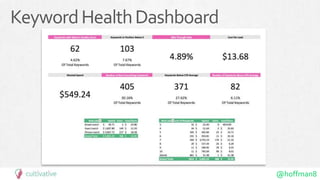
KeywordHealthDashboard
@hoffman8
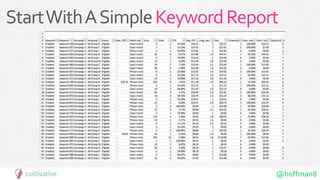
StartWithASimpleKeywordReport
@hoffman8
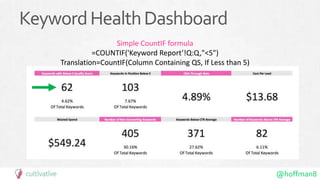
KeywordHealthDashboard
Simple CountIF formula
=COUNTIF('Keyword Report’!Q:Q,"<5")
Translation=CountIF(Column Containing QS, If Less than 5)
@hoffman8
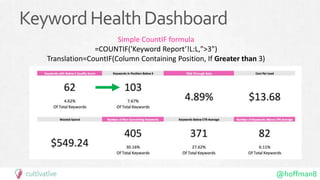
KeywordHealthDashboard
Simple CountIF formula
=COUNTIF('Keyword Report’!L:L,">3")
Translation=CountIF(Column Containing Position, If Greater than 3)
@hoffman8
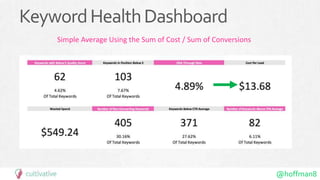
KeywordHealthDashboard
Simple Average Using the Sum of Clicks / Sum of Impressions
@hoffman8
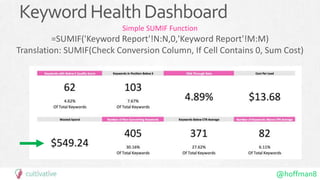
KeywordHealthDashboard
Simple Average Using the Sum of Cost / Sum of Conversions
@hoffman8
KeywordHealthDashboard
Simple SUMIF Function
=SUMIF('Keyword Report'!N:N,0,'Keyword Report'!M:M)
Translation: SUMIF(Check Conversion Column, If Cell Contains 0, Sum Cost)
@hoffman8
KeywordHealthDashboard
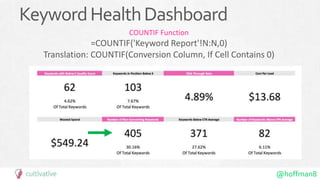
COUNTIF Function
=COUNTIF('Keyword Report'!N:N,0)
Translation: COUNTIF(Conversion Column, If Cell Contains 0)
@hoffman8
KeywordHealthDashboard
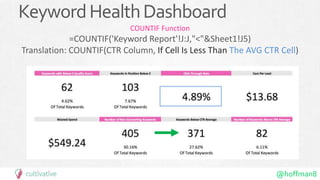
COUNTIF Function
=COUNTIF('Keyword Report'!J:J,"<"&Sheet1!J5)
Translation: COUNTIF(CTR Column, If Cell Is Less Than The AVG CTR Cell)
@hoffman8
KeywordHealthDashboard
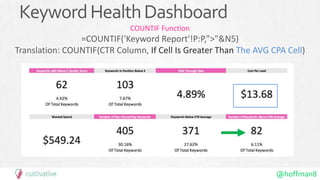
COUNTIF Function
=COUNTIF('Keyword Report'!P:P,”>"&N5)
Translation: COUNTIF(CTR Column, If Cell Is Greater Than The AVG CPA Cell)
@hoffman8
Rinse&Reuse
Simply drop new keyword
sheets into the data tab,
update your pivot tables and
the dashboard will update!
@hoffman8
SearchTermTool
@hoffman8
@hoffman8
There is a search term script!
@hoffman8
But it auto-adds keywords and negatives.
@hoffman8
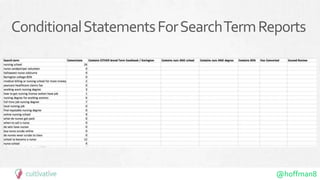
Use conditional statements to dissect search
term reports.
@hoffman8
ConditionalStatementsForSearchTermReports
@hoffman8
ConditionalStatementsForSearchTermReports
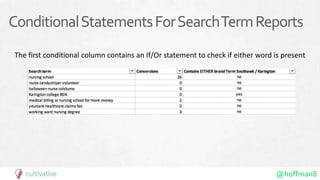
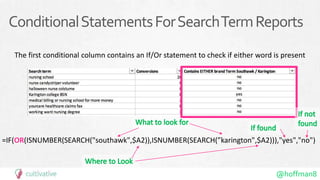
The first conditional column contains an If/Or statement to check if either word is present
@hoffman8
ConditionalStatementsForSearchTermReports
The first conditional column contains an If/Or statement to check if either word is present
=IF(OR(ISNUMBER(SEARCH("southawk",$A2)),ISNUMBER(SEARCH(”karington",$A2))),"yes","no")
@hoffman8
ConditionalStatementsForSearchTermReports
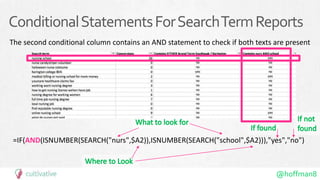
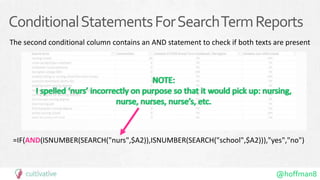
The second conditional column contains an AND statement to check if both texts are present
=IF(AND(ISNUMBER(SEARCH("nurs",$A2)),ISNUMBER(SEARCH("school",$A2))),"yes","no")
@hoffman8
ConditionalStatementsForSearchTermReports
The second conditional column contains an AND statement to check if both texts are present
=IF(AND(ISNUMBER(SEARCH("nurs",$A2)),ISNUMBER(SEARCH("school",$A2))),"yes","no")
@hoffman8
ConditionalStatementsForSearchTermReports
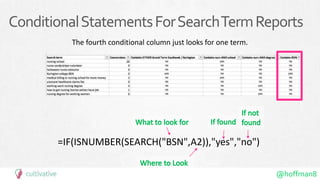
The fourth conditional column just looks for one term.
=IF(ISNUMBER(SEARCH("BSN",A2)),"yes","no")
@hoffman8
ConditionalStatementsForSearchTermReports
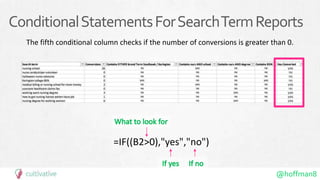
The fifth conditional column checks if the number of conversions is greater than 0.
=IF((B2>0),"yes","no")
@hoffman8
SortPotentialNegativesfromPotentialKeywords
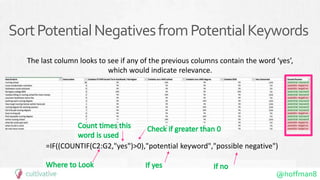
The last column looks to see if any of the previous columns contain the word ‘yes’,
which would indicate relevance.
=IF((COUNTIF(C2:G2,"yes")>0),"potential keyword","possible negative")
@hoffman8
There’sNoReplacementFor
ManualReview
@hoffman8
P.S.Here’stheGoogleSheetWiththeFormulas
http://bit.ly/2M3Chzc
P.P.S. can also be used to help segment terms into silos.
@hoffman8
KeywordAmplifierTool
@hoffman8
KeywordExpansion
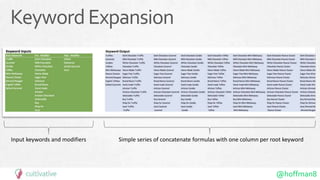
Input keywords and modifiers Simple series of concatenate formulas with one column per root keyword
@hoffman8
KeywordExpansion
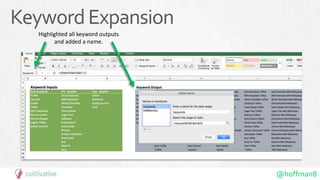
Highlighted all keyword outputs
and added a name.
@hoffman8
KeywordExpansion
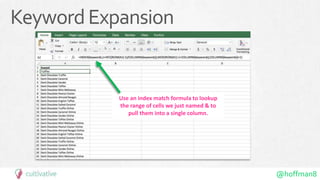
Use an index match formula to lookup
the range of cells we just named & to
pull them into a single column.
@hoffman8
KeywordExpansion
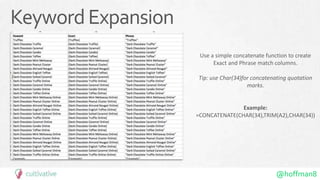
Use a simple concatenate function to create
Exact and Phrase match columns.
Tip: use Char(34)for concatenating quotation
marks.
Example:
=CONCATENATE(CHAR(34),TRIM(A2),CHAR(34))
@hoffman8
KeywordExpansion
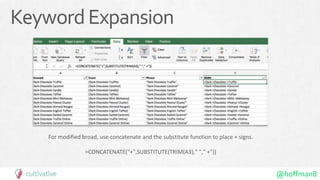
For modified broad, use concatenate and the substitute function to place + signs.
.
=CONCATENATE("+",SUBSTITUTE(TRIM(A3)," "," +"))
@hoffman8
KeywordExpansion
Optional Next Steps:
1. Repeat the process of defining a name for the array & using an index formula to
pull all of the data into a single column.
2. Can use the tool we covered in the last section to group by themes for ad groups
and campaigns
@hoffman8
URL Builder
@hoffman8
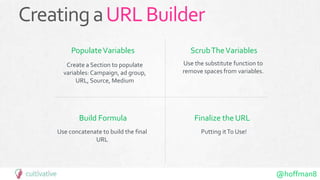
CreatingaURLBuilder
PopulateVariables ScrubTheVariables
Build Formula Finalize the URL
Create a Section to populate
variables:Campaign, ad group,
URL, Source, Medium
Use the substitute function to
remove spaces from variables.
Use concatenate to build the final
URL
Putting itTo Use!
@hoffman8
Excel Plugins
@hoffman8
Haven’tTriedAdd-Ins?
@hoffman8
PeopleGraphsAdd-In
Infographic-like Chart
Visuals
@hoffman8
PeopleGraph:ProfessionalVisualizations
Con: very, very limited
Pro: very, very easy
@hoffman8
PowerMapsAdd-In
Visualize Geographic
Data
@hoffman8
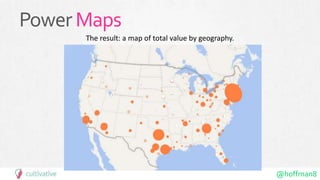
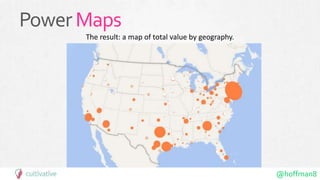
PowerMaps
The result: a map of total value by geography.
@hoffman8
BingAdsIntelligence
SuperchargeYour Efforts with
Bing Ads’ Excel Add-In
@hoffman8
BingAdsIntelligence
So many options!
@hoffman8
WhyNotJustUseInterfaceTools?
@hoffman8
ExcelSolver
Solve for aValue in OrderTo
Maximize Another
@hoffman8
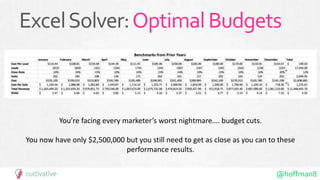
ExcelSolver:OptimalBudgets
You’re facing every marketer’s worst nightmare…. budget cuts.
You now have only $2,500,000 but you still need to get as close as you can to these
performance results.
@hoffman8
ExcelSolver:OptimalBudgets
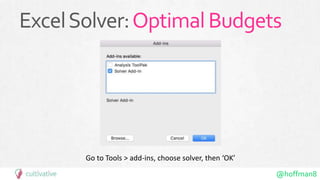
Go to Tools > add-ins, choose solver, then ‘OK’
@hoffman8
ExcelSolver:SetUpParameters
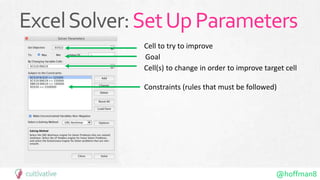
Cell to try to improve
Cell(s) to change in order to improve target cell
Constraints (rules that must be followed)
Goal
@hoffman8
ExcelSolver:SetUpParameters
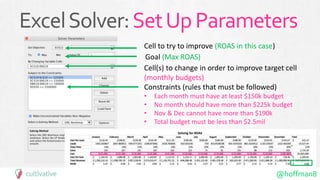
Cell to try to improve (ROAS in this case)
Cell(s) to change in order to improve target cell
(monthly budgets)
Constraints (rules that must be followed)
• Each month must have at least $150k budget
• No month should have more than $225k budget
• Nov & Dec cannot have more than $190k
• Total budget must be less than $2.5mil
Goal (Max ROAS)
@hoffman8
ExcelSolver:OptimalBudgets
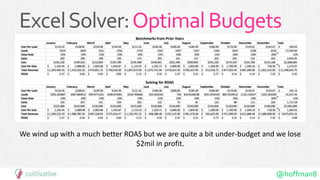
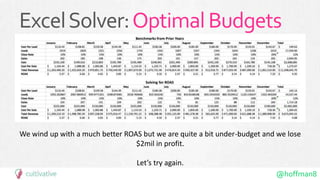
We wind up with a much better ROAS but we are quite a bit under-budget and we lose
$2mil in profit.
@hoffman8
ExcelSolver:OptimalBudgets
We wind up with a much better ROAS but we are quite a bit under-budget and we lose
$2mil in profit.
Let’s try again.
@hoffman8
ExcelSolver:OptimalBudgets
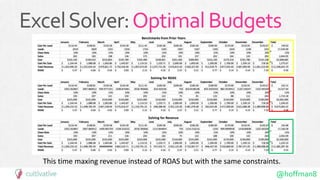
This time maxing revenue instead of ROAS but with the same constraints.
@hoffman8
ExcelSolver:Learnings
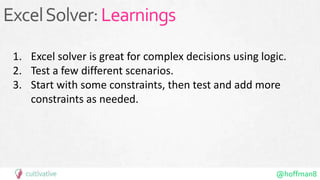
1. Excel solver is great for complex decisions using logic.
2. Test a few different scenarios.
3. Start with some constraints, then test and add more
constraints as needed.
@hoffman8
ExcelSolver:OptimalCPA
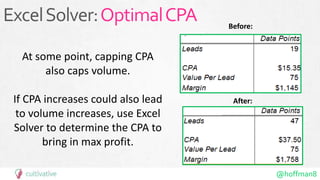
At some point, capping CPA
also caps volume.
If CPA increases could also lead
to volume increases, use Excel
Solver to determine the CPA to
bring in max profit.
After:
Before:
@hoffman8
GoogleAnalytics
Google Analytics Reports for
Google Sheets
@hoffman8
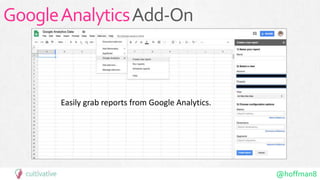
GoogleAnalyticsAdd-On
Easily grab reports from Google Analytics.
@hoffman8
Automate RoutineTasks
@hoffman8
Quick Poll
How many people use
macros?
@hoffman8
Actual
footage
of me
@hoffman8
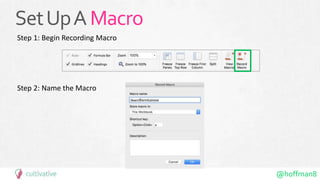
SetUpAMacro
Step 1: Begin Recording Macro
Step 2: Name the Macro
@hoffman8
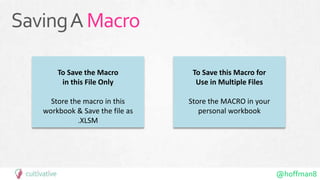
SavingAMacro
To Save the Macro
in this File Only
Store the macro in this
workbook & Save the file as
.XLSM
To Save this Macro for
Use in Multiple Files
Store the MACRO in your
personal workbook
@hoffman8
SetUpAMacro
Step 3: Take Whatever Steps
You Normally Would To Set Up
Your Spreadsheet
@hoffman8
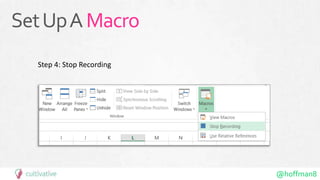
SetUpAMacro
Step 4: Stop Recording
@hoffman8
@hoffman8
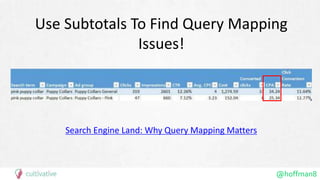
Use Subtotals To Find Query Mapping
Issues!
Search Engine Land: Why Query Mapping Matters
@hoffman8
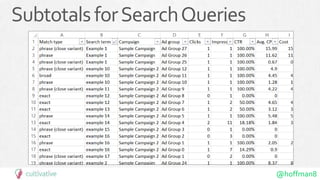
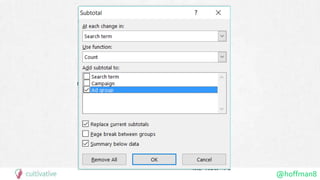
SubtotalsforSearchQueries
@hoffman8
@hoffman8
PA
GE
74
SubtotalsforSearchQueries
@hoffman8
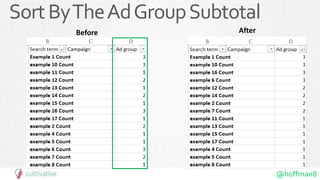
SortByTheAdGroupSubtotal
Before After
@hoffman8
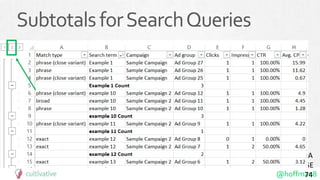
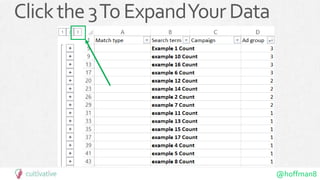
Clickthe3ToExpandYourData
@hoffman8
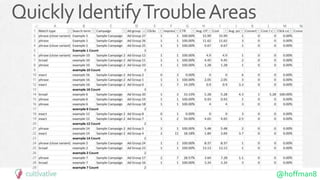
QuicklyIdentifyTroubleAreas
@hoffman8
6 Steps – But If You Create a Macro It Will Be Automated
For Future Use!
@hoffman8
Takeaway
If there’s a task you arerepeatedly executing, find a way to automate it:
• Build Tools from Formulas
• Use Add-Ins
• Build Tools with Macros
@hoffman8
Things to
Do inYour
Spare
Time
WhenILearnaNewExcelTrick
@hoffman8
SpendMoreTimeOnYouTube
(And tweet me the videos worth watching!)
@hoffman8
Go to More Conferences!
@hoffman8
DoMoreWork!
@hoffman8
Thank You!
Appendix Contains:
• Formula How-To’s
• 50+ Plug-ins to check out
• Power Maps Tutorial
• URL Builder Tutorial
• URL Builder Google Sheets Link
@hoffman8
CONTACT INFO
Tel: 765.404.1044
Web: www.cultivativemarketing.com
@hoffman8
amy@cultivativemarketing.com
Let’s Talk Shop!
@hoffman8
Appendix
@hoffman8
Formulas&Functions
@hoffman8
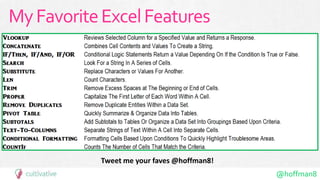
MyFavoriteExcelFeatures
Tweet me your faves @hoffman8!
@hoffman8
How-To’s
• Handy Excel Formulas & Features That You Should Know (shortcuts,
concatenate, vlookup, substitute, text-to-columns, character counts,
conditional formatting and character counts)
• Using IF Formulas
• CountIf Formula
• How to Run a Macro
• Pivot Tables!
• 5 Blog Posts to Expand Your Excel Expertise
• Analyze competitors with Excel
@hoffman8
Learning Resources
• Excel Blog
• YouTube: Excel is Fun
• YouTube: Excel TV
• AimClear: Deep in The Sheets
• 50 (mostly) Free Excel Add-Ins
@hoffman8
MoreTutorials
@hoffman8
HowtoBuildaURLBuilders
@hoffman8
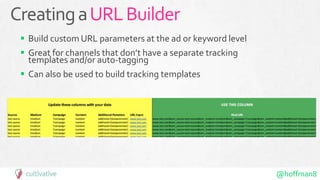
CreatingaURLBuilder
 Build custom URL parameters at the ad or keyword level
 Great for channels that don’t have a separate tracking
templates and/or auto-tagging
 Can also be used to build tracking templates
@hoffman8
CreatingaURLBuilder
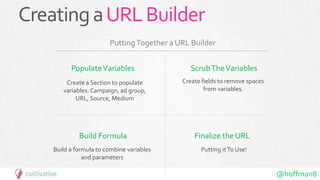
PopulateVariables ScrubTheVariables
Build Formula Finalize the URL
Create a Section to populate
variables:Campaign, ad group,
URL, Source, Medium
Create fields to remove spaces
from variables.
Build a formula to combine variables
and parameters
Putting itTo Use!
PuttingTogether a URL Builder
@hoffman8
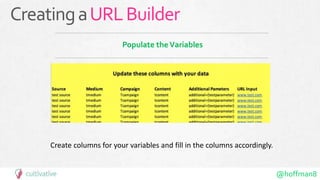
Populate theVariables
Create columns for your variables and fill in the columns accordingly.
CreatingaURLBuilder
@hoffman8
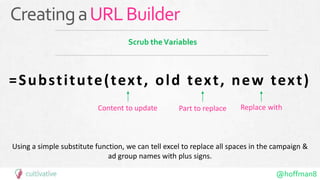
Scrub theVariables
Using a simple substitute function, we can tell excel to replace all spaces in the campaign &
ad group names with plus signs.
=Substitute(text, old text, new text)
Content to update Part to replace Replace with
CreatingaURLBuilder
@hoffman8
BuildThe Formula
It’s time to pull it all of our resources together.
CreatingaURLBuilder
@hoffman8
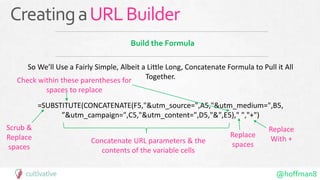
Build the Formula
So We’ll Use a Fairly Simple, Albeit a Little Long, Concatenate Formula to Pull it All
Together.
=SUBSTITUTE(CONCATENATE(F5,"&utm_source=",A5,"&utm_medium=",B5,
”&utm_campaign=",C5,"&utm_content=",D5,"&",E5)," ","+")
Replace
With +
Replace
spaces
Scrub &
Replace
spaces
Check within these parentheses for
spaces to replace
Concatenate URL parameters & the
contents of the variable cells
CreatingaURLBuilder
@hoffman8
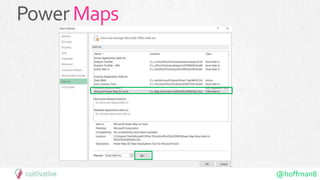
PowerMapsAdd-In
How toVisualize
Geographic Data
Note: this tool is not available for Macs. (sigh.)
@hoffman8
PowerMaps
@hoffman8
PowerMaps
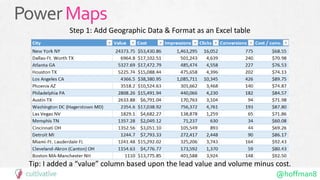
Step 1: Add Geographic Data & Format as an Excel table
Tip: I added a “value” column based upon the lead value and volume minus cost.
@hoffman8
PowerMaps
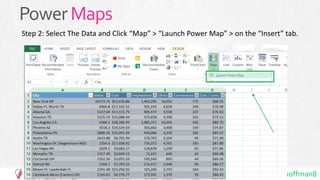
Step 2: Select The Data and Click “Map” > “Launch Power Map” > on the “Insert” tab.
@hoffman8
Power Maps
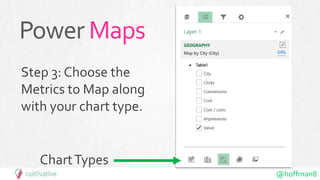
Step 3: Choose the
Metrics to Map along
with your chart type.
ChartTypes
@hoffman8
PowerMaps
The result: a map of total value by geography.

Building Excel Tools - Utah DMC 2018 - Amy Bishop

Editor's Notes