SET UP
BOOTSTRAP
By Likith KH
www.likithkh.in likith.docmpl2024@learner.manipal.edu
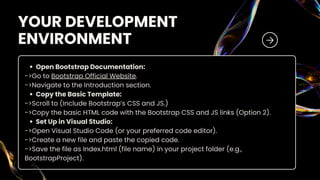
YOUR DEVELOPMENT
ENVIRONMENT
Open Bootstrap Documentation:
->Go to Bootstrap Official Website.
->Navigate to the Introduction section.
Copy the Basic Template:
->Scroll to (Include Bootstrap’s CSS and JS.)
->Copy the basic HTML code with the Bootstrap CSS and JS links (Option 2).
Set Up in Visual Studio:
->Open Visual Studio Code (or your preferred code editor).
->Create a new file and paste the copied code.
->Save the file as Index.html (file name) in your project folder (e.g.,
BootstrapProject).
Find the Navbar Component in Bootstrap:
->Go to the Navbar Section in the Bootstrap documentation.
->Choose a navbar layout that fits your design (e.g., a light navbar, dark
navbar, or with a brand logo).
Copy the Navbar Code:
->Copy the code snippet of the desired navbar.
Paste Navbar Code:
->Paste the navbar code into the <body> section of your index.html file.
Update Navbar Links:
->Add the following menu items: Home, About Us, Contact Us.
->Set href="#" for the time being, or leave it blank to update later.
CREATE THE NAVBAR
Add the Hero Section Code:
->Below the navbar code in index.html, add the
following:
ADD THE HERO SECTION
(HOME PAGE)
Ensure Image Accessibility:
->Save your image in the same folder as your HTML file, or adjust the url()
path accordingly.
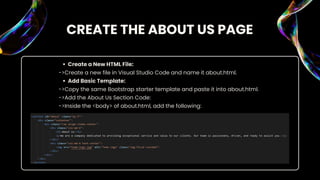
Create a New HTML File:
->Create a new file in Visual Studio Code and name it about.html.
Add Basic Template:
->Copy the same Bootstrap starter template and paste it into about.html.
->Add the About Us Section Code:
->Inside the <body> of about.html, add the following:
CREATE THE ABOUT US PAGE
Save the File:
->Save about.html in the same folder as index.html.
Update Navbar in index.html:
->In the navbar section, update the About Us link:
CREATE THE ABOUT US PAGE
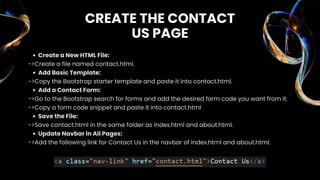
Create a New HTML File:
->Create a file named contact.html.
Add Basic Template:
->Copy the Bootstrap starter template and paste it into contact.html.
Add a Contact Form:
->Go to the Bootstrap search for forms and add the desired form code you want from it.
->Copy a form code snippet and paste it into contact.html
Save the File:
->Save contact.html in the same folder as index.html and about.html.
Update Navbar in All Pages:
->Add the following link for Contact Us in the navbar of index.html and about.html:
CREATE THE CONTACT
US PAGE
Open each file (index.html, about.html, contact.html) in a
browser to test them.
Ensure the navbar links navigate correctly to their
respective pages.
Verify that images, forms, and layouts display correctly.
FINALIZE THE FILES
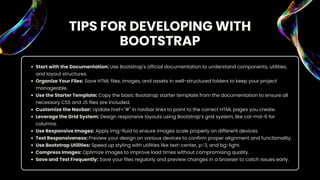
Start with the Documentation: Use Bootstrap's official documentation to understand components, utilities,
and layout structures.
Organize Your Files: Save HTML files, images, and assets in well-structured folders to keep your project
manageable.
Use the Starter Template: Copy the basic Bootstrap starter template from the documentation to ensure all
necessary CSS and JS files are included.
Customize the Navbar: Update href="#" in navbar links to point to the correct HTML pages you create.
Leverage the Grid System: Design responsive layouts using Bootstrap’s grid system, like col-md-6 for
columns.
Use Responsive Images: Apply img-fluid to ensure images scale properly on different devices.
Test Responsiveness: Preview your design on various devices to confirm proper alignment and functionality.
Use Bootstrap Utilities: Speed up styling with utilities like text-center, p-3, and bg-light.
Compress Images: Optimize images to improve load times without compromising quality.
Save and Test Frequently: Save your files regularly and preview changes in a browser to catch issues early.
TIPS FOR DEVELOPING WITH
BOOTSTRAP
THANK YOU
for your time and attention
By Likith KH
www.likithkh.in likith.docmpl2024@learner.manipal.edu

Bootstrap notes on developing basic website by Likith.pdf

  • 1.
    SET UP BOOTSTRAP By LikithKH www.likithkh.in likith.docmpl2024@learner.manipal.edu
  • 2.
    YOUR DEVELOPMENT ENVIRONMENT Open BootstrapDocumentation: ->Go to Bootstrap Official Website. ->Navigate to the Introduction section. Copy the Basic Template: ->Scroll to (Include Bootstrap’s CSS and JS.) ->Copy the basic HTML code with the Bootstrap CSS and JS links (Option 2). Set Up in Visual Studio: ->Open Visual Studio Code (or your preferred code editor). ->Create a new file and paste the copied code. ->Save the file as Index.html (file name) in your project folder (e.g., BootstrapProject).
  • 3.
    Find the NavbarComponent in Bootstrap: ->Go to the Navbar Section in the Bootstrap documentation. ->Choose a navbar layout that fits your design (e.g., a light navbar, dark navbar, or with a brand logo). Copy the Navbar Code: ->Copy the code snippet of the desired navbar. Paste Navbar Code: ->Paste the navbar code into the <body> section of your index.html file. Update Navbar Links: ->Add the following menu items: Home, About Us, Contact Us. ->Set href="#" for the time being, or leave it blank to update later. CREATE THE NAVBAR
  • 4.
    Add the HeroSection Code: ->Below the navbar code in index.html, add the following: ADD THE HERO SECTION (HOME PAGE) Ensure Image Accessibility: ->Save your image in the same folder as your HTML file, or adjust the url() path accordingly.
  • 5.
    Create a NewHTML File: ->Create a new file in Visual Studio Code and name it about.html. Add Basic Template: ->Copy the same Bootstrap starter template and paste it into about.html. ->Add the About Us Section Code: ->Inside the <body> of about.html, add the following: CREATE THE ABOUT US PAGE
  • 6.
    Save the File: ->Saveabout.html in the same folder as index.html. Update Navbar in index.html: ->In the navbar section, update the About Us link: CREATE THE ABOUT US PAGE
  • 7.
    Create a NewHTML File: ->Create a file named contact.html. Add Basic Template: ->Copy the Bootstrap starter template and paste it into contact.html. Add a Contact Form: ->Go to the Bootstrap search for forms and add the desired form code you want from it. ->Copy a form code snippet and paste it into contact.html Save the File: ->Save contact.html in the same folder as index.html and about.html. Update Navbar in All Pages: ->Add the following link for Contact Us in the navbar of index.html and about.html: CREATE THE CONTACT US PAGE
  • 8.
    Open each file(index.html, about.html, contact.html) in a browser to test them. Ensure the navbar links navigate correctly to their respective pages. Verify that images, forms, and layouts display correctly. FINALIZE THE FILES
  • 9.
    Start with theDocumentation: Use Bootstrap's official documentation to understand components, utilities, and layout structures. Organize Your Files: Save HTML files, images, and assets in well-structured folders to keep your project manageable. Use the Starter Template: Copy the basic Bootstrap starter template from the documentation to ensure all necessary CSS and JS files are included. Customize the Navbar: Update href="#" in navbar links to point to the correct HTML pages you create. Leverage the Grid System: Design responsive layouts using Bootstrap’s grid system, like col-md-6 for columns. Use Responsive Images: Apply img-fluid to ensure images scale properly on different devices. Test Responsiveness: Preview your design on various devices to confirm proper alignment and functionality. Use Bootstrap Utilities: Speed up styling with utilities like text-center, p-3, and bg-light. Compress Images: Optimize images to improve load times without compromising quality. Save and Test Frequently: Save your files regularly and preview changes in a browser to catch issues early. TIPS FOR DEVELOPING WITH BOOTSTRAP
  • 10.
    THANK YOU for yourtime and attention By Likith KH www.likithkh.in likith.docmpl2024@learner.manipal.edu