SUSE Linux
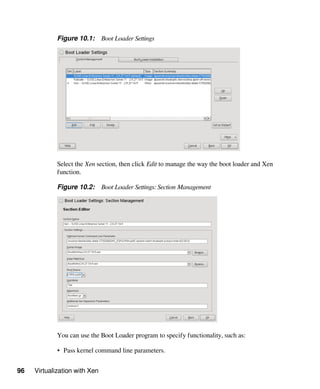
Enterprise Server
www.suse.com11 SP3
October 16, 2014 Virtualization with Xen
Virtualization with Xen
Copyright © 2006–2014 SUSE LLC and contributors. All rights reserved.
Permission is granted to copy, distribute and/or modify this document under the terms of the GNU
Free Documentation License, Version 1.2 or (at your option) version 1.3; with the Invariant Section
being this copyright notice and license. A copy of the license version 1.2 is included in the section
entitled “GNU Free Documentation License”.
For SUSE and Novell trademarks, see the Novell Trademark and Service Mark list http://
www.novell.com/company/legal/trademarks/tmlist.html. All other third party
trademarks are the property of their respective owners. A trademark symbol (®, ™ etc.) denotes a
SUSE or Novell trademark; an asterisk (*) denotes a third party trademark.
All information found in this book has been compiled with utmost attention to detail. However, this
does not guarantee complete accuracy. Neither SUSE LLC, its affiliates, the authors nor the transla-
tors shall be held liable for possible errors or the consequences thereof.
Contents
About This Manual vii
1 Available Documentation ....................................................................... vii
2 Feedback .............................................................................................. ix
3 Documentation Conventions ..................................................................... x
I Getting Started with Xen 1
1 Introduction to Xen Virtualization 3
1.1 Basic Components ................................................................................ 3
1.2 Understanding Virtualization Modes ....................................................... 5
1.3 Xen Virtualization Architecture ............................................................. 5
1.4 The Virtual Machine Host ..................................................................... 6
1.5 Supported Virtualization Limits ............................................................. 7
1.6 Supported VM Guests .......................................................................... 9
1.7 Supported VM Hosts .......................................................................... 10
2 Setting Up a Virtual Machine Host 13
2.1 Best Practices and Suggestions ............................................................. 14
2.2 Managing Domain0 Memory ............................................................... 15
2.3 Network Card in Fully Virtualized Guests .............................................. 16
2.4 Starting the Virtual Machine Host ........................................................ 18
2.5 PCI Pass-Through .............................................................................. 19
3 Setting Up Virtual Machines 25
3.1 Creating a Virtual Machine .................................................................. 25
3.2 Installing an Operating System ............................................................. 27
3.3 Including Add-On Products in the Installation ........................................ 32
3.4 Using the Command Line to Create Virtual Machines ............................. 32
3.5 Deleting Virtual Machines ................................................................... 33
3.6 Using an Existing SUSE Linux Enterprise Server Virtual Machine ............. 33
3.7 Troubleshooting ................................................................................. 34
4 Updating SLE 10 Systems to SLE 11 35
4.1 Boot Loader Configuration .................................................................. 36
II Advanced Configurations 37
5 Managing a Virtualization Environment 39
5.1 Virtual Machine Manager .................................................................... 40
5.2 Controlling the Host by Modifying Xend Settings ................................... 42
5.3 Configuring a Virtual Machine by Modifying its Xend Settings ................. 43
5.4 The xm Command .............................................................................. 44
5.5 Automatic Starting of Domains ............................................................ 46
5.6 Migrating Xen VM Guest Systems ........................................................ 46
6 Virtual Networking 51
6.1 Virtual Bridges ................................................................................... 52
6.2 Network Devices for Guest Systems ..................................................... 53
6.3 Host Based Routing in Xen ................................................................. 54
6.4 Creating a Masqueraded Network Setup ................................................ 57
6.5 Special Configurations ........................................................................ 59
7 Block Devices in Xen 63
7.1 Mapping Physical Storage to Virtual Disks ............................................ 63
7.2 File-Backed Virtual Disks and Loopback Devices ................................... 65
7.3 Resizing Block Devices ....................................................................... 66
8 Virtualization: Configuration Options and Settings
67
8.1 Virtual CD Readers ............................................................................ 67
8.2 Remote Access Methods ..................................................................... 70
8.3 VNC Viewer ..................................................................................... 71
8.4 Virtual Keyboards .............................................................................. 73
8.5 USB Pass-Through ............................................................................. 75
8.6 Dedicating CPU Resources .................................................................. 80
8.7 Using Lock Files ................................................................................ 82
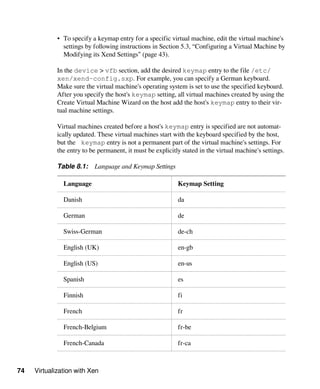
8.8 Xenpaging ......................................................................................... 82
8.9 HVM Features ................................................................................... 83
9 XenStore: Configuration Database Shared between
Domains 87
9.1 Introduction ....................................................................................... 87
9.2 File System Interface .......................................................................... 87
III Administration and Best Practices 93
10 Administration Tasks 95
10.1 The Boot Loader Program ................................................................. 95
10.2 Sparse Image Files and Disk Space ..................................................... 98
10.3 Migrating Virtual Machines ............................................................... 99
10.4 Passing Key Combinations to Virtual Machines ................................... 100
10.5 Monitoring Xen .............................................................................. 101
10.6 Extra Guest Descriptions in Xen Configuration ................................... 103
10.7 Providing Host Information for VM Guest Systems ............................. 104
11 Save and Restore of Virtual Machines 107
11.1 Saving Virtual Machines .................................................................. 107
11.2 Restoring Virtual Machines .............................................................. 108
11.3 Virtual Machine States .................................................................... 109
12 Xen as High Availability Virtualization Host 111
12.1 Xen HA with Remote Storage .......................................................... 111
12.2 Xen HA with Local Storage ............................................................. 113
12.3 Xen HA and Private Bridges ............................................................ 113
13 SUSE Linux Virtual Machines 115
13.1 Using the Add-On Products Program ................................................. 116
13.2 Virtual Machine Clock Settings ........................................................ 116
13.3 Updating a Network Installation Source ............................................. 118
14 Virtual Machine Drivers 121
IV Appendix 123
A Virtual Machine Initial Start-Up Files 125
B SXP Configuration Options 129
domain .................................................................................................. 130
C GNU Licenses 147
C.1 GNU Free Documentation License ..................................................... 147
About This Manual
This manual offers an introduction to virtualization technology of your SUSE Linux
Enterprise Server. It features an overview of the various fields of application and in-
stallation types of each of the platforms supported by SUSE Linux Enterprise Server
as well as a short description of the installation procedure.
Many chapters in this manual contain links to additional documentation resources.
This includes additional documentation that is available on the system as well as docu-
mentation available on the Internet.
For an overview of the documentation available for your product and the latest docu-
mentation updates, refer to http://www.suse.com/doc.
Quality service is also available. Experts can answer questions about installation or
configuration, make reliable security updates available, and support development
projects.
Documentation regarding the Open Enterprise Server can be found at http://
www.novell.com/documentation/oes11/.
1 Available Documentation
We provide HTML and PDF versions of our books in different languages. The fol-
lowing manuals for users and administrators are available for this product:
Deployment Guide (↑Deployment Guide)
Shows how to install single or multiple systems and how to exploit the product
inherent capabilities for a deployment infrastructure. Choose from various ap-
proaches, ranging from a local installation or a network installation server to a
mass deployment using a remote-controlled, highly-customized, and automated
installation technique.
Administration Guide (↑Administration Guide)
Covers system administration tasks like maintaining, monitoring, and customizing
an initially installed system.
Security Guide (↑Security Guide)
Introduces basic concepts of system security, covering both local and network se-
curity aspects. Shows how to make use of the product inherent security software
viii Virtualization with Xen
like AppArmor (which lets you specify per program which files the program may
read, write, and execute), and the auditing system that reliably collects informa-
tion about any security-relevant events.
Security and Hardening (↑Security and Hardening)
Deals with the particulars of installing and setting up a secure SUSE Linux En-
terprise Server, and additional post-installation processes required to further se-
cure and harden that installation. Supports the administrator with security-related
choices and decisions.
System Analysis and Tuning Guide (↑System Analysis and Tuning Guide)
An administrator's guide for problem detection, resolution and optimization. Find
how to inspect and optimize your system by means of monitoring tools and how
to efficiently manage resources. Also contains an overview of common problems
and solutions, and of additional help and documentation resources.
Virtualization with Xen (page i)
Offers an introduction to virtualization technology of your product. It features an
overview of the various fields of application and installation types of each of the
platforms supported by SUSE Linux Enterprise Server as well as a short descrip-
tion of the installation procedure.
Virtualization with KVM for IBM System z (↑Virtualization with KVM for IBM Sys-
tem z)
Offers an introduction to setting up and managing virtualization with KVM (Ker-
nel-based Virtual Machine) on SUSE Linux Enterprise Server. Learn how to man-
age KVM with libvirt or QEMU. The guide also contains detailed information
about requirements, limitations, and support status.
AutoYaST (↑AutoYaST)
AutoYaST is a system for installing one or more SUSE Linux Enterprise systems
automatically and without user intervention, using an AutoYaST profile that con-
tains installation and configuration data. The manual guides you through the basic
steps of auto-installation: preparation, installation, and configuration.
Storage Administration Guide (↑Storage Administration Guide)
Provides information about how to manage storage devices on a SUSE Linux En-
terprise Server.
In addition to the comprehensive manuals, several quick start guides are available:
About This Manual ix
Installation Quick Start (↑Installation Quick Start)
Lists the system requirements and guides you step-by-step through the installation
of SUSE Linux Enterprise Server from DVD, or from an ISO image.
Linux Audit Quick Start
Gives a short overview how to enable and configure the auditing system and how
to execute key tasks such as setting up audit rules, generating reports, and analyz-
ing the log files.
AppArmor Quick Start
Helps you understand the main concepts behind AppArmor®.
Virtualization with Linux Containers (LXC) (↑Virtualization with Linux Containers
(LXC))
Gives a short introduction to LXC (a lightweight “virtualization” method) and
shows how to set up an LXC host and LXC containers.
Find HTML versions of most product manuals in your installed system under /usr/
share/doc/manual or in the help centers of your desktop. Find the latest doc-
umentation updates at http://www.suse.com/doc where you can download
PDF or HTML versions of the manuals for your product.
2 Feedback
Several feedback channels are available:
Bugs and Enhancement Requests
For services and support options available for your product, refer to http://
www.suse.com/support/.
To report bugs for a product component, log in to the Novell Customer Center
from http://www.suse.com/support/ and select My Support > Service
Request.
User Comments
We want to hear your comments about and suggestions for this manual and the
other documentation included with this product. Use the User Comments fea-
ture at the bottom of each page in the online documentation or go to http://
www.suse.com/doc/feedback.html and enter your comments there.
x Virtualization with Xen
Mail
For feedback on the documentation of this product, you can also send a mail to
doc-team@suse.de. Make sure to include the document title, the product
version, and the publication date of the documentation. To report errors or sug-
gest enhancements, provide a concise description of the problem and refer to the
respective section number and page (or URL).
3 Documentation Conventions
The following typographical conventions are used in this manual:
• /etc/passwd: directory names and filenames
• placeholder: replace placeholder with the actual value
• PATH: the environment variable PATH
• ls, --help: commands, options, and parameters
• user: users or groups
• Alt, Alt + F1: a key to press or a key combination; keys are shown in uppercase as
on a keyboard
• File, File > Save As: menu items, buttons
• #amd64 em64t: This paragraph is only relevant for the architectures amd64,
em64t, and ipf. The arrows mark the beginning and the end of the text block. ◄
• Dancing Penguins (Chapter Penguins, ↑Another Manual): This is a reference to a
chapter in another manual.
Part I. Getting
Started with Xen
Introduction to Xen Virtualization 3
Introduction to Xen
Virtualization
1
Virtualization of operating systems is used in many different computing areas. It finds
its applications in server consolidation, energy saving efforts, or the ability to run old-
er software on new hardware, for example. This chapter introduces and explains the
components and technologies you need to understand to set up and manage a Xen-
based virtualization environment.
1.1 Basic Components
The basic components of a Xen-based virtualization environment are the Xen hypervi-
sor, the Domain0, any number of other VM Guests, and the tools, commands, and con-
figuration files that let you manage virtualization. Collectively, the physical comput-
er running all these components is referred to as a VM Host Server because together
these components form a platform for hosting virtual machines.
The Xen Hypervisor
The Xen hypervisor, sometimes referred to generically as a virtual machine moni-
tor, is an open-source software program that coordinates the low-level interaction
between virtual machines and physical hardware.
The Domain0
The virtual machine host environment, also referred to as Domain0 or controlling
domain, is comprised of several components, such as:
4 Virtualization with Xen
• The SUSE Linux operating system, which gives the administrator a graph-
ical and command line environment to manage the virtual machine host
components and its virtual machines.
NOTE
The term “Domain0” refers to a special domain that provides the
management environment. This may be run either in graphical or
in command line mode.
• The Xend daemon (xend), which stores configuration information about
each virtual machine and controls how virtual machines are created and
managed.
• A modified version of QEMU, which is an open-source software program
that emulates a full computer system, including a processor and various
peripherals. It provides the ability to host operating systems in full virtual-
ization mode.
Xen-Based Virtual Machines
A Xen-based virtual machine, also referred to as a VM Guest or DomU consists
of the following components:
• At least one virtual disk that contains a bootable operating system. The
virtual disk can be based on a file, partition, volume, or other type of
block device.
• Virtual machine configuration information, which can be modified by ex-
porting a text-based configuration file from Xend or through Virtual Ma-
chine Manager.
• A number of network devices, connected to the virtual network provided
by the controlling domain.
Management Tools, Commands, and Configuration Files
There is a combination of GUI tools, commands, and configuration files to help
you manage and customize your virtualization environment.
Introduction to Xen Virtualization 5
1.2 Understanding Virtualization
Modes
Guest operating systems are hosted on virtual machines in either full virtualization
mode or paravirtual mode. Each virtualization mode has advantages and disadvan-
tages.
• Full virtualization mode lets virtual machines run unmodified operating systems,
such as Windows* Server 2003 and Windows XP, but requires the computer run-
ning as the VM Host Server to support hardware-assisted virtualization technology,
such as AMD* Virtualization or Intel* Virtualization Technology.
Some guest operating systems hosted in full virtualization mode, can be configured
to run the Novell* Virtual Machine Drivers instead of drivers originating from the
operating system. Running virtual machine drivers improves performance dramati-
cally on guest operating systems, such as Windows XP and Windows Server 2003.
For more information, see Chapter 14, Virtual Machine Drivers (page 121).
• Paravirtual mode does not require the host computer to support hardware-assisted
virtualization technology, but does require the guest operating system to be mod-
ified for the virtualization environment. Typically, operating systems running in
paravirtual mode enjoy better performance than those requiring full virtualization
mode.
Operating systems currently modified to run in paravirtual mode are referred to as
paravirtualized operating systems and include SUSE Linux Enterprise Server 11 and
NetWare® 6.5 SP8.
1.3 Xen Virtualization Architecture
The following graphic depicts a virtual machine host with four virtual machines. The
Xen hypervisor is shown as running directly on the physical hardware platform. Note,
that the controlling domain is also just a virtual machine, although it has several addi-
tional management tasks compared to all other virtual machines.
6 Virtualization with Xen
Figure 1.1: Virtualization Architecture
On the left, the virtual machine host’s Domain0 is shown running the SUSE Linux op-
erating system. The two virtual machines shown in the middle are running paravirtual-
ized operating systems. The virtual machine on the right shows a fully virtual machine
running an unmodified operating system, such as Windows Server 2003 or Windows
XP.
1.4 The Virtual Machine Host
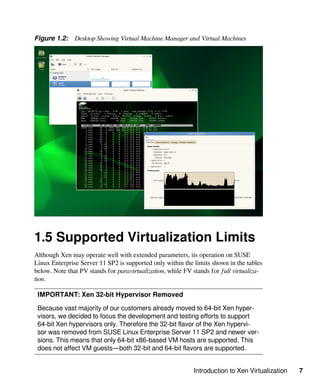
After you install the virtualization components and reboot the computer, the GRUB
boot loader menu displays a Xen menu option. Selecting the Xen menu option loads
the Xen hypervisor and starts the Domain0 running the SUSE Linux operating system.
Running on Domain0, the SUSE Linux operating system displays the installed text
console or desktop environment, such as GNOME or KDE. The terminals of VM
Guest systems are displayed in their own window inside the controlling Domain0
when opened.
Introduction to Xen Virtualization 7
Figure 1.2: Desktop Showing Virtual Machine Manager and Virtual Machines
1.5 Supported Virtualization Limits
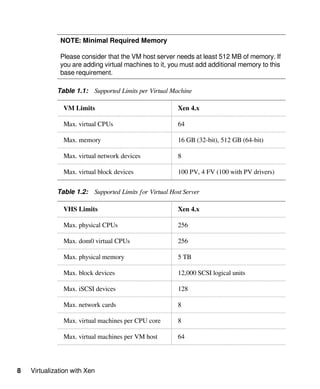
Although Xen may operate well with extended parameters, its operation on SUSE
Linux Enterprise Server 11 SP2 is supported only within the limits shown in the tables
below. Note that PV stands for paravirtualization, while FV stands for full virtualiza-
tion.
IMPORTANT: Xen 32-bit Hypervisor Removed
Because vast majority of our customers already moved to 64-bit Xen hyper-
visors, we decided to focus the development and testing efforts to support
64-bit Xen hypervisors only. Therefore the 32-bit flavor of the Xen hypervi-
sor was removed from SUSE Linux Enterprise Server 11 SP2 and newer ver-
sions. This means that only 64-bit x86-based VM hosts are supported. This
does not affect VM guests—both 32-bit and 64-bit flavors are supported.
8 Virtualization with Xen
NOTE: Minimal Required Memory
Please consider that the VM host server needs at least 512 MB of memory. If
you are adding virtual machines to it, you must add additional memory to this
base requirement.
Table 1.1: Supported Limits per Virtual Machine
VM Limits Xen 4.x
Max. virtual CPUs 64
Max. memory 16 GB (32-bit), 512 GB (64-bit)
Max. virtual network devices 8
Max. virtual block devices 100 PV, 4 FV (100 with PV drivers)
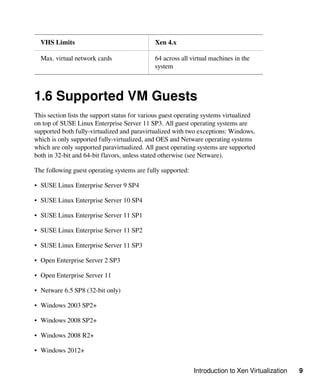
Table 1.2: Supported Limits for Virtual Host Server
VHS Limits Xen 4.x
Max. physical CPUs 256
Max. dom0 virtual CPUs 256
Max. physical memory 5 TB
Max. block devices 12,000 SCSI logical units
Max. iSCSI devices 128
Max. network cards 8
Max. virtual machines per CPU core 8
Max. virtual machines per VM host 64
Introduction to Xen Virtualization 9
VHS Limits Xen 4.x
Max. virtual network cards 64 across all virtual machines in the
system
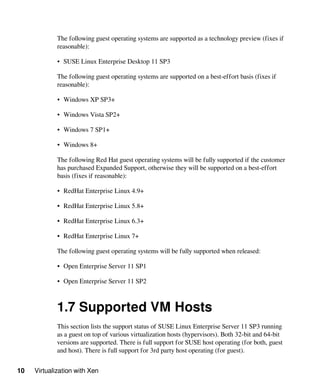
1.6 Supported VM Guests
This section lists the support status for various guest operating systems virtualized
on top of SUSE Linux Enterprise Server 11 SP3. All guest operating systems are
supported both fully-virtualized and paravirtualized with two exceptions: Windows,
which is only supported fully-virtualized, and OES and Netware operating systems
which are only supported paravirtualized. All guest operating systems are supported
both in 32-bit and 64-bit flavors, unless stated otherwise (see Netware).
The following guest operating systems are fully supported:
• SUSE Linux Enterprise Server 9 SP4
• SUSE Linux Enterprise Server 10 SP4
• SUSE Linux Enterprise Server 11 SP1
• SUSE Linux Enterprise Server 11 SP2
• SUSE Linux Enterprise Server 11 SP3
• Open Enterprise Server 2 SP3
• Open Enterprise Server 11
• Netware 6.5 SP8 (32-bit only)
• Windows 2003 SP2+
• Windows 2008 SP2+
• Windows 2008 R2+
• Windows 2012+
10 Virtualization with Xen
The following guest operating systems are supported as a technology preview (fixes if
reasonable):
• SUSE Linux Enterprise Desktop 11 SP3
The following guest operating systems are supported on a best-effort basis (fixes if
reasonable):
• Windows XP SP3+
• Windows Vista SP2+
• Windows 7 SP1+
• Windows 8+
The following Red Hat guest operating systems will be fully supported if the customer
has purchased Expanded Support, otherwise they will be supported on a best-effort
basis (fixes if reasonable):
• RedHat Enterprise Linux 4.9+
• RedHat Enterprise Linux 5.8+
• RedHat Enterprise Linux 6.3+
• RedHat Enterprise Linux 7+
The following guest operating systems will be fully supported when released:
• Open Enterprise Server 11 SP1
• Open Enterprise Server 11 SP2
1.7 Supported VM Hosts
This section lists the support status of SUSE Linux Enterprise Server 11 SP3 running
as a guest on top of various virtualization hosts (hypervisors). Both 32-bit and 64-bit
versions are supported. There is full support for SUSE host operating (for both, guest
and host). There is full support for 3rd party host operating (for guest).
Introduction to Xen Virtualization 11
The following SUSE host operating systems are supported:
• SUSE Linux Enterprise Server 10 SP4
• SUSE Linux Enterprise Server 11 SP1
• SUSE Linux Enterprise Server 11 SP2
• SUSE Linux Enterprise Server 11 SP3
The following 3rd party host operating systems are supported:
• VMware ESX 5.1
• VMware ESXi 5.1
• Windows 2008 SP2+
• Windows 2008 R2+
• Windows 2012+
• Citrix XenServer 60
• Oracle VM 3.0
• Oracle VM 3.1
The following SUSE and 3rd party host operating systems will be supported when re-
leased:
• VMware ESX 5.2
• VMware ESXi 5.2
• Citrix XenServer 6.1
• Microsoft Windows Server OS future service packs
• Oracle VM 3.2
Setting Up a Virtual Machine Host 13
Setting Up a Virtual
Machine Host
2
This section documents how to set up and use SUSE Linux Enterprise Server 11 SP3
as a virtual machine host.
In most cases, the hardware requirements for the Domain0 are the same as those for
the SUSE Linux Enterprise Server operating system, but additional CPU, disk, memo-
ry, and network resources should be added to accommodate the resource demands of
all planned VM Guest systems.
TIP
Remember that VM Guest systems, just like physical machines, perform
better when they run on faster processors and have access to more system
memory.
The following table lists the minimum hardware requirements for running a typical
virtualized environment. Additional requirements have to be added for the number
and type of the respective guest systems.
Table 2.1: Hardware Requirements
System Com-
ponent
Minimum Requirements
Computer Computer with Pentium II or AMD K7 450 MHz processor
Memory 512 MB of RAM for the host
14 Virtualization with Xen
System Com-
ponent
Minimum Requirements
Free Disk
Space
7 GB of available disk space for the host.
Optical Drive DVD-ROM Drive
Hard Drive 20 GB
Network De-
vice
Ethernet 100 Mbps
IP Address • One IP address on a subnet for the host.
• One IP address on a subnet for each VM Guest.
Xen virtualization technology is available in SUSE Linux Enterprise Server products
based on code path 10 and later. Code path 10 products include Open Enterprise Serv-
er 2 Linux, SUSE Linux Enterprise Server 10, SUSE Linux Enterprise Desktop 10,
and openSUSE 10.x.
The virtual machine host requires a number of software packages and their depen-
dencies to be installed. To install all necessary packages, run YaST Software Manage-
ment, select View > Patterns and choose Xen Virtual Machine Host Server for installa-
tion. The installation can also be performed with YaST using the module Virtualiza-
tion > Install Hypervisor and Tools.
After the Xen software is installed, restart the computer.
Updates are available through your update channel. To be sure to have the latest up-
dates installed, run YaST Online Update after the installation has finished.
2.1 Best Practices and Suggestions
When installing and configuring the SUSE Linux Enterprise operating system on the
host, be aware of the following best practices and suggestions:
Setting Up a Virtual Machine Host 15
• If the host should always run as Xen host, run YaST System > Boot Loader and acti-
vate the Xen boot entry as default boot section.
• In YaST, click System > Boot Loader.
• Change the default boot to the Xen label, then click Set as Default.
• Click Finish.
• Close Virtual Machine Manager if you are not actively using it and restart it when
needed. Closing Virtual Machine Manager does not affect the state of virtual ma-
chines.
• For best performance, only the applications and processes required for virtualiza-
tion should be installed on the virtual machine host.
• When using both, iSCSI and OCFS2 to host Xen images, the latency required for
OCFS2 default timeouts in SP2 may not be met. To reconfigure this timeout, run /
etc/init.d/o2cb configure or edit O2CB_HEARTBEAT_THRESHOLD
in the system configuration.
2.2 Managing Domain0 Memory
When the host is set up, a percentage of system memory is reserved for the hypervi-
sor, and all remaining memory is automatically allocated to Domain0.
A better solution is to set a default amount of memory for Domain0, so the memo-
ry can be allocated appropriately to the hypervisor. An adequate amount would be 20
percent of the total system memory up to 2 GB. An appropriate minimum amount
would be 512 MB.
2.2.1 Setting a Maximum Amount of
Memory
1 Determine the amount of memory to set for Domain0.
2 At Domain0, type xm info to view the amount of memory that is available on
the machine. The memory that is currently allocated by Domain0 can be deter-
mined with the command xm list.
16 Virtualization with Xen
3 Run YaST > Boot Loader.
4 Select the Xen section.
5 In Additional Xen Hypervisor Parameters, add dom0_mem=mem_amount where
mem_amount is the maximum amount of memory to allocate to Domain0. Add K,
M, or G, to specify the size, for example, dom0_mem=768M.
6 Restart the computer to apply the changes.
2.2.2 Setting a Minimum Amount of
Memory
To set a minimum amount of memory for Domain0, edit the dom0-min-mem
parameter in the /etc/xen/xend-config.sxp file and restart Xend. For
more information, see Section 5.2, “Controlling the Host by Modifying Xend
Settings” (page 42).
2.3 Network Card in Fully
Virtualized Guests
In a fully virtualized guest, the default network card is an emulated Realtek network
card. However, it also possible to use the split network driver to run the communi-
cation between Domain0 and a VM Guest. By default, both interfaces are presented
to the VM Guest, because the drivers of some operating systems require both to be
present.
When using SUSE Linux Enterprise, only the paravirtualized network cards are avail-
able for the VM Guest by default. The following network options are available:
emulated
To use a “emulated” network interface like an emulated Realtek card, specify
(type ioemu) in the vif device section of the Xend configuration. An exam-
ple configuration would look like:
Setting Up a Virtual Machine Host 17
(device
(vif
(bridge br0)
(uuid e2b8f872-88c7-0a4a-b965-82f7d5bdd31e)
(devid 0)
(mac 00:16:3e:54:79:a6)
(model rtl8139)
(type ioemu)
)
)
Find more details about editing the Xend configuration at Section 5.3, “Configur-
ing a Virtual Machine by Modifying its Xend Settings” (page 43).
paravirtualized
When not specifying a model or type, Xend uses the paravirtualized network in-
terface:
(device
(vif
(bridge br0)
(mac 00:16:3e:50:66:a4)
(script /etc/xen/scripts/vif-bridge)
(uuid 0a94b603-8b90-3ba8-bd1a-ac940c326514)
(backend 0)
)
)
emulated and paravirtualized
If the administrator should be offered both options, simply specify both, type and
model. The Xend configuration would look like:
(device
(vif
(bridge br0)
(uuid e2b8f872-88c7-0a4a-b965-82f7d5bdd31e)
(devid 0)
(mac 00:16:3e:54:79:a6)
(model rtl8139)
(type netfront)
)
)
In this case, one of the network interfaces should be disabled on the VM Guest.
18 Virtualization with Xen
2.4 Starting the Virtual Machine
Host
If virtualization software is correctly installed, the computer boots to display the
GRUB boot loader with a Xen option on the menu. Select this option to start the virtu-
al machine host.
NOTE: Xen and Kdump
In Xen, the hypervisor manages the memory resource. If you need to re-
serve system memory for a recovery kernel in Domain0, this memory has to
be reserved by the hypervisor. Thus, it is necessary to add the parameter
crashkernel=size@offset to the kernel line instead of using the line
with the other boot options.
If the Xen option is not on the GRUB menu, review the steps for installation and ver-
ify that the GRUB boot loader has been updated. If the installation has been done
without selecting the Xen pattern, run the YaST Software Management, select the fil-
ter Patterns and choose Xen Virtual Machine Host Server for installation.
After booting the hypervisor, the Domain0 virtual machine starts and displays its
graphical desktop environment. If you did not install a graphical desktop, the com-
mand line environment appears.
TIP: Graphics Problems
Sometimes it may happen that the graphics system does not work prop-
erly. In this case, add vga=ask to the boot parameters. To activate
permanent settings, use vga=mode-0x??? where ??? is calculated
as 0x100 + VESA mode from http://en.wikipedia.org/wi​
ki/VESA_BIOS_Extensions, e.g. vga=mode-0x361.
Before starting to install virtual guests, make sure that the system time is correct. To
do this, configure NTP (Network Time Protocol) on the controlling domain:
1 In YaST select Network Services > NTP Configuration.
2 Select the option to automatically start the NTP daemon during boot. Provide the
IP address of an existing NTP time server, then click Finish.
Setting Up a Virtual Machine Host 19
NOTE: Time Services on Virtual Guests
Hardware clocks commonly are not very precise. All modern operating sys-
tems try to correct the system time compared to the hardware time by means
of an additional time source. To get the correct time on all VM Guest sys-
tems, also activate the network time services on each respective guest or
make sure that the guest uses the system time of the host. For more about
Independent Wallclocks in SUSE Linux Enterprise Server see Sec-
tion 13.2, “Virtual Machine Clock Settings” (page 116).
For more information about managing virtual machines, see Chapter 5, Managing a
Virtualization Environment (page 39).
2.5 PCI Pass-Through
To take full advantage of VM Guest systems, it is sometimes necessary to assign spe-
cific PCI devices to a dedicated domain. When using fully virtualized guests, this
functionality is only available if the chipset of the system supports this feature, and if
it is activated from the BIOS.
This feature is available from both, AMD* and Intel*. For AMD machines, the fea-
ture is called IOMMU, in Intel speak, this is VT-d. Note that Intel-VT technology is
not sufficient to use this feature for fully virtualized guests. To make sure that your
computer supports this feature, ask your supplier specifically to deliver a system that
supports PCI Pass-Through.
Limitations
• Some graphics drivers use highly optimized ways to access DMA. This is not al-
ways supported, and thus using graphics cards may be difficult.
• When accessing PCI devices behind a PCIe bridge, all of the PCI devices must be
assigned to a single guest. This limitations does not apply to PCIe devices.
• Guests with dedicated PCI devices cannot be live migrated to a different host.
The configuration of PCI Pass-Through is twofold. First, the hypervisor must be in-
formed that a PCI device should be available for reassigning. Second, the PCI device
must be assigned to the VM Guest.
20 Virtualization with Xen
2.5.1 Configuring the Hypervisor for PCI
Pass-Through
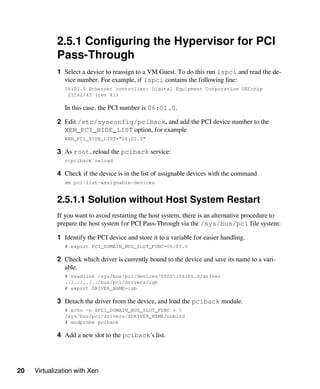
1 Select a device to reassign to a VM Guest. To do this run lspci and read the de-
vice number. For example, if lspci contains the following line:
06:01.0 Ethernet controller: Digital Equipment Corporation DECchip
21142/43 (rev 41)
In this case, the PCI number is 06:01.0.
2 Edit /etc/sysconfig/pciback, and add the PCI device number to the
XEN_PCI_HIDE_LIST option, for example
XEN_PCI_HIDE_LIST="06:01.0"
3 As root, reload the pciback service:
rcpciback reload
4 Check if the device is in the list of assignable devices with the command
xm pci-list-assignable-devices
2.5.1.1 Solution without Host System Restart
If you want to avoid restarting the host system, there is an alternative procedure to
prepare the host system for PCI Pass-Through via the /sys/bus/pci file system:
1 Identify the PCI device and store it to a variable for easier handling.
# export PCI_DOMAIN_BUS_SLOT_FUNC=06:01.0
2 Check which driver is currently bound to the device and save its name to a vari-
able.
# readlink /sys/bus/pci/devices/0000:06:01.0/driver
../../../../bus/pci/drivers/igb
# export DRIVER_NAME=igb
3 Detach the driver from the device, and load the pciback module.
# echo -n $PCI_DOMAIN_BUS_SLOT_FUNC > 
/sys/bus/pci/drivers/$DRIVER_NAME/unbind
# modprobe pciback
4 Add a new slot to the pciback's list.
Setting Up a Virtual Machine Host 21
# echo -n $PCI_DOMAIN_BUS_SLOT_FUNC > 
/sys/bus/pci/drivers/pciback/new_slot
5 Bind the PCI device to pciback.
# echo -n $PCI_DOMAIN_BUS_SLOT_FUNC > 
/sys/bus/pci/drivers/pciback/bind
The device is now ready to be used in VM Guest by specifying
'pci=[$PCI_DOMAIN_BUS_SLOT_FUNC]' in the guest config file.
2.5.2 Assigning PCI Devices to VM Guest
Systems
There are several possibilities to dedicate a PCI device to a VM Guest:
Adding the device while installing:
During installation, add the pci line to the configuration file:
pci=['06:01.0']
TIP
If you want the Xen tools to manage preparing and assigning a PCI de-
vice to a VM Guest when it is activated, add managed=1 to the PCI set-
ting in the guest configuration file, denoting that it is a 'managed' PCI de-
vice:
pci=['06:01.0,managed=1']
When the VM Guest is activated, the Xen tools will unbind the PCI de-
vice from its existing driver, bind it to pciback, and attach the device to
the VM. When the VM is shut down, the tools will rebind the device to its
original driver. When using the managed mode, there is no need to con-
figure the hypervisor for PCI Pass-Through as described in Section 2.5.1,
“Configuring the Hypervisor for PCI Pass-Through” (page 20).
Hot adding PCI devices to VM Guest systems
The command xm may be used to add or remove PCI devices on the fly. To Add
the device with number 06:01.0 to a guest with name sles11 use:
xm pci-attach sles11 06:01.0
22 Virtualization with Xen
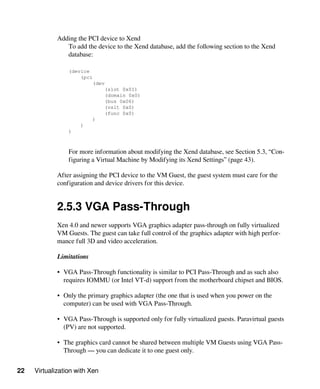
Adding the PCI device to Xend
To add the device to the Xend database, add the following section to the Xend
database:
(device
(pci
(dev
(slot 0x01)
(domain 0x0)
(bus 0x06)
(vslt 0x0)
(func 0x0)
)
)
)
For more information about modifying the Xend database, see Section 5.3, “Con-
figuring a Virtual Machine by Modifying its Xend Settings” (page 43).
After assigning the PCI device to the VM Guest, the guest system must care for the
configuration and device drivers for this device.
2.5.3 VGA Pass-Through
Xen 4.0 and newer supports VGA graphics adapter pass-through on fully virtualized
VM Guests. The guest can take full control of the graphics adapter with high perfor-
mance full 3D and video acceleration.
Limitations
• VGA Pass-Through functionality is similar to PCI Pass-Through and as such also
requires IOMMU (or Intel VT-d) support from the motherboard chipset and BIOS.
• Only the primary graphics adapter (the one that is used when you power on the
computer) can be used with VGA Pass-Through.
• VGA Pass-Through is supported only for fully virtualized guests. Paravirtual guests
(PV) are not supported.
• The graphics card cannot be shared between multiple VM Guests using VGA Pass-
Through — you can dedicate it to one guest only.
Setting Up a Virtual Machine Host 23
To enable VGA Pass-Through, add the following settings to your fully virtualized
guest configuration file
gfx_passthru=1
pci=['yy:zz.n']
where yy:zz.n is the PCI controller ID of the VGA graphics adapter as found with
lspci -v on Domain0.
2.5.4 For More Information
There are several resources that provide interesting information about PCI Pass-
Through in the net:
• http://wiki.xensource.com/xenwiki/VTdHowTo
• http://software.intel.com/en-us/articles/intel-virtual​
ization-technology-for-directed-io-vt-d-enhancing-in​
tel-platforms-for-efficient-virtualization-of-io-de​
vices/
• http://www.amd.com/us-en/assets/content_type/
white_papers_and_tech_docs/34434.pdf
Setting Up Virtual Machines 25
Setting Up Virtual Machines
3
A virtual machine is comprised of data and operating system files that define the vir-
tual environment. Virtual machines are hosted and controlled by the VM Host Server.
This section provides generalized instructions for installing virtual machines.
Virtual machines have few if any requirements above those required to run the oper-
ating system. If the operating system has not been optimized for the virtual machine
host environment, the unmodified OS can run only on hardware-assisted virtualization
computer hardware, in full virtualization mode, and requires specific device drivers to
be loaded. The hardware that is presented to the VM Guest depends on the configura-
tion of the Xend.
You should be aware of any licensing issues related to running a single licensed copy
of an operating system on multiple virtual machines. Consult the operating system li-
cense agreement for more information.
NOTE: Virtual Machine Architectures
The virtual machine host runs only on AMD64 and Intel 64 hardware. It does
not run on other system architectures such as Itanium, or POWER. A 64-bit
virtual machine host can, however, run both 32-bit and 64-bit operating sys-
tem.
3.1 Creating a Virtual Machine
Before creating a virtual machine, you need the following:
26 Virtualization with Xen
• Install a host server as described in Chapter 2, Setting Up a Virtual Machine
Host (page 13).
• If you want to use an automated installation file (AutoYaST, NetWare® Response
File, or RedHat Kickstart), you should create and download it to a directory on the
host machine server or make it available on the network.
• For NetWare and OES Linux virtual machines, you need a static IP address for
each virtual machine you create.
• If you are installing Open Enterprise Server (OES) 2 Linux, you need a network in-
stallation source for OES 2 Linux software. For procedures to create the installation
sources, see the SUSE Linux Enterprise Server Deployment Guide.
For further prerequisites, consult the manuals of the respective operating system to in-
stall.
The Create Virtual Machine Wizard (YaST > Virtualization > Create Virtual Ma-
chines) helps you through the steps required to create a virtual machine and install its
operating system. The information that follows is generalized for installing any oper-
ating system.
The actual configuration file for the Xen guests that is used for the installation is
stored at /etc/xen/vm/. The default location for image files is /var/lib/
xen/images. Be aware, that the configuration may be changed later on, but
these changes will only be available in the Xend. For more information about
Xend, see Section 5.3, “Configuring a Virtual Machine by Modifying its Xend
Settings” (page 43).
Launch the Create Virtual Machine Wizard by using one of the following methods:
• From the virtualization host server desktop, click YaST > Virtualization > Create
Virtual Machines
• From within Virtual Machine Manager, click New.
• At the command line, enter vm-install.
If the wizard does not appear or the vm-install command does not work, review
the process of installing and starting the virtualization host server. The virtualization
software might not be installed properly.
Setting Up Virtual Machines 27
3.2 Installing an Operating System
You can choose to run an installation program or choose a disk or disk image that al-
ready has an installed and bootable operating system.
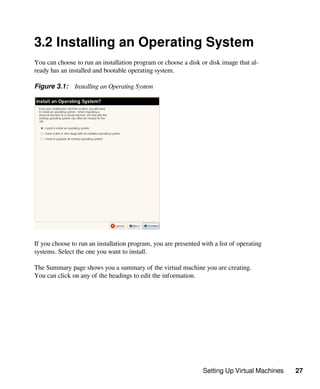
Figure 3.1: Installing an Operating System
If you choose to run an installation program, you are presented with a list of operating
systems. Select the one you want to install.
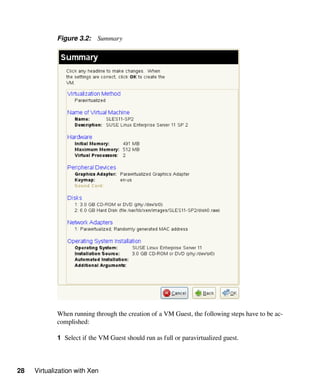
The Summary page shows you a summary of the virtual machine you are creating.
You can click on any of the headings to edit the information.
28 Virtualization with Xen
Figure 3.2: Summary
When running through the creation of a VM Guest, the following steps have to be ac-
complished:
1 Select if the VM Guest should run as full or paravirtualized guest.
Setting Up Virtual Machines 29
If your computer supports hardware-assisted virtualization, you can create a virtu-
al machine that runs in fully virtual mode. If you are installing an operating system
that is modified for virtualization, you can create a virtual machine that runs in par-
avirtual mode. For more information about virtualization modes, see Section 1.2,
“Understanding Virtualization Modes” (page 5).
2 Each virtual machine must have a unique name. The name entered on this page is
used to create and name the virtual machine’s configuration file. The configuration
file contains parameters that define the virtual machine and is saved to the /etc/
xen/vm/ directory.
The user interface to the name of the virtual machine also offers the possibility to
add a description to the newly generated guest.
3 The Hardware page allows you to specify the amount of memory and number of
virtual processors for your virtual machine.
Initial Memory
The amount of memory initially allocated to the virtual machine (specified in
megabytes).
Maximum Memory
The largest amount of memory the virtual machine will ever need.
Virtual Processors
If desired, you can specify that the virtual machine has more virtual CPUs than
the number of physical CPUs. You can specify up to 32 virtual CPUs: howev-
er, for best performance, the number of virtual processors should be less than
or equal to the number of physical processors.
4 In Peripheral Devices, select the keymap layout and graphics mode to use:
No Graphics Support
The virtual machine operates like a server without a monitor. You can access
the operating system through operating system supported services, such as SSH
or VNC.
Paravirtualized Graphics Adapter
Requires that an appropriate graphics driver is installed in the operating sys-
tem.
30 Virtualization with Xen
5 A virtual machine must have at least one virtual disk. Virtual disks can be:
• File backed, which means that the virtual disk is a single image file on a larger
physical disk.
• A sparse image file, which means that the virtual disk is a single image file, but
the space is not preallocated.
• Configured from a block device, such as an entire disk, partition, or volume. For
more information about available physical storage, see Section 7.1, “Mapping
Physical Storage to Virtual Disks” (page 63).
For best performance, create each virtual disk from an entire disk or a partition.
For the next best performance, create an image file but do not create it as a sparse
image file. A virtual disk based on a sparse image file delivers the most disk-space
flexibility but slows installation and disk access speeds.
By default, a single, file-backed virtual disk is created as a sparse image file in /
var/lib/xen/images/vm_name where vm_name is the name of the virtual
machine. You can change this configuration to meet your specific requirements.
6 If you want to install from DVD or CD-ROM, add the drive to the list of available
hard disks. To learn about device names of the available optical drives, run hwin-
fo --cdrom and search for the line starting with Device File:. Add this
device file to the available hard disks of the VM Guest. The device type that should
be used for DVD or CD-ROMs is tap:cdrom.
Instead of the real DVD or CD-ROM drive, you can also add the ISO image of an
installation medium. For more details, see Section 8.1.1, “Virtual CD Readers on
Paravirtual Machines” (page 67).
Note, that each CD-Rom drive or ISO image can only be used by one VM Guest at
the same time. When installing many VM Guest systems, it may be better to use a
network installation source.
7 By default, a single virtual network card is created for the virtual machine. It has a
randomly generated MAC address that you can change to fit your desired config-
uration. The virtual network card will be attached to a default bridge configured
in the host. You can also create additional virtual network cards in the Network
Adapters page of vm-install. For more details about virtual networking, see Chap-
ter 6, Virtual Networking (page 51).
Setting Up Virtual Machines 31
NOTE: Using Arbitrary Bridge Names
If installing a fully virtualized guest and you are using a bridge name that
is different than the default names, explicitly specify the bridge by select-
ing the bridge name from the Source menu on the Virtual Network Adapter
page. Paravirtual guests by definition are aware they are running on a vir-
tualization platform and therefore, do not need to have the bridge explicitly
specified, thus leaving Source as Default will suffice.
8 The operating system can be installed from a CD/DVD device or an ISO image
file. In addition, if you are installing a SUSE Linux operating system, you can in-
stall the operating system from a network installation source.
If you are installing a paravirtual machine's operating system from CD or DVD,
you probably should remove the virtual CD reader from the virtual machine after
completing the installation. Otherwise it would not be available for other installa-
tions.
If the installation program is capable of recognizing an installation profile, re-
sponse file, or script, you can automate the installation settings by specifying the
location of the profile, response file, or script you want to use. For example, SUSE
Linux uses an AutoYaST profile, NetWare uses a NetWare Response File, and Red
Hat uses a Kickstart file to move through the installation screens with no interac-
tion.
You can also pass instructions to the kernel at install time by entering parameters
for the Additional Arguments field. These arguments may either be kernel options,
or options for linuxrc. More information about linuxrc can be found in the
Deployment Guide.
If all the information on the Summary screen is correct, click OK to create the virtual
machine. A Virt Viewer screen appears and at this point you begin the installation of
your OS. From this point on, follow the regular installation instructions for installing
your OS.
32 Virtualization with Xen
3.3 Including Add-On Products in
the Installation
In order to include an Add-On product in the installation process of a VM Guest, it is
necessary to provide the installation system with both, the standard installation images
and the image for the Add-On product.
First, add the system disk, the SUSE Linux Enterprise Server 11 SP3 installation im-
age and the physical CD-ROM or Add-On image as disks to the VM Guest. For ex-
ample, you may have:
xvda
Main system disk.
xvdb
ISO image of the installation medium.
xvdc
ISO image of the Add-On product.
During the installation, add the Add-On product to the installation by entering
the device path. Commonly, this path looks like hd:///?device=/dev/
xvd<letter>. In the special example with “xvdc” as Add-On product, this would
look like:
hd:///?device=/dev/xvdc
3.4 Using the Command Line to
Create Virtual Machines
From the command line, you can enter vm-install to run a text version of the
Create Virtual Machine Wizard. The text version of the wizard is helpful in environ-
ments without a graphical user interface. This command defaults to using a graphical
user interface if available and if no options were given on the command line.
For information on scripting a virtual machine installation, see the man pages of vm-
install and vm-install-jobs.
Setting Up Virtual Machines 33
3.5 Deleting Virtual Machines
When you use Virtual Machine Manager or the xm command to delete a virtual ma-
chine, it no longer appears as a virtual machine, but its initial start-up file and virtual
disks are not automatically deleted.
To delete all components of a virtual machine configured with a file-backed virtu-
al disk, you must manually delete its virtual disk image file (/var/lib/xen/im​
ages/) and its initial start-up file (/etc/xen/vm).
3.6 Using an Existing SUSE Linux
Enterprise Server Virtual Machine
In SUSE Linux Enterprise Server 10 SP1 and later, the device naming is different
than the device naming of SUSE Linux Enterprise Server 10. Therefore, a SUSE Lin-
ux Enterprise Server 10 VM Guest will not be able to find its root file system when
running on a SUSE Linux Enterprise Server 11 SP3 VM Host Server.
To be able to still boot the system, you must know which device is used for the root
partition of your virtual system. For example, hdaxx will be changed to xvdaxx
where xx is the partition number.
When booting the system, append an extra root option to the kernel command line,
that tells the system about its root file system. If your VM Guest used to live on /
dev/hda2, append the string root=/dev/xvda2 to the kernel command line.
This option should enable you to boot the system, although additional file systems still
will not be available to the system.
To make all the needed file systems available to the VM Guest, do the following:
In order to have a valid initial RAM disk that knows about the new location of the
root file system, run the command mkinitrd.
1 Start the VM Guest with the extra root= command line as explained above.
2 Log into the system as user root.
3 Edit the file /etc/fstab and correct all device entries.
34 Virtualization with Xen
4 Edit the virtual machine’s /boot/grub/menu.lst file. At the kernel line, fix
the root= and the resume= parameters according the new naming schema.
5 Reboot the virtual machine.
3.7 Troubleshooting
In some circumstances, problems may occur during the installation of the VM Guest.
This section describes some known problems and their solutions.
During boot, the system hangs
The software I/O translation buffer allocates a large chunk of low memory early
in the bootstrap process. If the requests for memory exceed the size of the buffer
it usually results in a hung boot process. To check if this is the case, switch to
console 10 and check the output there for a message similar to
kernel: PCI-DMA: Out of SW-IOMMU space for 32768 bytes at device
000:01:02.0
In this case you need to increase the size of the swiotlb. Enter “swiotlb=128”
on the Domain0 command line. Note that the number can be adjusted up or down
to find the optimal size for the machine.
Updating SLE 10 Systems to SLE 11 35
Updating SLE 10 Systems
to SLE 11
4
The update of a Xen VM Host Server is done similarly to the update of a normal
SUSE Linux Enterprise system. Simply follow the update description of the new
SUSE Linux Enterprise system.
To update a SLE 10 SP1 or later virtual machine to SLE 11, complete the following
procedure.
1 Make sure the host computer is running the most recent SLE updates. The
host computer must be running software that is more recent than the software
planned for the virtual machine update.
2 Shut down the virtual machine you want to update.
3 Prepare the virtual machine’s operating system environment for the update by
completing any prerequisite tasks. It is recommended to make a copy of the en-
tire virtual disk.
4 View or print the virtual machine’s configuration found with xm list -l
<vm_name>.
5 Use the Virtual Machine Manager to update the virtual machine.
6 Choose the operating system that is currently used on the virtual machine.
7 Select the virtual machine from the list to update.
8 Specify the SUSE Linux Enterprise installation source as the Installation Source
for the virtual machine.
36 Virtualization with Xen
9 Run through the virtual machine update the same way, as if it would be a physi-
cal machine.
10 Click OK to create the virtual machine and start the installation program.
A new window displaying the installation program opens on the Domain0.
11 During the installation program, select Update from the Installation Mode
screen.
12 Continue the installation/update by following the instructions on the screen.
After the installation program is completed, the virtual machine should run SLE
11 and be registered with Xend.
13 Log in to the SLE 11 virtual machine.
14 If you want the SLE 11 virtual machine to run in GUI mode, complete the fol-
lowing from its command line:
14a Enter init 3.
14b Enter sax2 to configure the GUI environment.
14c Enter init 5 to restart the GUI.
4.1 Boot Loader Configuration
After the upgrade of Domain0, Xen is no longer selected as the default boot option in
the grub boot menu. To make it default, start YaST and select System > Boot Loader.
Then select XEN and press Set as Default. Finish with OK.
Part II. Advanced
Configurations
Managing a Virtualization Environment 39
Managing a Virtualization
Environment
5
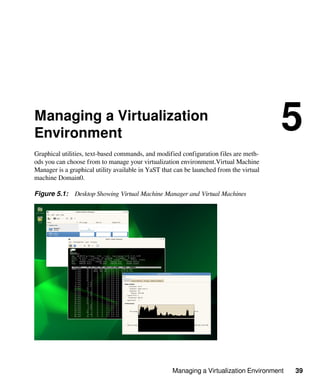
Graphical utilities, text-based commands, and modified configuration files are meth-
ods you can choose from to manage your virtualization environment.Virtual Machine
Manager is a graphical utility available in YaST that can be launched from the virtual
machine Domain0.
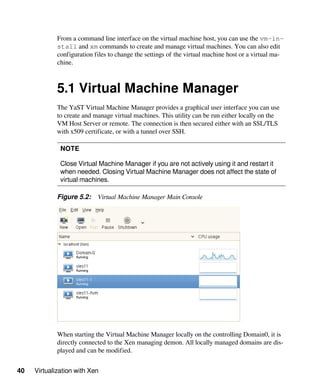
Figure 5.1: Desktop Showing Virtual Machine Manager and Virtual Machines
40 Virtualization with Xen
From a command line interface on the virtual machine host, you can use the vm-in-
stall and xm commands to create and manage virtual machines. You can also edit
configuration files to change the settings of the virtual machine host or a virtual ma-
chine.
5.1 Virtual Machine Manager
The YaST Virtual Machine Manager provides a graphical user interface you can use
to create and manage virtual machines. This utility can be run either locally on the
VM Host Server or remote. The connection is then secured either with an SSL/TLS
with x509 certificate, or with a tunnel over SSH.
NOTE
Close Virtual Machine Manager if you are not actively using it and restart it
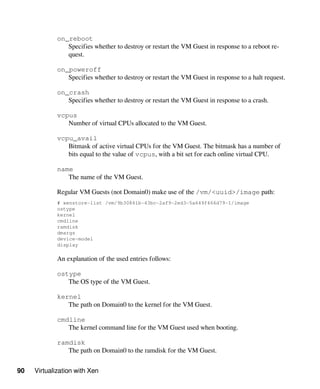
when needed. Closing Virtual Machine Manager does not affect the state of
virtual machines.
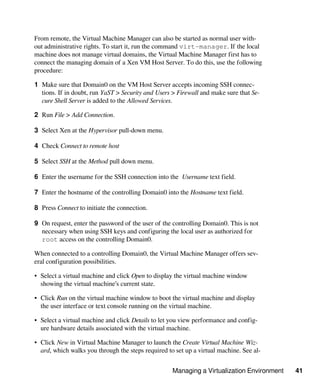
Figure 5.2: Virtual Machine Manager Main Console
When starting the Virtual Machine Manager locally on the controlling Domain0, it is
directly connected to the Xen managing demon. All locally managed domains are dis-
played and can be modified.
Managing a Virtualization Environment 41
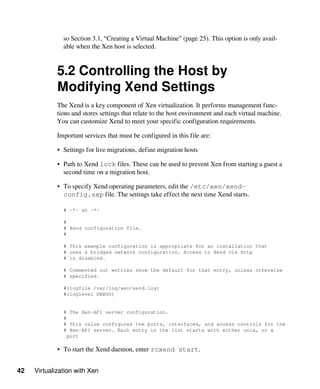
From remote, the Virtual Machine Manager can also be started as normal user with-
out administrative rights. To start it, run the command virt-manager. If the local
machine does not manage virtual domains, the Virtual Machine Manager first has to
connect the managing domain of a Xen VM Host Server. To do this, use the following
procedure:
1 Make sure that Domain0 on the VM Host Server accepts incoming SSH connec-
tions. If in doubt, run YaST > Security and Users > Firewall and make sure that Se-
cure Shell Server is added to the Allowed Services.
2 Run File > Add Connection.
3 Select Xen at the Hypervisor pull-down menu.
4 Check Connect to remote host
5 Select SSH at the Method pull down menu.
6 Enter the username for the SSH connection into the Username text field.
7 Enter the hostname of the controlling Domain0 into the Hostname text field.
8 Press Connect to initiate the connection.
9 On request, enter the password of the user of the controlling Domain0. This is not
necessary when using SSH keys and configuring the local user as authorized for
root access on the controlling Domain0.
When connected to a controlling Domain0, the Virtual Machine Manager offers sev-
eral configuration possibilities.
• Select a virtual machine and click Open to display the virtual machine window
showing the virtual machine’s current state.
• Click Run on the virtual machine window to boot the virtual machine and display
the user interface or text console running on the virtual machine.
• Select a virtual machine and click Details to let you view performance and config-
ure hardware details associated with the virtual machine.
• Click New in Virtual Machine Manager to launch the Create Virtual Machine Wiz-
ard, which walks you through the steps required to set up a virtual machine. See al-
42 Virtualization with Xen
so Section 3.1, “Creating a Virtual Machine” (page 25). This option is only avail-
able when the Xen host is selected.
5.2 Controlling the Host by
Modifying Xend Settings
The Xend is a key component of Xen virtualization. It performs management func-
tions and stores settings that relate to the host environment and each virtual machine.
You can customize Xend to meet your specific configuration requirements.
Important services that must be configured in this file are:
• Settings for live migrations, define migration hosts
• Path to Xend lock files. These can be used to prevent Xen from starting a guest a
second time on a migration host.
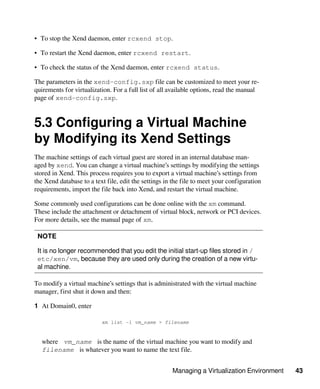
• To specify Xend operating parameters, edit the /etc/xen/xend-
config.sxp file. The settings take effect the next time Xend starts.
# -*- sh -*-
#
# Xend configuration file.
#
# This example configuration is appropriate for an installation that
# uses a bridged network configuration. Access to Xend via http
# is disabled.
# Commented out entries show the default for that entry, unless otherwise
# specified.
#(logfile /var/log/xen/xend.log)
#(loglevel DEBUG)
# The Xen-API server configuration.
#
# This value configures the ports, interfaces, and access controls for the
# Xen-API server. Each entry in the list starts with either unix, or a
port
• To start the Xend daemon, enter rcxend start.
Managing a Virtualization Environment 43
• To stop the Xend daemon, enter rcxend stop.
• To restart the Xend daemon, enter rcxend restart.
• To check the status of the Xend daemon, enter rcxend status.
The parameters in the xend-config.sxp file can be customized to meet your re-
quirements for virtualization. For a full list of all available options, read the manual
page of xend-config.sxp.
5.3 Configuring a Virtual Machine
by Modifying its Xend Settings
The machine settings of each virtual guest are stored in an internal database man-
aged by xend. You can change a virtual machine’s settings by modifying the settings
stored in Xend. This process requires you to export a virtual machine’s settings from
the Xend database to a text file, edit the settings in the file to meet your configuration
requirements, import the file back into Xend, and restart the virtual machine.
Some commonly used configurations can be done online with the xm command.
These include the attachment or detachment of virtual block, network or PCI devices.
For more details, see the manual page of xm.
NOTE
It is no longer recommended that you edit the initial start-up files stored in /
etc/xen/vm, because they are used only during the creation of a new virtu-
al machine.
To modify a virtual machine’s settings that is administrated with the virtual machine
manager, first shut it down and then:
1 At Domain0, enter
xm list -l vm_name > filename
where vm_name is the name of the virtual machine you want to modify and
filename is whatever you want to name the text file.
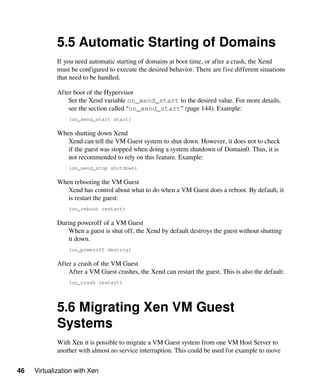
44 Virtualization with Xen
2 Use a text editor to make and save any desired changes.
(domain
(domid 1)
(bootloader /usr/bin/pygrub)
(on_crash destroy)
(uuid aa6969f3-8012-24f0-1e3a-35f150001950)
(bootloader_args -q)
(vcpus 2)
(name sles11)
(cpus (() ()))
(on_reboot restart)
(on_poweroff destroy)
(maxmem 512)
(memory 512)
(shadow_memory 0)
(features )
(on_xend_start ignore)
(on_xend_stop ignore)
(start_time 1240210933.16)
(cpu_time 35.841108115)
(online_vcpus 2)
....
3 Delete the existing configuration from Xend with the command xm del
vm_name
4 Enter xm new -F filename to import the virtual machine’s new settings into
Xend.
5 Enter xm start vm_name to start the virtual machine with its new settings.
You should repeat the entire process of exporting the file each time you want to
make changes to a virtual machine’s settings.
5.4 The xm Command
The xm command provides a command line interface for managing virtual machines.
It can be used to create, pause, and shut down virtual machines. It can also be used to
list the current domains, enable or pin virtual CPUs, and attach or detach block de-
vices. For a complete list of the available xm commands, run xm help. For each
command, there is a more detailed help available that is obtained with the extra para-
meter --help. More information about the respective subcommands is available in
the manual page of xm.
Managing a Virtualization Environment 45
For example, the xm list --help displays all options that are available to the list
command. As an example, the xm list command displays the status of all virtual
machines.
# xm list
Name ID Mem VCPUs State Time(s)
Domain-0 0 457 2 r----- 2712.9
OES 7 512 1 -b---- 16.3
SLES10 512 1 12.9
The State information tells if a machine is running, and in which state it is. The most
common flags are r (running) and b (blocked) where blocked means it is either wait-
ing for IO, or just sleeping because there is nothing to do. For more details about the
state flags, see man 1 xm. The syntax of the xm command usually follows the for-
mat:
xm <subcommand> [domain-id] [OPTIONS]
where subcommand is the xm command to run, domain-id is the ID number as-
signed to a domain or the name of the virtual machine, and OPTIONS indicates sub-
command-specific options.
Other useful xm commands include:
• xm start starts a virtual machine
• xm reboot reboots a virtual machine
• xm destroy immediately terminates a virtual machine
• xm block-list displays all virtual block devices attached to a virtual machine
• All xm operations require that the Xen control daemon, Xend, be running. For this
reason, you should make sure Xend starts whenever the host boots.
• Most xm commands require root privileges to allow interaction with the Xen hyper-
visor. Entering the xm command when you are not logged in as root returns an er-
ror.
• Some xm commands return no textual information even though the action is com-
pleted. In some instances, for example, when shutting down a virtual machine, the
action can take several seconds to complete. To verify that the action has complet-
ed, you might need to view its status another way, such as, using the xm list
command.
46 Virtualization with Xen
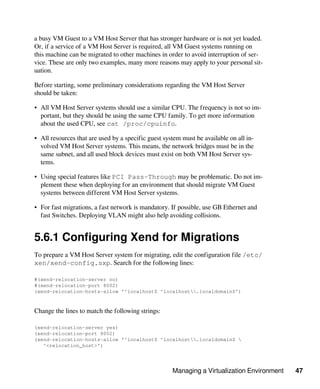
5.5 Automatic Starting of Domains
If you need automatic starting of domains at boot time, or after a crash, the Xend
must be configured to execute the desired behavior. There are five different situations
that need to be handled.
After boot of the Hypervisor
Set the Xend variable on_xend_start to the desired value. For more details,
see the section called “on_xend_start” (page 144). Example:
(on_xend_start start)
When shutting down Xend
Xend can tell the VM Guest system to shut down. However, it does not to check
if the guest was stopped when doing a system shutdown of Domain0. Thus, it is
not recommended to rely on this feature. Example:
(on_xend_stop shutdown)
When rebooting the VM Guest
Xend has control about what to do when a VM Guest does a reboot. By default, it
is restart the guest:
(on_reboot restart)
During poweroff of a VM Guest
When a guest is shut off, the Xend by default destroys the guest without shutting
it down.
(on_poweroff destroy)
After a crash of the VM Guest
After a VM Guest crashes, the Xend can restart the guest. This is also the default:
(on_crash restart)
5.6 Migrating Xen VM Guest
Systems
With Xen it is possible to migrate a VM Guest system from one VM Host Server to
another with almost no service interruption. This could be used for example to move
Managing a Virtualization Environment 47
a busy VM Guest to a VM Host Server that has stronger hardware or is not yet loaded.
Or, if a service of a VM Host Server is required, all VM Guest systems running on
this machine can be migrated to other machines in order to avoid interruption of ser-
vice. These are only two examples, many more reasons may apply to your personal sit-
uation.
Before starting, some preliminary considerations regarding the VM Host Server
should be taken:
• All VM Host Server systems should use a similar CPU. The frequency is not so im-
portant, but they should be using the same CPU family. To get more information
about the used CPU, see cat /proc/cpuinfo.
• All resources that are used by a specific guest system must be available on all in-
volved VM Host Server systems. This means, the network bridges must be in the
same subnet, and all used block devices must exist on both VM Host Server sys-
tems.
• Using special features like PCI Pass-Through may be problematic. Do not im-
plement these when deploying for an environment that should migrate VM Guest
systems between different VM Host Server systems.
• For fast migrations, a fast network is mandatory. If possible, use GB Ethernet and
fast Switches. Deploying VLAN might also help avoiding collisions.
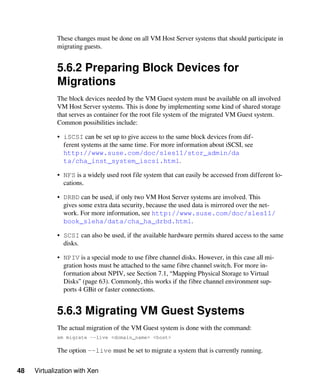
5.6.1 Configuring Xend for Migrations
To prepare a VM Host Server system for migrating, edit the configuration file /etc/
xen/xend-config.sxp. Search for the following lines:
#(xend-relocation-server no)
#(xend-relocation-port 8002)
(xend-relocation-hosts-allow '^localhost$ ^localhost.localdomain$')
Change the lines to match the following strings:
(xend-relocation-server yes)
(xend-relocation-port 8002)
(xend-relocation-hosts-allow '^localhost$ ^localhost.localdomain$ 
^<relocation_host>')
48 Virtualization with Xen
These changes must be done on all VM Host Server systems that should participate in
migrating guests.
5.6.2 Preparing Block Devices for
Migrations
The block devices needed by the VM Guest system must be available on all involved
VM Host Server systems. This is done by implementing some kind of shared storage
that serves as container for the root file system of the migrated VM Guest system.
Common possibilities include:
• iSCSI can be set up to give access to the same block devices from dif-
ferent systems at the same time. For more information about iSCSI, see
http://www.suse.com/doc/sles11/stor_admin/da​
ta/cha_inst_system_iscsi.html.
• NFS is a widely used root file system that can easily be accessed from different lo-
cations.
• DRBD can be used, if only two VM Host Server systems are involved. This
gives some extra data security, because the used data is mirrored over the net-
work. For more information, see http://www.suse.com/doc/sles11/
book_sleha/data/cha_ha_drbd.html.
• SCSI can also be used, if the available hardware permits shared access to the same
disks.
• NPIV is a special mode to use fibre channel disks. However, in this case all mi-
gration hosts must be attached to the same fibre channel switch. For more in-
formation about NPIV, see Section 7.1, “Mapping Physical Storage to Virtual
Disks” (page 63). Commonly, this works if the fibre channel environment sup-
ports 4 GBit or faster connections.
5.6.3 Migrating VM Guest Systems
The actual migration of the VM Guest system is done with the command:
xm migrate --live <domain_name> <host>
The option --live must be set to migrate a system that is currently running.
Managing a Virtualization Environment 49
The speed of the migration depends on how fast the memory print can be saved to
disk, sent to the new VM Host Server and loaded there. This means, that small VM
Guest systems can be migrated faster than big systems with a lot of memory.
Virtual Networking 51
Virtual Networking
6
All VM Guest need some means to communicate either with other VM Guest systems
or with a local network. The network interface to the VM Guest system is made of a
split device driver, which means, that any virtual Ethernet device has a corresponding
network interface in Domain0. This interface is set up to access a virtual network that
is run in Domain0. The bridged virtual network is fully integrated into the system con-
figuration of SUSE Linux Enterprise Server and can be configured with YaST.
When installing a Xen VM Host Server, a bridged network configuration will be pro-
posed during normal network configuration. The user can choose to change the con-
figuration during the installation and customize it to the local needs.
If desired, Xen VM Host Server can be installed after performing a default Physi-
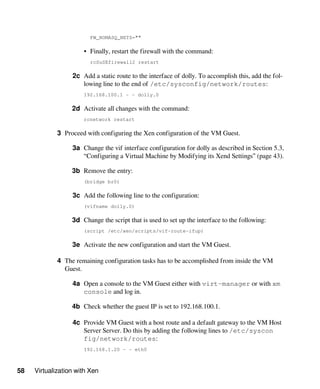
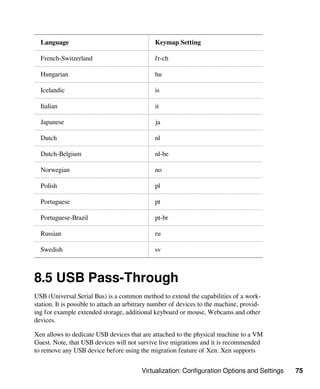
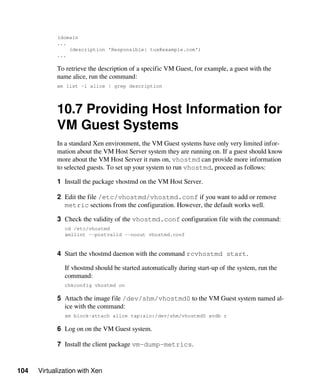
cal Server installation using the Install Hypervisor and Tools module in
YaST. This module will prepare the system for hosting virtual machines, including in-
vocation of the default bridge networking proposal.
In case the necessary packages for a Xen VM Host Server are installed manually with
rpm or zypper, the remaining system configuration has to be done by the adminis-
trator manually or with the help of YaST.
The network scripts that are provided by Xen are not used by default in SUSE Lin-
ux Enterprise Server. They are only delivered for reference but disabled. The net-
work configuration that is used in SUSE Linux Enterprise Server is done by means of
the YaST system configuration similar to the configuration of network interfaces in
SUSE Linux Enterprise Server.
52 Virtualization with Xen
6.1 Virtual Bridges
When using SUSE Linux Enterprise Server the system configures one bridge for each
physical network device by default. For each virtual bridge, a physical Ethernet de-
vice is enslaved, and the IP address assigned to the bridge.
To add a new bridge, for example, after installing an additional Ethernet device, or to
create a bridge that is not connected to a real network, proceed as follows:
1 Start yast2 > Network Devices > Network Settings.
2 Click on the tab Overview and press Add.
3 Select Device Type Bridge. The parameter Configuration Name will be set to the
next free number. Click Next.
4 Either use Dynamic Address (DHCP) as selected by default, or assign a static IP ad-
dress to the bridge. Using Dynamic Address is only useful, when also assigning a
device to the bridge that is connected to some DHCP server.
If you intend to create a virtual bridge that has no connection to a real Ethernet
device, use Statically assigned IP Address. In this case, it is a good idea to use
addresses from the private IP address ranges, for example, 192.168.x.x or
10.x.x.x.
To create a bridge that should only serve as a connection between the different
guests without connection to the host system, set the IP address to 0.0.0.0 and
the netmask to 255.255.255.255. The network scripts handle this special ad-
dress as an unset IP address.
After the bridge is created, it may be used by any of the Xen VM Guest systems.
A purely virtual bridge without connection to a real network device is good to pro-
vide fast network connections between different VM Guest systems. If you provide a
DHCP server on Domain0 that also defines routing information to the respective guest
for the bridge, the network setup of the respective VM Guest is simplified.
Virtual Networking 53
6.2 Network Devices for Guest
Systems
The Xen hypervisor is able to provide different types of network interfaces to the VM
Guest systems. The preferred network device should be a paravirtualized network in-
terface. This yields the highest transfer rates with the lowest requirements to the sys-
tem. Up to eight network interfaces may be provided for each VM Guest.
Systems that are not aware of paravirtualized hardware, may not have this option. To
connect systems to a network that can only run fully virtualized, several emulated net-
work interfaces are available. The following emulations are at your disposal:
• Realtek 8139 (PCI). This is the default emulated network card.
• AMD PCnet32 (PCI)
• NE2000 (PCI)
• NE2000 (ISA)
• Intel e100 (PCI)
• Intel e1000 (PCI)
All the network interfaces are just software interfaces. Because every network inter-
face must have a unique MAC address, an address range has been assigned to Xen-
source that can be used by these interfaces.
TIP: Virtual Network Interfaces and MAC Addresses
The default configuration of MAC addresses in virtualized environments just
creates a random MAC address that looks like 00:16:3E:xx:xx:xx. Normal-
ly, the amount of available MAC addresses should be big enough to get only
unique addresses. However, if you have a very big installation, or if you want
to make sure that no problems arise from random MAC address assignment,
you can also manually assign these addresses.
For debugging or system management purposes, it may be useful to know which vir-
tual interface in Domain0 is connected to which Ethernet device in a running guest.
This information may be read from the device naming in Domain0. All virtual devices
follow the rule vif<domain number>.<interface_number>.
54 Virtualization with Xen
For example, if you want to know the device name for the third interface (eth2) of the
VM Guest with id 5, the device in Domain0 would be vif5.2. To obtain a list of all
available interfaces, run the command ip a.
The device naming does not contain any information to which bridge this interface
is connected. However, this information is available in Domain0. To get an overview
about which interface is connected to which bridge, run the command brctl show.
The output may look like the following:
# brctl show
bridge name bridge id STP enabled interfaces
br0 8000.001cc0309083 no eth0
vif2.1
br1 8000.000476f060cc no eth1
vif2.0
br2 8000.000000000000 no
In this example, there are three configured bridges: br0, br1 and br2. Currently, br0
and br1 each have a real Ethernet device added: eth0 and eth1, respectively. There is
one VM Guest running with the id 2 that has two Ethernet devices available. eth0 on
the VM Guest is bridged with eth1 on the VM Host Server and eth1 on the VM Guest
is connected to eth0 on the VM Host Server. At this time, the third bridge with name
br2 is not connected to any VM Guest nor real Ethernet device.
6.3 Host Based Routing in Xen
Xen can be set up to use host based routing in the controlling Domain0. Unfortunate-
ly, this is not yet well supported from YaST and requires quite an amount of manual
editing of configuration files. Thus, this is a task, that requires an advanced adminis-
trator.
The following configuration will only work when using fixed IP addresses. Using
DHCP is not practicable with this procedure, because the IP address must be known
to both, the VM Guest and the VM Host Server system.
The easiest way to create a routed guest is to change the networking from a bridged to
a routed network. As a requirement to the following procedures, a VM Guest with a
bridged network setup must be installed. For example, the VM Host Server is named
earth with the IP 192.168.1.20, and the VM Guest has the name alice with the IP
192.168.1.21.
Virtual Networking 55
Procedure 6.1: Configuring a routed IPv4 VM Guest
1 Make sure that alice is shut down. Either use virt-manager or the respective
xm commands to shutdown and check.
2 Prepare the network configuration on the VM Host Server earth:
2a Create a hotplug interface that will be used to route the traffic. To accom-
plish this, create a file named /etc/sysconfig/network/ifcfg-
alice.0 with the following content:
NAME="Xen guest alice"
BOOTPROTO="static"
STARTMODE="hotplug"
2b Edit the file /etc/sysconfig/SuSEfirewall2 and add the follow-
ing configurations:
• Add alice.0 to the devices in FW_DEV_EXT:
FW_DEV_EXT="br0 alice.0"
• Switch on the routing in the firewall:
FW_ROUTE="yes"
• Tell the firewall, which address should be forwarded:
FW_FORWARD="192.168.1.21/32,0/0"
• Finally, restart the firewall with the command:
rcSuSEfirewall2 restart
2c Add a static route to the interface of alice. To accomplish this, add the fol-
lowing line to the end of /etc/sysconfig/network/routes:
192.168.1.21 - - alice.0
2d To make sure that the switches and routers that the VM Host Server is con-
nected to know about the routed interface, activate proxy_arp on earth.
Add the following lines to /etc/sysctl.conf:
net.ipv4.conf.default.proxy_arp = 1
net.ipv4.conf.all.proxy_arp = 1
2e Activate all changes with the commands:
56 Virtualization with Xen
/etc/init.d/boot.sysctl start
rcnetwork restart
3 Proceed with configuring the Xen configuration of the VM Guest.
3a Change the vif interface configuration for alice as described in Section 5.3,
“Configuring a Virtual Machine by Modifying its Xend Settings” (page 43).
3b Remove the entry:
(bridge br0)
3c Add the following line to the configuration:
(vifname alice.0)
3d Change the script that is used to set up the interface to the following:
(script /etc/xen/scripts/vif-route-ifup)
3e Activate the new configuration and start the VM Guest.
4 The remaining configuration tasks must be accomplished from inside the VM
Guest.
4a Open a console to the VM Guest either with virt-manager or with xm
console and log in.
4b Check that the guest IP is set to 192.168.1.21.
4c Provide VM Guest with a host route and a default gateway to the VM Host
Server Server. Do this by adding the following lines to /etc/syscon​
fig/network/routes:
192.168.1.20 - - eth0
default 192.168.1.20 - -
5 Finally, test the network connection from the VM Guest to the world outside as
well as from the network to your VM Guest.
Virtual Networking 57
6.4 Creating a Masqueraded
Network Setup
Creating a masqueraded network setup is quite similar to the routed setup. However,
there is no proxy_arp needed, and some firewall rules are different. To create a mas-
queraded network to a guest dolly with the IP address 192.168.100.1 where the host
has its external interface on br0, proceed as follows. For easier configuration, only
the already installed guest is modified to use a masqueraded network:
Procedure 6.2: Configuring a masqueraded IPv4 VM Guest
1 Shutdown the VM Guest system with virt-manager or xm shutdown.
2 Prepare the network configuration on the VM Host Server:
2a Create a hotplug interface that will be used to route the traffic. To accom-
plish this, create a file named /etc/sysconfig/network/ifcfg-
dolly.0 with the following content:
NAME="Xen guest dolly"
BOOTPROTO="static"
STARTMODE="hotplug"
2b Edit the file /etc/sysconfig/SuSEfirewall2 and add the follow-
ing configurations:
• Add dolly.0 to the devices in FW_DEV_DMZ:
FW_DEV_DMZ="dolly.0"
• Switch on the routing in the firewall:
FW_ROUTE="yes"
• Switch on masquerading in the firewall:
FW_MASQUERADE="yes"
• Tell the firewall, which network should be masqueraded:
FW_MASQ_NETS="192.168.100.1/32"
• Remove the networks from the masquerading exceptions:
58 Virtualization with Xen
FW_NOMASQ_NETS=""
• Finally, restart the firewall with the command:
rcSuSEfirewall2 restart
2c Add a static route to the interface of dolly. To accomplish this, add the fol-
lowing line to the end of /etc/sysconfig/network/routes:
192.168.100.1 - - dolly.0
2d Activate all changes with the command:
rcnetwork restart
3 Proceed with configuring the Xen configuration of the VM Guest.
3a Change the vif interface configuration for dolly as described in Section 5.3,
“Configuring a Virtual Machine by Modifying its Xend Settings” (page 43).
3b Remove the entry:
(bridge br0)
3c Add the following line to the configuration:
(vifname dolly.0)
3d Change the script that is used to set up the interface to the following:
(script /etc/xen/scripts/vif-route-ifup)
3e Activate the new configuration and start the VM Guest.
4 The remaining configuration tasks has to be accomplished from inside the VM
Guest.
4a Open a console to the VM Guest either with virt-manager or with xm
console and log in.
4b Check whether the guest IP is set to 192.168.100.1.
4c Provide VM Guest with a host route and a default gateway to the VM Host
Server Server. Do this by adding the following lines to /etc/syscon​
fig/network/routes:
192.168.1.20 - - eth0
Virtual Networking 59
default 192.168.1.20 - -
5 Finally, test the network connection from the VM Guest to the outside world.
6.5 Special Configurations
There are many network configuration possibilities available to Xen. The following
configurations are not activated by default:
6.5.1 Bandwidth Throttling in Virtual
Networks
With Xen, you may limit the network transfer rate a virtual guest may use to access
a bridge. This configuration option is not available from a graphical user interface
at this time. To configure this, you will have to modify the VM Guest configuration
as described in Section 5.3, “Configuring a Virtual Machine by Modifying its Xend
Settings” (page 43).
In the configuration file, first search for the device that is connected to the virtual
bridge. The configuration looks like the following:
...
(device
(vif
(bridge br0)
(mac 00:16:3e:4f:94:a9)
(backend 0)
(uuid bf840a86-6aa9-62df-f8df-a7cf8c192c24)
(script /etc/xen/scripts/vif-bridge)
)
)
...
To add a maximum transfer rate, add a parameter rate to this configuration as in:
...
(device
(vif
(bridge br0)
(mac 00:16:3e:4f:94:a9)
(rate 100Mb/s)
(backend 0)
(uuid bf840a86-6aa9-62df-f8df-a7cf8c192c24)
60 Virtualization with Xen
(script /etc/xen/scripts/vif-bridge)
)
)
...
Note, that the rate is either Mb/s (megabit per second) or MB/s (megabyte per sec-
ond). In the above example, the maximum transfer rate of the virtual interface is 100
megabit. By default, there is no limitation to the bandwidth of a guest to the virtual
bridge.
It is even possible to fine tune the behavior by specifying the time window that is used
to define the granularity of the credit replenishment:
...
(device
(vif
(bridge br0)
(mac 00:16:3e:4f:94:a9)
(rate 100Mb/s@20ms)
(backend 0)
(uuid bf840a86-6aa9-62df-f8df-a7cf8c192c24)
(script /etc/xen/scripts/vif-bridge)
)
)
...
6.5.2 Monitoring the Network Traffic
To monitor the traffic on a specific interface, the little application iftop is a nice
program that displays the current network traffic in a terminal.
When running a Xen VM Host Server, you have to define the interface that is mon-
itored. The interface that Domain0 uses to get access to the physical network is the
bridge device, for example br0. This, however, may vary on your system. To monitor
all traffic to the physical interface, run a terminal as root and use the command:
iftop -i br0
To monitor the network traffic of a special network interface of a specific VM Guest,
just supply the correct virtual interface. For example, to monitor the first ethernet de-
vice of the domain with id 5, use the command:
іftop -i vif5.0
To quit iftop, press the key Q. More options and possibilities are available in the
manual page man 8 iftop.
Virtual Networking 61
6.5.3 Using VLAN Interfaces
Sometimes, it is necessary to create a private connection either between two Xen
hosts or between a number of VM Guest systems. For example, if you want to migrate
VM Guest to hosts in a different network segment, or if you want to create a private
bridge that only VM Guest systems may connect to, even when running on different
VM Host Server systems. An easy way to build such connections is to set up VLAN
networks.
VLAN interfaces are commonly set up on the VM Host Server and either just inter-
connect the different VM Host Server systems, or they may be set up as physical in-
terface to an otherwise virtual only bridge. It is even possible to create a bridge with a
VLAN as physical interface that has no IP address in the VM Host Server. That way,
the guest systems have no possibility to access Domain0 over this network.
Run the YaST module Network Devices > Network Settings. Follow this procedure to
actually set up the VLAN device:
Procedure 6.3: Setting up VLAN Interfaces with YaST
1 Press Add to create a new network interface.
2 In the Hardware Dialog, select Device Type VLAN.
3 Change the value of Configuration Name to the ID of your VLAN. Note that
VLAN ID 1 is commonly used for managing purposes.
4 Press Next.
5 Select the interface that the VLAN device should connect to below Real Interface
for VLAN.
If the desired interface does not appear in the list, first set up the this interface
without IP Address.
6 Select the desired method for assigning an IP address to the VLAN device.
7 Press Next to finish the configuration.
It is also possible to use the VLAN interface as physical interface of a bridge. This
makes it possible to connect several VM Host Server only networks and allows to live
migrate VM Guest systems that are connected to such a network.
62 Virtualization with Xen
YaST does not always allow to set no IP address. However, this may be a desired fea-
ture especially if VM Host Server only networks should be connected. In this case,
use the special address 0.0.0.0 with netmask 255.255.255.255. The system
scripts handle this address as no IP address set.
Block Devices in Xen 63
Block Devices in Xen
7
7.1 Mapping Physical Storage to
Virtual Disks
Virtual disks can be based on the following types of physical devices and files. Each
type includes an example statement.
• A physical disk device, such as a DVD, that is accessible as a device to the host.
phy:/dev/cdrom
• A file that contains a disk image accessible from the file system of the host. Disk
images can be encoded as raw, QEMU, or VMware.
file:/mnt/disks/sles10sp1.iso
tap:aio:/mnt/disks/sles10sp1.iso specifies a raw disk that might be
taken from a different virtualization platform.
tap:qcow:/mnt/disks/sles10sp1.iso.qcow
tap:vmdk:/mnt/disks/sles10sp1.iso.vmdk
• A remote storage device specified using the Internet SCSI (iSCSI) protocol.
64 Virtualization with Xen
iscsi:iqn.2001-04.com.acme@0ac47ee2-216e-452a-a341-a12624cd0225
• A remote storage device specified using a Fibre Channel (NPIV) protocol.
npiv:210400e08b80c40f
To specify a mapping between physical storage and the virtual disk, you might need
to edit the virtual machine’s disk information. Follow the instructions in Section 5.3,
“Configuring a Virtual Machine by Modifying its Xend Settings” (page 43), to change
the respective device entry to the desired setting.
Example 7.1: Example: Virtual Machine Output from Xend
(vbd
(dev xvda:disk)
(uname file:/var/lib/xen/images/sles11/disk0)
(mode w)
(type disk)
(backend 0)
)
Table 7.1: Available uname Settings
Proto-
col
Description Example
phy: Block devices, such as a physical
disk, in domain 0
phy:/dev/sdc
file: Raw disk images accessed by using
loopback
file:/path/file
nbd: Raw disk images accessed by using
NBD
ndb: ip_port
tap:aio: Raw disk images accessed by using
blktap. Similar to loopback but
without using loop devices.
tap:aio:/path/
file
tap:cdrom CD reader block devices tap:cdrom:/dev/
sr0
Block Devices in Xen 65
Proto-
col
Description Example
tap:vmdk: VMware disk images accessed by us-
ing blktap
tap:vmdk:/path/
file
tap:qcow: QEMU disk images accessed by us-
ing blktap
tap:qcow:/path/
file
iscsi: iSCSI targets using connections initi-
ated from domain 0
iscsi:IQN,LUN
npiv: Fibre Channel connections initiated
from domain 0
npiv:NPIV,LUN
7.2 File-Backed Virtual Disks and
Loopback Devices
When a virtual machine is running, each of its file-backed virtual disks consumes a
loopback device on the host. By default, the host allows up to 64 loopback devices to
be consumed.
To simultaneously run more file-backed virtual disks on a host, you can increase the
number of available loopback devices by adding the following option to the host’s /
etc/modprobe.conf.local file.
options loop max_loop=x
where x is the maximum number of loopback devices to create.
Changes take effect after the module is reloaded.
TIP
Enter rmmod loop and modprobe loop to unload and reload the module.
In case rmmod does not work, unmount all existing loop devices or reboot the
computer.
66 Virtualization with Xen
7.3 Resizing Block Devices
While it is always possible to add new block devices to a VM Guest system, it is
sometimes more desirable to increase the size of an existing block device. In case
such a system modification is already planned during deployment of the VM Guest,
some basic considerations should be done:
• Use a block device that may be increased in size. LVM devices and file system im-
ages are commonly used.
• Do not partition the device inside the VM Guest, but use the main device directly
to apply the file system. For example, use /dev/xvdb directly instead of adding
partitions to /dev/xvdb.
• Make sure that the file system to be used can be resized. Sometimes, for example
with ext3, some features must be switched off to be able to resize the file system.
A file system that can be resized online and mounted is XFS. Use the command
xfs_growfs to resize that file system after the underlying block device has been
increased in size. For more information about XFS, see man 8 xfs_growfs.
When resizing a LVM device that is assigned to a VM Guest, the new size is automat-
ically known to the VM Guest. No further action is needed to inform the VM Guest
about the new size of the block device.
When using file system images, a loop device is used to attach the image file to
the guest. For more information about resizing that image and refreshing the size
information for the VM Guest, see Section 10.2, “Sparse Image Files and Disk
Space” (page 98).
Virtualization: Configuration Options and Settings 67
Virtualization: Configuration
Options and Settings
8
The documentation in this section, describes advanced management tasks and config-
uration options that might help technology innovators implement leading-edge virtual-
ization solutions. It is provided as a courtesy and does not imply that all documented
options and tasks are supported by Novell, Inc.
8.1 Virtual CD Readers
Virtual CD readers can be set up when a virtual machine is created or added to an ex-
isting virtual machine. A virtual CD reader can be based on a physical CD/DVD, or
based on an ISO image. Virtual CD readers work differently depending on whether
they are paravirtual or fully virtual.
8.1.1 Virtual CD Readers on Paravirtual
Machines
A paravirtual machine can have up to 100 block devices comprised of virtual CD
readers and virtual disks. On paravirtual machines, virtual CD readers present the CD
as a virtual disk with read-only access. Virtual CD readers cannot be used to write da-
ta to a CD.
After you have finished accessing a CD on a paravirtual machine, it is recommended
that you remove the virtual CD reader from the virtual machine.
68 Virtualization with Xen
Paravirtualized guests can use the device type tap:cdrom:. This partly emulates
the behavior of the real CD reader, and allows CDs to be changed. It is even possible
to use the eject command to open the tray of the CD reader.
8.1.2 Virtual CD Readers on Fully Virtual
Machines
A fully virtual machine can have up to four block devices comprised of virtual CD
readers and virtual disks. A virtual CD reader on a fully virtual machine interacts with
the inserted CD in the way you expect a physical CD reader to interact. For exam-
ple, in a Windows* XP* virtual machine, the inserted CD appears in the Devices
with Removable Storage section of My Computer.
When a CD is inserted in the physical CD reader on the host computer, all virtual
machines with virtual CD readers based on the physical CD reader, such as /dev/
cdrom/, are able to read the inserted CD. Assuming the operating system has auto-
mount functionality, the CD should automatically appear in the file system. Virtual
CD readers cannot be used to write data to a CD. They are configured as read-only
devices.
8.1.3 Adding Virtual CD Readers
Virtual CD readers can be based on a CD inserted into the CD reader or on an ISO
image file.
1 Make sure that the virtual machine is running and the operating system has fin-
ished booting.
2 Insert the desired CD into the physical CD reader or copy the desired ISO image
to a location available to Domain0.
3 Select a new, unused block device in your VM Guest, such as /dev/xvdb.
4 Choose the CD reader or ISO image that you want to assign to the guest.
5 When using a real CD reader, use the following command to assign the CD
reader to your VM Guest. In this example, the name of the guest is alice:
Virtualization: Configuration Options and Settings 69
xm block-attach alice tap:cdrom:/dev/sr0 xvdb r
6 When assigning an image file, use the following command:
xm block-attach alice file:/path/to/file.iso xvdb r
7 The image files may easily be removed by using virt-manager. However,
note that when adding CD readers, virt-manager uses a different device back-
end for the CD reader that is not capable of changing CDs.
8 A new block device, such as /dev/xvdb, is added to the virtual machine.
9 If the virtual machine is running Linux, complete the following:
9a Open a terminal in the virtual machine and enter fdisk -l to veri-
fy that the device was properly added. You can also enter ls /sys/
block to see all disks available to the virtual machine.
The CD is recognized by the virtual machine as a virtual disk with a dri-
ve designation, for example,
/dev/xvdb
9b Enter the command to mount the CD or ISO image using its drive desig-
nation. For example,
mount -o ro /dev/xvdb /mnt
mounts the CD to a mount point named /mnt.
The CD or ISO image file should be available to the virtual machine at
the specified mount point.
10 If the virtual machine is running Windows, reboot the virtual machine.
Verify that the virtual CD reader appears in its My Computer section
8.1.4 Removing Virtual CD Readers
1 Make sure that the virtual machine is running and the operating system has finished
booting.
2 If the virtual CD reader is mounted, unmount it from within the virtual machine.
70 Virtualization with Xen
TIP
Enter cat /proc/partitions in the virtual machine's terminal to view
its block devices.
3 Run Virtual Machine Manager.
4 Select the virtual machine, click Open, and inside the VM's console window,
choose View > Details.
5 In the left pane, click the Xen Disk item and select the drive whose Source path
matches the one you want to remove.
6 Click Remove to remove the virtual CD-ROM device.
7 Press the hardware eject button to eject the CD.
8.2 Remote Access Methods
Some configurations, such as those that include rack-mounted servers, require a com-
puter to run without a video monitor, keyboard, or mouse. This type of configuration
is often referred to as headless and requires the use of remote administration tech-
nologies.
Typical configuration scenarios and technologies include:
Graphical Desktop with X Window Server
If a graphical desktop, such as GNOME or KDE, is installed on the virtual ma-
chine host you can use a remote viewer, such as a VNC viewer. On a remote com-
puter, log in and manage the host environment by using graphical tools, such as
Virtual Machine Manager.
Text and Graphical Applications
If neither a graphical desktop nor the X Window Server, but the X Windows li-
braries are installed on the virtual machine host, you can use the ssh -X com-
mand from the remote computer to log in and manage the virtualization host en-
vironment. You can then use Virtual Machine Manager and the xm command to
manage virtual machines and the vm-install command to create them.
Virtualization: Configuration Options and Settings 71
Text Only
You can use the ssh command from a remote computer to log in to a virtual ma-
chine host and access its text-based console. You can then use the xm command
to manage virtual machines and the vm-install command to create new vir-
tual machines.
8.3 VNC Viewer
By default, Virtual Machine Manager uses the VNC viewer to show the display of a
virtual machine. You can also use VNC viewer from Domain0 (known as local access
or on-box access) or from a remote computer.
You can use the IP address of a VM Host Server and a VNC viewer to view the dis-
play of this VM Guest. When a virtual machine is running, the VNC server on the
host assigns the virtual machine a port number to be used for VNC viewer connec-
tions. The assigned port number is the lowest port number available when the virtu-
al machine starts. The number is only available for the virtual machine while it is run-
ning. After shutting down, the port number might be assigned to other virtual ma-
chines.
For example, if ports 1 and 2 and 4 and 5 are assigned to the running virtual ma-
chines, the VNC viewer assigns the lowest available port number, 3. If port number 3
is still in use the next time the virtual machine starts, the VNC server assigns a differ-
ent port number to the virtual machine.
To use the VNC viewer from a remote computer, the firewall must permit access to
as many ports as VM Guest systems run from. This means from port 5900 and up. For
example, if you want to run 10 VM Guest systems, you will have to open the tcp ports
5900:5910.
In addition to this, change vnc-listen in /etc/xen/xend-config.sxp
to open the access to the VM Guest. For more information about modifying
xend-config.sxp see Section 5.2, “Controlling the Host by Modifying Xend
Settings” (page 42).
To access the virtual machine from the local console running a VNC viewer client, en-
ter one of the following commands:
• vncviewer ::590#
72 Virtualization with Xen
• vncviewer :#
# is the VNC viewer port number assigned to the virtual machine.
When accessing the VM Guest from a machine other than Domain0, use the following
syntax:
vncviewer 192.168.1.20::590#
In this case, the IP address of Domain0 is 192.168.1.20.
8.3.1 Assigning VNC Viewer Port
Numbers to Virtual Machines
Although the default behavior of VNC viewer is to assign the first available port num-
ber, you might want to assign a specific VNC viewer port number to a specific virtual
machine.
To assign a specific port number on a VM Guest, edit the Xend setting of the virtual
machine and change the location to the desired value:
(device
(vfb
(type vnc)
(location localhost:5902)
)
)
For more information regarding editing the Xend settings of a machine, see Sec-
tion 5.1, “Virtual Machine Manager” (page 40).
TIP
Assign higher port numbers to avoid conflict with port numbers assigned by
the VNC viewer, which uses the lowest available port number.
8.3.2 Using SDL instead of a VNC Viewer
If you access a virtual machine's display from the virtual machine host console
(known as local or on-box access), you might want to use SDL instead of VNC view-
Virtualization: Configuration Options and Settings 73
er. VNC viewer is faster for viewing desktops over a network, but SDL is faster for
viewing desktops from the same computer.
To set the default to use SDL instead of VNC, change the virtual machine's configu-
ration information to the following. For instructions, see Section 5.3, “Configuring a
Virtual Machine by Modifying its Xend Settings” (page 43).
• If it is a fully virtual machine, use vnc=0 and sdl=1.
• If it is a paravirtual virtual machine, use vfb=["type=sdl"].
Remember that, unlike a VNC viewer window, closing an SDL window terminates the
virtual machine.
8.4 Virtual Keyboards
When a virtual machine is started, the host creates a virtual keyboard that matches
the keymap entry according to the virtual machine's settings. If there is no keymap
entry in the virtual machine's settings, the host uses the keymap entry specified in
host's Xend file ( xend-config.sxp). If there is no keymap entry in either the
host's Xend file or the virtual machine's settings, the virtual machine's keyboard de-
faults to English (US).
Unless you manually specify it, a keymap entry is not specified in the host's Xend
file or for any virtual machine. Therefore, by default, all virtual machine settings use
the English (US) virtual keyboard. It is recommended that you specify a keymap set-
ting for Xend and for each virtual machine, especially, if you want to migrate virtual
machines to different hosts
To view a virtual machine's current keymap entry, enter the following command on
the Domain0:
xm list -l vm_name | grep keymap
You can specify a keymap entry to be used for all virtual machines and keymap en-
tries for specific machines.
• To specify a global keymap entry for virtual machines on the host, edit the host's
xend-config.sxp file.
74 Virtualization with Xen
• To specify a keymap entry for a specific virtual machine, edit the virtual machine's
settings by following instructions in Section 5.3, “Configuring a Virtual Machine by
Modifying its Xend Settings” (page 43).
In the device > vfb section, add the desired keymap entry to the file /etc/
xen/xend-config.sxp. For example, you can specify a German keyboard.
Make sure the virtual machine's operating system is set to use the specified keyboard.
After you specify the host's keymap setting, all virtual machines created by using the
Create Virtual Machine Wizard on the host add the host's keymap entry to their vir-
tual machine settings.
Virtual machines created before a host's keymap entry is specified are not automat-
ically updated. These virtual machines start with the keyboard specified by the host,
but the keymap entry is not a permanent part of the virtual machine's settings. For
the entry to be permanent, it must be explicitly stated in the virtual machine's settings.
Table 8.1: Language and Keymap Settings
Language Keymap Setting
Danish da
German de
Swiss-German de-ch
English (UK) en-gb
English (US) en-us
Spanish es
Finnish fi
French fr
French-Belgium fr-be
French-Canada fr-ca
Virtualization: Configuration Options and Settings 75
Language Keymap Setting
French-Switzerland fr-ch
Hungarian hu
Icelandic is
Italian it
Japanese ja
Dutch nl
Dutch-Belgium nl-be
Norwegian no
Polish pl
Portuguese pt
Portuguese-Brazil pt-br
Russian ru
Swedish sv
8.5 USB Pass-Through
USB (Universal Serial Bus) is a common method to extend the capabilities of a work-
station. It is possible to attach an arbitrary number of devices to the machine, provid-
ing for example extended storage, additional keyboard or mouse, Webcams and other
devices.
Xen allows to dedicate USB devices that are attached to the physical machine to a VM
Guest. Note, that USB devices will not survive live migrations and it is recommended
to remove any USB device before using the migration feature of Xen. Xen supports
76 Virtualization with Xen
pass-through of USB devices from VM Host Server to VM Guests using two different
methods:
qemu-dm USB pass-through using USB 1.1 emulation
This method only supports fully virtualized guests, but is available since Xen 3.x.
It is a low-performance method which does not require any special drivers neither
in Domain0 or VM Guest.
PVUSB support
This method supports paravirtualized guests, but is available in Xen 4.0 and new-
er only. It requires special paravirtual Kernel drivers both in Domain0 or VM
Guest.
8.5.1 Guest qemu-dm USB 1.1 emulation
Qemu-dm used for Xen fully virtualized guests supports pass-through of USB devices
from Domain0 to the guest. Qemu-dm emulates USB 1.1 UHCI 2-port controller,
which is slow and limited in features and device support. The main advantage is that
the emulation pass-through is supported in all Xen 3.x and newer versions and does
not require any additional back-end drivers in Domain0 or any additional front-end
drivers in VM Guest.
There are several ways to assign a USB device to a VM Guest. For all of them, you
need to run lsusb on the host and read the device ID number. For example, if
lsusb contains the following line
Bus 001 Device 003: ID 054c:04be Any Corp.
then the device ID number is 054c:04be. This ID will be the user in the following
examples.
8.5.1.1 Assigning USB Device with QEMU Console
This method lets you quickly assign host USB devices to a VM Guest. No restart of
VM Guest is needed to access the connected USB device. This device assignment is
temporary and will be forgotten after you shut the VM Guest down.
1 Insert the relevant USB device in the USB port of the host machine and identify its
ID number with lsusb..
2 Press Ctrl + Alt + 2 to open QEMU console and enter
usb_add host:054c:04be.
Virtualization: Configuration Options and Settings 77
3 Verify if the assignment has been successful by checking the output of lsusb on
the VM Guest. The relevant line should contain the same device ID as the host.
Note that usb_del host:054c:04be will disconnect the USB device from the
VM Guest.
8.5.1.2 Assigning USB Devices with xm
commands
Another way to quickly assign (or disconnect) USB device to a VM Guest is to use xm
usb-add and xm usb-del commands:
1 List all assignable USB devices in Domain0 with xm usb-list-assigna-
ble-devices. Note the device ID xxxx:yyyy for the device you want to con-
nect to the VM Guest.
2 Check existing VM Guests (xm list) and pick the one you want to assign the
USB device to.
3 Connect the USB device to the selected VM Guest with
xm usb-add alice host:054c:04be
where alice is the VM Guest name and 054c:04be the ID of the USB device.
8.5.1.3 Assigning USB Devices in VM Guest
Configuration
To permanently assign a USB device to a specified VM Guest, you need to modify its
configuration file in the /etc/xen/vm directory. Just add the following lines
usb = 1
usbdevice = "host:xxxx:yyyy"
and restart the relevant VM Guest. Please note that xxxx:yyyy stands for the USB
device ID to assign.
8.5.2 Assigning USB Devices with PVUSB
PVUSB is a new high performance method of doing USB pass-through from Do-
main0 to VM Guests. It supports both USB 2.0 and USB 1.1 devices and can be used
78 Virtualization with Xen
with paravirtualized guests. It requires special pvusb drivers in Domain0's Kernel
(xen-usbback) and the front-end driver (xen-usbfront) in the VM Guest.
To assign a USB device with paravirtualized drivers, you first need to create a new
virtual host controller (if there not already exists one) on the VM Guest, and then at-
tach the physical USB device to it. To assign a USB device as, for example, a USB
keyboard device to a VM Guest, proceed as follows:
Procedure 8.1: Adding a USB Keyboard to a VM Guest
1 Plug the USB keyboard device into the VM Host Server.
2 Make sure that the Kernel module usbbk is loaded by the system with the com-
mand:
lsmod | grep usbbk
If the module is not loaded, load the module with the command:
modprobe usbbk
3 Create a virtual host controller for the VM Guest with the command:
xm usb-hc-create alice 2 8
This creates a virtual USB 2.0 host controller on the guest that has 8 ports.
4 On the VM Guest system, load the front-end Kernel module of PVUSB with the
command:
modprobe xen-hcd
5 If the package usb-utils has been installed, you can now see the host controller
in the USB device list with the command lsusb.
6 Check if you can list the virtual host controller from the VM Host Server with the
command xm usb-list alice
7 On the VM Host Server system check which devices may be assigned to a guest
with the command:
xm usb-list-assignable-devices
The result should look similar to the following:
4-2 : ID 047b:0002 SILITEK USB Keyboard and Mouse
Virtualization: Configuration Options and Settings 79
8 The device that should be assigned to alice has the number 4-2. To assign this de-
vice to the first virtual host controller with number 0 on its port 1, run the com-
mand:
xm usb-attach alice 0 1 4-2
After completing this procedure, you may use the keyboard, for example, to type in-
side a VNC window.
To detach the USB device, you need to know the number of the virtual host controller
and the port number of the assigned device inside the VM Guest. The port numbers
of the host controllers start with the 0, and the port numbers with 1. List currently as-
signed devices with the command xm usb-list alice. The result should look
similar to the following:
# xm usb-list alice
Idx BE state usb-ver BE-path
0 0 4 USB2.0 /local/domain/0/backend/vusb/2/0
port 1: 4-2 [ID 047b:0002 SILITEK USB Keyboard and Mouse]
port 2:
port 3:
port 4:
port 5:
port 6:
port 7:
port 8:
Remove this device with the command:
xm usb-detach alice 0 1
TIP: Assigning the Whole Controller
You can also use PCI pass-through to pass through the whole USB controller
PCI device, with all USB devices connected to it. For more information see
Section 2.5, “PCI Pass-Through” (page 19).
8.5.2.1 PVUSB Options in VM Guest's
Configuration File
While xm usb-attach is a “hot-plugging” way of connecting a USB device to a
VM Guest and the related device assignment will be forgotten after the guest system
is switched off, you can add corresponding configuration options to the VM Guest's
configuration file make the assignment permanent.
80 Virtualization with Xen
The same effect that can be reached with
xm usb-hc-create alice 2 4 && xm usb-attach alice 0 1 1-8
can be accomplished by adding the following line
vusb=['usbver=2, numports=4, port_1=1-8']
to the VM Guest's configuration file in the /etc/xen/vm directory and restarting
it. usbver= specifies the USB version, numports= specifies the number of ports
of the virtual controller, and port_1= specifies which physical USB device will be
assigned to port 1 of the controller (can be up to port_16=).
8.6 Dedicating CPU Resources
In Xen it is possible to specify how many and which CPU cores the Domain0 or VM
Guest should use to retain its performance. The performance of Domain0 is impor-
tant for the overall system as the disk and network drivers are running on it. Also I/O
intensive guests' workloads may consume lots of Domain0′s CPU cycles. On the oth-
er hand, the performance of VM Guests is also important to be able to accomplish the
task they were set up for.
8.6.1 Domain0
Dedicating CPU resources to Domain0 results in a better overall performance of the
virtualized environment because Domain0 has free CPU time to process I/O requests
from VM Guests. Failing to dedicate exclusive CPU resources to Domain0 usually re-
sults in a poor performance and can cause the VM Guests to function incorrectly.
Dedicating CPU resources involves three basic steps: modifying Xen boot line, bind-
ing Domain0's VCPUs to a physical processor, and configuring CPU related options
on VM Guests:
First you need to append the dom0_max_vcpus=X to the Xen boot line in /boot/
grub/menu.lst, where X is the number of VCPUs dedicated to Domain0. An ex-
ample Kernel boot entry follows:
title Xen -- SUSE Linux Enterprise Server 11 SP2 - 3.0.4-0.11
root (hd0,1)
kernel /boot/xen.gz dom0_max_vcpus=2
module /boot/vmlinuz-3.0.4-0.11-xen
Virtualization: Configuration Options and Settings 81
module /boot/initrd-3.0.4-0.11-xen
Restart the Xen Kernel for the change to take effect.
The next step is to bind (or “pin”) each Domain0's VCPU to a physical processor.
xm vcpu-pin Domain-0 0 0
xm vcpu-pin Domain-0 1 1
The first line binds Domain0's VCPU number 0 to the physical processor number
0, while the second line binds Domain0's VCPU number 1 to the physical processor
number 1.
Lastly, you need to make sure no VM Guest uses the physical processors dedicated to
VCPUs of Domain0. Assuming you are running a 8-CPU system, you need to add
cpus="2-8"
to the configuration file of the relevant VM Guest.
8.6.2 VM Guests
It is often needed to dedicate specific CPU resources to a virtual machine. By default,
a virtual machine uses any available CPU core. Its performance can be improved by
assigning a reasonable number of physical processors to it as other VM Guests are not
allowed to make use of them after that. Assuming a machine with 8 CPU cores while
a virtual machine needs to use 2 of them, change its configuration file as follows:
vcpus=2
cpus="2,3"
The above example dedicates 2 processors to the VM Guest, and it is exactly the 3rd
and 4rd one (2 and 3 counted from zero). If you need to assign more physical proces-
sors, use the cpus="2-8" syntax.
If you need to change the CPU assignment for a guest named “alice” in a hotplug
manner, do the following on the related Domain0:
xm vcpu-set alice 2
xm vcpu-pin alice 0 2
xm vcpu-pin alice 1 3
The example will dedicate 2 physical processors to the guest, and bind its VCPU 0 to
physical processor 2 and VCPU 1 to physical processor 3. Now check the assignment:
xm vcpu-list alice
82 Virtualization with Xen
Name ID VCPUs CPU State Time(s) CPU
Affinity
alice 4 0 2 -b- 1.9 2-3
alice 4 1 3 -b- 2.8 2-3
8.7 Using Lock Files
When working with several VM Host Server systems that may run a pool of guests, a
common task is to ensure that the guest systems are not started twice. Depending on
the used block and network devices, this could lead to network problems as well as
corrupted block devices.
Xen provides a mechanism that checks a lock file before a guest is started. In order to
use this mechanism, a distributed file system like NFS or a cluster file system is need-
ed. For example, a distributed file system mounted to /srv/xen may be used.
The Xen domain lock functionality is configured in the Xend configuration file /
etc/xen/xend-config.sxp. At the end of this file, the two parameters xend-
domain-lock and xend-domain-lock-path control the behavior. To use the
directory /srv/xen as a locking directory, modify the settings as follows:
(xend-domain-lock yes)
(xend-domain-lock-path /xen/lock)
Activate the new settings either by rebooting the VM Host Server system, or by
restarting xend with the command rcxend restart.
When all VM Host Server systems use this locking directory, Xen will refuse to start a
VM Guest twice.
8.8 Xenpaging
Xen 4.1 introduced xenpaging—an advanced way of VM Guests' memory manage-
ment. Xenpaging allows memory over-commit where the total memory used by all
running guests exceeds the amount of memory available on the host. It writes mem-
ory pages of a given guest to a file and moves the pages back to the pool of available
memory. Once the guest wants to access the paged-out memory, the page is read from
the disk and placed into the guest's memory. This allows the sum of all running guests
to use more memory than physically available on the host.
Virtualization: Configuration Options and Settings 83
To enable xenpaging for an already running VM Guest, find the guest's ID with xm
list. Change to a directory where you want to create the pagefile (/var/lib/
xen/xenpaging/) and run the following command on Domain0
xenpaging 1 32768
where 1 is the ID of the guest you want to enable xenpaging for, and 32768 is the
number of memory pages you want to save (32768 corresponds to 128 MB pagefile).
After rebooting the guest, its ID changes dynamically, and the current xenpaging bi-
nary has no target anymore. To automate restarting of xenpaging after a guest reboot,
specify the number of pages in the guest configuration file in the /etc/xen/vm/
directory:
xenpaging=32768
Then redo the guest with xm create /etc/xen/vm/<vm_guest_name> to
activate the changes.
8.9 HVM Features
In Xen some features are only available for fully virtualized domains. They are not
very often used, but still may be interesting in some environments.
8.9.1 Specify Boot Device on Boot
Just as with physical hardware, it is sometimes desirable to boot a VM Guest from a
different device than its own boot device. For fully virtual machines, the managing
program virt-manager provides a possibility to achieve this.
Procedure 8.2: Select Boot Device in virt-manager
1 Start virt-manager and connect to the needed Xen host.
2 Right-click the stopped machine, and select Open.
3 Choose View > Details to get an overview of the VM Guest.
4 Select Boot Options.
84 Virtualization with Xen
5 A drop down box appears, that gives you a selection of bootable devices. Select the
correct device and press Apply
6 Then press Run to start the VM Guest. The Console is also available from the
screen.
7 Depending on the desired tasks, it may be necessary to reset the boot device again.
8.9.2 Changing CPUIDs for Guests
To be able to migrate a VM Guest from one VM Host Server to a different VM Host
Server, it is mandatory, that the VM Guest system only uses CPU features that are
available on both VM Host Server systems. If the actual CPUs are different on both
hosts, it may be necessary to hide some of the features before the VM Guest is started
in order to maintain the possibility to migrate the VM Guest between both hosts. For
fully virtualized guests, this can be achieved by configuring the cpuid that is avail-
able to the guest.
To gain an overview of the current CPU, have a look at /proc/cpuinfo. This con-
tains all the important information that defines the current CPU.
To redefine a CPU, first have a look at the respective cpuid definitions of the CPU
vendor. These are available from:
AMD
http://www.amd.com/us-en/assets/content_type/
white_papers_and_tech_docs/25481.pdf
Intel
http://www.intel.com/Assets/PDF/appnote/241618.pdf
The cpuid is organized in several 32-bit bitmasks. In an sxp configuration, a cpuid en-
try that just supplies values with the default policy would look like the following:
(cpuid
( (0
(
(eax xxxxxxxxxxxxxxxxxxxxxxxxxxxxxxxx)
(edx xxxxxxxxxxxxxxxxxxxxxxxxxxxxxxxx)
(ebx xxxxxxxxxxxxxxxxxxxxxxxxxxxxxxxx)
(ecx xxxxxxxxxxxxxxxxxxxxxxxxxxxxxxxx)
)
)
Virtualization: Configuration Options and Settings 85
) )
The respective bits may be changed by using the following values:
1
Force the corresponding bit to 1
0
Force the corresponding bit to 0
x
Use the values of the default policy
k
Use the values defined by the host
s
Like k, but preserve the value over migrations
Note, that counting bits is done from right to the left, starting with bit 0.
For an example about how to use this feature with configuration scripts in /etc/
xen/vm, see /etc/xen/examples/xmexample.hvm.
8.9.3 Increasing the Number of PCI-IRQs
In case you need to increase the default number of PCI-IRQs available to Domain0
and/or VM Guest, you can do so by modifying the Xen kernel command line. Use
the command extra_guest_irqs=domu_irgs,dom0_irgs. The optional
first number domu_irgs is common for all VM Guests, while the optional second
number dom0_irgs (preceded by a comma) is for Domain0. Changing the setting
for VM Guest has no impact on Domain0 and vice versa. For example to change Do-
main0 without changing VM Guest, use
extra_guest_irqs=,512
XenStore: Configuration Database Shared between Domains 87
XenStore: Configuration
Database Shared between
Domains
9
This section introduces basic information about XenStore, its role in the Xen envi-
ronment, the directory structure of files used by XenStore, and the description of
XenStore's commands.
9.1 Introduction
XenStore is a database of configuration and status information shared between VM
Guests and the management tools running in Domain0. VM Guests and the manage-
ment tools read and write to XenStore to convey configuration information, status up-
dates, and state changes. The XenStore database is managed by Domain0 and sup-
ports simple operations such as reading and writing a key. VM Guests and manage-
ment tools can be notified of any changes in XenStore by watching entries of interest.
Note that it is not possible to restart the xenstored service.
XenStore is located on Domain0 in a single database file /var/lib/xen​
stored/tdb (tdb represents tree database).
9.2 File System Interface
XenStore database content is represented by a virtual file system similar to /proc
(for more information on /proc, see Section “The /proc File System” (Chapter 2,
System Monitoring Utilities, ↑System Analysis and Tuning Guide)). The tree has three
main paths: /vm, /local/domain, and /tool.
88 Virtualization with Xen
• /vm - stores information about the VM Guest configuration.
• /local/domain - stores information about VM Guest on the local node.
• /tool - stores general information about various tools.
TIP
Each VM Guest has two different ID numbers. The universal unique identifi-
er (UUID) remains the same even if the VM Guest is migrated to another ma-
chine. The domain identifier (DOMID) is an identification number that repre-
sents a particular running instance. It typically changes when the VM Guest
is migrated to another machine.
9.2.1 XenStore Commands
The file system structure of the XenStore database can be operated with the following
commands:
xenstore-ls
Displays the full dump of the XenStore database.
xenstore-read path_to_xenstore_entry
Displays the value of the specified XenStore entry.
xenstore-exists xenstore_path
Reports whether the specified XenStore path exists.
xenstore-list xenstore_path
Displays all the children entries of the specified XenStore path.
xenstore-write path_to_xenstore_entry
Updates the value of the specified XenStore entry.
xenstore-rm xenstore_path
Removes the specified XenStore entry or directory.
xenstore-chmod xenstore_pathmode
Updates the read/write permission on the specified XenStore path.
XenStore: Configuration Database Shared between Domains 89
xenstore-control
Sends a command to the xenstored back-end, such as triggering an integrity
check.
9.2.2 /vm
The /vm path is indexed by the UUID of each VM Guest, and stores configuration in-
formation such as the number of virtual CPUs and the amount of allocated memory.
There is a /vm/<uuid> directory for each VM Guest. To list the directory content,
use xenstore-list.
# xenstore-list /vm
00000000-0000-0000-0000-000000000000
9b30841b-43bc-2af9-2ed3-5a649f466d79-1
The first line of the output belongs to Domain0, and the second one to a running VM
Guest. The following command lists all the entries related to the VM Guest:
# xenstore-list /vm/9b30841b-43bc-2af9-2ed3-5a649f466d79-1
image
rtc
device
on_xend_stop
pool_name
shadow_memory
uuid
on_reboot
start_time
on_poweroff
bootloader_args
on_xend_start
on_crash
xend
vcpus
vcpu_avail
bootloader
name
To read a value of an entry, for example the number of virtual CPUs dedicated to the
VM Guest, use xenstore-read:
# xenstore-read /vm/9b30841b-43bc-2af9-2ed3-5a649f466d79-1/vcpus
1
A list of some of the /vm/<uuid> entries follows:
uuid
UUID of the VM Guest. It does not change during the migration process.
90 Virtualization with Xen
on_reboot
Specifies whether to destroy or restart the VM Guest in response to a reboot re-
quest.
on_poweroff
Specifies whether to destroy or restart the VM Guest in response to a halt request.
on_crash
Specifies whether to destroy or restart the VM Guest in response to a crash.
vcpus
Number of virtual CPUs allocated to the VM Guest.
vcpu_avail
Bitmask of active virtual CPUs for the VM Guest. The bitmask has a number of
bits equal to the value of vcpus, with a bit set for each online virtual CPU.
name
The name of the VM Guest.
Regular VM Guests (not Domain0) make use of the /vm/<uuid>/image path:
# xenstore-list /vm/9b30841b-43bc-2af9-2ed3-5a649f466d79-1/image
ostype
kernel
cmdline
ramdisk
dmargs
device-model
display
An explanation of the used entries follows:
ostype
The OS type of the VM Guest.
kernel
The path on Domain0 to the kernel for the VM Guest.
cmdline
The kernel command line for the VM Guest used when booting.
ramdisk
The path on Domain0 to the ramdisk for the VM Guest.
XenStore: Configuration Database Shared between Domains 91
dmargs
Shows arguments passed to the QEMU process. If you look at the QEMU
process with ps, you should see the same arguments as in /vm/<uuid>/im​
age/dmargs.
9.2.3 /local/domain/<domid>
This path is indexed by the running domain (VM Guest) ID, and contains informa-
tion about the running VM Guest. Remember that the domain ID changes during VM
Guest migration. The following entries are available:
vm
The path of the /vm directory for this VM Guest.
on_reboot, on_poweroff, on_crash, name
See identical options in Section 9.2.2, “/vm” (page 89)
domid
Domain identifier for the VM Guest.
cpu
The current CPU to which the VM Guest is pinned.
cpu_weight
The weight assigned to the VM Guest for scheduling purposes. Higher weights
use the physical CPUs more often.
Apart from the individual entries described above, there are also several subdirec-
tories under /local/domain/<domid>, containing specific entries. To see all
entries available, refer to XenStore Reference [http://wiki.xen.org/wi​
ki/XenStore_Reference].
/local/domain/<domid>/memory
Contains memory information. /local/domain/<domid>/memory/tar-
get contains target memory size for the VM Guest (in kilobytes).
/local/domain/<domid>/console
Contains information about a console used by the VM Guest.
/local/domain/<domid>/backend
Contains information all back-end devices used by the VM Guest. The path has
subdirectories of its own.
92 Virtualization with Xen
/local/domain/<domid>/device
Contains information about the front-end devices for the VM Guest.
/local/domain/<domid>/device-misc
Contains miscellaneous information about devices.
/local/domain/<domid>/store
Contains information about the VM Guest's store.
Part III. Administration
and Best Practices
Administration Tasks 95
Administration Tasks
10
10.1 The Boot Loader Program
The boot loader controls how the virtualization software boots and runs. You can
modify the boot loader properties by using YaST, or by directly editing the boot
loader configuration file.
The YaST boot loader program is located at YaST > System > Boot Loader. The Boot
Loader Settings screen lists the sections that appear as options on the boot menu.
From this screen, you can change the boot loader so it auto-selects the virtual machine
host option when booting.
96 Virtualization with Xen
Figure 10.1: Boot Loader Settings
Select the Xen section, then click Edit to manage the way the boot loader and Xen
function.
Figure 10.2: Boot Loader Settings: Section Management
You can use the Boot Loader program to specify functionality, such as:
• Pass kernel command line parameters.
Administration Tasks 97
• Specify the kernel image and initial RAM disk.
• Select a specific hypervisor.
• Pass additional parameters to the hypervisor (see /usr/share/doc/pack​
ages/xen/pdf/user.pdf section “Xen Boot Options” after installing the
package xen-doc-pdf).
You can customize your virtualization environment by editing the /boot/grub/
menu.lst file.
If the Xen option does not appear on the GRUB boot menu, you can compare your
updated GRUB boot loader file with the examples below to confirm that it was updat-
ed correctly.
The first example shows a typical GRUB boot loader file updated to load the kernel
that supports virtualization software. The second example shows a GRUB boot loader
file that loads the PAE-enabled virtualization kernel.
Example 10.1: Xen Section in the menu.lst File (Typical)
title XEN
root (hd0,5)
kernel /boot/xen.gz hyper_parameters
module /boot/vmlinuz-xen kernel_parameters
module /boot/initrd-xen
The title line defines sections in the boot loader file. Do not change this line, be-
cause YaST looks for the word XEN to verify that packages are installed.
The root line specifies which partition holds the boot partition and /boot directo-
ry. Replace hd0,5 with the correct partition. For example, if the drive designated as
hda1 holds the /boot directory, the entry would be hd0,0.
The kernel line specifies the directory and filename of the hypervisor. Replace
hyper_parameters with the parameters to pass to the hypervisor. A common pa-
rameter is dom0_mem=<amount_of_memory>, which specifies how much mem-
ory to allocate to Domain0. The amount of memory is specified in KB, or you can
specify the units with a K, M, or G suffix, for example 128M. If the amount is not
specified, the Domain0 takes the maximum possible memory for its operations.
For more information about hypervisor parameters, see /usr/share/doc/pack​
ages/xen/pdf/user.pdf section “Xen Boot Options” after installing the pack-
age xen-doc-pdf.
98 Virtualization with Xen
The first module line specifies the directory and filename of the Linux kernel to
load. Replace kernel_parameters with the parameters to pass to the kernel.
These parameters are the same parameters as those that can be passed to a standard
Linux kernel on physical computer hardware.
The second module line specifies the directory and filename of the RAM disk used
to boot the virtual machine host.
To set the GRUB boot loader to automatically boot the Xen virtualization software,
change the default entry from 0, which means the first title entry, to the
number that corresponds to the title XEN entry. In the example file, Xen is the
second title line. To specify it, change the value of default from 0 to 1.
10.2 Sparse Image Files and Disk
Space
If the host’s physical disk reaches a state where it has no available space, a virtual ma-
chine using a virtual disk based on a sparse image file is unable to write to its disk.
Consequently, it reports I/O errors.
The Reiser file system, perceiving a corrupt disk environment, automatically sets the
file system to read-only. If this situation happens, you should free up available space
on the physical disk, remount the virtual machine’s file system, and set the file system
back to read-write.
To check the actual disk requirements of a sparse image file, use the command du -
h <image file>.
To increase the available space of a sparse image file, first increase the file size and
then the file system.
WARNING: Backup Before Resize
Touching the sizes of partitions or sparse files always bears the risk of data
failure. Do not work without a backup.
The resizing of the image file can be done online, while the VM Guest is running. In-
crease the size of a sparse image file with:
Administration Tasks 99
dd if=/dev/zero of=<image file> count=0 bs=1M seek=<new size in MB>
For example, to increase the file /var/lib/xen/images/sles11/disk0 to a
size of 16GB, use the command:
dd if=/dev/zero of=/var/lib/xen/images/sles11/disk0 count=0 bs=1M seek=16000
NOTE: Increasing Non Sparse Images
It is also possible to increase the image files of devices that are not sparse
files. However, you must know exactly where the previous image ends. Use
the seek parameter to point to the end of the image file and use a command
similar to the following:
dd if=/dev/zero of=/var/lib/xen/images/sles11/disk0 seek=8000 bs=1M
count=2000
Be sure to use the right seek, else data loss may happen.
If the VM Guest is running during the resize operation, also resize the loop device that
provides the image file to the VM Guest. First detect the correct loop device with the
command:
losetup -j /var/lib/xen/images/sles11/disk0
Then resize the loop device, for example, /dev/loop0 with the following com-
mand:
losetup -c /dev/loop0
Finally check the size of the block device inside the guest system with the command
fdisk -l /dev/xvdb. The device name depends on the actually increased de-
vice.
The resizing of the file system inside the sparse file involves tools that are depend-
ing on the actual file system. This is described in detail in the Storage Administration
Guide, found at http://www.suse.com/doc/sles11/stor_admin/da​
ta/bookinfo.html.
10.3 Migrating Virtual Machines
A running virtual machine can be migrated from its source virtual machine host to an-
other virtual machine host. This functionality is referred to as live migration. For live
100 Virtualization with Xen
migration the virtual machine being migrated must have access to its storage in exact-
ly the same location on both, source and destination host platforms.
Live migration only works when every entity involved has the same architecture. For
example, a 64-bit paravirtualized guest running on a 64-bit hypervisor can be migrated
to a host running a 64-bit hypervisor. If any of the pieces do not match exactly, migra-
tion will fail.
Another requirement is, that the involved file systems are available on both machines.
The options to accomplish this task include Network Block Devices (NBD),
iSCSI, NFS, DRBD and fiber channel devices. Furthermore, the routing of the net-
work connection to the virtual network device must be correct.
The following Xend options, which are located in the /etc/xen/xend-
config.sxp file, need to be set on both hosts to make live migration work.
(xend-relocation-server yes)
(xend-relocation-port 8002)
(xend-relocation-address ")
(xend-relocation-hosts-allow ")
For information on modifying Xend settings, see Section 5.2, “Controlling the Host
by Modifying Xend Settings” (page 42). For more details about using xm to migrate
VM Guest systems, see Section 5.6, “Migrating Xen VM Guest Systems” (page 46).
10.4 Passing Key Combinations to
Virtual Machines
In a virtual machine window, some key combinations, such as Ctrl + Alt + F1, are rec-
ognized by the virtual machine host but are not passed to the virtual machine. To by-
pass the virtual machine host, Virtual Machine Manager provides sticky key function-
ality. Pressing Ctrl, Alt, or Shift three times makes the key sticky, then you can press
the remaining keys to pass the combination to the virtual machine.
For example, to pass Ctrl + Alt + F2 to a Linux virtual machine, press Ctrl three times,
then press Alt + F2. You can also press Alt three times, then press Ctrl + F2.
The sticky key functionality is available in the Virtual Machine Manager during and
after installing a virtual machine.
Administration Tasks 101
10.5 Monitoring Xen
For a regular operation of many virtual guests, having a possibility to check the sanity
of all the different VM Guest systems indispensable. Xen offers several tools besides
the system tools to gather information about the system.
10.5.1 Monitor Xen with virt-manager
After starting virt-manager and connecting to the VM Host Server, an overview
of the CPU usage of all the running guests is displayed.
It is also possible to get information about disk and network usage with this tool, how-
ever, you must first activate this in the preferences:
1 Run virt-manager and connect to the VM Host Server system.
2 Select Edit > Preferences.
3 Change the tab from General to Stats.
4 Activate the check boxes for Disk I/O and Network I/O.
5 If desired, also change the update interval or the number of samples that are kept in
the history.
Afterwards, the disk and network statistics are also displayed in the main window of
the Virtual Machine Manager.
To get more precise data of the respective machine, select the machine, click Open
and then Details. The statistics are displayed from the Performance entry of the left-
hand tree menu.
10.5.2 Monitor Xen with xentop
Information is also available when only a standard terminal is available on no X envi-
ronment. The preferred tool to gather information in this case is xentop. Unfortu-
102 Virtualization with Xen
nately, this tool needs a rather broad terminal, else it inserts line breaks into the dis-
play.
xentop has several command keys that can give you more information about the
system that is monitored. Some of the more important are:
D
Change the delay between the refreshs of the screen
N
Also display network statistics. Note, that only standard configurations will be
displayed. If you use a special configuration like a routed network, no network
will be displayed at all.
B
Display the respective block devices and their cumulated usage count.
For more information about xentop see the manual page man 1 xentop.
10.5.3 More Helpful Tools
There are many different system tools that also help monitoring or debugging a run-
ning SUSE Linux Enterprise system. Many of these are covered in the official SUSE
Linux Enterprise documentation. Especially useful for monitoring a virtualization en-
vironment are the following tools:
ip
The command line utility ip may be used to monitor arbitrary network inter-
faces. This is especially useful, if you did set up a network that is routed or ap-
plied a masqueraded network. To monitor a network interface with the name al-
ice.0, run the following command:
watch ip -s link show alice.0
brctl
In a standard setup, all the Xen VM Guest systems are attached to a virtual net-
work bridge. brctl allows you to determine the connection between the bridge
and the virtual network adapter in the VM Guest system. For example, the output
of brctl show may look like the following:
bridge name bridge id STP enabled interfaces
br0 8000.000476f060cc no eth0
vif1.0
Administration Tasks 103
br1 8000.00001cb5a9e7 no vlan22
This shows, that there are two virtual bridges defined on the system. One is con-
nected to the physical ethernet device eth0, the other one is connected to a vlan
interface vlan22.
There is only one guest interface active in this setup, vif1.0. This means, that
the guest with id 1 has an ethernet interface eth0 assigned, that is connected to
br0 in the VM Host Server.
iptables-save
Especially when using masquerade networks, or if several ethernet interfaces are
set up together with a firewall setup, it may be helpful to check the current fire-
wall rules.
The command iptables may be used to check all the different firewall set-
tings. To list all the rules of a chain, or even of the complete setup, you may use
the commands iptables-save or iptables -S
10.6 Extra Guest Descriptions in
Xen Configuration
With Xen, it is possible to add an extra descriptions to the configuration of each
guest. This may be helpful for example to document the purpose of the guest, or the
responsible person to handle the guest.
The description can be set during the installation of the guest. When running vm-in-
stall, in the Summary screen you can set the Name of Virtual Machine. The graph-
ical interface for changing the name also contains an extra description line, that may
be used to add a single line of text.
When using the Xen configuration files in /etc/xen/vm, the syntax for setting the
description looks like this:
description="Responsible: tux@example.com"
It is also possible to change the SXP configuration to add or change the description
as described in Section 5.3, “Configuring a Virtual Machine by Modifying its Xend
Settings” (page 43). The description is added directly below the domain element and
looks like this:
104 Virtualization with Xen
(domain
...
(description 'Responsible: tux@example.com')
...
To retrieve the description of a specific VM Guest, for example, a guest with the
name alice, run the command:
xm list -l alice | grep description
10.7 Providing Host Information for
VM Guest Systems
In a standard Xen environment, the VM Guest systems have only very limited infor-
mation about the VM Host Server system they are running on. If a guest should know
more about the VM Host Server it runs on, vhostmd can provide more information
to selected guests. To set up your system to run vhostmd, proceed as follows:
1 Install the package vhostmd on the VM Host Server.
2 Edit the file /etc/vhostmd/vhostmd.conf if you want to add or remove
metric sections from the configuration. However, the default works well.
3 Check the validity of the vhostmd.conf configuration file with the command:
cd /etc/vhostmd
xmllint --postvalid --noout vhostmd.conf
4 Start the vhostmd daemon with the command rcvhostmd start.
If vhostmd should be started automatically during start-up of the system, run the
command:
chkconfig vhostmd on
5 Attach the image file /dev/shm/vhostmd0 to the VM Guest system named al-
ice with the command:
xm block-attach alice tap:aio:/dev/shm/vhostmd0 xvdb r
6 Log on on the VM Guest system.
7 Install the client package vm-dump-metrics.
Administration Tasks 105
8 Run the command vm-dump-metrics. If you would like to have the result in a
file, use the option -d <filename>.
The result of the vm-dump-metrics is an XML output. The respective metric en-
tries follow the DTD /etc/vhostmd/metric.dtd.
For more information, see the manual pages man 8 vhostmd and /usr/share/
doc/vhostmd/README on the VM Host Server system. On the guest, see the man-
ual page man 1 vm-dump-metrics.
Save and Restore of Virtual Machines 107
Save and Restore of Virtual
Machines
11
11.1 Saving Virtual Machines
The save operation preserves the exact state of the virtual machine’s memory. The op-
eration is slightly similar to hibernating a computer. The virtual machine is off, but it
can be quickly restored to its previously saved running condition. The operation does
not make a copy of any portion of the virtual machine’s virtual disk.
When saved, the virtual machine is paused, its current memory state saved to a loca-
tion you specify, and then the virtual machine is stopped. The amount of time to save
the virtual machine depends on the amount of memory allocated. When saved, a virtu-
al machine’s memory is returned to the pool of memory available on the host.
The restore operation is used to return a saved virtual machine to its original running
state.
IMPORTANT
After using the save operation, do not boot, start, or run a virtual machine that
you intend to restore. If the virtual machine is at any time restarted before it
is restored, the saved memory state file becomes invalid and should not be
used to restore.
108 Virtualization with Xen
Procedure 11.1: Save a Virtual Machine’s Current State (Virtual Machine
Manager)
1 Make sure the virtual machine to be saved is running.
2 Select the virtual machine.
3 Click Open to view the virtual machine console, then Details to view virtual ma-
chine information.
4 Select Virtual Machine > Shut Down > Save from the menu.
5 Name and save the file.
Procedure 11.2: Save a Virtual Machine’s Current State (xm Command)
1 Make sure the virtual machine to be saved is running.
2 In the host environment, enter xm save ID state-file where ID is the
virtual machine ID you want to save, and state-file is the name you speci-
fy for the memory state file.
11.2 Restoring Virtual Machines
The restore operation loads a virtual machine’s previously saved memory state file and
starts the virtual machine. The virtual machine does not boot the operating system but
resumes at the point that it was previously saved. The operation is slightly similar to
coming out of hibernation.
IMPORTANT
After using the save operation, do not boot, start, or run the virtual machine
you intend to restore. If the virtual machine is at any time restarted before it
is restored, the saved memory state file becomes invalid and should not be
used to restore.
Procedure 11.3: Restore a Virtual Machine’s Current State (Virtual Machine
Manager)
1 Make sure the virtual machine to be restored has not been started since you ran the
save operation.
Save and Restore of Virtual Machines 109
2 Run the Virtual Machine Manager.
3 Select the hypervisor and connection used to restore the virtual machine. On the lo-
cal machine, this is localhost. Right-click it and choose Details from the con-
text menu.
4 In the Connection Details window, choose File > Restore Saved Machine from the
drop-down menu.
5 Specify the previously saved file.
6 Click Open.
The virtual machine and the guest operating system are restored to the previously
saved state.
Procedure 11.4: Restore a Virtual Machine’s Current State (xm Command)
1 Make sure the virtual machine to be restored has not been started since you ran the
save operation.
2 In the host environment, enter xm restore state-file where state-
file is the previously saved memory state file.
11.3 Virtual Machine States
A virtual machine’s state can be displayed in Virtual Machine Manager or by view-
ing the results of the xm list command, which abbreviates the state using a single
character.
• r - running - The virtual machine is currently running and consuming allocated re-
sources.
• b - blocked - The virtual machine’s processor is not running and not able to run. It
is either waiting for I/O or has stopped working.
• p - paused - The virtual machine is paused. It does not interact with the hypervisor
but still maintains its allocated resources, such as memory.
• s - shutdown - The guest operating system is in the process of being shutdown, re-
booted, or suspended, and the virtual machine is being stopped.
110 Virtualization with Xen
• c - crashed - The virtual machine has crashed and is not running.
• d - dying - The virtual machine is in the process of shutting down or crashing.
Xen as High Availability Virtualization Host 111
Xen as High Availability
Virtualization Host
12
Setting up two Xen hosts as a failover system has several advantages compared to a
setup where every server runs on dedicated hardware.
• Failure of a single server does not cause major interruption of the service.
• A single big machine is normally way cheaper than multiple smaller machines.
• Adding new servers as needed is a trivial task.
• The utilization of the server is improved, which has positive effects on the power
consumption of the system.
The setup of migration for Xen hosts is described in Section 5.6, “Migrating Xen VM
Guest Systems” (page 46). In the following, several typical scenarios are described.
12.1 Xen HA with Remote Storage
Xen can directly provide a number of remote block devices to the respective Xen
guest systems. These include iSCSI, NPIV and NBD. All of these may be used to do
live migrations. When a storage system is already in place, first try to use the same de-
vice type you already used in the network.
If the storage system cannot be used directly but provides a possibility to offer the
needed space over NFS, it is also possible to create image files on NFS. If the NFS
112 Virtualization with Xen
file system is available on all Xen host systems, this method also allows live migra-
tions of Xen guests.
When setting up a new system, one of the main considerations is, if a dedicated stor-
age area network should be implemented. The following possibilities are available:
Table 12.1: Xen Remote Storage
Method Complexity Comments
Ethernet low Note, that all block de-
vice traffic goes over
the same Ethernet in-
terface as the network
traffic. This may be
limiting the perfor-
mance of the guest.
Ethernet dedicated to
storage.
medium Running the storage
traffic over a dedicat-
ed Ethernet interface
may eliminate a bot-
tleneck on the server
side. However, plan-
ning your own network
with your own IP ad-
dress range and possi-
bly a VLAN dedicated
to storage needs some
more considerations.
NPIV high NPIV is a method to
virtualize fibre chan-
nel connections. This is
available with adapters
that support a data rate
of at least 4 Gbit/s and
allows the setup of
complex storage sys-
tems.
Xen as High Availability Virtualization Host 113
Typically, a 1 Gbit/s Ethernet device will be able to fully use a typical hard disk or
storage system. When using very fast storage systems, such an Ethernet device will
probably limit the speed of the system.
12.2 Xen HA with Local Storage
For space or budget reasons, it may be necessary to rely on storage that is local to the
Xen host systems. To still maintain the possibility of live migrations, it is necessary to
build block devices that are mirrored to both Xen hosts. The software that allows this
is called Distributed Replicated Block Device (DRBD).
If a system that uses DRBD to mirror the block devices or files between two Xen
hosts should be set up, both hosts should use the identical hardware. If one of the
hosts has slower hard disks, both hosts will suffer from this limitation.
During the setup, each of the required block devices should use its own DRBD de-
vice. The setup of such a system is quite a complex task.
12.3 Xen HA and Private Bridges
When using several guest systems that need to communicate between each other, it is
possible to do this over the regular interface. However, for security reasons it may be
advisable to create a bridge that is only connected to guest systems.
In a HA environment that also should support live migrations, such a private bridge
must be connected to the other Xen hosts. This is possible by using dedicated physical
Ethernet devices, and also using a dedicated network.
A different implementation method is using VLAN interfaces. In that case, all the
traffic goes over the regular Ethernet interface. However, the VLAN interface does
not get the regular traffic, because only the VLAN packets that are tagged for the cor-
rect VLAN are forwarded.
For more information about the setup of a VLAN interface see Section 6.5.3, “Using
VLAN Interfaces” (page 61).
SUSE Linux Virtual Machines 115
SUSE Linux Virtual
Machines
13
On current SUSE Linux Enterprise systems, Xen is fully integrated into the product. It
may be used as VM Host Server or VM Guest.
To change the size of the VNC display, an extra option must be supplied to the Xen
boot options.
To change the VNC resolution to 1024x768 using 8MB of memory in SLES11, sim-
ply edit the file /boot/grub/menu.lst and add the following line to the end of
the kernel line:
xenfb.video="8,1024,768
For SLES10, the same parameter is needed. However it must be added to the extra
boot parameters of the configuration.
TIP: Mouse Synchronization in VNC
During the installation of SUSE Linux Enterprise, it may happen that the
mouse in VNC is not in sync with the mouse of your controlling X Server. To
get both in sync, it is advisable to let SaX2 create an X configuration before
the installation starts.
This can be done by adding the parameter sax2=1 to the Additional Argu-
ments in the Create Virtual Machine wizard.
116 Virtualization with Xen
13.1 Using the Add-On Products
Program
The Add-On Products program is available during the SLE operating system installa-
tion and after installation at YaST > Software > Add-On Products. It allows you to in-
stall additional products that may reside on a separate CD, ISO image file, or installa-
tion source.
Because paravirtual machines present removable media, such as a CD inserted in the
CD reader, as a non-removable disk device, the Add-On Product program does not
recognize inserted CD as valid add-on product media.
To use the Add-On Products program on a paravirtual machine, you must set up the
add-on product media as a network installation source or copy the ISO image file to
the virtual machine’s file system.
On fully virtual machines, you can use the Add-On Products program to specify add-
on product media as a network installation source, an ISO image file, or as a CD in-
serted in the host’s CD reader.
13.2 Virtual Machine Clock Settings
When booting, virtual machines get their initial clock time from their host. After get-
ting their initial clock time, fully virtual machines manage their time independently
from the host. Paravirtual machines manage clock time according to their indepen-
dent wallclock setting. If the independent wallclock is enabled, the virtual machine
manages its time independently and does not synchronize with the host. If the inde-
pendent wallclock is disabled, the virtual machine periodically synchronizes its time
with the host clock.
NOTE
OES 2 NetWare virtual machines manage clock time independently after
booting. They do not synchronize with the host clock time.
If a guest operating system is configured for NTP and the virtual machine's indepen-
dent wallclock setting is disabled, it will still periodically synchronize its time with the
SUSE Linux Virtual Machines 117
host time. This dual type of configuration can result in time drift between virtual ma-
chines that need to be synchronized. To effectively use an external time source, such
as NTP, for time synchronization on a virtual machine, the virtual machine's indepen-
dent wallclock setting must be enabled (set to 1). Otherwise, it will continue to syn-
chronize its time with its host.
Procedure 13.1: Viewing the Independent Wallclock Setting
1 Log in to the virtual machine’s operating system as root.
2 In the virtual machine environment, enter
cat /proc/sys/xen/independent_wallclock
• 0 means that the virtual machine is getting its time from the host and is not using
independent wallclock.
• 1 means that the virtual machine is using independent wallclock and managing
its time independently from the host.
Procedure 13.2: Permanently Changing the Independent Wallclock Setting
1 Log in to the virtual machine environment as root.
2 Edit the virtual machine’s /etc/sysctl.conf file.
3 Add or change the following entry:
xen.independent_wallclock=1
Enter 1 to enable or 0 to disable the wallclock setting.
4 Save the file and reboot the virtual machine operating system.
While booting, a virtual machine gets its initial clock time from the host. Then,
if the wallclock setting is set to 1 in the sysctl.conf file, it manages its clock
time independently and does not synchronize with the host clock time.
Procedure 13.3: Temporarily Changing the Independent Wallclock Setting
1 Log in to the virtual machine environment as root.
118 Virtualization with Xen
2 Enter the following command:
echo "1" > /proc/sys/xen/independent_wallclock
Enter 1 to enable or 0 to disable the wallclock setting.
3 Add or change the following entry:
xen.independent_wallclock=1
Enter 1 to enable or 0 to disable the wallclock setting.
Although the current status of the independent wallclock changes immediately, its
clock time might not be immediately synchronized. The setting persists until the
virtual machine reboots. Then, it gets its initial clock time from the host and uses
the independent wallclock according to setting specified in the sysctl.conf
file.
13.3 Updating a Network
Installation Source
The installation of SUSE Linux Enterprise Server 9 is only supported from a network
installation source. To have the right device names supported in Xen, you must update
the kernel and initrd that are used to install the system. Furthermore, the updat-
ed kernel must be available in the installation source. In the following example, the
network installation source is found at /srv/ftp. Create this directory manually, if
it does not exist already.
1 Get the latest kernel package for your system from the Novell Customer Center.
2 Create a directory for executables in your home directory: mkdir -p $HOME/
bin
3 Copy the script create_update_source.sh from http://
www.suse.de/~ug/tools/create_update_source.sh to the bin/
directory and make it executable.
cd $HOME/bin
wget http://www.suse.de/~ug/tools/create_update_source.sh
chmod 755 create_update_source.sh
SUSE Linux Virtual Machines 119
4 Install the package inst-source-utils. Then, change your working directory
to your network installation source.
5 Run the command $HOME/bin/create_update_source.sh /srv/ftp.
6 Copy all updated packages to the directory /srv/ftp/updates/suse/
<arch>/.
7 Run the following commands to make all the new packages known to the installa-
tion source:
cd /srv/ftp/updates/suse;
perl /usr/bin/create_package_descr -x setup/descr/EXTRA_PROV
8 Create the checksums needed for the installation process with the commands:
cd /srv/ftp/updates/suse/setup/descr
for i in *; do echo -n "META SHA1 "; 
sha1sum $i|awk '{ORS=""; print $1}'; 
echo -n " "; basename $i; done >> /srv/ftp/updates/content
After this procedure, the packages that are copied to the updates directory are avail-
able during the installation. However, they will only be used if they are newer than the
packages provided by the installation itself.
Note, that in order to use a new kernel during the installation, you must also create an
appropriate installation initrd as it is found in /srv/ftp/boot/.
Virtual Machine Drivers 121
Virtual Machine Drivers
14
Virtualization allows the consolidation of workloads on newer, more powerful, ener-
gy-efficient hardware. Paravirtualized operating systems such as SUSE® Linux En-
terprise Server and other Linux distributions are aware of the underlying virtualization
platform, and can therefore interact efficiently with it. Unmodified operating systems
such as Microsoft Windows* are unaware of the virtualization platform and expect
to interact directly with the hardware. Because this is not possible when consolidating
servers, the hardware must be emulated for the operating system. Emulation can be
slow, but it is especially troubling for high-throughput disk and network subsystems.
Most performance loss occurs in this area.
The SUSE Linux Enterprise Virtual Machine Driver Pack (VMDP) contains 32-bit
and 64-bit paravirtualized network, bus and block drivers for a number of Microsoft
Windows operating systems (including Windows XP*, Windows Server* and Win-
dows 7*). These drivers bring many of the performance advantages of paravirtualized
operating systems to unmodified operating systems because only the paravirtualized
device driver (not the rest of the operating system) is aware of the virtualization plat-
form. For example, a paravirtualized disk device driver appears as a normal, physi-
cal disk to the operating system. However, the device driver interacts directly with the
virtualization platform (with no emulation) to efficiently deliver disk access, allowing
the disk and network subsystems to operate at near native speeds in a virtualized envi-
ronment, without requiring changes to existing operating systems.
The SUSE® Linux Enterprise Virtual Machine Driver Pack is available as an add-on
product for SUSE Linux Enterprise Server. For detailed information please refer to
http://www.novell.com/products/vmdriverpack/.
Part IV. Appendix
Virtual Machine Initial Start-
Up Files
A
During the process of creating a new virtual machine, initial start-up settings are writ-
ten to a file created at /etc/xen/vm/. During the creation process, the virtual ma-
chine starts according to settings in this file, but the settings are then transferred and
stored in Xend for ongoing operations.
IMPORTANT
Modifying the initial start-up file to create or make changes to a virtual
machine is not recommended. The preferred method for changing a vir-
tual machine’s settings is to use Virtual Machine Manager as described
in Section 5.3, “Configuring a Virtual Machine by Modifying its Xend
Settings” (page 43).
When a virtual machine’s settings are stored in Xend, it is referred to as a xen-man-
aged domain or xen-managed virtual machine. Whenever the xen-man-
aged virtual machine starts, it takes its settings from information stored in the Xend
database, not from settings in the initial start-up file.
Although it is not recommended, you might need to start an existing virtual machine
based on settings in the initial start-up file. If you do this, any Xend settings stored for
the virtual machine are overwritten by the start-up file settings. Initial start-up files
are saved to /etc/xen/vm/vm_name. Values must be enclosed in single quotes,
such as localtime = '0'.
126 Virtualization with Xen
Table A.1: Initial start-Up File Entries and Descriptions
Entry Description
disk = Virtual disks for the virtual machine.
For example:
disk = [ 'file:/var/lib/xen/images/VM1_SLES10/
hda,xvda,w' ]
This entry specifies a virtual disk based on a file ( file:)
named hda and located at /var/lib/xen/im-
ages/VM1_SLES10/. It presents itself as the first drive
(xvda) and has read/write access (w).
Disks can also be based on a block device.
memory = Virtual memory in Mb.
vcpus = Number of virtual CPUs.
builder = Specifies paravirtual mode (Linux) or full virtualization
mode (hvm).
name = Name of the virtual machine.
vif = Randomly-assigned MAC addresses and bridges assigned to
use the virtual machine’s network addresses.
localtime = Specifies a localtime (0) or UTC (1) time setting.
on_poweroff
=
Specifies the action that the virtual machine performs when
the operating system is powered off.
on_reboot = Specifies the action that the virtual machine performs when
the operating system reboots.
on_crash = Specifies the action that the virtual machine performs when
the operating system crashes.
Virtual Machine Initial Start-Up Files 127
Entry Description
extra = Parameters passed to the kernel.
bootloader
=
Location and filename of the domU boot loader.
bootentry = Location of the kernel and initial RAM disk.
ostype = Type of operating system.
uuid = Identification number for a virtual drive.
SXP Configuration Options
B
The Xend can read and write all of its configurations in a semi-structured form, also
called “S-expression”. These expressions are either stand-alone, or have another ex-
pression as argument. For example, to define that a VM Guest has 2 CPUs available,
the expression would look like:
(domain
...
(vcpus 2)
...
)
The following pages contain descriptions for most of the commonly used options for
the Xend configuration. However, there is no guarantee for completeness.
130 Virtualization with Xen
domain (5)
domain — Top Xend VM Guest SXP Configuration Element
Synopsis
(domain { bootloader | bootloader_args | cpus |cpu_time | description
| device | features | image | maxmem | memory | name | online_vcpus
| on_crash | on_poweroff | on_reboot | on_xend_start | on_xend_stop |
shadow_memory | start_time | status | store_mfn | uuid | vcpus })
The top level element of each VM Guest configuration is “(domain)”. It needs several
subelements to store all needed data.
bootloader
Define the program that is used to boot the VM Guest. Paravirtualized SUSE Linux
Enterprise 11 systems use /usr/bin/pygrub by default. Example:
(bootloader /usr/bin/pygrub)
bootloader_args
Provide additional parameters to the boot loader program. Example:
(bootloader_args -q)
cpus
Defines which CPUs are available to a VM Guest. The settings may be changed with
xm vcpu-pin. Example:
(cpus ((1 2) (1 2)))
cpu_time
Time in nanoseconds the VM Guest already used. Example:
(cpu_time 59.157413326)
SXP Configuration Options 131
description
Extra description for a VM Guest.
(description 'HVM guest')
device
(device { console | pci | vbd | vfb | vif | vkbd | vusb })
All devices that are presented to the VM Guest start with the element “device”
1 console
(console { location | protocol | uuid })
Defines the console that can be accessed with xm console id.
1.1 location
Defines the connection information for the console of the given VM Guest. A vfb
device will look like:
(location 'localhost:5901')
1.2 protocol
The interface to use for the console protocol. This may be one of these:
vt100
Standard vt100 terminal.
rfb
Remote Frame Buffer protocol (for VNC).
rdp
Remote Desktop protocol.
1.3 uuid
Unique identifier for this device. Example:
(uuid 7892de3d-2713-a48f-c3ba-54a7574e283b)
132 Virtualization with Xen
2 pci
(pci { dev | uuid })
Defines the device of a PCI device that is dedicated to the given VM Guest. The PCI
device number is organized as [[[[domain]:]bus]:][slot][.[func]].
2.1 dev
(dev { bus | domain | func | slot | uuid | vslt })
Defines the path to the PCI device that is dedicated to the given VM Guest.
bus
A PCI device with device number 03:02.1 has the bus number 0x03
(bus 0x03)
domain
Most computers have only one PCI domain. This is then 0x0. To check the do-
main numbers of the PCI devices, use lspci -D.
(domain 0x0)
func
A PCI device with device number 03:02.1 has the function number
(func 0x1)
slot
A PCI device with device number 03:02.1 has the function number
(slot 0x02)
uuid
Unique identifier for this device. Example:
(uuid d33733fe-e36f-fa42-75d0-fe8c8bc3b4b7)
vslt
Defines the virtual slot for the PCI device in the VM Guest system.
(vslt 0x0)
2.2 uuid
Unique identifier for this device. Example:
SXP Configuration Options 133
(uuid 9bef35d3-17c6-ac75-ac28-1aecb1cb509d)
3 vbd
(vbd { backend | bootable | dev | mode | protocol | uname | uuid | VDI })
Defines a virtual block device.
3.1 backend
All paravirtualized virtual devices are implemented by a “split device driver”. This ex-
pression defines the domain that holds the back-end device that the front-end device
of the current VM Guest should connect to. Example:
(backend 0)
3.2 bootable
Defines if this block device is bootable. Example:
(bootable 1)
3.3 dev
Defines the device name of the virtual block device in the VM Guest. Example:
(dev xvda:disk)
3.4 mode
Defines if the device is writable. Example:
(mode w)
3.5 protocol
Defines the I/O protocol to use for the VM Guest. Example:
(protocol x86_64-abi)
3.6 uname
Defines where the virtual block device really stores its data. See also Section 7.1,
“Mapping Physical Storage to Virtual Disks” (page 63). Example:
(uname file:/var/lib/xen/images/sles11/disk1)
134 Virtualization with Xen
3.7 uuid
Unique identifier for the current virtual block device. Example:
(uuid 7892de3d-2713-a48f-c3ba-54a7574e283b)
3.8 VDI
Defines if the current virtual block device is a virtual disk image (VDI). This is a
read-only setting. Example:
(VDI)
4 vfb
(vfb { keymap | location | type | uuid | vncunused | xauthority })
The Virtual Frame Buffer (VFB) defines a graphical interface and input device to the
VM Guest.
4.1 keymap
Defines the language to use for the input. Example:
(keymap en)
4.2 location
Defines where to access the virtual frame buffer device when using VNC. By default,
the server will listen to localhost and port number 5900+N where N is the ID of
the VM Guest. Example:
(location localhost:5900)
4.3 type
Defines whether to use VNC or SDL. VNC will only provide a server that has to be
connected from a client. SDL provides a display that is started on creation of the VM
Guest. Example:
(type vnc)
4.4 uuid
Unique identifier for the current virtual frame buffer device. Example:
(uuid 39eb88bb-9ce6-d329-73fd-811681e6b536)
SXP Configuration Options 135
4.5 vncunused
If not set to 0, this option enables the VNC server on the first unused port above
5900.
(vncunused 1)
4.6 xauthority
When using SDL, the specified file is used to define access rights. If not set, the value
from the XAUTHORITY environment variable is used. Example:
(xauthority /root/.Xauthority)
5 vif
(vif { backend | bridge | mac | model | script | uuid })
The virtual interface definition is used to create and set up virtual network devices. To
list, add, or remove network interfaces during runtime, you can use xm with the com-
mands network-list, network-attach, and network-detach.
5.1 backend
Defines the back-end domain that is used for paravirtualized network interfaces. Ex-
ample:
(backend 0)
5.2 bridge
Defines the bridge where the virtual network interface should connect to. Example:
(bridge br0)
5.3 mac
Defines the mac address of the virtual network interface. The mac addresses reserved
for Xen virtual network interfaces look like 00:16:3E:xx:xx:xx. Example:
(mac 00:16:3e:32:e7:81)
5.4 model
When using emulated IO, this defines the network interface that should be pre-
sented to the VM Guest. See also Section 6.2, “Network Devices for Guest
Systems” (page 53). Example:
136 Virtualization with Xen
(model rtl8139)
5.5 script
Defines the script to use to bring the network interface up or down. Example:
(script /etc/xen/scripts/vif-bridge)
5.6 uuid
Unique identifier for the current virtual network device. Example:
(uuid cc0d3351-6206-0f7c-d95f-3cecffec793f)
6 vkbd
(vkbd { backend })
Defines a virtual keyboard and mouse device. This is needed for paravirtualized VM
Guest systems and must be defined before vfb devices.
6.1 backend
Defines the backend domain that is used for paravirtualized keyboard interfaces. Ex-
ample:
(backend 0)
7 vusb
(vusb { backend | num-ports | usb-ver | port-? })
Defines a virtual USB controller for the VM Guest. This is needed before any USB
device can be assigned to the guest.
7.1 backend
Defines the back-end domain that is used for USB devices. Example:
(backend 0)
7.2 num-ports
Defines the number of ports that the virtual USB host controller provides for the VM
Guest. Example:
SXP Configuration Options 137
(num-ports 8)
7.3 usb-ver
Define which USB revision should be used. Note, that unlike the real USB revision
numbers, this is only an integer. Example:
(usb-ver 2)
7.4 port-?
Starting with port-1, depending on num-ports there are several port-? sec-
tions available. If a USB device is assigned to the VM Guest, the respective device
number is added to the port number. Example:
(port-1 4-2)
image
(image { linux | HVM })
This is the container for the main machine configuration. The actual image type is ei-
ther Linux or HVM for fully virtualized guests. HVM is only available if your com-
puter supports VMX and also activates this feature during boot.
1 linux
(linux { args | device_model | kernel | notes })
The linux image definition is used for paravirtualized Linux installations.
1.1 args
When booting a kernel from the image definition, args defines extra boot parame-
ters for the kernel. Example:
(args ' sax2=1')
1.2 device_model
The device model used by the VM Guest. This defaults to qemu-dm. Example:
(device_model /usr/lib/xen/bin/qemu-dm)
138 Virtualization with Xen
1.3 kernel
Defines the path to the kernel image this VM Guest should boot. Defaults to no im-
age. Example:
(kernel /boot/vmlinuz)
1.4 notes
Displays several settings and features available to the current VM Guest.
2 hvm
(hvm { acpi | apic | boot | device_model | extid | guest_os_type | hap |
hpet | isa | kernel | keymap | loader | localtime | monitor | nographic |
notes | pae | pci | rtc_timeoffset | serial | stdvga | timer_mode | usb |
usbdevice | vnc | vncunused | xauthority })
The HVM image definition is used for all fully virtualized installations.
2.1 acpi
Defines if ACPI (Advanced Configuration and Power Interface) functionality should
be available to the VM Guest. Example:
(acpi 1)
2.2 apic
Defines if ACPI (Advanced Programmable Interrupt Controller) functionality should
be available to the VM Guest. Example:
(apic 1)
2.3 boot
Defines the drive letter to boot from. Example:
(boot c)
2.4 device_model
The device model used by the VM Guest. This defaults to qemu-dm. Example:
(device_model /usr/lib/xen/bin/qemu-dm)
SXP Configuration Options 139
2.5 extid
Defines whether a guest should use Hyper-V extensions. Only applies to guests types
that support Hyper-V. Example:
(extid 1)
2.6 guest_os_type
Defines the guest operating system type. Allowed values are default, linux, and
windows. Currently, this has only an effect on Itanium systems. Example:
(guest_os_type default)
2.7 hap
Defines if hardware assisted paging should be enabled. Enabled with value 1, disabled
with value 0. Example:
(hap 1)
2.8 hpet
Defines if the emulated multimedia timer hpet should be activated. Enabled with
value 1, disabled with value 0. Example:
(hpet 0)
2.9 isa
Defines if an ISA-only system should be emulated. Example:
(isa 0)
2.10 kernel
Defines the path to the kernel image this VM Guest should boot. Defaults to no im-
age. Example:
(kernel )
2.11 keymap
Defines the language to use for the input. Example:
140 Virtualization with Xen
(keymap de)
2.12 loader
Defines the path to the HVM boot loader. Example:
(loader /usr/lib/xen/boot/hvmloader)
2.13 localtime
Defines if the emulated RTC uses the local time. Example:
(localtime 1)
2.14 monitor
Defines if the device model (for example, qemu-dm) should use monitor. Use Ctrl +
Alt + 2 in the VNC viewer to connect to the monitor. Example:
(monitor 0)
2.15 nographic
Defines if the device model should disable the graphics support. Example:
(nographic 0)
2.16 notes
Displays several settings and features available to the current VM Guest. Example:
(notes (SUSPEND_CANCEL 1))
2.17 pae
Enable or disable PAE (Physical Address Extension) of the HVM VM Guest. Exam-
ple:
(pae 1)
2.18 pci
(pci Bus:Slot.Function
Add a given PCI device to a VM Guest. This must be supported by the hardware and
can be added multiple times. Example:
SXP Configuration Options 141
(pci 03:02.1)
2.19 rtc_timeoffset
Defines the offset between local time and hardware clock. Example:
(rtc_timeoffset 3600)
2.20 serial
Defines Domain0 serial device that will be connected to the hvm VM Guest. To con-
nect /dev/ttyS0 of Domain0 to the HVM VM Guest, use:
(serial /dev/ttyS0)
2.21 stdvga
Defines if a standard vga (cirrus logic) device should be used. Example:
(stdvga 0)
2.22 timer_mode
Defines if the timer should be delayed when ticks are missed or if the real time should
always be used. 0 delays the virtual time, 1 always uses the real time.
(timer_mode 0)
2.23 usb
Defines if USB devices should be emulated. Example:
(usb 1)
2.24 usbdevice
Adds the specified USB device to the VM Guest.
(usbdevice tablet)
2.25 vnc
Defines if VNC should be enabled for graphics. Example:
(vnc 1)
142 Virtualization with Xen
2.26 vncunused
If not set to 0, this option enables the VNC server on the first unused port above
5900.
(vncunused 1)
2.27 xauthority
When using SDL, the specified file is used to define access rights. If not set, the value
from the XAUTHORITY environment variable is used. Example:
(xauthority /root/.Xauthority)
maxmem
Defines how much memory in MB can be assigned to the VM Guest while running.
Example:
(maxmem 1024)
memory
Defines the initial amount of memory in MB of the VM Guest. Example:
(memory 512)
name
The name of the VM Guest as it appears in different managing utilities. Example:
(name sles11)
online_vcpus
Number of CPUs that are currently available to the VM Guest. Example:
(online_vcpus 2)
on_crash
(on_crash { coredump-destroy | coredump-restart | destroy | preserve |
rename-restart | restart })
SXP Configuration Options 143
Defines the behavior after a domain exits because of a “crash”.
1 coredump-destroy
Dumps the core of the VM Guest before destroying it. Example:
(on_crash coredump-destroy)
2 coredump-restart
Dumps the core of the VM Guest before restarting it. Example:
(on_crash coredump-restart)
3 destroy
The VM Guest is cleaned up. Example:
(on_crash destroy)
4 preserve
In order to clean up a VM Guest with preserve status, it has to be destroyed manually.
Example:
(on_crash preserve)
5 rename-restart
The old VM Guest is renamed and a new domain is started with the old name. Exam-
ple:
(on_crash rename-restart)
6 restart
The old VM Guest is not cleaned up. Instead, a new VM Guest is started. Example:
(on_crash restart)
on_poweroff
(on_poweroff { destroy | preserve | rename-restart | rename })
144 Virtualization with Xen
Defines the behavior after a domain exits because of a restart. For details about the
available parameters, see the section called “on_crash” (page 142).
on_reboot
(on_reboot { destroy | preserve | rename-restart | rename })
Defines the behavior after a domain exits because of a reboot. For details about the
available parameters, see the section called “on_crash” (page 142).
on_xend_start
(on_xend_start { destroy | preserve | rename-restart | rename | start })
Defines the behavior when Xend starts. For details about the available parameters, see
the section called “on_crash” (page 142).
on_xend_stop
(on_xen_stop { destroy | preserve | rename-restart | rename | shutdown })
Defines the behavior when Xend stops. For details about the available parameters, see
the section called “on_crash” (page 142).
shadow_memory
Define how much shadow pagetable memory in MB is available for the VM Guest.
This is needed for fully virtualized VM Guest systems. Example:
(shadow_memory 10)
start_time
Time in seconds when the VM Guest was started. Example:
(start_time 1236325777.38)
status
Lists the current state of the VM Guest.
SXP Configuration Options 145
0 The VM Guest is stopped.
1 The VM Guest is suspended.
2 The VM Guest is running.
Example:
(status 0)
store_mfn
Number of shared pages for the current VM Guest. Example:
(store_mfn 262141)
uuid
Unique identifier for this VM Guest. Example:
(uuid 7892de3d-2713-a48f-c3ba-54a7574e283b)
vcpus
Number of virtually available CPUs in the current VM Guest. Example:
(vcpus 2)
GNU Licenses
C
This appendix contains the GNU Free Documentation License version 1.2.
GNU Free Documentation License
Copyright (C) 2000, 2001, 2002 Free Software Foundation, Inc. 51 Franklin St, Fifth Floor, Boston, MA 02110-1301 USA. Everyone is permitted to
copy and distribute verbatim copies of this license document, but changing it is not allowed.
0. PREAMBLE
The purpose of this License is to make a manual, textbook, or other functional and useful document "free" in the sense of freedom: to assure everyone
the effective freedom to copy and redistribute it, with or without modifying it, either commercially or noncommercially. Secondarily, this License pre-
serves for the author and publisher a way to get credit for their work, while not being considered responsible for modifications made by others.
This License is a kind of "copyleft", which means that derivative works of the document must themselves be free in the same sense. It complements
the GNU General Public License, which is a copyleft license designed for free software.
We have designed this License in order to use it for manuals for free software, because free software needs free documentation: a free program should
come with manuals providing the same freedoms that the software does. But this License is not limited to software manuals; it can be used for any tex-
tual work, regardless of subject matter or whether it is published as a printed book. We recommend this License principally for works whose purpose
is instruction or reference.
1. APPLICABILITY AND DEFINITIONS
This License applies to any manual or other work, in any medium, that contains a notice placed by the copyright holder saying it can be distributed un-
der the terms of this License. Such a notice grants a world-wide, royalty-free license, unlimited in duration, to use that work under the conditions stat-
ed herein. The "Document", below, refers to any such manual or work. Any member of the public is a licensee, and is addressed as "you". You accept
the license if you copy, modify or distribute the work in a way requiring permission under copyright law.
A "Modified Version" of the Document means any work containing the Document or a portion of it, either copied verbatim, or with modifications
and/or translated into another language.
A "Secondary Section" is a named appendix or a front-matter section of the Document that deals exclusively with the relationship of the publishers or
authors of the Document to the Document's overall subject (or to related matters) and contains nothing that could fall directly within that overall sub-
ject. (Thus, if the Document is in part a textbook of mathematics, a Secondary Section may not explain any mathematics.) The relationship could be
a matter of historical connection with the subject or with related matters, or of legal, commercial, philosophical, ethical or political position regarding
them.
The "Invariant Sections" are certain Secondary Sections whose titles are designated, as being those of Invariant Sections, in the notice that says that the
Document is released under this License. If a section does not fit the above definition of Secondary then it is not allowed to be designated as Invariant.
The Document may contain zero Invariant Sections. If the Document does not identify any Invariant Sections then there are none.
148 Virtualization with Xen
The "Cover Texts" are certain short passages of text that are listed, as Front-Cover Texts or Back-Cover Texts, in the notice that says that the Docu-
ment is released under this License. A Front-Cover Text may be at most 5 words, and a Back-Cover Text may be at most 25 words.
A "Transparent" copy of the Document means a machine-readable copy, represented in a format whose specification is available to the general pub-
lic, that is suitable for revising the document straightforwardly with generic text editors or (for images composed of pixels) generic paint programs or
(for drawings) some widely available drawing editor, and that is suitable for input to text formatters or for automatic translation to a variety of formats
suitable for input to text formatters. A copy made in an otherwise Transparent file format whose markup, or absence of markup, has been arranged to
thwart or discourage subsequent modification by readers is not Transparent. An image format is not Transparent if used for any substantial amount of
text. A copy that is not "Transparent" is called "Opaque".
Examples of suitable formats for Transparent copies include plain ASCII without markup, Texinfo input format, LaTeX input format, SGML or XML
using a publicly available DTD, and standard-conforming simple HTML, PostScript or PDF designed for human modification. Examples of trans-
parent image formats include PNG, XCF and JPG. Opaque formats include proprietary formats that can be read and edited only by proprietary word
processors, SGML or XML for which the DTD and/or processing tools are not generally available, and the machine-generated HTML, PostScript or
PDF produced by some word processors for output purposes only.
The "Title Page" means, for a printed book, the title page itself, plus such following pages as are needed to hold, legibly, the material this License re-
quires to appear in the title page. For works in formats which do not have any title page as such, "Title Page" means the text near the most prominent
appearance of the work's title, preceding the beginning of the body of the text.
A section "Entitled XYZ" means a named subunit of the Document whose title either is precisely XYZ or contains XYZ in parentheses following text
that translates XYZ in another language. (Here XYZ stands for a specific section name mentioned below, such as "Acknowledgements", "Dedications",
"Endorsements", or "History".) To "Preserve the Title" of such a section when you modify the Document means that it remains a section "Entitled
XYZ" according to this definition.
The Document may include Warranty Disclaimers next to the notice which states that this License applies to the Document. These Warranty Dis-
claimers are considered to be included by reference in this License, but only as regards disclaiming warranties: any other implication that these War-
ranty Disclaimers may have is void and has no effect on the meaning of this License.
2. VERBATIM COPYING
You may copy and distribute the Document in any medium, either commercially or noncommercially, provided that this License, the copyright no-
tices, and the license notice saying this License applies to the Document are reproduced in all copies, and that you add no other conditions whatsoever
to those of this License. You may not use technical measures to obstruct or control the reading or further copying of the copies you make or distribute.
However, you may accept compensation in exchange for copies. If you distribute a large enough number of copies you must also follow the conditions
in section 3.
You may also lend copies, under the same conditions stated above, and you may publicly display copies.
3. COPYING IN QUANTITY
If you publish printed copies (or copies in media that commonly have printed covers) of the Document, numbering more than 100, and the Document's
license notice requires Cover Texts, you must enclose the copies in covers that carry, clearly and legibly, all these Cover Texts: Front-Cover Texts on
the front cover, and Back-Cover Texts on the back cover. Both covers must also clearly and legibly identify you as the publisher of these copies. The
front cover must present the full title with all words of the title equally prominent and visible. You may add other material on the covers in addition.
Copying with changes limited to the covers, as long as they preserve the title of the Document and satisfy these conditions, can be treated as verbatim
copying in other respects.
If the required texts for either cover are too voluminous to fit legibly, you should put the first ones listed (as many as fit reasonably) on the actual cov-
er, and continue the rest onto adjacent pages.
If you publish or distribute Opaque copies of the Document numbering more than 100, you must either include a machine-readable Transparent copy
along with each Opaque copy, or state in or with each Opaque copy a computer-network location from which the general network-using public has ac-
cess to download using public-standard network protocols a complete Transparent copy of the Document, free of added material. If you use the latter
option, you must take reasonably prudent steps, when you begin distribution of Opaque copies in quantity, to ensure that this Transparent copy will re-
main thus accessible at the stated location until at least one year after the last time you distribute an Opaque copy (directly or through your agents or
retailers) of that edition to the public.
It is requested, but not required, that you contact the authors of the Document well before redistributing any large number of copies, to give them a
chance to provide you with an updated version of the Document.
4. MODIFICATIONS
You may copy and distribute a Modified Version of the Document under the conditions of sections 2 and 3 above, provided that you release the Modi-
fied Version under precisely this License, with the Modified Version filling the role of the Document, thus licensing distribution and modification of
the Modified Version to whoever possesses a copy of it. In addition, you must do these things in the Modified Version:
GNU Licenses 149
A.Use in the Title Page (and on the covers, if any) a title distinct from that of the Document, and from those of previous versions (which should, if
there were any, be listed in the History section of the Document). You may use the same title as a previous version if the original publisher of that
version gives permission.
B.List on the Title Page, as authors, one or more persons or entities responsible for authorship of the modifications in the Modified Version, together
with at least five of the principal authors of the Document (all of its principal authors, if it has fewer than five), unless they release you from this
requirement.
C.State on the Title page the name of the publisher of the Modified Version, as the publisher.
D.Preserve all the copyright notices of the Document.
E.Add an appropriate copyright notice for your modifications adjacent to the other copyright notices.
F. Include, immediately after the copyright notices, a license notice giving the public permission to use the Modified Version under the terms of this
License, in the form shown in the Addendum below.
G.Preserve in that license notice the full lists of Invariant Sections and required Cover Texts given in the Document's license notice.
H.Include an unaltered copy of this License.
I. Preserve the section Entitled "History", Preserve its Title, and add to it an item stating at least the title, year, new authors, and publisher of the Mod-
ified Version as given on the Title Page. If there is no section Entitled "History" in the Document, create one stating the title, year, authors, and pub-
lisher of the Document as given on its Title Page, then add an item describing the Modified Version as stated in the previous sentence.
J. Preserve the network location, if any, given in the Document for public access to a Transparent copy of the Document, and likewise the network lo-
cations given in the Document for previous versions it was based on. These may be placed in the "History" section. You may omit a network loca-
tion for a work that was published at least four years before the Document itself, or if the original publisher of the version it refers to gives permis-
sion.
K.For any section Entitled "Acknowledgements" or "Dedications", Preserve the Title of the section, and preserve in the section all the substance and
tone of each of the contributor acknowledgements and/or dedications given therein.
L.Preserve all the Invariant Sections of the Document, unaltered in their text and in their titles. Section numbers or the equivalent are not considered
part of the section titles.
M.Delete any section Entitled "Endorsements". Such a section may not be included in the Modified Version.
N.Do not retitle any existing section to be Entitled "Endorsements" or to conflict in title with any Invariant Section.
O.Preserve any Warranty Disclaimers.
If the Modified Version includes new front-matter sections or appendices that qualify as Secondary Sections and contain no material copied from the
Document, you may at your option designate some or all of these sections as invariant. To do this, add their titles to the list of Invariant Sections in the
Modified Version's license notice. These titles must be distinct from any other section titles.
You may add a section Entitled "Endorsements", provided it contains nothing but endorsements of your Modified Version by various parties--for ex-
ample, statements of peer review or that the text has been approved by an organization as the authoritative definition of a standard.
You may add a passage of up to five words as a Front-Cover Text, and a passage of up to 25 words as a Back-Cover Text, to the end of the list of Cov-
er Texts in the Modified Version. Only one passage of Front-Cover Text and one of Back-Cover Text may be added by (or through arrangements
made by) any one entity. If the Document already includes a cover text for the same cover, previously added by you or by arrangement made by the
same entity you are acting on behalf of, you may not add another; but you may replace the old one, on explicit permission from the previous publisher
that added the old one.
The author(s) and publisher(s) of the Document do not by this License give permission to use their names for publicity for or to assert or imply en-
dorsement of any Modified Version.
5. COMBINING DOCUMENTS
You may combine the Document with other documents released under this License, under the terms defined in section 4 above for modified versions,
provided that you include in the combination all of the Invariant Sections of all of the original documents, unmodified, and list them all as Invariant
Sections of your combined work in its license notice, and that you preserve all their Warranty Disclaimers.
The combined work need only contain one copy of this License, and multiple identical Invariant Sections may be replaced with a single copy. If there
are multiple Invariant Sections with the same name but different contents, make the title of each such section unique by adding at the end of it, in
parentheses, the name of the original author or publisher of that section if known, or else a unique number. Make the same adjustment to the section
titles in the list of Invariant Sections in the license notice of the combined work.
In the combination, you must combine any sections Entitled "History" in the various original documents, forming one section Entitled "History"; like-
wise combine any sections Entitled "Acknowledgements", and any sections Entitled "Dedications". You must delete all sections Entitled "Endorse-
ments".
150 Virtualization with Xen
6. COLLECTIONS OF DOCUMENTS
You may make a collection consisting of the Document and other documents released under this License, and replace the individual copies of this Li-
cense in the various documents with a single copy that is included in the collection, provided that you follow the rules of this License for verbatim
copying of each of the documents in all other respects.
You may extract a single document from such a collection, and distribute it individually under this License, provided you insert a copy of this License
into the extracted document, and follow this License in all other respects regarding verbatim copying of that document.
7. AGGREGATION WITH INDEPENDENT WORKS
A compilation of the Document or its derivatives with other separate and independent documents or works, in or on a volume of a storage or distribu-
tion medium, is called an "aggregate" if the copyright resulting from the compilation is not used to limit the legal rights of the compilation's users be-
yond what the individual works permit. When the Document is included in an aggregate, this License does not apply to the other works in the aggre-
gate which are not themselves derivative works of the Document.
If the Cover Text requirement of section 3 is applicable to these copies of the Document, then if the Document is less than one half of the entire ag-
gregate, the Document's Cover Texts may be placed on covers that bracket the Document within the aggregate, or the electronic equivalent of covers if
the Document is in electronic form. Otherwise they must appear on printed covers that bracket the whole aggregate.
8. TRANSLATION
Translation is considered a kind of modification, so you may distribute translations of the Document under the terms of section 4. Replacing Invariant
Sections with translations requires special permission from their copyright holders, but you may include translations of some or all Invariant Sections
in addition to the original versions of these Invariant Sections. You may include a translation of this License, and all the license notices in the Docu-
ment, and any Warranty Disclaimers, provided that you also include the original English version of this License and the original versions of those no-
tices and disclaimers. In case of a disagreement between the translation and the original version of this License or a notice or disclaimer, the original
version will prevail.
If a section in the Document is Entitled "Acknowledgements", "Dedications", or "History", the requirement (section 4) to Preserve its Title (section 1)
will typically require changing the actual title.
9. TERMINATION
You may not copy, modify, sublicense, or distribute the Document except as expressly provided for under this License. Any other attempt to copy,
modify, sublicense or distribute the Document is void, and will automatically terminate your rights under this License. However, parties who have re-
ceived copies, or rights, from you under this License will not have their licenses terminated so long as such parties remain in full compliance.
10. FUTURE REVISIONS OF THIS LICENSE
The Free Software Foundation may publish new, revised versions of the GNU Free Documentation License from time to time. Such new versions will
be similar in spirit to the present version, but may differ in detail to address new problems or concerns. See http://www.gnu.org/copyleft/.
Each version of the License is given a distinguishing version number. If the Document specifies that a particular numbered version of this License "or
any later version" applies to it, you have the option of following the terms and conditions either of that specified version or of any later version that has
been published (not as a draft) by the Free Software Foundation. If the Document does not specify a version number of this License, you may choose
any version ever published (not as a draft) by the Free Software Foundation.
ADDENDUM: How to use this License for your documents
Copyright (c) YEAR YOUR NAME.
Permission is granted to copy, distribute and/or modify this document
under the terms of the GNU Free Documentation License, Version 1.2
or any later version published by the Free Software Foundation;
with no Invariant Sections, no Front-Cover Texts, and no Back-Cover Texts.
A copy of the license is included in the section entitled “GNU
Free Documentation License”.
If you have Invariant Sections, Front-Cover Texts and Back-Cover Texts, replace the “with...Texts.” line with this:
GNU Licenses 151
with the Invariant Sections being LIST THEIR TITLES, with the
Front-Cover Texts being LIST, and with the Back-Cover Texts being LIST.
If you have Invariant Sections without Cover Texts, or some other combination of the three, merge those two alternatives to suit the situation.
If your document contains nontrivial examples of program code, we recommend releasing these examples in parallel under your choice of free soft-
ware license, such as the GNU General Public License, to permit their use in free software.
Book

Book

  • 1.
    SUSE Linux Enterprise Server www.suse.com11SP3 October 16, 2014 Virtualization with Xen
  • 2.
    Virtualization with Xen Copyright© 2006–2014 SUSE LLC and contributors. All rights reserved. Permission is granted to copy, distribute and/or modify this document under the terms of the GNU Free Documentation License, Version 1.2 or (at your option) version 1.3; with the Invariant Section being this copyright notice and license. A copy of the license version 1.2 is included in the section entitled “GNU Free Documentation License”. For SUSE and Novell trademarks, see the Novell Trademark and Service Mark list http:// www.novell.com/company/legal/trademarks/tmlist.html. All other third party trademarks are the property of their respective owners. A trademark symbol (®, ™ etc.) denotes a SUSE or Novell trademark; an asterisk (*) denotes a third party trademark. All information found in this book has been compiled with utmost attention to detail. However, this does not guarantee complete accuracy. Neither SUSE LLC, its affiliates, the authors nor the transla- tors shall be held liable for possible errors or the consequences thereof.
  • 3.
    Contents About This Manualvii 1 Available Documentation ....................................................................... vii 2 Feedback .............................................................................................. ix 3 Documentation Conventions ..................................................................... x I Getting Started with Xen 1 1 Introduction to Xen Virtualization 3 1.1 Basic Components ................................................................................ 3 1.2 Understanding Virtualization Modes ....................................................... 5 1.3 Xen Virtualization Architecture ............................................................. 5 1.4 The Virtual Machine Host ..................................................................... 6 1.5 Supported Virtualization Limits ............................................................. 7 1.6 Supported VM Guests .......................................................................... 9 1.7 Supported VM Hosts .......................................................................... 10 2 Setting Up a Virtual Machine Host 13 2.1 Best Practices and Suggestions ............................................................. 14 2.2 Managing Domain0 Memory ............................................................... 15 2.3 Network Card in Fully Virtualized Guests .............................................. 16 2.4 Starting the Virtual Machine Host ........................................................ 18 2.5 PCI Pass-Through .............................................................................. 19
  • 4.
    3 Setting UpVirtual Machines 25 3.1 Creating a Virtual Machine .................................................................. 25 3.2 Installing an Operating System ............................................................. 27 3.3 Including Add-On Products in the Installation ........................................ 32 3.4 Using the Command Line to Create Virtual Machines ............................. 32 3.5 Deleting Virtual Machines ................................................................... 33 3.6 Using an Existing SUSE Linux Enterprise Server Virtual Machine ............. 33 3.7 Troubleshooting ................................................................................. 34 4 Updating SLE 10 Systems to SLE 11 35 4.1 Boot Loader Configuration .................................................................. 36 II Advanced Configurations 37 5 Managing a Virtualization Environment 39 5.1 Virtual Machine Manager .................................................................... 40 5.2 Controlling the Host by Modifying Xend Settings ................................... 42 5.3 Configuring a Virtual Machine by Modifying its Xend Settings ................. 43 5.4 The xm Command .............................................................................. 44 5.5 Automatic Starting of Domains ............................................................ 46 5.6 Migrating Xen VM Guest Systems ........................................................ 46 6 Virtual Networking 51 6.1 Virtual Bridges ................................................................................... 52 6.2 Network Devices for Guest Systems ..................................................... 53 6.3 Host Based Routing in Xen ................................................................. 54 6.4 Creating a Masqueraded Network Setup ................................................ 57 6.5 Special Configurations ........................................................................ 59
  • 5.
    7 Block Devicesin Xen 63 7.1 Mapping Physical Storage to Virtual Disks ............................................ 63 7.2 File-Backed Virtual Disks and Loopback Devices ................................... 65 7.3 Resizing Block Devices ....................................................................... 66 8 Virtualization: Configuration Options and Settings 67 8.1 Virtual CD Readers ............................................................................ 67 8.2 Remote Access Methods ..................................................................... 70 8.3 VNC Viewer ..................................................................................... 71 8.4 Virtual Keyboards .............................................................................. 73 8.5 USB Pass-Through ............................................................................. 75 8.6 Dedicating CPU Resources .................................................................. 80 8.7 Using Lock Files ................................................................................ 82 8.8 Xenpaging ......................................................................................... 82 8.9 HVM Features ................................................................................... 83 9 XenStore: Configuration Database Shared between Domains 87 9.1 Introduction ....................................................................................... 87 9.2 File System Interface .......................................................................... 87 III Administration and Best Practices 93 10 Administration Tasks 95 10.1 The Boot Loader Program ................................................................. 95 10.2 Sparse Image Files and Disk Space ..................................................... 98 10.3 Migrating Virtual Machines ............................................................... 99 10.4 Passing Key Combinations to Virtual Machines ................................... 100 10.5 Monitoring Xen .............................................................................. 101
  • 6.
    10.6 Extra GuestDescriptions in Xen Configuration ................................... 103 10.7 Providing Host Information for VM Guest Systems ............................. 104 11 Save and Restore of Virtual Machines 107 11.1 Saving Virtual Machines .................................................................. 107 11.2 Restoring Virtual Machines .............................................................. 108 11.3 Virtual Machine States .................................................................... 109 12 Xen as High Availability Virtualization Host 111 12.1 Xen HA with Remote Storage .......................................................... 111 12.2 Xen HA with Local Storage ............................................................. 113 12.3 Xen HA and Private Bridges ............................................................ 113 13 SUSE Linux Virtual Machines 115 13.1 Using the Add-On Products Program ................................................. 116 13.2 Virtual Machine Clock Settings ........................................................ 116 13.3 Updating a Network Installation Source ............................................. 118 14 Virtual Machine Drivers 121 IV Appendix 123 A Virtual Machine Initial Start-Up Files 125 B SXP Configuration Options 129 domain .................................................................................................. 130 C GNU Licenses 147 C.1 GNU Free Documentation License ..................................................... 147
  • 7.
    About This Manual Thismanual offers an introduction to virtualization technology of your SUSE Linux Enterprise Server. It features an overview of the various fields of application and in- stallation types of each of the platforms supported by SUSE Linux Enterprise Server as well as a short description of the installation procedure. Many chapters in this manual contain links to additional documentation resources. This includes additional documentation that is available on the system as well as docu- mentation available on the Internet. For an overview of the documentation available for your product and the latest docu- mentation updates, refer to http://www.suse.com/doc. Quality service is also available. Experts can answer questions about installation or configuration, make reliable security updates available, and support development projects. Documentation regarding the Open Enterprise Server can be found at http:// www.novell.com/documentation/oes11/. 1 Available Documentation We provide HTML and PDF versions of our books in different languages. The fol- lowing manuals for users and administrators are available for this product: Deployment Guide (↑Deployment Guide) Shows how to install single or multiple systems and how to exploit the product inherent capabilities for a deployment infrastructure. Choose from various ap- proaches, ranging from a local installation or a network installation server to a mass deployment using a remote-controlled, highly-customized, and automated installation technique. Administration Guide (↑Administration Guide) Covers system administration tasks like maintaining, monitoring, and customizing an initially installed system. Security Guide (↑Security Guide) Introduces basic concepts of system security, covering both local and network se- curity aspects. Shows how to make use of the product inherent security software
  • 8.
    viii Virtualization withXen like AppArmor (which lets you specify per program which files the program may read, write, and execute), and the auditing system that reliably collects informa- tion about any security-relevant events. Security and Hardening (↑Security and Hardening) Deals with the particulars of installing and setting up a secure SUSE Linux En- terprise Server, and additional post-installation processes required to further se- cure and harden that installation. Supports the administrator with security-related choices and decisions. System Analysis and Tuning Guide (↑System Analysis and Tuning Guide) An administrator's guide for problem detection, resolution and optimization. Find how to inspect and optimize your system by means of monitoring tools and how to efficiently manage resources. Also contains an overview of common problems and solutions, and of additional help and documentation resources. Virtualization with Xen (page i) Offers an introduction to virtualization technology of your product. It features an overview of the various fields of application and installation types of each of the platforms supported by SUSE Linux Enterprise Server as well as a short descrip- tion of the installation procedure. Virtualization with KVM for IBM System z (↑Virtualization with KVM for IBM Sys- tem z) Offers an introduction to setting up and managing virtualization with KVM (Ker- nel-based Virtual Machine) on SUSE Linux Enterprise Server. Learn how to man- age KVM with libvirt or QEMU. The guide also contains detailed information about requirements, limitations, and support status. AutoYaST (↑AutoYaST) AutoYaST is a system for installing one or more SUSE Linux Enterprise systems automatically and without user intervention, using an AutoYaST profile that con- tains installation and configuration data. The manual guides you through the basic steps of auto-installation: preparation, installation, and configuration. Storage Administration Guide (↑Storage Administration Guide) Provides information about how to manage storage devices on a SUSE Linux En- terprise Server. In addition to the comprehensive manuals, several quick start guides are available:
  • 9.
    About This Manualix Installation Quick Start (↑Installation Quick Start) Lists the system requirements and guides you step-by-step through the installation of SUSE Linux Enterprise Server from DVD, or from an ISO image. Linux Audit Quick Start Gives a short overview how to enable and configure the auditing system and how to execute key tasks such as setting up audit rules, generating reports, and analyz- ing the log files. AppArmor Quick Start Helps you understand the main concepts behind AppArmor®. Virtualization with Linux Containers (LXC) (↑Virtualization with Linux Containers (LXC)) Gives a short introduction to LXC (a lightweight “virtualization” method) and shows how to set up an LXC host and LXC containers. Find HTML versions of most product manuals in your installed system under /usr/ share/doc/manual or in the help centers of your desktop. Find the latest doc- umentation updates at http://www.suse.com/doc where you can download PDF or HTML versions of the manuals for your product. 2 Feedback Several feedback channels are available: Bugs and Enhancement Requests For services and support options available for your product, refer to http:// www.suse.com/support/. To report bugs for a product component, log in to the Novell Customer Center from http://www.suse.com/support/ and select My Support > Service Request. User Comments We want to hear your comments about and suggestions for this manual and the other documentation included with this product. Use the User Comments fea- ture at the bottom of each page in the online documentation or go to http:// www.suse.com/doc/feedback.html and enter your comments there.
  • 10.
    x Virtualization withXen Mail For feedback on the documentation of this product, you can also send a mail to doc-team@suse.de. Make sure to include the document title, the product version, and the publication date of the documentation. To report errors or sug- gest enhancements, provide a concise description of the problem and refer to the respective section number and page (or URL). 3 Documentation Conventions The following typographical conventions are used in this manual: • /etc/passwd: directory names and filenames • placeholder: replace placeholder with the actual value • PATH: the environment variable PATH • ls, --help: commands, options, and parameters • user: users or groups • Alt, Alt + F1: a key to press or a key combination; keys are shown in uppercase as on a keyboard • File, File > Save As: menu items, buttons • #amd64 em64t: This paragraph is only relevant for the architectures amd64, em64t, and ipf. The arrows mark the beginning and the end of the text block. ◄ • Dancing Penguins (Chapter Penguins, ↑Another Manual): This is a reference to a chapter in another manual.
  • 11.
  • 13.
    Introduction to XenVirtualization 3 Introduction to Xen Virtualization 1 Virtualization of operating systems is used in many different computing areas. It finds its applications in server consolidation, energy saving efforts, or the ability to run old- er software on new hardware, for example. This chapter introduces and explains the components and technologies you need to understand to set up and manage a Xen- based virtualization environment. 1.1 Basic Components The basic components of a Xen-based virtualization environment are the Xen hypervi- sor, the Domain0, any number of other VM Guests, and the tools, commands, and con- figuration files that let you manage virtualization. Collectively, the physical comput- er running all these components is referred to as a VM Host Server because together these components form a platform for hosting virtual machines. The Xen Hypervisor The Xen hypervisor, sometimes referred to generically as a virtual machine moni- tor, is an open-source software program that coordinates the low-level interaction between virtual machines and physical hardware. The Domain0 The virtual machine host environment, also referred to as Domain0 or controlling domain, is comprised of several components, such as:
  • 14.
    4 Virtualization withXen • The SUSE Linux operating system, which gives the administrator a graph- ical and command line environment to manage the virtual machine host components and its virtual machines. NOTE The term “Domain0” refers to a special domain that provides the management environment. This may be run either in graphical or in command line mode. • The Xend daemon (xend), which stores configuration information about each virtual machine and controls how virtual machines are created and managed. • A modified version of QEMU, which is an open-source software program that emulates a full computer system, including a processor and various peripherals. It provides the ability to host operating systems in full virtual- ization mode. Xen-Based Virtual Machines A Xen-based virtual machine, also referred to as a VM Guest or DomU consists of the following components: • At least one virtual disk that contains a bootable operating system. The virtual disk can be based on a file, partition, volume, or other type of block device. • Virtual machine configuration information, which can be modified by ex- porting a text-based configuration file from Xend or through Virtual Ma- chine Manager. • A number of network devices, connected to the virtual network provided by the controlling domain. Management Tools, Commands, and Configuration Files There is a combination of GUI tools, commands, and configuration files to help you manage and customize your virtualization environment.
  • 15.
    Introduction to XenVirtualization 5 1.2 Understanding Virtualization Modes Guest operating systems are hosted on virtual machines in either full virtualization mode or paravirtual mode. Each virtualization mode has advantages and disadvan- tages. • Full virtualization mode lets virtual machines run unmodified operating systems, such as Windows* Server 2003 and Windows XP, but requires the computer run- ning as the VM Host Server to support hardware-assisted virtualization technology, such as AMD* Virtualization or Intel* Virtualization Technology. Some guest operating systems hosted in full virtualization mode, can be configured to run the Novell* Virtual Machine Drivers instead of drivers originating from the operating system. Running virtual machine drivers improves performance dramati- cally on guest operating systems, such as Windows XP and Windows Server 2003. For more information, see Chapter 14, Virtual Machine Drivers (page 121). • Paravirtual mode does not require the host computer to support hardware-assisted virtualization technology, but does require the guest operating system to be mod- ified for the virtualization environment. Typically, operating systems running in paravirtual mode enjoy better performance than those requiring full virtualization mode. Operating systems currently modified to run in paravirtual mode are referred to as paravirtualized operating systems and include SUSE Linux Enterprise Server 11 and NetWare® 6.5 SP8. 1.3 Xen Virtualization Architecture The following graphic depicts a virtual machine host with four virtual machines. The Xen hypervisor is shown as running directly on the physical hardware platform. Note, that the controlling domain is also just a virtual machine, although it has several addi- tional management tasks compared to all other virtual machines.
  • 16.
    6 Virtualization withXen Figure 1.1: Virtualization Architecture On the left, the virtual machine host’s Domain0 is shown running the SUSE Linux op- erating system. The two virtual machines shown in the middle are running paravirtual- ized operating systems. The virtual machine on the right shows a fully virtual machine running an unmodified operating system, such as Windows Server 2003 or Windows XP. 1.4 The Virtual Machine Host After you install the virtualization components and reboot the computer, the GRUB boot loader menu displays a Xen menu option. Selecting the Xen menu option loads the Xen hypervisor and starts the Domain0 running the SUSE Linux operating system. Running on Domain0, the SUSE Linux operating system displays the installed text console or desktop environment, such as GNOME or KDE. The terminals of VM Guest systems are displayed in their own window inside the controlling Domain0 when opened.
  • 17.
    Introduction to XenVirtualization 7 Figure 1.2: Desktop Showing Virtual Machine Manager and Virtual Machines 1.5 Supported Virtualization Limits Although Xen may operate well with extended parameters, its operation on SUSE Linux Enterprise Server 11 SP2 is supported only within the limits shown in the tables below. Note that PV stands for paravirtualization, while FV stands for full virtualiza- tion. IMPORTANT: Xen 32-bit Hypervisor Removed Because vast majority of our customers already moved to 64-bit Xen hyper- visors, we decided to focus the development and testing efforts to support 64-bit Xen hypervisors only. Therefore the 32-bit flavor of the Xen hypervi- sor was removed from SUSE Linux Enterprise Server 11 SP2 and newer ver- sions. This means that only 64-bit x86-based VM hosts are supported. This does not affect VM guests—both 32-bit and 64-bit flavors are supported.
  • 18.
    8 Virtualization withXen NOTE: Minimal Required Memory Please consider that the VM host server needs at least 512 MB of memory. If you are adding virtual machines to it, you must add additional memory to this base requirement. Table 1.1: Supported Limits per Virtual Machine VM Limits Xen 4.x Max. virtual CPUs 64 Max. memory 16 GB (32-bit), 512 GB (64-bit) Max. virtual network devices 8 Max. virtual block devices 100 PV, 4 FV (100 with PV drivers) Table 1.2: Supported Limits for Virtual Host Server VHS Limits Xen 4.x Max. physical CPUs 256 Max. dom0 virtual CPUs 256 Max. physical memory 5 TB Max. block devices 12,000 SCSI logical units Max. iSCSI devices 128 Max. network cards 8 Max. virtual machines per CPU core 8 Max. virtual machines per VM host 64
  • 19.
    Introduction to XenVirtualization 9 VHS Limits Xen 4.x Max. virtual network cards 64 across all virtual machines in the system 1.6 Supported VM Guests This section lists the support status for various guest operating systems virtualized on top of SUSE Linux Enterprise Server 11 SP3. All guest operating systems are supported both fully-virtualized and paravirtualized with two exceptions: Windows, which is only supported fully-virtualized, and OES and Netware operating systems which are only supported paravirtualized. All guest operating systems are supported both in 32-bit and 64-bit flavors, unless stated otherwise (see Netware). The following guest operating systems are fully supported: • SUSE Linux Enterprise Server 9 SP4 • SUSE Linux Enterprise Server 10 SP4 • SUSE Linux Enterprise Server 11 SP1 • SUSE Linux Enterprise Server 11 SP2 • SUSE Linux Enterprise Server 11 SP3 • Open Enterprise Server 2 SP3 • Open Enterprise Server 11 • Netware 6.5 SP8 (32-bit only) • Windows 2003 SP2+ • Windows 2008 SP2+ • Windows 2008 R2+ • Windows 2012+
  • 20.
    10 Virtualization withXen The following guest operating systems are supported as a technology preview (fixes if reasonable): • SUSE Linux Enterprise Desktop 11 SP3 The following guest operating systems are supported on a best-effort basis (fixes if reasonable): • Windows XP SP3+ • Windows Vista SP2+ • Windows 7 SP1+ • Windows 8+ The following Red Hat guest operating systems will be fully supported if the customer has purchased Expanded Support, otherwise they will be supported on a best-effort basis (fixes if reasonable): • RedHat Enterprise Linux 4.9+ • RedHat Enterprise Linux 5.8+ • RedHat Enterprise Linux 6.3+ • RedHat Enterprise Linux 7+ The following guest operating systems will be fully supported when released: • Open Enterprise Server 11 SP1 • Open Enterprise Server 11 SP2 1.7 Supported VM Hosts This section lists the support status of SUSE Linux Enterprise Server 11 SP3 running as a guest on top of various virtualization hosts (hypervisors). Both 32-bit and 64-bit versions are supported. There is full support for SUSE host operating (for both, guest and host). There is full support for 3rd party host operating (for guest).
  • 21.
    Introduction to XenVirtualization 11 The following SUSE host operating systems are supported: • SUSE Linux Enterprise Server 10 SP4 • SUSE Linux Enterprise Server 11 SP1 • SUSE Linux Enterprise Server 11 SP2 • SUSE Linux Enterprise Server 11 SP3 The following 3rd party host operating systems are supported: • VMware ESX 5.1 • VMware ESXi 5.1 • Windows 2008 SP2+ • Windows 2008 R2+ • Windows 2012+ • Citrix XenServer 60 • Oracle VM 3.0 • Oracle VM 3.1 The following SUSE and 3rd party host operating systems will be supported when re- leased: • VMware ESX 5.2 • VMware ESXi 5.2 • Citrix XenServer 6.1 • Microsoft Windows Server OS future service packs • Oracle VM 3.2
  • 23.
    Setting Up aVirtual Machine Host 13 Setting Up a Virtual Machine Host 2 This section documents how to set up and use SUSE Linux Enterprise Server 11 SP3 as a virtual machine host. In most cases, the hardware requirements for the Domain0 are the same as those for the SUSE Linux Enterprise Server operating system, but additional CPU, disk, memo- ry, and network resources should be added to accommodate the resource demands of all planned VM Guest systems. TIP Remember that VM Guest systems, just like physical machines, perform better when they run on faster processors and have access to more system memory. The following table lists the minimum hardware requirements for running a typical virtualized environment. Additional requirements have to be added for the number and type of the respective guest systems. Table 2.1: Hardware Requirements System Com- ponent Minimum Requirements Computer Computer with Pentium II or AMD K7 450 MHz processor Memory 512 MB of RAM for the host
  • 24.
    14 Virtualization withXen System Com- ponent Minimum Requirements Free Disk Space 7 GB of available disk space for the host. Optical Drive DVD-ROM Drive Hard Drive 20 GB Network De- vice Ethernet 100 Mbps IP Address • One IP address on a subnet for the host. • One IP address on a subnet for each VM Guest. Xen virtualization technology is available in SUSE Linux Enterprise Server products based on code path 10 and later. Code path 10 products include Open Enterprise Serv- er 2 Linux, SUSE Linux Enterprise Server 10, SUSE Linux Enterprise Desktop 10, and openSUSE 10.x. The virtual machine host requires a number of software packages and their depen- dencies to be installed. To install all necessary packages, run YaST Software Manage- ment, select View > Patterns and choose Xen Virtual Machine Host Server for installa- tion. The installation can also be performed with YaST using the module Virtualiza- tion > Install Hypervisor and Tools. After the Xen software is installed, restart the computer. Updates are available through your update channel. To be sure to have the latest up- dates installed, run YaST Online Update after the installation has finished. 2.1 Best Practices and Suggestions When installing and configuring the SUSE Linux Enterprise operating system on the host, be aware of the following best practices and suggestions:
  • 25.
    Setting Up aVirtual Machine Host 15 • If the host should always run as Xen host, run YaST System > Boot Loader and acti- vate the Xen boot entry as default boot section. • In YaST, click System > Boot Loader. • Change the default boot to the Xen label, then click Set as Default. • Click Finish. • Close Virtual Machine Manager if you are not actively using it and restart it when needed. Closing Virtual Machine Manager does not affect the state of virtual ma- chines. • For best performance, only the applications and processes required for virtualiza- tion should be installed on the virtual machine host. • When using both, iSCSI and OCFS2 to host Xen images, the latency required for OCFS2 default timeouts in SP2 may not be met. To reconfigure this timeout, run / etc/init.d/o2cb configure or edit O2CB_HEARTBEAT_THRESHOLD in the system configuration. 2.2 Managing Domain0 Memory When the host is set up, a percentage of system memory is reserved for the hypervi- sor, and all remaining memory is automatically allocated to Domain0. A better solution is to set a default amount of memory for Domain0, so the memo- ry can be allocated appropriately to the hypervisor. An adequate amount would be 20 percent of the total system memory up to 2 GB. An appropriate minimum amount would be 512 MB. 2.2.1 Setting a Maximum Amount of Memory 1 Determine the amount of memory to set for Domain0. 2 At Domain0, type xm info to view the amount of memory that is available on the machine. The memory that is currently allocated by Domain0 can be deter- mined with the command xm list.
  • 26.
    16 Virtualization withXen 3 Run YaST > Boot Loader. 4 Select the Xen section. 5 In Additional Xen Hypervisor Parameters, add dom0_mem=mem_amount where mem_amount is the maximum amount of memory to allocate to Domain0. Add K, M, or G, to specify the size, for example, dom0_mem=768M. 6 Restart the computer to apply the changes. 2.2.2 Setting a Minimum Amount of Memory To set a minimum amount of memory for Domain0, edit the dom0-min-mem parameter in the /etc/xen/xend-config.sxp file and restart Xend. For more information, see Section 5.2, “Controlling the Host by Modifying Xend Settings” (page 42). 2.3 Network Card in Fully Virtualized Guests In a fully virtualized guest, the default network card is an emulated Realtek network card. However, it also possible to use the split network driver to run the communi- cation between Domain0 and a VM Guest. By default, both interfaces are presented to the VM Guest, because the drivers of some operating systems require both to be present. When using SUSE Linux Enterprise, only the paravirtualized network cards are avail- able for the VM Guest by default. The following network options are available: emulated To use a “emulated” network interface like an emulated Realtek card, specify (type ioemu) in the vif device section of the Xend configuration. An exam- ple configuration would look like:
  • 27.
    Setting Up aVirtual Machine Host 17 (device (vif (bridge br0) (uuid e2b8f872-88c7-0a4a-b965-82f7d5bdd31e) (devid 0) (mac 00:16:3e:54:79:a6) (model rtl8139) (type ioemu) ) ) Find more details about editing the Xend configuration at Section 5.3, “Configur- ing a Virtual Machine by Modifying its Xend Settings” (page 43). paravirtualized When not specifying a model or type, Xend uses the paravirtualized network in- terface: (device (vif (bridge br0) (mac 00:16:3e:50:66:a4) (script /etc/xen/scripts/vif-bridge) (uuid 0a94b603-8b90-3ba8-bd1a-ac940c326514) (backend 0) ) ) emulated and paravirtualized If the administrator should be offered both options, simply specify both, type and model. The Xend configuration would look like: (device (vif (bridge br0) (uuid e2b8f872-88c7-0a4a-b965-82f7d5bdd31e) (devid 0) (mac 00:16:3e:54:79:a6) (model rtl8139) (type netfront) ) ) In this case, one of the network interfaces should be disabled on the VM Guest.
  • 28.
    18 Virtualization withXen 2.4 Starting the Virtual Machine Host If virtualization software is correctly installed, the computer boots to display the GRUB boot loader with a Xen option on the menu. Select this option to start the virtu- al machine host. NOTE: Xen and Kdump In Xen, the hypervisor manages the memory resource. If you need to re- serve system memory for a recovery kernel in Domain0, this memory has to be reserved by the hypervisor. Thus, it is necessary to add the parameter crashkernel=size@offset to the kernel line instead of using the line with the other boot options. If the Xen option is not on the GRUB menu, review the steps for installation and ver- ify that the GRUB boot loader has been updated. If the installation has been done without selecting the Xen pattern, run the YaST Software Management, select the fil- ter Patterns and choose Xen Virtual Machine Host Server for installation. After booting the hypervisor, the Domain0 virtual machine starts and displays its graphical desktop environment. If you did not install a graphical desktop, the com- mand line environment appears. TIP: Graphics Problems Sometimes it may happen that the graphics system does not work prop- erly. In this case, add vga=ask to the boot parameters. To activate permanent settings, use vga=mode-0x??? where ??? is calculated as 0x100 + VESA mode from http://en.wikipedia.org/wi​ ki/VESA_BIOS_Extensions, e.g. vga=mode-0x361. Before starting to install virtual guests, make sure that the system time is correct. To do this, configure NTP (Network Time Protocol) on the controlling domain: 1 In YaST select Network Services > NTP Configuration. 2 Select the option to automatically start the NTP daemon during boot. Provide the IP address of an existing NTP time server, then click Finish.
  • 29.
    Setting Up aVirtual Machine Host 19 NOTE: Time Services on Virtual Guests Hardware clocks commonly are not very precise. All modern operating sys- tems try to correct the system time compared to the hardware time by means of an additional time source. To get the correct time on all VM Guest sys- tems, also activate the network time services on each respective guest or make sure that the guest uses the system time of the host. For more about Independent Wallclocks in SUSE Linux Enterprise Server see Sec- tion 13.2, “Virtual Machine Clock Settings” (page 116). For more information about managing virtual machines, see Chapter 5, Managing a Virtualization Environment (page 39). 2.5 PCI Pass-Through To take full advantage of VM Guest systems, it is sometimes necessary to assign spe- cific PCI devices to a dedicated domain. When using fully virtualized guests, this functionality is only available if the chipset of the system supports this feature, and if it is activated from the BIOS. This feature is available from both, AMD* and Intel*. For AMD machines, the fea- ture is called IOMMU, in Intel speak, this is VT-d. Note that Intel-VT technology is not sufficient to use this feature for fully virtualized guests. To make sure that your computer supports this feature, ask your supplier specifically to deliver a system that supports PCI Pass-Through. Limitations • Some graphics drivers use highly optimized ways to access DMA. This is not al- ways supported, and thus using graphics cards may be difficult. • When accessing PCI devices behind a PCIe bridge, all of the PCI devices must be assigned to a single guest. This limitations does not apply to PCIe devices. • Guests with dedicated PCI devices cannot be live migrated to a different host. The configuration of PCI Pass-Through is twofold. First, the hypervisor must be in- formed that a PCI device should be available for reassigning. Second, the PCI device must be assigned to the VM Guest.
  • 30.
    20 Virtualization withXen 2.5.1 Configuring the Hypervisor for PCI Pass-Through 1 Select a device to reassign to a VM Guest. To do this run lspci and read the de- vice number. For example, if lspci contains the following line: 06:01.0 Ethernet controller: Digital Equipment Corporation DECchip 21142/43 (rev 41) In this case, the PCI number is 06:01.0. 2 Edit /etc/sysconfig/pciback, and add the PCI device number to the XEN_PCI_HIDE_LIST option, for example XEN_PCI_HIDE_LIST="06:01.0" 3 As root, reload the pciback service: rcpciback reload 4 Check if the device is in the list of assignable devices with the command xm pci-list-assignable-devices 2.5.1.1 Solution without Host System Restart If you want to avoid restarting the host system, there is an alternative procedure to prepare the host system for PCI Pass-Through via the /sys/bus/pci file system: 1 Identify the PCI device and store it to a variable for easier handling. # export PCI_DOMAIN_BUS_SLOT_FUNC=06:01.0 2 Check which driver is currently bound to the device and save its name to a vari- able. # readlink /sys/bus/pci/devices/0000:06:01.0/driver ../../../../bus/pci/drivers/igb # export DRIVER_NAME=igb 3 Detach the driver from the device, and load the pciback module. # echo -n $PCI_DOMAIN_BUS_SLOT_FUNC > /sys/bus/pci/drivers/$DRIVER_NAME/unbind # modprobe pciback 4 Add a new slot to the pciback's list.
  • 31.
    Setting Up aVirtual Machine Host 21 # echo -n $PCI_DOMAIN_BUS_SLOT_FUNC > /sys/bus/pci/drivers/pciback/new_slot 5 Bind the PCI device to pciback. # echo -n $PCI_DOMAIN_BUS_SLOT_FUNC > /sys/bus/pci/drivers/pciback/bind The device is now ready to be used in VM Guest by specifying 'pci=[$PCI_DOMAIN_BUS_SLOT_FUNC]' in the guest config file. 2.5.2 Assigning PCI Devices to VM Guest Systems There are several possibilities to dedicate a PCI device to a VM Guest: Adding the device while installing: During installation, add the pci line to the configuration file: pci=['06:01.0'] TIP If you want the Xen tools to manage preparing and assigning a PCI de- vice to a VM Guest when it is activated, add managed=1 to the PCI set- ting in the guest configuration file, denoting that it is a 'managed' PCI de- vice: pci=['06:01.0,managed=1'] When the VM Guest is activated, the Xen tools will unbind the PCI de- vice from its existing driver, bind it to pciback, and attach the device to the VM. When the VM is shut down, the tools will rebind the device to its original driver. When using the managed mode, there is no need to con- figure the hypervisor for PCI Pass-Through as described in Section 2.5.1, “Configuring the Hypervisor for PCI Pass-Through” (page 20). Hot adding PCI devices to VM Guest systems The command xm may be used to add or remove PCI devices on the fly. To Add the device with number 06:01.0 to a guest with name sles11 use: xm pci-attach sles11 06:01.0
  • 32.
    22 Virtualization withXen Adding the PCI device to Xend To add the device to the Xend database, add the following section to the Xend database: (device (pci (dev (slot 0x01) (domain 0x0) (bus 0x06) (vslt 0x0) (func 0x0) ) ) ) For more information about modifying the Xend database, see Section 5.3, “Con- figuring a Virtual Machine by Modifying its Xend Settings” (page 43). After assigning the PCI device to the VM Guest, the guest system must care for the configuration and device drivers for this device. 2.5.3 VGA Pass-Through Xen 4.0 and newer supports VGA graphics adapter pass-through on fully virtualized VM Guests. The guest can take full control of the graphics adapter with high perfor- mance full 3D and video acceleration. Limitations • VGA Pass-Through functionality is similar to PCI Pass-Through and as such also requires IOMMU (or Intel VT-d) support from the motherboard chipset and BIOS. • Only the primary graphics adapter (the one that is used when you power on the computer) can be used with VGA Pass-Through. • VGA Pass-Through is supported only for fully virtualized guests. Paravirtual guests (PV) are not supported. • The graphics card cannot be shared between multiple VM Guests using VGA Pass- Through — you can dedicate it to one guest only.
  • 33.
    Setting Up aVirtual Machine Host 23 To enable VGA Pass-Through, add the following settings to your fully virtualized guest configuration file gfx_passthru=1 pci=['yy:zz.n'] where yy:zz.n is the PCI controller ID of the VGA graphics adapter as found with lspci -v on Domain0. 2.5.4 For More Information There are several resources that provide interesting information about PCI Pass- Through in the net: • http://wiki.xensource.com/xenwiki/VTdHowTo • http://software.intel.com/en-us/articles/intel-virtual​ ization-technology-for-directed-io-vt-d-enhancing-in​ tel-platforms-for-efficient-virtualization-of-io-de​ vices/ • http://www.amd.com/us-en/assets/content_type/ white_papers_and_tech_docs/34434.pdf
  • 35.
    Setting Up VirtualMachines 25 Setting Up Virtual Machines 3 A virtual machine is comprised of data and operating system files that define the vir- tual environment. Virtual machines are hosted and controlled by the VM Host Server. This section provides generalized instructions for installing virtual machines. Virtual machines have few if any requirements above those required to run the oper- ating system. If the operating system has not been optimized for the virtual machine host environment, the unmodified OS can run only on hardware-assisted virtualization computer hardware, in full virtualization mode, and requires specific device drivers to be loaded. The hardware that is presented to the VM Guest depends on the configura- tion of the Xend. You should be aware of any licensing issues related to running a single licensed copy of an operating system on multiple virtual machines. Consult the operating system li- cense agreement for more information. NOTE: Virtual Machine Architectures The virtual machine host runs only on AMD64 and Intel 64 hardware. It does not run on other system architectures such as Itanium, or POWER. A 64-bit virtual machine host can, however, run both 32-bit and 64-bit operating sys- tem. 3.1 Creating a Virtual Machine Before creating a virtual machine, you need the following:
  • 36.
    26 Virtualization withXen • Install a host server as described in Chapter 2, Setting Up a Virtual Machine Host (page 13). • If you want to use an automated installation file (AutoYaST, NetWare® Response File, or RedHat Kickstart), you should create and download it to a directory on the host machine server or make it available on the network. • For NetWare and OES Linux virtual machines, you need a static IP address for each virtual machine you create. • If you are installing Open Enterprise Server (OES) 2 Linux, you need a network in- stallation source for OES 2 Linux software. For procedures to create the installation sources, see the SUSE Linux Enterprise Server Deployment Guide. For further prerequisites, consult the manuals of the respective operating system to in- stall. The Create Virtual Machine Wizard (YaST > Virtualization > Create Virtual Ma- chines) helps you through the steps required to create a virtual machine and install its operating system. The information that follows is generalized for installing any oper- ating system. The actual configuration file for the Xen guests that is used for the installation is stored at /etc/xen/vm/. The default location for image files is /var/lib/ xen/images. Be aware, that the configuration may be changed later on, but these changes will only be available in the Xend. For more information about Xend, see Section 5.3, “Configuring a Virtual Machine by Modifying its Xend Settings” (page 43). Launch the Create Virtual Machine Wizard by using one of the following methods: • From the virtualization host server desktop, click YaST > Virtualization > Create Virtual Machines • From within Virtual Machine Manager, click New. • At the command line, enter vm-install. If the wizard does not appear or the vm-install command does not work, review the process of installing and starting the virtualization host server. The virtualization software might not be installed properly.
  • 37.
    Setting Up VirtualMachines 27 3.2 Installing an Operating System You can choose to run an installation program or choose a disk or disk image that al- ready has an installed and bootable operating system. Figure 3.1: Installing an Operating System If you choose to run an installation program, you are presented with a list of operating systems. Select the one you want to install. The Summary page shows you a summary of the virtual machine you are creating. You can click on any of the headings to edit the information.
  • 38.
    28 Virtualization withXen Figure 3.2: Summary When running through the creation of a VM Guest, the following steps have to be ac- complished: 1 Select if the VM Guest should run as full or paravirtualized guest.
  • 39.
    Setting Up VirtualMachines 29 If your computer supports hardware-assisted virtualization, you can create a virtu- al machine that runs in fully virtual mode. If you are installing an operating system that is modified for virtualization, you can create a virtual machine that runs in par- avirtual mode. For more information about virtualization modes, see Section 1.2, “Understanding Virtualization Modes” (page 5). 2 Each virtual machine must have a unique name. The name entered on this page is used to create and name the virtual machine’s configuration file. The configuration file contains parameters that define the virtual machine and is saved to the /etc/ xen/vm/ directory. The user interface to the name of the virtual machine also offers the possibility to add a description to the newly generated guest. 3 The Hardware page allows you to specify the amount of memory and number of virtual processors for your virtual machine. Initial Memory The amount of memory initially allocated to the virtual machine (specified in megabytes). Maximum Memory The largest amount of memory the virtual machine will ever need. Virtual Processors If desired, you can specify that the virtual machine has more virtual CPUs than the number of physical CPUs. You can specify up to 32 virtual CPUs: howev- er, for best performance, the number of virtual processors should be less than or equal to the number of physical processors. 4 In Peripheral Devices, select the keymap layout and graphics mode to use: No Graphics Support The virtual machine operates like a server without a monitor. You can access the operating system through operating system supported services, such as SSH or VNC. Paravirtualized Graphics Adapter Requires that an appropriate graphics driver is installed in the operating sys- tem.
  • 40.
    30 Virtualization withXen 5 A virtual machine must have at least one virtual disk. Virtual disks can be: • File backed, which means that the virtual disk is a single image file on a larger physical disk. • A sparse image file, which means that the virtual disk is a single image file, but the space is not preallocated. • Configured from a block device, such as an entire disk, partition, or volume. For more information about available physical storage, see Section 7.1, “Mapping Physical Storage to Virtual Disks” (page 63). For best performance, create each virtual disk from an entire disk or a partition. For the next best performance, create an image file but do not create it as a sparse image file. A virtual disk based on a sparse image file delivers the most disk-space flexibility but slows installation and disk access speeds. By default, a single, file-backed virtual disk is created as a sparse image file in / var/lib/xen/images/vm_name where vm_name is the name of the virtual machine. You can change this configuration to meet your specific requirements. 6 If you want to install from DVD or CD-ROM, add the drive to the list of available hard disks. To learn about device names of the available optical drives, run hwin- fo --cdrom and search for the line starting with Device File:. Add this device file to the available hard disks of the VM Guest. The device type that should be used for DVD or CD-ROMs is tap:cdrom. Instead of the real DVD or CD-ROM drive, you can also add the ISO image of an installation medium. For more details, see Section 8.1.1, “Virtual CD Readers on Paravirtual Machines” (page 67). Note, that each CD-Rom drive or ISO image can only be used by one VM Guest at the same time. When installing many VM Guest systems, it may be better to use a network installation source. 7 By default, a single virtual network card is created for the virtual machine. It has a randomly generated MAC address that you can change to fit your desired config- uration. The virtual network card will be attached to a default bridge configured in the host. You can also create additional virtual network cards in the Network Adapters page of vm-install. For more details about virtual networking, see Chap- ter 6, Virtual Networking (page 51).
  • 41.
    Setting Up VirtualMachines 31 NOTE: Using Arbitrary Bridge Names If installing a fully virtualized guest and you are using a bridge name that is different than the default names, explicitly specify the bridge by select- ing the bridge name from the Source menu on the Virtual Network Adapter page. Paravirtual guests by definition are aware they are running on a vir- tualization platform and therefore, do not need to have the bridge explicitly specified, thus leaving Source as Default will suffice. 8 The operating system can be installed from a CD/DVD device or an ISO image file. In addition, if you are installing a SUSE Linux operating system, you can in- stall the operating system from a network installation source. If you are installing a paravirtual machine's operating system from CD or DVD, you probably should remove the virtual CD reader from the virtual machine after completing the installation. Otherwise it would not be available for other installa- tions. If the installation program is capable of recognizing an installation profile, re- sponse file, or script, you can automate the installation settings by specifying the location of the profile, response file, or script you want to use. For example, SUSE Linux uses an AutoYaST profile, NetWare uses a NetWare Response File, and Red Hat uses a Kickstart file to move through the installation screens with no interac- tion. You can also pass instructions to the kernel at install time by entering parameters for the Additional Arguments field. These arguments may either be kernel options, or options for linuxrc. More information about linuxrc can be found in the Deployment Guide. If all the information on the Summary screen is correct, click OK to create the virtual machine. A Virt Viewer screen appears and at this point you begin the installation of your OS. From this point on, follow the regular installation instructions for installing your OS.
  • 42.
    32 Virtualization withXen 3.3 Including Add-On Products in the Installation In order to include an Add-On product in the installation process of a VM Guest, it is necessary to provide the installation system with both, the standard installation images and the image for the Add-On product. First, add the system disk, the SUSE Linux Enterprise Server 11 SP3 installation im- age and the physical CD-ROM or Add-On image as disks to the VM Guest. For ex- ample, you may have: xvda Main system disk. xvdb ISO image of the installation medium. xvdc ISO image of the Add-On product. During the installation, add the Add-On product to the installation by entering the device path. Commonly, this path looks like hd:///?device=/dev/ xvd<letter>. In the special example with “xvdc” as Add-On product, this would look like: hd:///?device=/dev/xvdc 3.4 Using the Command Line to Create Virtual Machines From the command line, you can enter vm-install to run a text version of the Create Virtual Machine Wizard. The text version of the wizard is helpful in environ- ments without a graphical user interface. This command defaults to using a graphical user interface if available and if no options were given on the command line. For information on scripting a virtual machine installation, see the man pages of vm- install and vm-install-jobs.
  • 43.
    Setting Up VirtualMachines 33 3.5 Deleting Virtual Machines When you use Virtual Machine Manager or the xm command to delete a virtual ma- chine, it no longer appears as a virtual machine, but its initial start-up file and virtual disks are not automatically deleted. To delete all components of a virtual machine configured with a file-backed virtu- al disk, you must manually delete its virtual disk image file (/var/lib/xen/im​ ages/) and its initial start-up file (/etc/xen/vm). 3.6 Using an Existing SUSE Linux Enterprise Server Virtual Machine In SUSE Linux Enterprise Server 10 SP1 and later, the device naming is different than the device naming of SUSE Linux Enterprise Server 10. Therefore, a SUSE Lin- ux Enterprise Server 10 VM Guest will not be able to find its root file system when running on a SUSE Linux Enterprise Server 11 SP3 VM Host Server. To be able to still boot the system, you must know which device is used for the root partition of your virtual system. For example, hdaxx will be changed to xvdaxx where xx is the partition number. When booting the system, append an extra root option to the kernel command line, that tells the system about its root file system. If your VM Guest used to live on / dev/hda2, append the string root=/dev/xvda2 to the kernel command line. This option should enable you to boot the system, although additional file systems still will not be available to the system. To make all the needed file systems available to the VM Guest, do the following: In order to have a valid initial RAM disk that knows about the new location of the root file system, run the command mkinitrd. 1 Start the VM Guest with the extra root= command line as explained above. 2 Log into the system as user root. 3 Edit the file /etc/fstab and correct all device entries.
  • 44.
    34 Virtualization withXen 4 Edit the virtual machine’s /boot/grub/menu.lst file. At the kernel line, fix the root= and the resume= parameters according the new naming schema. 5 Reboot the virtual machine. 3.7 Troubleshooting In some circumstances, problems may occur during the installation of the VM Guest. This section describes some known problems and their solutions. During boot, the system hangs The software I/O translation buffer allocates a large chunk of low memory early in the bootstrap process. If the requests for memory exceed the size of the buffer it usually results in a hung boot process. To check if this is the case, switch to console 10 and check the output there for a message similar to kernel: PCI-DMA: Out of SW-IOMMU space for 32768 bytes at device 000:01:02.0 In this case you need to increase the size of the swiotlb. Enter “swiotlb=128” on the Domain0 command line. Note that the number can be adjusted up or down to find the optimal size for the machine.
  • 45.
    Updating SLE 10Systems to SLE 11 35 Updating SLE 10 Systems to SLE 11 4 The update of a Xen VM Host Server is done similarly to the update of a normal SUSE Linux Enterprise system. Simply follow the update description of the new SUSE Linux Enterprise system. To update a SLE 10 SP1 or later virtual machine to SLE 11, complete the following procedure. 1 Make sure the host computer is running the most recent SLE updates. The host computer must be running software that is more recent than the software planned for the virtual machine update. 2 Shut down the virtual machine you want to update. 3 Prepare the virtual machine’s operating system environment for the update by completing any prerequisite tasks. It is recommended to make a copy of the en- tire virtual disk. 4 View or print the virtual machine’s configuration found with xm list -l <vm_name>. 5 Use the Virtual Machine Manager to update the virtual machine. 6 Choose the operating system that is currently used on the virtual machine. 7 Select the virtual machine from the list to update. 8 Specify the SUSE Linux Enterprise installation source as the Installation Source for the virtual machine.
  • 46.
    36 Virtualization withXen 9 Run through the virtual machine update the same way, as if it would be a physi- cal machine. 10 Click OK to create the virtual machine and start the installation program. A new window displaying the installation program opens on the Domain0. 11 During the installation program, select Update from the Installation Mode screen. 12 Continue the installation/update by following the instructions on the screen. After the installation program is completed, the virtual machine should run SLE 11 and be registered with Xend. 13 Log in to the SLE 11 virtual machine. 14 If you want the SLE 11 virtual machine to run in GUI mode, complete the fol- lowing from its command line: 14a Enter init 3. 14b Enter sax2 to configure the GUI environment. 14c Enter init 5 to restart the GUI. 4.1 Boot Loader Configuration After the upgrade of Domain0, Xen is no longer selected as the default boot option in the grub boot menu. To make it default, start YaST and select System > Boot Loader. Then select XEN and press Set as Default. Finish with OK.
  • 47.
  • 49.
    Managing a VirtualizationEnvironment 39 Managing a Virtualization Environment 5 Graphical utilities, text-based commands, and modified configuration files are meth- ods you can choose from to manage your virtualization environment.Virtual Machine Manager is a graphical utility available in YaST that can be launched from the virtual machine Domain0. Figure 5.1: Desktop Showing Virtual Machine Manager and Virtual Machines
  • 50.
    40 Virtualization withXen From a command line interface on the virtual machine host, you can use the vm-in- stall and xm commands to create and manage virtual machines. You can also edit configuration files to change the settings of the virtual machine host or a virtual ma- chine. 5.1 Virtual Machine Manager The YaST Virtual Machine Manager provides a graphical user interface you can use to create and manage virtual machines. This utility can be run either locally on the VM Host Server or remote. The connection is then secured either with an SSL/TLS with x509 certificate, or with a tunnel over SSH. NOTE Close Virtual Machine Manager if you are not actively using it and restart it when needed. Closing Virtual Machine Manager does not affect the state of virtual machines. Figure 5.2: Virtual Machine Manager Main Console When starting the Virtual Machine Manager locally on the controlling Domain0, it is directly connected to the Xen managing demon. All locally managed domains are dis- played and can be modified.
  • 51.
    Managing a VirtualizationEnvironment 41 From remote, the Virtual Machine Manager can also be started as normal user with- out administrative rights. To start it, run the command virt-manager. If the local machine does not manage virtual domains, the Virtual Machine Manager first has to connect the managing domain of a Xen VM Host Server. To do this, use the following procedure: 1 Make sure that Domain0 on the VM Host Server accepts incoming SSH connec- tions. If in doubt, run YaST > Security and Users > Firewall and make sure that Se- cure Shell Server is added to the Allowed Services. 2 Run File > Add Connection. 3 Select Xen at the Hypervisor pull-down menu. 4 Check Connect to remote host 5 Select SSH at the Method pull down menu. 6 Enter the username for the SSH connection into the Username text field. 7 Enter the hostname of the controlling Domain0 into the Hostname text field. 8 Press Connect to initiate the connection. 9 On request, enter the password of the user of the controlling Domain0. This is not necessary when using SSH keys and configuring the local user as authorized for root access on the controlling Domain0. When connected to a controlling Domain0, the Virtual Machine Manager offers sev- eral configuration possibilities. • Select a virtual machine and click Open to display the virtual machine window showing the virtual machine’s current state. • Click Run on the virtual machine window to boot the virtual machine and display the user interface or text console running on the virtual machine. • Select a virtual machine and click Details to let you view performance and config- ure hardware details associated with the virtual machine. • Click New in Virtual Machine Manager to launch the Create Virtual Machine Wiz- ard, which walks you through the steps required to set up a virtual machine. See al-
  • 52.
    42 Virtualization withXen so Section 3.1, “Creating a Virtual Machine” (page 25). This option is only avail- able when the Xen host is selected. 5.2 Controlling the Host by Modifying Xend Settings The Xend is a key component of Xen virtualization. It performs management func- tions and stores settings that relate to the host environment and each virtual machine. You can customize Xend to meet your specific configuration requirements. Important services that must be configured in this file are: • Settings for live migrations, define migration hosts • Path to Xend lock files. These can be used to prevent Xen from starting a guest a second time on a migration host. • To specify Xend operating parameters, edit the /etc/xen/xend- config.sxp file. The settings take effect the next time Xend starts. # -*- sh -*- # # Xend configuration file. # # This example configuration is appropriate for an installation that # uses a bridged network configuration. Access to Xend via http # is disabled. # Commented out entries show the default for that entry, unless otherwise # specified. #(logfile /var/log/xen/xend.log) #(loglevel DEBUG) # The Xen-API server configuration. # # This value configures the ports, interfaces, and access controls for the # Xen-API server. Each entry in the list starts with either unix, or a port • To start the Xend daemon, enter rcxend start.
  • 53.
    Managing a VirtualizationEnvironment 43 • To stop the Xend daemon, enter rcxend stop. • To restart the Xend daemon, enter rcxend restart. • To check the status of the Xend daemon, enter rcxend status. The parameters in the xend-config.sxp file can be customized to meet your re- quirements for virtualization. For a full list of all available options, read the manual page of xend-config.sxp. 5.3 Configuring a Virtual Machine by Modifying its Xend Settings The machine settings of each virtual guest are stored in an internal database man- aged by xend. You can change a virtual machine’s settings by modifying the settings stored in Xend. This process requires you to export a virtual machine’s settings from the Xend database to a text file, edit the settings in the file to meet your configuration requirements, import the file back into Xend, and restart the virtual machine. Some commonly used configurations can be done online with the xm command. These include the attachment or detachment of virtual block, network or PCI devices. For more details, see the manual page of xm. NOTE It is no longer recommended that you edit the initial start-up files stored in / etc/xen/vm, because they are used only during the creation of a new virtu- al machine. To modify a virtual machine’s settings that is administrated with the virtual machine manager, first shut it down and then: 1 At Domain0, enter xm list -l vm_name > filename where vm_name is the name of the virtual machine you want to modify and filename is whatever you want to name the text file.
  • 54.
    44 Virtualization withXen 2 Use a text editor to make and save any desired changes. (domain (domid 1) (bootloader /usr/bin/pygrub) (on_crash destroy) (uuid aa6969f3-8012-24f0-1e3a-35f150001950) (bootloader_args -q) (vcpus 2) (name sles11) (cpus (() ())) (on_reboot restart) (on_poweroff destroy) (maxmem 512) (memory 512) (shadow_memory 0) (features ) (on_xend_start ignore) (on_xend_stop ignore) (start_time 1240210933.16) (cpu_time 35.841108115) (online_vcpus 2) .... 3 Delete the existing configuration from Xend with the command xm del vm_name 4 Enter xm new -F filename to import the virtual machine’s new settings into Xend. 5 Enter xm start vm_name to start the virtual machine with its new settings. You should repeat the entire process of exporting the file each time you want to make changes to a virtual machine’s settings. 5.4 The xm Command The xm command provides a command line interface for managing virtual machines. It can be used to create, pause, and shut down virtual machines. It can also be used to list the current domains, enable or pin virtual CPUs, and attach or detach block de- vices. For a complete list of the available xm commands, run xm help. For each command, there is a more detailed help available that is obtained with the extra para- meter --help. More information about the respective subcommands is available in the manual page of xm.
  • 55.
    Managing a VirtualizationEnvironment 45 For example, the xm list --help displays all options that are available to the list command. As an example, the xm list command displays the status of all virtual machines. # xm list Name ID Mem VCPUs State Time(s) Domain-0 0 457 2 r----- 2712.9 OES 7 512 1 -b---- 16.3 SLES10 512 1 12.9 The State information tells if a machine is running, and in which state it is. The most common flags are r (running) and b (blocked) where blocked means it is either wait- ing for IO, or just sleeping because there is nothing to do. For more details about the state flags, see man 1 xm. The syntax of the xm command usually follows the for- mat: xm <subcommand> [domain-id] [OPTIONS] where subcommand is the xm command to run, domain-id is the ID number as- signed to a domain or the name of the virtual machine, and OPTIONS indicates sub- command-specific options. Other useful xm commands include: • xm start starts a virtual machine • xm reboot reboots a virtual machine • xm destroy immediately terminates a virtual machine • xm block-list displays all virtual block devices attached to a virtual machine • All xm operations require that the Xen control daemon, Xend, be running. For this reason, you should make sure Xend starts whenever the host boots. • Most xm commands require root privileges to allow interaction with the Xen hyper- visor. Entering the xm command when you are not logged in as root returns an er- ror. • Some xm commands return no textual information even though the action is com- pleted. In some instances, for example, when shutting down a virtual machine, the action can take several seconds to complete. To verify that the action has complet- ed, you might need to view its status another way, such as, using the xm list command.
  • 56.
    46 Virtualization withXen 5.5 Automatic Starting of Domains If you need automatic starting of domains at boot time, or after a crash, the Xend must be configured to execute the desired behavior. There are five different situations that need to be handled. After boot of the Hypervisor Set the Xend variable on_xend_start to the desired value. For more details, see the section called “on_xend_start” (page 144). Example: (on_xend_start start) When shutting down Xend Xend can tell the VM Guest system to shut down. However, it does not to check if the guest was stopped when doing a system shutdown of Domain0. Thus, it is not recommended to rely on this feature. Example: (on_xend_stop shutdown) When rebooting the VM Guest Xend has control about what to do when a VM Guest does a reboot. By default, it is restart the guest: (on_reboot restart) During poweroff of a VM Guest When a guest is shut off, the Xend by default destroys the guest without shutting it down. (on_poweroff destroy) After a crash of the VM Guest After a VM Guest crashes, the Xend can restart the guest. This is also the default: (on_crash restart) 5.6 Migrating Xen VM Guest Systems With Xen it is possible to migrate a VM Guest system from one VM Host Server to another with almost no service interruption. This could be used for example to move
  • 57.
    Managing a VirtualizationEnvironment 47 a busy VM Guest to a VM Host Server that has stronger hardware or is not yet loaded. Or, if a service of a VM Host Server is required, all VM Guest systems running on this machine can be migrated to other machines in order to avoid interruption of ser- vice. These are only two examples, many more reasons may apply to your personal sit- uation. Before starting, some preliminary considerations regarding the VM Host Server should be taken: • All VM Host Server systems should use a similar CPU. The frequency is not so im- portant, but they should be using the same CPU family. To get more information about the used CPU, see cat /proc/cpuinfo. • All resources that are used by a specific guest system must be available on all in- volved VM Host Server systems. This means, the network bridges must be in the same subnet, and all used block devices must exist on both VM Host Server sys- tems. • Using special features like PCI Pass-Through may be problematic. Do not im- plement these when deploying for an environment that should migrate VM Guest systems between different VM Host Server systems. • For fast migrations, a fast network is mandatory. If possible, use GB Ethernet and fast Switches. Deploying VLAN might also help avoiding collisions. 5.6.1 Configuring Xend for Migrations To prepare a VM Host Server system for migrating, edit the configuration file /etc/ xen/xend-config.sxp. Search for the following lines: #(xend-relocation-server no) #(xend-relocation-port 8002) (xend-relocation-hosts-allow '^localhost$ ^localhost.localdomain$') Change the lines to match the following strings: (xend-relocation-server yes) (xend-relocation-port 8002) (xend-relocation-hosts-allow '^localhost$ ^localhost.localdomain$ ^<relocation_host>')
  • 58.
    48 Virtualization withXen These changes must be done on all VM Host Server systems that should participate in migrating guests. 5.6.2 Preparing Block Devices for Migrations The block devices needed by the VM Guest system must be available on all involved VM Host Server systems. This is done by implementing some kind of shared storage that serves as container for the root file system of the migrated VM Guest system. Common possibilities include: • iSCSI can be set up to give access to the same block devices from dif- ferent systems at the same time. For more information about iSCSI, see http://www.suse.com/doc/sles11/stor_admin/da​ ta/cha_inst_system_iscsi.html. • NFS is a widely used root file system that can easily be accessed from different lo- cations. • DRBD can be used, if only two VM Host Server systems are involved. This gives some extra data security, because the used data is mirrored over the net- work. For more information, see http://www.suse.com/doc/sles11/ book_sleha/data/cha_ha_drbd.html. • SCSI can also be used, if the available hardware permits shared access to the same disks. • NPIV is a special mode to use fibre channel disks. However, in this case all mi- gration hosts must be attached to the same fibre channel switch. For more in- formation about NPIV, see Section 7.1, “Mapping Physical Storage to Virtual Disks” (page 63). Commonly, this works if the fibre channel environment sup- ports 4 GBit or faster connections. 5.6.3 Migrating VM Guest Systems The actual migration of the VM Guest system is done with the command: xm migrate --live <domain_name> <host> The option --live must be set to migrate a system that is currently running.
  • 59.
    Managing a VirtualizationEnvironment 49 The speed of the migration depends on how fast the memory print can be saved to disk, sent to the new VM Host Server and loaded there. This means, that small VM Guest systems can be migrated faster than big systems with a lot of memory.
  • 61.
    Virtual Networking 51 VirtualNetworking 6 All VM Guest need some means to communicate either with other VM Guest systems or with a local network. The network interface to the VM Guest system is made of a split device driver, which means, that any virtual Ethernet device has a corresponding network interface in Domain0. This interface is set up to access a virtual network that is run in Domain0. The bridged virtual network is fully integrated into the system con- figuration of SUSE Linux Enterprise Server and can be configured with YaST. When installing a Xen VM Host Server, a bridged network configuration will be pro- posed during normal network configuration. The user can choose to change the con- figuration during the installation and customize it to the local needs. If desired, Xen VM Host Server can be installed after performing a default Physi- cal Server installation using the Install Hypervisor and Tools module in YaST. This module will prepare the system for hosting virtual machines, including in- vocation of the default bridge networking proposal. In case the necessary packages for a Xen VM Host Server are installed manually with rpm or zypper, the remaining system configuration has to be done by the adminis- trator manually or with the help of YaST. The network scripts that are provided by Xen are not used by default in SUSE Lin- ux Enterprise Server. They are only delivered for reference but disabled. The net- work configuration that is used in SUSE Linux Enterprise Server is done by means of the YaST system configuration similar to the configuration of network interfaces in SUSE Linux Enterprise Server.
  • 62.
    52 Virtualization withXen 6.1 Virtual Bridges When using SUSE Linux Enterprise Server the system configures one bridge for each physical network device by default. For each virtual bridge, a physical Ethernet de- vice is enslaved, and the IP address assigned to the bridge. To add a new bridge, for example, after installing an additional Ethernet device, or to create a bridge that is not connected to a real network, proceed as follows: 1 Start yast2 > Network Devices > Network Settings. 2 Click on the tab Overview and press Add. 3 Select Device Type Bridge. The parameter Configuration Name will be set to the next free number. Click Next. 4 Either use Dynamic Address (DHCP) as selected by default, or assign a static IP ad- dress to the bridge. Using Dynamic Address is only useful, when also assigning a device to the bridge that is connected to some DHCP server. If you intend to create a virtual bridge that has no connection to a real Ethernet device, use Statically assigned IP Address. In this case, it is a good idea to use addresses from the private IP address ranges, for example, 192.168.x.x or 10.x.x.x. To create a bridge that should only serve as a connection between the different guests without connection to the host system, set the IP address to 0.0.0.0 and the netmask to 255.255.255.255. The network scripts handle this special ad- dress as an unset IP address. After the bridge is created, it may be used by any of the Xen VM Guest systems. A purely virtual bridge without connection to a real network device is good to pro- vide fast network connections between different VM Guest systems. If you provide a DHCP server on Domain0 that also defines routing information to the respective guest for the bridge, the network setup of the respective VM Guest is simplified.
  • 63.
    Virtual Networking 53 6.2Network Devices for Guest Systems The Xen hypervisor is able to provide different types of network interfaces to the VM Guest systems. The preferred network device should be a paravirtualized network in- terface. This yields the highest transfer rates with the lowest requirements to the sys- tem. Up to eight network interfaces may be provided for each VM Guest. Systems that are not aware of paravirtualized hardware, may not have this option. To connect systems to a network that can only run fully virtualized, several emulated net- work interfaces are available. The following emulations are at your disposal: • Realtek 8139 (PCI). This is the default emulated network card. • AMD PCnet32 (PCI) • NE2000 (PCI) • NE2000 (ISA) • Intel e100 (PCI) • Intel e1000 (PCI) All the network interfaces are just software interfaces. Because every network inter- face must have a unique MAC address, an address range has been assigned to Xen- source that can be used by these interfaces. TIP: Virtual Network Interfaces and MAC Addresses The default configuration of MAC addresses in virtualized environments just creates a random MAC address that looks like 00:16:3E:xx:xx:xx. Normal- ly, the amount of available MAC addresses should be big enough to get only unique addresses. However, if you have a very big installation, or if you want to make sure that no problems arise from random MAC address assignment, you can also manually assign these addresses. For debugging or system management purposes, it may be useful to know which vir- tual interface in Domain0 is connected to which Ethernet device in a running guest. This information may be read from the device naming in Domain0. All virtual devices follow the rule vif<domain number>.<interface_number>.
  • 64.
    54 Virtualization withXen For example, if you want to know the device name for the third interface (eth2) of the VM Guest with id 5, the device in Domain0 would be vif5.2. To obtain a list of all available interfaces, run the command ip a. The device naming does not contain any information to which bridge this interface is connected. However, this information is available in Domain0. To get an overview about which interface is connected to which bridge, run the command brctl show. The output may look like the following: # brctl show bridge name bridge id STP enabled interfaces br0 8000.001cc0309083 no eth0 vif2.1 br1 8000.000476f060cc no eth1 vif2.0 br2 8000.000000000000 no In this example, there are three configured bridges: br0, br1 and br2. Currently, br0 and br1 each have a real Ethernet device added: eth0 and eth1, respectively. There is one VM Guest running with the id 2 that has two Ethernet devices available. eth0 on the VM Guest is bridged with eth1 on the VM Host Server and eth1 on the VM Guest is connected to eth0 on the VM Host Server. At this time, the third bridge with name br2 is not connected to any VM Guest nor real Ethernet device. 6.3 Host Based Routing in Xen Xen can be set up to use host based routing in the controlling Domain0. Unfortunate- ly, this is not yet well supported from YaST and requires quite an amount of manual editing of configuration files. Thus, this is a task, that requires an advanced adminis- trator. The following configuration will only work when using fixed IP addresses. Using DHCP is not practicable with this procedure, because the IP address must be known to both, the VM Guest and the VM Host Server system. The easiest way to create a routed guest is to change the networking from a bridged to a routed network. As a requirement to the following procedures, a VM Guest with a bridged network setup must be installed. For example, the VM Host Server is named earth with the IP 192.168.1.20, and the VM Guest has the name alice with the IP 192.168.1.21.
  • 65.
    Virtual Networking 55 Procedure 6.1:Configuring a routed IPv4 VM Guest 1 Make sure that alice is shut down. Either use virt-manager or the respective xm commands to shutdown and check. 2 Prepare the network configuration on the VM Host Server earth: 2a Create a hotplug interface that will be used to route the traffic. To accom- plish this, create a file named /etc/sysconfig/network/ifcfg- alice.0 with the following content: NAME="Xen guest alice" BOOTPROTO="static" STARTMODE="hotplug" 2b Edit the file /etc/sysconfig/SuSEfirewall2 and add the follow- ing configurations: • Add alice.0 to the devices in FW_DEV_EXT: FW_DEV_EXT="br0 alice.0" • Switch on the routing in the firewall: FW_ROUTE="yes" • Tell the firewall, which address should be forwarded: FW_FORWARD="192.168.1.21/32,0/0" • Finally, restart the firewall with the command: rcSuSEfirewall2 restart 2c Add a static route to the interface of alice. To accomplish this, add the fol- lowing line to the end of /etc/sysconfig/network/routes: 192.168.1.21 - - alice.0 2d To make sure that the switches and routers that the VM Host Server is con- nected to know about the routed interface, activate proxy_arp on earth. Add the following lines to /etc/sysctl.conf: net.ipv4.conf.default.proxy_arp = 1 net.ipv4.conf.all.proxy_arp = 1 2e Activate all changes with the commands:
  • 66.
    56 Virtualization withXen /etc/init.d/boot.sysctl start rcnetwork restart 3 Proceed with configuring the Xen configuration of the VM Guest. 3a Change the vif interface configuration for alice as described in Section 5.3, “Configuring a Virtual Machine by Modifying its Xend Settings” (page 43). 3b Remove the entry: (bridge br0) 3c Add the following line to the configuration: (vifname alice.0) 3d Change the script that is used to set up the interface to the following: (script /etc/xen/scripts/vif-route-ifup) 3e Activate the new configuration and start the VM Guest. 4 The remaining configuration tasks must be accomplished from inside the VM Guest. 4a Open a console to the VM Guest either with virt-manager or with xm console and log in. 4b Check that the guest IP is set to 192.168.1.21. 4c Provide VM Guest with a host route and a default gateway to the VM Host Server Server. Do this by adding the following lines to /etc/syscon​ fig/network/routes: 192.168.1.20 - - eth0 default 192.168.1.20 - - 5 Finally, test the network connection from the VM Guest to the world outside as well as from the network to your VM Guest.
  • 67.
    Virtual Networking 57 6.4Creating a Masqueraded Network Setup Creating a masqueraded network setup is quite similar to the routed setup. However, there is no proxy_arp needed, and some firewall rules are different. To create a mas- queraded network to a guest dolly with the IP address 192.168.100.1 where the host has its external interface on br0, proceed as follows. For easier configuration, only the already installed guest is modified to use a masqueraded network: Procedure 6.2: Configuring a masqueraded IPv4 VM Guest 1 Shutdown the VM Guest system with virt-manager or xm shutdown. 2 Prepare the network configuration on the VM Host Server: 2a Create a hotplug interface that will be used to route the traffic. To accom- plish this, create a file named /etc/sysconfig/network/ifcfg- dolly.0 with the following content: NAME="Xen guest dolly" BOOTPROTO="static" STARTMODE="hotplug" 2b Edit the file /etc/sysconfig/SuSEfirewall2 and add the follow- ing configurations: • Add dolly.0 to the devices in FW_DEV_DMZ: FW_DEV_DMZ="dolly.0" • Switch on the routing in the firewall: FW_ROUTE="yes" • Switch on masquerading in the firewall: FW_MASQUERADE="yes" • Tell the firewall, which network should be masqueraded: FW_MASQ_NETS="192.168.100.1/32" • Remove the networks from the masquerading exceptions:
  • 68.
    58 Virtualization withXen FW_NOMASQ_NETS="" • Finally, restart the firewall with the command: rcSuSEfirewall2 restart 2c Add a static route to the interface of dolly. To accomplish this, add the fol- lowing line to the end of /etc/sysconfig/network/routes: 192.168.100.1 - - dolly.0 2d Activate all changes with the command: rcnetwork restart 3 Proceed with configuring the Xen configuration of the VM Guest. 3a Change the vif interface configuration for dolly as described in Section 5.3, “Configuring a Virtual Machine by Modifying its Xend Settings” (page 43). 3b Remove the entry: (bridge br0) 3c Add the following line to the configuration: (vifname dolly.0) 3d Change the script that is used to set up the interface to the following: (script /etc/xen/scripts/vif-route-ifup) 3e Activate the new configuration and start the VM Guest. 4 The remaining configuration tasks has to be accomplished from inside the VM Guest. 4a Open a console to the VM Guest either with virt-manager or with xm console and log in. 4b Check whether the guest IP is set to 192.168.100.1. 4c Provide VM Guest with a host route and a default gateway to the VM Host Server Server. Do this by adding the following lines to /etc/syscon​ fig/network/routes: 192.168.1.20 - - eth0
  • 69.
    Virtual Networking 59 default192.168.1.20 - - 5 Finally, test the network connection from the VM Guest to the outside world. 6.5 Special Configurations There are many network configuration possibilities available to Xen. The following configurations are not activated by default: 6.5.1 Bandwidth Throttling in Virtual Networks With Xen, you may limit the network transfer rate a virtual guest may use to access a bridge. This configuration option is not available from a graphical user interface at this time. To configure this, you will have to modify the VM Guest configuration as described in Section 5.3, “Configuring a Virtual Machine by Modifying its Xend Settings” (page 43). In the configuration file, first search for the device that is connected to the virtual bridge. The configuration looks like the following: ... (device (vif (bridge br0) (mac 00:16:3e:4f:94:a9) (backend 0) (uuid bf840a86-6aa9-62df-f8df-a7cf8c192c24) (script /etc/xen/scripts/vif-bridge) ) ) ... To add a maximum transfer rate, add a parameter rate to this configuration as in: ... (device (vif (bridge br0) (mac 00:16:3e:4f:94:a9) (rate 100Mb/s) (backend 0) (uuid bf840a86-6aa9-62df-f8df-a7cf8c192c24)
  • 70.
    60 Virtualization withXen (script /etc/xen/scripts/vif-bridge) ) ) ... Note, that the rate is either Mb/s (megabit per second) or MB/s (megabyte per sec- ond). In the above example, the maximum transfer rate of the virtual interface is 100 megabit. By default, there is no limitation to the bandwidth of a guest to the virtual bridge. It is even possible to fine tune the behavior by specifying the time window that is used to define the granularity of the credit replenishment: ... (device (vif (bridge br0) (mac 00:16:3e:4f:94:a9) (rate 100Mb/s@20ms) (backend 0) (uuid bf840a86-6aa9-62df-f8df-a7cf8c192c24) (script /etc/xen/scripts/vif-bridge) ) ) ... 6.5.2 Monitoring the Network Traffic To monitor the traffic on a specific interface, the little application iftop is a nice program that displays the current network traffic in a terminal. When running a Xen VM Host Server, you have to define the interface that is mon- itored. The interface that Domain0 uses to get access to the physical network is the bridge device, for example br0. This, however, may vary on your system. To monitor all traffic to the physical interface, run a terminal as root and use the command: iftop -i br0 To monitor the network traffic of a special network interface of a specific VM Guest, just supply the correct virtual interface. For example, to monitor the first ethernet de- vice of the domain with id 5, use the command: іftop -i vif5.0 To quit iftop, press the key Q. More options and possibilities are available in the manual page man 8 iftop.
  • 71.
    Virtual Networking 61 6.5.3Using VLAN Interfaces Sometimes, it is necessary to create a private connection either between two Xen hosts or between a number of VM Guest systems. For example, if you want to migrate VM Guest to hosts in a different network segment, or if you want to create a private bridge that only VM Guest systems may connect to, even when running on different VM Host Server systems. An easy way to build such connections is to set up VLAN networks. VLAN interfaces are commonly set up on the VM Host Server and either just inter- connect the different VM Host Server systems, or they may be set up as physical in- terface to an otherwise virtual only bridge. It is even possible to create a bridge with a VLAN as physical interface that has no IP address in the VM Host Server. That way, the guest systems have no possibility to access Domain0 over this network. Run the YaST module Network Devices > Network Settings. Follow this procedure to actually set up the VLAN device: Procedure 6.3: Setting up VLAN Interfaces with YaST 1 Press Add to create a new network interface. 2 In the Hardware Dialog, select Device Type VLAN. 3 Change the value of Configuration Name to the ID of your VLAN. Note that VLAN ID 1 is commonly used for managing purposes. 4 Press Next. 5 Select the interface that the VLAN device should connect to below Real Interface for VLAN. If the desired interface does not appear in the list, first set up the this interface without IP Address. 6 Select the desired method for assigning an IP address to the VLAN device. 7 Press Next to finish the configuration. It is also possible to use the VLAN interface as physical interface of a bridge. This makes it possible to connect several VM Host Server only networks and allows to live migrate VM Guest systems that are connected to such a network.
  • 72.
    62 Virtualization withXen YaST does not always allow to set no IP address. However, this may be a desired fea- ture especially if VM Host Server only networks should be connected. In this case, use the special address 0.0.0.0 with netmask 255.255.255.255. The system scripts handle this address as no IP address set.
  • 73.
    Block Devices inXen 63 Block Devices in Xen 7 7.1 Mapping Physical Storage to Virtual Disks Virtual disks can be based on the following types of physical devices and files. Each type includes an example statement. • A physical disk device, such as a DVD, that is accessible as a device to the host. phy:/dev/cdrom • A file that contains a disk image accessible from the file system of the host. Disk images can be encoded as raw, QEMU, or VMware. file:/mnt/disks/sles10sp1.iso tap:aio:/mnt/disks/sles10sp1.iso specifies a raw disk that might be taken from a different virtualization platform. tap:qcow:/mnt/disks/sles10sp1.iso.qcow tap:vmdk:/mnt/disks/sles10sp1.iso.vmdk • A remote storage device specified using the Internet SCSI (iSCSI) protocol.
  • 74.
    64 Virtualization withXen iscsi:iqn.2001-04.com.acme@0ac47ee2-216e-452a-a341-a12624cd0225 • A remote storage device specified using a Fibre Channel (NPIV) protocol. npiv:210400e08b80c40f To specify a mapping between physical storage and the virtual disk, you might need to edit the virtual machine’s disk information. Follow the instructions in Section 5.3, “Configuring a Virtual Machine by Modifying its Xend Settings” (page 43), to change the respective device entry to the desired setting. Example 7.1: Example: Virtual Machine Output from Xend (vbd (dev xvda:disk) (uname file:/var/lib/xen/images/sles11/disk0) (mode w) (type disk) (backend 0) ) Table 7.1: Available uname Settings Proto- col Description Example phy: Block devices, such as a physical disk, in domain 0 phy:/dev/sdc file: Raw disk images accessed by using loopback file:/path/file nbd: Raw disk images accessed by using NBD ndb: ip_port tap:aio: Raw disk images accessed by using blktap. Similar to loopback but without using loop devices. tap:aio:/path/ file tap:cdrom CD reader block devices tap:cdrom:/dev/ sr0
  • 75.
    Block Devices inXen 65 Proto- col Description Example tap:vmdk: VMware disk images accessed by us- ing blktap tap:vmdk:/path/ file tap:qcow: QEMU disk images accessed by us- ing blktap tap:qcow:/path/ file iscsi: iSCSI targets using connections initi- ated from domain 0 iscsi:IQN,LUN npiv: Fibre Channel connections initiated from domain 0 npiv:NPIV,LUN 7.2 File-Backed Virtual Disks and Loopback Devices When a virtual machine is running, each of its file-backed virtual disks consumes a loopback device on the host. By default, the host allows up to 64 loopback devices to be consumed. To simultaneously run more file-backed virtual disks on a host, you can increase the number of available loopback devices by adding the following option to the host’s / etc/modprobe.conf.local file. options loop max_loop=x where x is the maximum number of loopback devices to create. Changes take effect after the module is reloaded. TIP Enter rmmod loop and modprobe loop to unload and reload the module. In case rmmod does not work, unmount all existing loop devices or reboot the computer.
  • 76.
    66 Virtualization withXen 7.3 Resizing Block Devices While it is always possible to add new block devices to a VM Guest system, it is sometimes more desirable to increase the size of an existing block device. In case such a system modification is already planned during deployment of the VM Guest, some basic considerations should be done: • Use a block device that may be increased in size. LVM devices and file system im- ages are commonly used. • Do not partition the device inside the VM Guest, but use the main device directly to apply the file system. For example, use /dev/xvdb directly instead of adding partitions to /dev/xvdb. • Make sure that the file system to be used can be resized. Sometimes, for example with ext3, some features must be switched off to be able to resize the file system. A file system that can be resized online and mounted is XFS. Use the command xfs_growfs to resize that file system after the underlying block device has been increased in size. For more information about XFS, see man 8 xfs_growfs. When resizing a LVM device that is assigned to a VM Guest, the new size is automat- ically known to the VM Guest. No further action is needed to inform the VM Guest about the new size of the block device. When using file system images, a loop device is used to attach the image file to the guest. For more information about resizing that image and refreshing the size information for the VM Guest, see Section 10.2, “Sparse Image Files and Disk Space” (page 98).
  • 77.
    Virtualization: Configuration Optionsand Settings 67 Virtualization: Configuration Options and Settings 8 The documentation in this section, describes advanced management tasks and config- uration options that might help technology innovators implement leading-edge virtual- ization solutions. It is provided as a courtesy and does not imply that all documented options and tasks are supported by Novell, Inc. 8.1 Virtual CD Readers Virtual CD readers can be set up when a virtual machine is created or added to an ex- isting virtual machine. A virtual CD reader can be based on a physical CD/DVD, or based on an ISO image. Virtual CD readers work differently depending on whether they are paravirtual or fully virtual. 8.1.1 Virtual CD Readers on Paravirtual Machines A paravirtual machine can have up to 100 block devices comprised of virtual CD readers and virtual disks. On paravirtual machines, virtual CD readers present the CD as a virtual disk with read-only access. Virtual CD readers cannot be used to write da- ta to a CD. After you have finished accessing a CD on a paravirtual machine, it is recommended that you remove the virtual CD reader from the virtual machine.
  • 78.
    68 Virtualization withXen Paravirtualized guests can use the device type tap:cdrom:. This partly emulates the behavior of the real CD reader, and allows CDs to be changed. It is even possible to use the eject command to open the tray of the CD reader. 8.1.2 Virtual CD Readers on Fully Virtual Machines A fully virtual machine can have up to four block devices comprised of virtual CD readers and virtual disks. A virtual CD reader on a fully virtual machine interacts with the inserted CD in the way you expect a physical CD reader to interact. For exam- ple, in a Windows* XP* virtual machine, the inserted CD appears in the Devices with Removable Storage section of My Computer. When a CD is inserted in the physical CD reader on the host computer, all virtual machines with virtual CD readers based on the physical CD reader, such as /dev/ cdrom/, are able to read the inserted CD. Assuming the operating system has auto- mount functionality, the CD should automatically appear in the file system. Virtual CD readers cannot be used to write data to a CD. They are configured as read-only devices. 8.1.3 Adding Virtual CD Readers Virtual CD readers can be based on a CD inserted into the CD reader or on an ISO image file. 1 Make sure that the virtual machine is running and the operating system has fin- ished booting. 2 Insert the desired CD into the physical CD reader or copy the desired ISO image to a location available to Domain0. 3 Select a new, unused block device in your VM Guest, such as /dev/xvdb. 4 Choose the CD reader or ISO image that you want to assign to the guest. 5 When using a real CD reader, use the following command to assign the CD reader to your VM Guest. In this example, the name of the guest is alice:
  • 79.
    Virtualization: Configuration Optionsand Settings 69 xm block-attach alice tap:cdrom:/dev/sr0 xvdb r 6 When assigning an image file, use the following command: xm block-attach alice file:/path/to/file.iso xvdb r 7 The image files may easily be removed by using virt-manager. However, note that when adding CD readers, virt-manager uses a different device back- end for the CD reader that is not capable of changing CDs. 8 A new block device, such as /dev/xvdb, is added to the virtual machine. 9 If the virtual machine is running Linux, complete the following: 9a Open a terminal in the virtual machine and enter fdisk -l to veri- fy that the device was properly added. You can also enter ls /sys/ block to see all disks available to the virtual machine. The CD is recognized by the virtual machine as a virtual disk with a dri- ve designation, for example, /dev/xvdb 9b Enter the command to mount the CD or ISO image using its drive desig- nation. For example, mount -o ro /dev/xvdb /mnt mounts the CD to a mount point named /mnt. The CD or ISO image file should be available to the virtual machine at the specified mount point. 10 If the virtual machine is running Windows, reboot the virtual machine. Verify that the virtual CD reader appears in its My Computer section 8.1.4 Removing Virtual CD Readers 1 Make sure that the virtual machine is running and the operating system has finished booting. 2 If the virtual CD reader is mounted, unmount it from within the virtual machine.
  • 80.
    70 Virtualization withXen TIP Enter cat /proc/partitions in the virtual machine's terminal to view its block devices. 3 Run Virtual Machine Manager. 4 Select the virtual machine, click Open, and inside the VM's console window, choose View > Details. 5 In the left pane, click the Xen Disk item and select the drive whose Source path matches the one you want to remove. 6 Click Remove to remove the virtual CD-ROM device. 7 Press the hardware eject button to eject the CD. 8.2 Remote Access Methods Some configurations, such as those that include rack-mounted servers, require a com- puter to run without a video monitor, keyboard, or mouse. This type of configuration is often referred to as headless and requires the use of remote administration tech- nologies. Typical configuration scenarios and technologies include: Graphical Desktop with X Window Server If a graphical desktop, such as GNOME or KDE, is installed on the virtual ma- chine host you can use a remote viewer, such as a VNC viewer. On a remote com- puter, log in and manage the host environment by using graphical tools, such as Virtual Machine Manager. Text and Graphical Applications If neither a graphical desktop nor the X Window Server, but the X Windows li- braries are installed on the virtual machine host, you can use the ssh -X com- mand from the remote computer to log in and manage the virtualization host en- vironment. You can then use Virtual Machine Manager and the xm command to manage virtual machines and the vm-install command to create them.
  • 81.
    Virtualization: Configuration Optionsand Settings 71 Text Only You can use the ssh command from a remote computer to log in to a virtual ma- chine host and access its text-based console. You can then use the xm command to manage virtual machines and the vm-install command to create new vir- tual machines. 8.3 VNC Viewer By default, Virtual Machine Manager uses the VNC viewer to show the display of a virtual machine. You can also use VNC viewer from Domain0 (known as local access or on-box access) or from a remote computer. You can use the IP address of a VM Host Server and a VNC viewer to view the dis- play of this VM Guest. When a virtual machine is running, the VNC server on the host assigns the virtual machine a port number to be used for VNC viewer connec- tions. The assigned port number is the lowest port number available when the virtu- al machine starts. The number is only available for the virtual machine while it is run- ning. After shutting down, the port number might be assigned to other virtual ma- chines. For example, if ports 1 and 2 and 4 and 5 are assigned to the running virtual ma- chines, the VNC viewer assigns the lowest available port number, 3. If port number 3 is still in use the next time the virtual machine starts, the VNC server assigns a differ- ent port number to the virtual machine. To use the VNC viewer from a remote computer, the firewall must permit access to as many ports as VM Guest systems run from. This means from port 5900 and up. For example, if you want to run 10 VM Guest systems, you will have to open the tcp ports 5900:5910. In addition to this, change vnc-listen in /etc/xen/xend-config.sxp to open the access to the VM Guest. For more information about modifying xend-config.sxp see Section 5.2, “Controlling the Host by Modifying Xend Settings” (page 42). To access the virtual machine from the local console running a VNC viewer client, en- ter one of the following commands: • vncviewer ::590#
  • 82.
    72 Virtualization withXen • vncviewer :# # is the VNC viewer port number assigned to the virtual machine. When accessing the VM Guest from a machine other than Domain0, use the following syntax: vncviewer 192.168.1.20::590# In this case, the IP address of Domain0 is 192.168.1.20. 8.3.1 Assigning VNC Viewer Port Numbers to Virtual Machines Although the default behavior of VNC viewer is to assign the first available port num- ber, you might want to assign a specific VNC viewer port number to a specific virtual machine. To assign a specific port number on a VM Guest, edit the Xend setting of the virtual machine and change the location to the desired value: (device (vfb (type vnc) (location localhost:5902) ) ) For more information regarding editing the Xend settings of a machine, see Sec- tion 5.1, “Virtual Machine Manager” (page 40). TIP Assign higher port numbers to avoid conflict with port numbers assigned by the VNC viewer, which uses the lowest available port number. 8.3.2 Using SDL instead of a VNC Viewer If you access a virtual machine's display from the virtual machine host console (known as local or on-box access), you might want to use SDL instead of VNC view-
  • 83.
    Virtualization: Configuration Optionsand Settings 73 er. VNC viewer is faster for viewing desktops over a network, but SDL is faster for viewing desktops from the same computer. To set the default to use SDL instead of VNC, change the virtual machine's configu- ration information to the following. For instructions, see Section 5.3, “Configuring a Virtual Machine by Modifying its Xend Settings” (page 43). • If it is a fully virtual machine, use vnc=0 and sdl=1. • If it is a paravirtual virtual machine, use vfb=["type=sdl"]. Remember that, unlike a VNC viewer window, closing an SDL window terminates the virtual machine. 8.4 Virtual Keyboards When a virtual machine is started, the host creates a virtual keyboard that matches the keymap entry according to the virtual machine's settings. If there is no keymap entry in the virtual machine's settings, the host uses the keymap entry specified in host's Xend file ( xend-config.sxp). If there is no keymap entry in either the host's Xend file or the virtual machine's settings, the virtual machine's keyboard de- faults to English (US). Unless you manually specify it, a keymap entry is not specified in the host's Xend file or for any virtual machine. Therefore, by default, all virtual machine settings use the English (US) virtual keyboard. It is recommended that you specify a keymap set- ting for Xend and for each virtual machine, especially, if you want to migrate virtual machines to different hosts To view a virtual machine's current keymap entry, enter the following command on the Domain0: xm list -l vm_name | grep keymap You can specify a keymap entry to be used for all virtual machines and keymap en- tries for specific machines. • To specify a global keymap entry for virtual machines on the host, edit the host's xend-config.sxp file.
  • 84.
    74 Virtualization withXen • To specify a keymap entry for a specific virtual machine, edit the virtual machine's settings by following instructions in Section 5.3, “Configuring a Virtual Machine by Modifying its Xend Settings” (page 43). In the device > vfb section, add the desired keymap entry to the file /etc/ xen/xend-config.sxp. For example, you can specify a German keyboard. Make sure the virtual machine's operating system is set to use the specified keyboard. After you specify the host's keymap setting, all virtual machines created by using the Create Virtual Machine Wizard on the host add the host's keymap entry to their vir- tual machine settings. Virtual machines created before a host's keymap entry is specified are not automat- ically updated. These virtual machines start with the keyboard specified by the host, but the keymap entry is not a permanent part of the virtual machine's settings. For the entry to be permanent, it must be explicitly stated in the virtual machine's settings. Table 8.1: Language and Keymap Settings Language Keymap Setting Danish da German de Swiss-German de-ch English (UK) en-gb English (US) en-us Spanish es Finnish fi French fr French-Belgium fr-be French-Canada fr-ca
  • 85.
    Virtualization: Configuration Optionsand Settings 75 Language Keymap Setting French-Switzerland fr-ch Hungarian hu Icelandic is Italian it Japanese ja Dutch nl Dutch-Belgium nl-be Norwegian no Polish pl Portuguese pt Portuguese-Brazil pt-br Russian ru Swedish sv 8.5 USB Pass-Through USB (Universal Serial Bus) is a common method to extend the capabilities of a work- station. It is possible to attach an arbitrary number of devices to the machine, provid- ing for example extended storage, additional keyboard or mouse, Webcams and other devices. Xen allows to dedicate USB devices that are attached to the physical machine to a VM Guest. Note, that USB devices will not survive live migrations and it is recommended to remove any USB device before using the migration feature of Xen. Xen supports
  • 86.
    76 Virtualization withXen pass-through of USB devices from VM Host Server to VM Guests using two different methods: qemu-dm USB pass-through using USB 1.1 emulation This method only supports fully virtualized guests, but is available since Xen 3.x. It is a low-performance method which does not require any special drivers neither in Domain0 or VM Guest. PVUSB support This method supports paravirtualized guests, but is available in Xen 4.0 and new- er only. It requires special paravirtual Kernel drivers both in Domain0 or VM Guest. 8.5.1 Guest qemu-dm USB 1.1 emulation Qemu-dm used for Xen fully virtualized guests supports pass-through of USB devices from Domain0 to the guest. Qemu-dm emulates USB 1.1 UHCI 2-port controller, which is slow and limited in features and device support. The main advantage is that the emulation pass-through is supported in all Xen 3.x and newer versions and does not require any additional back-end drivers in Domain0 or any additional front-end drivers in VM Guest. There are several ways to assign a USB device to a VM Guest. For all of them, you need to run lsusb on the host and read the device ID number. For example, if lsusb contains the following line Bus 001 Device 003: ID 054c:04be Any Corp. then the device ID number is 054c:04be. This ID will be the user in the following examples. 8.5.1.1 Assigning USB Device with QEMU Console This method lets you quickly assign host USB devices to a VM Guest. No restart of VM Guest is needed to access the connected USB device. This device assignment is temporary and will be forgotten after you shut the VM Guest down. 1 Insert the relevant USB device in the USB port of the host machine and identify its ID number with lsusb.. 2 Press Ctrl + Alt + 2 to open QEMU console and enter usb_add host:054c:04be.
  • 87.
    Virtualization: Configuration Optionsand Settings 77 3 Verify if the assignment has been successful by checking the output of lsusb on the VM Guest. The relevant line should contain the same device ID as the host. Note that usb_del host:054c:04be will disconnect the USB device from the VM Guest. 8.5.1.2 Assigning USB Devices with xm commands Another way to quickly assign (or disconnect) USB device to a VM Guest is to use xm usb-add and xm usb-del commands: 1 List all assignable USB devices in Domain0 with xm usb-list-assigna- ble-devices. Note the device ID xxxx:yyyy for the device you want to con- nect to the VM Guest. 2 Check existing VM Guests (xm list) and pick the one you want to assign the USB device to. 3 Connect the USB device to the selected VM Guest with xm usb-add alice host:054c:04be where alice is the VM Guest name and 054c:04be the ID of the USB device. 8.5.1.3 Assigning USB Devices in VM Guest Configuration To permanently assign a USB device to a specified VM Guest, you need to modify its configuration file in the /etc/xen/vm directory. Just add the following lines usb = 1 usbdevice = "host:xxxx:yyyy" and restart the relevant VM Guest. Please note that xxxx:yyyy stands for the USB device ID to assign. 8.5.2 Assigning USB Devices with PVUSB PVUSB is a new high performance method of doing USB pass-through from Do- main0 to VM Guests. It supports both USB 2.0 and USB 1.1 devices and can be used
  • 88.
    78 Virtualization withXen with paravirtualized guests. It requires special pvusb drivers in Domain0's Kernel (xen-usbback) and the front-end driver (xen-usbfront) in the VM Guest. To assign a USB device with paravirtualized drivers, you first need to create a new virtual host controller (if there not already exists one) on the VM Guest, and then at- tach the physical USB device to it. To assign a USB device as, for example, a USB keyboard device to a VM Guest, proceed as follows: Procedure 8.1: Adding a USB Keyboard to a VM Guest 1 Plug the USB keyboard device into the VM Host Server. 2 Make sure that the Kernel module usbbk is loaded by the system with the com- mand: lsmod | grep usbbk If the module is not loaded, load the module with the command: modprobe usbbk 3 Create a virtual host controller for the VM Guest with the command: xm usb-hc-create alice 2 8 This creates a virtual USB 2.0 host controller on the guest that has 8 ports. 4 On the VM Guest system, load the front-end Kernel module of PVUSB with the command: modprobe xen-hcd 5 If the package usb-utils has been installed, you can now see the host controller in the USB device list with the command lsusb. 6 Check if you can list the virtual host controller from the VM Host Server with the command xm usb-list alice 7 On the VM Host Server system check which devices may be assigned to a guest with the command: xm usb-list-assignable-devices The result should look similar to the following: 4-2 : ID 047b:0002 SILITEK USB Keyboard and Mouse
  • 89.
    Virtualization: Configuration Optionsand Settings 79 8 The device that should be assigned to alice has the number 4-2. To assign this de- vice to the first virtual host controller with number 0 on its port 1, run the com- mand: xm usb-attach alice 0 1 4-2 After completing this procedure, you may use the keyboard, for example, to type in- side a VNC window. To detach the USB device, you need to know the number of the virtual host controller and the port number of the assigned device inside the VM Guest. The port numbers of the host controllers start with the 0, and the port numbers with 1. List currently as- signed devices with the command xm usb-list alice. The result should look similar to the following: # xm usb-list alice Idx BE state usb-ver BE-path 0 0 4 USB2.0 /local/domain/0/backend/vusb/2/0 port 1: 4-2 [ID 047b:0002 SILITEK USB Keyboard and Mouse] port 2: port 3: port 4: port 5: port 6: port 7: port 8: Remove this device with the command: xm usb-detach alice 0 1 TIP: Assigning the Whole Controller You can also use PCI pass-through to pass through the whole USB controller PCI device, with all USB devices connected to it. For more information see Section 2.5, “PCI Pass-Through” (page 19). 8.5.2.1 PVUSB Options in VM Guest's Configuration File While xm usb-attach is a “hot-plugging” way of connecting a USB device to a VM Guest and the related device assignment will be forgotten after the guest system is switched off, you can add corresponding configuration options to the VM Guest's configuration file make the assignment permanent.
  • 90.
    80 Virtualization withXen The same effect that can be reached with xm usb-hc-create alice 2 4 && xm usb-attach alice 0 1 1-8 can be accomplished by adding the following line vusb=['usbver=2, numports=4, port_1=1-8'] to the VM Guest's configuration file in the /etc/xen/vm directory and restarting it. usbver= specifies the USB version, numports= specifies the number of ports of the virtual controller, and port_1= specifies which physical USB device will be assigned to port 1 of the controller (can be up to port_16=). 8.6 Dedicating CPU Resources In Xen it is possible to specify how many and which CPU cores the Domain0 or VM Guest should use to retain its performance. The performance of Domain0 is impor- tant for the overall system as the disk and network drivers are running on it. Also I/O intensive guests' workloads may consume lots of Domain0′s CPU cycles. On the oth- er hand, the performance of VM Guests is also important to be able to accomplish the task they were set up for. 8.6.1 Domain0 Dedicating CPU resources to Domain0 results in a better overall performance of the virtualized environment because Domain0 has free CPU time to process I/O requests from VM Guests. Failing to dedicate exclusive CPU resources to Domain0 usually re- sults in a poor performance and can cause the VM Guests to function incorrectly. Dedicating CPU resources involves three basic steps: modifying Xen boot line, bind- ing Domain0's VCPUs to a physical processor, and configuring CPU related options on VM Guests: First you need to append the dom0_max_vcpus=X to the Xen boot line in /boot/ grub/menu.lst, where X is the number of VCPUs dedicated to Domain0. An ex- ample Kernel boot entry follows: title Xen -- SUSE Linux Enterprise Server 11 SP2 - 3.0.4-0.11 root (hd0,1) kernel /boot/xen.gz dom0_max_vcpus=2 module /boot/vmlinuz-3.0.4-0.11-xen
  • 91.
    Virtualization: Configuration Optionsand Settings 81 module /boot/initrd-3.0.4-0.11-xen Restart the Xen Kernel for the change to take effect. The next step is to bind (or “pin”) each Domain0's VCPU to a physical processor. xm vcpu-pin Domain-0 0 0 xm vcpu-pin Domain-0 1 1 The first line binds Domain0's VCPU number 0 to the physical processor number 0, while the second line binds Domain0's VCPU number 1 to the physical processor number 1. Lastly, you need to make sure no VM Guest uses the physical processors dedicated to VCPUs of Domain0. Assuming you are running a 8-CPU system, you need to add cpus="2-8" to the configuration file of the relevant VM Guest. 8.6.2 VM Guests It is often needed to dedicate specific CPU resources to a virtual machine. By default, a virtual machine uses any available CPU core. Its performance can be improved by assigning a reasonable number of physical processors to it as other VM Guests are not allowed to make use of them after that. Assuming a machine with 8 CPU cores while a virtual machine needs to use 2 of them, change its configuration file as follows: vcpus=2 cpus="2,3" The above example dedicates 2 processors to the VM Guest, and it is exactly the 3rd and 4rd one (2 and 3 counted from zero). If you need to assign more physical proces- sors, use the cpus="2-8" syntax. If you need to change the CPU assignment for a guest named “alice” in a hotplug manner, do the following on the related Domain0: xm vcpu-set alice 2 xm vcpu-pin alice 0 2 xm vcpu-pin alice 1 3 The example will dedicate 2 physical processors to the guest, and bind its VCPU 0 to physical processor 2 and VCPU 1 to physical processor 3. Now check the assignment: xm vcpu-list alice
  • 92.
    82 Virtualization withXen Name ID VCPUs CPU State Time(s) CPU Affinity alice 4 0 2 -b- 1.9 2-3 alice 4 1 3 -b- 2.8 2-3 8.7 Using Lock Files When working with several VM Host Server systems that may run a pool of guests, a common task is to ensure that the guest systems are not started twice. Depending on the used block and network devices, this could lead to network problems as well as corrupted block devices. Xen provides a mechanism that checks a lock file before a guest is started. In order to use this mechanism, a distributed file system like NFS or a cluster file system is need- ed. For example, a distributed file system mounted to /srv/xen may be used. The Xen domain lock functionality is configured in the Xend configuration file / etc/xen/xend-config.sxp. At the end of this file, the two parameters xend- domain-lock and xend-domain-lock-path control the behavior. To use the directory /srv/xen as a locking directory, modify the settings as follows: (xend-domain-lock yes) (xend-domain-lock-path /xen/lock) Activate the new settings either by rebooting the VM Host Server system, or by restarting xend with the command rcxend restart. When all VM Host Server systems use this locking directory, Xen will refuse to start a VM Guest twice. 8.8 Xenpaging Xen 4.1 introduced xenpaging—an advanced way of VM Guests' memory manage- ment. Xenpaging allows memory over-commit where the total memory used by all running guests exceeds the amount of memory available on the host. It writes mem- ory pages of a given guest to a file and moves the pages back to the pool of available memory. Once the guest wants to access the paged-out memory, the page is read from the disk and placed into the guest's memory. This allows the sum of all running guests to use more memory than physically available on the host.
  • 93.
    Virtualization: Configuration Optionsand Settings 83 To enable xenpaging for an already running VM Guest, find the guest's ID with xm list. Change to a directory where you want to create the pagefile (/var/lib/ xen/xenpaging/) and run the following command on Domain0 xenpaging 1 32768 where 1 is the ID of the guest you want to enable xenpaging for, and 32768 is the number of memory pages you want to save (32768 corresponds to 128 MB pagefile). After rebooting the guest, its ID changes dynamically, and the current xenpaging bi- nary has no target anymore. To automate restarting of xenpaging after a guest reboot, specify the number of pages in the guest configuration file in the /etc/xen/vm/ directory: xenpaging=32768 Then redo the guest with xm create /etc/xen/vm/<vm_guest_name> to activate the changes. 8.9 HVM Features In Xen some features are only available for fully virtualized domains. They are not very often used, but still may be interesting in some environments. 8.9.1 Specify Boot Device on Boot Just as with physical hardware, it is sometimes desirable to boot a VM Guest from a different device than its own boot device. For fully virtual machines, the managing program virt-manager provides a possibility to achieve this. Procedure 8.2: Select Boot Device in virt-manager 1 Start virt-manager and connect to the needed Xen host. 2 Right-click the stopped machine, and select Open. 3 Choose View > Details to get an overview of the VM Guest. 4 Select Boot Options.
  • 94.
    84 Virtualization withXen 5 A drop down box appears, that gives you a selection of bootable devices. Select the correct device and press Apply 6 Then press Run to start the VM Guest. The Console is also available from the screen. 7 Depending on the desired tasks, it may be necessary to reset the boot device again. 8.9.2 Changing CPUIDs for Guests To be able to migrate a VM Guest from one VM Host Server to a different VM Host Server, it is mandatory, that the VM Guest system only uses CPU features that are available on both VM Host Server systems. If the actual CPUs are different on both hosts, it may be necessary to hide some of the features before the VM Guest is started in order to maintain the possibility to migrate the VM Guest between both hosts. For fully virtualized guests, this can be achieved by configuring the cpuid that is avail- able to the guest. To gain an overview of the current CPU, have a look at /proc/cpuinfo. This con- tains all the important information that defines the current CPU. To redefine a CPU, first have a look at the respective cpuid definitions of the CPU vendor. These are available from: AMD http://www.amd.com/us-en/assets/content_type/ white_papers_and_tech_docs/25481.pdf Intel http://www.intel.com/Assets/PDF/appnote/241618.pdf The cpuid is organized in several 32-bit bitmasks. In an sxp configuration, a cpuid en- try that just supplies values with the default policy would look like the following: (cpuid ( (0 ( (eax xxxxxxxxxxxxxxxxxxxxxxxxxxxxxxxx) (edx xxxxxxxxxxxxxxxxxxxxxxxxxxxxxxxx) (ebx xxxxxxxxxxxxxxxxxxxxxxxxxxxxxxxx) (ecx xxxxxxxxxxxxxxxxxxxxxxxxxxxxxxxx) ) )
  • 95.
    Virtualization: Configuration Optionsand Settings 85 ) ) The respective bits may be changed by using the following values: 1 Force the corresponding bit to 1 0 Force the corresponding bit to 0 x Use the values of the default policy k Use the values defined by the host s Like k, but preserve the value over migrations Note, that counting bits is done from right to the left, starting with bit 0. For an example about how to use this feature with configuration scripts in /etc/ xen/vm, see /etc/xen/examples/xmexample.hvm. 8.9.3 Increasing the Number of PCI-IRQs In case you need to increase the default number of PCI-IRQs available to Domain0 and/or VM Guest, you can do so by modifying the Xen kernel command line. Use the command extra_guest_irqs=domu_irgs,dom0_irgs. The optional first number domu_irgs is common for all VM Guests, while the optional second number dom0_irgs (preceded by a comma) is for Domain0. Changing the setting for VM Guest has no impact on Domain0 and vice versa. For example to change Do- main0 without changing VM Guest, use extra_guest_irqs=,512
  • 97.
    XenStore: Configuration DatabaseShared between Domains 87 XenStore: Configuration Database Shared between Domains 9 This section introduces basic information about XenStore, its role in the Xen envi- ronment, the directory structure of files used by XenStore, and the description of XenStore's commands. 9.1 Introduction XenStore is a database of configuration and status information shared between VM Guests and the management tools running in Domain0. VM Guests and the manage- ment tools read and write to XenStore to convey configuration information, status up- dates, and state changes. The XenStore database is managed by Domain0 and sup- ports simple operations such as reading and writing a key. VM Guests and manage- ment tools can be notified of any changes in XenStore by watching entries of interest. Note that it is not possible to restart the xenstored service. XenStore is located on Domain0 in a single database file /var/lib/xen​ stored/tdb (tdb represents tree database). 9.2 File System Interface XenStore database content is represented by a virtual file system similar to /proc (for more information on /proc, see Section “The /proc File System” (Chapter 2, System Monitoring Utilities, ↑System Analysis and Tuning Guide)). The tree has three main paths: /vm, /local/domain, and /tool.
  • 98.
    88 Virtualization withXen • /vm - stores information about the VM Guest configuration. • /local/domain - stores information about VM Guest on the local node. • /tool - stores general information about various tools. TIP Each VM Guest has two different ID numbers. The universal unique identifi- er (UUID) remains the same even if the VM Guest is migrated to another ma- chine. The domain identifier (DOMID) is an identification number that repre- sents a particular running instance. It typically changes when the VM Guest is migrated to another machine. 9.2.1 XenStore Commands The file system structure of the XenStore database can be operated with the following commands: xenstore-ls Displays the full dump of the XenStore database. xenstore-read path_to_xenstore_entry Displays the value of the specified XenStore entry. xenstore-exists xenstore_path Reports whether the specified XenStore path exists. xenstore-list xenstore_path Displays all the children entries of the specified XenStore path. xenstore-write path_to_xenstore_entry Updates the value of the specified XenStore entry. xenstore-rm xenstore_path Removes the specified XenStore entry or directory. xenstore-chmod xenstore_pathmode Updates the read/write permission on the specified XenStore path.
  • 99.
    XenStore: Configuration DatabaseShared between Domains 89 xenstore-control Sends a command to the xenstored back-end, such as triggering an integrity check. 9.2.2 /vm The /vm path is indexed by the UUID of each VM Guest, and stores configuration in- formation such as the number of virtual CPUs and the amount of allocated memory. There is a /vm/<uuid> directory for each VM Guest. To list the directory content, use xenstore-list. # xenstore-list /vm 00000000-0000-0000-0000-000000000000 9b30841b-43bc-2af9-2ed3-5a649f466d79-1 The first line of the output belongs to Domain0, and the second one to a running VM Guest. The following command lists all the entries related to the VM Guest: # xenstore-list /vm/9b30841b-43bc-2af9-2ed3-5a649f466d79-1 image rtc device on_xend_stop pool_name shadow_memory uuid on_reboot start_time on_poweroff bootloader_args on_xend_start on_crash xend vcpus vcpu_avail bootloader name To read a value of an entry, for example the number of virtual CPUs dedicated to the VM Guest, use xenstore-read: # xenstore-read /vm/9b30841b-43bc-2af9-2ed3-5a649f466d79-1/vcpus 1 A list of some of the /vm/<uuid> entries follows: uuid UUID of the VM Guest. It does not change during the migration process.
  • 100.
    90 Virtualization withXen on_reboot Specifies whether to destroy or restart the VM Guest in response to a reboot re- quest. on_poweroff Specifies whether to destroy or restart the VM Guest in response to a halt request. on_crash Specifies whether to destroy or restart the VM Guest in response to a crash. vcpus Number of virtual CPUs allocated to the VM Guest. vcpu_avail Bitmask of active virtual CPUs for the VM Guest. The bitmask has a number of bits equal to the value of vcpus, with a bit set for each online virtual CPU. name The name of the VM Guest. Regular VM Guests (not Domain0) make use of the /vm/<uuid>/image path: # xenstore-list /vm/9b30841b-43bc-2af9-2ed3-5a649f466d79-1/image ostype kernel cmdline ramdisk dmargs device-model display An explanation of the used entries follows: ostype The OS type of the VM Guest. kernel The path on Domain0 to the kernel for the VM Guest. cmdline The kernel command line for the VM Guest used when booting. ramdisk The path on Domain0 to the ramdisk for the VM Guest.
  • 101.
    XenStore: Configuration DatabaseShared between Domains 91 dmargs Shows arguments passed to the QEMU process. If you look at the QEMU process with ps, you should see the same arguments as in /vm/<uuid>/im​ age/dmargs. 9.2.3 /local/domain/<domid> This path is indexed by the running domain (VM Guest) ID, and contains informa- tion about the running VM Guest. Remember that the domain ID changes during VM Guest migration. The following entries are available: vm The path of the /vm directory for this VM Guest. on_reboot, on_poweroff, on_crash, name See identical options in Section 9.2.2, “/vm” (page 89) domid Domain identifier for the VM Guest. cpu The current CPU to which the VM Guest is pinned. cpu_weight The weight assigned to the VM Guest for scheduling purposes. Higher weights use the physical CPUs more often. Apart from the individual entries described above, there are also several subdirec- tories under /local/domain/<domid>, containing specific entries. To see all entries available, refer to XenStore Reference [http://wiki.xen.org/wi​ ki/XenStore_Reference]. /local/domain/<domid>/memory Contains memory information. /local/domain/<domid>/memory/tar- get contains target memory size for the VM Guest (in kilobytes). /local/domain/<domid>/console Contains information about a console used by the VM Guest. /local/domain/<domid>/backend Contains information all back-end devices used by the VM Guest. The path has subdirectories of its own.
  • 102.
    92 Virtualization withXen /local/domain/<domid>/device Contains information about the front-end devices for the VM Guest. /local/domain/<domid>/device-misc Contains miscellaneous information about devices. /local/domain/<domid>/store Contains information about the VM Guest's store.
  • 103.
  • 105.
    Administration Tasks 95 AdministrationTasks 10 10.1 The Boot Loader Program The boot loader controls how the virtualization software boots and runs. You can modify the boot loader properties by using YaST, or by directly editing the boot loader configuration file. The YaST boot loader program is located at YaST > System > Boot Loader. The Boot Loader Settings screen lists the sections that appear as options on the boot menu. From this screen, you can change the boot loader so it auto-selects the virtual machine host option when booting.
  • 106.
    96 Virtualization withXen Figure 10.1: Boot Loader Settings Select the Xen section, then click Edit to manage the way the boot loader and Xen function. Figure 10.2: Boot Loader Settings: Section Management You can use the Boot Loader program to specify functionality, such as: • Pass kernel command line parameters.
  • 107.
    Administration Tasks 97 •Specify the kernel image and initial RAM disk. • Select a specific hypervisor. • Pass additional parameters to the hypervisor (see /usr/share/doc/pack​ ages/xen/pdf/user.pdf section “Xen Boot Options” after installing the package xen-doc-pdf). You can customize your virtualization environment by editing the /boot/grub/ menu.lst file. If the Xen option does not appear on the GRUB boot menu, you can compare your updated GRUB boot loader file with the examples below to confirm that it was updat- ed correctly. The first example shows a typical GRUB boot loader file updated to load the kernel that supports virtualization software. The second example shows a GRUB boot loader file that loads the PAE-enabled virtualization kernel. Example 10.1: Xen Section in the menu.lst File (Typical) title XEN root (hd0,5) kernel /boot/xen.gz hyper_parameters module /boot/vmlinuz-xen kernel_parameters module /boot/initrd-xen The title line defines sections in the boot loader file. Do not change this line, be- cause YaST looks for the word XEN to verify that packages are installed. The root line specifies which partition holds the boot partition and /boot directo- ry. Replace hd0,5 with the correct partition. For example, if the drive designated as hda1 holds the /boot directory, the entry would be hd0,0. The kernel line specifies the directory and filename of the hypervisor. Replace hyper_parameters with the parameters to pass to the hypervisor. A common pa- rameter is dom0_mem=<amount_of_memory>, which specifies how much mem- ory to allocate to Domain0. The amount of memory is specified in KB, or you can specify the units with a K, M, or G suffix, for example 128M. If the amount is not specified, the Domain0 takes the maximum possible memory for its operations. For more information about hypervisor parameters, see /usr/share/doc/pack​ ages/xen/pdf/user.pdf section “Xen Boot Options” after installing the pack- age xen-doc-pdf.
  • 108.
    98 Virtualization withXen The first module line specifies the directory and filename of the Linux kernel to load. Replace kernel_parameters with the parameters to pass to the kernel. These parameters are the same parameters as those that can be passed to a standard Linux kernel on physical computer hardware. The second module line specifies the directory and filename of the RAM disk used to boot the virtual machine host. To set the GRUB boot loader to automatically boot the Xen virtualization software, change the default entry from 0, which means the first title entry, to the number that corresponds to the title XEN entry. In the example file, Xen is the second title line. To specify it, change the value of default from 0 to 1. 10.2 Sparse Image Files and Disk Space If the host’s physical disk reaches a state where it has no available space, a virtual ma- chine using a virtual disk based on a sparse image file is unable to write to its disk. Consequently, it reports I/O errors. The Reiser file system, perceiving a corrupt disk environment, automatically sets the file system to read-only. If this situation happens, you should free up available space on the physical disk, remount the virtual machine’s file system, and set the file system back to read-write. To check the actual disk requirements of a sparse image file, use the command du - h <image file>. To increase the available space of a sparse image file, first increase the file size and then the file system. WARNING: Backup Before Resize Touching the sizes of partitions or sparse files always bears the risk of data failure. Do not work without a backup. The resizing of the image file can be done online, while the VM Guest is running. In- crease the size of a sparse image file with:
  • 109.
    Administration Tasks 99 ddif=/dev/zero of=<image file> count=0 bs=1M seek=<new size in MB> For example, to increase the file /var/lib/xen/images/sles11/disk0 to a size of 16GB, use the command: dd if=/dev/zero of=/var/lib/xen/images/sles11/disk0 count=0 bs=1M seek=16000 NOTE: Increasing Non Sparse Images It is also possible to increase the image files of devices that are not sparse files. However, you must know exactly where the previous image ends. Use the seek parameter to point to the end of the image file and use a command similar to the following: dd if=/dev/zero of=/var/lib/xen/images/sles11/disk0 seek=8000 bs=1M count=2000 Be sure to use the right seek, else data loss may happen. If the VM Guest is running during the resize operation, also resize the loop device that provides the image file to the VM Guest. First detect the correct loop device with the command: losetup -j /var/lib/xen/images/sles11/disk0 Then resize the loop device, for example, /dev/loop0 with the following com- mand: losetup -c /dev/loop0 Finally check the size of the block device inside the guest system with the command fdisk -l /dev/xvdb. The device name depends on the actually increased de- vice. The resizing of the file system inside the sparse file involves tools that are depend- ing on the actual file system. This is described in detail in the Storage Administration Guide, found at http://www.suse.com/doc/sles11/stor_admin/da​ ta/bookinfo.html. 10.3 Migrating Virtual Machines A running virtual machine can be migrated from its source virtual machine host to an- other virtual machine host. This functionality is referred to as live migration. For live
  • 110.
    100 Virtualization withXen migration the virtual machine being migrated must have access to its storage in exact- ly the same location on both, source and destination host platforms. Live migration only works when every entity involved has the same architecture. For example, a 64-bit paravirtualized guest running on a 64-bit hypervisor can be migrated to a host running a 64-bit hypervisor. If any of the pieces do not match exactly, migra- tion will fail. Another requirement is, that the involved file systems are available on both machines. The options to accomplish this task include Network Block Devices (NBD), iSCSI, NFS, DRBD and fiber channel devices. Furthermore, the routing of the net- work connection to the virtual network device must be correct. The following Xend options, which are located in the /etc/xen/xend- config.sxp file, need to be set on both hosts to make live migration work. (xend-relocation-server yes) (xend-relocation-port 8002) (xend-relocation-address ") (xend-relocation-hosts-allow ") For information on modifying Xend settings, see Section 5.2, “Controlling the Host by Modifying Xend Settings” (page 42). For more details about using xm to migrate VM Guest systems, see Section 5.6, “Migrating Xen VM Guest Systems” (page 46). 10.4 Passing Key Combinations to Virtual Machines In a virtual machine window, some key combinations, such as Ctrl + Alt + F1, are rec- ognized by the virtual machine host but are not passed to the virtual machine. To by- pass the virtual machine host, Virtual Machine Manager provides sticky key function- ality. Pressing Ctrl, Alt, or Shift three times makes the key sticky, then you can press the remaining keys to pass the combination to the virtual machine. For example, to pass Ctrl + Alt + F2 to a Linux virtual machine, press Ctrl three times, then press Alt + F2. You can also press Alt three times, then press Ctrl + F2. The sticky key functionality is available in the Virtual Machine Manager during and after installing a virtual machine.
  • 111.
    Administration Tasks 101 10.5Monitoring Xen For a regular operation of many virtual guests, having a possibility to check the sanity of all the different VM Guest systems indispensable. Xen offers several tools besides the system tools to gather information about the system. 10.5.1 Monitor Xen with virt-manager After starting virt-manager and connecting to the VM Host Server, an overview of the CPU usage of all the running guests is displayed. It is also possible to get information about disk and network usage with this tool, how- ever, you must first activate this in the preferences: 1 Run virt-manager and connect to the VM Host Server system. 2 Select Edit > Preferences. 3 Change the tab from General to Stats. 4 Activate the check boxes for Disk I/O and Network I/O. 5 If desired, also change the update interval or the number of samples that are kept in the history. Afterwards, the disk and network statistics are also displayed in the main window of the Virtual Machine Manager. To get more precise data of the respective machine, select the machine, click Open and then Details. The statistics are displayed from the Performance entry of the left- hand tree menu. 10.5.2 Monitor Xen with xentop Information is also available when only a standard terminal is available on no X envi- ronment. The preferred tool to gather information in this case is xentop. Unfortu-
  • 112.
    102 Virtualization withXen nately, this tool needs a rather broad terminal, else it inserts line breaks into the dis- play. xentop has several command keys that can give you more information about the system that is monitored. Some of the more important are: D Change the delay between the refreshs of the screen N Also display network statistics. Note, that only standard configurations will be displayed. If you use a special configuration like a routed network, no network will be displayed at all. B Display the respective block devices and their cumulated usage count. For more information about xentop see the manual page man 1 xentop. 10.5.3 More Helpful Tools There are many different system tools that also help monitoring or debugging a run- ning SUSE Linux Enterprise system. Many of these are covered in the official SUSE Linux Enterprise documentation. Especially useful for monitoring a virtualization en- vironment are the following tools: ip The command line utility ip may be used to monitor arbitrary network inter- faces. This is especially useful, if you did set up a network that is routed or ap- plied a masqueraded network. To monitor a network interface with the name al- ice.0, run the following command: watch ip -s link show alice.0 brctl In a standard setup, all the Xen VM Guest systems are attached to a virtual net- work bridge. brctl allows you to determine the connection between the bridge and the virtual network adapter in the VM Guest system. For example, the output of brctl show may look like the following: bridge name bridge id STP enabled interfaces br0 8000.000476f060cc no eth0 vif1.0
  • 113.
    Administration Tasks 103 br18000.00001cb5a9e7 no vlan22 This shows, that there are two virtual bridges defined on the system. One is con- nected to the physical ethernet device eth0, the other one is connected to a vlan interface vlan22. There is only one guest interface active in this setup, vif1.0. This means, that the guest with id 1 has an ethernet interface eth0 assigned, that is connected to br0 in the VM Host Server. iptables-save Especially when using masquerade networks, or if several ethernet interfaces are set up together with a firewall setup, it may be helpful to check the current fire- wall rules. The command iptables may be used to check all the different firewall set- tings. To list all the rules of a chain, or even of the complete setup, you may use the commands iptables-save or iptables -S 10.6 Extra Guest Descriptions in Xen Configuration With Xen, it is possible to add an extra descriptions to the configuration of each guest. This may be helpful for example to document the purpose of the guest, or the responsible person to handle the guest. The description can be set during the installation of the guest. When running vm-in- stall, in the Summary screen you can set the Name of Virtual Machine. The graph- ical interface for changing the name also contains an extra description line, that may be used to add a single line of text. When using the Xen configuration files in /etc/xen/vm, the syntax for setting the description looks like this: description="Responsible: tux@example.com" It is also possible to change the SXP configuration to add or change the description as described in Section 5.3, “Configuring a Virtual Machine by Modifying its Xend Settings” (page 43). The description is added directly below the domain element and looks like this:
  • 114.
    104 Virtualization withXen (domain ... (description 'Responsible: tux@example.com') ... To retrieve the description of a specific VM Guest, for example, a guest with the name alice, run the command: xm list -l alice | grep description 10.7 Providing Host Information for VM Guest Systems In a standard Xen environment, the VM Guest systems have only very limited infor- mation about the VM Host Server system they are running on. If a guest should know more about the VM Host Server it runs on, vhostmd can provide more information to selected guests. To set up your system to run vhostmd, proceed as follows: 1 Install the package vhostmd on the VM Host Server. 2 Edit the file /etc/vhostmd/vhostmd.conf if you want to add or remove metric sections from the configuration. However, the default works well. 3 Check the validity of the vhostmd.conf configuration file with the command: cd /etc/vhostmd xmllint --postvalid --noout vhostmd.conf 4 Start the vhostmd daemon with the command rcvhostmd start. If vhostmd should be started automatically during start-up of the system, run the command: chkconfig vhostmd on 5 Attach the image file /dev/shm/vhostmd0 to the VM Guest system named al- ice with the command: xm block-attach alice tap:aio:/dev/shm/vhostmd0 xvdb r 6 Log on on the VM Guest system. 7 Install the client package vm-dump-metrics.
  • 115.
    Administration Tasks 105 8Run the command vm-dump-metrics. If you would like to have the result in a file, use the option -d <filename>. The result of the vm-dump-metrics is an XML output. The respective metric en- tries follow the DTD /etc/vhostmd/metric.dtd. For more information, see the manual pages man 8 vhostmd and /usr/share/ doc/vhostmd/README on the VM Host Server system. On the guest, see the man- ual page man 1 vm-dump-metrics.
  • 117.
    Save and Restoreof Virtual Machines 107 Save and Restore of Virtual Machines 11 11.1 Saving Virtual Machines The save operation preserves the exact state of the virtual machine’s memory. The op- eration is slightly similar to hibernating a computer. The virtual machine is off, but it can be quickly restored to its previously saved running condition. The operation does not make a copy of any portion of the virtual machine’s virtual disk. When saved, the virtual machine is paused, its current memory state saved to a loca- tion you specify, and then the virtual machine is stopped. The amount of time to save the virtual machine depends on the amount of memory allocated. When saved, a virtu- al machine’s memory is returned to the pool of memory available on the host. The restore operation is used to return a saved virtual machine to its original running state. IMPORTANT After using the save operation, do not boot, start, or run a virtual machine that you intend to restore. If the virtual machine is at any time restarted before it is restored, the saved memory state file becomes invalid and should not be used to restore.
  • 118.
    108 Virtualization withXen Procedure 11.1: Save a Virtual Machine’s Current State (Virtual Machine Manager) 1 Make sure the virtual machine to be saved is running. 2 Select the virtual machine. 3 Click Open to view the virtual machine console, then Details to view virtual ma- chine information. 4 Select Virtual Machine > Shut Down > Save from the menu. 5 Name and save the file. Procedure 11.2: Save a Virtual Machine’s Current State (xm Command) 1 Make sure the virtual machine to be saved is running. 2 In the host environment, enter xm save ID state-file where ID is the virtual machine ID you want to save, and state-file is the name you speci- fy for the memory state file. 11.2 Restoring Virtual Machines The restore operation loads a virtual machine’s previously saved memory state file and starts the virtual machine. The virtual machine does not boot the operating system but resumes at the point that it was previously saved. The operation is slightly similar to coming out of hibernation. IMPORTANT After using the save operation, do not boot, start, or run the virtual machine you intend to restore. If the virtual machine is at any time restarted before it is restored, the saved memory state file becomes invalid and should not be used to restore. Procedure 11.3: Restore a Virtual Machine’s Current State (Virtual Machine Manager) 1 Make sure the virtual machine to be restored has not been started since you ran the save operation.
  • 119.
    Save and Restoreof Virtual Machines 109 2 Run the Virtual Machine Manager. 3 Select the hypervisor and connection used to restore the virtual machine. On the lo- cal machine, this is localhost. Right-click it and choose Details from the con- text menu. 4 In the Connection Details window, choose File > Restore Saved Machine from the drop-down menu. 5 Specify the previously saved file. 6 Click Open. The virtual machine and the guest operating system are restored to the previously saved state. Procedure 11.4: Restore a Virtual Machine’s Current State (xm Command) 1 Make sure the virtual machine to be restored has not been started since you ran the save operation. 2 In the host environment, enter xm restore state-file where state- file is the previously saved memory state file. 11.3 Virtual Machine States A virtual machine’s state can be displayed in Virtual Machine Manager or by view- ing the results of the xm list command, which abbreviates the state using a single character. • r - running - The virtual machine is currently running and consuming allocated re- sources. • b - blocked - The virtual machine’s processor is not running and not able to run. It is either waiting for I/O or has stopped working. • p - paused - The virtual machine is paused. It does not interact with the hypervisor but still maintains its allocated resources, such as memory. • s - shutdown - The guest operating system is in the process of being shutdown, re- booted, or suspended, and the virtual machine is being stopped.
  • 120.
    110 Virtualization withXen • c - crashed - The virtual machine has crashed and is not running. • d - dying - The virtual machine is in the process of shutting down or crashing.
  • 121.
    Xen as HighAvailability Virtualization Host 111 Xen as High Availability Virtualization Host 12 Setting up two Xen hosts as a failover system has several advantages compared to a setup where every server runs on dedicated hardware. • Failure of a single server does not cause major interruption of the service. • A single big machine is normally way cheaper than multiple smaller machines. • Adding new servers as needed is a trivial task. • The utilization of the server is improved, which has positive effects on the power consumption of the system. The setup of migration for Xen hosts is described in Section 5.6, “Migrating Xen VM Guest Systems” (page 46). In the following, several typical scenarios are described. 12.1 Xen HA with Remote Storage Xen can directly provide a number of remote block devices to the respective Xen guest systems. These include iSCSI, NPIV and NBD. All of these may be used to do live migrations. When a storage system is already in place, first try to use the same de- vice type you already used in the network. If the storage system cannot be used directly but provides a possibility to offer the needed space over NFS, it is also possible to create image files on NFS. If the NFS
  • 122.
    112 Virtualization withXen file system is available on all Xen host systems, this method also allows live migra- tions of Xen guests. When setting up a new system, one of the main considerations is, if a dedicated stor- age area network should be implemented. The following possibilities are available: Table 12.1: Xen Remote Storage Method Complexity Comments Ethernet low Note, that all block de- vice traffic goes over the same Ethernet in- terface as the network traffic. This may be limiting the perfor- mance of the guest. Ethernet dedicated to storage. medium Running the storage traffic over a dedicat- ed Ethernet interface may eliminate a bot- tleneck on the server side. However, plan- ning your own network with your own IP ad- dress range and possi- bly a VLAN dedicated to storage needs some more considerations. NPIV high NPIV is a method to virtualize fibre chan- nel connections. This is available with adapters that support a data rate of at least 4 Gbit/s and allows the setup of complex storage sys- tems.
  • 123.
    Xen as HighAvailability Virtualization Host 113 Typically, a 1 Gbit/s Ethernet device will be able to fully use a typical hard disk or storage system. When using very fast storage systems, such an Ethernet device will probably limit the speed of the system. 12.2 Xen HA with Local Storage For space or budget reasons, it may be necessary to rely on storage that is local to the Xen host systems. To still maintain the possibility of live migrations, it is necessary to build block devices that are mirrored to both Xen hosts. The software that allows this is called Distributed Replicated Block Device (DRBD). If a system that uses DRBD to mirror the block devices or files between two Xen hosts should be set up, both hosts should use the identical hardware. If one of the hosts has slower hard disks, both hosts will suffer from this limitation. During the setup, each of the required block devices should use its own DRBD de- vice. The setup of such a system is quite a complex task. 12.3 Xen HA and Private Bridges When using several guest systems that need to communicate between each other, it is possible to do this over the regular interface. However, for security reasons it may be advisable to create a bridge that is only connected to guest systems. In a HA environment that also should support live migrations, such a private bridge must be connected to the other Xen hosts. This is possible by using dedicated physical Ethernet devices, and also using a dedicated network. A different implementation method is using VLAN interfaces. In that case, all the traffic goes over the regular Ethernet interface. However, the VLAN interface does not get the regular traffic, because only the VLAN packets that are tagged for the cor- rect VLAN are forwarded. For more information about the setup of a VLAN interface see Section 6.5.3, “Using VLAN Interfaces” (page 61).
  • 125.
    SUSE Linux VirtualMachines 115 SUSE Linux Virtual Machines 13 On current SUSE Linux Enterprise systems, Xen is fully integrated into the product. It may be used as VM Host Server or VM Guest. To change the size of the VNC display, an extra option must be supplied to the Xen boot options. To change the VNC resolution to 1024x768 using 8MB of memory in SLES11, sim- ply edit the file /boot/grub/menu.lst and add the following line to the end of the kernel line: xenfb.video="8,1024,768 For SLES10, the same parameter is needed. However it must be added to the extra boot parameters of the configuration. TIP: Mouse Synchronization in VNC During the installation of SUSE Linux Enterprise, it may happen that the mouse in VNC is not in sync with the mouse of your controlling X Server. To get both in sync, it is advisable to let SaX2 create an X configuration before the installation starts. This can be done by adding the parameter sax2=1 to the Additional Argu- ments in the Create Virtual Machine wizard.
  • 126.
    116 Virtualization withXen 13.1 Using the Add-On Products Program The Add-On Products program is available during the SLE operating system installa- tion and after installation at YaST > Software > Add-On Products. It allows you to in- stall additional products that may reside on a separate CD, ISO image file, or installa- tion source. Because paravirtual machines present removable media, such as a CD inserted in the CD reader, as a non-removable disk device, the Add-On Product program does not recognize inserted CD as valid add-on product media. To use the Add-On Products program on a paravirtual machine, you must set up the add-on product media as a network installation source or copy the ISO image file to the virtual machine’s file system. On fully virtual machines, you can use the Add-On Products program to specify add- on product media as a network installation source, an ISO image file, or as a CD in- serted in the host’s CD reader. 13.2 Virtual Machine Clock Settings When booting, virtual machines get their initial clock time from their host. After get- ting their initial clock time, fully virtual machines manage their time independently from the host. Paravirtual machines manage clock time according to their indepen- dent wallclock setting. If the independent wallclock is enabled, the virtual machine manages its time independently and does not synchronize with the host. If the inde- pendent wallclock is disabled, the virtual machine periodically synchronizes its time with the host clock. NOTE OES 2 NetWare virtual machines manage clock time independently after booting. They do not synchronize with the host clock time. If a guest operating system is configured for NTP and the virtual machine's indepen- dent wallclock setting is disabled, it will still periodically synchronize its time with the
  • 127.
    SUSE Linux VirtualMachines 117 host time. This dual type of configuration can result in time drift between virtual ma- chines that need to be synchronized. To effectively use an external time source, such as NTP, for time synchronization on a virtual machine, the virtual machine's indepen- dent wallclock setting must be enabled (set to 1). Otherwise, it will continue to syn- chronize its time with its host. Procedure 13.1: Viewing the Independent Wallclock Setting 1 Log in to the virtual machine’s operating system as root. 2 In the virtual machine environment, enter cat /proc/sys/xen/independent_wallclock • 0 means that the virtual machine is getting its time from the host and is not using independent wallclock. • 1 means that the virtual machine is using independent wallclock and managing its time independently from the host. Procedure 13.2: Permanently Changing the Independent Wallclock Setting 1 Log in to the virtual machine environment as root. 2 Edit the virtual machine’s /etc/sysctl.conf file. 3 Add or change the following entry: xen.independent_wallclock=1 Enter 1 to enable or 0 to disable the wallclock setting. 4 Save the file and reboot the virtual machine operating system. While booting, a virtual machine gets its initial clock time from the host. Then, if the wallclock setting is set to 1 in the sysctl.conf file, it manages its clock time independently and does not synchronize with the host clock time. Procedure 13.3: Temporarily Changing the Independent Wallclock Setting 1 Log in to the virtual machine environment as root.
  • 128.
    118 Virtualization withXen 2 Enter the following command: echo "1" > /proc/sys/xen/independent_wallclock Enter 1 to enable or 0 to disable the wallclock setting. 3 Add or change the following entry: xen.independent_wallclock=1 Enter 1 to enable or 0 to disable the wallclock setting. Although the current status of the independent wallclock changes immediately, its clock time might not be immediately synchronized. The setting persists until the virtual machine reboots. Then, it gets its initial clock time from the host and uses the independent wallclock according to setting specified in the sysctl.conf file. 13.3 Updating a Network Installation Source The installation of SUSE Linux Enterprise Server 9 is only supported from a network installation source. To have the right device names supported in Xen, you must update the kernel and initrd that are used to install the system. Furthermore, the updat- ed kernel must be available in the installation source. In the following example, the network installation source is found at /srv/ftp. Create this directory manually, if it does not exist already. 1 Get the latest kernel package for your system from the Novell Customer Center. 2 Create a directory for executables in your home directory: mkdir -p $HOME/ bin 3 Copy the script create_update_source.sh from http:// www.suse.de/~ug/tools/create_update_source.sh to the bin/ directory and make it executable. cd $HOME/bin wget http://www.suse.de/~ug/tools/create_update_source.sh chmod 755 create_update_source.sh
  • 129.
    SUSE Linux VirtualMachines 119 4 Install the package inst-source-utils. Then, change your working directory to your network installation source. 5 Run the command $HOME/bin/create_update_source.sh /srv/ftp. 6 Copy all updated packages to the directory /srv/ftp/updates/suse/ <arch>/. 7 Run the following commands to make all the new packages known to the installa- tion source: cd /srv/ftp/updates/suse; perl /usr/bin/create_package_descr -x setup/descr/EXTRA_PROV 8 Create the checksums needed for the installation process with the commands: cd /srv/ftp/updates/suse/setup/descr for i in *; do echo -n "META SHA1 "; sha1sum $i|awk '{ORS=""; print $1}'; echo -n " "; basename $i; done >> /srv/ftp/updates/content After this procedure, the packages that are copied to the updates directory are avail- able during the installation. However, they will only be used if they are newer than the packages provided by the installation itself. Note, that in order to use a new kernel during the installation, you must also create an appropriate installation initrd as it is found in /srv/ftp/boot/.
  • 131.
    Virtual Machine Drivers121 Virtual Machine Drivers 14 Virtualization allows the consolidation of workloads on newer, more powerful, ener- gy-efficient hardware. Paravirtualized operating systems such as SUSE® Linux En- terprise Server and other Linux distributions are aware of the underlying virtualization platform, and can therefore interact efficiently with it. Unmodified operating systems such as Microsoft Windows* are unaware of the virtualization platform and expect to interact directly with the hardware. Because this is not possible when consolidating servers, the hardware must be emulated for the operating system. Emulation can be slow, but it is especially troubling for high-throughput disk and network subsystems. Most performance loss occurs in this area. The SUSE Linux Enterprise Virtual Machine Driver Pack (VMDP) contains 32-bit and 64-bit paravirtualized network, bus and block drivers for a number of Microsoft Windows operating systems (including Windows XP*, Windows Server* and Win- dows 7*). These drivers bring many of the performance advantages of paravirtualized operating systems to unmodified operating systems because only the paravirtualized device driver (not the rest of the operating system) is aware of the virtualization plat- form. For example, a paravirtualized disk device driver appears as a normal, physi- cal disk to the operating system. However, the device driver interacts directly with the virtualization platform (with no emulation) to efficiently deliver disk access, allowing the disk and network subsystems to operate at near native speeds in a virtualized envi- ronment, without requiring changes to existing operating systems. The SUSE® Linux Enterprise Virtual Machine Driver Pack is available as an add-on product for SUSE Linux Enterprise Server. For detailed information please refer to http://www.novell.com/products/vmdriverpack/.
  • 133.
  • 135.
    Virtual Machine InitialStart- Up Files A During the process of creating a new virtual machine, initial start-up settings are writ- ten to a file created at /etc/xen/vm/. During the creation process, the virtual ma- chine starts according to settings in this file, but the settings are then transferred and stored in Xend for ongoing operations. IMPORTANT Modifying the initial start-up file to create or make changes to a virtual machine is not recommended. The preferred method for changing a vir- tual machine’s settings is to use Virtual Machine Manager as described in Section 5.3, “Configuring a Virtual Machine by Modifying its Xend Settings” (page 43). When a virtual machine’s settings are stored in Xend, it is referred to as a xen-man- aged domain or xen-managed virtual machine. Whenever the xen-man- aged virtual machine starts, it takes its settings from information stored in the Xend database, not from settings in the initial start-up file. Although it is not recommended, you might need to start an existing virtual machine based on settings in the initial start-up file. If you do this, any Xend settings stored for the virtual machine are overwritten by the start-up file settings. Initial start-up files are saved to /etc/xen/vm/vm_name. Values must be enclosed in single quotes, such as localtime = '0'.
  • 136.
    126 Virtualization withXen Table A.1: Initial start-Up File Entries and Descriptions Entry Description disk = Virtual disks for the virtual machine. For example: disk = [ 'file:/var/lib/xen/images/VM1_SLES10/ hda,xvda,w' ] This entry specifies a virtual disk based on a file ( file:) named hda and located at /var/lib/xen/im- ages/VM1_SLES10/. It presents itself as the first drive (xvda) and has read/write access (w). Disks can also be based on a block device. memory = Virtual memory in Mb. vcpus = Number of virtual CPUs. builder = Specifies paravirtual mode (Linux) or full virtualization mode (hvm). name = Name of the virtual machine. vif = Randomly-assigned MAC addresses and bridges assigned to use the virtual machine’s network addresses. localtime = Specifies a localtime (0) or UTC (1) time setting. on_poweroff = Specifies the action that the virtual machine performs when the operating system is powered off. on_reboot = Specifies the action that the virtual machine performs when the operating system reboots. on_crash = Specifies the action that the virtual machine performs when the operating system crashes.
  • 137.
    Virtual Machine InitialStart-Up Files 127 Entry Description extra = Parameters passed to the kernel. bootloader = Location and filename of the domU boot loader. bootentry = Location of the kernel and initial RAM disk. ostype = Type of operating system. uuid = Identification number for a virtual drive.
  • 139.
    SXP Configuration Options B TheXend can read and write all of its configurations in a semi-structured form, also called “S-expression”. These expressions are either stand-alone, or have another ex- pression as argument. For example, to define that a VM Guest has 2 CPUs available, the expression would look like: (domain ... (vcpus 2) ... ) The following pages contain descriptions for most of the commonly used options for the Xend configuration. However, there is no guarantee for completeness.
  • 140.
    130 Virtualization withXen domain (5) domain — Top Xend VM Guest SXP Configuration Element Synopsis (domain { bootloader | bootloader_args | cpus |cpu_time | description | device | features | image | maxmem | memory | name | online_vcpus | on_crash | on_poweroff | on_reboot | on_xend_start | on_xend_stop | shadow_memory | start_time | status | store_mfn | uuid | vcpus }) The top level element of each VM Guest configuration is “(domain)”. It needs several subelements to store all needed data. bootloader Define the program that is used to boot the VM Guest. Paravirtualized SUSE Linux Enterprise 11 systems use /usr/bin/pygrub by default. Example: (bootloader /usr/bin/pygrub) bootloader_args Provide additional parameters to the boot loader program. Example: (bootloader_args -q) cpus Defines which CPUs are available to a VM Guest. The settings may be changed with xm vcpu-pin. Example: (cpus ((1 2) (1 2))) cpu_time Time in nanoseconds the VM Guest already used. Example: (cpu_time 59.157413326)
  • 141.
    SXP Configuration Options131 description Extra description for a VM Guest. (description 'HVM guest') device (device { console | pci | vbd | vfb | vif | vkbd | vusb }) All devices that are presented to the VM Guest start with the element “device” 1 console (console { location | protocol | uuid }) Defines the console that can be accessed with xm console id. 1.1 location Defines the connection information for the console of the given VM Guest. A vfb device will look like: (location 'localhost:5901') 1.2 protocol The interface to use for the console protocol. This may be one of these: vt100 Standard vt100 terminal. rfb Remote Frame Buffer protocol (for VNC). rdp Remote Desktop protocol. 1.3 uuid Unique identifier for this device. Example: (uuid 7892de3d-2713-a48f-c3ba-54a7574e283b)
  • 142.
    132 Virtualization withXen 2 pci (pci { dev | uuid }) Defines the device of a PCI device that is dedicated to the given VM Guest. The PCI device number is organized as [[[[domain]:]bus]:][slot][.[func]]. 2.1 dev (dev { bus | domain | func | slot | uuid | vslt }) Defines the path to the PCI device that is dedicated to the given VM Guest. bus A PCI device with device number 03:02.1 has the bus number 0x03 (bus 0x03) domain Most computers have only one PCI domain. This is then 0x0. To check the do- main numbers of the PCI devices, use lspci -D. (domain 0x0) func A PCI device with device number 03:02.1 has the function number (func 0x1) slot A PCI device with device number 03:02.1 has the function number (slot 0x02) uuid Unique identifier for this device. Example: (uuid d33733fe-e36f-fa42-75d0-fe8c8bc3b4b7) vslt Defines the virtual slot for the PCI device in the VM Guest system. (vslt 0x0) 2.2 uuid Unique identifier for this device. Example:
  • 143.
    SXP Configuration Options133 (uuid 9bef35d3-17c6-ac75-ac28-1aecb1cb509d) 3 vbd (vbd { backend | bootable | dev | mode | protocol | uname | uuid | VDI }) Defines a virtual block device. 3.1 backend All paravirtualized virtual devices are implemented by a “split device driver”. This ex- pression defines the domain that holds the back-end device that the front-end device of the current VM Guest should connect to. Example: (backend 0) 3.2 bootable Defines if this block device is bootable. Example: (bootable 1) 3.3 dev Defines the device name of the virtual block device in the VM Guest. Example: (dev xvda:disk) 3.4 mode Defines if the device is writable. Example: (mode w) 3.5 protocol Defines the I/O protocol to use for the VM Guest. Example: (protocol x86_64-abi) 3.6 uname Defines where the virtual block device really stores its data. See also Section 7.1, “Mapping Physical Storage to Virtual Disks” (page 63). Example: (uname file:/var/lib/xen/images/sles11/disk1)
  • 144.
    134 Virtualization withXen 3.7 uuid Unique identifier for the current virtual block device. Example: (uuid 7892de3d-2713-a48f-c3ba-54a7574e283b) 3.8 VDI Defines if the current virtual block device is a virtual disk image (VDI). This is a read-only setting. Example: (VDI) 4 vfb (vfb { keymap | location | type | uuid | vncunused | xauthority }) The Virtual Frame Buffer (VFB) defines a graphical interface and input device to the VM Guest. 4.1 keymap Defines the language to use for the input. Example: (keymap en) 4.2 location Defines where to access the virtual frame buffer device when using VNC. By default, the server will listen to localhost and port number 5900+N where N is the ID of the VM Guest. Example: (location localhost:5900) 4.3 type Defines whether to use VNC or SDL. VNC will only provide a server that has to be connected from a client. SDL provides a display that is started on creation of the VM Guest. Example: (type vnc) 4.4 uuid Unique identifier for the current virtual frame buffer device. Example: (uuid 39eb88bb-9ce6-d329-73fd-811681e6b536)
  • 145.
    SXP Configuration Options135 4.5 vncunused If not set to 0, this option enables the VNC server on the first unused port above 5900. (vncunused 1) 4.6 xauthority When using SDL, the specified file is used to define access rights. If not set, the value from the XAUTHORITY environment variable is used. Example: (xauthority /root/.Xauthority) 5 vif (vif { backend | bridge | mac | model | script | uuid }) The virtual interface definition is used to create and set up virtual network devices. To list, add, or remove network interfaces during runtime, you can use xm with the com- mands network-list, network-attach, and network-detach. 5.1 backend Defines the back-end domain that is used for paravirtualized network interfaces. Ex- ample: (backend 0) 5.2 bridge Defines the bridge where the virtual network interface should connect to. Example: (bridge br0) 5.3 mac Defines the mac address of the virtual network interface. The mac addresses reserved for Xen virtual network interfaces look like 00:16:3E:xx:xx:xx. Example: (mac 00:16:3e:32:e7:81) 5.4 model When using emulated IO, this defines the network interface that should be pre- sented to the VM Guest. See also Section 6.2, “Network Devices for Guest Systems” (page 53). Example:
  • 146.
    136 Virtualization withXen (model rtl8139) 5.5 script Defines the script to use to bring the network interface up or down. Example: (script /etc/xen/scripts/vif-bridge) 5.6 uuid Unique identifier for the current virtual network device. Example: (uuid cc0d3351-6206-0f7c-d95f-3cecffec793f) 6 vkbd (vkbd { backend }) Defines a virtual keyboard and mouse device. This is needed for paravirtualized VM Guest systems and must be defined before vfb devices. 6.1 backend Defines the backend domain that is used for paravirtualized keyboard interfaces. Ex- ample: (backend 0) 7 vusb (vusb { backend | num-ports | usb-ver | port-? }) Defines a virtual USB controller for the VM Guest. This is needed before any USB device can be assigned to the guest. 7.1 backend Defines the back-end domain that is used for USB devices. Example: (backend 0) 7.2 num-ports Defines the number of ports that the virtual USB host controller provides for the VM Guest. Example:
  • 147.
    SXP Configuration Options137 (num-ports 8) 7.3 usb-ver Define which USB revision should be used. Note, that unlike the real USB revision numbers, this is only an integer. Example: (usb-ver 2) 7.4 port-? Starting with port-1, depending on num-ports there are several port-? sec- tions available. If a USB device is assigned to the VM Guest, the respective device number is added to the port number. Example: (port-1 4-2) image (image { linux | HVM }) This is the container for the main machine configuration. The actual image type is ei- ther Linux or HVM for fully virtualized guests. HVM is only available if your com- puter supports VMX and also activates this feature during boot. 1 linux (linux { args | device_model | kernel | notes }) The linux image definition is used for paravirtualized Linux installations. 1.1 args When booting a kernel from the image definition, args defines extra boot parame- ters for the kernel. Example: (args ' sax2=1') 1.2 device_model The device model used by the VM Guest. This defaults to qemu-dm. Example: (device_model /usr/lib/xen/bin/qemu-dm)
  • 148.
    138 Virtualization withXen 1.3 kernel Defines the path to the kernel image this VM Guest should boot. Defaults to no im- age. Example: (kernel /boot/vmlinuz) 1.4 notes Displays several settings and features available to the current VM Guest. 2 hvm (hvm { acpi | apic | boot | device_model | extid | guest_os_type | hap | hpet | isa | kernel | keymap | loader | localtime | monitor | nographic | notes | pae | pci | rtc_timeoffset | serial | stdvga | timer_mode | usb | usbdevice | vnc | vncunused | xauthority }) The HVM image definition is used for all fully virtualized installations. 2.1 acpi Defines if ACPI (Advanced Configuration and Power Interface) functionality should be available to the VM Guest. Example: (acpi 1) 2.2 apic Defines if ACPI (Advanced Programmable Interrupt Controller) functionality should be available to the VM Guest. Example: (apic 1) 2.3 boot Defines the drive letter to boot from. Example: (boot c) 2.4 device_model The device model used by the VM Guest. This defaults to qemu-dm. Example: (device_model /usr/lib/xen/bin/qemu-dm)
  • 149.
    SXP Configuration Options139 2.5 extid Defines whether a guest should use Hyper-V extensions. Only applies to guests types that support Hyper-V. Example: (extid 1) 2.6 guest_os_type Defines the guest operating system type. Allowed values are default, linux, and windows. Currently, this has only an effect on Itanium systems. Example: (guest_os_type default) 2.7 hap Defines if hardware assisted paging should be enabled. Enabled with value 1, disabled with value 0. Example: (hap 1) 2.8 hpet Defines if the emulated multimedia timer hpet should be activated. Enabled with value 1, disabled with value 0. Example: (hpet 0) 2.9 isa Defines if an ISA-only system should be emulated. Example: (isa 0) 2.10 kernel Defines the path to the kernel image this VM Guest should boot. Defaults to no im- age. Example: (kernel ) 2.11 keymap Defines the language to use for the input. Example:
  • 150.
    140 Virtualization withXen (keymap de) 2.12 loader Defines the path to the HVM boot loader. Example: (loader /usr/lib/xen/boot/hvmloader) 2.13 localtime Defines if the emulated RTC uses the local time. Example: (localtime 1) 2.14 monitor Defines if the device model (for example, qemu-dm) should use monitor. Use Ctrl + Alt + 2 in the VNC viewer to connect to the monitor. Example: (monitor 0) 2.15 nographic Defines if the device model should disable the graphics support. Example: (nographic 0) 2.16 notes Displays several settings and features available to the current VM Guest. Example: (notes (SUSPEND_CANCEL 1)) 2.17 pae Enable or disable PAE (Physical Address Extension) of the HVM VM Guest. Exam- ple: (pae 1) 2.18 pci (pci Bus:Slot.Function Add a given PCI device to a VM Guest. This must be supported by the hardware and can be added multiple times. Example:
  • 151.
    SXP Configuration Options141 (pci 03:02.1) 2.19 rtc_timeoffset Defines the offset between local time and hardware clock. Example: (rtc_timeoffset 3600) 2.20 serial Defines Domain0 serial device that will be connected to the hvm VM Guest. To con- nect /dev/ttyS0 of Domain0 to the HVM VM Guest, use: (serial /dev/ttyS0) 2.21 stdvga Defines if a standard vga (cirrus logic) device should be used. Example: (stdvga 0) 2.22 timer_mode Defines if the timer should be delayed when ticks are missed or if the real time should always be used. 0 delays the virtual time, 1 always uses the real time. (timer_mode 0) 2.23 usb Defines if USB devices should be emulated. Example: (usb 1) 2.24 usbdevice Adds the specified USB device to the VM Guest. (usbdevice tablet) 2.25 vnc Defines if VNC should be enabled for graphics. Example: (vnc 1)
  • 152.
    142 Virtualization withXen 2.26 vncunused If not set to 0, this option enables the VNC server on the first unused port above 5900. (vncunused 1) 2.27 xauthority When using SDL, the specified file is used to define access rights. If not set, the value from the XAUTHORITY environment variable is used. Example: (xauthority /root/.Xauthority) maxmem Defines how much memory in MB can be assigned to the VM Guest while running. Example: (maxmem 1024) memory Defines the initial amount of memory in MB of the VM Guest. Example: (memory 512) name The name of the VM Guest as it appears in different managing utilities. Example: (name sles11) online_vcpus Number of CPUs that are currently available to the VM Guest. Example: (online_vcpus 2) on_crash (on_crash { coredump-destroy | coredump-restart | destroy | preserve | rename-restart | restart })
  • 153.
    SXP Configuration Options143 Defines the behavior after a domain exits because of a “crash”. 1 coredump-destroy Dumps the core of the VM Guest before destroying it. Example: (on_crash coredump-destroy) 2 coredump-restart Dumps the core of the VM Guest before restarting it. Example: (on_crash coredump-restart) 3 destroy The VM Guest is cleaned up. Example: (on_crash destroy) 4 preserve In order to clean up a VM Guest with preserve status, it has to be destroyed manually. Example: (on_crash preserve) 5 rename-restart The old VM Guest is renamed and a new domain is started with the old name. Exam- ple: (on_crash rename-restart) 6 restart The old VM Guest is not cleaned up. Instead, a new VM Guest is started. Example: (on_crash restart) on_poweroff (on_poweroff { destroy | preserve | rename-restart | rename })
  • 154.
    144 Virtualization withXen Defines the behavior after a domain exits because of a restart. For details about the available parameters, see the section called “on_crash” (page 142). on_reboot (on_reboot { destroy | preserve | rename-restart | rename }) Defines the behavior after a domain exits because of a reboot. For details about the available parameters, see the section called “on_crash” (page 142). on_xend_start (on_xend_start { destroy | preserve | rename-restart | rename | start }) Defines the behavior when Xend starts. For details about the available parameters, see the section called “on_crash” (page 142). on_xend_stop (on_xen_stop { destroy | preserve | rename-restart | rename | shutdown }) Defines the behavior when Xend stops. For details about the available parameters, see the section called “on_crash” (page 142). shadow_memory Define how much shadow pagetable memory in MB is available for the VM Guest. This is needed for fully virtualized VM Guest systems. Example: (shadow_memory 10) start_time Time in seconds when the VM Guest was started. Example: (start_time 1236325777.38) status Lists the current state of the VM Guest.
  • 155.
    SXP Configuration Options145 0 The VM Guest is stopped. 1 The VM Guest is suspended. 2 The VM Guest is running. Example: (status 0) store_mfn Number of shared pages for the current VM Guest. Example: (store_mfn 262141) uuid Unique identifier for this VM Guest. Example: (uuid 7892de3d-2713-a48f-c3ba-54a7574e283b) vcpus Number of virtually available CPUs in the current VM Guest. Example: (vcpus 2)
  • 157.
    GNU Licenses C This appendixcontains the GNU Free Documentation License version 1.2. GNU Free Documentation License Copyright (C) 2000, 2001, 2002 Free Software Foundation, Inc. 51 Franklin St, Fifth Floor, Boston, MA 02110-1301 USA. Everyone is permitted to copy and distribute verbatim copies of this license document, but changing it is not allowed. 0. PREAMBLE The purpose of this License is to make a manual, textbook, or other functional and useful document "free" in the sense of freedom: to assure everyone the effective freedom to copy and redistribute it, with or without modifying it, either commercially or noncommercially. Secondarily, this License pre- serves for the author and publisher a way to get credit for their work, while not being considered responsible for modifications made by others. This License is a kind of "copyleft", which means that derivative works of the document must themselves be free in the same sense. It complements the GNU General Public License, which is a copyleft license designed for free software. We have designed this License in order to use it for manuals for free software, because free software needs free documentation: a free program should come with manuals providing the same freedoms that the software does. But this License is not limited to software manuals; it can be used for any tex- tual work, regardless of subject matter or whether it is published as a printed book. We recommend this License principally for works whose purpose is instruction or reference. 1. APPLICABILITY AND DEFINITIONS This License applies to any manual or other work, in any medium, that contains a notice placed by the copyright holder saying it can be distributed un- der the terms of this License. Such a notice grants a world-wide, royalty-free license, unlimited in duration, to use that work under the conditions stat- ed herein. The "Document", below, refers to any such manual or work. Any member of the public is a licensee, and is addressed as "you". You accept the license if you copy, modify or distribute the work in a way requiring permission under copyright law. A "Modified Version" of the Document means any work containing the Document or a portion of it, either copied verbatim, or with modifications and/or translated into another language. A "Secondary Section" is a named appendix or a front-matter section of the Document that deals exclusively with the relationship of the publishers or authors of the Document to the Document's overall subject (or to related matters) and contains nothing that could fall directly within that overall sub- ject. (Thus, if the Document is in part a textbook of mathematics, a Secondary Section may not explain any mathematics.) The relationship could be a matter of historical connection with the subject or with related matters, or of legal, commercial, philosophical, ethical or political position regarding them. The "Invariant Sections" are certain Secondary Sections whose titles are designated, as being those of Invariant Sections, in the notice that says that the Document is released under this License. If a section does not fit the above definition of Secondary then it is not allowed to be designated as Invariant. The Document may contain zero Invariant Sections. If the Document does not identify any Invariant Sections then there are none.
  • 158.
    148 Virtualization withXen The "Cover Texts" are certain short passages of text that are listed, as Front-Cover Texts or Back-Cover Texts, in the notice that says that the Docu- ment is released under this License. A Front-Cover Text may be at most 5 words, and a Back-Cover Text may be at most 25 words. A "Transparent" copy of the Document means a machine-readable copy, represented in a format whose specification is available to the general pub- lic, that is suitable for revising the document straightforwardly with generic text editors or (for images composed of pixels) generic paint programs or (for drawings) some widely available drawing editor, and that is suitable for input to text formatters or for automatic translation to a variety of formats suitable for input to text formatters. A copy made in an otherwise Transparent file format whose markup, or absence of markup, has been arranged to thwart or discourage subsequent modification by readers is not Transparent. An image format is not Transparent if used for any substantial amount of text. A copy that is not "Transparent" is called "Opaque". Examples of suitable formats for Transparent copies include plain ASCII without markup, Texinfo input format, LaTeX input format, SGML or XML using a publicly available DTD, and standard-conforming simple HTML, PostScript or PDF designed for human modification. Examples of trans- parent image formats include PNG, XCF and JPG. Opaque formats include proprietary formats that can be read and edited only by proprietary word processors, SGML or XML for which the DTD and/or processing tools are not generally available, and the machine-generated HTML, PostScript or PDF produced by some word processors for output purposes only. The "Title Page" means, for a printed book, the title page itself, plus such following pages as are needed to hold, legibly, the material this License re- quires to appear in the title page. For works in formats which do not have any title page as such, "Title Page" means the text near the most prominent appearance of the work's title, preceding the beginning of the body of the text. A section "Entitled XYZ" means a named subunit of the Document whose title either is precisely XYZ or contains XYZ in parentheses following text that translates XYZ in another language. (Here XYZ stands for a specific section name mentioned below, such as "Acknowledgements", "Dedications", "Endorsements", or "History".) To "Preserve the Title" of such a section when you modify the Document means that it remains a section "Entitled XYZ" according to this definition. The Document may include Warranty Disclaimers next to the notice which states that this License applies to the Document. These Warranty Dis- claimers are considered to be included by reference in this License, but only as regards disclaiming warranties: any other implication that these War- ranty Disclaimers may have is void and has no effect on the meaning of this License. 2. VERBATIM COPYING You may copy and distribute the Document in any medium, either commercially or noncommercially, provided that this License, the copyright no- tices, and the license notice saying this License applies to the Document are reproduced in all copies, and that you add no other conditions whatsoever to those of this License. You may not use technical measures to obstruct or control the reading or further copying of the copies you make or distribute. However, you may accept compensation in exchange for copies. If you distribute a large enough number of copies you must also follow the conditions in section 3. You may also lend copies, under the same conditions stated above, and you may publicly display copies. 3. COPYING IN QUANTITY If you publish printed copies (or copies in media that commonly have printed covers) of the Document, numbering more than 100, and the Document's license notice requires Cover Texts, you must enclose the copies in covers that carry, clearly and legibly, all these Cover Texts: Front-Cover Texts on the front cover, and Back-Cover Texts on the back cover. Both covers must also clearly and legibly identify you as the publisher of these copies. The front cover must present the full title with all words of the title equally prominent and visible. You may add other material on the covers in addition. Copying with changes limited to the covers, as long as they preserve the title of the Document and satisfy these conditions, can be treated as verbatim copying in other respects. If the required texts for either cover are too voluminous to fit legibly, you should put the first ones listed (as many as fit reasonably) on the actual cov- er, and continue the rest onto adjacent pages. If you publish or distribute Opaque copies of the Document numbering more than 100, you must either include a machine-readable Transparent copy along with each Opaque copy, or state in or with each Opaque copy a computer-network location from which the general network-using public has ac- cess to download using public-standard network protocols a complete Transparent copy of the Document, free of added material. If you use the latter option, you must take reasonably prudent steps, when you begin distribution of Opaque copies in quantity, to ensure that this Transparent copy will re- main thus accessible at the stated location until at least one year after the last time you distribute an Opaque copy (directly or through your agents or retailers) of that edition to the public. It is requested, but not required, that you contact the authors of the Document well before redistributing any large number of copies, to give them a chance to provide you with an updated version of the Document. 4. MODIFICATIONS You may copy and distribute a Modified Version of the Document under the conditions of sections 2 and 3 above, provided that you release the Modi- fied Version under precisely this License, with the Modified Version filling the role of the Document, thus licensing distribution and modification of the Modified Version to whoever possesses a copy of it. In addition, you must do these things in the Modified Version:
  • 159.
    GNU Licenses 149 A.Usein the Title Page (and on the covers, if any) a title distinct from that of the Document, and from those of previous versions (which should, if there were any, be listed in the History section of the Document). You may use the same title as a previous version if the original publisher of that version gives permission. B.List on the Title Page, as authors, one or more persons or entities responsible for authorship of the modifications in the Modified Version, together with at least five of the principal authors of the Document (all of its principal authors, if it has fewer than five), unless they release you from this requirement. C.State on the Title page the name of the publisher of the Modified Version, as the publisher. D.Preserve all the copyright notices of the Document. E.Add an appropriate copyright notice for your modifications adjacent to the other copyright notices. F. Include, immediately after the copyright notices, a license notice giving the public permission to use the Modified Version under the terms of this License, in the form shown in the Addendum below. G.Preserve in that license notice the full lists of Invariant Sections and required Cover Texts given in the Document's license notice. H.Include an unaltered copy of this License. I. Preserve the section Entitled "History", Preserve its Title, and add to it an item stating at least the title, year, new authors, and publisher of the Mod- ified Version as given on the Title Page. If there is no section Entitled "History" in the Document, create one stating the title, year, authors, and pub- lisher of the Document as given on its Title Page, then add an item describing the Modified Version as stated in the previous sentence. J. Preserve the network location, if any, given in the Document for public access to a Transparent copy of the Document, and likewise the network lo- cations given in the Document for previous versions it was based on. These may be placed in the "History" section. You may omit a network loca- tion for a work that was published at least four years before the Document itself, or if the original publisher of the version it refers to gives permis- sion. K.For any section Entitled "Acknowledgements" or "Dedications", Preserve the Title of the section, and preserve in the section all the substance and tone of each of the contributor acknowledgements and/or dedications given therein. L.Preserve all the Invariant Sections of the Document, unaltered in their text and in their titles. Section numbers or the equivalent are not considered part of the section titles. M.Delete any section Entitled "Endorsements". Such a section may not be included in the Modified Version. N.Do not retitle any existing section to be Entitled "Endorsements" or to conflict in title with any Invariant Section. O.Preserve any Warranty Disclaimers. If the Modified Version includes new front-matter sections or appendices that qualify as Secondary Sections and contain no material copied from the Document, you may at your option designate some or all of these sections as invariant. To do this, add their titles to the list of Invariant Sections in the Modified Version's license notice. These titles must be distinct from any other section titles. You may add a section Entitled "Endorsements", provided it contains nothing but endorsements of your Modified Version by various parties--for ex- ample, statements of peer review or that the text has been approved by an organization as the authoritative definition of a standard. You may add a passage of up to five words as a Front-Cover Text, and a passage of up to 25 words as a Back-Cover Text, to the end of the list of Cov- er Texts in the Modified Version. Only one passage of Front-Cover Text and one of Back-Cover Text may be added by (or through arrangements made by) any one entity. If the Document already includes a cover text for the same cover, previously added by you or by arrangement made by the same entity you are acting on behalf of, you may not add another; but you may replace the old one, on explicit permission from the previous publisher that added the old one. The author(s) and publisher(s) of the Document do not by this License give permission to use their names for publicity for or to assert or imply en- dorsement of any Modified Version. 5. COMBINING DOCUMENTS You may combine the Document with other documents released under this License, under the terms defined in section 4 above for modified versions, provided that you include in the combination all of the Invariant Sections of all of the original documents, unmodified, and list them all as Invariant Sections of your combined work in its license notice, and that you preserve all their Warranty Disclaimers. The combined work need only contain one copy of this License, and multiple identical Invariant Sections may be replaced with a single copy. If there are multiple Invariant Sections with the same name but different contents, make the title of each such section unique by adding at the end of it, in parentheses, the name of the original author or publisher of that section if known, or else a unique number. Make the same adjustment to the section titles in the list of Invariant Sections in the license notice of the combined work. In the combination, you must combine any sections Entitled "History" in the various original documents, forming one section Entitled "History"; like- wise combine any sections Entitled "Acknowledgements", and any sections Entitled "Dedications". You must delete all sections Entitled "Endorse- ments".
  • 160.
    150 Virtualization withXen 6. COLLECTIONS OF DOCUMENTS You may make a collection consisting of the Document and other documents released under this License, and replace the individual copies of this Li- cense in the various documents with a single copy that is included in the collection, provided that you follow the rules of this License for verbatim copying of each of the documents in all other respects. You may extract a single document from such a collection, and distribute it individually under this License, provided you insert a copy of this License into the extracted document, and follow this License in all other respects regarding verbatim copying of that document. 7. AGGREGATION WITH INDEPENDENT WORKS A compilation of the Document or its derivatives with other separate and independent documents or works, in or on a volume of a storage or distribu- tion medium, is called an "aggregate" if the copyright resulting from the compilation is not used to limit the legal rights of the compilation's users be- yond what the individual works permit. When the Document is included in an aggregate, this License does not apply to the other works in the aggre- gate which are not themselves derivative works of the Document. If the Cover Text requirement of section 3 is applicable to these copies of the Document, then if the Document is less than one half of the entire ag- gregate, the Document's Cover Texts may be placed on covers that bracket the Document within the aggregate, or the electronic equivalent of covers if the Document is in electronic form. Otherwise they must appear on printed covers that bracket the whole aggregate. 8. TRANSLATION Translation is considered a kind of modification, so you may distribute translations of the Document under the terms of section 4. Replacing Invariant Sections with translations requires special permission from their copyright holders, but you may include translations of some or all Invariant Sections in addition to the original versions of these Invariant Sections. You may include a translation of this License, and all the license notices in the Docu- ment, and any Warranty Disclaimers, provided that you also include the original English version of this License and the original versions of those no- tices and disclaimers. In case of a disagreement between the translation and the original version of this License or a notice or disclaimer, the original version will prevail. If a section in the Document is Entitled "Acknowledgements", "Dedications", or "History", the requirement (section 4) to Preserve its Title (section 1) will typically require changing the actual title. 9. TERMINATION You may not copy, modify, sublicense, or distribute the Document except as expressly provided for under this License. Any other attempt to copy, modify, sublicense or distribute the Document is void, and will automatically terminate your rights under this License. However, parties who have re- ceived copies, or rights, from you under this License will not have their licenses terminated so long as such parties remain in full compliance. 10. FUTURE REVISIONS OF THIS LICENSE The Free Software Foundation may publish new, revised versions of the GNU Free Documentation License from time to time. Such new versions will be similar in spirit to the present version, but may differ in detail to address new problems or concerns. See http://www.gnu.org/copyleft/. Each version of the License is given a distinguishing version number. If the Document specifies that a particular numbered version of this License "or any later version" applies to it, you have the option of following the terms and conditions either of that specified version or of any later version that has been published (not as a draft) by the Free Software Foundation. If the Document does not specify a version number of this License, you may choose any version ever published (not as a draft) by the Free Software Foundation. ADDENDUM: How to use this License for your documents Copyright (c) YEAR YOUR NAME. Permission is granted to copy, distribute and/or modify this document under the terms of the GNU Free Documentation License, Version 1.2 or any later version published by the Free Software Foundation; with no Invariant Sections, no Front-Cover Texts, and no Back-Cover Texts. A copy of the license is included in the section entitled “GNU Free Documentation License”. If you have Invariant Sections, Front-Cover Texts and Back-Cover Texts, replace the “with...Texts.” line with this:
  • 161.
    GNU Licenses 151 withthe Invariant Sections being LIST THEIR TITLES, with the Front-Cover Texts being LIST, and with the Back-Cover Texts being LIST. If you have Invariant Sections without Cover Texts, or some other combination of the three, merge those two alternatives to suit the situation. If your document contains nontrivial examples of program code, we recommend releasing these examples in parallel under your choice of free soft- ware license, such as the GNU General Public License, to permit their use in free software.