BLUETOOTH MARKETING DEVICE
                    BT-Pusher PRO
                       USER GUIDE
                             Version 1.0.2


         GuangZhou DeviceGate Technology Co.,Ltd.


Web    http://www.bt-pusher.com/

Add    Room    501&512,    Tower    No.1,ShiShangMingYuan   Building,No.77

       ZhongShangDaDaoZhong,TianHe,GuangZhou,China

Mail   bt-pusher@devicegate.com    devicegate@gmail.com

Tel    0086-20-82317785,   0086-20-82317786

Fax    0086-20-62201638
BT-Pusher PRO User Guide


                                         Content

1   Introduction......................................................................................3

    1.1      Overview.................................................................................3

    1.2      Function……………………………………………………………………………………………….3

    1.3      Application…………………………………………………………………………………………..4

    1.4      Features……………………………………………………………………………………………….5

    1.5      Package Contents………………………………………………………………………………..5

2   Installation……………………………………………………………………………………………………….7

    2.1      BT-Pusher Pro Interface Specification………………………………………………….7

    2.2      User Guide…………………………………………………………………………………………….8

       2.2.1     Power……………………………………………………………………………………………….8

       2.2.2     FLASH DISK Local Managerment………………………………………………….10

       2.2.3     Network Remote Managerment…………………………………………………….13

    2.3      Installation Notes……………………………………………………………………......... .15


                                             Page 2 of 15
BT-Pusher PRO User Guide


    1. Introduction
1.1 Overview
          BlueTooth Marketing Device BT-Pusher       is a new generational advertisement and

information transmitting system,which is developed by DeviceGate inc. The BlueTooth

Marketing     system push   contents via Bluetooth   radios to surrounding devices, specializes

in providing information, Entertainment,discounts, coupons, and other promotional material

to users of mobile phones and other portable Bluetooth-enabled devices.


1.2 Function
●    Auto search for Bluetooth devices

●    Support for a variety of Bluetooth message transmission strategy

●    It can be networded(seamless) and has a data-base which can be shared with other

     devices in a same network

●    It can be monitored form remote distance over internet by wired(LAN) or wireless(GPRS

     or WIFI)

●    Blacklist function

●    A variety of refuse retransmission mechanism

●    Auto pair with mobile bluetooth devices(mainstream mobile models)

●    Show the system working status using LED

●    Delivery of a wide range of information type:txt,gif,jpg,mp3,mp4,3gp,java games and so

     on


                                         Page 3 of 15
BT-Pusher PRO User Guide

●   Support up to 56 Bluetooth devices at the same time to download

●   Send bluetooth message at scheduled times

●   File update at scheduled times

●   The fastest download speeds of up to 150KByte / S , decided to Bluetooth version of

    mobile and receive environmental

●   Transmission distance: up to 100 meters

●   Support for different time periods to send different content

●   The same user will get each message only ONCE ,no matter what version you're using

●   System can automatically record connection and receive detailed information of all users

    for you to decision-makin

●   Support Network Remote Management:LAN,WAN,WIFI,GPRS and usb local management

●   Support Abnormal automatic recovery function


1.3 Application
       Shops and In-store Promotions       ●   Exhibitions

       Restaurants and coffee shops        ●   Business center / shopping mall

       Tourist areas                       ●   Hotels

       Airports                            ●   Sport events

       Transportation                      ●   Auto parts sales shop

       Auto 4S shops                       ●   Repair stations

       Motor City                          ●   Cinemas

       Housing Sales Center                ●   Recreation centers


Even you can think of any place, almost everywhere


                                        Page 4 of 15
BT-Pusher PRO User Guide

1.4 Features

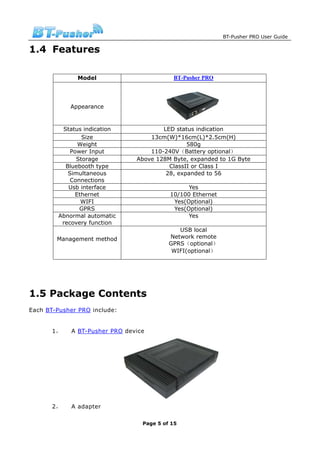
               Model                        BT-Pusher PRO


            Appearance


          Status indication             LED status indication
                 Size               13cm(W)*16cm(L)*2.5cm(H)
               Weight                           580g
             Power Input            110-240V(Battery optional)
               Storage          Above 128M Byte, expanded to 1G Byte
           Bluebooth type                 ClassII or Class I
            Simultaneous                 28, expanded to 56
             Connections
            Usb interface                        Yes
              Ethernet                     10/100 Ethernet
                WIFI                        Yes(Optional)
                GPRS                        Yes(Optional)
         Abnormal automatic                      Yes
          recovery function
                                              USB local
        Management method                  Network remote
                                           GPRS(optional)
                                            WIFI(optional)


1.5 Package Contents
Each BT-Pusher PRO include:


       1,    A BT-Pusher PRO device


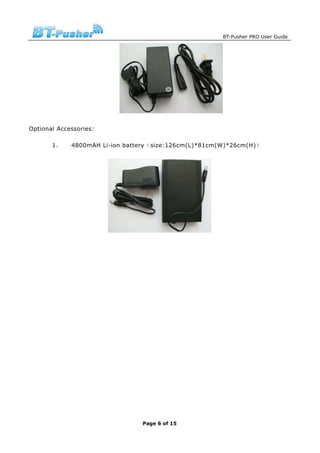
       2,    A adapter

                                  Page 5 of 15
BT-Pusher PRO User Guide


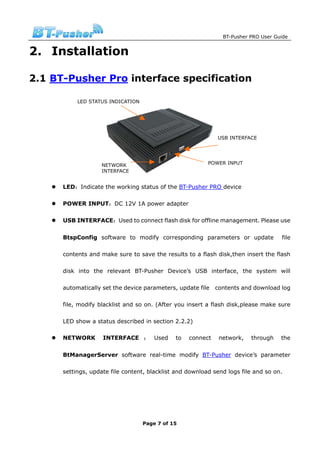
Optional Accessories:

       1,    4800mAH Li-ion battery(size:126cm(L)*81cm(W)*26cm(H))


                                Page 6 of 15
BT-Pusher PRO User Guide


2. Installation

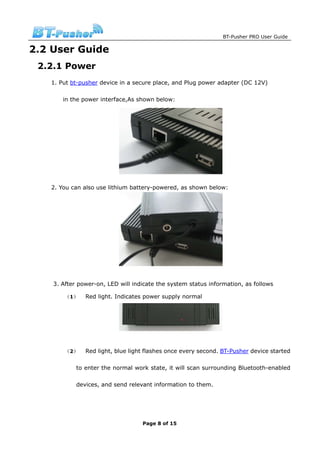
2.1 BT-Pusher Pro interface specification

           LED STATUS INDICATION


                                                             USB INTERFACE


                   NETWORK                                POWER INPUT
                   INTERFACE


      LED:Indicate the working status of the BT-Pusher PRO device

      POWER INPUT:DC 12V 1A power adapter

      USB INTERFACE:Used to connect flash disk for offline management. Please use


      BtspConfig software to modify corresponding parameters or update              file

      contents and make sure to save the results to a flash disk,then insert the flash

      disk into the relevant BT-Pusher Device’s USB interface, the system will

      automatically set the device parameters, update file   contents and download log

      file, modify blacklist and so on. (After you insert a flash disk,please make sure

      LED show a status described in section 2.2.2)

      NETWORK       INTERFACE : Used          to   connect    network,   through    the


      BtManagerServer software real-time modify BT-Pusher device’s parameter

      settings, update file content, blacklist and download send logs file and so on.


                                   Page 7 of 15
BT-Pusher PRO User Guide

2.2 User Guide
 2.2.1 Power
   1. Put bt-pusher device in a secure place, and Plug power adapter (DC 12V)

       in the power interface,As shown below:


   2. You can also use lithium battery-powered, as shown below:


    3. After power-on, LED will indicate the system status information, as follows

        (1)    Red light. Indicates power supply normal


        (2)    Red light, blue light flashes once every second. BT-Pusher device started

            to enter the normal work state, it will scan surrounding Bluetooth-enabled

            devices, and send relevant information to them.


                                   Page 8 of 15
BT-Pusher PRO User Guide


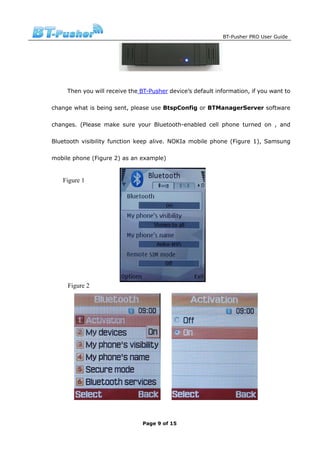
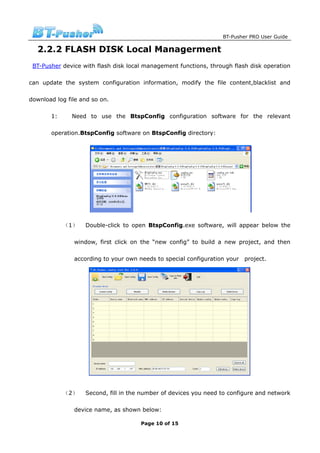
     Then you will receive the BT-Pusher device’s default information, if you want to

change what is being sent, please use BtspConfig or BTManagerServer software

changes. (Please make sure your Bluetooth-enabled cell phone turned on , and

Bluetooth visibility function keep alive. NOKIa mobile phone (Figure 1), Samsung

mobile phone (Figure 2) as an example)


   Figure 1


     Figure 2


                                Page 9 of 15
BT-Pusher PRO User Guide

  2.2.2 FLASH DISK Local Managerment
 BT-Pusher device with flash disk local management functions, through flash disk operation

can update the system configuration information, modify the file content,blacklist and

download log file and so on.

       1:      Need to use the BtspConfig configuration software for the relevant

       operation.BtspConfig software on BtspConfig directory:


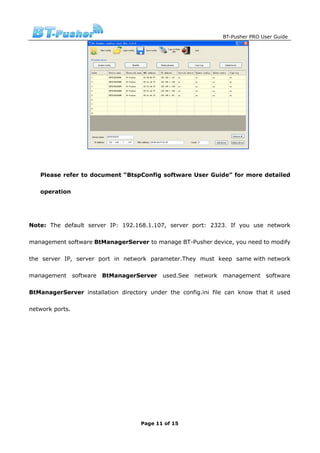
            (1)    Double-click to open BtspConfig.exe software, will appear below the

               window, first click on the “new config” to build a new project, and then

               according to your own needs to special configuration your   project.


            (2)    Second, fill in the number of devices you need to configure and network

               device name, as shown below:

                                      Page 10 of 15
BT-Pusher PRO User Guide


   Please refer to document “BtspConfig software User Guide” for more detailed

   operation


Note: The default server IP: 192.168.1.107, server port: 2323. If you use network

management software BtManagerServer to manage BT-Pusher device, you need to modify

the server IP, server port in network parameter.They must keep same with network

management software BtManagerServer        used.See network    management     software

BtManagerServer installation directory under the config.ini file can know that it used

network ports.


                                    Page 11 of 15
BT-Pusher PRO User Guide


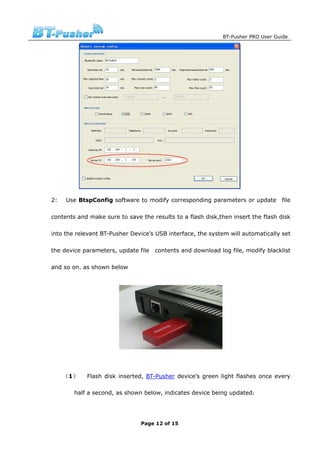
2:   Use BtspConfig software to modify corresponding parameters or update file

contents and make sure to save the results to a flash disk,then insert the flash disk

into the relevant BT-Pusher Device’s USB interface, the system will automatically set

the device parameters, update file   contents and download log file, modify blacklist

and so on. as shown below


     (1)    Flash disk inserted, BT-Pusher device’s green light flashes once every

        half a second, as shown below, indicates device being updated:


                               Page 12 of 15
BT-Pusher PRO User Guide


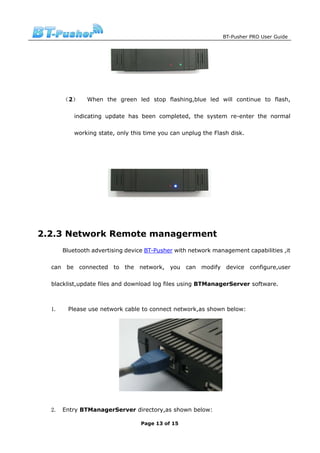
       (2)     When the green led stop flashing,blue led will continue to flash,

           indicating update has been completed, the system re-enter the normal

           working state, only this time you can unplug the Flash disk.


2.2.3 Network Remote managerment
       Bluetooth advertising device BT-Pusher with network management capabilities ,it

  can be connected to the network, you can modify device configure,user

  blacklist,update files and download log files using BTManagerServer software.


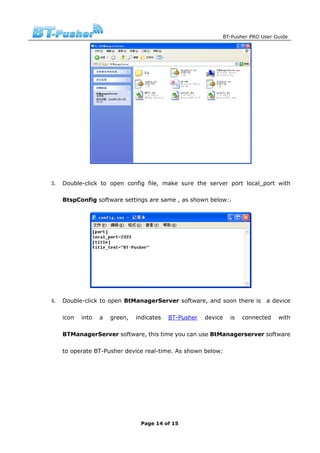
  1.    Please use network cable to connect network,as shown below:


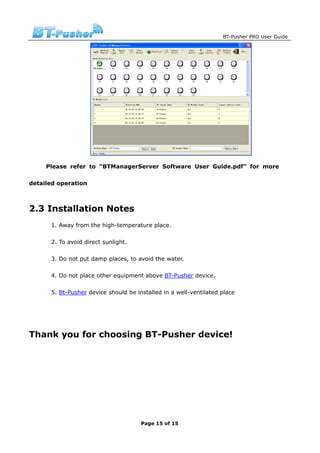
  2. Entry BTManagerServer directory,as shown below:

                                  Page 13 of 15
BT-Pusher PRO User Guide


3. Double-click to open config file, make sure the server port local_port with

   BtspConfig software settings are same , as shown below::


4. Double-click to open BtManagerServer software, and soon there is            a device

   icon   into   a   green,   indicates   BT-Pusher   device     is   connected    with

   BTManagerServer software, this time you can use BtManagerserver software

   to operate BT-Pusher device real-time. As shown below:


                               Page 14 of 15
BT-Pusher PRO User Guide


     Please refer to “BTManagerServer Software User Guide.pdf” for more

detailed operation


2.3 Installation Notes
      1. Away from the high-temperature place.

      2. To avoid direct sunlight.

      3. Do not put damp places, to avoid the water.

      4. Do not place other equipment above BT-Pusher device.

      5. Bt-Pusher device should be installed in a well-ventilated place


Thank you for choosing BT-Pusher device!


                                      Page 15 of 15

BlueTooth Marketing Device BT-Pusher PRO User Guide

  • 1.
    BLUETOOTH MARKETING DEVICE BT-Pusher PRO USER GUIDE Version 1.0.2 GuangZhou DeviceGate Technology Co.,Ltd. Web http://www.bt-pusher.com/ Add Room 501&512, Tower No.1,ShiShangMingYuan Building,No.77 ZhongShangDaDaoZhong,TianHe,GuangZhou,China Mail bt-pusher@devicegate.com devicegate@gmail.com Tel 0086-20-82317785, 0086-20-82317786 Fax 0086-20-62201638
  • 2.
    BT-Pusher PRO UserGuide Content 1 Introduction......................................................................................3 1.1 Overview.................................................................................3 1.2 Function……………………………………………………………………………………………….3 1.3 Application…………………………………………………………………………………………..4 1.4 Features……………………………………………………………………………………………….5 1.5 Package Contents………………………………………………………………………………..5 2 Installation……………………………………………………………………………………………………….7 2.1 BT-Pusher Pro Interface Specification………………………………………………….7 2.2 User Guide…………………………………………………………………………………………….8 2.2.1 Power……………………………………………………………………………………………….8 2.2.2 FLASH DISK Local Managerment………………………………………………….10 2.2.3 Network Remote Managerment…………………………………………………….13 2.3 Installation Notes……………………………………………………………………......... .15 Page 2 of 15
  • 3.
    BT-Pusher PRO UserGuide 1. Introduction 1.1 Overview BlueTooth Marketing Device BT-Pusher is a new generational advertisement and information transmitting system,which is developed by DeviceGate inc. The BlueTooth Marketing system push contents via Bluetooth radios to surrounding devices, specializes in providing information, Entertainment,discounts, coupons, and other promotional material to users of mobile phones and other portable Bluetooth-enabled devices. 1.2 Function ● Auto search for Bluetooth devices ● Support for a variety of Bluetooth message transmission strategy ● It can be networded(seamless) and has a data-base which can be shared with other devices in a same network ● It can be monitored form remote distance over internet by wired(LAN) or wireless(GPRS or WIFI) ● Blacklist function ● A variety of refuse retransmission mechanism ● Auto pair with mobile bluetooth devices(mainstream mobile models) ● Show the system working status using LED ● Delivery of a wide range of information type:txt,gif,jpg,mp3,mp4,3gp,java games and so on Page 3 of 15
  • 4.
    BT-Pusher PRO UserGuide ● Support up to 56 Bluetooth devices at the same time to download ● Send bluetooth message at scheduled times ● File update at scheduled times ● The fastest download speeds of up to 150KByte / S , decided to Bluetooth version of mobile and receive environmental ● Transmission distance: up to 100 meters ● Support for different time periods to send different content ● The same user will get each message only ONCE ,no matter what version you're using ● System can automatically record connection and receive detailed information of all users for you to decision-makin ● Support Network Remote Management:LAN,WAN,WIFI,GPRS and usb local management ● Support Abnormal automatic recovery function 1.3 Application Shops and In-store Promotions ● Exhibitions Restaurants and coffee shops ● Business center / shopping mall Tourist areas ● Hotels Airports ● Sport events Transportation ● Auto parts sales shop Auto 4S shops ● Repair stations Motor City ● Cinemas Housing Sales Center ● Recreation centers Even you can think of any place, almost everywhere Page 4 of 15
  • 5.
    BT-Pusher PRO UserGuide 1.4 Features Model BT-Pusher PRO Appearance Status indication LED status indication Size 13cm(W)*16cm(L)*2.5cm(H) Weight 580g Power Input 110-240V(Battery optional) Storage Above 128M Byte, expanded to 1G Byte Bluebooth type ClassII or Class I Simultaneous 28, expanded to 56 Connections Usb interface Yes Ethernet 10/100 Ethernet WIFI Yes(Optional) GPRS Yes(Optional) Abnormal automatic Yes recovery function USB local Management method Network remote GPRS(optional) WIFI(optional) 1.5 Package Contents Each BT-Pusher PRO include: 1, A BT-Pusher PRO device 2, A adapter Page 5 of 15
  • 6.
    BT-Pusher PRO UserGuide Optional Accessories: 1, 4800mAH Li-ion battery(size:126cm(L)*81cm(W)*26cm(H)) Page 6 of 15
  • 7.
    BT-Pusher PRO UserGuide 2. Installation 2.1 BT-Pusher Pro interface specification LED STATUS INDICATION USB INTERFACE NETWORK POWER INPUT INTERFACE LED:Indicate the working status of the BT-Pusher PRO device POWER INPUT:DC 12V 1A power adapter USB INTERFACE:Used to connect flash disk for offline management. Please use BtspConfig software to modify corresponding parameters or update file contents and make sure to save the results to a flash disk,then insert the flash disk into the relevant BT-Pusher Device’s USB interface, the system will automatically set the device parameters, update file contents and download log file, modify blacklist and so on. (After you insert a flash disk,please make sure LED show a status described in section 2.2.2) NETWORK INTERFACE : Used to connect network, through the BtManagerServer software real-time modify BT-Pusher device’s parameter settings, update file content, blacklist and download send logs file and so on. Page 7 of 15
  • 8.
    BT-Pusher PRO UserGuide 2.2 User Guide 2.2.1 Power 1. Put bt-pusher device in a secure place, and Plug power adapter (DC 12V) in the power interface,As shown below: 2. You can also use lithium battery-powered, as shown below: 3. After power-on, LED will indicate the system status information, as follows (1) Red light. Indicates power supply normal (2) Red light, blue light flashes once every second. BT-Pusher device started to enter the normal work state, it will scan surrounding Bluetooth-enabled devices, and send relevant information to them. Page 8 of 15
  • 9.
    BT-Pusher PRO UserGuide Then you will receive the BT-Pusher device’s default information, if you want to change what is being sent, please use BtspConfig or BTManagerServer software changes. (Please make sure your Bluetooth-enabled cell phone turned on , and Bluetooth visibility function keep alive. NOKIa mobile phone (Figure 1), Samsung mobile phone (Figure 2) as an example) Figure 1 Figure 2 Page 9 of 15
  • 10.
    BT-Pusher PRO UserGuide 2.2.2 FLASH DISK Local Managerment BT-Pusher device with flash disk local management functions, through flash disk operation can update the system configuration information, modify the file content,blacklist and download log file and so on. 1: Need to use the BtspConfig configuration software for the relevant operation.BtspConfig software on BtspConfig directory: (1) Double-click to open BtspConfig.exe software, will appear below the window, first click on the “new config” to build a new project, and then according to your own needs to special configuration your project. (2) Second, fill in the number of devices you need to configure and network device name, as shown below: Page 10 of 15
  • 11.
    BT-Pusher PRO UserGuide Please refer to document “BtspConfig software User Guide” for more detailed operation Note: The default server IP: 192.168.1.107, server port: 2323. If you use network management software BtManagerServer to manage BT-Pusher device, you need to modify the server IP, server port in network parameter.They must keep same with network management software BtManagerServer used.See network management software BtManagerServer installation directory under the config.ini file can know that it used network ports. Page 11 of 15
  • 12.
    BT-Pusher PRO UserGuide 2: Use BtspConfig software to modify corresponding parameters or update file contents and make sure to save the results to a flash disk,then insert the flash disk into the relevant BT-Pusher Device’s USB interface, the system will automatically set the device parameters, update file contents and download log file, modify blacklist and so on. as shown below (1) Flash disk inserted, BT-Pusher device’s green light flashes once every half a second, as shown below, indicates device being updated: Page 12 of 15
  • 13.
    BT-Pusher PRO UserGuide (2) When the green led stop flashing,blue led will continue to flash, indicating update has been completed, the system re-enter the normal working state, only this time you can unplug the Flash disk. 2.2.3 Network Remote managerment Bluetooth advertising device BT-Pusher with network management capabilities ,it can be connected to the network, you can modify device configure,user blacklist,update files and download log files using BTManagerServer software. 1. Please use network cable to connect network,as shown below: 2. Entry BTManagerServer directory,as shown below: Page 13 of 15
  • 14.
    BT-Pusher PRO UserGuide 3. Double-click to open config file, make sure the server port local_port with BtspConfig software settings are same , as shown below:: 4. Double-click to open BtManagerServer software, and soon there is a device icon into a green, indicates BT-Pusher device is connected with BTManagerServer software, this time you can use BtManagerserver software to operate BT-Pusher device real-time. As shown below: Page 14 of 15
  • 15.
    BT-Pusher PRO UserGuide Please refer to “BTManagerServer Software User Guide.pdf” for more detailed operation 2.3 Installation Notes 1. Away from the high-temperature place. 2. To avoid direct sunlight. 3. Do not put damp places, to avoid the water. 4. Do not place other equipment above BT-Pusher device. 5. Bt-Pusher device should be installed in a well-ventilated place Thank you for choosing BT-Pusher device! Page 15 of 15