Configuring
And Testing
Remote Desktop
Sharing
GROUP 4 Presentation
Lesson 6
Recognize Remote Desktop
Services
LEARNING OBJECTIVES
at the end of the lesson, the learner should be able
to;
Familiarize with Remote
Desktop Deployment
Understand Remote Desktop
connection
What is Remote Desktop Services (RDS)?
Remote Desktop Services ( RDS ) is
an umbrella term for features of
Microsoft Windows Server that allow
users to remotely access graphical
desktops and Windows applications.
Remote Desktop Services in Windows
Remote Desktop Services in Windows Server
2008 R2 provides technologies that enable
users to access Windows-based programs that
are installed on a Remote Desktop Session
Host (RD Session Host) server, or to access the
full Windows desktop. With Remote Desktop
Services, users can access an RD Session Host
server from within a corporate network or
from the Internet
Server
Remote Desktop Services: Deployment
Remote Desktop Services (RDS) in Windows
Server 2008 R2, previously called Terminal
Services in Windows Server 2008, enables
efficient software deployment and maintenance
in an enterprise. By installing programs on the
RD Session Host server rather than client
computers, RDS simplifies software upgrades
and maintenance. This setup allows f0r
centralized management of applications,
making it easier to deploy, upgrade, and
maintain software across the network.
Remote Desktop Services
Design Guide
Understanding the Remote Desktop Session
Host Design Process
Understanding the RemoteFX Design Process
Mapping Your Deployment Goals to a
Remote Desktop Session Host Design
Mapping Your Deployment Goals to a
RemoteFX Design
Evaluating RemoteFX Design Examples
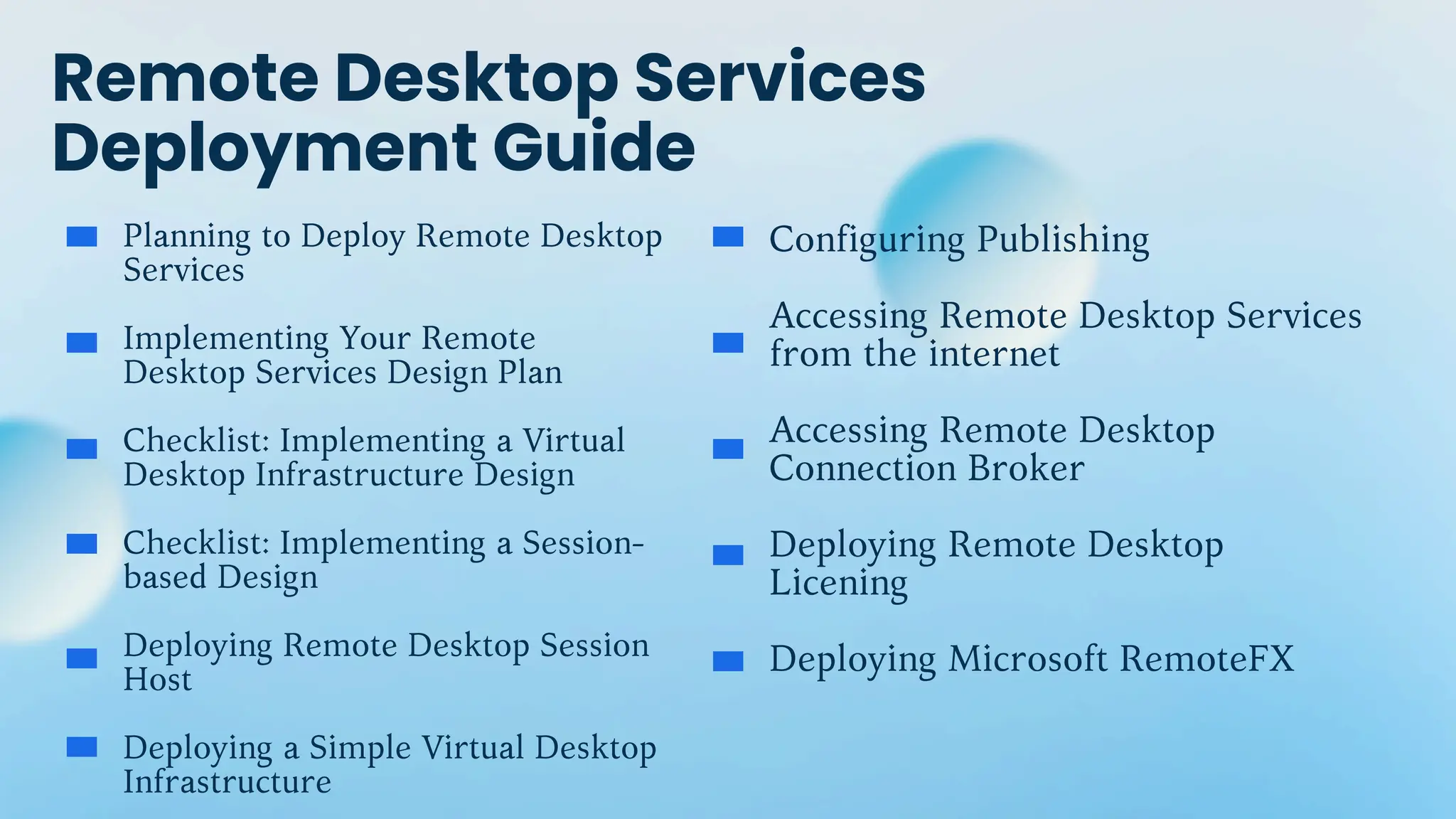
Remote Desktop Services
Deployment Guide
Planning to Deploy Remote Desktop
Services
Implementing Your Remote
Desktop Services Design Plan
Checklist: Implementing a Virtual
Desktop Infrastructure Design
Checklist: Implementing a Session-
based Design
Deploying Remote Desktop Session
Host
Deploying a Simple Virtual Desktop
Infrastructure
Configuring Publishing
Accessing Remote Desktop Services
from the internet
Accessing Remote Desktop
Connection Broker
Deploying Remote Desktop
Licening
Deploying Microsoft RemoteFX
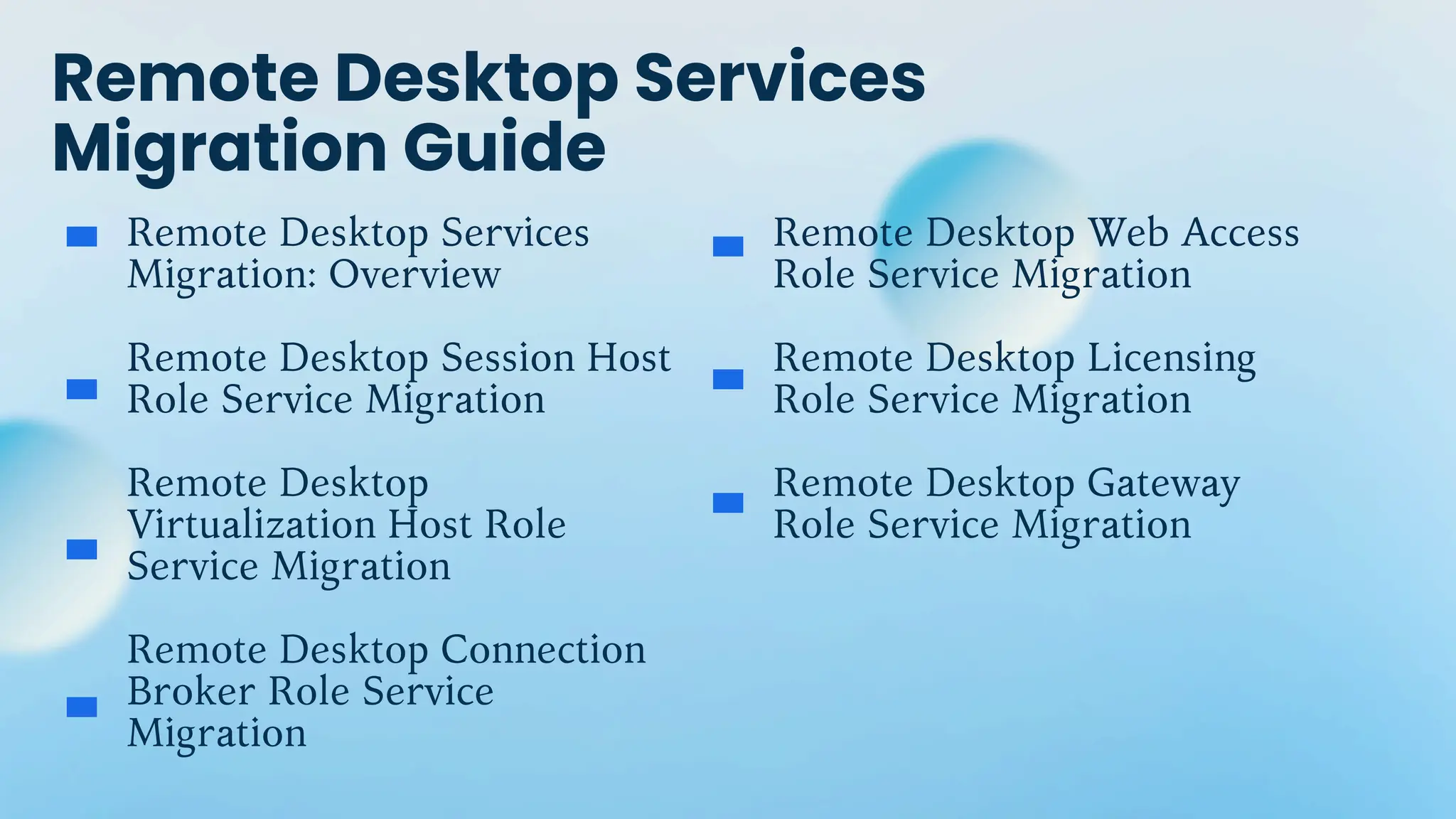
Remote Desktop Services
Migration Guide
Remote Desktop Services
Migration: Overview
Remote Desktop Session Host
Role Service Migration
Remote Desktop
Virtualization Host Role
Service Migration
Remote Desktop Connection
Broker Role Service
Migration
Remote Desktop Web Access
Role Service Migration
Remote Desktop Licensing
Role Service Migration
Remote Desktop Gateway
Role Service Migration
Related Resources
Remote Desktop Protocol Performance
Improvements in Windows Server 2008
R2 and Windows 7
Deploying a Virtualized Session-Based
Remote Desktop Services Solution
Remote Desktop Services in Windows
Server 2008 R2
Implementing Your Remote Desktop
Services Design Plan
Consider the following factors before you implement your design plan:
Complexity:
Cost:
Fault tolerance:
The complexity of the scenario relative to other
scenarios.
The initial setup and sustained cost of
this scenario.
How the scenario supports the resilliency
of the infrastructure, which ultimately
affects the availability of the system.
Implementing Your Remote Desktop
Services Design Plan
Consider the following factors before you implement your design plan:
Performance:
Scalability:
Security:
How the scenario affects the performance of the
infrastructure.
The impact that the scenario has on the
scalability of the infrastructure.
Whether the scenario has a positive or
negative impact on overall infrastructure
security.
Use the following parent checklists in this section of the
guide to become familiar with the deployment tasks for
implementing your organization's Remote Desktop
Services design:
How to implement your Remote Desktop Services
design by using this guide
Checklist: Implementing a Virtual Desktop
Infrastructure Design
Checklist: Implementing a Session-based Design
To implement Microsoft® RemoteFX™, use the checklists for deploying a
Virtual Desktop Infrastructure (VDI), or Remote Desktop Services with
session-based desktops and perform the tasks for RemoteFX.
SETTING UP THE INFRASTRUCTURE
INSTALLING REMOTE DESKTOP SESSION HOST
STEP BY STEP
This guide shows how to set up a Remote Desktop Services
infrastructure in a test environment, including creating an Active
Directory domain, installing the RD Session Host role, and
configuring the Remote Desktop client. This helps you explore RDS
on Windows Server 2008 R2 for potential deployment.
This guide includes the following topics;
Step 1: Setting up the infrastructure
Step 2: Installing and Configuring Remote Desktop Session
Host
Step 3: Verifying Remote Desktop Session Host Functionally
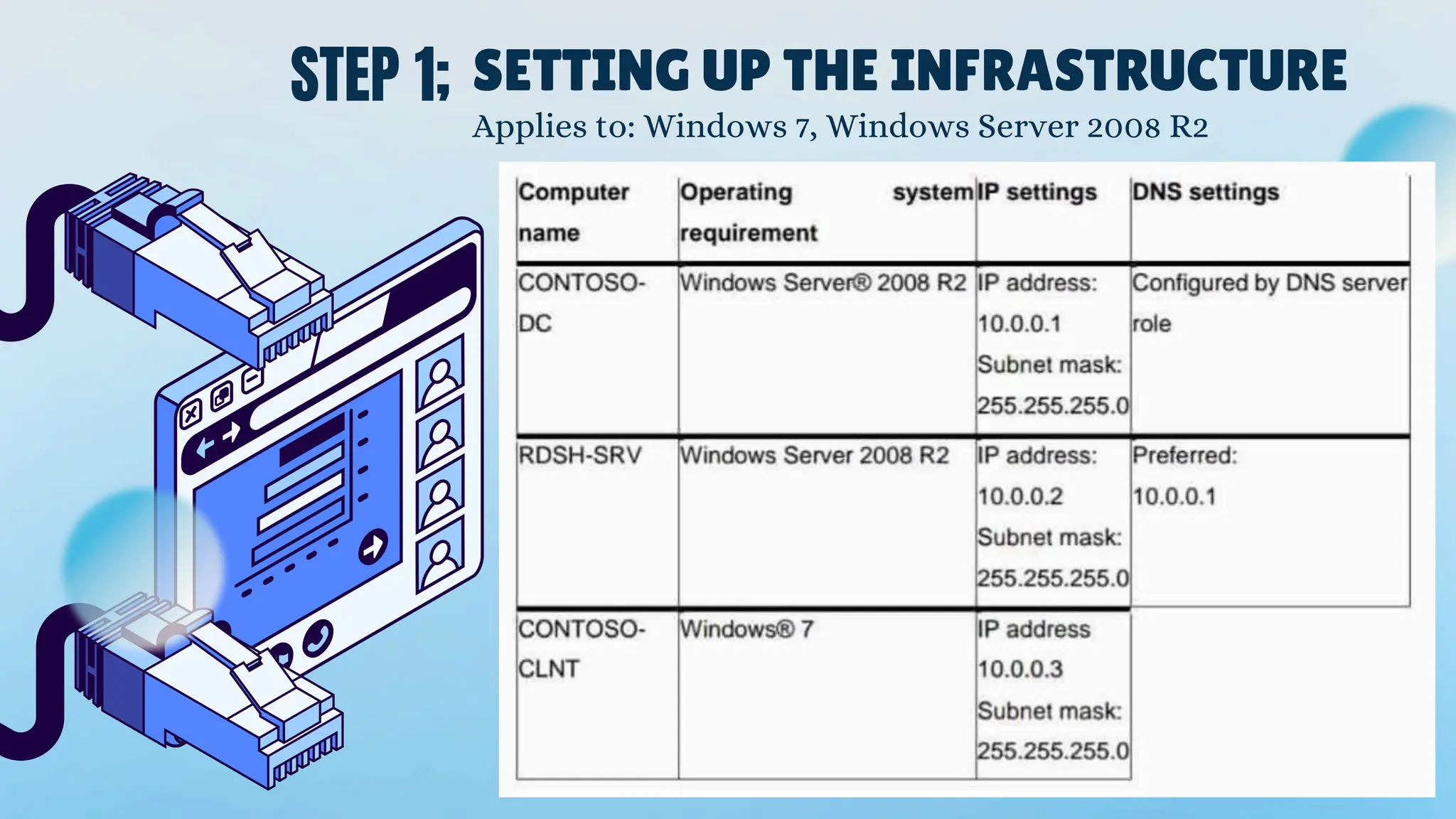
STEP 1; SETTING UP THE INFRASTRUCTURE
Applies to: Windows 7, Windows Server 2008 R2
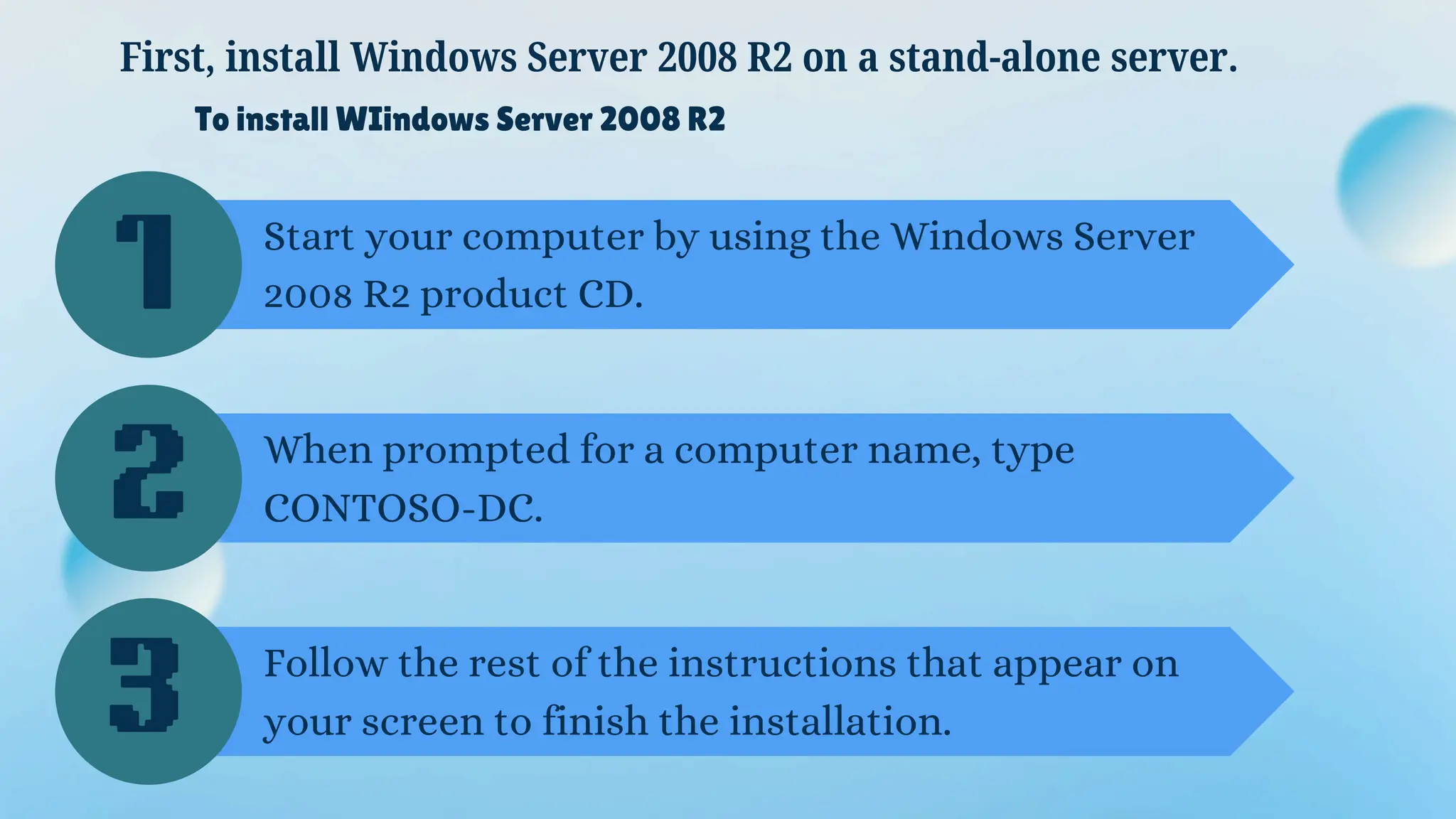
To install WIindows Server 2008 R2
Start your computer by using the Windows Server
2008 R2 product CD.
First, install Windows Server 2008 R2 on a stand-alone server.
When prompted for a computer name, type
CONTOSO-DC.
Follow the rest of the instructions that appear on
your screen to finish the installation.
1
2
3
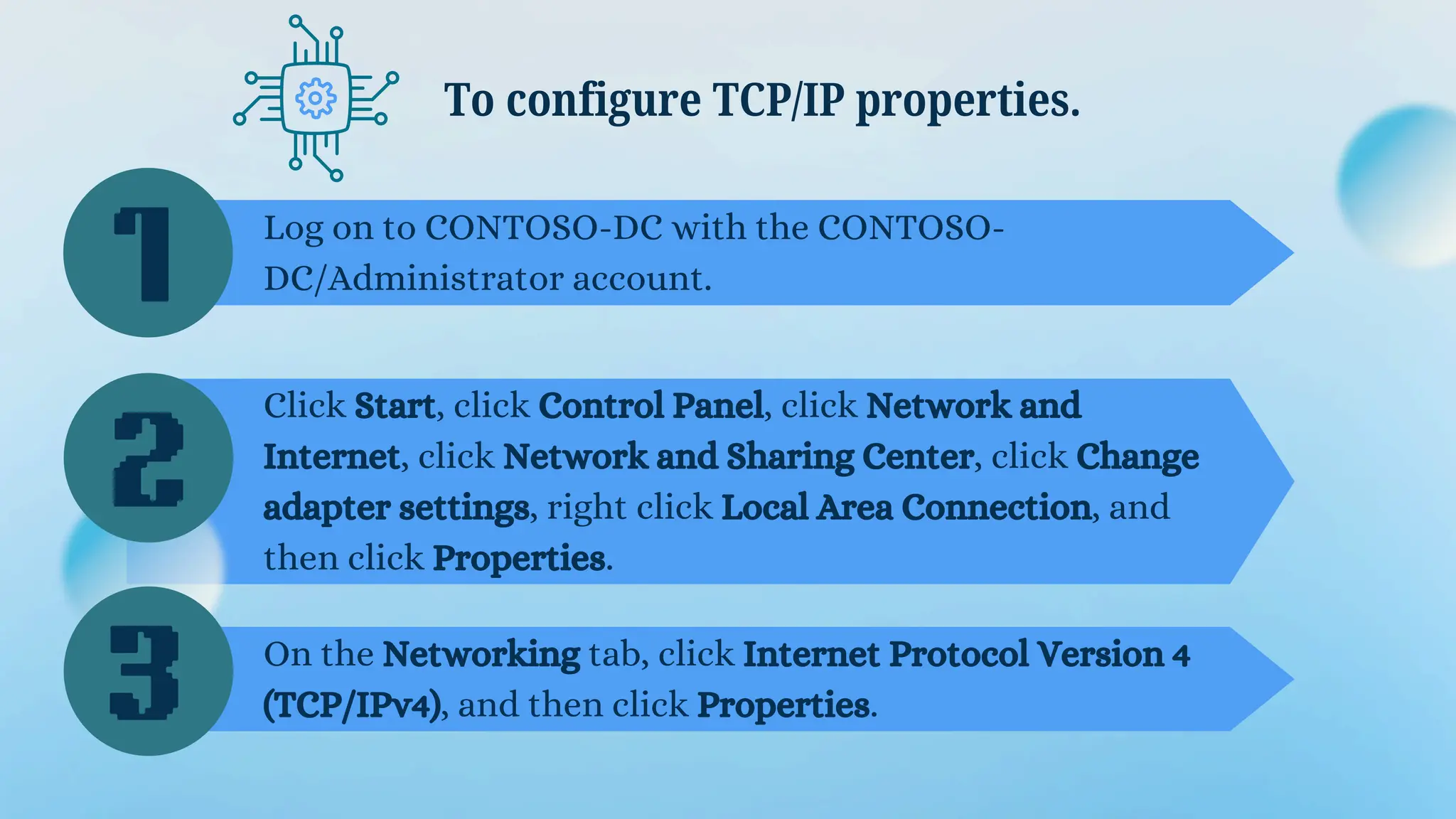
Log on to CONTOSO-DC with the CONTOSO-
DC/Administrator account.
To configure TCP/IP properties.
Click Start, click Control Panel, click Network and
Internet, click Network and Sharing Center, click Change
adapter settings, right click Local Area Connection, and
then click Properties.
On the Networking tab, click Internet Protocol Version 4
(TCP/IPv4), and then click Properties.
1
2
3
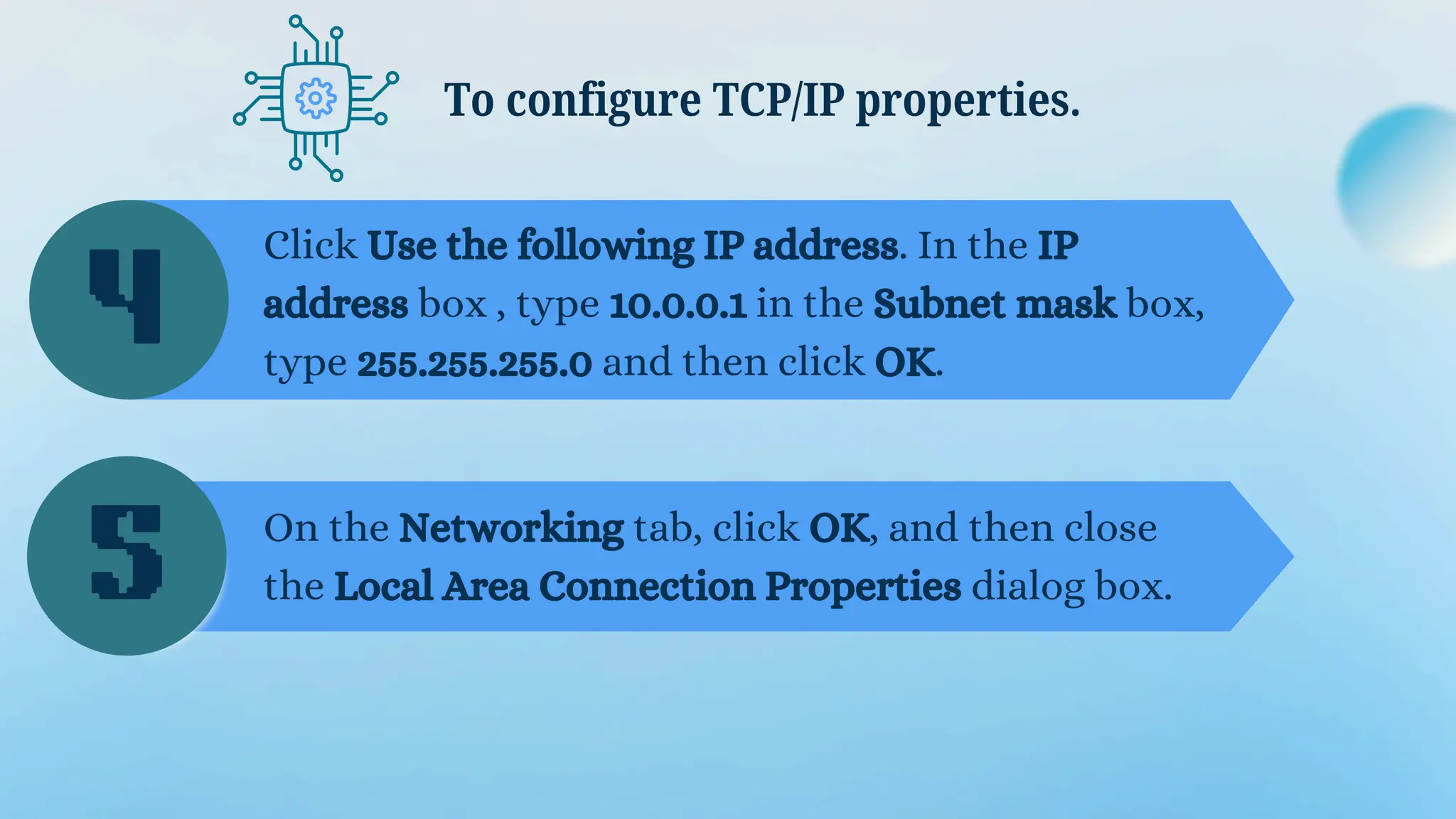
Click Use the following IP address. In the IP
address box , type 10.0.0.1 in the Subnet mask box,
type 255.255.255.0 and then click OK.
To configure TCP/IP properties.
On the Networking tab, click OK, and then close
the Local Area Connection Properties dialog box.
4
5
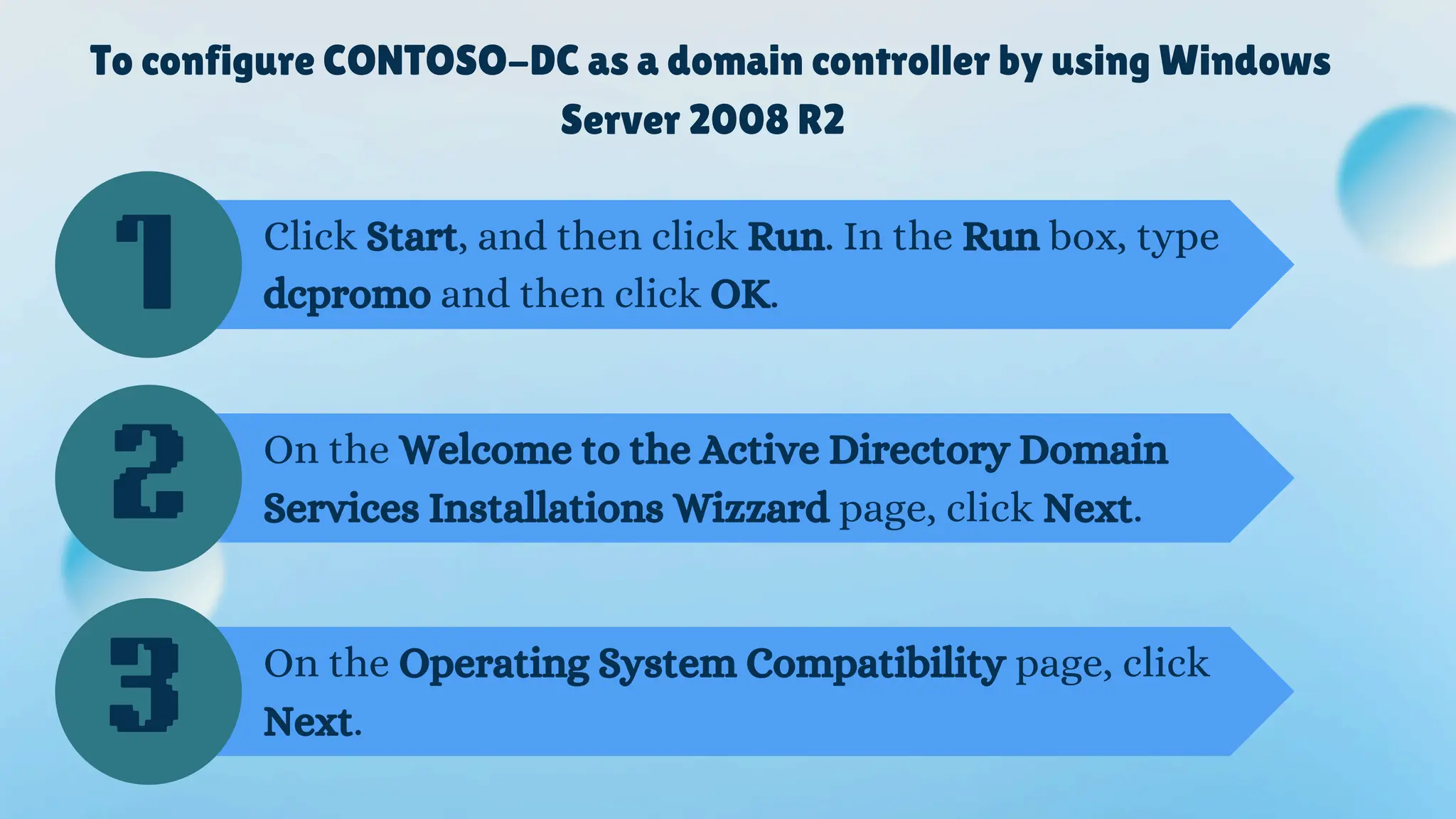
To configure CONTOSO-DC as a domain controller by using Windows
Server 2008 R2
Click Start, and then click Run. In the Run box, type
dcpromo and then click OK.
On the Welcome to the Active Directory Domain
Services Installations Wizzard page, click Next.
On the Operating System Compatibility page, click
Next.
1
2
3
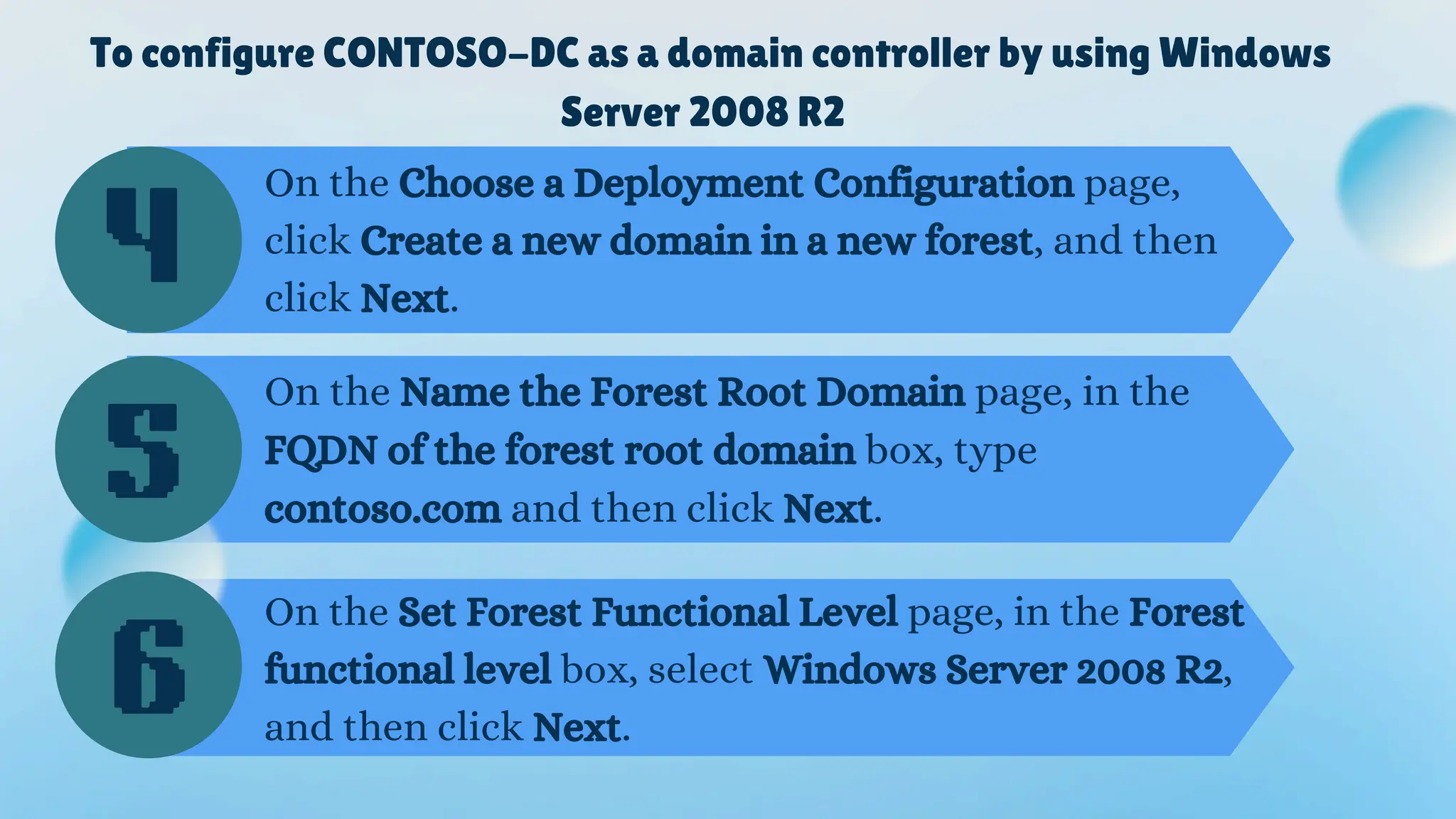
To configure CONTOSO-DC as a domain controller by using Windows
Server 2008 R2
On the Choose a Deployment Configuration page,
click Create a new domain in a new forest, and then
click Next.
On the Name the Forest Root Domain page, in the
FQDN of the forest root domain box, type
contoso.com and then click Next.
On the Set Forest Functional Level page, in the Forest
functional level box, select Windows Server 2008 R2,
and then click Next.
4
5
6
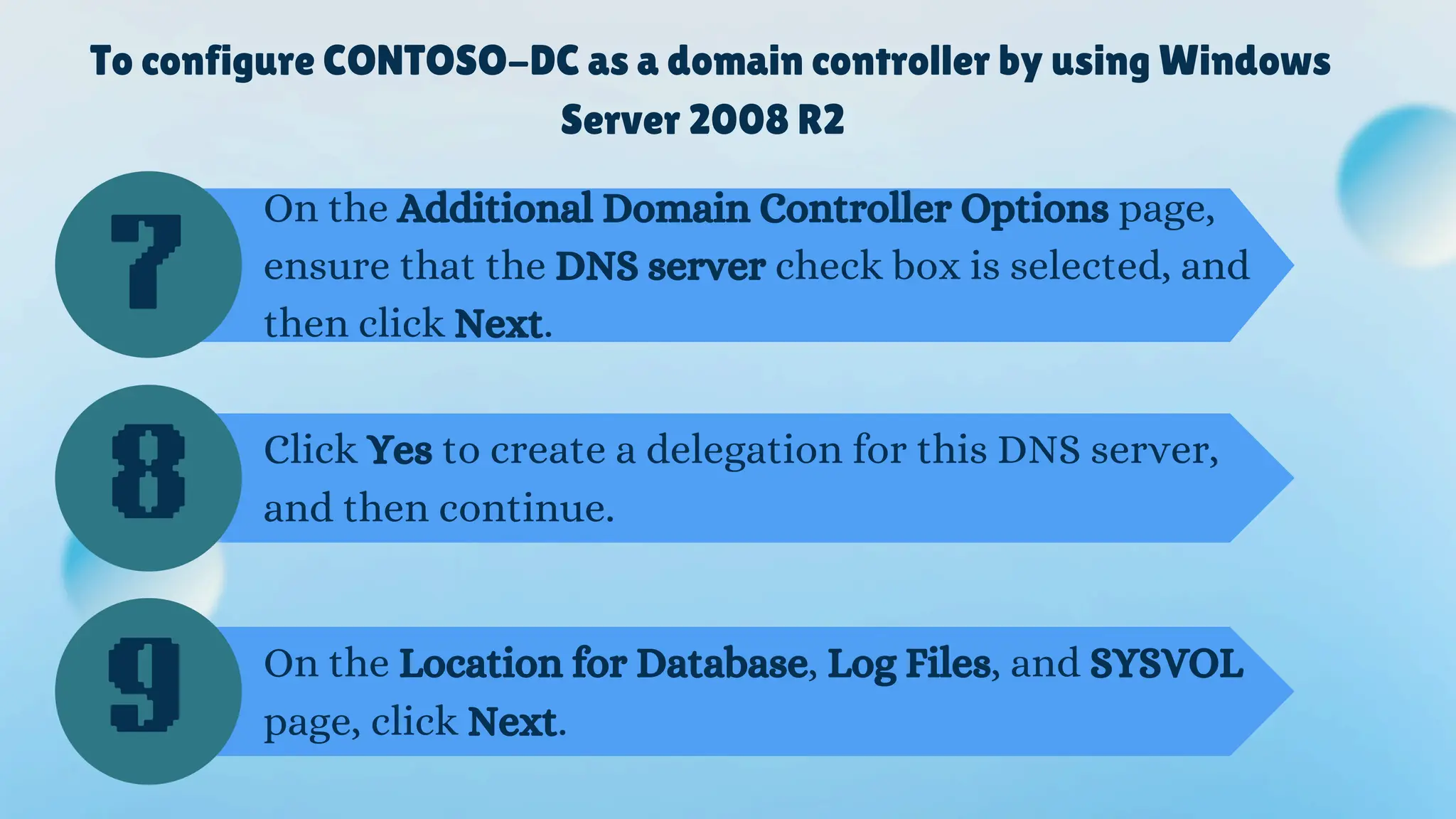
To configure CONTOSO-DC as a domain controller by using Windows
Server 2008 R2
On the Additional Domain Controller Options page,
ensure that the DNS server check box is selected, and
then click Next.
Click Yes to create a delegation for this DNS server,
and then continue.
On the Location for Database, Log Files, and SYSVOL
page, click Next.
7
8
9
To configure CONTOSO-DC as a domain controller by using Windows
Server 2008 R2
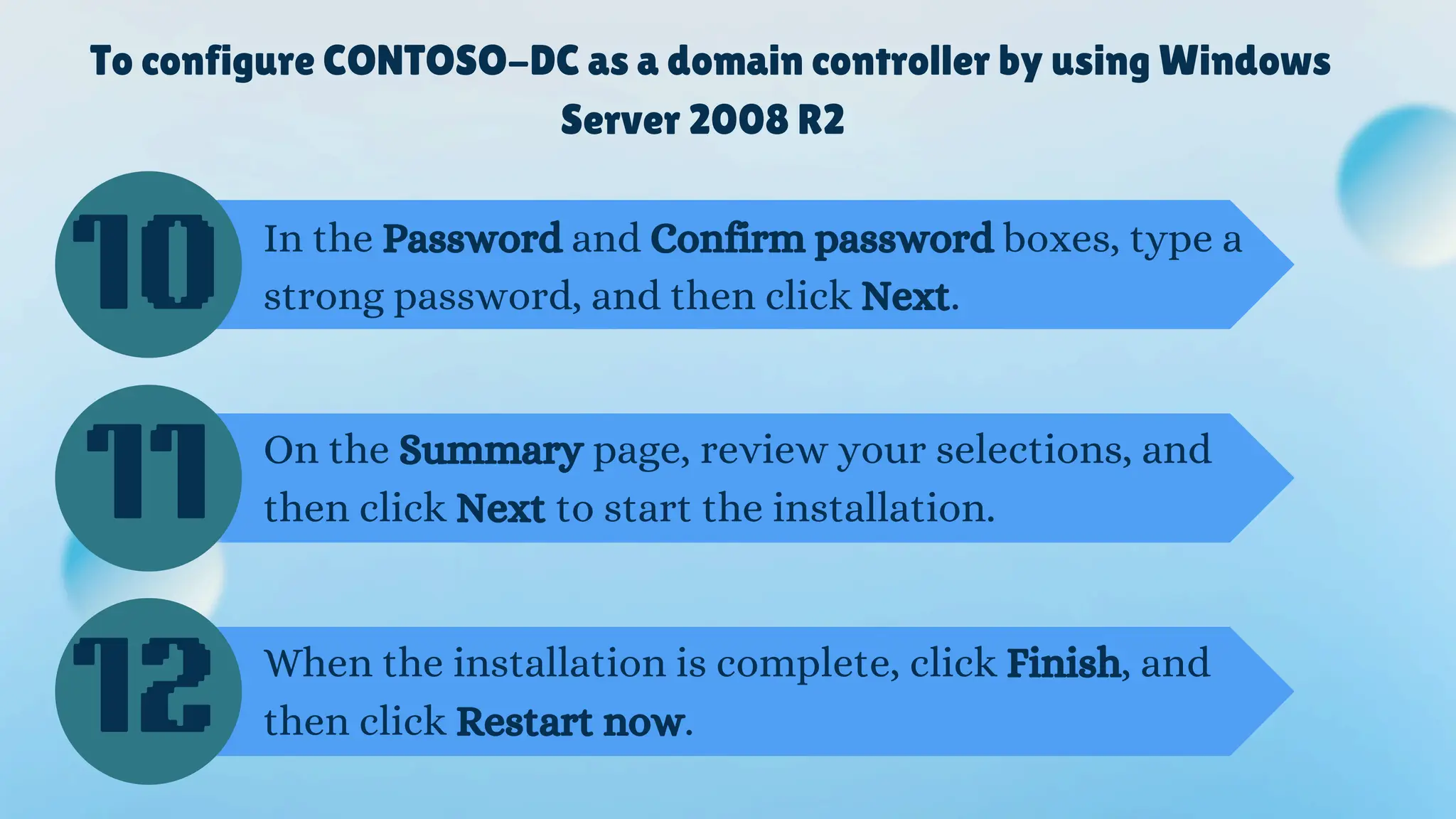
In the Password and Confirm password boxes, type a
strong password, and then click Next.
On the Summary page, review your selections, and
then click Next to start the installation.
When the installation is complete, click Finish, and
then click Restart now.
10
11
12
To create a user account
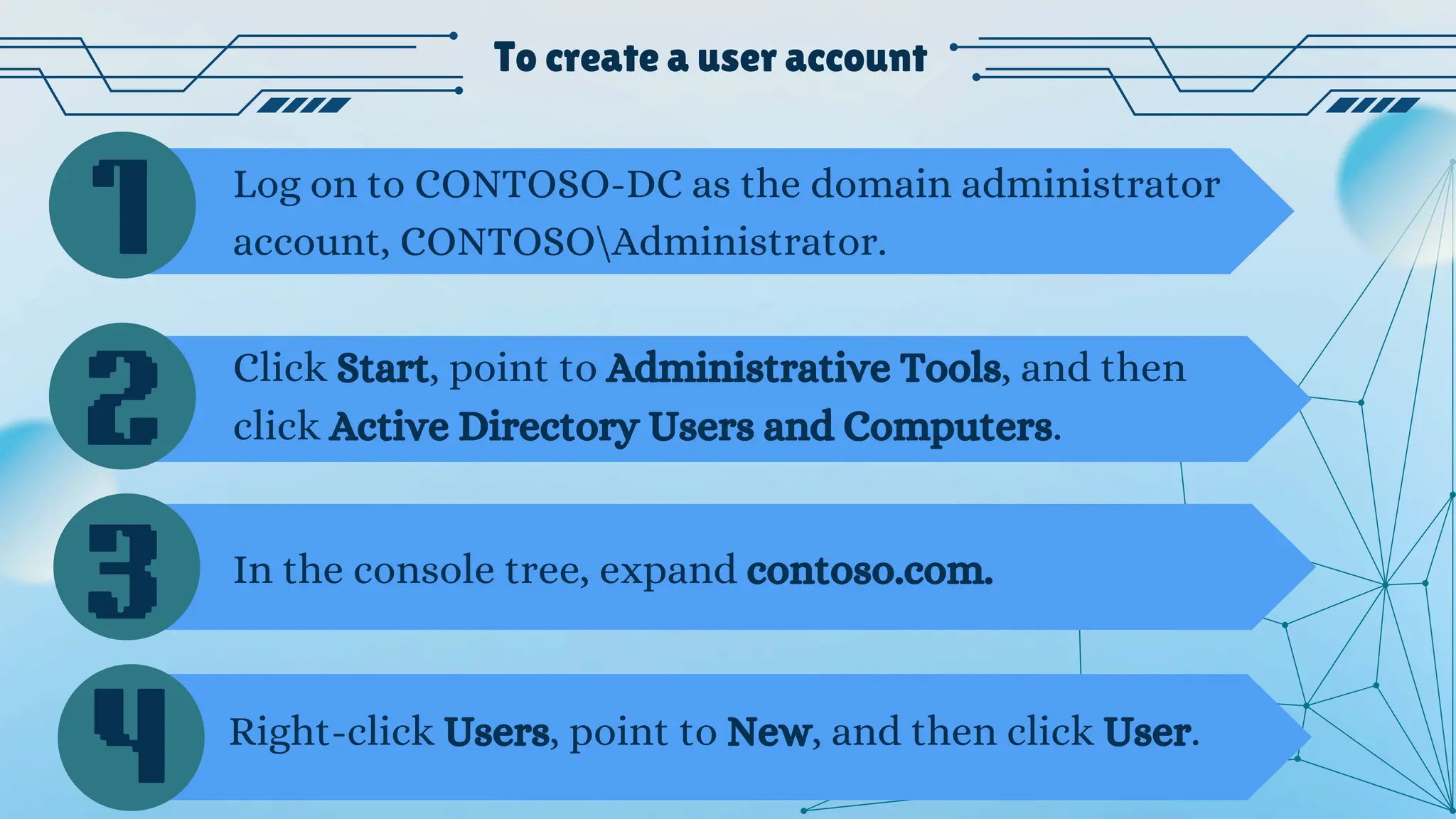
Click Start, point to Administrative Tools, and then
click Active Directory Users and Computers.
Log on to CONTOSO-DC as the domain administrator
account, CONTOSOAdministrator.
In the console tree, expand contoso.com.
1
2
Right-click Users, point to New, and then click User.
3
4
To create a user account
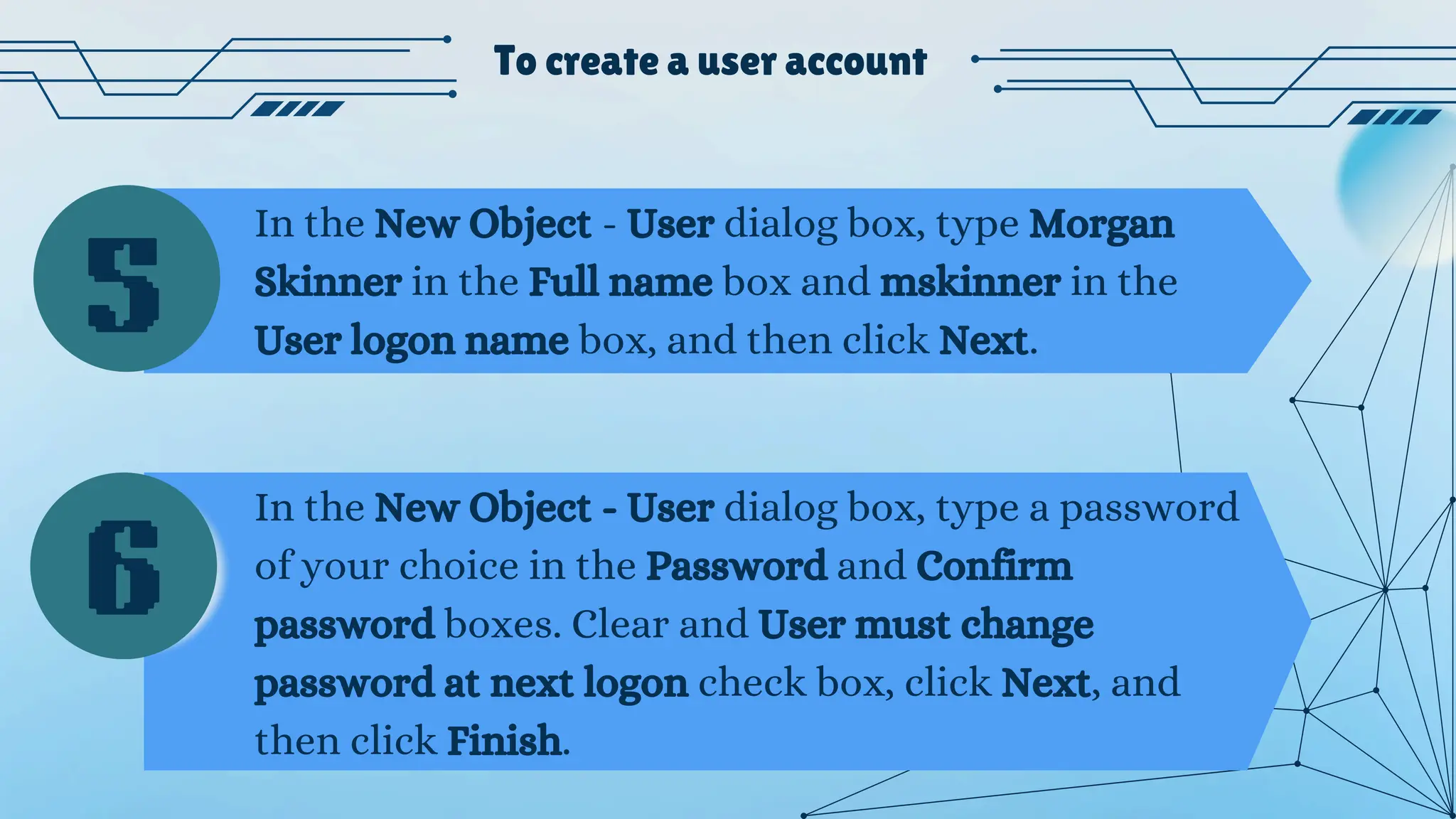
In the New Object - User dialog box, type Morgan
Skinner in the Full name box and mskinner in the
User logon name box, and then click Next.
In the New Object - User dialog box, type a password
of your choice in the Password and Confirm
password boxes. Clear and User must change
password at next logon check box, click Next, and
then click Finish.
5
6
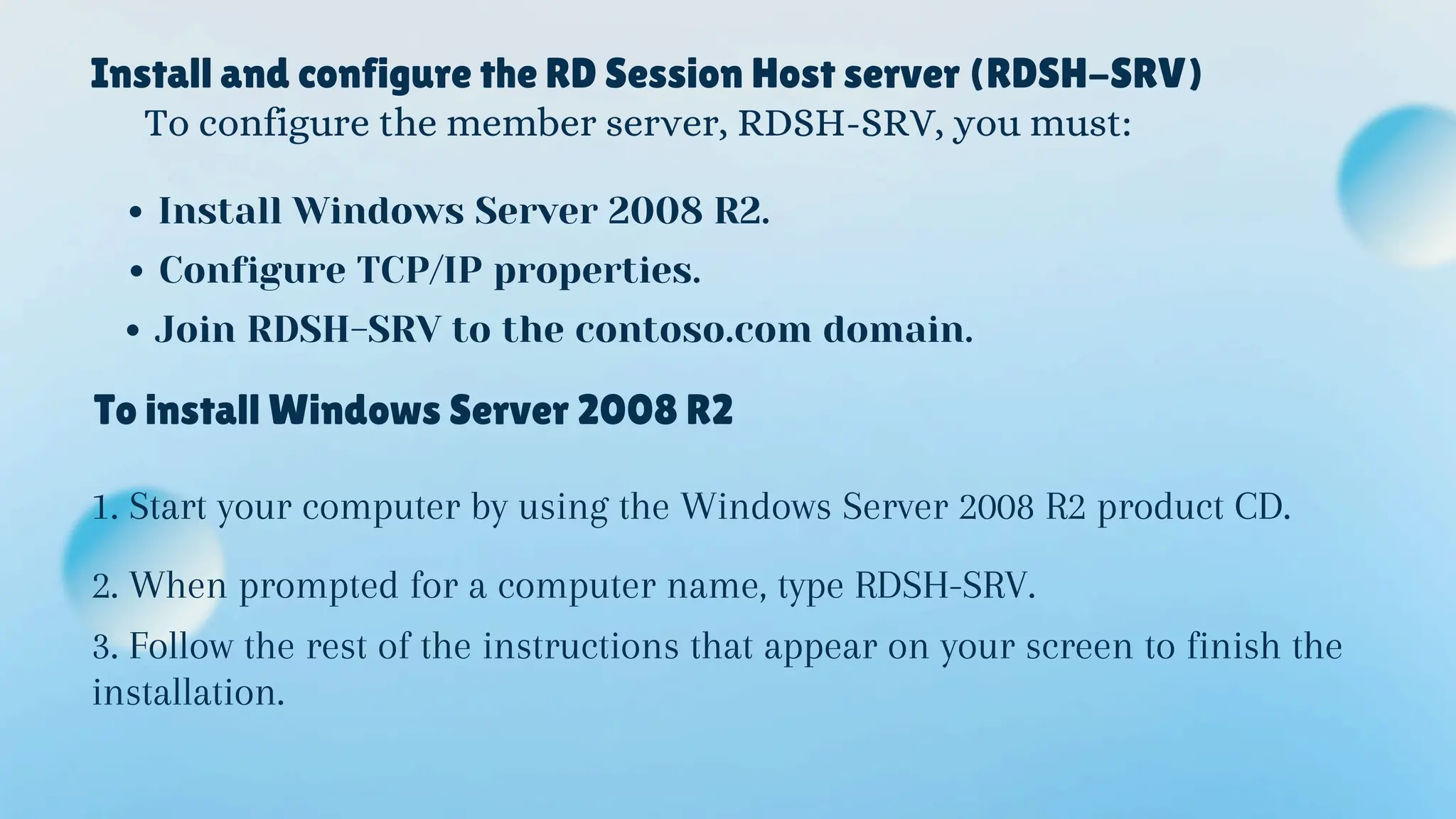
Install and configure the RD Session Host server (RDSH-SRV)
To configure the member server, RDSH-SRV, you must:
Install Windows Server 2008 R2.
Configure TCP/IP properties.
Join RDSH-SRV to the contoso.com domain.
To install Windows Server 2008 R2
1. Start your computer by using the Windows Server 2008 R2 product CD.
2. When prompted for a computer name, type RDSH-SRV.
3. Follow the rest of the instructions that appear on your screen to finish the
installation.
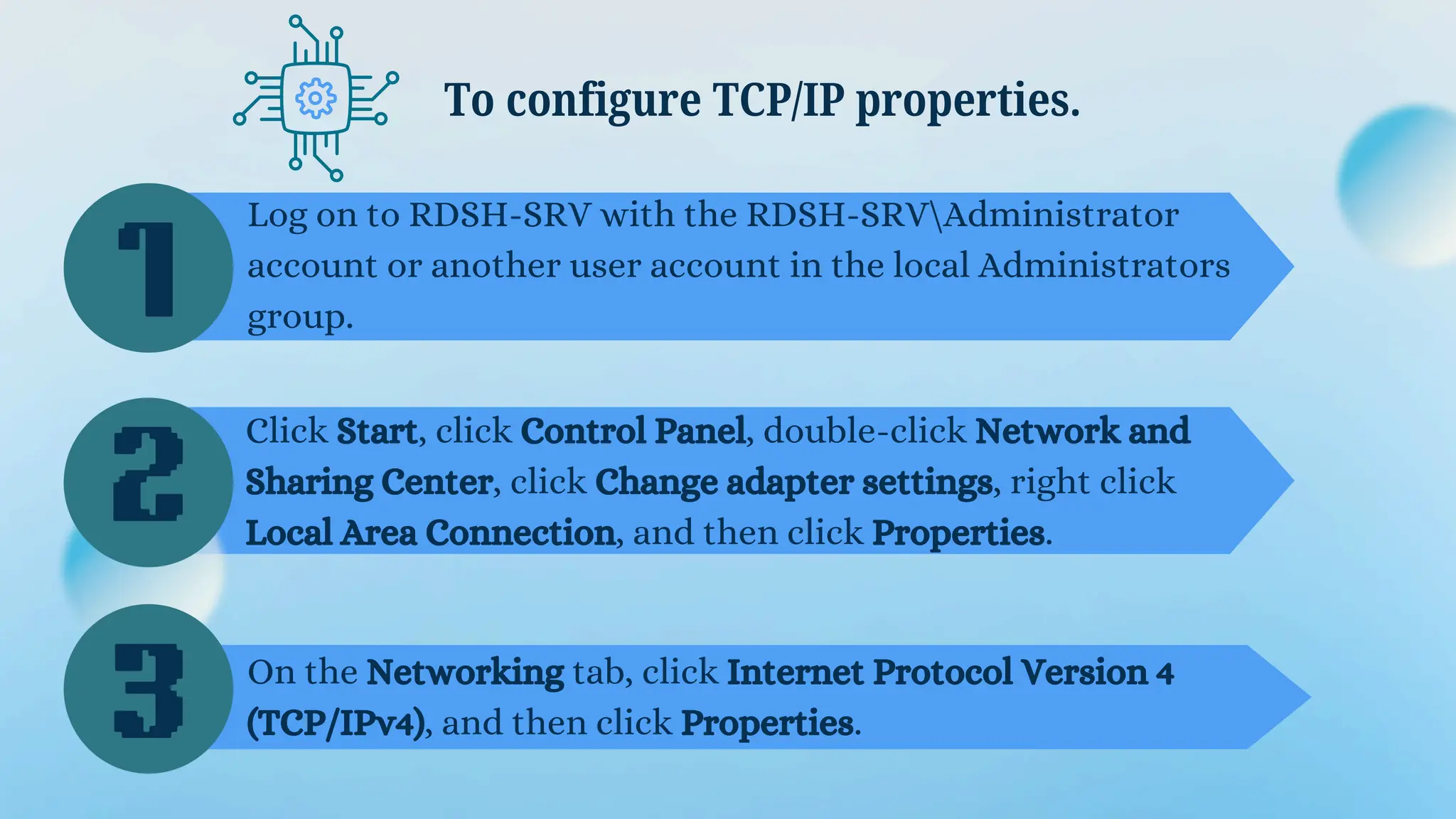
Log on to RDSH-SRV with the RDSH-SRVAdministrator
account or another user account in the local Administrators
group.
To configure TCP/IP properties.
Click Start, click Control Panel, double-click Network and
Sharing Center, click Change adapter settings, right click
Local Area Connection, and then click Properties.
On the Networking tab, click Internet Protocol Version 4
(TCP/IPv4), and then click Properties.
1
2
3
To configure TCP/IP properties.
4
5
6
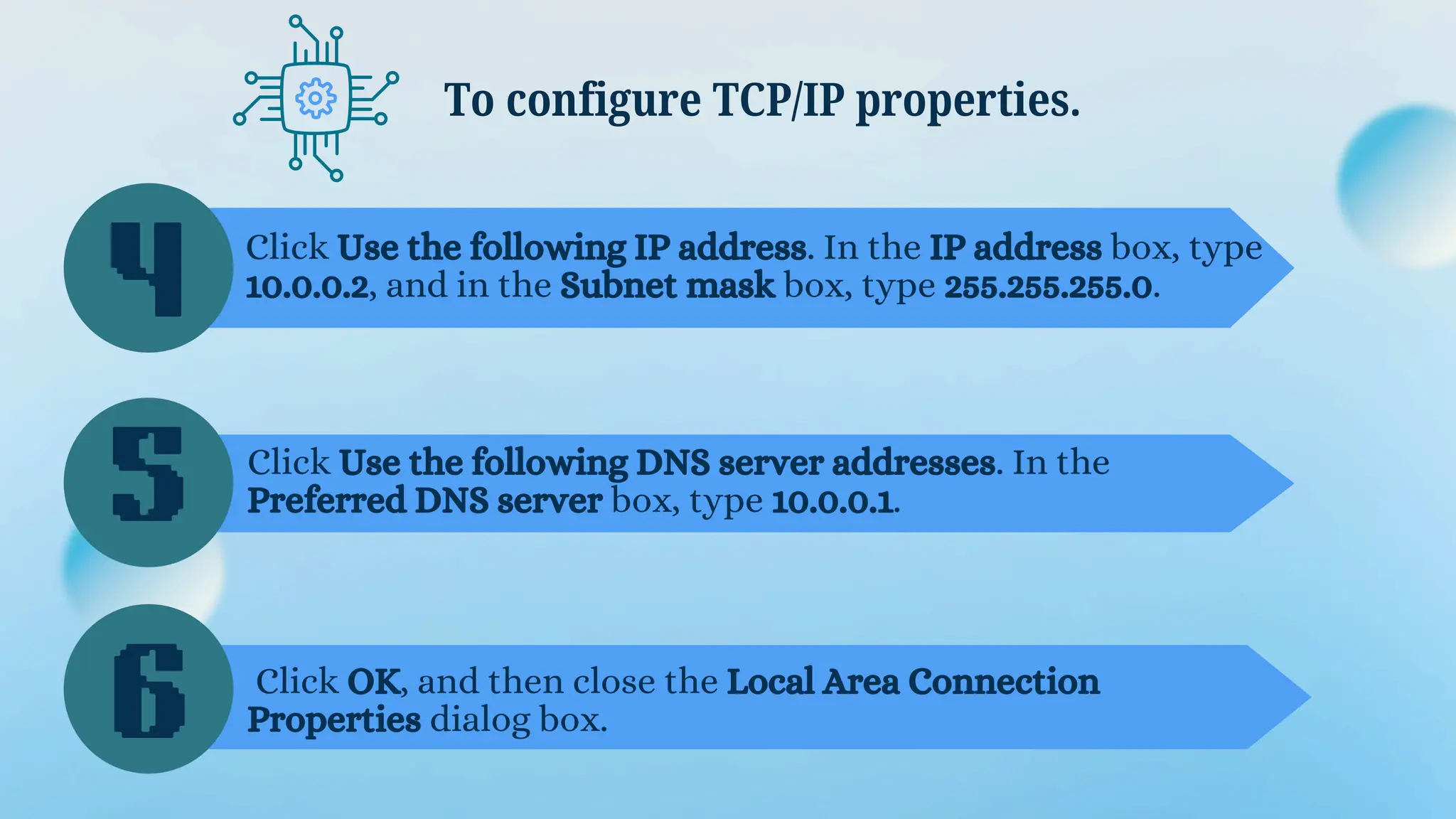
Click Use the following IP address. In the IP address box, type
10.0.0.2, and in the Subnet mask box, type 255.255.255.0.
Click Use the following DNS server addresses. In the
Preferred DNS server box, type 10.0.0.1.
Click OK, and then close the Local Area Connection
Properties dialog box.
To join RDSH-SRV to the contoso.com domain
1
2
3
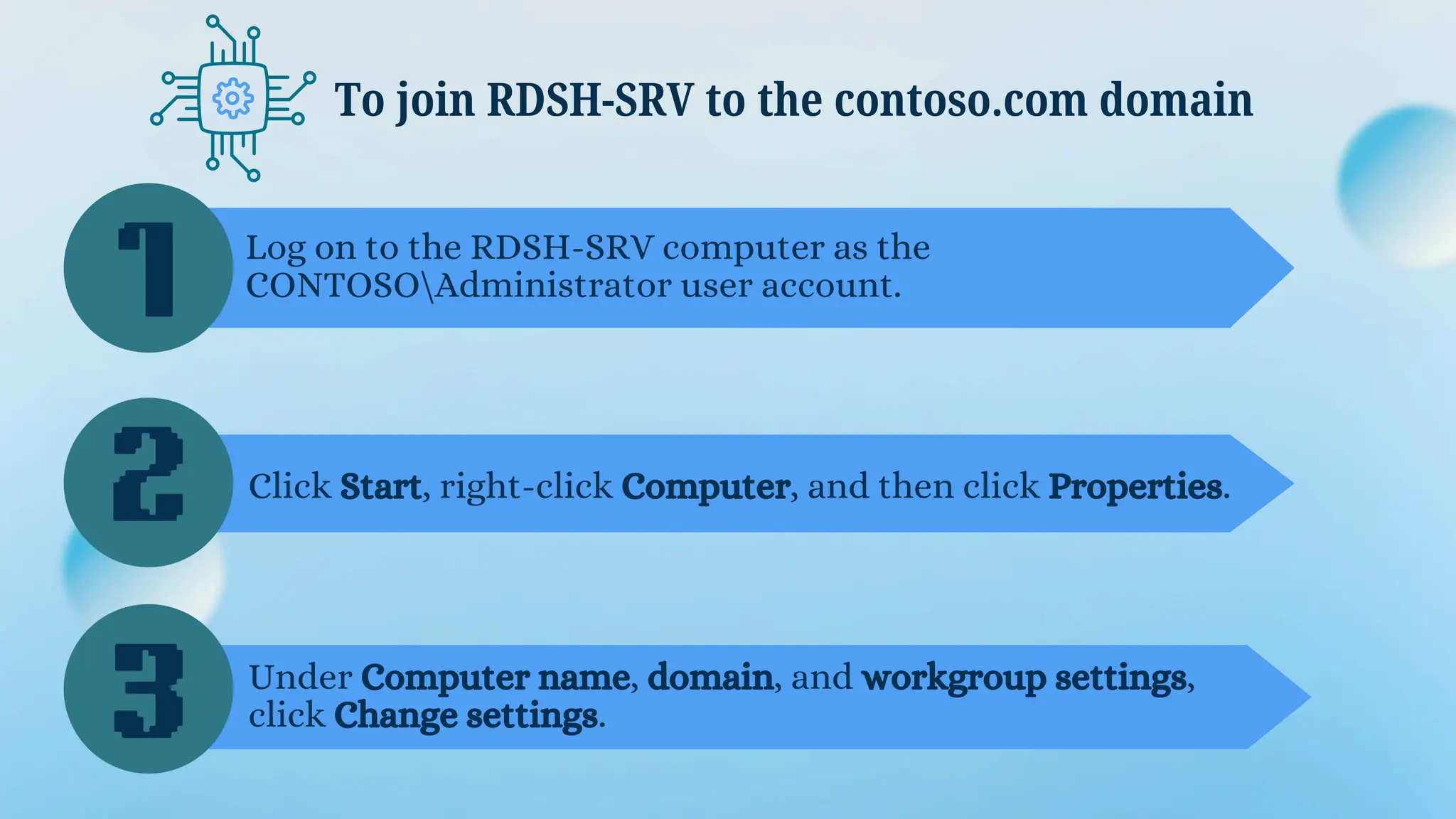
Log on to the RDSH-SRV computer as the
CONTOSOAdministrator user account.
Click Start, right-click Computer, and then click Properties.
Under Computer name, domain, and workgroup settings,
click Change settings.
4
5
6
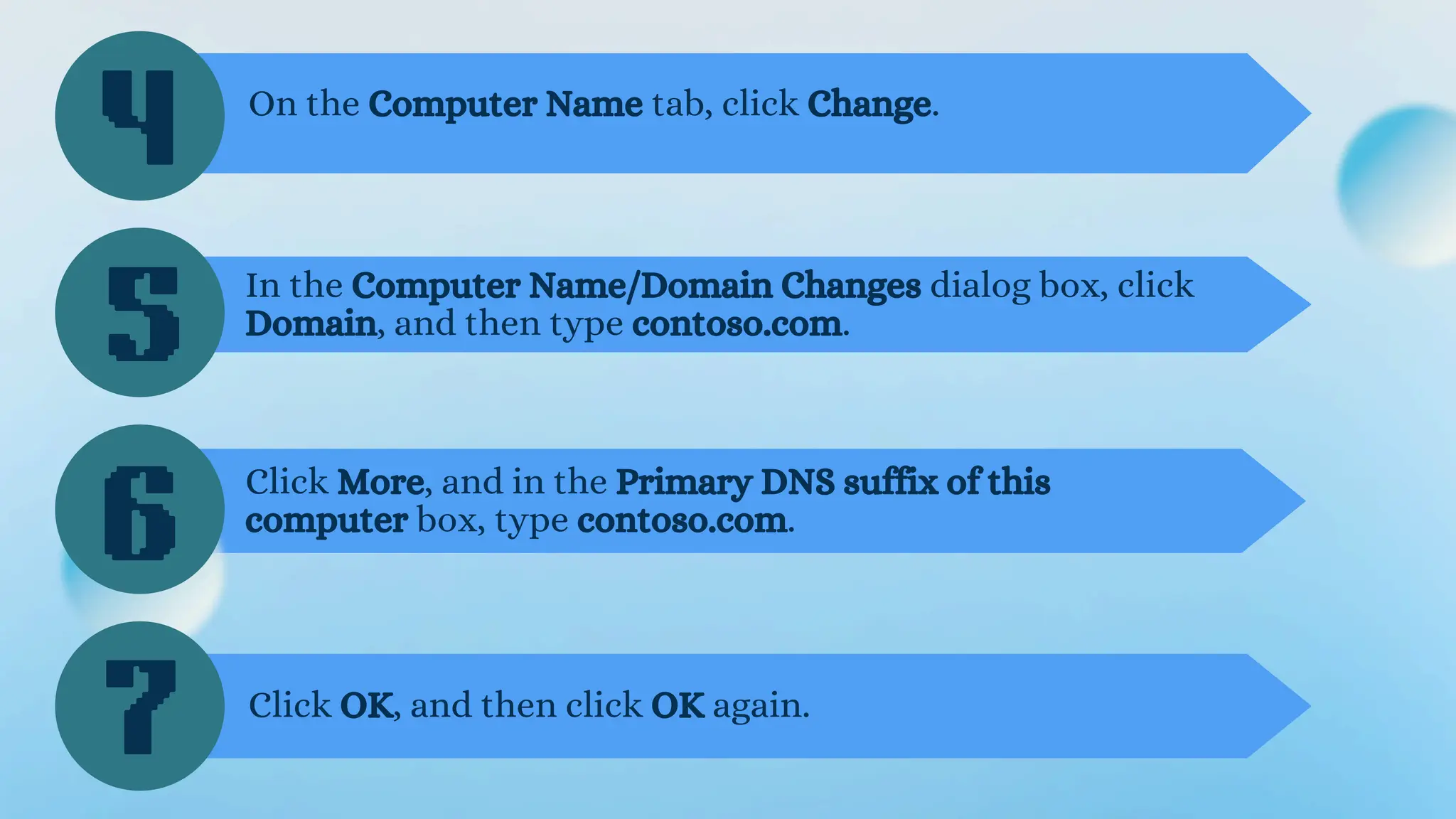
On the Computer Name tab, click Change.
In the Computer Name/Domain Changes dialog box, click
Domain, and then type contoso.com.
Click More, and in the Primary DNS suffix of this
computer box, type contoso.com.
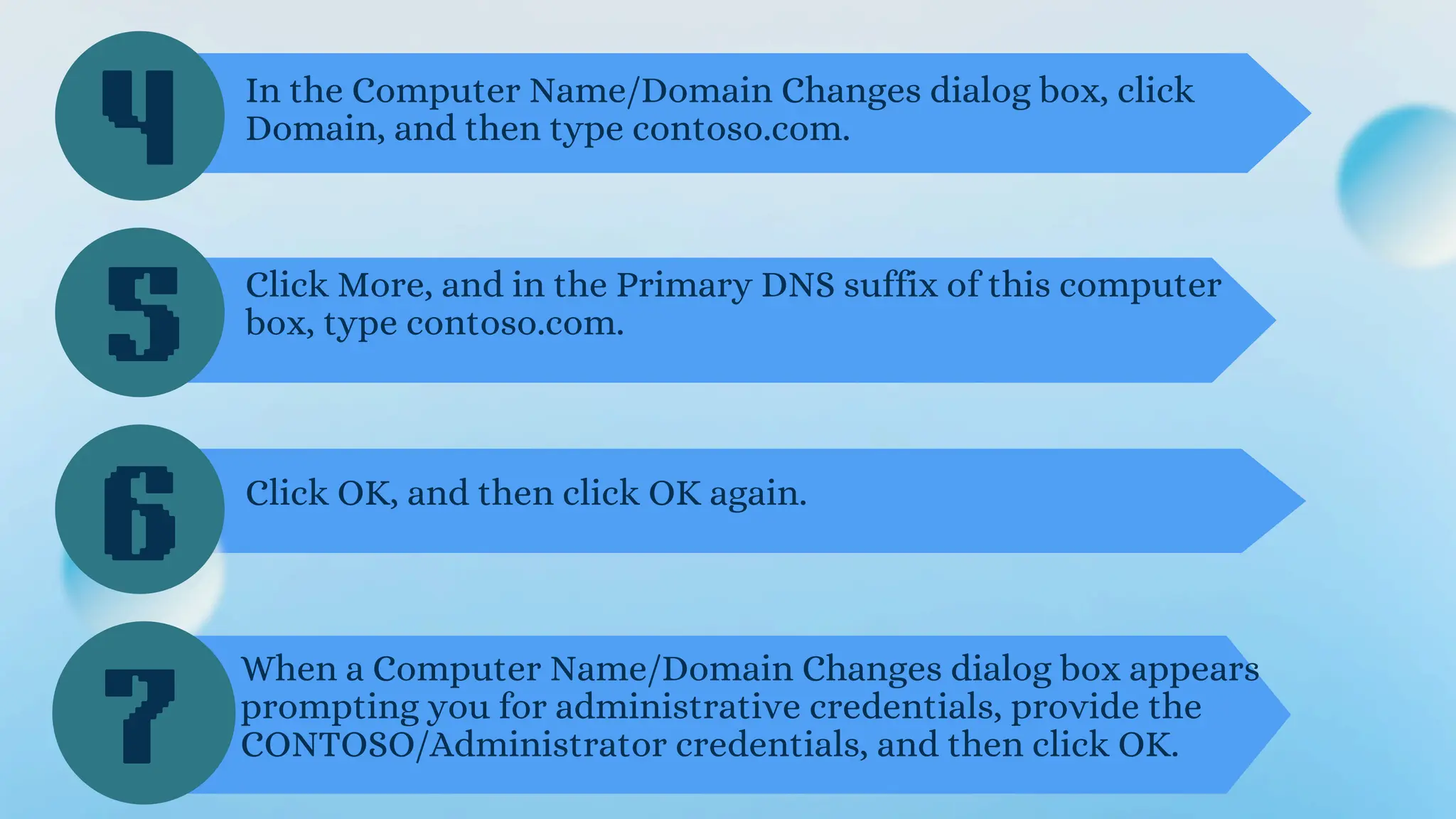
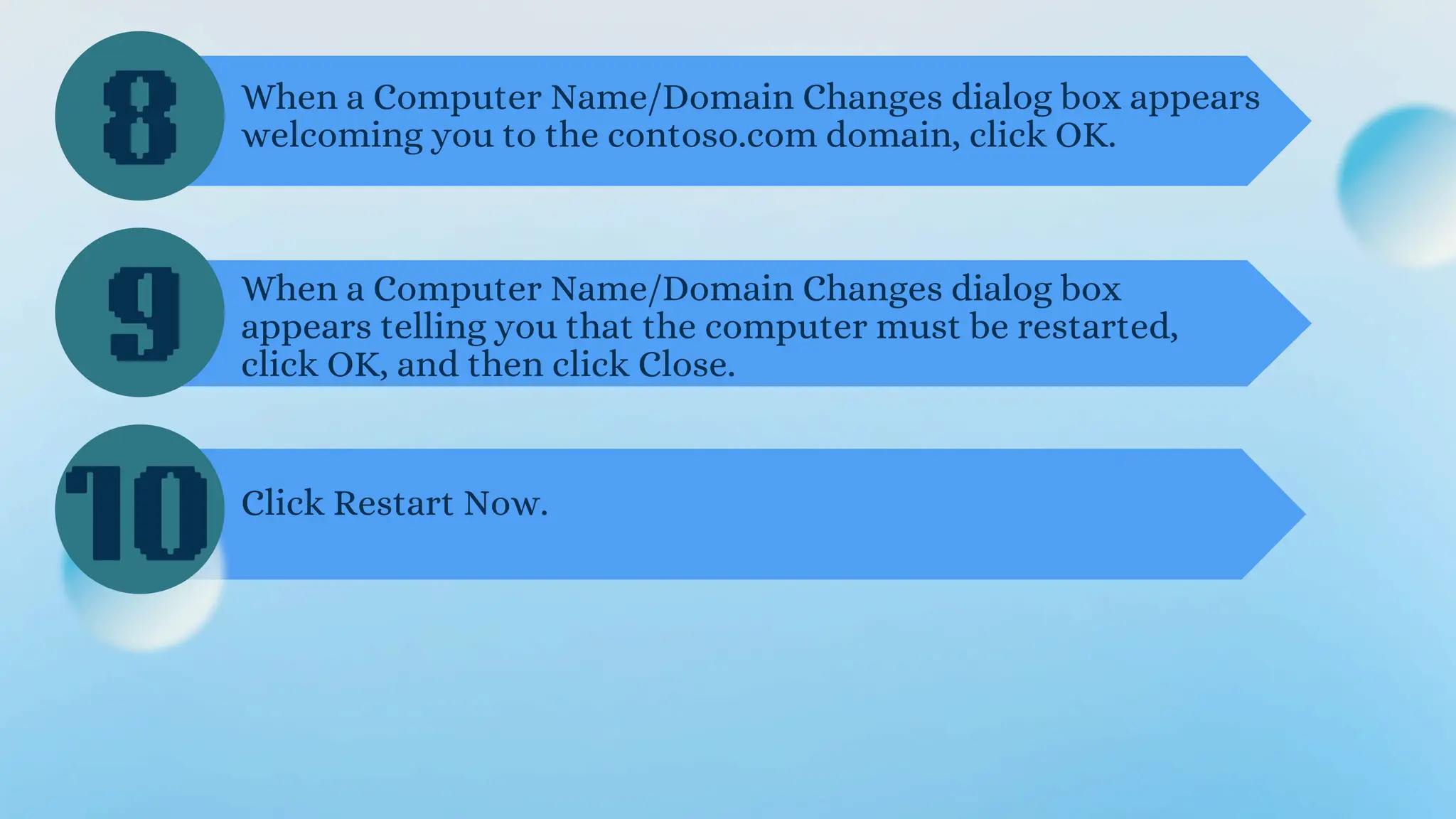
7 Click OK, and then click OK again.
8
9
10
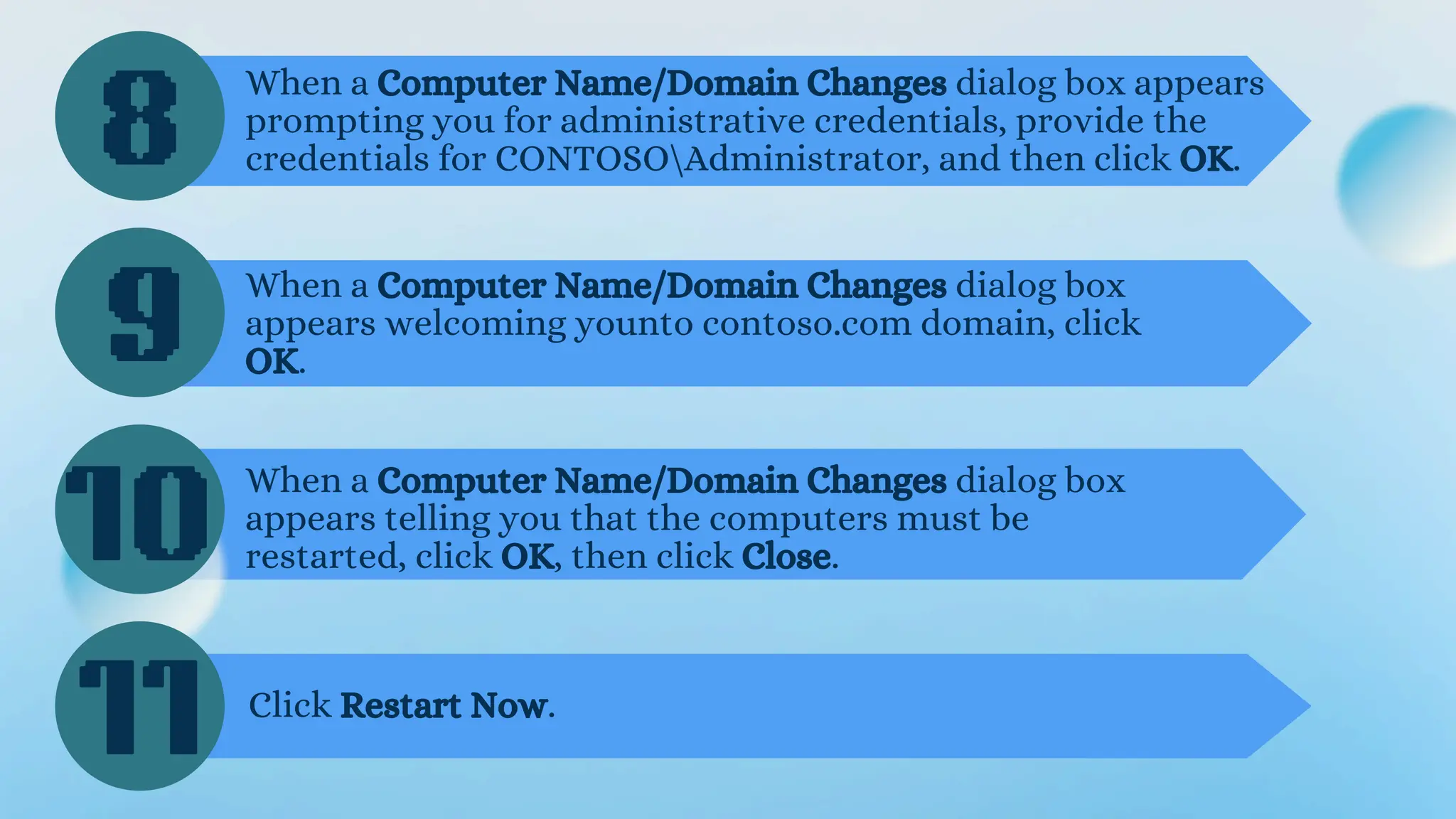
When a Computer Name/Domain Changes dialog box appears
prompting you for administrative credentials, provide the
credentials for CONTOSOAdministrator, and then click OK.
When a Computer Name/Domain Changes dialog box
appears welcoming younto contoso.com domain, click
OK.
When a Computer Name/Domain Changes dialog box
appears telling you that the computers must be
restarted, click OK, then click Close.
11 Click Restart Now.
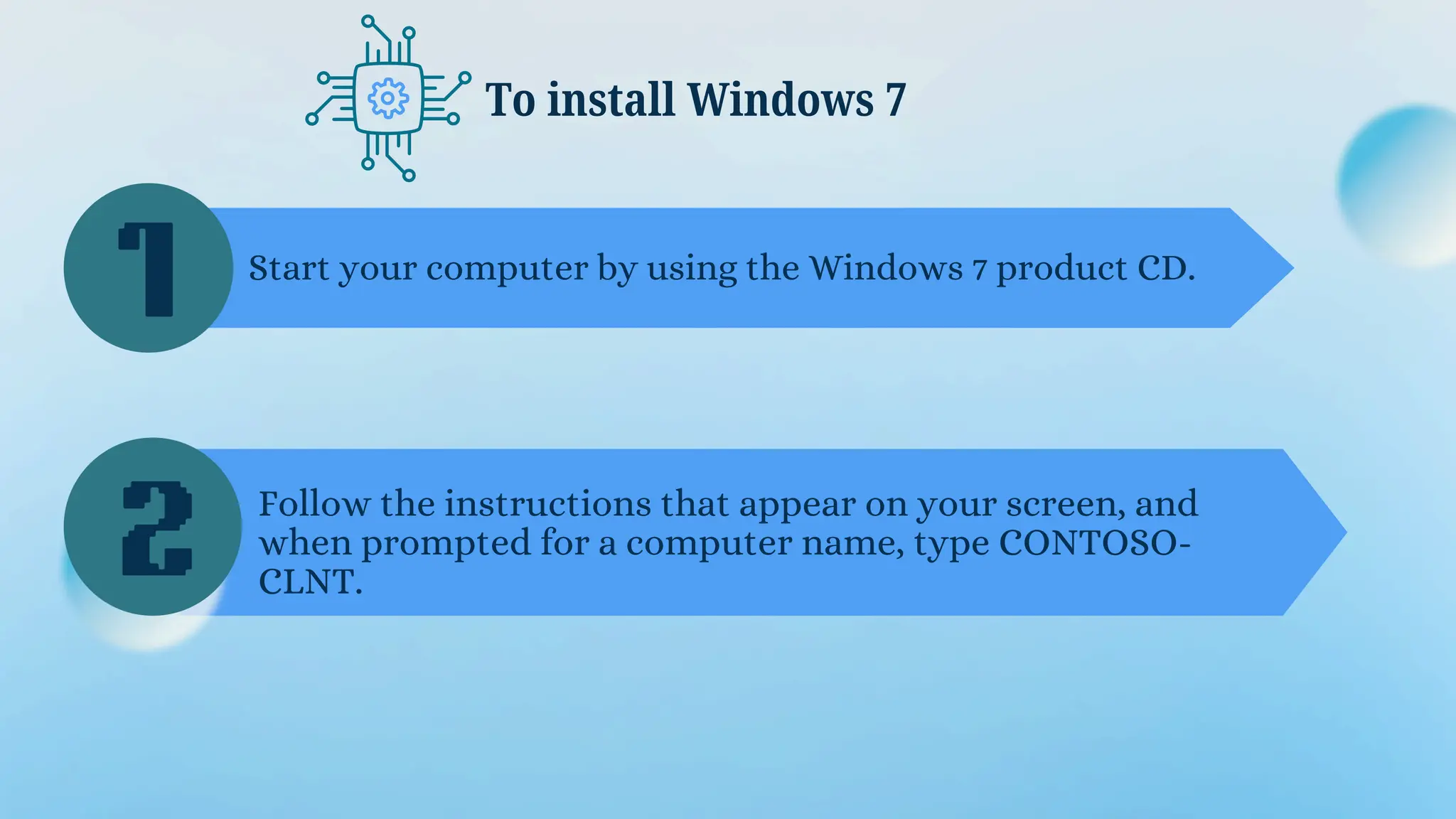
To install Windows 7
1
2
Start your computer by using the Windows 7 product CD.
Follow the instructions that appear on your screen, and
when prompted for a computer name, type CONTOSO-
CLNT.
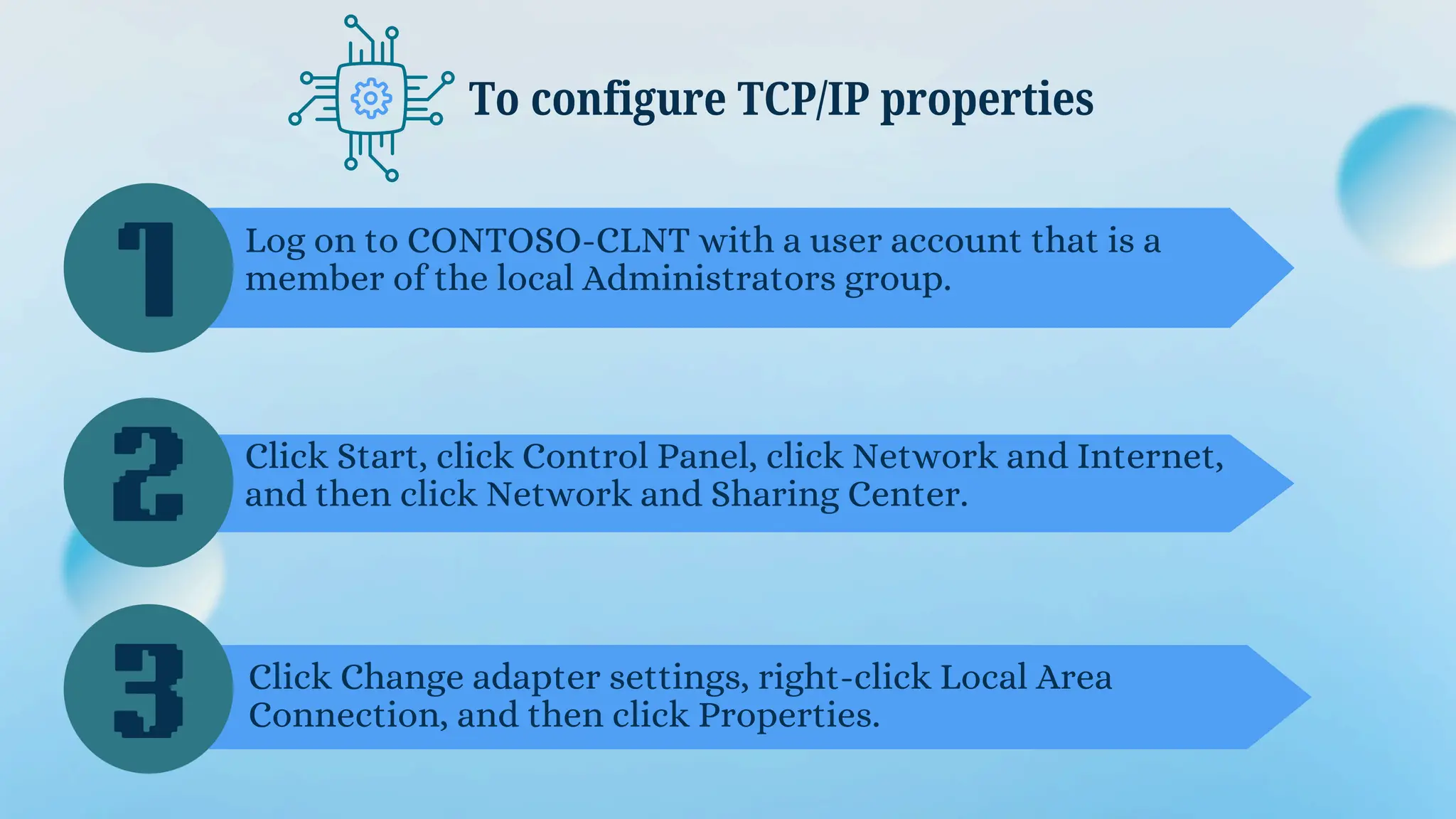
To configure TCP/IP properties
1
2
3
Log on to CONTOSO-CLNT with a user account that is a
member of the local Administrators group.
Click Start, click Control Panel, click Network and Internet,
and then click Network and Sharing Center.
Click Change adapter settings, right-click Local Area
Connection, and then click Properties.
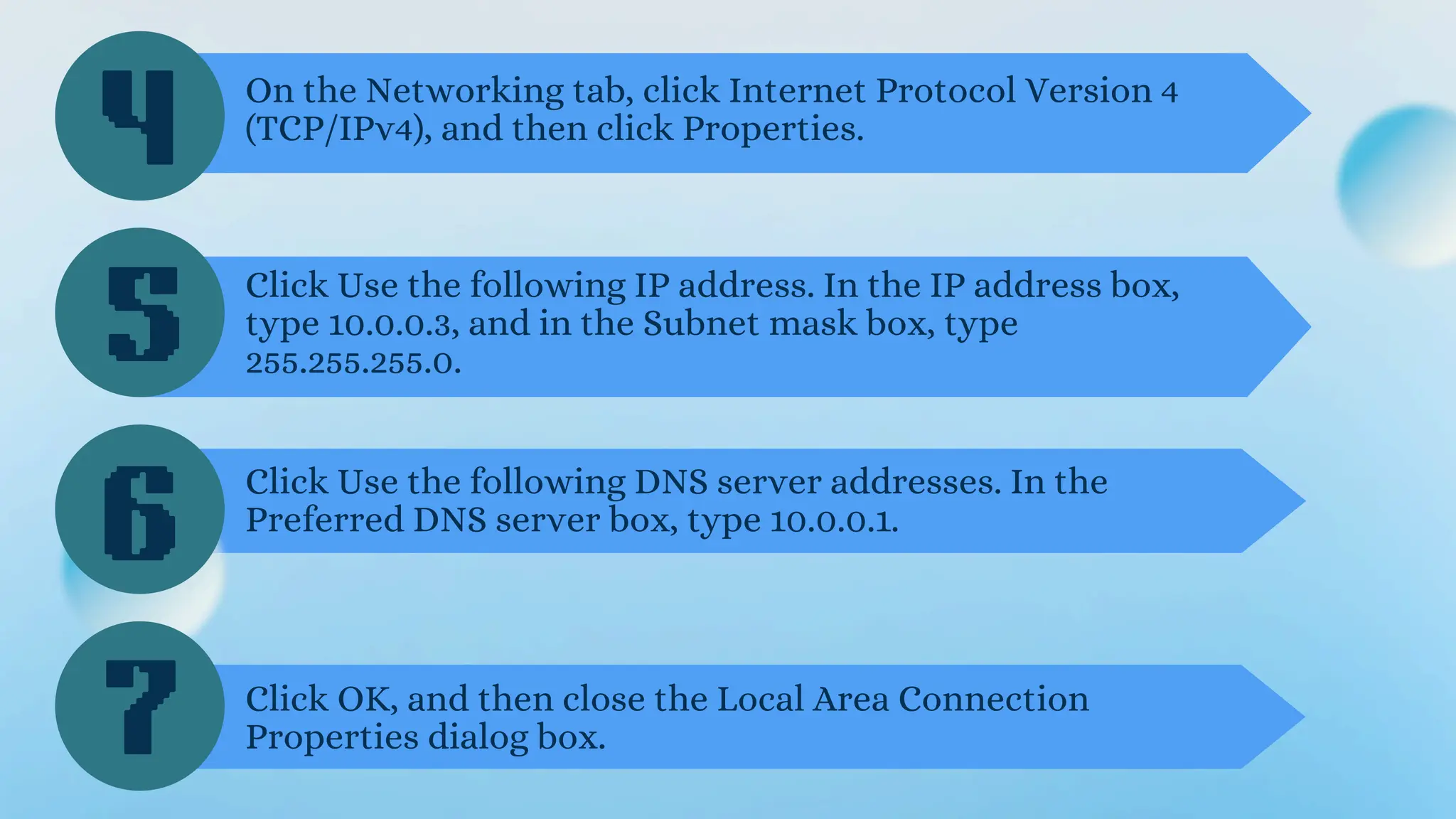
4
5
6
On the Networking tab, click Internet Protocol Version 4
(TCP/IPv4), and then click Properties.
Click Use the following IP address. In the IP address box,
type 10.0.0.3, and in the Subnet mask box, type
255.255.255.0.
Click Use the following DNS server addresses. In the
Preferred DNS server box, type 10.0.0.1.
7 Click OK, and then close the Local Area Connection
Properties dialog box.
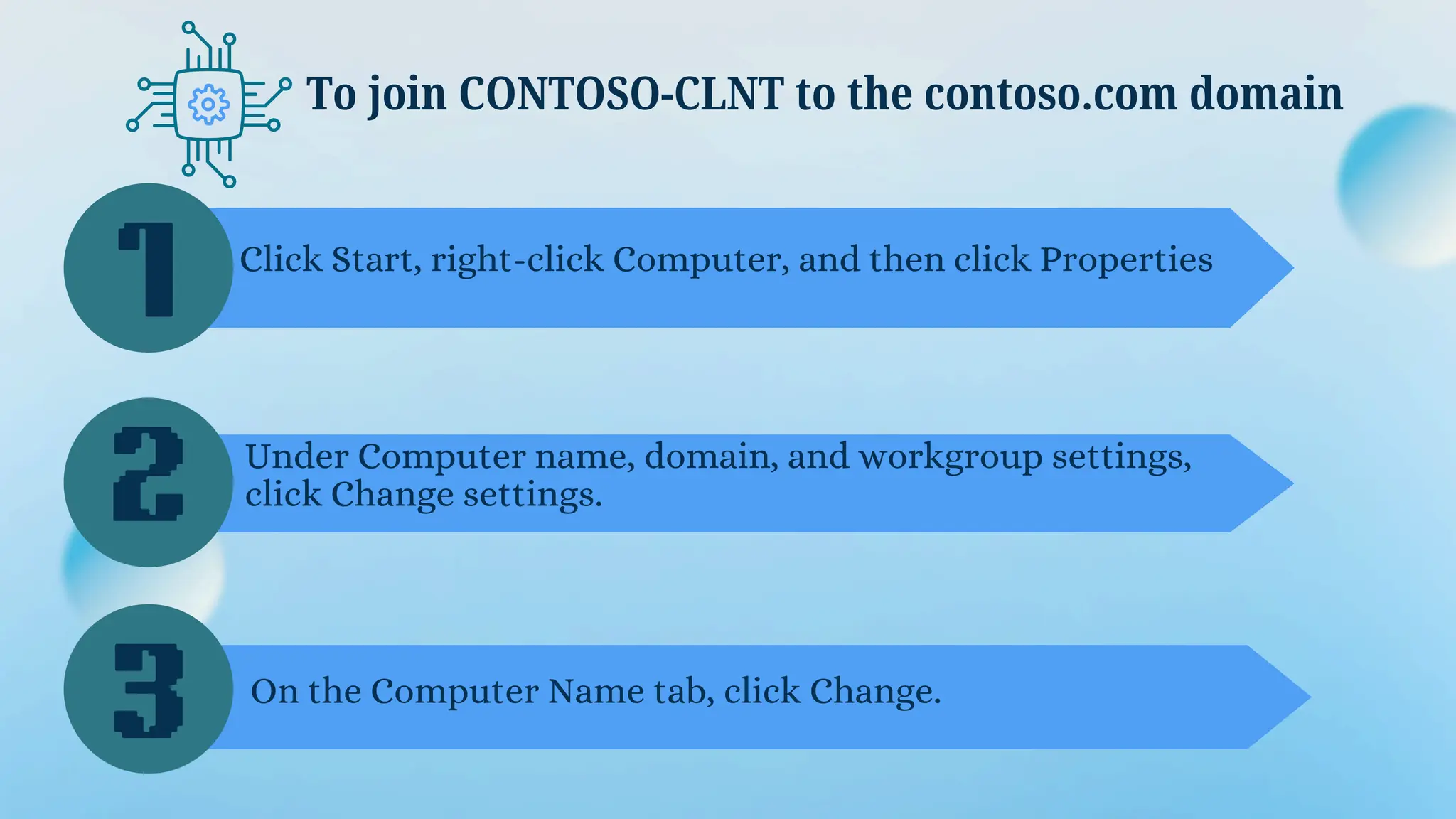
To join CONTOSO-CLNT to the contoso.com domain
1
2
3
Click Start, right-click Computer, and then click Properties
Under Computer name, domain, and workgroup settings,
click Change settings.
On the Computer Name tab, click Change.
4
5
6
In the Computer Name/Domain Changes dialog box, click
Domain, and then type contoso.com.
Click More, and in the Primary DNS suffix of this computer
box, type contoso.com.
Click OK, and then click OK again.
When a Computer Name/Domain Changes dialog box appears
prompting you for administrative credentials, provide the
CONTOSO/Administrator credentials, and then click OK.
7
8
9
10
When a Computer Name/Domain Changes dialog box appears
welcoming you to the contoso.com domain, click OK.
When a Computer Name/Domain Changes dialog box
appears telling you that the computer must be restarted,
click OK, and then click Close.
Click Restart Now.
To install and configure a Remote
Desktop Session Host (RD Session
Host) server, you must add the RD
Session Host role service. Windows
Server® 2008 R2 includes the option
to install the RD Session Host role
service by using Server Manager. This
topic covers the installation and
configuration of the RD Session Host
role service on the RDSH-SRV
computer in the CONTOSO domain.
Step 2: Installing and Configuring Remote Desktop Session
Host
To install the RD Session Host role service
1
2
3
Log on to RDSH-SRV as CONTOSOAdministrator.
Open Server Manager. To open Server Manager, click Start,
point to Administrative Tools, and then click Server
Manager.
Under Roles Summary, click Add Roles.
4
5
6
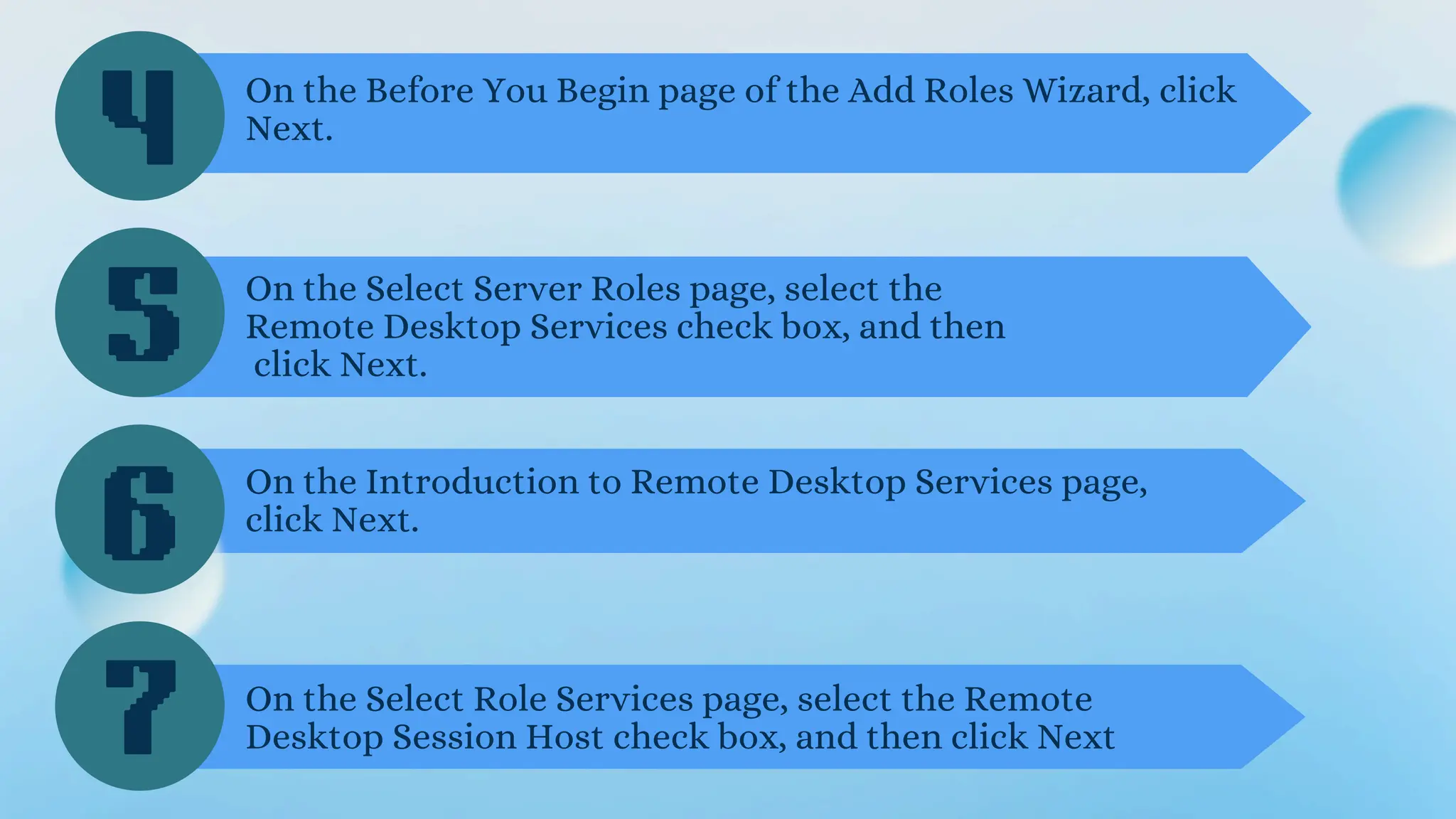
On the Before You Begin page of the Add Roles Wizard, click
Next.
On the Select Server Roles page, select the
Remote Desktop Services check box, and then
click Next.
On the Introduction to Remote Desktop Services page,
click Next.
7 On the Select Role Services page, select the Remote
Desktop Session Host check box, and then click Next
8
9
10
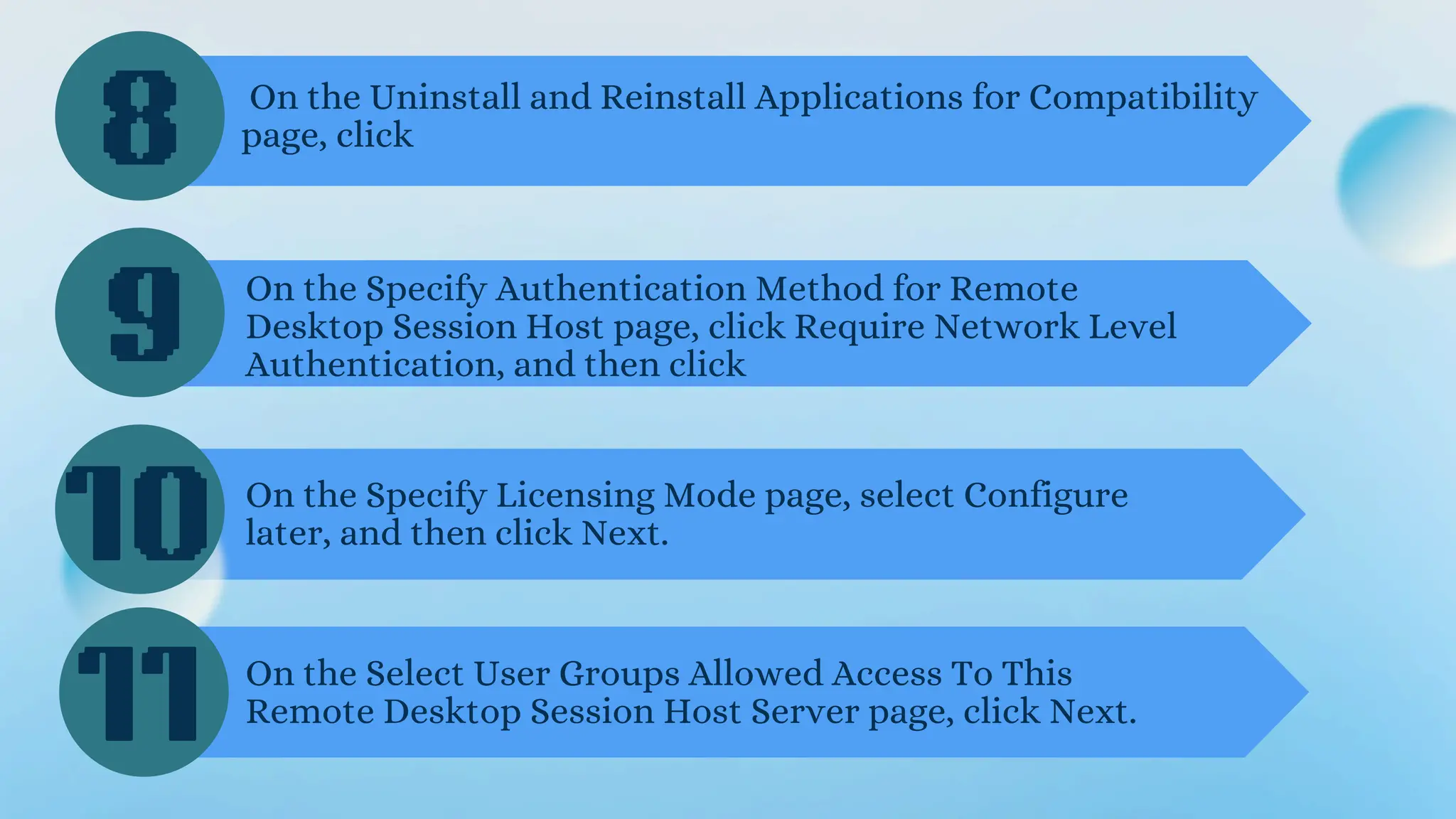
On the Uninstall and Reinstall Applications for Compatibility
page, click
On the Specify Authentication Method for Remote
Desktop Session Host page, click Require Network Level
Authentication, and then click
On the Specify Licensing Mode page, select Configure
later, and then click Next.
On the Select User Groups Allowed Access To This
Remote Desktop Session Host Server page, click Next.
11
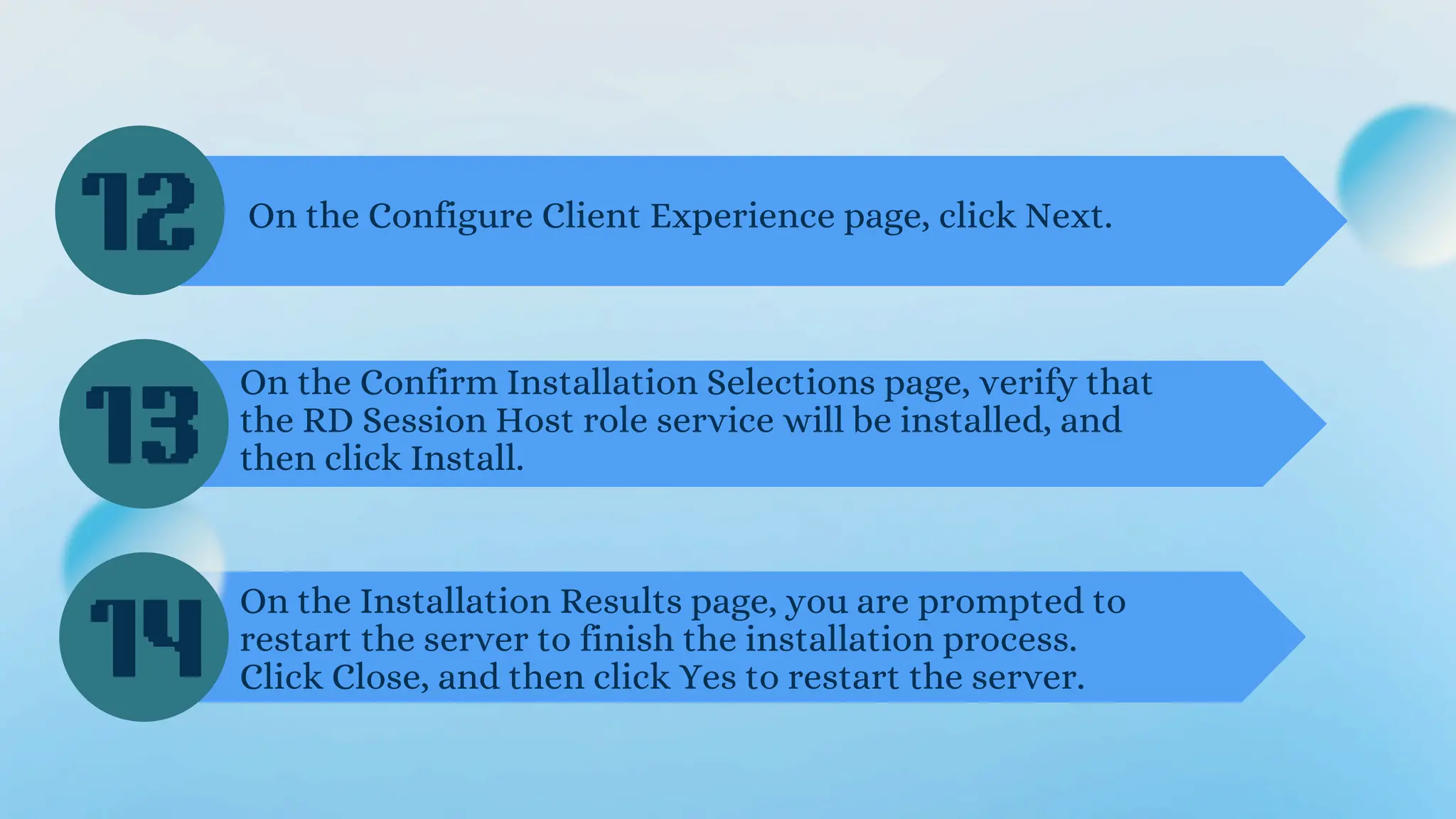
On the Configure Client Experience page, click Next.
On the Confirm Installation Selections page, verify that
the RD Session Host role service will be installed, and
then click Install.
On the Installation Results page, you are prompted to
restart the server to finish the installation process.
Click Close, and then click Yes to restart the server.
12
13
14
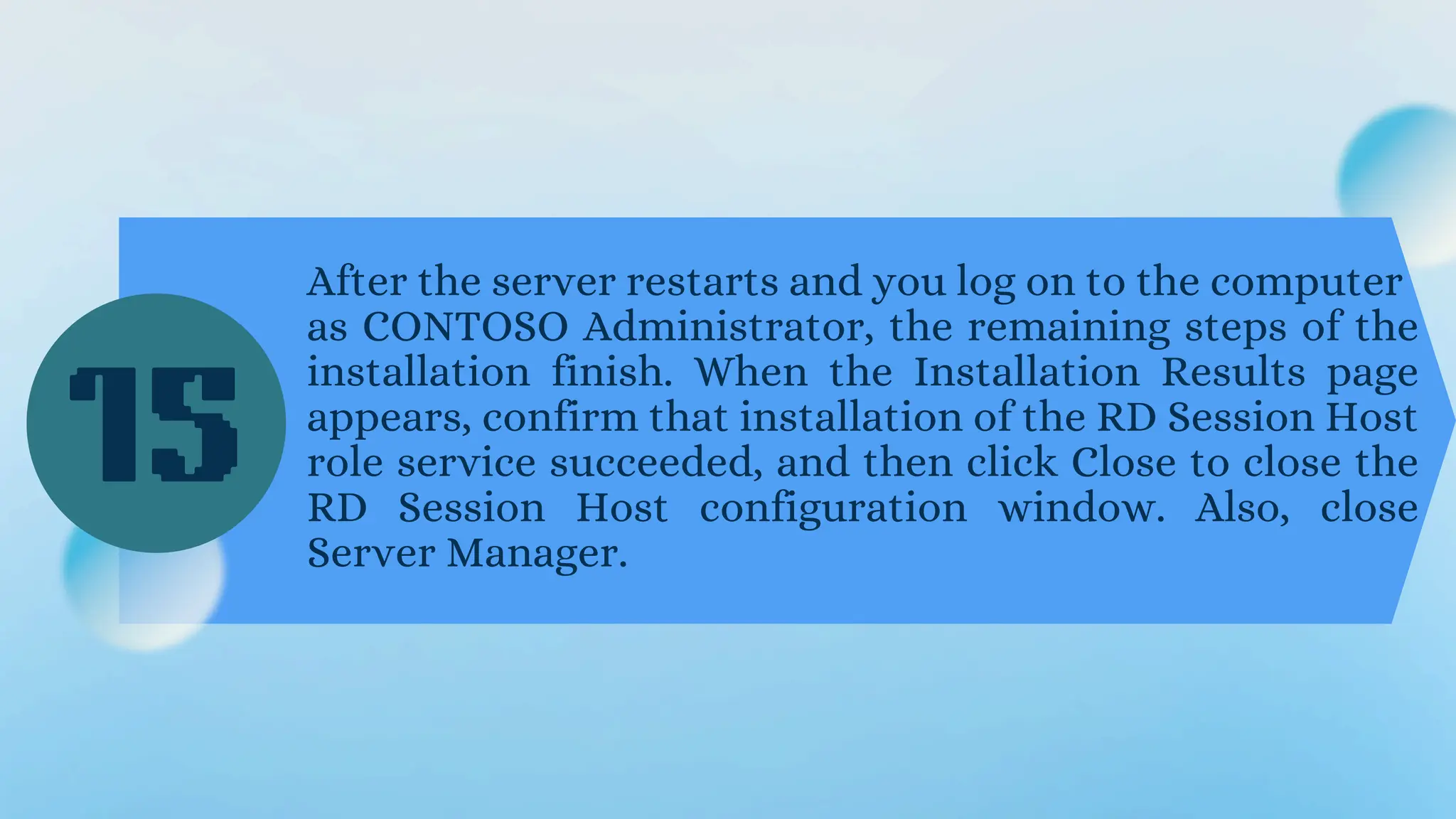
After the server restarts and you log on to the computer
as CONTOSO Administrator, the remaining steps of the
installation finish. When the Installation Results page
appears, confirm that installation of the RD Session Host
role service succeeded, and then click Close to close the
RD Session Host configuration window. Also, close
Server Manager.
15
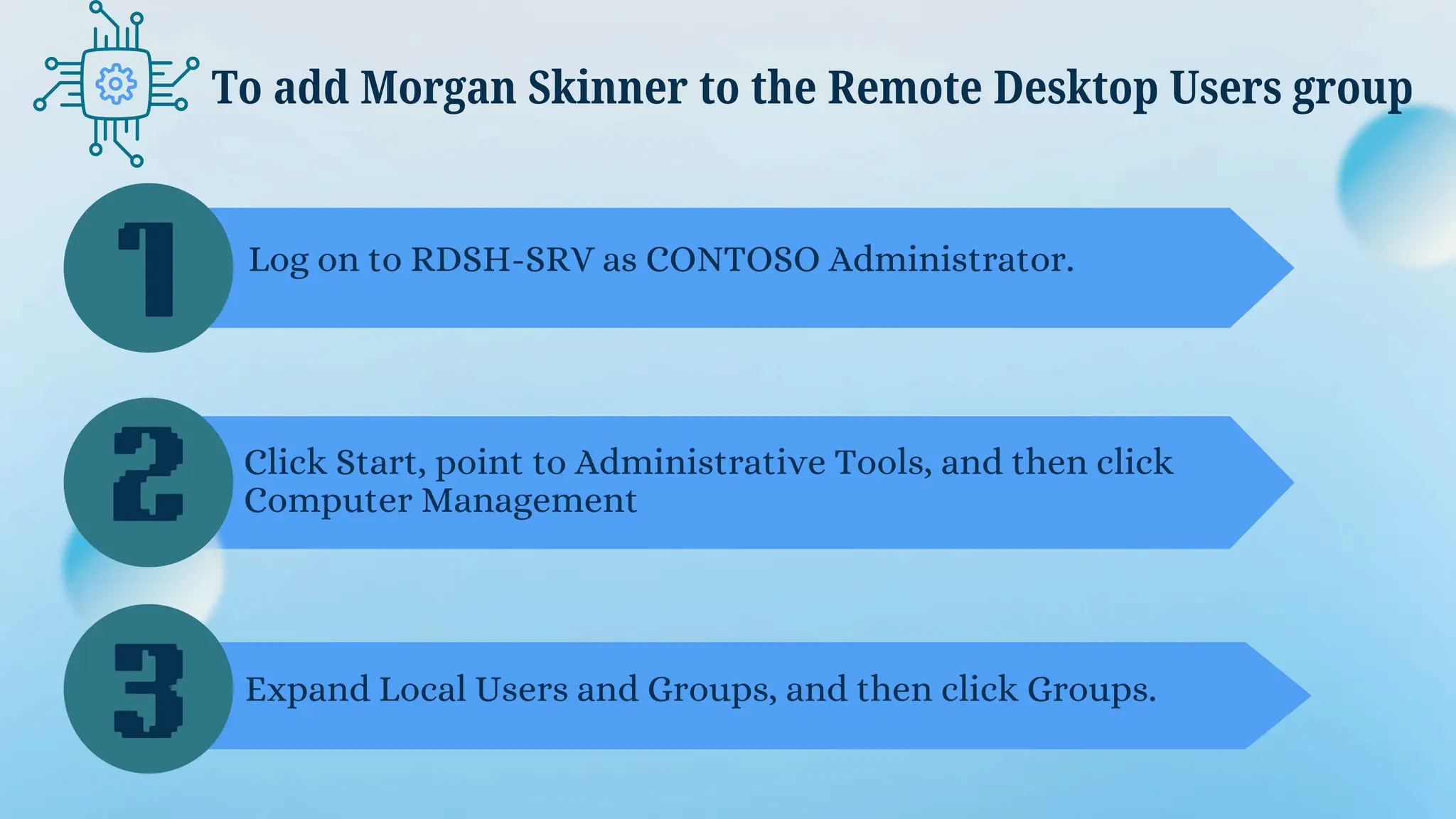
To add Morgan Skinner to the Remote Desktop Users group
1
2
3
Log on to RDSH-SRV as CONTOSO Administrator.
Click Start, point to Administrative Tools, and then click
Computer Management
Expand Local Users and Groups, and then click Groups.
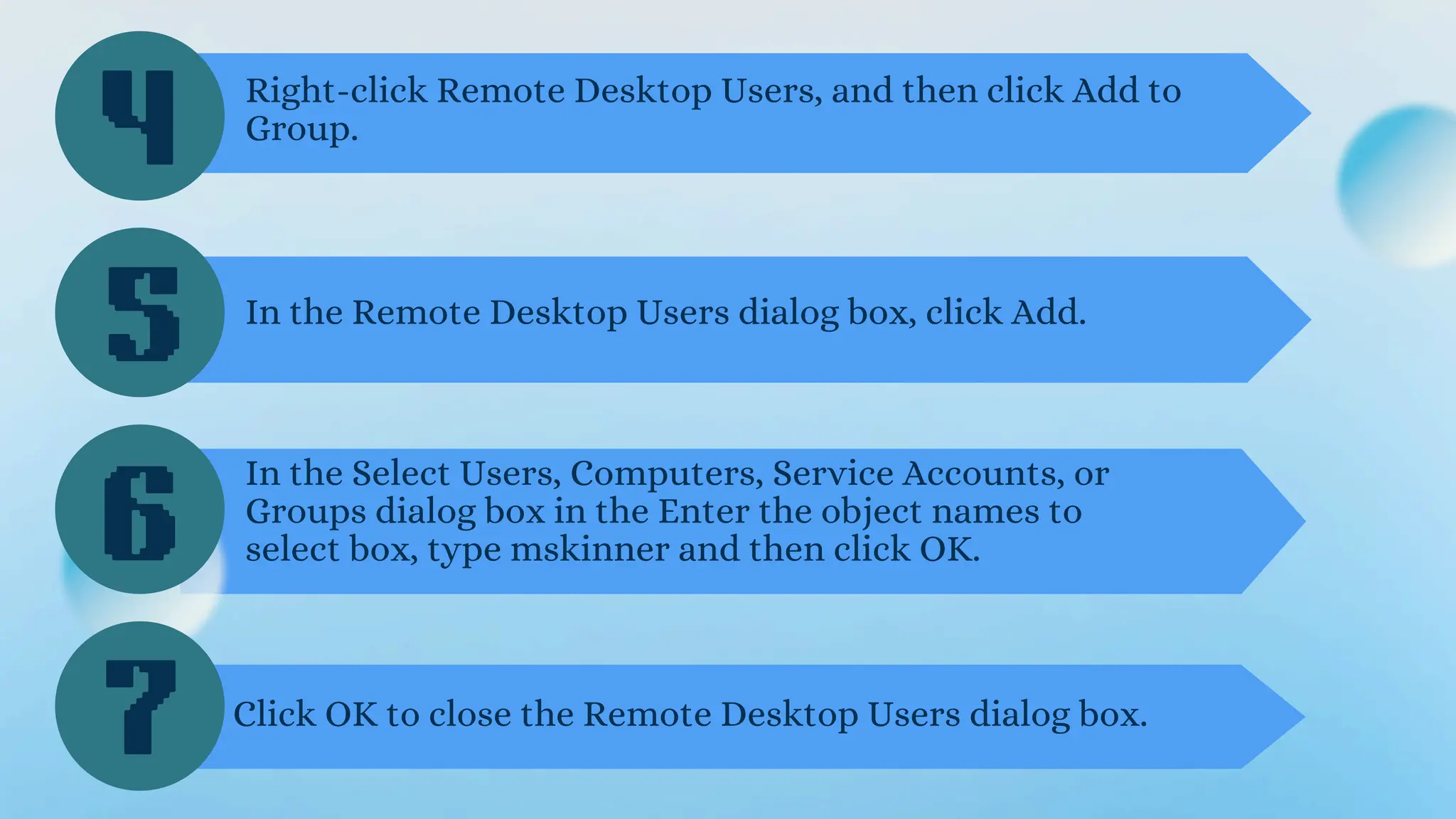
4
5
6
Right-click Remote Desktop Users, and then click Add to
Group.
In the Remote Desktop Users dialog box, click Add.
In the Select Users, Computers, Service Accounts, or
Groups dialog box in the Enter the object names to
select box, type mskinner and then click OK.
7 Click OK to close the Remote Desktop Users dialog box.
Step 3: Verifying Remote Desktop Session Host Functionality
Applies To: Windows 7,
Windows Server 2008 R2
To verify the functionality of the
RD Session Host deployment,
log on to CONTOSO-CLNT as
Morgan Skinner and use Remote
Desktop Connection (RDC) to
connect to the RD Session Host
server (RDSH-SRV).
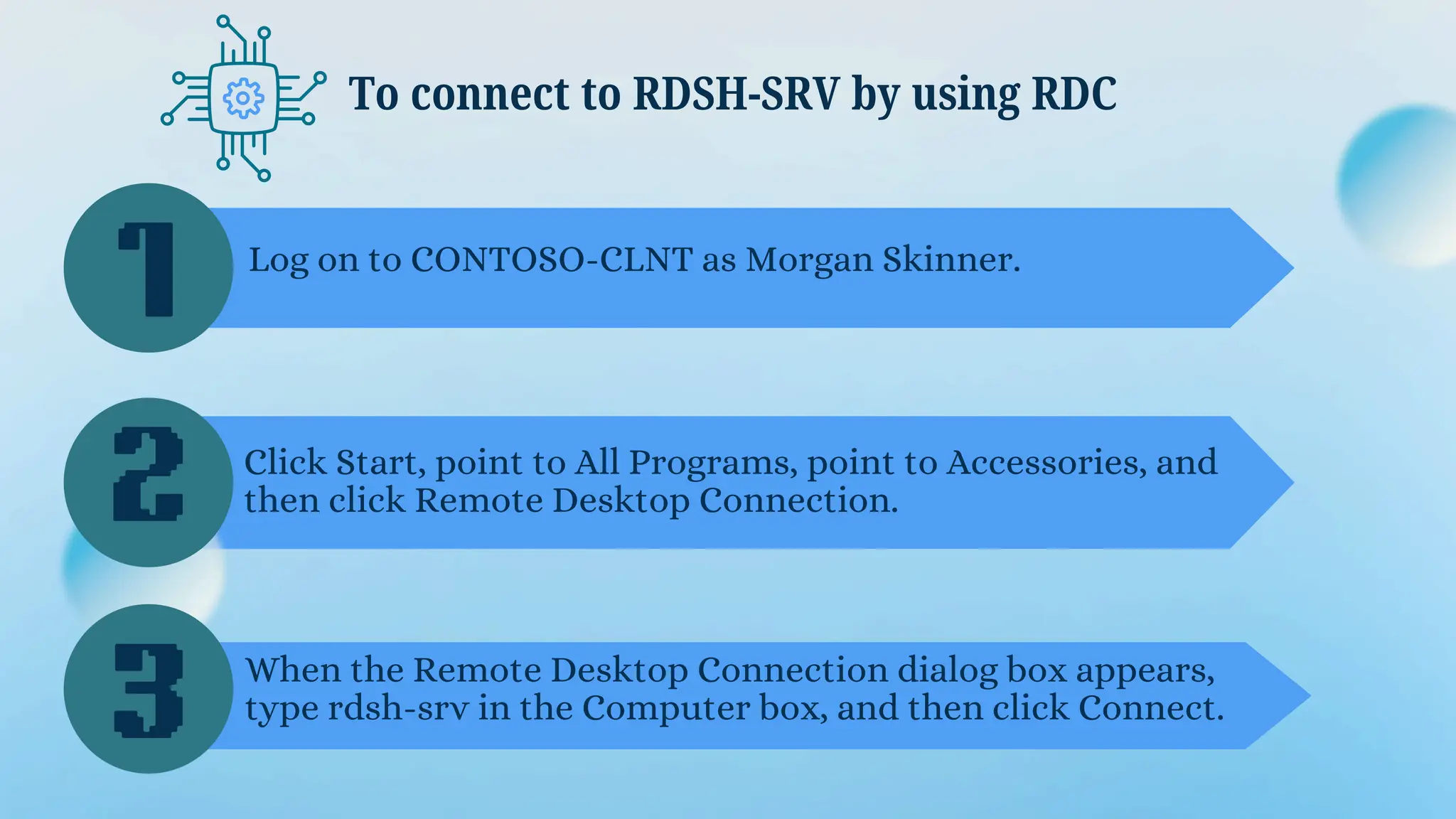
To connect to RDSH-SRV by using RDC
1
2
3
Log on to CONTOSO-CLNT as Morgan Skinner.
Click Start, point to All Programs, point to Accessories, and
then click Remote Desktop Connection.
When the Remote Desktop Connection dialog box appears,
type rdsh-srv in the Computer box, and then click Connect.
In the Windows Security dialog box, type the password for
contoso mskinner, and then click OK.
If the connection is successful, a Windows desktop will
appear on the screen for RDSH-SRV.
4
5
QUIZ TIME
3.6
QUIZ 3.6
1-3. WHAT IS THE 3 STEPS OF INSTALLING
REMOTE DESKTOP SESSION HOST
4. VDI -
5. RDSH -
FILL IN THE BLANK!
STEP 1:
Log on to ___________ as CONTOSO administrator.
STEP 2:
Click Start, point to ______________, and then click Computer
Management.
STEP 3:
Expand Local Users and Groups, and then click Groups.
STEP 4:
Right-click Remote Desktop Users, and then click ADD to
________.
FILL IN THE BLANK!
STEP 5:
In the Remote Desktop Users dialog box, click ADD.
STEP 6:
In the Select Users, Computers, Service Accounts, or Groups
dialog box in the Enter the object names to select box, type
_________ and then click OK.
STEP 7:
Click _______ to close the Remote Desktop User dialog
box.
Thank You For Listening!
Muahh 💋💋
GROUP 4 Presentation
Lesson 6

Blue Gradient Modern Illustration Computer Presentation.pdf.pdf

  • 1.
  • 2.
    Recognize Remote Desktop Services LEARNINGOBJECTIVES at the end of the lesson, the learner should be able to; Familiarize with Remote Desktop Deployment Understand Remote Desktop connection
  • 3.
    What is RemoteDesktop Services (RDS)? Remote Desktop Services ( RDS ) is an umbrella term for features of Microsoft Windows Server that allow users to remotely access graphical desktops and Windows applications.
  • 4.
    Remote Desktop Servicesin Windows Remote Desktop Services in Windows Server 2008 R2 provides technologies that enable users to access Windows-based programs that are installed on a Remote Desktop Session Host (RD Session Host) server, or to access the full Windows desktop. With Remote Desktop Services, users can access an RD Session Host server from within a corporate network or from the Internet Server
  • 5.
    Remote Desktop Services:Deployment Remote Desktop Services (RDS) in Windows Server 2008 R2, previously called Terminal Services in Windows Server 2008, enables efficient software deployment and maintenance in an enterprise. By installing programs on the RD Session Host server rather than client computers, RDS simplifies software upgrades and maintenance. This setup allows f0r centralized management of applications, making it easier to deploy, upgrade, and maintain software across the network.
  • 6.
    Remote Desktop Services DesignGuide Understanding the Remote Desktop Session Host Design Process Understanding the RemoteFX Design Process Mapping Your Deployment Goals to a Remote Desktop Session Host Design Mapping Your Deployment Goals to a RemoteFX Design Evaluating RemoteFX Design Examples
  • 7.
    Remote Desktop Services DeploymentGuide Planning to Deploy Remote Desktop Services Implementing Your Remote Desktop Services Design Plan Checklist: Implementing a Virtual Desktop Infrastructure Design Checklist: Implementing a Session- based Design Deploying Remote Desktop Session Host Deploying a Simple Virtual Desktop Infrastructure Configuring Publishing Accessing Remote Desktop Services from the internet Accessing Remote Desktop Connection Broker Deploying Remote Desktop Licening Deploying Microsoft RemoteFX
  • 8.
    Remote Desktop Services MigrationGuide Remote Desktop Services Migration: Overview Remote Desktop Session Host Role Service Migration Remote Desktop Virtualization Host Role Service Migration Remote Desktop Connection Broker Role Service Migration Remote Desktop Web Access Role Service Migration Remote Desktop Licensing Role Service Migration Remote Desktop Gateway Role Service Migration
  • 9.
    Related Resources Remote DesktopProtocol Performance Improvements in Windows Server 2008 R2 and Windows 7 Deploying a Virtualized Session-Based Remote Desktop Services Solution Remote Desktop Services in Windows Server 2008 R2
  • 10.
    Implementing Your RemoteDesktop Services Design Plan Consider the following factors before you implement your design plan: Complexity: Cost: Fault tolerance: The complexity of the scenario relative to other scenarios. The initial setup and sustained cost of this scenario. How the scenario supports the resilliency of the infrastructure, which ultimately affects the availability of the system.
  • 11.
    Implementing Your RemoteDesktop Services Design Plan Consider the following factors before you implement your design plan: Performance: Scalability: Security: How the scenario affects the performance of the infrastructure. The impact that the scenario has on the scalability of the infrastructure. Whether the scenario has a positive or negative impact on overall infrastructure security.
  • 12.
    Use the followingparent checklists in this section of the guide to become familiar with the deployment tasks for implementing your organization's Remote Desktop Services design: How to implement your Remote Desktop Services design by using this guide Checklist: Implementing a Virtual Desktop Infrastructure Design Checklist: Implementing a Session-based Design To implement Microsoft® RemoteFX™, use the checklists for deploying a Virtual Desktop Infrastructure (VDI), or Remote Desktop Services with session-based desktops and perform the tasks for RemoteFX.
  • 13.
    SETTING UP THEINFRASTRUCTURE
  • 14.
    INSTALLING REMOTE DESKTOPSESSION HOST STEP BY STEP This guide shows how to set up a Remote Desktop Services infrastructure in a test environment, including creating an Active Directory domain, installing the RD Session Host role, and configuring the Remote Desktop client. This helps you explore RDS on Windows Server 2008 R2 for potential deployment. This guide includes the following topics; Step 1: Setting up the infrastructure Step 2: Installing and Configuring Remote Desktop Session Host Step 3: Verifying Remote Desktop Session Host Functionally
  • 15.
    STEP 1; SETTINGUP THE INFRASTRUCTURE Applies to: Windows 7, Windows Server 2008 R2
  • 16.
    To install WIindowsServer 2008 R2 Start your computer by using the Windows Server 2008 R2 product CD. First, install Windows Server 2008 R2 on a stand-alone server. When prompted for a computer name, type CONTOSO-DC. Follow the rest of the instructions that appear on your screen to finish the installation. 1 2 3
  • 17.
    Log on toCONTOSO-DC with the CONTOSO- DC/Administrator account. To configure TCP/IP properties. Click Start, click Control Panel, click Network and Internet, click Network and Sharing Center, click Change adapter settings, right click Local Area Connection, and then click Properties. On the Networking tab, click Internet Protocol Version 4 (TCP/IPv4), and then click Properties. 1 2 3
  • 18.
    Click Use thefollowing IP address. In the IP address box , type 10.0.0.1 in the Subnet mask box, type 255.255.255.0 and then click OK. To configure TCP/IP properties. On the Networking tab, click OK, and then close the Local Area Connection Properties dialog box. 4 5
  • 19.
    To configure CONTOSO-DCas a domain controller by using Windows Server 2008 R2 Click Start, and then click Run. In the Run box, type dcpromo and then click OK. On the Welcome to the Active Directory Domain Services Installations Wizzard page, click Next. On the Operating System Compatibility page, click Next. 1 2 3
  • 20.
    To configure CONTOSO-DCas a domain controller by using Windows Server 2008 R2 On the Choose a Deployment Configuration page, click Create a new domain in a new forest, and then click Next. On the Name the Forest Root Domain page, in the FQDN of the forest root domain box, type contoso.com and then click Next. On the Set Forest Functional Level page, in the Forest functional level box, select Windows Server 2008 R2, and then click Next. 4 5 6
  • 21.
    To configure CONTOSO-DCas a domain controller by using Windows Server 2008 R2 On the Additional Domain Controller Options page, ensure that the DNS server check box is selected, and then click Next. Click Yes to create a delegation for this DNS server, and then continue. On the Location for Database, Log Files, and SYSVOL page, click Next. 7 8 9
  • 22.
    To configure CONTOSO-DCas a domain controller by using Windows Server 2008 R2 In the Password and Confirm password boxes, type a strong password, and then click Next. On the Summary page, review your selections, and then click Next to start the installation. When the installation is complete, click Finish, and then click Restart now. 10 11 12
  • 23.
    To create auser account Click Start, point to Administrative Tools, and then click Active Directory Users and Computers. Log on to CONTOSO-DC as the domain administrator account, CONTOSOAdministrator. In the console tree, expand contoso.com. 1 2 Right-click Users, point to New, and then click User. 3 4
  • 24.
    To create auser account In the New Object - User dialog box, type Morgan Skinner in the Full name box and mskinner in the User logon name box, and then click Next. In the New Object - User dialog box, type a password of your choice in the Password and Confirm password boxes. Clear and User must change password at next logon check box, click Next, and then click Finish. 5 6
  • 25.
    Install and configurethe RD Session Host server (RDSH-SRV) To configure the member server, RDSH-SRV, you must: Install Windows Server 2008 R2. Configure TCP/IP properties. Join RDSH-SRV to the contoso.com domain. To install Windows Server 2008 R2 1. Start your computer by using the Windows Server 2008 R2 product CD. 2. When prompted for a computer name, type RDSH-SRV. 3. Follow the rest of the instructions that appear on your screen to finish the installation.
  • 26.
    Log on toRDSH-SRV with the RDSH-SRVAdministrator account or another user account in the local Administrators group. To configure TCP/IP properties. Click Start, click Control Panel, double-click Network and Sharing Center, click Change adapter settings, right click Local Area Connection, and then click Properties. On the Networking tab, click Internet Protocol Version 4 (TCP/IPv4), and then click Properties. 1 2 3
  • 27.
    To configure TCP/IPproperties. 4 5 6 Click Use the following IP address. In the IP address box, type 10.0.0.2, and in the Subnet mask box, type 255.255.255.0. Click Use the following DNS server addresses. In the Preferred DNS server box, type 10.0.0.1. Click OK, and then close the Local Area Connection Properties dialog box.
  • 28.
    To join RDSH-SRVto the contoso.com domain 1 2 3 Log on to the RDSH-SRV computer as the CONTOSOAdministrator user account. Click Start, right-click Computer, and then click Properties. Under Computer name, domain, and workgroup settings, click Change settings.
  • 29.
    4 5 6 On the ComputerName tab, click Change. In the Computer Name/Domain Changes dialog box, click Domain, and then type contoso.com. Click More, and in the Primary DNS suffix of this computer box, type contoso.com. 7 Click OK, and then click OK again.
  • 30.
    8 9 10 When a ComputerName/Domain Changes dialog box appears prompting you for administrative credentials, provide the credentials for CONTOSOAdministrator, and then click OK. When a Computer Name/Domain Changes dialog box appears welcoming younto contoso.com domain, click OK. When a Computer Name/Domain Changes dialog box appears telling you that the computers must be restarted, click OK, then click Close. 11 Click Restart Now.
  • 31.
    To install Windows7 1 2 Start your computer by using the Windows 7 product CD. Follow the instructions that appear on your screen, and when prompted for a computer name, type CONTOSO- CLNT.
  • 32.
    To configure TCP/IPproperties 1 2 3 Log on to CONTOSO-CLNT with a user account that is a member of the local Administrators group. Click Start, click Control Panel, click Network and Internet, and then click Network and Sharing Center. Click Change adapter settings, right-click Local Area Connection, and then click Properties.
  • 33.
    4 5 6 On the Networkingtab, click Internet Protocol Version 4 (TCP/IPv4), and then click Properties. Click Use the following IP address. In the IP address box, type 10.0.0.3, and in the Subnet mask box, type 255.255.255.0. Click Use the following DNS server addresses. In the Preferred DNS server box, type 10.0.0.1. 7 Click OK, and then close the Local Area Connection Properties dialog box.
  • 34.
    To join CONTOSO-CLNTto the contoso.com domain 1 2 3 Click Start, right-click Computer, and then click Properties Under Computer name, domain, and workgroup settings, click Change settings. On the Computer Name tab, click Change.
  • 35.
    4 5 6 In the ComputerName/Domain Changes dialog box, click Domain, and then type contoso.com. Click More, and in the Primary DNS suffix of this computer box, type contoso.com. Click OK, and then click OK again. When a Computer Name/Domain Changes dialog box appears prompting you for administrative credentials, provide the CONTOSO/Administrator credentials, and then click OK. 7
  • 36.
    8 9 10 When a ComputerName/Domain Changes dialog box appears welcoming you to the contoso.com domain, click OK. When a Computer Name/Domain Changes dialog box appears telling you that the computer must be restarted, click OK, and then click Close. Click Restart Now.
  • 37.
    To install andconfigure a Remote Desktop Session Host (RD Session Host) server, you must add the RD Session Host role service. Windows Server® 2008 R2 includes the option to install the RD Session Host role service by using Server Manager. This topic covers the installation and configuration of the RD Session Host role service on the RDSH-SRV computer in the CONTOSO domain. Step 2: Installing and Configuring Remote Desktop Session Host
  • 38.
    To install theRD Session Host role service 1 2 3 Log on to RDSH-SRV as CONTOSOAdministrator. Open Server Manager. To open Server Manager, click Start, point to Administrative Tools, and then click Server Manager. Under Roles Summary, click Add Roles.
  • 39.
    4 5 6 On the BeforeYou Begin page of the Add Roles Wizard, click Next. On the Select Server Roles page, select the Remote Desktop Services check box, and then click Next. On the Introduction to Remote Desktop Services page, click Next. 7 On the Select Role Services page, select the Remote Desktop Session Host check box, and then click Next
  • 40.
    8 9 10 On the Uninstalland Reinstall Applications for Compatibility page, click On the Specify Authentication Method for Remote Desktop Session Host page, click Require Network Level Authentication, and then click On the Specify Licensing Mode page, select Configure later, and then click Next. On the Select User Groups Allowed Access To This Remote Desktop Session Host Server page, click Next. 11
  • 41.
    On the ConfigureClient Experience page, click Next. On the Confirm Installation Selections page, verify that the RD Session Host role service will be installed, and then click Install. On the Installation Results page, you are prompted to restart the server to finish the installation process. Click Close, and then click Yes to restart the server. 12 13 14
  • 42.
    After the serverrestarts and you log on to the computer as CONTOSO Administrator, the remaining steps of the installation finish. When the Installation Results page appears, confirm that installation of the RD Session Host role service succeeded, and then click Close to close the RD Session Host configuration window. Also, close Server Manager. 15
  • 43.
    To add MorganSkinner to the Remote Desktop Users group 1 2 3 Log on to RDSH-SRV as CONTOSO Administrator. Click Start, point to Administrative Tools, and then click Computer Management Expand Local Users and Groups, and then click Groups.
  • 44.
    4 5 6 Right-click Remote DesktopUsers, and then click Add to Group. In the Remote Desktop Users dialog box, click Add. In the Select Users, Computers, Service Accounts, or Groups dialog box in the Enter the object names to select box, type mskinner and then click OK. 7 Click OK to close the Remote Desktop Users dialog box.
  • 45.
    Step 3: VerifyingRemote Desktop Session Host Functionality Applies To: Windows 7, Windows Server 2008 R2 To verify the functionality of the RD Session Host deployment, log on to CONTOSO-CLNT as Morgan Skinner and use Remote Desktop Connection (RDC) to connect to the RD Session Host server (RDSH-SRV).
  • 46.
    To connect toRDSH-SRV by using RDC 1 2 3 Log on to CONTOSO-CLNT as Morgan Skinner. Click Start, point to All Programs, point to Accessories, and then click Remote Desktop Connection. When the Remote Desktop Connection dialog box appears, type rdsh-srv in the Computer box, and then click Connect.
  • 47.
    In the WindowsSecurity dialog box, type the password for contoso mskinner, and then click OK. If the connection is successful, a Windows desktop will appear on the screen for RDSH-SRV. 4 5
  • 49.
  • 50.
    QUIZ 3.6 1-3. WHATIS THE 3 STEPS OF INSTALLING REMOTE DESKTOP SESSION HOST 4. VDI - 5. RDSH -
  • 51.
    FILL IN THEBLANK! STEP 1: Log on to ___________ as CONTOSO administrator. STEP 2: Click Start, point to ______________, and then click Computer Management. STEP 3: Expand Local Users and Groups, and then click Groups. STEP 4: Right-click Remote Desktop Users, and then click ADD to ________.
  • 52.
    FILL IN THEBLANK! STEP 5: In the Remote Desktop Users dialog box, click ADD. STEP 6: In the Select Users, Computers, Service Accounts, or Groups dialog box in the Enter the object names to select box, type _________ and then click OK. STEP 7: Click _______ to close the Remote Desktop User dialog box.
  • 53.
    Thank You ForListening! Muahh 💋💋 GROUP 4 Presentation Lesson 6