OCCUPATIONAL HEALTH ANDSAFETY
PROCEDURE (OHS
Always, always, always remember to turn the power off before
servicing anything. This should always be your first step. Do not even
open the computer case unless the power is turned off. Many
computers have a number of lights inside that serve certain
functions so check to see that no lights are on. If any are still on then
the power is probably not completely off.
Many power supply units have a switch on the back, killing power to
the device and ultimately the rest of your PC. If your PSU has one,
be sure to turn it to the off position.
3.
Unplug for ExtraSafety
As a second precaution, it is wise to unplug the computer from
the wall or power strip.
4.
Avoid Smoke andSmells
See smoke coming from the power supply or inside the case or
smell a burning or solder scent? If so:
a. Stop what you're doing immediately.
b. Unplug the computer from the wall.
c. Allow the PC to cool or discharge unplugged for at
least 5 minutes.
Finally, if you know which device was generating the smoke or
smell, remove and replace it as soon as you can. Don't try to
repair a device that's been damaged to this extent, especially if
it's a power supply.
5.
Remove Hand Jewelry
An easy way to get electrocuted is to work around a
high voltage device like a power supply with metal rings,
watches, or bracelets on. Remove anything conductive
from your hands before working inside your computer,
especially if you're doing something like
testing your power supply.
6.
Avoid Capacitors
Capacitorsare miniature electronic components contained in many
of the parts inside a PC. Capacitors can store electric charge for a
short while after the power is turned off so it's a wise decision to wait
a few minutes after pulling the plug before working on your PC.
7.
Never Service theNon-Serviceable
When you come across labels that say "No serviceable
components inside" don't take it as a challenge or even a
suggestion. This is a serious statement.
8.
Some parts ofa computer are just not meant to be repaired, even by
most professional computer repair persons. You will usually see this
warning on power supply units but you may also see them on monitors
, hard drives, optical drives and other dangerous or highly
sensitive components.
9.
PC Maintenance
Thissection includes information about tasks you can perform to
help ensure the trouble-free operation of your PC, and to ease the
recovery of important information on your PC should problems
arise in the future.
10.
Creating Data BackupDiscs
You can use the CD or DVD burning software included on your PC
to create backup discs of important information including personal
files, e-mail messages, and Web site bookmarks.
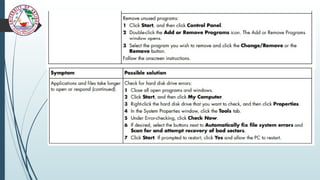
11.
Removing Unused Programs
1. Click Start, and then click Control Panel.
2. Double-click Add or Remove Programs. The Add or Remove
Programs window opens.
3. Select the program you want to remove, and click the
Change/Remove button.
4. Follow the onscreen instructions.
12.
Windows reports smallercapacity in the Windows Explorer
tool and in the My Computer window because it shows
information about one partition on the hard disk drive at a
time. The first partition contains the System Recovery
information.
15.
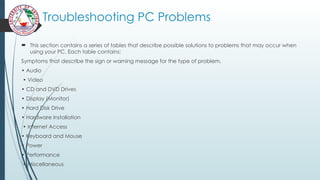
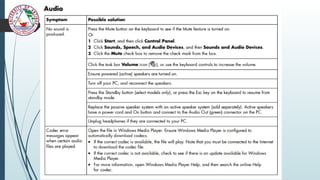
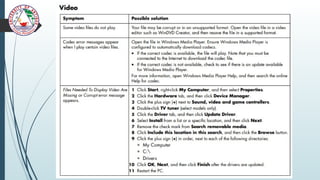
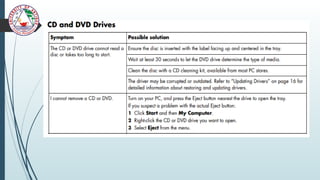
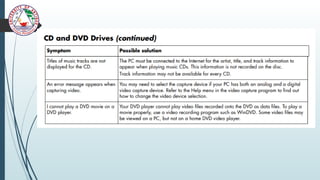
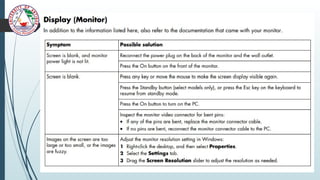
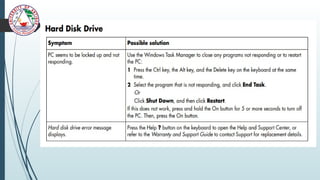
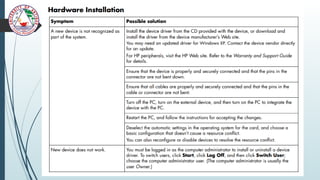
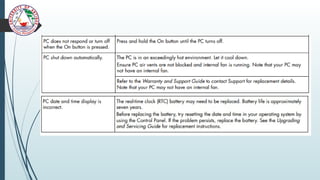
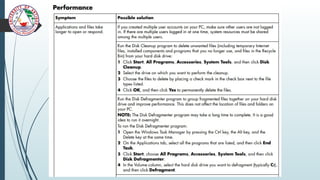
Troubleshooting PC Problems
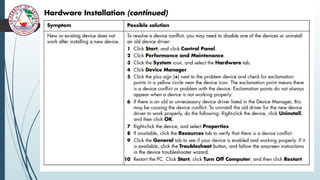
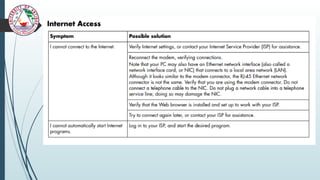
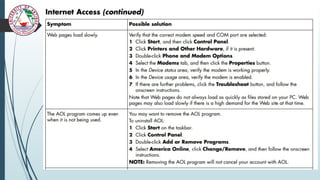
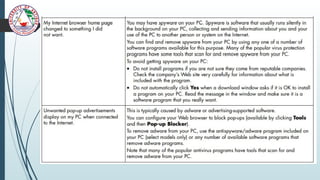
This section contains a series of tables that describe possible solutions to problems that may occur when
using your PC. Each table contains:
Symptoms that describe the sign or warning message for the type of problem.
• Audio
• Video
• CD and DVD Drives
• Display (Monitor)
• Hard Disk Drive
• Hardware Installation
• Internet Access
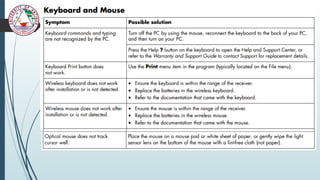
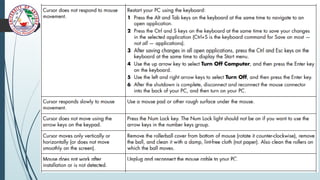
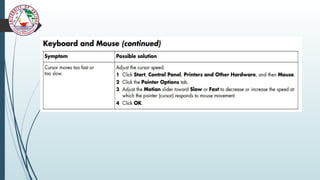
• Keyboard and Mouse
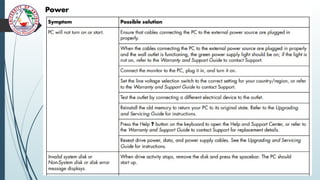
• Power
• Performance
• Miscellaneous
35.
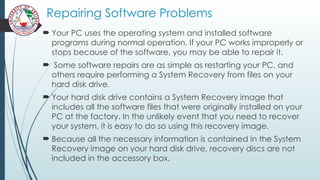
Repairing Software Problems
Your PC uses the operating system and installed software
programs during normal operation. If your PC works improperly or
stops because of the software, you may be able to repair it.
Some software repairs are as simple as restarting your PC, and
others require performing a System Recovery from files on your
hard disk drive.
Your hard disk drive contains a System Recovery image that
includes all the software files that were originally installed on your
PC at the factory. In the unlikely event that you need to recover
your system, it is easy to do so using this recovery image.
Because all the necessary information is contained in the System
Recovery image on your hard disk drive, recovery discs are not
included in the accessory box.
#2 If you're working on a laptop, netbook, or tablet, be sure to remove the battery, as well as disconnect the AC power, before removing or disassembling anything.
#3 If there was any doubt as to whether the computer was off before, it's settled now.
#15 Possible problem and solutions that what you should do to try to solve the problem.
For additional information about monitor problems, or for problems relating specifically to your printer, refer to the documentation provided by the product’s manufacturer.