Introduction
Stretch Database is a new feature available SQL Server 2016 onwards. This feature lets you migrate
your cold data to Microsoft Azure.
In the past when database used to grow beyond, the only option was to buy additional drives and let
the database grow more. This was a very expensive and cost inefficient solution.
To resolve problem like this Microsoft came up with a new feature to migrate data only to azure.
However, you can run your queries against your instance even if data has been migrated to azure.
You can move data back and forth between Azure and local database.
Stretch Database does not affect the application logics and queries.
What the article/code snippet does, why it's useful, the problem it solves etc.
Background
You will need active Microsoft Azure Subscription and SQL server 2016 to be able to use the stretch
feature.
Using the code
We will first create a database and a table to the database. Then we will add a table and populate it
with a lot of data. Then we will migrate the data only to Azure and run a few queries.
//
// -- First Create the Database
USE [master]
GO
CREATE DATABASE [StretchDatabase]
Go
//
Then after create a table in the database that we just created.
//--This code adds a table with 3 columns, SN (autoincremented), Name and Last Name
USE [StretchDatabase]
GO
CREATE TABLE [dbo].[StretchTable](
[sn] [int] IDENTITY(1,1) NOT NULL,
[Name] [varchar](50) NULL,
[Last Name] [varchar](50) NULL
) ON [PRIMARY]
GO
Then after add rows to tables. Since we are attempting migration of cold data to the Azure , we will
use for loops to insert 1000 rows of data. You can use as much as you like.
USE [StretchDatabase]
GO
DECLARE @cnt INT = 0;
WHILE @cnt < 1000
BEGIN
Insert into stretchTable (Name, [Last Name]) values ('Mahesh', 'Dahal')
SET @cnt = @cnt + 1;
END;
Now we have to go to the database and use UI to enable and migrate data.
Right Click on Database -> Tasks ->Stretch and Enable.
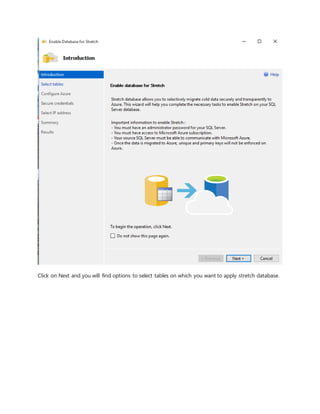
This will pop out a new window to configure the stretch feature.
Click on Next and you will find options to select tables on which you want to apply stretch database.
After you select your tables, click on Next and where you have to sign in to your azure subscription.
If you want to migrate only the desired data from the tables, then click on Entire Table. A window will
popout where you can select the data that you desire to migrate.
After you configure the desired rows for migration then click Done and next. You will be taken to
window to configure azure subscription.
Click on Sign in.
Then insert your account credentials in provided login screen.
After your sign in is successful you will be able to choose your subscription details and region.
Click on signon where you can sign in with your azure account. Then select the region and provide
new set of Username and password for the database that will be create in Azure where our data will
be stored.
Then click on next. You will be asked for confirmation for the configurations.
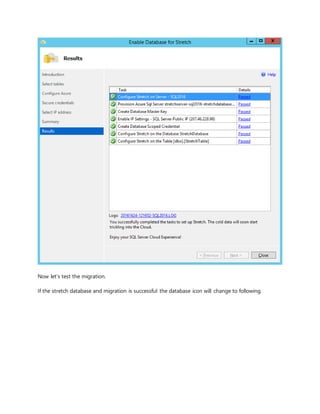
Click on finish. Then all the settings will be applied and data will be migrated.
After the processes are completed click on Close.
Now let’s test the migration.
If the stretch database and migration is successful the database icon will change to following.
If you check your azure subscription you will find a new database created.
Now let’s run a few queries.
Now, when you run this query, you will get all the data that was stored. The data will come after
running the query in local database and remote database.
select * from StretchTable will show all the data in the table.
But if you see the origin of the data using following command, you will see that no data
is stored in the local table.
Total storage used by this table can be found using
Sp_spaceused ‘stretchtable’
Whereas the space used by this table in local storage can be found using command
Sp_spaceused ‘stretchtable’, @mode=’local_only’
And you can see in the results that just 72KB storage is used.
Whereas if you run the command to find the space used in remote storage then you can see
that all the data is stored in remote database which is our SQL Azure database created
earlier.
SQL Stretch is very advantageous to reduce the cost of storage drive whereas maintaining the
consistency of application and application logic at the same time. However, SQL Stretch does
not support followings:
1. Migrateddata will notbe enforcedforuniqueness.Primarykeyconstraints,andUnique
Constraintswill be ignored.
2. Update and Delete operationsare notsupportedinthe migratedtable
3. You cannot create an index fora view thatincludesStretch-enabledtables.
4. FiltersonSQL Serverindexesare notpropagatedtothe remote table.

Backup your tables to SQL Azure using SQL Stretch

  • 1.
    Introduction Stretch Database isa new feature available SQL Server 2016 onwards. This feature lets you migrate your cold data to Microsoft Azure. In the past when database used to grow beyond, the only option was to buy additional drives and let the database grow more. This was a very expensive and cost inefficient solution. To resolve problem like this Microsoft came up with a new feature to migrate data only to azure. However, you can run your queries against your instance even if data has been migrated to azure. You can move data back and forth between Azure and local database. Stretch Database does not affect the application logics and queries. What the article/code snippet does, why it's useful, the problem it solves etc. Background You will need active Microsoft Azure Subscription and SQL server 2016 to be able to use the stretch feature. Using the code We will first create a database and a table to the database. Then we will add a table and populate it with a lot of data. Then we will migrate the data only to Azure and run a few queries. // // -- First Create the Database USE [master] GO CREATE DATABASE [StretchDatabase] Go // Then after create a table in the database that we just created. //--This code adds a table with 3 columns, SN (autoincremented), Name and Last Name USE [StretchDatabase] GO CREATE TABLE [dbo].[StretchTable]( [sn] [int] IDENTITY(1,1) NOT NULL, [Name] [varchar](50) NULL, [Last Name] [varchar](50) NULL ) ON [PRIMARY]
  • 2.
    GO Then after addrows to tables. Since we are attempting migration of cold data to the Azure , we will use for loops to insert 1000 rows of data. You can use as much as you like. USE [StretchDatabase] GO DECLARE @cnt INT = 0; WHILE @cnt < 1000 BEGIN Insert into stretchTable (Name, [Last Name]) values ('Mahesh', 'Dahal') SET @cnt = @cnt + 1; END; Now we have to go to the database and use UI to enable and migrate data. Right Click on Database -> Tasks ->Stretch and Enable. This will pop out a new window to configure the stretch feature.
  • 3.
    Click on Nextand you will find options to select tables on which you want to apply stretch database.
  • 4.
    After you selectyour tables, click on Next and where you have to sign in to your azure subscription. If you want to migrate only the desired data from the tables, then click on Entire Table. A window will popout where you can select the data that you desire to migrate.
  • 5.
    After you configurethe desired rows for migration then click Done and next. You will be taken to window to configure azure subscription.
  • 6.
    Click on Signin. Then insert your account credentials in provided login screen.
  • 7.
    After your signin is successful you will be able to choose your subscription details and region.
  • 8.
    Click on signonwhere you can sign in with your azure account. Then select the region and provide new set of Username and password for the database that will be create in Azure where our data will be stored. Then click on next. You will be asked for confirmation for the configurations.
  • 9.
    Click on finish.Then all the settings will be applied and data will be migrated.
  • 10.
    After the processesare completed click on Close.
  • 11.
    Now let’s testthe migration. If the stretch database and migration is successful the database icon will change to following.
  • 12.
    If you checkyour azure subscription you will find a new database created.
  • 13.
    Now let’s runa few queries. Now, when you run this query, you will get all the data that was stored. The data will come after running the query in local database and remote database.
  • 14.
    select * fromStretchTable will show all the data in the table. But if you see the origin of the data using following command, you will see that no data is stored in the local table. Total storage used by this table can be found using Sp_spaceused ‘stretchtable’
  • 15.
    Whereas the spaceused by this table in local storage can be found using command Sp_spaceused ‘stretchtable’, @mode=’local_only’ And you can see in the results that just 72KB storage is used. Whereas if you run the command to find the space used in remote storage then you can see that all the data is stored in remote database which is our SQL Azure database created earlier.
  • 16.
    SQL Stretch isvery advantageous to reduce the cost of storage drive whereas maintaining the consistency of application and application logic at the same time. However, SQL Stretch does not support followings: 1. Migrateddata will notbe enforcedforuniqueness.Primarykeyconstraints,andUnique Constraintswill be ignored. 2. Update and Delete operationsare notsupportedinthe migratedtable 3. You cannot create an index fora view thatincludesStretch-enabledtables. 4. FiltersonSQL Serverindexesare notpropagatedtothe remote table.