External collaboration with Azure B2B
#AzureSaturday
Speaker: Sjoukje Zaal
18.05.2019 – Microsoft Munich – azuresaturday.de – @azuresaturday
About Me
Sjoukje Zaal
Principal Expert Microsoft / Azure MVP
T: @SjoukjeZaal
W: https://www.sjoukjezaal.com
Agenda
What is Azure B2B?
Why Azure B2B?
Key Benefits and Capabilities
Demos!
Azure B2B & Office 365
More Demos!
What is Azure Active Directory B2B?
Azure Active Directory Business-to-Business (B2B) enables any
organization to work safely and securely with users from any
other organization.
Why use Azure Active Directory B2B?
-Gives Access to:
• Azure & Office 365 resources
• Custom Applications
• Third Party Applications
• Documents & data
Key Benefits
• Works with any user
• Azure AD not required
• Users can use their own
identities
• No external directories
• Simple & Secure
• Easy for admins and users
• Access to any app and data
• Enterprise-grade security for
apps and data
• No external account
management
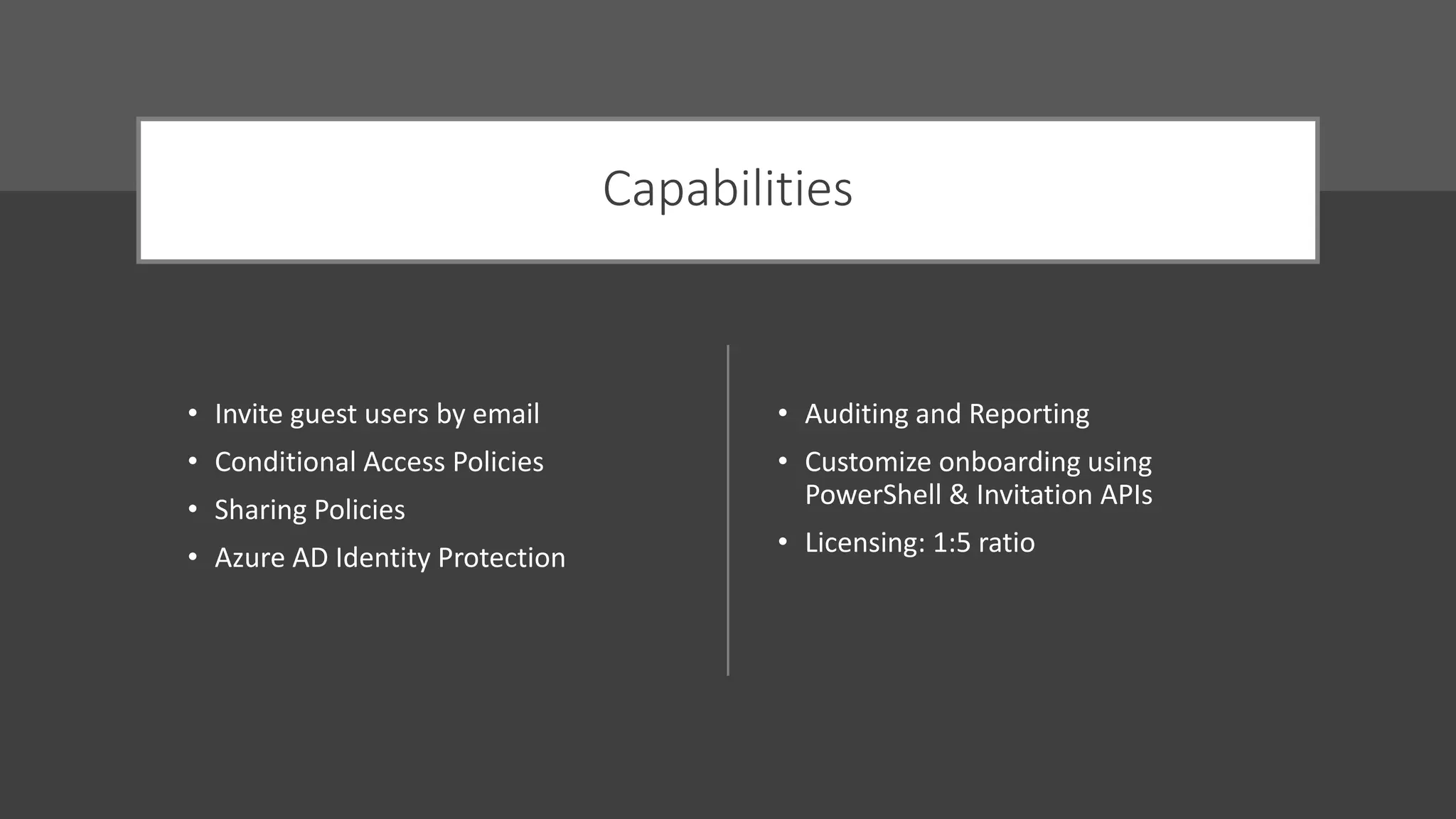
Capabilities
• Invite guest users by email
• Conditional Access Policies
• Sharing Policies
• Azure AD Identity Protection
• Auditing and Reporting
• Customize onboarding using
PowerShell & Invitation APIs
• Licensing: 1:5 ratio
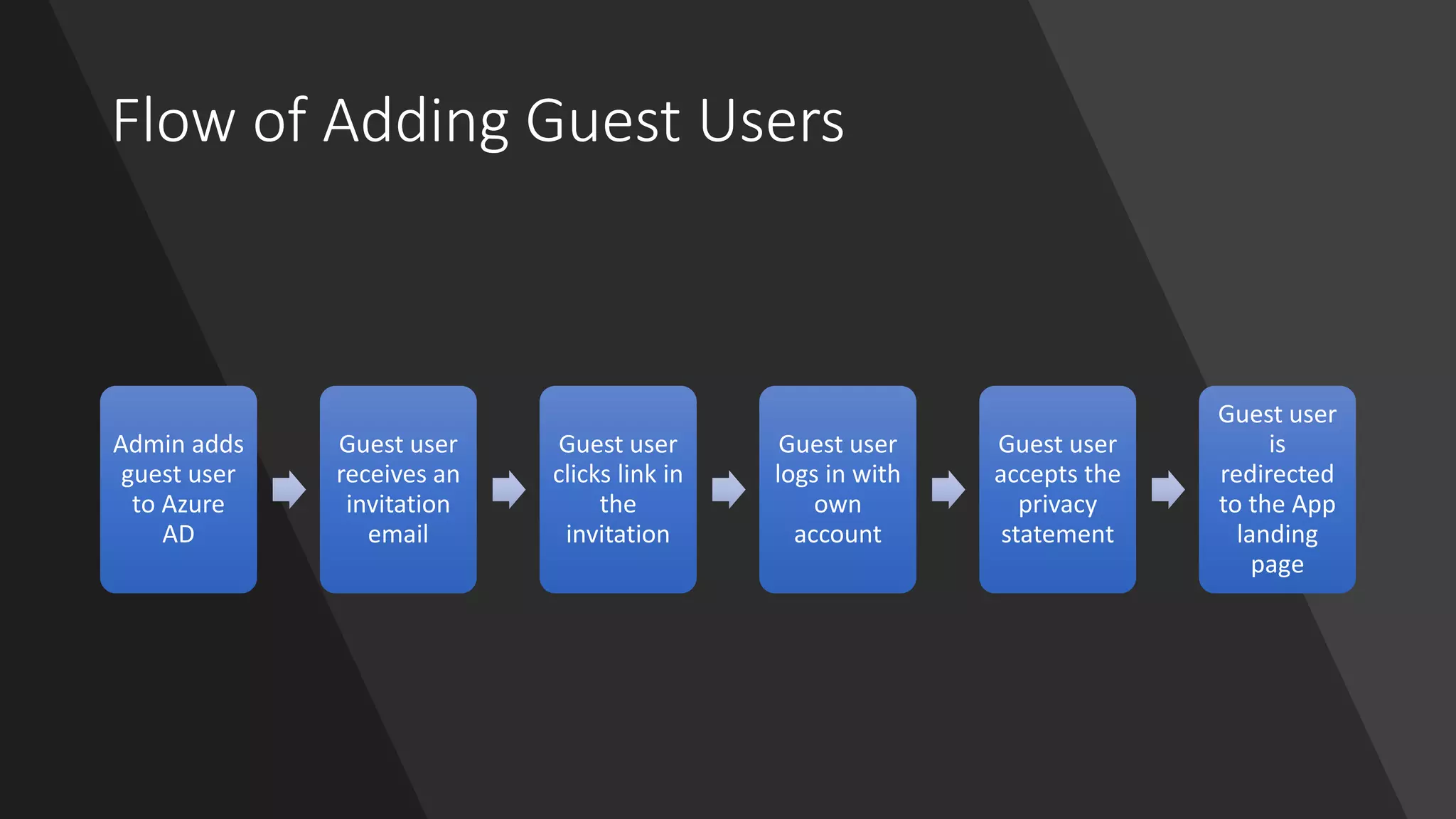
Flow of Adding Guest Users
Admin adds
guest user
to Azure
AD
Guest user
receives an
invitation
email
Guest user
clicks link in
the
invitation
Guest user
logs in with
own
account
Guest user
accepts the
privacy
statement
Guest user
is
redirected
to the App
landing
page
Inviting guest
users
Demos
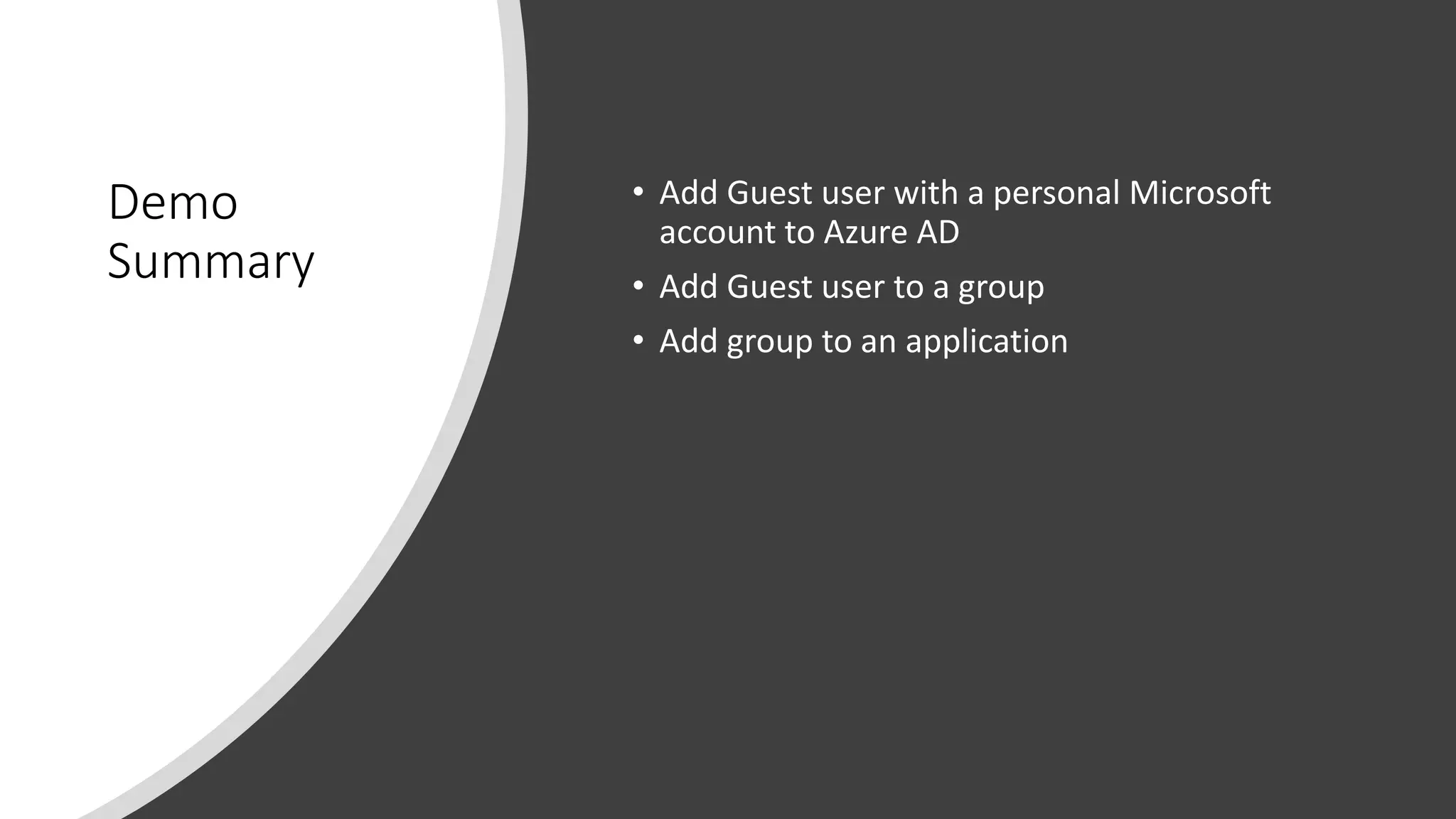
Demo
Summary
• Add Guest user with a personal Microsoft
account to Azure AD
• Add Guest user to a group
• Add group to an application
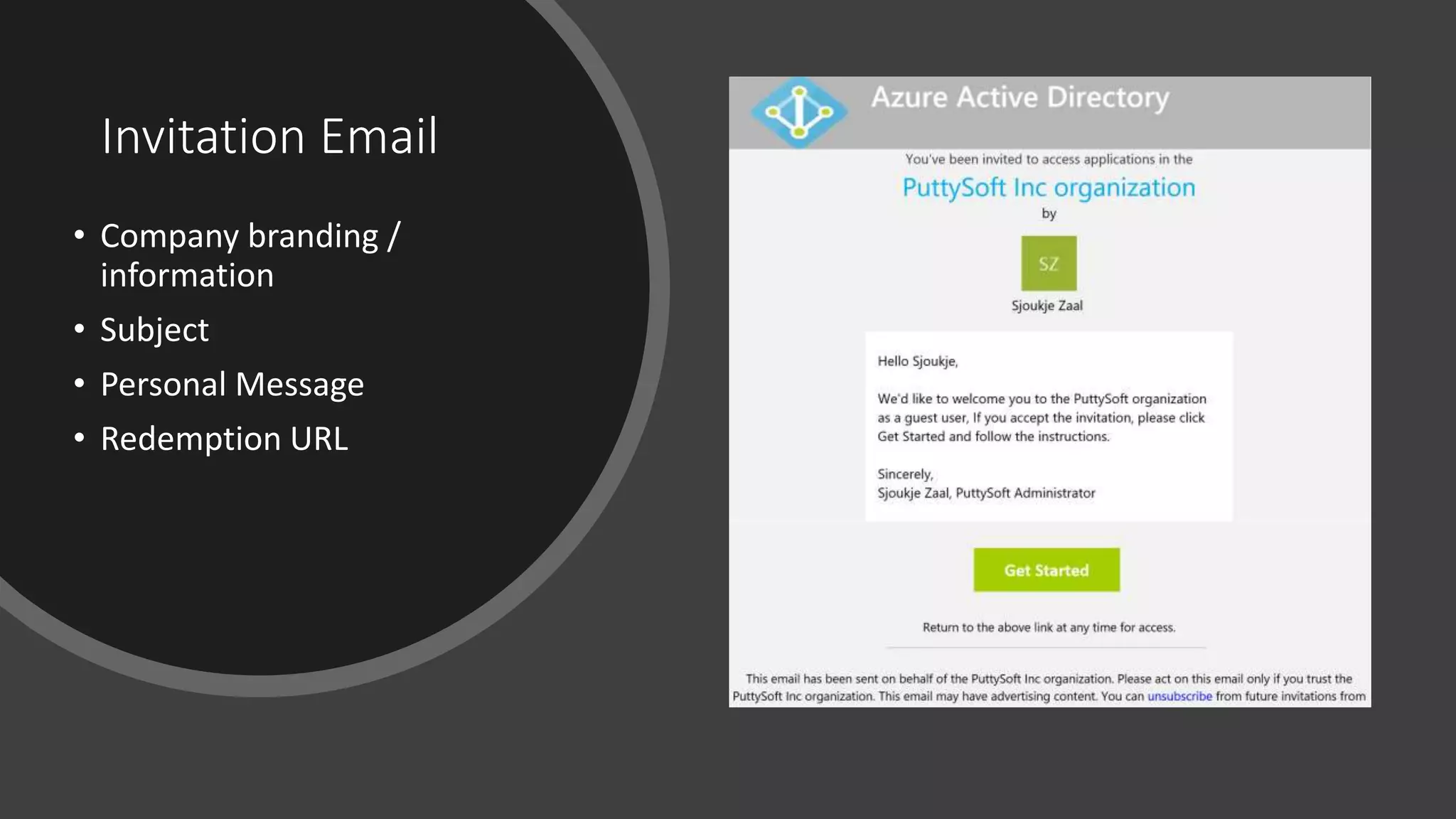
Invitation Email
• Company branding /
information
• Subject
• Personal Message
• Redemption URL
Invitation Email &
Redemption
Demo
Summary • User receives invitation
• User accepts the invitation
• User logs in using own credentials
• User accepts the privacy terms
• User can access the applications
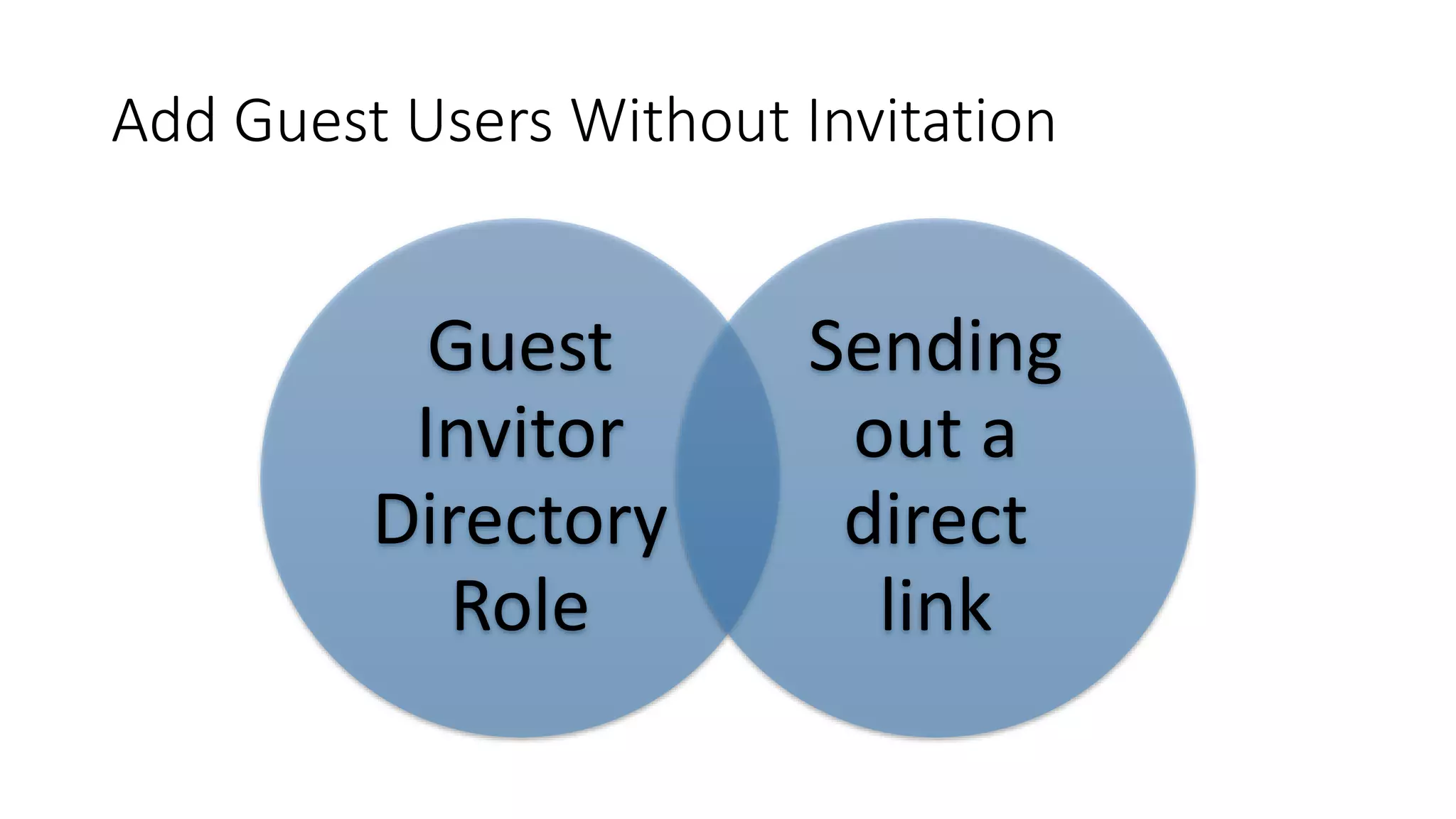
Add Guest Users Without Invitation
Guest
Invitor
Directory
Role
Sending
out a
direct
link
APIs &
PowerShell
B2B
collaboration
invitation APIs
PowerShell for
bulk
invitations
Invitation Customization
• With PowerShell / API Invitations you can:
• Customize email messages
• Add a display name for the user
• Add CCs to the messages
• Suppress invitation email messages altogether
• Set the invitation redirect URL
Sending
invitations using
PowerShell
Demo
Demo
Summary • Download the latest Azure Active Directory
PowerShell for Graph
• https://www.powershellgallery.com/packages/
AzureADPreview/2.0.1.18
• Create a CSV file with email addresses
• Create accounts with PowerShell
Conditional Access
• Premium Azure AD
• At Tenant, app or user level
• Same policies as internal users
• Easy to set policies for guest users (Preview)
Conditional
Access - MFA
Demo
Demo
Summary • Create a new Conditional Access Policy
• Select “All Guest Users”
• Enable MFA for guest users
• Logged in as a guest user
• Used MFA to access the application
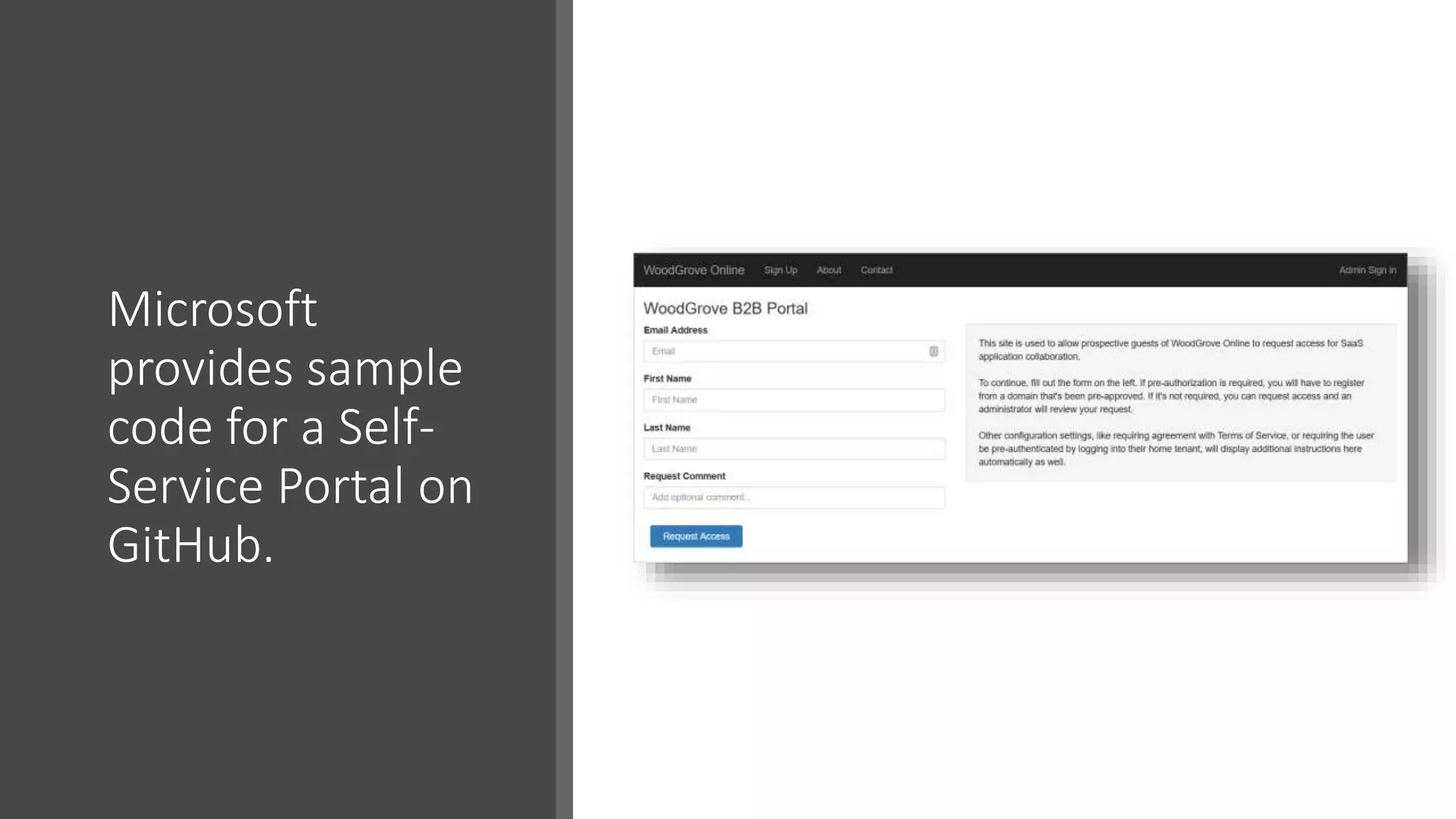
Microsoft
provides sample
code for a Self-
Service Portal on
GitHub.
Azure B2B Self Service Portal
• MVC sample application
• Uses the Graph API
• Approve / deny guest users
• Custom email templates
• Custom redirect URL
Self Service Portal
Demo
Demo
Summary • Add a guest user using Self Service Portal
• Approve or deny guest user
• Create custom email templates
• Set a different redirect URL
External Sharing in
Office 365 VS Azure B2B
• Office 365 uses Azure B2B
• Except for SharePoint Online &
OneDrive
• Different Invitations
• Different Licensing
Enable Azure
B2B in
SP Online &
OneDrive
Differences Invitation Redemption in Azure
B2B & Office 365
B2B users can
be selected
before
accepting the
invite
Office 365
users can be
selected after
accepting the
invite
Adding guest users
using PowerApps,
Flow and the Graph
API in SharePoint
Online
Demo
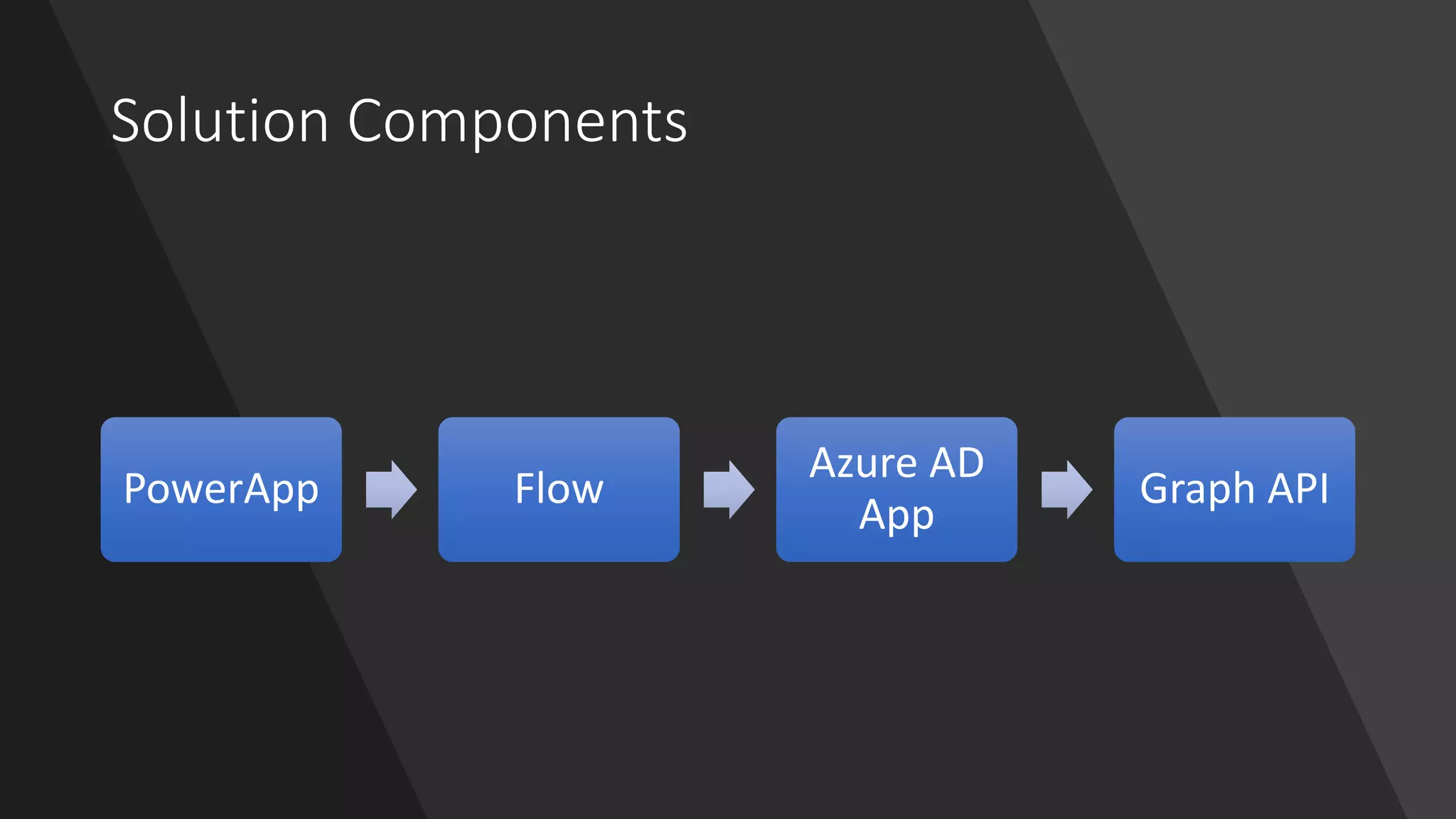
Solution Components
PowerApp Flow
Azure AD
App
Graph API
Demo
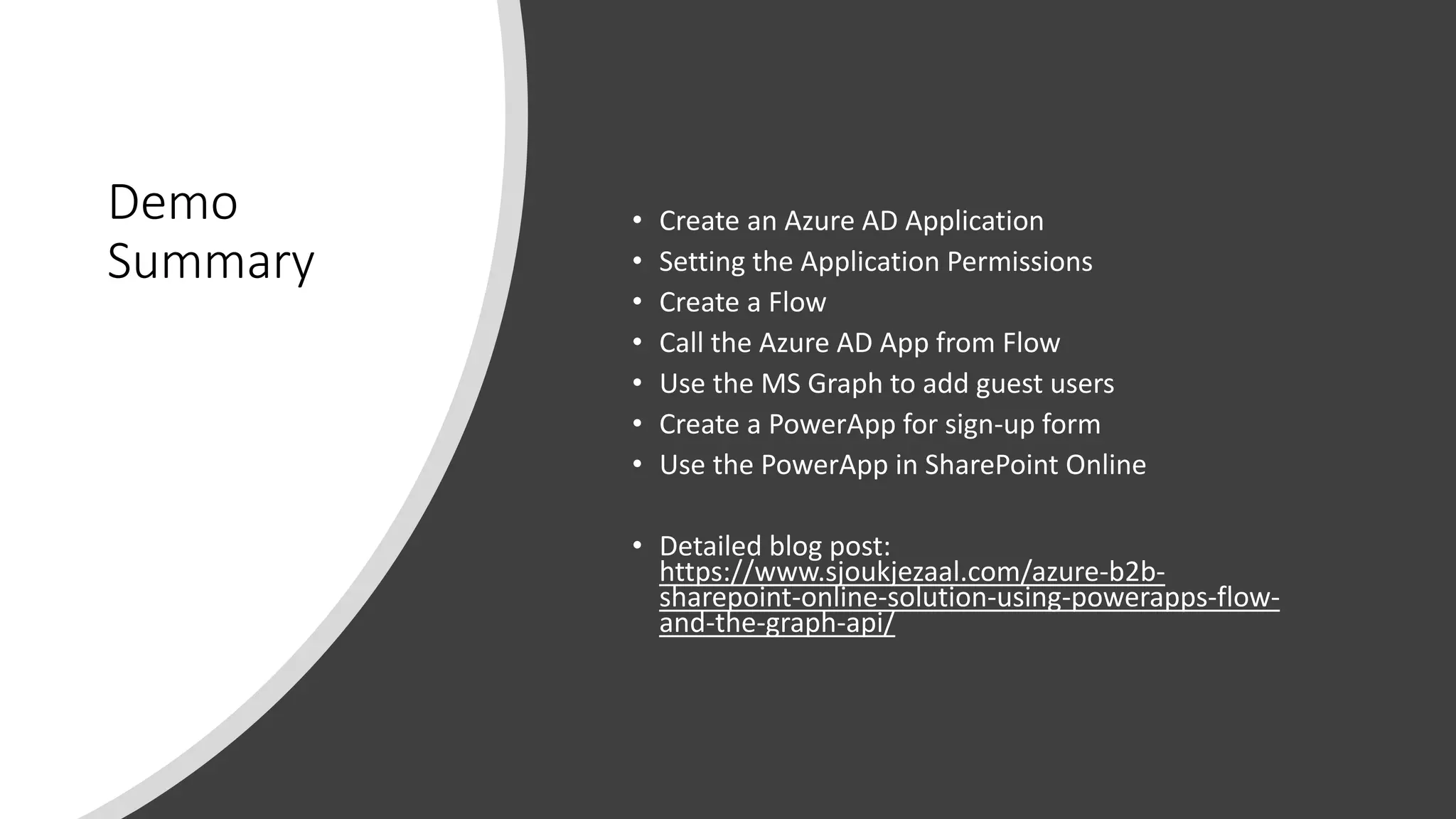
Summary
• Create an Azure AD Application
• Setting the Application Permissions
• Create a Flow
• Call the Azure AD App from Flow
• Use the MS Graph to add guest users
• Create a PowerApp for sign-up form
• Use the PowerApp in SharePoint Online
• Detailed blog post:
https://www.sjoukjezaal.com/azure-b2b-
sharepoint-online-solution-using-powerapps-flow-
and-the-graph-api/
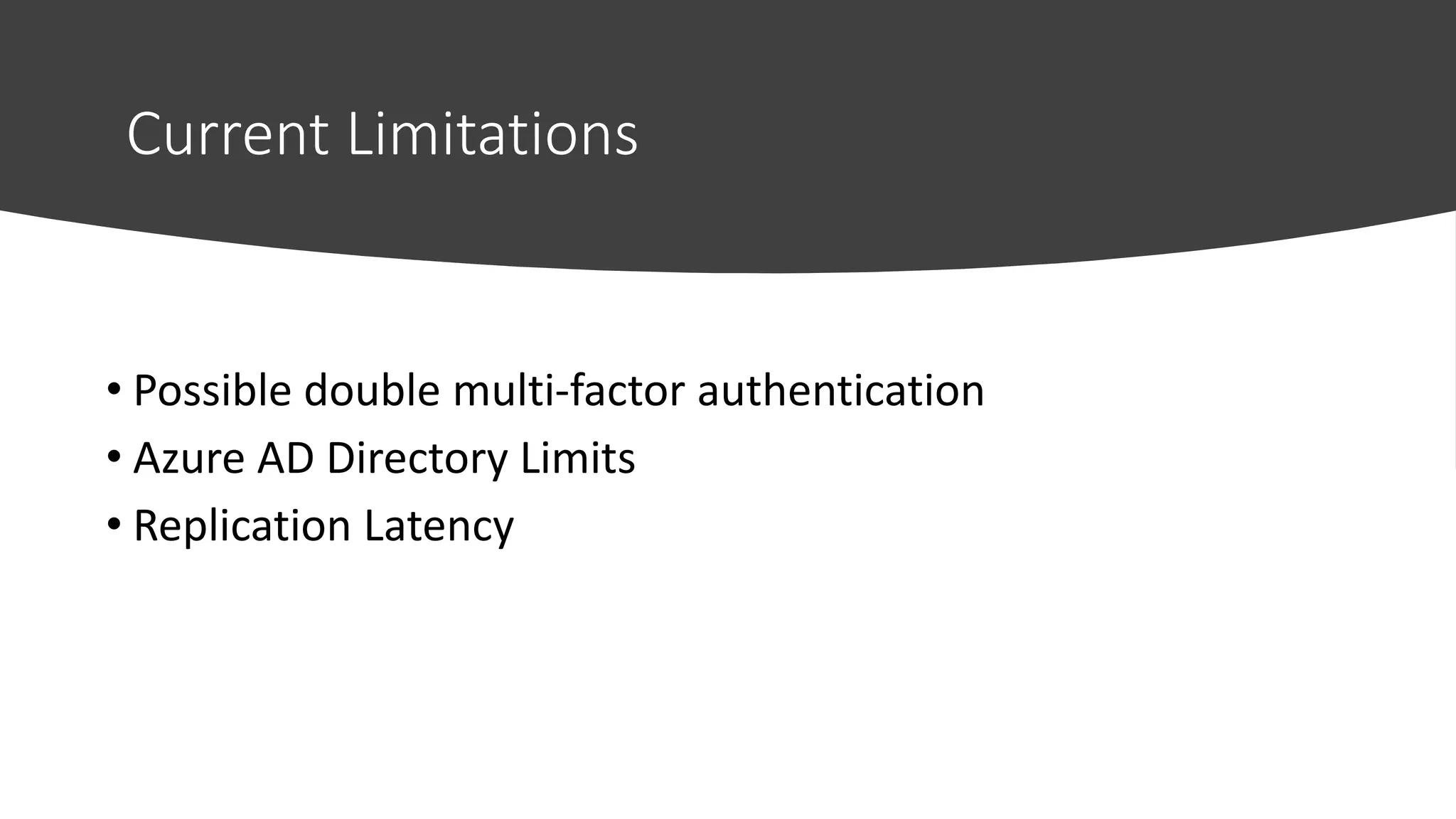
Current Limitations
• Possible double multi-factor authentication
• Azure AD Directory Limits
• Replication Latency
Questions?

Azure Saturday: External Collaboration With Azure AD B2B

  • 1.
    External collaboration withAzure B2B #AzureSaturday Speaker: Sjoukje Zaal 18.05.2019 – Microsoft Munich – azuresaturday.de – @azuresaturday
  • 2.
    About Me Sjoukje Zaal PrincipalExpert Microsoft / Azure MVP T: @SjoukjeZaal W: https://www.sjoukjezaal.com
  • 3.
    Agenda What is AzureB2B? Why Azure B2B? Key Benefits and Capabilities Demos! Azure B2B & Office 365 More Demos!
  • 4.
    What is AzureActive Directory B2B? Azure Active Directory Business-to-Business (B2B) enables any organization to work safely and securely with users from any other organization.
  • 5.
    Why use AzureActive Directory B2B? -Gives Access to: • Azure & Office 365 resources • Custom Applications • Third Party Applications • Documents & data
  • 6.
    Key Benefits • Workswith any user • Azure AD not required • Users can use their own identities • No external directories • Simple & Secure • Easy for admins and users • Access to any app and data • Enterprise-grade security for apps and data • No external account management
  • 7.
    Capabilities • Invite guestusers by email • Conditional Access Policies • Sharing Policies • Azure AD Identity Protection • Auditing and Reporting • Customize onboarding using PowerShell & Invitation APIs • Licensing: 1:5 ratio
  • 8.
    Flow of AddingGuest Users Admin adds guest user to Azure AD Guest user receives an invitation email Guest user clicks link in the invitation Guest user logs in with own account Guest user accepts the privacy statement Guest user is redirected to the App landing page
  • 9.
  • 10.
    Demo Summary • Add Guestuser with a personal Microsoft account to Azure AD • Add Guest user to a group • Add group to an application
  • 11.
    Invitation Email • Companybranding / information • Subject • Personal Message • Redemption URL
  • 12.
  • 13.
    Demo Summary • Userreceives invitation • User accepts the invitation • User logs in using own credentials • User accepts the privacy terms • User can access the applications
  • 14.
    Add Guest UsersWithout Invitation Guest Invitor Directory Role Sending out a direct link
  • 15.
  • 16.
    Invitation Customization • WithPowerShell / API Invitations you can: • Customize email messages • Add a display name for the user • Add CCs to the messages • Suppress invitation email messages altogether • Set the invitation redirect URL
  • 17.
  • 19.
    Demo Summary • Downloadthe latest Azure Active Directory PowerShell for Graph • https://www.powershellgallery.com/packages/ AzureADPreview/2.0.1.18 • Create a CSV file with email addresses • Create accounts with PowerShell
  • 20.
    Conditional Access • PremiumAzure AD • At Tenant, app or user level • Same policies as internal users • Easy to set policies for guest users (Preview)
  • 21.
  • 22.
    Demo Summary • Createa new Conditional Access Policy • Select “All Guest Users” • Enable MFA for guest users • Logged in as a guest user • Used MFA to access the application
  • 23.
    Microsoft provides sample code fora Self- Service Portal on GitHub.
  • 24.
    Azure B2B SelfService Portal • MVC sample application • Uses the Graph API • Approve / deny guest users • Custom email templates • Custom redirect URL
  • 25.
  • 26.
    Demo Summary • Adda guest user using Self Service Portal • Approve or deny guest user • Create custom email templates • Set a different redirect URL
  • 27.
    External Sharing in Office365 VS Azure B2B • Office 365 uses Azure B2B • Except for SharePoint Online & OneDrive • Different Invitations • Different Licensing
  • 28.
    Enable Azure B2B in SPOnline & OneDrive
  • 29.
    Differences Invitation Redemptionin Azure B2B & Office 365 B2B users can be selected before accepting the invite Office 365 users can be selected after accepting the invite
  • 30.
    Adding guest users usingPowerApps, Flow and the Graph API in SharePoint Online Demo
  • 31.
  • 32.
    Demo Summary • Create anAzure AD Application • Setting the Application Permissions • Create a Flow • Call the Azure AD App from Flow • Use the MS Graph to add guest users • Create a PowerApp for sign-up form • Use the PowerApp in SharePoint Online • Detailed blog post: https://www.sjoukjezaal.com/azure-b2b- sharepoint-online-solution-using-powerapps-flow- and-the-graph-api/
  • 33.
    Current Limitations • Possibledouble multi-factor authentication • Azure AD Directory Limits • Replication Latency
  • 34.