

Banner Lessons
Learned from the Field
October 2015
Dennis Strenkowski
3 Property of Automic Software. All rights reserved
Banner Lessons Learned from the Field
•Running Banner Jobs in Audit Mode
•Fine Tuning your Banner Processes
•SQL Tips and Tricks
•Banner Job Capture
4 Property of Automic Software. All rights reserved
Running Banner Jobs in Audit Mode
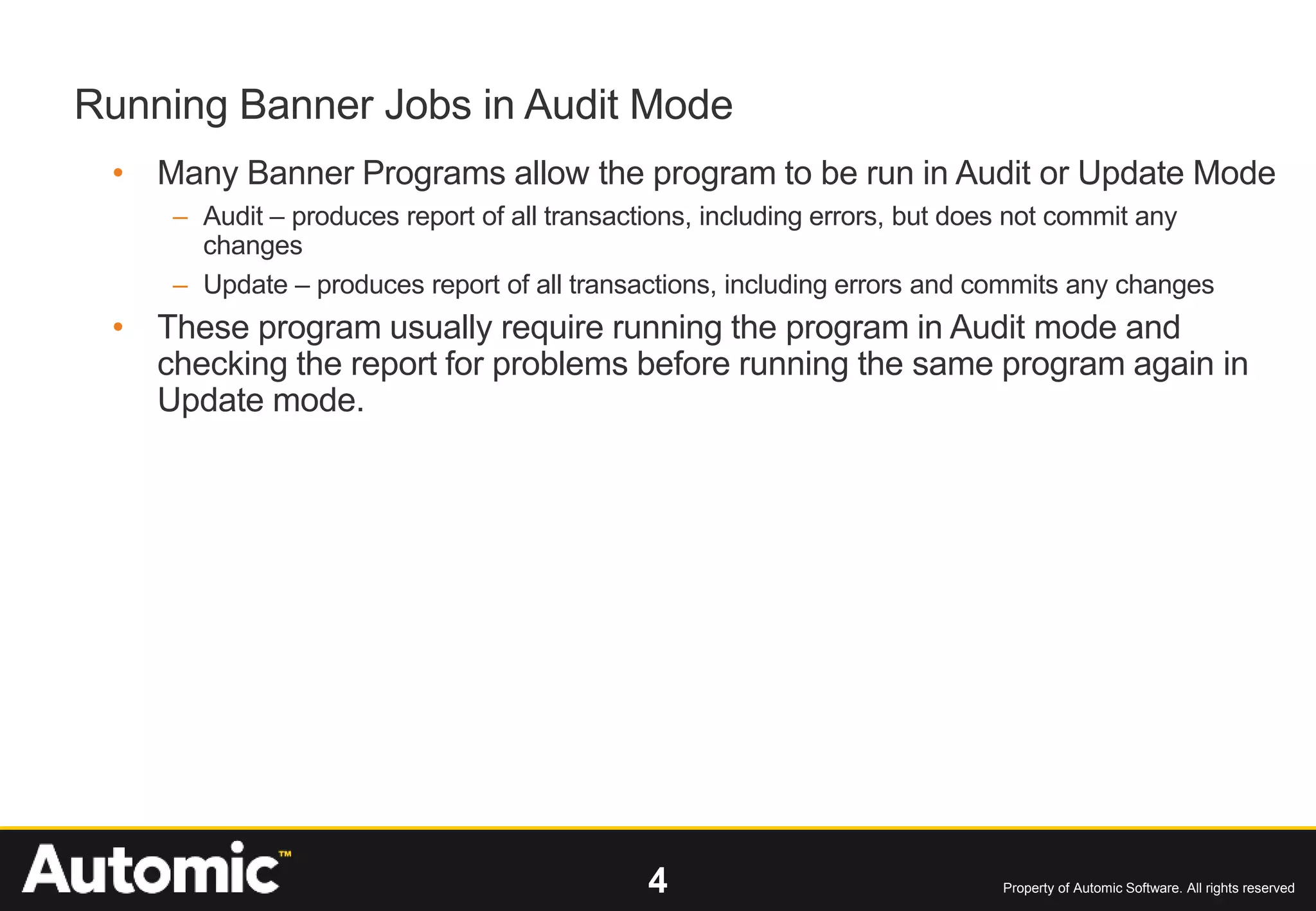
• Many Banner Programs allow the program to be run in Audit or Update Mode
– Audit – produces report of all transactions, including errors, but does not commit any
changes
– Update – produces report of all transactions, including errors and commits any changes
• These program usually require running the program in Audit mode and
checking the report for problems before running the same program again in
Update mode.
5 Property of Automic Software. All rights reserved
Banner Audit Mode
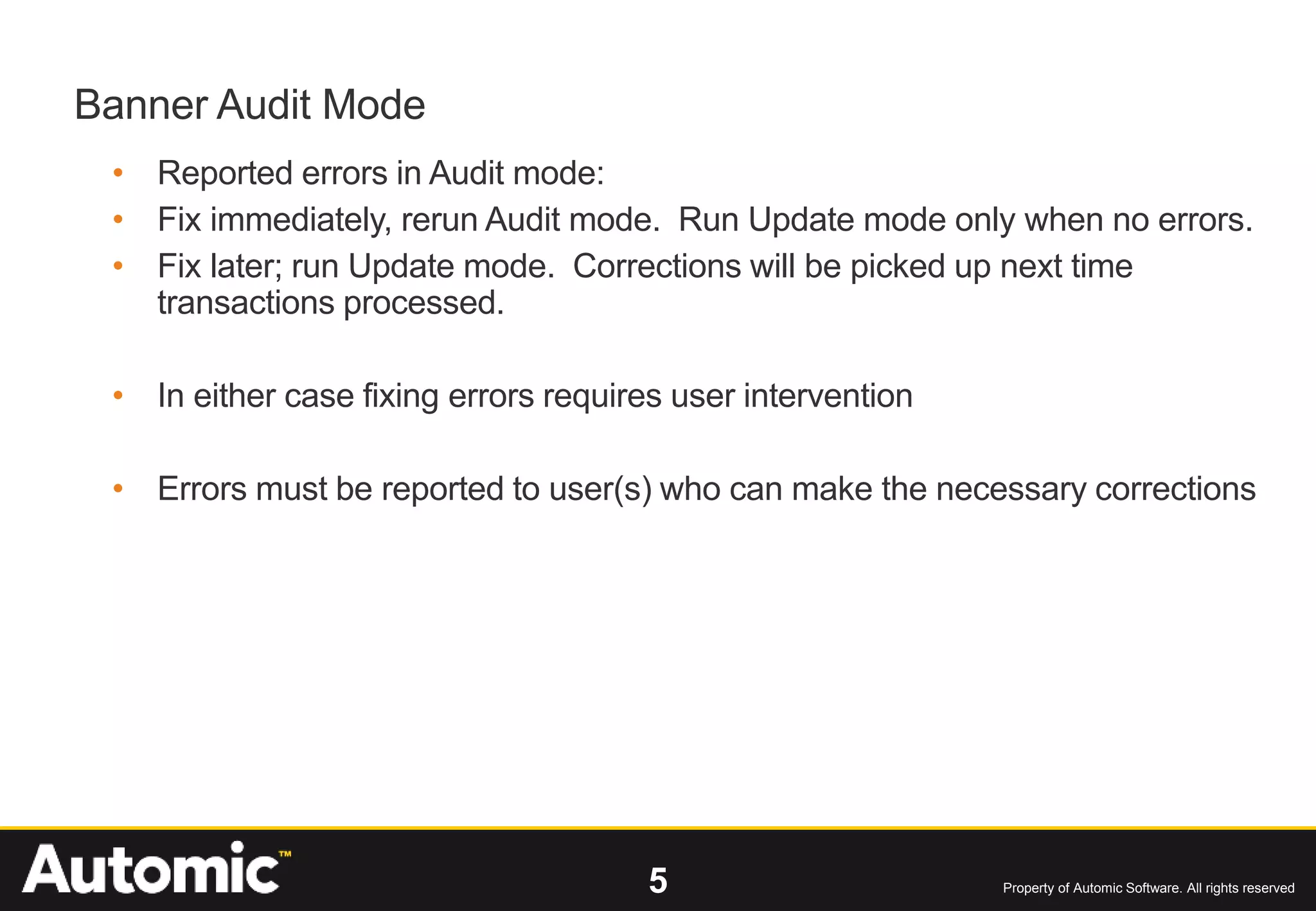
• Reported errors in Audit mode:
• Fix immediately, rerun Audit mode. Run Update mode only when no errors.
• Fix later; run Update mode. Corrections will be picked up next time
transactions processed.
• In either case fixing errors requires user intervention
• Errors must be reported to user(s) who can make the necessary corrections
6 Property of Automic Software. All rights reserved
Implementing Audit Mode in AM
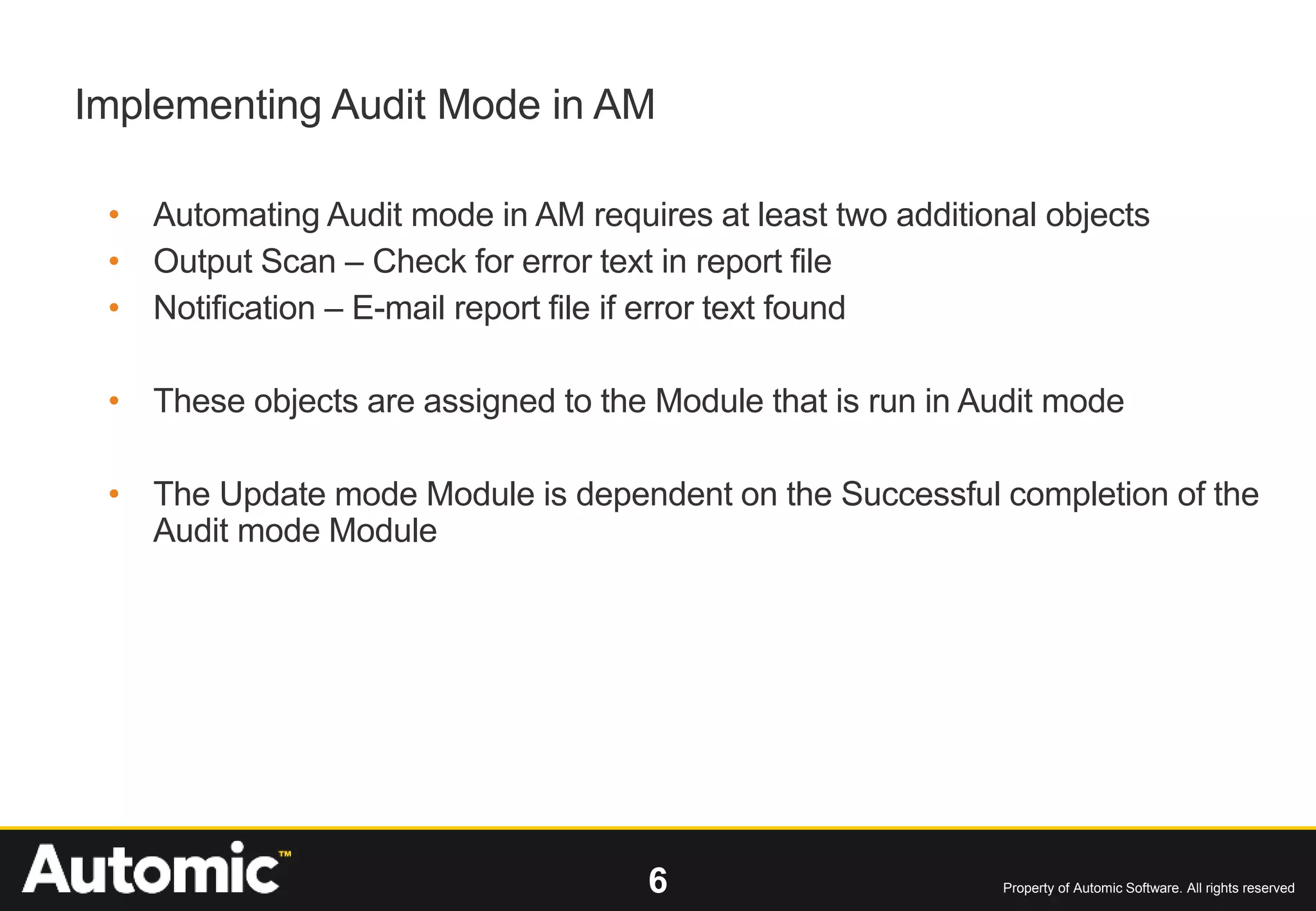
• Automating Audit mode in AM requires at least two additional objects
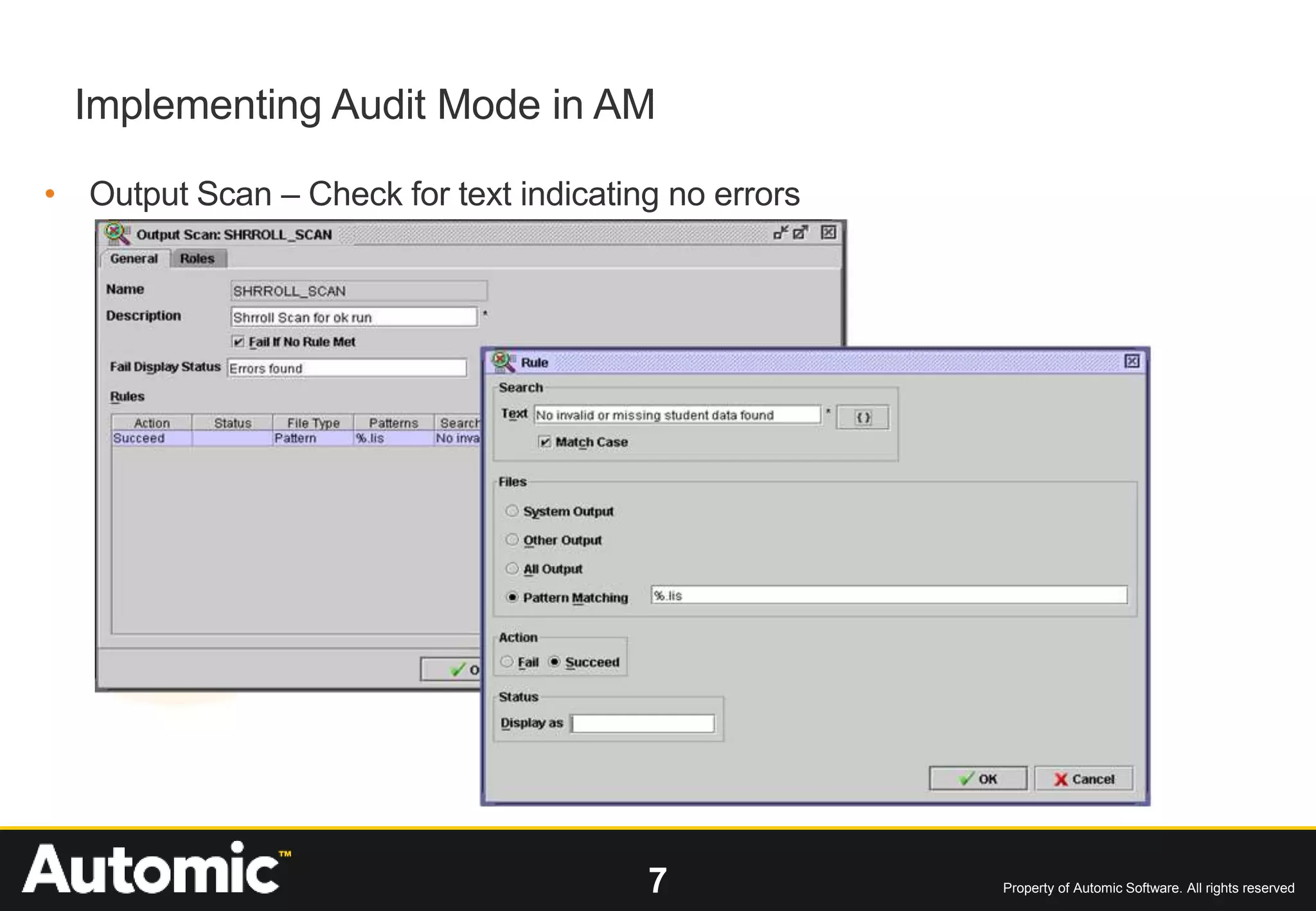
• Output Scan – Check for error text in report file
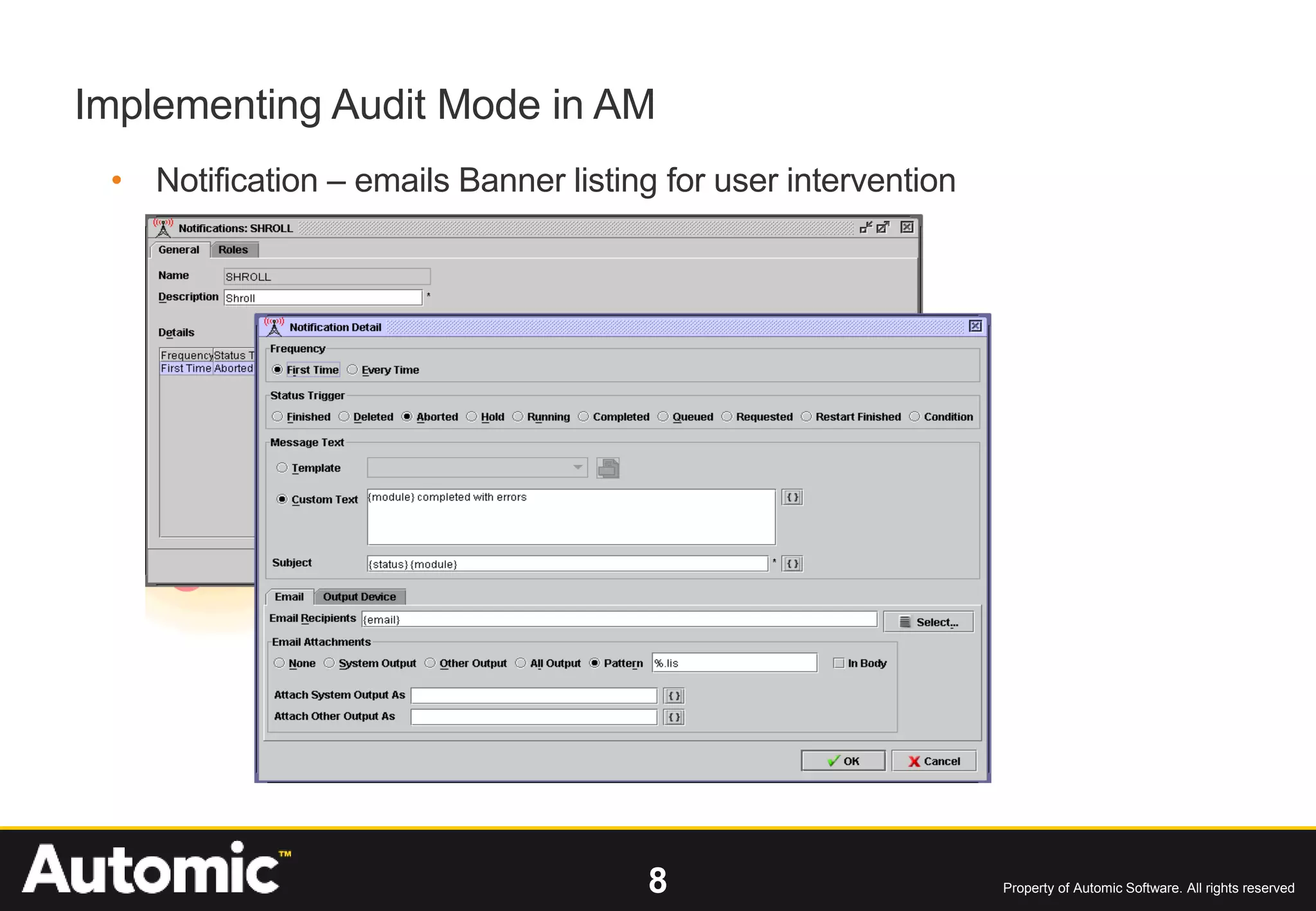
• Notification – E-mail report file if error text found
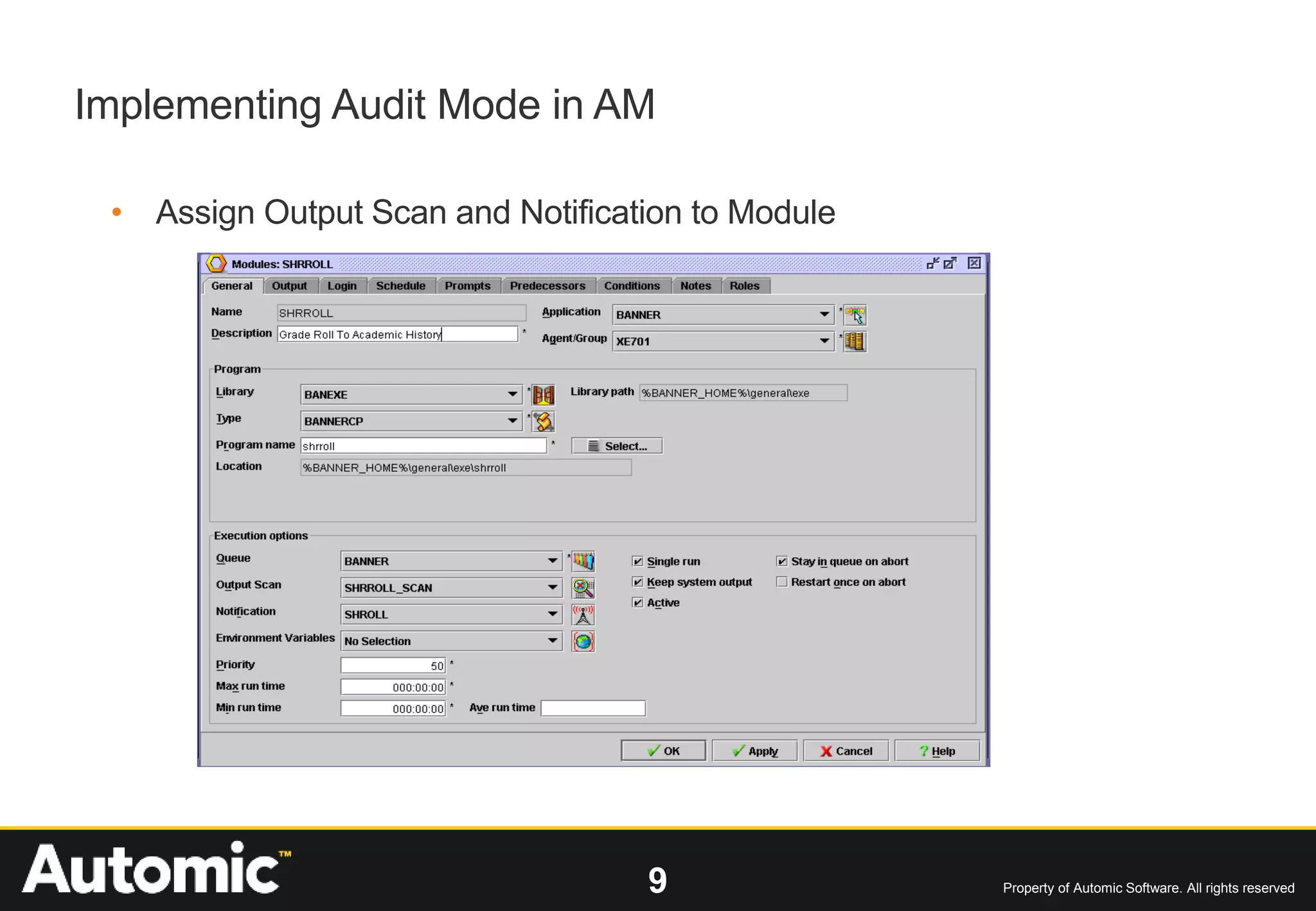
• These objects are assigned to the Module that is run in Audit mode
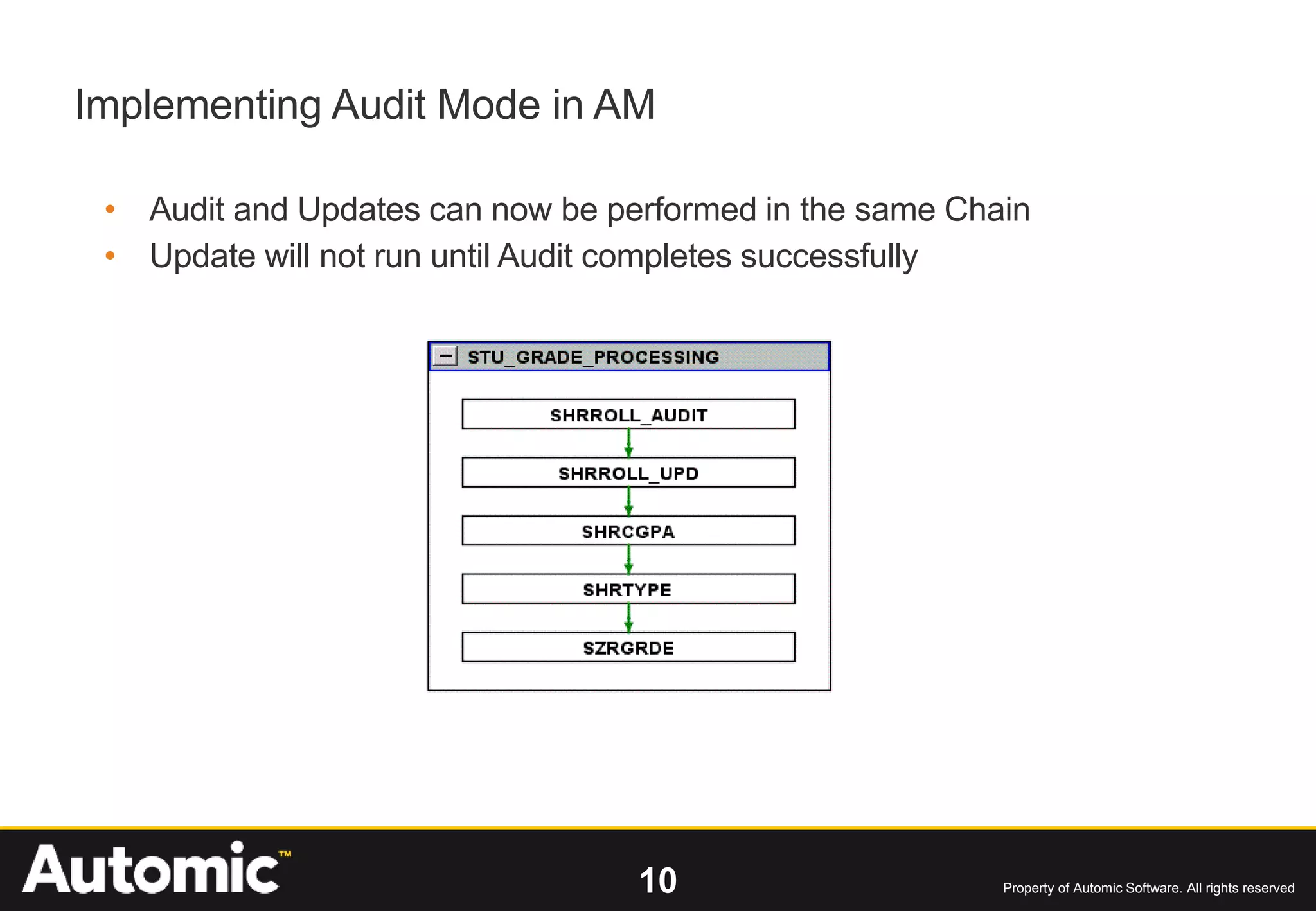
• The Update mode Module is dependent on the Successful completion of the
Audit mode Module
7 Property of Automic Software. All rights reserved
Implementing Audit Mode in AM
• Output Scan – Check for text indicating no errors
8 Property of Automic Software. All rights reserved
Implementing Audit Mode in AM
• Notification – emails Banner listing for user intervention
9 Property of Automic Software. All rights reserved
Implementing Audit Mode in AM
• Assign Output Scan and Notification to Module
10 Property of Automic Software. All rights reserved
Implementing Audit Mode in AM
• Audit and Updates can now be performed in the same Chain
• Update will not run until Audit completes successfully
11 Property of Automic Software. All rights reserved
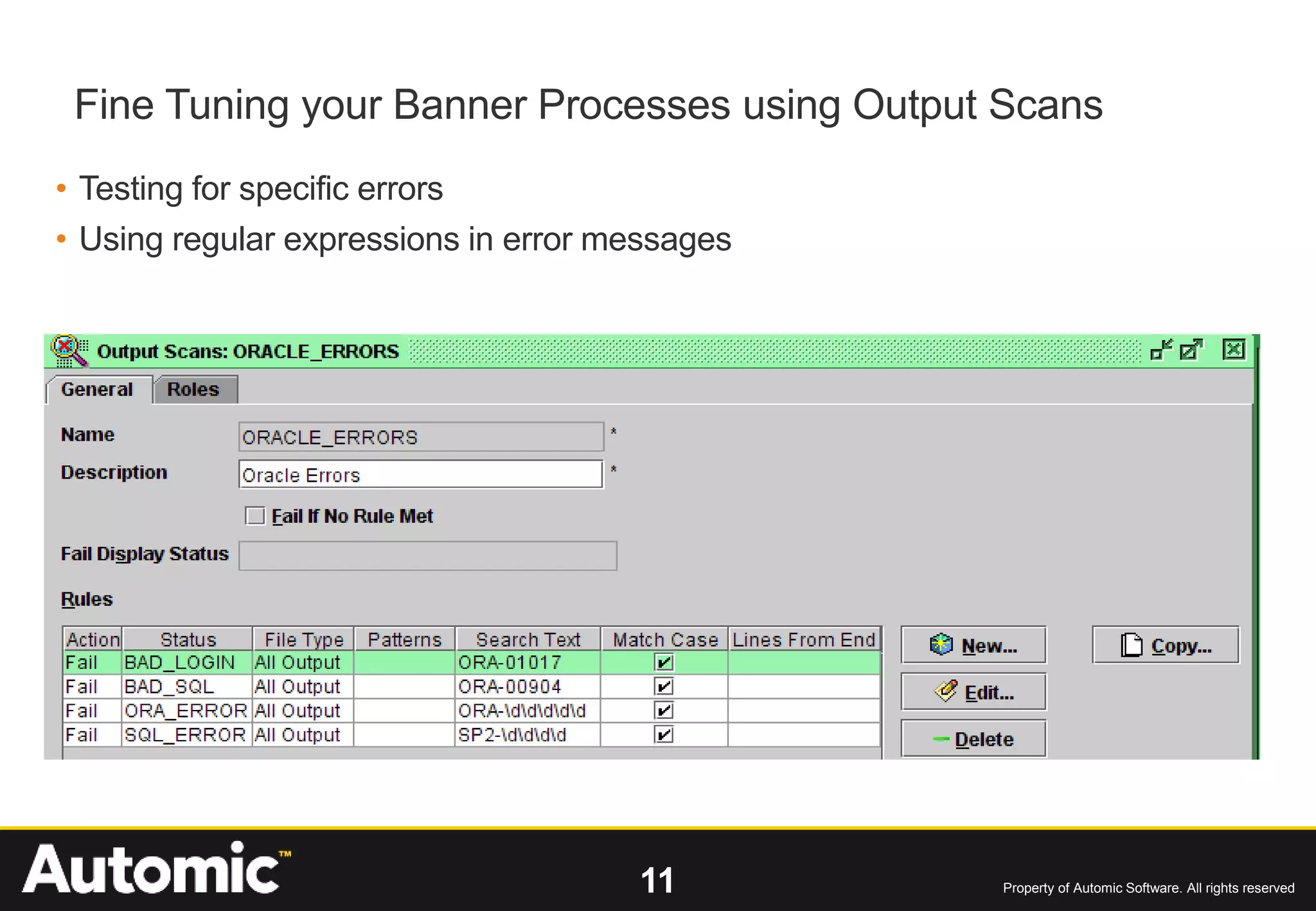
• Testing for specific errors
• Using regular expressions in error messages
Fine Tuning your Banner Processes using Output Scans
12 Property of Automic Software. All rights reserved
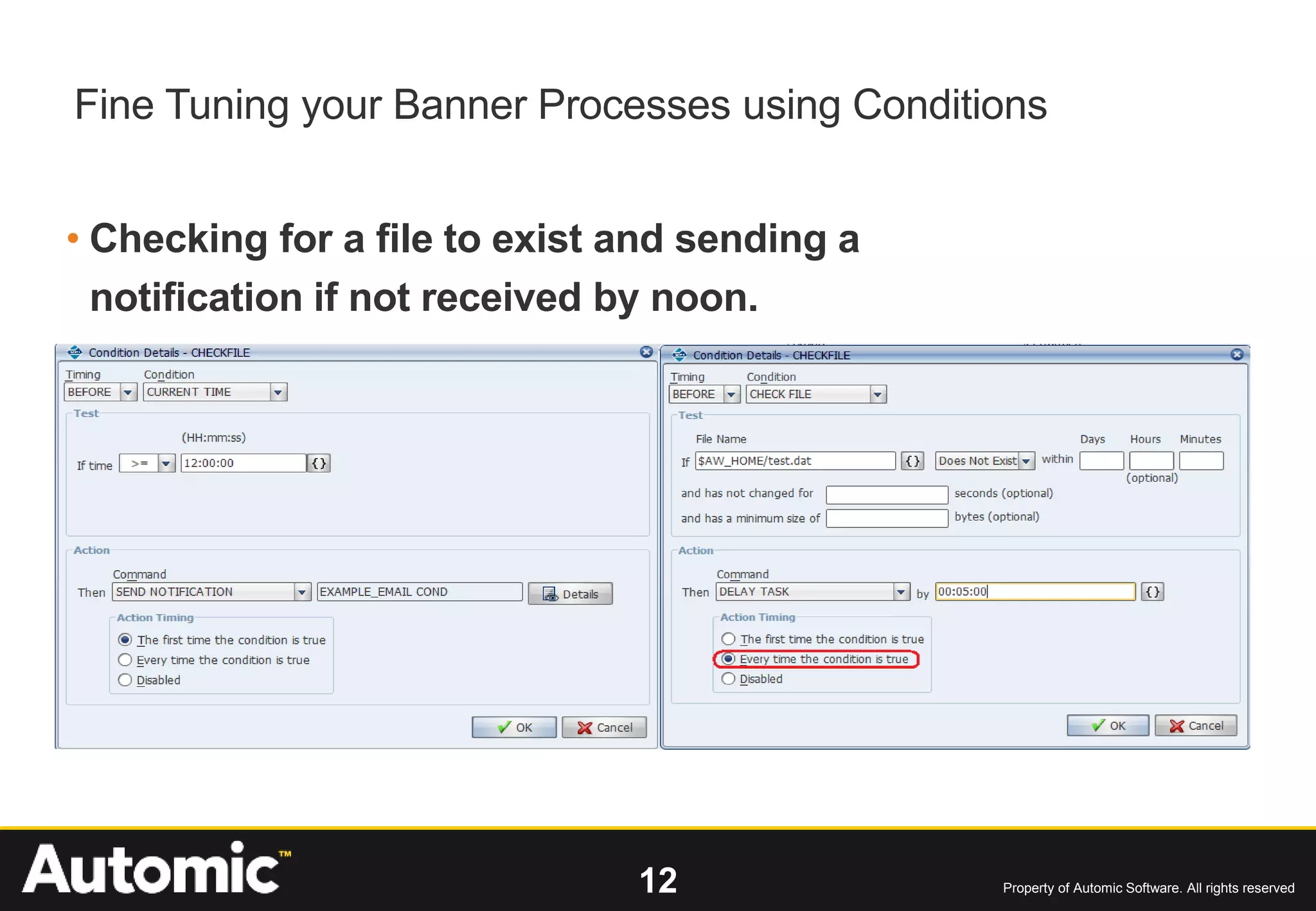
• Checking for a file to exist and sending a
notification if not received by noon.
Fine Tuning your Banner Processes using Conditions
13 Property of Automic Software. All rights reserved
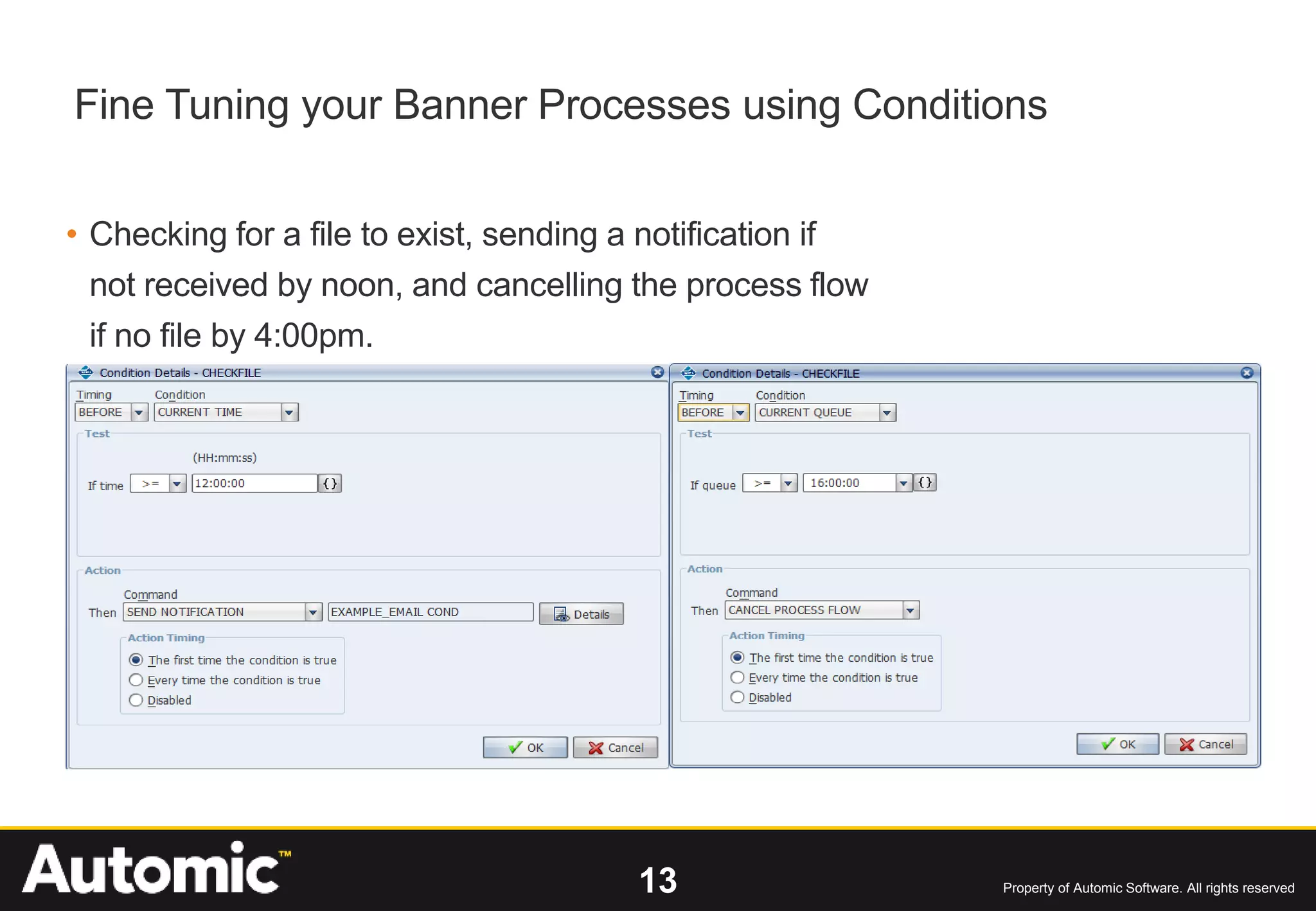
• Checking for a file to exist, sending a notification if
not received by noon, and cancelling the process flow
if no file by 4:00pm.
Fine Tuning your Banner Processes using Conditions
14 Property of Automic Software. All rights reserved
• Checking for a file to exist, sending a notification if
not received by noon, and cancelling the process flow
if no file by 4:00pm.
Fine Tuning your Banner Processes using Conditions
15 Property of Automic Software. All rights reserved
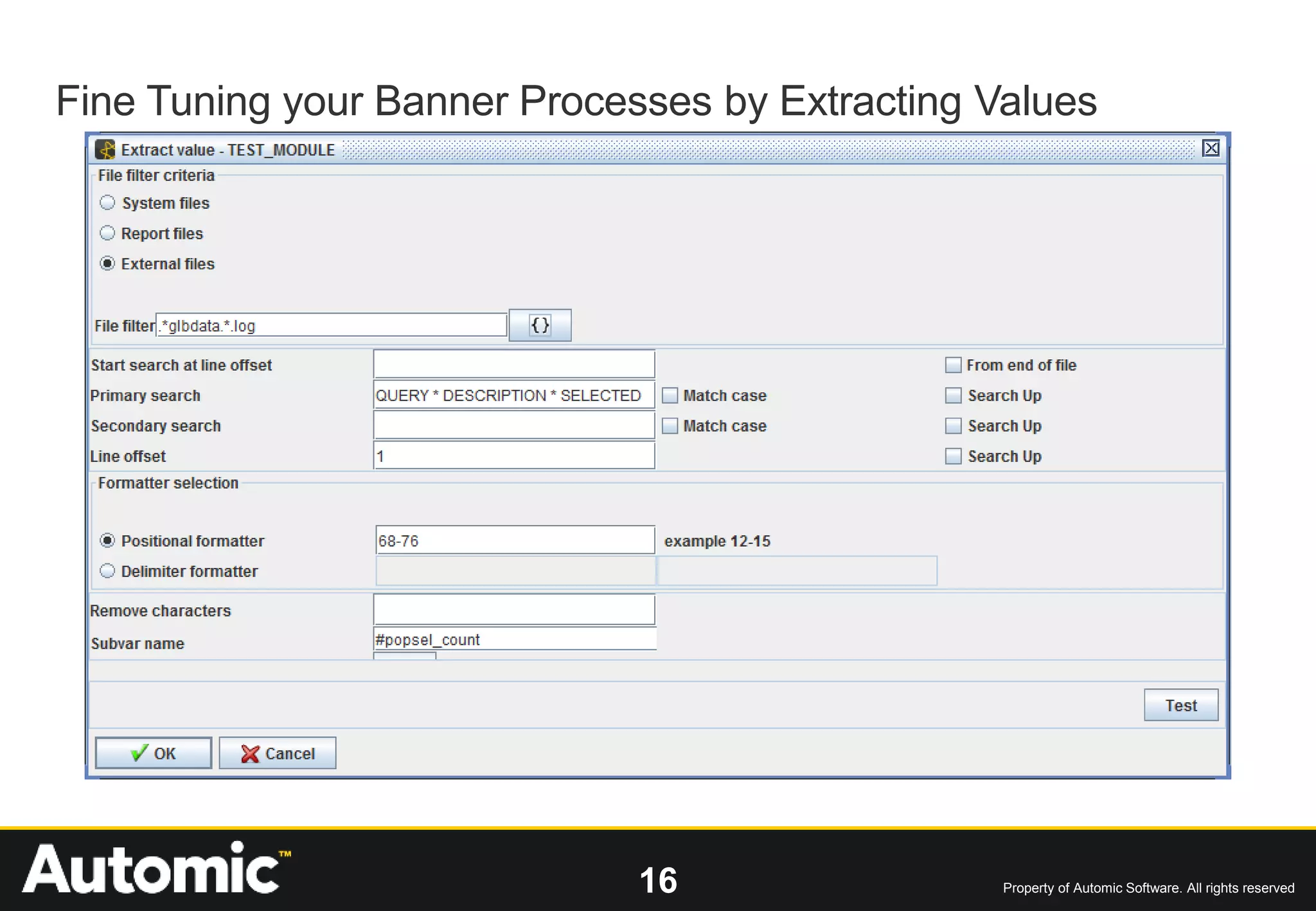
Fine Tuning your Banner Processes by Extracting Values
• GLBDATA Output
SUNGARD HIGHER EDUCATION
POPULATION SELECTION EXTRACT
CONTROL REPORT PAGE 1
Start Time: 24-JUL-2008 06:13:25
GLBDATA Version: 7.5
Selection ID 1: WAIVE_DEP_PAR_NOT_WORKING
Application: FINAID
Creator ID: FAISUSR
**************** Dynamic Parameters ****************
aidy_code: 0809
PEOPLE
QUERY DESCRIPTION SELECTED
WAIVE_DEP_PAR_NOT_WORKING Dep Stu-Par Not Working-Waive 10
SELECTION COMPLETED...
SELECTION COMPLETED FOR ON-LINE MODE
16 Property of Automic Software. All rights reserved
Fine Tuning your Banner Processes by Extracting Values
17 Property of Automic Software. All rights reserved
Integrate with other Applications
• Benefits of Automating other Applications
– Timing
• Making sure the ODS/EDW or other Databases have been refreshed
• Real-time versus Window Scheduling
• Get your reports sooner
– Notification/Distribution of Reports
• Letting people know when reports are ready
• Emailing reports
– Running your Reports at the right time all the time
– Tying it all together in one interface
18 Property of Automic Software. All rights reserved
• Sqlplus tips
-- Trapping Errors
WHENEVER OSERROR EXIT SQL.OSCODE
WHENEVER SQLERROR EXIT SQL.SQLCODE
-- Used to display output from DBMS_OUTPUT
set serveroutput on size 1000000
-- Setting Output to be in HTML format
SET MARKUP HTML ON SPOOL ON
-- Spooling Output to report file b.$jobid
spool &so_outfile
select * from so_operators;
exit
SQL Tips and Tricks
19 Property of Automic Software. All rights reserved
• Getting Average RunTime
SQL Tips and Tricks
20 Property of Automic Software. All rights reserved
• Getting Average RunTime SQL
select replace(to_char(trunc(round(ART)/60/60),'09') ||':'||
to_char(trunc(mod(round(ART),3600)/60),'09') ||':'||
to_char(mod(mod(round(ART),3600),60),'09'),' ')
from
(
select SO_AVG_RUNTIME ART from AW_JOB_ACTIVITY
where so_jobid = {jobid}
)
SQL Tips and Tricks
21 Property of Automic Software. All rights reserved
• Using Average RunTime in Condition
awexe UPD_SO_REF1 so_jobid={jobid} var_value='Job Longer than AVG'
SQL Tips and Tricks
22 Property of Automic Software. All rights reserved
• Using Average RunTime in Condition
SQL Tips and Tricks
23 Property of Automic Software. All rights reserved
Substitution Variables using Banner tables
 Use Dynamic Substitution Variables (SubVar) to query
calendar like tables based on relative date
24 Property of Automic Software. All rights reserved
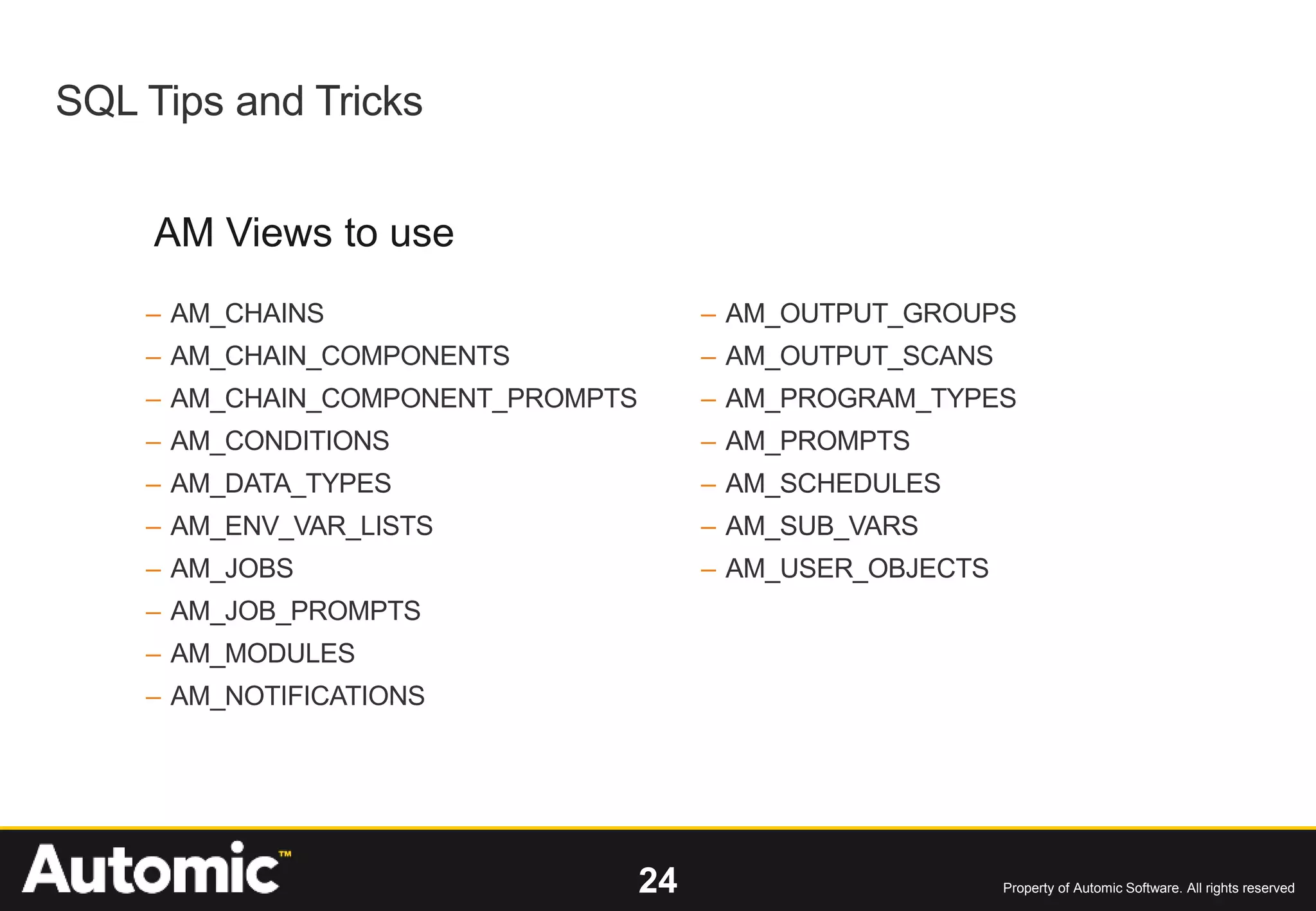
– AM_CHAINS
– AM_CHAIN_COMPONENTS
– AM_CHAIN_COMPONENT_PROMPTS
– AM_CONDITIONS
– AM_DATA_TYPES
– AM_ENV_VAR_LISTS
– AM_JOBS
– AM_JOB_PROMPTS
– AM_MODULES
– AM_NOTIFICATIONS
– AM_OUTPUT_GROUPS
– AM_OUTPUT_SCANS
– AM_PROGRAM_TYPES
– AM_PROMPTS
– AM_SCHEDULES
– AM_SUB_VARS
– AM_USER_OBJECTS
SQL Tips and Tricks
AM Views to use
25 Property of Automic Software. All rights reserved
• Selecting Jobs to Capture
– You can select which jobs get captured by Automic.
– Or use regular expressions for includes/excludes.
Banner Job Capture
26 Property of Automic Software. All rights reserved
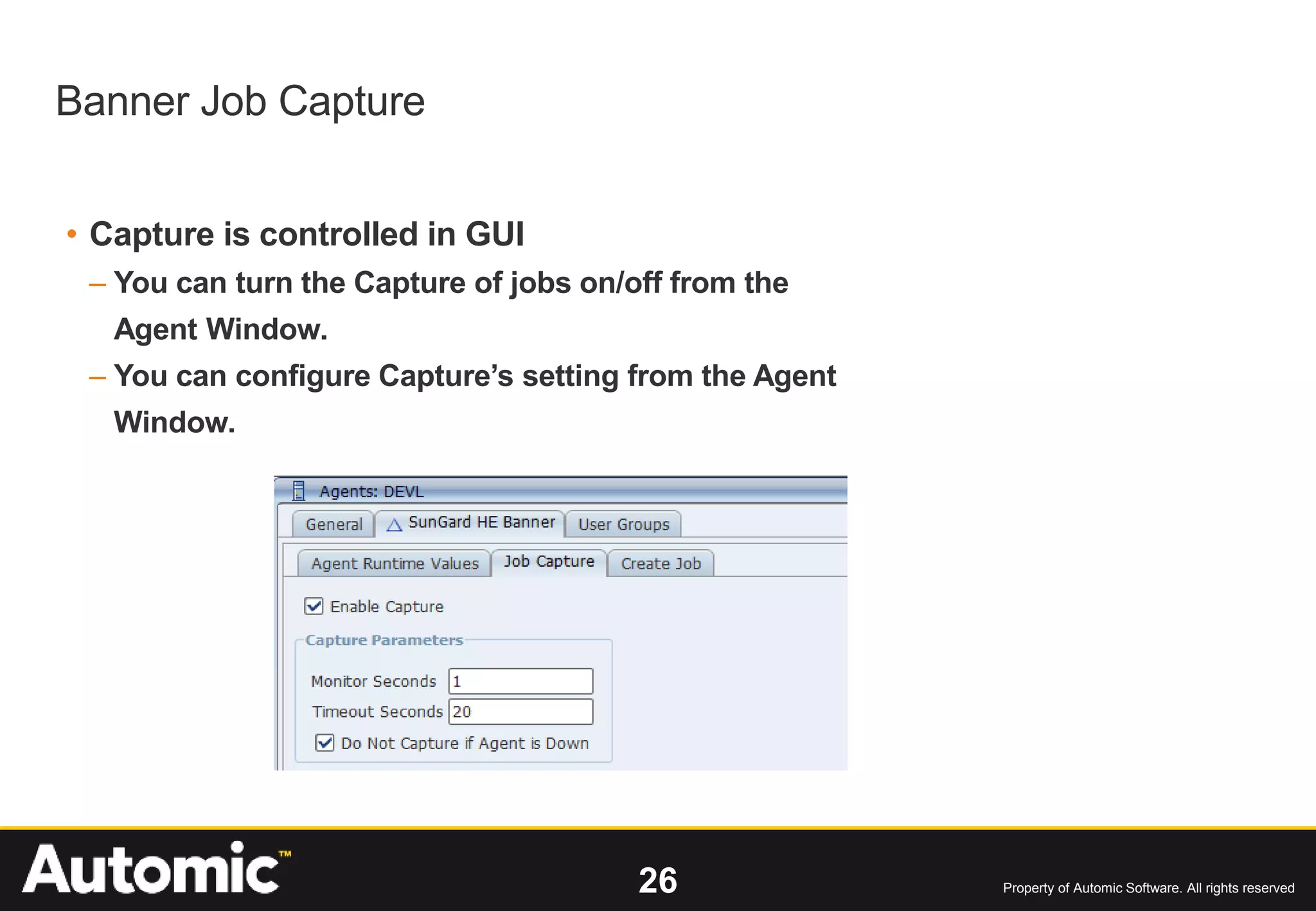
• Capture is controlled in GUI
– You can turn the Capture of jobs on/off from the
Agent Window.
– You can configure Capture’s setting from the Agent
Window.
Banner Job Capture
27 Property of Automic Software. All rights reserved
• More information about the jobs is Captured
– The jobs parameters
– The one_up number
– Now if a Automic user exists with the same name as the Banner user, the job will run
as that user.
– If a Automic user does not exist with the same name as the Banner user, a Automic
user will be created for the job to run as.
Note: Users created by this method are initial locked and will need unlocked before
the user can log in.
– Now users can log into Applications Manager and see their jobs running and also run
history queries to look for previous runs.
Banner Job Capture
28 Property of Automic Software. All rights reserved
• Controlling Captured Jobs
– If a Automic job exists for the Captured job, it will be used as the template.
• It will use the template’s General settings and Output options.
• It will also use any conditions on the template.
– Some of the things you can do with Captured jobs
• Make a Banner job single run.
• Use Queues to control how many can run concurrently.
• Use Notifications to Alert you when certain jobs run, abort, or finish normally.
• Prevent a job from running after a certain time.
• Have Banner output files emailed to you.
Banner Job Capture
Questions?
Thank you

Automic Banner Lessons from the Field

  • 2.
    Banner Lessons Learned fromthe Field October 2015 Dennis Strenkowski
  • 3.
    3 Property ofAutomic Software. All rights reserved Banner Lessons Learned from the Field •Running Banner Jobs in Audit Mode •Fine Tuning your Banner Processes •SQL Tips and Tricks •Banner Job Capture
  • 4.
    4 Property ofAutomic Software. All rights reserved Running Banner Jobs in Audit Mode • Many Banner Programs allow the program to be run in Audit or Update Mode – Audit – produces report of all transactions, including errors, but does not commit any changes – Update – produces report of all transactions, including errors and commits any changes • These program usually require running the program in Audit mode and checking the report for problems before running the same program again in Update mode.
  • 5.
    5 Property ofAutomic Software. All rights reserved Banner Audit Mode • Reported errors in Audit mode: • Fix immediately, rerun Audit mode. Run Update mode only when no errors. • Fix later; run Update mode. Corrections will be picked up next time transactions processed. • In either case fixing errors requires user intervention • Errors must be reported to user(s) who can make the necessary corrections
  • 6.
    6 Property ofAutomic Software. All rights reserved Implementing Audit Mode in AM • Automating Audit mode in AM requires at least two additional objects • Output Scan – Check for error text in report file • Notification – E-mail report file if error text found • These objects are assigned to the Module that is run in Audit mode • The Update mode Module is dependent on the Successful completion of the Audit mode Module
  • 7.
    7 Property ofAutomic Software. All rights reserved Implementing Audit Mode in AM • Output Scan – Check for text indicating no errors
  • 8.
    8 Property ofAutomic Software. All rights reserved Implementing Audit Mode in AM • Notification – emails Banner listing for user intervention
  • 9.
    9 Property ofAutomic Software. All rights reserved Implementing Audit Mode in AM • Assign Output Scan and Notification to Module
  • 10.
    10 Property ofAutomic Software. All rights reserved Implementing Audit Mode in AM • Audit and Updates can now be performed in the same Chain • Update will not run until Audit completes successfully
  • 11.
    11 Property ofAutomic Software. All rights reserved • Testing for specific errors • Using regular expressions in error messages Fine Tuning your Banner Processes using Output Scans
  • 12.
    12 Property ofAutomic Software. All rights reserved • Checking for a file to exist and sending a notification if not received by noon. Fine Tuning your Banner Processes using Conditions
  • 13.
    13 Property ofAutomic Software. All rights reserved • Checking for a file to exist, sending a notification if not received by noon, and cancelling the process flow if no file by 4:00pm. Fine Tuning your Banner Processes using Conditions
  • 14.
    14 Property ofAutomic Software. All rights reserved • Checking for a file to exist, sending a notification if not received by noon, and cancelling the process flow if no file by 4:00pm. Fine Tuning your Banner Processes using Conditions
  • 15.
    15 Property ofAutomic Software. All rights reserved Fine Tuning your Banner Processes by Extracting Values • GLBDATA Output SUNGARD HIGHER EDUCATION POPULATION SELECTION EXTRACT CONTROL REPORT PAGE 1 Start Time: 24-JUL-2008 06:13:25 GLBDATA Version: 7.5 Selection ID 1: WAIVE_DEP_PAR_NOT_WORKING Application: FINAID Creator ID: FAISUSR **************** Dynamic Parameters **************** aidy_code: 0809 PEOPLE QUERY DESCRIPTION SELECTED WAIVE_DEP_PAR_NOT_WORKING Dep Stu-Par Not Working-Waive 10 SELECTION COMPLETED... SELECTION COMPLETED FOR ON-LINE MODE
  • 16.
    16 Property ofAutomic Software. All rights reserved Fine Tuning your Banner Processes by Extracting Values
  • 17.
    17 Property ofAutomic Software. All rights reserved Integrate with other Applications • Benefits of Automating other Applications – Timing • Making sure the ODS/EDW or other Databases have been refreshed • Real-time versus Window Scheduling • Get your reports sooner – Notification/Distribution of Reports • Letting people know when reports are ready • Emailing reports – Running your Reports at the right time all the time – Tying it all together in one interface
  • 18.
    18 Property ofAutomic Software. All rights reserved • Sqlplus tips -- Trapping Errors WHENEVER OSERROR EXIT SQL.OSCODE WHENEVER SQLERROR EXIT SQL.SQLCODE -- Used to display output from DBMS_OUTPUT set serveroutput on size 1000000 -- Setting Output to be in HTML format SET MARKUP HTML ON SPOOL ON -- Spooling Output to report file b.$jobid spool &so_outfile select * from so_operators; exit SQL Tips and Tricks
  • 19.
    19 Property ofAutomic Software. All rights reserved • Getting Average RunTime SQL Tips and Tricks
  • 20.
    20 Property ofAutomic Software. All rights reserved • Getting Average RunTime SQL select replace(to_char(trunc(round(ART)/60/60),'09') ||':'|| to_char(trunc(mod(round(ART),3600)/60),'09') ||':'|| to_char(mod(mod(round(ART),3600),60),'09'),' ') from ( select SO_AVG_RUNTIME ART from AW_JOB_ACTIVITY where so_jobid = {jobid} ) SQL Tips and Tricks
  • 21.
    21 Property ofAutomic Software. All rights reserved • Using Average RunTime in Condition awexe UPD_SO_REF1 so_jobid={jobid} var_value='Job Longer than AVG' SQL Tips and Tricks
  • 22.
    22 Property ofAutomic Software. All rights reserved • Using Average RunTime in Condition SQL Tips and Tricks
  • 23.
    23 Property ofAutomic Software. All rights reserved Substitution Variables using Banner tables  Use Dynamic Substitution Variables (SubVar) to query calendar like tables based on relative date
  • 24.
    24 Property ofAutomic Software. All rights reserved – AM_CHAINS – AM_CHAIN_COMPONENTS – AM_CHAIN_COMPONENT_PROMPTS – AM_CONDITIONS – AM_DATA_TYPES – AM_ENV_VAR_LISTS – AM_JOBS – AM_JOB_PROMPTS – AM_MODULES – AM_NOTIFICATIONS – AM_OUTPUT_GROUPS – AM_OUTPUT_SCANS – AM_PROGRAM_TYPES – AM_PROMPTS – AM_SCHEDULES – AM_SUB_VARS – AM_USER_OBJECTS SQL Tips and Tricks AM Views to use
  • 25.
    25 Property ofAutomic Software. All rights reserved • Selecting Jobs to Capture – You can select which jobs get captured by Automic. – Or use regular expressions for includes/excludes. Banner Job Capture
  • 26.
    26 Property ofAutomic Software. All rights reserved • Capture is controlled in GUI – You can turn the Capture of jobs on/off from the Agent Window. – You can configure Capture’s setting from the Agent Window. Banner Job Capture
  • 27.
    27 Property ofAutomic Software. All rights reserved • More information about the jobs is Captured – The jobs parameters – The one_up number – Now if a Automic user exists with the same name as the Banner user, the job will run as that user. – If a Automic user does not exist with the same name as the Banner user, a Automic user will be created for the job to run as. Note: Users created by this method are initial locked and will need unlocked before the user can log in. – Now users can log into Applications Manager and see their jobs running and also run history queries to look for previous runs. Banner Job Capture
  • 28.
    28 Property ofAutomic Software. All rights reserved • Controlling Captured Jobs – If a Automic job exists for the Captured job, it will be used as the template. • It will use the template’s General settings and Output options. • It will also use any conditions on the template. – Some of the things you can do with Captured jobs • Make a Banner job single run. • Use Queues to control how many can run concurrently. • Use Notifications to Alert you when certain jobs run, abort, or finish normally. • Prevent a job from running after a certain time. • Have Banner output files emailed to you. Banner Job Capture
  • 29.
  • 30.