AUGMENTED REALITY


     Paolo Quadrani

         MitAPP


      www.MitAPP.com
DEFINITION


• Isa term for a live direct or indirect view of a physical real-
  world environment whose elements are augmented by virtual
  computer-generated imagery. (Wikipedia)


       www.MitAPP.com
HISTORY
•   1966: was invented the head mounted display.

•   1992: The term Augmented Reality has been coined by Thomas
    Caudell.

•   1999: Hirokazu Kato develops ARToolKit and is demonstrated at
    Siggraph in the same year.

•   2008: Wikitude AR Travel Guide is launched with the G1
    Android Phone.

•   2010: acrossair, AR Browser brings AR to the mobile user on the
    iPhone 3Gs.

    www.MitAPP.com
TECHNOLOGY - TRACKING
•   Mobile devices use

    •   Digital camera.

    •   Accelerometers.

    •   GPS.

    •   Gyroscopes, Solid state compasses.

    •   RFID.

    •   Wireless sensors.

           www.MitAPP.com
PROCEDURE

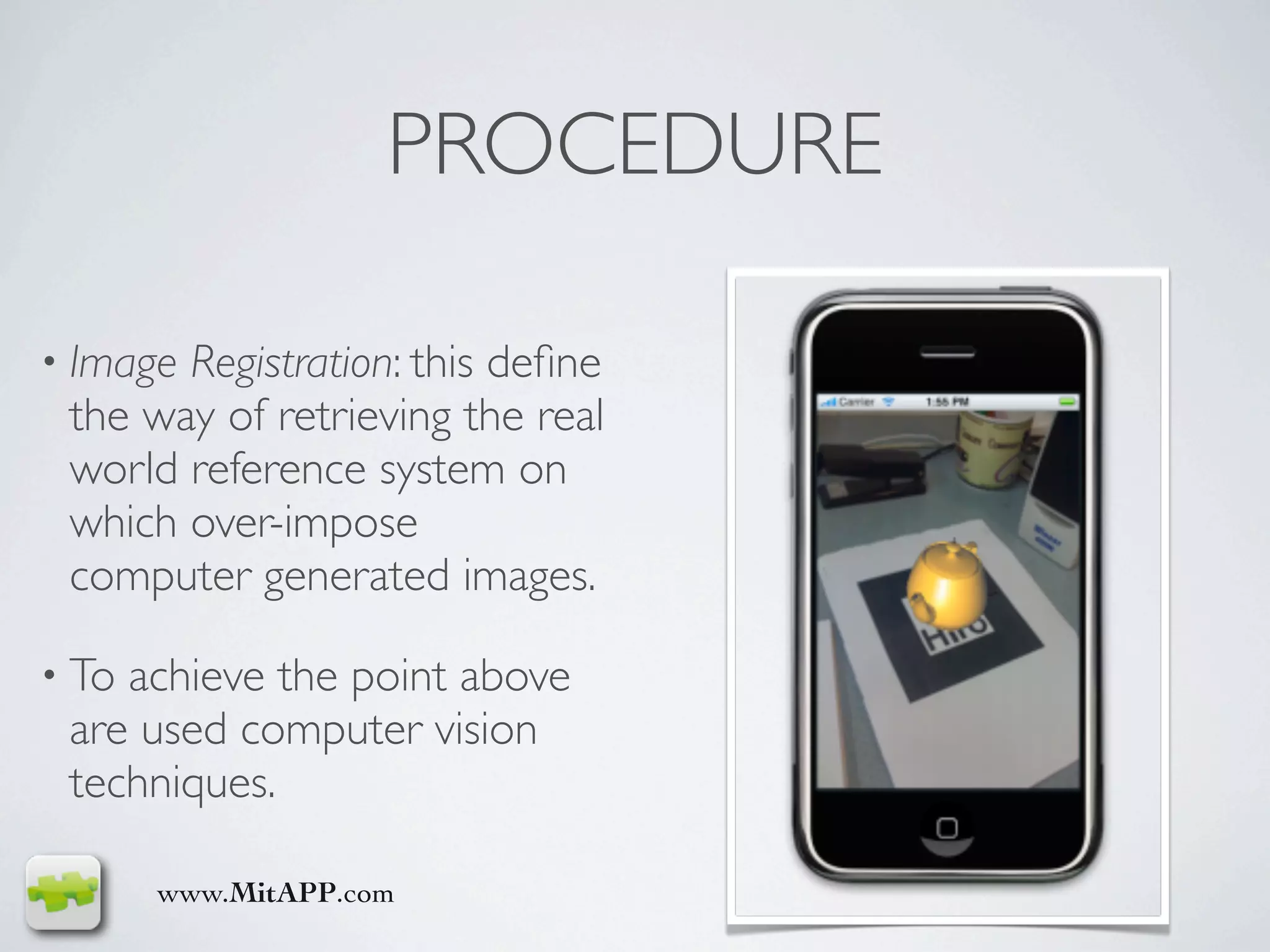
• ImageRegistration: this define
 the way of retrieving the real
 world reference system on
 which over-impose
 computer generated images.

• Toachieve the point above
 are used computer vision
 techniques.

       www.MitAPP.com
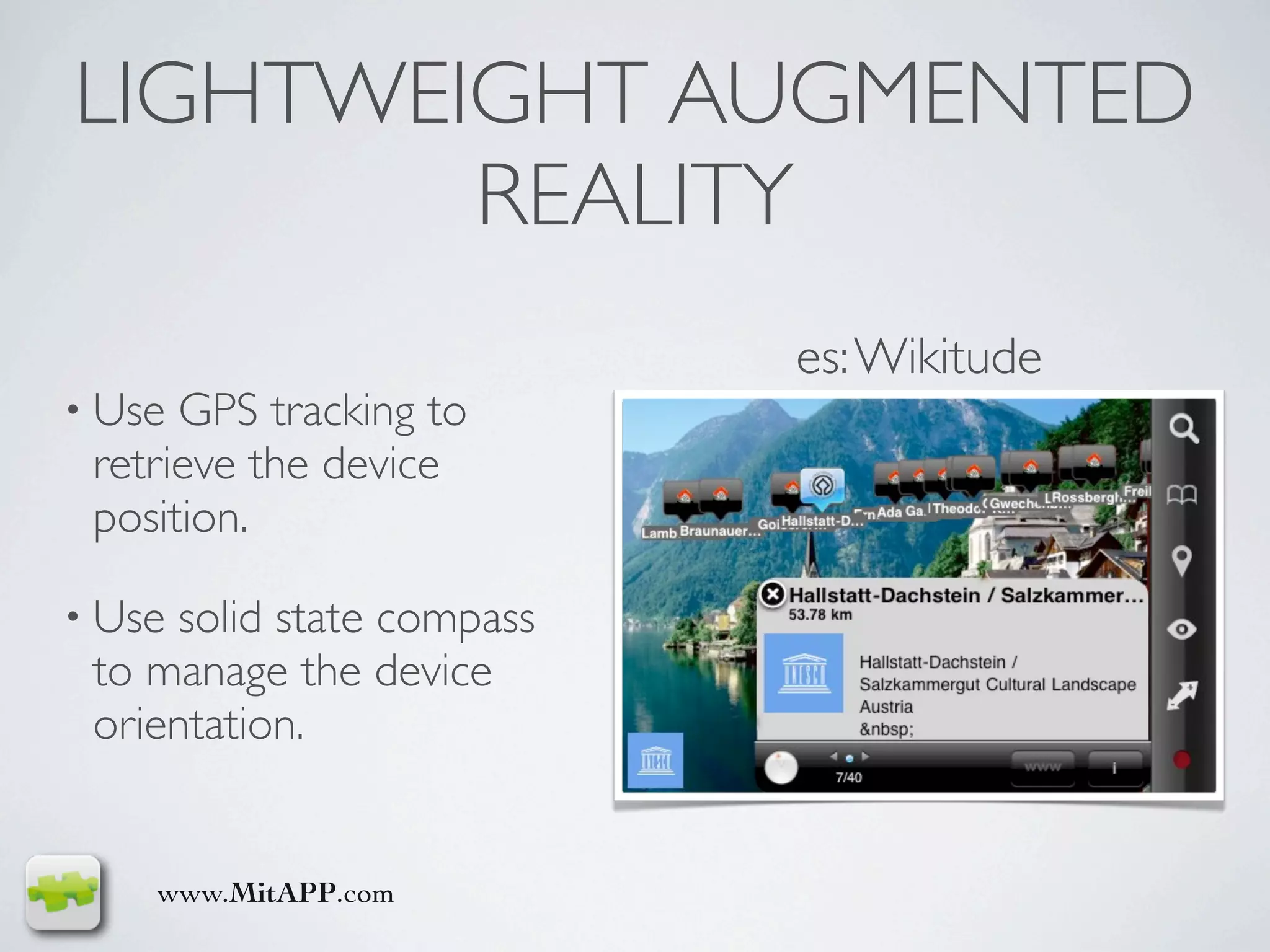
LIGHTWEIGHT AUGMENTED
        REALITY
                           es: Wikitude
• Use GPS tracking to
 retrieve the device
 position.

• Usesolid state compass
 to manage the device
 orientation.


    www.MitAPP.com
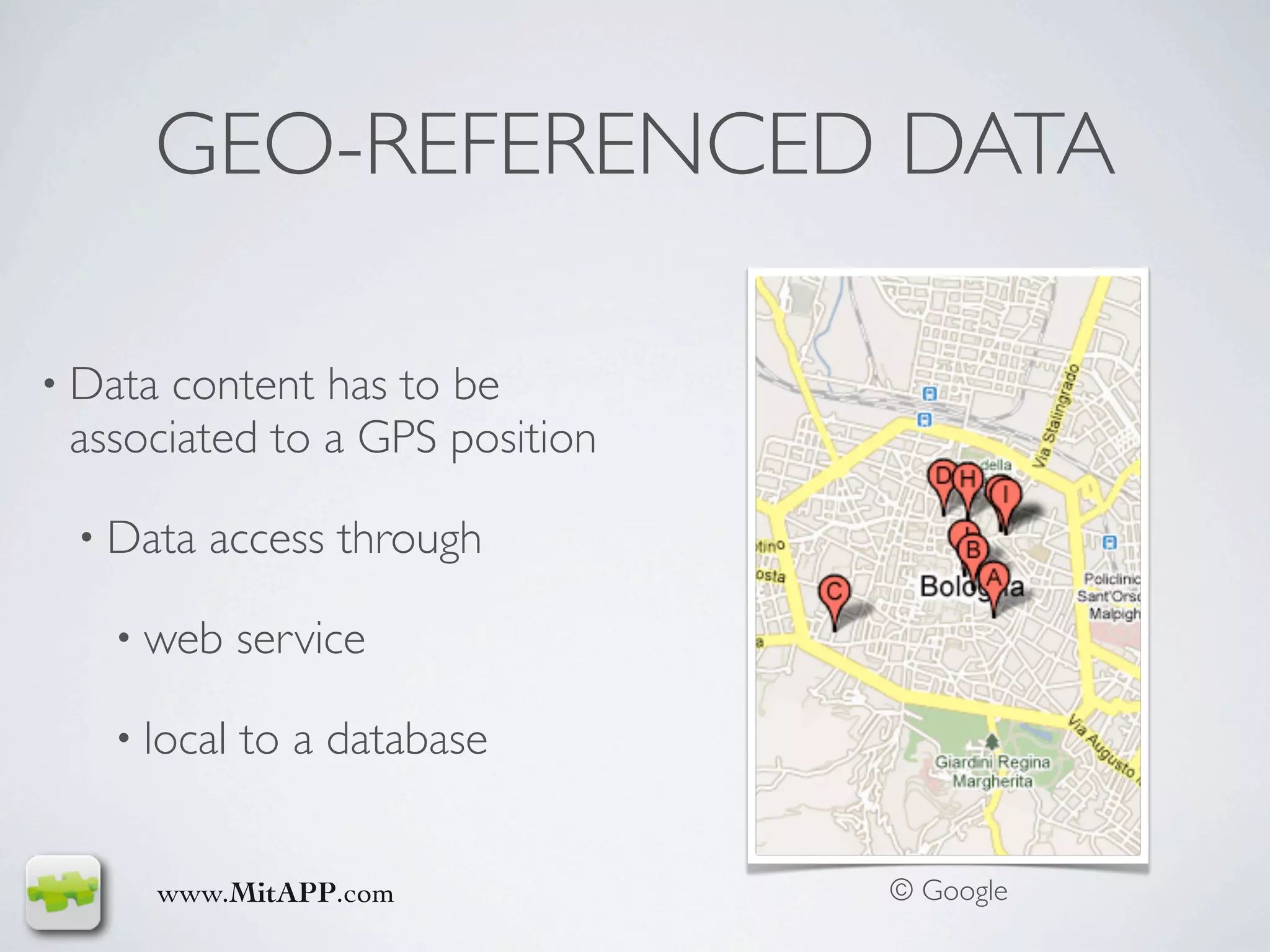
Ristoranti - Google Maps


     GEO-REFERENCED DATA

• Datacontent has to be
 associated to a GPS position

 • Data   access through

   • web     service

   • local   to a database


     www.MitAPP.com                       © Google
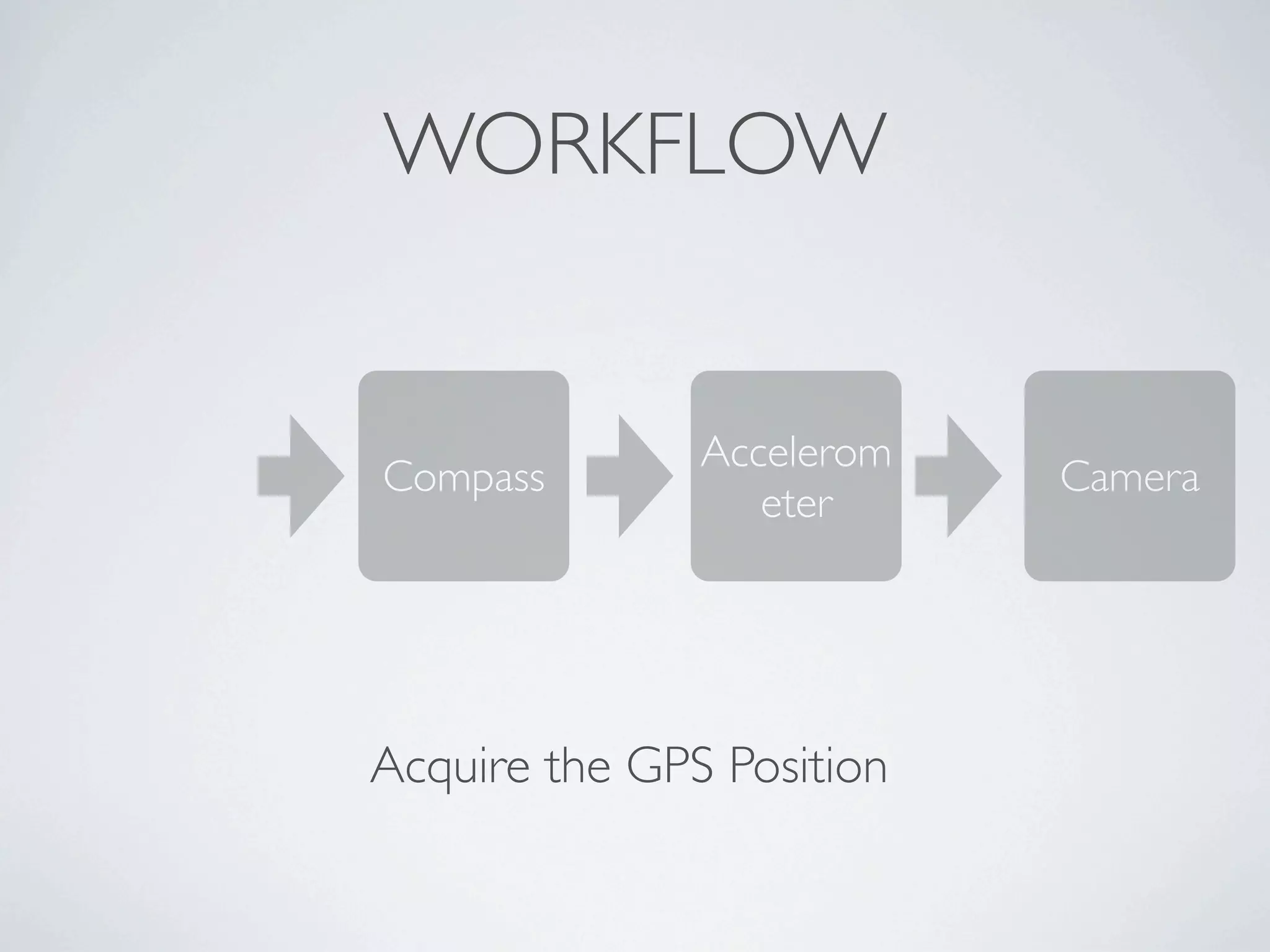
WORKFLOW


               Accelerom
Compass                    Camera
                  eter


Acquire the GPS Position
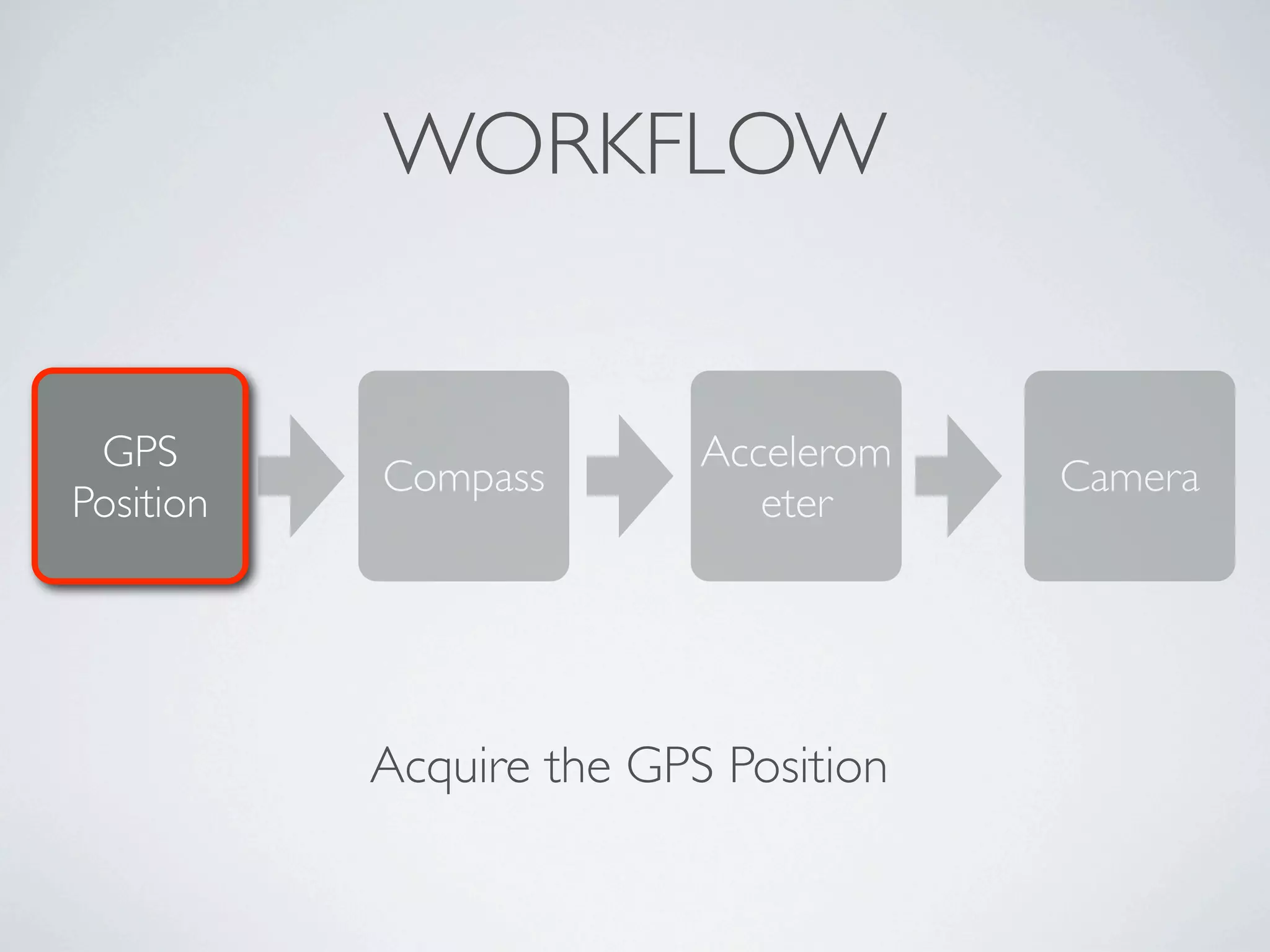
WORKFLOW


 GPS                      Accelerom
           Compass                    Camera
Position                     eter


           Acquire the GPS Position
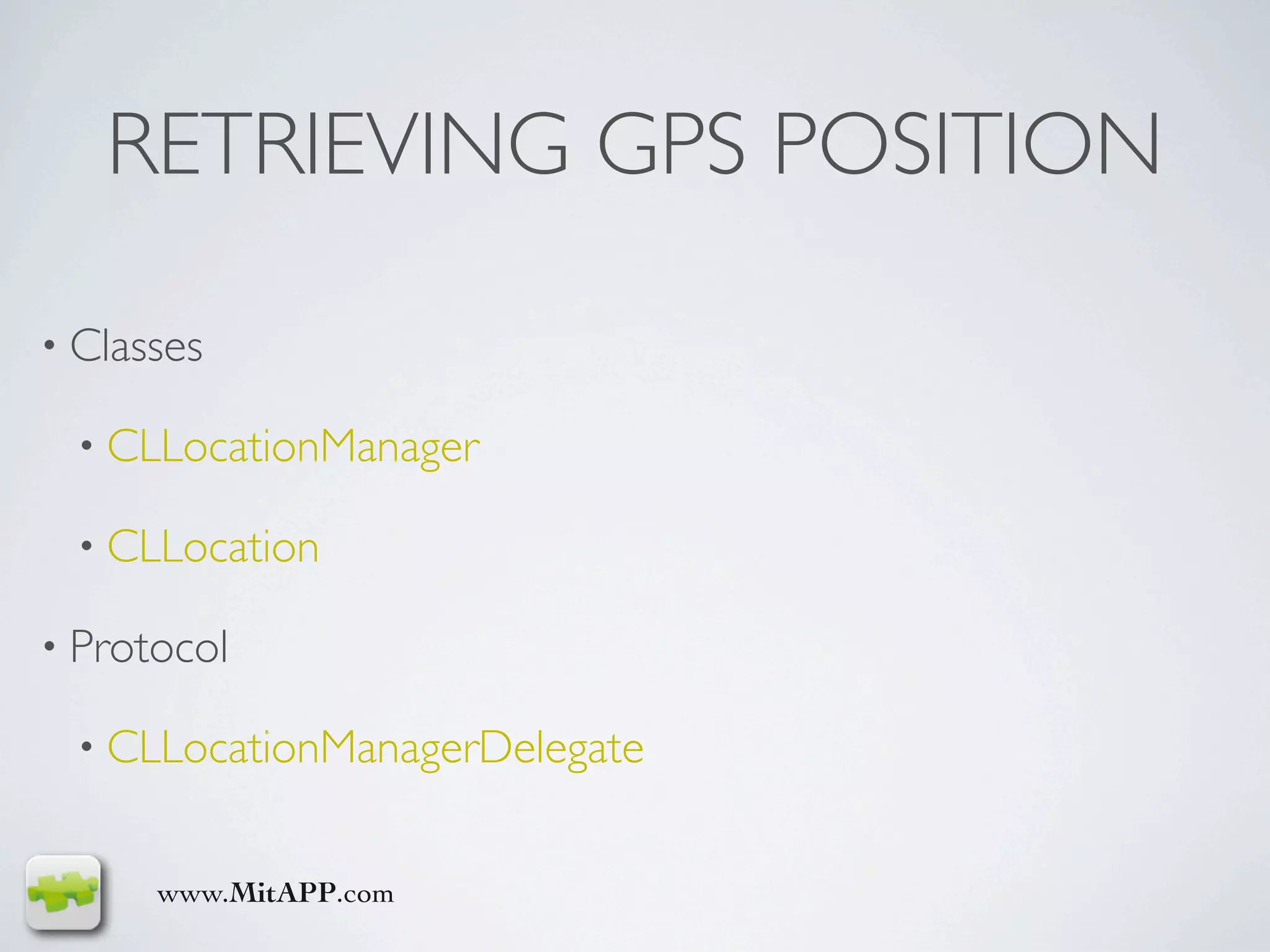
RETRIEVING GPS POSITION

• Classes

  • CLLocationManager

  • CLLocation

• Protocol

  • CLLocationManagerDelegate


      www.MitAPP.com
RETRIEVING GPS POSITION
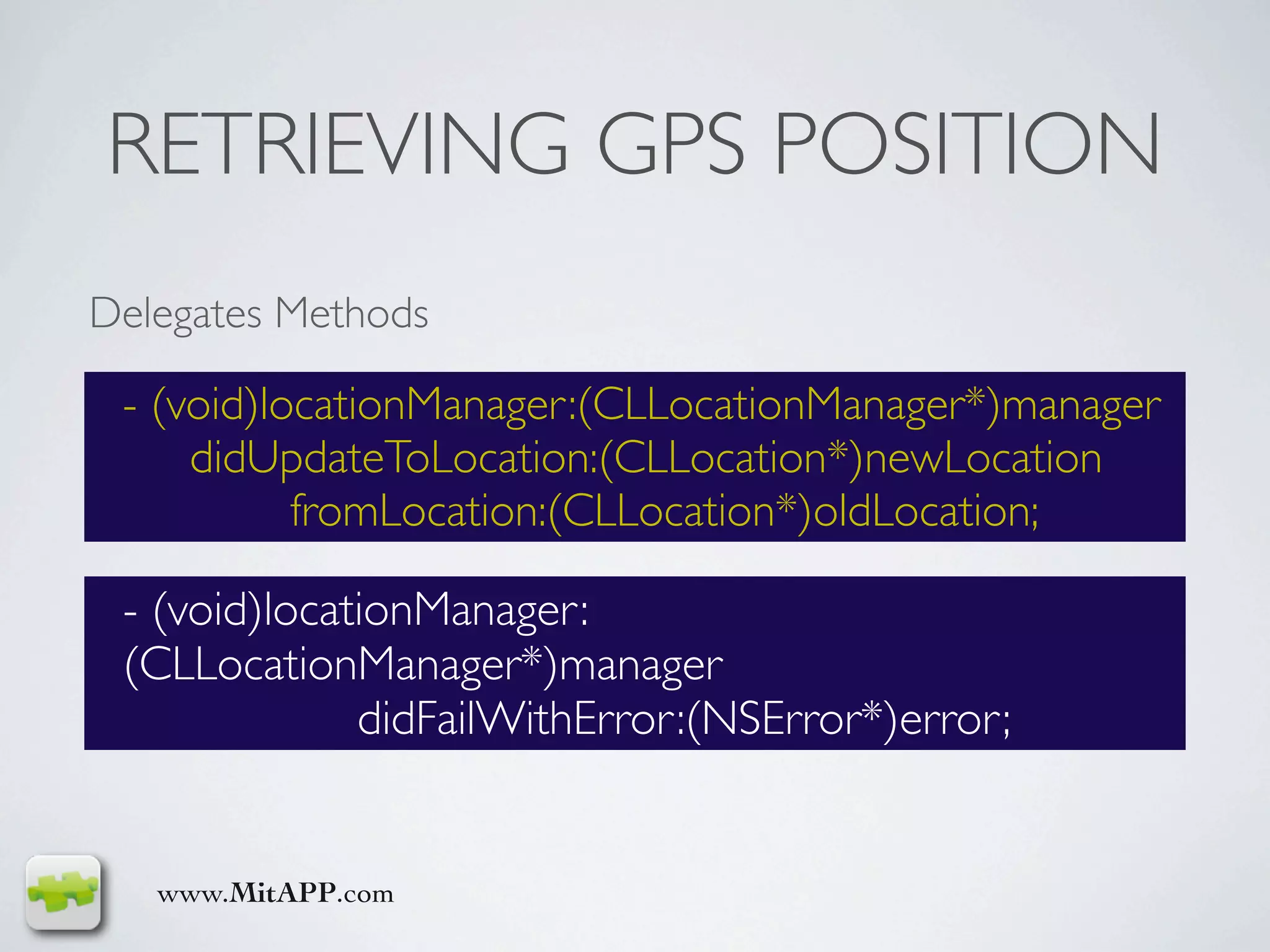
Delegates Methods

 - (void)locationManager:(CLLocationManager*)manager
     didUpdateToLocation:(CLLocation*)newLocation
           fromLocation:(CLLocation*)oldLocation;

 - (void)locationManager:
 (CLLocationManager*)manager
              didFailWithError:(NSError*)error;


   www.MitAPP.com
RETRIEVING GPS POSITION
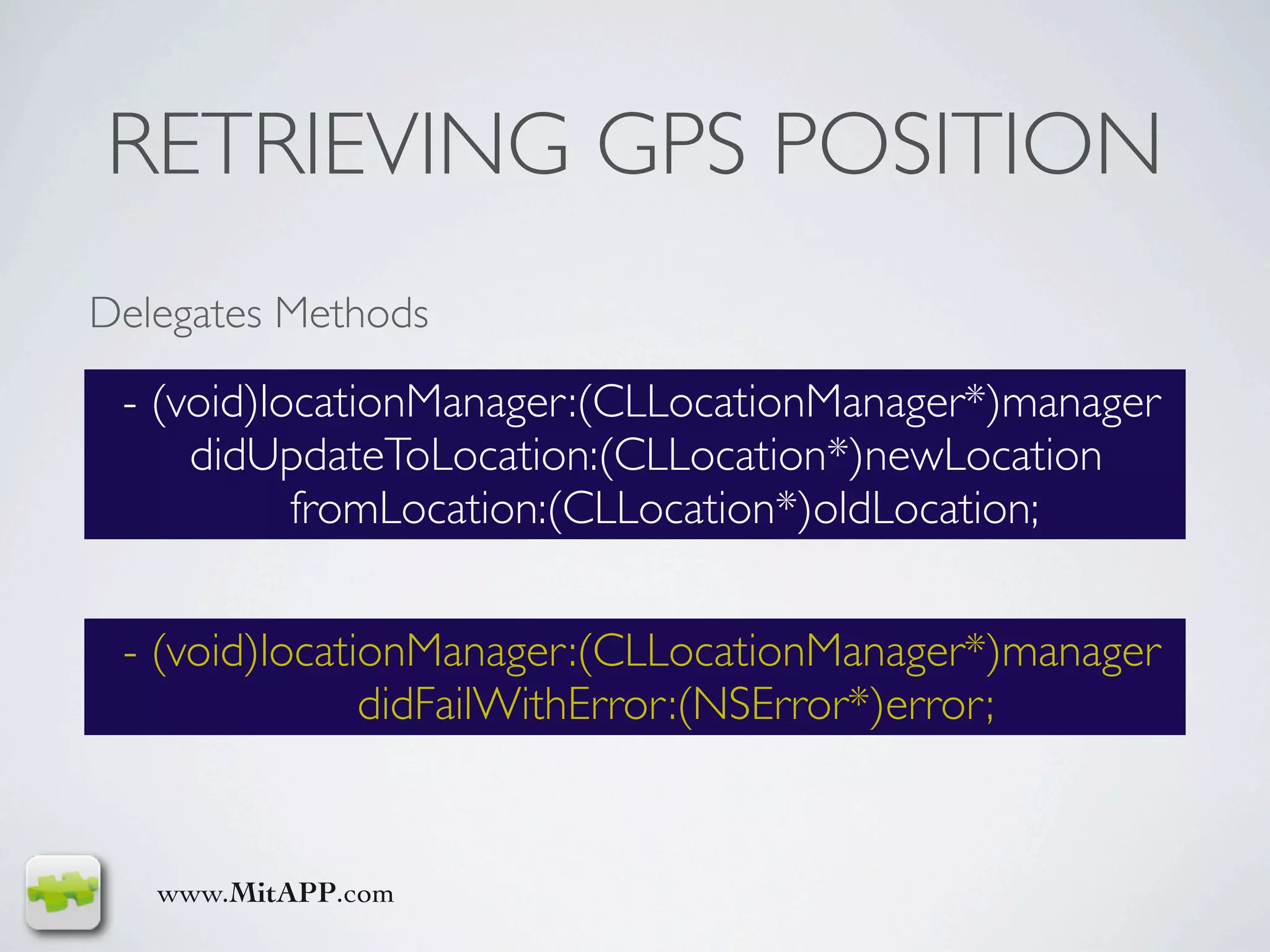
Delegates Methods

 - (void)locationManager:(CLLocationManager*)manager
     didUpdateToLocation:(CLLocation*)newLocation
           fromLocation:(CLLocation*)oldLocation;


 - (void)locationManager:(CLLocationManager*)manager
               didFailWithError:(NSError*)error;


   www.MitAPP.com
RETRIEVING GPS POSITION
CLLocationManager* manager =
[[CLLocationManager alloc] init];
[manager setDelegate:self];
[manager
setDesiredAccuracy:kCLLocationAccuracyBest];
[manager setDistanceFilter:10];
[manager startUpdatingLocation];


 www.MitAPP.com
RETRIEVING GPS POSITION
CLLocationManager* manager = [[CLLocationManager
alloc] init];
[manager setDelegate:self];
[manager
setDesiredAccuracy:kCLLocationAccuracyBest];
[manager setDistanceFilter:10]; // Distance expressed in
meters
[manager startUpdatingLocation];


 www.MitAPP.com
RETRIEVING GPS POSITION

CLLocationManager* manager = [[CLLocationManager alloc]
init];
[manager setDelegate:self];
[manager setDesiredAccuracy:kCLLocationAccuracyBest];
[manager setDistanceFilter:10];
[manager startUpdatingLocation];


 www.MitAPP.com
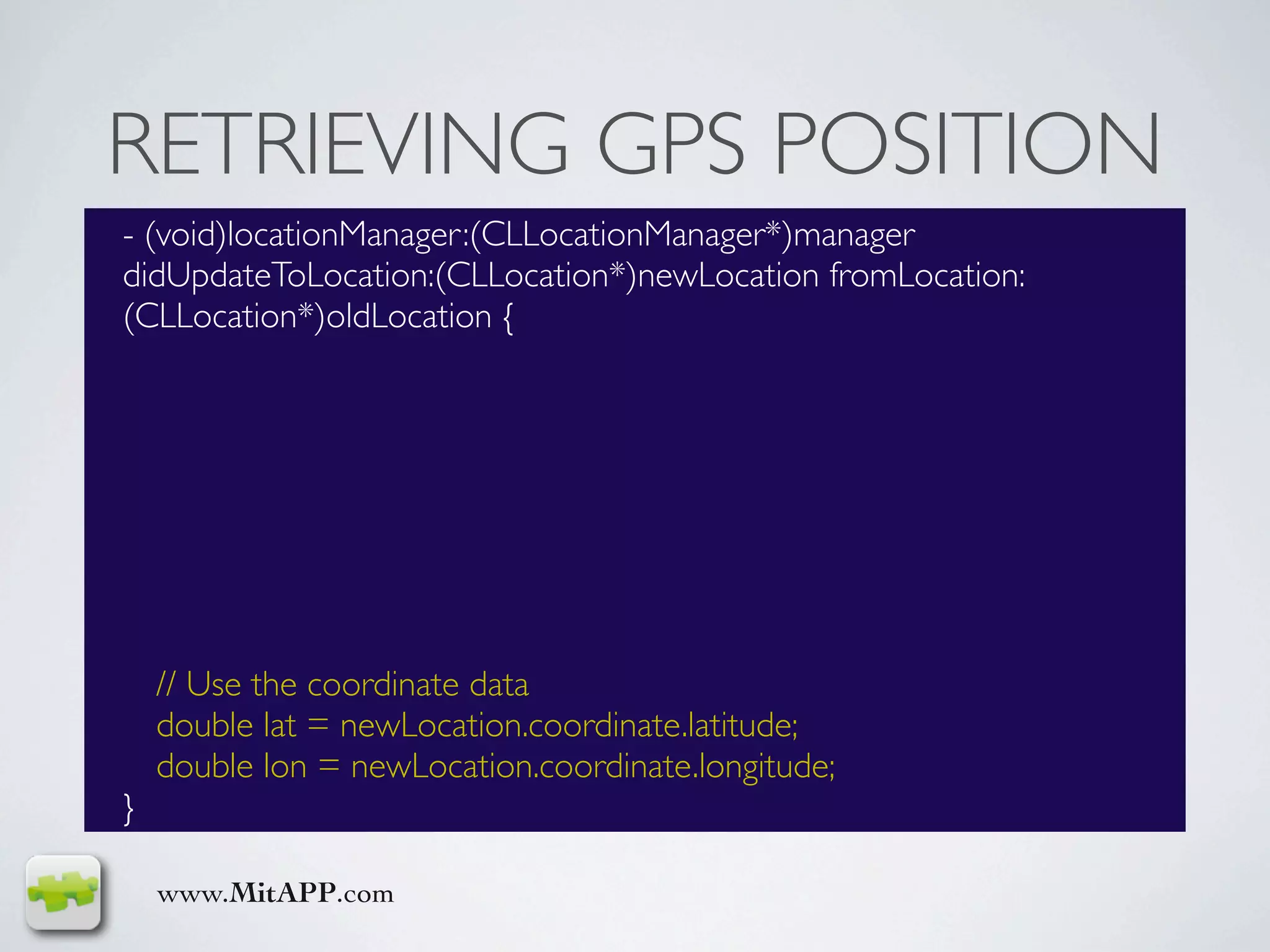
RETRIEVING GPS POSITION
- (void)locationManager:(CLLocationManager*)manager
didUpdateToLocation:(CLLocation*)newLocation fromLocation:
(CLLocation*)oldLocation {


    // Use the coordinate data
    double lat = newLocation.coordinate.latitude;
    double lon = newLocation.coordinate.longitude;
}

    www.MitAPP.com
RETRIEVING GPS POSITION
- (void)locationManager:(CLLocationManager*)manager
didUpdateToLocation:(CLLocation*)newLocation fromLocation:
(CLLocation*)oldLocation {

    NSTimeInterval howRecent =
    [newLocation.timestamp timeIntervalSinceNow];

    if (howRecent < -10) return;

    if (newLocation.horizontalAccuracy > 100) return;

    // Use the coordinate data
    double lat = newLocation.coordinate.latitude;
    double lon = newLocation.coordinate.longitude;
}

    www.MitAPP.com
RETRIEVING GPS POSITION
- (void)locationManager:(CLLocationManager*)manager
didUpdateToLocation:(CLLocation*)newLocation fromLocation:
(CLLocation*)oldLocation {

    NSTimeInterval howRecent =
    [newLocation.timestamp timeIntervalSinceNow];

    if (howRecent < -10) return;

    if (newLocation.horizontalAccuracy > 100) return;

    // Use the coordinate data
    double lat = newLocation.coordinate.latitude;
    double lon = newLocation.coordinate.longitude;
}

    www.MitAPP.com
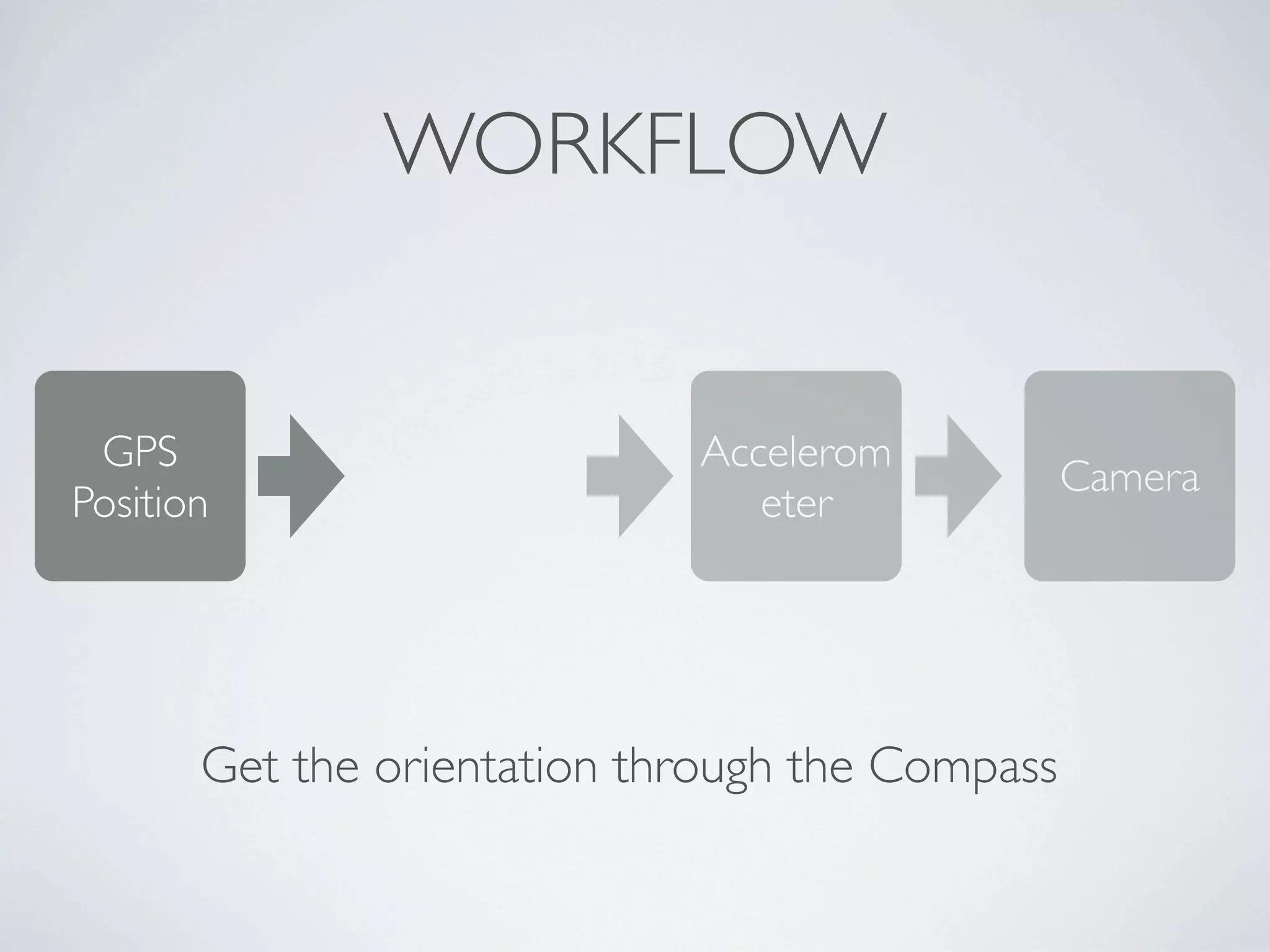
WORKFLOW


 GPS                         Accelerom
                                                 Camera
Position                        eter


       Get the orientation through the Compass
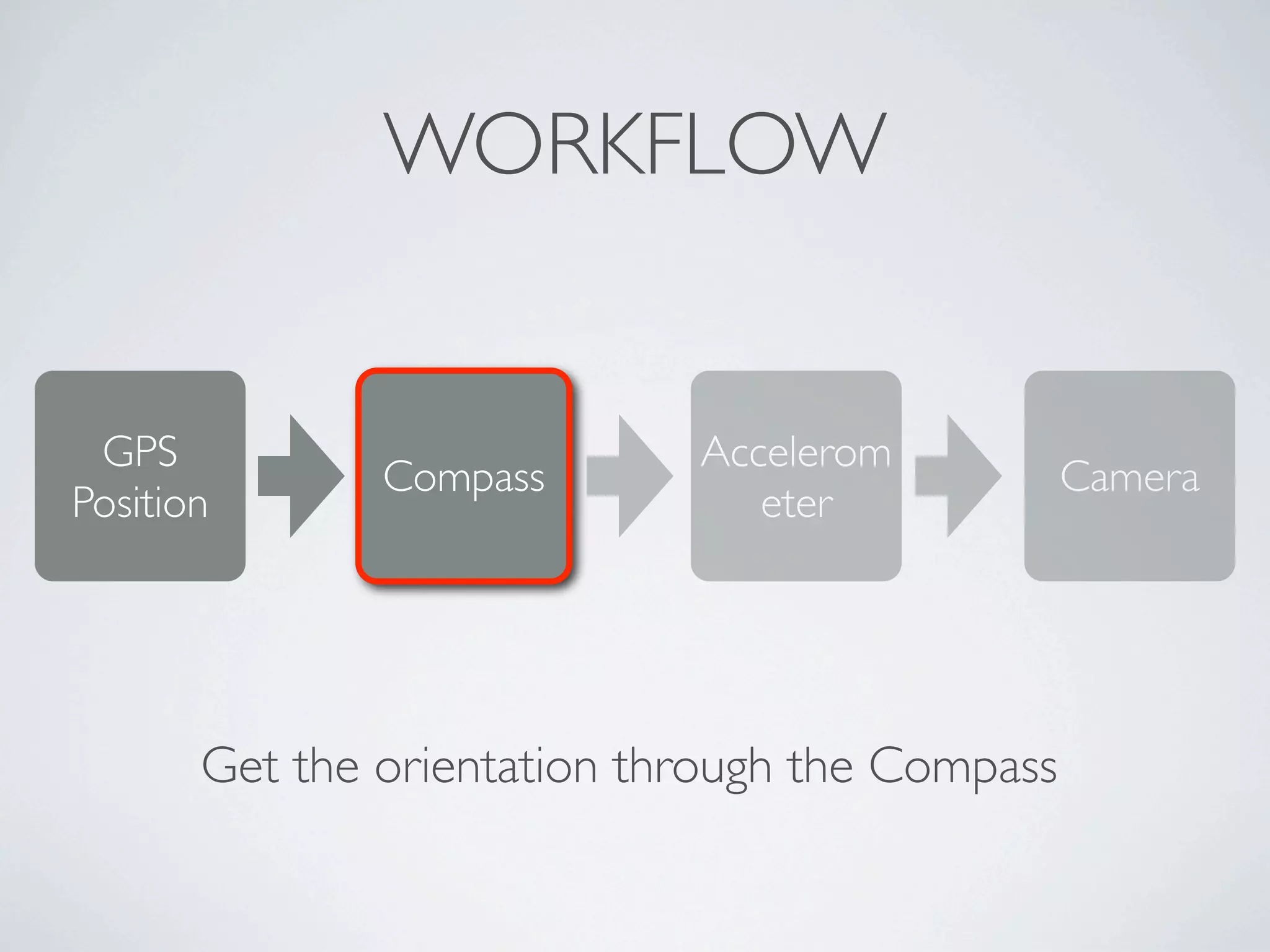
WORKFLOW


 GPS                         Accelerom
               Compass                           Camera
Position                        eter


       Get the orientation through the Compass
USING THE COMPASS

• Classes

  • CLLocationManager

  • CLHeading

• Protocol

  • CLLocationManagerDelegate


      www.MitAPP.com
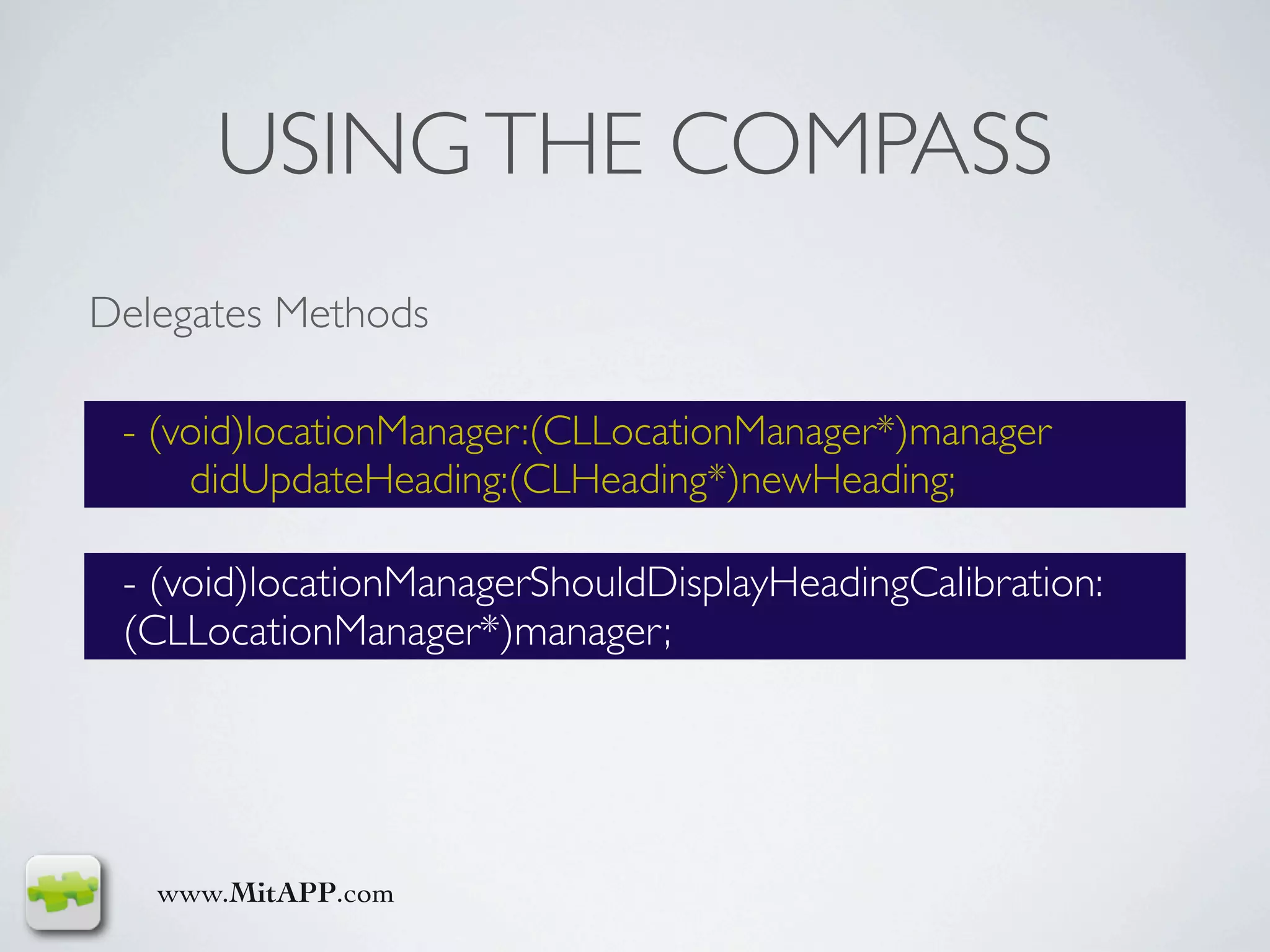
USING THE COMPASS
Delegates Methods

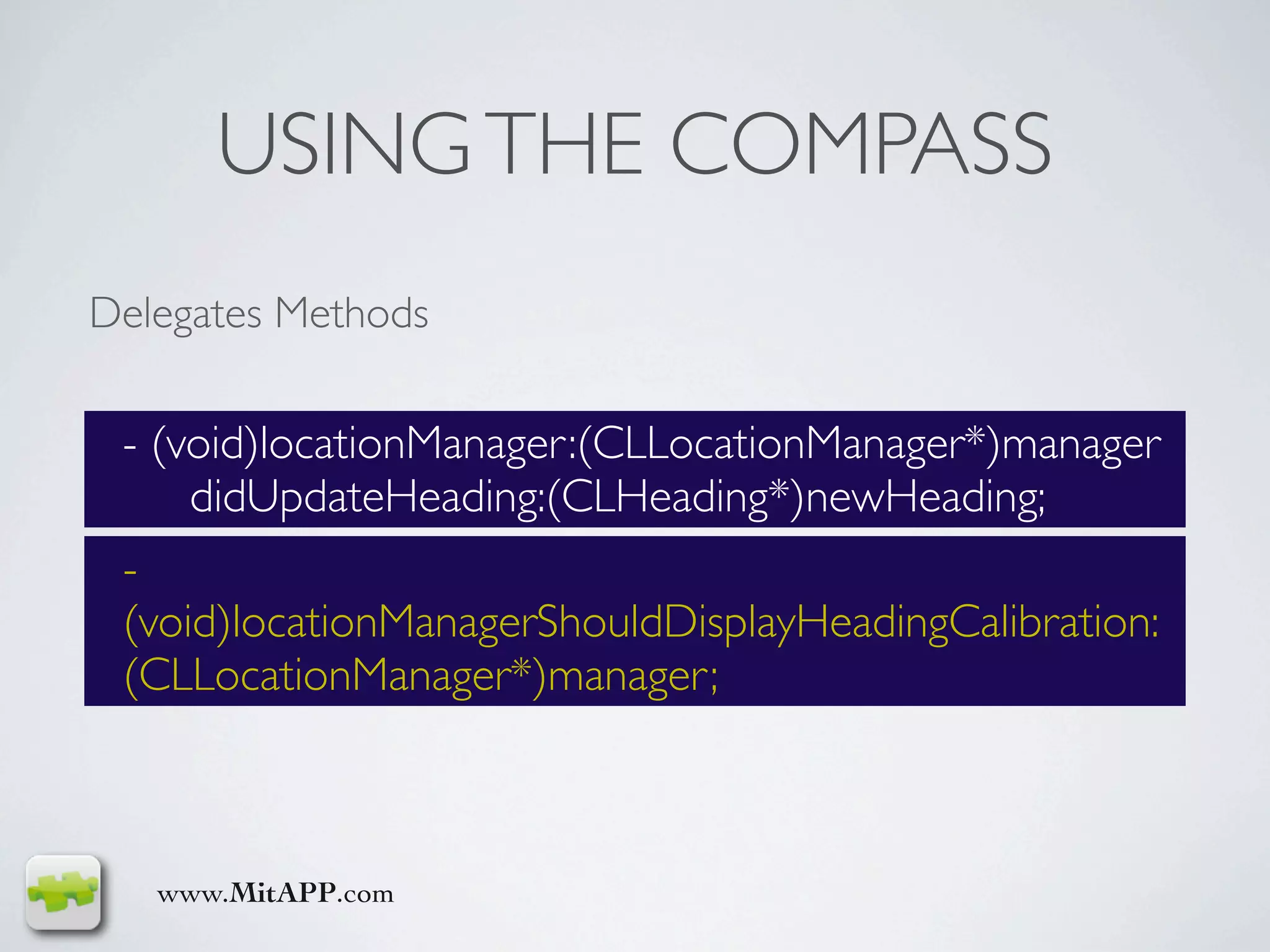
 - (void)locationManager:(CLLocationManager*)manager
     didUpdateHeading:(CLHeading*)newHeading;

 - (void)locationManagerShouldDisplayHeadingCalibration:
 (CLLocationManager*)manager;


   www.MitAPP.com
USING THE COMPASS
Delegates Methods

 - (void)locationManager:(CLLocationManager*)manager
     didUpdateHeading:(CLHeading*)newHeading;
 -
 (void)locationManagerShouldDisplayHeadingCalibration:
 (CLLocationManager*)manager;


   www.MitAPP.com
USING THE COMPASS
CLLocationManager* manager = [[CLLocationManager alloc] init];
[manager setDelegate:self];
[manager setDesiredAccuracy:kCLLocationAccuracyBest];
[manager setDistanceFilter:10];
[manager startUpdatingLocation];

if ([manager headingAvailable]) {
    [manager setHeadingFilter:2];
    [manager startUpdatingHeading];
} else {
    // Show a message to notify the user that compass is required in AR
    apps.
}


  www.MitAPP.com
USING THE COMPASS
CLLocationManager* manager = [[CLLocationManager alloc] init];
[manager setDelegate:self];
[manager setDesiredAccuracy:kCLLocationAccuracyBest];
[manager setDistanceFilter:10];
[manager startUpdatingLocation];

if ([manager headingAvailable]) {
    [manager setHeadingFilter:2]; // filter value is in degrees.
    [manager startUpdatingHeading];
} else {
    // Show a message to notify the user that compass is required in AR
    apps.
}

  www.MitAPP.com
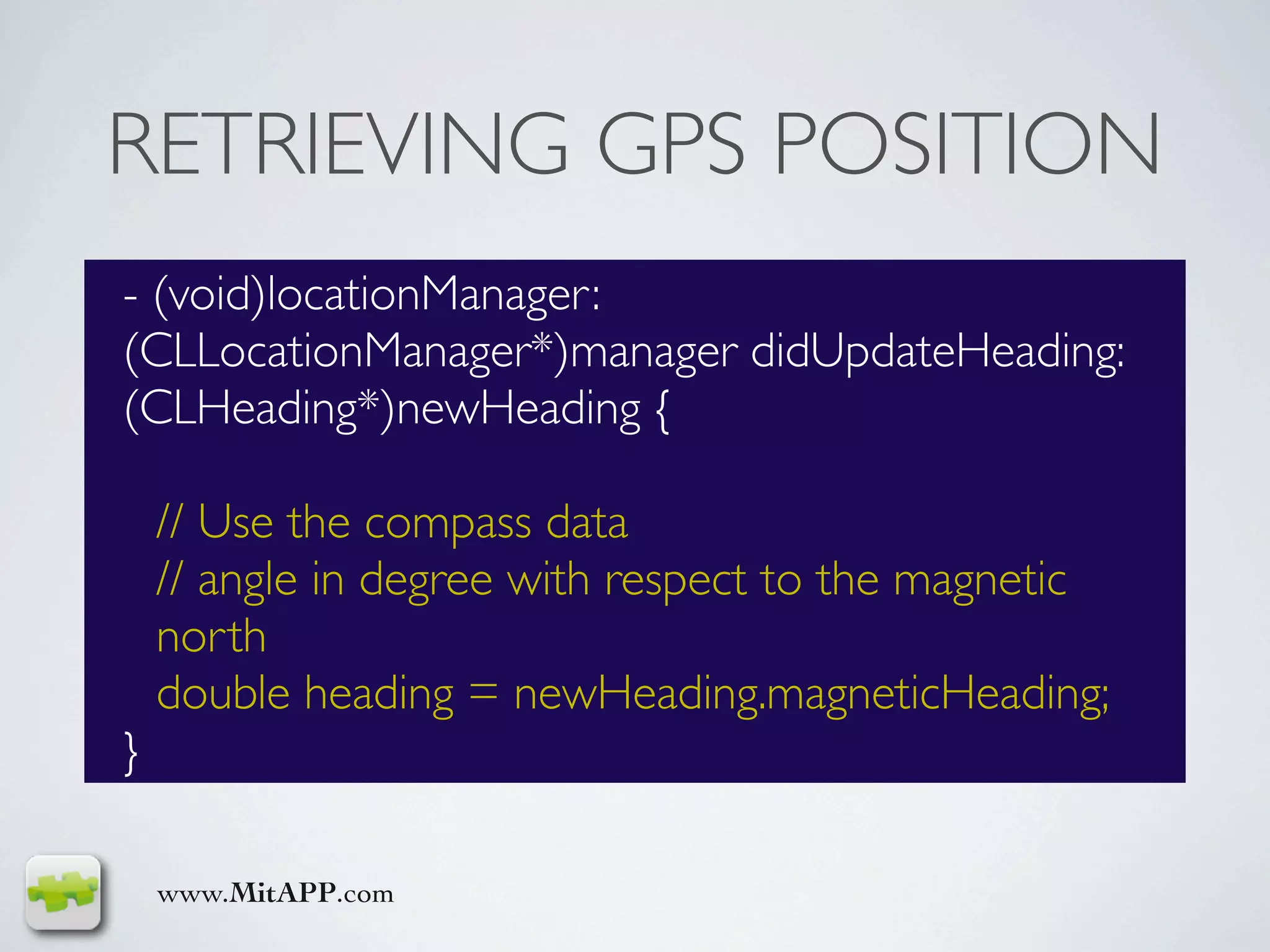
RETRIEVING GPS POSITION
- (void)locationManager:
(CLLocationManager*)manager didUpdateHeading:
(CLHeading*)newHeading {

    // Use the compass data
    // angle in degree with respect to the magnetic
    north
    double heading = newHeading.magneticHeading;
}

    www.MitAPP.com
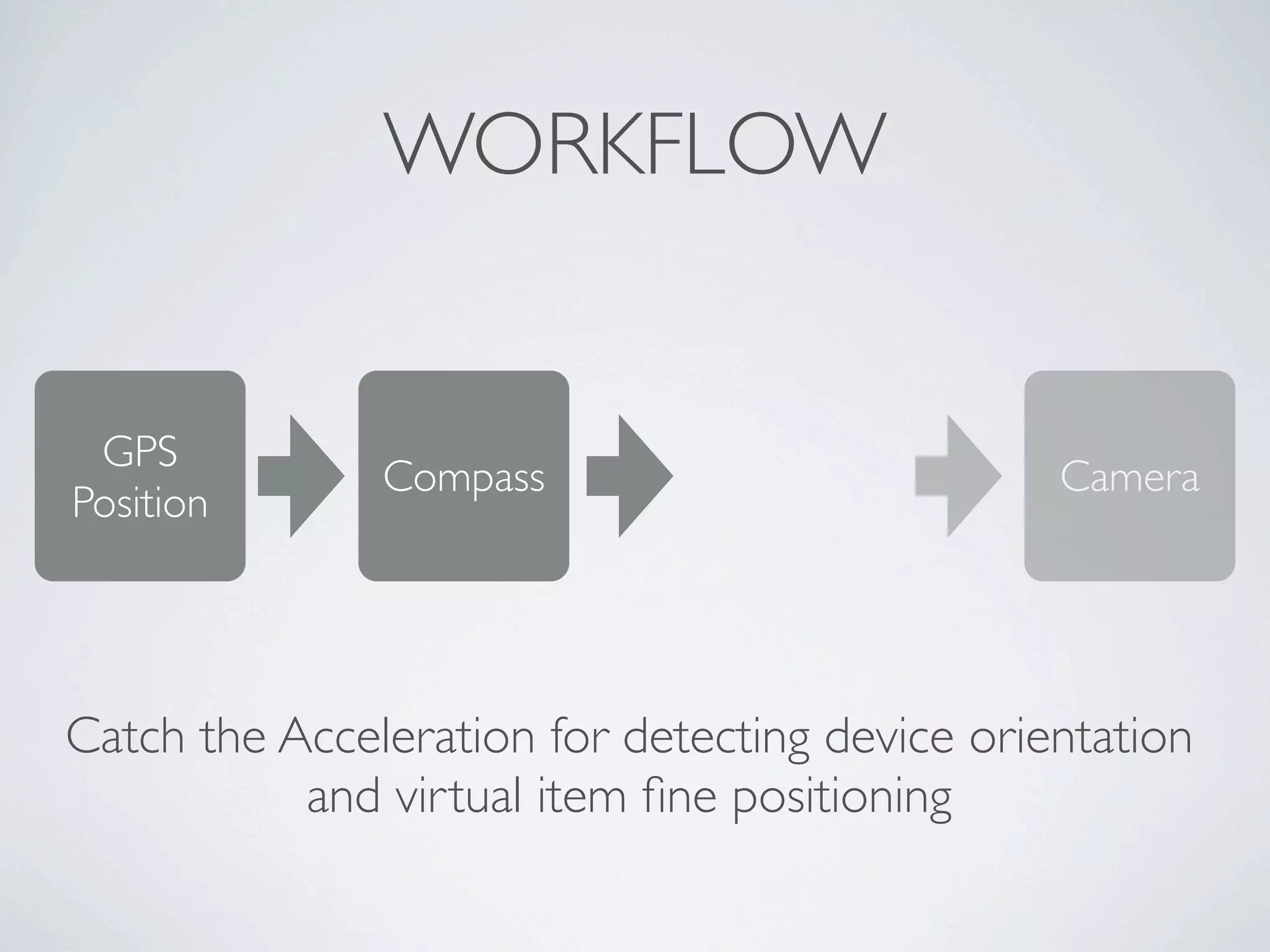
WORKFLOW


 GPS
               Compass                          Camera
Position


Catch the Acceleration for detecting device orientation
           and virtual item fine positioning
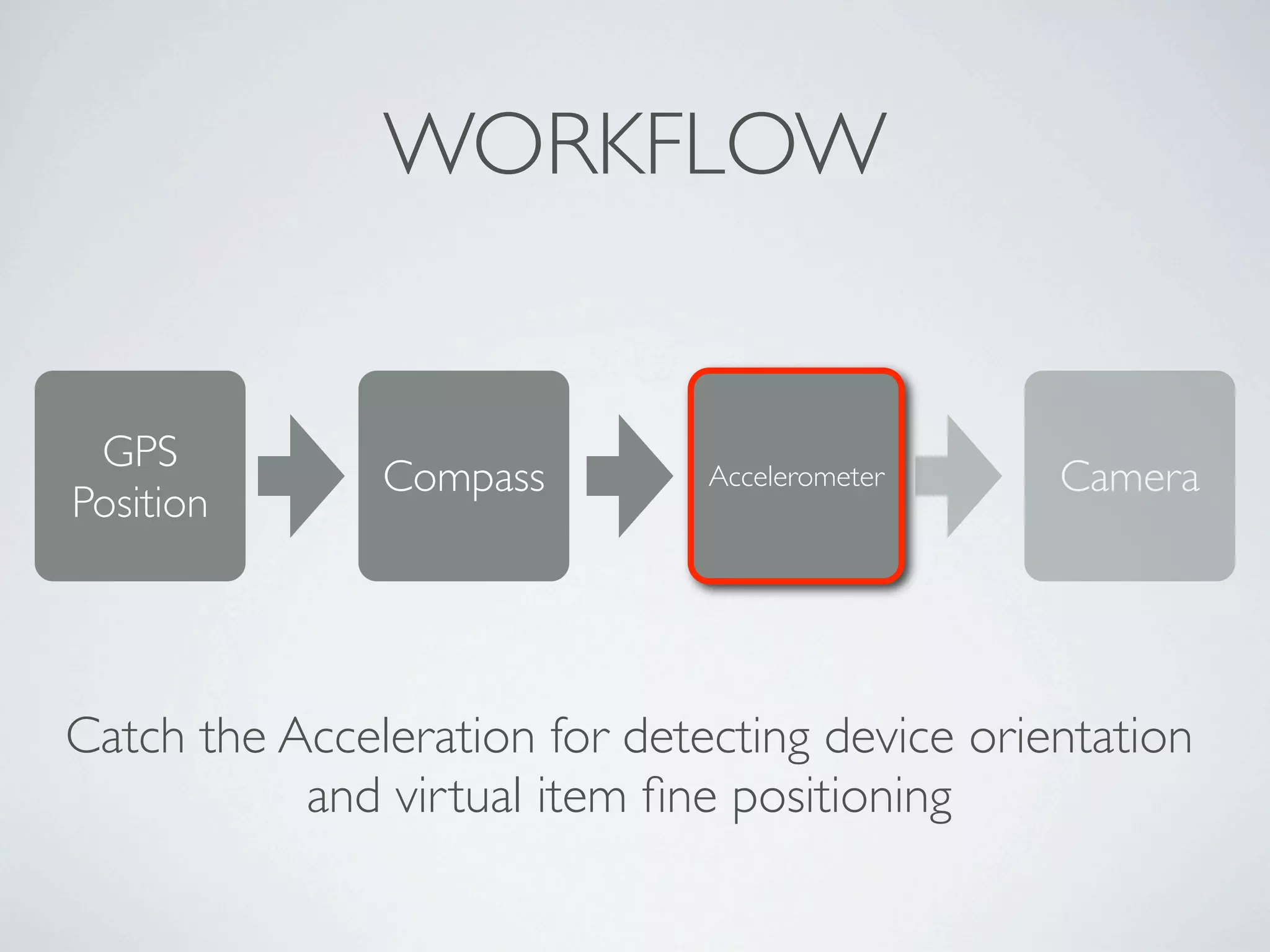
WORKFLOW


 GPS
               Compass         Accelerometer    Camera
Position


Catch the Acceleration for detecting device orientation
           and virtual item fine positioning
ACCELEROMETERS

• Classes

  • UIAccelerometer

  • UIAcceleration

• Protocol

  • UIAccelerometerDelegate


      www.MitAPP.com
USING THE COMPASS

Delegate Method


 - (void)accelerometer:
 (UIAccelerometer*)accelerometer
     didAccelerate:(UIAcceleration*)acceleration;


   www.MitAPP.com
ACCELEROMETERS

UIAccelerometer* accelerometer = [UIAccelerometer
sharedAccelerometer];
[accelerometer setUpdateInterval: 1/25];
[accelerometer setDelegate:self];


 www.MitAPP.com
ACCELEROMETERS

UIAccelerometer* accelerometer =
[UIAccelerometer sharedAccelerometer];
[accelerometer setUpdateInterval: 1/25];
[accelerometer setDelegate:self];


 www.MitAPP.com
ACCELEROMETERS
- (void)accelerometer:
(UIAccelerometer*)accelerometer
    didAccelerate:(UIAcceleration*)acceleration {

    // Use the accelerometer data
    double accel_x = acceleration.x;
    double accel_y = acceleration.y;
    double accel_z = acceleration.z;
}

    www.MitAPP.com
WORKFLOW


 GPS                         Accelerom
               Compass
Position                        eter


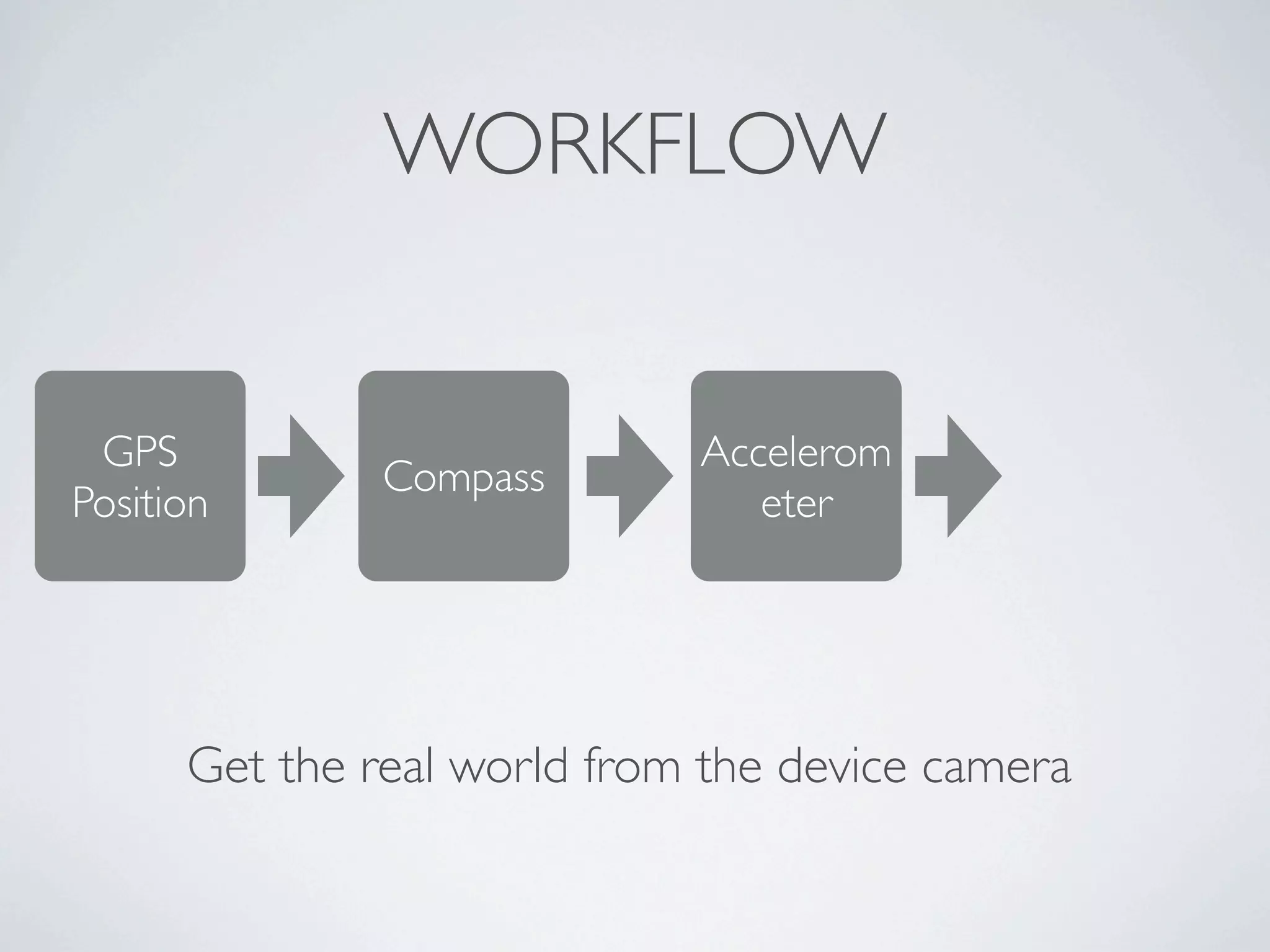
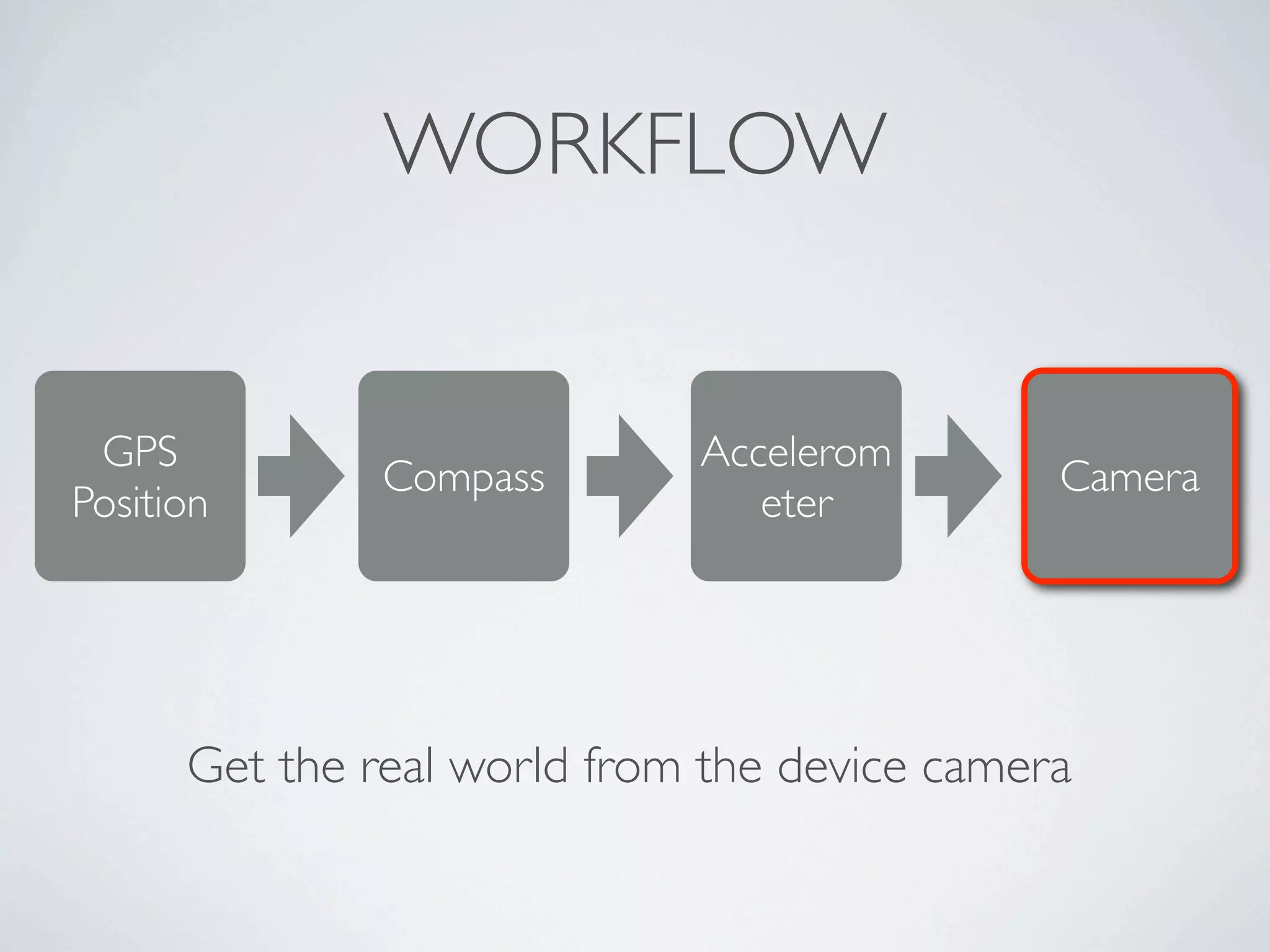
      Get the real world from the device camera
WORKFLOW


 GPS                         Accelerom
               Compass                        Camera
Position                        eter


      Get the real world from the device camera
GETTING THE IMAGE FROM
         THE CAMERA


• UIImagePickerController   class

• UIImagePickerControllerDelegate   protocol


      www.MitAPP.com
GETTING THE IMAGE FROM
       THE CAMERA
if([UIImagePickerController isSourceTypeAvailable:
       UIImagePickerControllerSourceTypeCamera]) {
    UIImagePickerController *picker = [[UIImagePickerController alloc] init];
    [picker setSourceType:UIImagePickerControllerSourceTypeCamera];
    [picker setDelegate:self];
    [picker setShowCameraControls:NO];
    [picker setNavigationBarHidden:YES];
    [picker setCameraOverlayView:[self view]];
    [self presentModalViewController:picker animated:NO];
    }


     www.MitAPP.com
GETTING THE IMAGE FROM
       THE CAMERA
if([UIImagePickerController isSourceTypeAvailable:
       UIImagePickerControllerSourceTypeCamera]) {
    UIImagePickerController *picker = [[UIImagePickerController alloc] init];
    [picker setSourceType:UIImagePickerControllerSourceTypeCamera];
    [picker setDelegate:self];
    [picker setShowCameraControls:NO];
    [picker setNavigationBarHidden:YES];
    [picker setCameraOverlayView:[self view]];
    [self presentModalViewController:picker animated:NO];
    }


     www.MitAPP.com
GETTING THE IMAGE FROM
       THE CAMERA
if([UIImagePickerController isSourceTypeAvailable:
       UIImagePickerControllerSourceTypeCamera]) {
    UIImagePickerController *picker = [[UIImagePickerController alloc] init];
    [picker setSourceType:UIImagePickerControllerSourceTypeCamera];
    [picker setDelegate:self];
    [picker setShowCameraControls:NO];
    [picker setNavigationBarHidden:YES];
    [picker setCameraOverlayView:[self view]];
    [self presentModalViewController:picker animated:NO];
    }


     www.MitAPP.com
GETTING THE IMAGE FROM
       THE CAMERA
if([UIImagePickerController isSourceTypeAvailable:
       UIImagePickerControllerSourceTypeCamera]) {
    UIImagePickerController *picker = [[UIImagePickerController alloc] init];
    [picker setSourceType:UIImagePickerControllerSourceTypeCamera];
    [picker setDelegate:self];
    [picker setShowCameraControls:NO];
    [picker setNavigationBarHidden:YES];
    [picker setCameraOverlayView:[self view]];
    [self presentModalViewController:picker animated:NO];
    }


     www.MitAPP.com
GETTING THE IMAGE FROM
       THE CAMERA
if([UIImagePickerController isSourceTypeAvailable:
       UIImagePickerControllerSourceTypeCamera]) {
    UIImagePickerController *picker = [[UIImagePickerController alloc] init];
    [picker setSourceType:UIImagePickerControllerSourceTypeCamera];
    [picker setDelegate:self];
    [picker setShowCameraControls:NO];
    [picker setNavigationBarHidden:YES];
    [picker setCameraOverlayView:[self view]];
    [self presentModalViewController:picker animated:NO];
    }


     www.MitAPP.com
GETTING THE IMAGE FROM
       THE CAMERA
if([UIImagePickerController isSourceTypeAvailable:
       UIImagePickerControllerSourceTypeCamera]) {
    UIImagePickerController *picker = [[UIImagePickerController alloc] init];
    [picker setSourceType:UIImagePickerControllerSourceTypeCamera];
    [picker setDelegate:self];
    [picker setShowCameraControls:NO];
    [picker setNavigationBarHidden:YES];
    [picker setCameraOverlayView:[self view]];
    [self presentModalViewController:picker animated:NO];
    }


     www.MitAPP.com
PUTTING ALL TOGETHER

• Existing   libraries to use as starting point:

  • NyARToolKit  (free) - http://nyatla.jp/nyartoolkit/wiki/
    index.php?FrontPage.en

  • ARKit    (free) - http://www.iphonear.org/

  • metaio    (free and commercial) - http://www.metaio.com/

       www.MitAPP.com
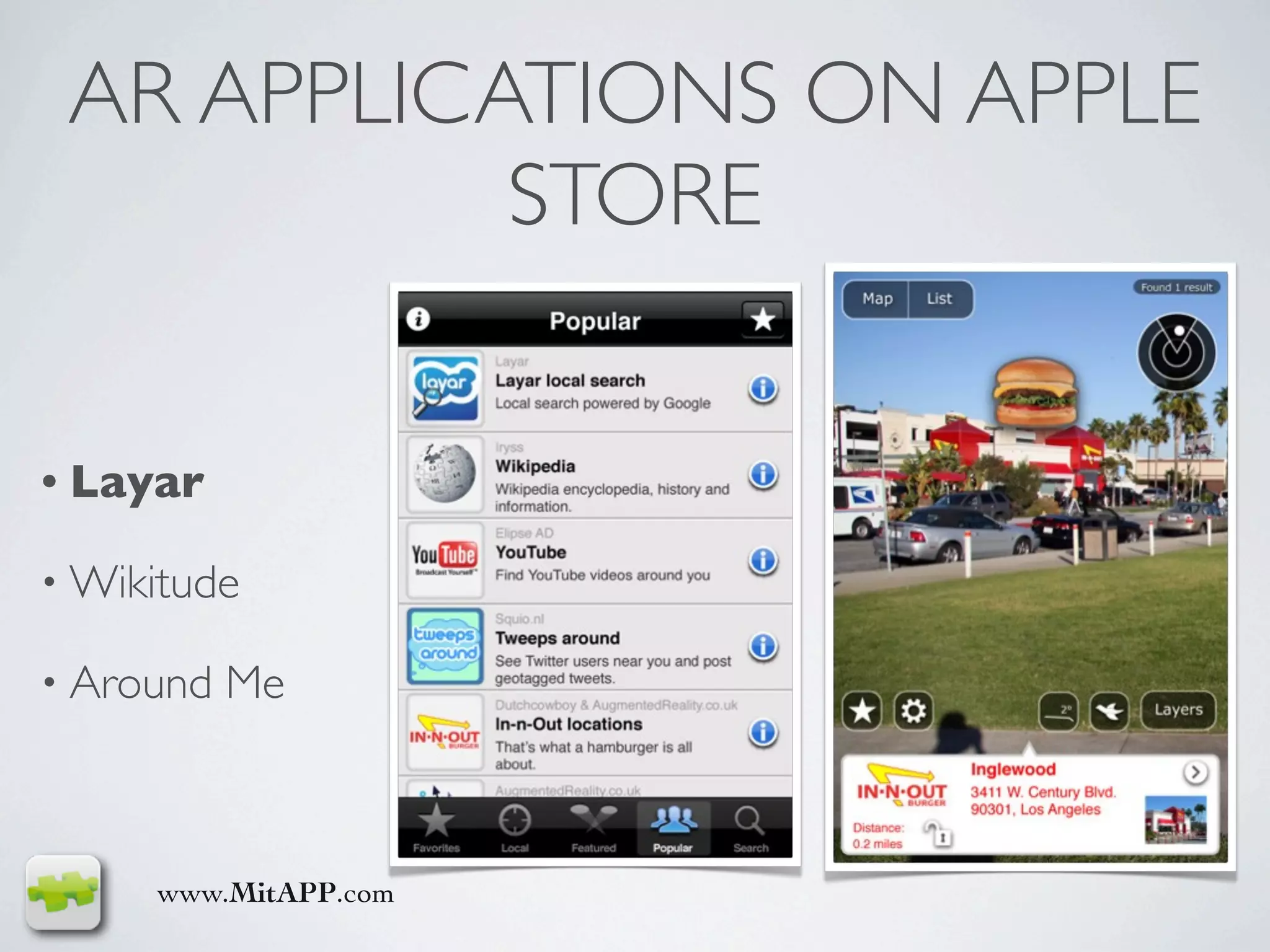
AR APPLICATIONS ON APPLE
           STORE


• Layar

• Wikitude

• Around   Me


     www.MitAPP.com
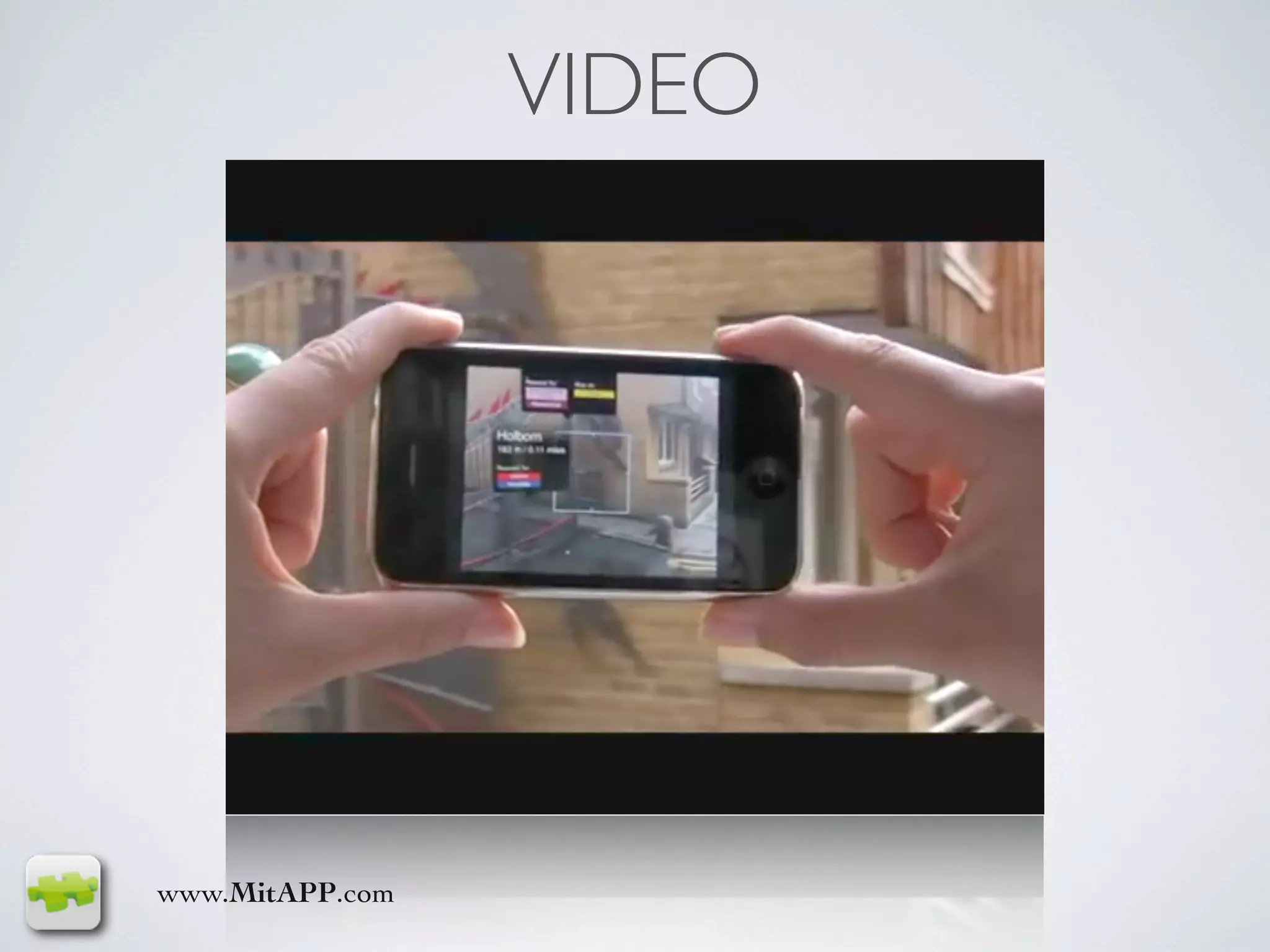
VIDEO


www.MitAPP.com
MITAPP


           http://www.mitapp.com/

                 paolo.quadrani@gmail.com

                  cafiniomar@gmail.com

www.MitAPP.com

Augmented reality

  • 1.
    AUGMENTED REALITY Paolo Quadrani MitAPP www.MitAPP.com
  • 2.
    DEFINITION • Isa termfor a live direct or indirect view of a physical real- world environment whose elements are augmented by virtual computer-generated imagery. (Wikipedia) www.MitAPP.com
  • 3.
    HISTORY • 1966: was invented the head mounted display. • 1992: The term Augmented Reality has been coined by Thomas Caudell. • 1999: Hirokazu Kato develops ARToolKit and is demonstrated at Siggraph in the same year. • 2008: Wikitude AR Travel Guide is launched with the G1 Android Phone. • 2010: acrossair, AR Browser brings AR to the mobile user on the iPhone 3Gs. www.MitAPP.com
  • 4.
    TECHNOLOGY - TRACKING • Mobile devices use • Digital camera. • Accelerometers. • GPS. • Gyroscopes, Solid state compasses. • RFID. • Wireless sensors. www.MitAPP.com
  • 5.
    PROCEDURE • ImageRegistration: thisdefine the way of retrieving the real world reference system on which over-impose computer generated images. • Toachieve the point above are used computer vision techniques. www.MitAPP.com
  • 6.
    LIGHTWEIGHT AUGMENTED REALITY es: Wikitude • Use GPS tracking to retrieve the device position. • Usesolid state compass to manage the device orientation. www.MitAPP.com
  • 7.
    Ristoranti - GoogleMaps GEO-REFERENCED DATA • Datacontent has to be associated to a GPS position • Data access through • web service • local to a database www.MitAPP.com © Google
  • 8.
    WORKFLOW Accelerom Compass Camera eter Acquire the GPS Position
  • 9.
    WORKFLOW GPS Accelerom Compass Camera Position eter Acquire the GPS Position
  • 10.
    RETRIEVING GPS POSITION •Classes • CLLocationManager • CLLocation • Protocol • CLLocationManagerDelegate www.MitAPP.com
  • 11.
    RETRIEVING GPS POSITION DelegatesMethods - (void)locationManager:(CLLocationManager*)manager didUpdateToLocation:(CLLocation*)newLocation fromLocation:(CLLocation*)oldLocation; - (void)locationManager: (CLLocationManager*)manager didFailWithError:(NSError*)error; www.MitAPP.com
  • 12.
    RETRIEVING GPS POSITION DelegatesMethods - (void)locationManager:(CLLocationManager*)manager didUpdateToLocation:(CLLocation*)newLocation fromLocation:(CLLocation*)oldLocation; - (void)locationManager:(CLLocationManager*)manager didFailWithError:(NSError*)error; www.MitAPP.com
  • 13.
    RETRIEVING GPS POSITION CLLocationManager*manager = [[CLLocationManager alloc] init]; [manager setDelegate:self]; [manager setDesiredAccuracy:kCLLocationAccuracyBest]; [manager setDistanceFilter:10]; [manager startUpdatingLocation]; www.MitAPP.com
  • 14.
    RETRIEVING GPS POSITION CLLocationManager*manager = [[CLLocationManager alloc] init]; [manager setDelegate:self]; [manager setDesiredAccuracy:kCLLocationAccuracyBest]; [manager setDistanceFilter:10]; // Distance expressed in meters [manager startUpdatingLocation]; www.MitAPP.com
  • 15.
    RETRIEVING GPS POSITION CLLocationManager*manager = [[CLLocationManager alloc] init]; [manager setDelegate:self]; [manager setDesiredAccuracy:kCLLocationAccuracyBest]; [manager setDistanceFilter:10]; [manager startUpdatingLocation]; www.MitAPP.com
  • 16.
    RETRIEVING GPS POSITION -(void)locationManager:(CLLocationManager*)manager didUpdateToLocation:(CLLocation*)newLocation fromLocation: (CLLocation*)oldLocation { // Use the coordinate data double lat = newLocation.coordinate.latitude; double lon = newLocation.coordinate.longitude; } www.MitAPP.com
  • 17.
    RETRIEVING GPS POSITION -(void)locationManager:(CLLocationManager*)manager didUpdateToLocation:(CLLocation*)newLocation fromLocation: (CLLocation*)oldLocation { NSTimeInterval howRecent = [newLocation.timestamp timeIntervalSinceNow]; if (howRecent < -10) return; if (newLocation.horizontalAccuracy > 100) return; // Use the coordinate data double lat = newLocation.coordinate.latitude; double lon = newLocation.coordinate.longitude; } www.MitAPP.com
  • 18.
    RETRIEVING GPS POSITION -(void)locationManager:(CLLocationManager*)manager didUpdateToLocation:(CLLocation*)newLocation fromLocation: (CLLocation*)oldLocation { NSTimeInterval howRecent = [newLocation.timestamp timeIntervalSinceNow]; if (howRecent < -10) return; if (newLocation.horizontalAccuracy > 100) return; // Use the coordinate data double lat = newLocation.coordinate.latitude; double lon = newLocation.coordinate.longitude; } www.MitAPP.com
  • 19.
    WORKFLOW GPS Accelerom Camera Position eter Get the orientation through the Compass
  • 20.
    WORKFLOW GPS Accelerom Compass Camera Position eter Get the orientation through the Compass
  • 21.
    USING THE COMPASS •Classes • CLLocationManager • CLHeading • Protocol • CLLocationManagerDelegate www.MitAPP.com
  • 22.
    USING THE COMPASS DelegatesMethods - (void)locationManager:(CLLocationManager*)manager didUpdateHeading:(CLHeading*)newHeading; - (void)locationManagerShouldDisplayHeadingCalibration: (CLLocationManager*)manager; www.MitAPP.com
  • 23.
    USING THE COMPASS DelegatesMethods - (void)locationManager:(CLLocationManager*)manager didUpdateHeading:(CLHeading*)newHeading; - (void)locationManagerShouldDisplayHeadingCalibration: (CLLocationManager*)manager; www.MitAPP.com
  • 24.
    USING THE COMPASS CLLocationManager*manager = [[CLLocationManager alloc] init]; [manager setDelegate:self]; [manager setDesiredAccuracy:kCLLocationAccuracyBest]; [manager setDistanceFilter:10]; [manager startUpdatingLocation]; if ([manager headingAvailable]) { [manager setHeadingFilter:2]; [manager startUpdatingHeading]; } else { // Show a message to notify the user that compass is required in AR apps. } www.MitAPP.com
  • 25.
    USING THE COMPASS CLLocationManager*manager = [[CLLocationManager alloc] init]; [manager setDelegate:self]; [manager setDesiredAccuracy:kCLLocationAccuracyBest]; [manager setDistanceFilter:10]; [manager startUpdatingLocation]; if ([manager headingAvailable]) { [manager setHeadingFilter:2]; // filter value is in degrees. [manager startUpdatingHeading]; } else { // Show a message to notify the user that compass is required in AR apps. } www.MitAPP.com
  • 26.
    RETRIEVING GPS POSITION -(void)locationManager: (CLLocationManager*)manager didUpdateHeading: (CLHeading*)newHeading { // Use the compass data // angle in degree with respect to the magnetic north double heading = newHeading.magneticHeading; } www.MitAPP.com
  • 27.
    WORKFLOW GPS Compass Camera Position Catch the Acceleration for detecting device orientation and virtual item fine positioning
  • 28.
    WORKFLOW GPS Compass Accelerometer Camera Position Catch the Acceleration for detecting device orientation and virtual item fine positioning
  • 29.
    ACCELEROMETERS • Classes • UIAccelerometer • UIAcceleration • Protocol • UIAccelerometerDelegate www.MitAPP.com
  • 30.
    USING THE COMPASS DelegateMethod - (void)accelerometer: (UIAccelerometer*)accelerometer didAccelerate:(UIAcceleration*)acceleration; www.MitAPP.com
  • 31.
    ACCELEROMETERS UIAccelerometer* accelerometer =[UIAccelerometer sharedAccelerometer]; [accelerometer setUpdateInterval: 1/25]; [accelerometer setDelegate:self]; www.MitAPP.com
  • 32.
    ACCELEROMETERS UIAccelerometer* accelerometer = [UIAccelerometersharedAccelerometer]; [accelerometer setUpdateInterval: 1/25]; [accelerometer setDelegate:self]; www.MitAPP.com
  • 33.
    ACCELEROMETERS - (void)accelerometer: (UIAccelerometer*)accelerometer didAccelerate:(UIAcceleration*)acceleration { // Use the accelerometer data double accel_x = acceleration.x; double accel_y = acceleration.y; double accel_z = acceleration.z; } www.MitAPP.com
  • 34.
    WORKFLOW GPS Accelerom Compass Position eter Get the real world from the device camera
  • 35.
    WORKFLOW GPS Accelerom Compass Camera Position eter Get the real world from the device camera
  • 36.
    GETTING THE IMAGEFROM THE CAMERA • UIImagePickerController class • UIImagePickerControllerDelegate protocol www.MitAPP.com
  • 37.
    GETTING THE IMAGEFROM THE CAMERA if([UIImagePickerController isSourceTypeAvailable: UIImagePickerControllerSourceTypeCamera]) { UIImagePickerController *picker = [[UIImagePickerController alloc] init]; [picker setSourceType:UIImagePickerControllerSourceTypeCamera]; [picker setDelegate:self]; [picker setShowCameraControls:NO]; [picker setNavigationBarHidden:YES]; [picker setCameraOverlayView:[self view]]; [self presentModalViewController:picker animated:NO]; } www.MitAPP.com
  • 38.
    GETTING THE IMAGEFROM THE CAMERA if([UIImagePickerController isSourceTypeAvailable: UIImagePickerControllerSourceTypeCamera]) { UIImagePickerController *picker = [[UIImagePickerController alloc] init]; [picker setSourceType:UIImagePickerControllerSourceTypeCamera]; [picker setDelegate:self]; [picker setShowCameraControls:NO]; [picker setNavigationBarHidden:YES]; [picker setCameraOverlayView:[self view]]; [self presentModalViewController:picker animated:NO]; } www.MitAPP.com
  • 39.
    GETTING THE IMAGEFROM THE CAMERA if([UIImagePickerController isSourceTypeAvailable: UIImagePickerControllerSourceTypeCamera]) { UIImagePickerController *picker = [[UIImagePickerController alloc] init]; [picker setSourceType:UIImagePickerControllerSourceTypeCamera]; [picker setDelegate:self]; [picker setShowCameraControls:NO]; [picker setNavigationBarHidden:YES]; [picker setCameraOverlayView:[self view]]; [self presentModalViewController:picker animated:NO]; } www.MitAPP.com
  • 40.
    GETTING THE IMAGEFROM THE CAMERA if([UIImagePickerController isSourceTypeAvailable: UIImagePickerControllerSourceTypeCamera]) { UIImagePickerController *picker = [[UIImagePickerController alloc] init]; [picker setSourceType:UIImagePickerControllerSourceTypeCamera]; [picker setDelegate:self]; [picker setShowCameraControls:NO]; [picker setNavigationBarHidden:YES]; [picker setCameraOverlayView:[self view]]; [self presentModalViewController:picker animated:NO]; } www.MitAPP.com
  • 41.
    GETTING THE IMAGEFROM THE CAMERA if([UIImagePickerController isSourceTypeAvailable: UIImagePickerControllerSourceTypeCamera]) { UIImagePickerController *picker = [[UIImagePickerController alloc] init]; [picker setSourceType:UIImagePickerControllerSourceTypeCamera]; [picker setDelegate:self]; [picker setShowCameraControls:NO]; [picker setNavigationBarHidden:YES]; [picker setCameraOverlayView:[self view]]; [self presentModalViewController:picker animated:NO]; } www.MitAPP.com
  • 42.
    GETTING THE IMAGEFROM THE CAMERA if([UIImagePickerController isSourceTypeAvailable: UIImagePickerControllerSourceTypeCamera]) { UIImagePickerController *picker = [[UIImagePickerController alloc] init]; [picker setSourceType:UIImagePickerControllerSourceTypeCamera]; [picker setDelegate:self]; [picker setShowCameraControls:NO]; [picker setNavigationBarHidden:YES]; [picker setCameraOverlayView:[self view]]; [self presentModalViewController:picker animated:NO]; } www.MitAPP.com
  • 43.
    PUTTING ALL TOGETHER •Existing libraries to use as starting point: • NyARToolKit (free) - http://nyatla.jp/nyartoolkit/wiki/ index.php?FrontPage.en • ARKit (free) - http://www.iphonear.org/ • metaio (free and commercial) - http://www.metaio.com/ www.MitAPP.com
  • 44.
    AR APPLICATIONS ONAPPLE STORE • Layar • Wikitude • Around Me www.MitAPP.com
  • 45.
  • 46.
    MITAPP http://www.mitapp.com/ paolo.quadrani@gmail.com cafiniomar@gmail.com www.MitAPP.com

Editor's Notes

  • #10 Per poter visualizzare i dati geo referenziati in AR occorre daterminare la propria posizione rispetto ai dati. Occorre quindi far partire il sistema di acquisizione della posizione GPS e utilizzare i dati che da esso provengono per capire quali dati mostrare.
  • #11 Delegate Method chiamato dal CLLocationManager quando una nuova posizione GPS viene determinata
  • #12 Delegate Method chiamato dal CLLocationManager quando c&amp;#x2019;&amp;#xE8; stato un errore nel determinarla (es. non c&amp;#x2019;&amp;#xE8; copertira GPS)
  • #13 Codice necessario a far partire l&amp;#x2019;acquisizione della posizione GPS. Il codice in giallo permette di creare l&amp;#x2019;instanza del location manager. La classe in cui &amp;#xE8; inserito questo codice (in genere un ViewController) diventa la classe delegate del location manager.
  • #14 I due metodi evidenziati mostrano come sia possibile scegliere l&amp;#x2019;accuratezza del segnala GPS che si desidera avere durante l&amp;#x2019;acquisizione e quale &amp;#xE8; la soglia minima di aggiornamento tra una posizione e l&amp;#x2019;altra espressa in metri.
  • #15 Il metodo evidenziato permette di far partire il location manager e quindi l&amp;#x2019;acquisizione del segnale GPS appena disponibile.
  • #16 Primo metodo delegate chiamato dal location manager quando una nuova posizione GPS &amp;#xE8; disponibile. Il parametro newLocation contiene la nuova posizione, mentre in oldLocation &amp;#xE8; presente l&amp;#x2019;ultima delle posizioni valide precedentemente acquisite. Il codice in giallo mostra come estrarre le coordinate geografiche latitudine e longitudine dalla struttura dati CLLocation.
  • #17 Un controllo necessario da fare prima di estrarre le informazioni relative alle coordinate &amp;#xE8; quello di verificare che tale posizione non sia estratta dalla cache. Occorre quindi controllare il timestamp della &amp;#x2018;newLocation&amp;#x2019; e verificare che non sia antecedente al tempo attiale di una certa soglia, altrimenti si tratta di un valore preso dalla cache =&gt; da scartare.
  • #18 Altro controllo da fare &amp;#xE8; relativo all&amp;#x2019;accuratezza della posizione pervenuta dal manager. In questo caso (codice in giallo) si sta scartando la posizione GPS che ha un&amp;#x2019;accuratezza maggiore di 100m. La soglia con cui confrontare il valore estratto da newLocation dipende dal tipo di applicazione che si sta realizzando, quindi va scelto caso per caso. Per un&amp;#x2019;app di AR l&amp;#x2019;accuratezza da accettare dovrebbe essere inferiore o uguale a 10m.
  • #20 Oltre alla posizione GPS occorre determinare anche l&amp;#x2019;orientazione dell&amp;#x2019;utente rispetto al nord magnetico in maniera tale da capire (per una determinata posizione GPS) verso quali dati l&amp;#x2019;utente si sta orientando e quindi stabilire quali dati mostrare e quali nascondere dalla visualizzazione.
  • #21 Il metodo evidenziato rappresenta il metodo delegate relativo all&amp;#x2019;aggiornamento del compasso a stato solido presente nell&amp;#x2019;iPhone 3Gs. Questo metodo viene chiamato nel momento in cui un nuovo valore di oriemtamento &amp;#xE8; disponibile.
  • #22 Il metodo evidenziato rappresenta il metodo delegate relativo all&amp;#x2019;aggiornamento del compasso a stato solido presente nell&amp;#x2019;iPhone 3Gs. Questo metodo viene chiamato nel momento in cui si presenta un&amp;#x2019;interferenza elettromagnetica e/o non &amp;#xE8; possibile calcolare l&amp;#x2019;orientamento. Questo methodo &amp;#xE8; quello che permette di visualizzare l&amp;#x2019;icona della bussola in presenza di disturbi.
  • #23 Il codice in giallo permette di eseguire il test della disponibilit&amp;#xE0; del compasso a stato solido nell&amp;#x2019;iPhone su cui viene eseguito il codice. In caso di esito positivo, si proceder&amp;#xE0; alla configurazione del compasso.
  • #24 Il codice evidenziato mostra il parametro di configurazione della frequenza di aggiornamento dei valori (nell&amp;#x2019;esempio ogni 2 gradi) e l&amp;#x2019;istruzione necessaria a far partire l&amp;#x2019;acquisizione dei valori relativi al compasso.
  • #25 Il codice evidenziato mostra come estrarre l&amp;#x2019;informazione dell&amp;#x2019;orientamento dell&amp;#x2019;utente rispetto al nord magnetico espresso in gradi dalla struttura CLHeading.
  • #27 Questo tipo di sensore permette di avere un controllo fine dei movimenti dell&amp;#x2019;utente e quindi aggiostare le icone rappresentanti i dati in maniera tale da filtrare i movimenti rapidi del dispositivo. Inoltre &amp;#xE8; possibile gestire eventuali cambi di orientamento del dispositivo e aggiornare conseguentemente la posizione delle icone sullo schermo.
  • #28 Il metodo rappresenta il delegate relativo all&amp;#x2019;aggiornamento dell&amp;#x2019;accelerometro presente nell&amp;#x2019;iPhone/iPod. Questo metodo viene chiamato nel momento in cui un nuovo valore di accelerazione &amp;#xE8; disponibile.
  • #29 Il codice in giallo mostra il modo di avere un riferimento all&amp;#x2019;accelerometro di sistema. Non si pu&amp;#xF2; creare una nuova instanza, ma occorre far riferimento all&amp;#x2019;UIAccelerometer unico di sistema.
  • #30 Il codice in giallo mostra poi come customizzare la frequenza di aggiornamento dell&amp;#x2019;acquisizione dei valori di accelerazione e l&amp;#x2019;assegnazione del delegate oltre ad assegnare chi ricever&amp;#xE0; i dati di aggiornamento scatener&amp;#xE0; l&amp;#x2019;inizio dell&amp;#x2019;acquisizione delle accelerazioni.
  • #31 Il metodo evidenziato rappresenta il metodo delegate relativo all&amp;#x2019;aggiornamento dell&amp;#x2019;acelerometro. Il parametro &amp;#x2018;acceleration&amp;#x2019; contiene i valori di accelerazione lungo i 3 assi x, y e z.
  • #33 Ora che si hanno a disposizione tutti i dati di posizione orientamento ed accelerazione, occorre acquisire le informazioni dal mondo reale in maniera da poterci poi sovrapporre quelle provenienti dal mondo &amp;#x2018;sintetico&amp;#x2019;.
  • #34 Il codice evidenziato permette di eseguire un controllo sul dispositivo della presenza o meno della camera. Per un&amp;#x2019;app di AR &amp;#xE8; decisamente fondamentale che questo tipo di input sia presente.
  • #35 Si proceder&amp;#xE0; quindi all&amp;#x2019;instanza del&amp;#x2019;ImagePickerController.
  • #36 ... e all&amp;#x2019;abilitazione del picker per restituirci l&amp;#x2019;immagine proveniente dalla camera e non dalla libreria delle immagini salvate. Quindi assegnamo il delegate per poter ricevere le chiamate di aggiornamento dal picker controller.
  • #37 Per un&amp;#x2019;app di AR &amp;#xE8; fondamentale l&amp;#x2019;immersivit&amp;#xE0; dei dati nel mondo reale, quindi i due metodi evidenziati permettono di eliminare gli elementi grafici 2D presenti normalmente nel picker che permettono di scattare una foto (il primo) e la navigazione delle foto scattate (il secondo).
  • #38 Questo &amp;#xE8; il metodo fondamentale per l&amp;#x2019;app di AR, in quanto permette di definire la vista che verr&amp;#xE0; sovrapposta a quela di visualizzazione dell&amp;#x2019;immagine proveniente dalla camera dell&amp;#x2019;iPhone. In questa vista verranno poi disegnate le icone che rappresentano i dati sintetici da sovrapporre all&amp;#x2019;immagine della camera.
  • #39 E&amp;#x2019; quindi giunto il momento di mostrare l&amp;#x2019;immagine della camera mediante il metodo evidenziato. In questo caso non &amp;#xE8; necessario mostrarlo con l&amp;#x2019;animazione classica dei ViewController presentati in modalit&amp;#xE0; modale, quindi al flag &amp;#x2018;animated&amp;#x2019; viene assegnato NO.
  • #40 In questa slide viene presentata una lista di librerie disponibili per iPhone (Objective-C) che permettono di costruire un&amp;#x2019;applicazione di AR senza dover pertire da zero. Ovviamente la complessit&amp;#xE0; di un&amp;#x2019;app di AR non &amp;#xE8; banale, quindi conviene appoggiarsi alle librerie esistenti magari modificandole per adattarle all&amp;#x2019;applicazione del caso.