SAIL
Appian’s Interface Framework
What is SAIL?
● Self-Assembling Interface Layer
● Framework for designers/developers to create interfaces quickly and
efficiently
● Alternative to simplified UI design
○ Incompatible across different devices
○ Difficult to easily create unique interfaces for clients
Enter: SAIL
● Easy: drag and drop method, low-code environment
● Portable: automatically configures design to device being used
● Powerful: can integrate existing services with new ones
● Affordable: created to adapt to futuristic needs
Aspects of SAIL
● Layouts:
○ Group similar components in an interface
● Components:
○ Elements inside of layouts
● Selections:
○ Radio buttons, checkboxes, drop downs
● Displays:
○ Rich text field, displaying images/icons
Layouts
● Intuitive design
● Important to:
1. Present information clearly
2. Facilitate orientation and navigation
● Let’s look at some layout examples
Layouts continued
Forms:
● Arranges elements beneath a heading and above buttons
Headers:
● Displays arrangement of components beneath a card header
● Useful for landing pages and reports; cannot be nested
Layouts continued
● Section:
○ Displays information beneath a section title in an interface
○ Allow users to collapse/expand content
● Cards:
○ Group related content
○ Only displays data
○ Allows for background color
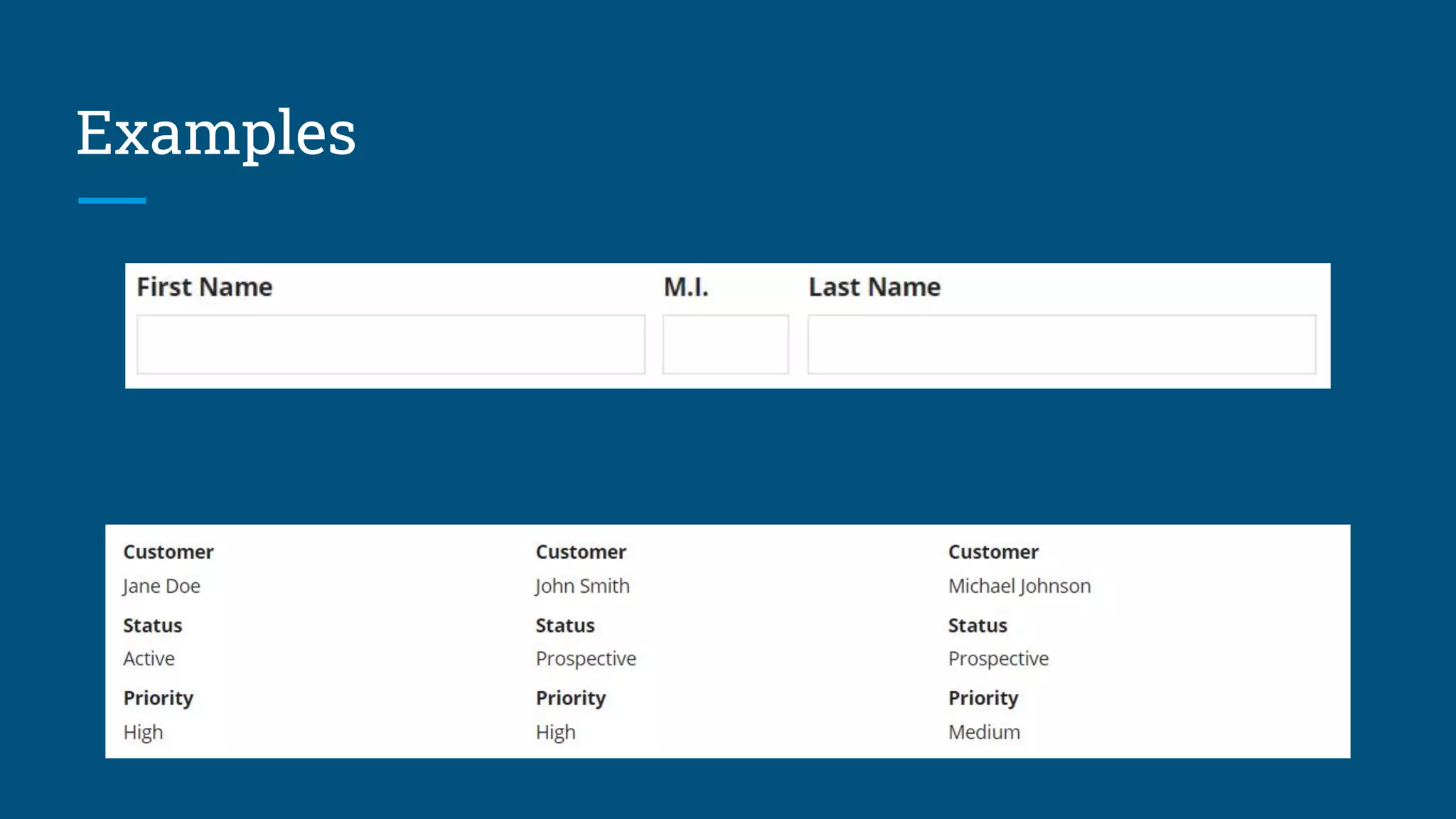
Examples
Layouts continued
● Boxes:
○ Groups related components
○ Consists of a title bar and a border
○ Can make pages look cluttered
● Do:
○ Use to draw attention to specific portions of a form
● Don’t:
○ Nest boxes
○ Mix different box styles on the same page
https://docs.appian.com/suite/help/21.1/ux_box_layout.html
Layouts continued
● Button:
○ Displays buttons in an interface
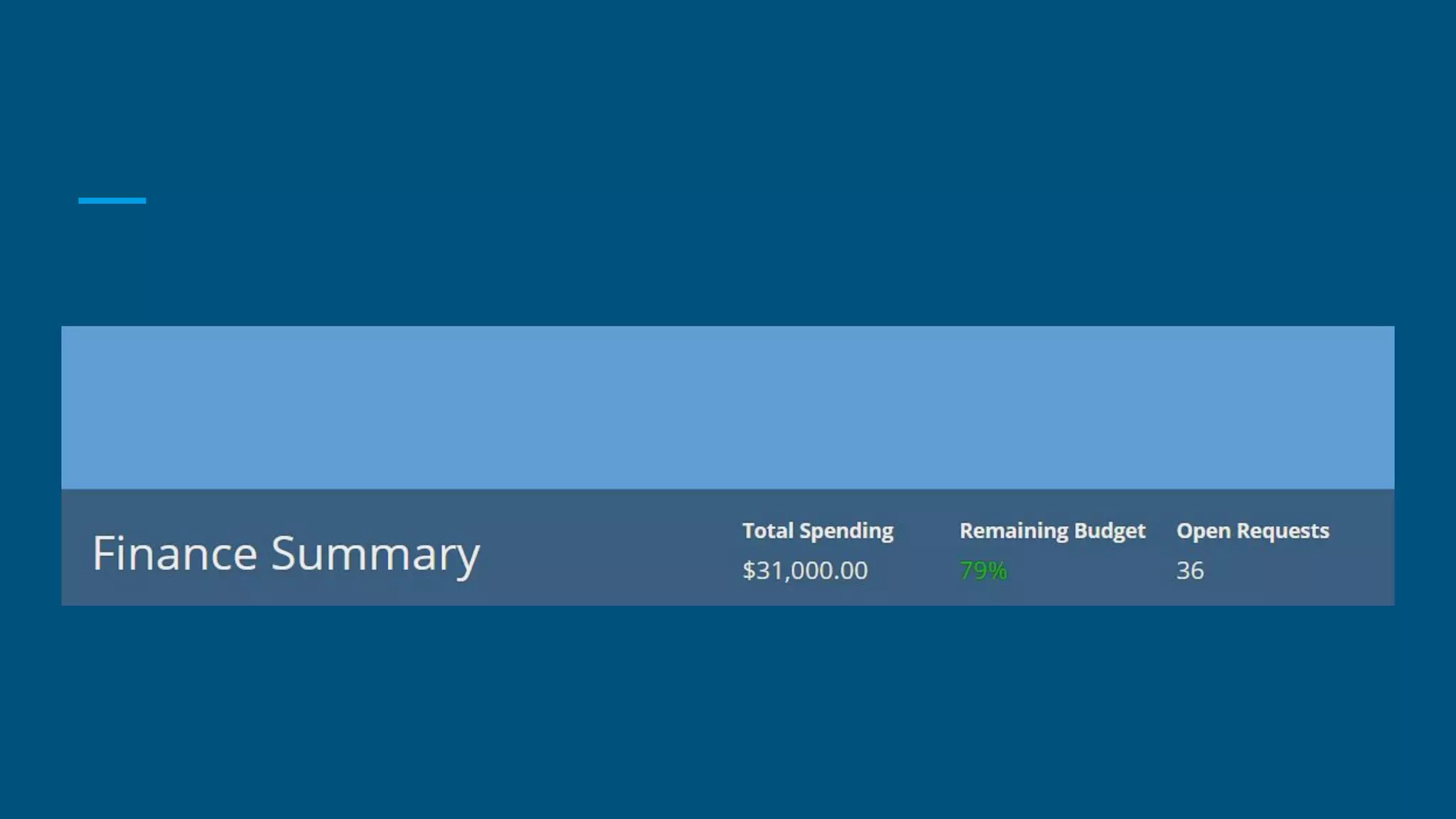
● Billboard:
○ Shows content overlaid above decorative background
Layouts: Columns and Side By Sides
● Both are techniques to display content horizontally
● Columns:
○ Used for primary/top-level organization
● Side By Sides
○ Shows relations of smaller components
Examples
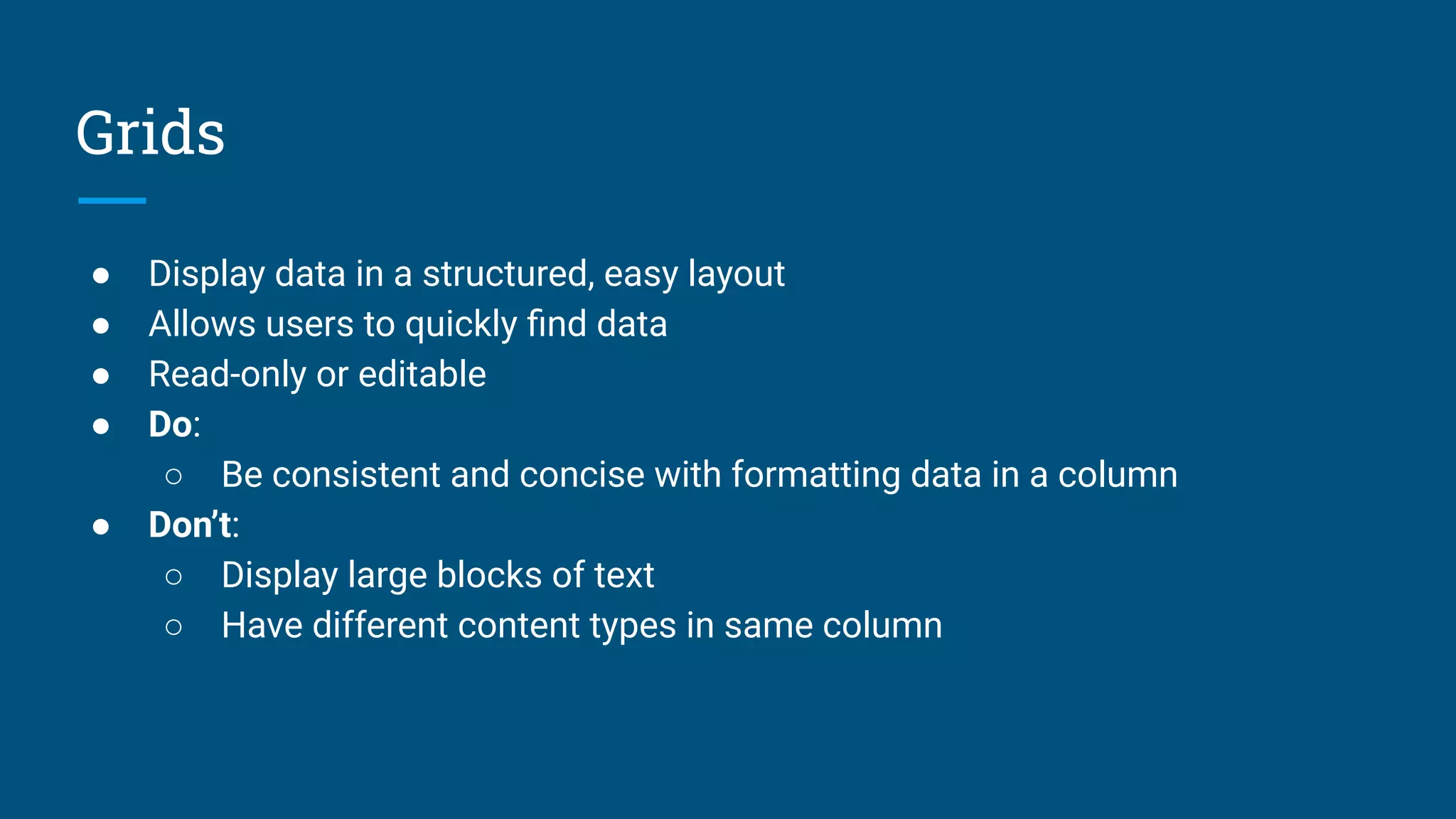
Grids
● Display data in a structured, easy layout
● Allows users to quickly find data
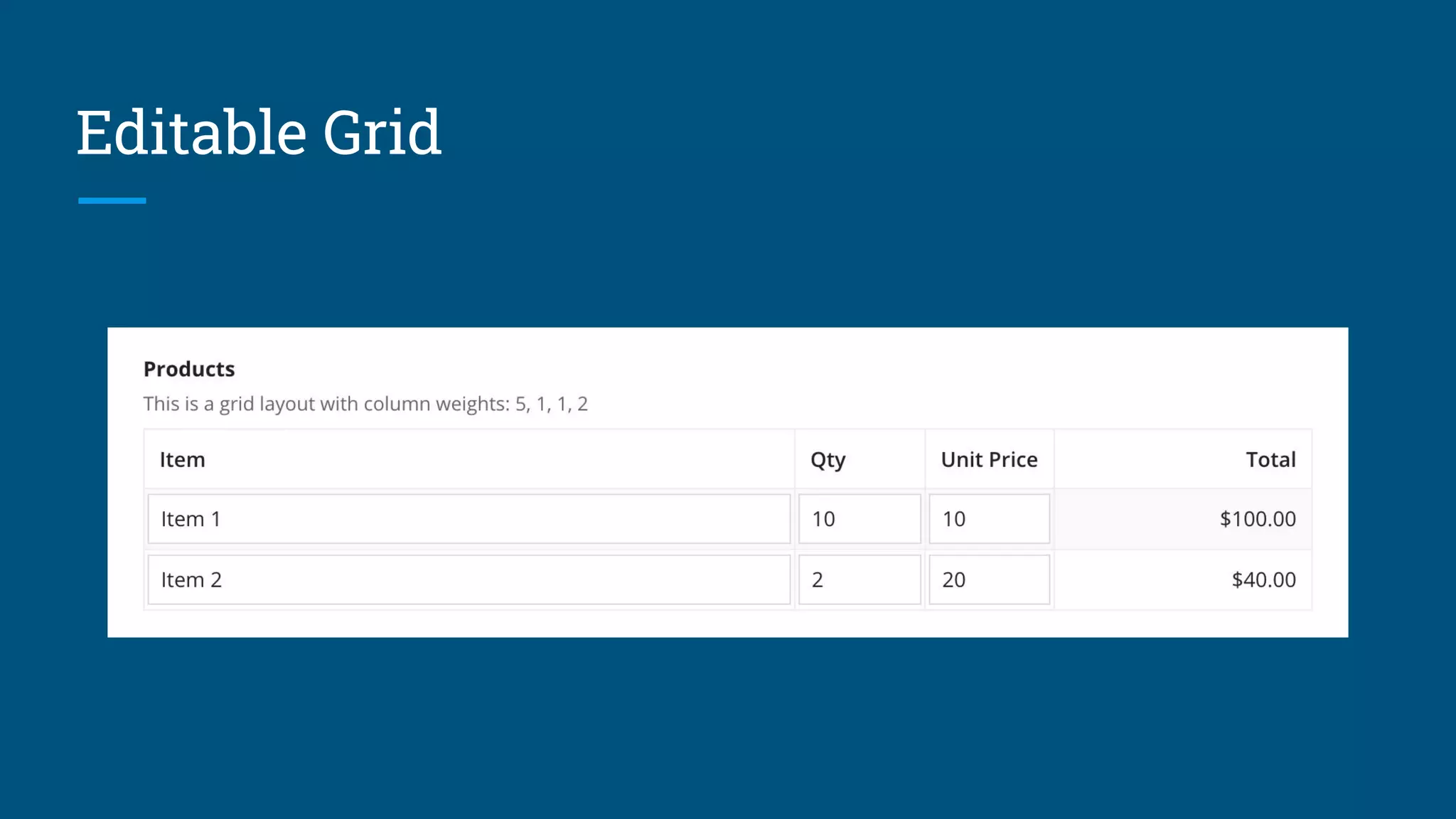
● Read-only or editable
● Do:
○ Be consistent and concise with formatting data in a column
● Don’t:
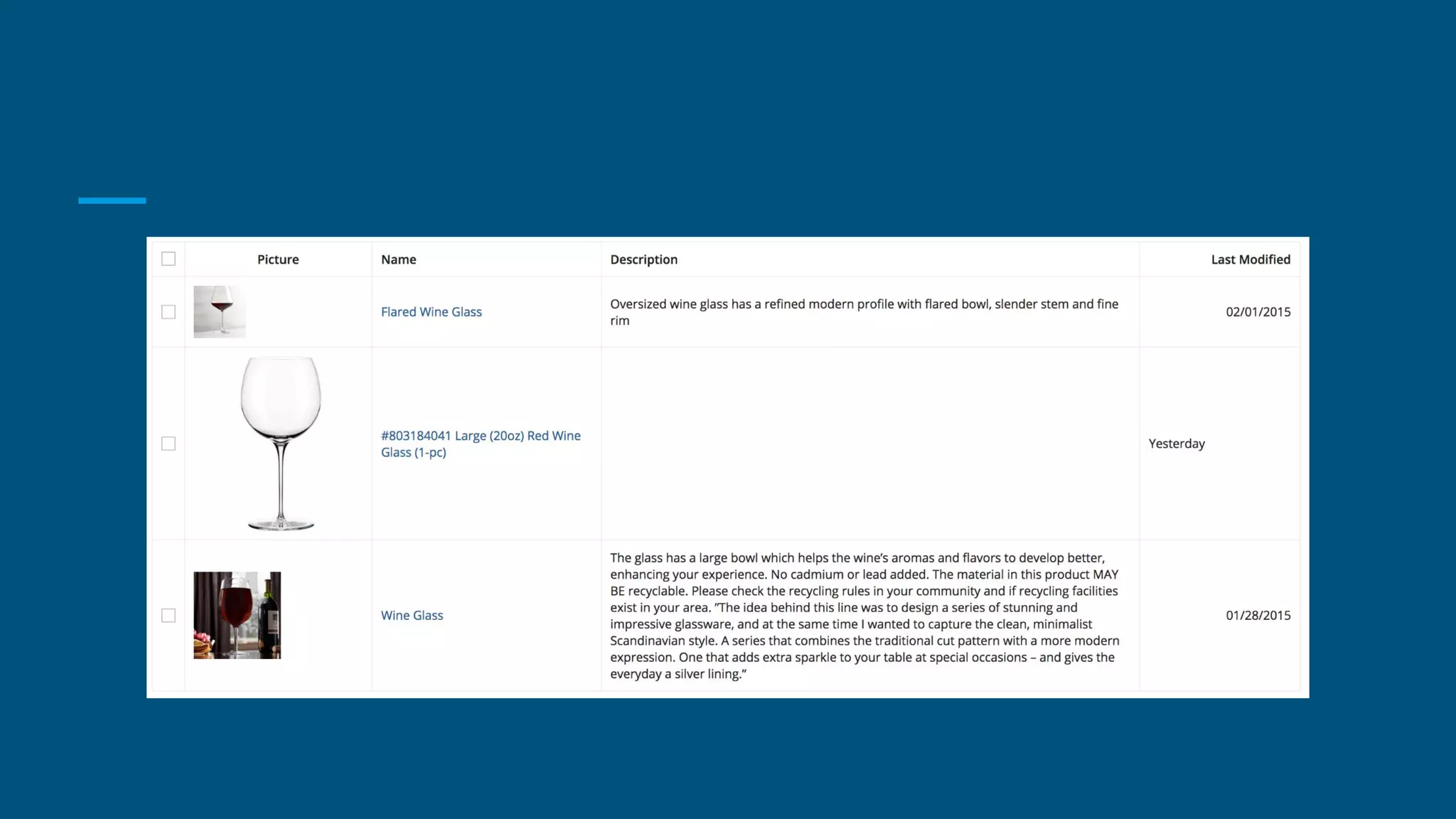
○ Display large blocks of text
○ Have different content types in same column
Editable Grid
SAIL Recipes
● Reusable code to create common UI design patterns
● Can easily combine multiple recipes
● Example:
○ Format user’s input as a telephone number and save formatted value
○ https://docs.appian.com/suite/help/17.2/recipe_format_the_users_inp
ut.html
Links:
● SAIL Design:
○ https://docs.appian.com/suite/help/17.3/SAIL_Design.html
● Box Layout:
○ https://docs.appian.com/suite/help/21.1/ux_box_layout.html
● SAIL Recipes:
○ https://docs.appian.com/suite/help/17.2/SAIL_Recipes.html#:~:text=S
AIL%20recipes%20provide%20Designers%20with,will%20be%20relevant
%20to%20forms.

Appian Self assembly Language

  • 1.
  • 2.
    What is SAIL? ●Self-Assembling Interface Layer ● Framework for designers/developers to create interfaces quickly and efficiently ● Alternative to simplified UI design ○ Incompatible across different devices ○ Difficult to easily create unique interfaces for clients
  • 3.
    Enter: SAIL ● Easy:drag and drop method, low-code environment ● Portable: automatically configures design to device being used ● Powerful: can integrate existing services with new ones ● Affordable: created to adapt to futuristic needs
  • 4.
    Aspects of SAIL ●Layouts: ○ Group similar components in an interface ● Components: ○ Elements inside of layouts ● Selections: ○ Radio buttons, checkboxes, drop downs ● Displays: ○ Rich text field, displaying images/icons
  • 5.
    Layouts ● Intuitive design ●Important to: 1. Present information clearly 2. Facilitate orientation and navigation ● Let’s look at some layout examples
  • 6.
    Layouts continued Forms: ● Arrangeselements beneath a heading and above buttons Headers: ● Displays arrangement of components beneath a card header ● Useful for landing pages and reports; cannot be nested
  • 7.
    Layouts continued ● Section: ○Displays information beneath a section title in an interface ○ Allow users to collapse/expand content ● Cards: ○ Group related content ○ Only displays data ○ Allows for background color
  • 8.
  • 9.
    Layouts continued ● Boxes: ○Groups related components ○ Consists of a title bar and a border ○ Can make pages look cluttered ● Do: ○ Use to draw attention to specific portions of a form ● Don’t: ○ Nest boxes ○ Mix different box styles on the same page https://docs.appian.com/suite/help/21.1/ux_box_layout.html
  • 10.
    Layouts continued ● Button: ○Displays buttons in an interface ● Billboard: ○ Shows content overlaid above decorative background
  • 12.
    Layouts: Columns andSide By Sides ● Both are techniques to display content horizontally ● Columns: ○ Used for primary/top-level organization ● Side By Sides ○ Shows relations of smaller components
  • 13.
  • 14.
    Grids ● Display datain a structured, easy layout ● Allows users to quickly find data ● Read-only or editable ● Do: ○ Be consistent and concise with formatting data in a column ● Don’t: ○ Display large blocks of text ○ Have different content types in same column
  • 16.
  • 17.
    SAIL Recipes ● Reusablecode to create common UI design patterns ● Can easily combine multiple recipes ● Example: ○ Format user’s input as a telephone number and save formatted value ○ https://docs.appian.com/suite/help/17.2/recipe_format_the_users_inp ut.html
  • 18.
    Links: ● SAIL Design: ○https://docs.appian.com/suite/help/17.3/SAIL_Design.html ● Box Layout: ○ https://docs.appian.com/suite/help/21.1/ux_box_layout.html ● SAIL Recipes: ○ https://docs.appian.com/suite/help/17.2/SAIL_Recipes.html#:~:text=S AIL%20recipes%20provide%20Designers%20with,will%20be%20relevant %20to%20forms.