

Paypal
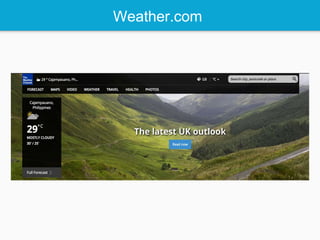
Weather.com
istockphoto.com
HTML 5 is a revision of the Hypertext Markup Language (HTML), the
standard markup language for describing the contents and
appearance of Web pages.
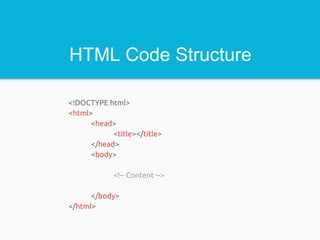
HTML Code Structure
<!DOCTYPE html>
<html>
<head>
<title></title>
</head>
<body>
<!-- Content -->
</body>
</html>
<Tags>
<html></html>
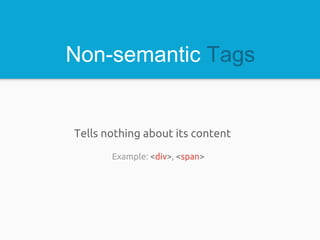
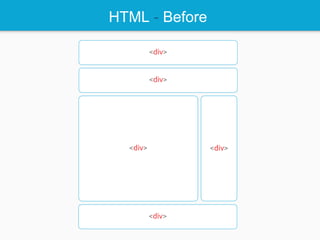
Non-semantic Tags
Tells nothing about its content
Example: <div>, <span>
HTML - Before
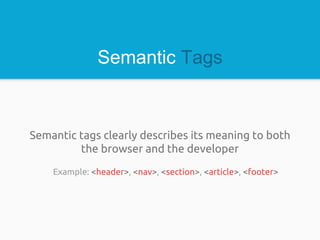
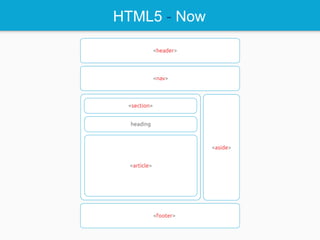
Semantic Tags
Semantic tags clearly describes its meaning to both
the browser and the developer
Example: <header>, <nav>, <section>, <article>, <footer>
HTML5 - Now
Default Display
Every HTML element has a default display value
depending on what type of element it is. The default
display value for most elements is block or inline.
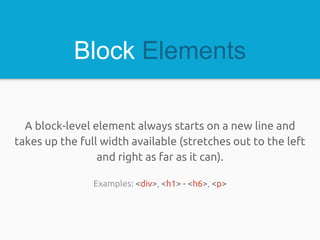
Block Elements
A block-level element always starts on a new line and
takes up the full width available (stretches out to the left
and right as far as it can).
Examples: <div>, <h1> - <h6>, <p>
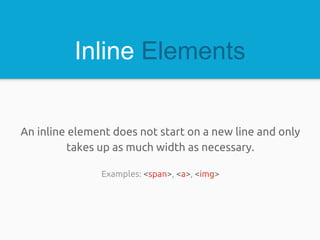
Inline Elements
An inline element does not start on a new line and only
takes up as much width as necessary.
Examples: <span>, <a>, <img>
Attributes
Attributes provide additional information about HTML
elements.
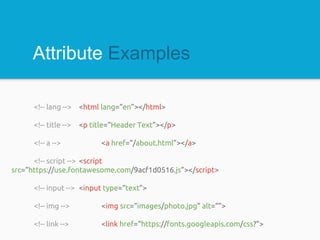
Attribute Examples
<!-- lang --> <html lang=“en”></html>
<!-- title --> <p title=“Header Text”></p>
<!-- a --> <a href=“/about.html”></a>
<!-- script --> <script
src=“https://use.fontawesome.com/9acf1d0516.js”></script>
<!-- input --> <input type=“text”>
<!-- img --> <img src=“images/photo.jpg” alt=“”>
<!-- link --> <link href=“https://fonts.googleapis.com/css?”>
CSS stands for Cascading Style Sheet. It is a stylesheet language
that describes the presentation of an HTML.
Style Sheet
It’s what the browser reads for the HTML document to
be formatted according to the information provided.
3 Ways to Insert CSS
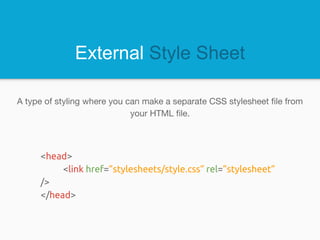
External Style Sheet
A type of styling where you can make a separate CSS stylesheet file from
your HTML file.
<head>
<link href=”stylesheets/style.css” rel=”stylesheet”
/>
</head>
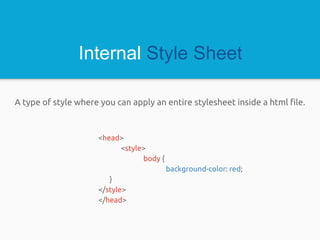
Internal Style Sheet
A type of style where you can apply an entire stylesheet inside a html file.
<head>
<style>
body {
background-color: red;
}
</style>
</head>
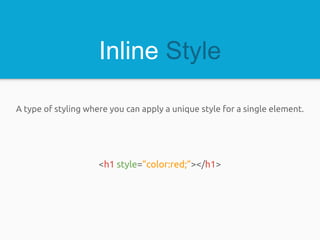
Inline Style
A type of styling where you can apply a unique style for a single element.
<h1 style=”color:red;”></h1>
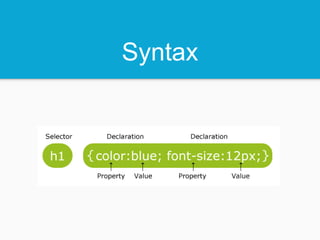
Syntax
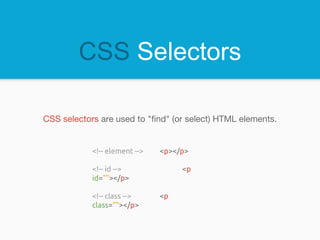
CSS Selectors
CSS selectors are used to "find" (or select) HTML elements.
<!-- element --> <p></p>
<!-- id --> <p
id=""></p>
<!-- class --> <p
class=""></p>
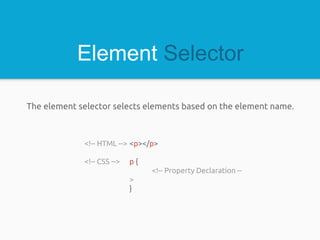
Element Selector
The element selector selects elements based on the element name.
<!-- HTML --> <p></p>
<!-- CSS --> p {
<!-- Property Declaration --
>
}
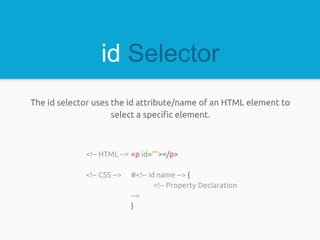
id Selector
The id selector uses the id attribute/name of an HTML element to
select a specific element.
<!-- HTML --> <p id=””></p>
<!-- CSS --> #<!-- id name --> {
<!-- Property Declaration
-->
}
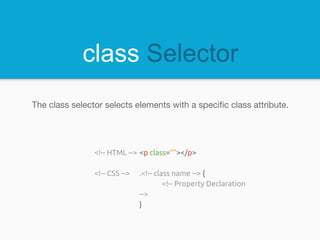
class Selector
The class selector selects elements with a specific class attribute.
<!-- HTML --> <p class=””></p>
<!-- CSS --> .<!-- class name --> {
<!-- Property Declaration
-->
}
Bootstrap is the most popular HTML, CSS, JS framework
for responsive, mobile first projects on the web.
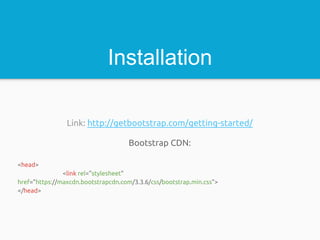
Installation
Link: http://getbootstrap.com/getting-started/
Bootstrap CDN:
<head>
<link rel=”stylesheet”
href=”https://maxcdn.bootstrapcdn.com/3.3.6/css/bootstrap.min.css”>
</head>
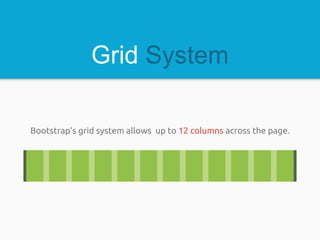
Grid System
Bootstrap’s grid system allows up to 12 columns across the page.
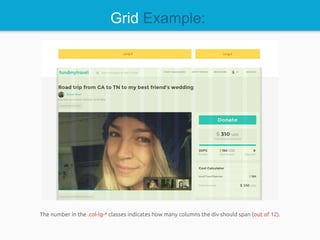
The number in the .col-lg-* classes indicates how many columns the div should span (out of 12).
Grid Example:
Example
<div class="container">
<section class="col-lg-8">
<!-- content →
</section>
<section class="col-lg-4">
<!-- content →
</section>
</div>
JavaScript is the programming language of HTML and the Web.
JS Variables
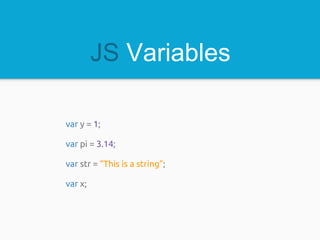
var y = 1;
var pi = 3.14;
var str = “This is a string”;
var x;
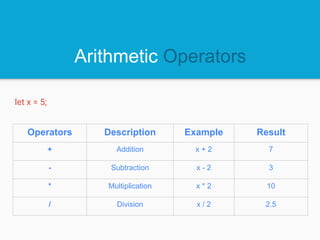
Arithmetic Operators
Operators Description Example Result
+ Addition x + 2 7
- Subtraction x - 2 3
* Multiplication x * 2 10
/ Division x / 2 2.5
let x = 5;
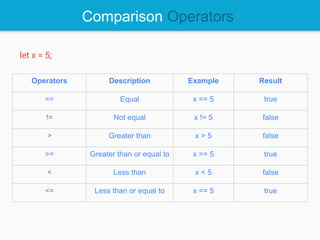
Comparison Operators
Operators Description Example Result
== Equal x == 5 true
!= Not equal x != 5 false
> Greater than x > 5 false
>= Greater than or equal to x >= 5 true
< Less than x < 5 false
<= Less than or equal to x <= 5 true
let x = 5;
JS Arrays
var books = ["book1", "book2", "book3"];
or
var books = new Array("book1", "book2", "book3");
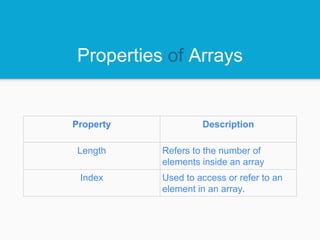
Properties of Arrays
Property Description
Length Refers to the number of
elements inside an array
Index Used to access or refer to an
element in an array.
Accessing Arrays
var books = ["book1", "book2", "book3"];
var len = books.length; // = 3;
var firstElement = books[0]; // =
“book1”;
var lastElement = books[len-1]; // = “book3”;
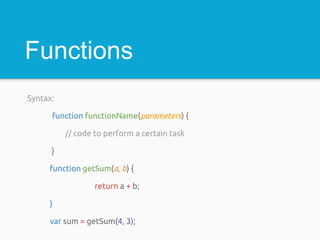
Functions
Syntax:
function functionName(parameters) {
// code to perform a certain task
}
function getSum(a, b) {
return a + b;
}
var sum = getSum(4, 3);
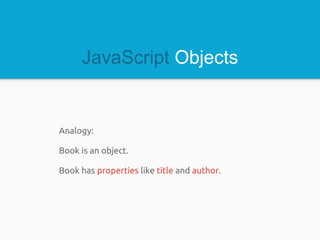
JavaScript Objects
Analogy:
Book is an object.
Book has properties like title and author.
JavaScript Objects
var book = { title: “Programming”, author: “Bill Gates” };
Accessing property of an object:
var title = book.title;
or
var author = book[‘author’];
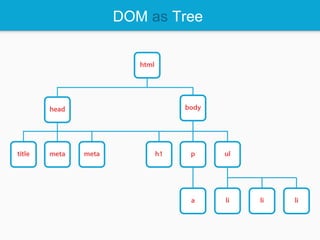
DOM
Document Object Model is the programming interface of the HTML.
DOM as Tree
Power of JS
With the object model, JavaScript gets all the power it needs to
create dynamic HTML:
JavaScript can change all the HTML elements in the page
JavaScript can change all the HTML attributes in the page
JavaScript can change all the CSS styles in the page
JavaScript can remove existing HTML elements and attributes
JavaScript can add new HTML elements and attributes
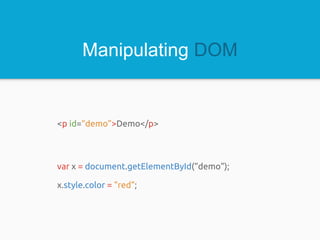
Manipulating DOM
<p id=“demo”>Demo</p>
var x = document.getElementById(“demo”);
x.style.color = "red";
https://git-scm.com/
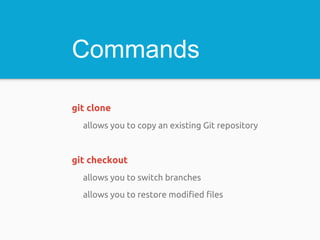
Commands
git clone
allows you to copy an existing Git repository
git checkout
allows you to switch branches
allows you to restore modified files
Git Installation
1.Go to: https://git-scm.com/downloads
2.Click the appropriate link depending on your operating
system.
3.Follow the instructions in downloading git.
4.For Windows users, run the git bash desktop application
once the application has been downloaded.
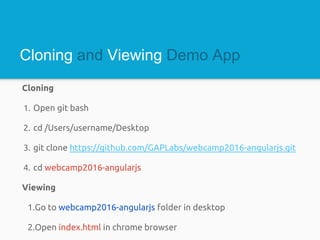
Cloning
1. Open git bash
2. cd /Users/username/Desktop
3. git clone https://github.com/GAPLabs/webcamp2016-angularjs.git
4. cd webcamp2016-angularjs
Viewing
1.Go to webcamp2016-angularjs folder in desktop
2.Open index.html in chrome browser
Cloning and Viewing Demo App
DEMO Application
Chunks of application development, follow along as I discuss:
STEP - 1 “Setting Up an Angular App”
STEP - 2 “Knowing Data Binding”
STEP - 3 “Angular App Development Pattern”
STEP - 4 “How to Filter Your Data”
STEP - 5 “Wrapping Up Our App”
Step-1 takeaways
Bootstrapping an Angular App using ng-app directive
Angular expressions
Step-1 Branch
git checkout step-1
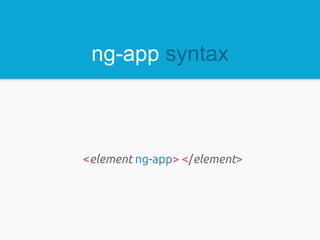
ng-app syntax
<element ng-app> </element>
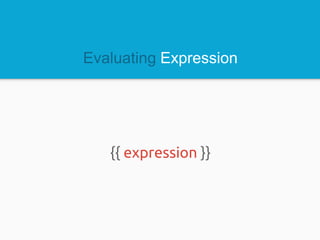
Evaluating Expression
{{ expression }}
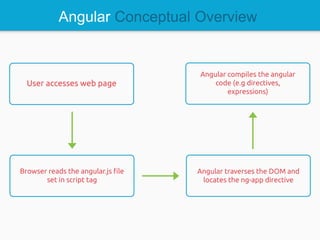
Angular Conceptual Overview
Restore Step-1 Branch
git checkout index.html
Step-2 takeaways
Data Binding using ng-model directive
Step-2 Branch
git checkout step-2
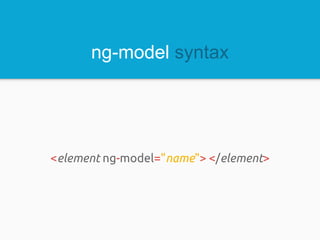
ng-model syntax
<element ng-model="name"> </element>
Restore Step-2 Branch
git checkout index.html
Step-3 takeaways
Angular Modules
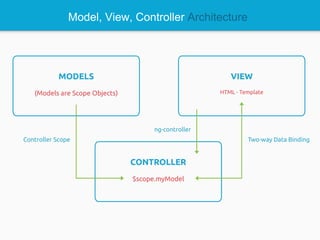
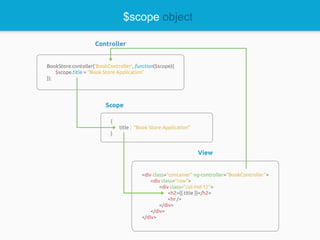
Angular MVC Architecture using $scope object
Looping your array using ng-repeat directive
Step-3 Branch
git checkout step-3
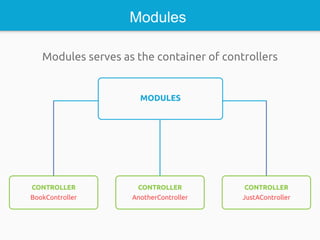
Modules
Modules serves as the container of controllers
Module Syntax
angular.module(module_name, [dependencies])
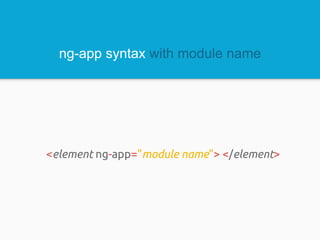
ng-app syntax with module name
<element ng-app="module name"> </element>
Model, View, Controller Architecture
Controller Syntax
var moduleObj = angular.module(module_name, [dependencies]);
moduleObj.controller(controller_name, function($scope){
});
$scope object
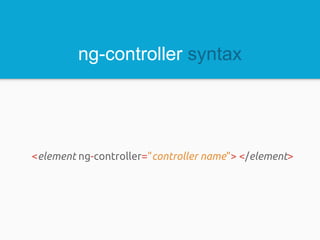
ng-controller syntax
<element ng-controller="controller name"> </element>
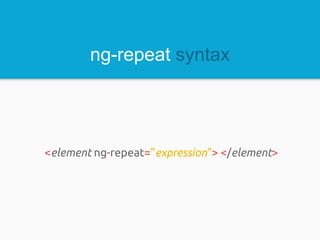
ng-repeat syntax
<element ng-repeat="expression"> </element>
Restore Step-3 Branch
git checkout
index.html
git checkout js/app.js
Step-4 takeaways
Filters in Angular
Step-4 Branch
git checkout step-4
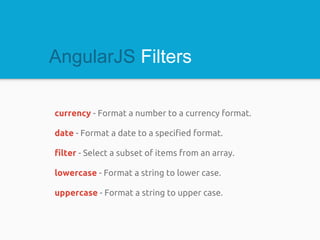
AngularJS Filters
currency - Format a number to a currency format.
date - Format a date to a specified format.
filter - Select a subset of items from an array.
lowercase - Format a string to lower case.
uppercase - Format a string to upper case.
Restore Step-4 Branch
git checkout index.html
Step-5 Branch
git checkout step-5
Step - 5 takeaways
Event handling using ng-click directive
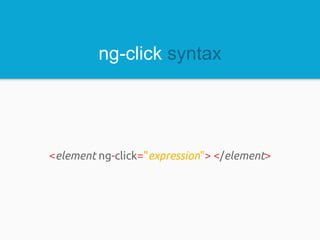
ng-click syntax
<element ng-click="expression"> </element>
Restore Step-5 Branch
git checkout index.html
git checkout js/app.js
ACTIVITY Branch
git checkout step-6
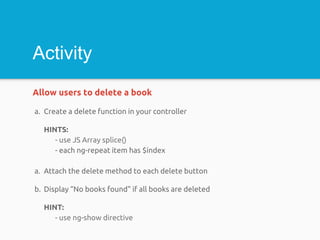
Activity
Allow users to delete a book
a. Create a delete function in your controller
HINTS:
- use JS Array splice()
- each ng-repeat item has $index
a. Attach the delete method to each delete button
b. Display “No books found” if all books are deleted
HINT:
- use ng-show directive
ng-Show syntax
<element ng-show="expression"> </element>

Angular JS