Android Wear
an Overview
Paul Trebilcox-Ruiz
Context Aware

Event Driven
– In a restaurant
– Near a sports stadium
– Time Passed (ex: oil change reminder)

Launch Automatically

Suggest
– User asks questions
– Provide information
No to Low Interactions

Keep it simple - Glancable
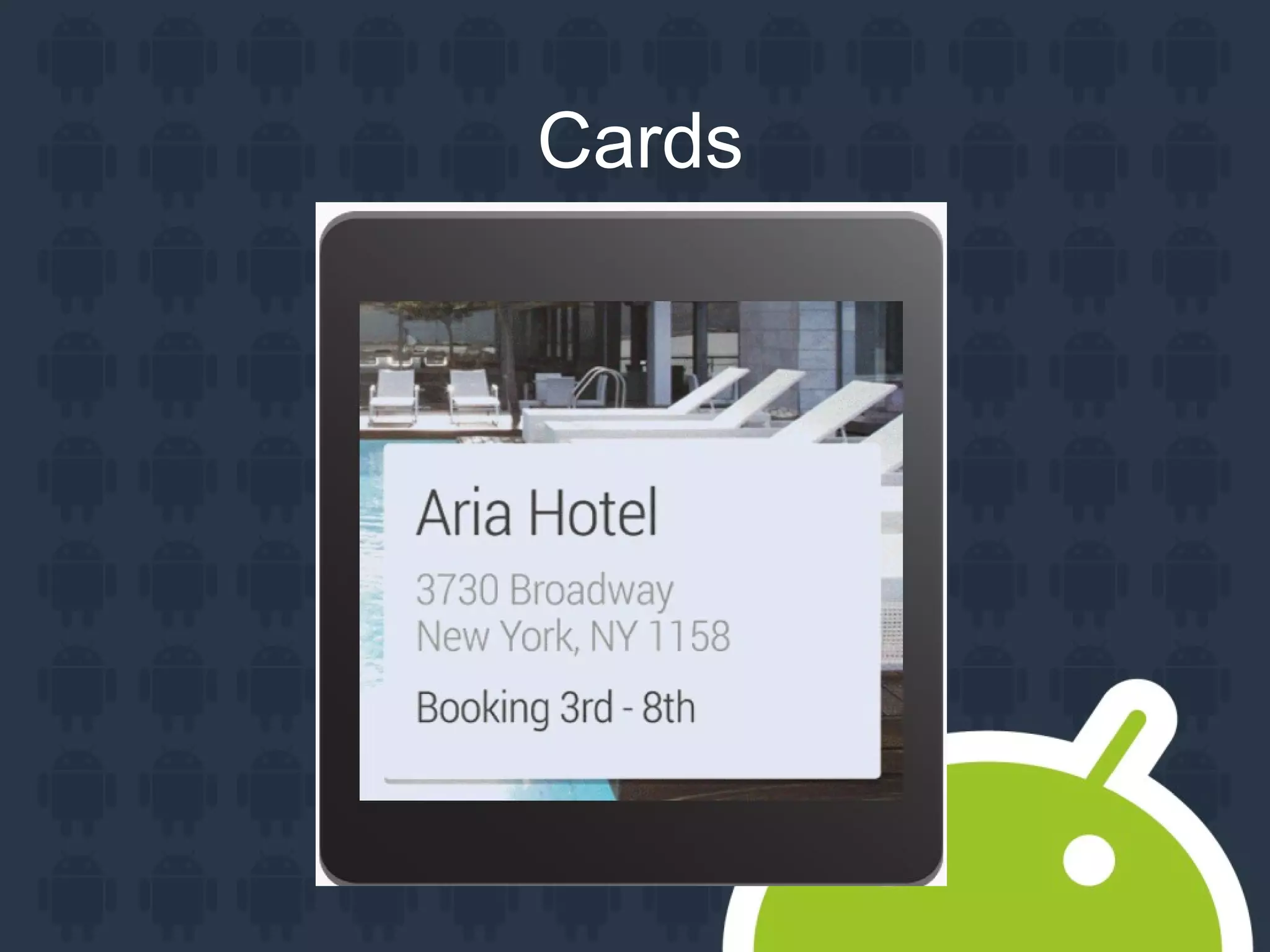
– Cards
– Lists
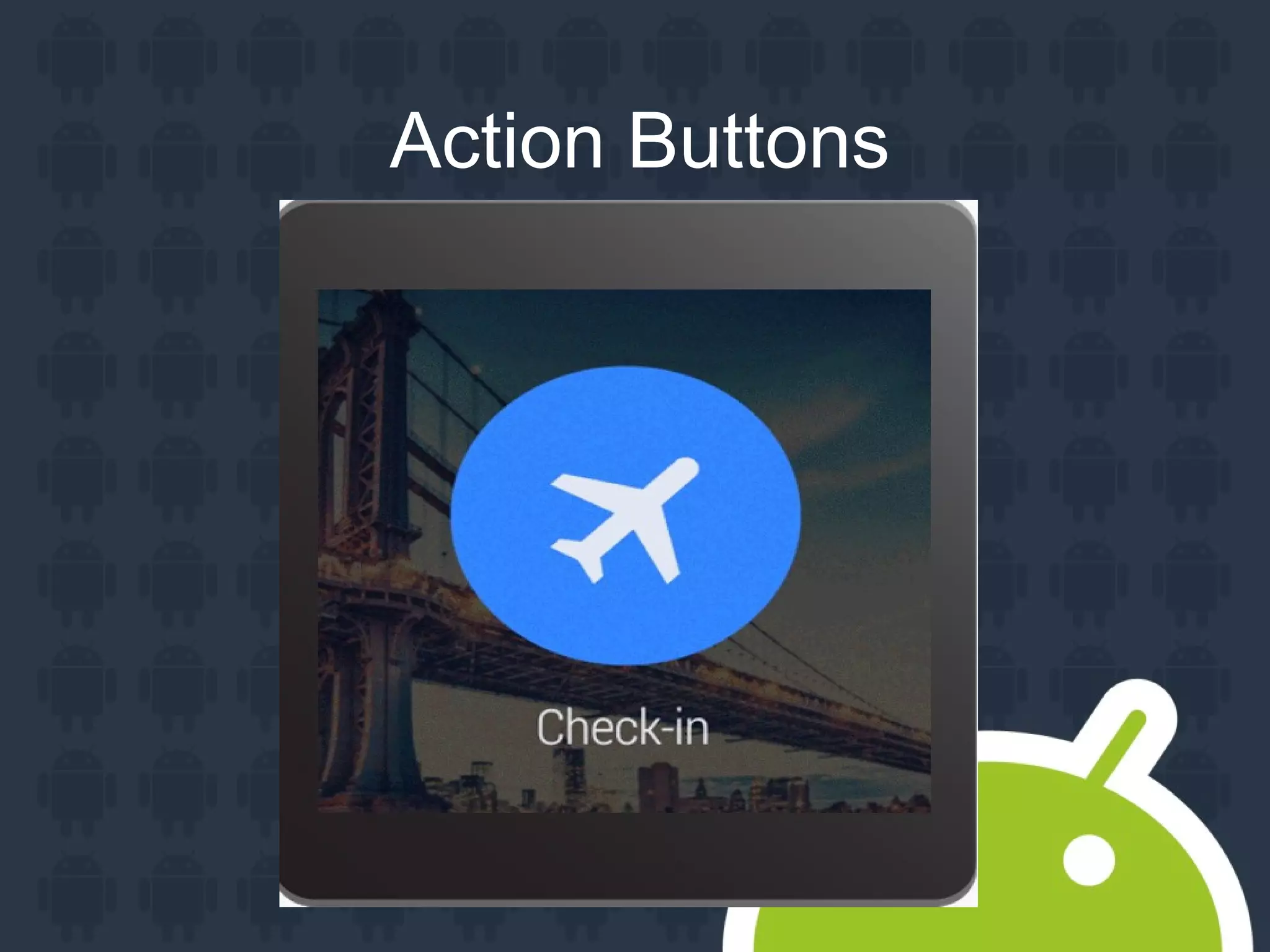
– Buttons

Allow voice interactions
Additional Resources
Design Principles:
https://developer.android.com/design/wear/principles.html
Designing for Android Wear:
https://www.youtube.com/watch?v=4JcDYkgqksY
Notifications
Cards
NotificationCompat.Builder builder =
new NotificationCompat
.Builder( context )
.setSmallIcon( R.drawable.icon )
.setContentTitle( "Title" )
.setContentText( "Text" );
NotificationManagerCompat
.from( context )
.notify( id, builder.build() );
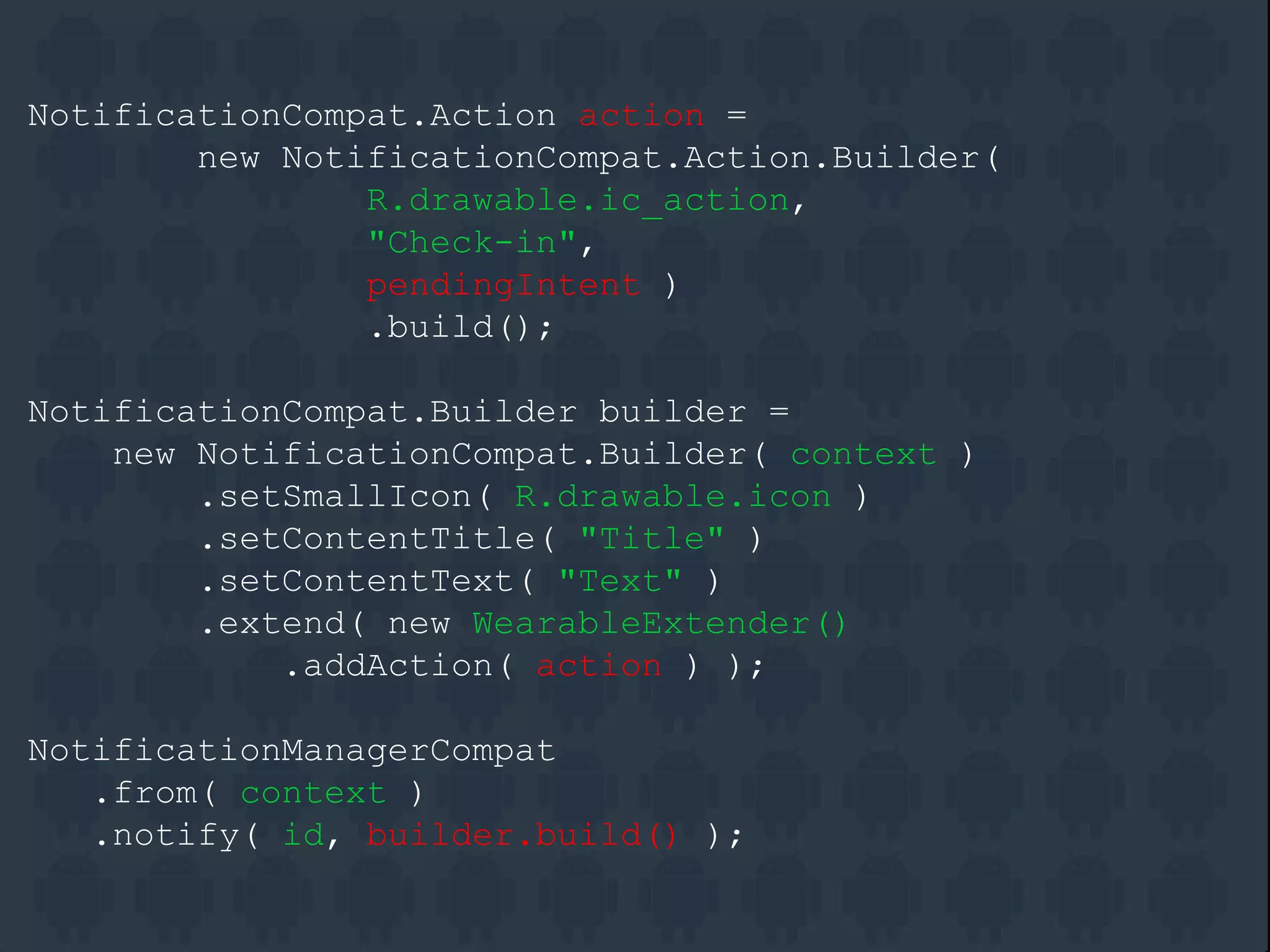
Action Buttons
NotificationCompat.Action action =
new NotificationCompat.Action.Builder(
R.drawable.ic_action,
"Check-in",
pendingIntent )
.build();
NotificationCompat.Builder builder =
new NotificationCompat.Builder( context )
.setSmallIcon( R.drawable.icon )
.setContentTitle( "Title" )
.setContentText( "Text" )
.extend( new WearableExtender()
.addAction( action ) );
NotificationManagerCompat
.from( context )
.notify( id, builder.build() );
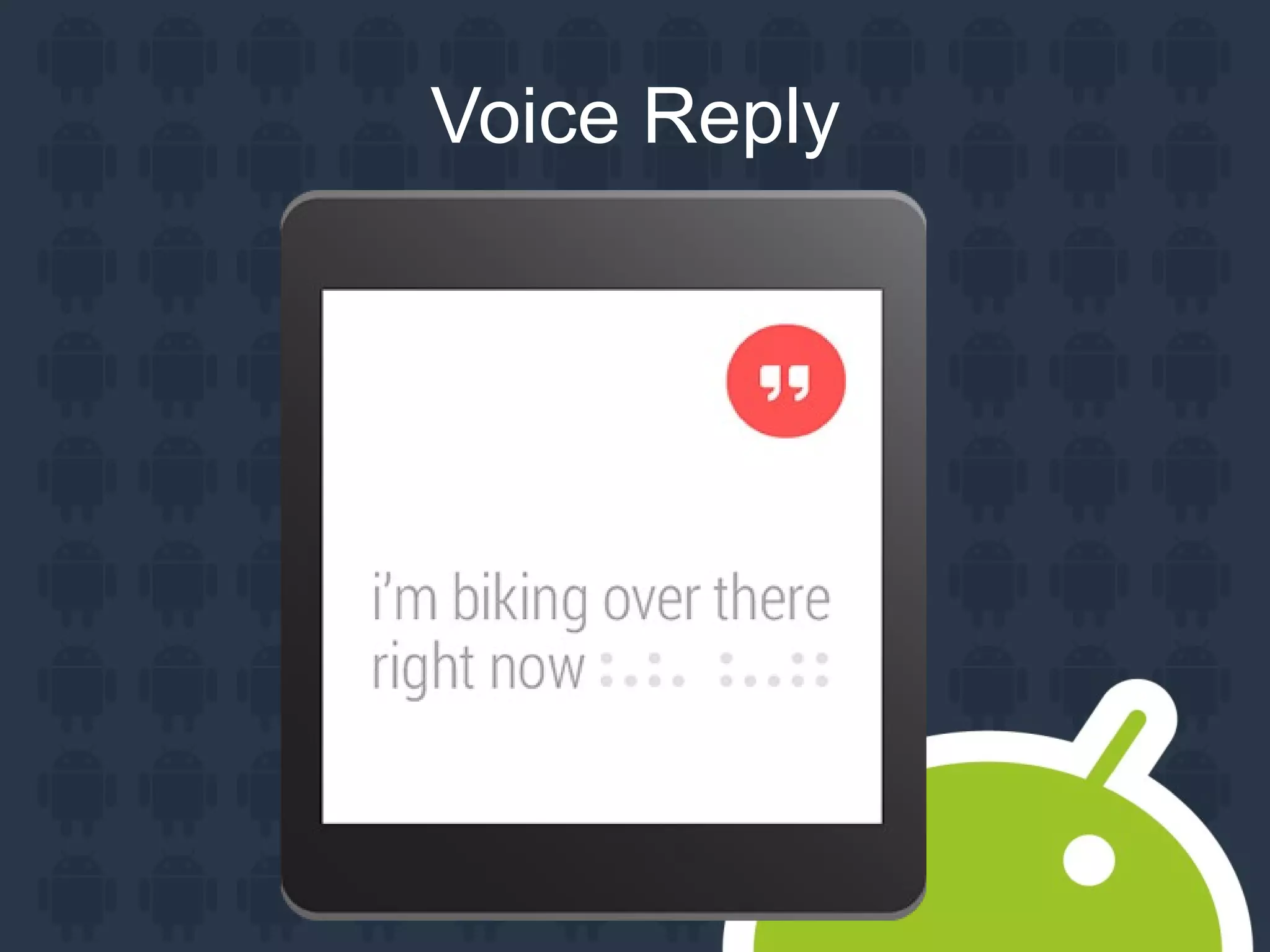
Voice Reply
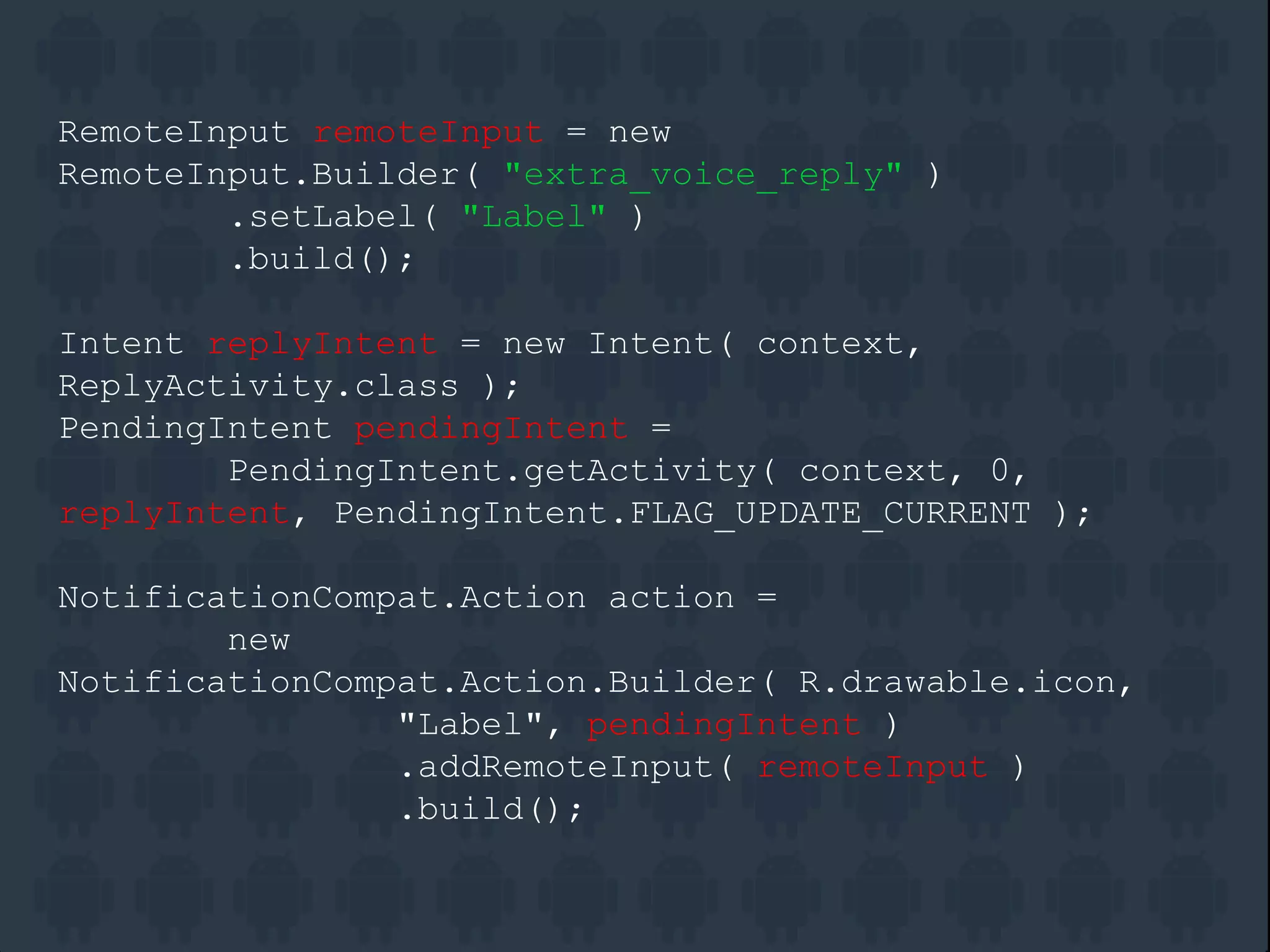
RemoteInput remoteInput = new
RemoteInput.Builder( "extra_voice_reply" )
.setLabel( "Label" )
.build();
Intent replyIntent = new Intent( context,
ReplyActivity.class );
PendingIntent pendingIntent =
PendingIntent.getActivity( context, 0,
replyIntent, PendingIntent.FLAG_UPDATE_CURRENT );
NotificationCompat.Action action =
new
NotificationCompat.Action.Builder( R.drawable.icon,
"Label", pendingIntent )
.addRemoteInput( remoteInput )
.build();
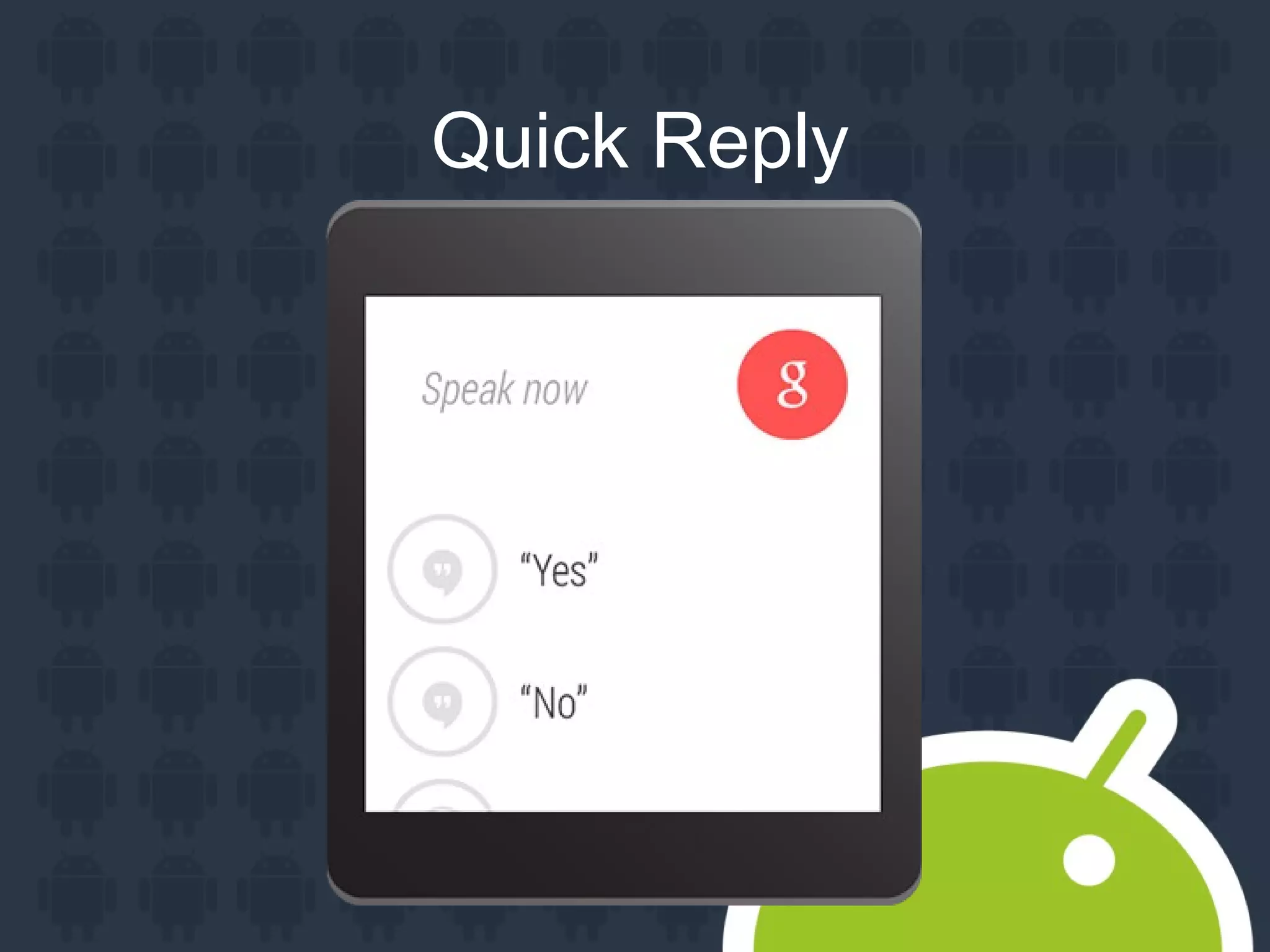
Quick Reply
String[] choices = [ "Yes", "No", "Maybe-So" ];
RemoteInput remoteInput = new
RemoteInput.Builder( "extra_voice_reply" )
.setLabel( "Say Something" )
.setChoices( choices )
.build();
//Attach to action and build notification
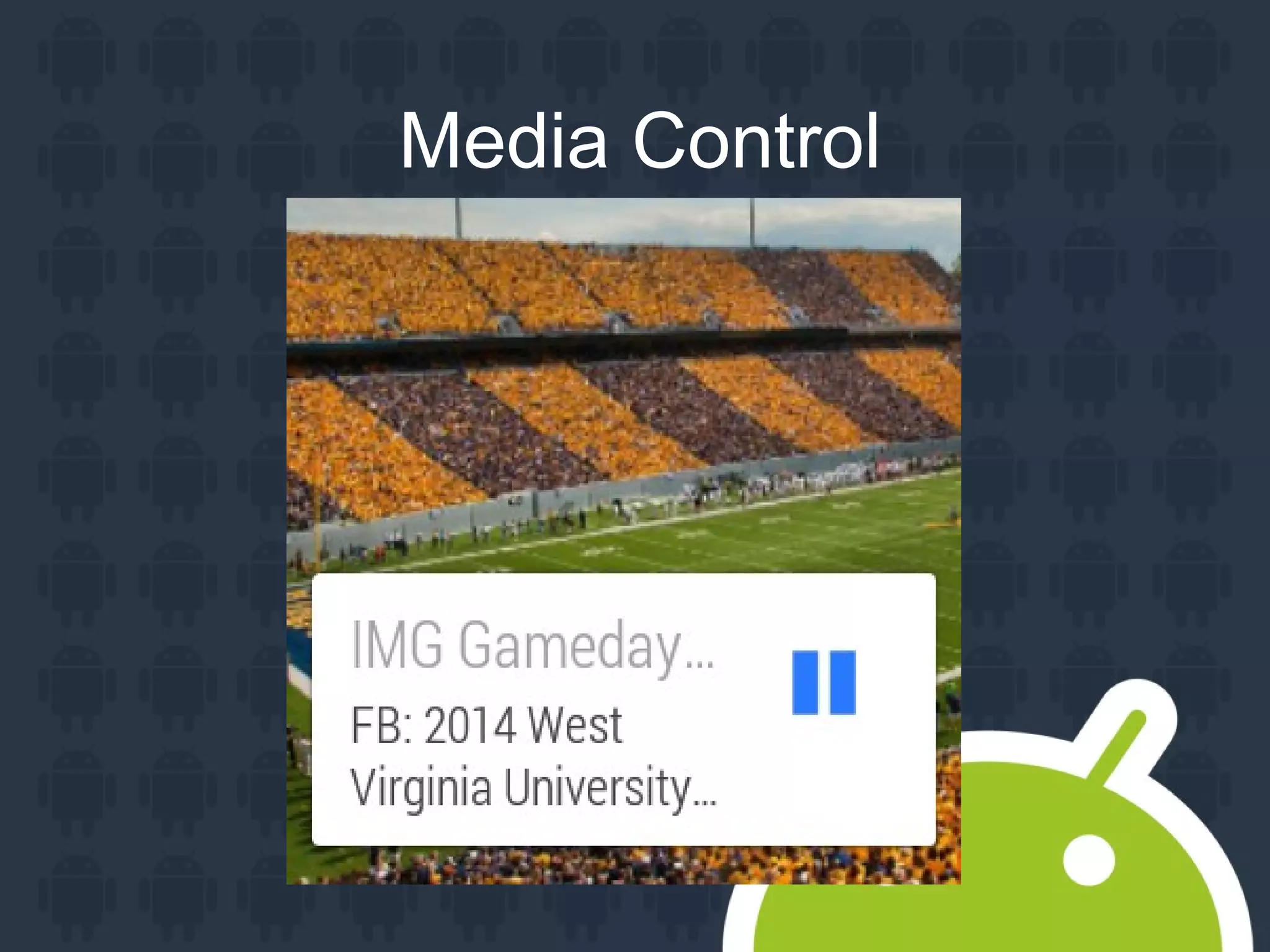
Media Control
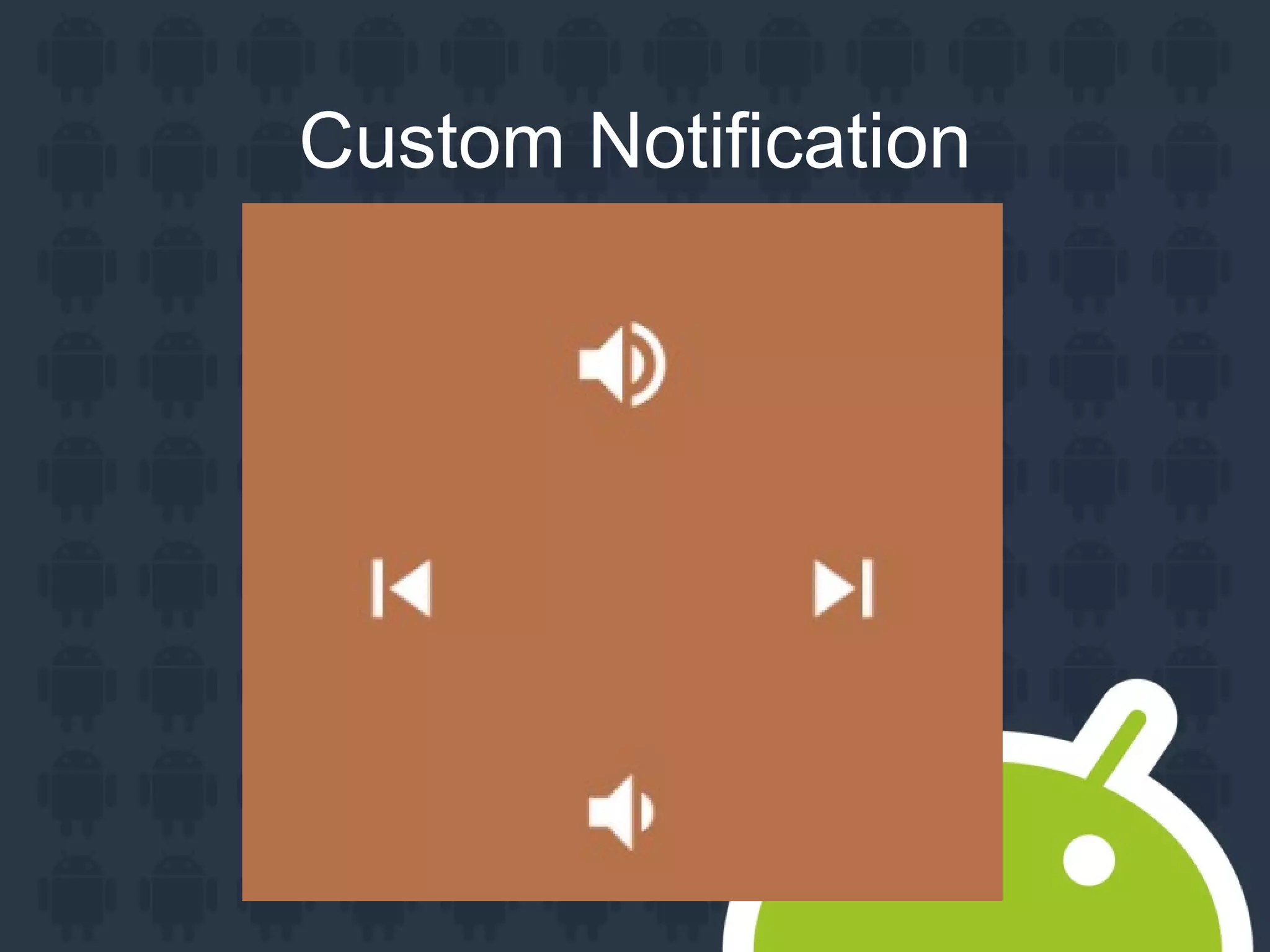
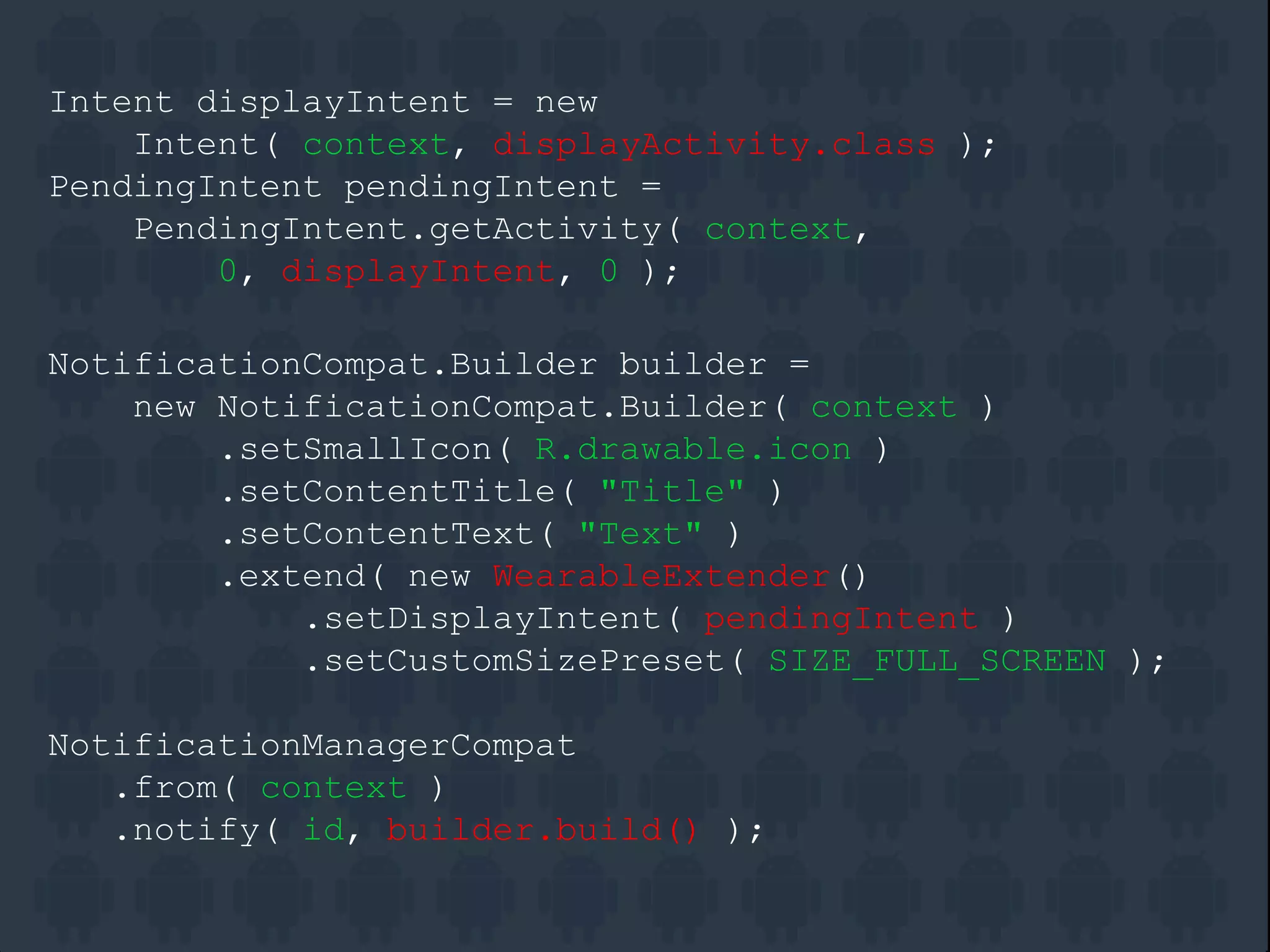
Custom Notification
Intent displayIntent = new
Intent( context, displayActivity.class );
PendingIntent pendingIntent =
PendingIntent.getActivity( context,
0, displayIntent, 0 );
NotificationCompat.Builder builder =
new NotificationCompat.Builder( context )
.setSmallIcon( R.drawable.icon )
.setContentTitle( "Title" )
.setContentText( "Text" )
.extend( new WearableExtender()
.setDisplayIntent( pendingIntent )
.setCustomSizePreset( SIZE_FULL_SCREEN );
NotificationManagerCompat
.from( context )
.notify( id, builder.build() );
Additional Resources
Documentation:
https://developer.android.com/training/wearables/notificat
ions/index.html
I/O Bytes:
https://www.youtube.com/watch?v=tKoQatxG0_8
Activities and UI

Short and Simple

Always-On Mode

Provided UI and Optimized Layouts
– WatchViewStub
– BoxInsetLayout
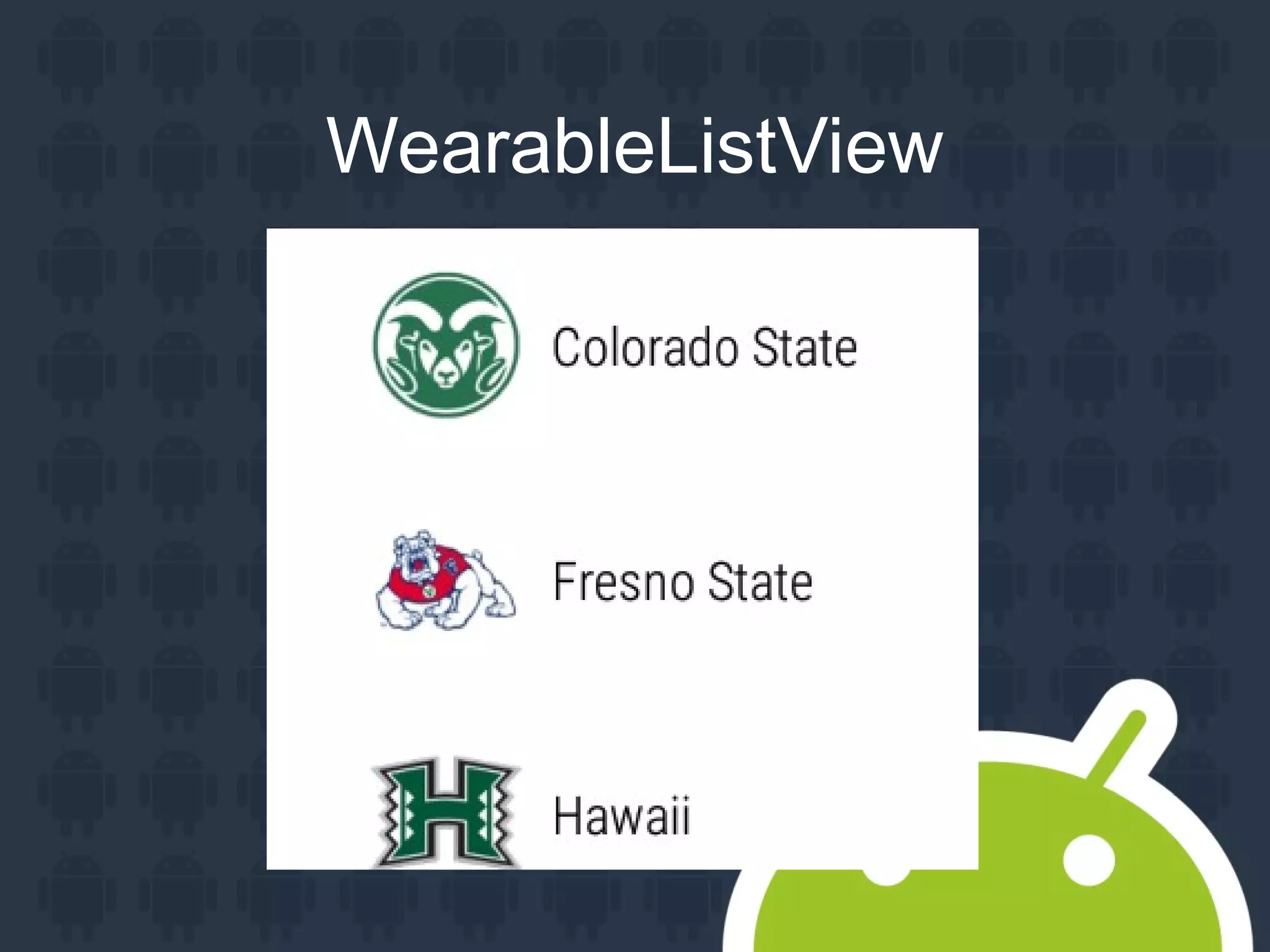
– WearableListView
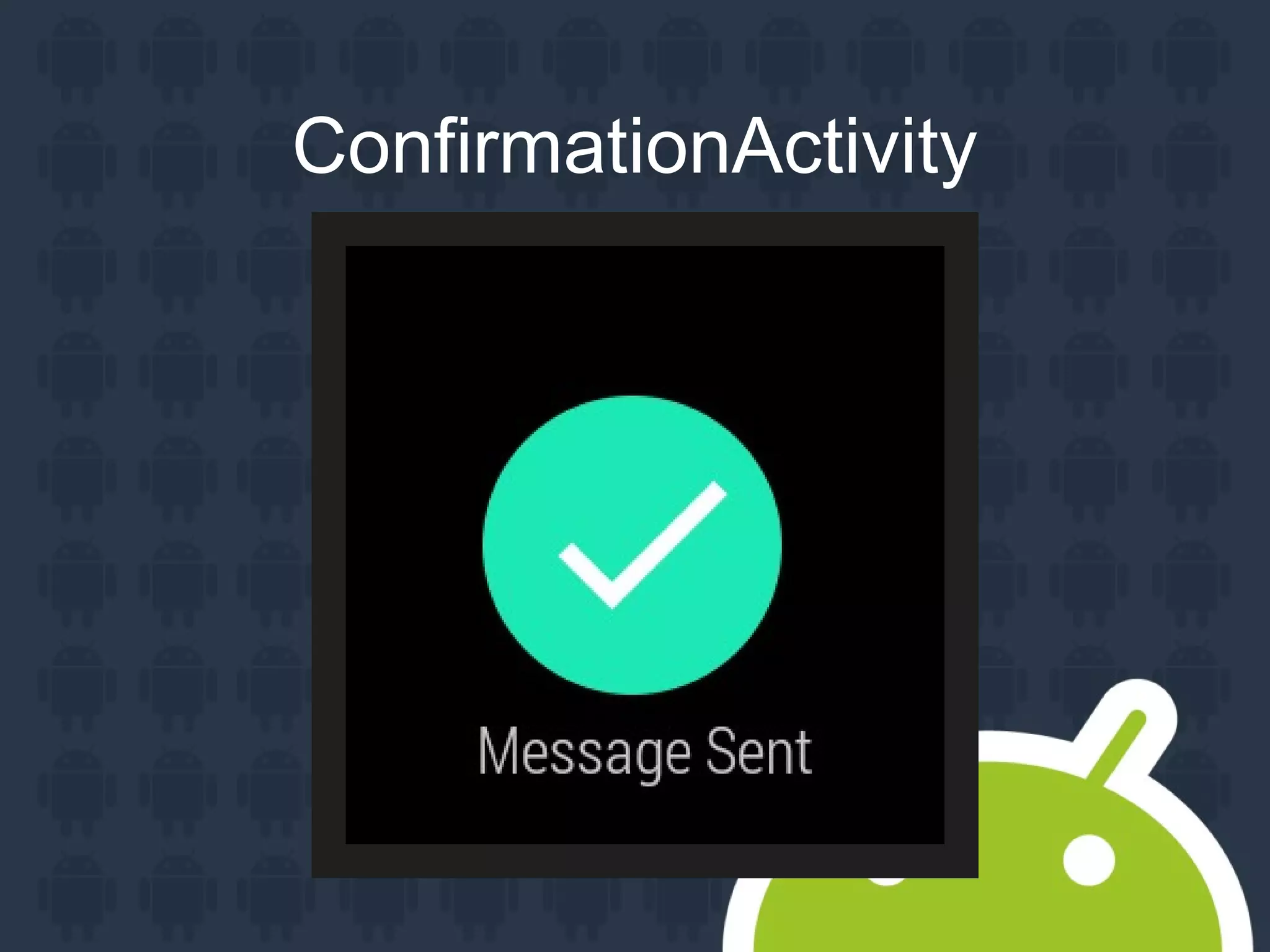
ConfirmationActivity
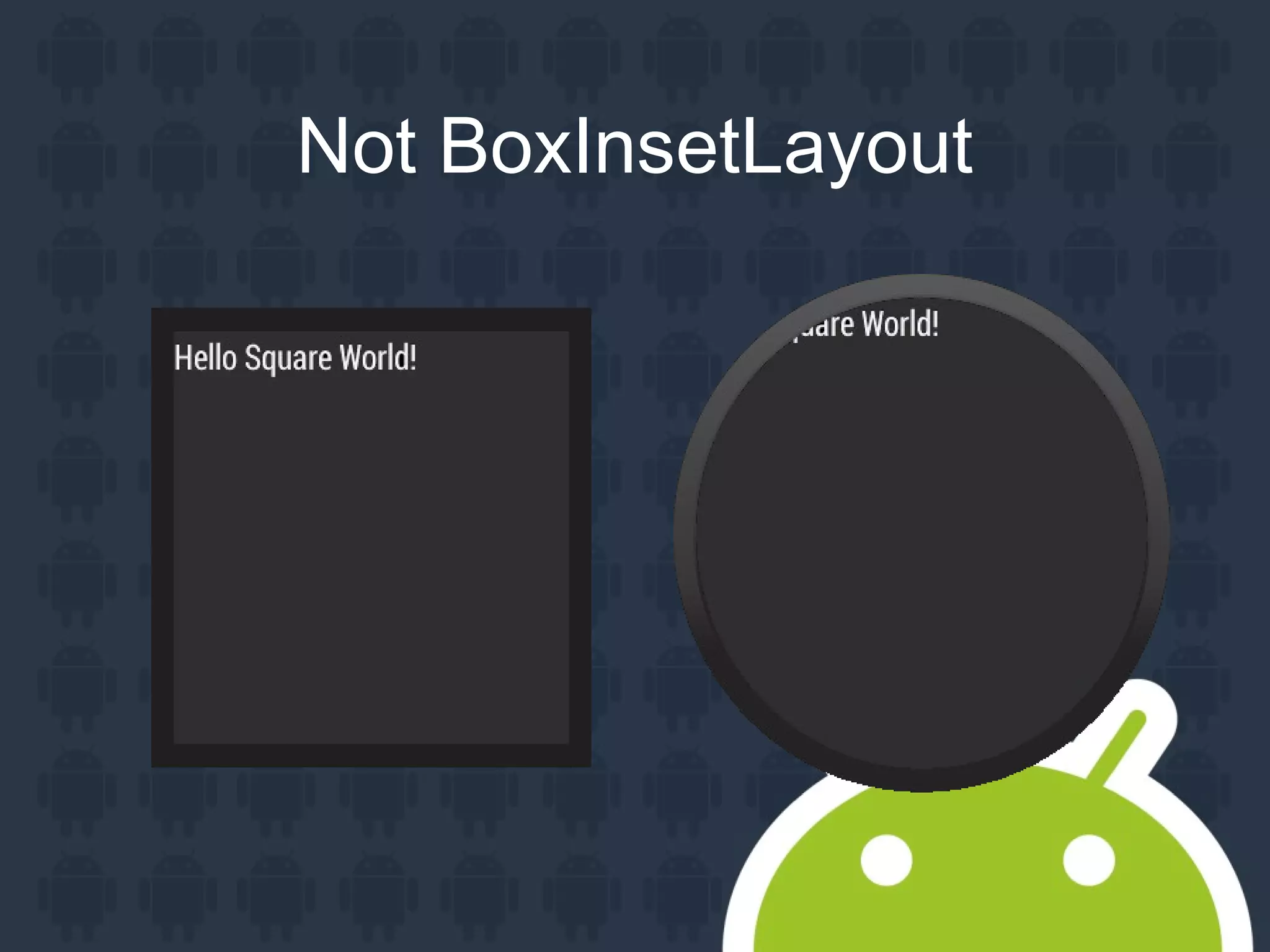
Not BoxInsetLayout
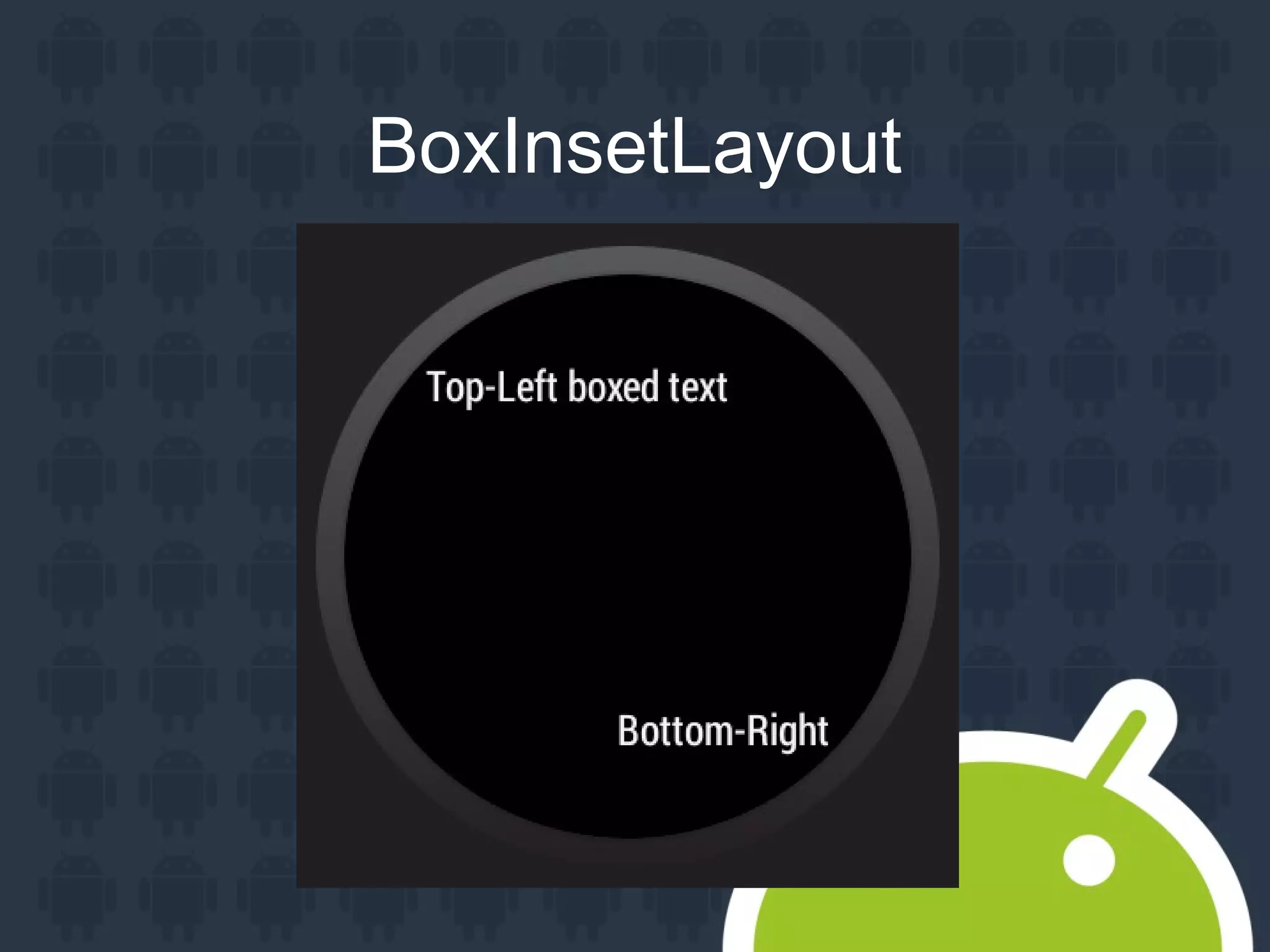
BoxInsetLayout
WearableListView
Additional Resources
Documentation:
https://developer.android.com/training/wearables/apps/la
youts.html
Building Advanced UIs for Wear:
https://www.youtube.com/watch?v=uTQ9KKyM9wo
Hardware

Optical Heart Rate Monitor

Accelerometer

Gyroscope

Compass

Vibrator

Ambient Light

GPS
Vibrator vibrator = (Vibrator)
getSystemService( Context.VIBRATOR_SERVICE );
long[] pattern = { 0, 10000 };
vibrator.vibrate( pattern, -1 );
//Implement SensorEventListener
Sensor heartRateSensor =
sensorManager.getDefaultSensor( Sensor.TYPE_HEART_RATE );
if ( heartRateSensor != null ) {
sensorManager.registerListener( this,
heartRateSensor,
SensorManager.SENSOR_DELAY_FASTEST );
}
@Override
public void onSensorChanged( SensorEvent event ) {
if( event.sensor.getType() == Sensor.TYPE_HEART_RATE ) {
Log.e( "Wear Sensor",
"HeartRate: " + event.values[0] );
}
}
Tips

Phone Sensors before Wear

Unregister sensors when done

Don't reinvent the wheel ( ex: step sensor )
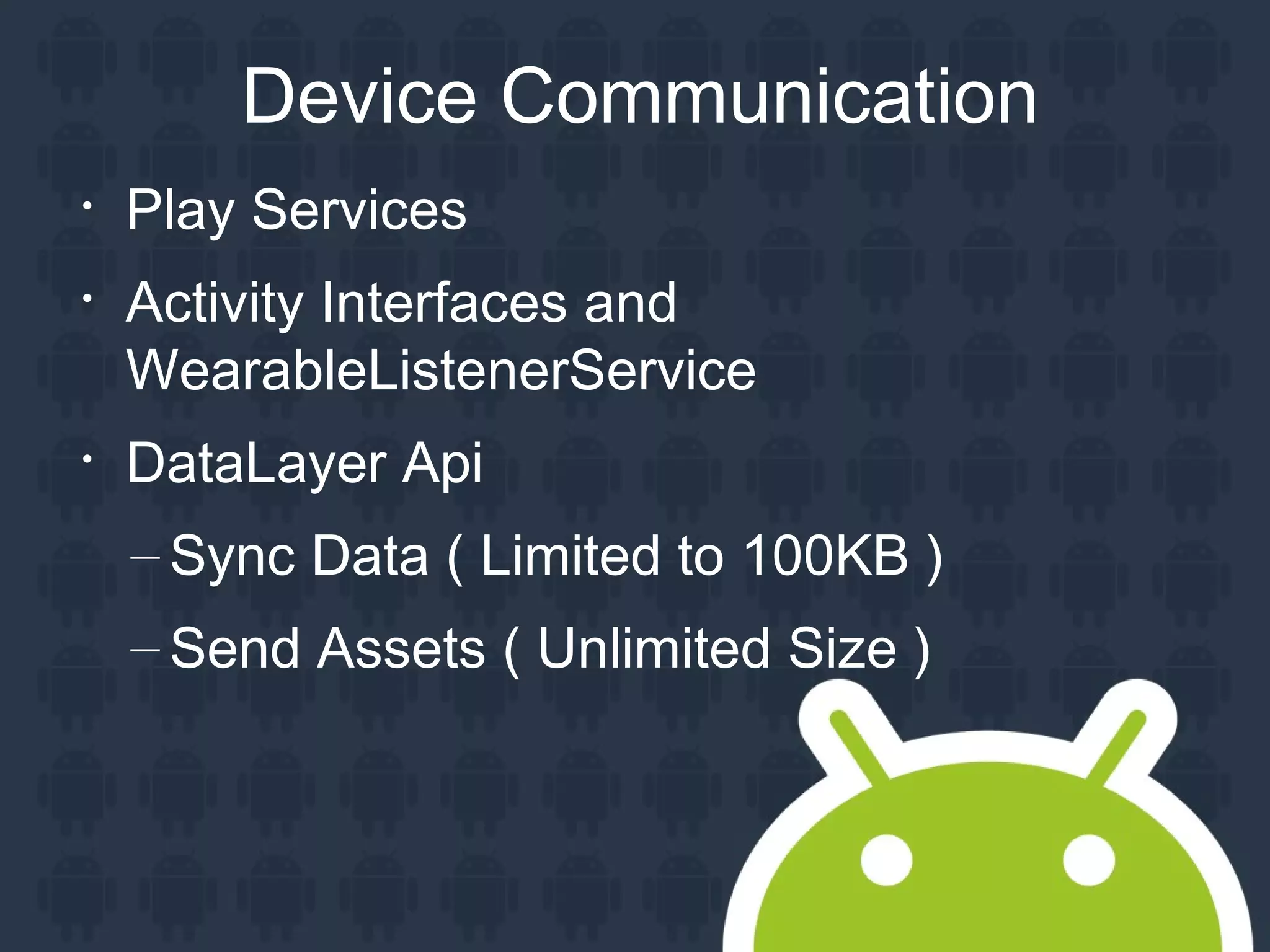
Device Communication

Play Services

Activity Interfaces and
WearableListenerService

DataLayer Api
– Sync Data ( Limited to 100KB )
– Send Assets ( Unlimited Size )
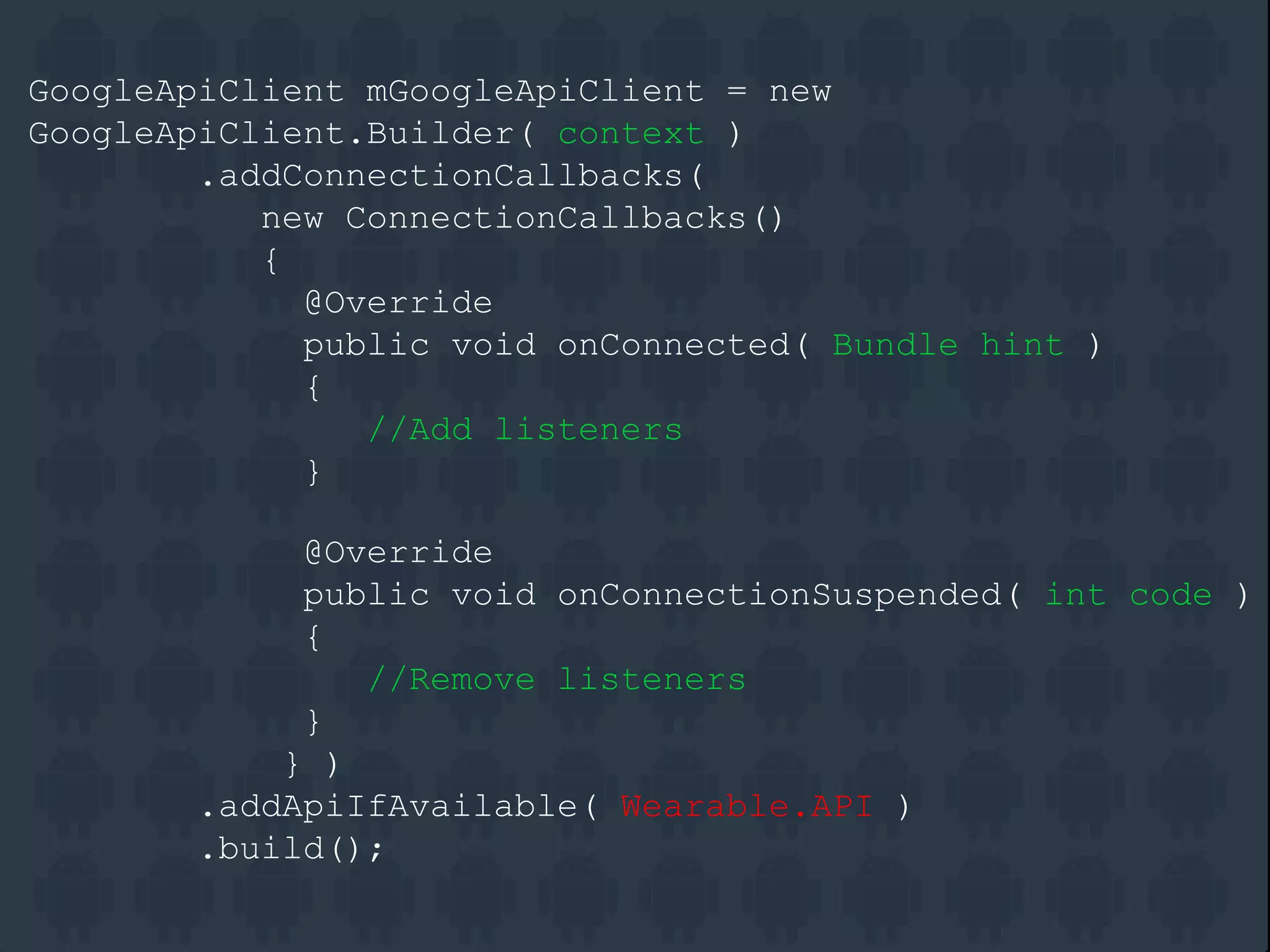
GoogleApiClient mGoogleApiClient = new
GoogleApiClient.Builder( context )
.addConnectionCallbacks(
new ConnectionCallbacks()
{
@Override
public void onConnected( Bundle hint )
{
//Add listeners
}
@Override
public void onConnectionSuspended( int code )
{
//Remove listeners
}
} )
.addApiIfAvailable( Wearable.API )
.build();
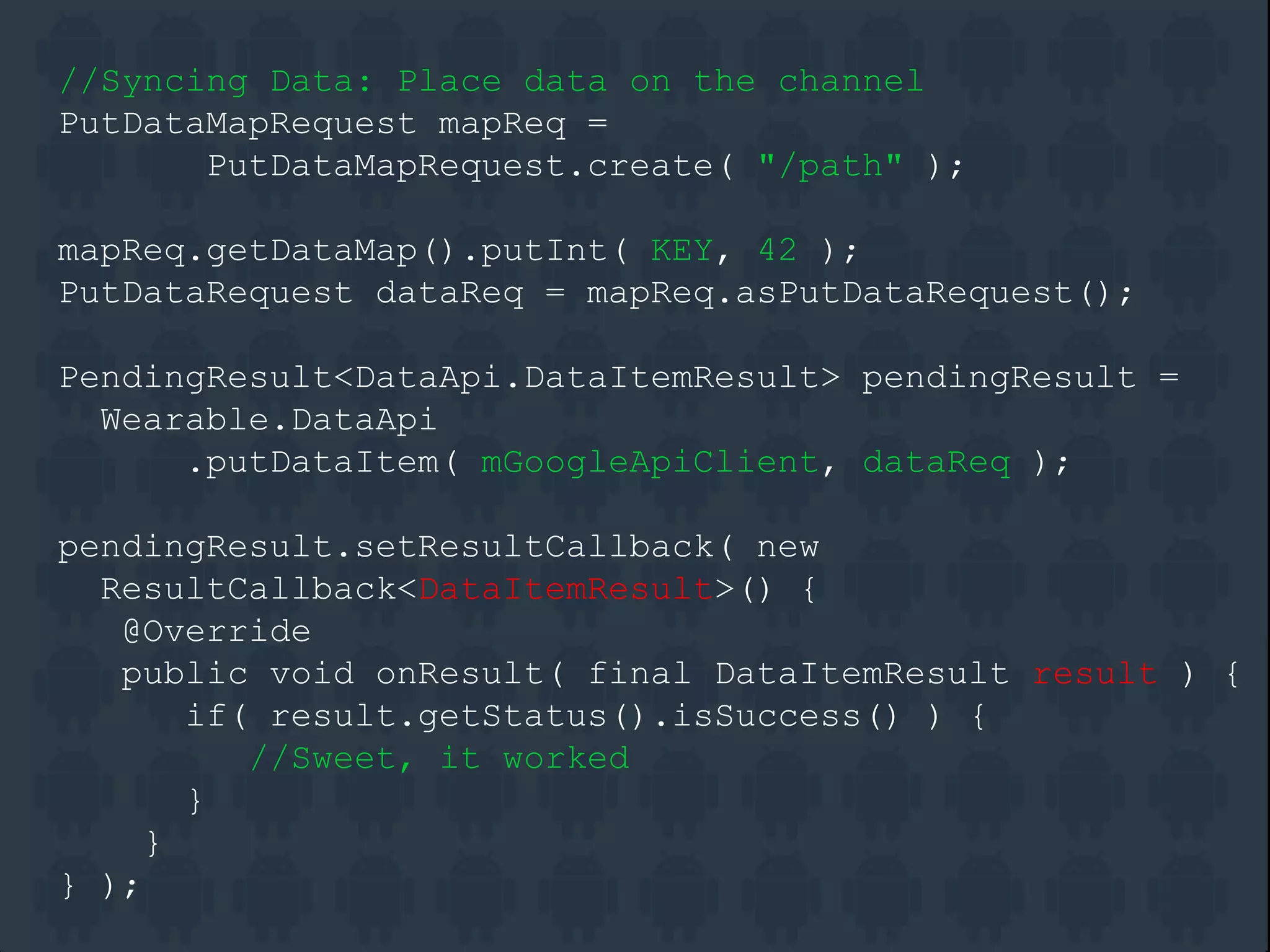
//Syncing Data: Place data on the channel
PutDataMapRequest mapReq =
PutDataMapRequest.create( "/path" );
mapReq.getDataMap().putInt( KEY, 42 );
PutDataRequest dataReq = mapReq.asPutDataRequest();
PendingResult<DataApi.DataItemResult> pendingResult =
Wearable.DataApi
.putDataItem( mGoogleApiClient, dataReq );
pendingResult.setResultCallback( new
ResultCallback<DataItemResult>() {
@Override
public void onResult( final DataItemResult result ) {
if( result.getStatus().isSuccess() ) {
//Sweet, it worked
}
}
} );
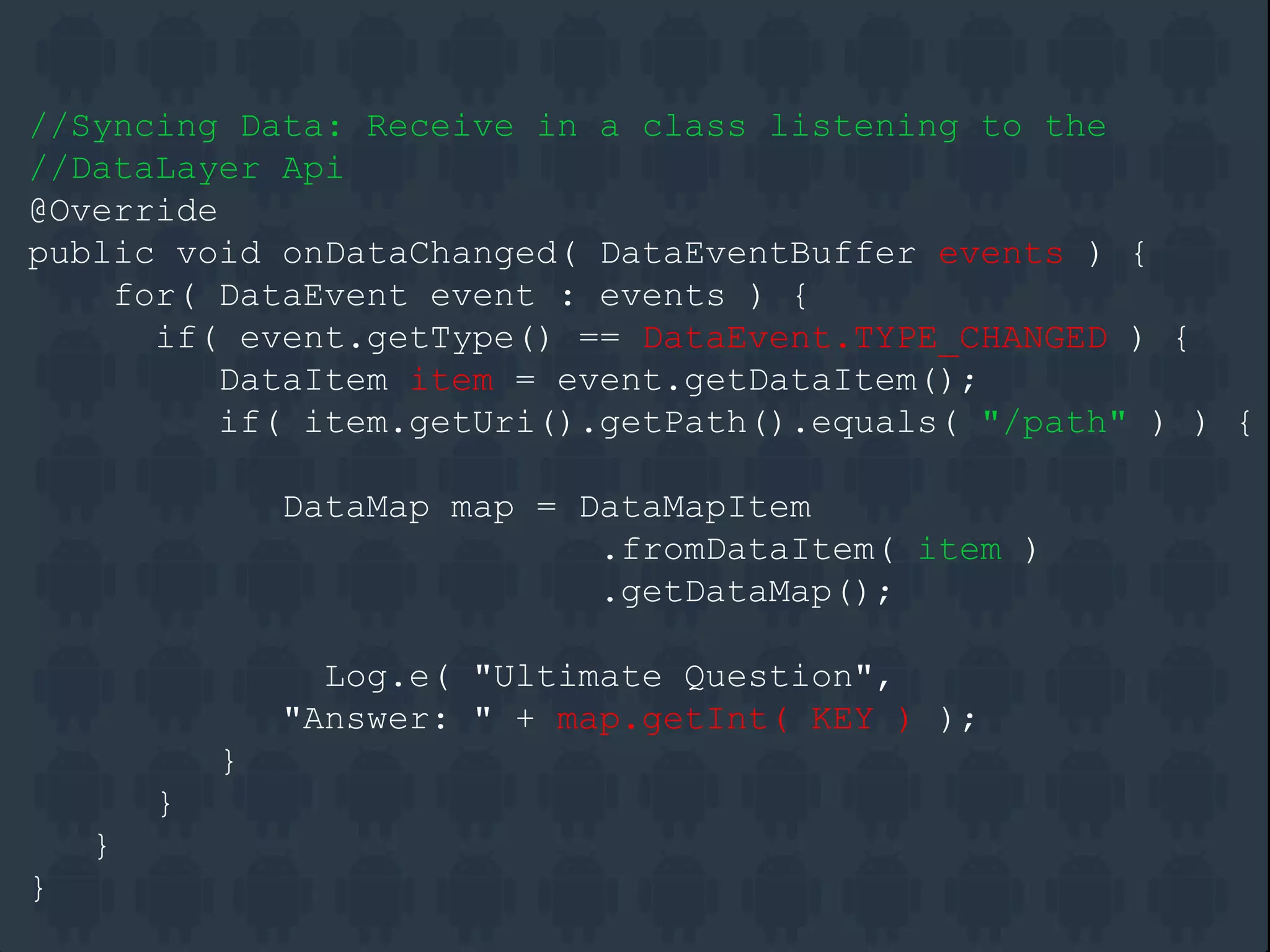
//Syncing Data: Receive in a class listening to the
//DataLayer Api
@Override
public void onDataChanged( DataEventBuffer events ) {
for( DataEvent event : events ) {
if( event.getType() == DataEvent.TYPE_CHANGED ) {
DataItem item = event.getDataItem();
if( item.getUri().getPath().equals( "/path" ) ) {
DataMap map = DataMapItem
.fromDataItem( item )
.getDataMap();
Log.e( "Ultimate Question",
"Answer: " + map.getInt( KEY ) );
}
}
}
}
Device Communication

Capabilities Api

Node Api
– Connected Devices

Message Api
– Fire and Forget
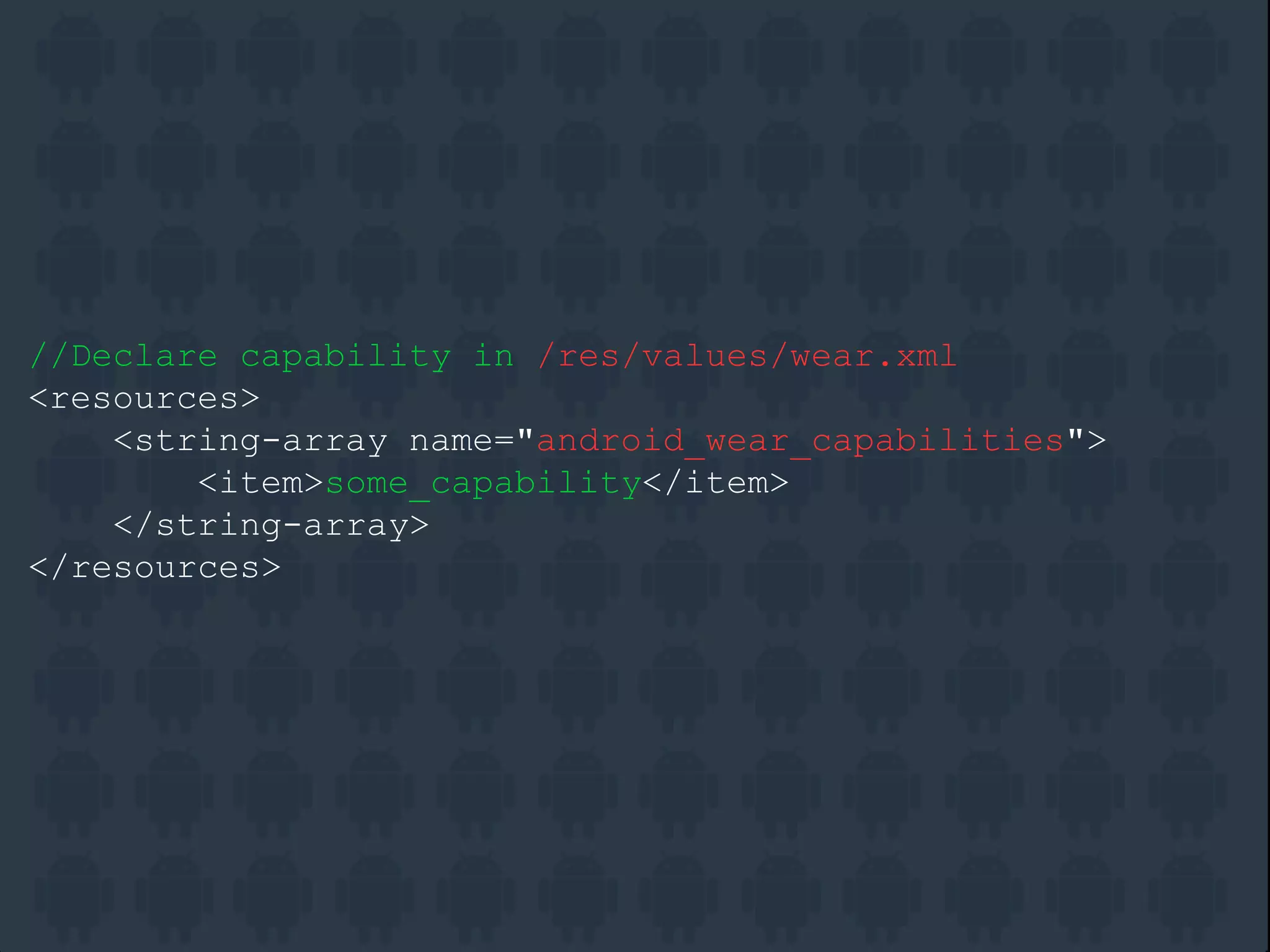
//Declare capability in /res/values/wear.xml
<resources>
<string-array name="android_wear_capabilities">
<item>some_capability</item>
</string-array>
</resources>
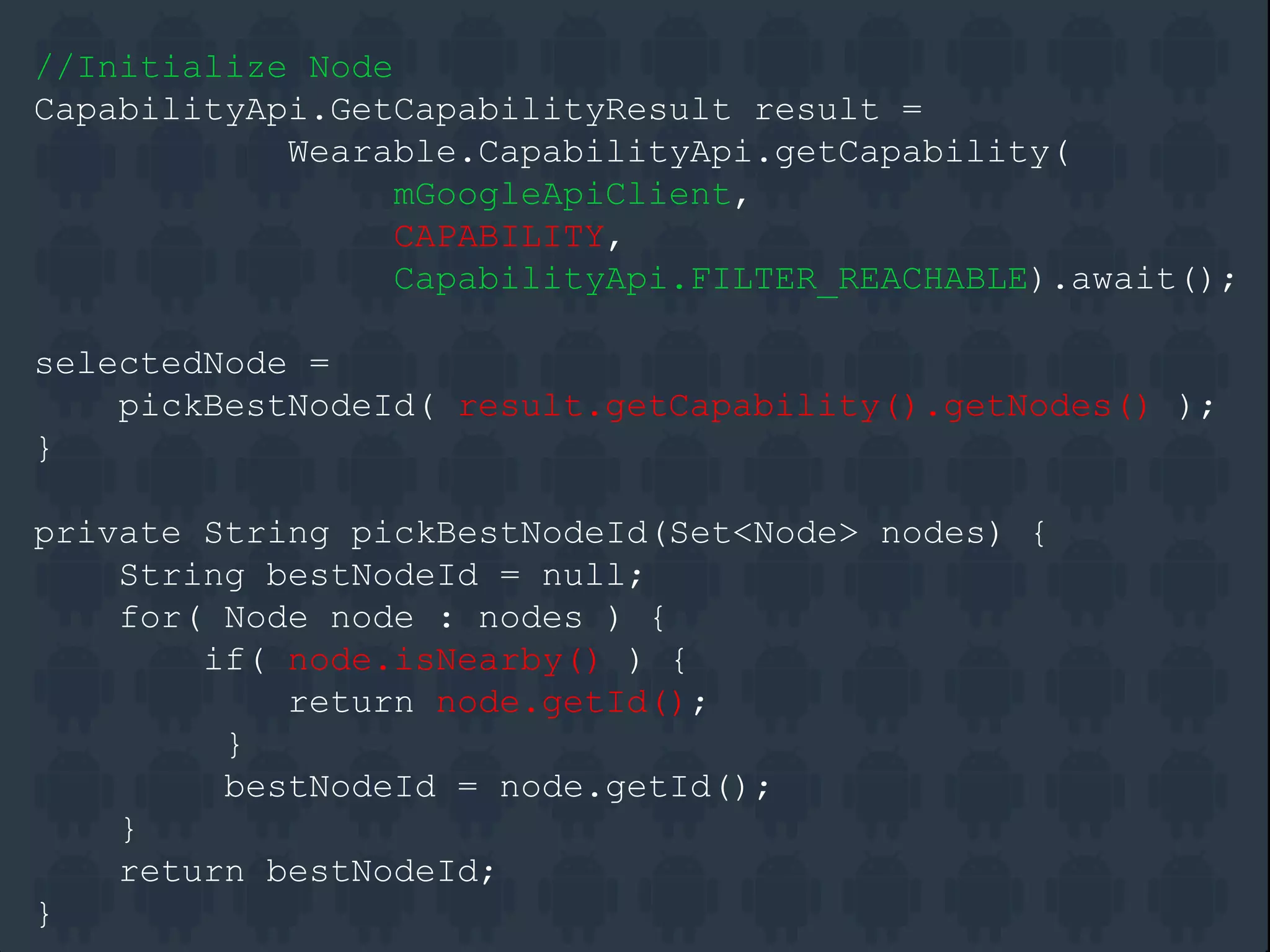
//Initialize Node
CapabilityApi.GetCapabilityResult result =
Wearable.CapabilityApi.getCapability(
mGoogleApiClient,
CAPABILITY,
CapabilityApi.FILTER_REACHABLE).await();
selectedNode =
pickBestNodeId( result.getCapability().getNodes() );
}
private String pickBestNodeId(Set<Node> nodes) {
String bestNodeId = null;
for( Node node : nodes ) {
if( node.isNearby() ) {
return node.getId();
}
bestNodeId = node.getId();
}
return bestNodeId;
}
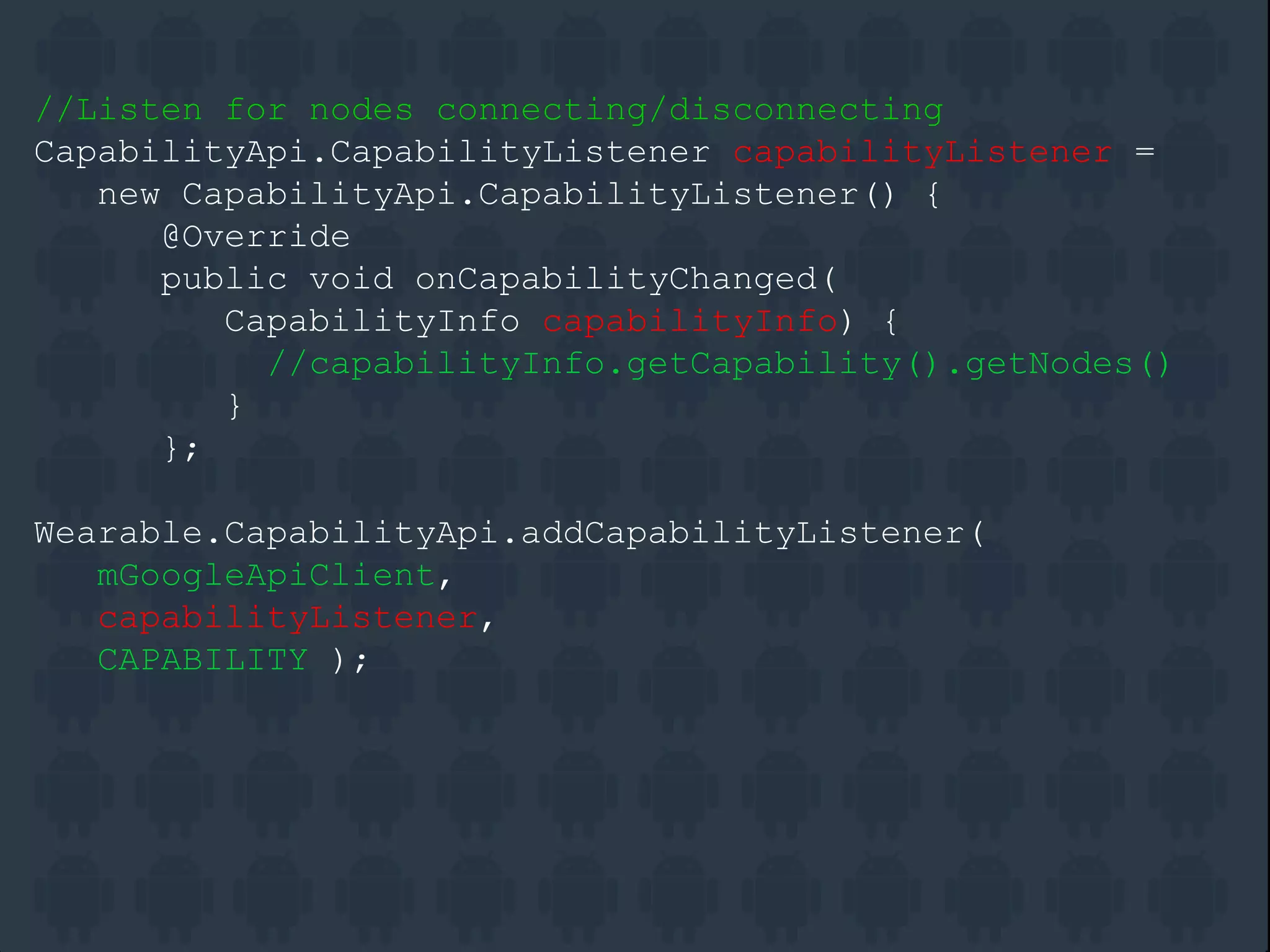
//Listen for nodes connecting/disconnecting
CapabilityApi.CapabilityListener capabilityListener =
new CapabilityApi.CapabilityListener() {
@Override
public void onCapabilityChanged(
CapabilityInfo capabilityInfo) {
//capabilityInfo.getCapability().getNodes()
}
};
Wearable.CapabilityApi.addCapabilityListener(
mGoogleApiClient,
capabilityListener,
CAPABILITY );
//Sending a message to a node
private void sendMessage( byte[] message ) {
Wearable.MessageApi.sendMessage(
mGoogleApiClient,
bestNode,
"/path",
message );
}
//Receive in a WearableListenerService or Activity
@Override
public void onMessageReceived( MessageEvent message ) {
if(message.getPath().equals( "/path" ) ) {
Log.e( "Message", "Data: " + message.getData() );
}
}
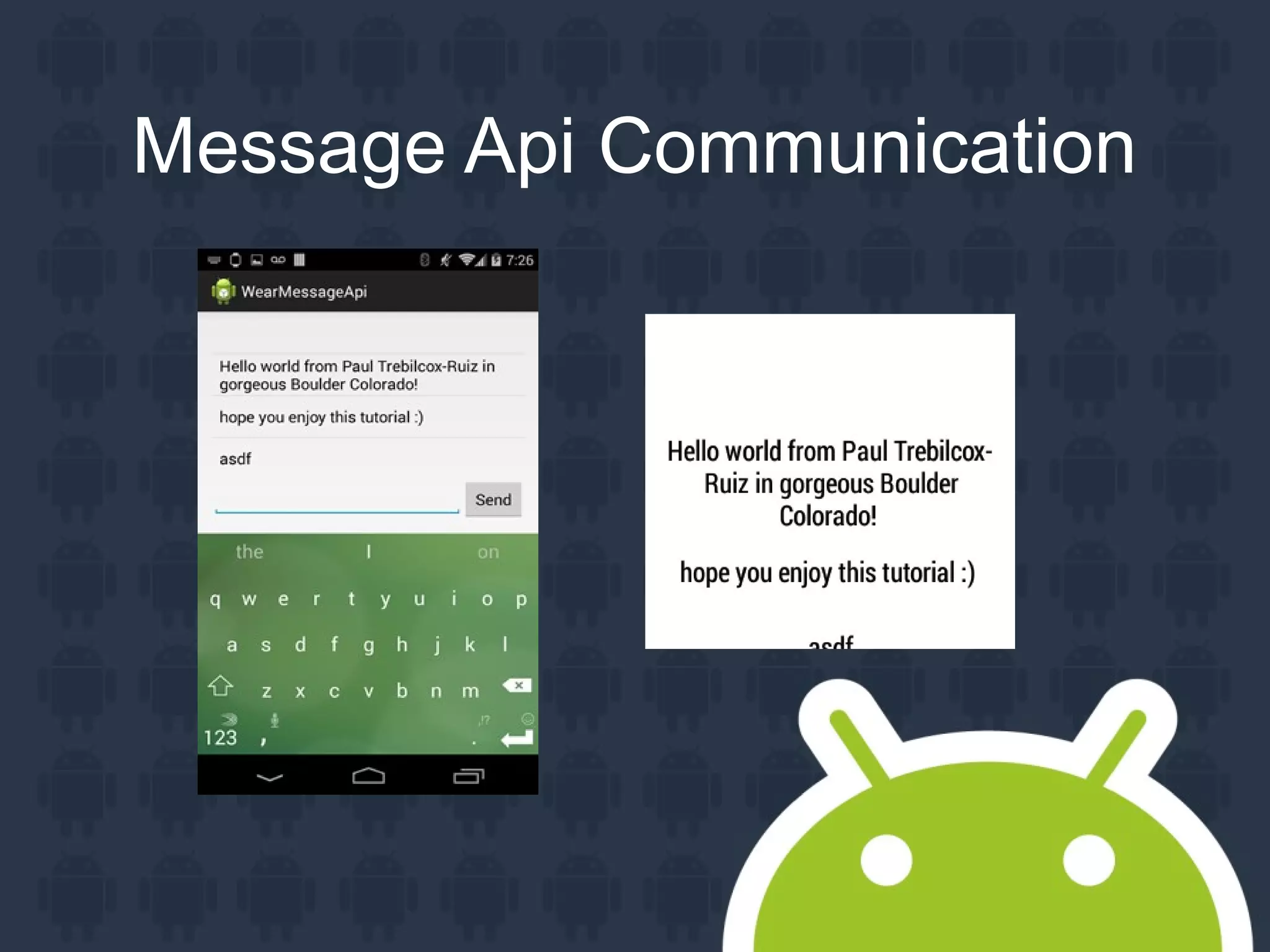
Message Api Communication
Tips

Transmissions
– Only send what's needed
– Only send when things have changed

Batch data into maps to limit overhead

Phone is your workhorse
Additional Resources
Message Api Tutorial:
http://ptrprograms.blogspot.com/2014/10/a-guide-to-
android-wear-message-api.html
Documentation:
http://developer.android.com/training/wearables/data-
layer/index.html
Watch Faces

Watch Face Service
– Canvas

Watch Face Engine
– Timer
– Ambient Mode

Settings Screen
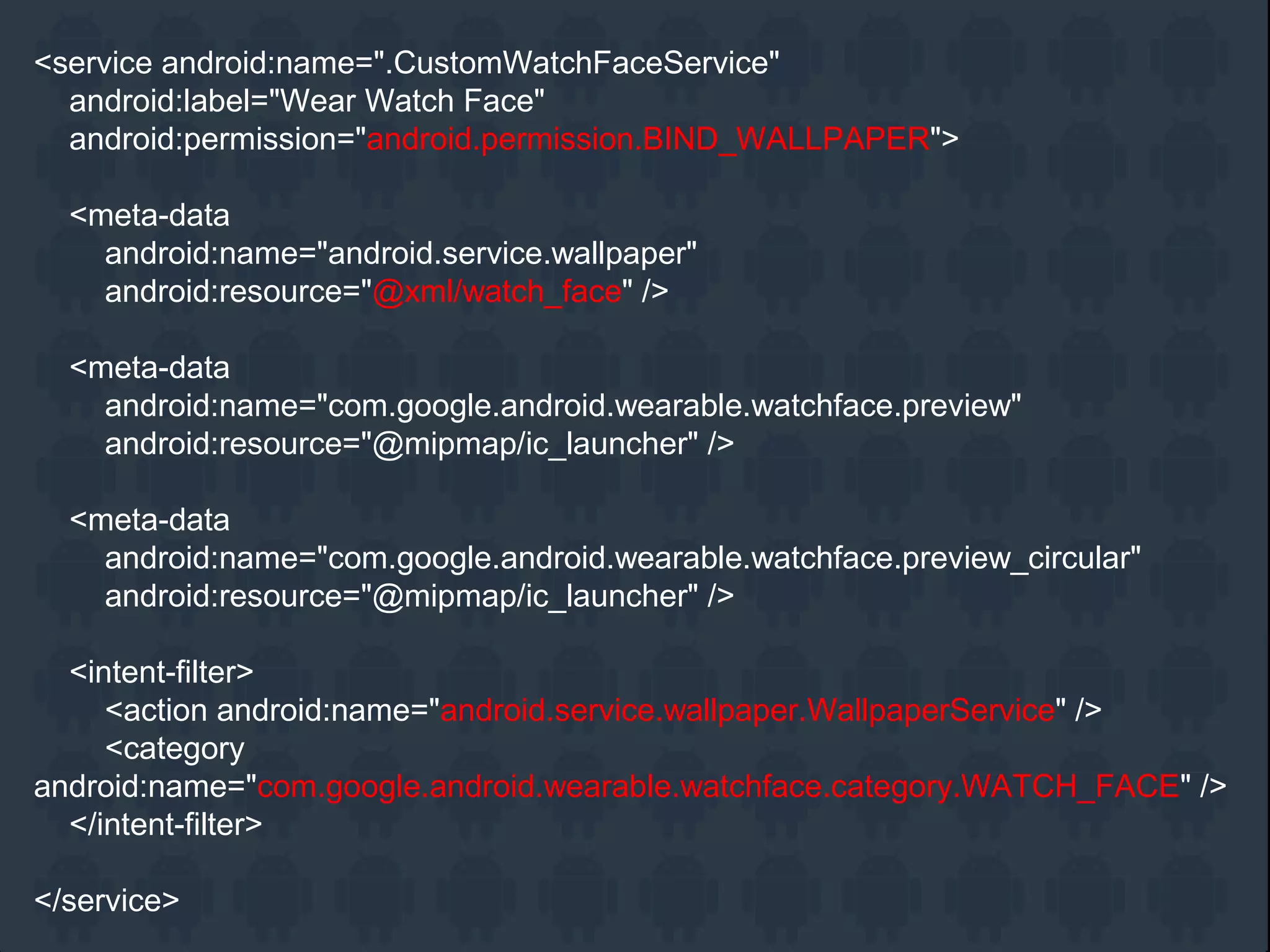
<service android:name=".CustomWatchFaceService"
android:label="Wear Watch Face"
android:permission="android.permission.BIND_WALLPAPER">
<meta-data
android:name="android.service.wallpaper"
android:resource="@xml/watch_face" />
<meta-data
android:name="com.google.android.wearable.watchface.preview"
android:resource="@mipmap/ic_launcher" />
<meta-data
android:name="com.google.android.wearable.watchface.preview_circular"
android:resource="@mipmap/ic_launcher" />
<intent-filter>
<action android:name="android.service.wallpaper.WallpaperService" />
<category
android:name="com.google.android.wearable.watchface.category.WATCH_FACE" />
</intent-filter>
</service>
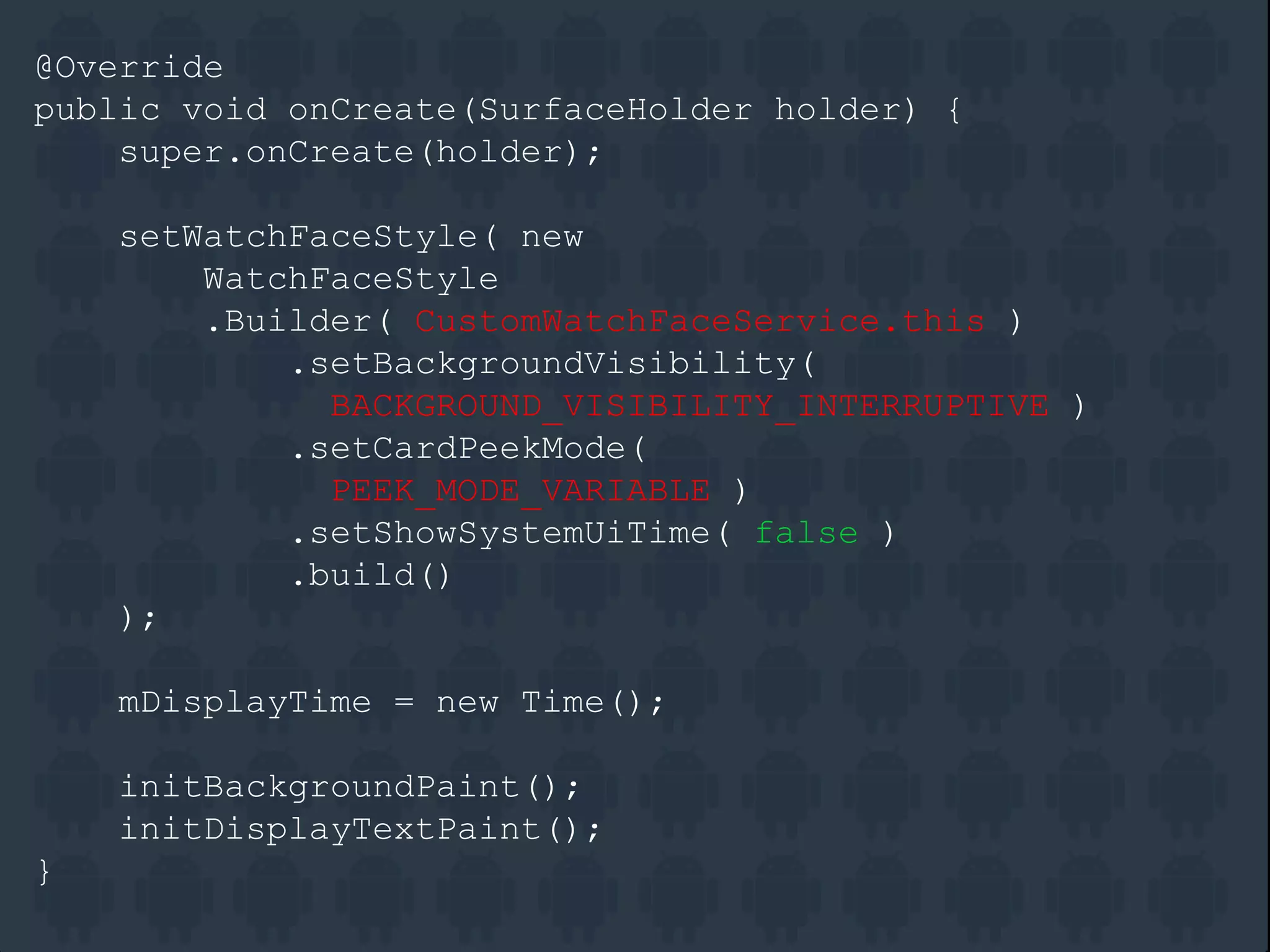
@Override
public void onCreate(SurfaceHolder holder) {
super.onCreate(holder);
setWatchFaceStyle( new
WatchFaceStyle
.Builder( CustomWatchFaceService.this )
.setBackgroundVisibility(
BACKGROUND_VISIBILITY_INTERRUPTIVE )
.setCardPeekMode(
PEEK_MODE_VARIABLE )
.setShowSystemUiTime( false )
.build()
);
mDisplayTime = new Time();
initBackgroundPaint();
initDisplayTextPaint();
}
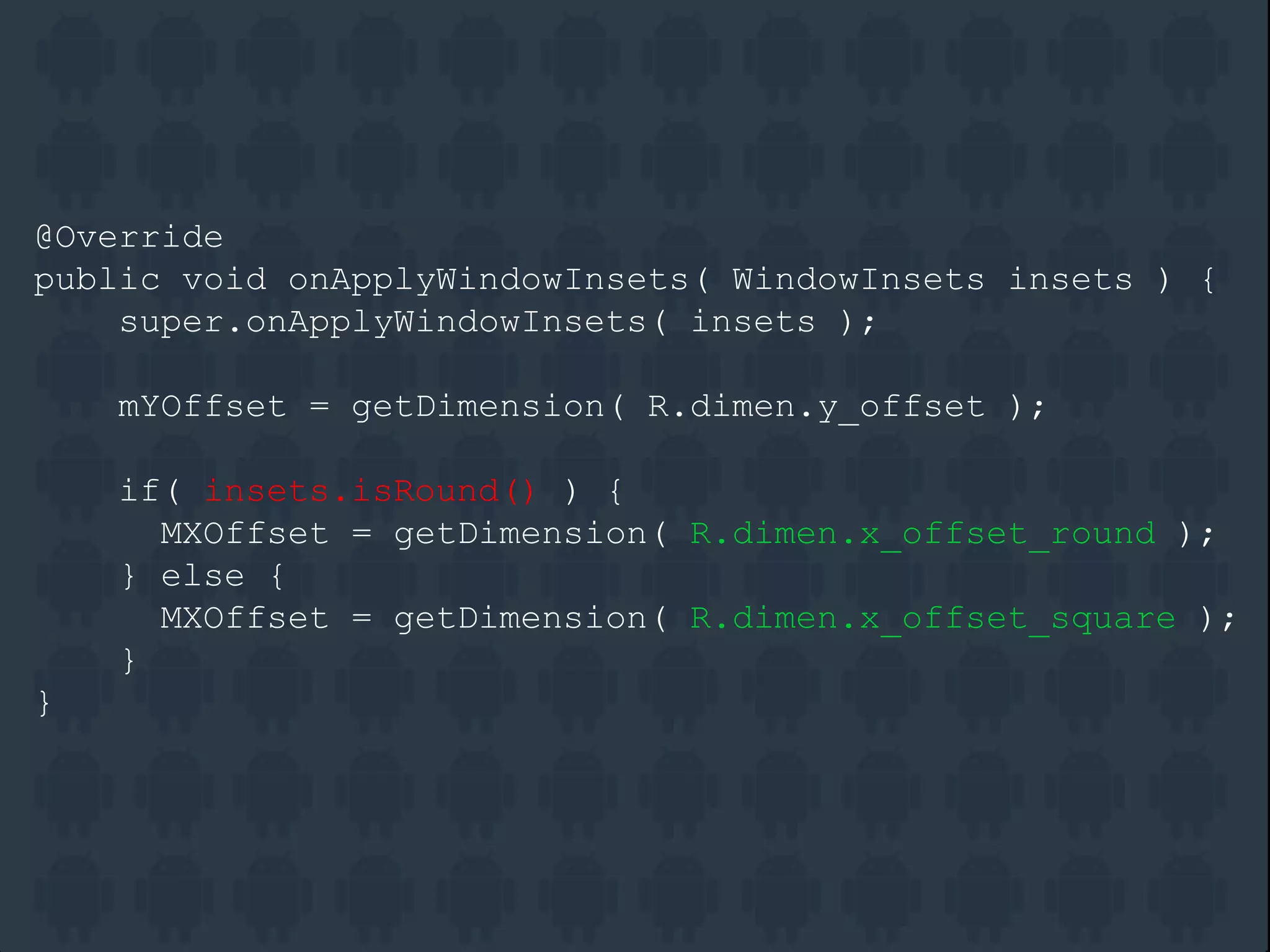
@Override
public void onApplyWindowInsets( WindowInsets insets ) {
super.onApplyWindowInsets( insets );
mYOffset = getDimension( R.dimen.y_offset );
if( insets.isRound() ) {
MXOffset = getDimension( R.dimen.x_offset_round );
} else {
MXOffset = getDimension( R.dimen.x_offset_square );
}
}
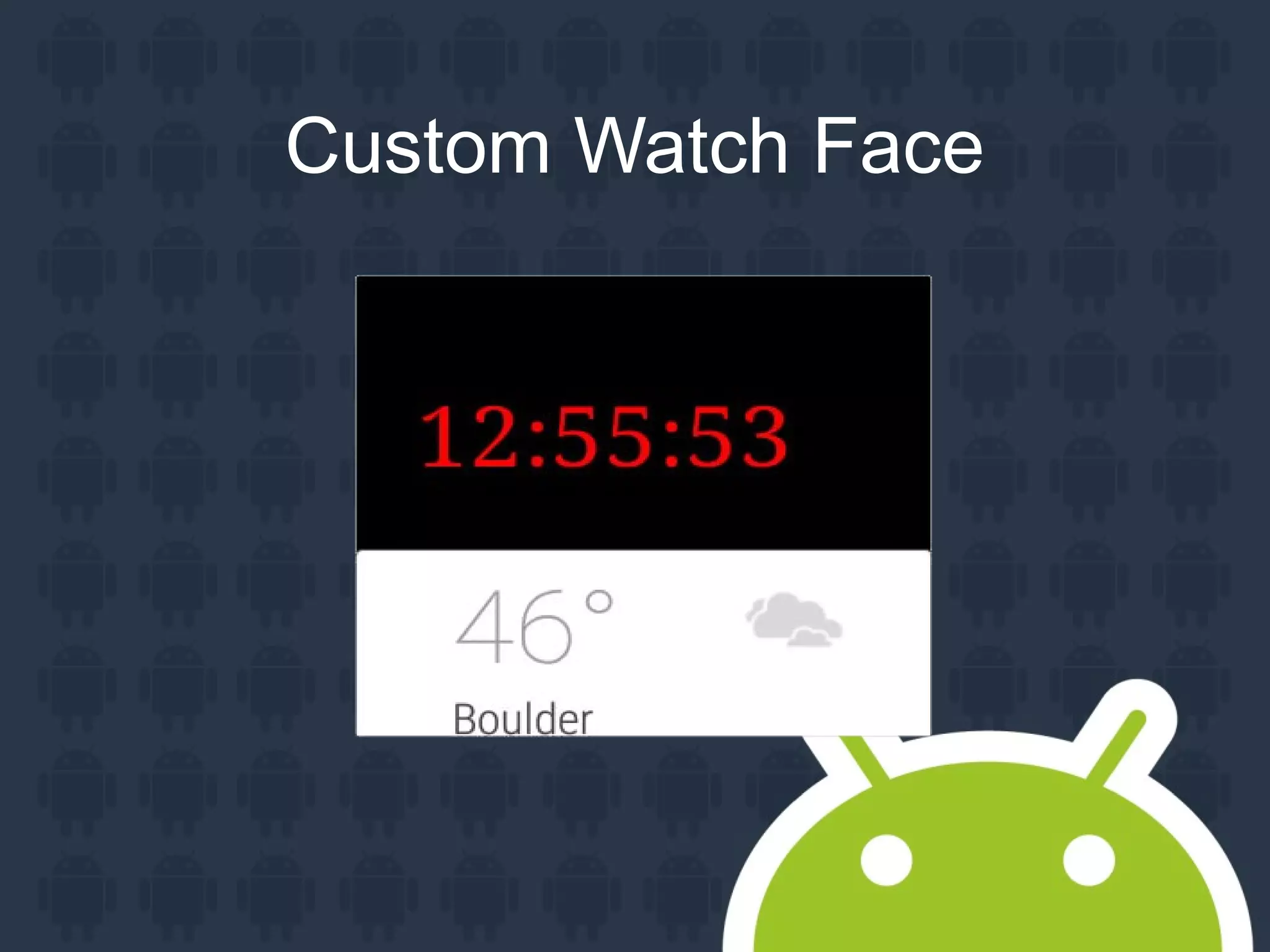
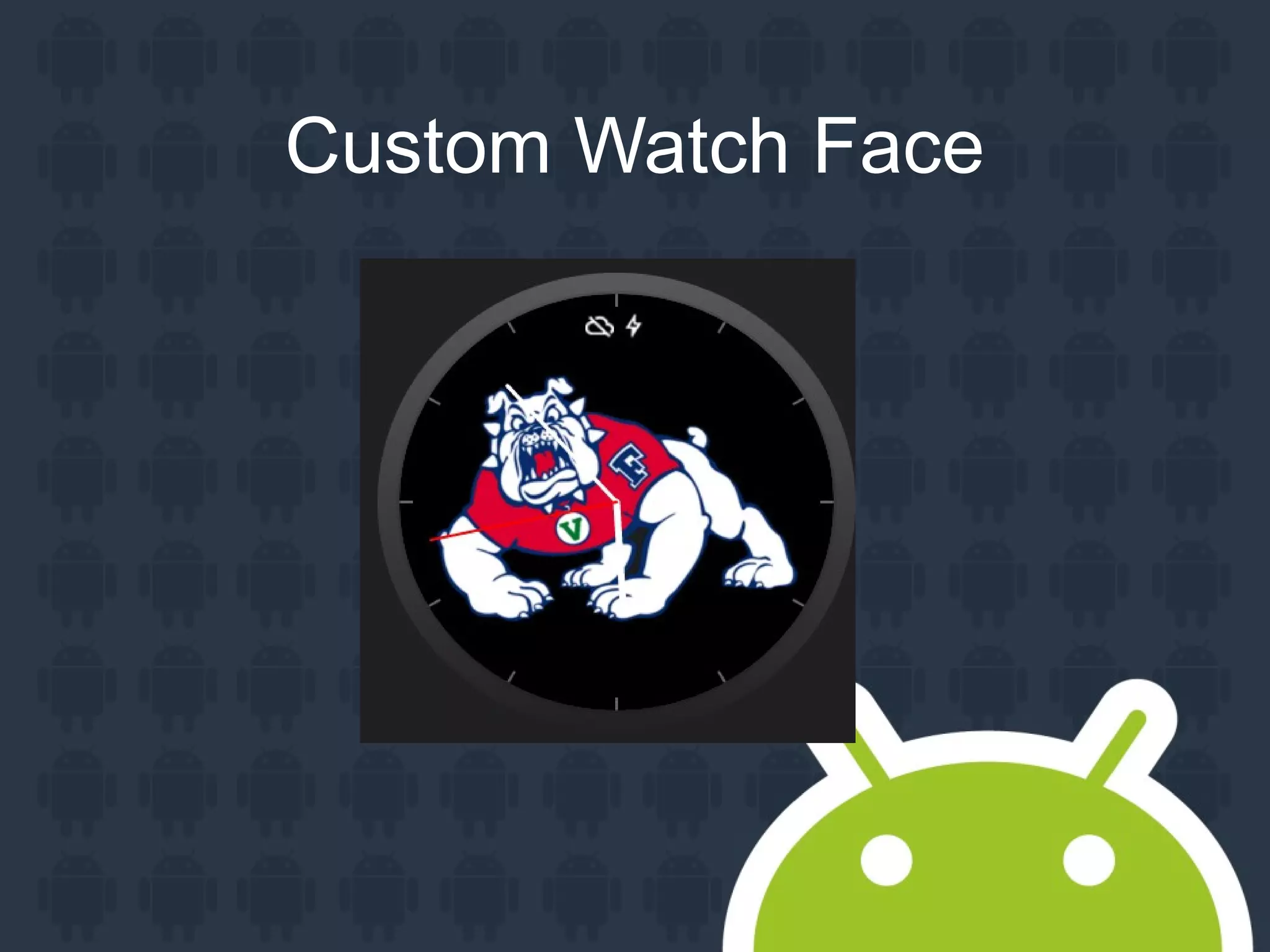
Custom Watch Face
Custom Watch Face
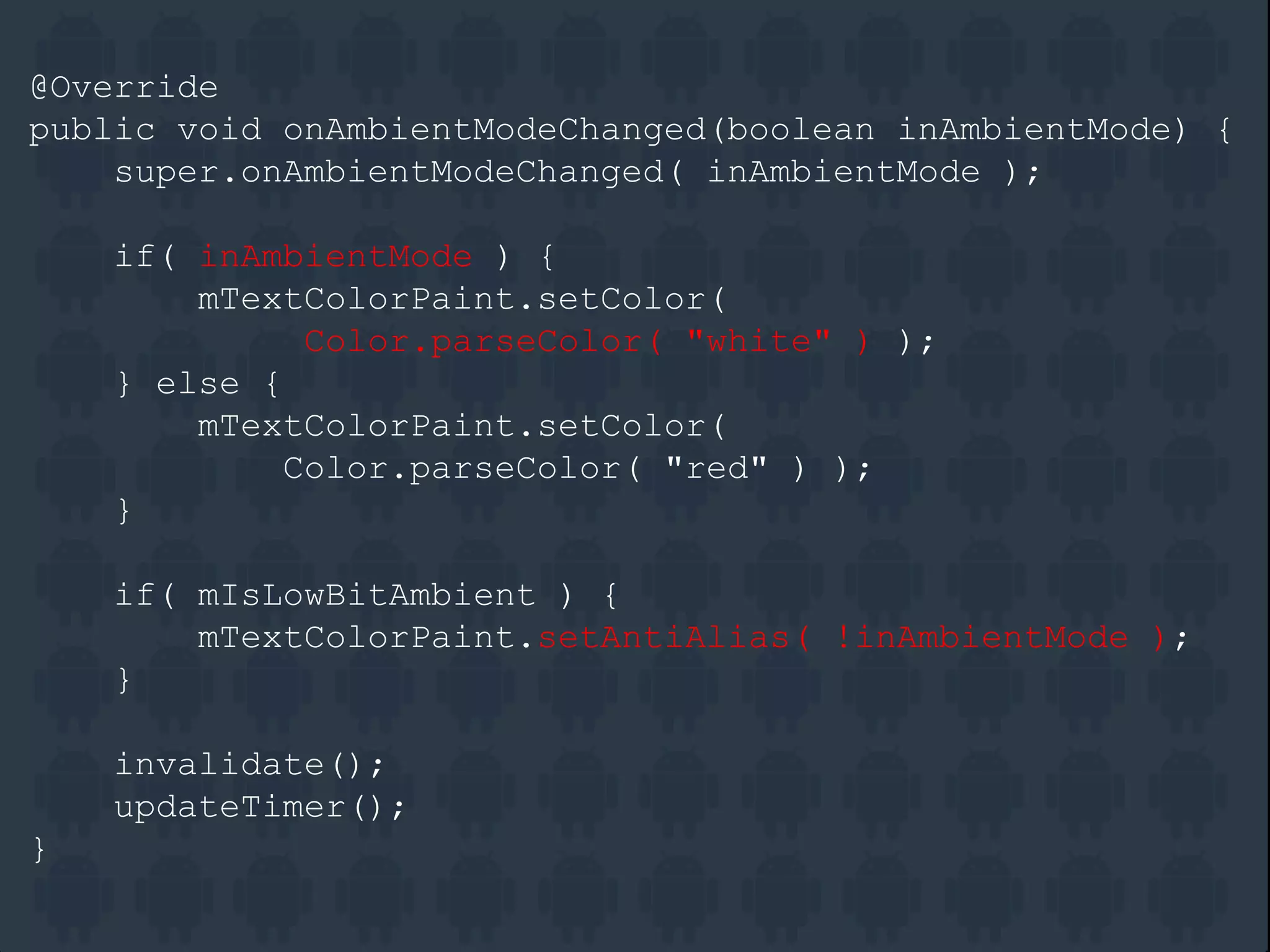
@Override
public void onAmbientModeChanged(boolean inAmbientMode) {
super.onAmbientModeChanged( inAmbientMode );
if( inAmbientMode ) {
mTextColorPaint.setColor(
Color.parseColor( "white" ) );
} else {
mTextColorPaint.setColor(
Color.parseColor( "red" ) );
}
if( mIsLowBitAmbient ) {
mTextColorPaint.setAntiAlias( !inAmbientMode );
}
invalidate();
updateTimer();
}
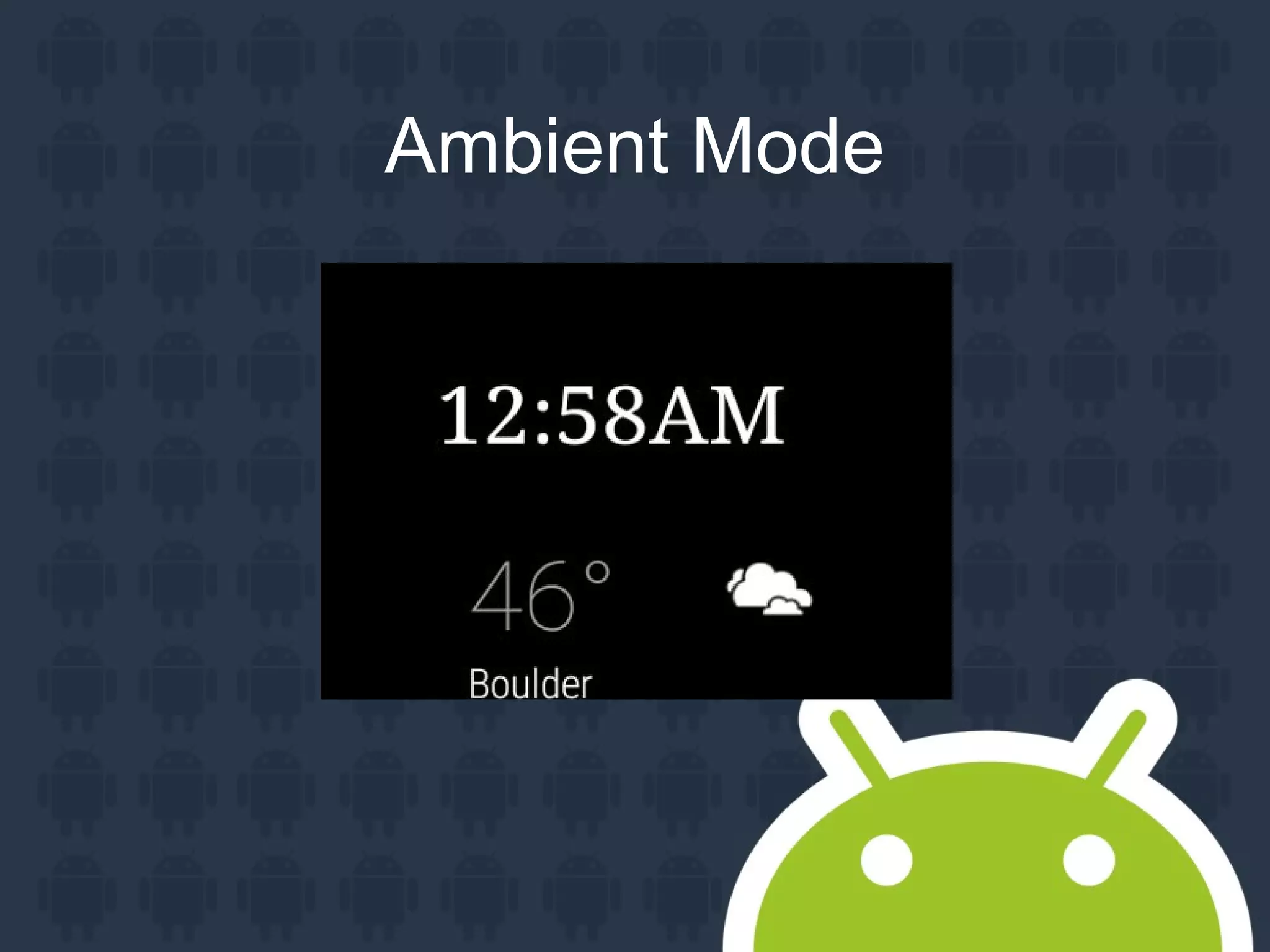
Ambient Mode
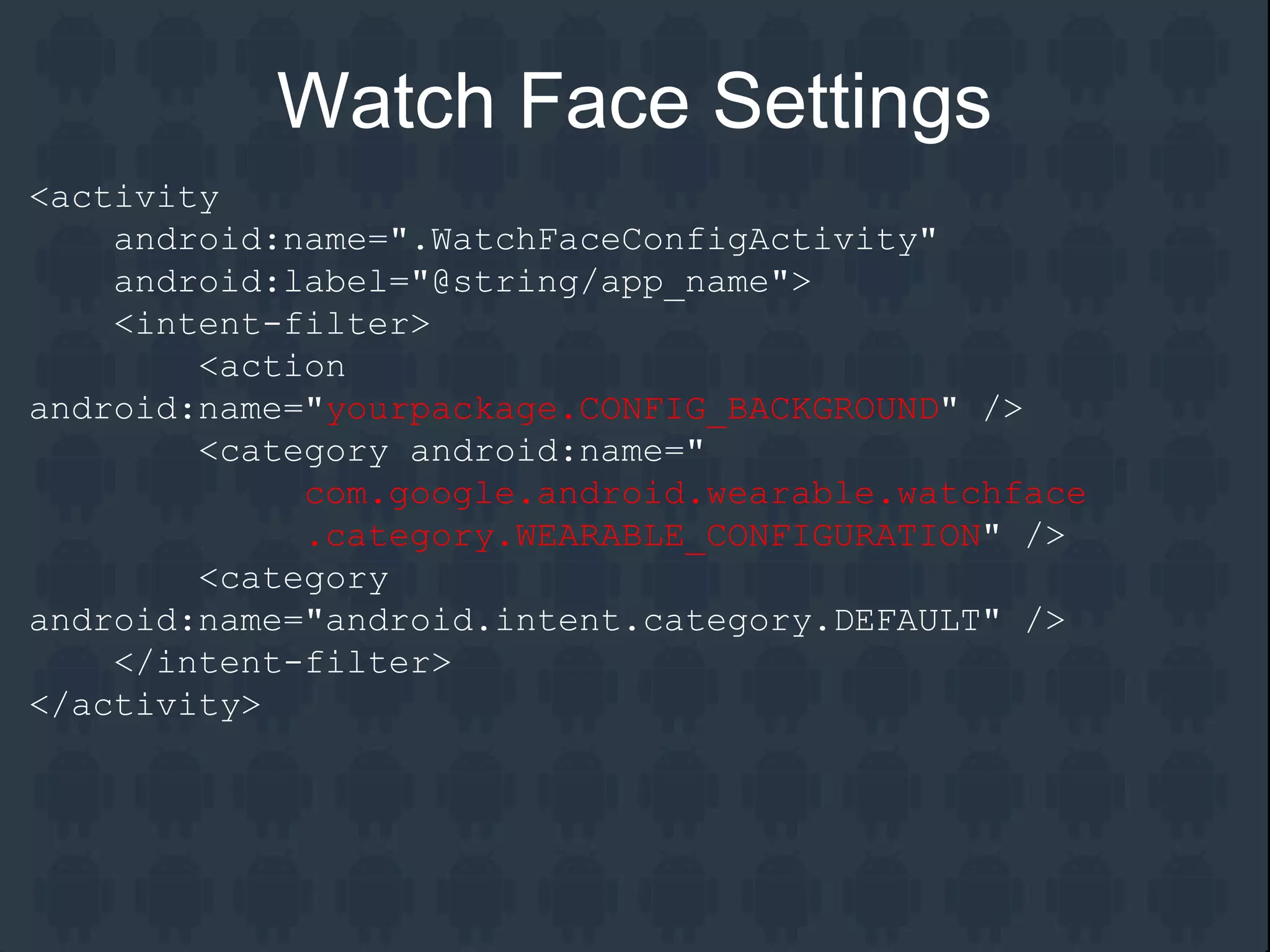
<activity
android:name=".WatchFaceConfigActivity"
android:label="@string/app_name">
<intent-filter>
<action
android:name="yourpackage.CONFIG_BACKGROUND" />
<category android:name="
com.google.android.wearable.watchface
.category.WEARABLE_CONFIGURATION" />
<category
android:name="android.intent.category.DEFAULT" />
</intent-filter>
</activity>
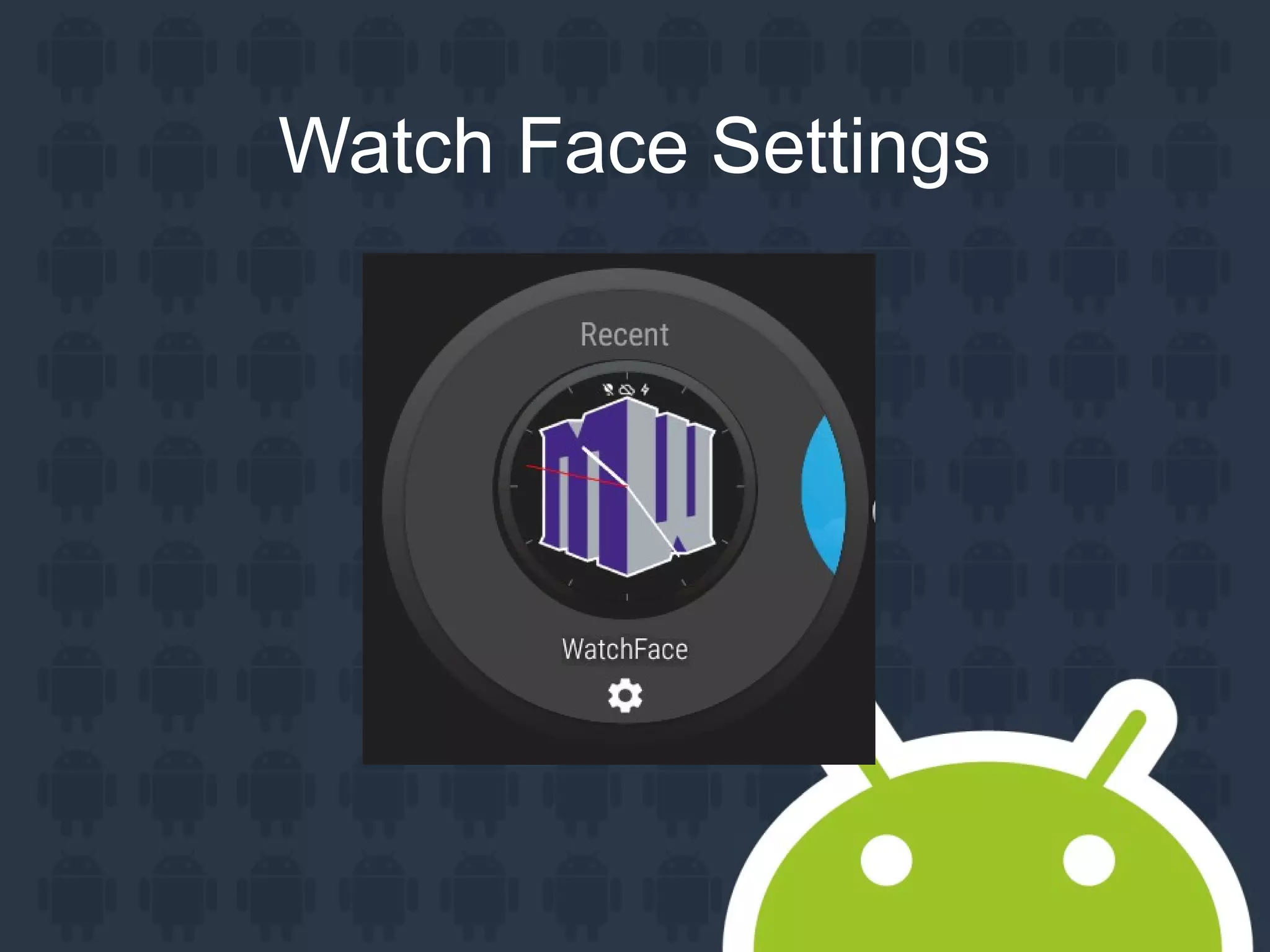
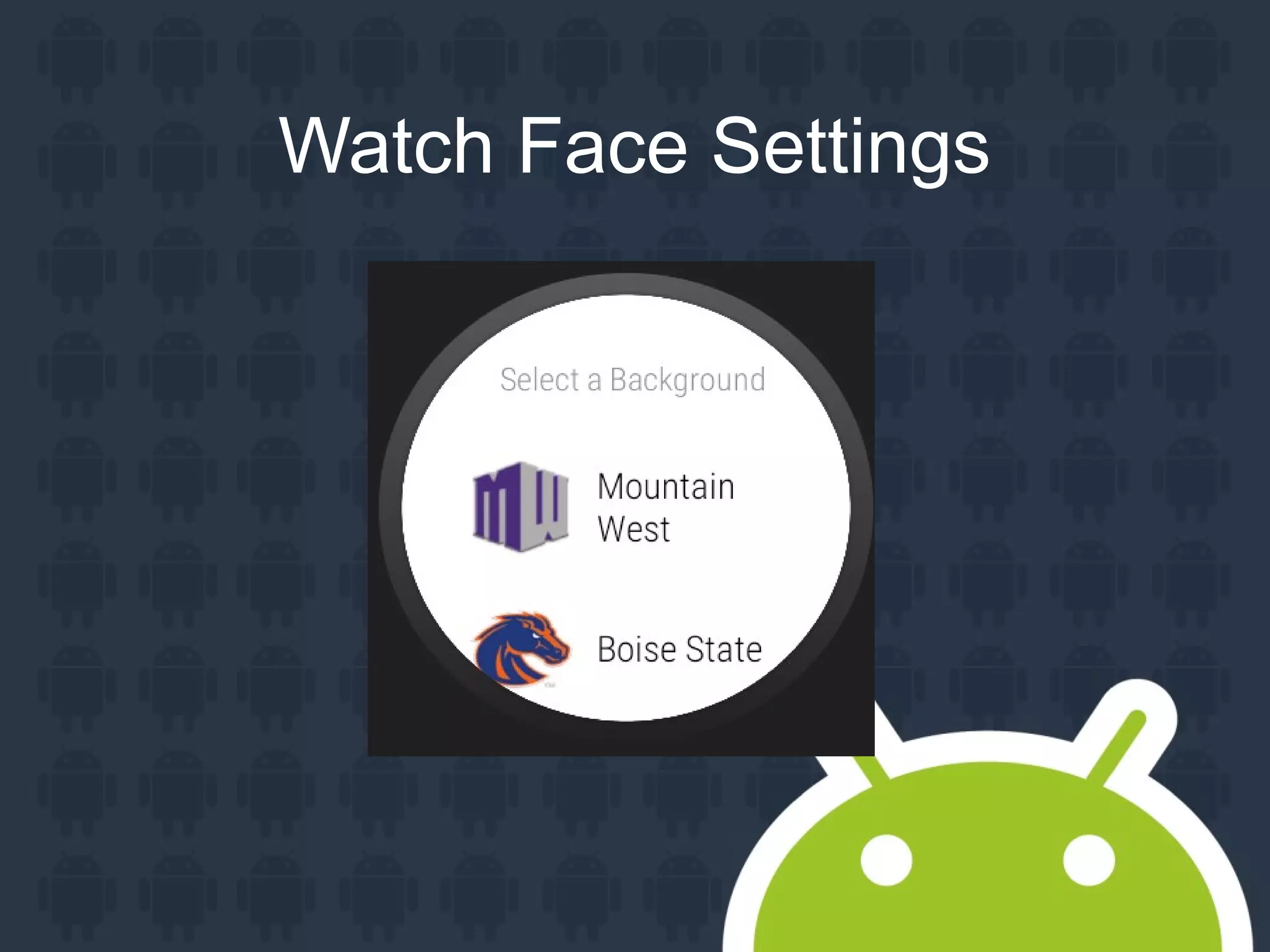
Watch Face Settings
Watch Face Settings
Watch Face Settings
Additional Resources
Watch Face Tutorial:
https://code.tutsplus.com/tutorials/creating-an-android-
wear-watch-face—cms-23718
DevBytes: Watch Faces for Android Wear:
https://www.youtube.com/watch?v=AK38PJZmIW8
DevBytes: Developing an Android Wear Watch Face:
https://www.youtube.com/watch?v=VkvHKtmsvYA
Documentation:
https://developer.android.com/training/wearables/watch-
faces/index.html
Slide Deck:
http://www.slideshare.net/PaulTrebilcoxRuiz/android-
wearpp
Tuts+ Tutorials:
https://tutsplus.com/authors/paul-trebilcox-ruiz
Personal Android Blog:
http://ptrprograms.blogspot.com/
LinkedIn:
https://www.linkedin.com/in/paultruiz
Google+:
+PaulTrebilcoxRuiz

Android wearpp

Editor's Notes

  • #28 Wear comes with a step sensor that has already been optimized by Google, so you don&amp;apos;t need to create your own with the accelerometer.
  • #39 Wear comes with a step sensor that has already been optimized by Google, so you don&amp;apos;t need to create your own with the accelerometer.