
SmaartFriendFinder
       Android Version


    UserGuide


  www.smaartmobile.com
Table of Contents
Getting Started .........................................................................3
Settings and Tools.................................................................... 5
Map ..........................................................................................5
Status......................................................................................10
Using Peer2Peer ....................................................................12
Map Options ...........................................................................15
Invite Friends ..........................................................................18
Colour Themes ...................................................................... 22
Ping Messages to SmaartFriendFinder Users .......................24
Connect with friend by SMS, Phone Call or E-mail ................27


            For more information, you can visit www.smaartmobile.com
Getting Started


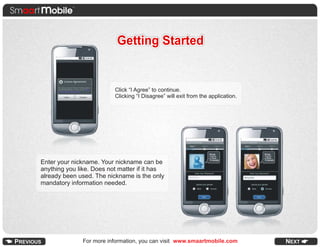
                          Click “I Agree” to continue.
                          Clicking “I Disagree” will exit from the application.


Enter your nickname. Your nickname can be
anything you like. Does not matter if it has
already been used. The nickname is the only
mandatory information needed.


               For more information, you can visit www.smaartmobile.com
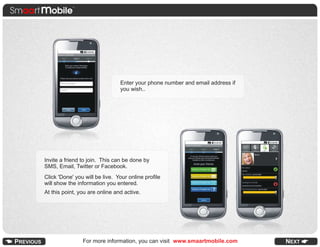
Enter your phone number and email address if
                                you wish..


Invite a friend to join. This can be done by
SMS, Email, Twitter or Facebook.
Click 'Done' you will be live. Your online profile
will show the information you entered.
At this point, you are online and active.


                For more information, you can visit www.smaartmobile.com
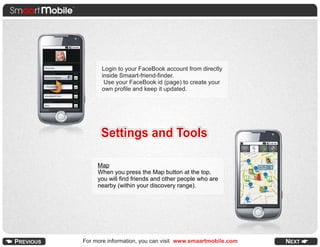
Login to your FaceBook account from directly
      inside Smaart-friend-finder.
       Use your FaceBook id (page) to create your
      own profile and keep it updated.


      Settings and Tools

     Map
     When you press the Map button at the top,
     you will find friends and other people who are
     nearby (within your discovery range).


For more information, you can visit www.smaartmobile.com
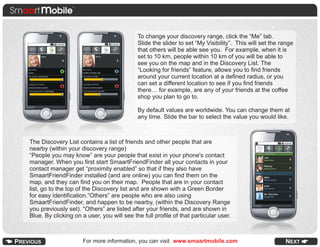
To change your discovery range, click the “Me” tab.
                                            Slide the slider to set “My Visibility”. This will set the range
                                            that others will be able see you. For example, when it is
                                            set to 10 km, people within 10 km of you will be able to
                                            see you on the map and in the Discovery List. The
                                            “Looking for friends” feature, allows you to find friends
                                            around your current location at a defined radius, or you
                                            can set a different location to see if you find friends
                                            there… for example, are any of your friends at the coffee
                                            shop you plan to go to.

                                            By default values are worldwide. You can change them at
                                            any time. Slide the bar to select the value you would like.


The Discovery List contains a list of friends and other people that are
nearby (within your discovery range)
“People you may know” are your people that exist in your phone's contact
manager. When you first start SmaartFriendFinder all your contacts in your
contact manager get “proximity enabled” so that if they also have
SmaartFriendFinder installed (and are online) you can find them on the
map, and they can find you on their map. People that are in your contact
list, go to the top of the Discovery list and are shown with a Green Border
for easy identification.“Others” are people who are also using
SmaartFriendFinder, and happen to be nearby, (within the Discovery Range
you previously set). “Others” are listed after your friends, and are shown in
Blue. By clicking on a user, you will see the full profile of that particular user.


                     For more information, you can visit www.smaartmobile.com                           NEXT
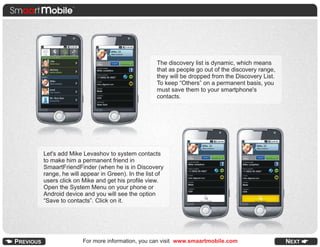
The discovery list is dynamic, which means
                                            that as people go out of the discovery range,
                                            they will be dropped from the Discovery List.
                                            To keep “Others” on a permanent basis, you
                                            must save them to your smartphone's
                                            contacts.


Let's add Mike Levashov to system contacts
to make him a permanent friend in
SmaartFriendFinder (when he is in Discovery
range, he will appear in Green). In the list of
users click on Mike and get his profile view.
Open the System Menu on your phone or
Android device and you will see the option
“Save to contacts”. Click on it.


               For more information, you can visit www.smaartmobile.com
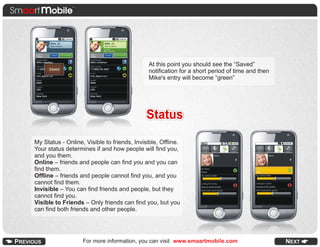
At this point you should see the “Saved”
                                              notification for a short period of time and then
                                              Mike's entry will become “green”


                                             Status
My Status - Online, Visible to friends, Invisible, Offline.
Your status determines if and how people will find you,
and you them.
Online – friends and people can find you and you can
find them.
Offline – friends and people cannot find you, and you
cannot find them.
Invisible – You can find friends and people, but they
cannot find you.
Visible to Friends – Only friends can find you, but you
can find both friends and other people.


                   For more information, you can visit www.smaartmobile.com
.
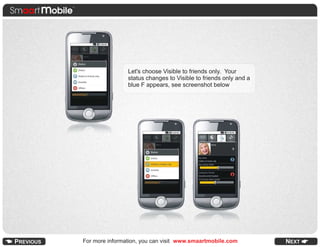
                  Let's choose Visible to friends only. Your
                  status changes to Visible to friends only and a
                  blue F appears, see screenshot below


For more information, you can visit www.smaartmobile.com
Using Peer2Peer
                                If cell network services and WiFi network is not available and
                                your phone supports this feature, you can use
                                SmaartFriendFinder in peer-to-peer mode (also known as WiFi
                                Direct).
                                This allows you to discovering friends and others that are close
                                to you using the peer to peer (no network). Range is limited…
                                usually no more than 100m, depending on the model of the
                                phone. NOTE: Some phones do not support this mode.
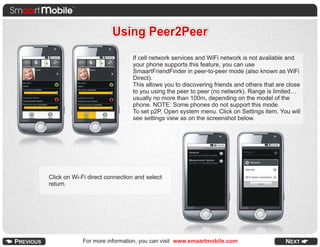
                                To set p2P, Open system menu. Click on Settings item. You will
                                see settings view as on the screenshot below.


Click on Wi-Fi direct connection and select
return.


            For more information, you can visit www.smaartmobile.com
Some features are not available in p2p
                                                 mode – for instance MAP.


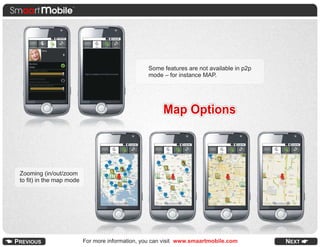
                                                       Map Options


Zooming (in/out/zoom
to fit) in the map mode


                          For more information, you can visit www.smaartmobile.com        NEXT
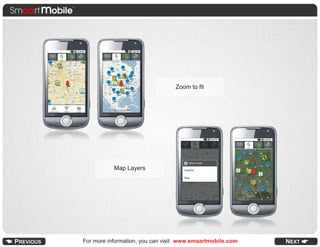
Zoom to fit


           Map Layers


For more information, you can visit www.smaartmobile.com
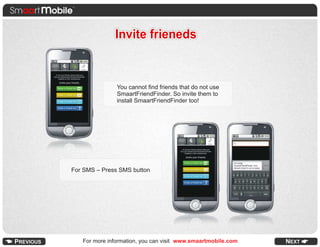
Invite frieneds


               You cannot find friends that do not use
               SmaartFriendFinder. So invite them to
               install SmaartFriendFinder too!


For SMS – Press SMS button


   For more information, you can visit www.smaartmobile.com
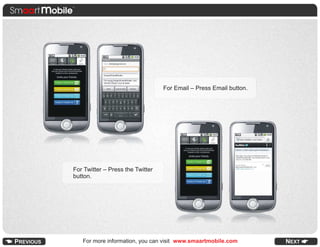
For Email – Press Email button.


For Twitter – Press the Twitter
button.


   For more information, you can visit www.smaartmobile.com         NEXT
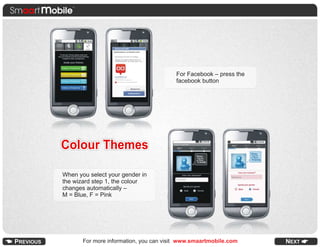
For Facebook – press the
                                        facebook button


Colour Themes

When you select your gender in
the wizard step 1, the colour
changes automatically –
M = Blue, F = Pink


       For more information, you can visit www.smaartmobile.com
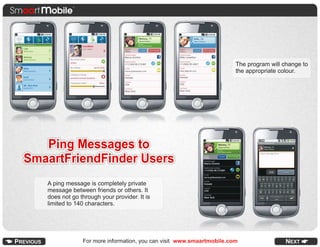
The program will change to
                                                                       the appropriate colour.


   Ping Messages to
SmaartFriendFinder Users
   A ping message is completely private
   message between friends or others. It
   does not go through your provider. It is
   limited to 140 characters.


                For more information, you can visit www.smaartmobile.com
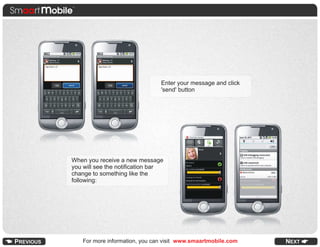
Enter your message and click
                                'send' button


When you receive a new message
you will see the notification bar
change to something like the
following:


    For more information, you can visit www.smaartmobile.com
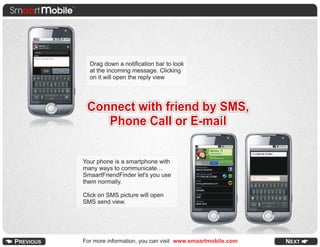
Drag down a notification bar to look
  at the incoming message. Clicking
  on it will open the reply view


 Connect with friend by SMS,
    Phone Call or E-mail

Your phone is a smartphone with
many ways to communicate…
SmaartFriendFinder let's you use
them normally.

Click on SMS picture will open
SMS send view.


For more information, you can visit www.smaartmobile.com   NEXT
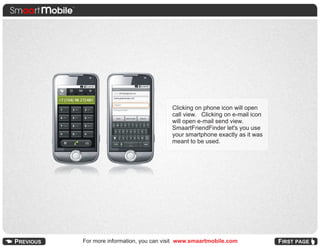
Clicking on phone icon will open
                                call view. Clicking on e-mail icon
                                will open e-mail send view.
                                SmaartFriendFinder let's you use
                                your smartphone exactly as it was
                                meant to be used.


For more information, you can visit www.smaartmobile.com

Android Manual for Smaart-Friend-Finder

  • 1.
    SmaartFriendFinder Android Version UserGuide www.smaartmobile.com
  • 2.
    Table of Contents GettingStarted .........................................................................3 Settings and Tools.................................................................... 5 Map ..........................................................................................5 Status......................................................................................10 Using Peer2Peer ....................................................................12 Map Options ...........................................................................15 Invite Friends ..........................................................................18 Colour Themes ...................................................................... 22 Ping Messages to SmaartFriendFinder Users .......................24 Connect with friend by SMS, Phone Call or E-mail ................27 For more information, you can visit www.smaartmobile.com
  • 3.
    Getting Started Click “I Agree” to continue. Clicking “I Disagree” will exit from the application. Enter your nickname. Your nickname can be anything you like. Does not matter if it has already been used. The nickname is the only mandatory information needed. For more information, you can visit www.smaartmobile.com
  • 4.
    Enter your phonenumber and email address if you wish.. Invite a friend to join. This can be done by SMS, Email, Twitter or Facebook. Click 'Done' you will be live. Your online profile will show the information you entered. At this point, you are online and active. For more information, you can visit www.smaartmobile.com
  • 5.
    Login to yourFaceBook account from directly inside Smaart-friend-finder. Use your FaceBook id (page) to create your own profile and keep it updated. Settings and Tools Map When you press the Map button at the top, you will find friends and other people who are nearby (within your discovery range). For more information, you can visit www.smaartmobile.com
  • 6.
    To change yourdiscovery range, click the “Me” tab. Slide the slider to set “My Visibility”. This will set the range that others will be able see you. For example, when it is set to 10 km, people within 10 km of you will be able to see you on the map and in the Discovery List. The “Looking for friends” feature, allows you to find friends around your current location at a defined radius, or you can set a different location to see if you find friends there… for example, are any of your friends at the coffee shop you plan to go to. By default values are worldwide. You can change them at any time. Slide the bar to select the value you would like. The Discovery List contains a list of friends and other people that are nearby (within your discovery range) “People you may know” are your people that exist in your phone's contact manager. When you first start SmaartFriendFinder all your contacts in your contact manager get “proximity enabled” so that if they also have SmaartFriendFinder installed (and are online) you can find them on the map, and they can find you on their map. People that are in your contact list, go to the top of the Discovery list and are shown with a Green Border for easy identification.“Others” are people who are also using SmaartFriendFinder, and happen to be nearby, (within the Discovery Range you previously set). “Others” are listed after your friends, and are shown in Blue. By clicking on a user, you will see the full profile of that particular user. For more information, you can visit www.smaartmobile.com NEXT
  • 7.
    The discovery listis dynamic, which means that as people go out of the discovery range, they will be dropped from the Discovery List. To keep “Others” on a permanent basis, you must save them to your smartphone's contacts. Let's add Mike Levashov to system contacts to make him a permanent friend in SmaartFriendFinder (when he is in Discovery range, he will appear in Green). In the list of users click on Mike and get his profile view. Open the System Menu on your phone or Android device and you will see the option “Save to contacts”. Click on it. For more information, you can visit www.smaartmobile.com
  • 8.
    At this pointyou should see the “Saved” notification for a short period of time and then Mike's entry will become “green” Status My Status - Online, Visible to friends, Invisible, Offline. Your status determines if and how people will find you, and you them. Online – friends and people can find you and you can find them. Offline – friends and people cannot find you, and you cannot find them. Invisible – You can find friends and people, but they cannot find you. Visible to Friends – Only friends can find you, but you can find both friends and other people. For more information, you can visit www.smaartmobile.com
  • 9.
    . Let's choose Visible to friends only. Your status changes to Visible to friends only and a blue F appears, see screenshot below For more information, you can visit www.smaartmobile.com
  • 10.
    Using Peer2Peer If cell network services and WiFi network is not available and your phone supports this feature, you can use SmaartFriendFinder in peer-to-peer mode (also known as WiFi Direct). This allows you to discovering friends and others that are close to you using the peer to peer (no network). Range is limited… usually no more than 100m, depending on the model of the phone. NOTE: Some phones do not support this mode. To set p2P, Open system menu. Click on Settings item. You will see settings view as on the screenshot below. Click on Wi-Fi direct connection and select return. For more information, you can visit www.smaartmobile.com
  • 11.
    Some features arenot available in p2p mode – for instance MAP. Map Options Zooming (in/out/zoom to fit) in the map mode For more information, you can visit www.smaartmobile.com NEXT
  • 12.
    Zoom to fit Map Layers For more information, you can visit www.smaartmobile.com
  • 13.
    Invite frieneds You cannot find friends that do not use SmaartFriendFinder. So invite them to install SmaartFriendFinder too! For SMS – Press SMS button For more information, you can visit www.smaartmobile.com
  • 14.
    For Email –Press Email button. For Twitter – Press the Twitter button. For more information, you can visit www.smaartmobile.com NEXT
  • 15.
    For Facebook –press the facebook button Colour Themes When you select your gender in the wizard step 1, the colour changes automatically – M = Blue, F = Pink For more information, you can visit www.smaartmobile.com
  • 16.
    The program willchange to the appropriate colour. Ping Messages to SmaartFriendFinder Users A ping message is completely private message between friends or others. It does not go through your provider. It is limited to 140 characters. For more information, you can visit www.smaartmobile.com
  • 17.
    Enter your messageand click 'send' button When you receive a new message you will see the notification bar change to something like the following: For more information, you can visit www.smaartmobile.com
  • 18.
    Drag down anotification bar to look at the incoming message. Clicking on it will open the reply view Connect with friend by SMS, Phone Call or E-mail Your phone is a smartphone with many ways to communicate… SmaartFriendFinder let's you use them normally. Click on SMS picture will open SMS send view. For more information, you can visit www.smaartmobile.com NEXT
  • 19.
    Clicking on phoneicon will open call view. Clicking on e-mail icon will open e-mail send view. SmaartFriendFinder let's you use your smartphone exactly as it was meant to be used. For more information, you can visit www.smaartmobile.com