2
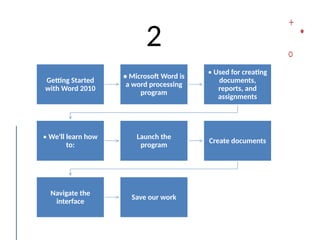
Getting Started
with Word2010
• Microsoft Word is
a word processing
program
• Used for creating
documents,
reports, and
assignments
• We'll learn how
to:
Launch the
program
Create documents
Navigate the
interface
Save our work
3.
3
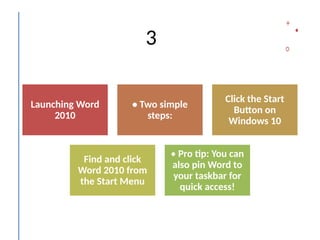
Launching Word
2010
• Twosimple
steps:
Click the Start
Button on
Windows 10
Find and click
Word 2010 from
the Start Menu
• Pro tip: You can
also pin Word to
your taskbar for
quick access!
4.
4
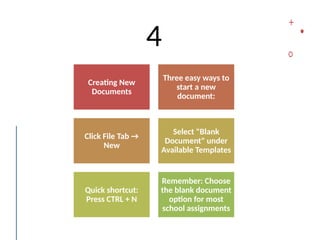
Creating New
Documents
Three easyways to
start a new
document:
Click File Tab →
New
Select "Blank
Document" under
Available Templates
Quick shortcut:
Press CTRL + N
Remember: Choose
the blank document
option for most
school assignments
5.
5
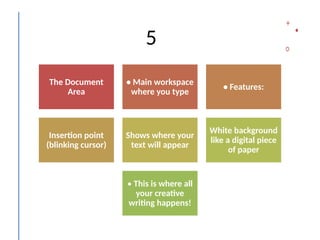
The Document
Area
• Mainworkspace
where you type
• Features:
Insertion point
(blinking cursor)
Shows where your
text will appear
White background
like a digital piece
of paper
• This is where all
your creative
writing happens!
6.
6
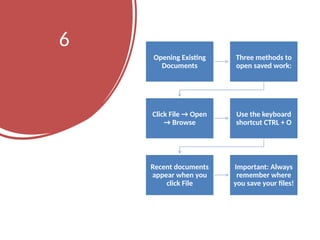
Opening Existing
Documents
Three methodsto
open saved work:
Click File → Open
→ Browse
Use the keyboard
shortcut CTRL + O
Recent documents
appear when you
click File
Important: Always
remember where
you save your files!
7.
7
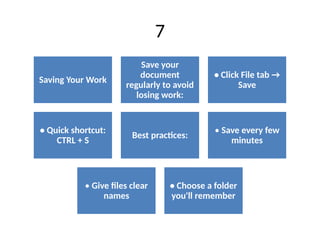
Saving Your Work
Saveyour
document
regularly to avoid
losing work:
• Click File tab →
Save
• Quick shortcut:
CTRL + S
Best practices:
• Save every few
minutes
• Give files clear
names
• Choose a folder
you'll remember
8.
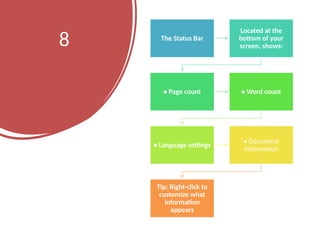
8 The StatusBar
Located at the
bottom of your
screen, shows:
• Page count • Word count
• Language settings
• Document
information
Tip: Right-click to
customize what
information
appears
9.
9
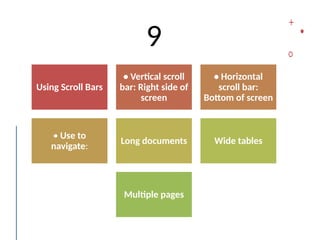
Using Scroll Bars
•Vertical scroll
bar: Right side of
screen
• Horizontal
scroll bar:
Bottom of screen
• Use to
navigate:
Long documents Wide tables
Multiple pages
10.
10
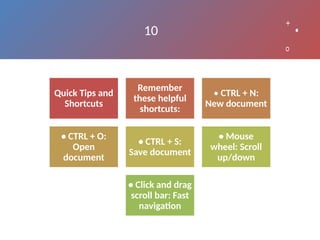
Quick Tips and
Shortcuts
Remember
thesehelpful
shortcuts:
• CTRL + N:
New document
• CTRL + O:
Open
document
• CTRL + S:
Save document
• Mouse
wheel: Scroll
up/down
• Click and drag
scroll bar: Fast
navigation