Welcome to AIRTA – the seminar that will show you how to gather more and better info online in less time with less effort …
…  and improve the way you use the web in your business, career and life.
Where’s everybody from?
I want to commend you for attending today’s CPE Link online seminar
You may not realize this but by participating you’re doing at least  four  really smart things ...
1.  Helping the environment : by staying at your office or home, you’ve saved on fuel consumption and reduced your carbon footprint.
2.  Saving money : by working from your computer, you’re saving hundreds of dollars in travel costs.
3.  Saving time : you’re instantly connected online and not wasting hours in airport line-ups, traffic jams or travel delays.
4.  Reducing stress : by avoiding travel, your learning experience is more comfortable and hassle-free.
 
Quiz
When you search the Internet, do you type a word or two into google.com, hit enter and hope for the best?
Are you swamped with online information?
…  yet frustrated because you can’t find the information you really want?
…  are you concerned you may be missing or overlooking great content but don’t know where to look?
…  do you wish the latest and best information could automatically come to you (instead of you chasing it)?
…  are you easily sidetracked or distracted online?
…  you start off searching for information on 401(K) …
…  before you know it, you’re watching YouTube videos of “Jake and the Fatman” …
…  and you’ve completely wasted three hours …
…  my diagnosis? SLZS Syndrome
SEARCH-LIKE-A-ZOMBIE SYNDROME
TODAY’S OBJECTIVE : CURE YOU OF THIS DREADED SLZS DISEASE …
…  TRANSFORM YOU FROM  THIS  TO …
 
SEARCH SULTAN … Chiseled granite, carved marble, honed stone.
New appreciation of search skills in professional and personal life.
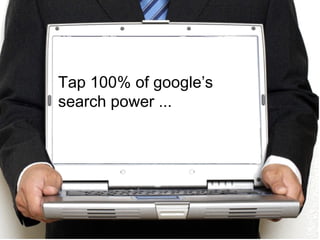
Tap 100% of google’s search power ...
Search web from dozens of different new “angles” ...
“ Outsource” and automate your searching so latest and best info streams to you, 24/7 …
Bottom Line:  gather and organize more and better info in less time with less effort …
…  which will help you think, work, play and live better!
How?
 
Agenda 8 topics …
1.0 introduction
1.1  WHY STUDY WEB SEARCH?  Key Lesson:  Internet searching  is  underrated  in its importance,  not as easy  as it appears, and getting  even tougher  with  exploding  information volume,  multiplying  web devices and  rising  professional standards and risks.   
2.0 google is great, but it’s not perfect
2.1  GOOGLE’S INFORMATION IMPERFECTIONS Key Lesson:  While  Google  is an  amazing  research tool, the search service also has not-so-obvious  biases ,  limitations  and  costs  that every searcher should  know  (especially since we  rely on it so much  and look at the world through  Google-coloured glasses !)   
3.0 quick search boosters
  Key Lesson:  You can instantly improve your information gathering power by using a new  browser , subscribing to  free business magazines  and e-mail newsletters, tapping  public library resources , and adjusting your  online expectations and perspective .   
4.0 google search tools
  4.1  CREATING A GOOGLE ACCOUNT Key Lesson:  You need a  Google account  to access many of Google’s advanced search tools.  If you haven’t already,  sign up  today.  Registration is  free  and you’ll receive many benefits.    
4.2  GOOGLE "SHOW OPTIONS“ Key Lesson:  Launched in May 2009, Google's  Show Options  feature allows you "slice and dice" search results.  When you select it, a sidebar appears that gives you different content, time, image, text, "wonder wheel", and reset options.   
4.3 GOOGLE SPELLCHECKER     Key Lesson:  Google automatically  spell-checks  your keywords and may provide  correct or alternative  spellings.  Use this feature to ensure your keywords are spelt  correctly .     
4.4 GOOGLE PERSONALIZATION AND GEO TARGETING Key Lesson:  Google automatically  personalizes your results  based on what you’ve searched for in the  past , and your current  location .         
4.5  GOOGLE'S MANY NATIONALITIES     Key Lesson:  Google has 150+ “national” search engines that are  geographically-focused .  Use these tools to zero in on the most  relevant results  for a particular country.        
4.6  SEARCH ACROSS LANGUAGES   Key Lesson:  Google Translation Tools  allow you to  translate  text and websites and even search for keywords in  languages you don't speak .  Use this tool to scan the web and communicate in more than  40 languages  from Arabic to German to Vietnamese.           
4.7  GOOGLE ALERTS     Key Lesson:  Google Alerts  automatically  emails you  or sends you an RSS feed when new information on any topic you choose appears in online news, blogs, websites, video and discussion groups.  If you use only one search tool,  this should be it .             
4.8  GOOGLE READER Key Lesson:  Google Reader  is a web-based RSS feed reader.  The tool automatically  aggregates  the latest  updates  from sites you choose.  This allows you to easily  track new content  from many sources across the web  in one place .                
4.9  GOOGLE NOTEBOOK Key Lesson:  Google Notebook  allows you to  write notes , clip text, save links and store images from your browsing.  The tool is perhaps the  best way  to keep your thoughts, words and notes  organized  online.                    
4.10  GOOGLE NAVIGATION BAR   Key Lesson:  Google’s Navigation Bar  is a menu that appears in the  upper left  hand corner of Google.com (although many users overlook or ignore it).  The menu  opens the door  to scores of different Google search tools, and a much  richer Internet experience .  
4.11  iGOOGLE      Key Lesson:  iGoogle  is an online service that allows you to customize the look and feel of your  Google startpage .  You can choose from among hundreds of gadgets, templates and feeds to  personalize  your Google experience.
4.12  GOOGLE MOBILE SEARCH     Key Lesson:  Google offers special  mobile applications  such as Google 411 and Google Mobile.  These tools allow you to search the web and use Google productivity tools  from your cell phone  or other mobile device.    
  4.13  SEARCH THE SEARCHERS     Key Lesson:  Three Google tools --  Hot Trends ,  Web Trends  and  Insights for Search  -- allow you to track  online activity patterns  of Google users around the world.  Use these applications to  monitor  what people in your industry and geographic area are searching for online.       
4.14  GOOGLE "BRAIN IMPLANTS"  Key Lesson:  The  Google Keyword Tool  is an online  “brain implant”  application that generates  new keyword idea s based on words you suggest.  Use this tool to  brainstorm  new keywords and trigger fresh research ideas.          
4.15  CUSTOM SEARCH ENGINE    Key Lesson:  Google Custom Search   Engin e is an e-service that allows you to develop your own  private search application .  Use this tool to  customize  a search engine for your organization or clients, and  track  only the issues and websites  you select .               
4.16  WEB SEARCH HISTORY    Key Lesson:  Google Web History  allows you to view and manage your  online web activity  at Google.  Use this tool to  retrace  your online steps, view past keywords and search results, and gain insights into the strengths and weaknesses of your search performance.              
5.0 google is not enough: Other search tools
5.1  GENERAL SEARCH TOOLS   Key Lesson:  Internet searching  does not start and end with Google .  Other general search services are available that are  just as good, perhaps even better .  Use a  mix  of these to search the web more  thoroughly , and  uncover results  you won’t find on Google.                  
5.2  INVISIBLE WEB   Key Lesson:  The  Invisible Web  refers to online content, usually gov’t and  corporate databases , that  cannot be “seen”  by traditional search engines such as Google.  To access this content, you need to use  special database trackers  such as Searchsystems.net.           
5.3  VERTICALS   Key Lesson:  Verticals  refer to  specialty search engines  that focus on a specific industry, function, or issue.  Use these tools if you’re looking for  in-depth  information on business, engineering, legal and science-related topics.                              
5.4  eMARKETPLACES     Key Lesson:  E-marketplaces  offer  online auction and transaction services .  Use these websites to search for  real-time buy and sell opportunities  in countless categories from commodities to consumer goods to professional services.    
5.5  MARKET RESEARCH   Key Lesson:  Market research  resources  aggregate   market research reports  from around the world.  Some reports are provided  free , others for a  fee .  Use these to search for reports on a particular  industry ,  product  category or  geographic  market.             
5.6  SOCIAL MEDIA SEARCH     Key Lesson:  Social networks  are  online communities of people  who share similar interests and activities.  Use these resources to search for people from a specific  company ,  occupation ,  school  or  interest group .                  
5.7  SOCIAL BOOKMARKING Key Lesson:  Social bookmarking  refers to applications that allow users to  bookmark and review web sites  they want to remember.  Use these to search for content that has been  flagged by online experts  and enthusiasts as noteworthy.                              
5.8  PEOPLE SEARCH Key Lesson:  People search  websites provide  background checks  and public information on people you choose.  Use these to  verify  the professional, financial and personal backgrounds of individuals.                
5.9  WIKIS Key Lesson:  Wikis  are  group-editable websites  that are updated by subject experts and enthusiasts from around the world.  Use these to search for  background briefs  on virtually any topic.          
5.10  INFORMATION MOSHPITS Key Lesson:  Information moshpits  are databases of  user-generated content .  Scan these for Word, Powerpoint, Excel, pdf and other documents on  every imaginable subject .  The files have been uploaded by  business professionals  from around the world.   
5.11  QUESTION AND ANSWER Key Lesson:  Question and answer  websites allow you to  pose questions  and get answers in  real-time  by online experts.  If you’re having trouble finding information about a topic, turn to these resources for answers from  real people .         
5.12  EVENTS Key Lesson:  Event search  refers to online tools that provide information on  business and social events .  Use these to search for trade shows, conferences, and other corporate meetings.          
5.13  CLASSIFIEDS Key Lesson:  Classified search  refers to scanning applications that provide information on  local buy and sell opportunities .  Use these to review classified listings in  specific cities  and countless product and service categories.    
5.14  MULTIMEDIA Key Lesson:  Multimedia applications  host corporate audio and video programs.  Use these to search for  business podcasts and videos  from around the world.               
5.15  SUBSCRIPTION SERVICES Key Lesson:  Subscription services  refer to search applications that charge a  fee  for access to  commercial databases .  Use these to search through  archives  of leading magazines, radio transcripts, company directories and other content.               
6.0 search tagging
6.1  TIME TAGGING   Key Lesson:  Time tagging  refers to adding  time information  -- say, the current year -- to your search string.  This technique will generate results that are more  time-relevant  to your query.              
6.2  GEO TAGGING   Key Lesson:  Geo-tagging  refers to adding  geographic information  -- such as area codes and postal codes -- to your search string.  This technique will generate results that are more  geographically relevant  to your query.                
6.3  JARGON TAGGING   Key Lesson:  Jargon-tagging  refers to adding  different words or phrases  -- such as buzz words, acronyms, and job titles  from your industry  -- to a search string.  This technique will generate results that are  more relevant  to your specific industry and business situation.                        
7.0 Search commands
7.1  PHRASE SEARCHING   Key Lesson:  Phase searching  refers to scanning for  specific word combinations .  Use this command to  improve relevancy  when searching for specific people and place names, slogans and expressions, and business phrases.                   
7.2  FILETYPE SEARCHING   Key Lesson:  File type searching  refers to scanning for  specific types of digital files .  Use this command to  focus searches  on pdf files, Word documents, Excel spreadsheets, Powerpoint presentations and other types of files.                
7.3  SITE SEARCHING   Key Lesson:  Site searching  refers to scanning specific  Internet domains .  Use this command to focus your searches on  domains  such as .com and .edu,  sub-domains  such as usa.gov, and even  individual websites  such as microsoft.com.                          
7.4  LINK SEARCHING Key Lesson:  Link searching  refers to  tracking  the websites that  link  to a specific website.  Use this command to identify  “link density”  -- how many and which websites link to a particular webpage.                          
7.5  VIEW SEARCHING     Key Lesson:  View searching  refers to searching information from  a timeline and map perspective .  Use this command to view search results along a  time continuum  or distributed over a  geographic map .                          
7.6 WILDCARD SEARCHING Key Lesson:  Wildcard searching refers to using a "fill in the blank" approach when searching.  You add an asterick (*) in your search string where you want Google to find information or the missing word or words.                            
7.7  TITLE SEARCHING   Key Lesson:  Title searching refers to searching for webpage titles.  Use this command to uncover relevant results that may be buried deep or not listed at all in general search results.                          
7.8 URL SEARCHING   Key Lesson:  URL searching refers to searching for webpage URLs.  Use this command to uncover relevant results that may be buried deep or not listed at all in general search results.                                
7.9 TEXT SEARCHING Key Lesson:  Text searching refers to searching for webpage text.  Use this command to uncover relevant results that may be buried deep or not listed at all in general search results.                                  
7.10  CACHE SEARCHING   Key Lesson:  Cache searching  refers to searching for  stored snapshots  of a website from the past.  Use this command to identify information that has  previously appeared  on a website but has been replaced or removed (but is still valuable).                        
7.11 OTHER SEARCH COMMANDS AND SHORTCUTS Key Lesson:  Google offers a host of different search commands and shortcuts that allow you to tinker with search results, quickly find critical information, and even perform calculations and conversions.                              
7.12  SEARCH MASHUPS   Key Lesson:  Search mashups  refer to using a  mix  of Google search commands in  one search string .  Use these to scan the web using different phrase, filetype and site  command combinations  and view the Internet from many  fresh “angles .”                         
7.13  GOOGLE HACKING   Key Lesson:  Google hacking refers to using Google to uncover information that may be confidential or sensitive but still publicly available online.                       
8.0 search strategies And utilities
8.1 KEYBOARD KARATE   Key Lesson:  Keyboard karate  refers to the  nimble and creative use of language  when searching the web.  The more you  tinker  with different descriptions, synonyms, spellings and word order in your search strings, the more you’ll  generate fresh and relevant search results .                          
8.2  GOOGLE ALERTS CIRCLE BACK   Key Lesson:  This refers to  revisiting Google Alerts  -- the automatic web scanning tool -- and incorporating the  advanced search commands  and techniques into your search strings.  These  "super alerts"  will generate even more relevant search results.                              
8.3  GOOGLE PLUG-INS    Key Lesson:  Numerous  third-party Google plug-ins  are available – virtually all  free  – that extend or boost Google’s  performance or functionality .  Experiment with these plug-ins to  enhance  your Google  experience  and boost your online  productivity .                              
Top 10 Search Tools and Techniques
For your information …
 
This presentation certified, bona fide, deep fried, 100%  VENDOR-NEUTRAL .                           
I have  no hidden agenda :  I do not represent any search or Internet organization.
I have  no vested interest  in any of resources listed in this presentation.
What I am is a free-range consultant …
…  impartial, objective, independent  , unbiased, corn-fed, Manitoba-raised, ponytailed Certified Management Consultant ...
My motto:  I don’t take sides, I take notes and screen captures.
CAUTION: URLs CHANGE WITHOUT WARNING
Caution :  Internet search is highly  dynamic and fluid . URLs may change without notice!  Resources may disappear.
THIS SEMINAR WILL BE INFO-PACKED AND FAST:  YOU’LL FEEL LIKE A FERRET ON DOUBLE-EXPRESSO, AND EXPERIENCE AN INTENSE CARDIO-CEREBRAL WORKOUT.
Delivering this type of web seminar is  delicate balancing act :  some of you know  little , some knows  lots  about web and Internet search.
Whatever your level of  comfort and experience  with searching online...
Thank you in advance for your flexibility, and being the intelligent, considerate and respectful professional you are.
THIS IS JUST AN  OVERVIEW .  I CAN ONLY COVER SO MUCH IN HALF DAY SESSION.  BASED ON 12+ YEARS EXPERIENCE.
LARGE FOCUS ON GOOGLE BECAUSE IT’S MOST POPULAR SEARCH SERVICE.
To get most out of today’s session, I’d suggest you get out your  highlighter   ...
...  Mark those items  that interest you the most and  circle back  on your own time to explore them in more detail.
DUCT TAPE AVAILABLE:  YOUR HEAD WILL EXPLODE IN BRAIN SPRAY OF AWESOME.
Questions?  Comments?  Email me at  [email_address]
Questions?  Comments?  Phone me at  778.898.9059
Questions?  Comments?  Website:  http://www.garrettwasny.com
Questions?  Comments?  Contact me on  Facebook  ...
Questions?  Comments?  Contact me on  Twitter  ...
Questions?  Comments?  Contact me on  YouTube  ...
Time to sit back, relax,  listen fast  and  enjoy the ride  ...

AIRT

  • 1.
  • 2.
    Welcome to AIRTA– the seminar that will show you how to gather more and better info online in less time with less effort …
  • 3.
    … andimprove the way you use the web in your business, career and life.
  • 4.
  • 5.
    I want tocommend you for attending today’s CPE Link online seminar
  • 6.
    You may notrealize this but by participating you’re doing at least four really smart things ...
  • 7.
    1. Helpingthe environment : by staying at your office or home, you’ve saved on fuel consumption and reduced your carbon footprint.
  • 8.
    2. Savingmoney : by working from your computer, you’re saving hundreds of dollars in travel costs.
  • 9.
    3. Savingtime : you’re instantly connected online and not wasting hours in airport line-ups, traffic jams or travel delays.
  • 10.
    4. Reducingstress : by avoiding travel, your learning experience is more comfortable and hassle-free.
  • 11.
  • 12.
  • 13.
    When you searchthe Internet, do you type a word or two into google.com, hit enter and hope for the best?
  • 14.
    Are you swampedwith online information?
  • 15.
    … yetfrustrated because you can’t find the information you really want?
  • 16.
    … areyou concerned you may be missing or overlooking great content but don’t know where to look?
  • 17.
    … doyou wish the latest and best information could automatically come to you (instead of you chasing it)?
  • 18.
    … areyou easily sidetracked or distracted online?
  • 19.
    … youstart off searching for information on 401(K) …
  • 20.
    … beforeyou know it, you’re watching YouTube videos of “Jake and the Fatman” …
  • 21.
    … andyou’ve completely wasted three hours …
  • 22.
    … mydiagnosis? SLZS Syndrome
  • 23.
  • 24.
    TODAY’S OBJECTIVE :CURE YOU OF THIS DREADED SLZS DISEASE …
  • 25.
    … TRANSFORMYOU FROM THIS TO …
  • 26.
  • 27.
    SEARCH SULTAN …Chiseled granite, carved marble, honed stone.
  • 28.
    New appreciation ofsearch skills in professional and personal life.
  • 29.
    Tap 100% ofgoogle’s search power ...
  • 30.
    Search web fromdozens of different new “angles” ...
  • 31.
    “ Outsource” andautomate your searching so latest and best info streams to you, 24/7 …
  • 32.
    Bottom Line: gather and organize more and better info in less time with less effort …
  • 33.
    … whichwill help you think, work, play and live better!
  • 34.
  • 35.
  • 36.
  • 37.
  • 38.
    1.1 WHYSTUDY WEB SEARCH? Key Lesson: Internet searching is underrated in its importance, not as easy as it appears, and getting even tougher with exploding information volume, multiplying web devices and rising professional standards and risks.  
  • 39.
    2.0 google isgreat, but it’s not perfect
  • 40.
    2.1 GOOGLE’SINFORMATION IMPERFECTIONS Key Lesson: While Google is an amazing research tool, the search service also has not-so-obvious biases , limitations and costs that every searcher should know (especially since we rely on it so much and look at the world through Google-coloured glasses !)  
  • 41.
  • 42.
      Key Lesson: You can instantly improve your information gathering power by using a new browser , subscribing to free business magazines and e-mail newsletters, tapping public library resources , and adjusting your online expectations and perspective .  
  • 43.
  • 44.
      4.1 CREATING A GOOGLE ACCOUNT Key Lesson: You need a Google account to access many of Google’s advanced search tools. If you haven’t already, sign up today. Registration is free and you’ll receive many benefits.    
  • 45.
    4.2 GOOGLE"SHOW OPTIONS“ Key Lesson: Launched in May 2009, Google's Show Options feature allows you "slice and dice" search results. When you select it, a sidebar appears that gives you different content, time, image, text, "wonder wheel", and reset options.  
  • 46.
    4.3 GOOGLE SPELLCHECKER    Key Lesson: Google automatically spell-checks your keywords and may provide correct or alternative spellings. Use this feature to ensure your keywords are spelt correctly .    
  • 47.
    4.4 GOOGLE PERSONALIZATIONAND GEO TARGETING Key Lesson: Google automatically personalizes your results based on what you’ve searched for in the past , and your current location .        
  • 48.
    4.5 GOOGLE'SMANY NATIONALITIES     Key Lesson: Google has 150+ “national” search engines that are geographically-focused . Use these tools to zero in on the most relevant results for a particular country.        
  • 49.
    4.6 SEARCHACROSS LANGUAGES   Key Lesson: Google Translation Tools allow you to translate text and websites and even search for keywords in languages you don't speak . Use this tool to scan the web and communicate in more than 40 languages from Arabic to German to Vietnamese.          
  • 50.
    4.7 GOOGLEALERTS     Key Lesson: Google Alerts automatically emails you or sends you an RSS feed when new information on any topic you choose appears in online news, blogs, websites, video and discussion groups. If you use only one search tool, this should be it .            
  • 51.
    4.8 GOOGLEREADER Key Lesson: Google Reader is a web-based RSS feed reader. The tool automatically aggregates the latest updates from sites you choose. This allows you to easily track new content from many sources across the web in one place .                
  • 52.
    4.9 GOOGLENOTEBOOK Key Lesson: Google Notebook allows you to write notes , clip text, save links and store images from your browsing. The tool is perhaps the best way to keep your thoughts, words and notes organized online.                    
  • 53.
    4.10 GOOGLENAVIGATION BAR   Key Lesson: Google’s Navigation Bar is a menu that appears in the upper left hand corner of Google.com (although many users overlook or ignore it). The menu opens the door to scores of different Google search tools, and a much richer Internet experience .  
  • 54.
    4.11 iGOOGLE     Key Lesson: iGoogle is an online service that allows you to customize the look and feel of your Google startpage . You can choose from among hundreds of gadgets, templates and feeds to personalize your Google experience.
  • 55.
    4.12 GOOGLEMOBILE SEARCH   Key Lesson: Google offers special mobile applications such as Google 411 and Google Mobile. These tools allow you to search the web and use Google productivity tools from your cell phone or other mobile device.    
  • 56.
      4.13 SEARCH THE SEARCHERS     Key Lesson: Three Google tools -- Hot Trends , Web Trends and Insights for Search -- allow you to track online activity patterns of Google users around the world. Use these applications to monitor what people in your industry and geographic area are searching for online.      
  • 57.
    4.14 GOOGLE"BRAIN IMPLANTS" Key Lesson: The Google Keyword Tool is an online “brain implant” application that generates new keyword idea s based on words you suggest. Use this tool to brainstorm new keywords and trigger fresh research ideas.          
  • 58.
    4.15 CUSTOMSEARCH ENGINE   Key Lesson: Google Custom Search Engin e is an e-service that allows you to develop your own private search application . Use this tool to customize a search engine for your organization or clients, and track only the issues and websites you select .              
  • 59.
    4.16 WEBSEARCH HISTORY   Key Lesson: Google Web History allows you to view and manage your online web activity at Google. Use this tool to retrace your online steps, view past keywords and search results, and gain insights into the strengths and weaknesses of your search performance.              
  • 60.
    4.16 WEBSEARCH HISTORY   Key Lesson: Google Web History allows you to view and manage your online web activity at Google. Use this tool to retrace your online steps, view past keywords and search results, and gain insights into the strengths and weaknesses of your search performance.              
  • 61.
    5.0 google isnot enough: Other search tools
  • 62.
    5.1 GENERALSEARCH TOOLS   Key Lesson: Internet searching does not start and end with Google . Other general search services are available that are just as good, perhaps even better . Use a mix of these to search the web more thoroughly , and uncover results you won’t find on Google.                  
  • 63.
    5.2 INVISIBLEWEB   Key Lesson: The Invisible Web refers to online content, usually gov’t and corporate databases , that cannot be “seen” by traditional search engines such as Google. To access this content, you need to use special database trackers such as Searchsystems.net.          
  • 64.
    5.3 VERTICALS  Key Lesson: Verticals refer to specialty search engines that focus on a specific industry, function, or issue. Use these tools if you’re looking for in-depth information on business, engineering, legal and science-related topics.                              
  • 65.
    5.4 eMARKETPLACES    Key Lesson: E-marketplaces offer online auction and transaction services . Use these websites to search for real-time buy and sell opportunities in countless categories from commodities to consumer goods to professional services.    
  • 66.
    5.5 MARKETRESEARCH   Key Lesson: Market research resources aggregate market research reports from around the world. Some reports are provided free , others for a fee . Use these to search for reports on a particular industry , product category or geographic market.            
  • 67.
    5.6 SOCIALMEDIA SEARCH     Key Lesson: Social networks are online communities of people who share similar interests and activities. Use these resources to search for people from a specific company , occupation , school or interest group .                  
  • 68.
    5.7 SOCIALBOOKMARKING Key Lesson: Social bookmarking refers to applications that allow users to bookmark and review web sites they want to remember. Use these to search for content that has been flagged by online experts and enthusiasts as noteworthy.                              
  • 69.
    5.8 PEOPLESEARCH Key Lesson: People search websites provide background checks and public information on people you choose. Use these to verify the professional, financial and personal backgrounds of individuals.                
  • 70.
    5.9 WIKISKey Lesson: Wikis are group-editable websites that are updated by subject experts and enthusiasts from around the world. Use these to search for background briefs on virtually any topic.          
  • 71.
    5.10 INFORMATIONMOSHPITS Key Lesson: Information moshpits are databases of user-generated content . Scan these for Word, Powerpoint, Excel, pdf and other documents on every imaginable subject . The files have been uploaded by business professionals from around the world.  
  • 72.
    5.11 QUESTIONAND ANSWER Key Lesson: Question and answer websites allow you to pose questions and get answers in real-time by online experts. If you’re having trouble finding information about a topic, turn to these resources for answers from real people .        
  • 73.
    5.12 EVENTSKey Lesson: Event search refers to online tools that provide information on business and social events . Use these to search for trade shows, conferences, and other corporate meetings.          
  • 74.
    5.13 CLASSIFIEDSKey Lesson: Classified search refers to scanning applications that provide information on local buy and sell opportunities . Use these to review classified listings in specific cities and countless product and service categories.    
  • 75.
    5.14 MULTIMEDIAKey Lesson: Multimedia applications host corporate audio and video programs. Use these to search for business podcasts and videos from around the world.              
  • 76.
    5.15 SUBSCRIPTIONSERVICES Key Lesson: Subscription services refer to search applications that charge a fee for access to commercial databases . Use these to search through archives of leading magazines, radio transcripts, company directories and other content.              
  • 77.
  • 78.
    6.1 TIMETAGGING   Key Lesson: Time tagging refers to adding time information -- say, the current year -- to your search string. This technique will generate results that are more time-relevant to your query.              
  • 79.
    6.2 GEOTAGGING   Key Lesson: Geo-tagging refers to adding geographic information -- such as area codes and postal codes -- to your search string. This technique will generate results that are more geographically relevant to your query.                
  • 80.
    6.3 JARGONTAGGING   Key Lesson: Jargon-tagging refers to adding different words or phrases -- such as buzz words, acronyms, and job titles from your industry -- to a search string. This technique will generate results that are more relevant to your specific industry and business situation.                        
  • 81.
  • 82.
    7.1 PHRASESEARCHING   Key Lesson: Phase searching refers to scanning for specific word combinations . Use this command to improve relevancy when searching for specific people and place names, slogans and expressions, and business phrases.                  
  • 83.
    7.2 FILETYPESEARCHING   Key Lesson: File type searching refers to scanning for specific types of digital files . Use this command to focus searches on pdf files, Word documents, Excel spreadsheets, Powerpoint presentations and other types of files.                
  • 84.
    7.3 SITESEARCHING   Key Lesson: Site searching refers to scanning specific Internet domains . Use this command to focus your searches on domains such as .com and .edu, sub-domains such as usa.gov, and even individual websites such as microsoft.com.                          
  • 85.
    7.4 LINKSEARCHING Key Lesson: Link searching refers to tracking the websites that link to a specific website. Use this command to identify “link density” -- how many and which websites link to a particular webpage.                          
  • 86.
    7.5 VIEWSEARCHING     Key Lesson: View searching refers to searching information from a timeline and map perspective . Use this command to view search results along a time continuum or distributed over a geographic map .                          
  • 87.
    7.6 WILDCARD SEARCHINGKey Lesson: Wildcard searching refers to using a "fill in the blank" approach when searching. You add an asterick (*) in your search string where you want Google to find information or the missing word or words.                            
  • 88.
    7.7 TITLESEARCHING   Key Lesson: Title searching refers to searching for webpage titles. Use this command to uncover relevant results that may be buried deep or not listed at all in general search results.                        
  • 89.
    7.8 URL SEARCHING  Key Lesson: URL searching refers to searching for webpage URLs. Use this command to uncover relevant results that may be buried deep or not listed at all in general search results.                              
  • 90.
    7.9 TEXT SEARCHINGKey Lesson: Text searching refers to searching for webpage text. Use this command to uncover relevant results that may be buried deep or not listed at all in general search results.                                
  • 91.
    7.10 CACHESEARCHING   Key Lesson: Cache searching refers to searching for stored snapshots of a website from the past. Use this command to identify information that has previously appeared on a website but has been replaced or removed (but is still valuable).                        
  • 92.
    7.11 OTHER SEARCHCOMMANDS AND SHORTCUTS Key Lesson: Google offers a host of different search commands and shortcuts that allow you to tinker with search results, quickly find critical information, and even perform calculations and conversions.                          
  • 93.
    7.12 SEARCHMASHUPS   Key Lesson: Search mashups refer to using a mix of Google search commands in one search string . Use these to scan the web using different phrase, filetype and site command combinations and view the Internet from many fresh “angles .”                        
  • 94.
    7.13 GOOGLEHACKING Key Lesson: Google hacking refers to using Google to uncover information that may be confidential or sensitive but still publicly available online.                      
  • 95.
    8.0 search strategiesAnd utilities
  • 96.
    8.1 KEYBOARD KARATE  Key Lesson: Keyboard karate refers to the nimble and creative use of language when searching the web. The more you tinker with different descriptions, synonyms, spellings and word order in your search strings, the more you’ll generate fresh and relevant search results .                          
  • 97.
    8.2 GOOGLEALERTS CIRCLE BACK   Key Lesson: This refers to revisiting Google Alerts -- the automatic web scanning tool -- and incorporating the advanced search commands and techniques into your search strings. These "super alerts" will generate even more relevant search results.                              
  • 98.
    8.3 GOOGLEPLUG-INS   Key Lesson: Numerous third-party Google plug-ins are available – virtually all free – that extend or boost Google’s performance or functionality . Experiment with these plug-ins to enhance your Google experience and boost your online productivity .                              
  • 99.
    Top 10 SearchTools and Techniques
  • 100.
  • 101.
  • 102.
    This presentation certified,bona fide, deep fried, 100% VENDOR-NEUTRAL .                           
  • 103.
    I have no hidden agenda : I do not represent any search or Internet organization.
  • 104.
    I have no vested interest in any of resources listed in this presentation.
  • 105.
    What I amis a free-range consultant …
  • 106.
    … impartial,objective, independent , unbiased, corn-fed, Manitoba-raised, ponytailed Certified Management Consultant ...
  • 107.
    My motto: I don’t take sides, I take notes and screen captures.
  • 108.
    CAUTION: URLs CHANGEWITHOUT WARNING
  • 109.
    Caution : Internet search is highly dynamic and fluid . URLs may change without notice! Resources may disappear.
  • 110.
    THIS SEMINAR WILLBE INFO-PACKED AND FAST: YOU’LL FEEL LIKE A FERRET ON DOUBLE-EXPRESSO, AND EXPERIENCE AN INTENSE CARDIO-CEREBRAL WORKOUT.
  • 111.
    Delivering this typeof web seminar is delicate balancing act : some of you know little , some knows lots about web and Internet search.
  • 112.
    Whatever your levelof comfort and experience with searching online...
  • 113.
    Thank you inadvance for your flexibility, and being the intelligent, considerate and respectful professional you are.
  • 114.
    THIS IS JUSTAN OVERVIEW . I CAN ONLY COVER SO MUCH IN HALF DAY SESSION. BASED ON 12+ YEARS EXPERIENCE.
  • 115.
    LARGE FOCUS ONGOOGLE BECAUSE IT’S MOST POPULAR SEARCH SERVICE.
  • 116.
    To get mostout of today’s session, I’d suggest you get out your highlighter ...
  • 117.
    ... Markthose items that interest you the most and circle back on your own time to explore them in more detail.
  • 118.
    DUCT TAPE AVAILABLE: YOUR HEAD WILL EXPLODE IN BRAIN SPRAY OF AWESOME.
  • 119.
    Questions? Comments? Email me at [email_address]
  • 120.
    Questions? Comments? Phone me at 778.898.9059
  • 121.
    Questions? Comments? Website: http://www.garrettwasny.com
  • 122.
    Questions? Comments? Contact me on Facebook ...
  • 123.
    Questions? Comments? Contact me on Twitter ...
  • 124.
    Questions? Comments? Contact me on YouTube ...
  • 125.
    Time to sitback, relax, listen fast and enjoy the ride ...

Editor's Notes

  • #104 9/30/2009 ‹ #› 9/30/2009 ‹ #› 9/30/2009 ‹ #›
  • #105 9/30/2009 ‹ #› 9/30/2009 ‹ #› 9/30/2009 ‹ #›
  • #106 9/30/2009 ‹ #› 9/30/2009 ‹ #› 9/30/2009 ‹ #›
  • #107 9/30/2009 ‹ #› 9/30/2009 ‹ #› 9/30/2009 ‹ #›
  • #108 9/30/2009 ‹ #› 9/30/2009 ‹ #› 9/30/2009 ‹ #›
  • #110 9/30/2009 ‹ #› 9/30/2009 ‹ #› 9/30/2009 ‹ #›
  • #112 9/30/2009 ‹ #› 9/30/2009 ‹ #› 9/30/2009 ‹ #›
  • #113 9/30/2009 ‹ #› 9/30/2009 ‹ #› 9/30/2009 ‹ #›
  • #114 9/30/2009 ‹ #› 9/30/2009 ‹ #› 9/30/2009 ‹ #›
  • #117 9/30/2009 ‹ #› 9/30/2009 ‹ #› 9/30/2009 ‹ #›
  • #118 9/30/2009 ‹ #› 9/30/2009 ‹ #› 9/30/2009 ‹ #›
  • #120 9/30/2009 ‹ #› 9/30/2009 ‹ #› 9/30/2009 ‹ #›
  • #121 9/30/2009 ‹ #› 9/30/2009 ‹ #› 9/30/2009 ‹ #›
  • #122 9/30/2009 ‹ #› 9/30/2009 ‹ #› 9/30/2009 ‹ #›
  • #123 9/30/2009 ‹ #› 9/30/2009 ‹ #› 9/30/2009 ‹ #›
  • #124 9/30/2009 ‹ #› 9/30/2009 ‹ #› 9/30/2009 ‹ #›
  • #125 9/30/2009 ‹ #› 9/30/2009 ‹ #› 9/30/2009 ‹ #›
  • #126 9/30/2009 ‹ #› 9/30/2009 ‹ #› 9/30/2009 ‹ #›