Tel: 310.313.0047 x 110
Cell: 310.918.7162
Fax: 310.313.1187
Email: intouch@autismclinicsoftware.com
Website: www.autismclinicsoftware.com
Try Autism Clinic Software Free for 30 Days
Follow Us On
Autism Clinic Software
Scheduling Demo
Introduction
• In this demo, we will explore:
• How you can add, modify and delete availability for employees and consumers
• How you can add an appointment using the Consumer or Employee screen
• How the Quick Schedule for matching staff with consumers works
Tel: 310.313.0047 x 110
Cell: 310.918.7162
Fax: 310.313.1187
Email: intouch@autismclinicsoftware.com
Website: www.autismclinicsoftware.com
Try Autism Clinic Software Free for 30 Days
Follow Us On
Add availability (Desktop) in 3
steps
Scheduling
About Availability
• Availability means the days and times someone is available to
provide/receive services
• In ACS we enter consumer availability in the Consumer module, and
employee availability in the Employee module
• The process of adding Availability for consumers and employees in
ACS desktop is identical, so is described only once in this
documentation
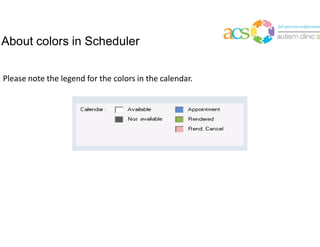
About colors in Scheduler
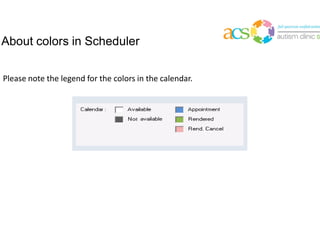
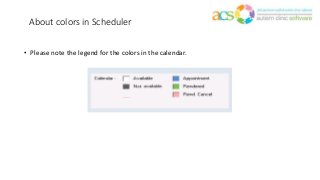
• Please note the legend for the colors in the calendar.
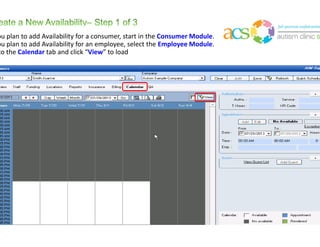
If you plan to add Availability for a consumer, start in the Consumer Module.
If you plan to add Availability for an employee, select the Employee Module.
Go to the Calendar tab and click “View” to load
Tel: 310.313.0047 x 110
Cell: 310.918.7162
Fax: 310.313.1187
Email: intouch@autismclinicsoftware.com
Website: www.autismclinicsoftware.com
Try Autism Clinic Software Free for 30 Days
Follow Us On
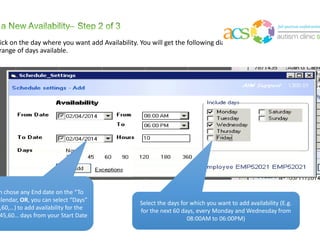
Double click on the day where you want add Availability. You will get the following dialog box. There are two (2) options for
adding a range of days available.
You can chose any End date on the “To
Date” calendar, OR, you can select “Days”
(30,45,60,…) to add availability for the
next 30,45,60… days from your Start Date
Select the days for which you want to add availability (E.g.
for the next 60 days, every Monday and Wednesday from
08:00AM to 06:00PM)
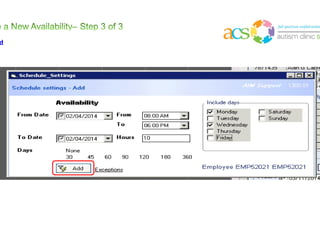
Click Add
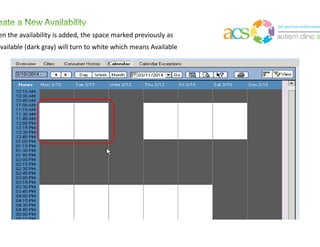
When the availability is added, the space marked previously as
Unavailable (dark gray) will turn to white which means Available
Tel: 310.313.0047 x 110
Cell: 310.918.7162
Fax: 310.313.1187
Email: intouch@autismclinicsoftware.com
Website: www.autismclinicsoftware.com
Try Autism Clinic Software Free for 30 Days
Follow Us On
EDIT/DELETE availability
(Desktop) in 3 steps
Scheduling
About Availability
• Availability means the days and times someone is available to
provide/receive services
• In ACS we edit consumer availability in the Consumer module, and
employee availability in the Employee module
• The process of editing Availability for consumers and employees in
ACS desktop is identical, so is described only once in this
documentation
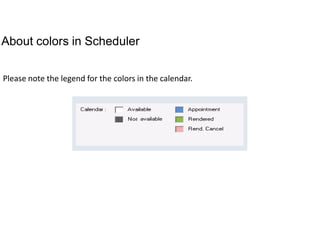
About colors in Scheduler
• Please note the legend for the colors in the calendar.
Tel: 310.313.0047 x 110
Cell: 310.918.7162
Fax: 310.313.1187
Email: intouch@autismclinicsoftware.com
Website: www.autismclinicsoftware.com
Try Autism Clinic Software Free for 30 Days
Follow Us On
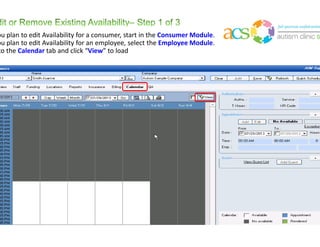
If you plan to edit Availability for a consumer, start in the Consumer Module.
If you plan to edit Availability for an employee, select the Employee Module.
Go to the Calendar tab and click “View” to load
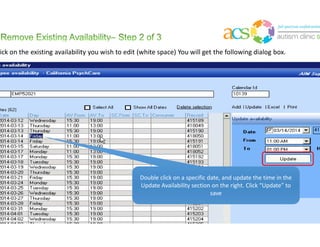
Double click on the existing availability you wish to edit (white space) You will get the following dialog box.
Double click on a specific date, and update the time in the
Update Availability section on the right. Click “Update” to
save
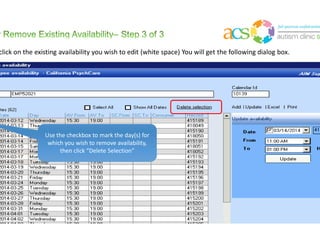
Double click on the existing availability you wish to edit (white space) You will get the following dialog box.
Use the checkbox to mark the day(s) for
which you wish to remove availability,
then click “Delete Selection”
Tel: 310.313.0047 x 110
Cell: 310.918.7162
Fax: 310.313.1187
Email: intouch@autismclinicsoftware.com
Website: www.autismclinicsoftware.com
Try Autism Clinic Software Free for 30 Days
Follow Us On
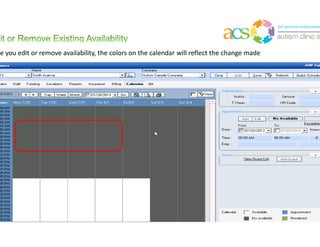
Once you edit or remove availability, the colors on the calendar will reflect the change made
Create new appointment
(DESKTOP) in 6 steps
Scheduling
About Appointments
• The following are requirements to Schedule an Appointment:
• The Consumer must have at least one Funding Source and one Location/Address (E.g. “Home”, “School”, etc.)
• Employee must be Available during the time of the appointment
(when reporting actual time, start/end times can be different, even if marked as unavailable)
• Consumer must be Available during the time of the appointment
(when reporting actual time, start/end times can be different, even if marked as unavailable)
• The scheduled appointment must be created using a valid Authorization (POS is allowed) and the
appointment(s) must occur during the valid Start/End Dates of the Authorization
Tel: 310.313.0047 x 110
Cell: 310.918.7162
Fax: 310.313.1187
Email: intouch@autismclinicsoftware.com
Website: www.autismclinicsoftware.com
Try Autism Clinic Software Free for 30 Days
Follow Us On
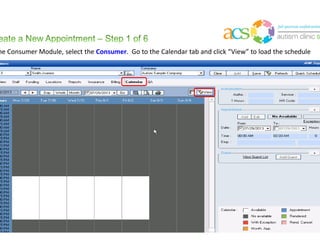
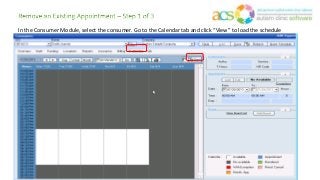
In the Consumer Module, select the Consumer. Go to the Calendar tab and click “View” to load the schedule
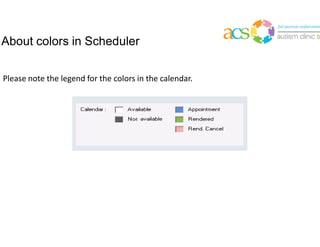
About colors in Scheduler
• Please note the legend for the colors in the calendar.
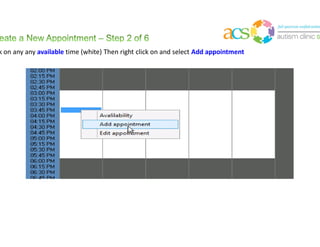
Click on any any available time (white) Then right click on and select Add appointment
Tel: 310.313.0047 x 110
Cell: 310.918.7162
Fax: 310.313.1187
Email: intouch@autismclinicsoftware.com
Website: www.autismclinicsoftware.com
Try Autism Clinic Software Free for 30 Days
Follow Us On
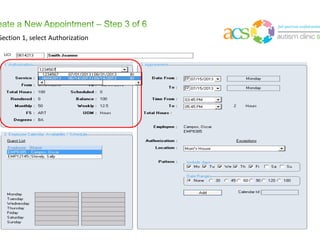
On Section 1, select Authorization
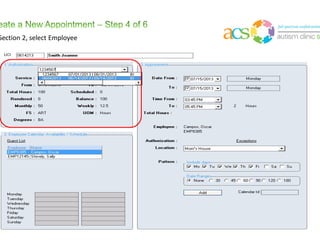
On Section 2, select Employee
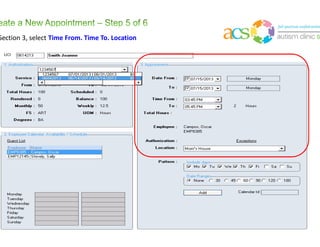
On Section 3, select Time From. Time To. Location
Tel: 310.313.0047 x 110
Cell: 310.918.7162
Fax: 310.313.1187
Email: intouch@autismclinicsoftware.com
Website: www.autismclinicsoftware.com
Try Autism Clinic Software Free for 30 Days
Follow Us On
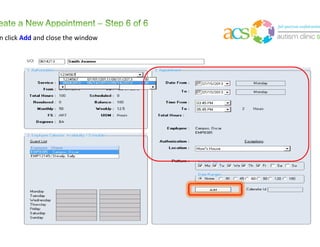
Then click Add and close the window
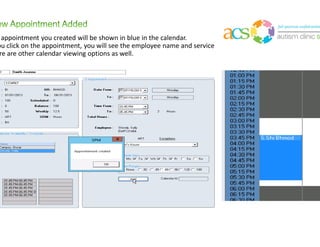
The appointment you created will be shown in blue in the calendar.
If you click on the appointment, you will see the employee name and service
There are other calendar viewing options as well.
Tel: 310.313.0047 x 110
Cell: 310.918.7162
Fax: 310.313.1187
Email: intouch@autismclinicsoftware.com
Website: www.autismclinicsoftware.com
Try Autism Clinic Software Free for 30 Days
Follow Us On
Edit Existing SCHEDULE
(DESKTOP)
in 3 steps
Scheduling
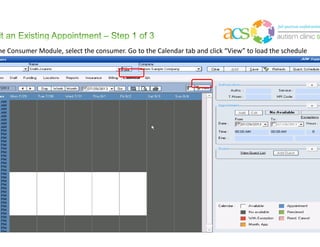
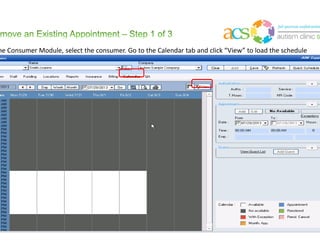
In the Consumer Module, select the consumer. Go to the Calendar tab and click “View” to load the schedule
About colors in Scheduler
• Please note the legend for the colors in the calendar.
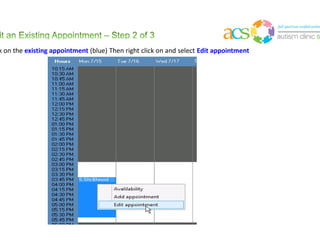
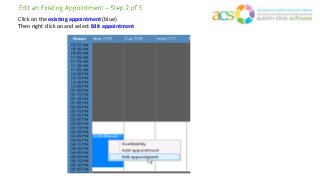
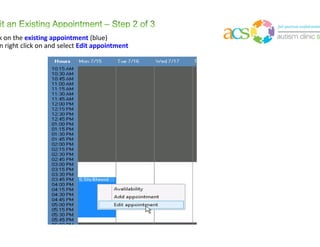
Click on the existing appointment (blue) Then right click on and select Edit appointment
Tel: 310.313.0047 x 110
Cell: 310.918.7162
Fax: 310.313.1187
Email: intouch@autismclinicsoftware.com
Website: www.autismclinicsoftware.com
Try Autism Clinic Software Free for 30 Days
Follow Us On
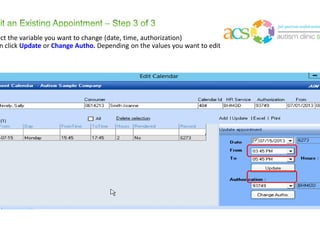
Select the variable you want to change (date, time, authorization)
Then click Update or Change Autho. Depending on the values you want to edit
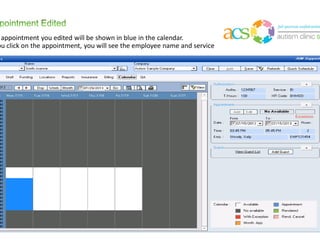
The appointment you edited will be shown in blue in the calendar.
If you click on the appointment, you will see the employee name and service
Tel: 310.313.0047 x 110
Cell: 310.918.7162
Fax: 310.313.1187
Email: intouch@autismclinicsoftware.com
Website: www.autismclinicsoftware.com
Try Autism Clinic Software Free for 30 Days
Follow Us On
Remove Existing SCHEDULE
(DESKTOP) in 3 steps
Scheduling
In the Consumer Module, select the consumer. Go to the Calendar tab and click “View” to load the schedule
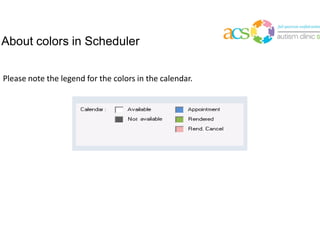
About colors in Scheduler
• Please note the legend for the colors in the calendar.
Click on the existing appointment (blue)
Then right click on and select Edit appointment
Tel: 310.313.0047 x 110
Cell: 310.918.7162
Fax: 310.313.1187
Email: intouch@autismclinicsoftware.com
Website: www.autismclinicsoftware.com
Try Autism Clinic Software Free for 30 Days
Follow Us On
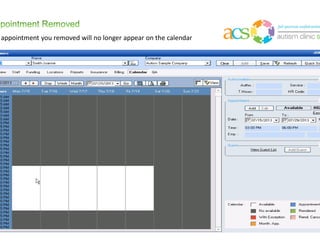
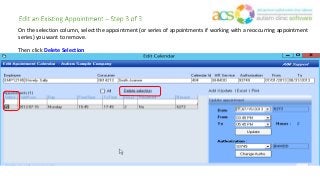
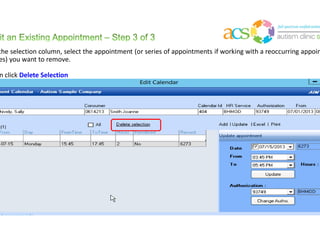
On the selection column, select the appointment (or series of appointments if working with a reoccurring appointment
series) you want to remove.
Then click Delete Selection
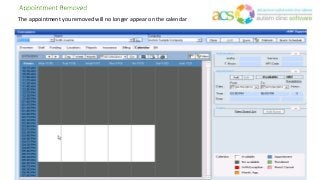
The appointment you removed will no longer appear on the calendar
ACS Quick Schedule Module
• ACS allows admin staff to match employees with consumers based on
a comprehensive set of rules, such as:
• Distance calculation to match the staff that is closest to the child
• Match staff to family based on availability
• Match staff to family based on language preferences
• Match staff to family based on credentials
• Match staff to family based on gender
• And more…
Tel: 310.313.0047 x 110
Cell: 310.918.7162
Fax: 310.313.1187
Email: intouch@autismclinicsoftware.com
Website: www.autismclinicsoftware.com
Try Autism Clinic Software Free for 30 Days
Follow Us On
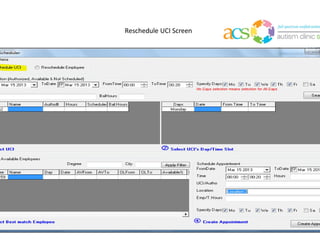
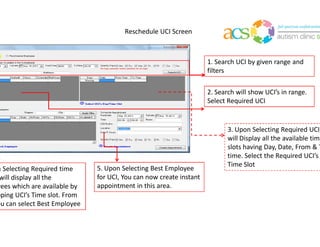
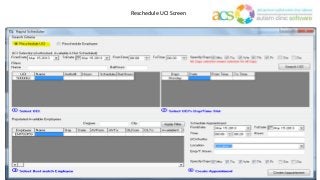
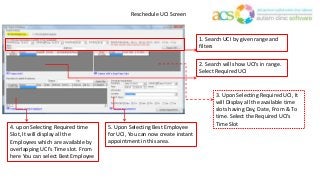
Reschedule UCI Screen
1. Search UCI by given range and
filters
2. Search will show UCI’s in range.
Select Required UCI
3. Upon Selecting Required UCI, It
will Display all the available time
slots having Day, Date, From & To
time. Select the Required UCI’s
Time Slot
4. upon Selecting Required time
Slot, It will display all the
Employees which are available by
overlapping UCI’s Time slot. From
here You can select Best Employee
5. Upon Selecting Best Employee
for UCI, You can now create instant
appointment in this area.
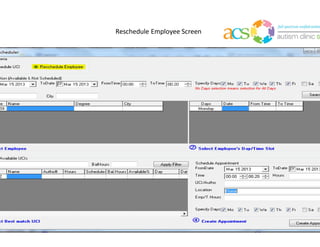
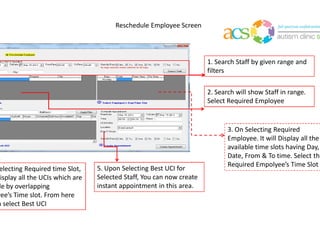
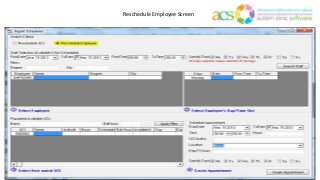
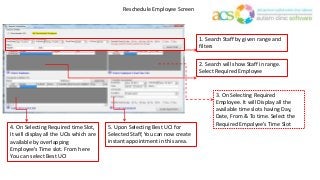
Reschedule Employee Screen
1. Search Staff by given range and
filters
2. Search will show Staff in range.
Select Required Employee
3. On Selecting Required
Employee. It will Display all the
available time slots having Day,
Date, From & To time. Select the
Required Empolyee’s Time Slot
4. On Selecting Required time Slot,
It will display all the UCIs which are
available by overlapping
Employee’s Time slot. From here
You can select Best UCI
5. Upon Selecting Best UCI for
Selected Staff, You can now create
instant appointment in this area.
Tel: 310.313.0047 x 110
Cell: 310.918.7162
Fax: 310.313.1187
Email: intouch@autismclinicsoftware.com
Website: www.autismclinicsoftware.com
Try Autism Clinic Software Free for 30 Days
Follow Us On

ACS - Scheduling

  • 1.
    Tel: 310.313.0047 x110 Cell: 310.918.7162 Fax: 310.313.1187 Email: intouch@autismclinicsoftware.com Website: www.autismclinicsoftware.com Try Autism Clinic Software Free for 30 Days Follow Us On
  • 2.
  • 3.
    Introduction • In thisdemo, we will explore: • How you can add, modify and delete availability for employees and consumers • How you can add an appointment using the Consumer or Employee screen • How the Quick Schedule for matching staff with consumers works
  • 4.
    Tel: 310.313.0047 x110 Cell: 310.918.7162 Fax: 310.313.1187 Email: intouch@autismclinicsoftware.com Website: www.autismclinicsoftware.com Try Autism Clinic Software Free for 30 Days Follow Us On
  • 5.
    Add availability (Desktop)in 3 steps Scheduling
  • 6.
    About Availability • Availabilitymeans the days and times someone is available to provide/receive services • In ACS we enter consumer availability in the Consumer module, and employee availability in the Employee module • The process of adding Availability for consumers and employees in ACS desktop is identical, so is described only once in this documentation
  • 7.
    About colors inScheduler • Please note the legend for the colors in the calendar.
  • 8.
    If you planto add Availability for a consumer, start in the Consumer Module. If you plan to add Availability for an employee, select the Employee Module. Go to the Calendar tab and click “View” to load
  • 9.
    Tel: 310.313.0047 x110 Cell: 310.918.7162 Fax: 310.313.1187 Email: intouch@autismclinicsoftware.com Website: www.autismclinicsoftware.com Try Autism Clinic Software Free for 30 Days Follow Us On
  • 10.
    Double click onthe day where you want add Availability. You will get the following dialog box. There are two (2) options for adding a range of days available. You can chose any End date on the “To Date” calendar, OR, you can select “Days” (30,45,60,…) to add availability for the next 30,45,60… days from your Start Date Select the days for which you want to add availability (E.g. for the next 60 days, every Monday and Wednesday from 08:00AM to 06:00PM)
  • 11.
  • 12.
    When the availabilityis added, the space marked previously as Unavailable (dark gray) will turn to white which means Available
  • 13.
    Tel: 310.313.0047 x110 Cell: 310.918.7162 Fax: 310.313.1187 Email: intouch@autismclinicsoftware.com Website: www.autismclinicsoftware.com Try Autism Clinic Software Free for 30 Days Follow Us On
  • 14.
  • 15.
    About Availability • Availabilitymeans the days and times someone is available to provide/receive services • In ACS we edit consumer availability in the Consumer module, and employee availability in the Employee module • The process of editing Availability for consumers and employees in ACS desktop is identical, so is described only once in this documentation
  • 16.
    About colors inScheduler • Please note the legend for the colors in the calendar.
  • 17.
    Tel: 310.313.0047 x110 Cell: 310.918.7162 Fax: 310.313.1187 Email: intouch@autismclinicsoftware.com Website: www.autismclinicsoftware.com Try Autism Clinic Software Free for 30 Days Follow Us On
  • 18.
    If you planto edit Availability for a consumer, start in the Consumer Module. If you plan to edit Availability for an employee, select the Employee Module. Go to the Calendar tab and click “View” to load
  • 19.
    Double click onthe existing availability you wish to edit (white space) You will get the following dialog box. Double click on a specific date, and update the time in the Update Availability section on the right. Click “Update” to save
  • 20.
    Double click onthe existing availability you wish to edit (white space) You will get the following dialog box. Use the checkbox to mark the day(s) for which you wish to remove availability, then click “Delete Selection”
  • 21.
    Tel: 310.313.0047 x110 Cell: 310.918.7162 Fax: 310.313.1187 Email: intouch@autismclinicsoftware.com Website: www.autismclinicsoftware.com Try Autism Clinic Software Free for 30 Days Follow Us On
  • 22.
    Once you editor remove availability, the colors on the calendar will reflect the change made
  • 23.
    Create new appointment (DESKTOP)in 6 steps Scheduling
  • 24.
    About Appointments • Thefollowing are requirements to Schedule an Appointment: • The Consumer must have at least one Funding Source and one Location/Address (E.g. “Home”, “School”, etc.) • Employee must be Available during the time of the appointment (when reporting actual time, start/end times can be different, even if marked as unavailable) • Consumer must be Available during the time of the appointment (when reporting actual time, start/end times can be different, even if marked as unavailable) • The scheduled appointment must be created using a valid Authorization (POS is allowed) and the appointment(s) must occur during the valid Start/End Dates of the Authorization
  • 25.
    Tel: 310.313.0047 x110 Cell: 310.918.7162 Fax: 310.313.1187 Email: intouch@autismclinicsoftware.com Website: www.autismclinicsoftware.com Try Autism Clinic Software Free for 30 Days Follow Us On
  • 26.
    In the ConsumerModule, select the Consumer. Go to the Calendar tab and click “View” to load the schedule
  • 27.
    About colors inScheduler • Please note the legend for the colors in the calendar.
  • 28.
    Click on anyany available time (white) Then right click on and select Add appointment
  • 29.
    Tel: 310.313.0047 x110 Cell: 310.918.7162 Fax: 310.313.1187 Email: intouch@autismclinicsoftware.com Website: www.autismclinicsoftware.com Try Autism Clinic Software Free for 30 Days Follow Us On
  • 30.
    On Section 1,select Authorization
  • 31.
    On Section 2,select Employee
  • 32.
    On Section 3,select Time From. Time To. Location
  • 33.
    Tel: 310.313.0047 x110 Cell: 310.918.7162 Fax: 310.313.1187 Email: intouch@autismclinicsoftware.com Website: www.autismclinicsoftware.com Try Autism Clinic Software Free for 30 Days Follow Us On
  • 34.
    Then click Addand close the window
  • 35.
    The appointment youcreated will be shown in blue in the calendar. If you click on the appointment, you will see the employee name and service There are other calendar viewing options as well.
  • 36.
    Tel: 310.313.0047 x110 Cell: 310.918.7162 Fax: 310.313.1187 Email: intouch@autismclinicsoftware.com Website: www.autismclinicsoftware.com Try Autism Clinic Software Free for 30 Days Follow Us On
  • 37.
  • 38.
    In the ConsumerModule, select the consumer. Go to the Calendar tab and click “View” to load the schedule
  • 39.
    About colors inScheduler • Please note the legend for the colors in the calendar.
  • 40.
    Click on theexisting appointment (blue) Then right click on and select Edit appointment
  • 41.
    Tel: 310.313.0047 x110 Cell: 310.918.7162 Fax: 310.313.1187 Email: intouch@autismclinicsoftware.com Website: www.autismclinicsoftware.com Try Autism Clinic Software Free for 30 Days Follow Us On
  • 42.
    Select the variableyou want to change (date, time, authorization) Then click Update or Change Autho. Depending on the values you want to edit
  • 43.
    The appointment youedited will be shown in blue in the calendar. If you click on the appointment, you will see the employee name and service
  • 44.
    Tel: 310.313.0047 x110 Cell: 310.918.7162 Fax: 310.313.1187 Email: intouch@autismclinicsoftware.com Website: www.autismclinicsoftware.com Try Autism Clinic Software Free for 30 Days Follow Us On
  • 45.
  • 46.
    In the ConsumerModule, select the consumer. Go to the Calendar tab and click “View” to load the schedule
  • 47.
    About colors inScheduler • Please note the legend for the colors in the calendar.
  • 48.
    Click on theexisting appointment (blue) Then right click on and select Edit appointment
  • 49.
    Tel: 310.313.0047 x110 Cell: 310.918.7162 Fax: 310.313.1187 Email: intouch@autismclinicsoftware.com Website: www.autismclinicsoftware.com Try Autism Clinic Software Free for 30 Days Follow Us On
  • 50.
    On the selectioncolumn, select the appointment (or series of appointments if working with a reoccurring appointment series) you want to remove. Then click Delete Selection
  • 51.
    The appointment youremoved will no longer appear on the calendar
  • 52.
    ACS Quick ScheduleModule • ACS allows admin staff to match employees with consumers based on a comprehensive set of rules, such as: • Distance calculation to match the staff that is closest to the child • Match staff to family based on availability • Match staff to family based on language preferences • Match staff to family based on credentials • Match staff to family based on gender • And more…
  • 53.
    Tel: 310.313.0047 x110 Cell: 310.918.7162 Fax: 310.313.1187 Email: intouch@autismclinicsoftware.com Website: www.autismclinicsoftware.com Try Autism Clinic Software Free for 30 Days Follow Us On
  • 54.
  • 55.
    Reschedule UCI Screen 1.Search UCI by given range and filters 2. Search will show UCI’s in range. Select Required UCI 3. Upon Selecting Required UCI, It will Display all the available time slots having Day, Date, From & To time. Select the Required UCI’s Time Slot 4. upon Selecting Required time Slot, It will display all the Employees which are available by overlapping UCI’s Time slot. From here You can select Best Employee 5. Upon Selecting Best Employee for UCI, You can now create instant appointment in this area.
  • 56.
  • 57.
    Reschedule Employee Screen 1.Search Staff by given range and filters 2. Search will show Staff in range. Select Required Employee 3. On Selecting Required Employee. It will Display all the available time slots having Day, Date, From & To time. Select the Required Empolyee’s Time Slot 4. On Selecting Required time Slot, It will display all the UCIs which are available by overlapping Employee’s Time slot. From here You can select Best UCI 5. Upon Selecting Best UCI for Selected Staff, You can now create instant appointment in this area.
  • 58.
    Tel: 310.313.0047 x110 Cell: 310.918.7162 Fax: 310.313.1187 Email: intouch@autismclinicsoftware.com Website: www.autismclinicsoftware.com Try Autism Clinic Software Free for 30 Days Follow Us On

Editor's Notes

  • #29 Assumptions: -Client has availability -Employees with availability are assigned to the case -Client has a Funding Source -Client has an active authorization
  • #31 Assumptions: -Client has availability -Employees with availability are assigned to the case -Client has a Funding Source -Client has an active authorization
  • #32 Assumptions: -Client has availability -Employees with availability are assigned to the case -Client has a Funding Source -Client has an active authorization
  • #33 Assumptions: -Client has availability -Employees with availability are assigned to the case -Client has a Funding Source -Client has an active authorization
  • #35 Assumptions: -Client has availability -Employees with availability are assigned to the case -Client has a Funding Source -Client has an active authorization
  • #36 Assumptions: -Client has availability -Employees with availability are assigned to the case -Client has a Funding Source -Client has an active authorization
  • #43 Assumptions: -Client has availability -Employees with availability are assigned to the case -Client has a Funding Source -Client has an active authorization
  • #44 Assumptions: -Client has availability -Employees with availability are assigned to the case -Client has a Funding Source -Client has an active authorization
  • #51 Assumptions: -Client has availability -Employees with availability are assigned to the case -Client has a Funding Source -Client has an active authorization