How to Deploy a Next.js App on Vercel and
Monitor Performance
A well-built web application means nothing without smooth hosting and performance tracking.
Vercel simplifies that part for developers working with Next.js. It removes setup headaches and
delivers fast deployment. In this guide, you will learn how to deploy your app with ease and
keep track of its performance.
Next.js brings many advantages for building server-rendered and statically generated websites.
If you’re looking for reliable Next.js development services, understanding how to get your app
live and responsive is key.
Why Choose Vercel for Your Next.js App?
Vercel is the hosting platform built specifically for Next.js projects. It allows quick setup, fast
builds, and instant preview environments. It's built-in tools support static pages, API routes,
and server-side rendering. Vercel handles backend logic without extra setup or configuration.
Let’s break down every step involved in making your Next.js app production-ready with Vercel,
and learn how to monitor it effectively.
Step-by-Step Process to Host and Monitor Your Next.js App
This section walks you through every important step, from preparing your project to checking its
live performance. Whether you're launching a personal site or a business platform, these steps
help you stay on track.
Step 1: Prepare Your Next.js App for Production
Before you head over to Vercel, prepare your project for deployment. This means confirming
that the app runs locally without issues.
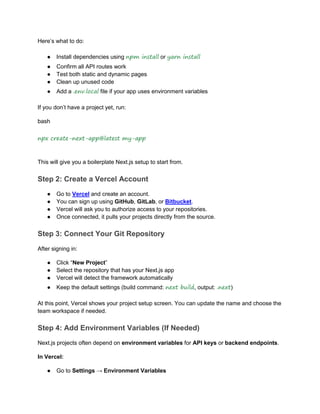
Here’s what to do:
● Install dependencies using npm install or yarn install
● Confirm all API routes work
● Test both static and dynamic pages
● Clean up unused code
● Add a .env.local file if your app uses environment variables
If you don’t have a project yet, run:
bash
npx create-next-app@latest my-app
This will give you a boilerplate Next.js setup to start from.
Step 2: Create a Vercel Account
● Go to Vercel and create an account.
● You can sign up using GitHub, GitLab, or Bitbucket.
● Vercel will ask you to authorize access to your repositories.
● Once connected, it pulls your projects directly from the source.
Step 3: Connect Your Git Repository
After signing in:
● Click “New Project”
● Select the repository that has your Next.js app
● Vercel will detect the framework automatically
● Keep the default settings (build command: next build, output: .next)
At this point, Vercel shows your project setup screen. You can update the name and choose the
team workspace if needed.
Step 4: Add Environment Variables (If Needed)
Next.js projects often depend on environment variables for API keys or backend endpoints.
In Vercel:
● Go to Settings → Environment Variables
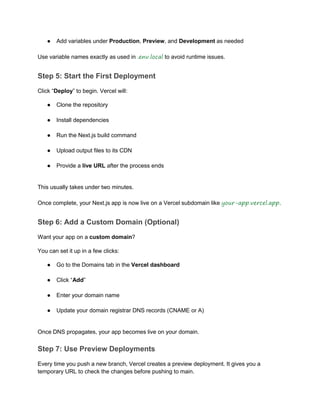
● Add variables under Production, Preview, and Development as needed
Use variable names exactly as used in .env.local to avoid runtime issues.
Step 5: Start the First Deployment
Click “Deploy” to begin. Vercel will:
● Clone the repository
● Install dependencies
● Run the Next.js build command
● Upload output files to its CDN
● Provide a live URL after the process ends
This usually takes under two minutes.
Once complete, your Next.js app is now live on a Vercel subdomain like your-app.vercel.app.
Step 6: Add a Custom Domain (Optional)
Want your app on a custom domain?
You can set it up in a few clicks:
● Go to the Domains tab in the Vercel dashboard
● Click “Add”
● Enter your domain name
● Update your domain registrar DNS records (CNAME or A)
Once DNS propagates, your app becomes live on your domain.
Step 7: Use Preview Deployments
Every time you push a new branch, Vercel creates a preview deployment. It gives you a
temporary URL to check the changes before pushing to main.
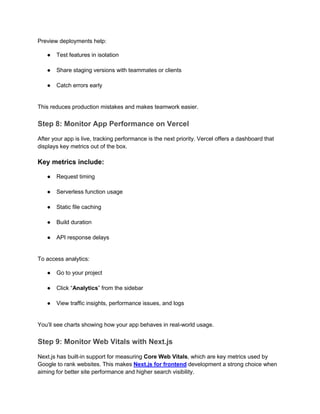
Preview deployments help:
● Test features in isolation
● Share staging versions with teammates or clients
● Catch errors early
This reduces production mistakes and makes teamwork easier.
Step 8: Monitor App Performance on Vercel
After your app is live, tracking performance is the next priority. Vercel offers a dashboard that
displays key metrics out of the box.
Key metrics include:
● Request timing
● Serverless function usage
● Static file caching
● Build duration
● API response delays
To access analytics:
● Go to your project
● Click “Analytics” from the sidebar
● View traffic insights, performance issues, and logs
You’ll see charts showing how your app behaves in real-world usage.
Step 9: Monitor Web Vitals with Next.js
Next.js has built-in support for measuring Core Web Vitals, which are key metrics used by
Google to rank websites. This makes Next.js for frontend development a strong choice when
aiming for better site performance and higher search visibility.
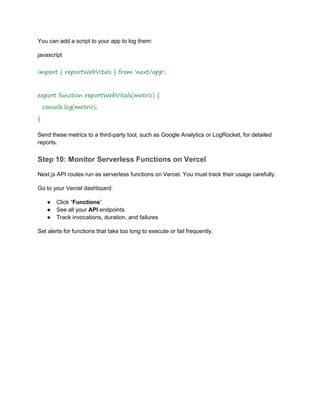
You can add a script to your app to log them:
javascript
import { reportWebVitals } from 'next/app';
export function reportWebVitals(metric) {
console.log(metric);
}
Send these metrics to a third-party tool, such as Google Analytics or LogRocket, for detailed
reports.
Step 10: Monitor Serverless Functions on Vercel
Next.js API routes run as serverless functions on Vercel. You must track their usage carefully.
Go to your Vercel dashboard:
● Click “Functions”
● See all your API endpoints
● Track invocations, duration, and failures
Set alerts for functions that take too long to execute or fail frequently.
Third-Party Tools to Track Performance
If you need more advanced tracking, use these:
1. Google Lighthouse
● Run audits on your deployed app
● Check page speed, accessibility, and best practices
2. LogRocket
● Records user sessions
● Detects frontend bugs and crashes
● Helps in visual bug tracking
3. Sentry
● Error tracking for both client and server code
● Real-time alerting system
4. Datadog
● Deep monitoring for apps with API-heavy usage
● Monitors uptime and throughput
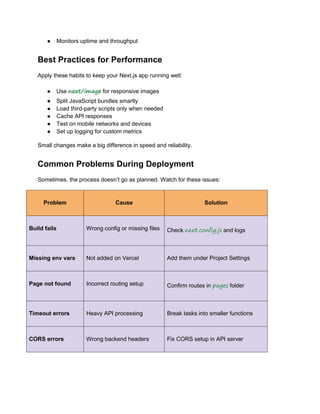
Best Practices for Performance
Apply these habits to keep your Next.js app running well:
● Use next/image for responsive images
● Split JavaScript bundles smartly
● Load third-party scripts only when needed
● Cache API responses
● Test on mobile networks and devices
● Set up logging for custom metrics
Small changes make a big difference in speed and reliability.
Common Problems During Deployment
Sometimes, the process doesn’t go as planned. Watch for these issues:
Problem Cause Solution
Build fails Wrong config or missing files Check next.config.js and logs
Missing env vars Not added on Vercel Add them under Project Settings
Page not found Incorrect routing setup Confirm routes in pages folder
Timeout errors Heavy API processing Break tasks into smaller functions
CORS errors Wrong backend headers Fix CORS setup in API server
Keep Track of Application Health
Use performance checks regularly. Don’t wait for users to complain.
Set up basic health indicators:
● Status pages for APIs
● Logging system for serverless functions
● Alerts for slow routes
● Daily or weekly Lighthouse reports
Consistent tracking helps you stay ahead of issues.
Also read: Why We Use Next JS Components Library for Faster, Cleaner Web Builds
Conclusion
Hosting your app on Vercel gives you fast performance, reliable uptime, and helpful analytics.
Monitoring these metrics allows you to catch errors, improve user experience, and scale
smoothly.
If you're planning a production launch, follow this guide from start to finish. For businesses
looking for support, Shiv Technolabs provides end-to-end Next.js development services to
get your app built, tested, and running in production without stress.
Get in touch to learn how we bring ideas to life with secure, scalable solutions tailored for your
audience.
FAQs
1. Can I deploy private repos on Vercel?
Yes. Vercel supports private repositories from GitHub, GitLab, and Bitbucket.
2. Does Vercel offer a free plan?
Yes. It includes unlimited preview deployments and supports hobby-level projects.
3. How do I roll back a deployment?
Go to the “Deployments” tab and click “Promote” on the older version.
4. Does Vercel support server-side rendering?
Yes. Vercel works well with both SSR and static generation in Next.js.
5. Is monitoring included in the free plan?
Yes. Basic analytics and function logs are included. Advanced monitoring needs a paid plan.

A Comprehensive Guide to Hosting Next.js on Vercel

  • 1.
    How to Deploya Next.js App on Vercel and Monitor Performance A well-built web application means nothing without smooth hosting and performance tracking. Vercel simplifies that part for developers working with Next.js. It removes setup headaches and delivers fast deployment. In this guide, you will learn how to deploy your app with ease and keep track of its performance. Next.js brings many advantages for building server-rendered and statically generated websites. If you’re looking for reliable Next.js development services, understanding how to get your app live and responsive is key.
  • 2.
    Why Choose Vercelfor Your Next.js App? Vercel is the hosting platform built specifically for Next.js projects. It allows quick setup, fast builds, and instant preview environments. It's built-in tools support static pages, API routes, and server-side rendering. Vercel handles backend logic without extra setup or configuration. Let’s break down every step involved in making your Next.js app production-ready with Vercel, and learn how to monitor it effectively. Step-by-Step Process to Host and Monitor Your Next.js App This section walks you through every important step, from preparing your project to checking its live performance. Whether you're launching a personal site or a business platform, these steps help you stay on track. Step 1: Prepare Your Next.js App for Production Before you head over to Vercel, prepare your project for deployment. This means confirming that the app runs locally without issues.
  • 3.
    Here’s what todo: ● Install dependencies using npm install or yarn install ● Confirm all API routes work ● Test both static and dynamic pages ● Clean up unused code ● Add a .env.local file if your app uses environment variables If you don’t have a project yet, run: bash npx create-next-app@latest my-app This will give you a boilerplate Next.js setup to start from. Step 2: Create a Vercel Account ● Go to Vercel and create an account. ● You can sign up using GitHub, GitLab, or Bitbucket. ● Vercel will ask you to authorize access to your repositories. ● Once connected, it pulls your projects directly from the source. Step 3: Connect Your Git Repository After signing in: ● Click “New Project” ● Select the repository that has your Next.js app ● Vercel will detect the framework automatically ● Keep the default settings (build command: next build, output: .next) At this point, Vercel shows your project setup screen. You can update the name and choose the team workspace if needed. Step 4: Add Environment Variables (If Needed) Next.js projects often depend on environment variables for API keys or backend endpoints. In Vercel: ● Go to Settings → Environment Variables
  • 4.
    ● Add variablesunder Production, Preview, and Development as needed Use variable names exactly as used in .env.local to avoid runtime issues. Step 5: Start the First Deployment Click “Deploy” to begin. Vercel will: ● Clone the repository ● Install dependencies ● Run the Next.js build command ● Upload output files to its CDN ● Provide a live URL after the process ends This usually takes under two minutes. Once complete, your Next.js app is now live on a Vercel subdomain like your-app.vercel.app. Step 6: Add a Custom Domain (Optional) Want your app on a custom domain? You can set it up in a few clicks: ● Go to the Domains tab in the Vercel dashboard ● Click “Add” ● Enter your domain name ● Update your domain registrar DNS records (CNAME or A) Once DNS propagates, your app becomes live on your domain. Step 7: Use Preview Deployments Every time you push a new branch, Vercel creates a preview deployment. It gives you a temporary URL to check the changes before pushing to main.
  • 5.
    Preview deployments help: ●Test features in isolation ● Share staging versions with teammates or clients ● Catch errors early This reduces production mistakes and makes teamwork easier. Step 8: Monitor App Performance on Vercel After your app is live, tracking performance is the next priority. Vercel offers a dashboard that displays key metrics out of the box. Key metrics include: ● Request timing ● Serverless function usage ● Static file caching ● Build duration ● API response delays To access analytics: ● Go to your project ● Click “Analytics” from the sidebar ● View traffic insights, performance issues, and logs You’ll see charts showing how your app behaves in real-world usage. Step 9: Monitor Web Vitals with Next.js Next.js has built-in support for measuring Core Web Vitals, which are key metrics used by Google to rank websites. This makes Next.js for frontend development a strong choice when aiming for better site performance and higher search visibility.
  • 6.
    You can adda script to your app to log them: javascript import { reportWebVitals } from 'next/app'; export function reportWebVitals(metric) { console.log(metric); } Send these metrics to a third-party tool, such as Google Analytics or LogRocket, for detailed reports. Step 10: Monitor Serverless Functions on Vercel Next.js API routes run as serverless functions on Vercel. You must track their usage carefully. Go to your Vercel dashboard: ● Click “Functions” ● See all your API endpoints ● Track invocations, duration, and failures Set alerts for functions that take too long to execute or fail frequently.
  • 7.
    Third-Party Tools toTrack Performance If you need more advanced tracking, use these: 1. Google Lighthouse ● Run audits on your deployed app ● Check page speed, accessibility, and best practices 2. LogRocket ● Records user sessions ● Detects frontend bugs and crashes ● Helps in visual bug tracking 3. Sentry ● Error tracking for both client and server code ● Real-time alerting system 4. Datadog ● Deep monitoring for apps with API-heavy usage
  • 8.
    ● Monitors uptimeand throughput Best Practices for Performance Apply these habits to keep your Next.js app running well: ● Use next/image for responsive images ● Split JavaScript bundles smartly ● Load third-party scripts only when needed ● Cache API responses ● Test on mobile networks and devices ● Set up logging for custom metrics Small changes make a big difference in speed and reliability. Common Problems During Deployment Sometimes, the process doesn’t go as planned. Watch for these issues: Problem Cause Solution Build fails Wrong config or missing files Check next.config.js and logs Missing env vars Not added on Vercel Add them under Project Settings Page not found Incorrect routing setup Confirm routes in pages folder Timeout errors Heavy API processing Break tasks into smaller functions CORS errors Wrong backend headers Fix CORS setup in API server
  • 9.
    Keep Track ofApplication Health Use performance checks regularly. Don’t wait for users to complain. Set up basic health indicators: ● Status pages for APIs ● Logging system for serverless functions ● Alerts for slow routes ● Daily or weekly Lighthouse reports Consistent tracking helps you stay ahead of issues. Also read: Why We Use Next JS Components Library for Faster, Cleaner Web Builds Conclusion Hosting your app on Vercel gives you fast performance, reliable uptime, and helpful analytics. Monitoring these metrics allows you to catch errors, improve user experience, and scale smoothly. If you're planning a production launch, follow this guide from start to finish. For businesses looking for support, Shiv Technolabs provides end-to-end Next.js development services to get your app built, tested, and running in production without stress. Get in touch to learn how we bring ideas to life with secure, scalable solutions tailored for your audience.
  • 10.
    FAQs 1. Can Ideploy private repos on Vercel? Yes. Vercel supports private repositories from GitHub, GitLab, and Bitbucket. 2. Does Vercel offer a free plan? Yes. It includes unlimited preview deployments and supports hobby-level projects. 3. How do I roll back a deployment? Go to the “Deployments” tab and click “Promote” on the older version. 4. Does Vercel support server-side rendering? Yes. Vercel works well with both SSR and static generation in Next.js. 5. Is monitoring included in the free plan? Yes. Basic analytics and function logs are included. Advanced monitoring needs a paid plan.