MODULE - 3
INTRODUCTION TO MERN STACK
DEVELOPMENT
What is MERN Stack?
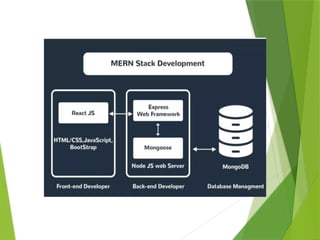
• MERN = MongoDB + Express.js + React + Node.js
• A Full Stack JavaScript Framework
• Used for building modern web applications
• Frontend + Backend + Database all use JavaScript
How does the MERN Stack
Works?
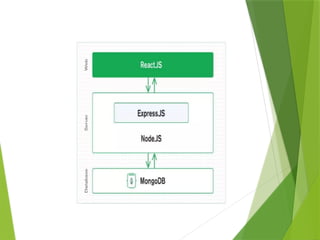
 The MERN architecture allows you to easily
construct a 3-tier architecture (frontend, backend,
database) entirely using Javascript and JSON.
Why MERN Stack?
 Popular and widely used in industry
 Single language (JavaScript) for full development
 Fast and scalable
 Open-source and community-supported.
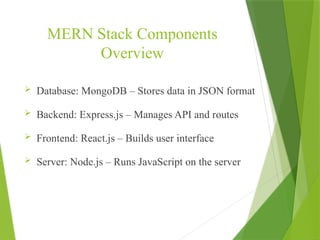
MERN Stack Components
Overview
 Database: MongoDB – Stores data in JSON format
 Backend: Express.js – Manages API and routes
 Frontend: React.js – Builds user interface
 Server: Node.js – Runs JavaScript on the server
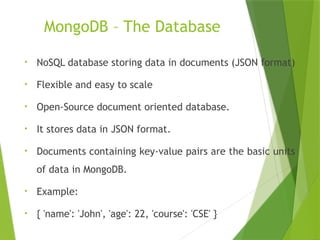
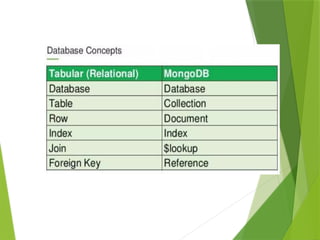
MongoDB – The Database
• NoSQL database storing data in documents (JSON format)
• Flexible and easy to scale
• Open-Source document oriented database.
• It stores data in JSON format.
• Documents containing key-value pairs are the basic units
of data in MongoDB.
• Example:
• { 'name': 'John', 'age': 22, 'course': 'CSE' }
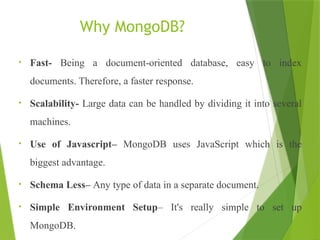
Why MongoDB?
• Fast- Being a document-oriented database, easy to index
documents. Therefore, a faster response.
• Scalability- Large data can be handled by dividing it into several
machines.
• Use of Javascript– MongoDB uses JavaScript which is the
biggest advantage.
• Schema Less– Any type of data in a separate document.
• Simple Environment Setup– It's really simple to set up
MongoDB.
Node.js – The Server
Environment
 Runs JavaScript on the Server.
 It is free & open source written in C++.
 Handles backend logic and APIs
 Node.js allows you to run Javascript on the Server
 Example:
const http = require('http');
http.createServer((req,res)=>res.end('Hello Node!')).listen(3000);
Where to use Node.js?
 Back-end Services such as APIs.
 Highly scalable, data intensive and real time apps.
 It is used to create Single Page Applications.
Express.js – The Backend
Framework
 Lightweight web framework for Node.js
 Helps to create REST APIs easily
 Handles HTTP requests and responses
 Allows to dynamically render HTML pages based on
passing arguments to templates.
Example:
app.get('/', (req, res) => res.send('Hello World'));
React.js – The Frontend
Library
 A Javascript library for building user interfaces for web
and mobile applications.
 Used to build dynamic user interfaces
 It allows to create reusable UI Components.
Example:
function Welcome() { return <h1>Hello, React!</h1>; }
Why to use React?
 A Javascript XML makes it easier and simpler to
write React Components.
 ReactJS supports Components.
Example:
function Welcome() { return <h1>Hello, React!
</h1>; }
How MERN Works Together
1. React.js → Sends user requests
2. Express.js + Node.js → Handle requests
3. MongoDB → Stores data
4. React displays data to user
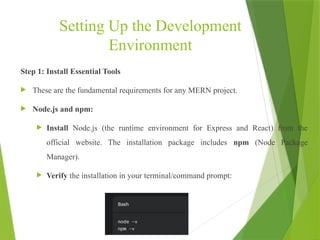
Setting Up the Development
Environment
Step 1: Install Essential Tools
 These are the fundamental requirements for any MERN project.
 Node.js and npm:
 Install Node.js (the runtime environment for Express and React) from the
official website. The installation package includes npm (Node Package
Manager).
 Verify the installation in your terminal/command prompt:
MongoDB:
• Install the MongoDB Community Server.
• For development, you can use the MongoDB Compass GUI tool or a cloud service
like MongoDB Atlas.
Code Editor:
• Install a modern code editor like Visual Studio Code (VS Code). It has great support
and extensions for JavaScript, Node.js, and React.
Git (Version Control):
• Install Git to manage your project's versions and collaborate.
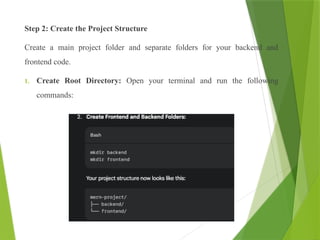
Step 2: Create the Project Structure
Create a main project folder and separate folders for your backend and
frontend code.
1. Create Root Directory: Open your terminal and run the following
commands:
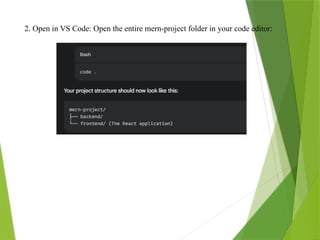
2. Open in VS Code: Open the entire mern-project folder in your code editor:
Step 3: Initialize the Back-end (Express & Node.js)
The back-end handles your API logic and database connection.
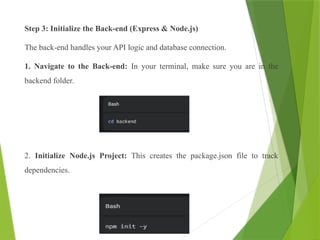
1. Navigate to the Back-end: In your terminal, make sure you are in the
backend folder.
2. Initialize Node.js Project: This creates the package.json file to track
dependencies.
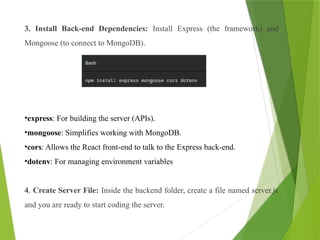
3. Install Back-end Dependencies: Install Express (the framework) and
Mongoose (to connect to MongoDB).
•express: For building the server (APIs).
•mongoose: Simplifies working with MongoDB.
•cors: Allows the React front-end to talk to the Express back-end.
•dotenv: For managing environment variables
4. Create Server File: Inside the backend folder, create a file named server.js
and you are ready to start coding the server.
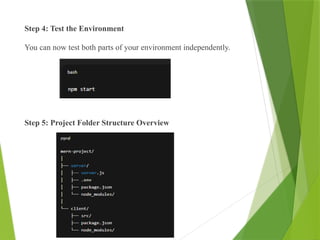
Step 4: Test the Environment
You can now test both parts of your environment independently.
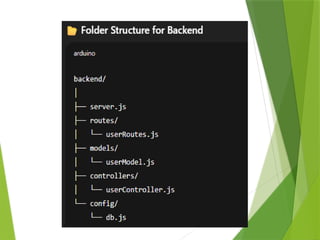
Step 5: Project Folder Structure Overview
CREATING A BASIC MERN APPLICATION SKELETON
Let’s create a simple “Hello MERN” app step-by-step.
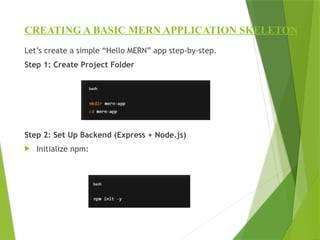
Step 1: Create Project Folder
Step 2: Set Up Backend (Express + Node.js)
 Initialize npm:
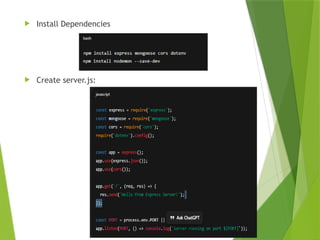
 Install Dependencies
 Create server.js:
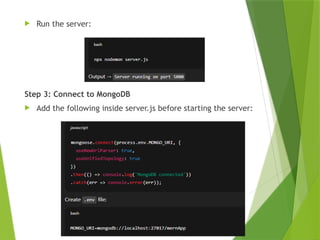
 Run the server:
Step 3: Connect to MongoDB
 Add the following inside server.js before starting the server:
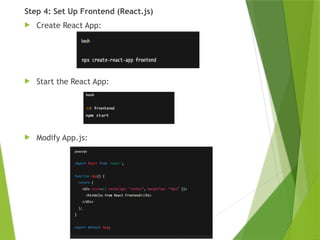
Step 4: Set Up Frontend (React.js)
 Create React App:
 Start the React App:
 Modify App.js:
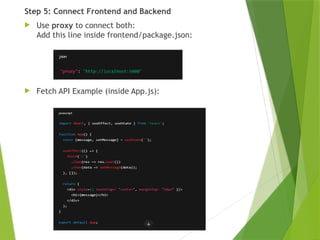
Step 5: Connect Frontend and Backend
 Use proxy to connect both:
Add this line inside frontend/package.json:
 Fetch API Example (inside App.js):
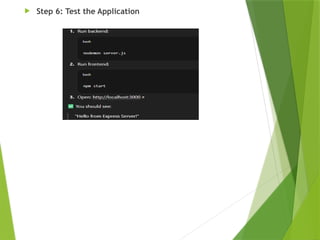
 Step 6: Test the Application
Example – Student
Management App
 Frontend: React form for student details
 Backend: Express API to save data
 Database: MongoDB collection 'students'
Advantages of MERN Stack
 Full JavaScript ecosystem
 Fast development
 JSON everywhere
 Strong community support
Challenges in MERN
 Requires JavaScript expertise
 Setup complexity
 State management in React can be tricky
Real-World Applications
 Social Media Platforms
 E-commerce Websites
 Chat Applications
 Portfolio Sites
Summary
 MERN = MongoDB + Express + React + Node
 Full-stack JS development
 Ideal for modern web apps
MODULE - 3
BACKEND DEVELOPMENT WITH
NODE.JS, EXPRESS.JS, AND MONGODB
INTRODUCTION
 Backend development is the process of building the server-side logic of a
web application — the part that:
 Handles data processing and business logic,
 Connects to databases,
 Responds to client requests (from frontend apps).
In the MERN stack, the backend is powered by:
 Node.js – Server-side runtime,
 Express.js – Framework for creating APIs,
 MongoDB – Database for storing data.
BUILDING A BACKEND WITH NODE.JS AND
EXPRESS.JS
What is Node.js?
 Node.js is a JavaScript runtime environment that allows running
JavaScript code outside the browser.
 Built on Google Chrome’s V8 engine.
 Enables non-blocking I/O operations, which makes it efficient and
scalable.
BUILDING A BACKEND WITH NODE.JS AND
EXPRESS.JS
What is Node.js?
 Node.js is a JavaScript runtime environment that allows running
JavaScript code outside the browser.
 Built on Google Chrome’s V8 engine.
 Enables non-blocking I/O operations, which makes it efficient and
scalable.
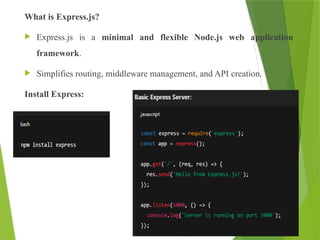
What is Express.js?
 Express.js is a minimal and flexible Node.js web application
framework.
 Simplifies routing, middleware management, and API creation.
Install Express:
Phase 1: Setup and Project Initialization
 This phase gets your development environment and project folder ready.
1. Install Node.js
 Make sure you have Node.js and its package manager, npm (Node Package
Manager), installed on your computer.
 You can check by running: node -v and npm -v in your terminal.
2. Create a Project Folder
 Create a new directory for your project and navigate into it.
 mkdir my-express-app
 cd my-express-app
3. Initialize the Project
 Use npm to create a package.json file, which tracks your project's dependencies
and metadata.
 npm init -y (The -y flag accepts all the default settings).
4. Install Dependencies
 Install the core backend framework, Express, and a utility like dotenv to
manage environment variables (like port numbers or database credentials).
 npm install express dotenv
Phase 2: Core Server Setup
 This phase creates the main server file and starts the server.
5. Create the Server File
 Create the main file for your application, usually named server.js or app.js.
 touch server.js
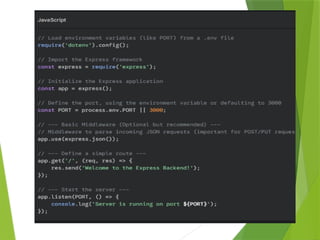
6. Configure and Start the Server (server.js)
 Open server.js and add the following basic code:
7. Create the Environment File
 Create a file named .env in the root of your project folder to store configuration
settings.
 touch .env
 In .env, add: PORT=5000 (or your preferred port).
8. Run the Server
 Start your server using Node.js:
 node server.js
 You should see the message: Server is running on port 5000.
 Now, open your browser and navigate to http://localhost:5000/ to see the
"Welcome to the Express Backend!" message
Phase 3: Modularizing with Routes
 For any real application, you need to separate your routes (APIs) into their own
files.
9. Create a Routes Directory and File
 Create a folder named routes.
 Inside routes, create a file for a specific resource, e.g., userRoutes.js.
 mkdir routes
 touch routes/userRoutes.js
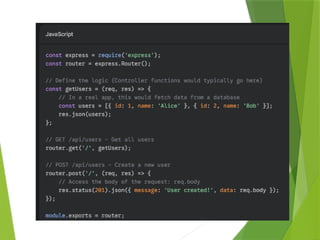
10. Define Routes (userRoutes.js)
 In routes/userRoutes.js, define the API endpoints for the resource:
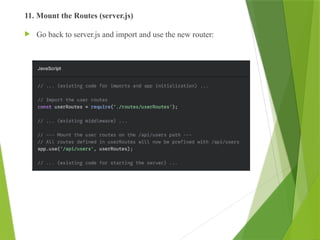
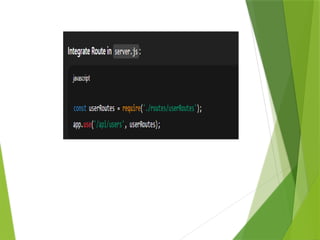
11. Mount the Routes (server.js)
 Go back to server.js and import and use the new router:
12. Test the API
 Restart your server (node server.js).
 You can now test your new API endpoints:
 GET http://localhost:5000/api/users should return the list of users.
 Use a tool like Postman or cURL to send a POST request to the same URL with a
JSON body to test the creation route.
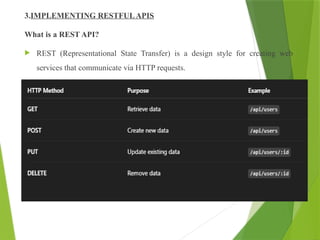
3.IMPLEMENTING RESTFULAPIS
What is a REST API?
 REST (Representational State Transfer) is a design style for creating web
services that communicate via HTTP requests.
1. GET Method
Purpose:
This method retrieves data from the server.
Characteristics:
 Read-only operation (no changes to the server).
 Parameters are usually passed in the URL (query string).
 Used for fetching:
List of items
A single item by ID
Example:
GET /api/products → returns all products
GET /api/products/10 → returns product with ID 10
2. POST Method
Purpose:
Create a new resource on the server.
Characteristics:
 It Sends the data in the body of the request (JSON).
 Used for:
1. Creating users
2. Adding items
3. Submitting forms
Example:
POST /api/products
Body:
{
"name": "Laptop",
"price": 55000
}
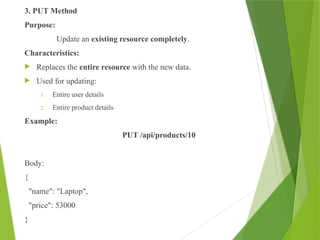
3. PUT Method
Purpose:
Update an existing resource completely.
Characteristics:
 Replaces the entire resource with the new data.
 Used for updating:
1. Entire user details
2. Entire product details
Example:
PUT /api/products/10
Body:
{
"name": "Laptop",
"price": 53000
}
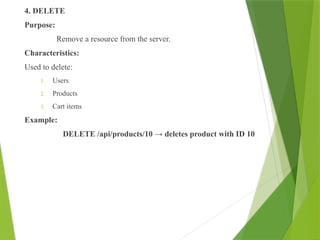
4. DELETE
Purpose:
Remove a resource from the server.
Characteristics:
Used to delete:
1. Users
2. Products
3. Cart items
Example:
DELETE /api/products/10 → deletes product with ID 10
Create a Simple REST API with Express
const express = require('express');
const app = express();
app.use(express.json());
let users = [
{ id: 1, name: 'Alice' },
{ id: 2, name: 'Bob' }
];
// GET - Read
app.get('/api/users', (req, res) => {
res.json(users);
});
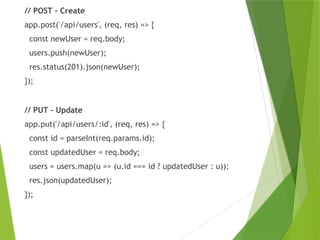
// POST - Create
app.post('/api/users', (req, res) => {
const newUser = req.body;
users.push(newUser);
res.status(201).json(newUser);
});
// PUT - Update
app.put('/api/users/:id', (req, res) => {
const id = parseInt(req.params.id);
const updatedUser = req.body;
users = users.map(u => (u.id === id ? updatedUser : u));
res.json(updatedUser);
});
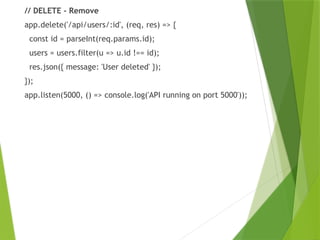
// DELETE - Remove
app.delete('/api/users/:id', (req, res) => {
const id = parseInt(req.params.id);
users = users.filter(u => u.id !== id);
res.json({ message: 'User deleted' });
});
app.listen(5000, () => console.log('API running on port 5000'));
4. INTEGRATING MONGODB FOR DATA STORAGE
What is MongoDB?
 MongoDB is a NoSQL database that stores data in flexible, BSON (binary
JSON) documents.
 Data is stored in collections instead of tables.
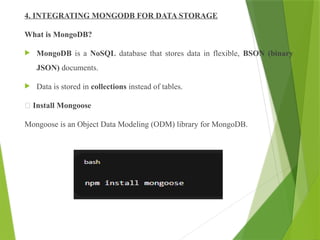
🔸 Install Mongoose
Mongoose is an Object Data Modeling (ODM) library for MongoDB.
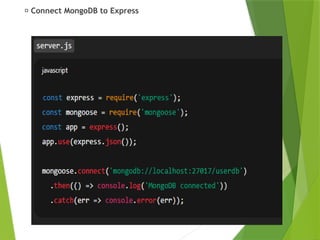
🔸 Connect MongoDB to Express
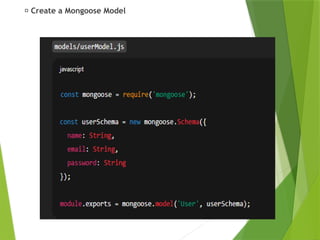
🔸 Create a Mongoose Model
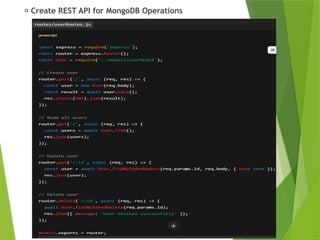
🔸 Create REST API for MongoDB Operations
5. USER AUTHENTICATION AND AUTHORIZATION USING JWT
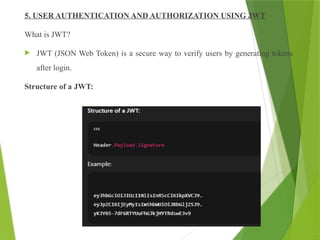
What is JWT?
 JWT (JSON Web Token) is a secure way to verify users by generating tokens
after login.
Structure of a JWT:
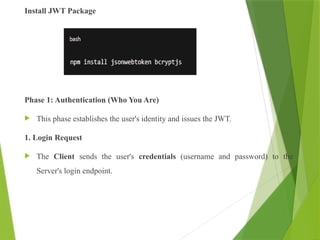
Install JWT Package
Phase 1: Authentication (Who You Are)
 This phase establishes the user's identity and issues the JWT.
1. Login Request
 The Client sends the user's credentials (username and password) to the
Server's login endpoint.
2. Verification & Identity Check
 The Server verifies the credentials against the database.
 Upon success, the Server looks up the user's roles and permissions
(e.g., "admin," "editor," or "standard_user").
3. JWT Generation (The Digital ID Card)
 The Server creates the JWT, embedding the user's Identity (like
the User ID) and their Permissions/Roles into the token's Payload.
 Example Payload: {"user_id": 101, "role": "editor"}
 The Server then Signs the JWT with a secret key to make it
tamper-proof.
4. Token Issuance & Storage
 The Server sends the signed JWT back to the Client.
 The Client stores this token securely (e.g., in localStorage or a secure
cookie).
Phase 2: Authorization (What You Can Do)
 This phase occurs during every subsequent request to a protected
resource.
5. Sending a Protected Request
 The Client wants to access a protected resource (e.g., a page to create a
new blog post).
 The Client sends the stored JWT in the Authorization header of the
request.
6. JWT Validation (Server Check)
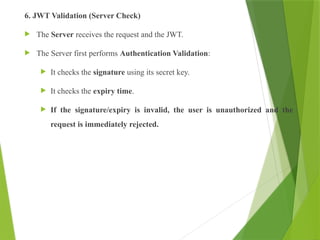
 The Server receives the request and the JWT.
 The Server first performs Authentication Validation:
 It checks the signature using its secret key.
 It checks the expiry time.
 If the signature/expiry is invalid, the user is unauthorized and the
request is immediately rejected.
7. Authorization Check (Permission Check)
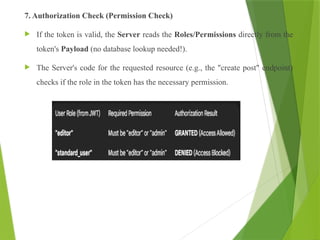
 If the token is valid, the Server reads the Roles/Permissions directly from the
token's Payload (no database lookup needed!).
 The Server's code for the requested resource (e.g., the "create post" endpoint)
checks if the role in the token has the necessary permission.
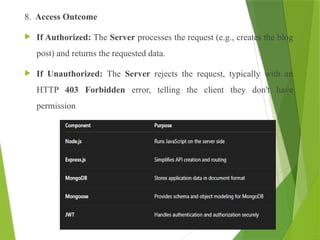
8. Access Outcome
 If Authorized: The Server processes the request (e.g., creates the blog
post) and returns the requested data.
 If Unauthorized: The Server rejects the request, typically with an
HTTP 403 Forbidden error, telling the client they don't have
permission
Introduction_to_MERN_Stack_Development - Copy.pptx

  • 1.
    MODULE - 3 INTRODUCTIONTO MERN STACK DEVELOPMENT
  • 2.
    What is MERNStack? • MERN = MongoDB + Express.js + React + Node.js • A Full Stack JavaScript Framework • Used for building modern web applications • Frontend + Backend + Database all use JavaScript
  • 4.
    How does theMERN Stack Works?  The MERN architecture allows you to easily construct a 3-tier architecture (frontend, backend, database) entirely using Javascript and JSON.
  • 6.
    Why MERN Stack? Popular and widely used in industry  Single language (JavaScript) for full development  Fast and scalable  Open-source and community-supported.
  • 7.
    MERN Stack Components Overview Database: MongoDB – Stores data in JSON format  Backend: Express.js – Manages API and routes  Frontend: React.js – Builds user interface  Server: Node.js – Runs JavaScript on the server
  • 8.
    MongoDB – TheDatabase • NoSQL database storing data in documents (JSON format) • Flexible and easy to scale • Open-Source document oriented database. • It stores data in JSON format. • Documents containing key-value pairs are the basic units of data in MongoDB. • Example: • { 'name': 'John', 'age': 22, 'course': 'CSE' }
  • 10.
    Why MongoDB? • Fast-Being a document-oriented database, easy to index documents. Therefore, a faster response. • Scalability- Large data can be handled by dividing it into several machines. • Use of Javascript– MongoDB uses JavaScript which is the biggest advantage. • Schema Less– Any type of data in a separate document. • Simple Environment Setup– It's really simple to set up MongoDB.
  • 11.
    Node.js – TheServer Environment  Runs JavaScript on the Server.  It is free & open source written in C++.  Handles backend logic and APIs  Node.js allows you to run Javascript on the Server  Example: const http = require('http'); http.createServer((req,res)=>res.end('Hello Node!')).listen(3000);
  • 12.
    Where to useNode.js?  Back-end Services such as APIs.  Highly scalable, data intensive and real time apps.  It is used to create Single Page Applications.
  • 13.
    Express.js – TheBackend Framework  Lightweight web framework for Node.js  Helps to create REST APIs easily  Handles HTTP requests and responses  Allows to dynamically render HTML pages based on passing arguments to templates. Example: app.get('/', (req, res) => res.send('Hello World'));
  • 14.
    React.js – TheFrontend Library  A Javascript library for building user interfaces for web and mobile applications.  Used to build dynamic user interfaces  It allows to create reusable UI Components. Example: function Welcome() { return <h1>Hello, React!</h1>; }
  • 15.
    Why to useReact?  A Javascript XML makes it easier and simpler to write React Components.  ReactJS supports Components. Example: function Welcome() { return <h1>Hello, React! </h1>; }
  • 16.
    How MERN WorksTogether 1. React.js → Sends user requests 2. Express.js + Node.js → Handle requests 3. MongoDB → Stores data 4. React displays data to user
  • 17.
    Setting Up theDevelopment Environment Step 1: Install Essential Tools  These are the fundamental requirements for any MERN project.  Node.js and npm:  Install Node.js (the runtime environment for Express and React) from the official website. The installation package includes npm (Node Package Manager).  Verify the installation in your terminal/command prompt:
  • 18.
    MongoDB: • Install theMongoDB Community Server. • For development, you can use the MongoDB Compass GUI tool or a cloud service like MongoDB Atlas. Code Editor: • Install a modern code editor like Visual Studio Code (VS Code). It has great support and extensions for JavaScript, Node.js, and React. Git (Version Control): • Install Git to manage your project's versions and collaborate.
  • 19.
    Step 2: Createthe Project Structure Create a main project folder and separate folders for your backend and frontend code. 1. Create Root Directory: Open your terminal and run the following commands:
  • 20.
    2. Open inVS Code: Open the entire mern-project folder in your code editor:
  • 21.
    Step 3: Initializethe Back-end (Express & Node.js) The back-end handles your API logic and database connection. 1. Navigate to the Back-end: In your terminal, make sure you are in the backend folder. 2. Initialize Node.js Project: This creates the package.json file to track dependencies.
  • 22.
    3. Install Back-endDependencies: Install Express (the framework) and Mongoose (to connect to MongoDB). •express: For building the server (APIs). •mongoose: Simplifies working with MongoDB. •cors: Allows the React front-end to talk to the Express back-end. •dotenv: For managing environment variables 4. Create Server File: Inside the backend folder, create a file named server.js and you are ready to start coding the server.
  • 23.
    Step 4: Testthe Environment You can now test both parts of your environment independently. Step 5: Project Folder Structure Overview
  • 24.
    CREATING A BASICMERN APPLICATION SKELETON Let’s create a simple “Hello MERN” app step-by-step. Step 1: Create Project Folder Step 2: Set Up Backend (Express + Node.js)  Initialize npm:
  • 25.
  • 26.
     Run theserver: Step 3: Connect to MongoDB  Add the following inside server.js before starting the server:
  • 27.
    Step 4: SetUp Frontend (React.js)  Create React App:  Start the React App:  Modify App.js:
  • 28.
    Step 5: ConnectFrontend and Backend  Use proxy to connect both: Add this line inside frontend/package.json:  Fetch API Example (inside App.js):
  • 29.
     Step 6:Test the Application
  • 30.
    Example – Student ManagementApp  Frontend: React form for student details  Backend: Express API to save data  Database: MongoDB collection 'students'
  • 31.
    Advantages of MERNStack  Full JavaScript ecosystem  Fast development  JSON everywhere  Strong community support
  • 32.
    Challenges in MERN Requires JavaScript expertise  Setup complexity  State management in React can be tricky
  • 33.
    Real-World Applications  SocialMedia Platforms  E-commerce Websites  Chat Applications  Portfolio Sites
  • 34.
    Summary  MERN =MongoDB + Express + React + Node  Full-stack JS development  Ideal for modern web apps
  • 35.
    MODULE - 3 BACKENDDEVELOPMENT WITH NODE.JS, EXPRESS.JS, AND MONGODB
  • 36.
    INTRODUCTION  Backend developmentis the process of building the server-side logic of a web application — the part that:  Handles data processing and business logic,  Connects to databases,  Responds to client requests (from frontend apps). In the MERN stack, the backend is powered by:  Node.js – Server-side runtime,  Express.js – Framework for creating APIs,  MongoDB – Database for storing data.
  • 37.
    BUILDING A BACKENDWITH NODE.JS AND EXPRESS.JS What is Node.js?  Node.js is a JavaScript runtime environment that allows running JavaScript code outside the browser.  Built on Google Chrome’s V8 engine.  Enables non-blocking I/O operations, which makes it efficient and scalable.
  • 38.
    BUILDING A BACKENDWITH NODE.JS AND EXPRESS.JS What is Node.js?  Node.js is a JavaScript runtime environment that allows running JavaScript code outside the browser.  Built on Google Chrome’s V8 engine.  Enables non-blocking I/O operations, which makes it efficient and scalable.
  • 39.
    What is Express.js? Express.js is a minimal and flexible Node.js web application framework.  Simplifies routing, middleware management, and API creation. Install Express:
  • 41.
    Phase 1: Setupand Project Initialization  This phase gets your development environment and project folder ready. 1. Install Node.js  Make sure you have Node.js and its package manager, npm (Node Package Manager), installed on your computer.  You can check by running: node -v and npm -v in your terminal. 2. Create a Project Folder  Create a new directory for your project and navigate into it.  mkdir my-express-app  cd my-express-app
  • 42.
    3. Initialize theProject  Use npm to create a package.json file, which tracks your project's dependencies and metadata.  npm init -y (The -y flag accepts all the default settings). 4. Install Dependencies  Install the core backend framework, Express, and a utility like dotenv to manage environment variables (like port numbers or database credentials).  npm install express dotenv
  • 43.
    Phase 2: CoreServer Setup  This phase creates the main server file and starts the server. 5. Create the Server File  Create the main file for your application, usually named server.js or app.js.  touch server.js 6. Configure and Start the Server (server.js)  Open server.js and add the following basic code:
  • 45.
    7. Create theEnvironment File  Create a file named .env in the root of your project folder to store configuration settings.  touch .env  In .env, add: PORT=5000 (or your preferred port). 8. Run the Server  Start your server using Node.js:  node server.js  You should see the message: Server is running on port 5000.  Now, open your browser and navigate to http://localhost:5000/ to see the "Welcome to the Express Backend!" message
  • 46.
    Phase 3: Modularizingwith Routes  For any real application, you need to separate your routes (APIs) into their own files. 9. Create a Routes Directory and File  Create a folder named routes.  Inside routes, create a file for a specific resource, e.g., userRoutes.js.  mkdir routes  touch routes/userRoutes.js 10. Define Routes (userRoutes.js)  In routes/userRoutes.js, define the API endpoints for the resource:
  • 48.
    11. Mount theRoutes (server.js)  Go back to server.js and import and use the new router:
  • 49.
    12. Test theAPI  Restart your server (node server.js).  You can now test your new API endpoints:  GET http://localhost:5000/api/users should return the list of users.  Use a tool like Postman or cURL to send a POST request to the same URL with a JSON body to test the creation route.
  • 50.
    3.IMPLEMENTING RESTFULAPIS What isa REST API?  REST (Representational State Transfer) is a design style for creating web services that communicate via HTTP requests.
  • 51.
    1. GET Method Purpose: Thismethod retrieves data from the server. Characteristics:  Read-only operation (no changes to the server).  Parameters are usually passed in the URL (query string).  Used for fetching: List of items A single item by ID Example: GET /api/products → returns all products GET /api/products/10 → returns product with ID 10
  • 52.
    2. POST Method Purpose: Createa new resource on the server. Characteristics:  It Sends the data in the body of the request (JSON).  Used for: 1. Creating users 2. Adding items 3. Submitting forms Example: POST /api/products Body: { "name": "Laptop", "price": 55000 }
  • 53.
    3. PUT Method Purpose: Updatean existing resource completely. Characteristics:  Replaces the entire resource with the new data.  Used for updating: 1. Entire user details 2. Entire product details Example: PUT /api/products/10 Body: { "name": "Laptop", "price": 53000 }
  • 54.
    4. DELETE Purpose: Remove aresource from the server. Characteristics: Used to delete: 1. Users 2. Products 3. Cart items Example: DELETE /api/products/10 → deletes product with ID 10
  • 55.
    Create a SimpleREST API with Express const express = require('express'); const app = express(); app.use(express.json()); let users = [ { id: 1, name: 'Alice' }, { id: 2, name: 'Bob' } ]; // GET - Read app.get('/api/users', (req, res) => { res.json(users); });
  • 56.
    // POST -Create app.post('/api/users', (req, res) => { const newUser = req.body; users.push(newUser); res.status(201).json(newUser); }); // PUT - Update app.put('/api/users/:id', (req, res) => { const id = parseInt(req.params.id); const updatedUser = req.body; users = users.map(u => (u.id === id ? updatedUser : u)); res.json(updatedUser); });
  • 57.
    // DELETE -Remove app.delete('/api/users/:id', (req, res) => { const id = parseInt(req.params.id); users = users.filter(u => u.id !== id); res.json({ message: 'User deleted' }); }); app.listen(5000, () => console.log('API running on port 5000'));
  • 58.
    4. INTEGRATING MONGODBFOR DATA STORAGE What is MongoDB?  MongoDB is a NoSQL database that stores data in flexible, BSON (binary JSON) documents.  Data is stored in collections instead of tables. 🔸 Install Mongoose Mongoose is an Object Data Modeling (ODM) library for MongoDB.
  • 59.
  • 60.
    🔸 Create aMongoose Model
  • 61.
    🔸 Create RESTAPI for MongoDB Operations
  • 63.
    5. USER AUTHENTICATIONAND AUTHORIZATION USING JWT What is JWT?  JWT (JSON Web Token) is a secure way to verify users by generating tokens after login. Structure of a JWT:
  • 64.
    Install JWT Package Phase1: Authentication (Who You Are)  This phase establishes the user's identity and issues the JWT. 1. Login Request  The Client sends the user's credentials (username and password) to the Server's login endpoint.
  • 65.
    2. Verification &Identity Check  The Server verifies the credentials against the database.  Upon success, the Server looks up the user's roles and permissions (e.g., "admin," "editor," or "standard_user"). 3. JWT Generation (The Digital ID Card)  The Server creates the JWT, embedding the user's Identity (like the User ID) and their Permissions/Roles into the token's Payload.  Example Payload: {"user_id": 101, "role": "editor"}  The Server then Signs the JWT with a secret key to make it tamper-proof.
  • 66.
    4. Token Issuance& Storage  The Server sends the signed JWT back to the Client.  The Client stores this token securely (e.g., in localStorage or a secure cookie). Phase 2: Authorization (What You Can Do)  This phase occurs during every subsequent request to a protected resource. 5. Sending a Protected Request  The Client wants to access a protected resource (e.g., a page to create a new blog post).  The Client sends the stored JWT in the Authorization header of the request.
  • 67.
    6. JWT Validation(Server Check)  The Server receives the request and the JWT.  The Server first performs Authentication Validation:  It checks the signature using its secret key.  It checks the expiry time.  If the signature/expiry is invalid, the user is unauthorized and the request is immediately rejected.
  • 68.
    7. Authorization Check(Permission Check)  If the token is valid, the Server reads the Roles/Permissions directly from the token's Payload (no database lookup needed!).  The Server's code for the requested resource (e.g., the "create post" endpoint) checks if the role in the token has the necessary permission.
  • 69.
    8. Access Outcome If Authorized: The Server processes the request (e.g., creates the blog post) and returns the requested data.  If Unauthorized: The Server rejects the request, typically with an HTTP 403 Forbidden error, telling the client they don't have permission