5             Tips
Log into CMS/ID
to take advantage
of these tips for the
Command Role.

1.Obtain Command Role
access to CMS/ID.
 • Go to NPC > Enlisted
   Assign. > Career Mgmt.
   System.
 • Scroll down and select
   ‘Access Request Letter’.
 • Complete and print for
   signature by the CO,
                              2.Enter comments on
                              your command’s advertised

                              Application Phase opens


                              information provided.
                               • Select individual jobs
                                  on the ‘Home’ page,
                                                       highlighting:
                                                       CMS Command Role


                              to maximize the likelihood
                              that potential applicants
                              and CCCs have access to


                                  select from Job search
                                                        brought to you by OPNAV N16 FIT and the CMS/ID Program


                              jobs. Submit as soon as the


                                  results, or select from a
                                  ‘Job Comparison’.
                               • Click box(es) for the
                                  job(s) you wish to add
                                  information (the system
                                                              3.Find information on
                                                              Prospective Gains.
                                                              • Hover over ‘Sailor Info’
                                                                tab.
                                                              • Click ‘Search for Active/
                                                                FTS Personnel’.
                                                              • Select Community and
                                                                Paygrade.
                                                              • Expand ‘Optional Input’
                                                                and look for the Gains/
                                                                Losses section.
                                                              • In ‘Gain ERD’ fields,
                                                                enter Estimated Report
                                                                Date range (YYMMDD).
                                                              • Enter any other desired
                                                                search criteria.
                                                                                            4.View ‘Application
                                                                                            Cancellation Report’ for the
                                                                                            number of applications to
                                                                                            your command that were
                                                                                            initiated but not completed.
                                                                                            This information can assist
                                                                                            in discussions with your
                                                                                            ISIC/TYCOM when trying
                                                                                            to fill open jobs in your
                                                                                            command.
                                                                                             • Hover over ‘Reports’
                                                                                                 tab.
                                                                                             • Click on desired report.
                                                                                            Note: Searching by ‘req cycle’
                                                                                            provides a summary of the
                                                                                                                              5.Enter contact
                                                                                                                              information for key
                                                                                                                              personnel at your
                                                                                                                              command and provide a
                                                                                                                              link to your command’s
                                                                                                                              web site.
                                                                                                                              This information is
                                                                                                                              viewable by all CMS/
                                                                                                                              ID users and supports
                                                                                                                              individual Sailor job search
                                                                                                                              and decision making. You
                                                                                                                              should take time to make
                                                                                                                              sure this information is
                                                                                                                              complete and up to date.
                                                                                                                              Access this page by clicking
                                                                                                                              your command’s UIC, or:
                                                                                                                               • Hover over ‘Help’ tab.
                                                                                                                               • Click ‘Command Info’.
                                                                                                                               • Enter your command’s
                                                                                                                                 UIC or name and click
                                                                                                                                 ‘Search’.
   XO or OIC. (Include            applies the comment to      • Click ‘Search’.             Gates and Flags triggered          • Select the option to
   all UICs for which you         all selected jobs.)         • View list of Prospective    by applications TO your              ‘Edit’.
                                                                                            command. A search by ‘req
   need access.)               • Click ‘Proceed to              Gains.                                                         • Enter or update your
                                                                                            cycle’ plus ‘rating’ provides a
 • Attach signed letter to        Update Job Comment’.        • Use imbedded links to       list of cancelled applications       command’s web site
   email and send to CMS/      • Enter comments in the          view individual details.    attempted by Sailors AT your         URL and contact
   ID_inbox@navy.mil.             Command Comment             • Select ‘Personnel           command, along with links to         information for key
   Access will be available       section.                      Detail’ to view contact     the Gates and Flags triggered        personnel.
   within 72 hours.            • Click ‘UPDATE’.                information.                by each application.               • Click ‘Save’.

Vol. 1, No. 1                                        How to use Navy Career Tools - for the Command Career Counselor

CMS CAREER MANAGEMENT SYSTEM - 5 tips (v1 n1 cms-id)

  • 1.
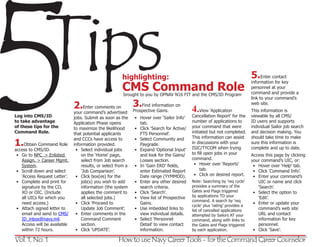
    5 Tips Log into CMS/ID to take advantage of these tips for the Command Role. 1.Obtain Command Role access to CMS/ID. • Go to NPC > Enlisted Assign. > Career Mgmt. System. • Scroll down and select ‘Access Request Letter’. • Complete and print for signature by the CO, 2.Enter comments on your command’s advertised Application Phase opens information provided. • Select individual jobs on the ‘Home’ page, highlighting: CMS Command Role to maximize the likelihood that potential applicants and CCCs have access to select from Job search brought to you by OPNAV N16 FIT and the CMS/ID Program jobs. Submit as soon as the results, or select from a ‘Job Comparison’. • Click box(es) for the job(s) you wish to add information (the system 3.Find information on Prospective Gains. • Hover over ‘Sailor Info’ tab. • Click ‘Search for Active/ FTS Personnel’. • Select Community and Paygrade. • Expand ‘Optional Input’ and look for the Gains/ Losses section. • In ‘Gain ERD’ fields, enter Estimated Report Date range (YYMMDD). • Enter any other desired search criteria. 4.View ‘Application Cancellation Report’ for the number of applications to your command that were initiated but not completed. This information can assist in discussions with your ISIC/TYCOM when trying to fill open jobs in your command. • Hover over ‘Reports’ tab. • Click on desired report. Note: Searching by ‘req cycle’ provides a summary of the 5.Enter contact information for key personnel at your command and provide a link to your command’s web site. This information is viewable by all CMS/ ID users and supports individual Sailor job search and decision making. You should take time to make sure this information is complete and up to date. Access this page by clicking your command’s UIC, or: • Hover over ‘Help’ tab. • Click ‘Command Info’. • Enter your command’s UIC or name and click ‘Search’. XO or OIC. (Include applies the comment to • Click ‘Search’. Gates and Flags triggered • Select the option to all UICs for which you all selected jobs.) • View list of Prospective by applications TO your ‘Edit’. command. A search by ‘req need access.) • Click ‘Proceed to Gains. • Enter or update your cycle’ plus ‘rating’ provides a • Attach signed letter to Update Job Comment’. • Use imbedded links to list of cancelled applications command’s web site email and send to CMS/ • Enter comments in the view individual details. attempted by Sailors AT your URL and contact ID_inbox@navy.mil. Command Comment • Select ‘Personnel command, along with links to information for key Access will be available section. Detail’ to view contact the Gates and Flags triggered personnel. within 72 hours. • Click ‘UPDATE’. information. by each application. • Click ‘Save’. Vol. 1, No. 1 How to use Navy Career Tools - for the Command Career Counselor