Class - 2
1
Class Overview
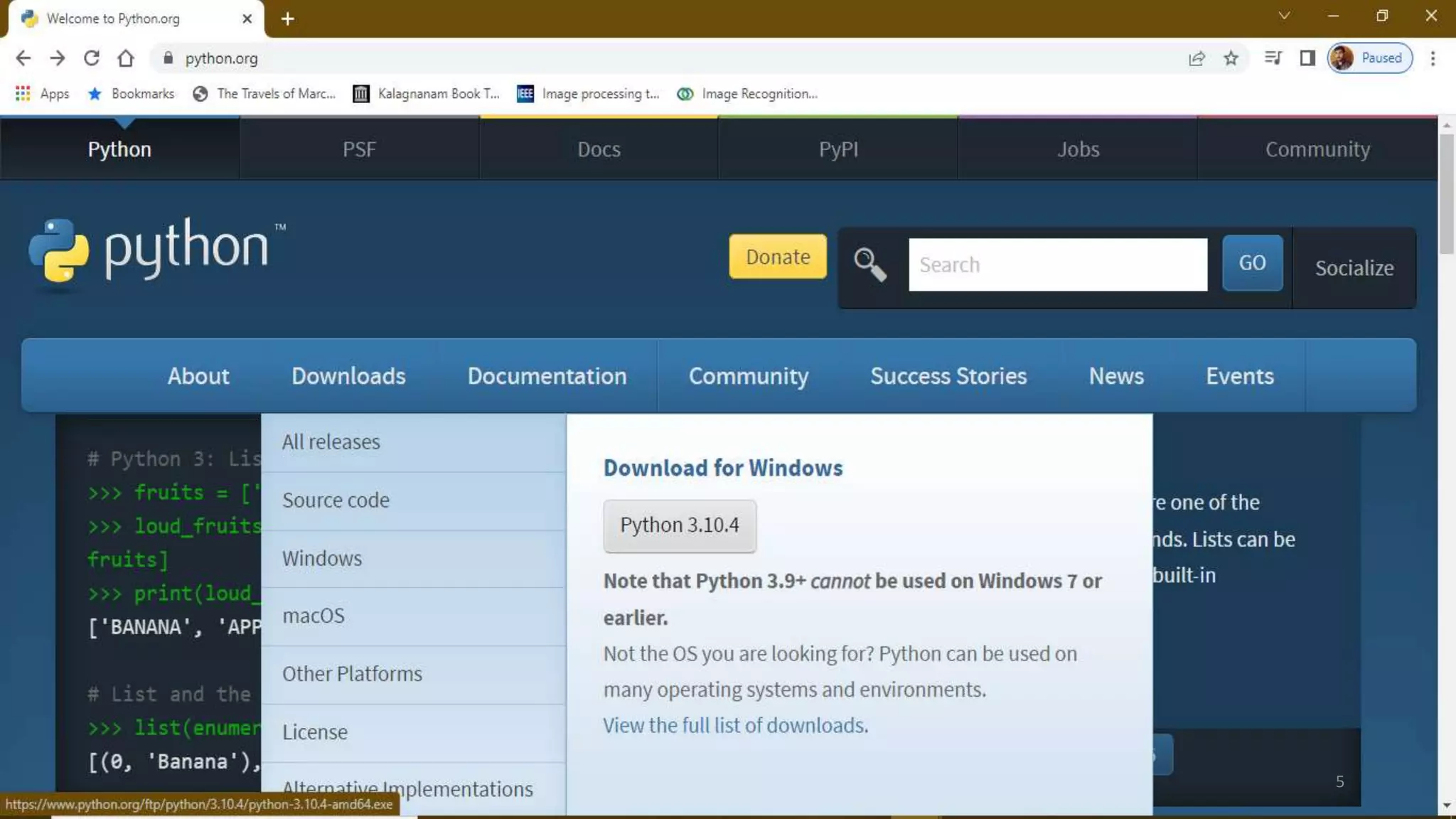
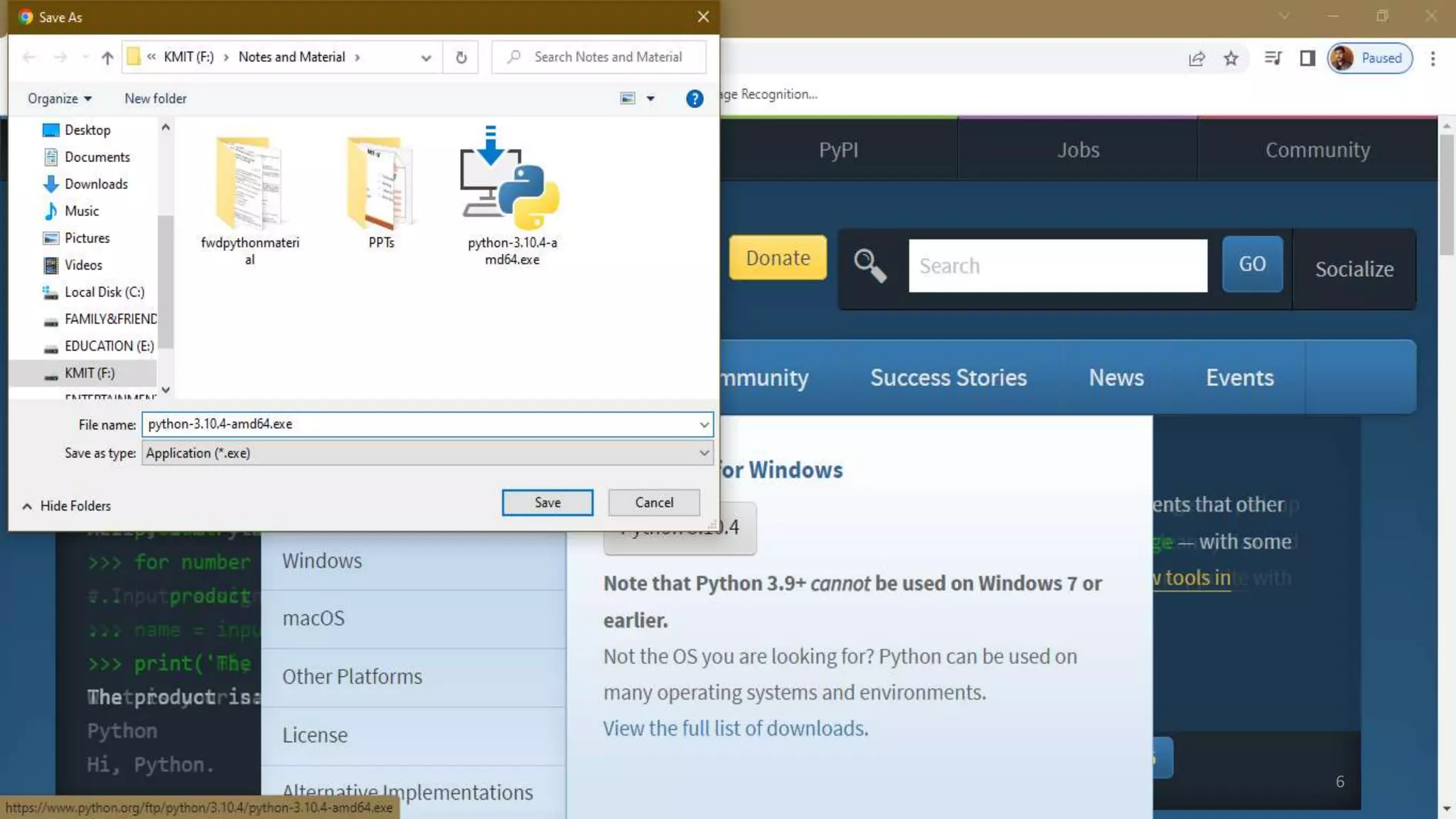
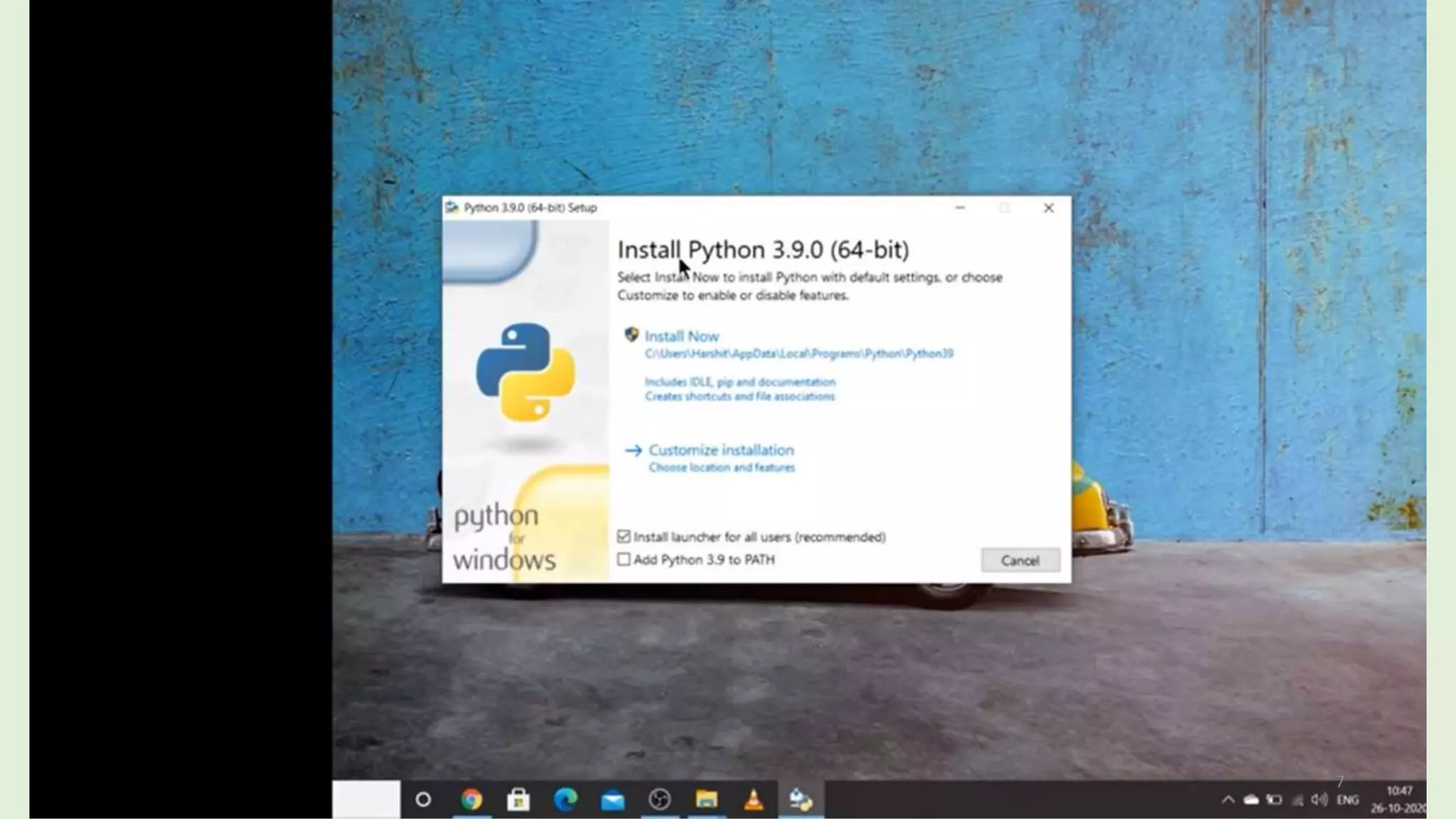
1. Python Installation
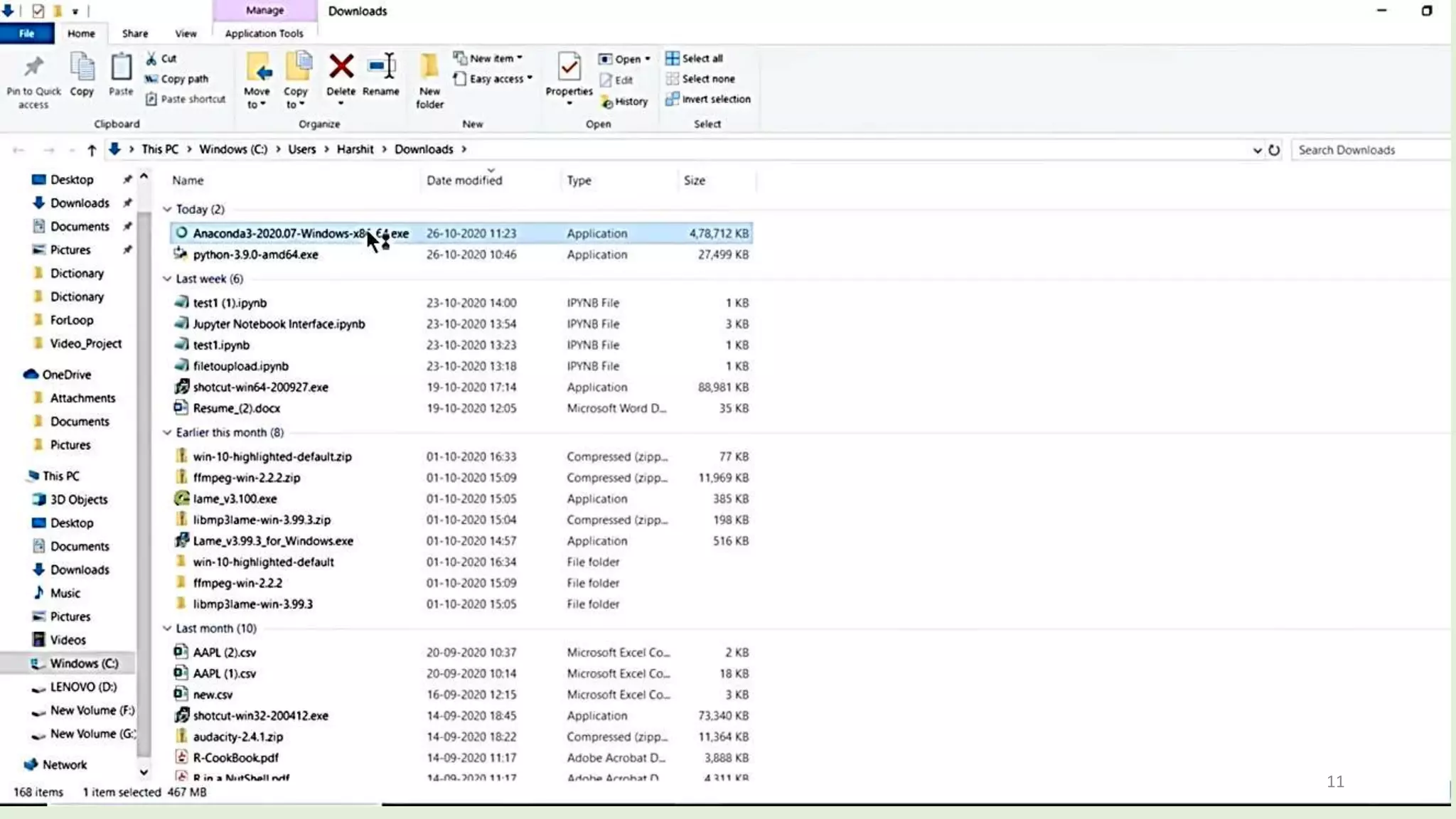
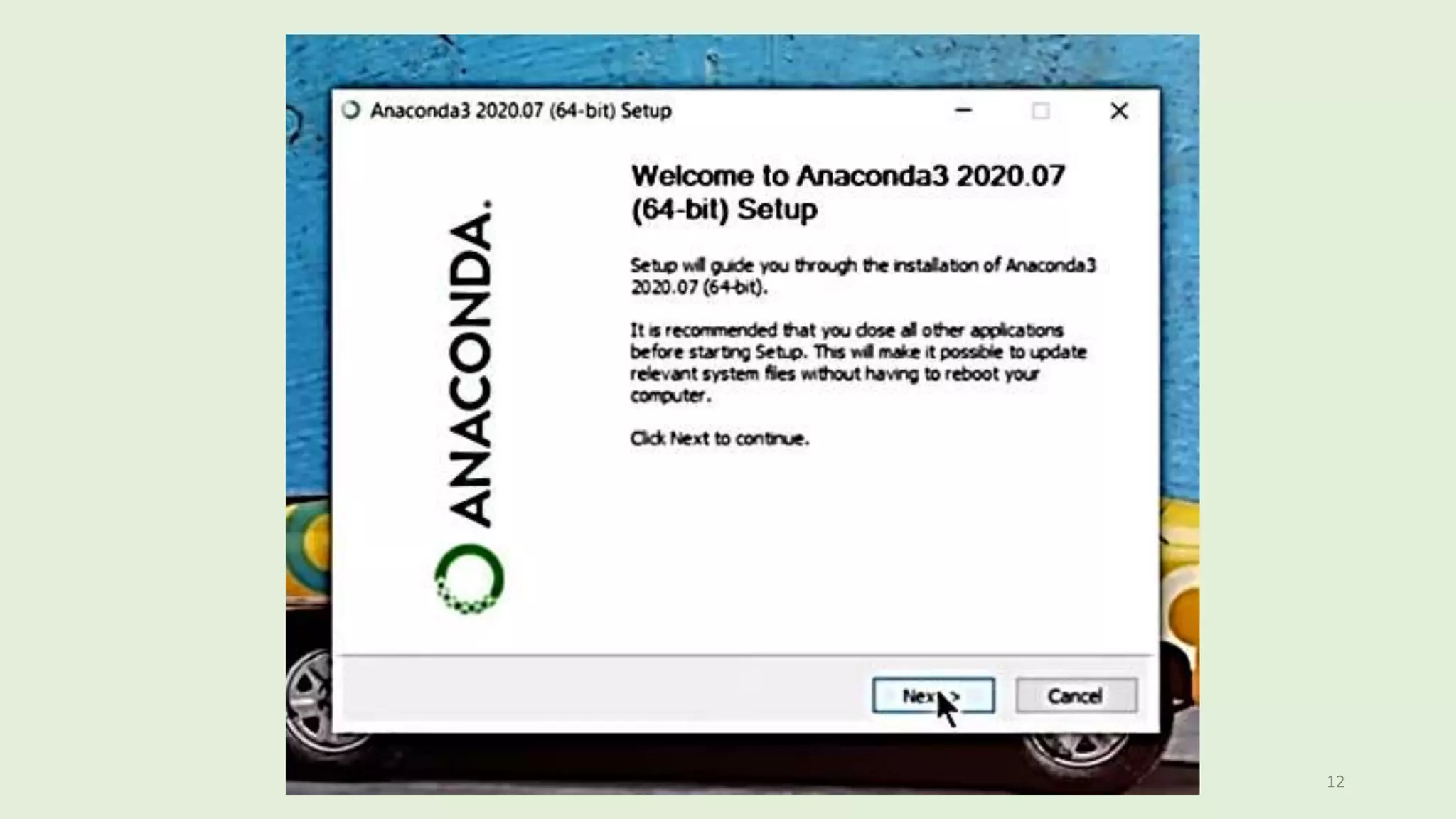
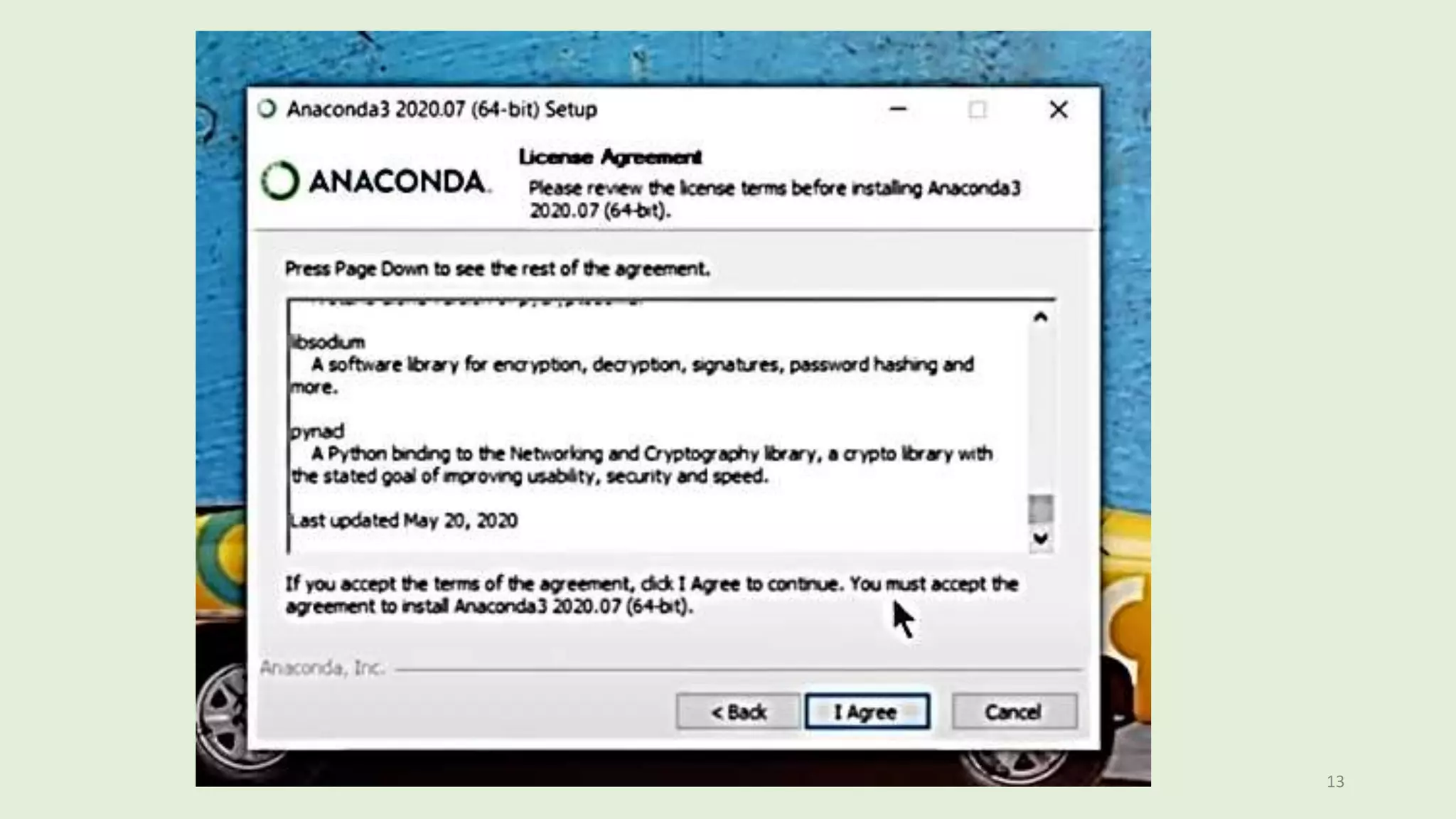
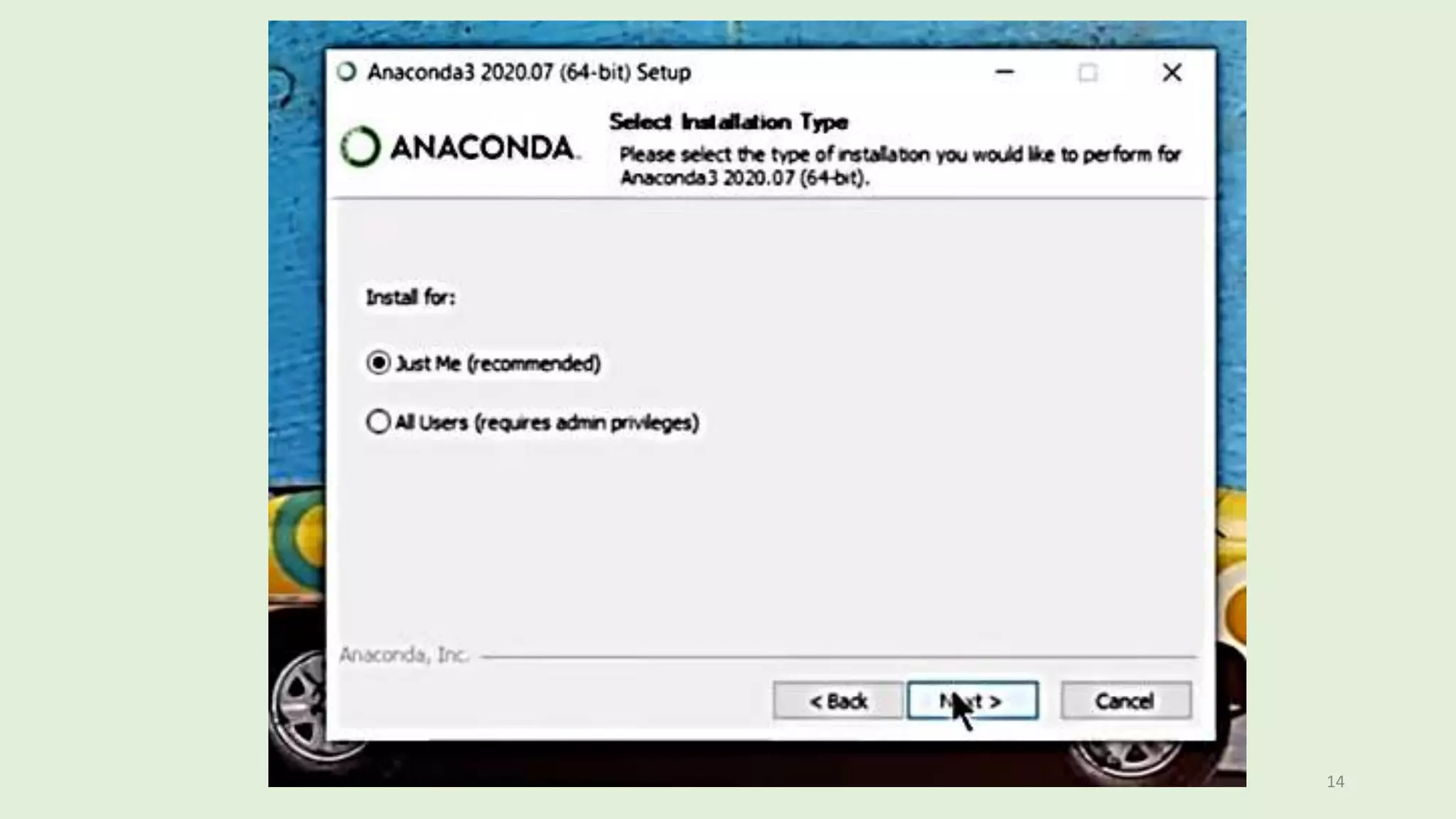
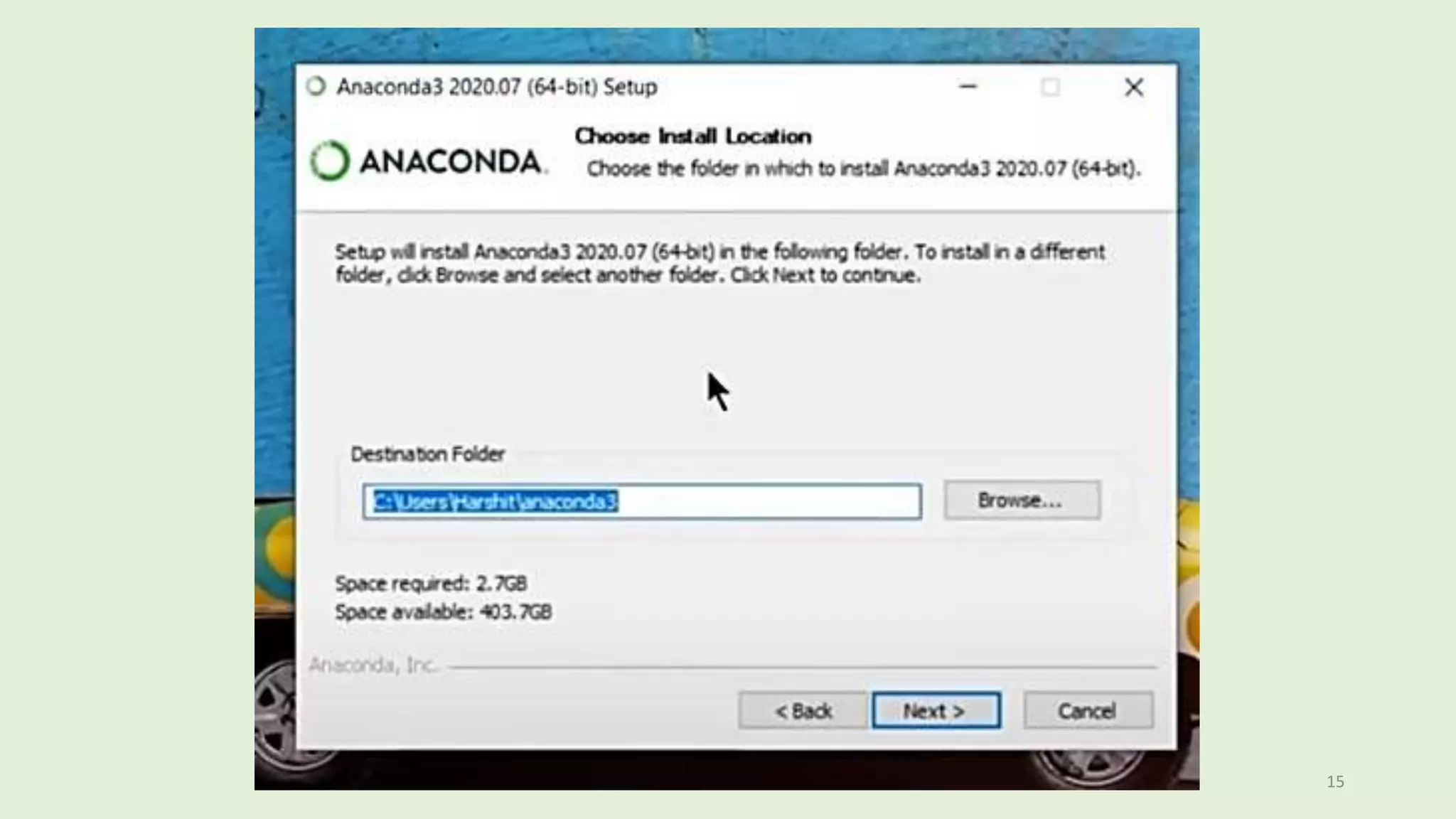
2. Anaconda Installation
3. Jupyter Notebook Interface
1. Introduction
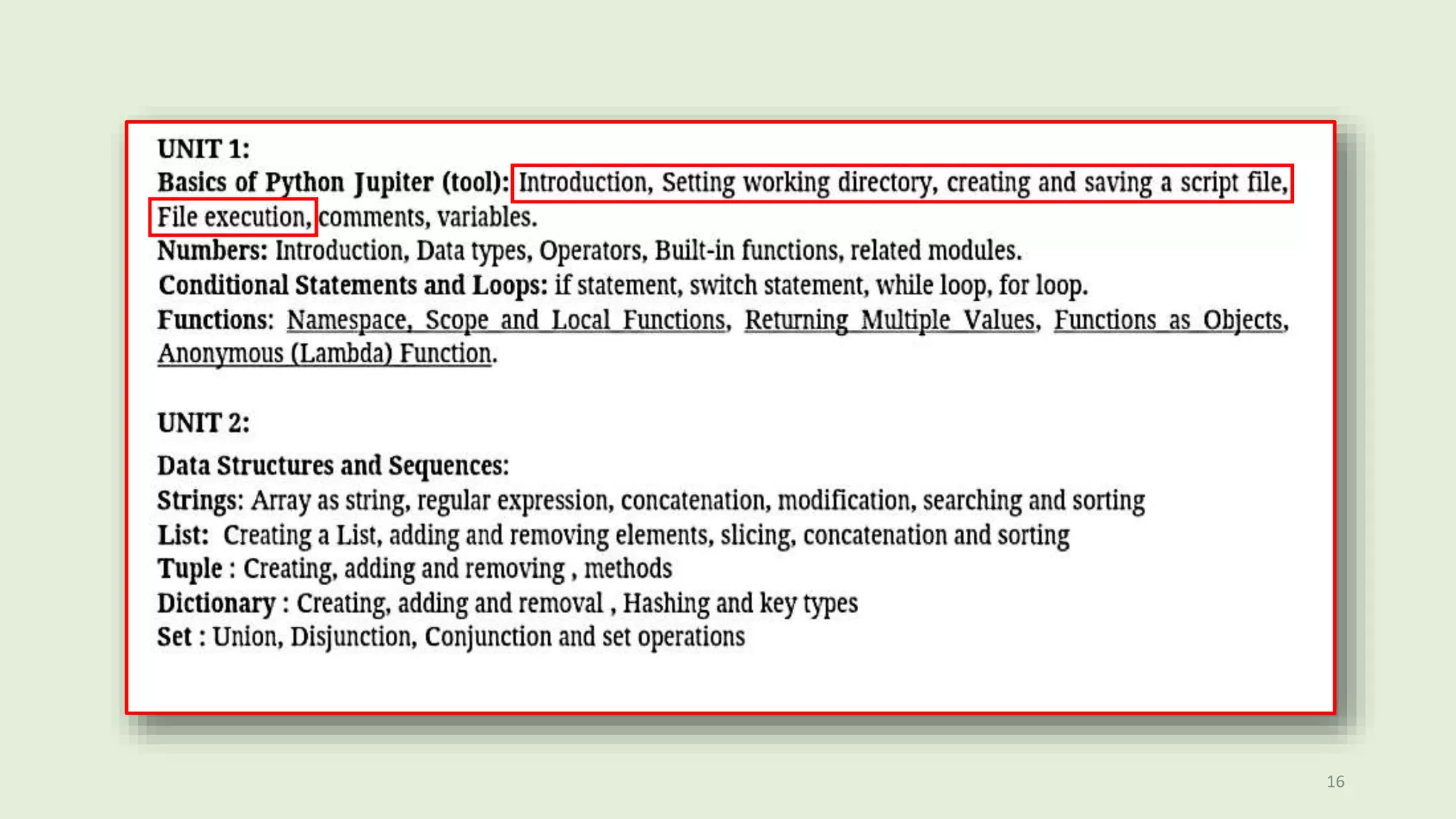
2. Setting Working Directory
3. Creating and Saving a script file
4. File Execution
2
3
4
5
6
7
8
9
10
11
12
13
14
15
16
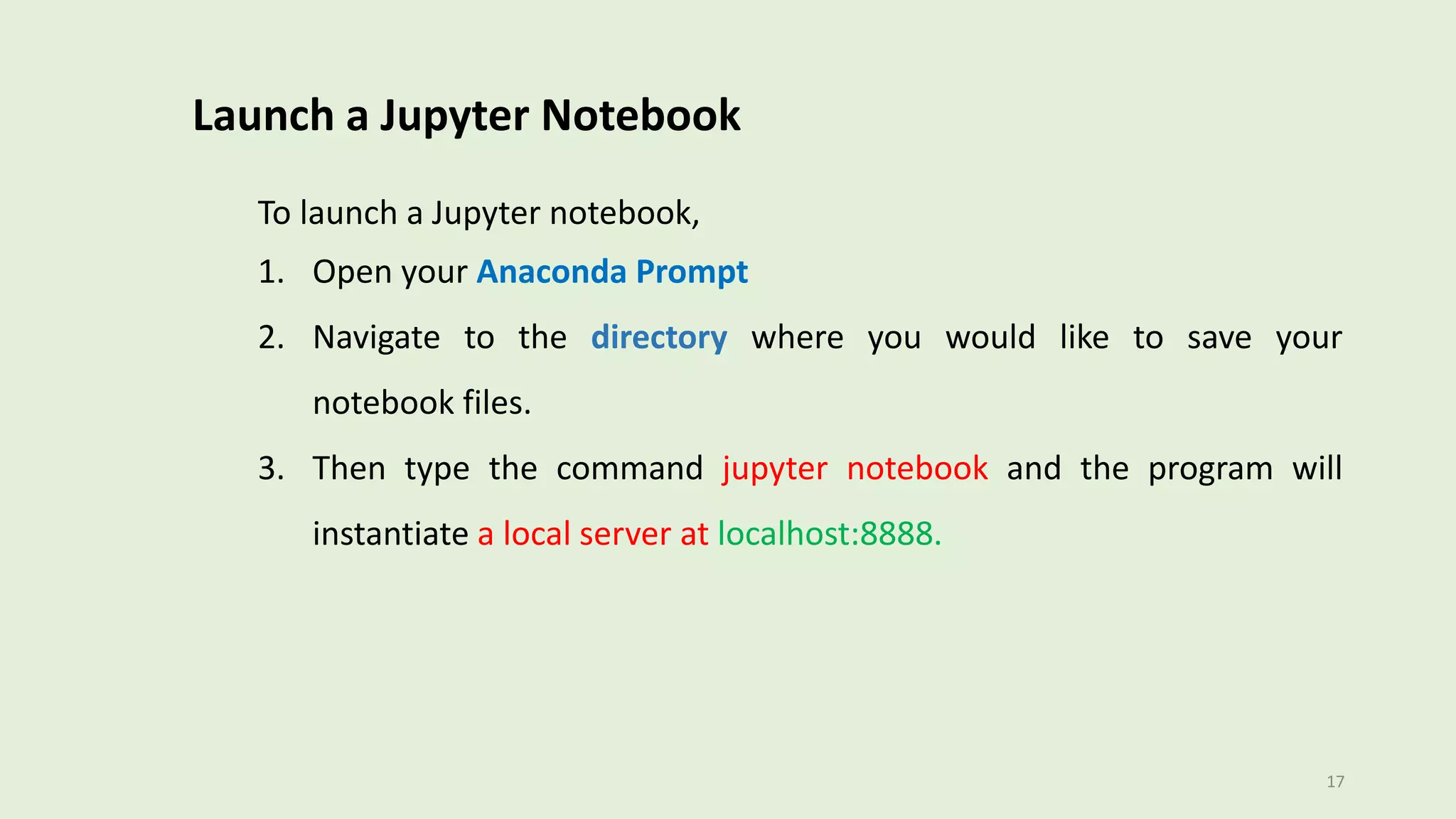
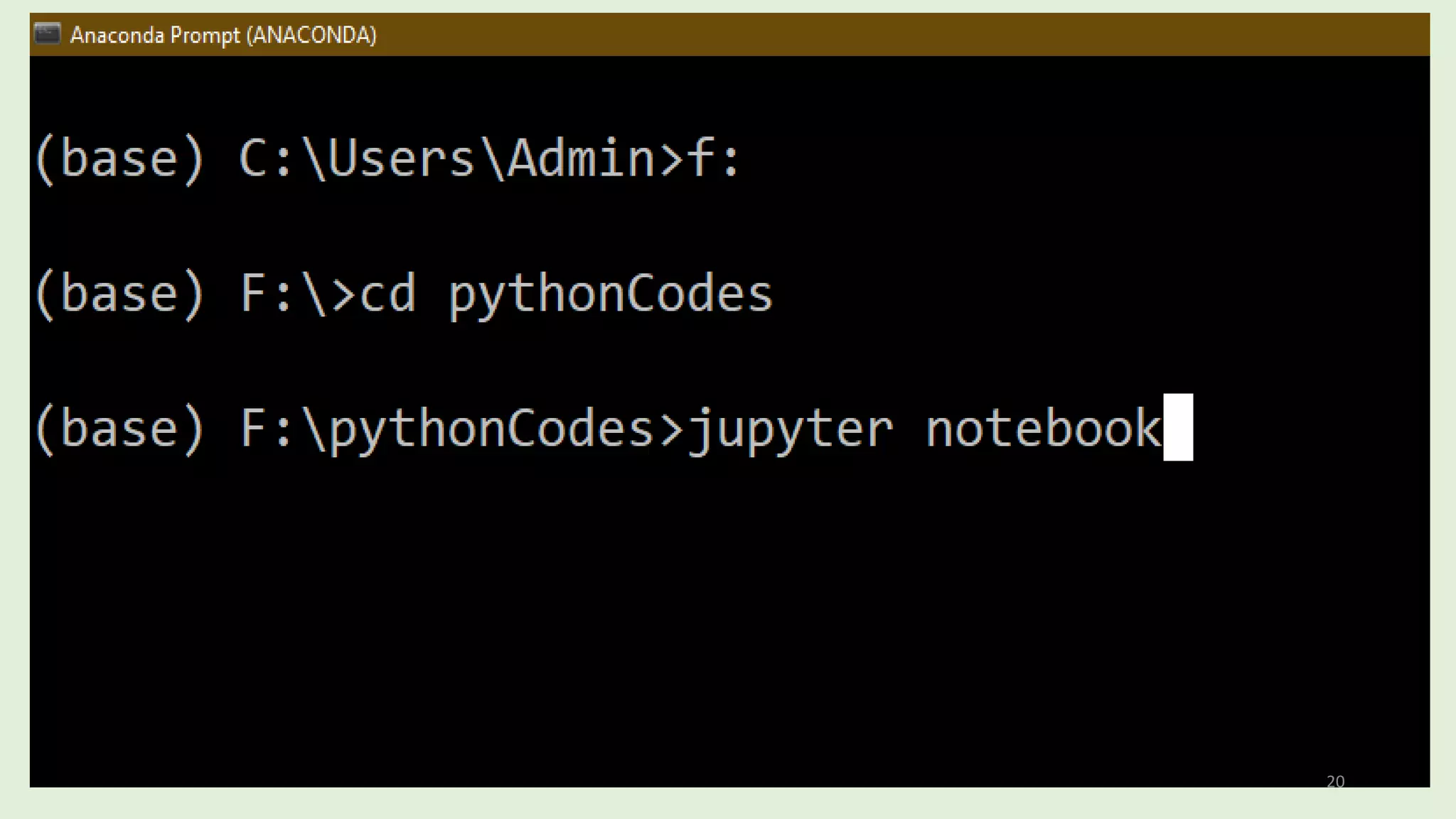
To launch a Jupyter notebook,
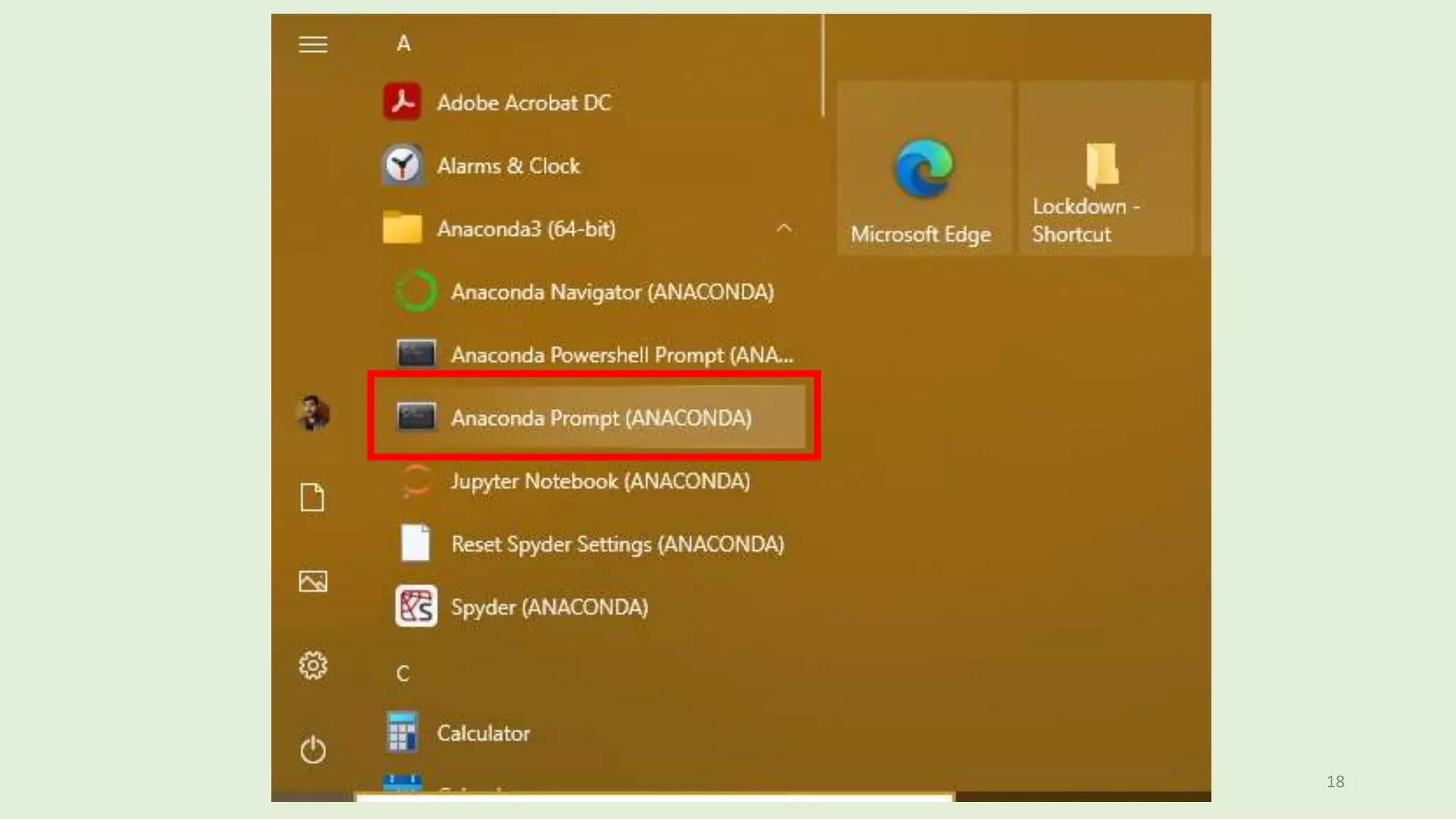
1. Open your Anaconda Prompt
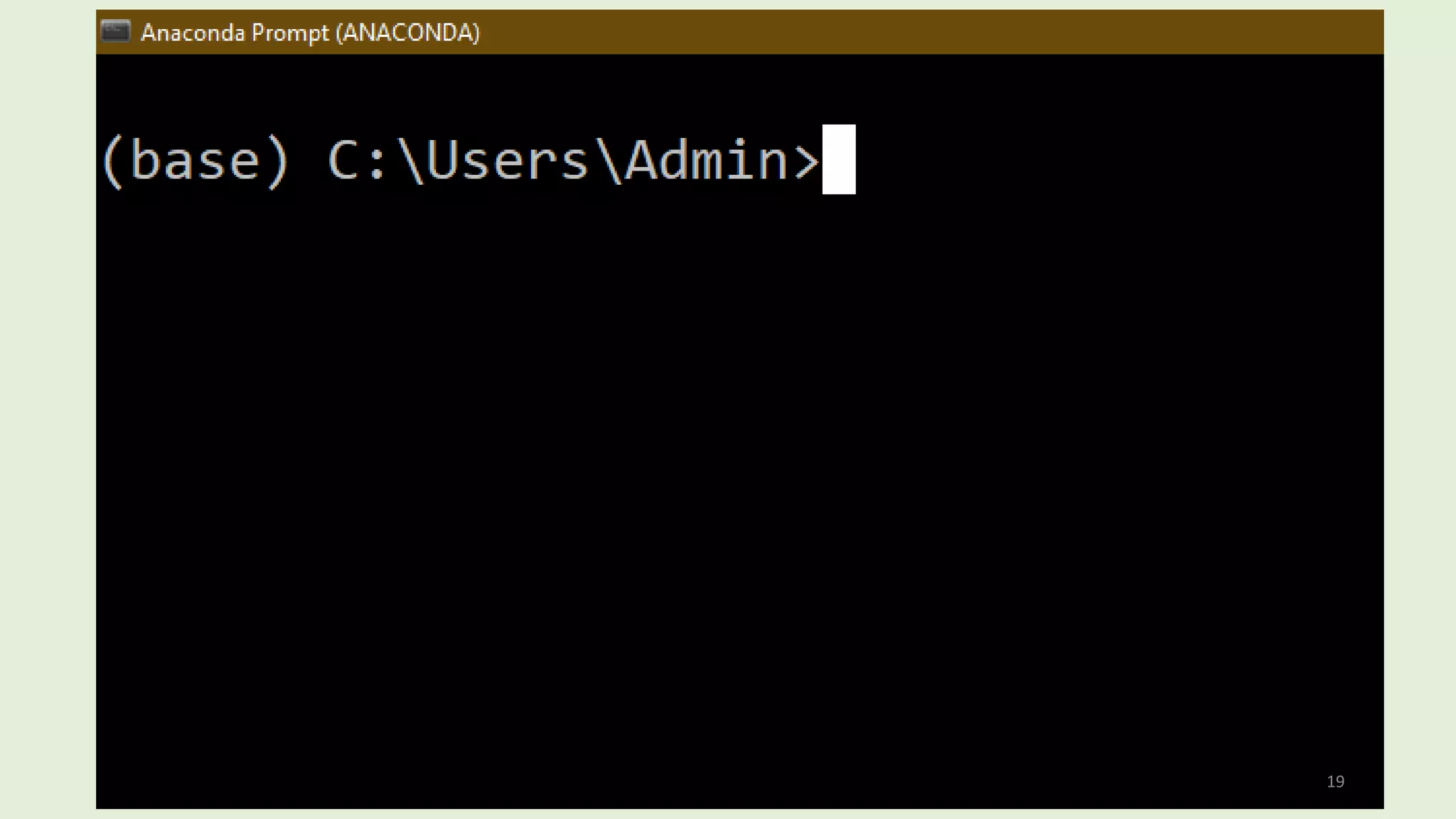
2. Navigate to the directory where you would like to save your
notebook files.
3. Then type the command jupyter notebook and the program will
instantiate a local server at localhost:8888.
Launch a Jupyter Notebook
17
18
19
20
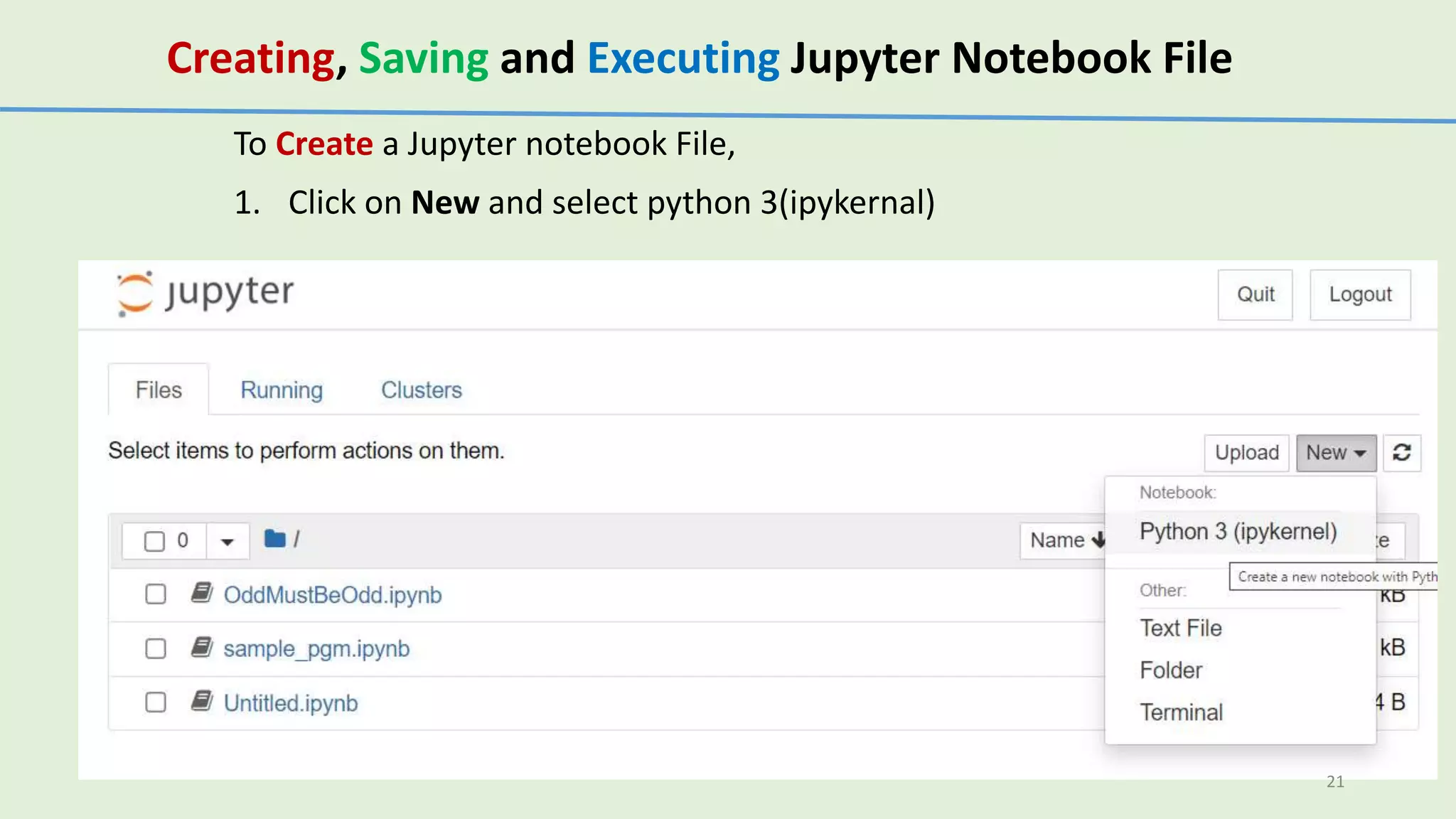
To Create a Jupyter notebook File,
1. Click on New and select python 3(ipykernal)
Creating, Saving and Executing Jupyter Notebook File
21
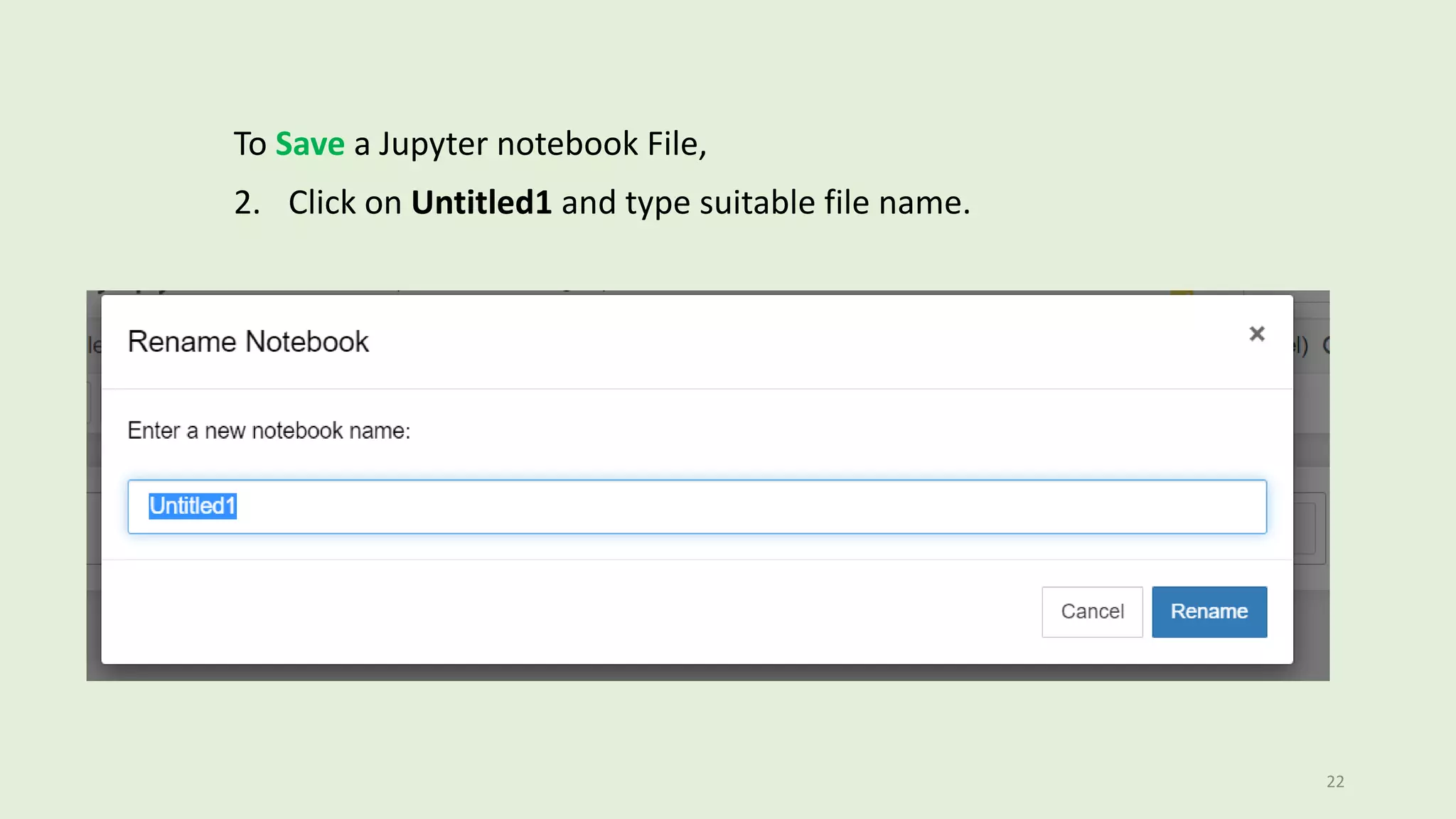
To Save a Jupyter notebook File,
2. Click on Untitled1 and type suitable file name.
22
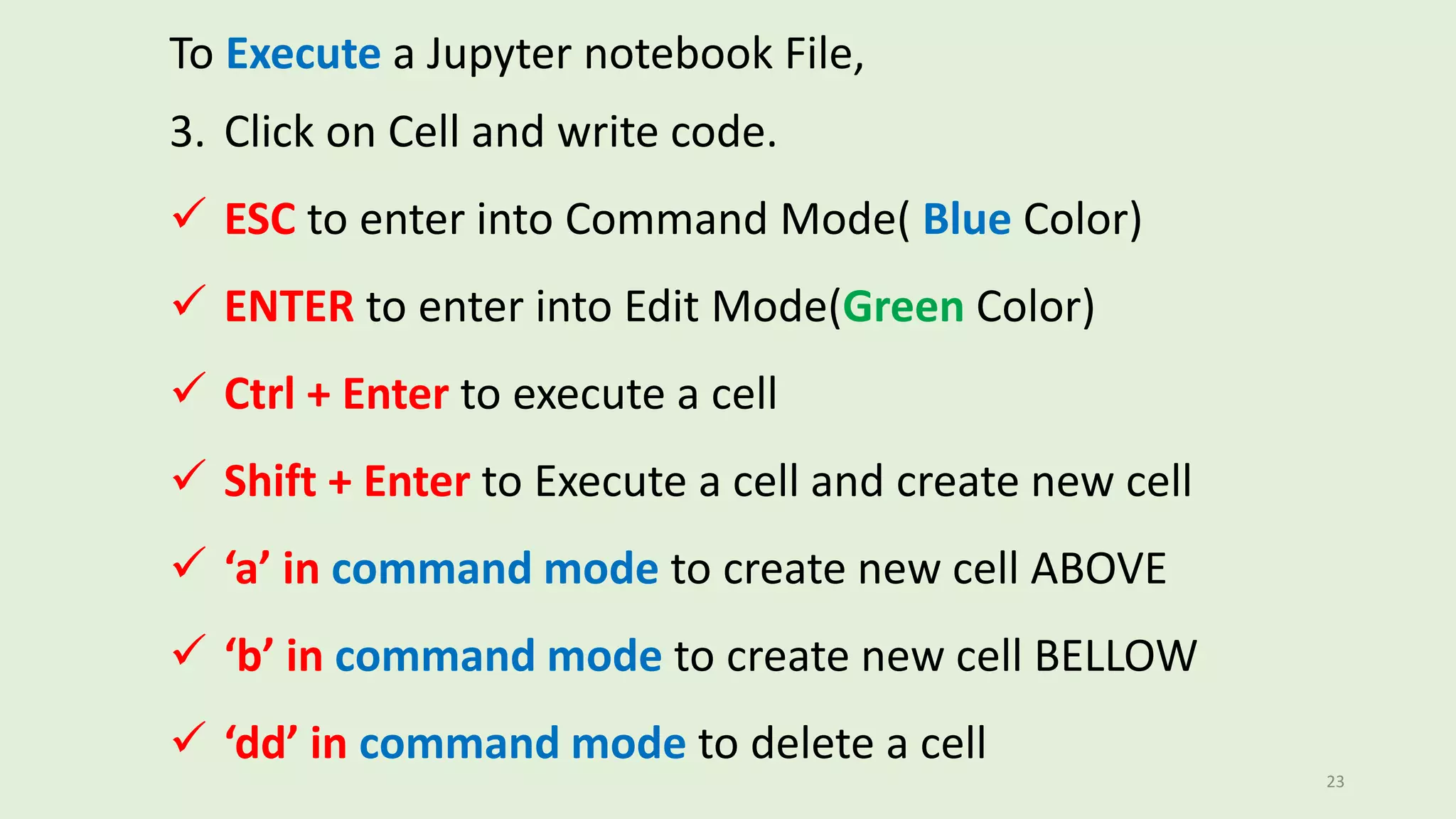
To Execute a Jupyter notebook File,
3. Click on Cell and write code.
 ESC to enter into Command Mode( Blue Color)
 ENTER to enter into Edit Mode(Green Color)
 Ctrl + Enter to execute a cell
 Shift + Enter to Execute a cell and create new cell
 ‘a’ in command mode to create new cell ABOVE
 ‘b’ in command mode to create new cell BELLOW
 ‘dd’ in command mode to delete a cell
23

2-Python and Jupyter Introduction.pptx

  • 1.
  • 2.
    Class Overview 1. PythonInstallation 2. Anaconda Installation 3. Jupyter Notebook Interface 1. Introduction 2. Setting Working Directory 3. Creating and Saving a script file 4. File Execution 2
  • 3.
  • 4.
  • 5.
  • 6.
  • 7.
  • 8.
  • 9.
  • 10.
  • 11.
  • 12.
  • 13.
  • 14.
  • 15.
  • 16.
  • 17.
    To launch aJupyter notebook, 1. Open your Anaconda Prompt 2. Navigate to the directory where you would like to save your notebook files. 3. Then type the command jupyter notebook and the program will instantiate a local server at localhost:8888. Launch a Jupyter Notebook 17
  • 18.
  • 19.
  • 20.
  • 21.
    To Create aJupyter notebook File, 1. Click on New and select python 3(ipykernal) Creating, Saving and Executing Jupyter Notebook File 21
  • 22.
    To Save aJupyter notebook File, 2. Click on Untitled1 and type suitable file name. 22
  • 23.
    To Execute aJupyter notebook File, 3. Click on Cell and write code.  ESC to enter into Command Mode( Blue Color)  ENTER to enter into Edit Mode(Green Color)  Ctrl + Enter to execute a cell  Shift + Enter to Execute a cell and create new cell  ‘a’ in command mode to create new cell ABOVE  ‘b’ in command mode to create new cell BELLOW  ‘dd’ in command mode to delete a cell 23