How To:
Apply Bold, Italic and Underline
Formatting to Selected Text in a .NET
RichTextBox (Part 2)
© DanieldotNET DEC2013
How to programmatically apply more than one font style (bold, italic or underline)
to selected text in a RichTextBox control.
Software Version: Visual Basic 2008 Express Edition, .NET 3.5
Contents
Introduction
The FontStyle Enumeration
Combining FontStyle Values
“Switching off” a single FontStyle from a FontStyle Combination
Building the Demo Application
Running Demo
Introduction
In the first part of this two-part article on RichTextBox font style formatting
(Apply Bold, Italic and Underline Formatting to Selected Text in a
.NET RichTextBox (Part 1)) it was demonstrated how to apply a single font
style to selected text in a RichTextBox. However, the program was unable to
apply multiple font styles to the text. This capability is useful in word
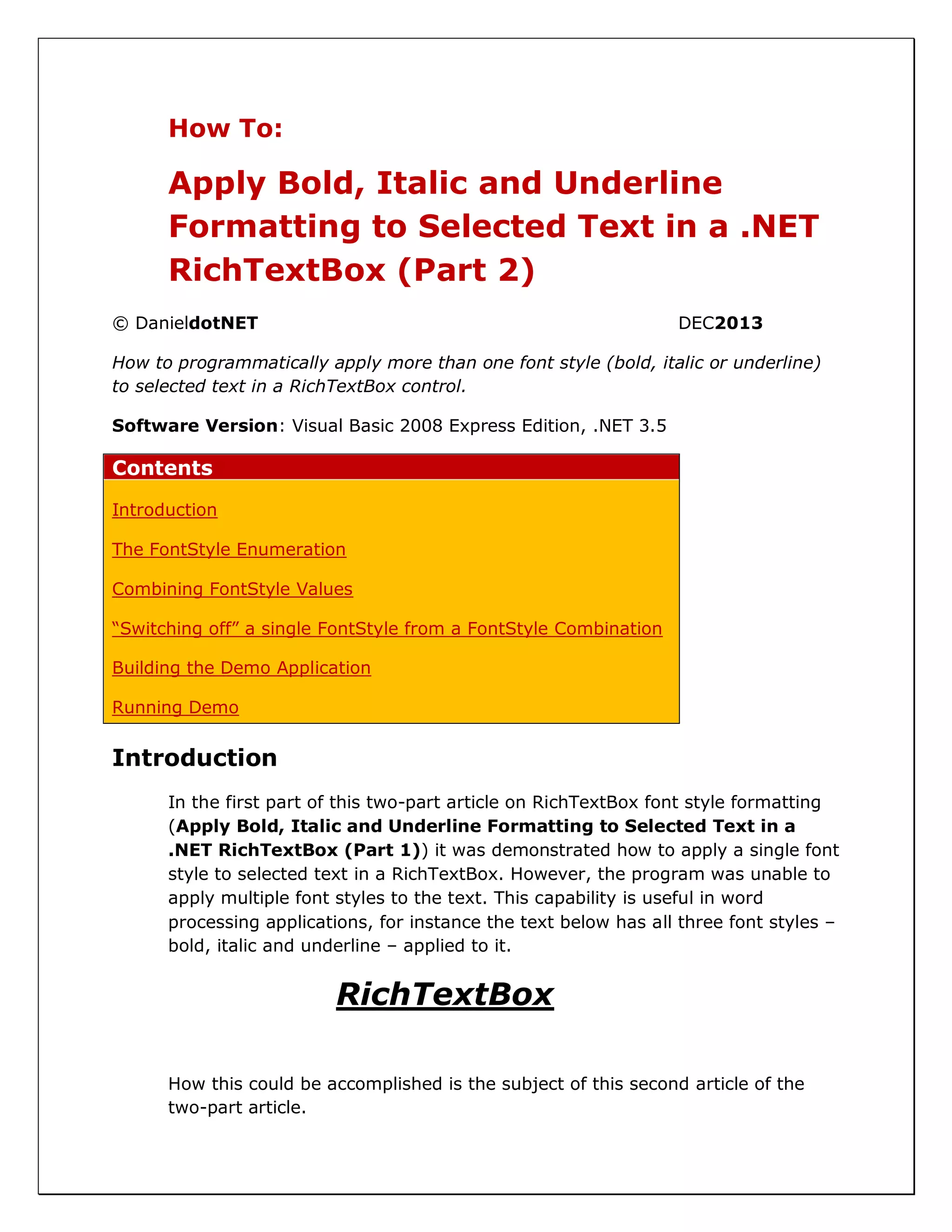
processing applications, for instance the text below has all three font styles –
bold, italic and underline – applied to it.
RichTextBox
How this could be accomplished is the subject of this second article of the
two-part article.
The FontStyle Enumeration
The FontStyle Enumeration is a member of the System.Drawing namespace,
and is used to specify style information that can be applied to text. The
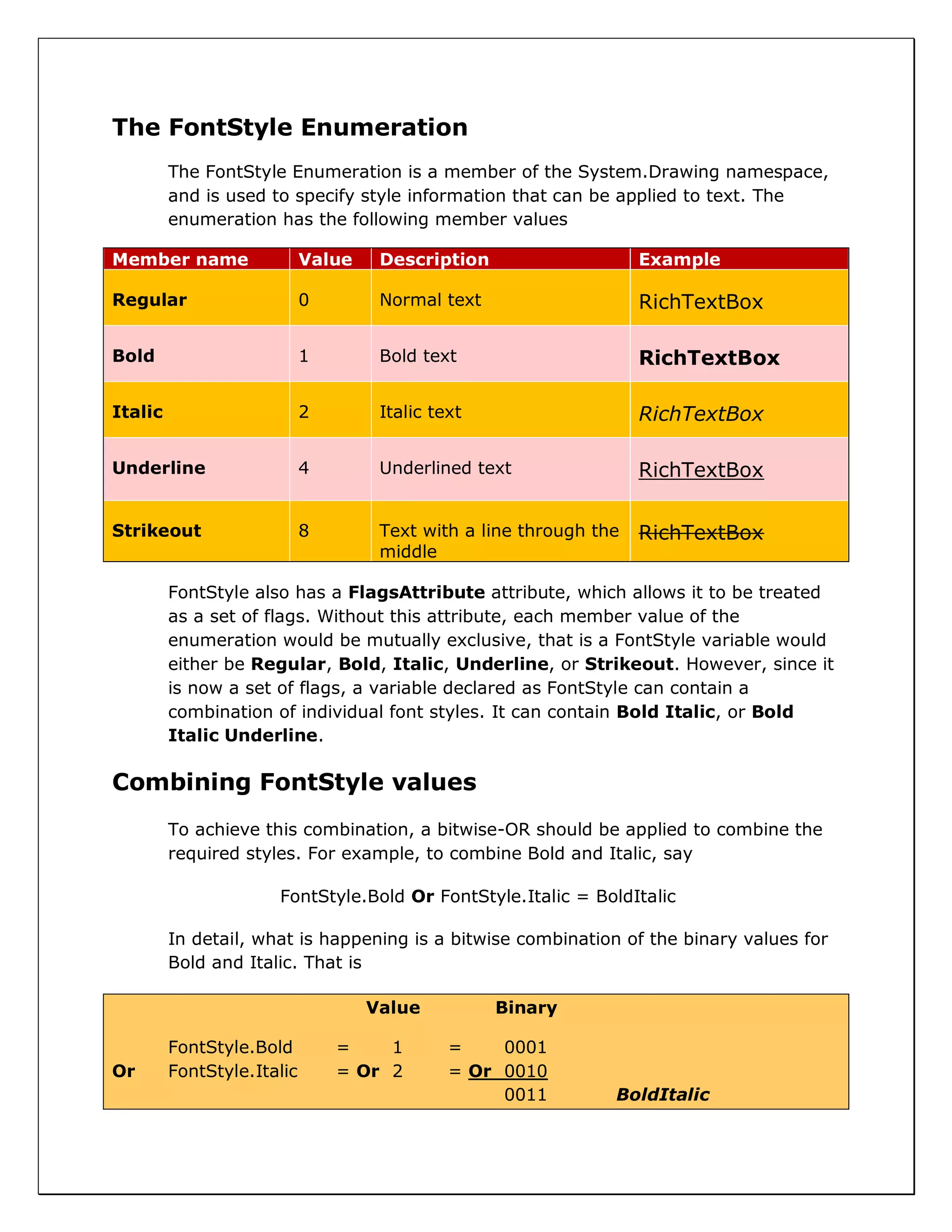
enumeration has the following member values
Member name Value Description Example
Regular 0 Normal text RichTextBox
Bold 1 Bold text RichTextBox
Italic 2 Italic text RichTextBox
Underline 4 Underlined text RichTextBox
Strikeout 8 Text with a line through the
middle
RichTextBox
FontStyle also has a FlagsAttribute attribute, which allows it to be treated
as a set of flags. Without this attribute, each member value of the
enumeration would be mutually exclusive, that is a FontStyle variable would
either be Regular, Bold, Italic, Underline, or Strikeout. However, since it
is now a set of flags, a variable declared as FontStyle can contain a
combination of individual font styles. It can contain Bold Italic, or Bold
Italic Underline.
Combining FontStyle values
To achieve this combination, a bitwise-OR should be applied to combine the
required styles. For example, to combine Bold and Italic, say
FontStyle.Bold Or FontStyle.Italic = BoldItalic
In detail, what is happening is a bitwise combination of the binary values for
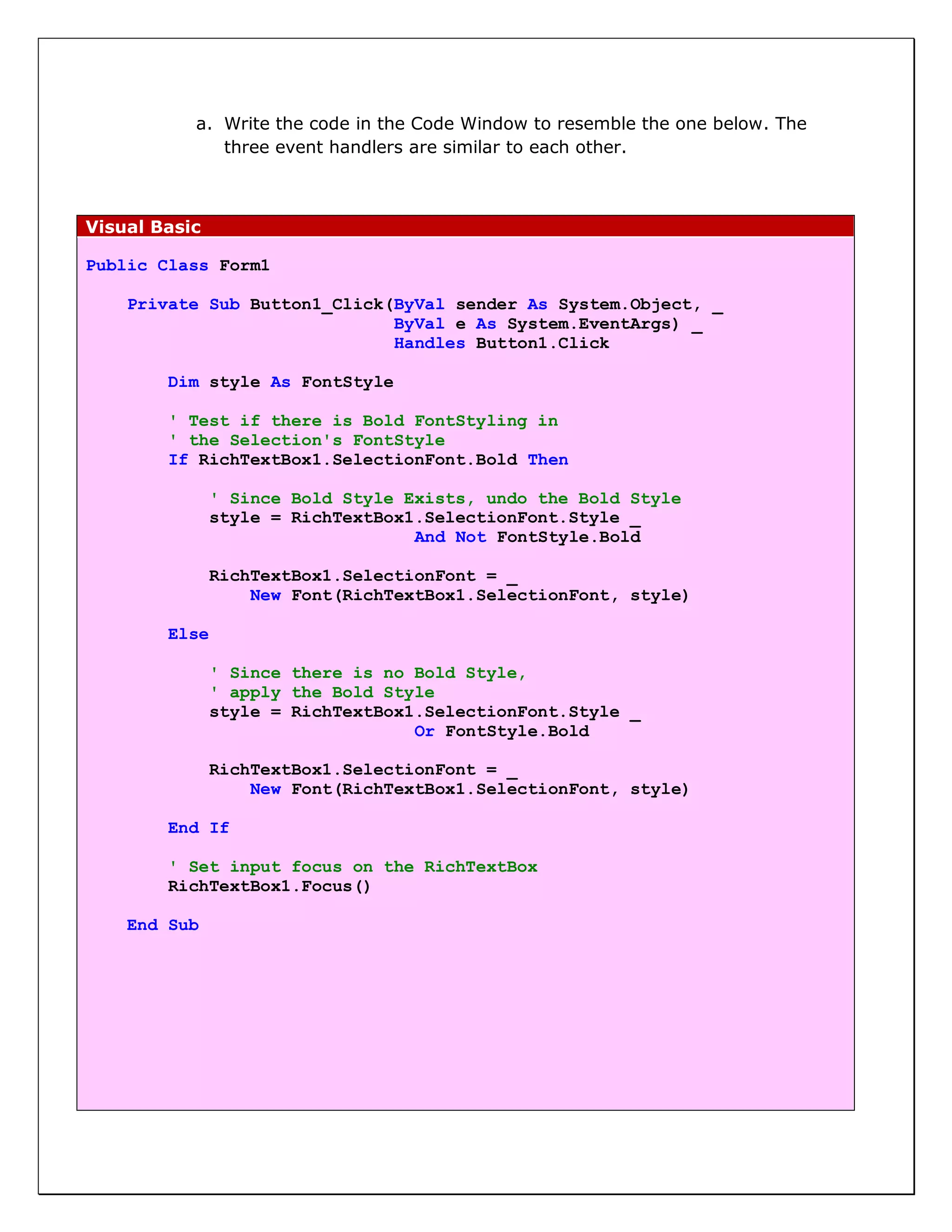
Bold and Italic. That is
Value Binary
FontStyle.Bold = 1 = 0001
Or FontStyle.Italic = Or 2 = Or 0010
0011 BoldItalic
The bitwise-Or compares each bit position; it produces zero only when both
positions are zero, otherwise, it produces one. This new value is now encodes
the fact that the new style is a combination of both Bold and Italic.
In a similar way, to combine Bold Italic and Underline
Value Binary
FontStyle.Bold = 1 = 0001
Or FontStyle.Italic = Or 2 = Or 0010
Or FontStyle.Underline = Or 2 = Or 0100
0111 BoldItalicUnderline
“Switching Off” a single FontStyle from a FontStyle
Combination
To remove a font style from a combination of font styles, watch what
happens when the bitwise-AND and bitwise-NOT are used in combination.
Binary
BoldItalicUnderline = 0111 = 0111
And (Not FontStyle.Bold) = And (Not 0001) = And 1110
0110
ItalicUnderline
Bitwise-Not simply swaps every 1 with 0, and 0 with 1. Bitwise-And
compares the bit positions; if all are ones, it produces a one for that position,
otherwise it produces a zero.
Building the Demo Application
This demo application applies a combination of font styles (Bold, Italic, and
Underline) to selected text in a rich text box. It can also toggle a font style
off/on.
1. Create a new Windows Application named BoldItalicUnderline2.
2. Put three buttons and a RichTextBox control on Form1. In the Properties
Window, change the properties of the controls as follows:
Button1 Text = Bold
Button2 Text = Italic
Button3 Text = Underline
RichTextBox1 Font.Size = 14
Form1 Text = Bold Italic Underline Demo 2
The interface should now look like the image below
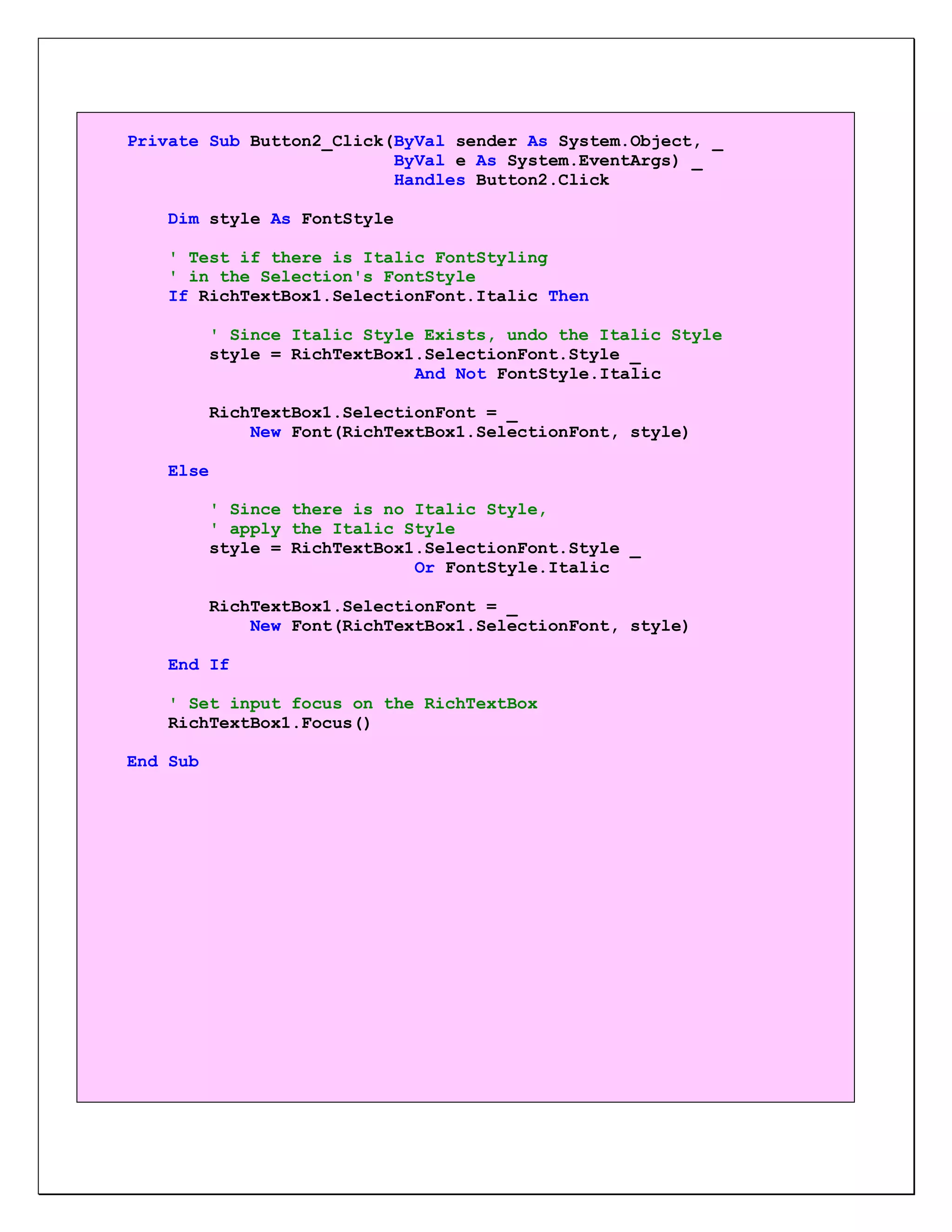
a. Write the code in the Code Window to resemble the one below. The
three event handlers are similar to each other.
Visual Basic
Public Class Form1
Private Sub Button1_Click(ByVal sender As System.Object, _
ByVal e As System.EventArgs) _
Handles Button1.Click
Dim style As FontStyle
' Test if there is Bold FontStyling in
' the Selection's FontStyle
If RichTextBox1.SelectionFont.Bold Then
' Since Bold Style Exists, undo the Bold Style
style = RichTextBox1.SelectionFont.Style _
And Not FontStyle.Bold
RichTextBox1.SelectionFont = _
New Font(RichTextBox1.SelectionFont, style)
Else
' Since there is no Bold Style,
' apply the Bold Style
style = RichTextBox1.SelectionFont.Style _
Or FontStyle.Bold
RichTextBox1.SelectionFont = _
New Font(RichTextBox1.SelectionFont, style)
End If
' Set input focus on the RichTextBox
RichTextBox1.Focus()
End Sub
Private Sub Button2_Click(ByVal sender As System.Object, _
ByVal e As System.EventArgs) _
Handles Button2.Click
Dim style As FontStyle
' Test if there is Italic FontStyling
' in the Selection's FontStyle
If RichTextBox1.SelectionFont.Italic Then
' Since Italic Style Exists, undo the Italic Style
style = RichTextBox1.SelectionFont.Style _
And Not FontStyle.Italic
RichTextBox1.SelectionFont = _
New Font(RichTextBox1.SelectionFont, style)
Else
' Since there is no Italic Style,
' apply the Italic Style
style = RichTextBox1.SelectionFont.Style _
Or FontStyle.Italic
RichTextBox1.SelectionFont = _
New Font(RichTextBox1.SelectionFont, style)
End If
' Set input focus on the RichTextBox
RichTextBox1.Focus()
End Sub
Private Sub Button3_Click(ByVal sender As System.Object, _
ByVal e As System.EventArgs) _
Handles Button3.Click
Dim style As FontStyle
' Test if there is Underline FontStyling
' in the Selection's FontStyle
If RichTextBox1.SelectionFont.Underline Then
' Since Underline Style Exists, undo the Underline Style
style = RichTextBox1.SelectionFont.Style _
And Not FontStyle.Underline
RichTextBox1.SelectionFont = _
New Font(RichTextBox1.SelectionFont, style)
Else
' Since there is no Underline Style,
' apply the Underline Style
style = RichTextBox1.SelectionFont.Style _
Or FontStyle.Underline
RichTextBox1.SelectionFont = _
New Font(RichTextBox1.SelectionFont, style)
End If
' Set input focus on the RichTextBox
RichTextBox1.Focus()
End Sub
End Class
The event handler for Button1 is responsible for toggling the Bold style
on/off. It checks if the Bold style is on in the font style combination. It does
this by getting the Boolean value of the following expression
Visual Basic
RichTextBox1.SelectionFont.Bold
RichTextBox1’s SelectionFont Property has a Bold Property which returns
True if the FontStyle of the SelectionFont is Bold, otherwise it returns False.
It then uses the value to change the Bold style from On to Off (if True), or
Off to On (if False).
Running the Demo
Press the F5 key to test the demo. Type any text into the RichTextBox.
Select any text and then click any of the buttons to apply the needed font
style.
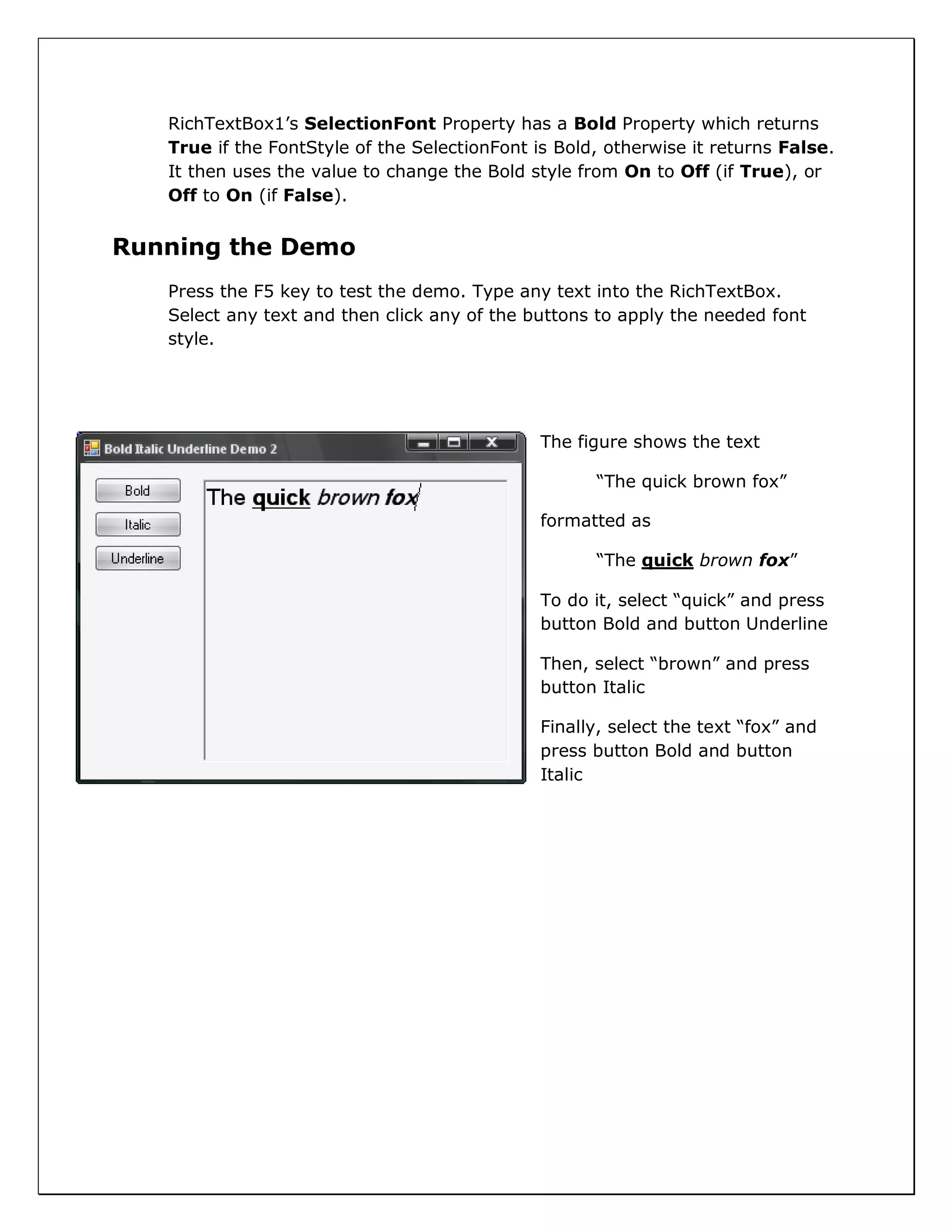
The figure shows the text
“The quick brown fox”
formatted as
“The quick brown fox”
To do it, select “quick” and press
button Bold and button Underline
Then, select “brown” and press
button Italic
Finally, select the text “fox” and
press button Bold and button
Italic

Apply Bold, Italic and Underline to Selected Text in a RichtextBox using Visual Basic.Net - Part 2

  • 1.
    How To: Apply Bold,Italic and Underline Formatting to Selected Text in a .NET RichTextBox (Part 2) © DanieldotNET DEC2013 How to programmatically apply more than one font style (bold, italic or underline) to selected text in a RichTextBox control. Software Version: Visual Basic 2008 Express Edition, .NET 3.5 Contents Introduction The FontStyle Enumeration Combining FontStyle Values “Switching off” a single FontStyle from a FontStyle Combination Building the Demo Application Running Demo Introduction In the first part of this two-part article on RichTextBox font style formatting (Apply Bold, Italic and Underline Formatting to Selected Text in a .NET RichTextBox (Part 1)) it was demonstrated how to apply a single font style to selected text in a RichTextBox. However, the program was unable to apply multiple font styles to the text. This capability is useful in word processing applications, for instance the text below has all three font styles – bold, italic and underline – applied to it. RichTextBox How this could be accomplished is the subject of this second article of the two-part article.
  • 2.
    The FontStyle Enumeration TheFontStyle Enumeration is a member of the System.Drawing namespace, and is used to specify style information that can be applied to text. The enumeration has the following member values Member name Value Description Example Regular 0 Normal text RichTextBox Bold 1 Bold text RichTextBox Italic 2 Italic text RichTextBox Underline 4 Underlined text RichTextBox Strikeout 8 Text with a line through the middle RichTextBox FontStyle also has a FlagsAttribute attribute, which allows it to be treated as a set of flags. Without this attribute, each member value of the enumeration would be mutually exclusive, that is a FontStyle variable would either be Regular, Bold, Italic, Underline, or Strikeout. However, since it is now a set of flags, a variable declared as FontStyle can contain a combination of individual font styles. It can contain Bold Italic, or Bold Italic Underline. Combining FontStyle values To achieve this combination, a bitwise-OR should be applied to combine the required styles. For example, to combine Bold and Italic, say FontStyle.Bold Or FontStyle.Italic = BoldItalic In detail, what is happening is a bitwise combination of the binary values for Bold and Italic. That is Value Binary FontStyle.Bold = 1 = 0001 Or FontStyle.Italic = Or 2 = Or 0010 0011 BoldItalic
  • 3.
    The bitwise-Or compareseach bit position; it produces zero only when both positions are zero, otherwise, it produces one. This new value is now encodes the fact that the new style is a combination of both Bold and Italic. In a similar way, to combine Bold Italic and Underline Value Binary FontStyle.Bold = 1 = 0001 Or FontStyle.Italic = Or 2 = Or 0010 Or FontStyle.Underline = Or 2 = Or 0100 0111 BoldItalicUnderline “Switching Off” a single FontStyle from a FontStyle Combination To remove a font style from a combination of font styles, watch what happens when the bitwise-AND and bitwise-NOT are used in combination. Binary BoldItalicUnderline = 0111 = 0111 And (Not FontStyle.Bold) = And (Not 0001) = And 1110 0110 ItalicUnderline Bitwise-Not simply swaps every 1 with 0, and 0 with 1. Bitwise-And compares the bit positions; if all are ones, it produces a one for that position, otherwise it produces a zero. Building the Demo Application This demo application applies a combination of font styles (Bold, Italic, and Underline) to selected text in a rich text box. It can also toggle a font style off/on. 1. Create a new Windows Application named BoldItalicUnderline2.
  • 4.
    2. Put threebuttons and a RichTextBox control on Form1. In the Properties Window, change the properties of the controls as follows: Button1 Text = Bold Button2 Text = Italic Button3 Text = Underline RichTextBox1 Font.Size = 14 Form1 Text = Bold Italic Underline Demo 2 The interface should now look like the image below
  • 5.
    a. Write thecode in the Code Window to resemble the one below. The three event handlers are similar to each other. Visual Basic Public Class Form1 Private Sub Button1_Click(ByVal sender As System.Object, _ ByVal e As System.EventArgs) _ Handles Button1.Click Dim style As FontStyle ' Test if there is Bold FontStyling in ' the Selection's FontStyle If RichTextBox1.SelectionFont.Bold Then ' Since Bold Style Exists, undo the Bold Style style = RichTextBox1.SelectionFont.Style _ And Not FontStyle.Bold RichTextBox1.SelectionFont = _ New Font(RichTextBox1.SelectionFont, style) Else ' Since there is no Bold Style, ' apply the Bold Style style = RichTextBox1.SelectionFont.Style _ Or FontStyle.Bold RichTextBox1.SelectionFont = _ New Font(RichTextBox1.SelectionFont, style) End If ' Set input focus on the RichTextBox RichTextBox1.Focus() End Sub
  • 6.
    Private Sub Button2_Click(ByValsender As System.Object, _ ByVal e As System.EventArgs) _ Handles Button2.Click Dim style As FontStyle ' Test if there is Italic FontStyling ' in the Selection's FontStyle If RichTextBox1.SelectionFont.Italic Then ' Since Italic Style Exists, undo the Italic Style style = RichTextBox1.SelectionFont.Style _ And Not FontStyle.Italic RichTextBox1.SelectionFont = _ New Font(RichTextBox1.SelectionFont, style) Else ' Since there is no Italic Style, ' apply the Italic Style style = RichTextBox1.SelectionFont.Style _ Or FontStyle.Italic RichTextBox1.SelectionFont = _ New Font(RichTextBox1.SelectionFont, style) End If ' Set input focus on the RichTextBox RichTextBox1.Focus() End Sub
  • 7.
    Private Sub Button3_Click(ByValsender As System.Object, _ ByVal e As System.EventArgs) _ Handles Button3.Click Dim style As FontStyle ' Test if there is Underline FontStyling ' in the Selection's FontStyle If RichTextBox1.SelectionFont.Underline Then ' Since Underline Style Exists, undo the Underline Style style = RichTextBox1.SelectionFont.Style _ And Not FontStyle.Underline RichTextBox1.SelectionFont = _ New Font(RichTextBox1.SelectionFont, style) Else ' Since there is no Underline Style, ' apply the Underline Style style = RichTextBox1.SelectionFont.Style _ Or FontStyle.Underline RichTextBox1.SelectionFont = _ New Font(RichTextBox1.SelectionFont, style) End If ' Set input focus on the RichTextBox RichTextBox1.Focus() End Sub End Class The event handler for Button1 is responsible for toggling the Bold style on/off. It checks if the Bold style is on in the font style combination. It does this by getting the Boolean value of the following expression Visual Basic RichTextBox1.SelectionFont.Bold
  • 8.
    RichTextBox1’s SelectionFont Propertyhas a Bold Property which returns True if the FontStyle of the SelectionFont is Bold, otherwise it returns False. It then uses the value to change the Bold style from On to Off (if True), or Off to On (if False). Running the Demo Press the F5 key to test the demo. Type any text into the RichTextBox. Select any text and then click any of the buttons to apply the needed font style. The figure shows the text “The quick brown fox” formatted as “The quick brown fox” To do it, select “quick” and press button Bold and button Underline Then, select “brown” and press button Italic Finally, select the text “fox” and press button Bold and button Italic