12 Simple Steps to
Prepare Your iOS App
For Development And
Distribution
Steps:
(1) Get BundleID
(2) Get UDID of your iPhone
(3) Create CSR File
(4) Create a development
certificate
(5) Create a distribution profile
(6) Register(Create) App ID
(7) Register Your device
(8) Create a development
profile
(9) Create a distribution profile
(10) Download and install
certificates & profile
(11) Export and share with other
mac
(12) Generate .ipa file for
development, distribution
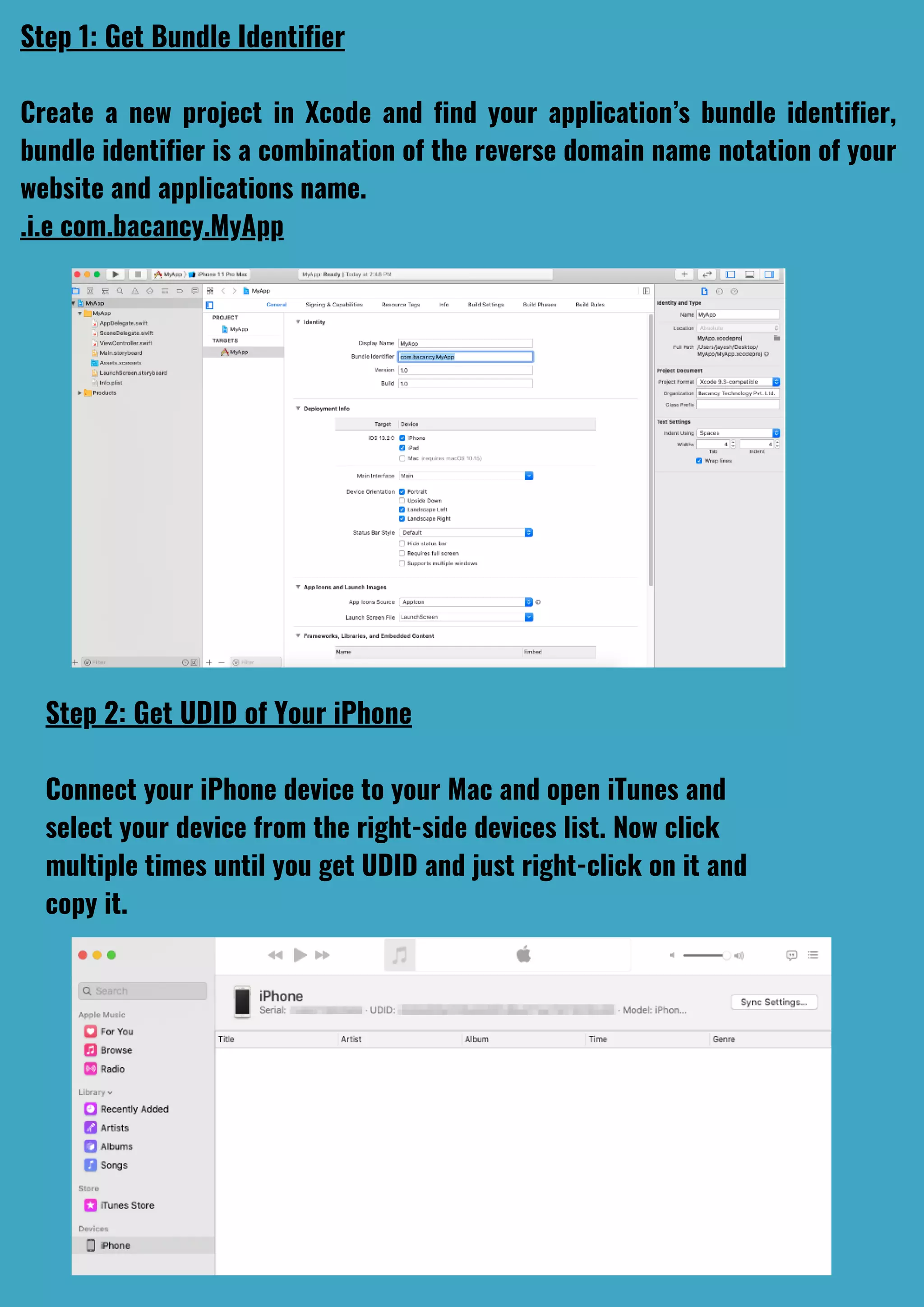
Step 1: Get Bundle Identifier
Create a new project in Xcode and find your application’s bundle identifier,
bundle identifier is a combination of the reverse domain name notation of your
website and applications name.
.i.e com.bacancy.MyApp
Step 2: Get UDID of Your iPhone
Connect your iPhone device to your Mac and open iTunes and
select your device from the right-side devices list. Now click
multiple times until you get UDID and just right-click on it and
copy it.
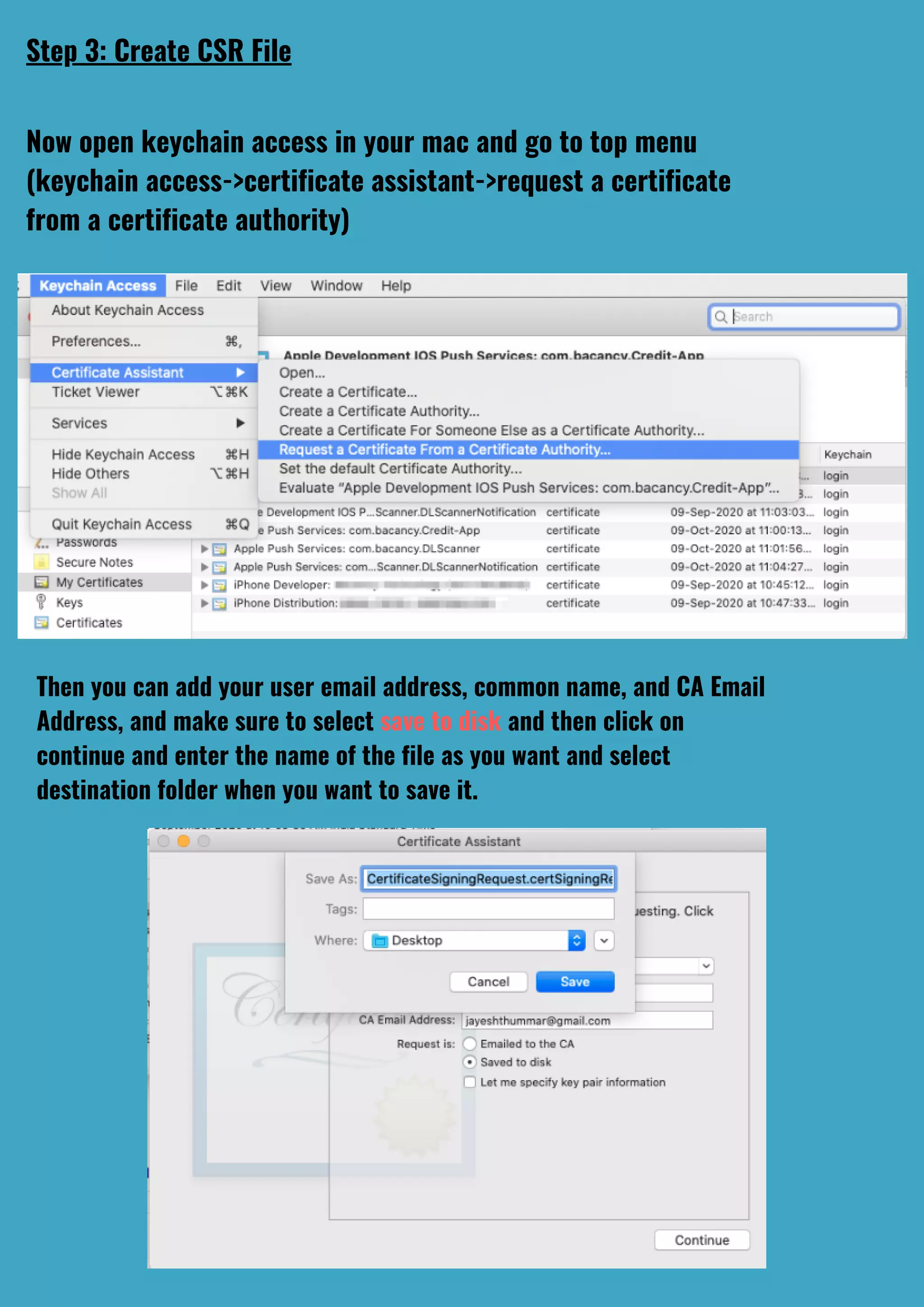
Step 3: Create CSR File
Now open keychain access in your mac and go to top menu
(keychain access->certificate assistant->request a certificate
from a certificate authority)
Then you can add your user email address, common name, and CA Email
Address, and make sure to select save to disk and then click on
continue and enter the name of the file as you want and select
destination folder when you want to save it.
Step 4: Create a Development Certificate
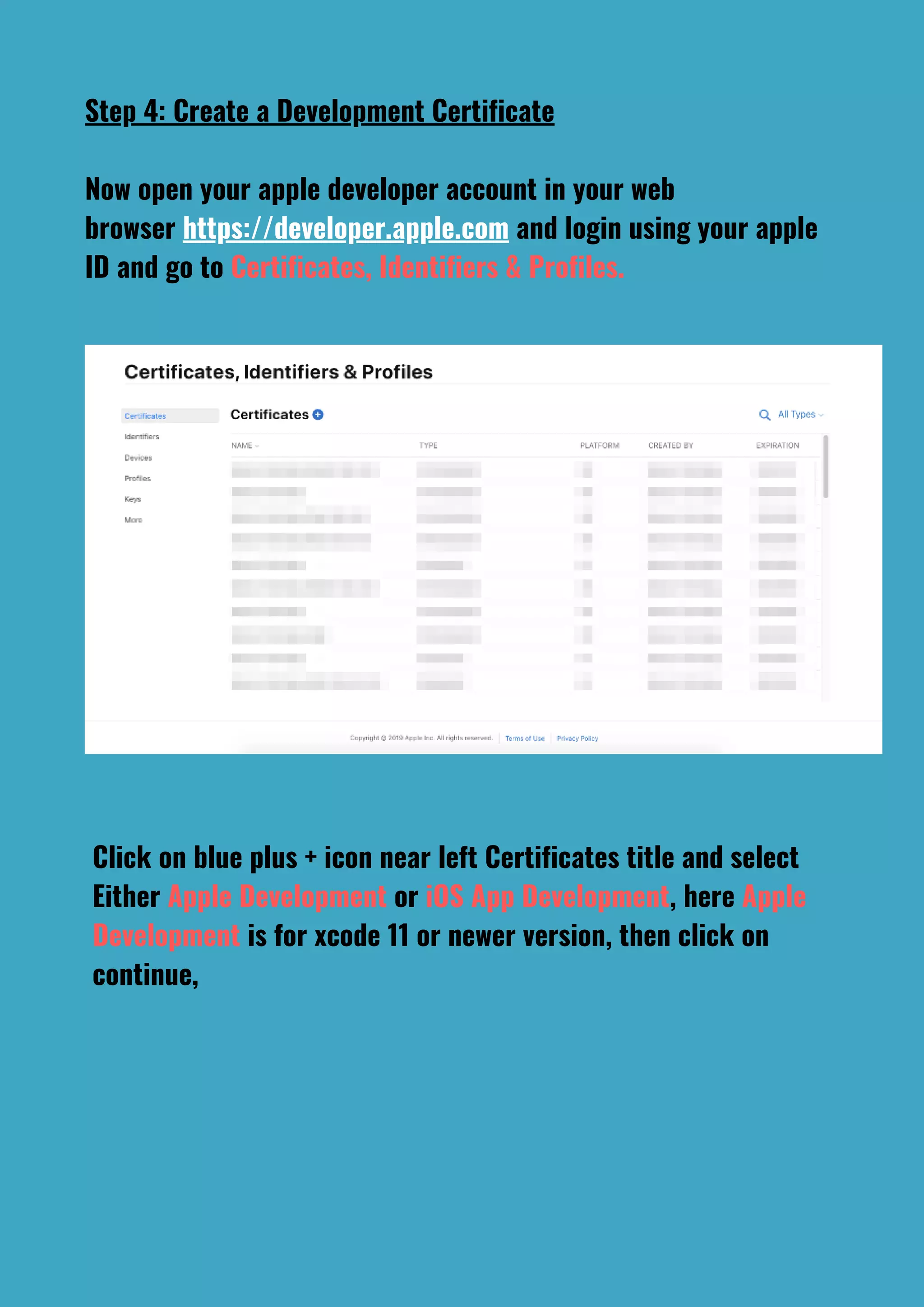
Now open your apple developer account in your web
browser https://developer.apple.com and login using your apple
ID and go to Certificates, Identifiers & Profiles.
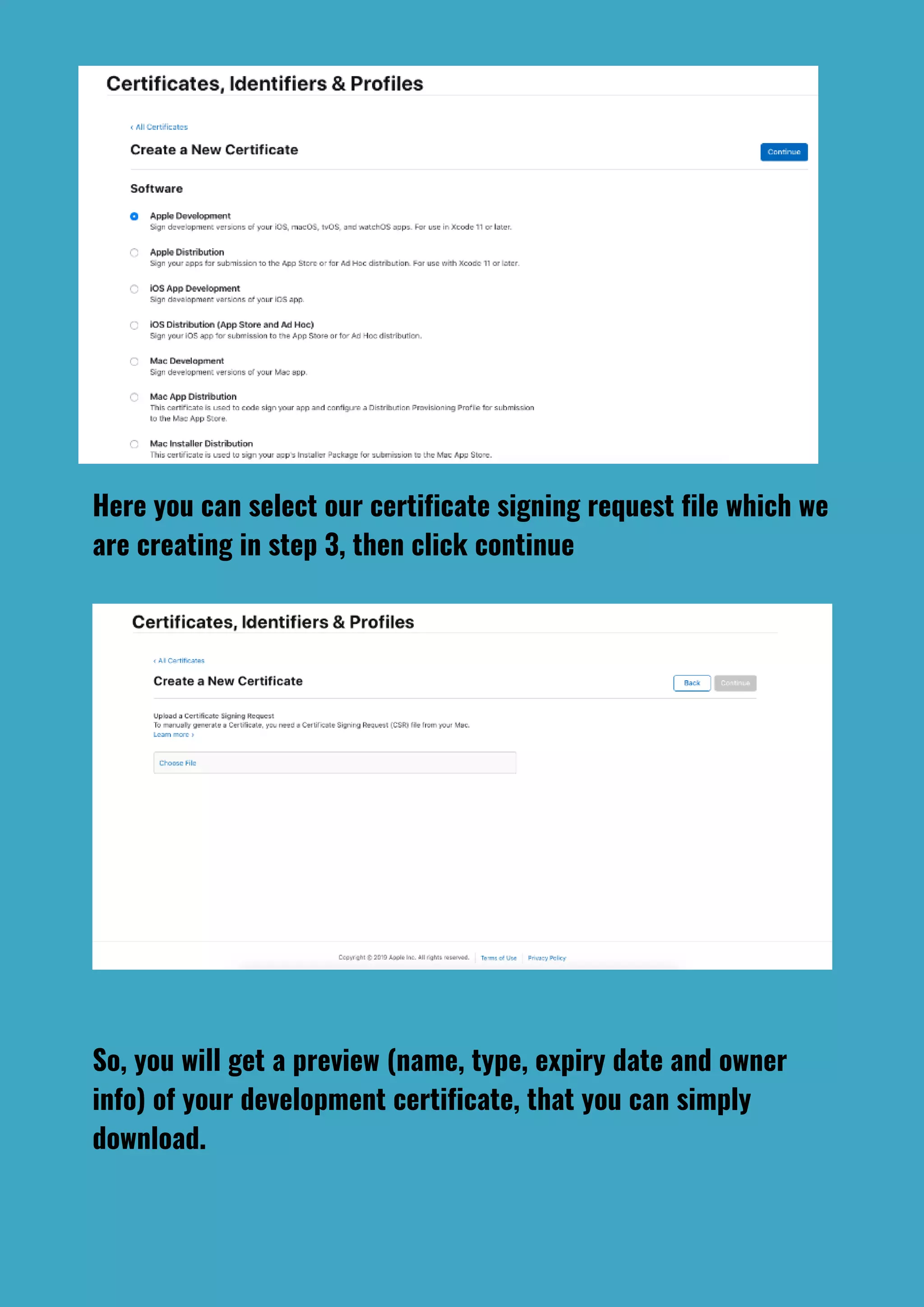
Click on blue plus + icon near left Certificates title and select
Either Apple Development or iOS App Development, here Apple
Development is for xcode 11 or newer version, then click on
continue,
Here you can select our certificate signing request file which we
are creating in step 3, then click continue
So, you will get a preview (name, type, expiry date and owner
info) of your development certificate, that you can simply
download.
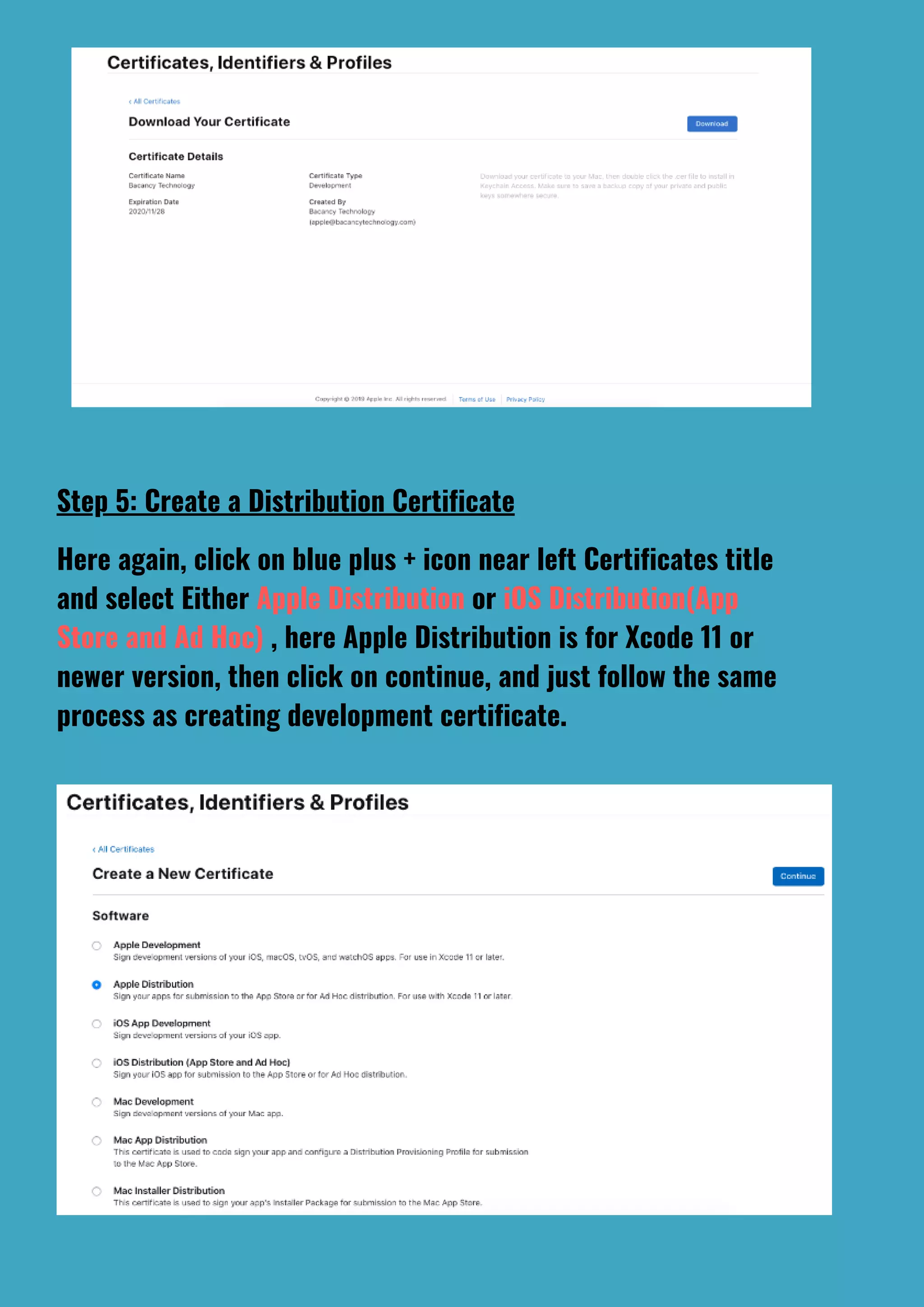
Here again, click on blue plus + icon near left Certificates title
and select Either Apple Distribution or iOS Distribution(App
Store and Ad Hoc) , here Apple Distribution is for Xcode 11 or
newer version, then click on continue, and just follow the same
process as creating development certificate.
Step 5: Create a Distribution Certificate
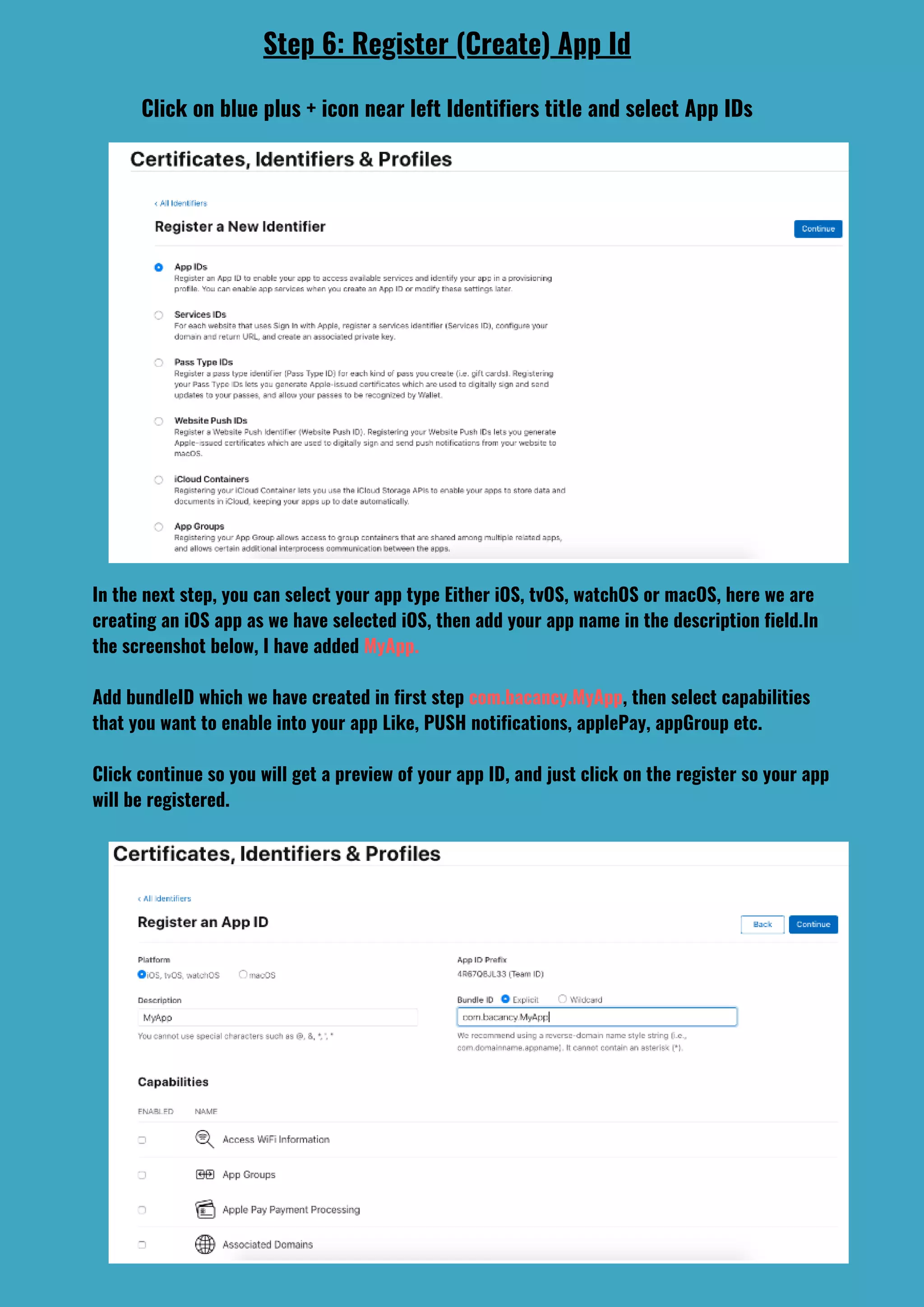
In the next step, you can select your app type Either iOS, tvOS, watchOS or macOS, here we are
creating an iOS app as we have selected iOS, then add your app name in the description field.In
the screenshot below, I have added MyApp.
Add bundleID which we have created in first step com.bacancy.MyApp, then select capabilities
that you want to enable into your app Like, PUSH notifications, applePay, appGroup etc.
Click continue so you will get a preview of your app ID, and just click on the register so your app
will be registered.
Step 6: Register (Create) App Id
Click on blue plus + icon near left Identifiers title and select App IDs
Step 7:Register Your device
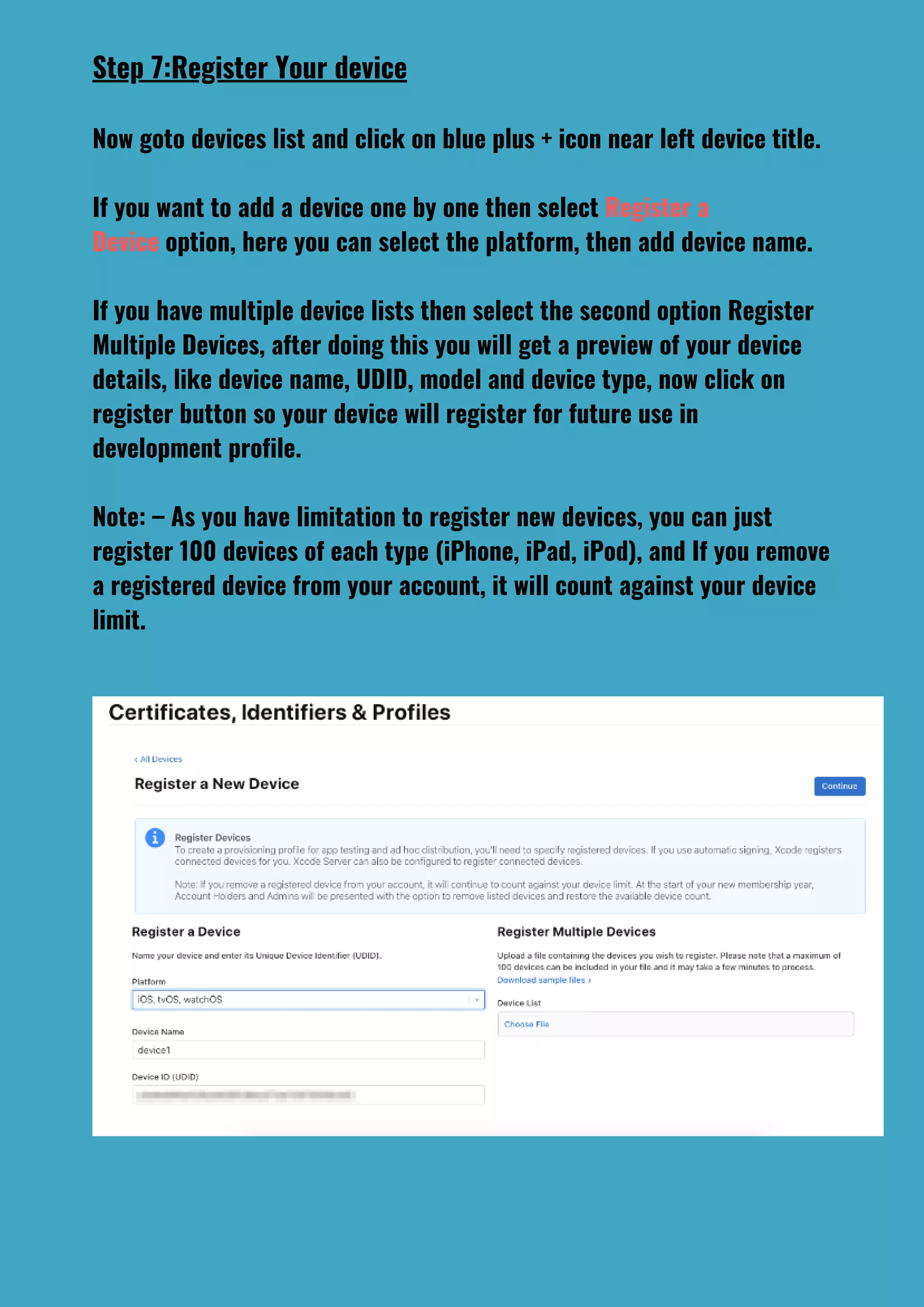
Now goto devices list and click on blue plus + icon near left device title.
If you want to add a device one by one then select Register a
Device option, here you can select the platform, then add device name.
If you have multiple device lists then select the second option Register
Multiple Devices, after doing this you will get a preview of your device
details, like device name, UDID, model and device type, now click on
register button so your device will register for future use in
development profile.
Note: – As you have limitation to register new devices, you can just
register 100 devices of each type (iPhone, iPad, iPod), and If you remove
a registered device from your account, it will count against your device
limit.
Step 8: Create Development Profile
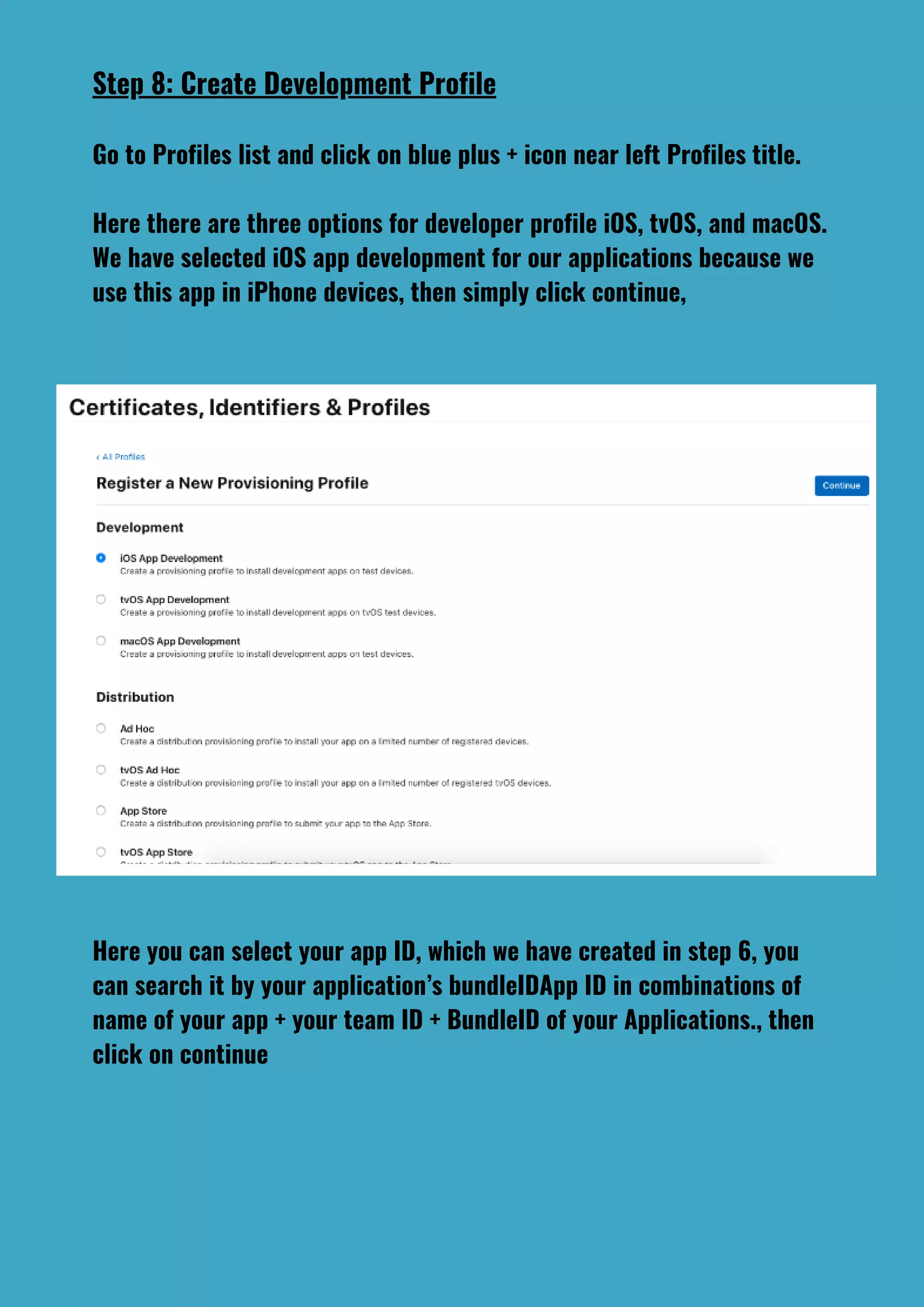
Go to Profiles list and click on blue plus + icon near left Profiles title.
Here there are three options for developer profile iOS, tvOS, and macOS.
We have selected iOS app development for our applications because we
use this app in iPhone devices, then simply click continue,
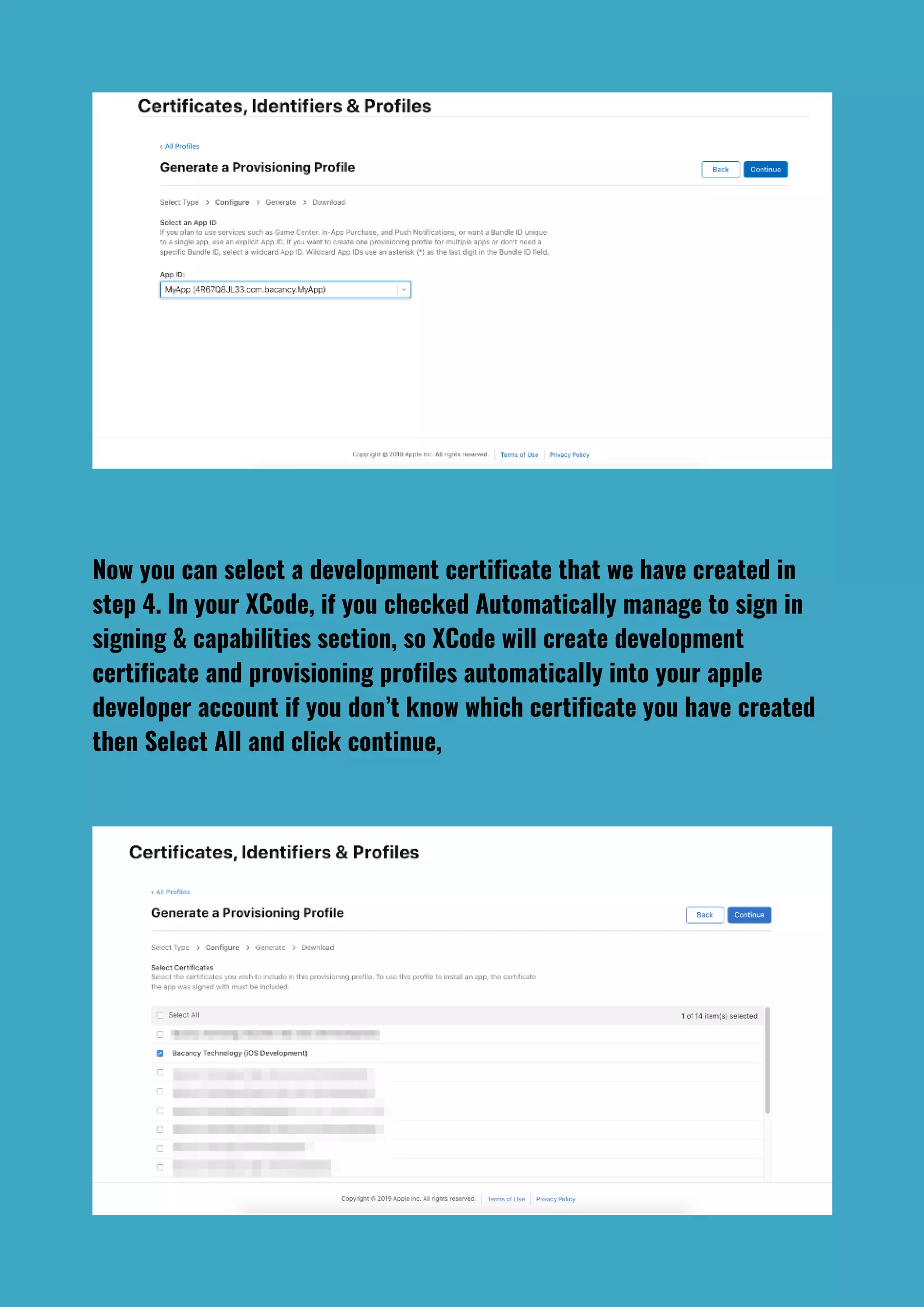
Here you can select your app ID, which we have created in step 6, you
can search it by your application’s bundleIDApp ID in combinations of
name of your app + your team ID + BundleID of your Applications., then
click on continue
Now you can select a development certificate that we have created in
step 4. In your XCode, if you checked Automatically manage to sign in
signing & capabilities section, so XCode will create development
certificate and provisioning profiles automatically into your apple
developer account if you don’t know which certificate you have created
then Select All and click continue,
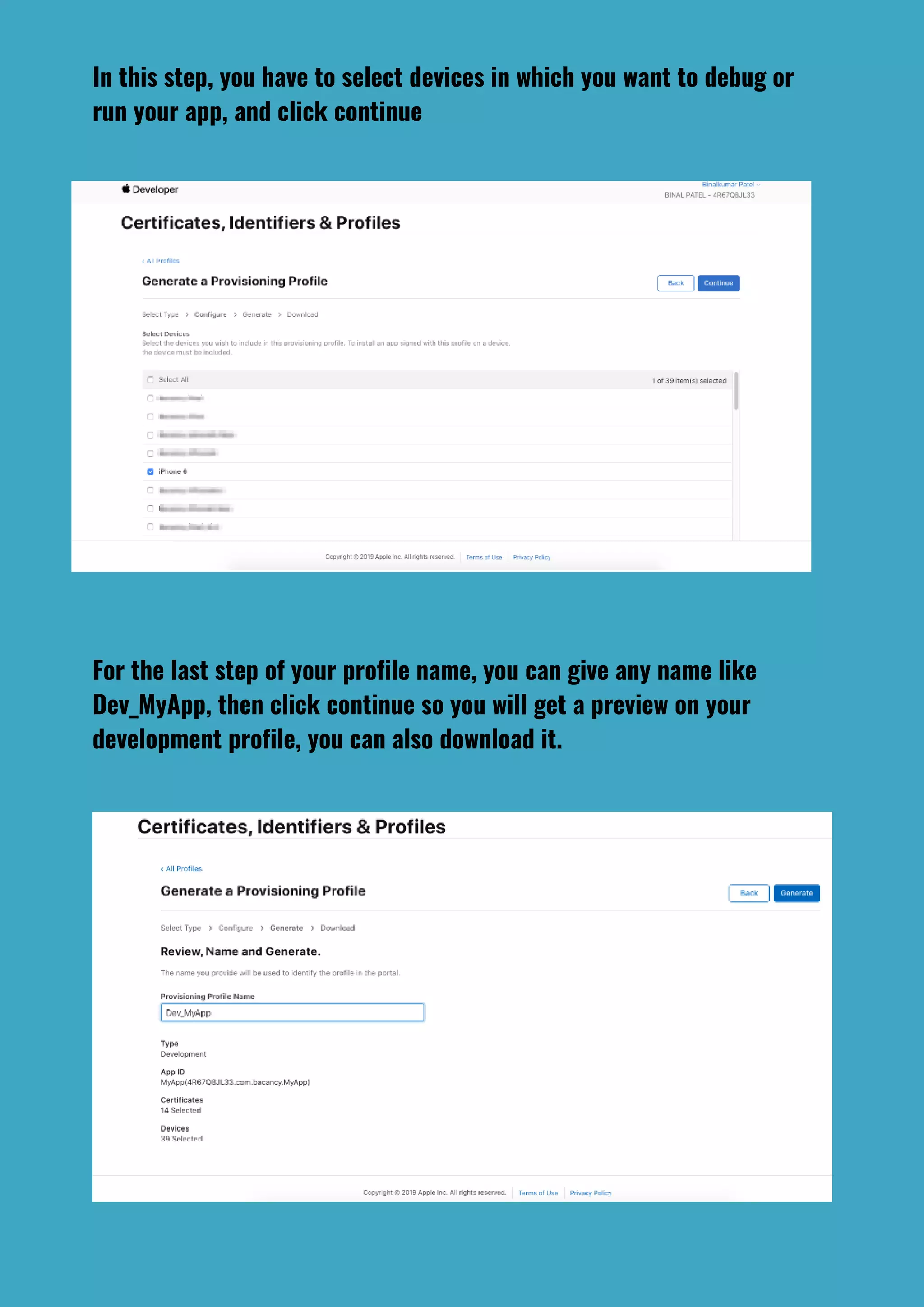
In this step, you have to select devices in which you want to debug or
run your app, and click continue
For the last step of your profile name, you can give any name like
Dev_MyApp, then click continue so you will get a preview on your
development profile, you can also download it.
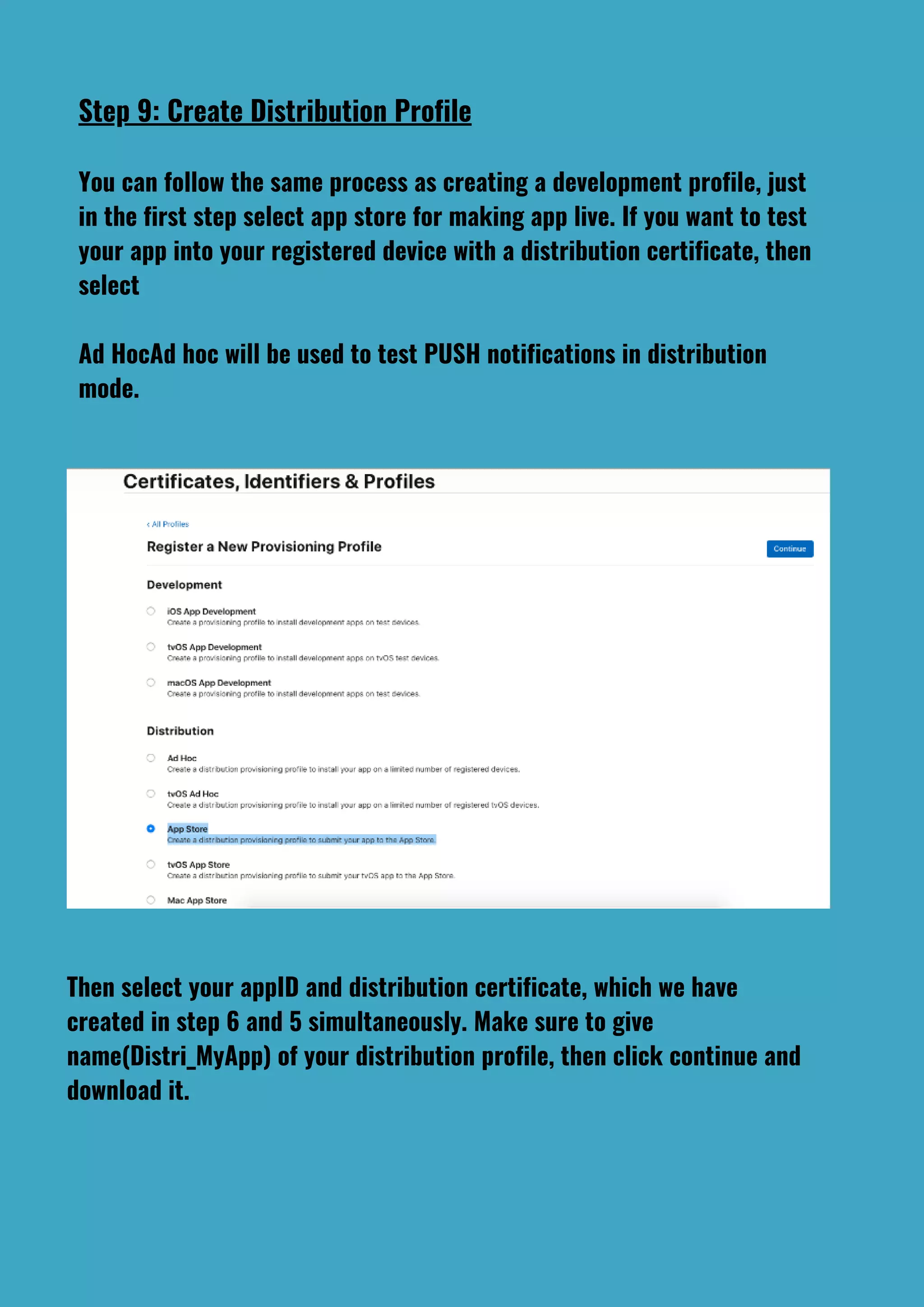
Step 9: Create Distribution Profile
You can follow the same process as creating a development profile, just
in the first step select app store for making app live. If you want to test
your app into your registered device with a distribution certificate, then
select
Ad HocAd hoc will be used to test PUSH notifications in distribution
mode.
Then select your appID and distribution certificate, which we have
created in step 6 and 5 simultaneously. Make sure to give
name(Distri_MyApp) of your distribution profile, then click continue and
download it.
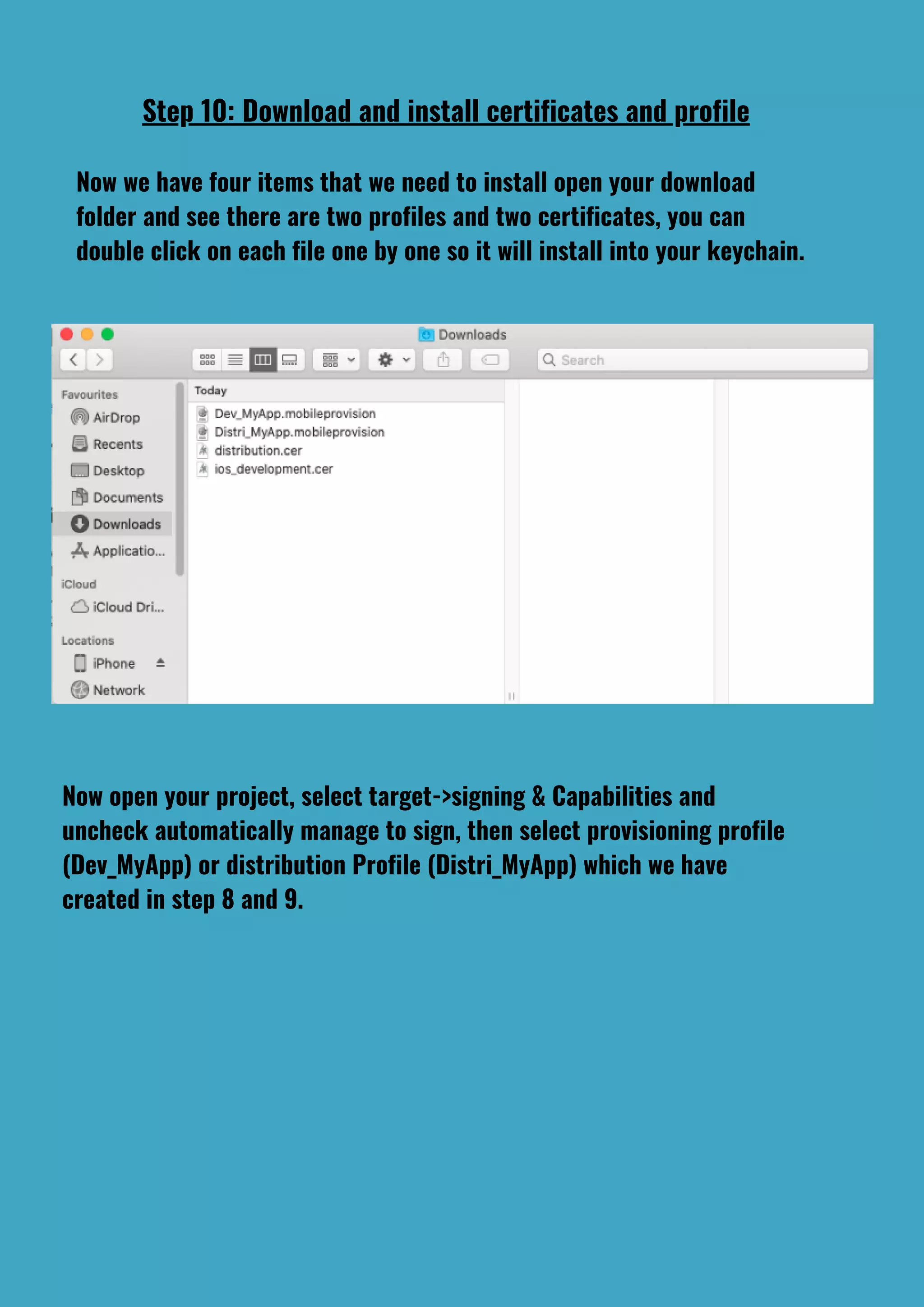
Step 10: Download and install certificates and profile
Now we have four items that we need to install open your download
folder and see there are two profiles and two certificates, you can
double click on each file one by one so it will install into your keychain.
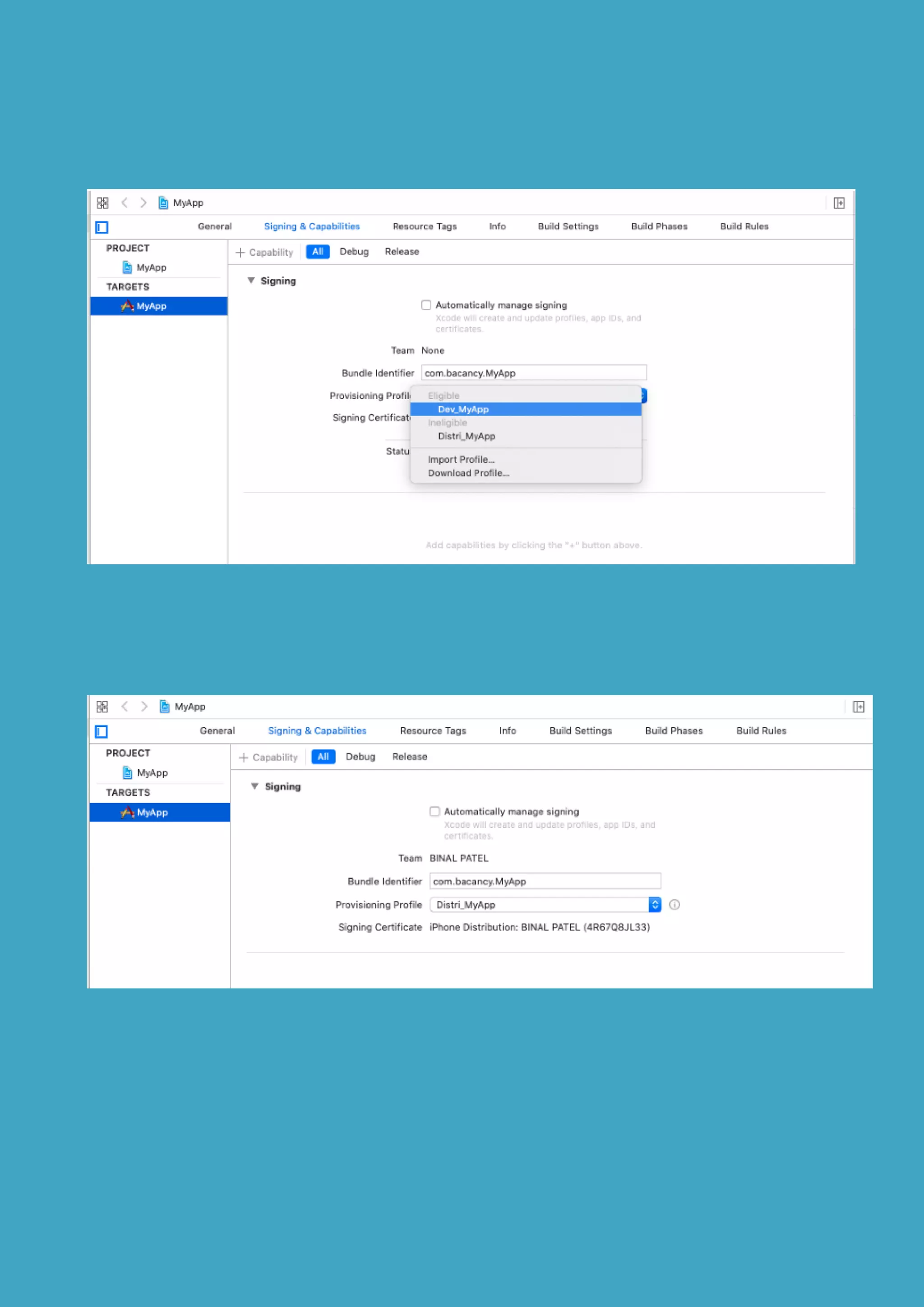
Now open your project, select target->signing & Capabilities and
uncheck automatically manage to sign, then select provisioning profile
(Dev_MyApp) or distribution Profile (Distri_MyApp) which we have
created in step 8 and 9.
Step 11: Export and Share with Other Mac
Open your keychain access and select My certificates into the
left pane, here you can see your certificates with a key. You can
expand any certificate and see its private key if you have only
download development or distribution profile and install without
its certificate so you will see only profile without the private
key. And without private key your exported. p12 will not work in
another mac.
How to Export?
Just select both certificate and private key and right-click on it
so you will get the option to Export it, you can click on it so you
will get save option where you want to save.
Now just gave any name like dev_MyApp for development or
Distri_MyApp for distribution and destination folder, and click
on save button so one popup will appear on your screen for
certificate password, gave the password and verify password and
press Enter so that you will get .p12 file.
This. p12 file you can share with any other mac and just double
click on it so it will install on that mac.
Step 12: Get .ipa File for Development & Distribution
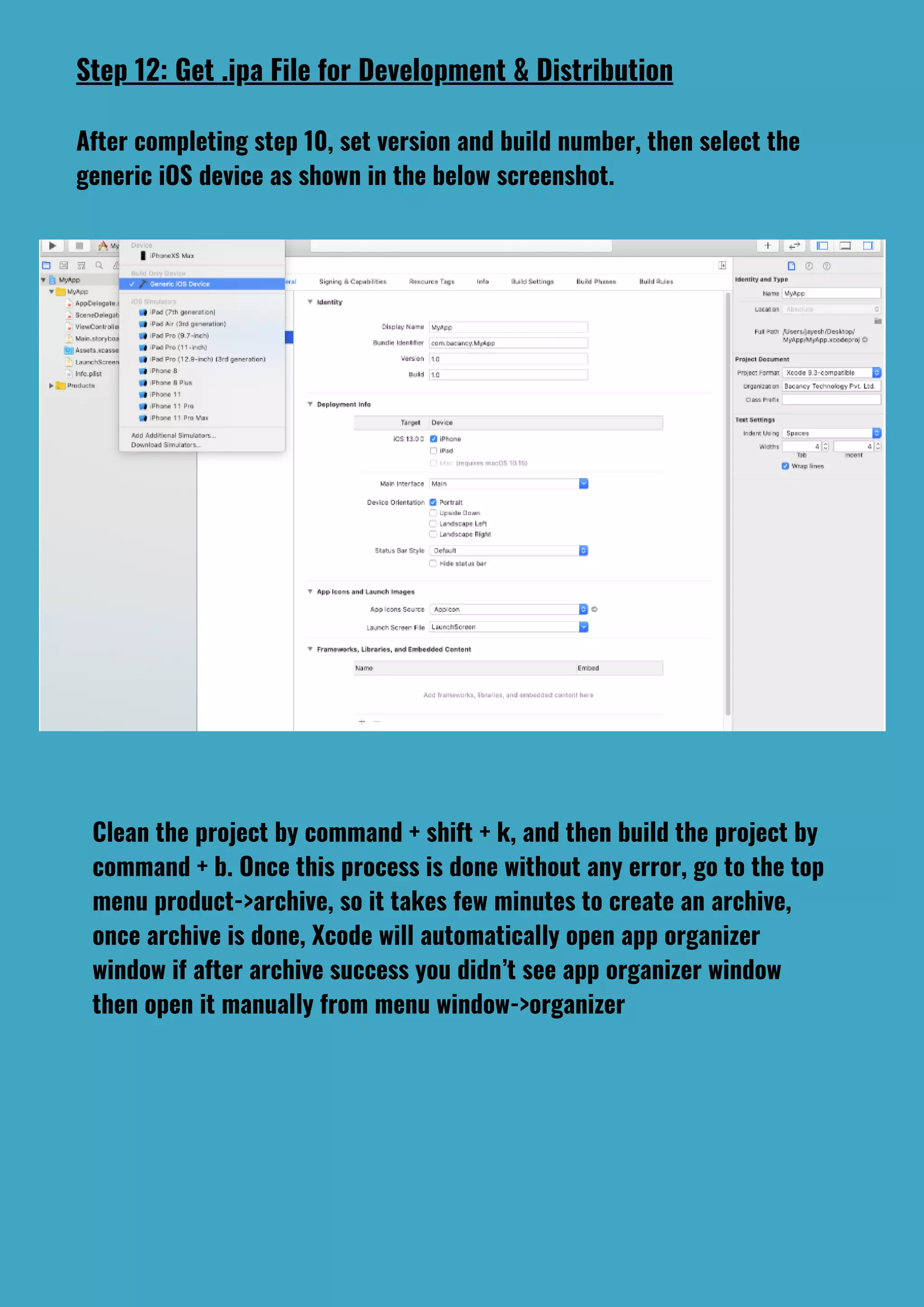
After completing step 10, set version and build number, then select the
generic iOS device as shown in the below screenshot.
Clean the project by command + shift + k, and then build the project by
command + b. Once this process is done without any error, go to the top
menu product->archive, so it takes few minutes to create an archive,
once archive is done, Xcode will automatically open app organizer
window if after archive success you didn’t see app organizer window
then open it manually from menu window->organizer
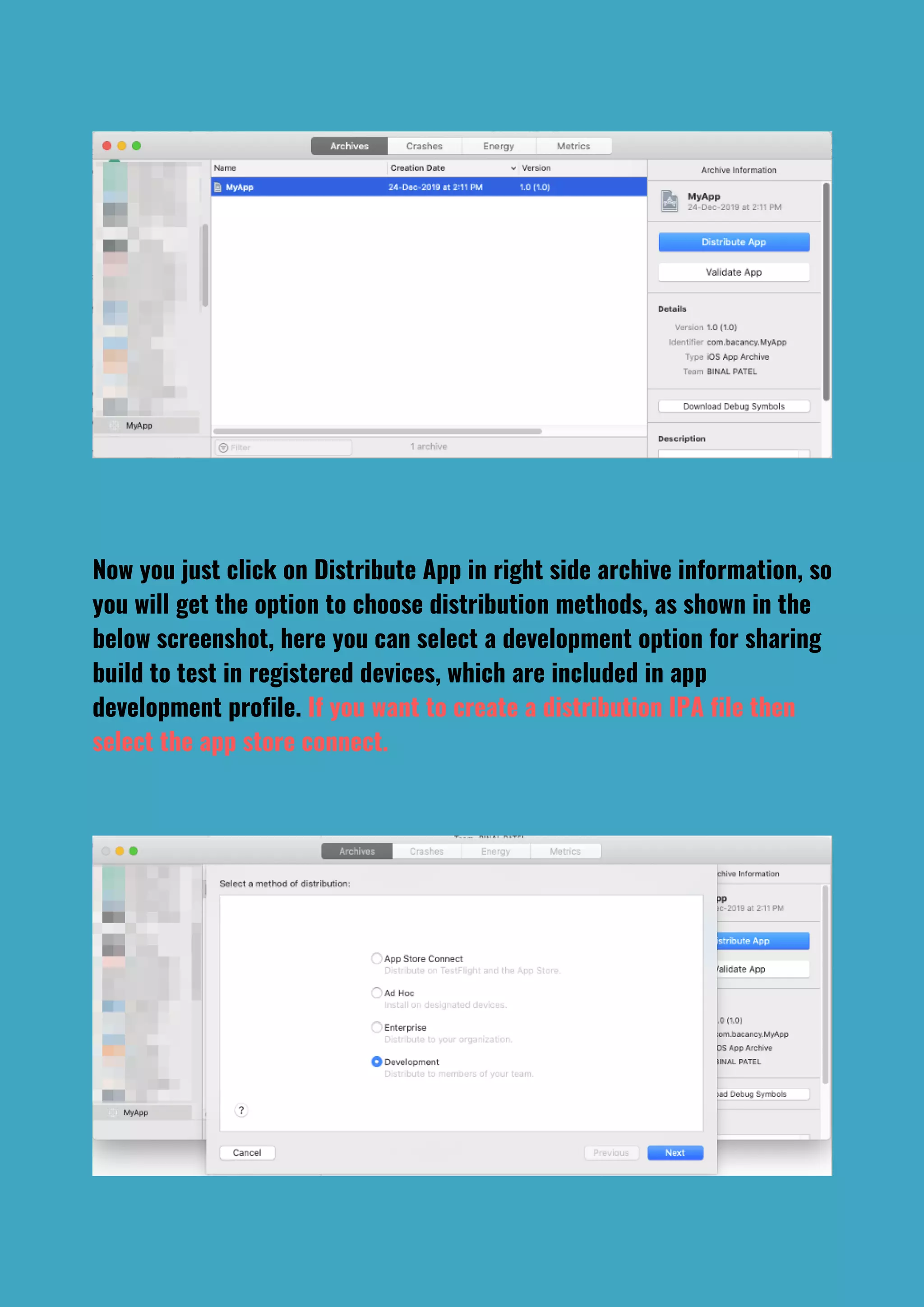
Now you just click on Distribute App in right side archive information, so
you will get the option to choose distribution methods, as shown in the
below screenshot, here you can select a development option for sharing
build to test in registered devices, which are included in app
development profile. If you want to create a distribution IPA file then
select the app store connect.
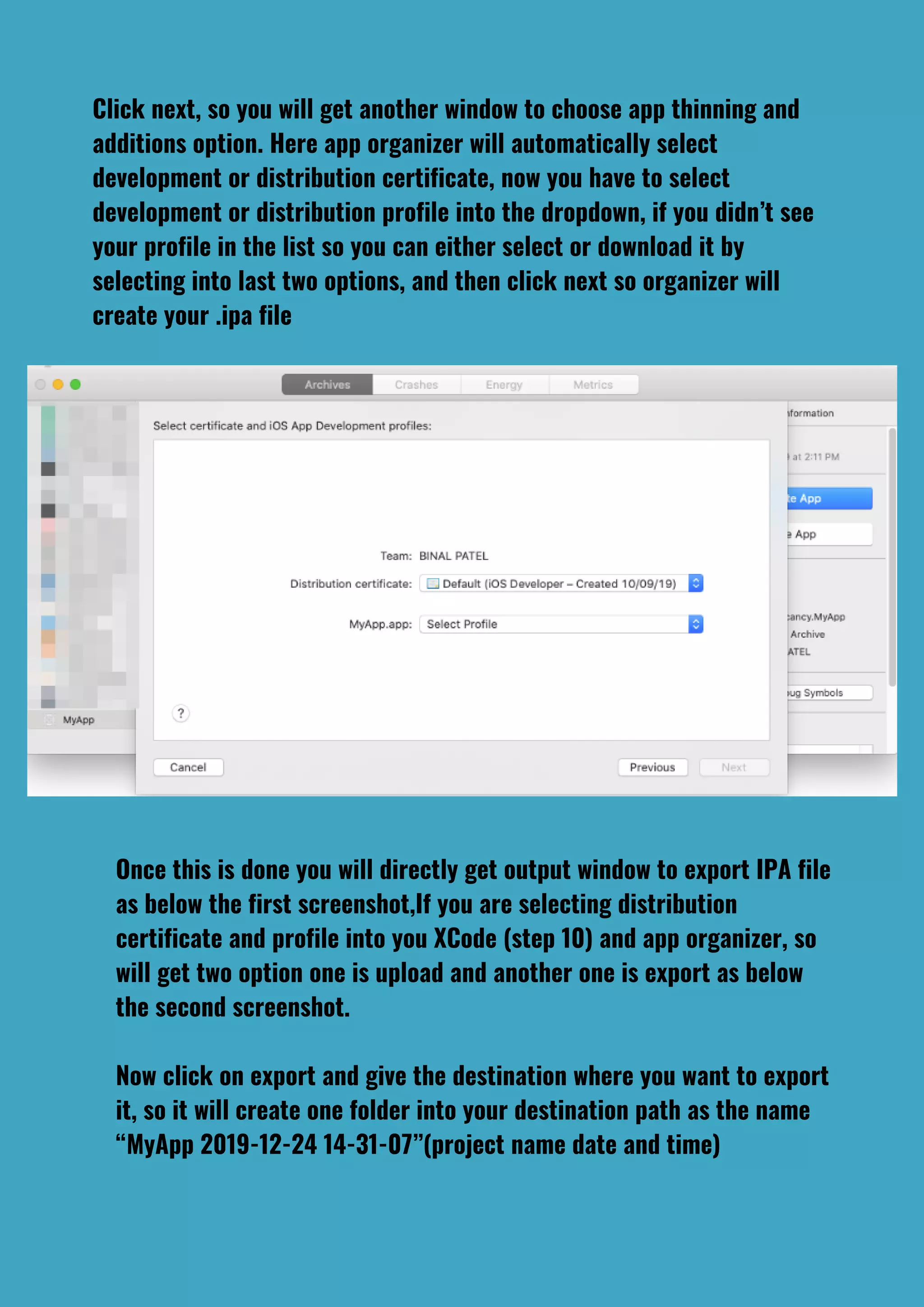
Click next, so you will get another window to choose app thinning and
additions option. Here app organizer will automatically select
development or distribution certificate, now you have to select
development or distribution profile into the dropdown, if you didn’t see
your profile in the list so you can either select or download it by
selecting into last two options, and then click next so organizer will
create your .ipa file
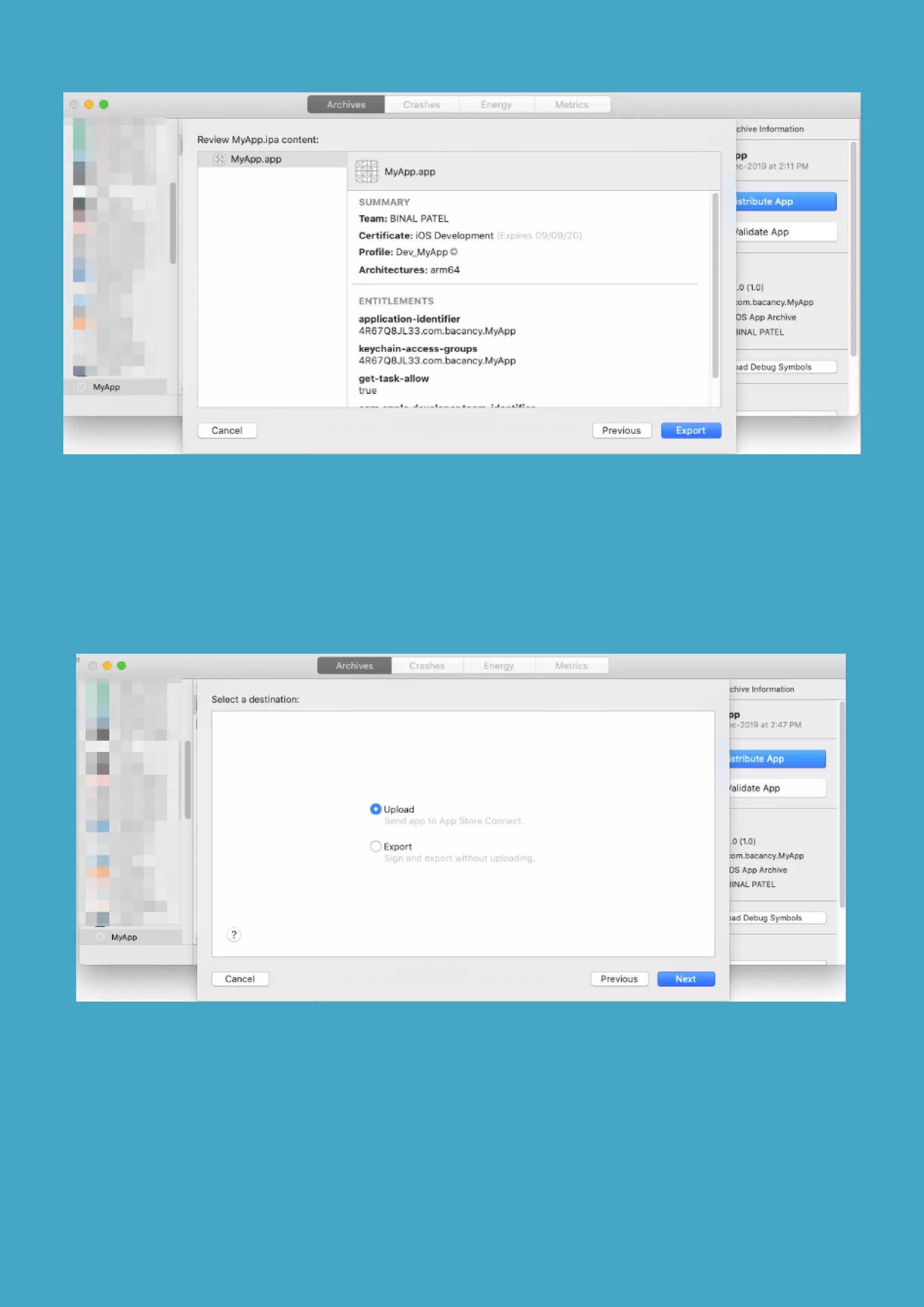
Once this is done you will directly get output window to export IPA file
as below the first screenshot,If you are selecting distribution
certificate and profile into you XCode (step 10) and app organizer, so
will get two option one is upload and another one is export as below
the second screenshot.
Now click on export and give the destination where you want to export
it, so it will create one folder into your destination path as the name
“MyApp 2019-12-24 14-31-07”(project name date and time)
Make Sure, that you are logged into you XCode using your Apple ID
You can’t create a sharable link of distribution IPA file; you can only
upload on Appstore by application loader or directly from app
organizer
Now create a share link and from diawi (https://www.diawi.com) or beta
family-supersend (https://betafamily.com/supersend) and share with
your testers to test it.
Congratulations, your app is successfully developed for distribution.
Things to Take into Consideration:
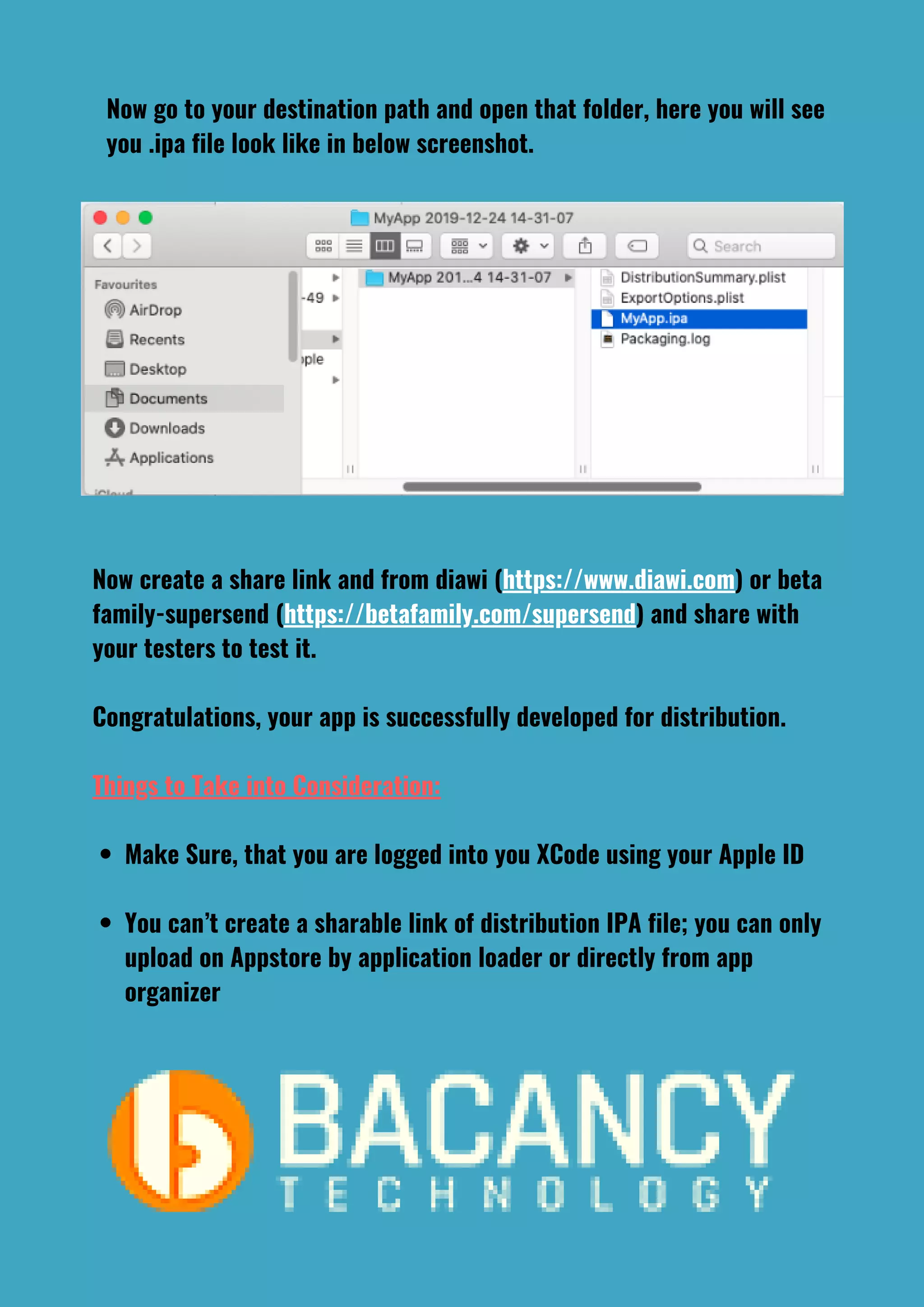
Now go to your destination path and open that folder, here you will see
you .ipa file look like in below screenshot.

12 simple steps to prepare your i os app for development and distribution (1) (1)

  • 1.
    12 Simple Stepsto Prepare Your iOS App For Development And Distribution
  • 2.
    Steps: (1) Get BundleID (2)Get UDID of your iPhone (3) Create CSR File (4) Create a development certificate (5) Create a distribution profile (6) Register(Create) App ID
  • 3.
    (7) Register Yourdevice (8) Create a development profile (9) Create a distribution profile (10) Download and install certificates & profile (11) Export and share with other mac (12) Generate .ipa file for development, distribution
  • 4.
    Step 1: GetBundle Identifier Create a new project in Xcode and find your application’s bundle identifier, bundle identifier is a combination of the reverse domain name notation of your website and applications name. .i.e com.bacancy.MyApp Step 2: Get UDID of Your iPhone Connect your iPhone device to your Mac and open iTunes and select your device from the right-side devices list. Now click multiple times until you get UDID and just right-click on it and copy it.
  • 5.
    Step 3: CreateCSR File Now open keychain access in your mac and go to top menu (keychain access->certificate assistant->request a certificate from a certificate authority) Then you can add your user email address, common name, and CA Email Address, and make sure to select save to disk and then click on continue and enter the name of the file as you want and select destination folder when you want to save it.
  • 6.
    Step 4: Createa Development Certificate Now open your apple developer account in your web browser https://developer.apple.com and login using your apple ID and go to Certificates, Identifiers & Profiles. Click on blue plus + icon near left Certificates title and select Either Apple Development or iOS App Development, here Apple Development is for xcode 11 or newer version, then click on continue,
  • 7.
    Here you canselect our certificate signing request file which we are creating in step 3, then click continue So, you will get a preview (name, type, expiry date and owner info) of your development certificate, that you can simply download.
  • 8.
    Here again, clickon blue plus + icon near left Certificates title and select Either Apple Distribution or iOS Distribution(App Store and Ad Hoc) , here Apple Distribution is for Xcode 11 or newer version, then click on continue, and just follow the same process as creating development certificate. Step 5: Create a Distribution Certificate
  • 9.
    In the nextstep, you can select your app type Either iOS, tvOS, watchOS or macOS, here we are creating an iOS app as we have selected iOS, then add your app name in the description field.In the screenshot below, I have added MyApp. Add bundleID which we have created in first step com.bacancy.MyApp, then select capabilities that you want to enable into your app Like, PUSH notifications, applePay, appGroup etc. Click continue so you will get a preview of your app ID, and just click on the register so your app will be registered. Step 6: Register (Create) App Id Click on blue plus + icon near left Identifiers title and select App IDs
  • 10.
    Step 7:Register Yourdevice Now goto devices list and click on blue plus + icon near left device title. If you want to add a device one by one then select Register a Device option, here you can select the platform, then add device name. If you have multiple device lists then select the second option Register Multiple Devices, after doing this you will get a preview of your device details, like device name, UDID, model and device type, now click on register button so your device will register for future use in development profile. Note: – As you have limitation to register new devices, you can just register 100 devices of each type (iPhone, iPad, iPod), and If you remove a registered device from your account, it will count against your device limit.
  • 11.
    Step 8: CreateDevelopment Profile Go to Profiles list and click on blue plus + icon near left Profiles title. Here there are three options for developer profile iOS, tvOS, and macOS. We have selected iOS app development for our applications because we use this app in iPhone devices, then simply click continue, Here you can select your app ID, which we have created in step 6, you can search it by your application’s bundleIDApp ID in combinations of name of your app + your team ID + BundleID of your Applications., then click on continue
  • 12.
    Now you canselect a development certificate that we have created in step 4. In your XCode, if you checked Automatically manage to sign in signing & capabilities section, so XCode will create development certificate and provisioning profiles automatically into your apple developer account if you don’t know which certificate you have created then Select All and click continue,
  • 13.
    In this step,you have to select devices in which you want to debug or run your app, and click continue For the last step of your profile name, you can give any name like Dev_MyApp, then click continue so you will get a preview on your development profile, you can also download it.
  • 14.
    Step 9: CreateDistribution Profile You can follow the same process as creating a development profile, just in the first step select app store for making app live. If you want to test your app into your registered device with a distribution certificate, then select Ad HocAd hoc will be used to test PUSH notifications in distribution mode. Then select your appID and distribution certificate, which we have created in step 6 and 5 simultaneously. Make sure to give name(Distri_MyApp) of your distribution profile, then click continue and download it.
  • 15.
    Step 10: Downloadand install certificates and profile Now we have four items that we need to install open your download folder and see there are two profiles and two certificates, you can double click on each file one by one so it will install into your keychain. Now open your project, select target->signing & Capabilities and uncheck automatically manage to sign, then select provisioning profile (Dev_MyApp) or distribution Profile (Distri_MyApp) which we have created in step 8 and 9.
  • 17.
    Step 11: Exportand Share with Other Mac Open your keychain access and select My certificates into the left pane, here you can see your certificates with a key. You can expand any certificate and see its private key if you have only download development or distribution profile and install without its certificate so you will see only profile without the private key. And without private key your exported. p12 will not work in another mac. How to Export? Just select both certificate and private key and right-click on it so you will get the option to Export it, you can click on it so you will get save option where you want to save. Now just gave any name like dev_MyApp for development or Distri_MyApp for distribution and destination folder, and click on save button so one popup will appear on your screen for certificate password, gave the password and verify password and press Enter so that you will get .p12 file. This. p12 file you can share with any other mac and just double click on it so it will install on that mac.
  • 18.
    Step 12: Get.ipa File for Development & Distribution After completing step 10, set version and build number, then select the generic iOS device as shown in the below screenshot. Clean the project by command + shift + k, and then build the project by command + b. Once this process is done without any error, go to the top menu product->archive, so it takes few minutes to create an archive, once archive is done, Xcode will automatically open app organizer window if after archive success you didn’t see app organizer window then open it manually from menu window->organizer
  • 19.
    Now you justclick on Distribute App in right side archive information, so you will get the option to choose distribution methods, as shown in the below screenshot, here you can select a development option for sharing build to test in registered devices, which are included in app development profile. If you want to create a distribution IPA file then select the app store connect.
  • 20.
    Click next, soyou will get another window to choose app thinning and additions option. Here app organizer will automatically select development or distribution certificate, now you have to select development or distribution profile into the dropdown, if you didn’t see your profile in the list so you can either select or download it by selecting into last two options, and then click next so organizer will create your .ipa file Once this is done you will directly get output window to export IPA file as below the first screenshot,If you are selecting distribution certificate and profile into you XCode (step 10) and app organizer, so will get two option one is upload and another one is export as below the second screenshot. Now click on export and give the destination where you want to export it, so it will create one folder into your destination path as the name “MyApp 2019-12-24 14-31-07”(project name date and time)
  • 22.
    Make Sure, thatyou are logged into you XCode using your Apple ID You can’t create a sharable link of distribution IPA file; you can only upload on Appstore by application loader or directly from app organizer Now create a share link and from diawi (https://www.diawi.com) or beta family-supersend (https://betafamily.com/supersend) and share with your testers to test it. Congratulations, your app is successfully developed for distribution. Things to Take into Consideration: Now go to your destination path and open that folder, here you will see you .ipa file look like in below screenshot.