Introduction to
Computers
Essential Understanding of
Computers and
Computer
Operations
Topics
 The term “computer” 
 Four basic computer operations 
 Data and information 
 Principal components of computer

 Data storage devices and usage 
 Software 
 The Internet & WWW 
What is a Computer?
 A programmable machine that inputs,
processes, and outputs information
 An electronic device for storing and
processing data
 Composed of hardware and software
 Can exist in a variety of sizes and
configurations
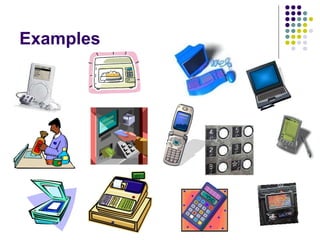
Examples
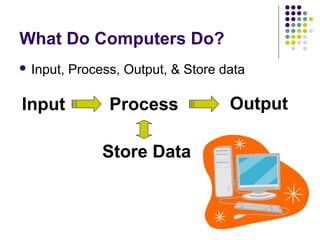
What Do Computers Do?
 Input, Process, Output, & Store data
Input Process Output
Store Data
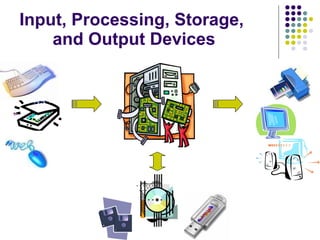
Input, Processing, Storage,
and Output Devices
What is Data?
 The raw material of information
 Contain facts w/o interpretations
 The information entered into, and stored
within a computer or file
 Used by applications to accomplish tasks
 Unprocessed information
 E.g. text, numbers, images, audio, & video
What is Information?
 Contains meaning, knowledge, instruction,
communication, & representation of data
 Result of processing, manipulating and
organizing data in a way that adds to the
knowledge of the person receiving it
 The output of information systems
Flow of Computing


Data  Processing  Information
Example
Pat Brown
1001 Jump Street
Shoreline, WA 98123
$25 per hour 40 hours
Retrieve data
Calculate weekly wage:
$25 X 40 hours = $1000
Send information to
output device
Principal Components of
Computer
 Input devices
 System units
 Storage (memory) devices
 Importance of Saving
 Output devices
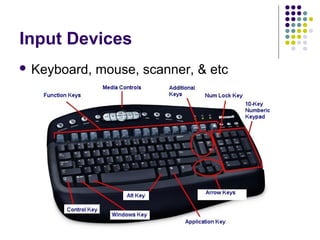
Input Devices
 Keyboard, mouse, scanner, & etc
System Units
 CPU (Central Processing Unit)
 Random Access Memory (RAM)
 Secondary Storage Devices
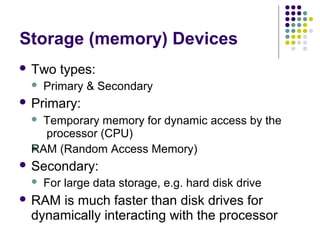
Central Processing Unit (CPU)
 Main processor of a computer that makes
everything work
 Interprets & carries out the basic instructions
 Performs all the instruction, logic, &
mathematical processing
Storage (memory) Devices
 Two types:
 Primary & Secondary
 Primary:

 Temporary memory for dynamic access by the
processor (CPU)
RAM (Random Access Memory)
 Secondary:
 For large data storage, e.g. hard disk drive
 RAM is much faster than disk drives for
dynamically interacting with the processor
Random Access Memory
(RAM) – the Primary Memory
 Temporarily stores instructions and data waiting
to be processed by the processor
 Memory units are measured in kilobytes,
megabytes, or gigabytes
 1 kilobytes = 1,000 bytes
= 1,000 memory locations ≈ 1,000 characters
 1 megabyte (MB) = 1 million memory locations
 1 gigabyte (GB) = 1 billion memory locations
 E.g. 512 MB = 512 million characters
1 MB can hold approx. 500 pages of text
Secondary Memory (Semi-
permanent)
 Magnetic Disks
 Hard disks, floppy disks, zip disks
 Optical Disks
 CD-ROM, CD-R (Recordable), CD-RW, DVD
 Flash Memory Cards
 USB flash drive: Small, lightweight, & large
storage capacity
Importance of Saving and
Saving Often
 When using an application, data is stored in
RAM temporarily
 When the file, application, or computer
closes, the data in the RAM is erased
 Where do I save the files?

 At the Lab: Removable disks such as floppy, zip,
or USB.
At home: Hard drive (C:) or any removable disk.
 Never remove a disk while the light flashes
 Saving on an existing file replaces the old
data with new (Save vs. Save As)
Importance of Data Backup
 All secondary storage devices such as floppy
and hard drive disks eventually fail, and you
lose the data
 Make backup files weekly, if not daily
 If you have a computer, use the hard drive or
a removable disk as your backup
 Otherwise, use the second removable disk
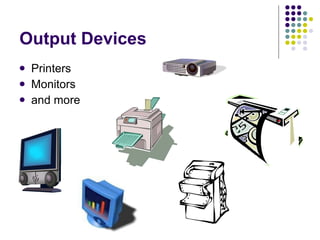
Output Devices



Printers
Monitors
and more
Personal Computers
 PC, Mac, and other microcomputers
 Desktop, Laptop, PDA
 Windows, Mac OS, Linux, etc.
 Increasingly more capable, portable,
affordable, and mobile
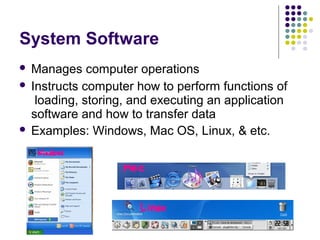
System Software
 Manages computer operations
 Instructs computer how to perform functions of
loading, storing, and executing an application
software and how to transfer data
 Examples: Windows, Mac OS, Linux, & etc.
Application Software
 Programs that tell a computer how to perform
tasks and produce information
 Categories:






Word processing Spreadsheet Database
Presentation graphics Web and Internet
access
Desktop publishing / image editing / multimedia
editing
The Internet and WWW


The Internet is the world’s largest network
Uses:





Send messages (e-mail) Access a
wealth of information Electronic
commerce
Online meeting
Access entertainment and multimedia
 WWW (World Wide Web)



The more popular component of the Internet
Web page: A document containing text, hyperlinks, images,
& other multimedia contents
Web site: A collection of Web pages
Communications Devices
 Modem
 Network card
 Router
 Wireless modem, network card, & router

Introduction to-microcomputers

  • 1.
    Introduction to Computers Essential Understandingof Computers and Computer Operations
  • 2.
    Topics  The term“computer”   Four basic computer operations   Data and information   Principal components of computer   Data storage devices and usage   Software   The Internet & WWW 
  • 3.
    What is aComputer?  A programmable machine that inputs, processes, and outputs information  An electronic device for storing and processing data  Composed of hardware and software  Can exist in a variety of sizes and configurations
  • 4.
  • 5.
    What Do ComputersDo?  Input, Process, Output, & Store data Input Process Output Store Data
  • 6.
  • 7.
    What is Data? The raw material of information  Contain facts w/o interpretations  The information entered into, and stored within a computer or file  Used by applications to accomplish tasks  Unprocessed information  E.g. text, numbers, images, audio, & video
  • 8.
    What is Information? Contains meaning, knowledge, instruction, communication, & representation of data  Result of processing, manipulating and organizing data in a way that adds to the knowledge of the person receiving it  The output of information systems
  • 9.
    Flow of Computing   Data Processing  Information Example Pat Brown 1001 Jump Street Shoreline, WA 98123 $25 per hour 40 hours Retrieve data Calculate weekly wage: $25 X 40 hours = $1000 Send information to output device
  • 10.
    Principal Components of Computer Input devices  System units  Storage (memory) devices  Importance of Saving  Output devices
  • 11.
    Input Devices  Keyboard,mouse, scanner, & etc
  • 12.
    System Units  CPU(Central Processing Unit)  Random Access Memory (RAM)  Secondary Storage Devices
  • 13.
    Central Processing Unit(CPU)  Main processor of a computer that makes everything work  Interprets & carries out the basic instructions  Performs all the instruction, logic, & mathematical processing
  • 14.
    Storage (memory) Devices Two types:  Primary & Secondary  Primary:   Temporary memory for dynamic access by the processor (CPU) RAM (Random Access Memory)  Secondary:  For large data storage, e.g. hard disk drive  RAM is much faster than disk drives for dynamically interacting with the processor
  • 15.
    Random Access Memory (RAM)– the Primary Memory  Temporarily stores instructions and data waiting to be processed by the processor  Memory units are measured in kilobytes, megabytes, or gigabytes  1 kilobytes = 1,000 bytes = 1,000 memory locations ≈ 1,000 characters  1 megabyte (MB) = 1 million memory locations  1 gigabyte (GB) = 1 billion memory locations  E.g. 512 MB = 512 million characters 1 MB can hold approx. 500 pages of text
  • 16.
    Secondary Memory (Semi- permanent) Magnetic Disks  Hard disks, floppy disks, zip disks  Optical Disks  CD-ROM, CD-R (Recordable), CD-RW, DVD  Flash Memory Cards  USB flash drive: Small, lightweight, & large storage capacity
  • 17.
    Importance of Savingand Saving Often  When using an application, data is stored in RAM temporarily  When the file, application, or computer closes, the data in the RAM is erased  Where do I save the files?   At the Lab: Removable disks such as floppy, zip, or USB. At home: Hard drive (C:) or any removable disk.  Never remove a disk while the light flashes  Saving on an existing file replaces the old data with new (Save vs. Save As)
  • 18.
    Importance of DataBackup  All secondary storage devices such as floppy and hard drive disks eventually fail, and you lose the data  Make backup files weekly, if not daily  If you have a computer, use the hard drive or a removable disk as your backup  Otherwise, use the second removable disk
  • 19.
  • 20.
    Personal Computers  PC,Mac, and other microcomputers  Desktop, Laptop, PDA  Windows, Mac OS, Linux, etc.  Increasingly more capable, portable, affordable, and mobile
  • 21.
    System Software  Managescomputer operations  Instructs computer how to perform functions of loading, storing, and executing an application software and how to transfer data  Examples: Windows, Mac OS, Linux, & etc.
  • 22.
    Application Software  Programsthat tell a computer how to perform tasks and produce information  Categories:       Word processing Spreadsheet Database Presentation graphics Web and Internet access Desktop publishing / image editing / multimedia editing
  • 23.
    The Internet andWWW   The Internet is the world’s largest network Uses:      Send messages (e-mail) Access a wealth of information Electronic commerce Online meeting Access entertainment and multimedia  WWW (World Wide Web)    The more popular component of the Internet Web page: A document containing text, hyperlinks, images, & other multimedia contents Web site: A collection of Web pages
  • 24.
    Communications Devices  Modem Network card  Router  Wireless modem, network card, & router