AMAZON WEB SERVICES (AWS)
AMAZON WEB SERVICES (AWS) 
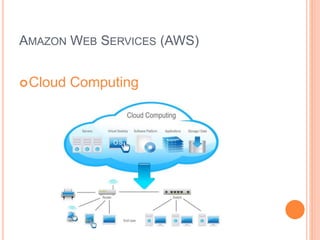
Cloud Computing
AMAZON WEB SERVICES (AWS) 
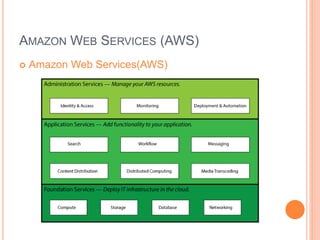
 Amazon Web Services(AWS)
AMAZON WEB SERVICES (AWS) 
Common Uses of AWS: 
 Store files 
 Host a website 
 Run a database 
 Deploy an application 
 Create a Network 
 Manage My Resources
AMAZON WEB SERVICES (AWS) 
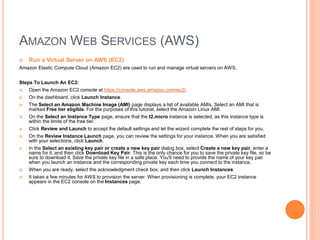
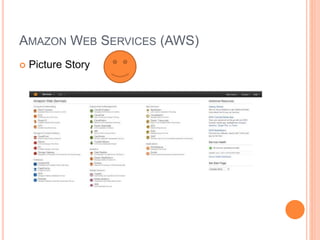
 Run a Virtual Server on AWS (EC2) 
Amazon Elastic Compute Cloud (Amazon EC2) are used to run and manage virtual servers on AWS. 
Steps To Launch An EC2: 
 Open the Amazon EC2 console at https://console.aws.amazon.com/ec2/. 
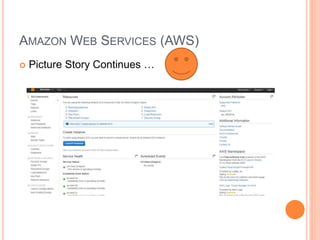
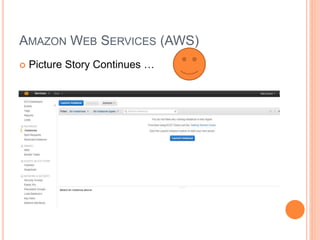
 On the dashboard, click Launch Instance. 
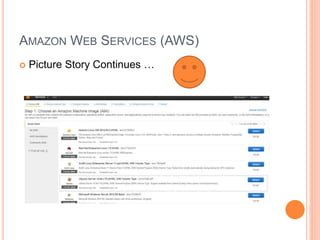
 The Select an Amazon Machine Image (AMI) page displays a list of available AMIs. Select an AMI that is 
marked Free tier eligible. For the purposes of this tutorial, select the Amazon Linux AMI. 
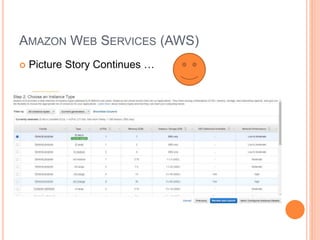
 On the Select an Instance Type page, ensure that the t2.micro instance is selected, as this instance type is 
within the limits of the free tier. 
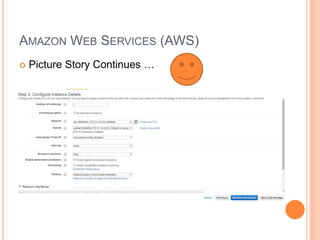
 Click Review and Launch to accept the default settings and let the wizard complete the rest of steps for you. 
 On the Review Instance Launch page, you can review the settings for your instance. When you are satisfied 
with your selections, click Launch. 
 In the Select an existing key pair or create a new key pair dialog box, select Create a new key pair, enter a 
name for it, and then click Download Key Pair. This is the only chance for you to save the private key file, so be 
sure to download it. Save the private key file in a safe place. You'll need to provide the name of your key pair 
when you launch an instance and the corresponding private key each time you connect to the instance. 
 When you are ready, select the acknowledgment check box, and then click Launch Instances. 
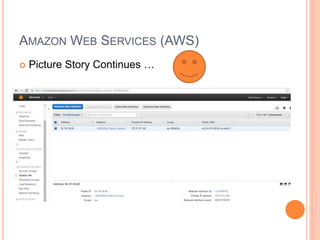
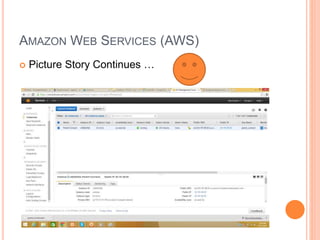
 It takes a few minutes for AWS to provision the server. When provisioning is complete, your EC2 instance 
appears in the EC2 console on the Instances page.
AMAZON WEB SERVICES (AWS) 
 Picture Story
AMAZON WEB SERVICES (AWS) 
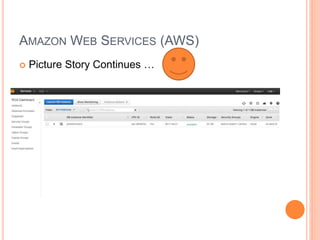
 Picture Story Continues …
AMAZON WEB SERVICES (AWS) 
 Picture Story Continues …
AMAZON WEB SERVICES (AWS) 
 Picture Story Continues …
AMAZON WEB SERVICES (AWS) 
 Picture Story Continues …
AMAZON WEB SERVICES (AWS) 
 Picture Story Continues …
AMAZON WEB SERVICES (AWS) 
 Picture Story Continues …
AMAZON WEB SERVICES (AWS) 
 Picture Story Continues …
AMAZON WEB SERVICES (AWS) 
Auto Scaling: 
Auto Scaling allows you to scale your Amazon EC2 capacity 
up or down automatically according to conditions you define. 
With Auto Scaling, you can ensure that the number of Amazon 
EC2 instances you’re using increases seamlessly during 
demand spikes to maintain performance, and decreases 
automatically during demand lulls to minimize costs. Auto 
Scaling is particularly well suited for applications that 
experience hourly, daily, or weekly variability in usage. Auto 
Scaling is enabled by Amazon CloudWatch and available at 
no additional charge beyond Amazon CloudWatch fees.
AMAZON WEB SERVICES (AWS) 
Elastic Load Balancing 
Elastic Load Balancing automatically distributes 
incoming application traffic across multiple Amazon 
EC2 instances in the cloud. It enables you to 
achieve greater levels of fault tolerance in your 
applications, seamlessly providing the required 
amount of load balancing capacity needed to 
distribute application traffic.
AMAZON WEB SERVICES (AWS) 
Amazon Relational Database Service (RDS) 
Amazon Relational Database Service (Amazon RDS) is a web 
service that makes it easy to set up, operate, and scale a 
relational database inthe cloud. It provides cost-efficient and 
resizable capacity while managing time-consuming database 
management tasks, freeing you up to focus on your 
applications and business. 
Advantages: 
Reliable ,Scalable,Cloud Support ,On Demand Instances 
support ,Secure
AMAZON WEB SERVICES (AWS) 
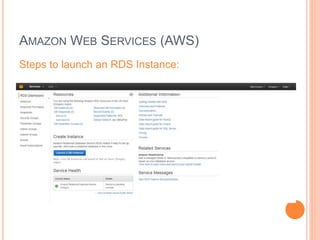
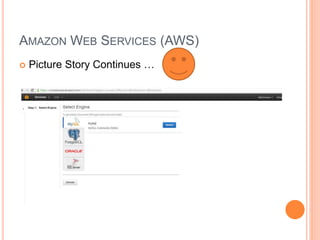
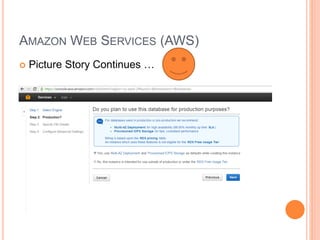
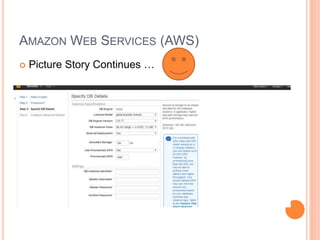
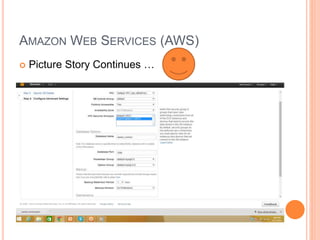
Steps to launch an RDS Instance:
AMAZON WEB SERVICES (AWS) 
 Picture Story Continues …
AMAZON WEB SERVICES (AWS) 
 Picture Story Continues …
AMAZON WEB SERVICES (AWS) 
 Picture Story Continues …
AMAZON WEB SERVICES (AWS) 
 Picture Story Continues …
AMAZON WEB SERVICES (AWS) 
 Picture Story Continues …
AMAZON WEB SERVICES (AWS) 
Amazon Simple Storage Service (S3) 
 Amazon S3 is cloud storage for the Internet. It 
is designed to make web-scale computing 
easier for developers. 
 Amazon S3 provides a simple web-services 
interface that can be used to store and retrieve 
any amount of data, at any time, from anywhere 
on the web. It gives any developer access to 
the same highly scalable, reliable, secure, fast, 
inexpensive infrastructure that Amazon uses to 
run its own global network of web sites. The 
service aims to maximize benefits of scale and 
to pass those benefits on to developers.
AMAZON WEB SERVICES (AWS) 
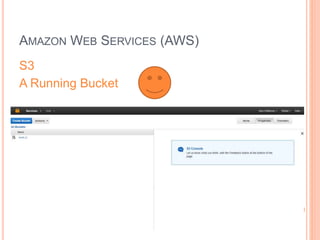
S3 
A Running Bucket
AMAZON WEB SERVICES (AWS) 
Any Question ????
Basic introduction of Amazon Web Services (AWS)

Basic introduction of Amazon Web Services (AWS)

  • 1.
  • 2.
    AMAZON WEB SERVICES(AWS) Cloud Computing
  • 3.
    AMAZON WEB SERVICES(AWS)  Amazon Web Services(AWS)
  • 4.
    AMAZON WEB SERVICES(AWS) Common Uses of AWS:  Store files  Host a website  Run a database  Deploy an application  Create a Network  Manage My Resources
  • 5.
    AMAZON WEB SERVICES(AWS)  Run a Virtual Server on AWS (EC2) Amazon Elastic Compute Cloud (Amazon EC2) are used to run and manage virtual servers on AWS. Steps To Launch An EC2:  Open the Amazon EC2 console at https://console.aws.amazon.com/ec2/.  On the dashboard, click Launch Instance.  The Select an Amazon Machine Image (AMI) page displays a list of available AMIs. Select an AMI that is marked Free tier eligible. For the purposes of this tutorial, select the Amazon Linux AMI.  On the Select an Instance Type page, ensure that the t2.micro instance is selected, as this instance type is within the limits of the free tier.  Click Review and Launch to accept the default settings and let the wizard complete the rest of steps for you.  On the Review Instance Launch page, you can review the settings for your instance. When you are satisfied with your selections, click Launch.  In the Select an existing key pair or create a new key pair dialog box, select Create a new key pair, enter a name for it, and then click Download Key Pair. This is the only chance for you to save the private key file, so be sure to download it. Save the private key file in a safe place. You'll need to provide the name of your key pair when you launch an instance and the corresponding private key each time you connect to the instance.  When you are ready, select the acknowledgment check box, and then click Launch Instances.  It takes a few minutes for AWS to provision the server. When provisioning is complete, your EC2 instance appears in the EC2 console on the Instances page.
  • 6.
    AMAZON WEB SERVICES(AWS)  Picture Story
  • 7.
    AMAZON WEB SERVICES(AWS)  Picture Story Continues …
  • 8.
    AMAZON WEB SERVICES(AWS)  Picture Story Continues …
  • 9.
    AMAZON WEB SERVICES(AWS)  Picture Story Continues …
  • 10.
    AMAZON WEB SERVICES(AWS)  Picture Story Continues …
  • 11.
    AMAZON WEB SERVICES(AWS)  Picture Story Continues …
  • 12.
    AMAZON WEB SERVICES(AWS)  Picture Story Continues …
  • 13.
    AMAZON WEB SERVICES(AWS)  Picture Story Continues …
  • 14.
    AMAZON WEB SERVICES(AWS) Auto Scaling: Auto Scaling allows you to scale your Amazon EC2 capacity up or down automatically according to conditions you define. With Auto Scaling, you can ensure that the number of Amazon EC2 instances you’re using increases seamlessly during demand spikes to maintain performance, and decreases automatically during demand lulls to minimize costs. Auto Scaling is particularly well suited for applications that experience hourly, daily, or weekly variability in usage. Auto Scaling is enabled by Amazon CloudWatch and available at no additional charge beyond Amazon CloudWatch fees.
  • 15.
    AMAZON WEB SERVICES(AWS) Elastic Load Balancing Elastic Load Balancing automatically distributes incoming application traffic across multiple Amazon EC2 instances in the cloud. It enables you to achieve greater levels of fault tolerance in your applications, seamlessly providing the required amount of load balancing capacity needed to distribute application traffic.
  • 16.
    AMAZON WEB SERVICES(AWS) Amazon Relational Database Service (RDS) Amazon Relational Database Service (Amazon RDS) is a web service that makes it easy to set up, operate, and scale a relational database inthe cloud. It provides cost-efficient and resizable capacity while managing time-consuming database management tasks, freeing you up to focus on your applications and business. Advantages: Reliable ,Scalable,Cloud Support ,On Demand Instances support ,Secure
  • 17.
    AMAZON WEB SERVICES(AWS) Steps to launch an RDS Instance:
  • 18.
    AMAZON WEB SERVICES(AWS)  Picture Story Continues …
  • 19.
    AMAZON WEB SERVICES(AWS)  Picture Story Continues …
  • 20.
    AMAZON WEB SERVICES(AWS)  Picture Story Continues …
  • 21.
    AMAZON WEB SERVICES(AWS)  Picture Story Continues …
  • 22.
    AMAZON WEB SERVICES(AWS)  Picture Story Continues …
  • 23.
    AMAZON WEB SERVICES(AWS) Amazon Simple Storage Service (S3)  Amazon S3 is cloud storage for the Internet. It is designed to make web-scale computing easier for developers.  Amazon S3 provides a simple web-services interface that can be used to store and retrieve any amount of data, at any time, from anywhere on the web. It gives any developer access to the same highly scalable, reliable, secure, fast, inexpensive infrastructure that Amazon uses to run its own global network of web sites. The service aims to maximize benefits of scale and to pass those benefits on to developers.
  • 24.
    AMAZON WEB SERVICES(AWS) S3 A Running Bucket
  • 25.
    AMAZON WEB SERVICES(AWS) Any Question ????