Modeling the Building
1. Defining the Grids
Click File and
Select New Model
First, select the Unit
Then select Grid Only
Click OK
Two windows will appear: 2D Plane (Left) and 3D View (Right)
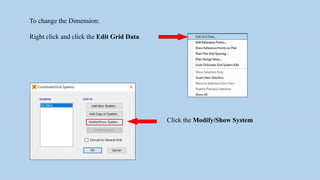
To change the Dimension:
Right click and click the Edit Grid Data
Click the Modify/Show System
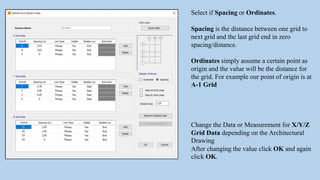
Select if Spacing or Ordinates.
Spacing is the distance between one grid to
next grid and the last grid end in zero
spacing/distance.
Ordinates simply assume a certain point as
origin and the value will be the distance for
the grid. For example our point of origin is at
A-1 Grid
Change the Data or Measurement for X/Y/Z
Grid Data depending on the Architectural
Drawing
After changing the value click OK and again
click OK.
2. Defining the Material Properties
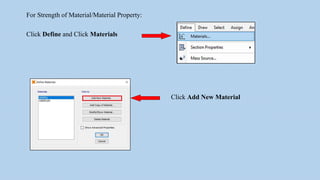
For Strength of Material/Material Property:
Click Define and Click Materials
Click Add New Material
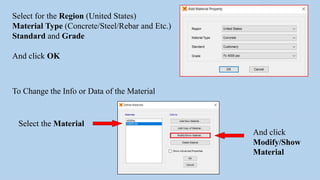
Select for the Region (United States)
Material Type (Concrete/Steel/Rebar and Etc.)
Standard and Grade
And click OK
To Change the Info or Data of the Material
Select the Material
And click
Modify/Show
Material
For Concrete:
INPUT TEXT
HERE!!!!!
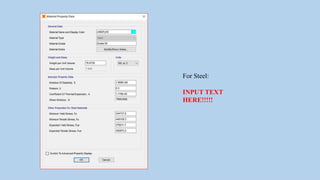
For Steel:
INPUT TEXT
HERE!!!!!
For Rebar:
Unit is N, mm, C
INPUT TEXT
HERE!!!!!
3. Defining the Sectional Properties
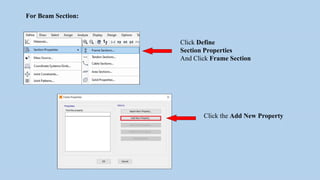
For Beam Section:
Click Define
Section Properties
And Click Frame Section
Click the Add New Property
On Frame Section Property Type
Select Concrete, Steel is also an option
Click Rectangular Section, or use the
other sections available
Section Name: Beam with the Dimension
Dimensions
Depth
Width
Material
Concrete
Steel
And click
Concrete
Reinforcement
Select the Rebar
Material
Click Beam (M3 Design
Only) for Design Type
Input the values
Longitudinal Rebar
Top and Bottom
Click OK
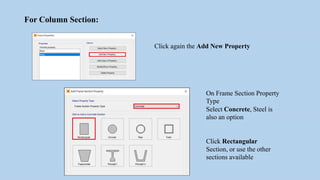
For Column Section:
Click again the Add New Property
On Frame Section Property
Type
Select Concrete, Steel is
also an option
Click Rectangular
Section, or use the other
sections available
Dimensions
Depth and Width
Material
Concrete
Steel
And click
Concrete
Reinforcement
Section Name: Column
with the Dimension
Select the Rebar Material
Click Beam (M3 Design Only)
for Design Type
Select Longitudinal Bar Size
Select Confinement Bar Size
And value for Spacing of
Confinement Bars
Click OK
For Slab and Staircase Section:
Click Define
Section Properties
And Click Area Sections
Select Shell
Click the Add New Property
Section Name
Slab Name /
Thickness No.
Type
Shell - Thin
Material
Material Name
Thickness
For Membrane
For Bending
And click
OK
Add also a Slab for the Stairs, Staircase, Cantilelver Slab and Etc.
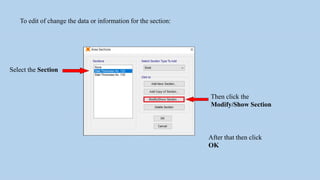
To edit of change the data or information for the section:
Then click the
Modify/Show Section
Select the Section
After that then click
OK
4. Modeling of the Building
Before Drawing the Column, go to or click XZ Plane.
And for the Beam, go to or click XY Plane
Click Draw
And Click Draw
Frame/Cable/Tendon
Properties of Object will pop-up
Select the Section
If for Column or for Beam
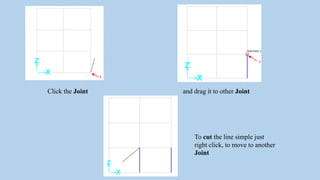
Click the Joint and drag it to other Joint
To cut the line simple just
right click, to move to another
Joint
To copy the Line for the Column
Select the Line you want to copy
Then Press Ctrl+R (Replicate)
Increments
-is the distance of one point to another
If in XZ Plane for Column, input the
value for dy
If in XY Plane for Beam, input the value
for dz
Then click OK
Move from one Plane to another
Click Move Up or Move Down
Then select the Line and Replicate
Same procedure goes to the Beam
Go to XY Plane for Beam, Draw Beam Only 2nd Floor and Upper Floors
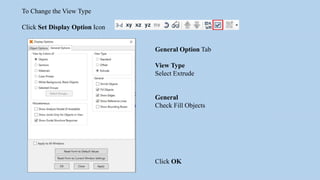
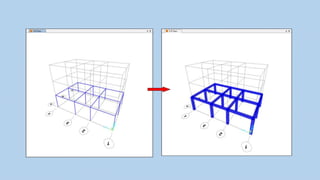
To Change the View Type
Click Set Display Option Icon
General Option Tab
View Type
Select Extrude
General
Check Fill Objects
Click OK
To Draw for Slab:
Go to XY Plane
Click Draw
And Click Draw Rectangular Area
Properties of Object will pop-up
Then select the Section
For Slab Name or Slab Thickness No.
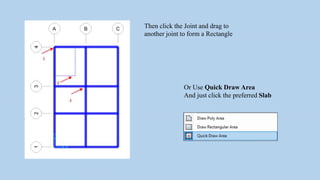
Then click the Joint and drag to
another joint to form a Rectangle
Or Use Quick Draw Area
And just click the preferred Slab
Open Area for Stair
and Staircase Slab
To copy the Slab
Select the Slab Area
Note: If the all floors are the same height,
select also the columns and beams. And
input the of copies with same floor height
Then Press Ctrl+R (Replicate)
Increments
If in XY Plane for Slab, input the value for
dz
Then click OK
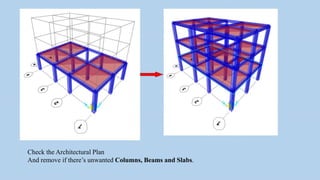
Check the Architectural Plan
And remove if there’s unwanted Columns, Beams and Slabs.
If there’s any additional Slabs or
Cantilever Slab. Identify the location
and input the value in the Grid Data.
Right click and click the Edit Grid
Data
And click the Modify/Show System
Click Ordinates, our point of origin is
at A-1 Grid including the negative
sign if applicable
And add the values for X/Y Grid Data
for the location of the Additional Slab
Then click OK
Draw the Slab
Use Quick Draw Area
Select the Slab Name/ Thickness No.
And just click the preferred Slab
Then replicate if there are similar slab or cantilever slab
Cantiliver Slab
Cantiliver Slab
5. Modeling of the Staircase
Identify how many Grids will be added in the Grid Data
Set a point or joint as the ORIGIN to identify the distance for the stairs
Right click and click the Edit Grid Data
Click the Modify/Show System
Click Ordinates, our point
of origin is at A-1 Grid
including the negative sign
if applicable.
And add the values for
X/Y/Z Grid Data for the
location of the Stair
Then click OK
Grid Lines for the Staircase
should reflect
Then Draw the Slab for the
Stairs and Stair Landing
Click Draw
And Click Draw Poly Area
Properties of Object will pop-up
Then select the Section
Slab Thickness No. for Stairs and Stair Landing
Start in Z=0
Click the points or joints to form a rectangle.
To draw for inclination:
Click the two points from
below
Then click Move Up icon
Click first the joint that is toward from the last joint
And click the two other points
And press Enter
Inclination of Stair must
appear in 3D
Do this procedure until the
upper floors
Draw also the Slab for the
Stair Landing
To Copy the Stairs:
Click Select
Select
Properties
And click Area Sections
Select the Slab that need to be select
And Click the Select
Then all stairs will be highlighted
After that Press CTRL+R
To replicate the stairs to the upper
floors
Input the value for Increments
Then OK
-End-
Modeling the Building

Modeling the Building.pptx

  • 1.
  • 2.
  • 3.
    Click File and SelectNew Model First, select the Unit Then select Grid Only
  • 4.
  • 5.
    Two windows willappear: 2D Plane (Left) and 3D View (Right)
  • 6.
    To change theDimension: Right click and click the Edit Grid Data Click the Modify/Show System
  • 7.
    Select if Spacingor Ordinates. Spacing is the distance between one grid to next grid and the last grid end in zero spacing/distance. Ordinates simply assume a certain point as origin and the value will be the distance for the grid. For example our point of origin is at A-1 Grid Change the Data or Measurement for X/Y/Z Grid Data depending on the Architectural Drawing After changing the value click OK and again click OK.
  • 8.
    2. Defining theMaterial Properties
  • 9.
    For Strength ofMaterial/Material Property: Click Define and Click Materials Click Add New Material
  • 10.
    Select for theRegion (United States) Material Type (Concrete/Steel/Rebar and Etc.) Standard and Grade And click OK To Change the Info or Data of the Material Select the Material And click Modify/Show Material
  • 11.
  • 12.
  • 13.
    For Rebar: Unit isN, mm, C INPUT TEXT HERE!!!!!
  • 14.
    3. Defining theSectional Properties
  • 15.
    For Beam Section: ClickDefine Section Properties And Click Frame Section Click the Add New Property
  • 16.
    On Frame SectionProperty Type Select Concrete, Steel is also an option Click Rectangular Section, or use the other sections available
  • 17.
    Section Name: Beamwith the Dimension Dimensions Depth Width Material Concrete Steel And click Concrete Reinforcement
  • 18.
    Select the Rebar Material ClickBeam (M3 Design Only) for Design Type Input the values Longitudinal Rebar Top and Bottom Click OK
  • 19.
    For Column Section: Clickagain the Add New Property On Frame Section Property Type Select Concrete, Steel is also an option Click Rectangular Section, or use the other sections available
  • 20.
    Dimensions Depth and Width Material Concrete Steel Andclick Concrete Reinforcement Section Name: Column with the Dimension
  • 21.
    Select the RebarMaterial Click Beam (M3 Design Only) for Design Type Select Longitudinal Bar Size Select Confinement Bar Size And value for Spacing of Confinement Bars Click OK
  • 22.
    For Slab andStaircase Section: Click Define Section Properties And Click Area Sections Select Shell Click the Add New Property
  • 23.
    Section Name Slab Name/ Thickness No. Type Shell - Thin Material Material Name Thickness For Membrane For Bending And click OK Add also a Slab for the Stairs, Staircase, Cantilelver Slab and Etc.
  • 24.
    To edit ofchange the data or information for the section: Then click the Modify/Show Section Select the Section After that then click OK
  • 25.
    4. Modeling ofthe Building
  • 26.
    Before Drawing theColumn, go to or click XZ Plane. And for the Beam, go to or click XY Plane Click Draw And Click Draw Frame/Cable/Tendon Properties of Object will pop-up Select the Section If for Column or for Beam
  • 27.
    Click the Jointand drag it to other Joint To cut the line simple just right click, to move to another Joint
  • 28.
    To copy theLine for the Column Select the Line you want to copy Then Press Ctrl+R (Replicate)
  • 29.
    Increments -is the distanceof one point to another If in XZ Plane for Column, input the value for dy If in XY Plane for Beam, input the value for dz Then click OK Move from one Plane to another Click Move Up or Move Down Then select the Line and Replicate
  • 30.
    Same procedure goesto the Beam Go to XY Plane for Beam, Draw Beam Only 2nd Floor and Upper Floors
  • 31.
    To Change theView Type Click Set Display Option Icon General Option Tab View Type Select Extrude General Check Fill Objects Click OK
  • 33.
    To Draw forSlab: Go to XY Plane Click Draw And Click Draw Rectangular Area Properties of Object will pop-up Then select the Section For Slab Name or Slab Thickness No.
  • 34.
    Then click theJoint and drag to another joint to form a Rectangle Or Use Quick Draw Area And just click the preferred Slab
  • 35.
    Open Area forStair and Staircase Slab
  • 36.
    To copy theSlab Select the Slab Area Note: If the all floors are the same height, select also the columns and beams. And input the of copies with same floor height Then Press Ctrl+R (Replicate) Increments If in XY Plane for Slab, input the value for dz Then click OK
  • 37.
    Check the ArchitecturalPlan And remove if there’s unwanted Columns, Beams and Slabs.
  • 38.
    If there’s anyadditional Slabs or Cantilever Slab. Identify the location and input the value in the Grid Data. Right click and click the Edit Grid Data And click the Modify/Show System Click Ordinates, our point of origin is at A-1 Grid including the negative sign if applicable And add the values for X/Y Grid Data for the location of the Additional Slab Then click OK
  • 39.
    Draw the Slab UseQuick Draw Area Select the Slab Name/ Thickness No. And just click the preferred Slab Then replicate if there are similar slab or cantilever slab Cantiliver Slab Cantiliver Slab
  • 40.
    5. Modeling ofthe Staircase
  • 41.
    Identify how manyGrids will be added in the Grid Data Set a point or joint as the ORIGIN to identify the distance for the stairs Right click and click the Edit Grid Data Click the Modify/Show System
  • 42.
    Click Ordinates, ourpoint of origin is at A-1 Grid including the negative sign if applicable. And add the values for X/Y/Z Grid Data for the location of the Stair Then click OK
  • 43.
    Grid Lines forthe Staircase should reflect
  • 44.
    Then Draw theSlab for the Stairs and Stair Landing Click Draw And Click Draw Poly Area Properties of Object will pop-up Then select the Section Slab Thickness No. for Stairs and Stair Landing
  • 45.
    Start in Z=0 Clickthe points or joints to form a rectangle. To draw for inclination: Click the two points from below Then click Move Up icon
  • 46.
    Click first thejoint that is toward from the last joint And click the two other points
  • 47.
    And press Enter Inclinationof Stair must appear in 3D Do this procedure until the upper floors
  • 48.
    Draw also theSlab for the Stair Landing
  • 49.
    To Copy theStairs: Click Select Select Properties And click Area Sections
  • 50.
    Select the Slabthat need to be select And Click the Select Then all stairs will be highlighted After that Press CTRL+R To replicate the stairs to the upper floors Input the value for Increments Then OK
  • 51.