Reference Styles
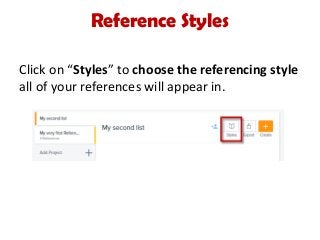
Click on“Styles” to choose the referencing style
all of your references will appear in.
10.
Reference Styles
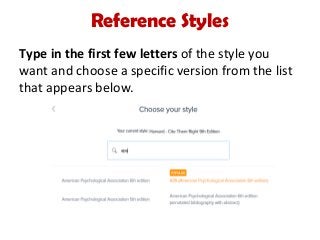
Type inthe first few letters of the style you
want and choose a specific version from the list
that appears below.
11.
Reference Styles
At theTavistock and Portman, you will
usually use either:
“Harvard – Cite Them Right 9th Edition”
or
“APA (American Psychological Association
6th edition)”.
Creating References
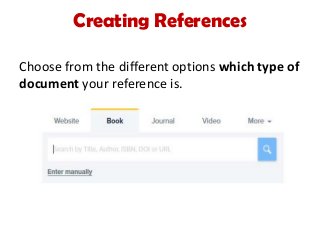
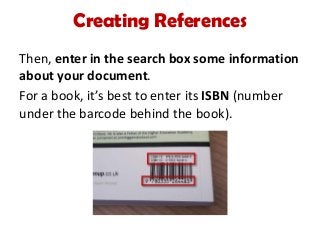
Then, enterin the search box some information
about your document.
For a book, it’s best to enter its ISBN (number
under the barcode behind the book).
16.
Creating References
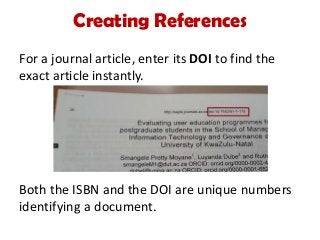
For ajournal article, enter its DOI to find the
exact article instantly.
Both the ISBN and the DOI are unique numbers
identifying a document.
17.
Creating References
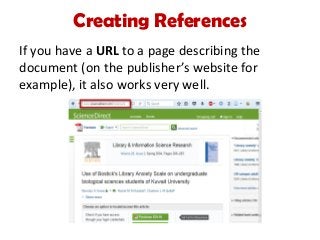
If youhave a URL to a page describing the
document (on the publisher’s website for
example), it also works very well.
18.
Creating References
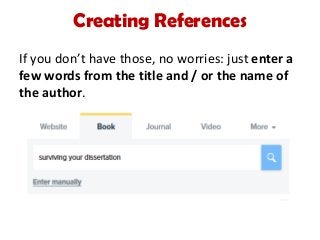
If youdon’t have those, no worries: just enter a
few words from the title and / or the name of
the author.
Creating References
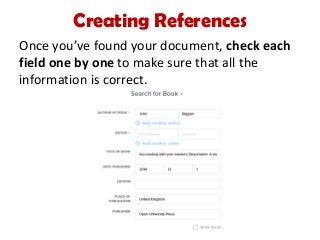
Once you’vefound your document, check each
field one by one to make sure that all the
information is correct.
21.
Creating References
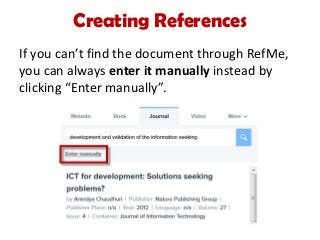
If youcan’t find the document through RefMe,
you can always enter it manually instead by
clicking “Enter manually”.
22.
Creating References
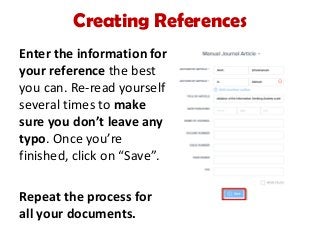
Enter theinformation for
your reference the best
you can. Re-read yourself
several times to make
sure you don’t leave any
typo. Once you’re
finished, click on “Save”.
Repeat the process for
all your documents.
Exporting your ReferenceList
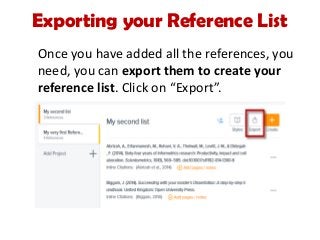
Once you have added all the references, you
need, you can export them to create your
reference list. Click on “Export”.
25.
Exporting your ReferenceList
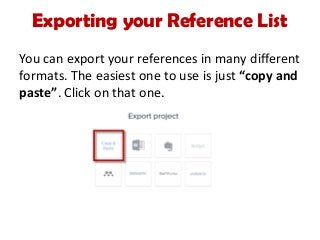
You can export your references in many different
formats. The easiest one to use is just “copy and
paste”. Click on that one.